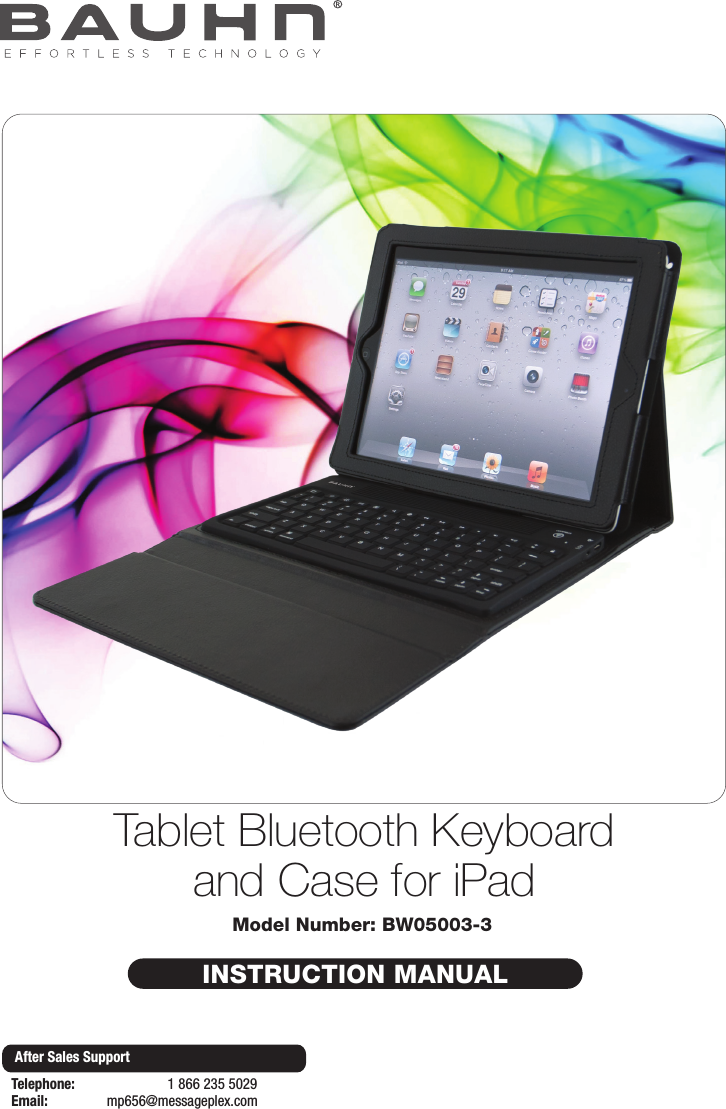
B and W Electronics Development 13BW05003 Bluetooth Keyboard User Manual

Shenzhen B&W; Electronics Development Limited Bluetooth Keyboard

User manual

INSTRUCTION MANUALModel Number: BW05003-3Tablet Bluetooth Keyboard and Case for iPadAfter Sales SupportTelephone:                        1 866 235 5029Email:       mp656@messageplex.com
2After Sales SupportTelephone:                        1 866 235 5029Email:       mp656@messageplex.comWelcome 3General Safety Instructions 4Parts List 5Features 6Getting Started 7Instructions 8Other Useful Information 10Repair and Refurbished Goods or Parts Notice 12Contents
3After Sales SupportTelephone:                        1 866 235 5029Email:       mp656@messageplex.comWelcomeCongratulations on choosing to buy a BAUHN® product. All products brought to you by BAUHN® are manufactured to the highest standards of performance and safety and, as part of our philosophy of customer service and satisfaction, are backed by our comprehensive 2 Year Warranty. We hope you will enjoy using your purchase for many years to come.
4After Sales SupportTelephone:                        1 866 235 5029Email:       mp656@messageplex.comGeneral Safety InstructionsRead this manual thoroughly before first use, even if you are familiar with this type of product. Keep the manual in a safe place for future reference, along with the completed warranty card, purchase receipt and carton. If applicable, pass these instructions on to the next owner of the appliance.• In order to prevent environmental factors (dampness, dust, food, liquid etc.) harming the Tablet Case and Bluetooth Keyboard (short: the product), only use it in a well ventilated, clean and dry environment, away from excessive heat or moisture.• Keep the product away from direct sunlight or heat sources.• Only charge the product via the supplied USB cable. Do not charge it any other way.• In case of damage, do not disassemble, repair or modify the product yourself. Contact the after sales support line for advice on repair or replacement, or refer servicing to qualified personnel only.• This product is not intended for use by persons (including children) with reduced physical, sensory or mental capabilities, or lack of experience and knowledge, unless they have been given supervision or instruction concerning use of the product by a person responsible for their safety.• Children should be supervised to ensure they do not play with the product.• Keep the product away from sharp objects.• Do not put any object on top of the product.• Do not expose the product to microwaves.• Do not twist or distort the keyboard.• Keep the product away from oils, chemicals or any other organic liquids.• Use water or alcohol based disinfectants for cleaning the silicone keyboard.This device complies with Part 15 of the FCC Rules. Operation is subject to the following two conditions: (1) This device may not cause harmful interference, and(2) This device must accept any interference received, including interference that maycause undesired operationNOTE: This equipment has been tested and found to comply with the limits for a Class B digital device. These limits are designed to provide reasonable protection against harmful interference in a residential installation. This equipment generates, uses and can radiate radio frequency energy, and if not installed and used in accordance with the instructions, may cause harmful interference to radio or television reception, which can be determined by turning the equipment off and on. In case of interference, try to correct the interference by one of the following measures:• Reorient or relocate the receiving antenna.• Increase the separation between the equipment and receiver.• Connect the equipment into an outlet on a circuit different from that to which the receiver is connected.• Consult an experienced radio/TV technician, or contact our after sales support line for help.Modifications not expressly approved by the manufacturer could void the user’sauthority to operate the equipment under FCC rules.
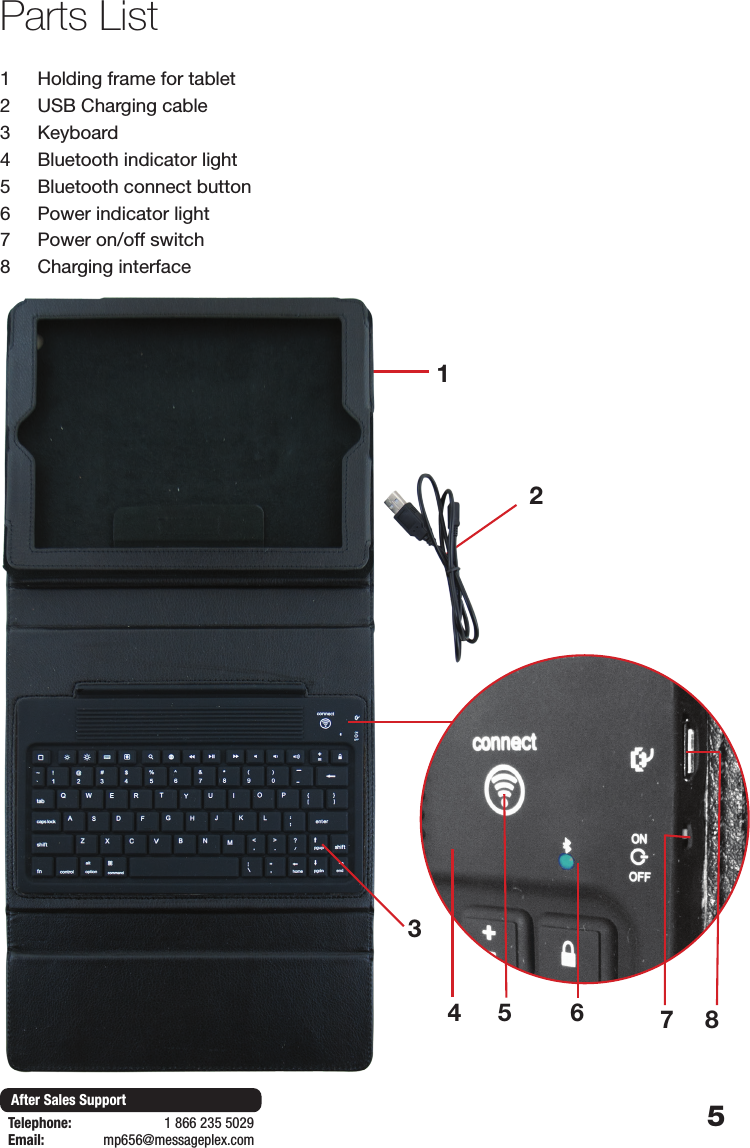
5After Sales SupportTelephone:                        1 866 235 5029Email:       mp656@messageplex.comParts List1231  Holding frame for tablet2  USB Charging cable3  Keyboard4  Bluetooth indicator light5  Bluetooth connect button 6  Power indicator light7  Power on/off switch8  Charging interface64 5 78
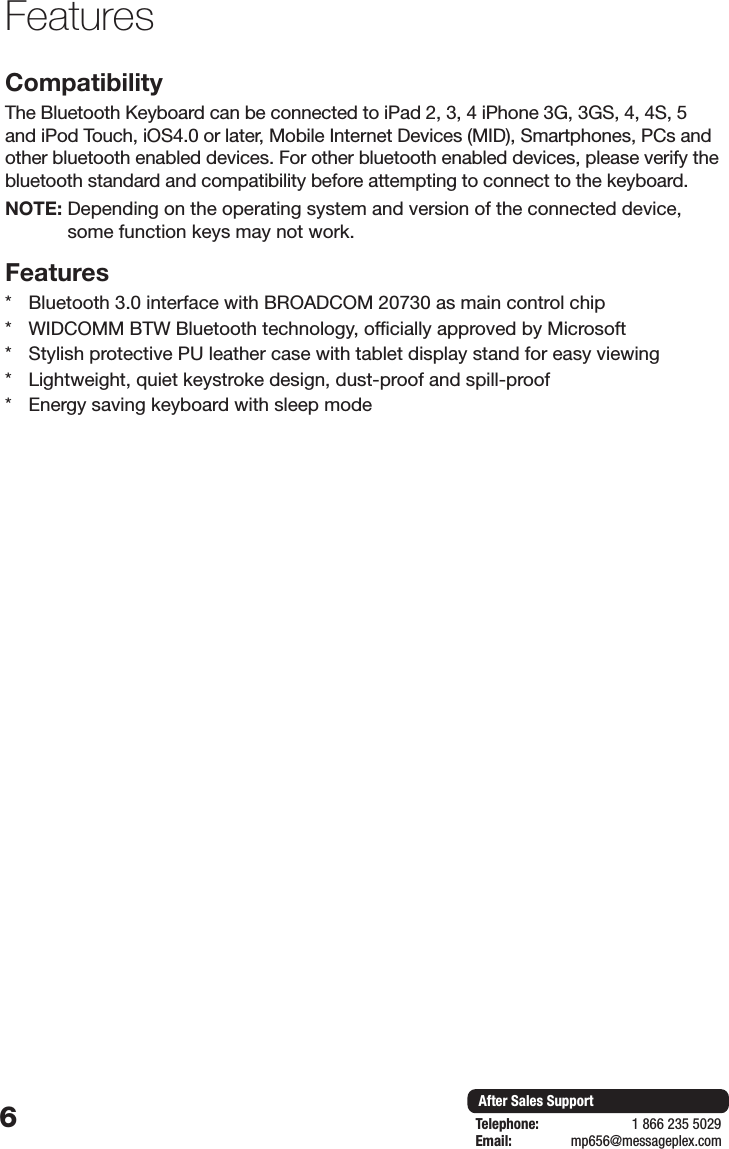
6After Sales SupportTelephone:                        1 866 235 5029Email:       mp656@messageplex.comFeatures CompatibilityThe Bluetooth Keyboard can be connected to iPad 2, 3, 4 iPhone 3G, 3GS, 4, 4S, 5 and iPod Touch, iOS4.0 or later, Mobile Internet Devices (MID), Smartphones, PCs and other bluetooth enabled devices. For other bluetooth enabled devices, please verify the bluetooth standard and compatibility before attempting to connect to the keyboard. NOTE:  Depending on the operating system and version of the connected device, some function keys may not work.Features *  Bluetooth 3.0 interface with BROADCOM 20730 as main control chip*  WIDCOMM BTW Bluetooth technology, officially approved by Microsoft*  Stylish protective PU leather case with tablet display stand for easy viewing*  Lightweight, quiet keystroke design, dust-proof and spill-proof*  Energy saving keyboard with sleep mode
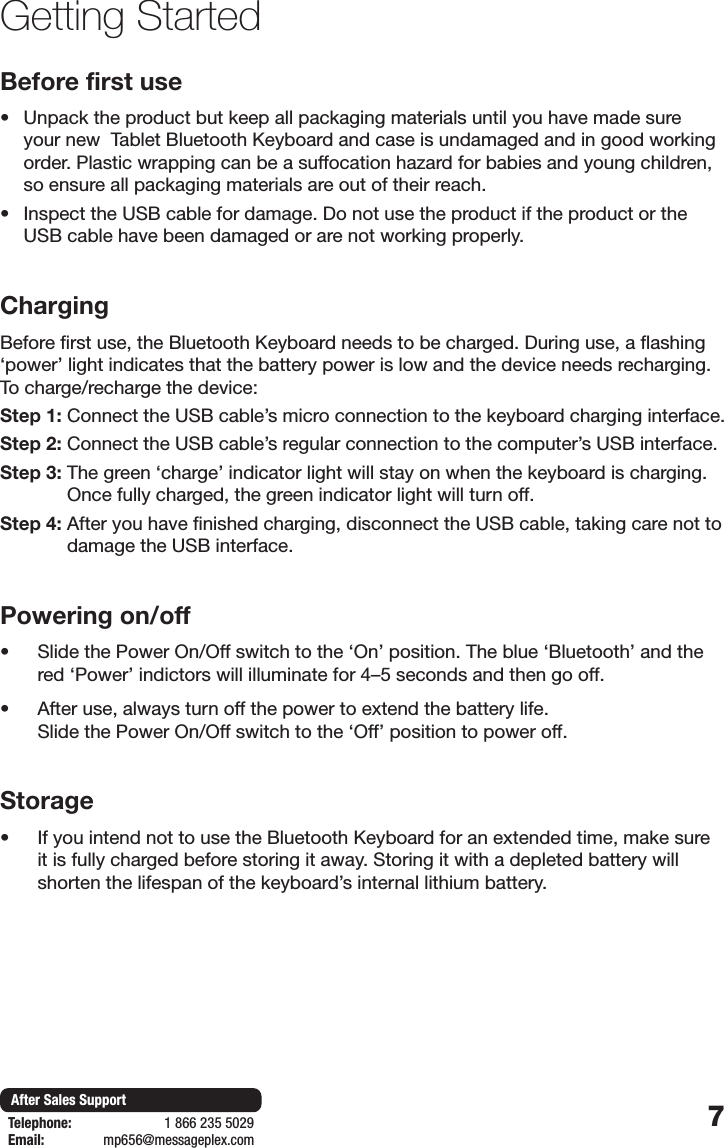
7After Sales SupportTelephone:                        1 866 235 5029Email:       mp656@messageplex.comGetting StartedBefore first use• Unpack the product but keep all packaging materials until you have made sure your new  Tablet Bluetooth Keyboard and case is undamaged and in good working order. Plastic wrapping can be a suffocation hazard for babies and young children, so ensure all packaging materials are out of their reach.• Inspect the USB cable for damage. Do not use the product if the product or the USB cable have been damaged or are not working properly.ChargingBefore first use, the Bluetooth Keyboard needs to be charged. During use, a flashing ‘power’ light indicates that the battery power is low and the device needs recharging. To charge/recharge the device:Step 1:  Connect the USB cable’s micro connection to the keyboard charging interface.Step 2:  Connect the USB cable’s regular connection to the computer’s USB interface.Step 3:  The green ‘charge’ indicator light will stay on when the keyboard is charging. Once fully charged, the green indicator light will turn off.Step 4:  After you have finished charging, disconnect the USB cable, taking care not to damage the USB interface.Powering on/off• Slide the Power On/Off switch to the ‘On’ position. The blue ‘Bluetooth’ and the red ‘Power’ indictors will illuminate for 4–5 seconds and then go off.• After use, always turn off the power to extend the battery life.  Slide the Power On/Off switch to the ‘Off’ position to power off.Storage• If you intend not to use the Bluetooth Keyboard for an extended time, make sure it is fully charged before storing it away. Storing it with a depleted battery will shorten the lifespan of the keyboard’s internal lithium battery.
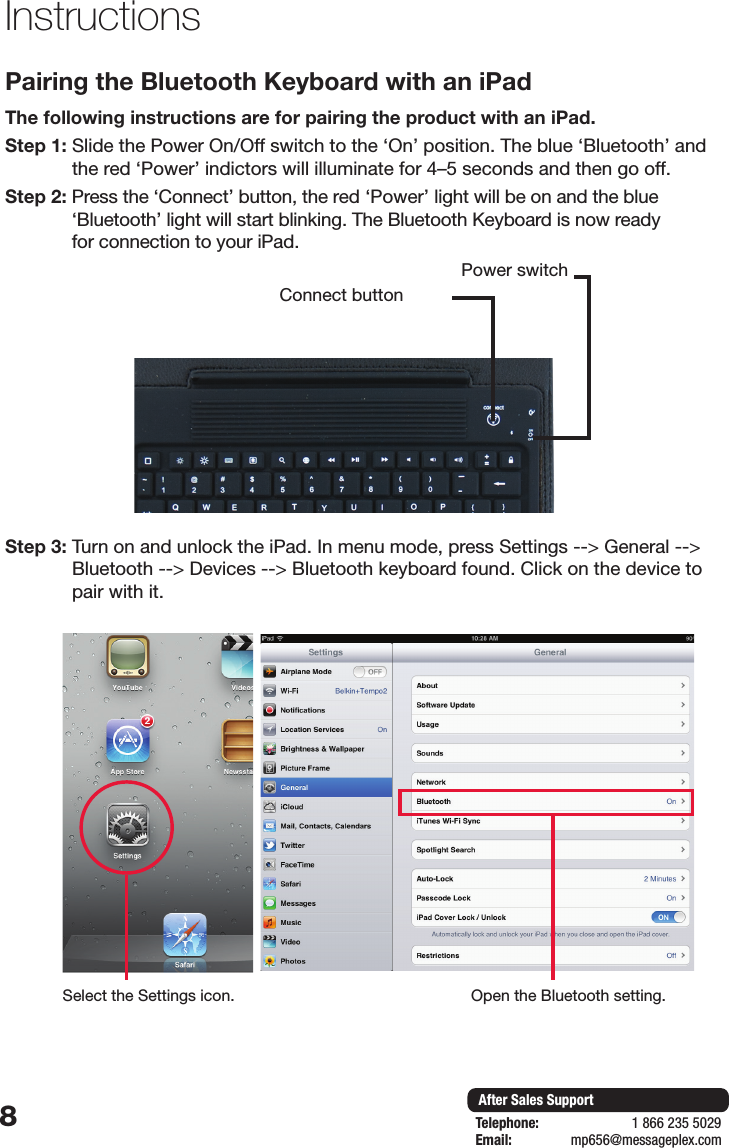
8After Sales SupportTelephone:                        1 866 235 5029Email:       mp656@messageplex.comPairing the Bluetooth Keyboard with an iPad The following instructions are for pairing the product with an iPad. Step 1:  Slide the Power On/Off switch to the ‘On’ position. The blue ‘Bluetooth’ and the red ‘Power’ indictors will illuminate for 4–5 seconds and then go off.Step 2:  Press the ‘Connect’ button, the red ‘Power’ light will be on and the blue ‘Bluetooth’ light will start blinking. The Bluetooth Keyboard is now ready  for connection to your iPad.Step 3:  Turn on and unlock the iPad. In menu mode, press Settings --> General --> Bluetooth --> Devices --> Bluetooth keyboard found. Click on the device to pair with it.InstructionsConnect buttonPower switchSelect the Settings icon. Open the Bluetooth setting.
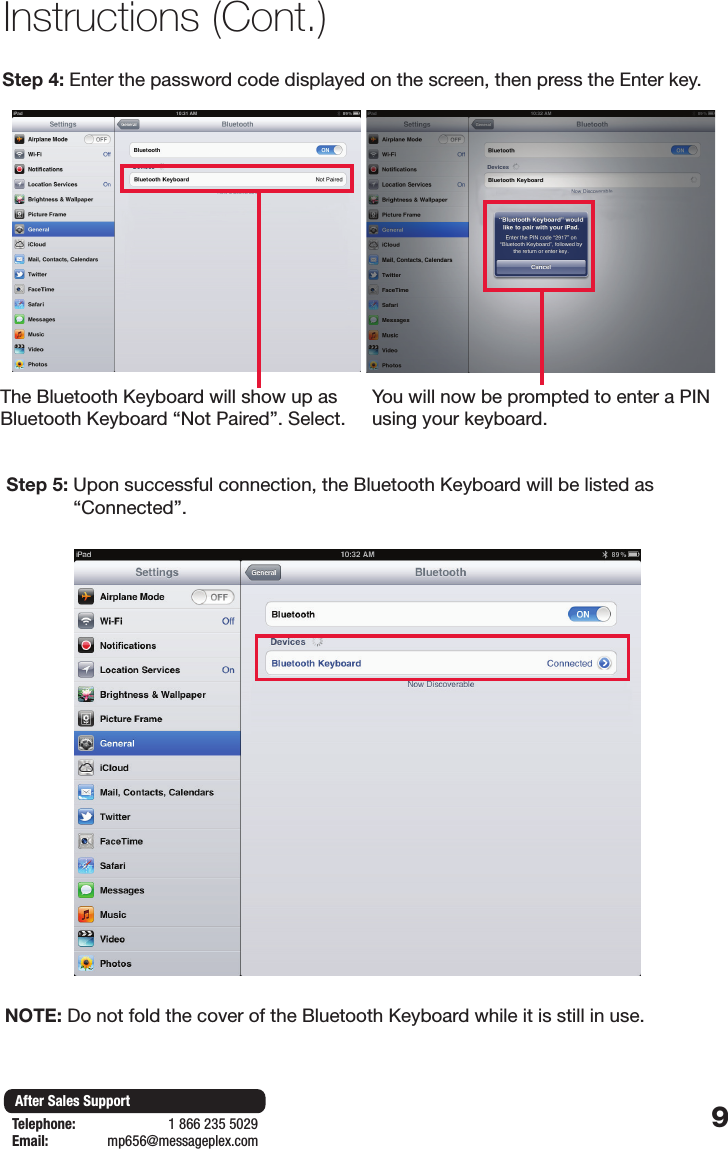
9After Sales SupportTelephone:                        1 866 235 5029Email:       mp656@messageplex.comStep 4: Enter the password code displayed on the screen, then press the Enter key.Step 5:  Upon successful connection, the Bluetooth Keyboard will be listed as “Connected”.Instructions (Cont.)The Bluetooth Keyboard will show up as Bluetooth Keyboard “Not Paired”. Select.You will now be prompted to enter a PIN using your keyboard.NOTE:  Do not fold the cover of the Bluetooth Keyboard while it is still in use.
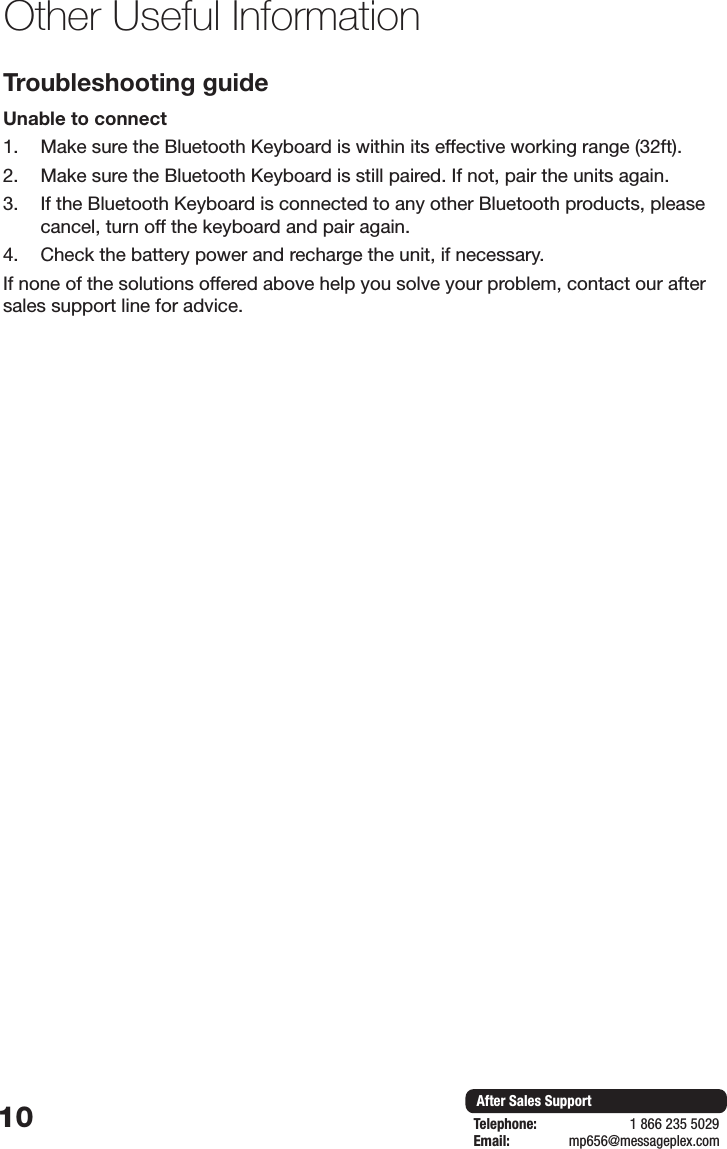
10 After Sales SupportTelephone:                        1 866 235 5029Email:       mp656@messageplex.comOther Useful InformationTroubleshooting guideUnable to connect1.  Make sure the Bluetooth Keyboard is within its effective working range (32ft).2.  Make sure the Bluetooth Keyboard is still paired. If not, pair the units again.3.  If the Bluetooth Keyboard is connected to any other Bluetooth products, please cancel, turn off the keyboard and pair again. 4.  Check the battery power and recharge the unit, if necessary.If none of the solutions offered above help you solve your problem, contact our after sales support line for advice.
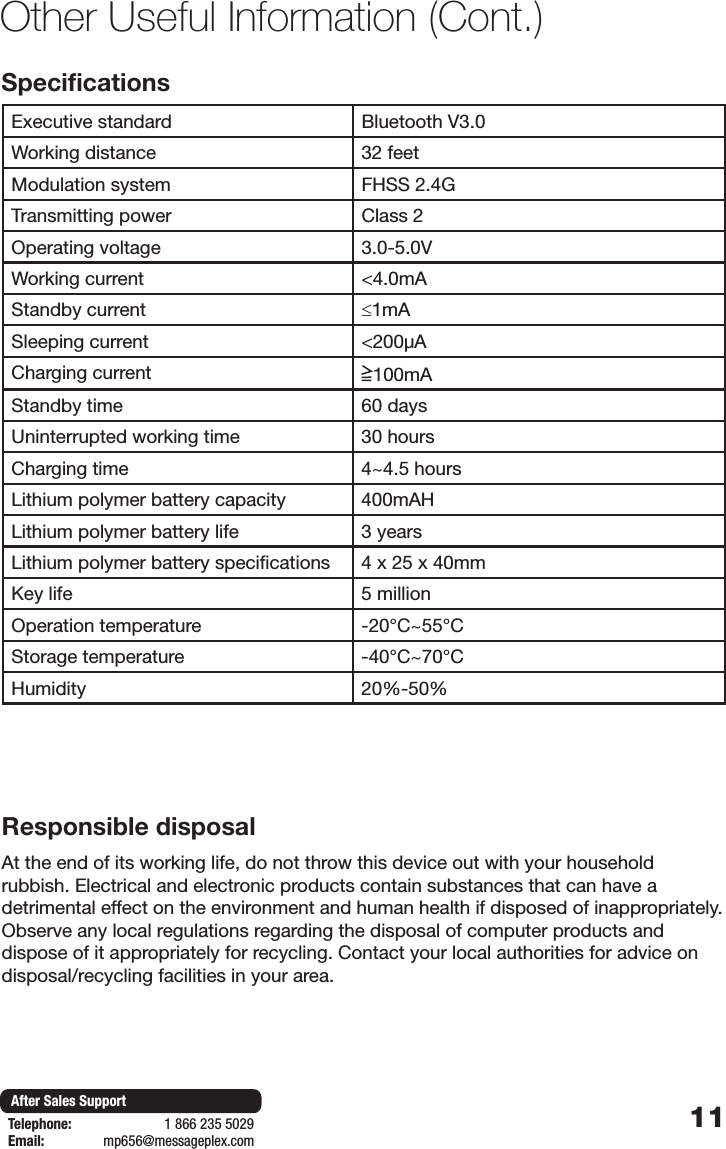
11After Sales SupportTelephone:                        1 866 235 5029Email:       mp656@messageplex.comSpecificationsExecutive standard Bluetooth V3.0Working distance 32 feetModulation system FHSS 2.4GTransmitting power Class 2Operating voltage 3.0-5.0VWorking current <4.0mAStandby current ≤1mASleeping current <200μACharging current 100mAStandby time 60 daysUninterrupted working time 30 hoursCharging time 4~4.5 hoursLithium polymer battery capacity 400mAHLithium polymer battery life 3 yearsLithium polymer battery specifications 4 x 25 x 40mmKey life 5 millionOperation temperature -20°C~55°CStorage temperature -40°C~70°CHumidity 20%-50%Other Useful Information (Cont.)Responsible disposalAt the end of its working life, do not throw this device out with your household rubbish. Electrical and electronic products contain substances that can have a detrimental effect on the environment and human health if disposed of inappropriately. Observe any local regulations regarding the disposal of computer products and dispose of it appropriately for recycling. Contact your local authorities for advice on disposal/recycling facilities in your area.
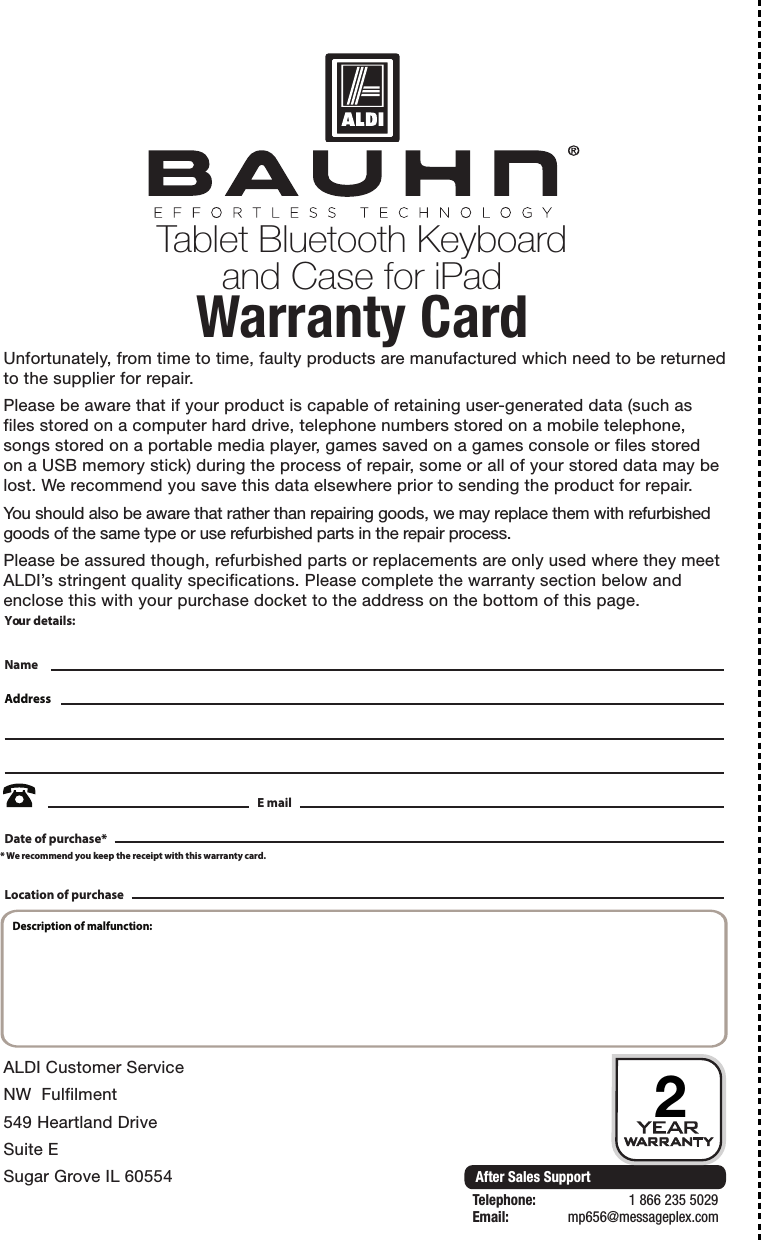
After Sales SupportTelephone:                        1 866 235 5029Email:       mp656@messageplex.comTablet Bluetooth Keyboard and Case for iPadWarranty Card 2Unfortunately, from time to time, faulty products are manufactured which need to be returned to the supplier for repair.Please be aware that if your product is capable of retaining user-generated data (such as files stored on a computer hard drive, telephone numbers stored on a mobile telephone, songs stored on a portable media player, games saved on a games console or files stored on a USB memory stick) during the process of repair, some or all of your stored data may be lost. We recommend you save this data elsewhere prior to sending the product for repair.You should also be aware that rather than repairing goods, we may replace them with refurbished goods of the same type or use refurbished parts in the repair process.Please be assured though, refurbished parts or replacements are only used where they meet ALDI’s stringent quality specifications. Please complete the warranty section below and enclose this with your purchase docket to the address on the bottom of this page.ALDI Customer ServiceNW  Fulfilment549 Heartland DriveSuite ESugar Grove IL 60554Your details:Date of purchase** We recommend you keep the receipt with this warranty card.NameAddress E mailLocation of purchaseDescription of malfunction:

Navigation menu