B and W Electronics Development 14BTH450 SPORTS BLUETOOTH HEADSET User Manual
Shenzhen B&W; Electronics Development Limited SPORTS BLUETOOTH HEADSET Users Manual
Users Manual
Sports Bluetooth Headset User Manual
Thank you for choosing and buying our Sports
Bluetooth Headset! Please browse all details of this
manual before using it to get best playing effect.
Product Introduction
Sports Bluetooth Headset , is able to play music stored in
mobile phone or other Bluetooth devices through
Bluetooth connection between Sports Bluetooth Headset
and Bluetooth devices. It also works as Hands Free when
you have a call comes in, if your mobile phone supports
Bluetooth. And after end the call it can convert back to
play music automatically.
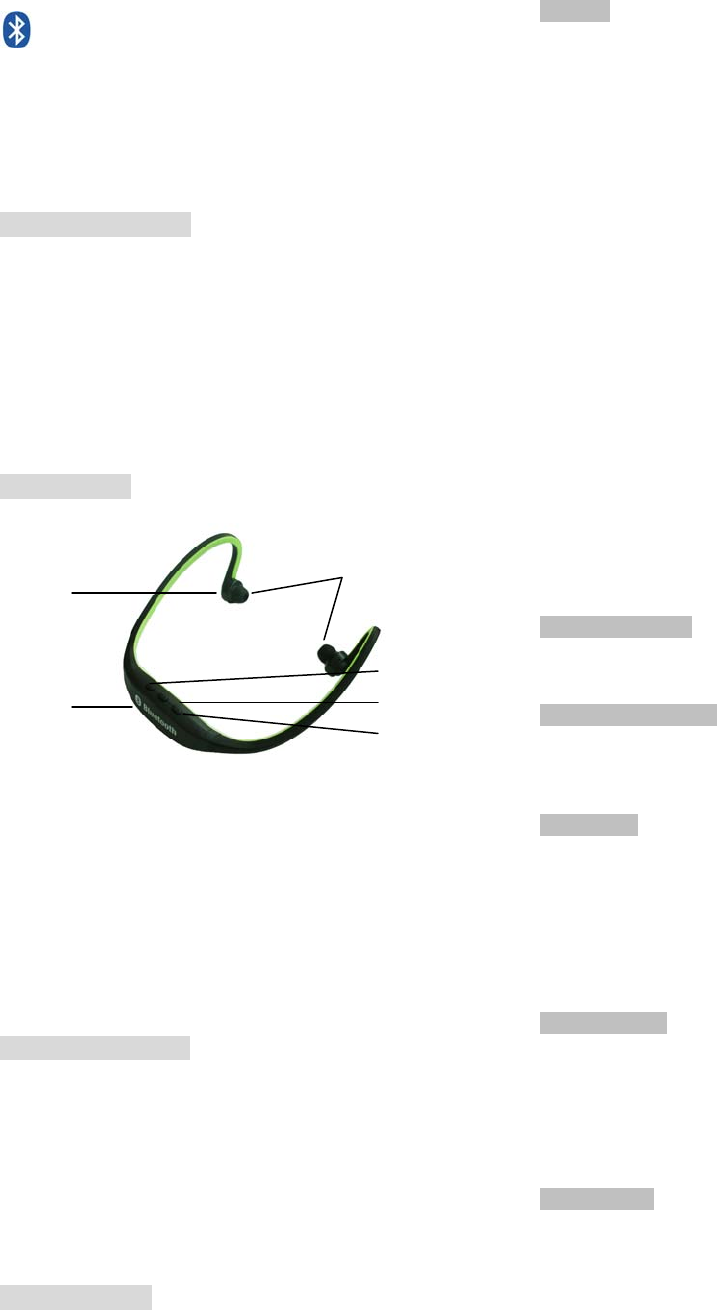
Sketch Picture
1. USB Charging Port
2. Next Track/Volume Up
3. Multi-Function Button(MFB)
4. Previous Track/Volume Down
5. Headset(R/L)
6. Microphone
Function Description
1. Bluetooth V3.0 + EDR
2. Stereo Bluetooth Headset
3. Talking in Hands Free ;
4. Support A2DP, AVRCP and HSP
5. Lithium rechargeable battery;
Operation Guide
Preparation
Please charge your device before your 1st time use it. Use
the USB charging cable provided to connect any
computer/notebook or USB power adapter. When charging,
red light indicator will appear , When fully charged. Red
indicator light will turn off , Charging time : Estimated 2~3
hours.
Pairing
Before using Sports Bluetooth Headset ,please pair it with
your smartphone , MP3 Player. computer or any Bluetooth
devices.
Step -1 Press the MFB button 4s to turn on the Sport
Bluetooth Headset, you can see the red and blue LED flash
alternative,
Step-2. Follow the operating instruction of your Bluetooth
mobile phone or any other Bluetooth device to start the
pairing process. Typically, this is done by going to
a ”Connect” or “Setup” menu and then selecting the option to
search the BT music Headset that is still in the pairing mode
Step-3. When your device detect the “BTH450”, initiate and
pair it.
Step-4. Should device request for password, enter default
password “0000”, If the connection is successful, the blue
LED of the headset will stop continuously flashing and
become slow flash twice every 4 seconds.
If the pairing is unsuccessful, please turn off the Headset and
turn it on again. Then, return to Step-1 and do the pairing
procedure again.
Play/Pause music
In idle state, press MFB button one time to play or pause
music.
Previous/Next song
When playing music, you can press “Volume Down” button to
play previous song and “Volume Up” button to play next
song.
Make a Call
Step-1 Use the mobile phone’s keypad to dial the phone
number.
Step- 2 Press mobile phone’s “Send” or “OK” key. The mobile
phone initiates the call and transfer the call from the mobile
phone to the headset
Answer a Call
Step-1 If there is an incoming call while you are listening to
the streaming music, the music will temporary stop and short
beep instead.
Step-2 Just press MFB button one time to pick up the call.
End a Call
Use either of the following methods to end a call.
Method-1 Press MFB button one time to end a call from the
Headset.
Method-2 End a call from the mobile phone’s keypad.
If you are listening to music when there is incoming call or
you are making a call, the Headset will switch the connection
from the music player (A2DP) to the mobile phone (HSP or
HFP); the streaming music will be paused temporarily. After
you end the call, the music will be played and streamed to the
Headset again.
Notes:When you press MFB button to answer or end a call,
please just press one time. Do not press and hold.
⑥
①
⑤
④
③
②

Refuse a Call
When there is incoming call, press and hold MFB button for
about 2 second until you hear prompt from the Headset.
Release the button and the call is refused.
Redial the last dialed number
Press and hold MFB button for 2 second to redial the last
dialed number.
Adjust volume
In call mode or music mode, long press volume up or volume
down key to adjust volume. When the volume reaches max
or min, when you press, the Headset will prompt “du-du”.
Troubleshooting
Fail to pair BT Headset
Make sure the Headsets is in pairing mode , if blue light
indicators is not in flashing mode , it indicates Headsets not in
pairing mode , Please long press the MFB button 4s till the
red and blue LED flash alternative..
FCC STATEMENT :
This device complies with Part 15 of the FCC Rules.
Operation is subject to the following two conditions:
(1) This device may not cause harmful interference, and
(2) This device must accept any interference received,
including interference that may cause undesired operation.
Warning: Changes or modifications not expressly approved
by the party responsible for compliance could void the user's
authority to operate the equipment.
NOTE: This equipment has been tested and found to comply
with the limits for a Class B digital device, pursuant to Part 15
of the FCC Rules. These limits are designed to provide
reasonable protection against harmful interference in a
residential installation.
Fail to locate BT Headsets
·Check that the Headsets is in pairing mode.
·Ensure your device is within Bluetooth use range (About
10M)
·Reset/restart your device to activate Bluetooth.
·Ensure that your device is not connected/paired to any other
Bluetooth devices at one time
Caution/Note
·Prolong not charging of the battery may affect the
performance of the battery .Hence it is recommended to
charge them occasionally
·Battery Saver—Headset’s built in battery will move into
sleep mode when there is no sound output for more than 1
minute.
This equipment generates uses and can radiate radio
frequency energy and, if not installed and used in accordance
with the instructions, may cause harmful interference to radio
communications. However, there is no guarantee that
interference will not occur in a particular installation. If this
equipment does cause harmful interference to radio or
television reception, which can be determined by turning the
equipment off and on, the user is encouraged to try to correct
the interference by one or more of the following measures:
Reorient or relocate the receiving antenna.
Increase the separation between the equipment and receiver.
Connect the equipment into an outlet on a circuit different
from that to which the receiver is connected.
Consult the dealer or an experienced radio/TV technician for
help.
RF warning statement:
The device has been evaluated to meet general RF exposure
requirement. The device can be used in portable exposure
condition without restriction.