B and W Group T7 Wireless Portable Speaker User Manual

B&W; Group Ltd. Wireless Portable Speaker

Contents

User Manual.pdf

Firmware version X.XX.XXOperation may differ from other rmware versionsT7DRAFT
2ENGLISHwww.bowers-wilkins.comWelcome to Bowers & Wilkins and T7 Thank you for choosing Bowers & Wilkins. When John Bowers rst established our company he did so in the belief that imaginative design, innovative engineering and advanced technology were keys that could unlock the enjoyment of audio in the home. His belief is one that we continue to share and it inspires every product we design.Your T7 can be used to:•   Play music streamed from an iOS, Android or Windows Mobile device using Bluetooth wireless technology.•   Play music using a wired connection from any device incorporating an analogue audio output – a headphone socket for example.The T7 is powered by a lithium-ion rechargeable battery pack able, when fully charged, to provide up to 8 hours playback time at average volume levels. This manual will tell you everything you need to know to get the most from your T7. It begins by describing the contents of the T7 carton.
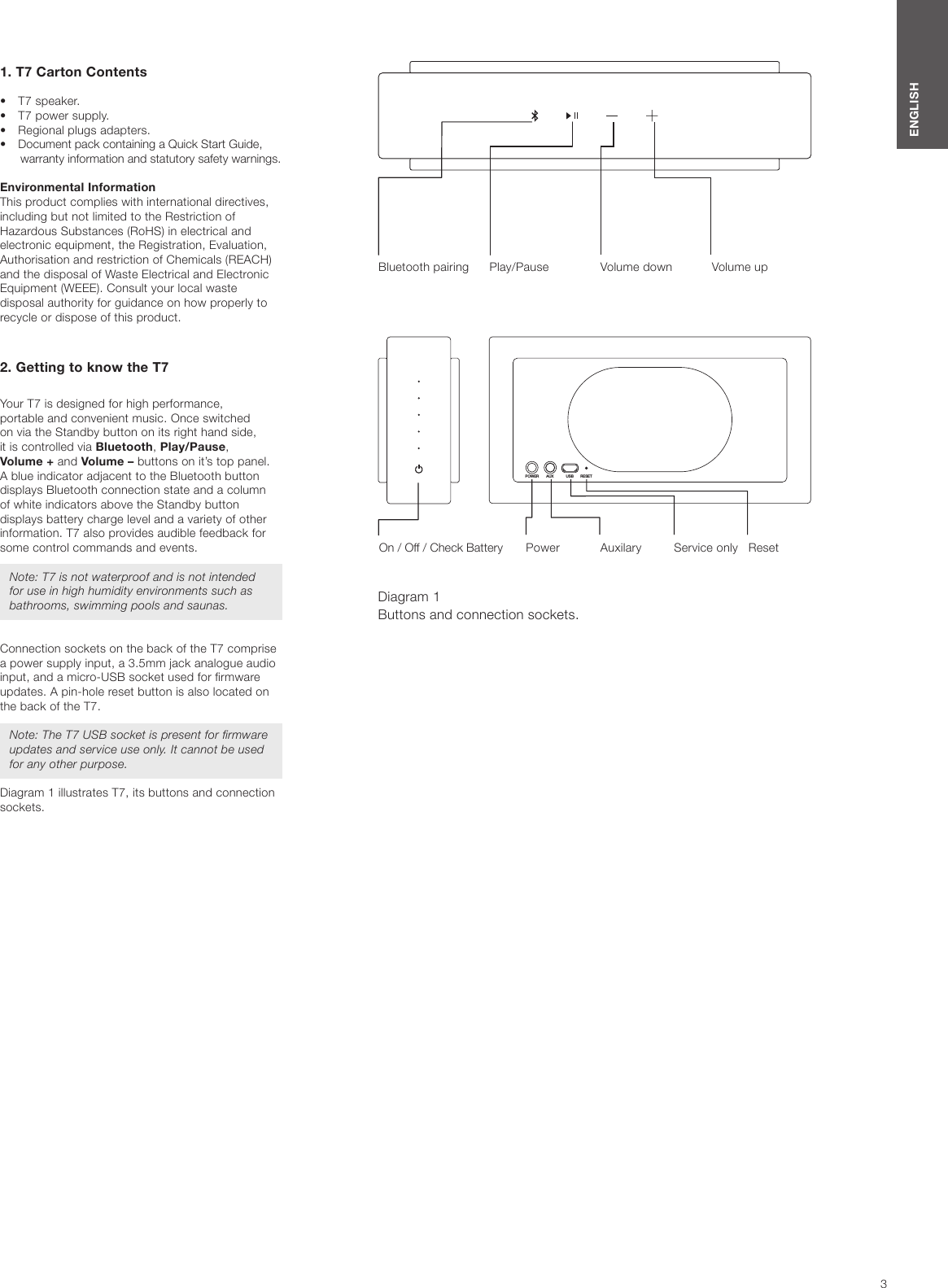
3ENGLISH1. T7 Carton Contents•  T7 speaker.•  T7 power supply.•  Regional plugs adapters. •  Document pack containing a Quick Start Guide, warranty information and statutory safety warnings.Environmental InformationThis product complies with international directives, including but not limited to the Restriction of Hazardous Substances (RoHS) in electrical and electronic equipment, the Registration, Evaluation, Authorisation and restriction of Chemicals (REACH) and the disposal of Waste Electrical and Electronic Equipment (WEEE). Consult your local waste disposal authority for guidance on how properly to recycle or dispose of this product.2. Getting to know the T7 Your T7 is designed for high performance,  portable and convenient music. Once switched  on via the Standby button on its right hand side,  it is controlled via Bluetooth, Play/Pause, Volume + and Volume – buttons on it’s top panel. A blue indicator adjacent to the Bluetooth button displays Bluetooth connection state and a column of white indicators above the Standby button displays battery charge level and a variety of other information. T7 also provides audible feedback for some control commands and events.Note: T7 is not waterproof and is not intended for use in high humidity environments such as bathrooms, swimming pools and saunas.Connection sockets on the back of the T7 comprise a power supply input, a 3.5mm jack analogue audio input, and a micro-USB socket used for rmware updates. A pin-hole reset button is also located on the back of the T7.Note: The T7 USB socket is present for rmware updates and service use only. It cannot be used for any other purpose.Diagram 1 illustrates T7, its buttons and connection sockets.Diagram 1 Buttons and connection sockets.Bluetooth pairing Play/Pause Volume down Volume upPOWER AUX USB RESETOn / Off / Check Battery Auxilary Service only ResetPower
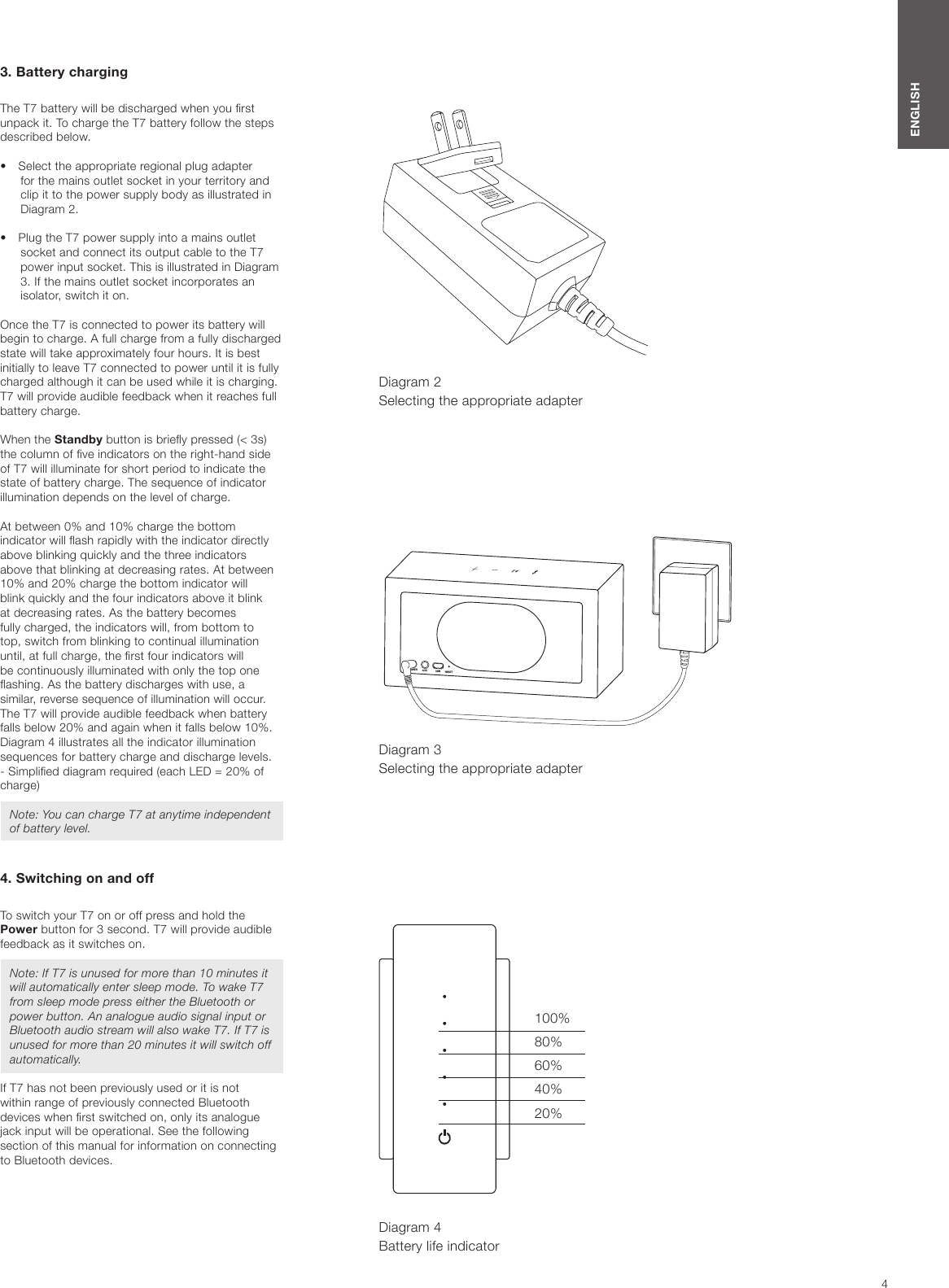
4ENGLISHDiagram 4Battery life indicator3. Battery chargingThe T7 battery will be discharged when you rst unpack it. To charge the T7 battery follow the steps described below.•  Select the appropriate regional plug adapter for the mains outlet socket in your territory and clip it to the power supply body as illustrated in Diagram 2. •  Plug the T7 power supply into a mains outlet socket and connect its output cable to the T7 power input socket. This is illustrated in Diagram 3. If the mains outlet socket incorporates an isolator, switch it on.Once the T7 is connected to power its battery will begin to charge. A full charge from a fully discharged state will take approximately four hours. It is best initially to leave T7 connected to power until it is fully charged although it can be used while it is charging. T7 will provide audible feedback when it reaches full battery charge.When the Standby button is briey pressed (< 3s) the column of ve indicators on the right-hand side of T7 will illuminate for short period to indicate the state of battery charge. The sequence of indicator illumination depends on the level of charge.At between 0% and 10% charge the bottom indicator will ash rapidly with the indicator directly above blinking quickly and the three indicators above that blinking at decreasing rates. At between 10% and 20% charge the bottom indicator will blink quickly and the four indicators above it blink at decreasing rates. As the battery becomes fully charged, the indicators will, from bottom to top, switch from blinking to continual illumination until, at full charge, the rst four indicators will be continuously illuminated with only the top one ashing. As the battery discharges with use, a similar, reverse sequence of illumination will occur. The T7 will provide audible feedback when battery falls below 20% and again when it falls below 10%. Diagram 4 illustrates all the indicator illumination sequences for battery charge and discharge levels.  - Simplied diagram required (each LED = 20% of charge)Note: You can charge T7 at anytime independent of battery level.4. Switching on and offTo switch your T7 on or off press and hold the Power button for 3 second. T7 will provide audible feedback as it switches on.Note: If T7 is unused for more than 10 minutes it will automatically enter sleep mode. To wake T7 from sleep mode press either the Bluetooth or power button. An analogue audio signal input or Bluetooth audio stream will also wake T7. If T7 is unused for more than 20 minutes it will switch off automatically.If T7 has not been previously used or it is not  within range of previously connected Bluetooth devices when rst switched on, only its analogue jack input will be operational. See the following section of this manual for information on connecting to Bluetooth devices.Diagram 3 Selecting the appropriate adapterDiagram 2 Selecting the appropriate adapterPOWER AUX USB RESETPOWER AUX USB RESET100%80%60%40%20%
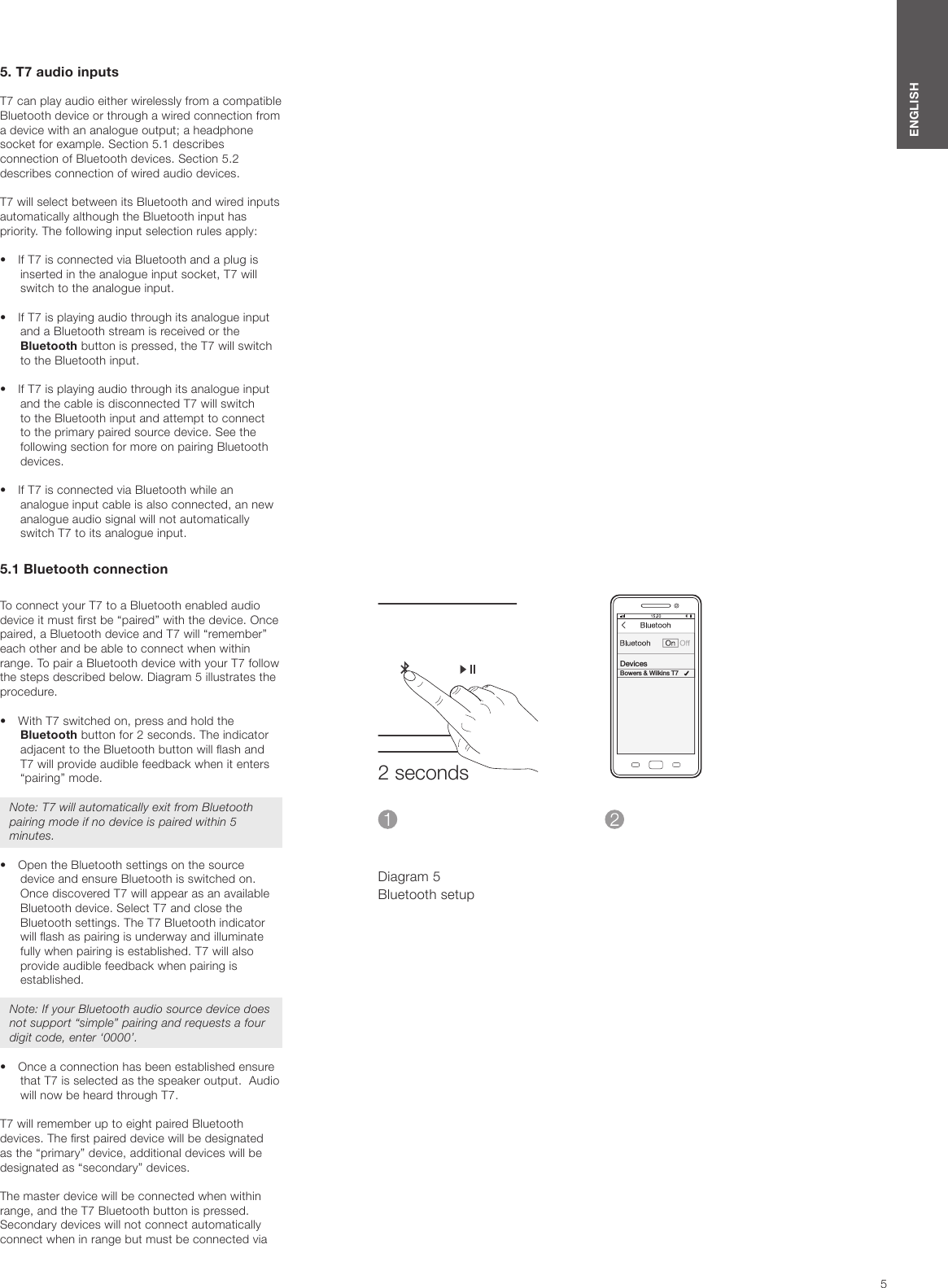
5ENGLISHDiagram 5Bluetooth setup5. T7 audio inputs T7 can play audio either wirelessly from a compatible Bluetooth device or through a wired connection from a device with an analogue output; a headphone socket for example. Section 5.1 describes connection of Bluetooth devices. Section 5.2 describes connection of wired audio devices.T7 will select between its Bluetooth and wired inputs automatically although the Bluetooth input has priority. The following input selection rules apply:•  If T7 is connected via Bluetooth and a plug is inserted in the analogue input socket, T7 will switch to the analogue input.•  If T7 is playing audio through its analogue input and a Bluetooth stream is received or the Bluetooth button is pressed, the T7 will switch to the Bluetooth input.•  If T7 is playing audio through its analogue input and the cable is disconnected T7 will switch to the Bluetooth input and attempt to connect to the primary paired source device. See the following section for more on pairing Bluetooth devices.•  If T7 is connected via Bluetooth while an analogue input cable is also connected, an new analogue audio signal will not automatically switch T7 to its analogue input.5.1 Bluetooth connectionTo connect your T7 to a Bluetooth enabled audio device it must rst be “paired” with the device. Once paired, a Bluetooth device and T7 will “remember” each other and be able to connect when within range. To pair a Bluetooth device with your T7 follow the steps described below. Diagram 5 illustrates the procedure.•  With T7 switched on, press and hold the Bluetooth button for 2 seconds. The indicator adjacent to the Bluetooth button will ash and T7 will provide audible feedback when it enters “pairing” mode.Note: T7 will automatically exit from Bluetooth pairing mode if no device is paired within 5 minutes.•  Open the Bluetooth settings on the source device and ensure Bluetooth is switched on. Once discovered T7 will appear as an available Bluetooth device. Select T7 and close the Bluetooth settings. The T7 Bluetooth indicator will ash as pairing is underway and illuminate fully when pairing is established. T7 will also provide audible feedback when pairing is established.Note: If your Bluetooth audio source device does not support “simple” pairing and requests a four digit code, enter ‘0000’.•  Once a connection has been established ensure that T7 is selected as the speaker output.  Audio will now be heard through T7.T7 will remember up to eight paired Bluetooth devices. The rst paired device will be designated as the “primary” device, additional devices will be designated as “secondary” devices.The master device will be connected when within range, and the T7 Bluetooth button is pressed.Secondary devices will not connect automatically connect when in range but must be connected via 2 secondsDevicesBowers & Wilkins T7
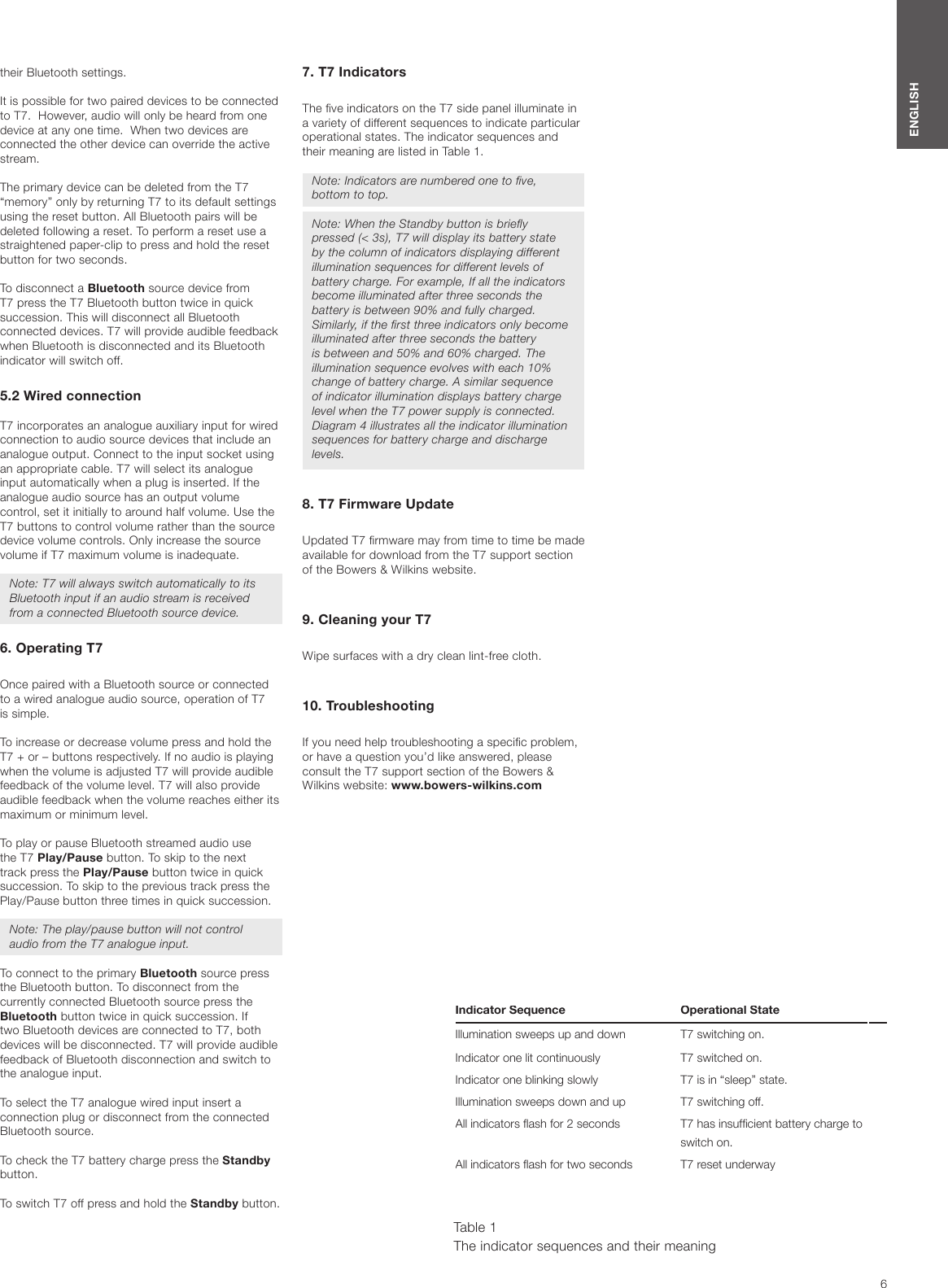
6ENGLISHtheir Bluetooth settings.It is possible for two paired devices to be connected to T7.  However, audio will only be heard from one device at any one time.  When two devices are connected the other device can override the active stream. The primary device can be deleted from the T7 “memory” only by returning T7 to its default settings using the reset button. All Bluetooth pairs will be deleted following a reset. To perform a reset use a straightened paper-clip to press and hold the reset button for two seconds.To disconnect a Bluetooth source device from T7 press the T7 Bluetooth button twice in quick succession. This will disconnect all Bluetooth connected devices. T7 will provide audible feedback when Bluetooth is disconnected and its Bluetooth indicator will switch off.5.2 Wired connectionT7 incorporates an analogue auxiliary input for wired connection to audio source devices that include an analogue output. Connect to the input socket using an appropriate cable. T7 will select its analogue input automatically when a plug is inserted. If the analogue audio source has an output volume control, set it initially to around half volume. Use the T7 buttons to control volume rather than the source device volume controls. Only increase the source volume if T7 maximum volume is inadequate.Note: T7 will always switch automatically to its Bluetooth input if an audio stream is received from a connected Bluetooth source device.6. Operating T7Once paired with a Bluetooth source or connected to a wired analogue audio source, operation of T7 is simple.To increase or decrease volume press and hold the T7 + or – buttons respectively. If no audio is playing when the volume is adjusted T7 will provide audible feedback of the volume level. T7 will also provide audible feedback when the volume reaches either its maximum or minimum level.To play or pause Bluetooth streamed audio use the T7 Play/Pause button. To skip to the next track press the Play/Pause button twice in quick succession. To skip to the previous track press the Play/Pause button three times in quick succession.Note: The play/pause button will not control audio from the T7 analogue input.To connect to the primary Bluetooth source press the Bluetooth button. To disconnect from the currently connected Bluetooth source press the Bluetooth button twice in quick succession. If two Bluetooth devices are connected to T7, both devices will be disconnected. T7 will provide audible feedback of Bluetooth disconnection and switch to the analogue input.To select the T7 analogue wired input insert a connection plug or disconnect from the connected Bluetooth source. To check the T7 battery charge press the Standby button.To switch T7 off press and hold the Standby button.Indicator Sequence Operational StateIllumination sweeps up and down T7 switching on.Indicator one lit continuously T7 switched on.Indicator one blinking slowly T7 is in “sleep” state.Illumination sweeps down and up T7 switching off.All indicators ash for 2 seconds T7 has insufcient battery charge to switch on.All indicators ash for two seconds T7 reset underway Table 1The indicator sequences and their meaning 7. T7 IndicatorsThe ve indicators on the T7 side panel illuminate in a variety of different sequences to indicate particular operational states. The indicator sequences and their meaning are listed in Table 1.Note: Indicators are numbered one to ve, bottom to top.Note: When the Standby button is briey pressed (< 3s), T7 will display its battery state by the column of indicators displaying different illumination sequences for different levels of battery charge. For example, If all the indicators become illuminated after three seconds the battery is between 90% and fully charged. Similarly, if the rst three indicators only become illuminated after three seconds the battery is between and 50% and 60% charged. The illumination sequence evolves with each 10% change of battery charge. A similar sequence of indicator illumination displays battery charge level when the T7 power supply is connected. Diagram 4 illustrates all the indicator illumination sequences for battery charge and discharge levels.8. T7 Firmware UpdateUpdated T7 rmware may from time to time be made available for download from the T7 support section of the Bowers & Wilkins website.9. Cleaning your T7Wipe surfaces with a dry clean lint-free cloth. 10. TroubleshootingIf you need help troubleshooting a specic problem, or have a question you’d like answered, please consult the T7 support section of the Bowers & Wilkins website: www.bowers-wilkins.com
7ENGLISHTechnical SpecicationsModel T7Description Wireless Portable SpeakerTechnical featuresDrive unitsFrequency responseFrequency rangeAmplier power outputPower supply voltage Input: 100-240Vac, 50/60Hz, 1.0A, (Power supply)Output: 15Vdc, 2.0A Rated power consumptionStandby power consumptionOperating temperatureInputsHeightWidthDepthNet weightEnclosureGrillesApple compatibility

Navigation menu