BAYCOM OPTO ELECTRONICS TECHNOLOGY EK10H Wireless Network IP Camera User Manual QIG front

BAYCOM OPTO-ELECTRONICS TECHNOLOGY CO., LTD. Wireless Network IP Camera QIG front

Users manual

Quick Installation GuidePlug & Play CameraBAYCOM K101. Package ContentsCamera / Mounting Bracket / AC Power Adapter/ Mounting Screws / Quick Installation Guide/ Warranty Card/ CD2. Physical Descriptions1. Lens2. IR LED(Night vision function)3. Built-in Microphone4. Power / WPS / ResetLED indicator,Network LED Indicator5. UID6. RJ-45 Network port7. WPS botton8. DC5V-IN Socket9. Reset botton10. Audio jack (to speaker)11. Micro SD Card Slot720P HD Day & Night3. Network Requirements- An ADSL modem with Internet connection.- A broadband router, preferably with Wi-Fi       capability. Please make sure DHCP is enabled        on your router.     - Android or iOS smartphones ; 3G/WiFi        netwrok connection preferred.4. InstallationStep 1 :   Install APP “P2PCamLive” to yourmobile device.                  - For iPhone / iPad, please download P2PCam_Live from Apple Store and install it.                 - For Android Smartphone / Tablet, please download P2PCamLive from Play Store and install it.Wireless Network IP Camera   K10H(K10/K10S/K10K)
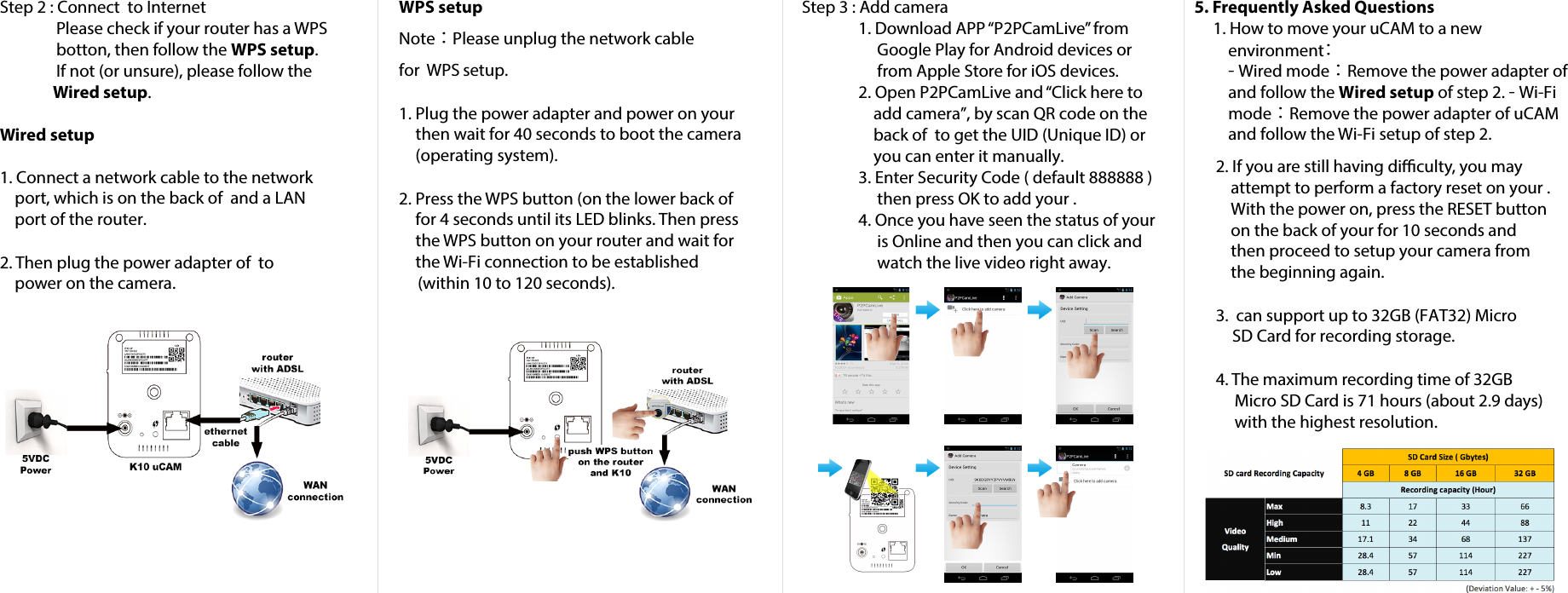
WPS setupNote: Please unplug the network cablefor  WPS setup.1. Plug the power adapter and power on yourthen wait for 40 seconds to boot the camera(operating system).2. Press the WPS button (on the lower back offor 4 seconds until its LED blinks. Then pressthe WPS button on your router and wait forthe Wi-Fi connection to be established(within 10 to 120 seconds).Step 3 : Add camera 1. Download APP “P2PCamLive” fromGoogle Play for Android devices or from Apple Store for iOS devices.2. Open P2PCamLive and “Click here toadd camera”, by scan QR code on the back of  to get the UID (Unique ID) or you can enter it manually.3. Enter Security Code ( default 888888 )then press OK to add your .4. Once you have seen the status of youris Online and then you can click and watch the live video right away.5. Frequently Asked Questions1. How to move your uCAM to a newenvironment:- Wired mode:Remove the power adapter ofand follow the Wired setup of step 2. - Wi-Fimode:Remove the power adapter of uCAMand follow the Wi-Fi setup of step 2.2. If you are still having diculty, you mayattempt to perform a factory reset on your .With the power on, press the RESET buttonon the back of your for 10 seconds andthen proceed to setup your camera fromthe beginning again.3. can support up to 32GB (FAT32) MicroSD Card for recording storage.4. The maximum recording time of 32GBMicro SD Card is 71 hours (about 2.9 days)with the highest resolution.Step 2 : Connect  to Internet               Please check if your router has a WPS                botton, then follow the WPS setup.                If not (or unsure), please follow the                Wired setup.Wired setup1. Connect a network cable to the networkport, which is on the back of  and a LANport of the router.2. Then plug the power adapter of  topower on the camera.
Federal Communication Commission Interference Statement This equipment has been tested and found to comply with the limits for a Class B digital device, pursuant to Part 15 of the FCC Rules.    These limits are designed to provide reasonable protection against harmful interference in a residential installation.   This equipment generates, uses and can radiate radio frequency energy and, if not installed and used in accordance with the instructions, may cause harmful interference to radio communications.    However, there is no guarantee that interference will not occur in a particular installation.    If this equipment does cause harmful interference to radio or television reception, which can be determined by turning the equipment off and on, the user is encouraged to try to correct the interference by one of the following measures: zReorient or relocate the receiving antenna. zIncrease the separation between the equipment and receiver. zConnect the equipment into an outlet on a circuit different from that to which the receiver is connected. zConsult the dealer or an experienced radio/TV technician for help. 15.21FCC Caution: Any changes or modifications not expressly approved by the party responsible for compliance could void the user's authority to operate this equipment. 15.19This device complies with Part 15 of the FCC Rules. Operation is subject to the following two conditions: (1) This device may not cause harmful interference, and (2) this device must accept any interference received, including interference that may cause undesired operation. FCC RF Radiation Exposure Statement:   1. This Transmitter must not be co-located or operating in conjunction with any other antenna or transmitter. 2. This equipment complies with FCC RF radiation exposure limits set forth for an uncontrolled environment. This equipment should be installed and operated with a minimum distance of 20 centimeters between the radiator and your body.

Navigation menu