BCF Technology DSGC01 Swine Ultrasound Scanner with WLAN User Manual DSG Quick Guide V7
BCF Technology Ltd Swine Ultrasound Scanner with WLAN DSG Quick Guide V7
Contents
- 1. DSG Quick Guide V7
- 2. Duo-ScanGO Quick Guide v.10 AW HR
DSG Quick Guide V7
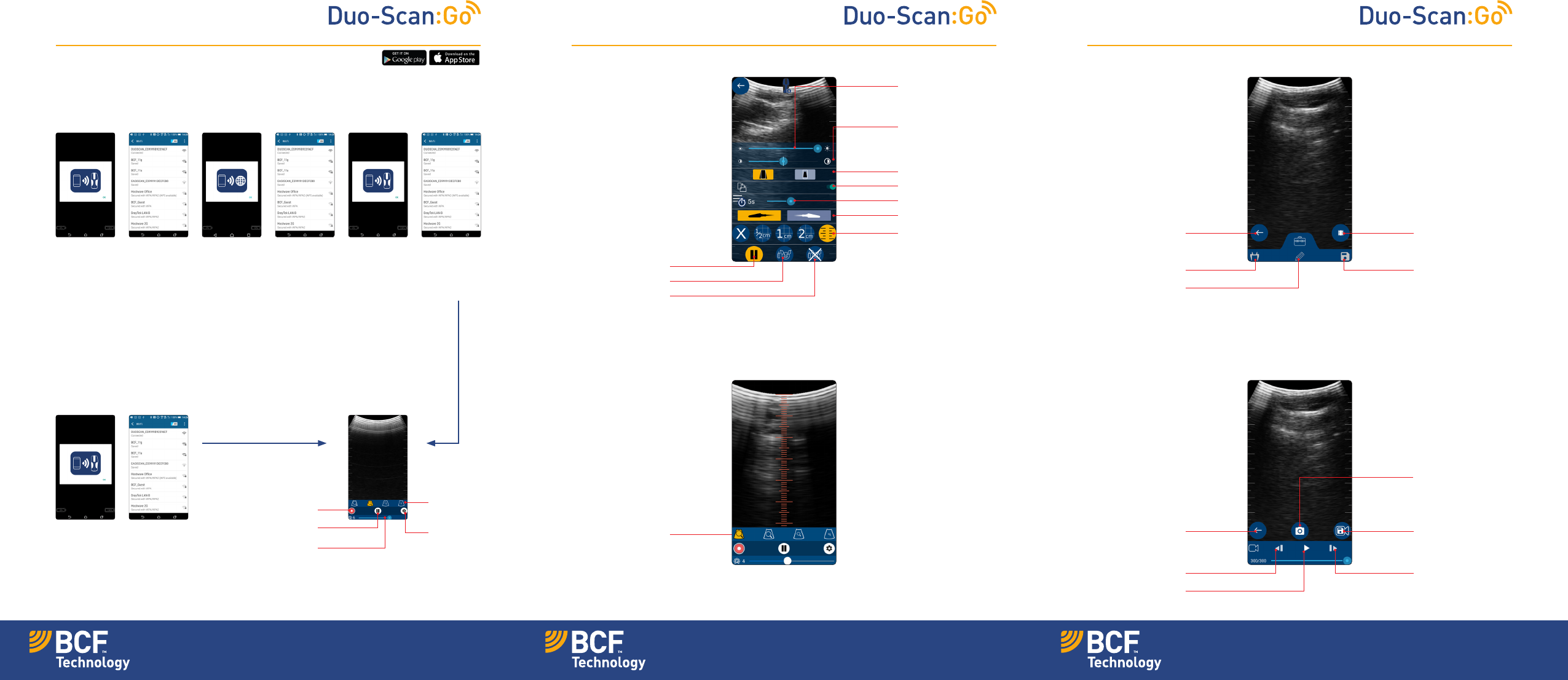
First time use – activation
Press and hold the power button on the scanner until the blue LED switches on. Download the BCF Go Scan
app from Google Play Store or the App Store. Once downloaded launch the app. Toactivate the scanner
successfully you will need ensure your scanner is charged and that you have an internet connection.
Normal start up process
After a few seconds, the ultrasound image will appear.
Touchanywhere on the screen to bring up the live scanning menu.
Quick Guide
Settings menu
Cine loop menuBackfat measurement function
Freeze menu
Adjust screen
brightness
Fit ultrasound by
height or width
Adjust screen
contrast
Lock screen rotation
Adjust menu timeout
Select probe rotation
The backfat
measurement scale
appears in 8cm mode
after selecting grid
markings in the
settings menu
1. App requests
to connect to
scanner
Note – if the LED
ashes on the
scanner it is not
connected to any
smart device.
1. App requests
to connect to
scanner
3. App
requests to
connect to the
internet
4. Select your
local Wi-Fi
network to
connect to the
internet
5. App
requests to
connect back
to the scanner
2. Select
DUOSCAN
from the
Wi-Fi page
2. Select
DUOSCAN
from the
Wi-Fi page
6. Select
DUOSCAN
from the
Wi-Fi page
You are now ready to scan
Freeze mode
Use these icons to
change the function
of the power button:
Return to live
scanning
Go to cine loop
Pregnant mode
Caliper mode
Non-pregnant
mode
Free draw mode
Save image
The backfat
measurement scale
only appears when
you press this icon,
after selecting grid
markings in the
settings menu
Return to freeze Save cine loop
asvideo
Save image
Frame back
Play loop
Frame forward
Adjust
scanning
depth
Start recording
Freeze ultrasound Open
Settings
Adjust gain
Your animal imaging partner bcfshop.com Your animal imaging partner
This quick guide outlines the primary user instructions for
Duo-Scan:Go (DSGC01) and Duo-Scan:Go Plus (DSGC02)
© BCF Technology V.1 June 2017
Freeze mode
This function allows you to freeze a live
ultrasound image. It will also allow you to
reviewthe previous 10 secs of scanning through
the app’s cine loop functionality. This is good if
your sow has run o! All images and clips can
be saved in the app by pressing the save icon.
Pregnant mode
When in pregnant mode, short pressing the
power button will increment the pregnant
count.This allows the number of pregnant
sowstobe easily recorded.
Non-pregnant mode
When in non pregnant mode, short pressing the
power button will increment the non-pregnant
count. Thisallows the number of non-pregnant
sows to be easily recorded.
Saved images
All images and video clips are stored in the
smart device’s photo and video gallery.
Care & maintenance
We have built the Duo-Scan:Go to be rugged
andwater resistant. It does however contain
fragile sensitive electronics.
Cleaning instructions
Duo-Scan:Go should be cleaned with a damp
cloth. It will not withstand powerful jets of
water (e.g. tap full onor hosing it down).
Charging
The scanner is charged via a wireless induction
plate. To charge the scanner place it on the
plate, with the charging symbol facing down.
The scanner should be charged in a cool
environment, ideally around 20 ˚C. When the
LED turns off the charger is fully charged. Duo-
Scan:Go is compatible with all WPC Qi-v1.2
compliant wireless chargers and has been
certified using chargers with an output up to
5V/1A.
Specication
Size: 235 mm x 50 mm x 70 mm
Weight: 246 grams
Connection:
Power:
Sound-LinkTM
Rechargable lithium battery
Operating temperature: -20 ˚C to 35 ˚C
Charging temperature: 0°C to 35°C
Battery life: 2 hours approx
Certication
Duo-Scan:Go is compliant with all CE
requirements. It is RoHS and WEEE compliant.
Note: All BCF Technology products are for
animal applications only. The product shall
not be used outside its scope, as declared by
the manufacturer.
FCC – This device complies with part 15 of the FCC
Rules. Operation is subject to the following two
conditions: (1) This device may not cause harmful
interference, and (2) this device must accept any
interference received, including interference that
may cause undesired operation.
If the user changes any modifications not expressly
approved by the party responsible for compliance
couldvoid the user’s authority to operate the
equipment. All Duo-Scan: Go parts must be serviced
by BCF only. There are no user serviceable parts.
Need more help?
Please visit our website bcfshop.com
forvideo manuals and FAQs.
Contact our customer care team:
UK +44 (0)1506 460 023
North America + 1 (507) 529 8200
Head office:
BCF Technology Ltd
Imaging House
Phoenix Crescent
Bellshill
ML4 3NJ
Scotland, UK
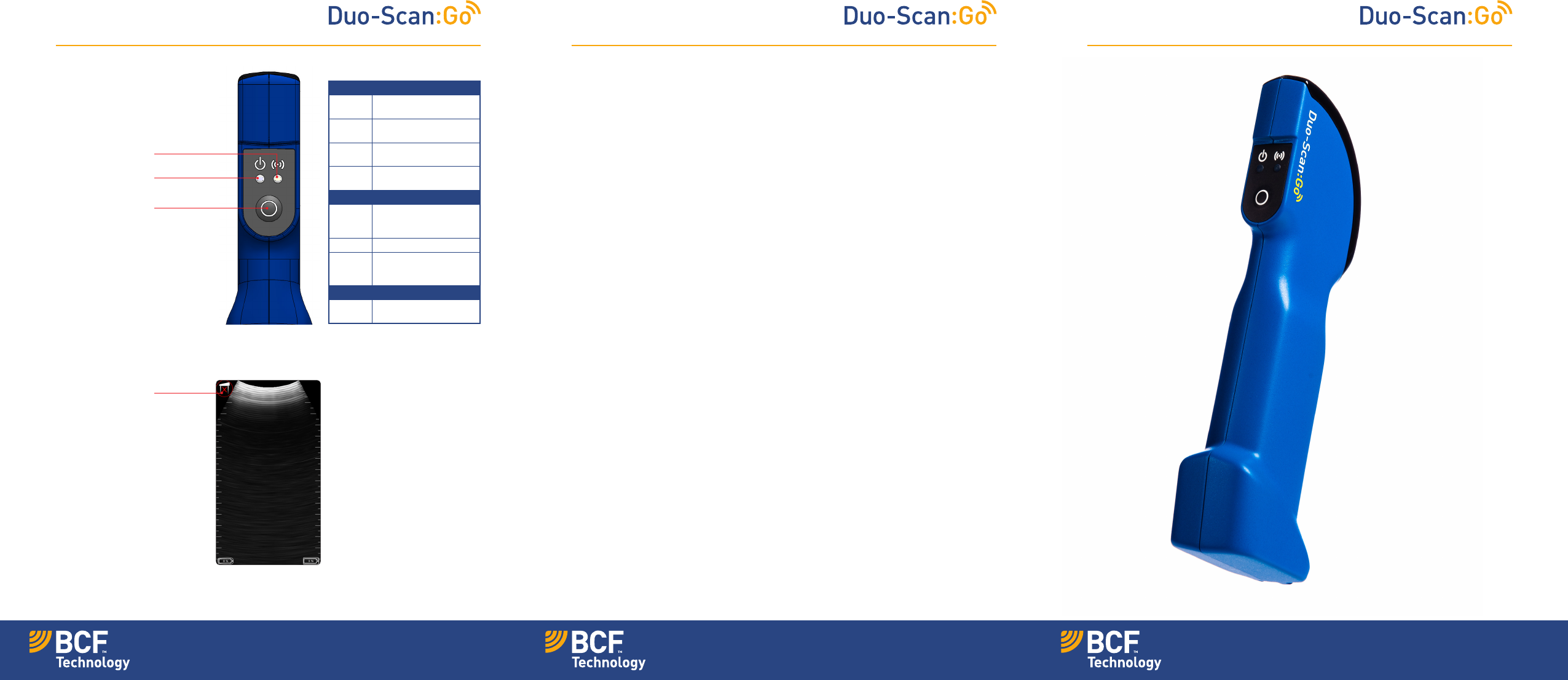
Power LED
Blue
ashing
Scanner turning on
Blue Scanner on and battery
between 66–100% charge
Yellow Scanner on and battery
between 33–66% charge
Yellow
ashing
Scanner on and battery
between 0–33% charge
Wireless LED
Blue
ashing
Scanner ready for smart
device to connect, nothing
connected
Blue Smart device connected
Blue Scanner is charging
when placed on wireless
charging plate
Both LEDs
Flashing
yellow
Software updating
Quick Guide
Multi-function
power button:
• Freeze/Unfreeze
• Pregnant mode
• Non-pregnant mode
Power saving mode
LED sequences
The probe has no
contact
Power LED
Wireless LED
Your animal imaging partner bcfshop.com Your animal imaging partner