BCF Technology ESGL01 Ultrasound Scanner User Manual Easi Scan manual French ver AW V 3 Mar 2016

BCF Technology Ltd Ultrasound Scanner Easi Scan manual French ver AW V 3 Mar 2016

Scan Go Manual full Eng Ver. LR AW V13 Dec 2017

TMYour animal imaging partnerInstruction manual
TM2Contents Introduction     3Scanner menu    4LED sequence    6BCF Go Scan App  8Usage les       10Factory reset     10Measurements menu  13Care & maintenance  17CerticationBCF Technology Ltd., hereby declares that the radio equipment type that we use on Easi-Scan:Go is in compliance with all CE Directives. The full text of the EU declaration of conformity is available at the following internet address: www.bcftechnology.co.ukThis device complies with part 15 of the FCC Rules. Operation is subject to the following two conditions: (1) This device may not cause harmful interference, and (2) this device must accept any interference received, including interference that may cause undesired operation.If the user changes any modifications not expressly approved by the party responsible for compliance could void the user’s authority to operate the equipment.Note: All BCF Technology products are for animal applications only.
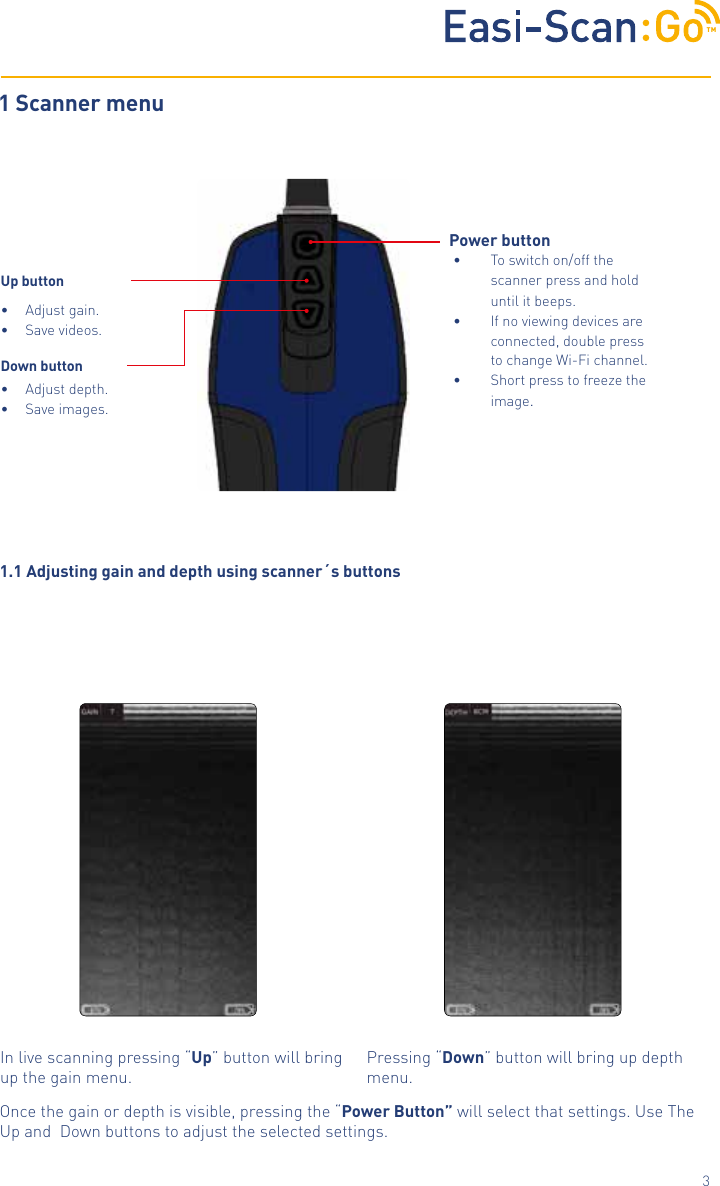
TM31 Scanner menu  1.1 Adjusting gain and depth using scanner´s buttonsOnce the gain or depth is visible, pressing the “Power Button” will select that settings. Use The Up and  Down buttons to adjust the selected settings.Power button •  To switch on/off the scanner press and hold until it beeps.•  If no viewing devices are connected, double press to change Wi-Fi channel.•  Short press to freeze the image.Up button•  Adjust gain.•  Save videos.Down button•  Adjust depth.•  Save images.Pressing “Down” button will bring up depth menu.In live scanning pressing “Up” button will bring up the gain menu.
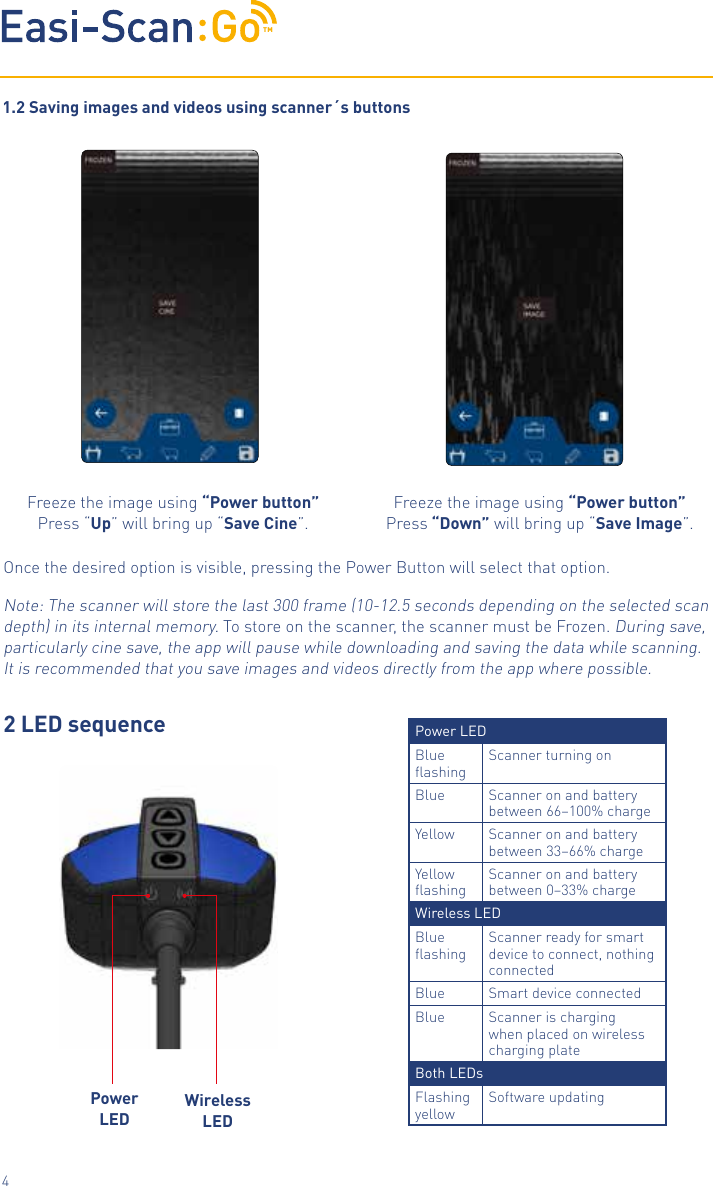
TM4Once the desired option is visible, pressing the Power Button will select that option.Note: The scanner will store the last 300 frame (10-12.5 seconds depending on the selected scan depth) in its internal memory. To store on the scanner, the scanner must be Frozen. During save, particularly cine save, the app will pause while downloading and saving the data while scanning. It is recommended that you save images and videos directly from the app where possible. 2 LED sequenceFreeze the image using “Power button” Press “Down” will bring up “Save Image”.Freeze the image using “Power button” Press “Up” will bring up “Save Cine”.1.2 Saving images and videos using scanner´s buttonsPower LEDWireless LEDPower LEDBlue flashingScanner turning onBlue Scanner on and battery between 66–100% chargeYellow Scanner on and battery between 33–66% chargeYellow flashingScanner on and battery between 0–33% chargeWireless LEDBlue flashingScanner ready for smart device to connect, nothing connectedBlue Smart device connectedBlue Scanner is charging when placed on wireless charging plateBoth LEDsFlashing yellowSoftware updating
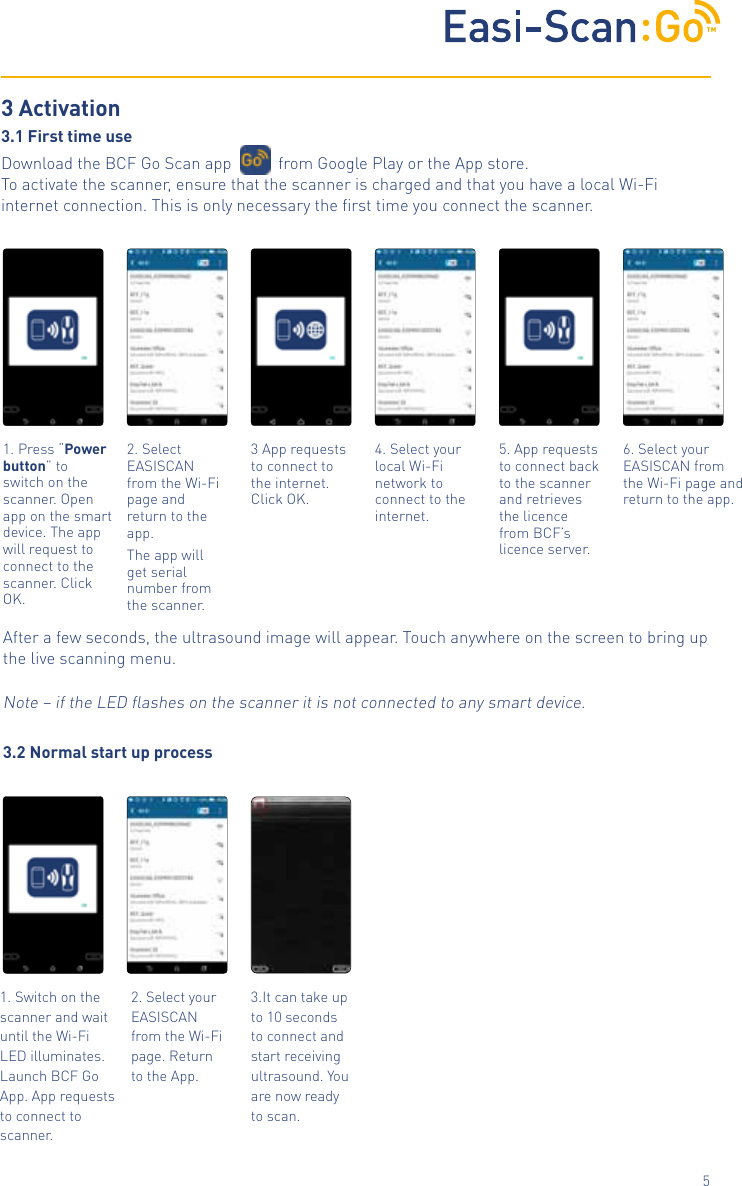
TM53.2 Normal start up process1. Press “Power button” to switch on the scanner. Open app on the smart device. The app will request to connect to the scanner. Click OK. 3 App requests to connect to the internet. Click OK.4. Select your local Wi-Fi network to connect to the internet. 5. App requests to connect back to the scanner and retrieves the licence from BCF’s licence server. 2. Select EASISCAN from the Wi-Fi page and return to the app.The app will get serial number from the scanner.6. Select your EASISCAN from the Wi-Fi page and return to the app. 3 Activation3.1 First time useDownload the BCF Go Scan app           from Google Play or the App store.  To activate the scanner, ensure that the scanner is charged and that you have a local Wi-Fi internet connection. This is only necessary the first time you connect the scanner. Note – if the LED flashes on the scanner it is not connected to any smart device.After a few seconds, the ultrasound image will appear. Touchanywhere on the screen to bring up the live scanning menu.1. Switch on the scanner and wait until the Wi-Fi LED illuminates. Launch BCF Go App. App requests to connect to scanner.2. Select your EASISCAN from the Wi-Fi page. Return to the App.3.It can take up to 10 seconds to connect and start receiving ultrasound. You are now ready to scan.
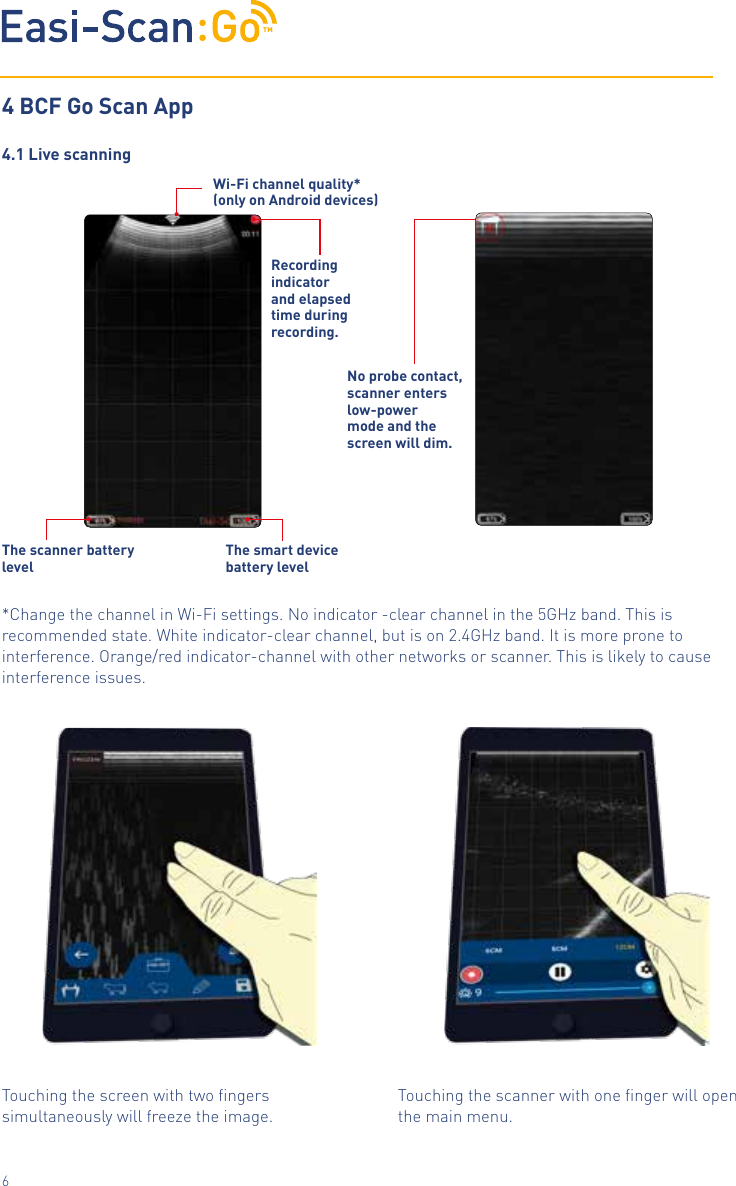
TM64 BCF Go Scan App4.1 Live scanningRecording indicator and elapsed time during recording. Wi-Fi channel quality*(only on Android devices)The scanner battery levelThe smart device battery levelNo probe contact, scanner enters low-power mode and the                 screen will dim.Touching the scanner with one finger will open the main menu. Touching the screen with two fingers simultaneously will freeze the image.*Change the channel in Wi-Fi settings. No indicator -clear channel in the 5GHz band. This is recommended state. White indicator-clear channel, but is on 2.4GHz band. It is more prone to interference. Orange/red indicator-channel with other networks or scanner. This is likely to cause interference issues.
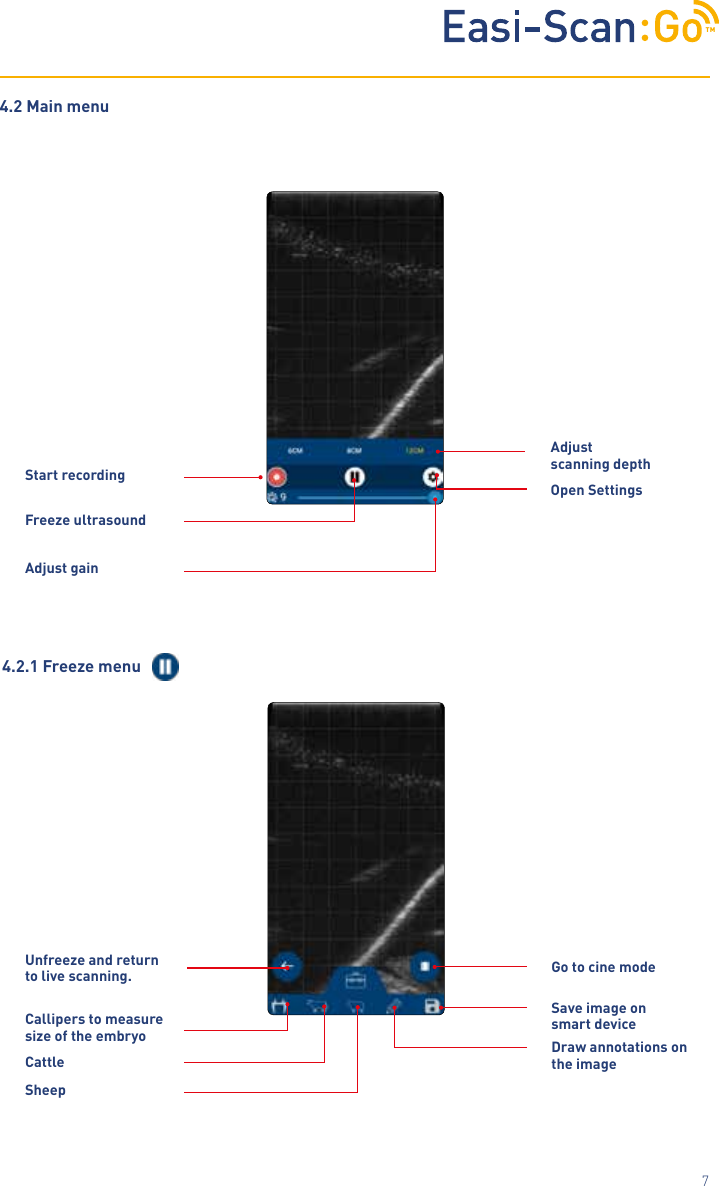
TM7Unfreeze and return to live scanning.Callipers to measure size of the embryo Draw annotations on the image4.2.1 Freeze menuCattleSheepGo to cine modeSave image on smart deviceStart recordingFreeze ultrasoundOpen SettingsAdjust gain4.2 Main menuAdjust  scanning depth
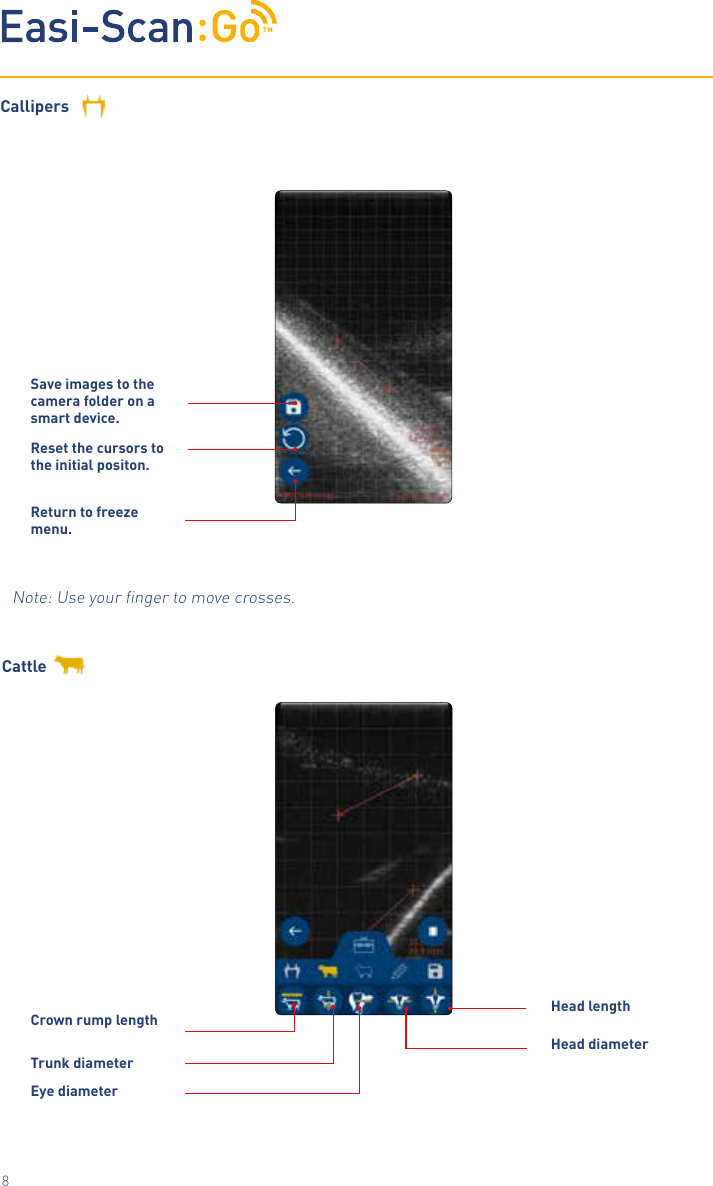
TM8CallipersReset the cursors to the initial positon.Save images to the camera folder on a smart device.Return to freeze menu.Note: Use your finger to move crosses. CattleCrown rump lengthHead diameterTrunk diameterEye diameterHead length
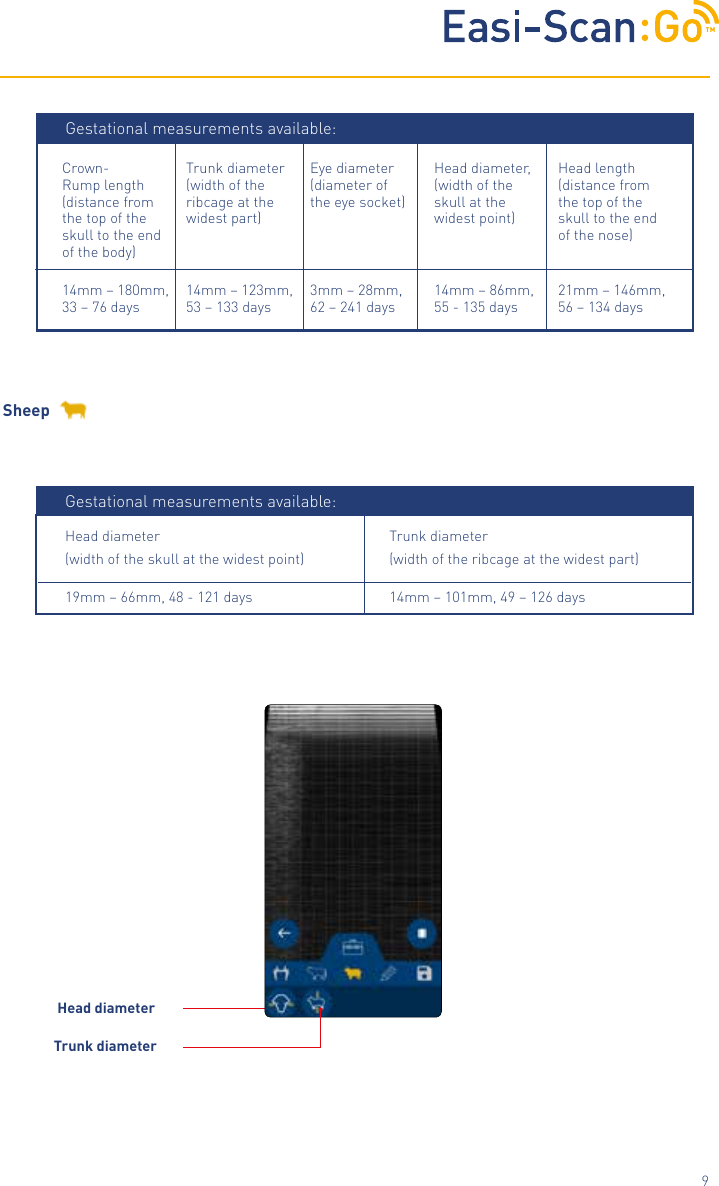
TM9Sheep Head diameterTrunk diameterTrunk diameter(width of the ribcage at the widest part)Head diameter(width of the skull at the widest point)14mm – 101mm, 49 – 126 days19mm – 66mm, 48 - 121 daysGestational measurements available:Trunk diameter (width of the ribcage at the widest part)14mm – 123mm, 53 – 133 daysEye diameter (diameter of the eye socket)3mm – 28mm, 62 – 241 daysHead diameter, (width of the skull at the widest point)14mm – 86mm, 55 - 135 daysCrown-Rump length (distance from the top of the skull to the end of the body)14mm – 180mm, 33 – 76 daysHead length (distance from the top of the skull to the end of the nose)21mm – 146mm, 56 – 134 daysGestational measurements available:
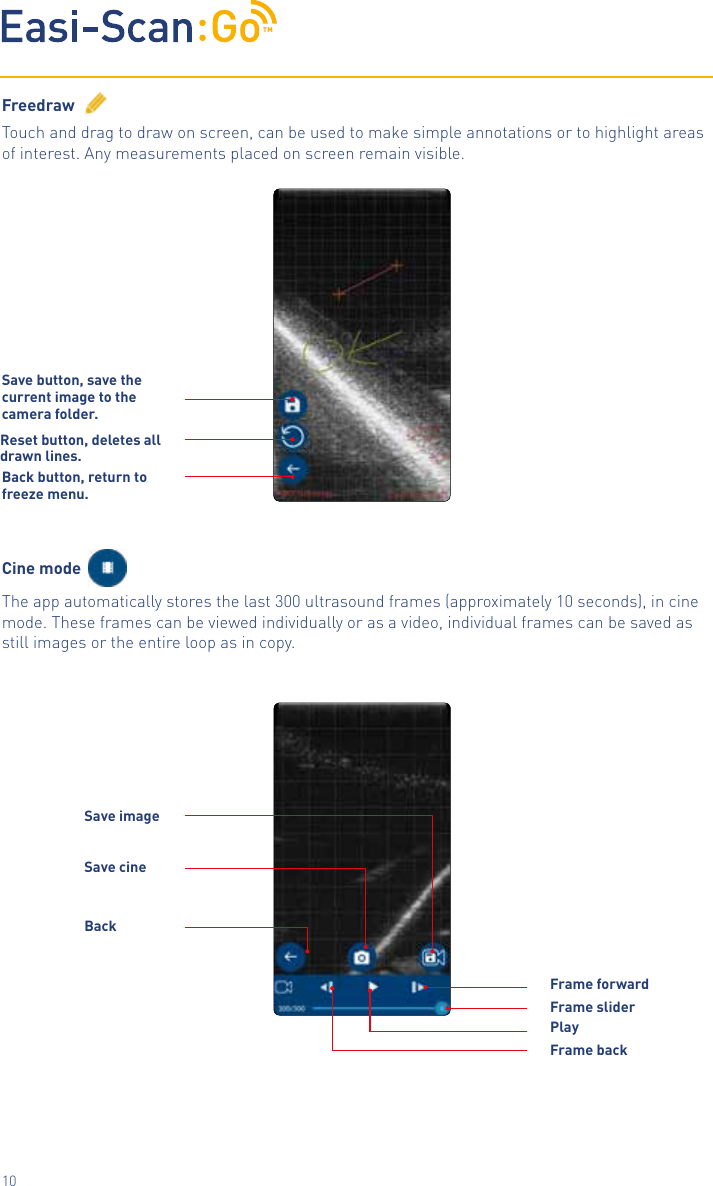
TM10FreedrawTouch and drag to draw on screen, can be used to make simple annotations or to highlight areas of interest. Any measurements placed on screen remain visible.Cine modeThe app automatically stores the last 300 ultrasound frames (approximately 10 seconds), in cine mode. These frames can be viewed individually or as a video, individual frames can be saved as still images or the entire loop as in copy.Reset button, deletes all drawn lines.Save button, save the current image to the camera folder.Back button, return to freeze menu.Frame backFrame forwardBackSave imageSave cinePlayFrame slider
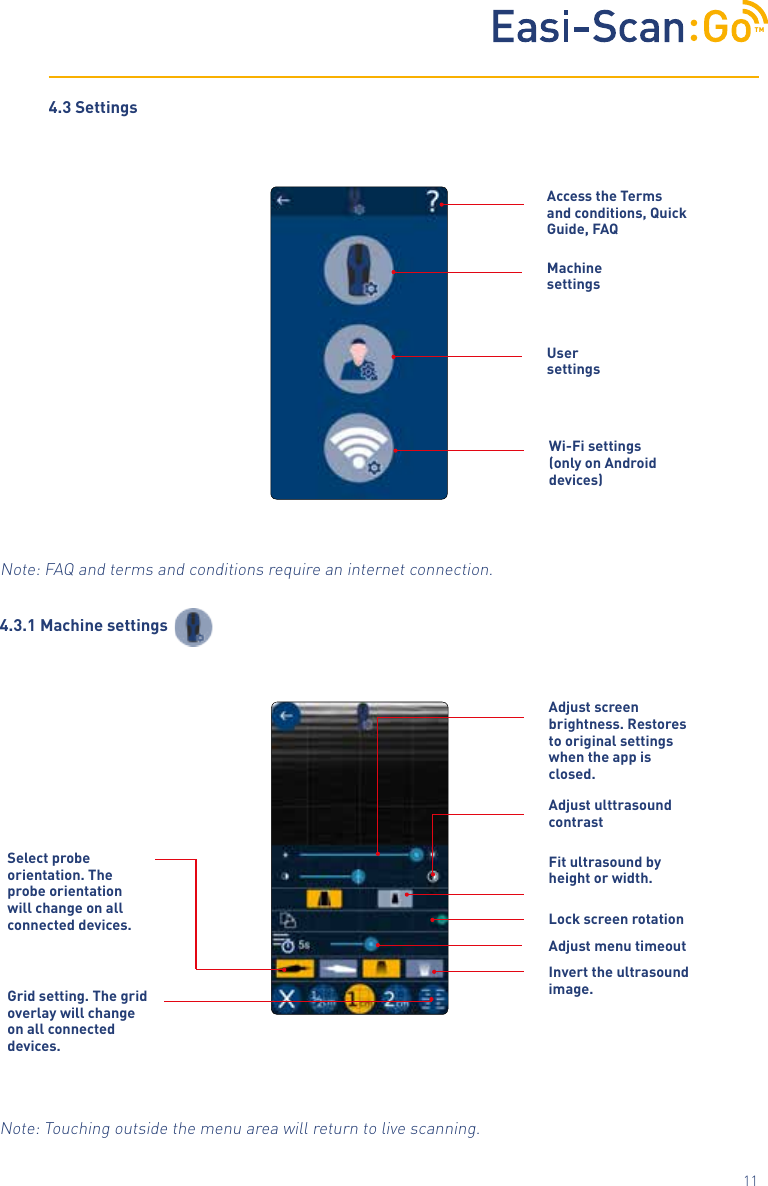
TM11Note: FAQ and terms and conditions require an internet connection.Machine settingsUser settingsWi-Fi settings (only on Android devices)Access the Terms a n d  c o n d i t i o n s ,  Q u i c k                                                                             Guide, FAQ4.3.1 Machine settingsAdjust screen brightness. Restores to original settings when the app is closed.Fit ultrasound by height or width. Adjust ulttrasound  contrastLock screen rotationAdjust menu timeoutGrid setting. The grid overlay will change on all connected devices.Invert the ultrasound image.Note: Touching outside the menu area will return to live scanning.4.3 SettingsSelect probe orientation. The probe orientation will change on all connected devices.
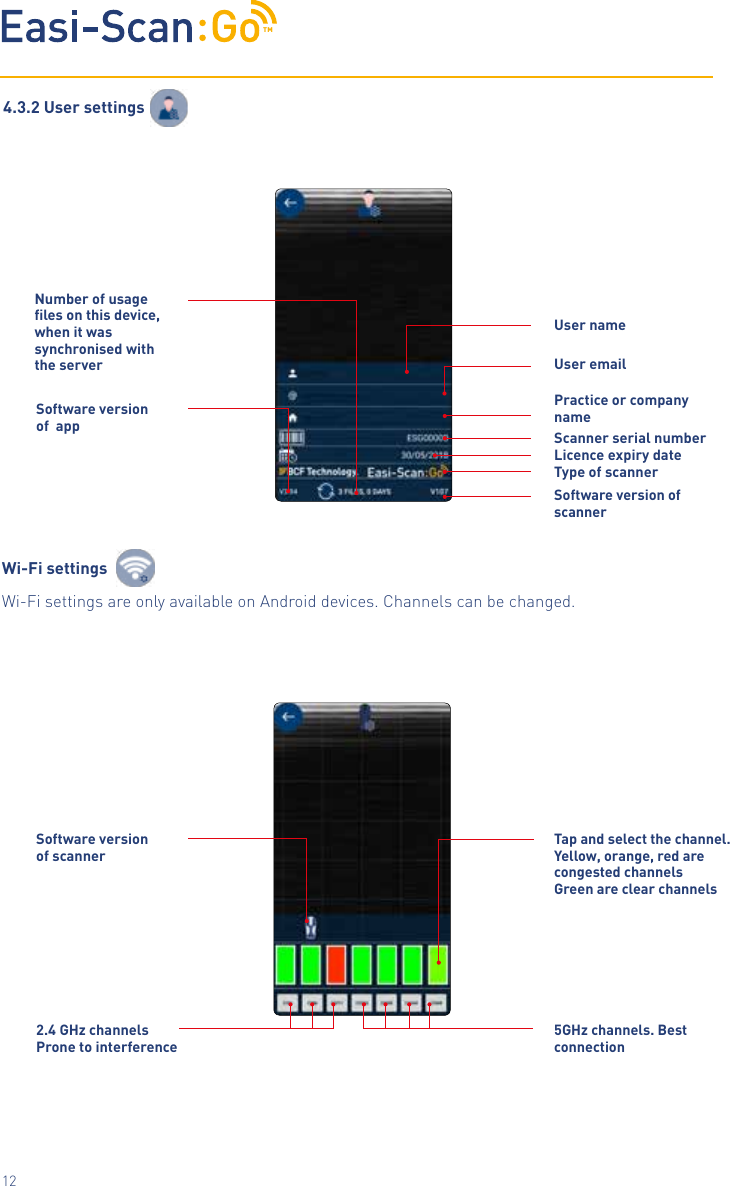
TM12User nameUser emailLicence expiry dateType of scannerSoftware version of   scannerTap and select the channel. Yellow, orange, red are congested channels Green are clear channels5GHz channels. Best connectionSoftware version of  app        Software version of scanner        2.4 GHz channels Prone to interferenceNumber of usage les on this device, w h e n  i t  w a s                                                        synchronised with the serverScanner serial numberPractice or company name4.3.2 User settingsWi-Fi settingsWi-Fi settings are only available on Android devices. Channels can be changed.
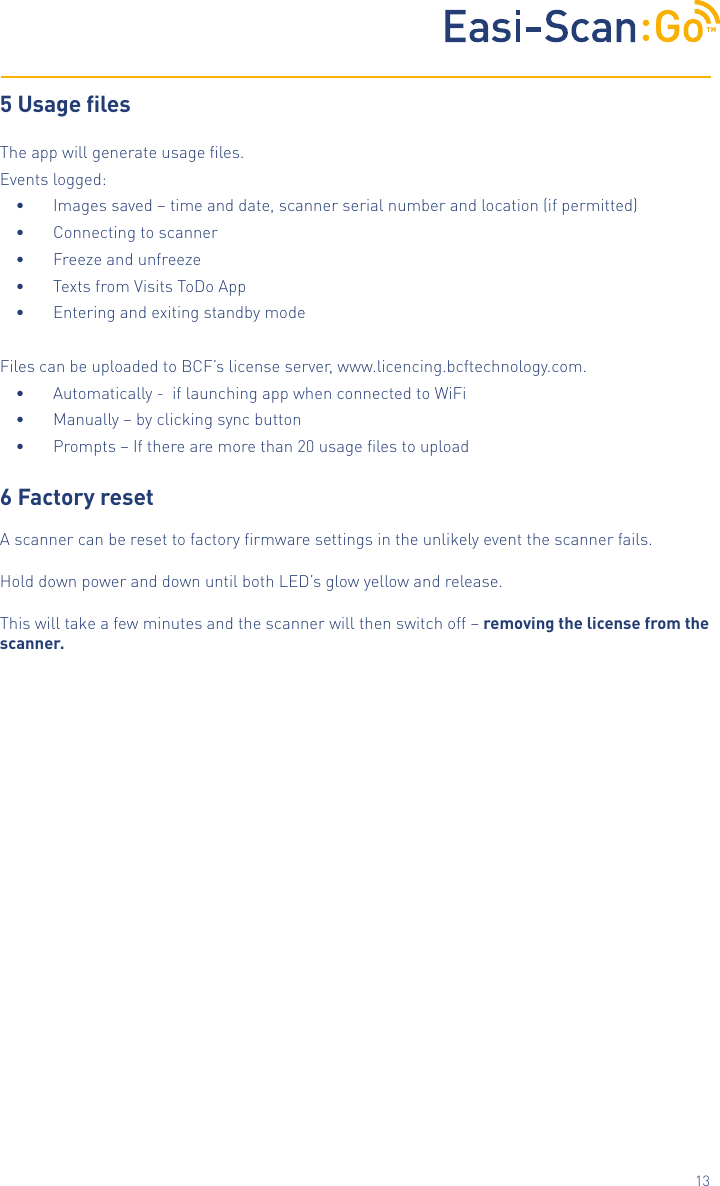
TM135 Usage lesThe app will generate usage files.Events logged:•  Images saved – time and date, scanner serial number and location (if permitted)•  Connecting to scanner •  Freeze and unfreeze•  Texts from Visits ToDo App•  Entering and exiting standby modeFiles can be uploaded to BCF’s license server, www.licencing.bcftechnology.com.•  Automatically -  if launching app when connected to WiFi •  Manually – by clicking sync button •  Prompts – If there are more than 20 usage files to upload6 Factory resetA scanner can be reset to factory firmware settings in the unlikely event the scanner fails.  Hold down power and down until both LED’s glow yellow and release. This will take a few minutes and the scanner will then switch off – removing the license from the scanner.
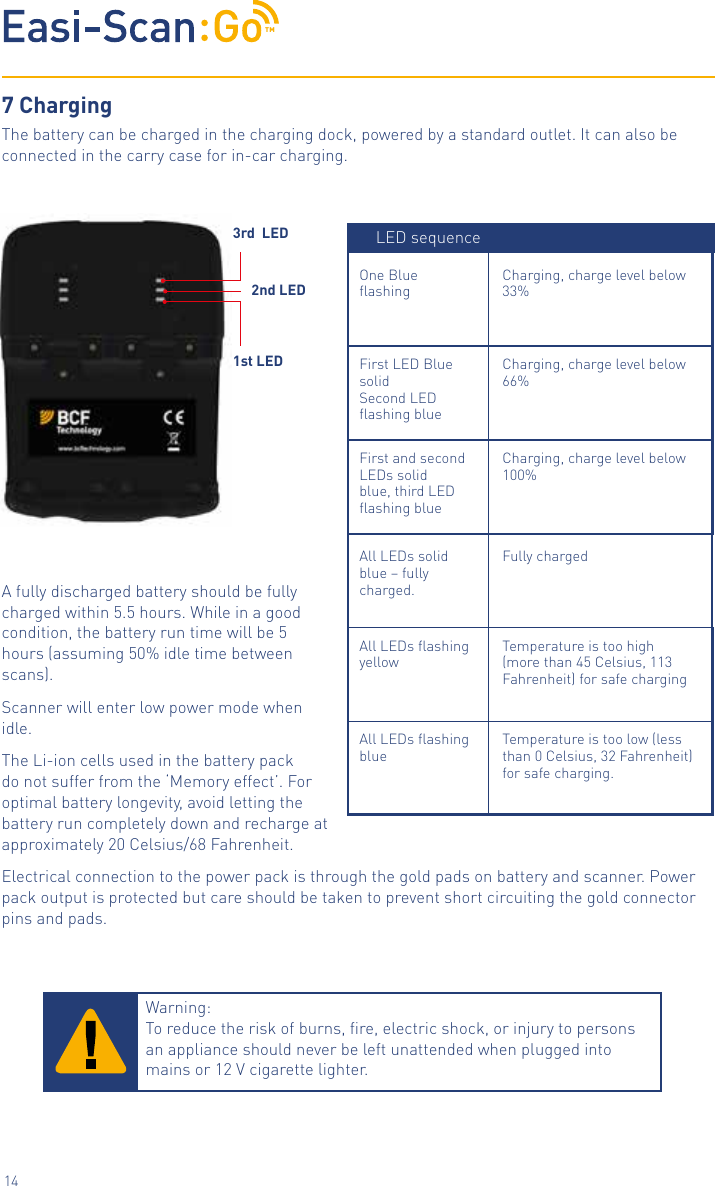
TM14Charging, charge level below 33%Charging, charge level below 66%Charging, charge level below 100%Fully chargedTemperature is too high (more than 45 Celsius, 113 Fahrenheit) for safe chargingTemperature is too low (less than 0 Celsius, 32 Fahrenheit) for safe charging.One Blue flashingFirst LED Blue solidSecond LED flashing blueFirst and second LEDs solid blue, third LED flashing blueAll LEDs solid blue – fully charged.All LEDs flashing yellowAll LEDs flashing blue7 ChargingThe battery can be charged in the charging dock, powered by a standard outlet. It can also be connected in the carry case for in-car charging.A fully discharged battery should be fully charged within 5.5 hours. While in a good  condition, the battery run time will be 5 hours (assuming 50% idle time between scans).Scanner will enter low power mode when idle.The Li-ion cells used in the battery pack do not suffer from the ‘Memory effect’. For optimal battery longevity, avoid letting the battery run completely down and recharge at approximately 20 Celsius/68 Fahrenheit. Electrical connection to the power pack is through the gold pads on battery and scanner. Power pack output is protected but care should be taken to prevent short circuiting the gold connector pins and pads.Warning:  To reduce the risk of burns, fire, electric shock, or injury to persons an appliance should never be left unattended when plugged into mains or 12V cigarette lighter.LED sequence2nd LED1st LED3rd  LED
TM158 Care & maintenance8.1 Easi-Scan: Go & batteryPlease note the following important points:•  The unit is not sealed against jets of water. Water will penetrate your scanner if it is hosed down or rinsed under a fast flowing tap.•  The unit is NOT corrosion proof and thus it should not be left wet.Take care to detach the external battery and ensure interconnect areas are dry also.•  The battery charger and charging carry case are not waterproof – avoid getting them wet. 8.2 Easi-Scan: Go probeWhile every attempt has been made to make the probe as rugged as possible the crystal array remains vulnerable and should be protected from knocks. The probe has a protective sheath covering the length of cable subject to wear and flexing. Any damage to this sheath or the rest of the cable should be repaired before further use to prevent moisture ingress that will rapidly damage the probe. The probe should be checked regularly for such damage.GelsUse only gels recommended by BCF Technology Ltd. Do not store the probe in gel.CleaningThe probe may be cleaned by removing all residue and disinfecting using an IPA wipe.StorageClean and dry the probe head prior to storage in dry location. Do not store the transducer in gelsor cleaning/disinfecting solutions. This will lead to premature deterioration of the probe.Do not expose the transducer to materials containing the following agents:•  Acetone•  Methanol•  Mineral oil•  Iodine•  Freon•  Industrial cleaners•  Materials containing perfumes (lotions, gels, etc.)9. SpecicationsWarning:  Never sterilize the transducer with autoclave, ultraviolet, gamma radiation, gas, steam or heat sterilization techniques. Severe damage will result.
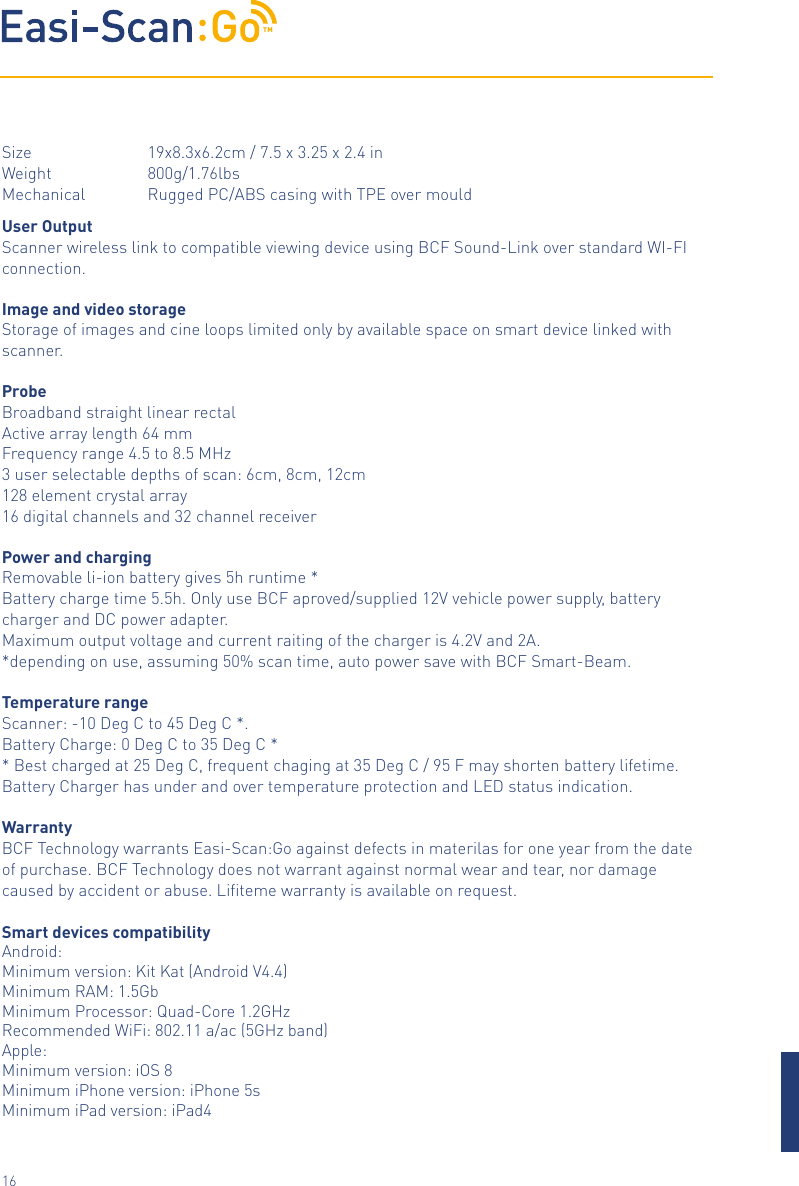
TM16Size       19x8.3x6.2cm / 7.5 x 3.25 x 2.4 inWeight     800g/1.76lbsMechanical         Rugged PC/ABS casing with TPE over mouldUser OutputScanner wireless link to compatible viewing device using BCF Sound-Link over standard WI-FI connection. Image and video storageStorage of images and cine loops limited only by available space on smart device linked with scanner.ProbeBroadband straight linear rectalActive array length 64 mmFrequency range 4.5 to 8.5 MHz3 user selectable depths of scan: 6cm, 8cm, 12cm128 element crystal array16 digital channels and 32 channel receiverPower and chargingRemovable li-ion battery gives 5h runtime *Battery charge time 5.5h. Only use BCF aproved/supplied 12V vehicle power supply, battery charger and DC power adapter.Maximum output voltage and current raiting of the charger is 4.2V and 2A. *depending on use, assuming 50% scan time, auto power save with BCF Smart-Beam. Temperature rangeScanner: -10 Deg C to 45 Deg C *.Battery Charge: 0 Deg C to 35 Deg C ** Best charged at 25 Deg C, frequent chaging at 35 Deg C / 95 F may shorten battery lifetime. Battery Charger has under and over temperature protection and LED status indication.WarrantyBCF Technology warrants Easi-Scan:Go against defects in materilas for one year from the date of purchase. BCF Technology does not warrant against normal wear and tear, nor damage caused by accident or abuse. Lifiteme warranty is available on request.  Smart devices compatibilityAndroid:Minimum version: Kit Kat (Android V4.4)Minimum RAM: 1.5GbMinimum Processor: Quad-Core 1.2GHzRecommended WiFi: 802.11 a/ac (5GHz band)Apple:Minimum version: iOS 8Minimum iPhone version: iPhone 5sMinimum iPad version: iPad4
TM© BCF Technology Ltd, 2017  |  Easi-Scan:GO For further information and video manuals about the Easi- Scan:Go please visit the “Customer support“ section of the BCF website  www.bcftechnology.com/service-supportEasi-Scan:Go does not contain user serviceable parts. Servicing has to be done by BCF´s authorised service centers.11 Service centresIf your Easi-Scan requires servicing please contact official authorised service centres below or distributor in your country. Distributors contact details can be found at www.bcftechnology.com. In the UK:BCF Technology LtdImaging House, Phoenix Crescent Strathclyde Business Park Bellshill, ML4 3NJSchottland, UK T +44 (0)1506 460 023info@bcftechnology.comwww.bcftechnology.comIn Ireland:BCF Technology LtdUnit 2, Quayside Business ParkMill Street, DundalkCo Louth, Ireland T +353 (0)42 932 0070ireland@bcftechnology.comwww.bcftechnology.com In North America:BCF Technology USA Ltd, LLC2625 Highway 14 West, Suite KRochester, Minnesota 55901 T 507-529-8200T 800-210-9665F 507-529-8205contact@bcftechnology.comwww.bcftechnology.comIn Australasia:BCF Ultrasound Australasia Pty Ltd10/56 Norcal RoadNunawading 3131Melbourne, VictoriaAustralia  T +61 (0)3 9894 8980service@bcfultrasound.com www.bcfultrasound.com

Navigation menu