BITWAVE HAD1000 Hearing Assistive Device User Manual T2F UM 1 1 11032015 new

Bitwave Private Limited Hearing Assistive Device T2F UM 1 1 11032015 new

User Manual

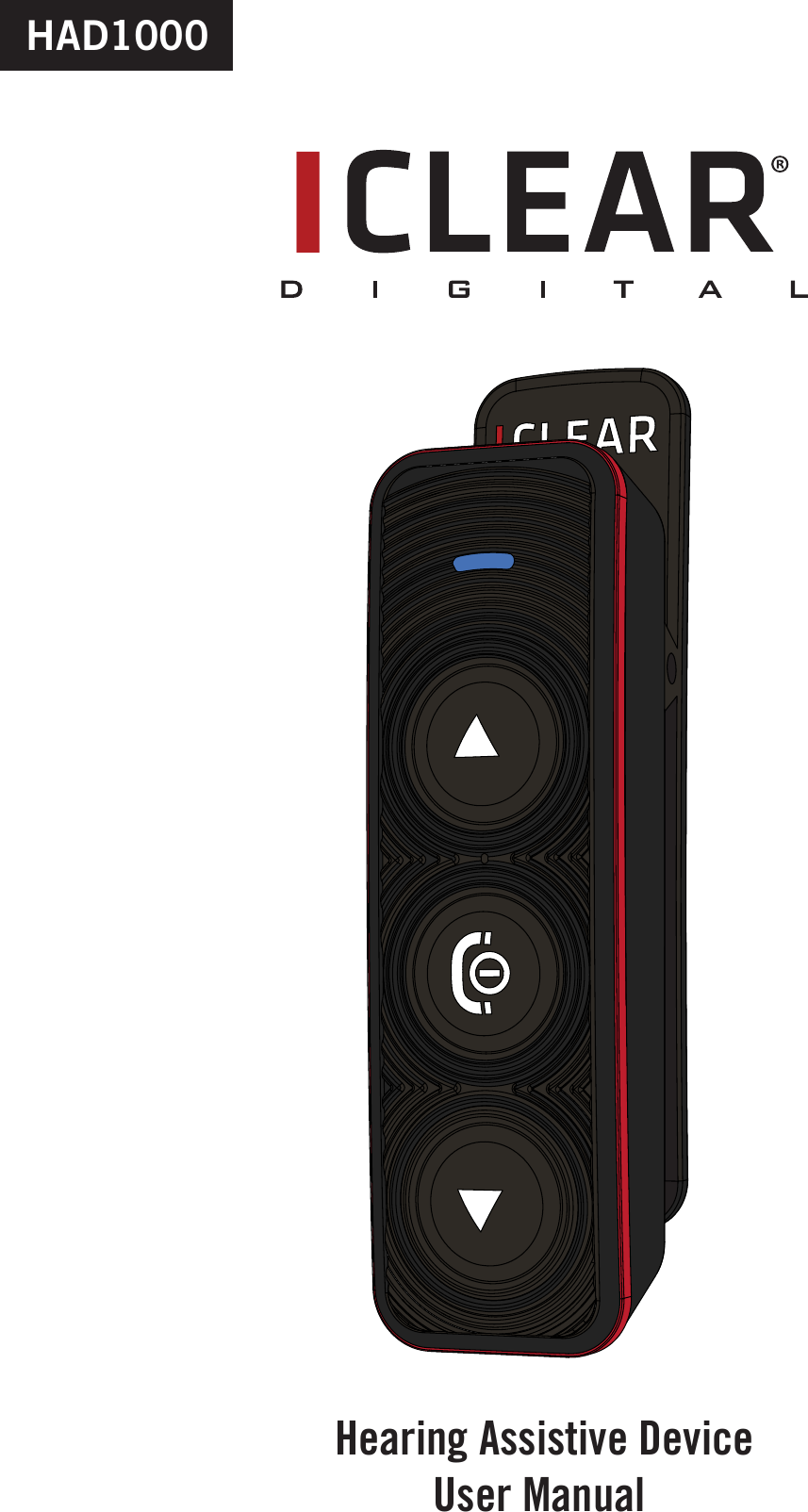
HAD1000Hearing Assistive DeviceUser Manual I
ContentsContents ---------------------------------------------------------Kit Includes ------------------------------------------------------ Quick User Guide ----------------------------------------------Warnings and Safety Instructions --------------------------Features -----------------------------------------------------------Installation --------------------------------------------------------General Operations ----------------------------------------------Music Streaming Operations ----------------------------------Hearing Assist Operations--------------------------------------Mobile Phone Operations --------------------------------------Button Configurations Summary ------------------------------Status Indicator Configuration Summary -------------------Technical Data ----------------------------------------------------Troubleshooting Operational Tips------------------------------Notices --------------------------------------------------------------010203091111131617182526272728EN PAGE 1I
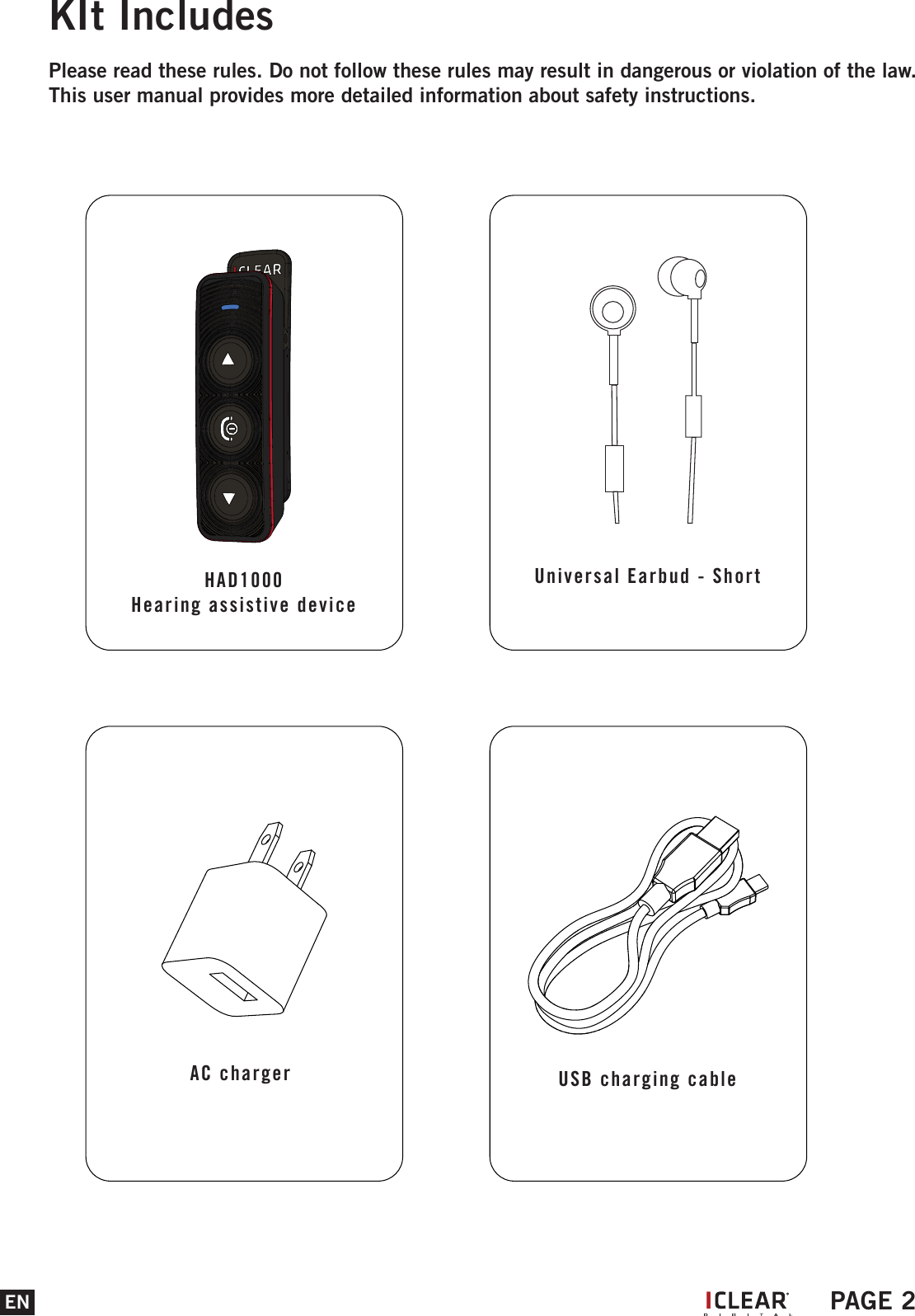
EN PAGE 2KIt IncludesPlease read these rules. Do not follow these rules may result in dangerous or violation of the law. This user manual provides more detailed information about safety instructions.HAD1000Hearing assistive deviceIUniversal Earbud - ShortAC charger  USB charging cable
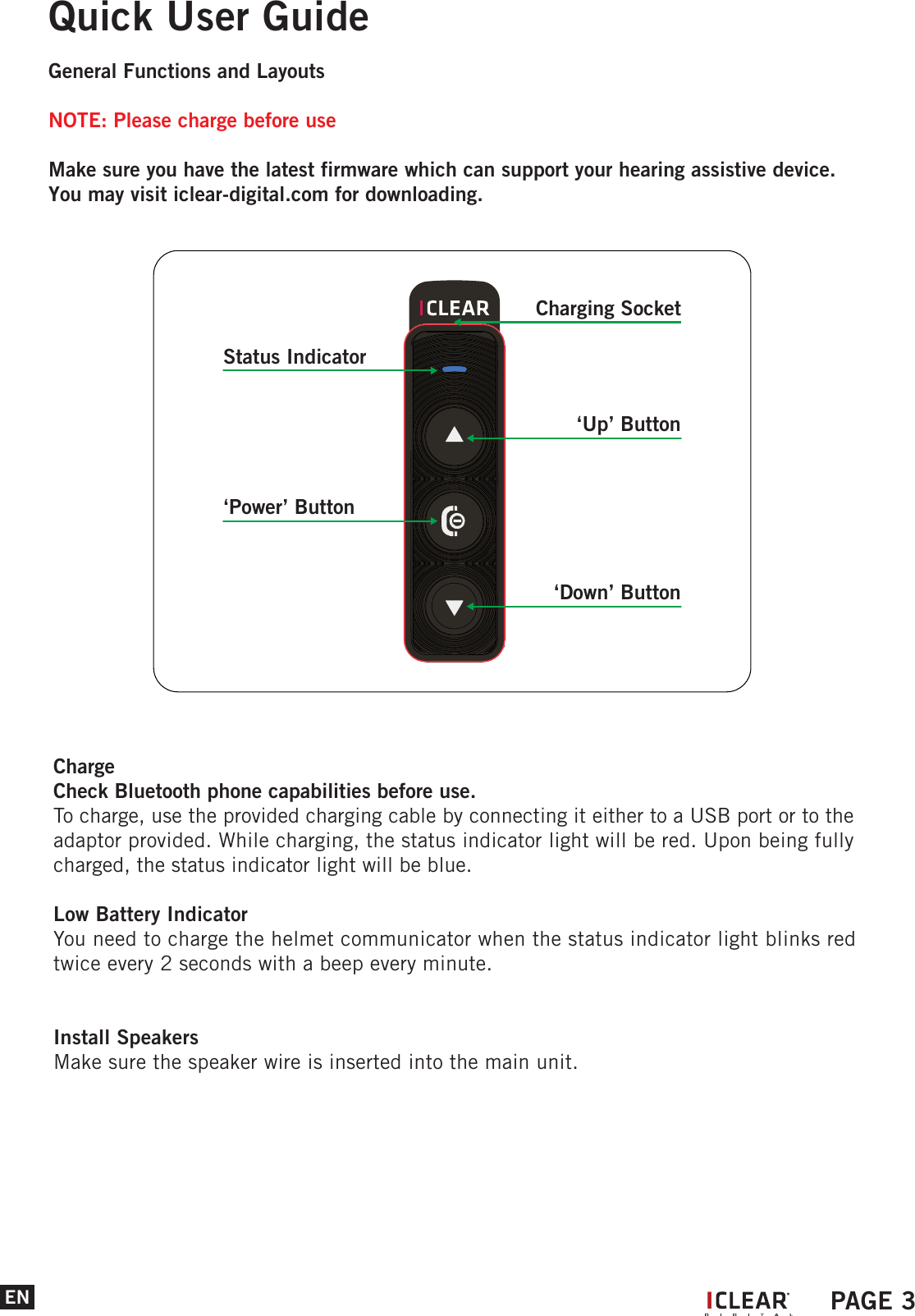
ENQuick User GuideGeneral Functions and LayoutsNOTE: Please charge before useMake sure you have the latest firmware which can support your hearing assistive device.You may visit iclear-digital.com for downloading. ChargeCheck Bluetooth phone capabilities before use.To charge, use the provided charging cable by connecting it either to a USB port or to the adaptor provided. While charging, the status indicator light will be red. Upon being fully charged, the status indicator light will be blue.Low Battery IndicatorYou need to charge the helmet communicator when the status indicator light blinks red twice every 2 seconds with a beep every minute.Install SpeakersMake sure the speaker wire is inserted into the main unit. IPAGE 3Status Indicator‘Up’ Button‘Power’ Button‘Down’ ButtonCharging Socket
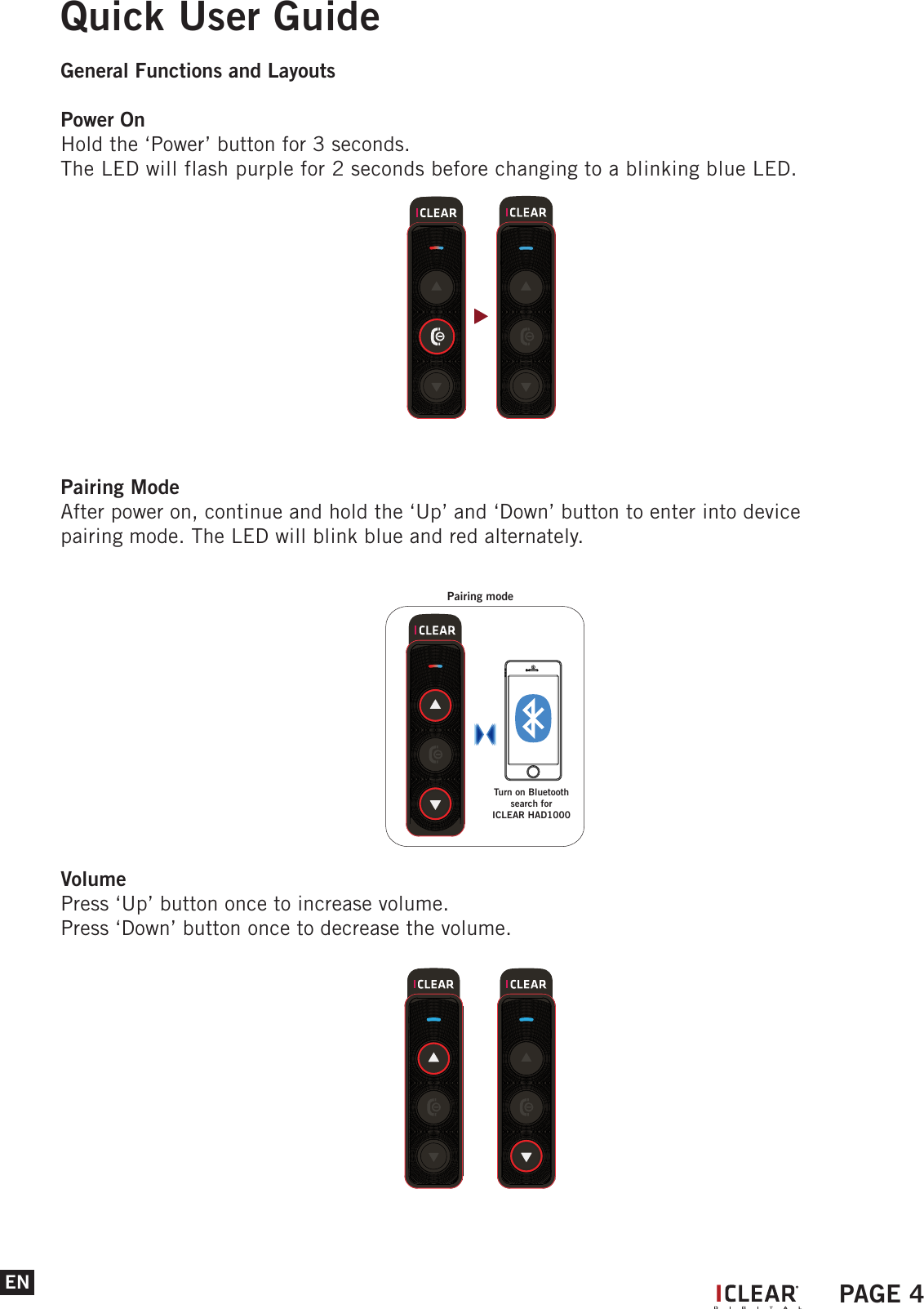
ENQuick User GuideGeneral Functions and LayoutsPower OnHold the ‘Power’ button for 3 seconds.The LED will flash purple for 2 seconds before changing to a blinking blue LED.Pairing ModeAfter power on, continue and hold the ‘Up’ and ‘Down’ button to enter into device pairing mode. The LED will blink blue and red alternately. VolumePress ‘Up’ button once to increase volume.Press ‘Down’ button once to decrease the volume.Pairing modeTurn on Bluetoothsearch for ICLEAR HAD1000IPAGE 4
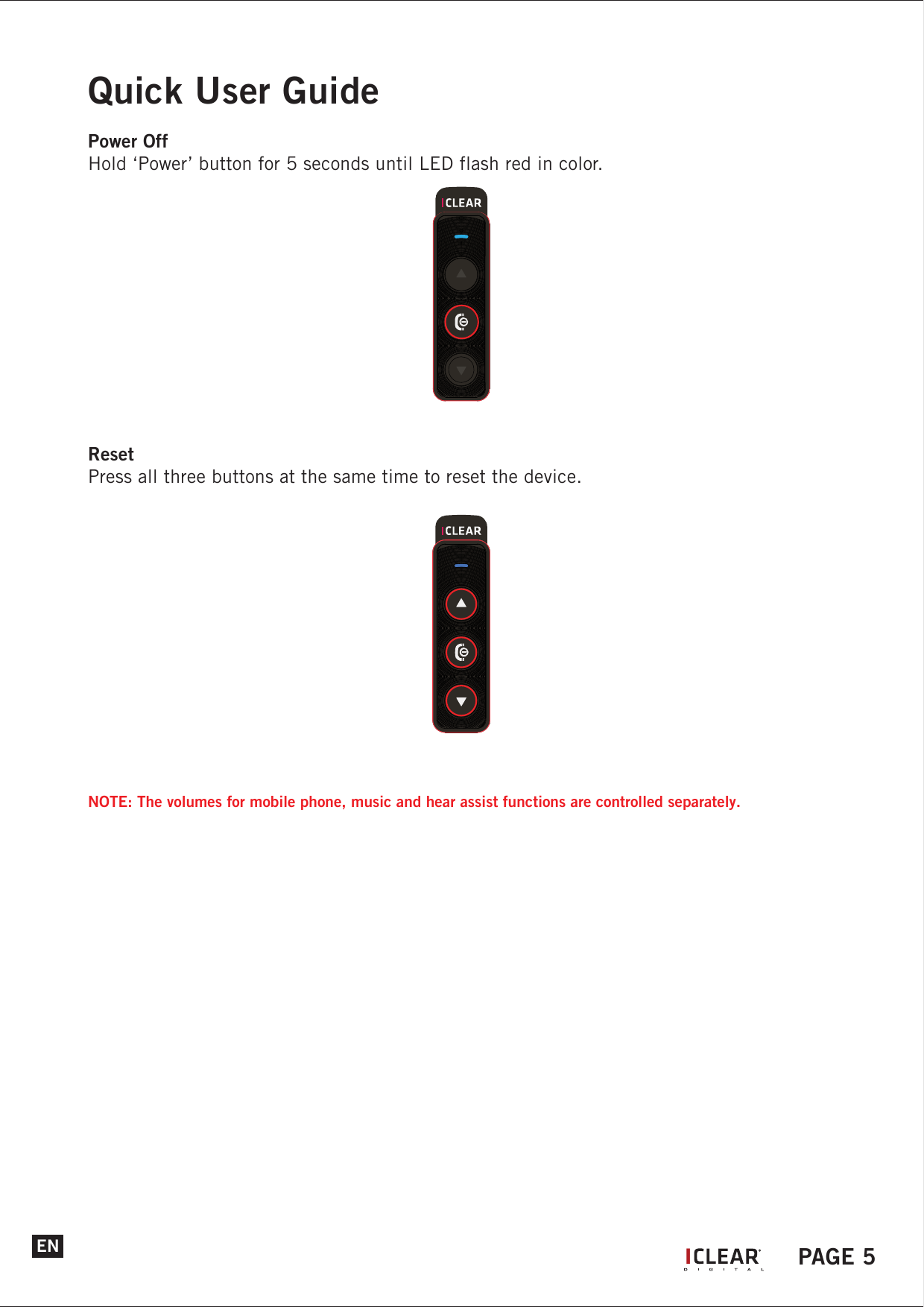
ENPower OffHold ‘Power’ button for 5 seconds until LED flash red in color.ResetPress all three buttons at the same time to reset the device.NOTE: The volumes for mobile phone, music and hear assist functions are controlled separately. Quick User GuideIPAGE 5
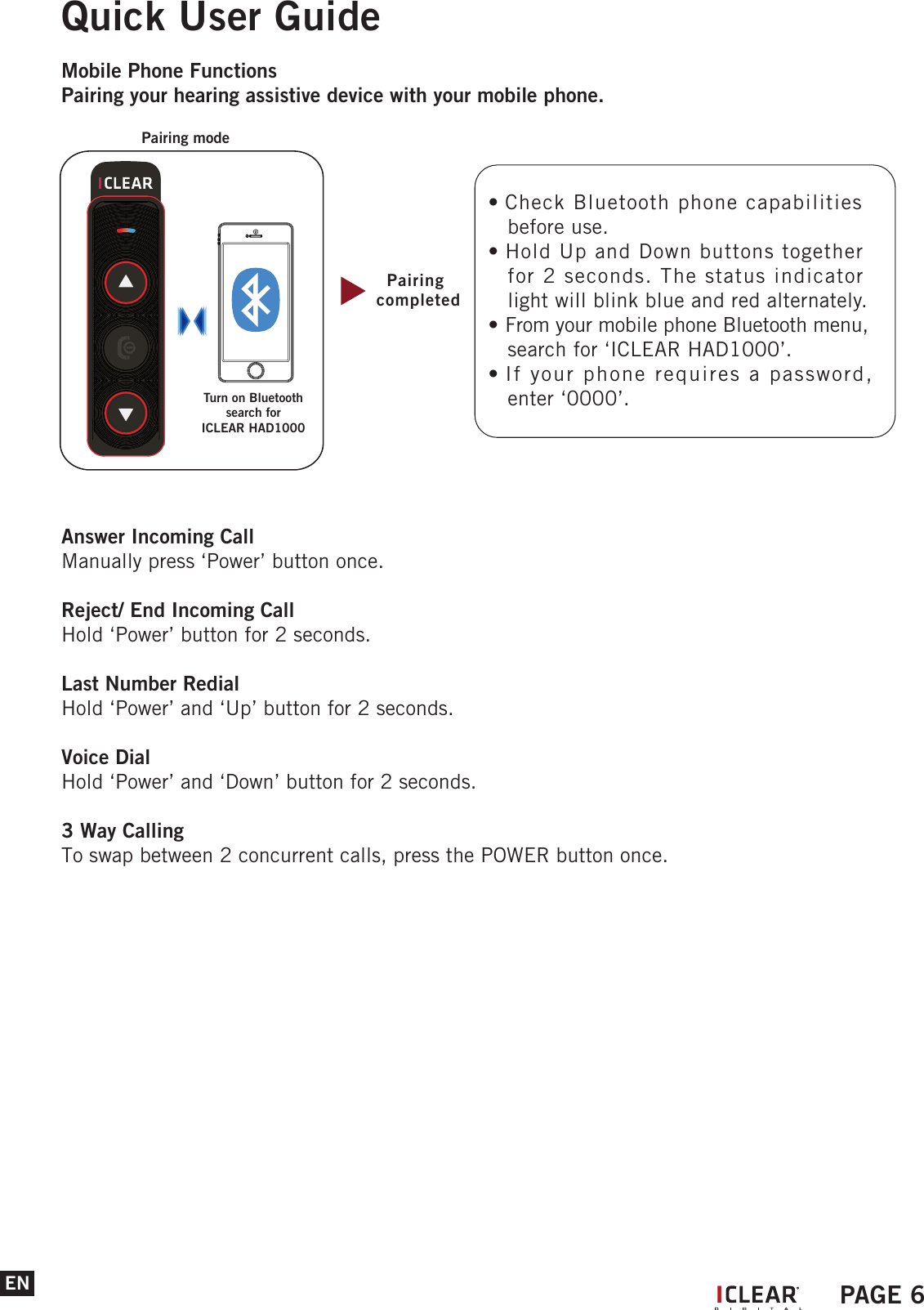
ENQuick User GuideMobile Phone FunctionsPairing your hearing assistive device with your mobile phone.Answer Incoming CallManually press ‘Power’ button once.Reject/ End Incoming CallHold ‘Power’ button for 2 seconds.Last Number RedialHold ‘Power’ and ‘Up’ button for 2 seconds.Voice DialHold ‘Power’ and ‘Down’ button for 2 seconds.3 Way CallingTo swap between 2 concurrent calls, press the POWER button once.Pairing completedPairing modeTurn on Bluetoothsearch for ICLEAR HAD1000• Check Bluetooth phone capabilities    before use.• Hold Up and Down buttons together    for 2 seconds. The status indicator    light will blink blue and red alternately.• From your mobile phone Bluetooth menu,    search for ‘ICLEAR HAD1000’.• If your phone requires a password,    enter ‘0000’.IPAGE 6
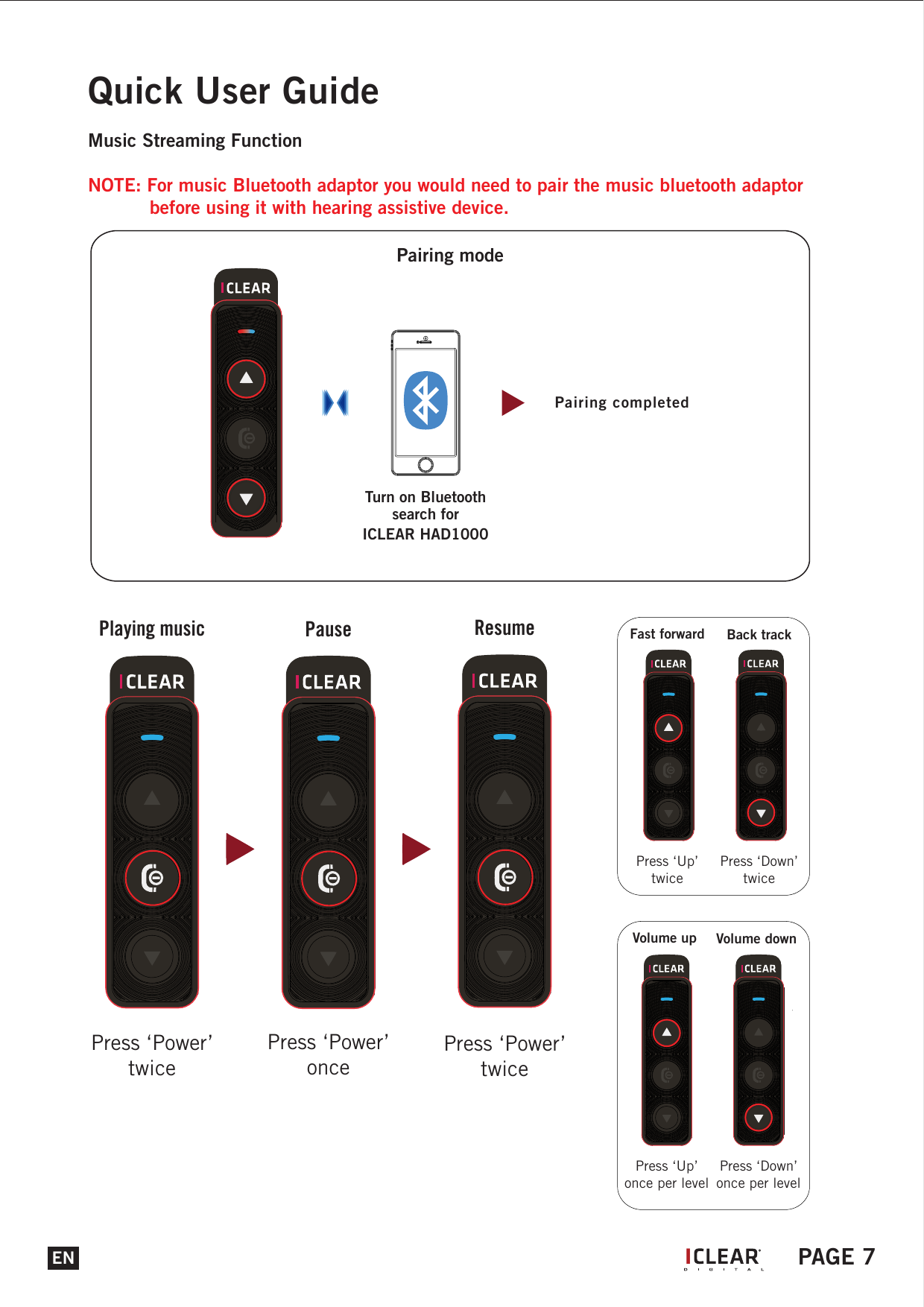
Quick User GuideMusic Streaming FunctionNOTE: For music Bluetooth adaptor you would need to pair the music bluetooth adaptor    before using it with hearing assistive device.Pairing modePress ‘Power’twicePlaying musicPress ‘Power’oncePausePress ‘Power’twiceResumeENPress ‘Up’twiceFast forwardPress ‘Down’twiceBack trackPress ‘Up’once per levelVolume upPress ‘Down’once per levelVolume downPairing completedTurn on Bluetoothsearch forICLEAR HAD1000IPAGE 7
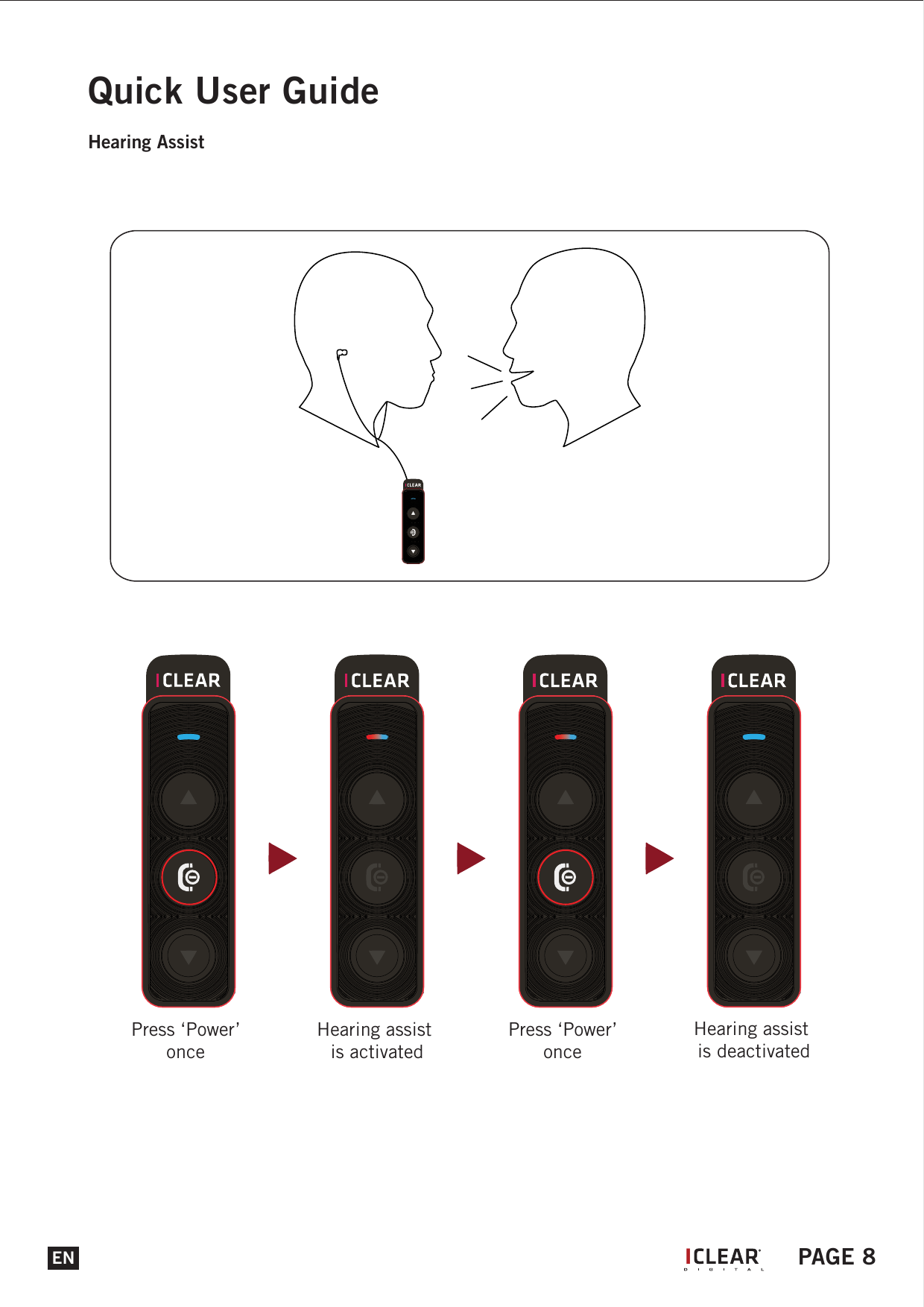
Press ‘Power’ once Hearing assist is activatedPress ‘Power’ once Hearing assist is deactivatedEN PAGE 8Quick User GuideHearing AssistI
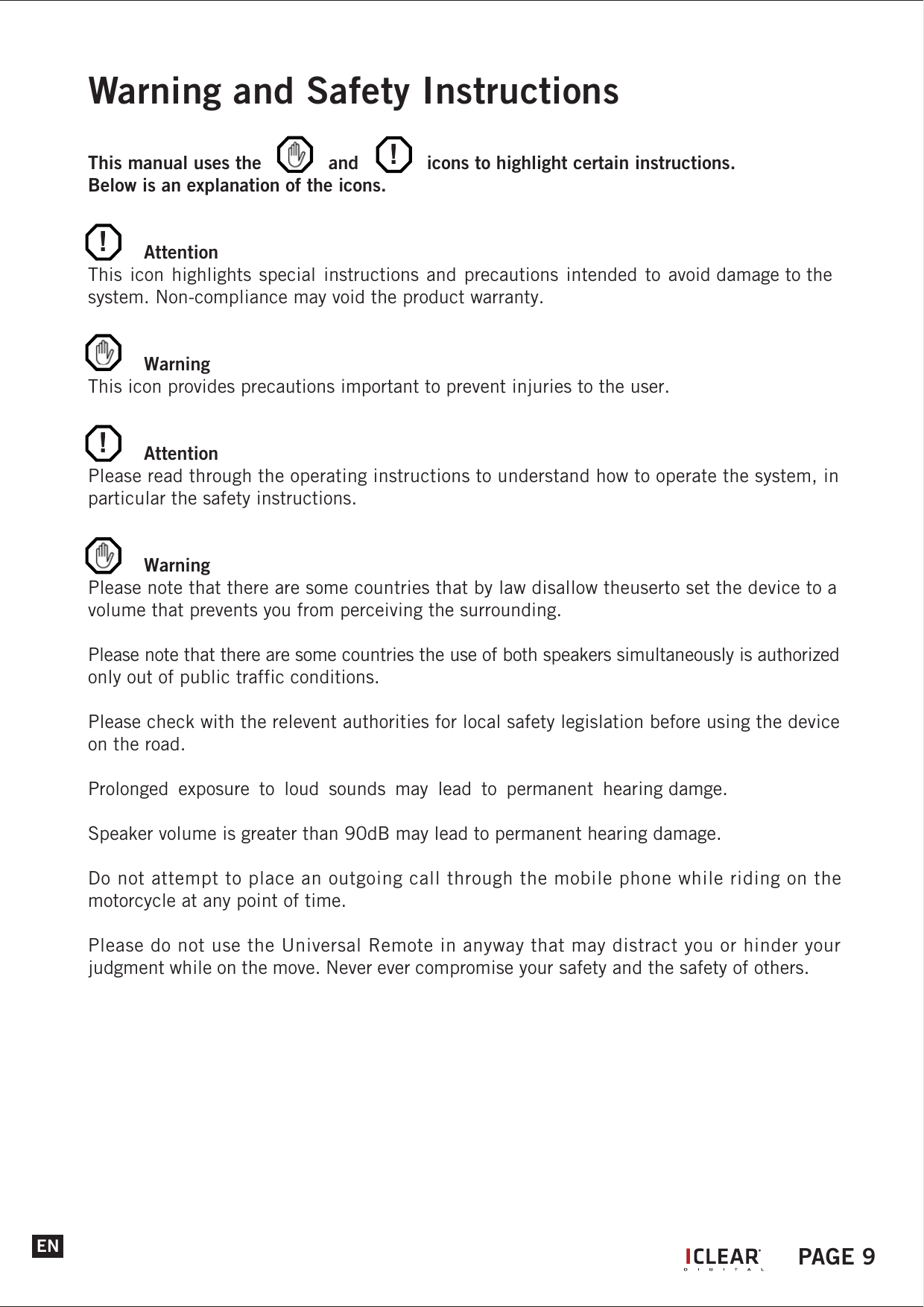
Quick User GuideGeneral Functions and LayoutsPower OnHold the ‘Power’ button for 3 seconds.The LED will flash purple for 2 seconds before changing to a blinking blue LED.Pairing ModeAfter power on, continue and hold the ‘Up’ and ‘Down’ button to enter into device pairing mode. The LED will blink blue and red alternately. VolumePress ‘Up’ button once to increase volume.Press ‘Down’ button once to decrease the volume.Warning and Safety InstructionsThis manual uses the      and            icons to highlight certain instructions.Below is an explanation of the icons. AttentionThis icon highlights special instructions and precautions intended to avoid damage to the system. Non-compliance may void the product warranty. WarningThis icon provides precautions important to prevent injuries to the user. AttentionPlease read through the operating instructions to understand how to operate the system, in particular the safety instructions. WarningPlease note that there are some countries that by law disallow theuserto set the device to a volume that prevents you from perceiving the surrounding.Please note that there are some countries the use of both speakers simultaneously is authorized only out of public traffic conditions.Please check with the relevent authorities for local safety legislation before using the device on the road.Prolonged  exposure  to  loud  sounds  may  lead  to  permanent  hearing damge.Speaker volume is greater than 90dB may lead to permanent hearing damage.Do not attempt to place an outgoing call through the mobile phone while riding on the motorcycle at any point of time.Please do not use the Universal Remote in anyway that may distract you or hinder your judgment while on the move. Never ever compromise your safety and the safety of others.EN!!!IPAGE 9
!ENWarning and Safety Instructions AttentionCharging and handling rechargeable battery products incorrectly may cause them to overheat, catch fire or explode. To prevent this please follow the instructions below:1. Never change the batteries yourself, always bring the device to an authorised dealer to     perform the replacement for you.2. When charging, use ONLY the charging cable provided or a replacement cable from the     dealer. Using similar, compatible or any other cables may lead to permanent product     damage and will void the product warranty. Never make any modifications to any part of the hearing assistive device in any way as it may cause the system to malfunction causing hurt to you.IPAGE 10
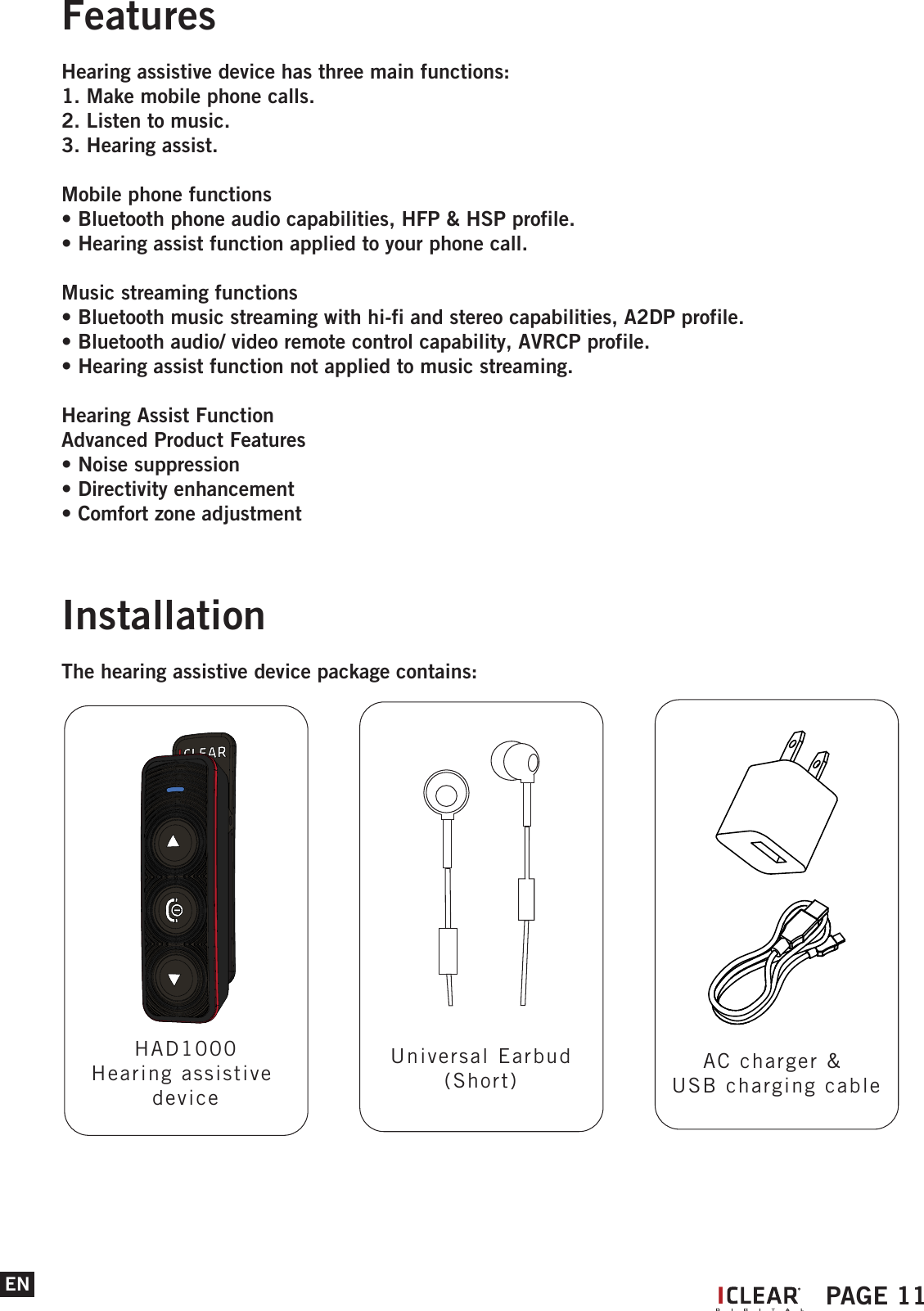
ENFeaturesHearing assistive device has three main functions: 1. Make mobile phone calls.2. Listen to music.3. Hearing assist.Mobile phone functions• Bluetooth phone audio capabilities, HFP & HSP profile.• Hearing assist function applied to your phone call. Music streaming functions• Bluetooth music streaming with hi-fi and stereo capabilities, A2DP profile.• Bluetooth audio/ video remote control capability, AVRCP profile.• Hearing assist function not applied to music streaming. Hearing Assist FunctionAdvanced Product Features• Noise suppression• Directivity enhancement• Comfort zone adjustment IPAGE 11InstallationThe hearing assistive device package contains:HAD1000Hearing assistive deviceUniversal Earbud(Short)AC charger & USB charging cable
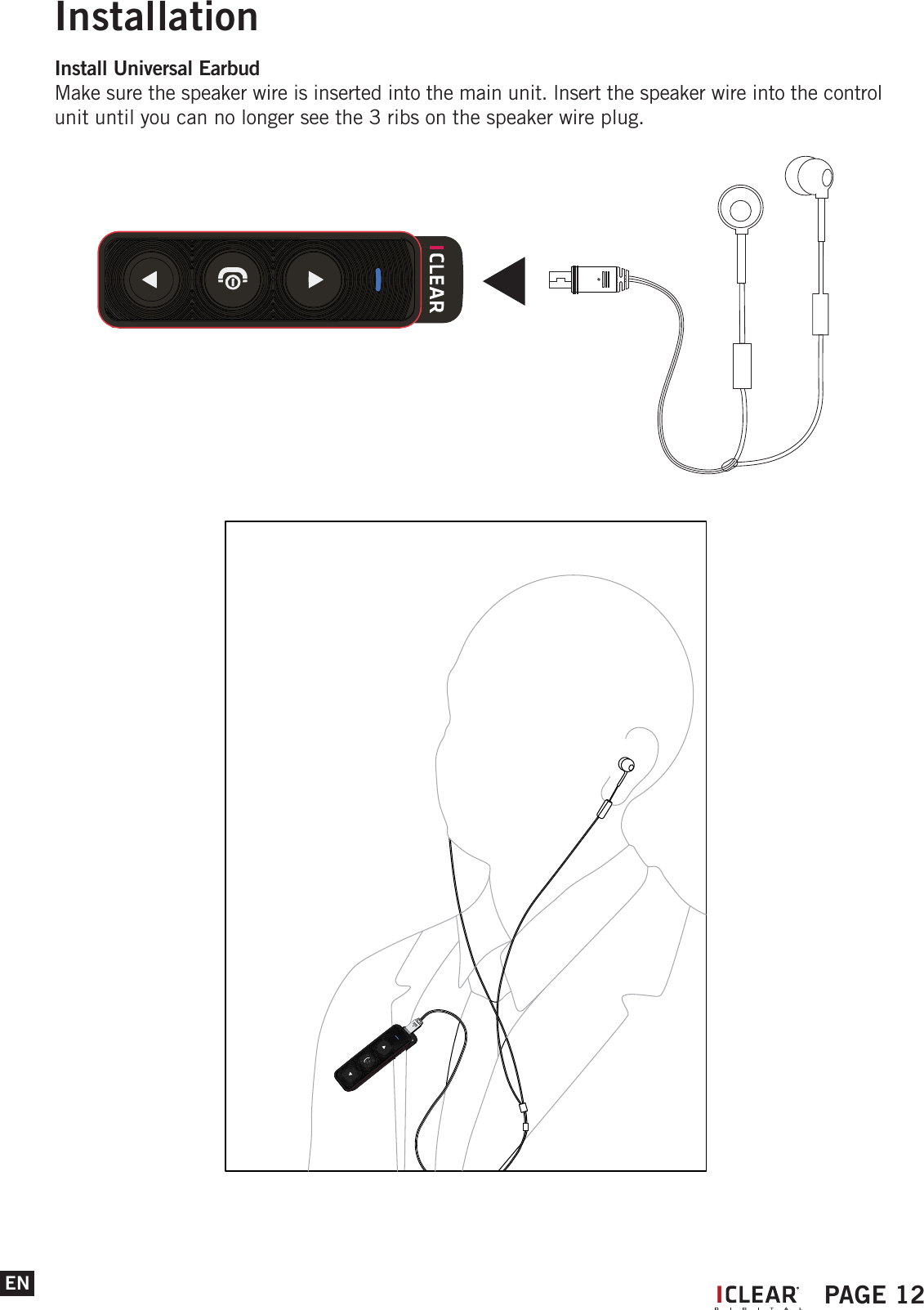
InstallationEN IPAGE 12Install Universal EarbudMake sure the speaker wire is inserted into the main unit. lnsert the speaker wire into the control unit until you can no longer see the 3 ribs on the speaker wire plug.
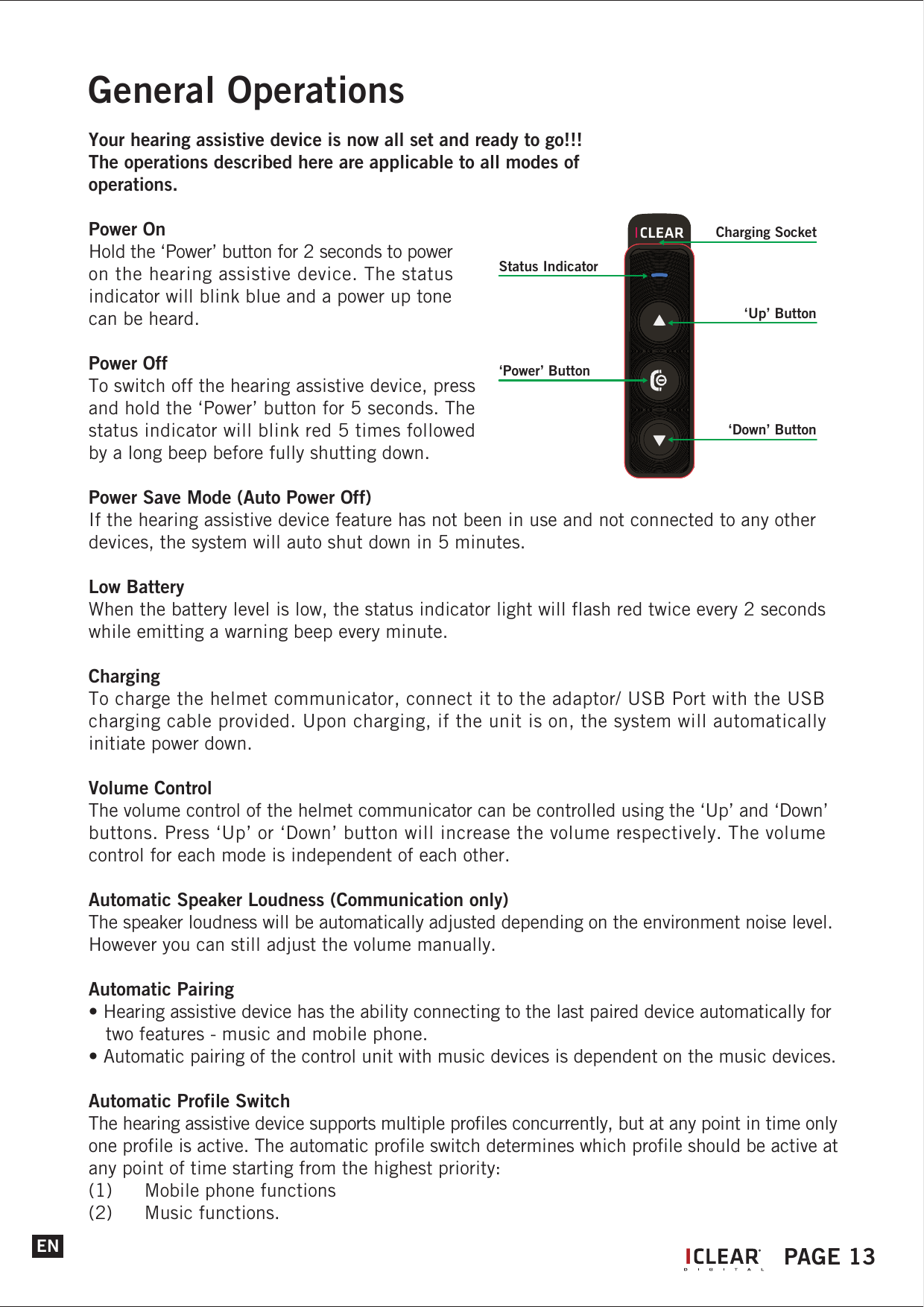
ENGeneral OperationsYour hearing assistive device is now all set and ready to go!!!The operations described here are applicable to all modes of operations.Power OnHold the ‘Power’ button for 2 seconds to power on the hearing assistive device. The status indicator will blink blue and a power up tone can be heard.Power OffTo switch off the hearing assistive device, press and hold the ‘Power’ button for 5 seconds. The status indicator will blink red 5 times followed by a long beep before fully shutting down.Power Save Mode (Auto Power Off)If the hearing assistive device feature has not been in use and not connected to any other devices, the system will auto shut down in 5 minutes.Low BatteryWhen the battery level is low, the status indicator light will flash red twice every 2 seconds while emitting a warning beep every minute.ChargingTo charge the helmet communicator, connect it to the adaptor/ USB Port with the USB charging cable provided. Upon charging, if the unit is on, the system will automatically initiate power down.Volume ControlThe volume control of the helmet communicator can be controlled using the ‘Up’ and ‘Down’ buttons. Press ‘Up’ or ‘Down’ button will increase the volume respectively. The volume control for each mode is independent of each other.Automatic Speaker Loudness (Communication only)The speaker loudness will be automatically adjusted depending on the environment noise level. However you can still adjust the volume manually.Automatic Pairing• Hearing assistive device has the ability connecting to the last paired device automatically for    two features - music and mobile phone.• Automatic pairing of the control unit with music devices is dependent on the music devices.Automatic Profile SwitchThe hearing assistive device supports multiple profiles concurrently, but at any point in time only one profile is active. The automatic profile switch determines which profile should be active at any point of time starting from the highest priority:(1)  Mobile phone functions (2)  Music functions.IPAGE 13Status Indicator‘Up’ Button‘Power’ Button‘Down’ ButtonCharging Socket
ENGeneral OperationsTo use the hearing assistive device with your mobile phone for the first time, you must first connect them wirelessly by pairing.Pairing• To connect the control unit to a mobile phone, hold the ‘Up’ and ‘Down’ buttons for 2    seconds. This puts the control unit into paring mode. The status indicator would blink    blue and red alternately.• Turn on the mobile phone Bluetooth functions and search for Bluetooth devices.• Select ‘IClear HAD1000’ to pair with the desired device.• If prompted to enter a passcode, enter ‘0000’.NOTE: Most mobile phones when paired would be automatically connected with both phone    and music Bluetooth capabilities.After pairing the control unit to your mobile phone, you may now use the hearing assistive device to answer and make calls or listen to music.Pick Up CallsWhen a call comes to the mobile phone, press the ‘Power’ button once.Reject CallsTo reject an incoming call or an incorrectly placed outgoing call, hold the ‘Power’ button for 2 seconds.Voice CallTo activate voice call, hold the ‘Down’ and ‘Power’ buttons for 2 seconds. The accuracy of this function is dependent on the mobile phone.IPAGE 14
ENGeneral OperationsMobile phone opeartionsHearing Assist (Activated automatically)Allows you to experience the adaptive hearing enhancement in the phone call according to the hearing curve obtained in the testing of Tune2Fit apps.Last Number RedialTo redial the last number, hold the ‘Up’ and ‘Power’ buttons for 2 seconds. The capability of this function is dependent on the mobile phone used.3 way calling• While on a call, if an incoming call comes in, you may answer the call by pressing the    ‘Power’ button once.• To swap between 2 concurrent calls, press the ‘Power’ button once.• To end a call during a 3 way call, hold the ‘Power’ button for 2 seconds to end the active call.    Upon terminating the active call, the call on hold will automatically become the active call.Music featureIf the mobile phone supports A2DP/AVRCP profile, user may activate the music by playing it directly from the phone or by controlling the music via the ICLEAR. To operate refer to Music Streaming Operations section. Should the documented steps not work, refer to your phone user manual on how to activate the A2DP/AVRCP feature.IPAGE 15
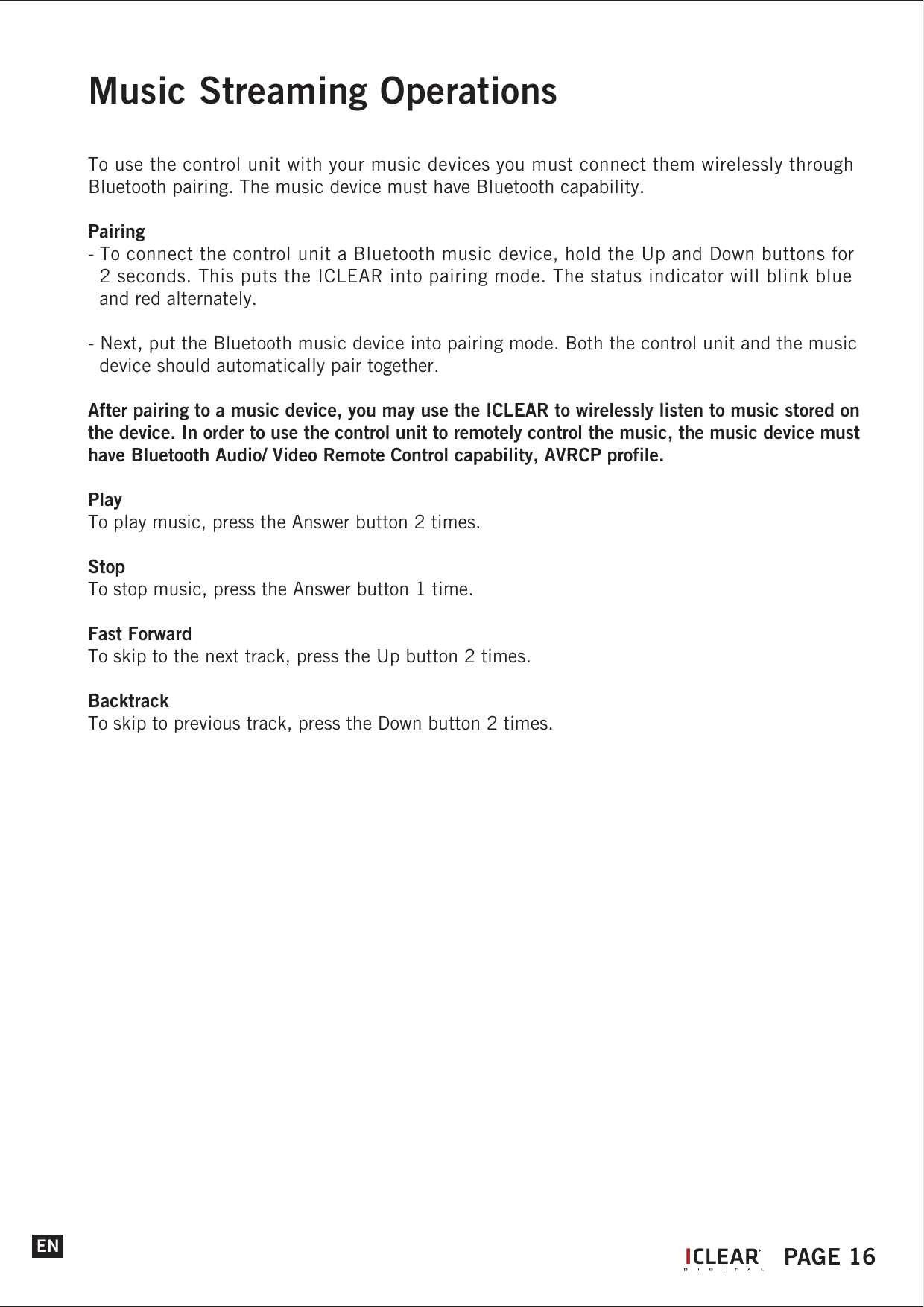
Music Streaming OperationsTo use the control unit with your music devices you must connect them wirelessly through Bluetooth pairing. The music device must have Bluetooth capability.Pairing- To connect the control unit a Bluetooth music device, hold the Up and Down buttons for   2 seconds. This puts the ICLEAR into pairing mode. The status indicator will blink blue   and red alternately.- Next, put the Bluetooth music device into pairing mode. Both the control unit and the music   device should automatically pair together.After pairing to a music device, you may use the ICLEAR to wirelessly listen to music stored on the device. In order to use the control unit to remotely control the music, the music device must have Bluetooth Audio/ Video Remote Control capability, AVRCP profile.PlayTo play music, press the Answer button 2 times.StopTo stop music, press the Answer button 1 time.Fast ForwardTo skip to the next track, press the Up button 2 times.BacktrackTo skip to previous track, press the Down button 2 times.EN IPAGE 16
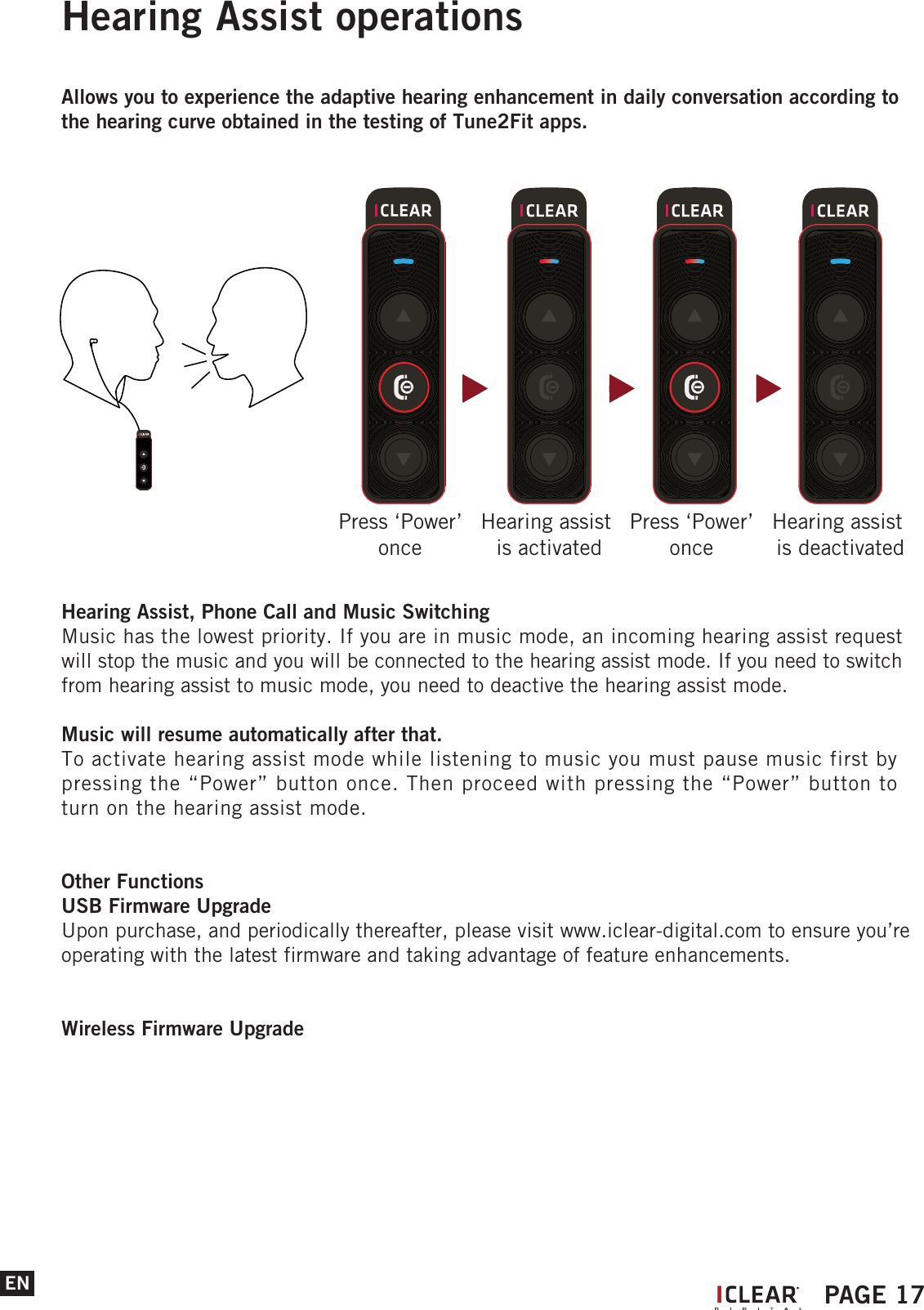
Hearing Assist operationsAllows you to experience the adaptive hearing enhancement in daily conversation according to the hearing curve obtained in the testing of Tune2Fit apps.Hearing Assist, Phone Call and Music SwitchingMusic has the lowest priority. If you are in music mode, an incoming hearing assist request will stop the music and you will be connected to the hearing assist mode. If you need to switch from hearing assist to music mode, you need to deactive the hearing assist mode.Music will resume automatically after that.To activate hearing assist mode while listening to music you must pause music first by pressing the “Power” button once. Then proceed with pressing the “Power” button to turn on the hearing assist mode.Other FunctionsUSB Firmware UpgradeUpon purchase, and periodically thereafter, please visit www.iclear-digital.com to ensure you’re operating with the latest firmware and taking advantage of feature enhancements.Wireless Firmware UpgradeENPress ‘Power’ once Hearing assist is activatedPress ‘Power’ once Hearing assist is deactivatedIPAGE 17
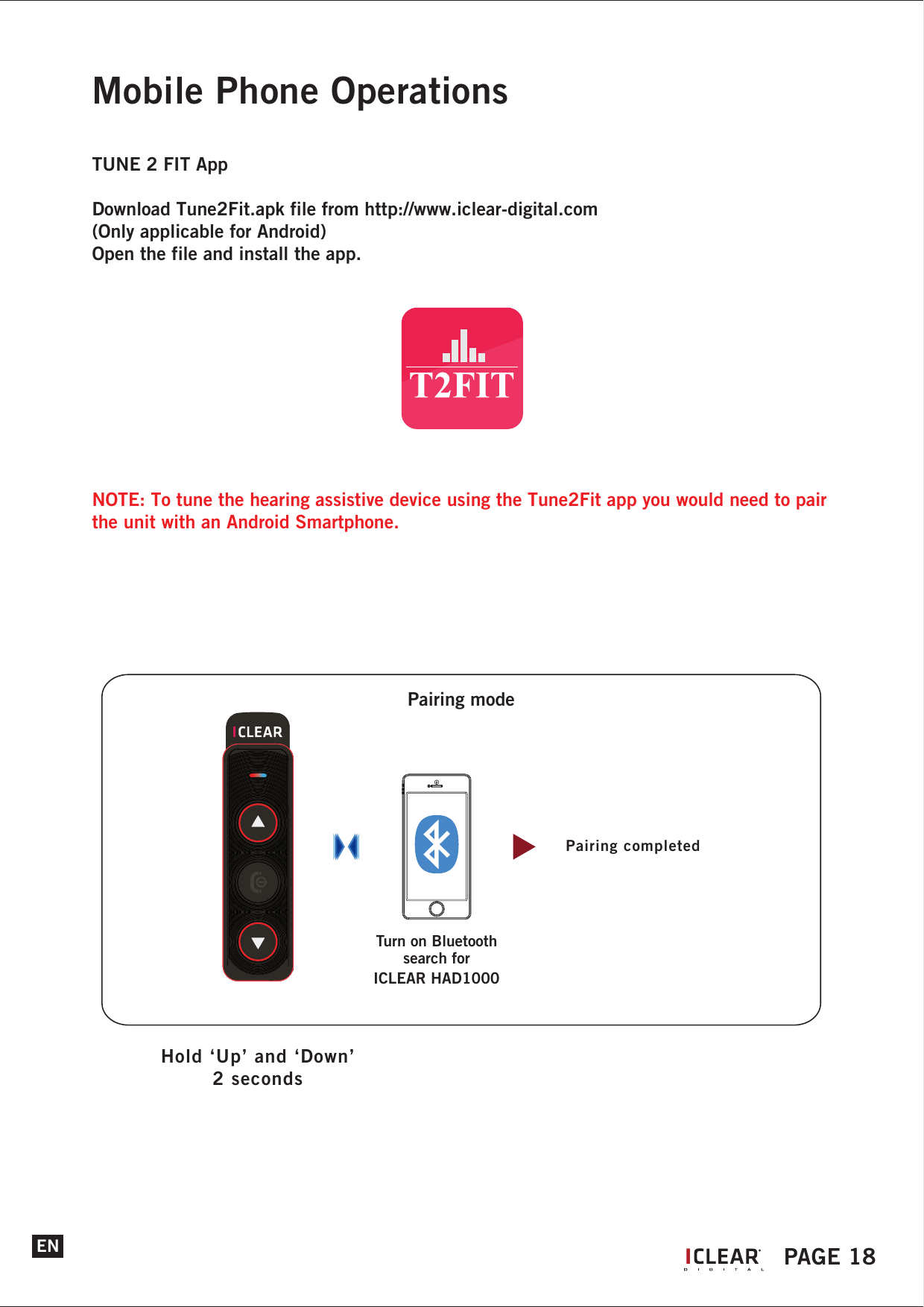
Mobile Phone OperationsTUNE 2 FIT AppDownload Tune2Fit.apk file from http://www.iclear-digital.com (Only applicable for Android)Open the file and install the app.NOTE: To tune the hearing assistive device using the Tune2Fit app you would need to pair the unit with an Android Smartphone.ENHold ‘Up’ and ‘Down’2 secondsPairing modePairing completedTurn on Bluetoothsearch forICLEAR HAD1000IPAGE 18General OperationsYour hearing assistive device is now all set and ready to go!!!The operations described here are applicable to all modes of operations.Power OnHold the ‘Power’ button for 2 seconds to power on the hearing assistive device. The status indicator will blink blue and a power up tone can be heard.Power OffTo switch off the hearing assistive device, press and hold the ‘Power’ button for 5 seconds. The status indicator will blink red 5 times followed by a long beep before fully shutting down.Power Save Mode (Auto Power Off)If the hearing assistive device feature has not been in use and not connected to any other devices, the system will auto shut down in 5 minutes.Low BatteryWhen the battery level is low, the status indicator light will flash red twice every 2 seconds while emitting a warning beep every minute.ChargingTo charge the helmet communicator, connect it to the adaptor/ USB Port with the USB charging cable provided. Upon charging, if the unit is on, the system will automatically initiate power down.Volume ControlThe volume control of the helmet communicator can be controlled using the ‘Up’ and ‘Down’ buttons. Press ‘Up’ or ‘Down’ button will increase the volume respectively. The volume control for each mode is independent of each other.Automatic Speaker Loudness (Communication only)The speaker loudness will be automatically adjusted depending on the environment noise level. However you can still adjust the volume manually.Automatic Pairing• Hearing assistive device has the ability connecting to the last paired device automatically for    two features - music and mobile phone.• Automatic pairing of the control unit with music devices is dependent on the music devices.Automatic Profile SwitchThe hearing assistive device supports multiple profiles concurrently, but at any point in time only one profile is active. The automatic profile switch determines which profile should be active at any point of time starting from the highest priority:(1)  Mobile phone functions (2)  Music functions.
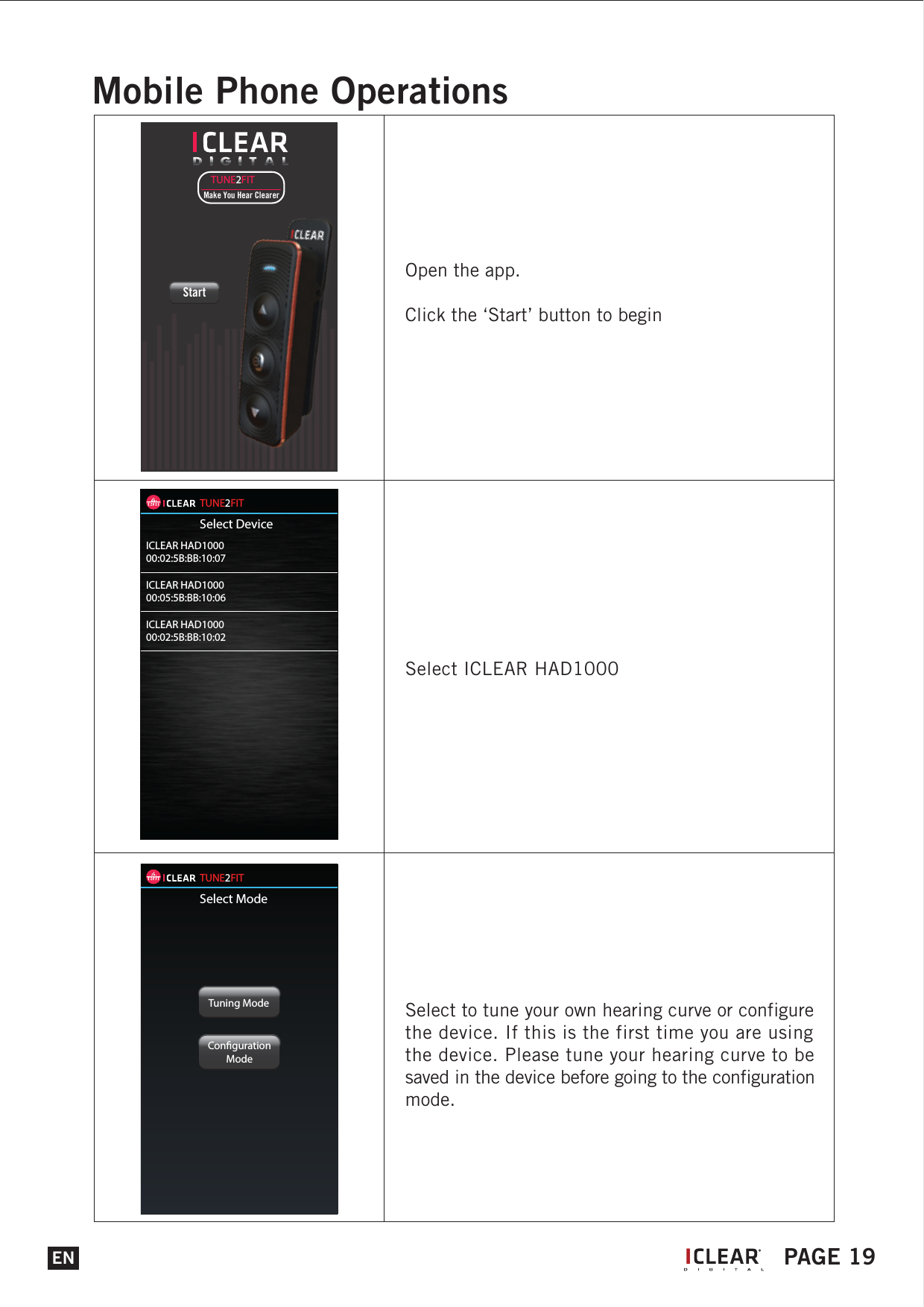
Select ICLEAR HAD1000Select to tune your own hearing curve or configure the device. If this is the first time you are using the device. Please tune your hearing curve to be saved in the device before going to the configuration mode.TUNE2FITMake You Hear ClearerStartTUNE2FITSelect DeviceICLEAR HAD100000:02:5B:BB:10:07ICLEAR HAD100000:05:5B:BB:10:06ICLEAR HAD100000:02:5B:BB:10:02TUNE2FITSelect ModeTuning ModeCongurationModeENMobile Phone OperationsOpen the app.Click the ‘Start’ button to beginIPAGE 19
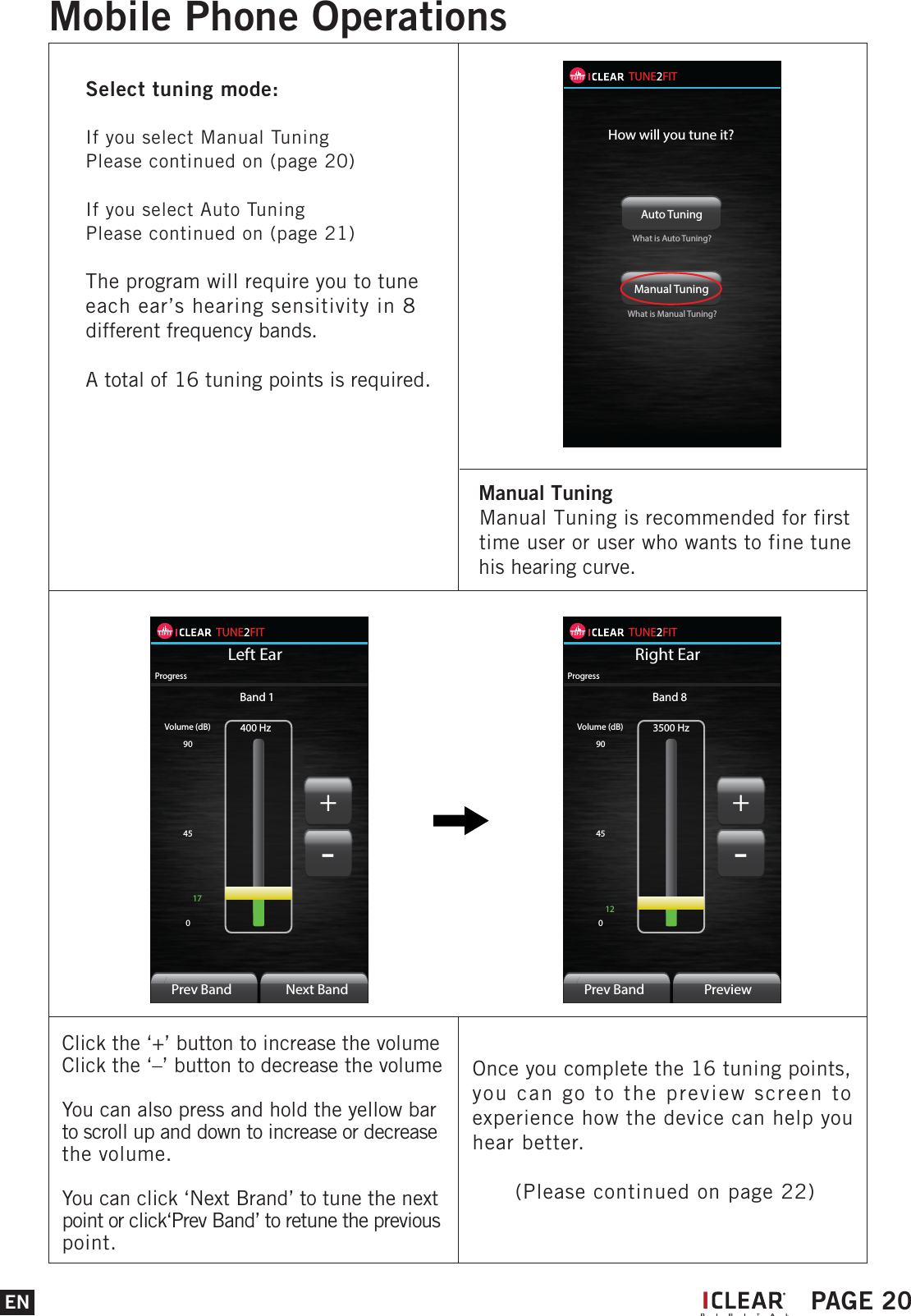
TUNE2FITLeft Ear400 HzVolume (dB)9045017ProgressPrev BandBand 1Next Band+-TUNE2FITRight Ear3500 HzVolume (dB)9045012ProgressPrev BandBand 8Preview+-Click the ‘+’ button to increase the volumeClick the ‘–’ button to decrease the volumeYou can also press and hold the yellow bar to scroll up and down to increase or decrease the volume.You can click ‘Next Brand’ to tune the next point or click‘Prev Band’ to retune the previous point.Once you complete the 16 tuning points, you can go to the preview screen to experience how the device can help you hear better.      (Please continued on page 22)ENMobile Phone OperationsIPAGE 20  Manual Tuning    Manual Tuning is recommended for first   time user or user who wants to fine tune   his hearing curve.TUNE2FITHow will you tune it?Auto Tuning Manual Tuning What is Auto Tuning?What is Manual Tuning?Select tuning mode:If you select Manual TuningPlease continued on (page 20)If you select Auto TuningPlease continued on (page 21)The program will require you to tune each ear’s hearing sensitivity in 8 different frequency bands.A total of 16 tuning points is required.
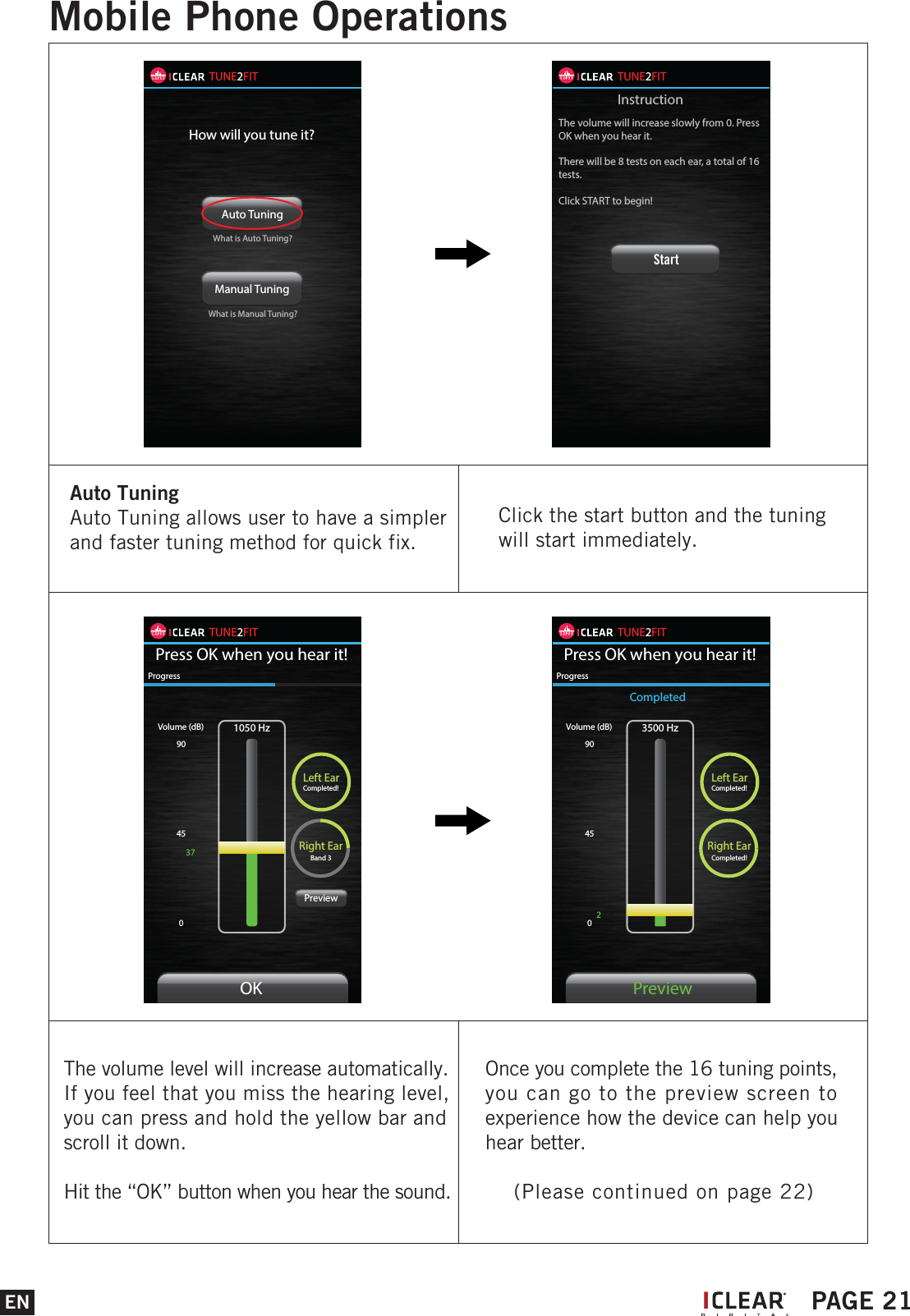
ENMobile Phone OperationsIPAGE 21Auto Tuning Auto Tuning allows user to have a simpler and faster tuning method for quick fix.Click the start button and the tuning will start immediately.TUNE2FITHow will you tune it?Auto Tuning Manual Tuning What is Auto Tuning?What is Manual Tuning?TUNE2FITInstructionThe volume will increase slowly from 0. Press OK when you hear it. There will be 8 tests on each ear, a total of 16 tests.Click START to begin!StartThe volume level will increase automatically.If you feel that you miss the hearing level, you can press and hold the yellow bar and scroll it down.Hit the “OK” button when you hear the sound.Once you complete the 16 tuning points, you can go to the preview screen to experience how the device can help you hear better.    (Please continued on page 22)TUNE2FITPress OK when you hear it!1050 HzLeft EarCompleted!Right EarBand 3Volume (dB)9045037ProgressOKPreviewTUNE2FITPress OK when you hear it!3500 HzLeft EarCompleted!Right EarCompleted!Volume (dB)904502ProgressPreviewCompleted
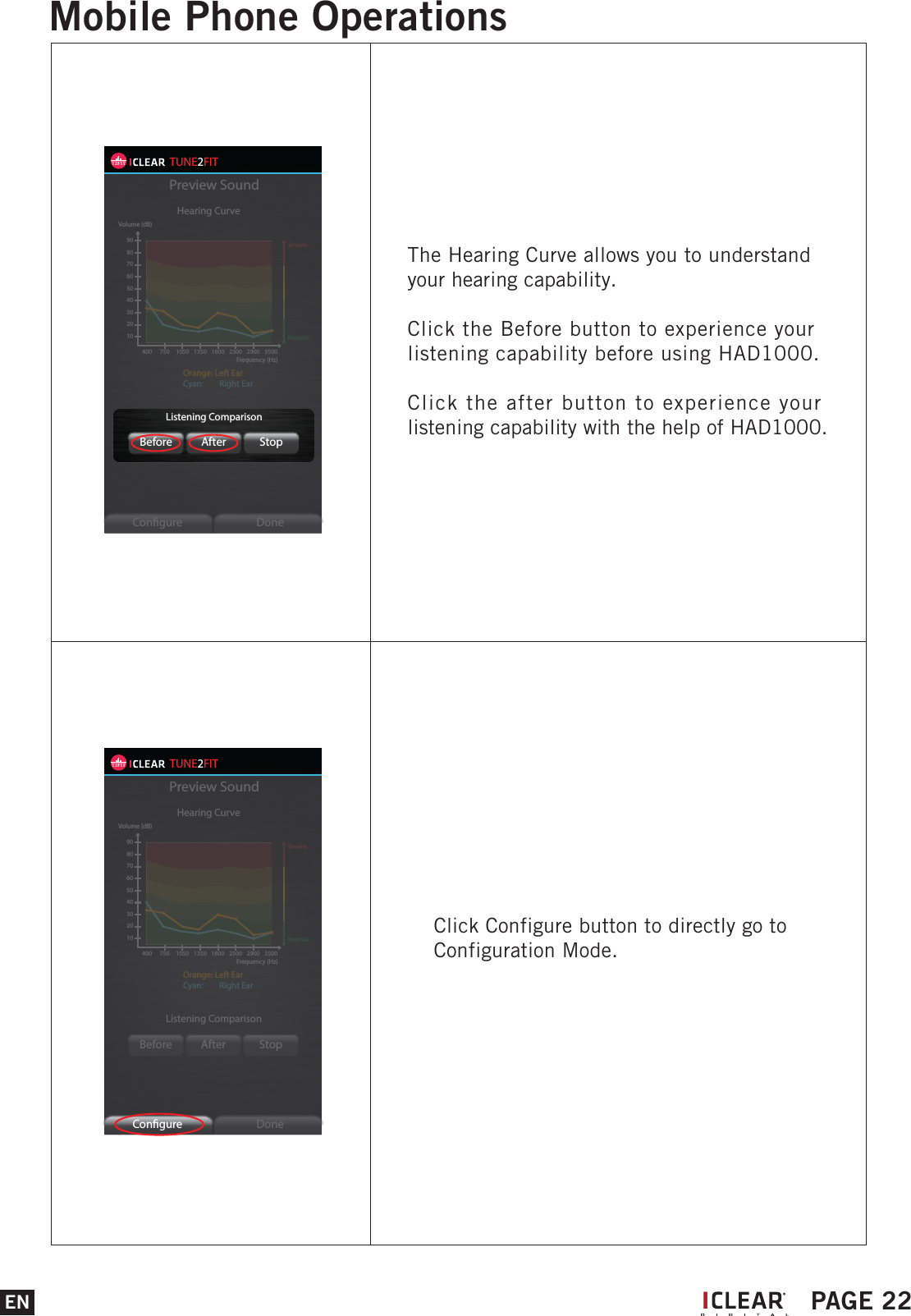
TUNE2FITPreview SoundHearing CurveListening ComparisonBefore After StopCongure Done102030405060708090Volume (dB)400 750 1050 1350 1800 2300 2900 3500SevereNormalOrange: Left EarCyan:     Right EarFrequency (Hz)CongureClick Configure button to directly go to Configuration Mode.EN PAGE 22Mobile Phone OperationsIThe Hearing Curve allows you to understand your hearing capability.Click the Before button to experience your listening capability before using HAD1000.Click the after button to experience your listening capability with the help of HAD1000.TUNE2FITPreview SoundHearing CurveListening ComparisonBefore After StopCongure Done102030405060708090Volume (dB)400 750 1050 1350 1800 2300 2900 3500SevereNormalOrange: Left EarCyan:     Right EarFrequency (Hz)Listening ComparisonBefore After StopListening ComparisonBefore After Stop
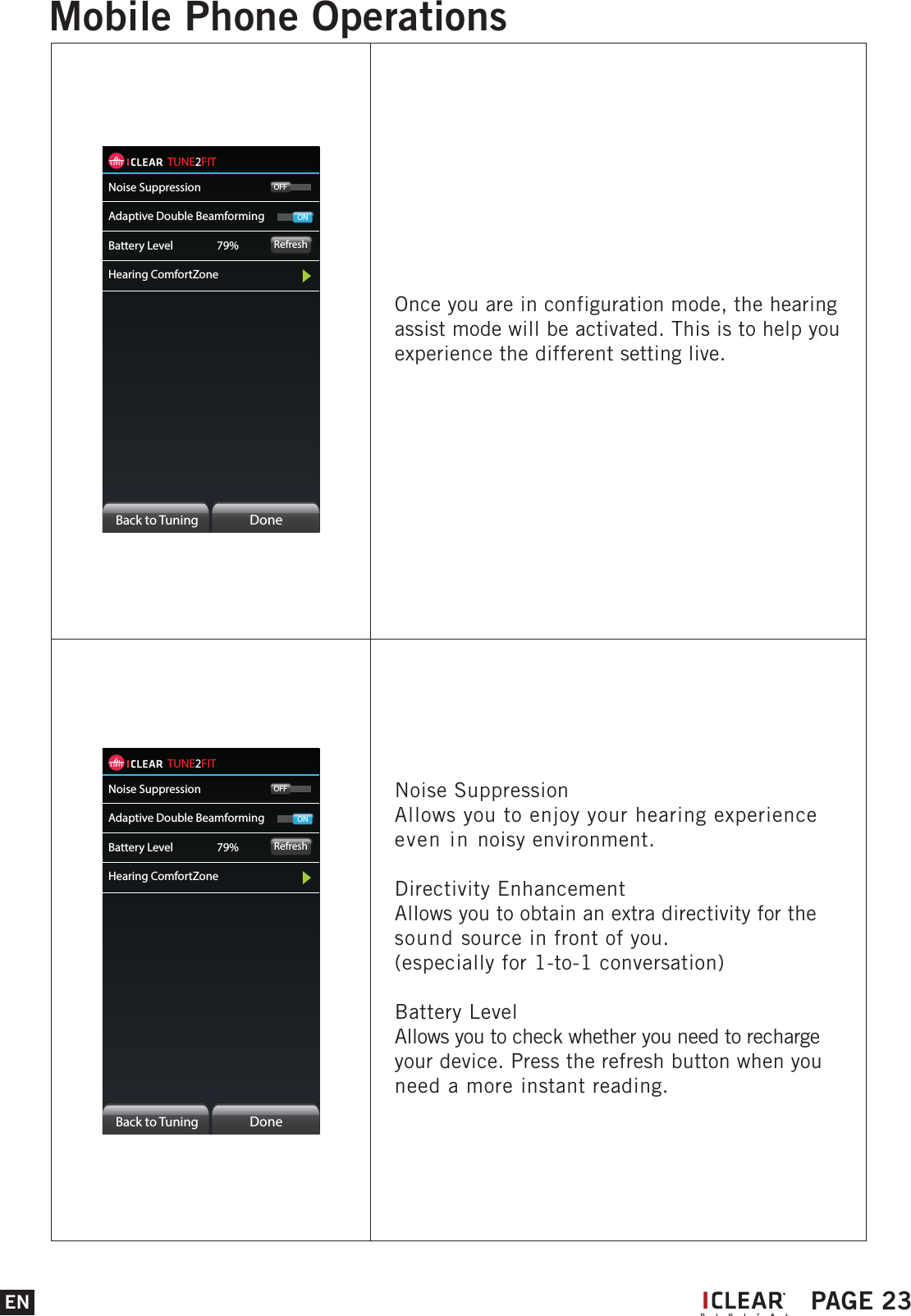
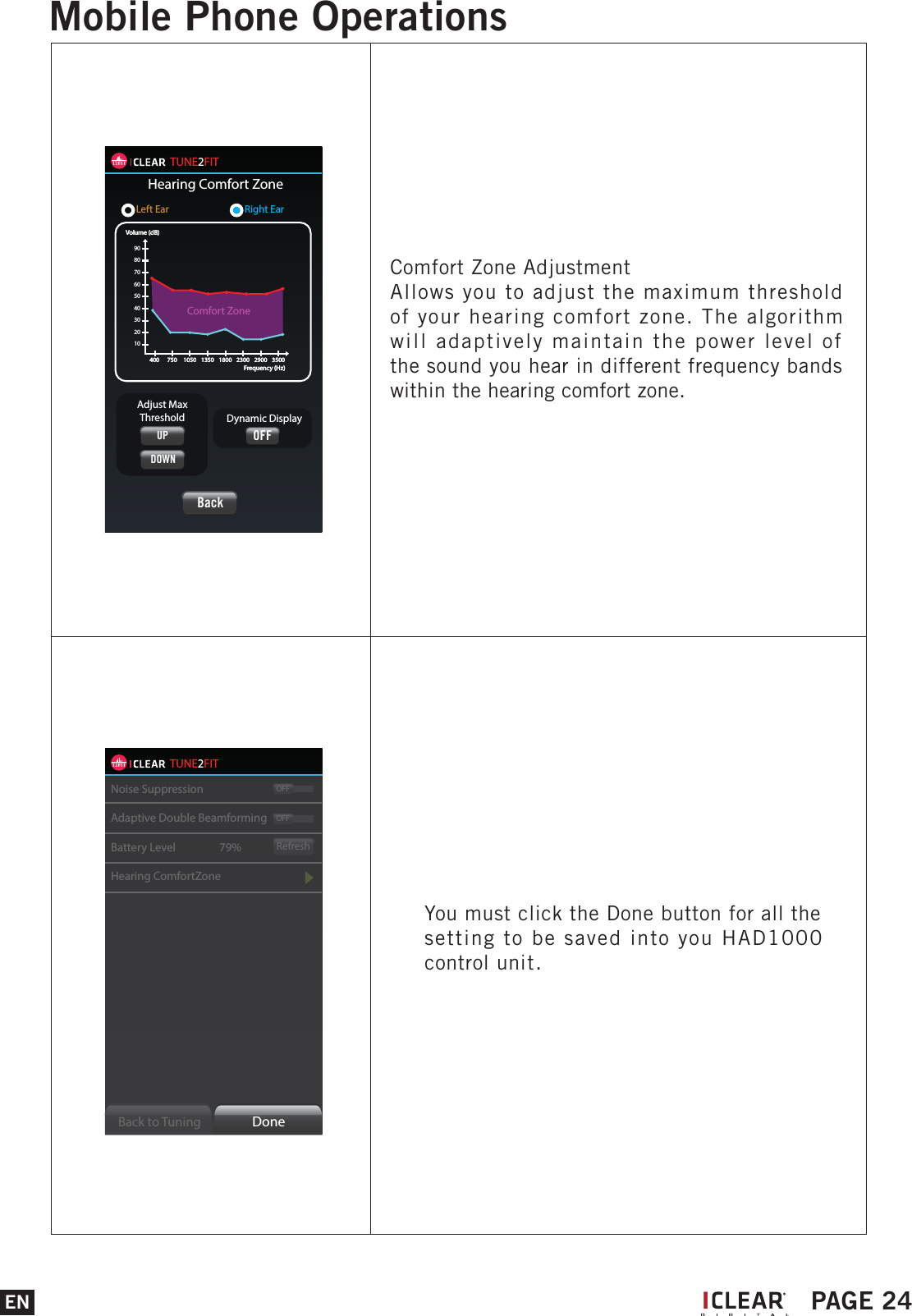
TUNE2FITNoise SuppressionAdaptive Double BeamformingBattery Level     79%Hearing ComfortZoneRefreshOFFONBack to Tuning  DoneNoise SuppressionAllows you to enjoy your hearing experience even in noisy environment. Directivity EnhancementAllows you to obtain an extra directivity for the sound source in front of you.(especially for 1-to-1 conversation)Battery LevelAllows you to check whether you need to recharge your device. Press the refresh button when you need a more instant reading.TUNE2FITNoise SuppressionAdaptive Double BeamformingBattery Level     79%Hearing ComfortZoneRefreshOFFONBack to Tuning  DoneOnce you are in configuration mode, the hearing assist mode will be activated. This is to help you experience the different setting live.EN PAGE 23Mobile Phone OperationsI
TUNE2FITNoise SuppressionAdaptive Double BeamformingBattery Level     79%Hearing ComfortZoneRefreshOFFOFFBack to Tuning  DoneYou must click the Done button for all the setting to be saved into you HAD1000 control unit.TUNE2FITHearing Comfort ZoneLeft Ear        Right Ear102030405060708090Volume (dB)400 750 1050 1350 1800 2300 2900 3500Frequency (Hz)Volume (dB)400 750 1050 1350 1800 2300 2900 3500Frequency (Hz)Comfort ZoneBackDynamic DisplayAdjust MaxThresholdUPDOWNOFFComfort Zone AdjustmentAllows you to adjust the maximum threshold of your hearing comfort zone. The algorithm will adaptively maintain the power level of the sound you hear in different frequency bands within the hearing comfort zone.EN PAGE 24Mobile Phone OperationsI
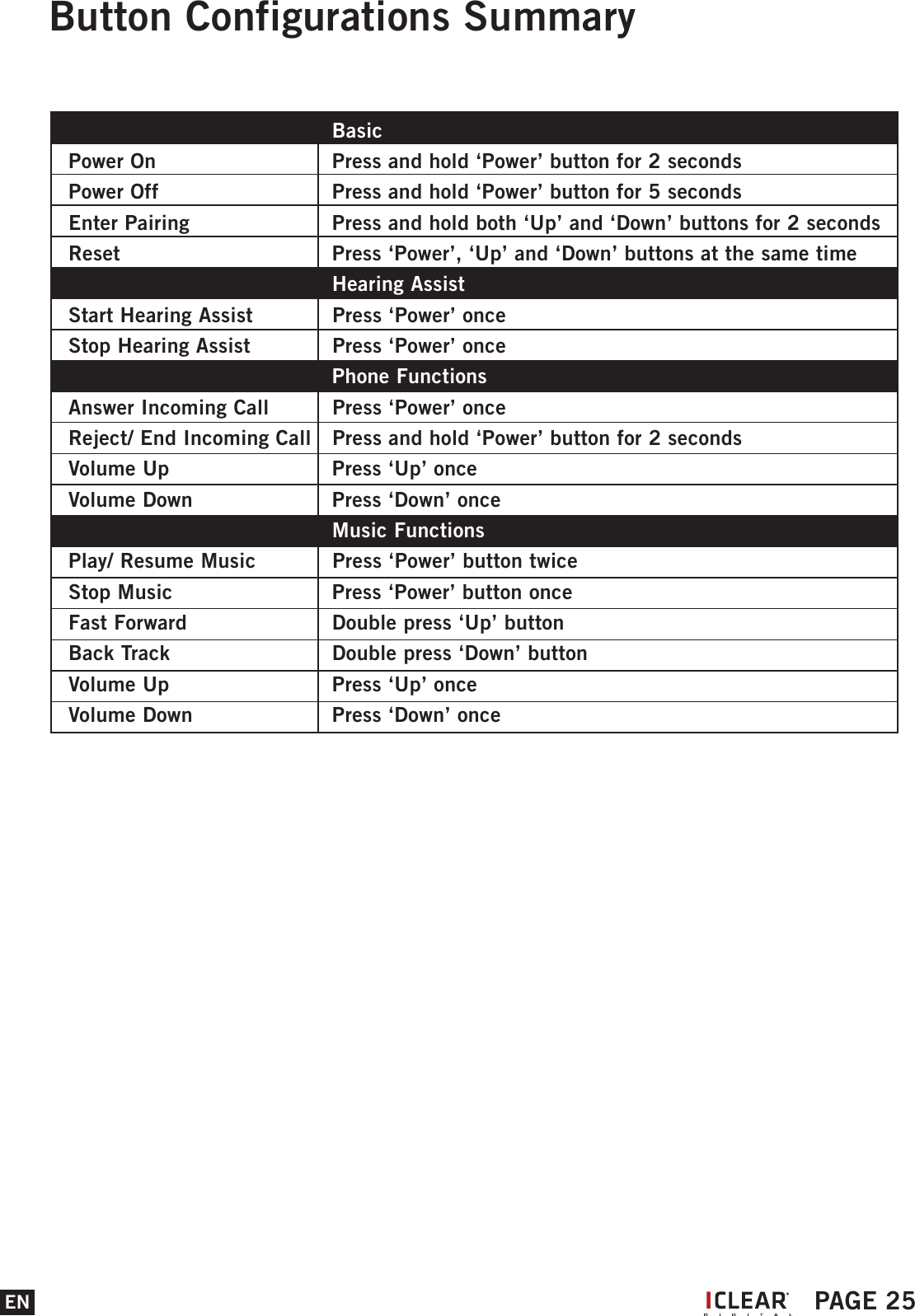
EN PAGE 25Button Configurations SummaryI   Basic  Power On     Press and hold ‘Power’ button for 2 secondsPower Off    Press and hold ‘Power’ button for 5 seconds  Enter Pairing    Press and hold both ‘Up’ and ‘Down’ buttons for 2 seconds Reset      Press ‘Power’, ‘Up’ and ‘Down’ buttons at the same time   Hearing AssistStart Hearing Assist  Press ‘Power’ onceStop Hearing Assist   Press ‘Power’ once   Phone FunctionsAnswer Incoming Call  Press ‘Power’ onceReject/ End Incoming Call  Press and hold ‘Power’ button for 2 secondsVolume Up    Press ‘Up’ onceVolume Down    Press ‘Down’ once   Music FunctionsPlay/ Resume Music  Press ‘Power’ button twiceStop Music    Press ‘Power’ button onceFast Forward    Double press ‘Up’ button Back Track    Double press ‘Down’ button Volume Up    Press ‘Up’ onceVolume Down    Press ‘Down’ once
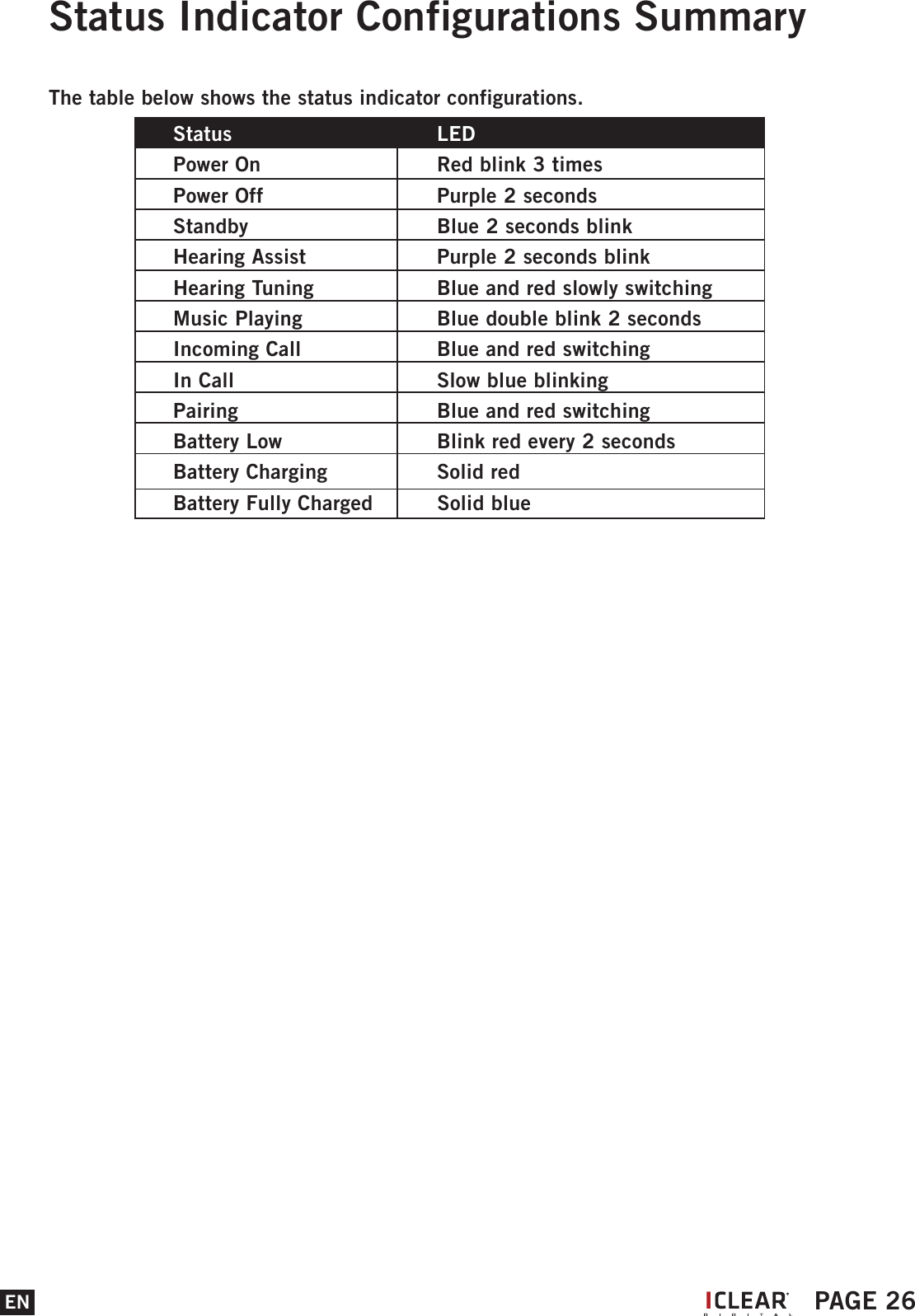
Status Indicator Configurations SummaryThe table below shows the status indicator configurations.EN PAGE 26Status    LED Power On     Red blink 3 times   Power Off    Purple 2 seconds  Standby      Blue 2 seconds blink Hearing Assist    Purple 2 seconds blink  Hearing Tuning     Blue and red slowly switching   Music Playing    Blue double blink 2 secondsIncoming Call    Blue and red switchingIn Call      Slow blue blinkingPairing      Blue and red switchingBattery Low    Blink red every 2 seconds Battery Charging    Solid redBattery Fully Charged  Solid blue    I
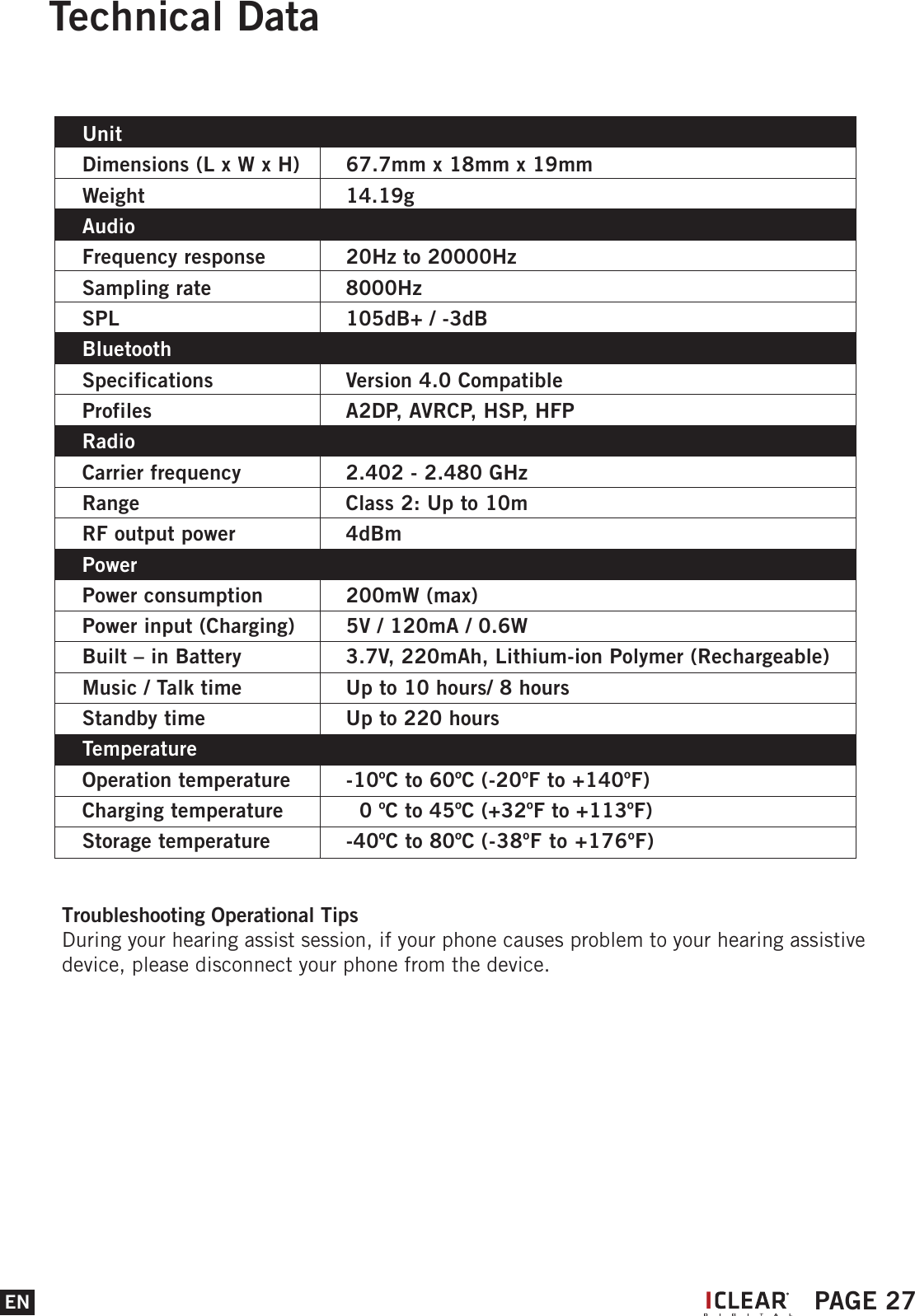
Unit   Dimensions (L x W x H)  67.7mm x 18mm x 19mmWeight     14.19g  Audio    Frequency response  20Hz to 20000HzSampling rate    8000HzSPL      105dB+ / -3dBBluetoothSpecifications    Version 4.0 CompatibleProfiles      A2DP, AVRCP, HSP, HFPRadioCarrier frequency    2.402 - 2.480 GHzRange      Class 2: Up to 10mRF output power    4dBmPowerPower consumption  200mW (max)Power input (Charging)  5V / 120mA / 0.6WBuilt – in Battery    3.7V, 220mAh, Lithium-ion Polymer (Rechargeable)Music / Talk time    Up to 10 hours/ 8 hoursStandby time    Up to 220 hoursTemperatureOperation temperature  -10ºC to 60ºC (-20ºF to +140ºF)Charging temperature    0 ºC to 45ºC (+32ºF to +113ºF)Storage temperature  -40ºC to 80ºC (-38ºF to +176ºF)       Technical DataTroubleshooting Operational TipsDuring your hearing assist session, if your phone causes problem to your hearing assistive device, please disconnect your phone from the device.EN PAGE 27I
NoticesChanges or modifications not expressly approved by the party responsible for compliance could void the user’s authority to operate the equipment.This equipment has been tested and found to comply with the limits for a Class B digital device, pursuant to Part 15 of the FCC. Rules these limits are designed to provide reasonable protection against harmful interference in a residential installation.This equipment generates, uses and can radiate radio frequency energy and, if not installed and used in accordance with the instructions, may cause harmful interference to radio communications. However, there is not guarantee that interference will not occur in a particular installation.If this equipment does cause harmful interference to radio or television reception, which can be determined by turning the equipment off and on, the user is encouraged to try to correct the interference by one or more of the following measures:•  Reorient or relocate the receiving antenna.•  Increase the separation between the equipment and receiver.•  Connect the equipment into an outlet on a circuit different from that to which the   receiver is connected.•  Consult the dealer or an experienced radio/TV technician for help.This equipment complies with FCC radiation exposure limits set forth for an uncontrolled environment. End user must follow the specific operating instructions for satisfying RF exposure compliance. This transmitter must not be co-located or operating in conjunction with any other antenna or transmitter.BATTERY WARNING:The IClear Hearing Assistive Device contains a rechargeable lithium ion polymer battery. To reduce risks of fire or burns, do not disassemble, crush, puncture and short external contacts or dispose in fire or water.CHARGING NOTICE:To reduce the risk of personal injury, electrical shock, fire or damage to equipment, please follow all the instructions below:• Do not immerse the product, AC adaptor or speakers in water.• Do not install, place or use the product near any source of heat for example: stove, radiator,    oven, toaster, coffee maker or other apparatus that gives off heat.• Always use the provided AC power adaptor and cable included in the package to charge the    product. Use of any incorrect power supply to charge the product may cause permanent    damage to the product and render the warranty void.EN PAGE 28I
NoticesWARRANTY:Without prejudice of legal warranty, the product is covered under a 2 year warranty by manufacturer from the date of purchase. Please provide the proof of purchase when you return the item to the supplier. The warranty covers manufacturing defects only. The warranty is voided by any unauthorized repairs, misuse, and misapplication, tampering of the product, modifications, upgrading or results of any failures to follow the guidelines as set out in the product brochure or by any of the actions specified in this brochure or anywhere in our technical publishing released to the public from time to time which would have voided the warranty.Warranty does not cover data recovery and physical deterioration due to use, damages resulting from accidents, storage, loss or data loss or damage during repairs or transits. The sender will bear all transportation charges for functioning products but which were declared defective.LIMITATIONS OF WARRANTY:All product warranties for the product by are limited to those mentioned in the product manual. Warranty period is good for two years from purchase date.WAIVER AND DISCLAIMER:BITwave, and all their representatives, partners, agents, distributors, suppliers and resellers shall not be liable and will be held harmless from any and all litigation, claims, debts, demands, actions and liability which may arise, directly or indirectly, from operating or using the product for any damages, losses, distress, pain, suffering, discomfort, loss and injuries including bodily harm illness, strains, fractures, partial and/or total paralysis, death or other ailments that could cause serious disability either to any persons, or any parties whether the user or other third parties or their possessions, or to any goods, vehicles, properties, assets among others including your own suffered by any persons, organizations, or any third parties whether physical or otherwise and which may accrue to you in the future, to the fullest extent permitted by law as a result of the use, operation, malfunctioning, misuse, disposal or repairs of the product or any other reasons, conditions or circumstances or attempts to do so whether due to negligence, omissions, or otherwise of BITwave, or any of their representatives, partners, agents, .distributors, suppliers, resellers, designer, manufacturer or any others in its supply and distribution chain or any third parties involved.EN PAGE 29I
NoticesAll risks from operating or usage of the product rest solely and entirely with the user of this product, the original purchaser or any third parties, who assumes full responsibility for all injuries, losses and/ or damages, whether caused in whole or in part by the negligence, omissions or other conduct of others, including that of BITwave, and all their representatives, partners, agents, distributors, suppliers, resellers and all others in its supply and distribution chain either due to the designer’s or manufacturer’s negligence or omissions or any third parties involved.CORRECT DISPOSAL OF THIS PRODUCT:Do not dispose this product with other household wastes at the end of its working life.There is a separate collection system for used electronic products in accordance with legislation that requires proper treatment, recovery and recycling. Household users should contact either the retailer where they purchased this product, or their local government office, for details of where and how they can take this item for environmentally safe recycling. Business users should contact their suppliers and refer to the terms and conditions of the purchase contract. This product should not be mixed with other commercial wastes for disposal.PRODUCT INFORMATION:BITwave, and all their representatives, agents, distributors, suppliers or resellers shall not be held responsible for any consequences arising from any errors or omissions in the guide or resulting directly or indirectly from the use of the information herein.BITwave reserves the right to amend or improve the product design or user guide without any restrictions and without any obligation to notify users. All information here is accurate as of the date of printing.Please periodically check for the latest firmware version to receive feature enhancements on www.iclear-digital.comEN PAGE 30I
NoticesPERSONAL SAFETY:Do not open the seal of the hardware, tamper, repair or modify any parts. Do not touch the product with metal objects or parts or chemical products.Violation of the above will lead to potential fire hazards and mishaps. Please contact the technical support or your local supplier if your product malfunctions.Always comply with the local law and traffic regulations.Where use of the product is not permitted or allowed by any laws and regulations including the traffic laws of your country, we warn you not to go against such restrictions.You will bear the full responsibilities of any breaches of law and regulations.You should not allow the operations or use of the product or any attempts to use it by any persons including yourself to compromise anyone’s safety including your own or to cause harm to any vehicles, property, objects, livestock, inventories, assets and the like under any circumstances. You or any users of the product are to take all necessary safety measures and precautions and to remain alert to all surrounding conditions. You are warned not to operate the product if you are not physically capable of doing so in a safe manner, if you have or will consume any alcohol or any mind-altering substance during its operation so that your alertness is compromised or if you have any medical conditions or needs that may compromise your abilities to do so in a safe manner. We warn you of the inherent, unforeseeable and unlimited risks and dangers in using the product while in traffic, including injury or illness, strains, fractures, partial and/or total paralysis, death or other ailments that could cause serious disability due to any causes. This product is only for use by persons eighteen (18) years of age and above who have understood the warnings, risks and the terms of use. You confirm that you have read this release of liability and fully understand its terms and that you have given up substantial rights by using or attempting to use the product.NOTICES:TECHNICAL SUPPORT:For additional information please visit our website atwww.iclear-digital.comFor customer and technical support in the US and Canada, please contact:BITwave USA LLC1093 E lron Eagle Dr. #115Eagle, ID 836161-855-BIT-WAVECOPYRIGHTS:Copyright © 2015 BITwave Pte Ltd. All rights reserved. No part of this guide maybe reproduced in any form or by any process whatsoever without prior written consent from BITwave Pte Ltd.EN PAGE 31I
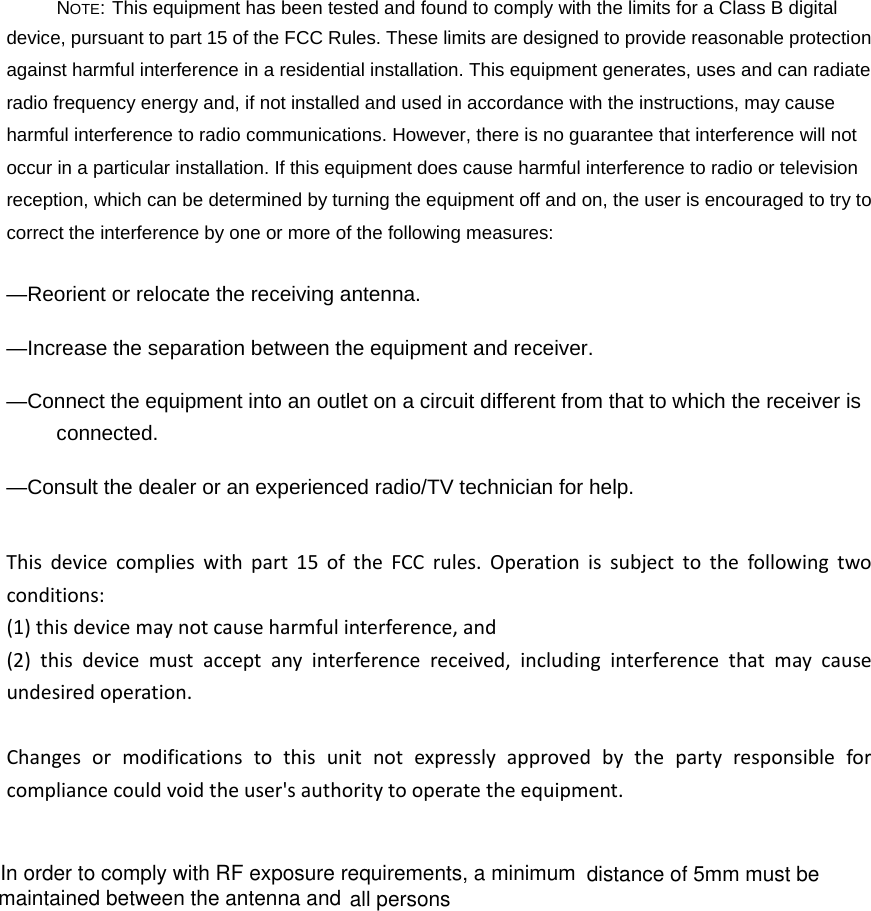
NOTE: This equipment has been tested and found to comply with the limits for a Class B digital device, pursuant to part 15 of the FCC Rules. These limits are designed to provide reasonable protection against harmful interference in a residential installation. This equipment generates, uses and can radiate radio frequency energy and, if not installed and used in accordance with the instructions, may cause harmful interference to radio communications. However, there is no guarantee that interference will not occur in a particular installation. If this equipment does cause harmful interference to radio or television reception, which can be determined by turning the equipment off and on, the user is encouraged to try to correct the interference by one or more of the following measures: —Reorient or relocate the receiving antenna. —Increase the separation between the equipment and receiver. —Connect the equipment into an outlet on a circuit different from that to which the receiver is connected. —Consult the dealer or an experienced radio/TV technician for help. Thisdevicecomplieswithpart15oftheFCCrules.Operationissubjecttothefollowingtwoconditions:(1)thisdevicemaynotcauseharmfulinterference,and(2)thisdevicemustacceptanyinterferencereceived,includinginterferencethatmaycauseundesiredoperation.Changesormodificationstothisunitnotexpresslyapprovedbythepartyresponsibleforcompliancecouldvoidtheuser'sauthoritytooperatetheequipment.In order to comply with RF exposure requirements, a minimumall persons distance of 5mm must be maintained between the antenna and
NoticesChanges or modifications not expressly approved by the party responsible for compliance could void the user’s authority to operate the equipment.This equipment has been tested and found to comply with the limits for a Class B digital device, pursuant to Part 15 of the FCC. Rules these limits are designed to provide reasonable protection against harmful interference in a residential installation.This equipment generates, uses and can radiate radio frequency energy and, if not installed and used in accordance with the instructions, may cause harmful interference to radio communications. However, there is not guarantee that interference will not occur in a particular installation.If this equipment does cause harmful interference to radio or television reception, which can be determined by turning the equipment off and on, the user is encouraged to try to correct the interference by one or more of the following measures:•  Reorient or relocate the receiving antenna.•  Increase the separation between the equipment and receiver.•  Connect the equipment into an outlet on a circuit different from that to which the   receiver is connected.•  Consult the dealer or an experienced radio/TV technician for help.This equipment complies with FCC radiation exposure limits set forth for an uncontrolled environment. End user must follow the specific operating instructions for satisfying RF exposure compliance. This transmitter must not be co-located or operating in conjunction with any other antenna or transmitter.The portable device is designed to meet the requirements for exposure to radio waves established by the Federal Communications Commission (USA). These requirements set a SAR limit of 1.6 W/kg averaged over one gram of tissue. The highest SAR value reported under this standard during product certification for use when properly worn on the body is 0.044 W/kgBATTERY WARNING:The IClear Hearing Assistive Device contains a rechargeable lithium ion polymer battery. To reduce risks of fire or burns, do not disassemble, crush, puncture and short external contacts or dispose in fire or water.CHARGING NOTICE:To reduce the risk of personal injury, electrical shock, fire or damage to equipment, please follow all the instructions below:• Do not immerse the product, AC adaptor or speakers in water.• Do not install, place or use the product near any source of heat for example: stove, radiator,    oven, toaster, coffee maker or other apparatus that gives off heat.• Always use the provided AC power adaptor and cable included in the package to charge the    product. Use of any incorrect power supply to charge the product may cause permanent    damage to the product and render the warranty void.MAR 2015I

Navigation menu