BMC Medical YH600AYH600B Portable Diagnostic System User Manual

BMC Medical Co., Ltd. Portable Diagnostic System Users Manual

Users Manual

          Portable Diagnostic System YH-600B Pro User Manual
YH‐600BProUserManualV1.0Table of Contents CHAPTER 1: DEVICE INTRODUCTION AND OPERATION ................................................................ 1 1. Symbols .............................................................................................................................................. 1 1.1 Control Buttons .......................................................................................................................... 1 1.2 Device Symbols ......................................................................................................................... 1 2. Warnings, Cautions and Important Tips ............................................................................................. 1 3. Contraindications ................................................................................................................................ 2 4. Specifications...................................................................................................................................... 2 5. Intended Use ...................................................................................................................................... 4 6. Glossary .............................................................................................................................................. 5 7. Model .................................................................................................................................................. 6 8. Package Contents .............................................................................................................................. 7 9. System Features ................................................................................................................................ 8 9.1 General Introduction .................................................................................................................. 8 9.2 Main Device Structure ............................................................................................................... 8 10. Instructions for Use ........................................................................................................................... 9 10.1 Setting up and Wearing the Device ...................................................................................... 10 10.1.1 Installing the TF Card and Battery ..................................................................... 10 10.1.2 Wearing the Main Device ................................................................................... 12 10.1.3 Connecting the Respiration Kit .......................................................................... 12 10.1.4 Wearing the Airflow Cannula .............................................................................. 13 10.1.5 Wearing the Pulse Oximeter Sensor ................................................................. 14
YH‐600BProUserManualV1.010.1.6 Connecting the Main Device with the Respiration Kit ........................................ 14 10.2 Operation ............................................................................................................................... 14 10.2.1 Accessing the Initial Interface ............................................................................ 15 10.2.2 Accessing the Standby Interface ....................................................................... 15 10.2.3 Accessing the “Record” Interface ....................................................................... 16 10.2.4 Accessing the “Setup” Interface ......................................................................... 18 10.2.5 Accessing the “Archives” Interface .................................................................... 19 10.2.6 Accessing the “Tools” Interface .......................................................................... 20 10.2.7 Turning Off the Device ....................................................................................... 22 11. Troubleshooting .............................................................................................................................. 23 12. Cleaning and Disinfection ............................................................................................................... 24 12.1 Cleaning ................................................................................................................................ 24 12.2 Disinfection ............................................................................................................................ 25 13. Disposal .......................................................................................................................................... 26 14. EMC Requirements ........................................................................................................................ 27 CHAPTER 2: POLYLOGIC SLEEP ANALYSIS SOFTWARE .............................................................. 30 1. Installation ......................................................................................................................................... 30 1.1 Software Installation ................................................................................................................ 30 1.2 Driver Installation..................................................................................................................... 30 2. Patient Information Setup ................................................................................................................. 30 3. Data Reception ................................................................................................................................. 32 3.1 Run Software ........................................................................................................................... 32
YH‐600BProUserManualV1.03.2 Connection of YH-600B Pro and Computer ............................................................................ 32 3.3 Data Transmission .................................................................................................................. 33 3.3.1 TF Card Data Transmission ................................................................................. 35 3.3.2 Bluetooth Data Transmission ............................................................................... 35 4. Data File Management ..................................................................................................................... 39 5. Data Playback .................................................................................................................................. 40 5.1 Opening and Closing the Data File ......................................................................................... 40 5.2 Display of Recorded Data and Analysis Result ...................................................................... 40 6. Print Preview and Output ................................................................................................................. 47 7. Help................................................................................................................................................... 48 8. Exit Program ..................................................................................................................................... 48 CHAPTER 3: SERVICE ........................................................................................................................ 49 1. Technical Support ............................................................................................................................. 49 2. Limited Warranty ............................................................................................................................... 49
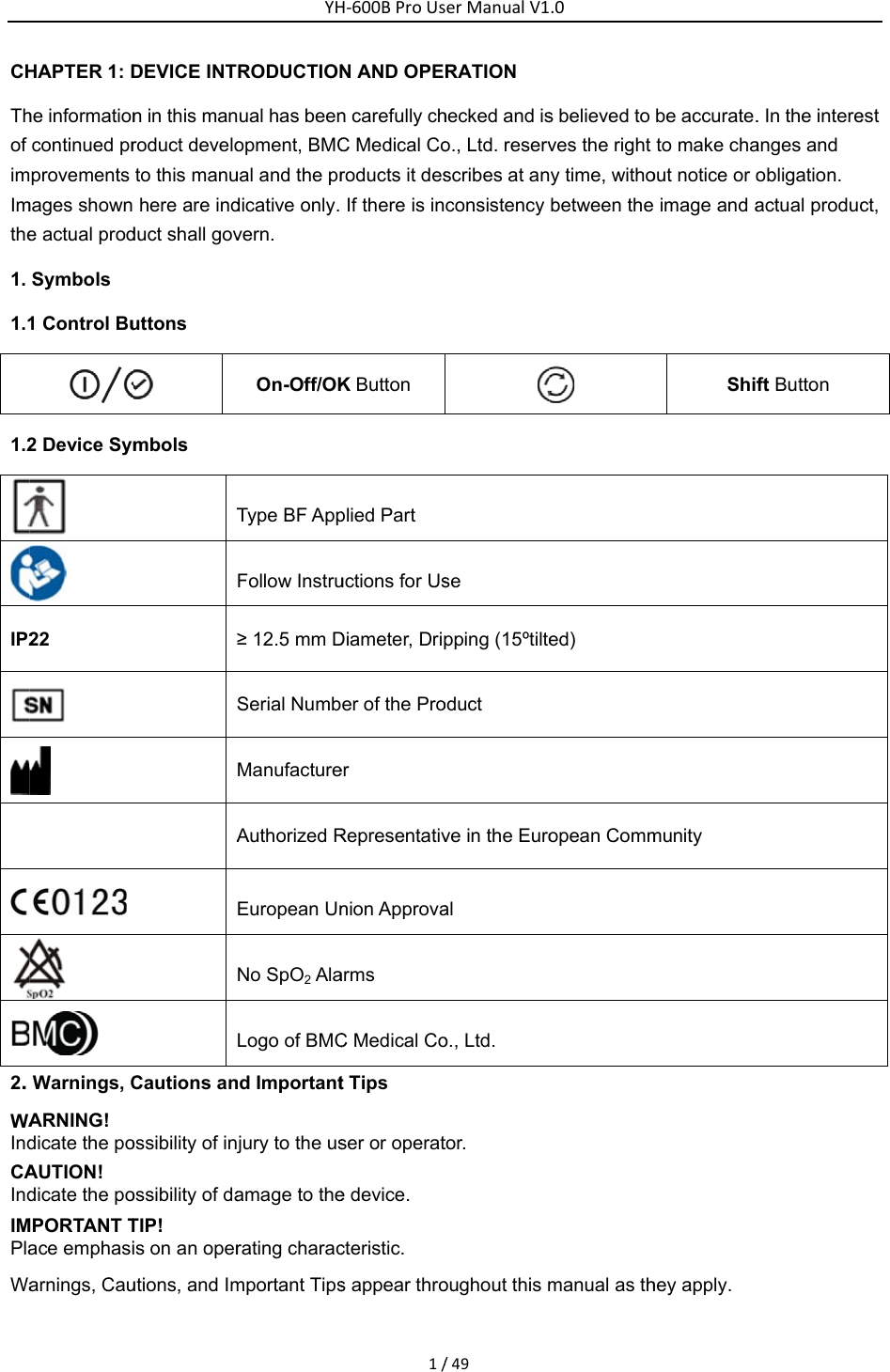
CHThof imImthe1. 1.11.2IP22. WAIndCAIndIMPlaWaHAPTER 1: Dhe informationcontinued prprovements mages showne actual prodSymbols 1 Control Bu2 Device Sym  22       Warnings, CARNING! dicate the poAUTION! dicate the poMPORTANT Tace emphasiarnings, CauDEVICE INTn in this manroduct develoto this manu here are indduct shall govuttons  mbols TACautions anossibility of injossibility of daTIP! is on an operutions, and ImYHRODUCTIONual has beenopment, BMCual and the prdicative only. vern.  On-Off/OKType BF AppFollow Instru≥ 12.5 mm DSerial NumbManufactureAuthorized REuropean UnNo SpO2 AlaLogo of BMCnd Importantjury to the usamage to therating characmportant TipsH‐600BProUs1/N AND OPEn carefully chC Medical Coroducts it desIf there is inK Button plied Part uctions for UsDiameter, Driper of the Proer Representativnion Approvaarms  C Medical Cot Tips ser or operate device. cteristic. s appear throerManualV1/49RATION hecked and iso., Ltd. reservscribes at anconsistency se pping (15ºtilteoduct ve in the Euroal o., Ltd. tor.  oughout this m.0s believed to ves the right y time, withobetween the ed) opean Commmanual as thbe accurate.to make chaout notice or o image and aShifmunity hey apply. . In the intereanges and obligation. actual producft Button est ct,
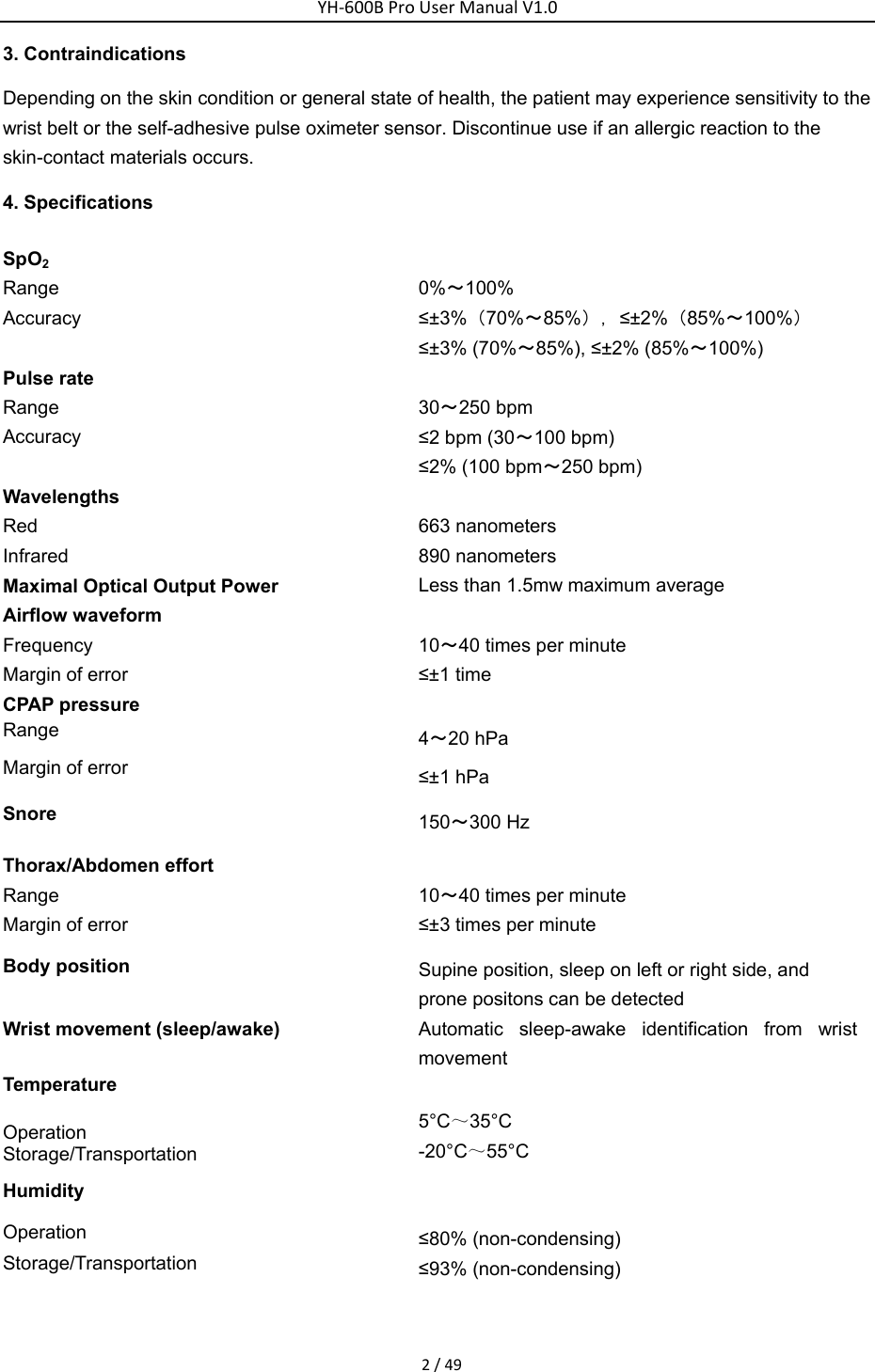
YH‐600BProUserManualV1.02/493. Contraindications Depending on the skin condition or general state of health, the patient may experience sensitivity to the wrist belt or the self-adhesive pulse oximeter sensor. Discontinue use if an allergic reaction to the skin-contact materials occurs. 4. Specifications SpO2 Range Accuracy   0%~100% ≤±3%(70%~85%),≤±2%(85%~100%) ≤±3% (70%~85%), ≤±2% (85%~100%) Pulse rate   Range  Accuracy   30~250 bpm ≤2 bpm (30~100 bpm) ≤2% (100 bpm~250 bpm) Wavelengths   Red 663 nanometers Infrared 890 nanometers Maximal Optical Output Power  Less than 1.5mw maximum average Airflow waveform Frequency Margin of error    10~40 times per minute   ≤±1 time CPAP pressure   Range Margin of error    4~20 hPa   ≤±1 hPa Snore  150~300 Hz Thorax/Abdomen effort   Range  Margin of error    10~40 times per minute   ≤±3 times per minute   Body position Supine position, sleep on left or right side, and prone positons can be detected   Wrist movement (sleep/awake)    Automatic sleep-awake identification from wrist movement Temperature  Operation  Storage/Transportation   5°C~35°C -20°C~55°C Humidity  Operation  Storage/Transportation  ≤80% (non-condensing) ≤93% (non-condensing)
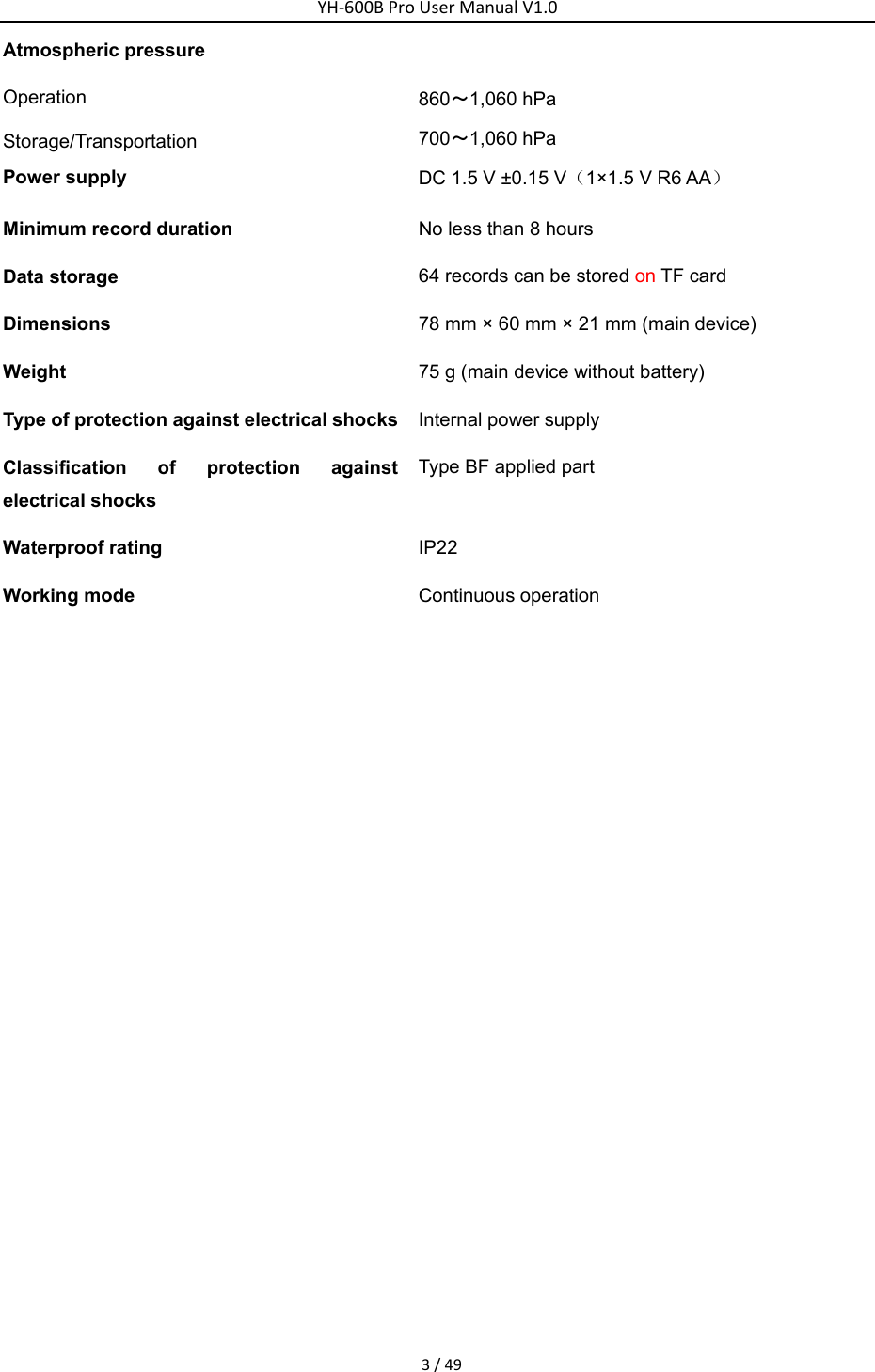
YH‐600BProUserManualV1.03/49Atmospheric pressure Operation  Storage/Transportation  860~1,060 hPa   700~1,060 hPa Power supply    DC 1.5 V ±0.15 V(1×1.5 V R6 AA)  Minimum record duration    No less than 8 hours   Data storage    64 records can be stored on TF card   Dimensions  78 mm × 60 mm × 21 mm (main device) Weight   75 g (main device without battery) Type of protection against electrical shocks Internal power supply Classification of protection against electrical shocks Type BF applied part   Waterproof rating    IP22 Working mode    Continuous operation
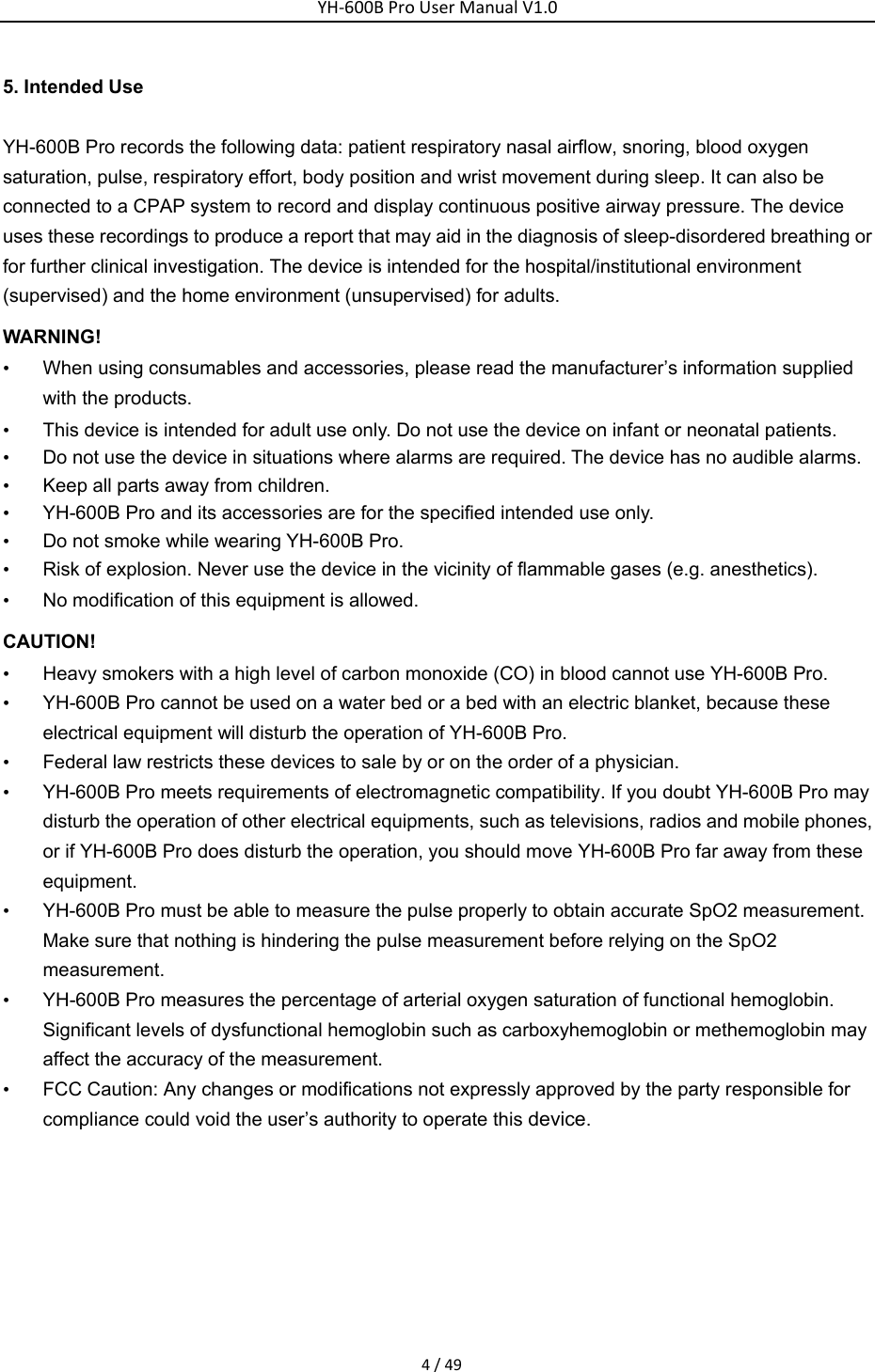
YH‐600BProUserManualV1.04/495. Intended Use YH-600B Pro records the following data: patient respiratory nasal airflow, snoring, blood oxygen saturation, pulse, respiratory effort, body position and wrist movement during sleep. It can also be connected to a CPAP system to record and display continuous positive airway pressure. The device uses these recordings to produce a report that may aid in the diagnosis of sleep-disordered breathing or for further clinical investigation. The device is intended for the hospital/institutional environment (supervised) and the home environment (unsupervised) for adults. WARNING! •  When using consumables and accessories, please read the manufacturer’s information supplied with the products. •  This device is intended for adult use only. Do not use the device on infant or neonatal patients. •  Do not use the device in situations where alarms are required. The device has no audible alarms.   •  Keep all parts away from children. •  YH-600B Pro and its accessories are for the specified intended use only. •  Do not smoke while wearing YH-600B Pro. •  Risk of explosion. Never use the device in the vicinity of flammable gases (e.g. anesthetics). •  No modification of this equipment is allowed. CAUTION! •  Heavy smokers with a high level of carbon monoxide (CO) in blood cannot use YH-600B Pro.   •  YH-600B Pro cannot be used on a water bed or a bed with an electric blanket, because these electrical equipment will disturb the operation of YH-600B Pro. •  Federal law restricts these devices to sale by or on the order of a physician. •  YH-600B Pro meets requirements of electromagnetic compatibility. If you doubt YH-600B Pro may disturb the operation of other electrical equipments, such as televisions, radios and mobile phones, or if YH-600B Pro does disturb the operation, you should move YH-600B Pro far away from these equipment. •  YH-600B Pro must be able to measure the pulse properly to obtain accurate SpO2 measurement. Make sure that nothing is hindering the pulse measurement before relying on the SpO2 measurement. •  YH-600B Pro measures the percentage of arterial oxygen saturation of functional hemoglobin. Significant levels of dysfunctional hemoglobin such as carboxyhemoglobin or methemoglobin may affect the accuracy of the measurement. •  FCC Caution: Any changes or modifications not expressly approved by the party responsible for compliance could void the user’s authority to operate this device.
YH‐600BProUserManualV1.05/496. Glossary Snore   Because of the respiratory tract’s airway limitation, sound is made when respiratory airflow gets through the narrow respiratory tract, which usually indicates that the patient is likely to have suffered in years from sleep apnea syndrome along with the increase of age.   Apnea   The performance of respiratory intermission during sleep is that the respiratory airflow drops to lower than 10% of the normal range and lasts for at least 10 seconds. The recurrent intermission during sleep is easy to cause severe oxygen-deficit to brain and blood, form hypoxemia and induce hypertension, brain-heart disease, arrhythmia, myocardial infarction and angina, which then can induce multi-system diseases of the human body. Hypopnea   The reduction range of respiratory airflow is more than 50% of the normal, accompanied with more than 4% of oxyhemoglobin saturation reduction. SAHS  The SAHS means at least 30 times of apnea in 7 hours of nightly sleep time of adults and each apnea lasts for more than 10 seconds. Or the apnea hypopnea index AHI (the number of apneas and hypopneas per hour) is greater than 5. OASHS   The OSAHS means the sleep apnea hypopnea syndrome caused by obstruction of the upper respiratory tract (including the collapse of pharyngeal mucosa). AI  The AI means the number of apneas per hour, which is equal to the number of times apnea has occurred the whole night divided by the sleep time of whole night (awakening and invalid time are not contained). The unit of time is hour.   HI  The HI means the number of hypopneas per hour, which is equal to the number of times hypopnea has occurred the whole night divided by the sleep time of whole night (awakening and invalid time are not contained). The unit of time is hour.   AHI  The AHI means the number of apneas and hypopneas per hour which is equal to the total times of apneas and hypopneas during the whole night divided by the sleep time of whole night (awakening and invalid time are not contained),and the unit of time is hour. SNI  The SNI means the average number of times the snore has occurred every hour which is equal to the number of times snore has occurred the whole night divided by the sleep time of whole night (awakening and invalid time are not contained). The unit of time is hour. ODI  The ODI means the number of times when the oxyhemoglobin saturation reduction is more than 3% or 4% every hour. CPAP  The CPAP means feeding continuous positive airflow into air passage by face mask.
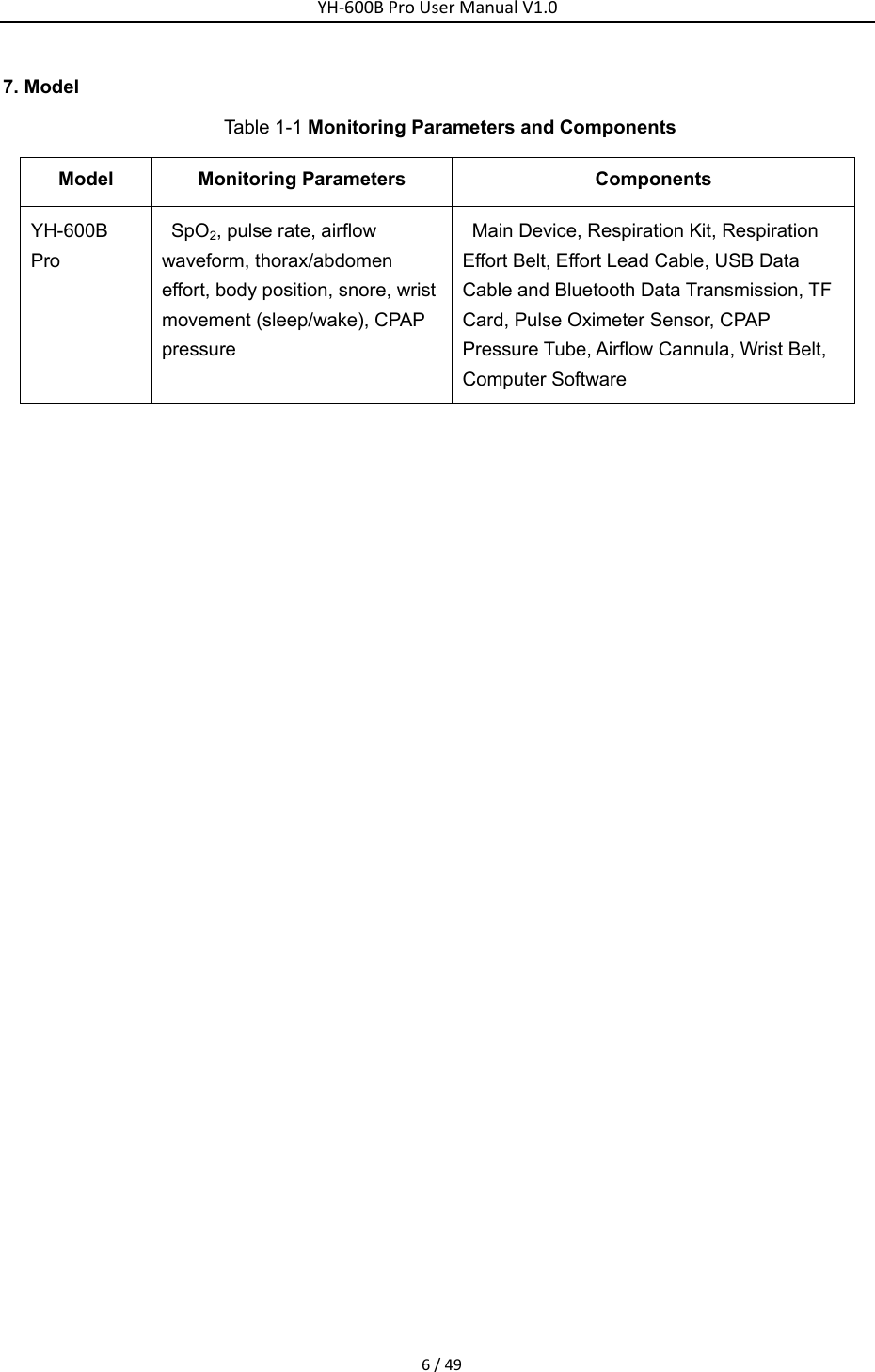
YH‐600BProUserManualV1.06/497. Model Table 1-1 Monitoring Parameters and Components Model Monitoring Parameters  Components  YH-600B Pro SpO2, pulse rate, airflow waveform, thorax/abdomen effort, body position, snore, wrist movement (sleep/wake), CPAP pressure Main Device, Respiration Kit, Respiration Effort Belt, Effort Lead Cable, USB Data Cable and Bluetooth Data Transmission, TF Card, Pulse Oximeter Sensor, CPAP Pressure Tube, Airflow Cannula, Wrist Belt, Computer Software
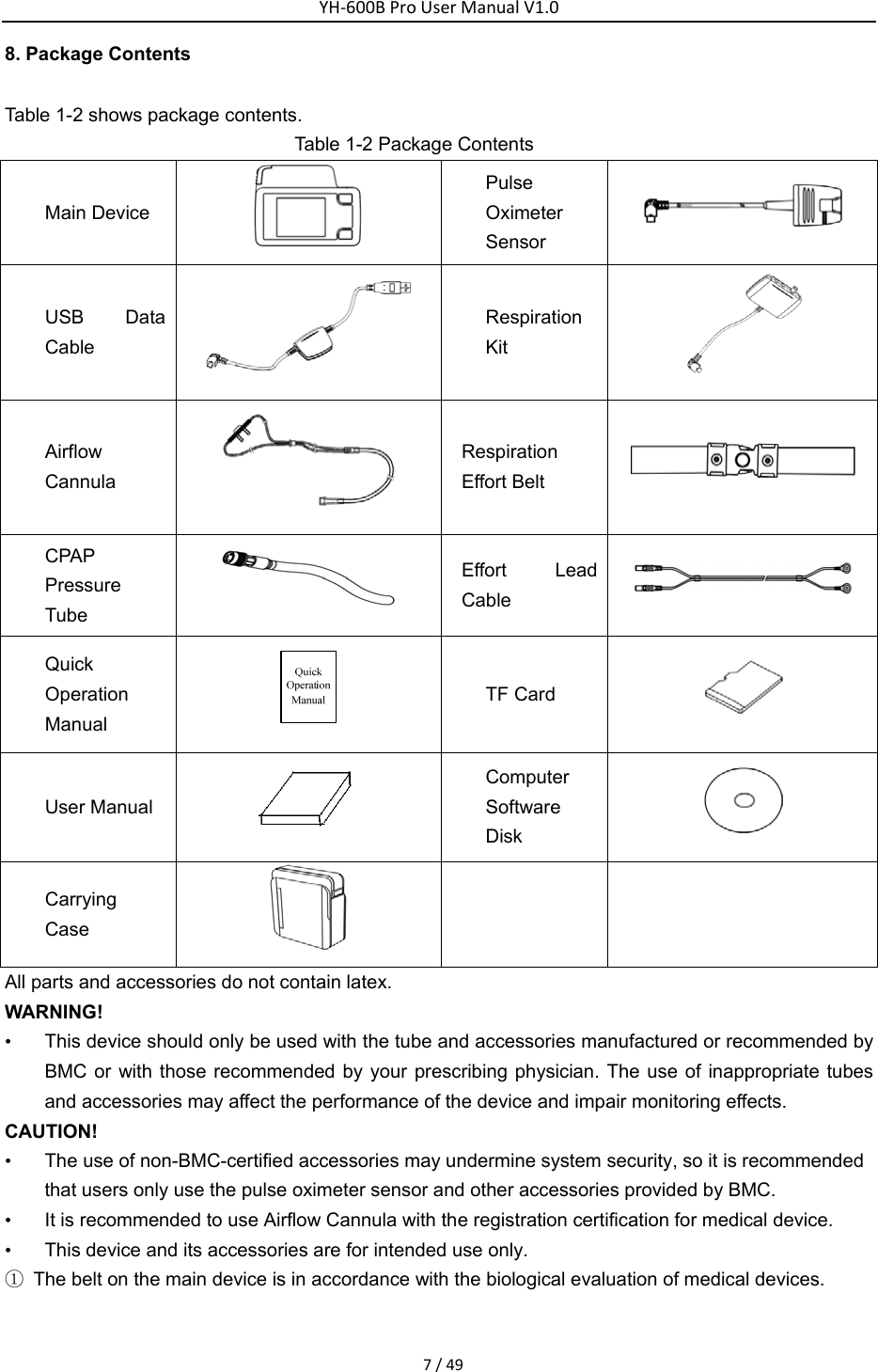
YH‐600BProUserManualV1.07/498. Package Contents Table 1-2 shows package contents.                              Table 1-2 Package Contents Main Device  Pulse Oximeter Sensor  USB Data Cable   Respiration Kit  Airflow Cannula   Respiration Effort Belt     CPAP Pressure Tube    Effort Lead Cable   Quick Operation Manual    TF Card   User Manual  Computer Software Disk   Carrying Case     All parts and accessories do not contain latex. WARNING! •  This device should only be used with the tube and accessories manufactured or recommended by BMC or with those recommended by your prescribing physician. The use of inappropriate tubes and accessories may affect the performance of the device and impair monitoring effects. CAUTION! •  The use of non-BMC-certified accessories may undermine system security, so it is recommended that users only use the pulse oximeter sensor and other accessories provided by BMC.   •  It is recommended to use Airflow Cannula with the registration certification for medical device.     •  This device and its accessories are for intended use only. ①  The belt on the main device is in accordance with the biological evaluation of medical devices.
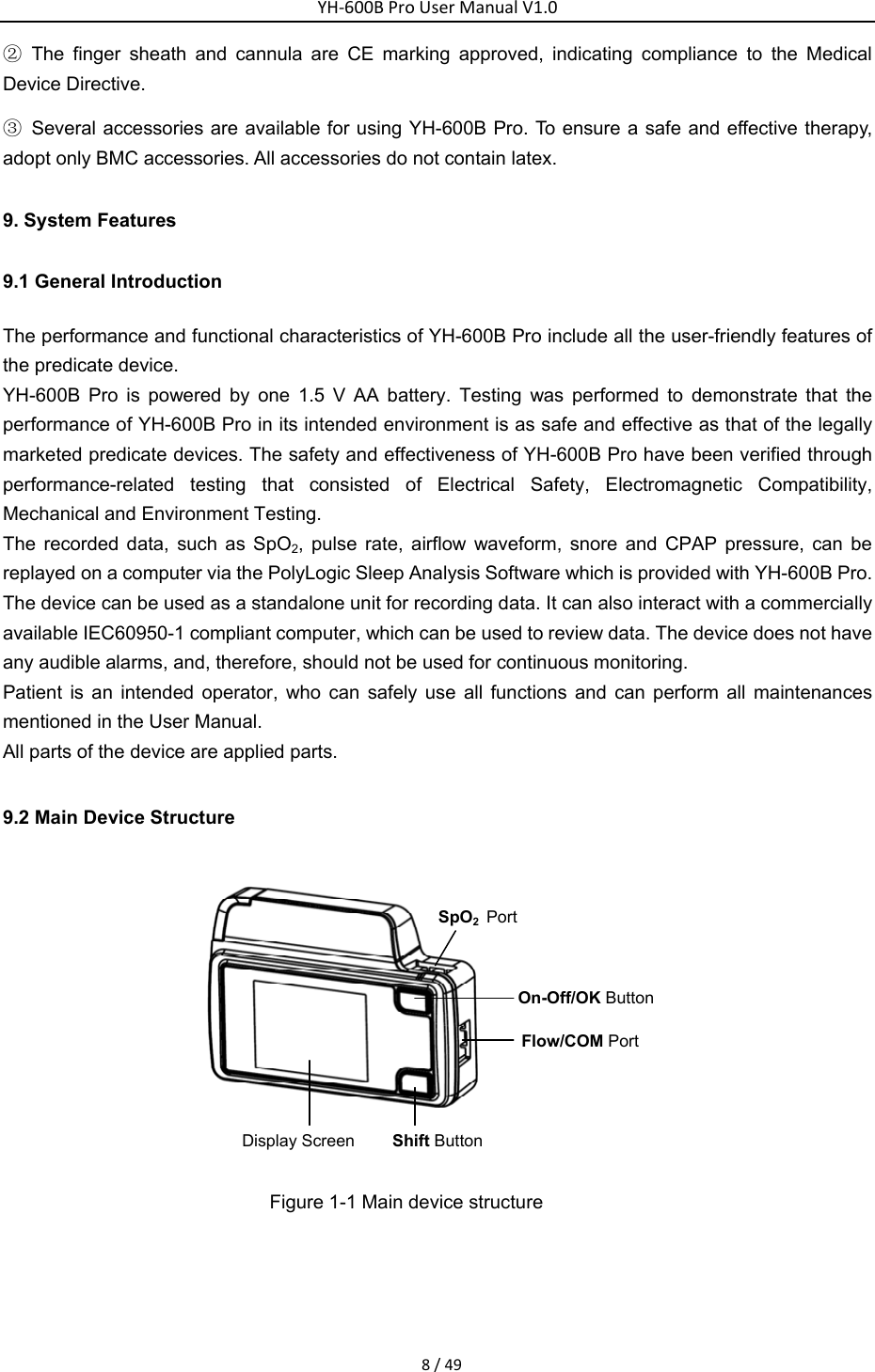
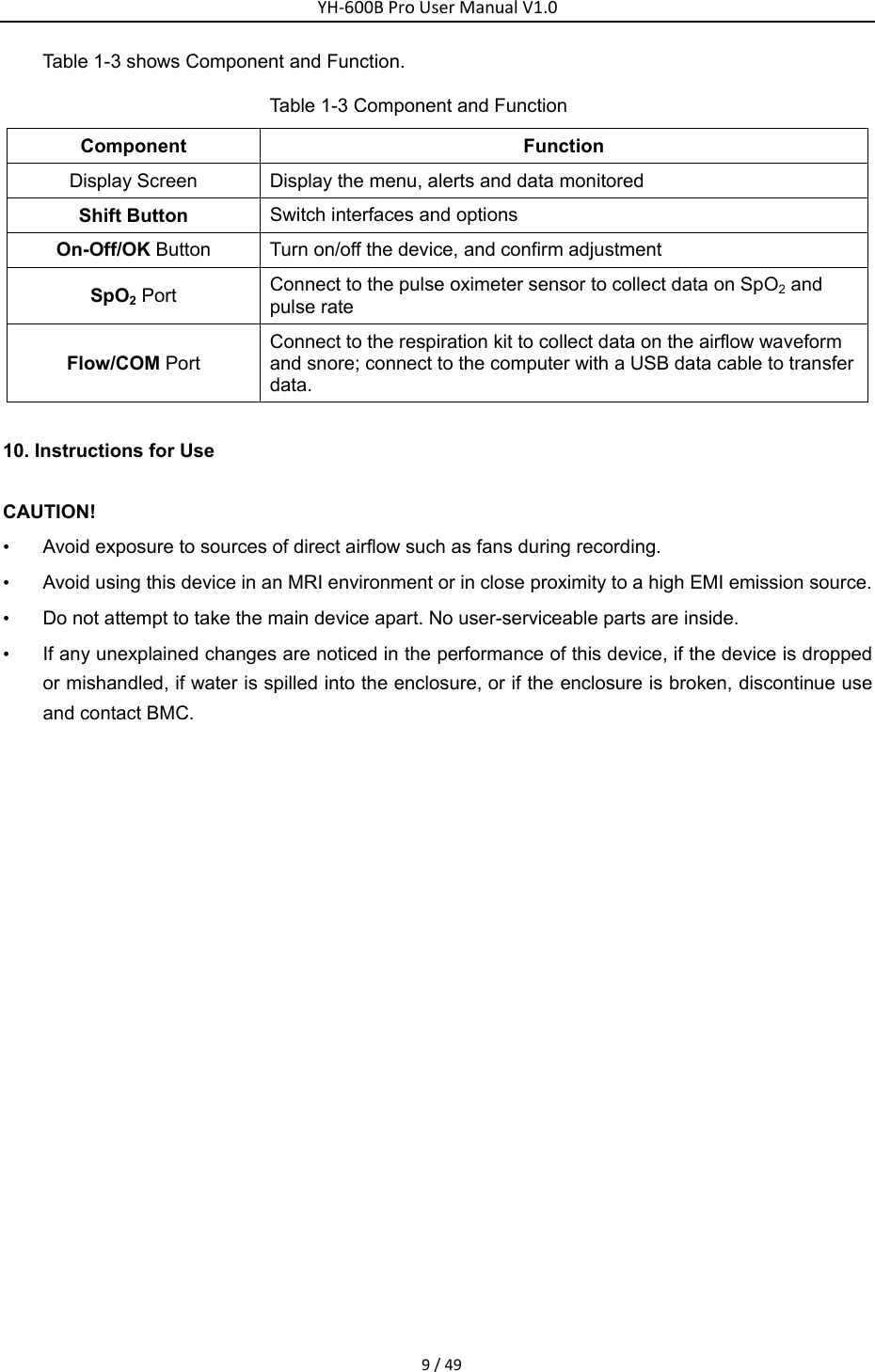
YH‐600BProUserManualV1.08/49② The finger sheath and cannula are CE marking approved, indicating compliance to the Medical Device Directive.   ③  Several accessories are available for using YH-600B Pro. To ensure a safe and effective therapy, adopt only BMC accessories. All accessories do not contain latex. 9. System Features 9.1 General Introduction The performance and functional characteristics of YH-600B Pro include all the user-friendly features of the predicate device.   YH-600B Pro is powered by one 1.5 V AA battery. Testing was performed to demonstrate that the performance of YH-600B Pro in its intended environment is as safe and effective as that of the legally marketed predicate devices. The safety and effectiveness of YH-600B Pro have been verified through performance-related testing that consisted of Electrical Safety, Electromagnetic Compatibility, Mechanical and Environment Testing.   The recorded data, such as SpO2, pulse rate, airflow waveform, snore and CPAP pressure, can be replayed on a computer via the PolyLogic Sleep Analysis Software which is provided with YH-600B Pro.   The device can be used as a standalone unit for recording data. It can also interact with a commercially available IEC60950-1 compliant computer, which can be used to review data. The device does not have any audible alarms, and, therefore, should not be used for continuous monitoring. Patient is an intended operator, who can safely use all functions and can perform all maintenances mentioned in the User Manual. All parts of the device are applied parts. 9.2 Main Device Structure   Display Screen Shift ButtonOn-Off/OK ButtonFlow/COM PortSpO2Port Figure 1-1 Main device structure
YH‐600BProUserManualV1.09/49Table 1-3 shows Component and Function. Table 1-3 Component and Function Component Function Display Screen  Display the menu, alerts and data monitored   Shift Button  Switch interfaces and options   On-Off/OK Button  Turn on/off the device, and confirm adjustment   SpO2 Port  Connect to the pulse oximeter sensor to collect data on SpO2 and pulse rate   Flow/COM Port Connect to the respiration kit to collect data on the airflow waveform and snore; connect to the computer with a USB data cable to transfer data.  10. Instructions for Use CAUTION! •  Avoid exposure to sources of direct airflow such as fans during recording. •  Avoid using this device in an MRI environment or in close proximity to a high EMI emission source. •  Do not attempt to take the main device apart. No user-serviceable parts are inside. •  If any unexplained changes are noticed in the performance of this device, if the device is dropped or mishandled, if water is spilled into the enclosure, or if the enclosure is broken, discontinue use and contact BMC.
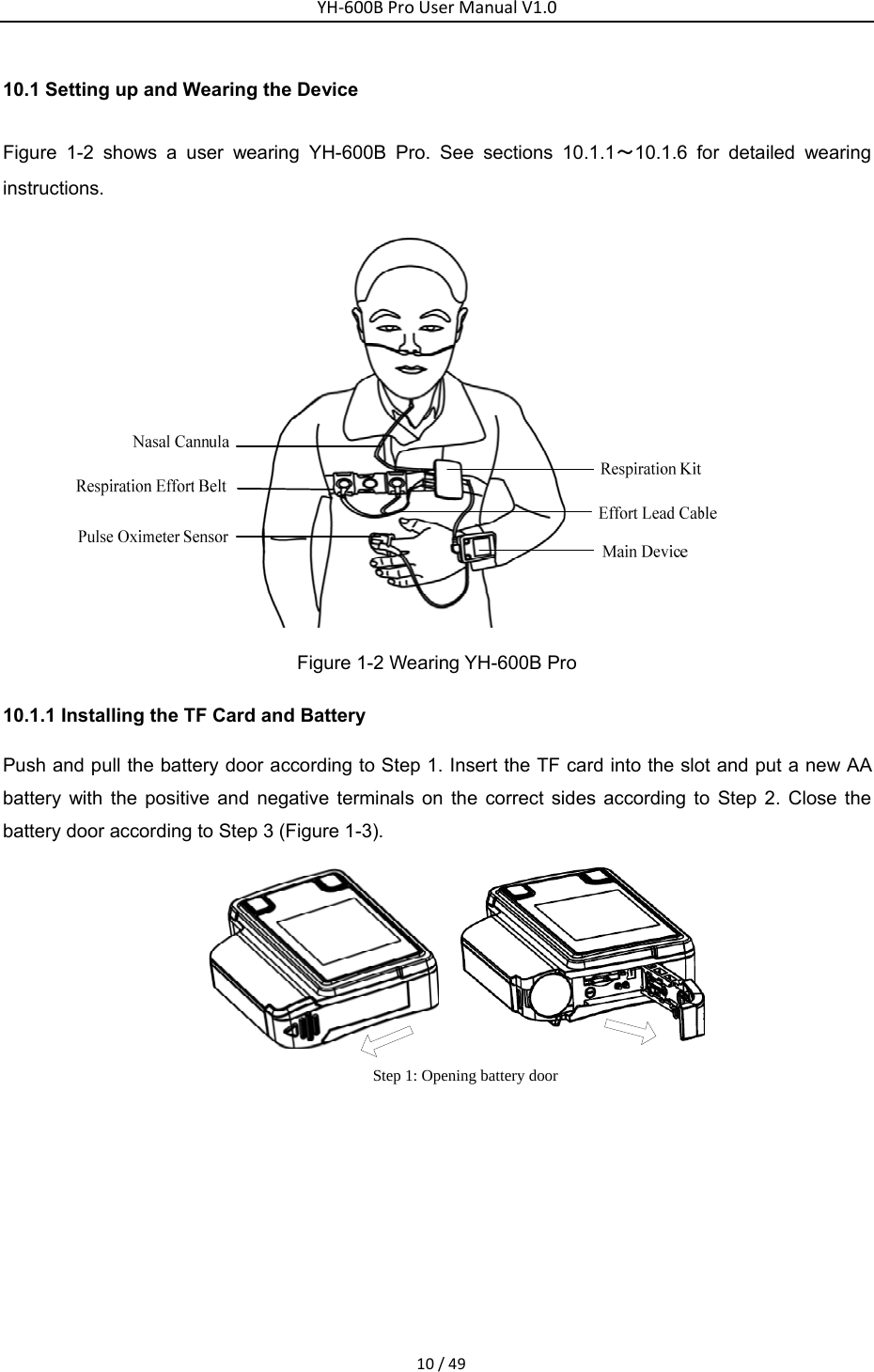
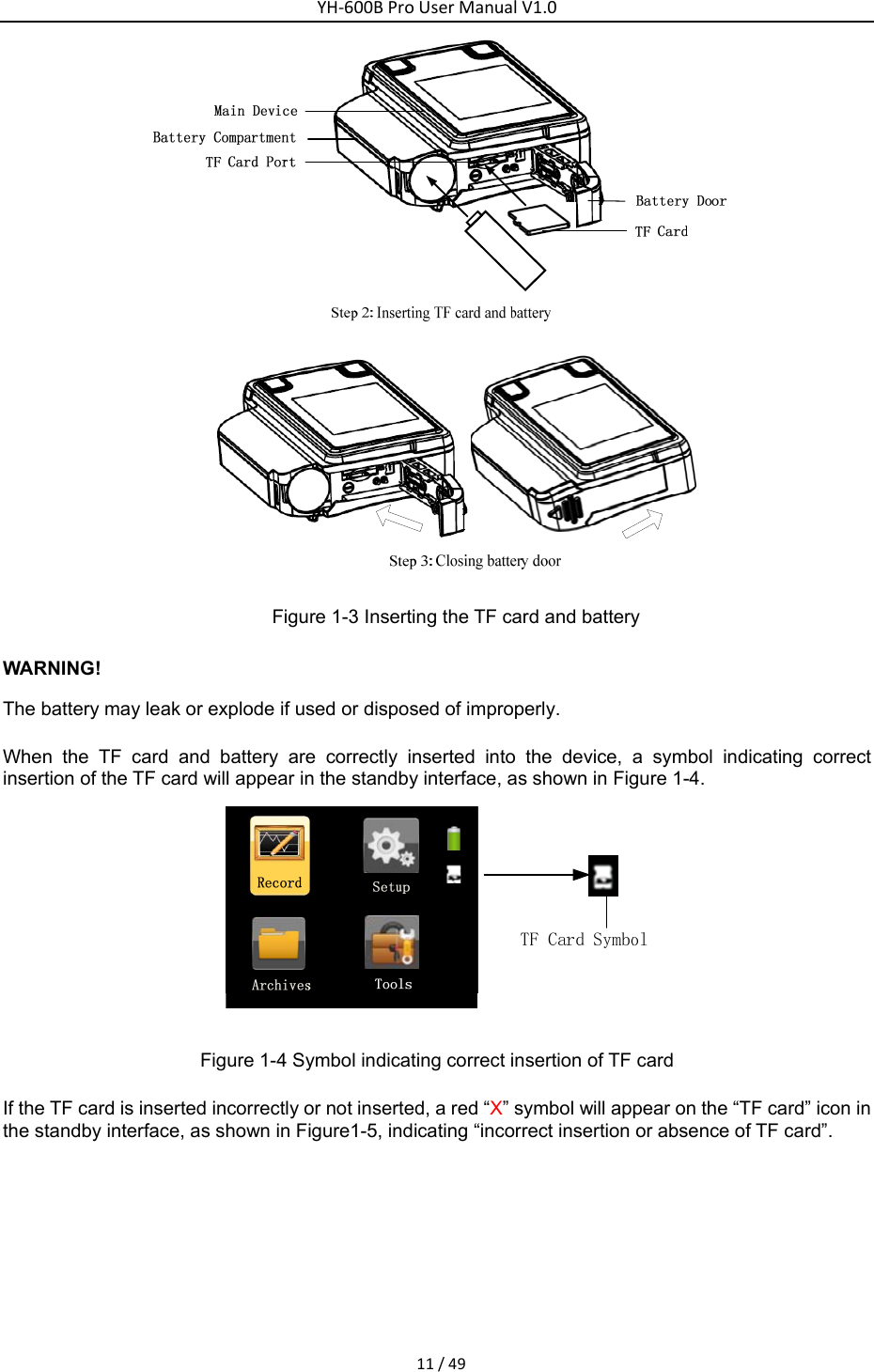
YH‐600BProUserManualV1.010/4910.1 Setting up and Wearing the Device   Figure 1-2 shows a user wearing YH-600B Pro. See sections 10.1.1~10.1.6 for detailed wearing instructions.   Figure 1-2 Wearing YH-600B Pro 10.1.1 Installing the TF Card and Battery   Push and pull the battery door according to Step 1. Insert the TF card into the slot and put a new AA battery with the positive and negative terminals on the correct sides according to Step 2. Close the battery door according to Step 3 (Figure 1-3).   Step 1: Opening battery door
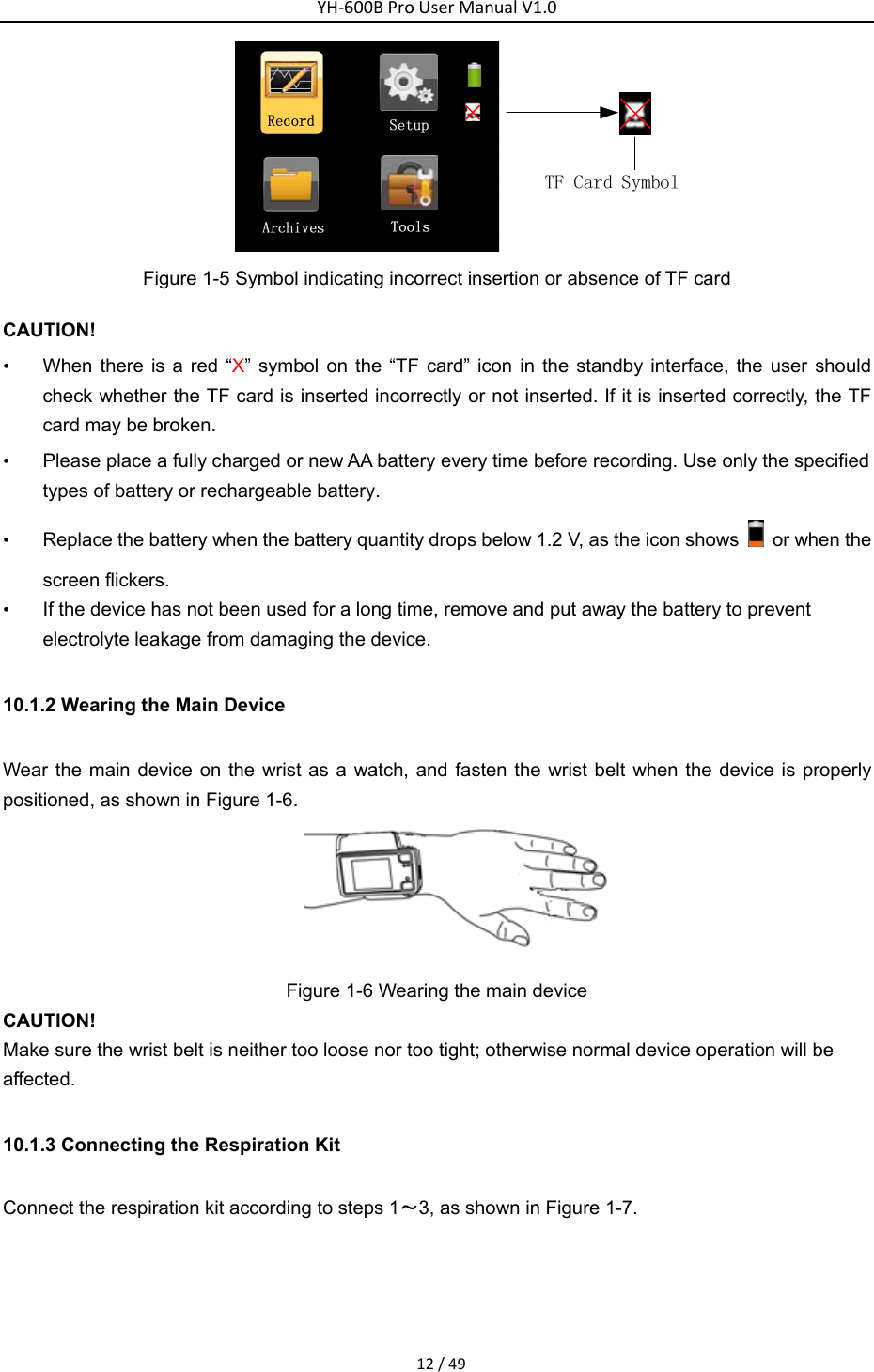
YH‐600BProUserManualV1.011/49   Figure 1-3 Inserting the TF card and battery   WARNING! The battery may leak or explode if used or disposed of improperly. When the TF card and battery are correctly inserted into the device, a symbol indicating correct insertion of the TF card will appear in the standby interface, as shown in Figure 1-4.    Figure 1-4 Symbol indicating correct insertion of TF card If the TF card is inserted incorrectly or not inserted, a red “X” symbol will appear on the “TF card” icon in the standby interface, as shown in Figure1-5, indicating “incorrect insertion or absence of TF card”.
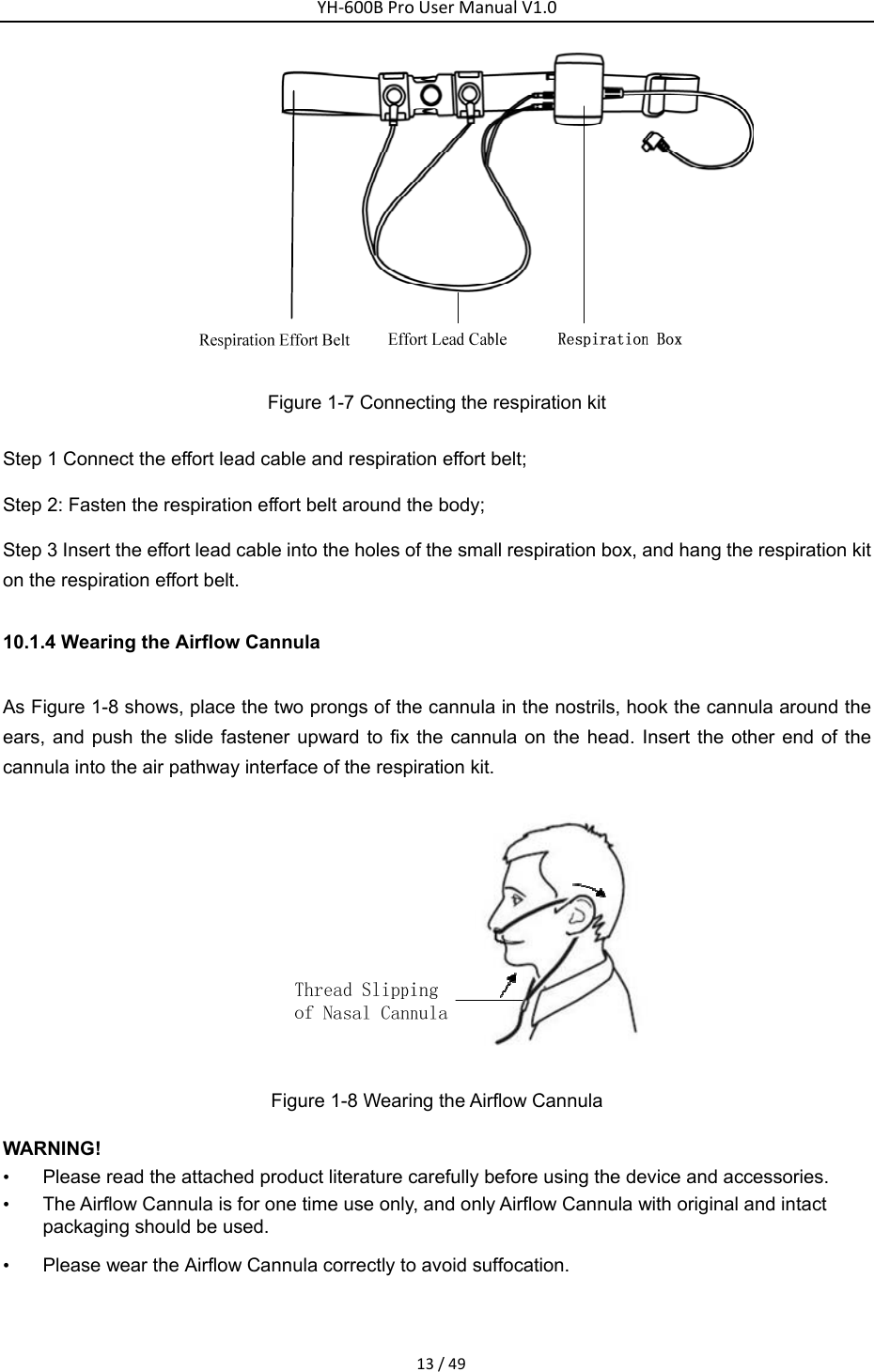
YH‐600BProUserManualV1.012/49 Figure 1-5 Symbol indicating incorrect insertion or absence of TF card CAUTION! •  When there is a red “X” symbol on the “TF card” icon in the standby interface, the user should check whether the TF card is inserted incorrectly or not inserted. If it is inserted correctly, the TF card may be broken.   •  Please place a fully charged or new AA battery every time before recording. Use only the specified types of battery or rechargeable battery. •  Replace the battery when the battery quantity drops below 1.2 V, as the icon shows    or when the screen flickers.   •  If the device has not been used for a long time, remove and put away the battery to prevent electrolyte leakage from damaging the device. 10.1.2 Wearing the Main Device   Wear the main device on the wrist as a watch, and fasten the wrist belt when the device is properly positioned, as shown in Figure 1-6.    Figure 1-6 Wearing the main device   CAUTION! Make sure the wrist belt is neither too loose nor too tight; otherwise normal device operation will be affected. 10.1.3 Connecting the Respiration Kit   Connect the respiration kit according to steps 1~3, as shown in Figure 1-7.
YH‐600BProUserManualV1.013/49 Figure 1-7 Connecting the respiration kit Step 1 Connect the effort lead cable and respiration effort belt;   Step 2: Fasten the respiration effort belt around the body; Step 3 Insert the effort lead cable into the holes of the small respiration box, and hang the respiration kit on the respiration effort belt.   10.1.4 Wearing the Airflow Cannula   As Figure 1-8 shows, place the two prongs of the cannula in the nostrils, hook the cannula around the ears, and push the slide fastener upward to fix the cannula on the head. Insert the other end of the cannula into the air pathway interface of the respiration kit.     Figure 1-8 Wearing the Airflow Cannula   WARNING! •  Please read the attached product literature carefully before using the device and accessories.   •  The Airflow Cannula is for one time use only, and only Airflow Cannula with original and intact packaging should be used.   •  Please wear the Airflow Cannula correctly to avoid suffocation.
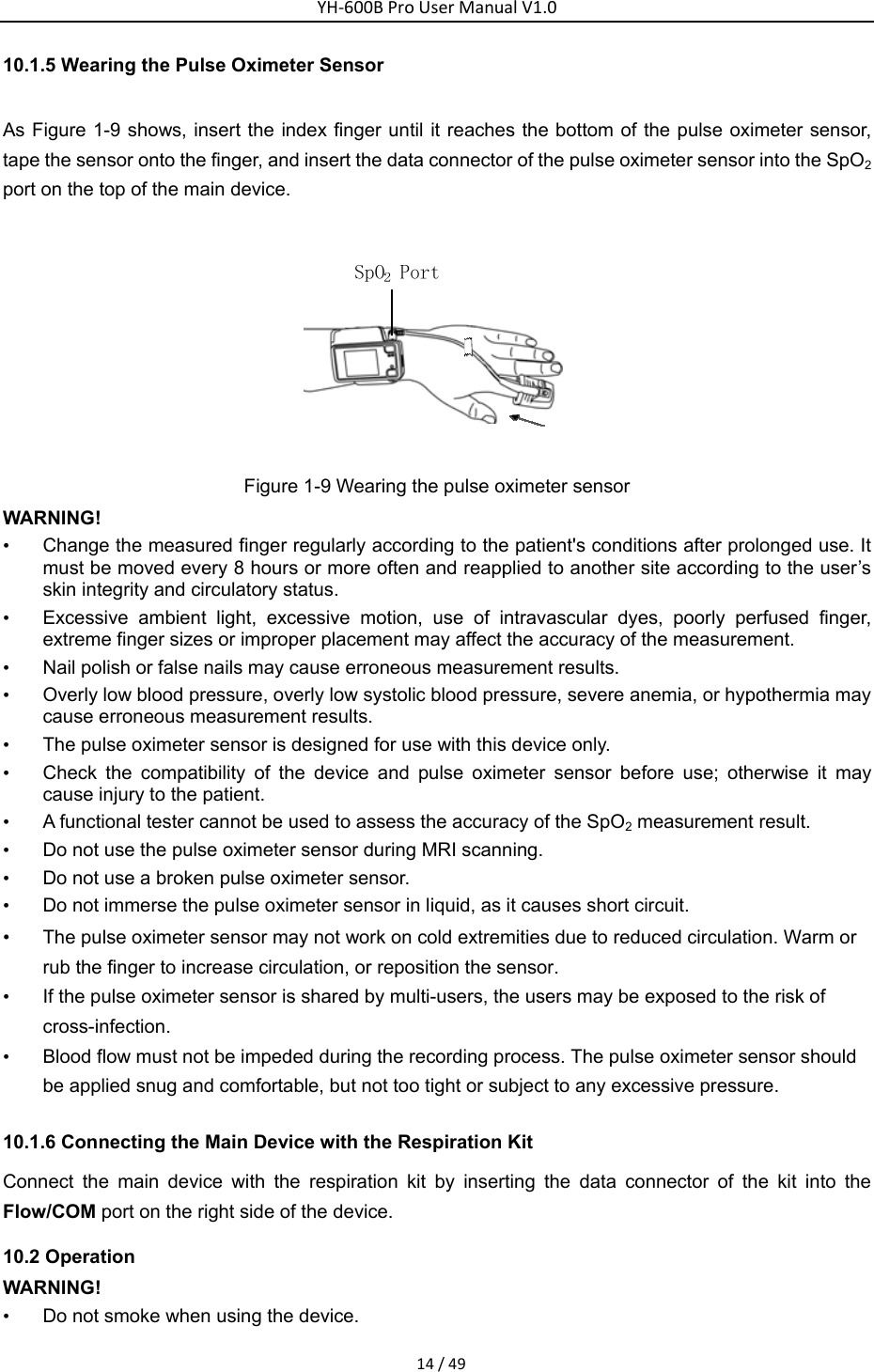
YH‐600BProUserManualV1.014/4910.1.5 Wearing the Pulse Oximeter Sensor   As Figure 1-9 shows, insert the index finger until it reaches the bottom of the pulse oximeter sensor, tape the sensor onto the finger, and insert the data connector of the pulse oximeter sensor into the SpO2 port on the top of the main device.    Figure 1-9 Wearing the pulse oximeter sensor WARNING! •  Change the measured finger regularly according to the patient's conditions after prolonged use. It must be moved every 8 hours or more often and reapplied to another site according to the user’s skin integrity and circulatory status. •  Excessive ambient light, excessive motion, use of intravascular dyes, poorly perfused finger, extreme finger sizes or improper placement may affect the accuracy of the measurement. •  Nail polish or false nails may cause erroneous measurement results. •  Overly low blood pressure, overly low systolic blood pressure, severe anemia, or hypothermia may cause erroneous measurement results. •  The pulse oximeter sensor is designed for use with this device only. •  Check the compatibility of the device and pulse oximeter sensor before use; otherwise it may cause injury to the patient. •  A functional tester cannot be used to assess the accuracy of the SpO2 measurement result.   •  Do not use the pulse oximeter sensor during MRI scanning. •  Do not use a broken pulse oximeter sensor. •  Do not immerse the pulse oximeter sensor in liquid, as it causes short circuit.   • The pulse oximeter sensor may not work on cold extremities due to reduced circulation. Warm or rub the finger to increase circulation, or reposition the sensor. •  If the pulse oximeter sensor is shared by multi-users, the users may be exposed to the risk of cross-infection. •  Blood flow must not be impeded during the recording process. The pulse oximeter sensor should be applied snug and comfortable, but not too tight or subject to any excessive pressure. 10.1.6 Connecting the Main Device with the Respiration Kit   Connect the main device with the respiration kit by inserting the data connector of the kit into the Flow/COM port on the right side of the device.   10.2 Operation WARNING! •  Do not smoke when using the device.
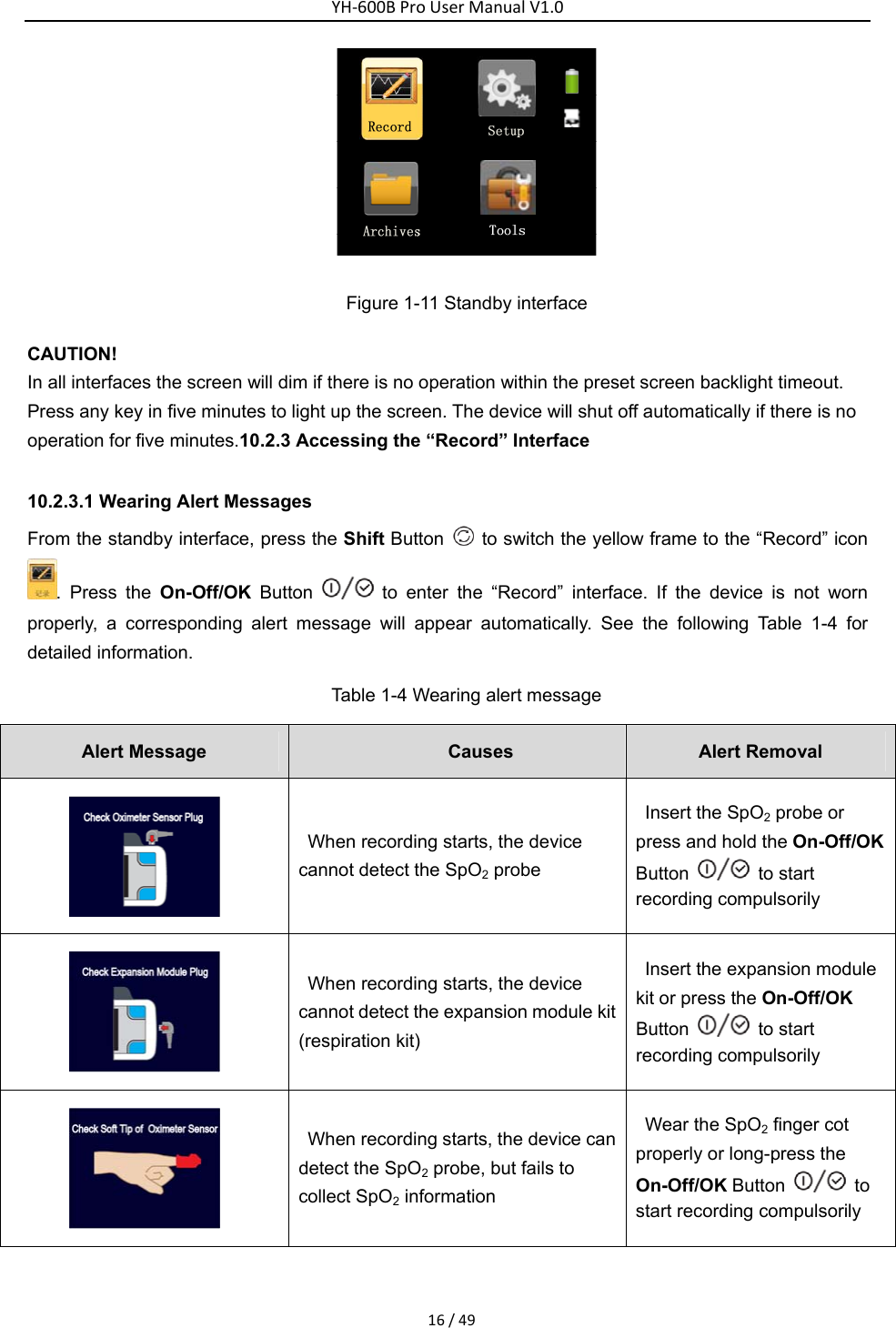
YH‐600BProUserManualV1.015/49•  Heavy smokers with high carbon monoxide (CO) blood content cannot use YH-600B Pro. CAUTION! •  The device has no alarm system, and is thus unsuitable for situations that need an alarm system.     •  While working, the device should not be directly exposed to airflow sources (e.g. fan), otherwise the accuracy of airflow monitoring will be affected. •  Do not use the device in nuclear magnetic environments or where there is high electromagnetic interference.  •  If the device performance has unexplainable changes, if water has entered the enclosure, if the enclosure is broken, or if the device has been dropped from a high place or hand, discontinue use and contact BMC. 10.2.1 Accessing the Initial Interface Press and hold the On-Off/OK Button    for five seconds, and the initial interface will appear, as shown in Figure 1-10.    Figure 1-10 Initial interface   CAUTION! •  If the device is not used for a long time, a time setting window will automatically pop up when you reuse it. Users need to update the date and time according to actual time, then choose “Save and Exit” to enter the standby interface.   •  If the present time displayed on the device is later than the preset record starting time, the device will immediately begin to record. 10.2.2 Accessing the Standby Interface   The device automatically enters the standby interface after it is started, as shown in Figure 1-11.   There are six icons in the standby interface: Record  , Setup  , Archives  , Tools  , Battery   and TF card  . The yellow frame can switch among the four icons of Record, Setup, Archives, and Tools, and when it falls on an icon, press the On-Off/OK Button  to enter the corresponding interface. The device can be turned off if the On-Off/OK Button  is pressed and held for five seconds in the standby interface.
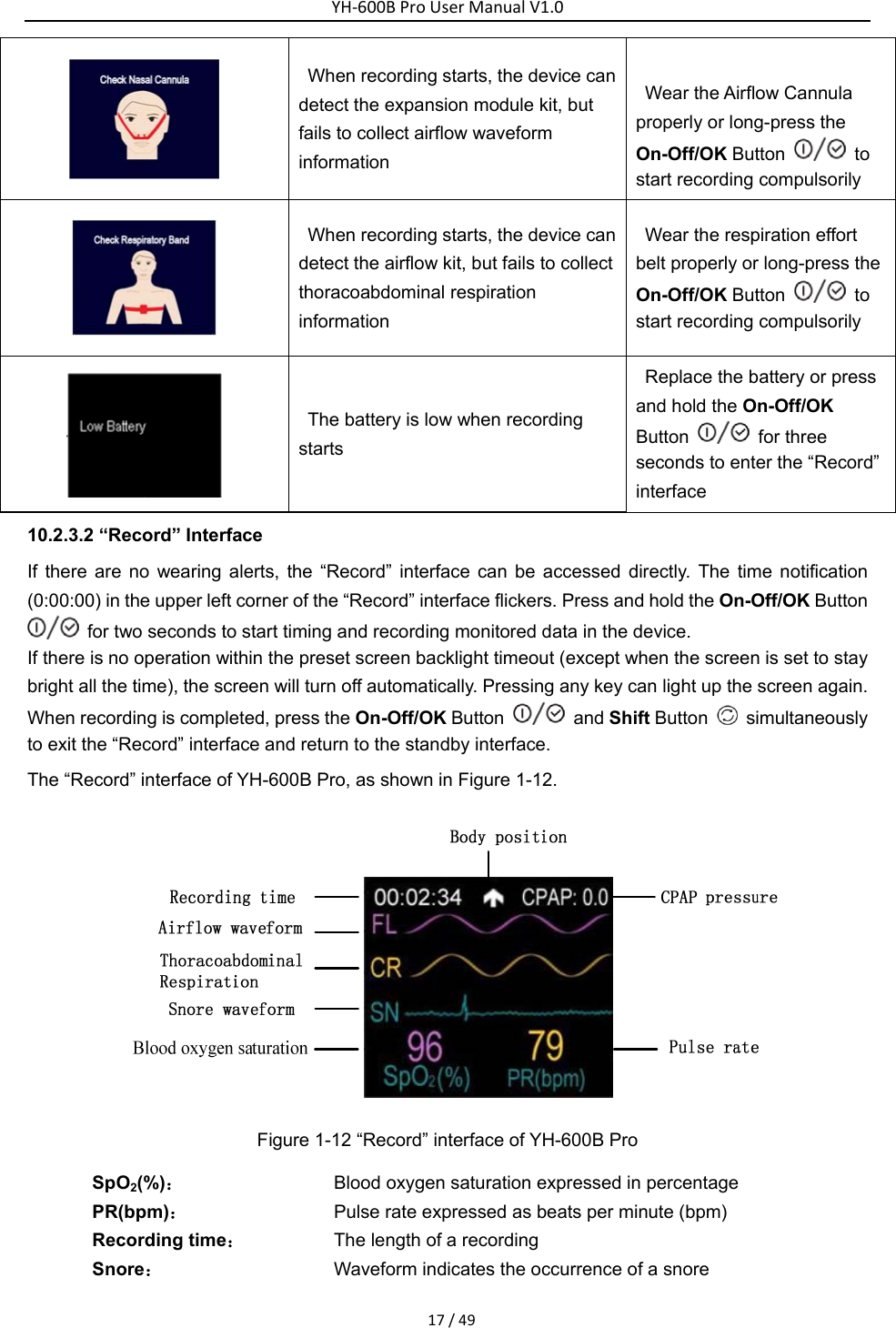
YH‐600BProUserManualV1.016/49 Figure 1-11 Standby interface CAUTION! In all interfaces the screen will dim if there is no operation within the preset screen backlight timeout. Press any key in five minutes to light up the screen. The device will shut off automatically if there is no operation for five minutes.10.2.3 Accessing the “Record” Interface   10.2.3.1 Wearing Alert Messages   From the standby interface, press the Shift Button    to switch the yellow frame to the “Record” icon . Press the On-Off/OK Button   to enter the “Record” interface. If the device is not worn properly, a corresponding alert message will appear automatically. See the following Table 1-4 for detailed information.   Table 1-4 Wearing alert message Alert Message  Causes  Alert Removal    When recording starts, the device cannot detect the SpO2 probe   Insert the SpO2 probe or press and hold the On-Off/OK Button  to start recording compulsorily    When recording starts, the device cannot detect the expansion module kit (respiration kit)   Insert the expansion module kit or press the On-Off/OK Button  to start recording compulsorily  When recording starts, the device can detect the SpO2 probe, but fails to collect SpO2 information   Wear the SpO2 finger cot properly or long-press the On-Off/OK Button    to start recording compulsorily
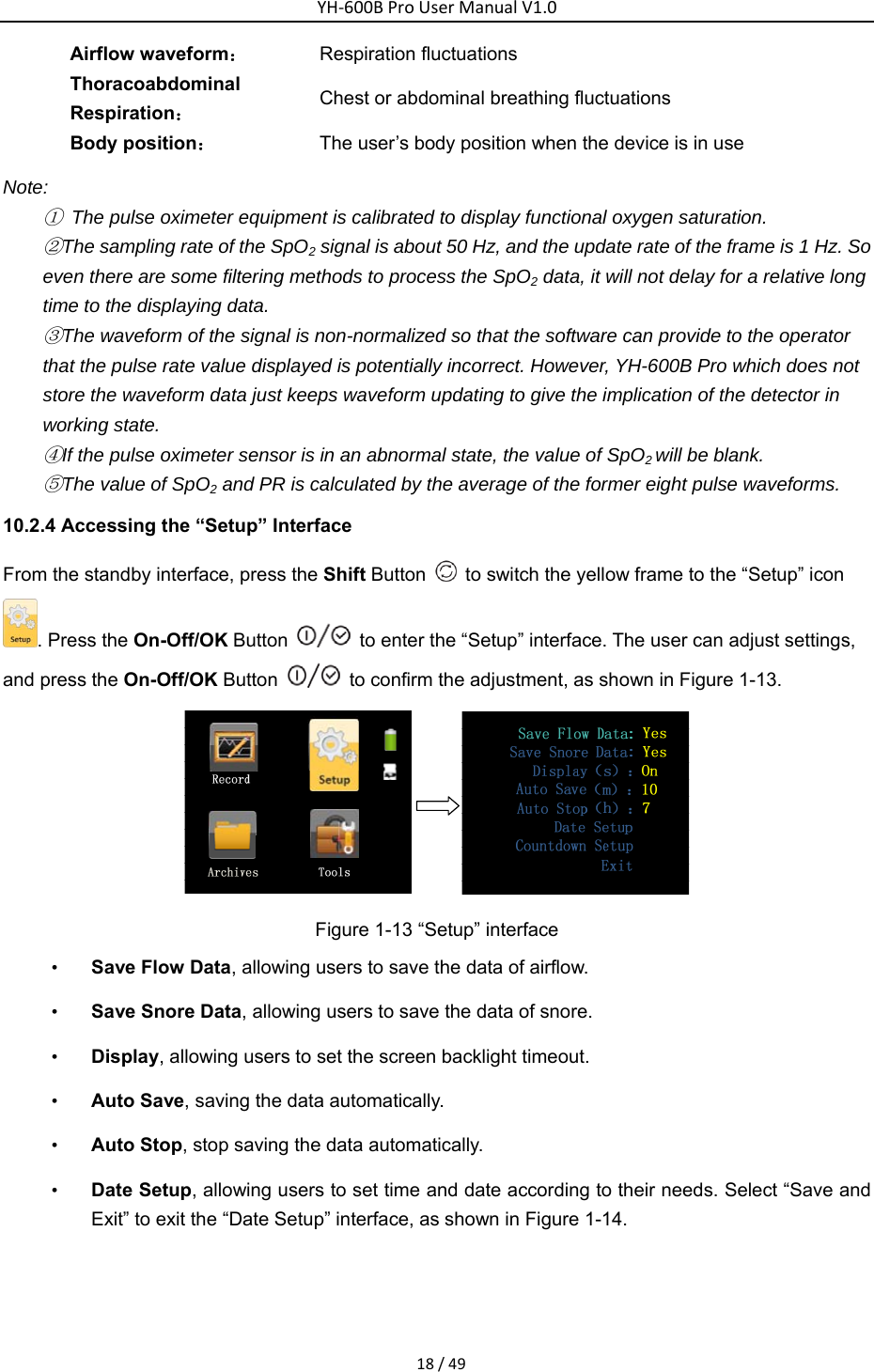
YH‐600BProUserManualV1.017/49 When recording starts, the device can detect the expansion module kit, but fails to collect airflow waveform information   Wear the Airflow Cannula properly or long-press the On-Off/OK Button    to start recording compulsorily  When recording starts, the device can detect the airflow kit, but fails to collect thoracoabdominal respiration information  Wear the respiration effort belt properly or long-press the On-Off/OK Button    to start recording compulsorily  The battery is low when recording starts  Replace the battery or press and hold the On-Off/OK Button  for three seconds to enter the “Record” interface  10.2.3.2 “Record” Interface   If there are no wearing alerts, the “Record” interface can be accessed directly. The time notification (0:00:00) in the upper left corner of the “Record” interface flickers. Press and hold the On-Off/OK Button   for two seconds to start timing and recording monitored data in the device.   If there is no operation within the preset screen backlight timeout (except when the screen is set to stay bright all the time), the screen will turn off automatically. Pressing any key can light up the screen again. When recording is completed, press the On-Off/OK Button    and Shift Button    simultaneously to exit the “Record” interface and return to the standby interface.     The “Record” interface of YH-600B Pro, as shown in Figure 1-12.    Figure 1-12 “Record” interface of YH-600B Pro SpO2(%): Blood oxygen saturation expressed in percentage   PR(bpm): Pulse rate expressed as beats per minute (bpm) Recording time: The length of a recording   Snore: Waveform indicates the occurrence of a snore
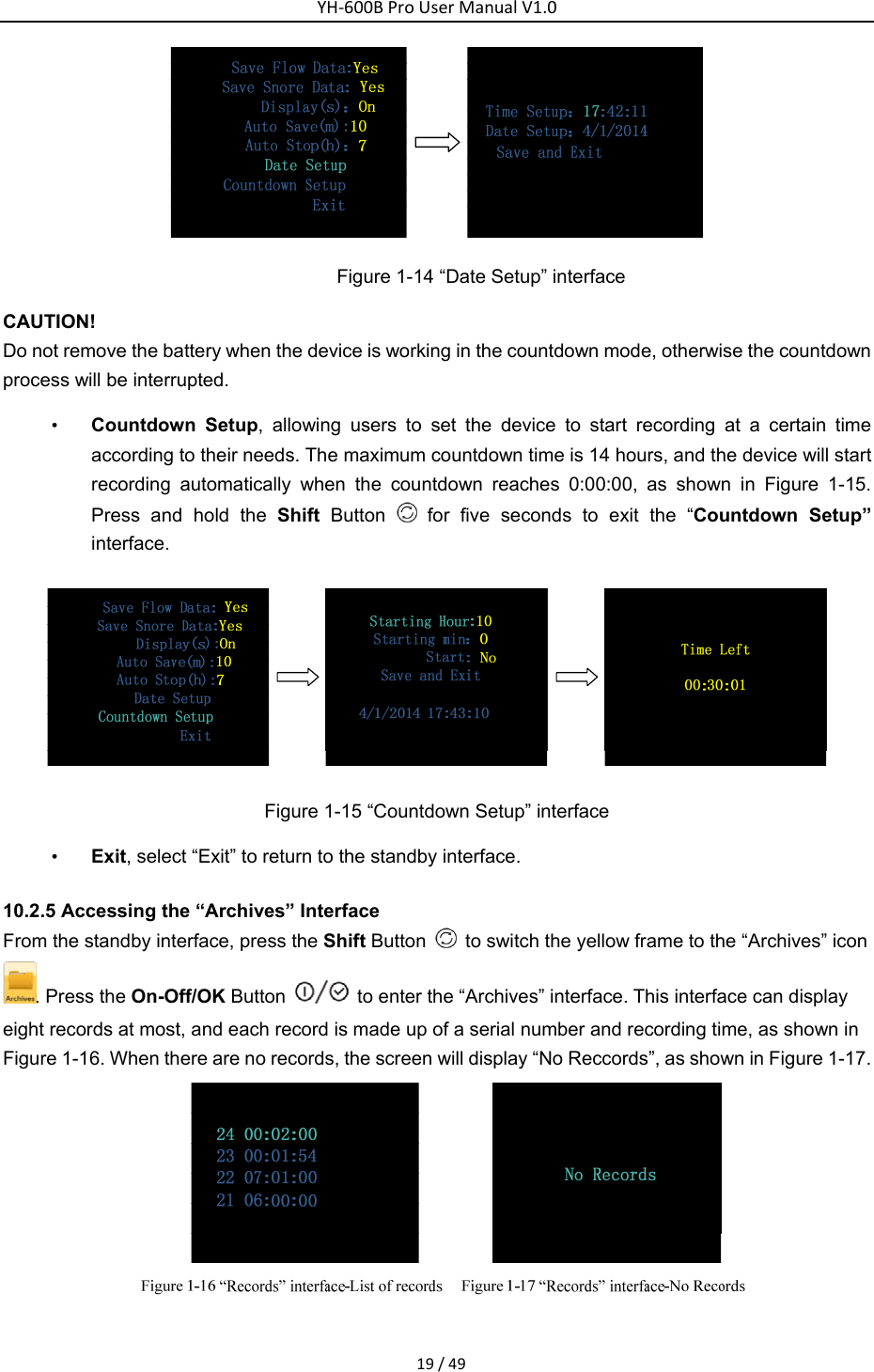
YH‐600BProUserManualV1.018/49Airflow waveform: Respiration fluctuations   Thoracoabdominal Respiration: Chest or abdominal breathing fluctuations   Body position: The user’s body position when the device is in use   Note: ①  The pulse oximeter equipment is calibrated to display functional oxygen saturation. ②The sampling rate of the SpO2 signal is about 50 Hz, and the update rate of the frame is 1 Hz. So even there are some filtering methods to process the SpO2 data, it will not delay for a relative long time to the displaying data. ③The waveform of the signal is non-normalized so that the software can provide to the operator that the pulse rate value displayed is potentially incorrect. However, YH-600B Pro which does not store the waveform data just keeps waveform updating to give the implication of the detector in working state. ④If the pulse oximeter sensor is in an abnormal state, the value of SpO2 will be blank.   ⑤The value of SpO2 and PR is calculated by the average of the former eight pulse waveforms.   10.2.4 Accessing the “Setup” Interface   From the standby interface, press the Shift Button    to switch the yellow frame to the “Setup” icon . Press the On-Off/OK Button    to enter the “Setup” interface. The user can adjust settings, and press the On-Off/OK Button    to confirm the adjustment, as shown in Figure 1-13.    Figure 1-13 “Setup” interface • Save Flow Data, allowing users to save the data of airflow.   • Save Snore Data, allowing users to save the data of snore. • Display, allowing users to set the screen backlight timeout. • Auto Save, saving the data automatically. • Auto Stop, stop saving the data automatically.   • Date Setup, allowing users to set time and date according to their needs. Select “Save and Exit” to exit the “Date Setup” interface, as shown in Figure 1-14.
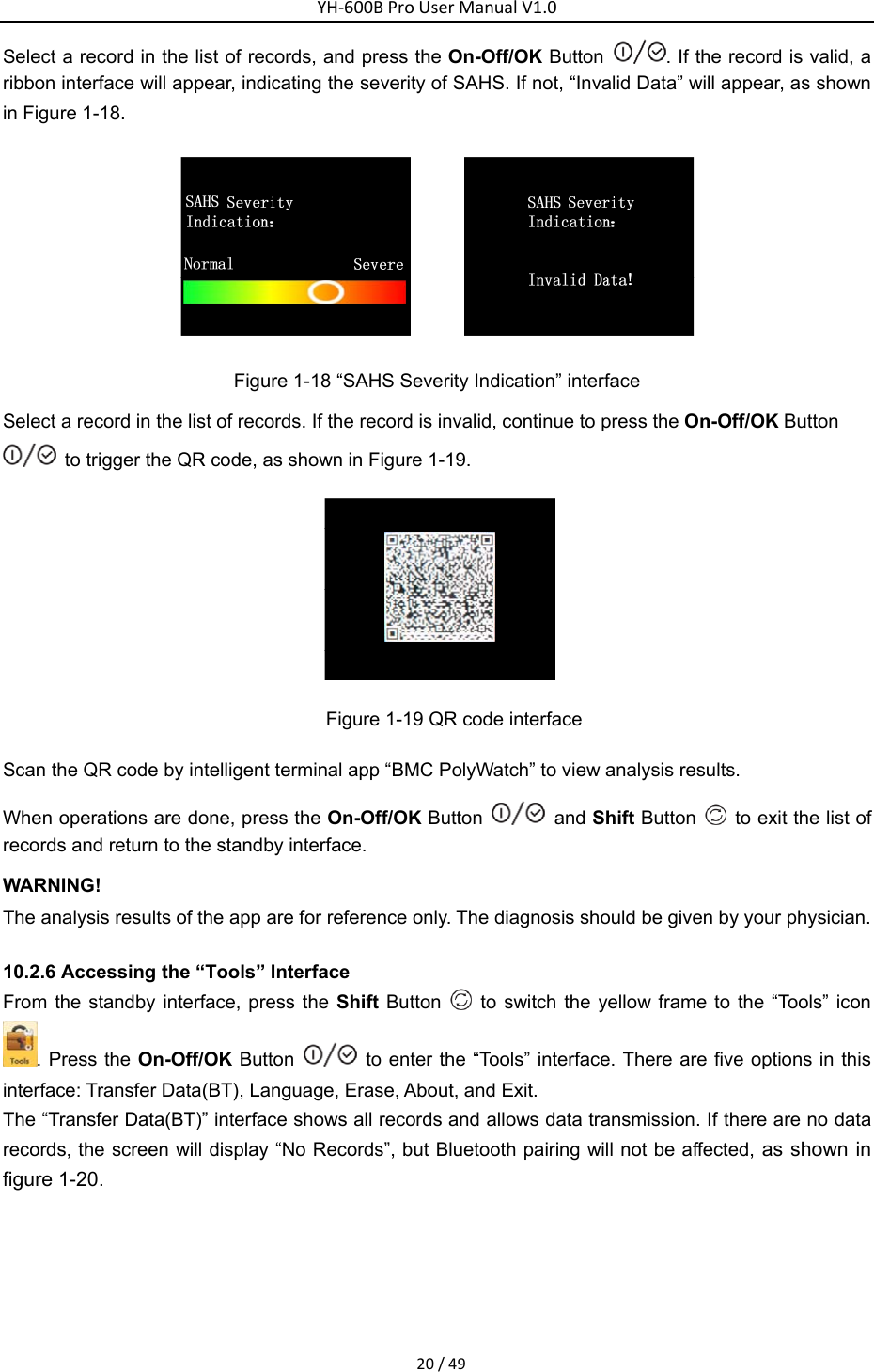
YH‐600BProUserManualV1.019/49 Figure 1-14 “Date Setup” interface   CAUTION! Do not remove the battery when the device is working in the countdown mode, otherwise the countdown process will be interrupted. • Countdown Setup, allowing users to set the device to start recording at a certain time according to their needs. The maximum countdown time is 14 hours, and the device will start recording automatically when the countdown reaches 0:00:00, as shown in Figure 1-15. Press and hold the Shift Button   for five seconds to exit the “Countdown Setup” interface.   Figure 1-15 “Countdown Setup” interface • Exit, select “Exit” to return to the standby interface.   10.2.5 Accessing the “Archives” Interface   From the standby interface, press the Shift Button    to switch the yellow frame to the “Archives” icon. Press the On-Off/OK Button    to enter the “Archives” interface. This interface can display eight records at most, and each record is made up of a serial number and recording time, as shown in Figure 1-16. When there are no records, the screen will display “No Reccords”, as shown in Figure 1-17.
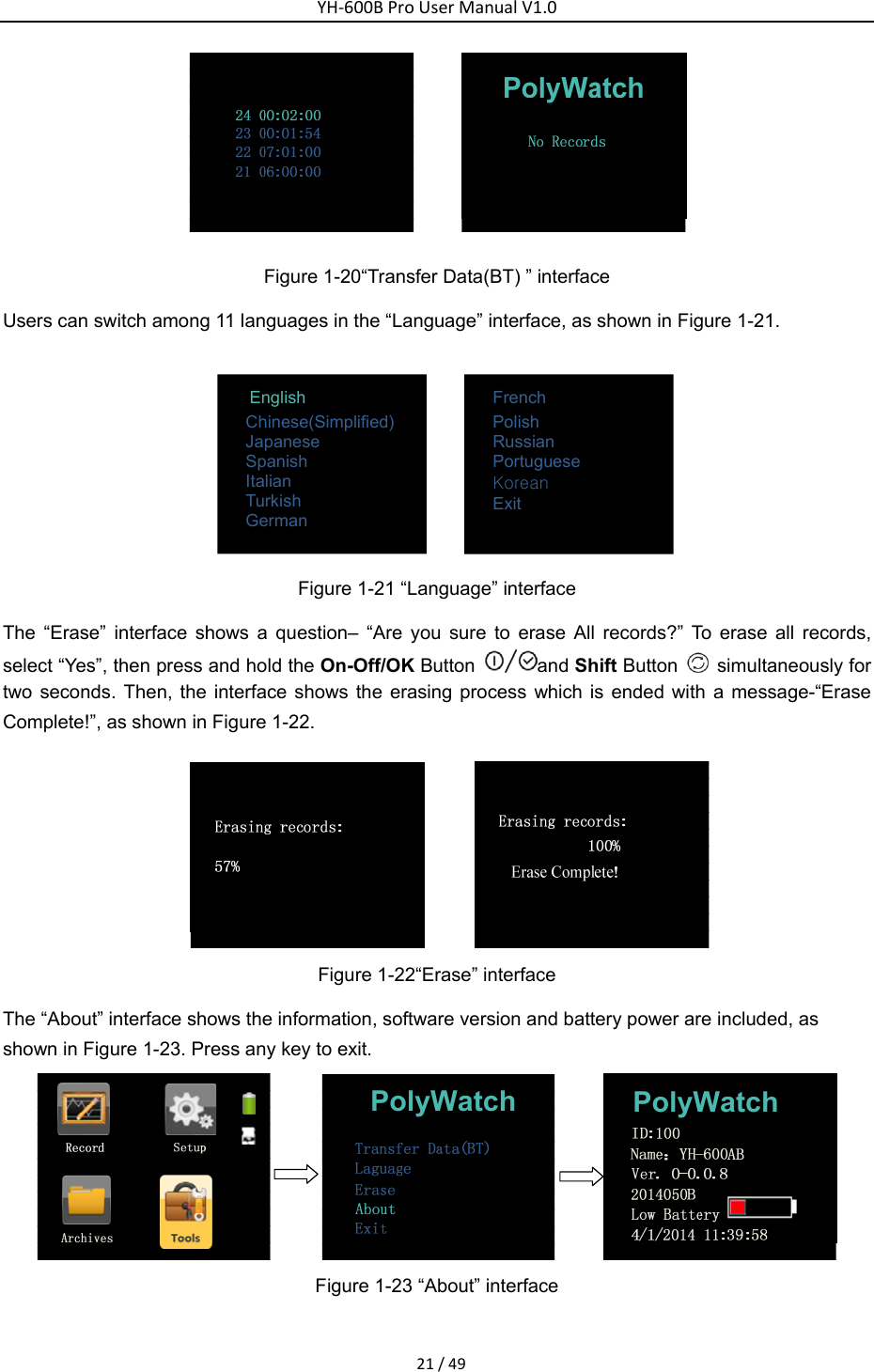
YH‐600BProUserManualV1.020/49Select a record in the list of records, and press the On-Off/OK Button  . If the record is valid, a ribbon interface will appear, indicating the severity of SAHS. If not, “Invalid Data” will appear, as shown in Figure 1-18.    Figure 1-18 “SAHS Severity Indication” interface Select a record in the list of records. If the record is invalid, continue to press the On-Off/OK Button   to trigger the QR code, as shown in Figure 1-19.      Figure 1-19 QR code interface   Scan the QR code by intelligent terminal app “BMC PolyWatch” to view analysis results.   When operations are done, press the On-Off/OK Button    and Shift Button    to exit the list of records and return to the standby interface.   WARNING! The analysis results of the app are for reference only. The diagnosis should be given by your physician. 10.2.6 Accessing the “Tools” Interface   From the standby interface, press the Shift Button   to switch the yellow frame to the “Tools” icon . Press the On-Off/OK Button    to enter the “Tools” interface. There are five options in this interface: Transfer Data(BT), Language, Erase, About, and Exit.   The “Transfer Data(BT)” interface shows all records and allows data transmission. If there are no data records, the screen will display “No Records”, but Bluetooth pairing will not be affected, as shown in figure 1-20.
YH‐600BProUserManualV1.021/49 Figure 1-20“Transfer Data(BT) ” interface   Users can switch among 11 languages in the “Language” interface, as shown in Figure 1-21.       English             Chinese(Simplified) Japanese Spanish Italian Turkish German                         French Polish Russian Portuguese Korean Exit   Figure 1-21 “Language” interface The “Erase” interface shows a question– “Are you sure to erase All records?” To erase all records, select “Yes”, then press and hold the On-Off/OK Button  and Shift Button    simultaneously for two seconds. Then, the interface shows the erasing process which is ended with a message-“Erase Complete!”, as shown in Figure 1-22.    Figure 1-22“Erase” interface The “About” interface shows the information, software version and battery power are included, as shown in Figure 1-23. Press any key to exit.   PolyWatch PolyWatch Figure 1-23 “About” interface
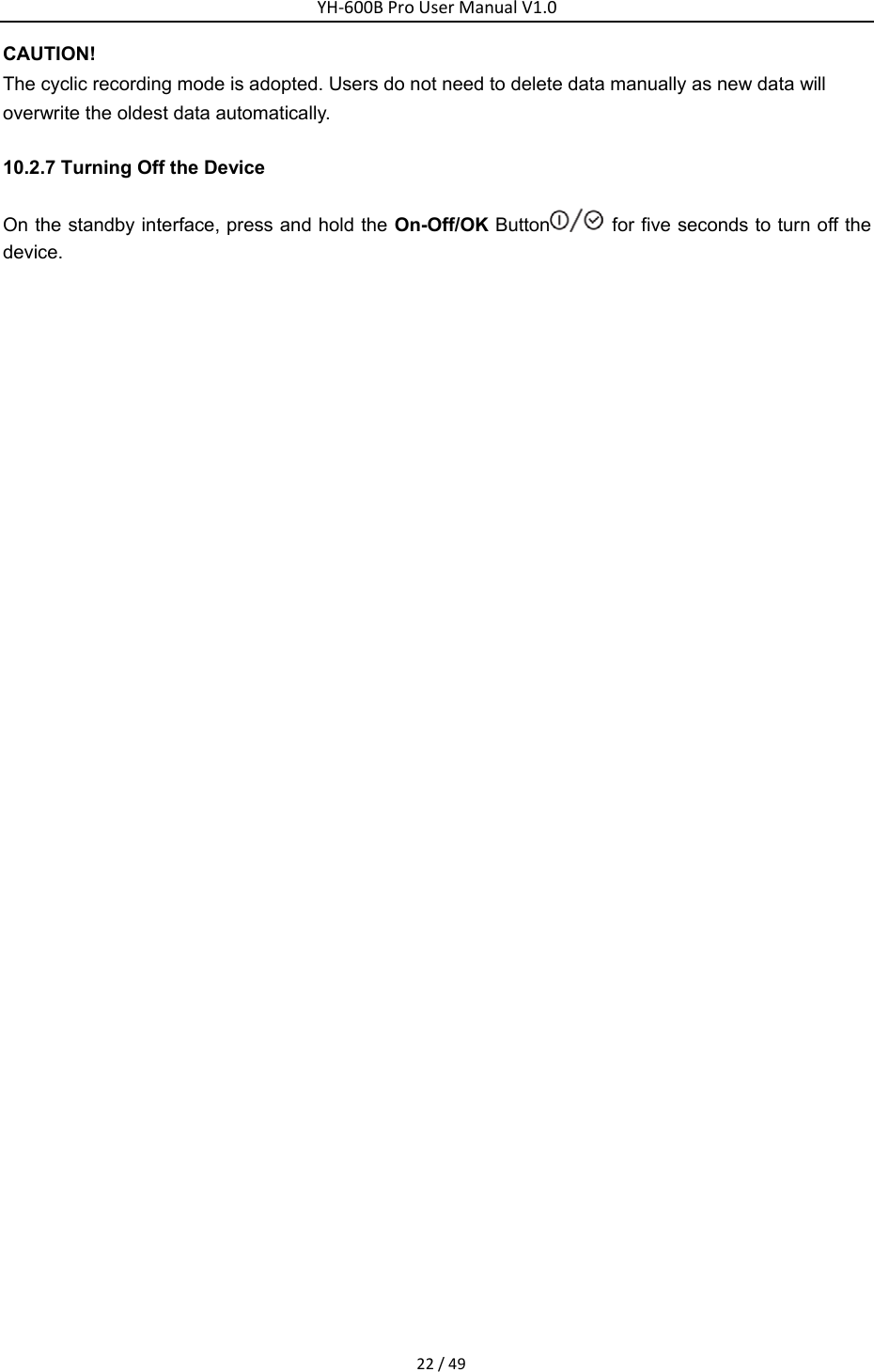
YH‐600BProUserManualV1.022/49CAUTION! The cyclic recording mode is adopted. Users do not need to delete data manually as new data will overwrite the oldest data automatically. 10.2.7 Turning Off the Device On the standby interface, press and hold the On-Off/OK Button   for five seconds to turn off the device.
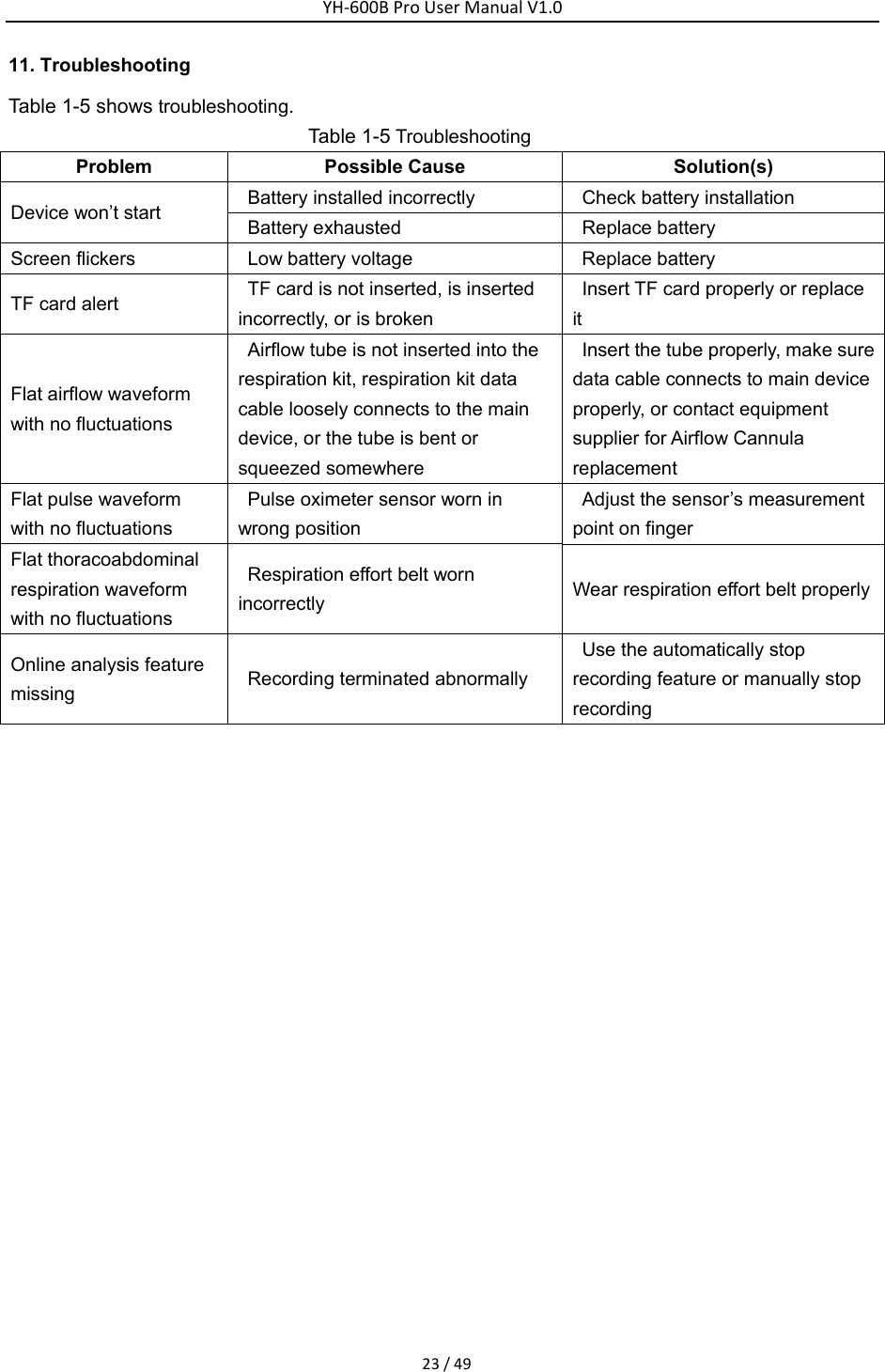
YH‐600BProUserManualV1.023/4911. Troubleshooting   Table 1-5 shows troubleshooting. Table 1-5 Troubleshooting Problem   Possible Cause   Solution(s) Device won’t start    Battery installed incorrectly    Check battery installation     Battery exhausted  Replace battery   Screen flickers    Low battery voltage    Replace battery   TF card alert    TF card is not inserted, is inserted incorrectly, or is broken   Insert TF card properly or replace it  Flat airflow waveform with no fluctuations   Airflow tube is not inserted into the respiration kit, respiration kit data cable loosely connects to the main device, or the tube is bent or squeezed somewhere   Insert the tube properly, make sure data cable connects to main device properly, or contact equipment supplier for Airflow Cannula replacement  Flat pulse waveform with no fluctuations Pulse oximeter sensor worn in wrong position     Adjust the sensor’s measurement point on finger   Flat thoracoabdominal respiration waveform with no fluctuations Respiration effort belt worn incorrectly   Wear respiration effort belt properly Online analysis feature missing   Recording terminated abnormally   Use the automatically stop recording feature or manually stop recording
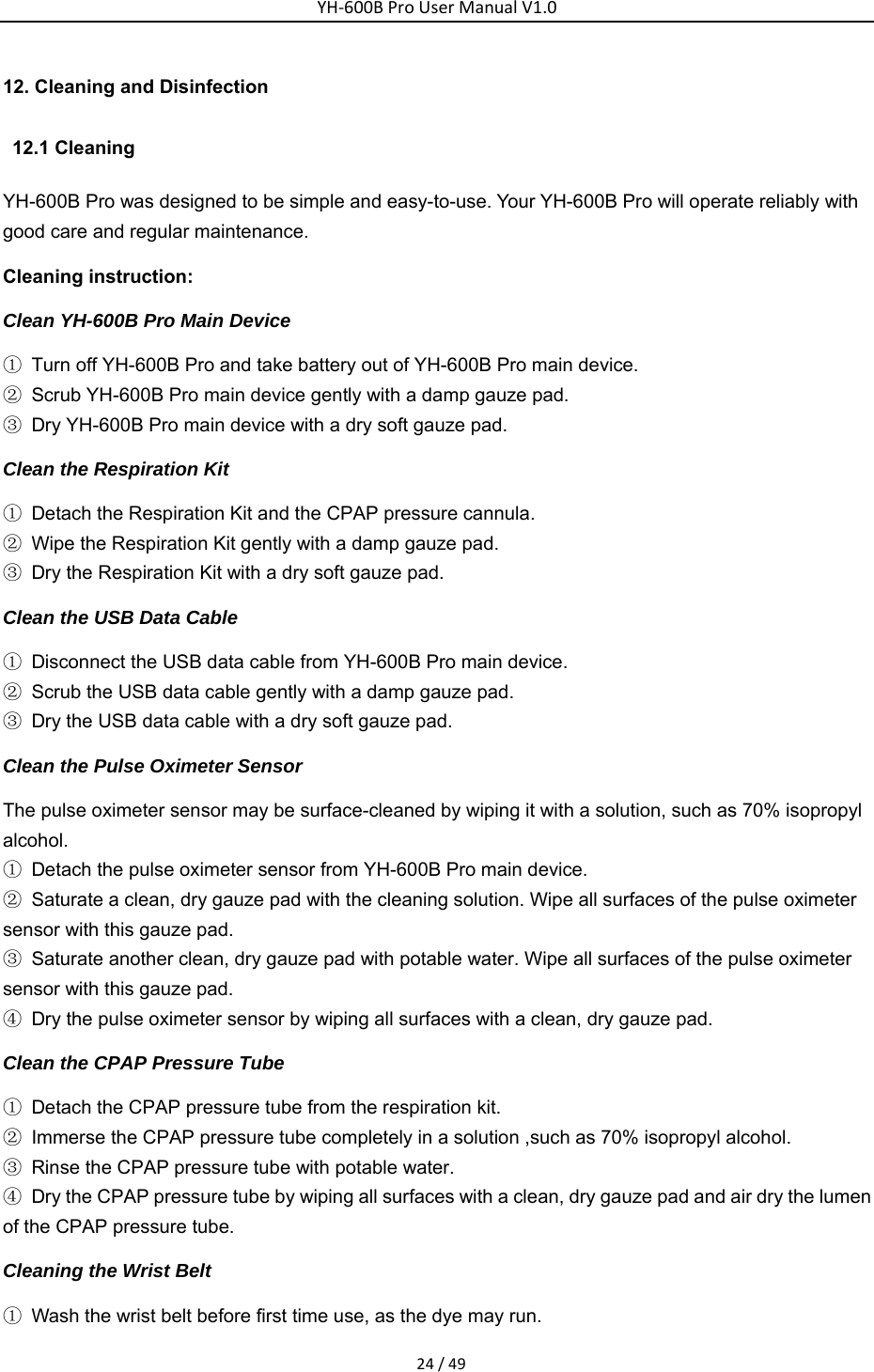
YH‐600BProUserManualV1.024/4912. Cleaning and Disinfection  12.1 Cleaning  YH-600B Pro was designed to be simple and easy-to-use. Your YH-600B Pro will operate reliably with good care and regular maintenance. Cleaning instruction: Clean YH-600B Pro Main Device ①  Turn off YH-600B Pro and take battery out of YH-600B Pro main device.   ②  Scrub YH-600B Pro main device gently with a damp gauze pad. ③  Dry YH-600B Pro main device with a dry soft gauze pad. Clean the Respiration Kit ①  Detach the Respiration Kit and the CPAP pressure cannula. ②  Wipe the Respiration Kit gently with a damp gauze pad. ③  Dry the Respiration Kit with a dry soft gauze pad. Clean the USB Data Cable ①  Disconnect the USB data cable from YH-600B Pro main device. ②  Scrub the USB data cable gently with a damp gauze pad. ③  Dry the USB data cable with a dry soft gauze pad. Clean the Pulse Oximeter Sensor The pulse oximeter sensor may be surface-cleaned by wiping it with a solution, such as 70% isopropyl alcohol. ①  Detach the pulse oximeter sensor from YH-600B Pro main device. ②  Saturate a clean, dry gauze pad with the cleaning solution. Wipe all surfaces of the pulse oximeter sensor with this gauze pad. ③  Saturate another clean, dry gauze pad with potable water. Wipe all surfaces of the pulse oximeter sensor with this gauze pad.   ④  Dry the pulse oximeter sensor by wiping all surfaces with a clean, dry gauze pad. Clean the CPAP Pressure Tube ①  Detach the CPAP pressure tube from the respiration kit. ②  Immerse the CPAP pressure tube completely in a solution ,such as 70% isopropyl alcohol. ③  Rinse the CPAP pressure tube with potable water. ④  Dry the CPAP pressure tube by wiping all surfaces with a clean, dry gauze pad and air dry the lumen of the CPAP pressure tube. Cleaning the Wrist Belt   ①  Wash the wrist belt before first time use, as the dye may run.
YH‐600BProUserManualV1.025/49②  Detach the wrist belt from the main device. ③ İt is important to always hand-wash the wrist belt. ④  Wash the wrist belt in warm (approx. 40°C) and soapy water. Use pure soap.   ⑤  Rinse the wrist belt well with potable water and allow it to air dry out of direct sunlight. CAUTION!     •  Never use abrasive agents, alcohol, chlorine-containing substances, acetone, or other solvents to clean the device. •  Do not immerse the device, the airflow kit, or the pulse oximeter sensor in fluids, and ensure that no fluids penetrate into the product. Do not immerse the main device in water. •  The Airflow Cannula is non-reusable, dispose of it in accordance with local regulations. 12.2 Disinfection If necessary, i.e. after infectious diseases, uses between patients or if parts have become unusually dirty, you can disinfect certain parts.   Clean YH-600B Pro parts as instructed above. Disinfect YH-600B Pro as follows: We recommend CaviCide® liquid for disinfection. We recommend you to wear suitable gloves (e.g. house-hold or disposable gloves) during disinfection procedures.  Disinfect the Pulse Oximeter Sensor The pulse oximeter sensor may be surface-cleaned by wiping it with CaviCide® solution. ①  Detach the pulse oximeter sensor from YH-600B Pro main device. ②  Saturate a clean, dry gauze pad with the CaviCide® solution. Wipe all surfaces of the pulse oximeter sensor with this gauze pad. ③  Saturate another clean, dry gauze pad with potable water. Wipe all surfaces of the pulse oximeter sensor with this gauze pad.   ④  Discard the used potable water. Always use fresh volumes of water for each wipe. Do not reuse the water for wipe or any other purpose. Repeat rinsing the pulse oximeter sensor for two additional times, for a total of three wipes to remove CaviCide® solution residues. ⑤  Dry the pulse oximeter sensor by wiping all surfaces with a clean, dry gauze pad. Disinfect the CPAP Pressure Tube ①  Detach the CPAP pressure tube from the airflow kit. ② Immerse the CPAP pressure tube completely, filling all lumens and eliminating air pockets, in CaviCide® solution for a minimum of 5 minutes at 20℃(68℉) or higher to destroy all pathogenic microorganisms. ③  Rinse the CPAP pressure tube with potable water. Keep the CPAP pressure tube totally immersed
YH‐600BProUserManualV1.026/49for a minimum of 1 minute. Manually flush all lumens with large volumes (not less than 100 ml) of rinse water. ④  Remove the CPAP pressure tube and discard the rinse water. Always use fresh volumes of water for each rinse. Do not reuse the water for rinsing or any other purpose. Repeat rinsing the CPAP pressure tube for two additional times, for a total of three wipes to remove CaviCide® solution residues. ⑤  Dry the CPAP pressure tube by wiping all surfaces with a clean, dry gauze pad and air dry the lumen of the CPAP pressure tube. Disinfect the Wrist Belt ①  Detach the wrist belt from the main device. ②  Immerse the wrist belt completely in CaviCide® solution for a minimum of 5 minutes at 20℃(68℉) or higher to destroy all pathogenic microorganisms. ③ Rinse the wrist belt with potable water. Keep the wrist belt totally immersed for a minimum of 1 minute in duration. ④  Remove the wrist belt and discard the rinse water. Always use fresh volumes of water for each rinse. Do not reuse the water for rinsing or any other purpose. Repeat rinsing the wrist belt for two additional times, for a total of three wipes to remove CaviCide® solution residues. ⑤  Air dry the wrist belt out of direct sunlight. Sterilization of the device and its components other than recommended is not permitted. WARNING!    The device shall not be serviced or maintained while in use with a patient. 13. Disposal Dispose of the device and its package in accordance with local regulations. Do not dispose device as household waste. To ensure proper disposal of the device, consult an authorized and certified electronic scrap recovery firm. You can find out their address from your environmental officer or your municipal authorities.
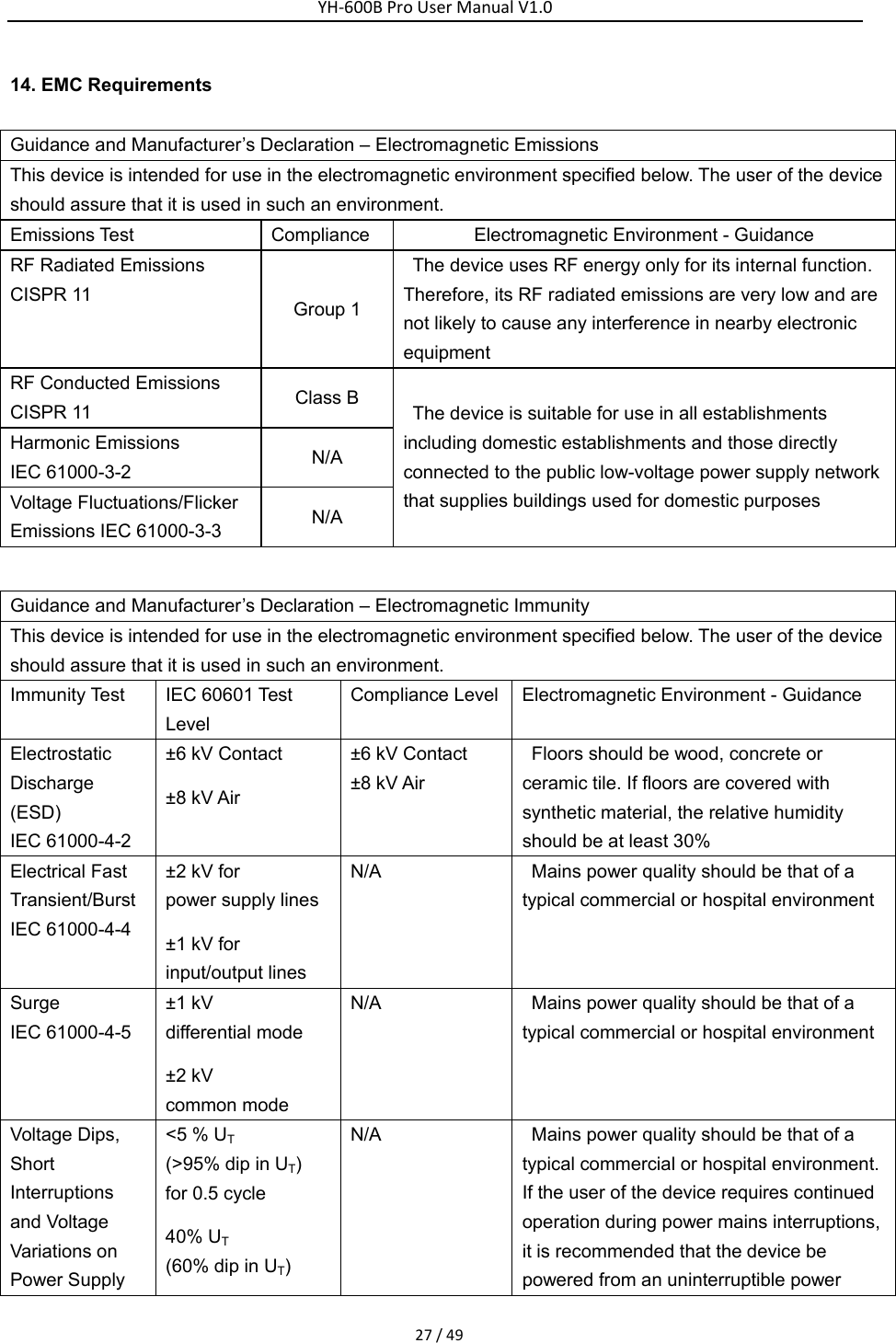
YH‐600BProUserManualV1.027/4914. EMC Requirements   Guidance and Manufacturer’s Declaration – Electromagnetic Emissions This device is intended for use in the electromagnetic environment specified below. The user of the device should assure that it is used in such an environment. Emissions Test  Compliance  Electromagnetic Environment - Guidance RF Radiated Emissions CISPR 11  Group 1 The device uses RF energy only for its internal function. Therefore, its RF radiated emissions are very low and are not likely to cause any interference in nearby electronic equipment RF Conducted Emissions CISPR 11  Class B  The device is suitable for use in all establishments including domestic establishments and those directly connected to the public low-voltage power supply network that supplies buildings used for domestic purposes Harmonic Emissions IEC 61000-3-2  N/A Voltage Fluctuations/Flicker Emissions IEC 61000-3-3  N/A  Guidance and Manufacturer’s Declaration – Electromagnetic Immunity This device is intended for use in the electromagnetic environment specified below. The user of the device should assure that it is used in such an environment. Immunity Test  IEC 60601 Test Level Compliance Level Electromagnetic Environment - Guidance Electrostatic Discharge (ESD) IEC 61000-4-2 ±6 kV Contact ±8 kV Air ±6 kV Contact ±8 kV Air Floors should be wood, concrete or ceramic tile. If floors are covered with synthetic material, the relative humidity should be at least 30% Electrical Fast Transient/Burst IEC 61000-4-4 ±2 kV for   power supply lines ±1 kV for   input/output lines N/A  Mains power quality should be that of a typical commercial or hospital environment Surge  IEC 61000-4-5 ±1 kV   differential mode ±2 kV   common mode N/A  Mains power quality should be that of a typical commercial or hospital environment Voltage Dips, Short Interruptions and Voltage Variations on Power Supply <5 % UT  (>95% dip in UT)  for 0.5 cycle   40% UT  (60% dip in UT)  N/A  Mains power quality should be that of a typical commercial or hospital environment. If the user of the device requires continued operation during power mains interruptions, it is recommended that the device be powered from an uninterruptible power
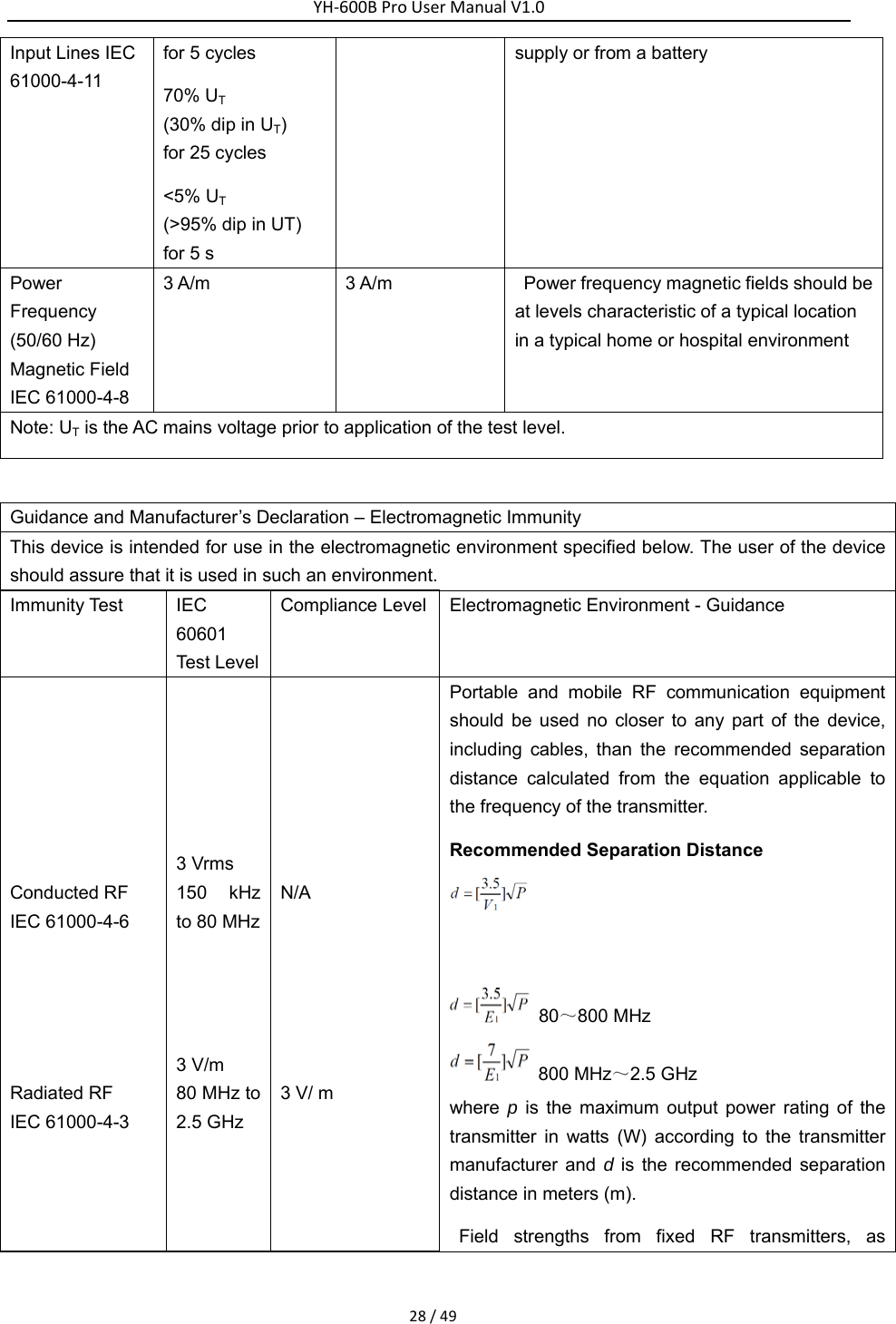
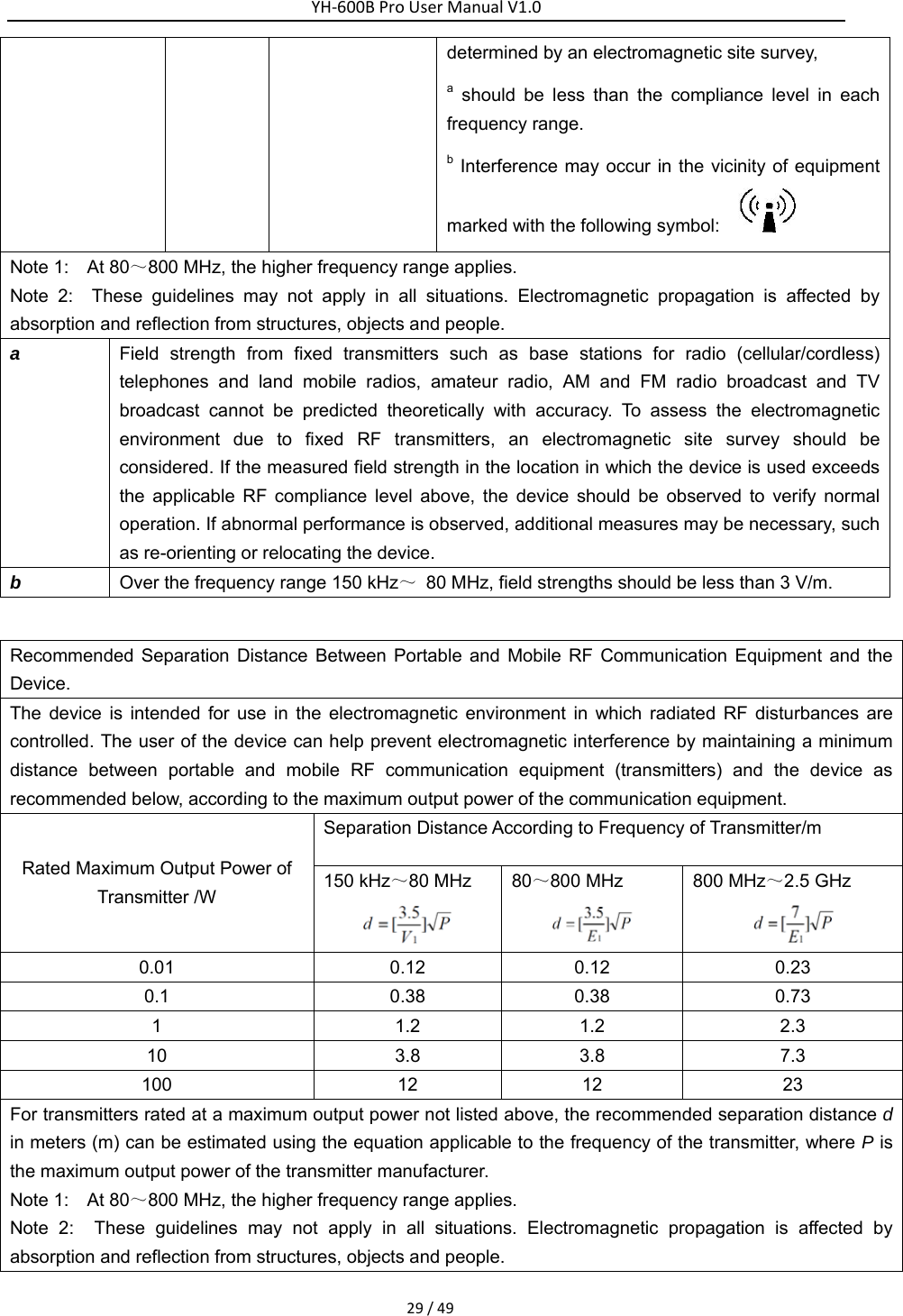
YH‐600BProUserManualV1.028/49Input Lines IEC 61000-4-11 for 5 cycles   70% UT  (30% dip in UT)  for 25 cycles   <5% UT  (>95% dip in UT)   for 5 s supply or from a battery Power Frequency (50/60 Hz) Magnetic Field IEC 61000-4-8 3 A/m  3 A/m  Power frequency magnetic fields should be at levels characteristic of a typical location in a typical home or hospital environment Note: UT is the AC mains voltage prior to application of the test level.  Guidance and Manufacturer’s Declaration – Electromagnetic Immunity This device is intended for use in the electromagnetic environment specified below. The user of the device should assure that it is used in such an environment. Immunity Test  IEC 60601 Test Level Compliance Level Electromagnetic Environment - Guidance        Conducted RF IEC 61000-4-6    Radiated RF IEC 61000-4-3       3 Vrms 150 kHz to 80 MHz     3 V/m 80 MHz to 2.5 GHz        N/A       3 V/ m  Portable and mobile RF communication equipment should be used no closer to any part of the device, including cables, than the recommended separation distance calculated from the equation applicable to the frequency of the transmitter. Recommended Separation Distance     80~800 MHz  800 MHz~2.5 GHz where  p is the maximum output power rating of the transmitter in watts (W) according to the transmitter manufacturer and d is the recommended separation distance in meters (m). Field strengths from fixed RF transmitters, as
YH‐600BProUserManualV1.029/49determined by an electromagnetic site survey,   a should be less than the compliance level in each frequency range.   b Interference may occur in the vicinity of equipment marked with the following symbol:       Note 1:    At 80~800 MHz, the higher frequency range applies. Note 2:  These guidelines may not apply in all situations. Electromagnetic propagation is affected by absorption and reflection from structures, objects and people. a  Field strength from fixed transmitters such as base stations for radio (cellular/cordless) telephones and land mobile radios, amateur radio, AM and FM radio broadcast and TV broadcast cannot be predicted theoretically with accuracy. To assess the electromagnetic environment due to fixed RF transmitters, an electromagnetic site survey should be considered. If the measured field strength in the location in which the device is used exceeds the applicable RF compliance level above, the device should be observed to verify normal operation. If abnormal performance is observed, additional measures may be necessary, such as re-orienting or relocating the device. b Over the frequency range 150 kHz~  80 MHz, field strengths should be less than 3 V/m.  Recommended Separation Distance Between Portable and Mobile RF Communication Equipment and the Device. The device is intended for use in the electromagnetic environment in which radiated RF disturbances are controlled. The user of the device can help prevent electromagnetic interference by maintaining a minimum distance between portable and mobile RF communication equipment (transmitters) and the device as recommended below, according to the maximum output power of the communication equipment. Rated Maximum Output Power of Transmitter /W Separation Distance According to Frequency of Transmitter/m   150 kHz~80 MHz  80~800 MHz  800 MHz~2.5 GHz  0.01 0.12 0.12 0.23 0.1 0.38 0.38 0.73 1 1.2 1.2 2.3 10 3.8 3.8 7.3 100 12 12 23 For transmitters rated at a maximum output power not listed above, the recommended separation distance d in meters (m) can be estimated using the equation applicable to the frequency of the transmitter, where P is the maximum output power of the transmitter manufacturer. Note 1:    At 80~800 MHz, the higher frequency range applies. Note 2:  These guidelines may not apply in all situations. Electromagnetic propagation is affected by absorption and reflection from structures, objects and people.
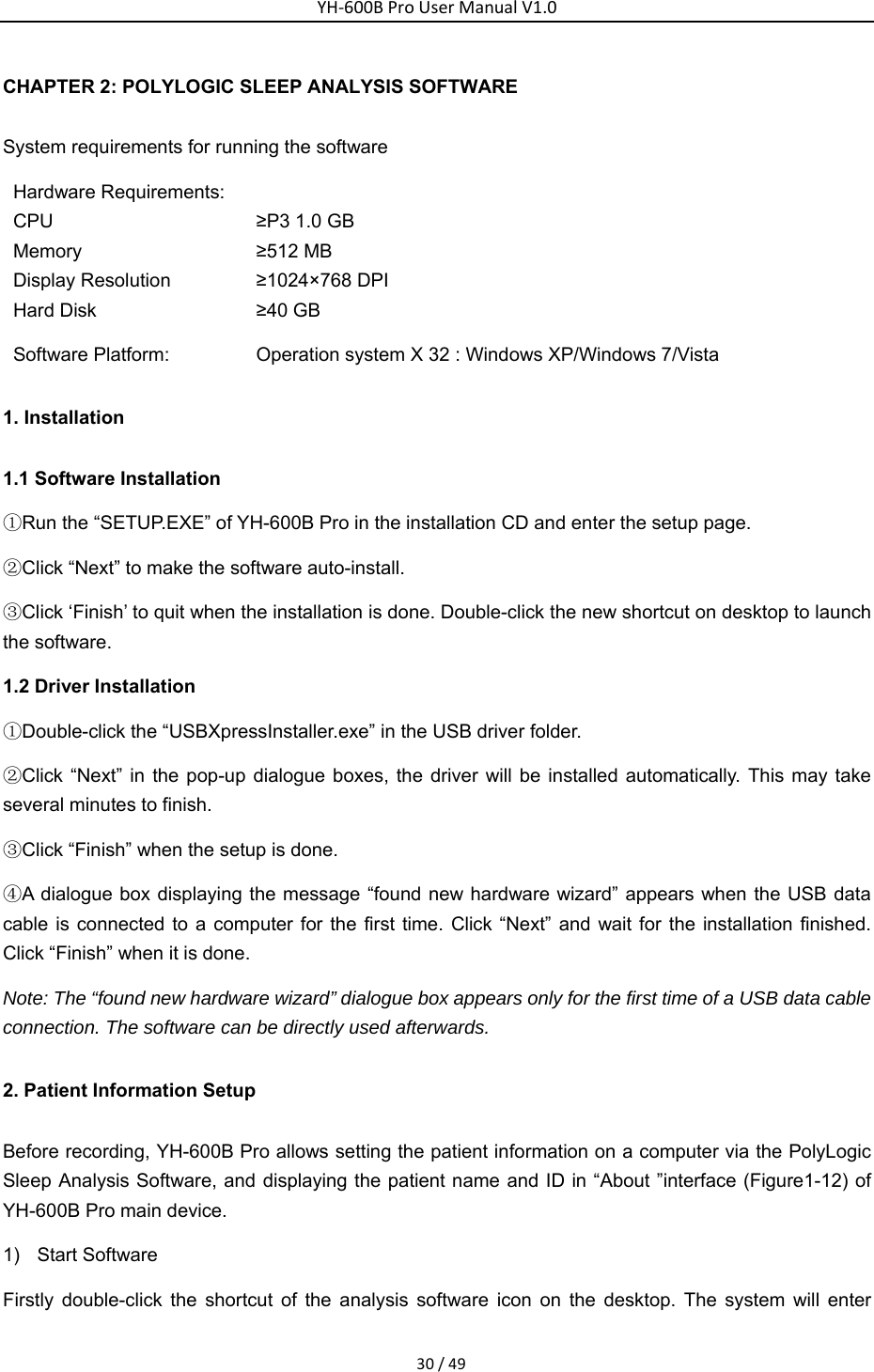
YH‐600BProUserManualV1.030/49CHAPTER 2: POLYLOGIC SLEEP ANALYSIS SOFTWARE System requirements for running the software Hardware Requirements: CPU  ≥P3 1.0 GB Memory  ≥512 MB Display Resolution  ≥1024×768 DPI Hard Disk  ≥40 GB Software Platform:  Operation system Х 32 : Windows XP/Windows 7/Vista 1. Installation 1.1 Software Installation ①Run the “SETUP.EXE” of YH-600B Pro in the installation CD and enter the setup page. ②Click “Next” to make the software auto-install. ③Click ‘Finish’ to quit when the installation is done. Double-click the new shortcut on desktop to launch the software. 1.2 Driver Installation ①Double-click the “USBXpressInstaller.exe” in the USB driver folder. ②Click “Next” in the pop-up dialogue boxes, the driver will be installed automatically. This may take several minutes to finish. ③Click “Finish” when the setup is done. ④A dialogue box displaying the message “found new hardware wizard” appears when the USB data cable is connected to a computer for the first time. Click “Next” and wait for the installation finished. Click “Finish” when it is done. Note: The “found new hardware wizard” dialogue box appears only for the first time of a USB data cable connection. The software can be directly used afterwards.   2. Patient Information Setup Before recording, YH-600B Pro allows setting the patient information on a computer via the PolyLogic Sleep Analysis Software, and displaying the patient name and ID in “About ”interface (Figure1-12) of YH-600B Pro main device.   1) Start Software  Firstly double-click the shortcut of the analysis software icon on the desktop. The system will enter
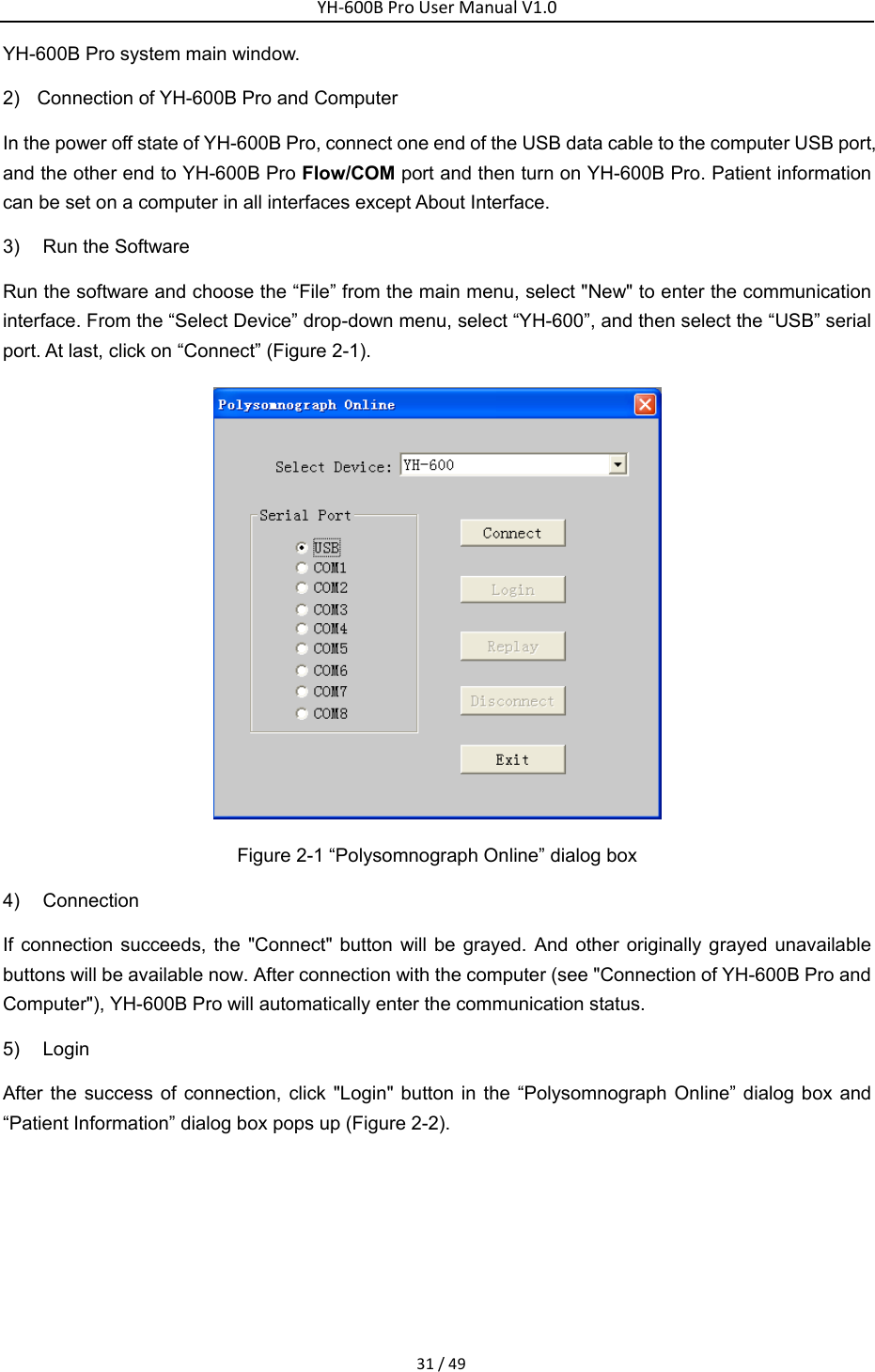
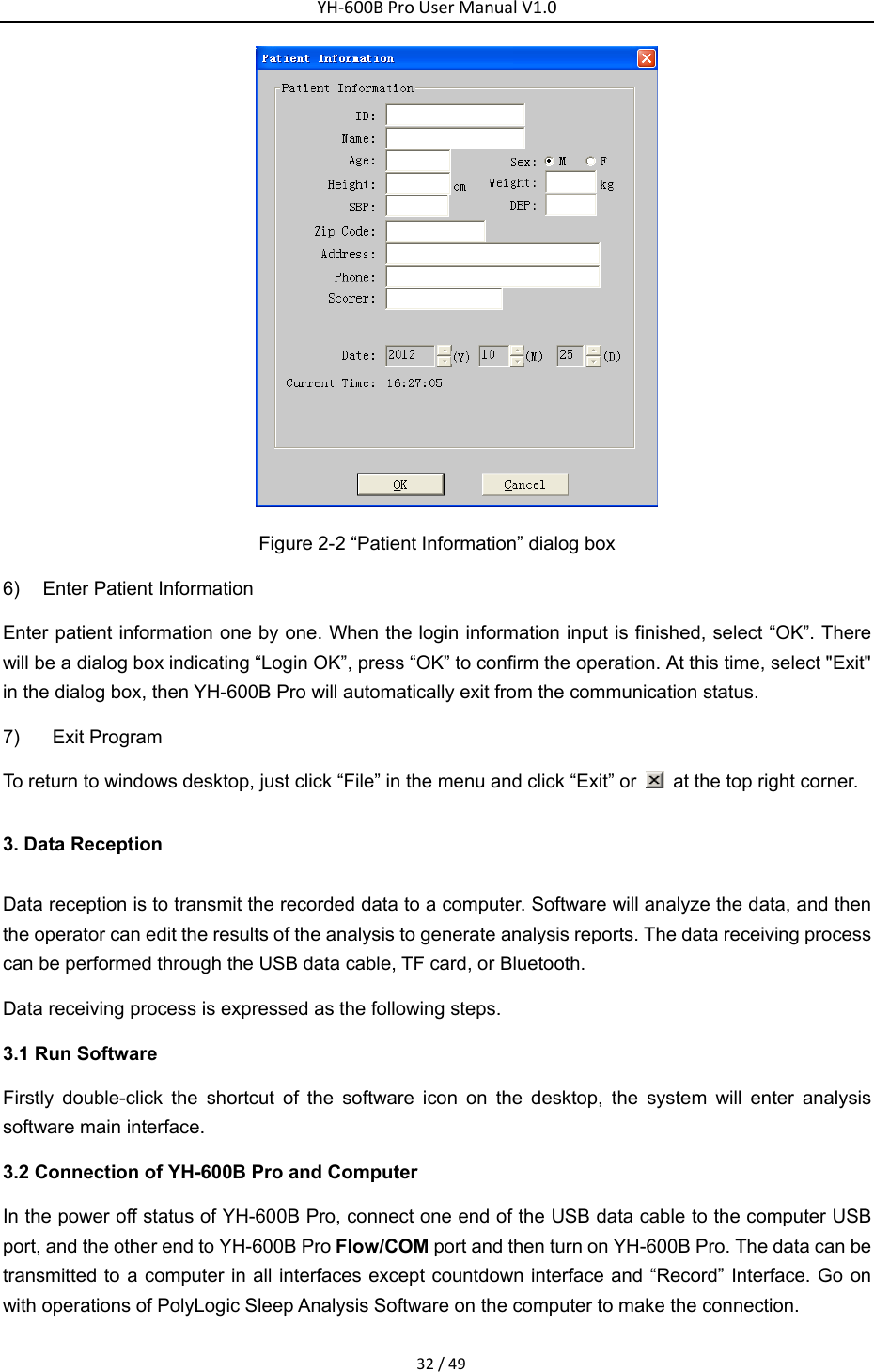
YH‐600BProUserManualV1.031/49YH-600B Pro system main window. 2)  Connection of YH-600B Pro and Computer In the power off state of YH-600B Pro, connect one end of the USB data cable to the computer USB port, and the other end to YH-600B Pro Flow/COM port and then turn on YH-600B Pro. Patient information can be set on a computer in all interfaces except About Interface.   3)  Run the Software Run the software and choose the “File” from the main menu, select "New" to enter the communication interface. From the “Select Device” drop-down menu, select “YH-600”, and then select the “USB” serial port. At last, click on “Connect” (Figure 2-1).    Figure 2-1 “Polysomnograph Online” dialog box 4) Connection If connection succeeds, the "Connect" button will be grayed. And other originally grayed unavailable buttons will be available now. After connection with the computer (see "Connection of YH-600B Pro and Computer"), YH-600B Pro will automatically enter the communication status. 5) Login After the success of connection, click "Login" button in the “Polysomnograph Online” dialog box and “Patient Information” dialog box pops up (Figure 2-2).
YH‐600BProUserManualV1.032/49 Figure 2-2 “Patient Information” dialog box 6)  Enter Patient Information Enter patient information one by one. When the login information input is finished, select “OK”. There will be a dialog box indicating “Login OK”, press “OK” to confirm the operation. At this time, select "Exit" in the dialog box, then YH-600B Pro will automatically exit from the communication status.   7)  Exit Program To return to windows desktop, just click “File” in the menu and click “Exit” or    at the top right corner. 3. Data Reception Data reception is to transmit the recorded data to a computer. Software will analyze the data, and then the operator can edit the results of the analysis to generate analysis reports. The data receiving process can be performed through the USB data cable, TF card, or Bluetooth.   Data receiving process is expressed as the following steps. 3.1 Run Software Firstly double-click the shortcut of the software icon on the desktop, the system will enter analysis software main interface. 3.2 Connection of YH-600B Pro and Computer In the power off status of YH-600B Pro, connect one end of the USB data cable to the computer USB port, and the other end to YH-600B Pro Flow/COM port and then turn on YH-600B Pro. The data can be transmitted to a computer in all interfaces except countdown interface and “Record” Interface. Go on with operations of PolyLogic Sleep Analysis Software on the computer to make the connection.
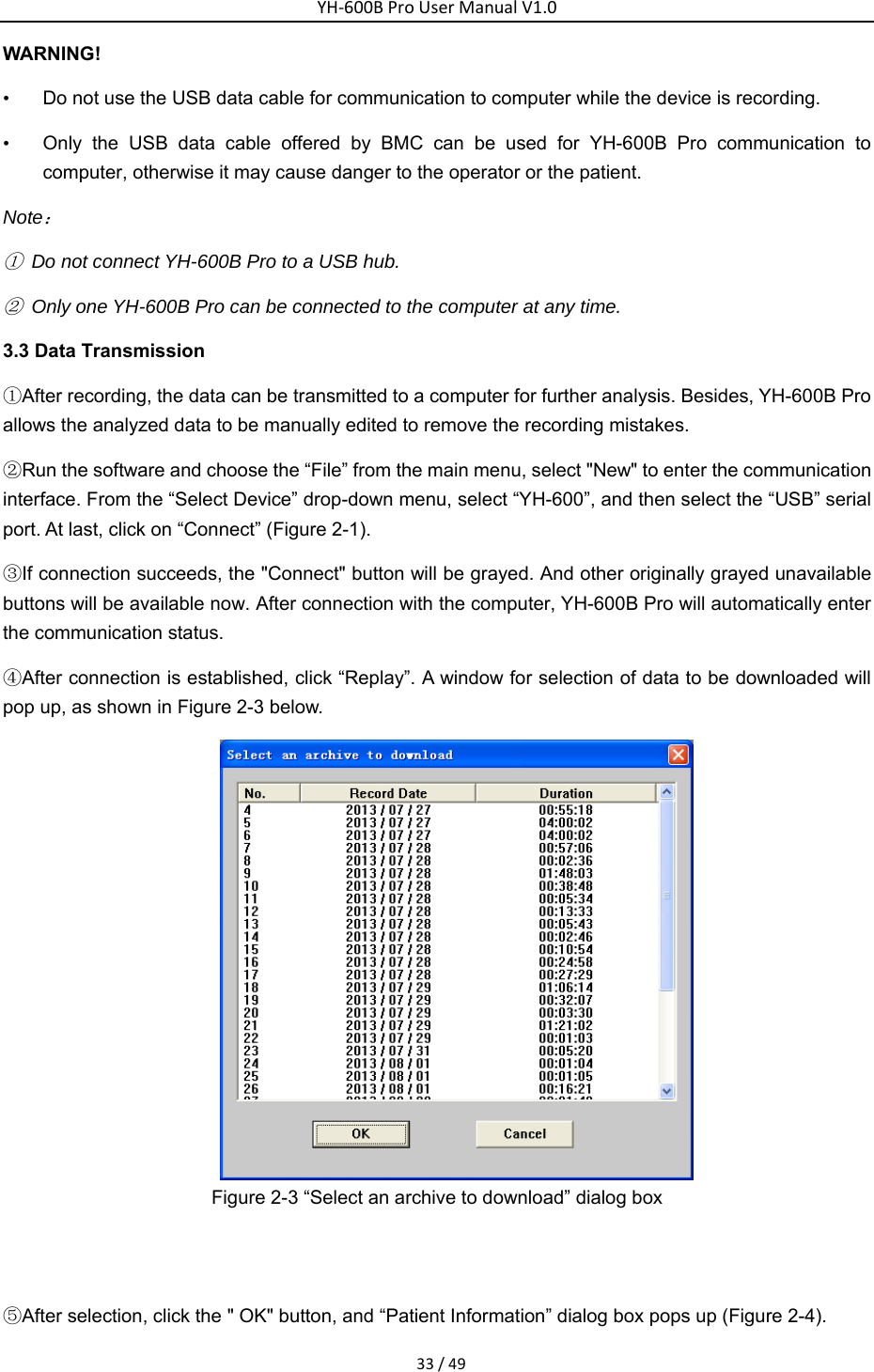
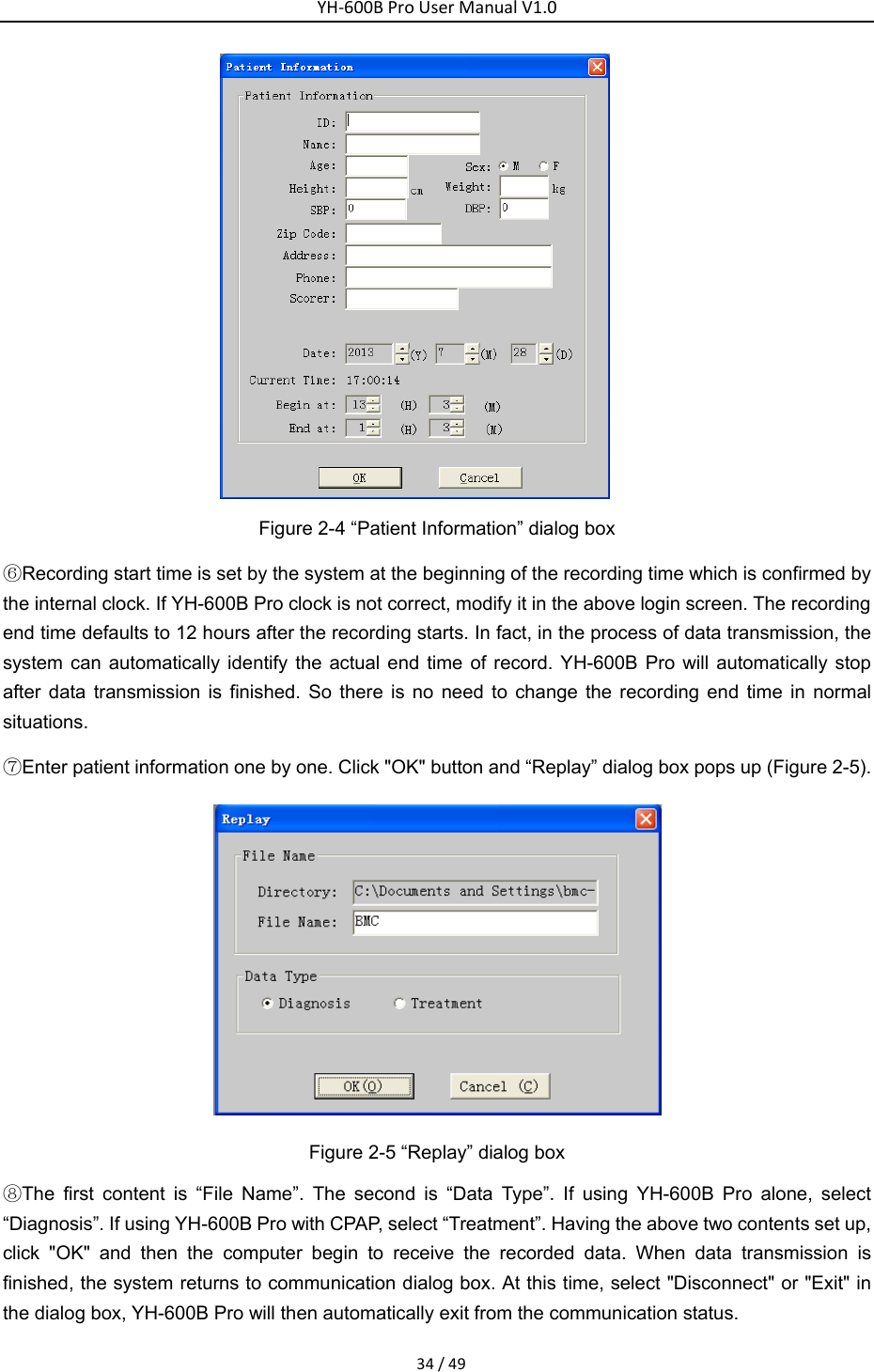
YH‐600BProUserManualV1.033/49WARNING!       •  Do not use the USB data cable for communication to computer while the device is recording. •  Only the USB data cable offered by BMC can be used for YH-600B Pro communication to computer, otherwise it may cause danger to the operator or the patient.   Note: ①  Do not connect YH-600B Pro to a USB hub. ②  Only one YH-600B Pro can be connected to the computer at any time. 3.3 Data Transmission ①After recording, the data can be transmitted to a computer for further analysis. Besides, YH-600B Pro allows the analyzed data to be manually edited to remove the recording mistakes. ②Run the software and choose the “File” from the main menu, select "New" to enter the communication interface. From the “Select Device” drop-down menu, select “YH-600”, and then select the “USB” serial port. At last, click on “Connect” (Figure 2-1). ③If connection succeeds, the "Connect" button will be grayed. And other originally grayed unavailable buttons will be available now. After connection with the computer, YH-600B Pro will automatically enter the communication status. ④After connection is established, click “Replay”. A window for selection of data to be downloaded will pop up, as shown in Figure 2-3 below.    Figure 2-3 “Select an archive to download” dialog box     ⑤After selection, click the " OK" button, and “Patient Information” dialog box pops up (Figure 2-4).
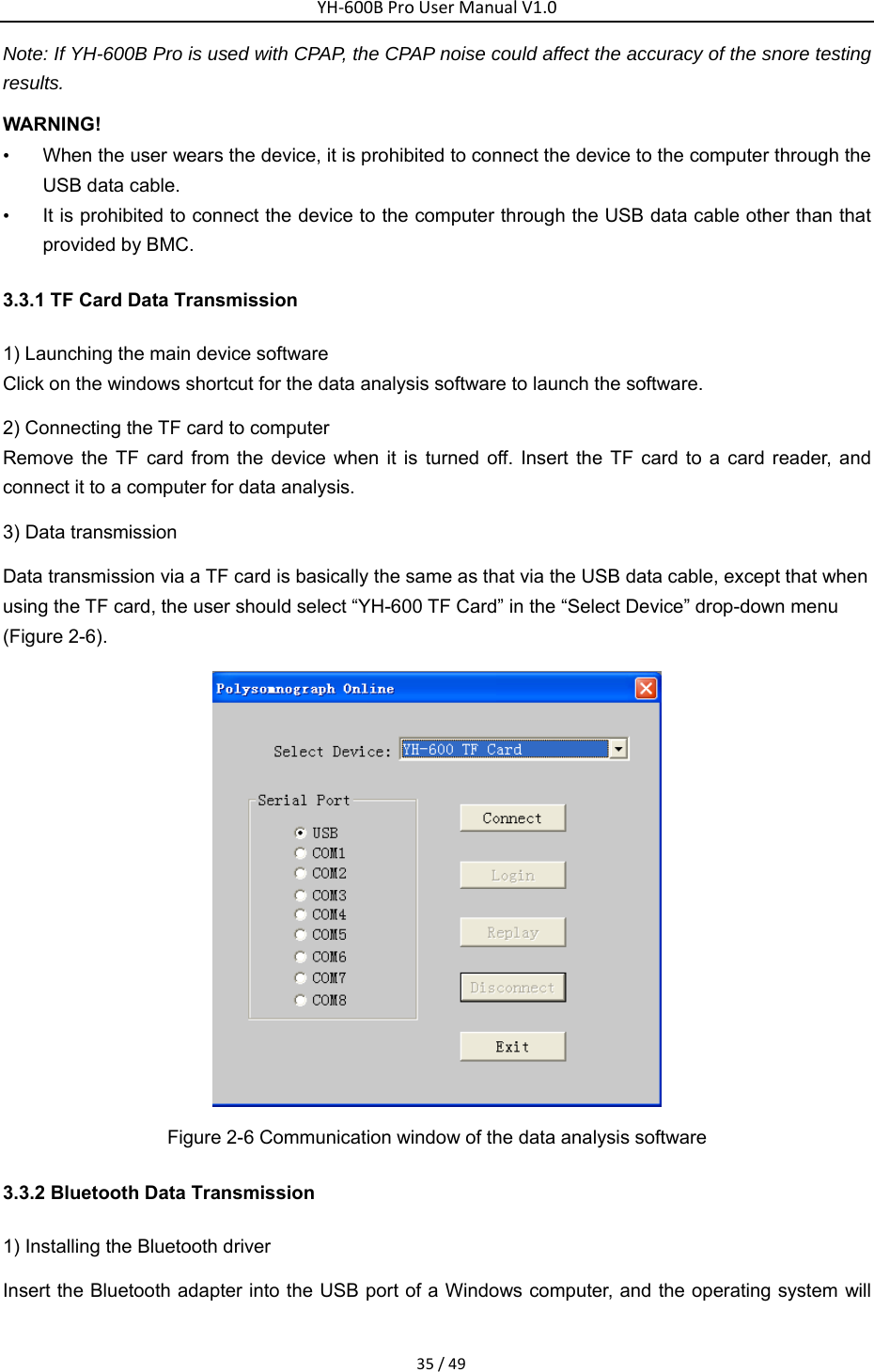
YH‐600BProUserManualV1.034/49 Figure 2-4 “Patient Information” dialog box ⑥Recording start time is set by the system at the beginning of the recording time which is confirmed by the internal clock. If YH-600B Pro clock is not correct, modify it in the above login screen. The recording end time defaults to 12 hours after the recording starts. In fact, in the process of data transmission, the system can automatically identify the actual end time of record. YH-600B Pro will automatically stop after data transmission is finished. So there is no need to change the recording end time in normal situations. ⑦Enter patient information one by one. Click "OK" button and “Replay” dialog box pops up (Figure 2-5).  Figure 2-5 “Replay” dialog box ⑧The first content is “File Name”. The second is “Data Type”. If using YH-600B Pro alone, select “Diagnosis”. If using YH-600B Pro with CPAP, select “Treatment”. Having the above two contents set up, click "OK" and then the computer begin to receive the recorded data. When data transmission is finished, the system returns to communication dialog box. At this time, select "Disconnect" or "Exit" in the dialog box, YH-600B Pro will then automatically exit from the communication status.
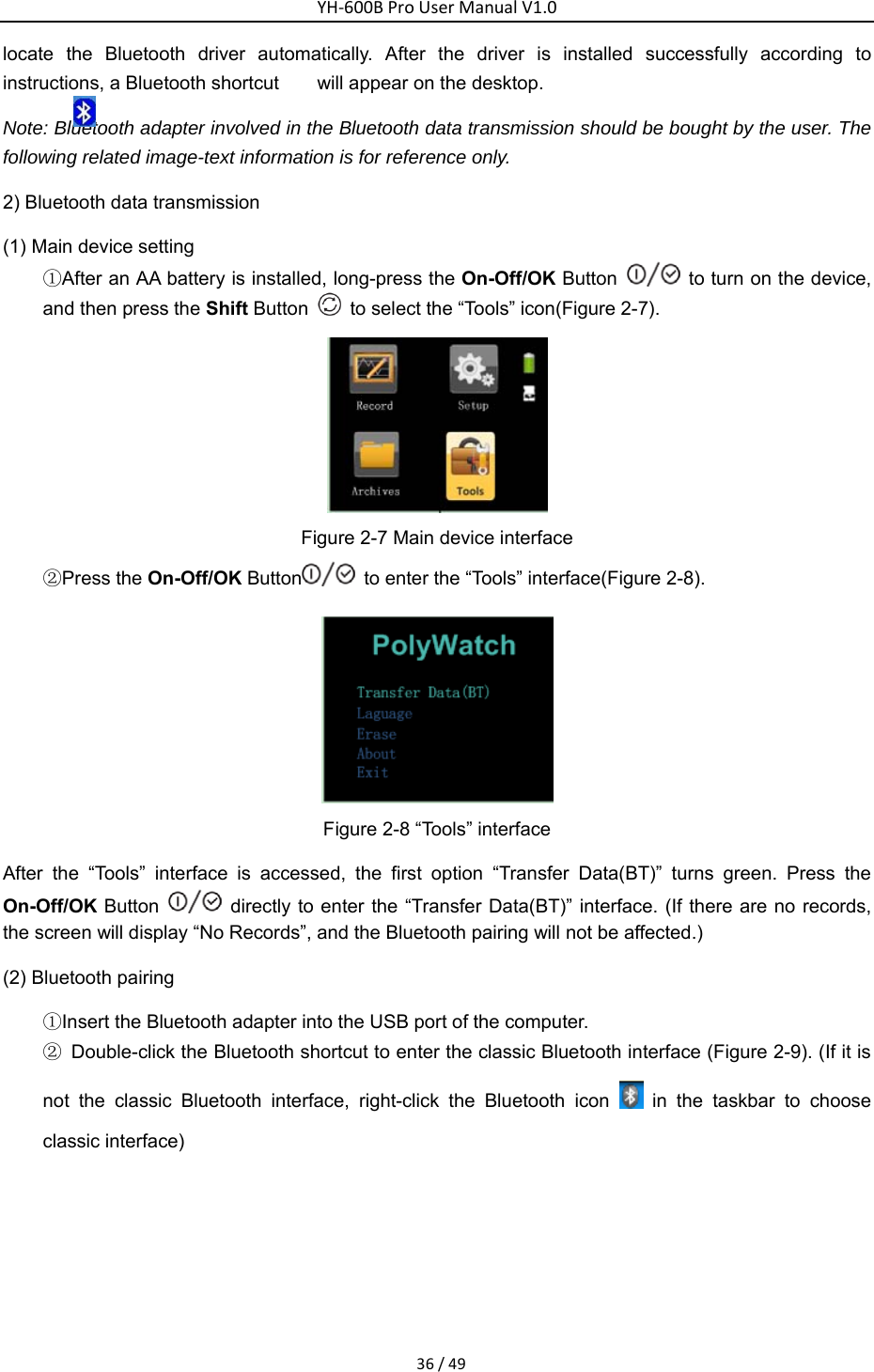
YH‐600BProUserManualV1.035/49Note: If YH-600B Pro is used with CPAP, the CPAP noise could affect the accuracy of the snore testing results. WARNING! •  When the user wears the device, it is prohibited to connect the device to the computer through the USB data cable.   •  It is prohibited to connect the device to the computer through the USB data cable other than that provided by BMC. 3.3.1 TF Card Data Transmission   1) Launching the main device software   Click on the windows shortcut for the data analysis software to launch the software.   2) Connecting the TF card to computer Remove the TF card from the device when it is turned off. Insert the TF card to a card reader, and connect it to a computer for data analysis.   3) Data transmission   Data transmission via a TF card is basically the same as that via the USB data cable, except that when using the TF card, the user should select “YH-600 TF Card” in the “Select Device” drop-down menu (Figure 2-6).    Figure 2-6 Communication window of the data analysis software   3.3.2 Bluetooth Data Transmission   1) Installing the Bluetooth driver   Insert the Bluetooth adapter into the USB port of a Windows computer, and the operating system will
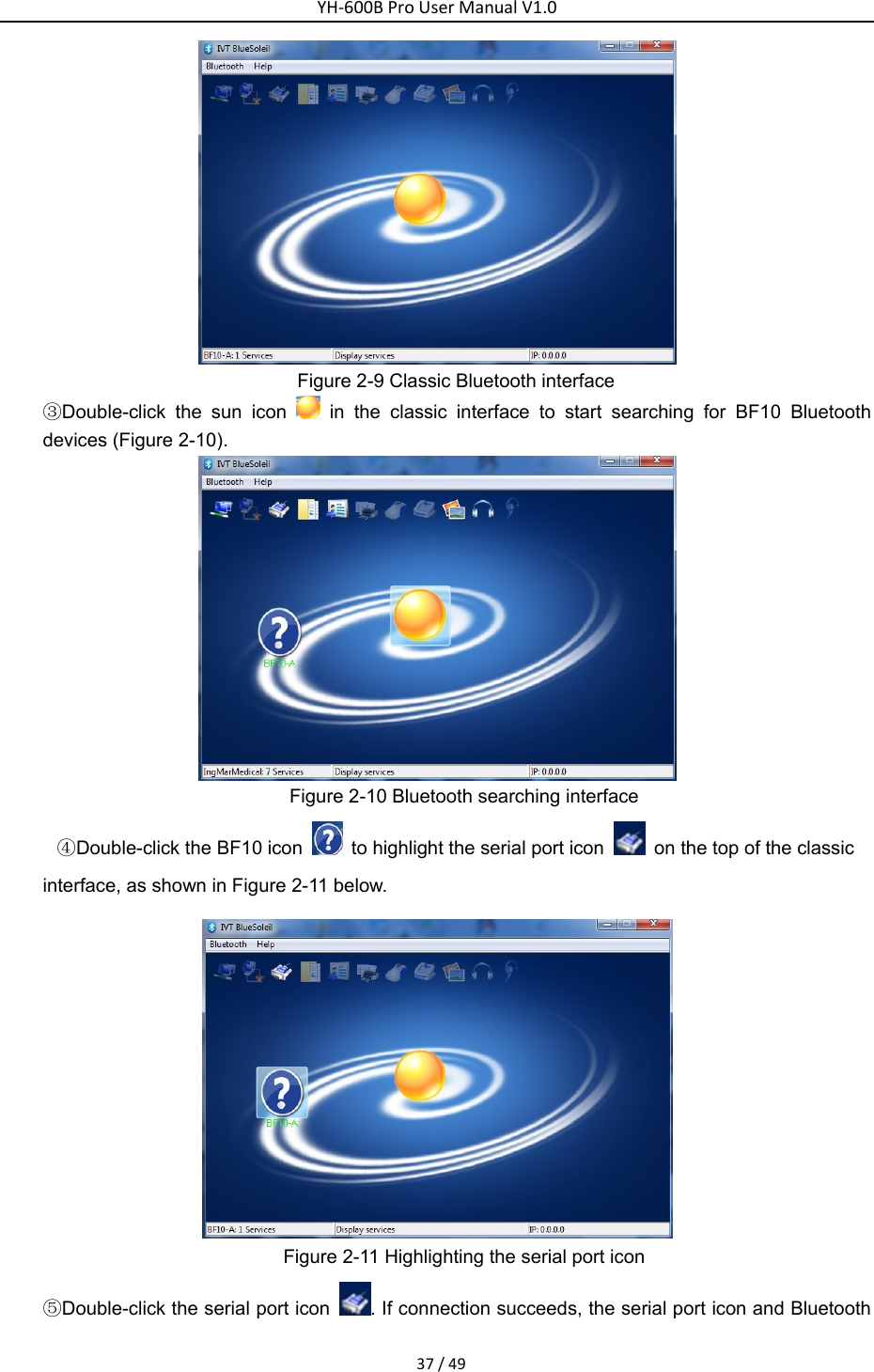
YH‐600BProUserManualV1.036/49locate the Bluetooth driver automatically. After the driver is installed successfully according to instructions, a Bluetooth shortcut        will appear on the desktop.   Note: Bluetooth adapter involved in the Bluetooth data transmission should be bought by the user. The following related image-text information is for reference only. 2) Bluetooth data transmission   (1) Main device setting   ①After an AA battery is installed, long-press the On-Off/OK Button    to turn on the device, and then press the Shift Button    to select the “Tools” icon(Figure 2-7).      Figure 2-7 Main device interface   ②Press the On-Off/OK Button   to enter the “Tools” interface(Figure 2-8).    Figure 2-8 “Tools” interface After the “Tools” interface is accessed, the first option “Transfer Data(BT)” turns green. Press the On-Off/OK Button    directly to enter the “Transfer Data(BT)” interface. (If there are no records, the screen will display “No Records”, and the Bluetooth pairing will not be affected.)       (2) Bluetooth pairing   ①Insert the Bluetooth adapter into the USB port of the computer.   ②  Double-click the Bluetooth shortcut to enter the classic Bluetooth interface (Figure 2-9). (If it is not the classic Bluetooth interface, right-click the Bluetooth icon   in the taskbar to choose classic interface)
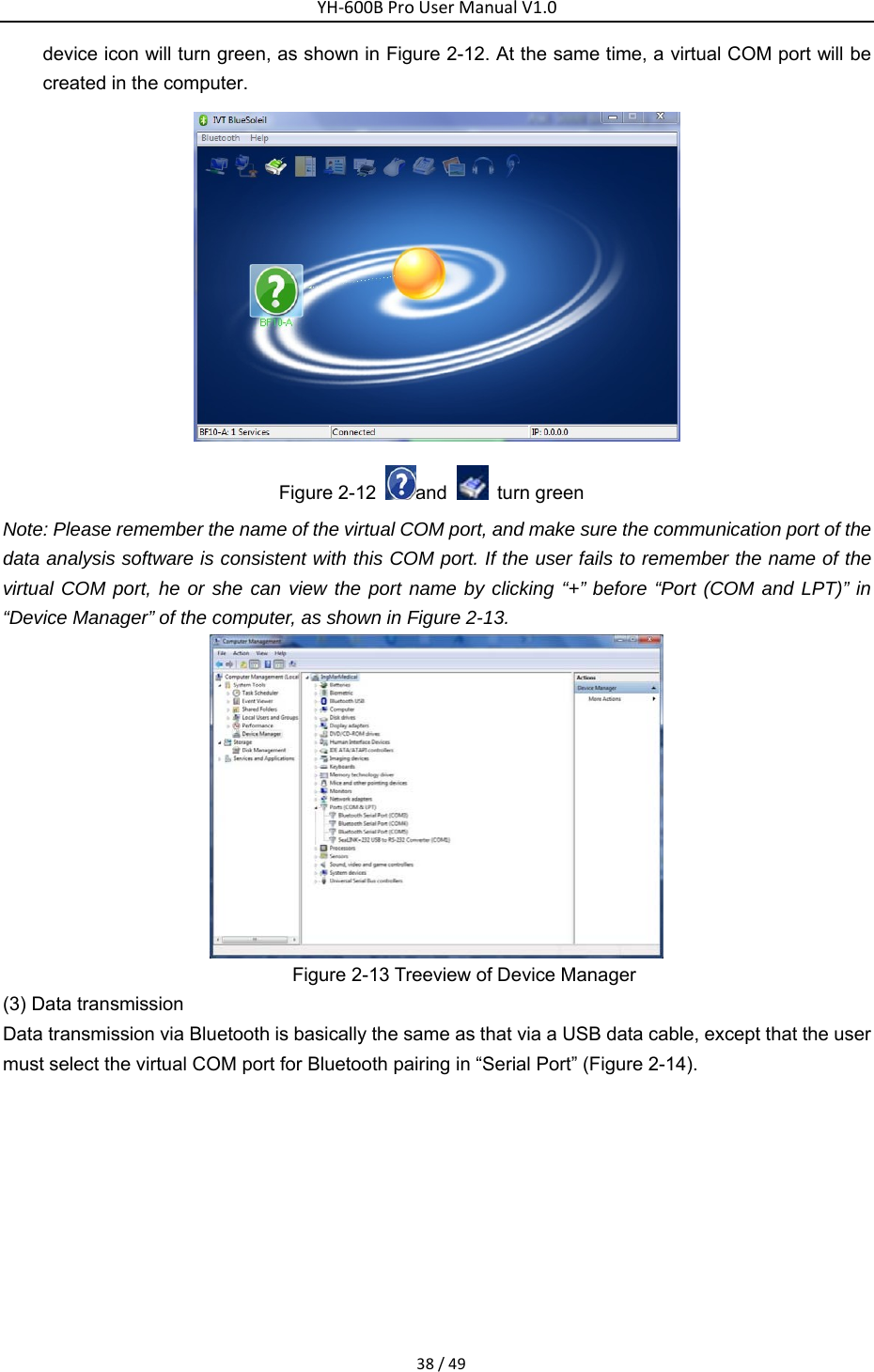
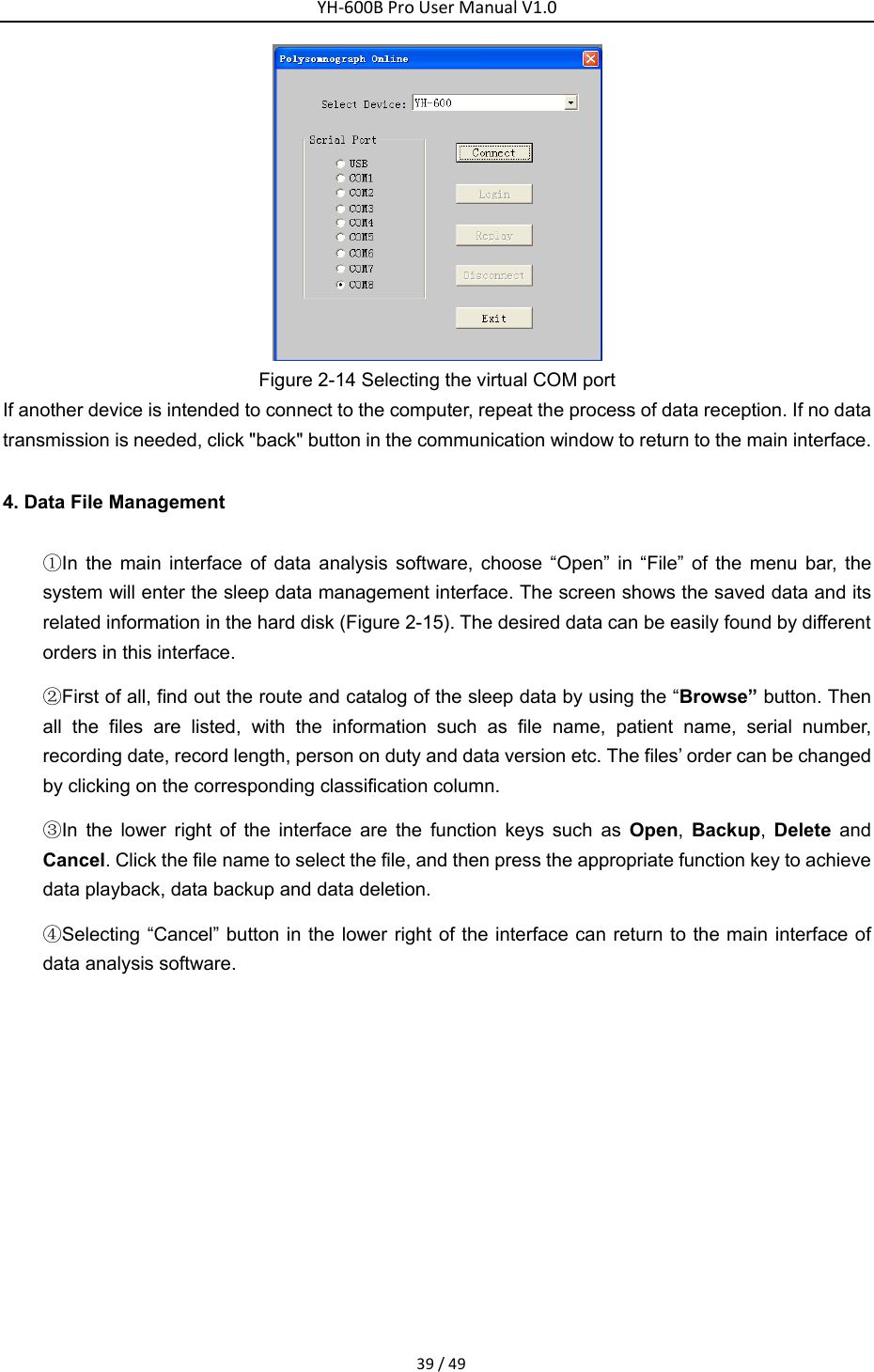
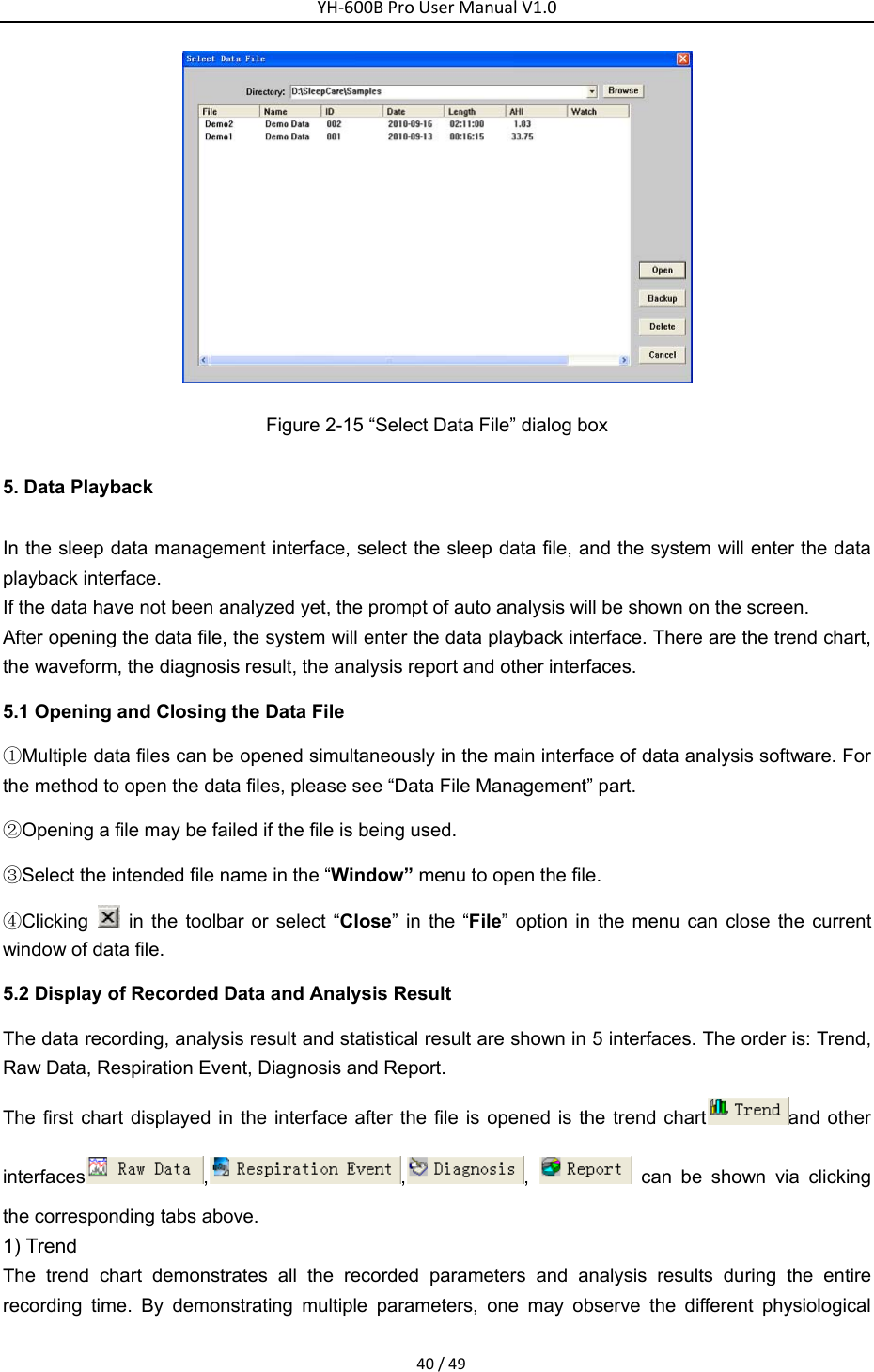
YH‐600BProUserManualV1.037/49 Figure 2-9 Classic Bluetooth interface ③Double-click the sun icon   in the classic interface to start searching for BF10 Bluetooth devices (Figure 2-10).    Figure 2-10 Bluetooth searching interface ④Double-click the BF10 icon    to highlight the serial port icon    on the top of the classic   interface, as shown in Figure 2-11 below.    Figure 2-11 Highlighting the serial port icon ⑤Double-click the serial port icon  . If connection succeeds, the serial port icon and Bluetooth
YH‐600BProUserManualV1.038/49device icon will turn green, as shown in Figure 2-12. At the same time, a virtual COM port will be created in the computer.    Figure 2-12  and    turn green Note: Please remember the name of the virtual COM port, and make sure the communication port of the data analysis software is consistent with this COM port. If the user fails to remember the name of the virtual COM port, he or she can view the port name by clicking “+” before “Port (COM and LPT)” in “Device Manager” of the computer, as shown in Figure 2-13.    Figure 2-13 Treeview of Device Manager   (3) Data transmission   Data transmission via Bluetooth is basically the same as that via a USB data cable, except that the user must select the virtual COM port for Bluetooth pairing in “Serial Port” (Figure 2-14).
YH‐600BProUserManualV1.039/49 Figure 2-14 Selecting the virtual COM port If another device is intended to connect to the computer, repeat the process of data reception. If no data transmission is needed, click "back" button in the communication window to return to the main interface.   4. Data File Management ①In the main interface of data analysis software, choose “Open” in “File” of the menu bar, the system will enter the sleep data management interface. The screen shows the saved data and its related information in the hard disk (Figure 2-15). The desired data can be easily found by different orders in this interface. ②First of all, find out the route and catalog of the sleep data by using the “Browse” button. Then all the files are listed, with the information such as file name, patient name, serial number, recording date, record length, person on duty and data version etc. The files’ order can be changed by clicking on the corresponding classification column.     ③In the lower right of the interface are the function keys such as Open,  Backup,  Delete and Cancel. Click the file name to select the file, and then press the appropriate function key to achieve data playback, data backup and data deletion. ④Selecting “Cancel” button in the lower right of the interface can return to the main interface of data analysis software.
YH‐600BProUserManualV1.040/49 Figure 2-15 “Select Data File” dialog box 5. Data Playback In the sleep data management interface, select the sleep data file, and the system will enter the data playback interface. If the data have not been analyzed yet, the prompt of auto analysis will be shown on the screen.   After opening the data file, the system will enter the data playback interface. There are the trend chart, the waveform, the diagnosis result, the analysis report and other interfaces. 5.1 Opening and Closing the Data File ①Multiple data files can be opened simultaneously in the main interface of data analysis software. For the method to open the data files, please see “Data File Management” part. ②Opening a file may be failed if the file is being used. ③Select the intended file name in the “Window” menu to open the file. ④Clicking   in the toolbar or select “Close” in the “File” option in the menu can close the current window of data file. 5.2 Display of Recorded Data and Analysis Result The data recording, analysis result and statistical result are shown in 5 interfaces. The order is: Trend, Raw Data, Respiration Event, Diagnosis and Report.   The first chart displayed in the interface after the file is opened is the trend chart and other interfaces , , ,   can be shown via clicking the corresponding tabs above. 1) Trend   The trend chart demonstrates all the recorded parameters and analysis results during the entire recording time. By demonstrating multiple parameters, one may observe the different physiological
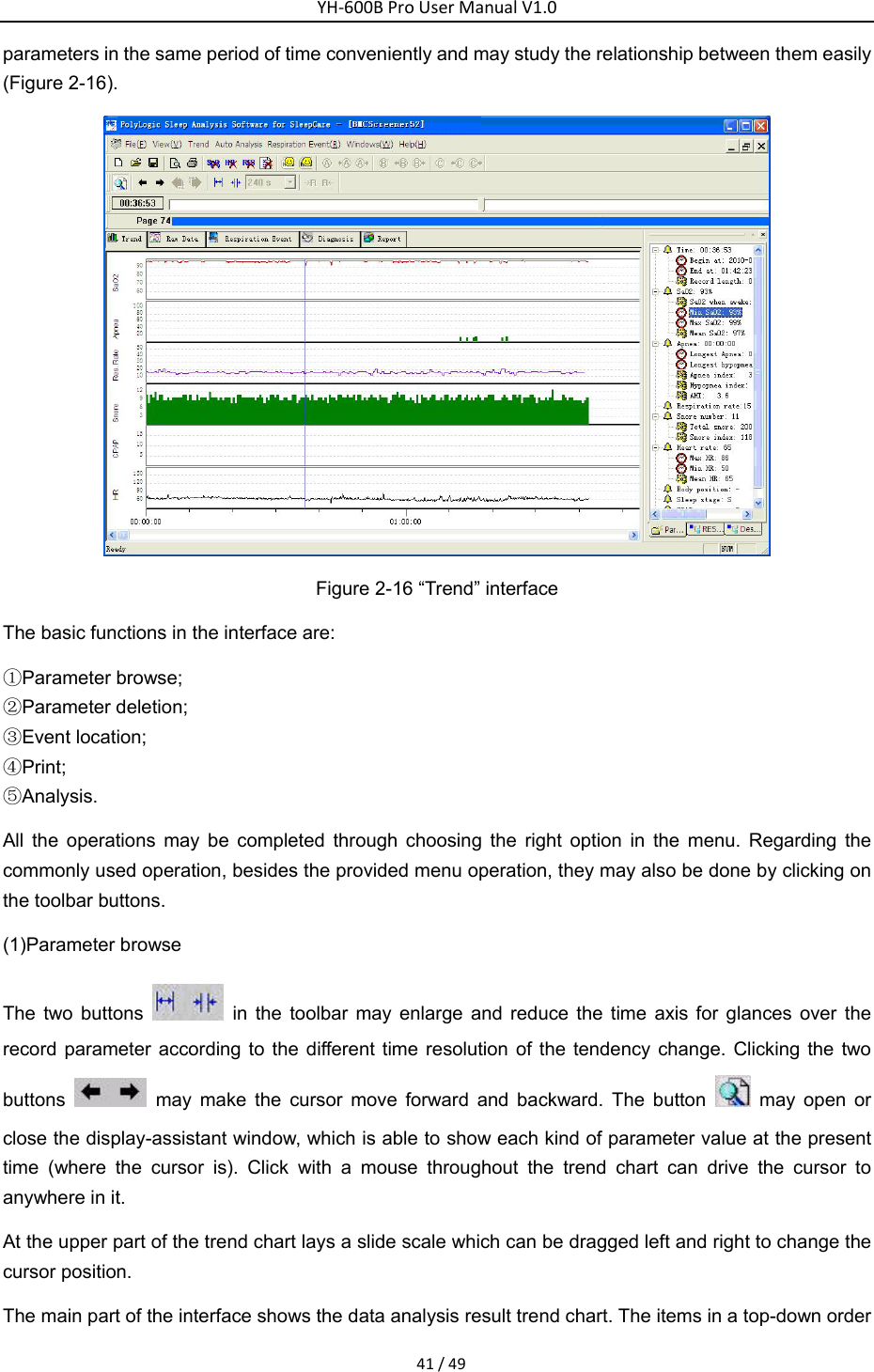
YH‐600BProUserManualV1.041/49parameters in the same period of time conveniently and may study the relationship between them easily (Figure 2-16).  Figure 2-16 “Trend” interface The basic functions in the interface are: ①Parameter browse; ②Parameter deletion; ③Event location; ④Print; ⑤Analysis. All the operations may be completed through choosing the right option in the menu. Regarding the commonly used operation, besides the provided menu operation, they may also be done by clicking on the toolbar buttons. (1)Parameter browse The two buttons   in the toolbar may enlarge and reduce the time axis for glances over the record parameter according to the different time resolution of the tendency change. Clicking the two buttons   may make the cursor move forward and backward. The button   may open or close the display-assistant window, which is able to show each kind of parameter value at the present time (where the cursor is). Click with a mouse throughout the trend chart can drive the cursor to anywhere in it. At the upper part of the trend chart lays a slide scale which can be dragged left and right to change the cursor position. The main part of the interface shows the data analysis result trend chart. The items in a top-down order
YH‐600BProUserManualV1.042/49by default is, the saturation of blood oxygen trend chart, the apnea event length trend chart, the respiratory rate trend chart, the number of snoring trend chart, CPAP pressure trend chart and the heart rate trend chart. The horizontal axis stands for the elapse of time. (2)Parameter deletion Parameters that can be deleted in the trend chart include blood oxygen, heart rate and respiratory rate. Using the    in the toolbar may delete the invalid parameters. If a certain part of the parameters during a period of time is to be deleted, left-click the mouse and drag it to select the intended part in the chart, then click the corresponding item from “Trend” of the menu bar. It can also be done via the  、、 、   icons in the toolbar. If only some points in the chart are to be deleted, place the cursor at the exact point and click the  、、 、   button directly to erase them. (3)Event location Click on the chart to make the cursor stay anywhere desired. Also, clicking on the “ ” icon in the parameter page of assistant window can bring the viewer to the very moment when this event occurred. For example, clicking the item is able to point the cursor to the moment of the lowest value of oxygen saturation. (4)Print Use    to print or print preview the charts or reports. The printing function also goes well in other interfaces. (5)Analysis If the data analysis work has not been done when file is opened or some parameters are not correctly analyzed, a second analysis is necessary after an adjustment to the data. Select the corresponding options to perform the respiratory analysis and/or snoring analysis. The toolbar has provided three commonly used analysis shortcuts. The buttons “ ” indicate the respiration event analysis process and the snoring analyzing process respectively. The analysis function also works in other interfaces. 2) Raw Data This interface can show all the recorded signals both in waveform and in numeric value. By different speeds of paper, this system can display in the current time scope all the recorded features in this interface such as the record waveforms, the record parameters as well as the corresponding analysis results and events.
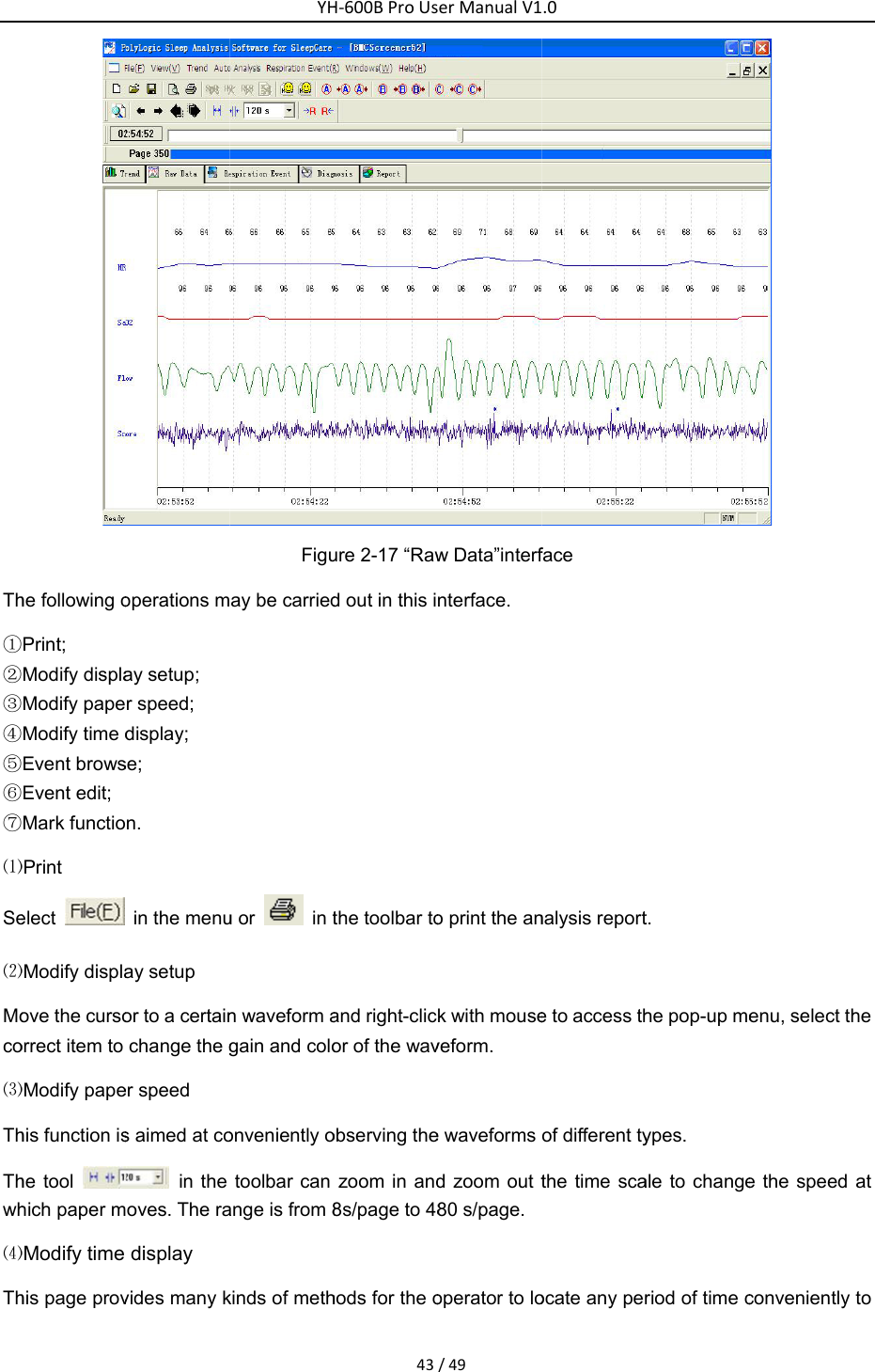
Th①②③④⑤⑥⑦⑴Se⑵Moco⑶ThThwh⑷Thhe following oPrint; Modify displaModify papeModify time dEvent browsEvent edit; Mark functio⑴Print elect  ⑵Modify displaove the cursoorrect item to ⑶Modify papehis function ishe tool hich paper m⑷Modify time his page provoperations may setup; r speed; display; se; n. in the menuay setup or to a certainchange the ger speed s aimed at co in the oves. The radisplay vides many kYHFiguay be carriedu or    in tn waveform again and coloonveniently otoolbar can ange is from 8kinds of methH‐600BProUs43ure 2-17 “Rawd out in this ithe toolbar toand right-clicor of the wavobserving thezoom in and8s/page to 48hods for the oerManualV1/49w Data”interfnterface. o print the ank with mouseveform. e waveforms d zoom out t80 s/page.operator to lo.0face nalysis reporte to access thof different tythe time scaocate any pert. he pop-up meypes. ale to changeriod of time c enu, select the the speed conveniently he at to
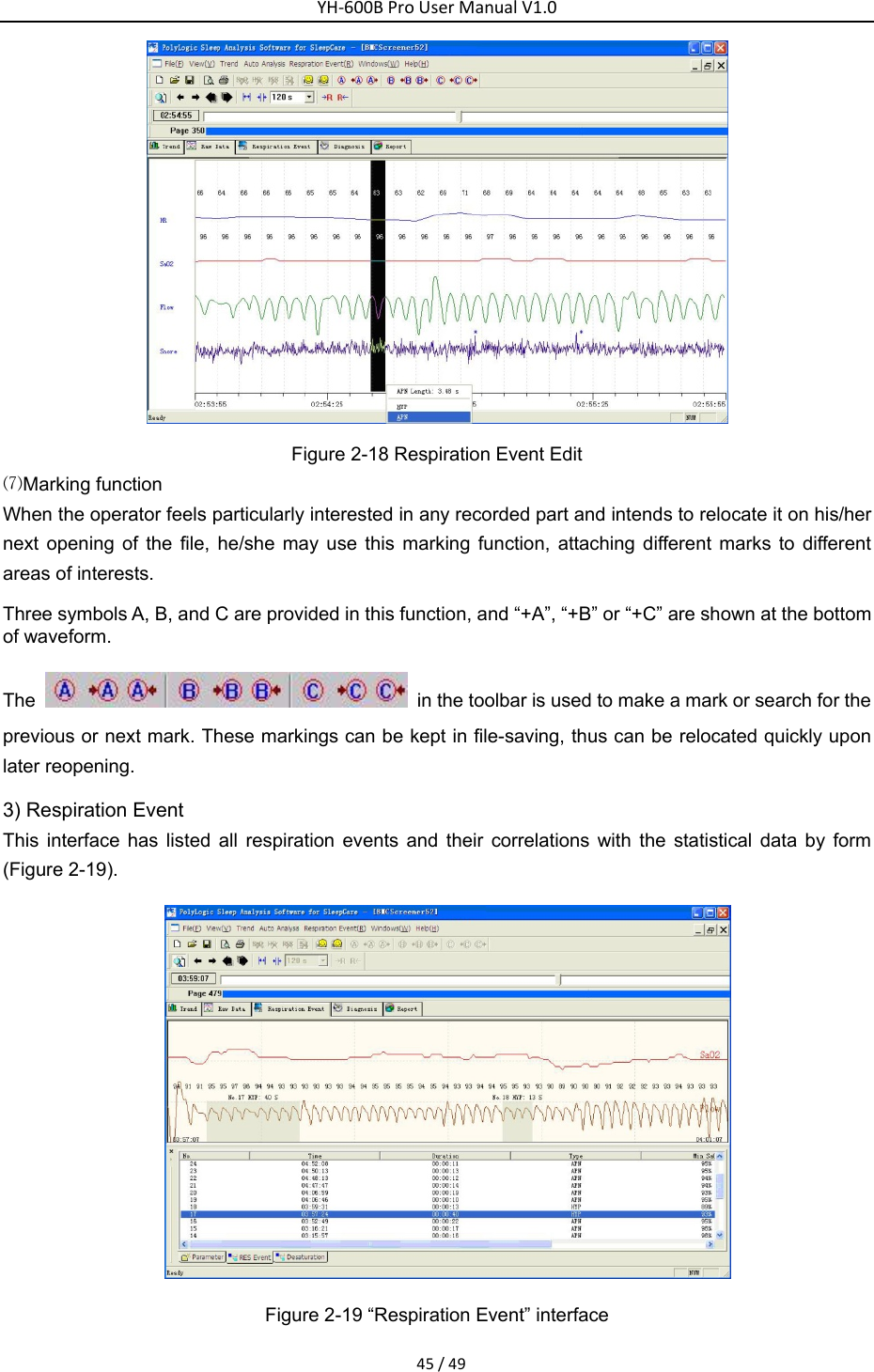
YH‐600BProUserManualV1.044/49observe the waveform and its parameters. The two buttons    are used to slightly adjust the time back and forth as to when the waveform shall be displayed, with five seconds as a pace. The two buttons    are used for page turning with each page length depending on the present speed of the paper. For example, if the current speed of the paper is 1 minute/page, it shows the waveform of either previous or next one minute upon each clicking on the icons. The bar    is a time vernier, which could be dragged back and forth or clicked on to show a waveform in various time ranges. Moving the mouse cursor to the left or right edges of the waveform where the cursor changes to an arrow can make the paper moves at the speed of 2 seconds /page automatically. The display contents can be located in accordance with the markings made by the editor or the various events in the analysis. Refer to the event browse function and marking function in the following parts for details. ⑸Event browse ①Breathing event. All the breathing events are lined out with a series of colorful blocks in the graph, with the serial number, the type and the length of each one annotated nearby. These breathing events are categorized into HYP and OSA, which means hypopnea and obstructive sleep apnea respectively. And a previous event or next event can be easily located by clicking the    buttons. ②Snore. The symbol “ ” indicates a snore. In this operation, evaluations can be made to the sensitivity of snoring threshold. It can be adjusted by modifying the threshold of snoring identification, therefore changing the number of snores. ⑹Event edit The type and length of breathing events can be revised and every event can be inserted or deleted in this interface. For changing the breathing event type or deleting any event, right-click on the event and select the corresponding item to continue. For changing the length of a breathing event, firstly point the mouse cursor to the beginning or the end of the block of event, when the mouse arrow changes into a draggable state. Then drag the left or right edges to change the start and end time.   For event insertion, left-click the mouse and drag it to form rectangular block on the waveform, when a menu pops up, demonstrating the length of this block (Figure 2-18). Select a corresponding event type to generate such an event.
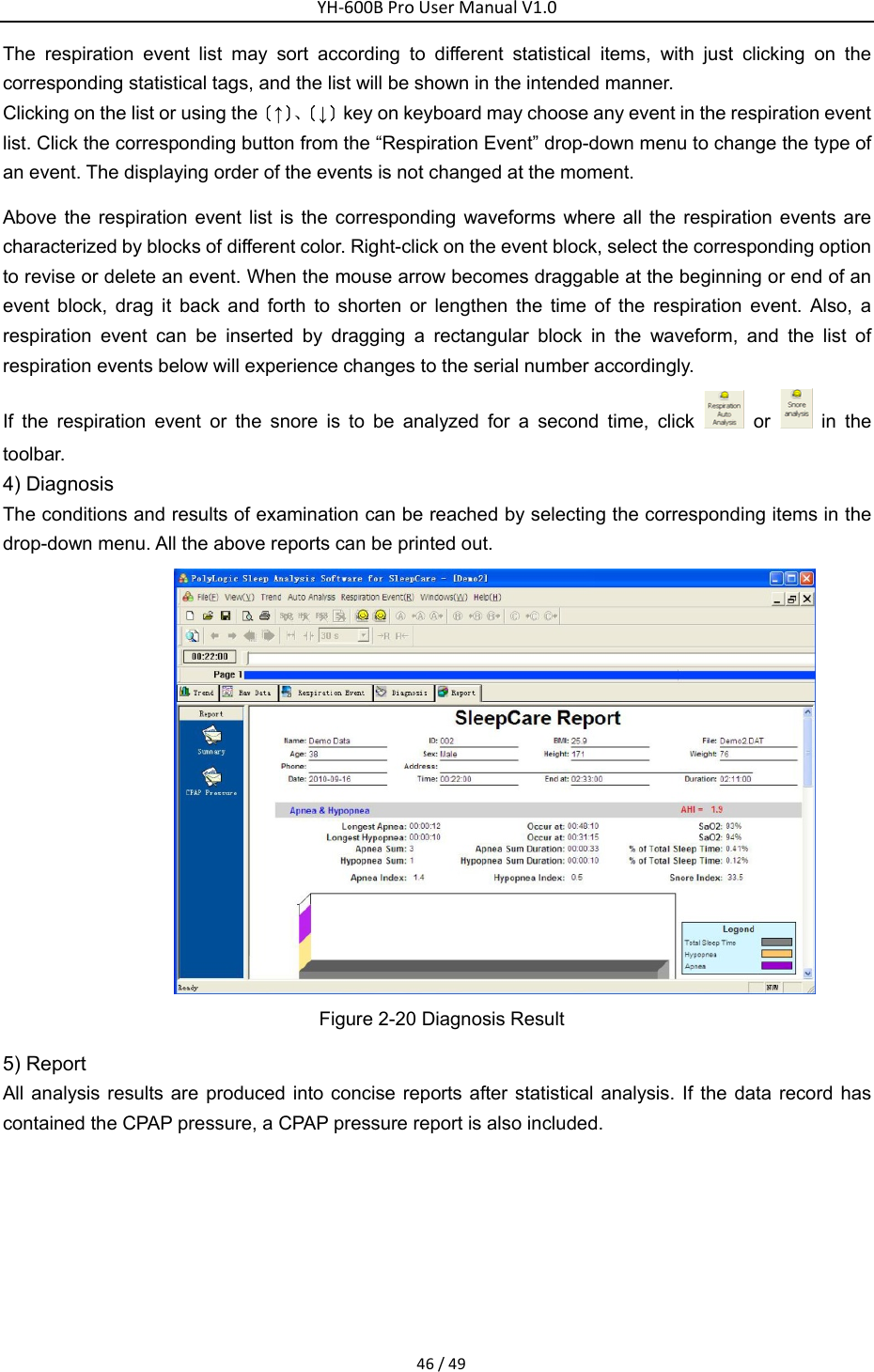
YH‐600BProUserManualV1.045/49 Figure 2-18 Respiration Event Edit ⑺Marking function When the operator feels particularly interested in any recorded part and intends to relocate it on his/her next opening of the file, he/she may use this marking function, attaching different marks to different areas of interests.   Three symbols A, B, and C are provided in this function, and “+A”, “+B” or “+C” are shown at the bottom of waveform. The    in the toolbar is used to make a mark or search for the previous or next mark. These markings can be kept in file-saving, thus can be relocated quickly upon later reopening.   3) Respiration Event This interface has listed all respiration events and their correlations with the statistical data by form (Figure 2-19).  Figure 2-19 “Respiration Event” interface
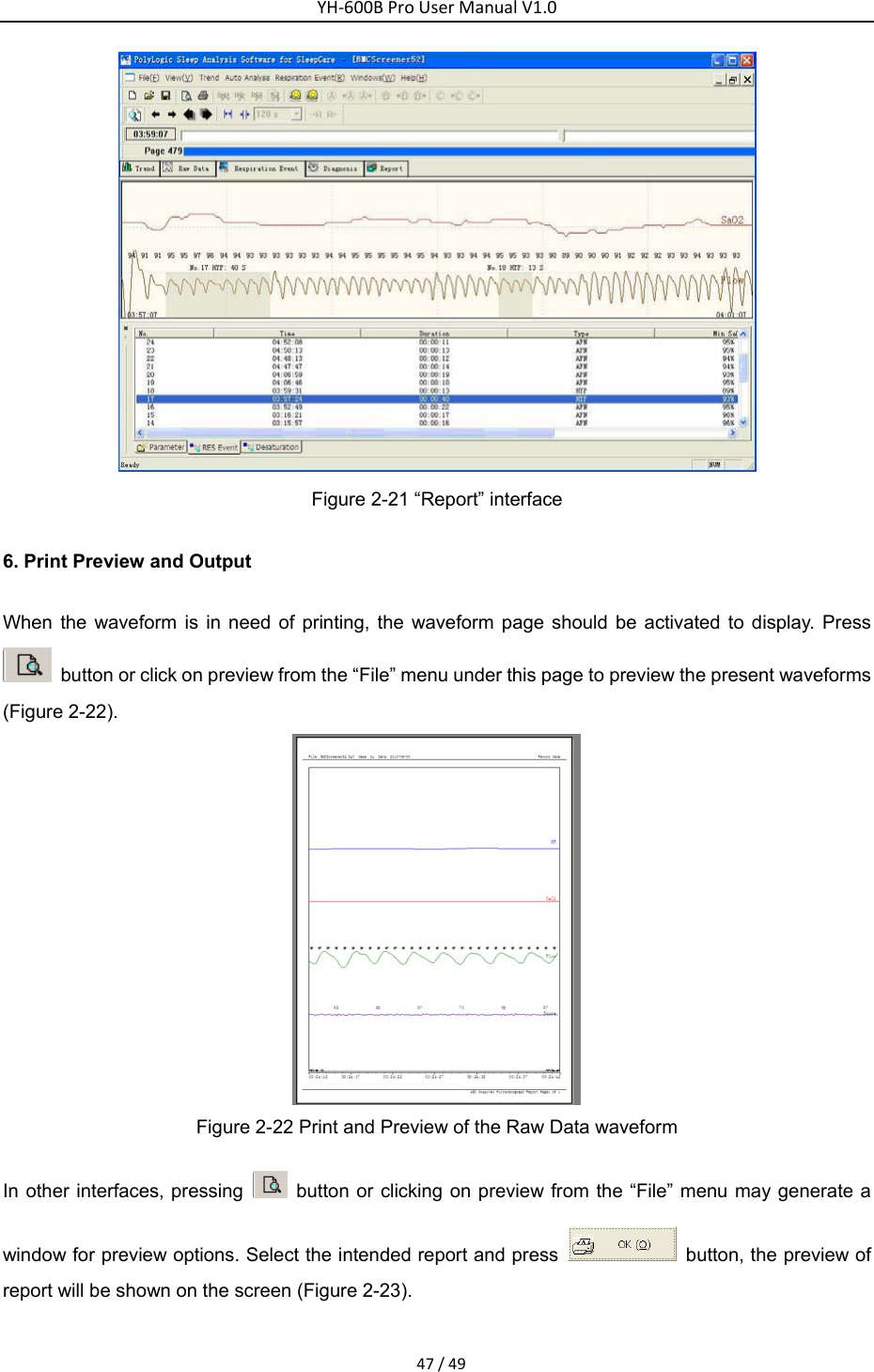
YH‐600BProUserManualV1.046/49The respiration event list may sort according to different statistical items, with just clicking on the corresponding statistical tags, and the list will be shown in the intended manner. Clicking on the list or using the〔↑〕、〔↓〕key on keyboard may choose any event in the respiration event list. Click the corresponding button from the “Respiration Event” drop-down menu to change the type of an event. The displaying order of the events is not changed at the moment. Above the respiration event list is the corresponding waveforms where all the respiration events are characterized by blocks of different color. Right-click on the event block, select the corresponding option to revise or delete an event. When the mouse arrow becomes draggable at the beginning or end of an event block, drag it back and forth to shorten or lengthen the time of the respiration event. Also, a respiration event can be inserted by dragging a rectangular block in the waveform, and the list of respiration events below will experience changes to the serial number accordingly. If the respiration event or the snore is to be analyzed for a second time, click   or   in the toolbar. 4) Diagnosis   The conditions and results of examination can be reached by selecting the corresponding items in the drop-down menu. All the above reports can be printed out.    Figure 2-20 Diagnosis Result 5) Report All analysis results are produced into concise reports after statistical analysis. If the data record has contained the CPAP pressure, a CPAP pressure report is also included.
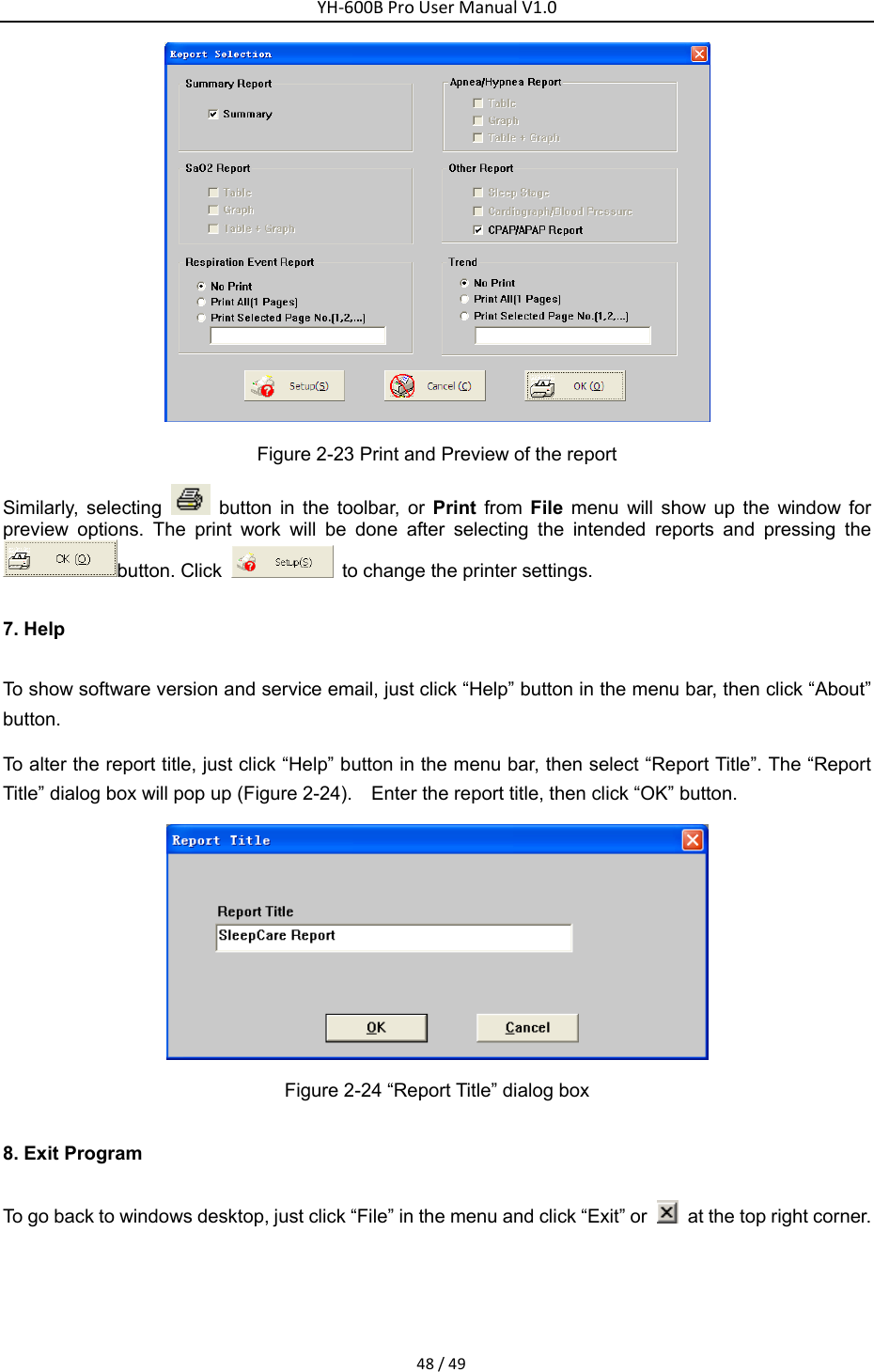
YH‐600BProUserManualV1.047/49 Figure 2-21 “Report” interface 6. Print Preview and Output When the waveform is in need of printing, the waveform page should be activated to display. Press   button or click on preview from the “File” menu under this page to preview the present waveforms (Figure 2-22).  Figure 2-22 Print and Preview of the Raw Data waveform In other interfaces, pressing    button or clicking on preview from the “File” menu may generate a window for preview options. Select the intended report and press    button, the preview of report will be shown on the screen (Figure 2-23).
YH‐600BProUserManualV1.048/49 Figure 2-23 Print and Preview of the report Similarly, selecting   button in the toolbar, or Print from File menu will show up the window for preview options. The print work will be done after selecting the intended reports and pressing the button. Click    to change the printer settings. 7. Help To show software version and service email, just click “Help” button in the menu bar, then click “About” button. To alter the report title, just click “Help” button in the menu bar, then select “Report Title”. The “Report Title” dialog box will pop up (Figure 2-24).    Enter the report title, then click “OK” button.  Figure 2-24 “Report Title” dialog box   8. Exit Program To go back to windows desktop, just click “File” in the menu and click “Exit” or    at the top right corner.
other antenna or transmitter.limits set forth for an compliance could void the user‘s authority to operate the equipment.   interferenceYH‐600BProUserManualV1.049/49CHAPTER 3: SERVICE 1. Technical Support For technical support or before returning any equipment, call BMC Medical Co., Ltd. at 86-10-51663880.  2. Limited Warranty BMC Medical Co., Ltd. warrants that YH-600B Pro shall be free from defects of workmanship and materials and will perform in accordance with the product specifications for a period of one (1) year for main unit and three (3) months for all accessories from the date of sale by BMC Medical Co., Ltd. to the dealer. During the warranty period, BMC Medical Co., Ltd. will correct any defects in material or workmanship to conform to specifications, free of charge. BMC Medical Co., Ltd. reserves the right to replace YH-600B Pro with a comparable unit. Shipping costs are the responsibility of the purchaser. This warranty does not cover damage caused by accident, misuse, abuse, alteration and other defects not related to material or workmanship. BMC Medical Co., Ltd. disclaims all liability for economic loss, loss of profits, overhead, or consequential damages which may be claimed to arise from any sale or use of this product. To exercise the rights under this warranty, contact the local authorized dealers or: MANUFACTURER: BMC Medical Co., Ltd.   5/F Main Building, No.19 Gucheng Street West, Shijingshan,  Beijing 100043, P.R.China. Tel:    86-10-51663880 Fax: 86-10-51663880 Ext. 810 EU AUTHORISED REPRESENTATIVE: Shanghai International Holding Corp. GmbH (Europe) Eiffestraβe 80, 20537    Hamburg,Germany  Tel: 0049-40-2513175 Fax: 0049-40-255726       Issue date:April 22, 2014 This device complies with part 15 of the FCC Rules. Operation is subject to the following two conditions: (1) This device may not cause harmful interference, and  (2) this device must accept anyreceived, including interference that may cause undesired operation.Any Changes or modifications not expressly approved by the party responsible for FCC Radiation Exposure Statement:     FCC Statement conjunction with any This transmitter must not be co-located or operating inThis equipment complies with FCC radiation exposure  uncontrolled environment.

Navigation menu