BROTHER Fax Machines Manual L0903535
User Manual: BROTHER BROTHER Fax Machines Manual BROTHER Fax Machines Owner's Manual, BROTHER Fax Machines installation guides
Open the PDF directly: View PDF  .
.
Page Count: 81
iiii_ii_i!_iiiii:i_i_I i_iiI_Zi_
iil i
iiill _iiii i
k ¸
0
0
0
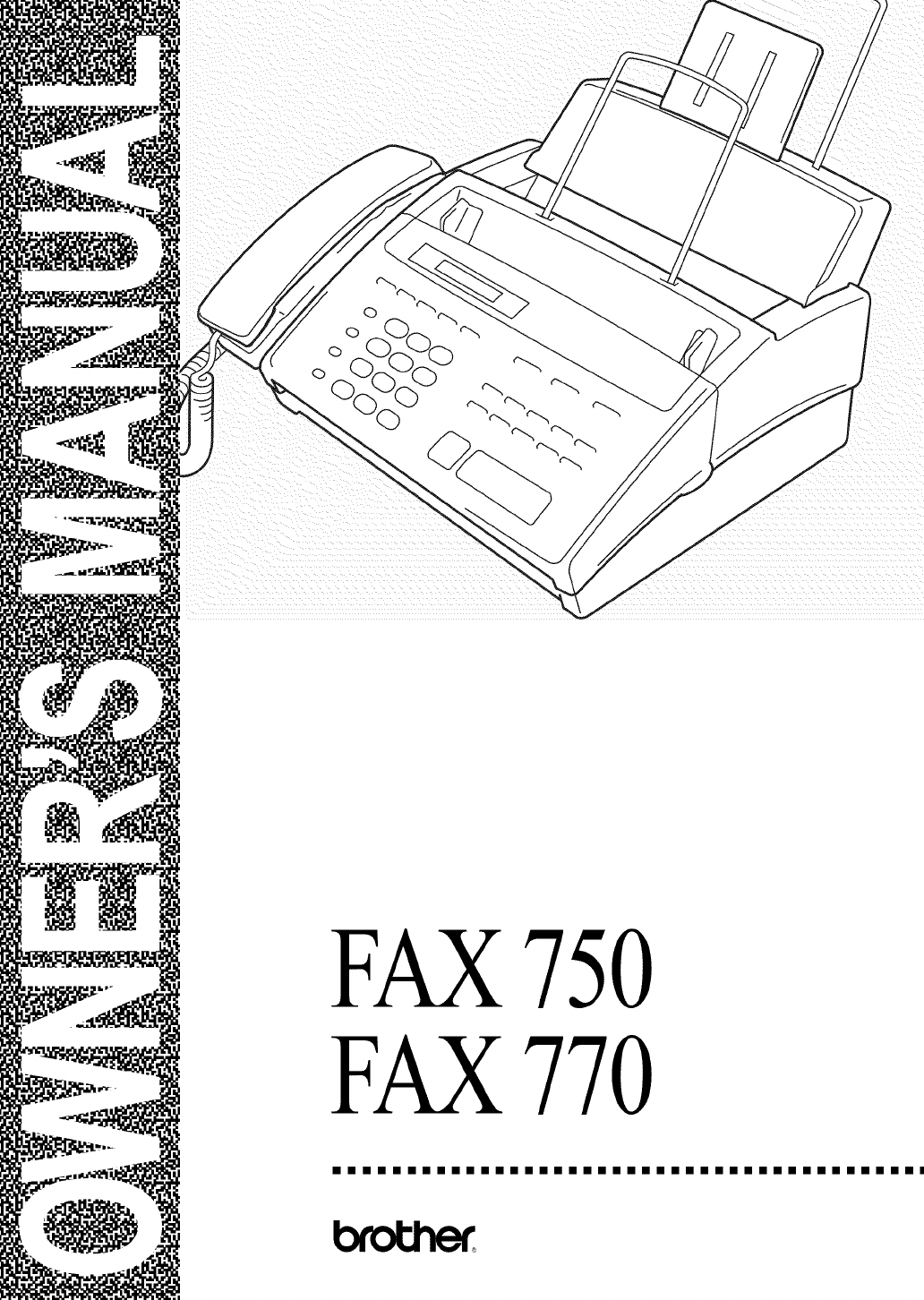
FAX750
FAX770
illllllllllllllllllllllllllllllllllllllil
IfYou Need to Call Customer Service
Please complete the following information for future
refe rence:
Model: FAX750 FAX770
(Circle your model number)
Serial Number:*
Date of Purchase:
Place of Purchase:
*The serial number is on the back of the unit. Retain
this Quick-Start Manual with your sales receiptas a
permanent record of your purchase, in the event of
a theft, fire or warranty service.
Year 2000 Compliant
Brother is addressing theYear 2000 related issues for all
Brother fax machines and multi-function centers. Our
focus is to ensure that our bundled third party software
will continue to properly process date/time data after
January 1, 2000.
Brother fax machines and multi-function centers will
function properly after January 1, 2000, provided that
all non-Brother hardware, software and firmware used
by our customers in connection or combination with
Brother fax machines, and bundled software, accurately
exchange date data with the Brother products.
Please continue to check our Web page for updates at
http://www.brother.com. All remedies will be provided
to individual customers via software patches through
software download or from Brother Customer Service.
©1996-1999 Brother Industries, Ltd.
ll
Brother Numbers
iiiiiiiiiiiiiiiiiiiiiiiiiiiiiiiiiiiiiiiiiiiiiiiiii
Brotherfax-backsystem
Brother Customer Service has installed an easy-to-use fax-back system, so
you can get instant answers to common technical questions and product
information for all Brother products. This system is available 24 hours a
day, 7 days a week. You can use the system to send faxes to any fax
machine, not just the one from which you are calling.
If you can't resolve difficulty with your fax machine using this manual, call
our fax-back system, and follow the voice prompts to receive faxed
instructions about using the system, and an index of fax-back subjects.
USA:
From within Canada:
1-800-521-2846
1-800-681-9838
The Brother fax-back system number(USA only)has been preprogrammed
on One Touch key[_.
FrequentlyAskedQuestions(FAQs)
You can find more information about Brother products on the World Wide
Web. From product specification sheets to Frequently Asked Questions
(FAQs), it is all there. Visit us at:
,piiiwww:V;;ore)
BrotherBulletinBoard
Brother's Bulletin Board Numbers are
USA:
From within Canada:
1-888-298-3616
1-514-685-2040
ForCustomerService
USA:
From within Canada:
From within Montreal:
1-800-284-4329 (voice)
1-908-575-8790 (fax)
1-800-853-6660 (voice)
1-514-685-4898 (fax)
1-514-685-6464 (voice)
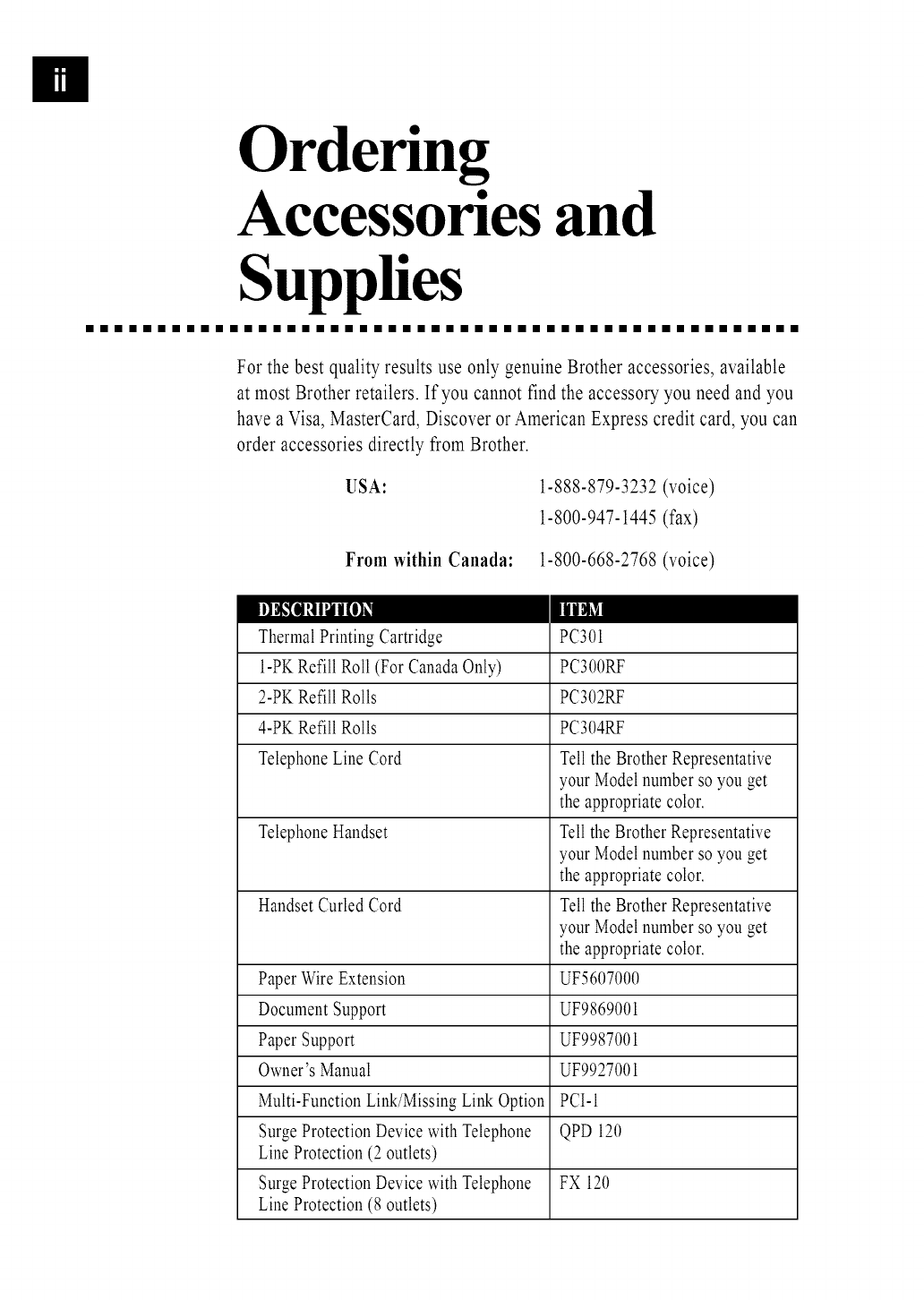
Ordering
Accessories and
Supplies
iiiiiiiiiiiiiiiiiiiiiiiiiiiiiiiiiiiiiiiiiiiiiiiiii
For the best quality results use only genuine Brother accessories, available
at most Brother retailers. If you cannot find the accessory you need and you
have a Visa, MasterCard, Discover or American Express credit card, you can
order accessories directly from Brother.
USA: 1-888-879-3232 (voice)
1-800-947-1445 (fax)
From within Canada: 1-800-668-2768 (voice)
II__O_ IlaUN_l
Thermal Printing Cartridge PC301
1-PK Refill Roll (For Canada Only) PC300RF
2-PK Refill Rolls PC302RF
4-PK Refill Rolls PC304RF
Telephone Line Cord Tell the Brother Representative
your Model number so you get
the appropriate color.
Telephone Handset Tell the Brother Representative
your Model number so you get
the appropriate color.
Handset Curled Cord Tell the Brother Representative
your Model number so you get
the appropriate color.
Paper Wire Extension UF5607000
Document Support UF9869001
Paper Support UF9987001
Owner's Manual UF9927001
Multi-Function Link/Missing Link Option PCI-1
Surge Protection Device with Telephone QPD 120
Line Protection (2 outlets)
Surge Protection Device with Telephone FX 120
Line Protection (8 outlets)
Notice-DisclaimerofWarranties
BROTHER'S LICENSOR(S), AND THEIR DIRECTORS, OFFICERS,
EMPLOYEES OR AGENTS (COLLECTIVELY BROTHER'S LICENSOR)
MAKES NO WARRANTIES, EXPRESS OR IMPLIED, INCLUDING
WITHOUT LIMITATIONTHE IMPLIED WARRANTIES OF
MERCHANTABILITYAND FITNESS FOR A PARTICULAR PURPOSE,
REGARDING THE SOFTWARE. BROTHER'S LICENSOR(S) DOES NOT
WARRANT,GUARANTEE OR MAKE ANY REPRESENTATIONS
REGARDING THE USE OR THE RESULTS OF THE USE OF THE
SOFTWAREIN TERMS OF ITS CORRECTNESS, ACCURACY,
RELIABILITY, CURRENTNESS OR OTHERWISE. THE ENTIRE RISK
AS TO THE RESULTSAND PERFORMANCE OF THE SOFTWAREIS
ASSUMED BY YOU. THE EXCLUSION OF IMPLIED WARRANTIESIS
NOT PERMITTED BY SOME STATES.THE ABOVE EXCLUSION MAY
NOT APPLYTOYOU.
IN NO EVENT WILL BROTHER'S LICENSOR(S) BE LIABLE TO YOU
FOR ANY CONSEQUENTIAL, INCIDENTAL OR INDIRECT DAMAGES
(INCLUDING DAMAGES FOR LOSS OF BUSINESS PROFITS,
BUSINESS INTERRUPTION, LOSS OF BUSINESS INFORMATION,
AND THE LIKE) ARISING OUT OF THE USE OR INABILITY TO USE
THE SOFTWARE EVEN IF BROTHER'S LICENSOR HAS BEEN
ADVISED OF THE POSSIBILITY OF SUCH DAMAGES. BECAUSE
SOME STATES DO NOT ALLOW THE EXCLUSION OR LIMITATION
OF LIABILITY FOR CONSEQUENTIAL OR INCIDENTAL DAMAGES,
THE ABOVE LIMITATIONS MAY NOT APPLY TO YOU. IN ANY
EVENT BROTHER'S LICENSOR'S LIABILITY TO YOU FOR ACTUAL
DAMAGES FROM ANY CAUSE WHATSOEVER, AND REGARDLESS
OF THE FORM OF THE ACTION (WHETHER IN CONTRACT, TORT
(INCLUDING NEGLIGENCE), PRODUCT LIABILITY OR
OTHERWISE), WILL BE LIMITED TO $50.
Compilation and Publication Notice
Under the supervision of Brother Industries, Ltd., this manual has been
compiled and published, covering the latest product descriptions and
specifications.
The contents of this manual and the specifications of this product are
subject to change without notice.
Brother reserves the right to make changes without notice in the
specifications and materials contained herein and shall not be responsible
for any damages (including consequential) caused by reliance on the
materials presented, including but not limited to typographical and other
errors relating to the publication.
BROTHER FACSIMILE 90 DAY REPLACEMENT WARRANTY
A LIMITED WARRANTY
(For USA Only)
This warranty gives you certain rights and
you may also have other rights that may
vary from state to state.
This warranty is given only to the end-use
purchaser of the accompanying product
(referred to in this warranty as "this
Product").
What is covered: Brother warrants to you
for the Warranty Period that there are no
defects in the materials, workmanship or
Year 2000 compliance of this Product. The
"Warranty Period" is 90 days from the date
you purchased this product.
What is NOT covered: This warranty is
VOID -- that is, this Product has no
warranty -- if: (1) you did not purchase this
Product from an authorized Brother reseller
within the United States, (2) this Product
has been serviced, modified or tampered
with by anyone other than an Authorized
Service Representative of Brother, (3) the
serial number has been modified, defaced or
removed from this Product, (4) this Product
has been abused or damaged, or (5) non
Brother_%brand or non Brother approved
parts, supplies, or other accessories have
been used with this Product.
What to do if you think your Product is
defective:
Call our Customer Service Hotline at 1-800-
284-4329, or if you suspect a defect in
materials or workmanship in this Product,
you can report it to a Brother Authorized
Service Center. During the Warranty Period,
supply Brother's representative with a copy
of your dated bill of sale showing that this
Product was purchased within the United
States. For the name of your Brother
Authorized Service Center call 1-800-521-
2846. After contacting the Brother Authorized
Service Center, you may be required to
deliver or send the Product properly
packaged, freight prepaid, to the Authorized
Service Center together with a photocopy of
your bill of sale.
What Brother will do: Brother (or its
Authorized Service Center) will evaluate your
report of a possible defect to determine
whether a defect exists, and if it does exist,
Brother (or its Authorized Service Center) will
repair or (at Brother's option) replace the
Product with a product that performs the
same functions and performs as well as the
original Product. Brother reserves the right
to supply refurbished or remanufactured
replacement products provided that the
replacement products conform to the
manufacturer's specifications for new products.
The repaired or replacement product will be
returned to you at no cost.
Exchange Service:
Exchange service will expedite, in most
instances by the next business day, the
exchange of your non working Product with
a supply refurbished or remanufactured
product that conform to the manufacturer's
specifications for new products. The supply
refurbished or remanufactured Product you
receive will be covered by the balance of
the limited warranty period remaining on the
original Product, plus an additional thirty (30)
days. You will keep the replacement
Product that is sent to you and must return
(or be billed up to the cost of a new
product) your original non working product,
which shall become the property of Brother.
You must call Brother Customer Service and
if the representative cannot correct the
product's malfunction over the telephone and
you elect the exchange service, you must
provide information pertaining to this Product
and you must also provide a valid major
credit card number. Your credit card will be
charged up to the cost of a new Product if:
(i) you do not return your original Product to
Brother within five (5) business days; (ii) the
malfunctions of your original Product are not
covered by the limited warranty; (iii) the
proper packaging instructions are not followed
and has caused damage to the product; or
(iv) the warranty period on your original
BROTHER FACSIMILE 90 DAY REPLACEMENT WARRANTY
A LIMITED WARRANTY
(For USA Only)
Product has expired or has not been
sufficiently validated with a copy of the proof
of purchase (bill of sale). The Brother
Customer Service Representative will ship the
exchange Product with return instructions and
prepaid return airbill. Follow the return
instructions. You must return the original
Product in the same shipping carton in
which the exchanged Product was received
and include a copy of proof of purchase
(bill of sale). Retain your original accessory
items and a copy of the return airbill,
signed by the courier.
Limitations:
Repair or replacement as described above is
your sole and exclusive (that is, your only)
remedy if this Product is defective. Brother
is not responsible for damage to or loss of
any equipment, media, programs or data
related to the use of this Product. Except
for that repair or replacement, Brother shall
not be liable for any direct, indirect,
incidental or consequential damages or
specific relief Because some states do not
allow the exclusion or limitation of
consequential or incidental damages, the
above limitation may not apply to you.
THIS WARRANTY IS GIVEN IN LIEU OF
ALL OTHER WARRANTIES, WRITTEN OR
ORAL, WHETHER EXPRESSED BY
AFFIRMATION, PROMISE, DESCRIPTION,
DRAWING, MODEL OR SAMPLE. ANY
AND ALL WARRANTIES OTHER THAN
THIS ONE, WHETHER EXPRESS OR
IMPLIED, INCLUDING IMPLIED WARRAN
TIES OF MERCHANTABILITY AND FITNESS
FOR A PARTICULAR PURPOSE, ARE
HEREBY DISCLAIMED.
This Limited Warranty is the only warranty
that Brother is giving for this Product. It is
the final expression and the exclusive and
only statement of Brother's obligations to
you. It replaces all other agreements and
under-standings that you may have with
Brother or its representatives.
This Limited Warranty (and Brother's
obligation to you) may not be changed in
any way unless you and Brother sign the
same piece of paper in which we (1) refer
to this Product and your bill of sale date,
(2) describe the change to this warranty and
(3) agree to make that change.
Product Support: Toll-free customer service
and technical support is available for
hardware operational assistance at 1-800-284-
4329. At any time, free technical support in
the form of Frequently Asked Questions,
troubleshooting tips and service center Iocator
is available through our fax back system at
1-800-521-2846 or Brother's Internet Web
Site (www.brother.com).
BROTHER INTERNATIONAL CORPORATION
100 SOMERSET CORPORATE BLVD.
BRIDGEWATER, NEW JERSEY 08807-0911
Please record your model and serial number
and your date and location of Purchase
below for your records. Keep this information
with your proof of purchase (bill of sale) in
case your Product is lost, stolen or requires
service.
Model #
Serial #
Date of purchase:
Store where purchased:
Location of store:
Important: We recommend that you keep all
original packing materials, in the event that
you ship this product.
BROTHER MULTIFUNCTION CENTER/FACSIMILE MACHINE
LIMITED WARRANTY
(For Canada Only)
Pursuant to this limited warranty of 1 year from the date of purchase for labour and
parts, Brother International Corporation (Canada) Ltd. ("Brother"), or its Authorized Service
Centers, will repair this MFC/Facsimile machine free of charge if defective in material or
workmanship. This Limited Warranty does not include cleaning, consumables (including,
without limitation, print cartridges, print head, toner and drum) or damage caused by
accident, neglect, misuse or improper installation or operation, any damage caused from
service, maintenance, modifications, or tampering by anyone other than a Brother
Authorized Service Representative, or from the use of supplies or consumable items that
are non-Brother products. Operation of the MFC/Facsimile machine in excess of the
specifications or with the Serial Number or Rating Label removed shall be deemed
abuse and all repairs thereafter shall be the sole liability of the end-user/purchaser. In
order to obtain warranty service, the MFC/Facsimile machine must be delivered or
shipped freight prepaid by the end user/purchaser to a "Brother" Authorized Service
Center, together with your Proof of Purchase in the form of a Sales Receipt.
For laser products: Failure to remove the Toner Cartridge (and Toner Drum Unit on
applicable models) during shipping will cause severe damage to the MFC/Facsimile and
will VOID the Warranty. (Refer to your Operation Manual for proper packaging.)
For ink-jet products: Do not remove the ink cartridges during shipping. Damage to your
print head resulting from packing without the ink cartridges will VOID your warranty.
(Refer to your Operation Manual for proper packaging.)
BROTHER DISCLAIMS ALL OTHER WARRANTIES EXPRESSED OR IMPLIED
INCLUDING, WITHOUT LIMITATION, ANY IMPLIED WARRANTIES OF
MERCHANTABILITY OR FITNESS FOR A PARTICULAR PURPOSE, EXCEPT TO THE
EXTENT THAT ANY WARRANTIES IMPLIED BY LAW CANNOT BE VALIDLY WAIVED.
No oral or written information, advice or representation provided by Brother, its
Authorized Service Centers, Distributors, Dealers, Agents or employees, shall create
another warranty or modify this warranty. This warranty states Brother's entire liability
and your exclusive remedy against Brother for any failure of the MFC/Facsimile machine
to operate properly.
Neither Brother nor anyone else involved in the development, production, or delivery of
this MFC/Facsimile machine shall be liable for any indirect, incidental, special,
consequential, exemplary, or punitive damages, including lost profits, arising from the use
of or inability to use the product, even if advised by the end user/purchaser of the
possibility of such damages. Since some Provinces do not allow the above limitation of
liability, such limitation may not apply to you.
This Limited Warranty gives you specific legal rights and you may also have other
rights which vary from Providence to Providence.
Warranty Service is available at Brother Authorized Service Centers throughout
Canada. For Technical Support or for the name and location of your nearest
Authorized Service Center call 1-800-853-6660. Within Montreal, please call 685-6464.
Internet support: support@brother.ca or browse
Brother's Web Site: www.brother.com
Brother International Corporation (Canada) Ltd.
1 Rue H6tel de Ville
Dollard-Des-Ormeaux, QC H9B 3H6
Table of Contents
iiiiiiiiiiiiiiiiiiiiiiiiiiiiiiiiiiiiiiiiiiiiiiiiii
Introduction Using This Manual ............................................................................................. 1
About Fax Machines ........................................................................................... 1
Control Panel Overview ..................................................................................... 3
Location and
Connections Caution ................................................................................................................ 4
Choosing aLocation ........................................................................................... 4
Connections ......................................................................................................... 6
On-Screen
Programming
Initial Setup
User-Friendly Programming ........................................................................... 12
Getting Started .................................................................................................. 16
Setup Receh_e BasicReceiving Operations.............................................................................22
AdvancedReceiving Operations.....................................................................26
Copy Functions.................................................................................................30
Setup Send BeforeYou Begin...............................................................................................32
Basic Sending Operations ................................................................................34
Advanced Sending Operations ........................................................................35
SetupAuto DiM
Numbers
Telephone (Voice)
Operation
Printing Reports
StoringNumbersforEasyDialing ..................................................................39
MakingVoiceCalls ...........................................................................................43
Fax Machine Settings and Activity ................................................................. 45
Important Standard TelephoneandFCCNotices............................................................47
Inlbrmation
Troubleshooting Troubleshooting ................................................................................................ 52
and Maintenance Routine Maintenance ....................................................................................... 59
Multi-Function
Link _ (option)
Specifications
Multi-Function Link _ (option) ........................................................................ 60
Specifications ..................................................................................................... 61
Index .................................................................................................................. 62
Remote Fax Options (For FAX 770 Only) .................................................... R-1
Trademarks
The Brother logo is a registered trademark of Brother Industries, Ltd.
Brother is a registered trademark of Brother Industries, Ltd.
IBM, IBM PC, MWAVEand IBMAptiva are registered trademarks of
International Business Machines Corporation.
Visioneer PaperPort is a registered trademark of Visioneer, Inc.
Microsoft and MS-DOS are registered trademarks of Microsoft
Corporation.
Windows and Windows NT are registered trademarks of Microsoft in the
U.S. and other countries.
All other terms and brand and product names mentioned in this manual
are registered trademarks of their respective companies.
duction anD
iiiiiiiiiiiiiiiiiiiiiiiiiiiiiiiiiiiiiiiiiiiiiiiiii
Using This Manual
Thank you for purchasing a Brother fax machine (FAX). This fax machine
has been designed to be simple to use, with LCD screen prompts to guide
you through functions. However, you can use your fax machine to its fullest
potential by taking a few minutes to read this manual.
Additionally, your fax machine has a Help Key. Press _ to print a
list of basic operational steps and functions.
FindingInformation
All chapter headings and subheadings are listed in the Table of Contents.
You will be able to find information about a specific feature or function by
checking the Index at the back of this manual. Also, throughout this
manual, you'll see special symbols alerting you to important information,
cross-references, and warnings. Illustrations of some screen displays also
help you choose the correct key-presses.
illlllllllllllllllllllllllllllllllllllllllllllllli
About Fax Machines
If you're a first-time fax machine user, fax operation might seem a little
mysterious. You'll soon get used to the unusual fax tones on your phone
line, and be able to send and receive faxes easily.
FaxTonesand Handshake
When someoneis sendinga fax, the fax machine sends faxcalling tones (CNG
tones)--soft, intermittent beeps at 4-second intervals.You'll hear them when
you dial and press _, and they continue for about 40 seconds after dialing.
Duringthat time, the sendingmachine mustbegin the "handshake" withthe
receivingmachine. Eachtime you use automaticproceduresto senda fax, you
are sending CNG tones overthe phone line. You'll soon learnto listen for these
soft beepseach time you answer a phoneon your fax line, so you know ifyou
are receiving a fax message.
The receiving fax responds with fax receiving tones--loud, chirping sounds.
A receiving fax chirps for about 40 seconds over the phone line, and the
screen displays RECEIVE. If your fax machine is set to the FAX ONLY
Mode, it will answer every call automatically with fax receiving tones. Even
if the other party hangs up, your fax machine continues to send the "chirps"
for about 40 seconds, and the screen continues to display "RECEIVE." To
cancel the receiving mode, press _.
When your fax machine answers in FAX/TELMode, the fax machine listens
for CNG tones and then responds with receiving tones.
The fax"handshake" isthe time in which the sendingmachine's CNG tones
and the receiving machines"chirps" overlap.This must be for at least 2 to 4
seconds, sothe machines can understandhow each is sending and receiving the
fax. Thehandshake cannotbegin until the call is answered, and the CNG tones
only last for about 40 secondsafter the number is dialed.Therefore, it's
importantfor the receiving machineto answer the call in as few rings as
possible.
Whenyou have an externaltelephone answering device(TAD)on your faxline,
your TADwill determinethe number of rings before the call is answered.Pay
specialattention to the directions in the Installation chapter for connectinga
TADto your faxmachine.
ECM (ErrorCorrectionMode)
The Error Correction Mode (ECM) is a way for the fax machine to check
the integrity of a fax transmission while it is in progress. ECM
transmissions are possible only between machines that both have the ECM
feature. If they do, you may send and receive fax messages that are
continuously checked for their integrity.
Sufficient memory must be available in your fax machine for this feature to
work.
iiiiiiiiiiiiiiiiiiiiiiiiiiiiiiiiiiiiiiiiiiiiiiiiii
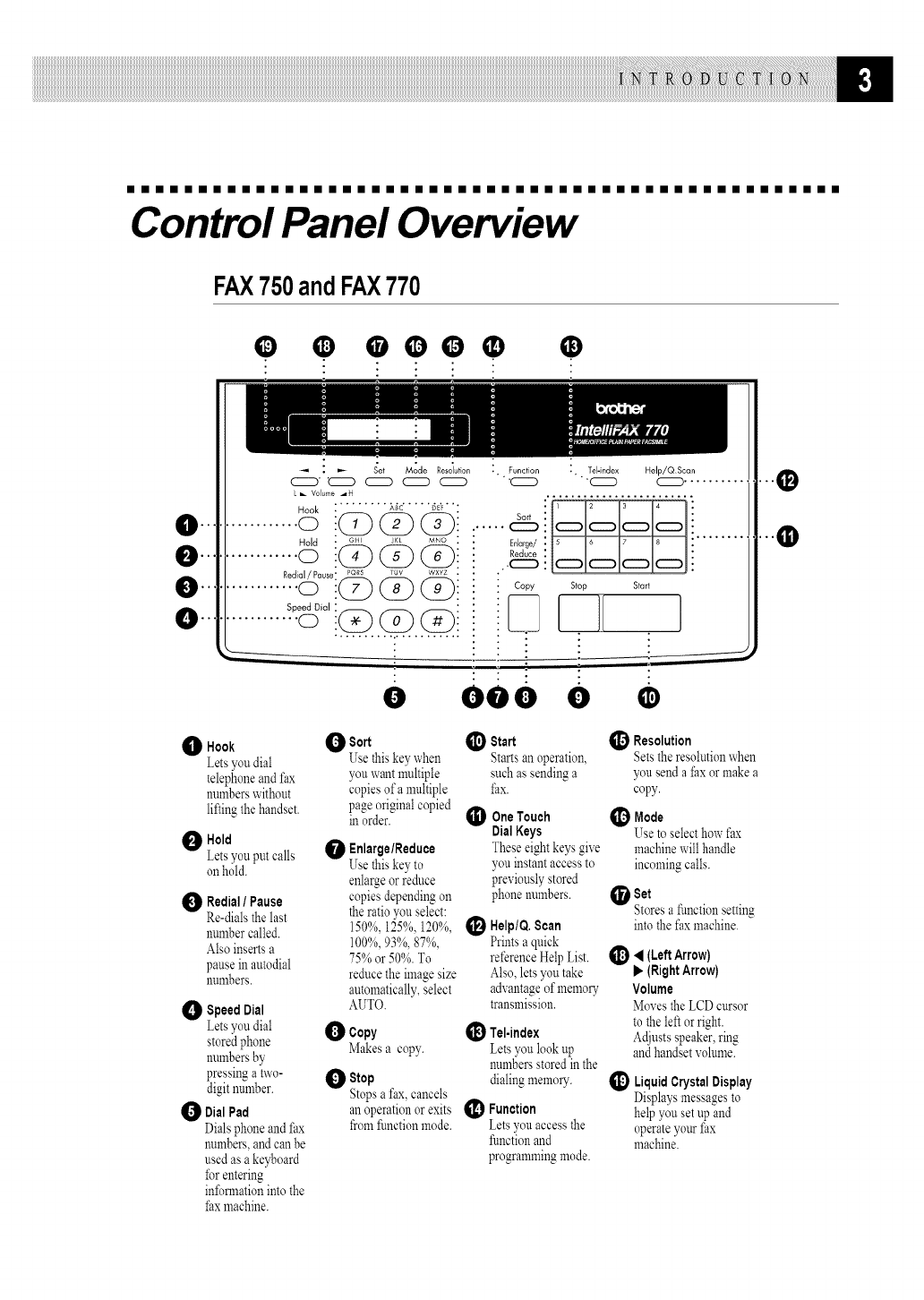
Control Panel Overview
FAX750andFAX770
o • goo • •
.,
0""
.: - £t ModoR0soi_t_o_
L _ Volume _H
Hook _ ........ _c ..... _E_;" "
..........o
Hold -MNO
..........o ::___
Speed Dial
............o @@@
Function Tel-index Help/Q Scan
-_ _ ..........
C22D C22D C22DC22D
56 8
Sort
Enlarge/
Reduce
.C_ C=D C=D C=D C=D
Copy Stop Start
Om
. _____.__----_
Oeo O •
0Hook
Letsyoudial
telephoneandfax
nmnberswithout
liftingthehandset.
O Hold
Letsyou put calls
onhold.
_1_ RedJal/Pause
Re-dials the last
number called.
Also inserts a
pause in autodial
numbers.
0Speed Dial
Letsyou dial
storedphone
numbersby
pressing a two-
digit number.
0 DialPad
Dials phone and fax
numbers, and can be
used as a keyboard
*brentering
infomlation into the
fax machine.
0Sort
Usethiskeywhen
you wantmultiple
copiesof amultiple
pageoriginalcopied
in order.
Enlarge/Reduce
Use this key to
enlarge or reduce
copies depending on
the ratio you select:
150%, 125%,120%,
100%,93%, 87%,
75% or 50%. To
reduce the image size
automatically, select
AUTO.
_1 Start
Starts an operation,
such as sending a
_;ax.
OOneTouch
Dial Keys
These eight key'sgive
you instant access to
previously stored
phone numbers.
Help/Q.Scan
Prints a quick
reference Help List.
Also, lets you take
advantage of memory
transmission.
0Copy I_1 Tel-index
Makesa copy. Letsyoulookup
numbersstoredinthe
0Stop dialingmemory.
Stopsafax,cancels
anoperationorexits _ Function
fromfunctionmode. Letsyouaccessthe
functionand
programmingmode.
_ Res01utJ0n
Sets the resolutionwhen
you send a I;axor make a
copy.
Mode
Use to select how fax
machine will handle
incoming calls.
_Set
Stores a function setting
into the fax ma&ine.
_1 < (LeftArrow)
il_(RightArrow)
Volume
MDvesthe LCDcursor
totheleftor right.
Adjustsspeaker,ring
andhandsetvolume.
LiquidCrystalDisplay
Displays messages to
help you set upand
operateyour fax
machine.
n and
iiiiiiiiiiiiiiiiiiiiiiiiiiiiiiiiiiiiiiiiiiiiiiiiii
Caution
Never install telephone wiring during a lightning storm.
2Werecommend that this product be used with a surge protection device
to protect the product against lightning storms.
Never install a telephone jack in a wet location unless the jack is
specifically designed for a wet location.
4 Never touch telephone wires or terminals that are not insulated unless
the telephone line has been disconnected at the network interface.
15 Use caution when installing or modifying telephone lines.
6Avoid using a telephone (other than a cordless type) during an electrical
storm. There may be a remote risk of electric shock from lightning.
Do not use the telephone to report a gas leak in the vicinity of the leak.
For PLUGGABLE EQUIPMENT, the socket-outlet should be installed
near the equipment and should be easily accessible.
illlllllllllllllllllllllllllllllllllllllllllllllli
Choosing a Location
Place your fax machine on a flat, stable surface, such as a desk. Select a
place that is free of vibration and shocks. Locate the fax machine near a
telephone jack and a standard, grounded power outlet.
Avoid placing your machine in a high-traffic area. Do not place near
heaters, air conditioners, water, chemicals or refrigerators. Do not expose
the fax machine to direct sunlight, excessive heat, moisture or dust. Do not
connect your machine to electrical outlets controlled by wall switches or
automatic timers. Disruption of power can wipe out information in the
unit's memory. Do not connect your machine to electrical outlets on the
same circuit as large appliances or other equipment that might disrupt the
power supply. Avoid interference sources, such as speakers or the base units
of cordless phones.
Loadthe Paper
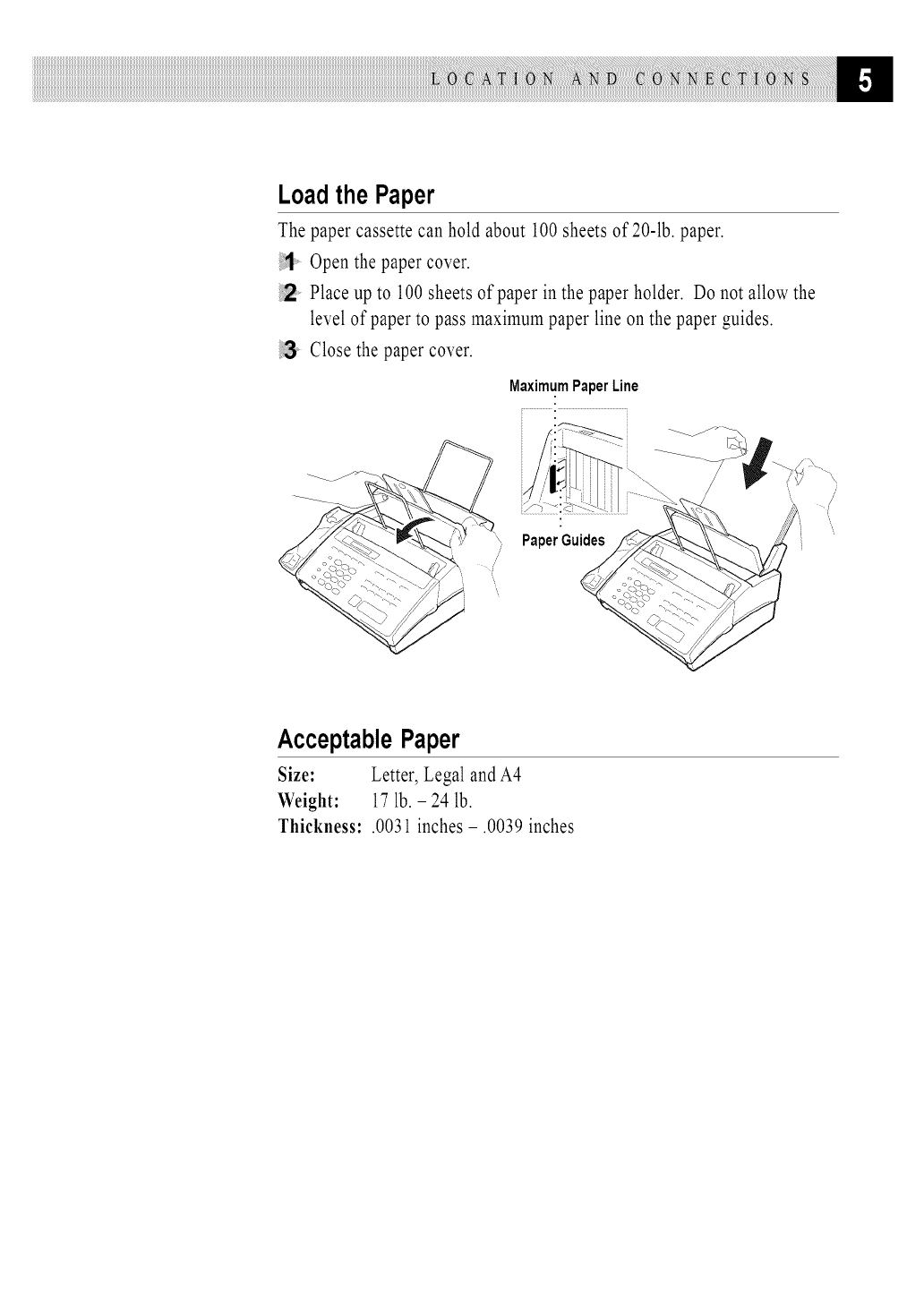
The paper cassette can hold about 100 sheets of 20-lb. paper.
Open the paper cover.
Place up to 100 sheets of paper in the paper holder. Do not allow the
level of paper to pass maximum paper line on the paper guides.
Close the paper cover.
MaximumPaperLine
/
............................"..................................................-"-_ _ i
PaperGuides .....'
AcceptablePaper
Size: Letter, Legal and A4
Weight: 17 lb. - 24 lb.
Thkkness: .0031 inches - .0039 inches
iiiiiiiiiiiiiiiiiiiiiiiiiiiiiiiiiiiiiiiiiiiiiiiiii
Connections
ConnectingthePowerCord
When you connect the power, the screen displays 01/01 00:00 FAX.
NOTICE:
1) This fax must be grounded using a three-prong plug.
2) Since the fax machine is grounded through the power outlet, you can
protect yourself from potentially hazardous electrical conditions on the
telephone network by keeping the power to your machine on when you
connect it to a telephone line. Similarly, you can protect yourself when
you want to move your machine, by disconnecting the telephone line
first, and then the power cord.
3) Lightning and power surges can damage this product! Werecommend that
you use a quality surge protection device on the AC power line aswell as
on the telephone line, or unplug the telephone line and electrical cords
during a lightning storm.
ConnectingtheTelephoneLine
Connect one end of the telephone line cord to the jack labeled LINE on the
left side of the fax machine. Connect the other end to a modular wall jack.
SpecialLineConsiderations
Roll Over PhoneLines
A roll over phone system is a group of two or more separate telephone lines
that pass incoming calls to each other if they are busy. The calls are usually
passed down or <'rolledover" to the next available phone line in a preset order.
Yourfax machine can work in a roll over system as long as it is the last
number in the sequence, so the call cannot roll away. Do not put the
fax machine on any of the other numbers; when the other lines are busy and a
second fax call is received, the fax call is transferred to a line that does not
have a fax machine. Yourfax machine will work best on a dedicated line.
Two-LinePhoneSystem
A two-line phone system is nothing more than two separate phone numbers
on the same wall outlet. The two phone numbers can be on separate jacks
(RJ11) or combined into one jack (RJ14). Yourmachine must be plugged
into an RJll jack. RJll and RJ14 jacks may be equal in size and
appearance and both may contain four wires (black, red, green, yellow). To
test the type of jack, plug in a two-line phone and see if it can access both
lines. If it can, you must separate the line for your machine.
ConvertingTelephoneWall Outlets
There are three ways to convert to an RJ11 receptacle. The first two ways
may require assistance from the telephone company. You can change the
wall outlets from one RJ14 jack to two RJll jacks. Or, you can have an
RJll wall outlet installed and slave or jump one of the phone numbers to it.
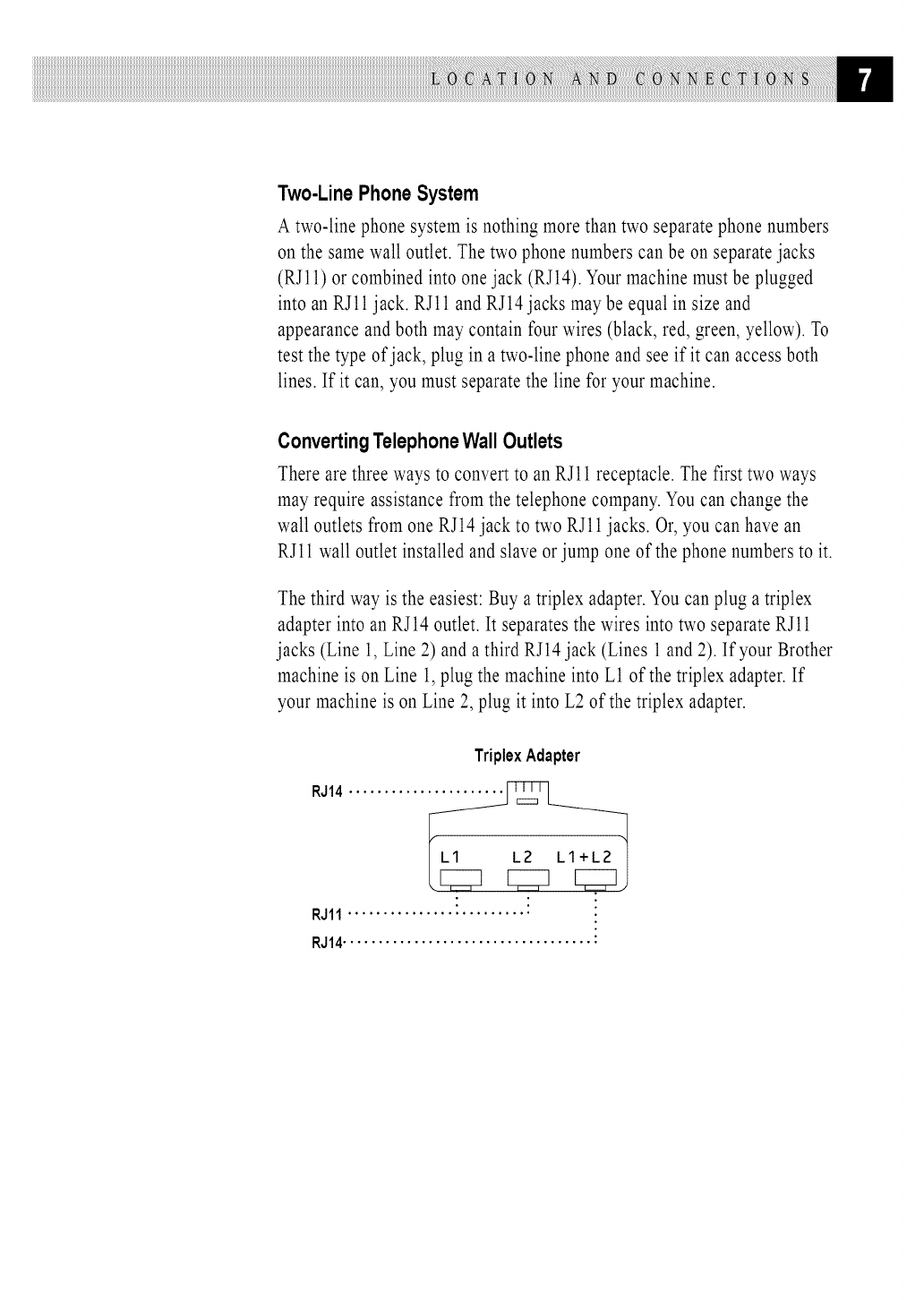
The third way is the easiest: Buy a triplex adapter. You can plug a triplex
adapter into an RJ14 outlet. It separates the wires into two separate RJll
jacks (Line 1, Line 2) and a third RJ14 jack (Lines 1 and 2). If your Brother
machine is on Line 1, plug the machine into L1 of the triplex adapter. If
your machine is on Line 2, plug it into L2 of the triplex adapter.
TriplexAdapter
RJ14...........
RJ11..........................
RJ14................................... :
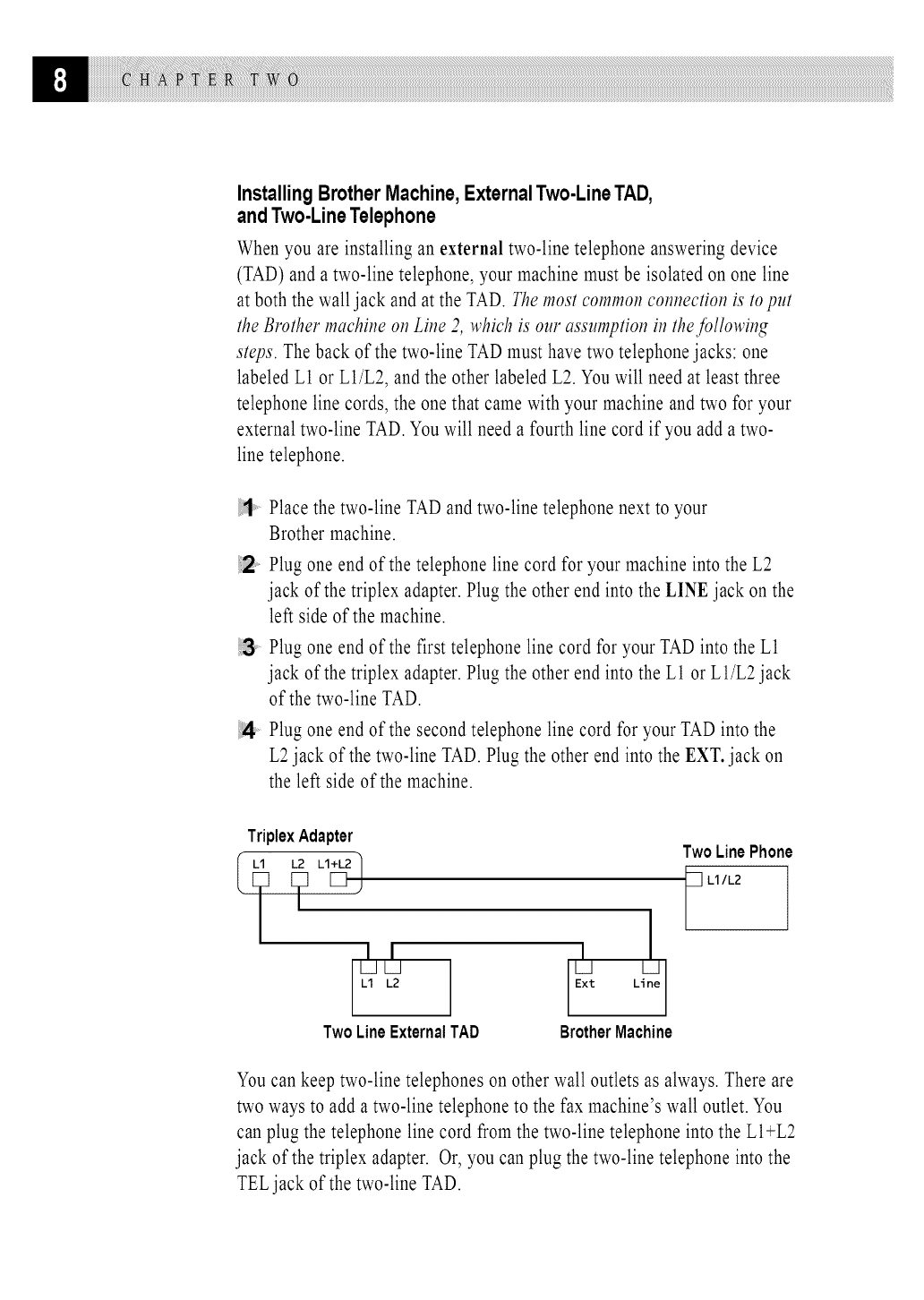
Installing Brother Machine, External Two-Line TAD,
and Two-Line Telephone
When you are installing an external two-line telephone answering device
(TAD) and a two-line telephone, your machine must be isolated on one line
at both the wall jack and at the TAD. The most common connection is to put
the Blvther machine o17Line 2, which is our assumption in the jollowing
steps. The back of the two-line TAD must have two telephone jacks: one
labeled L1 or L1/L2, and the other labeled L2. You will need at least three
telephone line cords, the one that came with your machine and two for your
external two-line TAD. You will need a fourth line cord if you add a two-
line telephone.
Place the two-line TAD and two-line telephone next to your
Brother machine.
Plug one end of the telephone line cord for your machine into the L2
jack of the triplex adapter. Plug the other end into the LINE jack on the
left side of the machine.
Plug one end of the first telephone line cord for your TAD into the L1
jack of the triplex adapter. Plug the other end into the L1 or L1/L2 jack
of the two-line TAD.
Plug one end of the second telephone line cord for your TAD into the
L2jack of the two-line TAD. Plug the other end into the EXT. jack on
the left side of the machine.
TriplexAdapter
Ii
I I
UL_J
El L2
TwoLineExternalTAD
I
U U
Ext Line
BrotherMachine
TwoLinePhone
L1/L2
You can keep two-line telephones on other wall outlets as always. There are
two ways to add a two-line telephone to the fax machine's wall outlet. You
can plug the telephone line cord from the two-line telephone into the LI+L2
jack of the triplex adapter. Or, you can plug the two-line telephone into the
TELjack of the two-line TAD.
See
Easy Receive
p. 24
Multi-LineConnections(PBX)
Most offices use a central telephone system. While it is often relatively
simple to connect the fax machine to a key system or a PBX (Private Branch
Exchange), we suggest that you contact the company that installed your
telephone system and ask them to connect the fax machine for you. It is
advisable to have a separate line for the fax machine. You can then leave the
fax machine in FAX ONLYMode to receive faxes any time of day or night.
If the fax machine is to be connected to a multi-line system, ask your
installer to connect the unit to the last line on the system. This prevents the
unit from being activated each time a telephone call is received.
As with all fax units, this machine must be connectedto a two wire system.If
your line has morethan two wires, proper connectionof the fax machine
cannotbe made.
Ifyouareinstallingthefax machinetoworkwitha PBX:
It is not guaranteed that the unit will operate correctly under all
circumstances with a PBX. Any cases of difficulty should be reported
first to the company that handles your PBX.
If all incoming calls will be answered by a switchboard operator, it is
recommended that the Answer Mode be set to MANUAL. All incoming
calls should initially be regarded as telephone calls.
Theunit may be used with either pulse or tone dialing telephone service.
CustomFeaturesonYourPhoneLine
To learn how custom features may affect your faxing operations, please
refer to the Troubleshooting chapter, p. 52.
ConnectinganExternal
TelephoneAnsweringDevice(TAD)
Sequence
You might choose to connect an additional answering system. When you
have an external TADon the same telephone line as the fax machine, the
TADanswers all calls. The fax machine "listens" for fax calling (CNG)
tones. If it hears them, the fax machine takes over the call and receives the
fax. If it doesn't hear CNG tones, the fax machine lets the TAD continue
playing your outgoing message so your caller can leave you a voice
message.
The TADmust answer within four rings (the recommended setting is two
rings). The fax machine cannot hear CNG tones until the TADhas answered
the call, and with four rings there are only 8-10 seconds of CNG tones left
for the fax "handshake." Make sure you carefully follow instructions in this
manual for recording your outgoing message. We do not recommend using
the toll saver feature on your external answering machine if it exceeds 4
rings.
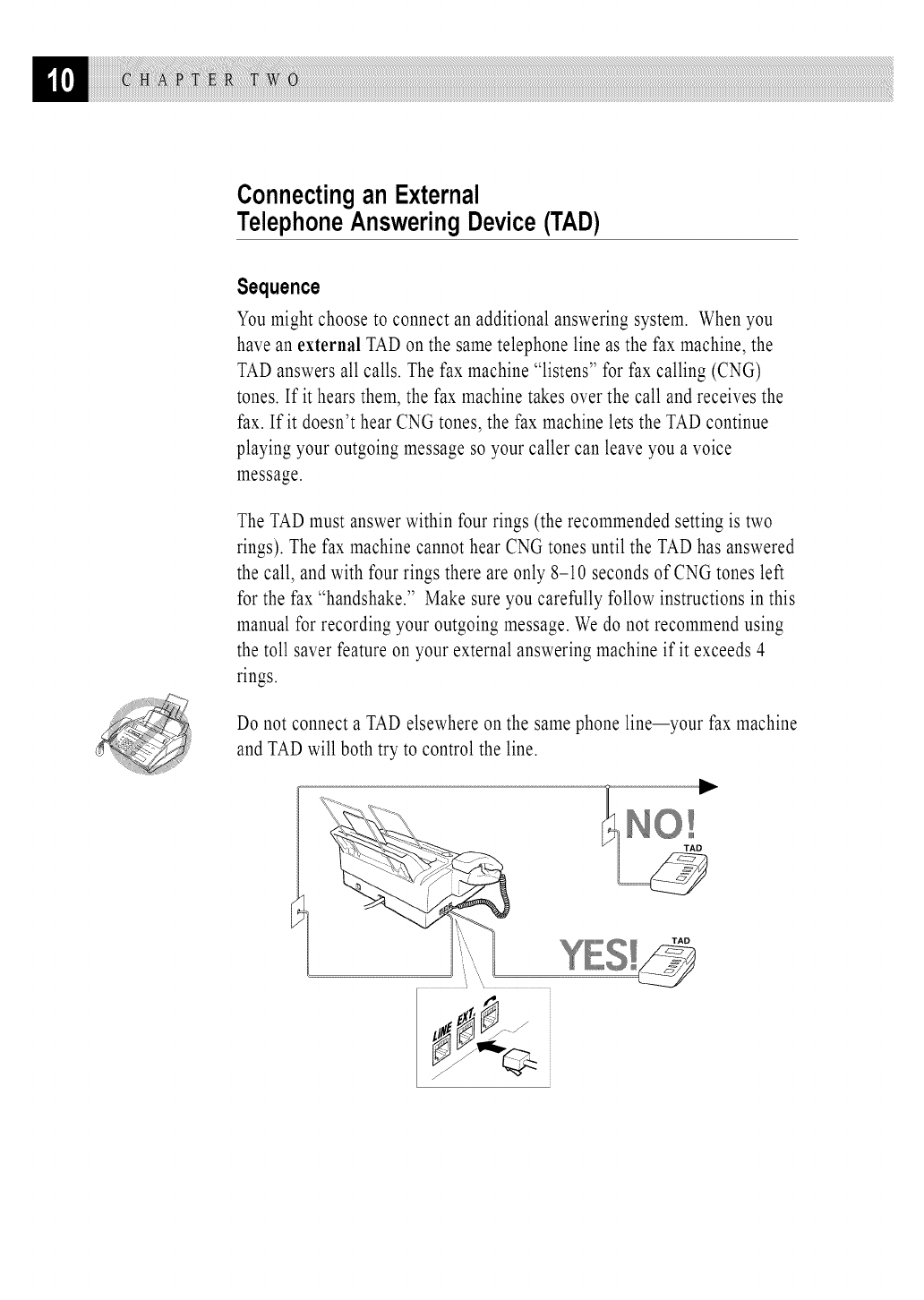
Do not connect a TAD elsewhere on the same phone line--your fax machine
and TAD will both try to control the line.
i ",, YES!
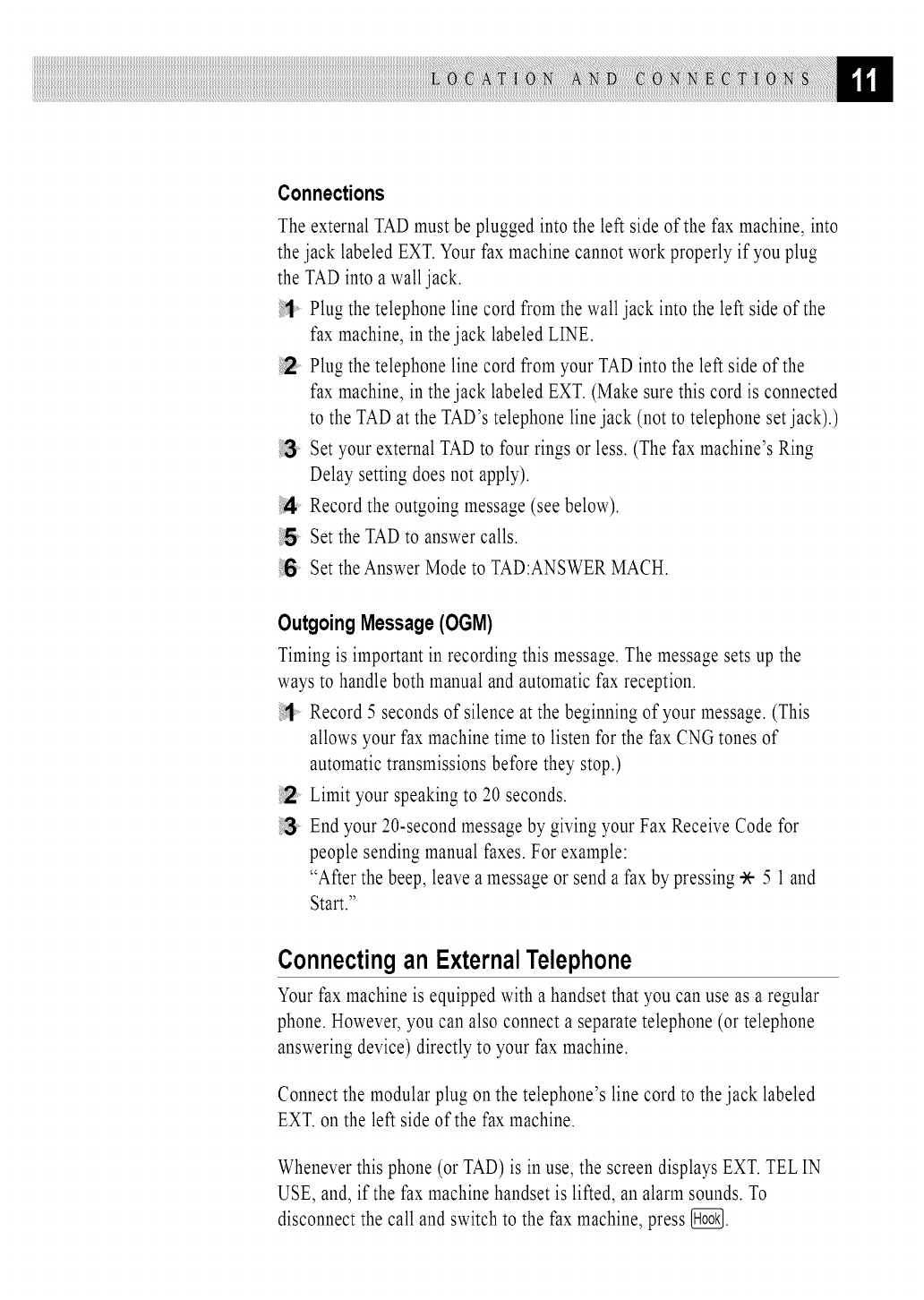
Connections
The external TAD must be plugged into the left side of the fax machine, into
the jack labeled EXT.Your fax machine cannot work properly if you plug
the TADinto a wall jack.
Plug the telephone line cord from the wall jack into the left side of the
fax machine, in the jack labeled LINE.
!2 Plug the telephone line cord from your TAD into the left side of the
fax machine, in the jack labeled EXT. (Make sure this cord is connected
to the TAD at the TAD's telephone line jack (not to telephone set jack).)
Set your external TAD to four rings or less. (The fax machine's Ring
Delay setting does not apply).
!4 Record the outgoing message (see below).
Set the TAD to answer calls.
!6 Set the Answer Mode to TAD:ANSWER MACH.
Outgoing Message (OGM)
Timing is important in recording this message. The message sets up the
ways to handle both manual and automatic fax reception.
Record 5 seconds of silence at the beginning of your message. (This
allows your fax machine time to listen for the fax CNG tones of
automatic transmissions before they stop.)
Limit your speaking to 20 seconds.
End your 20-second message by giving your Fax Receive Code for
people sending manual faxes. For example:
"After the beep, leave a message or send a fax by pressing * 5 1and
Start."
Connectingan ExternalTelephone
Yourfax machine is equipped with a handset that you can use as a regular
phone. However, you can also connect a separate telephone (or telephone
answering device) directly to your fax machine.
Connect the modular plug on the telephone's line cord to the jack labeled
EXT. on the left side of the fax machine.
Whenever this phone (or TAD) is in use, the screen displays EXT. TEL IN
USE, and, if the fax machine handset is lifted, an alarm sounds. To
disconnect the call and switch to the fax machine, press {_{_.
creen
ming
iiiiiiiiiiiiiiiiiiiiiiiiiiiiiiiiiiiiiiiiiiiiiiiiii
User-Friendly Programming
See
lJ3ingThis
Manual
p. 1
Wehave designed your fax machine with on-screen programming and a
Help key. User-friendly programming helps you take full advantage of all
the functions your fax machine has to offer.
Since your fax programming is done on the LCD, we created step-by-step
on-screen prompts to help you program your fax machine. All you need to
do is follow the prompts as they guide you through the function menu
selections and programming options and settings.
FunctionMode
Youcan access the functionmode by pressing_. When you enter the
function mode,your fax machine displays a list of main menu options from
which you can choose. These options appear one after the other on the display.
Select an option by pressing _ when the optionappears on the screen.
You can "scroll" more quickly through options by pressing [_. When the
screen displays your selection, press _. (Use [_ to scroll backward if you
passed your choice or to save key strokes. Both arrow keys show all options,
in the opposite order.)
Before you press _ after entering information in a field using the dial pad,
you can correct a mistake. Use [_ to back up and then type over the
incorrect characters.
When you finish a function, the screen displays ACCEPTED.
If you want to exit the Function Mode, press [_.
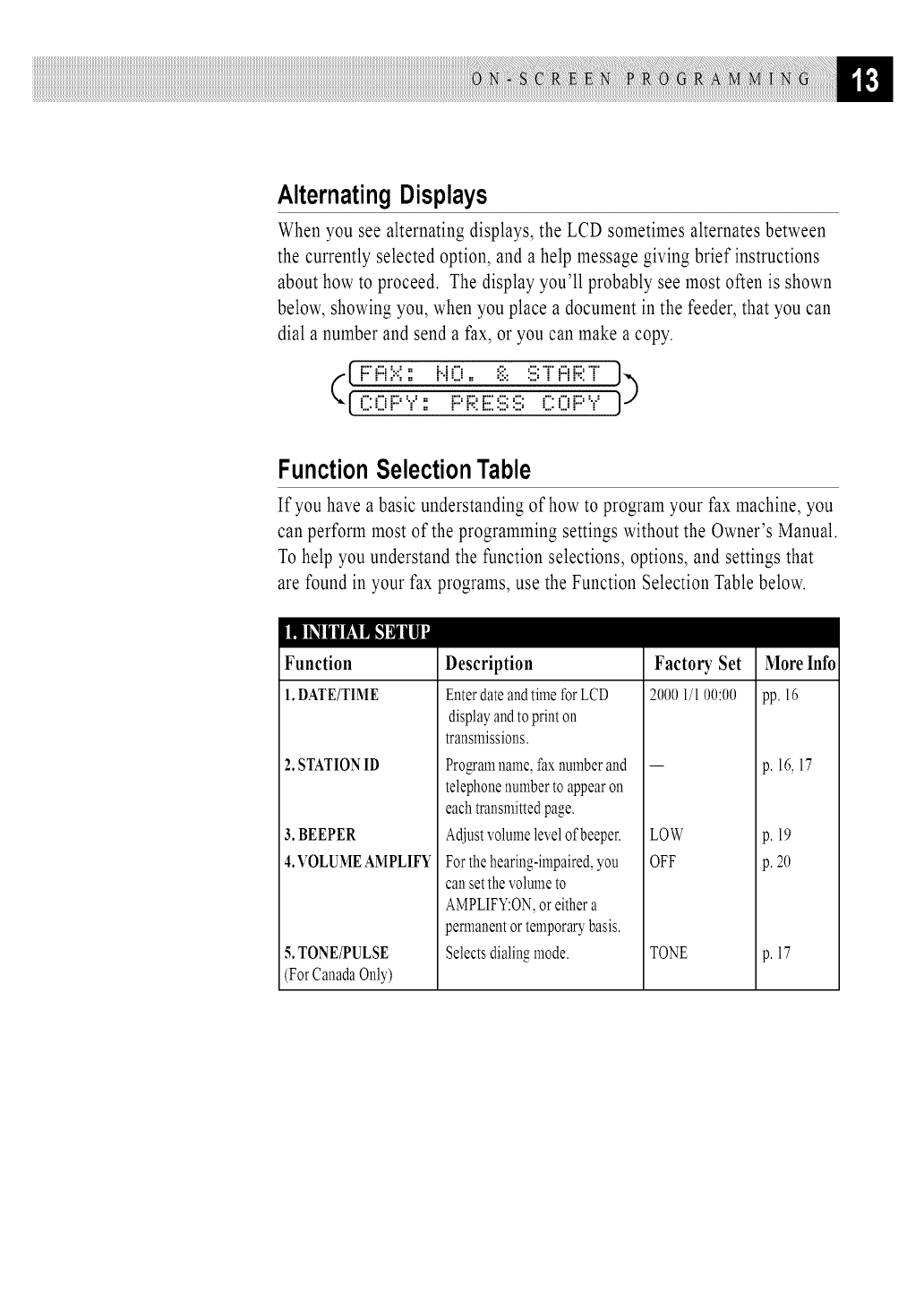
AlternatingDisplays
When you see alternating displays, the LCD sometimes alternates between
the currently selected option, and a help message giving brief instructions
about how to proceed. The display you'll probably see most often is shown
below, showing you, when you place a document in the feeder, that you can
dial a number and send a fax, or you can make a copy.
([F::FiF=:: NO,, :ii::ST'FiF;;:T" ])
L.- L.-=r" [ == r" r=:. E..== .== L.- L.-=r" [
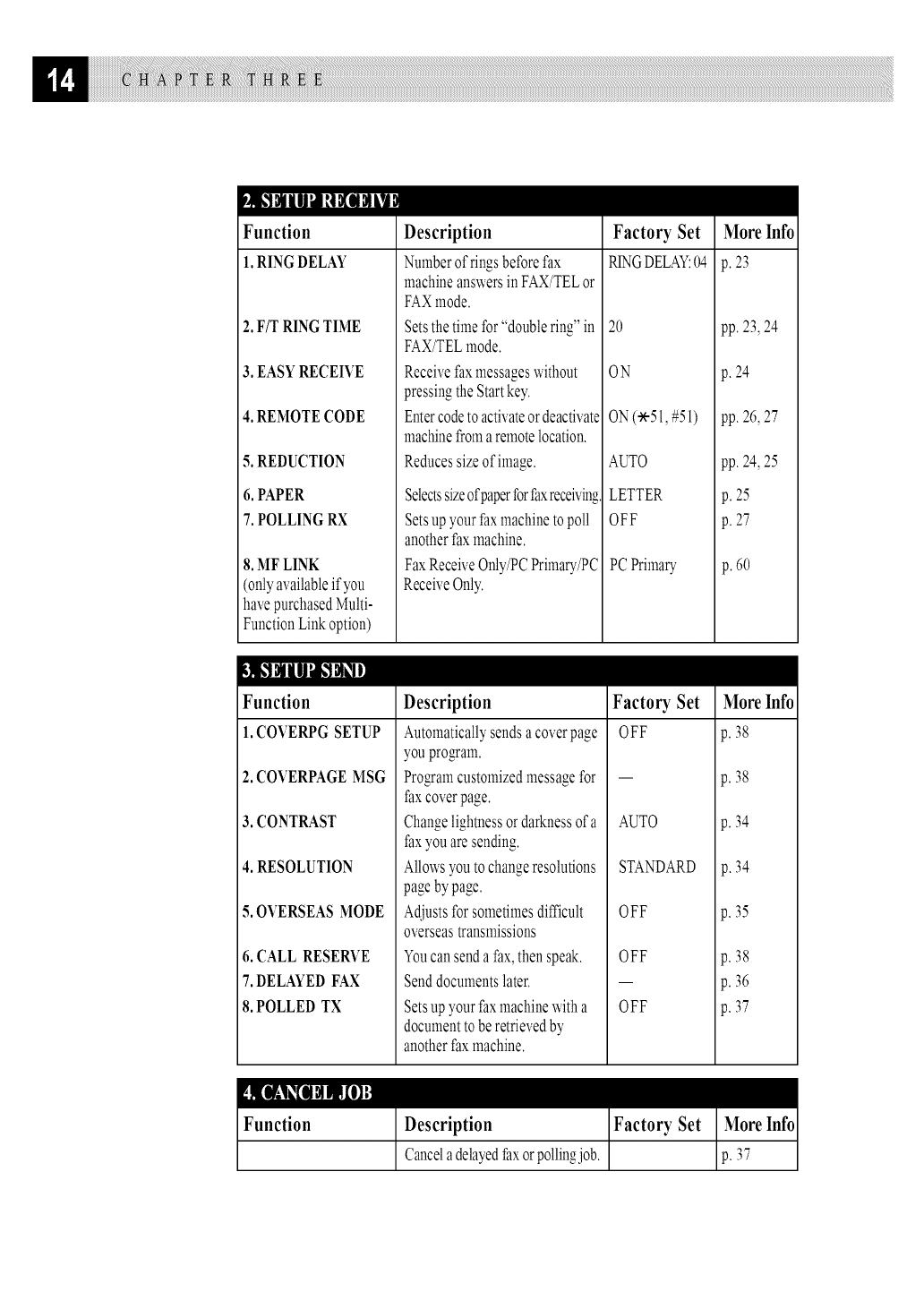
FunctionSelectionTable
If you have a basic understanding of how to program your fax machine, you
can perform most of the programming settings without the Owner's Manual.
To help you understand the function selections, options, and settings that
are found in your fax programs, use the Function Selection Table below.
Function
1.DATE/TIME
2. STATION ID
3. BEEPER
4.VOLUME AMPLIFY
5.TONE/PULSE
(ForCanadaOnly)
Description
EnterdateandtimeforLCD
displayandtoprinton
transmissions.
Programname,faxnumberand
telephonenumbertoappearon
eachtransmittedpage.
Adjustvolumelevelofbeeper.
Forthehearing-impaired,you
cansetthevolumeto
AMPLIFY:ON,or eithera
permanentor temporarybasis.
Selectsdialingmode.
Factory Set
2000 l/l 00:00
LOW
OFF
TONE
More Info
pp. 16
p. 16, 17
p. 19
p. 20
p. 17
Function
1.RINGDELAY
2. F/T RING TIME
3. EASY RECEIVE
4. REMOTE CODE
5. REDUCTION
6. PAPER
7. POLLING RX
8. MF LINK
(only available ifyou
have purchased Multi-
Function Link option)
Description
Numberoffings beforefax
machineanswersinFAX/TELor
FAXmode.
Setsthetimefor"doublering"in
FAX/TELmode.
Receivefaxmessageswithout
pressingtheStartkey.
Entercodetoactivateordeactivate
machinefromaremotelocation.
Reducessizeofimage.
SelectssizeofpaperforPaxreceiving
Setsupyourfaxmachinetopoll
anotherfaxmachine.
FaxReceiveOnly/PCPrimary/PC
ReceiveOnly.
Factory Set
R1NGDELAY:04
20
ON
ON(-51, #51)
AUTO
LETTER
OFF
PCPrimary
More Info
p.23
pp. 23,24
p. 24
pp. 26,27
pp. 24,25
p. 25
p. 27
p. 60
Function
1. COVERPG SETUP
2. COVERPAGE MSG
3. CONTRAST
4. RESOLUTION
5. OVERSEAS MODE
6. CALL RESERVE
7. DELAYED FAX
8. POLLED TX
Description
Automaticallysendsacoverpage
youprogam.
Progam customizedmessagefor
faxcoverpage.
Changelightnessordarknessofa
faxyouaresending.
Allowsyoutochangeresolutions
pagebypage.
Adjustsforsometimesdifficult
overseastransmissions
Youcansenda fax,then speak.
Senddocumentslater.
Setsupyourfaxmachinewitha
documenttobe retrievedby
anotherfaxmachine.
Factory Set
OFF
AUTO
STANDARD
OFF
OFF
OFF
More Info
p.38
p.38
p.34
p.34
p.35
p.38
p.36
p.37
Function Description
Canceladelayedfaxorpollingjob.
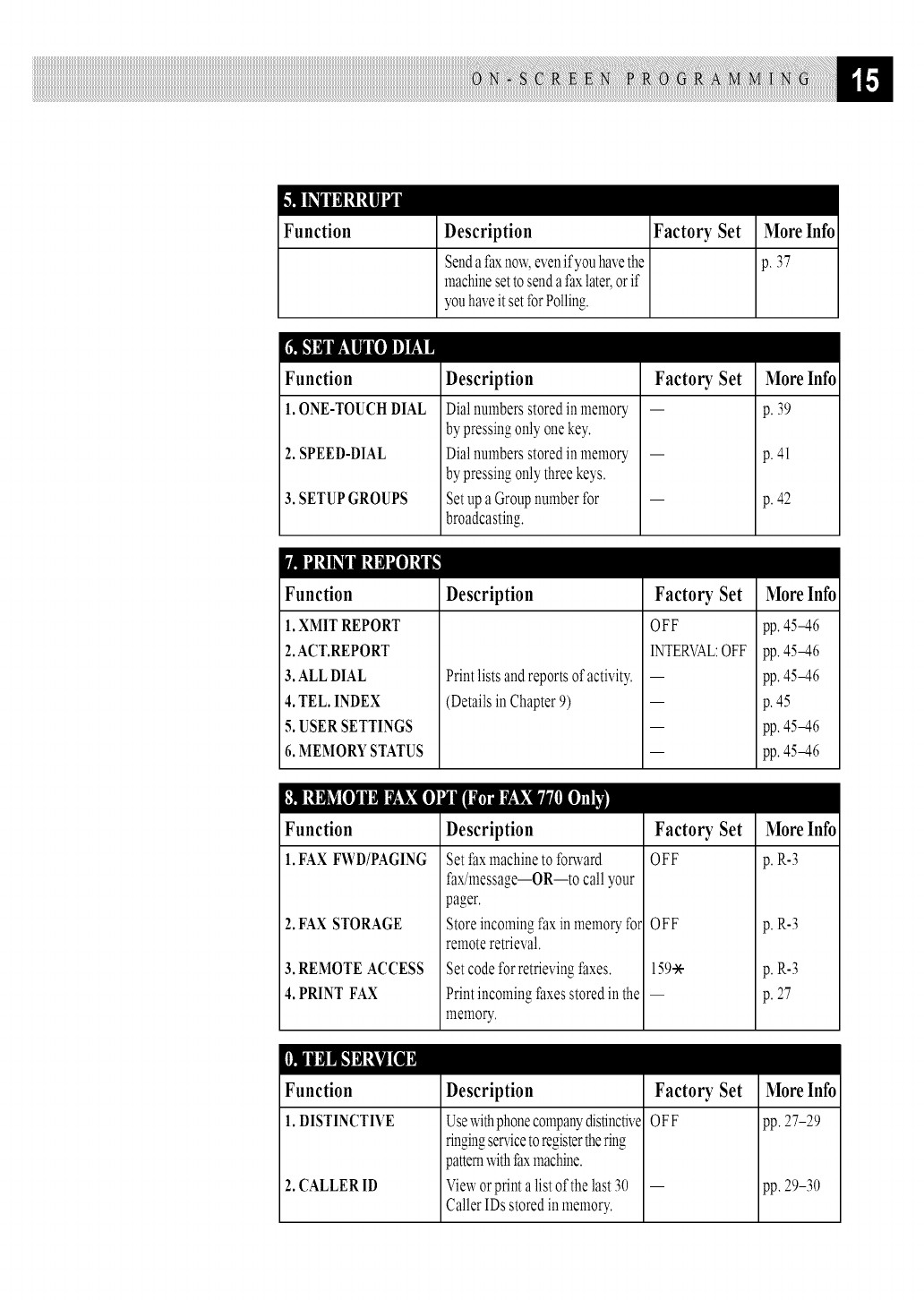
Function Description
Sendafaxnow,evenifyouhavethe
machinesettosendafaxlater,orif
youhaveitsetforPolling.
Factory Set
More Infol
p. 37
_ _ ,_lllii[ollill_llll
Function
1.ONE-TOUCHDIAL
2. SPEED-DIAL
3. SETUPGROUPS
Description
Dialnumbersstoredinmenlory
bypressingonlyonekey.
Dialnumbersstoredinmemory
bypressingonlythreekeys.
Setupa Groupnumberfor
broadcasting.
Factory Set More Info
p.39
p.41
p.42
_Olitig'!
Function
XMIT REPORT
2.ACT.REPORT
3. ALL DIAL
4. TEL. INDEX
5. USER SETTINGS
6. MEMORY STATUS
Description
Printlistsandreportsofactivity.
(DetailsinChapter9)
Factory Set
OFF
INTERVAL:OFF
More Info
pp.4546
pp.4546
pp.4546
p.45
pp.4546
pp.4546
Function
1.FAXFWD/PAGING
2. FAX STORAGE
3. REMOTE ACCESS
4. PRINT FAX
Description
Setfaxmachinetoforward
fax/message--OR--tocallyour
pager.
Storeincomingfaxinmemoryfox
remoteretrieval.
Setcodeforretrievingfaxes.
Printincomingfaxesstoredinthe
memory.
Factory Set
OFF
OFF
159..'X.-
More Info
p.R-3
p.R-3
p.R-3
p.27
Function
DISTINCTIVE
2. CALLERID
Description
Usewithphonecompanydistinctive
ringingservicetoregisterthering
patternwithPaxmachine.
Vieworprintalistof thelast30
CallerIDsstoredinmemory.
Factory Set
OFF
More Info
pp.27-29
pp.29-30
Setup
iiiiiiiiiiiiiiiiiiiiiiiiiiiiiiiiiiiiiiiiiiiiiiiiii
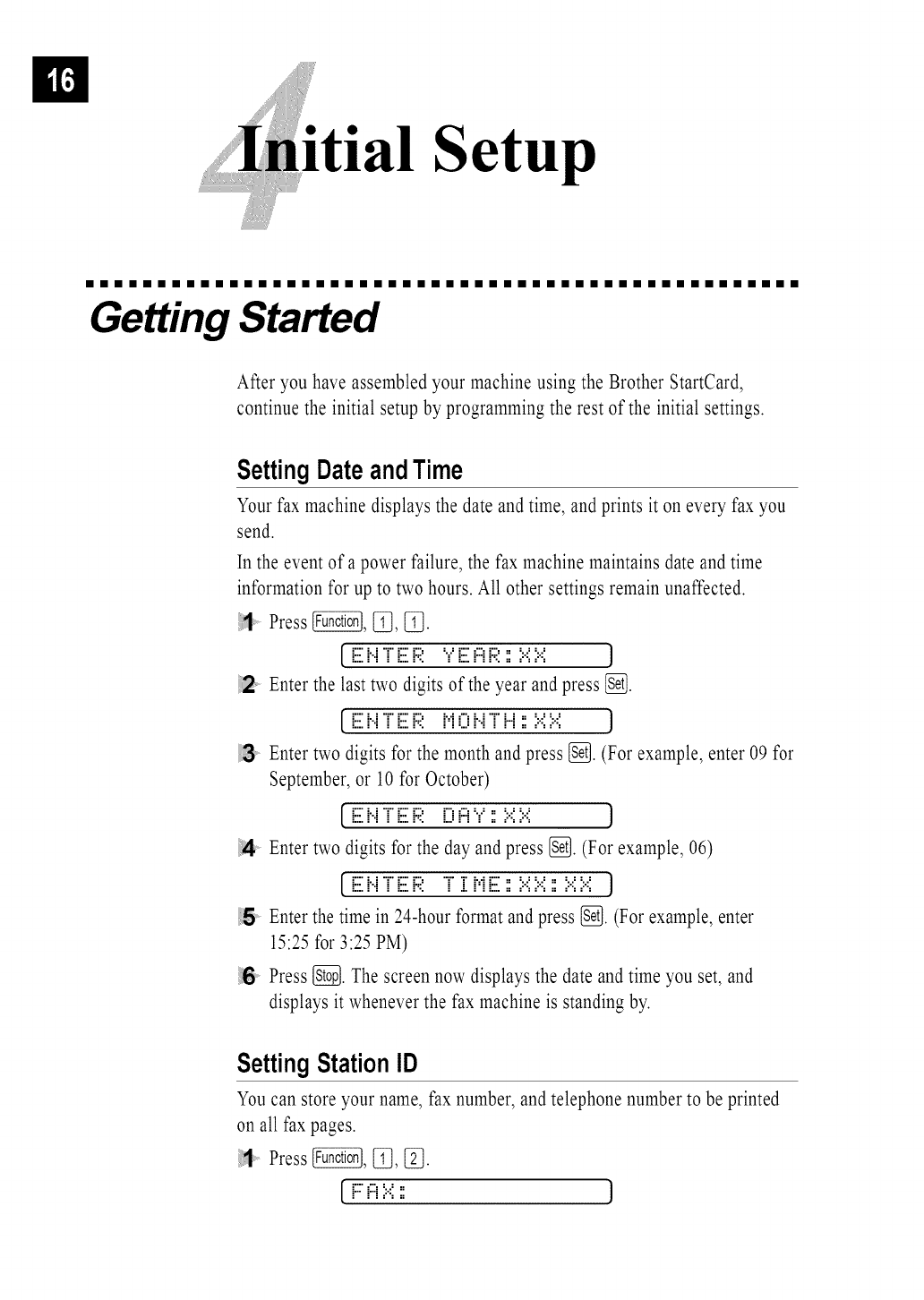
Getting Started
After you have assembled your machine using the Brother StartCard,
continue the initial setup by programming the rest of the initial settings.
SettingDateandTime
Yourfax machine displays the date and time, and prints it on every fax you
send.
In the event of a power failure, the fax machine maintains date and time
information for up to two hours. All other settings remain unaffected.
Press _, [_, _.
[[ii: H "T"[ii:F;I: :'f:[ii:i:::iF;I:11::.::::.:: ]
Enter the last two digits of the year and press [_.
[ E i..iT E F;;: M0 i..iT H ::::.::::.:: ]
Enter two digits for the month and press [_). (For example, enter 09 for
September, or 10 for October)
[E i..iT'E F;;: iZZZ_i:::i:_:::::.::::.:: ]
4Enter two digits for the day and press [_. (For example, 06)
[ E i..iT E F;;: T iZME ::::.::::.::::::.::::.::]
Enter the time in 24-hour format and press [_. (For example, enter
15:25for 3:25 PM)
1:6 Press (_. The screen now displays the date and time you set, and
displays it whenever the fax machine is standing by.
SettingStationID
You can store your name, fax number, and telephone number to be printed
on all fax pages.
1 Press _, [_, [_.
[F:i=i::,::: ]
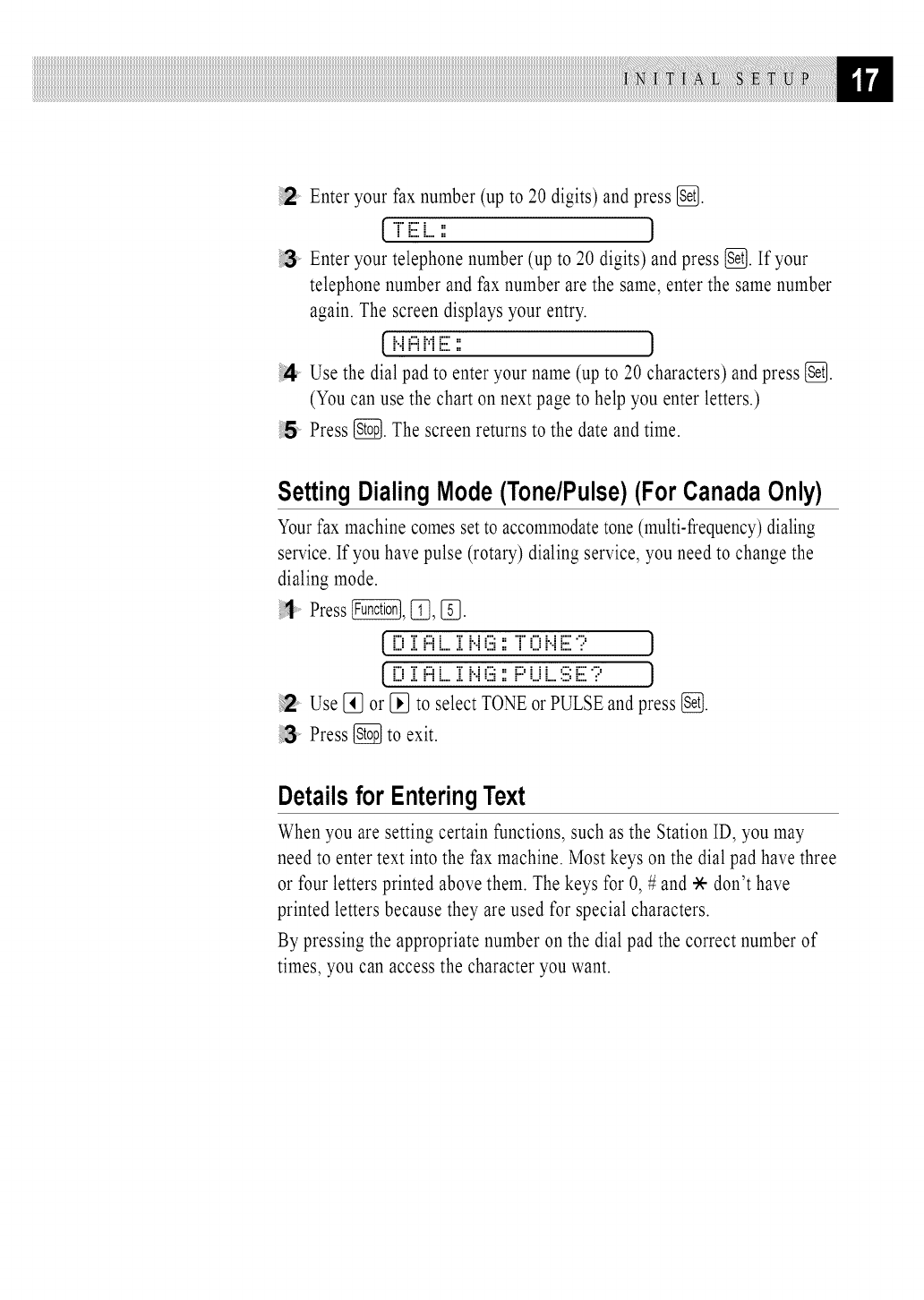
Enter your fax number (up to 20 digits) and press [_.
tr iiii:L : ]
Enter your telephone number (up to 20 digits) and press [_. If your
telephone number and fax number are the same, enter the same number
again. The screen displays your entry.
_.i i:::iMiiii:: J
Use the dial pad to enter your name (up to 20 characters) and press {_.
(Youcan use the chart on next page to help you enter letters.)
:15 Press [_. The screen returns to the date and time.
SettingDialingMode(Tone/Pulse)(ForCanadaOnly)
Yourfax machine comes set to accommodatetone (multi-frequency)dialing
service.If you have pulse (rotary) dialing service, you need to change the
dialing mode.
Press _, [_, [_.
[i::) i i:::ii....i i..i(iii: T'0 i..iiiii:';:' J
[ i:?i i:::ii....i i..i(iii:: F::'U i....:iii;iiii:';:' J
2 Use [_ or [_ to select TONEor PULSE and press [_.
Press {_ to exit.
Detailsfor EnteringText
When you are setting certain functions, such as the Station ID, you may
need to enter text into the fax machine. Most keys on the dial pad have three
or four letters printed above them. The keys for 0, # and * don't have
printed letters because they are used for special characters.
By pressing the appropriate number on the dial pad the correct number of
times, you can access the character you want.
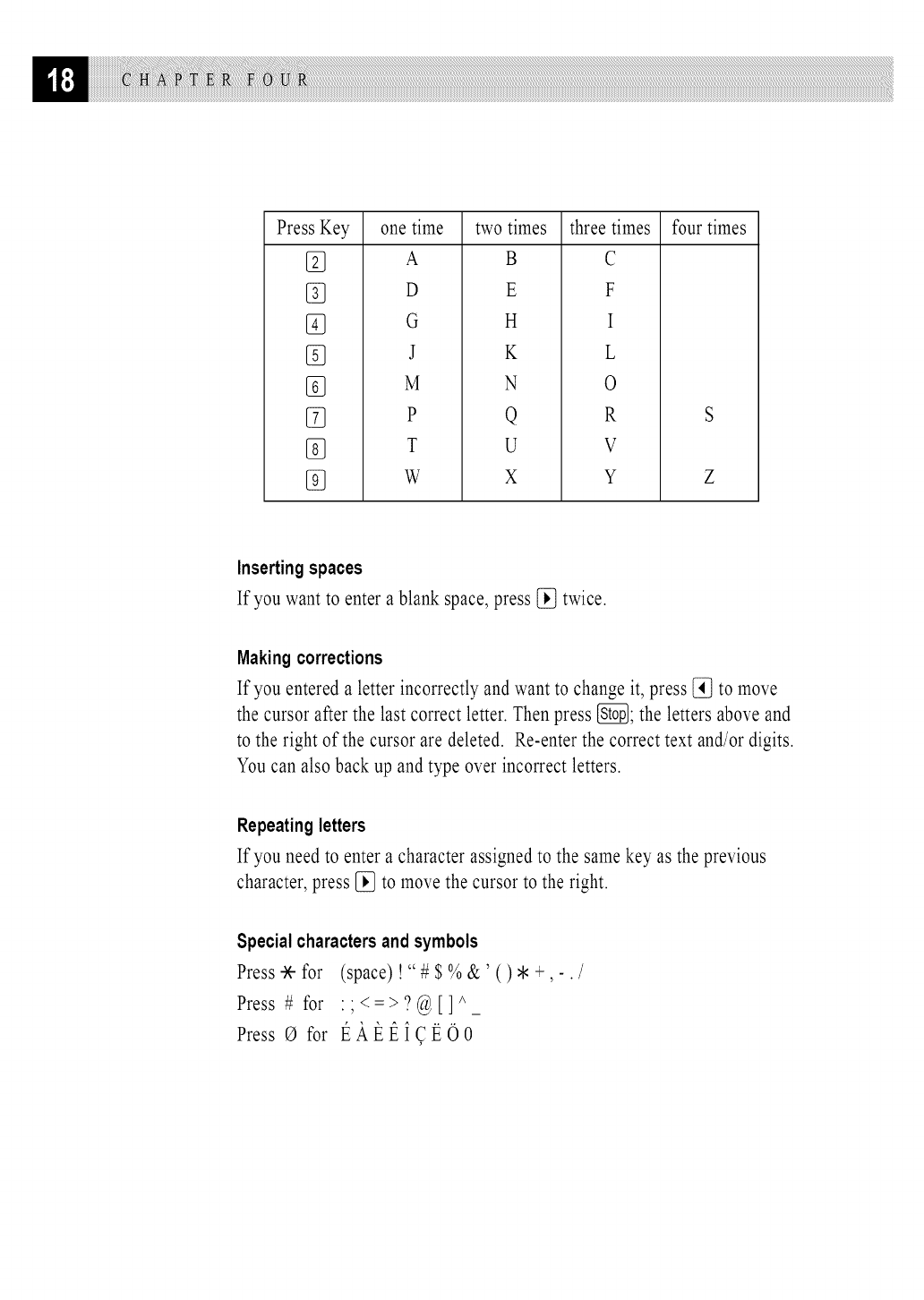
Press Key
%
one time
A
D
G
J
M
P
T
W
two times
B
E
H
K
N
Q
u
X
three times
C
F
I
L
0
R
V
Y
four times
Z
Insertingspaces
If you want to enter a blank space, press {_ twice.
Making corrections
If you entered a letter incorrectly and want to change it, press [_ to move
the cursor after the last correct letter. Then press _; the letters above and
to the right of the cursor are deleted. Re-enter the correct text and/or digits.
You can also back up and type over incorrect letters.
Repeating letters
If you need to enter a character assigned to the same key as the previous
character, press {_ to move the cursor to the right.
Specialcharactersandsymbols
Press_for (space)!"#$%&'()*+,-./
Press #for :;<=>?@[]A_
Press 0for t_AI_I_iCI_OO
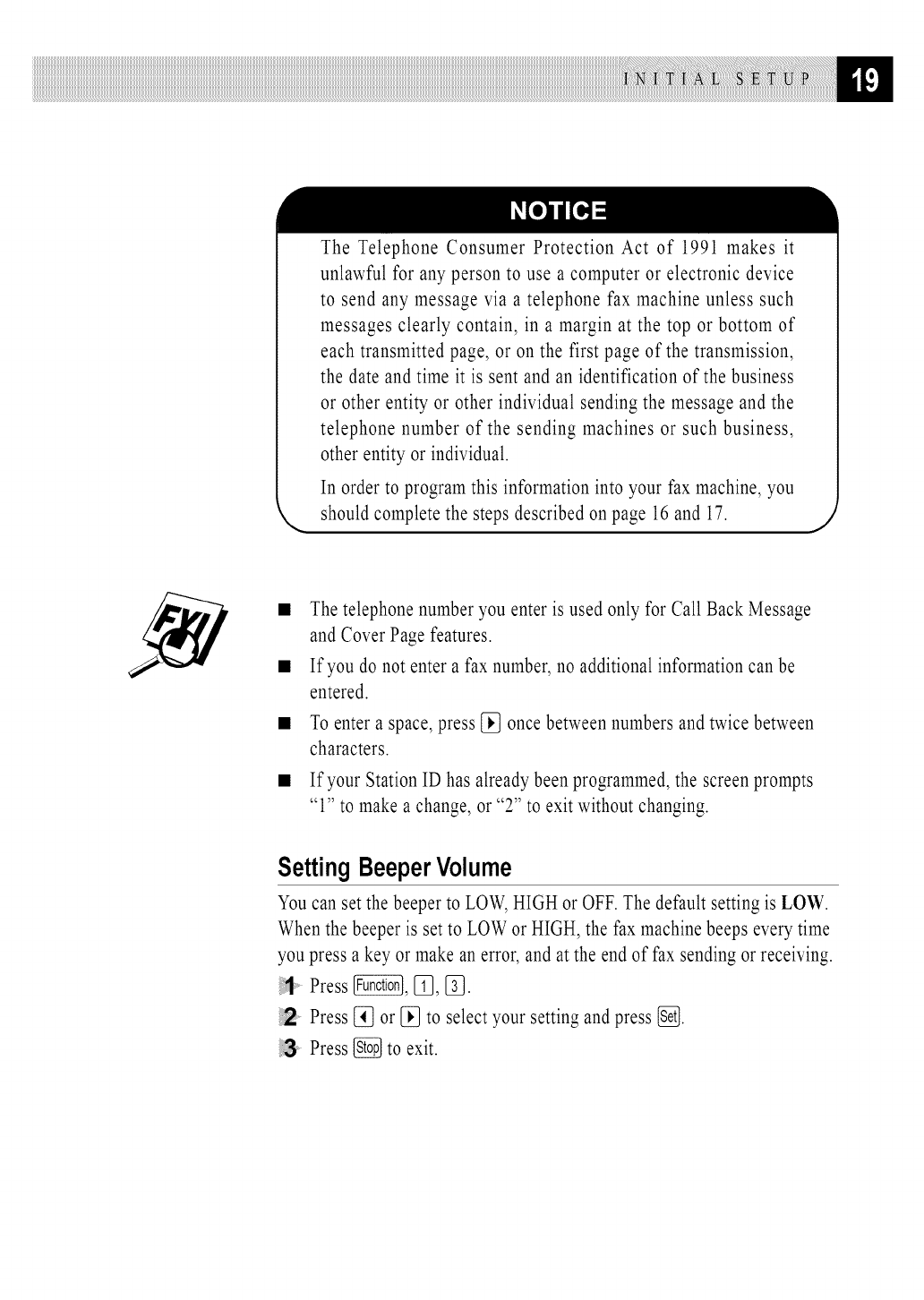
TheTelephoneConsumerProtectionAct of 1991makesit
unlawfulforanypersontouseacomputerorelectronicdevice
tosendanymessageviaatelephonefaxmachineunlesssuch
messagesclearlycontain,in amarginatthetoporbottomof
eachtransmittedpage,oronthefirstpageofthetransmission,
thedateandtimeit issentandanidentificationofthebusiness
orotherentityorotherindividualsendingthemessageandthe
telephonenumberof thesendingmachinesor suchbusiness,
otherentityorindividual.
Inordertoprogramthisinformationintoyourfaxmachine,you
shouldcompletethestepsdescribedonpage16and17. J
• The telephone number you enter is used only for Call Back Message
and Cover Page features.
• If you do not enter a fax number, no additional information can be
entered.
To enter a space, press [_ once between numbers and twice between
characters.
If your Station ID has already been programmed, the screen prompts
"1" to make a change, or "2" to exit without changing.
SettingBeeperVolume
You can set the beeper to LOW, HIGH or OFF. The default setting is LOW.
When the beeper is set to LOW or HIGH, the fax machine beeps every time
you press a key or make an error, and at the end of fax sending or receiving.
Press _, [_, [_.
Press [_ or [_ to select your setting and press [_.
Press _ to exit.
Settingthe HandsetVolume
Before you begin to use the fax machine, you must decide if you need to set
the handset volume to AMPLIFY:ON for a user who is hearing-impaired.
The AMPLIFY volume level complies with FCC standards.
VOLUMEAMPLIFY: OFF
This default setting is appropriate if none of the users are hearing-impaired.
During a conversation, users can press _ or _ on the control panel to
adjust the volume. When the handset is replaced, the handset volume remain
until you change it again.
VOLUME AMPLIFY:ON-TEMPORARY
This setting is appropriate if some of the users are hearing-impaired. During
a conversation, users can press [_ or [_ on the control panel to adjust
the volume to LOW, HIGH or AMPLIFY.When the handset is replaced, the
handset volume will returns to the default setting of LOW.
VOLAMPLIFY:ON-PERMANENT
Choose VOL AMPLIFY:ON-PERMANENT if all of the users are hearing-
impaired. During a conversation, users can press _ or _ on the control
panel to adjust the volume to LOW, HIGH or AMPLIFY.When the handset
is replaced, the handset volume returns to the default setting of AMPLIFY.
When you press _ or _ on the control panel to adjust the volume, the
display shows the setting you are choosing. Each key press changes the
volume to the next setting.
It is important that you do not choose PERMANENT unless all users
are hearing-impaired. Otherwise,the default setting of AMPLIFYmay
damage the hearing of some users.
SettingVolume Amplify
Please carefully read "Setting the Handset Volume" before you do the
following steps:
Press _, [_, [_.
•::::[:::.L.. [:::.i.... [ ".:: "::." :::.: .::::[:::. [
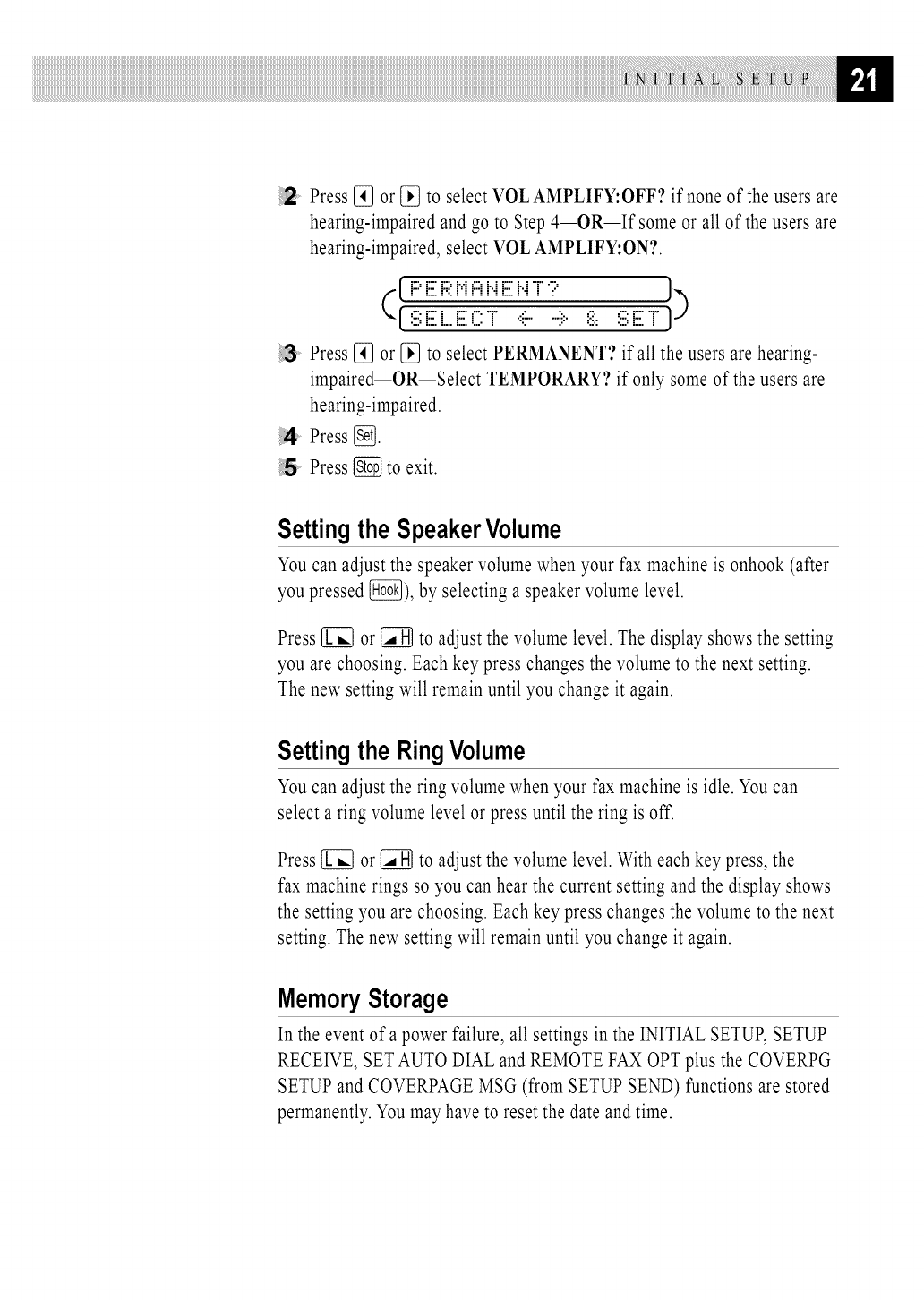
Press [_ or {_ to select VOLAMPLIFY:OFF? if none of the users are
hearing-impaired and go to Step 4--OR--If some or all of the users are
hearing-impaired, select VOL AMPLIFY:ON?.
Press [_ or [_ to select PERMANENT? if all the users are hearing-
impaired--OR--Select TEMPORARY? if only some of the users are
hearing-impaired.
4. Press (_.
Press [_ to exit.
Settingthe SpeakerVolume
You can adjust the speaker volume when your fax machine is onhook (after
you pressed [_), by selecting a speaker volume level.
Press [1_ or [_ to adjust the volume level. The display shows the setting
you are choosing. Each key press changes the volume to the next setting.
The new setting will remain until you change it again.
Settingthe RingVolume
You can adjust the ring volume when your fax machine is idle. You can
select a ring volume level or press until the ring is off.
Press [_ or [_ to adjust the volume level. With each key press, the
fax machine rings so you can hear the current setting and the display shows
the setting you are choosing. Each key press changes the volume to the next
setting. The new setting will remain until you change it again.
MemoryStorage
In the event of a power failure, all settings in the INITIAL SETUP, SETUP
RECEIVE, SETAUTO DIAL and REMOTE FAX OPT plus the COVERPG
SETUP and COVERPAGE MSG (from SETUP SEND) functions are stored
permanently. Youmay have to reset the date and time.
pReceive
iiiiiiiiiiiiiiiiiiiiiiiiiiiiiiiiiiiiiiiiiiiiiiiiii
Basic Receiving Operations
See
Distinctive
Ring
p. 27
SelectAnswerMode
MANUAL--You must answer all calls yourself. If you hear fax tones, press
to begin receiving the fax, then hang up. You can use this mode with
Distinctive Ringing.
FAX ONLY--The fax machine automatically answers every call as a fax
call. You cannot receive a voice call, but you can dial out and make a voice
call.
See
For FAX/TEL
Mode Only
p. 26
FAX/TEL--The fax machine automatically answers every call. If the call is
a fax, it prints the fax. If the call is not a fax, it signals you with a double
ring (ring-ring), different from the phone company ringing, to alert you to
pick up the call. If you select this setting, you'll need to set the Ring Delay
and F/T Ring Time features (on the following pages). If you have extension
phones on the same line as the fax machine, set Ring Delay to 4.
TAD--This is the only setting in which you can use an external answering
machine. Your telephone answering device is connected to your FAX, and
answers every call. Once the TAD answers, the FAX listens for fax tones.
If it detects fax tones, it prints the fax.
The TAD setting works only with an external telephone answering device
(TAD); it does not work with telephone company voice mail. Ring Delay
and F/T Ring Time do not work in this setting.
Current
AnswerMode .................................. •
Set Mode Resolution
C22D G22D C22D C22D
L_ Volume _H
t,IHL:MANUAL
Fff,_._: FAXONLY
F!T : FAX/TEL
TRD : EXTERNALANSWERINGSYSTEM
See
Easy Receive
p. 24
and
Opemtion fi'om
Extension
Telephone
p. 26
and
ForFAX/TEL
ModeOnly
p. 26
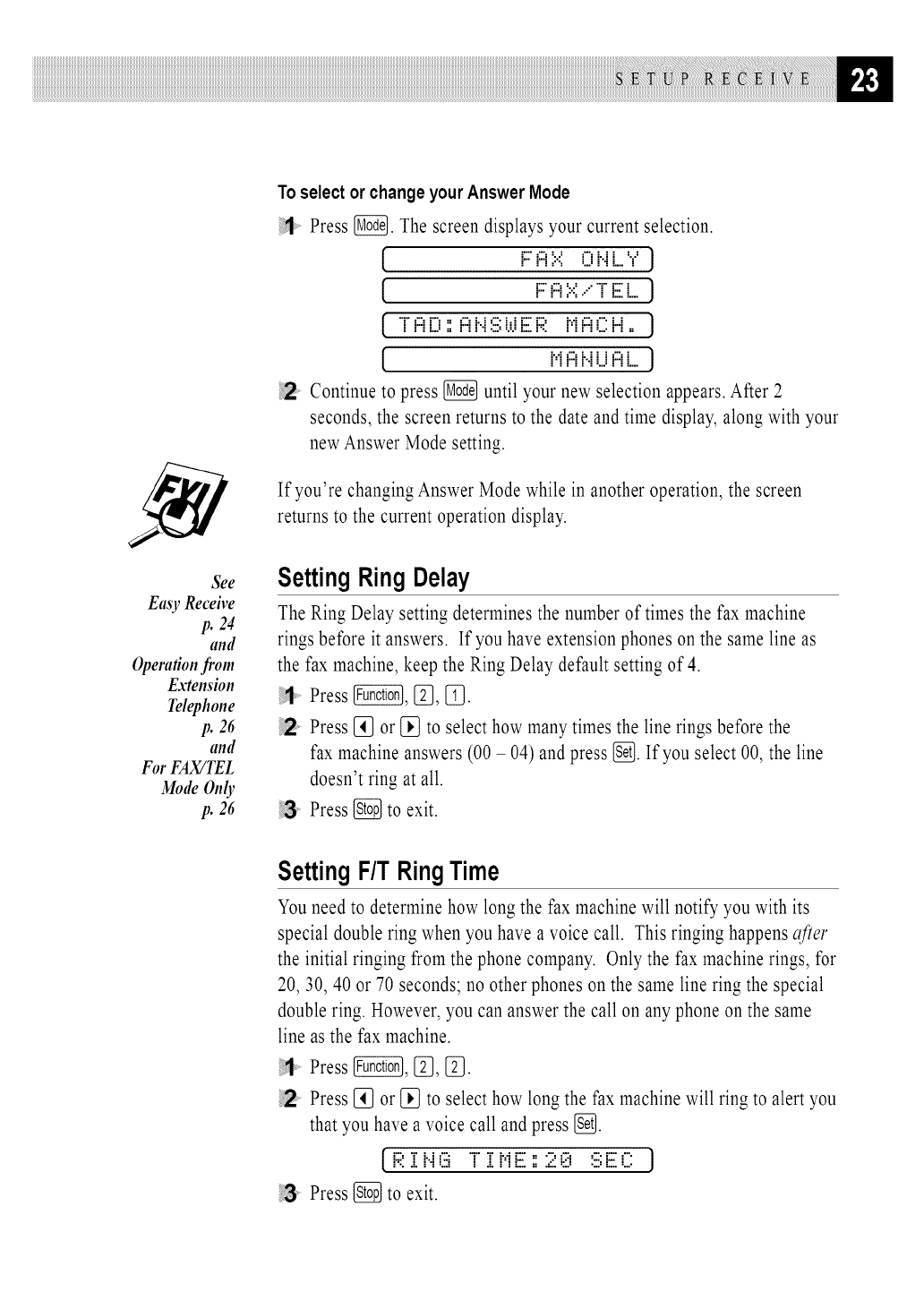
Toselect or change your Answer Mode
Press _. The screen displays your current selection.
[. F::i:::i::':: 0 t.ii...."?J
[. F::i:::i::.::.......r E LJ
[T'i:::i[? ::i:::ii..i:.iii;ij.iE F;;: Mi:::iEZ:H :: J
[. Mi:::ii".ii...ii:::ii....J
Continue to press @ until your new selection appears. After 2
seconds, the screen returns to the date and time display, along with your
new Answer Mode setting.
If you're changing Answer Mode while in another operation, the screen
returns to the current operation display.
SettingRingDelay
The Ring Delay setting determines the number of times the fax machine
rings before it answers. If you have extension phones on the same line as
the fax machine, keep the Ring Delay default setting of 4.
Press _, [_, [_.
Press [_ or [_ to select how many times the line rings before the
fax machine answers (00 - 04) and press [_. If you select 00, the line
doesn't ring at all.
_. Press _ to exit.
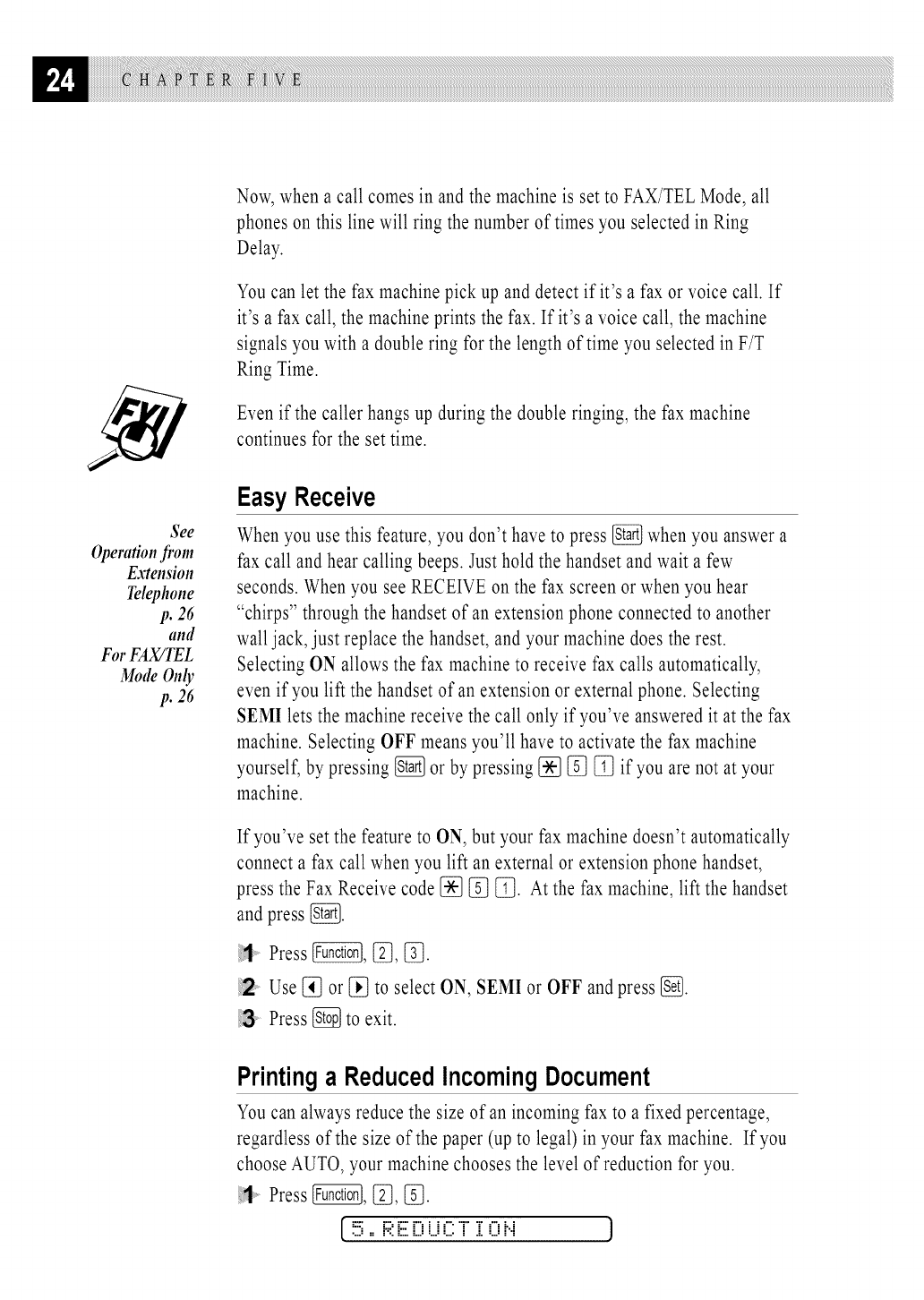
SettingFIT RingTime
You need to determine how long the fax machine will notify you with its
special double ring when you have a voice call. This ringing happens after
the initial ringing from the phone company. Only the fax machine rings, for
20, 30, 40 or 70 seconds; no other phones on the same line ring the special
double ring. However, you can answer the call on anyphone on the same
line as the fax machine.
Press _, [_, [_.
Press [_ or [_ to select how long the fax machine will ring to alert you
that you have a voice call and press [_.
[.F;;:iZi..iEZiii"i"iZMiiiiZ:: 2 E;i!E:iii;iiiiZEZZZ:J
Press _ to exit.
See
Opel_ltion fi_om
Extension
Telephone
p. 26
and
ForFAX/TEL
ModeOnly
p. 26
Now, when a call comes in and the machine is set to FAX/TELMode, all
phones on this line will ring the number of times you selected in Ring
Delay.
You can let the fax machine pick up and detect if it's a fax or voice call. If
it's a fax call, the machine prints the fax. If it's a voice call, the machine
signals you with a double ring for the length of time you selected in F/T
Ring Time.
Even if the caller hangs up during the double ringing, the fax machine
continues for the set time.
EasyReceive
When you use this feature, you don't have to press _ when you answer a
fax call and hear calling beeps. Just hold the handset and wait a few
seconds. When you see RECEIVE on the fax screen or when you hear
"chirps" through the handset of an extension phone connected to another
wall jack, just replace the handset, and your machine does the rest.
Selecting ON allows the fax machine to receive fax calls automatically,
even if you lift the handset of an extension or external phone. Selecting
SEMI lets the machine receive the call only if you've answered it at the fax
machine. Selecting OFF means you'll have to activate the fax machine
yourself, by pressing _ or by pressing [_ [_ [_ if you are not at your
machine.
If you've set the feature to ON, but your fax machine doesn't automatically
connect a fax call when you lift an external or extension phone handset,
press the Fax Receive code [_ [_ [_. At the fax machine, lift the handset
and press _.
Press _, _, [_.
Use [_ or [_ to select ON, SEMI or OFF and press _.
Press [_ to exit.
Printinga ReducedIncomingDocument
You can always reduce the size of an incoming fax to a fixed percentage,
regardless of the size of the paper (up to legal) in your fax machine. If you
choose AUTO, your machine chooses the level of reduction for you.
Press @, [_, _.
[.!!5,, i;:iiiiZi3i...i(2T i O i..i J
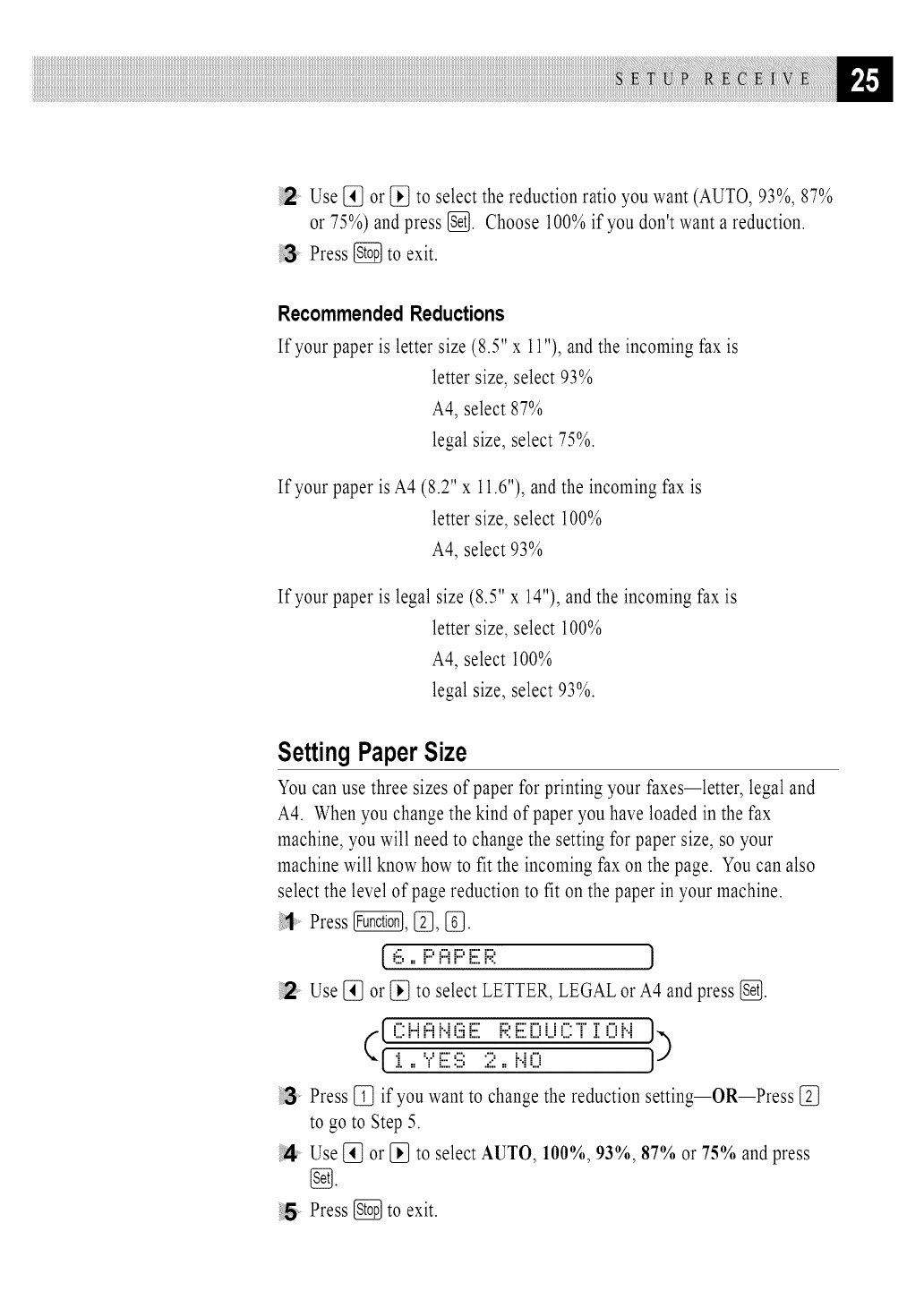
Use [_ or [_ to select the reduction ratio you want (AUTO, 93%, 87%
or 75%) and press [_. Choose 100% if you don't want a reduction.
Press [_ to exit.
Recommended Reductions
If your paper is letter size (8.5" x 11"), and the incoming fax is
letter size, select 93%
A4, select 87%
legal size, select 75%.
If your paper is A4 (8.2" x 11.6"), and the incoming fax is
letter size, select 100%
A4, select 93%
If your paper is legal size (8.5" x 14"), and the incoming fax is
letter size, select 100%
A4, select 100%
legal size, select 93%.
SettingPaperSize
You can use three sizes of paper for printing your faxes--letter, legal and
A4. When you change the kind of paper you have loaded in the fax
machine, you will need to change the setting for paper size, so your
machine will know how to fit the incoming fax on the page. You can also
select the level of page reduction to fit on the paper in your machine.
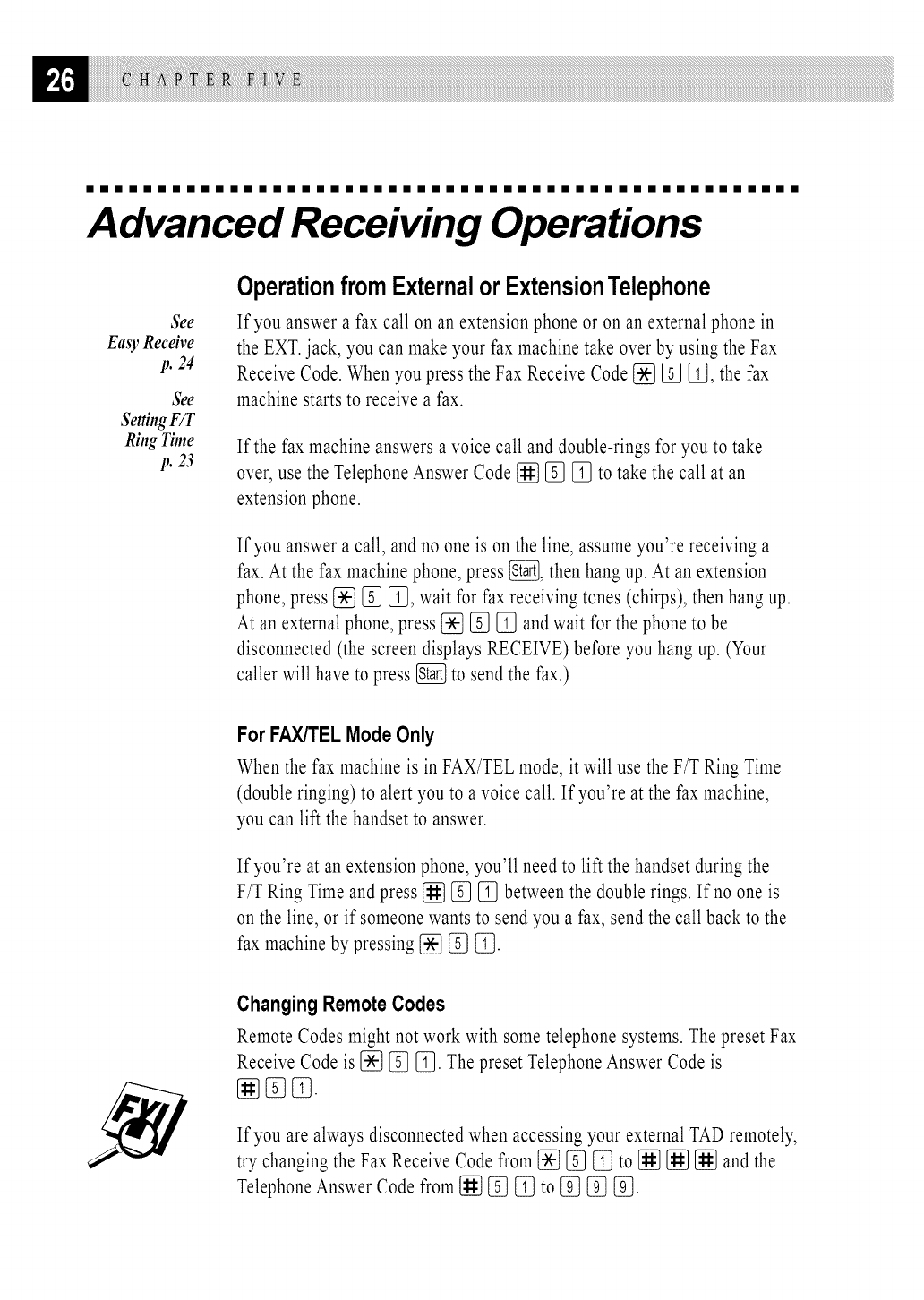
Press @, [_, [_.
[ 6 ,, F::'i:::iF::'iiiilF;;: J
Use [_ or [_ to select LETTER, LEGAL or A4 and press {_.
(I i_''NZi Lic T iI 0 bi J)
Press [_ if you want to change the reduction setting--OR--Press
to go to Step 5.
Use [_ or [_ to select AUTO, 100%, 93%, 87% or 75% and press
Press [_ to exit.
iiiiiiiiiiiiiiiiiiiiiiiiiiiiiiiiiiiiiiiiiiiiiiiiii
Advanced Receiving Operations
See
Easy Receive
p. 24
See
SettingF/T
Ring Time
p. 23
OperationfromExternalorExtensionTelephone
If you answer a fax call on an extension phone or on an external phone in
the EXT.jack, you can make your fax machine take over by using the Fax
Receive Code. When you press the Fax Receive Code [_ [_ [_, the fax
machine starts to receive a fax.
If the fax machine answers a voice call and double-rings for you to take
over, use the Telephone Answer Code [_ [_ [_ to take the call at an
extension phone.
If you answer a call, and no one is on the line, assume you're receiving a
fax. At the fax machine phone, press _, then hang up. At an extension
phone, press [_ [_ [_, wait for fax receiving tones (chirps), then hang up.
At an external phone, press [_ [_ [_ and wait for the phone to be
disconnected (the screen displays RECEIVE) before you hang up. (Your
caller will have to press _ to send the fax.)
For FAX/TELMode Only
When the fax machine is in FAX/TEL mode, it will use the F/T Ring Time
(double ringing) to alert you to a voice call. If you're at the fax machine,
you can lift the handset to answer.
If you're at an extension phone, you'll need to lift the handset during the
F/T Ring Time and press [_ [_ [_ between the double rings. If no one is
on the line, or if someone wants to send you a fax, send the call back to the
fax machine by pressing [_ [_ [_.
Changing RemoteCodes
Remote Codes might not work with some telephone systems. The preset Fax
Receive Code is [_ [_ [_. The preset Telephone Answer Code is
If you are always disconnected when accessing your external TAD remotely,
try changing the Fax Receive Code from [_ [_ [_ to [_ [_ [_ and the
Telephone Answer Code from I_ [_ [_ to [_ [_ [_.
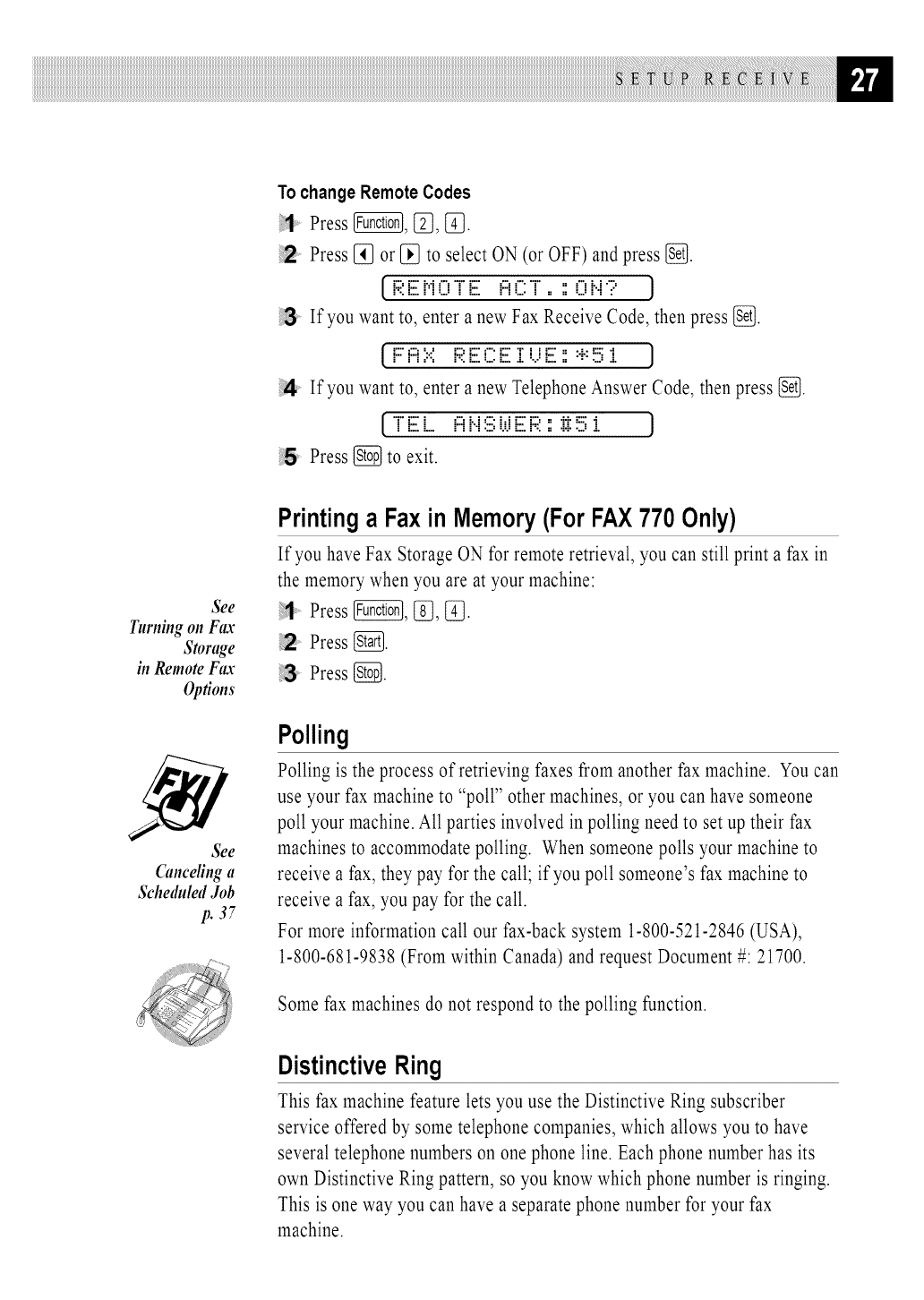
TochangeRemoteCodes
i!1 Press @, [_, [_.
Press [_ or [_ to select ON (or OFF) and press _.
[F:;:E M0 T E f::iC1 ,, ::0 i..i? J
If you want to, enter a new Fax Receive Code, then press [_.
[.F::i:::i',:':',F;I:E C:E i [..iE :: :'.-':!!5i 1
!4 If you want to, enter a new Telephone Answer Code, then press [_.
[ T'E i, i:::ii..i:iii;i._.iEF:;::::i:i:!!5i J
!5 Press _ to exit.
See
T.rni.g on Fax
Storage
in Remote Fax
Options
See
Gmceling a
Sehe&led Job
p. 37
Printinga Faxin Memory(ForFAX770 Only)
If you have Fax Storage ON for remote retrieval, you can still print a fax in
the memory when you are at your machine:
Press _, [_, _.
::;2 Press _.
Press [_].
Polling
Polling is the process of retrieving faxes from another fax machine. You can
use your fax machine to "poll" other machines, or you can have someone
poll your machine. All parties involved in polling need to set up their fax
machines to accommodate polling. When someone polls your machine to
receive a fax, they pay for the call; if you poll someone's fax machine to
receive a fax, you pay for the call.
For more information call our fax-back system 1-800-521-2846 (USA),
1-800-681-9838 (From within Canada) and request Document #: 21700.
Some fax machines do not respond to the polling function.
DistinctiveRing
This fax machine feature lets you use the Distinctive Ring subscriber
service offered by some telephone companies, which allows you to have
several telephone numbers on one phone line. Each phone number has its
own Distinctive Ring pattern, so you know which phone number is ringing.
This is one way you can have a separate phone number for your fax
machine.
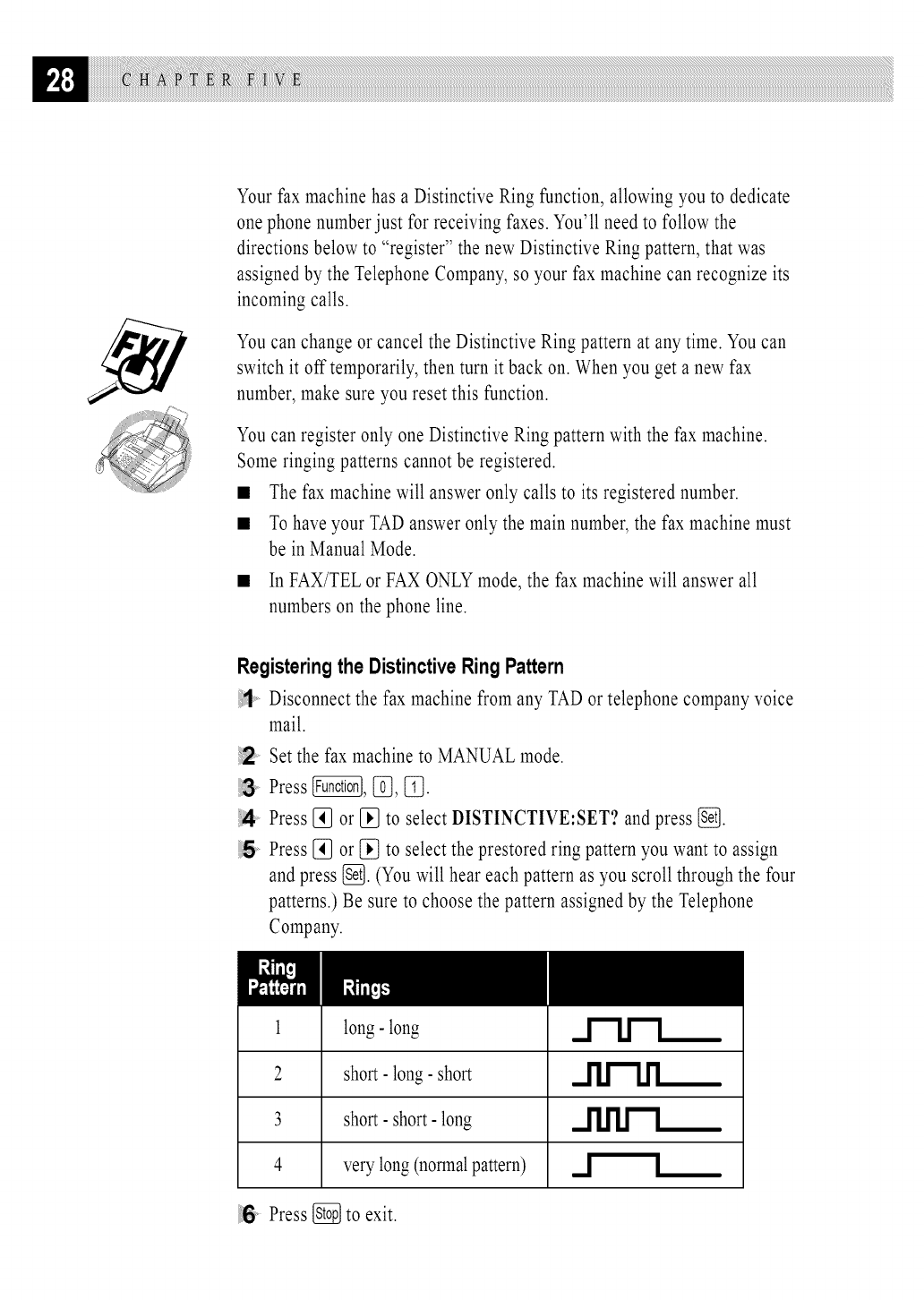
YourfaxmachinehasaDistinctiveRingfunction,allowingyoutodedicate
onephonenumberjustforreceivingfaxes.You'llneedtofollowthe
directionsbelowto"register"thenewDistinctiveRingpattern,thatwas
assignedbytheTelephoneCompany,soyourfaxmachinecanrecognizeits
incomingcalls.
YoucanchangeorcanceltheDistinctiveRingpatternatanytime.Youcan
switchit off temporarily,thenturnit backon.Whenyougetanewfax
number,makesureyouresetthisfunction.
YoucanregisteronlyoneDistinctiveRingpatternwiththefaxmachine.
Someringingpatternscannotberegistered.
• Thefaxmachinewillansweronlycallstoitsregisterednumber.
• TohaveyourTADansweronlythemainnumber,thefaxmachinemust
beinManualMode.
• InFAX/TELorFAXONLYmode,thefaxmachinewill answerall
numbersonthephoneline.
Registeringthe Distinctive Ring Pattern
ii_1_ Disconnect the fax machine from any TAD ortelephone company voice
mail.
Set the fax machine to MANUAL mode.
Press @, [_, {_.
Press [_ or [_ to select DISTINCTIVE:SET? and press [_.
Press [_ or [_ to select the prestored ring pattern you want to assign
and press [_J. (You will hear each pattern as you scroll through the four
patterns.) Be sure to choose the pattern assigned by the Telephone
Company.
1
2
3
4
long- long
short- long- short
short- short- long
very long (normalpattern) _1 !
Press _ to exit.
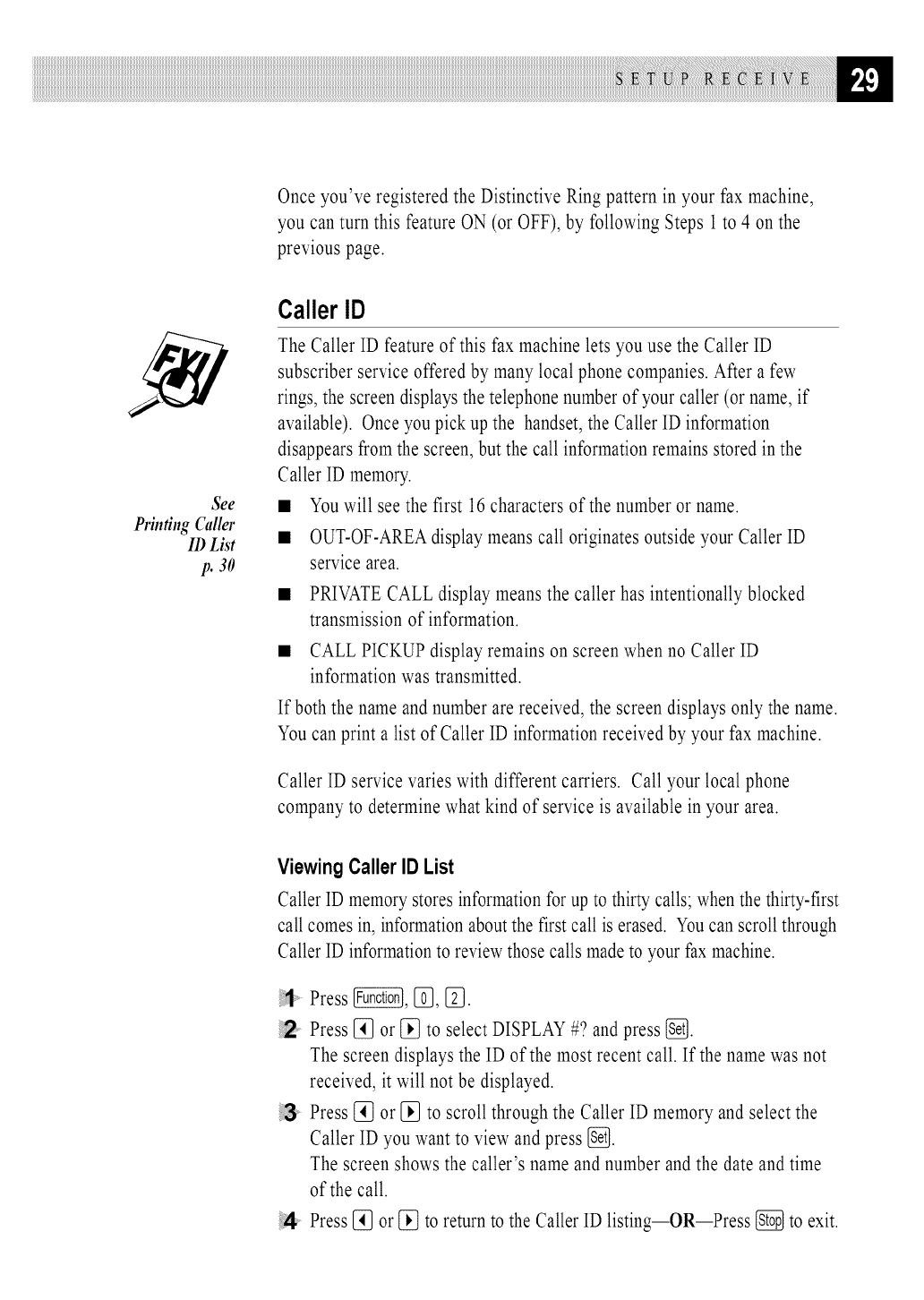
Once you've registered the Distinctive Ring pattern in your fax machine,
you can turn this feature ON (or OFF), by following Steps 1 to 4 on the
previous page.
_e
Printing Gtller
ID List
p. 30
CallerID
The Caller ID feature of this fax machine lets you use the Caller ID
subscriber service offered by many local phone companies. After a few
rings, the screen displays the telephone number of your caller (or name, if
available). Once you pick up the handset, the Caller ID information
disappears from the screen, but the call information remains stored in the
Caller ID memory.
Youwill see the first 16 characters of the number or name.
OUT-OF-AREAdisplay means call originates outside your Caller ID
service area.
PRIVATECALL display means the caller has intentionally blocked
transmission of information.
CALLPICKUPdisplayremainson screenwhenno CallerID
informationwas transmitted.
If both the name and number are received, the screen displays only the name.
You can print a list of Caller ID information received by your fax machine.
Caller ID service varies with different carriers. Call your local phone
company to determine what kind of service is available in your area.
Viewing Caller ID List
Caller ID memory stores information for up to thirty calls; when the thirty-first
call comes in, information about the first call is erased. You can scroll through
Caller ID information to review those calls made to your fax machine.
Press _, [_, [_.
Press [_ or [_ to select DISPLAY #? and press {_.
The screen displays the ID of the most recent call. If the name was not
received, it will not be displayed.
Press [_ or [_ to scroll through the Caller ID memory and select the
Caller ID you want to view and press [_.
The screen shows the caller's name and number and the date and time
of the call.
Press [_ or [_ to return to the Caller ID listing--OR--Press [_ to exit.
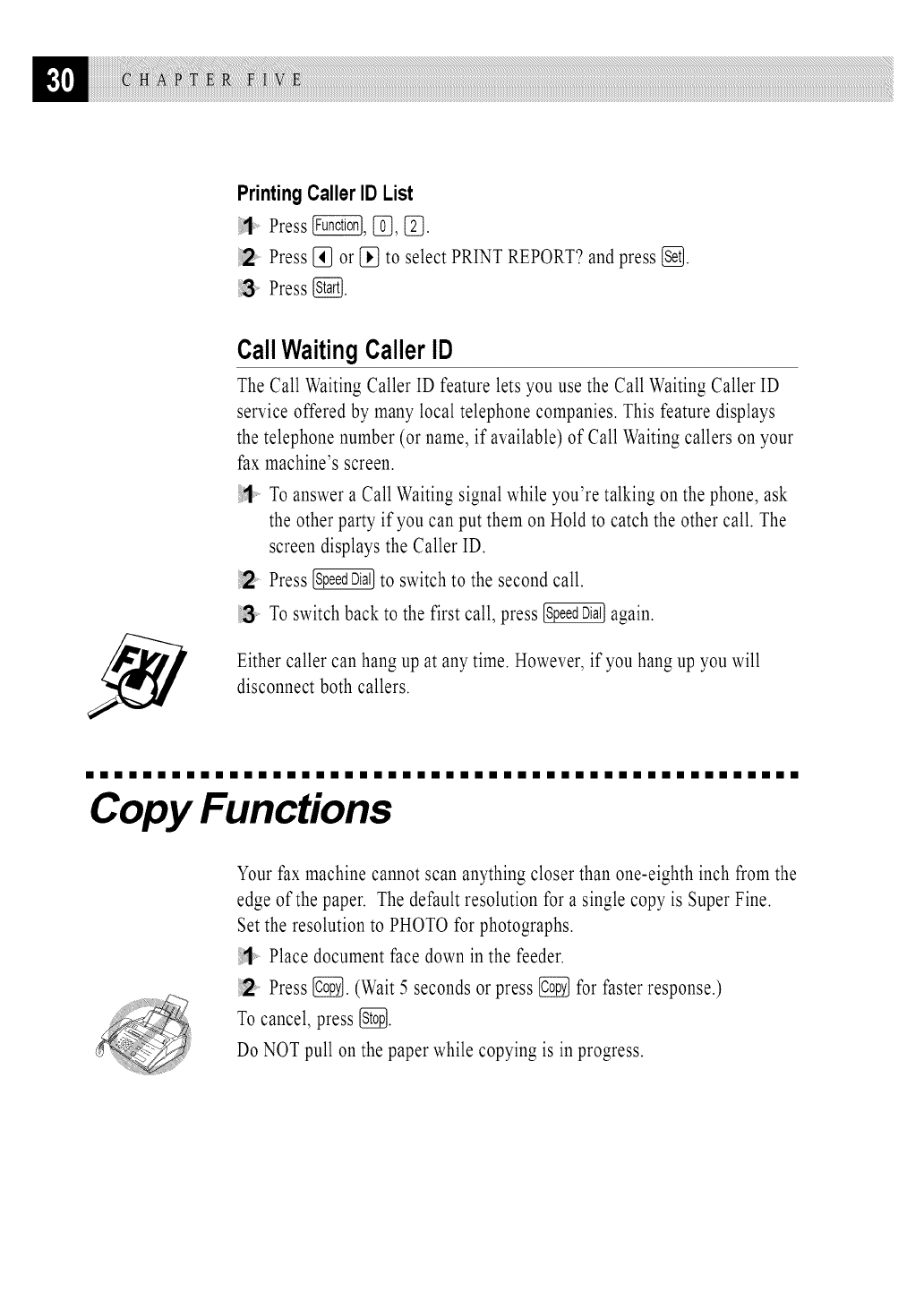
PrintingCaller ID List
:;1 Press _, [_, _.
2Press [_ or [_ to select PRINT REPORT? and press [_].
3Press _.
CallWaitingCallerID
The Call Waiting Caller ID feature lets you use the Call Waiting Caller ID
service offered by many local telephone companies. This feature displays
the telephone number (or name, if available) of Call Waiting callers on your
fax machine's screen.
To answer a Call Waiting signal while you're talking on the phone, ask
the other party if you can put them on Hold to catch the other call. The
screen displays the Caller ID.
Press _ to switch to the second call.
To switch back to the first call, press _ again.
Either caller can hang up at any time. However, if you hang up you will
disconnect both callers.
iiiiiiiiiiiiiiiiiiiiiiiiiiiiiiiiiiiiiiiiiiiiiiiiii
Copy Functions
Your fax machine cannot scan anything closer than one-eighth inch from the
edge of the paper. The default resolution for a single copy is Super Fine.
Set the resolution to PHOTO for photographs.
_, Place document face down in the feeder.
12 Press _. (Wait 5 seconds or press _ for faster response.)
To cancel, press [_.
Do NOT pull on the paper while copying is in progress.
MultipleCopies
You can make multiple copies using your fax machine, and you can choose
whether the copies will be STACKED (all copies of page 1, then all copies
of page 2, etc.) or SORTED(collated). The default resolution for multiple
copies is Fine.
Place the document face down in the feeder.
!2 If you want copies "stacked," press {_--OR--Ifyou want copies
"sorted" (collated), press _.
Enter the number (1-99) of copies you want.
!4 Press {_.
If you selected @ or STACKafter pressing {_ and get a MEMORY
FULL message while you are scanning the first page, press {_ to cancel
the job and restart to make a single copy. If you selected _ and the
MEMORYFULL message appears while scanning subsequent pages, you
can press {_ to copy the portion that is in memory, or press {_ to cancel.
To restart the copy job using less memory, press [_ for stacked copies.
Reducingand Enlarging Copies
When making copies, you can reduce or enlarge the size of the printed image.
Toreduce to the size of your selected paper automatically, select AUTO. To
select a reduction ratio, choose 93%, 87%, 75% or 50%. To enlarge a
document, select 150%, 125% or 120%. To print a document at its original
size, select 100%.
Insertthe documentfacedowninthe feeder.
2 Press[Enlarge/Reduce}.
Use [_ or {_ to choosea reductionratiosetting.
!4 Press{_--OR--{_, if youwant sortedcopies.
!5 Enterthe number(1-99) of copiesyou want.For example,press{_ for
ninecopies.
Press{_].
Send
iiiiiiiiiiiiiiiiiiiiiiiiiiiiiiiiiiiiiiiiiiiiiiiiii
Before You Begin
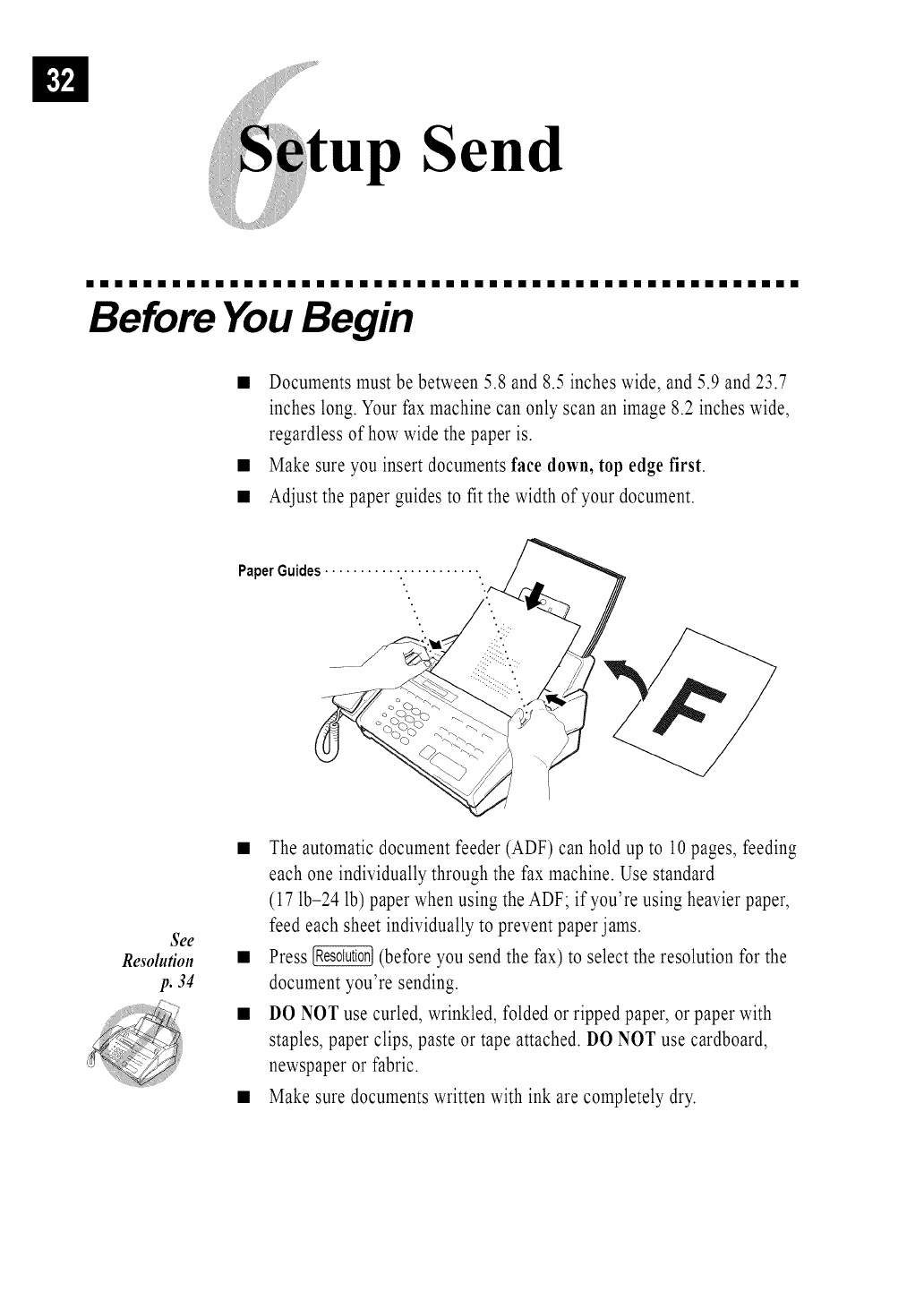
•Documents must be between 5.8 and 8.5 inches wide, and 5.9 and 23.7
inches long. Your fax machine can only scan an image 8.2 inches wide,
regardless of how wide the paper is.
•Make sure you insert documents face down, top edge first.
• Adjust the paper guides to fit the width of your document.
PaperGuides........... ............ .
See
Resolution
p. 34
•The automatic document feeder (ADF) can hold up to 10 pages, feeding
each one individually through the fax machine. Use standard
(17 lb-24 lb) paper when using the ADF; if you're using heavier paper,
feed each sheet individually to prevent paper jams.
• Press _ (before you send the fax) to select the resolution for the
document you're sending.
• DO NOT use curled, wrinkled, folded or ripped paper, or paper with
staples, paper clips, paste or tape attached. DO NOT use cardboard,
newspaper or fabric.
• Make sure documents written with ink are completely dry.
See
One-Touch
Dialing
p. 43
ManualTransmission
Manual transmission lets you hear the dial tone, ringing and fax receiving
tones before sending the fax.
Insert the document face down in the feeder.
Pick up the handset and listen for a dial tone
--OR--press _ and listen for a dial tone.
Enter the fax number you want to call (you can enter the digits using
the dial pad, or you can enter a One Touch or Speed Dial number or you
can call from the Tel-index).
;:4 When you hear the fax tone, press _.
!:'5 If you're using the handset, hang up.
See
SpeedDialing
p. 44
AutomaticTransmission
This is the easiest way to send a fax. IMPORTANT: Do not pick up the
handset, or press [_.
Insert the document face down in the feeder.
Enter the fax number from One Touch, Speed Dial, Tel-index or the
dial pad.
Press _.
Manualand AutomaticFaxRedial
If you're sending ajax manually and the line is busy, press _ to
retry the number.
If you'm sending ajax automatically and the line is busy, the fax machine
will redial automatically up to three times at 5 minute intervals.
iiiiiiiiiiiiiiiiiiiiiiiiiiiiiiiiiiiiiiiiiiiiiiiiii
Basic Sending Operations
Contrast
If your document is very light or very dark, you might want to set the
contrast accordingly. Use S.LIGHT to send a very light document. Use
S.DARK to send a very dark document.
Insert the document, face down, in the feeder.
Press _, [_3, _.
Use {_ or [_ to select AUTO, S.LIGHT or S.DARK and press {_.
4 Press [_ if you are finished choosing settings, and go to Step 5--OR--
Press [_ if you want to select additional settings. The display returns to
the Setup Send menu.
1:5 Enter a fax number and press _ to send a fax--OR--Press [_ to
make a copy.
Resolution
When you have a document in the feeder, you can use the _ key.
Press _ continuously until you see your selection on the screen.
Standard--suitable for most typed documents.
Fine--good for small print; transmits a little slower than standard
resolution.
Super Fine--good for small print or artwork; transmits slower than fine
resolution.
Photo--use when documenthas varying shades of gray; slowesttransmission
time.
iiiiiiiiiiiiiiiiiiiiiiiiiiiiiiiiiiiiiiiiiiiiiiiiii
Advanced Sending Operations
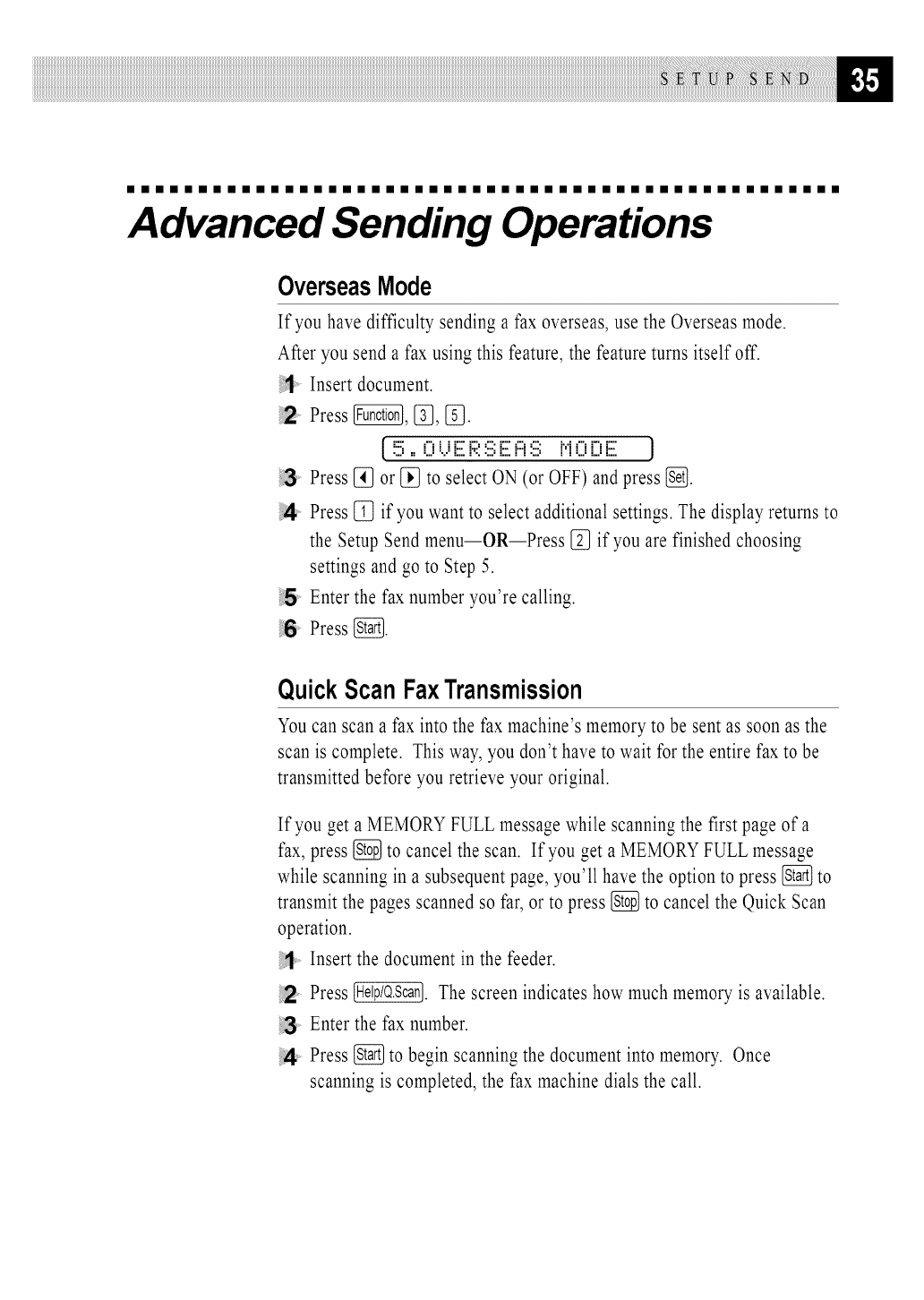
OverseasMode
If you have difficulty sending a fax overseas, use the Overseas mode.
After you send a fax using this feature, the feature turns itself off.
Insert document.
Press @, [_, [_.
[.!!5,, 0 i...iE F;I::iii;E i:::i:iii; M0 [?F J
Press [_ or [_ to select ON (or OFF) and press (_.
4 Press [_ if you want to select additional settings. The display returns to
the Setup Send menu--OR--Press [_ if you are finished choosing
settings and go to Step 5.
5Enter the fax number you're calling.
6Press _.
QuickScanFaxTransmission
You can scan a fax into the fax machine's memory to be sent as soon as the
scan is complete. This way, you don't have to wait for the entire fax to be
transmitted before you retrieve your original.
If you get a MEMORY FULL message while scanning the first page of a
fax, press [_ to cancel the scan. If you get a MEMORYFULL message
while scanning in a subsequent page, you'll have the option to press _ to
transmit the pages scanned so far, or to press _ to cancel the Quick Scan
operation.
Insert the document in the feeder.
Press _. The screen indicates how much memory is available.
Enter the fax number.
Press _ to begin scanning the document into memory. Once
scanning is completed, the fax machine dials the call.
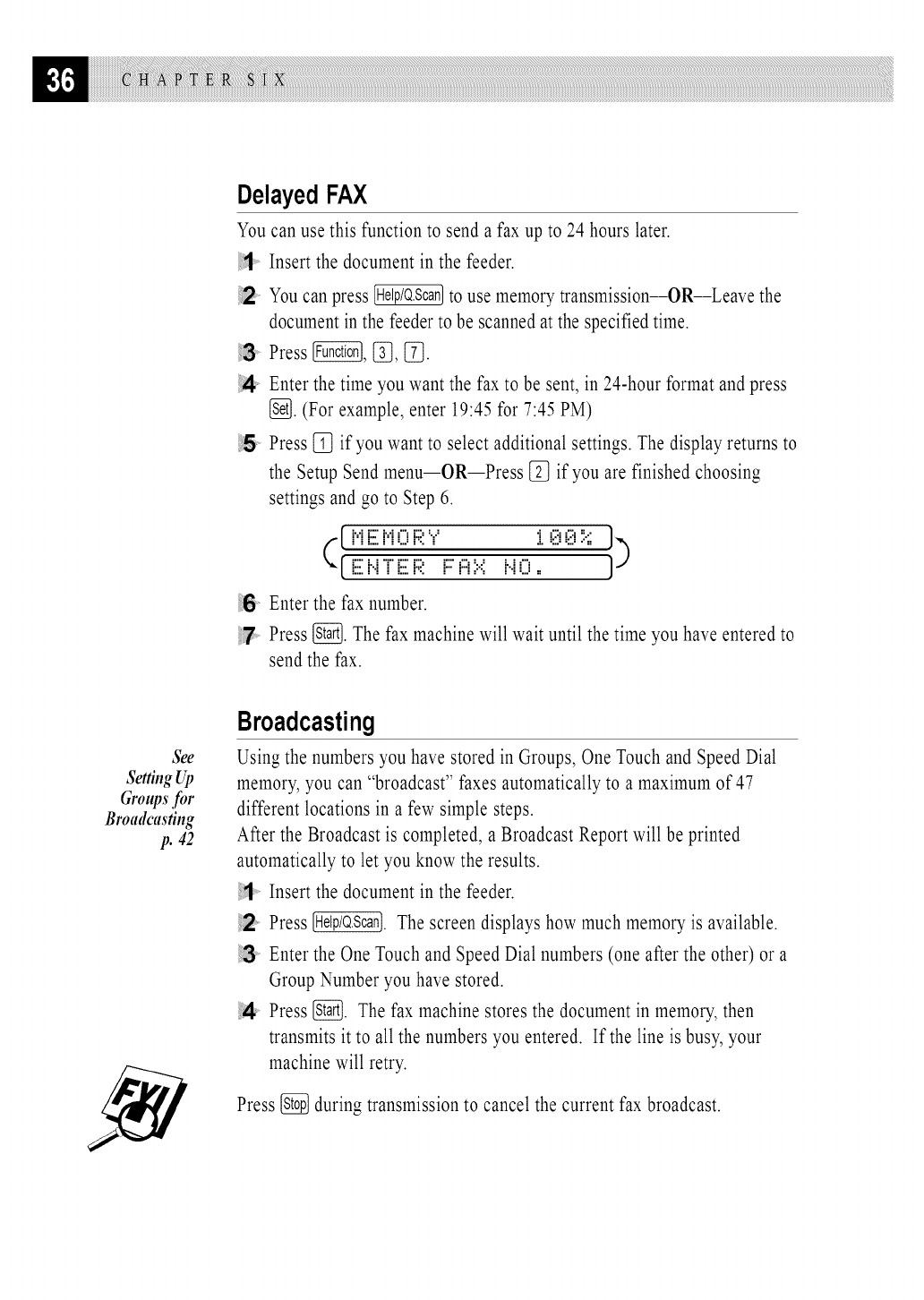
DelayedFAX
You can use this function to send a fax up to 24 hours later.
Insert the document in the feeder.
Youcan press _ to use memory transmission--OR--Leave the
document in the feeder to be scanned at the specified time.
Press _, [_, [_.
1:4 Enter the time you want the fax to be sent, in 24-hour format and press
[_. (For example, enter 19:45 for 7:45 PM)
i5 Press [_ if you want to select additional settings. The display returns to
the Setup Send menu--OR--Press [_ if you are finished choosing
settings and go to Step 6.
(_L_':- =? ! o o :i.;;
t
Enter the fax number.
Press _. The fax machine will wait until the time you have entered to
send the fax.
See
Se_g @
Groupsfor
Broadcasting
p. 42
Broadcasting
Using the numbers you have stored in Groups, One Touch and Speed Dial
memory, you can "broadcast" faxes automatically to a maximum of 47
different locations in a few simple steps.
After the Broadcast is completed, a Broadcast Report will be printed
automatically to let you know the results.
Insert the document in the feeder.
Press _. The screen displays how much memory is available.
Enter the One Touch and Speed Dial numbers (one after the other) or a
Group Number you have stored.
!4 Press _. The fax machine stores the document in memory, then
transmits it to all the numbers you entered. If the line is busy, your
machine will retry.
Press [_ during transmission to cancel the current fax broadcast.
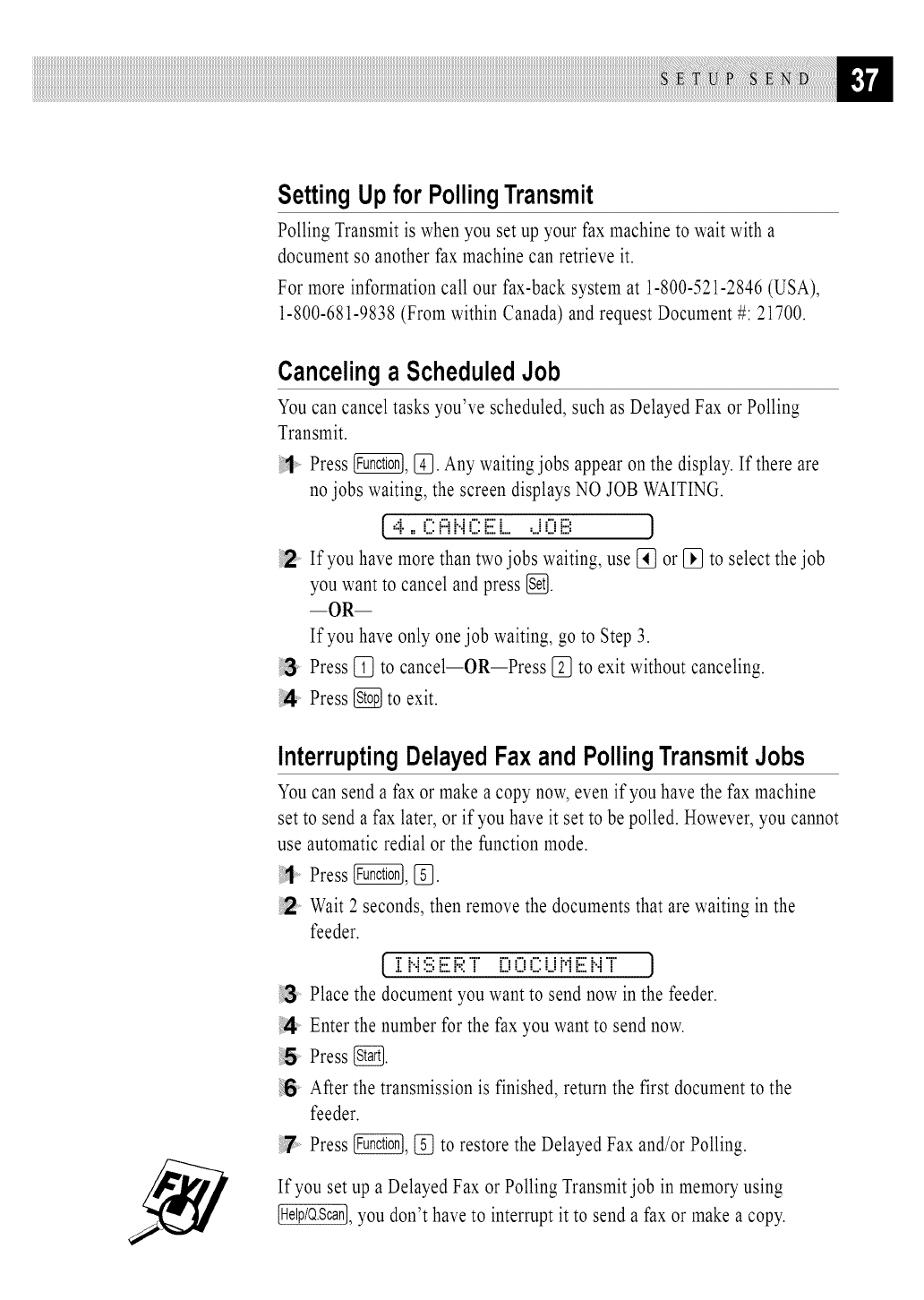
SettingUpfor PollingTransmit
Polling Transmit is when you set up your fax machine to wait with a
document so another fax machine can retrieve it.
For more information call our fax-back system at 1-800-521-2846 (USA),
1-800-681-9838 (From within Canada) and request Document #: 21700.
Cancelinga ScheduledJob
You can cancel tasks you've scheduled, such as Delayed Fax or Polling
Transmit.
Press @, [_. Any waiting jobs appear on the display. If there are
no jobs waiting, the screen displays NO JOB WAITING.
[.4,, E::::i:::ii".iE::::iiii;i........iE:::Eiiii: J
If yOUhave more than two jobs waiting, use [_ or _ to select the job
you want to cancel and press [_.
--OR--
If you have only one job waiting, go to Step 3.
Press [_ to cancel--OR--Press [_ to exit without canceling.
!4 Press _ to exit.
InterruptingDelayedFaxand PollingTransmitJobs
You can send a fax or make a copy now,even if you have the fax machine
set to send a fax later, or if you have it set to be polled. However, you cannot
use automatic redial or the function mode.
Press @, [f_.
Wait 2 seconds, then remove the documents that are waiting in the
feeder.
[ i; i..i:iii;iiii;i::i:T' i;?0 E2i...iMiiii;i".i"T' J
Place the document you want to send now in the feeder.
!4 Enter the number for the fax you want to send now.
!5 Press _.
After the transmission is finished, return the first document to the
feeder.
Press _, [f_ to restore the Delayed Fax and/or Polling.
If you set up a Delayed Fax or Polling Transmit job in memory using
_, you don't have to interrupt it to send a fax or make a copy.
MoreAdvancedFeatures
(CallBrotherfax-backsystem)
Yourmachine has additional advanced features and functions that are not
included in this manual. To receive faxed instructions, please call our
automated Brother fax-back system at 1-800-521-2846 and enter the
Document Numbers for the following scripts:
• Polling (Doc #: 21700)
• Cover Page (Doc #: 20917)
• Call Reservation (Doc #: 21701)
• Print Sample Call Back Message (Doc #: 21702)
• Next Fax Reservation (Doc #: 21703)
• Multiple Resolution Transmission (Doc #: 21704)
• Glossary (Doc #: 21705)
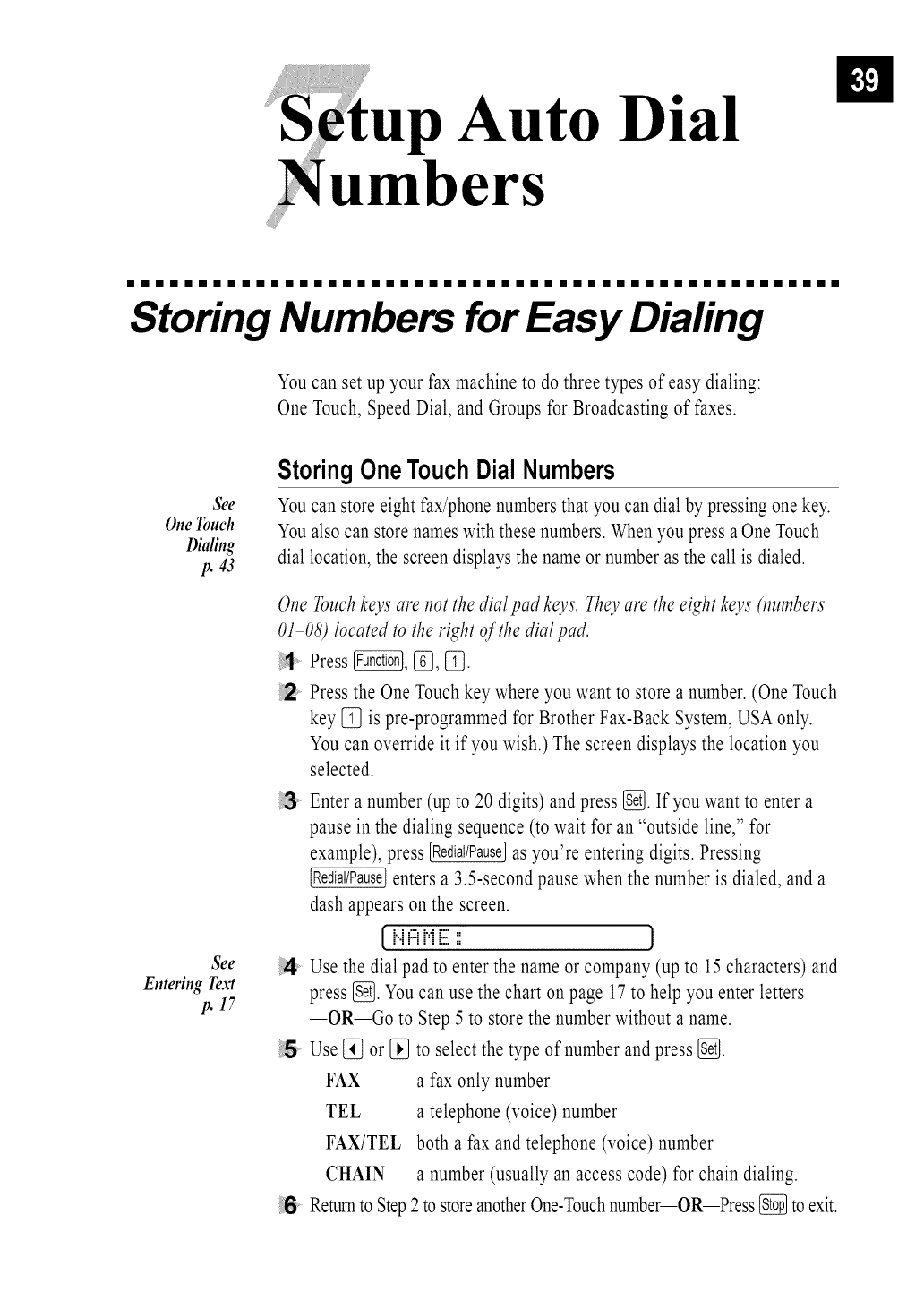
up Auto Dial
bers
iiiiiiiiiiiiiiiiiiiiiiiiiiiiiiiiiiiiiiiiiiiiiiiiii
Storing Numbers for Easy Dialing
You can set up your fax machine to do three types of easy dialing:
One Touch, Speed Dial, and Groups for Broadcasting of faxes.
See
One Touch
Dialiug
p. 43
See
Entering Text
p. 17
StoringOneTouchDial Numbers
Youcan store eight fax/phone numbers that you can dial by pressing one key.
Youalso can store names with these numbers. When you press a One Touch
dial location, the screen displays the name or number as the call is dialed.
One Touchkeys are not the dial pad keys. Theyare the eight keys (numbers
O1 08) located to the right of the dial pad.
Press _, If], [_.
Press the One Touch key where you want to store a number. (One Touch
key [_ is pre-programmed for Brother Fax-Back System, USA only.
You can override it if you wish.) The screen displays the location you
selected.
Enter a number (up to 20 digits) and press _. If you want to enter a
pause in the dialing sequence (to wait for an "outside line," for
example), press _ as you're entering digits. Pressing
enters a 3.5-second pause when the number is dialed, and a
dash appears on the screen.
[i..ii:::iME : J
Use the dial pad to enter the name or company (up to 15 characters) and
press _. You can use the chart on page 17to help you enter letters
--OR--Go to Step 5 to store the number without a name.
i'5 Use [_ or [_ to select the type of number and press [_.
FAX a fax only number
TEL a telephone (voice) number
FAX/TEL both a fax and telephone (voice) number
CHAIN a number (usually an access code) for chain dialing.
6Returnto Step2 to storeanotherOne-Touchnumber--OR--Press _ to exit.
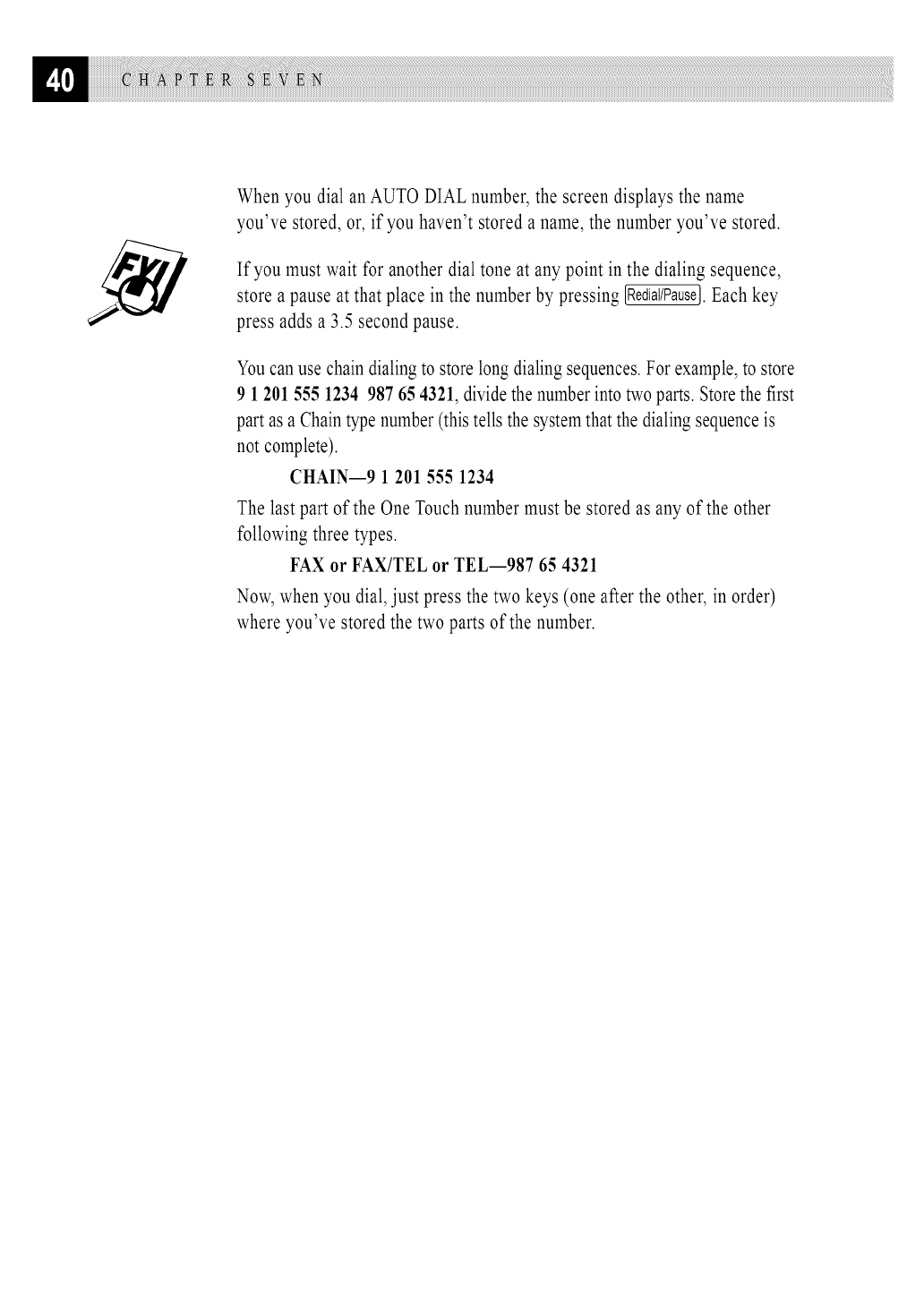
WhenyoudialanAUTODIALnumber,thescreendisplaysthename
you'vestored,or,if youhaven'tstoredaname,thenumberyou'vestored.
If youmustwaitforanotherdialtoneatanypointinthedialing sequence,
store a pause at that place in the number by pressing [RediaI/Pause].Each key
press adds a 3.5 second pause.
Youcan use chain dialing to store long dialing sequences.For example, to store
9 1201 555 1234 987 65 4321, divide the numberinto two parts. Storethe first
part as a Chaintype number(this tells the systemthat the dialing sequenceis
not complete).
CHAIN--9 1 201 555 1234
The last part of the One Touch number must be stored as any of the other
following three types.
FAX or FAX/TEL or TEL--987 65 4321
Now, when you dial, just press the two keys (one after the other, in order)
where you've stored the two parts of the number.
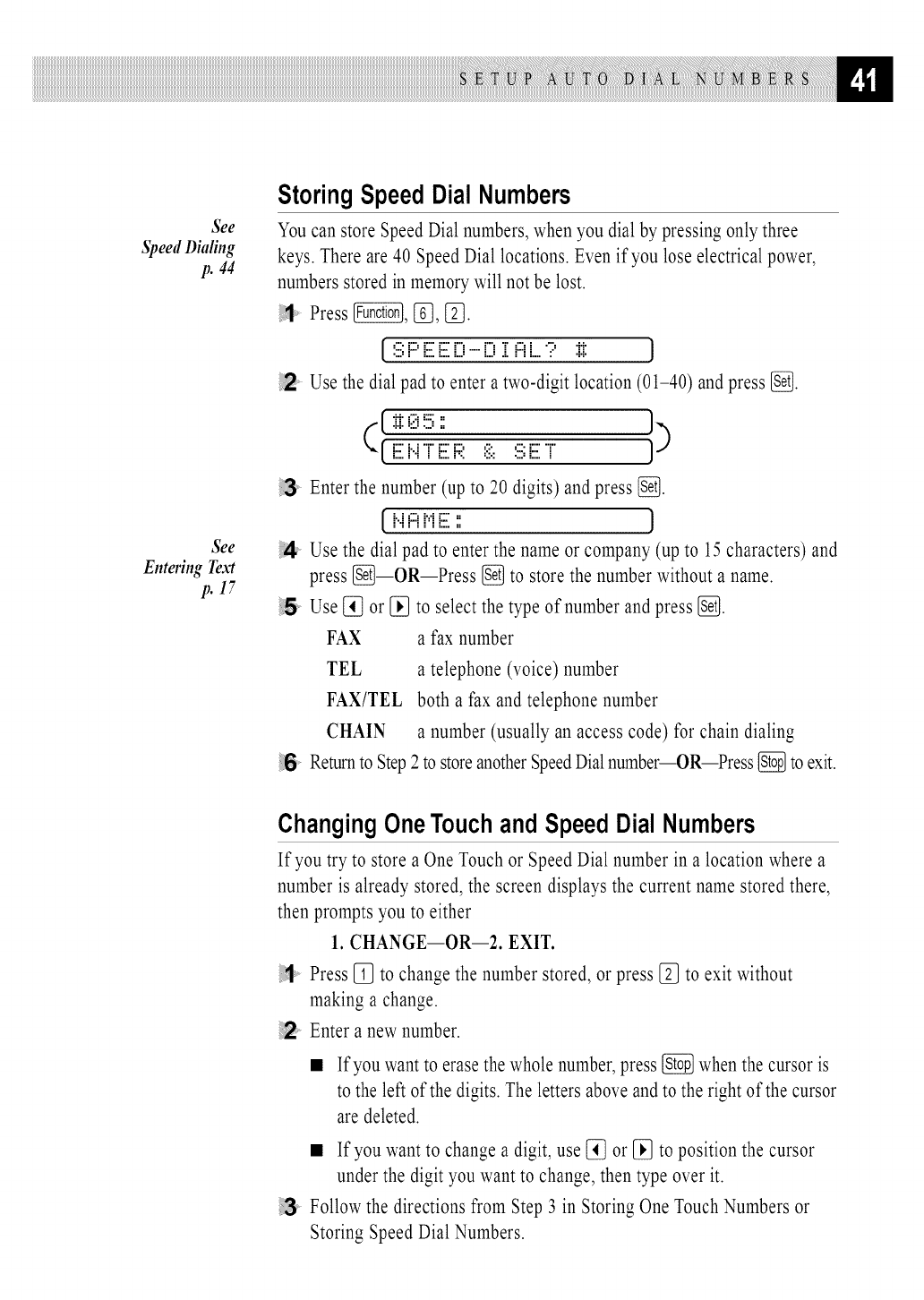
See
Speed Dialing
p. 44
See
Entering Text
p. 17
StoringSpeedDial Numbers
Youcan store Speed Dial numbers, when you dial by pressing only three
keys. There are 40 Speed Dial locations. Even if you lose electrical power,
numbers stored in memory will not be lost.
Press _, [_, _.
[:iii;F:=[iii:[iii:[)'" [) :[ i:::i[...? :1:1: J
Use the dial pad to enter atwo-digit location(01-40) andpress _.
Enter the number (up to 20 digits) and press [_.
[ Ni:::iNE : J
Use the dial pad to enter the name or company (up to 15 characters) and
press G--OR--Press _ to store the number without a name.
i5 Use {_ or [_ to select the type of number and press [_.
FAX a fax number
TEL a telephone (voice) number
FAX/TEL both a fax and telephone number
CHAIN a number (usually an access code) for chain dialing
6Returnto Step2 to storeanotherSpeedDialnumber--OR--Press {_ to exit.
ChangingOneTouchand SpeedDial Numbers
If you try to store a One Touch or Speed Dial number in a location where a
number is already stored, the screen displays the current name stored there,
then prompts you to either
1. CHANGE--OR--2. EXIT.
Press [_ to change the number stored, or press [_ to exit without
making a change.
Enter a new number.
If you want to erase the whole number, press _ when the cursor is
to the left of the digits. The letters above andto the right of the cursor
are deleted.
• If you want to change a digit, use [_ or [_ to position the cursor
under the digit you want to change, then type over it.
Follow the directions from Step 3 in Storing One Touch Numbers or
Storing Speed Dial Numbers.
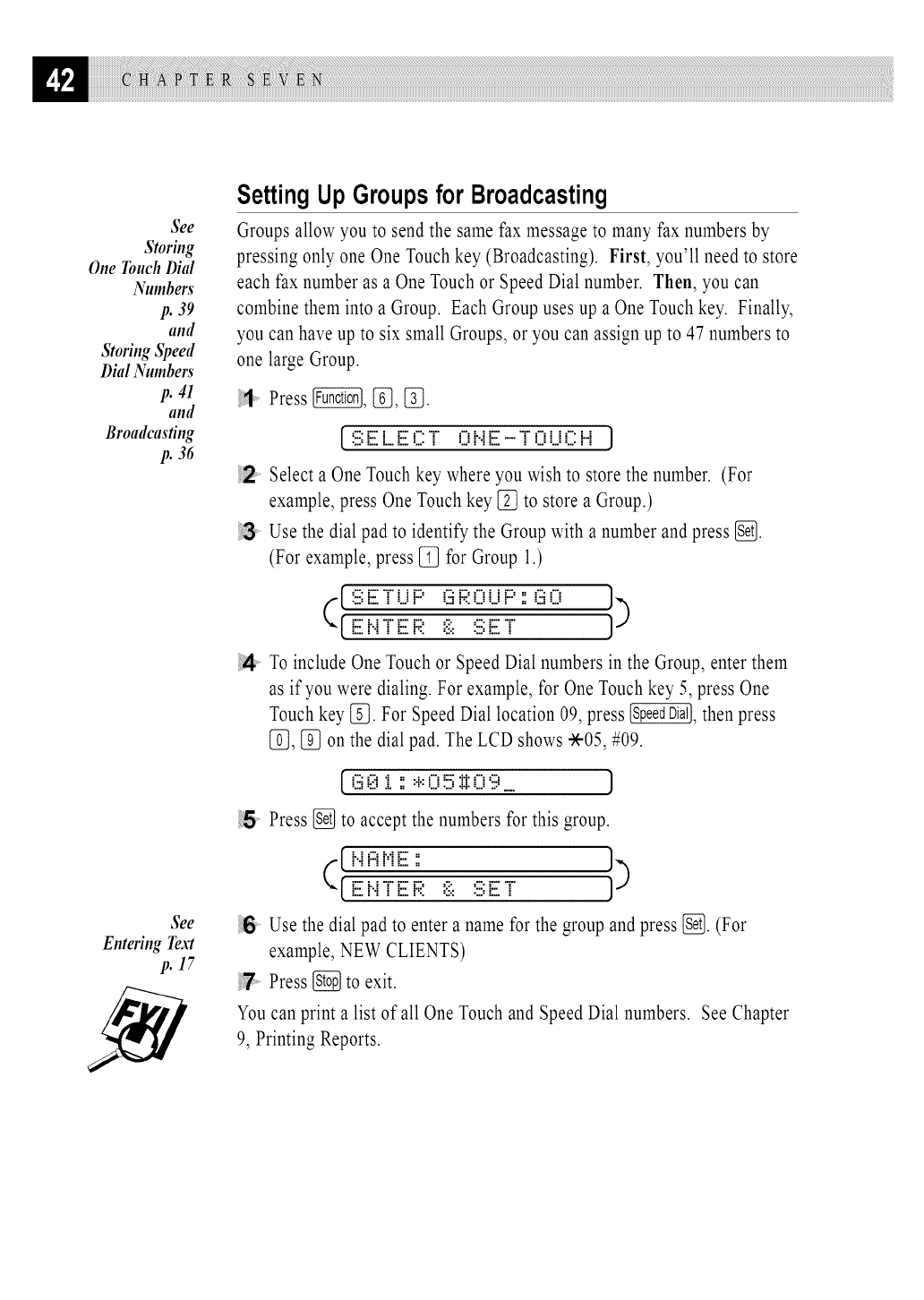
See
Storiug
One Touch Dial
Numbet_
p. 39
and
Storing Speed
Dial Numbet_
p. 41
and
Broadcasting
p. 36
See
Entering Text
p. 17
SettingUp Groupsfor Broadcasting
Groups allow you to send the same fax message to many fax numbers by
pressing only one One Touch key (Broadcasting). First, you'll need to store
each fax number as a One Touch or Speed Dial number. Then, you can
combine them into a Group. Each Group uses up a One Touch key. Finally,
you can have up to six small Groups, or you can assign up to 47 numbers to
one large Group.
Press _, If3, [_.
[:iii;iiiili....iiiil(2"i" iiiiii".iiiiil"""f"0i...i(2 i"i J
Select a One Touchkey where you wish to store the number. (For
example, press One Touch key [_ to store a Group.)
Use the dial pad to identify the Group with a number and press [_.
(For example, press [_ for Group 1.)
(_[.:3iiii;'r i...iF::' _;iiii:;;:0 i...iF::'::_;iii0 I )
[.iiiili..i'f iiiilR _ii::Siiiil'f
To include One Touch or Speed Dial numbers in the Group, enter them
as if you were dialing. For example, for One Touch key 5, press One
Touchkey [f_. For Speed Dial location 09, press _, then press
[_, [_ on the dial pad. The LCD shows -X-05,#09.
[.(iii0 i ',',:+:O!!5:i:i:O'i?_ J
Press [_ to accept the numbers for this group.
( [.i..ii:::iMiiii;:: J)
[.iiiili..i'f' iiiilR _ii::S iiiil'f'
Use the dial pad to enter a name for the group and press [_. (For
example, NEW CLIENTS)
Press _ to exit.
You can print a list of all One Touch and Speed Dial numbers. See Chapter
9, Printing Reports.
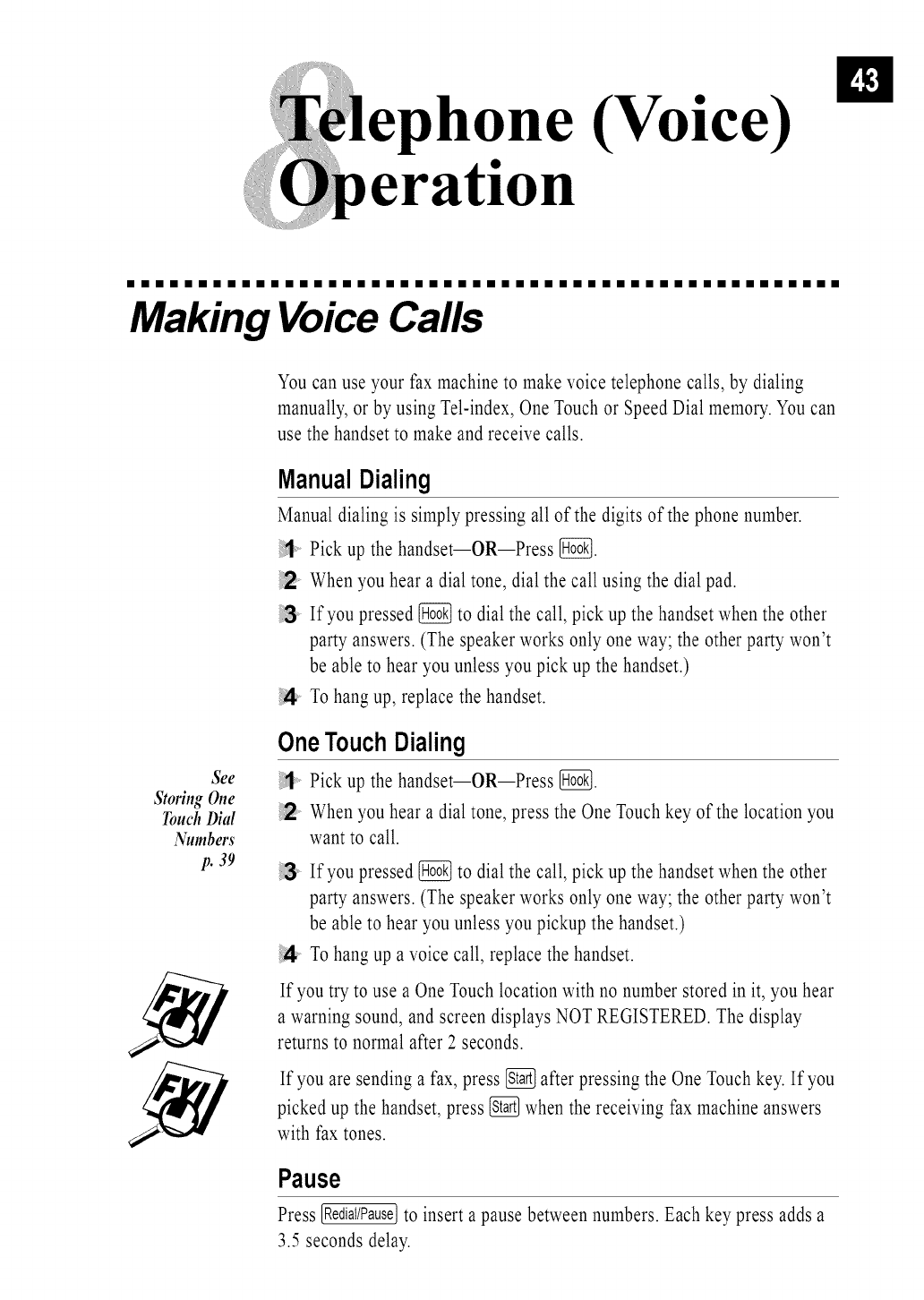
n
(Voice)
iiiiiiiiiiiiiiiiiiiiiiiiiiiiiiiiiiiiiiiiiiiiiiiiii
Making Voice Calls
You can use your fax machine to make voice telephone calls, by dialing
manually, or by using Tel-index, One Touchor Speed Dial memory. You can
use the handset to make and receive calls.
Sge
Stoffng One
Touch Dial
Numbet_
p. 39
ManualDialing
Manual dialing is simply pressing all of the digits of the phone number.
Pick up the handset--OR--Press [_:_.
When you hear a dial tone, dial the call using the dial pad.
If you pressed [_ to dial the call, pick up the handset when the other
party answers. (The speaker works only one way; the other party won't
be able to hear you unless you pick up the handset.)
To hang up, replace the handset.
OneTouchDialing
Pick up the handset--OR--Press [_{_.
When you hear a dial tone, press the One Touch key of the location you
want to call.
If you pressed _ to dial the call, pick up the handset when the other
party answers. (The speaker works only one way; the other party won't
be able to hear you unless you pickup the handset.)
To hang up a voice call, replace the handset.
If you try to use a One Touch location with no number stored in it, you hear
a warning sound, and screen displays NOT REGISTERED. The display
returns to normal after 2 seconds.
If you are sending a fax, press _ after pressing the One Touchkey. If you
picked up the handset, press _ when the receiving fax machine answers
with fax tones.
Pause
Press [RediaI/Pause]to insert a pause between numbers. Each key press adds a
3.5 seconds delay.

See
Storiug Speed
Dial Numbet_
p. 41
See
Stoffug One
Touch Diul
Numbet_
p. 39
and
Storing Speed
Dial Numbet_
p. 41
SpeedDialing
Pick up the handset--OR--Press [7{_.
When you hear a dial tone, press _, then press the two-digit
Speed Dial number.
If you pressed [_ to dial the call, pick up the handset when the other
party answers. (The speaker works only one way; the other party won't
be able to hear you unless you pickup the handset.)
To hang up a voice call, replace the handset.
If you are sending a fax, press _ after entering the Speed Dial number. If
you picked up the handset, press _ when the receiving fax machine
answers with fax tones.
Hold
Press [_ to put a call on Hold.
You can put down the handset without disconnecting the call.
Pick up the fax machine handset to release the call from Hold. Picking
up an extension handset will not release the call from Hold.
Tone/Pulse(ForCanadaOnly)
If you have pulse dialing service, but need to send tone signals (for
telephone banking, for example), follow the directions below. If you have
touch tone service, you do not need this feature to send tone signals.
Lift the handset.
Press [_. Any digits dialed after this send tone signals.
When you hang up, the fax machine returns to pulse dialing service.
SearchingTelephoneIndex
You can search for names you have stored in One Touch and Speed Dial
memories. Names are stored alphabetically.
Press @, then enter the first letter of the name you're looking for.
Press [_ or [_ to search the memory.
When the screen displays the name you want to call, pick up the
handset for a voice call.
!4 Press _ to begin dialing.
If you pressed [_ to dial the call, pick up the handset when the other
party answers. (The speaker works only one way; the other party won't
be able to hear you unless you pickup the handset.)
!6 When the call is over, hang up to cancel the call.
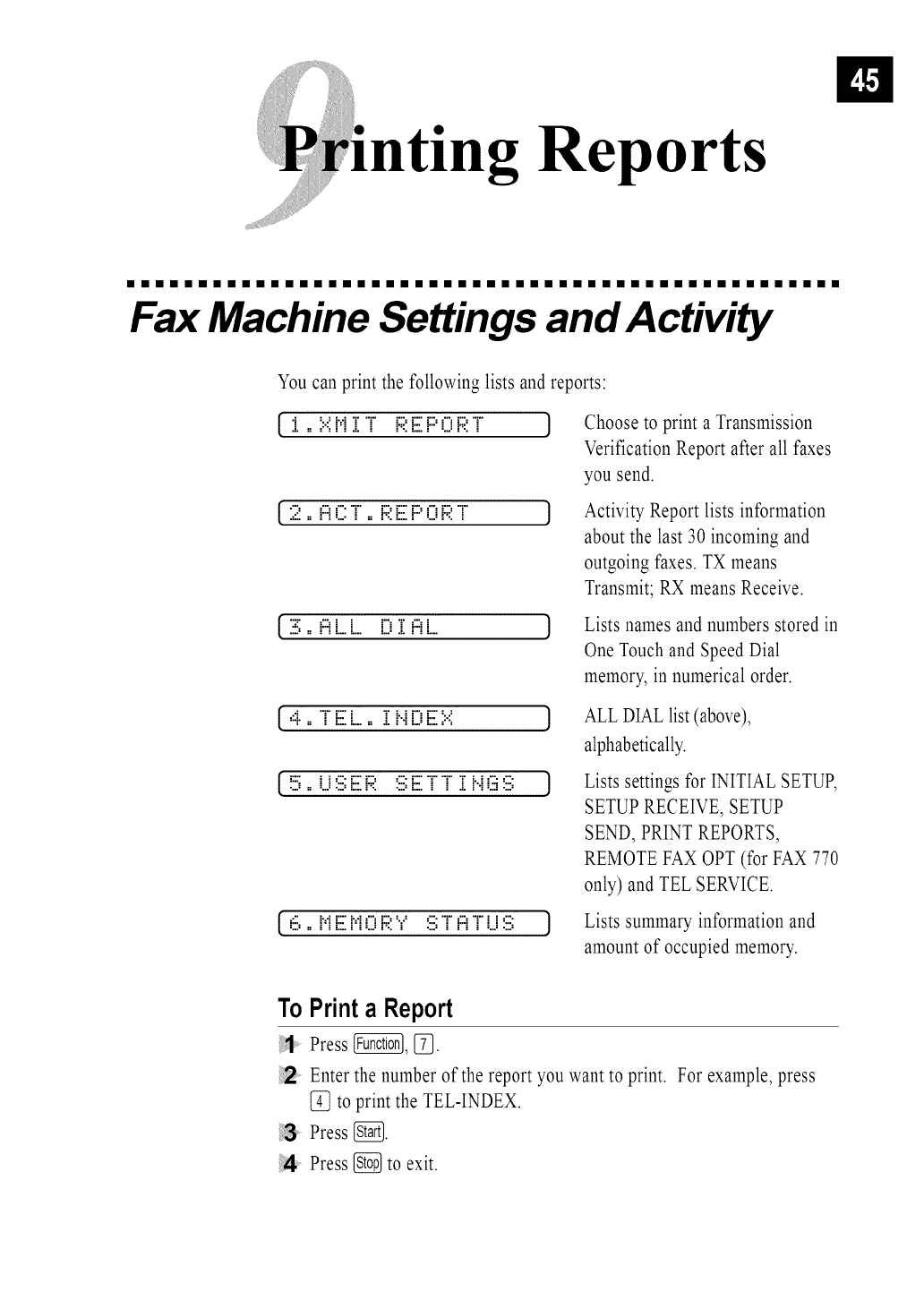
ting Reports
iiiiiiiiiiiiiiiiiiiiiiiiiiiiiiiiiiiiiiiiiiiiiiiiii
Fax Machine Settings and Activity
You can print the following lists and reports:
[ i ,, i:.:iMii i F;?.E F::'E:EF;?."i ]
[2,, i:::iE::::"1",, 1:;i:[iii:1:::'E:::E1:;i:"1"
[ 3 ,, i:::iL..[ [:E:[i:::i[
Choose to print a Transmission
Verification Report after all faxes
you send.
Activity Report lists information
about the last 30 incoming and
outgoing faxes. TX means
Transmit; RX means Receive.
Lists names and numbers stored in
One Touch and Speed Dial
memory, in numerical order.
[4==T Eli...... ii i..i[lieiiiili:.:i
[ !!5==i...i:iii;iiii:F;;: :iii;iiii:'i"'i"i: i..iE:iii:iii; ]
[ 6 :: Miiii:ME:EF;I::'r: :iii;"i"i:::iT LJ:iii; ]
ALL DIAL list (above),
alphabetically.
Lists settings for INITIAL SETUP,
SETUP RECEIVE, SETUP
SEND, PRINT REPORTS,
REMOTE FAX OPT (for FAX 770
only) and TEL SERVICE.
Lists summary information and
amount of occupied memory.
To Printa Report
Press @, [_.
Enter the number of the report you want to print. For example, press
[_ to print the TEL-INDEX.
Press _.
!4 Press _ to exit.
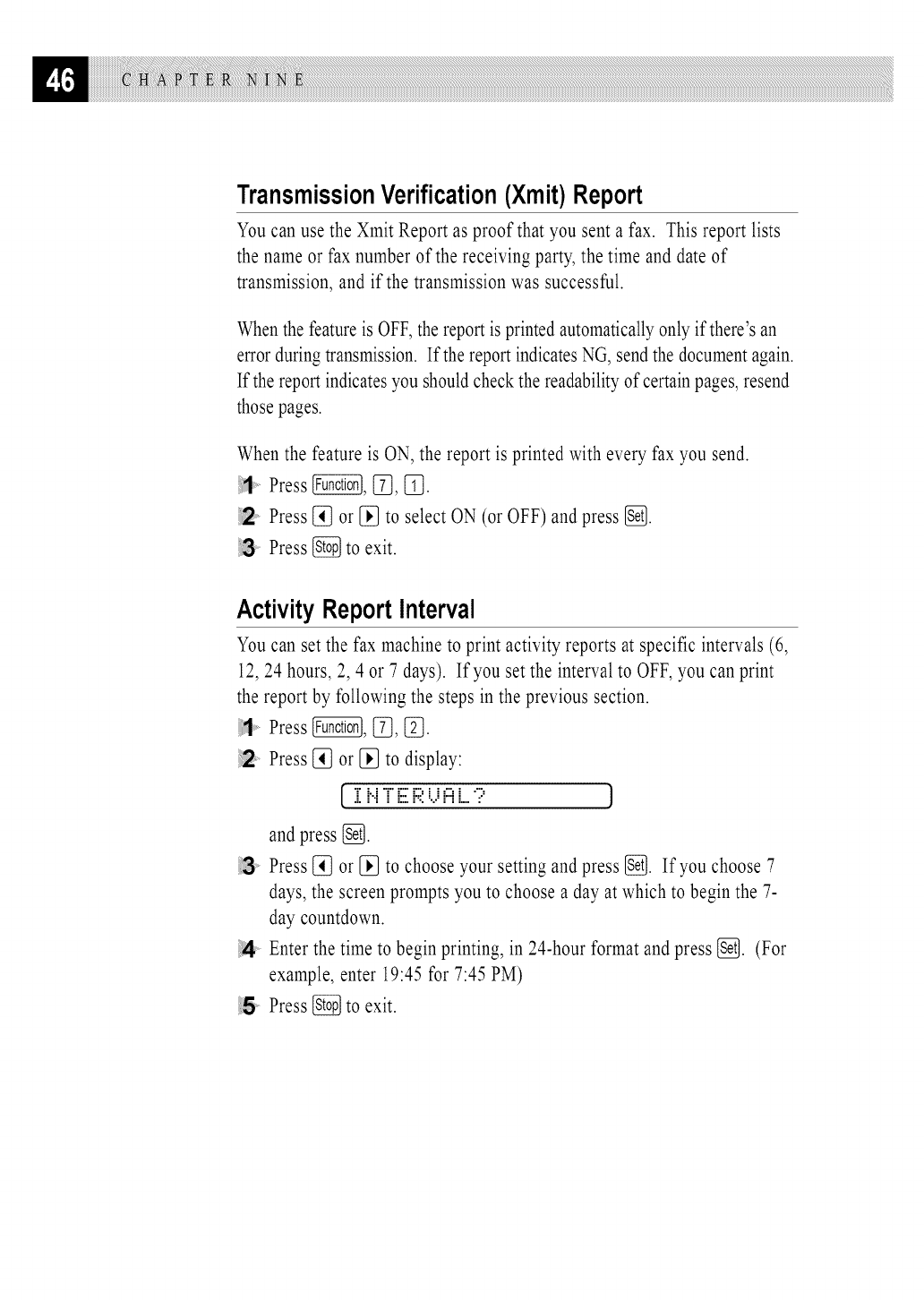
TransmissionVerification(Xmit)Report
You can use the Xmit Report as proof that you sent a fax. This report lists
the name or fax number of the receiving party, the time and date of
transmission, and if the transmission was successful.
Whenthe featureis OFF, the report is printed automaticallyonly if there's an
error during transmission. If the report indicatesNG, send the document again.
If the report indicates you shouldcheck the readability of certain pages, resend
those pages.
When the feature is ON, the report is printed with every fax you send.
Press _, [_, _L].
12' Press [_ or [_ to select ON (or OFF) and press [_.
Press _ to exit.
ActivityReportInterval
You can set the fax machine to print activity reports at specific intervals (6,
12,24 hours, 2, 4 or 7 days). If you set the interval to OFF, you can print
the report by following the steps in the previous section.
i1' Press @, [_, _.
12 Press [_ or [_ to display:
[.i i..i'i"iiiiZi:;i:t..ii:::ii....? J
and press {_].
i;3 Press [_ or [_ to choose your setting and press _. If you choose 7
days, the screen prompts you to choose a day at which to begin the 7-
day countdown.
Enter the time to begin printing, in 24-hour format and press {_]. (For
example, enter 19:45 for 7:45 PM)
5Press _ to exit.
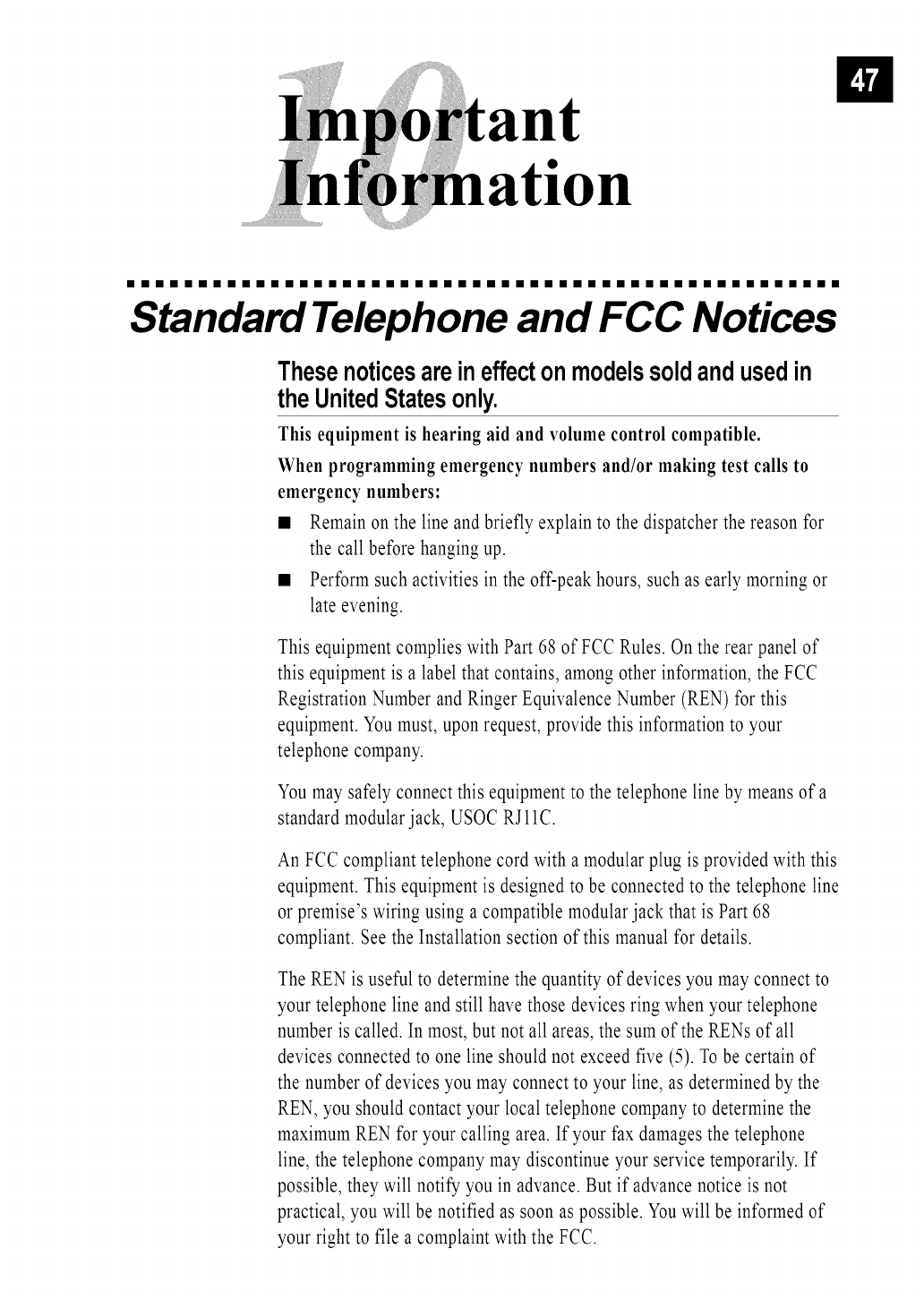
ant
ation
iiiiiiiiiiiiiiiiiiiiiiiiiiiiiiiiiiiiiiiiiiiiiiiiii
Standard Telephone and FCC Notices
Thesenoticesareineffecton modelssoldandusedin
theUnitedStatesonly.
This equipment is hearing aid and volume control compatible.
When programming emergency numbers and/or making test calls to
emergency numbers:
• Remainon the line and briefly explain to the dispatcher the reason for
the call before hangingup.
•Performsuch activities in the off-peak hours, such as early morning or
late evening.
This equipment complies with Part 68 of FCC Rules. On the rear panel of
this equipment is a label that contains, among other information, the FCC
Registration Number and Ringer Equivalence Number (REN) for this
equipment. You must, upon request, provide this information to your
telephone company.
You may safely connect this equipment to the telephone line by means of a
standard modular jack, USOC RJ 11C.
An FCC compliant telephone cord with a modular plug is provided with this
equipment. This equipment is designed to be connected to the telephone line
or premise's wiring using a compatible modular jack that is Part 68
compliant. See the Installation section of this manual for details.
The REN is useful to determine the quantity of devices you may connect to
your telephone line and still have those devices ring when your telephone
number is called. In most, but not all areas, the sum of the RENs of all
devices connected to one line should not exceed five (5). To be certain of
the number of devices you may connect to your line, as determined by the
REN, you should contact your local telephone company to determine the
maximum REN for your calling area. If your fax damages the telephone
line, the telephone company may discontinue your service temporarily. If
possible, they will notify you in advance. But if advance notice is not
practical, you will be notified as soon as possible. You will be informed of
your right to file a complaint with the FCC.

Yourtelephonecompanymaymakechangestoitsfacilities,equipment,
operationsorproceduresthatcouldaffecttheproperfunctioningofyour
equipment.If theydo,youwill benotifiedinadvancetogiveyouan
opportunitytomaintainuninterruptedtelephoneservice.
If youexperiencetroublewiththisfaxmachine,pleasecontactthe
manufacturer'sauthorizedserviceagencyforinformationonobtaining
serviceorrepair.Thetelephonecompanymayaskthatyoudisconnectthis
equipmentfromthelineuntiltheproblemhasbeencorrectedoruntilyou
aresurethattheequipmentisnotmalfunctioning.
If youarenotableto solveaproblemwithyourfaxmachine,contact
BrotherCustomerService.(SeeBrotherNumbers,pagei.)
InternationalEnergyStarComplianceStatement
The purpose of the InternationalEnergy Star Program isto promotethe
development and popularizationof energy-efficient office equipment,which
includes computers, monitors,printers, facsimilereceivers and copy machines
world-wide.As an International Energy Starpartner, Brother Industries, Ltd.
has decided that this productmeets the guidelineof the program.
IndustryCanada ComplianceStatement (ForCanada Only)
This Class B digital apparatus meets all requirements of the Canadian
Interference-Causing Equipment Regulations.
Cet appareil num_rique de la classe B respecte toutes les exigences du
R_glement sur la materiel brouilleur du Canada.
FederalCommunicationsCommission ComplianceNotice
(For USA Only)
This equipment has been tested and found to comply with the limits for a
Class B digital device, pursuant to Part 15 of the FCC Rules. These limits
are designed to provide reasonable protection against harmful interference
in a residential installation. This equipment generates, uses, and can radiate
radio frequency energy and, if not installed and used in accordance with the
instructions, may cause harmful interference to radio communications.
However, there is no guarantee that interference will not occur in a
particular installation. If this equipment does cause harmful interference to
radio or television reception, which can be determined by turning the
equipment off and on, the user is encouraged to try to correct the
interference by one or more of the following measures:
• Reorient or relocate the receiving antenna.
• Increase the separation between the fax equipment and the receiver.
• Connect the fax equipment on a separate circuit.
• Consult the dealer or an experienced radio/TV technician for help.
WARNING
For protection against the risk of electrical shock, always disconnect all
cables from the wall outlet before servicing, modifying or installing the
equipment.
This equipment may not be used on coin service lines provided by the
telephone company or connected to party lines.
Brother cannot accept any financial or other responsibilities that may be the
result of your use of this information, including direct, special or
consequential damages. There are no warranties extended or granted by this
document.
Important Safety Instructions
Read all of these instructions.
2Save them for later reference.
Follow all warnings and instructions marked on the product.
4 Unplug this product from the wall outlet before cleaning. Do not use
liquid or aerosol cleaners. Use a damp cloth for cleaning.
;5 Do not use this product near water.
6 Do not place this product on an unstable cart, stand, or table. The
product may fall, causing serious damage to the product.
Slots and openings in the cabinet and the back or bottom are provided
for ventilation; to ensure reliable operation of the product and to
protect it from overheating, these openings must not be blocked or
covered. The openings should never be blocked by placing the product
on a bed, sofa, rug, or other similar surface. This product should never
be placed near or over a radiator or heater. This product should never be
placed in a built-in installation unless proper ventilation is provided.
_8 This product should be operated from the type of power source
indicated on the label. If you are not sure of the type of power
available, consult with your dealer or local power company.
This product is equipped with a 3-wire grounding type plug, a plug
having a third (grounding) pin. This plug will fit into only a grounding-
type power outlet. This is a safety feature. If you are unable to insert
the plug into the outlet, contact your electrician to replace your
obsolete outlet. Do not defeat the purpose of the grounding-type plug.
t0 Do not allow anything to rest on the power cord. Do not place this
product where people can walk on the cord.
tl If an extension cord is used with this product, make sure that the total
ampere ratings on the products plugged into the extension cord do not
exceed the extension cord ampere rating. Also, make sure that the total
of all products plugged into the wall outlet does not exceed 15 amperes
(USA only).
1:2 Do not place anything in front of the fax machine that will block
received faxes. Do not place anything in the path of received faxes.
t3 Do not touch a document during printing.
14 Neverpushobjectsof anykindintothisproductthroughcabinetslots,
sincetheymaytouchdangerousvoltagepointsorshortoutparts
resultinginariskoffireorelectricshock.Neverspillliquidofany
kindontheproduct.
15 Donotattempttoservicethisproductyourself,asopeningorremoving
coversmayexposeyouto dangerousvoltagepointsand/orotherrisks,
andmayvoidyourwarranty.ReferallservicingtoaBrother
AuthorizedServiceCenter.AlistofBrotherAuthorizedService
Centershasbeenincludedforyourconvenience,oryoumaycontact
theBrotherCustomerServiceforyournearestBrotherAuthorized
ServiceCenter.(SeeBrotherNumbers,pagei.)
16 Unplugthisproductfromthewalloutletandreferservicingtoa
BrotherAuthorizedServiceCenterunderthefollowingconditions:
AWhen the power cord is damaged or frayed.
BIf liquid has been spilled into the product.
C If the product has been exposed to rain or water.
OIf the product does not operate normally when the operating
instructions are followed. Adjust only those controls that are
covered by the operating instructions. Improper adjustment of other
controls may result in damage and will often require extensive work
by a qualified technician to restore the product to normal operation.
EIf the product has been dropped or the cabinet has been damaged.
F If the product exhibits a distinct change in performance, indicating
a need for service.
1:7 To protect your product against power surges, we recommend the use of
a power protection device (Surge Protector).
leshooting
aintenance
iiiiiiiiiiiiiiiiiiiiiiiiiiiiiiiiiiiiiiiiiiiiiiiiii
Troubleshooting
If you can't resolve a difficulty with your fax machine using this manual,
please see page i for Brother Numbers to call for assistance.
ErrorMessages
You may occasionally encounter a difficulty with your fax machine or
telephone line. If this happens, your fax machine often identifies the
problem and displays an error message. The list below explains the most
common error messages.
If you need additional help, call the Brother fax-back system. (See "Brother
Numbers," page i.)
[ [2H [iii:[21'::: F::i:::iF::E:R ]
The fax machine is out of paper, or the paper is not properly loaded, or the
paper is jammed in the fax machine.
Open the paper cover and remove any paper that is notjammed.
•.. PaperCover
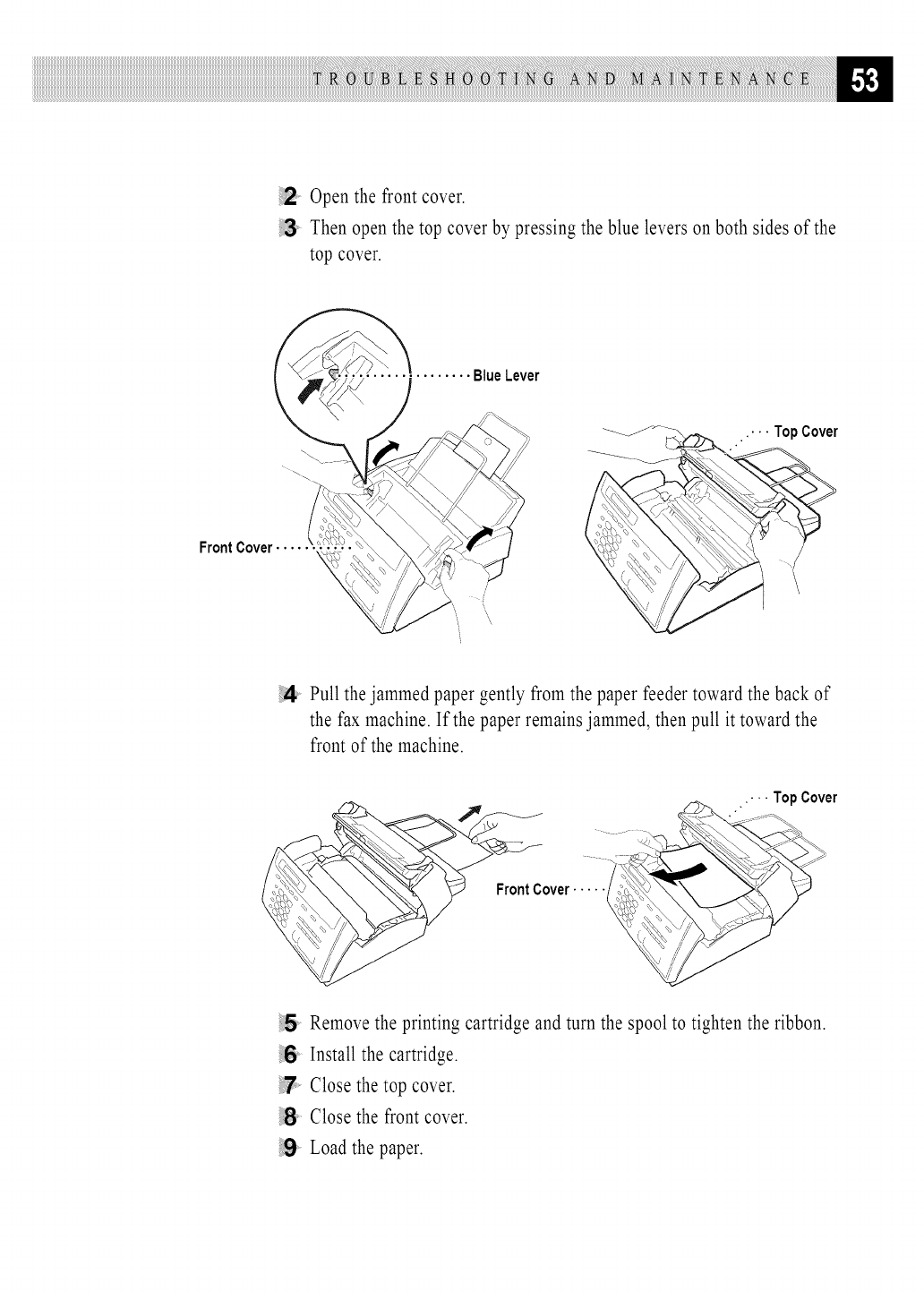
{2 Openthe frontcover.
Thenopenthetop coverby pressingtheblueleverson both sidesof the
topcover.
BlueLever
FrontCover...........
•-. TopCover
Pull the jammed paper gently from the paper feeder toward the back of
the fax machine. If the paper remains jammed, then pull it toward the
front of the machine.
$3
FrontCover..... {
••. TopCover
5Remove the printing cartridge and turn the spool to tighten the ribbon.
6Install the cartridge.
Close the top cover.
Close the front cover.
9Load the paper.
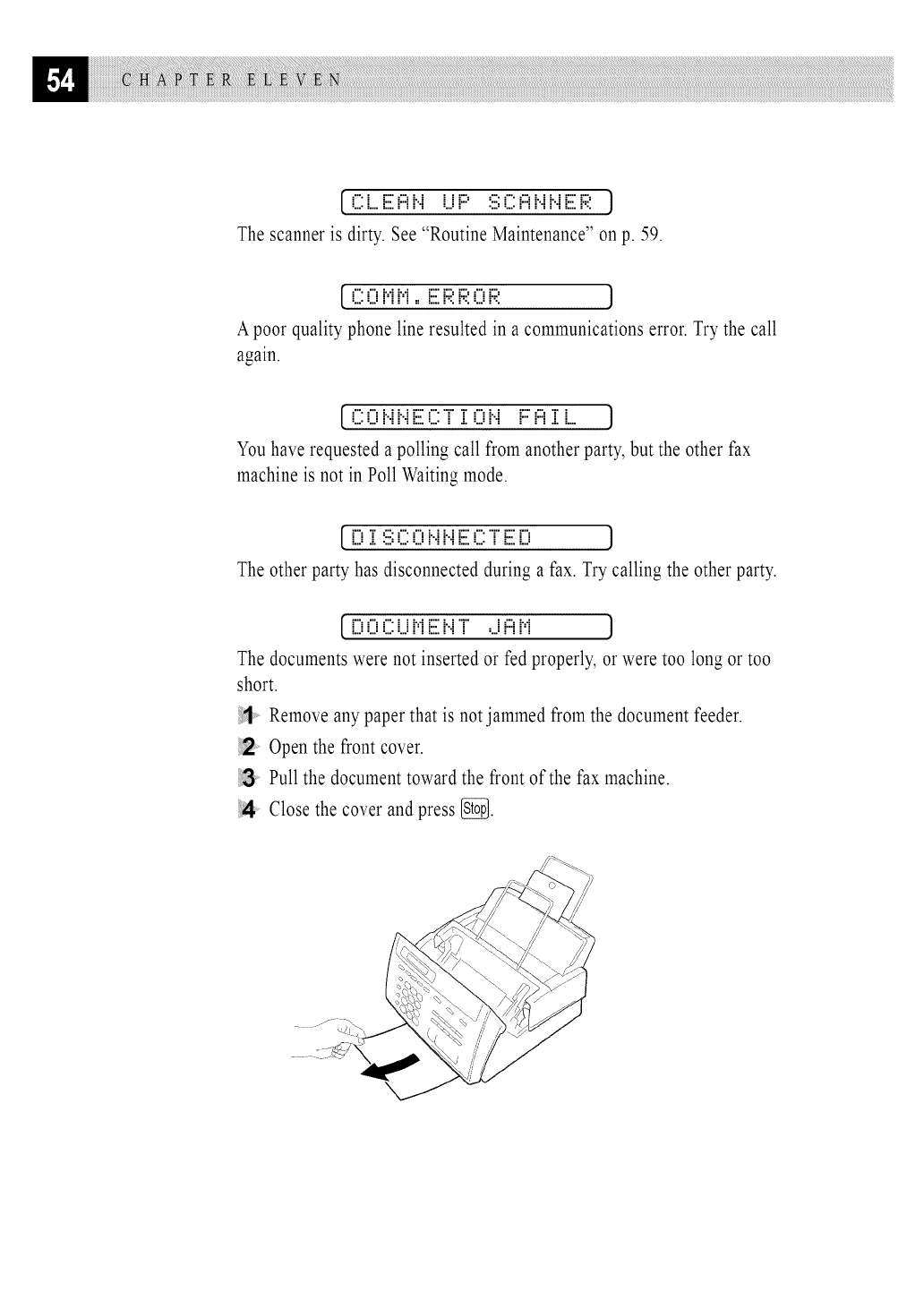
[.C:[...E i:::ii".i i...iF::' :iii:C:i:::ii".ii".iE F:I:,]
The scanner is dirty. See "Routine Maintenance" on p. 59.
[.C:0 MM,, E F:I:F:I:0 F:I: J
A poor quality phone line resulted in a communications error. Try the call
again.
[.C:0 i..ii..iE C:'i"ii 0 i..i F::i:::iii i.... ,]
You have requested a polling call from another party, but the other fax
machine is not in Poll Waiting mode.
[.[? ii:iii:C:0 i..ii..iE C:'i"E [? .]
The other party has disconnected during a fax. Try calling the other party.
[.[?0 C:i...iME i..i'i" d i:::iM J
The documents were not inserted or fed properly, or were too long or too
short.
il , Remove any paper that is not jammed from the document feeder.
i_' Open the front cover.
Pull the document toward the front of the fax machine.
4 Close the cover and press _.
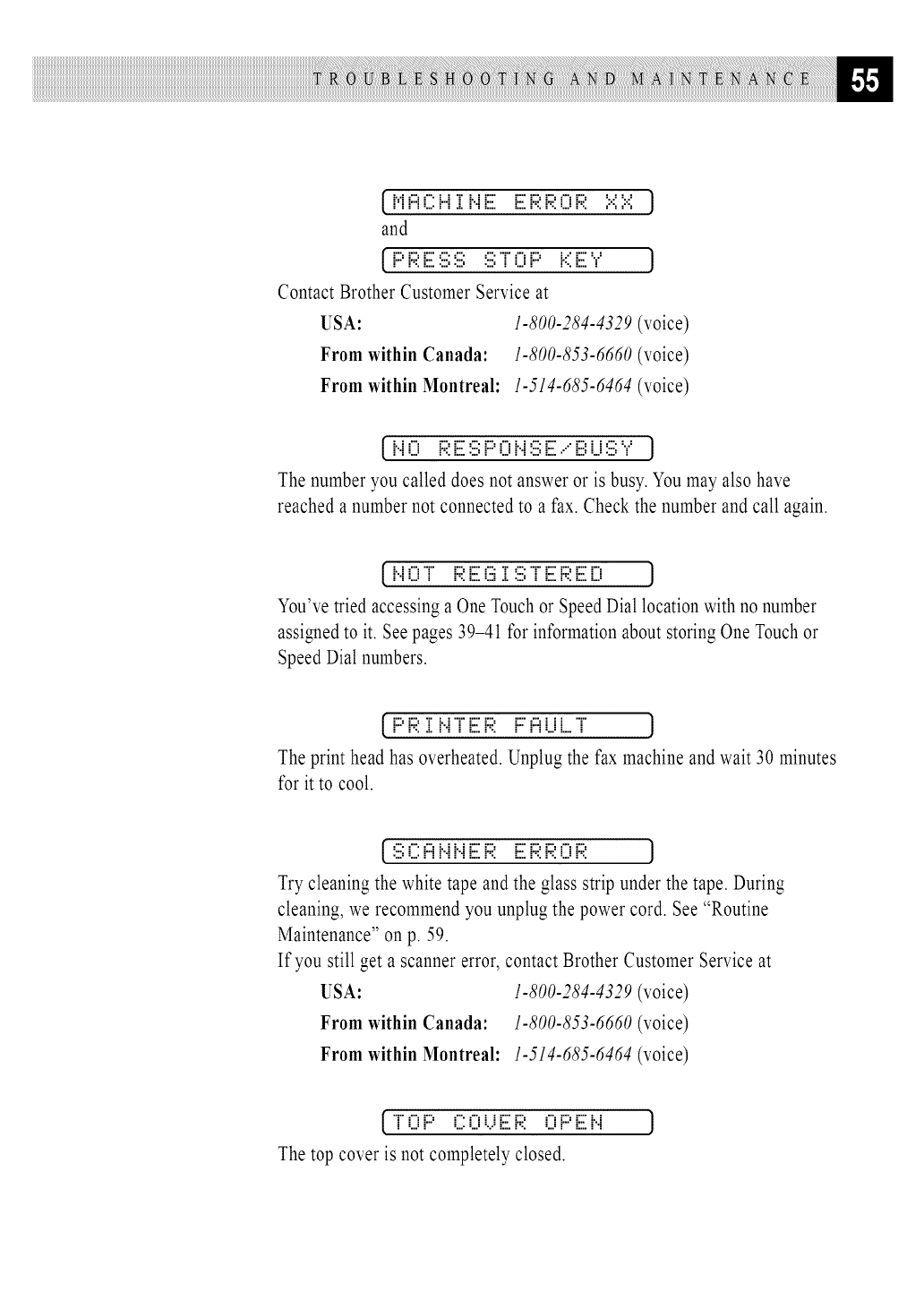
[ Mi:::iiiii:H iii..iiiiil iiiilF_I:F_I:0 F_I:i:.:ii:.:iJ
and
[ F::'F:I:iiiil:iii_:iii_:iii_T'0 F::' i.:::iiiil:_: J
Contact Brother Customer Service at
USA: 1-800-284-4329 (voice)
From within Canada: 1-800-853-6660 (voice)
From within Montreal: 1-514-685-6464 (voice)
[_i..i0 F:I:iiiil:iii:F:::0 i..i:iii:iiiil...iiii:i...i:iii::_: J
The number you called does not answer or is busy. You may also have
reached a number not connected to a fax. Check the number and call again.
[ i..i0 T' F_I:iiiililiiiii :iii_T'iiiilF_I:iiiil[? J
You've tried accessing a One Touch or Speed Dial location with no number
assigned to it. See pages 39-41 for information about storing One Touch or
Speed Dial numbers.
[j:::'j:;i:i: J..Ji"Jiii:j:;i:J:::i:::ii...i[...i' J
The print head has overheated. Unplug the fax machine and wait 30 minutes
for it to cool.
[.'.iii:i::::i:::ii..ii..iiiii:F:?. iiii:F:?.F:?.0 F? J
Try cleaning the white tape and the glass strip under the tape. During
cleaning, we recommend you unplug the power cord. See "Routine
Maintenance" on p. 59.
If you still get a scanner error, contact Brother Customer Service at
USA: 1-800-284-4329 (voice)
From within Canada: 1-800-853-6660 (voice)
From within Montreal: 1-514-685-6464 (voice)
[_T'0 F::' i20 i...iiiiilF;I: 0 F::'iiiili..i
The top cover is not completely closed.
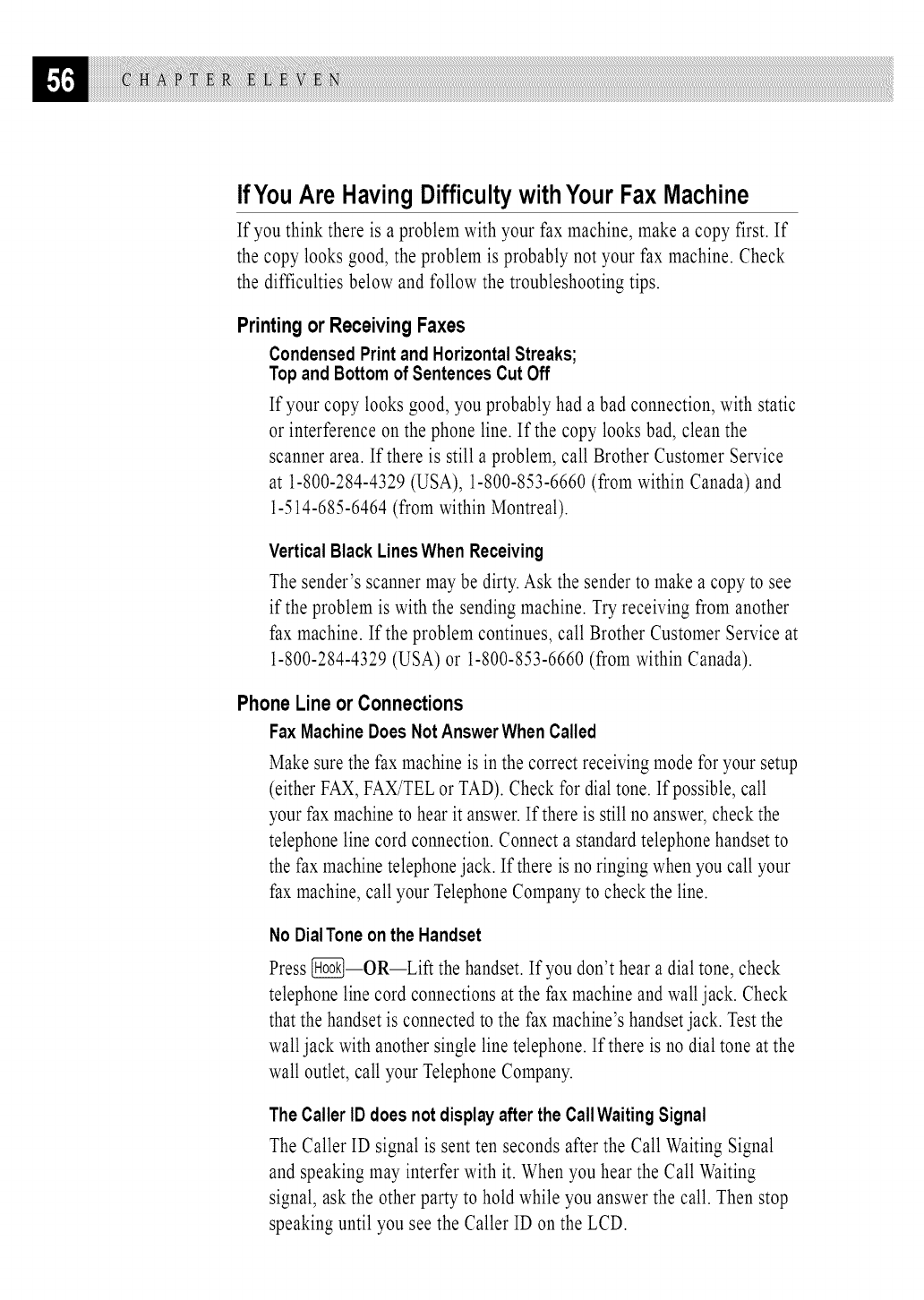
IfYouAre HavingDifficultywithYourFaxMachine
If you think there is a problem with your fax machine, make a copy first. If
the copy looks good, the problem is probably not your fax machine. Check
the difficulties below and follow the troubleshooting tips.
Printingor Receiving Faxes
CondensedPrintandHorizontalStreaks;
TopandBottomof SentencesCutOff
If your copy looks good, you probably had a bad connection, with static
or interference on the phone line. If the copy looks bad, clean the
scanner area. If there is still a problem, call Brother Customer Service
at 1-800-284-4329 (USA), 1-800-853-6660 (from within Canada) and
1-514-685-6464 (from within Montreal).
VerticalBlackLinesWhenReceiving
The sender's scanner may be dirty. Ask the sender to make a copy to see
if the problem is with the sending machine. Try receiving from another
fax machine. If the problem continues, call Brother Customer Service at
1-800-284-4329 (USA) or 1-800-853-6660 (from within Canada).
Phone Lineor Connections
FaxMachineDoesNotAnswerWhenCalled
Make sure the fax machine is in the correct receiving mode for your setup
(either FAX, FAX/TELor TAD). Check for dial tone. If possible, call
your fax machine to hear it answer. If there is still no answer, check the
telephone line cord connection. Connect a standard telephone handset to
the fax machine telephonejack. If there is no ringing when you call your
fax machine, call your Telephone Companyto check the line.
No DialTone onthe Handset
Press [_--OR--Lift the handset. If you don't hear a dial tone, check
telephone line cord connections at the fax machine and wall jack. Check
that the handset is connected to the fax machine's handsetjack. Test the
walljack with another single line telephone. If there is no dial tone at the
wall outlet, call your Telephone Company.
TheCallerIDdoesnotdisplayaftertheCallWaitingSignal
The Caller ID signal is sent ten seconds after the Call Waiting Signal
and speaking may interfer with it. When you hear the Call Waiting
signal, ask the other party to hold while you answer the call. Then stop
speaking until you see the Caller ID on the LCD.
Sending Faxes
PoorTransmittingQuality
Try changing your resolution to FINE or SUPERFINE (see "Resolution"
p. 34). Make a copy to verify the fax machine's scanner operation.
DialingDoesNotWork
Check all line cord connections, and make sure the curled handset cord
is not in the EXT jack.
Check power cord connection.
Send a manual fax by pressing {_]--OR--Lifting the handset, and
dialing the number. Wait tohear fax receiving tones before pressing
VerticalBlackLinesWhenSending
Use your fax machine to make a copy. If the copy shows the same
problem, the scanner area is dirty. Lift the front cover and check the
document path. Clean the scanner's white tape and the glass strip under
the tape using isopropyl alcohol and a lint-free cloth (see p. 59).
See
For FAX/TEL
ModeOnly
p. 26
See
EasyReceive
p. 24
HandlingIncomingCalls
DoubleRingin FAX/TELMode
The fax machine knows the incoming call is not a fax so it is signaling
you to answer the telephone call. Pick up the fax machine handset or
answer from an extension phone and press your fax machine's
Telephone Answer Code (default setting is #51).
Transferringa Callto theFaxMachine
If you have answered the fax machine handset, press _, and hang up
immediately.
If you answered at an extension phone, press your three-digit Fax
Receive Code (the factory setting is -X-51).When your fax machine
answers, hang up.
Fax Machine"Hears'Voice as CNGTone
If your fax machine is set to Easy Receive ON, and it answers voice
calls by trying to receive a fax, try turning Easy Receive to OFF.
TransmissionVerificationReportPrints"Result: NG"
There is probably temporary noise or static on the phone line. Try
sending the fax again. If the problem continues, call the Telephone
Company to check your phone line.
CustomFeaturesonaSingleLine
If you have Call Waiting, Caller ID, Call Waiting/Caller ID, Ring
Master, Voice Mail, an answering machine, alarm system or any other
custom feature on a single phone line with your fax machine, it may
create a problem sending or receiving fax data.
Example #1:
If you are having a telephone conversation and a fax
communication signal comes through on your Call Waiting Caller
ID feature, you can verify that the second call is a fax by switching
to it. You have the option to receive the fax call, by asking the first
caller to hang up to clear the line.
Example #2:
If you are sending or receiving a fax message while a Call Waiting
Caller ID (or other custom feature) signal comes through on the
line, the signal can temporarily interrupt or disrupt the fax data.
Brother's ECM feature should help overcome this problem. This
condition is related to the telephone system industry, and is
common to all devices that send and receive information on a
single, shared line with custom features. If avoiding a slight
interruption is crucial to your business, a separate line with no
custom features is recommended.
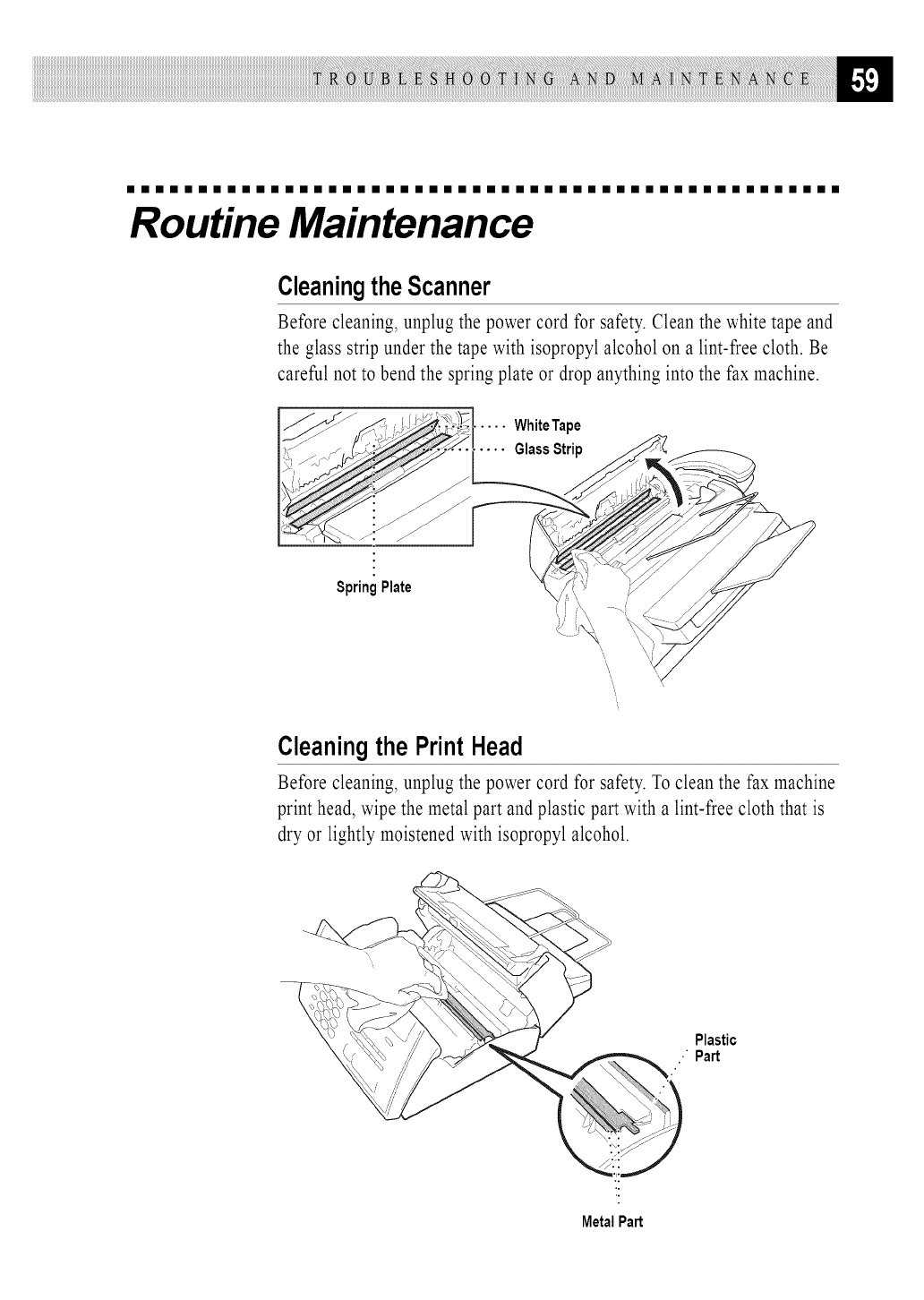
iiiiiiiiiiiiiiiiiiiiiiiiiiiiiiiiiiiiiiiiiiiiiiiiii
Routine Maintenance
CleaningtheScanner
Before cleaning, unplug the power cord for safety. Clean the white tape and
the glass strip under the tape with isopropyl alcohol on a lint-free cloth. Be
careful not to bend the spring plate or drop anything into the fax machine.
• WhiteTape
SpringPlate
Cleaningthe PrintHead
Before cleaning, unplug the power cord for safety. To clean the fax machine
print head, wipe the metal part and plastic part with a lint-free cloth that is
dry or lightly moistened with isopropyl alcohol.
Plastic
•Part
MetalPart
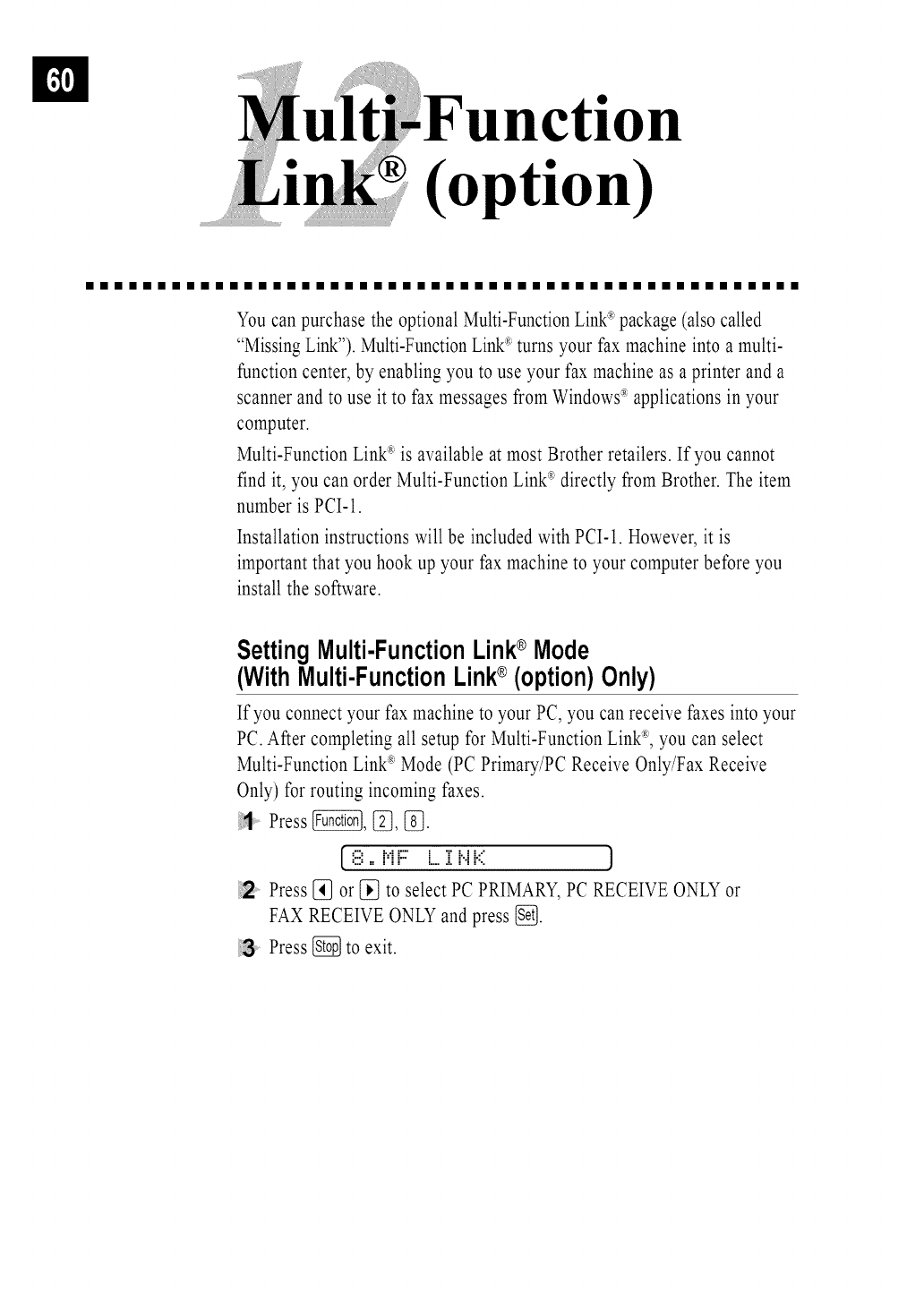
n
(option)
iiiiiiiiiiiiiiiiiiiiiiiiiiiiiiiiiiiiiiiiiiiiiiiiii
You can purchase the optional Multi-FunctionLink_>package (also called
"Missing Link"). Multi-FunctionLinkxturns your fax machine into a multi-
function center, by enabling you to use your fax machine as a printer and a
scanner and to use it to fax messages from Windows_>applications in your
computer.
Multi-Function Linkx is available at most Brother retailers. If you cannot
find it, you can order Multi-Function Link_>directly from Brother. The item
number is PCI-1.
Installation instructions will be included with PCI-1. However, it is
important that you hook up your fax machine to your computer before you
install the software.
SettingMulti-FunctionLink®Mode
(WithMulti-FunctionLink®(option)Only)
If you connect your fax machine to your PC, you can receive faxes into your
PC. After completing all setup for Multi-Function Linkx, you can select
Multi-Function Link_>Mode (PC Primary/PC Receive Only/Fax Receive
Only) for routing incoming faxes.
1 Press _, _, _.
[ 8 ==MF:: i....iZi".iK ]
Press[_ or {_ to selectPCPRIMARY,PCRECEIVEONLYor
FAXRECEIVEONLYandpress{_.
Press{_ to exit.
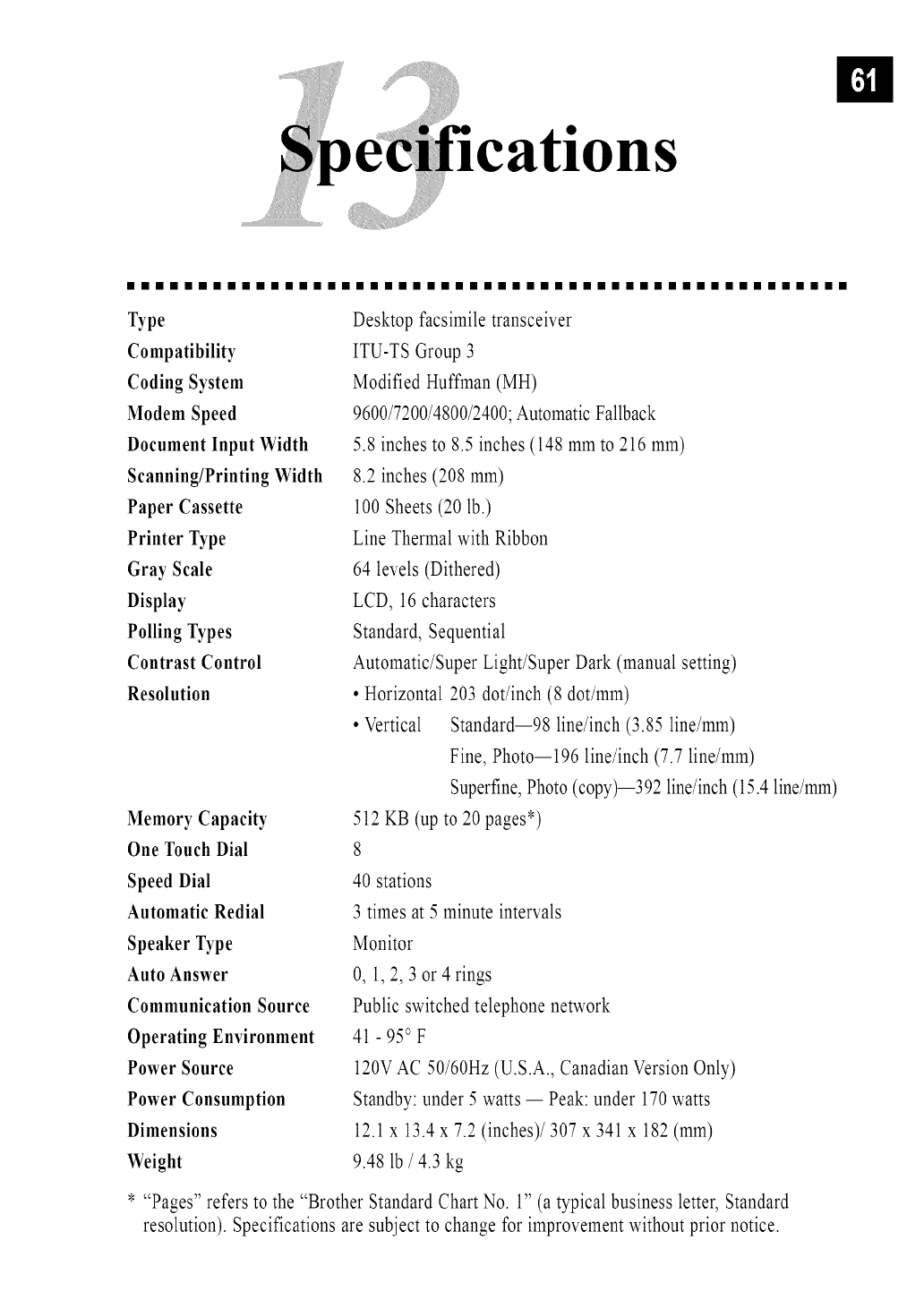
iiiiiiiiiiiiiiiiiiiiiiiiiiiiiiiiiiiiiiiiiiiiiiiiiii
Type
Compatibility
Coding System
Modem Speed
Document Input Width
Scanning/Printing Width
Paper Cassette
Printer Type
Gray Scale
Display
Polling Types
Contrast Control
Resolution
Memory Capacity
One Touch Dial
Speed Dial
Automatic Redial
Speaker Type
Auto Answer
Communication Source
Operating Environment
Power Source
Power Consumption
Dimensions
Weight
Desktop facsimile transceiver
ITU-TS Group 3
Modified Huffman (MH)
9600/7200/4800/2400;Automatic Fallback
5.8 inches to 8.5 inches (148 mm to 216 mm)
8.2 inches (208 mm)
100 Sheets (20 lb.)
Line Thermal with Ribbon
64 levels (Dithered)
LCD, 16 characters
Standard, Sequential
Automatic/Super Light/Super Dark (manual setting)
• Horizontal 203 dot/inch (8 dot/mm)
• Vertical Standard--98 line/inch (3.85 line/ram)
Fine, Photo--196 line/inch (7.7 line/ram)
Superfine, Photo (copy)--392 line/inch(15.4 line/ram)
512 KB (up to 20 pages*)
8
40 stations
3 times at 5 minute intervals
Monitor
0, 1,2, 3 or 4 rings
Public switched telephone network
41 - 95° F
120VAC 50/60Hz (U.S.A., Canadian Version Only)
Standby: under 5 watts -- Peak: under 170watts
12.1x 13.4 x 7.2 (inches)/307 x 341 x 182 (mm)
9.48 lb /4.3 kg
* "Pages" refers to the "Brother Standard Chart No. 1" (a typical business letter, Standard
resolution). Specifications are subject to change for improvement without prior notice.
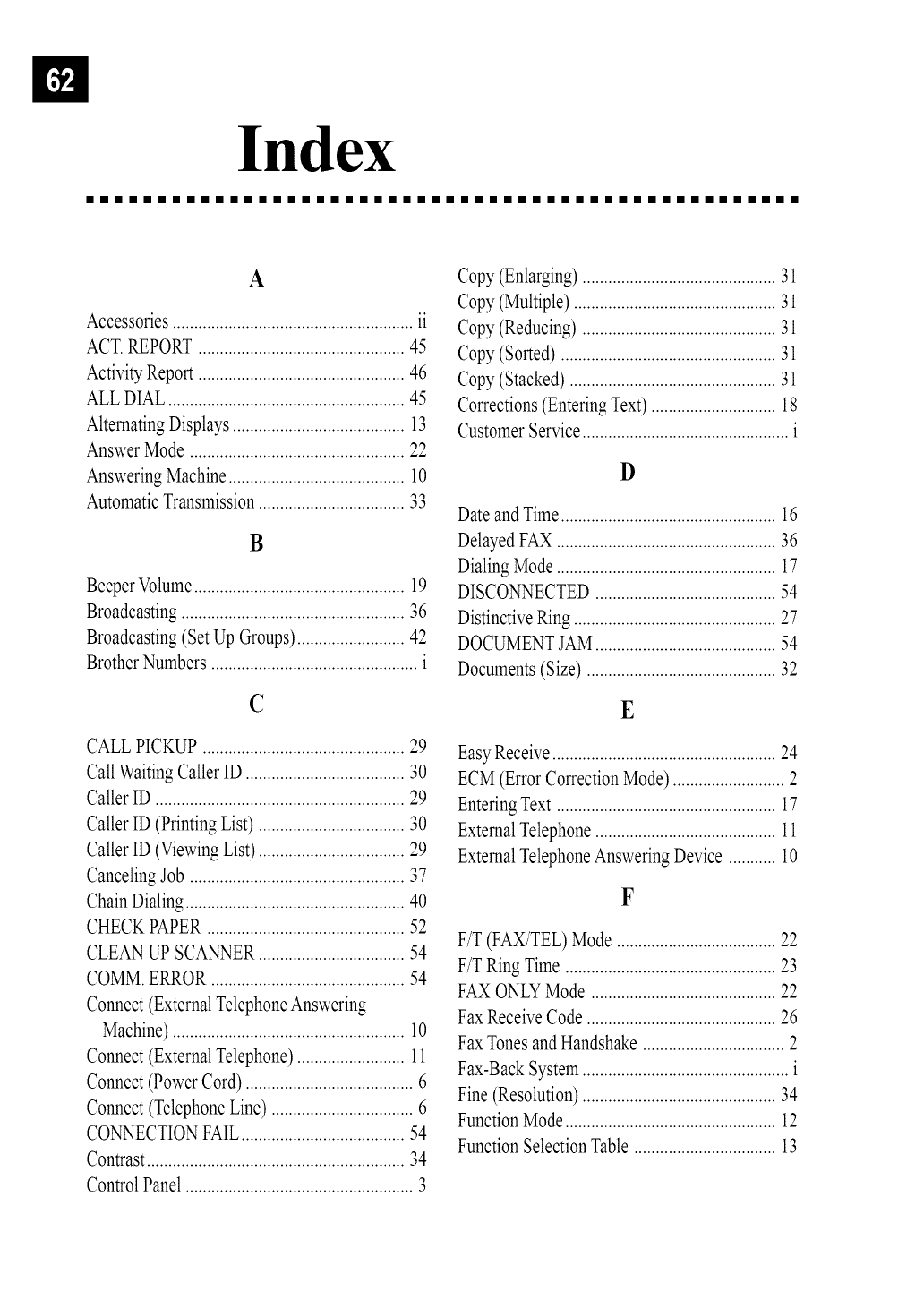
Index
iiiiiiiiiiiiiiiiiiiiiiiiiiiiiiiiiiiiiiiiiiiiiiiiii
A
Accessories........................................................ii
ACT.REPORT ................................................45
ActivityReport ................................................46
ALL DIAL.......................................................45
AlternatingDisplays........................................13
AnswerMode ..................................................22
AnsweringMachine.........................................10
AutomaticTransmission..................................33
B
Beeper Volume ................................................. 19
Broadcasting .................................................... 36
Broadcasting (Set Up Groups) ......................... 42
Brother Numbers ................................................ i
¢
CALLPICKUP ...............................................29
CallWaitingCallerID .....................................30
Caller ID ..........................................................29
Caller ID (Priming List) ..................................30
Caller ID (ViewingList)..................................29
CancelingJob ..................................................37
ChainDialing...................................................40
CHECKPAPER..............................................52
CLEANUP SCANNER..................................54
COMM.ERROR .............................................54
Connect (ExternalTelephoneAnswering
Machine)......................................................10
Connect (ExternalTelephone).........................11
Connect(PowerCord) .......................................6
Connect (TelephoneLine) .................................6
CONNECTIONFAIL......................................54
Contrast............................................................34
ControlPanel .....................................................3
Copy (Enlarging) ............................................. 31
Copy (Multiple) ............................................... 31
Copy (Reducing) ............................................. 31
Copy (Sorted) .................................................. 31
Copy (Stacked) ................................................ 31
Corrections (Entering Text) ............................. 18
Customer Service ................................................ i
D
Dateand Time..................................................16
DelayedFAX ...................................................36
DialingMode ...................................................17
DISCONNECTED..........................................54
DistinctiveRing ...............................................27
DOCUMENTJAM..........................................54
Documents(Size) ............................................32
E
Easy Receive....................................................24
ECM (Error CorrectionMode) ..........................2
EnteringText ...................................................17
ExternalTelephone..........................................11
ExternalTelephoneAnsweringDevice ........... 10
F
F/T (FAX/TEL)Mode .....................................22
F/T Ring Time .................................................23
FAXONLYMode ...........................................22
FaxReceiveCode ............................................26
FaxTonesand Handshake .................................2
Fax-BackSystem................................................i
Fine (Resolution).............................................34
FunctionMode.................................................12
FunctionSelectionTable .................................13
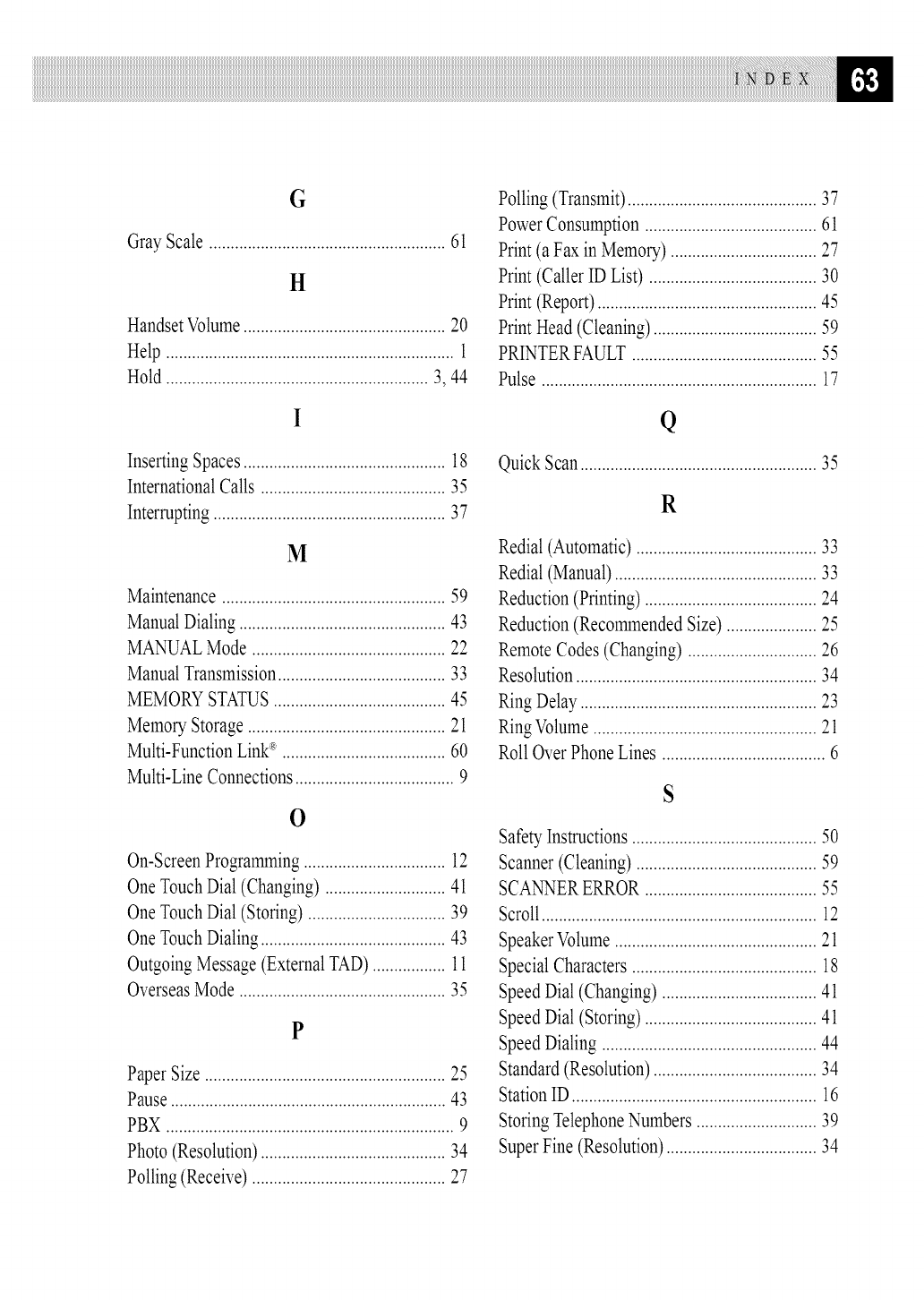
G
Gray Scale .......................................................61
H
Handset Volume ............................................... 20
Help ................................................................... 1
Hold ............................................................. 3, 44
InsertingSpaces...............................................18
InternationalCalls ...........................................35
Interrupting......................................................37
M
Maintenance....................................................59
ManualDialing................................................43
MANUALMode .............................................22
ManualTransmission.......................................33
MEMORYSTATUS........................................45
Memory Storage..............................................21
Multi-FunctionLink_>......................................60
Multi-LineConnections.....................................9
O
On-ScreenProgramming.................................12
OneTouchDial (Changing) ............................41
OneTouchDial (Storing) ................................39
OneTouchDialing...........................................43
OutgoingMessage(ExternalTAD)................. 11
OverseasMode ................................................35
P
PaperSize ........................................................25
Pause................................................................43
PBX ...................................................................9
Photo (Resolution)...........................................34
Polling(Receive).............................................27
Polling(Transmit)............................................37
PowerConsumption ........................................61
Print (aFax in Memory)..................................27
Print (CallerID List) .......................................30
Print (Report)...................................................45
Print Head (Cleaning)......................................59
PRINTERFAULT ...........................................55
Pulse ................................................................17
Q
Quick Scan ....................................................... 35
R
Redial(Automatic)..........................................33
Redial(Manual)...............................................33
Reduction(Priming)........................................24
Reduction(RecommendedSize).....................25
RemoteCodes(Changing) ..............................26
Resolution........................................................34
Ring Delay.......................................................23
RingVolume....................................................21
Roll OverPhoneLines ......................................6
S
SafetyInstructions...........................................50
Scanner(Cleaning)..........................................59
SCANNERERROR ........................................55
Scroll................................................................12
SpeakerVolume...............................................21
SpecialCharacters ...........................................18
Speed Dial (Changing)....................................41
Speed Dial (Storing)........................................41
Speed Dialing ..................................................44
Standard(Resolution)......................................34
StationID.........................................................16
StoringTelephoneNumbers ............................39
SuperFine (Resolution)...................................34
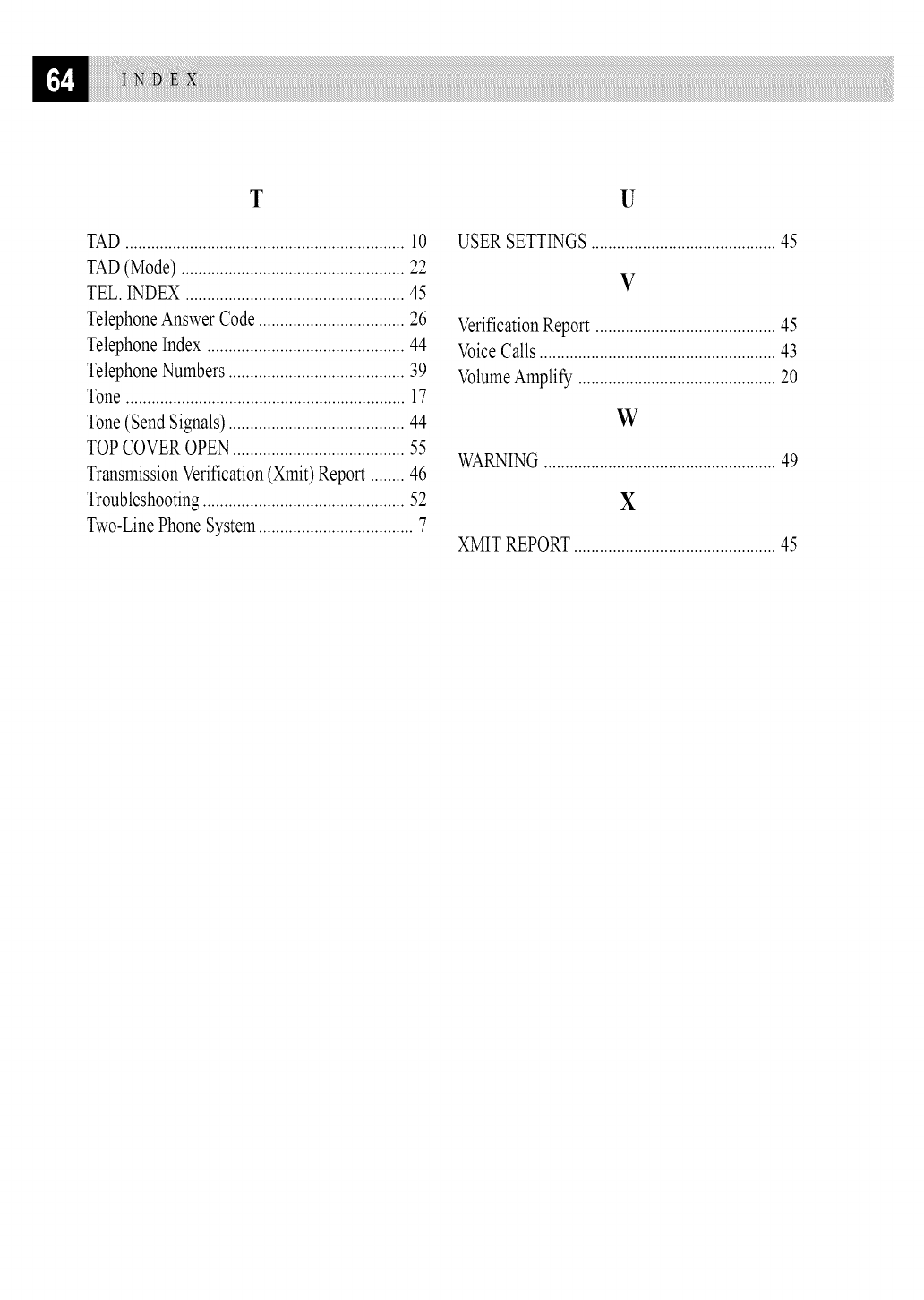
T U
TAD ................................................................. l0
TAD (Mode) .................................................... 22
TEL. INDEX ................................................... 45
Telephone Answer Code .................................. 26
Telephone Index .............................................. 44
Telephone Numbers ......................................... 39
Tone ................................................................. 17
Tone (Send Signals) ......................................... 44
TOP COVER OPEN ........................................ 55
Transmission Verification (Xmit) Report ........ 46
Troubleshooting ............................................... 52
Two-Line Phone System .................................... 7
USER SETTINGS ........................................... 45
V
Verification Report .......................................... 45
Voice Calls ....................................................... 43
Volume Amplify .............................................. 20
w
WARNING ...................................................... 49
X
XMIT REPORT ............................................... 45

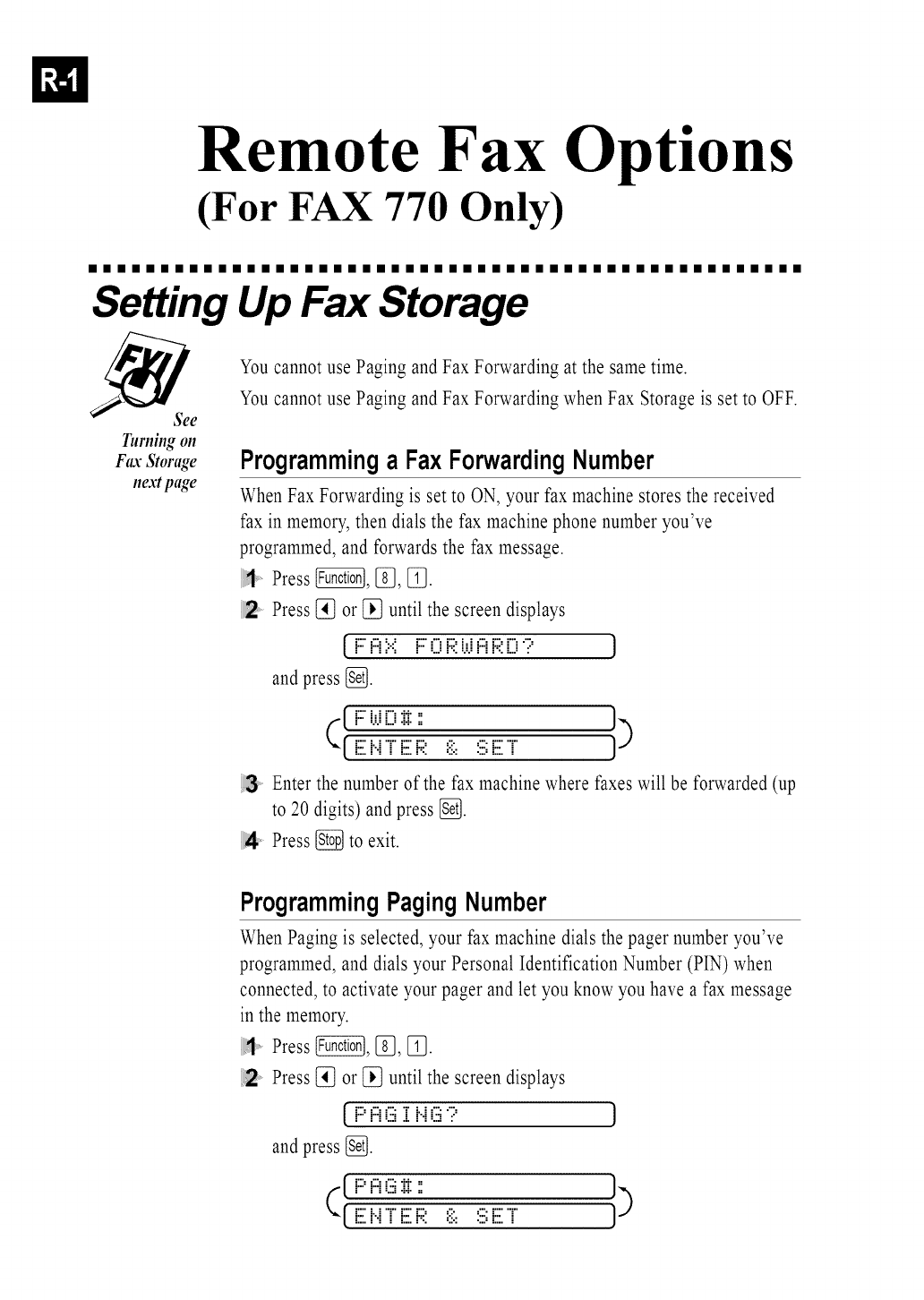
Remote Fax Options
(For FAX 770 Only)
iiiiiiiiiiiiiiiiiiiiiiiiiiiiiiiiiiiiiiiiiiiiiiiiii
Setting Up Fax Storage
_e
Turningon
FaxStorage
nextpage
You cannot use Paging and Fax Forwarding at the same time.
You cannot use Paging and Fax Forwarding when Fax Storage is set to OFF.
Programminga Fax ForwardingNumber
When Fax Forwarding is set to ON, your fax machine stores the received
fax in memory, then dials the fax machine phone number you've
programmed, and forwards the fax message.
Press @, [_, [_.
Press [_ or [_ until the screen displays
[ F::i:::i::':: F::0 F;;:i.i.ii:::iF;;:[)'? J
and press [_.
Enter the number of the fax machine where faxes will be forwarded (up
to 20 digits) and press [_].
Press _ to exit.
ProgrammingPagingNumber
When Paging is selected, your fax machine dials the pager number you've
programmed, and dials your Personal Identification Number (PIN) when
connected, to activate your pager and let you know you have a fax message
in the memory.
Press _, [_, [_.
Press [_ or [_ until the screen displays
[ F::=i:::iE3i: i..iE3';:= J
and press I_.
[[_-: ::
[:::.['.[ [ [:::.P:. =::.: .:::=[:::. [ I)

See
Printing a
Fte¢in Memory
(ForFAX 770Only)
p. 27
Enter your pager phone number (up to 20 digits) followed by [_ [_
and press [_. Do not include the area code if it is the same as that of
your fax machine. For example,
If your pager requires a PIN, enter the PIN, press [_, press _,
enter your fax number, then press {_ [_ and press _. For example,
_I_} _][_ l_}[_lRediaI/PauseI_I_}[_l_ l_}I_}[_l_ I_}_ 1_[_1_.
--OR--
If you do not need a PIN, press IRediaI/Pause],enter your fax number, then
press [_ [_ and press _. For example,
Press [_ to exit.
You cannot change a Paging number or PIN remotely.
TurningOn FaxStorage
If you set Fax Storage to ON, you will be able to retrieve fax messages from
another location, using Fax Forwarding, Paging, or Remote Retrieval
functions. The screen will indicate when you have a fax stored in memory.
Press @, [f_, _.
!2' Press [_ or [_ to select ON (or OFF) and press [_.
Press_ to exit.
If there are faxes in memory when you turn the Fax Storage OFF,the
screens prompts you to erase any faxes in memory.
If you press [_, all fax data is erased and Fax Storage is turned off. If you
press [_, data is not erased, and Fax Storage remains on.
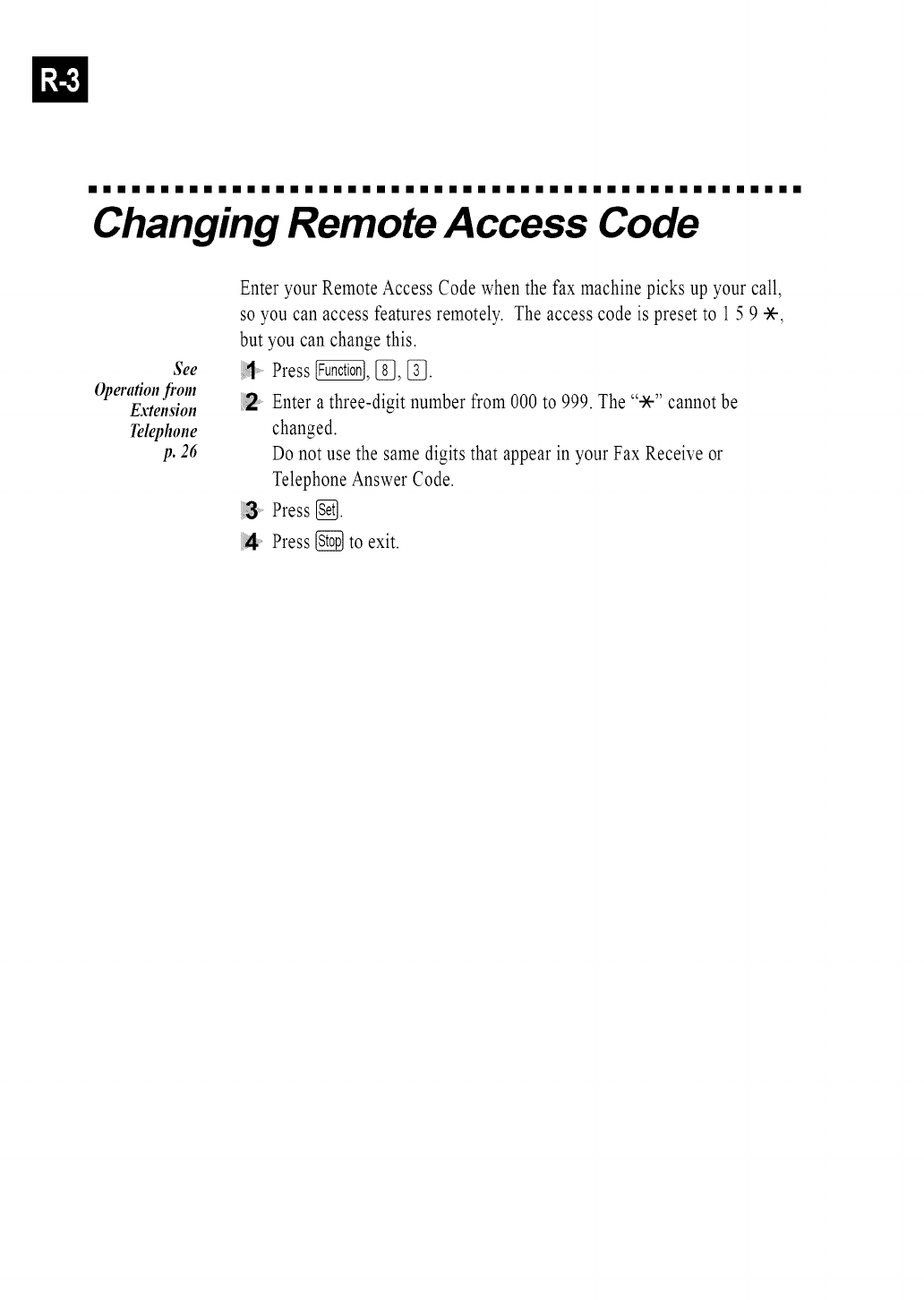
iiiiiiiiiiiiiiiiiiiiiiiiiiiiiiiiiiiiiiiiiiiiiiiiii
Changing Remote Access Code
See
Operationfi'om
Extension
Telephone
p. 26
Enter your Remote Access Code when the fax machine picks up your call,
so you can access features remotely. The access code is preset to 1 5 9 -X-,
but you can change this.
:::1 Press @, [_], [_.
Enter a three-digit number from 000 to 999. The "-X-"cannot be
changed.
Do not use the same digits that appear in your Fax Receive or
Telephone Answer Code.
Press [_.
4Press _ to exit.
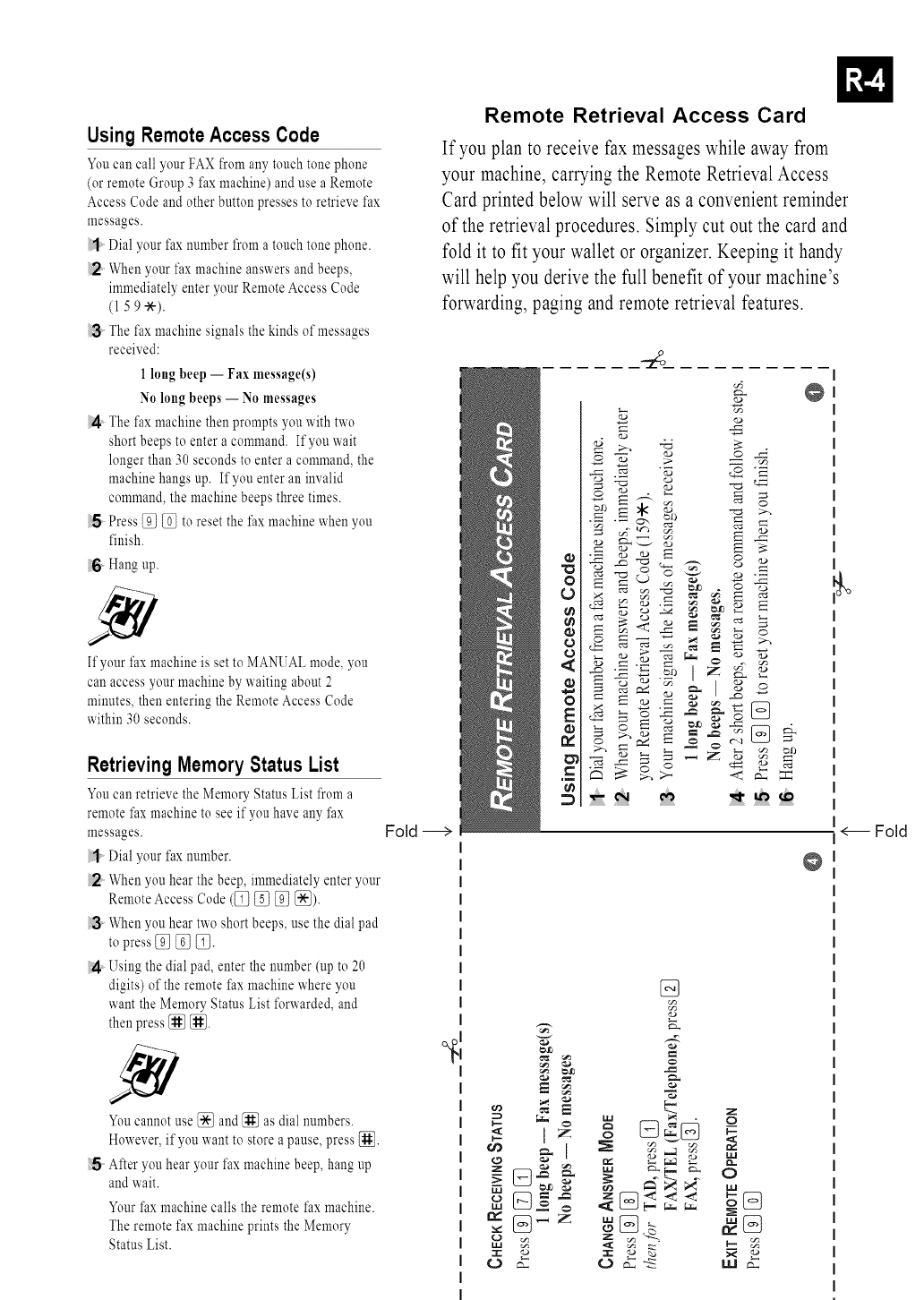
Using RemoteAccess Code
You can call your FAX from any touch tone phone
(or remote Group 3 fax machine) and use a Remote
Access Code and other button presses to retrieve fax
messages.
/1 Dial your fax number from a touch tone phone.
.2 When your fax machine answers and beeps,
immediately enter your Remote Access Code
(1 5 9 -X--).
The fax machine signals the kinds of messages
received:
1 long beep -- Fax message(s)
No long beeps -- Nomessages
The fax machine then prompts youwith two
short beepsto entera command. If youwait
longer than 30seconds to entera command,the
machinehangs up. If you enter an invalid
command,the machinebeeps three times.
.5 Press @ _ to reset the faxmachinewhen you
finish.
6Hang up.
If your fax machine is set to MANUAL mode, you
can access your machine by waiting about 2
minutes, then entering the Remote Access Code
within 30 seconds.
RetrievingMemory Status List
You can retrieve the Memory Status List from a
remote fax machine to see if you have any fax
messages.
Dial your fax number.
When you hear the beep, immediately enter your
Remote access Code (_ _ _ _).
;3 When you hear two short beeps, use the dial pad
to press _ _ _.
Using the dial pad, enter the number (up to 20
digits) of the remote fax machine where you
want the Memory Status List forwarded, and
then press _ _.
You cannot use _ and _ as dial numbers.
However, if you want to store a pause, press {_.
After you hear your fax machine beep, hang up
and wait.
Your fax machine calls the remote fax machine.
The remote fax machine prints the Memory
Status List.
Remote Retrieval Access Card
If you plan to receive fax messages while away from
your machine, carrying the Remote Retrieval Access
Card printed below will serve as a convenient reminder
of the retrieval procedures. Simply cut out the card and
fold it to fit your wallet or organizer. Keeping it handy
will help you derive the full benefit of your machine's
forwarding, paging and remote retrieval features.
Fold
x mm =
¢.a _La c_
© ,.-:
g
z r,g
<&:=
@
*g.
_,113
2 a,
I
g g,_
%
_a
o ._
>,
_- O
€_._ a... i.u e_._
<--- Fold
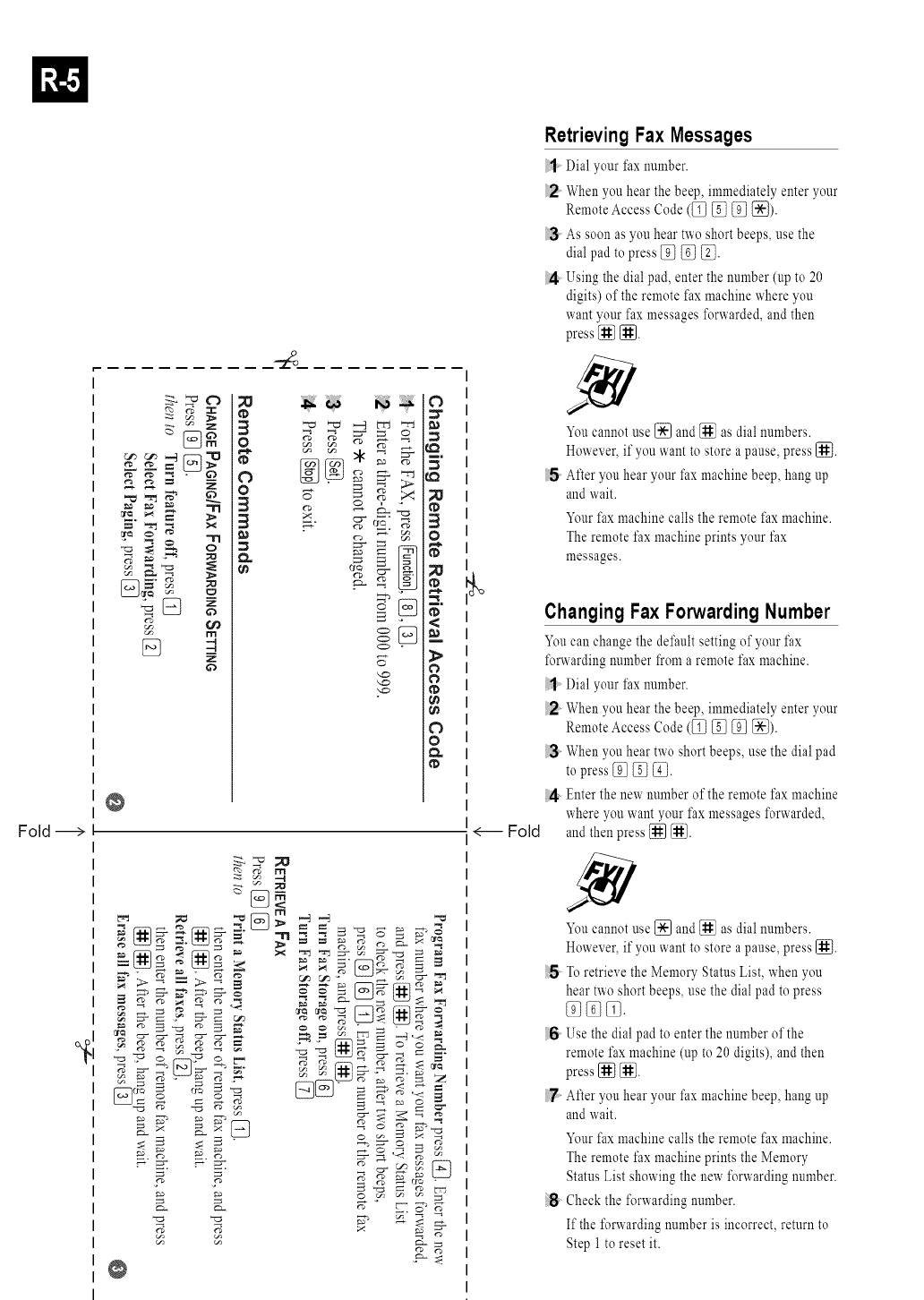
Fold--->
1:
_ _ 0_
c_ rrl
0
o
I'D
0 .
3
_[_
_.,_m
io
16
i>
io
oo
®
_._
.__ _ ,_ ,_ _r:_
®
RetrievingFax Messages
,1 Dial your fax number.
When you hear the beep, immediately enter your
Remote Access Code (_ _ _ _).
As soon as you hear two short beeps, use the
dial pad to press _ _ _.
Using the dial pad, enter the number (up to 20
digits) of the remote fax machine where you
want your fax messages forwarded, and then
press _ [_.
You cannot use [_ and _ as dial numbers.
However, if you want to store a pause, press [_.
After you hear your fax machine beep, hang up
and wait.
Your fax machine calls the remote fax machine.
The remote fax machine prints your fax
messages.
<--- Fold
Changing Fax Forwarding Number
You can change the default setting of your fax
forwarding number from a remote fax machine.
/1 Dial your fax number.
When you hear the beep, immediately enter your
Remote Access Code (_ _ _ _).
When you hear two short beeps, use the dial pad
to press _ _ _.
Enter the new number of the remote fax machine
where you want your fax messages %rwarded,
and then press _ _.
You cannot use [_ and !_1 as dial numbers.
However, if you want to store a pause, press [_.
To retrieve the Memory Status List, when you
hear two short beeps, use the dial pad to press
%_.
Use the dial pad to enter the number of the
remote fax machine (up to 20 digits), and then
press [_ _.
After you hear your fax machine beep, hang up
and wait.
Your fax machine calls the remote fax machine.
The remote fax machine prints the Memory
Status List showing the new forwarding number.
!!:8 Check the forwarding number.
If the forwarding number is incorrect, return to
Step 1 to reset it.
BROTHER INTERNATIONAL CORPORATION
100 SOMERSET CORPORATE BOULEVARD
P.O. BOX 6911
BRIDGEWATER, NJ 08807-0911 USA
BROTHER INTERNATIONAL CORPORATION
(CANADA) LTD.
1 RUE HOTEL DE VlLLE,
DOLLARD-DES-ORMEAUX, QC, CANADA H9B
3H6
Visit us on the World Wide Web
http://www, brother, com
These machines are made for use in the USA or CANADA only. We can not recommend
using them overseas because it may violate the Telecommunications Regulations of that
country and the power requirements of your fax machine may not be compatible with the
power available in foreign countries. Using USA or CANADA models overseas is at your
own risk and will void your warranty.
UU0305001_3_,
PRINTED IN MALAYSIA
