Beijing Kangshuo Information Technology H02 Lenovo H02 Sports Bluetooth Headset User Manual

Beijing Kangshuo Information Technology Co.,Ltd Lenovo H02 Sports Bluetooth Headset Users Manual

Users Manual

Lenovo SportBluetooth HeadsetUser GuideH02
Safety Instructions1.Using headset at high volume for long time may cause permanent hearing loss.2.It is recommended to adjust headset volume to a lower level before connection, and gradually increase the volume until it fits.3.Do not use headset when driving, cycling, operating machines, or doing work that requires attention to external sound.4.Thunderstorms can cause failure of headset, and increase risk of electric shock , so do not use headset during thunderstorms.5.The headset is not suitable for high temperature or moisture environment to operate , such as in bathroom.6.Do not use any corrosive or abrasive cleaners to clean the headset.7.Do not disassemble or modify the headset for any reason, which may cause the headset to malfunction or burn.8.Put the headset and packaging where is not accessible to children.
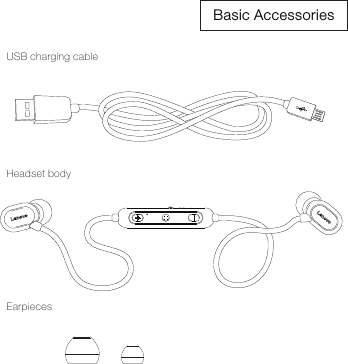
Basic AccessoriesUSB charging cableHeadset bodyEarpieces
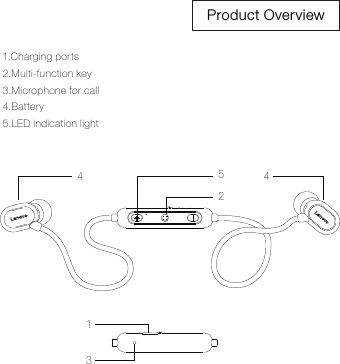
Product Overview1.Charging ports2.Multi-function key3.Microphone for call4.Battery5.LED indication light12534 4
Status IndicationInstructionTurn o nTurn of fUnconnectedParingCallingBattery lowVoice ReminderPower onPower off    /Paring    /Battery lowLED StatusBlue light on for 1 secondRed light on for 1 second then offBlue light flashes twice slowly every 5 secondsRed and blue light flash alternately Blue light flashes once every 3 secondsRed light flashes
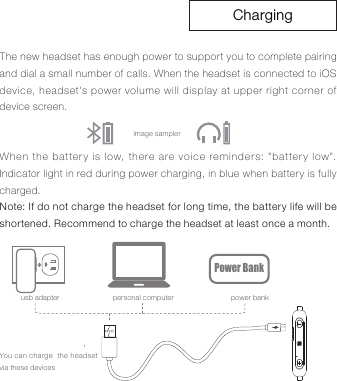
ChargingThe new headset has enough power to support you to complete pairing and dial a small number of calls. When the headset is connected to iOS device, headset's power volume will display at upper right corner of device screen.When the battery is low, there are voice reminders: "battery low". Indicator light in red during power charging, in blue when battery is fully charged.Note: If do not charge the headset for long time, the battery life will be shortened. Recommend to charge the headset at least once a month.image samplerusb adapter personal computer power bankPower BankYou can charge  the headset via these devices
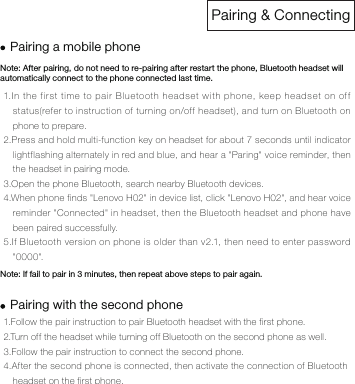
Pairing & ConnectingNote: After pairing, do not need to re-pairing after restart the phone, Bluetooth headset will automatically connect to the phone connected last time.Note: If fail to pair in 3 minutes, then repeat above steps to pair again.1.Follow the pair instruction to pair Bluetooth headset with the first phone. 2.Turn off the headset while turning off Bluetooth on the second phone as well. 3.Follow the pair instruction to connect the second phone. 4.After the second phone is connected, then activate the connection of Bluetooth headset on the first phone.Pairing a mobile phonePairing with the second phone1.In the first time to pair Bluetooth headset with phone, keep headset on off status(refer to instruction of turning on/off headset), and turn on Bluetooth on phone to prepare.2.Press and hold multi-function key on headset for about 7 seconds until indicator lightflashing alternately in red and blue, and hear a "Paring" voice reminder, then the headset in pairing mode. 3.Open the phone Bluetooth, search nearby Bluetooth devices. 4.When phone finds "Lenovo H02" in device list, click "Lenovo H02", and hear voice reminder "Connected" in headset, then the Bluetooth headset and phone have been paired successfully. 5.If Bluetooth version on phone is older than v2.1, then need to enter password "0000".
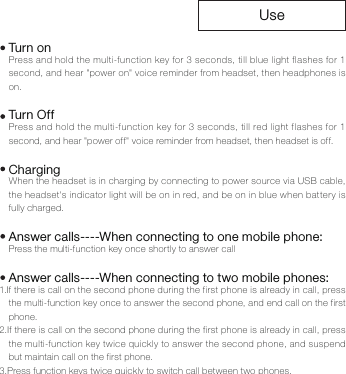
UsePress and hold the multi-function key for 3 seconds, till blue light flashes for 1 second, and hear "power on" voice reminder from headset, then headphones is on.Press and hold the multi-function key for 3 seconds, till red light flashes for 1 second, and hear "power off" voice reminder from headset, then headset is off.When the headset is in charging by connecting to power source via USB cable, the headset's indicator light will be on in red, and be on in blue when battery is fully charged.Press the multi-function key once shortly to answer call1.If there is call on the second phone during the first phone is already in call, press the multi-function key once to answer the second phone, and end call on the first phone.2.If there is call on the second phone during the first phone is already in call, press the multi-function key twice quickly to answer the second phone, and suspend but maintain call on the first phone.3.Press function keys twice quickly to switch call between two phones.Turn onTur n O f fChargingAnswer calls----When connecting to one mobile phone:Answer calls----When connecting to two mobile phones:
While talking, press the multifunction key once to end the call.Please confirm whether mobile phones support voice function, if support,  then follow below steps to use voice function:1.Press and hold the volume keys "+" or "-" for 3 seconds to activate voice function on phone.2.Press and hold the volume keys again for 3 seconds to exit voice function on phone.    Press multi-function key twice quickly.End the callVoiceLatest Number Redial
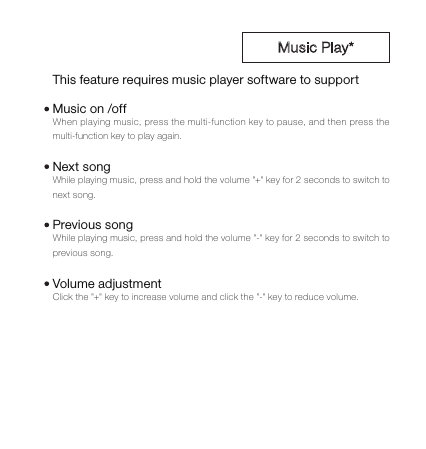
When playing music, press the multi-function key to pause, and then press the multi-function key to play again. While playing music, press and hold the volume "+" key for 2 seconds to switch to next song.While playing music, press and hold the volume "-" key for 2 seconds to switch to previous song.Click the "+" key to increase volume and click the "-" key to reduce volume.This feature requires music player software to supportMusic on /offNext songPrevious songVolume adjustment
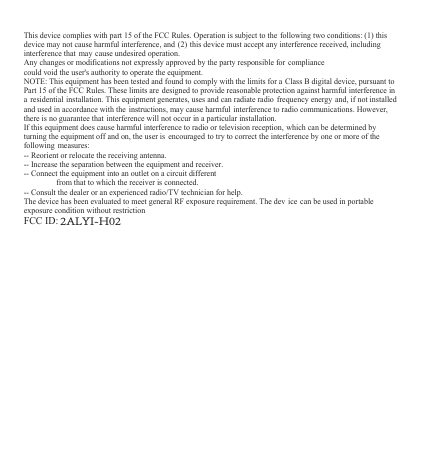
This device complies with part 15 of the FCC Rules. Operation is subject to the following two conditions: (1) thisdevice may not cause harmful interference, and (2) this device must accept any interference received, includinginterference that may cause undesired operation.Any changes or modifications not expressly approved by the party responsible for compliancecould void the user's authority to operate the equipment.NOTE: This equipment has been tested and found to comply with the limits for a Class B digital device, pursuant toPart 15 of the FCC Rules. These limits are designed to provide reasonable protection against harmful interference ina residential installation. This equipment generates, uses and can radiate radio frequency energy and, if not installedand used in accordance with the instructions, may cause harmful interference to radio communications. However,there is no guarantee that interference will not occur in a particular installation.If this equipment does cause harmful interference to radio or television reception, which can be determined byturning the equipment off and on, the user is encouraged to try to correct the interference by one or more of thefollowing measures:-- Reorient or relocate the receiving antenna.-- Increase the separation between the equipment and receiver.-- Connect the equipment into an outlet on a circuit differentfrom that to which the receiver is connected.-- Consult the dealer or an experienced radio/TV technician for help.The device has been evaluated to meet general RF exposure requirement. The dev ice can be used in portableexposure condition without restrictionFCC ID:2ALYI-H02

Navigation menu