Beijing TPCast Technologies TXOC1 PC Transmitter User Manual Manual Operation

Beijing TPCast Technologies Limited Company PC Transmitter Manual Operation

Contents

Manual Operation

1User Guide on installation of TPCAST Wireless Adaptor for OculusCE-02H-UG-EN-001
11234567Installation of Software ClientWhat's in the box?Instructions of main components Connection instructionsOperation instructionsInstructions on setup of PC transmitter Safety and noteFrequently asked questions8CONTENTS
2     TPCAST Wireless Adaptor for Oculus and portable power bank will get warm in the normal usage, if the partial temperature reached 120 F, please stop using, in order to avoid burning people or other hazards.     Because there is no cable effect, you should pay attention to the safety of game area during using TPCAST Wireless Adaptor for Oculus, to ensure that will not touch to the surrounding objects, or take the experience under the care of others.Please read the user guide prior to operating of the product. Update the soft copy of user guide on a regular basis to improve the accuracy and completeness. Please visit the website of www.tpcastvr.com to get the up-to-date version. TPCAST customer service: 18884662479
31. CLIENT SOFTWARE INSTALLATION1. Download the software clientVisit the website of TPCAST which is www.tpcastvr.com and log in, browse the page of TPCAST wireless adaptor for Oculus, click to download the connection assistant for Oculus. The current version of client is compatible with Windows 7, Windows 8 or later version, Windows 10.                                    Click here to download TPCAST wireless adapter                                   installation software version 2. Install the connection assistant software1) Double click the icon to run the downloaded .exe le for installation. If already installed any other versions of the client, please uninstall and restart the PC according to the prompt.  2) Following the system instructions, select the installation path and finish the client installation. A shortcut icon of the connection assistant will be generated on the desktop.2 WHAT'S IN THE BOX.www.tpcastvr.com/support-oculusTPCAST Oculus Setup.exe1 2 34
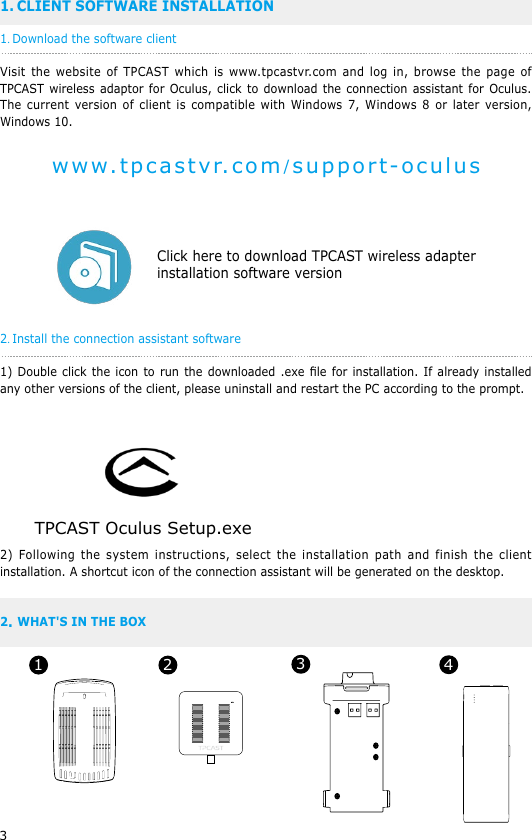
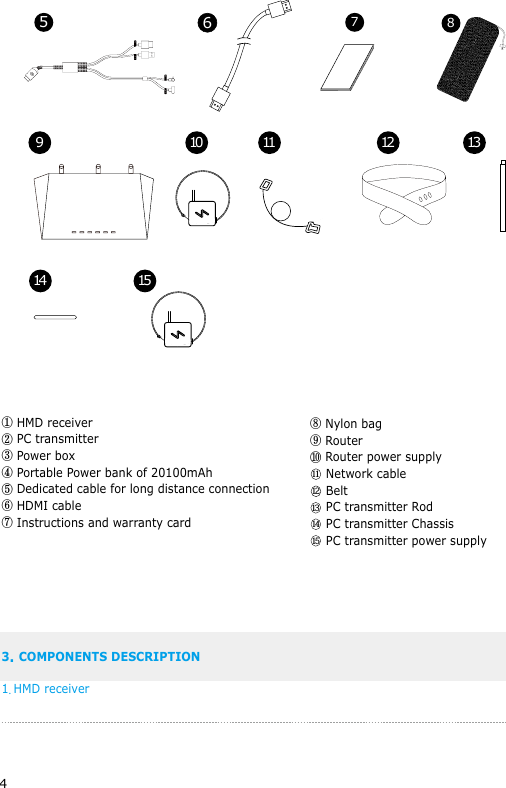
4① HMD receiver ② PC transmitter ③ Power box ④ Portable Power bank of 20100mAh⑤ Dedicated cable for long distance connection ⑥ HDMI cable⑦ Instructions and warranty card3. COMPONENTS DESCRIPTION1. HMD receiver 910 11 12 1314 155786A1 A2B1 B21211131415⑧ Nylon bag⑨ Router⑩ Router power supply    Network cable    Belt    PC transmitter Rod    PC transmitter Chassis    PC transmitter power supply
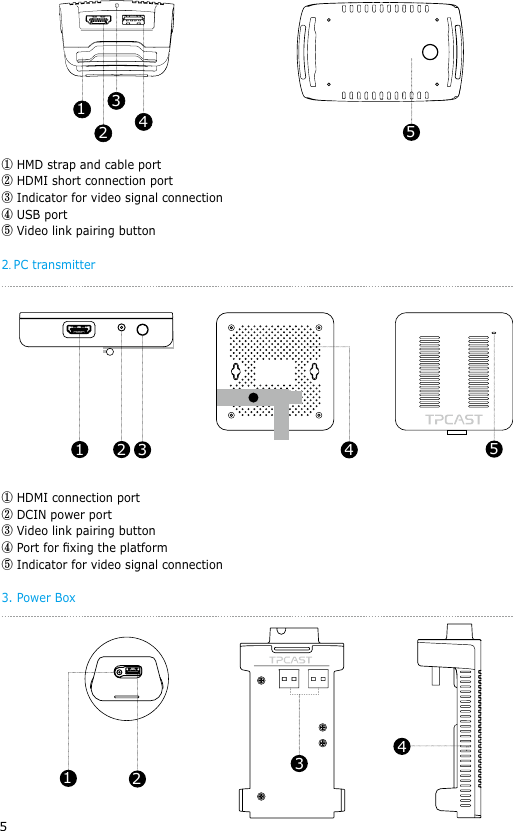
5① HMD strap and cable port ② HDMI short connection port③ Indicator for video signal connection ④ USB port ⑤ Video link pairing button2. PC transmitter ① HDMI connection port ② DCIN power port ③ Video link pairing button④ Port for xing the platform⑤ Indicator for video signal connection3. Power Box1 2 3 4 5123451234
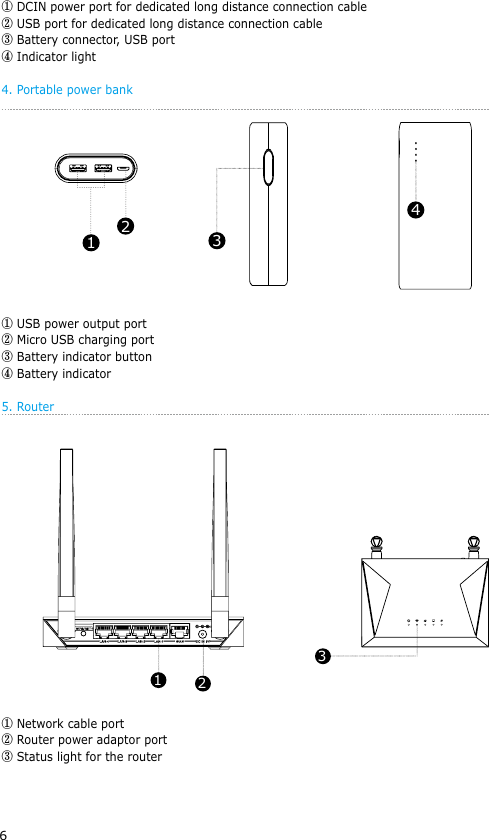
6① DCIN power port for dedicated long distance connection cable② USB port for dedicated long distance connection cable③ Battery connector, USB port④ Indicator light4. Portable power bank ① USB power output port ② Micro USB charging port③ Battery indicator button④ Battery indicator 5. Router ① Network cable port② Router power adaptor port③ Status light for the router  1243231
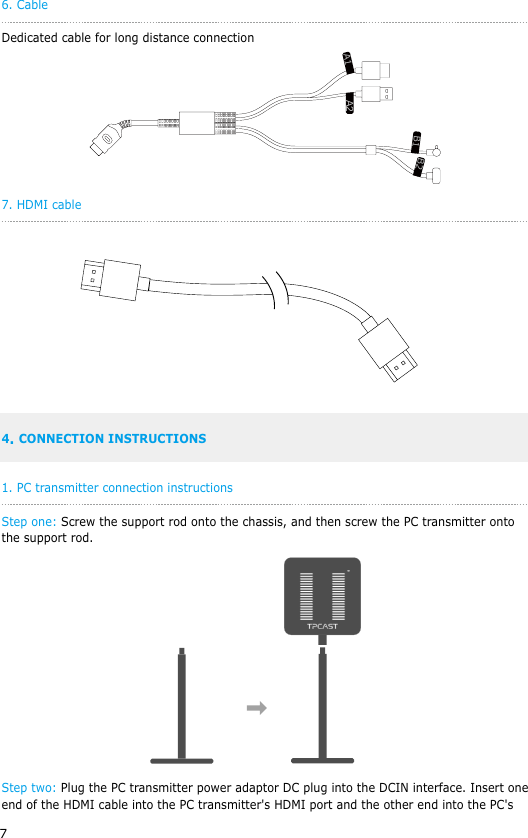
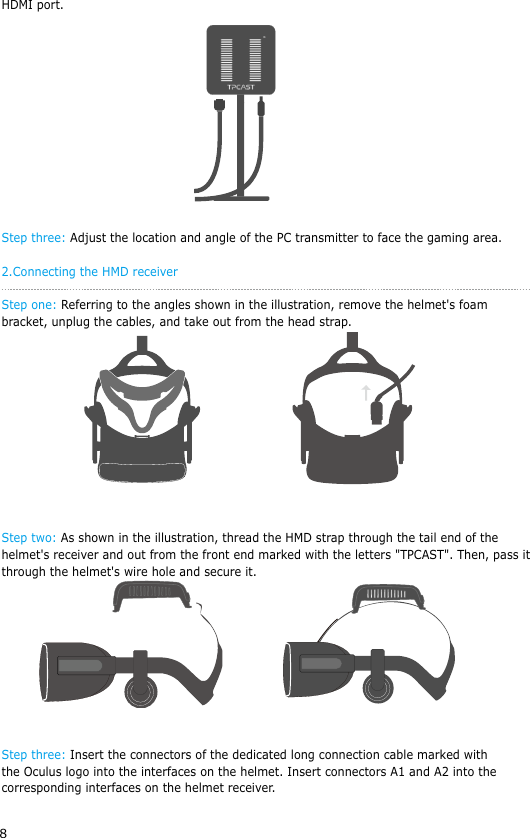
76. CableDedicated cable for long distance connection7. HDMI cable   4. CONNECTION INSTRUCTIONS1. PC transmitter connection instructionsStep one: Screw the support rod onto the chassis, and then screw the PC transmitter onto the support rod.               Step two: Plug the PC transmitter power adaptor DC plug into the DCIN interface. Insert one end of the HDMI cable into the PC transmitter's HDMI port and the other end into the PC's 1 2A2A1B1B2
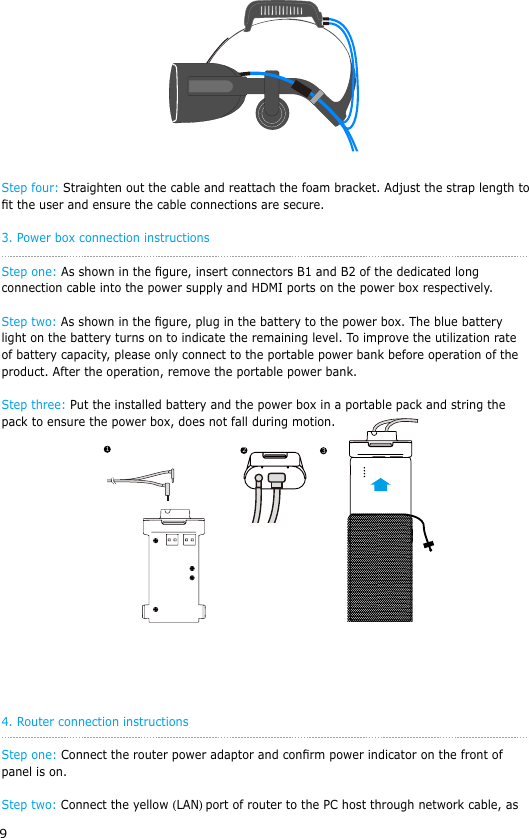
8HDMI port. Step three: Adjust the location and angle of the PC transmitter to face the gaming area.2.Connecting the HMD receiverStep one: Referring to the angles shown in the illustration, remove the helmet's foam bracket, unplug the cables, and take out from the head strap. Step two: As shown in the illustration, thread the HMD strap through the tail end of the helmet's receiver and out from the front end marked with the letters "TPCAST". Then, pass it through the helmet's wire hole and secure it.   Step three: Insert the connectors of the dedicated long connection cable marked with the Oculus logo into the interfaces on the helmet. Insert connectors A1 and A2 into the corresponding interfaces on the helmet receiver.
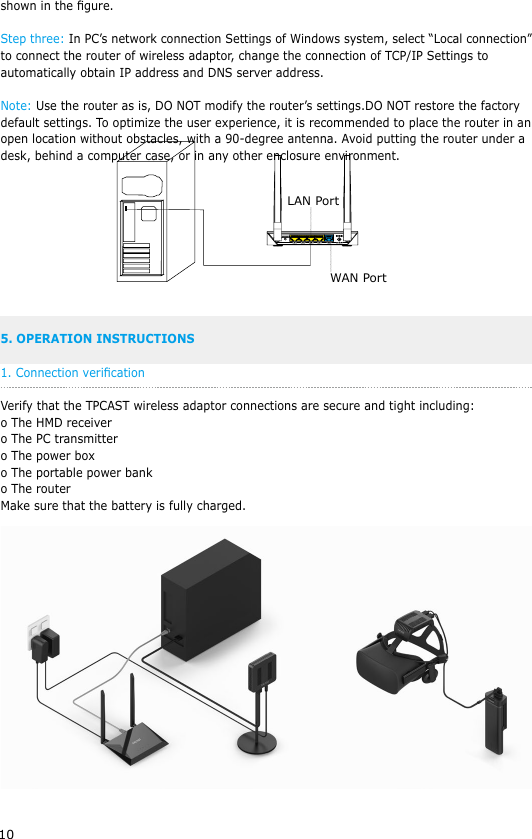
9 Step four: Straighten out the cable and reattach the foam bracket. Adjust the strap length to t the user and ensure the cable connections are secure.3. Power box connection instructionsStep one: As shown in the gure, insert connectors B1 and B2 of the dedicated long connection cable into the power supply and HDMI ports on the power box respectively.Step two: As shown in the gure, plug in the battery to the power box. The blue battery light on the battery turns on to indicate the remaining level. To improve the utilization rate of battery capacity, please only connect to the portable power bank before operation of the product. After the operation, remove the portable power bank.Step three: Put the installed battery and the power box in a portable pack and string the pack to ensure the power box, does not fall during motion. 4. Router connection instructionsStep one: Connect the router power adaptor and conrm power indicator on the front of panel is on.Step two: Connect the yellow (LAN) port of router to the PC host through network cable, as 123
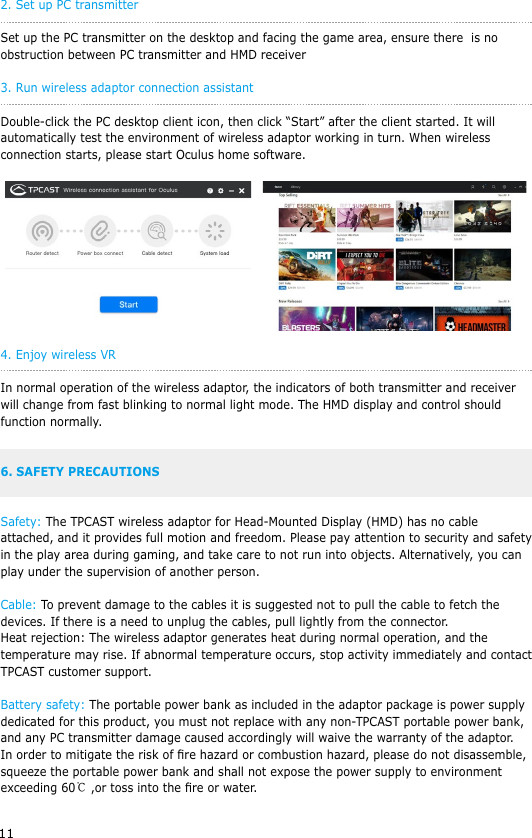
10shown in the gure.Step three: In PC’s network connection Settings of Windows system, select “Local connection” to connect the router of wireless adaptor, change the connection of TCP/IP Settings to automatically obtain IP address and DNS server address. Note: Use the router as is, DO NOT modify the router’s settings.DO NOT restore the factory default settings. To optimize the user experience, it is recommended to place the router in an open location without obstacles, with a 90-degree antenna. Avoid putting the router under a desk, behind a computer case, or in any other enclosure environment. 5. OPERATION INSTRUCTIONS1. Connection vericationVerify that the TPCAST wireless adaptor connections are secure and tight including:o The HMD receivero The PC transmittero The power boxo The portable power banko The routerMake sure that the battery is fully charged.LAN PortWAN Port
112. Set up PC transmitterSet up the PC transmitter on the desktop and facing the game area, ensure there  is no obstruction between PC transmitter and HMD receiver3. Run wireless adaptor connection assistant Double-click the PC desktop client icon, then click “Start” after the client started. It will automatically test the environment of wireless adaptor working in turn. When wireless connection starts, please start Oculus home software. 4. Enjoy wireless VRIn normal operation of the wireless adaptor, the indicators of both transmitter and receiver will change from fast blinking to normal light mode. The HMD display and control should function normally.6. SAFETY PRECAUTIONSSafety: The TPCAST wireless adaptor for Head-Mounted Display (HMD) has no cable attached, and it provides full motion and freedom. Please pay attention to security and safety in the play area during gaming, and take care to not run into objects. Alternatively, you can play under the supervision of another person.Cable: To prevent damage to the cables it is suggested not to pull the cable to fetch the devices. If there is a need to unplug the cables, pull lightly from the connector.Heat rejection: The wireless adaptor generates heat during normal operation, and the temperature may rise. If abnormal temperature occurs, stop activity immediately and contact TPCAST customer support.Battery safety: The portable power bank as included in the adaptor package is power supply dedicated for this product, you must not replace with any non-TPCAST portable power bank, and any PC transmitter damage caused accordingly will waive the warranty of the adaptor. In order to mitigate the risk of re hazard or combustion hazard, please do not disassemble, squeeze the portable power bank and shall not expose the power supply to environment exceeding 60℃ ,or toss into the re or water.
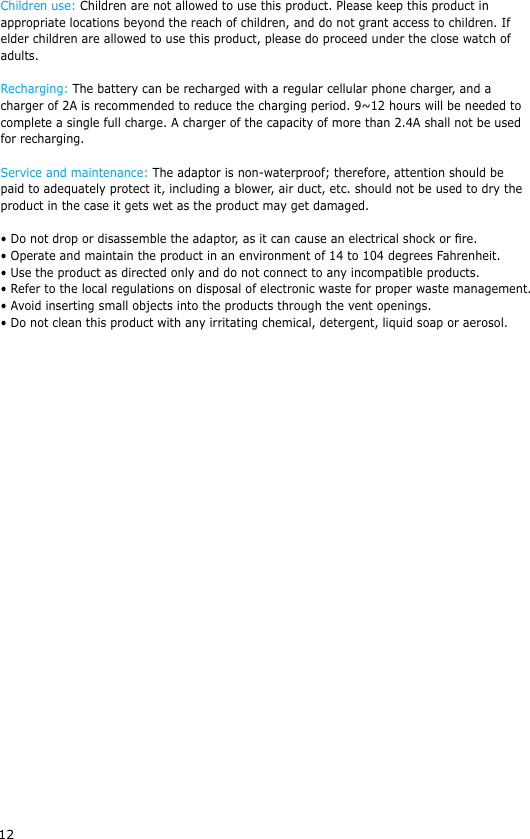
12Children use: Children are not allowed to use this product. Please keep this product in appropriate locations beyond the reach of children, and do not grant access to children. If elder children are allowed to use this product, please do proceed under the close watch of adults.Recharging: The battery can be recharged with a regular cellular phone charger, and a charger of 2A is recommended to reduce the charging period. 9~12 hours will be needed to complete a single full charge. A charger of the capacity of more than 2.4A shall not be used for recharging.Service and maintenance: The adaptor is non-waterproof; therefore, attention should be paid to adequately protect it, including a blower, air duct, etc. should not be used to dry the product in the case it gets wet as the product may get damaged.• Do not drop or disassemble the adaptor, as it can cause an electrical shock or re.• Operate and maintain the product in an environment of 14 to 104 degrees Fahrenheit.• Use the product as directed only and do not connect to any incompatible products.• Refer to the local regulations on disposal of electronic waste for proper waste management.• Avoid inserting small objects into the products through the vent openings.• Do not clean this product with any irritating chemical, detergent, liquid soap or aerosol.
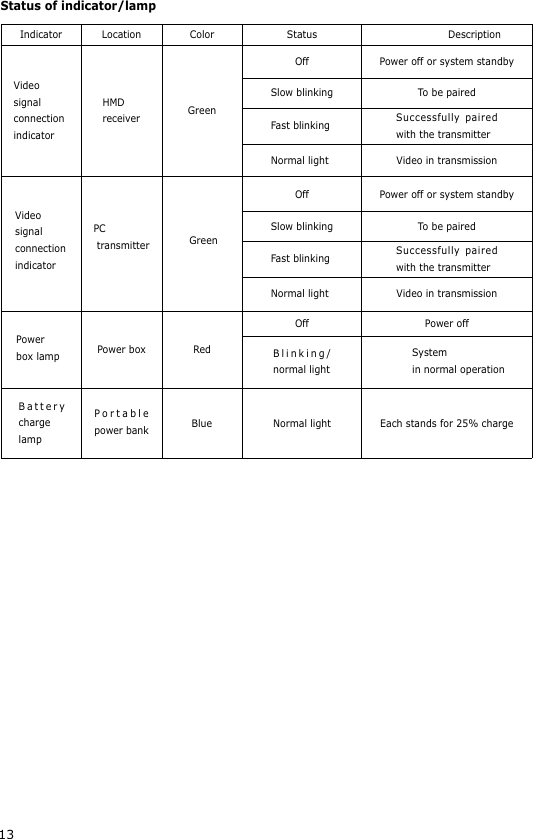
13Status of indicator/lampIndicatorVideosignalconnectionindicatorVideosignalconnectionindicatorPowerbox lampBattery charge lampPortable power bankHMDreceiverPC transmitterPower boxGreenGreenRedBlue Normal light Each stands for 25% chargeOffOffSlow blinkingSlow blinkingFast blinkingFast blinkingNormal lightNormal lightOff Power offBlinking/normal lightSystemin normal operationVideo in transmissionVideo in transmissionSuccessfully paired with the transmitterSuccessfully paired with the transmitterPower off or system standbyPower off or system standbyTo be pairedTo be pairedLocation Color Status Description

Navigation menu