Belkin Components F5U100 7 Port USB Hub User Manual
Belkin Components 7 Port USB Hub Users Manual
Users Manual
USB HUB 7 PORT
________________________________________
User’s Manual
Table of Contents
1. Installation
1-1 Identification of Features
1-2 Location
1-3 Power Connection
2. Connecting the USB Hub
2-1 Connecting to your Computer
2-2 Connecting the USB cable
3. Initial Connection
4. Trouble Shooting
5. About this Product
5-1 Do’s and Don’ts for Usage
5-2 Warranty
5-3 Features
5-4 Specifications
FCC COMPLIANCE STATEMENT:
This device complies with part 15 of the FCC Rules. Operation is subject to the following two conditions: (1) This device
may not cause harmful interference, and (2) this device must accept any interference received, including interference that
may cause undesired operation.
INFORMATION TO USER:
This equipment has been tested and found to comply with the limits of a Class B digital device, pursuant to Part 15 of the
FCC Rules. These limits are designed to provide reasonable protection against harmful interference in a residential
installation. This equipment generates, uses and can radiate radio frequency energy and, if not installed and used in
accordance with the instructions, may cause harmful interference to radio communications. However, there is no
guarantee that interference will not occur in a particular installation; if this equipment does cause harmful interference to
radio or television reception, which can be determined by turning the equipment off and on, the user is encouraged to try to
correct the interference by one or more of the following measures:
1. Reorient / Relocate the receiving antenna.
2. Increase the separation between the equipment and receiver.
3. Connect the equipment into an outlet on a circuit difference from that to which the receiver is connected.
4. Consult the dealer or an experienced radio/TV technician for help.
CAUTION: Changes or modifications not expressly approved by the manufacturer responsible for compliance could void
the user’s authority to operate the equipment

1 Installation
1-1 Identification of Features
■ Top Side
LED 1~7 Green light is lit or blinking for each of the
four ports when they are connected and
active
■ Front of the Unit
①Down Stream Ports Four, USB A-type connector ports
connect to USB devices

■ Rear of the Unit
②Up Stream Port USB B-type connector port for
connection to the PC
③Power Socket For the AC Adapter connection
Please note :
❒ Up Stream means to the PC and Down Stream
means to the USB device.
❒ USB device means, a device that confirms to USB
specifications.
1-2 Location
The best location for the placement of this unit is
between the USB devices to be connected, and
close enough to the PC to allow the supplied cable
to reach the PC.

Important
Do not place the unit in any of the following locations:
❒ High temperature or high humidity location.
❒ A location that has a strong magnetic field.
❒ A location with excessive dust.
❒ A location that has excessive extremes in
temperatures.
❒ A location that is in direct sunlight for long periods
of time.
❒ A location that would cause the unit to hit or fall.
❒ A location that does not allow the unit to sit firmly
and balanced on an even surface.
❒ A location that is in or near water or any type of
moisture.
1-3 Power Connection
❒ Locate the unit close enough to on electrical outlet so
that the AC adapter cable will reach the outlet
without putting a strain on the cable causing the
adapter jack to be pulled out of the unit.
❒ It is recommended that the AC adapter be plugged
into the electrical outlet first, and then plugged into
the unit .
❒ It is recommended that the AC power adapter be used
at all times. Even though this unit can be self
powered, it is only for low speed devices and
multiple devices can cause a power shortage in the

unit.
❒ It is recommended that the AC adapter be used .
whenever more than one hub is used in a stacking
configuration.
❒ Do not remove the AC adapter when the unit is
working.
2 Connecting the USB Hub
2-1 Connecting to your computer
This unit can be connected or disconnected to your
PC when the computer is on and running programs,
using any USB port on your computer. This product
allows your computer to interface with various USB
devices. See figure below .
3-2 Connecting the USB cable
A type connector
Insert the USB cable into the down stream port of
the PC. Make sure that it goes all the way into the
socket and is firmly connected.

B type connector
Insert the USB cable into the up stream port of this
product. Make sure that it goes all the way into the
socket and is firmly connected.
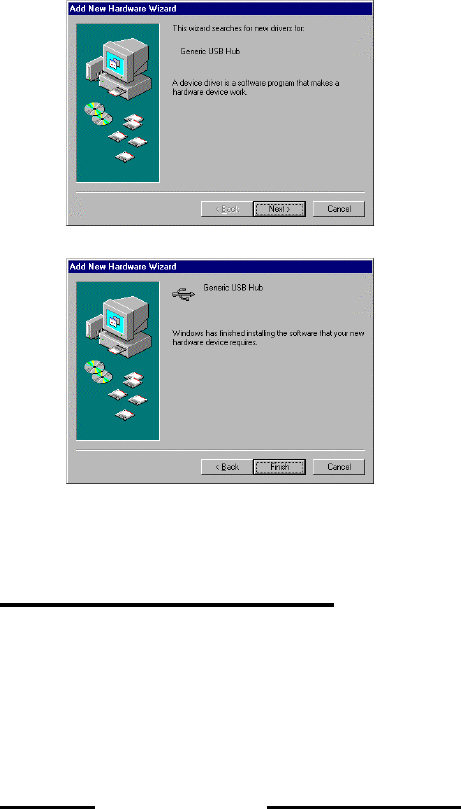
3 Initial Connection
❒ When connecting this unit for the first time a message
box will display “Searching for unknown hardware
device, searching software for installation”
❒ Your computer will then start up the Device Driver
Wizard, and will install the unit. This product is
recognized as “Common USB Hub”
❒ Once your computer has confirmed installation, you
can then plug in whatever USB devices you wish to
the Hub.
❒ Please note that your particular software may have
slightly different versions of installation software and
the message used in installing this device.
4 Trouble shooting
If you encounter problems in using this product, please refer to
the following list of common problems encountered and possible
causes. If you cannot solve the problem or it does not appear in
the list below, please contact the place of purchase for repair or
replacement.
Trouble Possible Cause
Computer cannot recognize One or all of the connections are
this product. not firmly in the place and properly
Display has a “ ! ” mark to the connected.
Left side of the “ Common USB
Hub” in displayed in the device
manager message box
Something other than “Common
USB Hub” is displayed in the device
Manager box.

Red Power Led is not lighted on The AC adapter is not properly
the unit. connected to the unit or to the
outlet
The outlet has no power, or is
turned off
Green LED light is not lighted The connection is not firmly in
when port is connected to device place.
Downstream USB device does The downstream USB device
not function properly is malfunctioning.
When multiple downstream USB A particular USB device does not
devices are connected a support multiple devices. Please
malfunction occurs consult the operating manual for
that particular USB device.
Please note:
*This USB Hub needs at least Windows 95 OS R2 up or
Windows 98 to operate properly.
5 About this product
This product confirms to USB Specification Rev. 1.0
and HID class definition Rev.1.0 .It requires at least
Windows 95 OS R2 up or Windows 98 to operate
and your computer must have a USB port. The Hub
topology supports up to 127 physical devices in a
tired-star configuration, with each device having a
maximum of 16 end points.
5-1 Do’s and Don’ts for Usage
Here is a short summary of items to pay attention to
when using this product :
❒ It is normal for some heat build-up to occur when
this product is in use and it may feel warm to
the touch.
❒ Do not open the case. Doing so will void the
warranty.
❒ Only use the AC adapter supplied with the unit.
❒ If the unit starts emitting unusual smells, sounds,
or you observe smoke, unplug the unit
immediately from it’s power supply. Do not
continue to use the unit, and contact the place
you purchased the unit.
❒ When disconnecting any cable from the unit,
please grasp from the plug and do not pull
using the cord section, as this may cause
damage.
❒ It is recommend that you disconnect the power
supply if the unit is not going to be used for a
long period of time.
❒ Do not leave the unit in a location exposed to
high humidity, high temperatures, direct
sunlight, excessive dust, or excessive moisture.
❒ Do not touch the unit or cable with a wet hand, as
electric shock is possible. Should the unit
become wet, unplug it from it’s power source
before handing.
❒ Any modifications done to modify this unit by
anyone other than authorized personnel will
void the warranty, and any damage, electric
shock, fire, or loss of function resulting from
unauthorized modifications will not be the
responsibility of the manufacturer.
❒ Back-up software data regularly. Any error or
loss of data is not guaranteed when using this
product.
❒ Carefully read this manual before you use this
product.
5-2 Warranty
❒ This product is guaranteed for a period of one
year after the date of purchase to be free of
manufacture defects and to operate properly.
During the one year period should a problem
occur, please return the unit, along with your
warranty card to the place of purchase, and we
will replace the defective unit.
❒ Please fill out your warranty card immediately,
and register your unit in order to be covered
under the warranty
5-3 Features
❒ This product is plug and play compatible.
❒ A maximum of 127 devices can be supported.
❒ This unit can be self-powered by using the AC
Adapter supplied or Bus powered.
❒ All 4 downstream ports are supported with over
current capacity.
❒ Both low speed and high speed devices are
supported.
❒ LED displays indicate power on and connections to
each port.
❒ A maximum 5 m connection cable can be used
between two hubs.
❒ This product confirms to USB Specification Revision
1.0 and HID Class Definition Rev.1.0.

Hardware Specifications
Specification USB Specification Rev. 1.0 and HID
class definition Rev. 1.0
Topology Transmission Speed Star Type 12Mbps
Transmission Media USB Cable
Interface Up string port (type B) : 1 port
Down string port (type A) : 7 port
Power PC supply
AC adapter
Operating Temperature 0~70
Operating Humidity 10%~80%
Storage Temp -40~70
Dimension (W)110mm X (H)128mm X (D)96mm
Weight 250g
Array and Circuit of USB port-pin
1+5V
2 DATA-
3 DATA+
4 GROUND