Beltronics USA G7M5 Radar Detector User Manual
Beltronics USA Inc Radar Detector
User Manual.pdf
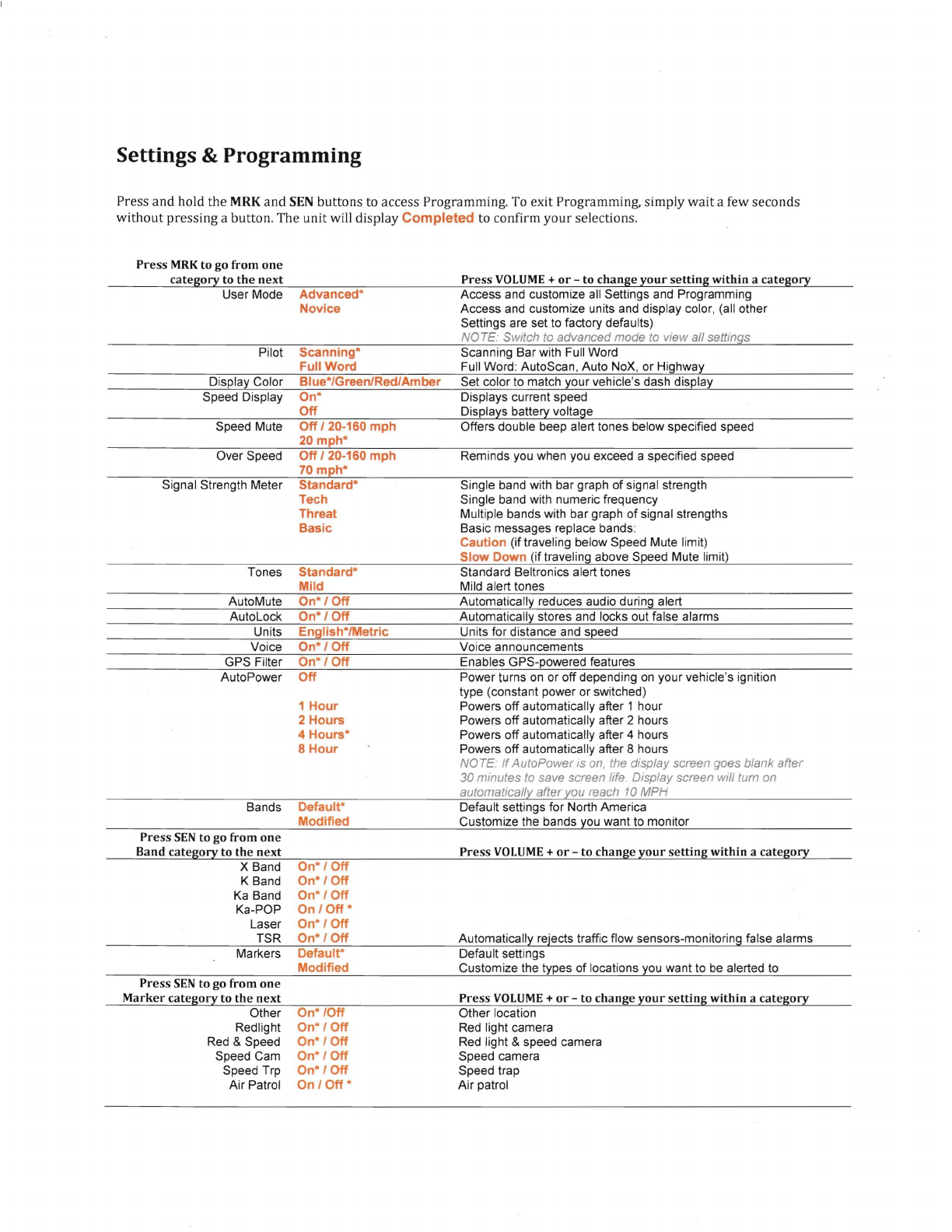
Settings & Programming
Press
and
hold the
MRK
and
SEN
buttons to access Programming.
To
exit Programming, simply
wait
a few seconds
without
pressing a button. The unit will display Completed to confirm
your
selections.
Press
MRK
to
go from
one
category
to
the
next
Press
VOLUME
+
or
-
to
change
your
setting
within
a
category
User Mode
Advanced·
Access and customize
all
Settings
and
Programming
Novice
Access and customize units and display color, (all other
Settings are set to factory defaults)
NOTE
Switch
to
advanced mode
to
view all settings
Pilot
Scanning"
Scanning Bar with Full Word
Full
Word
Full Word: AutoScan, Auto NoX, or Highway
Display Color Blue·/Green/Red/Amber Set color to match your vehicle's dash display
Speed Display
On·
Displays current speed
Off
Displays battery voltage
Speed Mute
Off
/20-160
mph
Offers double beep alert tones below specified speed
20
mph·
Over Speed
Off
/20-160
mph
Reminds you when you exceed a specified speed
70
mph·
Signal Strength Meter
Standard·
Single band with bar graph of signal strength
Tech Single band with numeric frequency
Threat Multiple bands with bar graph of signal strengths
Basic
Basic messages replace bands:
Caution
(if traveling below Speed Mute limit)
Slow
Down
(if traveling above Speed Mute limit)
Tones
Standard·
Standard Beltronics alert tones
Mild
Mild alert tones
AutoMute
On·/
Off
Automatically reduces audio during alert
AutoLock
On·/
Off
Automatically stores
and
locks out false alarms
Units
English·/Metric
Units for distance and speed
Voice
On·/
Off
Voice announcements
GPS Filter
On"/
Off
Enables GPS-powered features
AutoPower
Off
1
Hour
2
Hours
4
Hours·
8
Hour
Power turns
on
or off depending
on
your vehicle's ignition
type (constant power or switched)
Powers off automatically after 1 hour
Powers off automatically after 2 hours
Powers off automatically after 4 hours
Powers off automatically after 8 hours
NOTE
If
AutoPower is
on,
the display screen goes blank after
30 minutes to save screen life. Display screen will turn
on
automatically after you reach
10
MPH
Bands
Default·
Default settings for North America
Modified
Customize the bands you want to monitor
Press
SEN
to
go
from
one
Band
category
to
the
next
Press
VOLUME
+
or
-
to
change
your
setting
within
a
category
X Band
On·/
Off
K Band
On·/
Off
Ka
Band
On·/
Off
Ka-POP
On/Off·
Laser
On·/
Off
TSR
On"/
Off
Automatically rejects traffic flow sensors-monitoring false alarms
Markers
Default·
Default settings
Modified
Customize the types of locations you want to
be
alerted to
Press
SEN
to
go
from
one
Marker
category
to
the
next
Press
VOLUME
+
or
-
to
change
your
setting
within
a
category
Other
On"/Off
Other location
Redlight
On·/
Off
Red
light camera
Red
&Speed
On·/
Off
Red
light &speed camera
Speed Cam
On·/
Off
Speed camera
Speed Trp
On·/
Off
Speed trap
Air Patrol
On/Off·
Air patrol
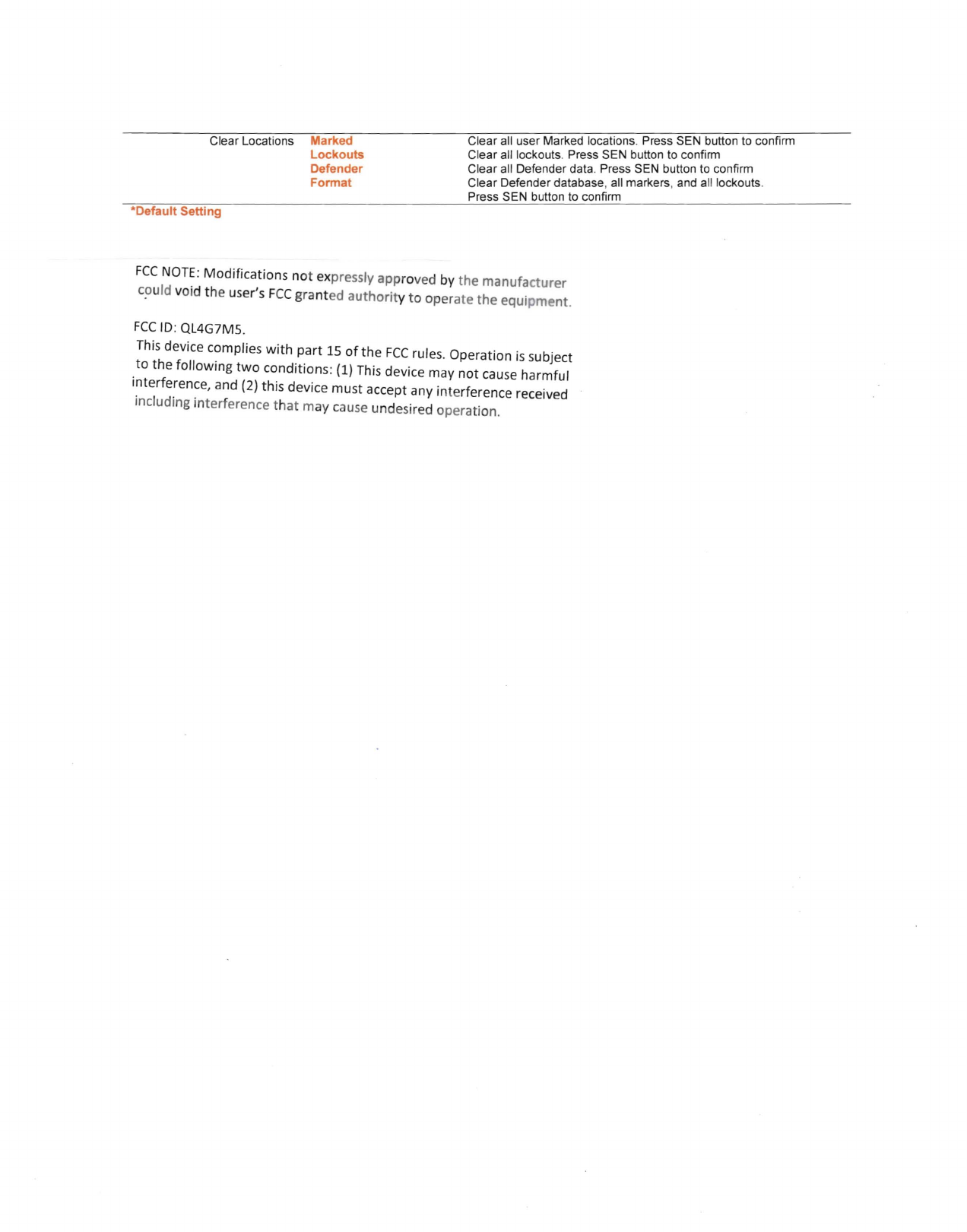
Clear Locations Marked Clear all user Marked locations. Press SEN button to confirm
Lockouts Clear all lockouts. Press SEN button to confirm
Defender Clear all Defender data. Press SEN button
to
confirm
Format Clear Defender database, all markers, and all lockouts.
Press SEN button to confirm
"Default Setting
FCC
NOTE:
Modifications
not
expressly approved by the manufacturer
c?uld void the user's
FCC
granted authority
to
operate the equipment.
FCC
ID:
QL4G7M5.
This
device complies with part
15
of
the
FCC
rules. Operation
is
subject
to
the following
two
conditions:
(1)
This
device may
not
cause
harmful
interference, and
(2)
this device must accept any interference received
including interference
that
may cause undesired operation.
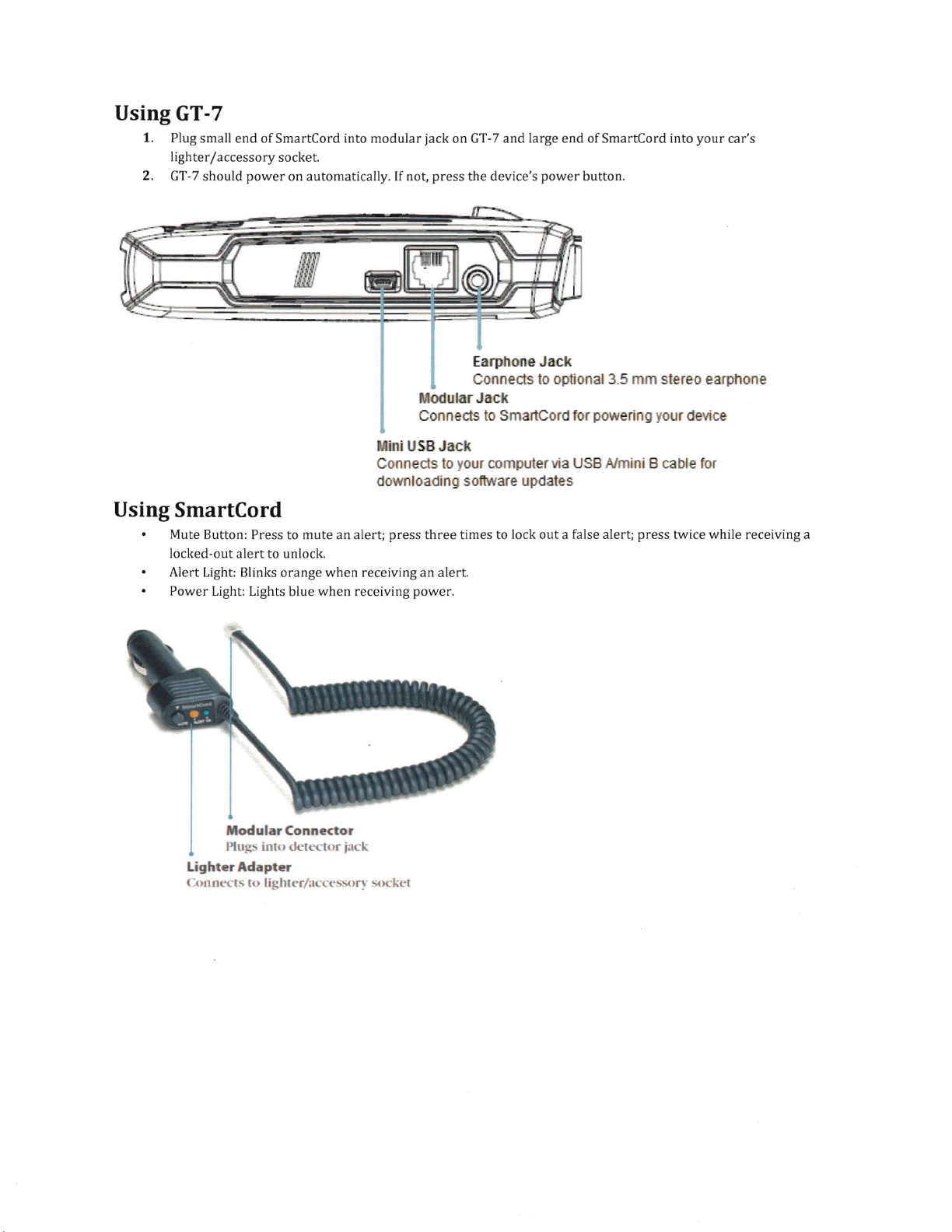
Using GT-7
1.
Plug small
end
of SmartCord into
modular
jack on
GT-7
and
large
end
of SmartCord into
your
car's
lighter/accessory
socket.
2.
GT-7
should
power
on automatically.
If
not,
press
the device's
power
button.
Earphone
Jack
Connects
to
optional
3.5
mm
stereo
earphone
odular Jack
Connects
to
SmartCord
for
powering
your
device
ini
USB
Jack
Connects
to
your
computer via
USB
Almini
B
cable
for
downloading
software
updates
Using SmartCord
Mute Button: Press to
mute
an alert;
press
three
times to lock
out
a false alert;
press
twice while receiving a
locked-out
alert
to unlock.
Alert Light: Blinks
orange
when
receiving an alert.
Power
Light: Lights blue
when
receiving power.
Modular
Connector
Plugs
into
detector jack
Lighter
Adapter
Connects
to
lighter/acce
wry
'ocket