Berlin Group CON150US Internet Radio User Manual

Berlin Brands Group Inc. Internet Radio

User Manual

www.auna-multimedia.comInternet Radio US-10028153   US-10028154
ICH BINEIN BERLINER** John F. Kennedy on June 26, 1963 in his speech in Berlin, on the occasion of the 15th anniversary    of the Berlin Airlift.
3ENICH BINEIN BERLINER*Technical Data 4Warning 5Warranty 7Safety Instructions 8Controls 10Getting Started 12Settings 14Internet Radio 19Spotify Connect 22Media Player 22FM 24Other Features 25Troubleshooting 26CONTENTSDear Customer, Congratulations on your purchase. Please carefully read the following instructions for the connection and use of this product.  It is important to carefully follow these instructions to prevent serious personal injury or damage to the product. We assume no liability for damage caused by disregarding the instructions in this manual or otherwise for improper use of this product. In this case, you assume all risk and responsibility.
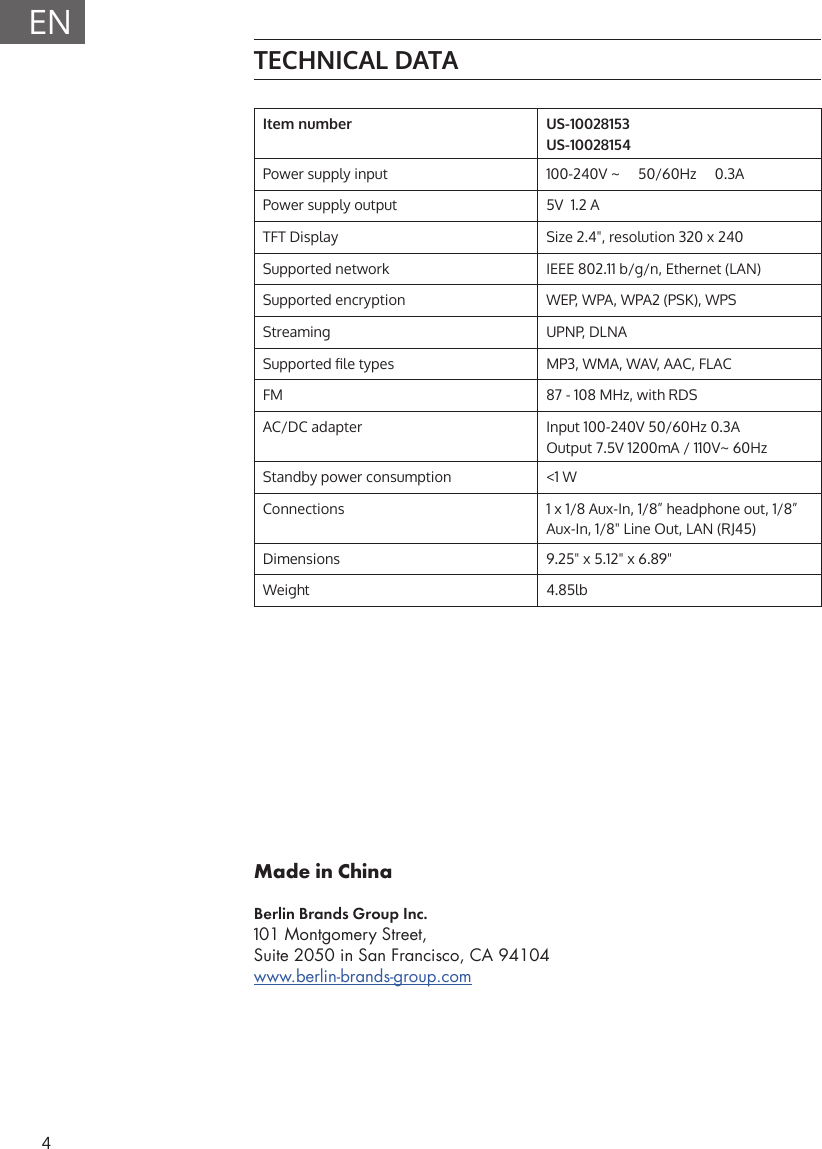
4ENMade in ChinaBerlin Brands Group Inc.101 Montgomery Street, Suite 2050 in San Francisco, CA 94104www.berlin-brands-group.comTECHNICAL DATAItem number US-10028153US-10028154     Power supply input 100-240V ~     50/60Hz     0.3APower supply output 5V  1.2 ATFT Display Size 2.4", resolution 320 x 240Supported network IEEE 802.11 b/g/n, Ethernet (LAN)Supported encryption WEP, WPA, WPA2 (PSK), WPSStreaming UPNP, DLNASupported le types MP3, WMA, WAV, AAC, FLACFM 87 - 108 MHz, with RDSAC/DC adapter Input 100-240V 50/60Hz 0.3AOutput 7.5V 1200mA / 110V~ 60HzStandby power consumption <1 WConnections 1 x 1/8 Aux-In, 1/8” headphone out, 1/8”   Aux-In, 1/8" Line Out, LAN (RJ45)Dimensions 9.25" x 5.12" x 6.89"Weight 4.85lb
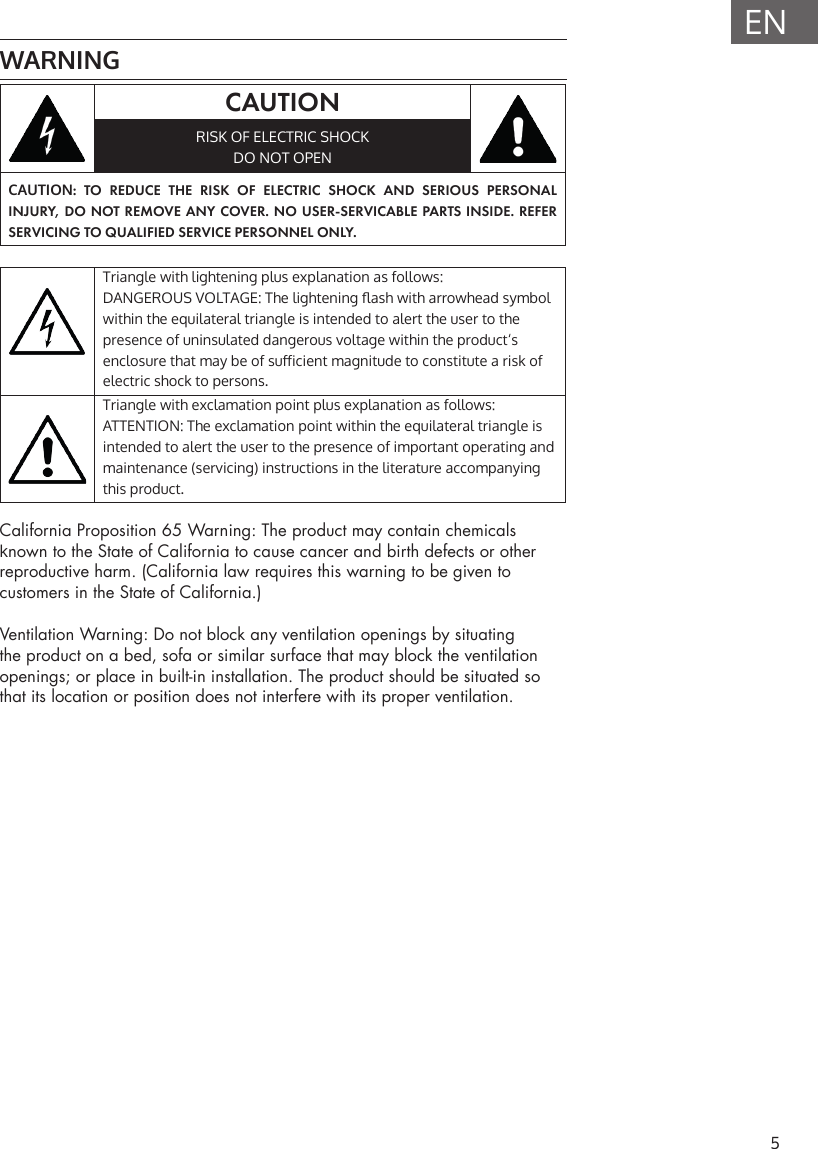
5ENWARNINGCAUTIONRISK OF ELECTRIC SHOCKDO NOT OPENCAUTION: TO REDUCE THE RISK OF ELECTRIC SHOCK AND SERIOUS PERSONAL INJURY, DO NOT REMOVE ANY COVER. NO USER-SERVICABLE PARTS INSIDE. REFER SERVICING TO QUALIFIED SERVICE PERSONNEL ONLY.Triangle with lightening plus explanation as follows: DANGEROUS VOLTAGE: The lightening ash with arrowhead symbol within the equilateral triangle is intended to alert the user to the presence of uninsulated dangerous voltage within the product‘s enclosure that may be of suicient magnitude to constitute a risk of electric shock to persons.Triangle with exclamation point plus explanation as follows:ATTENTION: The exclamation point within the equilateral triangle is intended to alert the user to the presence of important operating and maintenance (servicing) instructions in the literature accompanying this product.California Proposition 65 Warning: The product may contain chemicals known to the State of California to cause cancer and birth defects or other reproductive harm. (California law requires this warning to be given to customers in the State of California.)Ventilation Warning: Do not block any ventilation openings by situating the product on a bed, sofa or similar surface that may block the ventilation openings; or place in built-in installation. The product should be situated so that its location or position does not interfere with its proper ventilation.
6ENFCC Warning: This equipment may generate or use radio frequency energy. Changes or modications to this equipment may cause harmful interference unless the modications are expressly approved in the instruction manual.  The user could lose the authority to operate this equipment if an unauthorizied change or modication is made.This device has been tested and found to comply with Part 15 of FCC rules. Operation is subject to the following two conditions: (1) the device may not cause harmful interference and (2) the device must accept any interference received, including interference that may cause undesired operation. These FFC rules are designed to provide reasonable protection against harmful interference in a residential installation.PRODUCT COMPLIES WITH DHHS RULES 21 CFR Chapter I, SUBCHAPTER JDANGER Invisible laser radiation can cause serious personal injury when open and if the interlock fails or is defeated! Avoid direct exposure to beam. Use of controls or adjustments other than those specied herein may result in hazardous radiation exposure and serious personal injury.
7ENWARRANTYBerlin Brands Group (the “Company”) warrants to the original retail purchaser of this Product that should this Product or any part thereof, under normal use and conditions, be proven defective in material or workmanship within twelve (12) months from the date of original purchase, such defect(s) will be repaired or replaced with reconditioned Product (at the sole discretion of the Company) without charge for parts and repair labor. To obtain repair or replacement within the terms of this Warranty, the Product is to be delivered with proof of warranty coverage (e.g. dated bill of sale), specication of defect(s), transportation prepaid, to the Company at the address provided hereinThis warranty, as set forth above, may be extended for an additional six (6) months for a total warranty period of up to eighteen (18) months by registering the Product with the Company. In order to register the Product, the original retail purchaser must complete and return the registration documents provided along with the Product to the Company or register online at www.auna-multimedia.com/warranty within ninety (90) days of the days of the original purchase.This Warranty does not apply to any product or part thereof which, in the opinion of the Company, has suered or been damaged through alteration, improper installation, mishandling, misuse, neglect, accident, or by removal or defacement of the factory serial number/bar code label(s). THE EXTENT OF THE COMPANY’S LIABILITY UNDER THIS WARRANTY IS LIMITED TO THE REPAIR OR REPLACEMENT PROVIDED ABOVE AND, IN NO EVENT, SHALL THE COMPANY’S LIABILITY EXCEED THE PURCHASE PRICE PAID BY PURCHASER FOR THE PRODUCT.THIS WARRANTY IS IN LIEU OF ALL OTHER EXPRESS WARRANTIES OR LIABILITIES. ANY IMPLIED WARRANTIES, INCLUDING ANY IMPLIED WARRANTY OF MERCHANTABILITY, SHALL BE LIMITED TO THE DURATION OF THIS WRITTEN WARRANTY. ANY ACTION FOR BREACH OF ANY WARRANTY HEREUNDER INCLUDING ANY IMPLIED WARRANTY OF MERCHANTABILITY MUST BE BROUGHT WITHIN A PERIOD OF 18 MONTHS FROM DATE OF ORIGINAL PURCHASE. IN NO CASE SHALL THE COMPANY BE LIABLE FOR ANY CONSEQUENTIAL OR INCIDENTAL DAMAGES FOR BREACH OF THIS OR ANY OTHER WARRANTY. No person or representative is authorized to assume for the Company any liability other than expressed herein in connection with the sale of this product. Some states do not allow limitations on how long an implied warranty lasts or the exclusion or limitation of incidental or consequential damage so the above limitations or exclusions may not apply to you. This Warranty gives you specic legal rights and you may also have other rights which vary from state to state.
8ENSAFETY INSTRUCTIONSFAILURE TO CAREFULLY FOLLOW THESE INSTRUCTIONS MAY LEAD TO SERIOUS PERSONAL INJURY AND DAMAGE TO YOUR PRODUCT.General Instructions•   DANGER. NOT FOR USE BY CHILDREN UNDER THE AGE OF 18.•   For home and personal use only. Any other usage shall be construed as a misuse as set forth herein.•   For indoor use only. Outside usage shall be construed as a misuse as set forth herein.•   Read, keep and follow the instructions carefully.•   Heed all warnings.•   Electrical equipment should never be kept or stored in rain or damp environments. Storage of the Product under the aforementioned conditions shall be construed as neglect as set forth herein•   Unplug the product during lightning storms or when unused for long period of time. Any actions to the contrary shall be construed as a neglect as set forth herein.•   When servicing only use identical replacement parts, as specied by the manufacturer. Usage of any other parts shall be construed as an alteration as set forth herein.•   Do not expose to direct sunlight and do not install near any heat sources such as radiators, heat registers, stoves, or other apparatus that produces heat. Conducting any of the foregoing shall be construed as a misuse as set forth herein.•   Before rst use clean the Product. Failure to clean Product prior to its initial usage shall be construed as neglect as set forth herein.•   DO NOT PLUG IN THE PRODUCT UNLESS IT IS TURNED OFF COMPLETEY. •  DO NOT STORE FOOD OR LIQUIDS IN THE PRODUCT.•  Do NOT expose to dripping or splashing water. Do NOT place objects on top of the product. Conducting any of the foregoing shall be construed as a misuse as set forth herein.
9ENSpecial InstructionsThis manual is intended to familiarize you with the operation of this device. Keep this manual in a safe place for future reference.•  Please use the device only in its intended way. Any other use may result in damage to the device or items in the vicinity of the device.•  Modifying or altering the device will compromise device safety.•  Caution: danger of injury. Never open the device without authorization. Never attempt to perform any repairs yourself.•  Handle the device carefully. It can be damaged by bumps, impacts or falls from low height.•  Do not drop metal objects into this device.•  Do not place heavy objects on this device.•  Clean only with a dry cloth.•  Do not block the ventilation openings.•  Use only accessories recommended by the manufacturer or a specialist dealer.Small objects / packaging parts (plastic bags, cardboard, etc.)Keep small objects (for example, screws and other assembly materials, memory cards) and packaging parts out of reach of children so that they cannot be swallowed. Do not let small children play with plastic bags. Risk of suocation.Transporting the devicePlease keep the original packaging. To ensure adequate protection when transporting the device, pack the device tin its original packaging.Cleaning the outer surfacesDo not use volatile uids, such as insect sprays. The surface can be damaged by excessive pressure during wiping. Rubber or plastic parts should not be left in contact with the device for an extended period of time. Use a dry cloth.
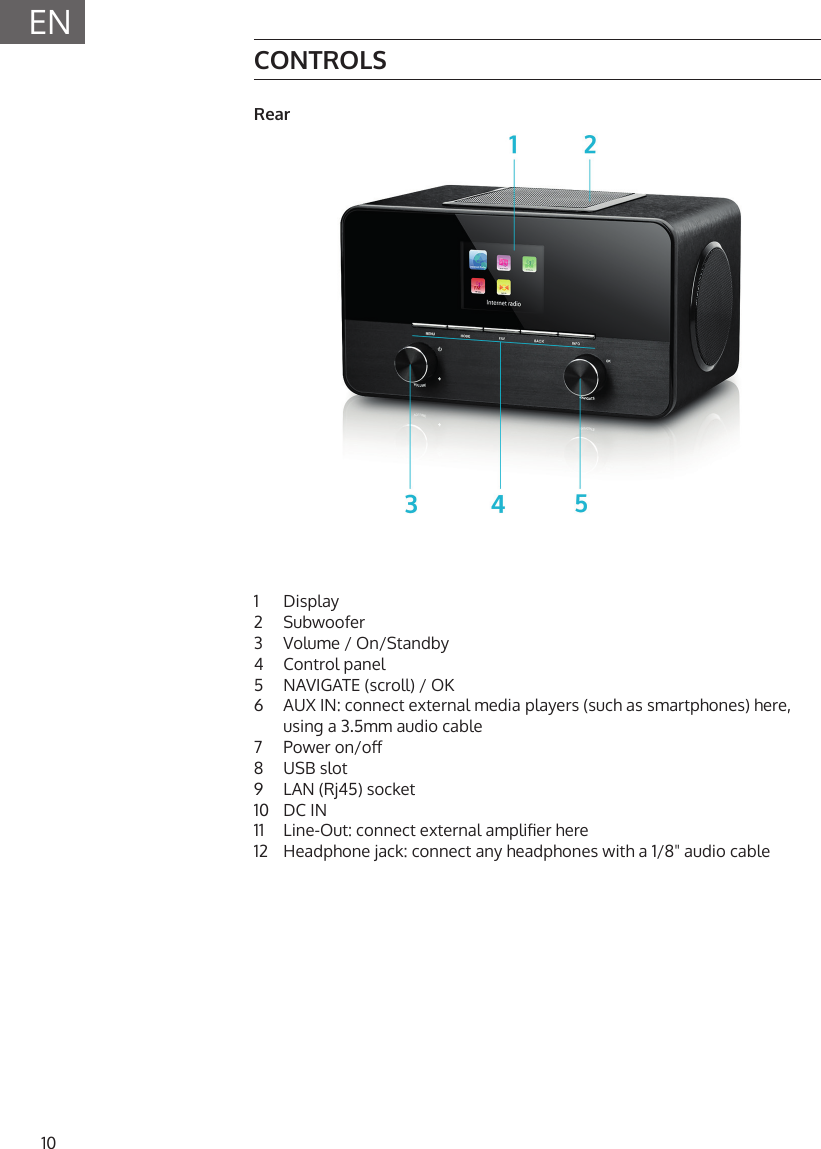
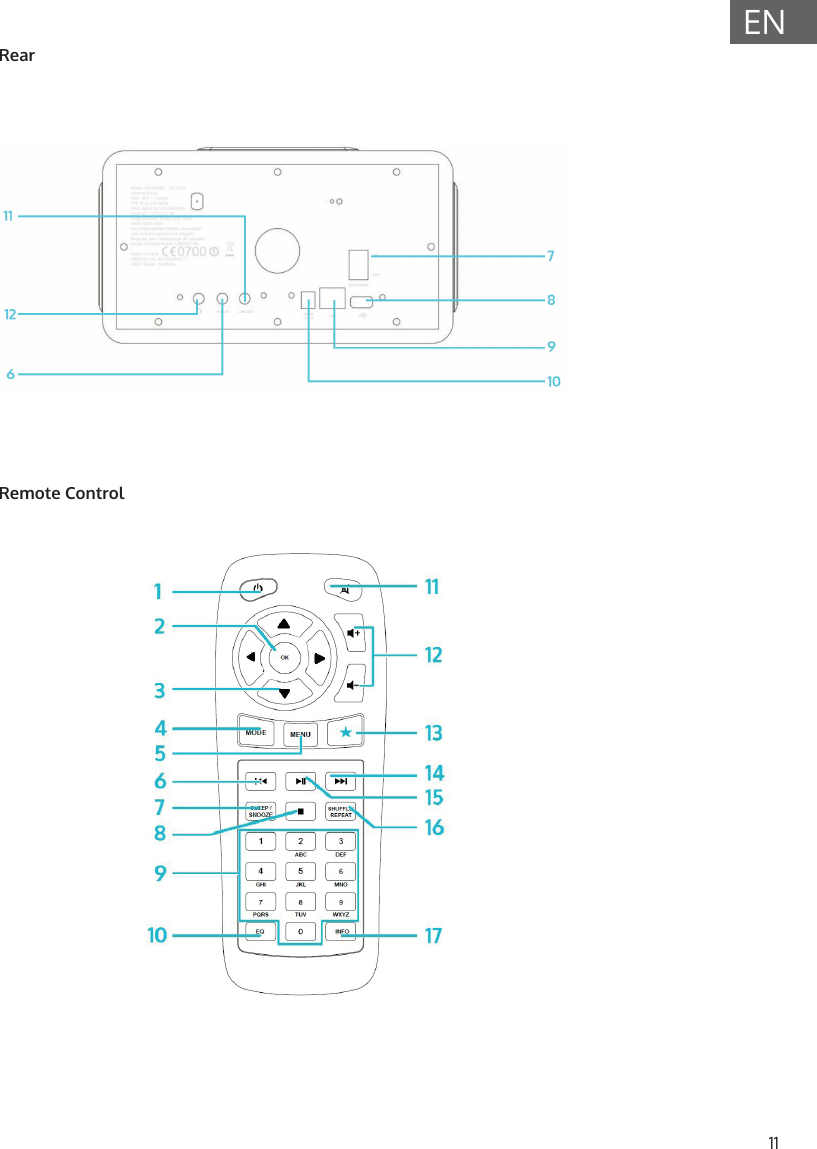
10ENCONTROLSRear1  Display2  Subwoofer3  Volume / On/Standby4  Control panel5  NAVIGATE (scroll) / OK6  AUX IN: connect external media players (such as smartphones) here, using a 3.5mm audio cable7  Power on/o8  USB slot9  LAN (Rj45) socket10  DC IN11  Line-Out: connect external amplier here12  Headphone jack: connect any headphones with a 1/8" audio cable
11ENRearRemote Control
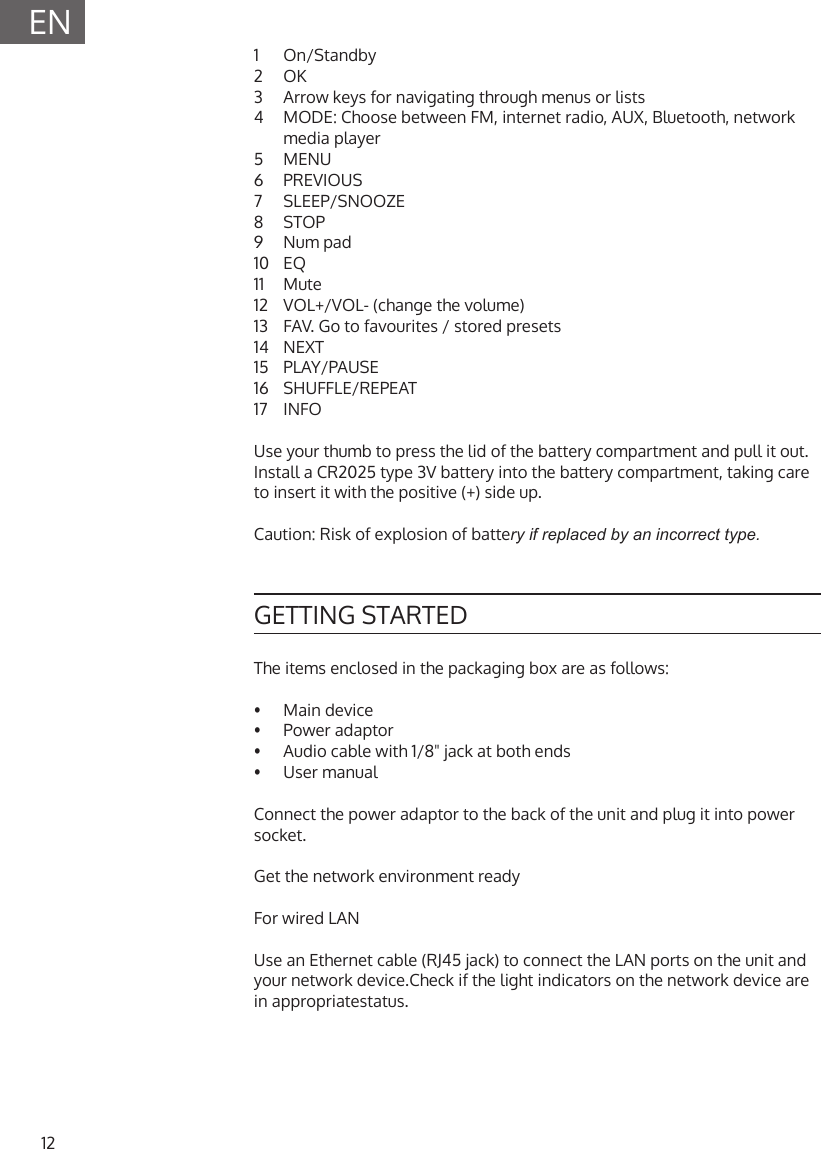
12EN1  On/Standby2  OK3  Arrow keys for navigating through menus or lists4  MODE: Choose between FM, internet radio, AUX, Bluetooth, network media player5  MENU6  PREVIOUS7  SLEEP/SNOOZE8  STOP9  Num pad10  EQ11  Mute12  VOL+/VOL- (change the volume)13  FAV. Go to favourites / stored presets14  NEXT15  PLAY/PAUSE16  SHUFFLE/REPEAT17  INFOUse your thumb to press the lid of the battery compartment and pull it out. Install a CR2025 type 3V battery into the battery compartment, taking care to insert it with the positive (+) side up.Caution: Risk of explosion of battery if replaced by an incorrect type.GETTING STARTEDThe items enclosed in the packaging box are as follows:•   Main  device•  Power adaptor•  Audio cable with 1/8" jack at both ends•  User manualConnect the power adaptor to the back of the unit and plug it into power socket.Get the network environment readyFor wired LANUse an Ethernet cable (RJ45 jack) to connect the LAN ports on the unit and your network device.Check if the light indicators on the network device are in appropriatestatus.
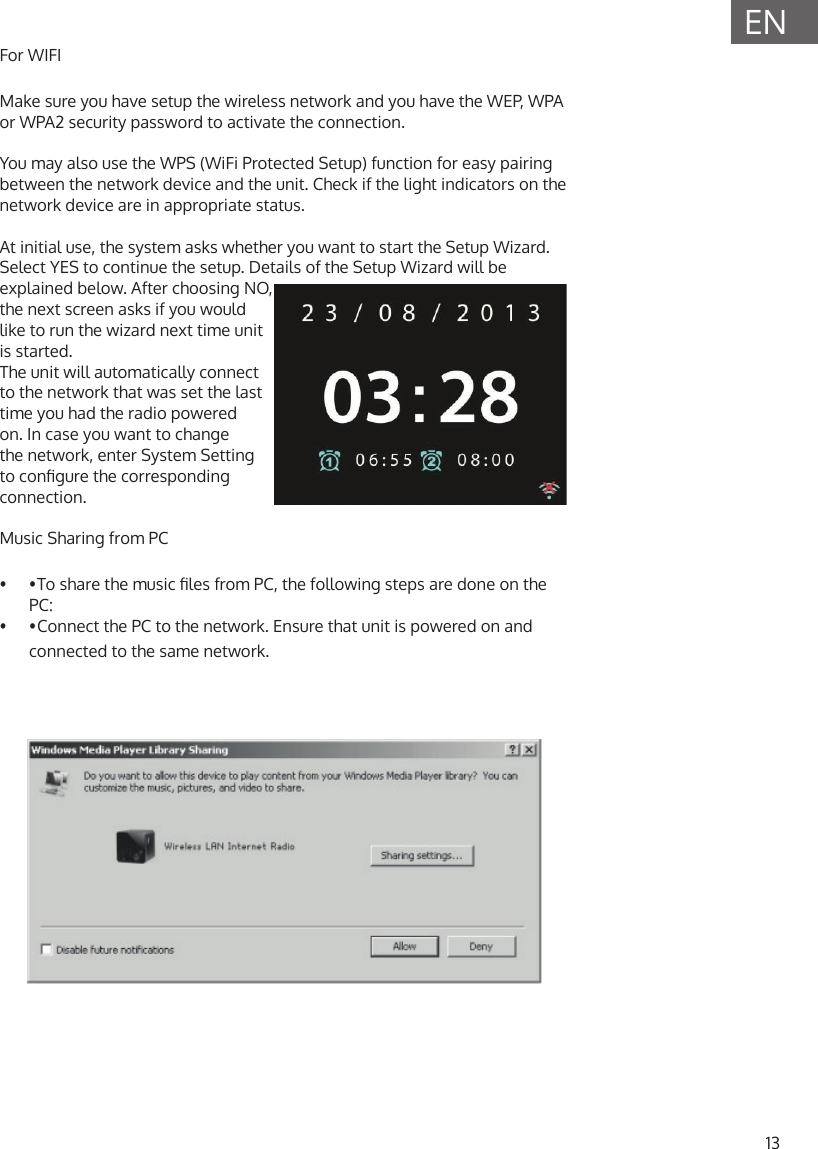
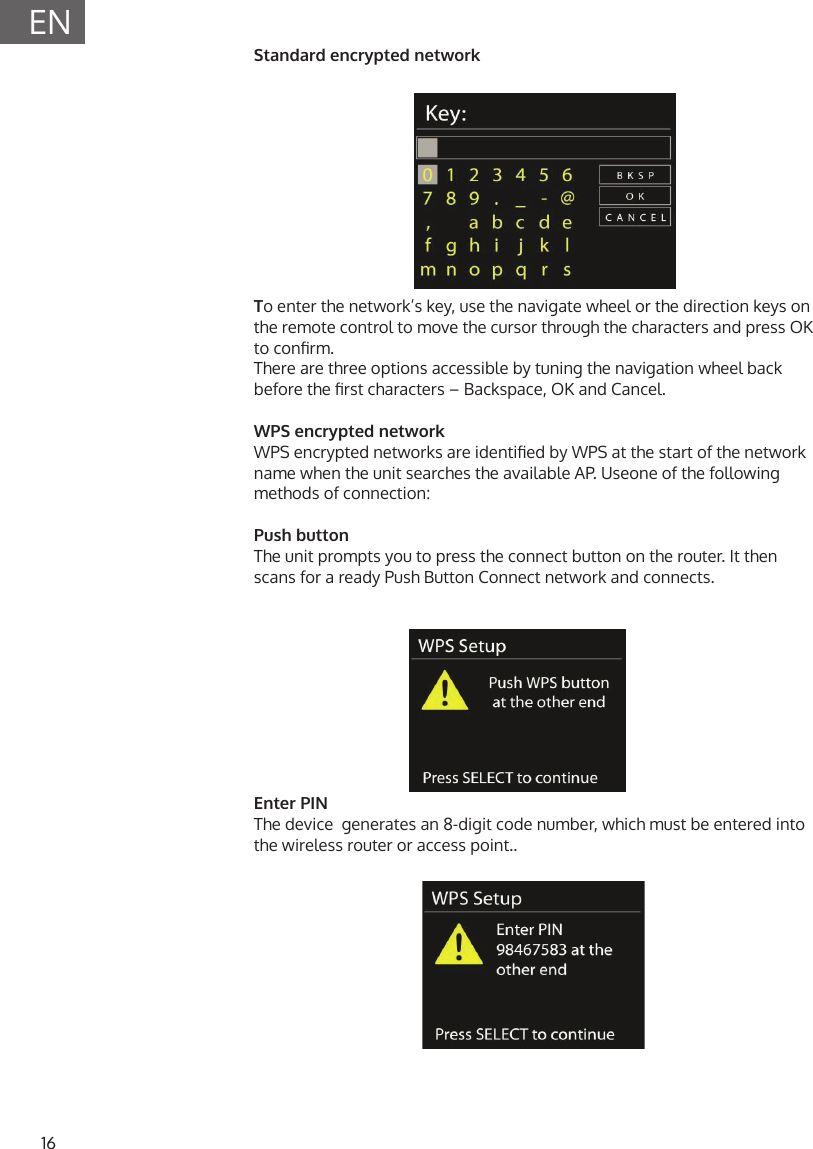
13ENFor WIFI Make sure you have setup the wireless network and you have the WEP, WPA or WPA2 security password to activate the connection.You may also use the WPS (WiFi Protected Setup) function for easy pairing between the network device and the unit. Check if the light indicators on the network device are in appropriate status.At initial use, the system asks whether you want to start the Setup Wizard. Select YES to continue the setup. Details of the Setup Wizard will be explained below. After choosing NO, the next screen asks if you would like to run the wizard next time unit is started. The unit will automatically connect to the network that was set the last time you had the radio powered on. In case you want to change the network, enter System Setting to congure the corresponding connection.Music Sharing from PC•  • To share the music les from PC, the following steps are done on the PC:•  • Connect the PC to the network. Ensure that unit is powered on and connected to the same network.
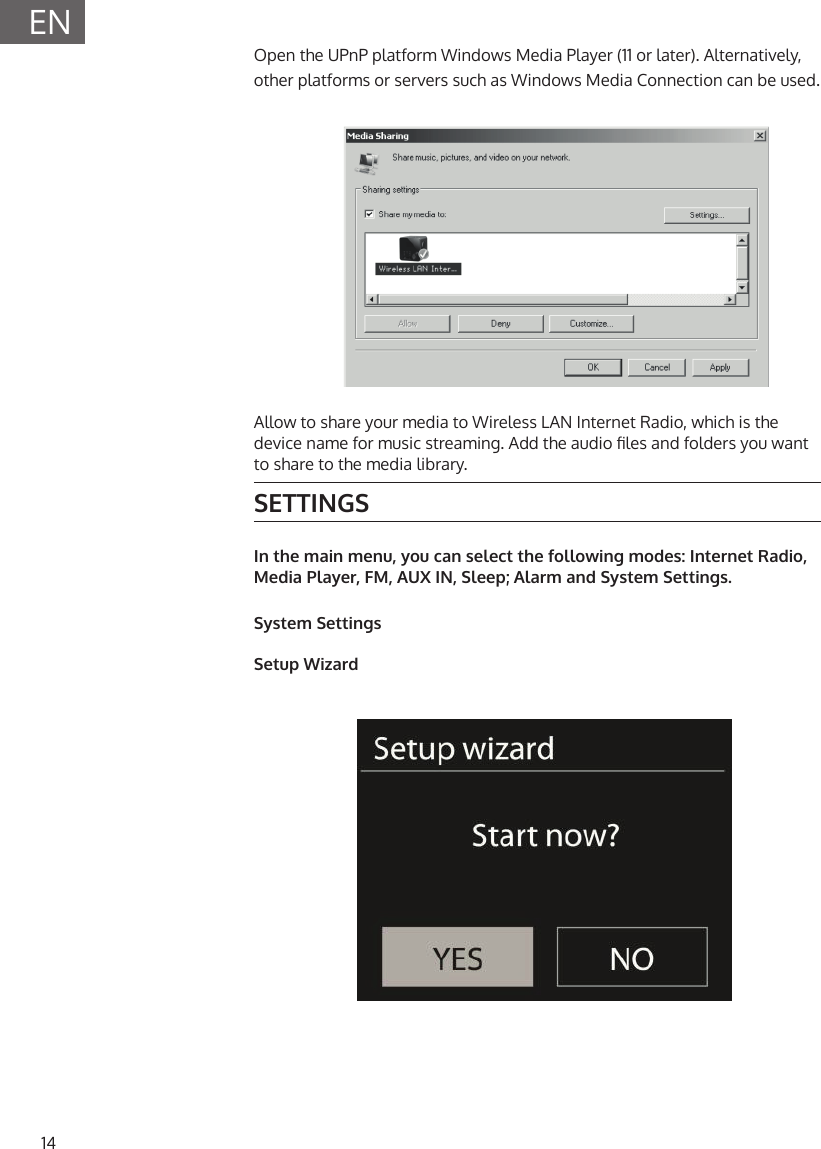
14ENOpen the UPnP platform Windows Media Player (11 or later). Alternatively, other platforms or servers such as Windows Media Connection can be used.Allow to share your media to Wireless LAN Internet Radio, which is the device name for music streaming. Add the audio les and folders you want to share to the media library.SETTINGSIn the main menu, you can select the following modes: Internet Radio, Media Player, FM, AUX IN, Sleep; Alarm and System Settings.System SettingsSetup Wizard
15ENTime/dateDisplay format: Select 12or 24 as the time format.Auto-updateThe time and date can be updated manually or automatically from DAB, FM or network. Auto-update works with data sent over DAB, FM or the Internet. The clock is only updated when in a corresponding mode, so it is best to select a mode you use regularly.DAB and FM use time signals broadcast with radio transmissions. Network uses a time signal sent from the Internet radio portal when in any network-connected mode.Time zone, daylightSet your time zone. If your country uses daylight saving and it is in eect, turn on the Daylight savings option.Manual updateIf you set „No update“, the wizard prompts you to set the time and date manually. The date and time are displayed as dd-mm-yyyy and hh:mm.The active value appears ashing. Adjust each value with the navigation wheel or on the remote control. Once the value is set, press to continue setting the next value.NetworkWLan regionSelect the WLan region to obtain the optimal WLan connectivity: Canada, Spain, France, Japan, Singapore, Australia, and Republic of Korea.Scanning for the networkThe unit is compatible with all common network protocols and encryption methods. It searches for available networks and list them out for you choose.There will be hints for the type of network – if you plug the LAN cable, it will highlight the network as [wired];  if your network device supports WPS function, it will display [WPS] before the SSID (the name of network device). Select the one you want to connect to.For the wireless connection, you will be prompted to type in the pass phrase.
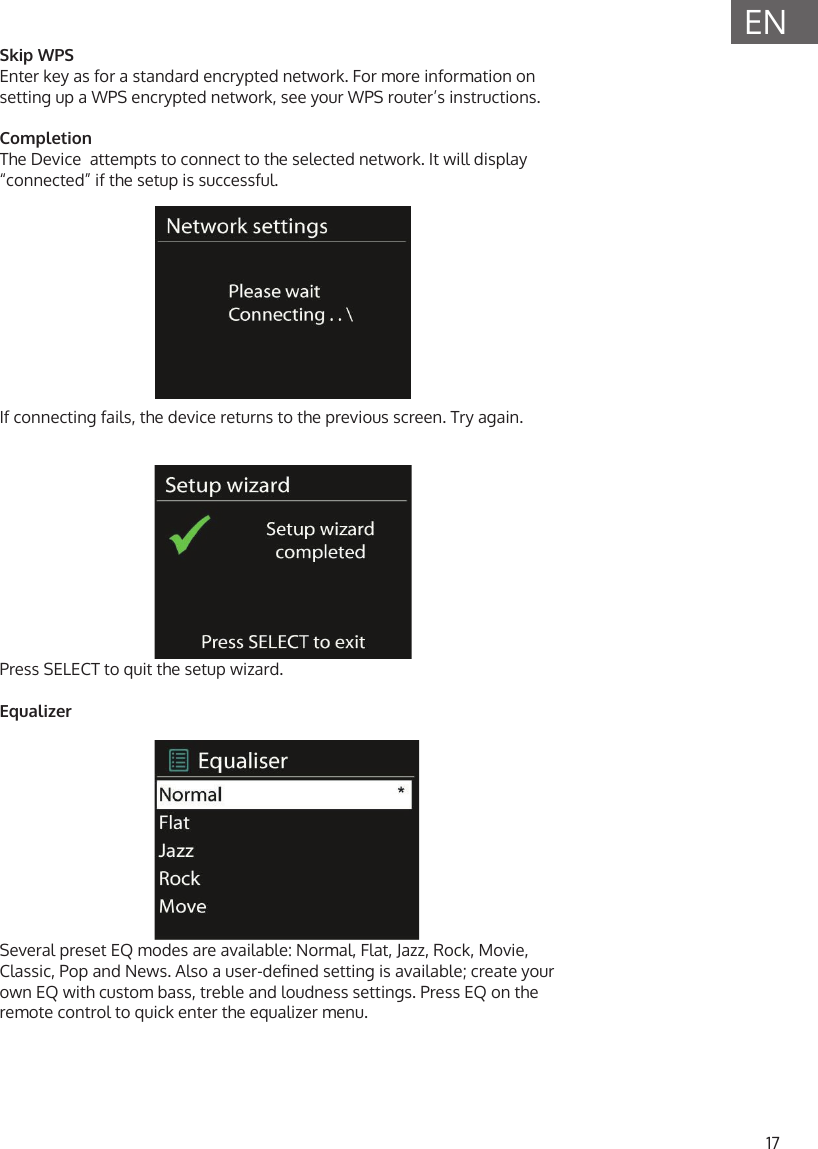
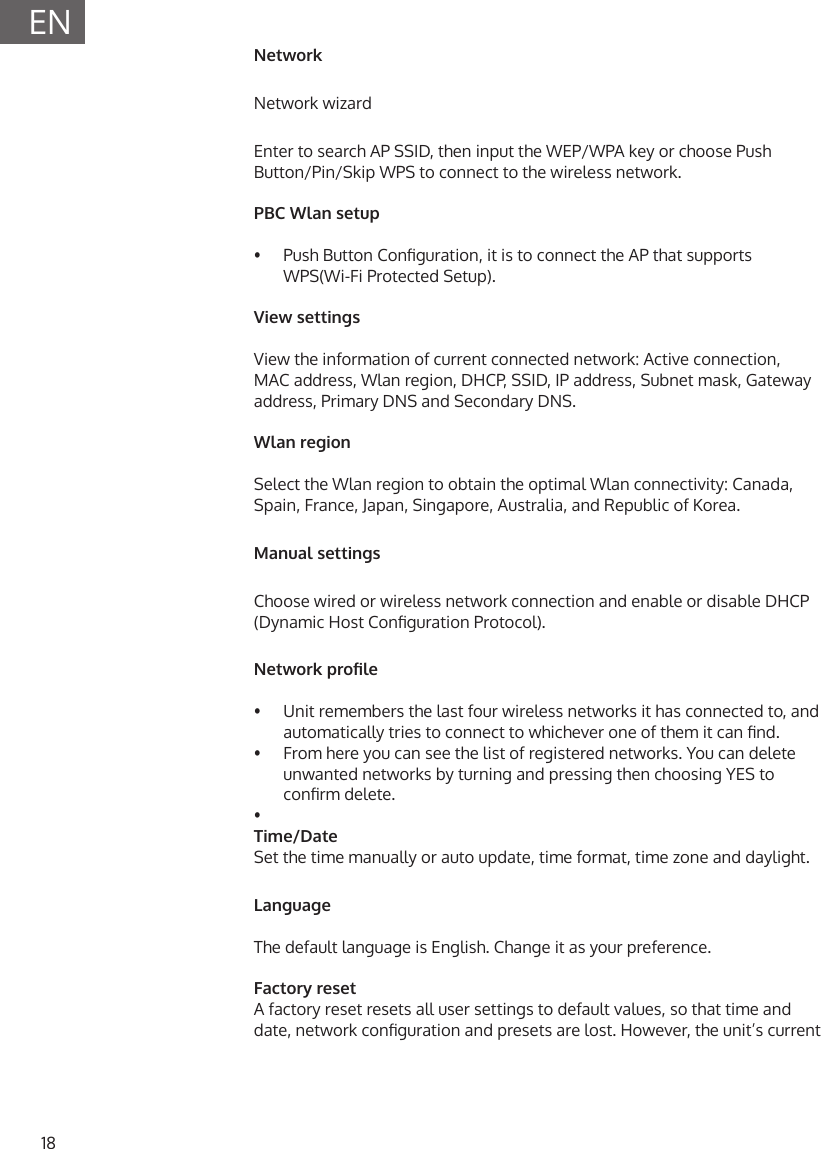
16ENStandard encrypted networkTo enter the network’s key, use the navigate wheel or the direction keys on the remote control to move the cursor through the characters and press OK to conrm. There are three options accessible by tuning the navigation wheel back before the rst characters – Backspace, OK and Cancel.WPS encrypted networkWPS encrypted networks are identied by WPS at the start of the network name when the unit searches the available AP. Useone of the following methods of connection:Push buttonThe unit prompts you to press the connect button on the router. It then scans for a ready Push Button Connect network and connects.Enter PINThe device  generates an 8-digit code number, which must be entered into the wireless router or access point..
17ENSkip WPSEnter key as for a standard encrypted network. For more information on setting up a WPS encrypted network, see your WPS router’s instructions.CompletionThe Device  attempts to connect to the selected network. It will display “connected” if the setup is successful.If connecting fails, the device returns to the previous screen. Try again.Press SELECT to quit the setup wizard.EqualizerSeveral preset EQ modes are available: Normal, Flat, Jazz, Rock, Movie, Classic, Pop and News. Also a user-dened setting is available; create your own EQ with custom bass, treble and loudness settings. Press EQ on the remote control to quick enter the equalizer menu.
18ENNetworkNetwork wizard Enter to search AP SSID, then input the WEP/WPA key or choose Push Button/Pin/Skip WPS to connect to the wireless network.PBC Wlan setup •  Push Button Conguration, it is to connect the AP that supports WPS(Wi-Fi Protected Setup). View settings View the information of current connected network: Active connection, MAC address, Wlan region, DHCP, SSID, IP address, Subnet mask, Gateway address, Primary DNS and Secondary DNS. Wlan region Select the Wlan region to obtain the optimal Wlan connectivity: Canada, Spain, France, Japan, Singapore, Australia, and Republic of Korea. Manual settings Choose wired or wireless network connection and enable or disable DHCP (Dynamic Host Conguration Protocol).Network prole•   Unit remembers the last four wireless networks it has connected to, and automatically tries to connect to whichever one of them it can nd.•   From here you can see the list of registered networks. You can delete unwanted networks by turning and pressing then choosing YES to conrm delete.• Time/DateSet the time manually or auto update, time format, time zone and daylight.LanguageThe default language is English. Change it as your preference.Factory resetA factory reset resets all user settings to default values, so that time and date, network conguration and presets are lost. However, the unit’s current
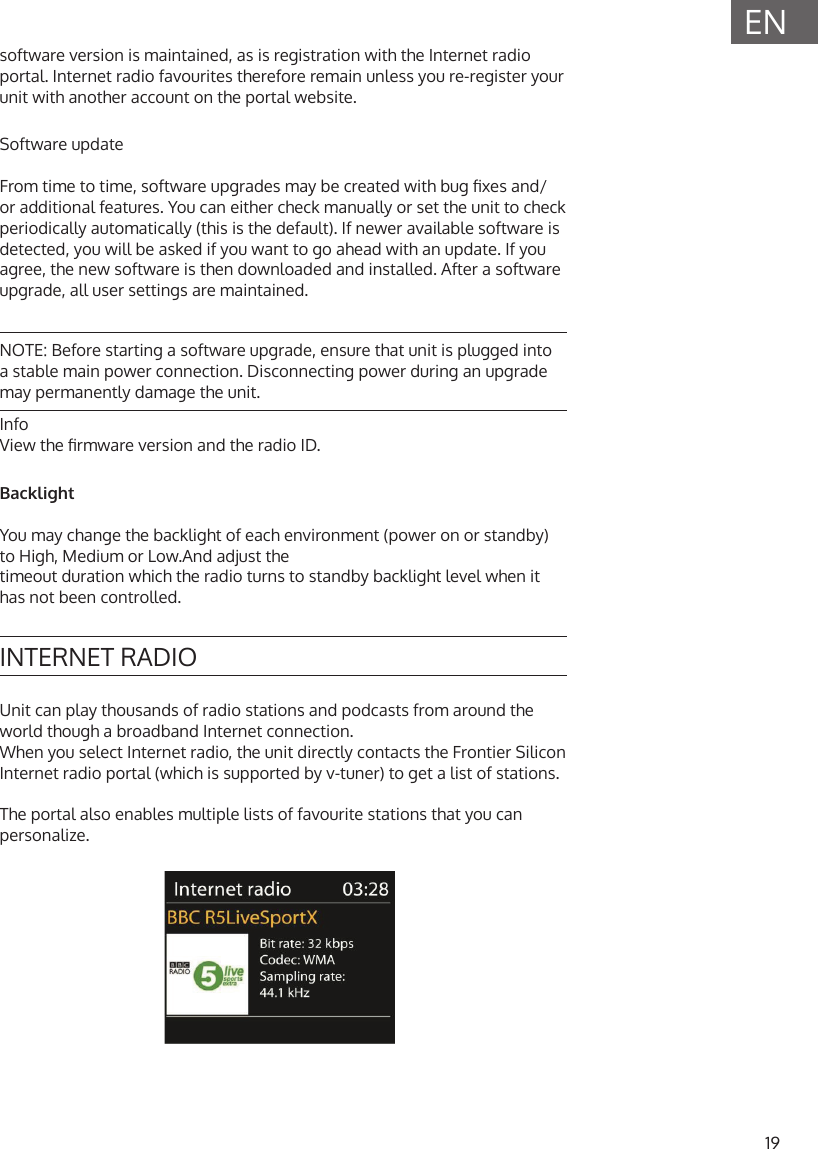
19ENsoftware version is maintained, as is registration with the Internet radio portal. Internet radio favourites therefore remain unless you re-register your unit with another account on the portal website.Software updateFrom time to time, software upgrades may be created with bug xes and/or additional features. You can either check manually or set the unit to check periodically automatically (this is the default). If newer available software is detected, you will be asked if you want to go ahead with an update. If you agree, the new software is then downloaded and installed. After a software upgrade, all user settings are maintained.NOTE: Before starting a software upgrade, ensure that unit is plugged into a stable main power connection. Disconnecting power during an upgrade may permanently damage the unit.InfoView the rmware version and the radio ID.BacklightYou may change the backlight of each environment (power on or standby) to High, Medium or Low.And adjust thetimeout duration which the radio turns to standby backlight level when it has not been controlled.INTERNET RADIOUnit can play thousands of radio stations and podcasts from around the world though a broadband Internet connection.When you select Internet radio, the unit directly contacts the Frontier Silicon Internet radio portal (which is supported by v-tuner) to get a list of stations.The portal also enables multiple lists of favourite stations that you can personalize.
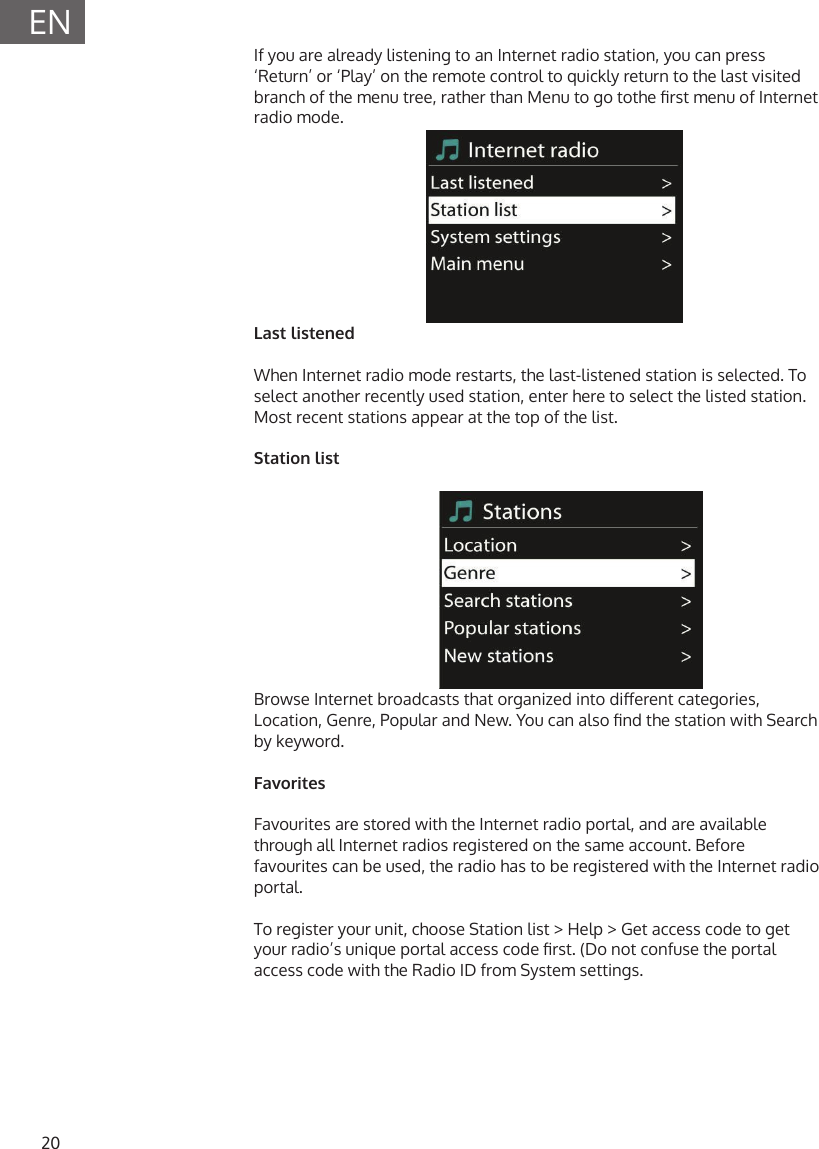
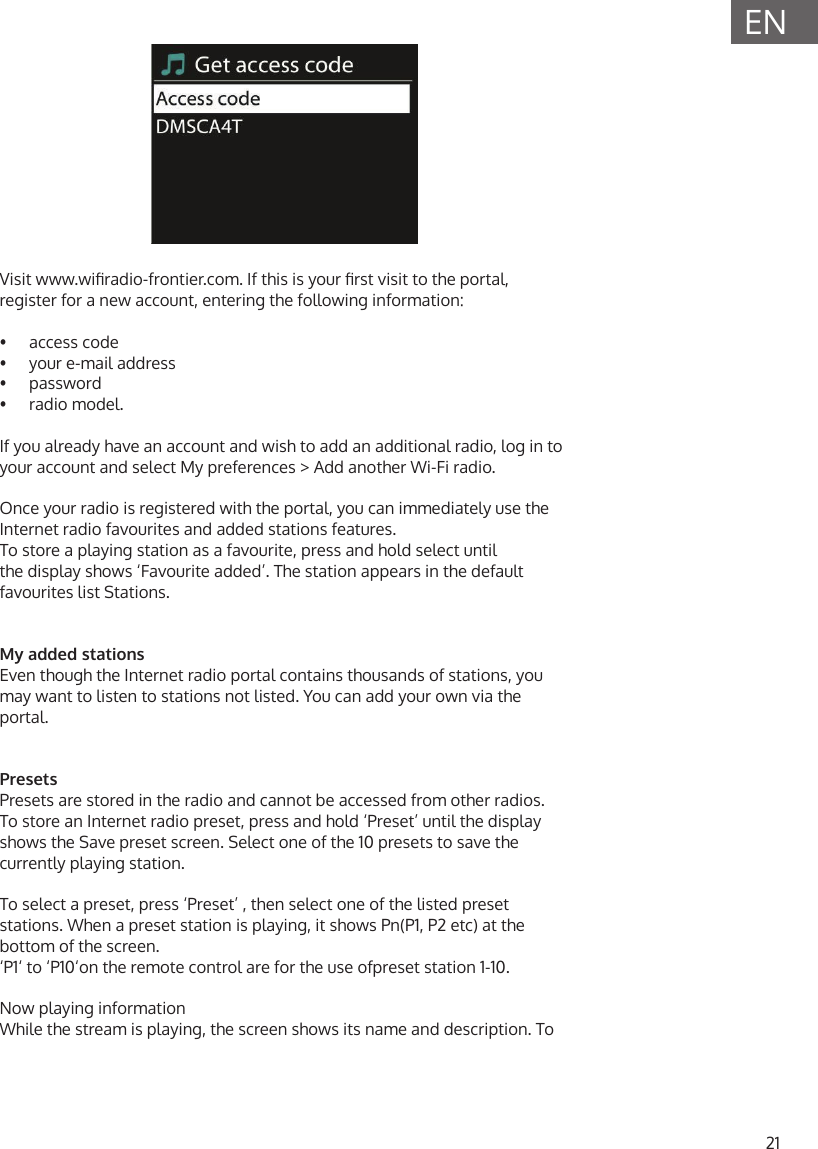
20ENIf you are already listening to an Internet radio station, you can press ‘Return’ or ‘Play’ on the remote control to quickly return to the last visited branch of the menu tree, rather than Menu to go tothe rst menu of Internet radio mode.Last listenedWhen Internet radio mode restarts, the last-listened station is selected. To select another recently used station, enter here to select the listed station. Most recent stations appear at the top of the list.Station listBrowse Internet broadcasts that organized into dierent categories, Location, Genre, Popular and New. You can also nd the station with Search by keyword.FavoritesFavourites are stored with the Internet radio portal, and are available through all Internet radios registered on the same account. Before favourites can be used, the radio has to be registered with the Internet radio portal.To register your unit, choose Station list > Help > Get access code to get your radio’s unique portal access code rst. (Do not confuse the portal access code with the Radio ID from System settings.
21ENVisit www.wiradio-frontier.com. If this is your rst visit to the portal, register for a new account, entering the following information:•  access code•  your e-mail address•  password•  radio model.If you already have an account and wish to add an additional radio, log in to your account and select My preferences > Add another Wi-Fi radio.Once your radio is registered with the portal, you can immediately use the Internet radio favourites and added stations features.To store a playing station as a favourite, press and hold select until the display shows ‘Favourite added’. The station appears in the default favourites list Stations.My added stationsEven though the Internet radio portal contains thousands of stations, you may want to listen to stations not listed. You can add your own via the portal.PresetsPresets are stored in the radio and cannot be accessed from other radios.To store an Internet radio preset, press and hold ‘Preset’ until the display shows the Save preset screen. Select one of the 10 presets to save the currently playing station. To select a preset, press ‘Preset’ , then select one of the listed preset stations. When a preset station is playing, it shows Pn(P1, P2 etc) at the bottom of the screen.‘P1‘ to ‘P10‘on the remote control are for the use ofpreset station 1-10.Now playing informationWhile the stream is playing, the screen shows its name and description. To
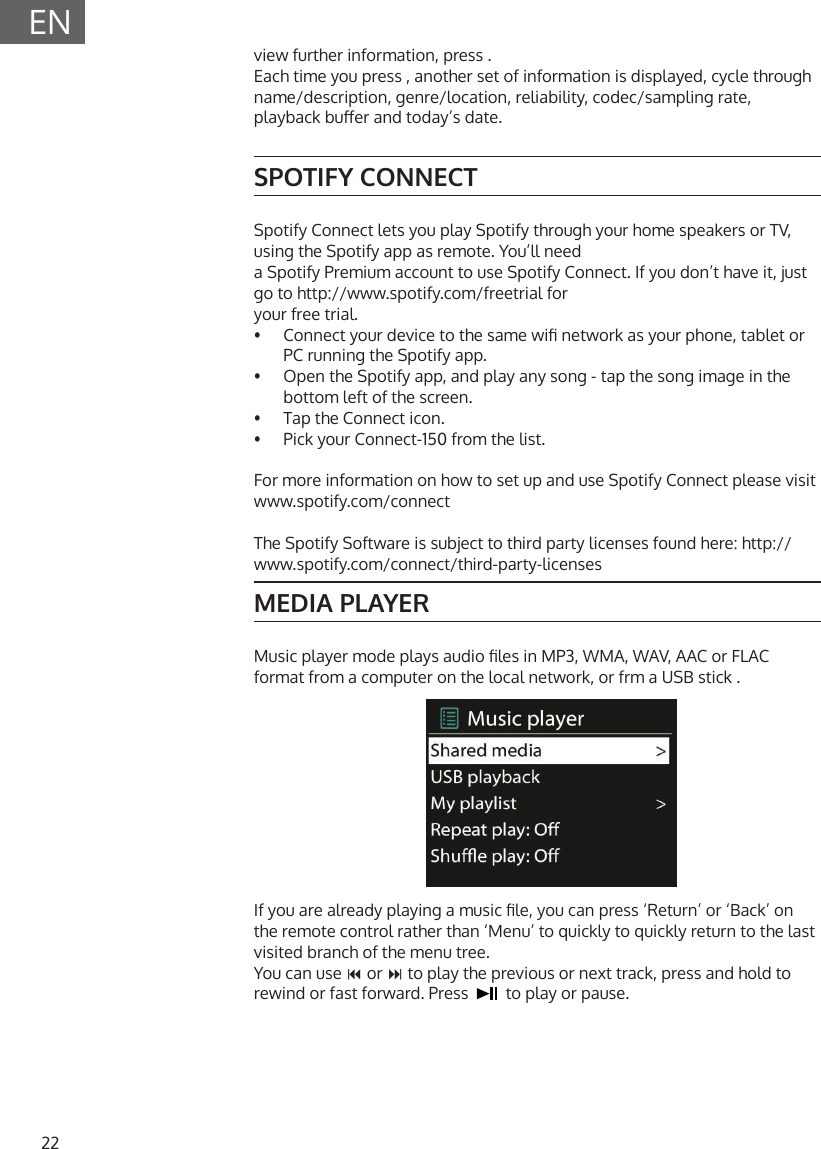
22ENview further information, press .Each time you press , another set of information is displayed, cycle through name/description, genre/location, reliability, codec/sampling rate, playback buer and today’s date.SPOTIFY CONNECTSpotify Connect lets you play Spotify through your home speakers or TV, using the Spotify app as remote. You’ll needa Spotify Premium account to use Spotify Connect. If you don’t have it, just go to http://www.spotify.com/freetrial foryour free trial.•  Connect your device to the same wi network as your phone, tablet or PC running the Spotify app.•  Open the Spotify app, and play any song - tap the song image in the bottom left of the screen.•  Tap the Connect icon.•  Pick your Connect-150 from the list.For more information on how to set up and use Spotify Connect please visit www.spotify.com/connectThe Spotify Software is subject to third party licenses found here: http://www.spotify.com/connect/third-party-licensesMEDIA PLAYERMusic player mode plays audio les in MP3, WMA, WAV, AAC or FLAC format from a computer on the local network, or frm a USB stick .If you are already playing a music le, you can press ‘Return’ or ‘Back’ on the remote control rather than ‘Menu’ to quickly to quickly return to the last visited branch of the menu tree.You can use  or  to play the previous or next track, press and hold to rewind or fast forward. Press     to play or pause.
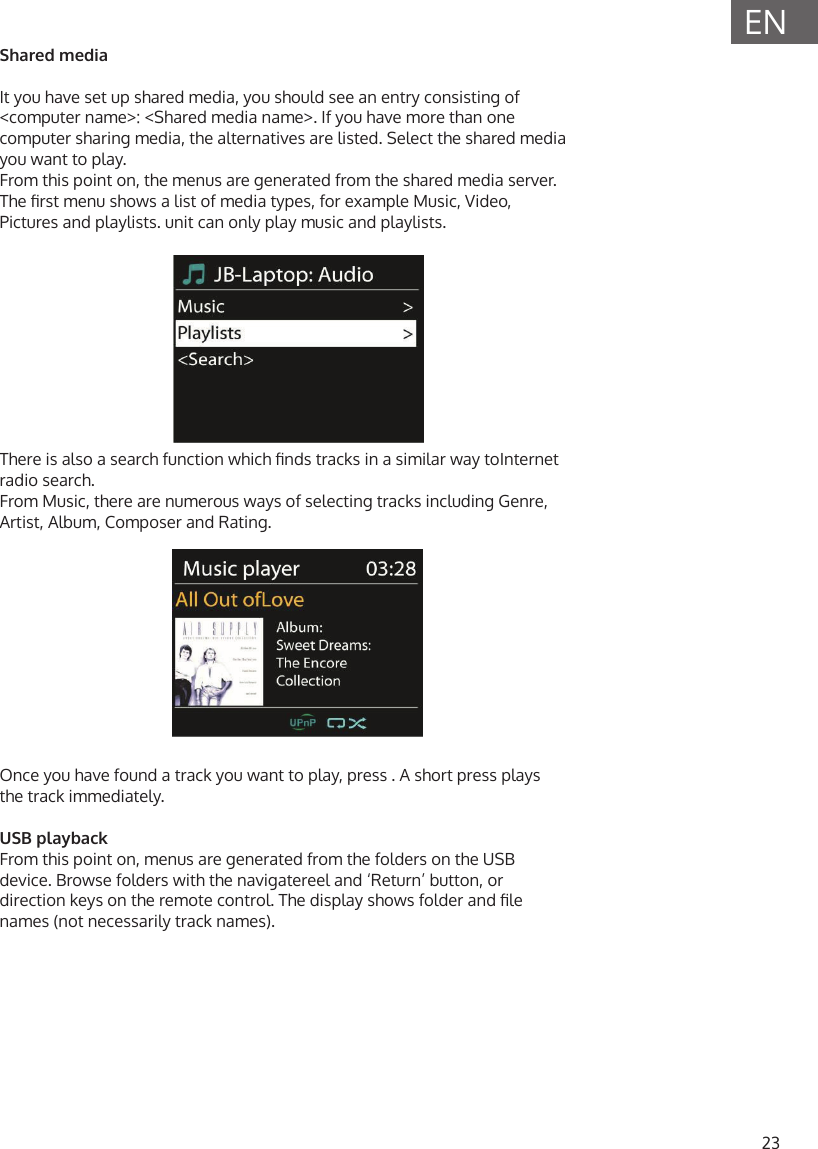
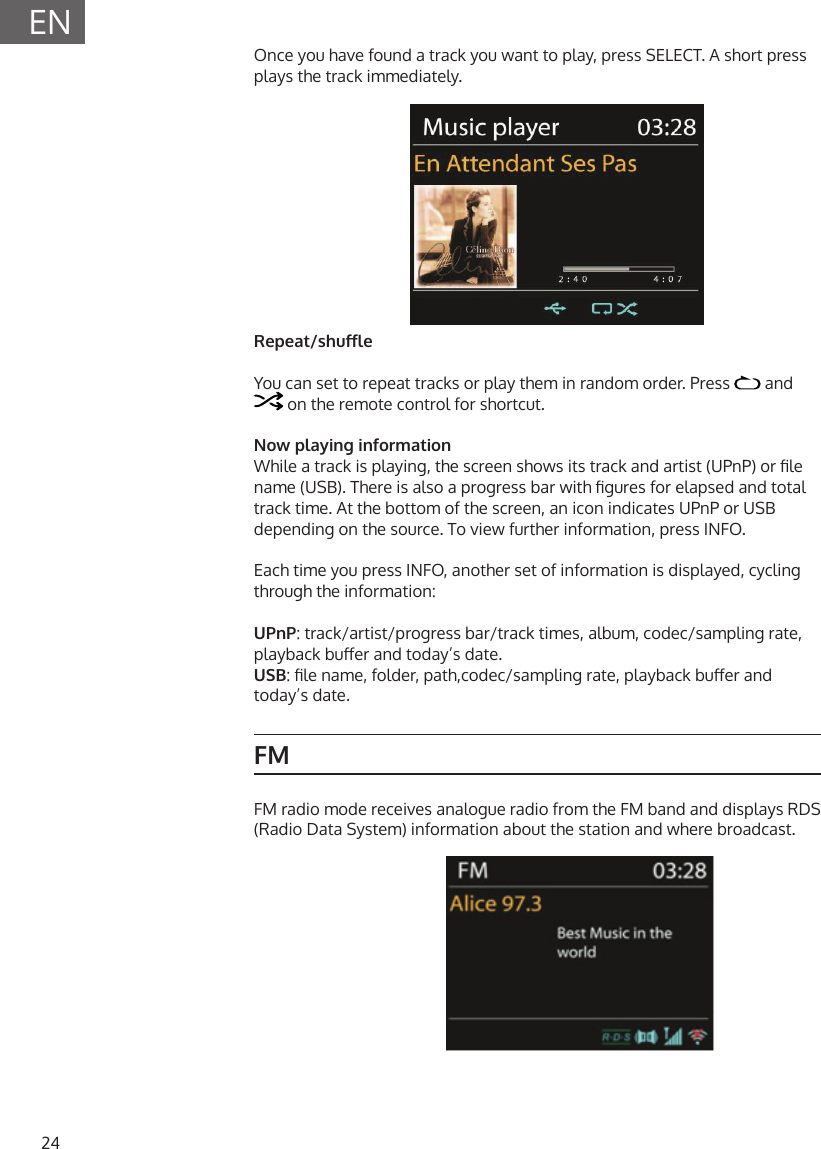
23ENShared mediaIt you have set up shared media, you should see an entry consisting of <computer name>: <Shared media name>. If you have more than one computer sharing media, the alternatives are listed. Select the shared media you want to play.From this point on, the menus are generated from the shared media server. The rst menu shows a list of media types, for example Music, Video, Pictures and playlists. unit can only play music and playlists.There is also a search function which nds tracks in a similar way toInternet radio search.From Music, there are numerous ways of selecting tracks including Genre, Artist, Album, Composer and Rating.Once you have found a track you want to play, press . A short press plays the track immediately.USB playbackFrom this point on, menus are generated from the folders on the USB device. Browse folders with the navigatereel and ‘Return’ button, or direction keys on the remote control. The display shows folder and le names (not necessarily track names).
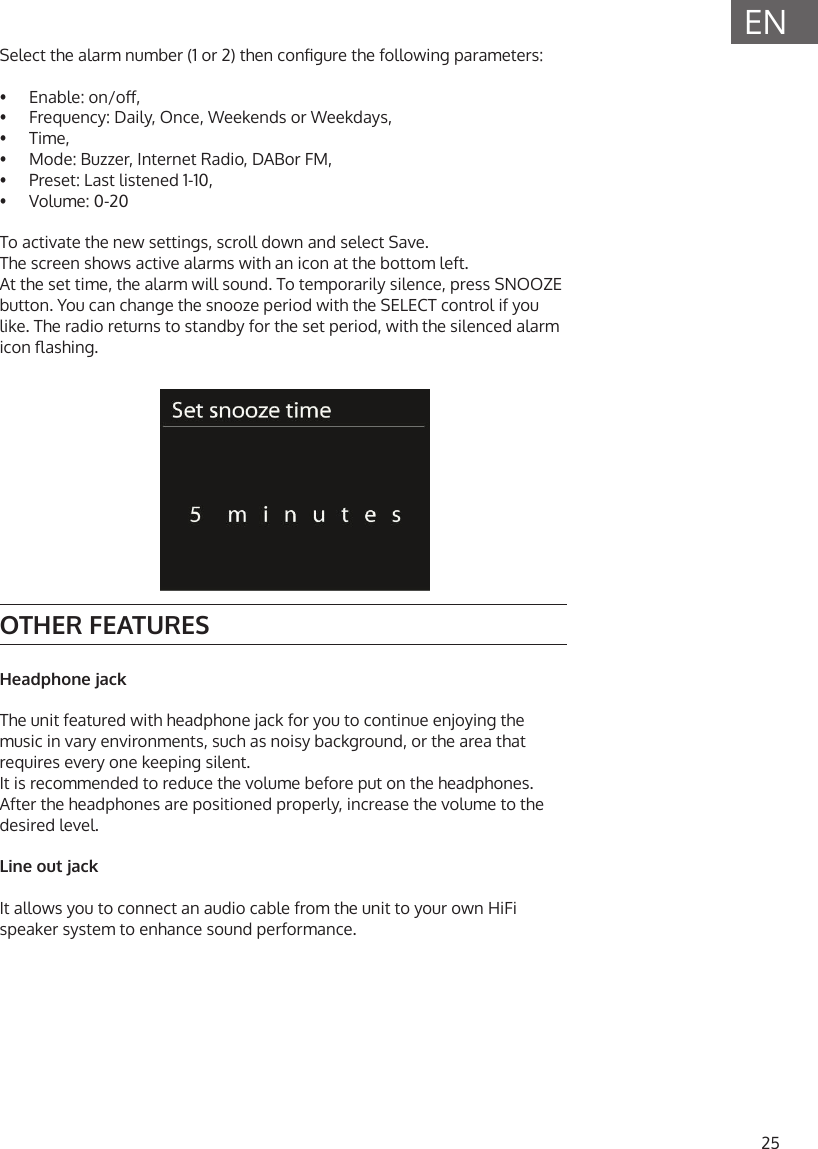
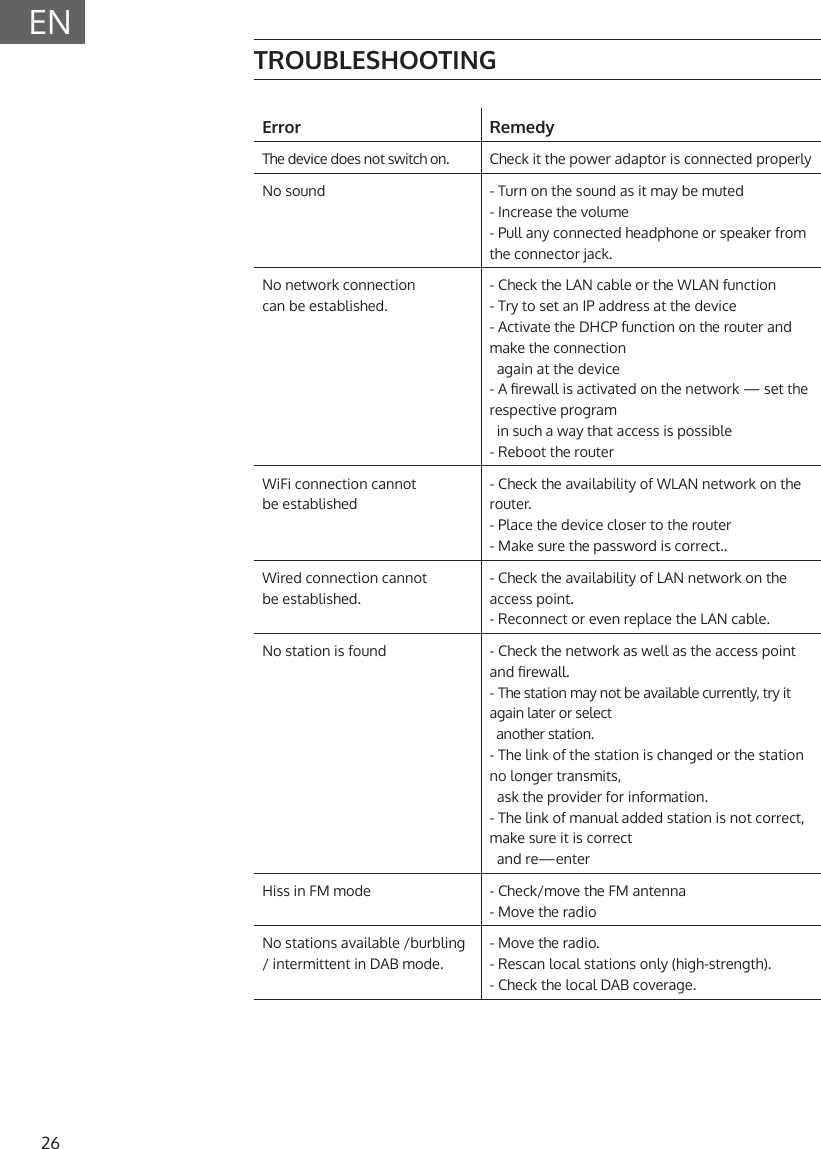
24ENOnce you have found a track you want to play, press SELECT. A short press plays the track immediately.Repeat/shuleYou can set to repeat tracks or play them in random order. Press   and  on the remote control for shortcut.Now playing informationWhile a track is playing, the screen shows its track and artist (UPnP) or le name (USB). There is also a progress bar with gures for elapsed and total track time. At the bottom of the screen, an icon indicates UPnP or USB depending on the source. To view further information, press INFO.Each time you press INFO, another set of information is displayed, cycling through the information:UPnP: track/artist/progress bar/track times, album, codec/sampling rate, playback buer and today’s date. USB: le name, folder, path,codec/sampling rate, playback buer and today’s date.FMFM radio mode receives analogue radio from the FM band and displays RDS (Radio Data System) information about the station and where broadcast.
25ENSelect the alarm number (1 or 2) then congure the following parameters:•  Enable: on/o,•  Frequency: Daily, Once, Weekends or Weekdays,•  Time,•  Mode: Buzzer, Internet Radio, DABor FM,•  Preset: Last listened 1-10,•  Volume: 0-20To activate the new settings, scroll down and select Save.The screen shows active alarms with an icon at the bottom left.At the set time, the alarm will sound. To temporarily silence, press SNOOZE button. You can change the snooze period with the SELECT control if you like. The radio returns to standby for the set period, with the silenced alarm icon ashing.OTHER FEATURESHeadphone jackThe unit featured with headphone jack for you to continue enjoying the music in vary environments, such as noisy background, or the area that requires every one keeping silent.It is recommended to reduce the volume before put on the headphones. After the headphones are positioned properly, increase the volume to the desired level.Line out jackIt allows you to connect an audio cable from the unit to your own HiFi speaker system to enhance sound performance.
26ENTROUBLESHOOTINGError RemedyThe device does not switch on. Check it the power adaptor is connected properlyNo sound - Turn on the sound as it may be muted- Increase the volume- Pull any connected headphone or speaker from the connector jack.No network connectioncan be established.- Check the LAN cable or the WLAN function - Try to set an IP address at the device- Activate the DHCP function on the router and make the connection   again at the device- A rewall is activated on the network — set the respective program  in such a way that access is possible- Reboot the routerWiFi connection cannotbe established- Check the availability of WLAN network on the router.- Place the device closer to the router- Make sure the password is correct..Wired connection cannotbe established.- Check the availability of LAN network on the access point.- Reconnect or even replace the LAN cable.No station is found - Check the network as well as the access point and rewall.- The station may not be available currently, try it again later or select     another station.- The link of the station is changed or the station no longer transmits,   ask the provider for information.- The link of manual added station is not correct, make sure it is correct    and re—enterHiss in FM mode - Check/move the FM antenna- Move the radioNo stations available /burbling / intermittent in DAB mode.- Move the radio.- Rescan local stations only (high-strength).- Check the local DAB coverage.
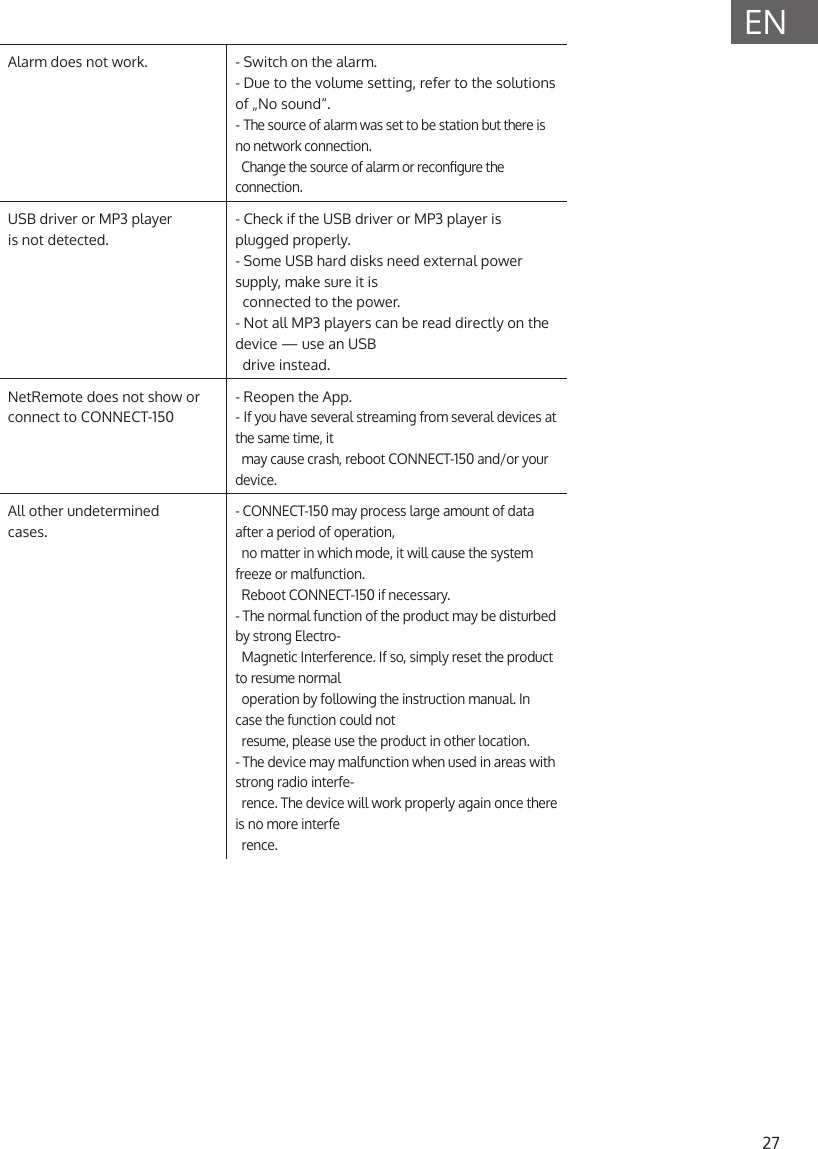
27ENAlarm does not work. - Switch on the alarm.- Due to the volume setting, refer to the solutions of „No sound“.- The source of alarm was set to be station but there is no network connection.    Change the source of alarm or recongure the connection.USB driver or MP3 playeris not detected.- Check if the USB driver or MP3 player is plugged properly.- Some USB hard disks need external power supply, make sure it is    connected to the power.- Not all MP3 players can be read directly on the device — use an USB  drive instead.NetRemote does not show or connect to CONNECT-150- Reopen the App.- If you have several streaming from several devices at the same time, it  may cause crash, reboot CONNECT-150 and/or your device.All other undeterminedcases.- CONNECT-150 may process large amount of data after a period of operation,    no matter in which mode, it will cause the system freeze or malfunction.    Reboot CONNECT-150 if necessary.- The normal function of the product may be disturbed by strong Electro-  Magnetic Interference. If so, simply reset the product to resume normal   operation by following the instruction manual. In case the function could not   resume, please use the product in other location.- The device may malfunction when used in areas with strong radio interfe-   rence. The device will work properly again once there is no more interfe   rence.
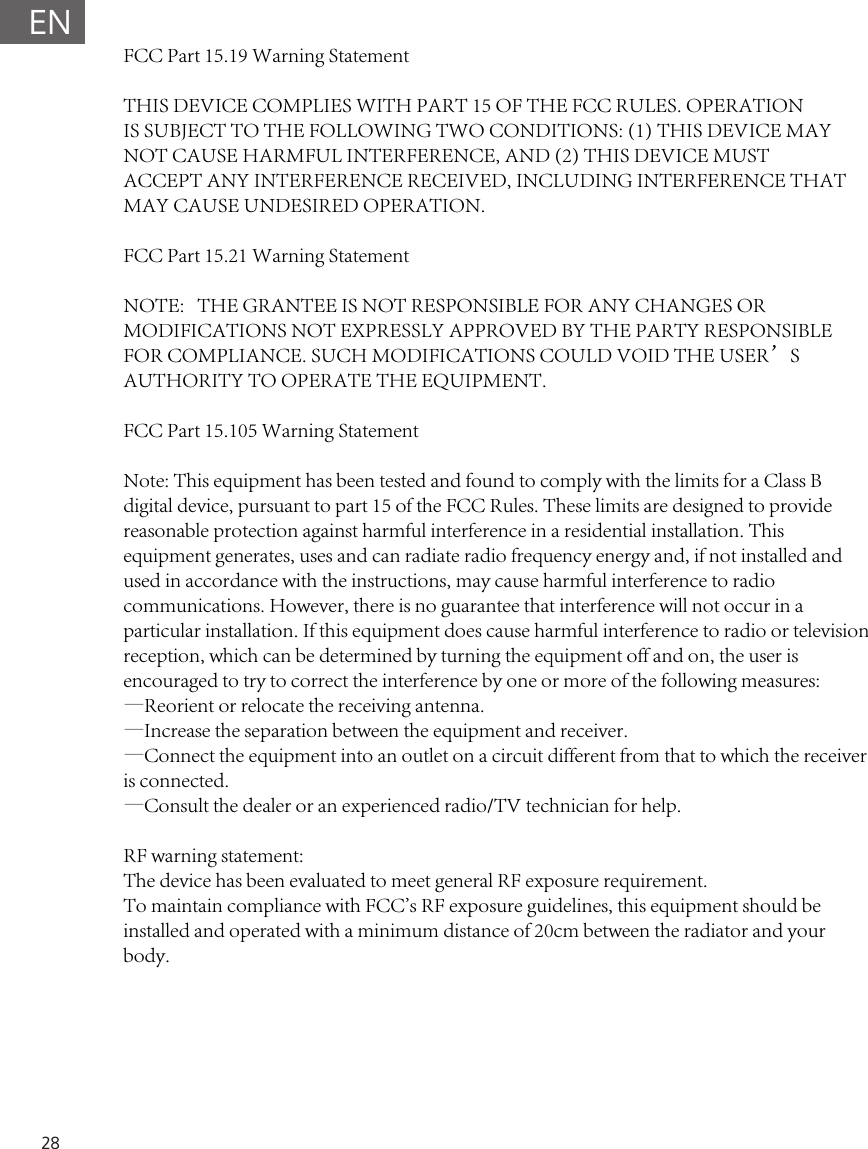
28ENFCC Part 15.19 Warning Statement THIS DEVICE COMPLIES WITH PART 15 OF THE FCC RULES. OPERATIONIS SUBJECT TO THE FOLLOWING TWO CONDITIONS: (1) THIS DEVICE MAYNOT CAUSE HARMFUL INTERFERENCE, AND (2) THIS DEVICE MUSTACCEPT ANY INTERFERENCE RECEIVED, INCLUDING INTERFERENCE THATMAY CAUSE UNDESIRED OPERATION.FCC Part 15.21 Warning StatementNOTE:   THE GRANTEE IS NOT RESPONSIBLE FOR ANY CHANGES OR MODIFICATIONS NOT EXPRESSLY APPROVED BY THE PARTY RESPONSIBLE FOR COMPLIANCE. SUCH MODIFICATIONS COULD VOID THE USER’S AUTHORITY TO OPERATE THE EQUIPMENT.FCC Part 15.105 Warning StatementNote: This equipment has been tested and found to comply with the limits for a Class B digital device, pursuant to part 15 of the FCC Rules. These limits are designed to provide reasonable protection against harmful interference in a residential installation. This equipment generates, uses and can radiate radio frequency energy and, if not installed and used in accordance with the instructions, may cause harmful interference to radio communications. However, there is no guarantee that interference will not occur in a particular installation. If this equipment does cause harmful interference to radio or television reception, which can be determined by turning the equipment off and on, the user is encouraged to try to correct the interference by one or more of the following measures:—Reorient or relocate the receiving antenna.—Increase the separation between the equipment and receiver.—Connect the equipment into an outlet on a circuit different from that to which the receiver is connected.—Consult the dealer or an experienced radio/TV technician for help.RF warning statement:The device has been evaluated to meet general RF exposure requirement. To maintain compliance with FCC's RF exposure guidelines, this equipment should be installed and operated with a minimum distance of 20cm between the radiator and your body.

Navigation menu