Bernafon SGATE1 Hearing Device Accessory User Manual
Bernafon AG Hearing Device Accessory
Bernafon >
User Manual

SOUNDGATE
INSTRUCTIONS
FOR USE

3
TABLE OF CONTENTS
Package contents 6
Introduction 8
SoundGate overview 9
Getting started 10
Charging the battery 10
Battery indicator 11
Battery life 12
SoundGate wireless ranges 13
SoundGate – Instrument range 13
Bluetooth® – SoundGate range 15
Wearing options 16
Operating the SoundGate 20
Key lock 20
Key functions 21
Audio streaming 22

4
5
Using SoundGate for audio streaming 23
Bluetooth® 23
Bluetooth® keys 24
Pairing to a Bluetooth® device 25
Stored pairings 27
Connecting to Bluetooth® devices 28
How to use with a mobile phone 30
How to listen to music/audio 33
Resetting the SoundGate 38
Use as a remote control 39
Visual indicators 40
Maintenance 44
Troubleshooting 46
International warranty 60
Warnings and safety guidelines 61
Radio communication 64
Declarations of conformity 66
6
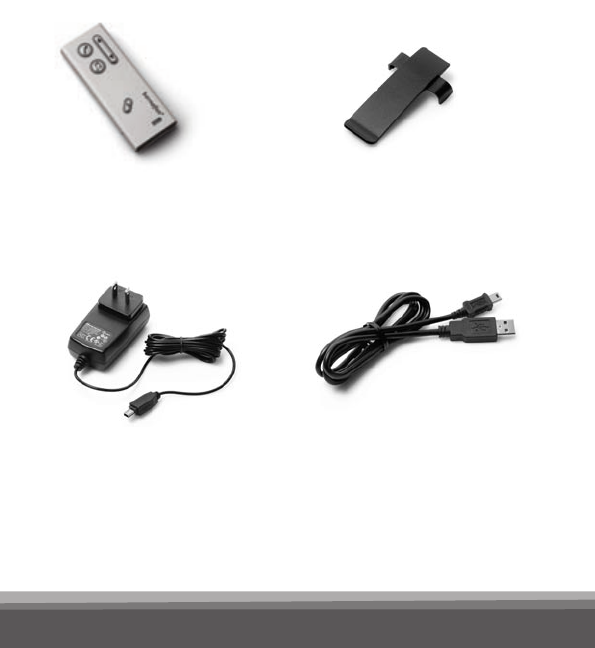
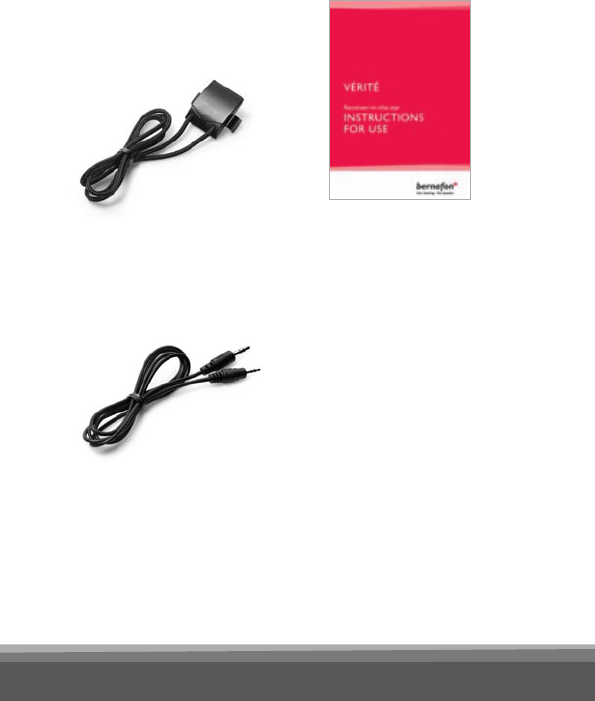
Package contents
SoundGate
Charging unit
Pocket clip
USB charging cable
7
Neck strap
Music/audio cable
Instructions for use

8
Introduction
The SoundGate provides a wireless connection
between your hearing instruments and various
audio sources, allowing your hearing instruments
to work like wireless headphones. The SoundGate
uses Bluetooth® to connect to electronic media
and is compatible with most Bluetooth®-enabled
sound sources.
If you wear two hearing instruments, the Sound-
Gate transmits to both simultaneously. Using
SoundGate with your hearing instruments gives
you the following possibilities:
· Hands-free mobile phone conversation
· Sound or music from radio, computer,
MP3 player, etc. connected with an audio
cable to the SoundGate
· Wireless sound reception from television
equipped with a Bluetooth® transmitter
· Remote control of volume and program
changes in your hearing instruments
9
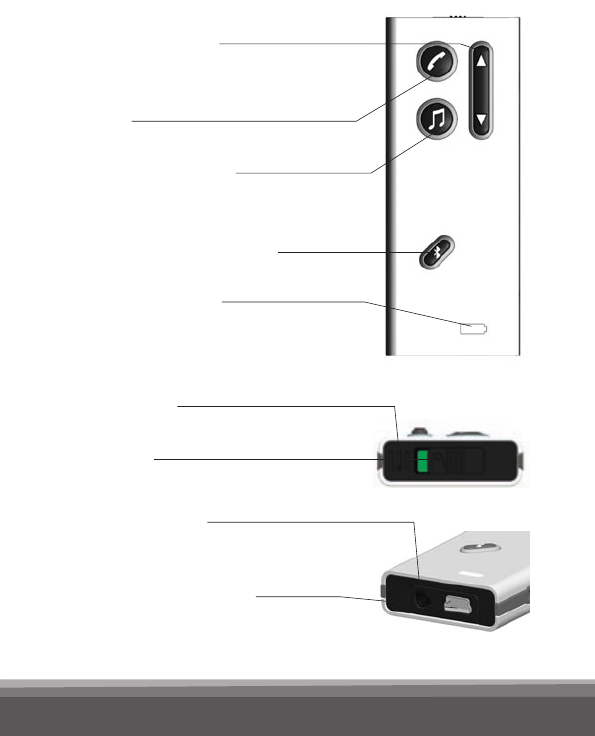
SoundGate overview
Volume control
and program change
Phone
Music connection
e.g. MP3
Bluetooth® music/audio
Battery indicator
Microphone
Key lock
Jack connector
for audio input
Mini USB connector
for charging the battery
10
Getting started
Before you can use your SoundGate for the rst
time, the battery must be fully charged.
Charging the battery
The SoundGate should be charged every night
to ensure battery life for a full day of operation.
There are two ways to charge the SoundGate:
1. Connect the charger unit to the mini USB
connector on the SoundGate. Then plug the
power cord into a wall socket.
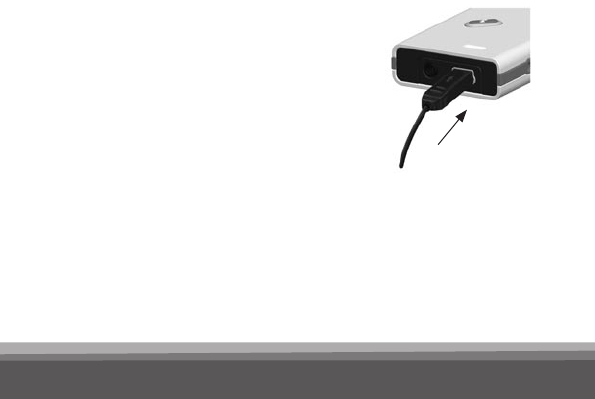
2. Connect the USB charging
cable to the mini USB con-
nector on the SoundGate.
Connect the other end to the
USB port of your computer.

11
Battery indicator
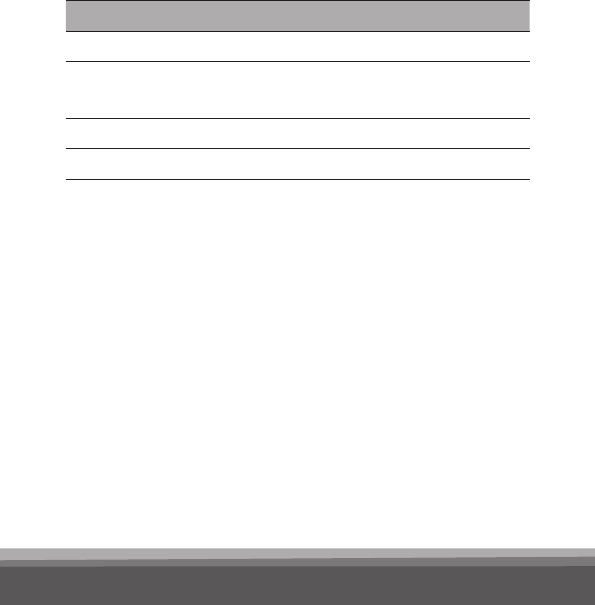
The battery indicator shows a steady
red light when the battery is low (about
20 minutes left).
The battery indicator will start blinking
when the battery is close to empty
(about 5 minutes left).
Recharging the battery takes approxi-
mately 4 hours. When charging the
battery, the indicator blinks green.
When fully recharged, the battery
indicator lights steady green.
12
Battery life
The battery life of the SoundGate depends on the
usage. The table shows the maximum time the
fully-charged battery will run without recharging for
different functions.
Even though the SoundGate has no dedicated
on/off button, turning off Bluetooth® will result in
prolonged battery life.
Important notice
The rechargeable battery should not be drained
completely. Keeping the battery fully charged will
prolong the life of the battery. You cannot replace
the battery yourself. Return the unit to your hearing
care professional for service, if necessary.
Use Battery life*
Talking on mobile phone 5 hours
Listening to music/audio with
wired connection
6 hours
Stand-by with Bluetooth® on 70 hours
Stand-by with Bluetooth® off 2 years
13
SoundGate wireless ranges
SoundGate Instrument range
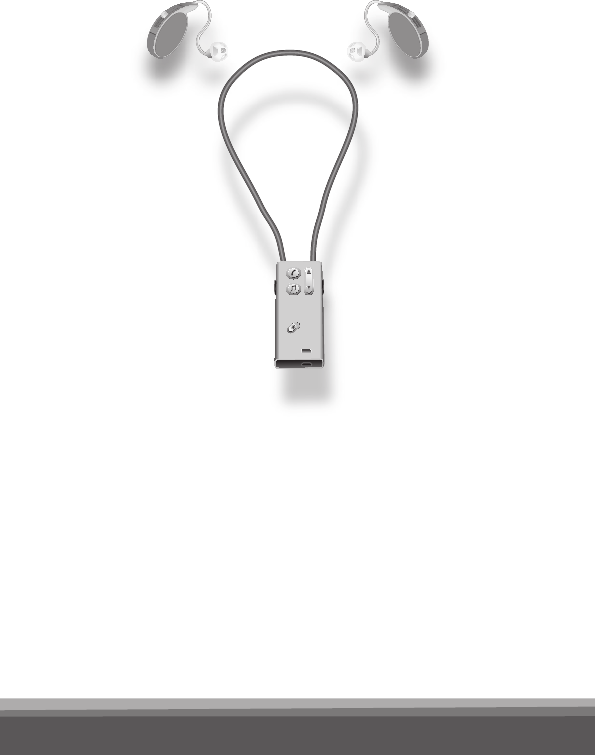
The SoundGate has a digital wireless transmitter
built in that automatically streams information to
your hearing instruments.
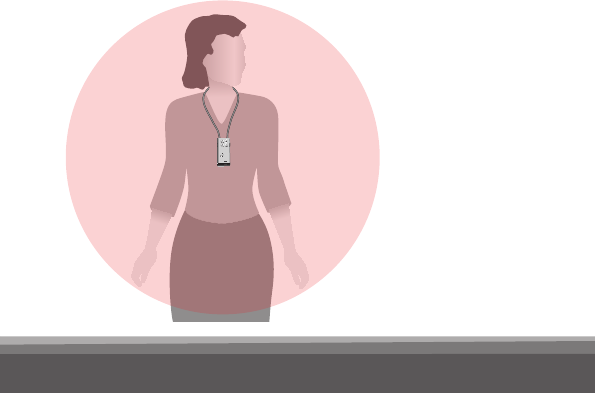
When the SoundGate is streaming audio, the range
to the hearing instruments is approximately 0.5
meter (20 inches). The range could be reduced by
metal objects and strong magnetic elds. Use of
the neck strap is strongly recommended to achieve
optimal performance.
SoundGate
Instrument range
14
SoundGate to hearing instruments: 0.5 meter
(20 inches) range. When the SoundGate is used
for remote volume control only or ”stand-by”
(ready for incoming phone call) the range is up
to 1 meter (40 inches).
15
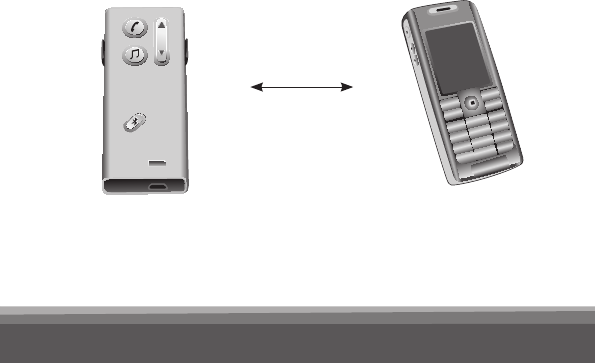
Bluetooth® SoundGate range
The SoundGate has a built-in Bluetooth® receiver
that can be manually turned on and off. Bluetooth®
is used to communicate and send audio signals
from external sound and communication devices to
the SoundGate.
The wireless range from a mobile phone to the
SoundGate is 10 meters (33 feet) in an open space.
Bluetooth® range is reduced by objects between
the SoundGate and the mobile phone. The range
also depends on the quality of the antenna of the
other device.
16
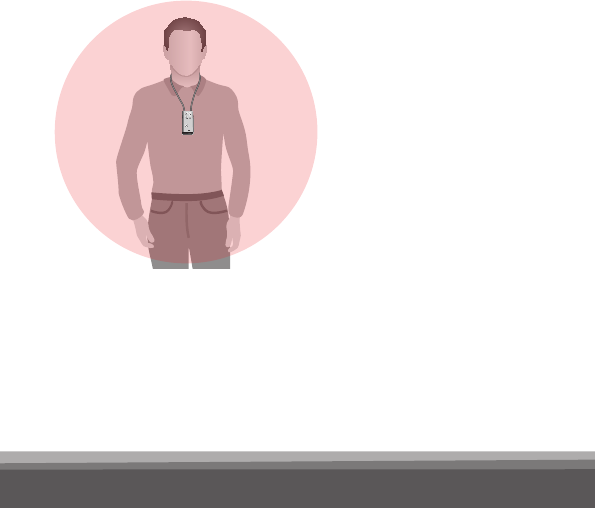
Wearing options
The best results are obtained by using the neck
strap because it has an additional antenna built in
to enhance sound quality.
Hands free
with neck strap
Purpose: mobile
phone, music, PC,
stand-by, remote
control etc.
17
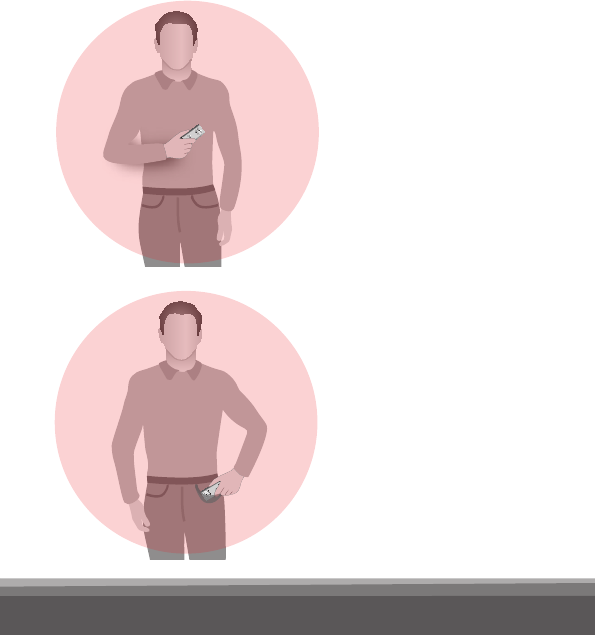
Stand-by is when the SoundGate is not being
actively used. In this situation the unit can be in
your pocket and still allow you to receive phone
calls.
Hand held
Purpose:
mobile phone
In the pocket
Purpose:
remote control
stand-by
18
Important notice
To prevent injury, the neck strap will automatically
break if it gets caught in something. Do not modify
the neck strap in any way, such as tying a knot to
shorten the length. If a neck strap breaks, it cannot
be repaired. Consult your hearing care professional
for a replacement.
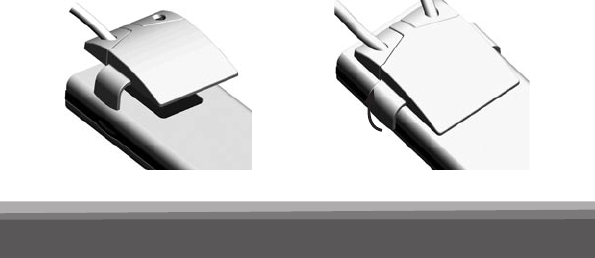
Clip-on holders
The following accessories are included:
· neck strap for wearing the SoundGate hands-free
· pocket clip to attach the SoundGate to a pocket
or belt
Only one of the clips can be attached to the Sound-
Gate at a time. The clips are clicked on by pressing
onto the back of the unit, aligning the two points of
attachment. Use a nger nail to lift off the clip.
19
Microphone
The microphone in the SoundGate is active only
during a phone call. In all other situations the
microphone is turned off.
During phone communication, the SoundGate
microphone must be placed 10 – 30 cm (4–12
inches) from the mouth in order to ensure good
sound quality for the person at the other end
of the line.
Microphone
20
Operating the SoundGate
· The SoundGate can be kept in a pocket when
not in use, still ready to receive a phone call.
· When outdoors, the microphone should be
protected against the wind.
· The microphone is sensitive to mechanical noise
(handling, knocking and scratching). Make sure
that the unit is held still during a phone conver-
sation.
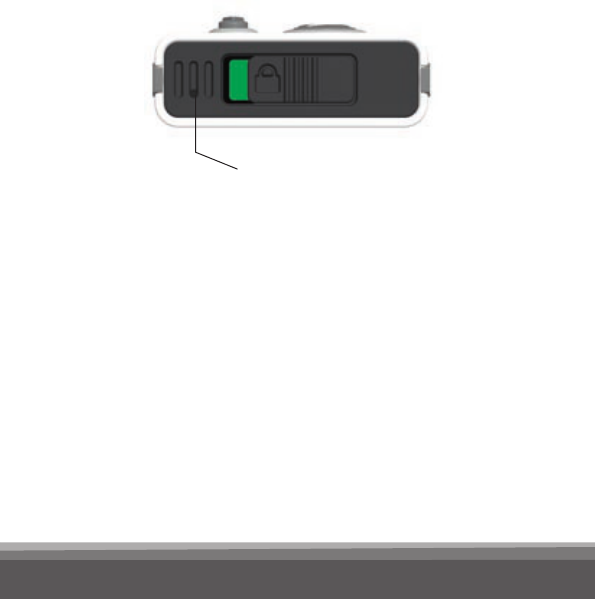
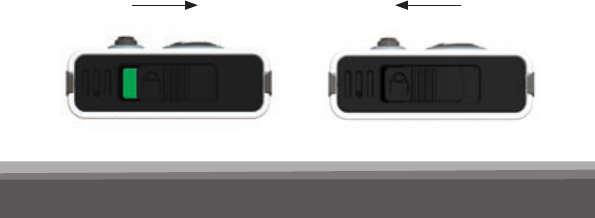
Key lock
To prevent accidental key presses, the SoundGate
can be locked. The key lock is not an ON/OFF
function. The key lock slider is on top of the Sound-
Gate marked with the padlock symbol.
Unlocked Locked

21
The SoundGate can still accept a call from the
mobile phone when the keys are locked. (All keys
will then be active until the call is ended.)
If you try to operate the SoundGate while the keys
are locked, the back light in the buttons will ash
to indicate the locked mode.
Keys functions
Some of the SoundGate keys have multiple
functions depending on the amount of time the
keys is pressed. The duration of keys presses
is dened as:
Key press denitions Duration
Short Less than 1 second
Long Approx. 2 seconds
Very long More than 6 seconds

22
Audio streaming
The SoundGate and a set of hearing instruments
is a secure system. The hearing instrument(s) will
only accept audio streaming from the SoundGate
to which they are linked. Linking has been done by
your hearing care professional. This ensures that
other hearing instruments cannot intercept phone
calls or audio from your SoundGate.
Note: Audio streaming is one-way communication
from the SoundGate to the hearing instruments.
When audio streaming is stopped, the SoundGate
instructs the hearing instruments to release the
controls and resume normal operation.

23
Using SoundGate for audio streaming
SoundGate uses audio streaming to connect your
hearing instruments to a mobile phone or to other
audio sources such as computers and MP3 play-
ers.
Bluetooth®
Bluetooth® is the wireless application that con-
nects external wireless audio sources to the
SoundGate. Bluetooth® is a global standard used
in many electronic devices. To see whether an
electronic device has a built-in Bluetooth® function,
look for the Bluetooth® symbol:
24
Bluetooth® key
The Bluetooth® function must always be turned
ON when you expect to communicate with your
Bluetooth® devices. The Bluetooth® key operates
as follows:
Short
press
(1 sec.)
A short press will prompt
the status of the Blue-
tooth® function. If Blue-
tooth® is ON, the rim light
around the button will
light for a few seconds.
Long
press
(2 sec.)
This switches the Blue-
tooth® function ON/
OFF. Bluetooth® must be
active to connect with
the SoundGate.

25
Pairing to a Bluetooth® device
Before using the SoundGate with a Bluetooth®
mobile phone or other Bluetooth®-enabled audio
source, the SoundGate must be paired to the
device. This means, a secure relationship is estab-
lished between the two units, enabling them to
identify each other and communicate whenever
they are turned on and within range of each other.
You only have to make the pairing once and then
the units will recognize each other. Pairing is done
by putting both units (i.e. the SoundGate and
the device) into pairing mode. Units within range
will automatically search for and nd each other.

26
Prepare
Bluetooth®
device
Refer to the manual of the mobile
phone or audio device and prepare
for Bluetooth® as instructed.
Set
SoundGate
into pairing
mode
SoundGate Bluetooth® function
must be OFF. Press the Bluetooth®
key for 7 seconds until the blue
light ashes rapidly.
Pairing mode is active for 120 sec-
onds. Pairing can be cancelled with
a long press on the Bluetooth® key.
Activate
pairing
on the
Bluetooth®
device
Activate pairing on the device.
The device will search for active
Bluetooth® sources and when it
has found the SoundGate, the
word ”SoundGate” will appear
in the device display.
Pairing steps:

27
Enter
pin code
The SoundGate code is 0000.
Once entered, the device should
be paired to the SoundGate. (The
device may require that you manu-
ally activate the connection by
selecting ”Connect” in the display
menu.)
Stored pairings
The SoundGate may be paired with up to 8 devices
at the same time, however it can only stream one
signal at a time. When the maximum is reached,
the SoundGate will start to overwrite the oldest
pairings.
If you want to clear all stored pairings in the
SoundGate, press and hold the Bluetooth® key
and the Volume up key at the same time for
more than 10 seconds.

28
Connecting to Bluetooth® devices
Whenever the Bluetooth® function in the Sound-
Gate or in the external audio source has been
turned off, the devices must nd and connect to
each other again when turned on.
Reconnection tip
Normally, two paired Bluetooth® devices will nd
each other when turned on. If the devices do
not connect automatically, they must be connected
manually. Always turn on your mobile phone
before turning on the Bluetooth® function in the
SoundGate. To reconnect push the Bluetooth®
key twice.
Refer to the manual of the mobile phone or audio
source for detailed instruction on how the device
connects and how connecting can be manually
operated.
Out of range handling of Bluetooth®
If the SoundGate is brought out of the Bluetooth®
range of the mobile phone, the connection will
be momentarily lost. Normally, the devices will
re-connect when they are inside the Bluetooth®
range again. The SoundGate indicates a lost
Bluetooth® connection by a short ash of the

29
blue rimmed light every 4 seconds. If the Blue-
tooth® connection is lost during a phone call, the
phone will hang up or transfer the call from the
SoundGate to the mobile phone. If the Bluetooth®
connection to an audio/music player is lost while
streaming, the audio streaming will stop and must
be started again when the devices are inside their
Bluetooth® range again.
30
How to use with a mobile phone
Your hearing instruments and the SoundGate work
together similar to a wireless Bluetooth® headset.
If you have two hearing instruments you will hear
phone conversations in both ears. In noisy environ-
ments it may be necessary to position the Sound-
Gate closer to your mouth.
Answer
incoming
phone calls
Bluetooth® function must be
active. When your mobile phone
rings, the phone key will blink
green. You will also hear a ringing
tone in your instruments. Press
the phone key on the SoundGate
to answer the call. The phone
key now lights steady green.
When
talking
Talk into the microphone of the
SoundGate (optimal distance is
30 cm/12 inches).
31
Hanging up
the phone
When you wish to end the call,
press the phone key. The
green light turns off.
Make a call Use your mobile phone to make
the call as you normally would.
When the call goes through, talk
into the SoundGate microphone –
do not press the phone key.
To reduce
background
sounds
Turn the hearing instrument
microphones OFF by pressing
the music/audio key for 2 seconds.
Mobile phone issues
After successful pairing, a symbol should appear in
the mobile phone display, indicating that a headset
is now connected to the phone and that the phone
can only be used via the SoundGate and hearing
instruments.

32
Different phones have different behavior when
used with SoundGate. If a problem occurs in the
connection between your mobile phone and the
SoundGate, you should consult your mobile phone
manual for detailed trouble shooting.
Mobile phone sounds
Some mobile phones will try to send their ringing
tones, key-press beeps, keyboard locked beep,
etc. to any connected headset over the Bluetooth®
connection. In mobile phone manuals, this is
normally called In-band ringing.
If the mobile phone is congured to stream key-
board beeps over the Bluetooth® connection, the
mobile phone will, when operated, interrupt any
ongoing audio streaming and will force the hearing
instruments to switch programs.
It is strongly recommended to disable the
key-press beeps on your mobile phone.

33
How to listen to music/audio
The SoundGate provides a link between
your hearing instruments and many
different audio sources and allows you
to use your hearing instruments as
wireless headphones.
There are two ways to connect an audio source
through the SoundGate:
· by wired input to the micro jack
· by a wireless Bluetooth® connection
Before streaming audio, you must place the
SoundGate inside the wireless range. It is
recommended to use the neck strap. Audio
streaming can be activated independent of
which program you have selected in your
hearing instruments.
34
Connecting to wired audio input
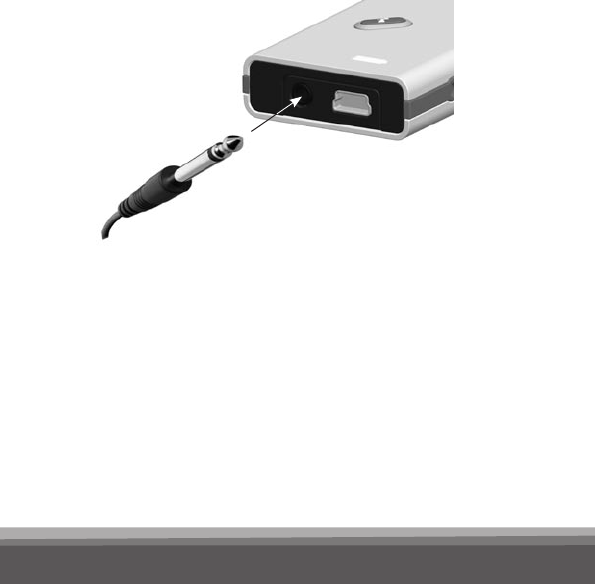
Use the audio cable and connect the larger plug
end to the audio source you want to listen to and
the smaller plug end to the SoundGate micro jack
as shown.
Linking to a Bluetooth® audio source
The Bluetooth® function between the SoundGate
and the audio source must be paired so the
two devices can connect and work together.
Please follow the pairing instructions on page 25.

35
To listen to a Bluetooth® audio source
· First turn on the Bluetooth® function of the
SoundGate
· Then turn on the Bluetooth®-enabled audio source
· The SoundGate and audio source must be inside
their Bluetooth® range
· Press the music/audio key to start streaming
If more than one Bluetooth® audio source is
present e.g. two Bluetooth® stereo devices, the
SoundGate will connect to only one of them.
One Bluetooth® device must be turned off or
moved out of range from the SoundGate before
the second device is turned on or moved inside
the range.
36
Listening
to music or
audio
Press the music/audio key.
The orange ring around the key
lights up and the music or audio
starts.
An incoming phone call will play
the ringing tone along with the
audio. A short press on the phone
key will accept the phone call and
override the audio streaming.
Stop the
music/
audio
Press the music/audio key.
The orange ring around the key
turns off.
Music/audio key
The table shows how to use the SoundGate
for all types of audio streaming.
37
Turn
hearing
instrument
micro-
phones
ON/OFF
Press the music/audio key for
2 seconds.
When the hearing instrument
microphones are ON, both the
streamed audio and the environ-
mental sounds can be heard.
Adjust
volume
Use the key volume up/down.
Press up or down until the
volume in the hearing instruments
is comfortable.

38
Resetting the SoundGate
If the SoundGate halts in a non-functional mode,
it can be reset. To reset the SoundGate, press
the phone key for 10 seconds. All rim lights
will ash shortly to indicate that a reset has been
made. Note that all pairings to external Bluetooth®
devices stored in the SoundGate will still remain!
39
Use as a remote control
The SoundGate can be used as a remote control
with the hearing instruments, operating the volume
up and down and switching backwards and for-
wards in the program cycle.
Adjust A short press adjusts the volume
level up or down in the hearing
instruments. If you have 2 hearing
instruments, volume is adjusted
in both at the same time.
Change
program
Press and hold up or down for
2 seconds to go forwards or
backwards in the program cycle.
Note: This is only possible if
the hearing instruments are
congured for multiple programs.
During audio streaming, it is
not possible to shift to another
program.
40
Light Action When? Why?
Phone Blinking GREEN
Steady GREEN
No light
Phone ringing
Active phone call
No active calls
SoundGate paired and connected to mobile phone
Audio Constant
ORANGE light
No light
Slow ash
ORANGE light
(fade) until audio
is re-activated
Streaming is on
Streaming is off
Streaming is pending
Connection is established – the Bluetooth®
or wired connection is present
Audio connected from wired music player
Blue-
tooth®
Slow pulsing BLUE
light (every 4th
second)
Fast BLUE
blinking light
No light
Bluetooth® is turned on
Pairing
Bluetooth® is turned off
Pairing is activated
Visual indicators
The following table is a quick summary of the light
indicators on the SoundGate.
41
Light Action When? Why?
Phone Blinking GREEN
Steady GREEN
No light
Phone ringing
Active phone call
No active calls
SoundGate paired and connected to mobile phone
Audio Constant
ORANGE light
No light
Slow ash
ORANGE light
(fade) until audio
is re-activated
Streaming is on
Streaming is off
Streaming is pending
Connection is established – the Bluetooth®
or wired connection is present
Audio connected from wired music player
Blue-
tooth®
Slow pulsing BLUE
light (every 4th
second)
Fast BLUE
blinking light
No light
Bluetooth® is turned on
Pairing
Bluetooth® is turned off
Pairing is activated
42
Light Action When? Why?
Blue-
tooth®
Short ashing
BLUE light
(every 4th second)
Bluetooth® is out
of range
Connection has been established to Bluetooth®
device
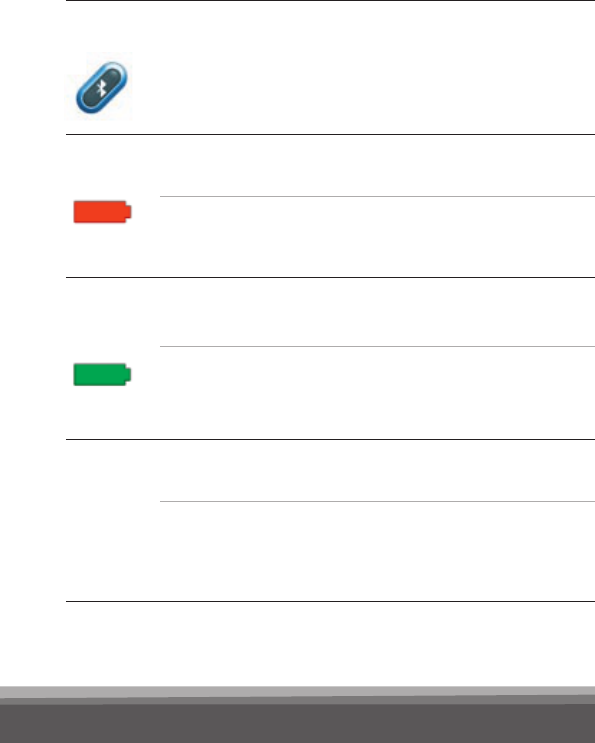
Battery
low
Constant RED
Light
Blinking RED
light
Battery low
Battery very low
~ 20 minutes left
~ 5 minutes left
Battery
char-
ging
Blinking GREEN
Light
Constant GREEN
light
Battery charging
Battery fully
charged
USB cable connected to the charging unit
and to the SoundGate
Back-
light
Constant light for
10 seconds
5 short blinks in
one second
A key pressed
A key pressed
Key lock OFF
Key lock ON

43
Light Action When? Why?
Blue-
tooth®
Short ashing
BLUE light
(every 4th second)
Bluetooth® is out
of range
Connection has been established to Bluetooth®
device
Battery
low
Constant RED
Light
Blinking RED
light
Battery low
Battery very low
~ 20 minutes left
~ 5 minutes left
Battery
char-
ging
Blinking GREEN
Light
Constant GREEN
light
Battery charging
Battery fully
charged
USB cable connected to the charging unit
and to the SoundGate
Back-
light
Constant light for
10 seconds
5 short blinks in
one second
A key pressed
A key pressed
Key lock OFF
Key lock ON

44
Maintenance
The SoundGate requires a minimum amount of
maintenance. It should be regularly wiped with a
dry or slightly damp cloth.
The microphone opening and the connectors for
audio input and charging must be kept free of dirt
or debris. The dedicated cleaning brush for your
hearing instruments can be used to clean these
areas.
The SoundGate and the neck strap must never be
washed or immersed into water or other liquids.
Make sure not to drop the SoundGate, especially
onto hard surfaces.
The SoundGate is sealed and cannot be opened. If
problems occur which cannot be solved by follow-
ing the guidelines in the trouble shooting section,
you should consult your hearing care professional.
Avoid heat, humidity and chemicals.

45
Your SoundGate must never be exposed to ex-
treme heat e.g. left inside a parked car in the sun.
Avoid exposing the SoundGate to moisture e.g.
steam baths, showers or heavy rain. Do not dry
the SoundGate in microwave or any other ovens.
Do not use cleaning chemicals or alcohol on the
SoundGate.

46
Pairing Problem Solution
My SoundGate
will not enter Blue-
tooth® pairing
mode
SoundGate’s key lock is activated
SoundGate is out of power
Bluetooth® was on when you tried
to put your SoundGate in pairing
mode
Deactivate the key lock located on top of the
SoundGate. When the slider reveals a GREEN
label, the keys can be operated.
Recharge the battery
Bluetooth® must be OFF to enter pairing mode.
If the Bluetooth® light fades in and out, it is ON
and you will need to turn it OFF by pressing
the Bluetooth® key for about 2 seconds. Now
repeat the pairing process.
My phone is not
nding the Sound-
Gate
SoundGate is outside the range
of your phone
SoundGate is already connected
to other Bluetooth® devices that
are active and within its range
Move the two devices closer together and
reattempt pairing
Make sure that all other nearby Bluetooth®
devices that have previously been paired to
the SoundGate are turned OFF before you
repeat the pairing process
Troubleshooting

47
Pairing Problem Solution
My SoundGate
will not enter Blue-
tooth® pairing
mode
SoundGate’s key lock is activated
SoundGate is out of power
Bluetooth® was on when you tried
to put your SoundGate in pairing
mode
Deactivate the key lock located on top of the
SoundGate. When the slider reveals a GREEN
label, the keys can be operated.
Recharge the battery
Bluetooth® must be OFF to enter pairing mode.
If the Bluetooth® light fades in and out, it is ON
and you will need to turn it OFF by pressing
the Bluetooth® key for about 2 seconds. Now
repeat the pairing process.
My phone is not
nding the Sound-
Gate
SoundGate is outside the range
of your phone
SoundGate is already connected
to other Bluetooth® devices that
are active and within its range
Move the two devices closer together and
reattempt pairing
Make sure that all other nearby Bluetooth®
devices that have previously been paired to
the SoundGate are turned OFF before you
repeat the pairing process

48
Pairing Problem Solution
Pairing was
unsuccessful
SoundGate is not in pairing mode
when your phone is trying to pair
with it
Wrong passcode was entered
Bluetooth® must be OFF for the SoundGate to
enter pairing mode. Ensure that Bluetooth® is
OFF and repeat the pairing process. Note: The
SoundGate’s pairing mode is active for 120
seconds. If the pairing is not completed within
this time, repeat the pairing process again.
Repeat the pairing process and ensure that you
enter the passcode: 0000 (four zeroes) into your
phone

49
Pairing Problem Solution
Pairing was
unsuccessful
SoundGate is not in pairing mode
when your phone is trying to pair
with it
Wrong passcode was entered
Bluetooth® must be OFF for the SoundGate to
enter pairing mode. Ensure that Bluetooth® is
OFF and repeat the pairing process. Note: The
SoundGate’s pairing mode is active for 120
seconds. If the pairing is not completed within
this time, repeat the pairing process again.
Repeat the pairing process and ensure that you
enter the passcode: 0000 (four zeroes) into your
phone

50
Phone Problem Solution
The phone key
does not blink
when the phone is
ringing and there is
no ringing indica-
tion in the hearing
instruments
Bluetooth® is off in the phone
and/or in the SoundGate
Phone and SoundGate are
disconnected from each other
The SoundGate is not paired
to the mobile phone
Ensure Bluetooth® is ON in the phone –
please refer to your phone’s user guide
Ensure Bluetooth® is ON in the SoundGate.
If the Bluetooth® does not fade in and out,
it is OFF. Press the Bluetooth® key for
2 to 3 seconds to turn Bluetooth® ON.
Reconnection can be accomplished in three ways:
1) Turn SoundGate´s Bluetooth® OFF, then ON.
2) Turn off your phone or SoundGate’s Bluetooth®.
Reconnection is now accomplished by turning
on rst your phone and then your SoundGate’s
Bluetooth®
3) From the phone’s Bluetooth® menu select
the SoundGate as the “active device”.
Follow the pairing process described on page 25

51
Phone Problem Solution
The phone key
does not blink
when the phone is
ringing and there is
no ringing indica-
tion in the hearing
instruments
Bluetooth® is off in the phone
and/or in the SoundGate
Phone and SoundGate are
disconnected from each other
The SoundGate is not paired
to the mobile phone
Ensure Bluetooth® is ON in the phone –
please refer to your phone’s user guide
Ensure Bluetooth® is ON in the SoundGate.
If the Bluetooth® does not fade in and out,
it is OFF. Press the Bluetooth® key for
2 to 3 seconds to turn Bluetooth® ON.
Reconnection can be accomplished in three ways:
1) Turn SoundGate´s Bluetooth® OFF, then ON.
2) Turn off your phone or SoundGate’s Bluetooth®.
Reconnection is now accomplished by turning
on rst your phone and then your SoundGate’s
Bluetooth®
3) From the phone’s Bluetooth® menu select
the SoundGate as the “active device”.
Follow the pairing process described on page 25

52
Phone Problem Solution
The phone key
does not blink
when the phone is
ringing and there
is no ringing indica-
tion in the hearing
instruments (conti-
nued)
SoundGate is out of power
The Bluetooth® connection
between the SoundGate
and your phone is unsteady
Recharge the battery
Bernafon cannot guarantee compatibility with
every Bluetooth® product on the market. If both
products are Bluetooth® certied, the likelihood
that they will communicate is high
but some incompatibilities may still exist.
The phone key is
blinking when the
phone is ringing
but I hear no ring
indication in the
hearing instruments
SoundGate is out of range Make sure that the SoundGate is kept within
50 cm (20 inches) of the hearing instruments.
For optimum performance use the neck strap.
The audio in
the hearing
instruments
drops out
SoundGate is out of Bluetooth®
range
SoundGate is out of range
Make sure that the SoundGate is kept within
10 m (30 feet) of the phone. This range is reduced
signicantly indoors with lots of obstacles (walls,
furniture) and it is also phone dependent.
Wear the SoundGate with the neck strap to
prevent drop outs

53
Phone Problem Solution
The phone key
does not blink
when the phone is
ringing and there
is no ringing indica-
tion in the hearing
instruments (conti-
nued)
SoundGate is out of power
The Bluetooth® connection
between the SoundGate
and your phone is unsteady
Recharge the battery
Bernafon cannot guarantee compatibility with
every Bluetooth® product on the market. If both
products are Bluetooth® certied, the likelihood
that they will communicate is high
but some incompatibilities may still exist.
The phone key is
blinking when the
phone is ringing
but I hear no ring
indication in the
hearing instruments
SoundGate is out of range Make sure that the SoundGate is kept within
50 cm (20 inches) of the hearing instruments.
For optimum performance use the neck strap.
The audio in
the hearing
instruments
drops out
SoundGate is out of Bluetooth®
range
SoundGate is out of range
Make sure that the SoundGate is kept within
10 m (30 feet) of the phone. This range is reduced
signicantly indoors with lots of obstacles (walls,
furniture) and it is also phone dependent.
Wear the SoundGate with the neck strap to
prevent drop outs

54
Phone Problem Solution
The other party has
difculties hearing
me on the phone
SoundGate’s microphone
does not pick up your voice
clearly
Talk straight into the microphone. Be careful not
to let the SoundGate rub against clothes or other
material during calls.
I have difculties
hearing the other
party on the phone
in noisy environ-
ments
Environmental sounds disturb
speech understanding
Turn the hearing instrument microphones off
by pressing the audio key for 2 to 3 seconds.
Be careful not to turn off the hearing instru-
ments’ microphones in trafc!
The phone call does
not go through
when the phone
key is pressed
You may be pressing the
phone key too long
when you are answering
a call. The call will be
rejected.
To accept a call make a short
press (less than 1 second)
I hear multiple
beeps in my
hearing instru-
ments while
operating my
phone
The key sound feature
may be on in your phone
Deactivate the key sounds on your phone

55
Phone Problem Solution
The other party has
difculties hearing
me on the phone
SoundGate’s microphone
does not pick up your voice
clearly
Talk straight into the microphone. Be careful not
to let the SoundGate rub against clothes or other
material during calls.
I have difculties
hearing the other
party on the phone
in noisy environ-
ments
Environmental sounds disturb
speech understanding
Turn the hearing instrument microphones off
by pressing the audio key for 2 to 3 seconds.
Be careful not to turn off the hearing instru-
ments’ microphones in trafc!
The phone call does
not go through
when the phone
key is pressed
You may be pressing the
phone key too long
when you are answering
a call. The call will be
rejected.
To accept a call make a short
press (less than 1 second)
I hear multiple
beeps in my
hearing instru-
ments while
operating my
phone
The key sound feature
may be on in your phone
Deactivate the key sounds on your phone

56
Wired audio Problem Solution
No audio in
the hearing
instruments
Audio source needs to be
turned ON
Turn hearing instrument microphones off by
pressing the audio key for 2 to 3 seconds.
Be careful not to turn off the hearing instru-
ments’ microphones in trafc!
Volume is too low/
high
Volume needs to be
adjusted on the audio
source
Adjust volume on the audio source to a level
that suits you when using the SoundGate

57
Wired audio Problem Solution
No audio in
the hearing
instruments
Audio source needs to be
turned ON
Turn hearing instrument microphones off by
pressing the audio key for 2 to 3 seconds.
Be careful not to turn off the hearing instru-
ments’ microphones in trafc!
Volume is too low/
high
Volume needs to be
adjusted on the audio
source
Adjust volume on the audio source to a level
that suits you when using the SoundGate

58
Charging Problem Solution
SoundGate does
not work even
while charging
The battery of SoundGate
is drained completely
The SoundGate needs to charge for at least
20 minutes before it can operate. For optimal
battery life avoid draining the battery completely
Volume Problem Solution
When I press
a key on the
SoundGate,
nothing happens
Keyboard is locked to prevent
accidental button activation
Deactivate the key lock located on top of the
SoundGate. When the key lock slider reveals
a GREEN label, the keys can be operated.
When I turn the
microphones
off, the volume
changes
The volume changes
to the default level
This is by design

59
Charging Problem Solution
SoundGate does
not work even
while charging
The battery of SoundGate
is drained completely
The SoundGate needs to charge for at least
20 minutes before it can operate. For optimal
battery life avoid draining the battery completely
Volume Problem Solution
When I press
a key on the
SoundGate,
nothing happens
Keyboard is locked to prevent
accidental button activation
Deactivate the key lock located on top of the
SoundGate. When the key lock slider reveals
a GREEN label, the keys can be operated.
When I turn the
microphones
off, the volume
changes
The volume changes
to the default level
This is by design

60
International warranty
The Bernafon SoundGate has a limited warranty,
covering defects in materials and workmanship,
for a period of 12 months from the date of delivery.
This warranty covers the SoundGate itself, but
not accessories such as charger units, cables, etc.
This warranty becomes invalid if a defect is a result
of misuse or maltreatment.
This warranty is void if non-authorized personnel
have repaired the SoundGate. Please review the
warranty card with your hearing care professional
and make sure that your warranty card is
completed.

61
Warnings and safety guidelines
· SoundGate is not a toy and should be kept away
from infants and small children.
· SoundGate should not be used in an aircraft
unless specically permitted by the ight
personnel.
· SoundGate should not be operated in explosive
environments such as mines.
· For safety reasons the neck strap should never
be tied together or used for children weighing
less than 11 kg/24 lbs.
· Interference can also be caused by power lines
disturbances, airport metal detectors, electromag-
netic elds from medical devices, radio signals
and electrostatic discharges.
· Although unlikely, the digital inductive signals
tranmitted by the SoundGate could potentially
interfere with medical devices such as pace-
makers. As a precaution, we advise pacemaker
recipients not to carry and use the SoundGate
in a breast pocket or around the neck. In this
case we recommend its use as remote control
operated from a trouser pocket or purse.

62
· The safety of using SoundGate with auxiliary
input cable is determined by the external signal
source. Connect only to mains-operated equip-
ment in compliance with IEC-60065, IEC-60601
or equivalent safety standards.
· The safety of recharging batteries with the USB
connector is determined by the external equip-
ment which should be UL approved or comply
with equivalent safety requirements.
· Never expose SoundGate to excessive heat in
ovens, microwaves, or by burning since it may
explode and cause serious injury.
· Stop using “SoundGate” if you find it disruptive
or distracting while operating any type of vehicle
or performing any other activity that requires
your full attention.
.

63
In addition to the Bluetooth® transmitter, the
SoundGate contains a radio transmitter using short
range magnetic induction technology working at
3.84 MHz. The magnetic eld strength of the trans-
mitter is < -15 dBμA/m @ 10m.
The emission power from the SoundGate is below
international emission limits for Human Exposure.
For comparison, the radiation of the SoundGate
is less than unintended electromagnetic radiation
from hair dryers, electric shavers etc. The Sound-
Gate complies with international standards con-
cerning electromagnetic compatibility.
64
Bernafon AG
VE 505
Statement of compliance:
This device complies with part 15 of the FCC Rules
and RSS-210 of Industry Canada. Operation is sub-
ject to the following two conditions:
1. This device may not cause harmful interference,
and
2. This device must accept any interference
received, including interference that may cause
undesired operation.
This Class B digital apparatus complies with
Canadian ICES-003.
Note:
This equipment has been tested and found to
comply with the limits for a Class B digital device,
pursuant to part 15 of the FCC Rules. These limits
FCC ID U6XSGATE1
IC: 7031A-SGATE1
Information to the user regarding
the radio communication part of the
device

65
are designed to provide reasonable protection
against harmful interference in a residential instal-
lation. This equipment generates, uses and can
radiate radio frequency energy and, if not installed
and used in accordance with the instructions, may
cause harmful interference to radio communica-
tions. However, there is no guarantee that interfer-
ence will not occur in a particular installation. If
this equipment does cause harmful interference to
radio or television reception, which can be deter-
mined by turning the equipment off and on, the
user is encouraged to try to correct the interfer-
ence by one or more of the following measures:
· Reorient or relocate the receiving antenna.
· Increase the separation between the equipment
and receiver.
· Connect the equipment into an outlet on a
circuit different from that to which the receiver
is connected.
· Consult the dealer or an experience radio/TV
technician for help.
Caution:
Changes or modications not expressly approved
by Bernafon AG could void the user’s authority to
operate the equipment.

66
Declaration of conformity
This Class I medical device is in conformance with
the essential requirements of the Directive 93/42/
EEC of the Council of the European Communities
concerning medical devices, MDD. The radio com-
munication part of the device complies with the
essential requirements of the Directive 1999/5/EC
of the European Parliament on radio equipment and
telecommunications terminal equipment, R&TTE.
It operates as an inductive application in a harmo-
nized frequency band according to the Com-
mission Decision 2008/432/EC and may be used
in all member states of the EU and EFTA. This
is certied by applying the following marking:
67
Prevention of waste electrical
and electronic equipment (WEEE)
This device contains electronic components. There-
fore the Directive 2002/96/EC of the European
Parliament on waste electrical and electronic equip-
ment applies. The device was put on the market
after the directive came into force. This is indicated
by applying the following marking:

68
Notes

69
Notes

70
Notes

Manufacturer:
Bernafon AG
Morgenstrasse 131
3018 Bern
Switzerland
Phone +41 31 998 15 15
Fax +41 31 998 15 90
www.bernafon.com
Bernafon Australia Pty. Ltd.
12/97 Castlemaine Street
Milton QLD 4064
Australia
Freecall 1800 809 111
Phone +61 7 3250 0300
Fax +61 7 3250 0372
www.bernafon.com.au
Bernafon, LLC
200 Cottontail Lane, Bldg. B
Somerset, NJ 08873
USA
Phone +1 888-941-4203
Fax +1 732-560-4877
www.bernafon-us.com
Bernafon Canada Ltd.
500 Trillium Drive Unit 15
Kitchener, Ontario N2R 1A7
Canada
Toll free 1 800 265 8250
Phone +1 519 748 6669
Fax +1 519 748 9158
www.bernafon.ca
Bernafon UK
Cadzow Industrial Estate
Low Waters Road
Hamilton
ML3 7QE Scotland
Phone +44 1698 285 968
Fax +44 1698 421 456
www.bernafon.co.uk
Bernafon New Zealand Ltd.
Level 1, Building F
27-29 William Pickering Drive
Albany, Auckland 0632
New Zealand
Free Call 0800 442 257
Phone +64 9 920 42 40
Fax +64 9 920 42 43
www.bernafon.co.nz
www.hear-it.org
For more information about
hearing and hearing loss
01.09/BAG/956-78-710-00/subject to change