Binsfeld Engineering TX10K TorqueTrak 10K-S Torque Telemetry System User Manual

Binsfeld Engineering Inc TorqueTrak 10K-S Torque Telemetry System Users Manual

Users Manual

     TorqueTrak 10K-S Torque Telemetry System  User’s Guide                           86950091
- 1 -   Table of Contents  System Overview  3 System Components  4 Features and Controls  5 RX10K Receiver  5 Figure 1: Front view of the RX10K  5 Figure 2: Rear panel of the RX10K (beta units)  6 TX10K-S Transmitter  11 Figure 3: TX10K-S Transmitter  11 RM10K Remote Control  13 Figure 4: RM10K Remote Control  13 Operating Procedure  17 Field Testing  17 Figure 5: Typical installation on shaft  Error! Bookmark not defined. Bench Testing  19 Calibration 21 Warranty and Service Information  22 Appendix A: ToqueTrak 10K-S Specifications  23 Appendix B: Calibration Calculations  28 B1: Torque on Round Shafts  29 B2: Axial Strain on Round Shafts  32 B3: Single Grid (1/4 Bridge)  35 Appendix C: Error Codes and Troubleshooting  38 Appendix D: Strain Gage Application  39
- 2 -  FCC Rules Part 15: Computing Devices  This equipment has been tested and found to comply with the limits for a Class B digital device, pursuant to part 15 of the FCC Rules.  The user is cautioned that changes and modifications made to the equipment without the express approval of the manufacturer could void the user’s authority to operate this equipment.  Operation is subject to the following two conditions: (1) this device may not cause interference, and (2) this device must accept any interference that may cause undesired operation of the device.        Product Safety  The user assumes all risk and liability for the installation and operation of this equipment.  Each application presents its own hazards.  Typically, certain system components are strapped to a rotating shaft.  If sufficient care is not taken to properly secure these components or accessories connected to them, they can be flung from the shaft, causing damage to the components or to property or persons in the vicinity.
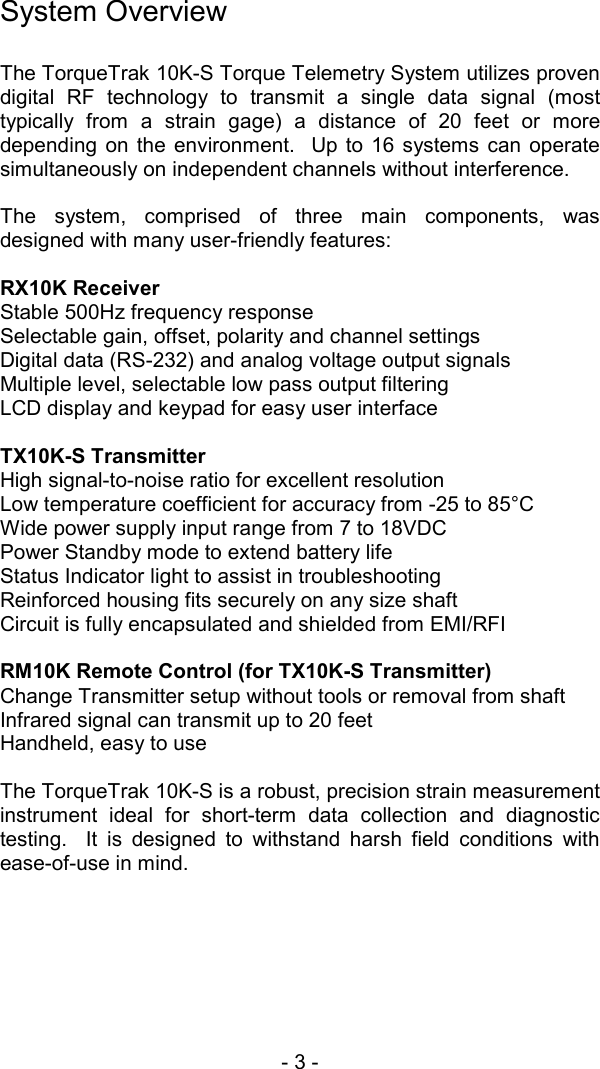
- 3 -   System Overview  The TorqueTrak 10K-S Torque Telemetry System utilizes proven digital RF technology to transmit a single data signal (most typically from a strain gage) a distance of 20 feet or more depending on the environment.  Up to 16 systems can operate simultaneously on independent channels without interference.  The system, comprised of three main components, was designed with many user-friendly features:  RX10K Receiver Stable 500Hz frequency response Selectable gain, offset, polarity and channel settings Digital data (RS-232) and analog voltage output signals Multiple level, selectable low pass output filtering LCD display and keypad for easy user interface   TX10K-S Transmitter High signal-to-noise ratio for excellent resolution Low temperature coefficient for accuracy from -25 to 85°C Wide power supply input range from 7 to 18VDC Power Standby mode to extend battery life Status Indicator light to assist in troubleshooting Reinforced housing fits securely on any size shaft Circuit is fully encapsulated and shielded from EMI/RFI   RM10K Remote Control (for TX10K-S Transmitter) Change Transmitter setup without tools or removal from shaft Infrared signal can transmit up to 20 feet Handheld, easy to use   The TorqueTrak 10K-S is a robust, precision strain measurement instrument ideal for short-term data collection and diagnostic testing.  It is designed to withstand harsh field conditions with ease-of-use in mind.
- 4 -  System Components  A standard TorqueTrak 10K-S Torque Telemetry System includes the following items:  TX10K-S Transmitter Transmitter Antenna RX10K Receiver Receiver Antenna Element Receiver Antenna Magnetic Base with 25ft Cable DB9, M-F, RS-232, shielded, 5ft Cable 110VAC-12VDC or 220VAC-12VDC Wall Plug Transformer RM10K Remote Control BH10K-9V Battery Holder BH10K-9V Cover Screws with vibration-resistant coating (2) BS900 Bridge Simulator  9V Lithium Batteries (2) 9V Battery Connector 5ft 2-Conductor Power Cable 10ft 4-Conductor Ribbon Cable Butyl Rubber Sheet 1 Roll of 1” Strapping Tape Screwdriver 3/32” Hex Wrench TT10K-S User’s Guide TT10K Equipment Case
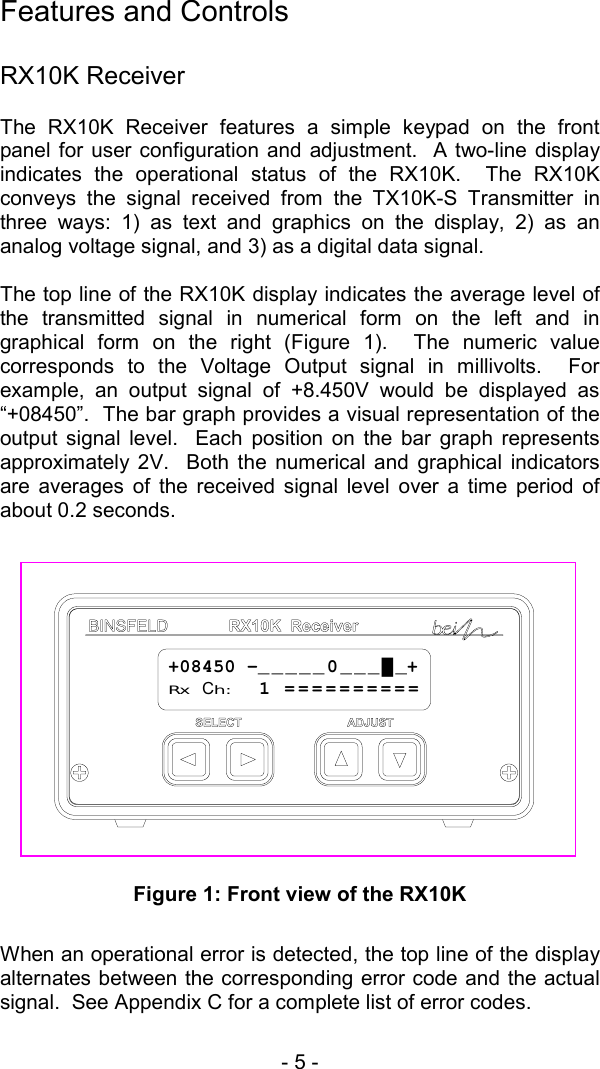
- 5 -   Features and Controls  RX10K Receiver The RX10K Receiver features a simple keypad on the front panel for user configuration and adjustment.  A two-line display indicates the operational status of the RX10K.  The RX10K conveys the signal received from the TX10K-S Transmitter in three ways: 1) as text and graphics on the display, 2) as an analog voltage signal, and 3) as a digital data signal.    The top line of the RX10K display indicates the average level of the transmitted signal in numerical form on the left and in graphical form on the right (Figure 1).  The numeric value corresponds to the Voltage Output signal in millivolts.  For example, an output signal of +8.450V would be displayed as “+08450”.  The bar graph provides a visual representation of the output signal level.  Each position on the bar graph represents approximately 2V.  Both the numerical and graphical indicators are averages of the received signal level over a time period of about 0.2 seconds.    Figure 1: Front view of the RX10K  When an operational error is detected, the top line of the display alternates between the corresponding error code and the actual signal.  See Appendix C for a complete list of error codes. +08450 -_____0___█_+Rx Ch:  1 ==========
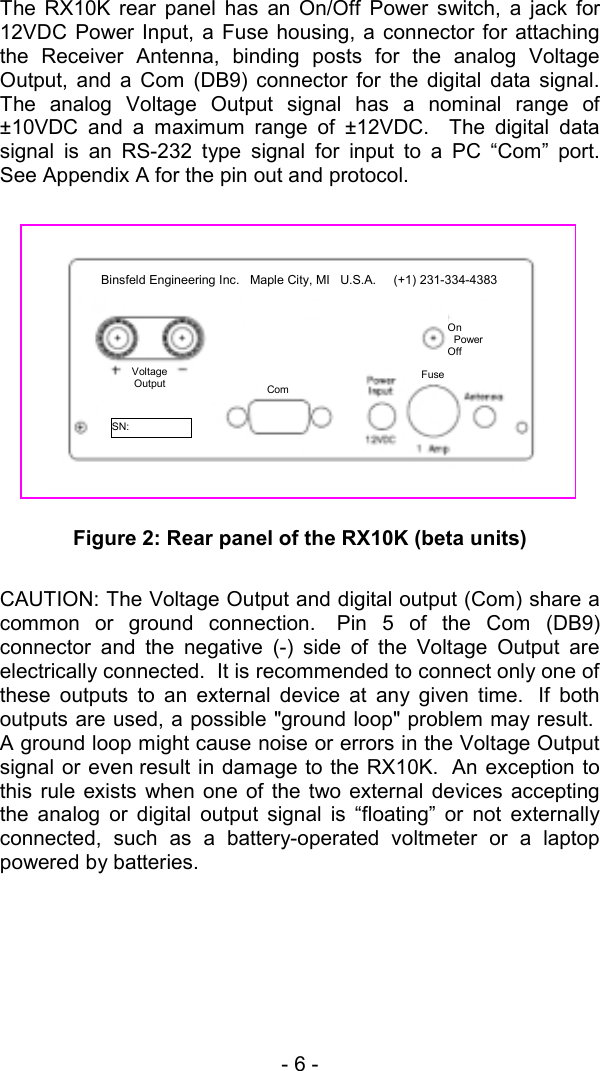
- 6 -  The RX10K rear panel has an On/Off Power switch, a jack for 12VDC Power Input, a Fuse housing, a connector for attaching the Receiver Antenna, binding posts for the analog Voltage Output, and a Com (DB9) connector for the digital data signal.  The analog Voltage Output signal has a nominal range of ±10VDC and a maximum range of ±12VDC.  The digital data signal is an RS-232 type signal for input to a PC “Com” port.  See Appendix A for the pin out and protocol.      Figure 2: Rear panel of the RX10K (beta units)  CAUTION: The Voltage Output and digital output (Com) share a common or ground connection.  Pin 5 of the Com (DB9) connector and the negative (-) side of the Voltage Output are electrically connected.  It is recommended to connect only one of these outputs to an external device at any given time.  If both outputs are used, a possible "ground loop" problem may result.  A ground loop might cause noise or errors in the Voltage Output signal or even result in damage to the RX10K.  An exception to this rule exists when one of the two external devices accepting the analog or digital output signal is “floating” or not externally connected, such as a battery-operated voltmeter or a laptop powered by batteries.  Com Fuse On   Power Off     SN:  VoltageOutput  Binsfeld Engineering Inc.   Maple City, MI   U.S.A.     (+1) 231-334-4383
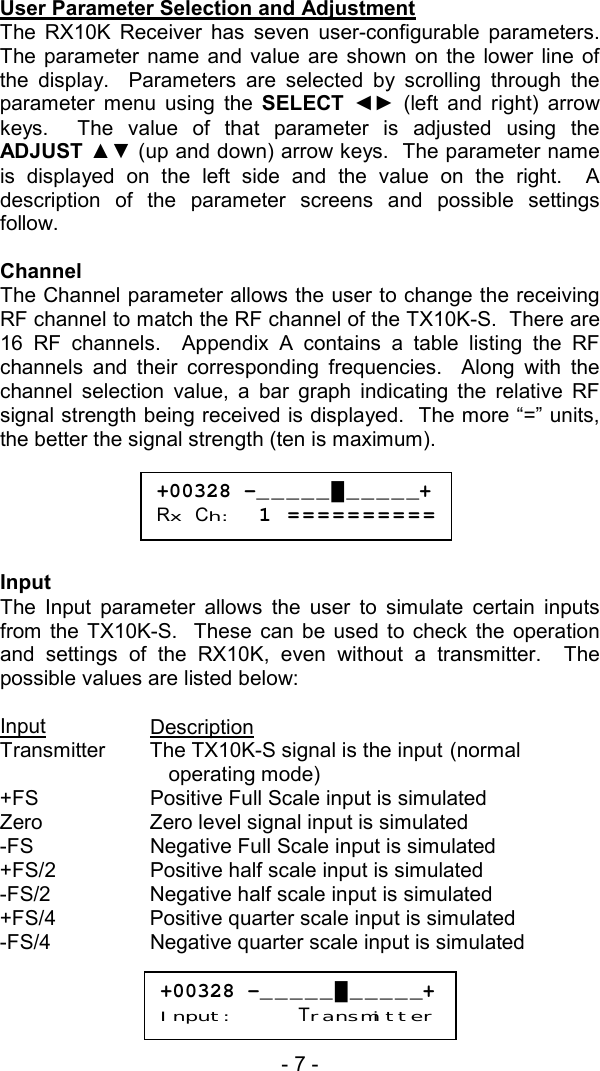
- 7 -   User Parameter Selection and Adjustment The RX10K Receiver has seven user-configurable parameters.  The parameter name and value are shown on the lower line of the display.  Parameters are selected by scrolling through the parameter menu using the SELECT  ◄► (left and right) arrow keys.  The value of that parameter is adjusted using the ADJUST ▲▼ (up and down) arrow keys.  The parameter name is displayed on the left side and the value on the right.  A description of the parameter screens and possible settings follow.  Channel The Channel parameter allows the user to change the receiving RF channel to match the RF channel of the TX10K-S.  There are 16 RF channels.  Appendix A contains a table listing the RF channels and their corresponding frequencies.  Along with the channel selection value, a bar graph indicating the relative RF signal strength being received is displayed.  The more “=” units, the better the signal strength (ten is maximum).      Input The Input parameter allows the user to simulate certain inputs from the TX10K-S.  These can be used to check the operation and settings of the RX10K, even without a transmitter.  The possible values are listed below:  Input Description Transmitter  The TX10K-S signal is the input (normal operating mode) +FS  Positive Full Scale input is simulated Zero  Zero level signal input is simulated -FS  Negative Full Scale input is simulated +FS/2  Positive half scale input is simulated -FS/2  Negative half scale input is simulated +FS/4  Positive quarter scale input is simulated -FS/4  Negative quarter scale input is simulated     +00328 -_____█_____+Rx Ch:  1 ==========+00328 -_____█_____+Input:     Transmitter
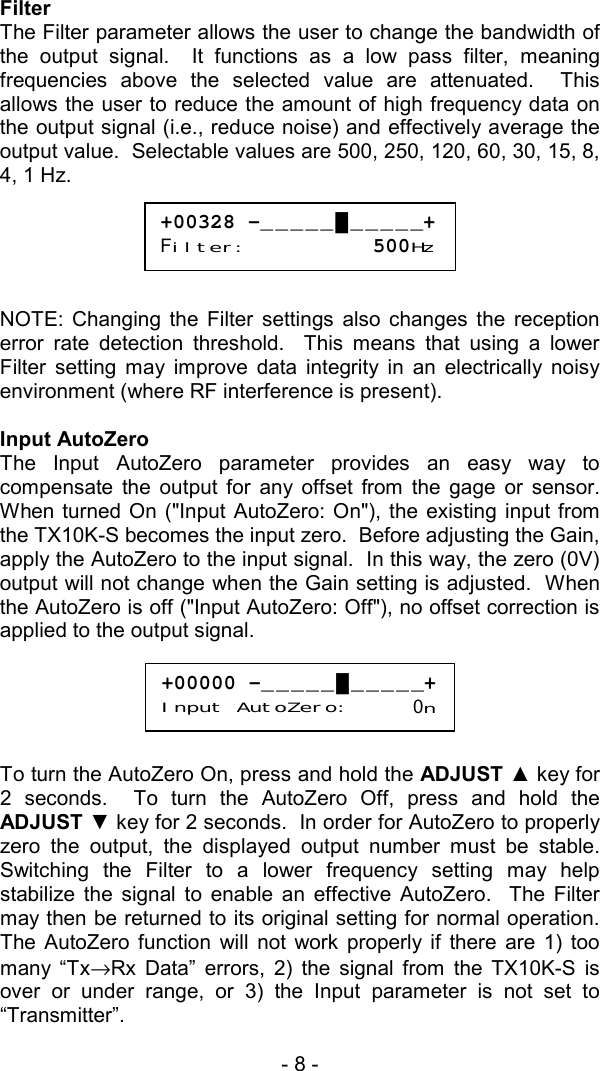
- 8 -  Filter The Filter parameter allows the user to change the bandwidth of the output signal.  It functions as a low pass filter, meaning frequencies above the selected value are attenuated.  This allows the user to reduce the amount of high frequency data on the output signal (i.e., reduce noise) and effectively average the output value.  Selectable values are 500, 250, 120, 60, 30, 15, 8, 4, 1 Hz.       NOTE: Changing the Filter settings also changes the reception error rate detection threshold.  This means that using a lower Filter setting may improve data integrity in an electrically noisy environment (where RF interference is present).  Input AutoZero The Input AutoZero parameter provides an easy way to compensate the output for any offset from the gage or sensor.  When turned On ("Input AutoZero: On"), the existing input from the TX10K-S becomes the input zero.  Before adjusting the Gain, apply the AutoZero to the input signal.  In this way, the zero (0V) output will not change when the Gain setting is adjusted.  When the AutoZero is off ("Input AutoZero: Off"), no offset correction is applied to the output signal.        To turn the AutoZero On, press and hold the ADJUST ▲ key for 2 seconds.  To turn the AutoZero Off, press and hold the ADJUST ▼ key for 2 seconds.  In order for AutoZero to properly zero the output, the displayed output number must be stable.  Switching the Filter to a lower frequency setting may help stabilize the signal to enable an effective AutoZero.  The Filter may then be returned to its original setting for normal operation.  The AutoZero function will not work properly if there are 1) too many “Tx→Rx Data” errors, 2) the signal from the TX10K-S is over or under range, or 3) the Input parameter is not set to “Transmitter”.  +00328 -_____█_____+Filter:          500Hz+00000 -_____█_____+Input AutoZero:     0n
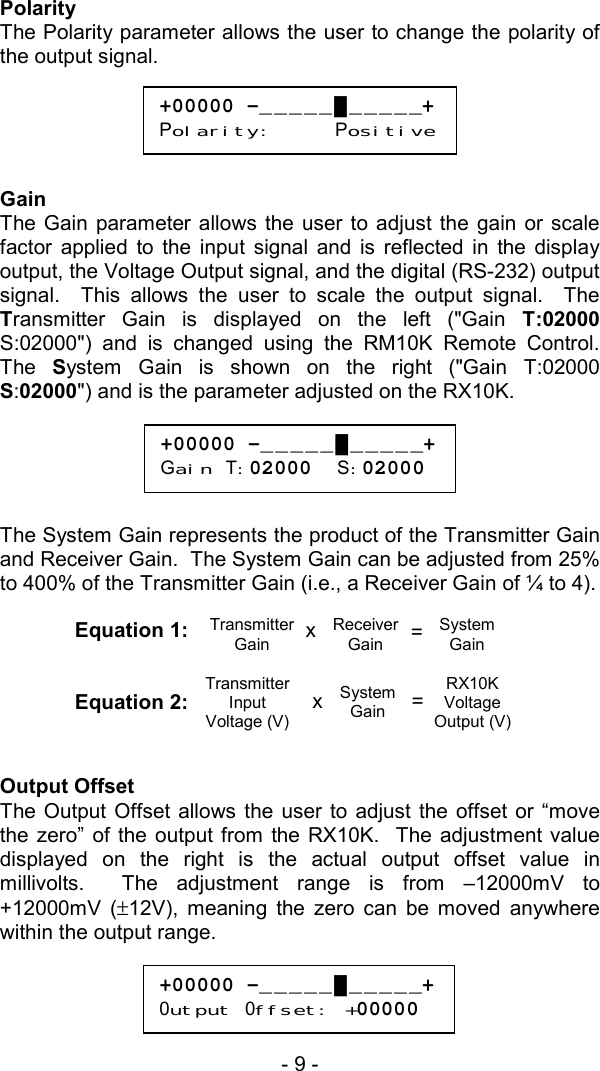
- 9 -   Polarity The Polarity parameter allows the user to change the polarity of the output signal.      Gain The Gain parameter allows the user to adjust the gain or scale factor applied to the input signal and is reflected in the display output, the Voltage Output signal, and the digital (RS-232) output signal.  This allows the user to scale the output signal.  The Transmitter Gain is displayed on the left ("Gain T:02000 S:02000") and is changed using the RM10K Remote Control.  The  System Gain is shown on the right ("Gain T:02000 S:02000") and is the parameter adjusted on the RX10K.        The System Gain represents the product of the Transmitter Gain and Receiver Gain.  The System Gain can be adjusted from 25% to 400% of the Transmitter Gain (i.e., a Receiver Gain of ¼ to 4).    Equation 1:   Equation 2:   Output Offset The Output Offset allows the user to adjust the offset or “move the zero” of the output from the RX10K.  The adjustment value displayed on the right is the actual output offset value in millivolts.  The adjustment range is from –12000mV to +12000mV (±12V), meaning the zero can be moved anywhere within the output range.   +00000 -_____█_____+Polarity:     Positive+00000 -_____█_____+Gain T:02000  S:02000 +00000 -_____█_____+0utput 0ffset: +00000Transmitter Gain Receiver Gain System Gain = x Transmitter Input Voltage (V) System Gain RX10K Voltage Output (V)= x
- 10 -  Just like the Gain parameter, this adjustment affects the display output, the Voltage Output signal, and the digital (RS-232) output signal.  The Output Offset value is applied to the signal after the Gain adjustment; therefore, the Gain adjustment may affect the zero output signal.   User Default The RX10K parameters can be returned to their default settings.  This is accomplished by holding down the ADJUST ▲ key while powering up the RX10K.  The default values are listed below.  Default  Description Rx Ch   1 Input   Transmitter Filter   500Hz Input AutoZero    Off Polarity   Positive Gain   T=S Output Offset    0  Signal Processing It may be helpful to understand the order in which the data signal is processed by the RX10K.  The signal received from the TX10K-S is processed as follows:  1.  Receive signal from TX10K-S 2.  Check for errors and display if any detected 3.  Check for Simulated signal and apply if enabled 4. Apply Filter 5. Apply AutoZero 6. Apply Polarity 7. Apply Gain 8.  Apply Output Offset 9.  Send signal to display, voltage output, and digital output
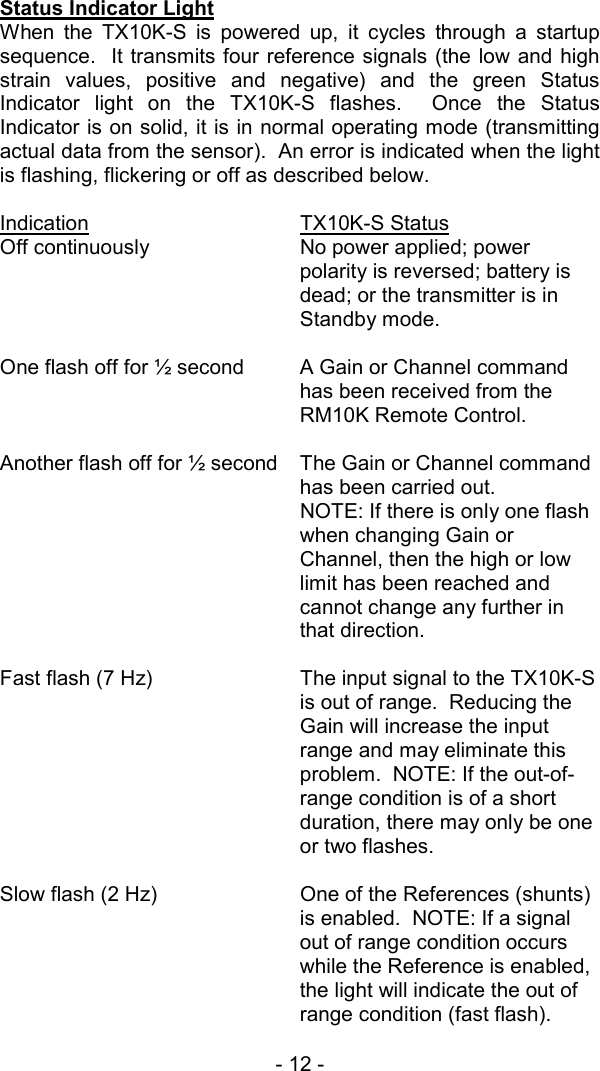
- 11 -   TX10K-S Transmitter The TX10K-S Transmitter is encased in a tough nylon housing that incorporates a V-groove on the bottom for improved axial shaft alignment and an indentation on the top to guide strapping tape installation.  The TX10K-S also features a Status Indicator light, an Infrared Receiver lens, a connector to accept the Transmitter Antenna, and a screw terminal block for making power and sensor input connections.                 Figure 3: TX10K-S Transmitter  The TX10K-S can be configured even while it is installed and in operation using the RM10K Remote Control.  The TX10K-S has sixteen RF Channel settings and six Gain settings (500, 1000, 2000, 4000, 8000, and 16000).  It can send low and high reference signals to the RX10K: internal precision shunt resistors simulate strain values that can be used to check calibration (refer to Appendix A for exact specifications).  During use, make certain the Infrared Receiver lens remains unobstructed so that data can be received from the RM10K Remote Control.  The TX10K-S will operate at short distances from the Receiver Antenna without the Transmitter Antenna installed if space around the shaft is limited.    Antenna Connector Infrared Receiver Status Indicator Light Screw Terminal Block
- 12 -  Status Indicator Light When the TX10K-S is powered up, it cycles through a startup sequence.  It transmits four reference signals (the low and high strain values, positive and negative) and the green Status Indicator light on the TX10K-S flashes.  Once the Status Indicator is on solid, it is in normal operating mode (transmitting actual data from the sensor).  An error is indicated when the light is flashing, flickering or off as described below.    Indication   TX10K-S Status Off continuously  No power applied; power polarity is reversed; battery is dead; or the transmitter is in Standby mode.  One flash off for ½ second  A Gain or Channel command has been received from the RM10K Remote Control.  Another flash off for ½ second  The Gain or Channel command has been carried out.   NOTE: If there is only one flash when changing Gain or Channel, then the high or low limit has been reached and cannot change any further in that direction.  Fast flash (7 Hz)  The input signal to the TX10K-S is out of range.  Reducing the Gain will increase the input range and may eliminate this problem.  NOTE: If the out-of-range condition is of a short duration, there may only be one or two flashes.  Slow flash (2 Hz)  One of the References (shunts) is enabled.  NOTE: If a signal out of range condition occurs while the Reference is enabled, the light will indicate the out of range condition (fast flash).
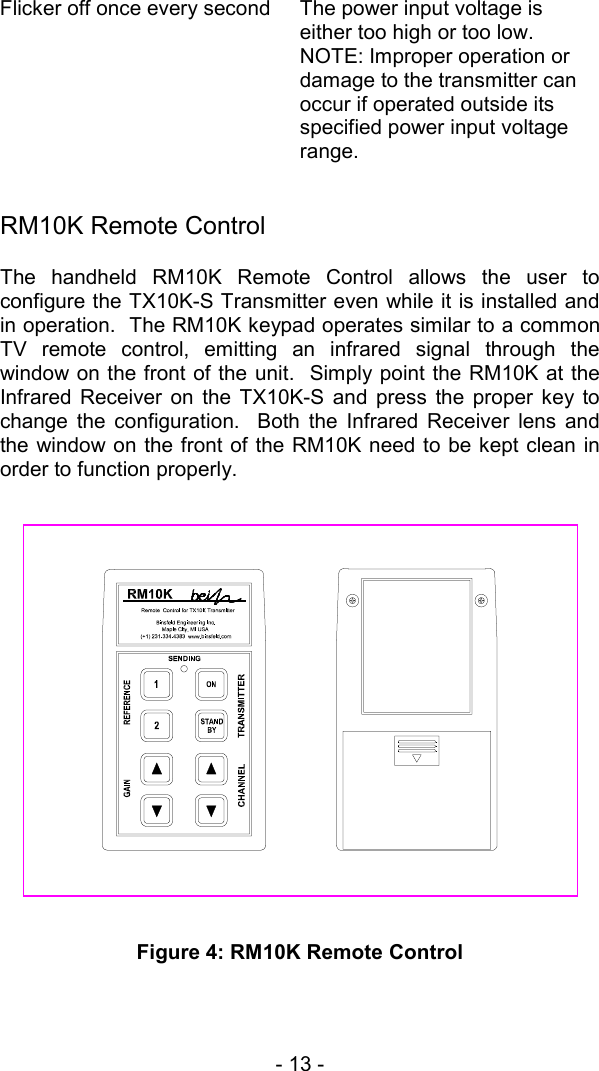
- 13 -   Flicker off once every second  The power input voltage is either too high or too low.  NOTE: Improper operation or damage to the transmitter can occur if operated outside its specified power input voltage range.      RM10K Remote Control The handheld RM10K Remote Control allows the user to configure the TX10K-S Transmitter even while it is installed and in operation.  The RM10K keypad operates similar to a common TV remote control, emitting an infrared signal through the window on the front of the unit.  Simply point the RM10K at the Infrared Receiver on the TX10K-S and press the proper key to change the configuration.  Both the Infrared Receiver lens and the window on the front of the RM10K need to be kept clean in order to function properly.                   Figure 4: RM10K Remote Control
- 14 -  Battery Installation Slide the battery access cover on the back of the RM10K enclosure in the direction of the arrow to open.  Remove the old battery if present.  Install a new 9V battery and slide the cover back into place.    Operational Distance Settings Typically, the RM10K needs to be within a few inches of the TX10K-S for the signal to be received.  This normal (low infrared power) mode is intended to reduce the possibility of inadvertently changing the configuration of the TX10K-S by accidentally pressing a key on the RM10K.  It also reduces the chance of changing the configuration of other transmitters in a multiple-transmitter installation.  The RM10K also has a high infrared power mode.  This mode is useful when access to the TX10K-S is difficult or dangerous.  Line-of-sight distances of 20 feet or more are possible.  The infrared signal will reflect off of bright or shiny surfaces, making non-line-of-sight operation possible in some situations.   To enable the high infrared power mode, first press and release the TRANSMITTER ON key and then press the desired function key.  When the TRANSMITTER ON key is pressed, the green SENDING light on the RM10K will come on for about 3 seconds.  The desired function key must be pressed within this 3-second timeframe; otherwise the RM10K will revert back to normal (low infrared power) mode.  To send the ON command in high power mode, press the TRANSMITTER ON key twice.    The Infrared Receiver on the TX10K-S has an automatic gain control.  Under bright light, it will become less sensitive, and the operational distance will be decreased.  If the TX10K-S is not receiving commands from the RM10K, try shading the Infrared Receiver from direct, bright light.     RM10K Functions    A summary of each of the RM10K key functions and indicator light operation appears below.  TRANSMITTER ON Brings the TX10K-S out of Standby mode or temporarily enables high infrared power mode.
- 15 -   TRANSMITTER STANDBY Switches the TX10K-S into a low-power Standby mode to conserve the battery.  No signal is transmitted while in Standby mode.  The Status Indicator light on the TX10K-S turns off.  The TX10K-S ignores all commands from the RM10K except TRANSMITTER ON.  Disconnecting and reconnecting the 9V battery or activating TRANSMITTER ON brings the TX10K-S out of Standby mode.  REFERENCE 1 Activates the Reference 1 input signal or shunt (positive low value simulated strain) on the TX10K-S for 5 seconds.  If this key is held down, the Reference will stay activated.  If the key is pressed again within the 5 seconds, the Reference will remain activated for another 5 seconds.    REFERENCE 2 Operation is the same as Reference 1, but a higher shunt value is activated.  GAIN ▲ Increases the gain setting of the TX10K-S.  If the Transmitter Gain is already at the maximum value, the Status Indicator on the TX10K-S will flash only once, indicating the command was received but not carried out.  GAIN ▼ Decreases the gain setting of the TX10K-S.  If the gain is already at the minimum value, the Status Indicator on the TX10K-S will flash only once, indicating the command was received but not carried out.  CHANNEL ▲ Increases the RF channel of the TX10K-S.  If the channel is already at the maximum value, the Status Indicator on the TX10K-S will flash only once, indicating the command was received but not carried out.  CHANNEL ▼ Decreases the RF channel of the TX10K-S.  If the channel is already at the minimum value, the Status Indicator on the TX10K-S will flash only once, indicating the command was received but not carried out.
- 16 -   SENDING Light The SENDING light will come on for about 1 second when a key is pressed.  This indicates the RM10K is sending a signal.  It is not an indication that the TX10K-S has received the signal.  The Status Indicator on the TX10K-S or the display on the RX10K can be monitored to confirm successful command transmission.  If the SENDING light flashes after a key is pressed, the battery in the RM10K is low and should be replaced.  If the SENDING light does not come on at all after a key is pressed, the battery is dead and needs to be replaced.  As mentioned in the previous section, the SENDING light will stay on for about 3 seconds after the TRANSMITTER ON key has been pressed.  This indicates the RM10K is in high power mode, and any command sent during the next 3 seconds will be at the high infrared power level.  Multiple TX10K-S Transmitters When working with multiple TX10K-S Transmitters in close proximity, the Infrared Receivers may be intentionally covered with an opaque object in order to eliminate an inadvertent configuration change to an adjacent TX10K-S.  Also, removing power (disconnecting the battery) or putting the TX10K-S in standby mode will prevent the RM10K from changing the configuration of a transmitter.
- 17 -   Operating Procedure  The TorqueTrak 10K-S System is designed for ease of use.  The procedure for a typical setup on a shaft for obtaining torque measurements is detailed in the Field Testing section below.    It is recommended that the user bench test the instrument to become familiar with the various operational features prior to conducting tests in the field. The BS900 Bridge Simulator and 9V Battery Connector have been provided for this purpose.  See the Bench Testing section for details.   Field Testing Although the settings of the TX10K-S can be changed during operation of the system, it is best to determine the appropriate Transmitter Gain setting for a given application prior to installation.  Refer to Appendix B for the relevant calculations.   1.  Attach sensor or strain gage to the shaft (or other surface) where the desired strain will be measured.  (Refer to Appendix D for instructions on strain gage application.) 2.  Remove cover from BH10K-9V Battery Housing.  Snap fresh 9V battery onto snaps and place into BH10K-9V.  Secure cover with screws with re-usable vibration-resistant coating.   CAUTION: Substituting screws without vibration-resistant coating or failure to properly tighten screws could result in loosening of the screws during rotation, and components could be flung from the shaft.   NOTE: The BH10K-9V is most useful when testing extends beyond the life of the battery, allowing replacement of the battery without removal from the shaft.  Alternatively, the 9V Battery Connector can be used.  In this case, skip step 4.   3.  Screw Transmitter Antenna onto TX10K-S Transmitter.  Secure TX10K-S and BH10K-9V (or battery) to shaft using strapping tape.  Align V-groove on bottom axially with shaft and tape across indentation in top.  Do not cover TX10K-S Infrared Receiver or Status Indicator.  Alternatively, hose
- 18 -  clamps, machined collars, or other mounting devices may be used but avoid excessive compression. CAUTION: Be certain all components are securely fastened to moving surfaces.  Avoid the risk of being struck by an improperly secured object flung from the machine by standing clear during operation! 4.  Cut an appropriate length of 2-conductor power cable (red & black twisted pair) and strip and tin ends.  Connect red wire to +B on BH10K-9V and to +B on TX10K-S and black wire to -B on BH10K-9V and to -B on TX10K-S.  The Status Indicator light should come on solid.  Secure to shaft. NOTE: If testing will not begin for some time, use the RM10K Remote Control to put the TX10K-S in Standby mode to save battery life.  The Status Indicator light will turn off. 5.  Cut an appropriate length of 4-conductor ribbon cable (as short as practical to avoid unwanted electrical noise) and strip and tin ends.  Solder to gage per Appendix D or gage manufacturer’s specification and make appropriate connections to the TX10K-S terminals.  Secure loose cable to shaft. 6.  Connect Receiver Antenna to Antenna connector on the rear panel of the RX10K Receiver.  Position magnetic-mount antenna with element installed near the TX10K-S, typically within 10 feet. 7.  Insert connector on AC/DC adapter into Power Input jack on the RX10K rear panel.  Plug adapter into appropriate AC power source (i.e., wall socket).  Flip the RX10K power switch to On while holding down the ADJUST ▲ key.   NOTE: This resets the RX10K parameters to their default settings.  Simply turn On without holding any keys if previously set parameter configurations are desired. 8.  Turn on the TX10K-S with the RM10K (if needed).  Confirm that Status Indicator light is on solid.  Slowly scroll through each RX10K channel until it matches TX10K-S channel setting (top line will quit flashing and bottom line will show the RF signal strength).  Change both units to desired channel and verify adequate signal strength.  If possible,
- 19 -   rotate the TX10K-S through complete range of motion to verify strong signal reception in all orientations. 9.  Scroll RX10K display to Gain parameter screen.  Use the RM10K to configure the Transmitter Gain to the appropriate level. 10. Scroll RX10K display to Input AutoZero parameter screen.  Apply AutoZero with no load on the shaft to zero-out any initial gage offset.  Press and hold ADJUST  ▲ key for 2 seconds until bottom line reads “Input AutoZero: On”.  AutoZero can be reset by turning off and then on again. NOTE: Once AutoZero is activated, the initial offset is subtracted from the Full Scale output.  Consequently, the Full Scale range of the system will be reduced by this offset amount.  For example, if the initial offset is 1.6V then the Full Scale output of the system will be 8.4V after AutoZero is set. If before activating AutoZero there is an initial offset of more than 50% of Full Scale, it may be necessary to 1) use a lower Transmitter Gain setting, 2) apply a shunt resistor to balance the gage, or 3) replace the strain gage.  For further assistance, contact Binsfeld Engineering Inc. 11. Scroll RX10K display to Filter parameter screen.  Set the Filter to the desired level. 12. Scroll RX10K display to Gain parameter screen.  Set the System Gain to calibrate output based on gain calculations as demonstrated in Appendix B.  Check calibration by using the RM10K to command the TX10K-S to transmit REFERENCE 1 and/or 2 to the RX10K or use the Input parameter settings. 13. Connect appropriate recording device to either the analog Voltage Output terminals or digital Com (DB9) connector.   14.  The System is now ready to record data. Bench Testing 1.  Connect Receiver Antenna to Antenna connector on the rear panel of the RX10K Receiver.  Position magnetic-mount antenna with element installed near the TX10K-S.
- 20 -  Insert connector on AC/DC adapter into Power Input jack on the RX10K rear panel.  Plug adapter into appropriate AC power source (i.e., wall socket).  Flip the RX10K power switch to On while holding down the ADJUST ▲ key.   2.  Attach 9V Battery Connector to TX10K-S Transmitter (red to +B, black to –B).  Attach BS900 to TX10K-S terminals +/- E and +/- S correctly correspond with pins on BS900.  Clip 9V battery to connector.   3.  Slowly scroll through each RX10K channel until it matches TX10K-S channel setting (top line will quit flashing and bottom line will show the RF signal strength).  Change both units to desired channel and verify adequate signal strength.  (To configure TX10K-S settings, use the RM10K Remote Control.) 4.  Scroll RX10K display to Gain parameter screen.  Use the RM10K to configure the Transmitter Gain to 4000 (“Gain T:04000 S:04000”). 5.  Scroll RX10K display to Input AutoZero parameter screen.  Apply AutoZero with BS900 in center or zero (0) position.  Press and hold ADJUST  ▲ key for 2 seconds until bottom line reads “Input AutoZero: On”.   6.  Switch BS900 to the positive (+) position.  RX10K output should be close to +2V (“+02000”) and the bar graph indicator should move one segment to the right of zero (“0”). 7.  Switch BS900 to the negative (–) position.  RX10K output should be close to -2V (“-02000”) and the bar graph indicator should move one segment to the left of zero (“0”).  8.  Use the RM10K to command the TX10K-S to transmit REFERENCE 1.  RX10K output should be close to +2V (“+02000”) and the bar graph indicator should move one segment to the right of zero (“0”).
- 21 -   Calibration  The TorqueTrak 10K-S System is calibrated prior to shipping using instruments traceable to the United States National Institute of Standards and Technology (NIST). Calibration can be checked at any time with a NIST traceable reference such as a calibrated voltmeter with sufficient (millivolt) resolution. To verify calibration of the RX10K Receiver: 1.  Insert connector on AC/DC adapter into Power Input jack on the RX10K rear panel (refer to Figure 2 on page 6).  Plug adapter into appropriate AC power source (i.e., wall socket).  Flip the RX10K power switch to On while holding down the ADJUST ▲ key.   2.  Allow the RX10K to warm up for 15 minutes. 3. Connect a calibrated, high-accuracy voltmeter to the Voltage Output terminals. 4.  Scroll RX10K display to Input parameter screen.  Press the ADJUST  ▲ key to scroll through the simulated inputs and check the outputs. Input Output  +FS 10.000 ± .010 VDC Zero 0.000 ± .005 VDC -FS -10.000 ± .010 VDC +FS/2 5.000 ± .005 VDC -FS/2 -5.000 ± .005 VDC +FS/4 2.500 ± .005 VDC -FS/4 -2.500 ± .005 VDC  It is recommended that the system be checked for calibration annually.  If found to be out of specification, it can be returned to Binsfeld Engineering Inc. for calibration for a nominal fee ($100.00, price subject to change).
- 22 -  Warranty and Service Information  LIMITED WARRANTY Binsfeld Engineering Inc. warrants that its products will be free from defective material and workmanship for a period of one year from the date of delivery to the original purchaser and that its products will conform to specifications and standards published by Binsfeld Engineering Inc.  Upon evaluation by Binsfeld Engineering Inc., any product found to be defective will be replaced or repaired at the sole discretion of Binsfeld Engineering Inc.  Our warranty is limited to the foregoing, and does not apply to fuses, paint, or any equipment, which in Binsfeld Engineering’s sole opinion has been subject to misuse, alteration, or abnormal conditions of operation or handling.  This warranty is exclusive and in lieu of all other warranties, expressed or implied, including but not limited to any implied warranty of merchantability or fitness for a particular purpose or use.  Binsfeld Engineering Inc. will not be liable for any special, indirect, incidental or consequential damages or loss, whether in contract, tort, or otherwise.  NOTE (USA only): Some states do not allow limitation of implied warranties, or the exclusion of incidental or consequential damages so the above limitations or exclusions may not apply to you.  This warranty gives you specific legal rights and you may have other rights which vary from state to state.  For service please contact Binsfeld Engineering Inc.:  4571 W. MacFarlane   Maple City, MI  49664 Phone: (+1) 231-334-4383   Fax: (+1) 231-334-4903  Internet: www.binsfeld.com Email: Sales@binsfeld.com
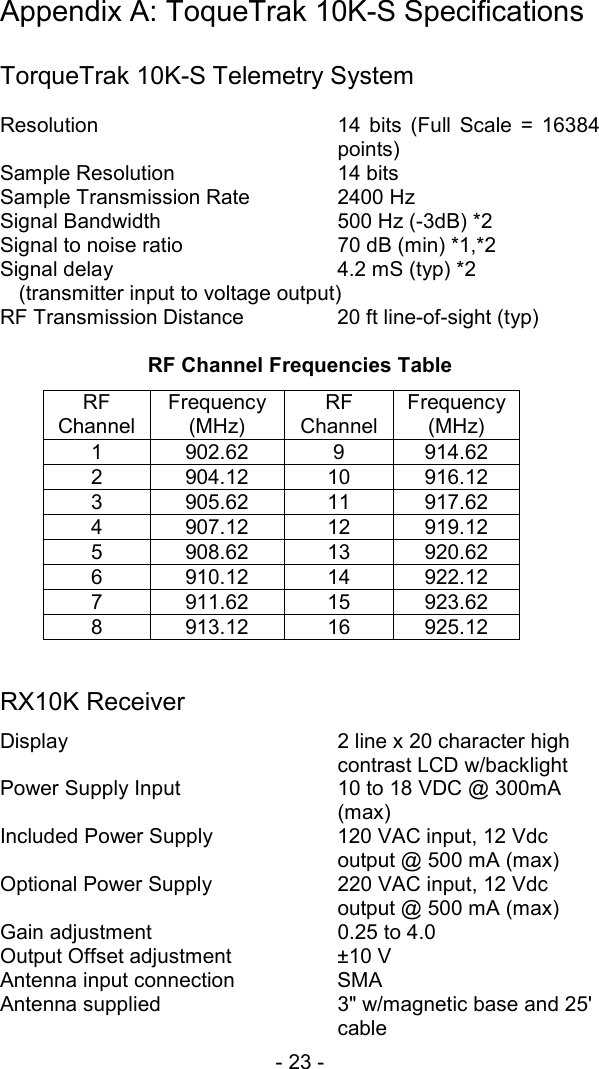
- 23 -   Appendix A: ToqueTrak 10K-S Specifications  TorqueTrak 10K-S Telemetry System  Resolution  14 bits (Full Scale = 16384 points) Sample Resolution  14 bits  Sample Transmission Rate  2400 Hz Signal Bandwidth  500 Hz (-3dB) *2 Signal to noise ratio  70 dB (min) *1,*2 Signal delay   4.2 mS (typ) *2   (transmitter input to voltage output) RF Transmission Distance  20 ft line-of-sight (typ)  RF Channel Frequencies Table RF Channel Frequency (MHz) RF Channel Frequency (MHz) 1 902.62 9 914.62 2 904.12 10 916.12 3 905.62 11 917.62 4 907.12 12 919.12 5 908.62 13 920.62 6 910.12 14 922.12 7 911.62 15 923.62 8 913.12 16 925.12   RX10K Receiver Display   2 line x 20 character high contrast LCD w/backlight Power Supply Input  10 to 18 VDC @ 300mA (max) Included Power Supply  120 VAC input, 12 Vdc output @ 500 mA (max) Optional Power Supply  220 VAC input, 12 Vdc output @ 500 mA (max) Gain adjustment  0.25 to 4.0 Output Offset adjustment  ±10 V Antenna input connection  SMA Antenna supplied  3" w/magnetic base and 25' cable
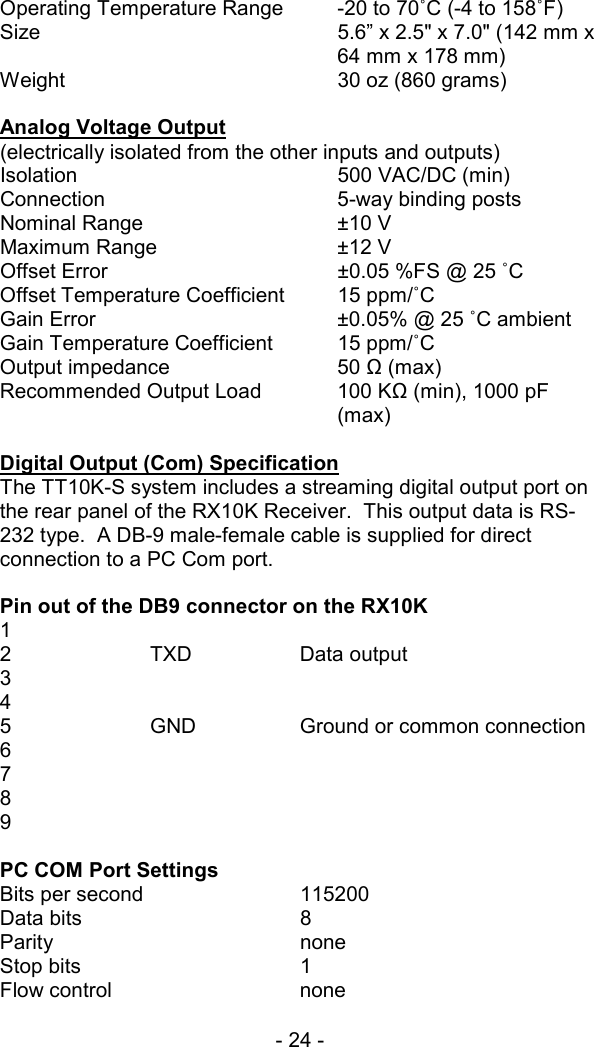
- 24 -   Operating Temperature Range  -20 to 70˚C (-4 to 158˚F) Size    5.6” x 2.5" x 7.0" (142 mm x 64 mm x 178 mm) Weight  30 oz (860 grams)  Analog Voltage Output  (electrically isolated from the other inputs and outputs) Isolation 500 VAC/DC (min) Connection  5-way binding posts Nominal Range  ±10 V Maximum Range  ±12 V Offset Error  ±0.05 %FS @ 25 ˚C  Offset Temperature Coefficient  15 ppm/˚C Gain Error  ±0.05% @ 25 ˚C ambient Gain Temperature Coefficient  15 ppm/˚C Output impedance  50 Ω (max) Recommended Output Load  100 KΩ (min), 1000 pF (max)  Digital Output (Com) Specification The TT10K-S system includes a streaming digital output port on the rear panel of the RX10K Receiver.  This output data is RS-232 type.  A DB-9 male-female cable is supplied for direct connection to a PC Com port.  Pin out of the DB9 connector on the RX10K 1  2  TXD  Data output 3 4 5    GND    Ground or common connection 6 7 8 9  PC COM Port Settings Bits per second     115200  Data bits   8 Parity    none Stop bits   1 Flow control   none
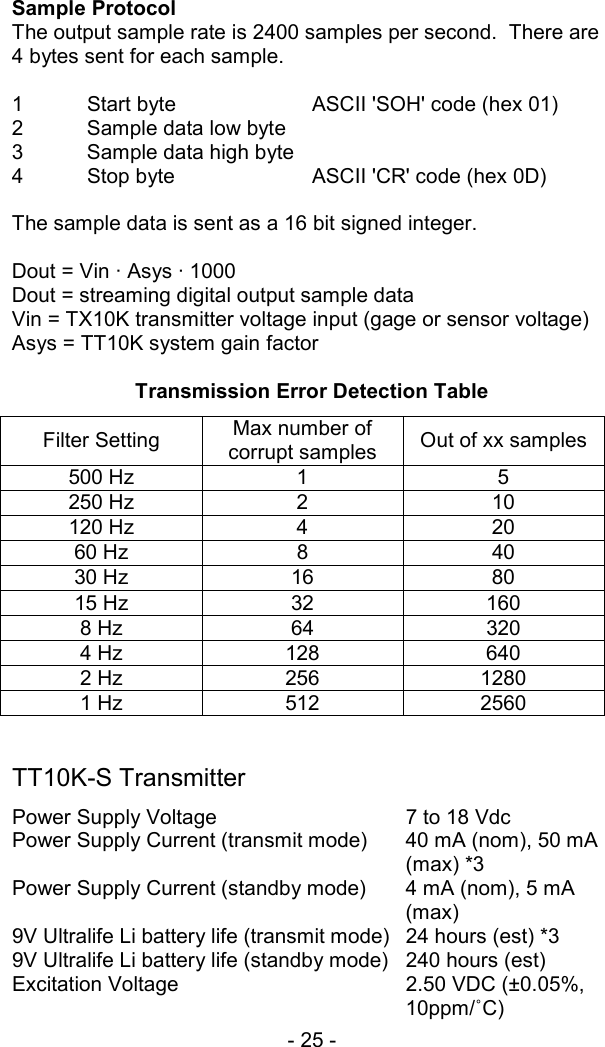
- 25 -    Sample Protocol The output sample rate is 2400 samples per second.  There are 4 bytes sent for each sample.  1  Start byte     ASCII 'SOH' code (hex 01) 2  Sample data low byte   3  Sample data high byte 4  Stop byte    ASCII 'CR' code (hex 0D)  The sample data is sent as a 16 bit signed integer.  Dout = Vin · Asys · 1000 Dout = streaming digital output sample data Vin = TX10K transmitter voltage input (gage or sensor voltage) Asys = TT10K system gain factor   Transmission Error Detection Table Filter Setting  Max number of corrupt samples  Out of xx samples 500 Hz  1  5 250 Hz  2  10 120 Hz  4  20 60 Hz  8  40 30 Hz  16  80 15 Hz  32  160 8 Hz  64  320 4 Hz  128  640 2 Hz  256  1280 1 Hz  512  2560   TT10K-S Transmitter Power Supply Voltage  7 to 18 Vdc Power Supply Current (transmit mode)  40 mA (nom), 50 mA (max) *3 Power Supply Current (standby mode)  4 mA (nom), 5 mA (max) 9V Ultralife Li battery life (transmit mode)  24 hours (est) *3 9V Ultralife Li battery life (standby mode)  240 hours (est) Excitation Voltage  2.50 VDC (±0.05%, 10ppm/˚C)
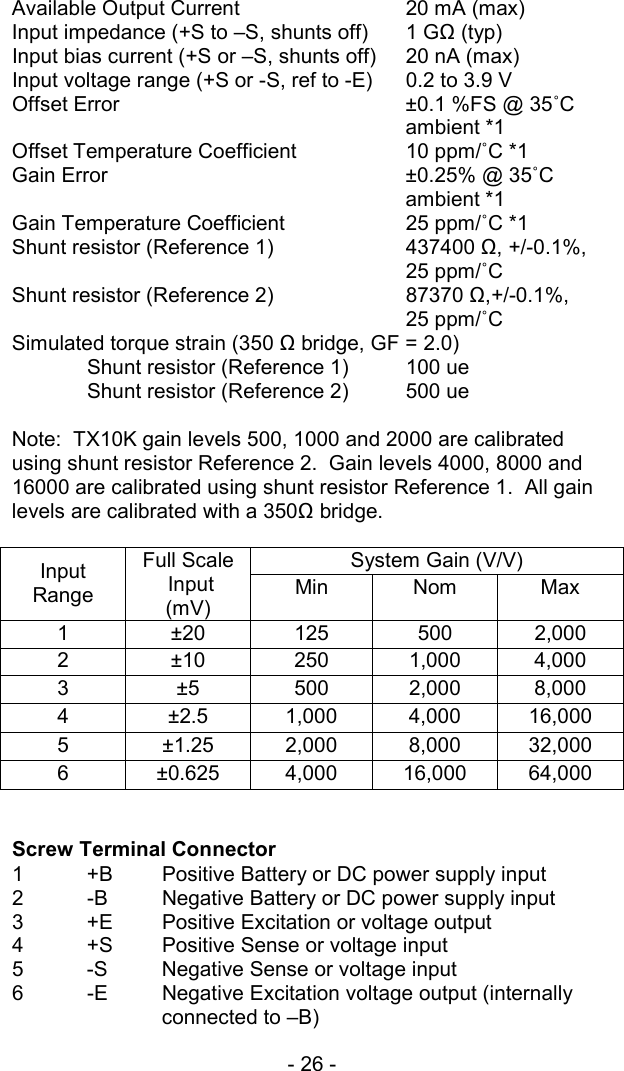
- 26 -  Available Output Current  20 mA (max) Input impedance (+S to –S, shunts off)  1 GΩ (typ)   Input bias current (+S or –S, shunts off)  20 nA (max)   Input voltage range (+S or -S, ref to -E)  0.2 to 3.9 V   Offset Error  ±0.1 %FS @ 35˚C ambient *1 Offset Temperature Coefficient  10 ppm/˚C *1   Gain Error  ±0.25% @ 35˚C ambient *1 Gain Temperature Coefficient  25 ppm/˚C *1 Shunt resistor (Reference 1)  437400 Ω, +/-0.1%,     25 ppm/˚C Shunt resistor (Reference 2)  87370 Ω,+/-0.1%,     25 ppm/˚C Simulated torque strain (350 Ω bridge, GF = 2.0)   Shunt resistor (Reference 1)  100 ue   Shunt resistor (Reference 2)  500 ue  Note:  TX10K gain levels 500, 1000 and 2000 are calibrated using shunt resistor Reference 2.  Gain levels 4000, 8000 and 16000 are calibrated using shunt resistor Reference 1.  All gain levels are calibrated with a 350Ω bridge.  System Gain (V/V) Input Range Full Scale  Input (mV)  Min Nom Max 1  ±20 125 500 2,000 2 ±10 250 1,000 4,000 3 ±5 500 2,000 8,000 4 ±2.5 1,000 4,000 16,000 5  ±1.25 2,000 8,000 32,000 6  ±0.625 4,000 16,000 64,000   Screw Terminal Connector 1  +B  Positive Battery or DC power supply input 2  -B  Negative Battery or DC power supply input 3  +E  Positive Excitation or voltage output 4  +S  Positive Sense or voltage input 5  -S  Negative Sense or voltage input 6  -E  Negative Excitation voltage output (internally connected to –B)
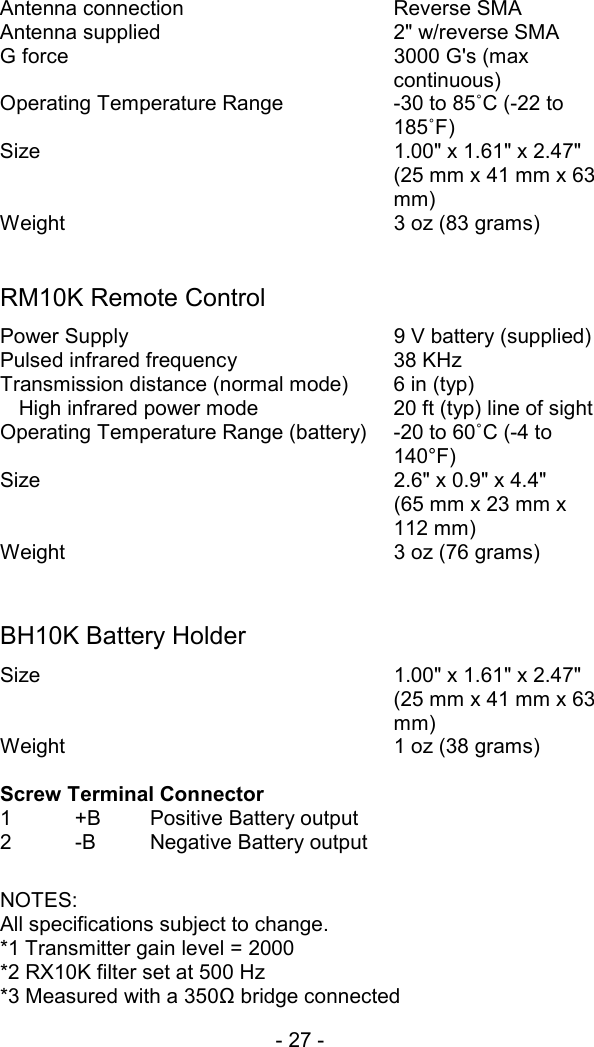
- 27 -    Antenna connection  Reverse SMA Antenna supplied  2" w/reverse SMA G force   3000 G's (max continuous) Operating Temperature Range  -30 to 85˚C (-22 to 185˚F) Size    1.00" x 1.61" x 2.47" (25 mm x 41 mm x 63 mm) Weight  3 oz (83 grams)   RM10K Remote Control Power Supply  9 V battery (supplied) Pulsed infrared frequency  38 KHz Transmission distance (normal mode)  6 in (typ)   High infrared power mode  20 ft (typ) line of sight Operating Temperature Range (battery)  -20 to 60˚C (-4 to 140°F) Size    2.6" x 0.9" x 4.4"      (65 mm x 23 mm x 112 mm) Weight    3 oz (76 grams)   BH10K Battery Holder Size    1.00" x 1.61" x 2.47" (25 mm x 41 mm x 63 mm) Weight    1 oz (38 grams)  Screw Terminal Connector 1 +B Positive Battery output 2  -B  Negative Battery output  NOTES: All specifications subject to change. *1 Transmitter gain level = 2000 *2 RX10K filter set at 500 Hz *3 Measured with a 350Ω bridge connected
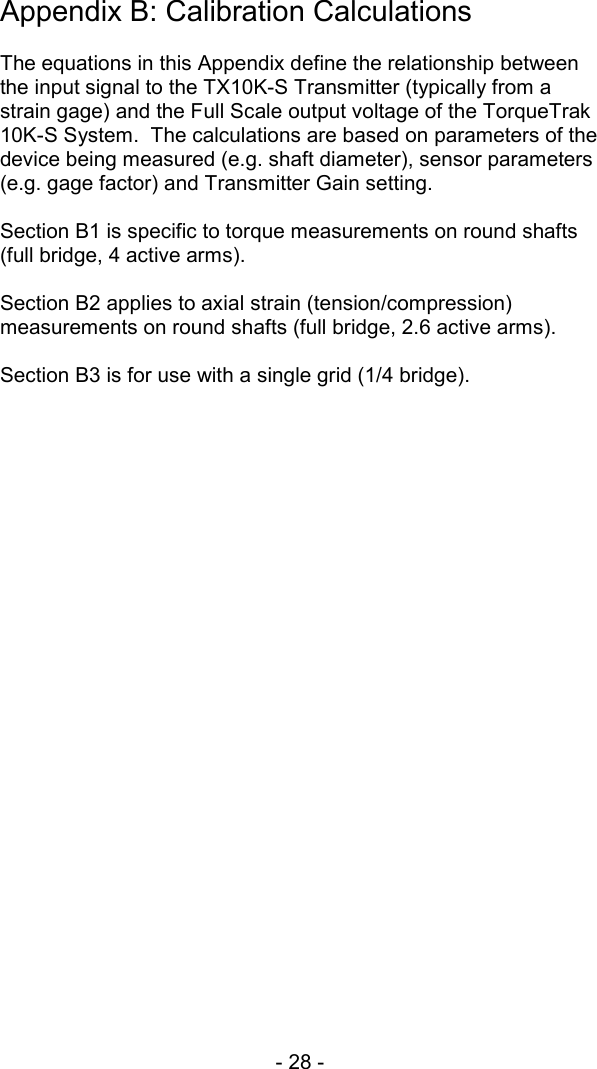
- 28 -  Appendix B: Calibration Calculations  The equations in this Appendix define the relationship between the input signal to the TX10K-S Transmitter (typically from a strain gage) and the Full Scale output voltage of the TorqueTrak 10K-S System.  The calculations are based on parameters of the device being measured (e.g. shaft diameter), sensor parameters (e.g. gage factor) and Transmitter Gain setting.  Section B1 is specific to torque measurements on round shafts (full bridge, 4 active arms).  Section B2 applies to axial strain (tension/compression) measurements on round shafts (full bridge, 2.6 active arms).  Section B3 is for use with a single grid (1/4 bridge).
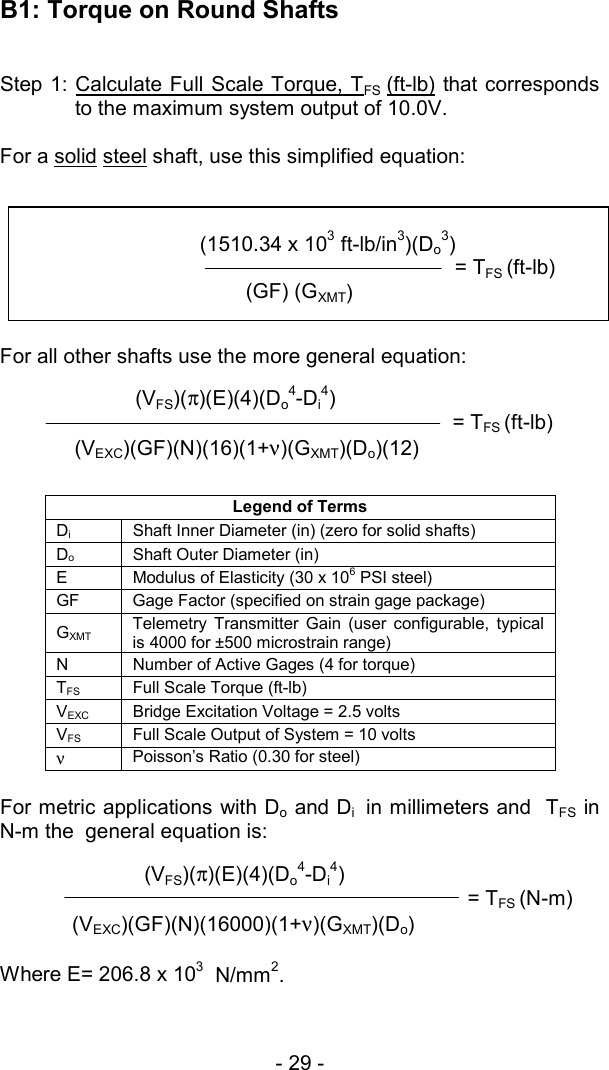
- 29 -           (VFS)(π)(E)(4)(Do4-Di4)                      = TFS (N-m)(VEXC)(GF)(N)(16000)(1+ν)(GXMT)(Do) B1: Torque on Round Shafts  Step 1: Calculate Full Scale Torque, T  FS  (ft-lb) that corresponds to the maximum system output of 10.0V.  For a solid steel shaft, use this simplified equation:   For all other shafts use the more general equation:  Legend of Terms Di  Shaft Inner Diameter (in) (zero for solid shafts) Do  Shaft Outer Diameter (in)  E  Modulus of Elasticity (30 x 106 PSI steel) GF  Gage Factor (specified on strain gage package) GXMT Telemetry Transmitter Gain (user configurable, typical is 4000 for ±500 microstrain range) N  Number of Active Gages (4 for torque) TFS  Full Scale Torque (ft-lb) VEXC  Bridge Excitation Voltage = 2.5 volts VFS  Full Scale Output of System = 10 volts ν Poisson’s Ratio (0.30 for steel)  For metric applications with Do and Di  in millimeters and  TFS in N-m the  general equation is:      Where E= 206.8 x 10³  N/mm2.                                     (1510.34 x 103 ft-lb/in3)(Do3)                                                                 = TFS (ft-lb)   (GF) (GXMT)                    (VFS)(π)(E)(4)(Do4-Di4)                               = TFS (ft-lb)   (VEXC)(GF)(N)(16)(1+ν)(GXMT)(Do)(12)
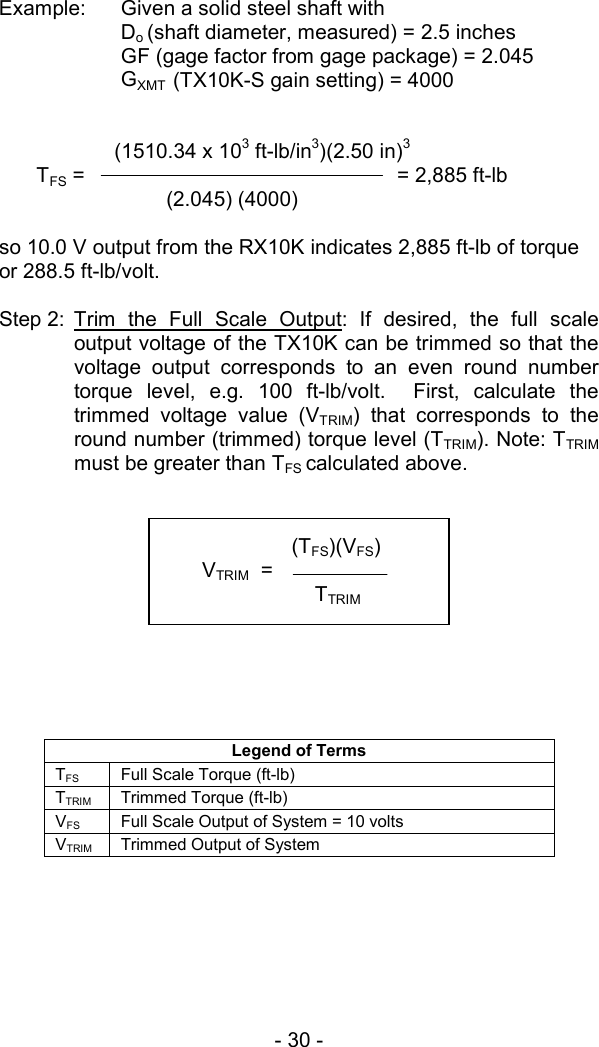
- 30 -   Example:  Given a solid steel shaft with  Do (shaft diameter, measured) = 2.5 inches  GF (gage factor from gage package) = 2.045 GXMT  (TX10K-S gain setting) = 4000                 (1510.34 x 103 ft-lb/in3)(2.50 in)3  TFS =                     = 2,885 ft-lb    (2.045) (4000)    so 10.0 V output from the RX10K indicates 2,885 ft-lb of torque or 288.5 ft-lb/volt.  Step 2: Trim the Full Scale Output: If desired, the full scale output voltage of the TX10K can be trimmed so that the voltage output corresponds to an even round number torque level, e.g. 100 ft-lb/volt.  First, calculate the trimmed voltage value (VTRIM) that corresponds to the round number (trimmed) torque level (TTRIM). Note: TTRIM  must be greater than TFS calculated above.                Legend of Terms TFS Full Scale Torque (ft-lb) TTRIM  Trimmed Torque (ft-lb) VFS  Full Scale Output of System = 10 volts VTRIM  Trimmed Output of System          (TFS)(VFS) VTRIM  =   TTRIM
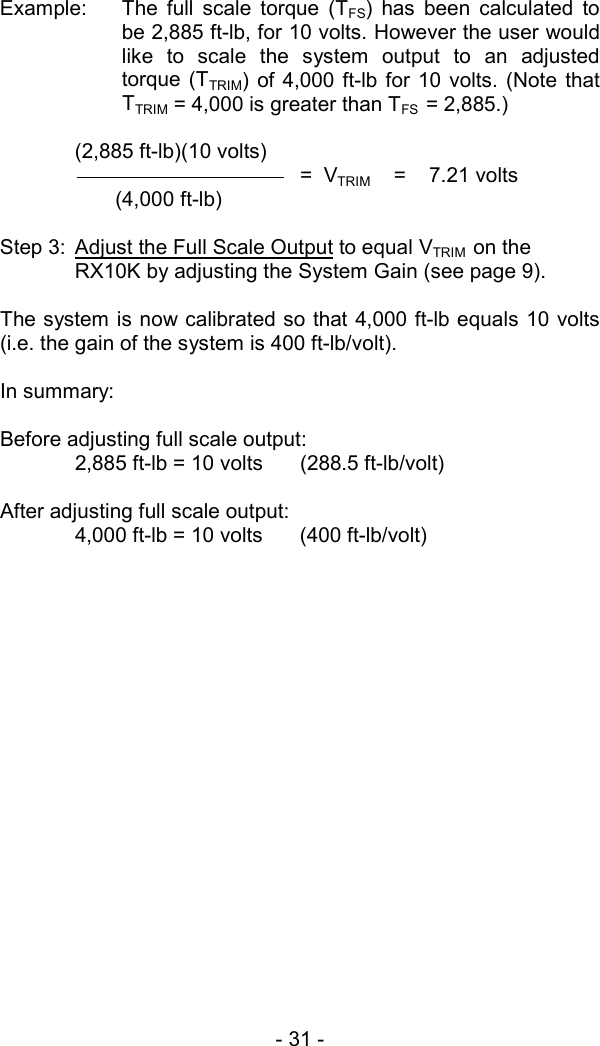
- 31 -   Example:  The full scale torque (TFS) has been calculated to be 2,885 ft-lb, for 10 volts. However the user would like to scale the system output to an adjusted torque (TTRIM) of 4,000 ft-lb for 10 volts. (Note that TTRIM = 4,000 is greater than TFS  = 2,885.)  (2,885 ft-lb)(10 volts)    =  VTRIM    =    7.21 volts        (4,000 ft-lb)  Step 3:  Adjust the Full Scale Output to equal VTRIM  on the RX10K by adjusting the System Gain (see page 9).  The system is now calibrated so that 4,000 ft-lb equals 10 volts (i.e. the gain of the system is 400 ft-lb/volt).  In summary:   Before adjusting full scale output:   2,885 ft-lb = 10 volts  (288.5 ft-lb/volt)  After adjusting full scale output:   4,000 ft-lb = 10 volts  (400 ft-lb/volt)
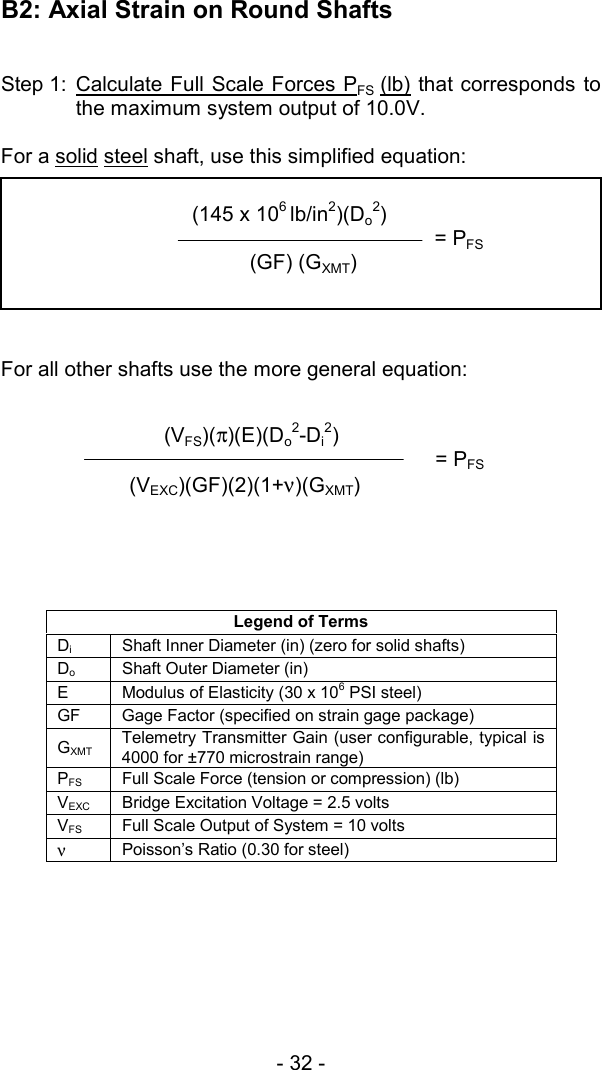
- 32 -  B2: Axial Strain on Round Shafts  Step 1: Calculate Full Scale Forces P  FS  (lb) that corresponds to the maximum system output of 10.0V.  For a solid steel shaft, use this simplified equation:   For all other shafts use the more general equation:      Legend of Terms Di  Shaft Inner Diameter (in) (zero for solid shafts) Do  Shaft Outer Diameter (in)  E  Modulus of Elasticity (30 x 106 PSI steel) GF  Gage Factor (specified on strain gage package) GXMT Telemetry Transmitter Gain (user configurable, typical is 4000 for ±770 microstrain range) PFS  Full Scale Force (tension or compression) (lb) VEXC  Bridge Excitation Voltage = 2.5 volts VFS  Full Scale Output of System = 10 volts ν Poisson’s Ratio (0.30 for steel)          (VFS)(π)(E)(Do2-Di2)        = PFS (VEXC)(GF)(2)(1+ν)(GXMT)                  (145 x 106 lb/in2)(Do2)           = PFS     (GF) (GXMT)
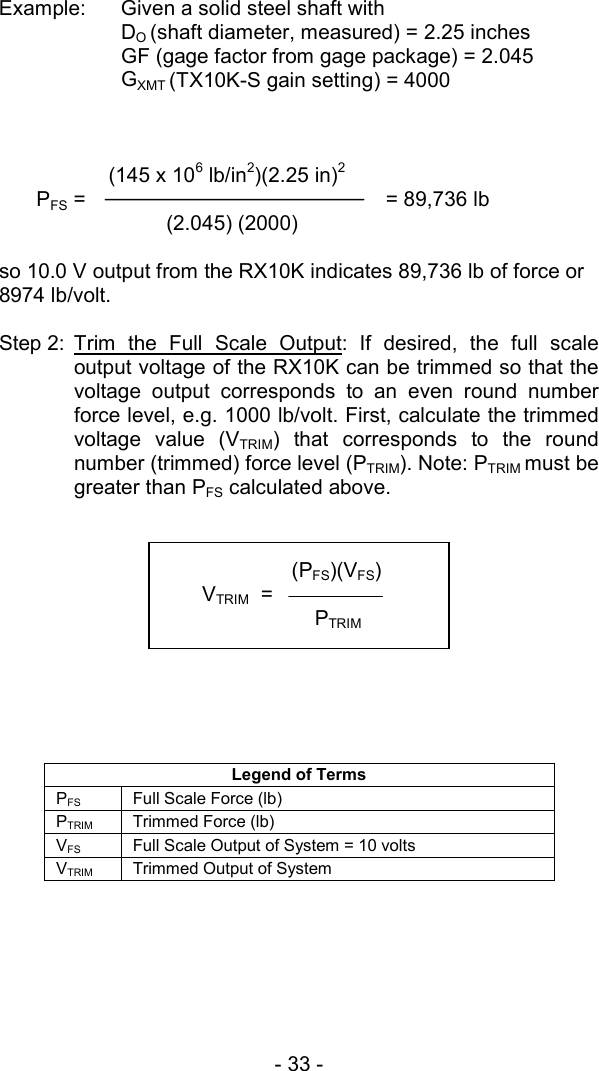
- 33 -   Example:  Given a solid steel shaft with    DO (shaft diameter, measured) = 2.25 inches   GF (gage factor from gage package) = 2.045  GXMT (TX10K-S gain setting) = 4000            (145 x 106 lb/in2)(2.25 in)2  PFS =                      = 89,736 lb    (2.045) (2000)    so 10.0 V output from the RX10K indicates 89,736 lb of force or 8974 lb/volt.  Step 2: Trim the Full Scale Output: If desired, the full scale output voltage of the RX10K can be trimmed so that the voltage output corresponds to an even round number force level, e.g. 1000 lb/volt. First, calculate the trimmed voltage value (VTRIM) that corresponds to the round number (trimmed) force level (PTRIM). Note: PTRIM must be greater than PFS calculated above.            Legend of Terms PFS Full Scale Force (lb) PTRIM  Trimmed Force (lb) VFS  Full Scale Output of System = 10 volts VTRIM  Trimmed Output of System           (PFS)(VFS) VTRIM  =   PTRIM
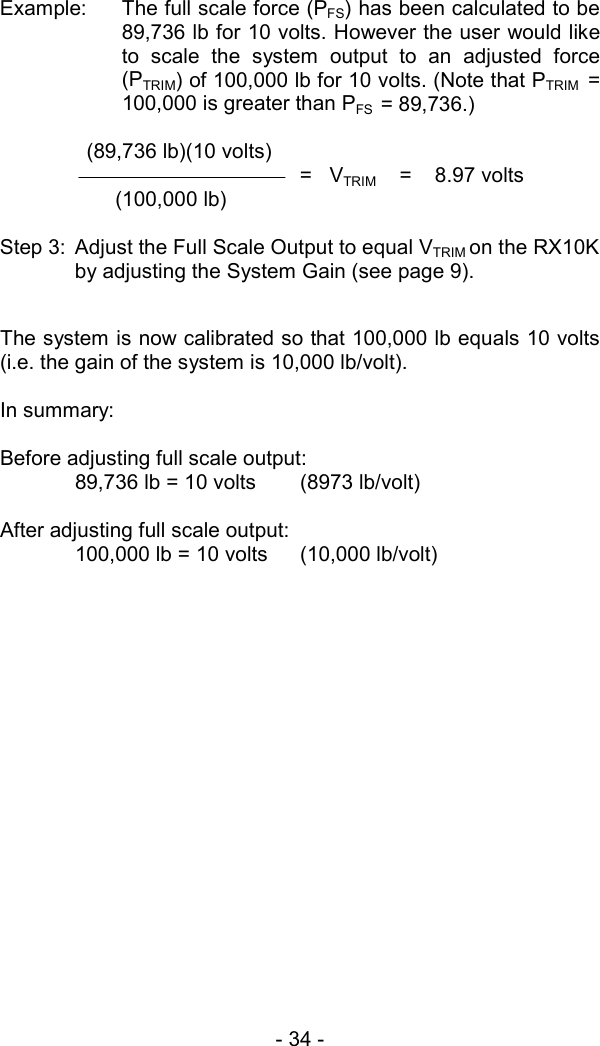
- 34 -  Example:  The full scale force (PFS) has been calculated to be 89,736 lb for 10 volts. However the user would like to scale the system output to an adjusted force (PTRIM) of 100,000 lb for 10 volts. (Note that PTRIM  = 100,000 is greater than PFS  = 89,736.)    (89,736 lb)(10 volts) =   VTRIM    =    8.97 volts        (100,000 lb)  Step 3:  Adjust the Full Scale Output to equal VTRIM on the RX10K by adjusting the System Gain (see page 9).    The system is now calibrated so that 100,000 lb equals 10 volts (i.e. the gain of the system is 10,000 lb/volt).  In summary:   Before adjusting full scale output:   89,736 lb = 10 volts  (8973 lb/volt)  After adjusting full scale output:   100,000 lb = 10 volts  (10,000 lb/volt)
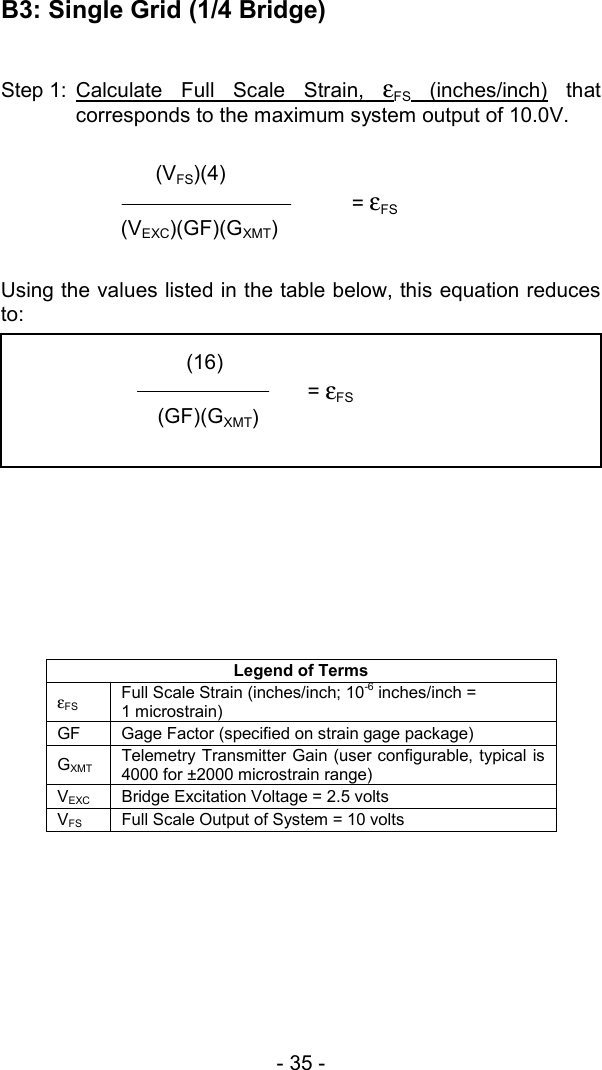
- 35 -   B3: Single Grid (1/4 Bridge)  Step 1: Calculate Full Scale Strain, ε  FS (inches/inch) that corresponds to the maximum system output of 10.0V.   Using the values listed in the table below, this equation reduces to:         Legend of Terms εFS Full Scale Strain (inches/inch; 10-6 inches/inch =  1 microstrain) GF  Gage Factor (specified on strain gage package) GXMT Telemetry Transmitter Gain (user configurable, typical is 4000 for ±2000 microstrain range) VEXC  Bridge Excitation Voltage = 2.5 volts VFS  Full Scale Output of System = 10 volts          (VFS)(4)  = εFS (VEXC)(GF)(GXMT)            (16)  = εFS  (GF)(GXMT)
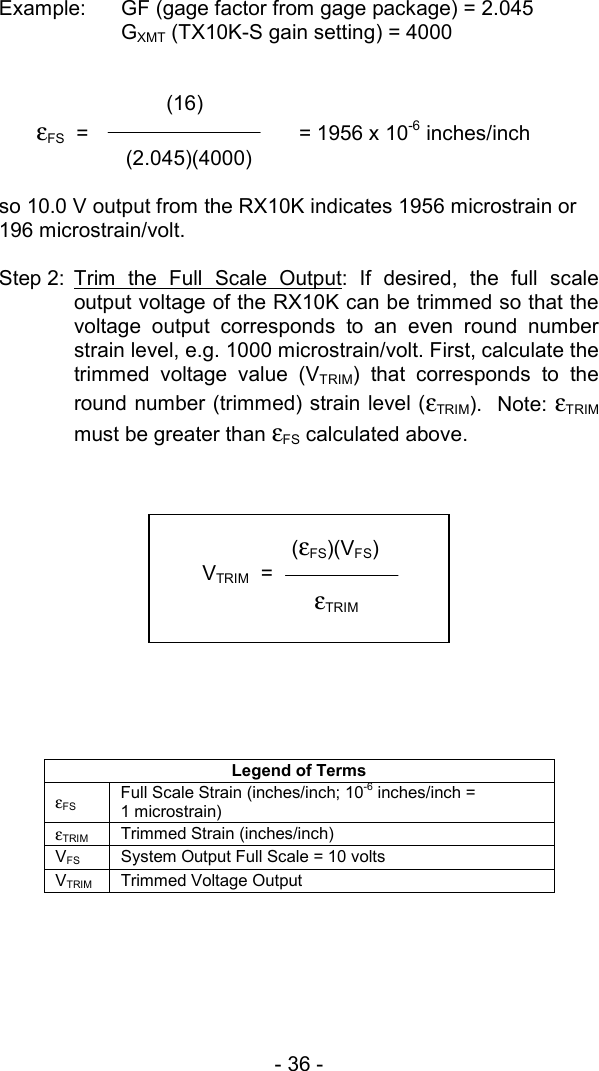
- 36 -  Example:  GF (gage factor from gage package) = 2.045  GXMT (TX10K-S gain setting) = 4000             (16)  εFS  =       = 1956 x 10-6 inches/inch          (2.045)(4000)      so 10.0 V output from the RX10K indicates 1956 microstrain or 196 microstrain/volt.  Step 2: Trim the Full Scale Output: If desired, the full scale output voltage of the RX10K can be trimmed so that the voltage output corresponds to an even round number strain level, e.g. 1000 microstrain/volt. First, calculate the trimmed voltage value (VTRIM) that corresponds to the round number (trimmed) strain level (εTRIM).  Note: εTRIM must be greater than εFS calculated above.              Legend of Terms εFS Full Scale Strain (inches/inch; 10-6 inches/inch =  1 microstrain) εTRIM Trimmed Strain (inches/inch) VFS  System Output Full Scale = 10 volts VTRIM Trimmed Voltage Output           (εFS)(VFS) VTRIM  =   εTRIM
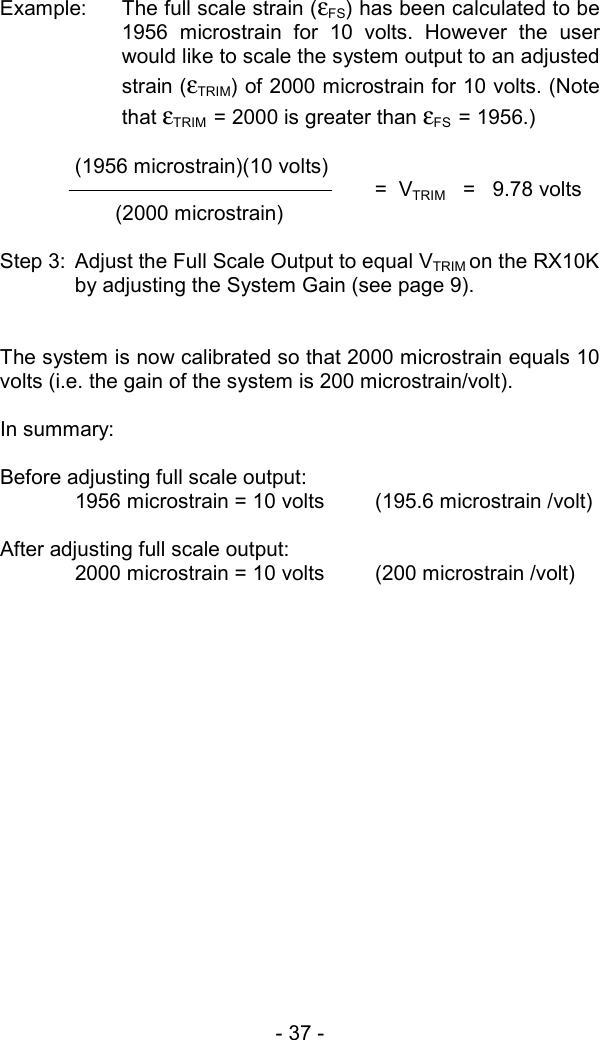
- 37 -   Example:  The full scale strain (εFS) has been calculated to be 1956 microstrain for 10 volts. However the user would like to scale the system output to an adjusted strain (εTRIM) of 2000 microstrain for 10 volts. (Note that εTRIM  = 2000 is greater than εFS  = 1956.)  (1956 microstrain)(10 volts) =  VTRIM   =   9.78 volts        (2000 microstrain)  Step 3:  Adjust the Full Scale Output to equal VTRIM on the RX10K by adjusting the System Gain (see page 9).   The system is now calibrated so that 2000 microstrain equals 10 volts (i.e. the gain of the system is 200 microstrain/volt).  In summary:   Before adjusting full scale output:   1956 microstrain = 10 volts  (195.6 microstrain /volt)  After adjusting full scale output:   2000 microstrain = 10 volts  (200 microstrain /volt)
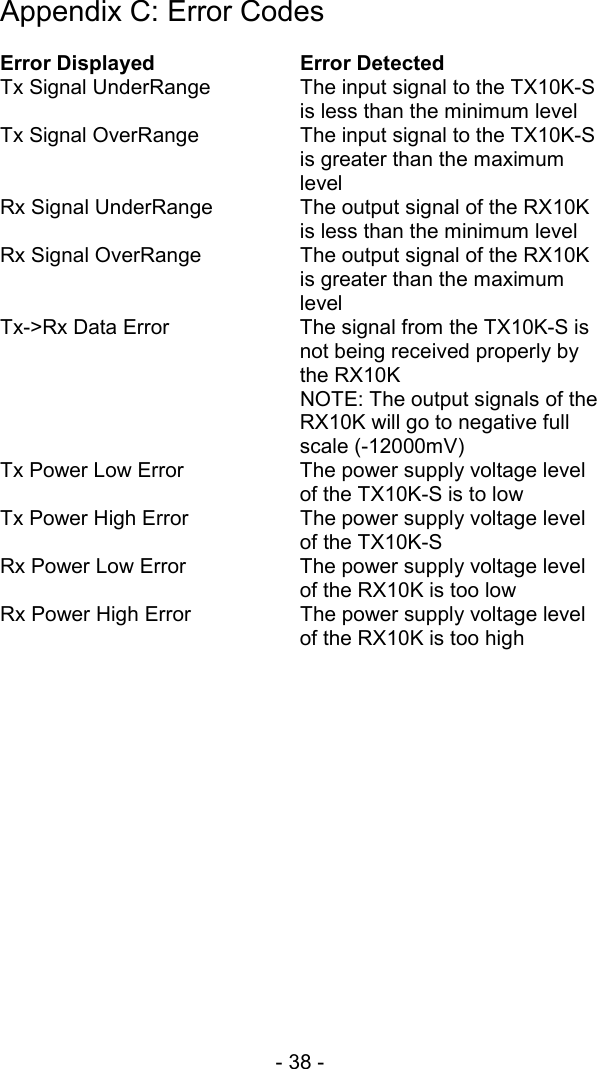
- 38 -  Appendix C: Error Codes  Error Displayed    Error Detected Tx Signal UnderRange  The input signal to the TX10K-S is less than the minimum level Tx Signal OverRange  The input signal to the TX10K-S is greater than the maximum level Rx Signal UnderRange  The output signal of the RX10K is less than the minimum level Rx Signal OverRange  The output signal of the RX10K is greater than the maximum level Tx->Rx Data Error  The signal from the TX10K-S is not being received properly by the RX10K   NOTE: The output signals of the RX10K will go to negative full scale (-12000mV) Tx Power Low Error  The power supply voltage level of the TX10K-S is to low Tx Power High Error  The power supply voltage level of the TX10K-S Rx Power Low Error  The power supply voltage level of the RX10K is too low Rx Power High Error  The power supply voltage level of the RX10K is too high
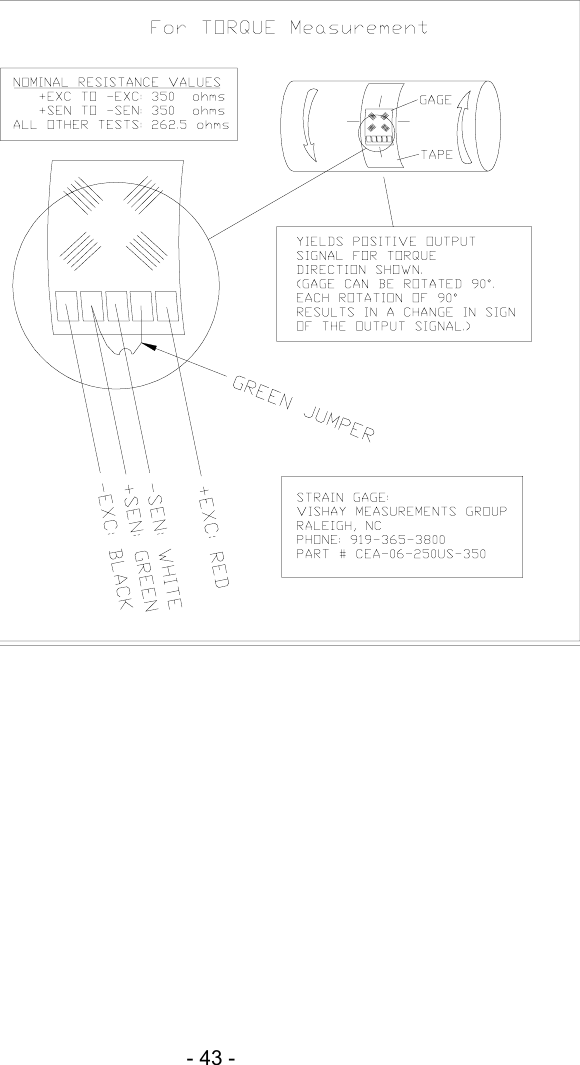
- 39 -   Appendix D: Strain Gage Application  (Also refer to instruction bulletin B-127-12 provided with GAK-2-200 Strain Gage Application Kit from Vishay Measurements Group, Inc., Raleigh, NC, 919-365-3800, www.measurementsgroup.com.)  PREPARING THE SURFACE  1.  A 3-inch square area will be used for gaging. Scrape off any paint or other coatings and inspect shaft for oil residue. If necessary, use a degreasing solution or isopropyl alcohol to remove.  2.  Rough sand the gaging area with 220 grit paper. Finish the sanding procedure by wetting the gaging area with M-Prep Conditioner A and the wetted surface with 400 grit paper provided. Rinse by squirting with M-Prep Conditioner A. Wipe the area dry with tissue taking care to wipe in only one direction. Each time you wipe use a clean area of the tissue to eliminate contamination.  3.  Rinse shaft this time by squirting with M-Prep Neutralizer 5A. Wipe the gaging area dry with a clean tissue, wiping in only one direction and using clean area of tissue with each wipe. Do not allow any solution to dry on the surface as this may leave a contaminating film which can reduce bonding. Surface is now prepared for bonding.  MARKING THE SHAFT FOR GAGE ALIGNMENT  4.  The gage needs to be perpendicular to the shaft axis. In general, this can be accomplished by eye since misalignment of less than 4 degrees will not generate significant errors. For higher precision, we recommend two methods for marking the shaft: a)  Use a machinist square and permanent marker or scribe for perpendicular and parallel lines; or b)  Cut a strip of graph paper greater than the circumference of the shaft. Tape it to the shaft while
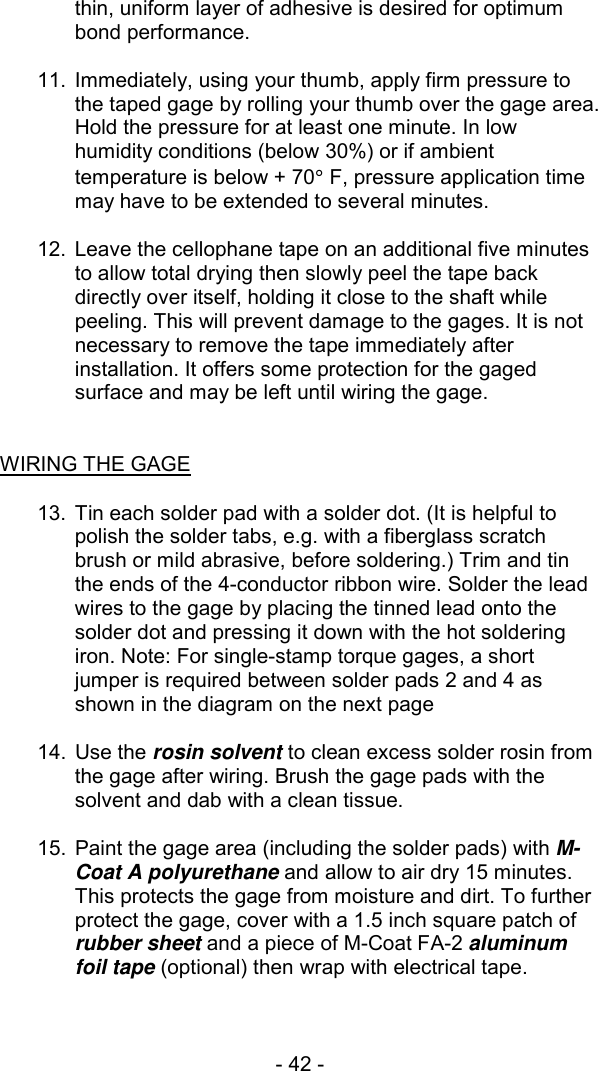
- 40 -  lining up the edges. Mark desired gage position with a scribe or permanent marker.    PREPARING THE GAGE FOR MOUNTING  5.  Using tweezers, remove one gage from its package. Using the plastic gage box as a clean surface, place the gage on it, bonding side down. Take a 6” piece of PCT-2A Cellophane Tape and place it on the gage and terminal, centered. Slowly lift the tape at a shallow angle. You should now have the gage attached to the tape.  POSITIONING THE GAGE  6.  Using the small triangles located on the four sides of the gage, place the taped gage on the shaft, perpendicular with the shaft axis, aligned with your guide marks. If it appears to be misaligned, lift one end of tape at a shallow angle until the assembly is free to realign. Keep one end of the tape firmly anchored. Repositioning can be done as the PCT-2A tape will retain its mastic when removed and therefore not contaminate the gaging area.   Positioning the Gage on the Shaft
- 41 -   7.  Gage should now be positioned. Once again, lift the gage end of the tape at a shallow angle to the surface until the gage is free of the surface. Continue pulling the tape until you are approximately 1/8” – 1/4” beyond gage. Turn the leading edge of the tape under and press it down, leaving the bonding surface of the gage exposed.   8.  Apply a very thin, uniform coat of M-Bond 200-Catalyst to the bonding surface of the gage. This will accelerate the bonding when glue is applied. Very little catalyst is needed. Lift the brush cap out and wipe excess on lip of bottle. Use just enough catalyst to wet gage surface. Before proceeding, allow catalyst to dry at least one minute under normal ambient conditions of + 75°F and 30-65% relative humidity.  NOTE: The next three steps must be completed in sequence within 3 – 5 seconds. Read through instructions before proceeding so there will be no delays.  Have Ready: M-Bond (Cyanoacrylate) Adhesive 2” – 5” piece of teflon tape Tissues   MOUNTING THE GAGE  9.  Lift the leading edge of the tape and apply a thin bead of adhesive at the gage end where the tape meets the shaft. Adhesive should be of thin consistency to allow even spreading. Extend the line of glue outside the gage installation area.  10.  Holding the tape taut, slowly and firmly press with a single wiping stroke over the tape using a teflon strip (to protect your thumb from the adhesive) and a tissue (to absorb excess adhesive that squeezes out from under the tape). This will bring the gage back down over the alignment marks on the gaging area. This forces the glue line to move up and across the gage area. A very
- 42 -  thin, uniform layer of adhesive is desired for optimum bond performance.  11.  Immediately, using your thumb, apply firm pressure to the taped gage by rolling your thumb over the gage area. Hold the pressure for at least one minute. In low humidity conditions (below 30%) or if ambient temperature is below + 70° F, pressure application time may have to be extended to several minutes.  12.  Leave the cellophane tape on an additional five minutes to allow total drying then slowly peel the tape back directly over itself, holding it close to the shaft while peeling. This will prevent damage to the gages. It is not necessary to remove the tape immediately after installation. It offers some protection for the gaged surface and may be left until wiring the gage.   WIRING THE GAGE   13.  Tin each solder pad with a solder dot. (It is helpful to polish the solder tabs, e.g. with a fiberglass scratch brush or mild abrasive, before soldering.) Trim and tin the ends of the 4-conductor ribbon wire. Solder the lead wires to the gage by placing the tinned lead onto the solder dot and pressing it down with the hot soldering iron. Note: For single-stamp torque gages, a short jumper is required between solder pads 2 and 4 as shown in the diagram on the next page  14. Use the rosin solvent to clean excess solder rosin from the gage after wiring. Brush the gage pads with the solvent and dab with a clean tissue.  15.  Paint the gage area (including the solder pads) with M-Coat A polyurethane and allow to air dry 15 minutes. This protects the gage from moisture and dirt. To further protect the gage, cover with a 1.5 inch square patch of rubber sheet and a piece of M-Coat FA-2 aluminum foil tape (optional) then wrap with electrical tape.
- 43 -
- 44 -  Revision History  Rev Date Description  1  02/07  First draft for beta release.  Need to create Troubleshooting steps for App C.  App A needs to be updated and streamlined.  Plan to add bending equations to App B.  Need color photo for cover page and drawing for Figure 5 on page 19 (not included in this version).    This page for BEI reference only NOT to be included with customer manual

Navigation menu