Bodycap 043 The Activator is intended to activate the capsule for Telemetry System. User Manual User guide

Bodycap The Activator is intended to activate the capsule for Telemetry System. User guide

User_guide.pdf

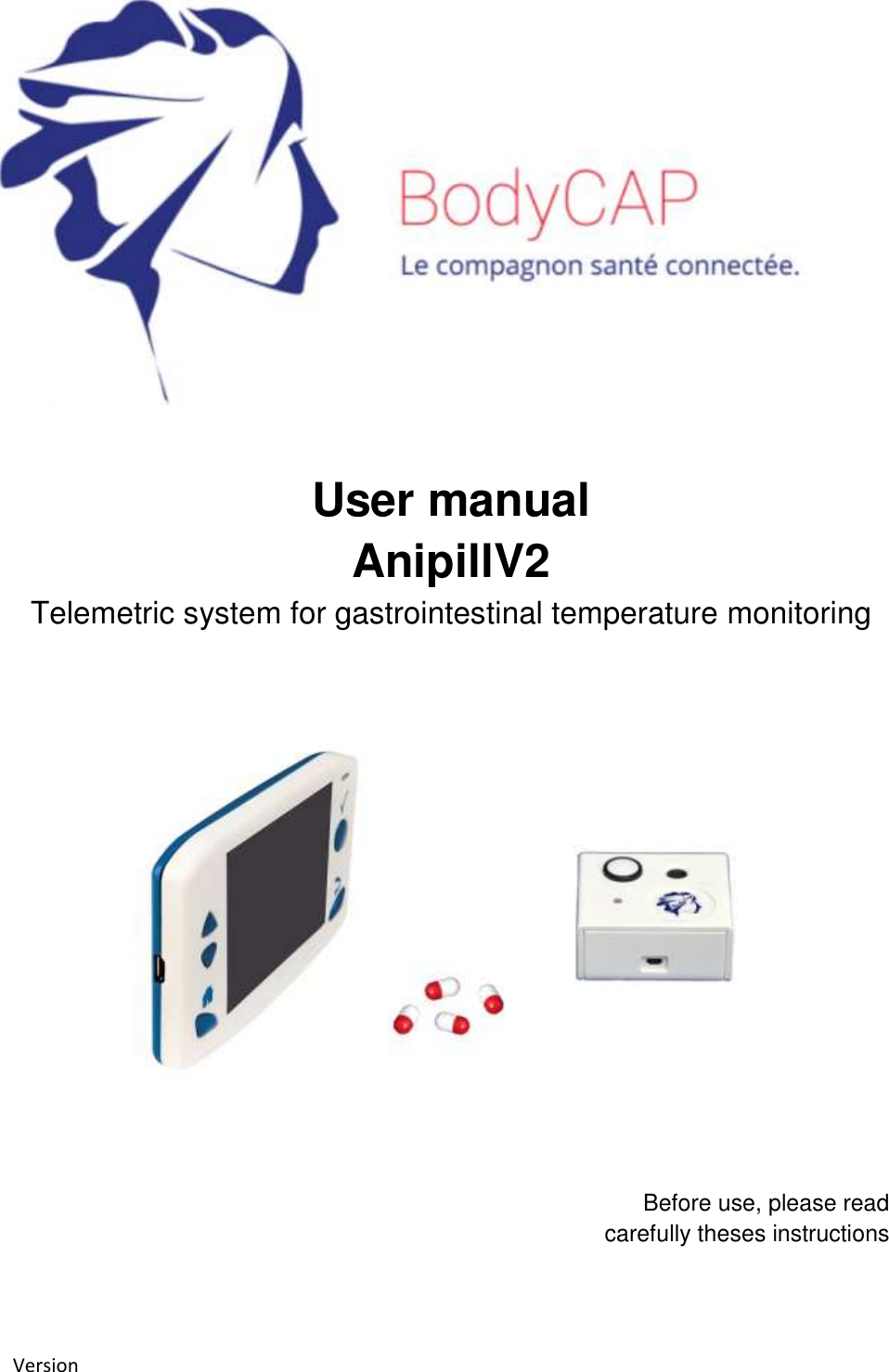
Version         User manual AnipillV2 Telemetric system for gastrointestinal temperature monitoring   Before use, please read  carefully theses instructions
 2 V.01 21/08/2015    Index 1 Precautions for use ................................................................. 5 1.1 Functions of ANIPILL system ............................................................ 7 2 First use .................................................................................. 8 2.1 Installation of ANIPILL IHM software ............................................... 8 2.2 Implementation of the device ......................................................... 8 2.2.1 Power up of the Aniview monitor ...................................................................8 2.2.2 Supply the batteries .........................................................................................9 2.2.3 Configuration of account in IHM Anipill .........................................................9 2.2.4 Configuration of the monitor......................................................................... 11 3 The Anipill® capsule .............................................................. 15 3.1 Important information and safety recommendation ...................... 15 3.2 Characteristics ................................................................................ 16 4 The Activator ........................................................................ 18 4.1 Important information and safety instructions ............................... 18 4.2 Characteristics ................................................................................ 19 4.3 The buttons .................................................................................... 20 4.4 The LED .......................................................................................... 20 5 Aniview V2 monitor .............................................................. 21 5.1 Important information and safety instructions ............................... 21 5.2 The characteristic ........................................................................... 23 5.3 The buttons .................................................................................... 24 5.4 The LEDs ......................................................................................... 25 5.5 The battery of Aniview monitor ..................................................... 26 5.6 Connection ..................................................................................... 27 5.7 Menus of the Aniview monitor ....................................................... 27 5.8 Main functions ............................................................................... 30 5.8.1 Set the monitor .............................................................................................. 30 5.8.2 Changing the channel used by the monitor ................................................. 30 5.8.3 Activate a capsule .......................................................................................... 30
 3 V.01 21/08/2015    5.8.4 Consult temperature data in real time .......................................................... 32 5.8.5 Synchronization of the data in memory of the capsule ............................... 32 5.8.6 Visualization of the end-of-life of the capsule ............................................. 33 5.8.7 Disassociation of a capsule .......................................................................... 33 5.8.8 Use of the monitor screen ............................................................................. 34 5.8.9 Low battery ..................................................................................................... 34 6 Anipill® software ................................................................... 34 6.1 Main fonctions ............................................................................... 34 6.1.1 Unload and consult the temperature data on the Anipill software ............. 35 6.1.2 Visualization of markers from the Aniview monitor .................................... 35 6.1.3 Export temperature’s data unloaded on Anipill software ........................... 36 6.1.4 Consult temperature data in real-time .......................................................... 37 6.2 Secondary functions ....................................................................... 38 6.2.1 Backup mode ................................................................................................. 38 7 Failures guide ....................................................................... 39 8 Cables and power supply ...................................................... 40
 4 V.01 21/08/2015    To our customers, we thank you for purchasing the Anipill® system. The system includes an activator and a Aniview monitor respectively dedicated to the activation and reception of data sent from Anipill capsules. Furthermore a PC / Mac software allows to set the monitor and to export the data stored in the monitor. The Activator, Aniview Monitor and Anipill capsules are manufactured by the company BodyCap. This manual is designed to introduce the features and operation of your system and to support you installing and using this product. The use of this device does not require training or specific skills; however, please read these instructions carefully and keep it handy in order to refer to it whenever you need.     Destination and use case: The  ANIPILL®  system  is  provided  for  ongoing  measurement  of  the  intracorporeal temperature of 1-16  animals  in  parallel. The Anipill®  capsule  is either  ingested or injected (subcutaneous,  intraperitoneal  …).  The  capsule  is  supplied sterile in its original packaging and for a single use. Then it is set up with the Activator associated with the Aniview® monitor which record and delivers data to a PC via a system interface delivered with the ANIPILL® system.
 5 V.01 21/08/2015    WARNING TO USERS IN THE UNITED STATES   This  equipment  has  been  tested  and  found  to  comply  with  the  limits  for  a  Class  B  digital  device, pursuant  to  Part  15 of the  FCC  Rules. These  limits are designed  to  provide reasonable  protection against  harmful  interference  in  a  residential  installation.  This  equipment  generates  uses  and  can radiate radio frequency energy and, if not installed and used in accordance with the instructions, may cause harmful interference to radio communications. However, there is no guarantee that interference will not occur in a particular installation. If this equipment does cause harmful interference to radio or television  reception,  which  can  be  determined  by  turning  the  equipment  off  and  on,  the  user  is encouraged to try to correct the interference by one of the following measures:  - Reorient or relocate the receiving antenna. - Increase the separation between the equipment and receiver. -  Connect  the  equipment  into  an  outlet  on  a  circuit  different  from  that  to  which  the  receiver  is connected. - Consult the dealer or an experienced radio/TV technician for help.   This device Anipill complies with Part 15 of the FCC Rules. Operation is subject to the following two conditions: (1) This device may not cause harmful interference, and (2) this device must accept any interference received, including interference that may cause undesired operation.   NO UNAUTHORIZED MODIFICATIONS  47 CFR Section 15.21  CAUTION:  This  equipment  may  not  be  modified,  altered,  or  changed  in  any  way  without  signed written permission from BODYCAP. Unauthorized modification may void the equipment authorization from the FCC and will void the BODYCAP warranty.       _________________________________________________________   1 Precautions for use  The  following  safety  instructions ensure  proper  operation  and  will optimize  the  use  of  the ANIPILLV2 system. Follow them carefully. For any questions that have not been answered in the  manual,  please  ask  for  assistance  from  your  distributor  or  manufacturer  (contact information at the end of this leaflet).
 6 V.01 21/08/2015      ANIPILLV2  system  is  provided  to  continuously  measure  the  gastrointestinal  temperature. The  AnpillV2  capsule  should  be  swallowed.  It  is  supplied  in  its  original  packaging  and intended for a single use. Then it is woke up with an Activator and associated to a monitor which records the collected temperature data by the capsule enabling transfer to a PC / Mac via the user interface provided with the system.  Do  no  place  or  drop  any  objects  on  the device, do not introduce foreign objects.   Do  not  expose  the  ANIPILL®  system  to dust  or  dirt  (clean  up  the  system  into  its packaging).  Do not use during a gas leakage.  Do  not  expose  the  system  to  strong magnetic or electrical fields.   Do  not  touch  or  press  the  screen  of  the monitor.   Do not  place  the  monitor or the Activator around  small  objects  that  may  scratch then or enter inside.   Do not expose the monitor or the Activator to rain or humidity; keep them away from liquids or sprayed water.   In order to reduce the risk of fire, electric shock  and  interference,  only  use  the micro-USB cable and the adapter supplied with the system.   Do  not  use  a  damaged  micro-USB  cable or power adapter.  It is highly recommended to pay attention to the localisation of the cables so they are not in the passage and do not constitute a risk of falling.   Take  care  to  not  shake  or  strike  the monitor and the Activator. This could affect their normal way of working.   Do not use the capsule if the packaging is damaged.  Do not use the system if it is damaged.  Connect  only  units,  which  have  been identified  such  as  parts  of  or  compatible with the electrical device.  Safety instructions:    DO NOT THROW IN FIRE DO NOT SHORT-CIRCUIT  DO NOT DISASSEMBLE  Do not put the device as unsorted municipal waste. The Monitor and the Activator have been designed to allow a reuse and a suitable recycling of some components. The symbol representing a waste container with a cross indicates that the product (electrical  equipment,  electronic  and  pile  and  /  or  battery)  should  not  be  put  in municipal waste. Check local regulations for disposal of electronic products.   Temperature, humidity and atmospheric pressure in operation -  The Aniview ® monitor, the Activator and the cables must be used in an environment where the humidity is  between 30  and 80%  of relative humidity in  an  environment
 7 V.01 21/08/2015    where the  atmospheric pressure  is  between  800hPa  and  1060hPa  and  in  ambient temperature  conditions  between  0  and  40°C.  It  is  also  recommended  to  avoid sprayed water. -  The  Anipill®  capsule  should  not  be  exposed  to  temperatures  outside  the  range  0  - 50°C. Conditions and duration of storage and / or transport - The Aniview® monitor, the Activator and the cables must be kept in an environment where the humidity is between 30 and 80% of relative humidity, in an environment where the  atmospheric pressure  is  between  800hPa  and  1060hPa  and  in  ambient temperature  conditions  between  0  and  35°C.  It  is  also  recommended  to  avoid sprayed water and protect it from exposure to sunlight. - During  the  period  preceding  the  use  of  the  Anipill®  capsule,  it  must  be kept  in  an environment with humidity between 30 and 80% relative humidity, in an environment where the  atmospheric pressure  is  between  800hPa  and  1060hPa  and  in  ambient temperature  conditions  between  0  and  40°C.  It  is  also  recommended  to  avoid sprayed water and  protect  it from  exposure  to  sunlight. Storage at  lower  or  higher temperatures may affect the autonomy of the capsules and their performances. -  The  shelf  life  of  the  Anipill®  capsules  is  indicated  by  an  expiration  date  on  the packaging.  Beyond  that  date,  device  performances  and  autonomy  are  not guaranteed.  1.1 Functions of ANIPILL system The device is based on the principles listed in Table 1. Table 1 : Operating principle No.  Operating principle 1.   The activation of the Anipill capsule is performed via an electromagnetic pulse emitted by the Activator. 2.   The Anipill capsule measures the temperature through a thermistor. 3.   The Anipill capsule stores the last 2000 temperature data collected. 4.   The communication between the Anipilll capsule and the monitor is performed via the radio frequency band of 433 MHz using a proprietary protocol.  5.   The Aniview® monitor receives and stores the data.  6.   Visualization of the data on the ANIPILL IHM application. 7.   The export of the data to CSV and PDF via ANIPILL IHM software.  The functions frequently used are listed in Table 2. Table 2 : Frequently used functions Frequently used functions Main (M) / Secondary (S) Activation of the Anipill capsule M Temperature measurement by the Anipill capsule M Setting of hour and the date of monitor with the ANIPILL IHM software S
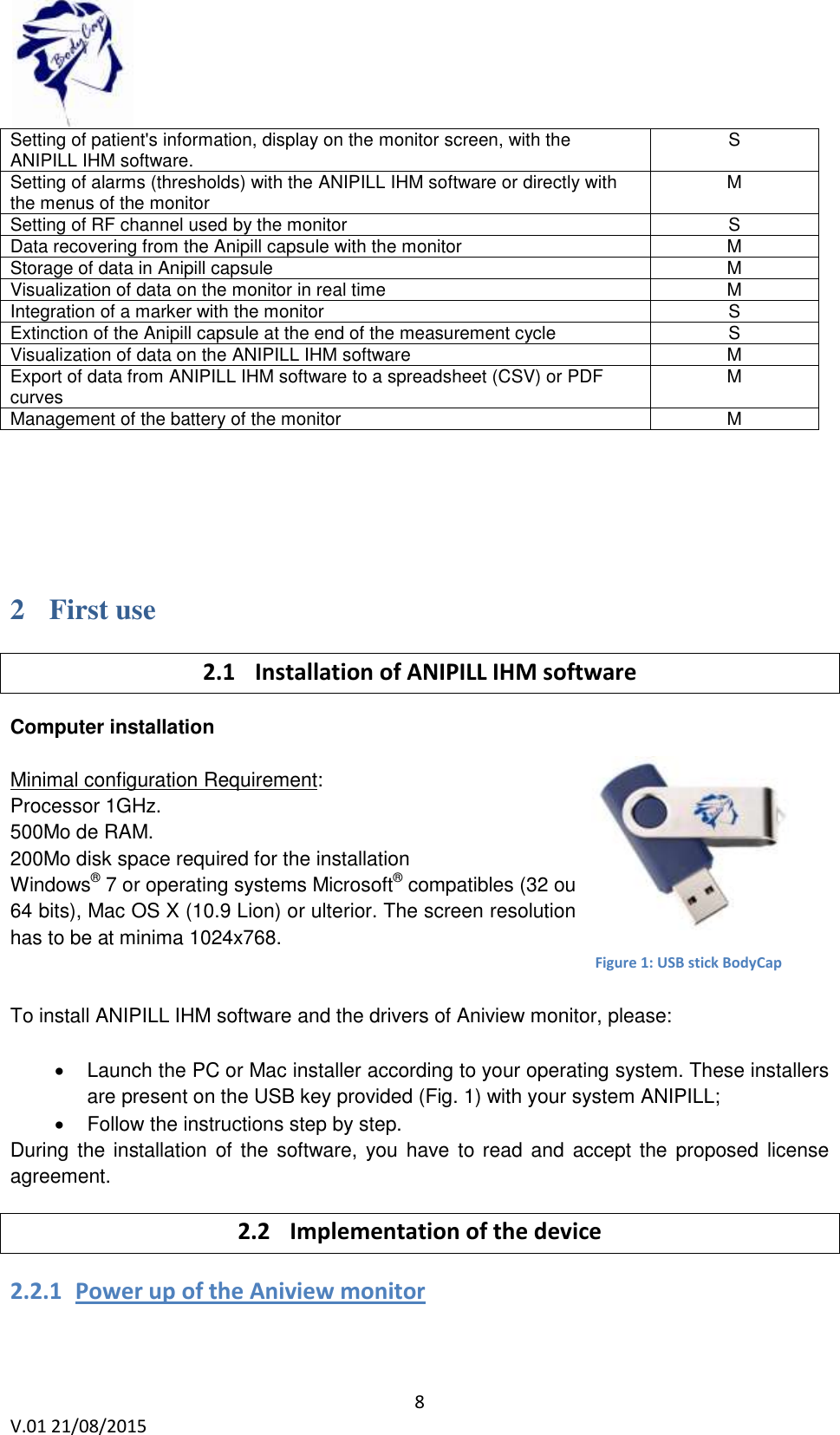
 8 V.01 21/08/2015    Setting of patient's information, display on the monitor screen, with the ANIPILL IHM software.  S Setting of alarms (thresholds) with the ANIPILL IHM software or directly with the menus of the monitor M Setting of RF channel used by the monitor  S Data recovering from the Anipill capsule with the monitor  M Storage of data in Anipill capsule M Visualization of data on the monitor in real time M Integration of a marker with the monitor  S Extinction of the Anipill capsule at the end of the measurement cycle  S Visualization of data on the ANIPILL IHM software M Export of data from ANIPILL IHM software to a spreadsheet (CSV) or PDF curves M Management of the battery of the monitor  M    2 First use 2.1 Installation of ANIPILL IHM software Computer installation  Minimal configuration Requirement:  Processor 1GHz.  500Mo de RAM.  200Mo disk space required for the installation  Windows® 7 or operating systems Microsoft® compatibles (32 ou 64 bits), Mac OS X (10.9 Lion) or ulterior. The screen resolution has to be at minima 1024x768.    To install ANIPILL IHM software and the drivers of Aniview monitor, please:    Launch the PC or Mac installer according to your operating system. These installers are present on the USB key provided (Fig. 1) with your system ANIPILL;   Follow the instructions step by step.  During the installation of the  software, you have to read and accept the proposed license agreement. 2.2 Implementation of the device 2.2.1 Power up of the Aniview monitor  Figure 1: USB stick BodyCap
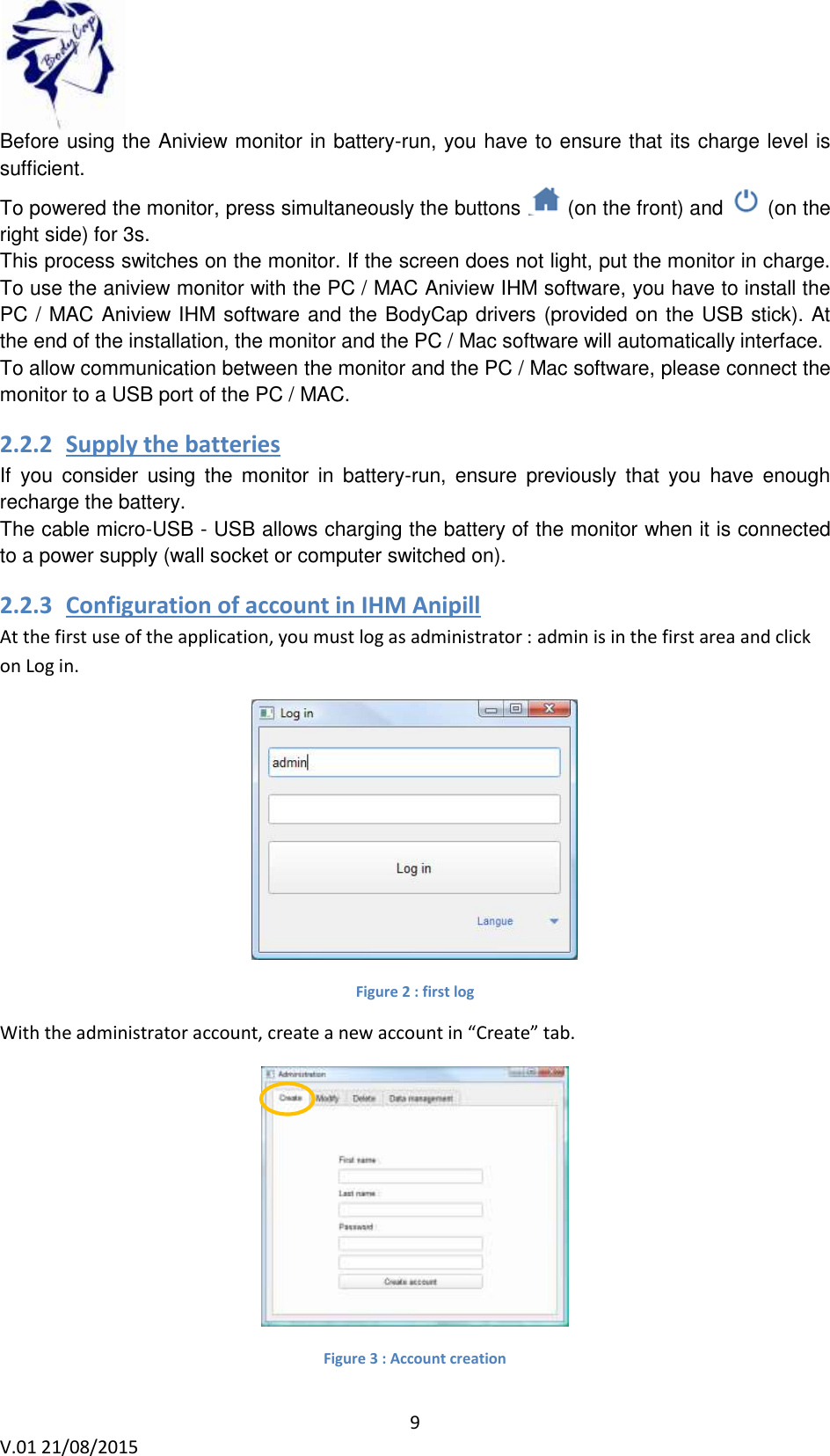
 9 V.01 21/08/2015    Before using the Aniview monitor in battery-run, you have to ensure that its charge level is sufficient. To powered the monitor, press simultaneously the buttons   (on the front) and   (on the right side) for 3s. This process switches on the monitor. If the screen does not light, put the monitor in charge. To use the aniview monitor with the PC / MAC Aniview IHM software, you have to install the PC / MAC Aniview IHM software and the BodyCap drivers (provided on the USB stick). At the end of the installation, the monitor and the PC / Mac software will automatically interface. To allow communication between the monitor and the PC / Mac software, please connect the monitor to a USB port of the PC / MAC. 2.2.2 Supply the batteries   If  you  consider  using  the  monitor  in  battery-run,  ensure  previously  that  you  have  enough recharge the battery.  The cable micro-USB - USB allows charging the battery of the monitor when it is connected to a power supply (wall socket or computer switched on).  2.2.3 Configuration of account in IHM Anipill  At the first use of the application, you must log as administrator : admin is in the first area and click on Log in.  Figure 2 : first log With the administrator account, create a new account in “Create” tab.   Figure 3 : Account creation
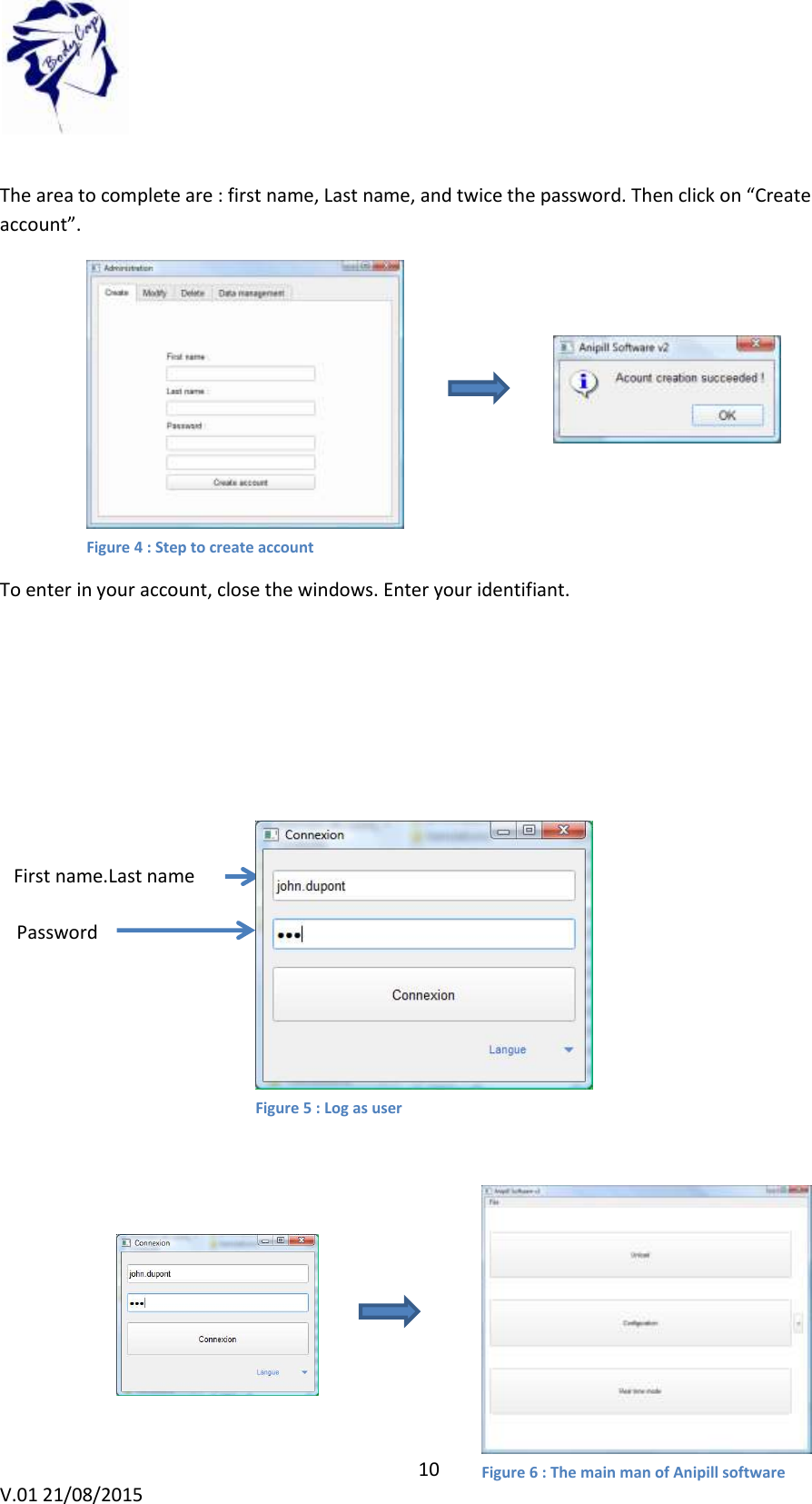
 10 V.01 21/08/2015     The area to complete are : first name, Last name, and twice the password. Then click on “Create account”.  To enter in your account, close the windows. Enter your identifiant.       First name.Last name Password Figure 4 : Step to create account Figure 5 : Log as user Figure 6 : The main man of Anipill software
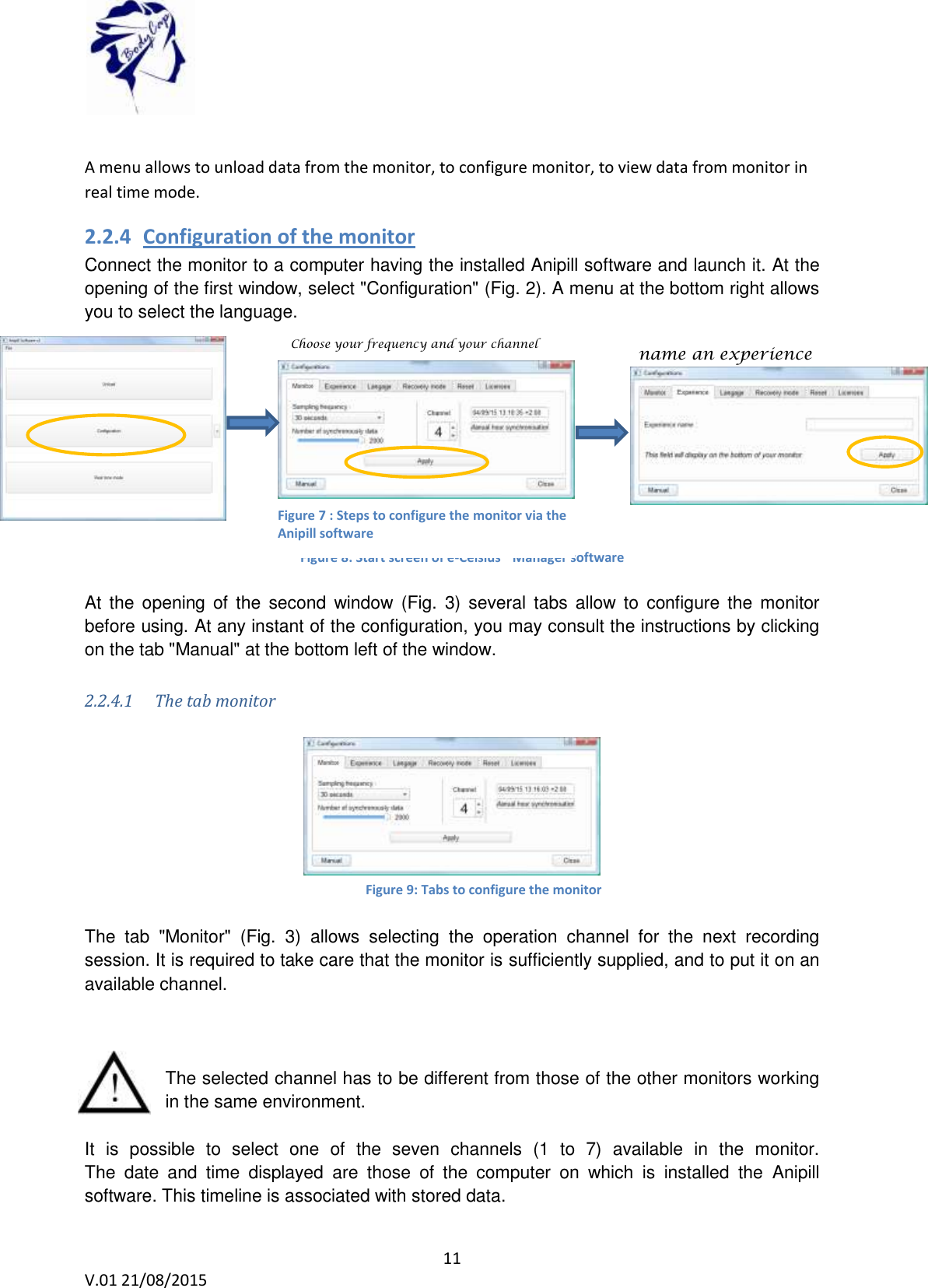
 11 V.01 21/08/2015     A menu allows to unload data from the monitor, to configure monitor, to view data from monitor in real time mode. 2.2.4 Configuration of the monitor Connect the monitor to a computer having the installed Anipill software and launch it. At the opening of the first window, select "Configuration" (Fig. 2). A menu at the bottom right allows you to select the language.     At  the  opening  of  the  second  window  (Fig.  3)  several tabs  allow  to  configure the  monitor before using. At any instant of the configuration, you may consult the instructions by clicking on the tab "Manual" at the bottom left of the window.   2.2.4.1 The tab monitor     The  tab  "Monitor"  (Fig.  3)  allows  selecting  the  operation  channel  for  the  next  recording session. It is required to take care that the monitor is sufficiently supplied, and to put it on an available channel.    The selected channel has to be different from those of the other monitors working in the same environment.   It  is  possible  to  select  one  of  the  seven  channels  (1  to  7)  available  in  the  monitor. The  date  and  time  displayed  are  those  of  the  computer  on  which  is  installed  the  Anipill software. This timeline is associated with stored data. Figure 8: Start screen of e-Celsius® Manager software Figure 9: Tabs to configure the monitor Choose your frequency and your channel name an experience  Figure 7 : Steps to configure the monitor via the Anipill software
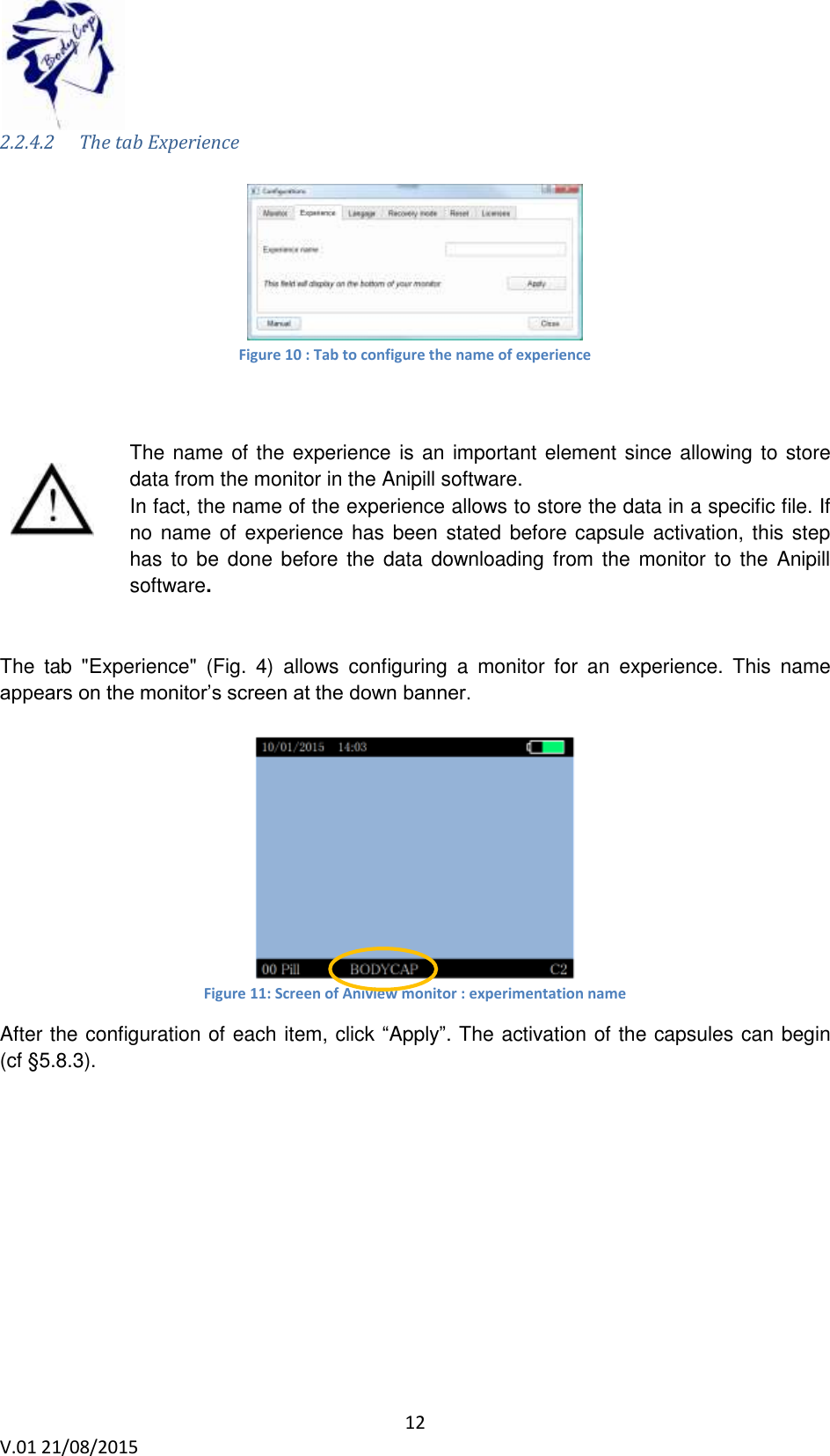
 12 V.01 21/08/2015    2.2.4.2 The tab Experience   Figure 10 : Tab to configure the name of experience   The name of the experience is an important element since allowing to store data from the monitor in the Anipill software. In fact, the name of the experience allows to store the data in a specific file. If no name of experience has  been stated before capsule activation, this step has to  be  done before the data downloading from  the  monitor to  the  Anipill software.   The  tab  "Experience"  (Fig.  4)  allows  configuring  a  monitor  for  an  experience.  This  name appears on the monitor’s screen at the down banner.   Figure 11: Screen of Aniview monitor : experimentation name After the configuration of each item, click “Apply”. The activation of the capsules can begin (cf §5.8.3).
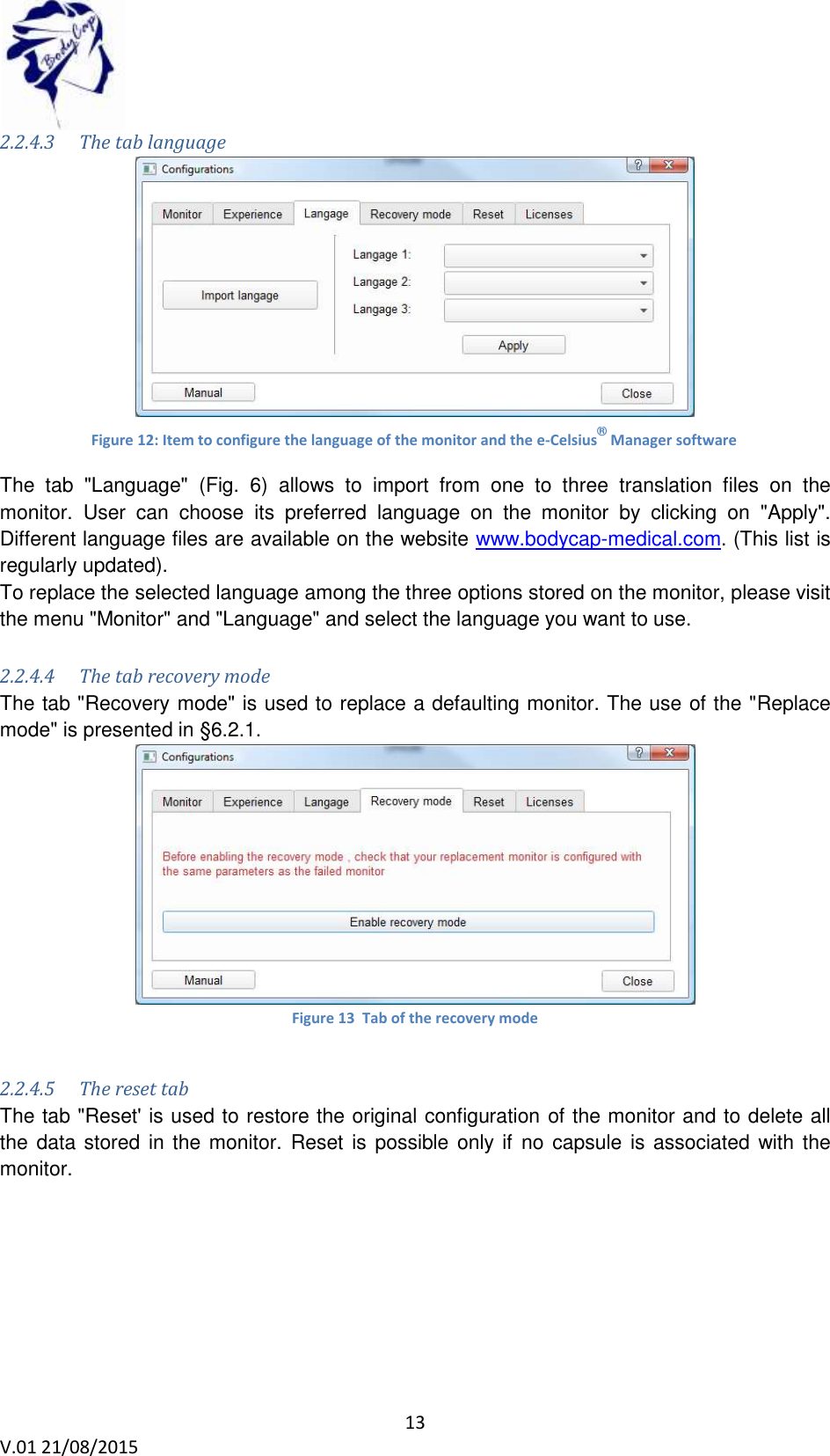
 13 V.01 21/08/2015    2.2.4.3 The tab language    The  tab  "Language"  (Fig.  6)  allows  to  import  from  one  to  three  translation  files  on  the monitor.  User  can  choose  its  preferred  language  on  the  monitor  by  clicking  on  "Apply". Different language files are available on the website www.bodycap-medical.com. (This list is regularly updated). To replace the selected language among the three options stored on the monitor, please visit the menu "Monitor" and "Language" and select the language you want to use.  2.2.4.4 The tab recovery mode The tab "Recovery mode" is used to replace a defaulting monitor. The use of the "Replace mode" is presented in §6.2.1.  Figure 13  Tab of the recovery mode  2.2.4.5 The reset tab The tab "Reset' is used to restore the original configuration of the monitor and to delete all the data stored in the monitor.  Reset is possible only if no  capsule is associated with the monitor.  Figure 12: Item to configure the language of the monitor and the e-Celsius® Manager software
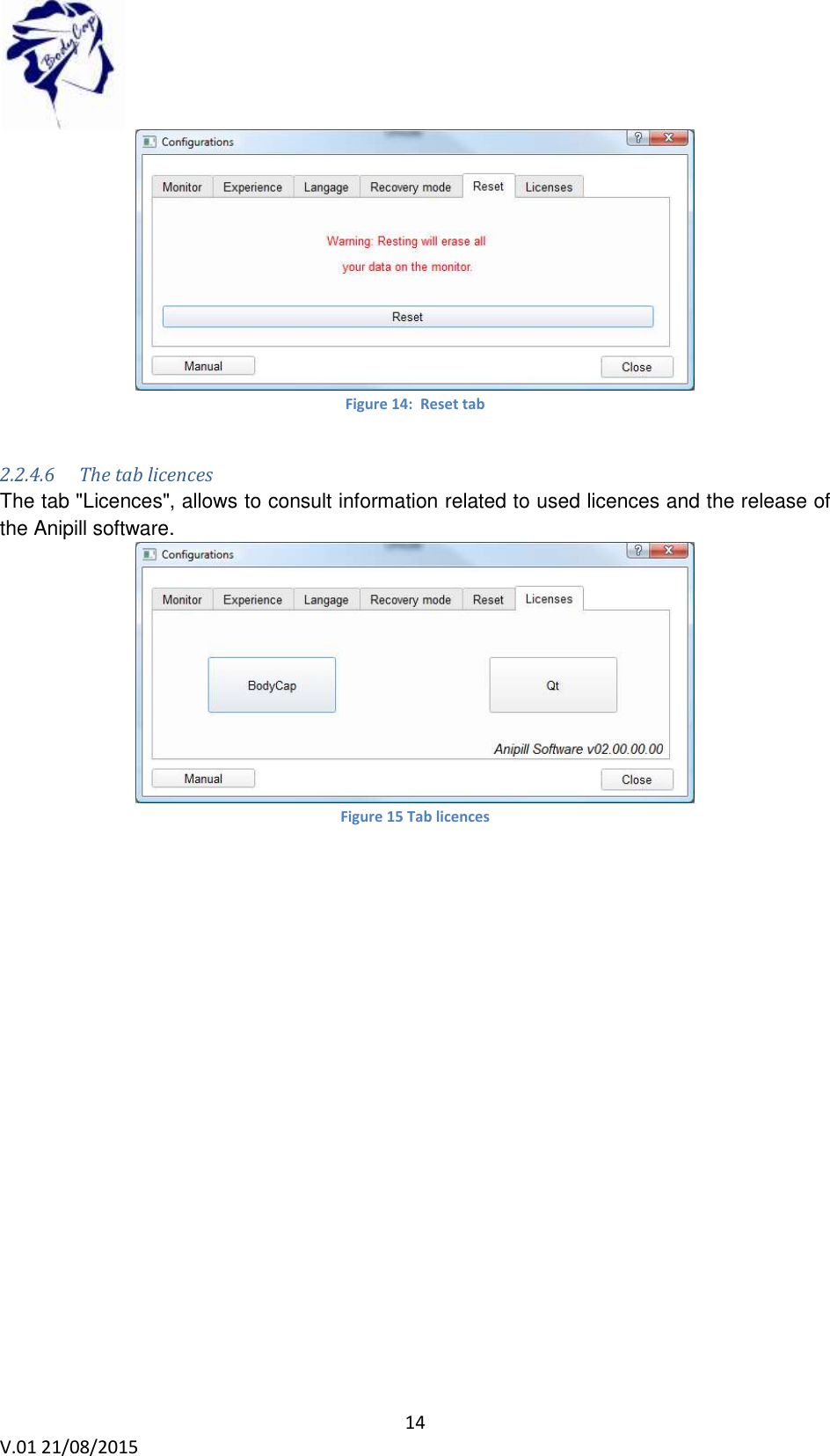
 14 V.01 21/08/2015     Figure 14:  Reset tab  2.2.4.6 The tab licences The tab "Licences", allows to consult information related to used licences and the release of the Anipill software.   Figure 15 Tab licences
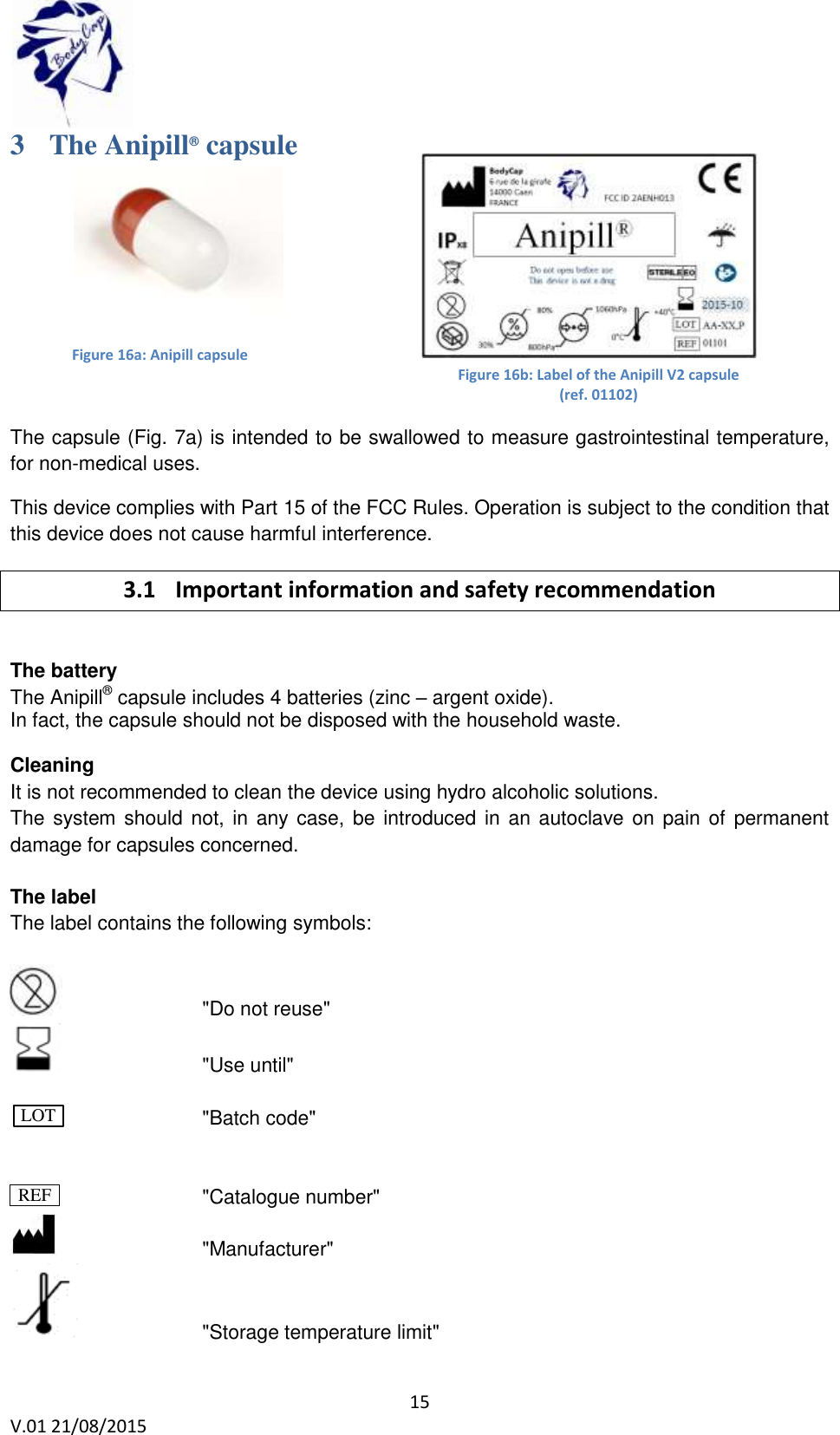
 15 V.01 21/08/2015    Figure 16a: Anipill capsule Figure 16b: Label of the Anipill V2 capsule (ref. 01102)  3 The Anipill® capsule    The capsule (Fig. 7a) is intended to be swallowed to measure gastrointestinal temperature, for non-medical uses. This device complies with Part 15 of the FCC Rules. Operation is subject to the condition that this device does not cause harmful interference. 3.1 Important information and safety recommendation  The battery  The Anipill® capsule includes 4 batteries (zinc – argent oxide).  In fact, the capsule should not be disposed with the household waste.  Cleaning  It is not recommended to clean the device using hydro alcoholic solutions.  The system should not, in any case, be introduced in an autoclave on pain of permanent damage for capsules concerned.  The label The label contains the following symbols:        "Do not reuse"       "Use until"                  "Batch code"            "Catalogue number"        "Manufacturer"     "Storage temperature limit" LOT REF
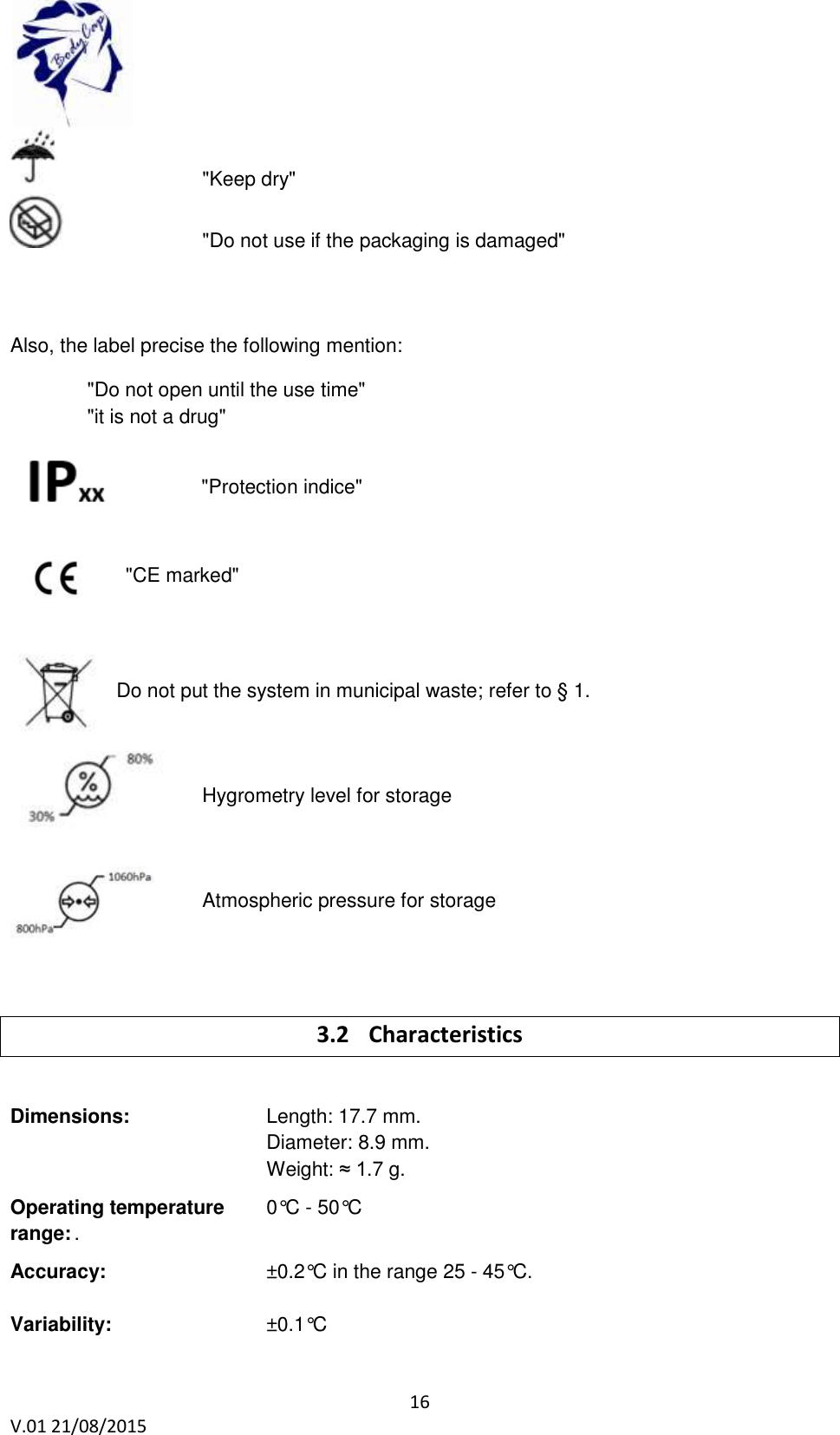
 16 V.01 21/08/2015          "Keep dry"       "Do not use if the packaging is damaged"    Also, the label precise the following mention: "Do not open until the use time"  "it is not a drug"    "Protection indice"        "CE marked"   Do not put the system in municipal waste; refer to § 1.          Hygrometry level for storage       Atmospheric pressure for storage         3.2 Characteristics        Dimensions:      Length: 17.7 mm.  Diameter: 8.9 mm. Weight: ≈ 1.7 g.  Operating temperature   0°C - 50°C range: .   Accuracy:   ±0.2°C in the range 25 - 45°C.   Variability:   ±0.1°C
 17 V.01 21/08/2015    Sampling frequency:   30 s, 2 min, 5 min, 15 min or 1 hour ±20%. Sampling frequency may temporary increase during data recovering.         Storage capacity (capsule):  The 2000 last temperature data are stored in the capsule.     Transmission distance   around 1m (environment dependant). Between capsule and monitor:          Ingress Protection (IP):  X8 (Material supporting prolonged immersion)  Power:    autonomous system including zinc-silver oxyde batteries.    Battery life:       Depends  on  the  sampling  frequency  (1  to  12  months)  (see Figure  6:  Autonomy  of  the  capsule  depends  on  the  sampling  frequency.  This  estimated range is valid only when the RF communication is continuous.) .  Communication     ISM Band 433MHz - 434MHz frequency:   .   Plastic:       Biocompatible PVC.  Storage life:      Refer to the expiry date printed on the packaging.   WARNING: Modification of the electronic device is forbidden
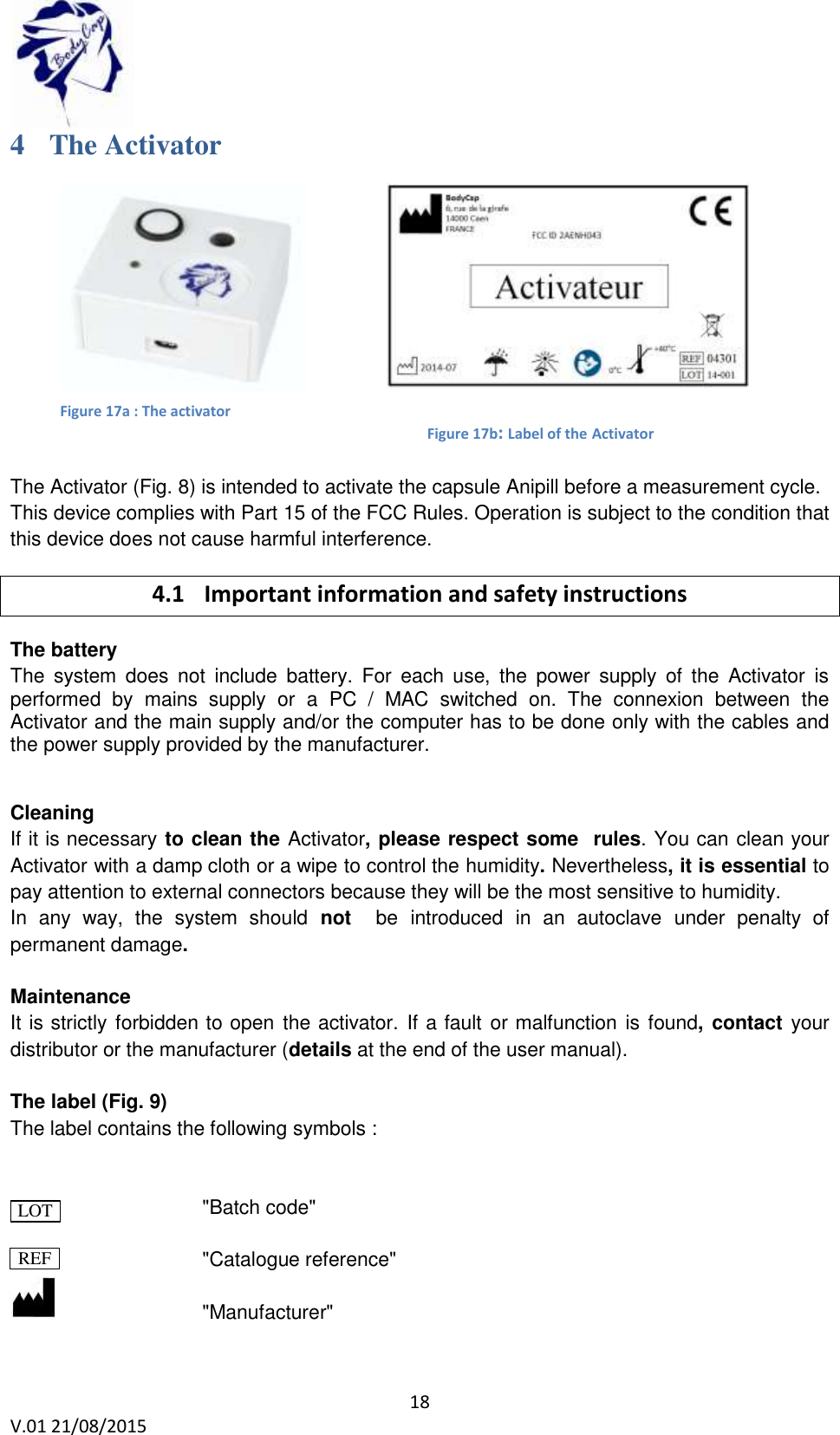
 18 V.01 21/08/2015    Figure 17b: Label of the Activator 4 The Activator          The Activator (Fig. 8) is intended to activate the capsule Anipill before a measurement cycle. This device complies with Part 15 of the FCC Rules. Operation is subject to the condition that this device does not cause harmful interference. 4.1 Important information and safety instructions The battery The  system  does  not  include  battery.  For  each  use,  the  power  supply  of  the  Activator  is performed  by  mains  supply  or  a  PC  /  MAC  switched  on.  The  connexion  between  the Activator and the main supply and/or the computer has to be done only with the cables and the power supply provided by the manufacturer.     Cleaning If it is necessary to clean the Activator, please respect some  rules. You can clean your Activator with a damp cloth or a wipe to control the humidity. Nevertheless, it is essential to pay attention to external connectors because they will be the most sensitive to humidity. In  any  way,  the  system  should  not   be introduced in  an  autoclave under  penalty  of permanent damage.  Maintenance It is strictly forbidden to open the activator. If a fault or malfunction is found, contact your distributor or the manufacturer (details at the end of the user manual).  The label (Fig. 9) The label contains the following symbols :                   "Batch code"        "Catalogue reference"        "Manufacturer" LOT REF Figure 17a : The activator
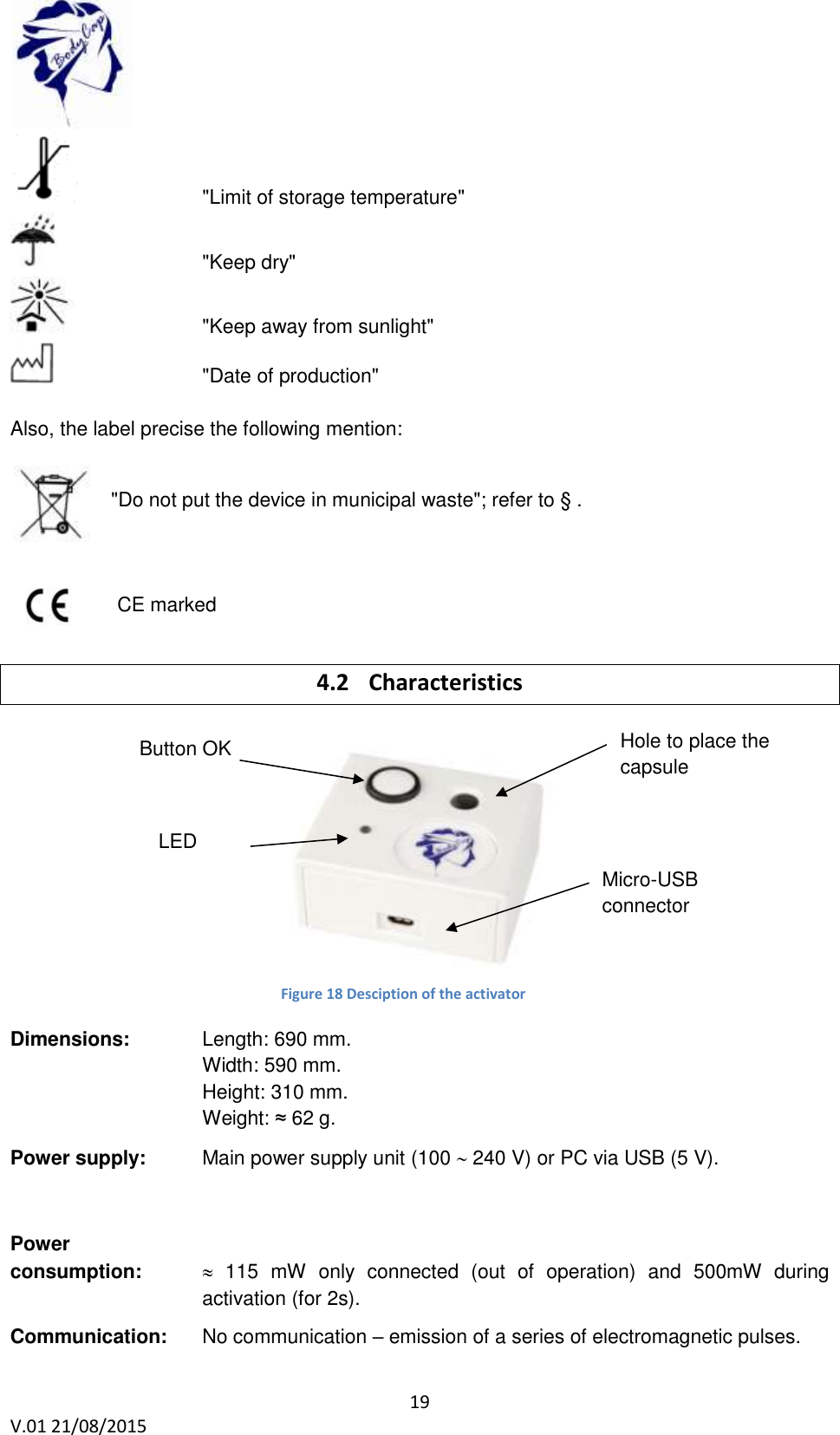
 19 V.01 21/08/2015        "Limit of storage temperature"       "Keep dry"     "Keep away from sunlight"       "Date of production"  Also, the label precise the following mention:  "Do not put the device in municipal waste"; refer to § .        CE marked   4.2 Characteristics              Dimensions:    Length: 690 mm.  Width: 590 mm. Height: 310 mm. Weight: ≈ 62 g.  Power supply:   Main power supply unit (100  240 V) or PC via USB (5 V).       Power  consumption:         115  mW  only  connected  (out  of  operation)  and  500mW  during activation (for 2s).      Communication:   No communication – emission of a series of electromagnetic pulses.  Button OK Hole to place the capsule Micro-USB connector LED verte Figure 18 Desciption of the activator
 20 V.01 21/08/2015    Life duration:   2 years.   Means to  disconnect from  the main supply:  Unplug the power cable.  Warning: Modification of the electronic device is forbidden 4.3 The buttons The button OK is used to launch the activation process.  The activation process is detailed in §5.8.3. 4.4 The LED  A  green  LED  is  positioned  on  the  upper  side  of  the  Activator.  This  LED  is  continuously switched on when the Activator is powered and flashes throughout the activation process. When the LED is flashing, the activation process is running. During this period, it is important to not remove/move the capsule placed in the hole.
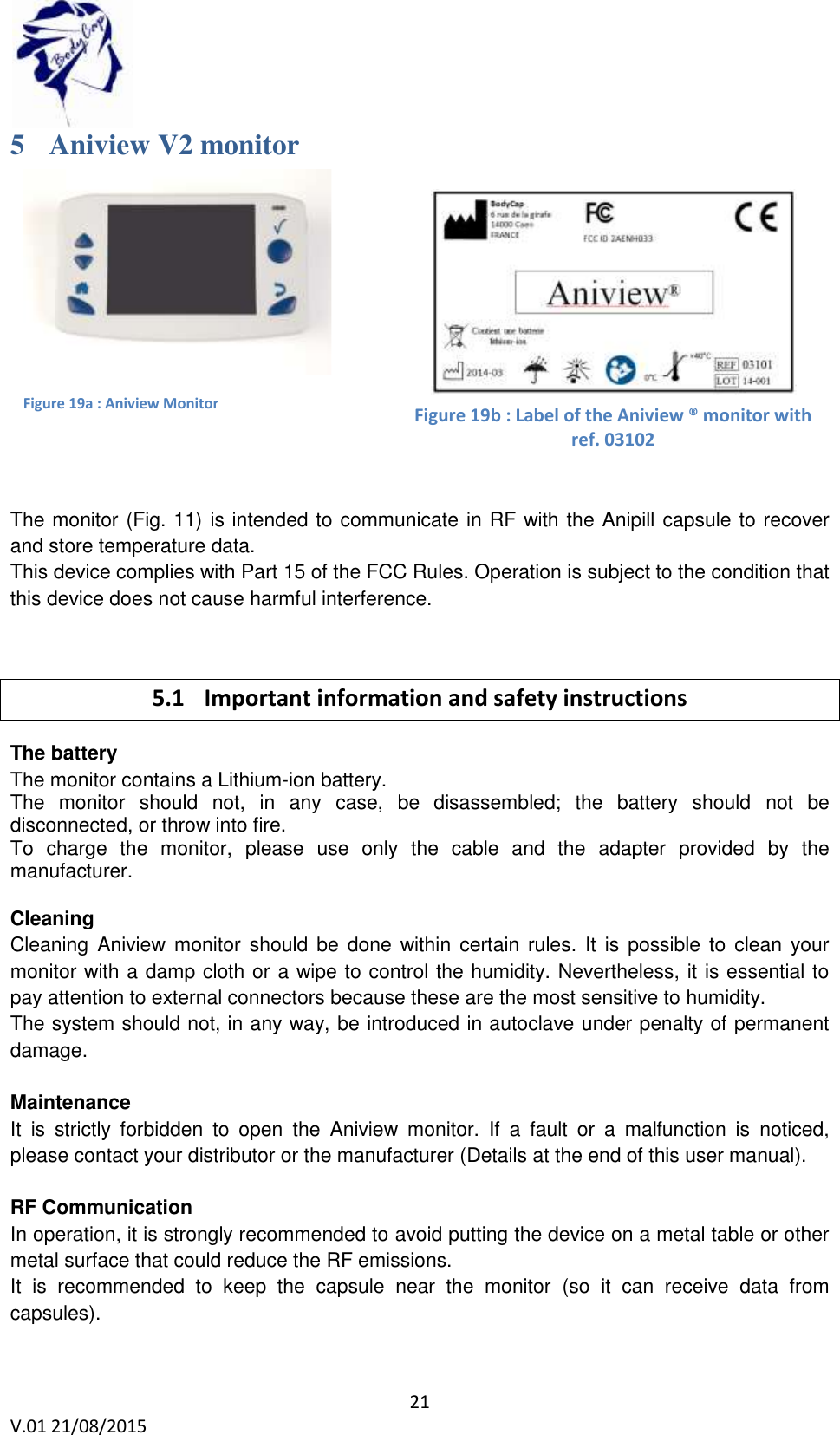
 21 V.01 21/08/2015    5 Aniview V2 monitor              The monitor (Fig. 11) is intended to communicate in RF with the Anipill capsule to recover and store temperature data.  This device complies with Part 15 of the FCC Rules. Operation is subject to the condition that this device does not cause harmful interference.  5.1 Important information and safety instructions The battery  The monitor contains a Lithium-ion battery. The  monitor  should  not,  in  any  case,  be  disassembled;  the  battery  should  not  be disconnected, or throw into fire. To  charge  the  monitor,  please  use  only  the  cable  and  the  adapter  provided  by  the manufacturer.   Cleaning  Cleaning Aniview  monitor should  be  done within certain  rules.  It  is  possible to  clean your monitor with a damp cloth or a wipe to control the humidity. Nevertheless, it is essential to pay attention to external connectors because these are the most sensitive to humidity. The system should not, in any way, be introduced in autoclave under penalty of permanent damage.   Maintenance It  is  strictly  forbidden  to  open  the  Aniview  monitor.  If  a  fault  or  a  malfunction  is  noticed, please contact your distributor or the manufacturer (Details at the end of this user manual).  RF Communication  In operation, it is strongly recommended to avoid putting the device on a metal table or other metal surface that could reduce the RF emissions.  It  is  recommended  to  keep  the  capsule  near  the  monitor  (so  it  can  receive  data  from capsules).  Figure 19a : Aniview Monitor   Figure 19b : Label of the Aniview ® monitor with ref. 03102
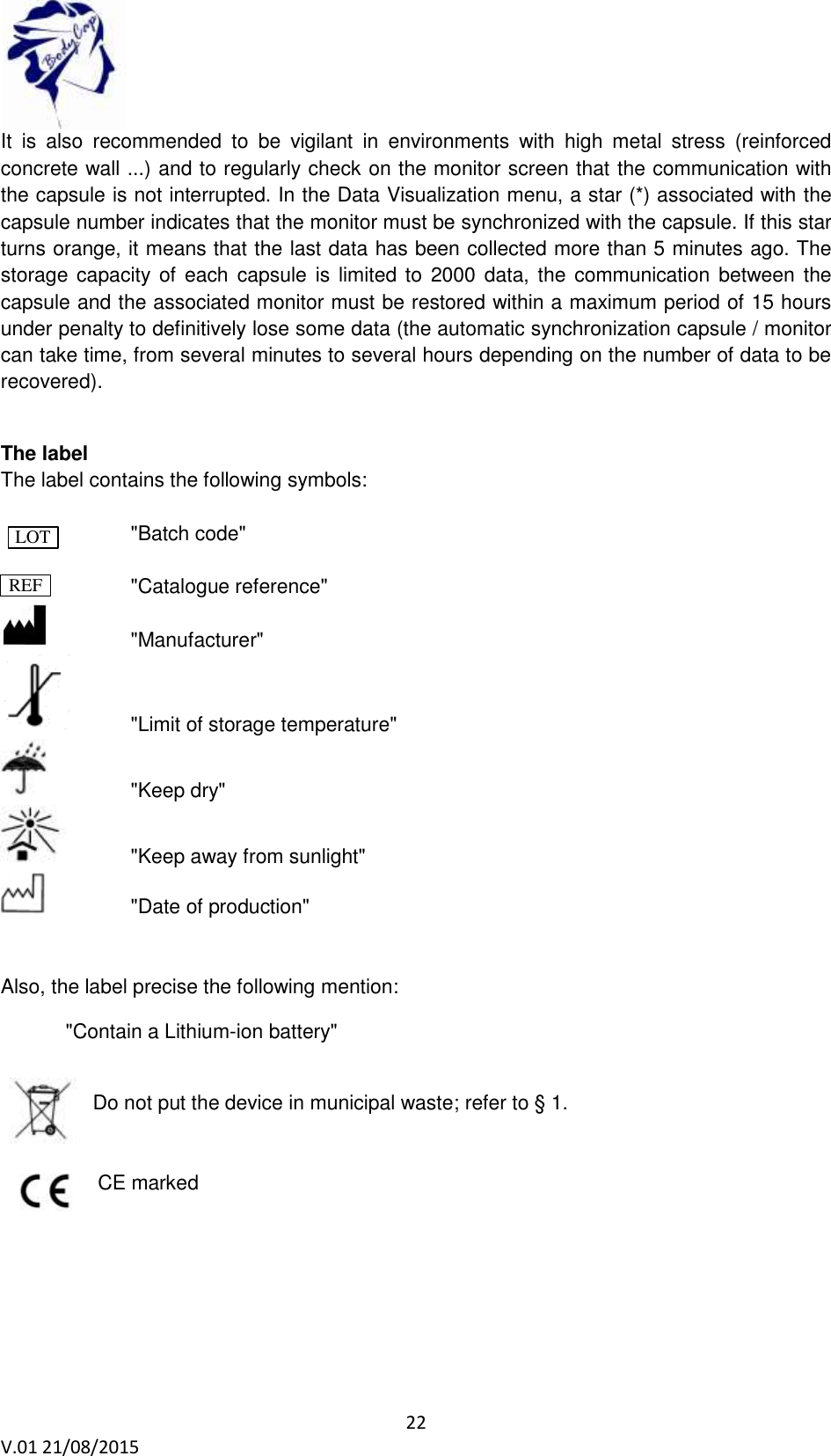
 22 V.01 21/08/2015    It  is  also  recommended  to  be  vigilant  in  environments  with  high  metal  stress  (reinforced concrete wall ...) and to regularly check on the monitor screen that the communication with the capsule is not interrupted. In the Data Visualization menu, a star (*) associated with the capsule number indicates that the monitor must be synchronized with the capsule. If this star turns orange, it means that the last data has been collected more than 5 minutes ago. The storage capacity of each  capsule  is  limited to  2000  data,  the  communication between the capsule and the associated monitor must be restored within a maximum period of 15 hours under penalty to definitively lose some data (the automatic synchronization capsule / monitor can take time, from several minutes to several hours depending on the number of data to be recovered).  The label The label contains the following symbols:                     "Batch code"      "Catalogue reference"      "Manufacturer"   "Limit of storage temperature"     "Keep dry"   "Keep away from sunlight"     "Date of production"   Also, the label precise the following mention:   "Contain a Lithium-ion battery"  Do not put the device in municipal waste; refer to § 1.      CE marked LOT REF
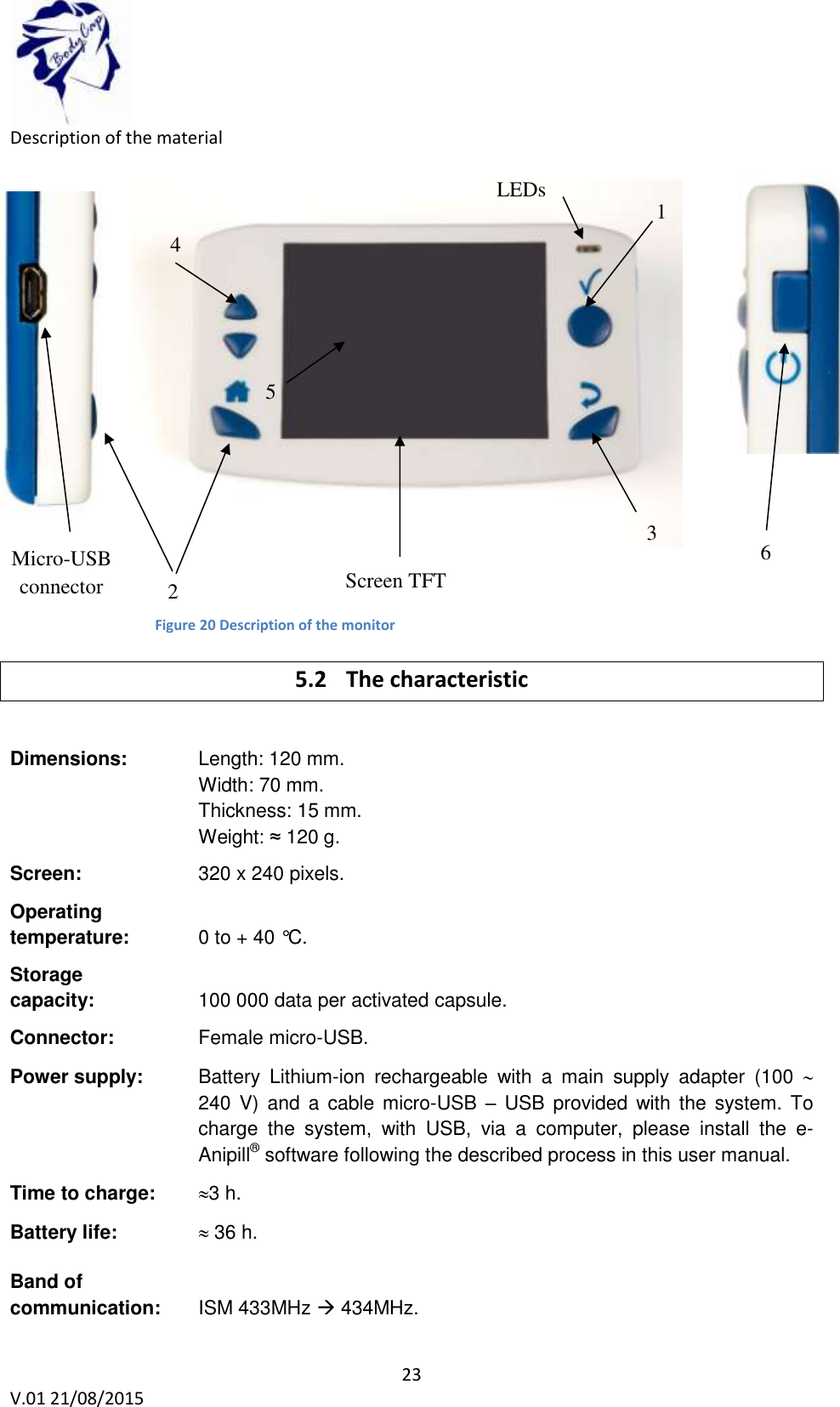
 23 V.01 21/08/2015    Description of the material              Figure 13: Description of the Aniview monitor 5.2 The characteristic  Dimensions:    Length: 120 mm.  Width: 70 mm. Thickness: 15 mm. Weight: ≈ 120 g.  Screen:     320 x 240 pixels.  Operating  temperature:    0 to + 40 °C.  Storage  capacity:    100 000 data per activated capsule.    Connector:     Female micro-USB.  Power supply:   Battery  Lithium-ion  rechargeable  with  a  main  supply  adapter  (100   240 V)  and  a  cable micro-USB  – USB  provided with the system.  To charge  the  system,  with  USB,  via  a  computer,  please  install  the  e-Anipill® software following the described process in this user manual.  Time to charge:   3 h.    Battery life:  36 h.    Band of  communication:   ISM 433MHz  434MHz.  Screen TFT 4 LEDs 1 2 3 5 6 Micro-USB connector 5 Figure 20 Description of the monitor
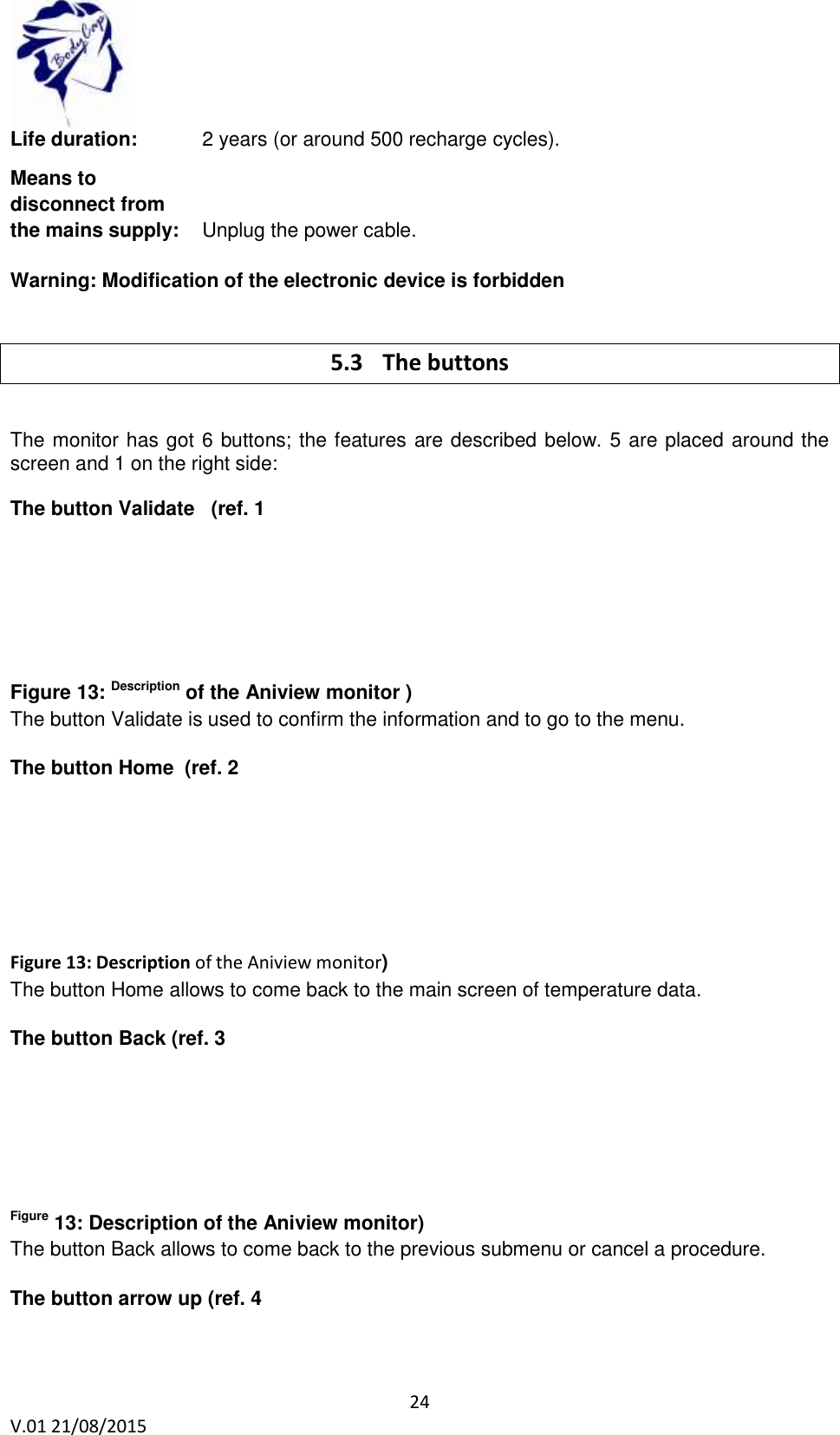
 24 V.01 21/08/2015    Life duration:   2 years (or around 500 recharge cycles).  Means to  disconnect from  the mains supply:  Unplug the power cable.  Warning: Modification of the electronic device is forbidden  5.3 The buttons  The monitor has got 6 buttons; the features are described below. 5 are placed around the screen and 1 on the right side:  The button Validate   (ref. 1        Figure 13: Description of the Aniview monitor ) The button Validate is used to confirm the information and to go to the menu.   The button Home  (ref. 2        Figure 13: Description of the Aniview monitor) The button Home allows to come back to the main screen of temperature data.  The button Back (ref. 3       Figure 13: Description of the Aniview monitor) The button Back allows to come back to the previous submenu or cancel a procedure.  The button arrow up (ref. 4
 25 V.01 21/08/2015        Figure 13: Description of the Aniview monitor) This button allows navigate in the menu.  The button arrow down (ref. 5        Figure 13: Description of the Aniview monitor) This button allows to navigate in the menu.  The button sleep-wake of the screen (ref. 6        Figure 13: Description of the Aniview monitor) The button sleep-wake of the screen allows to switch on or off the screen.   The simultaneous use of the button sleep-wake (ref. 6        Figure 13: Description of the Aniview monitor) and the button Home (ref. 2        Figure 13: Description of the Aniview monitor) allows to switch on or off the monitor if no capsule are associated. This mode is recommanded for the shelf storage of the monitor.  5.4 The LEDs A yellow LED light and a red LED light are positioned on the front of the monitor; in the upper right corner. When the red LED light flashes, it indicates that the battery level of the monitor is low; the
 26 V.01 21/08/2015    monitor must be connected to a power source. When the yellow LED light is lit, it means that the monitor is plugged into a power source. 5.5 The battery of Aniview monitor  Information When  it  is  not  plugged  to  the  main  supply,  a  rechargeable  lithium-ion battery  powers  the monitor.  It  is  strictly  FORBIDDEN  to  disassemble  the  monitor  and  to  replace  the rechargeable  battery  under  penalty  to  irreparable  damage  on  the  system  and  security failures. .  Charging cycle In order to recharge the battery, simply plug the power supply of the monitor on the mains supply and switch off the screen. Few hours are necessary to charge the battery. The battery life  of  the  monitor  in  battery  operation  is  around  24h  (screen  regularly  used  but  not continuously).   Please  do  not  forget  to  charge  Aniview  monitor  at  the  end  of  those  24h under penalty to lose the follow-up of all capsules in operation.   In order to leverage the risk to lose the connection between the capsules and the monitor, the device automatically goes into a power-saving configuration (extinction of the screen and of the RF communication with the capsules) before the total discharge of the battery. Use of LEDS is described in following table:  Table 3 : Batteries status Battery status LED Functions Normal - Normal operation Low Red  LED flashes Normal operation Critical Red  LED flashes The screen is switched off The RF communication is stopped  It is highly recommended, especially in the context of extended use of the material, to let the monitor be connected to a power source during the entire operation.
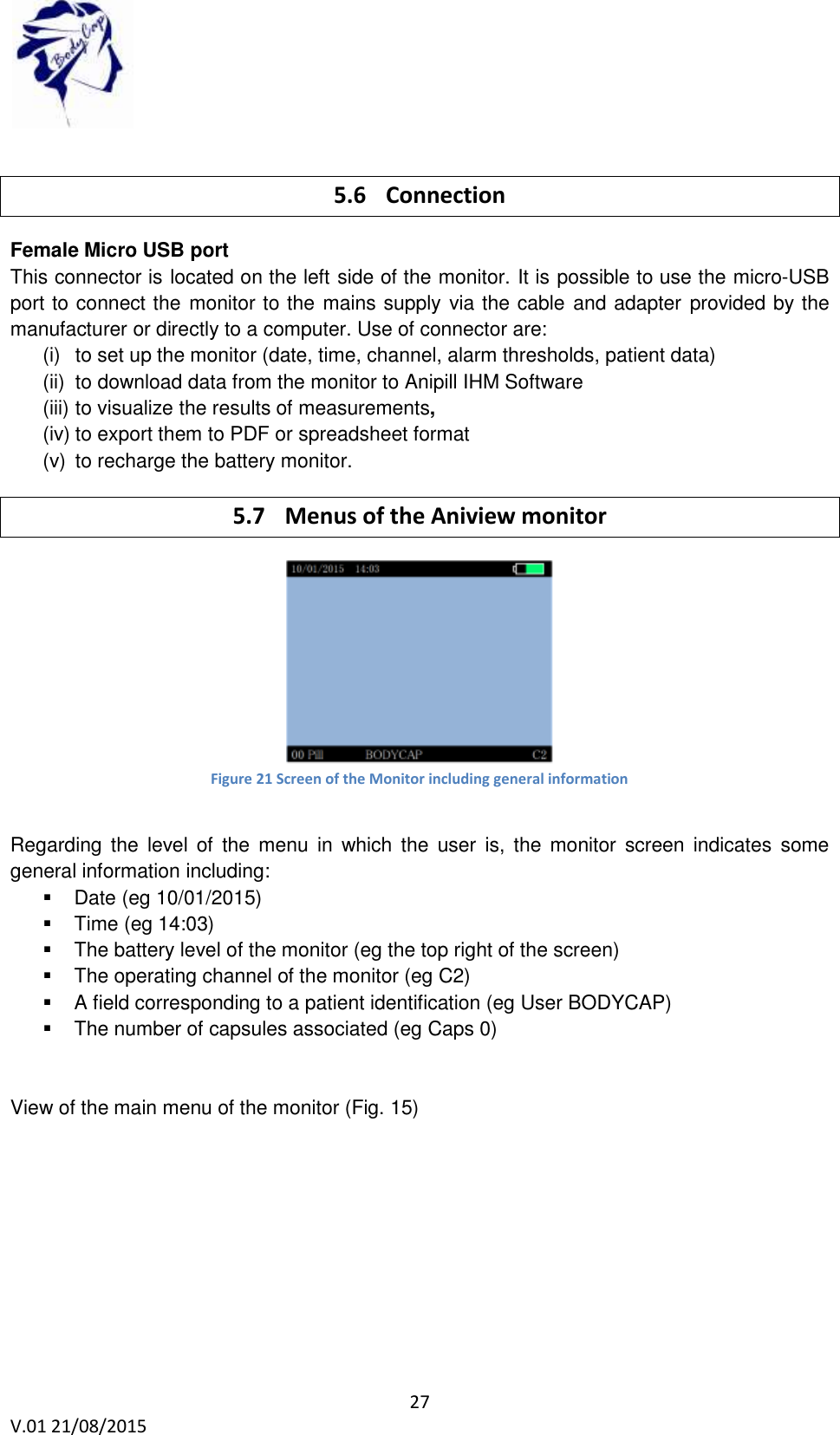
 27 V.01 21/08/2015     5.6 Connection Female Micro USB port This connector is located on the left side of the monitor. It is possible to use the micro-USB port to connect the monitor to the mains supply via the cable and adapter provided by the manufacturer or directly to a computer. Use of connector are: (i)  to set up the monitor (date, time, channel, alarm thresholds, patient data) (ii)  to download data from the monitor to Anipill IHM Software (iii) to visualize the results of measurements, (iv) to export them to PDF or spreadsheet format (v)  to recharge the battery monitor. 5.7 Menus of the Aniview monitor  Figure 21 Screen of the Monitor including general information  Regarding the  level  of  the  menu  in  which the  user  is,  the  monitor  screen  indicates  some general information including:   Date (eg 10/01/2015)   Time (eg 14:03)   The battery level of the monitor (eg the top right of the screen)   The operating channel of the monitor (eg C2)   A field corresponding to a patient identification (eg User BODYCAP)   The number of capsules associated (eg Caps 0)   View of the main menu of the monitor (Fig. 15)
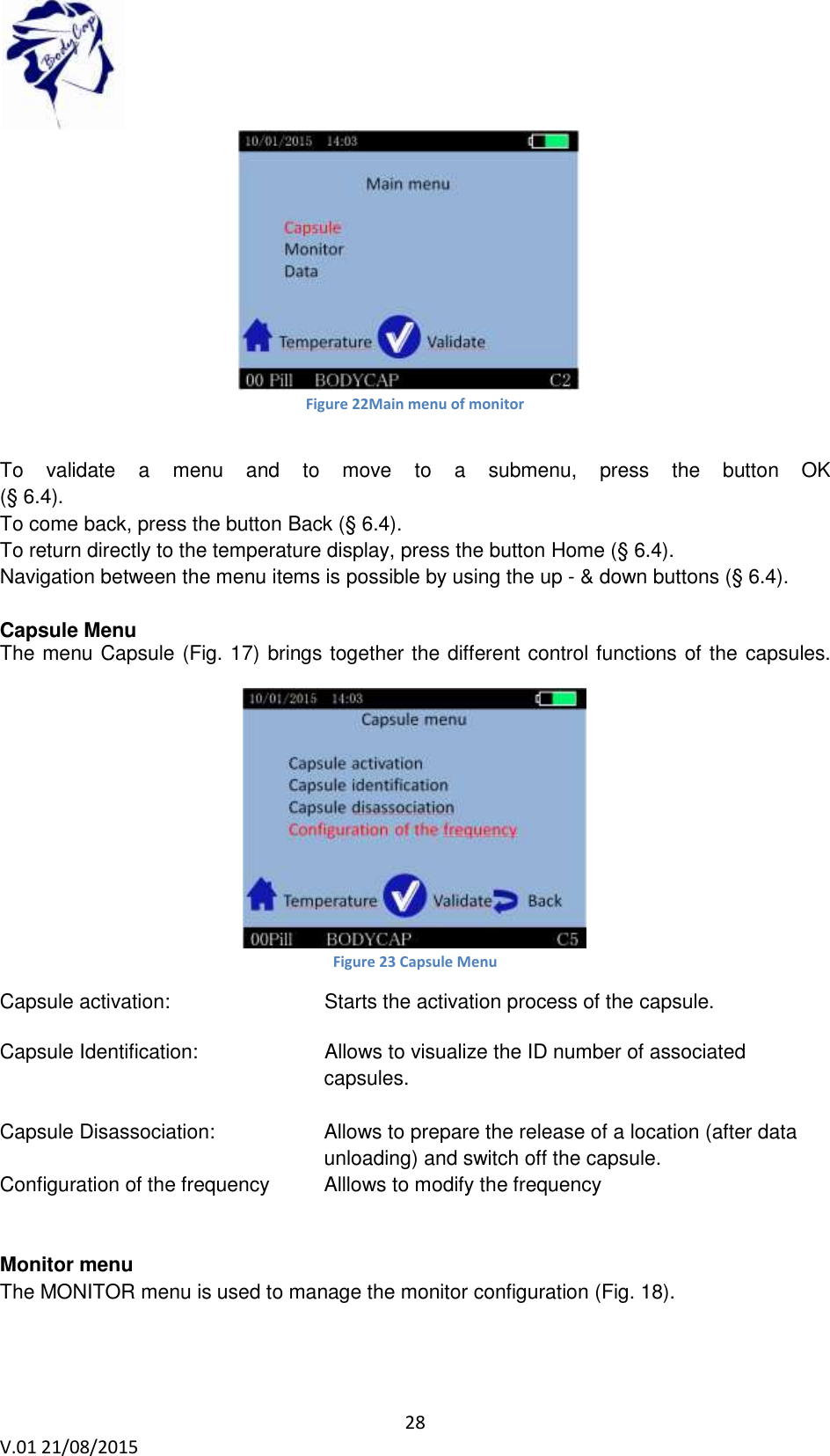
 28 V.01 21/08/2015     Figure 22Main menu of monitor  To  validate  a  menu  and  to  move  to  a  submenu,  press  the  button  OK (§ 6.4). To come back, press the button Back (§ 6.4). To return directly to the temperature display, press the button Home (§ 6.4). Navigation between the menu items is possible by using the up - & down buttons (§ 6.4).  Capsule Menu The menu Capsule (Fig. 17) brings together the different control functions of the capsules.   Figure 23 Capsule Menu Capsule activation:       Starts the activation process of the capsule.  Capsule Identification:    Allows to visualize the ID number of associated capsules.  Capsule Disassociation:   Allows to prepare the release of a location (after data unloading) and switch off the capsule. Configuration of the frequency  Alllows to modify the frequency   Monitor menu   The MONITOR menu is used to manage the monitor configuration (Fig. 18).
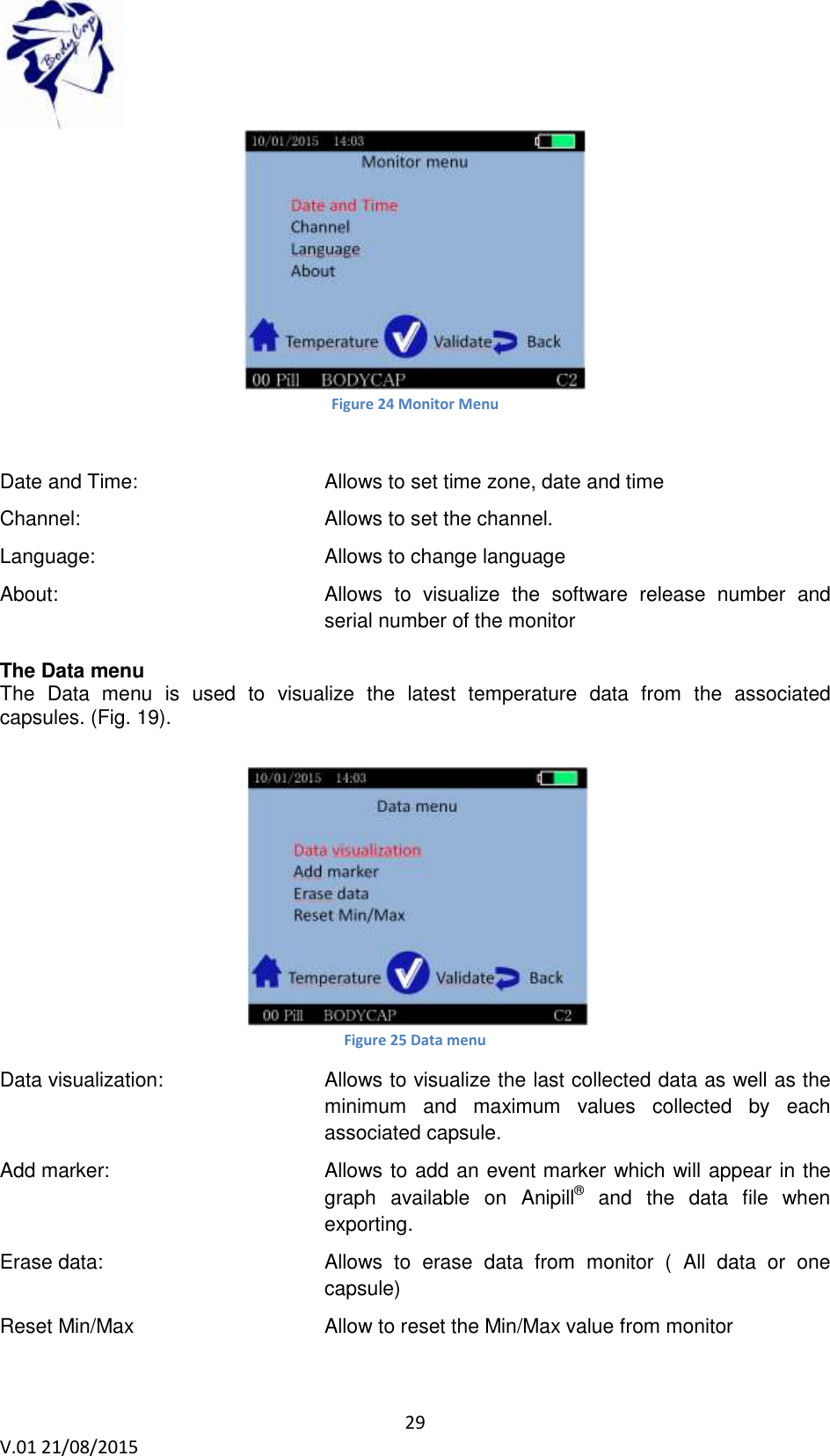
 29 V.01 21/08/2015     Figure 24 Monitor Menu  Date and Time:  Allows to set time zone, date and time  Channel:  Allows to set the channel. Language:   Allows to change language  About:    Allows  to  visualize  the  software  release  number  and serial number of the monitor  The Data menu The  Data  menu  is  used  to  visualize  the  latest  temperature  data  from  the  associated capsules. (Fig. 19).    Figure 25 Data menu Data visualization:   Allows to visualize the last collected data as well as the minimum  and  maximum  values  collected  by  each associated capsule. Add marker:   Allows to add an event marker which will appear in the graph  available  on  Anipill®  and  the  data  file  when exporting. Erase data:   Allows  to  erase  data  from  monitor  (  All  data  or  one capsule) Reset Min/Max  Allow to reset the Min/Max value from monitor
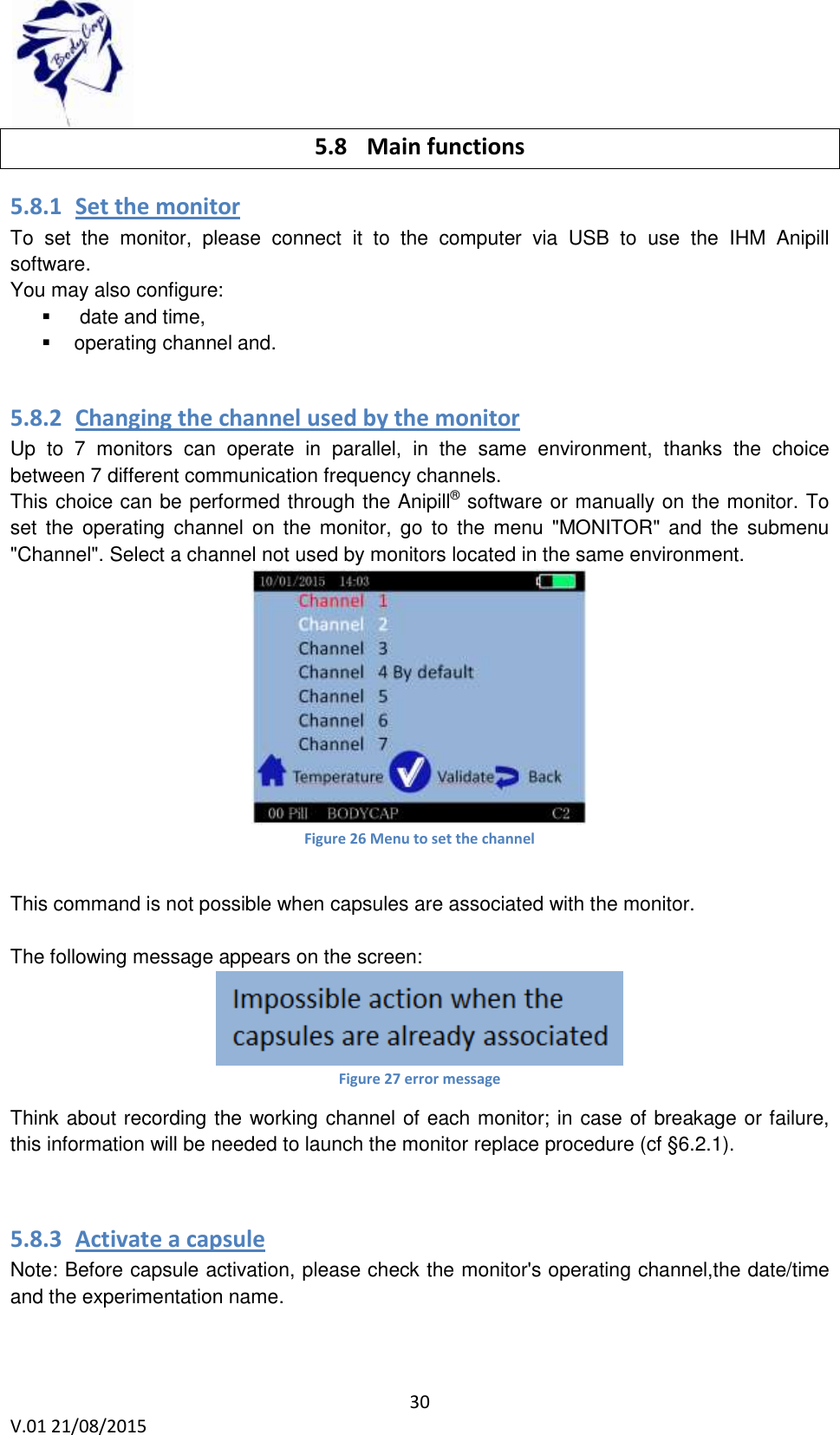
 30 V.01 21/08/2015    5.8 Main functions 5.8.1 Set the monitor To  set  the  monitor,  please  connect  it  to  the  computer  via  USB  to  use  the  IHM  Anipill software. You may also configure:    date and time,   operating channel and.  5.8.2 Changing the channel used by the monitor Up  to  7  monitors  can  operate  in  parallel,  in  the  same  environment,  thanks  the  choice between 7 different communication frequency channels. This choice can be performed through the Anipill® software or manually on the monitor. To set  the  operating  channel  on  the  monitor,  go  to  the  menu  "MONITOR" and  the  submenu "Channel". Select a channel not used by monitors located in the same environment.  Figure 26 Menu to set the channel  This command is not possible when capsules are associated with the monitor.  The following message appears on the screen:  Figure 27 error message Think about recording the working channel of each monitor; in case of breakage or failure, this information will be needed to launch the monitor replace procedure (cf §6.2.1).  5.8.3 Activate a capsule Note: Before capsule activation, please check the monitor's operating channel,the date/time and the experimentation name.
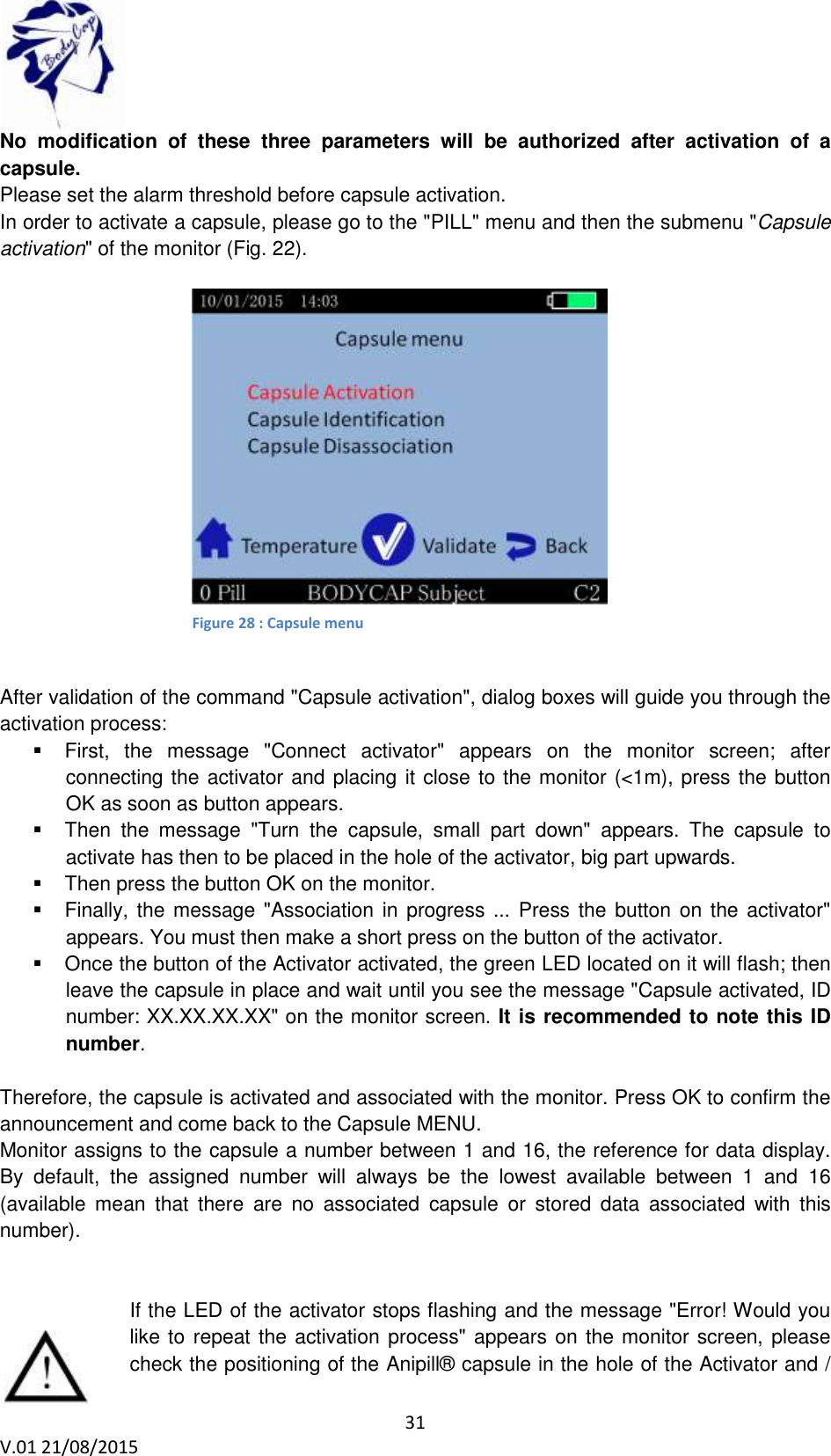
 31 V.01 21/08/2015    No  modification  of  these  three  parameters  will  be  authorized  after  activation  of  a capsule. Please set the alarm threshold before capsule activation. In order to activate a capsule, please go to the "PILL" menu and then the submenu "Capsule activation" of the monitor (Fig. 22).    After validation of the command "Capsule activation", dialog boxes will guide you through the activation process:   First,  the  message  "Connect  activator"  appears  on  the  monitor  screen;  after connecting the activator and placing it close to the monitor (<1m), press the button OK as soon as button appears.   Then  the  message  "Turn  the  capsule,  small  part  down"  appears.  The  capsule  to activate has then to be placed in the hole of the activator, big part upwards.    Then press the button OK on the monitor.   Finally, the message "Association in progress ...  Press the button on the activator" appears. You must then make a short press on the button of the activator.   Once the button of the Activator activated, the green LED located on it will flash; then leave the capsule in place and wait until you see the message "Capsule activated, ID number: XX.XX.XX.XX" on the monitor screen. It is recommended to note this ID number.  Therefore, the capsule is activated and associated with the monitor. Press OK to confirm the announcement and come back to the Capsule MENU. Monitor assigns to the capsule a number between 1 and 16, the reference for data display.  By  default,  the  assigned  number  will  always  be  the  lowest  available  between  1  and  16 (available  mean  that  there  are  no  associated  capsule  or  stored  data  associated  with  this number).   If the LED of the activator stops flashing and the message "Error! Would you like to repeat the activation process" appears on the monitor screen, please check the positioning of the Anipill® capsule in the hole of the Activator and / Figure 22: Capsule activation menu  Figure 28 : Capsule menu
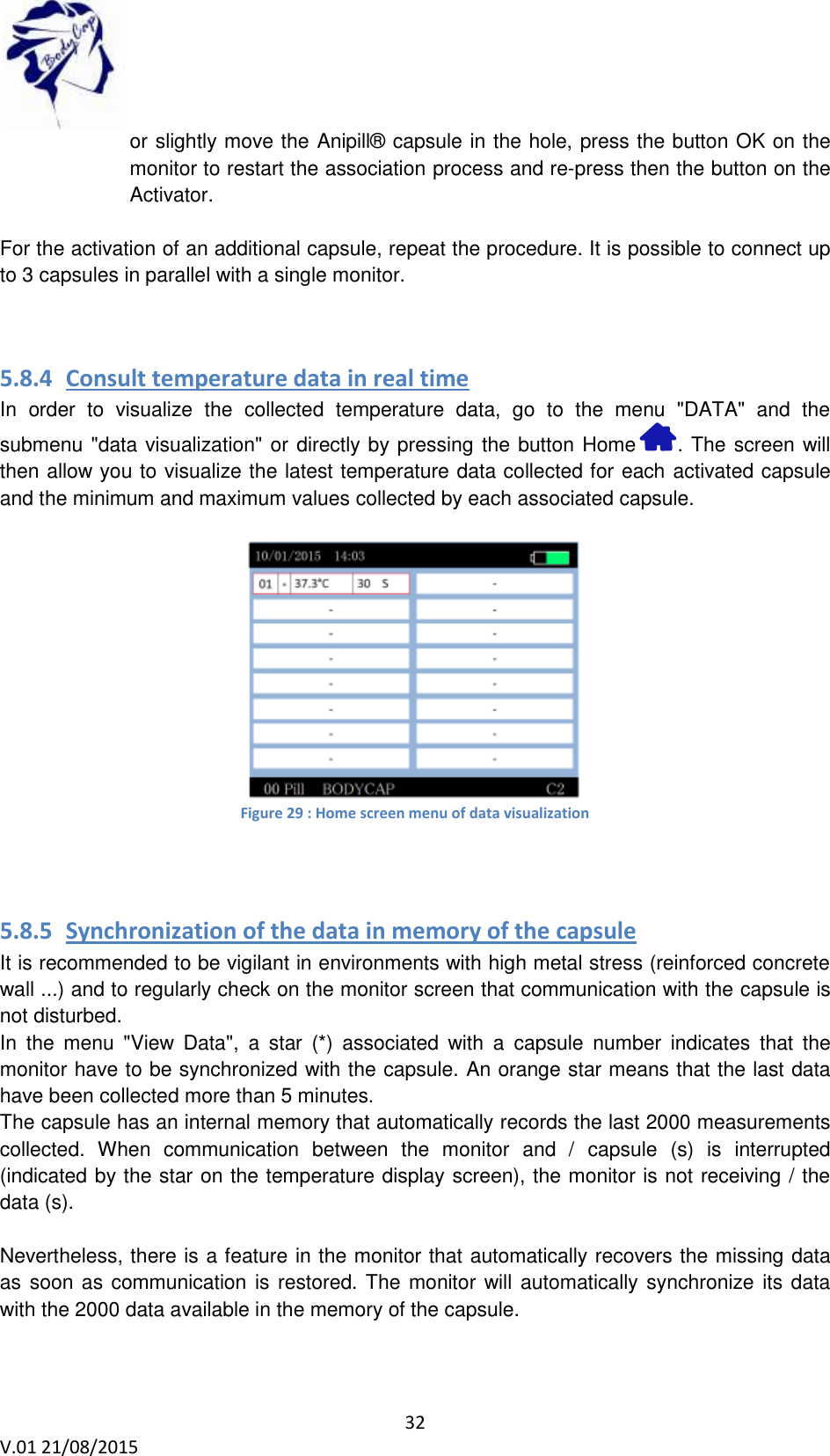
 32 V.01 21/08/2015    or slightly move the Anipill® capsule in the hole, press the button OK on the monitor to restart the association process and re-press then the button on the Activator.  For the activation of an additional capsule, repeat the procedure. It is possible to connect up to 3 capsules in parallel with a single monitor.   5.8.4 Consult temperature data in real time  In  order  to  visualize  the  collected  temperature  data,  go  to  the  menu  "DATA"  and  the submenu "data visualization" or directly by pressing the button Home  . The screen will then allow you to visualize the latest temperature data collected for each activated capsule and the minimum and maximum values collected by each associated capsule.   Figure 29 : Home screen menu of data visualization   5.8.5 Synchronization of the data in memory of the capsule It is recommended to be vigilant in environments with high metal stress (reinforced concrete wall ...) and to regularly check on the monitor screen that communication with the capsule is not disturbed. In  the  menu  "View  Data",  a  star  (*)  associated  with  a  capsule  number  indicates  that  the monitor have to be synchronized with the capsule. An orange star means that the last data have been collected more than 5 minutes. The capsule has an internal memory that automatically records the last 2000 measurements collected.  When  communication  between  the  monitor  and  /  capsule  (s)  is  interrupted (indicated by the star on the temperature display screen), the monitor is not receiving / the data (s).  Nevertheless, there is a feature in the monitor that automatically recovers the missing data as soon as communication is restored. The monitor will automatically synchronize its data with the 2000 data available in the memory of the capsule.
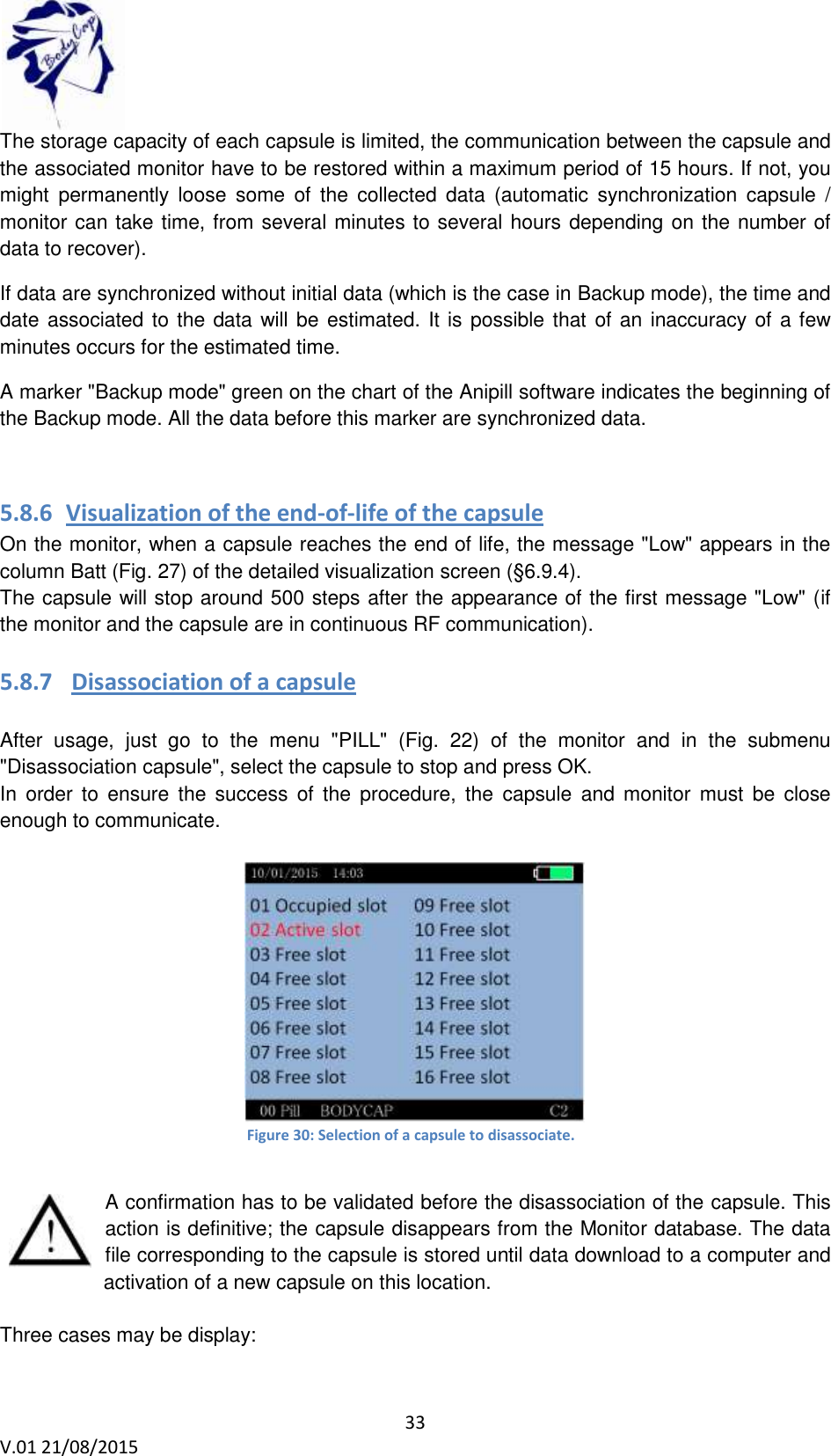
 33 V.01 21/08/2015    The storage capacity of each capsule is limited, the communication between the capsule and the associated monitor have to be restored within a maximum period of 15 hours. If not, you might  permanently  loose  some  of  the  collected  data  (automatic  synchronization  capsule  / monitor can take time, from several minutes to several hours depending on the number of data to recover). If data are synchronized without initial data (which is the case in Backup mode), the time and date associated to  the data will be estimated. It is possible that  of an inaccuracy of a few minutes occurs for the estimated time. A marker "Backup mode" green on the chart of the Anipill software indicates the beginning of the Backup mode. All the data before this marker are synchronized data.  5.8.6 Visualization of the end-of-life of the capsule On the monitor, when a capsule reaches the end of life, the message "Low" appears in the column Batt (Fig. 27) of the detailed visualization screen (§6.9.4). The capsule will stop around 500 steps after the appearance of the first message "Low" (if the monitor and the capsule are in continuous RF communication).  5.8.7  Disassociation of a capsule   After  usage,  just  go  to  the  menu  "PILL"  (Fig.  22)  of  the  monitor  and  in  the  submenu "Disassociation capsule", select the capsule to stop and press OK. In  order  to  ensure  the  success  of  the  procedure,  the  capsule  and monitor  must  be  close enough to communicate.                 Figure 30: Selection of a capsule to disassociate.          A confirmation has to be validated before the disassociation of the capsule. This action is definitive; the capsule disappears from the Monitor database. The data file corresponding to the capsule is stored until data download to a computer and activation of a new capsule on this location.   Three cases may be display:
 34 V.01 21/08/2015     "Occupied slot ": The data of a capsule remains on the monitor, but the capsule is no longer associated. Data can be downloaded on the Anipill software. As unloading did not take place, a new capsule cannot be activated on this location.  "Active slot": A capsule is associated  "Free slot": This location is available to the activation of a new capsule.  5.8.8  Use of the monitor screen In order to save battery, the monitor screen will switch off automatically after 3 minutes of inactivity  when  the  monitor  is  in  battery  operation.  This  action  is  canceled  for  3  possible reasons:   The monitor is power supply mode. In this case, the screen is constantly switched on without user action.   The monitor displays data temperature screen. This screen is very important for patient monitoring. In this case, the monitor does not automatically go into standby.   If the monitor is in standby mode and that a physiological alarm triggers, the monitor will automatically switch on and will go on the temperature display.  In any case, to go or to come back to standby mode, you may simply press the side button of the monitor, represented by the following logo:   5.8.9  Low battery The monitor has a limited autonomy depending on usage (screen on / off, an alarm triggered or not etc ...). Therefore it  is  important to  always  check the  battery level  of  the  monitor  when using  the monitor in battery mode. The orange LED allows you to be notified when the battery of the monitor is in a critical state while you need to plug it in USB ASAP. If not, however, the monitor is switched off without being recharged on time, you simply have to put the monitor in charge (you may have to wait a few minutes before you can use the screen again), and reset immediately the time on the monitor.  Indeed, the radiofrequency part will restart only when the time of the monitor has been reset. Warning, if an invalid time is entered, the data may be corrupted. This action of setting the time may be done directly on the monitor or through the Anipill® software. While the battery is in charge, the battery logo turns purple and always filled (indicating the state of charge and not the battery level). Once the cable is disconnected, the logo becomes green and shows the real percentage of the battery. 6 Anipill® software Anipill® software is designed to visualize and export temperature data from a measurement cycle. 6.1 Main fonctions
 35 V.01 21/08/2015    To use the Aniview monitor with Anipill software, you must install the application and the  BodyCap  drivers  (provided  on  the  USB  key  BodyCap).  When  the  installation  is completed, the monitor and the application may automatically interface.  6.1.1 Unload and consult the temperature data on the Anipill software  On the main screen of the Anipill software, select the menu "Unload" (Fig. 2). An unloading progress window appears.   Figure 30 : Caspule to download in the software and the validatiopn message  To  download  data  from  capsule,  select  capsule  or  all  capsules  (“Check  all”)  and  click  on “Unload”.    Figure 31 : Picture of the curves obtained on the Anipill® software after the data unloading. It is possible to move on the graph by keeping key Alt pressed and clicking the left mouse button to have the entire curves.   6.1.2 Visualization of markers from the Aniview monitor  The data unload includes markers indicated during the registration period and displayed by a vertical black line. These markers may be named by clicking on the box "Markers"; a window appears to name them. For this purpose, just select the line for the desired marker, fill the
 36 V.01 21/08/2015    corresponding  fields  and  confirm  by  clicking  OK.  They  are  displayed  with  corresponding names.  Figure 32 : Screen of marker management If you do not want to see all the markers, you can check the "Hide Markers" at the bottom left. 6.1.3 Export temperature’s data unloaded on Anipill software  To export temperature’s data, one curve or more may be selected from the icons at the top right of the screen, shown in Fig. 28.  To export curves as displayed on the screen of the software, a PDF file may be generated with  the  "PDF"  button  (Fig.  26).  The  view  from  the  graph  in  the  exported  PDF  file  is  the display for the graph (with the same zoom and the same number of curve). A data file in spreadsheet format can be generated from the "Export" button. A spreadsheet including  the  temperature  data,  the  date  and  time  of  recording  and  the  markers  will  be generated automatically.  Figure 33 : Graph and buttons to export data
 37 V.01 21/08/2015    6.1.4 Consult temperature data in real-time It  is  possible  to  view  the  collected  data  temperature  in  real  time  via  the  ANIPILL®  PC software. To  do  so,  first,  check  if  the  monitor  is  turned  on  and  if  it  is  already  associated  with  the capsules. Connect the monitor with the USB cable to a PC. Click on “Real time mode”   Figure 34 : Real time mode The monitor is not avaible so the screen is a blue one.   Figure 35 screen of monitor during the real time mode  For a monitor (with 9 associated capsules), the viewer shows the following graph. .  Figure 36 Screen to stop the real time mode When your experience is over, click on “Cancel” To stop the real time, click on cancel
 38 V.01 21/08/2015    6.2 Secondary functions 6.2.1 Recovery mode When the operation of the monitor is disturbed (failure, broken, …), it is possible to recover the  communication  with  capsule  which  was  associated  first;  via  an  another  monitor.  This allow to ensure the continuity of the cycle of measurement  It is necessary to start the replace operation with an operational monitor. This mode will allow to retrieve data from all the Anipill capsules communicating on the selected channel, in the communication frequency of the monitor and whose ID number is known.   First, it is necessary to bring a functional and charged monitor. Then, check that no capsule is  associated  with  this  monitor.  Connect  it  to  the  Anipill®  software  and  configure  the operating channel of the monitor to the same channel as the failed monitor. In fact on the operating channel of the capsules you want to recover [follow the procedure in § 5.8.2]. After you have started the Anipill® software, connect the monitor to a functional PC/Mac with the cables provided by the manufacturer. Select "Recovery mode" on the Anipill® software.   Figure 37 Tab "Replace mode" Validate the start of the mode by clicking "Enable recoveryFrecover mode". The following window appears:   Figure 38 Id of capsules in recovery mode Enter the ID number of the capsules you want to recover. (§ 6.9.12) The order of capsules does not matter.
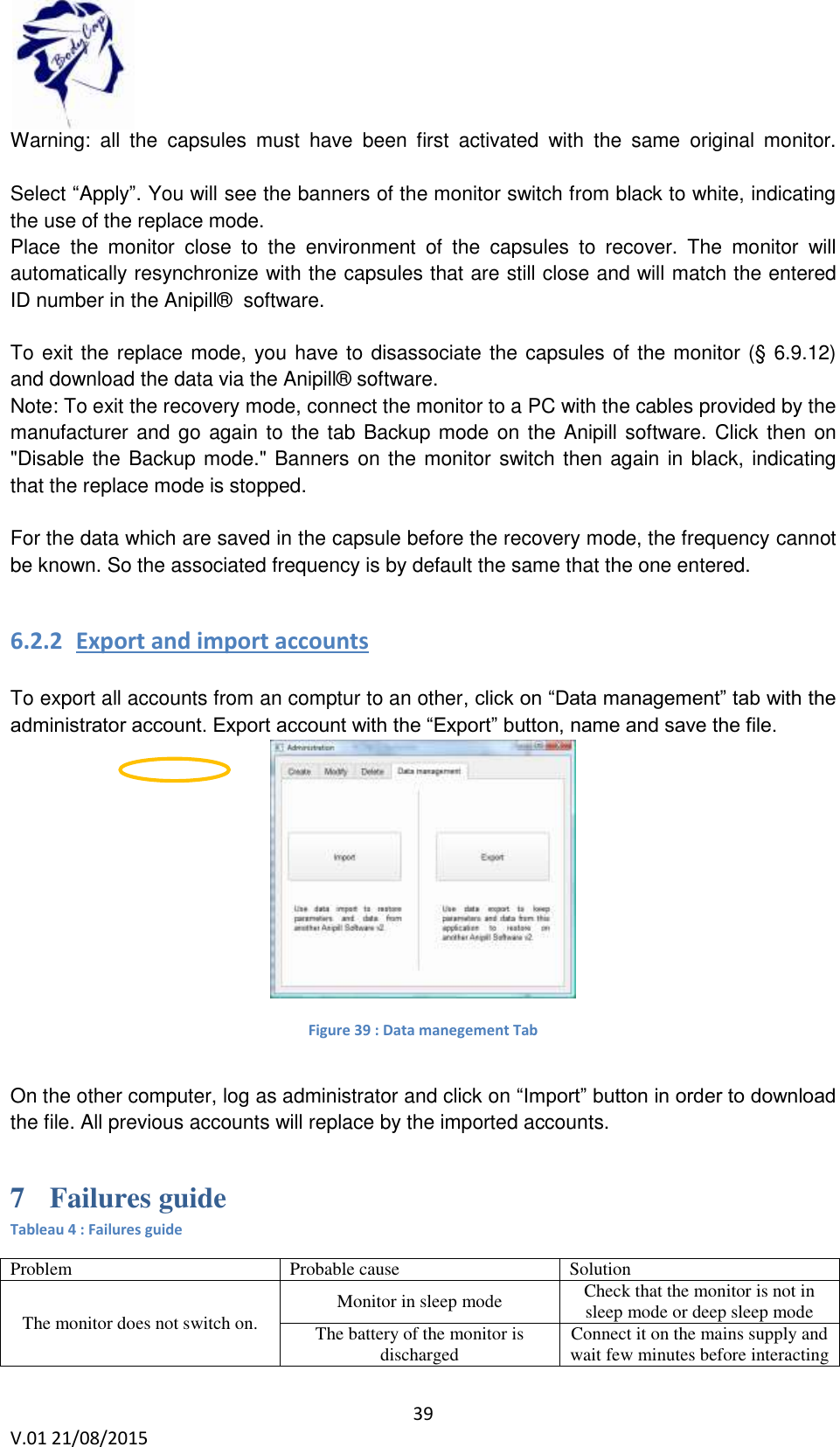
 39 V.01 21/08/2015    Warning:  all  the  capsules  must  have  been  first  activated  with  the  same  original  monitor.  Select “Apply”. You will see the banners of the monitor switch from black to white, indicating the use of the replace mode. Place  the  monitor  close  to  the  environment  of  the  capsules  to  recover.  The  monitor  will automatically resynchronize with the capsules that are still close and will match the entered ID number in the Anipill®  software.  To exit the replace mode, you have to disassociate the capsules of the monitor (§ 6.9.12) and download the data via the Anipill® software. Note: To exit the recovery mode, connect the monitor to a PC with the cables provided by the manufacturer and go again to the tab Backup mode on the Anipill software. Click then on "Disable the Backup mode." Banners on the monitor switch then again in black, indicating that the replace mode is stopped.  For the data which are saved in the capsule before the recovery mode, the frequency cannot be known. So the associated frequency is by default the same that the one entered.  6.2.2 Export and import accounts  To export all accounts from an comptur to an other, click on “Data management” tab with the administrator account. Export account with the “Export” button, name and save the file.   Figure 39 : Data manegement Tab   On the other computer, log as administrator and click on “Import” button in order to download the file. All previous accounts will replace by the imported accounts. 7 Failures guide Tableau 4 : Failures guide Problem Probable cause  Solution The monitor does not switch on. Monitor in sleep mode Check that the monitor is not in sleep mode or deep sleep mode  The battery of the monitor is discharged Connect it on the mains supply and wait few minutes before interacting
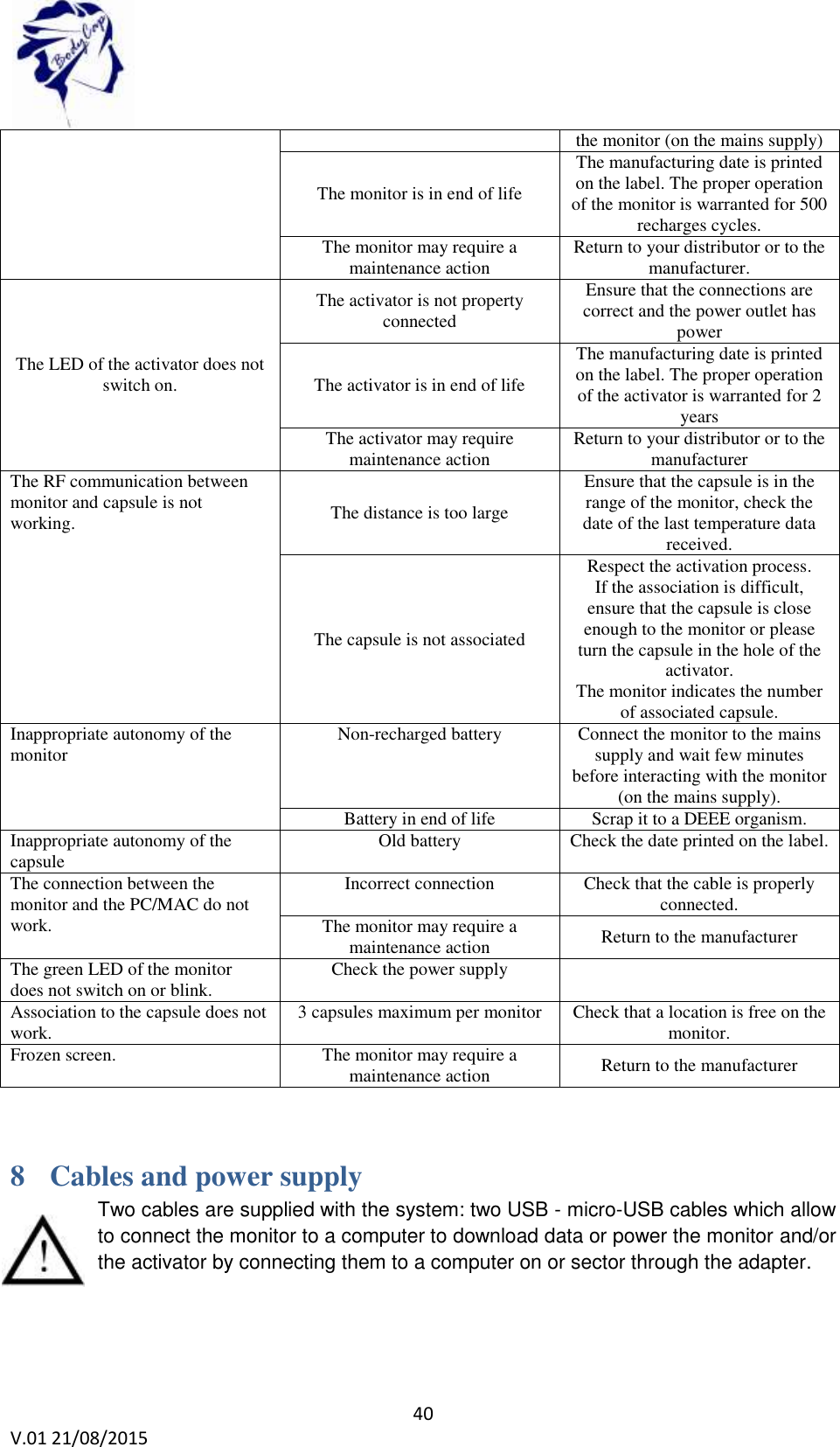
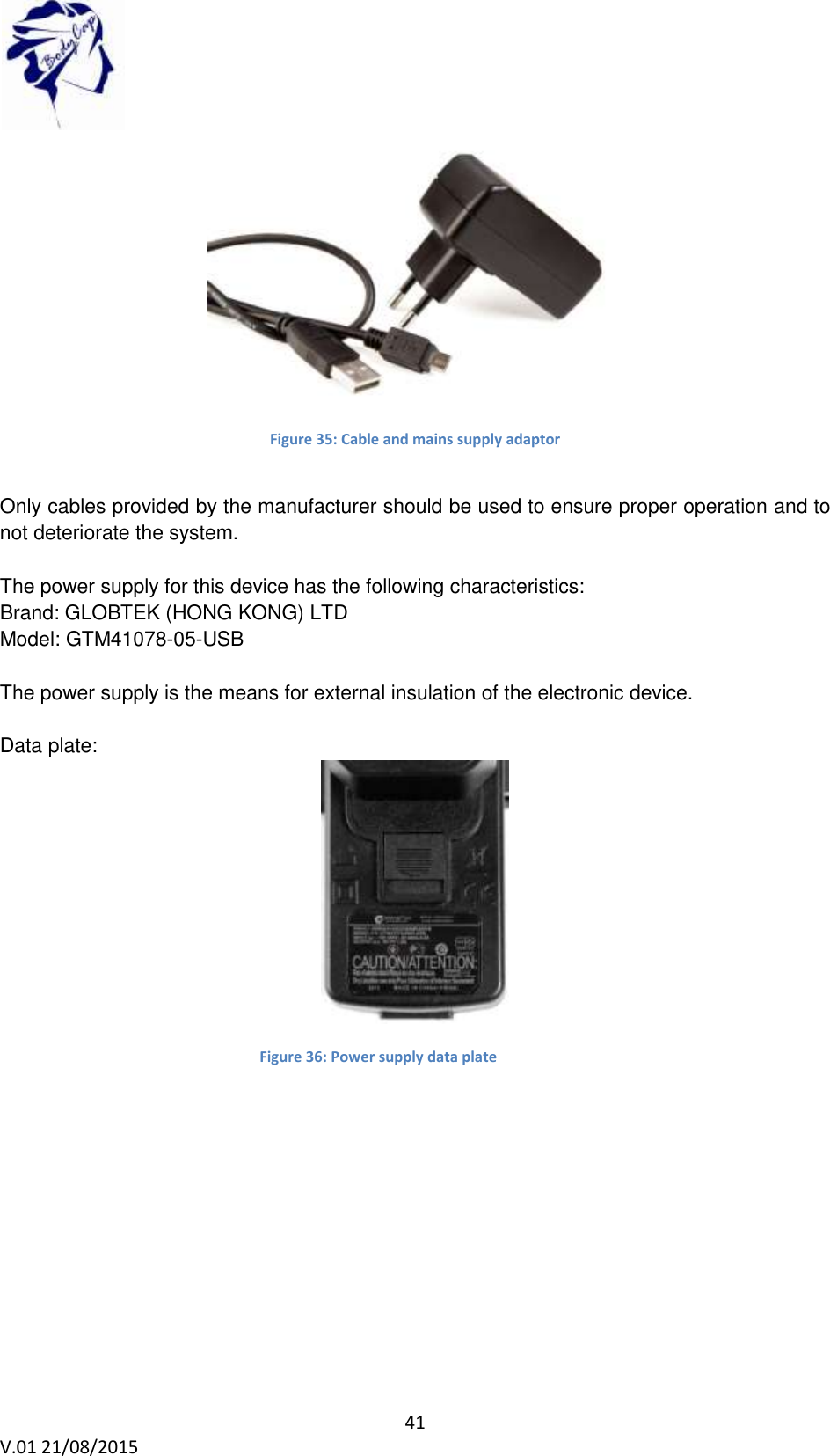
 40 V.01 21/08/2015    the monitor (on the mains supply) The monitor is in end of life The manufacturing date is printed on the label. The proper operation of the monitor is warranted for 500 recharges cycles. The monitor may require a maintenance action Return to your distributor or to the manufacturer. The LED of the activator does not switch on. The activator is not property connected Ensure that the connections are correct and the power outlet has power  The activator is in end of life The manufacturing date is printed on the label. The proper operation of the activator is warranted for 2 years The activator may require maintenance action Return to your distributor or to the manufacturer The RF communication between monitor and capsule is not working. The distance is too large Ensure that the capsule is in the range of the monitor, check the date of the last temperature data received. The capsule is not associated Respect the activation process. If the association is difficult, ensure that the capsule is close enough to the monitor or please turn the capsule in the hole of the activator. The monitor indicates the number of associated capsule. Inappropriate autonomy of the monitor Non-recharged battery  Connect the monitor to the mains supply and wait few minutes before interacting with the monitor (on the mains supply). Battery in end of life Scrap it to a DEEE organism. Inappropriate autonomy of the capsule Old battery Check the date printed on the label. The connection between the monitor and the PC/MAC do not work. Incorrect connection Check that the cable is properly connected. The monitor may require a maintenance action Return to the manufacturer The green LED of the monitor does not switch on or blink. Check the power supply  Association to the capsule does not work. 3 capsules maximum per monitor Check that a location is free on the monitor. Frozen screen. The monitor may require a maintenance action Return to the manufacturer  8 Cables and power supply Two cables are supplied with the system: two USB - micro-USB cables which allow to connect the monitor to a computer to download data or power the monitor and/or the activator by connecting them to a computer on or sector through the adapter.
 41 V.01 21/08/2015     Figure 35: Cable and mains supply adaptor  Only cables provided by the manufacturer should be used to ensure proper operation and to not deteriorate the system.  The power supply for this device has the following characteristics: Brand: GLOBTEK (HONG KONG) LTD Model: GTM41078-05-USB  The power supply is the means for external insulation of the electronic device.  Data plate:  Figure 36: Power supply data plate
 42 V.01 21/08/2015                           BodyCap 6 rue de la Girafe 14000 Caen        FRANCE  +33 (0)2.61.53.08.14    http://www.bodycap-medical.com

Navigation menu