Borqs BeiJing PRESTOA211 Presto User Manual

Borqs BeiJing Ltd Presto

User Manual

FCC cautionLabelling requirements.This device complies with part 15 of the FCC Rules. Operation is subject to the following two conditions: (1) This device may not cause harmful interference, and (2) this device must accept any interference received, including interference that may cause undesired operation.Information to user.Any Changes or modifications not expressly approved by the party responsible for compliance could void theuser's authority to operate the equipment.Information to the user.Note: This equipment has been tested and found to comply with the limits for a Class B digital device, pursuant to part 15 of the FCC Rules. These limits are designed to provide reasonable protection against harmful interference in a residential installation. This equipment generates uses and can radiate radio frequency energyand, if not installed and used in accordance with the instructions, may cause harmful interference to radio communications. However, there is no guarantee that interference will not occur in a particular installation. If this equipment does cause harmful interference to radio or television reception, which can be determined byturning the equipment off and on, the user is encouraged to try to correct the interference by one or more ofthe following measures:-Reorient or relocate the receiving antenna.-Increase the separation between the equipment and receiver.-Connect the equipment into an outlet on a circuit different from that to which the receiver is connected.-Consult the dealer or an experienced radio/TV technician for help.1.2.3.4, RF warning for Portable device:The device has been evaluated to meet general RF exposure requirement. The device can be used in portable exposure condition without restriction.
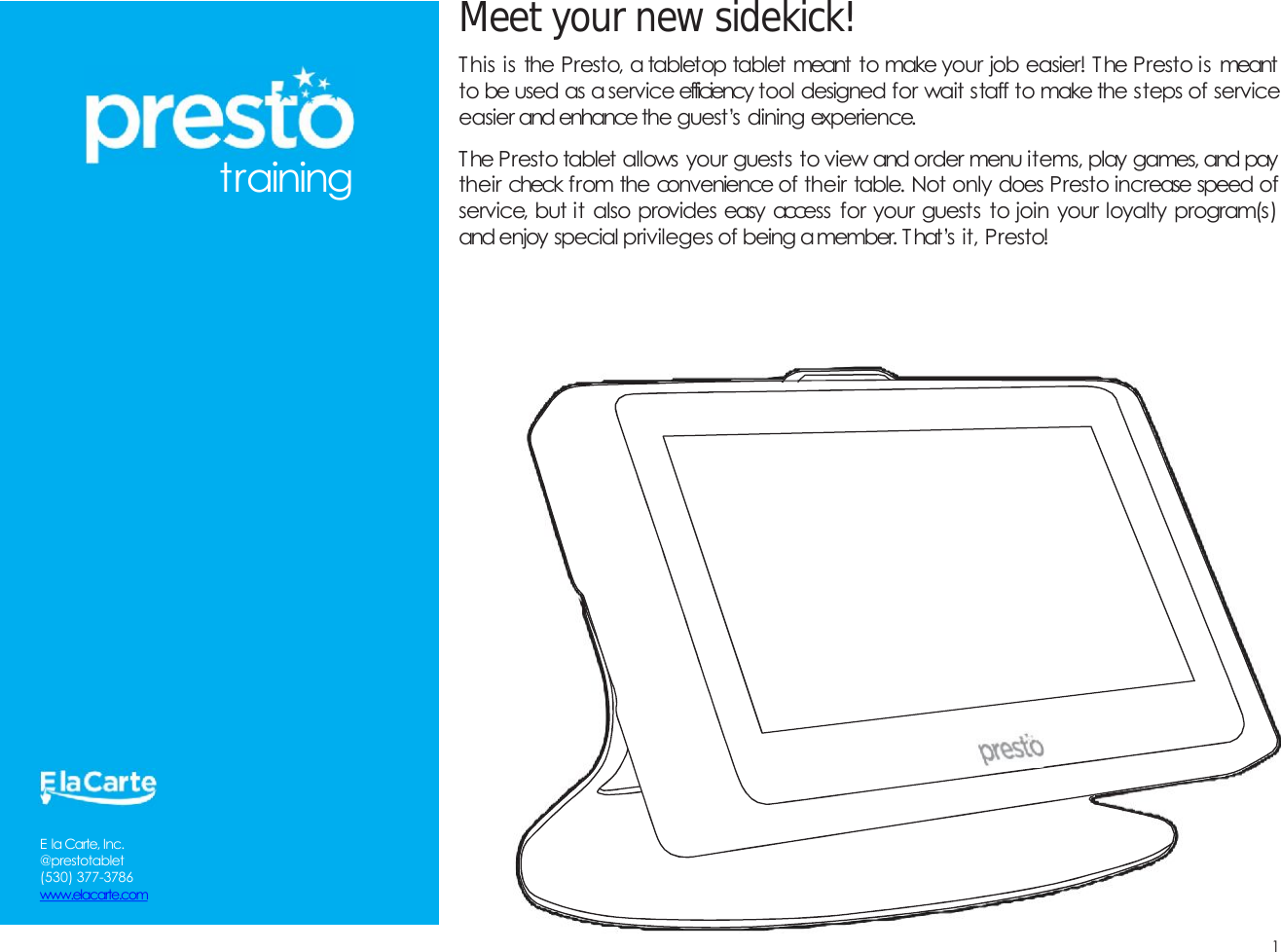
Meetyournewsidekick!1This is the Presto, a tabletop tablet meant to make your job easier! The Presto is meantto be used as aservice efficiency tool designed for wait staff to make the steps of serviceeasier and enhance the guest’s dining experience.The Presto tablet allows your guests to view and order menu items, play games, and paytheir check from the convenience of their table. Not only does Presto increase speed ofservice, but it also provides easy access for your guests to join your loyalty program(s)and enjoy special privileges of being amember. T hat’s it, Presto!trainingE la Carte, Inc.@prestotablet(530) 377-3786www.elacarte.com
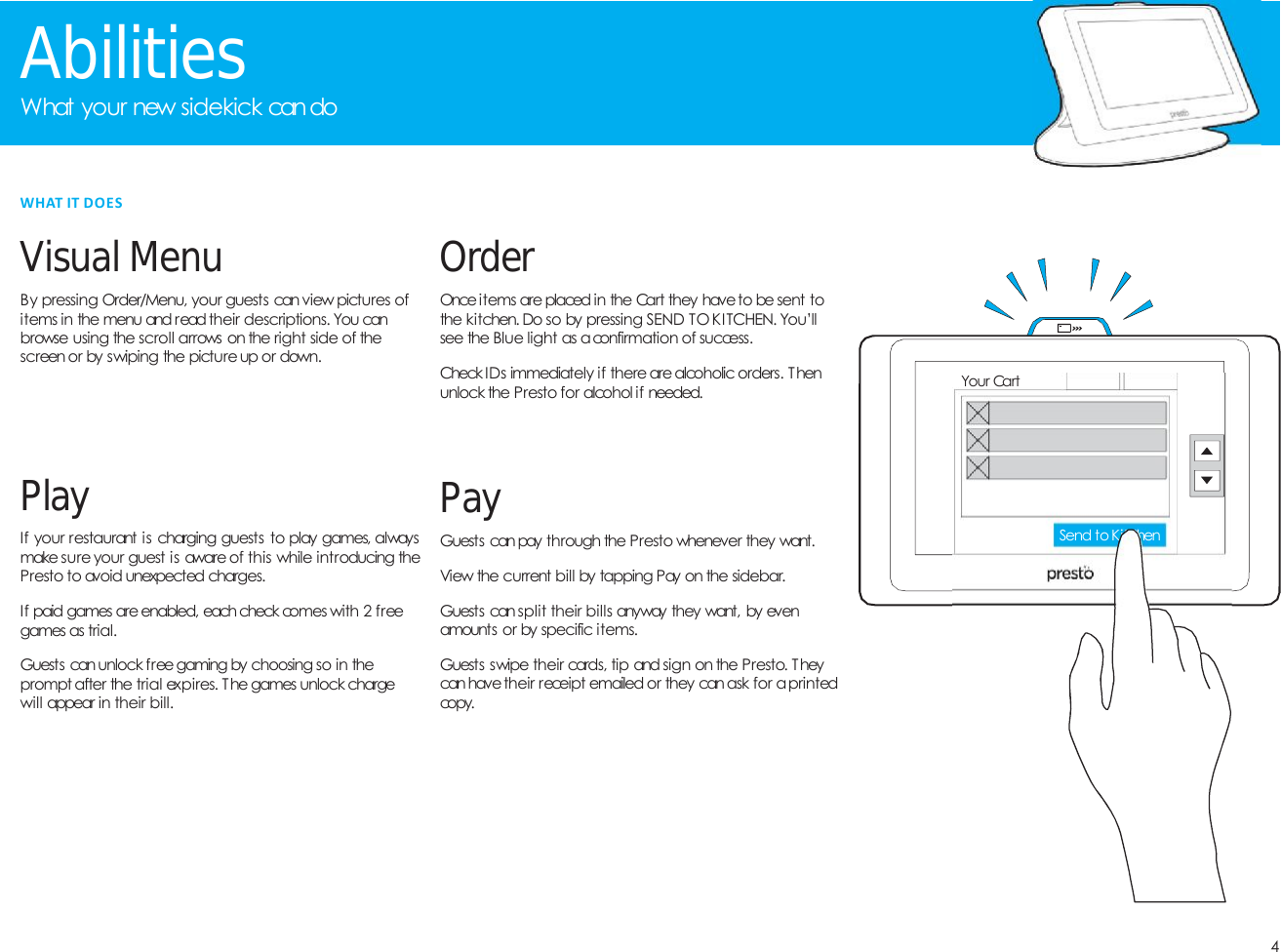
4AbilitiesWhat your new sidekick candoVisualMenuBy pressing Order/Menu, your guests can view pictures ofitems in the menu and read their descriptions. You canbrowse using the scroll arrows on the right side of thescreenor by swiping the pictureup or down.PayGuests can pay through the Presto whenever they want.View the current bill by tapping Pay on the sidebar.Guests can split their bills anyway they want, by evenamounts or by specific items.Guests swipe their cards, tip and sign on the Presto. Theycan havetheir receipt emailed or they canask for aprintedcopy.OrderOnce items are placed in the Cart they have to be sent tothe kitchen. Do so by pressing SEND TO KITCHEN. You’llsee the Blue light as aconfirmation of success.Check IDs immediately if there arealcoholic orders. Thenunlock the Presto for alcohol if needed.PlayIf your restaurant is charging guests to play games, alwaysmake sure your guest is aware of this while introducing thePresto to avoid unexpected charges.If paid games are enabled, each check comes with 2 freegames as trial.Guests can unlock free gaming by choosing so in theprompt after the trial expires. The games unlock chargewill appear in their bill.WHAT IT DOESYour CartSend to Kitchen
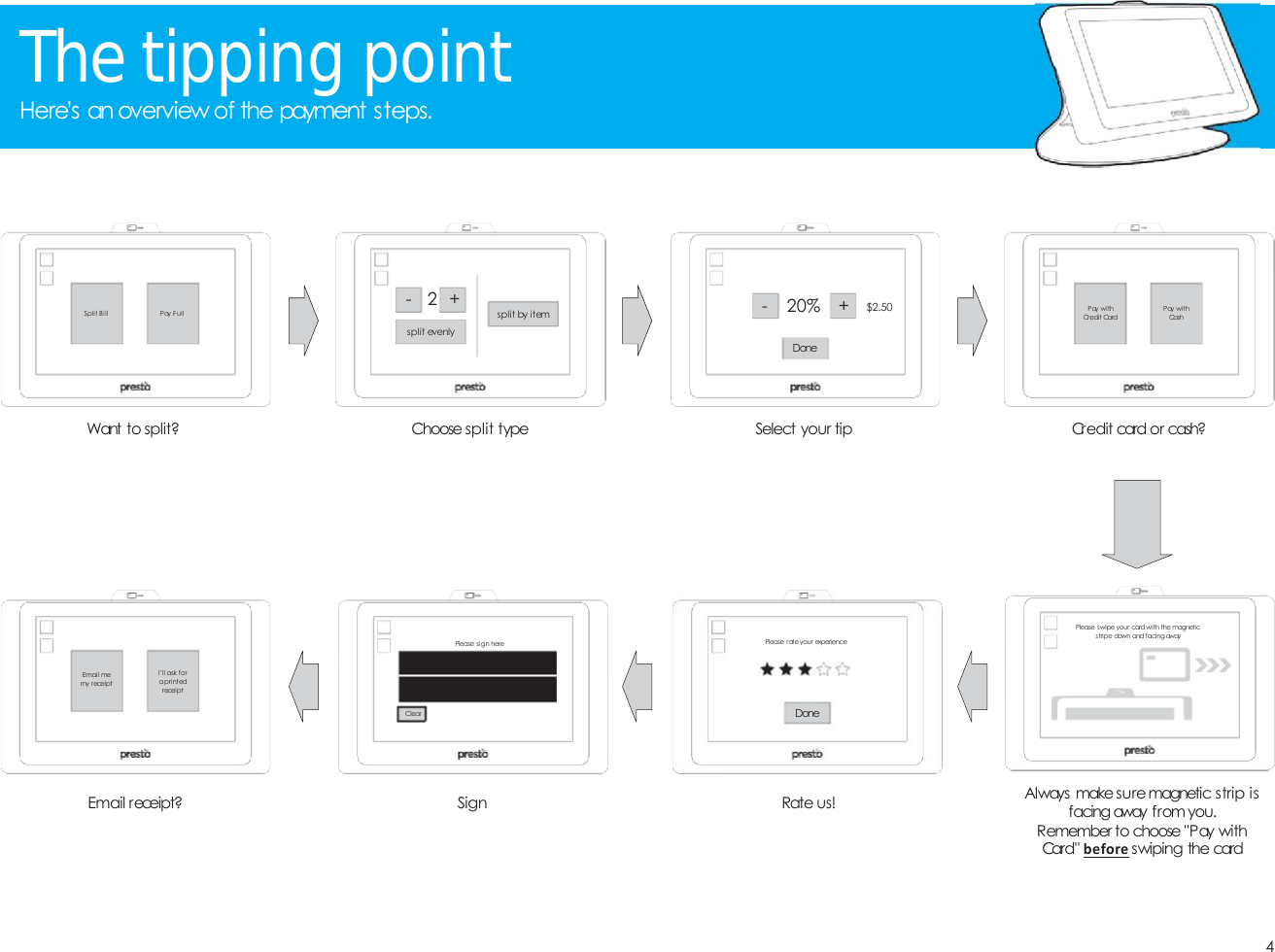
4Thetipping pointHere’s an overview of the payment steps.Always make suremagnetic strip isfacing away from you.Remember to choose "Pay withCard" before swiping the cardCredit card or cash?Want to split? Select your tipEmail receipt? Rate us!SignPay withCredit CardPay withCashSplit Bill Pay F ullEmail memy receiptI’ll ask foraprintedreceipt- 20% + $2.50DoneChoose split type- 2 +split evenlysplit by itemPlease swipe your card with the magneticstripe down and facing awayPlease sign hereClear DonePlease rateyour experience
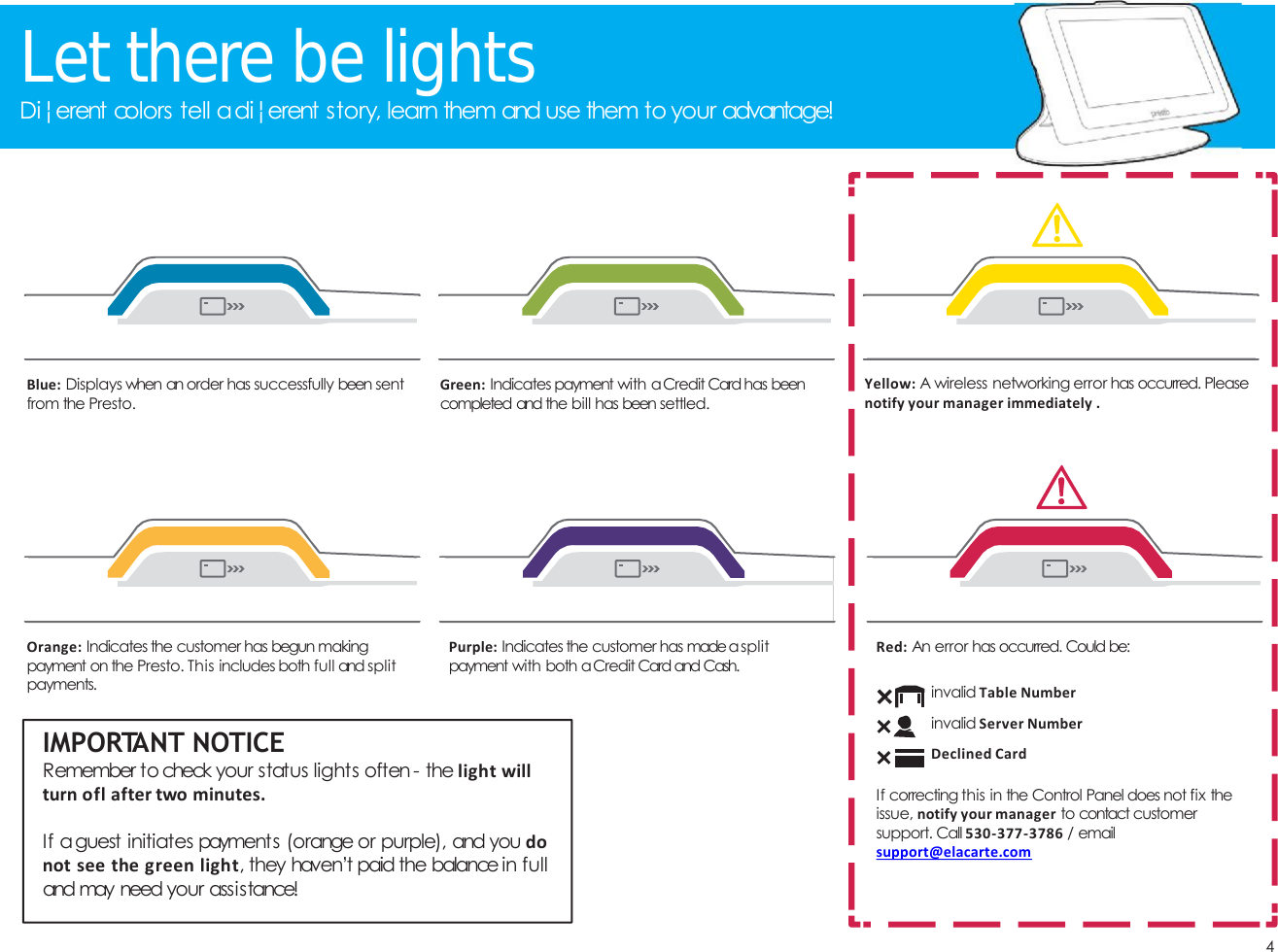
4Let there be lightsDi¦erent colors tell adi¦erent story, learn them and use them to your advantage!Orange: Indicates the customer has begun makingpayment on the Presto. This includes both full and splitpayments.IMPORTANT NOTICERemember to check your status lights often - the light willturn ofl after two minutes.If aguest initiates payments (orange or purple), and you donot see the green light, they haven’t paid the balance in fulland may need your assistance!Blue: Displays when an order has successfully been sentfrom the Presto.Purple: Indicates the customer has madeasplitpayment with both aCredit Card and Cash.Green: Indicates payment with aCredit Card has beencompleted and the bill has been settled.Yellow: A wireless networking error has occurred. Pleasenotify your manager immediately .Red: An error has occurred. Could be:invalid Table Numberinvalid Server NumberDeclined CardIf correcting this in the Control Panel does not fix theissue, notify your manager to contact customersupport. Call 530-377-3786 / emailsupport@elacarte.com
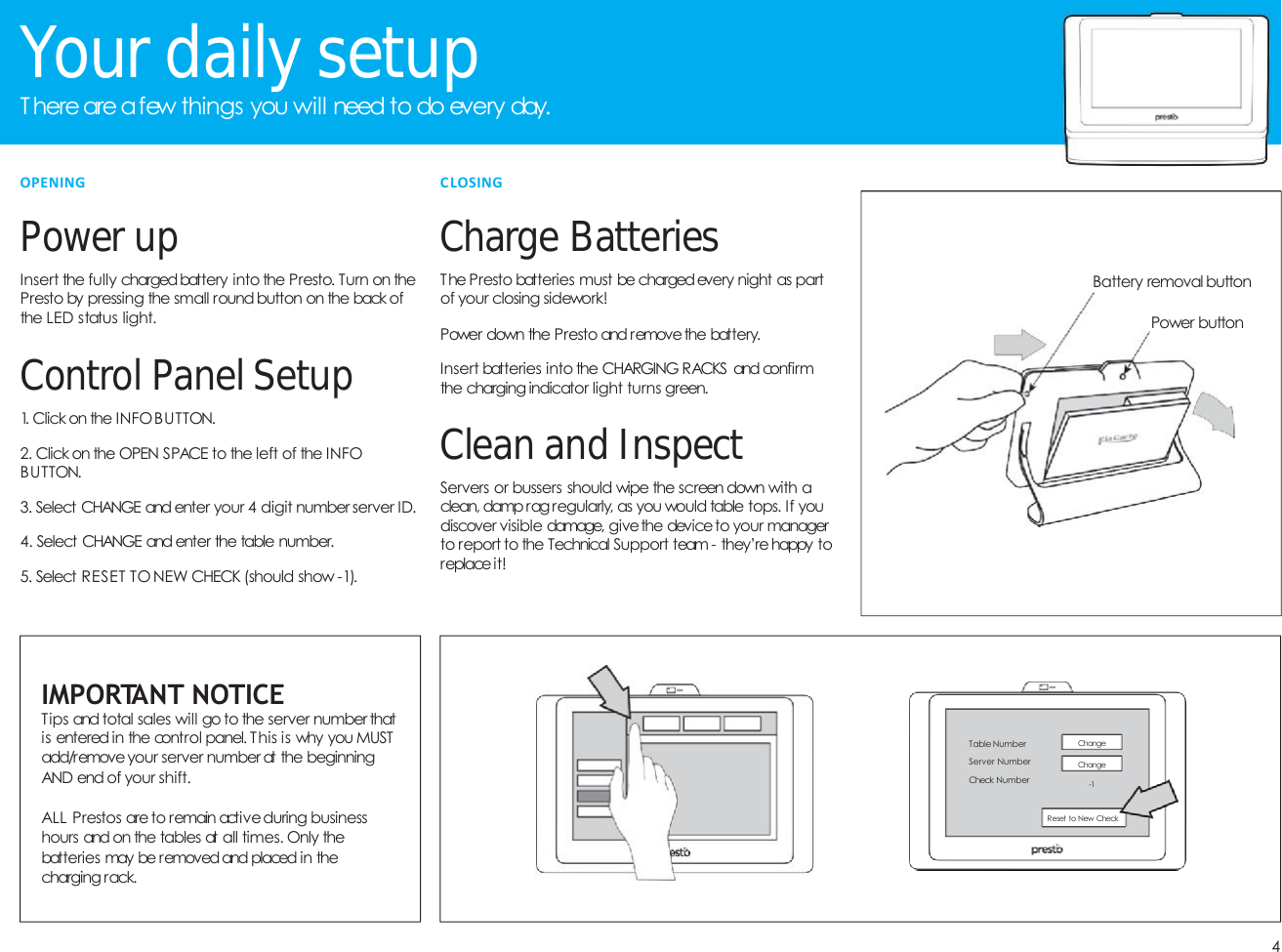
4YourdailysetupT here are afew things you will need to do every day.PowerupInsert the fully chargedbattery into the Presto. Turn on thePresto by pressing the small round button on the back ofthe LED status light.Control PanelSetup1. Click on the INFOBUTTON.2. Click on the OPEN SPACE to the left of the INFOBUTTON.3. Select CHANGE and enter your 4 digit number server ID.4. Select CHANGE and enter the table number.5. Select RESET TO NEW CHECK (should show -1).IMPORTANT NOTICETips and total sales will go to the server number thatis entered in the control panel. This is why you MUSTadd/removeyour server number at the beginningAND end of your shift.ALL Prestos areto remain activeduring businesshours and on the tables at all times. Only thebatteries may be removed and placed in thecharging rack.OPENINGCharge BatteriesThe Presto batteries must be chargedevery night as partof your closing sidework!Power down the Presto and removethe battery.Insert batteries into the CHARGING RACKS and confirmthe charging indicator light turns green.Cleanand InspectServers or bussers should wipe the screen down with aclean, dampragregularly, as you would table tops. If youdiscover visible damage, givethe deviceto your managerto report to the Technical Support team - they’re happy toreplaceit!CLOSINGTable NumberServer NumberCheck NumberChangeChange-1Reset to New CheckPower buttonBattery removal button
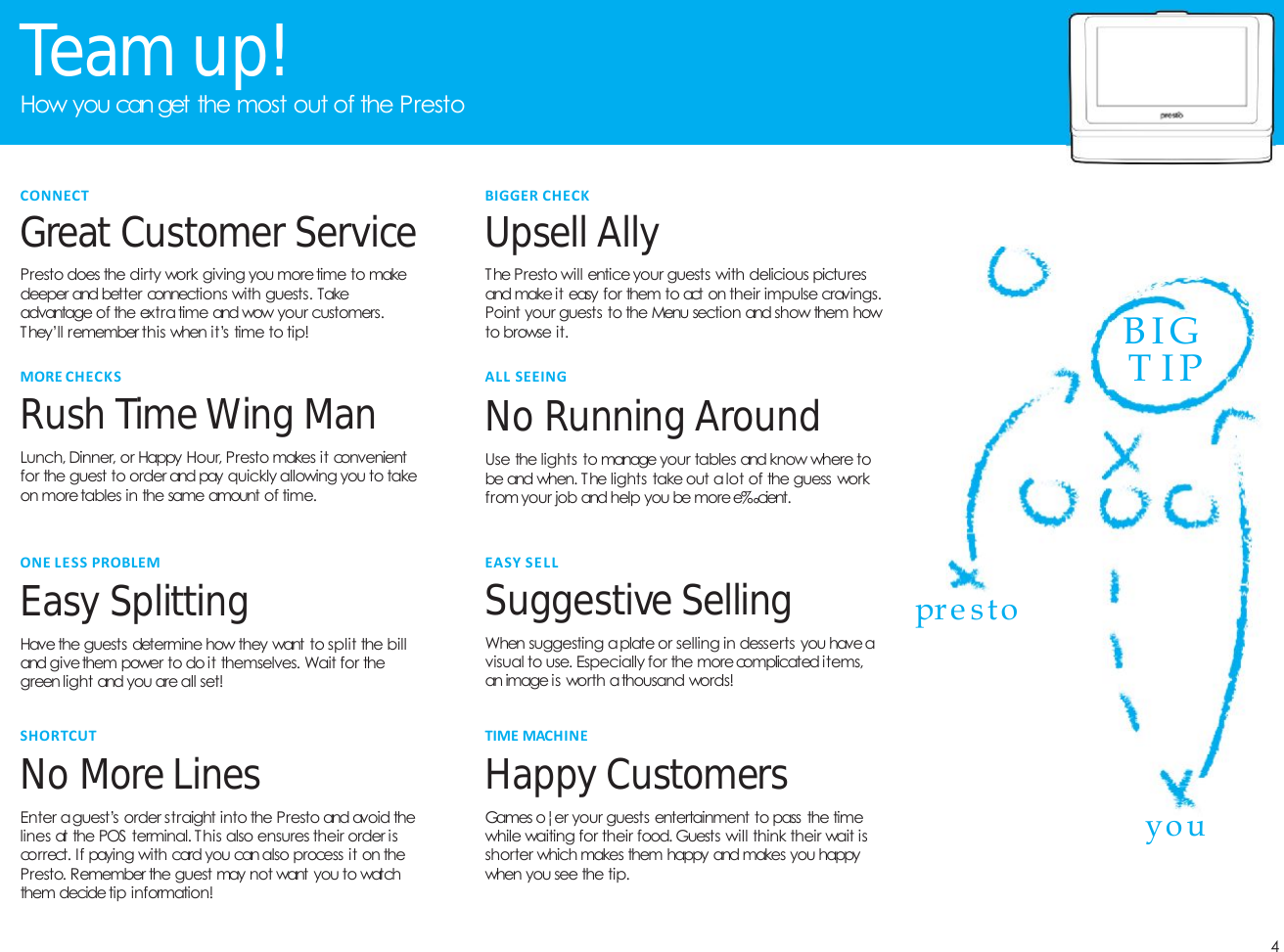
4Teamup!How you can get the most out of the PrestoCONNECTGreat CustomerServicePresto does the dirty work giving you moretime to makedeeper and better connections with guests. Takeadvantage of the extra time and wow your customers.They’ll remember this when it’s time to tip!BIGGER CHECKUpsellAllyThe Presto will entice your guests with delicious picturesand make it easy for them to act on their impulse cravings.Point your guests to the Menu section and show them howto browse it.MORE CHECKSRushTimeWingManLunch, Dinner, or Happy Hour, Presto makes it convenientfor the guest to order and pay quickly allowing you to takeon moretables in the same amount of time.ONE LESS PROBLEMEasy SplittingHavethe guests determine how they want to split the billand give them power to do it themselves. Wait for thegreen light and you are all set!SuggestiveSellingWhen suggesting aplate or selling in desserts you haveavisual to use. Especially for the morecomplicated items,an image is worth athousand words!ALL SEEINGNo RunningAroundUse the lights to manage your tables and know where tobe and when. The lights take out alot of the guess workfrom your job and help you be moree‰cient.SHORTCUTNo MoreLinesEnter aguest’s order straight into the Presto and avoid thelines at the POS terminal. This also ensures their order iscorrect. If paying with card you can also process it on thePresto. Remember the guest may not want you to watchthem decide tip information!EASY S E L LTIME MACHINEHappyCustomersGames o¦er your guests entertainment to pass the timewhile waiting for their food. Guests will think their wait isshorter which makes them happy and makes you happywhen you see the tip.B I GT I Ppre stoyo u
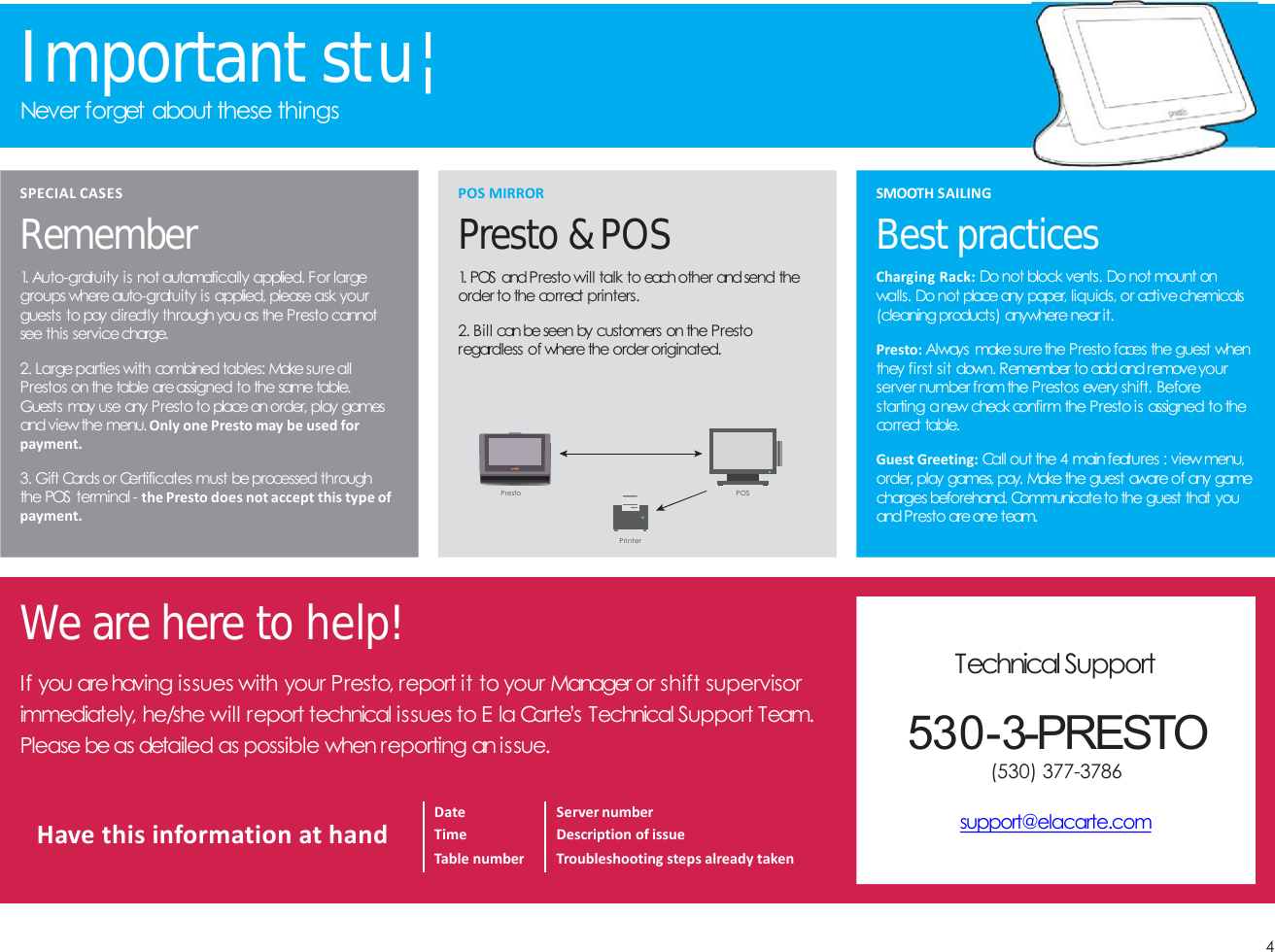
4SMOOTH SAILINGBestpracticesCharging Rack: Do not block vents. Do not mount onwalls. Do not place any paper, liquids, or activechemicals(cleaningproducts) anywhere near it.Presto: Always makesurethe Presto faces the guest whenthey first sit down. Remember to addand removeyourserver number from the Prestos every shift. Beforestarting anew check confirm the Presto is assigned to thecorrect table.Guest Greeting: Call out the 4 mainfeatures : viewmenu,order, play games, pay. Make the guest aware of any gamecharges beforehand. Communicateto the guest that youand Presto areone team.POS MIRRORPresto&POS1. POS and Presto will talk to eachother andsend theorder to the correct printers.2. Bill can be seen by customers on the Prestoregardless of where the order originated.SPECIAL CASESRemember1. Auto-gratuity is not automatically applied. For largegroups where auto-gratuity is applied, please ask yourguests to pay directly through you as the Presto cannotsee this servicecharge.2. Large parties with combined tables: Make sureallPrestos on the table areassigned to the same table.Guests may use any Presto to placean order, play gamesand view the menu. Only one Presto may be used forpayment.3. Gift Cards or Certificates must be processed throughthe POS terminal - the Presto does not accept this type ofpayment.Importantstu¦Never forget about these thingsWearehereto help!If you arehaving issues with your Presto, report it to your Manager or shift supervisorimmediately, he/she will report technical issues to E la Carte’s Technical Support Team.Please be as detailed as possible when reporting an issue.TechnicalSupport530-3-PRESTO(530) 377-3786support@elacarte.comDateTimeTable numberServer numberDescription of issueTroubleshooting steps already takenHave this information at handPresto POSPri nter

Navigation menu