Borqs BeiJing XR6M Tablet Remote User Manual

Borqs BeiJing Ltd Tablet Remote

User manual

1                          USER MANUAL   Tablet Remote  VIZIO  Model: XR6M
 2  Table of Contents...   Chapter 01 Introduction  Chapter 02 Safety precaution  Chapter 03 About device and OS 1    Charging the battery 2    Switching on/off 3    Unlocking the screen 4    Restarting the device 5    Factory reset 6    Home page 7    Function operations 8    Settings 9    Wireless Network 10  Bluetooth 11 USB Charging Port 12 Installation of application 13 Uninstallation of application   Chapter 04 Troubleshooting
 3  Chapter 01 Introduction  Congratulations on the purchase of the Tablet ! This device is built-in high performance Wifi receiver module, G-sensor, also can bring you into the portable media Tablet world and fulfilled your entertainment needs. It can support picture, video, music, E-book, games, online chat and other functions, moreover, various settings will fully show your individuality. This manual contains important safety and operating information in order to prevent accidents, please read this manual thoroughly and keep it for future reference.   Chapter 02 Safety precautions    To use this Tablet safely, please read and follow the instructions in this manual carefully before use.     Never use the Tablet while driving or when operating any vehicle, as this could cause an accident. It is also against the law in many areas. Take care when using the Tablet outdoors, especially when crossing the street.   Do not listen to music at very high volumes using the earphones as this can permanently damage your hearing.   Keep the Tablet clean and never store it next to a heat source or in dirty, humid or wet places. Keep it out of direct sunlight.
 4    Do not put the Tablet in high temperature places (over 40ºC), especially not in a car with the windows closed in summer.   Keep the Tablet away from strong magnetic fields.   Please don’t turn on the device in where the wireless equipment is forbidden or when the usage of the device will cause interference and danger.   Press the Tablet’s buttons gently. Pressing them or the screen too hard can damage the Tablet.   Do not use the Tablet in an electronics-prohibited area, such as in an airplane.   Do not use the Tablet in an extremely dry environment, as this can lead to static discharge, which can damage the Tablet.   Do not subject the product to harsh impacts.     Do not drop the appliance. This may result in damage to the product.   Do not attempt to dismantle or repair this unit yourself, Repairs should only be performed by qualified personnel only.   We will not be responsible for any memory loss caused by product damage, repairs or other reasons.     Disconnect the appliance from the power source when cleaning.   In order to prevent program failure, never disconnect the Tablet suddenly from a PC during downloading, uploading or formatting to prevent program failure.
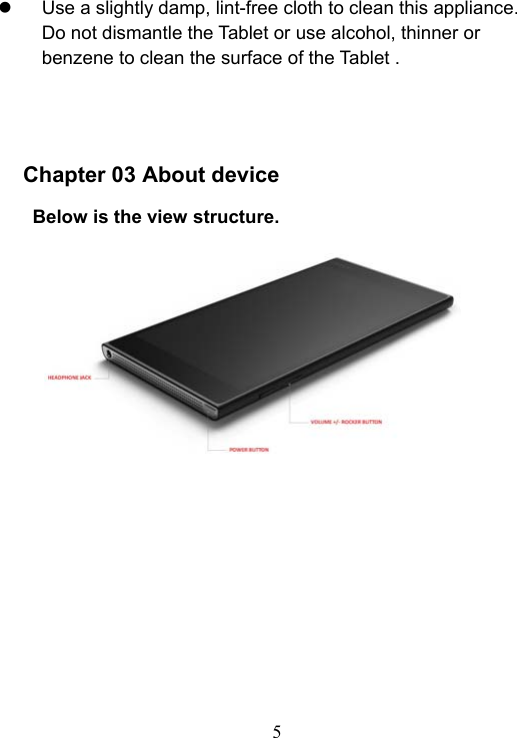
 5    Use a slightly damp, lint-free cloth to clean this appliance. Do not dismantle the Tablet or use alcohol, thinner or benzene to clean the surface of the Tablet .     Chapter 03 About device    Below is the view structure.
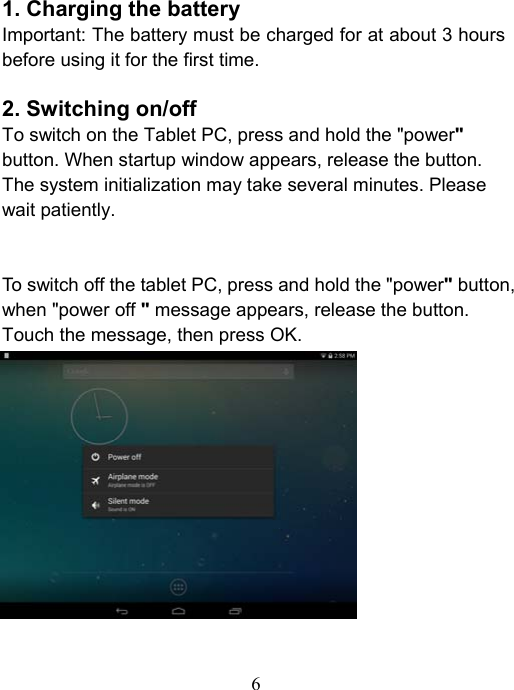
 6    1. Charging the battery Important: The battery must be charged for at about 3 hours before using it for the first time.  2. Switching on/off To switch on the Tablet PC, press and hold the "power" button. When startup window appears, release the button. The system initialization may take several minutes. Please wait patiently.   To switch off the tablet PC, press and hold the "power" button, when "power off " message appears, release the button. Touch the message, then press OK.
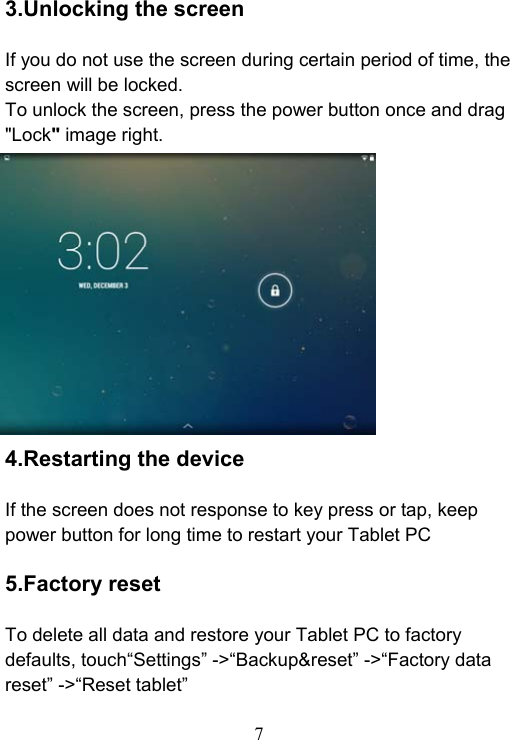
 7  3.Unlocking the screen  If you do not use the screen during certain period of time, the screen will be locked. To unlock the screen, press the power button once and drag "Lock" image right.            4.Restarting the device  If the screen does not response to key press or tap, keep power button for long time to restart your Tablet PC    5.Factory reset  To delete all data and restore your Tablet PC to factory defaults, touch“Settings” ->“Backup&reset” ->“Factory data reset” ->“Reset tablet”
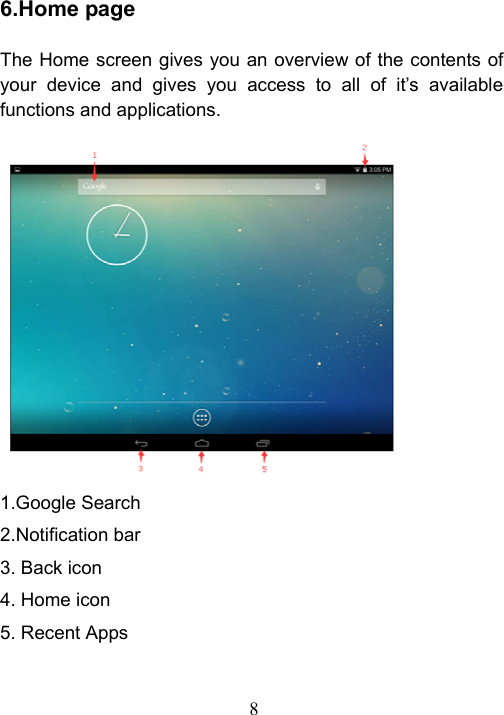
 8   6.Home page  The Home screen gives you an overview of the contents of your  device  and  gives  you  access  to  all  of  it’s  available functions and applications.               1.Google Search 2.Notification bar 3. Back icon 4. Home icon 5. Recent Apps
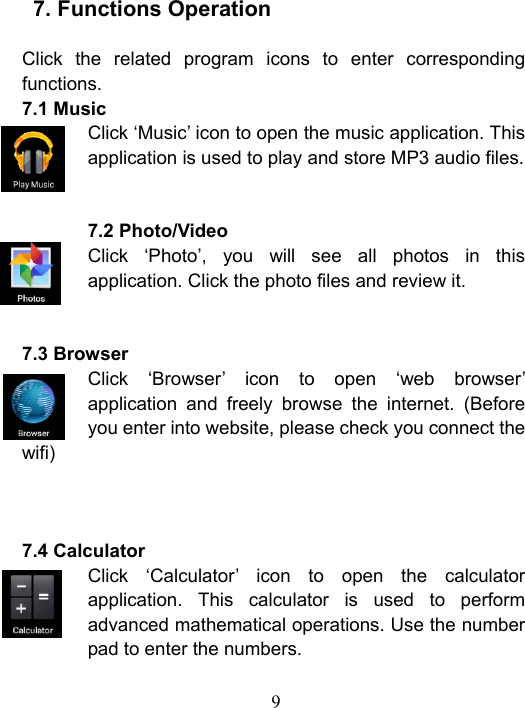
 9     7. Functions Operation  Click  the  related  program  icons  to  enter  corresponding functions. 7.1 Music Click ‘Music’ icon to open the music application. This application is used to play and store MP3 audio files.   7.2 Photo/Video Click  ‘Photo’,  you  will  see  all  photos  in  this application. Click the photo files and review it.     7.3 Browser Click  ‘Browser’  icon  to  open  ‘web  browser’ application  and  freely  browse  the  internet.  (Before you enter into website, please check you connect the wifi)    7.4 Calculator Click  ‘Calculator’  icon  to  open  the  calculator application.  This  calculator  is  used  to  perform advanced mathematical operations. Use the number pad to enter the numbers.
 10  7.5 Calendar Click ‘Calendar’ icon to open the calendar application. You can personalize and add your memorandum.   7.6 Clock Click ‘Clock’ icon to open the Clock application. You can  personalize  and  program  several  types  of alarms.   7.7 Email Click ‘Email’ icon to  open the  email  application and go  directly  to  your  personal  e-mail  software.  This application  is  compatible  with  most  e-mail  software and is used to easily read, send and receive e-mails.  7.8 File Manager Click  ‘File  Manager’  icon  to  open  your  tablet’s navigator  and  have  access  to  the  contents  of  your Micro SD or device’s internal memory.
 11   8.Settings
 12   8.1 Wifi Turn on the wifi and connect it.  8.2 Bluetooth Turn on the Bluetooth  8.3 Data usage Set data usage cycle.  8.4 Sound Set the volumes, system sounds  8.5 Display Set the brightness, wallpaper, screensaver etc.  8.6 Storage Show all storage and space of apps in internal memory/ SD card/USB disk.    8.7 Battery Show battery usage data.  8.8 Apps Show all apps you installed.    8.9 Users Sync your accounts you setup.  8.10 Location Determine your location by Internet
 13  8.11 Security Set the screen security/Encryption/Passwords etc.     8.12 Language & Input Set the language of device and input language you want.  8.13 Backup & reset Backup data or recover factory data reset.  8.14 Date & Time Set the date & time of device.  8.15 Accessibility Set the font, auto-rotate etc.  8.16 Developer options Show pointer location, screen updates, CPU usage etc.    8.17 About tablet Show the model number, version etc.   9. Wireless networks  Prior to starting an Internet-application, activate Wi-Fi connection and set up Wi-Fi network. 1.Touch the icon "Settings” -> “Wi-Fi”. Select Wi-Fi item and set the switch to on position. 2. The device will automatically start searching for available networks and will display them on the right panel. 3. Select any network from the list and press “Connect”. If the
 14  network you selected is protected by WEP-protocol, type the security key, then press “Connect” button. When the connection is successfully created, “Connected to” (Network name) message will appear on the screen.  10. Bluetooth    Tap "Settings" -> Select " Bluetooth" -> Tap "On" to switch on the Bluetooth function. The device will automatically search foravailable Bluetooth device.Select the Bluetooth device and start data transmission.   11. USB Charging Port  USB port does not have data transmission function. And you can connect your device to your computer for charging.   12. Installation of application  Install the third party application procedure: You  can  gain  the  third  party  application  which  match  the Android system from internet, and install it by yourself in the device.  Copy the  application  into  SD  card,  and  insert in  the device 1.  Click  “Explorer”  application,  choose  the  application  you need to install. 2.  Hold  the  application  you  need  to  install.  It  popup  install,
 15  click install apk. 2. Finish the installation as guide, it will operate. Note: The third party procedure searched from internet to use on the system are all suffixed with .apk.  13. Uninstallation of application  Uninstall application procedure: 1. Click setting icon in main interface. 2. Click manage application procedure, list all the application procedures installed in the system. 3. Click the APK you want to uninstall, click uninstall. 4. Click confirm to finish uninstallation. Skill: The procedure manager installed by system has many continent    methods to uninstall, after opening procedure manager, click uninstall, it will list all the application procedures installed by system.
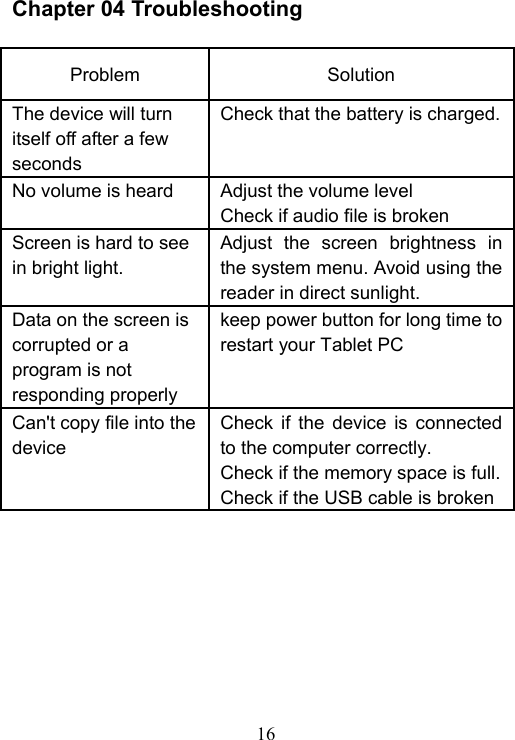
 16  Chapter 04 Troubleshooting  Problem    Solution   The device will turn itself off after a few seconds   Check that the battery is charged. No volume is heard    Adjust the volume level   Check if audio file is broken Screen is hard to see in bright light.   Adjust  the  screen  brightness  in the system menu. Avoid using the reader in direct sunlight.   Data on the screen is corrupted or a program is not responding properly keep power button for long time to restart your Tablet PC Can't copy file into the device Check  if  the  device  is  connected to the computer correctly.   Check if the memory space is full.Check if the USB cable is broken
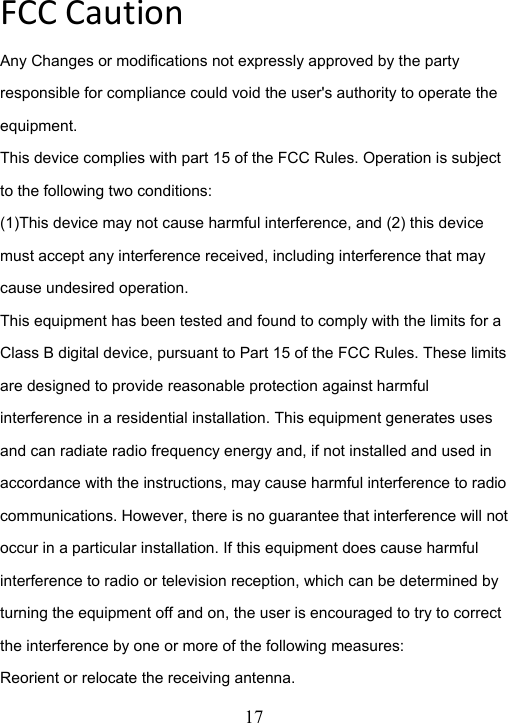
 17  FCCCautionAny Changes or modifications not expressly approved by the party responsible for compliance could void the user's authority to operate the equipment. This device complies with part 15 of the FCC Rules. Operation is subject to the following two conditions: (1)This device may not cause harmful interference, and (2) this device must accept any interference received, including interference that may cause undesired operation.   This equipment has been tested and found to comply with the limits for a Class B digital device, pursuant to Part 15 of the FCC Rules. These limits are designed to provide reasonable protection against harmful interference in a residential installation. This equipment generates uses and can radiate radio frequency energy and, if not installed and used in accordance with the instructions, may cause harmful interference to radio communications. However, there is no guarantee that interference will not occur in a particular installation. If this equipment does cause harmful interference to radio or television reception, which can be determined by turning the equipment off and on, the user is encouraged to try to correct the interference by one or more of the following measures: Reorient or relocate the receiving antenna.
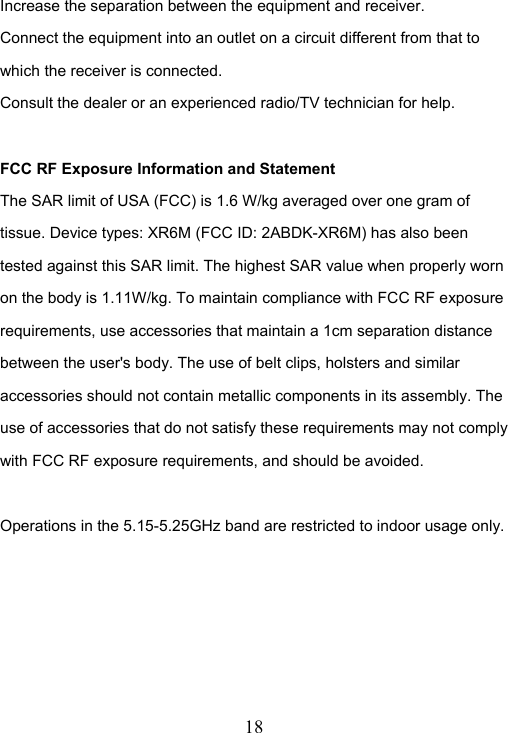
 18  Increase the separation between the equipment and receiver. Connect the equipment into an outlet on a circuit different from that to which the receiver is connected. Consult the dealer or an experienced radio/TV technician for help.  FCC RF Exposure Information and Statement The SAR limit of USA (FCC) is 1.6 W/kg averaged over one gram of tissue. Device types: XR6M (FCC ID: 2ABDK-XR6M) has also been tested against this SAR limit. The highest SAR value when properly worn on the body is 1.11W/kg. To maintain compliance with FCC RF exposure requirements, use accessories that maintain a 1cm separation distance between the user's body. The use of belt clips, holsters and similar accessories should not contain metallic components in its assembly. The use of accessories that do not satisfy these requirements may not comply with FCC RF exposure requirements, and should be avoided.  Operations in the 5.15-5.25GHz band are restricted to indoor usage only.
 19  ICwarningThis device complies with Industry Canada licence-exempt RSS standard(s). Operation is subject to the following two conditions: (1)This device may not cause interference and (2) this device must accept any interference, including interference that may cause undesired operation of the device.  Le présent appareil est conforme aux CNR d'Industrie Canada applicables aux appareils radio exempts de licence.L'exploitation est autorisée aux deux conditions suivantes : (1) l'appareil ne doit pas produire de brouillage, et (2) l'utilisateur de l'appareil doit accepter tout brouillage radioélectrique subi, même si le brouillage est susceptible d'en compromettre le fonctionnement.

Navigation menu