Bright Win Technology DOPO-M7088 Tablet User Manual M7088
Bright Win Technology Co., Ltd. Tablet M7088
Contents
- 1. User Manual I
- 2. User Manual II
User Manual II
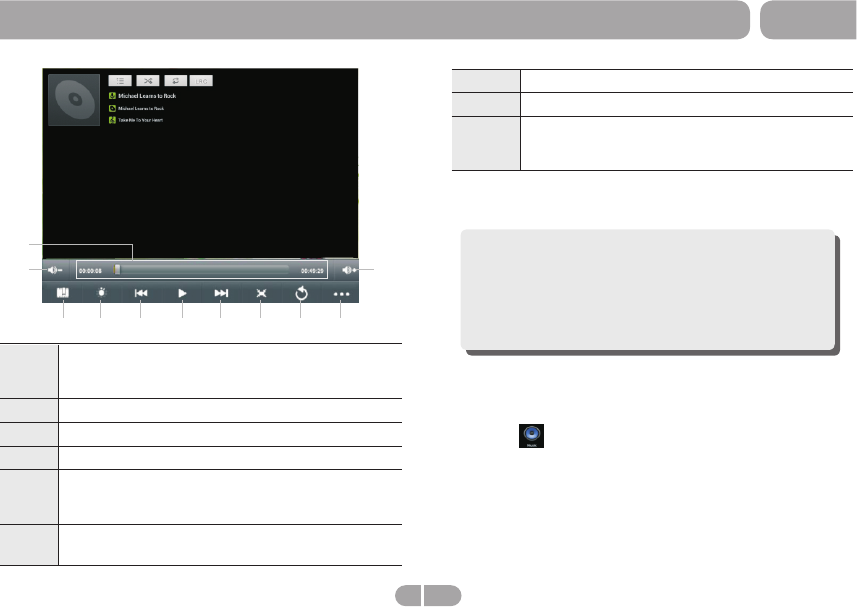
7Touch to play video in different size.
8Touch to return the previous directory.
9Touch to show sub menu which includes items
Delete Bookmark and Play from beginning,
Delete bookmark, Play mode, Help and Return.
To hide/show the toolbar, please touch the screen centre
directly.
Note: If a bookmark is set, then, then if a movie had
not been played completely last time, the tablet will
remember the pause point. User can select whether
play this movie from the pause point next time. On
the video file list, long pressing a file can popup the
file delete frame, on which user can select whether
delete the selected file.
> Music
From a Home or All Apps screen, touch the Music icon to
enter the music file listing interface shown below:
1Progress bar: it is used to view video playing
progress. Dragging it can fast reverse/forward
the video.
2Volume: touch to decrease/increase the volume.
3Touch to add the current point to be a bookmark.
4
5
Touch to set the screen brightness.
Touch to play the previous/next video.
Long press to fast reverse/forward the current
video.
6Play/
play.
Pause: touch to pause/ resume the normal
98
7
6
2
5
4
1
3
2
5
M7088
Getting Started
12 EN
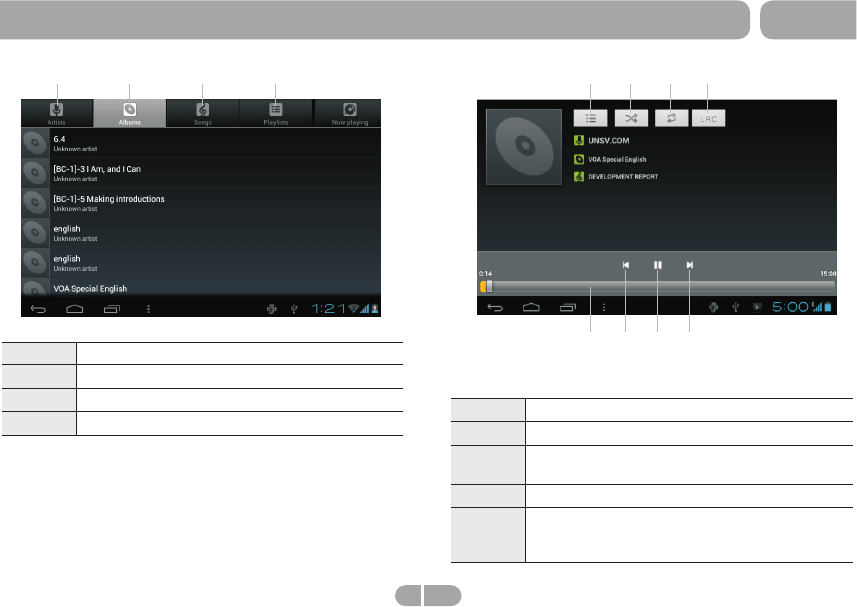
Icons in the tool bar shown on the above interface have
functions shown below:
1Touch to popup the music list
2Touch to "turn on /off shuffle"
3Touch to set the song repeat mode to repeat off,
repeating all songs, repeatting current song.
Touch to popup lrc.
4
5Progress bar: it is used to view video playing
progress. Dragging it can fast reverse/forward
the video.
1Touch to sort song by singer.
2Touch to sort song by album.
3Touch to list all music files on screen.
Touch to check latest add songs.
4
Drag your finger on the screen up and down to view the list
and touch any one to enter audio playing interface like the
below:
2 4
3
1
567 8
M7088
Getting Started
2 4
3
1
13 EN
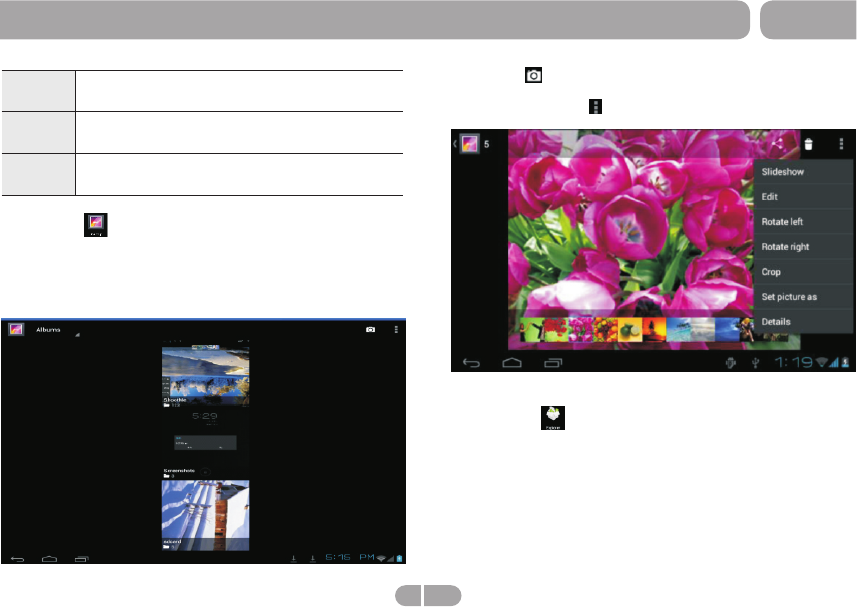
Touch can enter into CAM app directly. Choose a
album, then choose a photo, can play the photo. When play
the photo touch icon can popup submenu as below:
icon
> Explorer
From a Home or All Apps screen, touch the Explorer icon,
enter the corresponding interface. User can browers all the
file in this device. In file list interface,long press a file or a
folder, can popup an edit dialog, here, user can copy, delete,
move, paste, rename the file.
6
7Play/
play.
Pause: touch to pause/ resume the normal
Long press to fast forward the current song,
short touch to play the next song
8
Touch once fast reverse the current song to
begin, fast touch twice to play the previous song.
> Gallery
From a Home or All Apps screen, touch the Gallery icon, it is
used for you to view photo files in your device. you can also
download another APK program to view photos from market
or other ways. The photo play interface is shown as the below:
M7088
Getting Started
14 EN
> Calculator
From a Home or All Apps screen, touch the Calculator icon,
enter the corresponding interface, user can do some
calculation here.
> Canlendar
From a Home or All Apps screen, touch the Canlendar icon,
enter the corresponding interface, user can check canlendar
here,and built new event here.
> Clock
From a Home or All Apps screen, touch the Clock icon, enter
the corresponding interface, user can setting clock here and
add alarm.
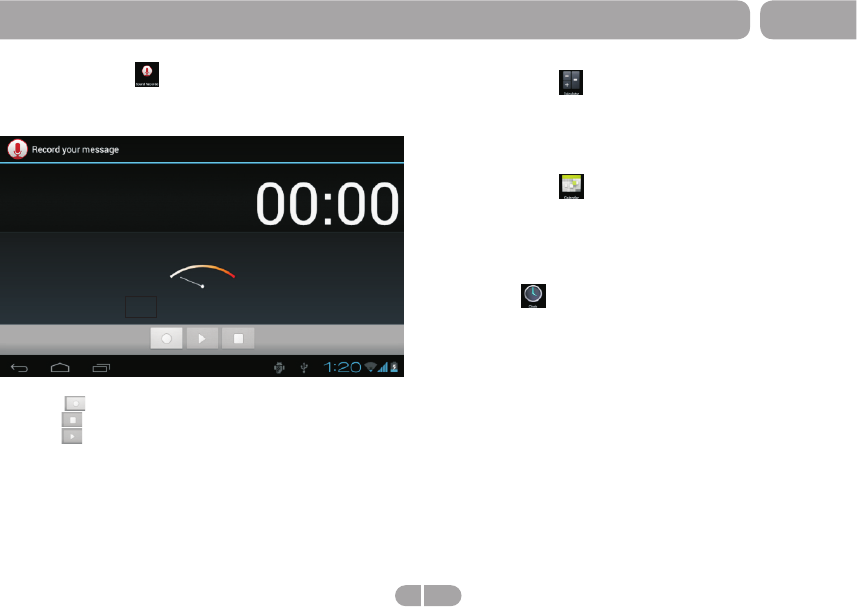
> SoudRecorder
From a Home or All Apps screen, touch the SoudRecorder
icon, enter the corresponding interface .
Touching can start record, after finish the record,
touching can popup the record saving dialogue, this time
touching can listen to record just recorded.
All the record files (VXXXX.3gpp) are saved in folder Record,
which is located in the root directory. User can play the record
file like play songs.
M7088
Getting Started
15 EN
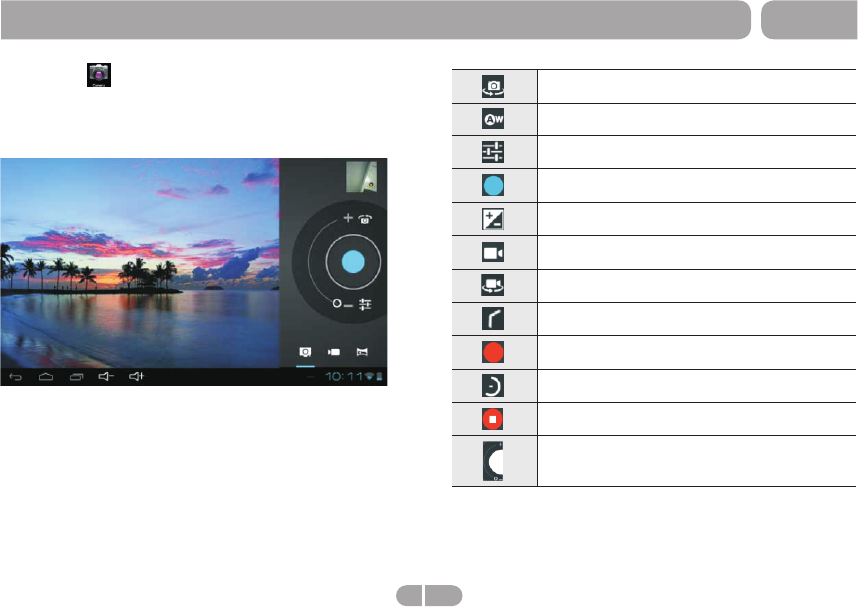
> Camera
From a Home or All Apps screen, touch the Camera icon,
enter the corresponding interface.
Shift front and back camera
White balance
Unhide setting menu
Touch to comfirm take photo
Exposure
Touch to shift take photo to picture recording
Shift front and back camera
Hide setting menu
Start or pause recording picture
Shift recording picture to take photo
Pause recording picture
Adjust focus
M7088
Getting Started
16 EN
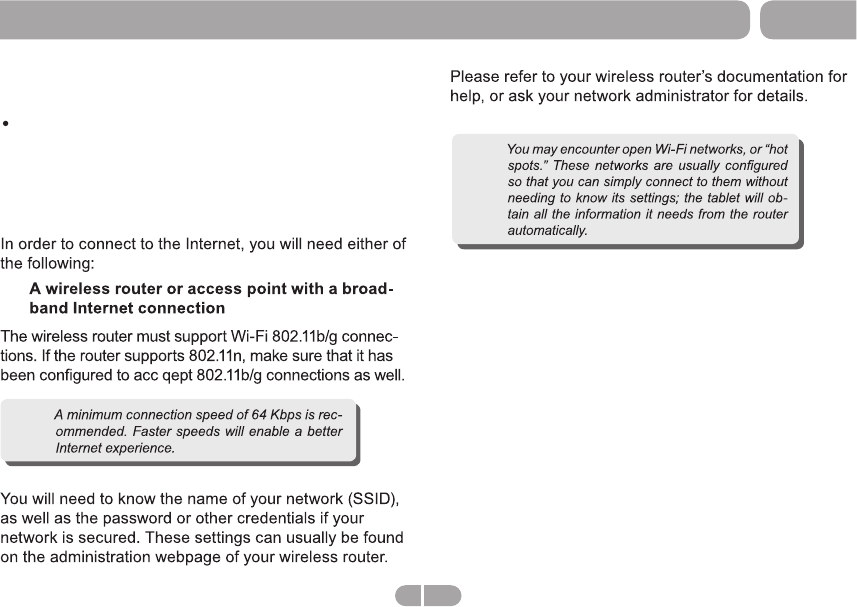
Requirements
M7088
Connecting to the Internet
Note:
Note:
17 EN
This tablet can utilize Wi-Fi data networks to connect to
the Internet.
Wireless Wi-Fi technology can provide Internet access
at distances of over 300 feet; however, this distance
can be affected by your surrounding environment and
Wi-Fi router.

The tablet cannot be turned on.
Please charge it via the DC charger to check if the battery is low. If not, then please reset the tablet.
No sound can be heard from the earphones.
1. Check if the volume is set as 0. Adjust the volume as required.
2. Check the volume of the file attempting to be played.
3. Confirm the earphone is properly connected.
Noise through earphones.
1. Check if the earphone plug is clean, foreign particles can cause static to be heard through the earphone during playback.
2. Check if the music file is damaged. Confirm by playing other music. The damaged file might create serious noises or voice dithering.
Incorrect language displayed.
Please make sure that you have selected the correct language. Set language in (Settings) => (personal) => (Language &input)
Files cannot be downloaded.
1. Make sure the proper connection between computer and tablet.
2. Check if the memory is full.
3. Check if the USB cable is damaged and replace if necessary.
Audio files not playable.
This tablet cannot play audio files that are copy protected. Please ensure that only files that contain no copy protection are transferred to
the tablet.
Video files not playable.
Please check that the video files transferred to the tablet are in the correct size and format. Some files may need to be re encoded to be
played on this tablet.
Fail to open the web page.
Please check whether successfully create the Wi-Fi connection.
Forgot the password or lock pattern
Please contact our customer service team through email or phone, you will be receiving the instruction on how to do the factory reset.
However, all the personal data will be deleted after the factory reset!
M7088
Troubleshooting
18 EN
ONE-YEAR LIMITED WARRANTY ON
PARTS AND 90 DAYS ON LABOR
PARTS AND LABOR
TYPE OF SERVICE
M7088
Warranty
21 EN
Replacement parts and units are warranted for the
remaining portion of the original warranty or for ninety
(90)days from warranty service or replacement,
whichever is greater.
Limitations and Exclusions
M7088
Warranty
22 EN
FCC Statement:
This device complies with part 15 of the FCC Rules. Operation is subject to the following
two conditions: (1) This device may not cause harmful interference, and (2) this device
must accept any interference received, including interference that may cause undesired
operation.
This equipment has been tested and found to comply with the limits for a Class B digital
device, pursuant to part 15 of the FCC Rules. These limits are designed to provide
reasonable protection against harmful interference in a residential installation. This
equipment generates, uses and can radiate radio frequency energy and, if not installed
and used in accordance with the instructions, may cause harmful interference to radio
communications. However, there is no guarantee that interference will not occur in a
particular installation. If this equipment does cause harmful interference to radio or
television reception, which can be determined by turning the equipment off and on, the
user is encouraged to try to correct the interference by one or more of the following
measures:
—Reorient or relocate the receiving antenna.
—Increase the separation between the equipment and receiver.
—Connect the equipment into an outlet on a circuit different from that to which the
receiver is connected.
—Consult the dealer or an experienced radio/TV technician for help.
Caution: Any changes or modifications not expressly approved by the party responsible
for compliance could void the user's authority to operate the equipment.
Radiation exposure statement:
This equipment complies with FCC radiation exposure limits set forth for an uncontrolled
environment, The device can be used without any restrictions.