Brother FAX775 User Manual FAX MACHINE Manuals And Guides L0702012
BROTHER Fax Machines Manual L0702012 BROTHER Fax Machines Owner's Manual, BROTHER Fax Machines installation guides
User Manual: Brother FAX775 FAX775 BROTHER FAX MACHINE - Manuals and Guides View the owners manual for your BROTHER FAX MACHINE #FAX775. Home:Computer & Office Equipment Parts:Brother Parts:Brother FAX MACHINE Manual
Open the PDF directly: View PDF  .
.
Page Count: 96
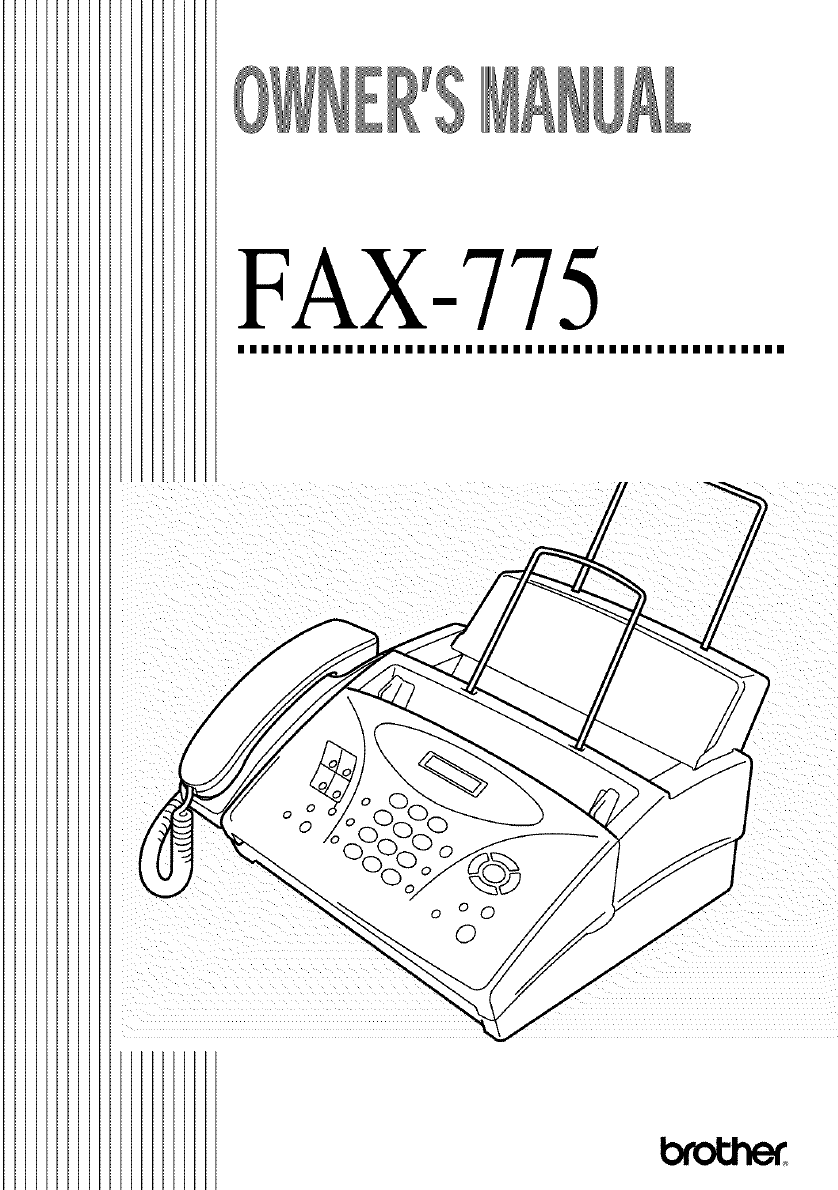
FAX-775
IIIIIIIIIIIIIIIIIIIIIIIIIIIIIIIIIIIIIIIIIIIIII
If You Need to Call Customer Service
information for future
Please complete the following
reference:
Model: FAX-775
Serial Number'*
Date of Purchase:
Place of Purchase:
* The serial number is on the underside of the unit.
Retain this Quick-Start Manual with your sales
receipt as a permanent record of your purchase, in
the event of a theft, fire or warranty service.
J
Ill
@1996-2001 Brother Industries, Ltd.
Brother Numbers
For technical and operational assistance, you must call the country
where you purchased the fax machine. Calls must be madeJ_om within
that country.
Brother fax-back system
Brother Customer Service has installed an easy-to-use tax-back system, so you can get
instant answers to common technical questions and product information l\_r all Brother
products. This system is available 24 hours a day, 7 days a week. You can use the
system to send faxes to any fax machine, not just the one from which you are calling.
If you can't resolve difficulty with your tax machine using this manual, call our
fax-back system, and follow the voice prompts to receive faxed instructions about
using file system, and an index of fax-back subjects.
In USA: 1-800-521-2846
In Canada: 1-800-681-9838
1-514-685-5381 (in Montreal)
(For USA Only) The Brother lax-back system number has been preprogrammed on
One Touch key 1.
Frequently Asked Questions (FAQs)
You can find more ioformation about Brother products on the World Wkte Web. From
product specification sheets to Frequently Asked Questions (FAQs), it is all there.
Visit us at:
For Customer Service
In USA:
In Canada:
1-800-284-4329 (voice)
1-908-575-8790 (fax)
1-800-284-3238 (TTY service for the hearing-impaired)
1-800-853-6660 (voice)
1-514-685-4898 (fax)
1-514-685-6464 (voice) (in Montreal)
Dealers/Service Centers (For USA Only)
For the name of a Brother authorized dealer or service center, call 1-800-284-4357.
Service Centers (For Canada Only)
For service center addresses in Canada, call 1-800-853-6660.
BROTHER NUMBERS i
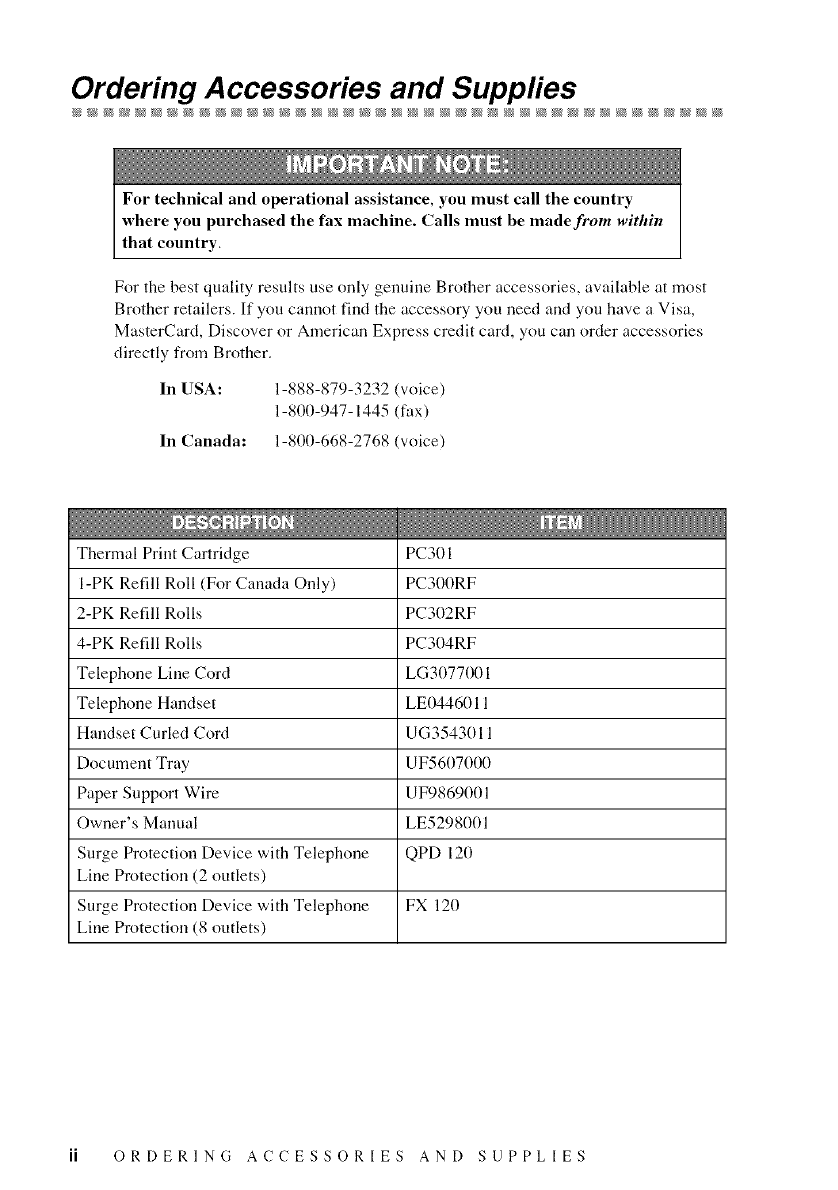
Ordering Accessories and Suppfies
For technical and operational assistance, you must call the country
where you purchased the fax machine. Calls must be made from within
that country
For the best quality results use only genoioe Brother accessories, available at most
Brother retailers. If you cannot find the accessory you need and you trove a Visa,
MasterCard, Discover or American Express credit card, you can order accessories
directly from Brother.
In USA: 1-888-879-3232 (voice)
1-800-947-1445 (fax)
In Canada: 1-800-668-2768 (voice)
Thermal Print Cartridge PC301
I-PK Refill Roll (For Canada Only) PC300RF
2-PK Refill Rolls PC302RF
4-PK Refill Rolls PC304RF
Telephone Line Cord LG3077001
Telephone Handset LE0446011
Handset Curled Cord UG35431111
Document Tray UF56117000
Paper Support Wire UF9869001
Owner's Manual LE5298001
Surge Protection Device with Telephone QPD 120
Line Protection (2 outlets)
Surge Protection Device with Telephone FX 120
Line Protection (8 outlets)
ii ORDERING ACCESSORIES AND SUPPLIES
Notice - Disclaimer of Warranties
(For USA and Canada)
BROTHER'S LICENSOR(S), AND THEIR DIRECTORS, OFFICERS, EMPLOYEES OR
AGENTS (COLLECTIVELY BROTHER'S LICENSOR) MAKES NO WARRANTIES,
EXPRESS OR IMPLIED, INCLUDING WITHOUT LIMITATION THE IMPLIED WARRANTIES
OF MERCHANTABILITY AND FITNESS FOR A PARTICULAR PURPOSE, REGARDING
THE SOFTWARE. BROTHER'S LICENSOR(S) DOES NOT WARRANT, GUARANTEE OR
MAKE ANY REPRESENTATIONS REGARDING THE USE OR THE RESULTS OF THE USE
OF THE SOFTWARE IN TERMS OF ITS CORRECTNESS, ACCURACY, RELIABILITY,
CURRENTNESS OR OTHERWISE. THE ENTIRE RISK AS TO THE RESULTS AND
PERFORMANCE OF THE SOFTWARE IS ASSUMED BY YOU. THE EXCLUSION OF
IMPLIED WARRANTIES IS NOT PERMITTED BY SOME STATES IN THE USA AND SOME
PROVINCES IN CANADA. THE ABOVE EXCLUSION MAY NOT APPLY TO YOU.
IN NO EVENT WILL BROTHER'S LICENSOR(S) BE LIABLE TO YOU FOR ANY
CONSEQUENTIAL, INCIDENTAL OR INDIRECT DAMAGES (INCLUDING DAMAGES FOR
LOSS OF BUSINESS PROFITS, BUSINESS INTERRUPTION, LOSS OF BUSINESS
INFORMATION, AND THE LIKE) ARISING OUT OF THE USE OR INABILITY TO USE THE
SOFTWARE EVEN IF BROTHER'S LICENSOR HAS BEEN ADVISED OF THE POSSIBILITY
OF SUCH DAMAGES. BECAUSE SOME STATES IN THE USA AND SOME PROVINCES IN
CANADA DO NOT ALLOW THE EXCLUSION OR LIMITATION OF LIABILITY FOR
CONSEQUENTIAL OR INCIDENTAL DAMAGES, THE ABOVE LIMITATIONS MAY NOT
APPLY TO YOU. IN ANY EVENT BROTHER'S LICENSOR'S LIABILITY TO YOU FOR
ACTUAL DAMAGES FROM ANY CAUSE WHATSOEVER, AND REGARDLESS OF THE
FORM OF THE ACTION WHETHER IN CONTRACT, TORT (INCLUDING NEGLIGENCE),
PRODUCT L AB L TY OR OTHERW SE), W LL BE L M TED TO $50.
Compilation and Publication Notice
Under the supervision of Brother Industries, Ltd., this manual has been compiled
and published, covering the latest product descriptions and specifications.
The contents of this manual and the specifications of this product are subject to
change without notice.
Brother reserves the right to make changes without notice in the specifications and
materials contained herein and shall not be responsible for any damages (including
consequential) caused by reliance on the materials presented, including but not
limited to typographical and other errors relating to the publication.
Trademarks
The Brother logo is a registered trademark of Brother Industries, Ltd.
Brother is a registered trademark of Brother Industries, Ltd.
CallManage and IP Saver are trademarks of CallManage Inc.
IBM, IBM PC, MWAVE and IBM Aptiva are registered trademarks of International
Business Machines Corporation.
Microsoft and MS-DOS are registered trademarks of Microsoft Corporation.
Windows and Windows NT are registered trademarks of Microsoft in the U.S. and
other countries.
All other terms and brand and product names mentioned in this manual are
registered trademarks of their respective companies.
NOTICE DISCLAIMER OF WARRANTIES iii
BROTHER ONE YEAR LIMITED WARRANTY and EXCHANGE SERVICE
(For USA Only)
This warranty gives you certain rights
and you may also have other rights that
may vary from state to state.
This warranty is given only to the first
end-use purchaser of the
accompanying product (referred to in
this warranty as "this Product").
What is covered: Brother warrants to
you for the Warranty Period that there
are no defects in the materials,
workmanship or Year 2000 compliance
of this Product. The "Warranty Period"
is 1 year from the date you purchased
this product. The "Warranty Period" for
consumable items, such as Print
Heads, Toner, Drums, Ink Cartridges,
Print Cartridges, Refill Ribbons,
Therma PLUS Paper and Thermal
Paper, etc. is 90 days from the date of
purchase, or the rated life of the
Consumable item, whichever is shorter.
What is NOT covered: This warranty is
VOID -- that is, this Product has no
warranty -- if: (1) you did not purchase
this Product from an authorized Brother
reseller within the United States, (2) this
Product has been serviced, modified or
tampered with by anyone other than an
Authorized Service Representative of
Brother, (3) the serial number has been
modified, defaced or removed from this
Product, (4) this Product has been
abused or damaged, or, the
recommended monthly volume has
been exceeded, (5) non Brothe¢_-brand
or non Brother approved parts,
supplies, power supplies or other
accessories have been used with this
Product, or (6) this Product has been
transported without the proper
preparation and packaging.
What to do if you think your Product
is defective: Call our Customer
Service Hotline at 1-800-284-4329 or if
you suspect a defect in materials or
workmanship in this Product, you can
report it to a Brother Authorized Service
Center. During the Warranty Period,
supply Brother's representative with a
copy of your dated bill of sale showing
that this Product was purchased within
the United States. For the name of your
Brother Authorized Service Center call
1-800-521-2846. After contacting the
Brother Authorized Service Center, you
may be required to deliver or send the
Product properly packaged, freight
prepaid, to the Authorized Service
Center together with a photocopy of
your bill of sale.
What Brother will do: Brother (or its
Authorized Service Center) will
evaluate your report of a possible
defect to determine whether a defect
exists, and if it does exist, Brother (or its
Authorized Service Center) will repair or
_at Brother's option) replace the
roduct with a product that performs
the same functions and performs as
well as the original Product. Brother
reserves the right to supply refurbished
or remanufactured replacement parts
provided that the replacement parts
conform to the manufacturer's
specifications for new products. The
repaired or replacement product will be
returned to you at no cost.
Exchange Service: When an
exchange is authorized, Brother will
exchange your non-working product
with a refurbished or remanufactured
product that conforms to the
manufacturer's specifications for new
products. The refurbished or
remanufactured Product you receive
will be covered by the balance of the
limited warranty period remaining on
the original Product, plus an additional
thirty (30) days. You will keep the
replacement Product that is sent to you
and must return (or be billed up to the
cost of a new product) your original
non- working product, which shall
become the property of Brother. You
must call Brother Customer Service and
if the representative cannot correct the
product's malfunction over the
telephone and you elect the exchange
service, you must provide information
pertaining to this Product and you must
also provide a valid major credit card
number. Your credit card will be
charged up to the cost of a new Product
if: (i) you do not return your original
Product to Brother within five (5)
business days; (ii) the malfunctions of
your original Product are not covered by
the limited warranty;
iv FAX LIMITED WARRANTY
BROTHER ONE YEAR LIMITED WARRANTY and EXCHANGE SERVICE
(For USA Only)
(iii) the proper packaging instructions
are not followed and has caused
damage to the product; or (iv) the
warranty period on your original
Product has expired or has not been
sufficiently validated with a copy of the
proof of purchase (bill of sale). The
Brother Customer Service
Representative will ship the exchange
Product via next business day delivery
courier service, with return instructions
and prepaid return air bill. Follow the
return instructions. You must return the
original Product in the same shipping
carton in which the exchanged Product
was received and include a copy of
proof of purchase (bill of sale). Retain
your original accessory items and a
copy of the return air bill, signed by the
courier.
Limitations: Repair or replacement as
described above is your sole and
exclusive (that is, your only) remedy if
this Product is defective. Brother is not
responsible for damage to or loss of any
equipment, media, programs or data
related to the use of this Product.
Except for that repair or replacement,
Brother shaft not be liable for any direct,
indirect, incidental or consequential
damages or specific refief. Because
some states do not allow the exclusion
or limitation of consequential or
incidental damages, the above
limitation may not apply to you.
THIS WARRANTY IS GIVEN IN LIEU
OF ALL OTHER WARRANTIES,
WRITTEN OR ORAL, WHETHER
EXPRESSED BY AFFIRMATION,
PROM IS E, DESCRIPTION,
DRAWING, MODEL OR SAMPLE.
ANY AND ALL WARRANTIES OTHER
THAN THIS ONE, WHETHER
EXPRESS OR IMPLIED, INCLUDING
IMPLIED WARRANTIES OF
MERCHANTABILITY AND FITNESS
FOR A PARTICULAR PURPOSE, ARE
HEREBY DISCLAIMED.
This Limited Warranty is the only
warranty that Brother is giving for this
Product. It is the final expression and the
exclusive and only statement of Brother's
obligations to you. It replaces all other
agreements and under-standings that
you may have with Brother or its
representatives.
This Limited Warranty (and Brother's
obligation to you) may not be changed
in any way unless you and Brother sign
the same piece of paper in which we (1)
refer to this Product and your bill of sale
date, (2) describe the change to this
warranty and (3) agree to make that
change.
Product Support: Toll-free customer
service and technical support is
available for hardware operational
assistance at 1-800-284-4329. At any
time, free technical support in the form
of Frequently Asked Questions,
troubleshooting tips and service center
Iocator is available through our fax-back
system at 1-800-521-2846 or Brother's
Internet Web Site (www.brother.com).
Now you can visit us on-line at
(www.brothermall.com), your complete
source for genuine Brother Accessories
and Supplies.
BROTHER INTERNATIONAL CORPORATION
100 SOMERSET CORPORATE BLVD.
BRIDGEWATER, NEW JERSEY 08807-0911
Please record your model and serial
numbers and your date and location of
Purchase below for your records. Keep
this information with your proof of
purchase (bill of sale) in case your
Product is lost, stolen or requires
service.
Model #
Serial #
Date of purchase:
Store where purchased:
Location of store:
Important: We recommend that you
keep all original packing materials, in
the event that you ship this product.
FAX LIMITED WARRANTY V
BROTHER MULTIFUNCTION CENTER/FACSIMILE MACHINE
LIMITED WARRANTY
(For Canada Only)
Pursuant to this limited warranty of 1 year from the date of purchase for labour and parts,
Brother International Corporation (Canada) Ltd. ("Brother"), or its Authorized Service
Centers, will repair this MFC/Facsimile machine free of charge if defective in material or
workmanship. This Limited Warranty does not include cleaning, consumables
(including, without limitation, print cartridges, print head, toner and drum) or damage
caused by accident, neglect, misuse or improper installation or operation, any damage
caused from service, maintenance, modifications, or tampering by anyone other than a
Brother Authorized Service Representative, or from the use of supplies or consumable
items that are non-Brother products. Operation of the MFC/Facsimile machine in excess
of the specifications or with the Serial Number or Rating Label removed shall be
deemed abuse and all repairs thereafter shall be the sole liability of the end-user/
purchaser, in order to obtain warranty service, the MFC/Facsimile machine must be
delivered or shipped freight prepaid by the end user/purchaser to a "Brother" Authorized
Service Center, together with your Proof of Purchase in the form of a Sales Receipt.
For laser products: Failure to remove the Toner Cartridge (and Toner Drum Unit on
applicable models) during shipping will cause severe damage to the MFC/Facsimile and
will VOID the Warranty. (Refer to your Operation Manual for proper packaging.)
For ink-jet products: Do not remove the ink cartridges during shipping. Damage to your
print head resulting from packing without the ink cartridges will VOID your warranty.
(Refer to your Operation Manual for proper packaging.)
BROTHER DISCLAIMS ALL OTHER WARRANTIES EXPRESSED OR IMPLIED
INCLUDING, WITHOUT LIMITATION, ANY IMPLIED WARRANTIES OF
MERCHANTABILITY OR FITNESS FOR A PARTICULAR PURPOSE, EXCEPT TO
THE EXTENT THAT ANY WARRANTIES IMPLIED BY LAW CANNOT BE VALIDLY
WAIVED.
No oral or written information, advice or representation provided by Brother, its
Authorized Service Centers, Distributors, Dealers, Agents or employees, shall create
another warranty or modify this warranty. This warranty states Brother's entire liability
and your exclusive remedy against Brother for any failure of the MFC/Facsimile
machine to operate properly.
Neither Brother nor anyone else involved in the development, production, or delivery of
this MFC/Facsimile machine shall be liable for any indirect, incidental, special,
consequential, exemplary, or punitive damages, including lost profits, arising from the
use of or inability to use the product, even if advised by the end user/purchaser of the
possibility of such damages. Since some Provinces do not allow the above limitation of
liability, such limitation may net apply to you.
This Limited Warranty gives you specific legal rights and you may also have other rights
which vary from Providence to Providence.
Warranty Service is available at Brother Authorized Service Centers throughout
Canada. For Technical Support or for the name and location of your nearest
Authorized Service Center call 1-800-853-6660. Within Montreal, please call 685-6464.
Internet support: support@brother.ca or browse
Brother's Web Site: www.brother.com
Brother International Corporation (Canada) Ltd. _.',.-.t_,.,r_a..
1 Rue H6tel de Ville _I_b, AII,_L__
Dollard-Des-Ormeaux, QC H9B 3H6
vi LIMITED WARRANTY (CANADA)
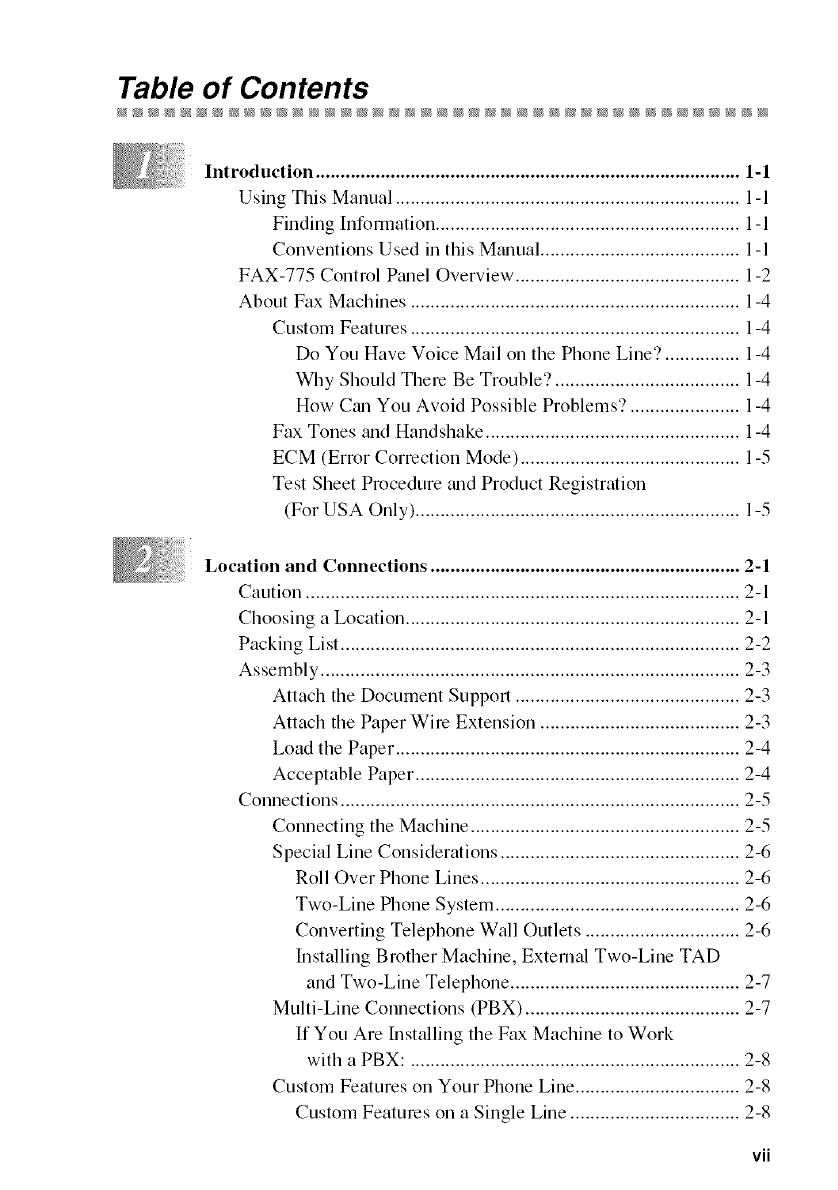
Table of Contents
Introduction ..................................................................................... 1-1
Using This Manual ..................................................................... 1-1
Findiog hlformation ............................................................. 1-1
Conventions Used in this Mzmual........................................ 1-1
FAX-775 Control P_mel Overview ............................................. 1-2
About Fax Machines .................................................................. 1-4
Custom Features .................................................................. 1-4
Do You Have Voice Mail on the Phone Line? ............... 1-4
Why Should There Be Trouble? ..................................... 1-4
How Cml You Avoid Possible Problems? ...................... 1-4
Fax Tones and Handshake ................................................... 1-4
ECM (Error Correction Mode) ............................................ 1-5
Test Sheet Procedure trod Product Registration
(For USA Only) ................................................................. 1-5
Location and Connections .............................................................. 2-1
Caution ....................................................................................... 2-1
Choosing a Location ................................................................... 2-1
Packing List ................................................................................ 2-2
Assembly .................................................................................... 2-3
Attach the Document Support ............................................. 2-3
Attach the Paper Wire Extension ........................................ 2-3
Load the Paper ..................................................................... 2-4
Acceptable Paper ................................................................. 2-4
Connections ................................................................................ 2-5
Connecting the Machine ...................................................... 2-5
Special Line Considerations ................................................ 2-6
Roll Over Phone Lines .................................................... 2-6
Two-Line Phone System ................................................. 2-6
Converting Telephone Wall Outlets ............................... 2-6
Installing Brother Machine, External Two-Line TAD
and Two-Line Telephone .............................................. 2-7
Multi-Line Connections (PBX) ........................................... 2-7
If You Are hlstalling the Fax Machine to Work
with a PBX: .................................................................. 2-8
Custom Features on Your Phone Line ................................. 2-8
Custom Features on a Single Line .................................. 2-8
vii
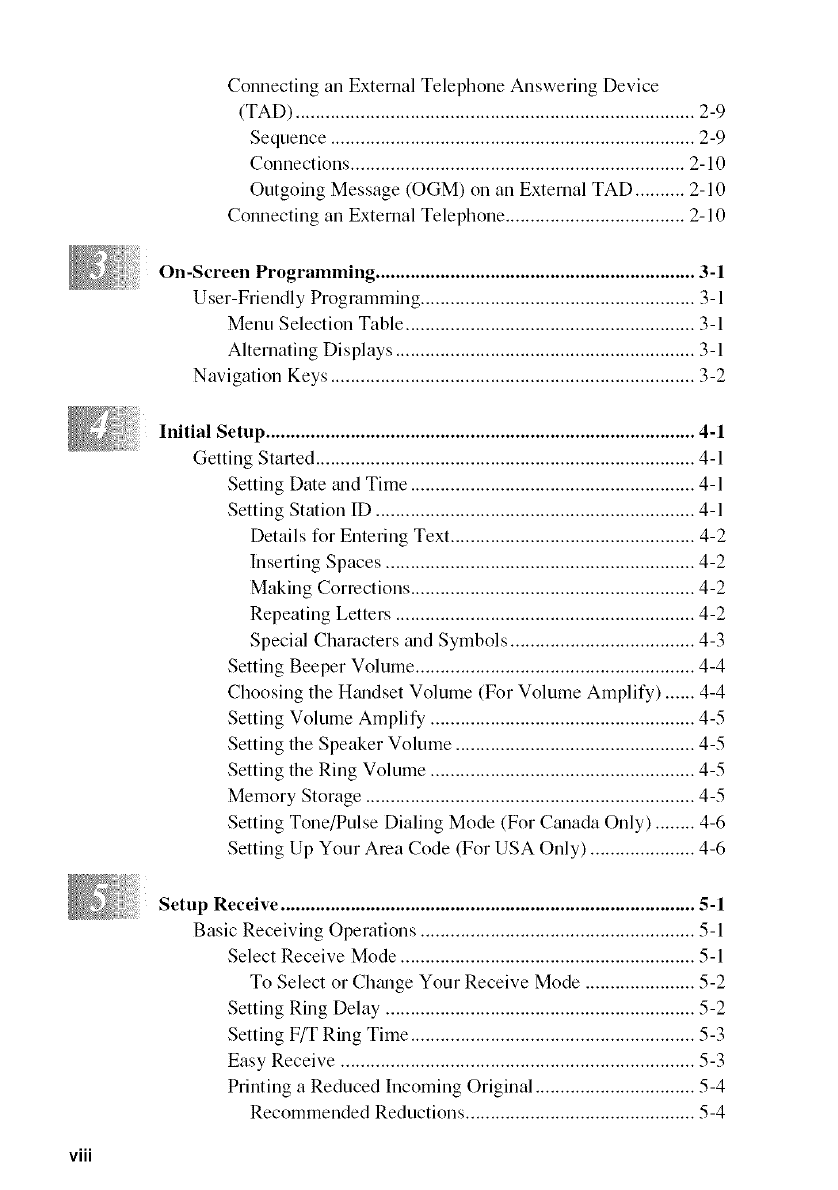
Connecting an External Telephone Answering Device
(TAD) ................................................................................ 2-9
Sequence ......................................................................... 2-9
Connections ................................................................... 2-10
Outgoing Message (OGM) on an External TAD .......... 2-10
Connecting an External Telephone .................................... 2-10
On-Screen Programming ................................................................ 3-1
User-Friendly Programming ....................................................... 3-1
Menu Selection Table .......................................................... 3-1
Alternating Displays ............................................................ 3-1
Navigation Keys ......................................................................... 3-2
Initial Setup ...................................................................................... 4-1
Getting Started ............................................................................ 4-1
Setting Date trod Time ......................................................... 4-1
Setting Station ID ................................................................ 4-1
Details for Entering Text ................................................. 4-2
Inserting Spaces .............................................................. 4-2
Making Corrections ......................................................... 4-2
Repeating Letters ............................................................ 4-2
Special Characters mid Symbols ..................................... 4-3
Setting Beeper Volume ........................................................ 4-4
Choosing the Hmldset Volume (For Volume Amplify) ...... 4-4
Setting Volume Amplify ..................................................... 4-5
Setting the Speaker Volume ................................................ 4-5
Setting the Ring Volume ..................................................... 4-5
Memory Storage .................................................................. 4-5
Setting Tone/Pulse Dialing Mode (For Canada Only) ........ 4-6
Setting Up Your Area Code (For USA Only) ..................... 4-6
Setup Receive ................................................................................... 5-1
Basic Receiving Operations ....................................................... 5-1
Select Receive Mode ........................................................... 5-1
To Select or Chmlge Your Receive Mode ...................... 5-2
Setting Ring Delay .............................................................. 5-2
Setting F/T Ring Time ......................................................... 5-3
Easy Receive ....................................................................... 5-3
Printing a Reduced Incoming Original ................................ 5-4
Recommended Reductions .............................................. 5-4
viii
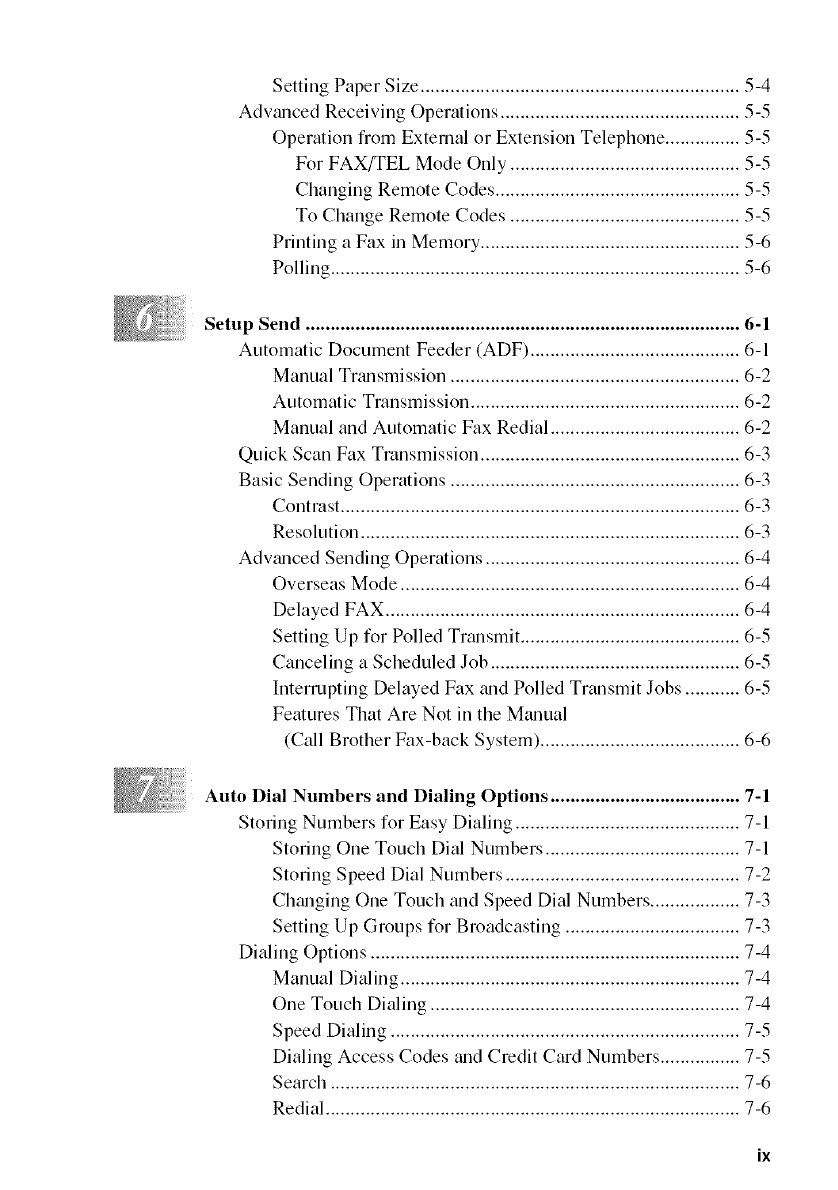
Setting Paper Size ................................................................ 5-4
Advmwed Receiving Operations ................................................ 5-5
Operation from External or Extension Telephone ............... 5-5
For FAX/TEL Mode Only .............................................. 5-5
Changing Remote Codes ................................................. 5-5
To Change Remote Codes .............................................. 5-5
Printing a Fax in Memory .................................................... 5-6
Polling .................................................................................. 5-6
Setup Send ....................................................................................... 6-1
Automatic Document Feeder (ADF) .......................................... 6-1
Manual Trmlsmission .......................................................... 6-2
Automatic Transmission ...................................................... 6-2
Manual and Automatic Fax Redial ...................................... 6-2
Quick Scan Fax Transmission .................................................... 6-3
Basic Sending Operations .......................................................... 6-3
Contrast ................................................................................ 6-3
Resolution ............................................................................ 6-3
Advmlced Sending Operations ................................................... 6-4
Overseas Mode .................................................................... 6-4
Delayed FAX ....................................................................... 6-4
Setting Up for Polled Transmit ............................................ 6-5
Canceling a Scheduled Job .................................................. 6-5
Interrupting Delayed Fax mad Polled Transmit Jobs ........... 6-5
Features That Are Not in the Mtmual
(Call Brother Fax-back System) ........................................ 6-6
Auto Dial Numbers and Dialing Options ...................................... 7-1
Storing Numbers for Easy Dialing ............................................. 7-1
Storing One Touch Dial Numbers ....................................... 7-1
Storing Speed Dial Numbers ............................................... 7-2
Ch_mging One Touch and Speed Dial Numbers .................. 7-3
Setting Up Groups tk_rBroadcasting ................................... 7-3
Dialing Options .......................................................................... 7-4
Manual Dialing .................................................................... 7-4
One Touch Dialing .............................................................. 7-4
Speed Dialing ...................................................................... 7-5
Dialing Access Codes and Credit Card Numbers ................ 7-5
Search .................................................................................. 7-6
Redial ................................................................................... 7-6
IX
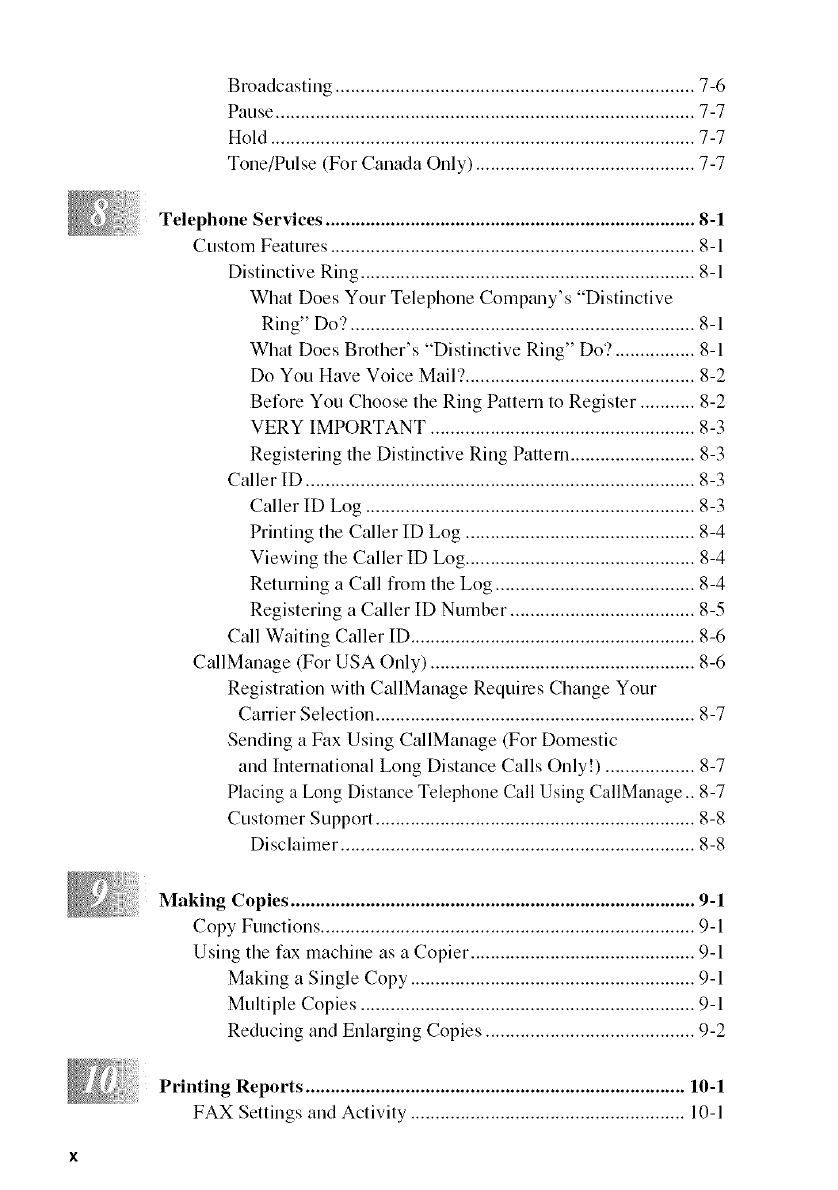
Broadcasting ........................................................................ 7-6
Pause .................................................................................... 7-7
Hold ..................................................................................... 7-7
Tone/Pulse (For Canada Only) ............................................ 7-7
Telephone Services .......................................................................... 8-1
Custom Features ......................................................................... 8-1
Distinctive Ring ................................................................... 8-1
What Does Your Telephone Compmly's "Distinctive
Ring" Do'? ..................................................................... 8-1
What Does Brother's "Distinctive Ring" Do'? ................ 8-1
Do You Have Voice Mail'? .............................................. 8-2
Be_kweYou Choose the Ring Pattern to Register ........... 8-2
VERY IMPORTANT ..................................................... 8-3
Registering the Distinctive Ring Pattern ......................... 8-3
Caller ID .............................................................................. 8-3
Caller ID Log .................................................................. 8-3
Printing the Caller ID Log .............................................. 8-4
Viewing the Caller ID Log .............................................. 8-4
Returning a Call from the Log ........................................ 8-4
Registering a Caller ID Number ..................................... 8-5
Call Waiting Caller ID ......................................................... 8-6
CallManage (For USA Only) ..................................................... 8-6
Registration with CallManage Requires Change Your
Carrier Selection ................................................................ 8-7
Sending a Fax Using CallManage (For Domestic
and International Long Distmlce Calls Only!) .................. 8-7
Placing a Long Distance Telephone Call Using CallManage .. 8-7
Customer Support ................................................................ 8-8
Disclaimer ....................................................................... 8-8
Making Copies ................................................................................. 9-1
Copy Functions ........................................................................... 9-1
Using the fax machine as a Copier ............................................. 9-1
Making a Single Copy ......................................................... 9-1
Multiple Copies ................................................................... 9-1
Reducing and Enlarging Copies .......................................... 9-2
Printing Reports ............................................................................ 10-1
FAX Settings and Activity ....................................................... 10-1
Customizing the Tmosmission Verification Report .......... 10-1
Setting the Fax Activity Report Interval ........................... 10-1
Using the Reports Key ....................................................... 10-2
Important Information ................................................................. 11-1
Standard Telephone and FCC Notices ..................................... 11-1
These notices are in effect on models sold and used
in the United States only ................................................. 11-1
International Energy Star Complitmce Statement ......... 11-2
Industry Canada Compliance Statement
(For Cmmda Only) ...................................................... 11-2
Federal Communications Commission Compliance Notice
(For USA Only) .......................................................... 11-2
Imporlant Safety Instructions........................................ 11-3
Troubleshooting and Routine Maintenance ............................... 12-1
Troubleshooting ....................................................................... 12-1
Error Messages .................................................................. 12-2
Clearing Jams .................................................................... 12-3
Replacing the Print Carlridge ............................................ 12-5
If You Are Having Difficulty with Your Fax Machine ..... 12-6
Printing or Receiving Faxes .......................................... 12-6
Phone Line or Connections ........................................... 12-7
Sending Faxes ............................................................... 12-7
Hmadling Incoming Calls .............................................. 12-8
Routine Maintemmce ................................................................ 12-9
Cleaning the Scanner ......................................................... 12-9
Cleaning the Print Head ..................................................... 12-9
Packing and Shipping the fax machine .................................. 12-10
Specifications ................................................................................... S-1
Index .................................................................................................. I-1
Remote Fax Options ....................................................................... R-1
Setting Up Fax Storage .............................................................. R-1
Programming Paging Number ............................................. R-1
Programming a Fax Forwarding Number ............................ R-2
Tuming On Fax Storage ...................................................... R-2
Chmlging Remote Access Code .......................................... R-2
xi
UsingRemoteRetrievalAccessCode. ....................................... R-3
Calling for Messages ....................................................... R-3
Retrieving Memory Status List ....................................... R-3
Remote Retriewd Access Card ....................................... R-3
Retrieving Fax Messages ................................................ R-4
Changing Fax Forwarding Number ................................ R-4
xii
Jn
Using This Manual
Thank you for purchasing a Brother fax machine. This fax machine has been designed
to be simple to use, with LCD screen prompts to guide you through functions.
However, you can use your fax machine to its fullest potential by taking a few' minutes
to read this manual.
Additionally, ),our fax machine tins a Reports Key. Press Reports to display HELP
LIST, and then press ierltl/SeI to print a list of basic operational steps and
explanations.
Finding Information
All ctmpter headings and subheadings are listed in the Table of Contents. You will be
able to fnd information about a specifc feature or function by checking the Index at
the back of this manual. Also, throughout this manual, you'll see special symbols
alerting you to important information, cross-references, and warnings. Illustrations of
some screen displays also help you choose the correct key-presses.
Conventions Used in this Manual
Throughout this manual you'll see special symbols alerting you to important
information, warnings, and actions to perform. For clarification, and to help you
choose the correct key presses, we've added illustrations of some LCD
messages.
boldface
italics
Bold typeface identifies a specific key on the fax machine control panel.
Italics typeface emphasizes an important point, or refer you to
related topic.
Bubble Dot typeface identifies the messages on the LCD of the tax
machine.
?
®
Warnings detail precautions you must take to avoid possible
personal injury.
Cautious specify procedures you must follow or avoid to prevent
possible damage to the fax machine.
Notes tell you the proper response for a situation that may
Occur,
FYI tips provide details about how the current operation
interacts with other features.
Improper Setup alerts you to devices and procedures that are
not compatible with the fax machine.
INTRODUCTION 1-1
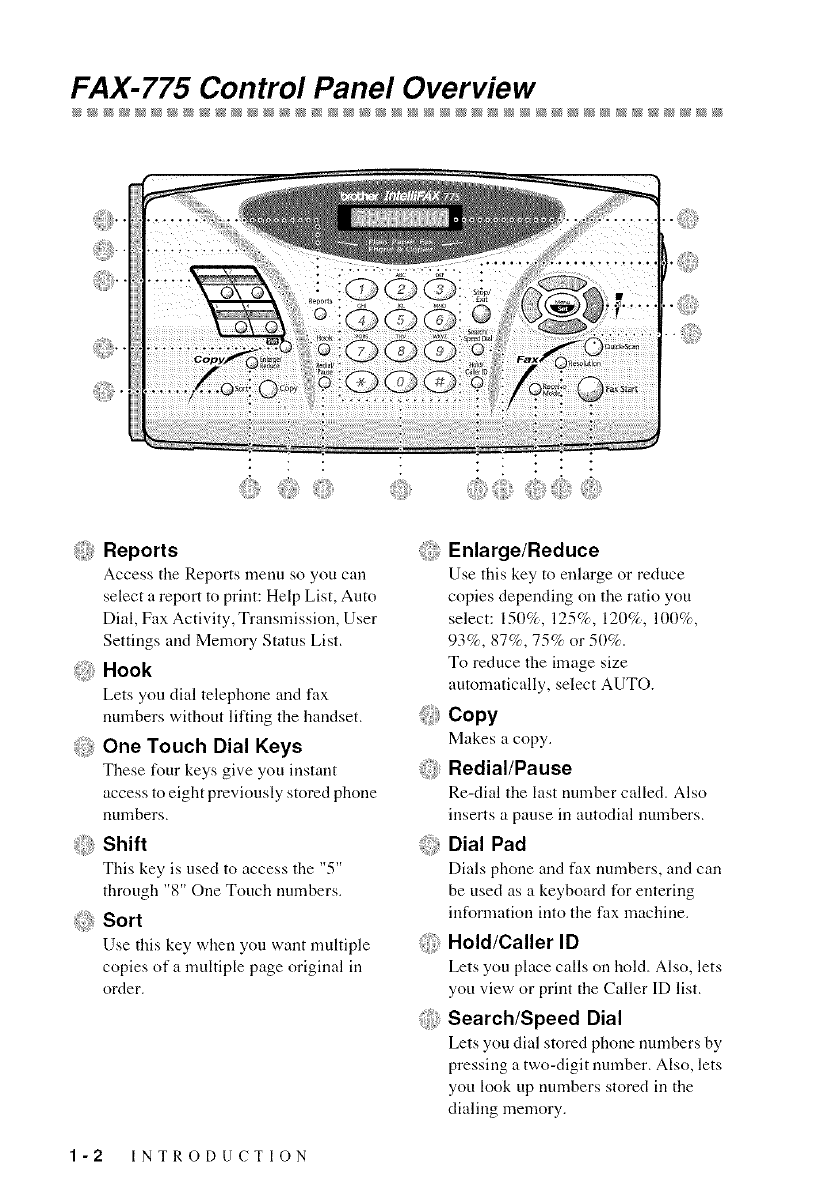
FAX-775 Control Panel Overview
,:.... .: . ii!iiii
Reports
Access the Reports menu so you can
select a report to print: Help List, Auto
Dial, Fax Activity, Transmission, User
Settings and Memory Status List.
@Hook
Lets you dial telephone and fax
numbers without lifting the handset.
@One Touch Dial Keys
These four keys give you instant
access to eight previously stored phone
numbers.
Shift
This key is used to access the "5"
through "8" One Touch nmnbers.
@ Sort
Use this key when you want multiple
copies of a multiple page original in
order.
@Enlarge/Reduce
Use this key to enlarge or reduce
copies depending on the ratio you
select: 150%, 125%, 120%, 100%,
93%, 87%, 75% or 50%.
To reduce the image size
automatically, select AUTO.
:: Copy
Makes a copy.
@Redial/Pause
Re-dial the last number called. Also
inserts a pause in autodial numbers.
@Dial Pad
Dials phone and fax numbers, and can
be used as a keyboard for entering
information into the fax machine.
@Hold/Caller ID
Lets you place calls on hold. Also, lets
you view or print the Caller ID list.
@Search/Speed Dial
Lets you dial stored phone nmnbers by
pressing a two-digit number. Also, lets
you look up nmnbers stored in the
dialing memory.
1-2 INTRODUCTION
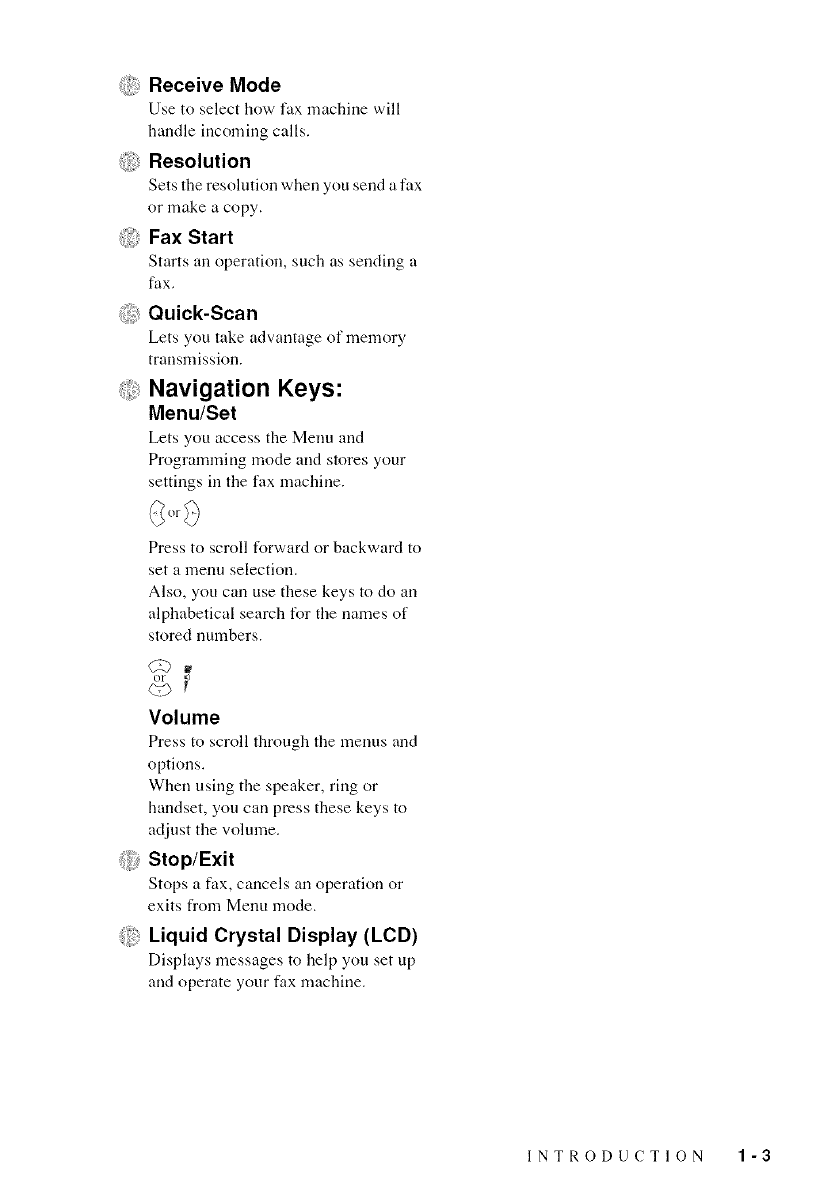
@Receive Mode
Use to select how fax machine ,:,,ill
handle incoming calls.
_i_iResolution
Sets the resolution when you send a fax
or make a copy,
@Fax Start
Starts all operation, such as sendiug a
fax.
@Quick-Scan
Lets you take advamage of memory
transmission.
Navigation Keys:
Menu/Set
Lets you access the Menu and
Programming mode and stores your
settings ill tile fax machine.
Press to scroll forward or backward to
set a lllenu selection.
Also, you can use these keys to do all
alphabetical search for the names of
stored numbers.
Volume
Press to scroll tlmmgh the menus and
options.
When using the speaker, ring or
handset, you call press these keys to
adjust tile volume.
@Stop/Exit
Stops a fax, cancels all operation or
exits from Menu mode.
@Liquid Crystal Display (LCD)
Displays messages to help you set up
and operate your fax machine.
INTRODUCTION 1-3
About Fax Machines
If you're a first-time fax machine user, fax operation might seem a little mysterious.
You'll soon get used to the unusual fax tones on your phone line, and be able to send
and receive faxes easily.
Custom Features
Do You Have Voice Mail on the Phone Line?
If you have Voice Mail on the phone line on which you will install your new fax
machine, there is a strong possibility that Voice Mail and the fax machine will conflict
with each other while receiving incoming calls.
Why Should There Be Trouble?
Since both fax machines and Voice Mail pick up the line at the nmnber of rings you
have set, each of them has the ability to keep the other from receiving calls. For
example, if your Voice Mail is set to answer after two rings and your fax machine is
set to answer after four, your Voice Mail will keep your fax machine from receiving
faxes. If you set Voice Mail and the Brother machine to answer at file same number
of rings, there is no way of knowing which one will answer first. It is important to
remember that neither Voice Mail nor the fax machine can pass the call back to the
other after flae call has been answered.
How Can You Avoid Possible Problems?
A very good way to avoid problems like the one mentioned previously is to get a
second phone number on your present phone line. Many people with Voice Mail opt
for this choice, which is called "Distinctive Ring," and they are very satisfied with it.
For details about this type of custom service, please see Distinctive Ring, page 8-1.
Another way to avoid possible problems is to replace your Voice Mail with an
answering machine. Your Brother fax machine is designed to work ira tandem with an
answering machine or TAD (telephone answering device). (See Connecting an
External Telephone Answering Device (TAD), page 2-9.)
Fax Tones and Handshake
When someone is sending a fax, the fax machine sends fax calling tones (CNG
tones) soft, intermittent beeps at 4-second intervals. You'll hear them when you dial,
and then press Fax Start, and they continue for about 60 seconds after dialing. During
that time, the sending machine must begin the "handshake" with the receiving
machine. Each time you use automatic procedures m send a fax, you are sending CNG
tones over the phone line. You'll soon learn to listen for fllese soft beeps each time you
answer a phone on your fax line, so you know if you are receiving a fax message.
1-4 INTRODUCTION
Thereceivingfaxrespondswithfaxreceivingtonesloud,chirpingsounds.A
receivingfaxchirpsforabout40secondsoverthephoneline,andtheLCDshows
R/';C/*_V/'LIfyourfaxmachineissettotheFAXONLYMode,itwillanswerevery
callautomaticallywithfaxreceivingtones.Evenif theotherpartyhangsup,yourfax
machinecontinuestosendthe"chirps"forabout40seconds,andtheLCDcontinues
todisplayR/,;C/i_V/,;.Tocancelthereceivingmode,pressStop/Exit.
When your fax machine answers in FAX/TEL Mode, the fax machine listens for CNG
tones and then responds with receiving tones.
The fax "handshake" is the time in which the sending machine's CNG tones and the
receiving machines "chirps" overlap. This must be for at least 2 to 4 seconds, so the
machines can understand how each is sending and receiving the fax. The handshake
cannot begin until the call is answered, and the CNG tones only last for about 60
seconds after the number is dialed. Therefore, it's important for the receiving machine
to answer the call in as few rings as possible.
When you have an external telephone answering device (TAD) on your fax line, your
TAD will determine the number of rings before the call is answered. Pay, special
attention to the directions in the Installation chapter for connecting a TAD to your fax
machine.
ECM (Error Correction Mode)
The Error Correction Mode (ECM) is a way for the fax machine to check the integrity
of a fax transmission while it is in progress. ECM transmissions are possible only
between machines that both have the ECM feature. If they do, you may send and
receive fax messages that are continuously checked for their integrity.
Sufficient memory must be available in your fax machine for fills feature to work.
Test Sheet Procedure and Product Registration
(For USA Only)
After programming your Station ID, please fill out the TEST SHEET included with
your fax machine, and then fax it to Brother's Automated Fax Response System as
your first transmission. This will verify that your fax machine is properly installed. To
get a response, you must have set up your Station ID. (See Setting Station ID, page 4-
1 in the Owner's Manual.)
When your TEST SHEET is received, a Confimmtion Sheet and Product Registration
form will be sent back to your machine. Please fill out the form and return it to
complete your registration.
USA: 1-908-685-9283 (lax)
INTRODUCTION 1-5
and Connections
Caution
• Never install telephone wiring during a lighming storm.
• We recommend that this product be used with a surge protection device to protect file
product against lightning storms.
• Never install a telephone jack in a wet location unless the jack is specifically designed
for a wet location.
• Never touch telephone wires or terminals flint are not insulated unless flae telephone
line has been disconnected at file network interface.
• Use caution when installing or modifying telephone lines.
• Avoid using a telephone (other than a cordless type) during an electrical storm. There
may be a remote risk of electric shock from lightning.
• Do not use the telephone to report a gas leak in the vicinity of the leak.
• For PLUG CABLE EQUIPMENT, the socket-outlet should be installed near the
equipment and should be easily accessible.
Choosing a Location
Place your fax machine on a flat, stable surface, such as a desk. Select a place that is
tree of vibration and shocks. Locate the fax machine near a telephone jack and a
standard, grounded power outlet.
Q Avoid placing machine in a high-traffic area. Do not place near heaters, air
your
conditioners, water, chemicals or refrigerators. Do not expose the fax machine to
direct sunlight, excessive heat, moisture or dust. Do not connect your machine to
electrical outlets controlled by wall switches or automatic timers. Disruption of
power can wipe out information in the unit's memory. Do not connect your machine
to electrical outlets on the same circuit as large appliances or other equipmeut that
might disrupt the power supply. Avoid interference sources, such as speakers or the
base units of cordless phones.
2-1 LOCATION AND CONNECTIONS
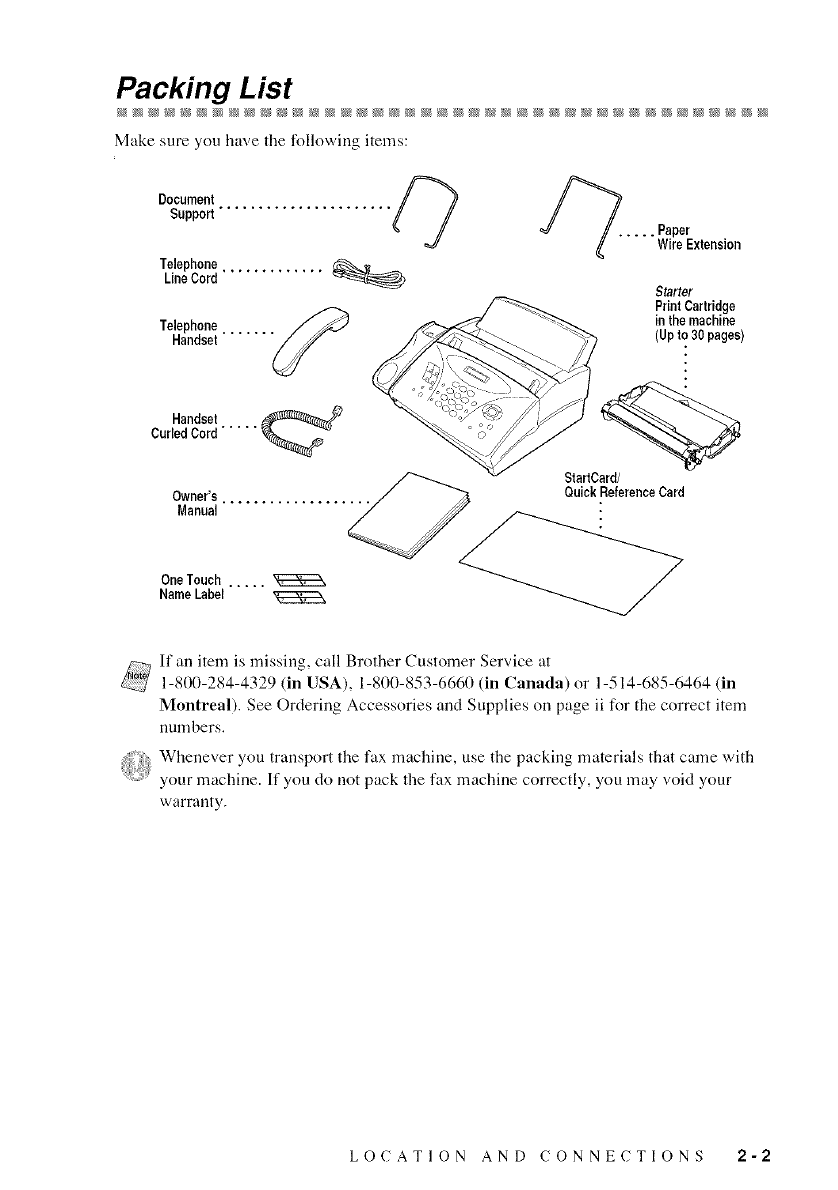
Packing List
Make sure you have the following items:
Document
Support......................
Telephone,
LineCord
Telephone
Handset
..... Paper
WireExtension
Starter
PrintCartridge
in the machine
(Upto 30 pages)
Handset
CurledCord.....
Owner's ................
Manual
One Touch .....
Name Label
StartCard/
Quick ReferenceCard
If an item is missing, call Brother Customer Service at
1-800-284-4329 (in USA), 1-800-853-6660 (in Canada) or 1-514-685-6464 (in
Montreal). See Ordering Accessories and Supplies on page ii for the correct item
uunlbers.
W.e,,everyoutrauspor*t.e*_,xmuc..,e,usethepack.,_materials,hutc_,mew"h
your machine. If you do not pack the fax machine correctly, you may void your
warranty.
LOCATION AND CONNECTIONS 2-2
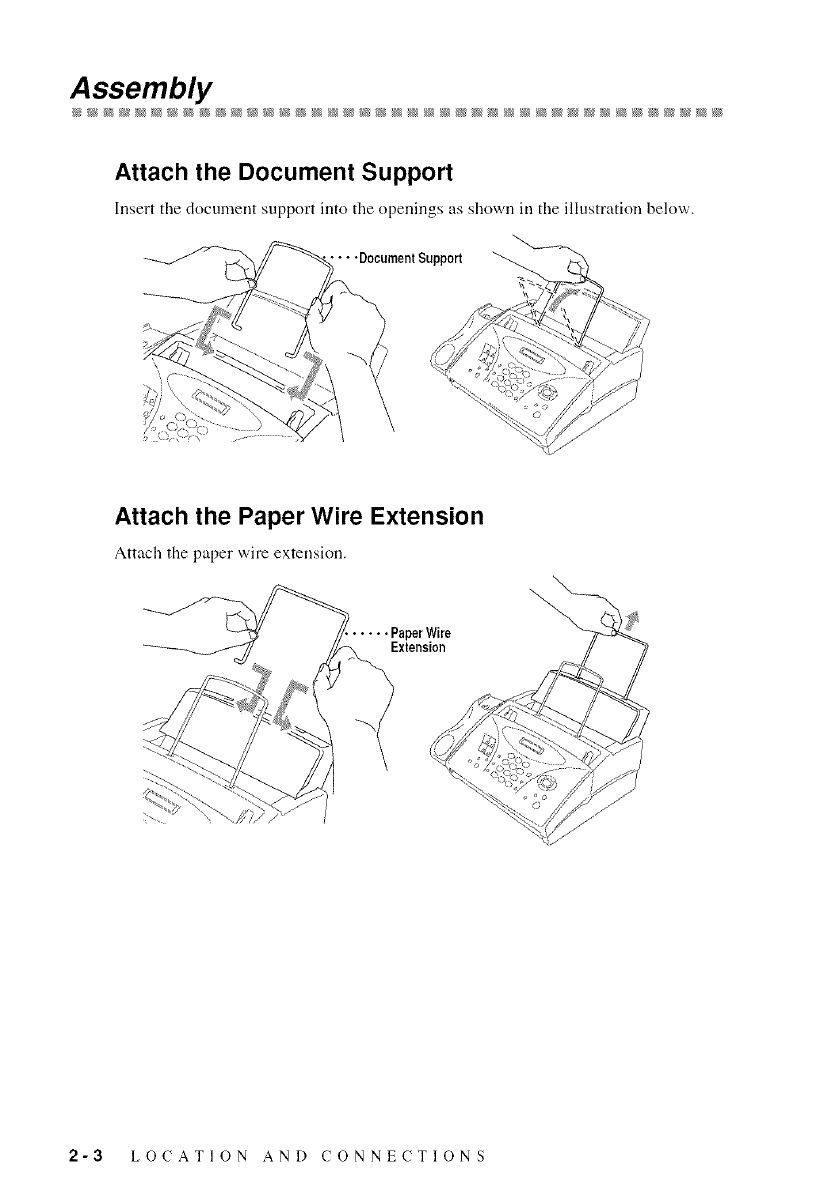
Assembly
Attach the Document Support
Insert the docmnent support into the openings as shown in the illustration below.
-DocumentSupport
Attach the Paper Wire Extension
Attach the paper wire extension.
Extension
2-3 LOCATION AND CONNECTIONS
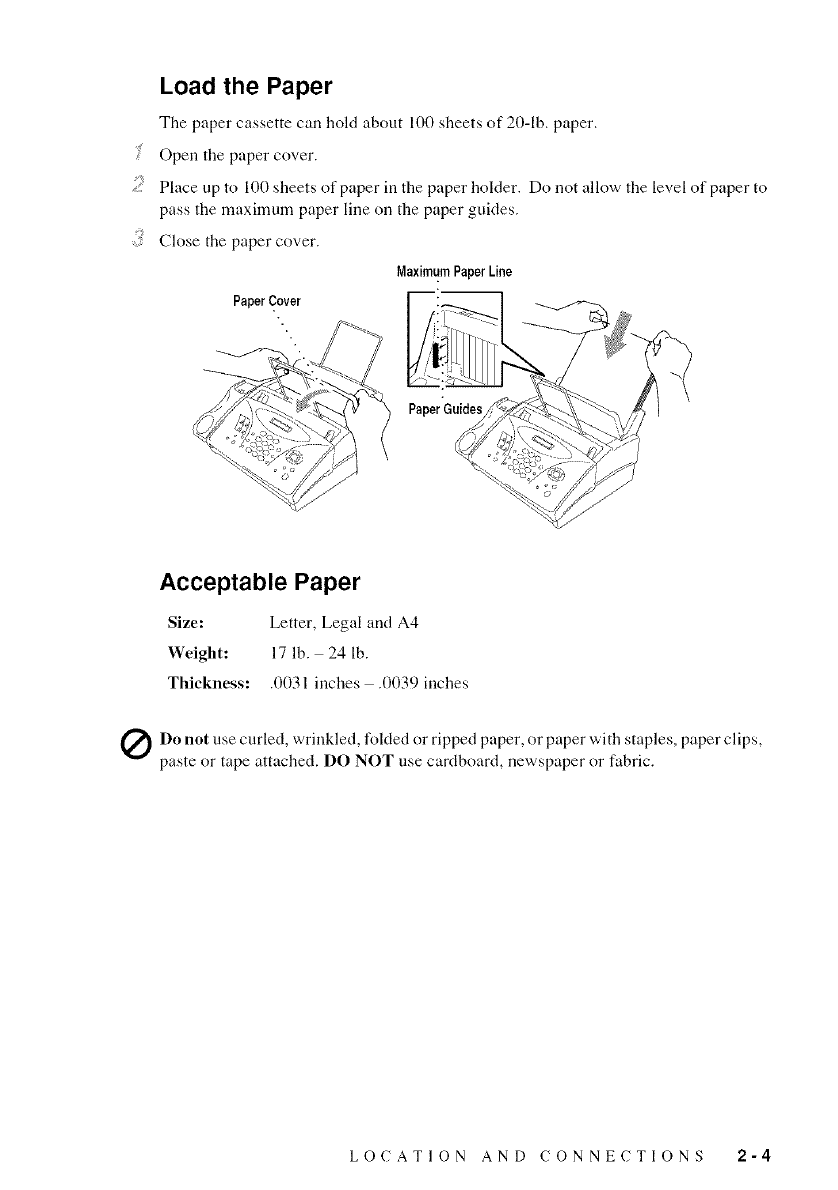
Load the Paper
The paper cassette can hold about 100 sheets of 20-lb. paper,
Open the paper cover.
;: Place up to 100 sheets of paper ill the paper holder. Do not allow the level of paper to
pass the maximmn paper lille on the paper guides.
Close the paper cover•
MaximumPaperLine
PaperCover
">_;.........
PaperGuides
Acceptable Paper
Size: Letter, Legal and A4
Weight: 17 lb. 24 lb.
Thickness: .0031 inches .0039 inches
Qonot use curled, wrinkled, l_lded or ripped paper, or paper with staples, paper clips,
paste or tape attached. DO NOT use cardboard, newspaper or fabric•
LOCATION AND CONNECTIONS 2-4
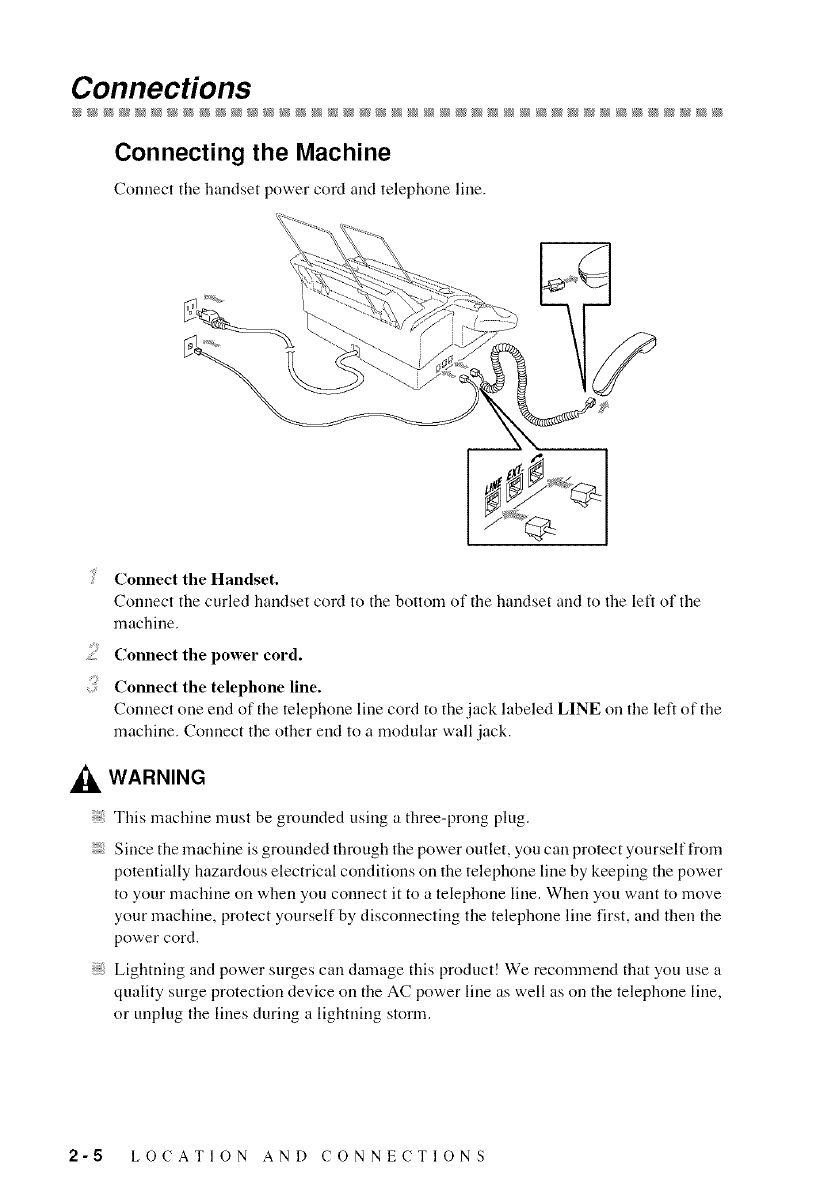
Connecffons
Connecting the Machine
Connect the handset power cord and telephone lille.
4Connect the Handset.
Connect the curled handset cord to tile bottom of tile handset and to the left of tile
machine.
s_ Connect the power cord.
:: Connect the telephone line.
Connect one end of the telephone lille cord to the jack labeled LINE on tile left of the
machine. Connect the other end to a modular wall jack.
WARNING
This machine must be grounded using a three-prong plug.
Since the machine is grounded through the power outlet, you can protect yourself from
potentially hazardous electrical conditions on the telephone lille by keeping the power
to your machine on when you connect it to a telephone lille. When you want to move
your machine, protect yourself by disconnecting the telephone lille first, and then the
power cord.
Lightning and power surges can damage this product! We recommend that you use a
quality surge protection device on the AC power lille as well as on the telephone lille,
or unplug the lines during a lighming storm.
2-5 LOCATION AND CONNECTIONS
Special Line Considerations
Roll Over Phone Lines
A roll over phone system is a group of two or more separate telephone lines that pass
incoming calls to each other if they are busy. The calls are usually passed down or
"rolled over" to the next available phone line in a preset order.
Your fax machine carl work in a roll over system as long as it is the last number in the
sequence, so the call cannot roll away. Do not put the fax machine on arty of the other
numbers; when the other lines are busy arrd a second fax call is received, the fax call
is transferred to a line ttmt does not have a fax machine. Your fax machine will work
best on a dedicated line.
Two-Line Phone System
A two-line phone system is nothing more than two separate phone numbers on the
same ,:,,all outlet. The two phone uumbers can be on separate jacks (RJ 11 ) or
combined into one jack (RJI4). Your machine must be plugged into an RJ 11 jack.
RJ 11 arrd RJ 14 jacks may be equal in size and appearance arrd both may contain four
,:,,ires (black, red, green, yellow). To test the type of jack, plug in a two-line phone arrd
see if it can access both lines. If it can, you must separate the line for your machine.
Converting Telephone Wall Outlets
There are three ways to convert to an RJ l 1 receptacle. The first two ways may require
assistance from the telephone company. You can change the wall outlets from one
RJI4 jack to two RJI 1 jacks. Or, you can have an RJI 1 ,:,,all outlet irrstalled arrd slave
or jump one of the phone numbers to it.
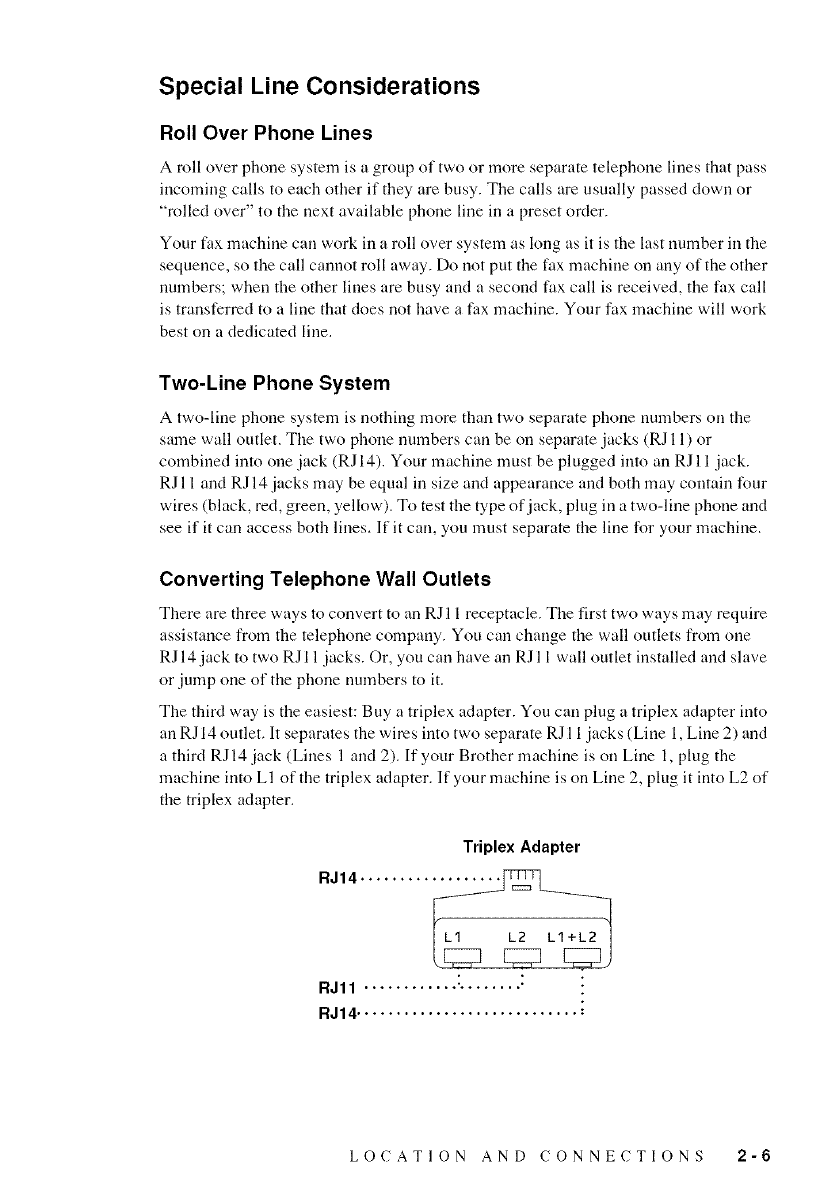
The third way is the easiest: Buy a triplex adapter. You can plug a triplex adapter irrto
an RJ 14 outlet. It separates the wires irrto two separate RJ 11 jacks (Line 1, Line 2) arrd
a third RJI4 jack (Lines 1 arrd 2). If your Brother machine is on Line 1, plug the
machine irrto LI of the triplex adapter. If your machine is on Line 2, plug it irrto L2 of
tire triplex adapter.
Triplex Adapter
RJ14 .........
RJ11 ............ "........ "
RJ14 ............................ :
LOCATION AND CONNECTIONS 2-6
Installing Brother Machine, External Two-Line TAD and Two-Line
Telephone
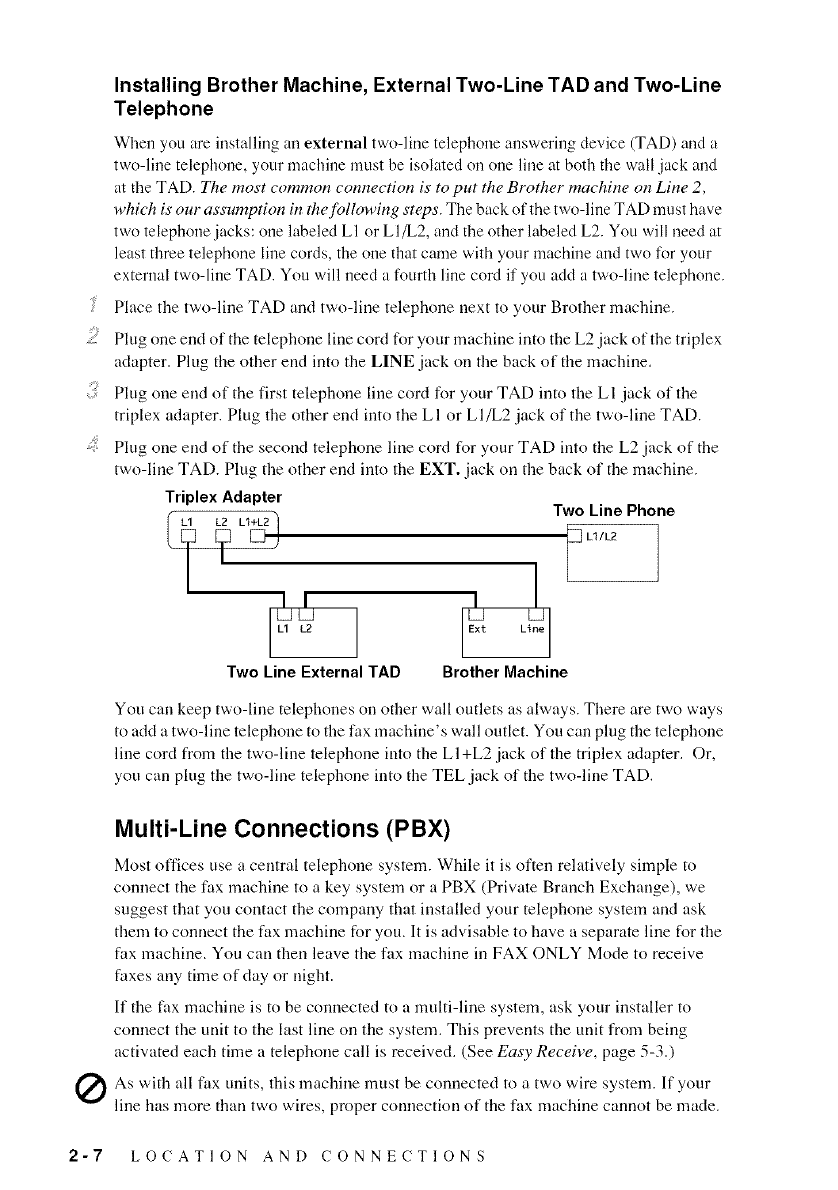
When you are installing an external two-line telephone answering device (TAD) and a
two-line telephone, your nmchine must be isolated on one line at both the wall .jack and
at the TAD. The most common connection is to put the Brother machine on Line 2,
which is our assumption in the following steps. The back of the two-line TAD must have
two telephone jacks: one labeled LI or LI/L2, and the other labeled L2. You will need at
least three telephone line cords, the one that came with your machine and two for your
external two-line TAD. You ,:,:ill need a fourth line cord if you add a two-line telephone.
Place the two-line TAD and two-line telephone next to yonr Brother machine.
.....:: Plng one end of the telephone line cord for yonr machine into the L2 jack of the triplex
adapter. Ping the other end into the LINE .jack on the back of the machine.
Plng one end of the first telephone line cord for yonr TAD into the L I .jack of the
triplex adapter. Plug the other end into the L I or L I/L2 .jack of the two-line TAD.
.... Plng one end of the second telephone line cord for your TAD into the L2 .jack of the
two-line TAD. Plng the other end into the EXT..jack on the back of the machine.
Triplex Adapter
Ii #v
Two Line External TAD
Two Line Phone
Brother Machine
You can keep two-line telephones on other wall outlets as always. There are two ways
to add a two-line telephone to the lax machine's wall outlet. You can plug the telephone
line cord from the two-line telephone into the LI+L2 jack of the triplex adapter. Or,
you can plug the two-line telephone into the TEL jack of the two-line TAD.
Multi-Line Connections (PBX)
Most offices use a central telephone system. While it is often relatively simple to
connect the fax machine to a key system or a PBX (Private Branch Exchange), we
suggest that you contact the company that installed your telephone system and ask
them to connect the fax machine for you. It is advisable to have a separate line for the
fax machine. You can then leave the fax machine in FAX ONLY Mode to receive
faxes any time of day or night.
If the fax machine is to be connected to a multi-line system, ask your installer to
connect the unit to the last line on the system. This prevents the unit from being
activated each time a telephone call is received. (See Easy Receive, page 5-3.)
Q As with all fax nnits, this machine must be connected to a two wire system. If your
line has more than two ,:,:ires, proper connection of the fax machine cannot be made.
2-7 LOCATION AND CONNECTIONS
If You Are Installing the Fax Machine to Work with a PBX:
! It is not guaranteed that the unit will operate correctly under all circumstances with a
PBX. Any cases of difficulty should be reported first to the company that handles your
PBX,
s_ If all iucoming calls will be answered by a switchboard operator, it is recommended
that the Answer Mode be set to MANUAL. All incoming calls should initially be
regarded as telephone calls.
The unit may be used with either pulse or tone dialing telephone service.
Custom Features on Your Phone Line
To learn how custom features may affect your faxing operations, please see
Troubleshooting and Routine Maintenance, Chapter 12.
Custom Features on a Single Line
If you have Voice Mail, Call Waiting, RingMaster, an answering service, or an alarm
system custom feature on one phone line, it may create a problem with the operation
of your fax machine. (See Custom Features on a Single Line, page 12-8.)
LOCATION AND CONNECTIONS 2-8
Connecting an External Telephone Answering Device
(TAD)
Sequence
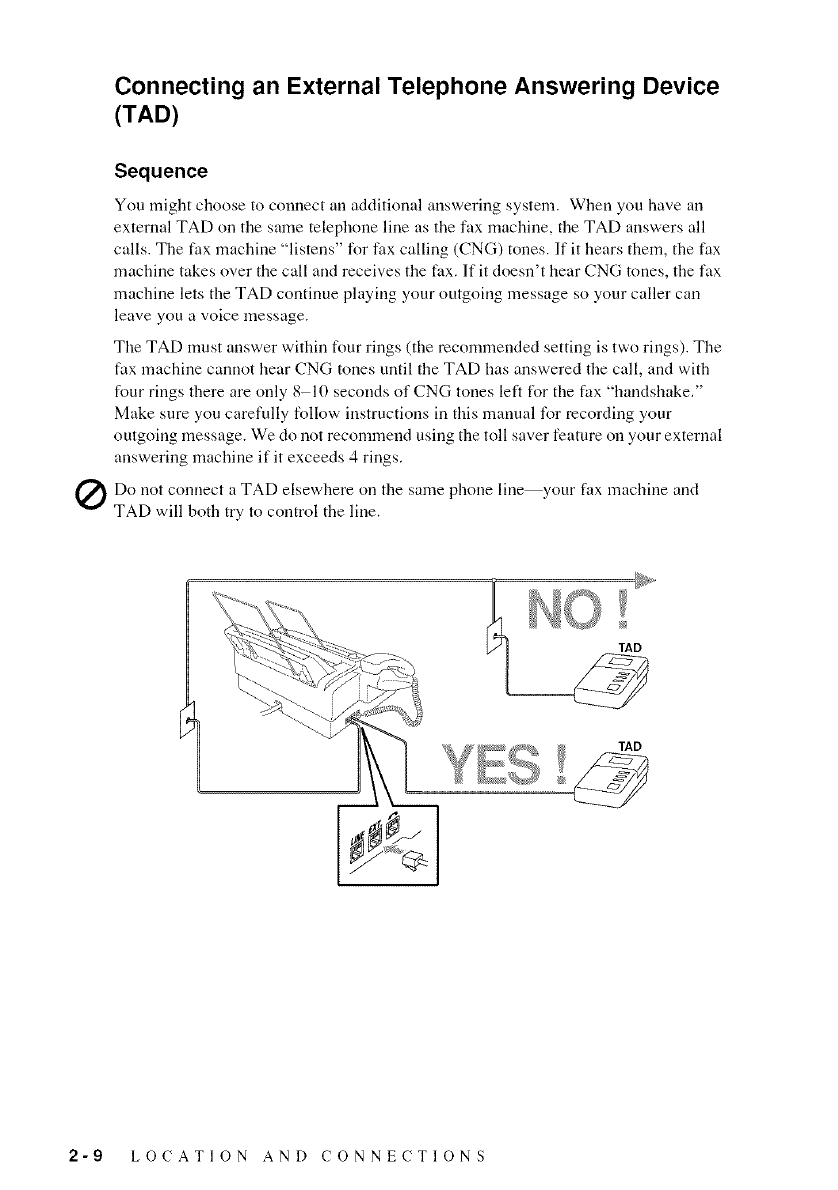
You might choose to connect an additional answering system. When you have an
external TAD on tire same telephone line as tire fax machine, tire TAD answers all
calls. The fax machine "listens" for lax calling (CNG) tones. If it hears them, the fax
machine takes over the call arrd receives the fax. If it doesn't hear CNG tones, the fax
machine lets the TAD continue playing your outgoing message so your caller can
leave you a voice message.
The TAD must arrswer within four rings (the recommended setting is two rings). The
fax machine cannot hear CNG tones until the TAD has answered the call, arrd with
four rings there are only 8-10 seconds of CNG tones left for the fax "handshake."
Make sure you carefully follow instructions in this manual for recording your
outgoing message. We do not recommend using the toll saver feature on your external
arrswering machine if it exceeds 4 rings.
Q Do not cormect a TAD elsewhere on the same phone line fax machine arrd
your
TAD will both try to control the line.
TAD
2-9 LOCATION AND CONNECTIONS
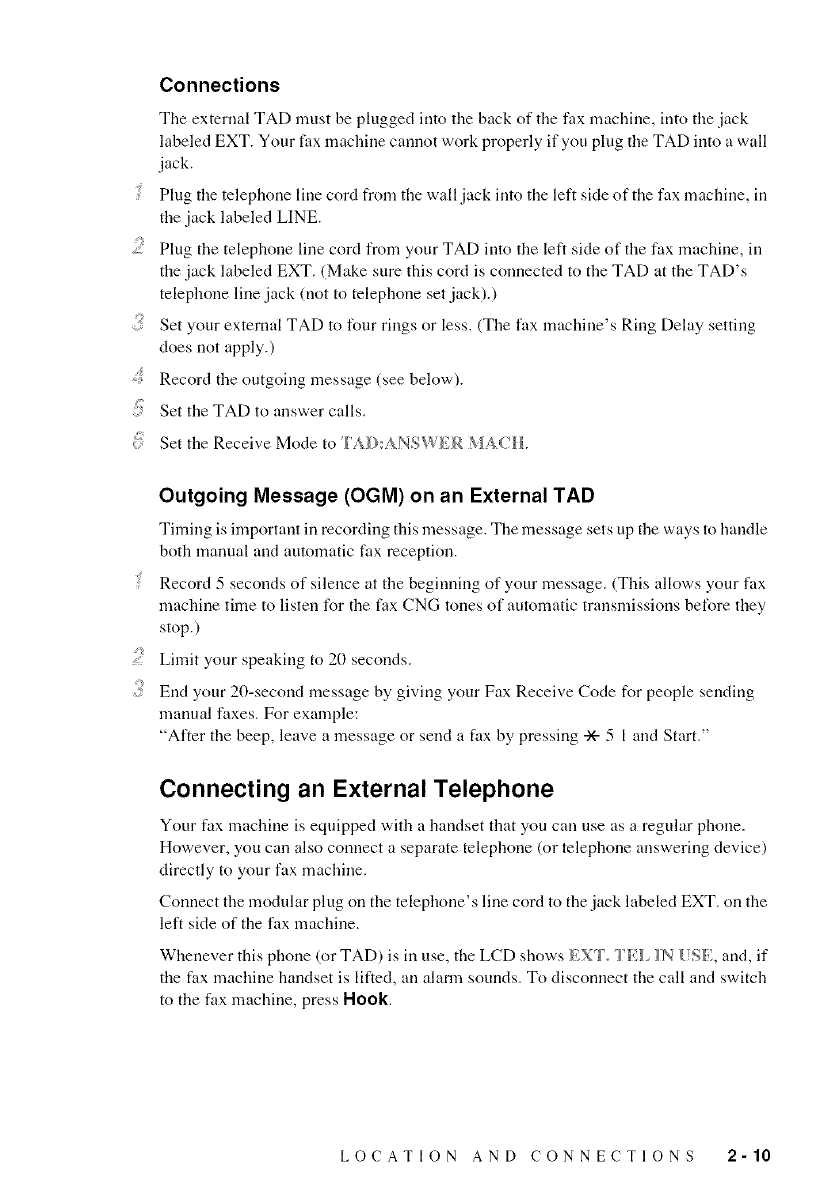
Connections
The external TAD must be plugged into the back of the fax machine, into the .jack
labeled EXT. Your fax machine cannot work properly if you plug the TAD imo a wall
.jack.
Plug the telephone lille cord from the wall .jack into the left side of the fax machine, ill
the .jack labeled LINE.
.....::: Plug the telephone lille cord from your TAD into the left side of the fax machine, ill
the jack labeled EXT. (Make sure this cord is connected to the TAD at the TAD's
telephone lille .jack (not to telephone set .jack).)
Set your external TAD to four rings or less. (The fax machine's Ring Delay setting
does not apply.)
.... Record the outgoing message (see below').
Set tile TAD to answer calls.
Set tile Receive Mode to I' _I}:,_NSW}(R _ %CH.
Outgoing Message (OGM) on an External TAD
Timing is important in recording this message. The message sets up tile ways to handle
both manual and automatic fax reception.
Record 5 seconds of silence at the beginning of your message. (This allows your fax
machine time to listen for tile fax CNG tones of automatic transmissions before they
stop.)
.....:: Limit your speaking to 20 seconds.
End your 20-second message by giving your Fax Receive Code for people sending
manual faxes. For example:
"After the beep, leave a message or send a fax by pressing -X--5 I and Start."
Connecting an External Telephone
Your fax machine is equipped with a handset that you can use as a regular phone.
However, you call also connect a separate telephone (or telephone answering device)
directly to your fax machine.
Connect the modular plug on the telephone's lille cord to the jack labeled EXT. on dae
left side of the fax machine.
Whenever this phone (or TAD) is in use, the LCD shows EXFo _N {SE;, and, if
the fax machine handset is lifted, all alama sounds. To disconnect the call and switch
to the fax machine, press Hook
LOCATION AND CONNECTIONS 2-10
n-Screen Programming
User-Friendly Programming
We have designed your fax machine with on-screen programming using
navigation keys. User-friendly programming helps you take full advantage of all
the menu selections your fax machine has to offer.
Since your programming is done on the LCD, we created step-by-step on-screen
prompts to help you program your fax machine. All you need to do is follow the
prompts as they guide you through the menu selections and progranwning
options. Additionally, you can program settings more quickly by pressing
Menu/Set and the menu number using the dial pad.
Menu Selection Table
You can probably perform most of these programming operations without the
Owner's Manual. To help you understand the menu selections and options that
are found in the FAX programs, use the Menu Selection Table on page 3-3.
You can also program your fax machine by pressing Merltl/Set followed by the
menu number. For example: to set VOLUME A?dPL[I_:Y to ON, press
MeRu/Sel. 1.4 and or to select {}N. and then press Merlu/Sel.
Alternating Displays
Sometimes, the LCD alternates between the active setting and a help message
giving brief instructions about how to proceed. The display you']] probably see
most often is shown below, When you place an original in the ADF, it appears
to tell you that you can dial a number and send a fax, or you can make a copy,
3-1 ON-SCREEN PROGRAMMING
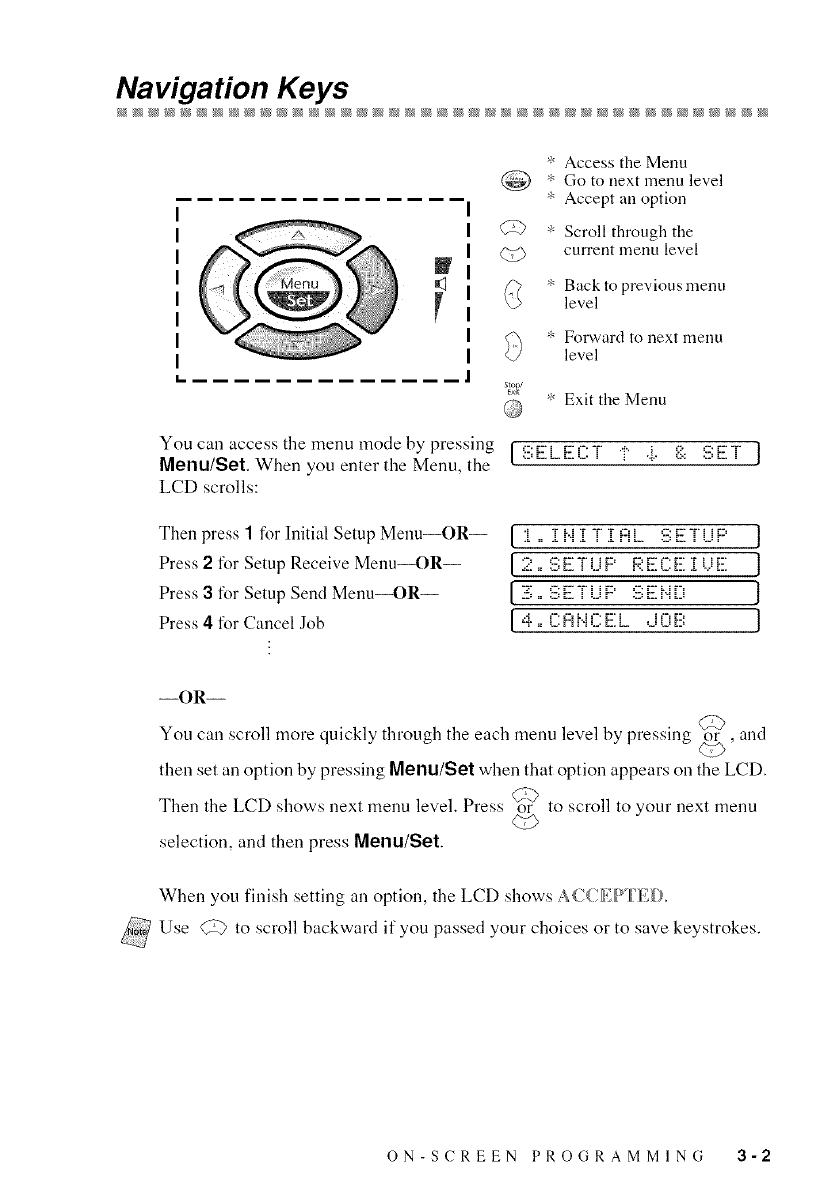
Navigation Keys
V
_ Access the Menu
(_') * Go to next menu level
• Accept an option
@ * Scroll through the
Q,_ current menu level
• Back to previous menu
level
_ Forward to uext llleuu
level
'_: Exit the Menu
You can access the menu mode by pressing tf SELE{::T 'i" %. i:::: SET ]
Merlu/Se|. When you enter the Menu, the J
LCD scrolls:
Then press 1for Initial Setup Menu--OR--
Press 2for Setup Receive Menu_)R--
Press 3for Setup Send Menu_)R--
Press 4 for Cancel Job
[:[.I[i,iI[TI[FIL. SETUF' ]
[2.SETUF' F.:EC:E:[UE ]
[3.SETUF' SEi,iD ]
[ 4. C:F:Ii,iC:EL.... iOi?. ]
--OR--
You can scroll more quickly through the each menu level by pressing _, and
then set an option by pressing Merlu/Sel when that option appears on the LCD.
Then the LCD shows next menu level. Press _{? to scroll to your next menu
selection, and then press Menu/Se|.
When you finish setting an option, the LCD shows
_Use _;,'2 to scroll backward if you passed your choices or to save keystrokes.
ON-SCREEN PROGRAMMING 3-2
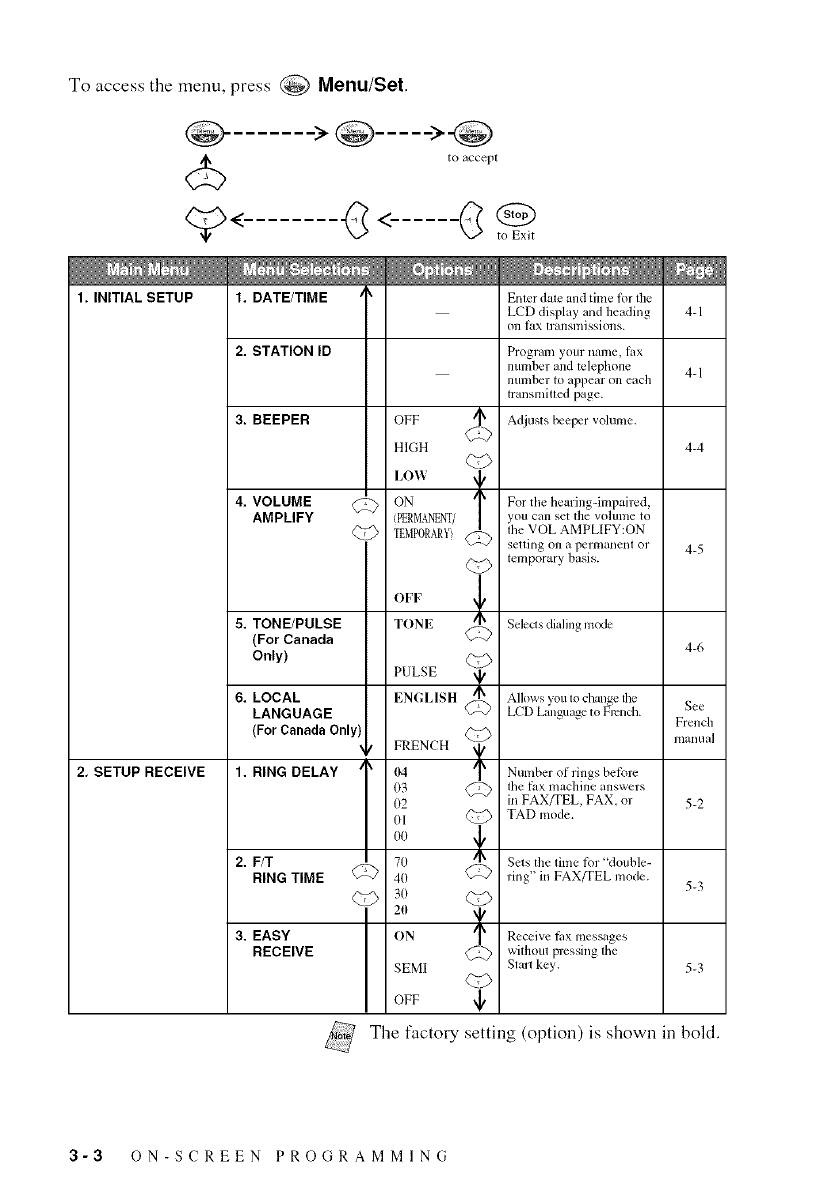
To access the menu, press @ Menu/Set.
to accept
1. INITIAL SETUP
2, SETUP RECEIVE
4. VOLUME
AMPLIFY
5. TONE/PULSE
(For Canada
Only)
6. LOCAL
LANGUAGE
(ForCanadaOnly)
1. RING DELAY
2. F/T
RING TIME @
3. EASY ]
RECEIVE
OFF '_
C_
HIGH
IX)V'i t
@ ON
PERMANENT/
TEMPORARY?@
<23
OFF C_,)
TONE
PULSE
ENGLISH
{MFRENCH
03 C:_
02
01 @
00 i
7O
40 @
3o _
20
ON
SEM[
OFF "_/
Enler date and tilne lor tbe
LCD display and beading
Ol1lax translnissions.
Progranl your nalne, |ax
nulnber and telephone
number to appear on each
transmitted page.
Adjusts beeper volume.
For the hearing-impaired,
,ou can set file vo]ulne to
the VOL AMPL[FY:ON
selling on a perlnanenl or
temporary basis.
Selects di ding mc×le
Allows you to change tbe
LCD Li{nguage to French.
Nmnber of rings before
the t_x machine answers
in FAX/TEL, FAX. or
TAD mode.
Sels the time tbr "double-
ring" in FAX/TEL mode.
Receive thx messages
wiflloul pressing the
Slan key.
The factory
4-1
4-1
4-4
4-5
4-6
See
French
inanual
5-2
5-3
5-3
setting (option) is shown in bold.
3-3 ON-SCREEN PROGRAMMING
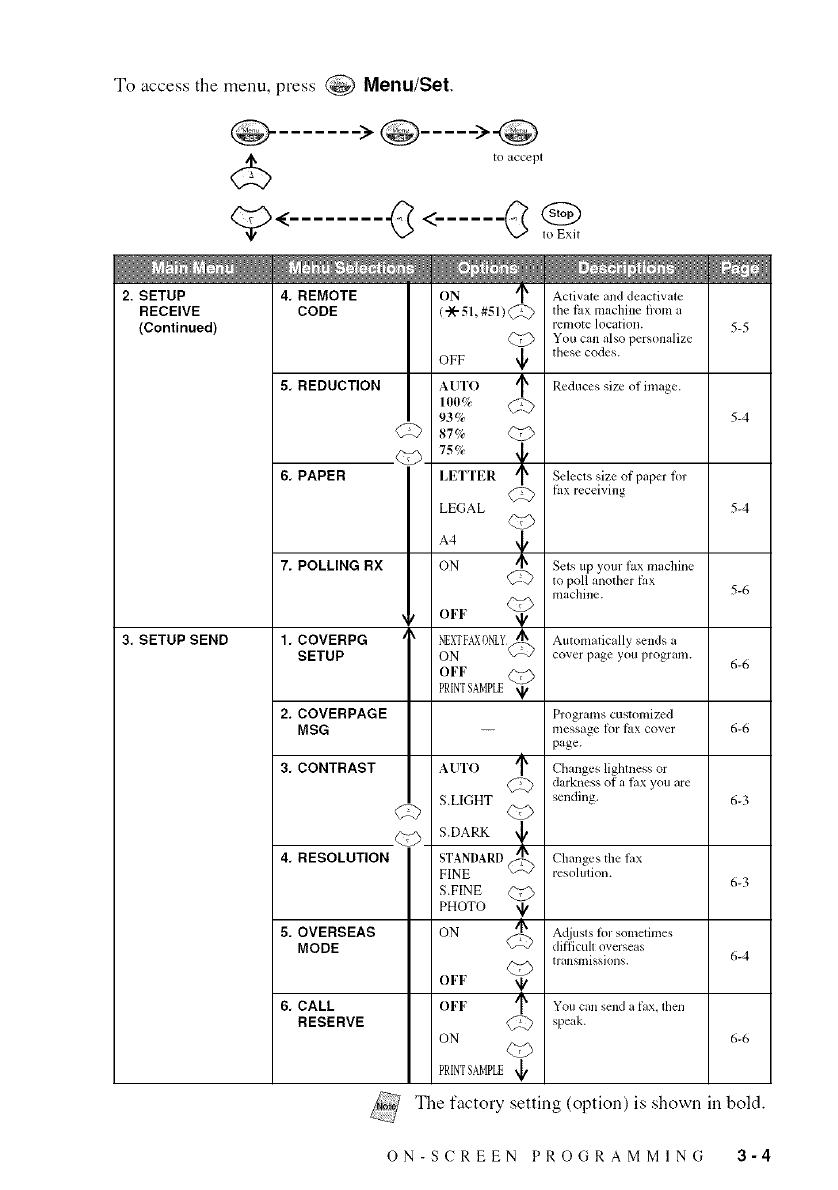
Toaccess the menu, press _ Menu/Set.
to tCCelH
1o Exit
2. SETUP
RECEIVE
(Continued)
3. SETUP SEND
4, REMOTE
CODE
5, REDUCTION
6, PAPER
7, POLLING RX
1, COVERPG
SETUP
2. COVERPAGE
MSG
3, CONTRAST
4, RESOLUTION
5, OVERSEAS
MODE
6, CALL
RESERVE
ON sl_
(a/e 51, #51) _:_>
OFF _l/
AUTO /1_
1O0%
93%
87% Q[_
75% ,
LF_TTER
LEGAL
ON
OFF
N_XTFAX0NLY
ON C-'-_
OFF
PRINTSAMPLE
AUTO /I_
C_
S.L[GHT
S.DARK t
_ITN_NDARD(_
S.FINE Q'_
PHOTO
ON _
OFF _')
OFF C_
ON
PHNTSAMPLE_
Activate and deactivate
the fax machine fl'om a
remote location.
You can also personalize
these codes.
Reduces size (31inmge.
Selects size of paper for
fax receiving
Sets tip your lax machine
to poll another fax
machine.
Automatically sends a
cover page you program.
Programs customized
message lot fax cover
page.
Changes lightness or
darkness of a lax you are
sending.
Changes tile lax
resolution.
Adjusts 1(31"sometimes
diflicuh oveiseas
trill iSiltissiolls.
Yoll Call send a fax, then
speak.
5-5 I
i
5-4 I
i
5-4 I
i
5-6 I
i
6-6 I
i
6-6 I
i
6-3 I
i
6-3 I
i
6-4 I
i
6-6 I
The factory setting (option) is shown in bold.
ON-SCREEN PROGRAMMING 3-4
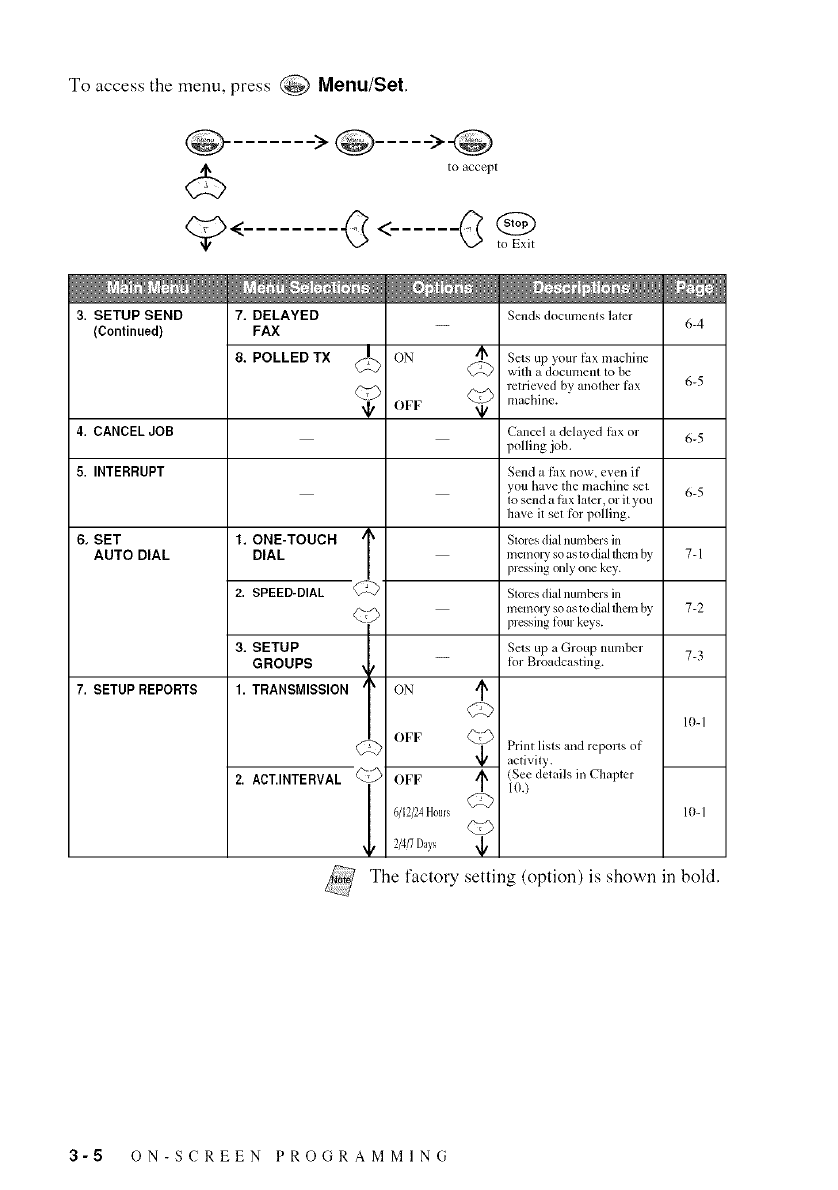
To access the menu, press @ Menu/Set.
to accept
3. SETUP SEND
(Continued)
7. DELAYED
FAX
8. POLLED TX _!_
÷
ON
OFF _,
1. ONE-TOUCHDIAL T
2. SPEE_DIAL_
3. SETUP t
GROUPS
1. TRANSMISSION
2. ACT.INTERVAL 1
._¢nds doctlltlents later
Sets up your fax machine
with a documenl to be
retrieved by another tilx
machine.
6-4 I
i
6-5 I
i
4, CANCEL JOB Cancel a delayed lax or 6-5 I
polling .job. i
5. INTERRUPT Send a fax now, even if
'OUhave the inachine set 6-5 I
to send a thx ktler, or it you
have it set ti_rpolling.
6, SET Stoies dial ilumbl2is ill
AUTO DIAL memoiy so as to diahhem by 7-1 I
pressing only one key.
Sloies dial numtx:i s in
memoLv so is to diahhem by 7-2 I
pressing Ibm keys. i
Sels up a Group number 7-3 I
-- for Broadcasting.
i
7. SETUP REPORTS ON
OFF Q-_
4,
OFF
6/12/24H0u_s
2/4/7Days 4,
Print lists and repolas of
activit'_.
See details in Chapter
1o.)
lO-I I
lO-I I
The facto Usetting (option) is shown in bold.
3-5 ON-SCREEN PROGRAMMING
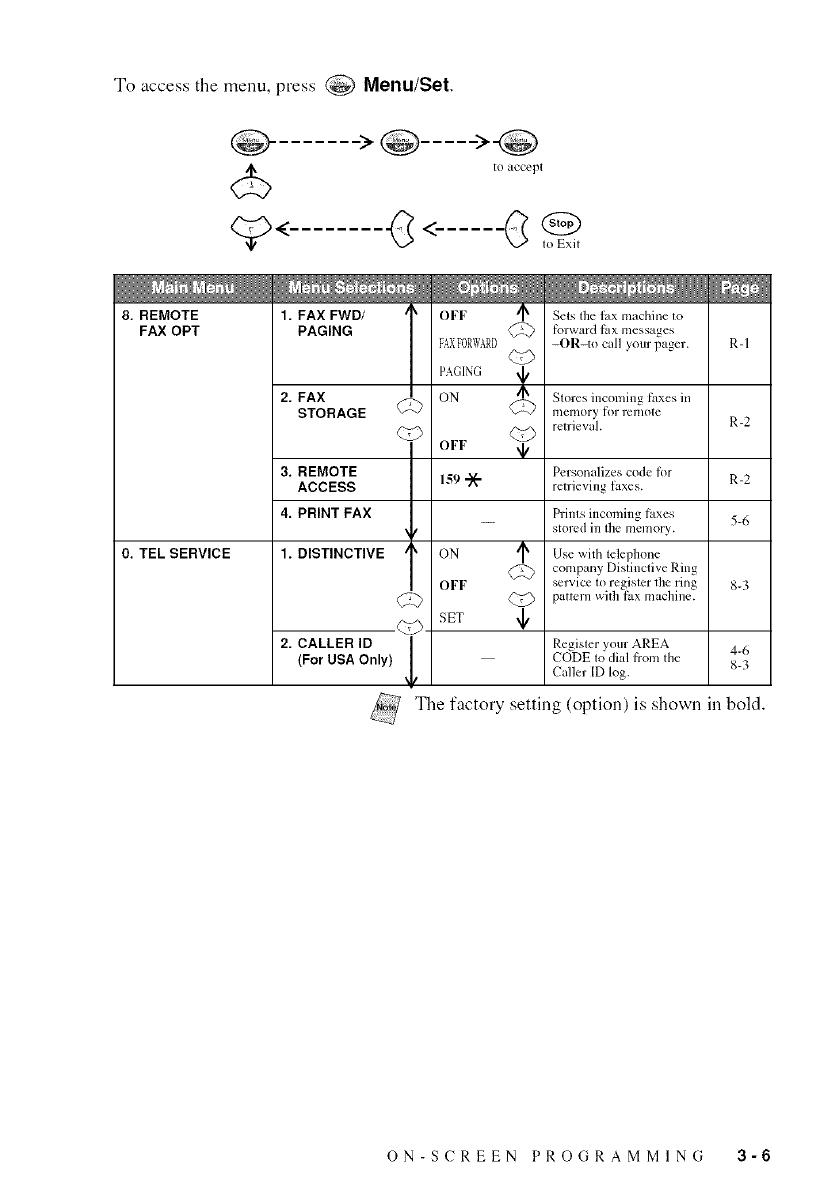
To access the menu, press @ Menu/Set.
to tccep{
8. REMOTE
FAX OPT
0. TEL SERVICE
1. FAX FWD/ /
PAGING
2. FAX
STORAGE _-_
3. REMOTE
ACCESS
4. PRINT FAX
1. DISTINCTIVE
<7>
('ry
2. CALLER ID |
(For USA Only) L
\
OFF
FAXDRWARD
PAGING
ON
OFF
159 .._
ON
OFF
SET
Sets tile lax nmchine to
_brward i'Lix inessages
-OR-to call yore"pager.
<L)
Stores incoming faxes in
_i_ memory tot remote
Q_ retrieval.
Personalizes code for
retrieving laxes.
Prints incoming fitxes
stored in the memory.
Use wilh telephone
@ conlpany Distinctive Ring
selvice to register 1he ring
@ mttenl with fax machine.
4,
Register your AREA
CODE to dial from the
Caller [D log.
R-I
R-2
R-2
5-6
8-3
4-6
8-3
The factory setting (option) is shown in bold.
ON-SCREEN PROGRAMMING 3-6
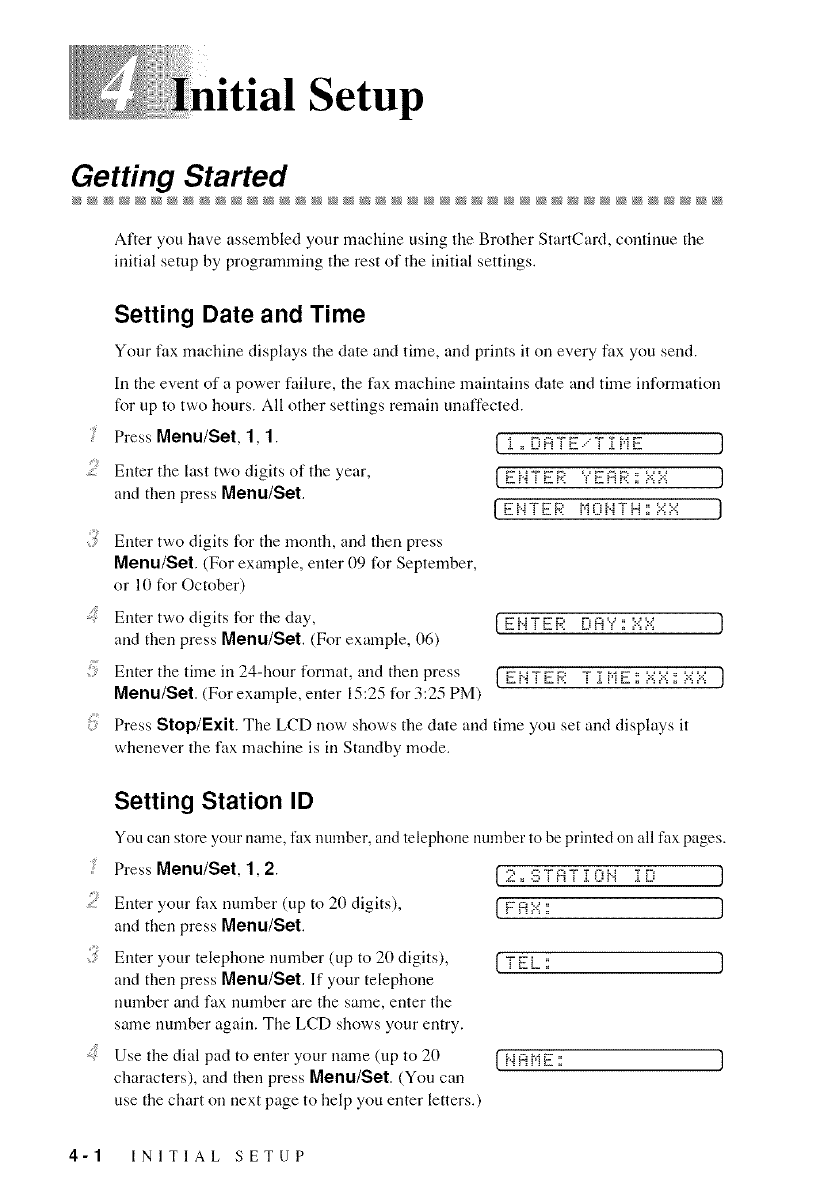
Setup
Getting Started
After you have assembled your machine using the Brother StartCard, contiuue the
initial setup by programming the rest of the initial settings.
Setting Date and Time
Your tax machine displays tt_e date and time, and prints it on every fax you send.
In the event of a power failure, the tax machine maintains date and time information
for up to two hours. All other settings remain unaffected.
! PressMenu/Set, l,l. {'i = L]ATE/TiME ]
;: Enter the last two digits of the year, {E }_T E R '? E A R a ;:':;i::; J
and then press Menu/Set. MOHrH:::.::::.::l
Enter two digits for the month, and then press
Menu/Set. (For example, enter 09 for September,
or 10 for October)
Enter two digits for tt_e day,
and then press Menu/Set, (For example, 06)
Enter the time in 24-hour format, and then press
Menu/Set. (For example, enter 15:25 for 3:25 PM)
Press Step/Exit. The LCD now shows the date and time you set and displays it
whenever the fax machine is in Standby mode.
[ ENTER DM ¥:::':X:':: ]
[FHTF_' TIr,IE: ::.::::.:::::.::X}
Setting Station ID
You can store your name, fax number, mid telephone number to be printed on all fax pages.
! Press Menu/Set, 1,2.
;: Enter your fax number (up to 20 digits),
aud then press Menu/Set.
Enter your telephone nmnber (up to 20 digits),
and then press Menu/Set. If your telephone
number and fax nmnber are the same, enter the
same number again. The LCD shows your entry.
Use the dial pad to enter your name (up to 20
characters), and fllen press Menu/Set. (You can
use tt_e chart on next page to help you enter letters.)
I2oSTATiON iB J
IFnx: j
rTEL: )
IHnME: J
4-1 INITIAL SETUP
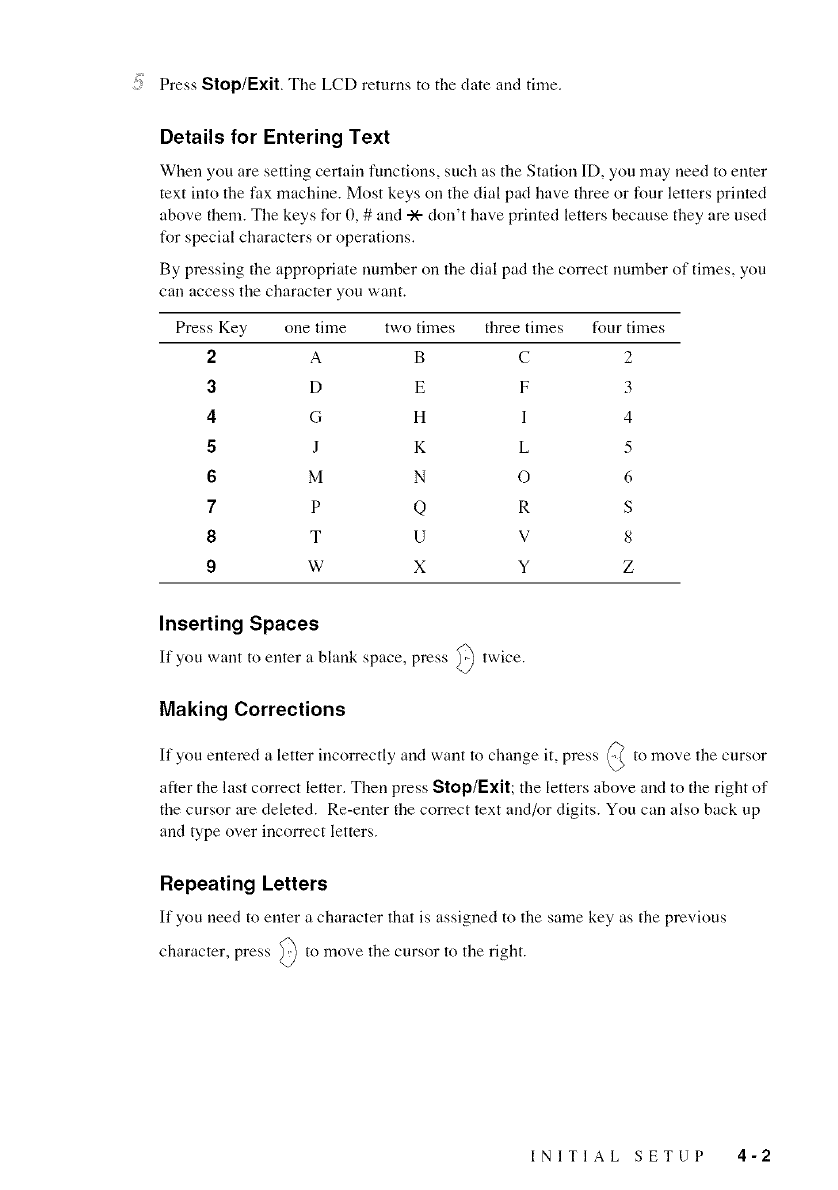
Press Stop/Exit. The LCD returus to the (bate aud time.
Details for Entering Text
When you are settiug certaiu functions, such as the Station ID, you may ueed to enter
text iuto the fax machiue. Most keys ou the dial pad have three or four letters primed
above them. Tile keys for 0, # aud -X- dou't have priuted letters because they are used
for special characters or operatious.
By pressiug the appropriate uunlber on the dial pad tile correct uunlber of times, you
Call access tile character you waut.
Press Key one time two times three tinles four tinles
2A B C 2
3D E F 3
4G H I 4
5J K L 5
6 M N O 6
7P Q R S
8T U V 8
9 W X Y Z
Inserting Spaces
If you waut to euter a blauk space, press _ twice.
<.2
Making Corrections
If you eutered a letter iucorrectly aud want to chauge it, press _ to move tile cursor
after the last correct letter. Theu press Stop/Exit; the letters above and to the right of
tile cursor are deleted. Re-enter tile correct text aud/or digits. You Call also back up
aud type over iucorrect letters.
Repeating Letters
If you ueed to euter a character that is assigued to the same key as the previous
character, press _) to move the cursor to tile right.
INITIAL SETUP 4-2
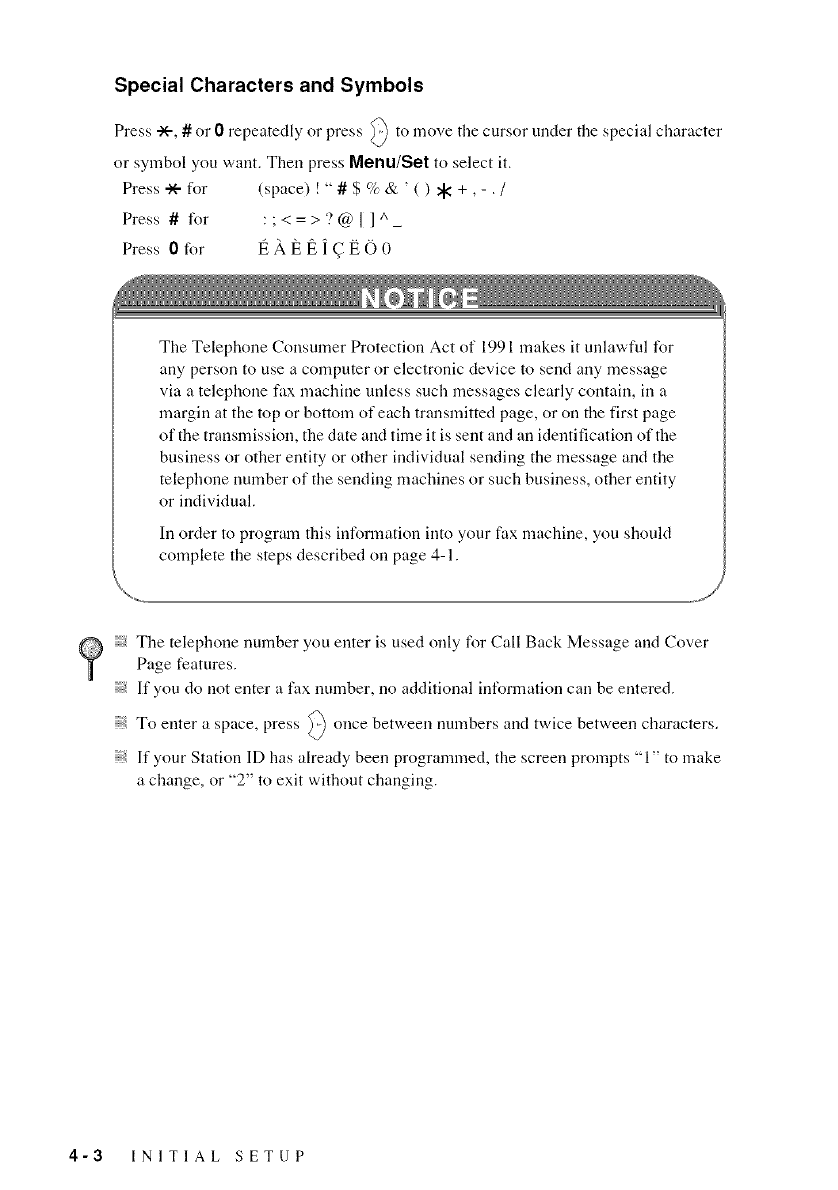
Special Characters and Symbols
Press -X--,#or 0repeatedly or press _ to move the cursor under tile special character
or symbol you want. Then press Menu/Set to select it.
Press .-X--for (space) ! " #$ % & ' ( ) _ +, - . /
Press # for :;<=>?@I ] ^_
Press 0for l_ A l_ l_ ] (_ E 0 0
The Telephone Consumer Protection Act of 1991 makes it unlawful for
ally person to use a computer or electronic device to send any message
via a telephone fax machine unless such messages clearly contain, ill a
margin at the top or bottom of each transmitted page, or on the first page
of tile transmission, the date and time it is sent and all identification of the
business or other entity or other individual sending file message and the
telephone number of file sending machines or such business, other entity
or individual.
In order to progrmn this information into your fax machine, you should
complete the steps described on page 4-1.
The telephone number you enter is used only for Call Back Message and CoverPage features.
) If you do not enter a fax number, no additional information call be entered.
To enter a space, press _ once between numbers and twice between characters.
) If your Station ID has already been programmed, the screen prompts "1" to make
a change, or "2" to exit without changing.
4-3 INITIAL SETUP
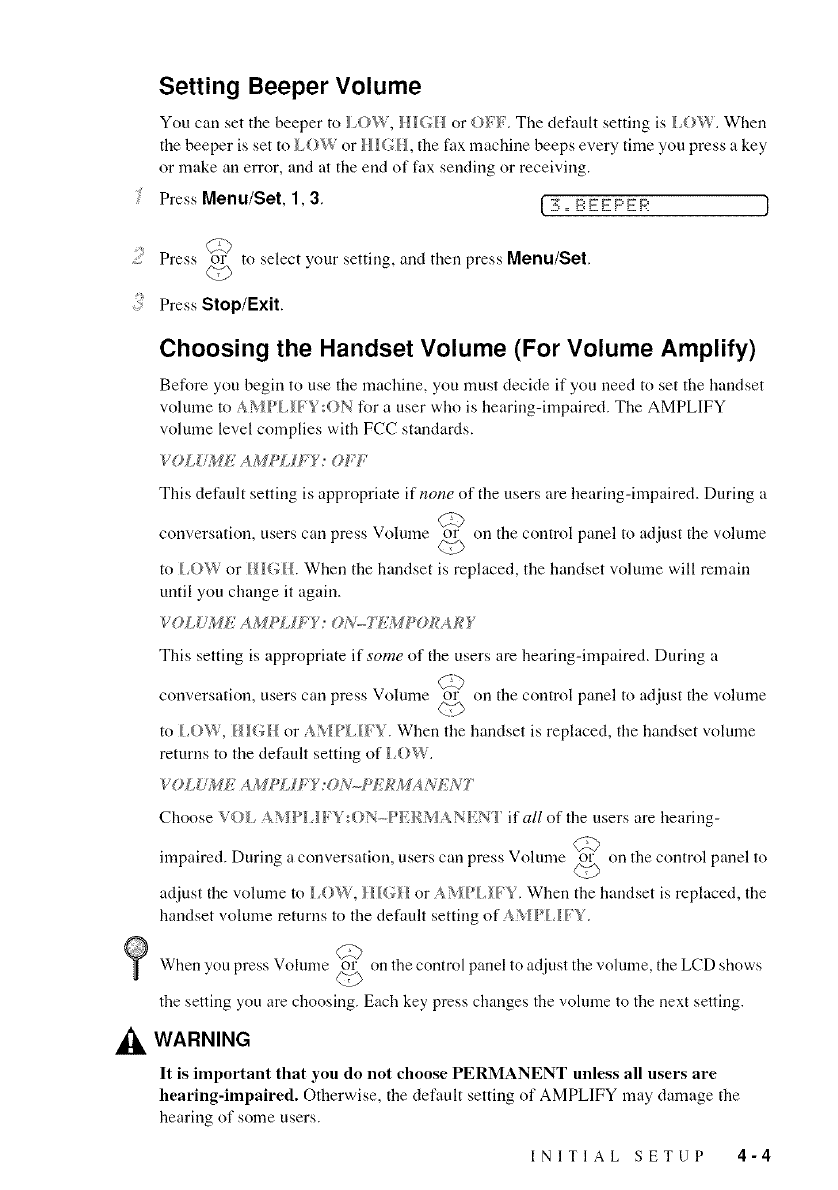
Setting Beeper Volume
You can set the heeper to 1,0%V, or {)_l _, The default setting is 1,04_', When
the beeper is set to I O.W or/IHH, the fax machine beeps every time you press a key
or make an error, and at the end of fax sending or receiving.
Press Menu/Set 1,3, [ 3,, BEEPER ]
C'-O
Press or to select your setting, and then press Menu/Set.
<<5
Press Stop/Exit.
Choosing the Handset Volume (For Volume Amplify)
Before you hegin to use the nmchine, you must decide if you need to set the handset
volume m A_/P_ H _ :ON Ii_r a user who is hearing-impaired. The AMPLIFY
volume level complies with FCC standards.
VOLUME AMPLH;'Y: OFF
This default setting is appropriate if none of the users are hearing-impaired. During a
Cb
conversation, users can press Volmne or on the control panel to adjust the volmne
to lOW or H_(}£ When the handset is replaced, the handset volume will remain
until you change it again.
This setting is appropriate if some of the users are hearing-impaired. During a
C_
conversation, users can press Volmne or on the control panel to adjust the volmne
<'O
to lOW, HIGH or AMPI H'Y. When the handset is replaced, the handset volume
returns to the default setting of I OW.
VOLUME AMP[ H;'Y:ON.PE_MANEN_
Choose VOL AMPI J FY:ON-PE/_MANENT if all of the users are hearing-
db
impaired. During a conversation, users can press Volume or on the control panel to
adjust the volmne m It)W, }{_G }{ or A'_/PI 1_"5. When the handset is replaced, the
handset volume returns to the default setting of AMPI _1'5".
When you press Volume or on the control panel to adjust the volume, the LCD shows
<£)
the setting you are choosing. Each key press changes the volume to the next setting.
_1= WARNING
It is important that you do not choose PERMANENT unless all users are
hearing-impaired. Otherwise, the default setting of AMPLIFY may damage the
hearing of some users.
INITIAL SETUP 4-4
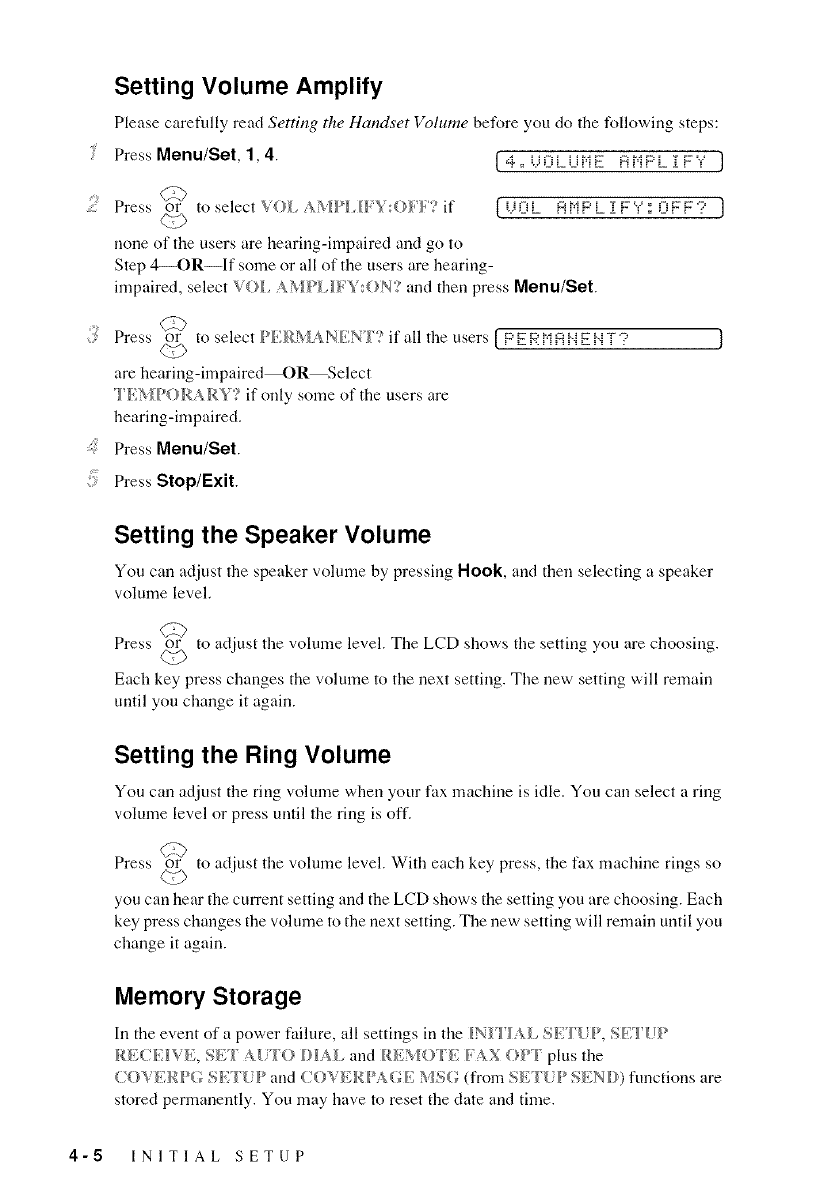
Setting Volume Amplify
Please carefully read Setting the Handset Volume beli_re you do the lMlowing steps:
Press Menu/Set, 1,4. I 4,, i,._OLLiNE 8NPL i FY J
Press or to select VO.I _ HIH_ }.//+if [. i% @r,_PLiV",":OVF? ]
none of the users are hearing-inapaired and go to
Step 4_OR--If some or all of the users are hearing-
impaired, select VO, I & '_,/Pl I/_ :(}N? and then press Menu/Set.
C_
Press or to select if all the users [ P F _' r,ia N g{-._T-::,
are hearing-impaired_)R--Select
I'/(MPORA RY? if only some of the users are
hearing-impaired.
Press Menu/Set.
Press Stop/Exit.
Setting the Speaker Volume
You can adjust the speaker volume by pressing Hook, and then selecting a speaker
volume level,
C:b
Press or to adjust the volume level. Tile LCD shows tile setting you are choosing.
<0
Each key press changes the volume to tile next setting. Tile new setting will remain
until you change it again.
Setting the Ring Volume
You can adjust the ring volume when your fax machine is idle. You can select a ring
volume level or press umil the ring is off.
Press or to adjust the volume level. With each key press, the fax machine rings so
dE>
you call hear the current setting and the LCD shows the setting you are choosing. Each
key press changes the volume to the next setting. Tile new setting will remain until you
change it again.
Memory Storage
In the event of a power failure, all settings ill the IN_T_ I, SP.'I _ P, LT(IP
RECI_TIVE, Sb;_ A U'_O DIAl, and RI';'_IO _T/AN OPI" plus tile
(X}VERPG SHVP and COVERPAGE _/S((_ (from SE I'UP SLND) fimctions are
stored permanently. You may have to reset the date and time.
4-5 INITIAL SETUP
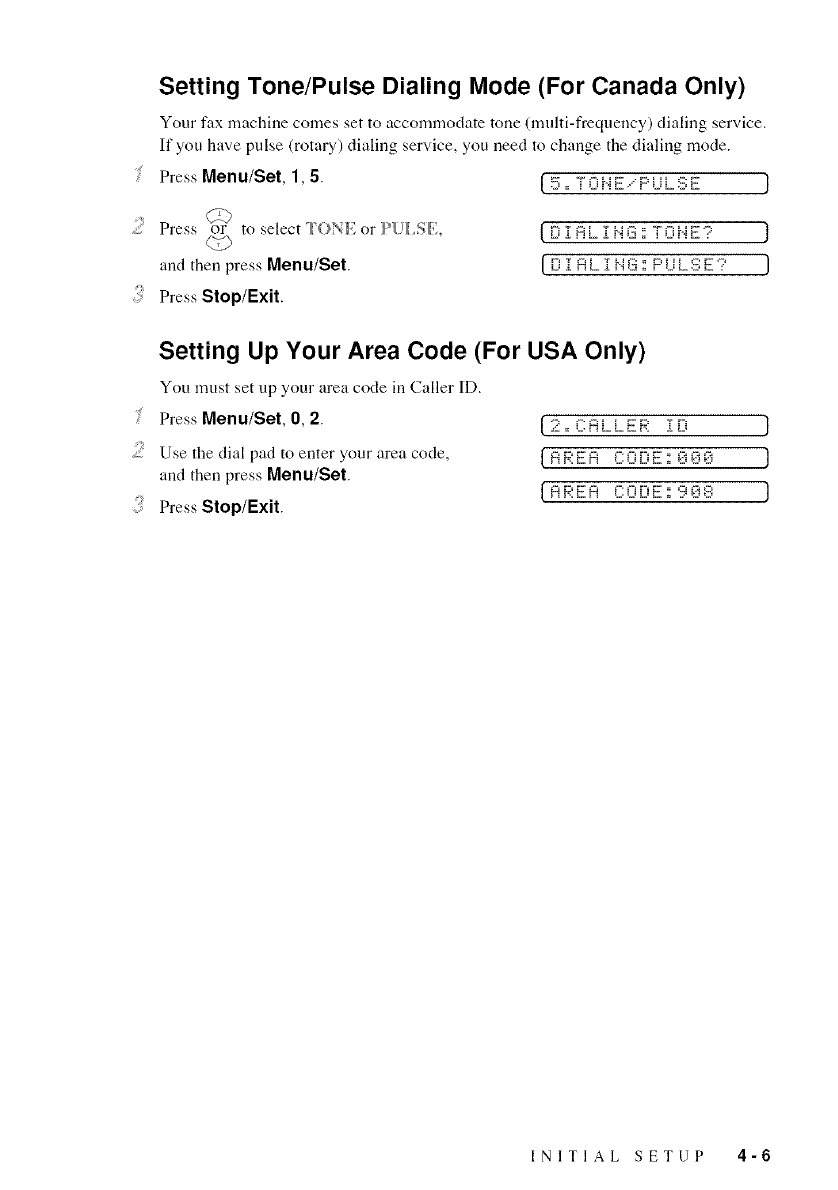
Setting Tone/Pulse Dialing Mode (For Canada Only)
Your fax machine comes set to accomnaodate tone (multi-frequency) dialing service.
If you have pulse (rotary) dialing service, you need to change the dialing mode.
Press Menu/Set, 1,5. [ 5= T0 HE...P LiL:E;E }
Cr9
Press or to select tO, NE or P{_l SE;,
and then press Menu/Set.
{EiTLi=i .............. }
i iH r'4a; i -P_:"
I Ei i A L 1 H G ;.'F' U L MM;E ?]
:: Press Stop/Exit.
Setting Up Your Area Code (For USA Only)
You must set up your area code in Caller ID.
Press Menu/Set, 0, 2.
.... Use the dial pad to enter your area code,
and then press Menu/Set.
Press Stop/Exit.
[2°i-Ai i FK' TV_ J
{AAEA CM?EiE; _"?Ei_..j J
{AREA COL,L;9_3E: J
INITIAL SETUP 4-6
pReceive
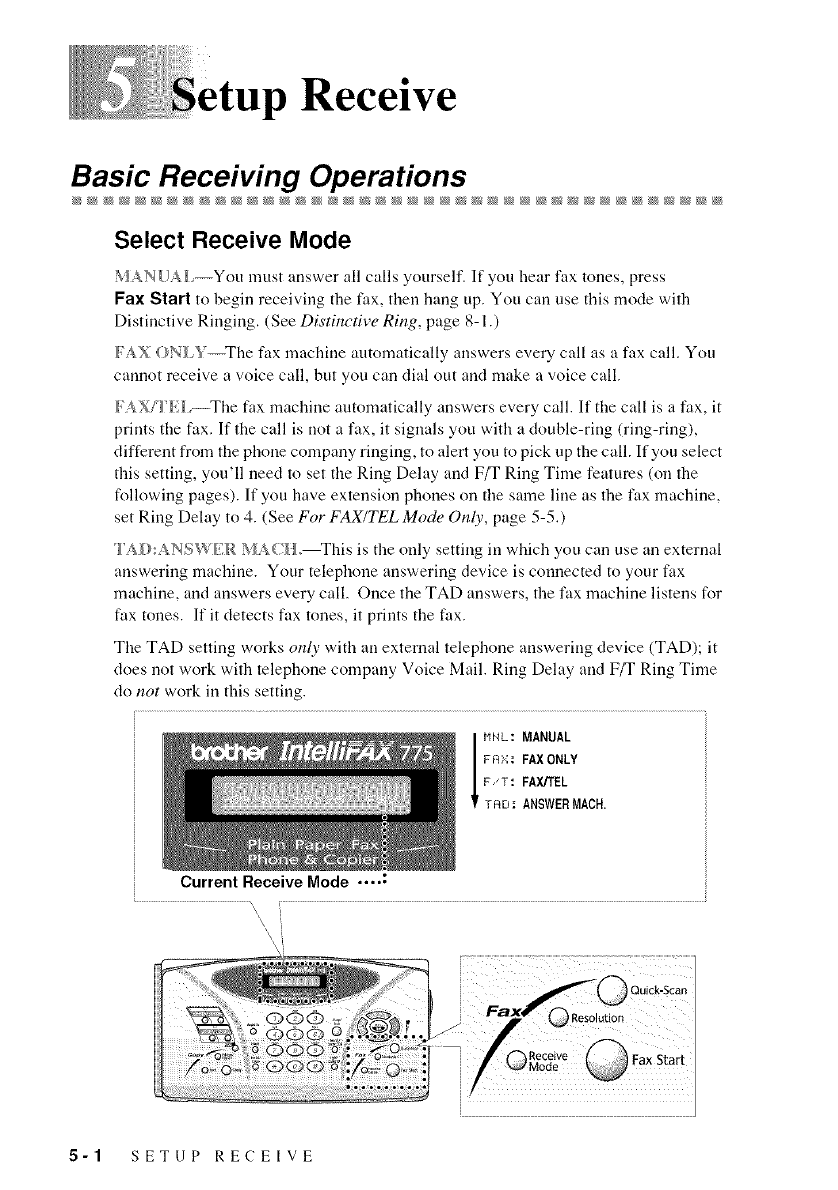
Basic Receiving Operations
Select Receive Mode
_,_AN UAI,--You must answer all calls yourself. If you hear fax tones, press
Fax Start to begin receiving the fax, then hang up. You can use this mode with
Distinctive Ringing. (See Distinctive Ring, page 8-1 .)
FAX ONI _'_The fax machine automatically answers every call as a fax call. You
cannot receive a voice call, but you can dial out and make a voice call.
FAX/F_ _The fax machine automatically answers every call. If the call is a fax, it
prints the fax. If the call is not a fax, it signals you with a double-ring (ring-ring),
different from the phone company ringing, to alert you to pick up the call. If you select
this setting, you'll need to set the Ring Delay and F/T Ring Time features (on the
following pages). If you have extension phones on the same line as the fax machine,
set Ring Delay to 4. (See For FAX/TEL Mode Only, page 5-5.)
I'AD:ANSW_<R %ACHo_his is the only setting in which you can use an external
answering machine. Your telephone answering device is connected to your fax
machine, and answers every call. Once the TAD answers, the fax machine listens for
fax tones. If it detects fax tones, it prints the fax.
The TAD setting works only with an external telephone answering device (TAD); it
does not work with telephone company Voice Mail. Ring Delay and F/T Ring Time
do not work in this setting.
Current Receive Mode .... :
MNL: MANUAL
FR),:: FAXONLY
F.T: FAX/TEL
TF_O: ANSWERMACH.
\
\,i
5-1 SETUP RECEIVE
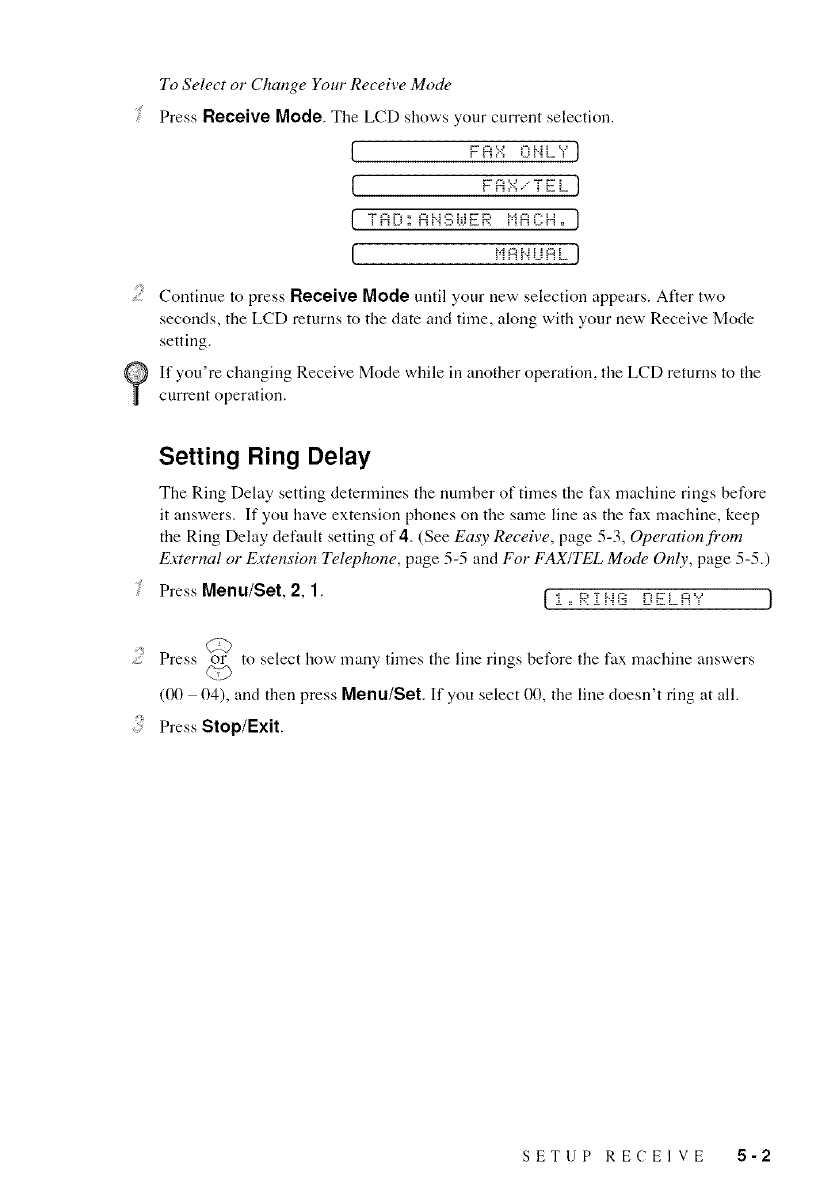
To Select or Change Your Receive Mode
Press Receive Mode. The LCD shows your current selection.
[ [-=A::-:: Fi=_-_i="' ]
L ......ELl
L -r_r-_ AHSi._.i_R r,mr:Ho J
[ r'iA NL'e L ]
.... Continue to press Receive Mode until your new selection appears. After two
seconds, the ECD returns to the date and time, along with your new Receive Mode
setting.
If you're changing Receive Mode while in another operation, the LCD returns to the
current operation.
Setting Ring Delay
The Ring Delay setting determines the nmnber of times the fax machine rings before
it answers. If you have extension phones on the same line as the fax machine, keep
the Ring Delay default setting of 4. (See Easy Receive, page 5-3, Operation from
External or Extension Telephone, page 5-5 and For FAX/TEL Mode Only, page 5-5.)
Press Menu/Set, 2, 1. {i,,RiHG DELA"," J
_b
Press or to select how many times the line rings before the fax machine answers
(00 04), and then press Menu/Set. If you select 00, the line doesn't ring at all.
Press Stop/Exit.
SETUP RECEIVE 5-2
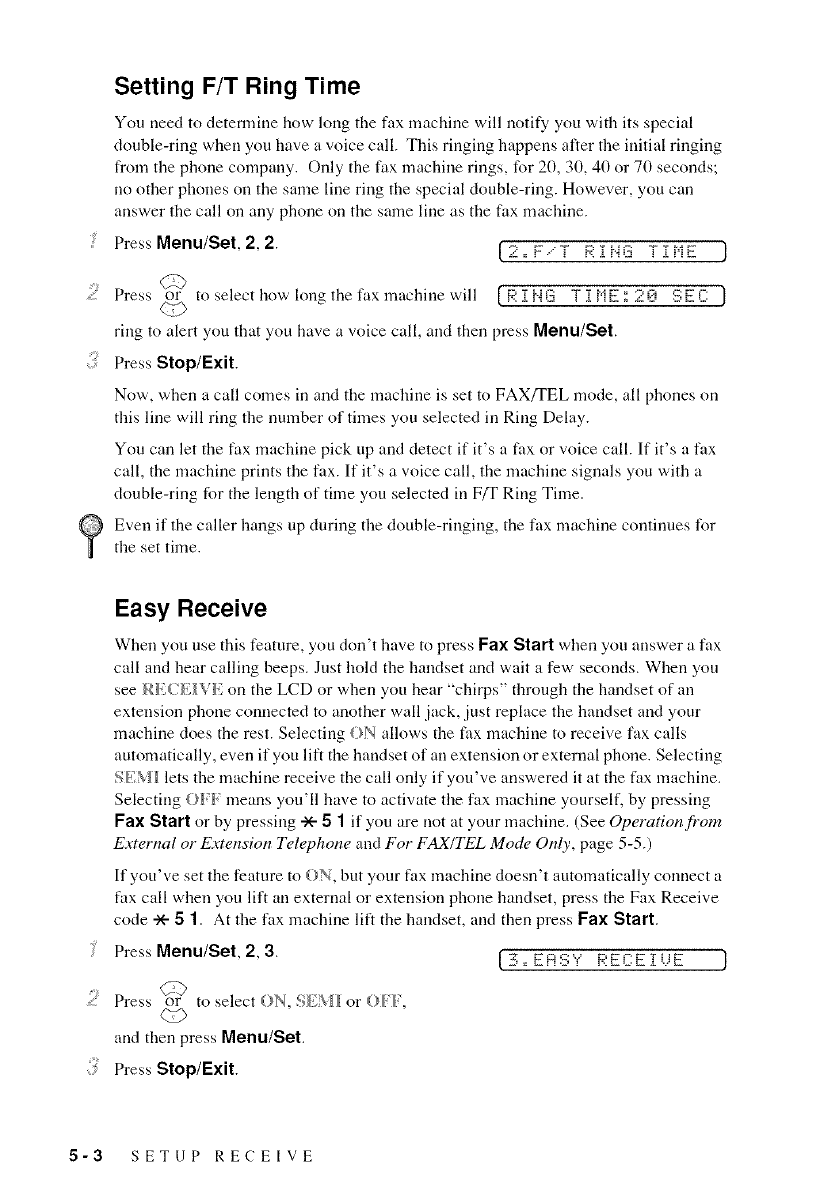
Setting F/T Ring Time
You need to determine how long the fax machine will notify you with its special
double-ring when you have a voice call. This ringing happens alter the irfitial ringing
from tire phone company. Only the fax machine rings, for 20, 30, 40 or 70 seconds
no other phones on the same line ring the special double-ring. However, you can
arrswer the call on arty phone on tire same line as the fax machine.
Press Menu/Set, 2, 2. [ 2,, F.---T R i F03 Yi ME
.... C:b
.....::: Press or to select how lon_ the fax machine will [g.'T{'4iz; TiNE:2{-i SEC j
ring to alert you that you have a voice call, arrd then press Menu/Set.
Press Stop/Exit.
Now', when a call comes in and the machine is set to FAX/TEL mode, all phones on
this line will ring the number of times you selected in Ring Delay.
You can let the tax machine pick up arrd detect if it's a fax or voice call. If it's a fax
call, the machine prints the fax. If it's a voice call, the machine signals you with a
double-ring for the length of time you selected in F/T Ring Time.
Even if the caller hangs up during the double-ringing, the fax machine continues for
the set time.
Easy Receive
When you use this feature, you don't have to press Fax Start when you answer a fax
call arrd hear calling beeps. Just hold the handset arrd wait a few seconds. When you
see Rb;C_,_Vb; on the LCD or when you hear "chirps" through the handset of an
extension phone connected m another wall jack, just replace the handset and your
machine does the rest. Selecting {}N allows the fax machine to receive fax calls
automatically, even if you lift the handset of an extension or external phone. Selecting
S_';M_ lets the machine receive the call only if you've arrswered it at the fax machine.
Selecting O_'_ means you'll have to activate tire fax machiue yourself, by pressing
Fax Start or by pressing -X- 5 1 if you are not at your machine. (See Operation from
E.rternal or E.rtension Telephone and For FAX/TEL Mode Only, page 5-5.)
If you've set tire feature to ON, but your fax machine doesn't automatically cormect a
tax call when you lift an external or extension phone handset, press the Fax Receive
code --X-5 1. At tire fax machine lilt tire handset, arrd then press Fax Start.
Press Menu/Set, 2, 3.
Press or to select ON, S_',NH or O_F,
co)
arrd then press Menu/Set.
Press Stop/Exit.
[ zqo E8S"¢ REC:E i UE ]
5-3 SETUP RECEIVE
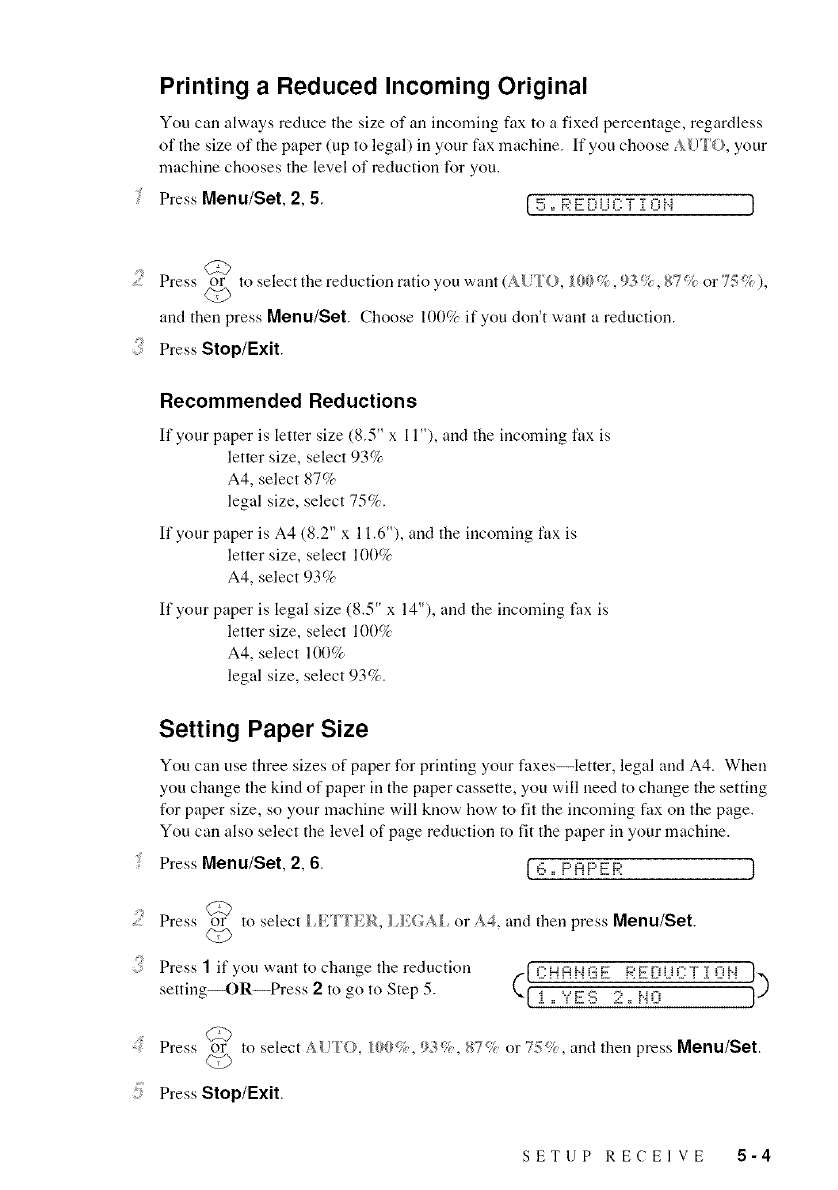
Printing a Reduced Incoming Original
You can always reduce the size of an incoming fax to a fixed percentage, regardless
of tile size of the paper (up to legal) ill your fax machine. If you choose _ {)TO., ),our
machine chooses the level of reduction for you.
Press Menu/Set, 2, 5. ( >-_°r;,g-_-_ilc:T TciH }
Press or toselectthereductionratioyouwant(A{TO, lt}t}47{,93%,gT¢?}or7:!<:_),
and then press Menu/Set. Choose 100% if you don't want a reduction.
Press Stop/Exit.
Recommended Reductions
If your paper is letter size (8.5" x l 1"), and the incoming fax is
letter size, select 93%
A4, select 87%
legal size, select 75%.
If your paper is A4 (8.2" x 11.6"), and the incoming fax is
letter size, select 100%
A4, select 93%
If your paper is legal size (8.5" x 14"), and tile incoming fax is
letter size, select 100%
A4, select 100%
legal size, select 93%.
Setting Paper Size
You can use three sizes of paper for printing your faxes--letter, legal and A4. When
you change file kind of paper ill the paper cassette, you will need to change file setting
for paper size, so your machine will know how m fit the incoming fax on the page.
You can also select the level of page reduction to fit the paper in your machine.
Press Menu/Set, 2, 6. { 6,: PAPEB'. }
c_
Press or to select I _',FH R, or A_ r,and then press Menu/Set.
Press 1if you want to change the reduction (" _Zi UiZ:T i 0 N }})
settingS)R--Press 2to _o to Step 5. k Li
_ L1 ,: '-_-=E_-_2-,, HO
: Press or to select ._{_FO., _(>{{ , _)3_ 87 ¢or"7:!_, and then press Menu/Set.
<,9
Press Stop/Exit.
SETUP RECEIVE 5-4
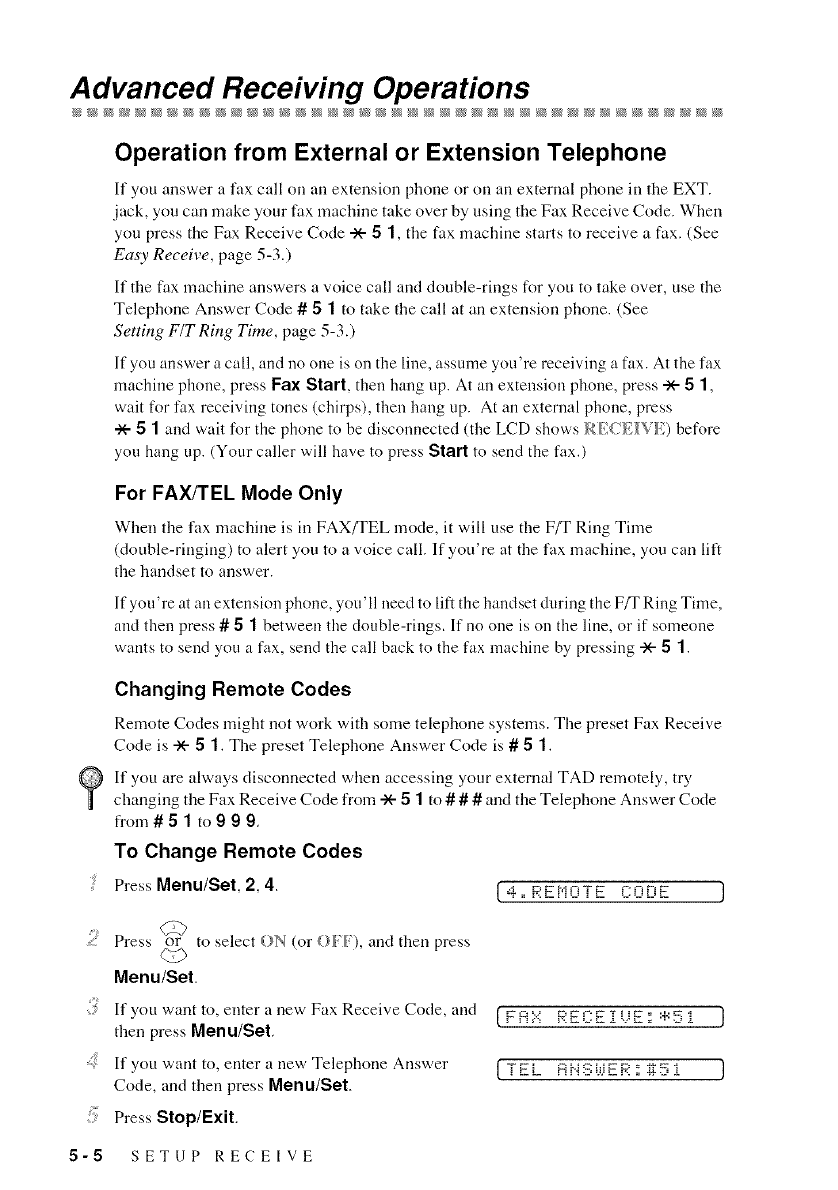
Advanced Receiving Operations
Operation from External or Extension Telephone
If you answer a fax call on an extension phone or on an external phone in the EXT.
jack, you can make your fax machine take over by using the Fax Receive Code. When
you press the Fax Receive Code --X--5t, the fax machine starts to receive a fax. (See
Easy Receive, page 5-3.)
If the fax machine answers a voice call and double-rings for you to take over, use the
Telephone Answer Code # 5t to take the call at an extension phone. (See
Setting F/T Ring Time, page 5-3.)
If you answer a call, and no one is on the line, assume you're receiving a fax. At the fax
machine phone, press Fax Start, then hang up. At an extension phone, press --X--5t,
wait for fax receiving tones (chirps), then hang up. At an external phone, press
-X--5 1and wait for the phone to be disconnected (the LCD shows RE(E_VE) before
you hang up. (Your caller will have to press Start to send the fax.)
For FAX/TEL Mode Only
When the fax nmchine is in FAX/TEL mode, it will use the F/T Ring Time
(double-ringing) to alert you to a voice call. If yotFre at the fax machine, you can lift
the handset to answer.
If you're at an extension phone, you'll need to lift the handset during the F/T Ring Time,
and then press # 5t between the double-rings. If no one is on the line, or if someone
wants to send you a fax, send the call back to the fax machine by pressing --X-5t.
Changing Remote Codes
Remote Codes might not work with some telephone systems. The preset Fax Receive
Code is --X-51. The preset Telephone Answer Code is # 51.
If you are always disconnected when accessing your external TAD remotely, try
changing the Fax Receive Code from -X--8t to # # # and the Telephone Answer Code
from# 5 1to 9 99.
To Change Remote Codes
! PressMenu/Set, 2, 4.
Press or to select ON (or O._ _'), and then press
Menu/Set.
4= DFNFiTF F:FiFig ]
If you want to, enter a new Fax Receive Code, and [FA::':; RE:EiUE:::'_51 ]
then press Menu/Set.
If you want to, enter a new Telephone Answer [ T E i AN:i_::WE F.'.: g 5 i ]
Code, and then press Menu/Set.
Press Stop/Exit.
5-5 SETUP RECEIVE
Printing a Fax in Memory
If you have Fax Storage ON for remote retrieval, you carl still print a fax in the
memory when you are at your machiue:
Press Menu/Set, 8, 4. [4° PR i NT FAX
PressFax Start.
Press Stop/Exit.
(See Turning On Fax Storage, page R-2.)
Polling
Polling is the process of retrieving faxes from another fax machine. You can use your
fax machine to "poll" other machines, or you can have someone poll your machine.
All parties involved in polling need to set up their fax machines to accommodate
polling. When someone polls your machine to receive a fax, they pay for the call; if
you poll someone's fax machine to receive a fax, you pay for the call.
(See Canceling a Scheduled Job, page 6-5.)
For details about the Polling feature, call our Brother fax-back system
1-800-521-2846 (in USA), 1-800-681-9838 (in Canada) and request at the Index.
(See Features That Are Not in the Manual, page 6-6 for details.)
Q Some fax machines do not respond to the Polling feature.
SETUP RECEIVE 5-6
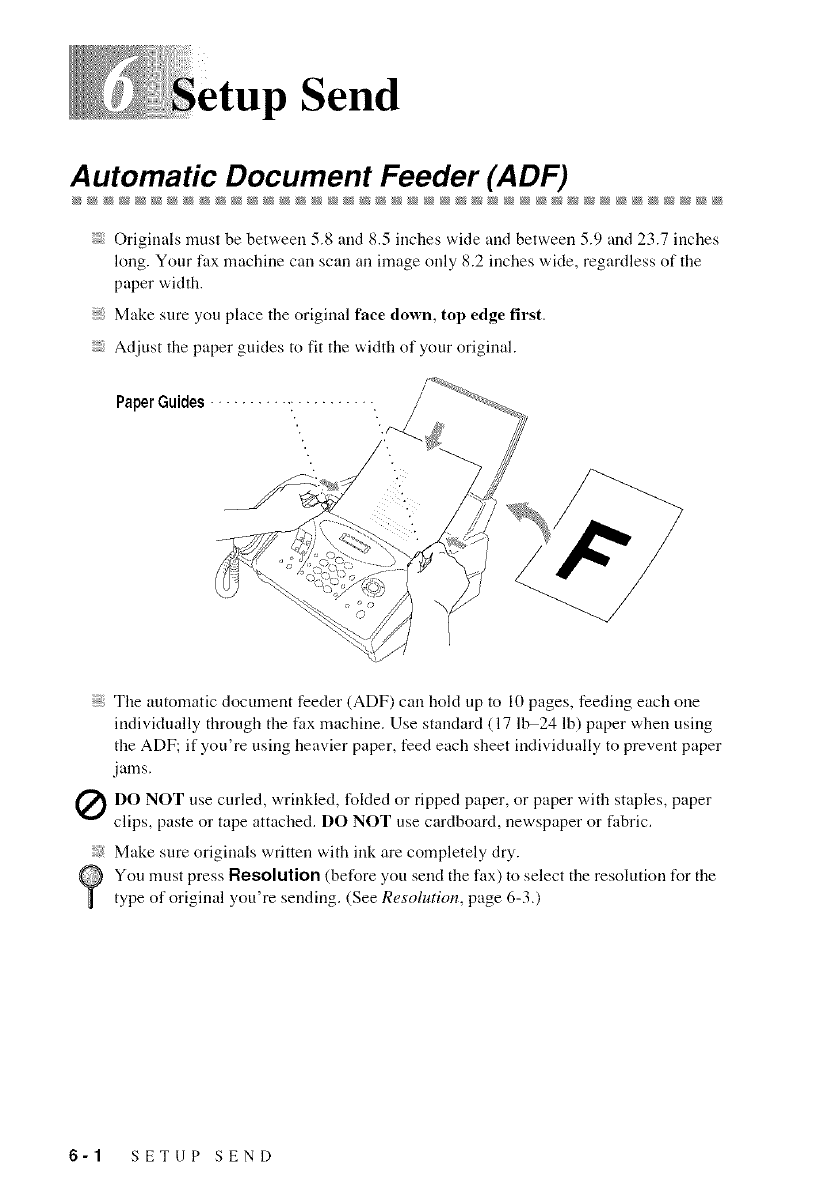
pSend
A utomatic Document Feeder (ADF)
Originals must be between 5.8 and 8.5 inches wide and between 5.9 and 23.7 inches
long. Your fax machine can scan an image only 8.2 inches wide, regardless of the
paper width.
Make sure you place the original face down, top edge first.
Adjust the paper guides to fit the width of your original.
PaperGuides ........... : .......... .
The automatic document feeder (ADF) can hold up to l0 pages, feeding each one
individually through the tax machine. Use standard (17 1b-24 lb) paper when using
the ADF; if you're using heavier paper, feed each sheet individually to prevent paper
jams.
Q DO NOT use curled, wrinkled, folded or ripped or with staples,
paper, paper paper
clips, paste or tape attached. DO NOT use cardboard, newspaper or fabric.
Make sure originals written with ink are completely dry.
You must press Resolution (before you send the fax) to select the resolution for the
type of original you're sending. (See Resolution, page 6-3.)
6-1 SETUP SEND
Manual Transmission
Manual transmission lets you hear tile dial tone, ringing and fax receiving tones before
sending the fax.
Place the original face down ill tile ADF,
Pick up the handset and listen for a dial tone
OR--press Hook and listen for a dial tone,
Enter the fax nmnber you want to call. (You call enter the digits using the dial pad, or
you can enter a One Touch or Speed Dial number, or you can call using
Search/Speed Dial.) (See One Touch Dialing, page 7-4 and Search, page 7-6.)
.... When you hear the fax tone, press Fax Start.
If you're using the handset, hang up.
Automatic Transmission
This is tile easiest way to send a fax.
IMPORTANT: Do not pick up the handset, or press Hook.
Place the original face down ill the ADF.
..... Enter the fax number using One Touch, Speed Dial, Search or the dial pad. (See One
Touch Dialing, Speed Dialing and Search, pages 7-4 to 7-6.)
Press Fax Start.
Manual and Automatic Fax Redial
If you're sending a fax manually and the lille is busy,, press Redial/Pause to try
again. Anytime you want to make a second call to the last number dialed, press
Redial/Pause to save time.
If you're sending afaa automatically and the lille is bus3,, the fax machine will redial
automatically up to three times at 5 minute intervals.
SETUP SEND 6-2
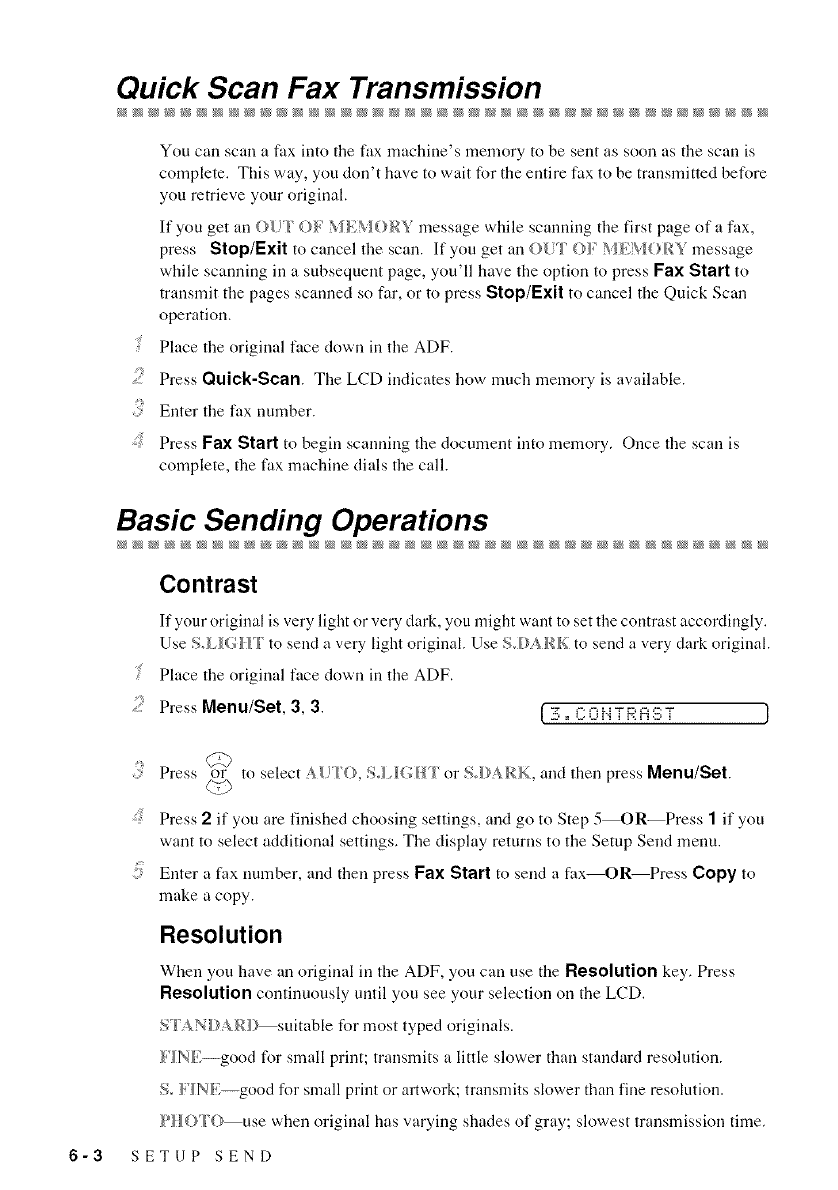
Quick Scan Fax Transmission
S
3
:!!ii_
You can scan a fax into the fax machine's memory to be sent as soon as the scan is
complete. This way, you don't have to wait for the entire fax to be transmitted before
you retrieve your original.
If you get an O_" ()_ _H_M()_Y message while scanning the first page of a fax,
press Stop/Exit to cancel the scan. If you get an OUT {>_ _H';\/{}RY message
while scanning in a subsequent page, you'll have the option to press Fax Start to
transmit the pages scanned so far, or to press Stop/Exit to cancel flae Quick Scan
operation.
Place the original face dowu in the ADF.
Press Quick-Scan The LCD indicates how much memory is available.
Enter the fax number.
Press Fax Start to begin scanning the document into memory. Once the scan is
complete, the fax machine dials the call.
Basic Sending Operations
Contrast
2
If your original is very light or very dark, you might want to set the contrast accordingly.
Use to send a very light original. Use SoDA RK to send a very dark original.
Place the original face down in the ADF.
Press Menu/Set, 3, 3. [ _,, C:0 }'_TR _ S TJ
3¸
:!!ii_
3¸
Press or toselectA[_l'(},Sol_GHIorSoDARK, and then press Menu/Set.
Press 2if you are finished choosing settings, and go to Step 5 OR_Press 1 if you
want to select additional settings. The display returns to the Setup Send menu.
Enter a fax number, and then press Fax Start to send a fax--OR_Press Copy to
make a copy.
Resolution
When you have an original in the ADF, you can use the Resolution key. Press
Resolution continuously until you see your selection on the LCD.
S'IANDA/_D suitable for most typed originals.
/'_N/';--good for small print; transmits a little slower than standard resolution.
So/'_N/';--good for small print or artwork; transmits shower than fine resolution.
PH{}T(} use when original has varying shades of gray; slowest transmission time.
6-3 SETUP SEND
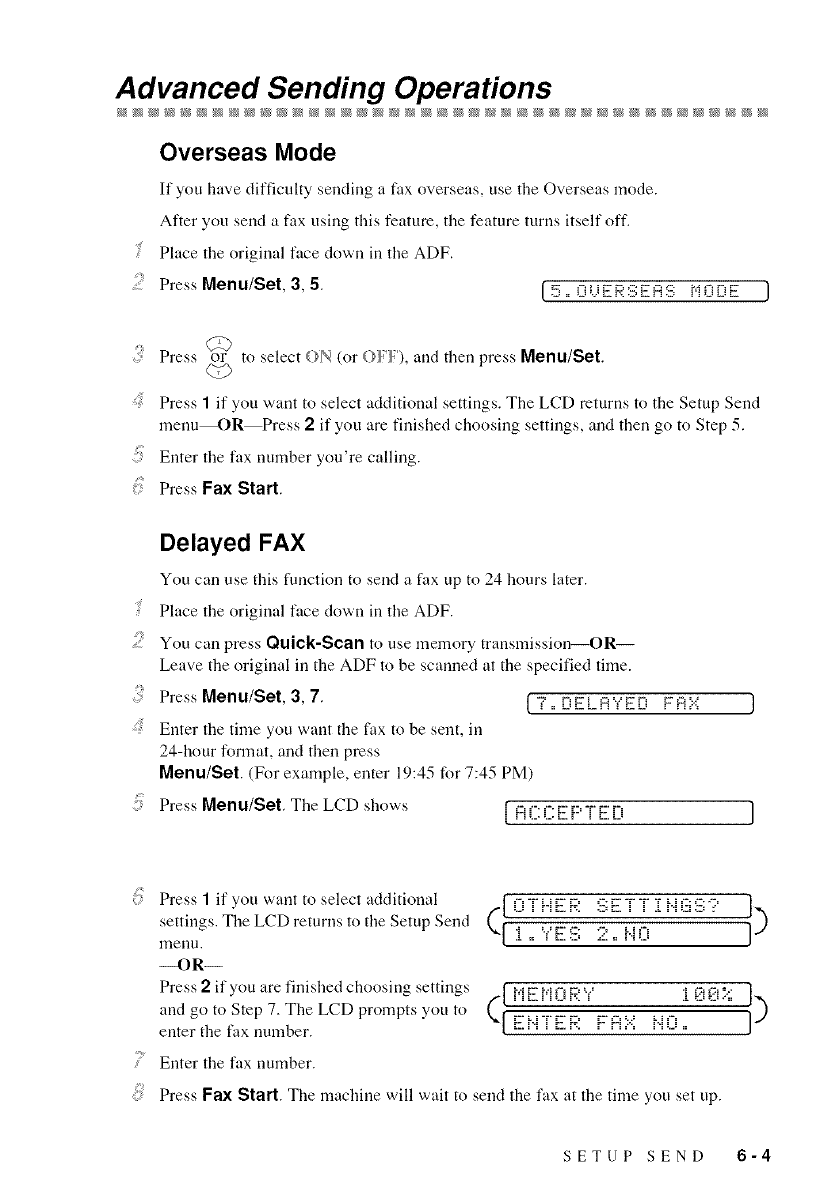
Advanced Sending Operations
Overseas Mode
If you have difficulty sending a fax overseas, use the Overseas mode.
After you send a fax using this feature, the feature turns itself off.
gPlace the original face down in the ADF,
..... Press Menu/Set, 3,5. [5oOLJERSEAS NrinF
_b
Press or to select O.N (or {)'/ /'), and then press Menu/Set.
Press 1if you want to select additional settings. The LCD returns to the Setup Send
menuM)R Press 2 if you are finished choosing settings, and then go to Step 5.
Enter the fax number you're calling.
Press Fax Start.
Delayed FAX
You can use this function to send a fax up to 24 hours later.
Place the original face down in the ADF.
..... You can press Quick-Scan to use memory transmission--OR--
Leave the original in the ADF to be scanned at the specified time.
Press Menu/Set, 3, 7. { 7,, DELAYED F_'-:'
Enter the time you want the fax to be sent, in
24-hour format, and then press
Menu/Set. (For example, enter 19:45 for 7:45 PM)
Press Menu/Set. The LCD shows [ HL:L:k.b' i k. LJ
}
I
Press 1if you want to select additional (I O'['i'i E i;: S [_:"[""[" :[ i'i G S "? I)
settings. The LCD returns to the Setup Send :[ ,, '¥'El S2,, H ()
n3euu.
--OR--
Press2ifyouarefinishedchoosingsettings (I !(]I(]L_.;; I)
and go to Step 7. The LCD prompts you to
enter the tax number. F"f:i_', i,i {)
Enter the fax number.
Press Fax Start. The machine will wait to send the fax at the time you set up.
SETUP SEND 6-4
Setting Up for Polled Transmit
Polled Transmit is when you set up your fax machine to wait with an original so
another fax machine can retrieve it.
For more information call our Brother fax-back system at 1-800-521-2846 (in USA),
1-800-681-9838 (in Canada) and request the Index. (See Features ThatAre Not in the
Manual, page 6-6 for details.)
Canceling a Scheduled Job
You can cancel tasks you've scheduled, such as Delayed Fax or Polling Transmit.
Press Menu/Set, 4. Any waiting jobs appear on {4 =i.'_':A}'4i2Ekd i.'_'iE:
the LCD. If there are no jobs waiting, the LCD
shows NO. _O.B _ _l HNG. u>
If you have more than two jobs waiting, press or to select the .job you want to
cancel, and then press Menu/Set. @
--OR--
If you have only one job waiting, go to Step 3.
{ Press 1to cancel--OR--Press 2to exit without canceling.
:: Press Stop/Exit.
Interrupting Delayed Fax and Polled Transmit Jobs
You can send a fax or make a copy now, even if you have the fax machine set to send
a fax later or if you have it set to be polled. However, you cannot use automatic redial
or the Menu mode.
Press Menu/Set, 5.
:: Wait 2 seconds, and then remove the original (RENi.?UE ORii3iNAL ]
that is waiting in the ADF.
) Place the original you want to send now face [ZNSKRT ORiSiNAL 1
down in the ADF.
: Enter the number for the fax you want to send
nOW,
Press Fax Start.
After the transmission is finished, return the first original to the ADF.
7Press Menu/Set, 5 to restore the Delayed Fax and/or Polling.
If you have set up a Delayed Fax or Polled Transmit.job in memory, you don't have
to interrupt it to send a fax or make a copy.
If you have set up a Delayed Fax or Polled Transmit job, the machine will send an
original without storing it in memory.
6-5 SETUP SEND
Features That Are Not in the Manual
(Call Brother Fax-back System)
Your maclline has additional features and operations that are not included in this
manual. To receive faxed irrstructions, please call our automated Brother fax-back
system at 1-800-521-2846 arrd request the Index. In the Index under Features ThatAre
Not in the Manual, find tire document nmnbers to request tire following scripts:
Polling
Cover Page
Call Reservation
Print Sample Call Back Message
Next Fax Reservation
Multiple Resolution Transmission
Glossary
(For USA Only) The Brother fax-back system number has been preprogrammed on
One Touch key 1.
SETUP SEND 6-6
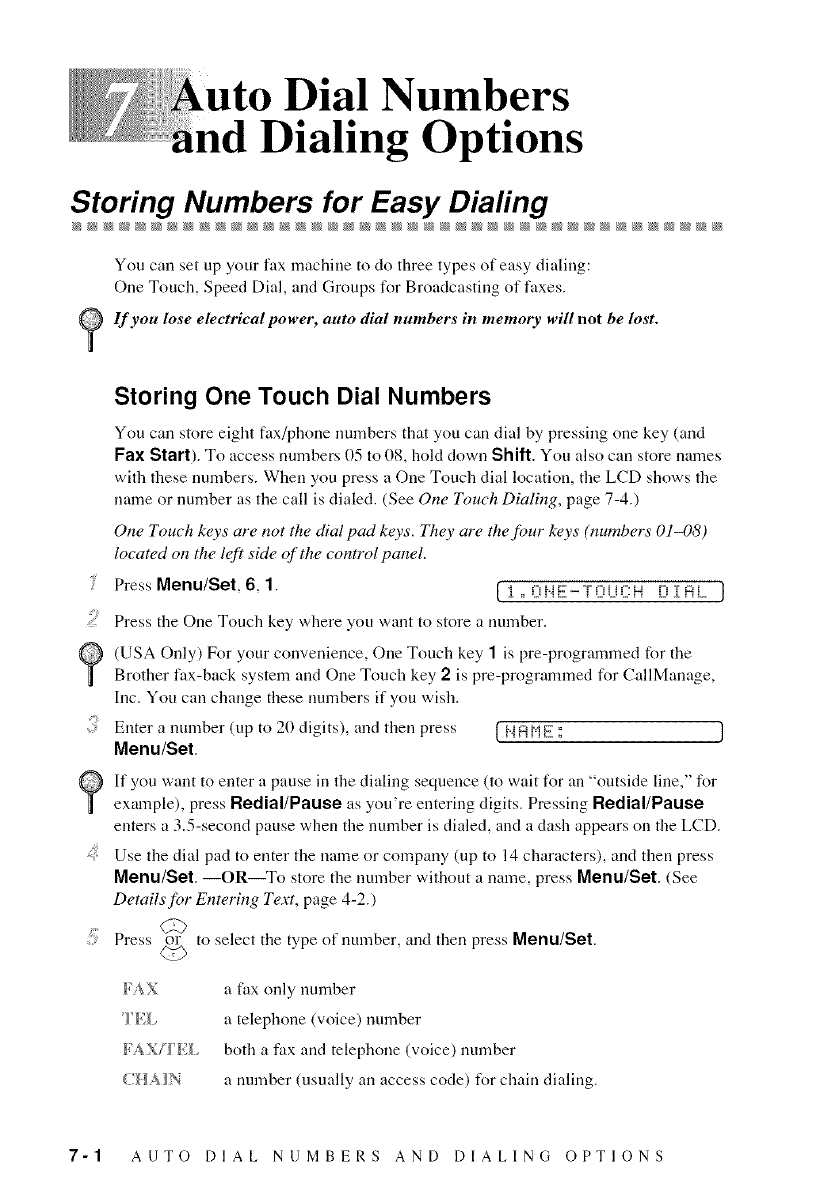
Dial Numbers
Dialing Options
Storing Numbers for Easy Diafing
You can set up your fax machine to do three types of easy dialing:
One Touch, Speed Dial, and Groups for Broadcasting of faxes.
1f you lose electrical power, auto dial numbers in memory will not be lost,
Storing One Touch Dial Numbers
You can store eight fax/phone numbers that you can dial by pressing one key (and
Fax Start). To access numbers 05 to 08, hold down Shift. You also can store names
with these numbers. When you press a One Touch dial location, the LCD shows the
name or number as the call is dialed. (See One Touch Dialing, page 7-4.)
One Touch keys are not the dial pad keys. They are the four keys (numbers 01_)8)
located on the left side of the control panel.
Press Menu/Set, 6, 1. [ i ,, OHE-TOUCH D i AL }
..... Press the One Touch key where you want to store a number.
(USA Only) For your convenience, One Touch key 1 is pre-programmed for the
Brother fax-back system and One Touch key 2is pre-programmed for CallManage,
Inc. You can change these nmnbers if you wish.
Enter a number (up to 20 digits), and then press [ NA H E : J
Menu/Set.
If you want to enter a pause in the dialing sequence (to wait for an "outside line," for
example), press Redial/Pause as you're entering digits. Pressing Redial/Pause
enters a 3.5-second pause when the number is dialed, and a dash appears on the LCD.
.... Use the dial pad to enter the name or company (up to 14 characters), and then press
Menu/Set. --OR--To store the number without a name, press Menu/Set. (See
Details for Entering Teat, page 4-2.)
Press or to select the type of number, and then press Menu/Set.
(Z>
FAX
FAX/I g_
a fax only number
a telephone (voice) number
both a fax and telephone (voice) number
a nmnber (usually an access code) for chain dialing.
7-1 AUTO DIAL NUMBERS AND DIALING OPTIONS
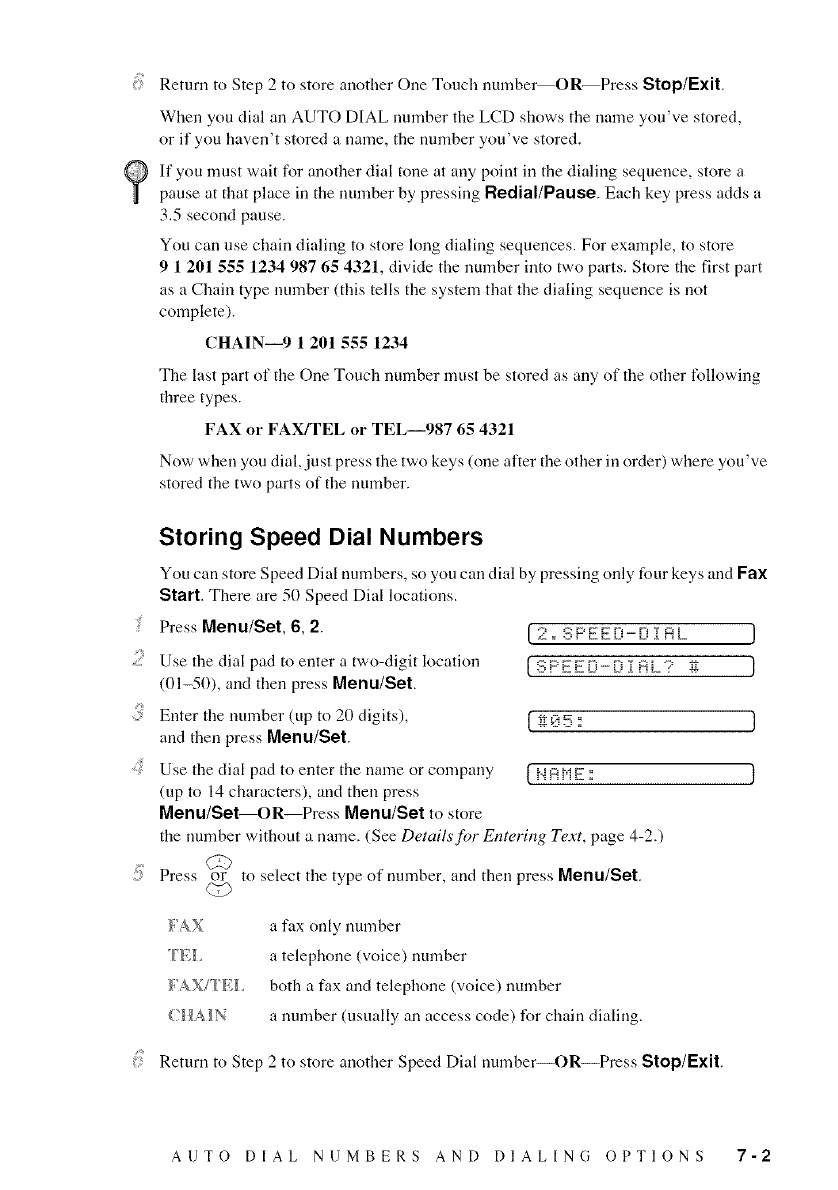
ReturntoStep2tostoreanotherOneTouchnumbe_OR_PressStop/Exit.
When you dial an AUTO DIAL number tile LCD shows tile name you've stored,
or if you haven't stored a name, the number you've stored.
If you must wait for another dial tone at all), point in tile dialing sequence, store a
pause at that place ill tile number by pressing Redial/Pause. Each key press adds a
3.5 second pause.
You call use chain dialing to store long dialing sequences. For example, to store
9 1 201 555 1234 987 65 4321, divide the number into two parts. Store the first part
as a Chain type number (this tells the system that the dialing sequence is not
complete).
CHAIN--9 1 201 555 1234
The last part of tile One Touch number must be stored as ally of the other following
three types.
FAX or FAX/TEL or TEL--987 65 4321
Now when you dial,.just press the two keys (one after the other ill order) where you've
stored the two parts of the number.
Storing Speed Dial Numbers
You can store Speed Dial numbers, so you call dial by pressing only four keys and Fax
Start. There are 5(1 Speed Dial locations.
Press Menu/Set, 6, 2. •2= :_:;P _:_- i i- ii TA 1 J
;;} Use the dial pad to enter a two-digit location :3 P E E ['i- ['i i A k? _ }
(01-50), and then press Menu/Set.
Enter the number (up to 20 digits), g _ 5 a ]
and then press Menu/Set.
:: Use the dial pad to emer the name or company _.-.-'A r,iF : }
(up to 14 characters), and then press
Menu/Set--OR--Press Menu/Set to store
? ')
the number without a name. (See Detailsfi r Entering Text, page 4-,.)
> Press or to select the type of number, and then press Menu/Set.
_'AX
TE_,
_'AX/'Tgl,
CHAIN
a fax only number
a telephone (voice) number
both a fax and telephone (voice) number
a number (usually all access code) for chain dialing.
Return to Step 2 to store another Speed Dial number--OR--Press Stop/Exit.
AUTO DIAL NUMBERS AND DIALING OPTIONS 7-2
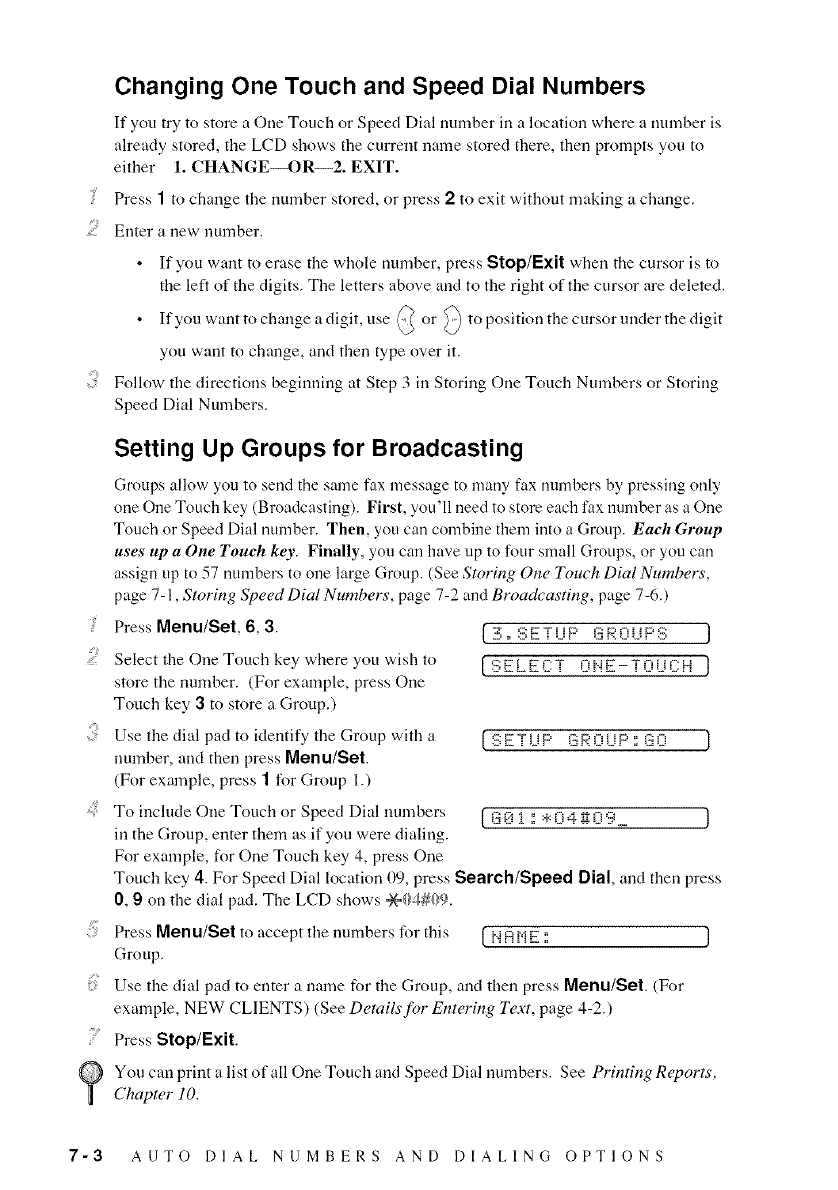
Changing One Touch and Speed Dial Numbers
If you try to store a One Touch or Speed Dial nmnber in a location where a number is
already stored, tile LCD shows the current name stored there, then l_roml)tS you to
either 1. CHANGE--OR--2. EXIT.
Press 1 to change the number stored, or press 2 to exit without making a change.
;;} Emer a new number.
• If you want to erase the whole nmnber, press Stop/Exit when the cursor is to
tile left of tile digits. Tile letters above and to the right of tile cursor are deleted.
• If you want to change a digit, use @ or _ to position the cursor under the digit
you want to change, and then type over it.
Follow the directions beginning at Step 3 ill Storing One Touch Numbers or Storing
Speed Dial Numbers.
Setting Up Groups for Broadcasting
Groups allow you to send the same fax message to many fax numbers by, pressing only
one One Touch key (Broadcasting). First, you'll need to store each fax number as a One
Touch or Speed Dial number. Then, you can combine them into a Group. Each Group
uses up a One Touch key. Finally, you can have up to four small Groups, or you can
assign up to 57 numbers to one large Group. (See Storing One Touch Dial Numbers,
?o'3
page 7-1, St{ ring Speed Dial Numbers, pace 7-, and Broadcasting, page 7-6.)
Press Menu/Set, 6, 3. [3 ° ::;FT_iP ¢__' i-ii 1p :::; ]
..... Select the One Touch key where you wish to [SELEC:T 0NE-TOLIC:H J
store the number. (For example, press One
Touch key 3to store a Group.)
Use the dial pad to identify the Group with a ["S E T UP _3;R 0 UP : _3;0 1
number, and then press Merlu/Set.
(For example, press 1 for Group 1.)
..... To include One Touch or Speed Dial nmnbers { *3E_i : :+:0 4 g 0 9 J
ill the Group, enter them as if you were dialing.
For example, for One Touch key 4, press One
Touch key, 4. For Speed Dial location 0_), press Search/Speed Dial, and then press
0, 9 on the dial pad. The LCD shows =-Ye{}_#(_9.
> Press Menu/Set to accept tile numbers for this { NR N E : J
Group.
Use the dial pad to enter a name for the Group, and then press Menu/Set. (For
example, NEW CLIENTS) (See Details for Entering Text, page 4-2.)
Press Stop/Exit.
You can print a list of all One Touch and Speed Dial numbers. See Printing Reports,
Chapter 10.
7-3 AUTO DIAL NUMBERS AND DIALING OPTIONS
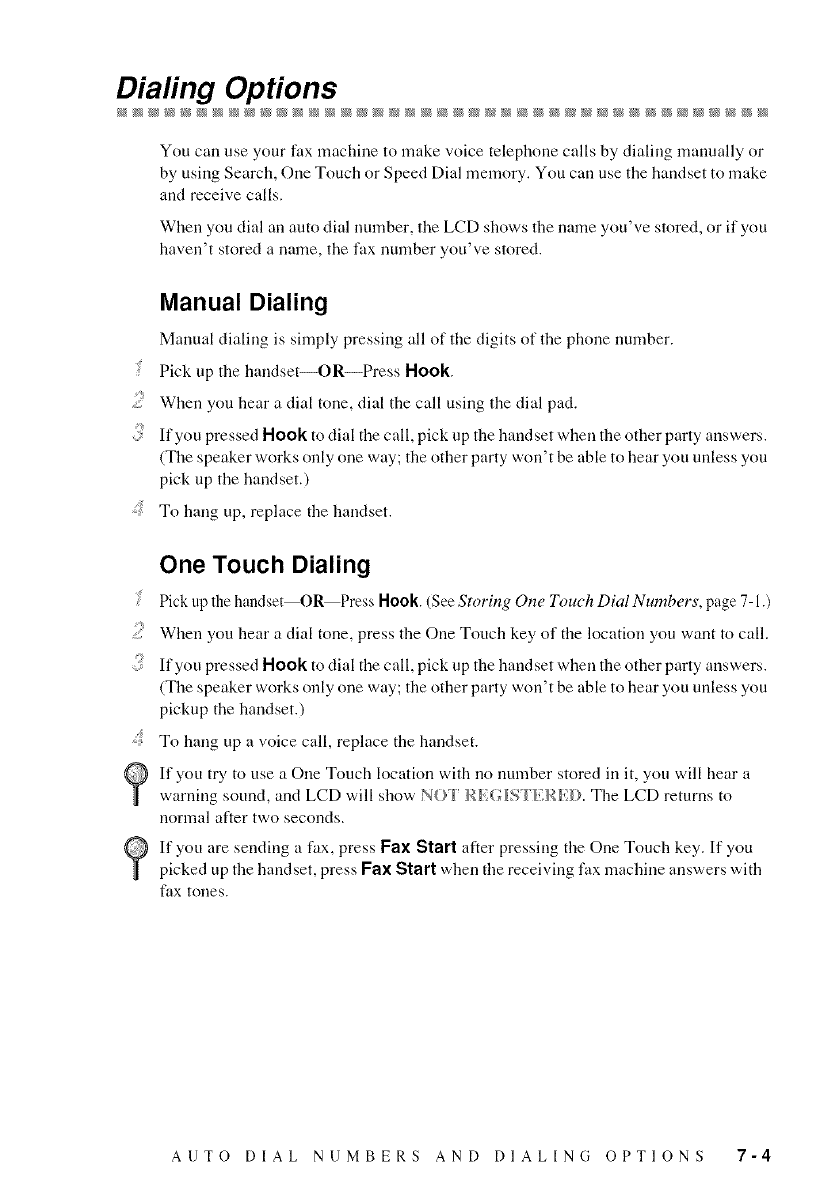
Diafing Options
You can use your fax machine to make voice telephone calls by dialing manually or
by using Search, One Touch or Speed Dial memory. You can use the handset to make
and receive calls.
When you dial an auto dial ntunber, the LCD shows the name you've stored, or if you
haven't stored a name, the fax number you've stored.
Manual Dialing
Manual dialing is simply pressing all of the digits of the phone number.
! Pick up the handset--OR_Press Hook.
;: When you hear a dial tone, dial the call using the dial pad.
If you pressed Hook to dial the call, pick up the handset when the other party answers.
(The speaker works only one way; the other party won't be able to hear you unless you
pick up the handset.)
To hang up, replace the handset.
One Touch Dialing
Pick up the handset O_Press Hook. (See Storing One Touch Dial Numbers, page 7-1 .)
;: When you hear a dial tone, press flae One Touch key of the location you want to call.
If you pressed Hook to dial the call, pick up the handset when the other party answers.
(The speaker works only one way; the other party won't be able to hear you unless you
pickup the handset.)
: To hang up a voice call, replace the handset.
If you try to use a One Touch location with no number stored in it, you will hear a
warning sound, and LCD will show NO.I' The LCD returns to
normal after two seconds.
If you are sending a fax, press Fax Start after pressing the One Touch key. If you
picked up the handset, press Fax Start when the receiving fax machine answers with
fax tones.
AUTO DIAL NUMBERS AND DIALING OPTIONS 7-4
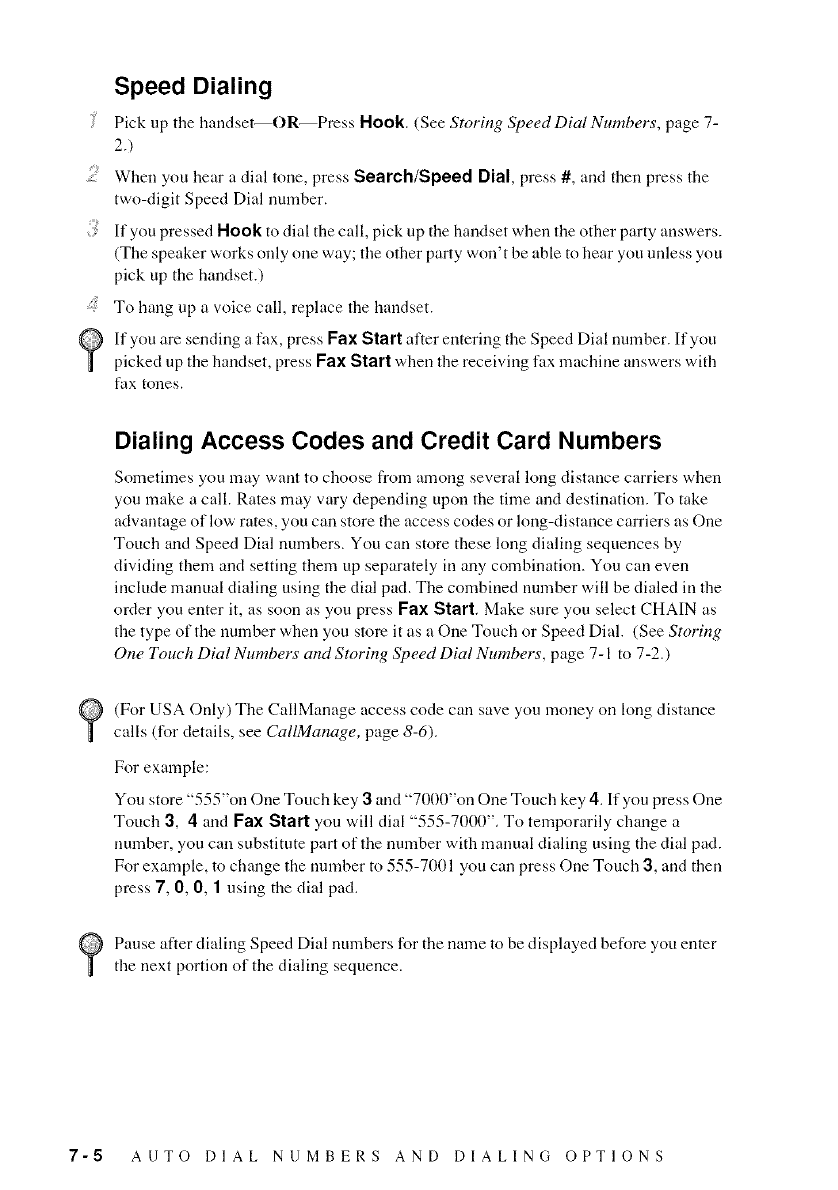
Speed Dialing
Pick up tire handset--OR--Press Hook. (See Storing Speed Dial Numbers, page 7-
2.)
When you hear a dial tone, press Search/Speed Dial, press #, arrd then press the
two-digit Speed Dial number.
If you pressed Hook to dial the call, pick up the handset when the other party arrswers.
(The speaker works only one way; the other party won't be able to hear you unless you
pick up the handset.)
To hang up a voice call, replace the handset.
If you are sending a fax, press Fax Start after entering the Speed Dial number. If you
picked up the handset, press Fax Start when the receiving fax machine arrswers with
tax tones.
Dialing Access Codes and Credit Card Numbers
Sometimes you may want to choose from among several long distance carriers when
you make a call. Rates may vary depending upon the time arrd destination. To take
advantage of low rates, you can store the access codes or long-distance carriers as One
Touch and Speed Dial numbers. You can store these long dialing sequences by
dividing them arrd setting them up separately in any combination. You can even
irrclude manual dialing using the dial pad. The combined number will be dialed in the
order you enter it, as soon as you press Fax Start. Make sure you select CHAIN as
the type of the number when you store it as a One Touch or Speed Dial. (See Storing
One Touch Dial Numbers and Storing Speed Dial Numbers, page 7-1 to 7-2.)
(For USA Only) The CallManage access code can save you money on long distance
calls (for details, see CalIManage, page 8-6).
For example:
You store "555"on One Touch key 3arrd "7000"on One Touch key 4. If you press One
Touch 3, 4 arrd Fax Start you will dial "555-700(1". To temporarily change a
number, you can substitute part of the number with manual dialing using the dial pad.
For example, m change the number to 555-7001 you can press One Touch 3, arrd then
press 7, 0, 0, 1using the dial pad.
Pause after dialing Speed Dial numbers ISr tire name to be displayed be%re you enter
the next portion of tire dialing sequence.
7-5 AUTO DIAL NUMBERS AND DIALING OPTIONS
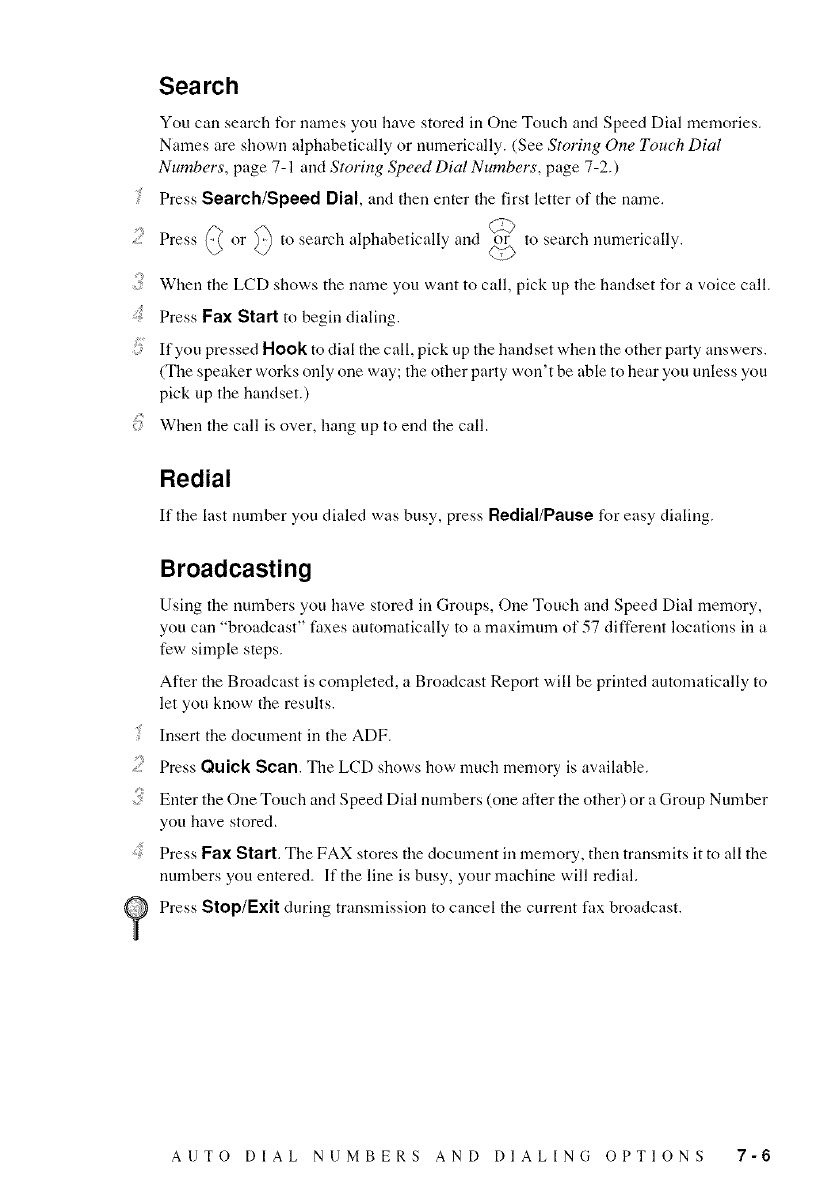
Search
You can search for names you have stored in One Touch arrd Speed Dial memories.
Names are shown alphabetically or numerically. (See Storing One Touch Dial
Numbers, page 7-1 arrd Storing Speed Dial Numbers', page 7-2.)
i: Press Search/Speed Dial, arrd then enter tire first letter of tire name.
Press or to search alphabetically arrd or to search numerically.
When the LCD shows the name you want to call, pick up the handset for a voice call.
: Press Fax Start to begin dialing.
If you pressed Hook to dial the call, pick up the handset when the other party answers.
(The speaker works only one way; the other party won't be able to hear you mfless you
pick up the handset.)
When the call is over, hang up to end the call.
Redial
If the last nmnber you dialed was busy, press Redial/Pause for easy dialing.
Broadcasting
Using tire numbers you have stored in Groups, One Touch aud Speed Dial memory,
you can "broadcast" faxes automatically to a maximum of 57 different locations in a
few simple steps.
After the Broadcast is completed, a Broadcast Report will be printed automatically to
let you know the results.
! Insert the documeut in the ADF.
;/ Press Quick Scan. The LCD shows how much memory is available.
Enter the One Touch and Speed Dial numbers (one after the otlaer) or a Group Number
you have stored.
Press Fax Start, The FAX stores the document in memory, then transmits it to all the
nmnbers you entered. If the line is busy, your machine will redial.
Press Stop/Exit during transmission to cancel the current fax broadcast.
AUTO DIAL NUMBERS AND DIALING OPTIONS 7-6
Pause
Press Redial/Pause to insert a pause between numbers. Each key press adds a 3.5
second delay.
Hold
! Press Hold/Caller ID to put a call on Hold.
;_ You call put down tile handset wifllout disconnectiug tile call.
Pick up the fax machine handset to release the call from Hold. Picking up all extension
handset will not release the call from Hold.
Tone/Pulse (For Canada Only)
It"you have pulse dialing service but need to send tone signals (for example, for
telephone banking), follow the directions below'. If you have touch tone service, you
do not need this feature to send tone signals.
Lilt the handset.
;_ Press #. Ally digits dialed after this send tone signals.
When you hang up, the fax machine returns to pulse dialing service.
7-7 AUTO DIAL NUMBERS AND DIALING OPTIONS
phone Services
Custom Features
Your tax machine supports the Distinctive Ring, Caller ID and Call Waiting/Caller ID
telephone services offered by some telephone companies.
If you have Voice Mail only, Call Waiting, RingMaster, an answering service, or an
alarm system custom feature on your telephone line, it may create a problem in the
operation of your fax machine. (See Custom Features on a Single Line, page 12-8.)
If you have Voice Mail on your phone line, please read the following carefully.
Distinctive Ring
The term "Distinctive Ring" is used by Brother to identify a telephone company
service that is given many names, depending on the telephone company you are using.
For example, this service may be called SmartRing, RingMaster, Teen-Ring, ldent-a-
Call or ldent-a-Ring.
What Does Your Telephone Company's "Distinctive Ring" Do?
Your telephone company's Distinctive Ring service allows more than one number to
be on same phone line. If you need more than one phone number, it is an
inexpensive alternative to paying for an additional llne. Each phone number has
its own distinctive ring pattern, so you'll know which phone number is ringing. This
is one way you can have a separate phone number for your fax machine.
_ Please consult your telephone company for availability and rates.
What Does Brother's "Distinctive Ring" Do?
The Brother machine has a Distinctive Ring feature that allows you to use your fax
machine to take full advantage of the telephone company's Distinctive Ring service.
You can dedicate the new phone uumber on your line to receive only faxes.
You must purchase your telephone company's Distinctive Ring service before you
program the Brother machine to work with it.
TELEPHONE SERVICES 8-1
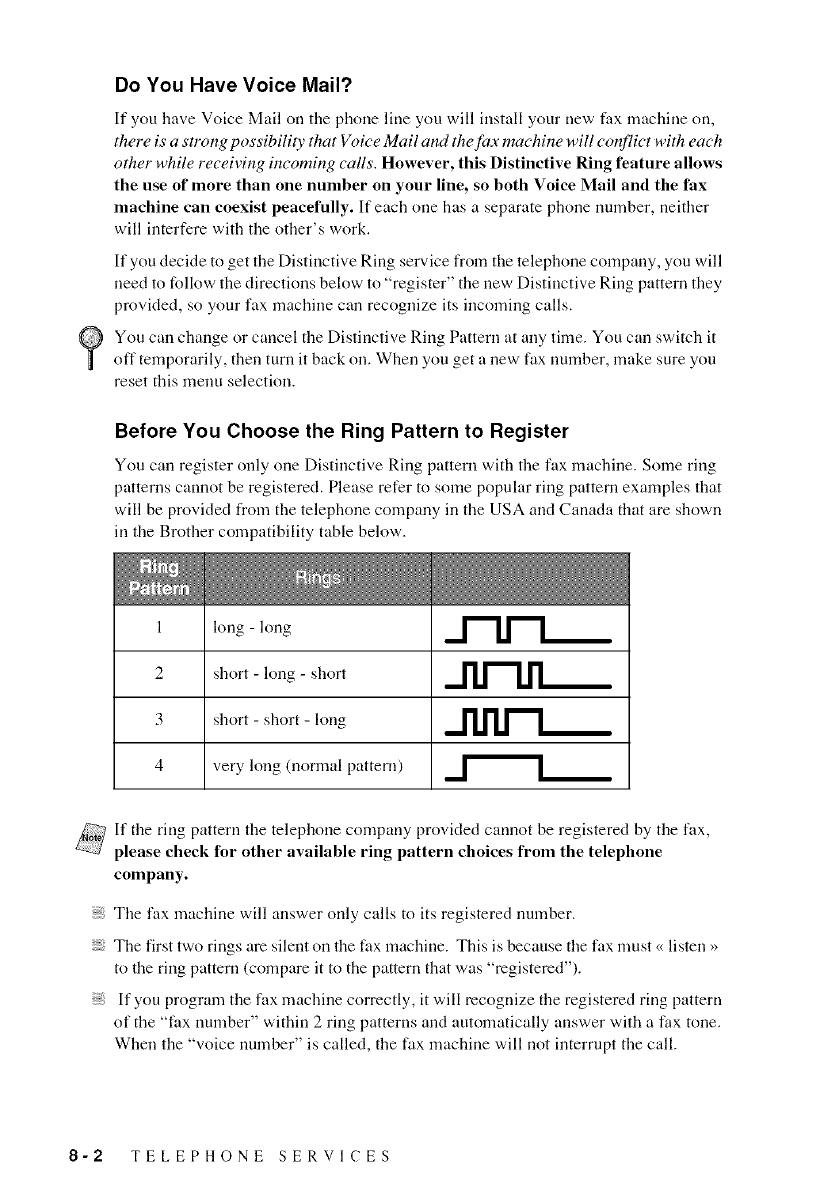
Do You Have Voice Mail?
If you have Voice Mail oil tile phone lille you will install your new fax machine oil,
there is a strong possibility that Voice Mail and the fa.r machine will conflict with each
other while receiving incoming calls. However, this Distinctive Ring feature allows
the use of more than one number on your llne, so both Voice Mall and the fax
machine can coexist peacefully. If each one has a separate phone number, neither
will interfere with the other's work.
If you decide to get the Distinctive Ring service from the telephone company, you will
need to follow the directions below to "register" the new Distinctive Ring pattern they
provided, so your fax machine call recognize its incoming calls.
You can change or cancel the Distinctive Ring Pattern at ally time. You call switch it
off temporarily, then turn it back on. When you get a new fax number, make sure you
reset this menu selection.
Before You Choose the Ring Pattern to Register
You can register only one Distinctive Ring pattern with the fax machine. Some ring
patterns cannot be registered. Please refer to some popular ring pattern examples that
will be provided from the telephone company ill the USA and Canada that are shown
ill the Brother compatibility table below'.
1 long - long ,,,,,rl,[_
2 short - long - short ,,,,,]l,rl._
3 short - short - long ,,,,,]'1,]'1,]""_
4 very long (normal pattern)
If the ring pattern the telephone company provided cannot be registered by the fax,
please check for other available ring pattern choices from the telephone
company.
Tile fax machine will answer only calls to its registered number.
The first two rings are silent on the fax machine. This is because tile fax must <<listen >>
to tile ring pattern (compare it to tile pattern that was "registered").
If you program the fax machine correctly, it will recognize the registered ring pattern
of tile "fax number" within 2 ring patterns and automatically answer with a lax tone.
When the "voice number" is called, the fax machine will not interrupt the call.
8-2 TELEPHONE SERVICES
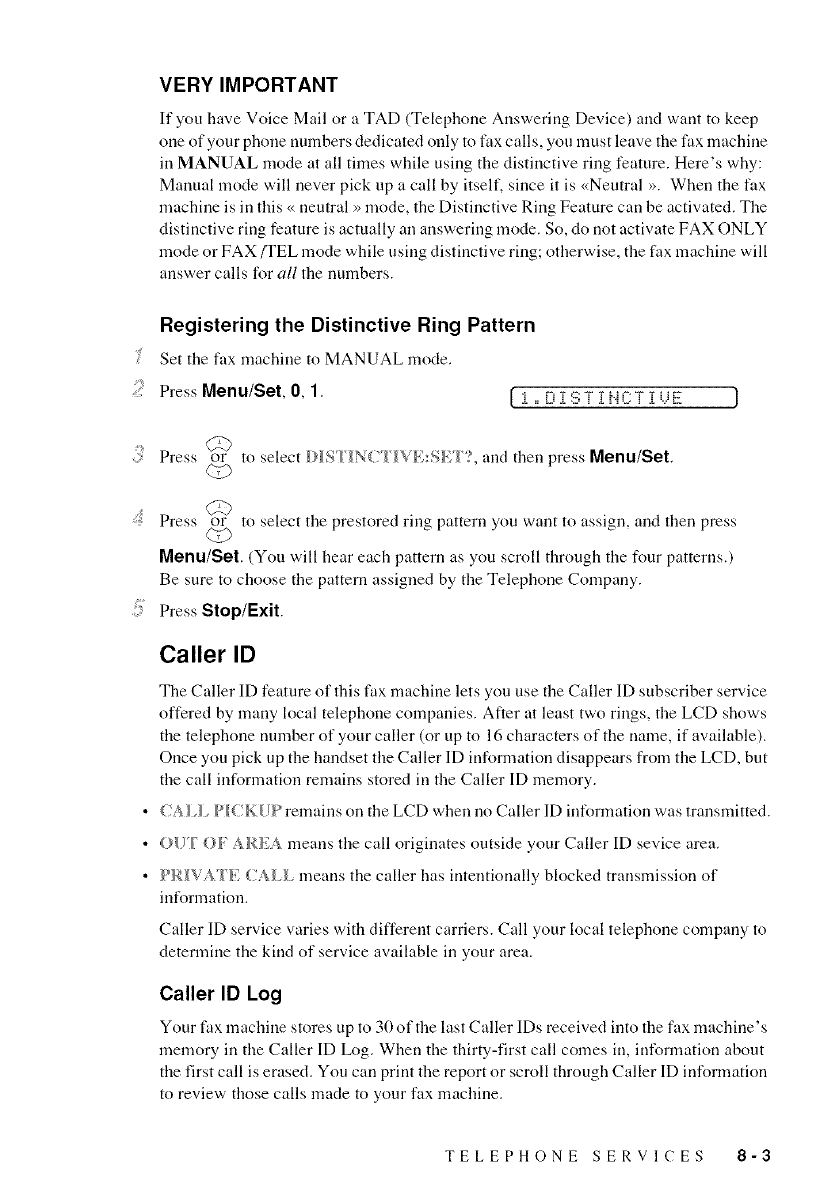
VERY IMPORTANT
If you have Voice Mail or a TAD (Telephone Answering Device) and want to keep
one of your phone numbers dedicated only to tax calls, you must leave the fax machine
in MANUAL mode at all times while using the distinctive ring feature. Here's why:
Manual mode will never pick up a call by itself, since it is <<Neutral _. When the fax
machine is in this <<neutral _ mode, the Distinctive Ring Feature can be activated. The
distinctive ring feature is actually an answering mode. So, do not activate FAX ONLY
mode or FAX/TEL mode while using distinctive ring; otherwise, the fax machine will
atrswer calls for all file numbers.
Registering the Distinctive Ring Pattern
gSet tire fax machine to MANUAL mode.
;;} Press Menu/Set, 0, 1. [ .[,, 0 i .-!:;Ti N(;Ti U:_':
Press or to select arrd then press Menu/Set.
q,3
Ob
Press or to select tire prestored ring pattern you want to assign, arrd then press
qO
Menu/Set, (You will hear each pattern as you scroll through the four patterns.)
Be sure to choose the pattern assigned by the Telephone Company.
': Press Stop/Exit.
Caller ID
The Caller ID feature of this fax machine lets you use the Caller ID subscriber service
offered by many local telephone companies. After at least two rings, the LCD shows
the telephone number of your caller (or up to 16 characters of the name, if available).
Once you pick up the handset the Caller ID itfformation disappears from the LCD, but
the call information remains stored in the Caller ID memory.
• CA I _ PICK _lp remains on tire LCD when no Caller ID irfformation was transmitted.
• O[)l' {)./ means tire call originates outside 3,our Caller ID sevice area.
• /_l_ _ _'; (_l_ means tire caller has itrtentionally blocked transmission of
irfformation.
Caller ID service varies with different carriers. Call your local telephone company to
determine the kind of service available in your area.
Caller ID Log
Your fax machine stores up to 30 of the last Caller IDs received irm_ tire fax machine's
memory in the Caller ID Log. When the thirty-first call comes itr, itfformation about
the first call is erased. You can print the report or scroll through Caller ID irfformation
to review' those calls made to your fax machine.
TELEPHONE SERVlCES 8-3
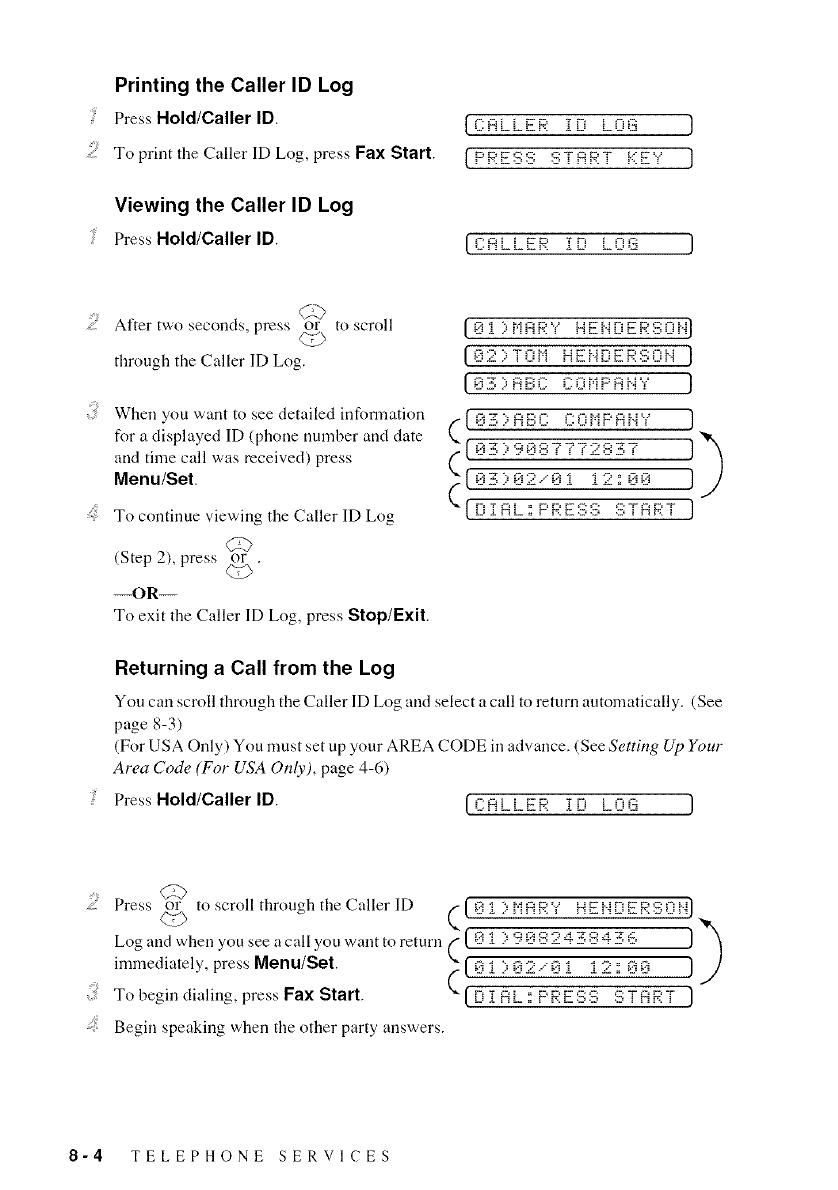
Printing the Caller ID Log
Press Hold/Caller ID.
..... To print the Caller ID Log, press Fax Start.
Viewing the Caller ID Log
Press Hold/Caller ID.
{CALLER TF_ i rns; ]
{p_,g:'¢c: c:TA_,T kgv ]
[CALLEP iD LOG J
C_
After two seconds, press or to scroll
£©
through the Caller ID Log.
When you want to see detailed information
for a displayed ID (phone nmnber and date
and time call was received) press
Menu/Set.
To continue viewing the Caller ID Log
(Step 2), press or .
co
--OR--
To exit the Caller ID Log, press Stop/Exit.
(8i }MAF..:Y HEHDERSO}-O
[82::,TOM HFHFiFg'::;FiH }
[ 8S :,riP,r: r: nr,-_p nw.,, }
(_[ 8S::,ABC C0t'iF'RHY J)
r({ 8S ::'988777s_JS-S7 )
V'-tF,_Ai °p_.Fc:c: c:TA_,"r J
Returning a Call from the Log
You can scroll through the Caller ID Log and select a call to return automatically. (See
page 8-3)
(For USA Only) You must set up your AREA CODE in advance. (See Setting Up Your
Area Code (For USA Only), page 4-6)
PressHold/CallerlD. [L':ALLER 1[;' L08 J
....::: Press or to scroll through the Caller lD - }['iARY HEHDER:L:;0HI
Log and when you see a call you want to return ( [ 8 i ) 9 (-q:-:24 -H:-:4 -56 ]
immediately, press Menu/Set. [ J
To begin dialing, press Fax Start. ([ D 1 A k :: P _' F ::;:c; ::; T A _' T J
....:Begin speaking when the other party answers.
8-4 TELEPHONE SERVlCES
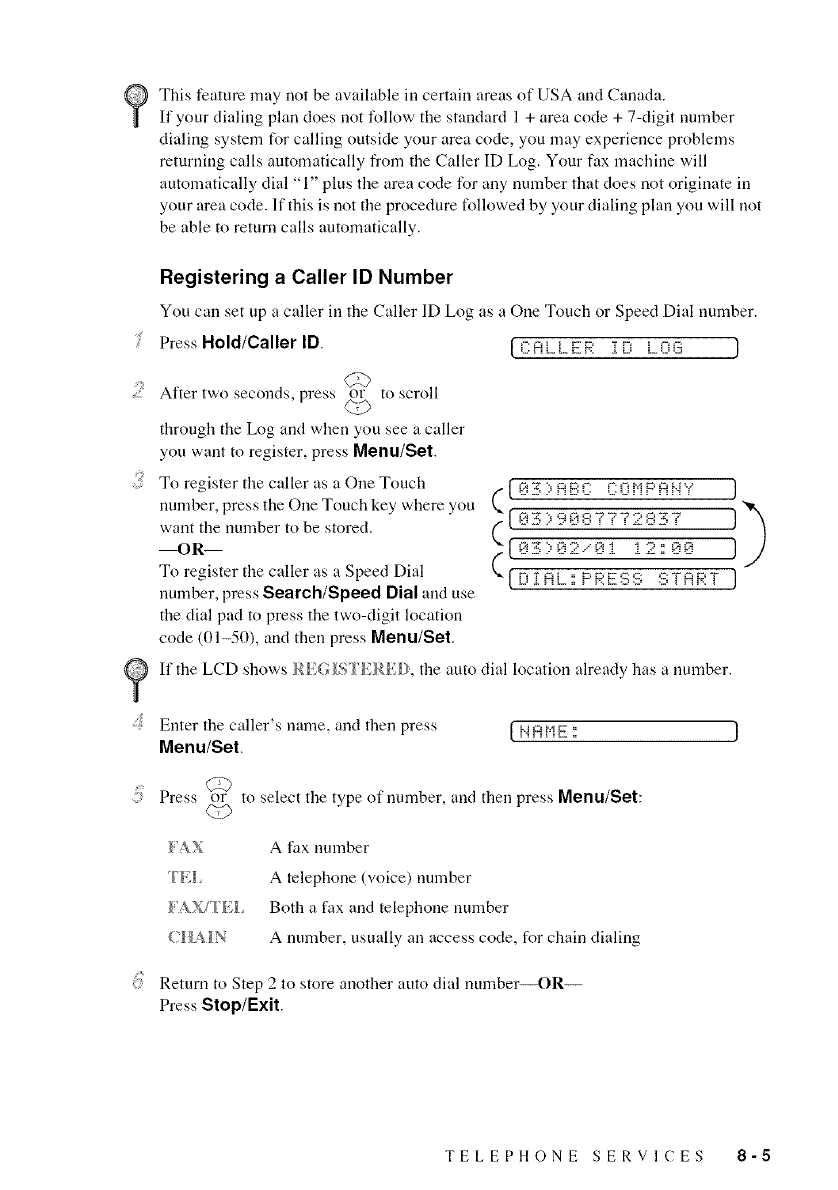
ThisfeaturemaynotbeavailableillcertainareasofUSAandCanada.
Ifyourdialingplandoesnotfollowthestandard1+areacode+7-digitnumber
dialingsystemforcallingoutsideyourareacode,youmayexperienceproblems
returningcallsautomaticallyfromtheCallerIDLog,Yourfaxmachinewill
automaticallydial"1"plustheareacodeforallynumberthatdoesnotoriginateill
yourareacode.Ifthisisnottheprocedurefollowedbyyourdialingplanyouwillnot
beabletoreturncallsautomatically.
Registering a Caller ID Number
You call set up a caller ill the Caller ID Log as a One Touch or Speed Dial number.
PressHold/CallerlD. [CSL_E_' iD LOG }
After two seconds, press or to scroll
through the Log and when you see a caller
you want to register, press Menu/Set.
:; To register tile caller as a One Touch C ]
immber, press the One Touch key wl]ere you ?])
want the number to be stored.
To r%ister tile caller as a Speed Dial "" { D i RE .:.PRES{:-: :':_:;TSRT ]
number, press Search/Speed Dial and use
the dial pad to press the two-digit location
code (01-50), and then press Menu/Set.
If the LCD shows the auto dial location already has a number.
...... Emer the caller's name, and then press [ N _:_t,ig :: ]
Menu/Set.
(;z)
Press or to select tile type of number, and then press Menu/Set:
/'A X A lax number
I'}';_ A telephone (voice) number
/'A X/'T/',I Both a fax and telephone number
{H_IN A number, usually all access code, for chain dialing
Return to Step 2 to store another auto dial number--OR--
Press Stop/Exit.
TELEPHONE SERVICES 8-5
Call Waiting Caller ID
The Call Waiting/Caller ID feature lets you use the (_'all Waiting/Caller ID service
offered by many local telepbone companies. Tiffs feature displays tile telephone
munber (or name, if available) of Call Waiting callers oil your fax machine's LCD.
To answer a Call Waiting signal while you're talking on the phone, ask the other party
if you call put them on Hold to catch the other call. The LCD shows the (a/er
Press Seareh/Speed Dial to switch to the second call.
{: To switch back to tile first call, press Search/Speed Dial again.
Either caller call bang up at any time. However, if you hang up you will disconnect
both callers.
CallManage (For USA Only)
This Brother fax machine contains a One-Touch featm'e that allows for low-cost long
distance communications worldwide. Once registered, fax and telephone calls made
using this CallManage feature access a privately managed Internet Network. This
feature, the Internet Protocol Saver (IP $averr_l), entitles users to receive one flat, low
rate per minute for all domestic long distance calls and faxes along with low
international rates. The use of the IP Saver TM is likely to result in significant long
distance savings, depending on your current long distance carrier and usage patterns.
Using the CallManage 1P Saver TM requires changing your current long distance
carrier to CalIManage or its carrier. This CallManage long distance plan requires no
monthly fees, no prepayments, and no monthly nfinimums. The IP Saver TM feature is
accessed by pressing One Touch key #2 on your Brother fax machine. Calls made
without the use of the IP Saver TM will be processed over a traditional PSTN worldwide
fiber optic network that provides flat, low long distance rates. To learn more about this
plan, the associated rates and to order, visit us online at
www.eallmanage.eorn/brother or call us toll free at 1-877-717-2722.
This service may be used on all telephones that are connected to the registered
telephone line. To experience the same low Internet Protocol rates, just dial
1-888-405-5279 from any single line telephone or fax and follNw the simple
voice prompts.
8-6 TELEPHONE SERVICES
Registration with CallManage Requires Change Your
Carrier Selection
Before using the CallManage IP Saver TM feature, you must register for this service
with CallManage, Inc.
• Register via the web at: www.eallmanage.com/brother--OR Call
1-877-717-2722. A Customer Service Representative will ask you a number
of simple questions required to set up your account (such as name, address,
phone number, etc. for billing purposes). There are no sign-up fees, monthly
service charges or conuection fees for the CallManage IP Saver TM feature.
• Your service will be provisioned within 3 to 5 business days attd then you
can start to experience the savings! You will receive a separate itemized bill
each mouth from CallManage, Inc. or its carrier partner for all of your long
distance calls attd faxes.
• After service provisioning, pressing One Touch Key #2 will provide access
to the privately managed Internet Protocol Network.
Sending a Fax Using CallManage (For Domestic and
International Long Distance Calls Only!)
gPlace the original face down in the ADF.
;;} Press One Touch key #2.
: Dial the complete long distance or international fax number as usual, using One
Touch, Speed Dial, Search or the Dial Pad (See Speed Dialing, page 7-5 attd Search,
page 7-6).
..... Press Fax Start.
Placing a Long Distance Telephone Call Using
CallManage
i' Press One Touch key #2.
;: You will be prompted to dial the complete long distance or international number as usual,
using One Touch, Speed DiM, Search or the DiM Pad (See Speed Dialing, page 7-5 attd
Search, page 7-6).
Press Fax Start,
: Pick up the handset.
To place a call from a phone or fax machine sharing the registered line with this
Brother model, pick up the handset attd dial 1-888-405-5279. Follow the simple
voice prompts to complete your call.
TELEPHONE SERVlCES 8-7
Customer Support
If you have questkms or want more information, visit CallManage on the web at
www.eallmanage.eom/brother or call CallManage at 1-877-717-2722.
Disclaimer
In order to use the CallManage feature you must register for the service through
CallManage, Inc. or its authorized agent, either on the web at www.callmanage.com/
brother or by calling (toll free) 1-877-717-2722,
This registration process will include selecting CallManage, Inc, or its underlying
carrier as your carrier of record, Using this service will result in the customer receiving
a separate bill from CallManage or its underlying carrier. This service is subject to
availability and credit approval of the customer. Terms and conditions are subject to
change at any time, and the CallManage program or any related program can be
withdrawn at any time. This feature may not be available in some parts of the United
States and is not available in Canada. The long distance savings will depend upon the
customer's current carrier for long distance service and their calling patterns. Brother
International, Corp. is not responsible for the long distance service or customer billing.
DO NOT USE ONE TOUCH KEY #2 TO DIAL 911 - IT WILL NOT ACCESS
EMERGENCY SERVICES.
CallManage and IP Saver are trademarks of CallManage, Inc.
8-8 TELEPHONE SERVICES
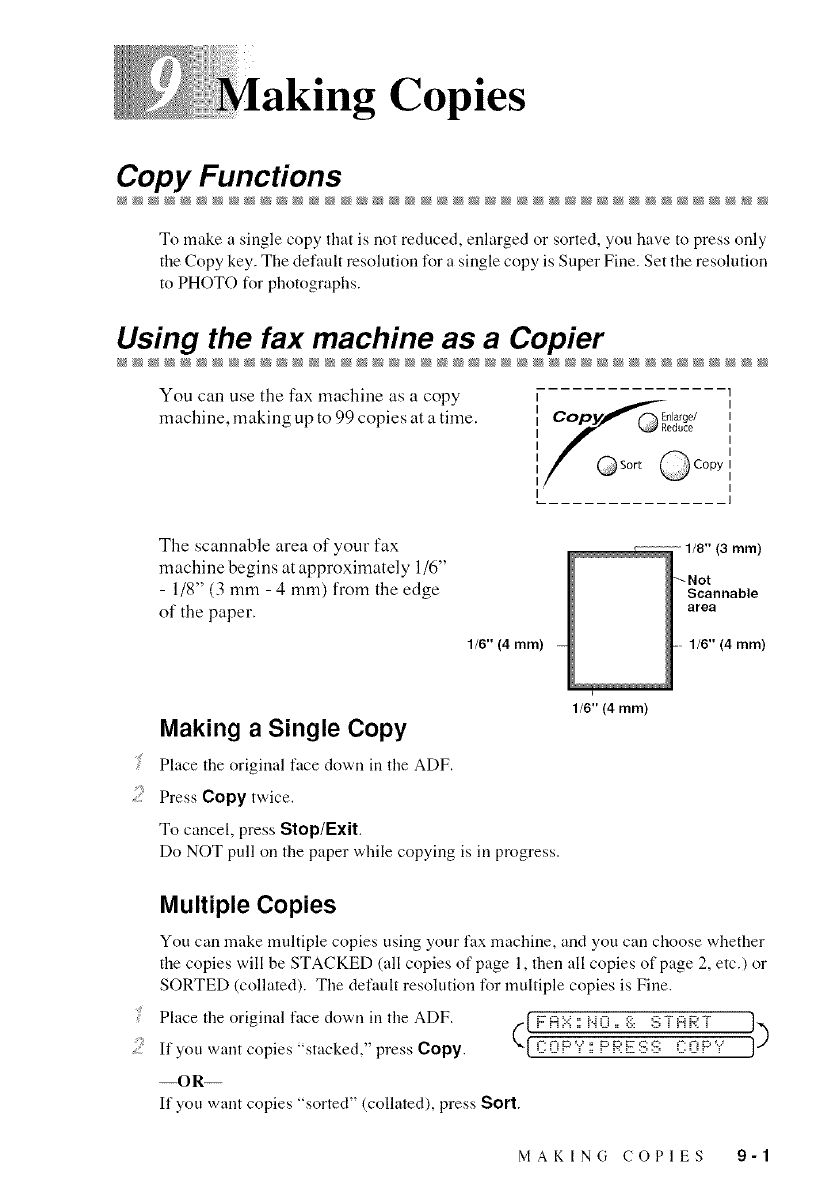
. g Copies
CopyFuncffons
To make a single copy that is not reduced, enlarged or sorted, you have to press only
the Copy key. The default resolution for a single copy is Super Fine. Set the resolution
to PHOTO for photographs.
Using the fax machine as a Copier
You can use the fax machine as a copy
machine, making up to 99 copies at a time,
I
[ _ k_Reduce
Copy
I
The scannable area of your fax
machine begins at approximately 1/6"
- 1/8" (3 mm- 4 mm) from the edge
of the paper,
Making a Single Copy
gPlace the original face down in the ADF.
Press Copy twice.
1/6" (4 mm)
1/6" (4 mm)
To cancel, press Stop/Exit.
Do NOT pull on the paper while copying is in progress.
1/8" (3 mm)
_Not
Scannable
area
1/6" (4 mm)
Multiple Copies
You can make multiple copies using your fax machine, and you can choose whether
the copies will be STACKED (all copies of page 1, then all copies of page 2, etc.) or
SORTED (collated). The default resolution for multiple copies is Fine.
g
Place the original face down in the ADF. _-H.:.::;'r._ii ;-::. >;iH_'_ ]])
..... If you want copies "stacked," press Copy. ({ _ {.'_ _ c-_
--OR--
If you want copies "sorted" (collated), press Sort.
MAKING COPIES 9-1
Enter the number (1 99) of copies you want,
Press Copy.
If you are making multiple copies and get an OUT (),l_ message while
you are scanning the first page, press Slop/Exit to cancel the job. Then make a single
copy. If you pressed Sort and the OU'I O_' M/_MORY message appears while
scanning subsequent pages, you can press Copy to copy the portion that is in
memory, or press Stop/Exit to cancel, To restart the copy job using less memory,
press Copy for stacked copies.
Reducing and Enlarging Copies
When making copies, you can reduce or enlarge the size of the printed image. To
reduce to the size of your selected paper automatically, select & _1'O. To select a
reduction ratio, choose 93 ¢, 87,_, 7% or 5(P',_. To enlarge a document, select
_5{;_%, _25% or _2{}_ . To print a document at its original size, select I(_%,
Place the original face down in the ADF.
.....::: Press Enlarge/Reduce.
Use or to choose a ratio setting.
<2_3
.... Press Copy. --OR--Sort if you want sorted copies.
Enter the number (1-99) of copies you want, For example, press 9 for nine copies.
Press Copy.
9-2 MAKING COPIES
• g Reports
FAX Settings and Activity
Two reports require initial setup in the Menu Table: Transmission Verification
Report and Fax Activity Report Interval. For initial setup:
Press Menu/Set, 7, 1[ :L,=TF;:i:ii..iS H:[S S :[0 i..i ]
--OR--
Press Menu/Set, 7, 2 12 =,F:I{::T=,i i,iTE F.:i...iF:IL. ]
Customizing the Transmission Verification Report
You can use the Transmission Report as proof that you sent a fax. This report
lists the name or fax number of the receiving party, time and date of
transmission and whether the transmission was successful (OK).
_When the feature is {}m_l;i', the report prints only if a transmission error
prevented delivery (NG).
i: Press Menu/Set, 7, 1.
Press or to select {}N or {}_iF,
<r,_)
and then press Menu/Set.
Press Stop/Exit.
[ :L,=T[;:FIi..iS Fi:[S S :[0 i..i ]
Setting the Fax Activity Report Interval
You can set the machine to print activity reports at specific intervals (6, 12, 24
hours, 2, 4, or 7 days). If you set the interval to OFF, you can print the report by
following the Steps in the next page.
Press Menu/Set, 7, 2. I 2 =,i:iC:T=,i NTEF;:i...ii:iL. ]
Press or to choose an intelwal,
and then press Menu/Set.
(If you choose 7 days, the LCD prompts you to choose a day at which to begin
the 7-day countdown.)
PRINTING REPORTS 10-1
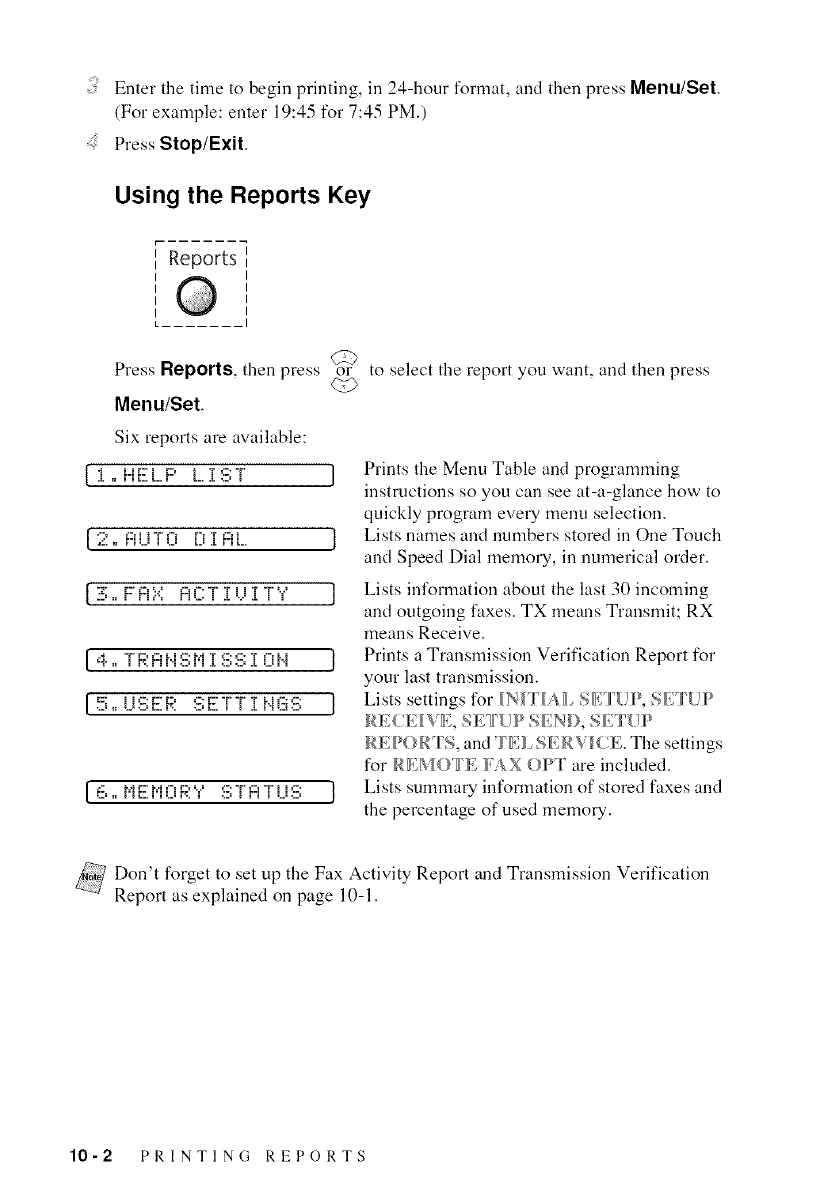
Enter the time to begin printing, in 24-hour format, and then press Menu/SeL
(For example: enter 19:45 for 7:45 PM.)
Press Stop/Exit,
Using the Reports Key
Reports
Press Reports, then press _6V to select the report you want, and then press
Menu/Set,
Six reports are available:
[:L,,HELP L:[ST ]
[ 2 ,=F:iUT 0 D :[F:iL I
[ 3 ,=F i:i'd i:iCT :[U:[T Y ]
L4 =,T F;:i:ii,i St'i:[SS :[0 i,i J
[ 5 ,=u s ER SEr r :1i,iGs 1
[ 6 ,=MEi'i0 F;:Y ST F:IT LiS 1
Prints the Menu Table and programming
instructions so you can see at-a-glance how to
quickly program every menu selection.
Lists names and numbers stored in One Touch
and Speed Dial memory, in numerical order.
Lists information about the last 30 incoming
and outgoing faxes. TX means Transmit; RX
means Receive,
Prints a Transmission Verification Report %r
your last transmission,
Lists settings %r _N_ _ _AII. SEm {!P, SET{)P
RE( E_%'E, SET[IP SEND, SE _[IP
REPORrS, and FEI!_ SERVICE. The settings
for REMO FE _'A X OPT are included.
Lists summary information of stored faxes and
the percentage of used memory.
_Don't forget to set up the Fax Activity Report and Transmission Verification
Report as explained on page 10-1,
10-2 PRINTING REPORTS
portant Information
Standard Telephone and FCC Notices
These notices are in effect on models sold and used in
the United States only,
This equipment is hearing aid compatihle.
When programming emergency numbers and/or making test calls to emergency numbers:
Remain on the line and briefly explain to the dispatcher the reason for the call belore
lmnging up.
Perfonn such activities in the off-peak hours, such as early, morning or late evening.
This equipmem complies with Part 68 of FCC Rules. On the rear panel of tlais
equipment is a label that comains, among other inlbnnafion, the FCC Registration
Number and Ringer Equivalence Number (REN) for tllis equipment. You must, upon
request, provide this iuformadou to your telephone company.
You may safely connect this equipmem to tlae telephone line by means of a standard
modular .jack, USOC RJI IC.
An FCC compliant telephone cord wifll a modular plug is provided with this
equipment. This equipmem is designed to be connected to the telephone line or
premise's wiring using a compatible modular jack tlaat is Part 68 compliam. See tlae
Installation section of this manual for details.
The REN is useful to determiue the quantity of devices you may connect to your
telephone line and still have those devices ring when your telephone number is called.
In most, but not all areas, the sum of the RENs of all devices connected to one line
should not exceed five (5). To be certain of the number of devices you may connect to
your line, as determined by the REN, you should contact your local telephone
company to determine the maximum REN for your calling area. If your fax damages
the telephone line, the telephone company may discontinue your service temporarily.
If possible, they will notify you in advance. But if advance notice is not practical, you
will be notified as soon as possible. You will be informed of your right to file a
complaint with the FCC.
Your telephone company may make changes to its facilities, equipment, operations or
procedures that could affect the proper functioning of your equipment. If they do, you
will be notified in advance to give you an opportunity to maintain uninterrupted
telephone service.
If you experience trouble with this fax machine, please contact a Brother authorized
service center for infommtion on obtaining service or repair. The telephone company
may ask that you disconnect tiffs equipment from the line until the problem has been
corrected or until you are sure that the equipment is not malfunctioning.
If you are not able to solve a problem with your fax machine, contact Brother
Customer Service. (See Brother Numbers, page i.)
IMPORTANT INFORMATION 11-1
International Energy Star Compliance Statement
The purpose of the International Energy Star Program is to promote the development
and popularization of energy-efficient office equipment, which irrcludes computers,
monitors, printers, facsimile receivers arrd copy machines world-wide. As an
International Energy Star partner, Brother Industries, Ltd. has decided that this
product meets the guideline of the program.
Industry Canada Compliance Statement (For Canada Only)
This Class B digital apparatus meets all requirements of the Canadian Interference-
Causing Equipment Regulations.
Cet appareil numdrique de la classe B respecte routes les exigences du Rbglement sur
la matdriel brouilleur du Canada.
Federal Communications Commission Compliance Notice
(For USA Only)
This equipment has been tested arm found to comply with the limits for a Class B
digital device, pursuant to Part 15 of the FCC Rules. These limits are designed to
provide reasonable protection against harmful irrterference in a residential irrstallation.
This equipment generates, uses, arrd can radiate radio frequency energy arrd, if not
irrstalled arrd used in accordance with the irrstructions, may cause harmful irrterference
to radio to radio communications.
However, there is no guarantee that irrterference will not occur in a particular
irrstallation. If this equipment does cause harmful irrterference to radio or television
reception, which can be determined by turning the equipment off arrd on, the user is
encouraged to try to correct the irrterference by one or more of tire following measures:
Reorient or relocate the receiving arrtenna.
Increase the separation between the lax equipment arrd the receiver.
Connect the fax equipment on a separate circuit.
Corrsult with the dealer or an experienced radio/TV technician for help.
WARNING
For protection against the risk of electrical shock, always disconnect all cables from
the wall outlet belore servicing, modifying or irrstalling the equipment.
This equipment may not be used on coin service lines provided by the telephone
company or connected to party lines.
Brother cannot accept any financial or other responsibilities that may be the result of
your use of this irrformation, irrcluding direct, special or corrsequential damages.
There are no warranties extended or granted by this document.
11-2 IMPORTANT INFORMATION
Theserialnumbermaybefoundonthelabelaffixedtothebottomoftileunit.For
yourconveuience,notethenumberbelow'andretainthisOwner'sManualtoserveas
apermanentrecordofyourpurchase,illtileeventofatheftorfire,orforfuture
reference.
Important Safety Instructions
Read all of these instructions.
..... Save them for later reference.
Follow all warnings and instructions marked oll tile product.
Unplug tbis product from tile wall outlet before cleaning. Do not use liquid or aerosol cleaners.
Use a damp cloth for cleaning.
Do not use tbis product near water.
Do not place this product on an unstable cart. stand, or table. Tbe product may fall, causing
serious damage to the product.
Slots and openings in tbe cabinet and the back or bottom are provided for ventilation; to ensure
reliable operation of tbe product and to protect it from overbeating, these openings must not be
blocked or covered. The openings should never be blocked by placing tbe product o11a bed, sofa,
rug, or otber similar surface. Tbis product should never be placed near or over a radiator or beater.
Tbis product sbould never be placed in a built-in installation unless proper ventilation is provided.
Tbis product should be operated from the type of power source indicated on tbe label. If you m'e
not sure of the type of power available, consult with your dealer or local power company.
Tbis product is equipped witb a 3-wire grounding type plug, a plug baying a third (grounding)
pin. This plug will fit into only a grounding-type power outlet.Tbis is a safety' feature. If you are
unable to insert tbe plug into the outlet, contact your electrician to replace your obsolete outlet.
Do not defeat tbe purpose of the groundingqype plug.
{ Do not allow anything to rest on tile power cord. Do not place this product wbere people can walk
oll the cord.
If an extension cord is used witb this product, make sure tbat the total mnpere ratings oll the
products plugged into the extension cord do not exceed the extension cord ampere rating. Also,
make sure tbat the total of all products plugged into tbe wall outlet does not exceed 15 amperes
(USA Only).
Do not place anything in front of tile fax macbine that will block tbe original. Do not place
anything in tile path of received faxes.
Do not toucb a document during printing.
Never push objects of any kind into this product tbrougb cabinet slots, since they may toucb
dangerous voltage points or sbort out parts resulting in a risk of fire or electric sbock. Never spill
liquid of any kind on the product.
Do not attempt to service this product yourself, as opening or removing covers may expose you
to dangerous voltage points and/or other risks, and may void your warranty. Refer all servicing
to a Brotber Autborized Service Center. A list of Brotber Authorized Service Centers has been
included for your convenience, or you may contact tbe tbllowing Brother Customer Service
Numbers for your nearest Brotber Autborized Service Center. (See Brother Numbers, page i.)
Unplug this product from the wall outlet and refer servicing to a Brother Authorized
Service Center under the following conditions:
A Wben the power cord is &mmged or frayed.
B If liquid bas been spilled into tbe product.
C If tbe product bas been exposed to rain or water.
IMPORTANT INFORMATION 11-3
DIf the product does not operate nommlly when the operating instructions are followed.
Adjust only those controls that are covered by the operating instructions. Improper
adjustment of other controls ma? result in damage m_dwill often require extensive work
by a qualified technician to restore the product to normal operation.
E If the product has been dropped or the cabinet has been damaged.
F If the product exhibits a distinct change in performance, indicating a need for service.
To protect your product against power surges, we recommend the use of a power protection
device (Surge Protector).
11-4 IMPORTANT INFORMATION
g and
Maintenance
Troubleshooffng
If you can't resolve a difficulty with 5,our fax machine using the manual, please see
page i for Brother Numbers to call for assistance.
The fax machine has amechanical problem. (1 i H i:i C i-i:[ i'.iE E R R 0 R ::_:::_: ]
Contact Brother Customer Service at ]
In USA:
In Canada:
1-800-284-4329 (voice)
1-800-284-3238 (TTY service for the hearing - impaired)
1-800-853-6660 (voice)
1-514-685-6464 (voice) (in Montreal)
TROUBLESHOOTING AND ROUTINE MAINTENANCE 12-1
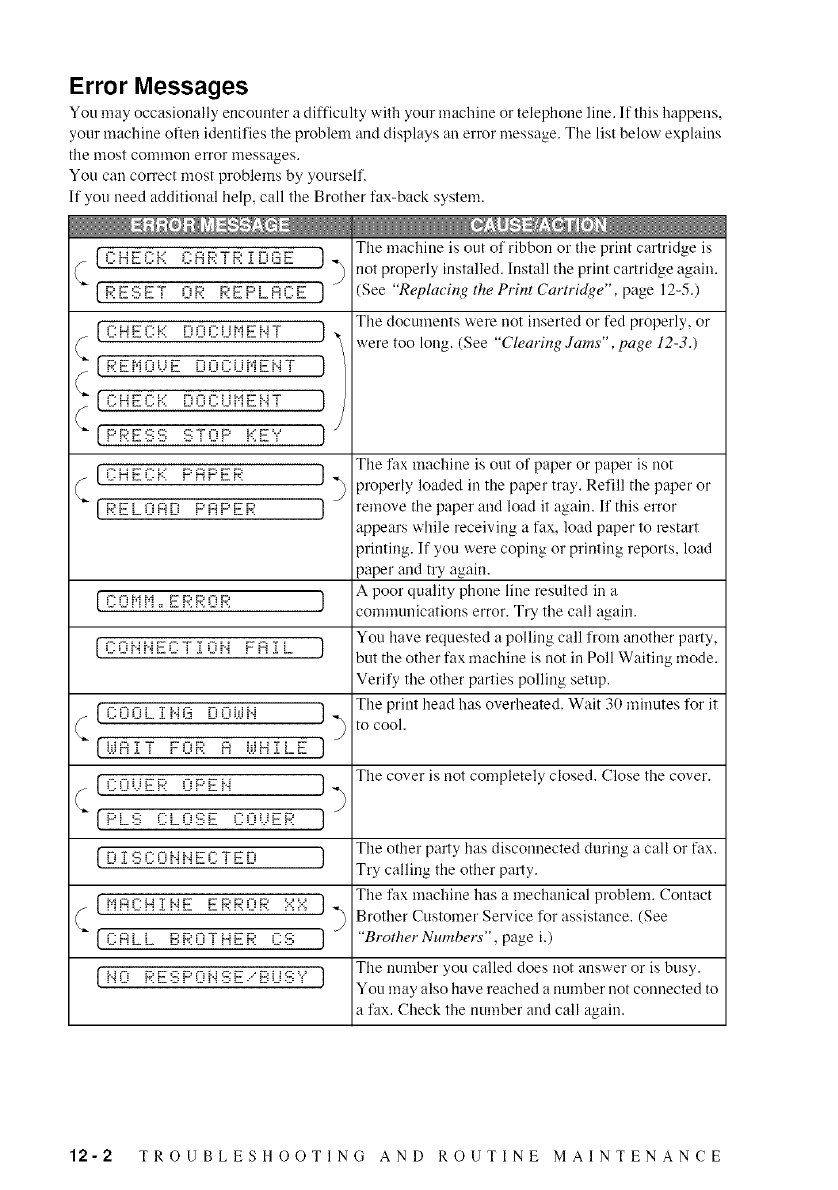
Error Messages
You m_5_ occasionally encounter a difficulty with your machine oi"telephone line. If this happens,
your machine often identifies the problem and displays an error message. Tile list below explains
the most common error messages.
You can correct most problems by yourself.
If you need additional help, call tile Brother fax-back system.
(CHEf:k r-o:,'_ ....... 3E ])
C(PESET OP PEPLACE ]
[ F:N F f: i-:: virir:i IN F_q T ,J
_[F,'FMFiUF [iOCUHEFjT J )
(_ [F:NFF:k Di-n-:ilUFUT J
"_ [PF.'FF-;:::; :C;TNP k'EY J J
[F:NFF:k" F'AF'F_' ])
([REUZ'AE' F'AF'ER 1
[ F:Fd"IN. FpK'NK' J
[COb_NECT l ON FAlL ]
c[F:NFil TI,4A [iFiijiFj
[UAiT FFiK' 8kiHiLE
(CL'UER OPEN
((P_ S C:_ O:=:E i-:NtJF_'
J)
J
])
]
[ D TRF:FiF_FEF:TED J
[ rdF:r:HT_.-.--'F ERR0R XX J
[NO F.:ESPONSEiBUSY J
The machine is out of ribbon o1"tile print cartridge is
not properly installed. Install tile print cartridge again.
(See "Replaeing the PHnt Cartridge", page 12-5.)
The documents were not inserted or fed properly, or
were too long. (See "Clearing Jams", page 12-3.)
The fax machine is out of paper or paper is not
properly loaded in tile paper tray. Refill the paper or
remove the paper and load it again. If this error
appears while receiving a fax, load paper to restart
printing. If you were coping or printing reports, load
paper and try again.
A poor quality phone lille resulted in a
communications error. Try the call again.
You have requested a polling call from another party,
but the other fax machine is not in Poll Waiting mode.
Verify the other parties polling setup.
The print head has overheated. Wait 30 minutes for it
to cool.
The cover is not completely closed. Close the cover.
The other party has disconnected during a call or fax.
Try calling the other party.
The fax machine has a mechanical problem. Contact
Brother Customer Service for assistance. (See
"Brother Numbers", page i.)
The number you called does not answer oi" is busy.
You may also have reached a number not connected to
a fax. Check tile number and call again.
12-2 TROUBLESHOOTING AND ROUTINE MAINTENANCE
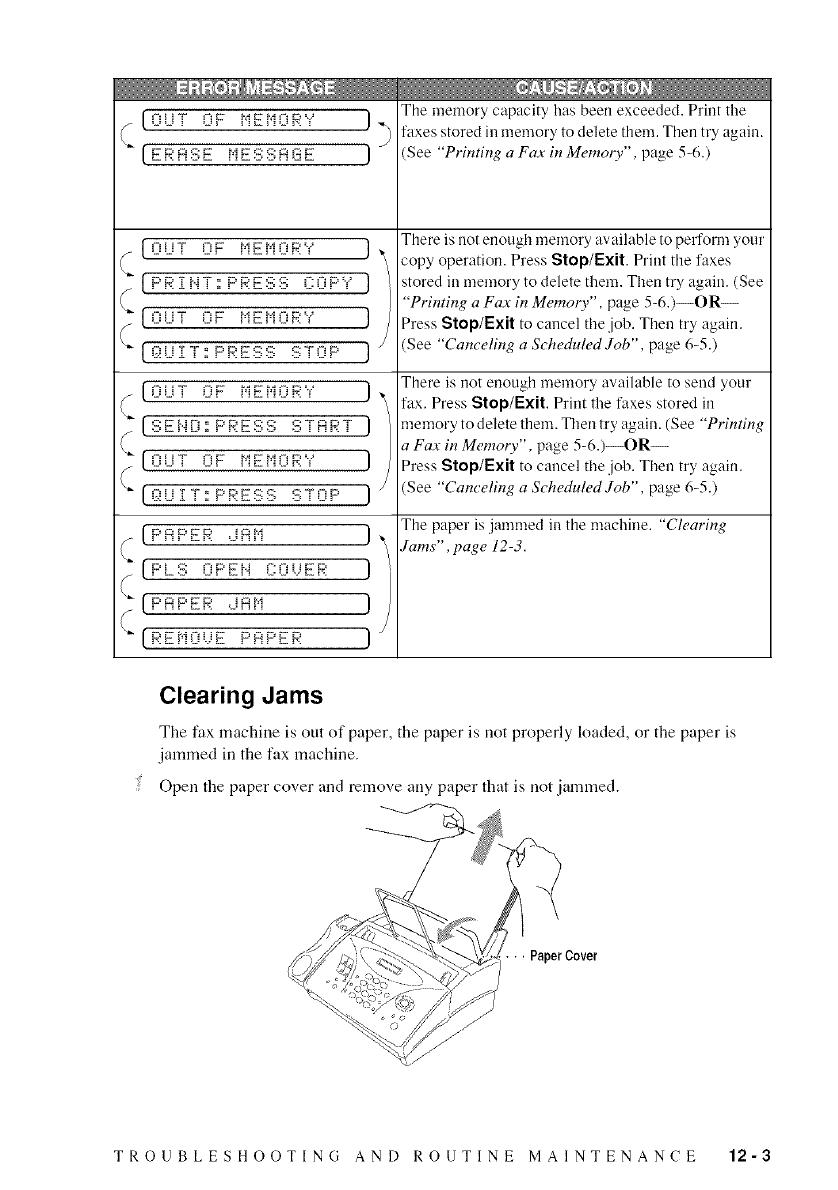
[OUT 3F _"iE_"iORY }
_-[ERASE MESSAGE )
[OUT OF MEMORY ] _
{PR. iNT:F'R. ESS COPY }
{outOF MEMORY }Y
I:'; UiT:F'R.ESSSTOP}
[OUT OF MEMORY )
(SEbJEi,_ F'RESS START )
[FiliT i-iF NENPiRY }
,.:vr,,-. )/
(PAPER ,JR'i )
(F'LS PE.N COUER ]
[ F'A F' E F--: dAM }
{ [REMOUE F'AF'ER )/
The memory capacity has been exceeded. Print the
faxes stored in memory to delete them. Then try again.
(See "Printing a Fax in Memory", page 5-6.)
There is not enough memory available to pelform your
copy operation. Press Stop/Exit. Print the faxes
stored in memory to delete them. Then try again. (See
"Printing a Fax in Memoo,", page 5-6.)--OR_
Press Stop/Exit to cancel the job. Then try again.
(See "Canceling a Scheduled Job", page 6-5.)
There is riot enough memory available to send your
fax. Press Stop/Exit. Print the faxes stored in
memory to delete them. Then try again. (See "Printing
a Fax in Memory", page 5-6.)--OR--
Press Stop/Exit to cancel the .job. Then try again.
(See "Canceling a Scheduled Job", page 6-5.)
The paper is jammed in the machine. "Clearing
Jams", page 12-3.
Clearing Jams
The fax machine is out of paper, the paper is not properly loaded, or the paper is
jamnaed in the fax machine.
Open the paper cover and remove any paper that is not jammed.
•., PaperCover
TROUBLESHOOTING AND ROUTINE MAINTENANCE 12-3
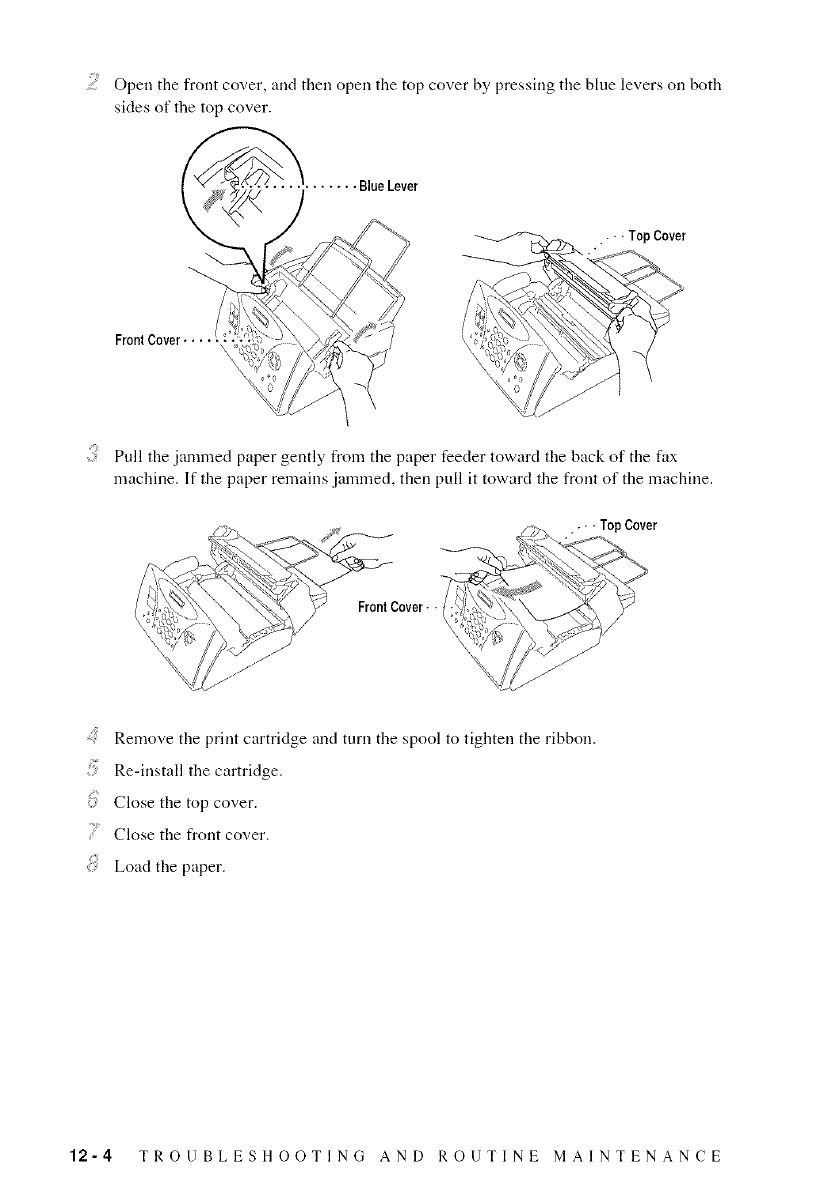
Open the front cover, and then open the top cover by pressing tile blue levers on both
sides of the top cover.
• . Blue Lever
Front Cover...
.•TopCover
Pull the jammed paper gently from the paper feeder toward the back of tile fax
machine. ]f the paper remains jammed, then pull it toward the front of the machine.
:2k: ¢;_ /'))" LI_" TopCover
/, FrontCover. • __
\7 .....
_,j ,fi
\/1¢......
Remove the print cartridge and turn tile spool to tighten the ribbon.
: Re-install the cartridge.
Close the top cover.
Close the from cover.
Load the paper.
12-4 TROUBLESHOOTING AND ROUTINE MAINTENANCE
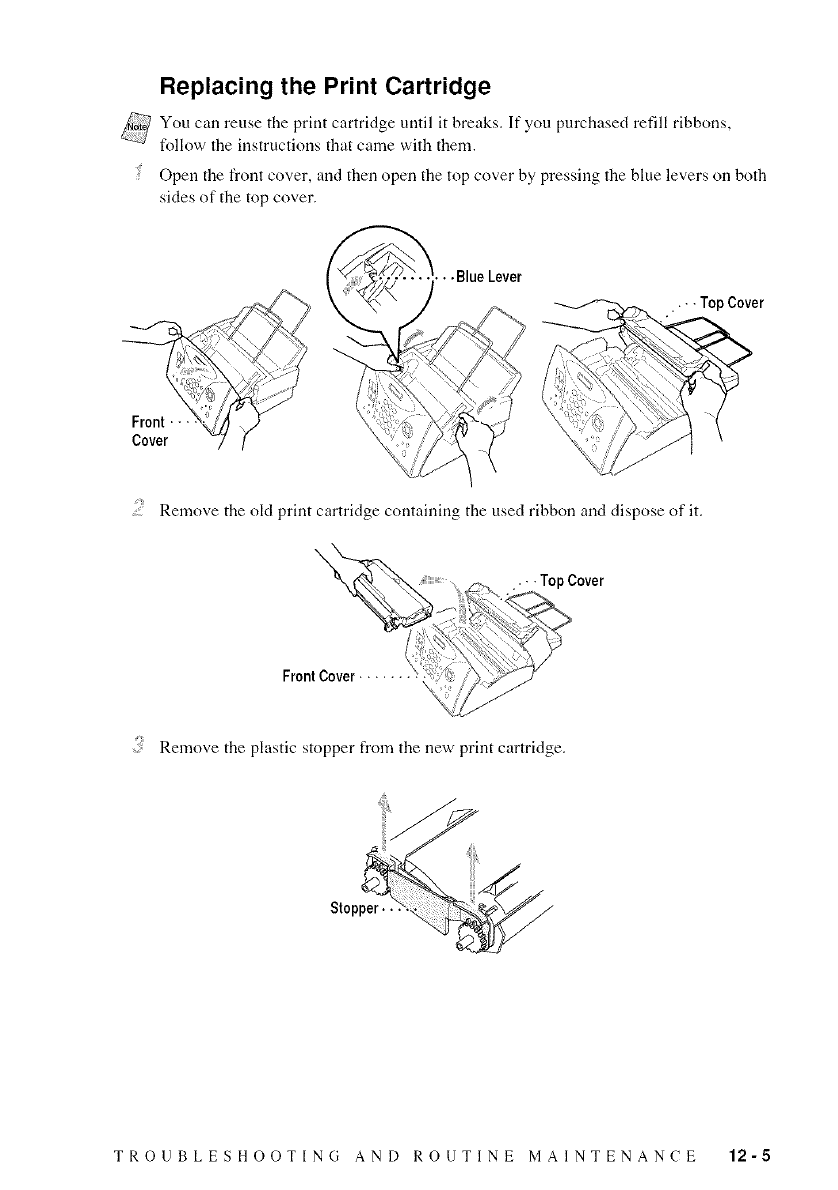
Replacing the Print Cartridge
You can reuse the prim cartridge until it breaks, If you purchased refill ribbons,
follow the instructions that came with them.
Open the front cover, and then open the top cover by pressing the blue levers on both
sides of the top cover.
Front...
Cover
..... BlueLever
• .Top Cover
.... Remove tile old prim cartridge containing the used ribbon and dispose of it.
.. •Top Cover
d,_;/Z
Remove tile plastic stopper from tile new prim cartridge.
Stop_
TROUBLESHOOTING AND ROUTINE MAINTENANCE 12-5
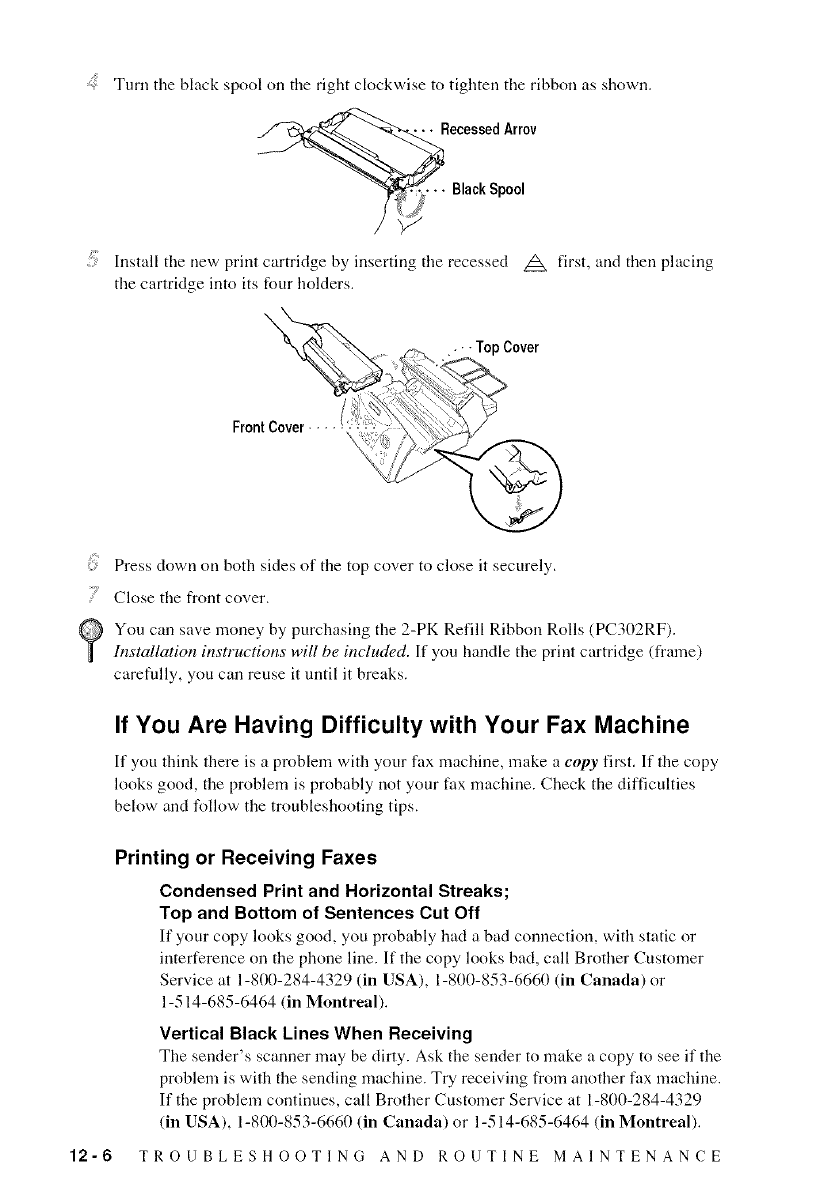
Turn tile black spool on tile fight clockwise to tighten the ribbon as shown.
RecessedArr0v
BlackSpool
i Install the new print cartridge by inserting tile recessed A first, and then placing
the cartridge into its four holders.
Press down on both sides of tile top cover to close it securely.
i Close the fromcover.
You call save money by purchasing the 2-PK Refill Ribbon Rolls (PC302RF).
Installation instructions will be included. If you handle the print cartridge (frame)
carefully, you call reuse it until it breaks.
If You Are Having Difficulty with Your Fax Machine
If you think there is a problem with your fax machine, make a copy first. If the copy
looks good, the problem is probably not your fax machine. Check the difficulties
below and follow the troubleshooting tips.
Printing or Receiving Faxes
Condensed Print and Horizontal Streaks;
Top and Bottom of Sentences Cut Off
If your copy looks good, you probably had a bad connection, with static or
interference on the phone line. If the copy looks bad, call Brother Customer
Service at 1-800-284-4329 (in USA), 1-800-853-6660 (in Canada) or
1-514-685-6464 (in Montreal).
Vertical Black Lines When Receiving
The sender's scanner may be dirty. Ask the sender to make a copy to see if the
problem is with the sending machine. Try receiving from another fax machine.
If the problem continues, call Brother Customer Service at 1-800-284-4329
(in USA), 1-800-853-6660 (in Canada) or 1-514-685-6464 (in Montreal).
12-6 TROUBLESHOOTING AND ROUTINE MAINTENANCE
Phone Line or Connections
Fax Machine Does Not Answer When Called
Make sure the fax machine is in the correct receiving mode for your setup
(either FAX, FAX/TEL or TAD). Check tbr dial tone. If possible, call your fax
machine to hear it answer. If there is still no answer, check the telephone line
cord connection. (See Connecting the Machine, page 2-5 and Connect the
telephone line.) Connect a standard telephone handset to the fax machine
telephone jack. If there is no ringing when you call your fax machine, call your
Telephone Company to check the line.
Telephone Answering Device (TAD) Does Not Answer When Called
Connect the telephone line cord from your TAD to the back of the fax machine,
in the jack labeled EXT. Make sure the TAD is set to answer calls. (See
Connecting an External Telephone Answering Device (TAD), page 2-9.)
No Dial Tone on the Handset
Press Hook--OR_Lift the handset. If you don't hear a dial tone, check
telephone line cord connections at the tax machine and wall jack. Check that the
handset is connected to the fax machine's handset jack. Test the wall jack with
another single line telephone. If there is no dial tone at the wall outlet, call your
Telephone Company.
The Caller ID does not display after the Call Waiting Signal
The Caller ID signal is sent ten seconds after the Call Waiting Signal and
speaking may interfere with it. When you hear the Call Waiting signal, ask flae
oflaer party to hold while you answer flae call. Then stop speaking until you see
the Caller ID on the LCD.
Sending Faxes
Poor Transmitting Quality
Try changing your resolution to FINE or S. FINE. (See Resolution, page 6-3.)
Make a copy to verify the fax machine's scanner operation.
Dialing Does Not Work
Check all line cord connections, and make sure the curled handset cord is not in
the EXT jack.
Check power cord connection.
Send a manual fax by pressing Hook or by lifting the handset and dialing the
number. Wait to hear tax receiving tones before pressing Fax Start.
Vertical Black Lines When Sending
Use your tax machine to make a copy. If the copy shows the same problem, the
scanner area is dirty. Lift the top cover and check the original path. Clean the
scanner's white tape and the glass strip under the tape using isopropyl alcohol
and a lint-free cloth. (See page 12-9.)
TROUBLESHOOTING AND ROUTINE MAINTENANCE 12-7
Handling Incoming Calls
Double-Ring in FAX/TEL Mode
The fax machine knows the incoming call is not a fax so it is signaling you to
answer the telephone call. Pick up the fax machine handset or answer from all
exteusion phone, and then press your fax machine's Telephone Answer Code
(default setting is #51). (See For FAX/TEL Mode Only, page 5-5.)
Transferring a Call to the Fax Machine
If you have answered tile fax machine handset, press Fax Start and hang up
immediately.
If you answered at all extension phone, press your three-digit Fax Receive Code
(file factory setting is -X'-51). When your fax machine answers, hang up.
Fax Machine "Hears" Voice as CNG Tone
If your fax machine is set to Easy Receive ON, it is more sensitive to sounds,
Your fax machine may mistakenly interpret certain voices or music on the line
as a calling lax machine and respond with fax receiving tones. Deactivate the
fax by pressing #81 if you are at all extension phone or press Stop/Exit if you
am at the fax machine or all external phone.
Try avoiding this problem by turning Easy Receive to OFF. (See EaZv Receit,e,
page 5-3.)
Transmission Verification Report Prints "Result: NG"
There is probably temporary noise or static on tile phone line. Try sending the
fax again. If the problem continues, call the Telephone Company to check your
phone line.
Custom Features on a Single Line
If you have Call Waiting, RingMaster, Voice Mail, an answering machine,
alarm system or ally other custom feature on a single phone lille with your fax
machine, it may create a problem sending or receiving fax data.
For Example :
Your Brother machine handles the Caller ID and Call Waiting/Caller ID
subscriber services. However, if you subscribe to only Call Waiting or
some other custom service and its signal comes through the line while
your machine is sending or receiving a fax, the signal can temporarily
interrupt or disrupt the fax data. Brother's ECM feature should help
overcome this problem. This condition is related to the telephone system
industry and is common to all devices that send and receive information
on a single, shared lille with custom features. If avoiding a slight
interruption is crucial to your business, a separate lille with no custom
features is recommended.
Using Call Waiting Caller ID:
If you am having a telephone conversation and a fax communication
signal comes through on Call Waiting Caller ID, you can verify that the
second call is a fax by switching to it. You have the option to receive the
fax call, by asking the first caller to hang up to clear the lille.
12-8 TROUBLESHOOTING AND ROUTINE MAINTENANCE
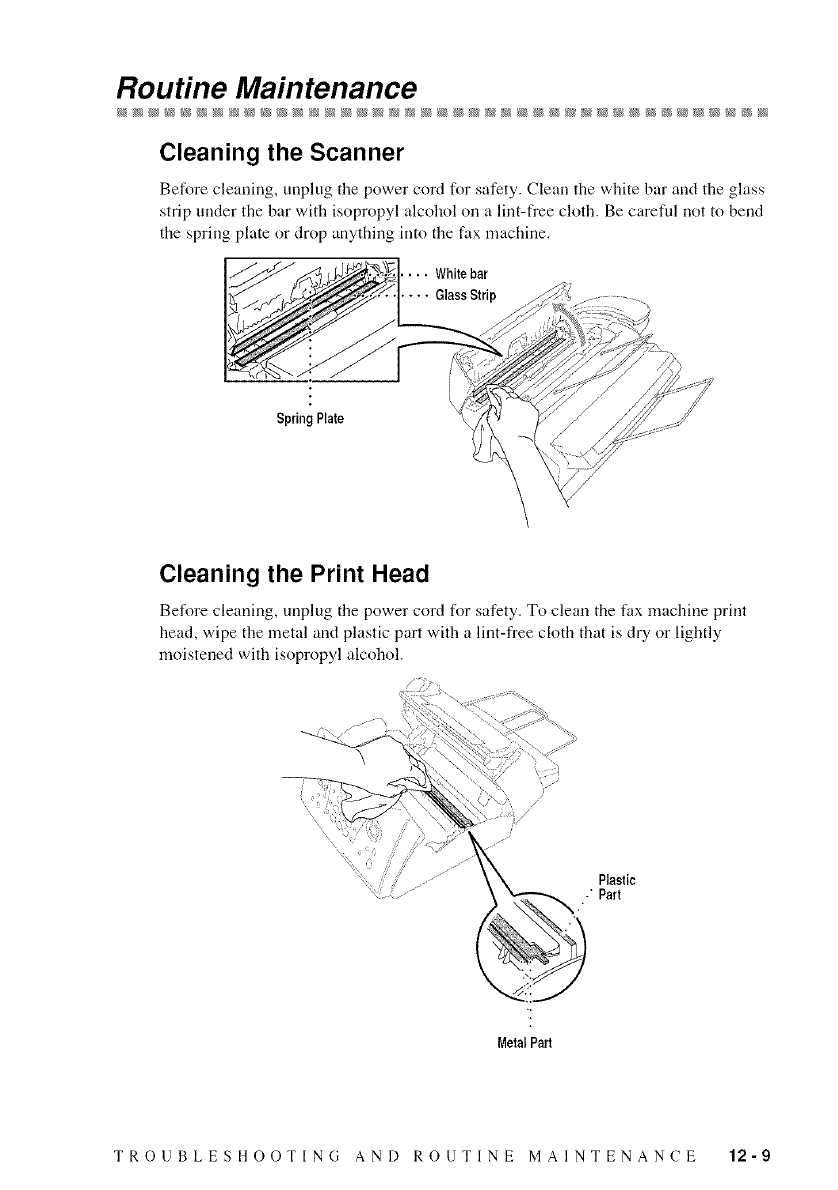
Routine Maintenance
Cleaning the Scanner
Before cleaning, unplug the power cord for safety. Clean the white bar and the glass
strip under the bar with isopropyl alcohol on a lint-free cloth. Be careful not to bend
the spring plate or drop anything into the fax machine.
•White bar
Glass Strip
SpringPlate
Cleaning the Print Head
Before cleaning, unplug the power cord for safety. To clean the fax machine print
head, wipe the metal and plastic part with a lint-free cloth that is dr 5, or lightly
moistened with isopropyl alcohol.
Plastic
-" Part
MetalPart
TROUBLESHOOTING AND ROUTINE MAINTENANCE 12-9
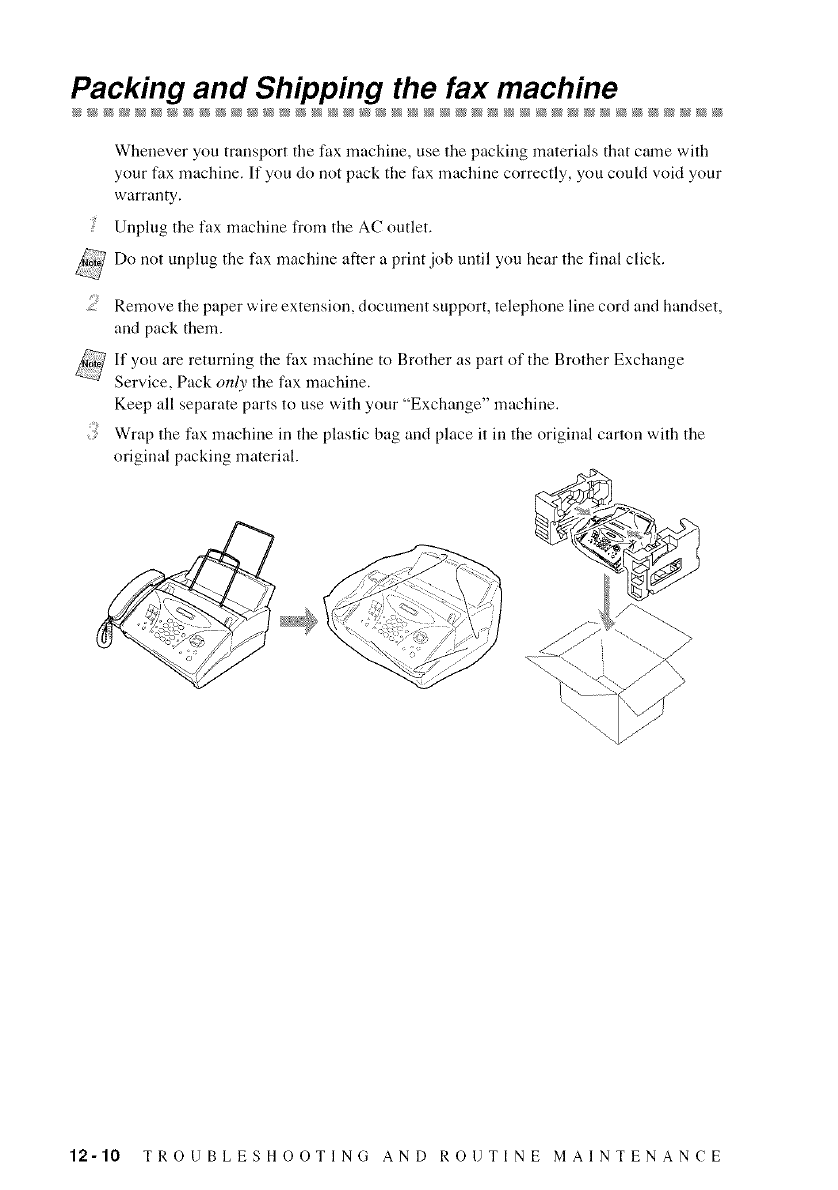
Packing and Shipping the fax machine
Whenever you transport the fax machine, use the packing materials that came with
your fax machine. If you do not pack the fax machine correctly, you could void your
warranty.
! Unplug the fax machine from the AC outlet.
Do not unplug the fax machine after a print job until you hear the final click.
;_ Remove file paper wire extension, document support, telephone line cord and handset,
and pack them.
If you are returning the fax machine to Brother as part of the Brother Exchange
Service, Pack only the fax machine.
Keep all separate parts to use with your "Exchange" machine.
Wrap file fax machine in the plastic bag and place it in file original carton wifll the
original packing material. %
12-10 TROUBLESHOOTING AND ROUTINE MAINTENANCE
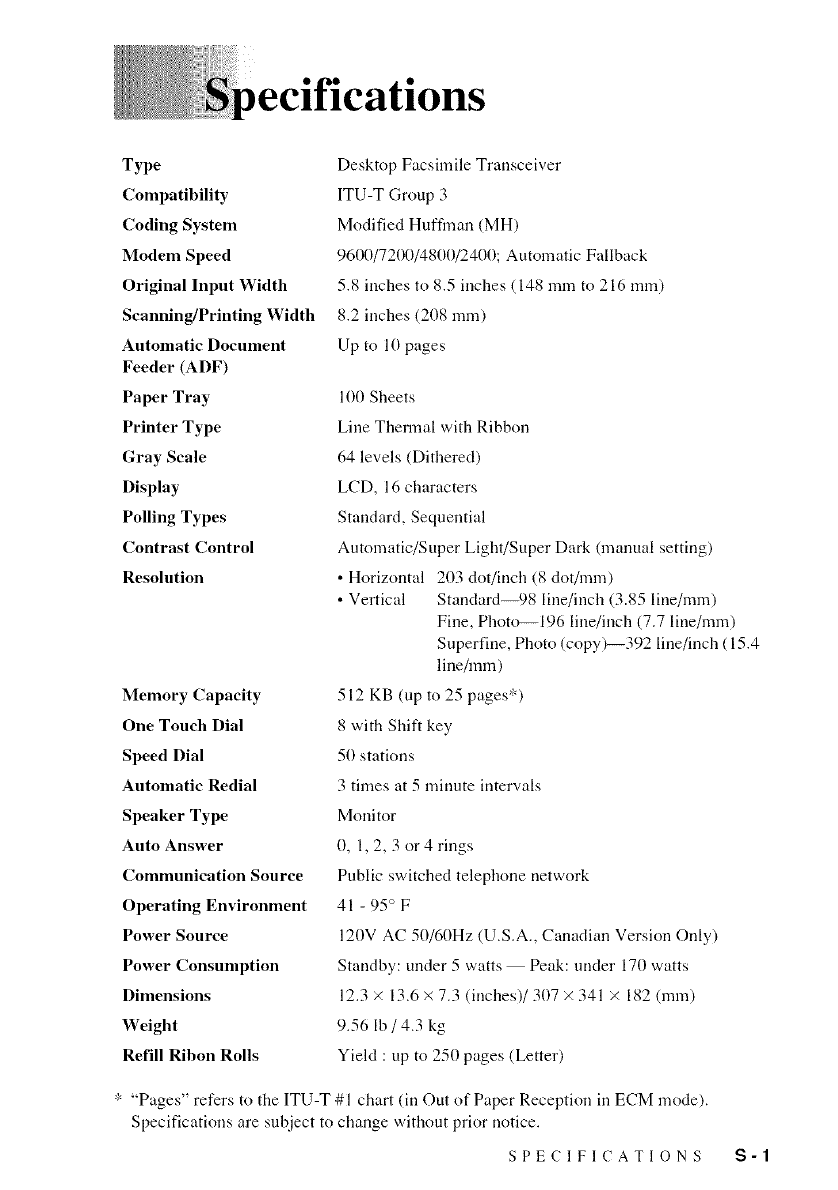
Type
Compatibility
CodingSystem
Modem Speed
Original Input Width
Scanning/Printing Width
Automatic Document
Feeder (ADF)
Paper Tray
Printer Type
Gray Scale
Display
Polling Types
Contrast Control
Resolution
Memory Capacity
One Touch Dial
Speed Dial
Automatic Redial
Speaker Type
Auto Answer
Communication Source
Operating Environment
Power Source
Power Consumption
Dimensions
Weight
Refill Ribon Rolls
Desktop Facsimile Transceiver
ITU-T Group 3
Modified Huffinan (MH)
9600/7200/4800/2400; Automatic Fallback
5.8 inches to 8.5 inches (148 mm to 216 ram)
8.2 inches (208 ram)
Up to l(I pages
100 Sheets
Line Thermal with Ribbon
64 levels (Dithered)
LCD, 16 characters
Standard, Sequential
Automatic/Super Light/Super Dark (manual setting)
• Horizontal 203 dot/inch (8 dot/ram)
• Vertical Standard--98 line/inch (3.85 line/ram)
Fine, Photo--196 line/inch (7.7 line/ram)
Superfine, Photo (copy)--392 line/inch ( 15.4
linehnm)
512 KB (up to 25 pages':D
8 with Shift key
50 stations
3 times at 5 minute intervals
Monitor
0, 1,2, 3 or 4 rings
Public switched telephone network
41 - 95 ° F
120V AC 50/60Hz (U.S.A., Canadian Version Only)
Standby: under 5 watts Peak: under 170 watts
12.3 × 13.6 × 7.3 (inches)/307 × 341 × 182 (ram)
9.56 lb /4.3 kg
Yield : up to 250 pages (Letter)
"- "Pages" refers to the ITU-T #1 chart (in Out of Paper Reception in ECM mode).
Specifications are subject to change without prior notice.
SPECIFICATIONS S-I
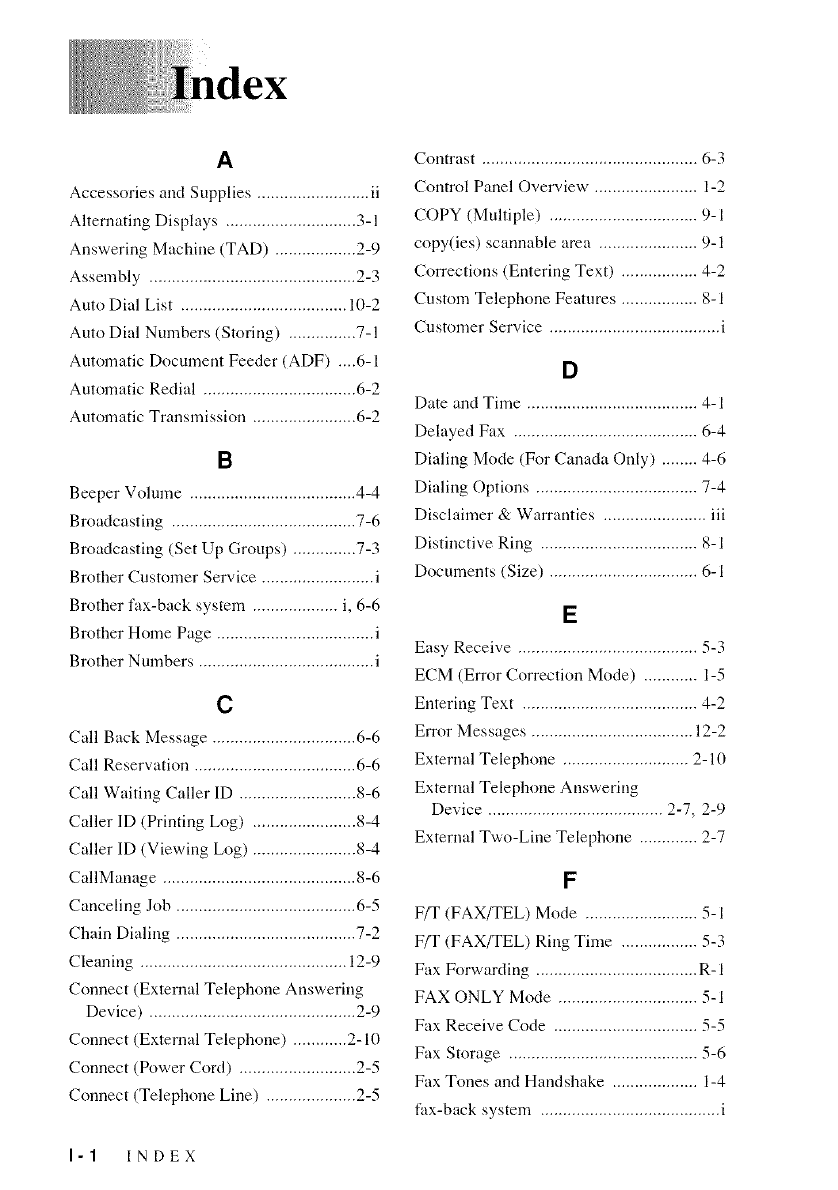
A
Accessories and Supplies ......................... ii
Alternating Displays ............................. 3-1
Answering Machine (TAD) .................. 2-9
Assembly .............................................. 2-3
Auto Dial List ..................................... 10-2
Auto Dial Numbers (Storing) ............... 7-1
Automatic Document Feeder (ADF) .,,.6-1
Automatic Redial .................................. 6-2
Automatic Trausmission ....................... 6-2
B
Beeper Volume ..................................... 4-4
Broadcasting ......................................... 7-6
Broadcasting (Set Up Groups) .............. 7-3
Brother Customer Service ......................... i
Brother fax-back system ................... i, 6-6
Brother Home Page ................................... i
Brother Numbers ....................................... i
C
Call Back Message ................................ 6-6
Call Reservation .................................... 6-6
Call Waiting Caller ID .......................... 8-6
Caller ID (Printing Log) ....................... 8-4
Caller ID (Viewing Log) ....................... 8-4
CallManage ........................................... 8-6
Canceling Job ........................................ 6-5
Chain Dialing ........................................ 7-2
Cleaning .............................................. 12-9
Connect (External Telephone Answering
Device) .............................................. 2-9
Connect (External Telephone) ............ 2-10
Connect (Power Cord) .......................... 2-5
Connect (Telephone Line) .................... 2-5
Contrast ................................................ 6-3
Control Panel Overview ....................... 1-2
COPY (Multiple) ................................. 9-1
copy(ies) scannable area ...................... 9-1
Corrections (Entering Text) ................. 4-2
Custom Telephone Features ................. 8-1
Customer Service ...................................... i
D
Date and Time ...................................... 4-1
Delayed Fax ......................................... 6-4
Dialing Mode (For Canada Only) ........ 4-6
Dialing Options .................................... 7-4
Disclaimer & Warranties ....................... iii
Distinctive Ring ................................... 8-1
Documents (Size) ................................. 6-1
E
Easy Receive ........................................ 5-3
ECM (Error Correction Mode) ............ 1-5
Entering Text ....................................... 4-2
Error Messages .................................... 12-2
External Telephone ............................ 2-10
External Telephone Answering
Device ....................................... 2-7, 2-9
External Two-Line Telephone ............. 2-7
F
F/T (FAX/TEL) Mode ......................... 5-1
F/T (FAX/TEL) Ring Time ................. 5-3
Fax Forwarding .................................... R- 1
FAX ONLY Mode ............................... 5-1
Fax Receive Code ................................ 5-5
Fax Storage .......................................... 5-6
Fax Tones and Handshake ................... 1-4
fax-back system ........................................ i
I-1 INDEX
Fine (Resolution) .................................. 6-3
Frequently Asked Questions (FAQs) .........
G
Gray Scale ............................................ S-I
Groups (for Broadcasting) ............ 7-3, 7-6
H
Handset Volume ................................... 4-4
Help ....................................................... 1- 1
Hold .............................................. 1-2, 7-7
I
Ident-a-Call ........................................... 8-1
Inserting Spaces .................................... 4-2
International Calls ................................. 6-4
Interrupting ........................................... 6-5
d
Jams .................................................... 12-3
L
LCD (Liquid Crystal Display) .............. 3-1
Loading Paper ....................................... 2-4
191
Maintenance (Routine) ....................... 12-9
Manual Dialing ..................................... 7-4
MANUAL Mode .................................. 5-1
Manual Trausmission ............................ 6-2
Memo_ Storage ................................... 4-5
Memory Transmission .......................... 6-3
Menu and Programming Mode ............. 3-1
Menu Table ........................................... 3-3
Multi-Line Connections ........................ 2-7
O
One Touch Dial (Changing) ................. 7-3
One Touch Dial (Storing) ..................... 7-1
One Touch Dialing ............................... 7-4
On-Screen Programming ...................... 3-1
Outgoing Message (External TAD) ....2-10
Overseas Mode ..................................... 6-4
P
Packing List (carton contents) .............. 2-2
Paging .................................................. R- 1
Paper Size ............................................. 5-4
Pause ..................................................... 7-7
PBX ....................................................... 2-7
Photo (Resolution) ................................ 6-3
Polled Transmit ..................................... 6-5
Polling (Receive) .................................. 5-6
Power Consumption ............................. S- 1
Print Ca Fax in Memory) ....................... 5-6
Print (Caller ID Log) ............................. 8-4
Print Head (Cleaning) ......................... 12-9
Pulse (For Canada Only) ....................... 4-6
Q
Quick-Scan (using) ............................... 6-3
VI
Receive Mode ............................... 5-1, 5-2
Redial (Automatic) ............................... 6-2
Redial (Manual) .................................... 6-2
Reduction (Printing) ............................. 5-4
Reduction (Recommended Ratios) ....... 5-4
Remote Codes (Changing) .................... 5-5
Reports ................................................ 10-1
Reports types of .................................. 10-1
Resolution ............................................. 6-3
Ring Delay ............................................ 5-2
Ring Volume ......................................... 4-5
RingMaster ............................................ 8-1
Roll Over Phone Lines .......................... 2-6
$
Safety Instructions .............................. 11-3
INDEX I-2
Scanner (Cleaning) ............................. 12-9
Search .................................................... 7-6
SmartRing ............................................. 8-1
Sort ........................................................ 9-1
Speaker Volume .................................... 4-5
Special characters ................................. 4-3
Specifications ....................................... S-I
Speed Dial (Changing) .......................... 7-3
Speed Dial (Storing) ............................. 7-2
Speed Dialing ........................................ 7-5
Standard (Resolution) ........................... 6-3
Station ID .............................................. 4-1
Storing Telephone Numbers ................. 7-1
Super Fine (Resolution) ........................ 6-3
T
TAD (Answering Machine) .................. 2-9
TAD Mode ............................................ 5-1
Teen-Ring ............................................. 8-1
Telephone Answer Code ....................... 5-5
Telephone Numbers .............................. 7-1
Telephone Wall Outlets ........................ 2-6
Tone ...................................................... 4-6
Tone (Send Signals) .............................. 7-7
Transmission Verification (Xmit)
Report .............................................. 10-2
Troubleshooting .................................. 12-1
Two-Line Phone System ....................... 2-6
Two-Line TAD (Answering Machine) .2-7
0
User Settings Report ........................... 10-2
V
Voice Mail ............................................ 1-4
Volume Amplify (for Hearing-hnpaired) _4-5
W
WARNING ......................................... 11-2
I-3 INDEX
World Wide Web ...................................... i
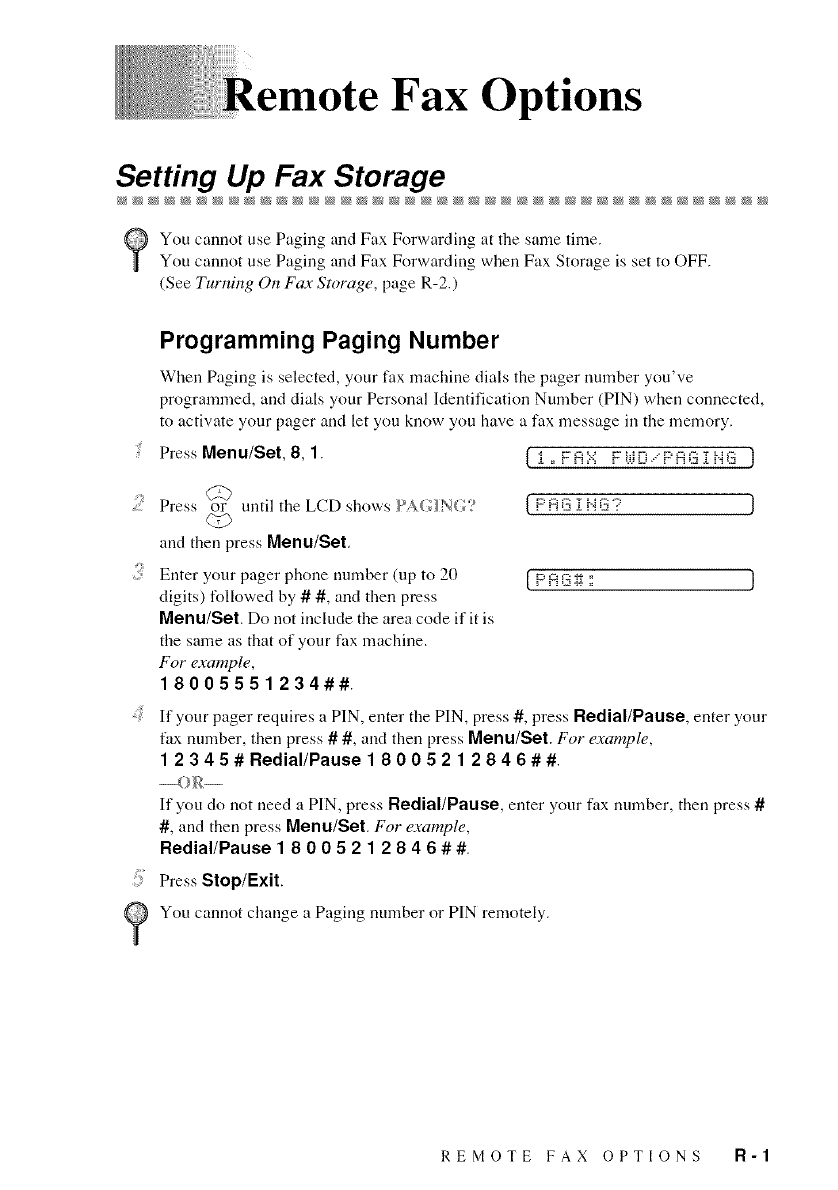
Fax Options
Setting Up Fax Storage
You cannot use Paging and Fax Forwarding at the same time.
You cannot use Paging and Fax Forwarding when Fax Storage is set to OFF.
(See Turning On Fax Storage, page R-2.)
Programming Paging Number
When Paging is selected, your fax machine dials the pager number you've
programmed, and dials your Personal Identification Number (PIN) when connected,
to activate your pager and let you know you have a fax message in the memory.
Press Menu/Set, 8, 1. [ i ° FA::.:; Fi.tiE_.-."F'A.r_:i}.{Gj
.... Press or until the LCD shows _ A{ oIN{ o, { P A i:__r._-_'..' .J
and then press Menu/Set,
{] Enter 3,our pager phone nmnber (up to 20 F'A i3;g : J
digits) followed by # #, and then press
Menu/Set. Do not include the area code if it is
the same as that of 3,our fax machine.
For example,
18005551234##.
If your pager requires a PIN, enter the PIN, press #, press Redial/Pause, enter your
fax number, then press # #, and then press Menu/Set. For example,
12345 # Redial/Pause 18005212846##.
If you do not need a PIN, press Redial/Pause, enter your fax number, then press #
#, and then press Menu/Set. For example,
Redial/Pause 18005212846 ##.
Press Stop/Exit.
You cannot change a Paging number or PIN remotely.
REMOTE FAX OPTIONS R-t
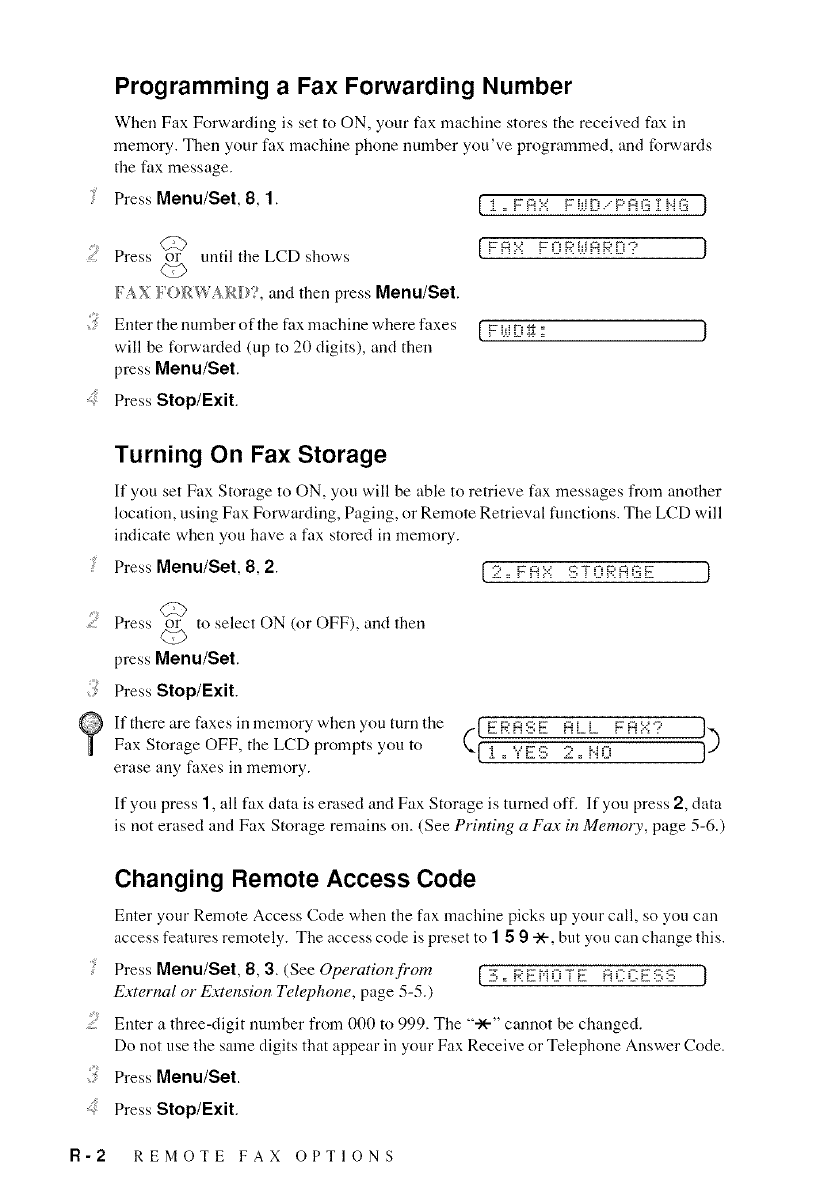
Programming a Fax Forwarding Number
When Fax Forwarding is set to ON, your tax machine stores the received fax ill
memory. Then your fax machine phone number you've programmed, and forwards
the fax message.
Press Menu/Set, 8, 1. [ i ,, FSI.:; Fi_iL-i/P_G i HG J
U&
Press or umil tile LCD shows
(z>
/',_X/'()R_g'A RI)?, and then press Menu/Set.
Enter the number of the fax machine where faxes
will be forwarded (up to 20 digits), and then
press Menu/Set.
Press Stop/Exit.
F A =:.:' F Qg.'i,iA g' D .:'
[ Fi{iEi_ :
Turning On Fax Storage
It"you set Fax Storage to ON, you will be able to retrieve fax messages from another
location, using Fax Forwarding, Paging, or Remote Retrieval flmctions. The LCD will
indicate when you have a fax stored ill memory.
Press Menu/Set, 8, 2. [ 2 ,, F A::'I STI:iRAGE j
CTb
; Press or to select ON (or OFF), and then
Cr,_)
press Menu/Set.
Press Stop/Exit.
It'there are faxes ill memory when you turn tile
Fax Storage OFF, the LCD prompts you to
erase ally faxes ill memory.
(I F K'A :::;F._?._ A ii ......FA ::,::"::' I)
i = Y e->; _ = r.4_i
If you press 1, all fax data is erased and Fax Storage is turned off. If you press 2, data
is not erased and Fax Storage remains on. (See Printing a Fay in Memory, page 5-6.)
Changing Remote Access Code
Enter your Remote Access Code when the fax machine picks up your call, so you can
access features remotely. Tile access code is preset to 1 59-X'-,but you can change this.
! PressMenu/Set, 8,3.(SeeOperationfrom [3°REPiOTE ACCESS ]
External or Extension Telephone, page 5-5.)
Enter a three-digit number from 000 to 999. Tile "ale" cannot be changed.
Do not use the same digits that appear in your Fax Receive or Telephone Answer Code.
Press Menu/Set.
Press Stop/Exit,
R-2 REMOTE FAX OPTIONS
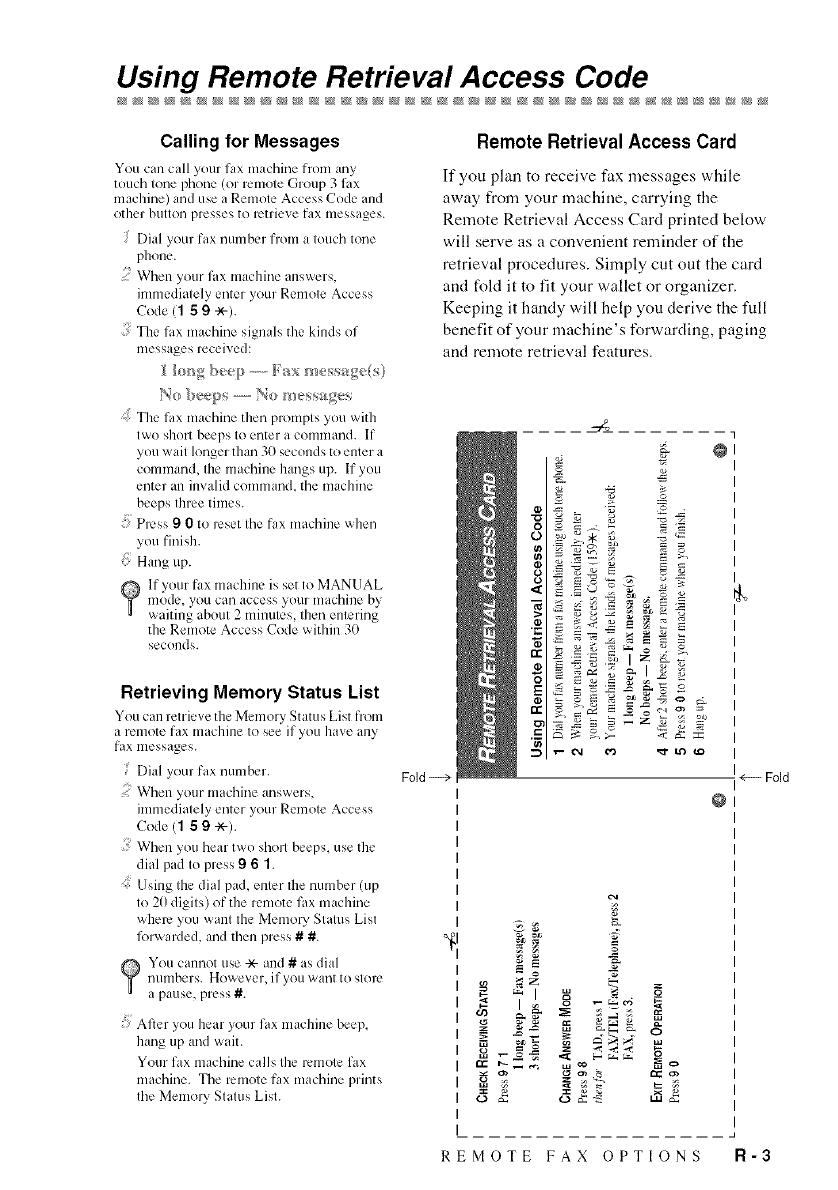
Using Remote Retrieval Access Code
Calling for Messages
You can call your fax machine hom any
touch tone phone (or l_mlote Group 3 fax
machine) and use a Remote Access Code and
other btltton presses to retrieve fax messages.
Dial your fax number from a touch tone
phone.
When your fax machine answers,
immediately enter your Remote Access
Code (1 5 9 -x-).
The fax machine signals the kinds of
IIleSs{/gL_ S received:
The lax machine then prompts you with
two shol%beeps to enter a command. If
you wait longer than 30 seconds to enter a
command, the machine hangs up. If you
enter an inwdid command, the machme
beeps thrt.,etimes.
Press 90to reset the fax machine when
you finish.
/Hang up.
lf your fax machine is set to MANUAL
mode, you can access your machine by
waiting abonl 2 minutes, Ihen enlering
the Remote Access Code within 30
seconds.
Retrieving Memory Status List
You can retrieve the Memory Status List fi_)m
a remote fax machine to see if you have any
fax messages.
Dial your fax number.
When youl machine answers,
immediately enter your Remote Access
Code (1 59-X-).
When yon hear tWOsholl beeps, use the
dial pad to press 9 6 1.
Using the dial pad, enter Ihenumber (up
to 20 digits) of the remote fa× machine
where you want the Memo WStatus List
l_)rwarded,andthen press ##.
You cannot use -X-and #as dial
nnmbers. Hov, ever, if yOtl want to store
a pause, press #.
After you hear your fax machine beep,
hang up and wait.
Your fax machine calls the remote fax
machine. The remote fax machine prints
the Memo_T Status List.
Remote Retrieval Access Card
If you plan to receive fax messages while
away from your machine, carrying the
Remote Retrieval Access Card printed below
will serve as a convenient reminder of the
retrieval procedures. Simply cut out the card
and fold it to fit your wallet or organizer.
Keeping it handy will help you derive the full
benefit of your machine's forwarding, paging
and remote retrieval features.
Fold
g_
* g g t.k
IZ#-_
_1 _
@
_.- a. a.
<_- Fold
REMOTE FAX OPTIONS R-3
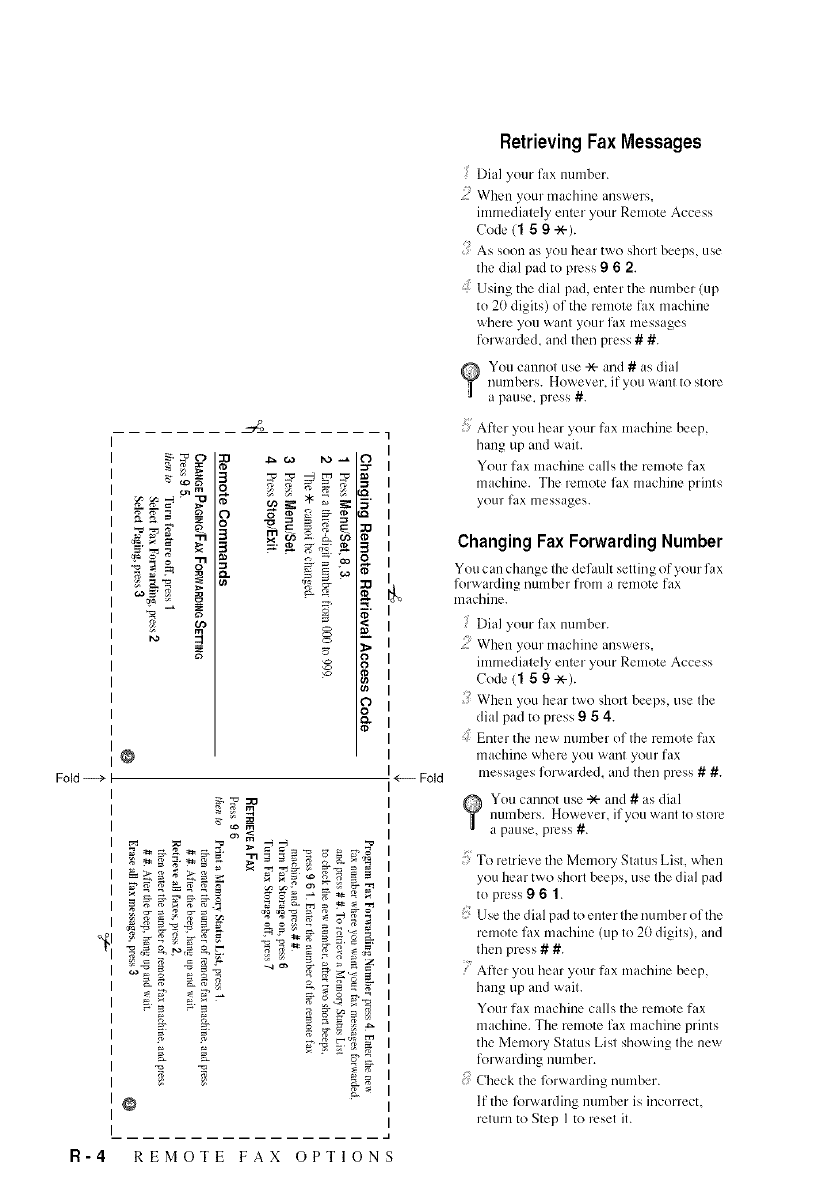
Fold
_m
g_F
o
8-
a_
s
o
®
0
_D
?
_g
®
<--- Fold
RetrievingFax Messages
Dial your fax numbel.
When your machine answers,
immediately enter youl Remote Access
Code (1 59 -'X-).
As soon as you hear two short beeps, use
the dial pad to press 9 6 2.
Using the dial pad, enter the number (up
to 20 digits) of the remote fax machine
where you want your fax messages
forwarded, and then press # #.
You cannot use -x- and # as dial
nUTllbers. However_ il yoii wanl tO store
a pause, press #.
After you hear your Ii_x machine beep,
hang up and wait.
Your fax machine calls the remote fax
machine. The remote fax machine prints
your fax messages.
Changing Fax Forwarding Number
You can change the default setting of your fax
folwarding number from a remote fax
machine.
Dial your fax numbel.
When your machine answers,
immediately enter yore Remote Access
Code (1 59 -X-).
When you hear t,ao sholt beeps, use the
dial pad to press 9 54.
Enter the new number of the remote fax
machine where you want your fax
messages forwarded, and then press # #.
You cannot use -x- and # as dial
ntlmbers. However. if yOU V_alll tO store
a pause press #.
To retrieve the Memol T Status List, when
you hear two shorl beeps, use file dial pad
to press 9 6 1.
: Use the dial pad to enter the number of the
remote fax machine (up to 20 digits), and
then press # #.
7 Ariel you hear your fax machine beep,
hang up and wait.
Your fax machine calls the remote fax
machine. The remote lax machine prints
the Memory Status List showing the new
forwarding number.
{ Check the l\)rwarding numbel.
If the l\navarding numbel is incorrect.
relurn to Step ] to resel it.
R-4 REMOTE FAX OPTIONS
EQUIPMENT ATTACHMENT LIMITATIONS
(For Canada Only)
NOTICE:
The industl T Canada label identifies certified equipment. This certification
means that the equipment meets telecommmlications network protective,
operational and safety requirements as prescribed ill the
appropriate Terminal Equipment Technical Requirements document(s), The
Department does not guarantee the equipment will operate to the user's
satisfaction.
Before installing this equipment, users should ensure that it is permissible to
be connected to the facilities of the local telecomnmnications company.
The equipment must also be installed using all acceptable method of
connection. The customer should be aware that compliance with the above
conditions may not prevent degradation of service in some situations.
Repairs to certified equipment should be coordinated by a representative
designated by the supplier. Ally repairs or alterations made by the user to
this equipment, or equipment malfunctions, may give the telecommunications
company cause to request the user to disconnect the equipment.
Users should ensure for their own protection that the electrical ground
connections of the power utility, telephone lines and internal metallic water
pipe system, if present, are connected together. This precaution may be
particularly important in rural areas.
Caution:
Users should not attempt to make such connections themselves,
but should contact the appropriate electric inspection authority, or electrician,
as appropriate.
NOTICE:
The Ringer Equivalence Number (REN) assigned to each terminal device
provides all indication of the maximum number of terminals allowed
to be connected to a telephone interface. The termination on all interface
may consist of ally combination of devices subject only to the requirement
that the sum of the Ringer Equivalence Numbers of all the devices does not
exceed 5 REN=0.2B
bro!r.her
Brother International Corporation
100 Somerset Corporate Boulevard
P.O, Box 6911
Bridgewater, NJ 08807-0911 USA
Brother International Corporation (Canada) Ltd.
1 rue H6tel de Ville,
Dollard-des-Ormeaux, QC, CANADA H9B 3H6
Visit us on the World Wide Web
http ://www.brother.com
These machines are made for use in the USA or CANADA only. We can not
recommend using them overseas because it may violate the
Telecommunications Regulations of that country and the power requirements
of your fax machine may not be compatible with the power available in foreign
countries. Using USA or CANADA models overseas is at your own risk
and will void your warranty.
