CANON Copiers Manual L0804141
User Manual: CANON CANON Copiers Manual CANON Copiers Owner's Manual, CANON Copiers installation guides
Open the PDF directly: View PDF  .
.
Page Count: 48
CaHOH o e o_ mlBUBBLE JET
PictBridge
MP780/MP750
Quick Start Guide
Table of Contents
Introduction
Document Handling
Paper Handling
Copying
Photo Printing Directly From A Digital Camera
Preparing Your Machine For Fax
Sending Faxes
Receiving Faxes
Maintenance
19
26
29
32
33
34
42
44
HT7-0030-000-V. 1.0
Canon MP780/750 Quick Start Guide
Copyright
This nl,anual is copyrighted by Canon U.S.A., Inc. with all rights reserved.
Under the copyright laws, this manual may not be reproduced in any form, in whole or in
part, without the prior written consent of Canon U.S.A., Inc.
¢) 2004 Canon U.S.A., Inc.
Disclaimer
(.'tin, on, U.S.A., hl,c. has reviewed this manl.l,al thoroughly in order that it will be all,
easy-to-use gl,l,ide to your Canon MP780/750 Series. All statements, technical information
and recommendations in this manl,l,al and in any guides or related docunl,ents are believed
reliable, bm the accuracy and completeness thereof are not guaranteed or warranted, and
they are not intended to be, nor should they be l,mderstood to be, representation or
warranties concerning the prodl,l,cts described.
Specifications are subject to change without notice.
As an ENERGY STAR partner, Canon U.S.A., Inc., hasdetermined that this product meets the ENERGY STAR
guidelines for energy efficiency.
All information regarding non-Canon products was compiled from publicly available
intUrmation. No representation is made regarding the accl,l,racy thereof.
SUPER Super G3 is a phrase used to describe the new generation of fax
machines that l,,se ITU-T V.34 standard 33.6 Kbps* modems. Super G3
High Speed Fax nl,achines allow transnl,ission time of approximately 3
.,_,._,_,0 _,0_,,,,_ seconds* per page which resl,l,lts in rechuced telephone line charges.
* Approximately 3 seconds per page fax transmission time based on ITU-T No. 1 Chart
(Standard Mode) at 33.6 Kbps modem speed. The Public Switched Telephone Network
currently supports fax nl,odem speeds of 28.8 Kbps or lower, depending on telephone line
conditions. Sending and receiving fax machines need to conform to ITU-T V.34
gl,l,idelines.
• 00_ This machine supports Exif 2.2 (also called "Exif Print").
wExif Print is a standard for enhancing the communication
Exif PfiBt between digital cameras and printers.
By connecting to an Exif Print-compliant digital calnera, the
camera's image data at the time of shooting is used and
optimized, yiekting extremely high quality prints.
Trademarks
• Canon is a registered trademark.
• PIXMA is a trademark of Canon Inc.
• Microsoft ¢°and Windows _ are registered trademarks of Microsoll Corporation in the
U.S. and other countries.
• Macintosh, Mac and the Mac logo are registered trademarks of Apple Computer, Inc.,
registered in the U.S. and other countries.
• All other product and brand names are registered trademarks or trademarks of their
respective owners.
How To Use The Documentation Provided
Easy Setup Instructions (Printed ducumentatiun):
Be sure to read this sheet first.
This sheet includes instructiuns for setting up your machine and getting it ready for use.
User's Guide (Electronic documentation):
Read this guide when starting to use the maehine.
After following instructions in the Easy Setup Instructions. read this guide for instructiuus
on printing from your computer, direct photo printing from selected digital cameras.
_} faxiug, cupyiug, and scanning. This guide is included as an HTML file on file Setup
CD-ROM. Tu read this inanual, click the icon appeared on your computer after installing
the drivers.
This guide contains the following iufunnatiun:
• Document Handling • Preparing Your Machine For Fax
• Paper Handling • Sending Faxes
• Copying • Receiving Faxes
• Photo Printing • Becoming Familiar With The Software
Directly From A Digital Camera • Troubleshoutfi_g
• Printing From Yuur Computer
Sofia,are Guide (Electronic documentation):
This guide is available un the Setup CD-ROM.
Refer to this guide fur full instructions un printing, scanning, and _ faxiug (Fur
Windows only) from your cumputer. This guide, alsu included as an HTML file uu the
Setup CD-ROM. describes each fimctiou in detail, as well as the methods of using the MP
Drivers. MP Navigator and the Fax driver. To read this mauuah see the User's GuMe.
This guide contains the following iufunnation:
• Printing •Scanning
•Faxiug •Advanced scanning
• MP Navigator
Photu Application Guide/Electrouic docwnentatiou):
This guide is available un the Setup CD-ROM.
This guide describes tile utility software uu tile Setup CD-ROM. such as Easy-PhotuPriut
and Easy-WebPrint. including instructions on how to scan data. various printing methods.
and function details. Like tile U.ser's GuMe. this guide is included on tile Setup CD-ROM.
Tu read this manual see the User's Guide.
The _ icon indicates items that are only applicable to MP780.
i_ How To Read The HTML Manuals
Various Web browsers are available tbr seeing HTML view and therefore tile same text
or image may appear different depending on the browser you use. The HTML manuals
have been prepared on the assumption that it would be displayed and read under the
following conditions:
For Windows:
• Web browser: Microsoft a_ Internet Explorer 5.0 or later
• Web browser screen: Full screen
• Resolution of display (Desktop): 800 x 600 pixels or above
• Color amount of display: 16 bit or more
For Macintosh:
• Web browser: Microsoft a_ lnternet Explorer 5.0 or later, Safari 1.0 or later
• Web browser screen: Full screen
• Resolution of display (Desktop): 800 x 600 pixels or above
• Color amount of display: 32,000 or more
• We recommend you use Safari as your browser to view the HTML manuals on
Macintosh. If you don't have Safari, download it on Apple Computer lnc.'s homepage
and install it.
Reading The Document
Symbols Used In This Guide
WARNING
CAUTION
/See page m_)
D
• (Operation branch title)
1. (Operation branch-step)
Indicates a warning concerning operations that may lead to death or
injury to persons if not pertbrmed correctly. In order to use the machine
sal+dy, always pay attention to these warnings.
Indicates a caution concerning operations that may lead to injury to
persons or damage to property if not performed correctly. In order to use
the machine safely, always pay attention to these cautions.
Indicates notes for operation or additional exphm:,tions. Reading these is
highly recommended.
Indicates a page number where additional information can be found.
Indicates items that are only applicable to MP780.
Used fl>ran operation that can be perfl>rmed in branch procedures.
Used to explain each operation of a branch procedure.
Buttons Used In This Guide
Ibutton name]
,<message>
Text enclosed in these brackets indicates a button on the Operation Panel of the
machine or an item on the computer to be manipulated.
Example: [Color]
Text enclosed in these brackets indicates a message or selectable mmm item
which appears on tile LCD (Liquid Crystal Display).
Example: <PHOTO PAPER PRO>. <OFF>
Terms Used In This Guide
machine General term used to represent MP780/750.
default A setting that remains in effect unless you change it.
document The original sheets of paper, pages of a book, or photographs you copy, _ fax,
or scan with the machine.
paper Paper on which you can print with the machine.
menu A list of settings lrom which you select an item to set up or change. A melm has
a title which appears on the LCD.
Selecting The Language For The LCD
1Press [Menu] repeatedly until <4. SYSTEM SETTZMGS> appears.
2 Use [_l] or [1_]to select <DTSPI.J_Y Z._N(_U._C-E>,then press [OK].
3 Use [_] or [1_]to select the language, then press [OK].
Safety Information
Please read the safety warnings and cautions provided ill this guide to ensure that you use
your machine safely. Do not attempt to use the machine ill any way not described ill this
guide. For detailed safety information, see User's GuMe.
_WARNING
You may cause an electric shock/fire or damage the machine if"you ignore any of
these safety precautions.
•Location
• Do not place the machine close to flamnaable solvents such as alcohol or thinners.
• Power supply
• Never attempt to plug or unplug the machine from tile power supply when your hands
are wet.
• Always push the plug all the way into the power outlet.
• Never dmnage, modify, stretch or excessively bend or twist the power cord. Do not
place heavy objects on the power cord.
• Never plug the machine into a power socket that is shared with other equipment
(extension lead/cord, 2- or 3-way adapter, etc.).
• Never use the machine if the power cord is bundled or knotted.
• If you detect smoke, unusual smells or strange noises around the machine, innnediately
unplug the machine at the power supply and contact the Canon Customer Care Center
at 800-828-4040.
Using the machine in such conditions may result in fire or electrical shock.
• Periodically, unplug the machine and use a dry cloth to wipe off any dust or dirt
collected on the plug and the power outlet.
If the machine is placed at a location exposed to a lot of dust, smoke, or high humidity,
the dust collected on the plug absorbs moisture and may cause insulation failure and
fire.
• Maintenance
• Use a damp cloth to clean the machine. Never use flammable solvents such as alcohol,
benzene or thinners. If flannnable solvents come in contact with electrical components
inside the machine, it could cause a fire or electrical shock.
• Always turn OFF the power and unplug the machine from the power outlet before
cleaning the machine. If you accidentally switch the machine ON while cleaning it, it
may result in injury or damage the machine.
•Handling
• Do not attempt to disassemble or modify the machine. There are no user serviceable
parts inside the machine.
The machine contains high-voltage components. Never attempt any maintenance
procedure not described in this guide. Incorrect maintenance procedures may damage
the machine, or cause a fire or electrical shock.
• Do not use flammable sprays near the machine.
This coukt cause a fire or electrical shock if the spray comes into contact with electrical
components inside the machine.
• Others
•This product emits low level magnetic flux. If you use a cardiac pacemaker and feel
abnormalities, please move away from this product and consult your doctor.
• When setting the machine near electric products with fluorescent lighting, separate the
machine at least 5 7/8 inches (150 mm) from electric products equipped with
fluorescent lighting. If you place it near to them, the machine may malfunction as a
result of the noise emitted by the fluorescent lighting.
• When turning OFF the power, be sure to press ION/OFF] and confirm that the Alarm
Lamp has shut off. If you pull the power plug out of the wall ontlet while the Alarm
Lamp is lit or flashing, the print head is not protected, and you may not be able to print
later.
CAUTION
You may cause injury or damage the machine if"you ignore any of"these safety
precautions.
• Location
• Place the machine on a flat, stable, vibration-free surface that is strong enough to
support its weight.
• Do not install the machine in a location that is very humid or (lusty, in direct sunlight,
outdoors, or close to a heating source. Installing in such a location may result in fire or
electrical shock. To avoid the risk of fire or electrical shocks, install the machine in a
location with an ambient temperature range of 41 °F to 95°F (5°C to 35°C) and
humidity of 10% to 90% (condensation free).
• Do not place the machine on a thick rug or carpet. If fibers or dust come inside the
machine, it coukt cause a fire.
• Powersupply
•Neverremovetheplugbypullingonthecord.
Pullingonthepowercordmaydamagethecordandcauseafireorelectricalshock.
•Donotuseanextensioncordasthismayresultinfireorelectricalshock.
•Ensurethattheareaaroundthepoweroutletiskeptclearatalltimessoyoucaneasily
unplugthepowercordifnecessary.Otherwiseyouwillbeunabletodisconnectthe
powerplugincaseofanemergency.
•Neveruseapowersupplysourceotherthantheoneratedforthemachineinthecountry
whereyoupurchasedthemachineasitmayresultinfireorelectricalshock.
Theoperatingrequirementofthismachineisasfollows:
110-120VAC,50/60Hzor220-240VAC,50/60Hz(dependingonlocalelectrical
requirements)
•Handling
• Close the Document Cover gently to avoid catching your hand. Failing to do so may
result in personal injury.
• Do not press clown hard on the Document Cover when using the Platen Glass to scan
thick books. This may damage the Platen Glass and Document Cover, and/or result in
personal injury.
• When moving the machine, carry the machine at both ends.
• Do not insert your hands into the machine while it is printing. Parts inside the machine
are moving and this may result in injury.
• Do not turn the machine upside clown. Ink may leak out and stain clothing or the
surrounding area.
• Print head/Ink tanks
• For safety reasons, store print heads and ink tanks out of the reach of small children. If
a child ingests any ink, consult a doctor immediately.
• Do not shake print heads or ink tanks. Ink may leak out and stain clothing or the
surrounding area.
• Never touch the print head.
Legal Limitations On Use Of Your Product And Use Of
Images
It may be unhtwfnl to make copies of. scan, print or use reproductions of tire follov,,ing
documents. The list provided is non-exhaustive. When in doubt, check with a legal
representative in your jurisdiction.
Paper money • Traveler's checks
Money orders • Food stamps
Certificates of deposit • Passports
Postage stamps (canceled or uncanceled) • Immigration papers
Identifying badges or insignias • Internal revenue stamps (canceled or
Selective service or draft papers uncanceled)
Checks or drafts issued by governmental • Bonds or other certificates of
agencies indebtedness
Motor vehicle licenses and certificates of • Stock certificates
title • Copyrighted works/works of art without
permission of copyright owner
Users In The U.S.A.
Pre-lnstallation Requirements For MP780
A. Location
Supply a suitable table, cabinet, or desk for the machine. See the Appendix for the
machine's specific dimensions and weight.
B. Order Information
1. Only a single telephone lille (touch-tone or rotary) should be used.
2. Order an RJI I-C modular wall jack (USOC code), which should be installed by the
telephone company. If the RJ 1I-C modular wall jack is not present, telephone/fax
operation is not possible.
10
3. Order a normal business line from your telephone company's business representative.
The line shoukt be a regular voice grade line or the equivalent one. Use one line per
machine.
DDD (Direct Distance Dial) line
-or-
IDDD (International Direct Distance Dial) line if yon conmmnicate overseas
Canon recommends an individual line following industry standards, such as the 2500
(touch-tone) or 500 (rotary/pulse dial) telephones. A dedicated extension off a PBX (P
rivate Branch Exchange) unit without"Cal 1 Waiting" can be used with the machine.
Button telephone systems are not recommended because they send nonstandard signals
to individual telephones for ringing and special codes, which may cause a fax error.
C. Power Requirements
This lll:tcllille should be connected to a standard 120 volt AC, tw,o-prong grounded outlet
only. Do not connect this machine to an outlet or power line shared with other appliances
that cause "electrical noise." Air conditioners, electric typewriters, copiers, and machines
of this sort generate electrical noise which often interferes with communications
equipment and the sending or receiving of documents.
Connection Of The Equipment
This equipment complies "a,ith Part 68 of the FCC rnles and the reqnirements adopted by
the ACTA. On the rear panel of this equipment is a label that contains, among other
information, a product identifier in the format US:AAAEQ##TXXXX. If requested, this
number nmst be provided to the telephone company.
The REN is used to determine the number of devices that may be connected to a telephone
line. Excessive RENs on a telephone line may result in the devices not ringing in response
to an incoming call. In most but not all areas, the sum of RENs should not exceed five
(5.0). To be certain of the number of devices that may be connected to a line, as
determined by the total RENs, contact the local telephone company. The REN for this
prodnct is part of the product identifier that has the format US:AAAEQ##TXXXX. The
digits represented by #4+are the REN without a decimal point (e.g., 03 is a REN of 0.3).
An FCC compliant telephone line cable cord and modnlar plug is provided with this
equipment. This equipment is designed to be connected to the telephone network or
premises wiring using a compatible modular jack which is Part 68 compliant. See
Installation instructions for details. This equipment if it uses a telephone receiver is
hearing aid compatible.
This equipment may not be nsed on coin service provided by the telephone company.
Connection to party lines is subjected to state tariffs.
11
In Case Of Equipment Malfunction
Should any malfunction occur which cannot be corrected by tile procedures described ill
this guide, disconnect the equipment from the telephone line cable, turn off the power and
disconnect the power cord. The telephone line cable should not be reconnected or the
main power switch turned ON until the problem is completely resolved. Users should
contact their local authorized Canon Facsimile Service Dealer for the servicing of
equipment.
Rights Of The Telephone Company
If this eqllipment causes harm to tile telephone net'a,ork, the telephone company may
temporarily disconnect service. The telephone company also retains the right to make
changes in facilities and services that may affect the operation of this equipment. When
such changes are necessary, the telephone company is required to give adequate prior
notice to the user. However, if advance notice is not possible, the telephone company will
notify the customer as soon as possible. Also, the customer will be advised of his/her right
to file a compliant with the FCC if he/she believes it is necessary.
A_kWARNING
•The Telephone Consumer Protection Act of 1991 makes it unlawful lor any person to use a
computer or other electronic device to send any message via a telephone facsilnile machine
unless such message clearly contains in amargin at the top or bottom of each transmitted
page, or on the first page of the transmission, the date and time it is sent and an identification
of the business or other entity, or other individual sending the message and the telephone
nmnher of the sending machine or such business, other entity, or individual.
In order to program this information into your machine, you should complete the
procedure to register your name, unit's telephone number, time, and date. (See
"Registering Sender Information," on page 35.)
12
FCC Notice
PIXMA MP780: Facsimile Transceiver, Model H 12458
PIXMA MP750:H12456
This device complies with Part 15 of the FCC Rules. Operation is subject to the following
two conditions:
(l)This device may not cause harmful interference, and
(2)this device nmst accept any interference received, including interference that may
cause undesired operation.
This equipment has been tested and found to comply with the limits for a class B digital
device, pursuant to Part 15 of the FCC Rules. These limits are designed to provide
reasonable protection against harmful interference in a residential installation. This
equipment generates, uses and can radiate radio frequency energy and, if not installed and
used in accordance with the instructions, may cause harmful interference to radio
communications. However, there is no guarantee that interference will not occur in a
particular installation. If this equipment does cause harmful interference to radio or
television reception, which can be determined by turning the equipment oft"and on, the
user is encouraged to try to correct the interference by one or more of the following
measures:
Reorient or relocate the receiving antenna.
Increase the separation between the equipment and receiver.
Connect the equipment into an outlet on a circuit different from that to which the
receiver is connected.
Consult the dealer or an experienced radio/TV technician for help.
Use of shielded cable is required to comply with class B limits in Subpart B of Part 15 of
the FCC Rules.
_k WARNING
•Do not make any changes or modifications to the equipment unless otherwise specified in this
guide. If such changes or umdifications should be umde, you could be required to stop
operation of the equipment.
Mercury Legislation
R@EcLAMP(S) INSIDE THIS PRODUCT CONTAIN MERCURY AND MUST BE
YCLED OR DISPOSED OF ACCORDING TO LOCAL, STATE OR FEDERAL
LAWS
Canon U.S.A. Inc.
One Canon Plaza, Lake Success, NY 11042, U.S.A.
TEL No. (516) 328-5600
13

Canon U.S.A., INC. LIMITED WARRANTY
Tile limited "a,arranty set forth belo'a, is given by Canon U.S.A., ]nc. ("Canon USA") with
respect to the new or refllrbished Canon-brand product ("Product") packaged with this
limited warranty, when purchased and used in the United States only.
The Product is warranted against defects in materials and workmanship under normal use
and service (a) t_r a period of one (1) year from the date of original purchase when
delivered to you in new condition in its original container or (b) for 90 clays from the date
of original purchase for refurbished Products. Defective parts or a defective Product
returned to a Canon USA repair facility or a Canon USA Authorized Service Facility
("ASF"), and proven to be defective upon inspection, will be repaired, exchanged for new
or comparable rebuilt parts, or exchanged t_r a refilrbished Product, as determined by the
Canon USA repair facility or the ASF. Warranty repair or replacement shall not extend
the original warranty period of the Product. A dated proof of purchase is required at the
time of warranty service. A copy of your dated bill of sale will satisfy this requirement.
This warranty does not cover any accessories, or any consumables, such as paper or ink
cartridges, as to which there shall be no warranty or replacement.
This limited warranty shall only apply if the Product is used in conjunction with
compatible computers, peripheral equipment and software. Canon USA shall have no
responsibility t_r such items except for compatible Canon brand peripheral equipment
covered by a separate warranty ("Separate Warranty"). Repairs of such Canon brand
peripheral equipment shall be governed by the terms of the Separate Warranty.
Non-Canon brand equipment and software that may be distributed with the Product are
sold "as is" and without warranty of any kind by Canon USA, including any implied
warranty regarding merchantability or fitness t_r a particular purpose, and all such
warranties are disclaimed. The sole warranty, if any, with respect to such non-Canon
brand items is given by the manufacturer or producer thereof.
This limited warranty covers all defects encountered in normal use of the Product and
does not apply in the following cases:
(a) Loss of or damage to the Product due to abuse, neglect, mishandling, improper
packaging by you, alteration, accident, electrical current fluctuations, improper use,
failure to follow operating or maintenance instructions in, or environmental
conditions prescribed in, Canon USA's user's nmnual or other documentation, or
services performed by someone other than a Canon USA repair facility or ASF.
Without limiting the foregoing, dropping the Product, scratches, and abrasions will
be presumed to have resulted from misuse, abuse or failure to operate the Product as
set forth in the user's manual or other documentation for the Product.
(b) Use of parts or supplies (other than those sold by Canon USA) that cause damage to
the Product or cause abnormally frequent service calls or service problems.
(c) If the Product has had its serial number or dating defaced, altered or removed.
14
ANY SYSTEM SOFTWARE (WHETHER FACTORY LOADED ON THE PRODUCT
OR CONTAINED ON THE SOFTWARE DISKETTES OR CD-ROMS ENCLOSED
WITH, OR ACCOMPANYING, THE PRODUCT), AND ANY UTILITY SOFTWARE,
DISTRIBUTED WITH OR FOR THE PRODUCT, IS SOLD "AS IS" AND WITHOUT
WARRANTY BY CANON USA. THE SOLE WARRANTY WITH RESPECT TO
SUCH SOFTWARE IS CONTAINED IN THE SOFTWARE MANUFACTURER'S
LICENSE AGREEMENT DISTRIBUTED THEREWITH, INCLUDING ANY
LIMITATIONS AND DISCLAIMERS THEREON. PLEASE CONTACT CANON
USA IMMEDIATELY IF YOU HAVE NOT RECEIVED A COPY OF THE
SOFTWARE MANUFACTURER'S LICENSE AGREEMENT.
NO IMPLIED WARRANTY, INCLUDING ANY IMPLIED WARRANTY OF
MERCHANTABILITY OR FITNESS FOR A PARTICULAR PURPOSE, APPLIES TO
THE PRODUCT AFTER THE APPLICABLE PERIOD OF THE EXPRESS LIMITED
WARRANTY STATED ABOVE, AND NO OTHER EXPRESS WARRANTY OR
GUARANTY, EXCEPT AS MENTIONED ABOVE, GIVEN BY ANY PERSON OR
ENTITY WITH RESPECT TO THE PRODUCT SHALL BIND CANON USA, OR ITS
ASF. (SOME STATES DO NOT ALLOW LIMITATIONS ON HOW LONG AN
IMPLIED WARRANTY LASTS, SO THE ABOVE LIMITATION MAY NOT APPLY
TO YOU.) CANON USA SHALL NOT BE LIABLE FOR LOSS OF REVENUES OR
PROFITS, INCONVENIENCE, EXPENSE FOR SUBSTITUTE EQUIPMENT OR
SERVICE, STORAGE CHARGES, LOSS OR CORRUPTION OF DATA, OR ANY
OTHER SPECIAL, INCIDENTAL OR CONSEQUENTIAL DAMAGES CAUSED BY
THE USE, MISUSE, OR INABILITY TO USE THE PRODUCT REGARDLESS OF
THE LEGAL THEORY ON WHICH THE CLAIM IS BASED, AND EVEN IF CANON
USA OR ITS ASF HAS BEEN ADVISED OF THE POSSIBILITY OF SUCH
DAMAGES. NOR SHALL RECOVERY OF ANY KIND AGAINST CANON USA OR
ITS ASF BE GREATER IN AMOUNT THAN THE PURCHASE PRICE OF THE
PRODUCT CAUSING THE ALLEGED DAMAGE. WITHOUT LIMITING THE
FOREGOING, YOU ASSUME ALL RISK AND LIABILITY FOR LOSS, DAMAGE
OR INJURY TO YOU AND YOUR PROPERTY AND TO OTHERS AND THEIR
PROPERTY ARISING OUT OF THE POSSESSION, USE, MISUSE, OR INABILITY
TO USE THE PRODUCT SOLD BY CANON USA NOT CAUSED SOLELY AND
DIRECTLY BY THE NEGLIGENCE OF CANON USA, OR ITS ASF. (SOME
STATES DO NOT ALLOW THE EXCLUSION OR LIMITATION OF INCIDENTAL
OR CONSEQUENTIAL DAMAGES, SO THE ABOVE EXCLUSION OR
LIMITATION MAY NOT APPLY TO YOU.) THIS LIMITED WARRANTY SHALL
NOT EXTEND TO ANYONE OTHER THAN THE ORIGINAL PURCHASER OF
THE PRODUCT OR THE PERSON FOR WHOM IT WAS PURCHASED AS A GIFT,
AND STATES YOUR EXCLUSIVE REMEDY.
1s
Canon USA offers a range of customer technical support* options:
• Interactive troubleshooting, e-mail technical support, the latest driver downloads and
answers to frequently asked questions (www.canontechsupport.com)
• Toll-free live technical support Monday-Saturday (excluding holidays) at
1-800-828-4040
• Telephone Device for the Deaf (TDD-1-866-251-3752)
• Repair or Exchange Service Options:
In the event service is required for the Product during the limited warranty period,
Canon USA offers two hardware support options:
Authorized Service Facility Carry-In /Mail-In Service
Canon USA's Carry-In/Mail-In Service provides repair or exchange, at Canon USA's
option, through Canon USA's Authorized Service Facility (ASF) network. The name
and telephone nmnber of the ASF(s) near you may be obtained from Canon US A's
Web site at: www.canontechsupport.conl or by calling the Canon USA Customer (.'are
Center at 1-800-828-4040, or any time while speaking to a technical support person. A
Product covered by this limited warranty will be repaired or exchanged, as determined
by Canon USA, and returned without charge by the ASF.
InstantExchange Service **
Under Canon USA's InstantExchange Service you may exchange an eligible defective
Product during the limited warranty period for a new or refurbished Product, at Canon
USA's option. This Service is available in the continental Unites States, Alaska and
Hawaii and is utilized by calling Canon USA's Customer Care Center at
1-800-828-4040 8 a.m. to midnight Monday through Friday and 10 a.m. to 8 p.m.
Saturday (except holidays). The foregoing times are subject to change in Canon USA's
sole discretion. If your call is completed by 3pro Eastern Time, Canon USA's repair
facility will, at its expense, ship out the replacement product the same clay, via
overnight courier, for delivery the following business day (second business day in
Alaska and Hawaii).
A fimher explanation of the service/support options is available at the time of your call
to the live technical support number(s) above or via the website at
www.canontechsupport.com. Please note that under the InstantExchange program, a
replacement product will be provided to you prior to your return of the detective product.
Since the defective product becomes the property of Canon USA at the time of the
exchange, the defective product must be returned in the shipping materials provided. If
the defective product is not returned, as directed, you will be responsible l\_r the value of
the replacement product, for which Canon USA may invoice you.
16
This limited warranty gives you specific legal rights, and you may also have other rights,
which vary from state to state.
* Support program specifics are subject to change without notice.
**InstantExchange warranty service is subject to the availability of relhlrbished or new replacement
units.
Canon U.S.A., Inc.
One Canon Plaza
Lake Success, NY 11042
USA
Canon is a registered trademark of Canon Inc.
Users In Canada
Pre-installation Requirements For Canon Facsimile Equipment
A. Location
Supply a suitable table, cabinet, or desk for the machine. See the Appendix I_r the
machine's specific dimensions and weight.
B. Order Information
1. ProvMe only a single line touch-tone or rotary telephone set terminated with a standard
4-pin modular telephone plug. (Touch-tone is recommended if available in your area.)
2. Order a CAI IA modular wall jack, which shouM be installed by the telephone
company. If the CAI 1A modular wall jack is not present, installation cannot occur.
3. Order a normal business line from your telephone company's business representative.
The line shoukt be a regular voice grade line or an equivalent one. Use one line per
machine.
DDD (Direct Distance Dial) line
-OF-
IDDD (International Direct Distance Dial) line if you communicate overseas
NOarF_
•Canon recomu/ends all individual line following industry standards, such as the 2500/touch_tone)
or 5(XI(rotary/pulse dial) telephones. A dedicated extension off a PBX (Private Branch Exchange)
unit without "Call Waiting" can be used with your facsimile unit. Button telephone systems are not
recommended because they send non-standard signals to individual telephones for ringing and
special codes, which may cause a fax error.
C. Power Requirements
The power outlet should be a t'a.o-prong grounded receptacle (Single or Duplex). It
shoukt be independent from copiers, heaters, air conditioners or any electric equipment
that is thermostatically controlled. The rated value is 120 volts and 15 amperes. The
CA 11A modular jack should be relatively close to the power outlet to facilitate
installation.
Notice
This equipment meets the applicable Industry Canada terminal Specifications.
17

Avis
Le pr6sent mat6riel est conforme aux sp6cifications techniqnes applicables d'Industrie
Canada.
Before installing this equipment, users should ensure that it is permitted to be connected
to the facilities of the local teleconmmnications company. The equipment must also be
installed using an acceptable method of connection. In some cases, the company's inside
wiring associated with a single-line individual service may be extended by means of a
certified connector assembly (telephone extension cord). The customer should be aware
that compliance with the above conditions may not prevent degradation of service in
some situations.
The Ringer Equivalence Number is an indication of the maximmn number of devices
allowed to be connected to a telephone interface. The termination on an interface may
consist of any combination of devices subject only to the requirement that the sum of the
RENs of all the devices does not exceed five.
Even if the dual-line option is installed, the REN is applicable to each port.
Avis
L'indice d'6quivalence de la sonnerie (IES) sert hindiquer le nombre maximal de
tenninanx qui peuvent etre raccord6s _ une interface t616phonique. La terminaison d'une
interface peut consister en une combinaison quelconqne de dispositifs, _ la seule
condition que la somme d'indices d'6qnivalence de la sonnerie de tousles dispositifs
flex@de pas 5.
Repairs to certified equipment should be nmde by an authorized Canadian maintenance
facility designated by the supplier. Any repairs or alterations made by the nser to this
equipment, or equipment malfunctions, may give the telecomnmnications company cause
to request the user to disconnect the equipment.
Users should ensnre for their own protection that the electrical ground connections of the
power utility, telephone lines and internal metallic water pipe system, if present, are
connected together. This precaution may be particularly important in rnral areas.
CAUTION
• Users should not attempt to make such connections themselves, but should contact the
appropriate electric inspection authority, or electrician, as appropriate.
• This Class B digital apparatus meets all requirements of the Canadian Interference-Causing
Equipment Regulations.
• Cet appareil nmn_rique de la dasse B respecte toutes les exigences du R_glement sur le
materiel brouilleur du Canada.
18
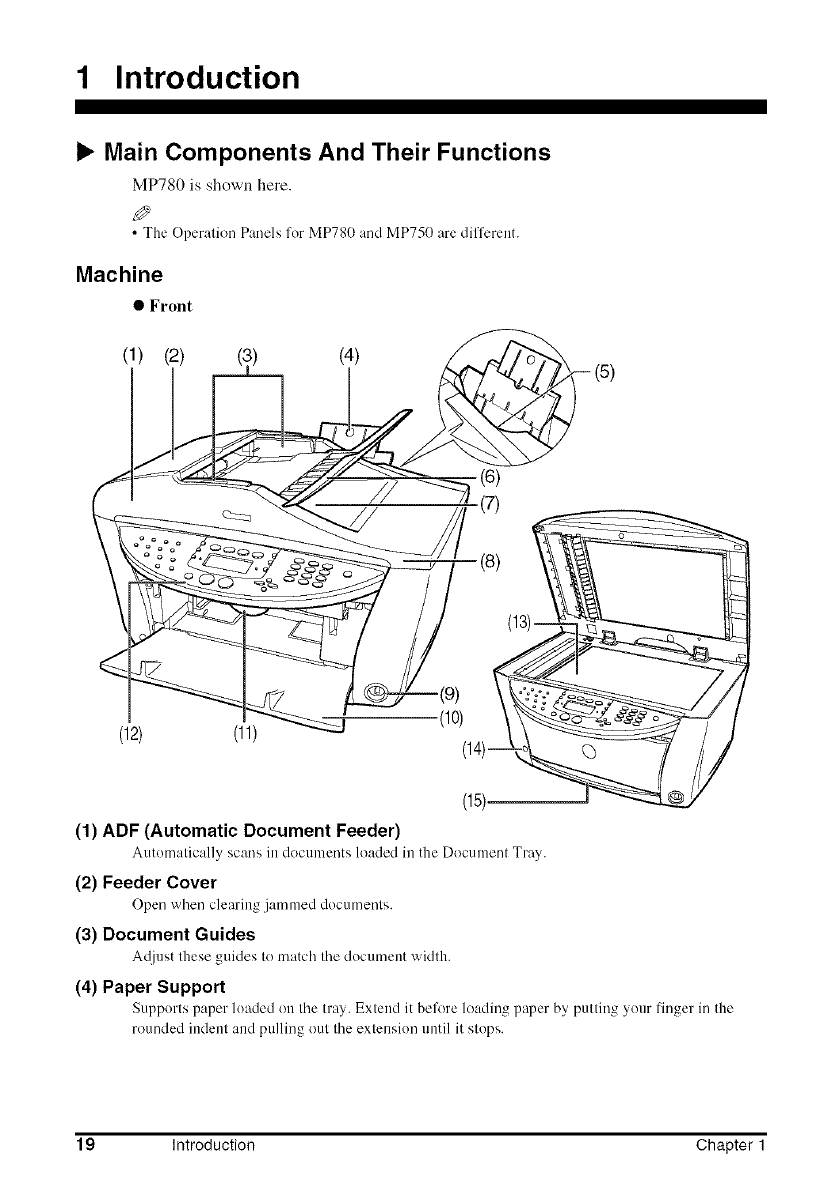
1 Introduction
b, Main Components And Their Functions
MP780 is shown here.
• The Operation Panels for MP780 and MP750 are different.
Machine
• Front
(1) (2) (4)
(6)
// _(7)
(8)
(12) (11) _.__
(14)--(15)_ Q) I
(1) ADF (Automatic Document Feeder)
Atltomatically scans ill docunlents loaded ill the Doctlnlent Tray.
(2) Feeder Cover
Open when clearing jammed documents.
(3) Document Guides
A@lst these guides to match the document width.
(4) Paper Support
Supports paper loaded on the tray. Extend it before loading paper by putting your finger in the
rounded indent and pulling out the extension until it stops.
19 Introduction Chapter 1
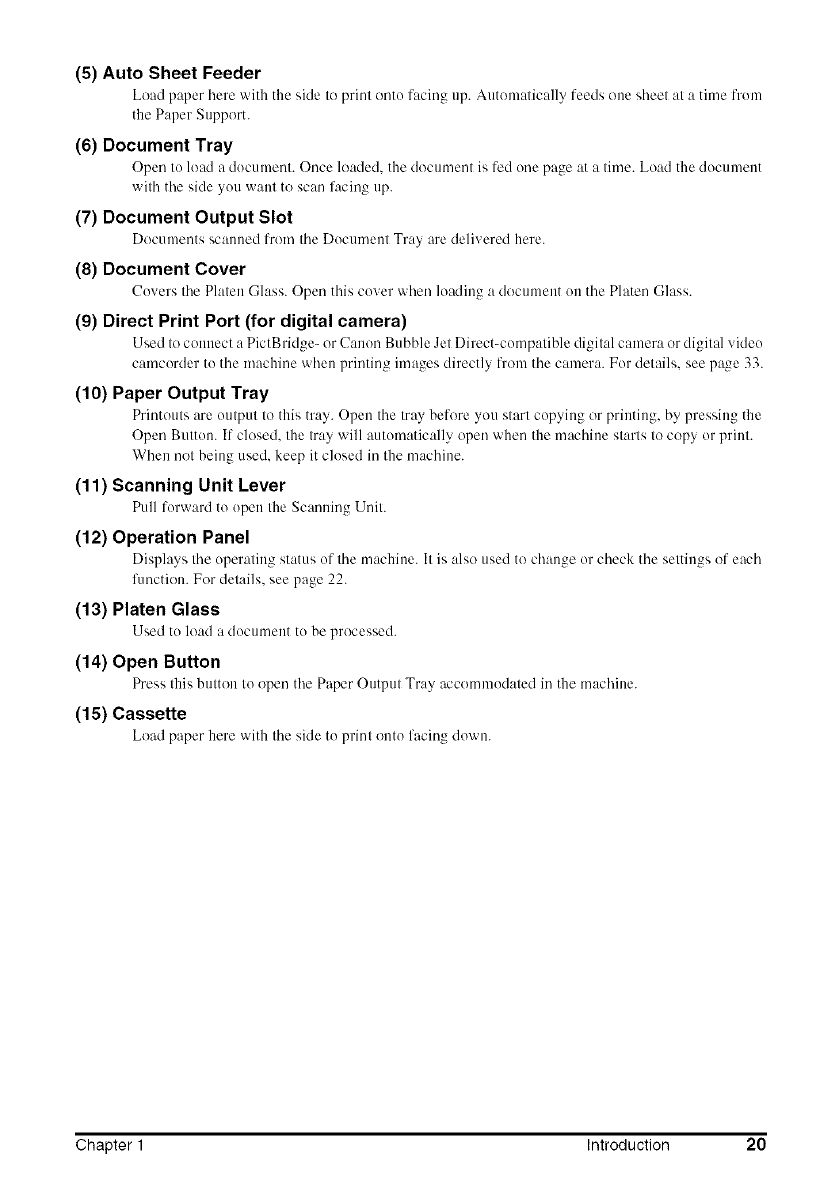
(5) Auto Sheet Feeder
Load paper here with the side to print onto facing up. Atltomatica]ly feeds one sheet at a time fronl
the Paper Support.
(6) Document Tray
Open to load a document. Once loaded, the document is fed one page at a time. Load the document
with the side you want to scan facing up.
(7) Document Output Slot
Documents scanned from the Document Tray are delivered here.
(8) Document Cover
(!o_ ers the Platen (-;lass. Open this cover when loading a document on the Platen Class.
(9) Direct Print Port (for digital camera)
Used to connect a PictBridge- or (!anon Bubble Jet Direct-compatible digital camera or digital xideo
camcorder to the machine when printing images directly from the camera. For details, see p_ge 33.
(10) Paper Output Tray
Printouts are output to this tray. Open the tray before you start copying or printing, by pressing the
Open Button. If closed, the tray will automatically open when the machine starts to copy or print.
When not being used, keep it closed in the machine.
(11) Scanning Unit Lever
Pull forward to open the Scanning Unit.
(12) Operation Panel
Displays the operating status of the machine. It is also used to change or check the settings of each
flmction. For details, see page 22.
(13) Platen Glass
Used to load a document to be processed.
(14) Open Button
Press this button to open the Paper Output Tray accommodated in the machine.
(15) Cassette
Load paper here with the side to print onto facing down.
Chapter 1 Introduction 20
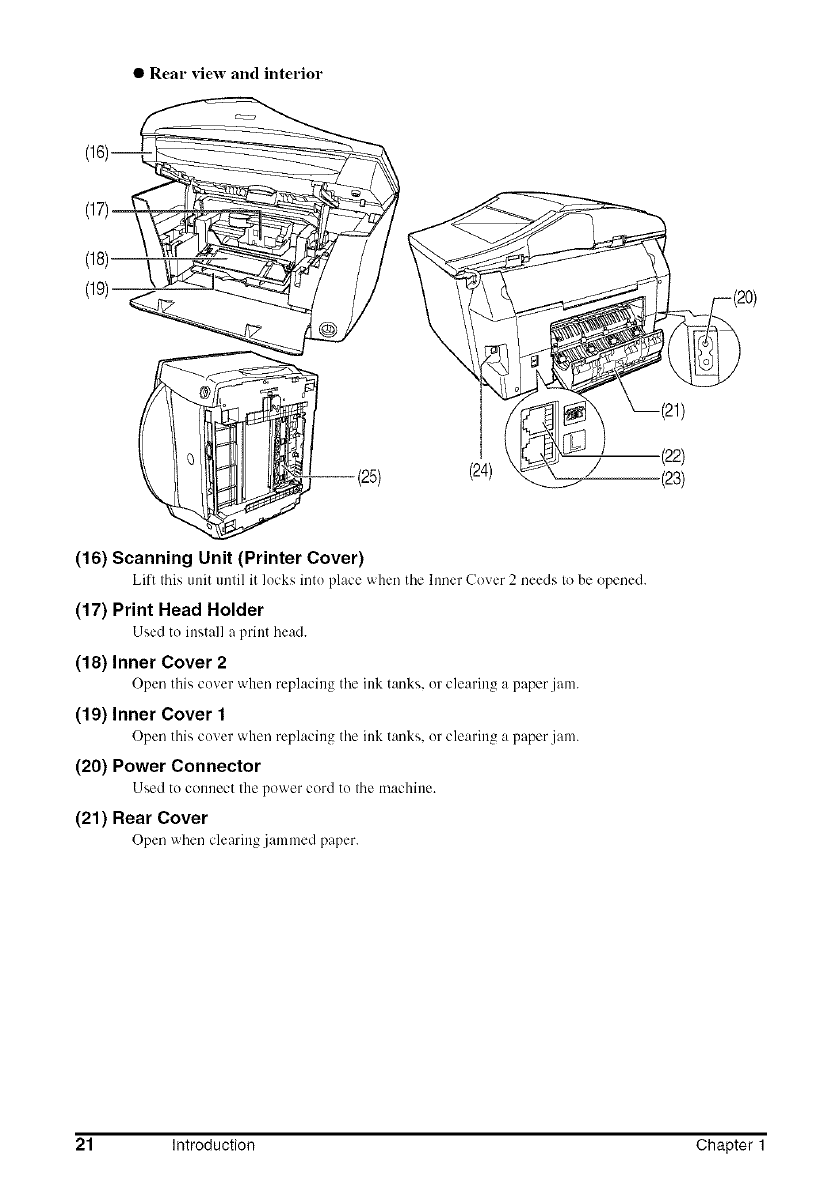
• Real" view and interior
(17)
(18)
(19) \
_(25) (24) /
(16) Scanning Unit (Printer Cover)
Lift this unit until it locks into place when the hmer Coxer 2 needs to be opened.
(17) Print Head Holder
Used to install a print head.
(18) Inner Cover 2
Open this cover when replacing tile inktanks, or clearing a paper jan1.
(19) Inner Cover 1
Open this cover when replacing the inktanks, or clearing a paper jan1.
(20) Power Connector
Used to connect the power cord to the machine.
(21) Rear Cover
Open when clearing .jammed paper.
(22)
(23)
21 Introduction Chapter 1
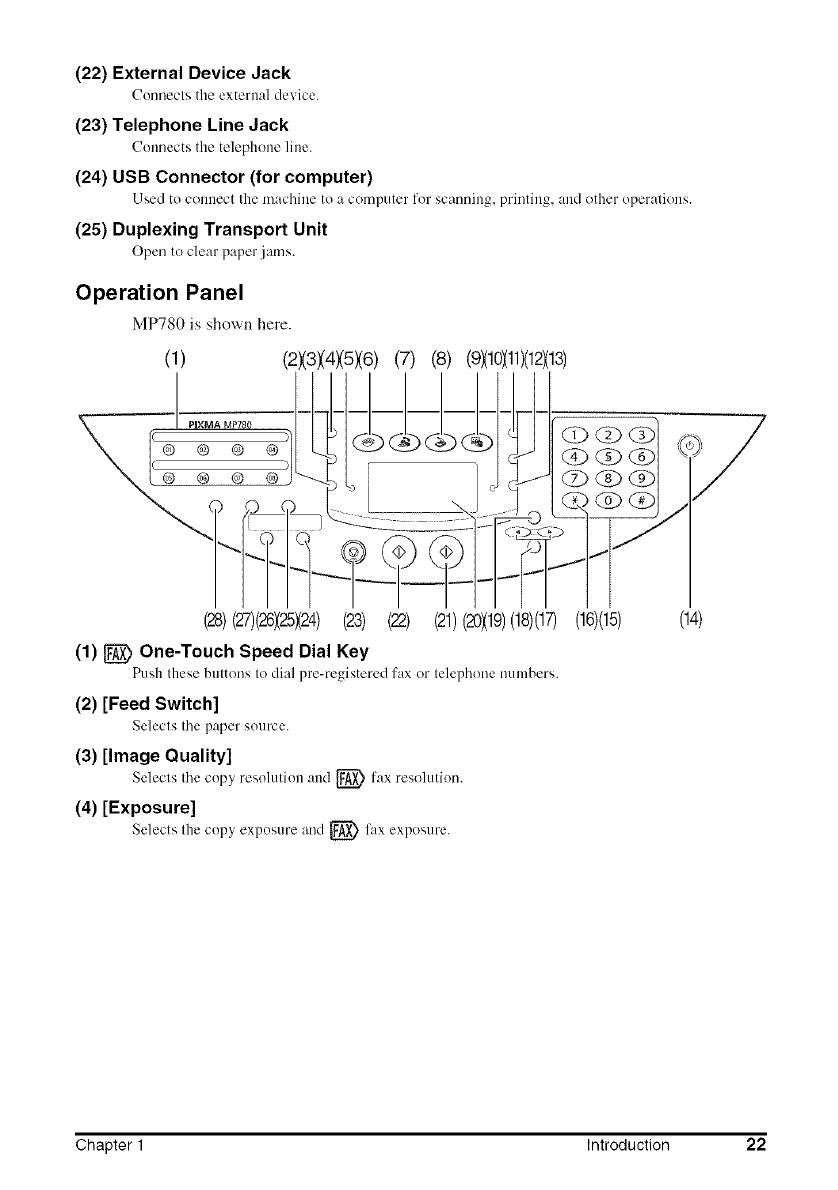
(22) External Device Jack
Connects the external device.
(23) Telephone Line Jack
Connects the telephone line.
(24) USB Connector (for computer)
Used to connect the machine to a computer for scanning, printing, and other operations.
(25) Duplexing Transport Unit
Open to clear paper jams.
Operation Panel
MP780 is shown here.
(1) (2X3)(4)(5)(6)(7) (8) (9X10}(11)(1£(13)
(28)(27)(28X25X24)(23) (22) (21)(2OX19)(18)(17)
(1) _One-Touch Speed Dial Key
Push these buttons to dial pre-registered fax or telephone numbers.
(2) [Feed Switch]
Selects the paper source.
(3) [Image Quality]
Selects thecopy resolution and [_ fax resolution.
(4) [Exposure]
Selects thecopy exposure and {_ fax exposure.
(16)(15) (14)
Chapter 1 Introduction 22
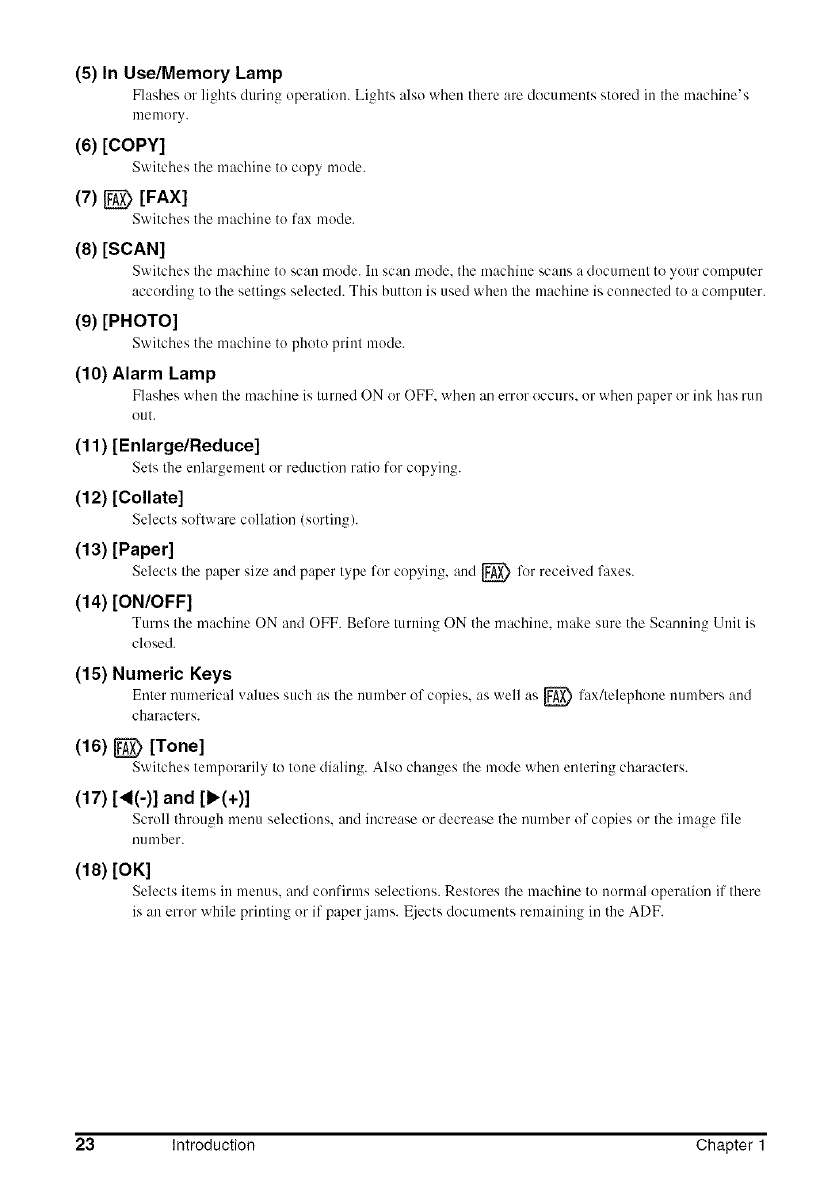
(5)InUse/MemoryLamp
Flashes or lights during operation. Lights also when there are docun/ents stored in the machine's
nlenlory.
(6) [COPY]
Switches tile machine to copy mode.
(7) _[FAX]
Switches tile machine to fax mode.
(8) [SCAN]
Switches tile machine to scan mode. In scan mode. tile machine se:ms a document to your computer
according to the settings selected. This button is used when the machine is connected to a computer.
(9) [PHOTOI
Switches the machine to photo print mode.
(10) Alarm Lamp
Flashes when tile machine is turned ON or OFF when an error occurs, or when paper or ink has run
(l/It.
(11 )[Enlarge/Reduce]
Sets tile enlargement or reduction ratio for copying.
(12) [Collate]
Selects software collation (sorting/.
(13) [Paper]
Selects tile paper size :rod paper type for copying, and [_ for receix ed faxes.
(14) [ON/OFF]
Turns the machine ON and OFF. Belk_re turning ON tile machine, make sure tile Scanning Unit is
closed.
(15) Numeric Keys
Enter numerical _alues such as the number of copies, as well as _ fax/telephone numbers and
characlers.
(16) _[Tone]
Switches temporarily to tone dialing. Also changes tile mode when entering characters.
(17) ['4(-)1 and [b'(+)]
Scroll through menu selections, and increase or decrease the number of copies or the image lile
nllniber.
(18) [OK]
Selects items in menus, and confirms selections. Restores tile machine to normal operation if there
is an error while prinling or if paper jams. 1Ejectsdocuments remaining in the ADF.
23 Introduction Chapter 1
(19) [Menu]
Accesses tile settings to customize operation of }our machine.
(20) LCD (Liquid Crystal Display)
Displays messages, nlenn selections, and tile operation status.
(21) [Colorl
Starts color copying, or _> foxing.
(22) [Black]
Starts black & white copying, or _ foxing.
(23) [Stop/Reset]
Cancels operations and returns tile nmchine to standby mode.
(24) [Two-Sided]
Selects two-sided copying.
(25) _[Hook]
Engages or disengages tile telephone line.
(26) [2 on 11
Selects 2 on 1 copying.
(27) _[Coded Dial]
Press this button and a two-digit code to dial a pre-registered fax or telephone number.
(28) _ [Redial/Pause]
Redi:ds the last di:ded number. Also enters pauses between or afler numbers when dialing or
registering numbers.
Chapter 1 Introduction 24
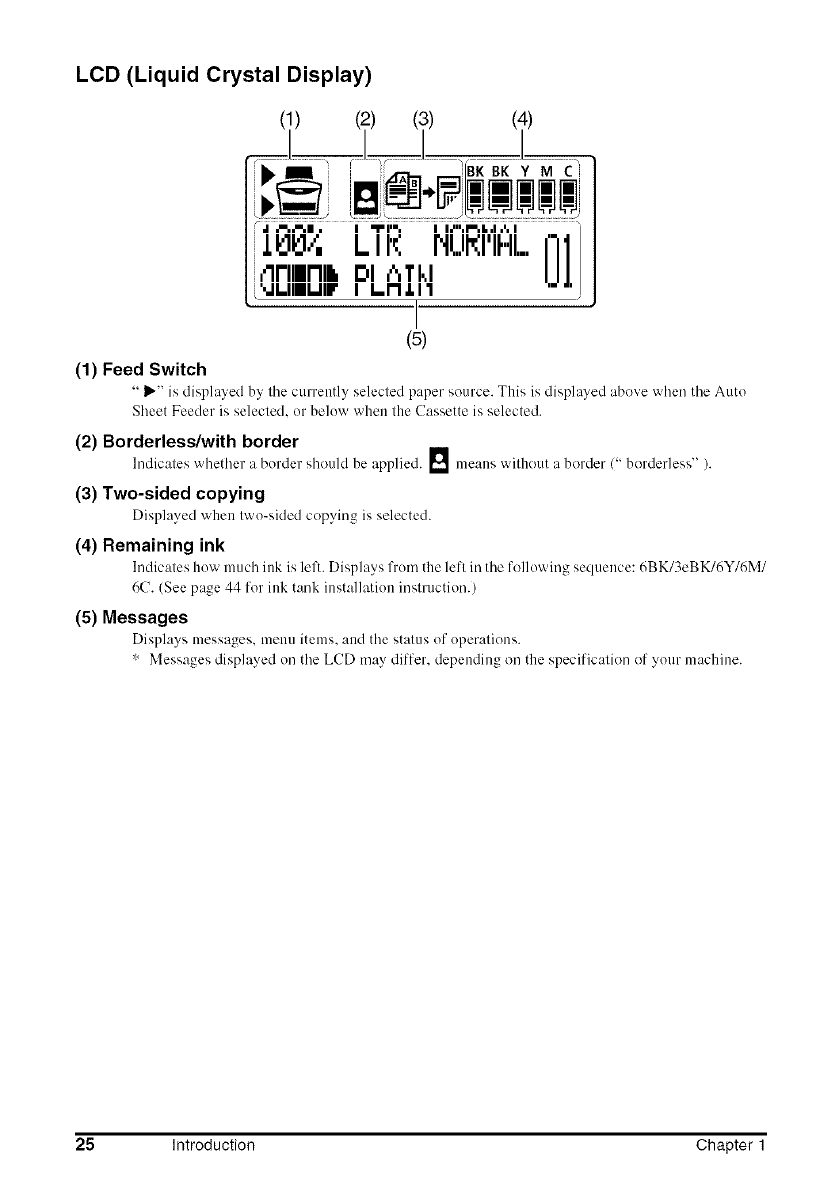
LCD (Liquid Crystal Display)
J_ ..............................
.I _l, i_ii"; i i.'ii;_l.;i,i;i "
iiqrlllI'IlkDI _Tkl
[MLIIII.III_I1.1"1J. 11 '_
I
(5)
(1) Feed Switch
" _" is displayed by tile currently selected paper source. This is displayed above when tile Auto
Sheet Feeder is selected, or below when the Cassette is selected.
(2) Borderless/with border l
Indicates whetl'_er a border should be applied. _ means without aborder (" border]ess" ).
(3) Two-sided copying
Displayed when two-sided copying is selected.
(4) Remaining ink
Indicates how much ink is left. Displays from the leR in the following sequence: 6BK/3eBK/6Y/6M/
6C. (See page 44 for ink tank installation instruction.)
(5) Messages
Disph,ys messages, menu items, and the status of operations.
* Messages displayed on the LCD may differ, depending on the specification of your machine.
25 Introduction Chapter 1
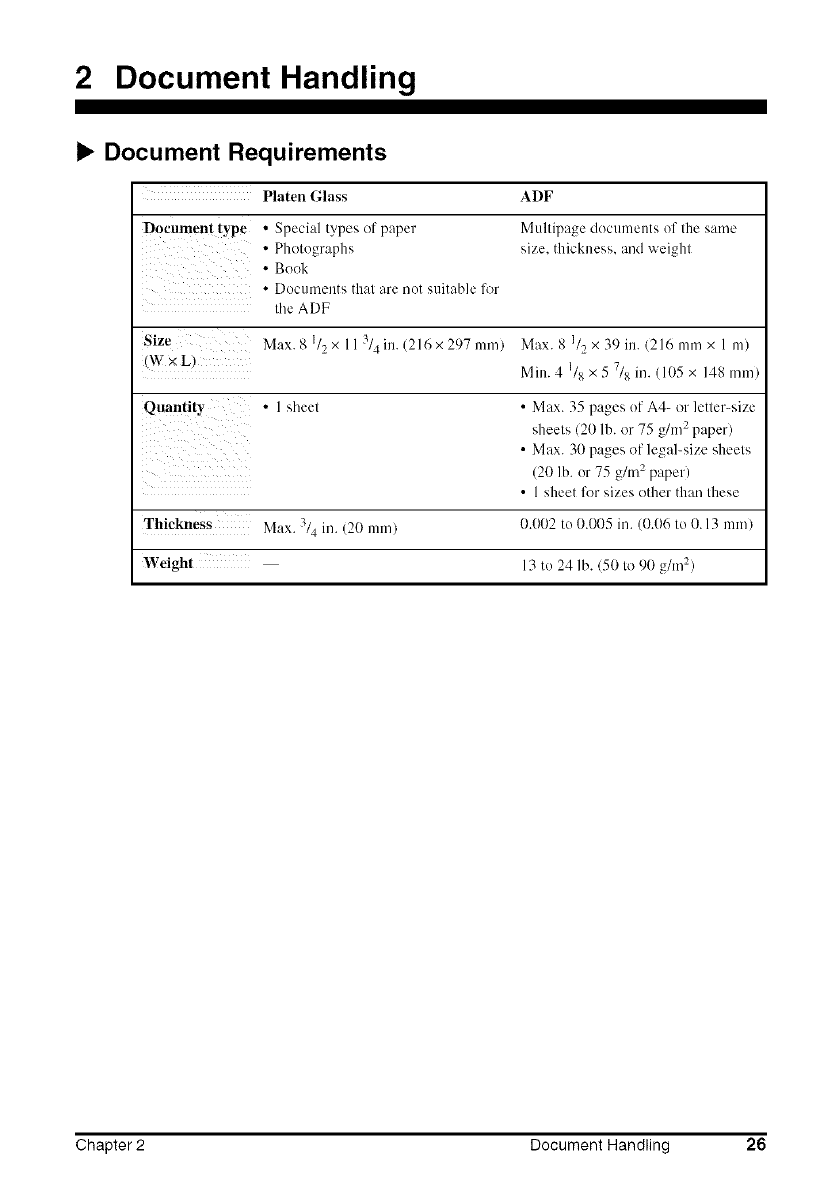
2 Document Handling
Document Requirements
Platen Glass ADF
Document type •Special types of paper Mullipage documents of file same
•Photographs size. thickness, and weighl
• Book
• [)octunents that are not suitable for
Ihe ADF
Size Max. 8 I12x 11 314 in. (216 x 297 nm/) Max. 8 I/2 x 39 in. (216 nm/x 1 m)
¢V x L) Min. 4 1/8 x 5 7/8 ill. (105 × 148 iron)
Quantity •1 sheel • Max. 35 pages of A4- or letler-size
sheets (20 lb. or 75 g/m 2 paper)
•Max. 30 pages of legal-size sheels
(20 lb. or 75 g/m 2 paper)
• 1 sheet for sizes other than these
Thickness Max. 3/4 iI/. (20 ram) 0.(}02 to 0.005 ill. (0.06 tO O. 13 Into)
Weight 13 to 24 lb. (50 to 90 g/In "2)
Chapter 2 Document Handling 26
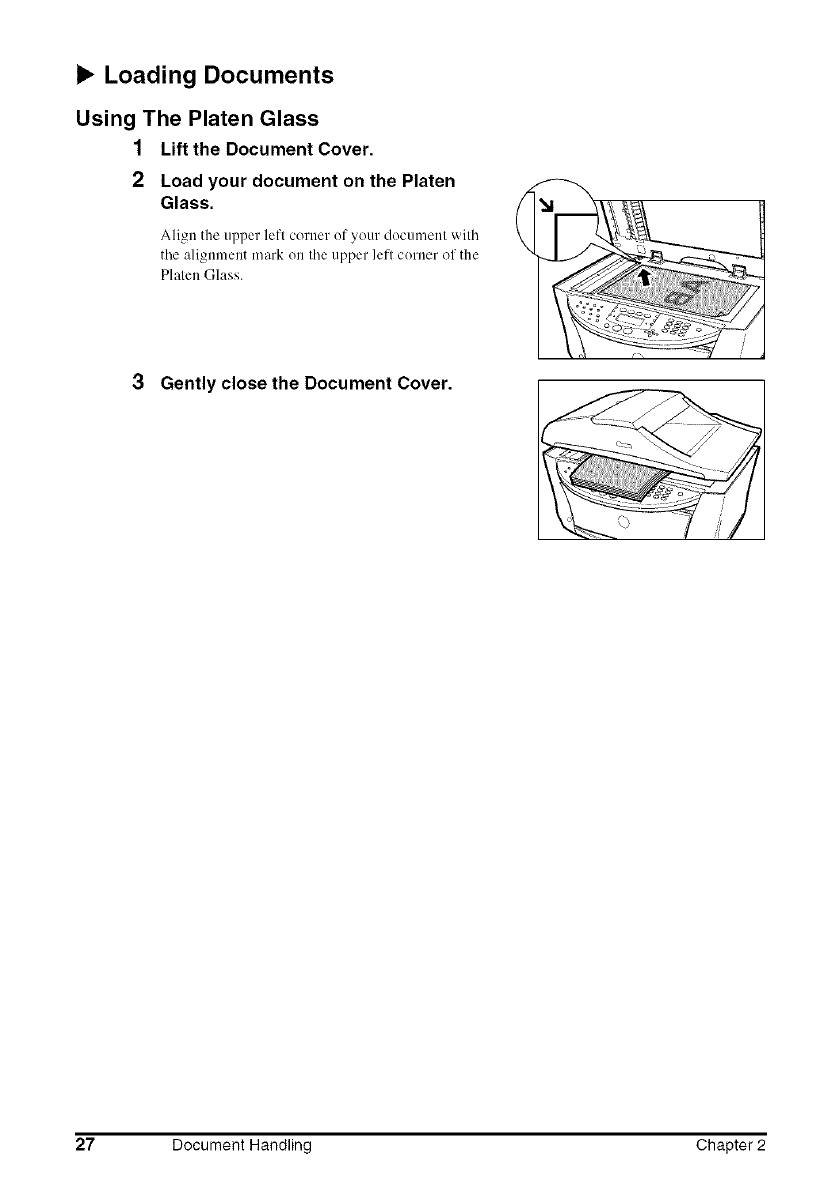
b, Loading Documents
Using The Platen Glass
1 Lift the Document Cover.
2Load your document on the Platen
Glass.
Align the ul_per left corner of your document ",_'illl
tile alignment mark on tile upper left corner of the
Platen (]lass.
3Gently close the Document Cover.
27 Document Handling Chapter 2
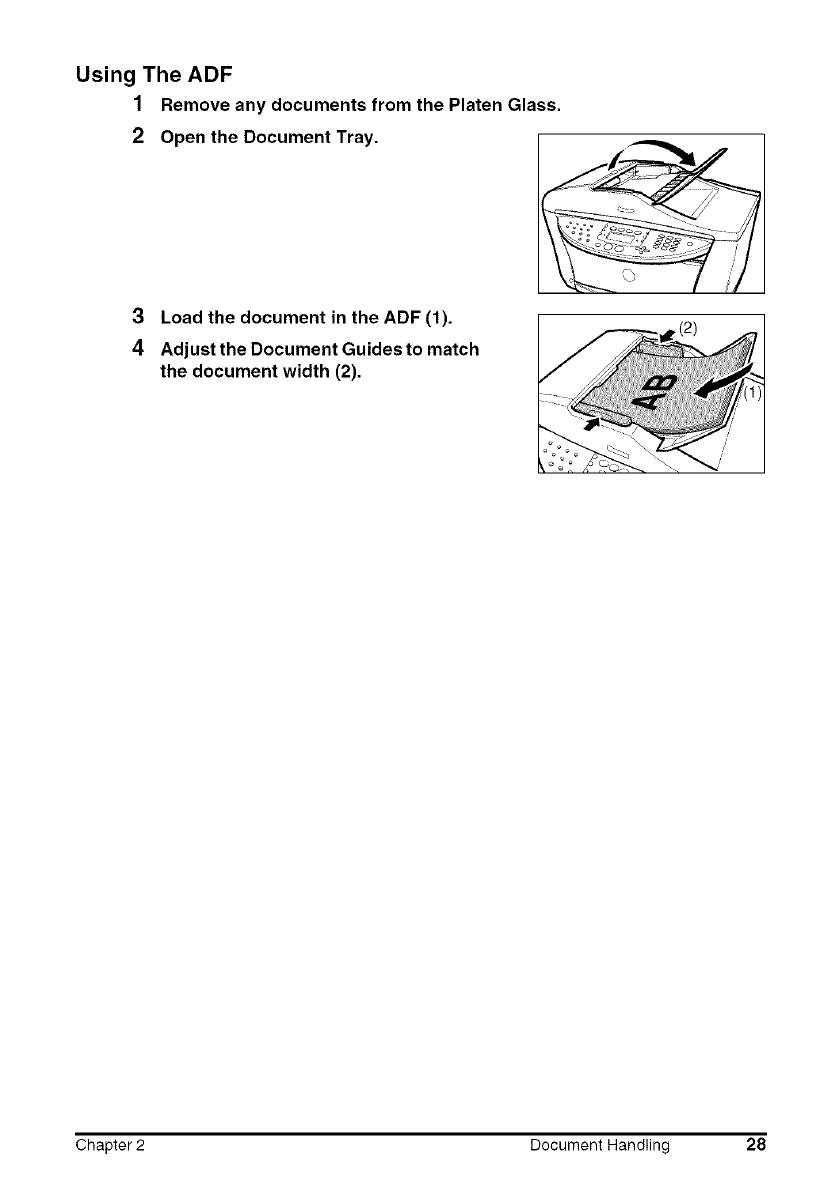
Using The ADF
1Remove any documents from the Platen Glass.
2Open the Document Tray.
3 Load the document in the ADF (1).
4Adjust the Document Guides to match
the document width (2).
Chapter 2 Document Handling 28
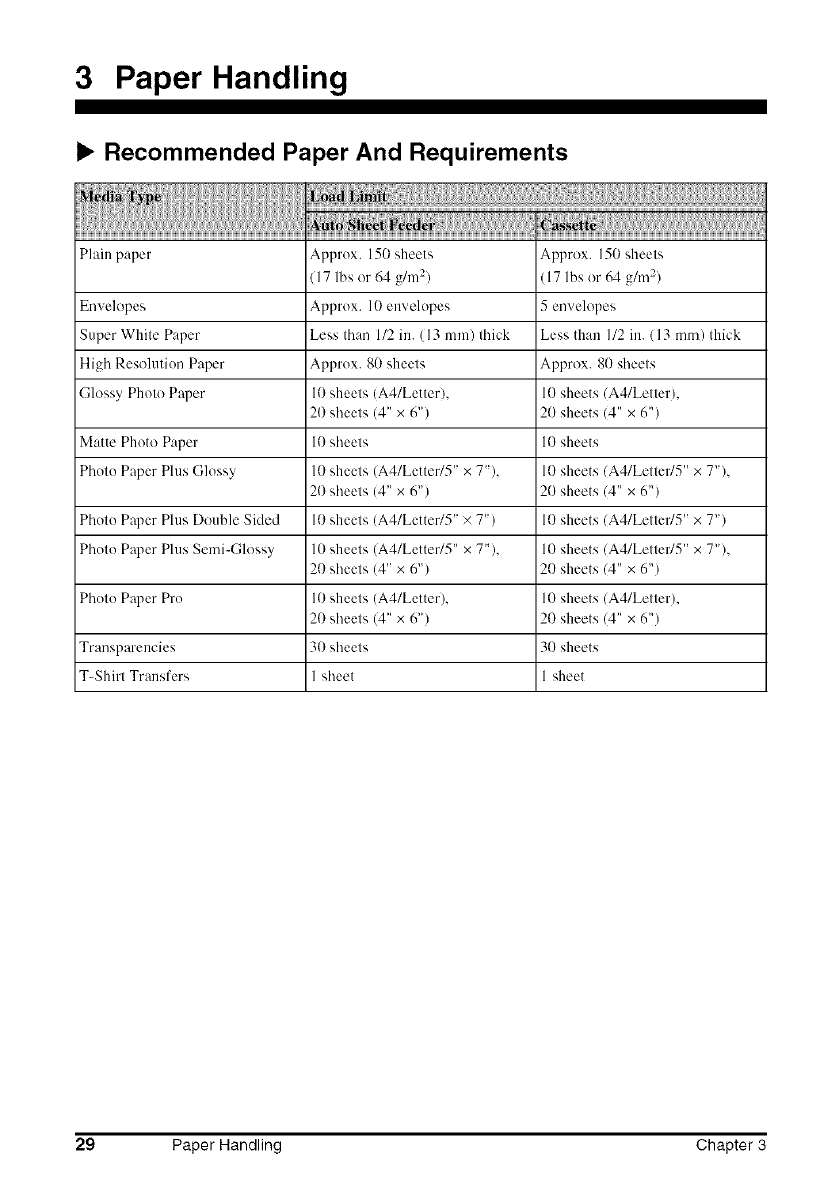
3 Paper Handling
i_ Recommended Paper And Requirements
17 lbs or 64 g/m 2) 17 lbs or 64 g/m 2)
Envelopes Approx. l0 envelopes 5 envelopes
Super White Paper Less than 1/2 in. (I 3 ram) thick Less than I/2 in. (I 3 ram) thick
High Resolution Paper Approx. 80 sheets Approx. 80 sheets
Glossy Photo Pnper 10 sheets (A4/Letter), 10 sheets (A4/Letter),
21)sheets (4" x 6") 20 sheets (4" x 6")
Matte Photo Paper 10 sheets 10 sheets
Photo Paper Plus Glossy 10 sheets (A4/Letter/5" x 7"), 10 sheets (A4/Letteff5" x 7"),
21)sheets (4" x 6") 20 sheets (4" x 6")
Photo Pnper Plus Double Sided 10 sheets (A4/Letter/5" × 7") 10 sheets (A4/Letteff5" x 7")
Photo Pnper Plus Semi-Glossy 10 sheets (A4/Letter/5" x 7"), 10 sheets (A4/Letteff5" x 7"),
20 sheets (4" x 6") 20 sheets (4" x 6")
Photo Pnper Pro 10 sheets (A4/Letter), 10 sheets (A4/Letter),
20 sheets (4" x 6") 20 sheets (4" x 6")
Transparencies 30 sheets 30 sheets
T-Shirt Transfers I sheet 1 sheet
29 Paper Handling Chapter 3
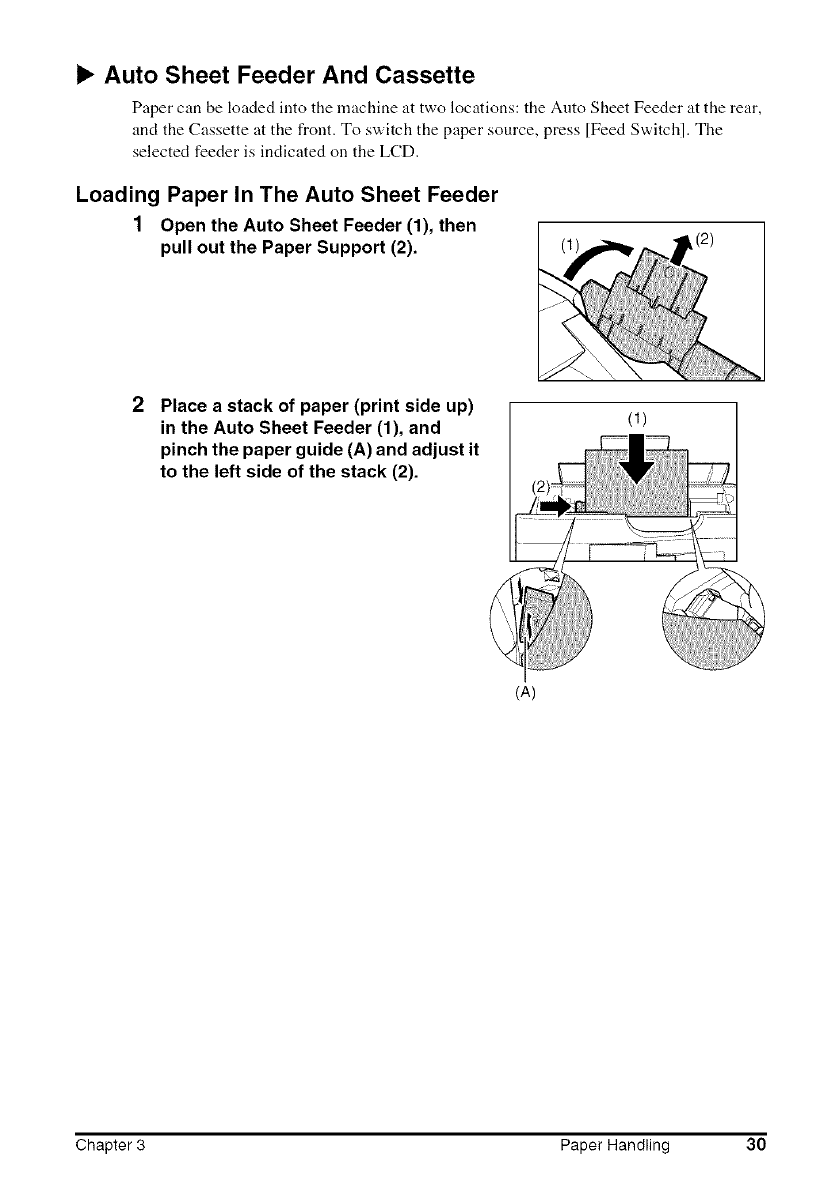
Auto Sheet Feeder And Cassette
P_per can be lo_ded into the m_chine _tttwo locations: tile Auto Sheet Feeder at the re_tr,
and the C_ssette _t the front. To switch the p_per source, press [Feed Switch]. The
selected feeder is indic_ted on the LCD.
Loading Paper In The Auto Sheet Feeder
1Open the Auto Sheet Feeder (1), then
pull out the Paper Support (2).
2Place a stack of paper (print side up)
in the Auto Sheet Feeder (1), and
pinch the paper guide (A) and adjust it
to the left side of the stack (2).
(A)
Chapter 3 Paper Handling 30
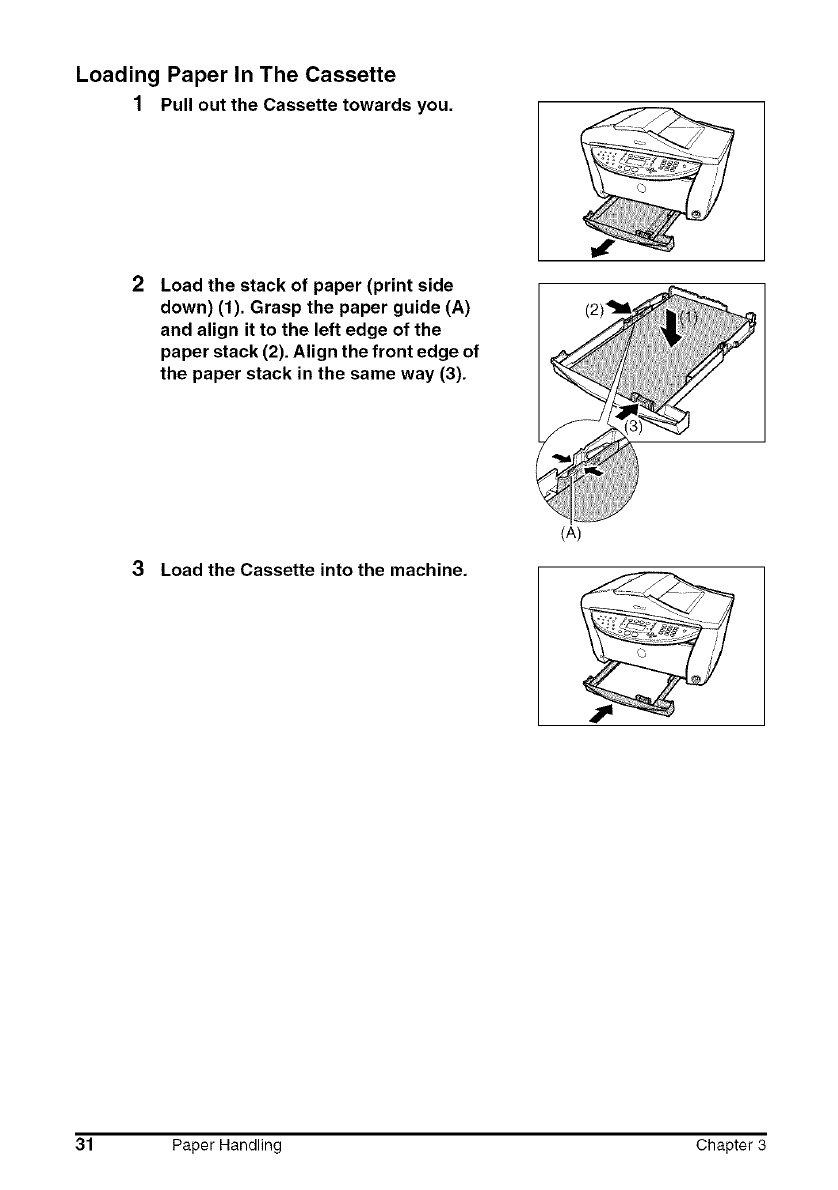
Loading Paper In The Cassette
1 Pull out the Cassette towards you.
2Load the stack of paper (print side
down) (1). Grasp the paper guide (A)
and align it to the left edge of the
paper stack (2). Align the front edge of
the paper stack in the same way (3).
3Load the Cassette into the machine.
(A)
31 Paper Handling Chapter 3
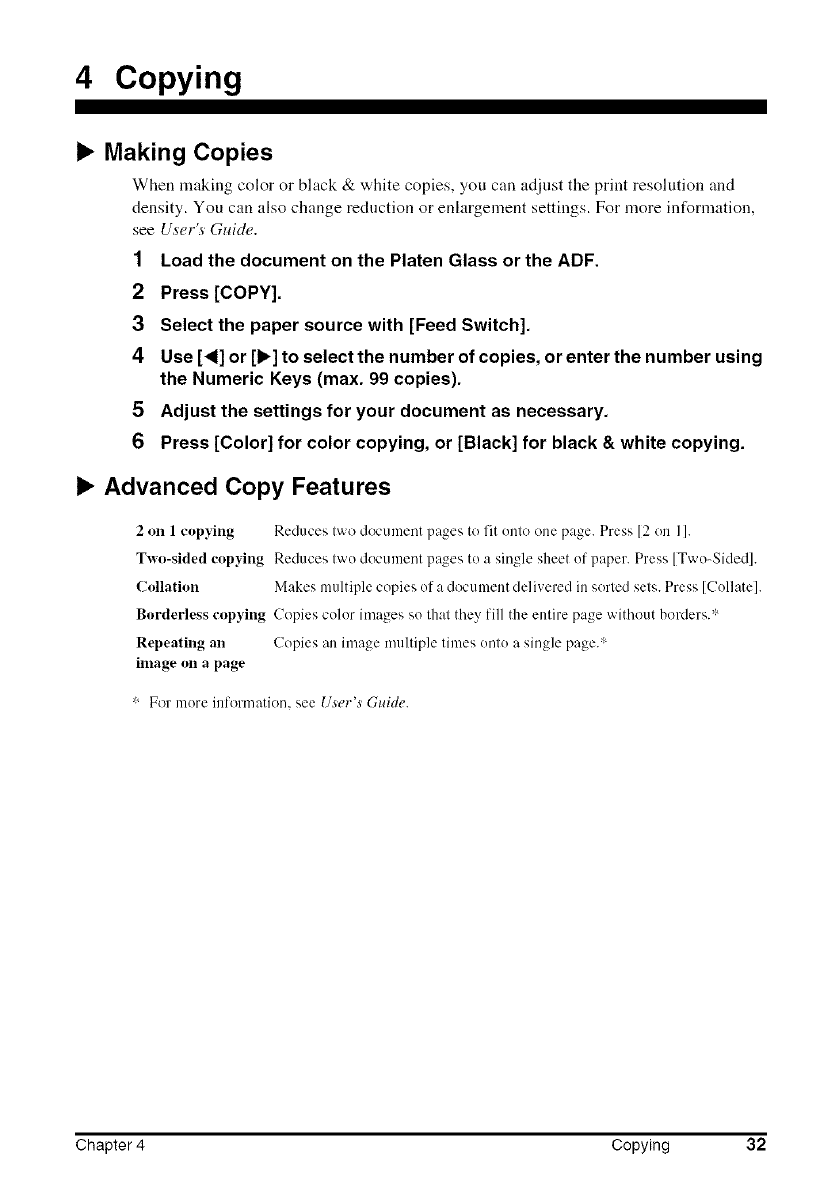
4 Copying
i_ Making Copies
When making color or black & white copies, you can a@lst tile print resolution and
density. You can also change reduction or enlargement settings. For more information,
see User'.s Guide.
1 Load the document on the Platen Glass or the ADF.
2Press [COPY].
3Select the paper source with [Feed Switch].
4 Use [4] or [1_]to select the number of copies, or enter the number using
the Numeric Keys (max. 99 copies).
5 Adjust the settings for your document as necessary.
6 Press [Color] for color copying, or [Black] for black & white copying.
i_ Advanced Copy Features
2 on 1 copying Reduces two doeunlent pages to fit onto one page. Press 12on I1.
Two-sided copying Reduces two document pages to a single sheet of paper. Press [Two-Sided].
Collation Makes multiple copies of a document delivered in sorted sets. Press [Collate].
Borderless copying Copies color images so that they fill the entire page without borders.':'
Repeating an Copies an image nmltiple times onto a single page.*
image on a page
':' For more infornmtion, see User's Guide.
Chapter 4 Copying 32
5 Photo Printing Directly From A Digital
Camera
Connecting a PictBridge compatible or Canon "Bubble Jet Direct" compatible digital
camera or digital video camcorder to the MP780/750 enables you to print captured images
directly without using a computer.
Connecting To A Digital Camera
1Turn on the machine.
2Select the paper source with [Feed Switch].
3Load the paper in the Auto Sheet Feeder or the Cassette.
4Make sure the camera is turned off.
5 Connect the camera to the machine using the USB cable (for connection
to a computer) supplied with the camera.
The digitM c:nnern tllrns itself on _utoln_aicMly when the connection is estMqished. It your
model of camera does not turn itself on automatically, turn it on manually.
6 You are now read,/to print images from the camera.
33 Photo Printing Directly From A Digital Camera Chapter 5
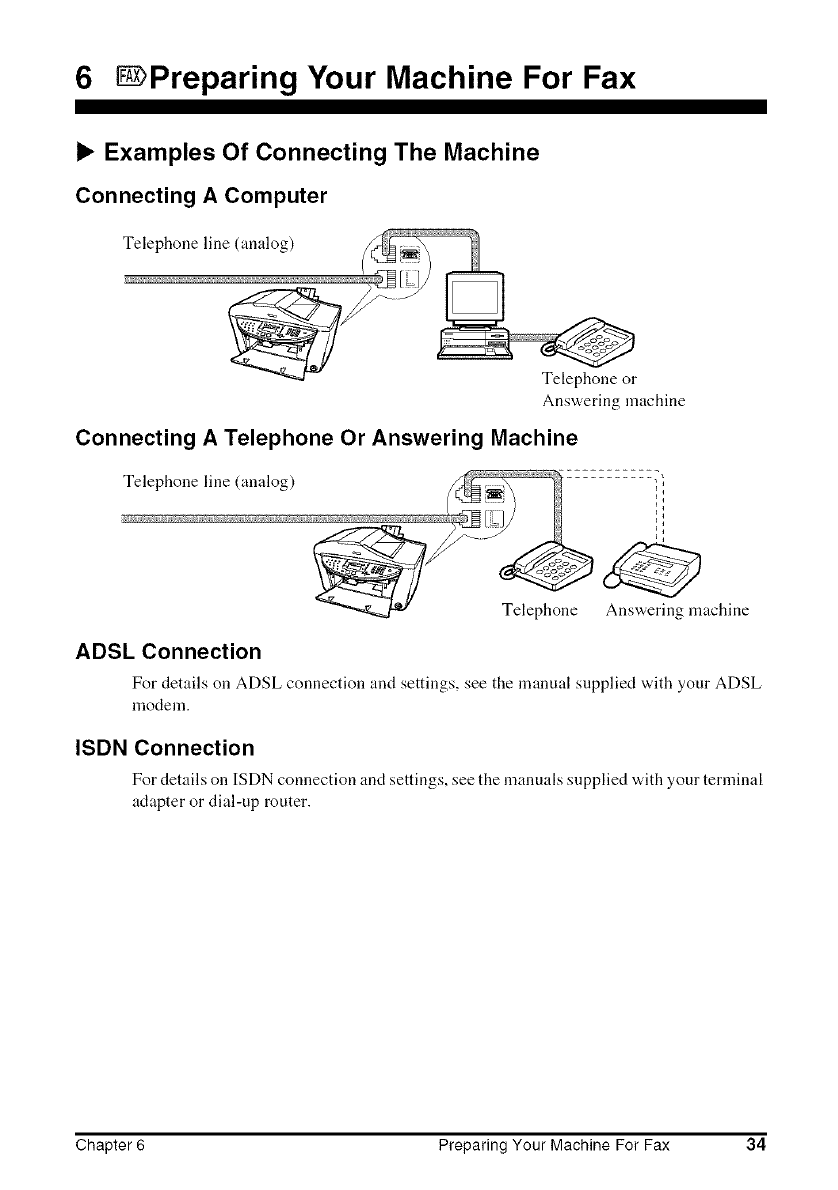
6_Preparing Your Machine For Fax
i_ Examples Of Connecting The Machine
Connecting A Computer
Telephone or
Answering machine
Connecting A Telephone Or Answering Machine
Telephone line 0malog) "
Answering machine
ADSL Connection
For details on ADSL connection and settings, see tlre manual supplied with your ADSL
nlocleul.
ISDN Connection
For details on ISDN connection and settings, see the manuals supplied with your terminal
adapter or dial-up router.
Chapter 6 Preparing Your Machine For Fax 34
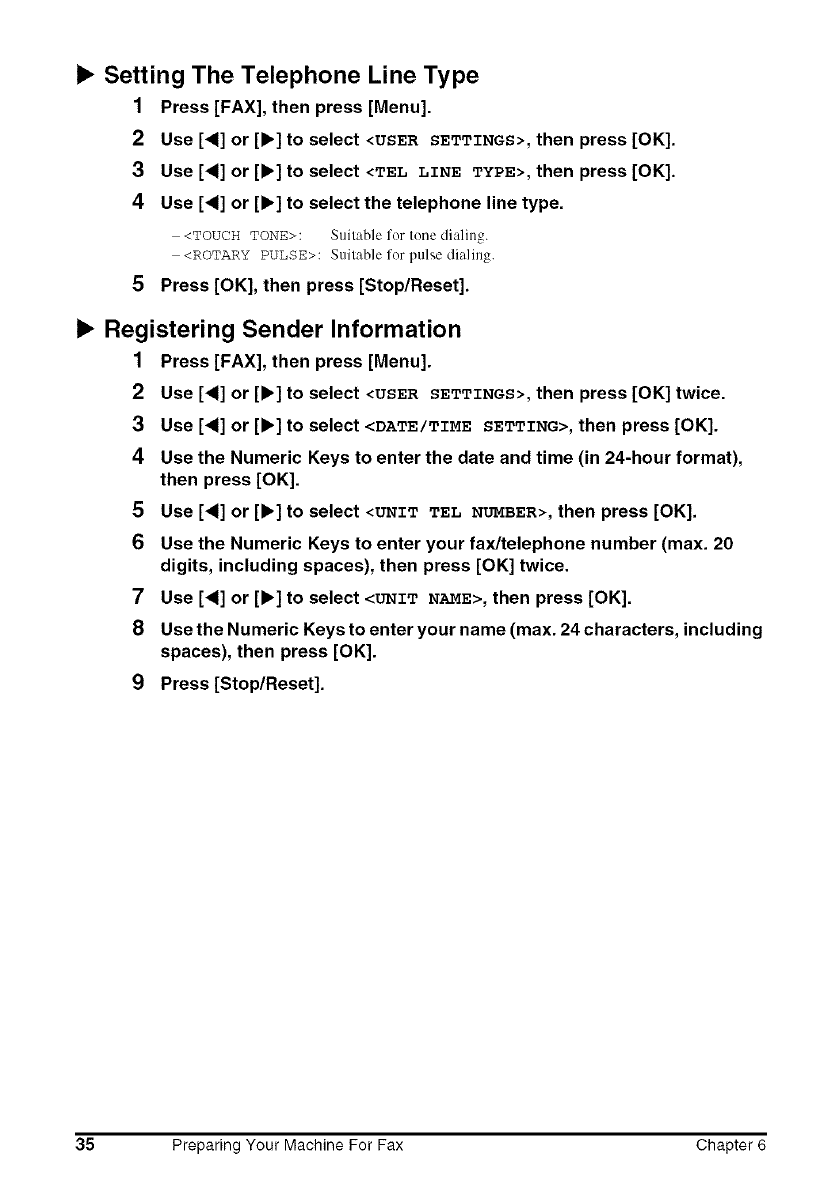
Setting The Telephone Line Type
1Press [FAX], then press [Menu].
2 Use [<l] or [1_] to select <USER SETTINGS>, then press [OK].
3 Use [4] or [1_]to select <TEL LINE TYPE>, then press [OK].
4 Use [<1]or [1_]to select the telephone line type.
<TOUCH TONE>: Stlit:,ble for tone di:ding.
<ROTARY PULSE>: Suitable for pulse dia]ing.
5 Press [OK], then press [StoplReset].
Registering Sender Information
1 Press [FAX], then press [Menu].
2 Use [4] or [1_]to select <USER SETTINGS>, then press [OK] twice.
3Use [4] or [1_] to select <DATE/TIME SETTING>, then press [OK].
4Use the Numeric Keys to enter the date and time (in 24-hour format),
then press [OK].
5 Use [<l] or [1_] to select <UNIT TEL NUMBER>, then press [OK].
6 Use the Numeric Keys to enter your fax/telephone number (max. 20
digits, including spaces), then press [OK] twice.
7Use [4] or [1_] to select <UNIT NAME>, then press [OK].
8 Use the Numeric Keys to enter your name (max. 24 characters, including
spaces), then press [OK].
9 Press [StoplReset].
35 Preparing Your Machine For Fax Chapter 6
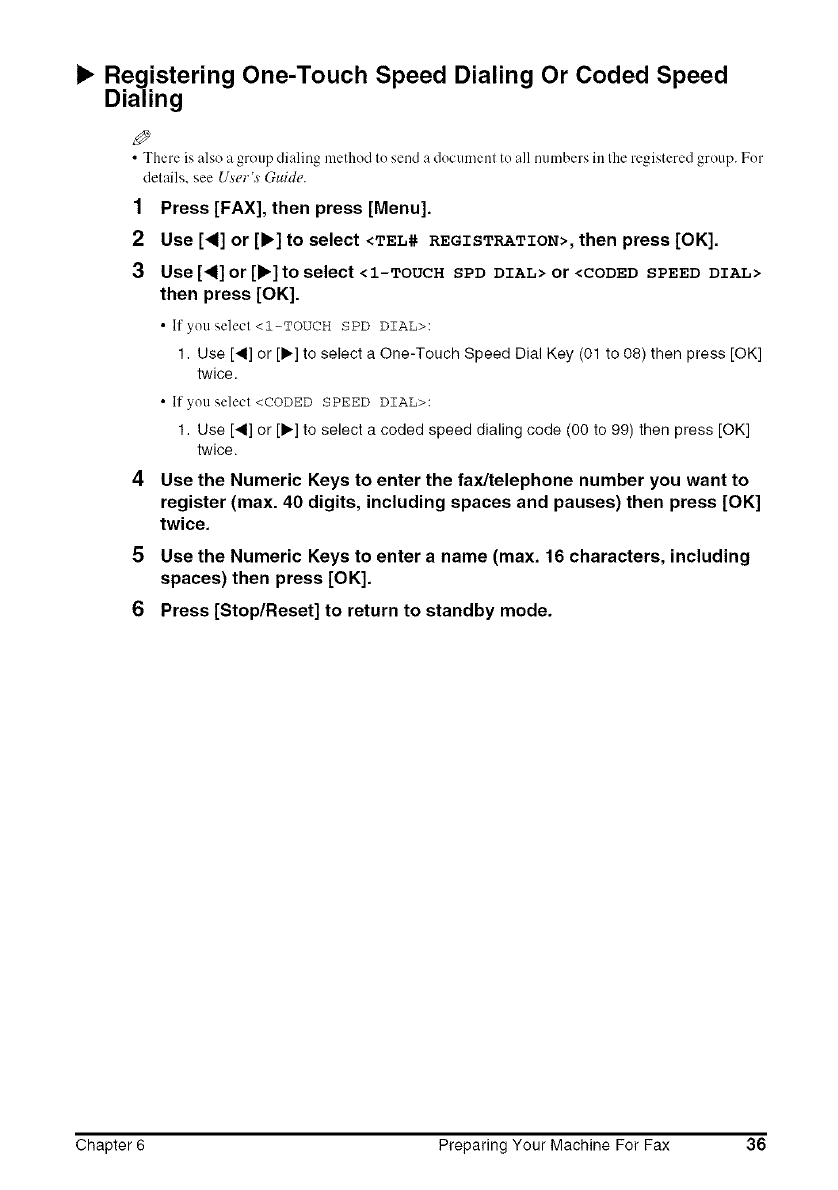
Registering One-Touch Speed Dialing Or Coded Speed
Dialing
• There is also a group dialing method tosend a document to all numbers in the registered group. For
details, see User's Guide.
1
2
3
4
Press [FAX], then press [Menu].
Use [_] or [1_] to select <TEL# REGISTRATION>, then press [OK].
Use [_I]or[I_]toselect<l-TOUCH SPD DIAL> or<CODED SPEED DIAL>
then press [OK].
•If you select <l-TOUCH SPD DIAL>:
1. Use [,q] or [1_]to select a One-Touch Speed Dial Key (01 to 08) then press [OK]
twice.
• If you select <CODED SPEED DIAL>:
1. Use [,q] or [1_]to select a coded speed dialing code (00 to 99) then press [OK]
twice.
Use the Numeric Keys to enter the fax/telephone number you want to
register (max. 40 digits, including spaces and pauses) then press [OK]
twice.
5 Use the Numeric Keys to enter a name (max. 16 characters, including
spaces) then press [OK].
6 Press [Stop/Reset] to return to standby mode.
Chapter 6 Preparing Your Machine For Fax 36
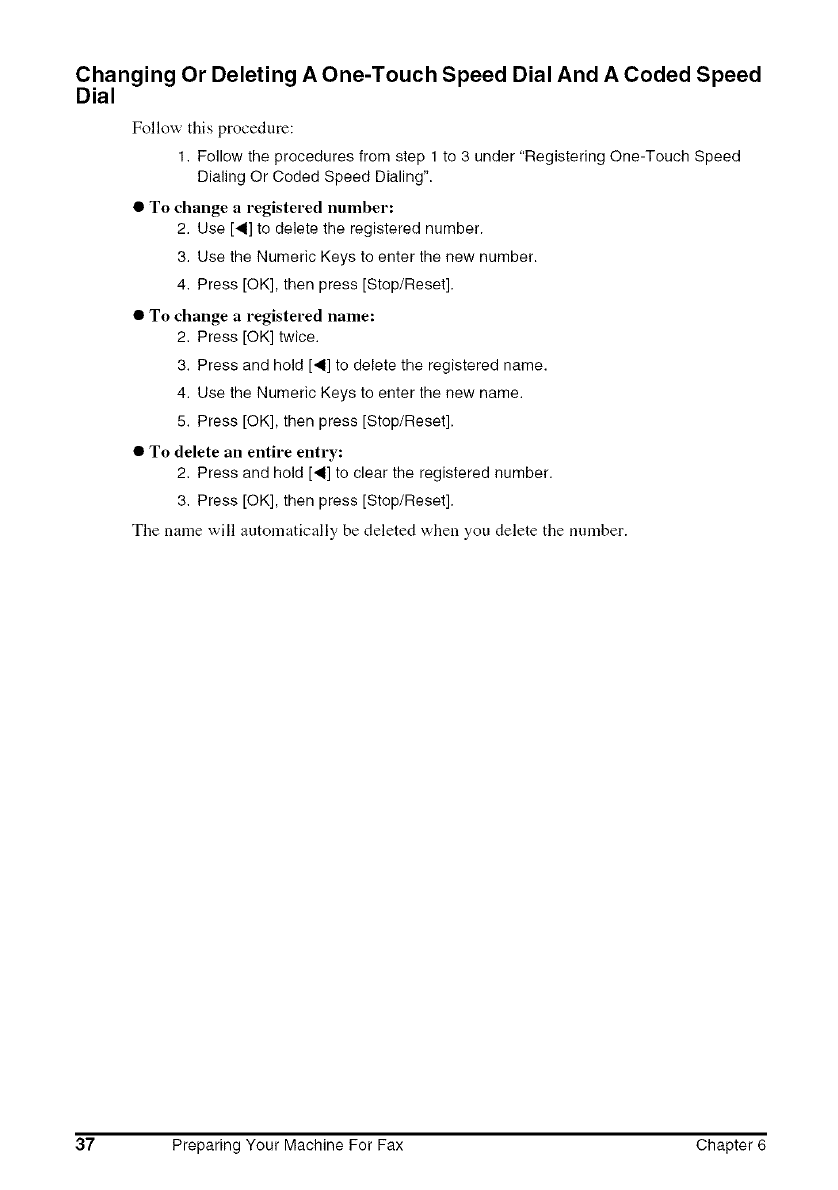
Changing Or Deleting A One-Touch Speed Dial And A Coded Speed
Dial
Follow this procedure:
1. Follow the procedures from step 1 to 3 under "Registering One-Touch Speed
Dialing Or Coded Speed Dialing".
• To change a registered number:
2. Use [_] to delete the registered number.
3. Use the Numeric Keys to enter the new number.
4. Press [OK], then press [Stop/Reset].
• To change a registered name:
2. Press [OK] twice.
3. Press and hold [_] to delete the registered name.
4. Use the Numeric Keys to enter the new name.
5. Press [OK], then press [Stop/Reset].
• To delete an entire entry:
2. Press and hold [_] to clear the registered number.
3. Press [OK], then press [Stop/Reset].
The name will automatically be deleted when you delete the number.
37 Preparing Your Machine For Fax Chapter 6
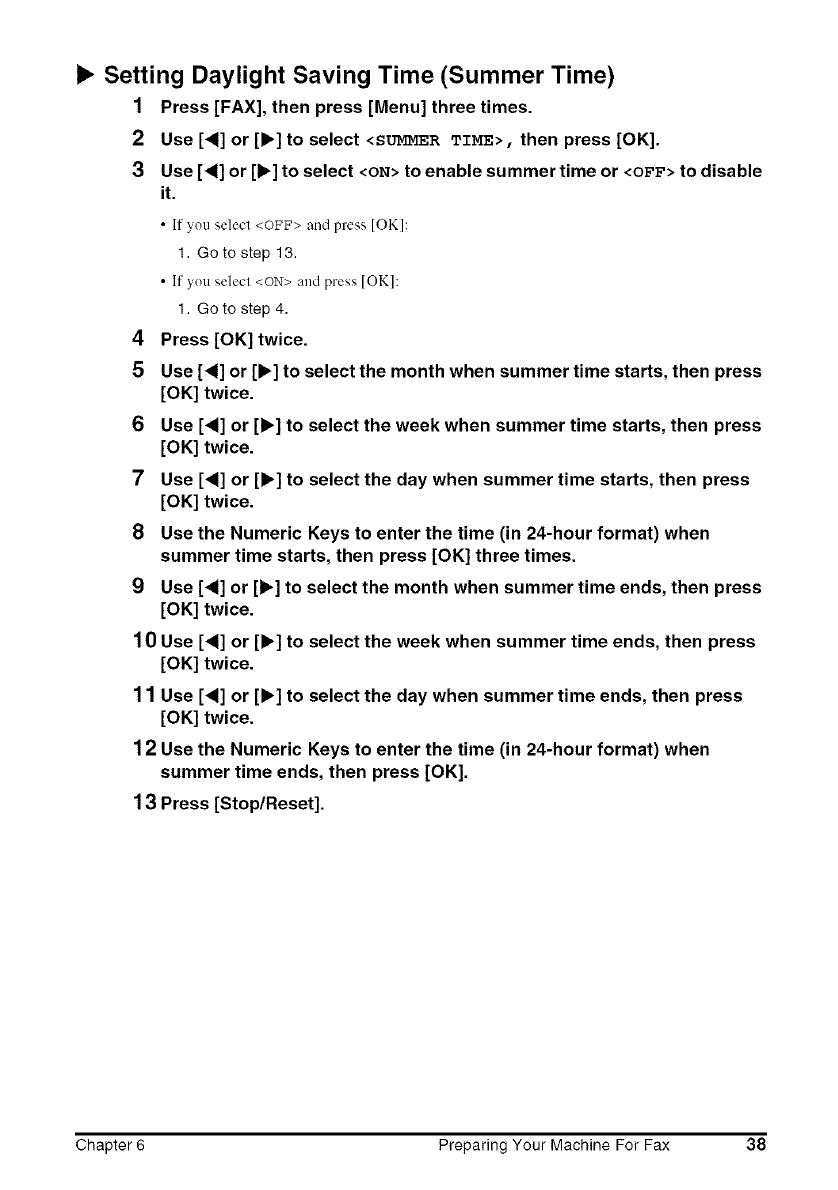
i_ Setting Daylight Saving Time (Summer Time)
1 Press [FAX], then press [Menu] three times.
2 Use [<] or [1_]to select <SUMMER TIME>, then press [OK].
3 Use [<] or [1_]to select <ON> to enable summertime or <OFF> to disable
it.
• If you select <OFF> and press [OK]:
1. Go to step 13.
• If you select <ON>and press IOKI:
1. Go to step 4.
4Press [OK] twice.
5Use [_] or [1_] to select the month when summer time starts, then press
[OK] twice.
6 Use [_1] or [1_] to select the week when summer time starts, then press
[OK] twice.
7 Use [_1] or [1_] to select the day when summer time starts, then press
[OK] twice.
8 Use the Numeric Keys to enter the time (in 24-hour format) when
summer time starts, then press [OK] three times.
9 Use [<1] or [1_]to select the month when summer time ends, then press
[OK] twice.
1 0 Use [<] or [1_] to select the week when summer time ends, then press
[OK] twice.
1 1 Use [<1] or [1_] to select the day when summer time ends, then press
[OK] twice.
12 Use the Numeric Keys to enter the time (in 24-hour format) when
summer time ends, then press [OK].
13 Press [StoplReset].
Chapter 6 Preparing Your Machine For Fax 38
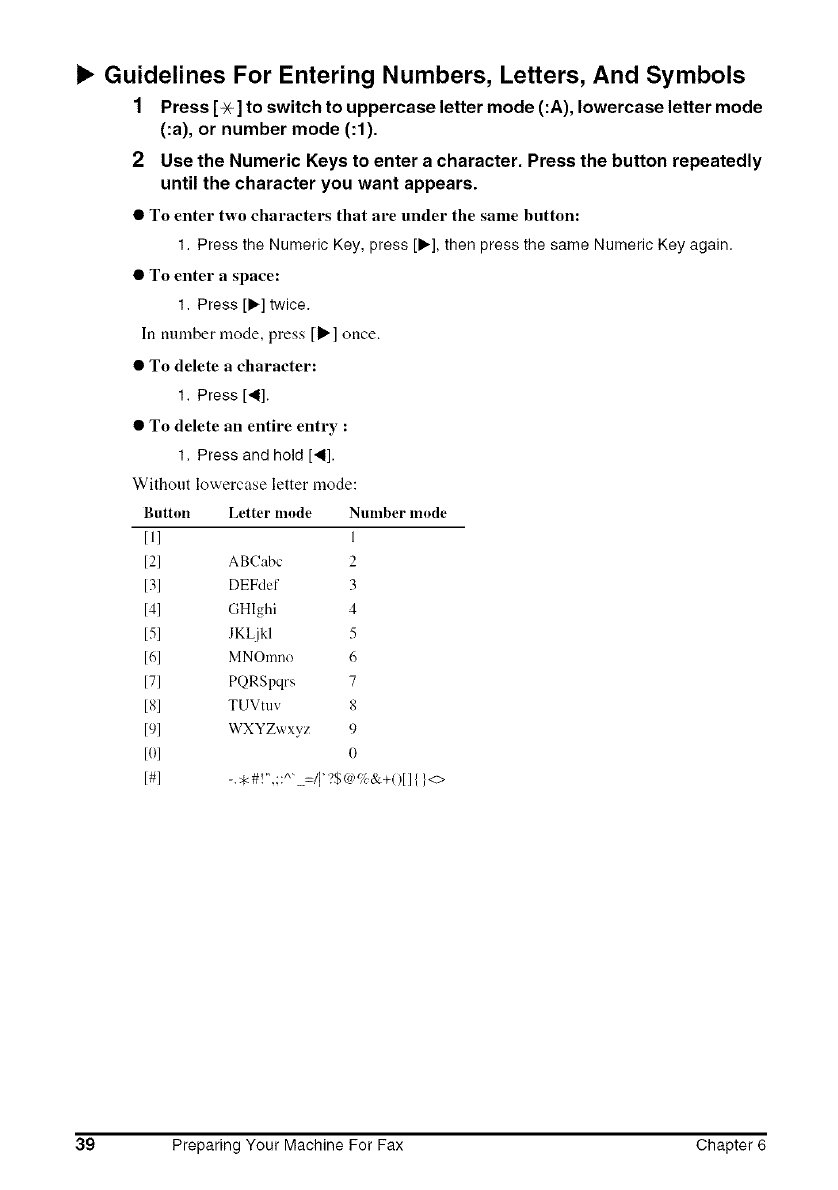
Guidelines For Entering Numbers, Letters, And Symbols
1Press [% ] to switch to uppercase letter mode (:A), lowercase letter mode
(:a), or number mode (:1).
2Use the Numeric Keys to enter a character. Press the button repeatedly
until the character you want appears.
• To enter two characters that are under the same hutton:
1. Press the Numeric Key, press [1_],then press the same Numeric Key again.
• To enter aspace:
1. Press [1_]twice.
In ntnnber mode, press [1_] once.
• To delete a character:
1. Press [,ll].
• To delete an entire entry :
1. Press and hold [,ll].
Without lowercase letter mode:
Button Letter mode Nmnber mode
I1] 1
121 AB('abc 2
131 DEFdef 3
14] GHIghi 4
15] JKLjkl 5
Idl MNOnmo 6
171 PQRSpqrs 7
[Sl TUVtuv 8
191 WXYZwxyz 9
101 0
I#] -.*#!",;:^"_=/1'<?$(<"</;&+01111<>
39 Preparing Your Machine For Fax Chapter 6
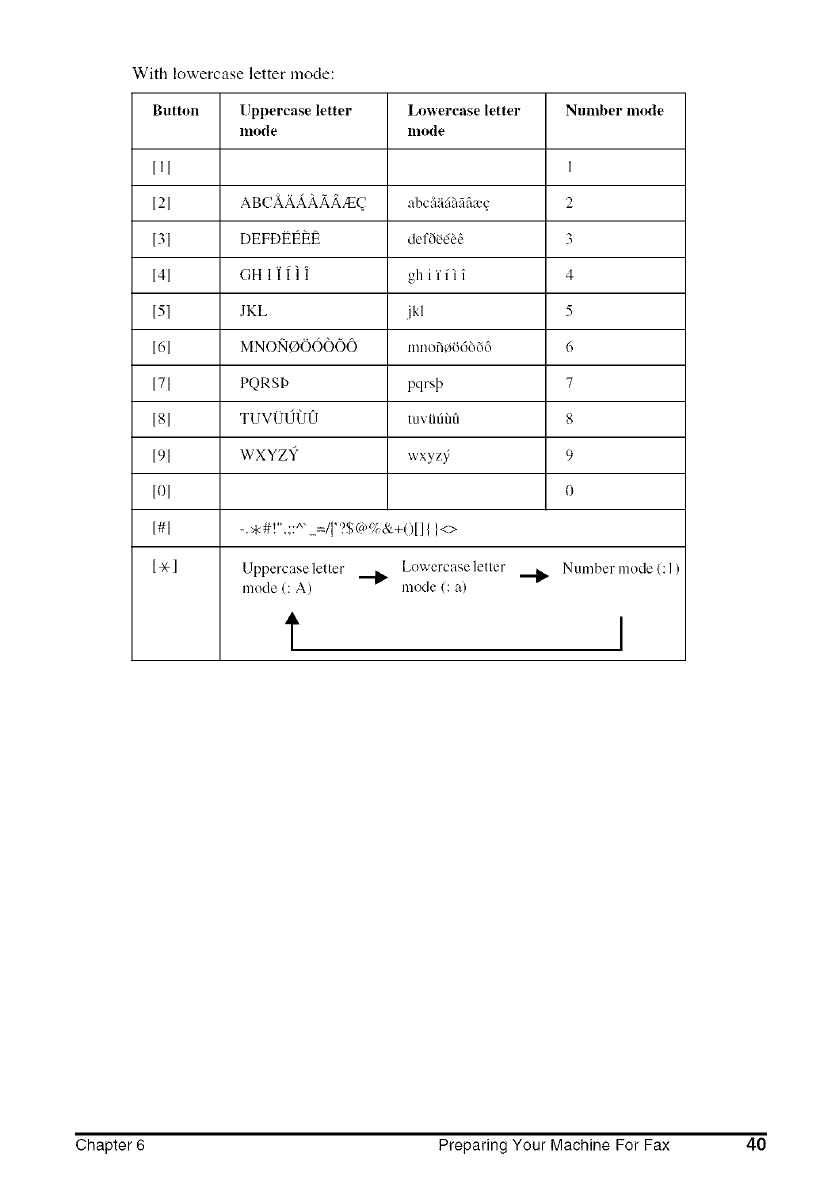
With lowercase letter mode:
Button Uppercase letter
lno{le
[ II
[21
[31
[41
[5]
[61
[71
[81
[91
[ol
[#l
[,'+l
Lowercase letter Number mode
lllode
I
AB(?AAAAAA/E(" abc i_ifii'_fifi_ec 2
DEFDEI_EE def60&?_ 3
GH 11 I 11 gh ii"fi i4
JKL jkl 5
MNONOO(3(')O0 mnofl¢_id666 6
PQRSI) pqr@ 7
TUV{JIJ{30 tuvtifiilfi 8
WXYZY wxyz}; 9
0
-.,#!",;:^" =/I?$(<,,_,;&+0II{1<>
Lowercase letter Number mode C 1)
Uppercase letter _
mode C A) mode C a)
t I
Chapter 6 Preparing Your Machine For Fax 40
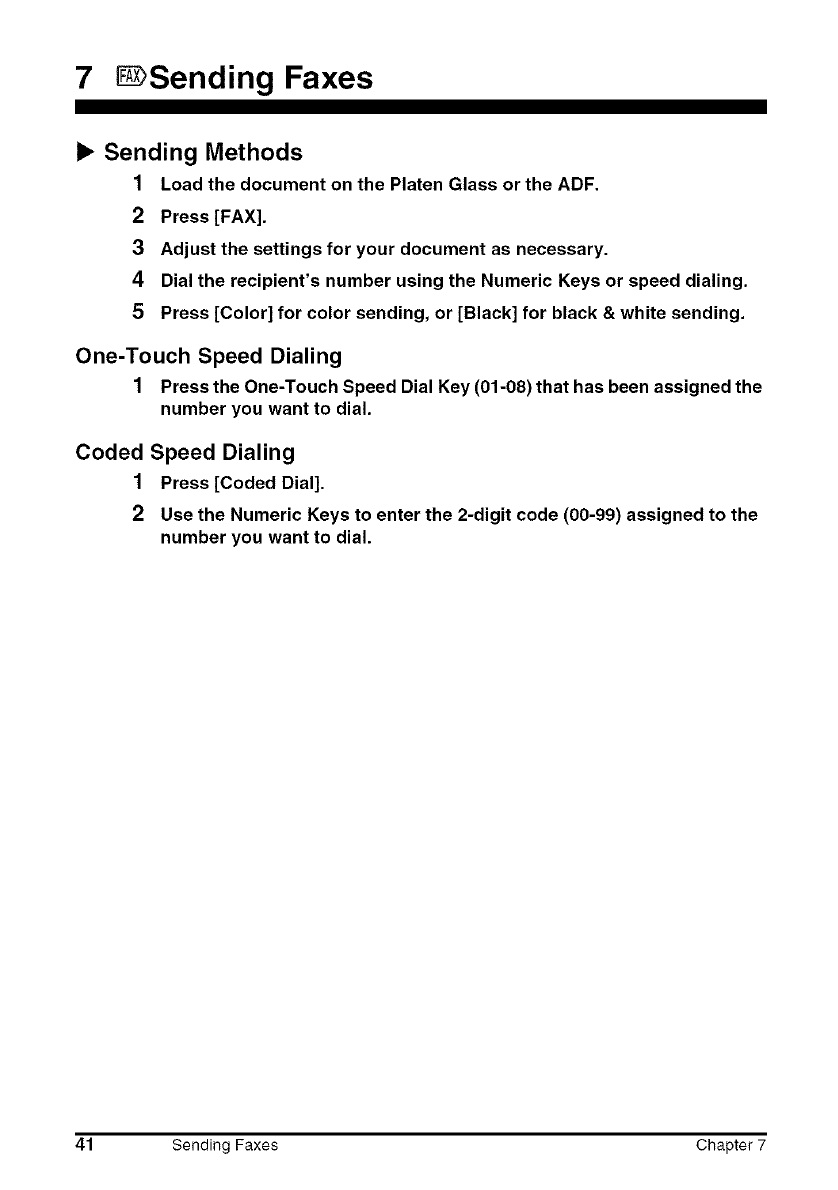
7 Sending Faxes
b, Sending Methods
1Load the document on the Platen Glass or the ADF.
2Press [FAX].
3Adjust the settings for your document as necessary.
4Dial the recipient's number using the Numeric Keys or speed dialing.
5 Press [Color] for color sending, or [Black] for black & white sending.
One-Touch Speed Dialing
1Press the One-Touch Speed Dial Key (01-08) that has been assigned the
number you want to dial.
Coded Speed Dialing
1 Press [Coded Dial].
2Use the Numeric Keys to enter the 2-digit code (00-99) assigned to the
number you want to dial.
41 Sending Faxes Chapter 7
8 Receiving Faxes
b, Receive Modes
If You Want To Receive Only Faxes Automatically With Your
Machine, Or You Have A Dedicated Telephone Line For Fax Use
Only:
•Select <FAX ONLY MODE>.
•When you receive :,fax call: Tile machine will receive tile fax automatically.
•When you recei_ e a voice call: You will not be able to answer the call.
If You Receive Mainly Voice Calls And Sometimes Faxes, Or You
Want To Receive Faxes Manually:
• Select <MANUAL MODE>.
•When you receive a fax call:
•When you recei_ e a voice call:
•For remote receiving:
The telephone will ring. Pick up the handset and if you
hear a beep, press [Black] or [Color] on the machine to
receive the fax.
The telephone will ring. Pick up the handset to answer
the call.
If you are far from your machine, dial 25 (the remote
receiving ID) on your telephone to receive faxes.
If You Want To Receive Voice Messages On Your Answering
Machine And Receive Faxes Automatically:
•Select <ANS.MACHINE MODE>.
• When you recei_ e a fax call: First the answering machine connected to your machine
will respond to an incoming call, and then the machine
will receive faxes automatically.
• When you receix e a voice call: The answering machine connected to your machine will
respond to an incoming call.
Chapter 8 Receiving Faxes 42
If You Want To Receive Faxes Automatically As Well As Voice
Calls:
• Select <FAX/TEL AUTO SW>.
• When you receive a fax call:
• When you receive a ``'oice call:
Tile maclfine will recei',e tile fax automatically.
The machine will ring. Pick up the handsel to answer
tile calh
If You Have Subscribed To A Distinctive Ring Pattern Detection
(DRPD) Service With Your Telephone Company (US only):
•Select <DRPD>.
• When you receive a fax calh The machine will ring according to the ring paltern you
have chosen and receive the fax automatically.
• When you recei_ e a _oice calh The machil(e will ring according to the ring pattern you
have chosen. Pick up the h,tmdsel to answer the call.
If You Have Subscribed To The Telstra FaxStream TM Duet Service
(Australia only) Or The Telecom FaxAbility Service (New Zealand
only):
• Select <NET SW. >.
• When you receive a fax calh The machine will ring and receive the fax
automatically.
• When you recei_ e a ,,'()ice calh The machine will ring. Pick up the handset to answer
tile calh
Setting The Receive Mode
1 Press [FAX], then press [Menu].
2Press [OK].
3 Use [4] or [1_]to select the receive mode.
4Press [OK].
43 Receiving Faxes Chapter 8
9 Maintenance
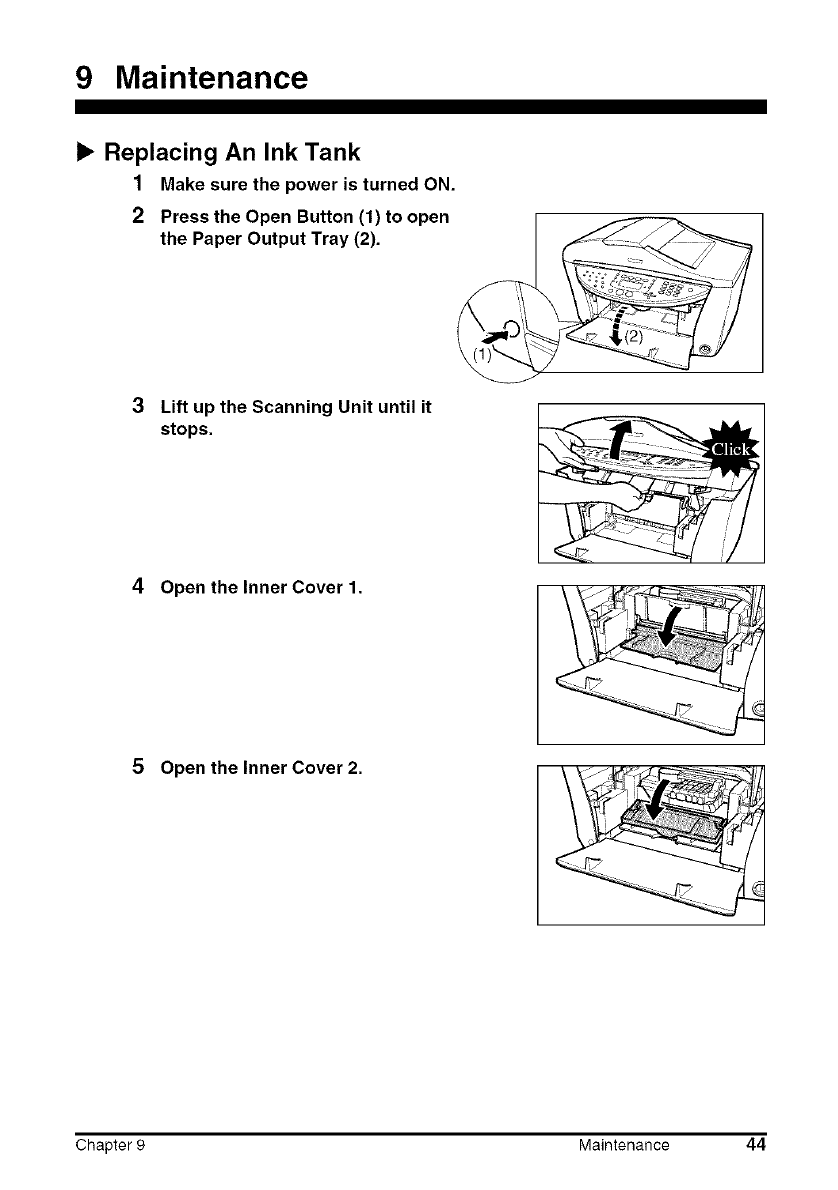
Replacing An Ink Tank
1Make sure the power is turned ON.
2Press the Open Button (1) to open
the Paper Output Tray (2).
3Lift up the Scanning Unit until it
stops.
4Open the Inner Cover 1.
5 Open the Inner Cover 2.
Chapter 9 Maintenance 44
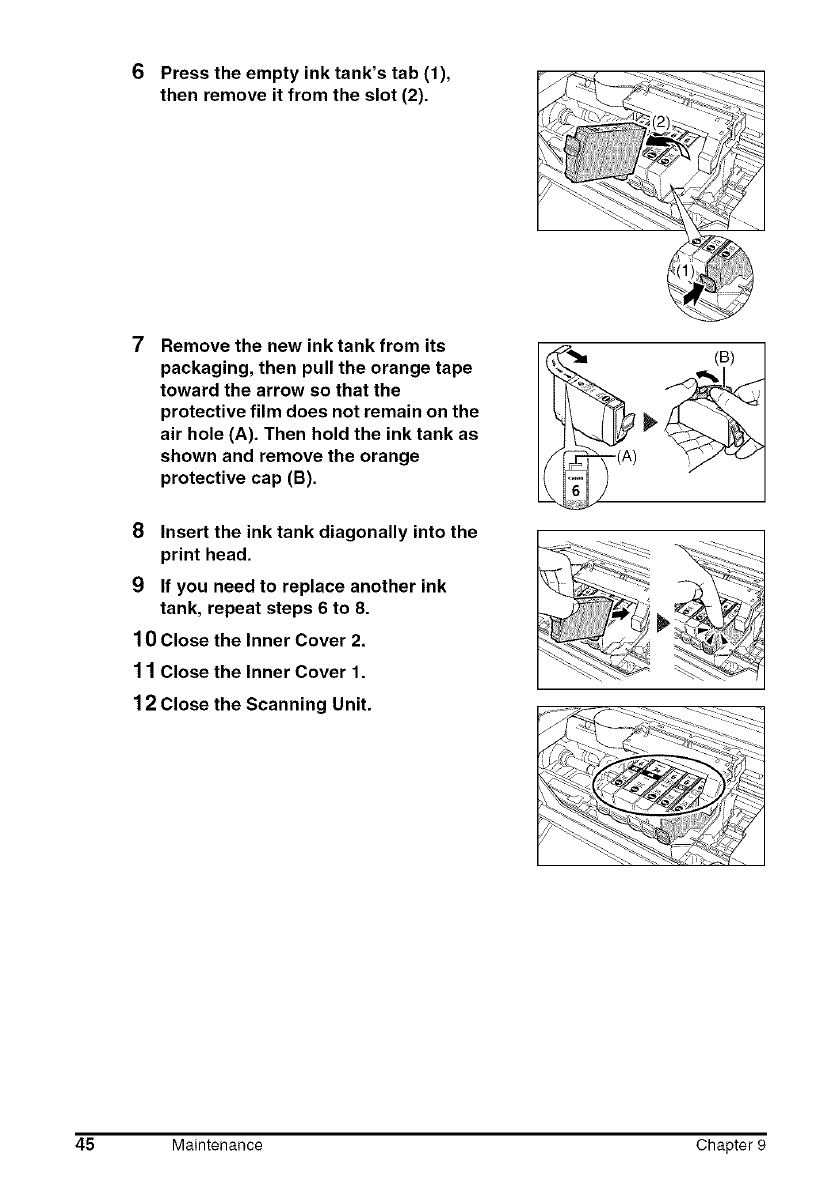
6 Press the empty ink tank's tab (1),
then remove it from the slot (2).
7Remove the new ink tank from its
packaging, then pull the orange tape
toward the arrow so that the
protective film does not remain on the
air hole (A). Then hold the ink tank as
shown and remove the orange
protective cap (B).
8 Insert the ink tank diagonally into the
print head.
9 If you need to replace another ink
tank, repeat steps 6 to 8.
10 Close the Inner Cover 2.
11 Close the Inner Cover 1.
12 Close the Scanning Unit.
AZ_:_,_L'_
45 Maintenance Chapter 9
b, Maintaining The Print Head
Cleaning The Print Head
1Press [Menu] repeatedly until <MAINTENANCE> appears.
2 Use[_I]or [I_]to select<CLEANING> or<HEAD REFRESHING> as
necessary.
3Press [OK].
Aligning The Print Head Automatically
1 Load A4- or letter-size plain paper in the Auto Sheet Feeder.
2Press [Menu] repeatedly until <MAINTENANCE> appears.
3 Use [4] or [1_]to select <AUTO HEAD ALIGN>, then press [OK].
4The pattern is printed.
Chapter 9 Maintenance 46
Quick Start Guide
Canon U.S.A., Inc.
One Canon Plaza, Lake Success, NY 11042, U.S.A.
Canon Inc.
30-2, Shimomaruko 3-chome, Ohta-ku, Tokyo 146-8501, Japan
Canon Australia Pty. Ltd.
1 Thomas Holt Drive, North Ryde, Sydney, N.S.W. 2113, Australia
Canon Singapore Pte. Ltd.
1 Harbour Front Avenue #04-00 Keppel Bay Tower, Singapore 098632
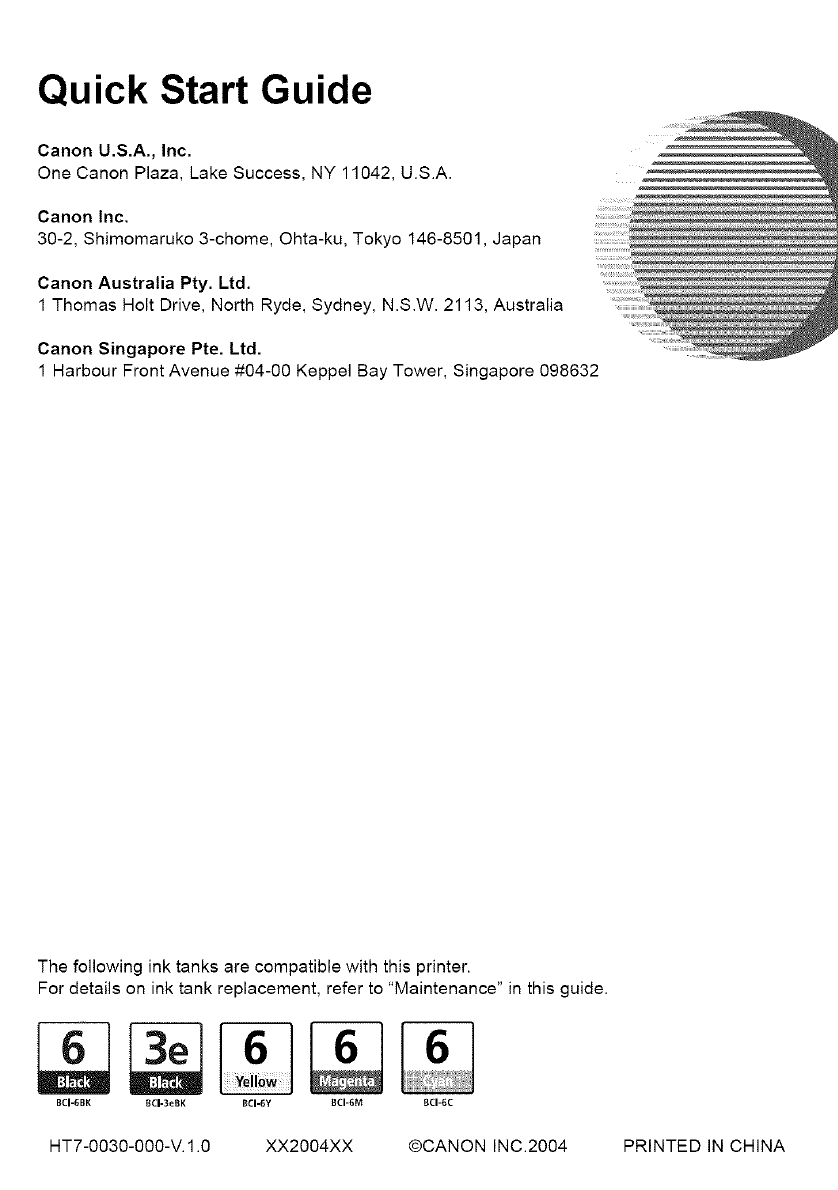
The following ink tanks are compatible with this printer.
For details on ink tank replacement, refer to "Maintenance" in this guide.
BCI-6BK BCI-3eBK BCI-6Y 8CI-6M BCI-6C
HT7-0030-000-V.1.0 XX2004XX @CANON INC.2004 PRINTED IN CHINA
