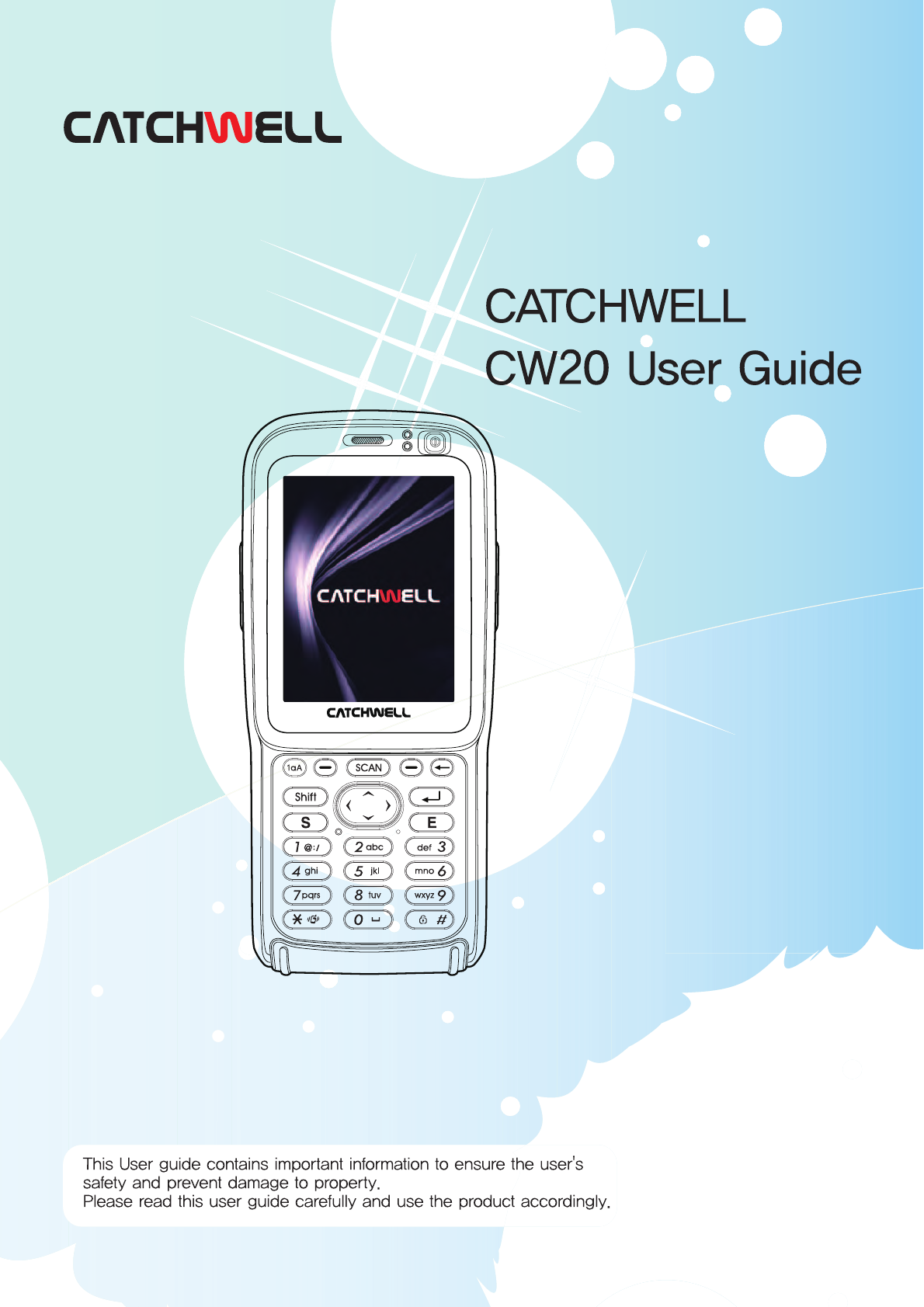
CATCHWELL CW20 GSM/WCDMA PDA with Bluetooth & WLAN User Manual
CATCHWELL, INC. GSM/WCDMA PDA with Bluetooth & WLAN
Contents
- 1. User Manual
- 2. User manual
- 3. user manual
user manual
1

2
Table of Contents
Table of Contents ...................................... 2
Safety Precautions .................................... 4
Chapter 1 Read before Use.............6
Product Components ...................7
Product Components ................................ 7
Peripherals and Accessories .................... 8
Accessories for individual use .................. 9
device - Front View ................................. 10
Part Names and Functions ........10
device – Rear View ................................. 11
USIM Card Insertion ............................... 12
USIM Card Removal ............................... 12
Insertion/Removal of USIM Card ...
12
MicroSD Card Insertion .............13
Battery Insertion ...................................... 14
Battery Removal ..................................... 14
Insertion/Removal of Battery ....14
Charging the Battery ..................15
device Power On .................................... 16
device Power Off .................................... 16
device Power On/Off ..................16
Checking Battery Status ......................... 17
Battery Maintenance ..................17
Power Cut Setup ..................................... 18
Sleep Mode ............................................. 19
Backlight Setup ....................................... 20
System Specifications ...............21
Chapter 2 device Basic Usage .....22
Start Screen ................................23
Status Icon ..................................23
Opening [Control Panel] ......................... 24
Setting Up ...................................24
Region and Language Settings .............. 25
Date/Time ............................................... 25
Network and Dial-Up Connections .......... 26
Display .................................................... 28
Volume and Sound ................................. 29
Mouse ..................................................... 30
Owner Properties .................................... 30
Stylus ...................................................... 31
System Properties .................................. 31
Password ................................................ 32
Certificates .............................................. 32
Internet Options ...................................... 33
Input Panel .............................................. 34
Storage Manager .................................... 34
Power Control Properties ........................ 35
Dialing ..................................................... 35
Backlight ................................................. 36
Keyboard ................................................ 36
Remove Programs .................................. 36
Barcode .................................................. 37
Bluetooth Manager ................................. 37
Device Profile .......................................... 37
KeyPad ................................................... 38
PC Connection ........................................ 39
Record Settings ...................................... 39
Utility Manager ........................................ 40
Screen Calibration ......................40
Wireless Setting ...................................... 40
Software Reset ....................................... 41
Reconfiguration 5 (Reset) ..........41
Hardware Reset ...................................... 42
Using the Stylus .........................42
Chapter 3 How to Use Phone .......43
Data Capture .......................................... 44
Device Buttons for the Phone
Program ......................................44
Turning Phone On/Off ................45
Turning On .............................................. 45
Turning Off .............................................. 45
Phone Call / Receive ..................46
Making a Phone Call ............................... 46
Receiving a Phone Call ......................... 46
SMS Message .............................46
SMS message screen ............................. 46

3
Sending Message ................................... 47
Address Book .............................48
Adding Phone Number ........................... 48
Edit Phone Number ................................ 48
Call History .................................49
Phone Setting .............................49
Version Information ................................. 49
Sound Set ............................................... 50
Display .................................................... 50
Network Setting ...................................... 51
USIM ....................................................... 51
SMS ........................................................ 51
Call Option Management ........................ 52
Managing Phonebook ............................. 52
Chapter 4 How to Communicate
with Other devices.........................53
Bluetooth .....................................54
Adding Quick luancher list ...................... 56
WI-FI Wireless Communication
...56
How to Set up Wireless LAN
Configuration .......................................... 57
IP Setting ................................................ 58
Wireless LAN Setting .............................. 59
Connecting PC through Cradle ............... 60
Connecting PC with USB Cable Directly 60
Connecting devices Using
USB Cable ...................................60
Installing ActiveSync® on PC .................. 61
Communication with PC ............61
How to Set up a Partnership ................... 62
How to Set Up GPS ................................ 65
GPS Communications ................65
Chapter 5 How to Use Scanner
/Camera ..........................................66
Laser scanning (1D Scanner) ....67
Imager scanning
(1D/2D Scanner) ..........................68
Taking Picture ......................................... 69
Recording Video ..................................... 69
Digital Camera ............................69
Chapter 6 How to Use
Applications ................................... 70
Microsoft Word Pad ...................71
How to Use Keyboard ............................. 71
How to Use Transcriber .......................... 72
Starting Utility Manager .......................... 73
Utility Manager ............................73
How to Set Up Start Program ................. 74
How to Set Up Quick Launcher .............. 75
TroubleShooting .........................76
4
Safety Precautions
Following cautions are to ensure user’s safety and to prevent damage to the product. Please read them carefully
before use.
If any unusual sound, smell or smoke is detected, unplug the electric power cord immediately and contact the
customer support center.
Do not handle the electric power plug with wet hands.
When thunder or lightening struck outside, do not recharge the battery and unplug the electric power plug of the
cradle.
Do not use the product in an area with much humidity.
If the product gets wet, turn off the power, remove the battery from the main body and dry it with towel or cloth
before re-using it.
When recharging the battery, please use the cradle if possible.
After removing an old battery, please replace with a new one within a week.
Do not leave the product inside a vehicle, it might be stolen.
Keep the product or stylus out of children’s reach. Children may get hurt.
When the product is not used for a long time, place the main body in the cradle for continuous power supply.
Fully charge the battery before first use of the product.
Back up the data and programs in a different location before setting the product.
Unsaved data is to be lost.
Do not place heavy objects on top of the product.
Do not use the product in an area with much humidity, lots of dust or excessive heat (heater, cigarette, etc.).
Do not drop the product or apply excessive force on it.
If any foreign material is on the touch screen, clean it well with a soft cloth.
Do not use a sharp object (pen, wire, screwdriver) while using the touch screen, and use the provided stylus or
tools designed for touch screen only.
Use genuine parts only such as battery, power adapter, and cradle provided.
The warrenty does not cover for the damage caused by other applications installed by user.
Please do not allow metal objects to touch the battery contact surface.
Power Supply
Installation and storage
While in Use

5
Please do not manipulate your product nor make a phone call in your vehicle.
This may cause a traffic accident.
Please turn off the product while on an airplane. Electromagnetic waves from the product can affect the plane’s
control panel mechanics.
Please turn off the product at the hospital. Electromagnetic wave from the product can affect the medical
equipment.
Please obey explosives regulations. It is safe not to use the phone around the gas station.
Please be careful while using headset (earplug). Long-term exposure to sound at high volumes can damage
hearing.
If the product has flashlight function, do not use the product in front of a person (or
animal)’s eyes. This may impair the vision.
Do not open, repair or modify the product according to your taste. Doing so will void the warranty.
If a repair is needed, please contact one of our certified customer support centers, or contact the dealer where
you purchased the product.
Communication
Repair and Maintenance
Product Components ..................7
Product Components ..........................7
Peripherals and Accessories ............... 8
Accessories for individual use ............. 9
device - Front View ...........................10
Part Names and Functions .......10
device – Rear View ........................... 11
USIM Card Insertion.......................... 12
USIM Card Removal .........................12
Insertion/Removal of USIM Card
..12
MicroSD Card Insertion .............13
Battery Insertion ................................ 14
Battery Removal................................ 14
Insertion/Removal of Battery....14
Charging the Battery .................15
device Power On ............................... 16
device Power Off ............................... 16
device Power On/Off .................16
Checking Battery Status.................... 17
Battery Maintenance .................17
Power Cut Setup ............................... 18
Sleep Mode ....................................... 19
Backlight Setup ................................. 20
System Specifications ..............21
Chapter 1 Read before Use
7
1Product Components
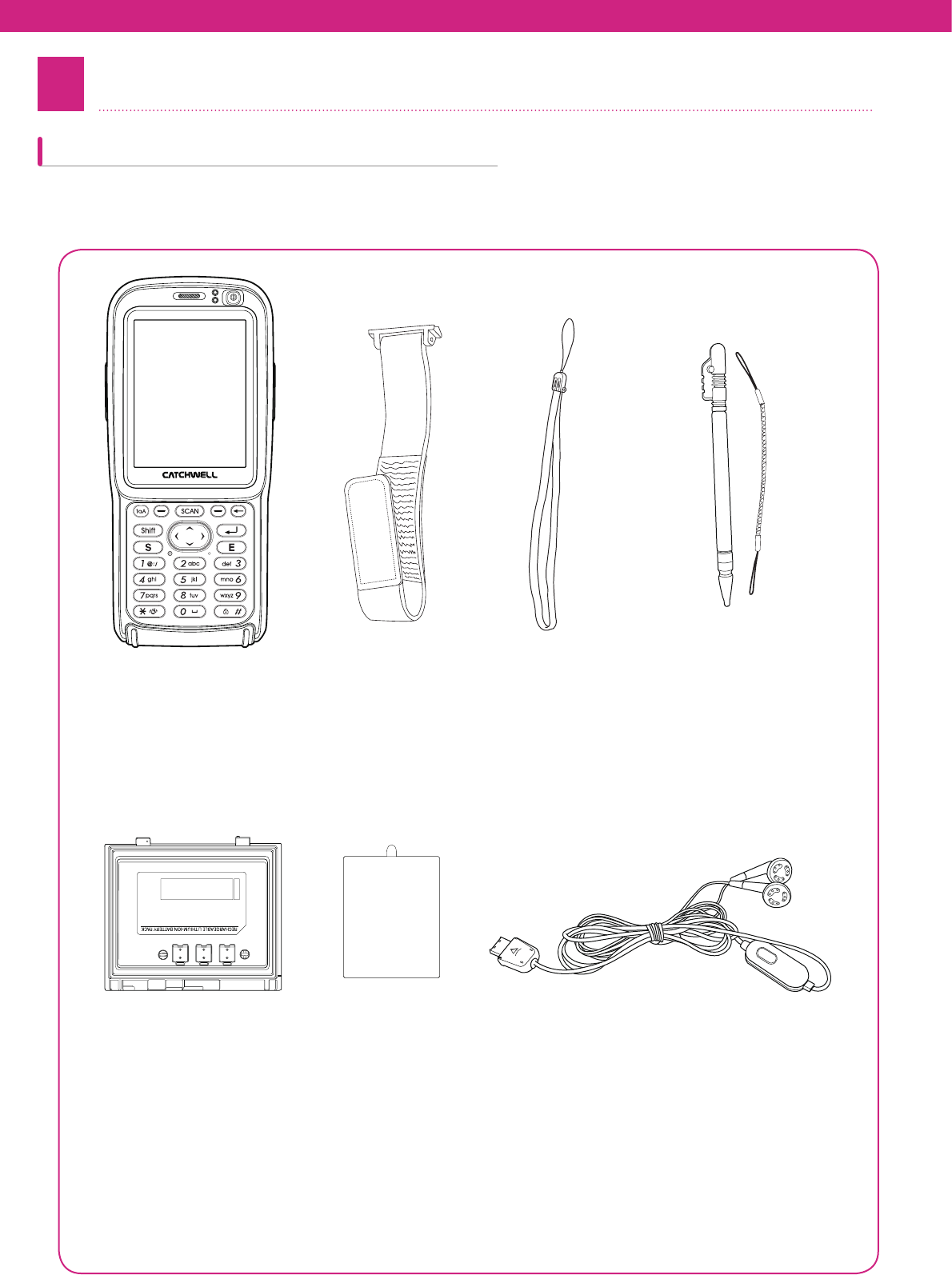
Please check to see if all of the following items are present in the product box. If anything is missing or broken, please
contact the place where you purchased the product. The provided components may vary depending on its options.
Product Components
Main unit of PDA
Li-ion polymer battery
Hand strap
Protective film
Wrist Strap
Earset: if it has a phone function
Stylus and its string
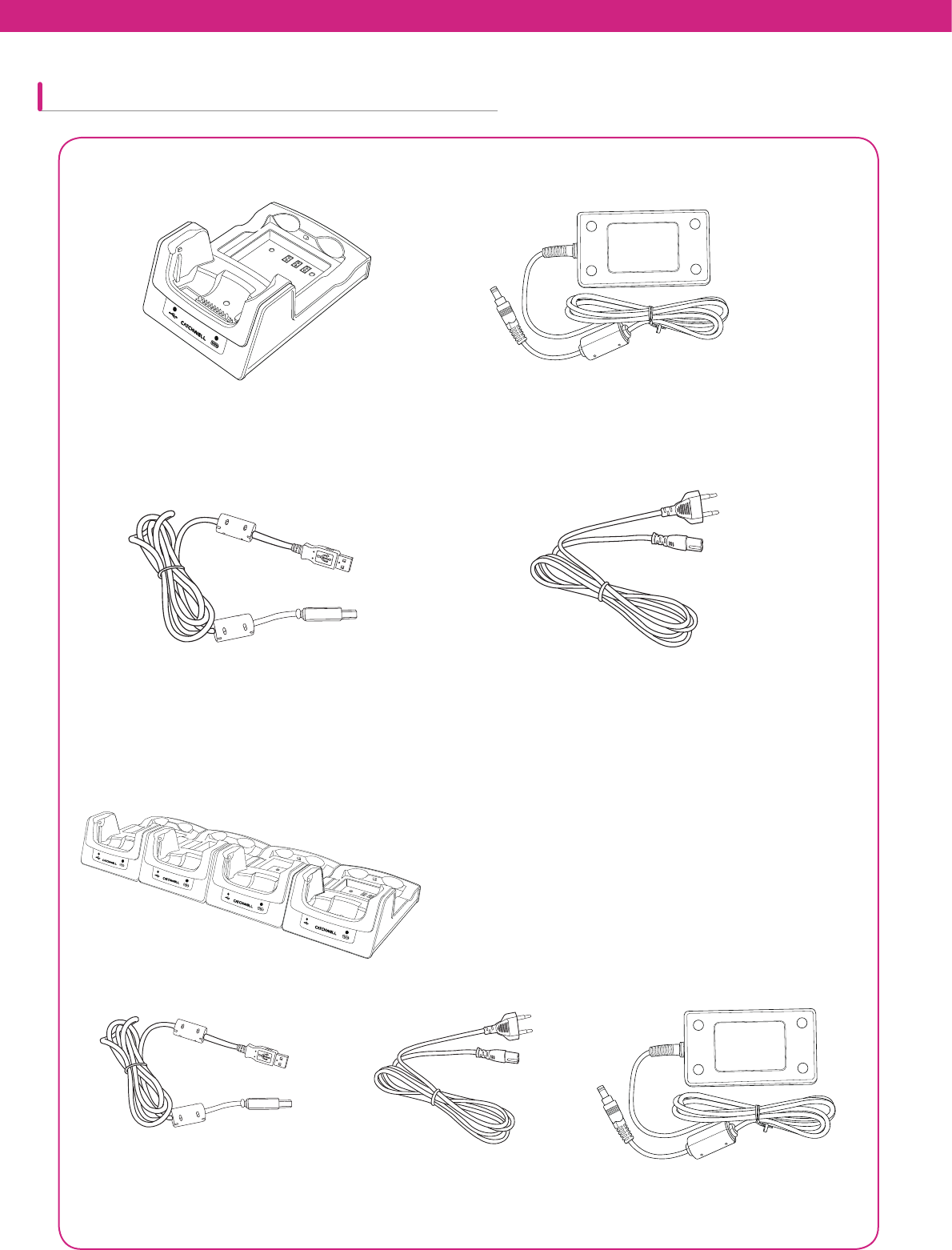
8
Peripherals and Accessories
Cradle for charging and communication
USB cable
Power adapter
Power cord
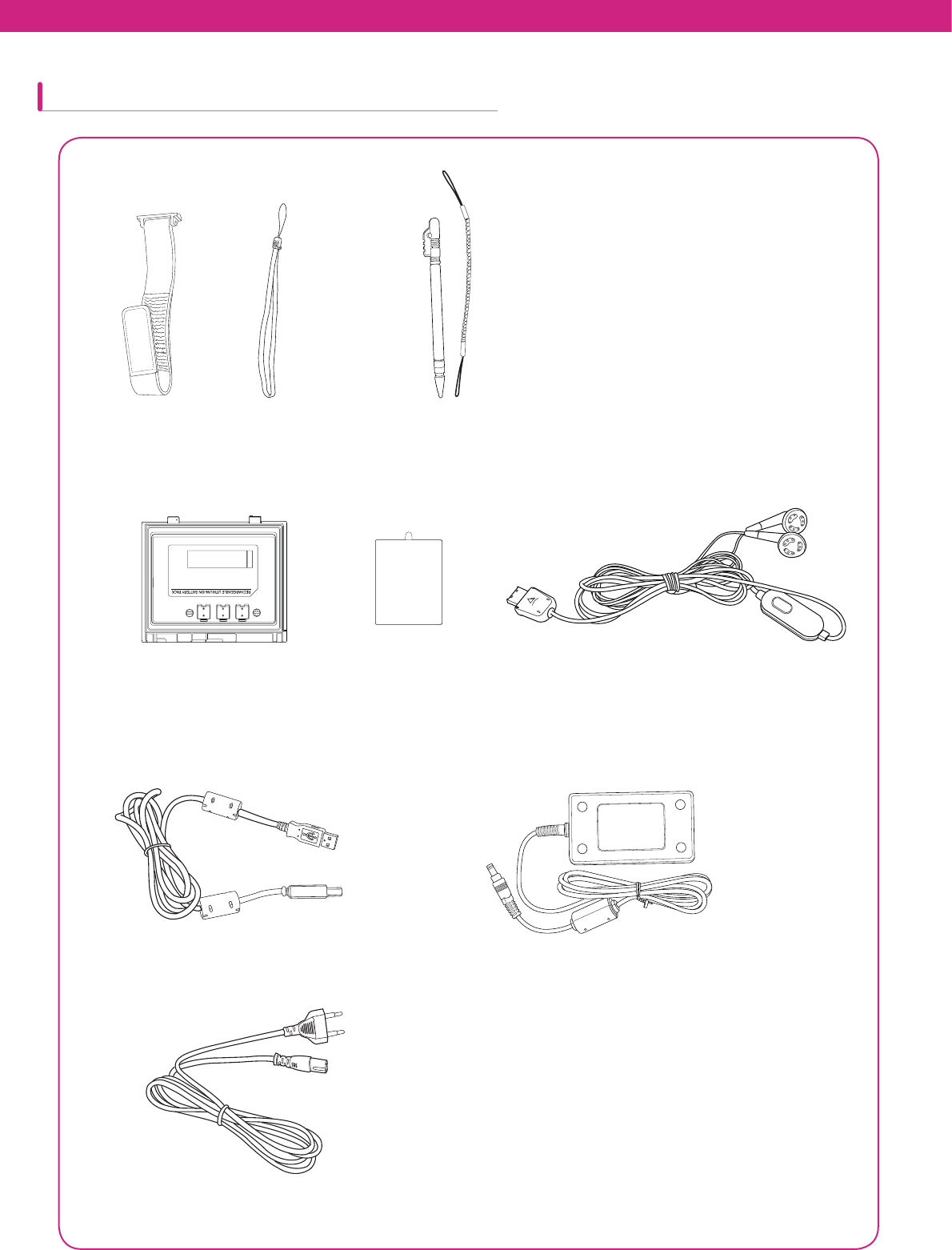
1-slot cradle
GG G
4-slot cradle
Power adapterUSB cable Power cord
4-slot cradle components
9
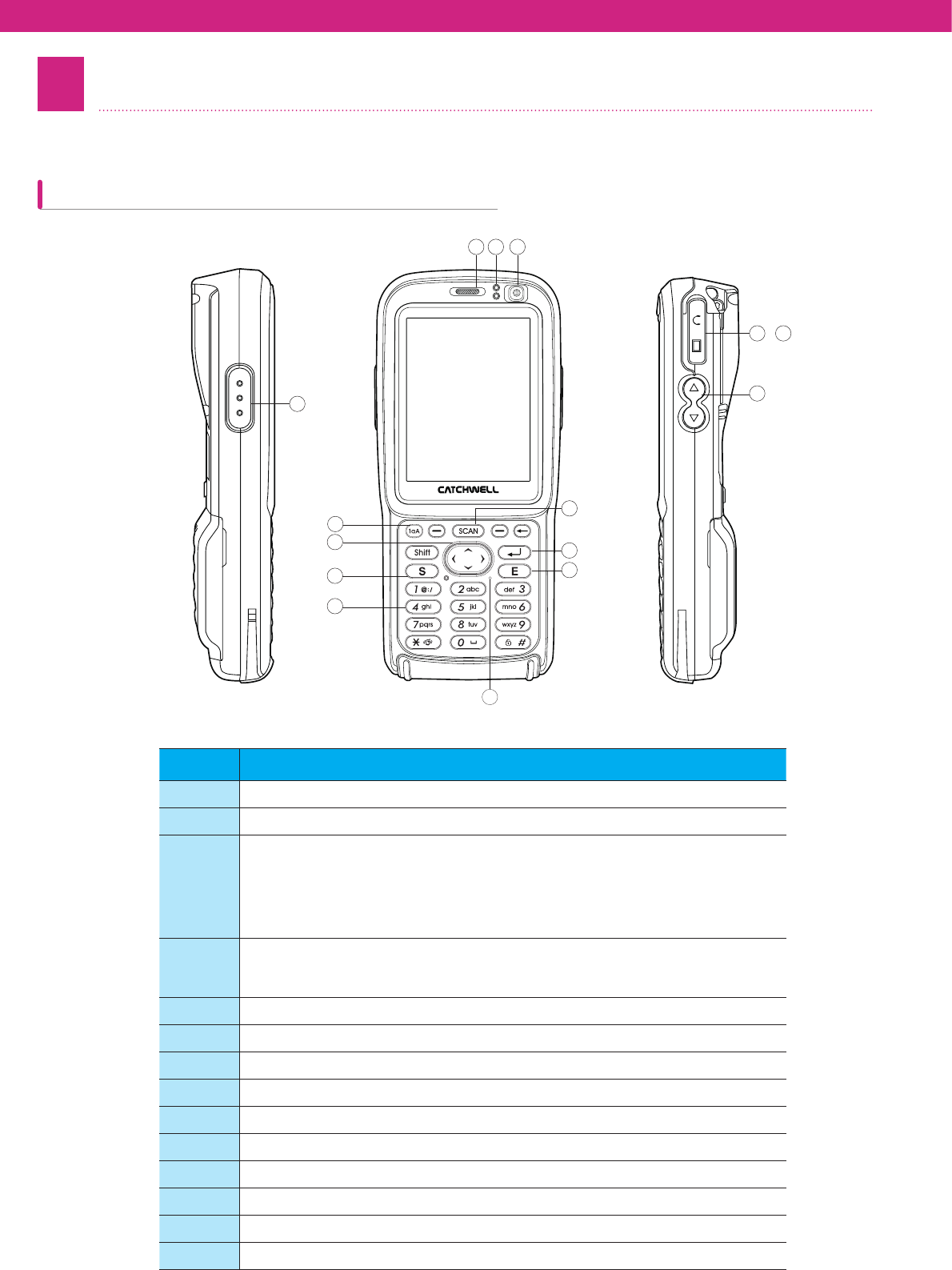
Hand strap Stylus
Stylus string
Wrist Strap
Accessories for individual use
Li-ion polymer battery
USB cable
Power cord
Power adapter
Protective film Earset
10
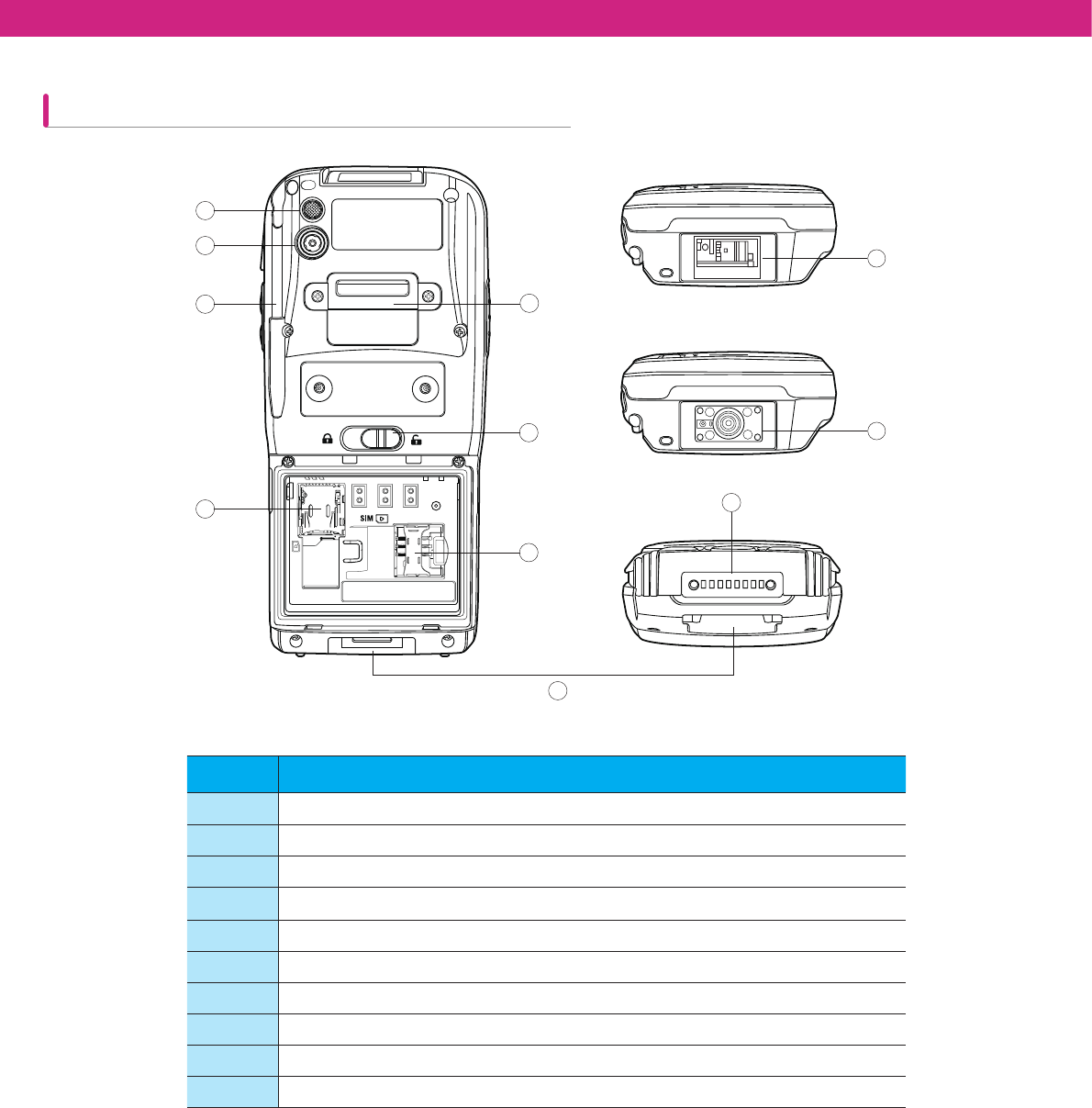
device - Front View
This section explains device parts’ names and their functions.
2Part Names and Functions
No Contents
ΗEarphone Jack
ΘScan Button
Ι
Status LED
&KDUJLQJ5HG/('VWHDG\
3URFHVVLQJ%OXH/('ÀDVKLQJ
*UHHQ/('VWHDG\&KDUJHFRPSOHWH
5HG/('ÀDVKLQJ&RQWDFWHUURU
Κ
3RZHU%XWWRQ
6KRUWSUHVV%DFNOLJKWRQ
/RQJSUHVV6OHHSPRGH
Λ&DOO6HQG%XWWRQ
Μ1DYLJDWLRQ%XWWRQ8S'RZQ/HIW5LJKW
Ν$OSKDQXPHULF.H\SDG
Ξ0LFURSKRQH
Ο&DOO(QG%XWWRQ
Π2.%XWWRQ
Ρ.H\0DS0RGH&RQYHUVLRQ%XWWRQ
Front Speaker
ΣSLQ&RQQHFWRU
Τ9ROXPHEXWWRQ
11
10
12
13 1/
3 4
9
14
6
2
5
7
8
2
11
device – Rear View
No Contents
Η:ULVW6WUDS0RXQW
Θ%DWWHU\5HOHDVH/DWFK
Ι0LFUR6'0HPRU\&DUG6ORW
Κ86,06ORW
Λ:ULVW6WUDS0RXQW
Μ%DWWHU\&KDUJHU3RUW
Ν3KRWR)ODVK
Ξ6W\OXV+ROGHU
Ο'LJLWDO&DPHUD
Π%DUFRGH6FDQQHU6FDQQHUVKDSHPD\YDU\GHSHQGLQJRQWKHPRGHO
1
2
3
4
5
6
7
8
9
10
10
12
USIM Card Insertion
USIM Card Removal
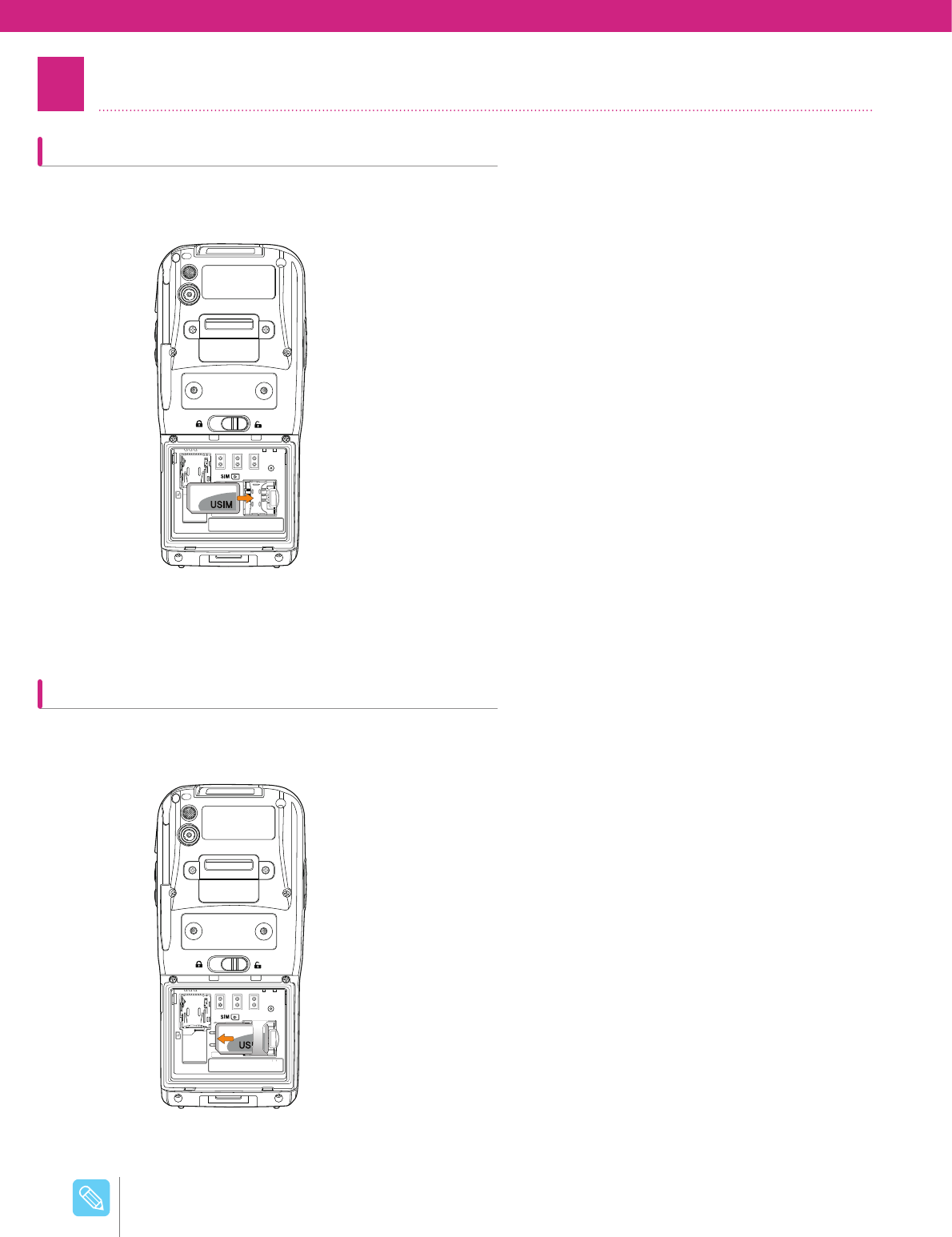
3Insertion/Removal of USIM Card
Insert USIM card to the right.
To remove the USIM card, while pressing down the Lock to the left side of the slot, push the USIM card to the left.
Please make sure of correct orientation of USIM card when inserting. (The golden contact of the card
should face toward the device.)
/PUF
13
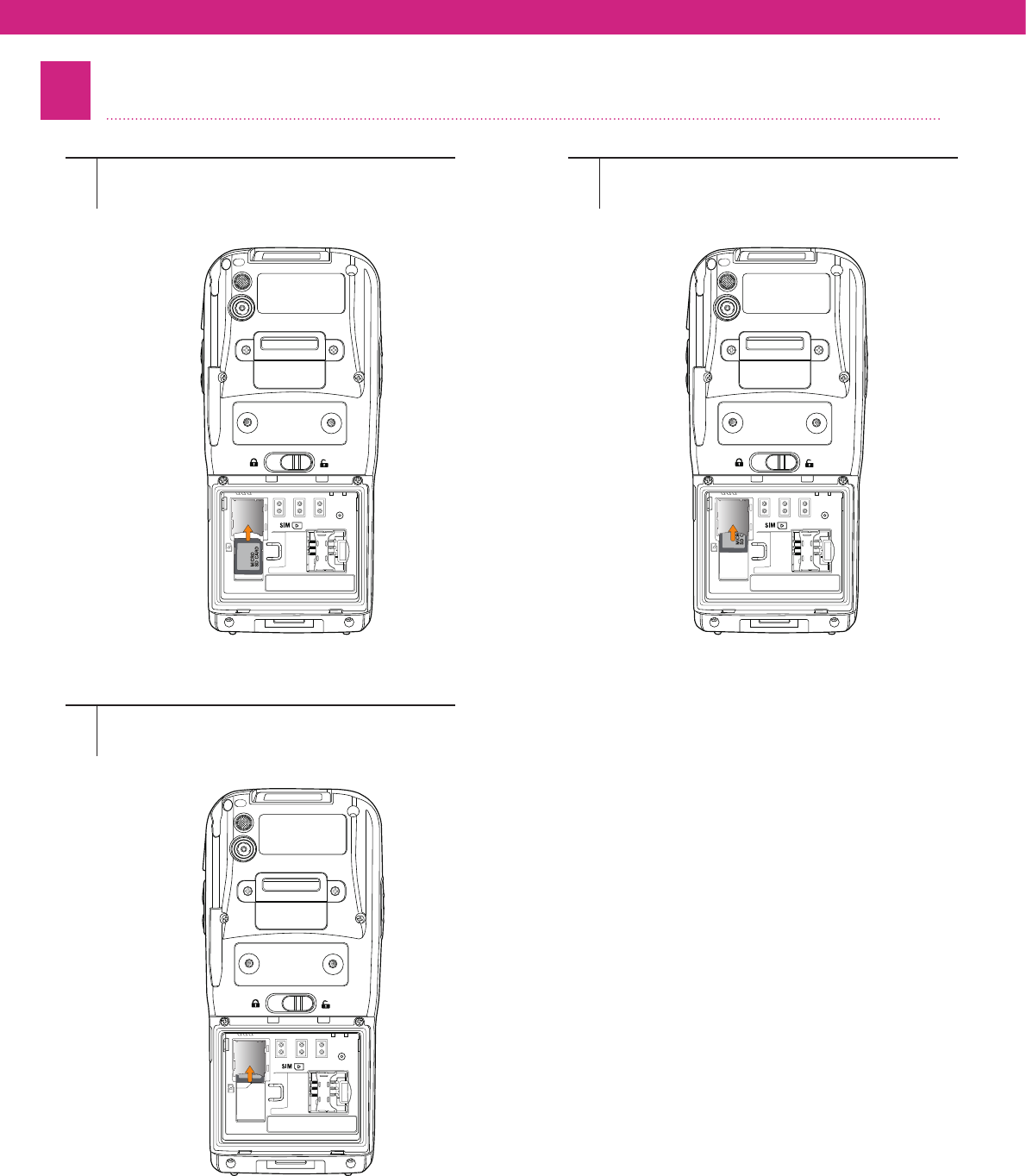
4MicroSD Card Insertion
12
3
Find the MicroSD card slot in the battery bay
at the back of the device.
Push the card until click sounds.
Insert the Micro SD card with metallic
contacts face down toward the device.
14
Battery Insertion
Battery Removal
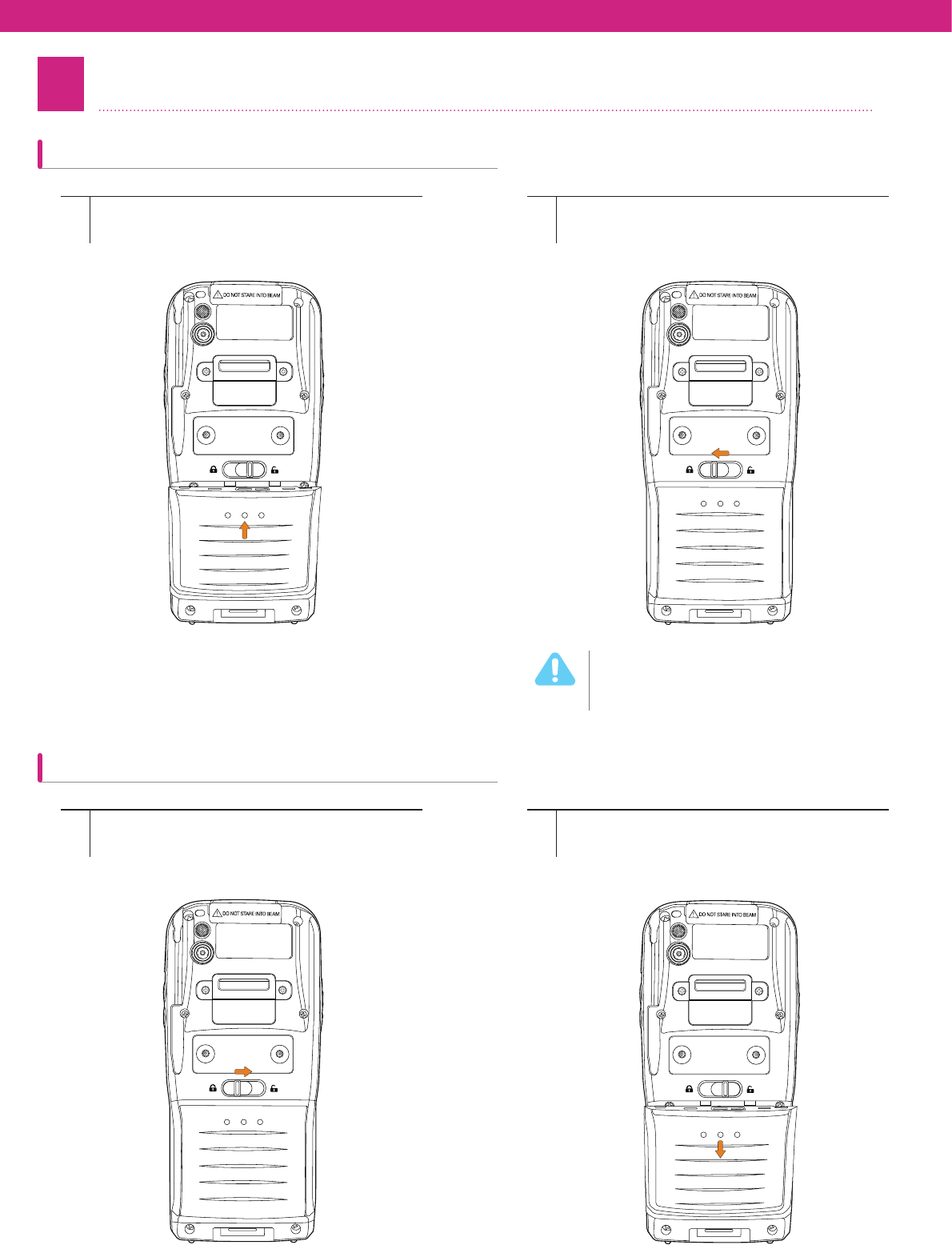
5Insertion/Removal of Battery
12
12
Place the battery in the battery bay
and push and hold it.
Remove the battery cover by pressing the
battery latch to the right at the back of the
device.
Push the battery release latch to the left
while pressing the battery to lock it.
As in the picture below, hold the groove
of the battery and pull the cover down to
remove.
If you do not press the battery, it may
cause damage to the product (or
you).
8BSOJOH
15
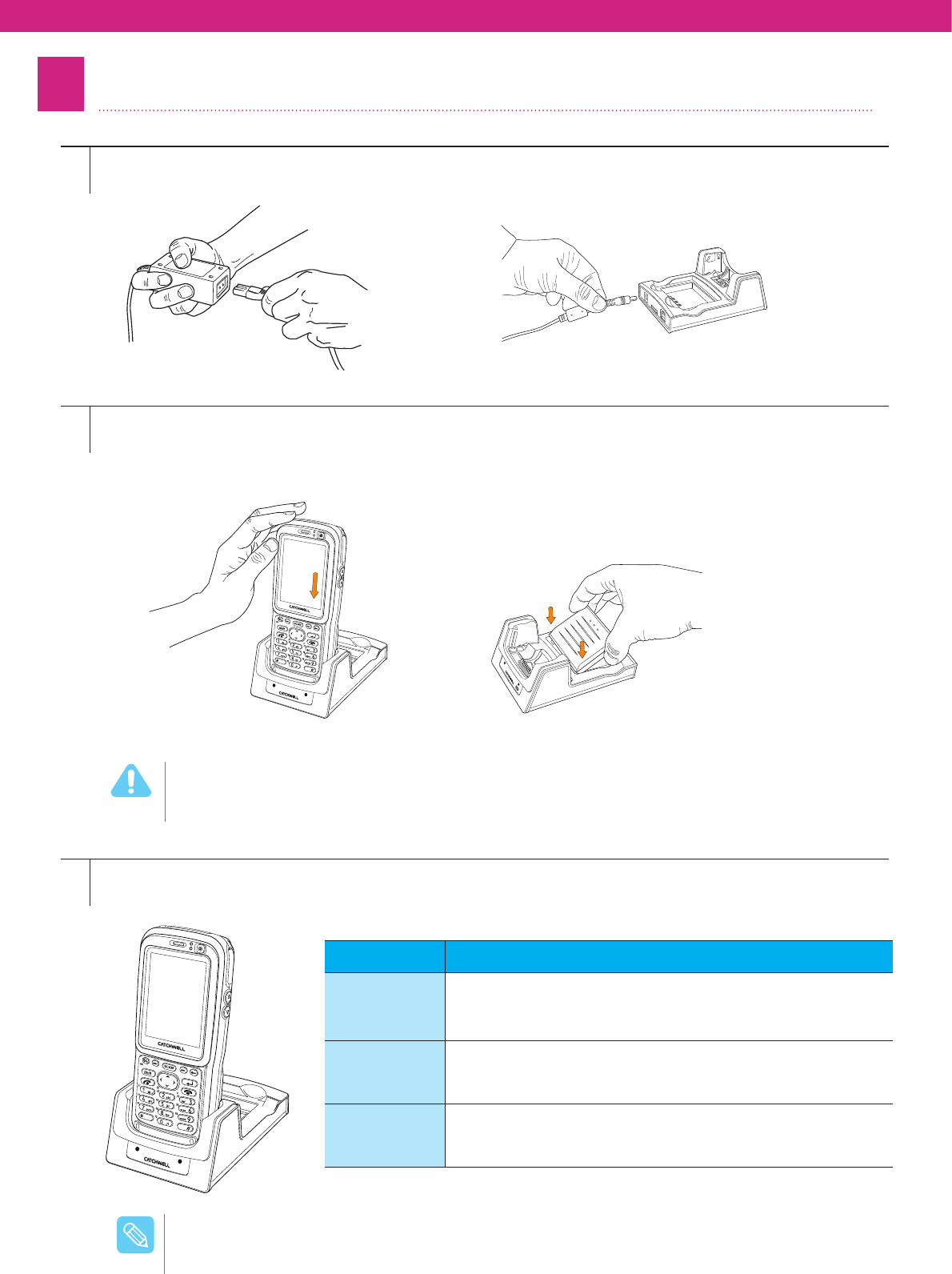
6Charging the Battery
1
2
3
Connect the power cable to the power adapter, then connect it with the cradle’s plug-in area.
Dock the device into the cradle. A red status LED at the front of the cradle lights if the product is
correctly docked.
A complete charge takes approximately four hours. To charge the battery quickly, press and hold the power
button to put the device in sleep mode before charging.
Insert the battery in the slot at the back of the
cradle. (Ensure the battery is correctly orientated.)
If you do not press the battery, it may cause damage to the product (or you).
8BSOJOH
Please Check the following if Red LED is blinking.
- There is a contact error between the device and cradle.
- Clean the cradle connector if any foreign material is on it.
/PUF
Charging the battery in the device Charging the battery only
LED device LED Indicators
device LED
Indicators
- Red LED (steady): device battery is charging.
- Green LED (steady): device battery is fully charged.
- Red LED (flashing): Error in charging.
Cradle LED
Indicator
(Left)
- Red LED (steady): Reserve battery is charging.
- Green LED (steady): Reserve battery is fully charged.
- Red LED (flashing): Error in charging.
Cradle LED
Indicator
(Right)
- Green LED (steady): The product is connected to
your computer via USB cable.
16
7device Power On/Off
If the device will not be used for a long time, remove and store the battery separately. Please use
a fully charged battery when turning the device back on.
8BSOJOH
If the power button is pressed for more than 3 seconds, the device switches to the sleep mode
(Suspend).
8BSOJOH
If the device does not start after pressing the power button, check if the battery is fully charged,
and if the battery is charged, perform hardware reset (cold booting). For more information, please
see “device basic usage” > “5. Reset.”
/PUF
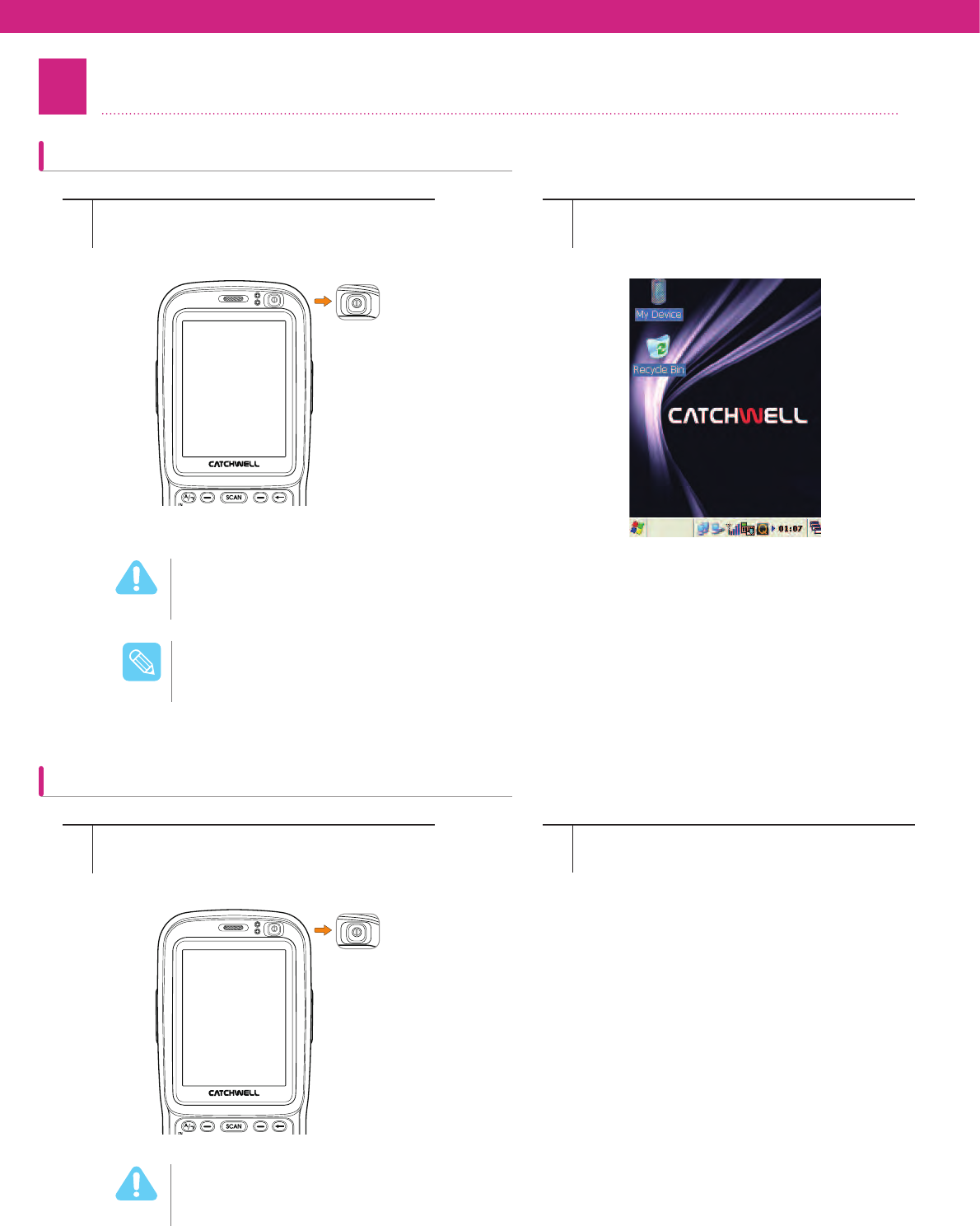
device Power On
device Power Off
12
12
Press the power button on the device shortly.
Press and hold the device’s power button.
- Alternatively, click Windows Start > [Pause].
After start, Windows® logo appears. (The
screen might differ depending on the model.)
A moment later, device will turn off.
17
8Battery Maintenance
Checking Battery Status
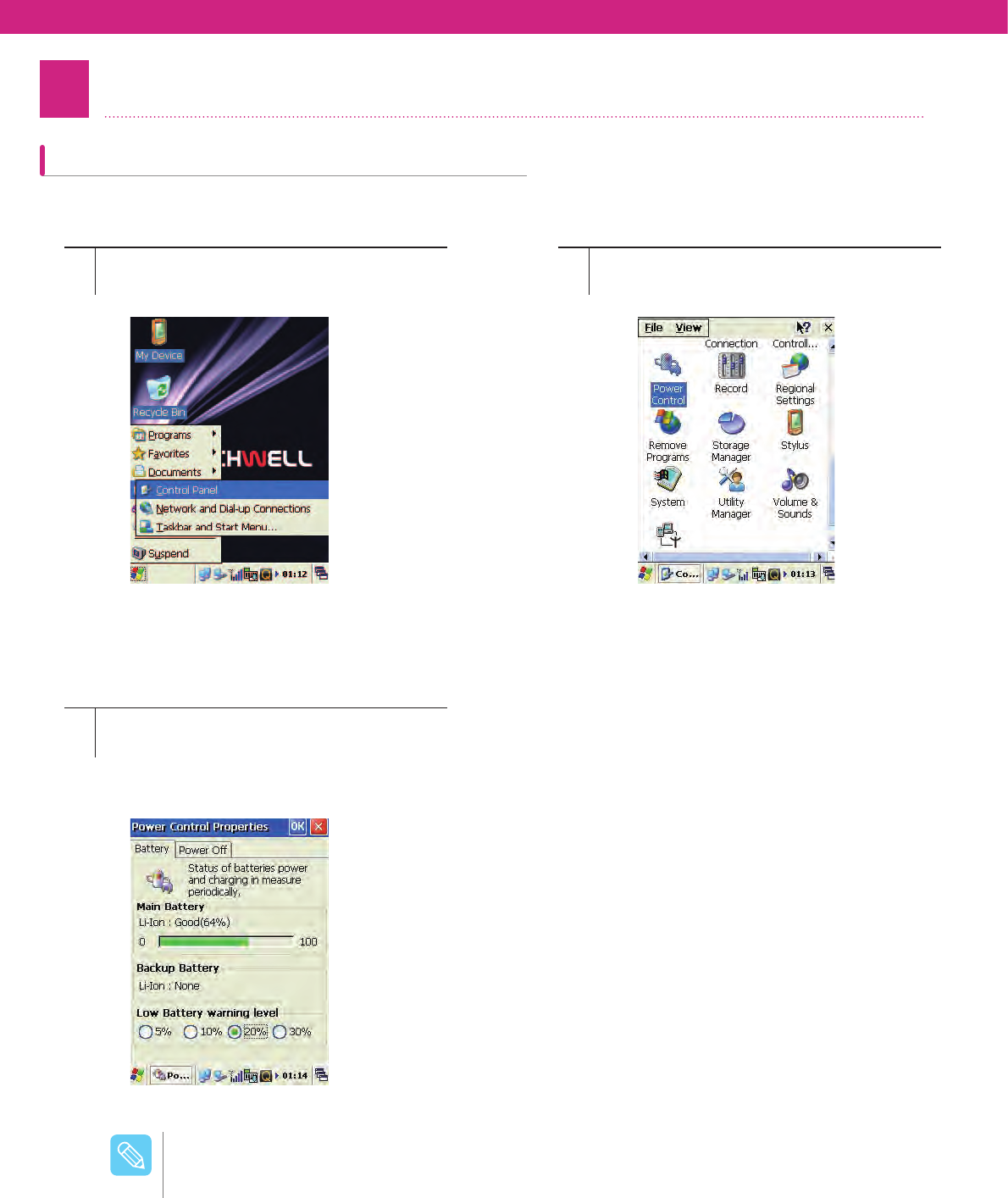
Check the current battery status, and set the low battery warning level.
12
3
To change the power property, select [Start] >
[Settings] > [Control Panel].
At the Battery tab in the Power Control
Properties window, the battery level can be
checked, and the Low Battery warning level
can be set.
Click the [Power Control] icon.
The Low Battery warning level can be set as 5, 10, 20, and 30%.
/PUF
18
Power Cut Setup
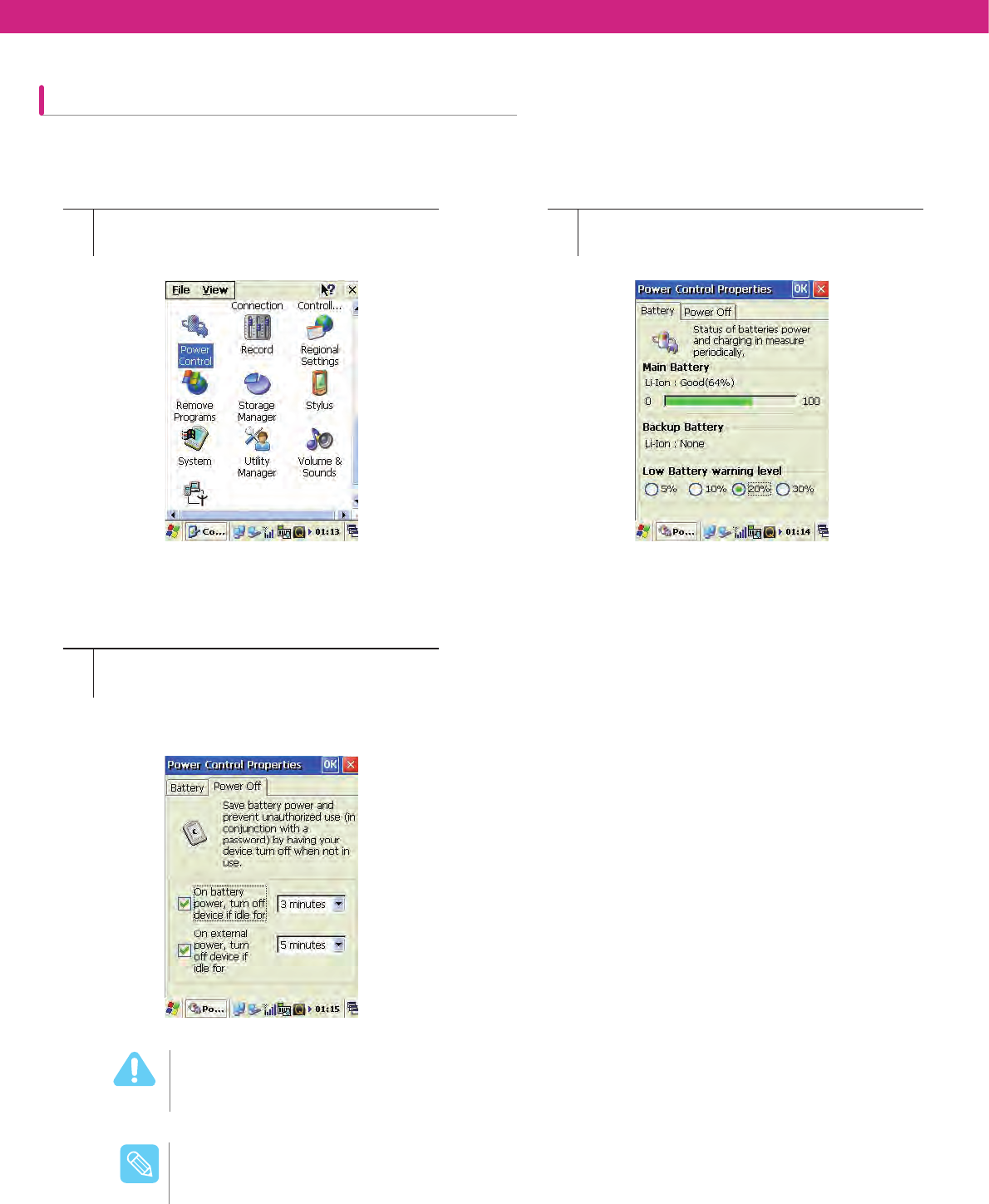
To increase the life span of the battery, you can set the device to turn off the power when it is not used for a certain
amount of time.
12
3
To change the power property, select [Start]
> [Settings] > [Control Panel].
At the Power Control Properties screen,
press Power Off tab, and set the device to
turn off the power when it is idle for a certain
time.
Click the [Power Control] icon.
See the Power section in Chapter 2 for more details.
/PUF
To turn the device back on, press the Power button.
8BSOJOH
19
Sleep Mode
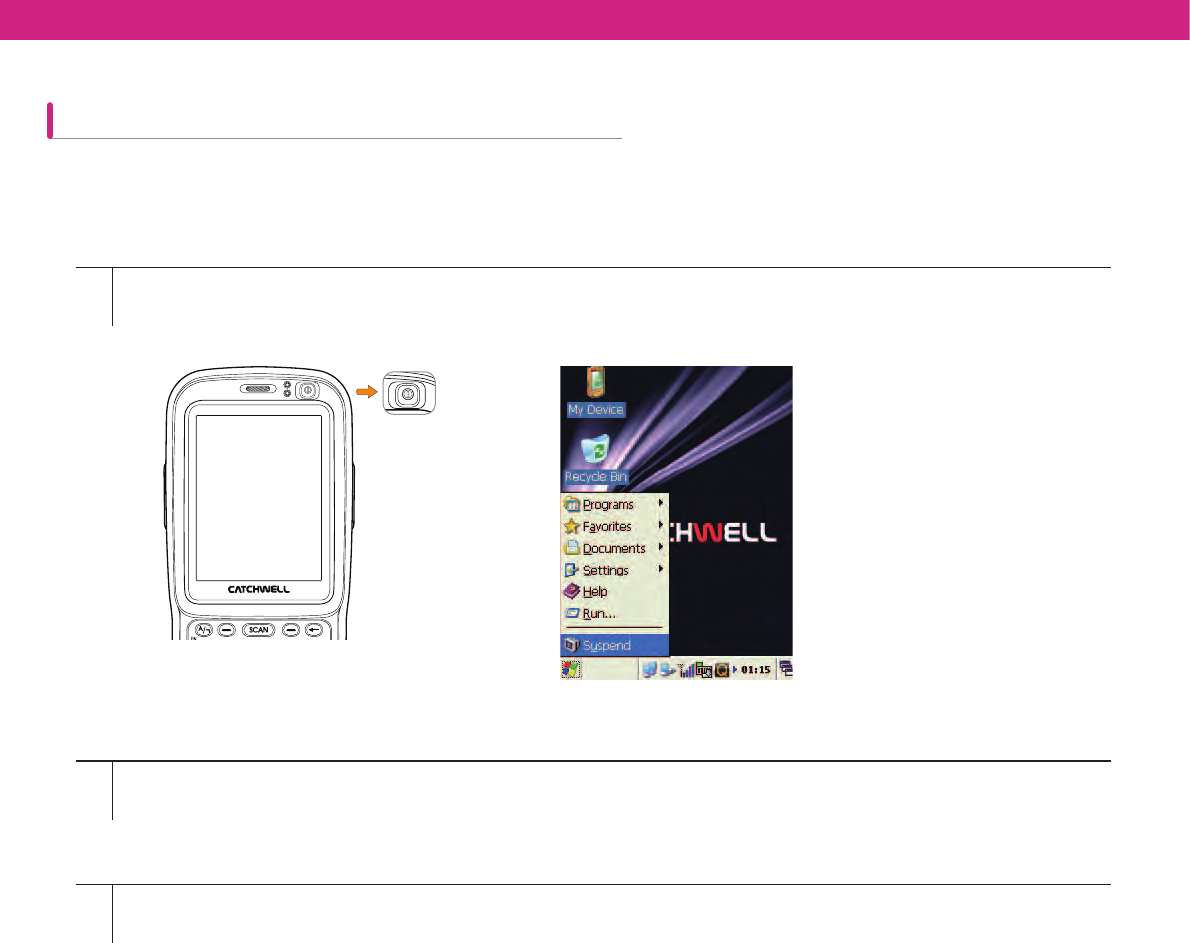
The sleep mode can be used when the device will not be used after a specified time.
* Sleep Mode: Sleep Mode saves the battery power when the device is not used after a designated period of time by
turning off LCD, keypad, and wireless LAN.
1
2
3
Press [Power] button for more than 3 seconds.
- or select Windows [Start] > [Suspend].
The device will switches to Sleep Mode.
The device will switches to Sleep Mode.
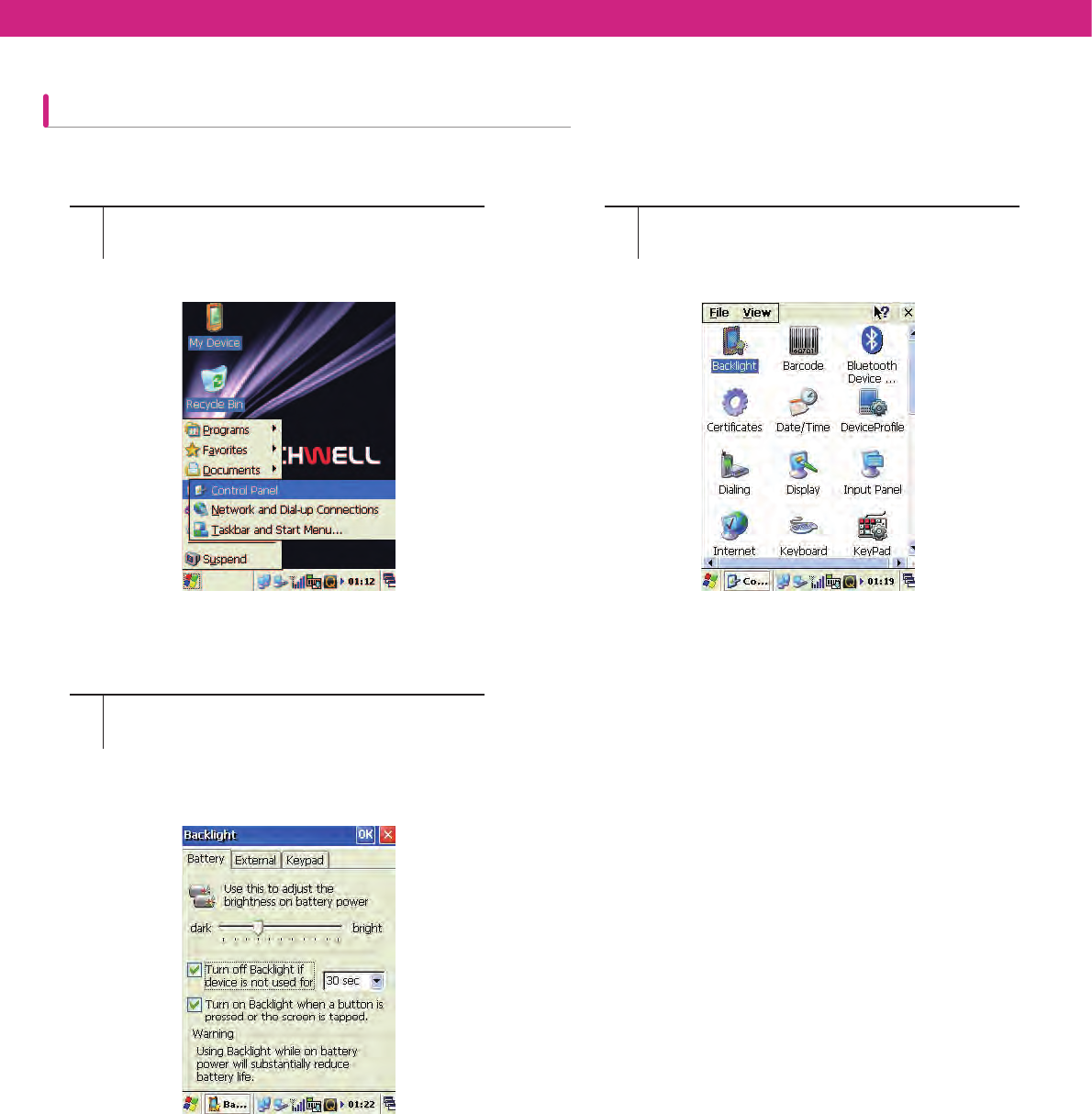
20
Backlight Setup
To increase the battery life span, set the value for the device’s backlight.
12
3
To change the power property, select [Start]
> [Settings] > [Control Panel].
At the Power Control Properties screen,
press Power Off tab, and set the device to
turn off the power when it is idle for a certain
time.
Click the [Power Control] icon.

21
9System Specifications
CPU Marvell PXA320 (806MHz)
RAM 256MB
Flash ROM 512MB
OS Windows Mobile Windows Mobile 6.5
Windows CE.Net Windows CE 5.0
Scanner Laser(1D) Symbol SE950, IS4813
CMOS(1D/2D) HHP IT5xxx
LCD
Type Color TFT-LCD
Size 2.8”(Portrait)
Resolutions 240*320(QVGA)
WWAN Quad Band GSM/GPRS, Tri-Band HSDPA
LAN WLAN IEEE 802.11 b/g
PAN Bluetooth Bluetooth V2.0 Class II EDR
RFID RFID HF(with NFC)
GPS Internal
Keypad 20 Alpha/Numeric/Fuction, 2 Scan, 1 Navi and Volume
Up/Down, 1 Power keys
Capture
Camera
Quality 3.0M pixel
Flash Flash LED
Audio Speaker, Receiver, MIC, Earphone-Jack
Battery Pack 3,300 mAh
Expansion Port 20 Pin Expansion Port
Expansion
Slot
SD Micro SD(Inside Battery Slot)
USIM Inside Battery Slot
Interface USB Client I/O Connector and 20 Pin Expansion Port
Serial I/O Connector and 20 Pin Expansion Port
Charge Cradle And 20 Pin Expansion Port
Environment Drop 1.8m high, 6 sides, 2 time each (total 12 times against
concrete)
Sealing IP 65
Cradle 1, 4 Slot USB Client, Serial, Battery Charge Slot, Ethernet(Option)

Start Screen ...............................23
Status Icon .................................23
Opening [Control Panel] .................... 24
Setting Up ...................................24
Region and Language Settings ......... 25
Date/Time .......................................... 25
Network and Dial-Up Connections .... 26
Display ..............................................28
Volume and Sound ............................ 29
Mouse ...............................................30
Owner Properties .............................. 30
Stylus ................................................31
System Properties ............................. 31
Password .......................................... 32
Certificates ........................................ 32
Internet Options................................. 33
Input Panel ........................................ 34
Storage Manager ..............................34
Power Control Properties .................. 35
Dialing ............................................... 35
Backlight............................................ 36
Keyboard ........................................... 36
Remove Programs ............................ 36
Barcode ............................................. 37
Bluetooth Manager ............................ 37
Device Profile .................................... 37
KeyPad..............................................38
PC Connection .................................. 39
Record Settings................................. 39
Utility Manager .................................. 40
Screen Calibration .....................40
Wireless Setting ................................ 40
Software Reset.................................. 41
Reconfiguration(Reset) .............41
Hardware Reset ................................ 42
Using the Stylus ........................42
Chapter 2 device Basic Usage
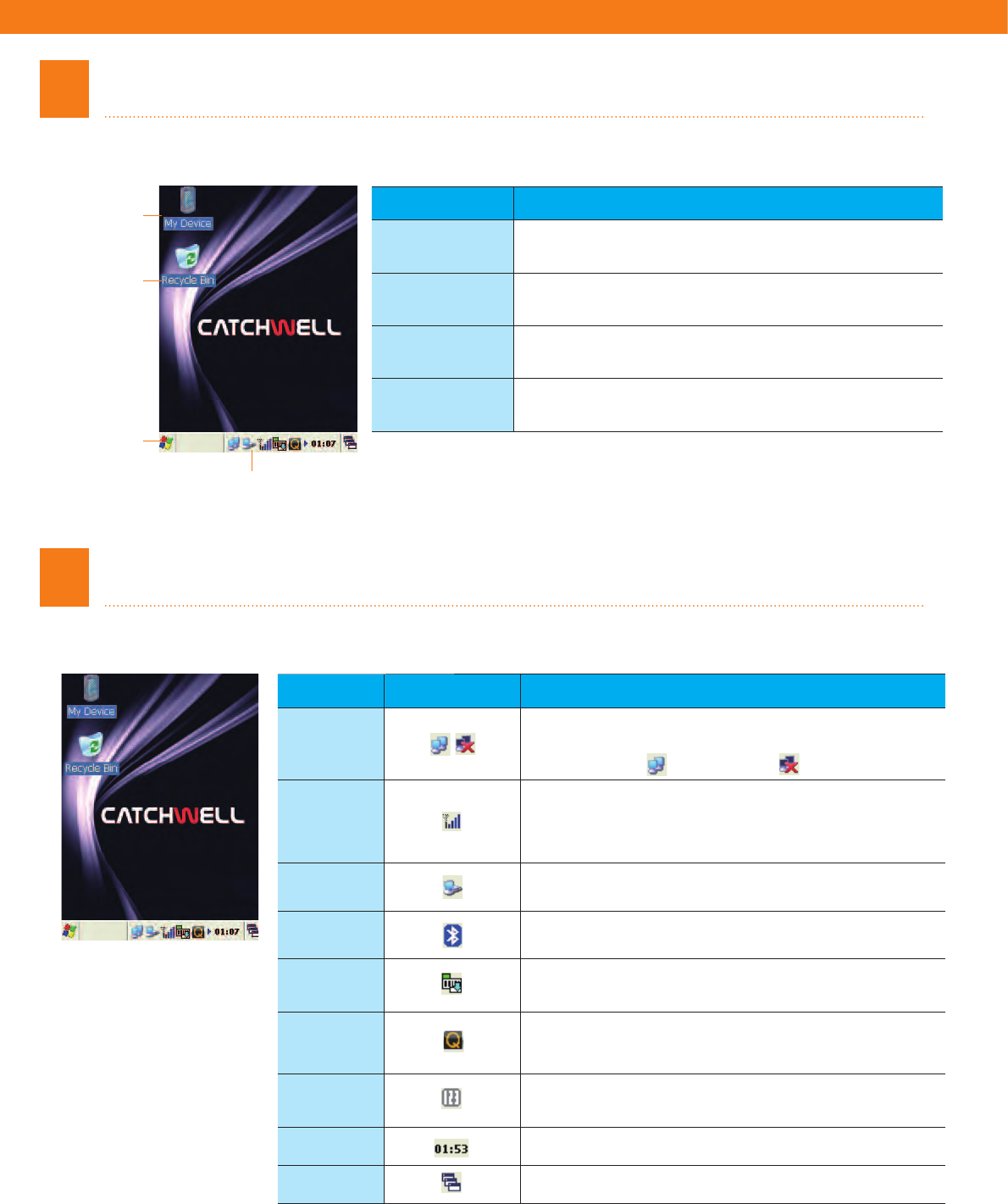
23
1
2
Start Screen
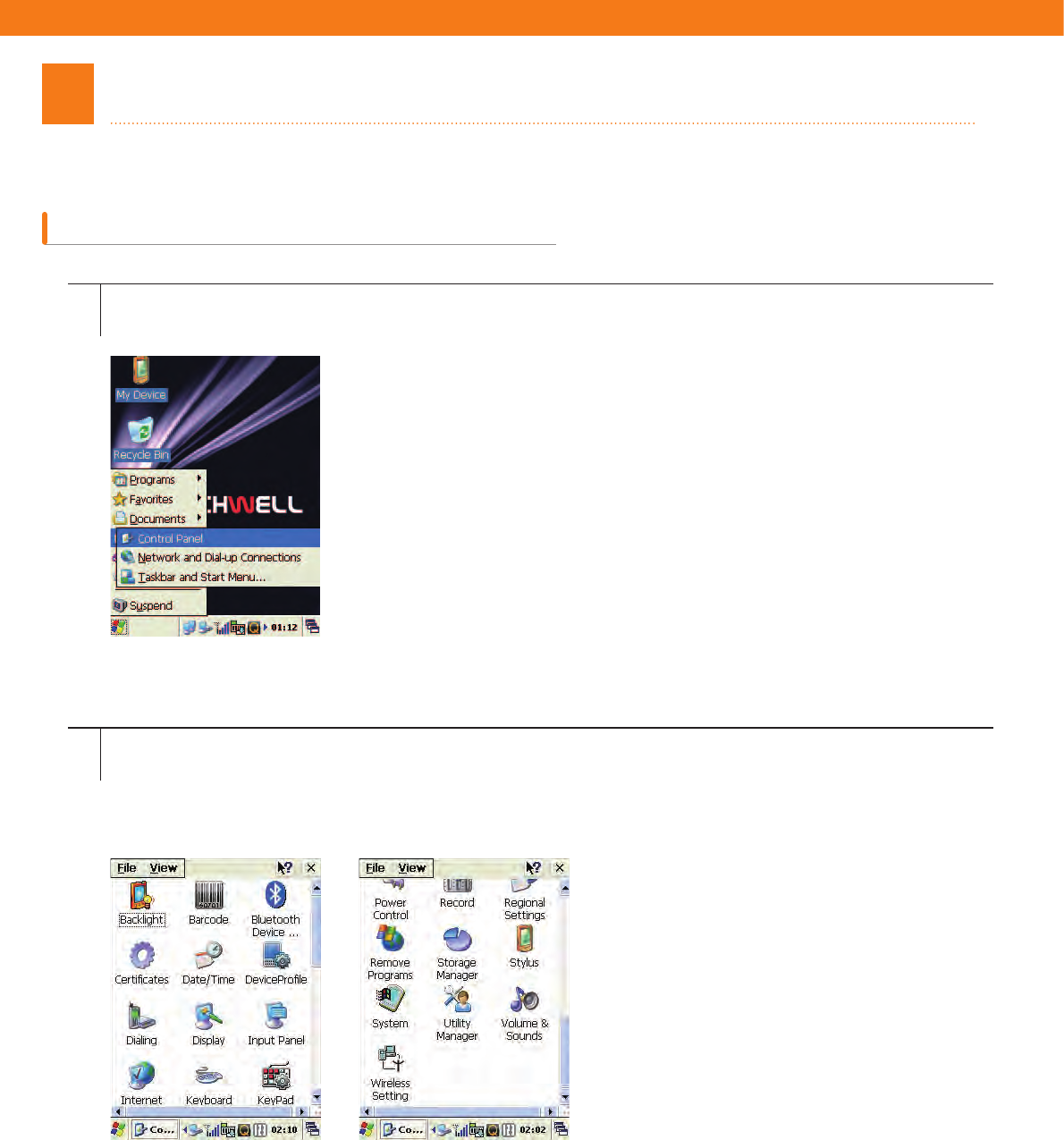
Status Icon
The Start screen appears when the device is turned on. The screen consists of background and taskbar.
It describes the status icons on the taskbar.
Name Descri ption
My device Allows to see and to change folders and files in
the device
Recycle Bin Contains the deleted files and data temporarily.
Can delete contents or recover them.
Start Button Can start various programs by pressing the Start
button.
Taskbar Displays the open programs: Network
Connection, Running programs, and others.
Name Icon Descri ption
Network
Status
Displays the current network
connection status.
(Connected: Disconnected: )
Mobile
Wireless
Signal
Status
Displays the wireless signal strength.
(CDMA or GSM)
USB
Connection Displays the USB connection status.
Bluetooth
Status Displays the Bluetooth connection status.
Barcode
Mode Displays the current barcode scan mode.
Quick
Launcher Displays the most widely used program setting
menus (Volume, Power, Backlight, Wireless,
WLanSetting).
Input
Setting Displays the input mode.
(Keyboard, writing recognition)
Time Displays the current time on the device.
Window Displays the running window.
My device
Recycle Bin
Start Button
Taskbar
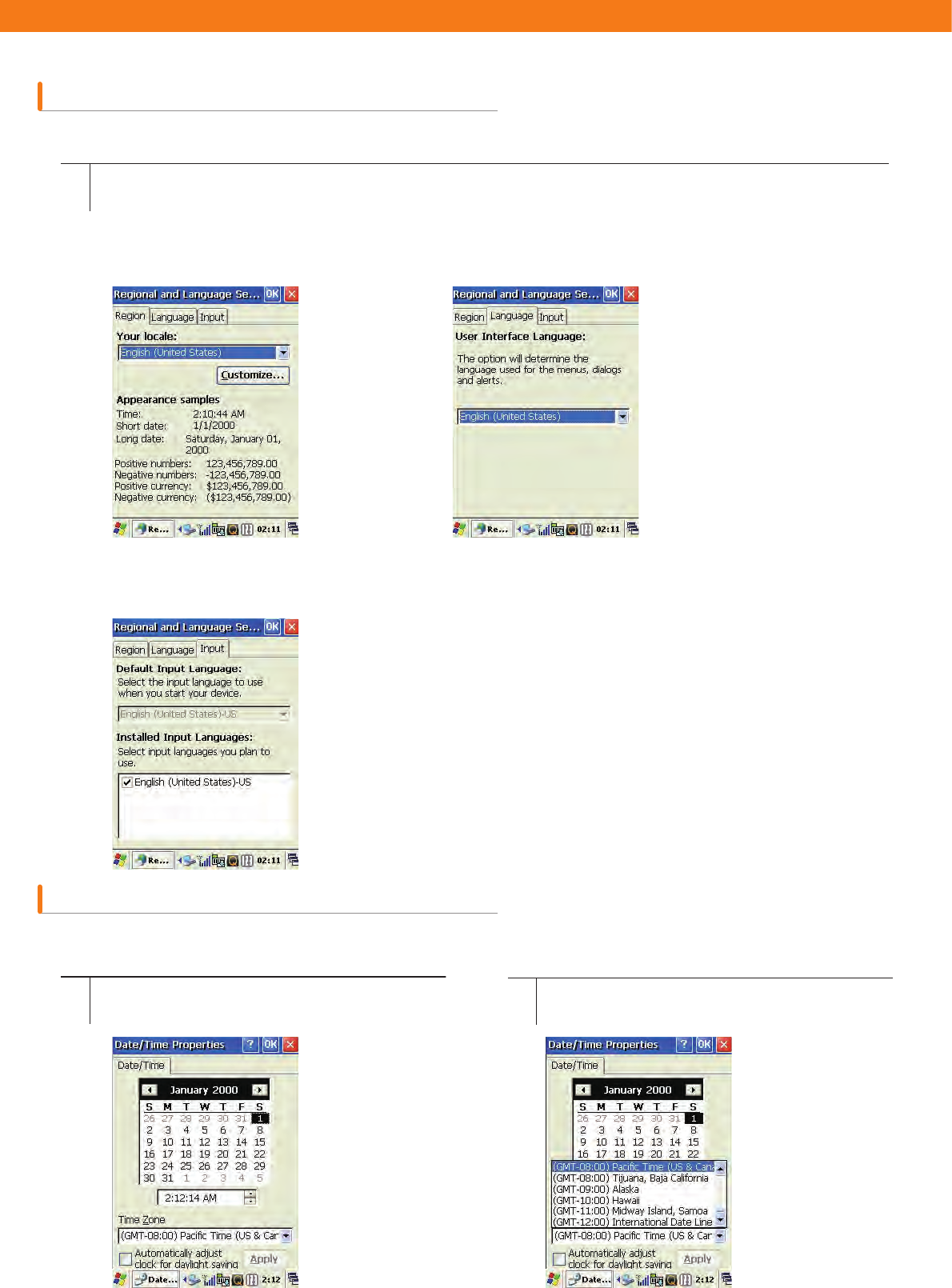
24
3Setting Up
Set the date/time, network, dsplay, volume, power, system, and others.
Opening [Control Panel]
1Select [Start] > [Settings] > [Control Panel].
2[Control Panel] window appears. The viewing mode (Big icon, Small icon, Detailed, etc.) can be changed at the
[View] option, and the icons can be sorted.
Example) ‘By Name’ sorting
25
Region and Language Settings
Date/Time
Set the locale, numbers, currency, time, and date.
Set the device’s local date, time, time zone, and the clock.
1
12
Select [Start] > [Settings] > [Control Panel] > [Regional Settings].
Select [Start] > [Settings] > [Control Panel] >
[Date/Time]. At Time Zone (Z), press select bar to find the
correct time zone.
Local
Select the country where the device
is being used.
Input
Select the device’s input language. Only the installed language appears,
and for other language, please contact the service engineer.
Language
Select the Windows language. Only English is installed so for
the other languages, please contact the service engineer.
26
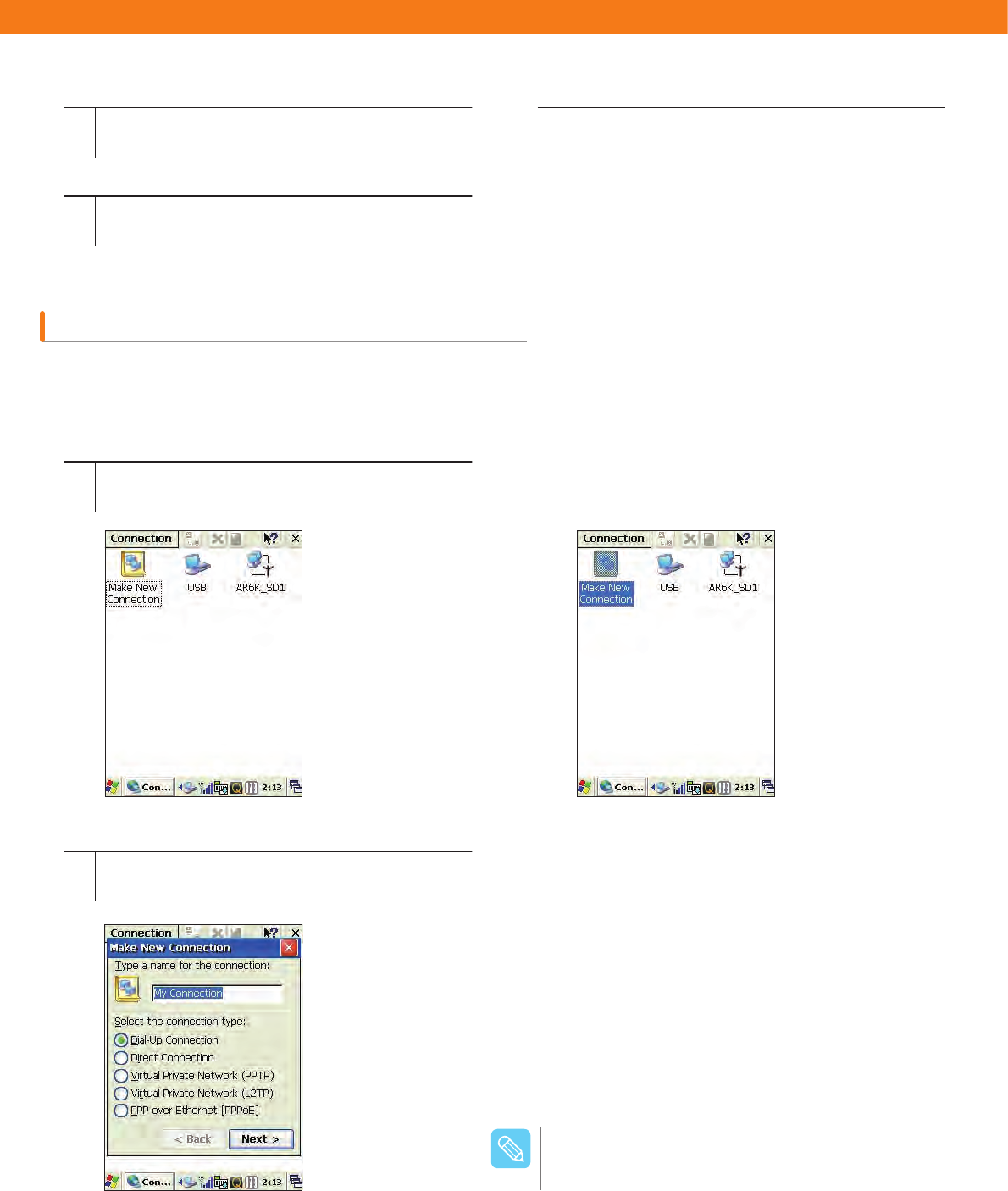
Network and Dial-Up Connections
Connect the device to the network using various methods (Ethernet, Wireless LAN, and Modem). You can send or
receive email, access network server files, and search them using Internet or Intranet via network connection.
3
5
4
6
Use left/Right arrows to select year and
month.
Write the current time in the time box.
Click the current date on the calendar to set
the date.
Press [Apply] button or [OK] button to save
the changes.
Setting Internet via Modem (Only if the modem is installed)
1
3
2
Select [Date/Time] > [Network and Dial-up
connections].
Type a name for the connection, select Dial-Up
Connection, and then press [Next ].
Click the Make New Connection.
Connect to the network using the modem if Wi-Fi
or wireless Internet is not available.
/PUF
27
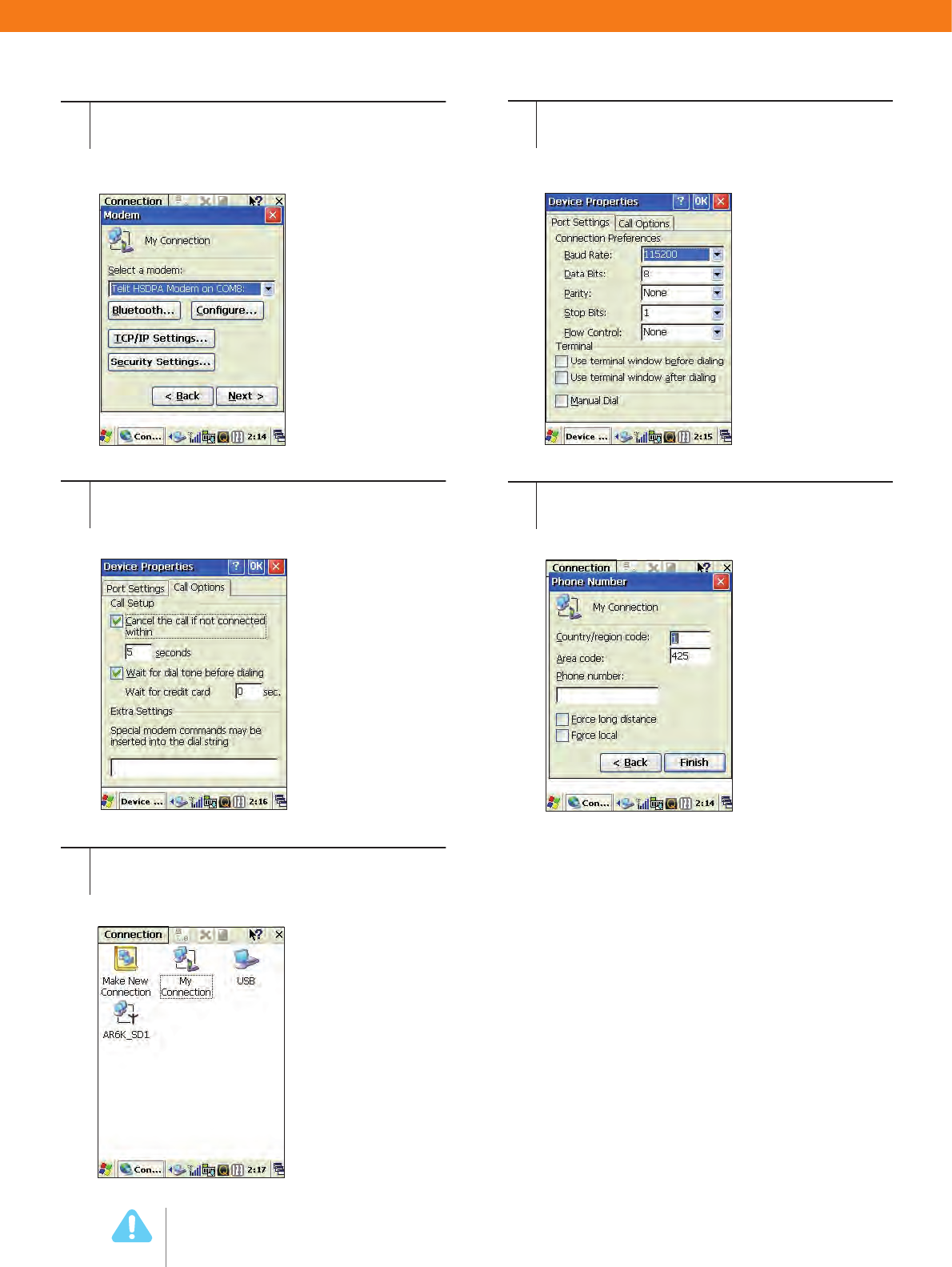
4
6
8
5
7
Select a modem on the device and press [Next >].
Press Call Options to set the special modem
commands, and then press [OK] on the
device Properties window.
After typing in Phone number, press [Finish].
(Ask your telecommunication provider for the
connection phone number).
Press [Configure...] to open the screen and
configure settings as shown below.
- Contact the telecommunication provider for
the Preference values.
Through modem, the network has been
established, and connections between
networks can be used.
The phone access number and connection setup method may differ depending on the
telecommunication provider. Check with the provider for the setting method before using the
connection.
8BSOJOH
28
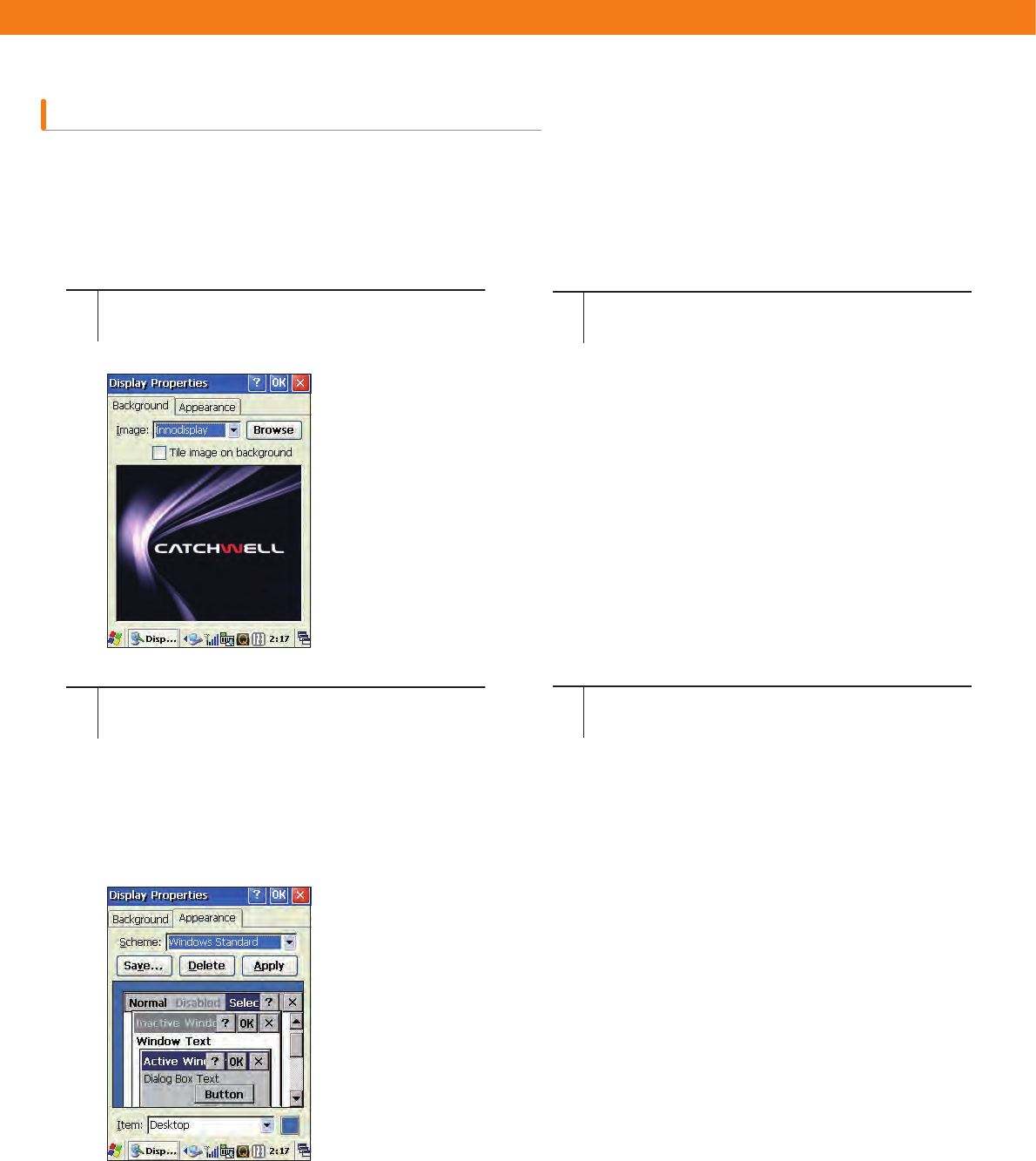
Display
To change the background image or active window’s color, open the Display Properties window. (Right click menus
appear when the stylus touches the screen for more than 1 second.)
Background
Follow the instructions below to change the background image.
Appearance
Set colors for window and text.
1
3
2
4
Select [Start] > [Settings] > [Control Panel] >
[Display].
Press [Browse] and select an image for the
background.
Select the Background tab.
To set the image like tiles, select ‘Tile image
on the background’ menu.
29
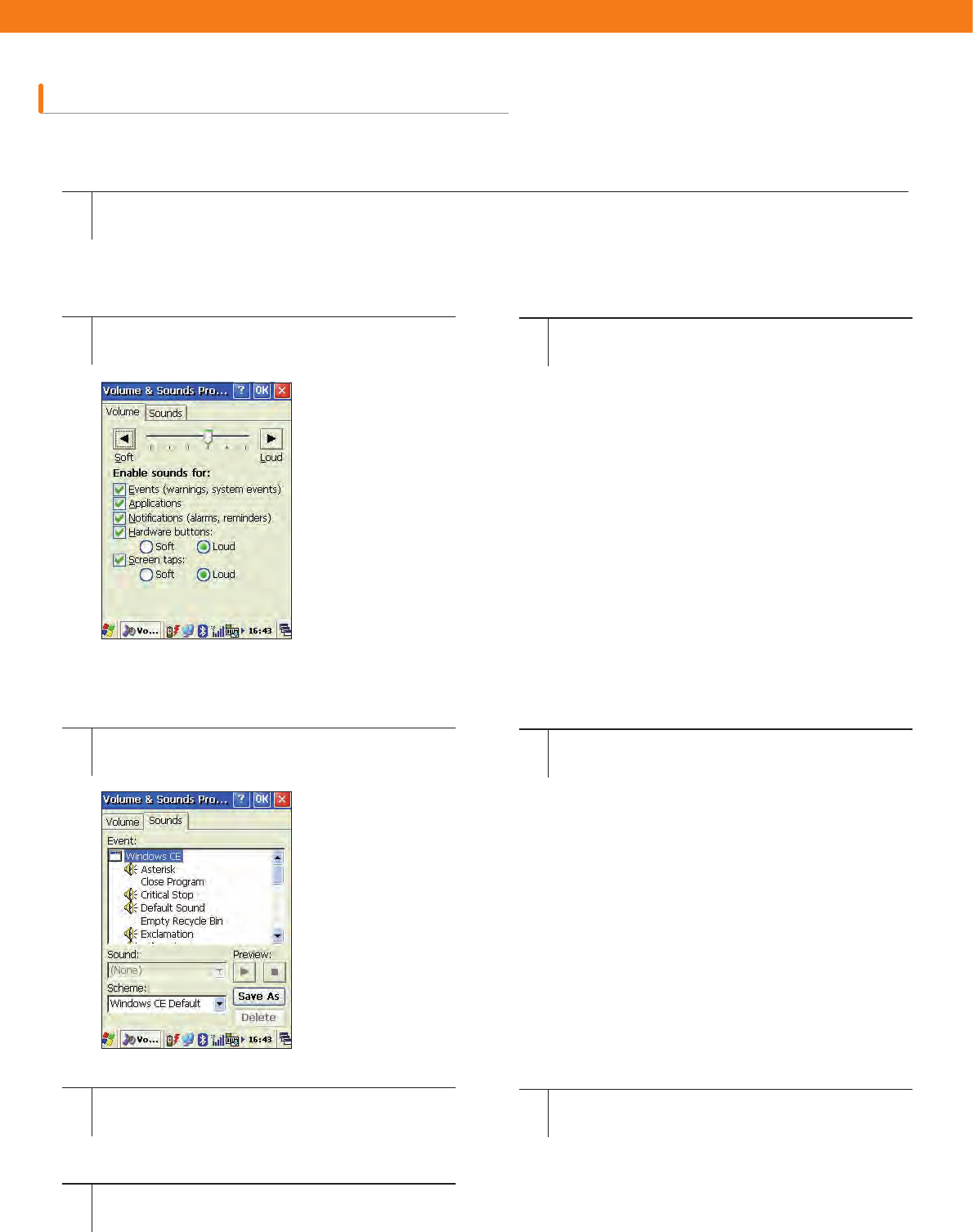
Volume and Sound
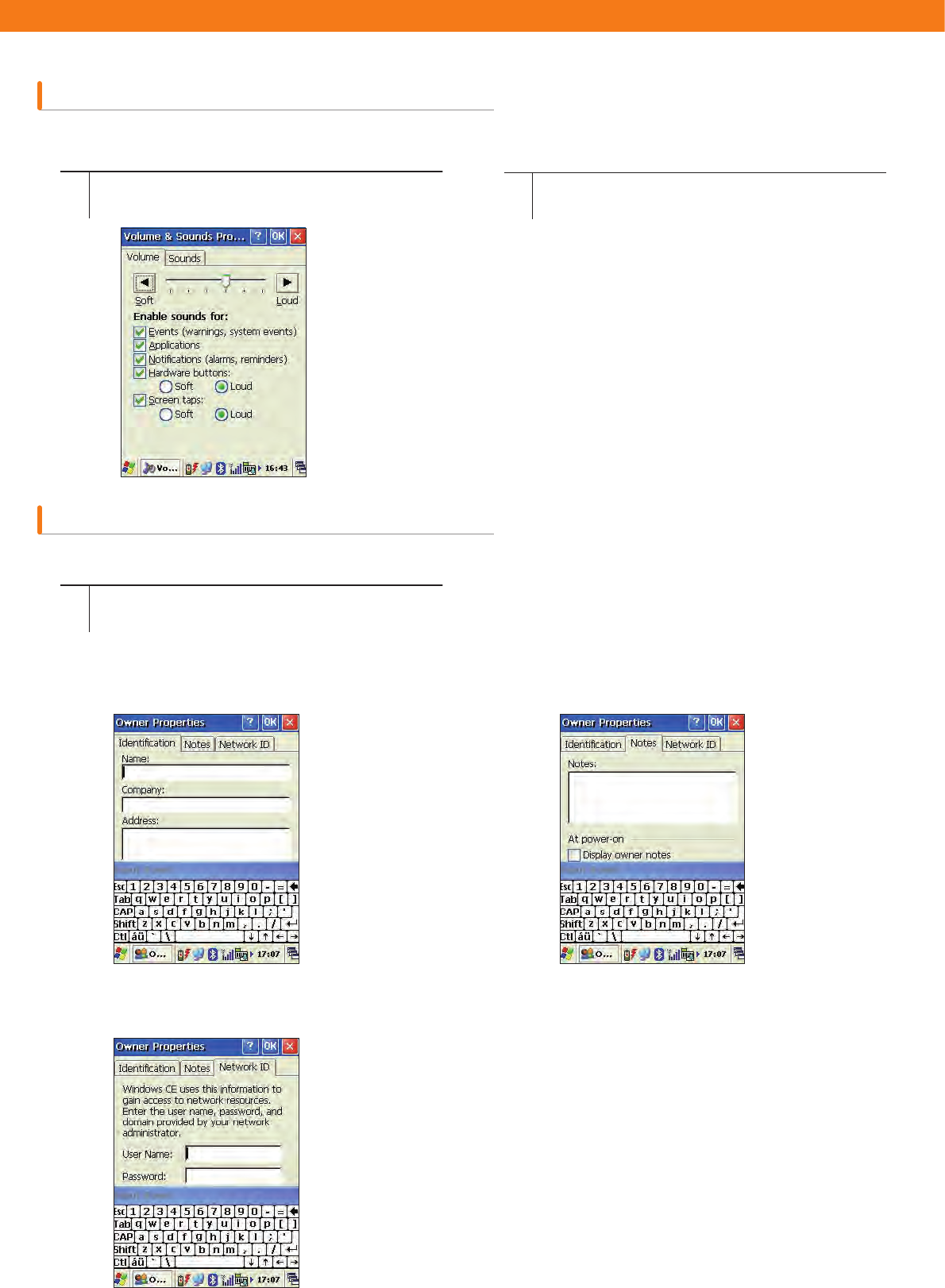
Set the device’s volume and sound types.
1Select [Start] > [Settings] > [Control Panel] > [Volume & Sound].
Volume
Sounds
1
1
3
5
2
2
4
Press left/right arrow icons or move the slide
bar to set the desired volume.
Select Event from the list.
To remove the Sound from the certain event,
select [None].
To remove the Scheme, select a Scheme
and press [Delete].
Select cases, like Events (warnings, system
events), Applications, and Notifications (alarms,
reminders), in which the sounds will be enabled).
Select Sound from the list.
Check the sound from Preview.
To save the changes for the different scheme,
press [Save As] and type the name for the
scheme.
30
Mouse
Owner Properties
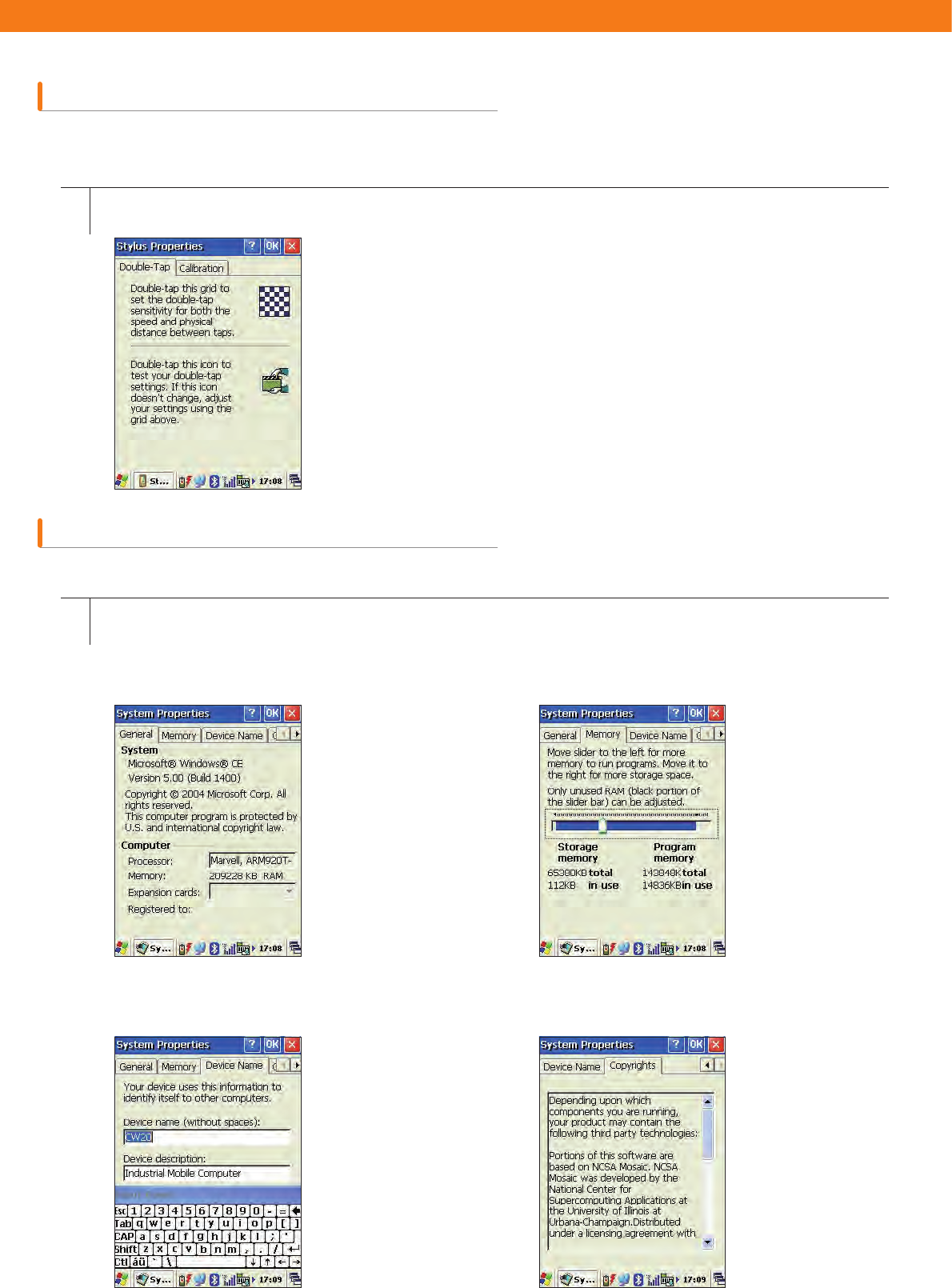
Set the double click sensitivity of your stylus.
Set the device user information or network ID.
Owner Identification
Type name, company, address, work phone number, and home
phone number on the Identification tab. To display information
on the start screen, check “Display owner identification.”
Network ID
Set the user name, password, and domain
provided by the network administrator.
Notes
Type additional information in the ‘Notes’
box.To display on the start screen, check
“Display owner notes.”
1
1
2
Select [Start] > [Settings] > [Control Panel] >
[Mouse].
Select [Start] > [Settings] > [Control 1 Panel] > [Owner].
Double click the check patterned picture. Press
[OK] to auto-save the sensitivity speed.
31
Stylus
System Properties
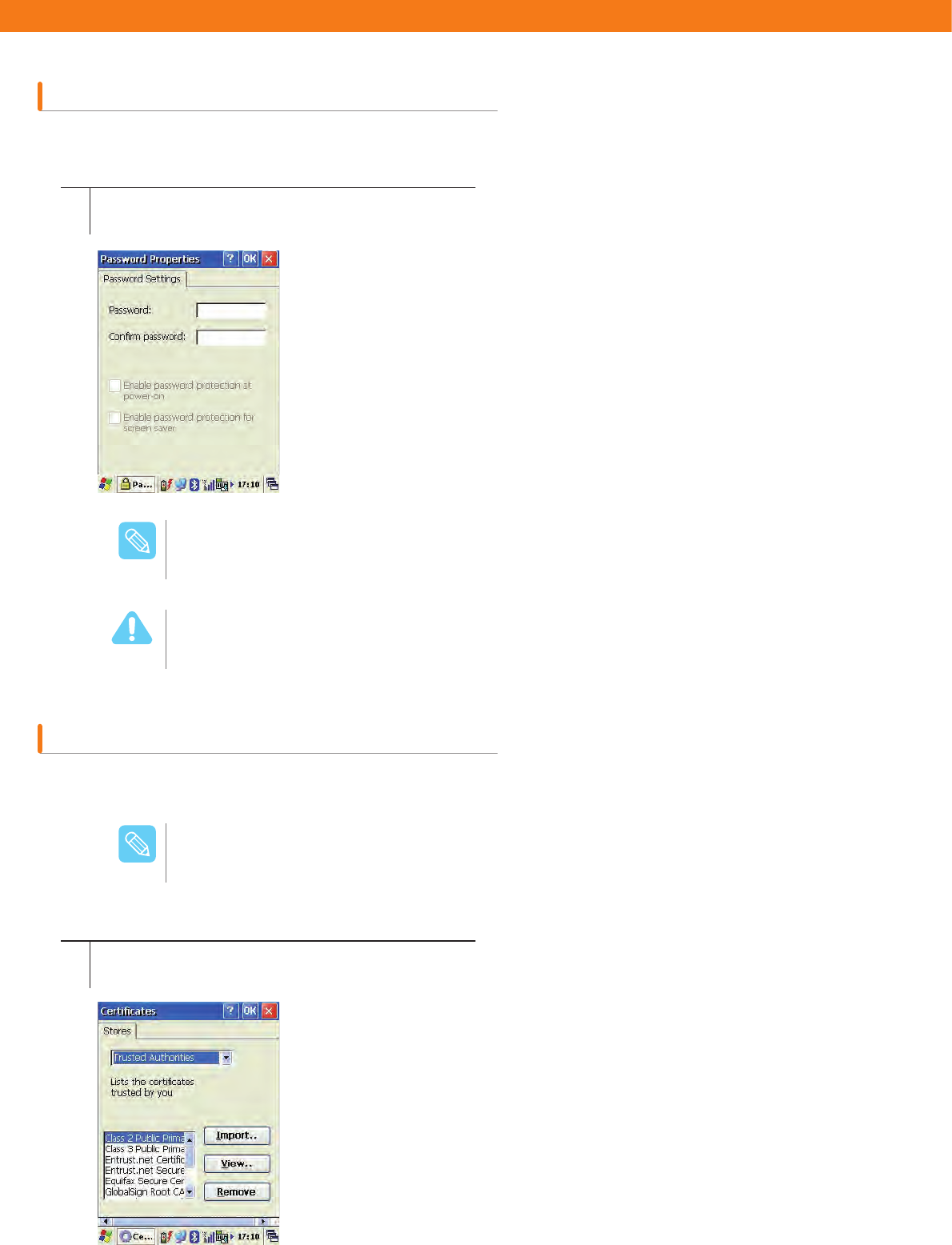
Set the double tapping and calibration of the stylus.
Display the device’s system information, memory status, and others.
1
1
Select [Start] > [Settings] > [Control Panel] > [Stylus Properties].
Select [Start] > [Settings] > [Control Panel] > [System].
Double-Tap
Double-tap the check patterned picture to auto-save the
speed.
Calibration
Calibrate the stylus.
(See “4. Screen Calibration.”)
General
Displays operating system, software version,
and computer hardware information.
Device Name
Sets the device name.
Memory
Select sizes for data storage memory and
program memory.
Copyrights
Check to see the information on the copyrights of
the system.
32
Password
Certificates
Set the password.
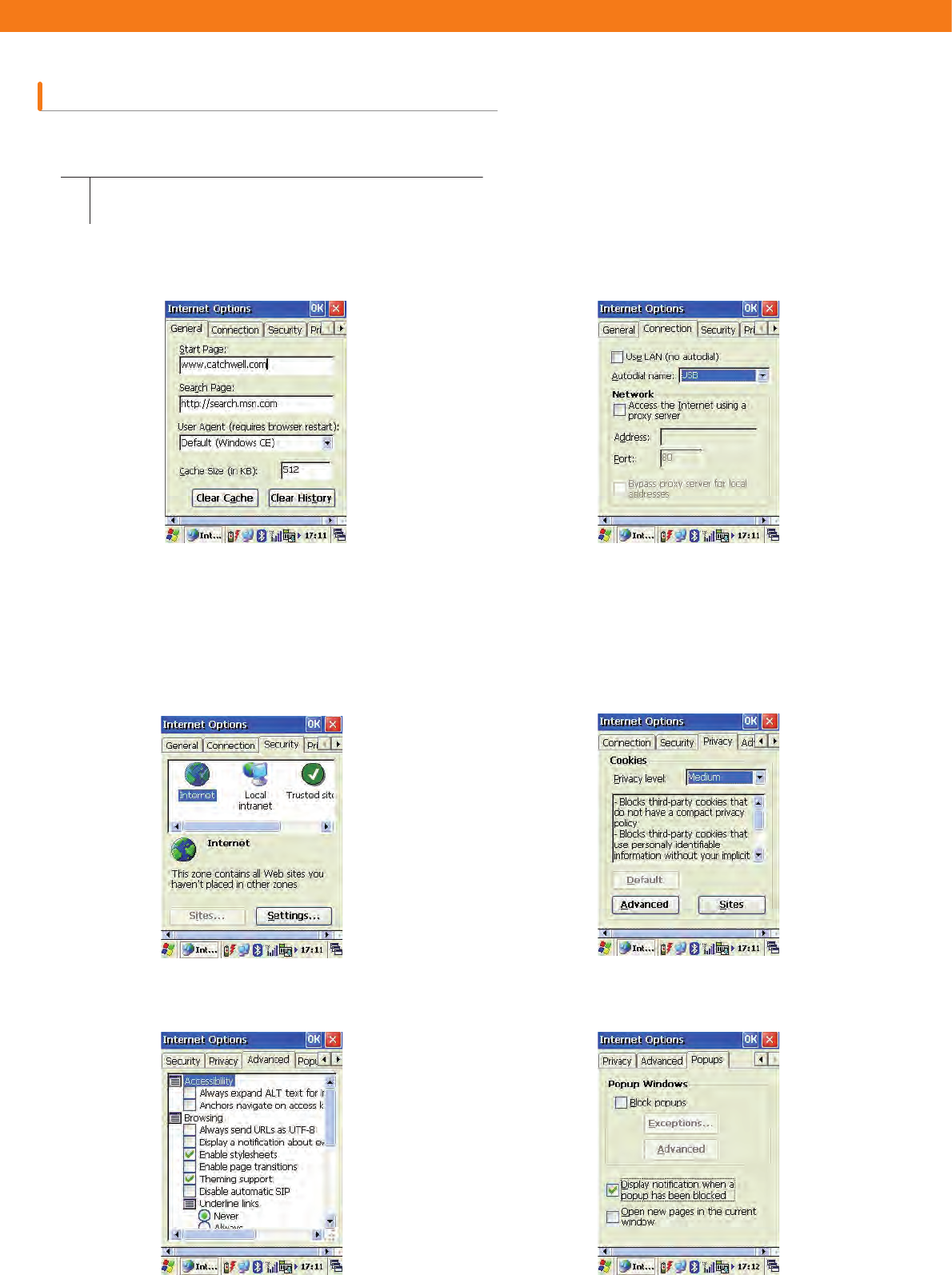
For trusted and safe communication, some programs require certificates.
1
1
Select [Start] > [Settings] > [Control Panel] > [Password].
Select [Start] > [Settings] > [Control Panel] >
[Certificates].
If you check the password enabling option on the system start screen, be sure to remember the
specified password. Even if the hardware is reset, the password is not initialized. If you cannot
remember the password, please contact the certified service center.
After setting the password, the password window appears on the start screen when turning on the
power or after soft reset. The device can be accessed only when the correct password is entered.
To remove the password, delete the password in the Password Properties window.
8BSOJOH
/PUF
Certificates are issued only from the official approval institute and valid for certain period of time.
The Windows CE administrator manages various storage areas for certificates.
/PUF
Import
To add certificate or related key, press [Import] and select the
method to Import the certificate or key. This can be selected
from the file or smart card.
View
To see extension code, expiration date, or other
certificate-related information, press [View].
Remove
To delete the selected certificate, press [Remove].
33
Internet Options
Set the Internet connection, security, and other properties to use the Internet.
1Select [Start] > [Settings] > [Control Panel] > [Internet
Options].
General
Sets the start page, search page, and others.
Clear Cache: Deletes the saved system cashe.
Clear History: Deletes the list of previously
opened pages.
Security
Sets security options.
Advanced
Sets advanced Internet options.
Connection
Sets the proxy server address, port, and other
Internet connection settings.
Privacy
Sets the level of private information blocking.
Popup
Sets webpage popup blocking options.
34
Input Panel
Storage Manager
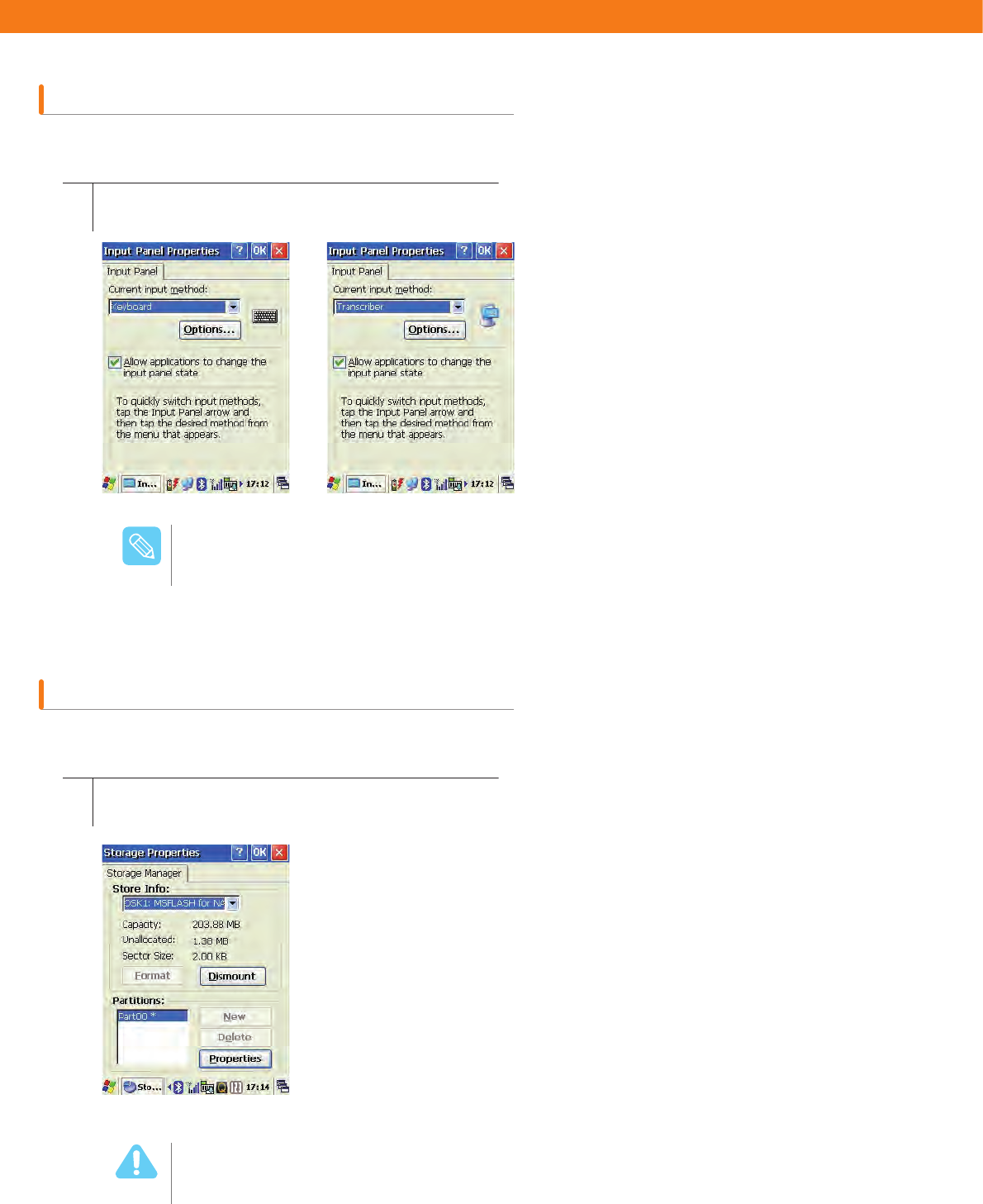
Change the input method for Keyboard or Transcriber and set the case options (upper case/lower case).
Use Storage Manager to set the flash ROM (Disk1). Disk1 is normally used to save data and files.
1
1
Select [Start] > [Settings] > [Control Panel] > [Internet
Options] > [Input Panel].
Select [Start] > [Settings] > [Control Panel] > [Storage].
Format
Formats the selected disk.
Dismount
Formats the selected disk’s partition.
New
Creates a new partition and gives it a name.
Properties
Checks the created partition’s properties.
Delete
Deletes the desired partition. For this, select the partition,
press Dismount, and then press Delete.
For more details, see “Chapter 6 Using Applications.”
/PUF
If you format the disk, all the data including files and programs are deleted and they cannot be
restored. Before use of this function, please consult your system administrator.
8BSOJOH
35
Power Control Properties
Dialing
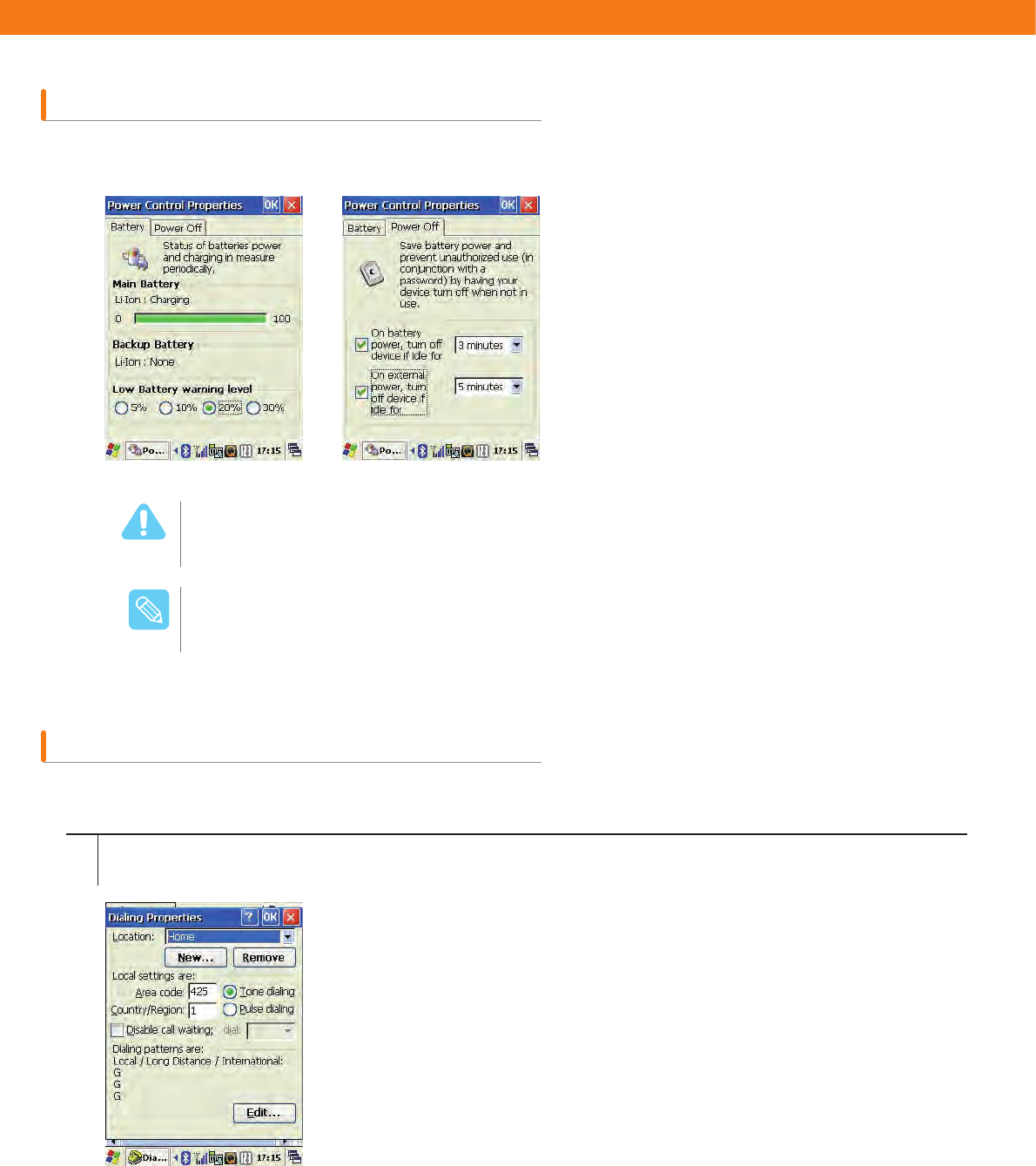
Check the battery remaining amount, and set the warning level and power off time.
Set the Dialing properties.
1Select [Start] > [Settings] > [Control Panel] > [Dialing].
When the battery warning sounds, change the main battery immediately. Otherwise, a data loss,
system error,or malfunction of specific parts can occur.
8BSOJOH
Power Off
Sets the automatic power off setting.
(See “Chapter 1 Battery Maintenance.”)
/PUF
Main Battery
Shows the current amount of the main battery’s
power.
Low Battery Warning Level
Select the level for battery warning sign (5%,
10%, 20%, 30%) in case of low battery.
36
Backlight
Keyboard Remove Programs
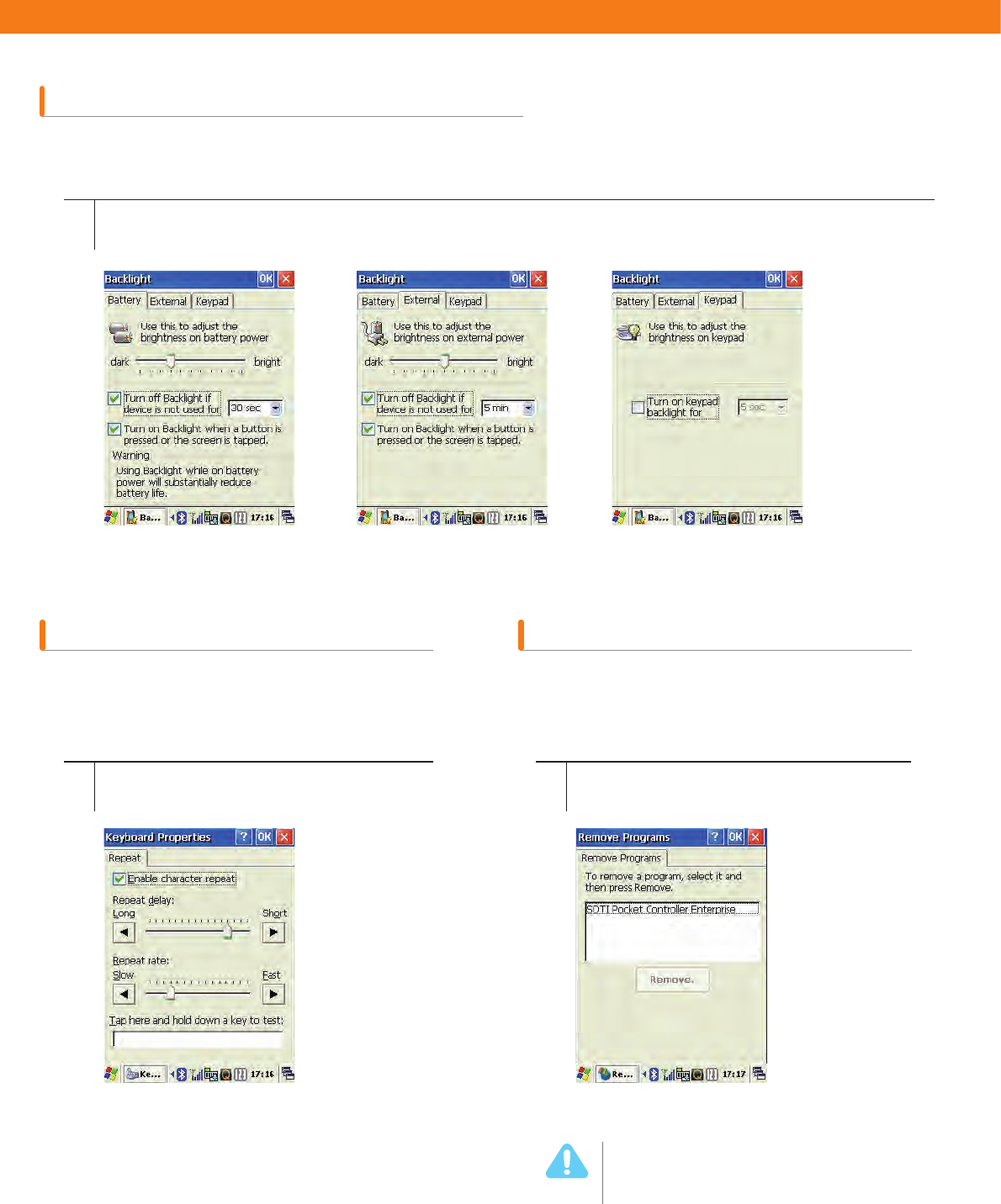
Set the screen’s brightness, backlight turn off, backlight on time, and keypad backlight.
Set the keyboard’s repeat delay and repeat
rate. The Key repeat rate can be checked by
testing a key repeat performance.
You can remove installed programs. Select
program to delete from the list and press
[Remove].
1
1 1
Select [Start] > [Settings] > [Control Panel] > [Backlight].
Select [Start] > [Settings] > [Control Panel]
> [Keyboard]. Select [Start] > [Settings] > [Control Panel] >
[Remove Program].
Please make sure what you are about
to delete. Deleting some programs
may cause a fatal system error. Please
consult your system administrator
before deleting any programs.
8BSOJOH
37
Barcode
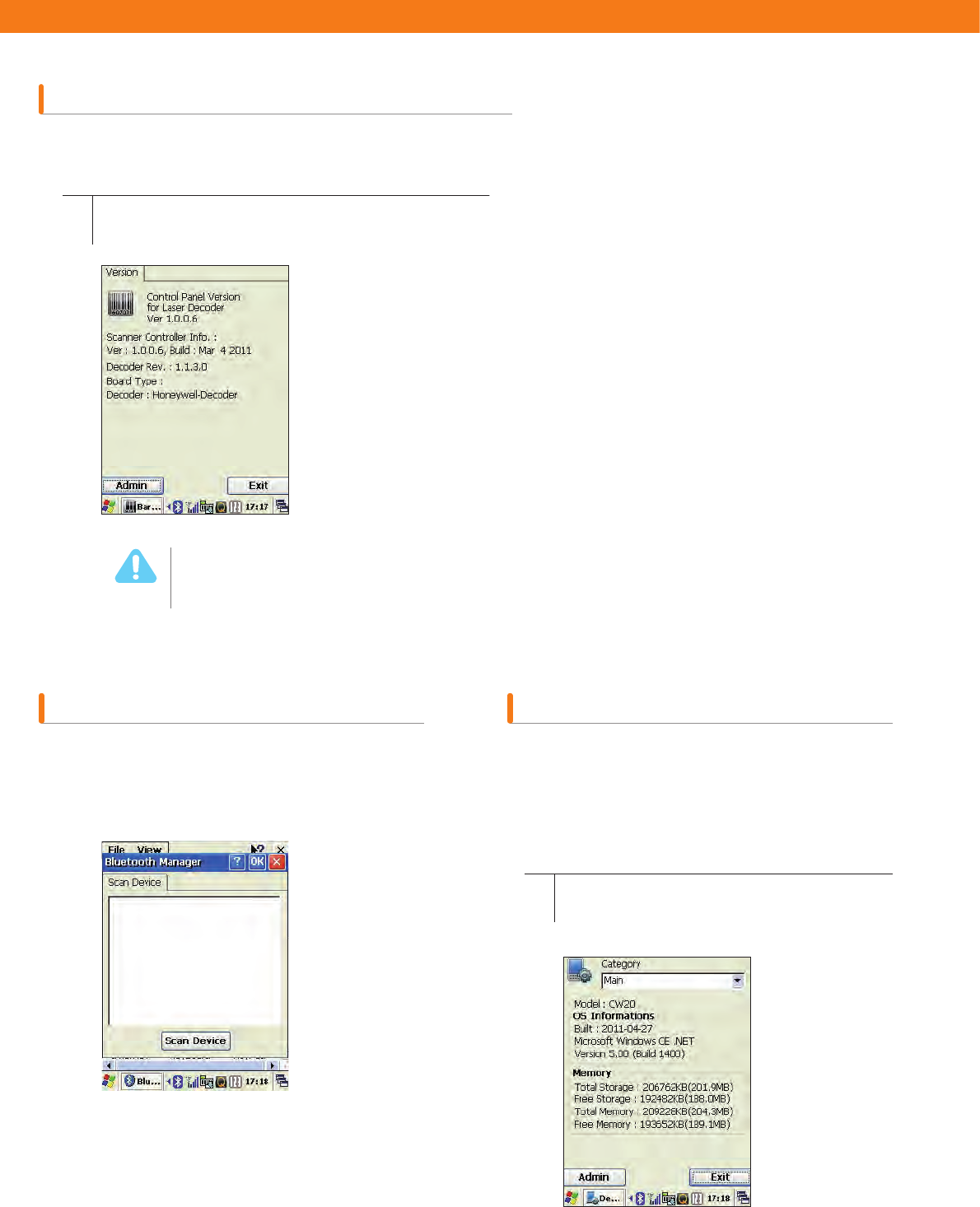
This section explains how to set up barcode program. Press [Admin] and enter the password to set up the barcode
program. Please consult your administrator to change the properties.
1Select [Start] > [Settings] > [Control Panel]
> [Barcode].
If any program is deleted, the device may not work properly. Be sure to consult your system
administrator in this case.
8BSOJOH
Bluetooth Manager Device Profile
This section explains how to connect Bluetooth
or change the set up values. (Not recommended
when using SPP Profile). See Chapter 4 1.
Bluetooth (77p)
This section explains how to display hardware
and software’s device information. Click
[Admin] and enter the password to re-load the
information or to save as a file. (Please consult
your administrator to change the properties.)
1Select [Start] > [Settings] > [Control Panel]
> [Barcode] > [device Profile].
38
KeyPad
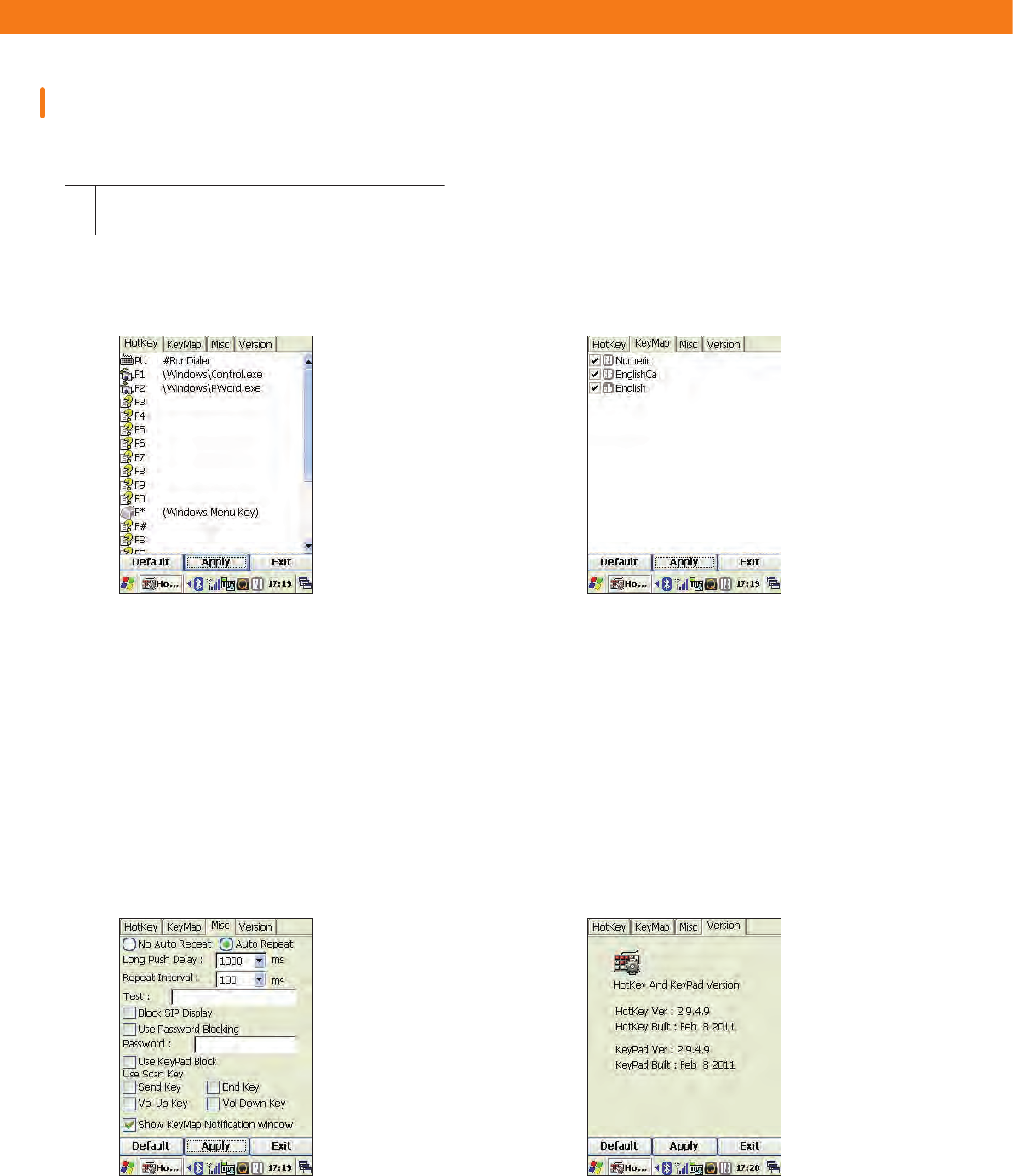
This section explains how to set up various keypad options.
Press AP button on the keypad to change the
keymap.
(Number) > (Upper Case) > (Lower Case) >
(Number) repeated.
KeyMap may vary depending on suppliers or
regions.
1Select [Start] > [Settings] > [Control Panel] >
[Keypad].
Hotkey
Check list of hotkeys and can change them
(Ex: FN+F1).
MISC
Set up keypad’s reading time and other
related options.
KeyMap
Change or check currently using keys.
Version
Displays current program version of
KeyPad.
39
PC Connection
Record Settings
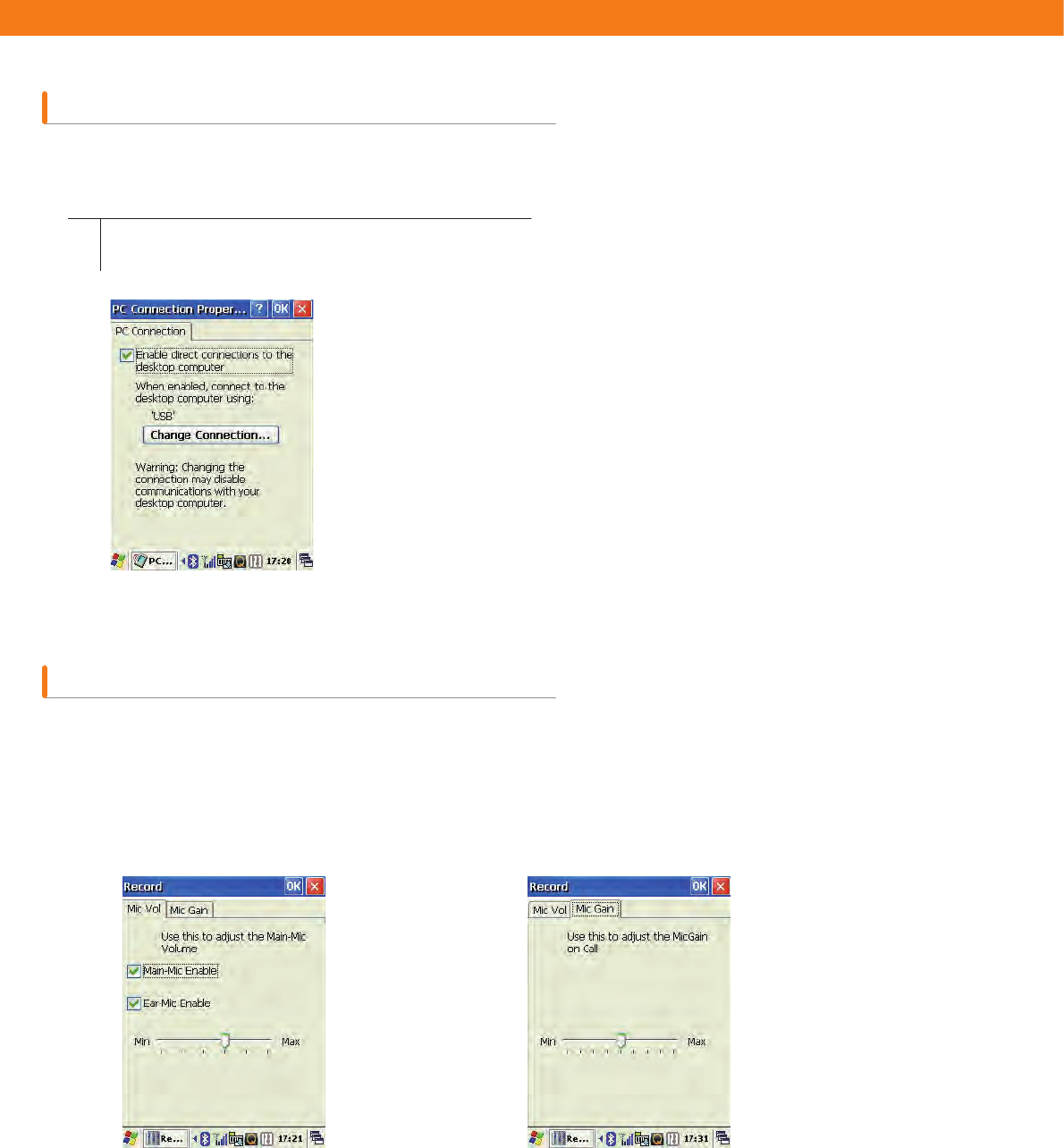
Set the PC connection properties to directly connect to the desktop computer. Select [Change Connection] to select
the connection method to the desktop computer.
Set the microphone, phone volume, and other extra volumes.
1Select [Start] > [Settings] > [Control Panel] >
[PC Connection].
Mic Vol
Sets the device’s mainmicrophone
or earmicrophone’s volume.
Mic Gain
Sets the loudness of the
microphone volume during calls.
40
You may require recalibration if the device does not respond precisely to the stylus.
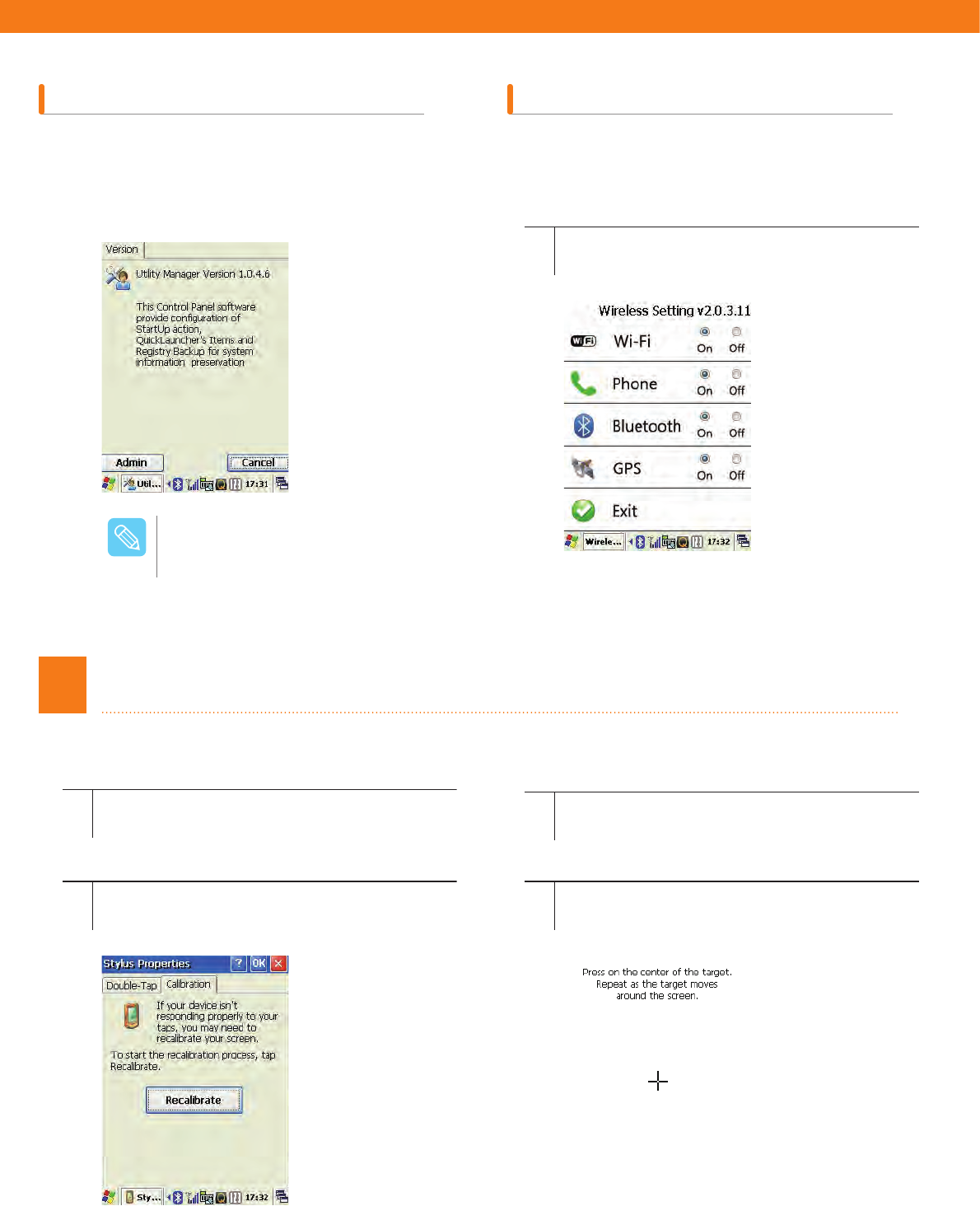
Utility Manager Wireless Setting
Through Utility Manager, set the Start program
and Quick Launcher. Press [Admin] and enter the
password for Utility Manager.
(Please consult your administrator to change the
configuration.)
Set the wireless connections. You can set
the status for Wi-Fi, phone, Bluetooth, and
GPS to “On” or “Off.”
1
1
3
2
4
Select [Start] > [Settings] > [Control Panel] >
[Wireless Setting]
Before screen calibration, put the device on
hold, or place it on the secured place.
Select [Calibration] tab > press [Recalibrate].
Press [Start]> [Settings] > [Control Panel] >
[Stylus].
Tap on targets that appear on the screen
with the stylus.
For more information about Utility
Manager, please see “How to
use applications” in Chapter 6.
/PUF
4Screen Calibration
41
If the screen freezes while using the device, or if the program does not work properly, the device can be reset. There
are two methods to reset the device to its original status: Software reset and Hardware reset.
5Reconfiguration (Reset)
5The following screen appears after you tap all targets and the recalibration process is complete. Tap anywhere
on the screen to finish the process. Make sure recalibration has been performed correctly.
Please make sure what you are about to delete. Deleting some programs may cause a fatal
system error. Please consult your system administrator before deleting any programs.
8BSOJOH
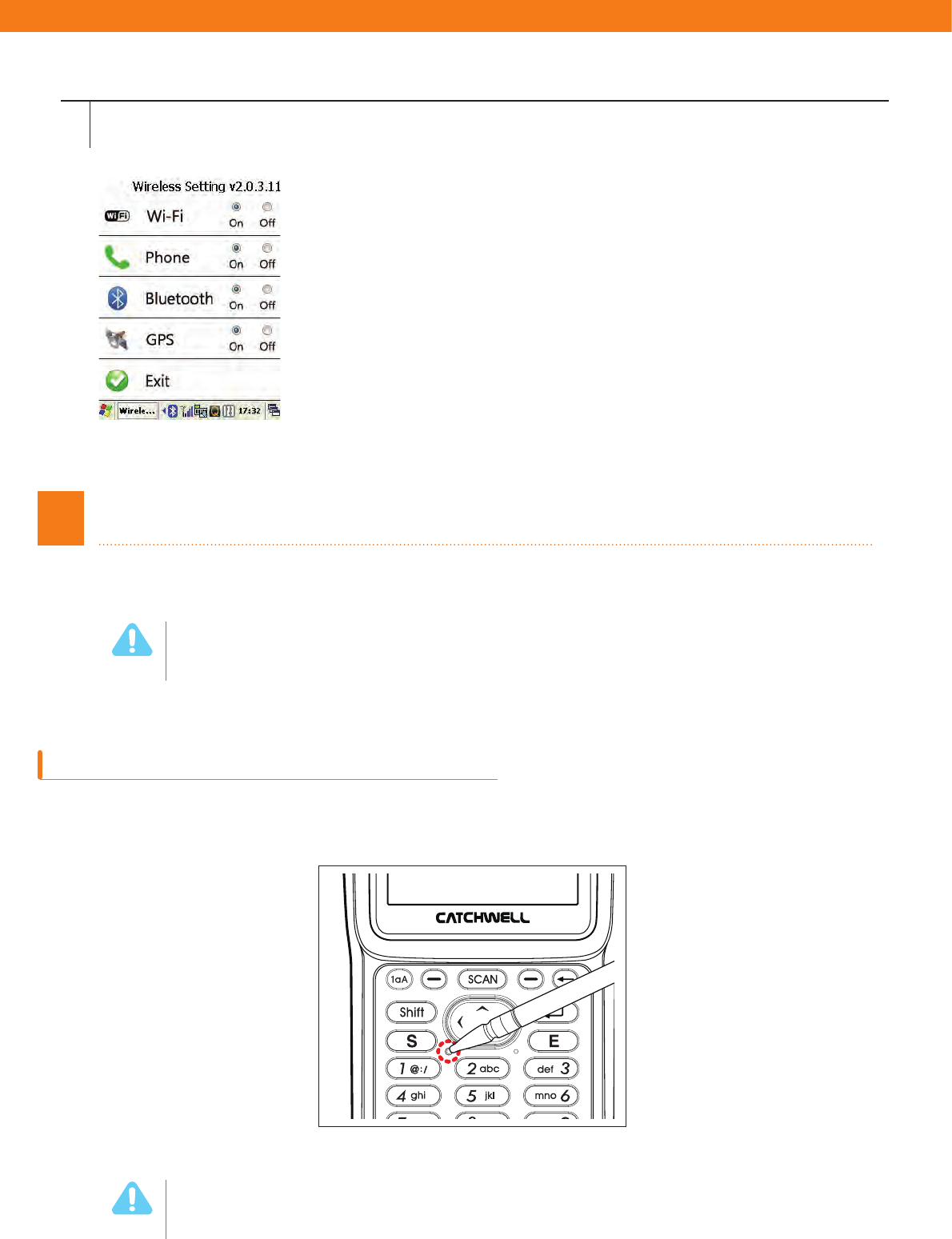
Please back up running programs or data before performing the software reset. The software
reset does not affect any data stored but it can affect any data or file that is being created.
8BSOJOH
Software Reset
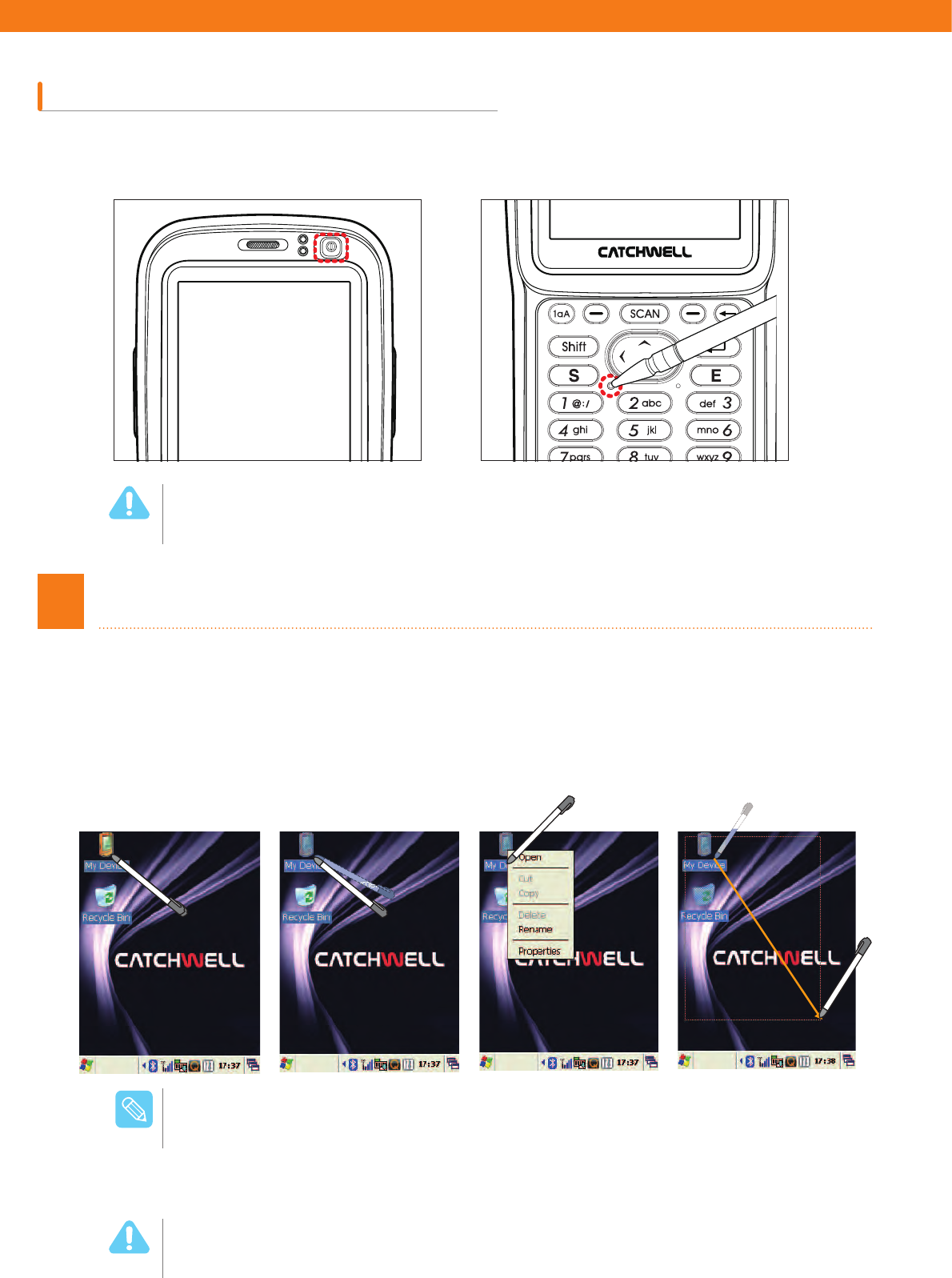
The software reset closes running programs and restarts the device. To start the software reset, press the Reset
button on the upper right corner of the battery compartment using the stylus.
42
Hardware Reset
It is recommended to use the hardware reset if the device does not work properly even after performing the software
reset. To perform the hardware reset, press the Reset buttons on both the front and the back of the device at the
same time.
Do not perform the hardware reset frequently. It may cause damage or malfunction to the device.
8BSOJOH
Keep the device or the stylus out of children’s reach. Children may get hurt with the sharp end of
the stylus.
8BSOJOH
Stylus is used to execute commands or input data from the touch screen.
6Using the Stylus
Click
Tap an icon once (to make
a selection or launch an
application program).
Double-click
Double-tap an icon (to
open a folder or launch
an application program).
Press and Hold
Press and hold until the
command menu
appears
on the screen
(to copy,
paste, delete files, make
keyboard entries, etc.).
Drag
Press, drag, and release
at the desired location
on the screen (to select
multiple icons or to
move icons).
To ensure a prolonged use of the touch screen:
1. Clean it before use when any foreign material is on the screen.
2. Be careful not to make scratches while using the touch screen.
3. Use only the provided stylus or the touch screen dedicated stylus, and do not use sharp objects
(pen, wire, screwdriver, or others).
4. Use a genuine screen protective film, and replace it periodically.
/PUF
+

Data Capture ..................................... 44
Device Buttons for the Phone
Program .....................................44
Turning Phone On/Off ...............45
Turning On ........................................ 45
Turning Off ........................................ 45
Phone Call / Receive .................46
Making a Phone Call ......................... 46
Receiving a Phone Call .................... 46
SMS Message.............................46
SMS message screen ....................... 46
Sending Message .............................47
Address Book ............................48
Adding Phone Number ...................... 48
Edit Phone Number ........................... 48
Call History.................................49
Phone Setting ............................49
Version Information ........................... 49
Sound Set .........................................50
Display ..............................................50
Network Setting ................................. 51
USIM ................................................. 51
SMS ..................................................51
Call Option Management ..................52
Managing Phonebook ....................... 52
Chapter 3 How to Use Phone
44
1
Data Capture
For more details, see page 108 “Chapter 6 Using Application Program > 1 WordPad explanation.”
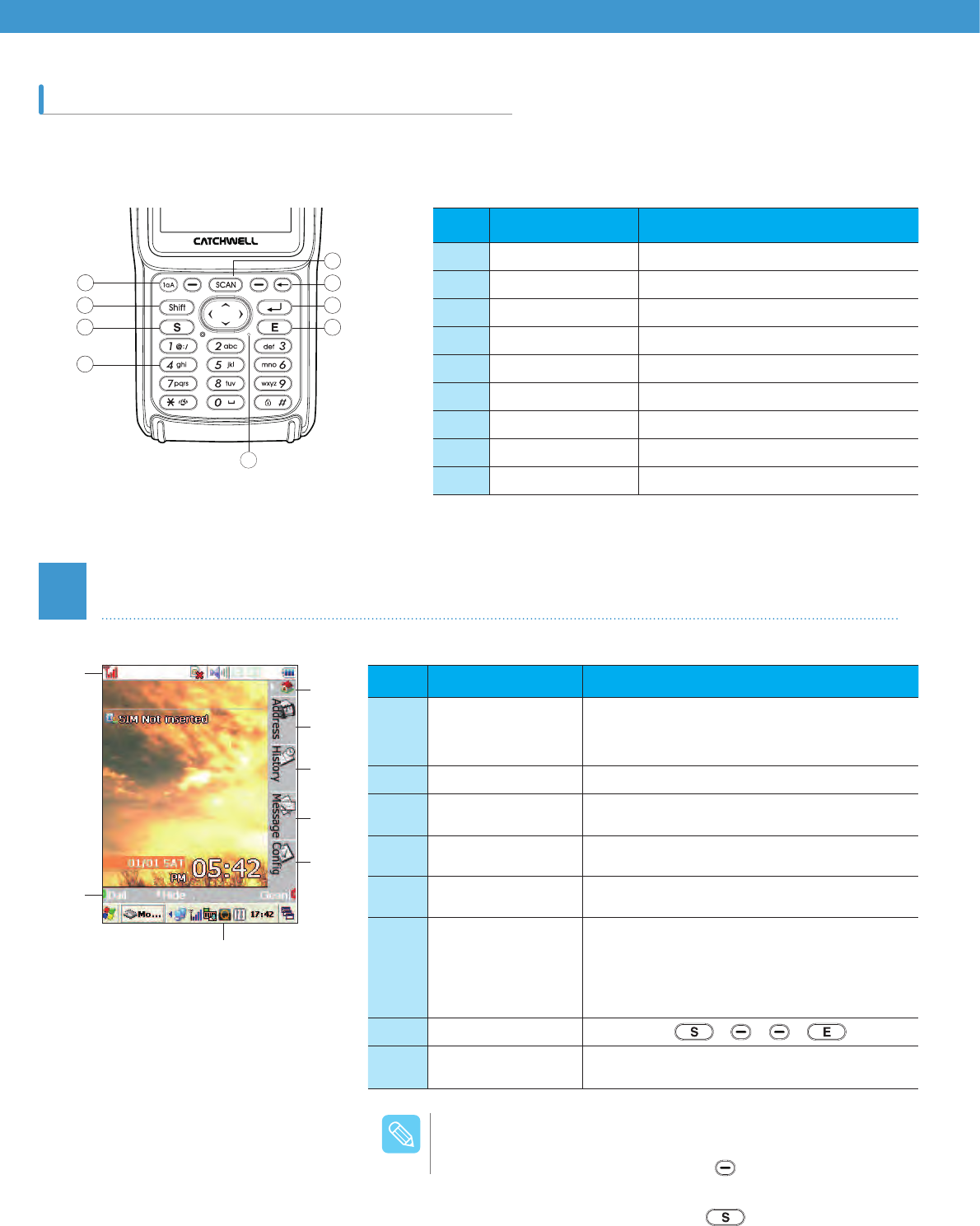
No Part Function
ΗScan button
ΘBack space Erases a character backward.
ΙEnter button Performs the line feed
ΚEnd Call button Ends a call.
ΛMic Microphone hole
Μ1~9 button Endters number or characters
ΝCall button Makes a call.
ΞShift button Shift fuction
Ο1aA button Change a chracter/ number
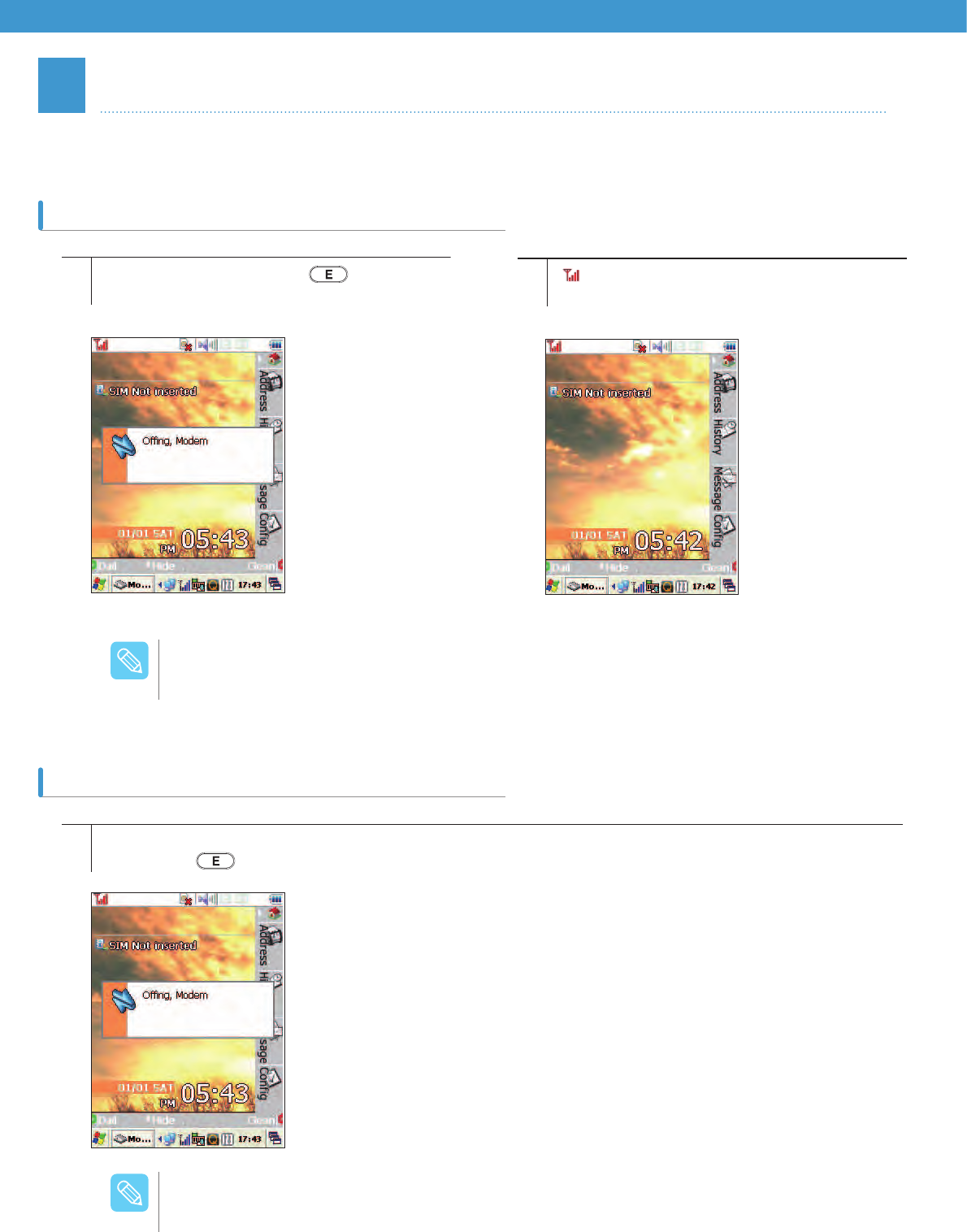
No Part Function
ΗTaskbar Displays the signal strength, call volume,
PHVVDJHFRQ¿UPDWLRQPDQQHUPRGHORFN
and battery status.
ΘHome Moves to the main screen.
ΙPhone Number
Address Tab Used to register, edit, and delete phone
numbers.
ΚCall History Checks the history of the received, sent,
and missed calls.
ΛMessage Inbox Creates a new message, or displays the
list of the sent/received messages.
Μ&RQ¿JXUDWLRQ
Includes the setup information, volume
ettings, screen properties, network
settings, USIM environments, messages,
phone settings, phone book management,
SPAM blocking, and others.
ΝHotkey Displays ( ) ( ) ( ) ( ) buttons.
ΞCall Method and
Signal Strength Displays the call method and signal
strength.
9
3
4
8
1
2
6
7
5
By clicking the phone tray icon, the main screen can be active
(or inactive)
- In active mode, pressing the left [ ] button changes to
inactive.
- In inactive mode, pressing the [ ] button changes to
active.
/PUF
Device Buttons for the Phone Program
Η
Θ
Ι
Κ
Λ
Μ
Ξ
Ν
45
1
1
2
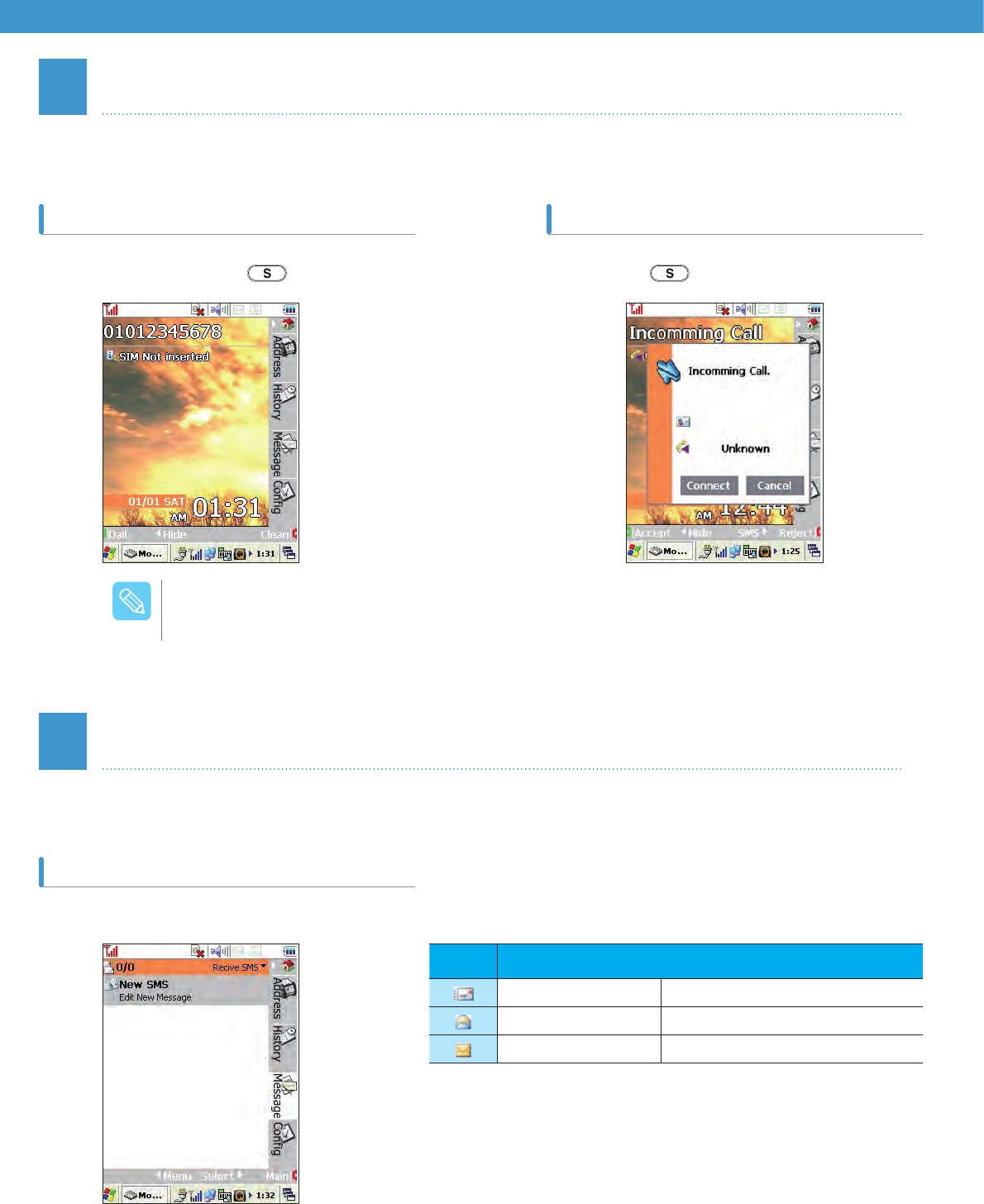
Press and hold the device’s [ ] button.
While the modem is On, press and hold
the device’s [ ] button.
[] icon appears on the taskbar as shown
below and the phone number entry screen
appears.
2
Turning On
Turning Off
Turn the phone function On or Off.
When starting the phone program for the first time or restarting modem, modem goes through
reset process and it takes time before the device is ready to use. Do not perform other task while
modem is being reset. When turning phone modem, if the USIM is inserted, USIM is automatically
recognized and phone function can be used.
/PUF
While the modem power is off, the phone call/receive and message send/receive are not available.
The caller is connected to the voice mail.
/PUF
Turning Phone On/Off
46
3
4
Phone Call / Receive
Making a Phone Call Receiving a Phone Call
Make and receive a phone call.
You can type or check a message.
Using the number pad, enter the phone number
and press the Call button [ ].
The SMS message screen consists of the following:
When a call is coming, press the [Connect] or
Call button [ ].
To adjust the volume, press up/down buttons on the keypad.
/PUF
Icon Message Function
Sent Message Shows sent messages
Read Message Shows read messages
Unread Message Shows unread messages
SMS Message
SMS message screen
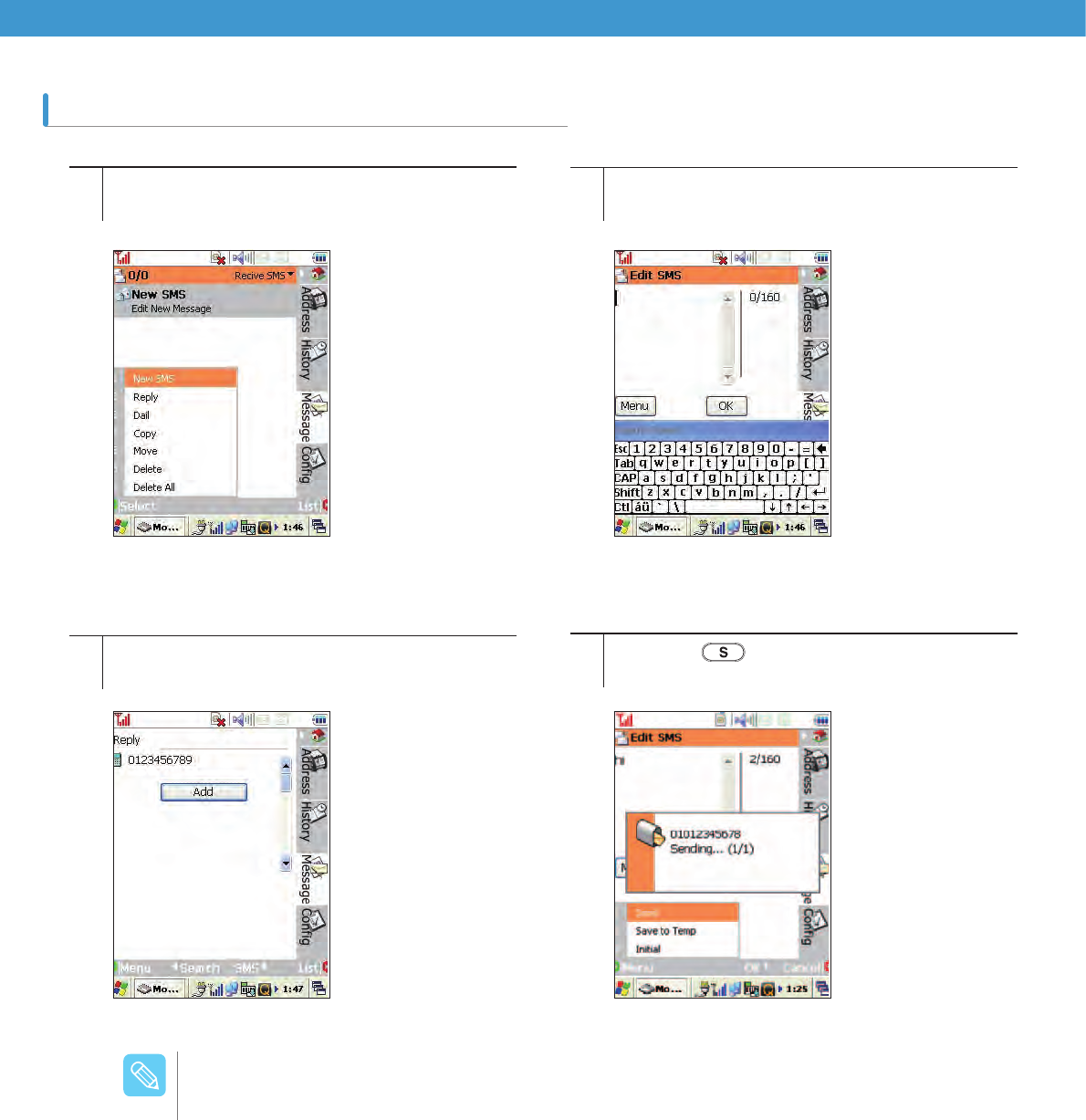
47
Sending Message
1
3
2
4
Select the Message tab on the right of the phone
program, and select [New SMS].
Enter the receiver’s phone number, then press the
[Add] button to add the number to the list.
Select the Message tab on the right of the phone
program, and select [New SMS].
Press the [ ] button and select [1. Send] to
send the message.
It can receive up to a maximum of 99 text messages. If a new text message is received when the
number exceeds the limit, the first received message is deleted.
Because it does not support MMS, it may not interoperate with the Device embedded camera and
other devices.
/PUF
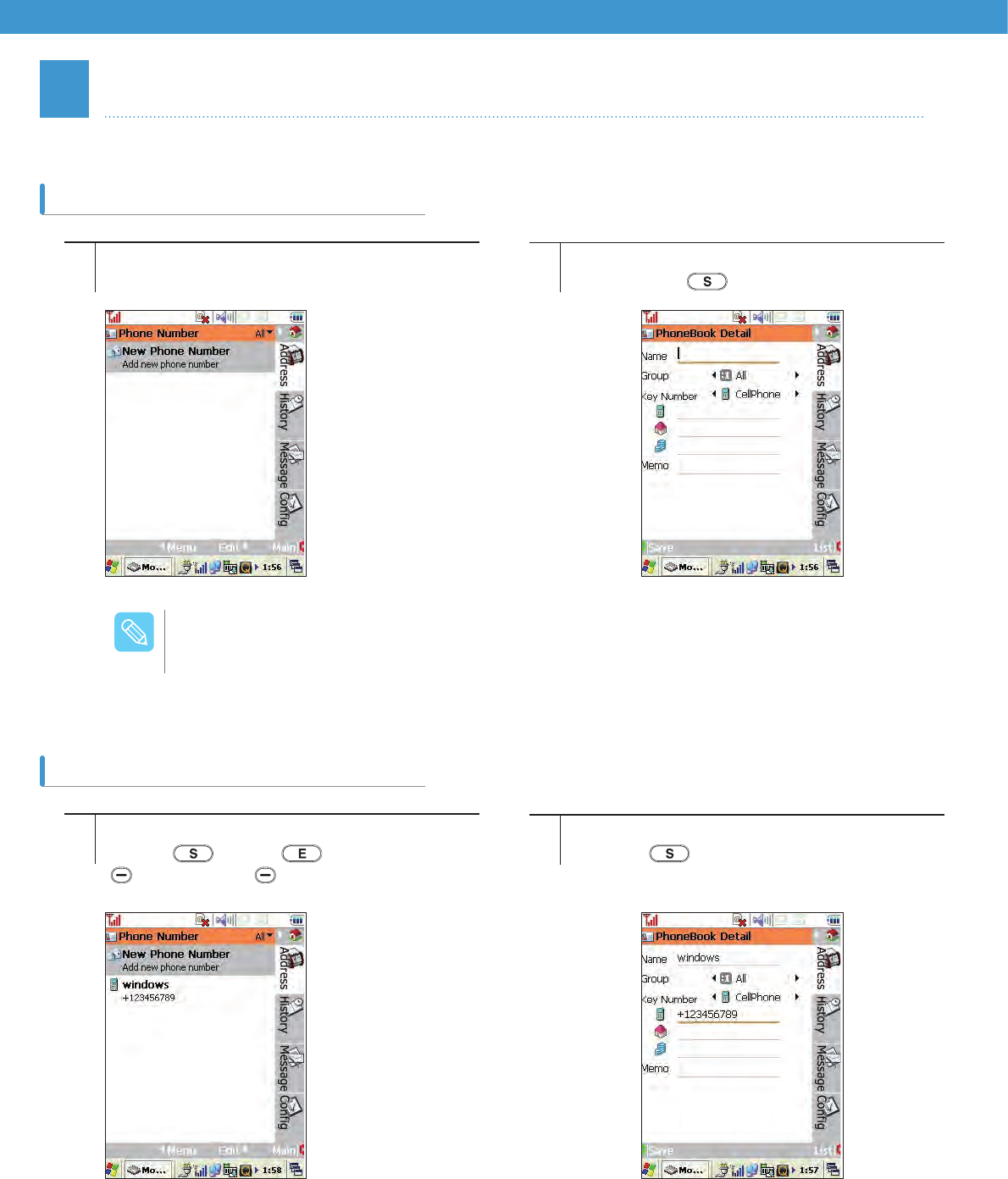
48
5
Adding Phone Number
Add a phone number in the Address Book or modify the entry.
Address Book
1
1
2
2
Press [Address] tab and select [New Phone
Number].
Press the [Address] tab and double click the
number ( ]–Send, [ ]-Main Screen,
[]-Menu Popup, [ ]-Edit Address book).
Enter the name, group, and phone number,
then press the [ ] button for saving.
After the number appears, edit the entries and
press the [ ] button to save the change.
A phone number can be added from the Call History list as well.
/PUF
Edit Phone Number
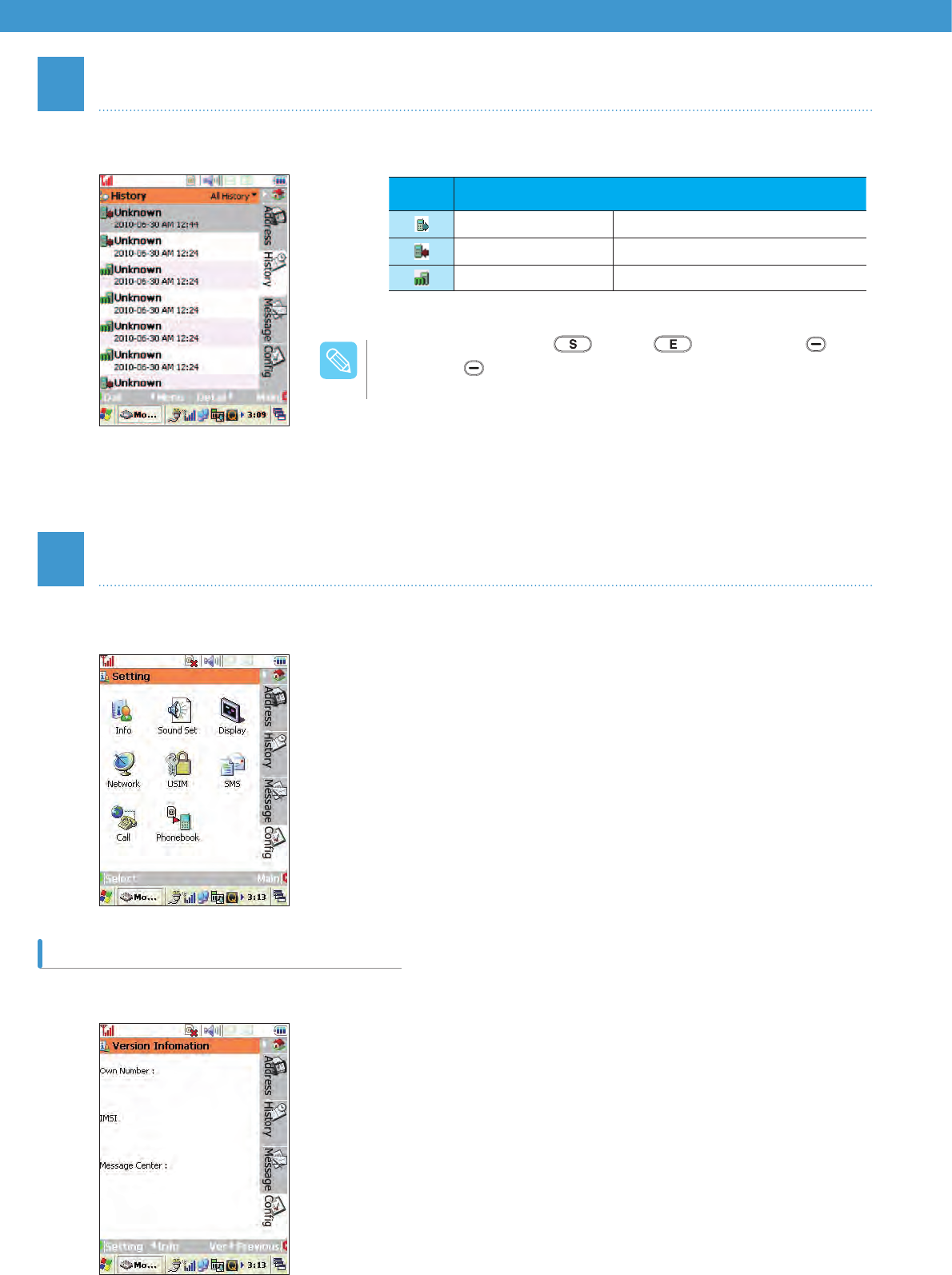
49
6
7
Call History
Phone Setting
It displays recent 100 calls sent and received.
Set the basic phone options. The icons in the Setting menu are as follows:
It displays information of the telephone and modem, and their versions.
Version Information
*Button Description: [ ]-Send, [ ]-Main Screen, [ ]-Menu
Popup, [ ]-Detail.
* The call history only shows detailed information on the subscription
of the caller identification service (CID). For information on how to
start the service, contact the mobile company.
*The numbers registered in the Address book appear with the name
of the Address book.
/PUF
Icon Type Description
Sent Mark sent calls
Received Mark received calls
Missed Mark missed calls
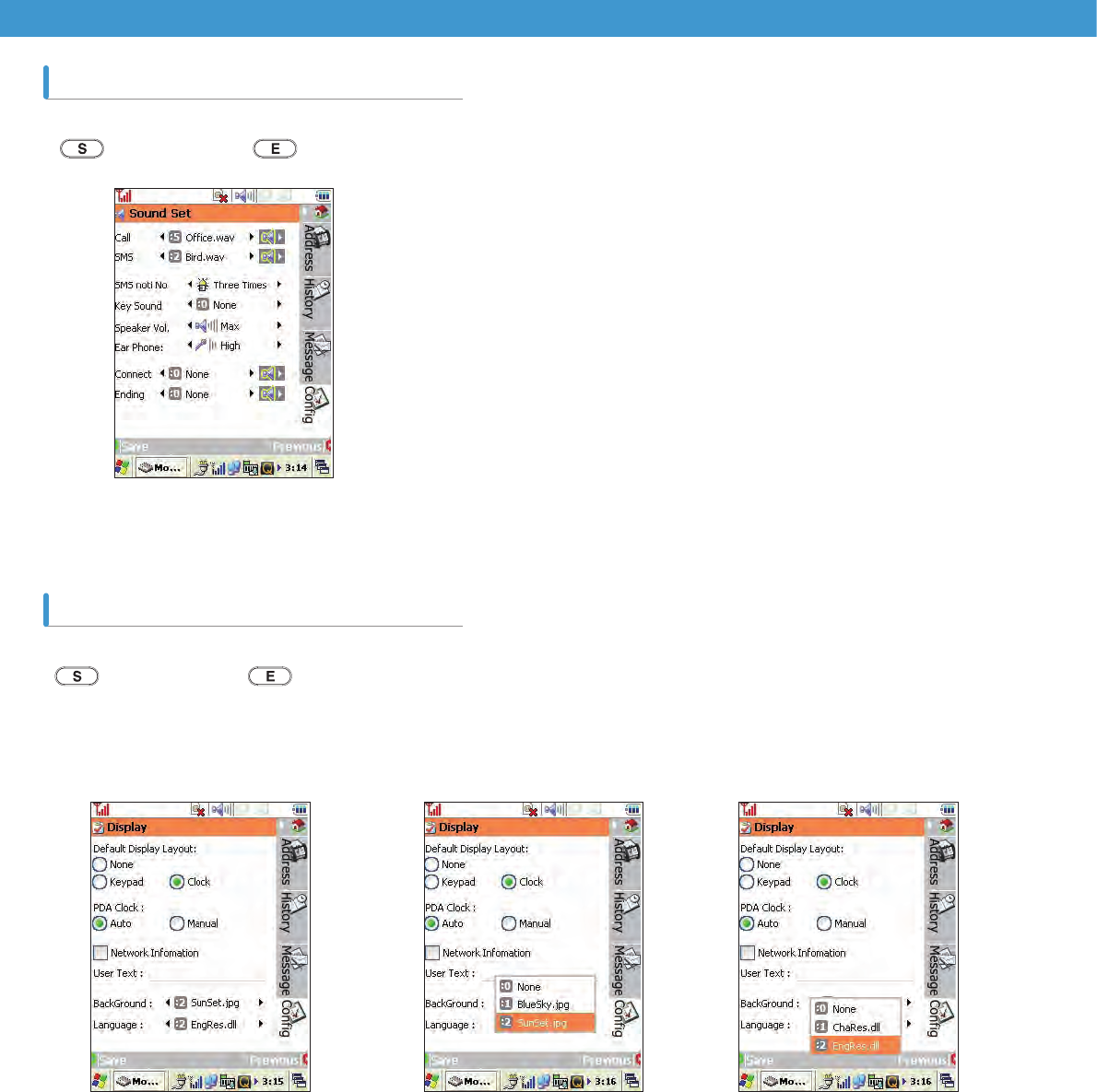
50
Set the sound options.
( [ ]-Save Changes, [ ]-Main Screen).
Set various options for the phone display.
([ ]-Save Changes, [ ]-Main Screen)
Can select the phone’s
background. (Basic setting
is 1. Sunset.jpg)
Can select the language
for the device on the
Display setting screen.
Display
Sound Set
51
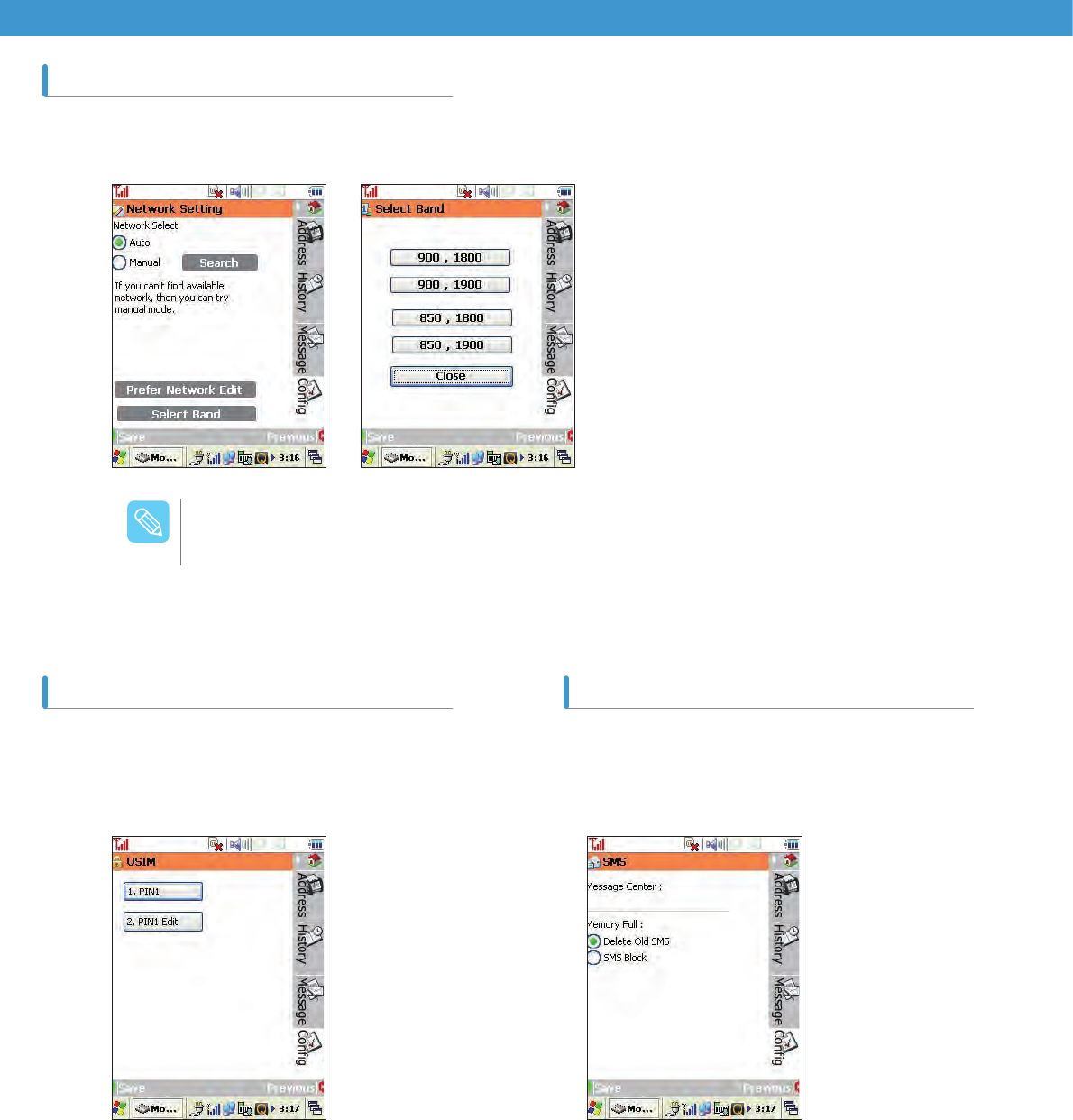
Configure the network settings and set the preferred network. Press [Select Band] to select a band from the list.
Set the values for USIM PIN or edit them. Add an SMS Center manually. (Normally, information
is obtained through the USIM card, so there is no need
for setup) Determine whether or not to delete old SMS
messages when memory is full.
Network Setting
USIM SMS
Communication might not be available if the network is set as Manual.
/PUF
52
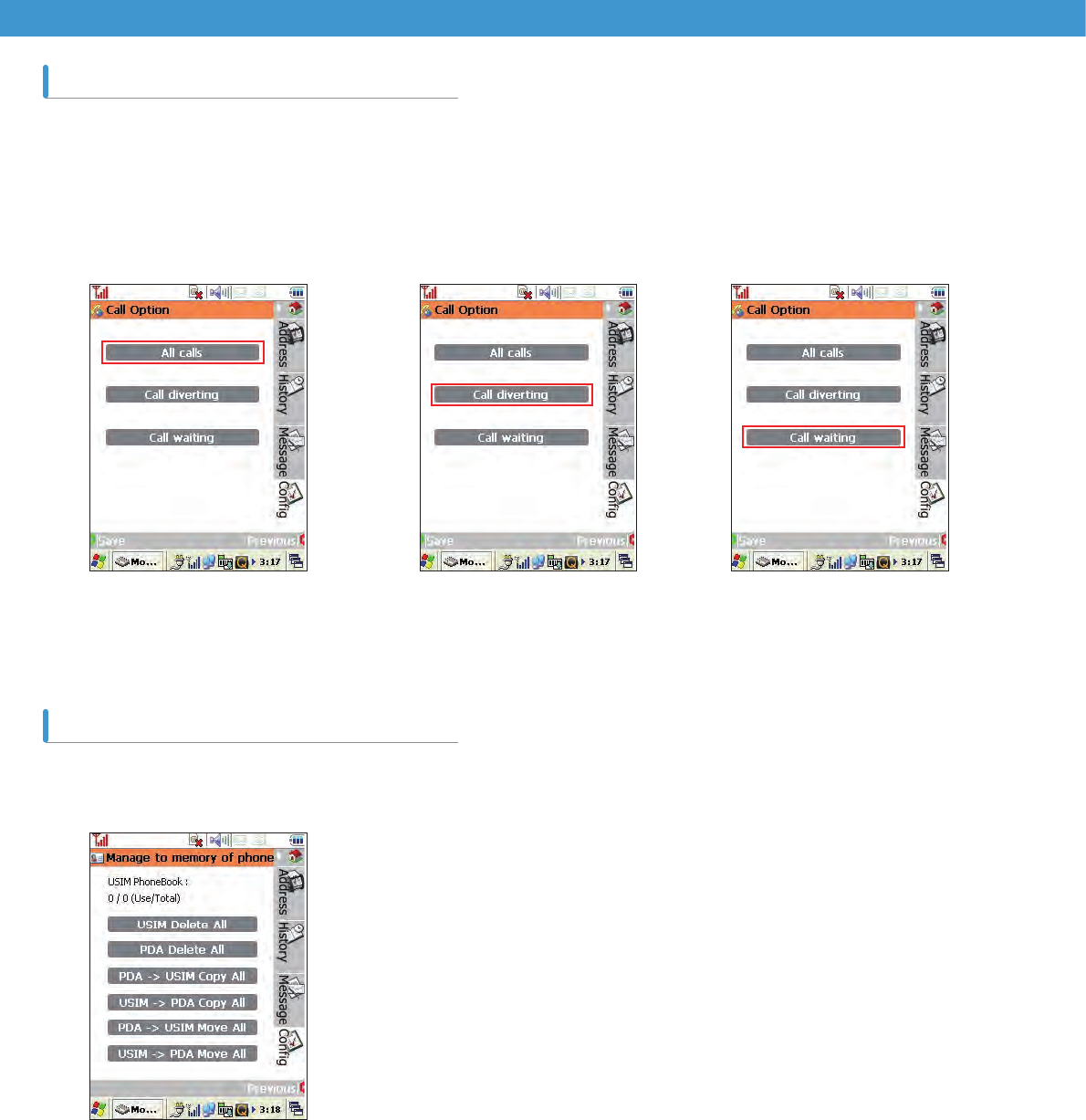
Set the Call option.
You can copy, move, or delete a phonebook
between the device and USIM.
Call Option Management
Managing Phonebook
All calls
Determines whether or not to
use the standby option while
receiving/diverting calls and
talking with someone.
Call diverting
Determines whether or not to
use the call diverting option.
Call waiting
Determines whether or not to
use the standby option while
talking.

Bluetooth ....................................54
Adding Quick luancher list................. 56
WI-FI Wireless Communication 56
How to Set up Wireless
LAN Configuration ............................. 57
IP Setting ........................................... 58
Wireless LAN Setting ........................ 59
Connecting PC through Cradle ......... 60
Connecting PC with USB
Cable Directly .................................... 60
Connecting devices Using
USB Cable ..................................60
Installing ActiveSync® on PC ............. 61
Communication with PC ...........61
How to Set up a Partnership ............. 62
How to Set Up GPS ..........................65
GPS Communications ...............65
Chapter 4 How to Communicate
with Other devices
54
1Bluetooth
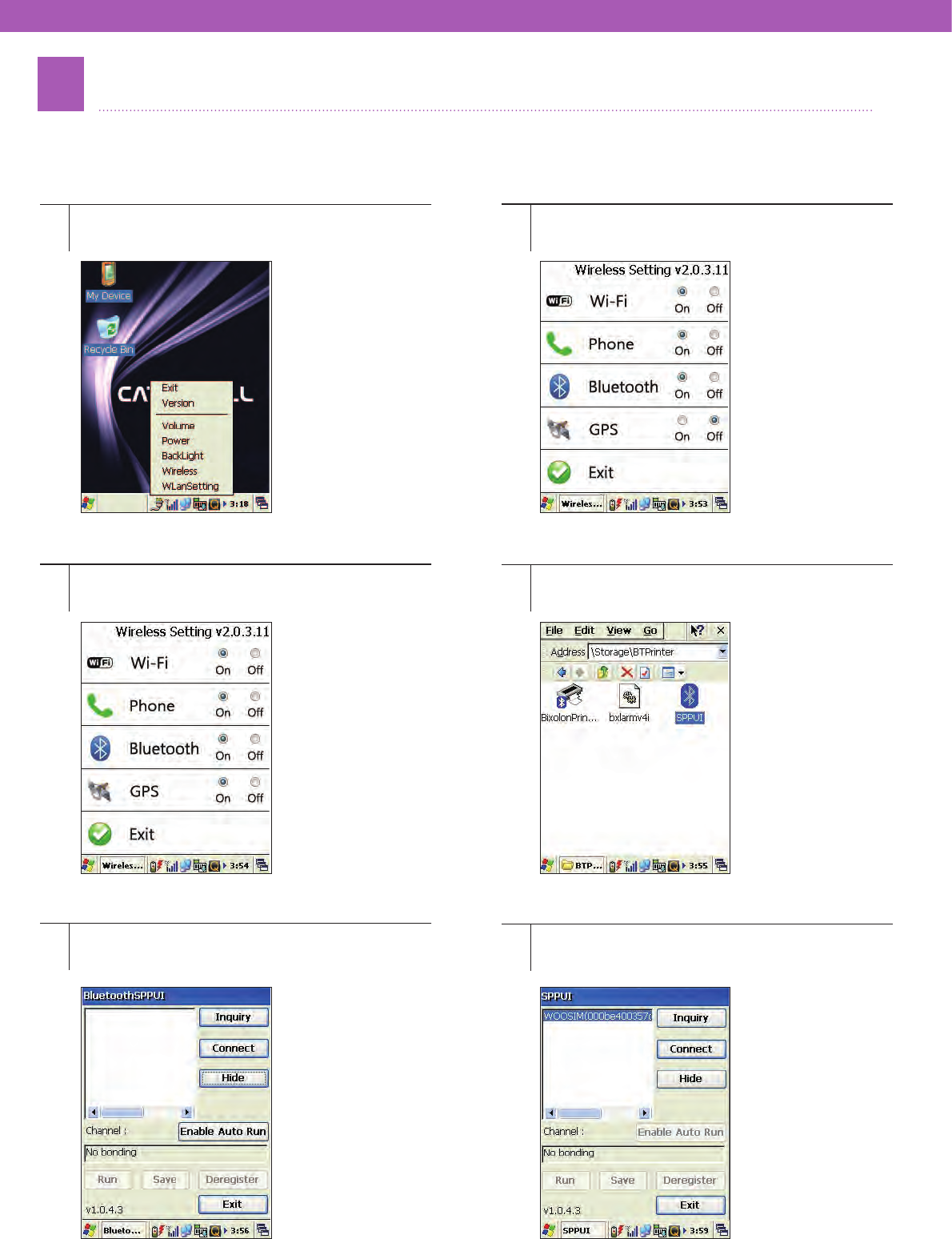
Connect the device and a Bluetooth device. Before purchasing a Bluetooth printer, consult your administrator for
compatibility.
1
3
5
2
4
6
Turn the power of Bluetooth device (Bluetooth
printer) on.
From Wireless Setting, check ‘On’ for Bluetooth
and press [Exit].
When the next window appears, press [Inquiry] to
search for any Bluetooth device.
Select QuickLauncher from the taskbar or select
[Wireless Setting] in Control Panel.
Run SPPUI in \Storage\BTprinter.
When a Bluetooth device appears, press
[Connect] for connection.
55
7
89
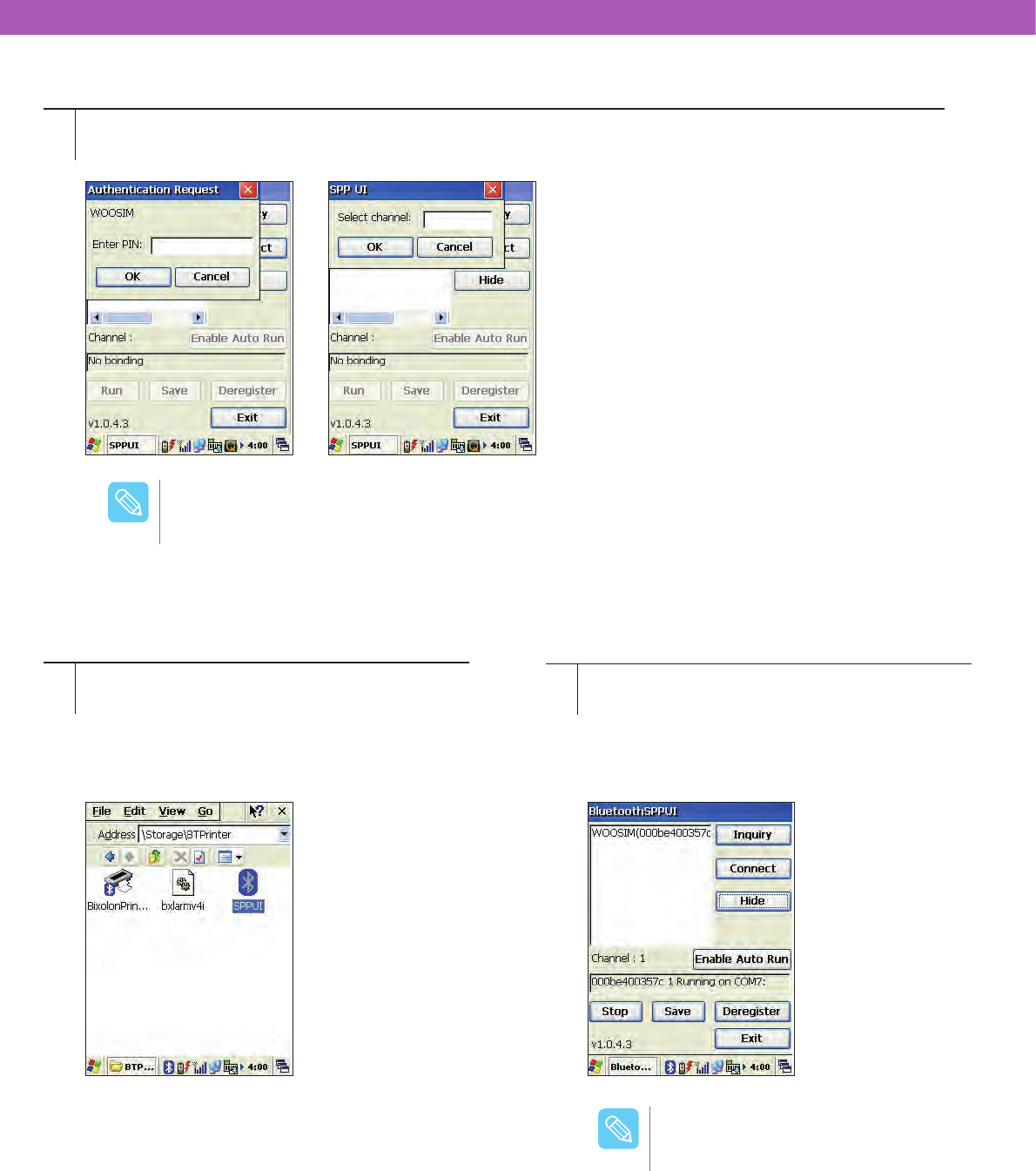
Enter the PIN code and channel respectively (PIN:1234, Channel:1).
The Bluetooth Status icon appears on the taskbar. To disconnect the Bluetooth device, select
Bluetooth icon from the taskbar or [SPPUI]
from [Programs] in the [Start] menu to open the
window as shown below, and press [Exit] or [Stop]
to disconnect the Bluetooth device.
The PIN and channel number might differ depending on the Bluetooth device.
/PUF
A Bluetooth can be turned On/Off
from Wireless Setting.
/PUF
56
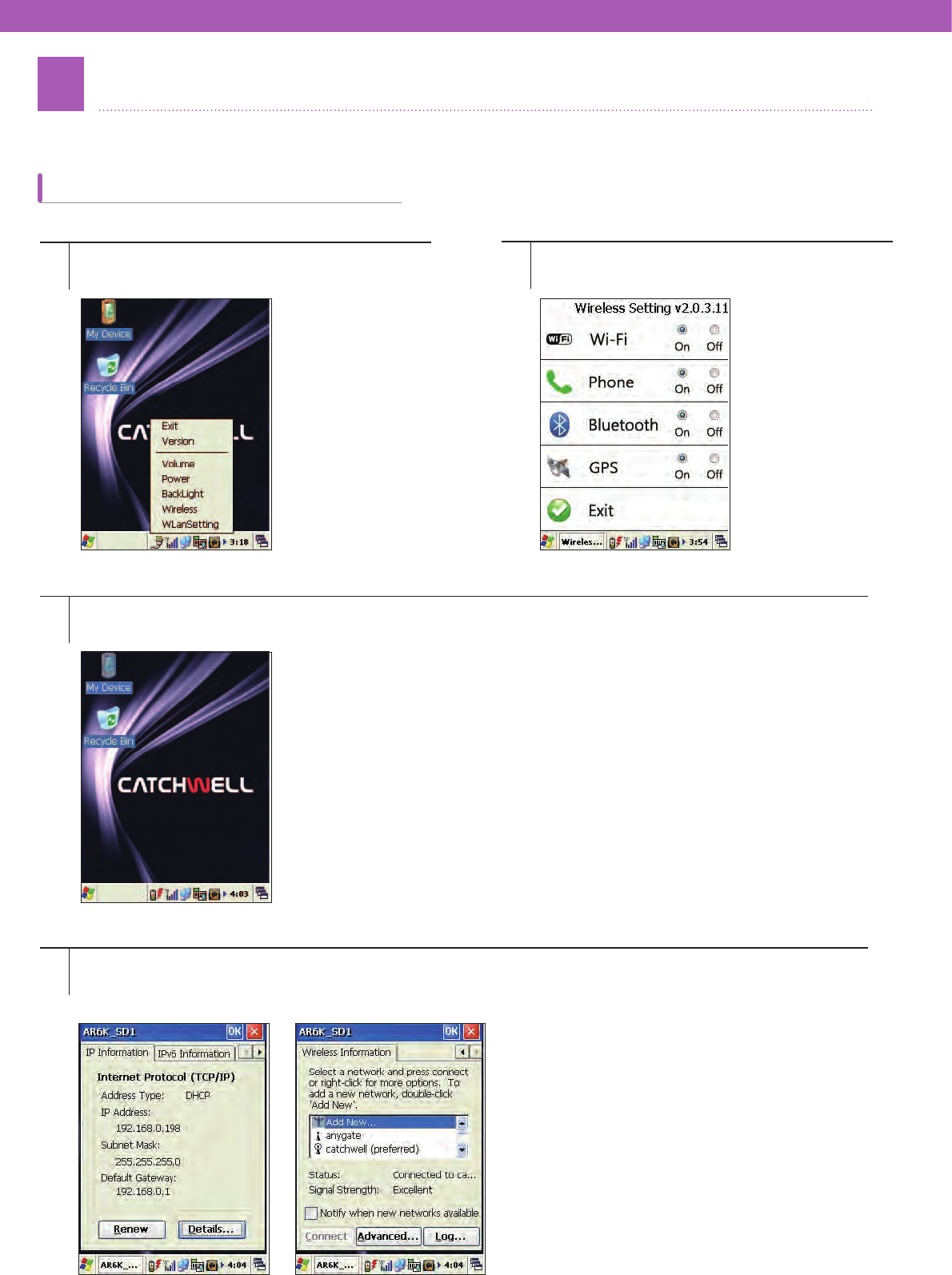
2WI-FI Wireless Communication
Use the device’s wireless LAN function.
1
3
4
2
Select the Quick Launcher icon or [Wireless
Setting] from the [Control Panel].
Double click the Network icon in the taskbar.
From the list of networks (Access Point device or Ad-hoc device), select one that you are using and press
[Connect] to connect.(Network Key must be entered in case of secured wireless network).
Select On for Wi-Fi in the Wireless Setting
window and press [Exit].
Adding Quick luancher list
57
1
3
2
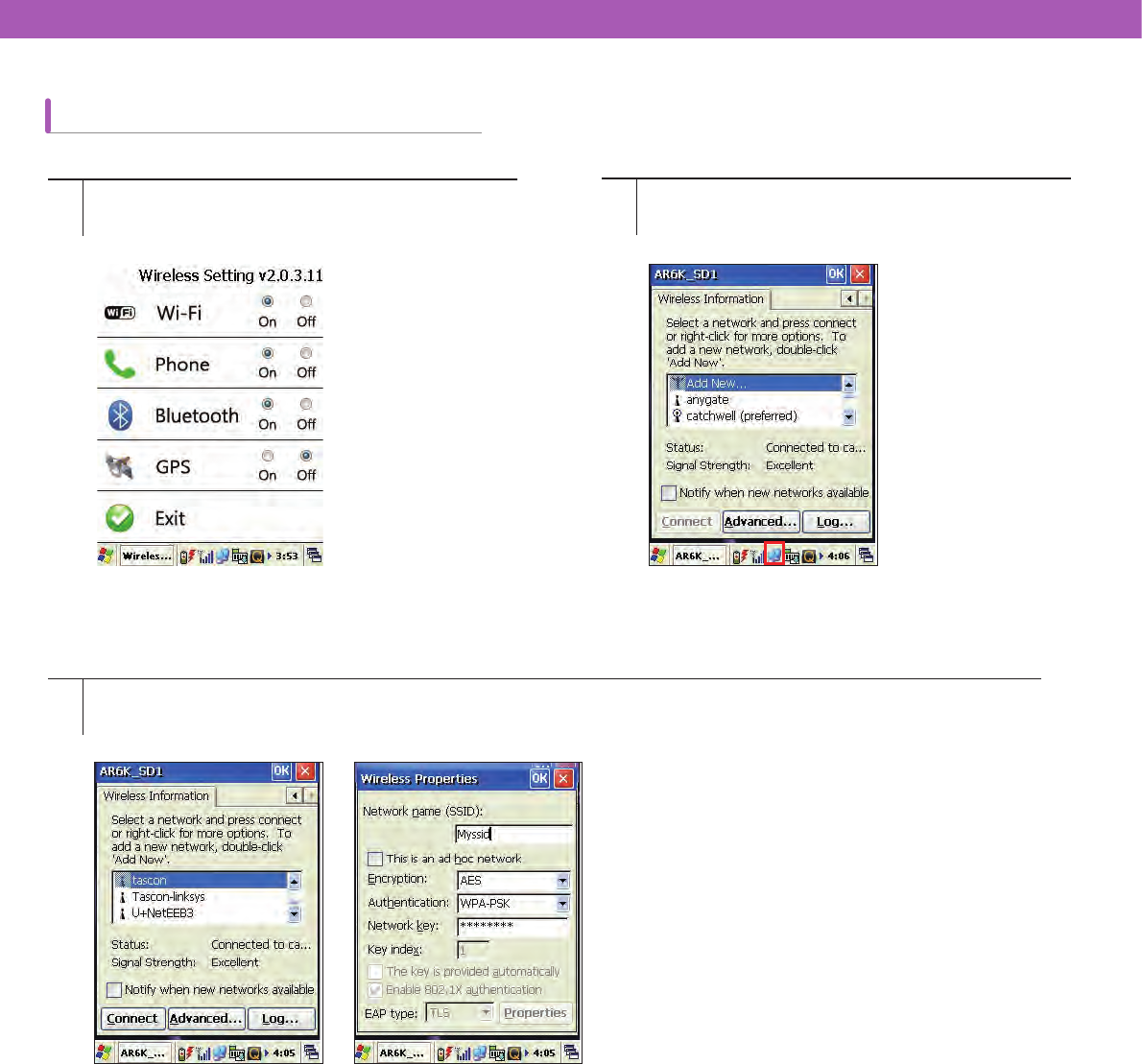
Select On for Wi-Fi in the [Wireless Setting]
window. Double click the Network icon in the taskbar.
From the list of networks (Access Point device or Ad-hoc device), select one that you are using and press
[Connect] to connect.(Network Key must be entered in case of secured wireless network).
How to Set up Wireless LAN Configuration
58
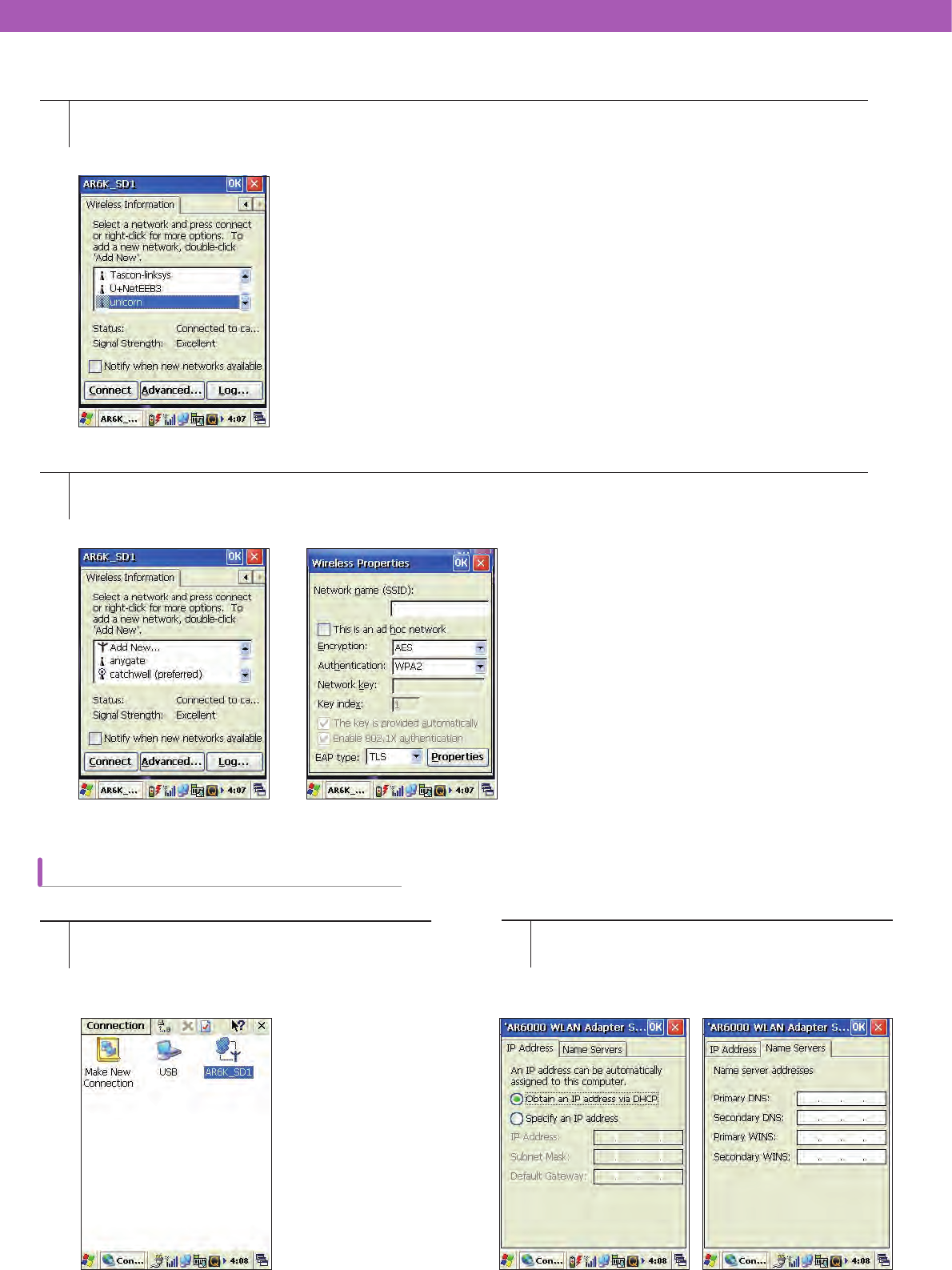
5
6
Check if the network is connected correctly.
If the desired network is not available, use [Add New] for setup and connection. In case of [Add New], the network
name must be entered.
12
After turning Wi-Fi “On” from the [Wireless
Setting], select [Start] > [Network and Dial-Up
Connections], and click the icon as shown below
(AR6K_SD1).
When the following screen appears, enter the IP
addresses for Fixed IP Address, Subnet ask, and
Name Server.
IP Setting
59
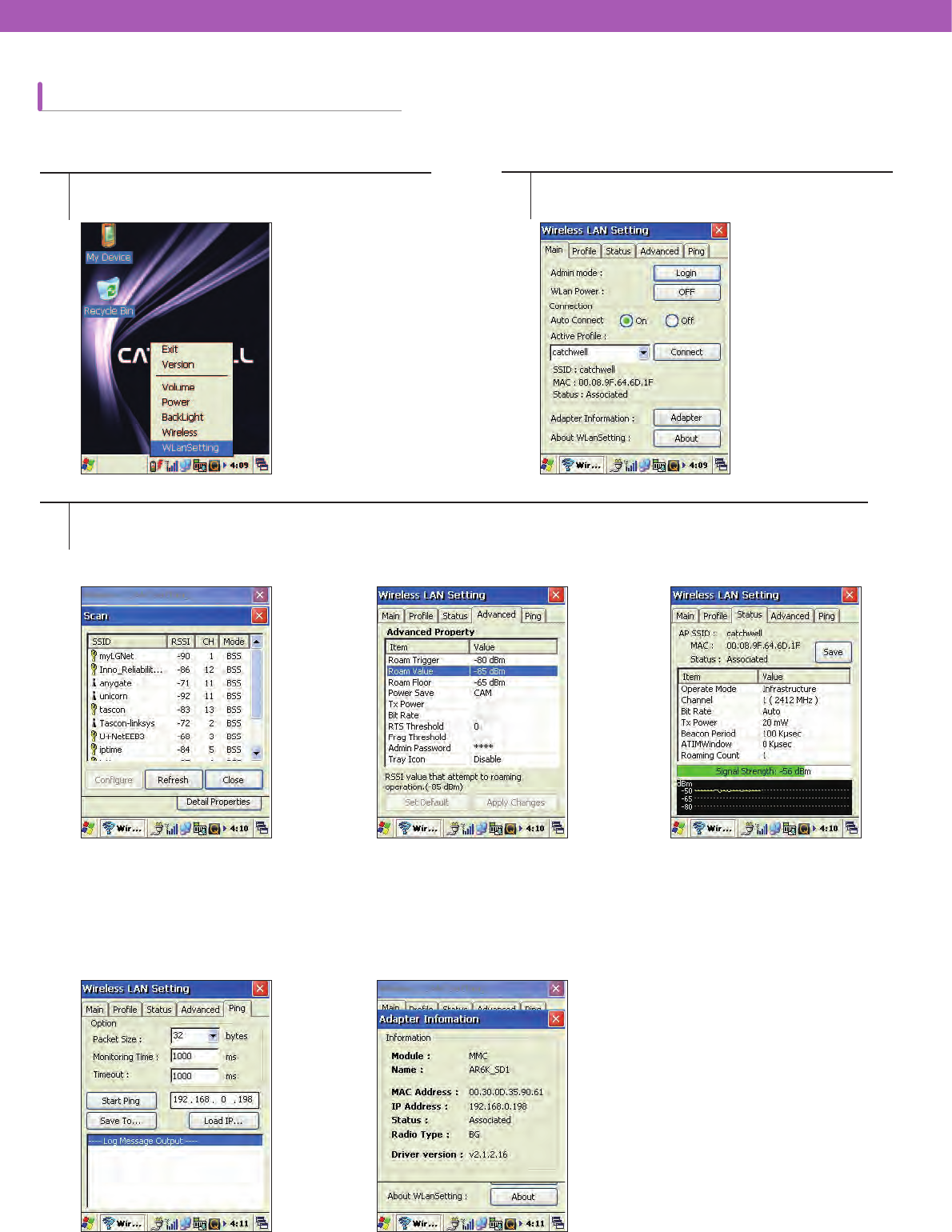
1
3
2
Select WLANSetting from 1 the QuickLauncher.
Checking available SSID, setting wireless LAN, checking signal strength, testing Ping, and checking wireless LAN
information can be done.
SSID(Service Set Identifier) It is
the unique ID for packets exchanged
through a wireless LAN. It identifies the
wireless LAN from other ones.
It is the program used to check the
network connection status. You can check the program version,
driver version, and Mac address of the
wireless LAN.
There are three different options No : The
power mode is not used. CAM(Constantly
Awake Mode)
Normal : The power mode is used by default
Max : The value for the power mode is the
maximum.
It displays the continuous type of graph
for the signals of the connected AP.
Information
It displays the Mac address and
then the roaming count in the
parentheses.
The following screen appears.
Wireless LAN Setting
Use the Wireless LAN application programs.
Network Available List(SSID)
PING
Power Mode Setting
WLAN INFO
Signal Strength
60
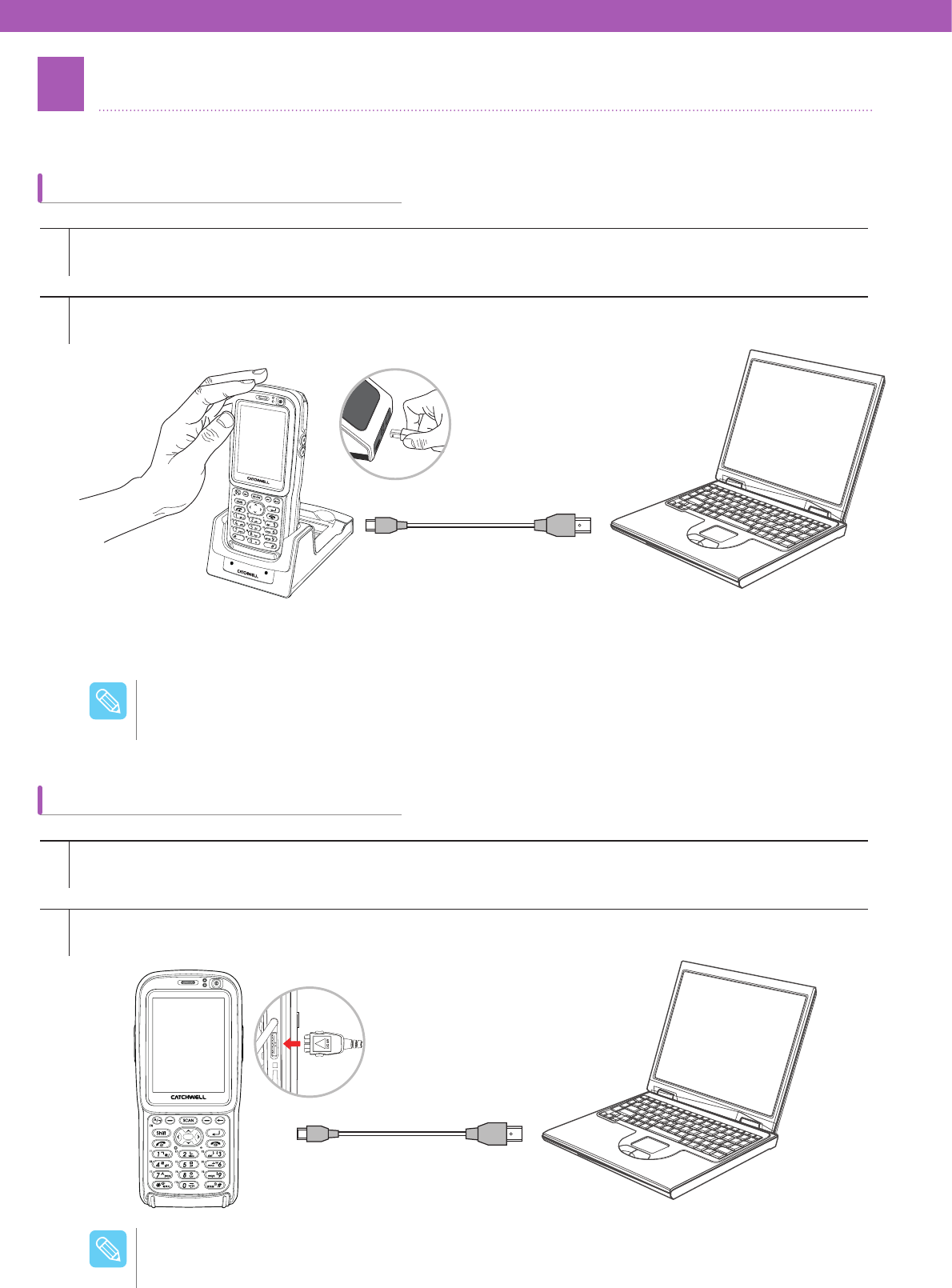
3Connecting devices Using USB Cable
Connect PC to the device (It is recommended to install the ActiveSync program before connection).
Connecting PC through Cradle
Connecting PC with USB Cable Directly
1
1
2
2
Insert the device in the cradle.
Use the 24-pin USB cable for connection.
Use the USB cable to connect between the USB port of your PC and the cradle.
The device is automatically connected after automatic recognition.
After connecting the USB cable, sending data and connecting to the Internet can be done.
/PUF
The 24-pin USB cable needs to be purchased separately.
/PUF
61
4Communication with PC
Through the ActiveSync program, the data can be transferred between the device and PC.
* What is ActiveSync?
ActiveSync® is a communication program between PC and the device developed by Microsoft®, and it allows file
transfer, deletion, content synchronization/modification, and other features.
If any other device is connected to your PC before installation, please remove them before installation process.
Use the provided CD or visit Microsoft® website (http://www.microsoft.com/downloads) to install ActiveSync program on
your PC. It is recommended to install the latest version. If the PC has Microsoft® Windows Vista or the later version of
Windows, instead of ActiveSync®, install Windows Mobile device Center® (http://www.microsoft.com/windowsmobile/
ko-kr/help/v6-5/ Windows-Mobile-device-Center-touch.aspx).
1
2
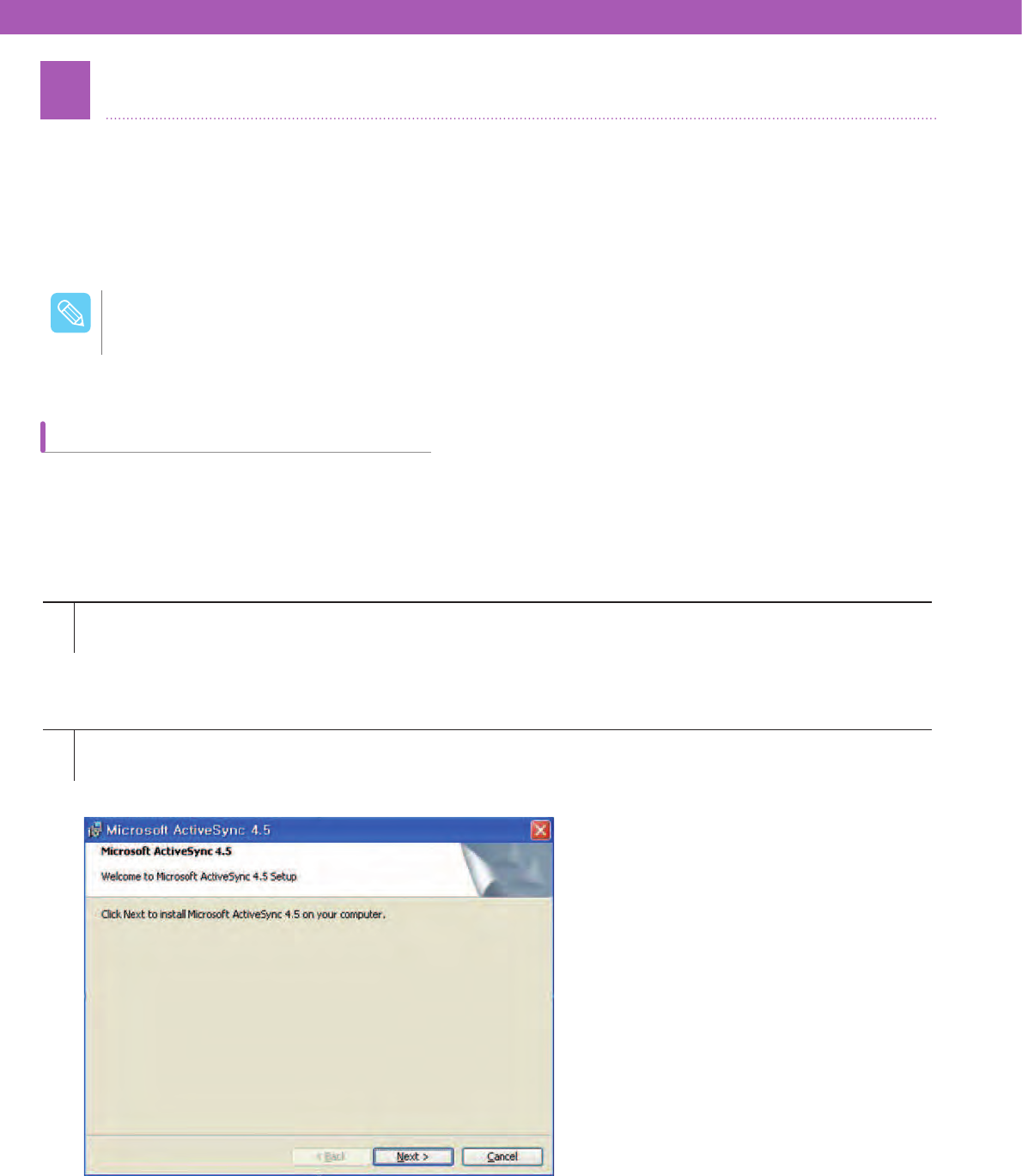
Download the ActiveSync program on your PC (based on ActiveSync 4.5). When the following screen appears,
click [Install].
Click the downloaded ActiveSync program to begin the installation process.
Use either cradle or 24-pin USB cable for connection between the device and PC.
/PUF
Installing ActiveSync® on PC
62
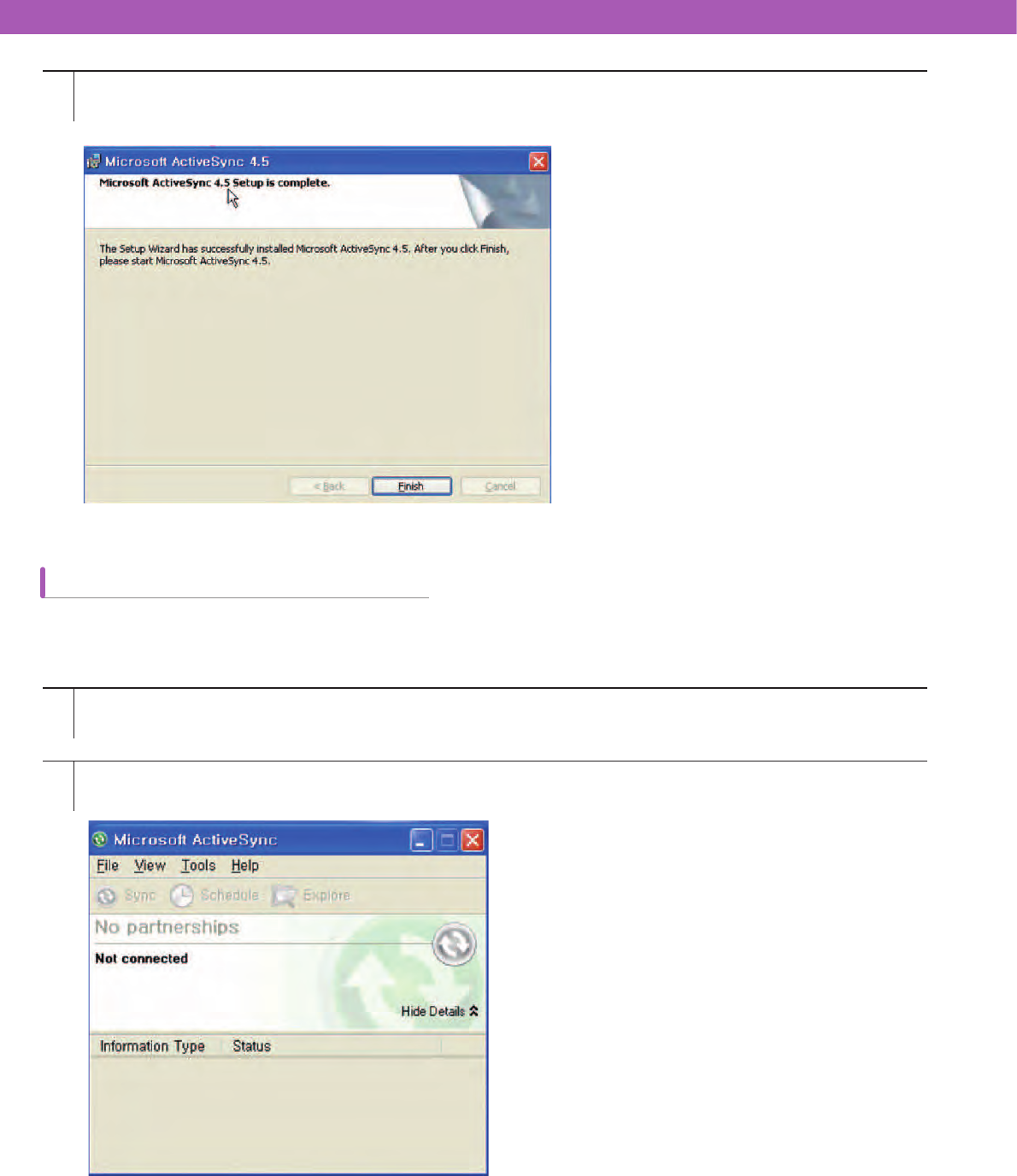
3When the installation of ActiveSync is complete, the following screen appears.
How to Set up a Partnership
1
2
Connect the ActiveSync installed PC to the cradle using the USB cable.
For the PC with ActiveSync installed, Internet access or file transfer can be done through partnership.
The following screen appears when the device is inserted into the cradle.
63
3
4
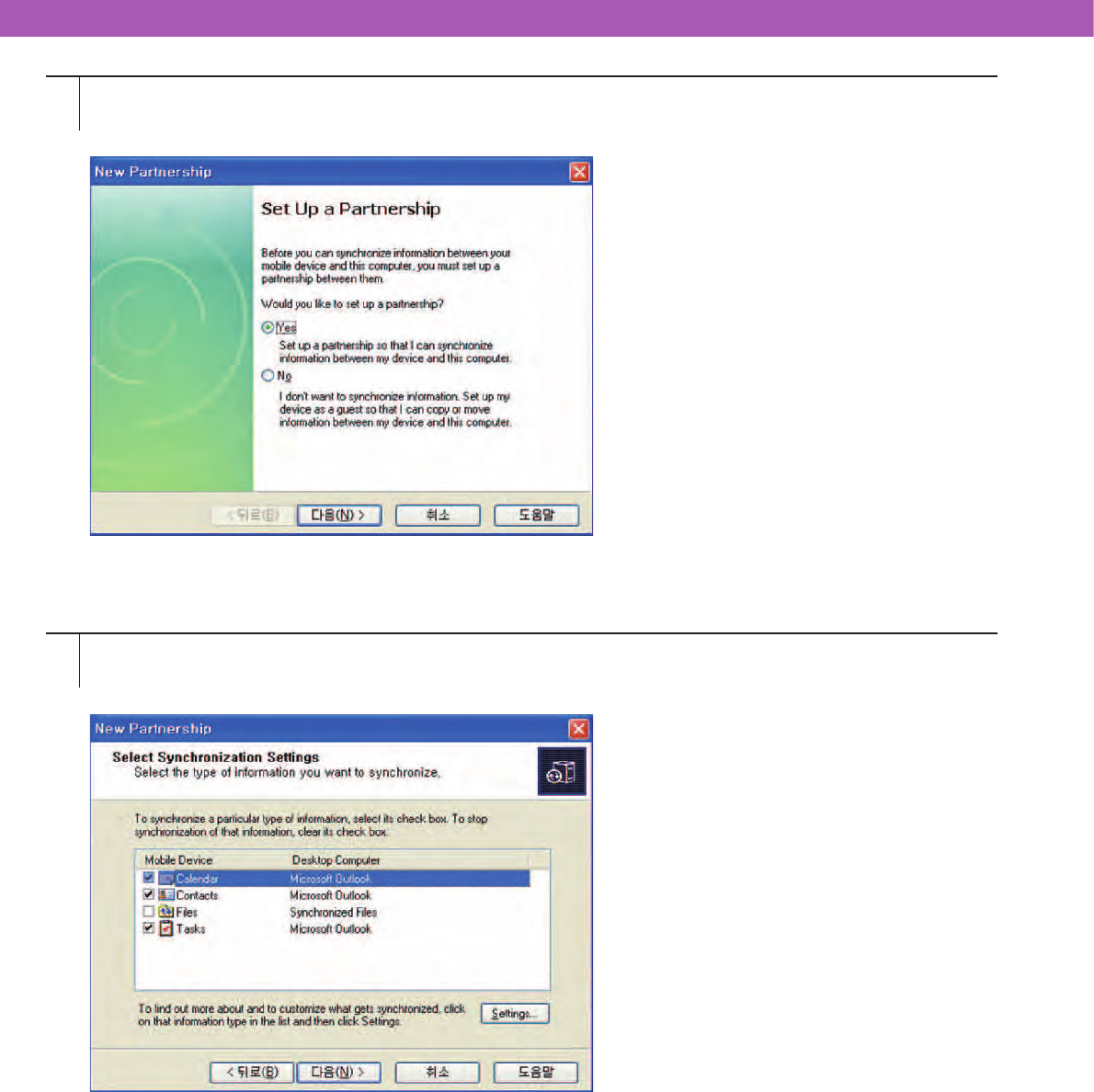
If the connection is successful, the Set Up a Partnership screen appears. Select either Yes(Y) or No(N) then press
[Next >].
If Yes(Y) is selected, the screen below appears. Check the items for synchronization and press [Next >].
64
5
6
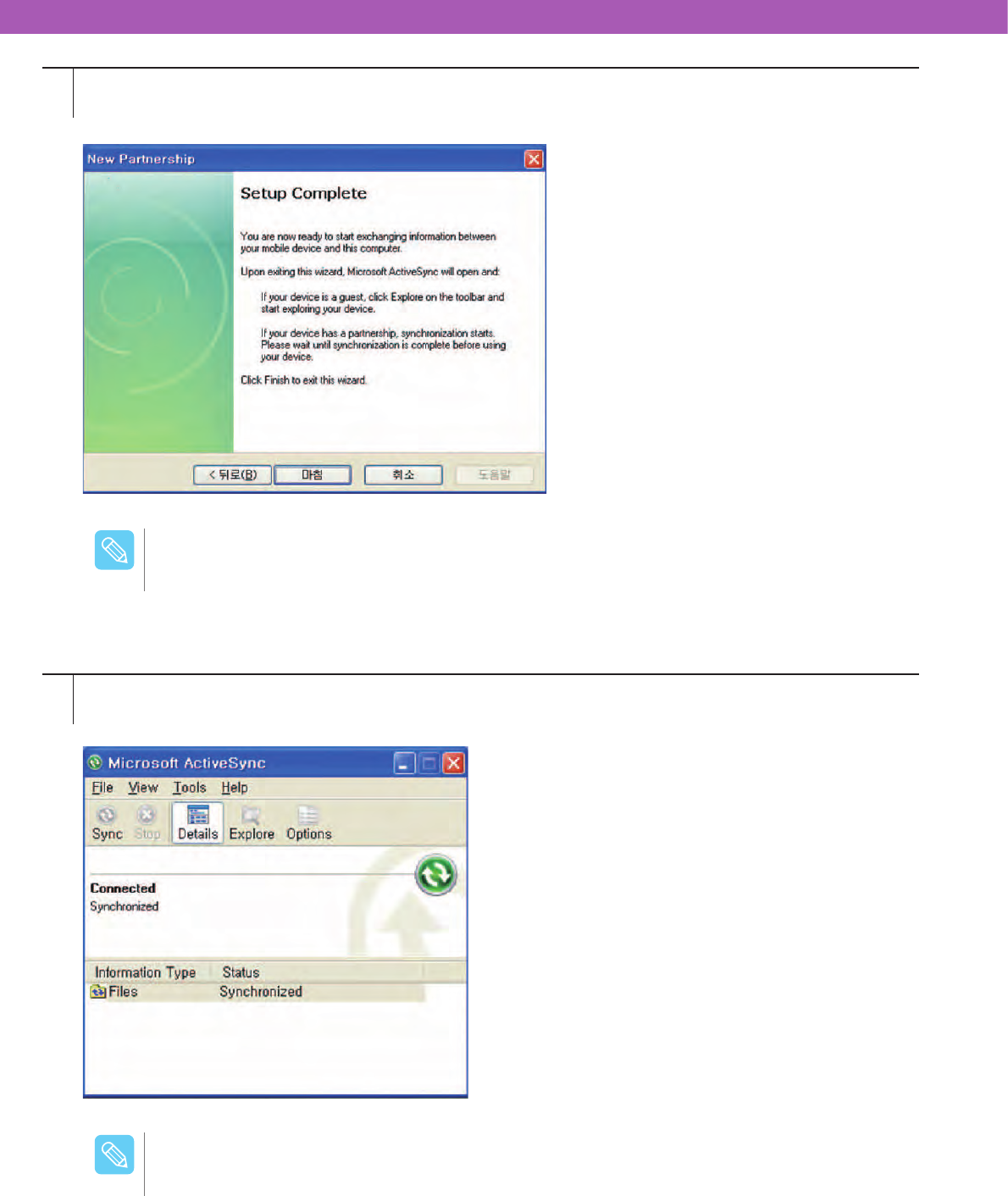
After synchronization, the Set up Complete screen appears as shown below. Press [Finish].
When synchronization is complete, the connection window appears.
The mobile device are automatically installed on My Computer after first synchronization.
/PUF
After synchronization is established, the following tasks can be performed.
1. Install a program for the work.
2. Manage/Create backup for the work data.
3. Manage the phonebook and other contact information.
/PUF
65
5GPS Communications
Use GPS (Built-in GPS is optional).
How to Set Up GPS
1
2
3
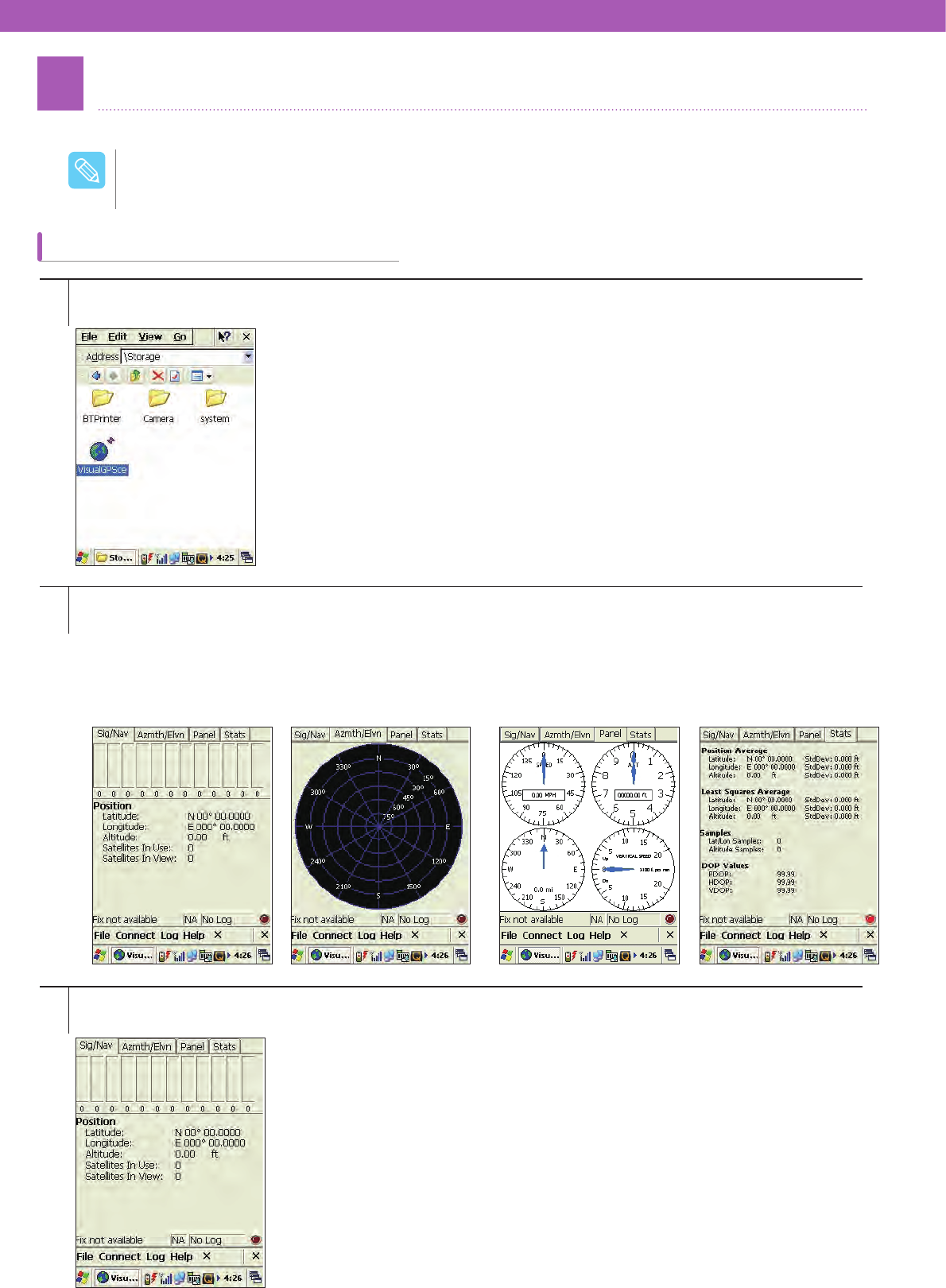
Select VisualGPSce from [Start] > [Programs] or [My device] > [Storage] > [GPS].
If the connection is good, the following screens appears with displaying the status of GPS.
Strengths of each signal appear
only when GPS signals are
received properly. (In case proper
signals are received: red light on
the bottom disappears.)
Satellites for each GPS
signal appear. Information on speed, altitude,
and others appears. Statistical information of the
position and DOP appears.
On the bottom menu, select Serial Port(Comm Port) to open the following screens.
- For built-in GPS: Set Port 1, 9600.
- For other Bluetooth GPS: Set Port 7, 9600
(For more details, please refer to the GPS device manual)
To use the Navigation function, the Navigation software needs to be installed separately. To purchase
the software, contact your local distributor.
/PUF

67
1Laser scanning (1D Scanner)
Use the barcode scanner or take digital photos.
1
2
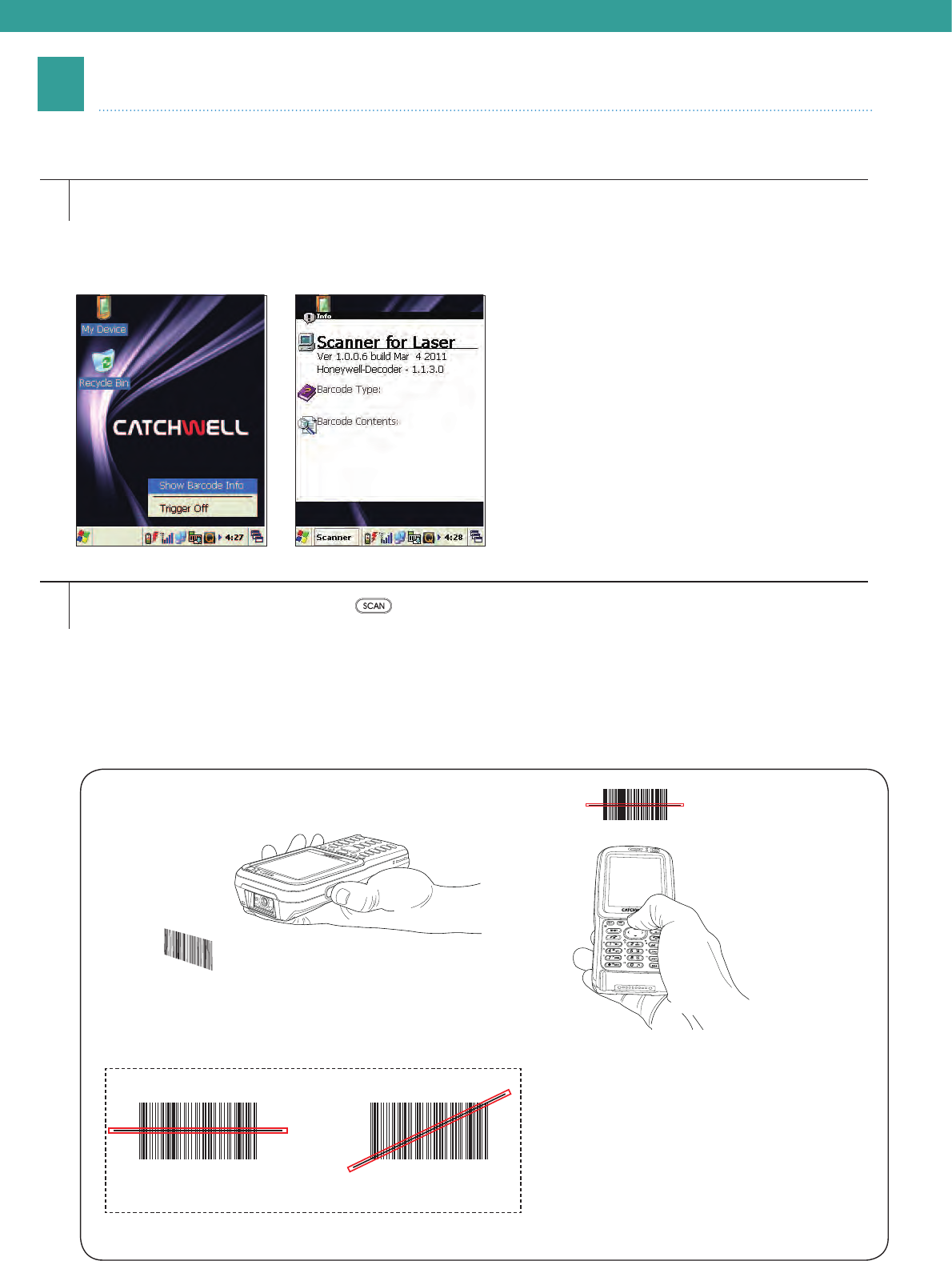
Click the barcode icon on the taskbar to open the menu.
(Show Barcode Info Mode, Tigger Off Mode)
- Show Barcode Info Mode : Shows the barcode type and the value.
- Tigger Off Mode : Stops barcode scanning.
Press the scan button (Orange button [ ] on the center of the keypad, or the button on the side of the
device).
Scan method
- Laser beam is projected when the scan button is pressed.
- Align the horizontal laser beam with the center of the barcode.
- Keep a distance of approximately 10 cm from the barcode and at a horizontal level.
(The effective distance may vary depending on the type and size of the barcode.)
(Correct) (Incorrect)
68
2Imager scanning (1D/2D Scanner)
Scan 1D, 2D barcodes.
1
2
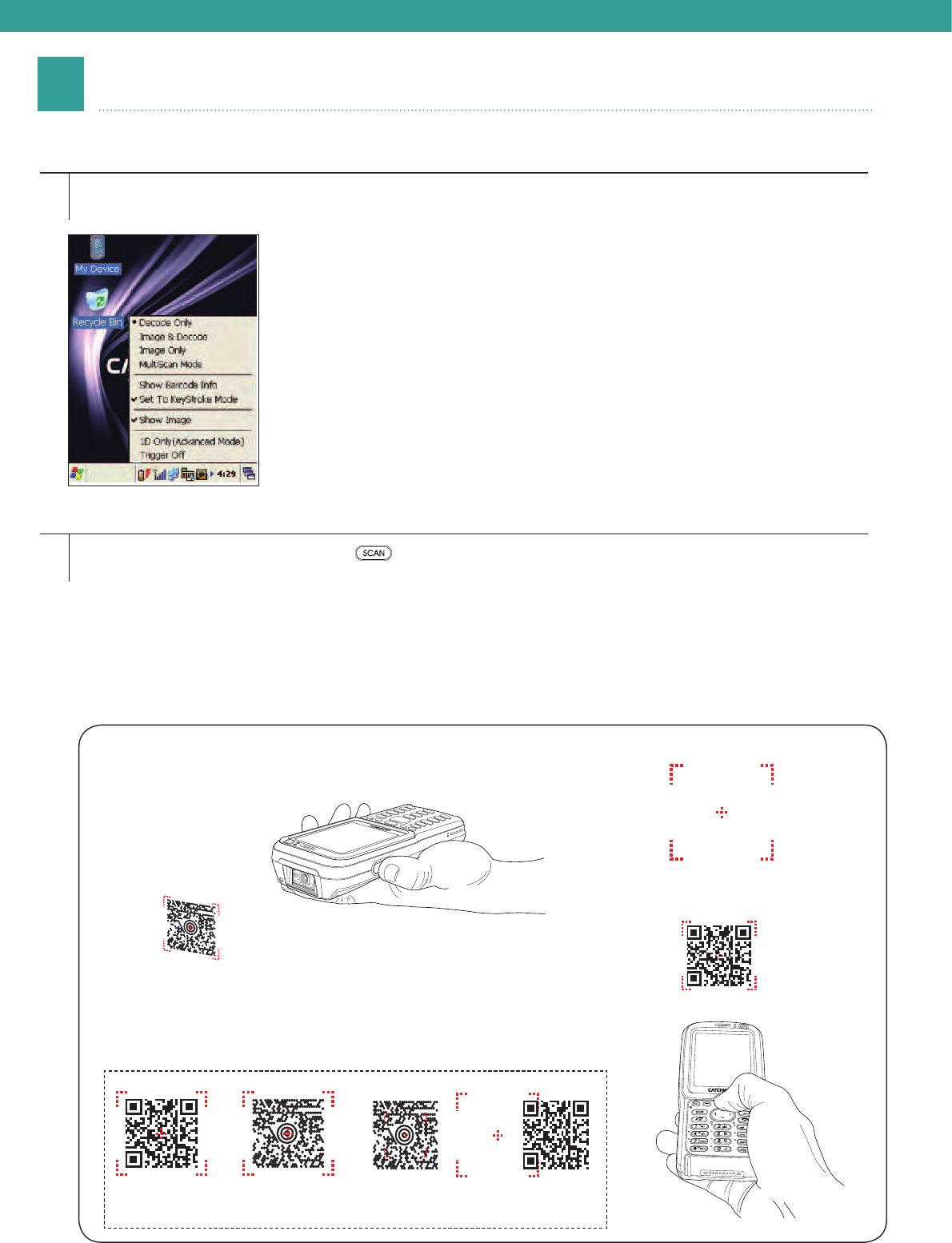
Click the barcode icon from the taskbar and select Scanning.
( Decode only, Image &Decode, MultiScan Mode)
Press the scan button (Orange button [ ] on the center of the keypad, or the button on the side of the
device).
Scan method
- Aimer appears when the scan button is pressed.
- Align the center of the aimer with the barcode.
- Move the aimer to fit the barcode inside the square frame.
- Keep a distance of approximately 10 cm from the barcode and at a horizontal level.
(The effective distance may vary depending on the type and size of the barcode.)
(Correct) (Incorrect)
Aimer
69
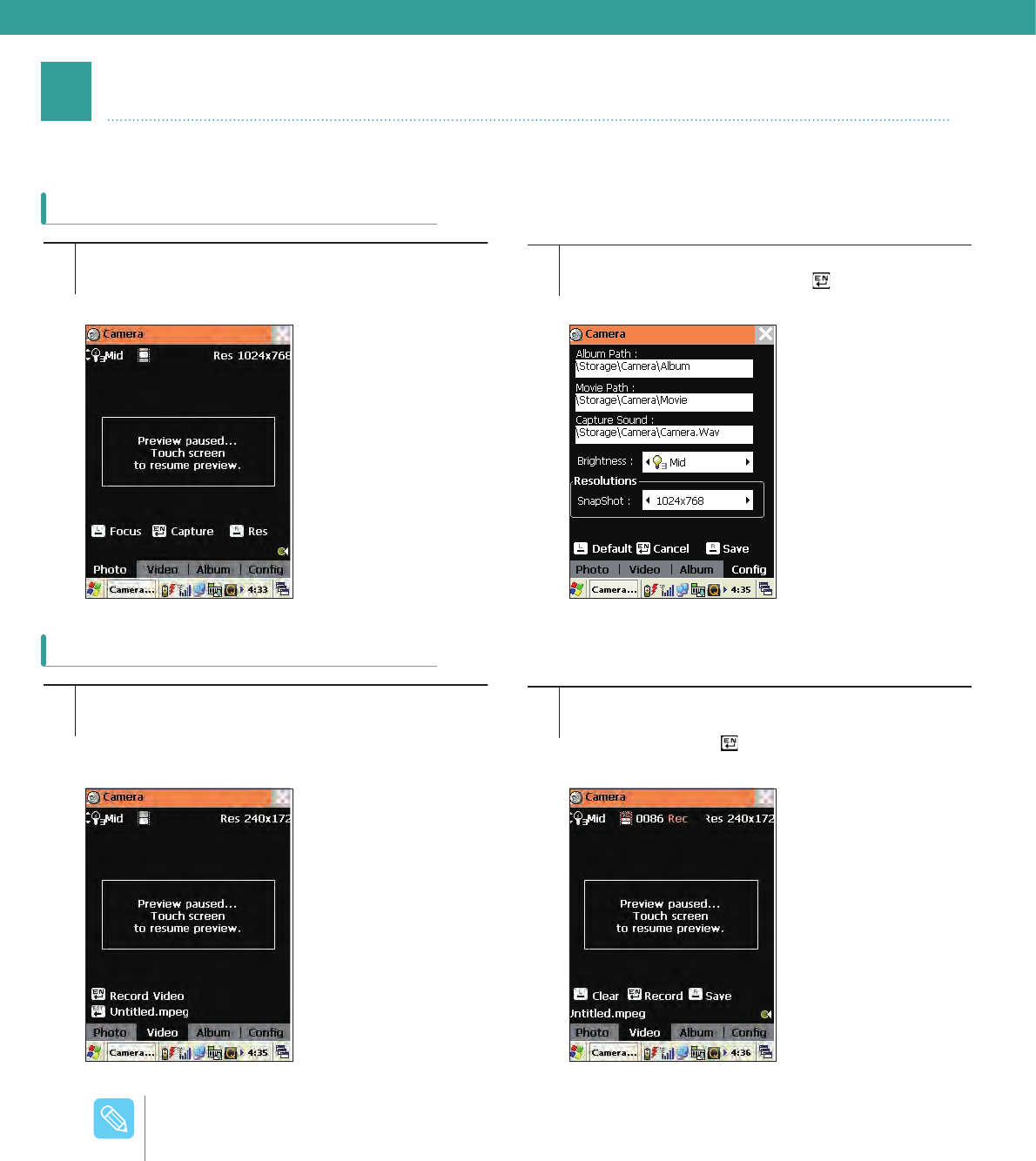
3Digital Camera
Take pictures and record videos.
1
1
2
2
To take pictures, Select camera program (\Storage\
camera). The screen below appears. Click the
screen for preview.
To record a video, select [Video] on the bottom of
the screen.
Set up Paths, Sound, Resolution and other options
from Config tab and press the [ ] button to take a
picture.
Set up Paths, Sound, Resolution and other options
from Config tab and press the Video tab. To record
a video, press the [ ] button. While recording it,
the recording time appears on the top.
Taking Picture
Recording Video
Adjust the brightness in 5 level (1~5).
Press [ ] to show focus while taking pictures.
Supporting Resolutions are 640x480 / 800x600 / 1024x768 /
1600x1200 / 2048x1536.
The flash light can be turned on or off while taking pictures.
While using the flash function, press the [BKSP] button on the
Numeric pad to make the function active or not.
/PUF

Chapter 6 How to Use
Applications
Microsoft Word Pad ...................71
How to Use Keyboard ....................... 71
How to Use Transcriber.....................72
Starting Utility Manager ..................... 73
Utility Manager ...........................73
How to Set Up Start Program............ 74
How to Set Up Quick Launcher ......... 75
71
1Microsoft Word Pad
How to Use Keyboard
The device provides a basic writing program provided by Microsoft, and a document can be created using this program.
User can select one of keyboard and transcriber for the input method. (The document created in your device can be
uploaded to/downloaded from PC using MicrosoftActiveSync®).
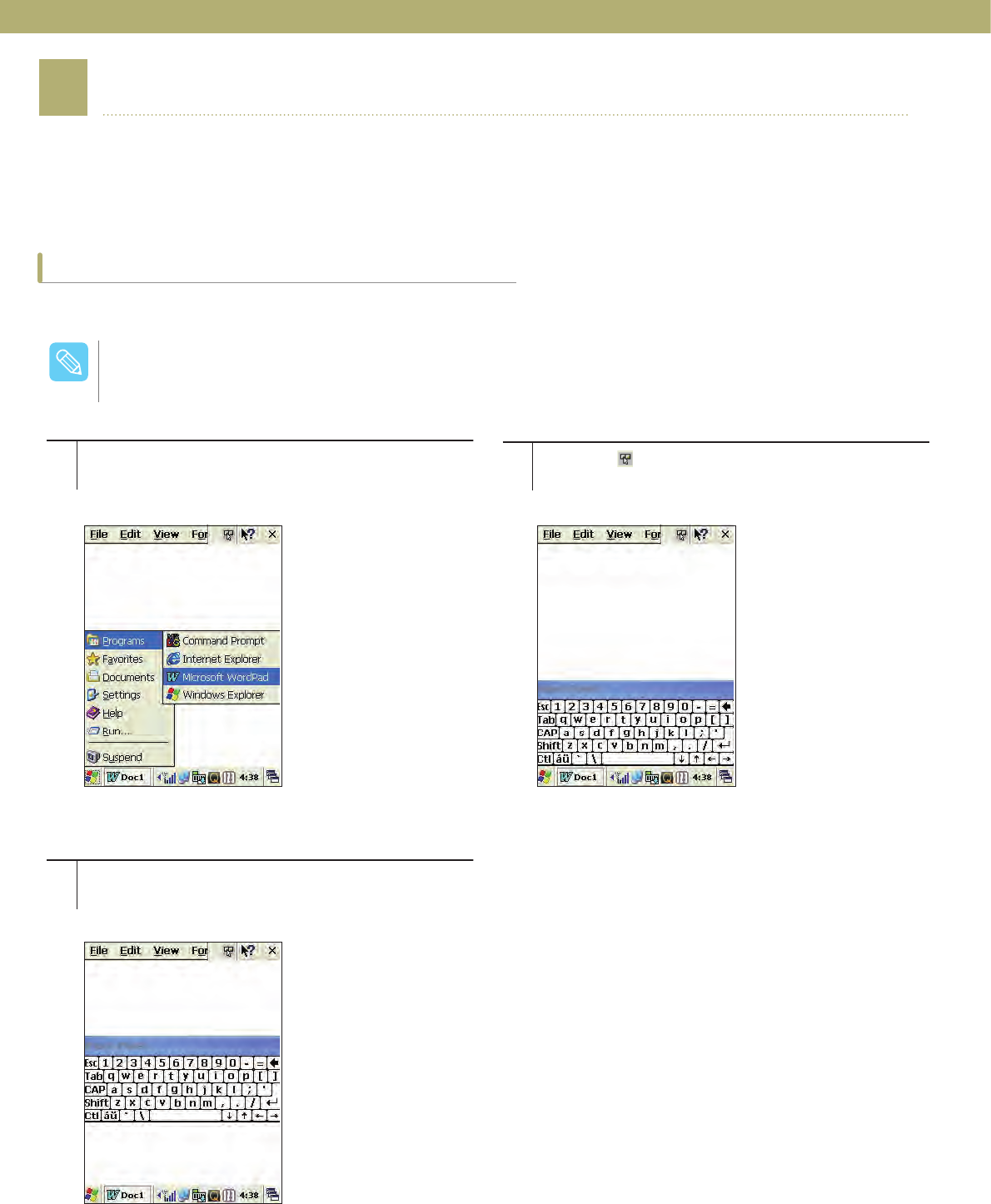
Use the virtual keyboard to create a document.
1
3
2
Click the WordPad icon in the main screen or by
selecting [Start] > [Programs] to open the program as
shown below.
Adjust the location of the keyboard for convenience.
Drag the keyboard to a different location using the
stylus.
Click the [ ] icon in the taskbar to show the
keyboard.
Arrange of keys on the virtual keyboard may differ depending on the language setting or can be
modified without notice.
/PUF
72
How to Use Transcriber
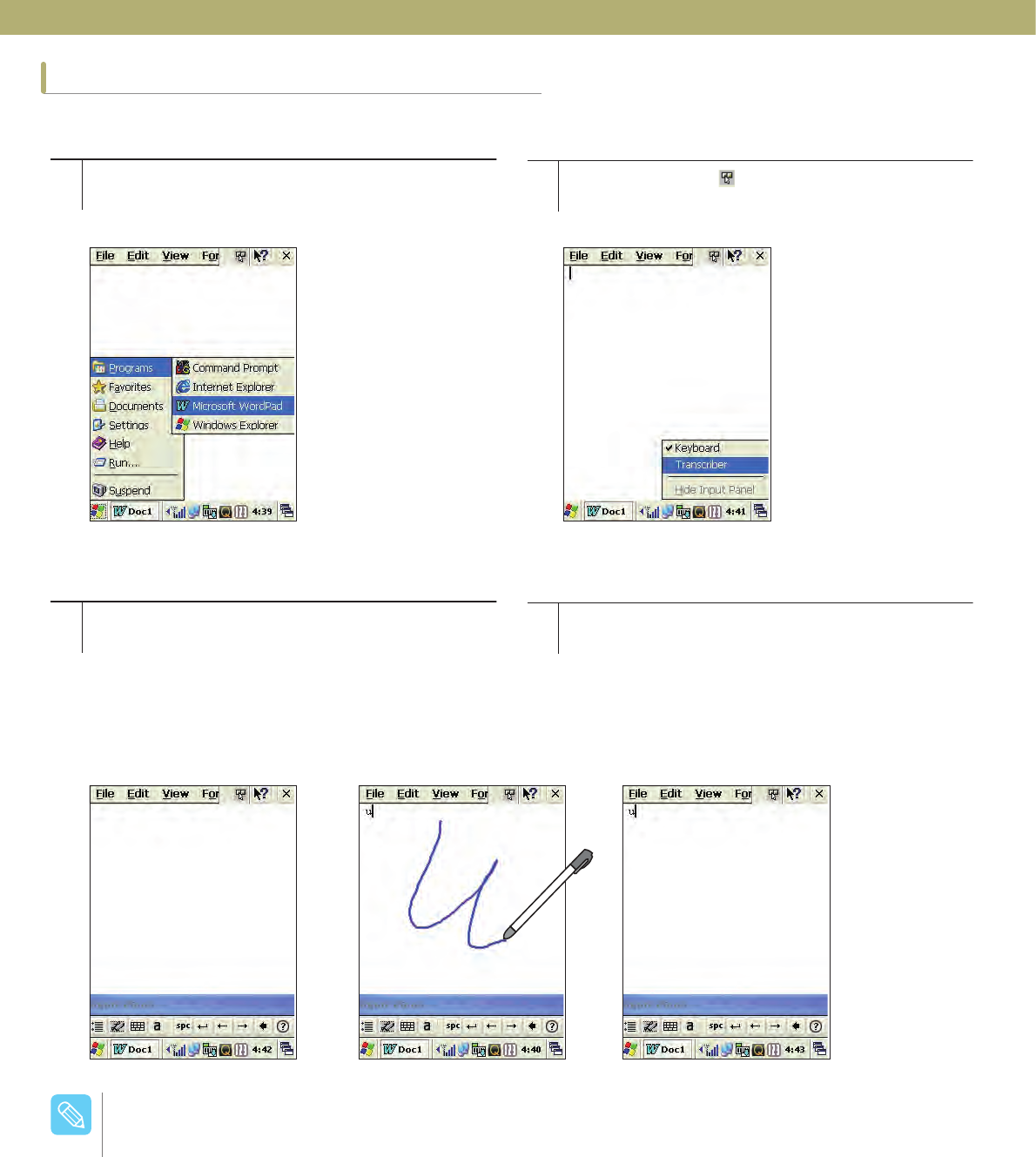
Use the stylus to write letters.
1
3
2
4
Click the WordPad icon in the main screen or by
selecting [Start] > [Programs] to open the program as
shown below:
The input menu appears on the bottom of the
screen. Use the stylus to write characters, and it is
automatically recognized.(The character type can
be selected from Input Character Type on the writing
area.)
Click and hold the [ ] icon on the task bar to open
the keyboard menu and select Transcriber.
The position of writing can be moved in case of
confusion. Drag the top of writing area to a different
location using the stylus.
Write a letter at a time for better recognition when using the transcriber. If the letter is not written in cursive
and written in a different writing style, or more than two letters are written at a time, the writing might not be
recognized correctly. To change from Transcriber to Keyboard, in Step 2, select Keyboard.
/PUF
73
2Utility Manager
Configure the settings for the start program and Quick Launcher using Utility Manager.
Faulty configuration can lead to a system malfunction. Please configure it after consulting your system
administrator.
/PUF
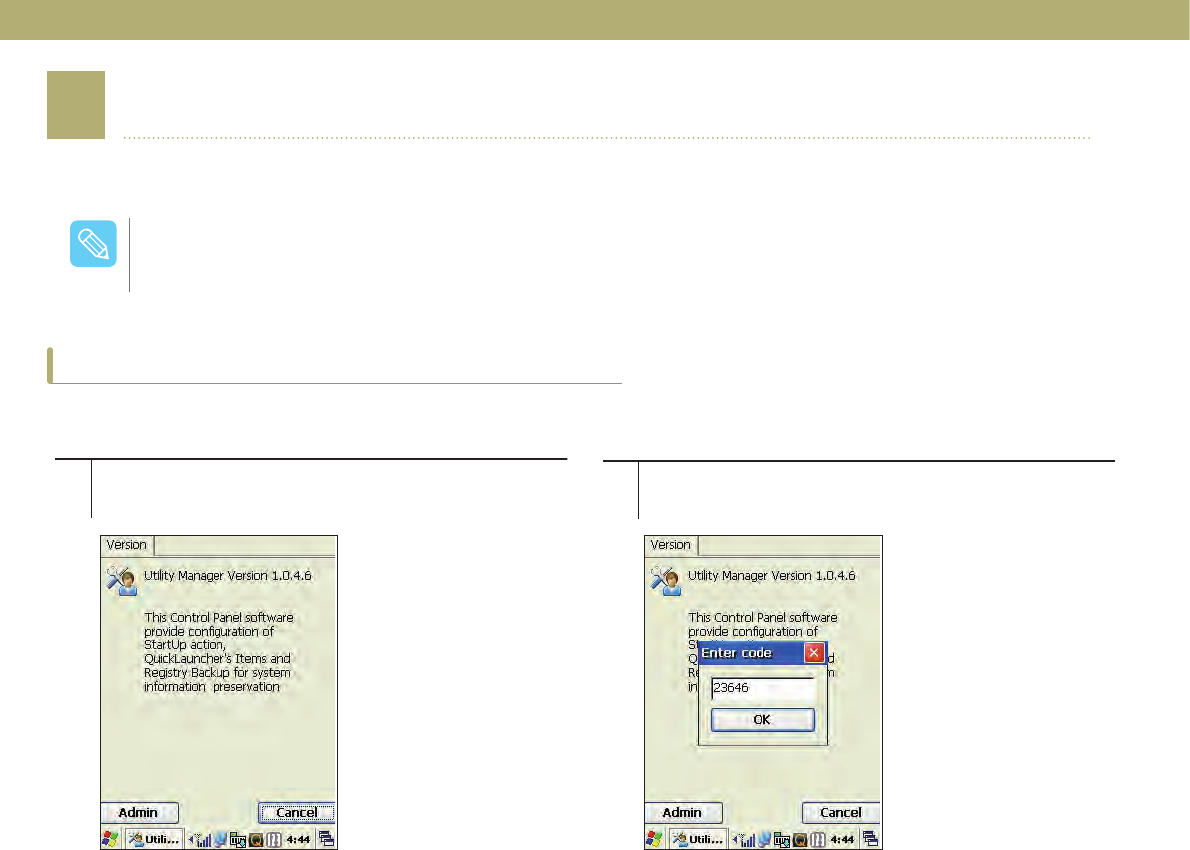
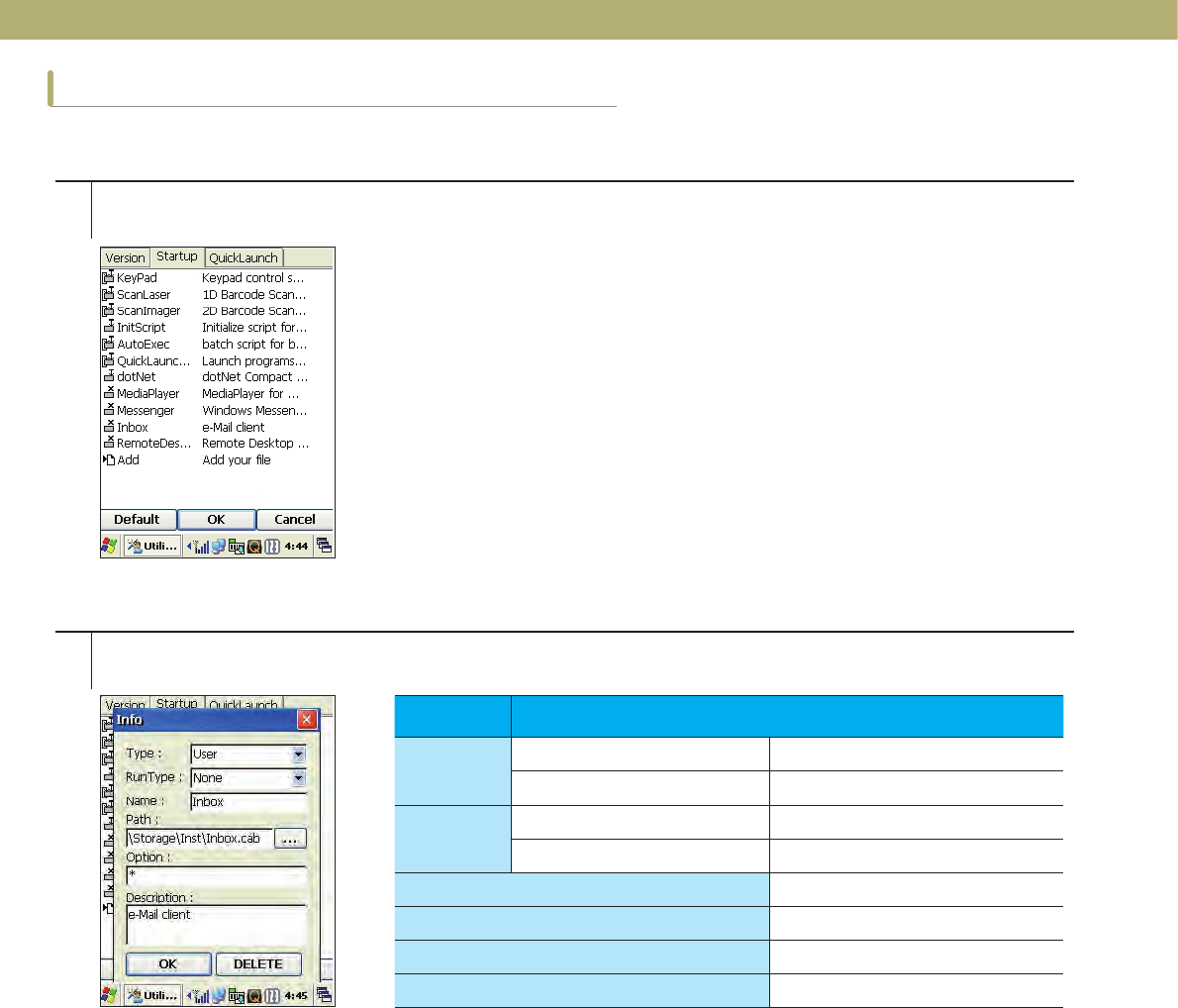
Starting Utility Manager
Use the stylus to write letters.
12
Select [Start] > [Settings] > [Control Panel] > [Utility
Manager]. Press the [Admin] button and enter the password
(admin password is 23646).
74
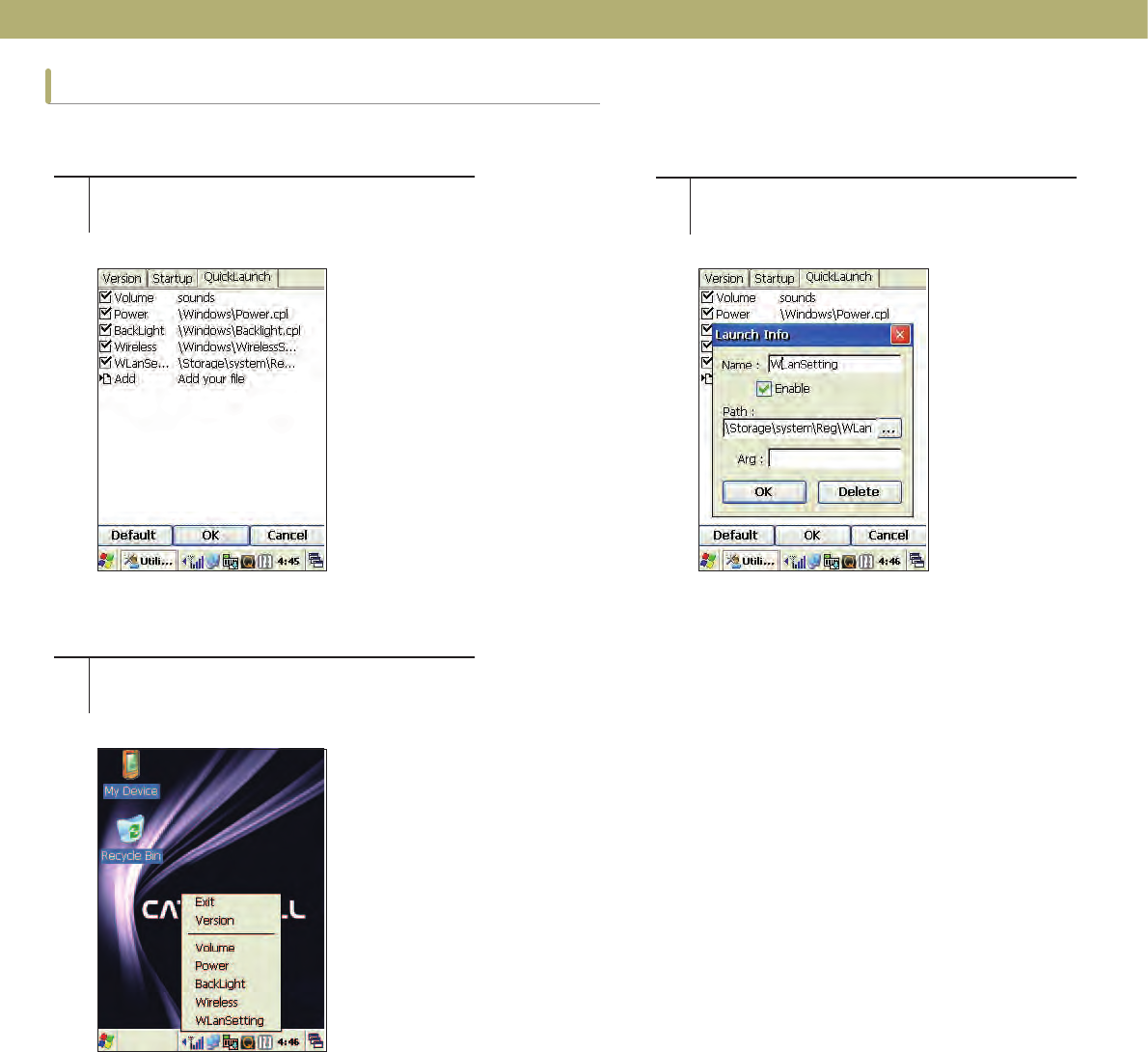
How to Set Up Start Program
Set the files that start automatically when the device boots up.
1
2
Select the Startup tab from the Utility Manager.
Press Add to select a start program and enter Type, RunType, and Name, then press [OK].
Type Description Function
Type System System Program
User User Program
RunType WarmBoot / ColdBoot Start on Booting
None Do not Execute
Name Program Name
Path File Path
Option Option Parameter
Description User Description
75
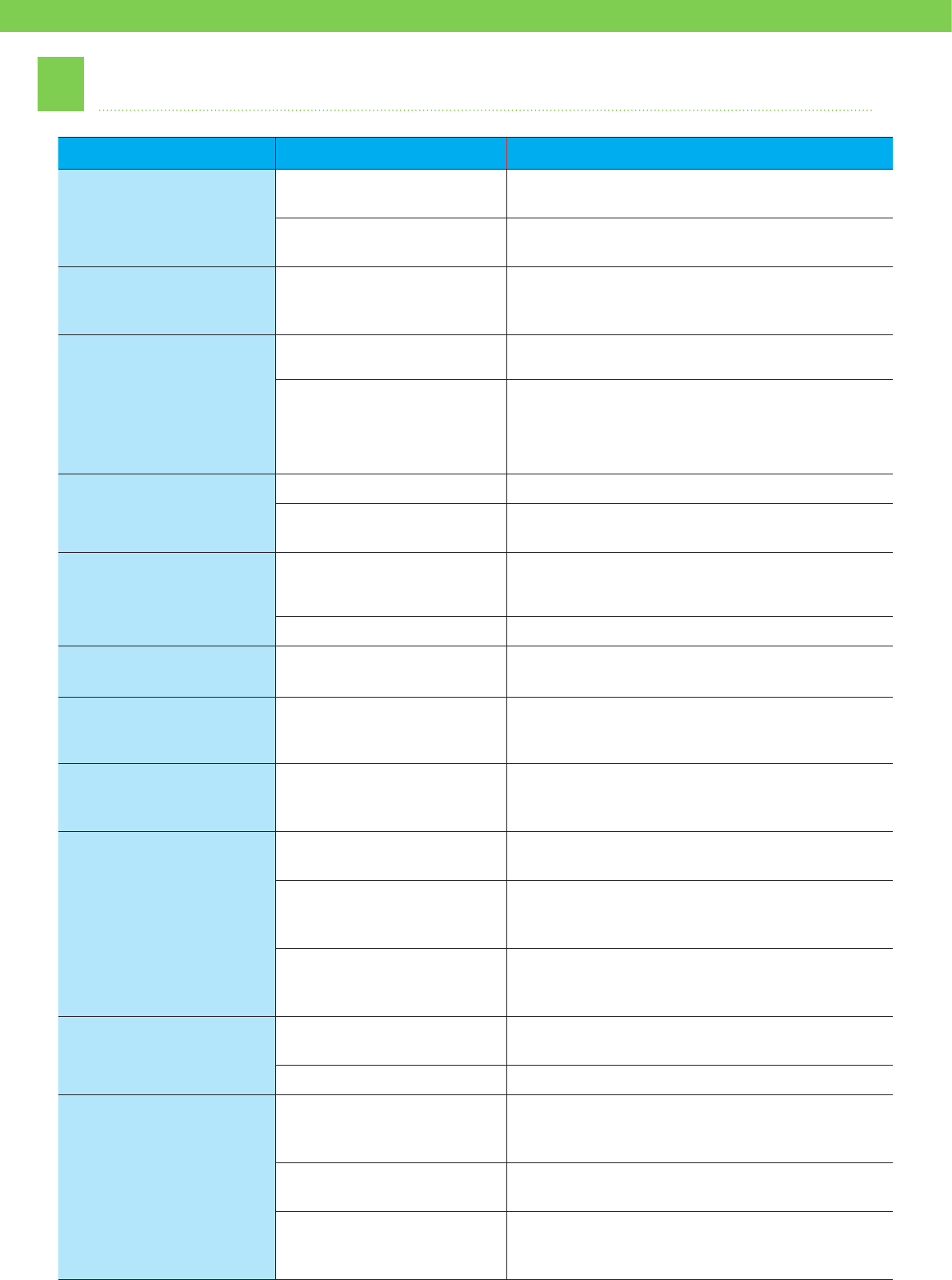
How to Set Up Quick Launcher
Configure the settings for Quick Launcher programs on the taskbar.
3
12
The Quick Launcher menu is changed
after changing the configuration.
The Quick Launcher menu is changed
after changing the configuration. Click the desired program to change
Name and Path, or press Add to add it
on the list.
76
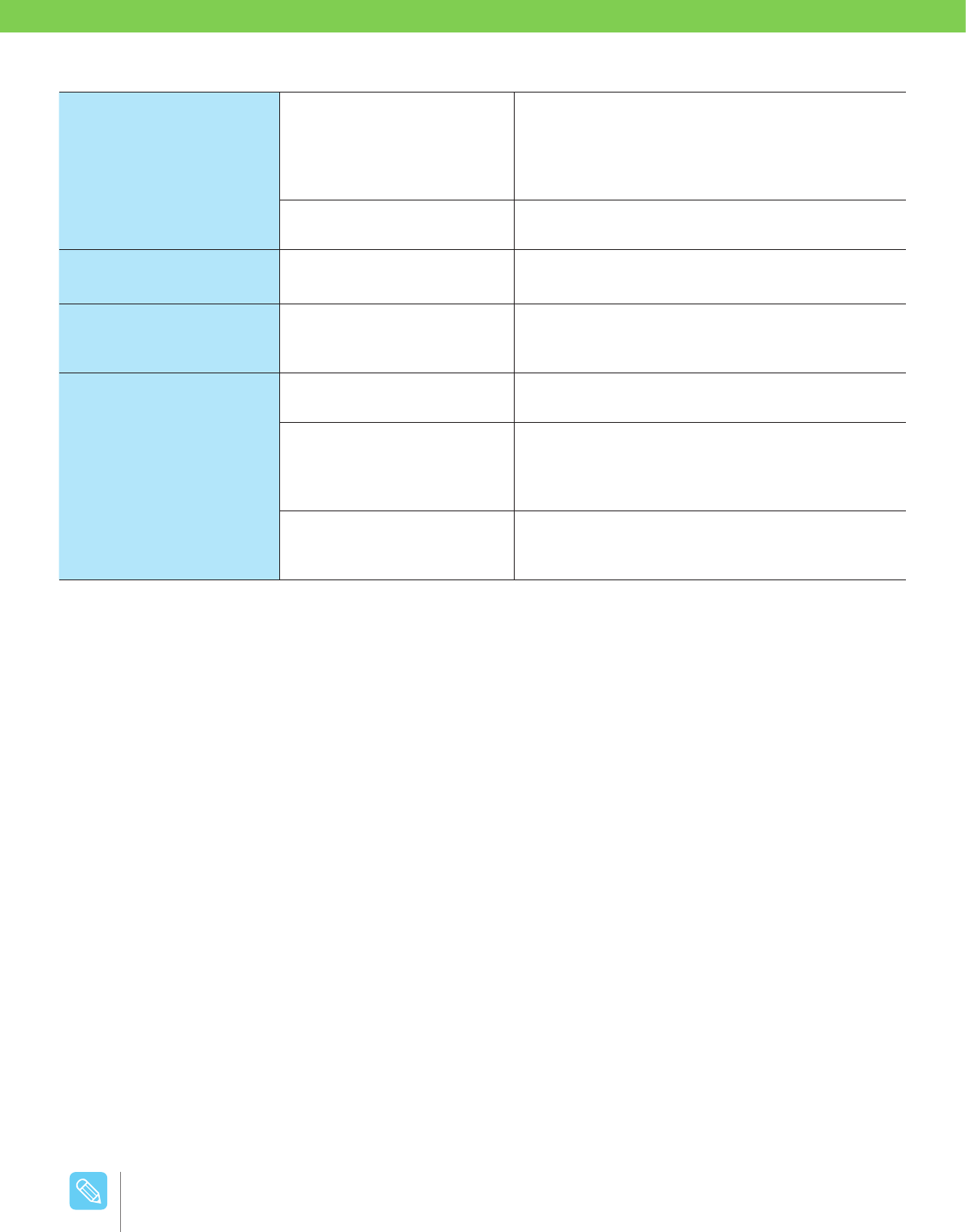
#TroubleShooting
Case Symptom Solution
The system is not
bootable.
No battery or discharged Install a new battery or recharge the current
battery.
The reset is pressed. Remove the battery and contact with the purchased
site or manufacturer for services.
The device is
frequently shut down.
The PDA is frequently
switched to the sleep
mode.
Select Start > Settings > Control Panel > Power
DQGFOLFNWKHFXVWRPFRQ¿JXUDWLRQWDEWRFKDQJH
the status change time.
The battery cannot be
charged.
Battery damage or failure Exchange batteries and then perform cold booting.
The charge indicator (red)
blinks and charging is not
in progress.
The terminal is not properly placed in the cradle or a
loose contact happens. Clean the connection area
and try again. If the symptom persists, contact with
the purchased site or manufacturer for services.
The screen does not
appear.
The screen is dead. Press the power button.
The battery is discharged. Recharge the battery and turn on the power.
Otherwise, exchange batteries and try again.
The wireless LAN does not
operate properly.
The wireless LAN is off. Activate the wireless LAN by using the
WirelessLanSetting program.
The IP cannot be received. Set the values for SSID and IP, and try again.
The touch screen does not
work properly. Cannot click buttons and
icons. Change the settings under Start > Settings >
Control Panel > Stylus > Calibration.
“Insufficient memory to
continue the execution of
the program” appears.
So many application
programs are running. Terminate the programs that are not being used.
“Close a task window
or increase the program
memory.” appears.
Only one program is
running.
Under My Computer > Control Panel > System >
Memory, increase the program memory or delete
unnecessary programs.
“Internal memory is full”
appears.
So many files are resident
in memory. Move the PDA programs to your PC or delete some
for free space.
Memory setting problem Change the memory allocation size. Change the
memory allocation setting under Start > Settings >
Control Panel > System > Memory.
So many application
programs are installed.
Select the programs to delete under Start >
Settings > Control Panel > Add/remove Programs
and press the Delete key.
After scanning, data entry
is not made.
The scan window is dirty
or impaired Clean the scan window or replace it.
No scanning program icon Restart the scanning program by performing reset.
ActiveSync does not work
properly.
There is no connection
sign displayed even though
connected.
Remove your PDA from the cradle, reinstall
ActiveSync, and try to connect it.
ActiveSync is not installed. Install the newest version of the program after
downloading it from the Microsoft website.
The program cannot be
installed under Windows 7.
Install the program after downloading it from the
Windows Mobile Device Center in the Microsoft
website.
77
No sound is heard.
The volume is too low or
no sound is heard.
Adjust the volume slider up or down under Start
> Settings > Control Panel > Sounds and Audio
Devices. Deselect Mute if selected. If the symptom
persists, contact with the purchased site or
manufacturer for services.
The speaker is clogged by
foreign materials. Remove foreign materials from the speaker.
A fluid flowed into the
terminal. Promply remove the battery and contact with the
purchased site or manufacturer for services.
The screen is stopped and
no operation is allowed. The program is stopped. Press the reset. If the symptom persists, contact
with the purchased site or manufacturer for
services.
No connection to the
PC through the USB
cable
No connection Check whether your computer and the device are
all On.
In case of using the USB
hub
Check the USB cable connection status. When
connecting between the device and PC through the
USB cable, do not use the USB hub but connect
them directly.
Setting problem Under Control Panel > PC Connection, check
whether “Enable direct connection to the desktop
computer” is checked.
This device complies with Part 15 of FCC Rules. Operation is subject to the following two conditions:
(1) This device may not cause harmful interference, and
(2) This device must accept any interference received.
Including interference that may cause undesired operation.
For a Class A digital device or peripheral, the instructions furnished the user shall include the following or similar
statement, placed in a prominent location in the text of the manual:NOTE: This equipment has been tested and found
to comply with the limits fora Class A digital device, pursuant to Part 15 of the FCC Rules.
These limits aredesigned to provide reasonable protection against harmful interference whenthe equipment is
operated in a commercial environment.
This equipment generates, uses, and can radiate radio frequency energy and, if not installed and used in accordance
with the instruction manual, may cause harmful interference to radio communications.
Operation of this equipment in a residential area is likely to cause harmful interference in which case the user will be
required to correct the interference at his own expense.
Information to User
FCC compliance information
The user who makes changes or modifications to the unit without the express approval by the
manufacturer will void user authority to operate the equipment.
$BVUJPO

78
This device was tested for typical body-worn operations with the back of the phone kept 20 mm. from the body. To
maintain compliance with FCC RF exposure requirements, use only belt-clips, holsters or similar accessories that
maintain a 20 mm. separation distance between the user’s body and the back of the phone, including the antenna.
The use of belt-clips, holsters and similar accessories should not contain metallic components in its assembly. The
use of accessories that do not satisfy these requirements may not comply with FCC RF exposure requirements, and
should be avoided.
Body worm operation

79
THIS MODEL PHONE MEETS THE GOVERNMENT’S
REQUIREMENTS FOR EXPOSURE TO RADIO WAVES.
Your wireless phone is a radio transmitter and receiver. It is designed and manufactured not to exceed the emission
limits for exposure to radiofrequency (RF) energy set by the Federal Communications Commission of the U.S.
Government. These limits are part of comprehensive guidelines and establish permitted levels of RF energy for
the general population. The guidelines are based on standards that were developed by independent scientific
organizations through periodic and thorough evaluation of scientific studies. The standards include a substantial
safety margin designed to assure the safety of all persons, regardless of age and health. The exposure standard for
wireless mobile phones employs a unit of measurement known as the Specific Absorption Rate, or SAR. The SAR
limit set by the FCC is 1.6 W/kg. *
Tests for SAR are conducted with the phone transmitting at its highest certified power level in all tested frequency
bands. Although the SAR is determined at the highest certified power level, the actual SAR level of the phone while
operating can be well below the maximum value. This is because the phone is designed to operate at multiple
power levels so as to use only the power required to reach the network. In general, the closer you are to a wireless
base station antenna, the lower the power output. Before a phone model is available for sale to the public, it
must be tested and certified to the FCC that it does not exceed the limit established by the government adopted
requirement for safe exposure. The tests are performed in positions and locations (e.g., at the ear and worn on the
body) as required by the FCC for each model. The highest SAR value for this model phone when tested for use at
the ear is 0.632 W/Kg and when worn on the body , as described in this user guide, is 0.254 W/Kg. (Body-worn
measurements differ among phone models, depending upon available accessories and FCC requirements). While
there may be differences between the SAR levels of various phones and at various positions, they all meet the
government requirement for safe exposure. The FCC has granted an Equipment Authorization for this model phone
with all reported SAR levels evaluated as in compliance with the FCC RF exposure guidelines. SAR information on
this model phone is on file with the FCC and can be found under the Display Grant section of http://www.fcc.gov/ oet/
fccid after searching on FCC ID: ZP4CW20.
Additional information on Specific Absorption Rates (SAR) can be found on the Cellular Telecommunications
Industry Asso-ciation (CTIA) web-site at http://www.wow-com.com. * In the United States and Canada, the SAR
limit for mobile phones used by the public is 1.6 watts/kg (W/kg) averaged over one gram of tissue. The standard
incorporates a sub-stantial margin of safety to give additional protection for the public and to account for any
variations in measurements.
SAR INFORMATION

80
CATCHWELL, Inc. ("CATCHWELL") warrants to the original end user purchaser ("You") that for the Warranty Period listed
below, the Product (excluding any third party software) will be free of defects in materials and workmanship under normal
use.
You must have proof of purchase before returning defective products to CATCHWELL. Returned products must be shipped
prepaid and packaged appropriately to prevent any damage in transit, and it is recommended that the package should
be insured or sent by a carrier who provides a tracking number of the package. CATCHWELL is not responsible for any
Product that is lost or damaged in transit. If CATCHWELL ships a replacement product to you before receiving the original
product and you fail to return the original product to CATCHWELL within thirty (30) days from the date the warranty service
authorization is issued, CATCHWELL will charge you the current manufacturer's suggested retail price of such product.
Your exclusive remedy and CATCHWELL's entire liability under this warranty will be for CATCHWELL at its option to repair
or replace the Product or refund your purchase price less any rebates. CATCHWELL does not warrant against loss of any
data or images (including data stored on Product returned to CATCHWELL for service), and assumes no liability for such
loss.
ALL IMPLIED WARRANTIES OR CONDITIONS OF MERCHANTABILITY, SATISFACTORY QUALITY OR FITNESS FOR
A PARTICULAR PURPOSE ARE LIMITED TO THE DURATION OF THE APPLICABLE EXPRESS WARRANTY. ALL
OTHER EXPRESS OR IMPLIED CONDITIONS, REPRESENTATIONS AND WARRANTIES, INCLUDING ANY IMPLIED
WARRANTY OF NON-INFRINGEMENT, ARE DISCLAIMED TO THE FULLEST EXTENT PERMITTED BY LAW.
There are inherent risks associated with any biometric sensor technology and security safeguard, including encryption
technology, and biometric sensors and security safeguards, by their nature, are capable of circumvention. CATCHWELL
cannot, and does not, guarantee that your data will not be accessed by unauthorized persons, and CATCHWELL disclaims
any warranties to that effect to the fullest extent permitted by law. You should not use this product to protect sensitive data
such as financial information or for accessing corporate networks.
Some jurisdictions do not allow limitations on how long an implied warranty lasts or at all, so the above limitation may not
apply to you. This warranty gives you specific legal rights, and you may also have other rights, which vary by jurisdiction.
This limitation does not affect your statutory rights.
All third party software provided with the Product is provided "AS IS". You assume the entire risk as to the quality,
performance, accuracy and effect of such software, and should it prove defective, you, and not CATCHWELL, assume the
entire cost of all necessary servicing or repair.
TO THE EXTENT NOT PROHIBITED BY LAW, IN NO EVENT WILL CATCHWELL BE LIABLE FOR ANY LOST IMAGES,
DATA, REVENUE OR PROFIT, OR FOR SPECIAL, INDIRECT, CONSEQUENTIAL, INCIDENTAL OR PUNITIVE
DAMAGES, HOWEVER CAUSED REGARDLESS OF THE THEORY OF LIABILITY, ARISING OUT OF OR RELATED
TO THE USE OF OR INABILITY TO USE THE PRODUCT, EVEN IF CATCHWELL HAS BEEN ADVISED OF THE
POSSIBILITY OF SUCH DAMAGES. IN NO EVENT WILL CATCHWELL'S LIABILITY EXCEED THE AMOUNT PAID BY
YOU FOR THE PRODUCT.
The foregoing limitations will apply even if any warranty or remedy provided under this Agreement fails of its essential
purpose.
Product Warranty Period
CATCHWELL CW20 / CW30 :
15 month from the manufactured date
Handheld Mobile Computer
LIMITED WARRANTY

81
INDEX
1D/2D Scanner 68
1D Scanner 67
4-slot cradle 8
A
ActiveSync 61
B
Backlight 20, 36
Barcode 37
battery 7, 9
Battery 14
Bluetooth 54
C
Call History 49
Connecting PC 60
Control Panel 24
Cradle 8
D
Dial-Up 26
Digital Camera 69
Display 28
E
Earset 7, 9
G
GPS 65
H
Hand strap 7, 9
Hardware Reset 42
I
Imager scanning 68
K
Keyboard 71
KeyPad 38
L
Laser scanning 67
M
Maintenance 5
MicroSD 13
N
Network 26
P
Password 32
Phone 44
Phone Call 46
Phone Number 48
Phone Setting 49
Power adapter 8, 9
Power cord 8, 9
Power Off 16
Power On 16
Power Supply 4
R
Receive 46
Record 39
S
Screen Calibration 40
Sleep Mode 19
SMS 46
Software Reset 41
Start Button 23
Stylus 7, 9, 42