CCT Tech Advanced MA300 2.4GHz 40 Channel Analog Modulation Cordless Phone User Manual 6881041b50o

CCT Tech Advanced Products Limited 2.4GHz 40 Channel Analog Modulation Cordless Phone 6881041b50o

User Manual

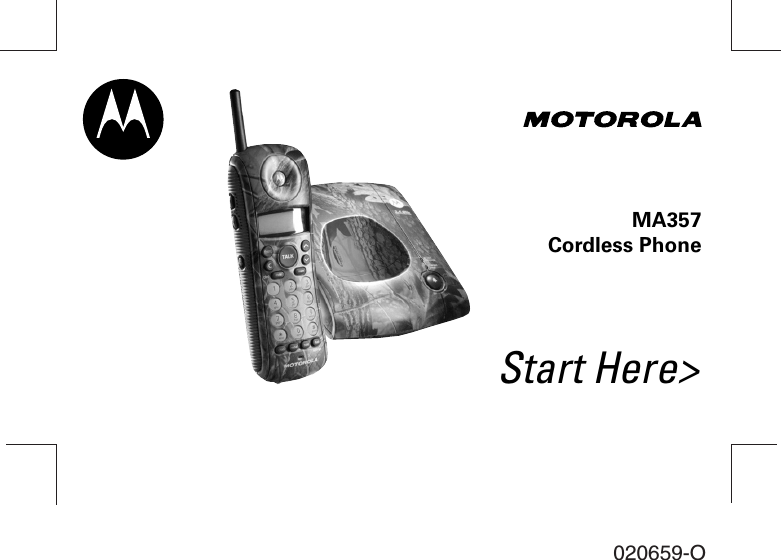
Start Here>MA357Cordless Phone020659-O
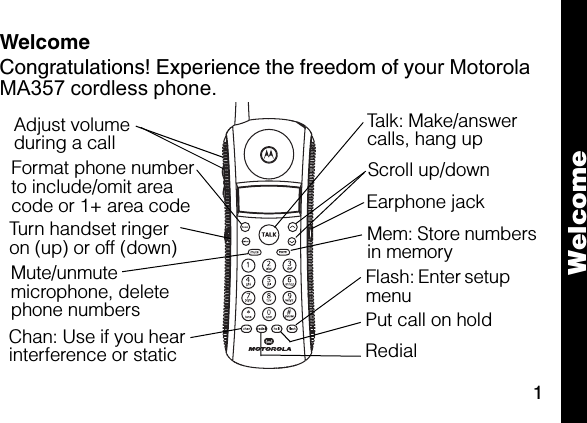
1WelcomeCongratulations! Experience the freedom of your Motorola MA357 cordless phone.Chan: Use if you hear interference or staticFormat phone number to include/omit area code or 1+ area codeTurn handset ringer on (up) or off (down)6lmnTalk: Make/answer calls, hang upEarphone jackFlash: Enter setup menuAdjust volume during a callRedial Mute/unmute microphone, delete phone numbers  Put call on holdScroll up/downMem: Store numbers in memoryWelcome
2For a copy of a large-print version of this guide, or for product-related questions, please contact:1-800-353-2729 U.S.A.1-800-461-4575 Canada1-888-390-6456 TTY (Text Telephone)On the web, please refer to: www.motorola.com/cordlessCongratulations on your purchase of a Motorola product! Product registration is an important step toward enjoying your new Motorola product. Registering helps us facilitate warranty service, and permits us to contact you if your Motorola product requires an update or other service. Registration is not required for warranty coverage. To register your product on-line, visit www.motorola.com/warranty/cordless.Please retain your original dated sales receipt for your records. For warranty service of your Motorola product, you will need to Welcome
3provide a copy of your dated sales receipt to confirm warranty status.MOTOROLA, the Stylized M Logo, and all other trademarks indicated as such herein are trademarks of Motorola, Inc.® Reg. U.S. Pat. & Tm. Off. Wildlife sounds provided by Wildlife Technologies™ Inc.© 2002 Wildlife Technologies™www.wildlifetech.com© 2002 Motorola, Inc. All rights reserved.Personal Communications Sector1500 Gateway Blvd., Boynton Beach, FL 33426-82926881041B50-OWelcome
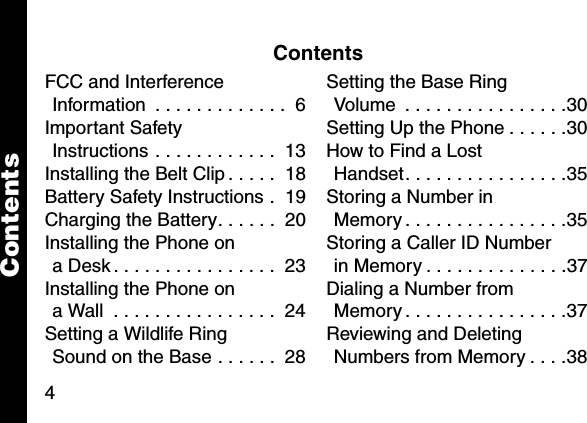
4ContentsFCC and Interference Information  . . . . . . . . . . . . .  6Important Safety Instructions . . . . . . . . . . . .  13Installing the Belt Clip . . . . .  18Battery Safety Instructions .  19Charging the Battery. . . . . .  20Installing the Phone on a Desk . . . . . . . . . . . . . . . .  23Installing the Phone on a Wall  . . . . . . . . . . . . . . . .  24Setting a Wildlife Ring Sound on the Base . . . . . .  28Setting the Base Ring Volume  . . . . . . . . . . . . . . . .30Setting Up the Phone . . . . . .30How to Find a Lost Handset. . . . . . . . . . . . . . . .35Storing a Number in Memory . . . . . . . . . . . . . . . .35Storing a Caller ID Number in Memory . . . . . . . . . . . . . .37Dialing a Number from Memory . . . . . . . . . . . . . . . .37Reviewing and Deleting Numbers from Memory . . . .38Contents
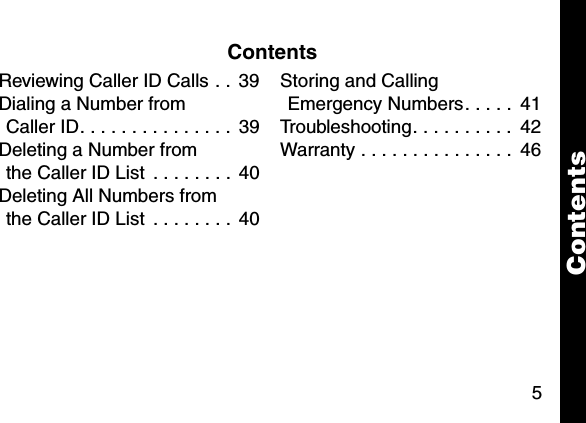
5ContentsReviewing Caller ID Calls . .  39Dialing a Number from Caller ID. . . . . . . . . . . . . . .  39Deleting a Number from the Caller ID List  . . . . . . . .  40Deleting All Numbers from the Caller ID List  . . . . . . . .  40Storing and Calling Emergency Numbers. . . . .  41Troubleshooting. . . . . . . . . .  42Warranty . . . . . . . . . . . . . . .  46Contents
6FCC and Interference InformationThis equipment complies with Parts 15 and 68 of the FCC rules and the requirements adopted by the Administrative Council for Terminal Attachments (ACTA). A plug and jack used to connect this equipment to the premises wiring and telephone network must comply with applicable FCC Part 68 rules and requirements adopted by the ACTA. A compliant telephone cord and modular plug is provided with this product. It is designed to be connected to a compatible modular jack that is also compliant. See installation instructions for details. Notification of the Local Telephone CompanyOn the bottom of this equipment is a label that contains, among other information, a product identifier in the form US:AAAEQ##TXXXX. You must, upon request, provide this information to your telephone company.FCC and Interference
7The digits represented by ## in the product identifier indicate the Ringer Equivalency Number (REN) for this equipment. The REN is useful in determining the number of devices you may connect to your telephone line and still have all of these devices ring when your telephone number is called. In most (but not all) areas, the sum of the RENs of all devices connected to one line should not exceed 5. To be certain of the number of devices you may connect to your line as determined by the REN, contact your local telephone company.Notes:• This equipment may not be used on coin service provided bythe telephone company.• Connection to party line service is subject to state tariffs.Contact the state public utility commission, public servicecommission or corporation commission for information.FCC and Interference
8• If your home has specially wired alarm equipment connectedto the telephone line, ensure the installation of this cordlessphone does not disable your alarm equipment. If you havequestions about what will disable alarm equipment, consultyour telephone company or a qualified installer.• Notice must be given to the telephone company upon perma-nent disconnection of your telephone from your line.• The FCC requires that you connect your cordless telephoneto the nationwide telephone network through a modular tele-phone jack (USOC RJ11C/RJ11W or RJ14C/RJ14W).Rights of the Telephone CompanyShould your equipment cause trouble on your line which may harm the telephone network, the telephone company shall, where practicable, notify you that temporary discontinuance of service may be required. Where prior FCC and Interference
9notice is not practical and the circumstances warrant such action, the telephone company may temporarily disconnect service immediately. In case of such temporary discontinuance, the telephone company must:(1) Promptly notify you of such temporary discontinuance; (2) Afford you the opportunity to correct the situation; (3) Inform you of your right to bring a complaint to the Commission pursuant to procedures set forth in Subpart E of Part 68, FCC Rules and Regulations. The telephone company may make changes in its facilities, equipment, operations, or procedures that could affect the operation of the equipment. If this happens, the telephone company will provide advance notice in order for you to make necessary modifications to maintain uninterrupted service. FCC and Interference
10Interference InformationThis device complies with Part 15 of the FCC Rules. Operation is subject to the following two conditions:• This device may not cause harmful interference; and• This device must accept any interference received, includ-ing interference that may cause undesired operation.This equipment has been tested and found to comply with the limits for a Class B digital device, pursuant to Part 15 of the FCC Rules. These limits are designed to provide reasonable protection against harmful interference in a residential installation.This equipment generates, uses, and can radiate radio frequency energy and, if not installed and used in accordance with the instructions, may cause harmful interference to radio FCC and Interference
11communications. However, there is no guarantee that interference will not occur in a particular installation.If this equipment does cause harmful interference to radio or television reception, which can be determined by turning the equipment on and off, the user is encouraged to try to correct the interference with one or more of the following measures:• Reorient or relocate the receiving antenna (that is, the anten-na for the radio or television that is “receiving” the interfer-ence).• Reorient or relocate and increase the separation between the telecommunications equipment and the receiving antenna.• Connect the telecommunications equipment into an outlet on a circuit different from that to which the receiving antenna is connected. FCC and Interference
12If these measures do not eliminate the interference, please consult your dealer or an experienced radio/television technician for additional suggestions. Also, the Federal Communications Commission has prepared a helpful booklet, “How to Identify and Resolve Radio/TV Interference Problems.” This booklet is available from the U.S. Government Printing Office, Washington, D.C. 20402. Please specify stock number 004-000-00345-4 when ordering copies.The FCC requires this product to be serviced only by Motorola or its authorized service agents. Changes or modifications not expressly approved by Motorola could void not only the user's authority to operate the equipment, but also the limited warranty.Hearing Aid CompatibilityThis telephone system meets the FCC standards for hearing aid compatibility. FCC and Interference
13Important Safety InstructionsFollow these safety precautions when using your cordless phone to reduce the risk of fire, electric shock and injury to persons or property: Reduce risk of fire and shock by1. Keep all slits and openings of the phone unblocked. Do not set the phone on a heating register or over a radia-tor. Ensure that proper ventilation is provided at the installation site. 2. Do not use while wet or while standing in water. 3. Do not use this product near water (for example, near a bath tub, kitchen sink, or swimming pool). 4. Do not allow anything to rest on the power cord. Place the power cord so that it will not be walked on.   Safety Instructions
145. Never insert objects of any kind into the product slits as that may result in fire or shock. 6. Unplug this product from the wall outlet before cleaning. Do not use liquid cleaners or aerosol cleaners. Use a damp cloth for cleaning. 7. Do not disassemble this product. If service or repair work is required, contact the Motorola address found in the back of this user’s guide. 8. Do not overload wall outlets and extension cords. 9. Avoid using during an electrical storm. Use a surge pro-tector to protect the equipment. 10. Do not use this cordless phone to report a gas leak, especially if you are in the vicinity of the gas line.Safety Instructions
15Unplug this cordless phone immediately from an outlet if:• The power cord or plug is damaged or frayed. • Liquid has been spilled into the product. • The product has been exposed to rain or water. Do not retrieve the handset or base until after you have unplugged the power and phone from the wall. Then retrieve the unit by unplugged cords. • The product has been dropped or the cabinet has been damaged. • The product exhibits a distinct change in performance. Safety Instructions
16Installation Guidelines1. Read and understand all instructions and save them for future reference. 2. Follow all warnings and instructions marked on the product. 3. Do not install this product near a bath tub, sink or shower. 4. Operate this phone using only the power source that is indicated on the marking label. If you are unsure of the power supply to your home, consult with your dealer or local power company. 5. Do not place this product on an unstable cart, stand or table. This product may fall, causing serious damage to the product. Safety Instructions
176. Adjust only those controls that are covered by the oper-ating instructions. Improper adjustment of other controls may result in damage and will often require extensive work to restore the product to normal operation. 7. Clean this product with a soft, damp cloth. Do not use chemicals or cleaning agents to clean this phone. 8. Use only the power supply that came with this unit. Using other power supplies may damage the unit. 9. Because cordless phones operate on electricity, you should have at least one phone in your home that isn’t cordless, in case the power in your home goes out. 10. To avoid interference to nearby appliances, do not place the base of the cordless phone on or near a TV, micro-wave oven, or VCR. Safety Instructions
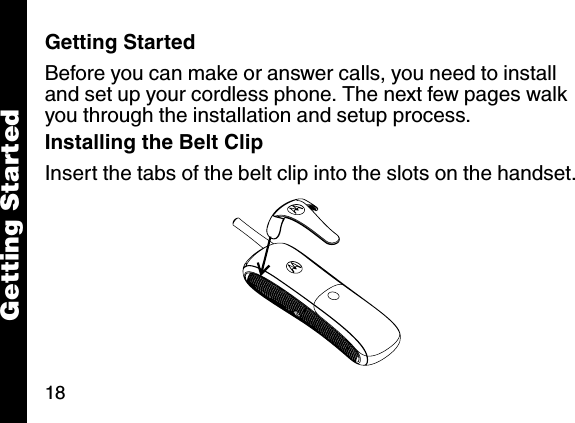
18Getting StartedGetting StartedBefore you can make or answer calls, you need to install and set up your cordless phone. The next few pages walk you through the installation and setup process. Installing the Belt Clip Insert the tabs of the belt clip into the slots on the handset.
19Getting StartedBattery Safety Instructions• Do not burn, disassemble, mutilate, or puncture the battery. The battery contains toxic materials that could be released, resulting in injury. •Caution: There is a risk of explosion if you replace the battery with an incorrect battery type. Use only the battery that came with your phone or an authorized replacement recommended by the manufacturer.• Keep batteries out of the reach of children. • Remove batteries if storing over 30 days. • Do not dispose of batteries in fire, which could result in explosion. • The rechargeable batteries that power this product must be disposed of properly and may need to be recycled. Refer to your battery’s label for battery type. Contact your local recycling center for proper disposal methods.
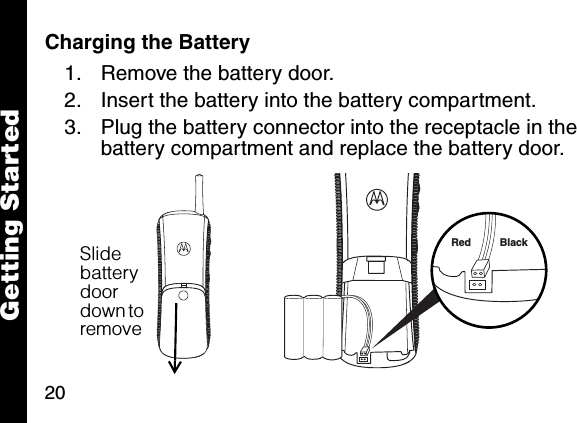
20Getting StartedCharging the Battery 1. Remove the battery door.2. Insert the battery into the battery compartment.3. Plug the battery connector into the receptacle in the battery compartment and replace the battery door. Slide battery door down to remove Red Black
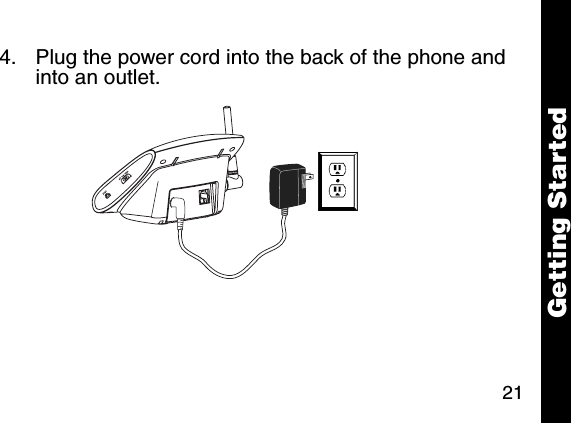
21Getting Started4. Plug the power cord into the back of the phone and into an outlet.
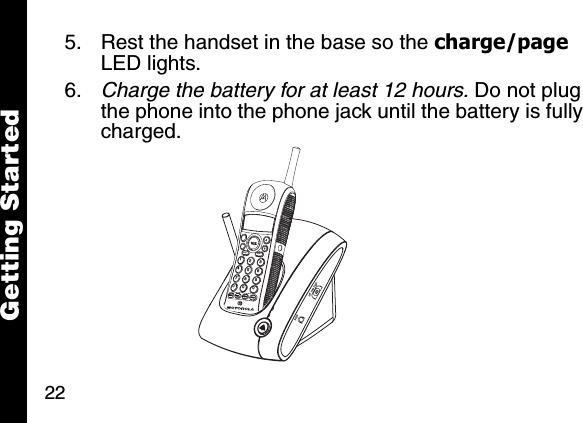
22Getting Started5. Rest the handset in the base so the charge/page LED lights. 6. Charge the battery for at least 12 hours. Do not plug the phone into the phone jack until the battery is fully charged. memmute123456780009
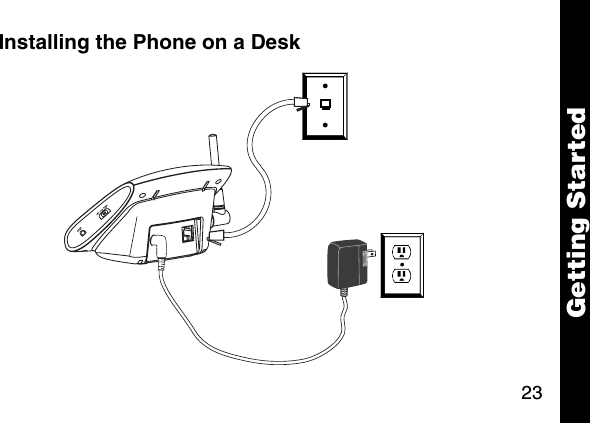
23Getting StartedInstalling the Phone on a Desk
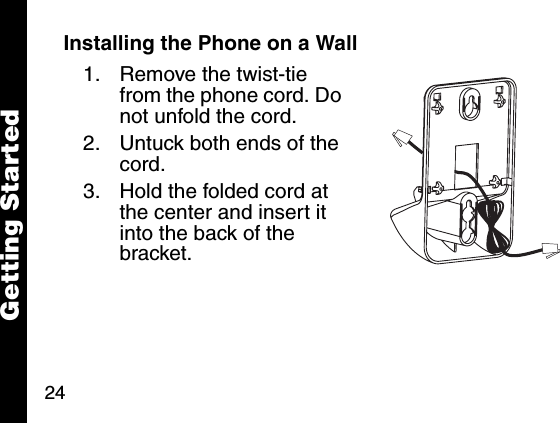
24Getting StartedInstalling the Phone on a Wall1. Remove the twist-tie from the phone cord. Do not unfold the cord. 2. Untuck both ends of the cord. 3. Hold the folded cord at the center and insert it into the back of the bracket.Getting Started
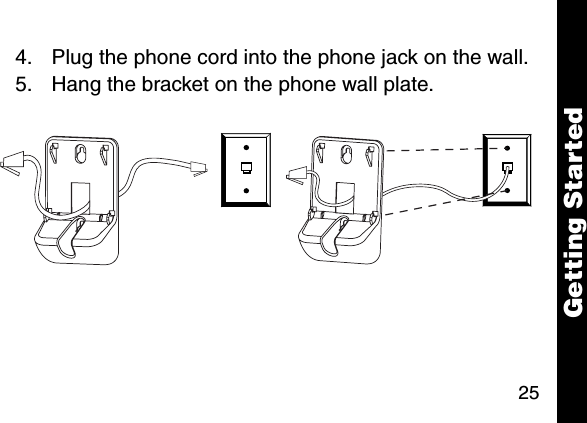
25Getting Started4. Plug the phone cord into the phone jack on the wall. 5. Hang the bracket on the phone wall plate.
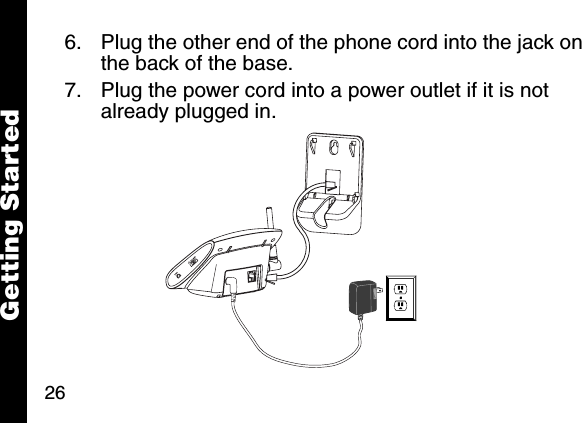
26Getting Started6. Plug the other end of the phone cord into the jack on the back of the base.7. Plug the power cord into a power outlet if it is not already plugged in.
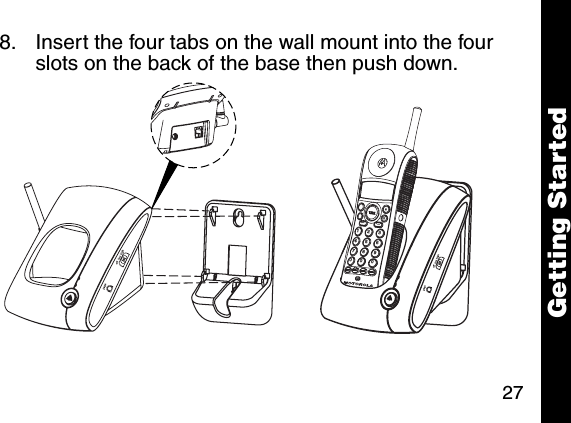
27Getting Started8. Insert the four tabs on the wall mount into the four slots on the back of the base then push down. mem mute123456780009
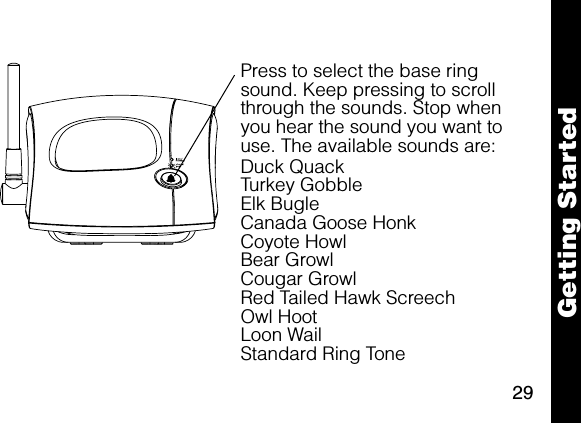
28Getting StartedSetting a Wildlife Ring Sound on the BaseHear the sounds of the wild right in your own home on your cordless phone -- the screech of a red-tailed hawk, the howl of a coyote, the growl of a bear or cougar. These are just a few of the wildlife sounds that come with your phone. Once you select a wildlife ring sound, the base of the phone rings with that sound whenever you receive a call.You can also select a standard ring tone for the base ring sound.Note: Your phone has 2 ringers, one on the handset and one on the base. When the handset is in the base, only the base rings when you receive a call. When the handset is off the base, both the handset and base ring. See page 31 for instructions on how to set the handset ring sound.
29Getting Started020658-OPress to select the base ring sound. Keep pressing to scroll through the sounds. Stop when you hear the sound you want to use. The available sounds are:Duck QuackTurkey GobbleElk BugleCanada Goose HonkCoyote HowlBear GrowlCougar GrowlRed Tailed Hawk ScreechOwl HootLoon WailStandard Ring Tone
30Getting StartedSetting the Base Ring VolumeUse the slide switch on the side of the base to set the volume for the base ring sound.Note: You cannot control the volume level of the handset ring sound, but you can turn it on or off. See page 1 for the location of the on/off switch for the handset ring sound.Setting Up the Phone1. Press flash. 2. Set the language:\English ]French ^Spanish
31Getting Started3. Press flash. 4. If you live in an area with 7-digit dialing:enter your 3-digit area code and press flash.If you live in an area with 10-digit dialing (3-digit area code + 7-digit phone number):press flash to go to the next prompt (do not enter your area code).5. Set the ring sound for the handset. This is the sound the handset makes when you receive a call and the handset is not in the base. The ring sound for the base is set from the base. The base will always ring when you receive a call, regardless of whether the
32Getting Startedhandset is on or off the base. See page 28 for instructions on how to set the base ring sound.\Ring tone 1 ]Ring tone 2 ^Musical tone6. Press flash. 7. Press: \ for tone operation or] for pulse operation8. Press flash. Note:  If you select pulse, you can still use touch tone menu systems. To activate touch tone temporarily for one call, press the * key.
33Getting Started9. At the Set to Default prompt, press:] (no) to save the settings you just entered. Your settings will be retained after you turn the phone off.\ (yes) to restore the factory default settings.10. Press flash. Now that you have set up your phone, read the next section of this guide for information on how to use your phone.CAUTIONThe long-term characteristics or the possible physiological effects of radio frequency (RF) electromagnetic fields have not been evaluated by UL.If you are concerned with the risk of RF exposure, you may want to limit the duration of calls and position the antenna as far away from your body as is practical.
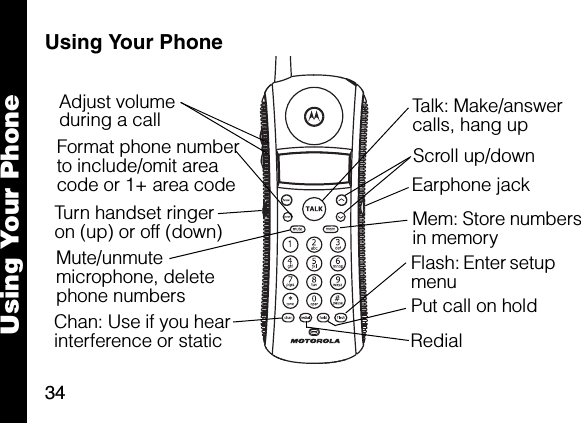
34Using Your PhoneUsing Your Phone6lmnTalk: Make/answer calls, hang upEarphone jackFlash: Enter setup menuTurn handset ringeron (up) or off (down)Adjust volume during a callChan: Use if you hear interference or staticFormat phone number to include/omit area code or 1+ area codeRedial Mute/unmute microphone, delete phone numbers  Put call on holdScroll up/downMem: Store numbers in memory
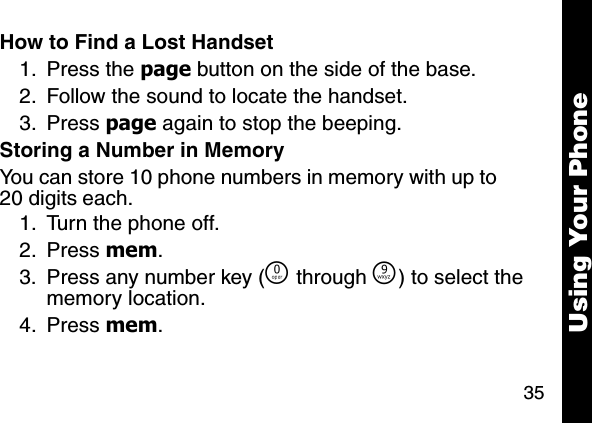
35Using Your PhoneHow to Find a Lost Handset1. Press the page button on the side of the base.2. Follow the sound to locate the handset. 3. Press page again to stop the beeping. Storing a Number in MemoryYou can store 10 phone numbers in memory with up to 20 digits each. 1. Turn the phone off. 2. Press mem. 3. Press any number key (Ñ through É) to select the memory location. 4. Press mem.
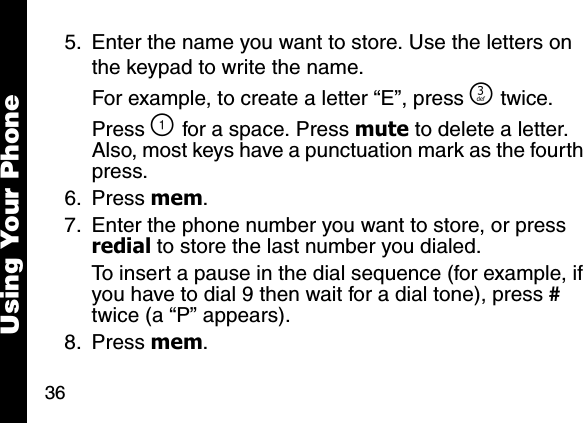
36Using Your Phone5. Enter the name you want to store. Use the letters on the keypad to write the name. For example, to create a letter “E”, press ^ twice. Press \ for a space. Press mute to delete a letter. Also, most keys have a punctuation mark as the fourth press.6. Press mem. 7. Enter the phone number you want to store, or press redial to store the last number you dialed. To insert a pause in the dial sequence (for example, if you have to dial 9 then wait for a dial tone), press # twice (a “P” appears). 8. Press mem.
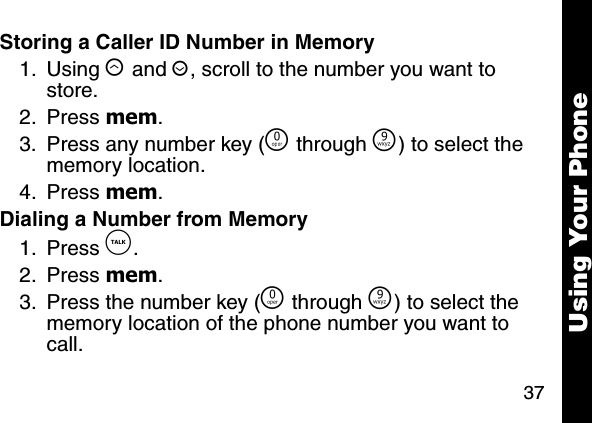
37Using Your PhoneStoring a Caller ID Number in Memory1. Using ò and ú, scroll to the number you want to store. 2. Press mem. 3. Press any number key (Ñ through É) to select the memory location. 4. Press mem. Dialing a Number from Memory1. Press â. 2. Press mem. 3. Press the number key (Ñ through É) to select the memory location of the phone number you want to call.
38Using Your PhoneYou can use memory numbers to simplify calling card calls and other calls that require multiple strings of numbers. For example, if you stored your calling card number in memory location 1, your calling card password in location 2, and the phone number you want to call in location 3, you would press the following keys to call the number in location 3: â mem \ mem ] mem ^Reviewing and Deleting Numbers from Memory1. Press mem. 2. Using ò and ú, scroll to the number you want to delete. 3. Press mute. 4. When Delete Entry? is displayed, press mute to delete the entry, or c to cancel the delete operation and keep the number in memory.
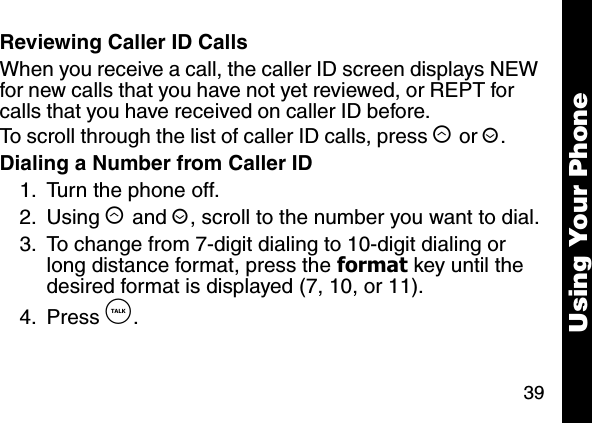
39Using Your PhoneReviewing Caller ID CallsWhen you receive a call, the caller ID screen displays NEW for new calls that you have not yet reviewed, or REPT for calls that you have received on caller ID before.To scroll through the list of caller ID calls, press ò or ú. Dialing a Number from Caller ID1. Turn the phone off. 2. Using ò and ú, scroll to the number you want to dial.3. To change from 7-digit dialing to 10-digit dialing or long distance format, press the format key until the desired format is displayed (7, 10, or 11).4. Press â.
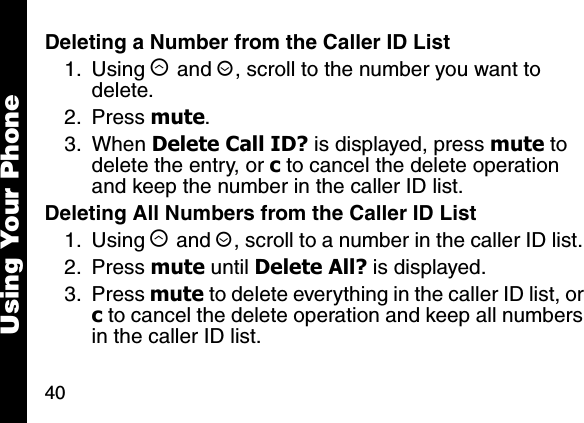
40Using Your PhoneDeleting a Number from the Caller ID List1. Using ò and ú, scroll to the number you want to delete. 2. Press mute.3. When Delete Call ID? is displayed, press mute to delete the entry, or c to cancel the delete operation and keep the number in the caller ID list.Deleting All Numbers from the Caller ID List1. Using ò and ú, scroll to a number in the caller ID list. 2. Press mute until Delete All? is displayed.3. Press mute to delete everything in the caller ID list, or c to cancel the delete operation and keep all numbers in the caller ID list.
41Using Your PhoneStoring and Calling Emergency NumbersWhen storing an emergency number (such as 911) into memory or making a test call to an emergency number stored in memory, remain on the line and briefly explain to the dispatcher the reason for the call. This should be performed in off-peak hours, such as early morning or late evening.
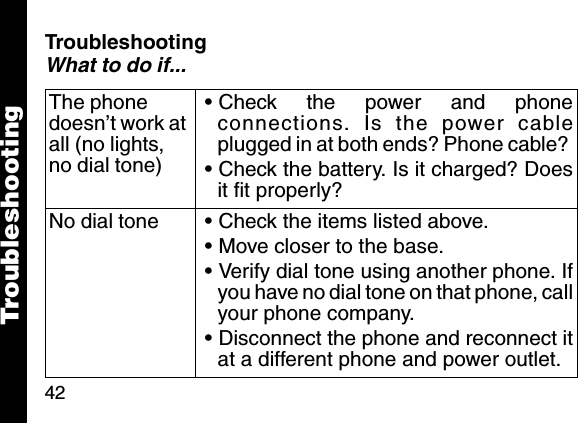
42TroubleshootingWhat to do if...The phone doesn’t work at all (no lights, no dial tone)• Check the power and phoneconnections. Is the power cableplugged in at both ends? Phone cable? • Check the battery. Is it charged? Doesit fit properly? No dial tone • Check the items listed above. • Move closer to the base. • Verify dial tone using another phone. Ifyou have no dial tone on that phone, callyour phone company. • Disconnect the phone and reconnect itat a different phone and power outlet. Troubleshooting
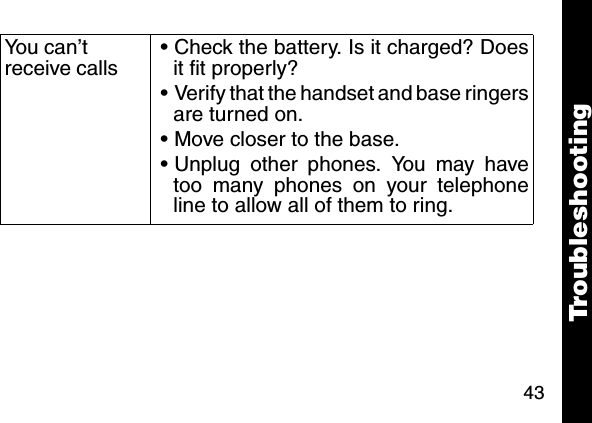
43You can’t receive calls• Check the battery. Is it charged? Doesit fit properly? • Verify that the handset and base ringersare turned on. • Move closer to the base. • Unplug other phones. You may havetoo many phones on your telephoneline to allow all of them to ring. Troubleshooting
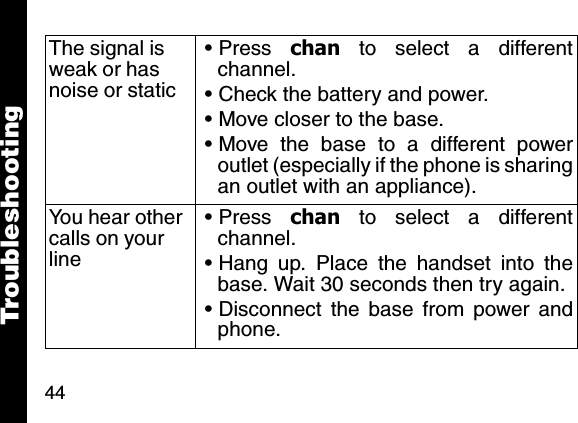
44The signal is weak or has noise or static• Press  chan to select a differentchannel. • Check the battery and power. • Move closer to the base. • Move the base to a different poweroutlet (especially if the phone is sharingan outlet with an appliance).You hear other calls on your line• Press  chan to select a differentchannel. • Hang up. Place the handset into thebase. Wait 30 seconds then try again. • Disconnect the base from power andphone.Troubleshooting
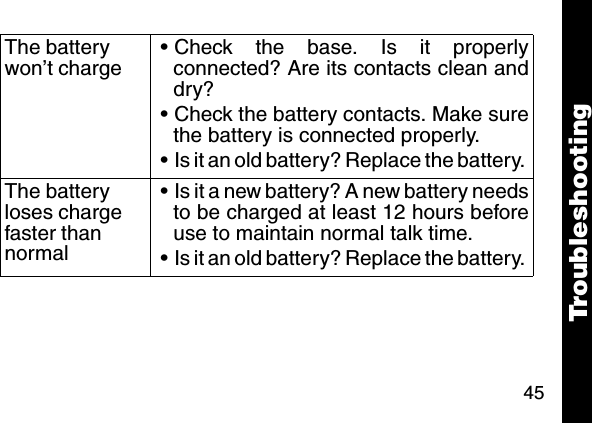
45The battery won’t charge• Check the base. Is it properlyconnected? Are its contacts clean anddry?• Check the battery contacts. Make surethe battery is connected properly.• Is it an old battery? Replace the battery. The battery loses charge faster than normal• Is it a new battery? A new battery needsto be charged at least 12 hours beforeuse to maintain normal talk time. • Is it an old battery? Replace the battery. TroubleshootingTroubleshooting
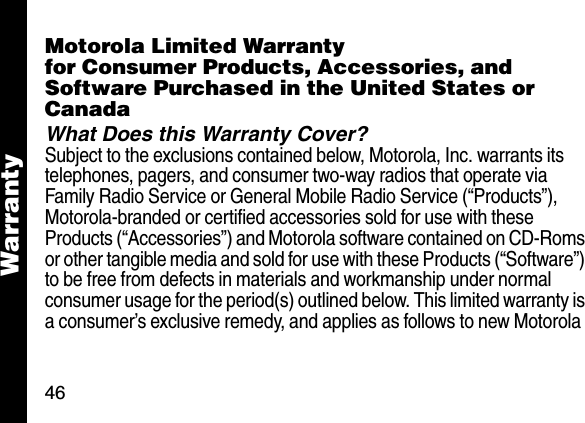
46WarrantyWarra ntyMotorola Limited Warrantyfor Consumer Products, Accessories, and Software Purchased in the United States or CanadaWhat Does this Warranty Cover?Subject to the exclusions contained below, Motorola, Inc. warrants its telephones, pagers, and consumer two-way radios that operate via Family Radio Service or General Mobile Radio Service (“Products”), Motorola-branded or certified accessories sold for use with these Products (“Accessories”) and Motorola software contained on CD-Roms or other tangible media and sold for use with these Products (“Software”) to be free from defects in materials and workmanship under normal consumer usage for the period(s) outlined below. This limited warranty is a consumer’s exclusive remedy, and applies as follows to new Motorola
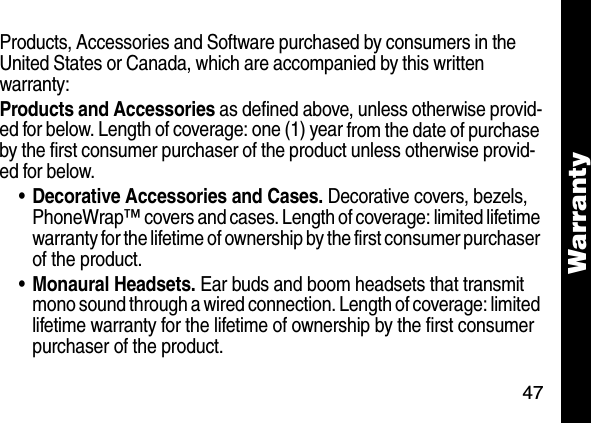
47WarrantyProducts, Accessories and Software purchased by consumers in the United States or Canada, which are accompanied by this written warranty:Products and Accessories as defined above, unless otherwise provid-ed for below. Length of coverage: one (1) year from the date of purchase by the first consumer purchaser of the product unless otherwise provid-ed for below. •Decorative Accessories and Cases. Decorative covers, bezels, PhoneWrap™ covers and cases. Length of coverage: limited lifetime warranty for the lifetime of ownership by the first consumer purchaser of the product. •Monaural Headsets. Ear buds and boom headsets that transmit mono sound through a wired connection. Length of coverage: limited lifetime warranty for the lifetime of ownership by the first consumer purchaser of the product.
48Warranty•Consumer Two-Way Radio Accessories. Length of coverage: Ninety (90) days from the date of purchase by the first consumer purchaser of the product. • Products and Accessories that are Repaired or Replaced. Length of coverage: The balance of the original warranty or for ninety (90) days from the date returned to the consumer, whichever is longer.Software. Applies only to physical defects in the media that embodies the copy of the software (e.g. CD-ROM, or floppy disk). Length of coverage: ninety (90) days from the date of purchase.ExclusionsNormal Wear and Tear. Periodic maintenance, repair and replacement of parts due to normal wear and tear are excluded from coverage.
49WarrantyBatteries. Only batteries whose fully charged capacity falls below 80% of their rated capacity and batteries that leak are covered by this limited warranty.Abuse & Misuse. Defects or damage that result from: (a) improper operation, storage, misuse or abuse, accident or neglect, such as physical damage (cracks, scratches, etc.) to the surface of the product resulting from misuse; (b) contact with liquid, water, rain, extreme humidity or heavy perspiration, sand, dirt or the like, extreme heat, or food; (c) use of the Products or Accessories for commercial purposes or subjecting the Product or Accessory to abnormal usage or conditions; or (d) other acts which are not the fault of Motorola, are excluded from coverage.Use of Non-Motorola Products and Accessories. Defects or damage that result from the use of Non-Motorola branded or certified Products, Accessories, Software or other peripheral equipment are excluded from coverage.
50WarrantyUnauthorized Service or Modification. Defects or damages resulting from service, testing, adjustment, installation, maintenance, alteration, or modification in any way by someone other than Motorola, or its authorized service centers, are excluded from coverage. Altered Products. Products or Accessories with (a) serial numbers or date tags that have been removed, altered or obliterated; (b) broken seals or that show evidence of tampering; (c) mismatched board serial numbers; or (d) nonconforming or non-Motorola housings, or parts, are excluded from coverage.Communication Services. Defects, damages, or the failure of Products, Accessories or Software due to any communication service or signal you may subscribe to or use with the Products, Accessories or Software is excluded from coverage.Software Embodied in Physical Media. No warranty is made that the software will meet your requirements or will work in combination with any hardware or software applications provided by third parties, that the
51Warrantyoperation of the software products will be uninterrupted or error free, or that all defects in the software products will be corrected. Software NOT Embodied in Physical Media. Software that is not embodied in physical media (e.g. software that is downloaded from the internet), is provided “as is” and without warranty.Who is Covered?This warranty extends to the first end-user purchaser only.What will Motorola Do?Motorola, at its option, will at no charge repair, replace or refund the purchase price of any Products, Accessories or Software that does not conform to this warranty. We may use functionally equivalent reconditioned/refurbished/pre-owned or new Products, Accessories or parts. No data, software or applications added to your Product, Accessory or Software, including but not limited to personal contacts,
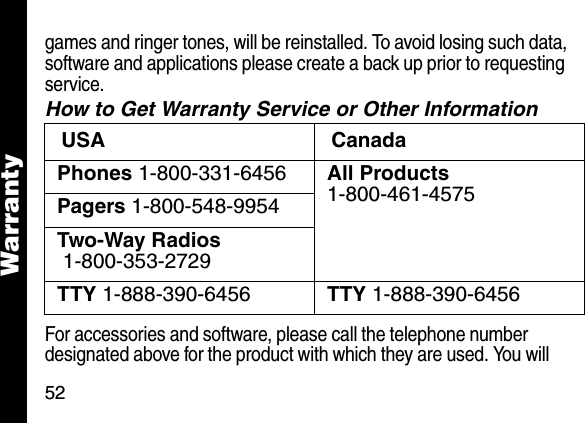
52Warrantygames and ringer tones, will be reinstalled. To avoid losing such data, software and applications please create a back up prior to requesting service.How to Get Warranty Service or Other InformationFor accessories and software, please call the telephone number designated above for the product with which they are used. You will USA CanadaPhones 1-800-331-6456 All Products1-800-461-4575Pagers 1-800-548-9954Two-Way Radios 1-800-353-2729TTY 1-888-390-6456 TTY 1-888-390-6456
53Warrantyreceive instructions on how to ship the Products, Accessories or Software, at your expense, to a Motorola Authorized Repair Center. To obtain service, you must include: (a) a copy of your receipt, bill of sale or other comparable proof of purchase; (b) a written description of the problem; (c) the name of your service provider, if applicable; (d) the name and location of the installation facility (if applicable) and, most importantly; (e) your address and telephone number. What Other Limitations Are There? ANY IMPLIED WARRANTIES, INCLUDING WITHOUT LIMITATION THE IMPLIED WARRANTIES OF MERCHANTABILITY AND FITNESS FOR A PARTICULAR PURPOSE, SHALL BE LIMITED TO THE DURATION OF THIS LIMITED WARRANTY, OTHERWISE THE REPAIR, REPLACEMENT, OR REFUND AS PROVIDED UNDER THIS EXPRESS LIMITED WARRANTY IS THE EXCLUSIVE REMEDY OF THE CONSUMER, AND IS PROVIDED IN LIEU OF ALL OTHER WARRANTIES, EXPRESS OR IMPLIED. IN NO EVENT SHALL
54WarrantyMOTOROLA BE LIABLE, WHETHER IN CONTRACT OR TORT (INCLUDING NEGLIGENCE) FOR DAMAGES IN EXCESS OF THE PURCHASE PRICE OF THE PRODUCT, ACCESSORY OR SOFTWARE, OR FOR ANY INDIRECT, INCIDENTAL, SPECIAL OR CONSEQUENTIAL DAMAGES OF ANY KIND, OR LOSS OF REVENUE OR PROFITS, LOSS OF BUSINESS, LOSS OF INFORMATION OR DATA, SOFTWARE OR APPLICATIONS OR OTHER FINANCIAL LOSS ARISING OUT OF OR IN CONNECTION WITH THE ABILITY OR INABILITY TO USE THE PRODUCTS, ACCESSORIES OR SOFTWARE TO THE FULL EXTENT THESE DAMAGES MAY BE DISCLAIMED BY LAW.Some states and jurisdictions do not allow the limitation or exclusion of incidental or consequential damages, or limitation on the length of an implied warranty, so the above limitations or exclusions may not apply to you. This warranty gives you specific
55Warrantylegal rights, and you may also have other rights that vary from state to state or from one jurisdiction to another.Laws in the United States and other countries preserve for Motorola certain exclusive rights for copyrighted Motorola software such as the exclusive rights to reproduce and distribute copies of the Motorola software. Motorola software may only be copied into, used in, and redistributed with, the Products associated with such Motorola software. No other use, including without limitation disassembly of such Motorola software or exercise of the exclusive rights reserved for Motorola, is permitted.
6881041B50-O@6881041B50@motorola.com

Navigation menu