CPI GLOBAL CPI176367 Tablet User Manual

CPI GLOBAL Tablet

user manual

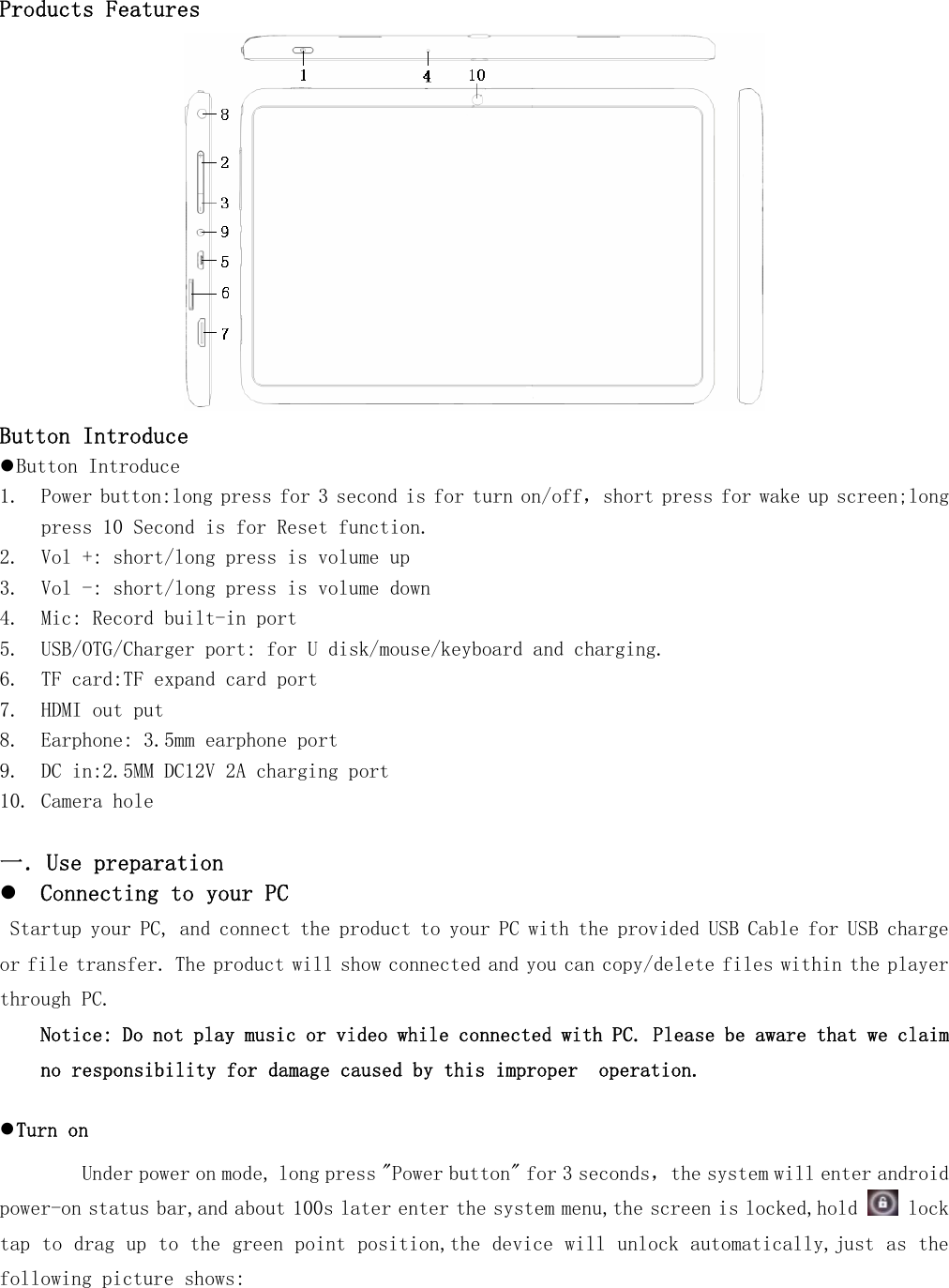
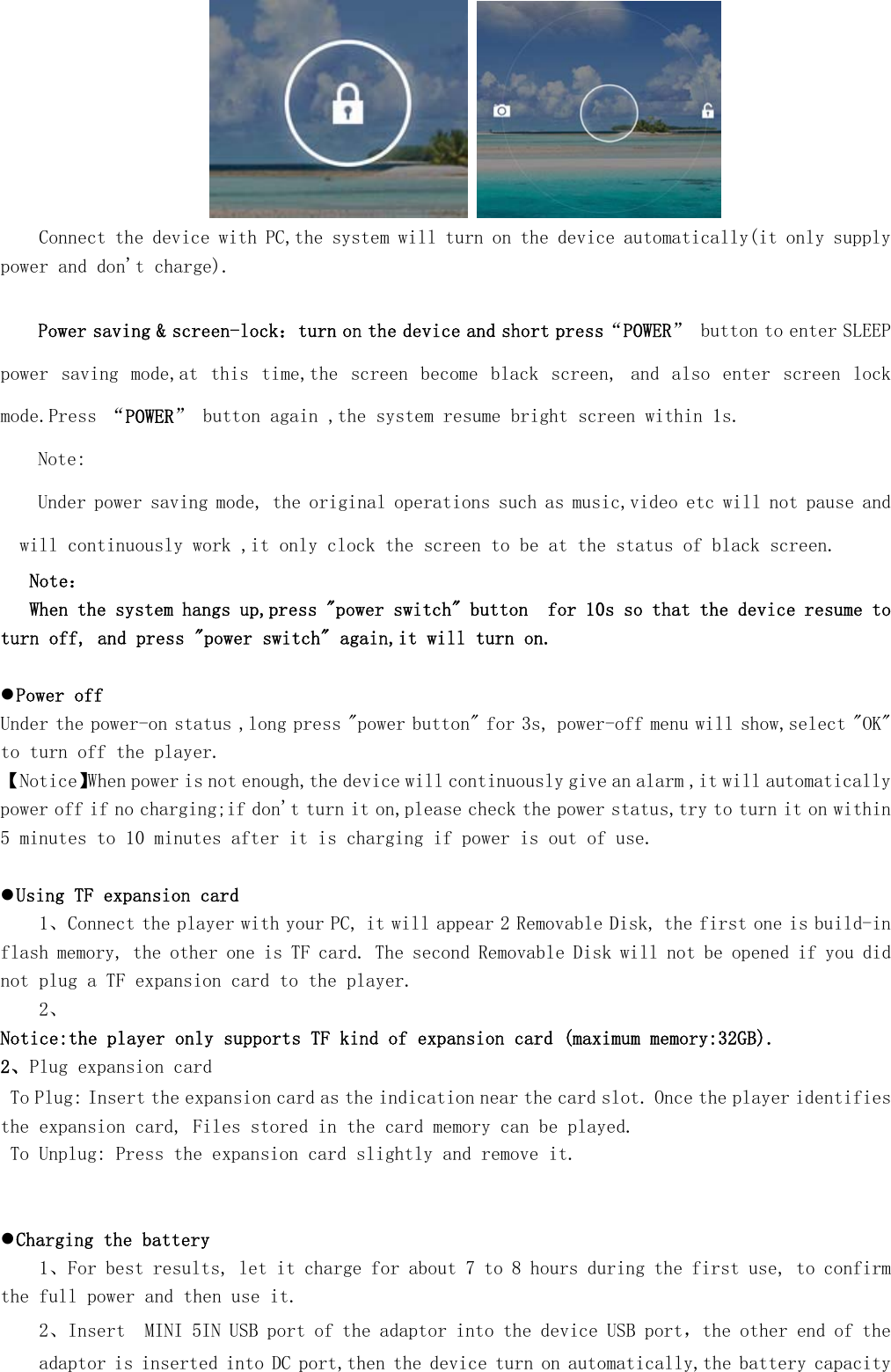
  Products Features  Button Introduce z Button Introduce 1. Power button:long press for 3 second is for turn on/off,short press for wake up screen;long press 10 Second is for Reset function. 2. Vol +: short/long press is volume up 3. Vol -: short/long press is volume down 4. Mic: Record built-in port 5. USB/OTG/Charger port: for U disk/mouse/keyboard and charging. 6. TF card:TF expand card port 7. HDMI out put  8. Earphone: 3.5mm earphone port  9. DC in:2.5MM DC12V 2A charging port 10. Camera hole                               一.Use preparation z Connecting to your PC Startup your PC, and connect the product to your PC with the provided USB Cable for USB charge or file transfer. The product will show connected and you can copy/delete files within the player through PC.   Notice: Do not play music or video while connected with PC. Please be aware that we claim no responsibility for damage caused by this improper  operation.   z Turn on     Under power on mode, long press "Power button" for 3 seconds,the system will enter android power-on status bar,and about 100s later enter the system menu,the screen is locked,hold   lock tap to drag up to the green point position,the device will unlock automatically,just as the following picture shows:
     Connect the device with PC,the system will turn on the device automatically(it only supply power and don't charge).  Power saving & screen-lock:turn on the device and short press“POWER” button to enter SLEEP power  saving  mode,at  this  time,the  screen become black  screen,  and  also  enter  screen  lock mode.Press “POWER” button again ,the system resume bright screen within 1s. Note: Under power saving mode, the original operations such as music,video etc will not pause and will continuously work ,it only clock the screen to be at the status of black screen.    Note:    When the system hangs up,press "power switch" button  for 10s so that the device resume to turn off, and press "power switch" again,it will turn on.  z Power off Under the power-on status ,long press "power button" for 3s, power-off menu will show,select "OK" to turn off the player. 【Notice】When power is not enough,the device will continuously give an alarm ,it will automatically power off if no charging;if don't turn it on,please check the power status,try to turn it on within 5 minutes to 10 minutes after it is charging if power is out of use.   z Using TF expansion card 1、Connect the player with your PC, it will appear 2 Removable Disk, the first one is build-in flash memory, the other one is TF card. The second Removable Disk will not be opened if you did not plug a TF expansion card to the player. 2、 Notice:the player only supports TF kind of expansion card (maximum memory:32GB).  2、Plug expansion card  To Plug: Insert the expansion card as the indication near the card slot. Once the player identifies the expansion card, Files stored in the card memory can be played.    To Unplug: Press the expansion card slightly and remove it.    z Charging the battery 1、For best results, let it charge for about 7 to 8 hours during the first use, to confirm the full power and then use it.  2、Insert  MINI 5IN USB port of the adaptor into the device USB port,the other end of the adaptor is inserted into DC port,then the device turn on automatically,the battery capacity
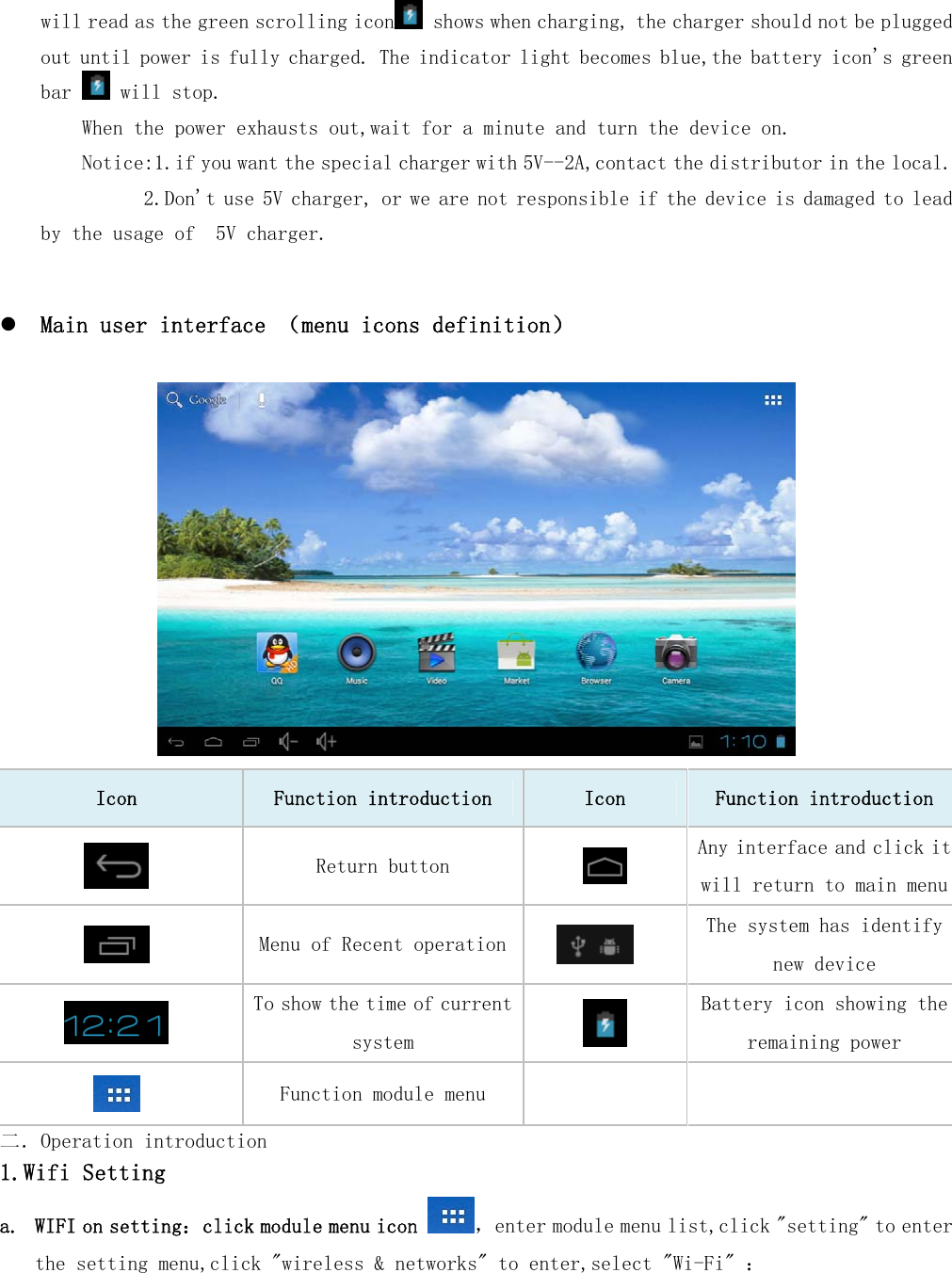
  will read as the green scrolling icon  shows when charging, the charger should not be plugged out until power is fully charged. The indicator light becomes blue,the battery icon's green bar   will stop.  When the power exhausts out,wait for a minute and turn the device on. Notice:1.if you want the special charger with 5V--2A,contact the distributor in the local.       2.Don't use 5V charger, or we are not responsible if the device is damaged to lead by the usage of  5V charger.   z Main user interface (menu icons definition)   Icon  Function introduction  Icon  Function introduction  Return button   Any interface and click it will return to main menu Menu of Recent operation  The system has identify new device   To show the time of current system   Battery icon showing the remaining power  Function module menu    二.Operation introduction 1.Wifi Setting a. WIFI on setting:click module menu icon  ,enter module menu list,click "setting" to enter the setting menu,click "wireless & networks" to enter,select "Wi-Fi" :
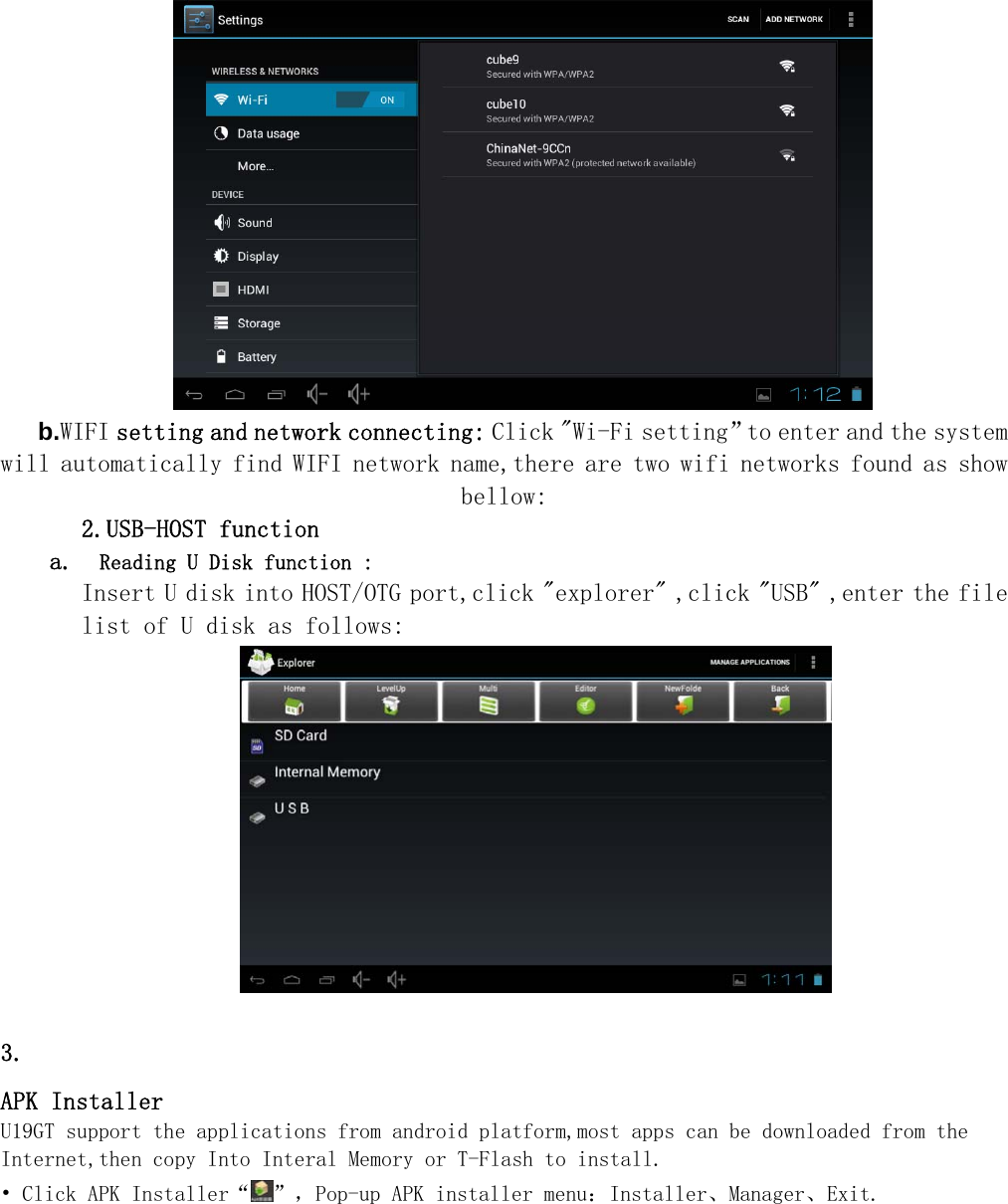
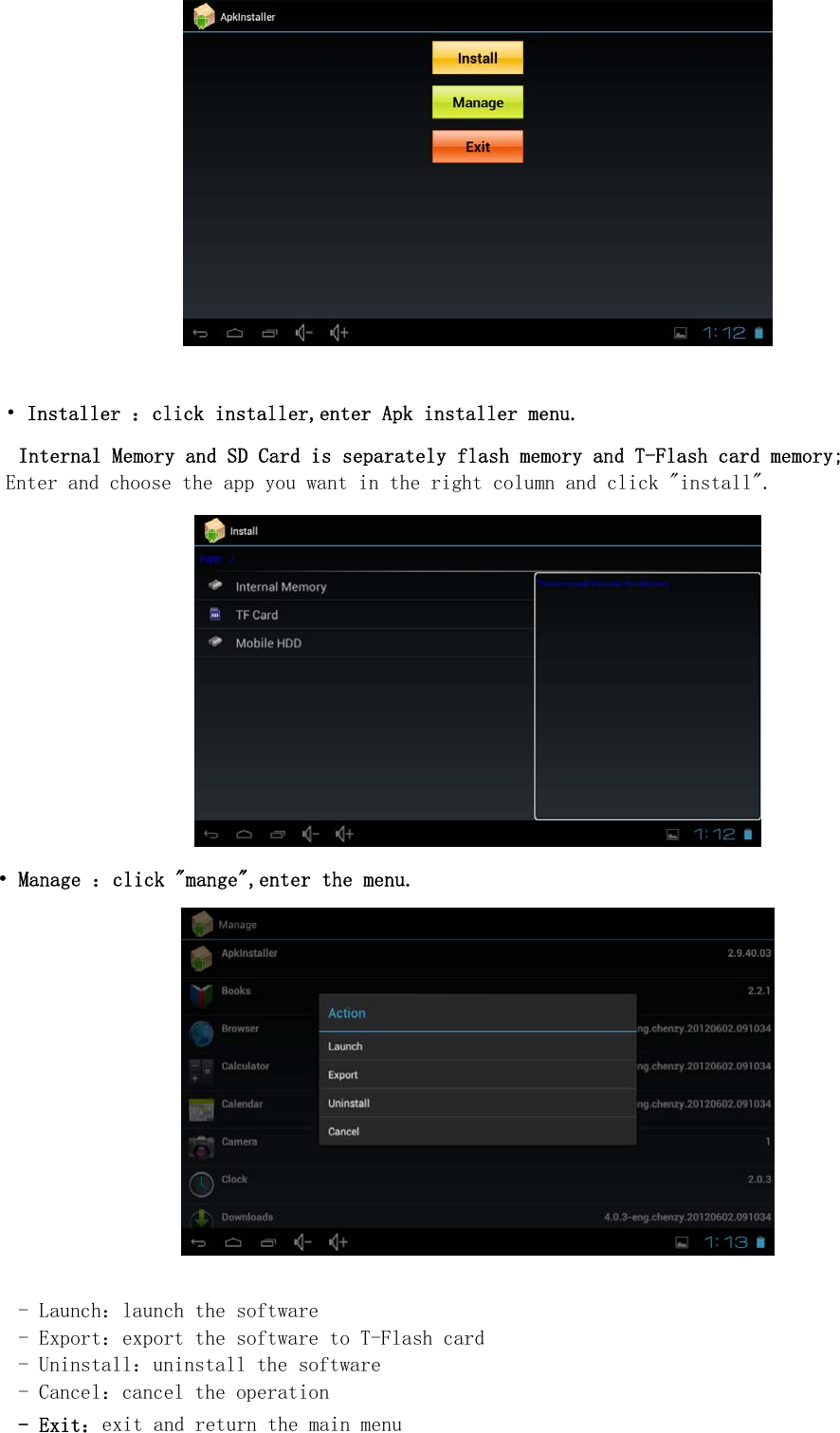
   b.WIFI setting and network connecting: Click "Wi-Fi setting”to enter and the system will automatically find WIFI network name,there are two wifi networks found as show bellow: 2.USB-HOST function a.  Reading U Disk function : Insert U disk into HOST/OTG port,click "explorer" ,click "USB" ,enter the file list of U disk as follows:         3. APK Installer U19GT support the applications from android platform,most apps can be downloaded from the Internet,then copy Into Interal Memory or T-Flash to install. • Click APK Installer“ ”,Pop-up APK installer menu:Installer、Manager、Exit.
     • Installer :click installer,enter Apk installer menu. Internal Memory and SD Card is separately flash memory and T-Flash card memory; Enter and choose the app you want in the right column and click "install".  • Manage :click "mange",enter the menu.   - Launch:launch the software - Export:export the software to T-Flash card - Uninstall:uninstall the software - Cancel:cancel the operation - Exit:exit and return the main menu
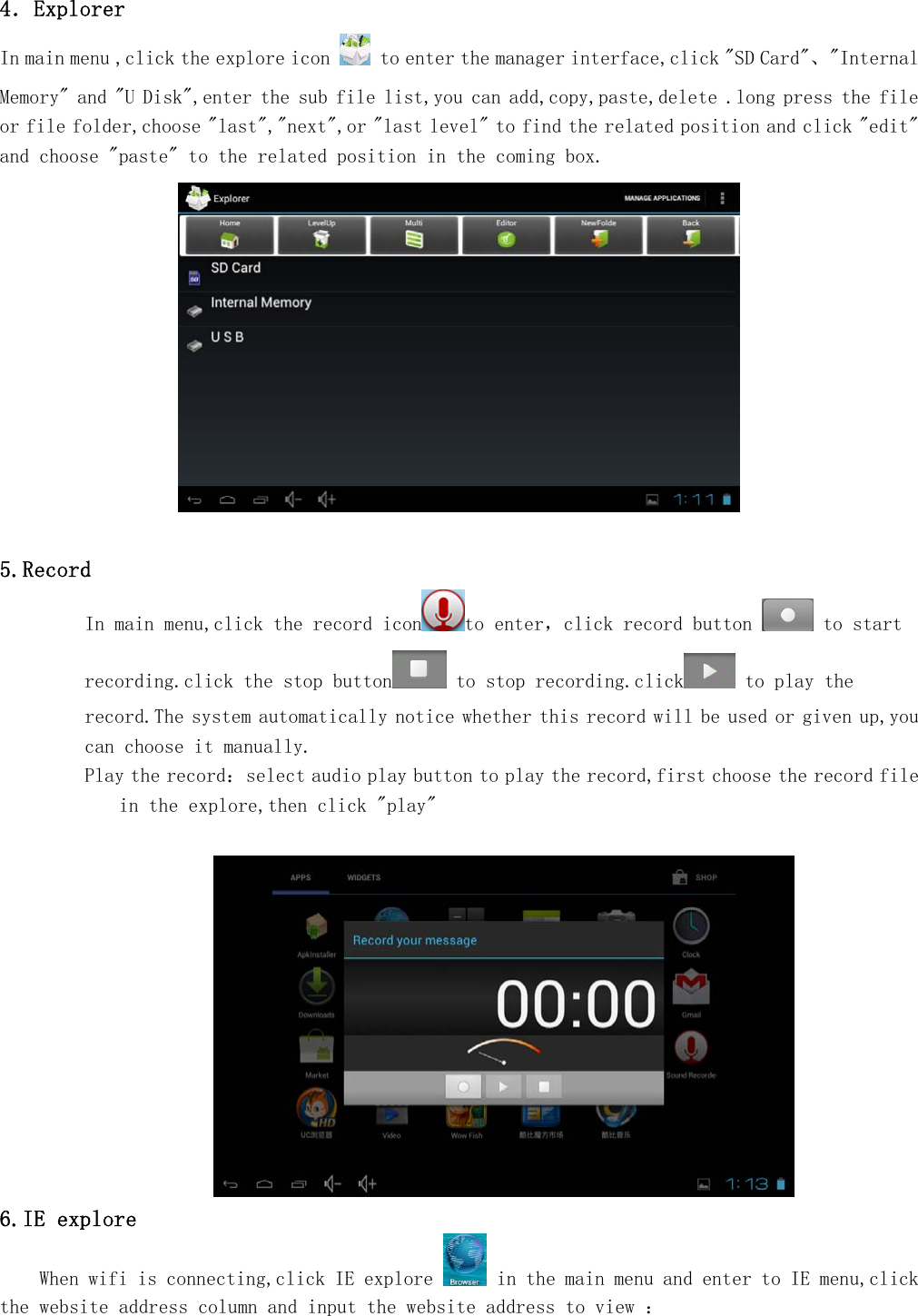
  4.Explorer In main menu ,click the explore icon   to enter the manager interface,click "SD Card"、"Internal Memory" and "U Disk",enter the sub file list,you can add,copy,paste,delete .long press the file or file folder,choose "last","next",or "last level" to find the related position and click "edit" and choose "paste" to the related position in the coming box.    5.Record In main menu,click the record icon to enter,click record button   to start recording.click the stop button  to stop recording.click  to play the record.The system automatically notice whether this record will be used or given up,you can choose it manually. Play the record:select audio play button to play the record,first choose the record file in the explore,then click "play"   6.IE explore     When wifi is connecting,click IE explore   in the main menu and enter to IE menu,click the website address column and input the website address to view :
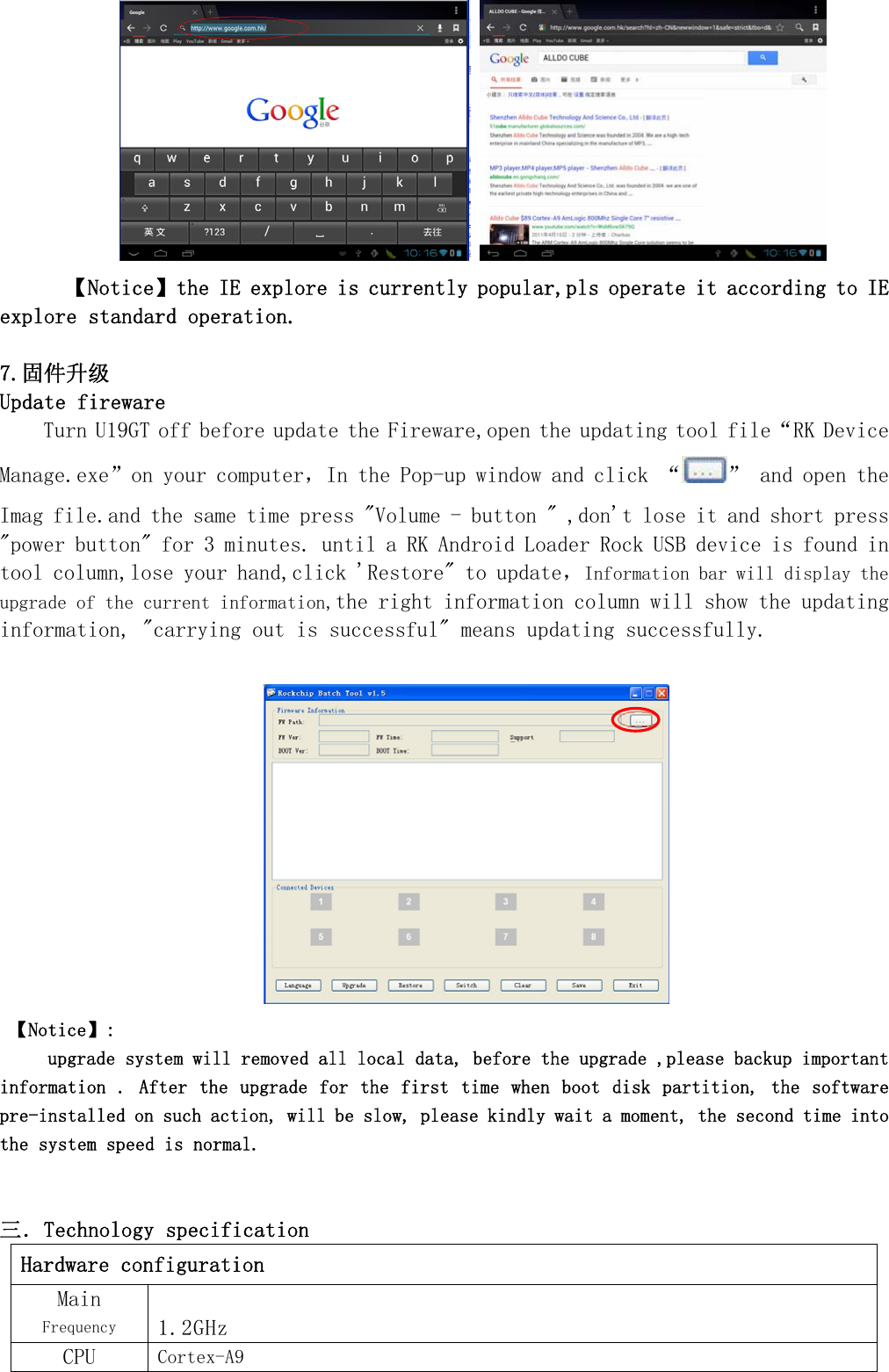
    【Notice】the IE explore is currently popular,pls operate it according to IE explore standard operation.   7.固件升级 Update fireware Turn U19GT off before update the Fireware,open the updating tool file“RK Device Manage.exe”on your computer,In the Pop-up window and click “ ” and open the Imag file.and the same time press "Volume - button " ,don't lose it and short press "power button" for 3 minutes. until a RK Android Loader Rock USB device is found in tool column,lose your hand,click 'Restore" to update,Information bar will display the upgrade of the current information,the right information column will show the updating information, "carrying out is successful" means updating successfully.   【Notice】:     upgrade system will removed all local data, before the upgrade ,please backup important information . After the  upgrade for the  first time when  boot disk partition, the software pre-installed on such action, will be slow, please kindly wait a moment, the second time into the system speed is normal.   三.Technology specification Hardware configuration Main Frequency 1.2GHz CPU  Cortex-A9
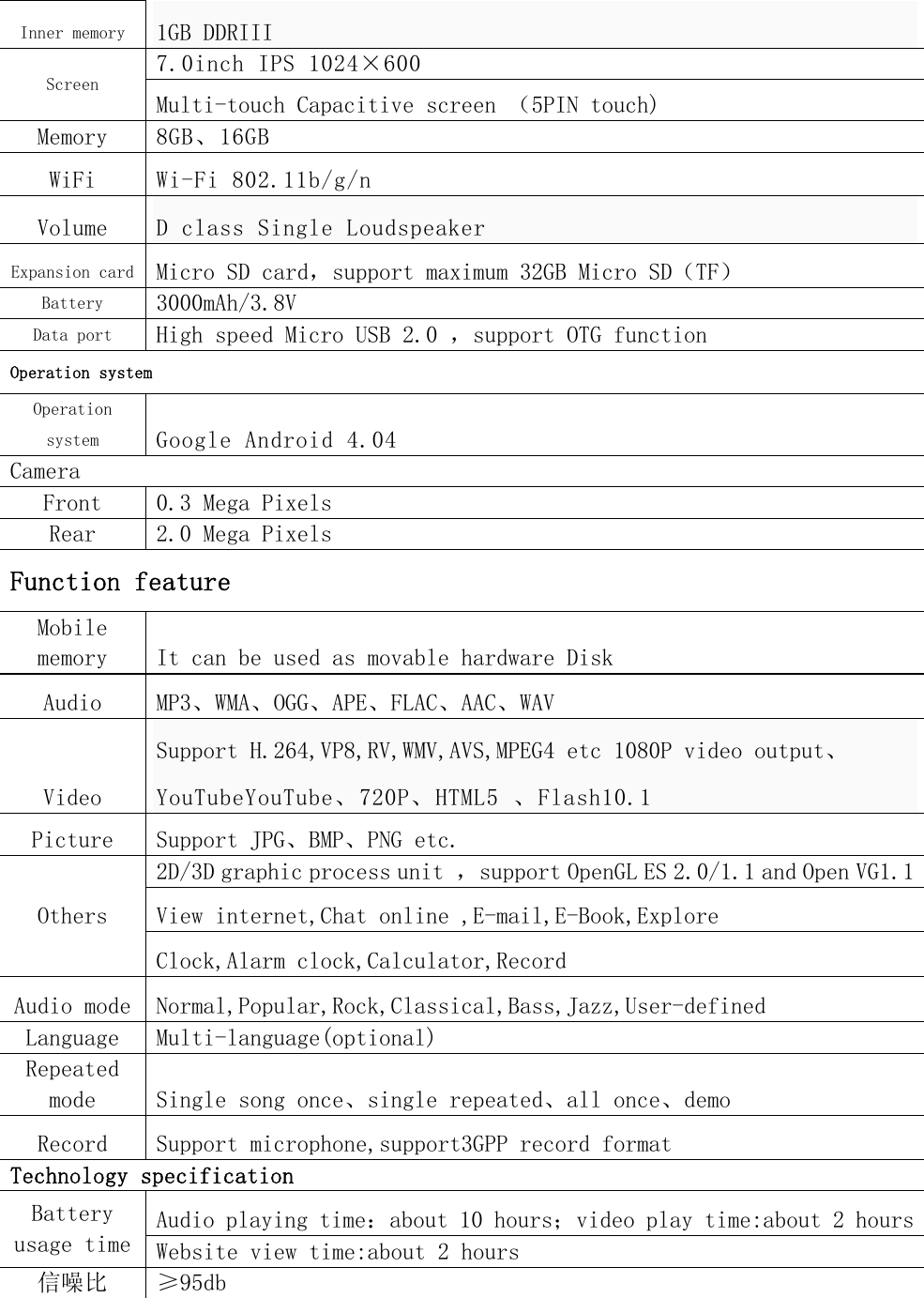
  Inner memory 1GB DDRIII 7.0inch IPS 1024×600 Screen Multi-touch Capacitive screen (5PIN touch) Memory  8GB、16GB WiFi  Wi-Fi 802.11b/g/n Volume  D class Single Loudspeaker  Expansion card Micro SD card,support maximum 32GB Micro SD(TF) Battery 3000mAh/3.8V Data port High speed Micro USB 2.0 ,support OTG function Operation system Operation system Google Android 4.04 Camera Front  0.3 Mega Pixels Rear  2.0 Mega Pixels Function feature Mobile memory  It can be used as movable hardware Disk Audio  MP3、WMA、OGG、APE、FLAC、AAC、WAV Video Support H.264,VP8,RV,WMV,AVS,MPEG4 etc 1080P video output、YouTubeYouTube、720P、HTML5 、Flash10.1 Picture  Support JPG、BMP、PNG etc. 2D/3D graphic process unit ,support OpenGL ES 2.0/1.1 and Open VG1.1View internet,Chat online ,E-mail,E-Book,Explore Others Clock,Alarm clock,Calculator,Record Audio mode  Normal,Popular,Rock,Classical,Bass,Jazz,User-defined  Language  Multi-language(optional) Repeated mode  Single song once、single repeated、all once、demo  Record  Support microphone,support3GPP record format Technology specification Audio playing time:about 10 hours;video play time:about 2 hoursBattery usage time  Website view time:about 2 hours 信噪比  ≥95db
  【Note】: The picture on the manual is only for reference.There is no notice if the specification,button operation and appearance are exchanged. Hope you can understand.  Declaration Pls backup the own data when you operate it.The company is not responsible for the loss and  damage  of  data  caused    by  wrongly  operating  hardware,software,product  repair,battery replacement  or  other  unforeseen  circumstances.  Meanwhile,we  can  not  control  the  user ’ s misunderstand of using the manual, so the company is not responsible for the accidental damage,and not responsible for the third part claims caused by using the products.     FCC Statement: This equipment has been tested and found to comply with the limits for a Class B digital device, pursuant to part 15 of the FCC Rules. These limits are designed to provide reasonable protection against harmful interference in a residential installation. This equipment generates, uses and can  radiate  radio  frequency  energy  and,  if  not  installed  and  used  in  accordance  with  the instructions, may cause harmful interference to radio communications. However, there is no guarantee that interference will not occur in a particular installation. If this equipment does cause harmful interference to radio or television reception, which can be determined by turning the equipment off and on, the user is encouraged to try to correct the interference by one or more of the following measures: —Reorient or relocate the receiving antenna. —Increase the separation between the equipment and receiver. —Connect the equipment into an outlet on a circuit different from that to which the receiver is connected. —Consult the dealer or an experienced radio/TV technician for help. Caution:  Any  changes  or  modifications  not  expressly  approved  by  the  party  responsible for compliance could void the user's authority to operate the equipment.   7KLVGHYLFHFRPSOLHVZLWK3DUWRIWKH)&&5XOHV2SHUDWLRQLVVXEMHFWWRWKHIROORZLQJWZRFRQGLWLRQVWKLVGHYLFHPD\QRWFDXVHKDUPIXOLQWHUIHUHQFHDQGWKLVGHYLFHPXVWDFFHSWDQ\LQWHUIHUHQFHUHFHLYHGLQFOXGLQJLQWHUIHUHQFHWKDWPD\FDXVHXQGHVLUHGRSHUDWLRQ

Navigation menu