Cameo Communications WLB2006 802.11b WIRLESS ACCESS POINT User Manual USERS MANUAL
Cameo Communications Inc 802.11b WIRLESS ACCESS POINT USERS MANUAL
USERS MANUAL
Wireless LAN Access Point
User Guide
Regulatory notes and statements
Wireless LAN, Health and Authorization for use
Radio frequency electromagnetic energy is emitted from Wireless LAN
devices. The energy levels of these emissions however are far much less than
the electromagnetic energy emissions from wireless devices like for example
mobile phones. Wireless LAN devices are safe for use frequency safety
standards and recommendations. The use of Wireless LAN devices may be
restricted in some situations or environments for example:
·On board of airplanes, or
·In an explosive environment, or
·In case the interference risk to other devices or services is perceived or
identified as harmful
In case the policy regarding the use of Wireless LAN devices in specific
organizations or environments (e.g. airports, hospitals, chemical/oil/gas
industrial plants, private buildings etc.) is not clear, please ask for
authorization to use these devices prior to operating the equipment.
Regulatory Information/disclaimers
Installation and use of this Wireless LAN device must be in strict accordance
with the instructions included in the user documentation provided with the
product. Any changes or modifications made to this device that are not
expressly approved by the manufacturer may void the user’s authority to
operate the equipment. The Manufacturer is not responsible for any radio or
television interference caused by unauthorized modification of this device, of
the substitution or attachment. Manufacturer and its authorized resellers or
distributors will assume no liability for any damage or violation of
government regulations arising from failing to comply with these guidelines.
USA-FCC (Federal Communications Commission) statement
This device complies with Part 15 of FCC Rules.
Operation is subject to the following two conditions:
1. This device may not cause interference, and
2. This device must accept any interference, including interference that may
cause undesired operation of this device.
FCC Radio Frequency Exposure statement
This Wireless LAN radio device has been evaluated under FCC Bulletin OET
65 and found compliant to the requirements as set forth in CFR 47 Sections
2.1091, 2.1093, and 15.247 (b) (4) addressing RF Exposure from radio
frequency devices. The radiated output power of this Wireless LAN device is
far below the FCC radio frequency exposure limits. Nevertheless, this device
shall be used in such a manner that the potential for human contact during
normal operation is minimized.
When nearby persons has to be kept to ensure RF exposure compliance, in
order to comply with RF exposure limits established in the ANSI C95.1
standards, the distance between the antennas and the user should not be less
than 20 cm.
FCC Interference Statement
This equipment has been tested and found to comply with the limits for a
Class B digital device, pursuant to Part 15 of the FCC Rules. These limits are
designed to provide reasonable protection against harmful interference in a
residential installation.
This equipment generates, uses, and can radiate radio frequency energy. If not
installed and used in accordance with the instructions, it may cause harmful
interference to radio communications.
However, there is no guarantee that interference will not occur in a particular
installation. If this equipment does cause harmful interference to radio or
television reception, which can be determined by turning the equipment off
and on, the user is encouraged to try and correct the interference by one or
more of the following measures:
1. Reorient or relocate the receiving antenna.
2. Increase the distance between the equipment and the receiver.
3. Connect the equipment to an outlet on a circuit different from that to which
the receiver is connected.
4. Consult the dealer or an experienced radio/TV technician for help.
Export restrictions
This product or software contains encryption code that may not be exported or
transferred from the US of Canada without an approved US Department of
Commerce export license.
Safety Information
Your device contains a low power transmitter. When device is transmitted it
sends out radio frequency (RF) signal.
CAUTION: To maintain compliance with FCC’s RF exposure guidelines, this
equipment should be installed and operated with minimum distance 20cm
between the radiator and your body. Use on the supplied antenna.
Unauthorized antenna, modification, or attachments could damage the
transmitter and may violate FCC regulations.
CE Mark Warning
This is a Class B product. In a domestic environment, this product
may cause radio interference, in which case the user may be required
to take adequate measures.
Declaration of Conformity for R&TTE directive 1999/5/EC
Essential requirements – Article 3
Protection requirements for health and safety – Article 3.1a
Testing for electric safety according to EN 60950 has been conducted. These are
considered relevant and sufficient.
Protection requirements for electromagnetic compatibility – Article 3.1b
Testing for electromagnetic compatibility according to EN 301 489-1 and
EN 301
489-17 has been conducted. These are considered relevant and sufficient.
Effective use of the radio spectrum – Article 3.2
Testing for radio test suites according to EN 300 328-
2 has been conducted. These
are considered relevant and sufficient.
Hereby, [CAMEO COMMUNICATIONS, INC.], declares that this [
IEEE 802.11b
Wireless Access Point] is
in compliance with the essential requirements and other
relevant provisions of Directive 1999/5/EC.”

TABLE OF CONTENT
About This Guide................................................................................. 1
Purpose ............................................................................................1
Overview of this User’s Guide......................................................... 1
Unpacking and Setup........................................................................... 3
Unpacking........................................................................................3
Setup ................................................................................................ 3
Hardware Instalation............................................................................5
LED Indicator .................................................................................. 5
Rear Panel........................................................................................ 6
Hardware connections...................................................................... 7
Connect to the Switch/Hub ..........................................................7
Check the installation...................................................................7
Configuring the Wireless LAN Access Point ......................................9
Login................................................................................................ 9
Site Contents of the Access Point ..................................................10
Status..............................................................................................11
Wireless ......................................................................................... 12
TCP/IP Setting...............................................................................16
Statistics......................................................................................... 17
Upgrade Firmware ......................................................................... 17
Save/Reload Settings .....................................................................18
Password Settings ..........................................................................19
Technical Specifications....................................................................21
1
ABOUT THIS GUIDE
Congratulations on your purchase of this IEEE 802.11b Wireless LAN
Access Point. This manual helps to features the innovating wireless
technology that can help you build a wireless network easily! This
manual contains detailed instructions in operation of this product.
Please keep this manual for future reference.
With a WLAN (IEEE 802.11b) Access Point, a mobile computer can share
data with another mobile computer in a wireless way. Easy-to-use utilities are
bundled with WLAN Access Point for configuration and monitoring purposes.
WLAN networking can wirelessly transmit and receive data, minimizing the
need for wired connections, at a speed of up to eleven megabit per second.
With WLAN networking, you can locate your PC wherever you want without
wires and cables.
WLAN networking provides users with an access to real-time information
anywhere in their organization. The mobility provides productivity and
service, which are not available under wired networks.
Purpose
This manual discusses how to install the WLAN Access Point.
Overview of this User’s Guide
Introduction. Describes the WLAN Access Point and its features.
Unpacking and Setup. Helps you get started with the basic installation of the
WLAN Access Point.
Hardware Installation. Describes the LED indicators of the AP.
Software Installation. Tells how to setup the driver and the utility setting.
Technical Specifications. Lists the technical (general, physical and
environmental) specifications of the WLAN Access Point.

3
UNPACKING AND SETUP
This chapter provides unpacking and setup information for the Access
Point.
Unpacking
Open the box of the Access Point and carefully unpack it. The box
should contain the following items:
One Wireless Access Point
One external power adapter
One USB cable (A type to B type)
One Installation CD (Driver & Utility + User’s guide)
Two SMA reverse type antenna (2dBi) (for optional external
antenna of 802.11b Wireless Access Point)
If any item is found missing or damaged, please contact your local
reseller for replacement.
Setup
The setup of the Wireless Access Point can be performed using the
following steps:
Locate an optimum location for the Wireless LAN Access Point
(AP). The best place for your AP is usually the center of your
wireless network, with line of sight to all of your mobile stations.
Visually inspect the Ethernet RJ45 port connector and make
sure that it is fully plugged in to the system’s Ethernet
switch/hub port.
Fix the direction of the antennas. Try to place the AP in a
position that can best cover your wireless network. Normally,

4
the higher you place the antenna, the better the performance will
be. The antenna’s position enhances the receiving sensitivity.
Visually inspect if the Power Adaptor was fully plugged to the
device power jack.
5
HARDWARE INSTALATION
LED Indicator
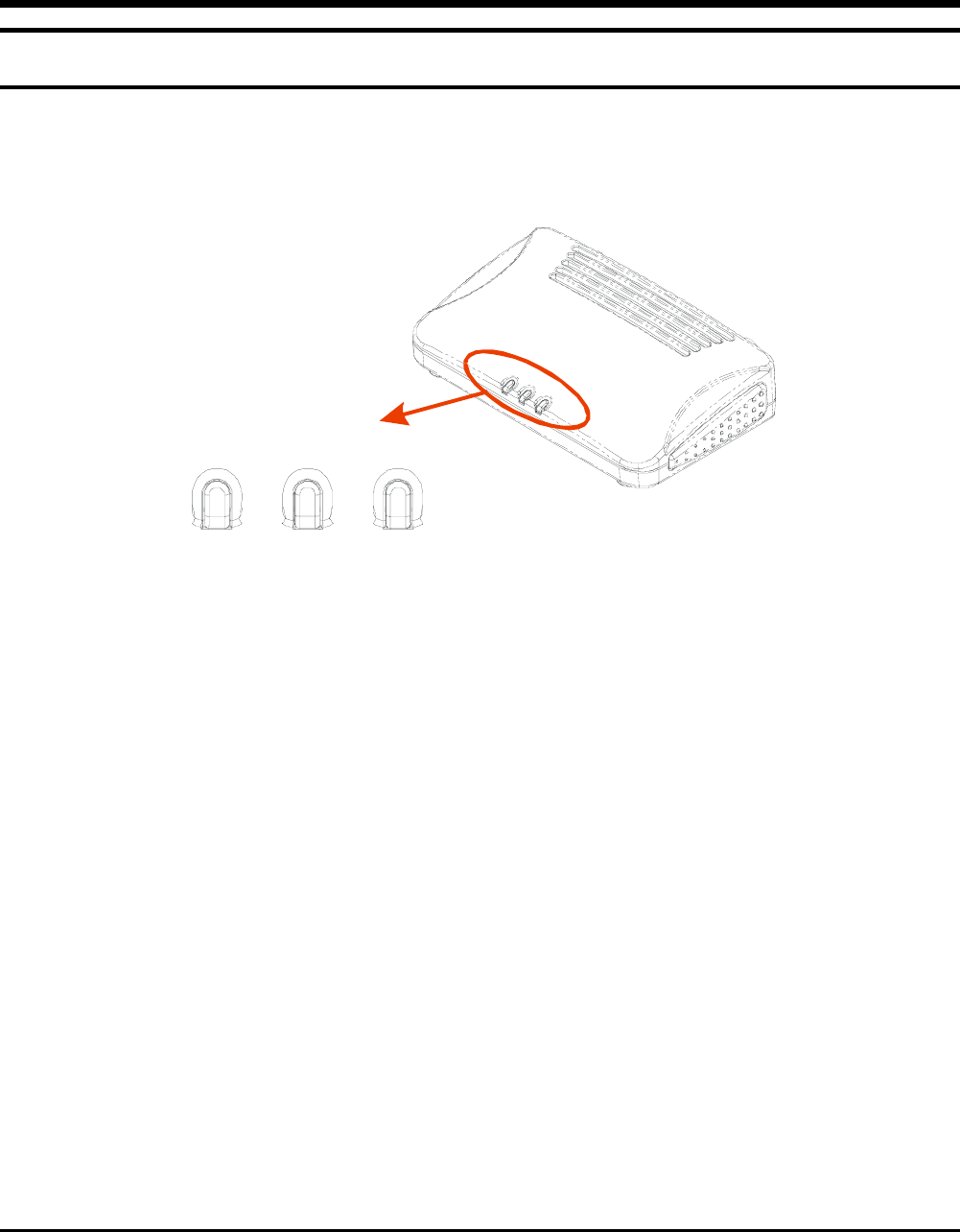
The figure below shows the LED Indicator of the Wireless LAN
Access Point.
Power LAN WLAN
Front View
POWER
This indicator lights green when the Access Point receives power.
Otherwise, it turns off.
LAN (Link/ACT)
The indicator lights green when the LAN port is connected to a
100Mbps Ethernet station, the indicator blinks green while
transmitting or receiving data on the 100Mbps Ethernet network.
WLAN (Link)
The indicator blinks green when the wireless station connected to the
AP, the AP is always transmitting or receiving data once a wireless
device is connected, otherwise, the light turns off.
6
Rear Panel
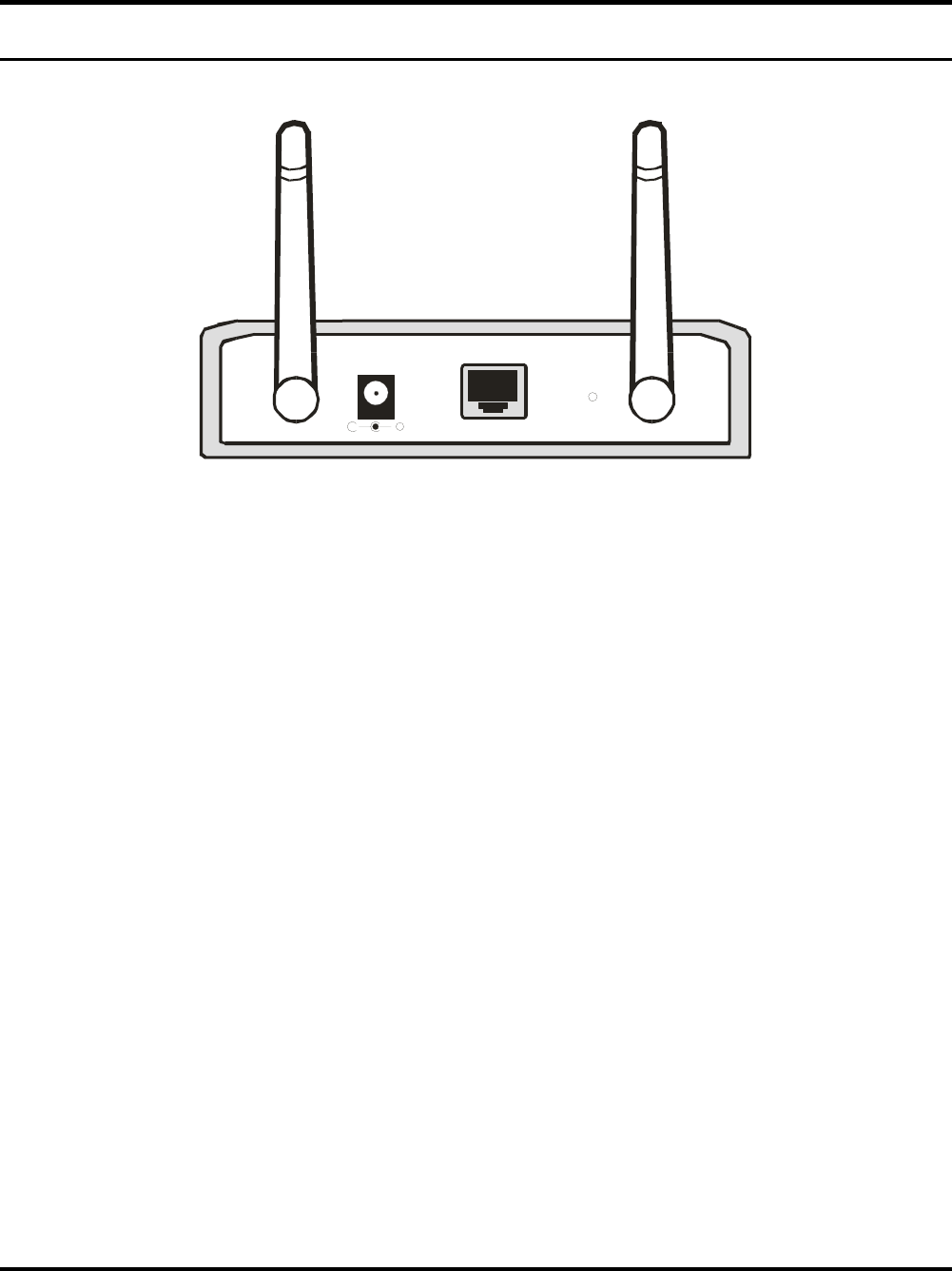
The figure below shows the rear panel of the Access Point
- +
Ethernet Reset
Rear Panel
Ethernet
Ethernet uplink port with auto-sensing for connecting to either
10/100Mbps Fast Ethernet connections, connect this port to
switch/hub.
Reset
There is two function by pressing the “Reset” button, one is software
reboot and the other is factory reset.
Software Reboot: to reboot the Access Point, press the “Reset”
button.
Factory Reset: to reset the setting back to factory default setting,
press the “Reset” button within 10 seconds, once you press the
button, the LED of the WLAN will shut down and when the
Access Point is ready, the LED will start blinking.
DC Power
Connect the AC Power Adapter to the AP’s power jack.
7
Hardware connections
Sw i t c h / Hu b
PC
Notebook
Notebook
Ethernet port
Wire l e ss LA N Ne t w o rki ng
Connect to the Switch/Hub
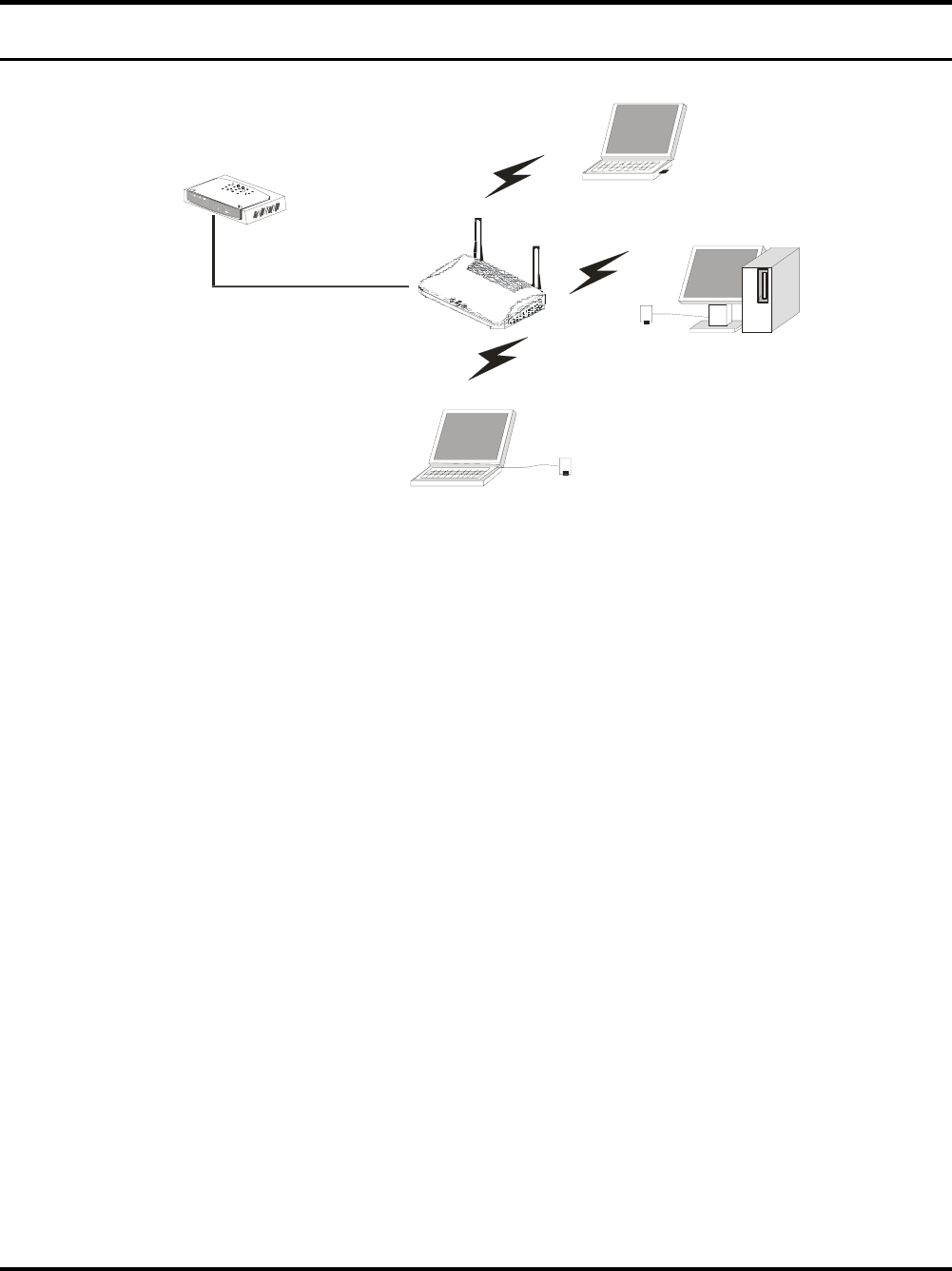
1. Plug in one end of the RJ45 network cable to the Switch/Hub port,
2. Plug in the other end of the RJ45 network cable to the Wireless
Access Point.
Check the installation
The control LEDs of the Access Point are clearly visible and the status
of the network link can be seen instantly:
1. With the power source on, once the device is connected, the
Power, LAN and WLAN port link LEDs of the Internet
Broadband Router will light up indicating a normal status.
2. If the LAN Port’s Link indicator does not light up then check the
RJ-45 cable if it is firmly feed to the RJ45 port, while the LAN is
link up to the Switch/Hub, the LAN port’s LED will light up.
9
CONFIGURING THE WIRELESS LAN ACCESS POINT
The Wireless Access Point has a Web GUI interface for the
configuration. The AP can be configured through the Web Browser. A
network manager can manage, control and monitor the AP from the
local LAN. This section indicates how to configure the AP to enable
its functions.
Login
Before you configure this device, note that when the AP is configured
through an Ethernet connection, make sure the manager PC must be
set on same the IP network. For example, when the default network
address of the default IP address of the AP is 192.168.1.100, then the
manager PC should be set at 192.168.1.x (where x is a number
between 1 and 254), and the default subnet mask is 255.255.255.0.
Open Internet Explorer 5.0 or above Web browser.
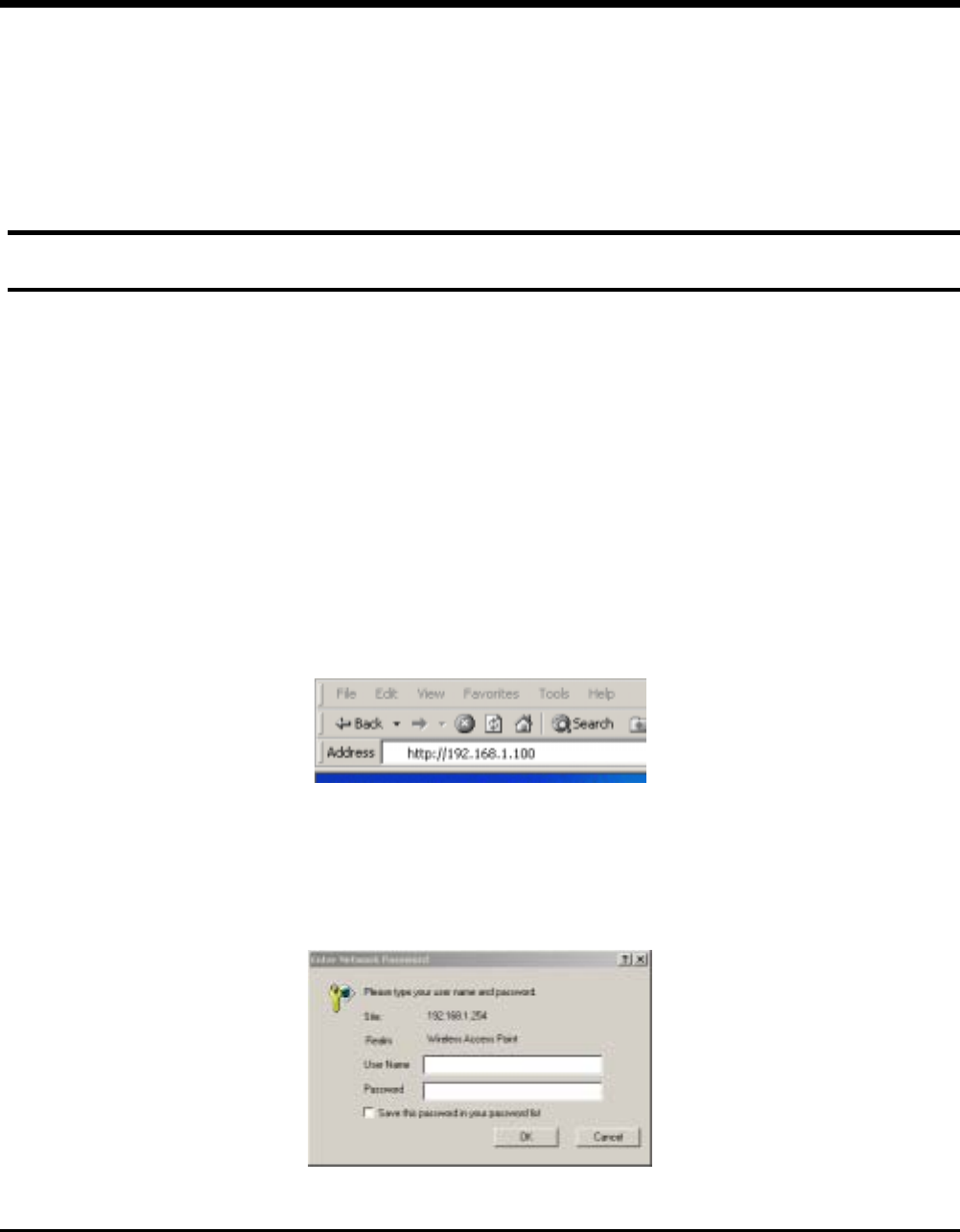
Enter IP address http://192.168.1.100 (the factory-default IP address
setting) to the address location.
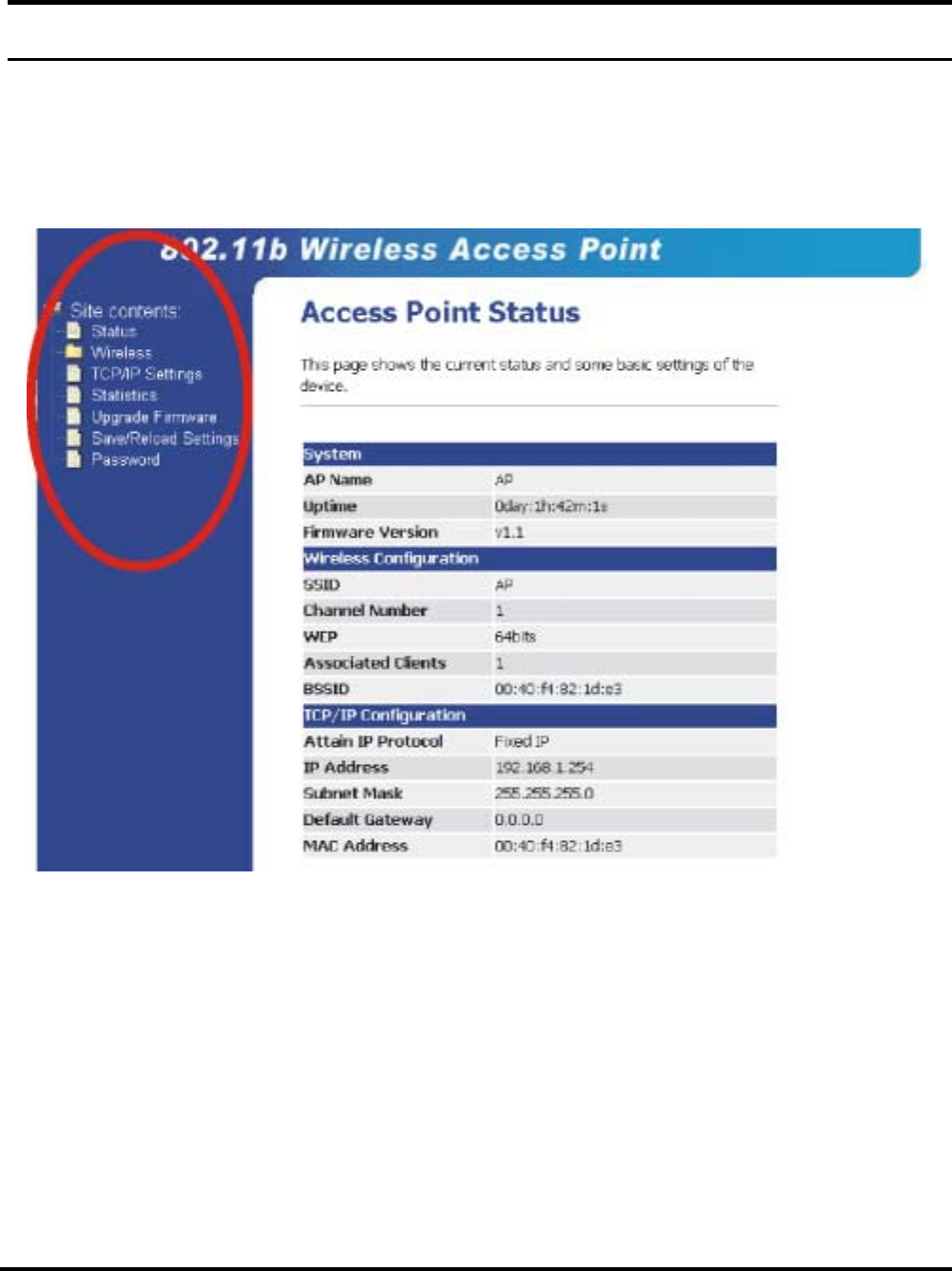
When there is a screen need to enter the Network password, it means
that there is a password settle, type in the password you entered before.
There is no need to enter any password when you first login the AP,
the default setting is without password.
10
Site Contents of the Access Point
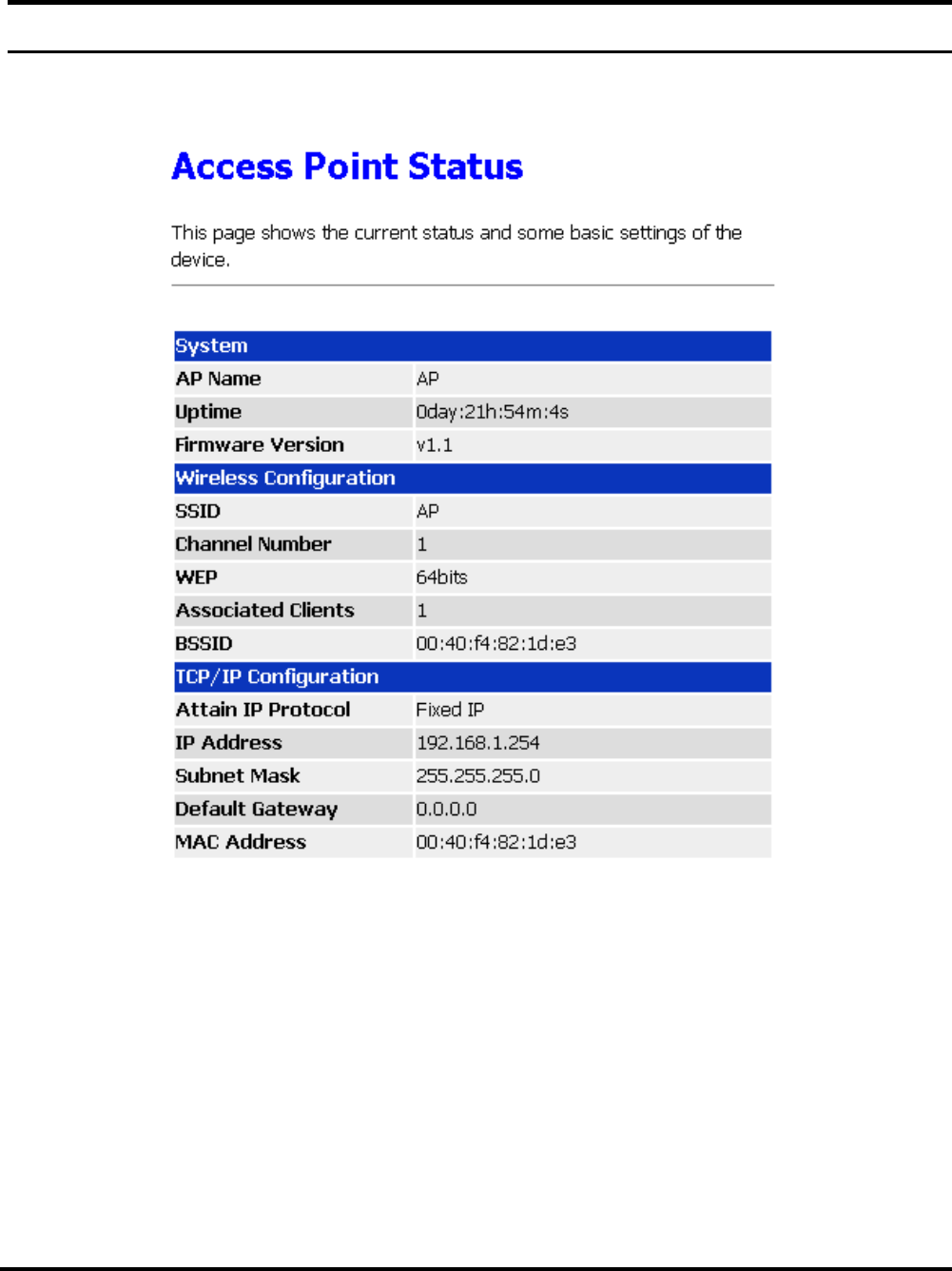
There are seven main functions included in the site contents: Status,
Wireless Settings, TCP/IP Settings, Statistics, Upgrade Firmware,
Save and Reload Settings and Password Settings. Point the selections in
the left side of the menu screen.
11
Status
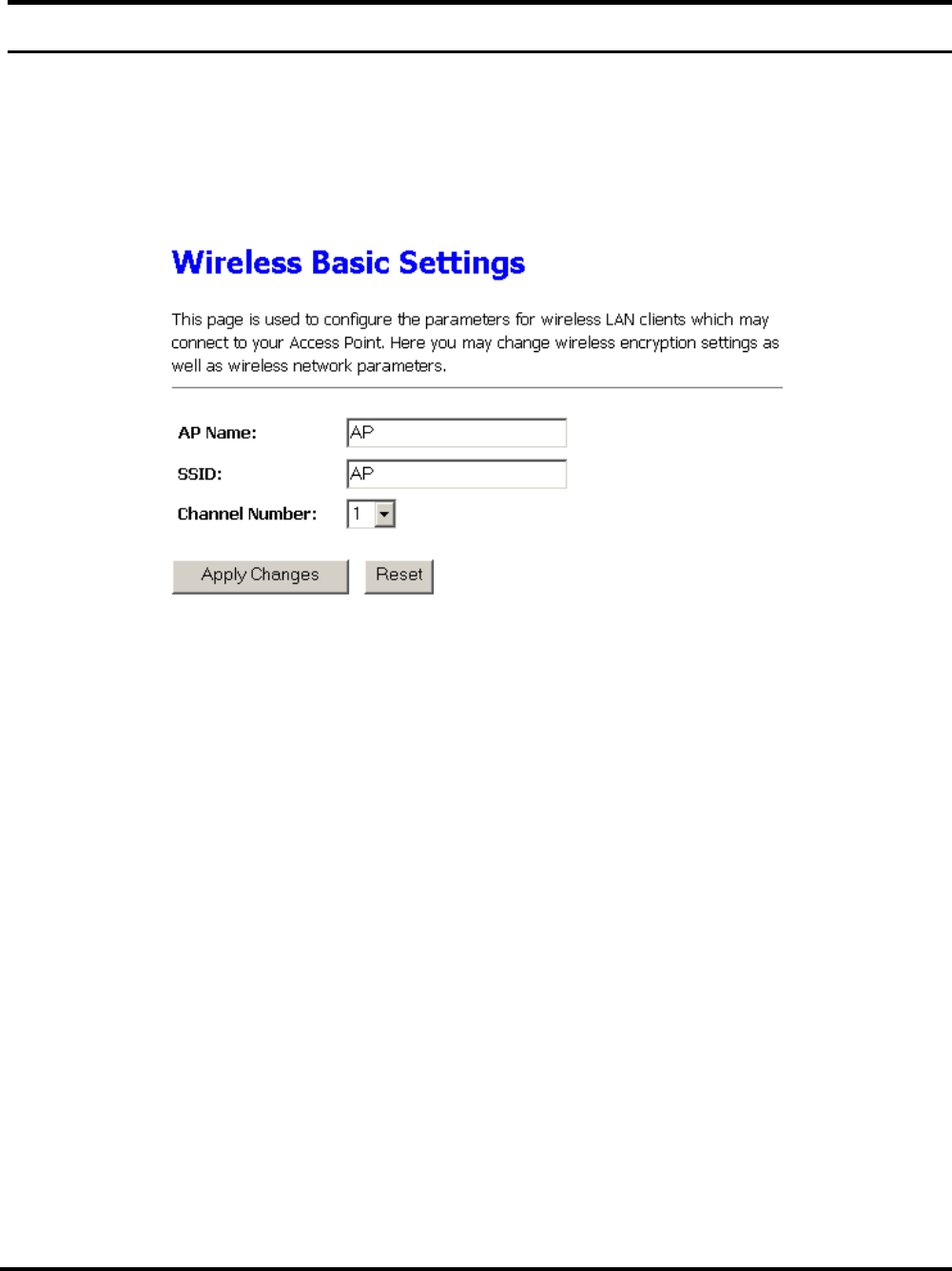
The Status Function shows the System, Wireless Configuration and
TCP/IP Configuration status and some settings of the Access Point.
12
Wireless
The Wireless Settings contain five minor settings, Basic Settings,
Advanced Settings, Security, Access Control and Connection List.
I. Basic Settings
This page is to set the AP Name, SSID and Channel Number.
AP Name: appoint a name for the AP.
SSID: It is an ASCII string up to 32 characters used to identify a
WLAN that prevents the unintentional merging of two co-
located WLANs. The SSID value must be the same in all
stations and AP in the extended WLAN.
Wireless Channel: There are 14 channels available. The
channels differ from country to country. Select the channel to be
used.
Click “Apply Changes” after you set your AP Name, SSID and
Channels to save the changes, or press “Reset” to set back to factory
default setting.
13
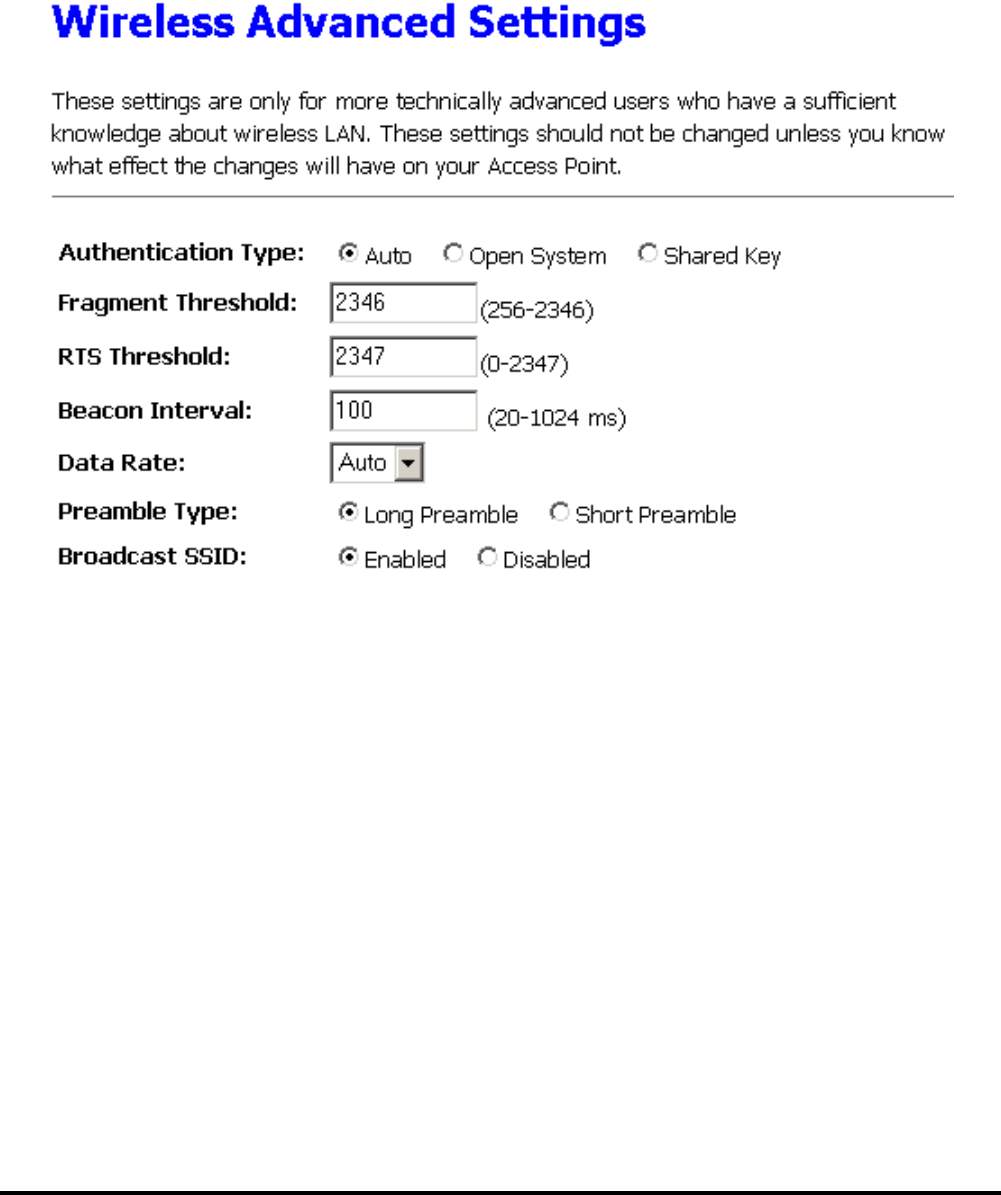
II. Advanced Settings
The Advanced Settings is to set the data transfering, this is used by
advanced users who knows what will effect the changes.
Authentication Type: to choose which authentication algorithm
will be used, open system, shared key or both type.
Fragment Threshold: the size at which packets will be
fragmented. Choose a setting within a range of 256 to 2346
bytes.
RTS Threshold: Choose a setting within a range of 0 to 2437
bytes. It is recommended limiting a long packet to prevent each
station waiting too long to transmit a data.
Beacon Interval: With Host AP mode, the most noticeable
effect of beacon interval is latency in sending unicast packets to
power saving stations and broadcast/multicast packets in general.

14
Data Rate: to select the transfer rate from 11, 5.5, 2, 1Mbps and
Auto.
Preamble Type: to limit the packet size of the data to transmit.
It is recommended to choose the short preamble when the link
quality is bad.
Broadcast SSID: to broadcast the SSID in the Wireless local
area network. When the function is disable, then the wireless
client can not detect the SSID while the client is surveying the
site of the AP.
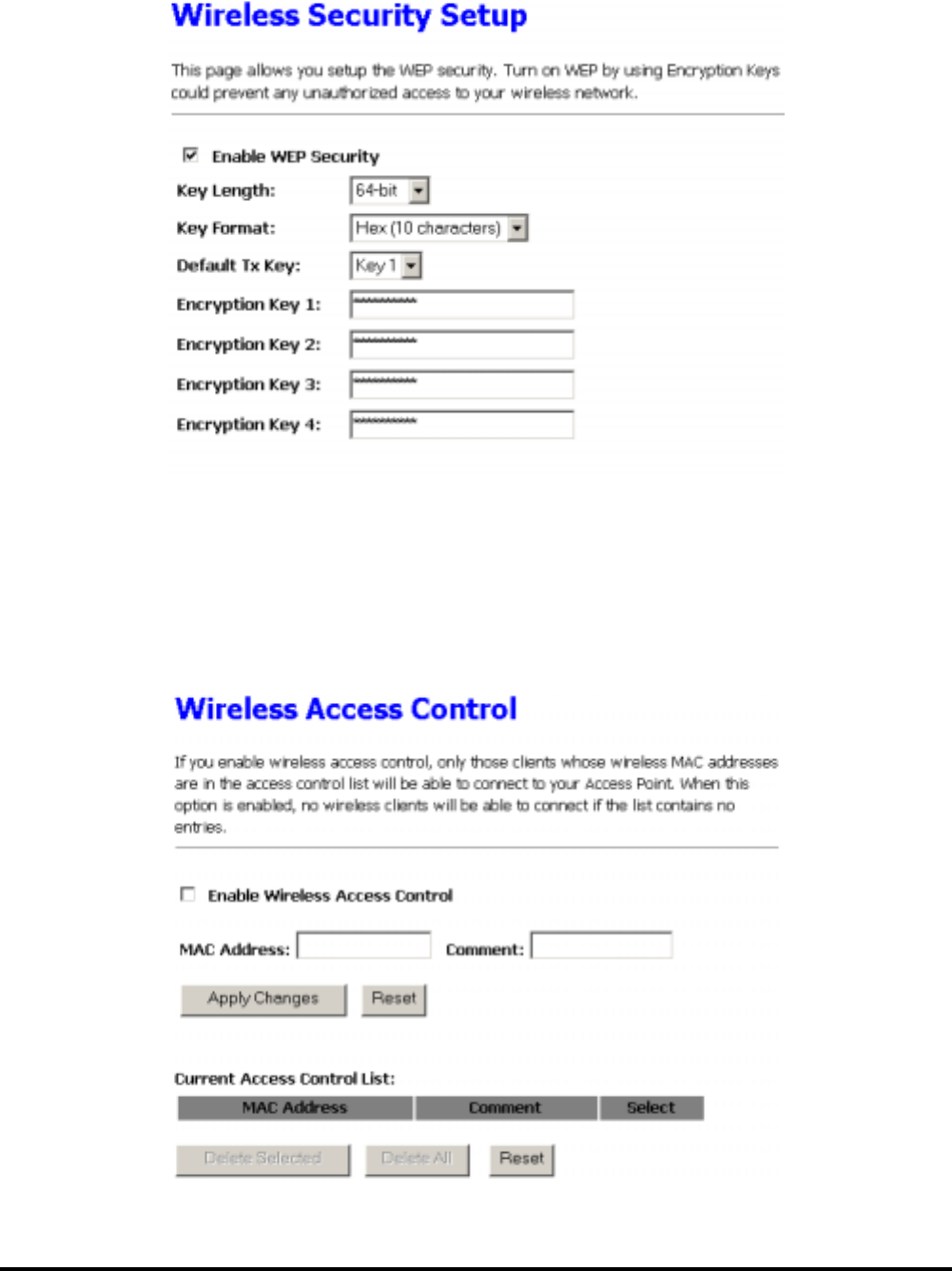
III. Security
This function is used to protect wireless communication from
eavesdropping. A secondary function of encryption is to prevent
unauthorized access to a wireless network, and it can be achieved by
using the Encryption function.
Click the Enable WEP Security to activate the security of the AP.
Key Length: to access the WEP Key in 64-bit or 128-bit.
Key Format: to access the key in ASCII format or Hex format.
Default Tx Key: to set the default WEP from Key#1 to Key#4.
Key Setting #1 ~ #4: you can type the key that you want to use
from Key#1 to Key #4, and the key that you type will be the
encryption between the station that you connected with, if you
select 64bit in Hex format, you must type 10 values in the
following range (0~F, hexadecimal), or 64bit in ASCII format,
you must type 5 values in the following range (0~9, A~Z and
a~z Alphanumeric). Besides, if you select 128bit in Hex format,
you must type 26 values (0~F, hexadecimal), or 128bit in ASCII
format, you must type 13 values in the following range (0~9,
A~Z and a~z Alphanumeric).
15
IV. Access Control
Access Control function allows clients whose MAC addresses in the
list will be able to connect to this Access Point. When this function is
activate, there is no wireless clients will be able to connect to the
Access Point unless they are listed in the Access Control list.
16
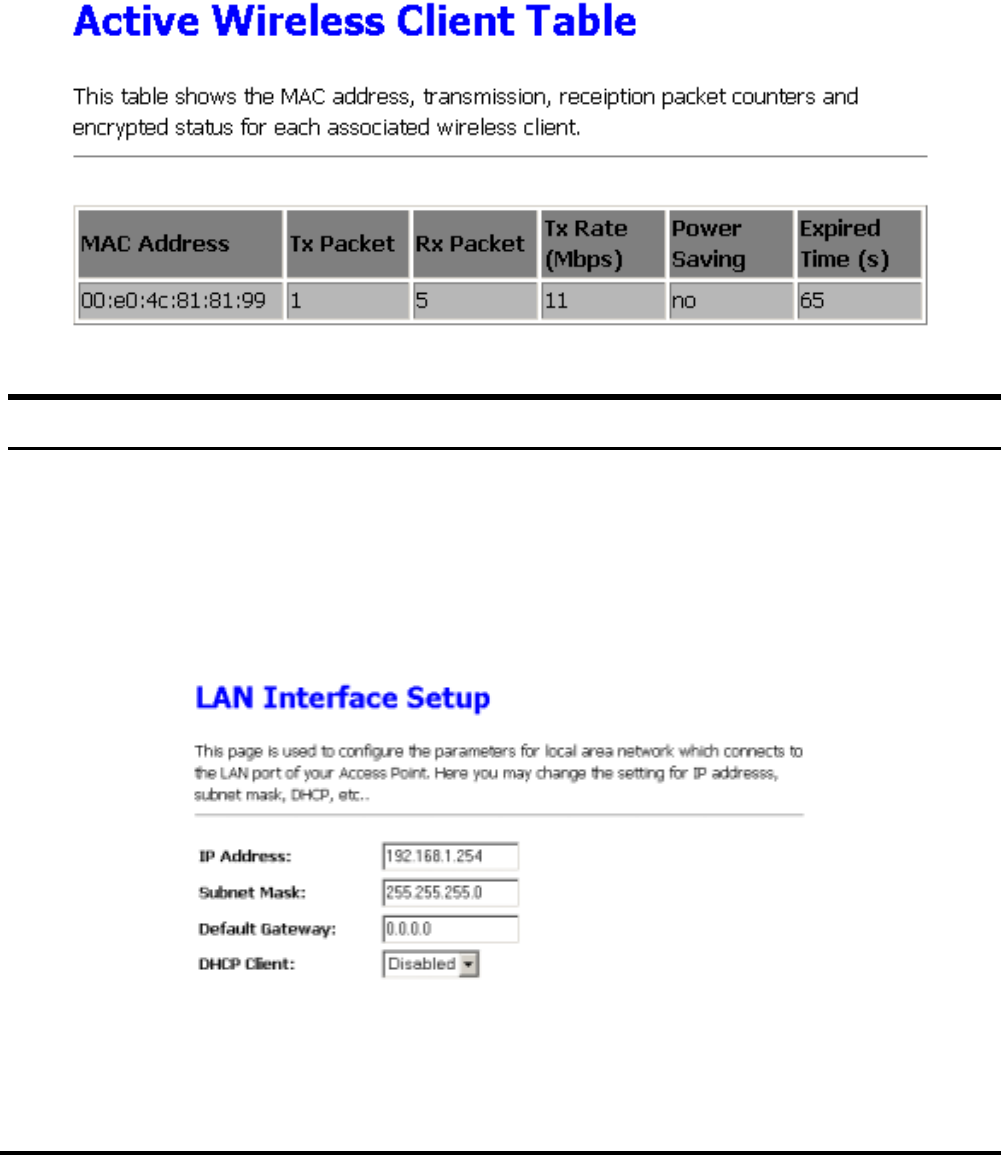
V. Connection List
This function shows the MAC Address, transmission packet counters,
reception packet counters, and encryted status for each associated
wireless client.
TCP/IP Setting
The TCP/IP Setting is to configure the parameters setting to the LAN
which connects with the Access Point, you may change the setting of
IP Address, Subnet Mask and Default Gateway.
Enable the function of DHCP Client to let the Access Point have an IP
Address automatically assignment by the DHCP server.
17
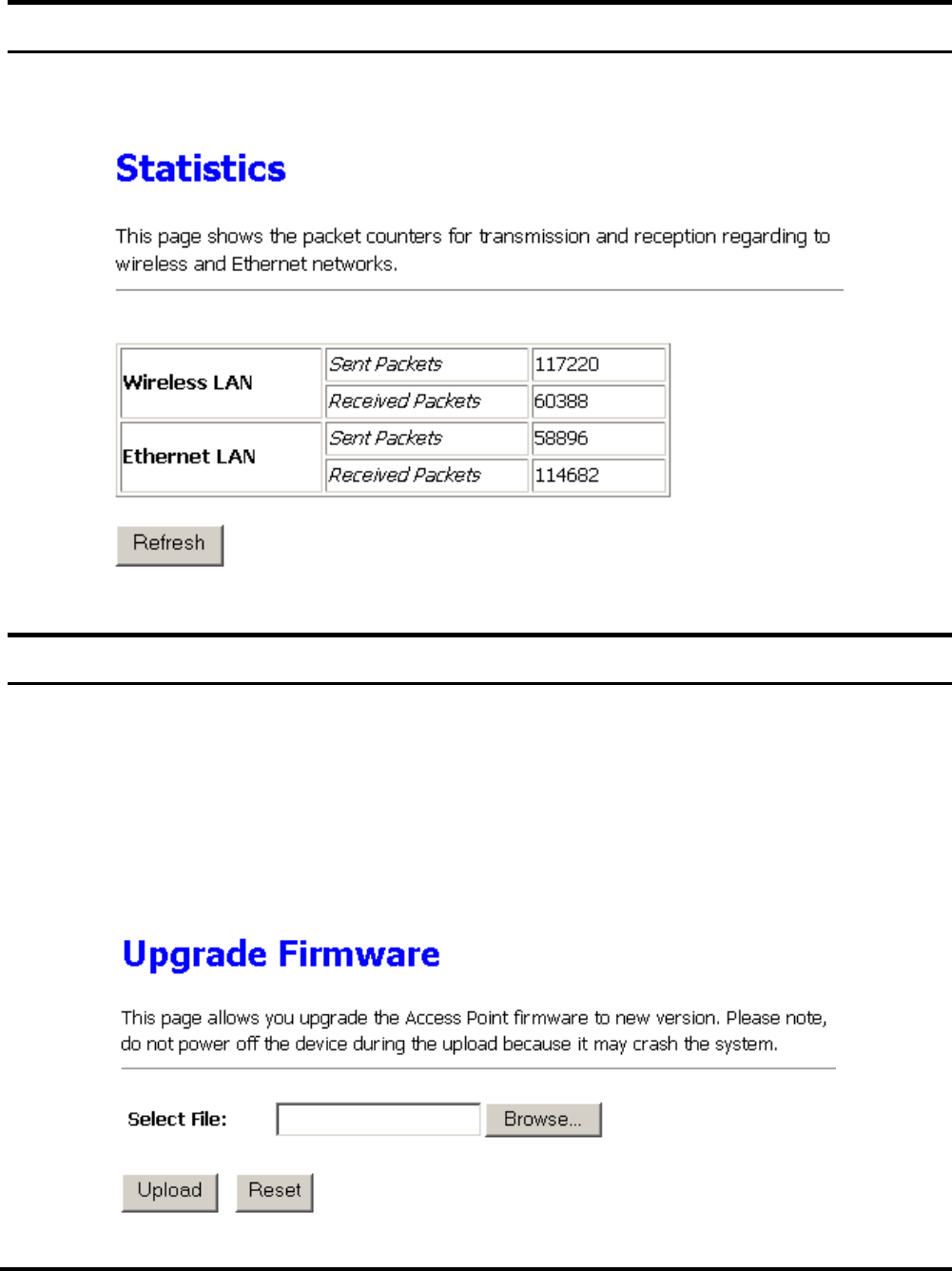
Statistics
This screen shows the packet counters for transmission and reception
on both Wireless LAN and Ethernet LAN.
Upgrade Firmware
By upgrading a new firmware for the Access Point to improve
functionality and performance. Enter the path and name of the upgrade
file then click the Upload button below. You will be prompted to
confirm the upgrade.
Note: Do not turn off the power during uploading, it may cause the system
crash.
18
Save/Reload Settings
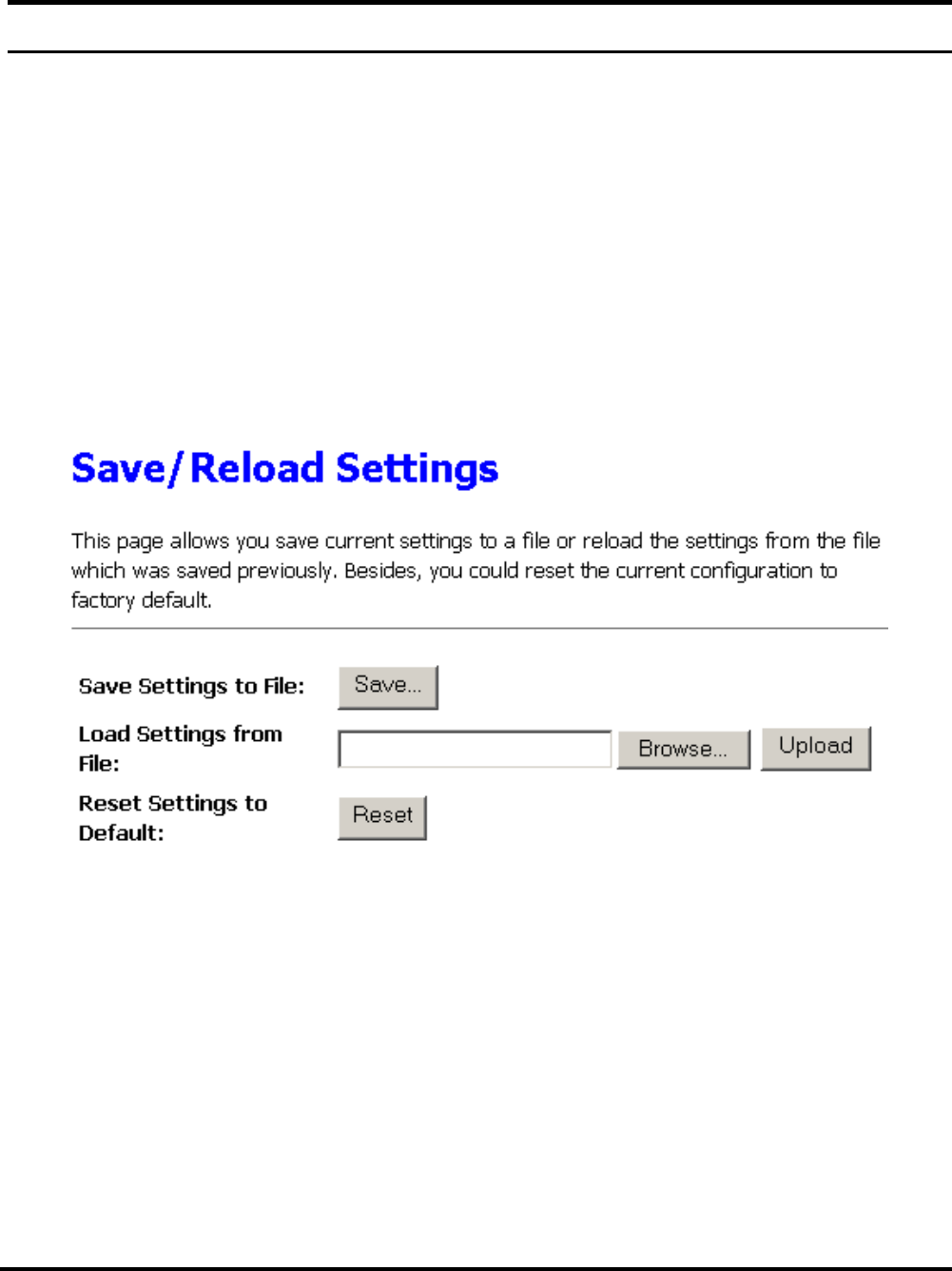
This screen allows you to save the current settings, load the settings
where you save before, or reset the setting back to factory default.
Save Setting to File: save the current setting of the Access
Point to which path and filename you want to save.
Load Settings from File: load the setting where you save
before, press Browse button to search the filename and press
Upload button to start loading the file.
Reset Settings to Default: this button will help you to bring
back to factory default settings.
19
Password Settings
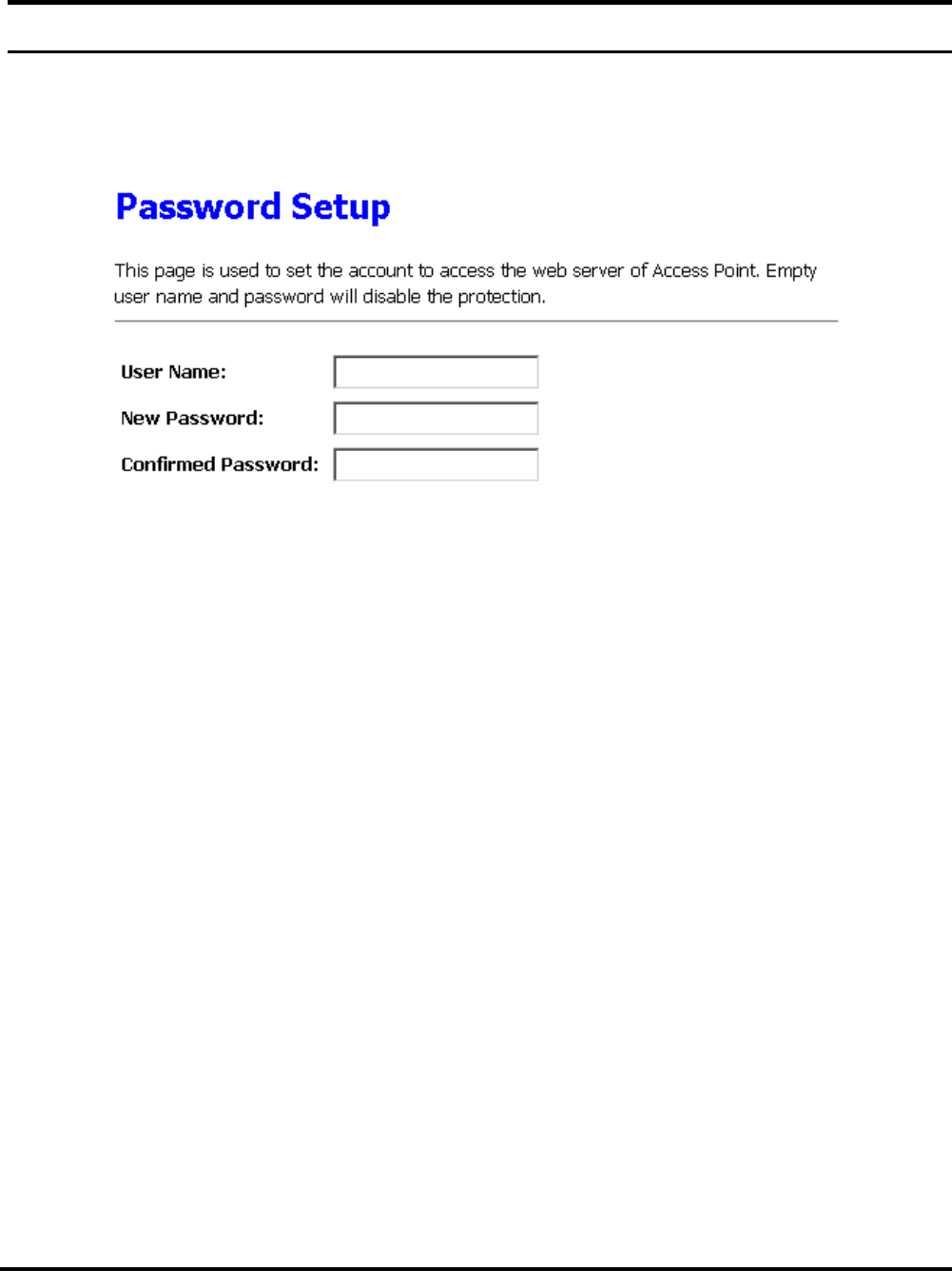
This screen is used to set the password when you need to login the
Access Point, type in the User Name, the New Password and
Confirmed Password to access new login security.
21
TECHNICAL SPECIFICATIONS
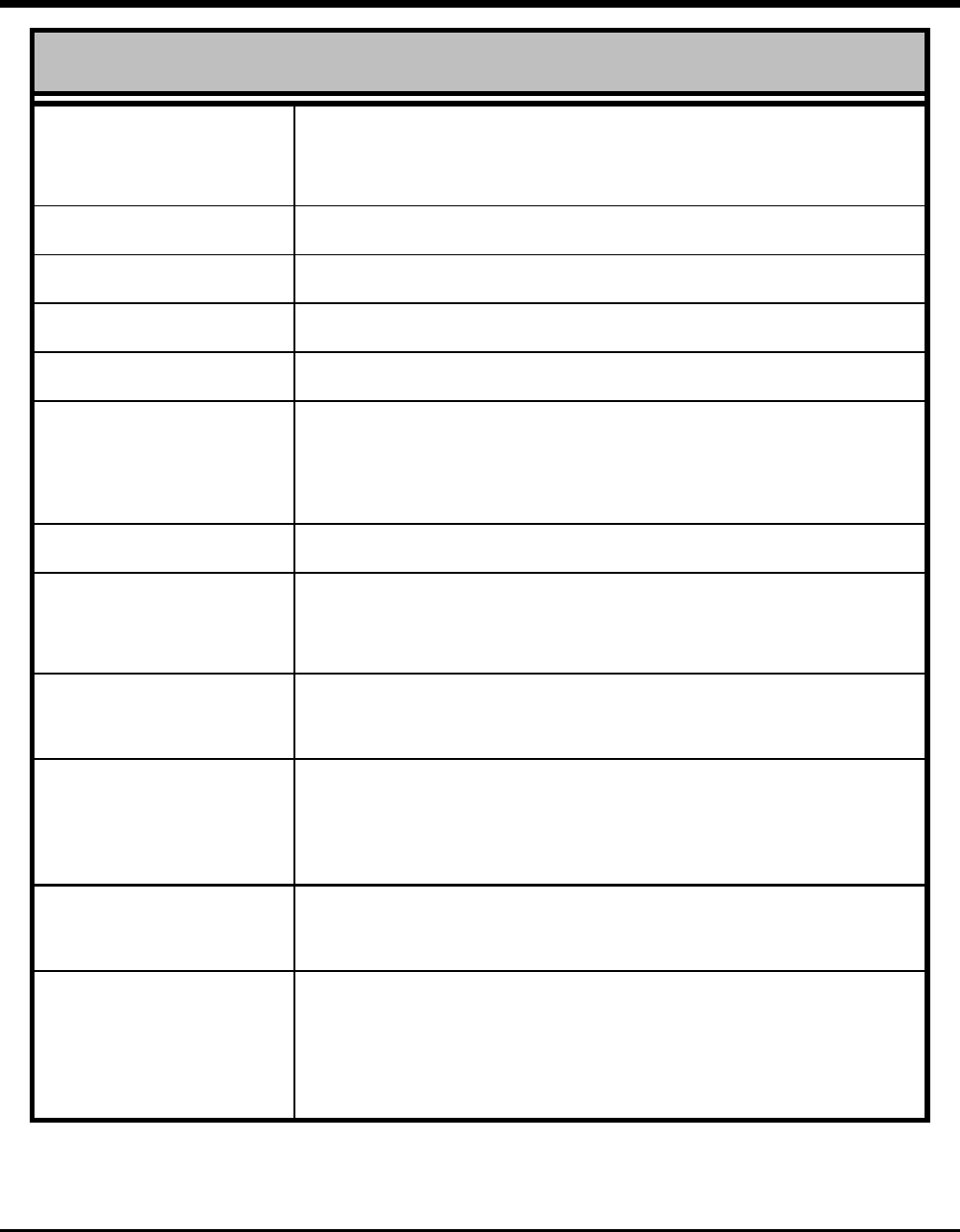
General
Standards Standard: IEEE 802.11b
IEEE 802.3u 10/100BASE-TX Fast Ethernet
Signal Type: DSSS (Direct Sequence Spread Spectrum)
Modulation: QPSK / BPSK / CCK
LED Indicators: Power, LAN (Link/Activity), WLAN (Link)
Frequency Band: 2.4 GHz
Channel: 1 ~ 11 Channels (US, Canada, China)
1 ~ 13 Channels (Europe, Taiwan)
1 ~ 14 Channels (Japan)
Data Encryption: 64 bit / 128 bit WEP Encryption
Data Transfer Rate Fast Ethernet: 100Mbps
Wireless: Up to 11Mbps (with Automatic Scale Back)
Transmission Range: Outdoor: 100~300M
Indoor: 40~100M
Network Cables 10BASET: 2-pair UTP Cat. 3,4,5 (100 m), EIA/TIA- 568 100-
ohm STP (100 m)
Interface 1 x 10/100Mbps RJ45 port
Antenna:
2 x 2dBi Dipole Antenna
2 x 2dBi Reverse SMA type Dipole Antenna (optional)
22
Physical and Environmental
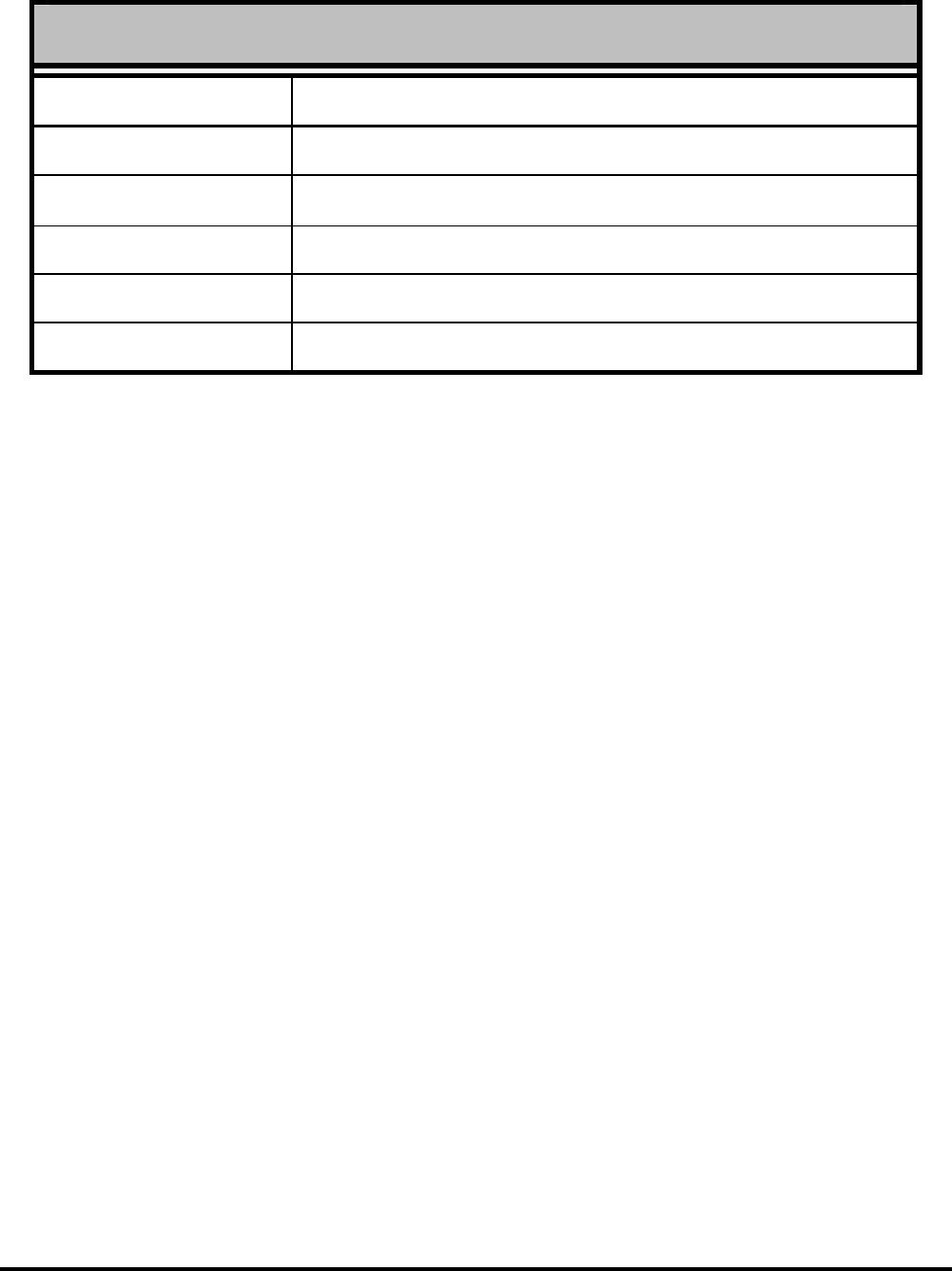
DC inputs DC 5V /1.2A
Power Consumption 4.5W (Max)
Temperature Operating: 0° ~ 40° C, Storage: -10° ~ 70° C
Humidity Operating: 10% ~ 90%, Storage: 5% ~ 90%
Dimensions 171 x 98 x 29 mm (W x H x D)
EMI: FCC Class B, CE Mark B,