Casio Pcr T280 Users Manual PCRT280_E1
2014-12-12
: Casio Casio-Pcr-T280-Users-Manual-119426 casio-pcr-t280-users-manual-119426 casio pdf
Open the PDF directly: View PDF  .
.
Page Count: 46
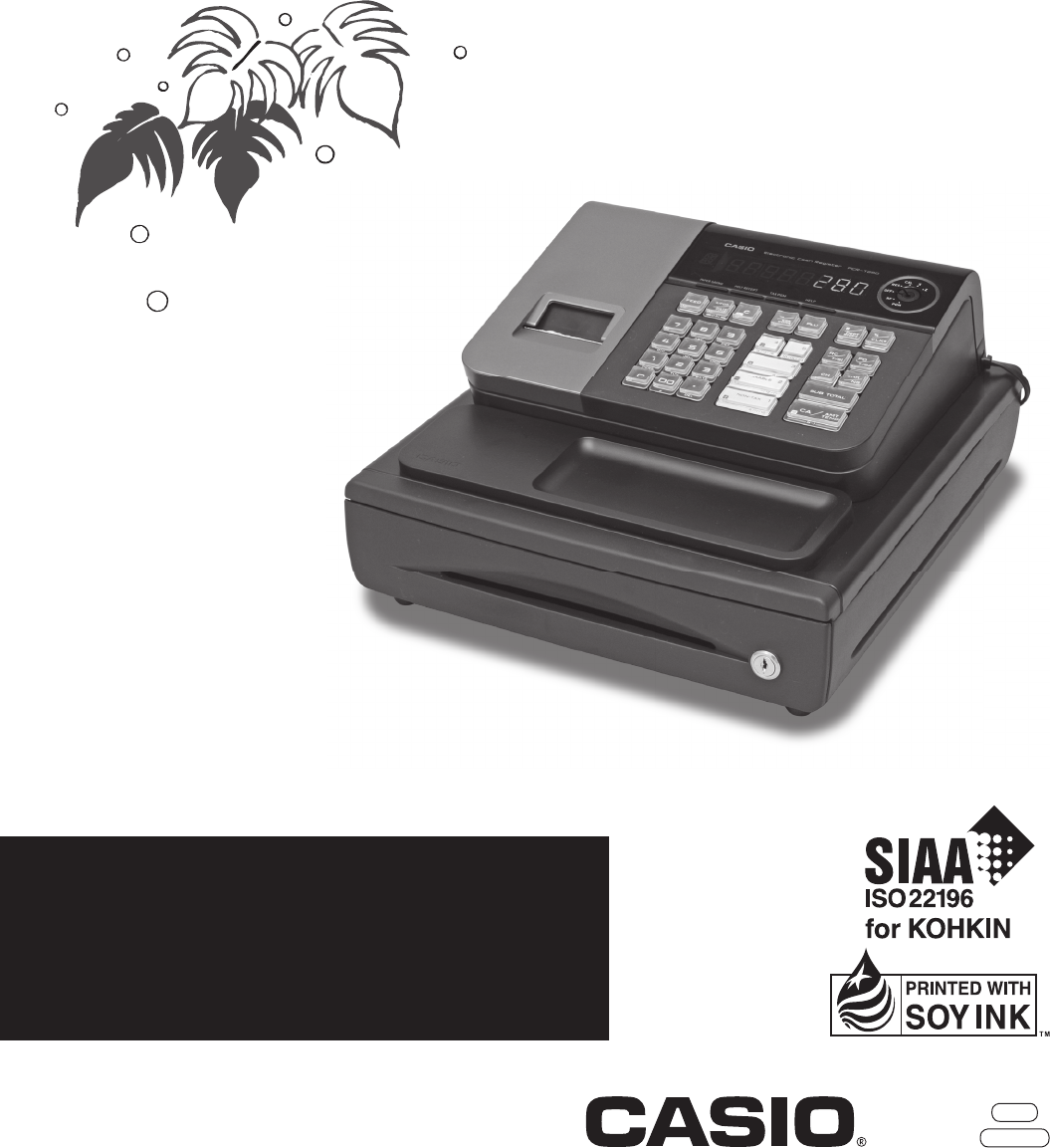
START-UP is QUICK and EASY!
Simple to use!
20 departments and 1200 PLUs
Automatic Tax Calculations
Calculator function
User's Manual
PCR-T280
Electronic Cash Register
CASIO COMPUTER CO., LTD.
6-2, Hon-machi 1-chome
Shibuya-ku, Tokyo 151-8543, Japan
CI
Canada
2
E
INTRODUCTION
IMPORTANT
FOR PROGRAMMING ASSISTANCE
PLEASE VISIT
http://casio4business.com
Thank you very much for purchasing this CASIO electronic cash register.
START-UP is QUICK and EASY!
Part-1 of this User's Manual can help you make a quick start.
Once you have mastered the QUICK START operations, you will undoubtedly
want to expand your use of this machine by studying other sections of Part-2.
Power Supply
Your cash register is designed to operate on
standard household current (120 V, 50/60 Hz).
Do not overload the outlet by plugging in too
many appliances.
Cleaning
Clean the cash register exterior with a soft cloth
which has been moistened with a solution of a
mild neutral detergent and water, and wrung out.
Be sure that the cloth is thoroughly wrung out to
avoid damage to the printer.
Never use paint thinner, benzene, or other vola-
tile solvents.
CASIO Authorized Service Centers
If your CASIO product needs repair, or you wish
to purchase replacement parts, please visit
http://casio4business.com.
Original Carton/Package
If for any reason, this product is to be returned
to the store where purchased, it must be packed
in the original carton/package.
Location
Locate the Cash register on a flat, stable sur-
face, away from heaters or areas exposed to di-
rect sunlight, humidity or dust.
The mains plug on this equipment must be used to disconnect mains power.
Please ensure that the socket outlet is installed near the equipment and shall be easily
accessible.
3
E
INTRODUCTION
Safety precautions
• To use this product safely and correctly, read this manual thoroughly and operate as instructed.
After reading this guide, keep it close at hand for easy reference.
Please keep all informations for future reference.
• Always observe the warnings and cautions indicated on the product.
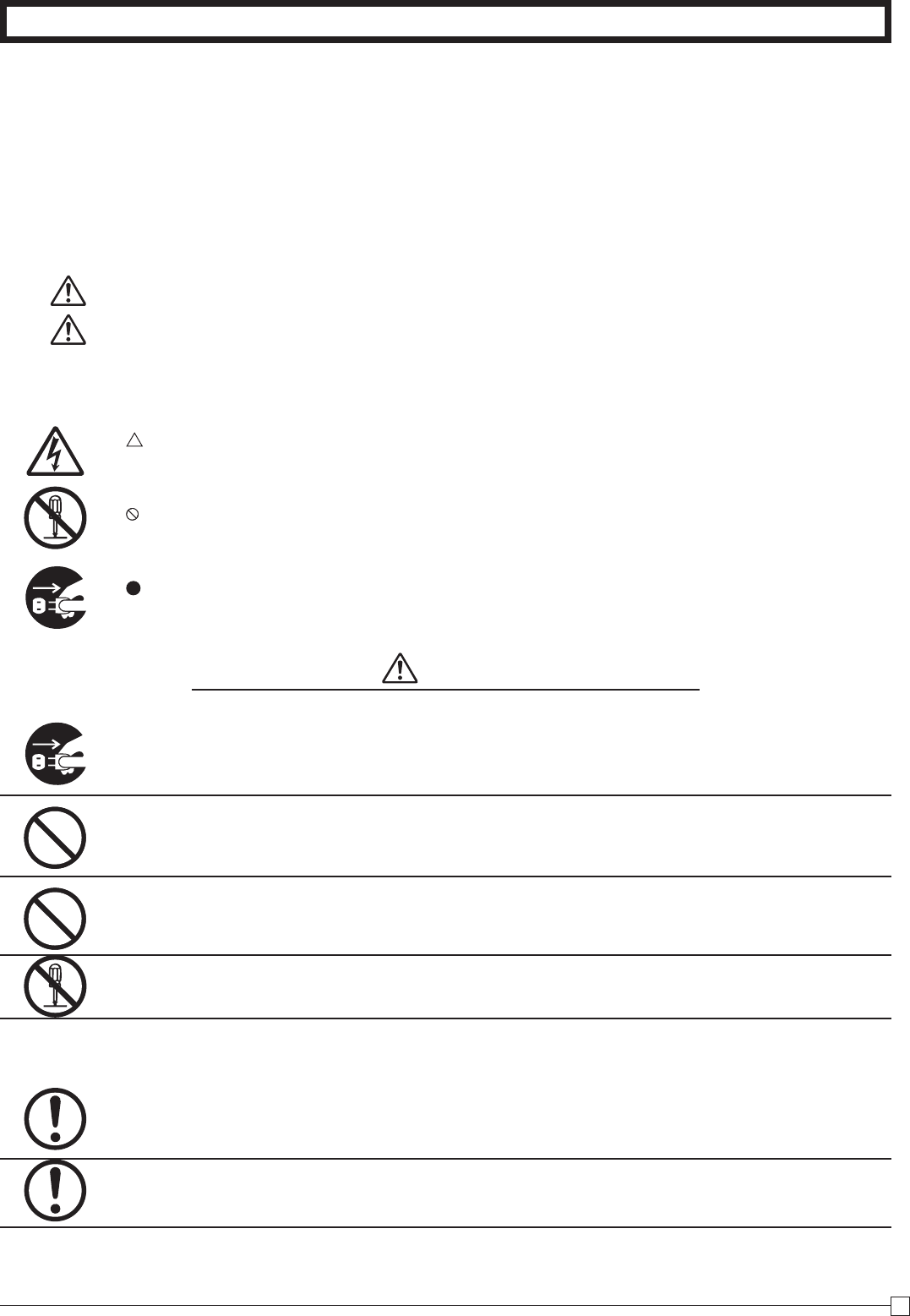
About the icons
In this guide various icons are used to highlight safe operation of this product and to prevent injury to the operator and
other personnel and also to prevent damage to property and this product. The icons and definitions are given below.
Indicates that there is a risk of severe injury or death if used incorrectly.
Indicates that injury or damage may result if used incorrectly.
Icon examples
To bring attention to risks and possible damage, the following types of icons are used.
The symbol indicates that it includes some symbol for attracting attention (including warning). In this triangle the
actual type of precautions to be taken (electric shock, in this case) is indicated.
The symbol indicates a prohibited action. In this symbol the actual type of prohibited actions (disassembly, in this
case) will be indicated.
The symbol indicates a restriction. In this symbol the type of actual restriction (removal of the power plug from an
outlet, in this case) is indicated.
Warning!
Handling the register
Should the register malfunction, start to emit smoke or a strange odor, or otherwise behave abnormally,
immediately shut down the power and unplug the AC plug from the power outlet. Continued use creates the
danger of fire and electric shock.
• ContactCASIOservicerepresentative.
Do not place containers of liquids near the register and do not allow any foreign matter to get into it. Should
water or other foreign matter get into the register, immediately shut down the power and unplug the AC plug
from the power outlet. Continued use creates the danger of short circuit, fire and electric shock.
• ContactCASIOservicerepresentative.
Should you drop the register and damage it, immediately shut down the power and unplug the AC plug from
the power outlet. Continued use creates the danger of short circuit, fire and electric shock.
• Attemptingtorepairtheregisteryourselfisextremelydangerous.ContactCASIOservicerepresentative.
Never try to take the register apart or modify it in any way. High-voltage components inside the register create
the danger of fire and electric shock.
• ContactCASIOservicerepresentativeforallrepairandmaintenance.
Power plug and AC outlet
Use only a proper AC electric outlet. Use of an outlet with a different voltage from the rating creates the danger
of malfunction, fire, and electric shock. Overloading an electric outlet creates the danger of overheating and
fire.
Make sure the power plug is inserted as far as it will go. Loose plugs create the danger of electric shock,
overheating, and fire.
• Donotusetheregisteriftheplugisdamaged.Neverconnecttoapoweroutletthatisloose.
4
E
INTRODUCTION
Warning!
Use a dry cloth to periodically wipe off any dust built up on the prongs of the plug. Humidity can cause poor
insulation and create the danger of electric shock and fire if dust stays on the prongs.
Do not allow the power cord or plug to become damaged, and never try to modify them in any way. Continued
use of a damaged power cord can cause deterioration of the insulation, exposure of internal wiring, and short
circuit, which creates the danger of electric shock and fire.
• ContactCASIOservicerepresentativewheneverthepowercordorplugrequiresrepairormaintenance.
Caution!
Do not place the register on an unstable or uneven surface. Doing so can cause the register — especially
when the drawer is open — to fall, creating the danger of malfunction, fire, and electric shock.
Do not place the register in the following areas.
• Areaswheretheregisterwillbesubjecttolargeamountsofhumidityordust,ordirectlyexposedtohotorcoldair.
• Areasexposedtodirectsunlight,inaclosemotorvehicle,oranyotherareasubjecttoveryhightemperatures.
The above conditions can cause malfunction, which creates the danger of fire.
Do not overlay bend the power cord, do not allow it to be caught between desks or other furniture, and never
place heavy objects on top of the power cord. Doing so can cause short circuit or breaking of the power cord,
creating the danger of fire and electric shock.
Be sure to grasp the plug when unplugging the power cord from the wall outlet. Pulling on the cord can
damage it, break the wiring, or cause short, creating the danger of fire and electric shock.
Never touch the plug while your hands are wet. Doing so creates the danger of electric shock. Pulling on the
cord can damage it, break the wiring, or cause short, creating the danger of fire and electric shock.
At least once a year, unplug the power plug and use a dry cloth or vacuum cleaner to clear dust from the area
around the prongs of the power plug.
Never use detergent to clean the power cord, especially power plug.
Keep small parts out of the reach of small children to make sure it is not swallowed accidentally.
Disposing of batteries:
Make sure that you dispose of used batteries in accordance with the rules and regulations in your local area.
5
E
Contents
Getting to know your cash register .......................................................................... 6
Daily Job Flow ......................................................................................................... 8
Part-1 QUICK START OPERATION ................................................................. 9
1. Loading Memory Protection Battery ................................................................. 9
2. Loading Paper Roll ........................................................................................... 9
3. Setting the Cash Register ................................................................................. 10
4. If you want to use a printer as journal printer ................................................... 10
5. To remove receipt paper ................................................................................... 11
6. To remove journal paper ................................................................................... 11
7. Caution (in handling the thermal printer) .......................................................... 11
8. Basic Programing for QUICK START ................................................................ 12
9. Basic Operation after Basic Programming ........................................................ 13
10. Daily Management Report ................................................................................ 16
Part-2 CONVENIENT OPERATION .................................................................. 18
1. Various Programming ....................................................................................... 18
2. Various Operations ........................................................................................... 34
Part-3 CALCULATOR FUNCTION ................................................................... 41
1. Calculator Mode ................................................................................................ 41
Part-4 USEFUL INFORMATION ....................................................................... 43
1. Troubleshooting ................................................................................................ 43
2. Specifi cations .................................................................................................... 44
3. Warranty Card .................................................................................................. 45
Accessories
Roll paper 1 pc
Mode keys OP key 2 pcs
PGM key 2 pcs
Drawer keys 2 pcs
User's manual 1 pc
Magnetic plate* 1 pc
UM-3 type battery 2 pcs
* Use this plate for tacking the notes
received from customer.
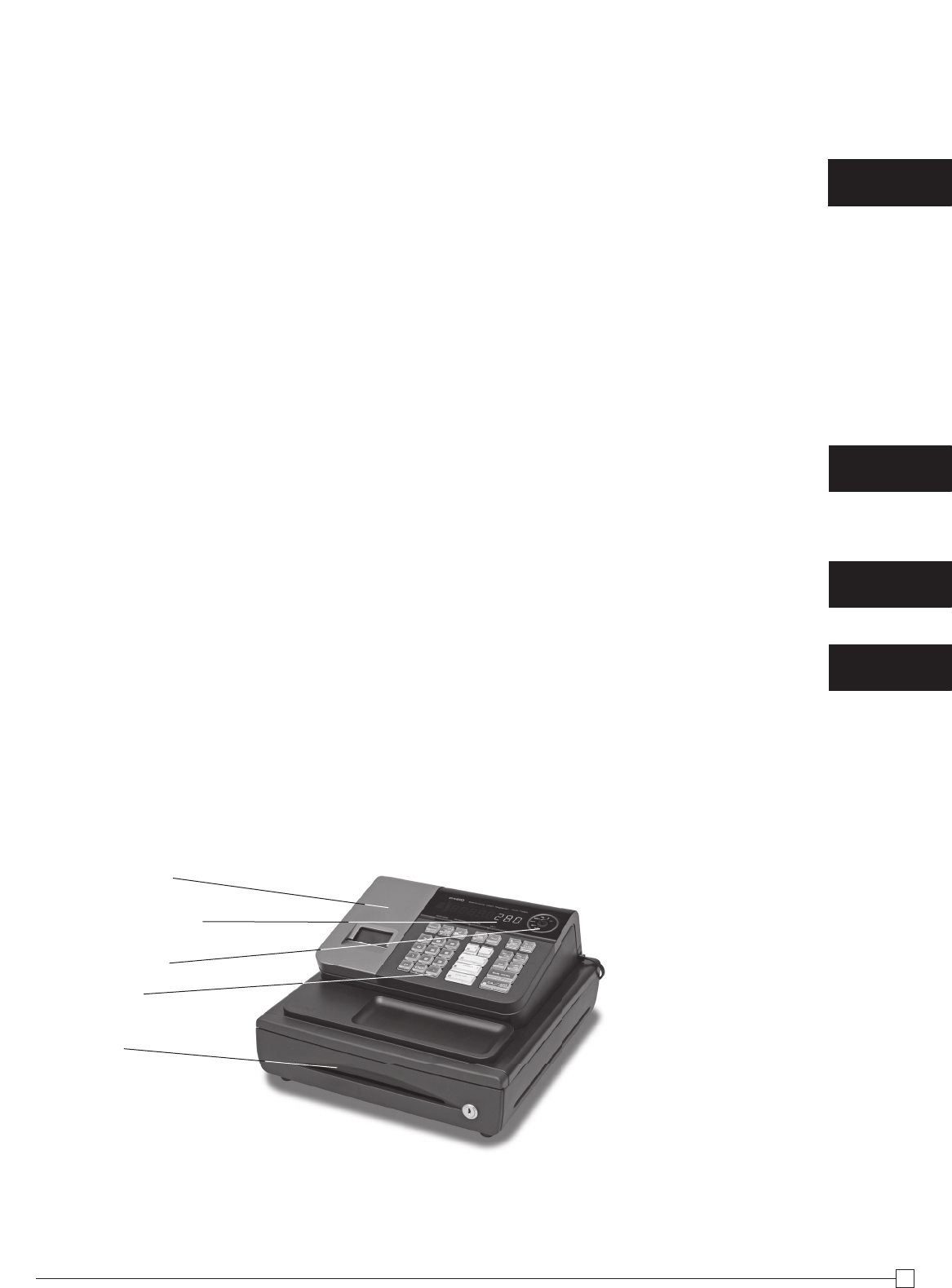
Basic Components and Accessories
Printer cover
Operator display
Mode switch
Keyboard
Drawer
Weld lines
Lines may be visible on the exterior of the product. These are “weld lines” that result from the plastic molding process.
They are not cracks or scratches.
6
E
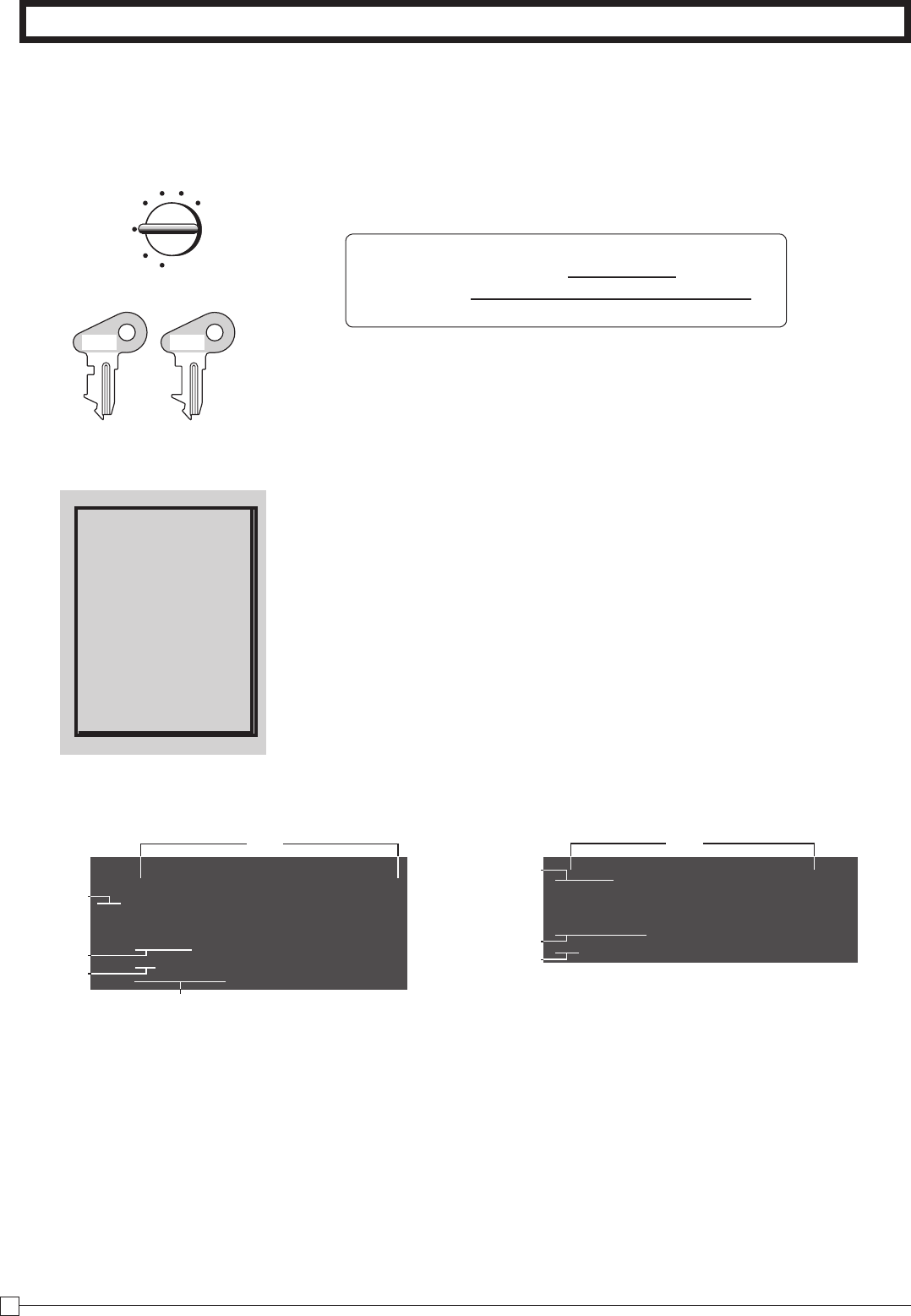
Mode Switch
Getting to know your cash register
Note:
An error is gen-
erated (E01 dis-
played) whenever
the position of the
Mode Switch is
changed during
registration.
The position of the Mode Switch controls the type of operations you
can perform on the cash register. The PROGRAM key (marked PGM)
can be select any Mode Switch setting, while OPERATOR key (marked
OP) can be used to select OFF, REG or CAL only.
OFF
In this position, the power of the cash register is off.
REG (Register)
This is the position used for registration of normal transactions.
RF (Refund)
This is the position used for registration of refunds.
CAL (Calculator)
This is the position used for calculator mode.
PGM (Programming)
This is the position used to program the cash register to suit the
needs of your store.
X (Read)
This is the position used to produce reports of daily sales totals with-
out clearing the totals.
Z (Reset)
This is the position used to produce reports of daily sales totals. This
setting clears the totals.
OP
PGM
GETTING TO KNOW YOUR CASH REGISTER
Display
Operator display Customer display
! Department Number Display
Anytime you press a department key to register a unit
price, the corresponding department number appears
here.
@ PLU Number Display
Anytime you perform a PLU registration, the corre-
sponding PLU number appears here.
# Number of Repeat Display
Anytime you perform "repeat registration" (page 13),
the number of repeats appears here.
Note that only one digit is displayed for the number of
repeats.
!
#
%
@
$
�*12345&78
$ Numeric Display
Entered values (unit prices or quantities) and calcu-
lated values (subtotals, totals or change amount due)
are displayed here. The capacity of the display is 8
digits.
This part of the display can be used to show the cur-
rent time or date between registration (page 38).
% Character Display
In the character programming (P2) mode, it shows
the last entered character.
The total (T) or change (C) appears when a subtotal,
total, or change is obtained.
In the paper saving mode, it shows *.
PGM RF OFF REG CAL X Z
OP key ● ● ●
PGM key ● ● ● ● ● ● ●
OP key PGM key
REG
OFF
RF
PGM
XCAL Z
1
2
#
4
12345&78
7
E
GETTING TO KNOW YOUR CASH REGISTER
Keyboard
7
1
0
4
8
2
00
5
9
3
.
6
FEED PLU
DEPT
SHIFT
ERR.
CORR
—
DATE
TIME
CHK
T/S2
PD
T/S1
RC
NS
#
× /
FOR
CLK#
%
AC
=
CA AMT
TEND
C
CH
÷
9/14/19
5
10/15/20
×
+
6/11/16
7/12/17
−
8/13/18
1
2
3
4
TAXABLE
NON-TAX
SUB TOTAL
TAX PGMPAPER
SAVING
POST
RECEIPT
HELP
1 2 3
E
4 5 6 7
8 9
0 A
B
C
D
G H I J
F
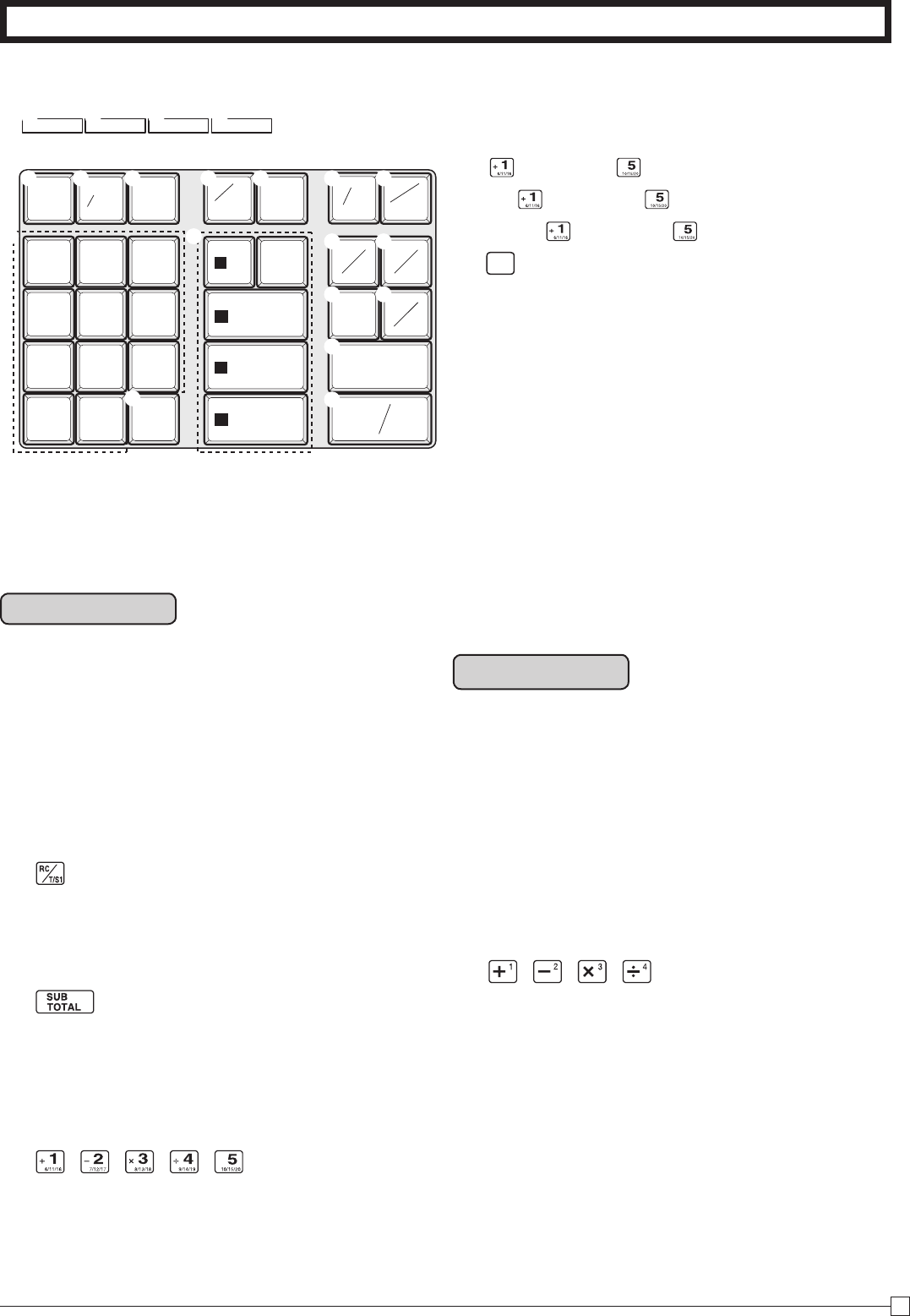
Certain keys have two functions; one for register
mode and one for calculator mode.
In this manual, we will refer to specific keys as
noted below to make the operations as easy to
understand as possible:
Register Mode
1 l Feed key
2
h
Multiplication/Split pricing/Date Time key
3 y Clear key
4
g Minus/Error Correction key
5 i PLU (Price Look Up) key
6 j
Reference Number/Department Shift key
7 :
Percent/Cashier ID No. Assignment key
8
Received on Account/Tax Status Shift 1 key
9 v Paid Out/Tax Status Shift 2 key
0 u Charge key
A m Check/No Sale key
B Subtotal key
C p Cash Amount Tendered key
D ?, Z, ~ >, '
Numeric keys and 2-zero key
E " Decimal key
F , , , ,
Department keys
•Department6through20arespeciedby
pressing the j key respectively as follows:
j ~ j →
Department 6 ~ 10
jj ~ jj →
Department 11 ~ 15
jjj
~ jjj
→
Department 16 ~ 20
G
PAPER
SAVING
Paper saving key
Paper saving key is the key to save printing
paper (Journal compressed printing/ No re-
ceipt issuing). In these cases, "*" is lit on the
character display.
H
< Post receipt key
Post receipt key is used for issuing receipt
after transaction. This key is effective if the
printer is defined as printing receipts. Refer
to page 36.
I
~ Tax Program key
J
/ Help key
Help key is used for issuing assistant re-
ceipts such as programming date/ time,
paper installation etc.
Calculator Mode
3 t AC key
5 i Memory Recall key
^ :
Percent key
7 m Drawer Open key
C p Equal key
D ?, Z, ~ >, '
Numeric keys and 2-zero key
E " Decimal key
F , , ,
Arithmetic Operation key
8
E
Daily Job Flow
Daily Job Flow
Before Opening The Store
1. Plugged in?
2. Enough Roll Paper? Page- 9
3. Date and Time is correct? Page-38
4. Enough small change in the draw-
er? Page-39
While The Store Is Open
1. Registrations. Page-13~
2. Issuing latest daily sales total if
needed.
(Generating report by Mode Switch
to X position.) Page-16
After Closing The Store
1. Issuing Daily Sales Total.
(Resetting report by Mode Switch to
Z position.) Page-16
2. Picking up money in the drawer.
Page-39
3. Turn the Mode Switch to OFF.
Other
1. Troubleshooting Page-43
When the cash drawer does not open!
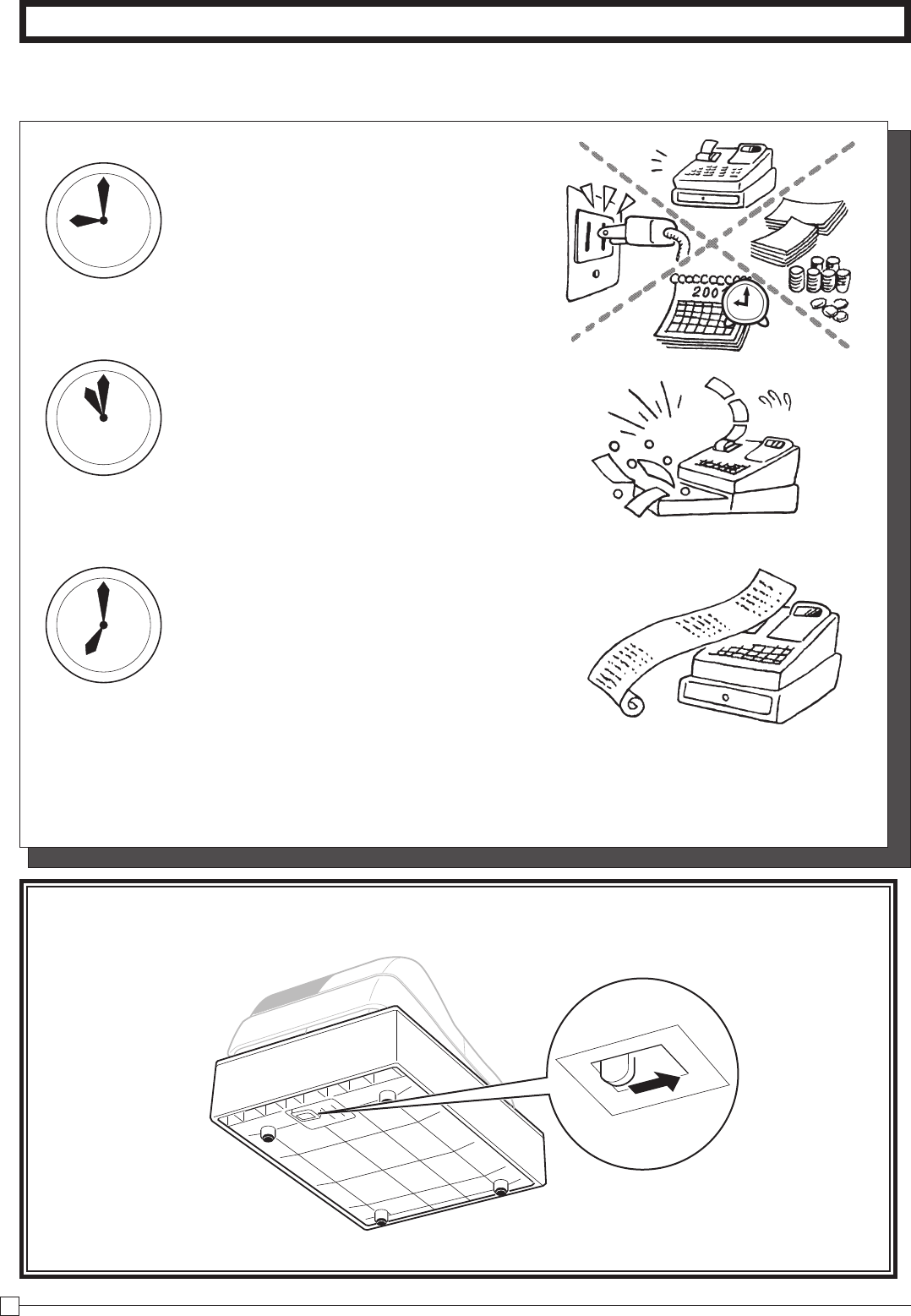
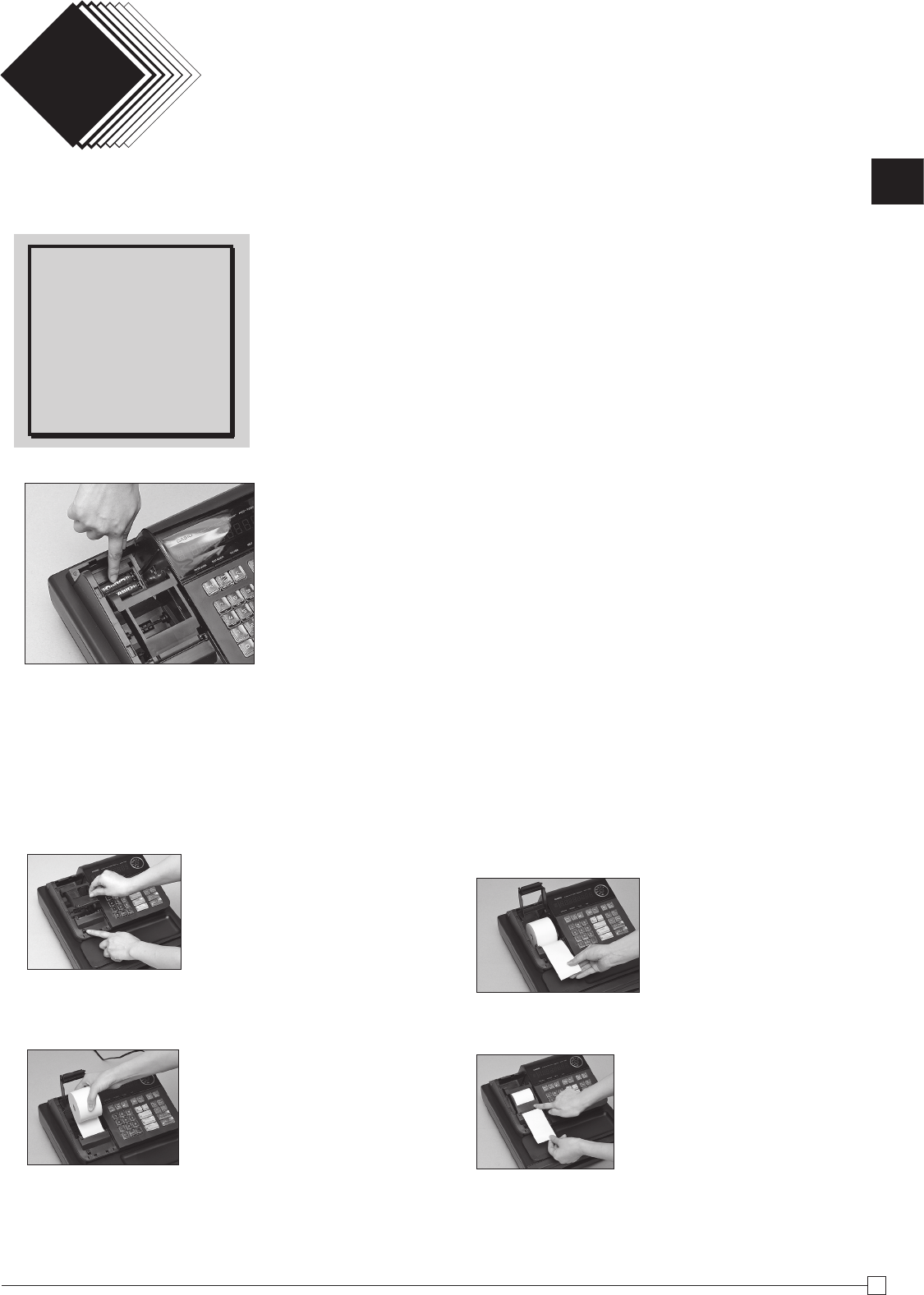
In case of power failure or the machine is in malfunction, the cash drawer does not open automatically. Even in
these cases, you can open the cash drawer by pulling drawer release lever (see below).
Important!
The drawer will not open, if it is locked with a drawer lock key.
9
Part-1
9
E
Part-1 QUICK START OPERATION
QUICK START OPERATION
Part-1
1. Loading Memory Protection Battery
Important
You must initialize
the Cash register and
install the memory
protection batteries
before you can pro-
gram the cash regis-
ter.
1. Remove the printer cover.
2. Open the battery compartment cover.
3. Load 2 new SUM-3 ("AA") type batteries into the compartment.
Be sure that the plus (+) and minus (–) ends of each battery are
facing in the directions indicated by the illustrations inside the
battery compartment (Figure 1).
4. Replace the memory protection battery compartment cover
back into place.
REPLACE MEMORY PROTECTION BATTERIES AT LEAST
ONCE EVERY YEAR.
(Figure 1)
CAUTION
RISK OF EXPLOSION IF BATTERY IS REPLACED BY AN INCORRECT TYPE.
DISPOSE OF USED BATTERIES ACCORDING TO THE INSTRUCTIONS.
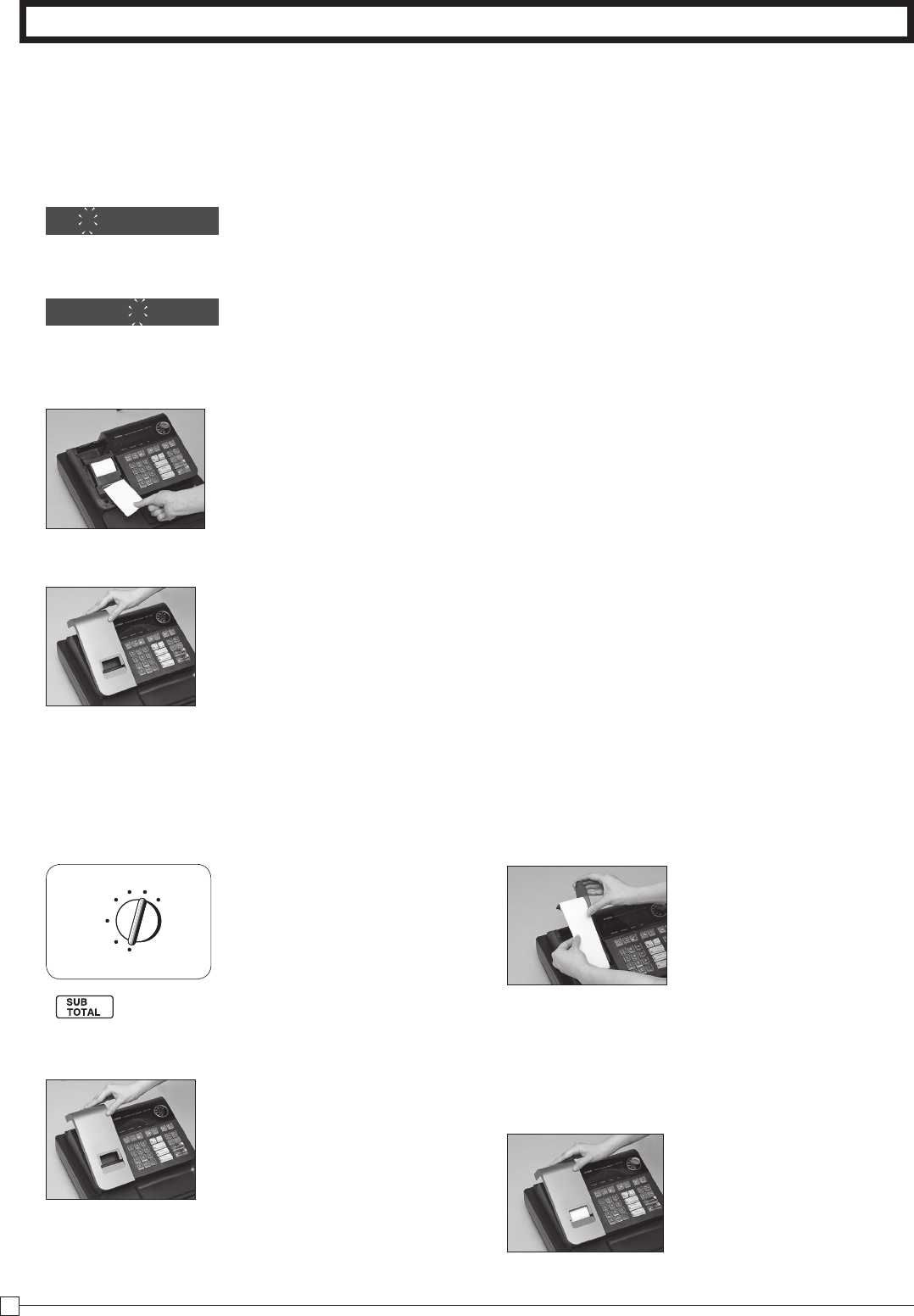
2. Loading Paper Roll
To load receipt paper
! Open the platen arm.
@ Ensuring the paper is being fed from the bot-
tom of the roll, lower the roll into the space
behind the paper.
# Put the leading end of the paper over the
printer.
$ Close the platen arm slowly until it locks
steadily.
10
E
Part-1 QUICK START OPERATION
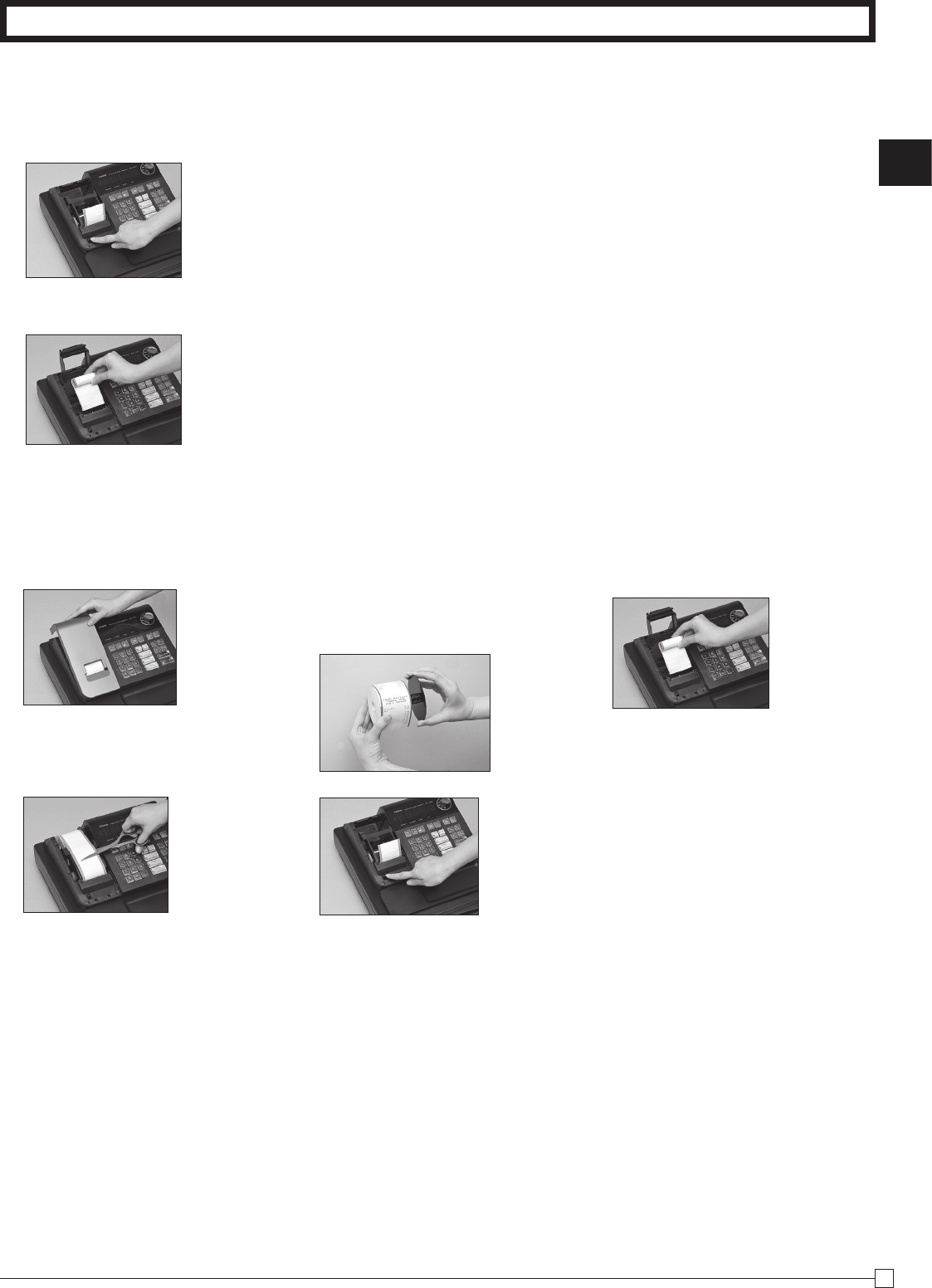
3. Setting the Cash Register
!
Plug the power cord of the cash register into AC outlet.
@
Please choose your language followed by printed message.
#
When the display shows blinking "0", such as
Enter current date in Month, Day, Year.
$
When the display shows blinking "0", such as
Enter current time in Hour, Minute.
%
Set the mode switch to REG.
^
Tear off any excess paper.
&
Replace the printer cover slowly.
*Default printer definition is receipt printer.
00-00-00
00-00
4. If you want to use a printer as journal printer
!
Set printing system as journal.
Z
Zu
@
Remove the printer cover by lifting up the back.
#
Press the
l
key until approximately 20cm of the
paper is fed from the register.
REG
OFF
RF
PGM
CAL X Z
$
Roll the paper onto the take up real a few turns.
%
Set the left plate of the take up need and place the
reel into the register.
^
Press the
l
key to take up any slack in the pa-
per.
&
Replace the printer cover slowly.
11
Part-1
11
E
Part-1 QUICK START OPERATION
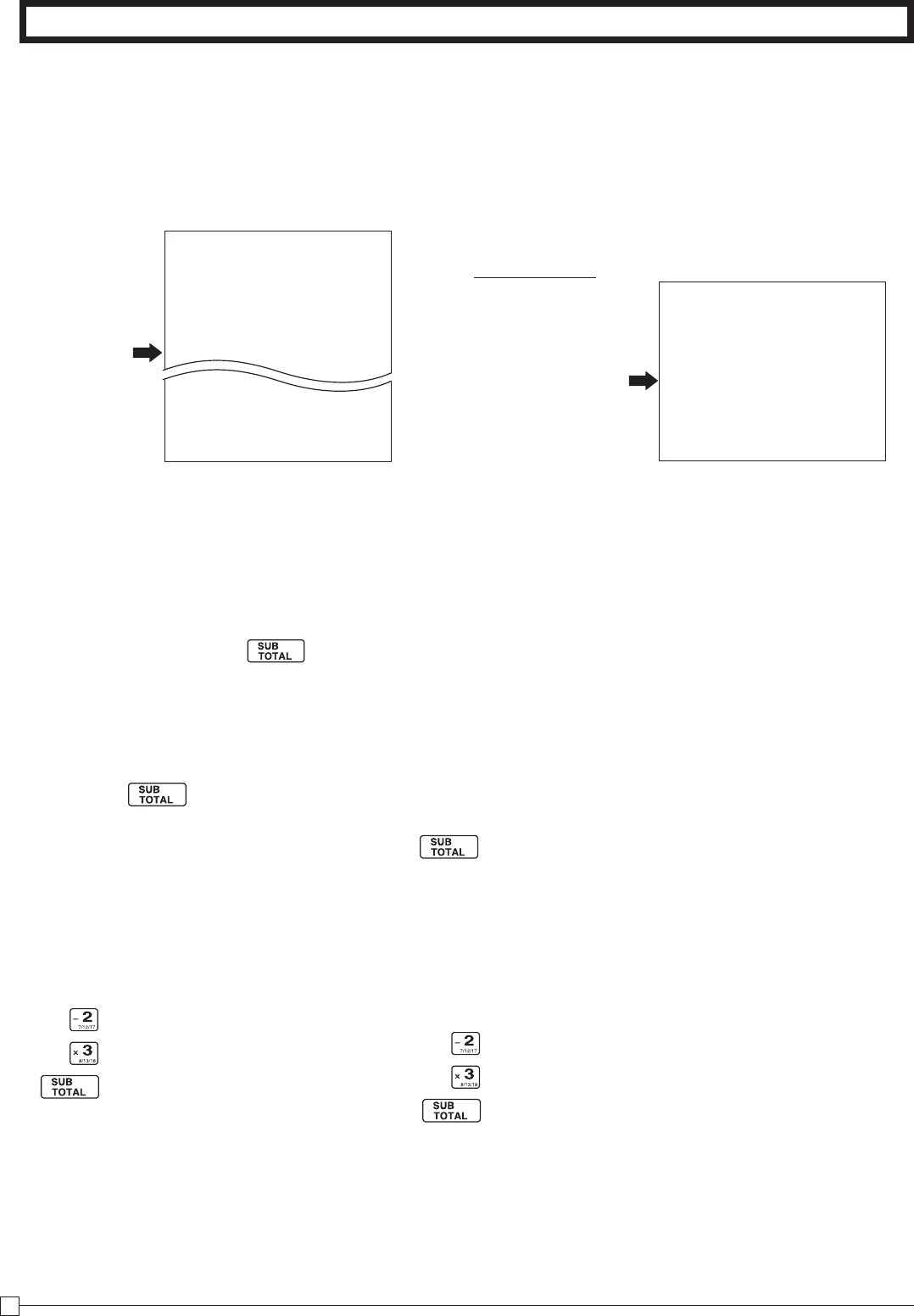
5. To remove receipt paper
!
Open the platen arm.
@
Remove the core of the paper.
6. To remove journal paper
! Remove the printer cover by
lifting up the back.
@ Press the l key until ap-
proximately 20cm of the pa-
per is fed from the printer.
# Cut off the roll paper.
$ Remove the take-up reel
from the printer and take off
the left plate of the reel.
% Remove the journal paper
from the take-up reel.
^ Open the platen arm.
&
Remove the core of the pa-
per.
* Load new paper following the
instructions "1. To load jour-
nal paper".
7. Caution (in handling the thermal printer)
1. Never touch the printer head and platen.
2. Unpack the paper just before you use.
3. Avoid heat/ direct sunlight.
4. Avoid dusty and humid places for strage.
5. Do not scratch the paper.
6. Do not keep the paper under the following circumstances: High humidity and temperature/ direct
sunlight/ contact with glue, thinner or rubber eraser.
12
E
Part-1 QUICK START OPERATION
8. Basic Programing for QUICK START
A) Enter ?X and press / .
B) Select your state.
SELECT YOUR STATE OR
COUNTRY AND ENTER
NUMBER THEN PRESS
<HELP> KEY.
0101:ALABAMA
0201:ALASKA
5001:WISCONSIN
5101;WYOMING
5201:PUERTO RICO
1)TURN MODE KEY TO PGM.
2)3<SUBTOTAL>
3)025<SUBTOTAL>
SET TABLE 1
4)XXXX<CA>KEY.
SET TABLE2(IF NECESSARY)
5)XXXX<CA>KEY.
6)<SUBTOTAL>
XXXX IS DISTRICT NUMBER
Find
your state
your state number.
?Z?Z/
8-1 Choose the tax rate from a preset tax table.
C) Enter your four digit state number and then
press/ .
Follow
these steps
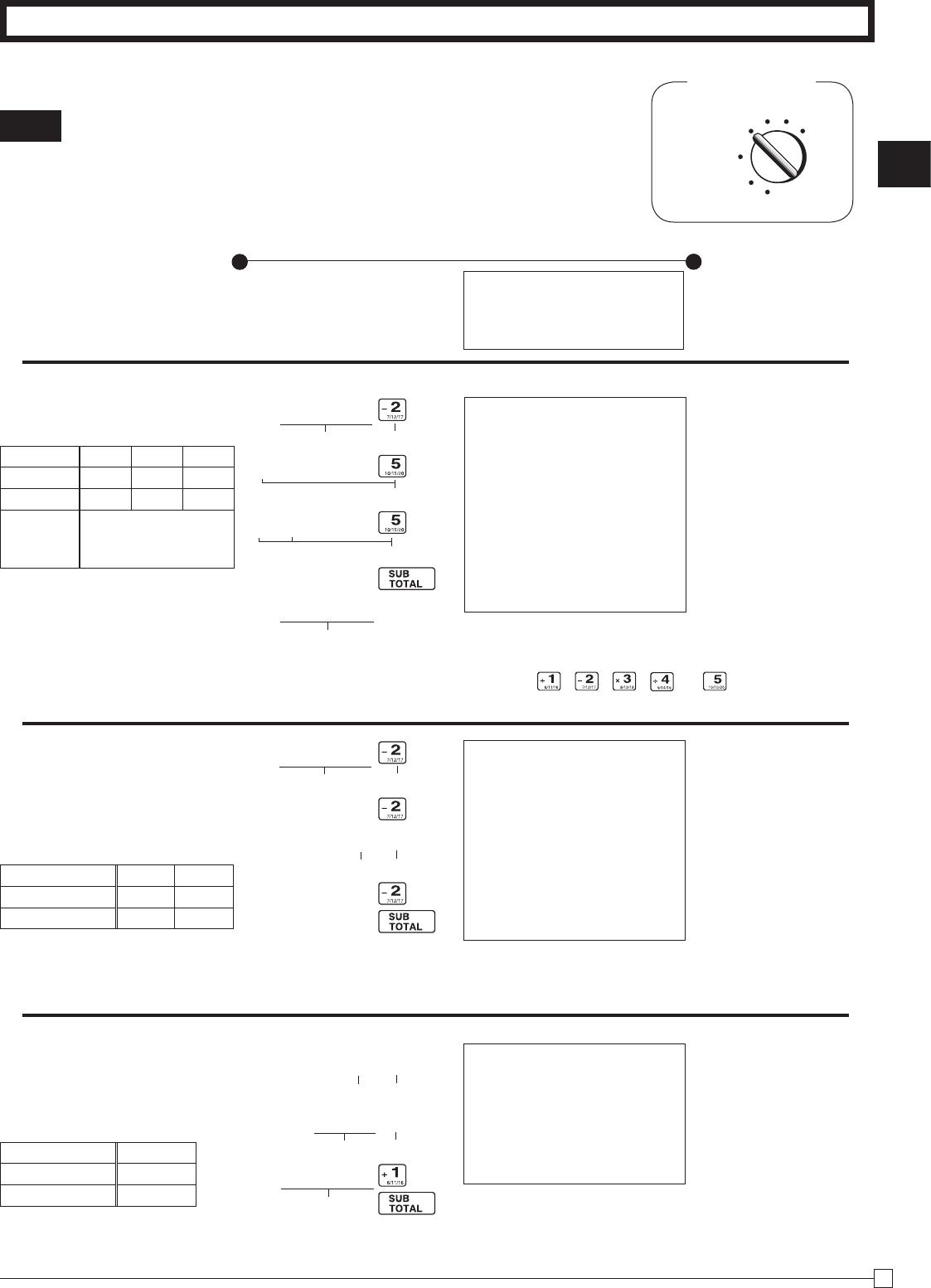
8-2 Input the desired flat tax rate to the appropriate department key. (This
procedure below programs flat tax rate only. If your tax table has break
points, refer to page 25 of this manual.)
A) Turn the mode switch to PGM position.
B) Enter
Z
and press the key.
C) Press the
~
key.
D) Enter tax rate. (Example: For 6% enter “6”, 5.75% enter “5.75”.)
E) Press the appropriate department key.
F) Repeat step B) and C) to set other department key.
G) Press the key to end tax programming.
Note: In case of setting the wrong tax rate to the key, please enter ? and press those department keys
above, and quit this procedure by pressing key, and start from the beginning of this procedure.
Please start with the department 2 key (taxable department). Department 1 key is initialized as non tax-
able.
Note : For canadian tax system, see page 25 for more information.
Example 1:
Set state tax 4% to department 2, 3 key.
~
Start tax program.
4
Enter tax rate and press dept key.
4
Enter tax rate and press dept key.
To end the setting.
Example 2:
Set state tax 5% to department 2 and 7% to
department 3 key.
~
Start tax program.
5
Enter tax rate and press dept key.
7
Enter tax rate and press dept key.
To end the setting.
Part-1
13
E
Part-1 QUICK START OPERATION
Z??
jX??
jjC?
B?? p
Z??
C h
ZCB
p
C h
ZX h
Z?'
p
REG
OFF
RF
PGM
CAL
Z
X
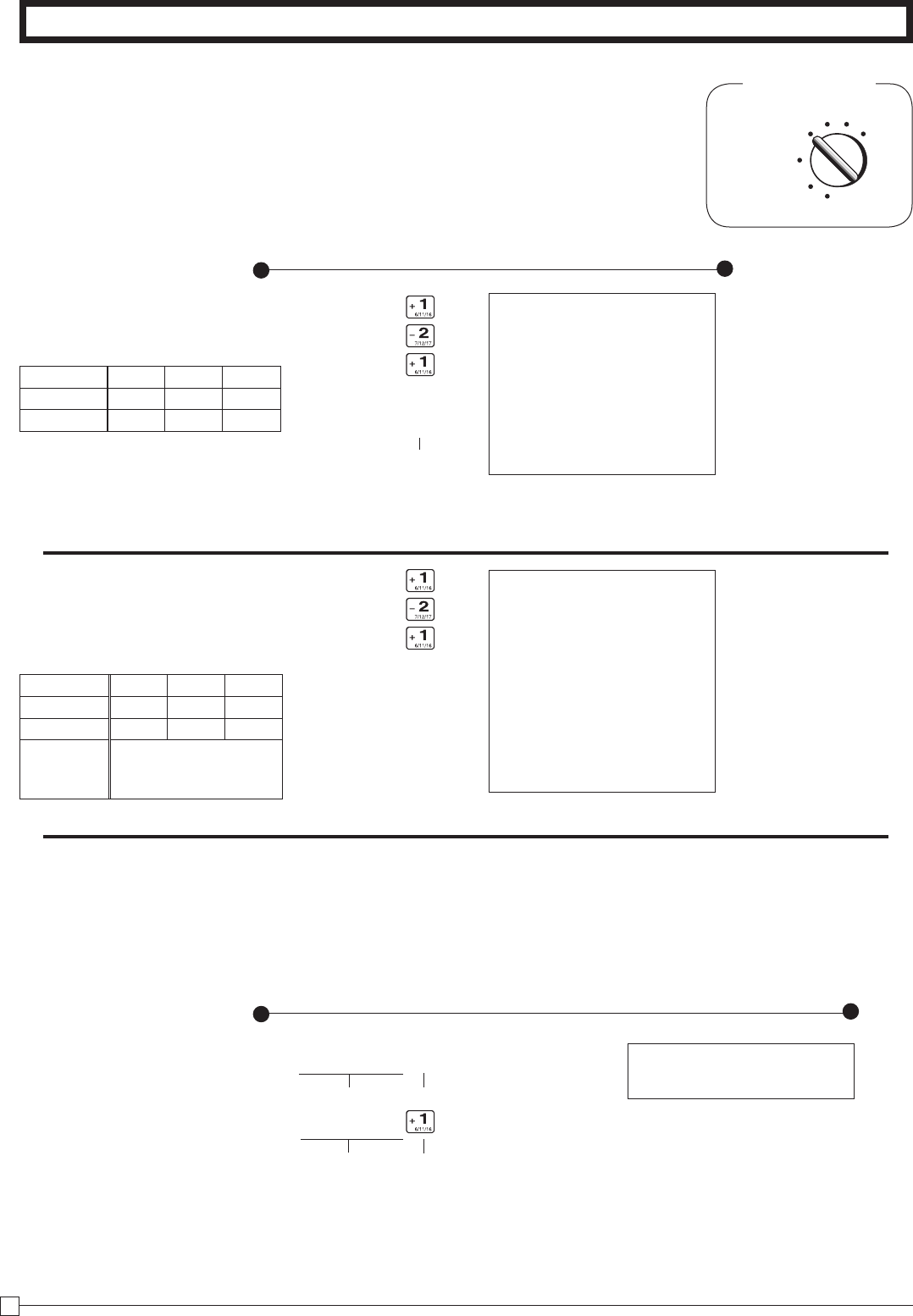
9. Basic Operation after Basic Programming
Whenever an error is generated, the input figures reset to 0.
All printout samples are journal images and the header (date, time
and consecutive no.) are eliminated from the samples.
Mode Switch
9-1 Open the drawer
without a sale
Note:
Printout
Operation
01-08-2010 09:00
REG 0002
DEPT02 T1 $1.00
DEPT10 $2.00
DEPT15 $0.30
TA1 $1.00
TAX1 $0.04
TOTAL $
3
.
04
CASH $5.00
CHANGE $1.66
Unit Price Department 2
Department 10
01-08-2010 09:10
REG 0003
DEPT02 T1 $1.00
DEPT02 T1 $1.00
3 X @1.35
DEPT02 T1 $4.05
TA1 $6.05
TAX1 $0.24
CASH $
6
.
29
Quantity Multiple key
Unit Price Department 2
Note that repeated registration can be used with unit prices up to 6 digits long.
01-08-2010 09:15
REG 0004
3 X
12 / @10.00
DEPT01 $2.50
CASH $
2
.
50
Sales Quantity Multiple key
Package Quantity Multiple key
Package Price
Cash amount tendered
Departments 6 through 10, 11 through 15, 16 through 20 can also be regis-
tered in combination with the j and , , , or keys, respec-
tively. The j key should be entered just before entering unit price manually.
m
01-08-2010 08:55
REG 0001
NS ••••••••••
9-2 Basic operation
9-3 Multiple regis-
tration on the
same items
9-4 Split sales of
packaged items
— No Sales Symbol
—
Department Name/Unit Price
— Taxable Subtotal
— Tax
— Subtotal
—
Cash Amount Tendered
—
Change Amount Due
— Repeat
—
Sales Quantity/Unit Price
— Sales Quantity
— Package Quantity/
Unit Price
Example
Unit Price $1.00 $2.00 $0.30
Quantity 1 1 1
Dept. 2 10 15
Cash
Amount
tendered
$5.00
Example
Unit Price $1.00 $1.35
Quantity 2 3
Dept. 2 2
Example
Unit Price $
10.00/12
Quantity 3
Dept. 1
Department 15
14
E
Part-1 QUICK START OPERATION
Z??
X??
C??
o
u
X??
C??
V??
o
B?? p
u
V?? y
Z??
REG
OFF
RF
PGM
CAL
Z
X
Mode Switch
Operation
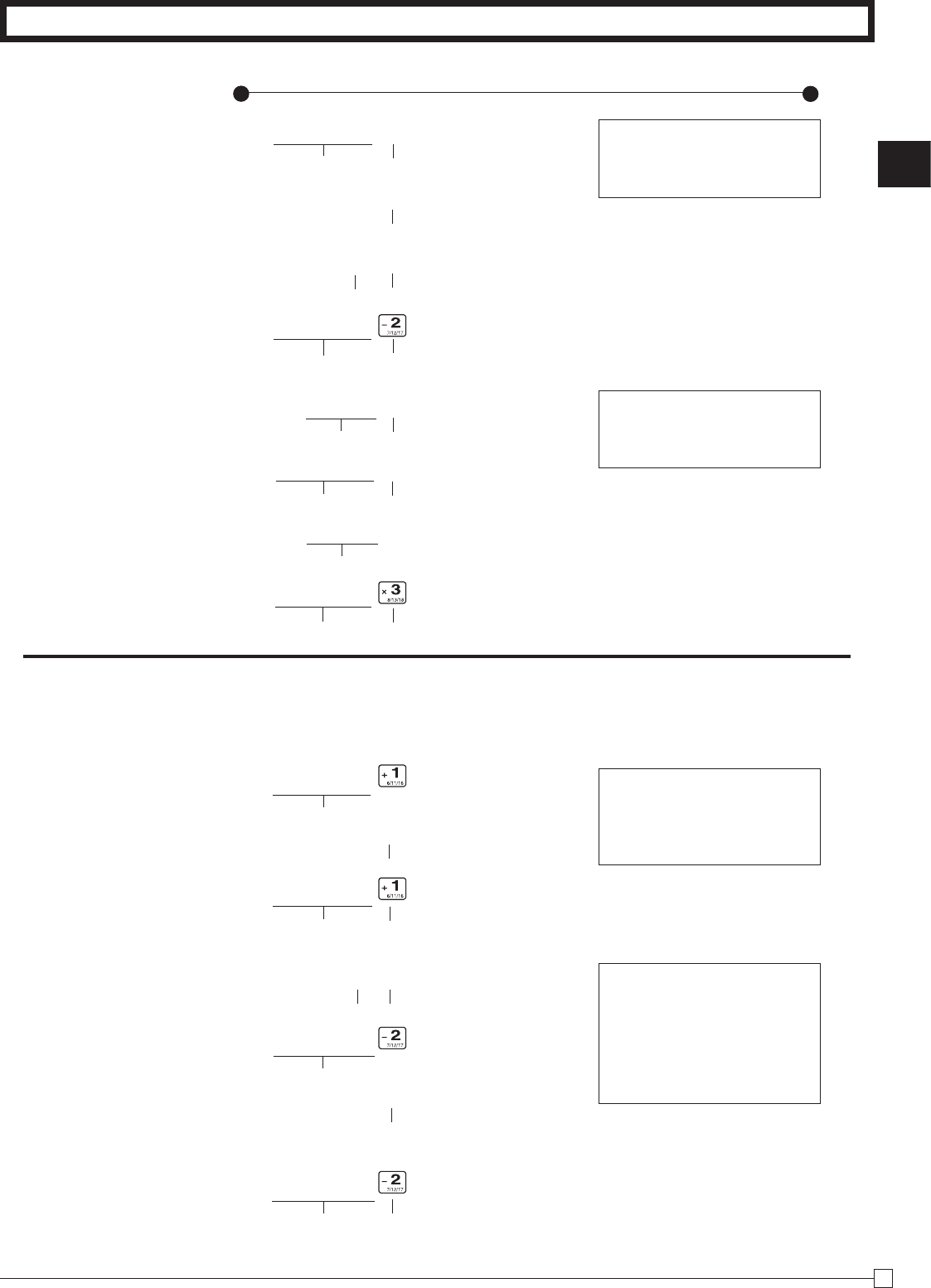
9-5 Charge sales
You cannot perform the amount tendered operation using the u key.
Corrections can be made while you are registering the item (before you
press a department key), or after it has already been registered into the
memory (by pressing a department key).
Example
1. Entered 400 for unit
price by mistake in-
stead of 100.
Operation Printout
9-6 Split cash/
charge sales
01-08-2010 09:50
REG 0007
DEPT01 $2.00
DEPT02 T1 $3.00
DEPT01 $4.00
TA1 $3.00
TAX1 $0.12
TOTAL $
9
.
12
CASH $5.00
CHARGE $4.12
DEPT01 $1.00
—
Cash Amount Tendered
— Charge Sales
9-7 Corrections
9-7-1 Before you
press a depart-
ment key
Wrong entry Clears the last item entered.
Correct entry Registered Department 1
y
key clears the last item entered.
Printout
01-08-2010 09:30
REG 0005
DEPT01 $1.00
DEPT02 T1 $2.00
DEPT01 $3.00
TA1 $2.00
TAX1 $0.08
CHARGE $
6
.
08
Charge key — Charge Sales
Example
Unit Price $1.00 $2.00 $3.00
Quantity 1 1 1
Dept. 1 2 1
Example
Unit Price $2.00 $3.00 $4.00
Quantity 1 1 1
Dept. 1 2 1
Cash
Amount
tendered
$5.00
Part-1
15
E
Part-1 QUICK START OPERATION
X?? h
y
B h
X??
Z? h
ZB? y
Z? h
Z?B
BB?
g
B?B
C h
XX?
g
C h
XC?
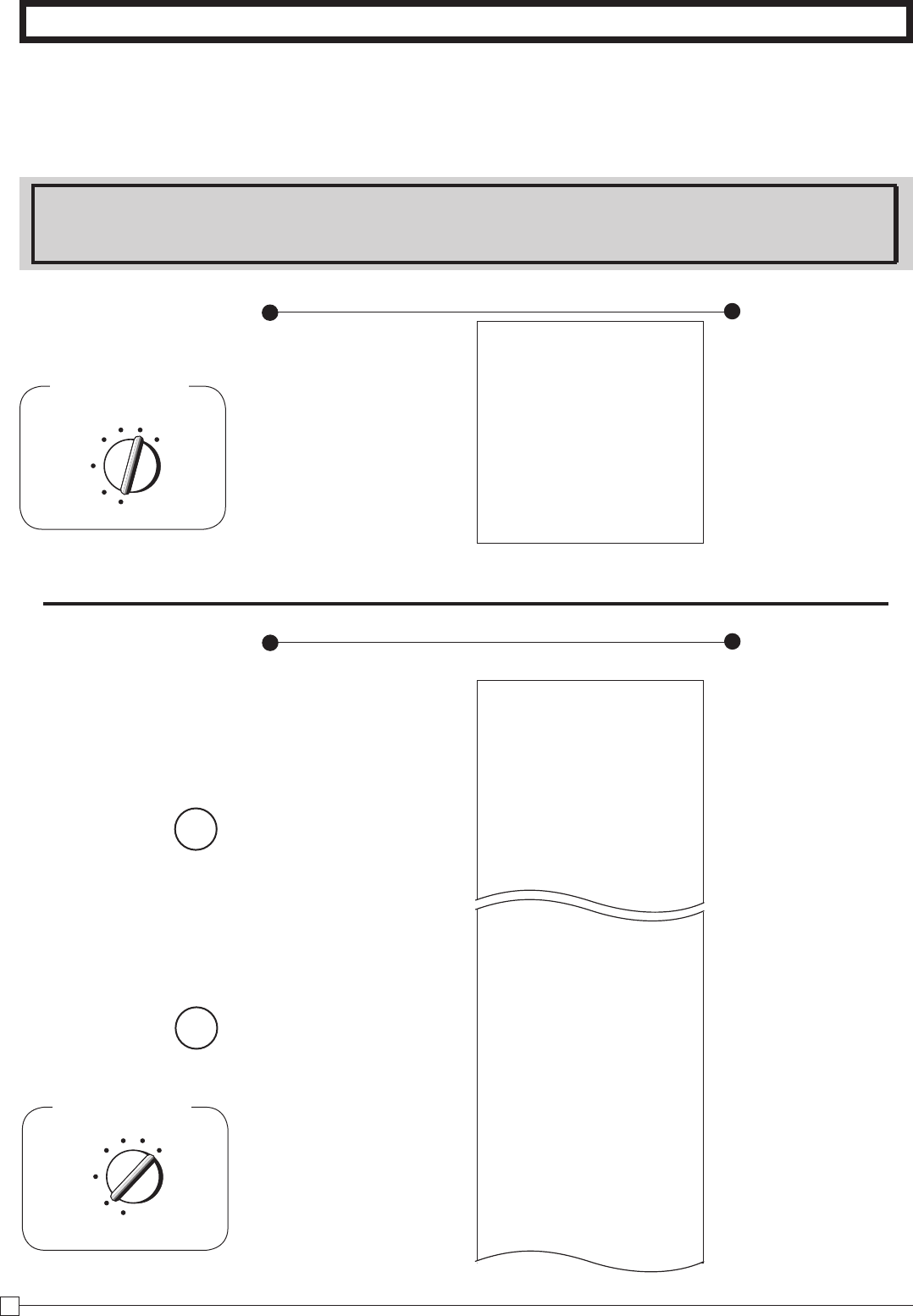
Operation Printout
2. Entered unit price
first instead of quan-
tity and then pressed
h.
Multiplication
Clears the last item entered.
Multiplication
Registered Department 2
Quantity
Quantity
Quantity
Wrong entry Clears the last item entered.
Correct entry Registered Department 3
Multiplication
9-7-2 After you
pressed a depart-
ment key
Cancels the last item registered.
Registered Department 1
2. Entered unit price 220
by mistake instead of
230 and pressed a
department key.
Multiplication
Quantity
Cancels the last item registered.
Wrong entry
5 X @2.00
DEPT02 T1 $10.00
3 X @2.20
DEPT02 T1 $6.60
ERR CORR -6.60
3 X @2.30
DEPT02 T1 $6.90
DEPT01 $5.50
ERR CORR -5.50
DEPT01 $5.05
10 X @1.05
DEPT03 $10.50
3. Entered 150 for unit
price by mistake
instead of 105.
Example
1. Entered unit price 550
by mistake instead of
505 and pressed a
department key.
Correct entry Registered Department 2
Unit price
Unit price
g
key cancels the last registered item.
Wrong entry
Correct entry
16
E
Part-1 QUICK START OPERATION
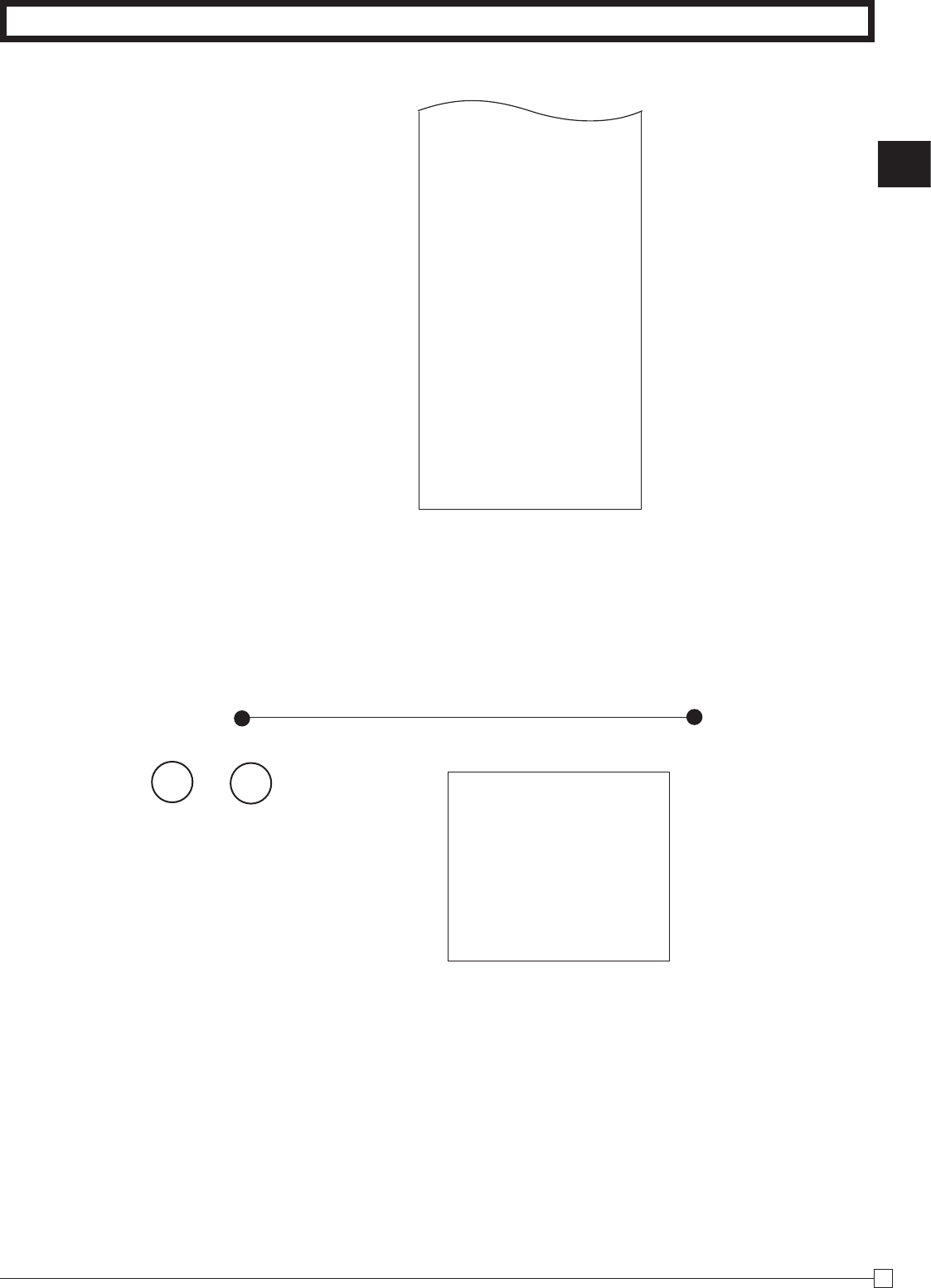
10. Daily Management Report
This section tells you the procedures to use to produce reports of the transac-
tion data stored in the cash register's memory.
Important
Remember that when you issue a reset (Z) report, the data that is reported is cleared from the applicable total-
izers. To view data without clearing totalizers, issue a read (X) report.
Printout
Operation
01-08-2010 16:50
X 0131
FLASH
X
GROSS TOTAL QT 67
$270.48
NET TOTAL No 36
$271.24
CASH-INDW $197.57
CHARGE-INDW $18.19
CKECK-INDW $45.18
h
p
p
— Read Symbol
— Gross Sales No. of Items
— Gross Sales Amount
— Net Sales No. of Customers
— Net Sales Amount
— Cash Total in Drawer
— Charge Total in Drawer
— Check Total in Drawer
10-2-1 Daily Read/Reset
Report
10-2 Read/Reset
Report
Z (Reset) report
01-08-2010 19:35
Z 0173
0000
DAILY
Z 0012
DEPT01 QT 48
$50.10
DEPT02 QT 28
$76.40
DEPT03 QT 17
$39.23
DEPT20 QT 29
$3.00
------------------------
GROSS TOTAL QT 108
$316.80
NET TOTAL No 46
$325.13
CASH-INDW $199.91
CHAREG-INDW 16.22
CHECK-INDW $105.00
TA1 $105.10
TAX1 $4.20
TA2 $75.60
TAX2 $3.97
RF-MODE TTL No 2
$0.50
Printout
Operation
— Date/
Time
—
Consecutive No.
—
Non-resettable Sales No.
of Resets*
1
/RESET Symbol*
1
— Dept. Name/No. of items
— Amount
— Gross Sales No. of Items
— Gross Sales Amount
—
Net Sales No. of Customers
— Net Sales Amount
— Cash in Drawer
— Charge in Drawer
— Check in Drawer
— Taxable Amount 1
— Tax Amount 1
— Taxable Amount 2
— Tax Amount 2
— RF Mode Count
— RF Mode Amount
Mode Switch
REG
OFF
RF
PGM
CAL Z
X
Mode Switch to
X
(Read)
Mode Switch to
Z
(Reset)
Mode Switch
REG
OFF
RF
Z
CAL X
PGM
10-1 Financial Re
port
Part-1
17
E
Part-1 QUICK START OPERATION
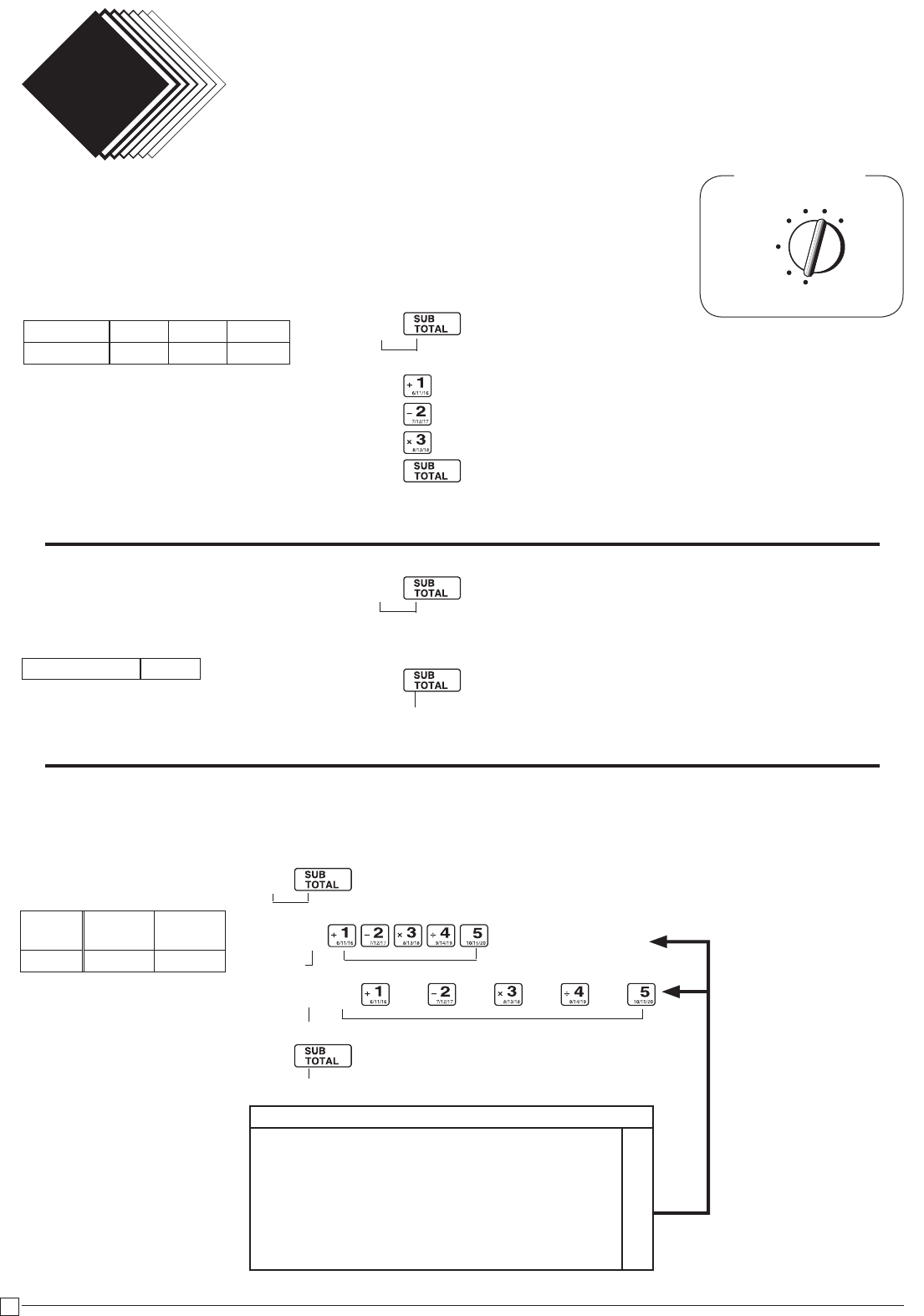
* X (Read) report is the same except *1 and *2.
10-2-2 Periodic Read/
Reset Report
Printout
Operation
CALCULATOR No 3
------------------------
CASH No 44
$203.91
CHARGE No 3
$16.22
CHECK No 2
$105.00
RC $6.00
PD $10.00
- $0.50
%- $0.66
ERR CORR No 21
NS No 12
------------------------
CLERK01 $325.13
------------------------
GT $0,000,832,721.20
Z? p 01-10-2010 20:35
Z 0365
0010 PERIODIC ZZ 0001
GROSS TOTAL QT 67
$270.73
NET TOTAL No 38
$271.24
— Date/ Time
— Consecutive No.
— Periodic Reset Symbol
— Gross Sales No. of Items
— Gross Sales Amount
— Net Sales No. of Customers
— Net Sales Amount
— No. of p key operation in
CAL mode
— Cash Sales Count
— Cash Sales Amount
— Charge Sales Count
— Charge Sales Amount
— Check Sales Count
— Check Sales Amount
—
Received on Account Amount
— Paid Out Amount
— Reduction Amount
—
Premium/Discount Amount
— Error Correction Count
— No-sales Count
— Clerk 1 Sales Amount
(Refer to 2-10 Cashier Assignment)
—
Non-resettable Grand Sales Total
(printed only on RESET report)*2
Mode Switch to
Z
or
X
18
E
Part-2 CONVENIENT OPERATION
Z
Z??
XX?
ZZ??
Z
X"B :
Z ~
m
cj j j j j
CONVENIENT OPERATION
Part 2
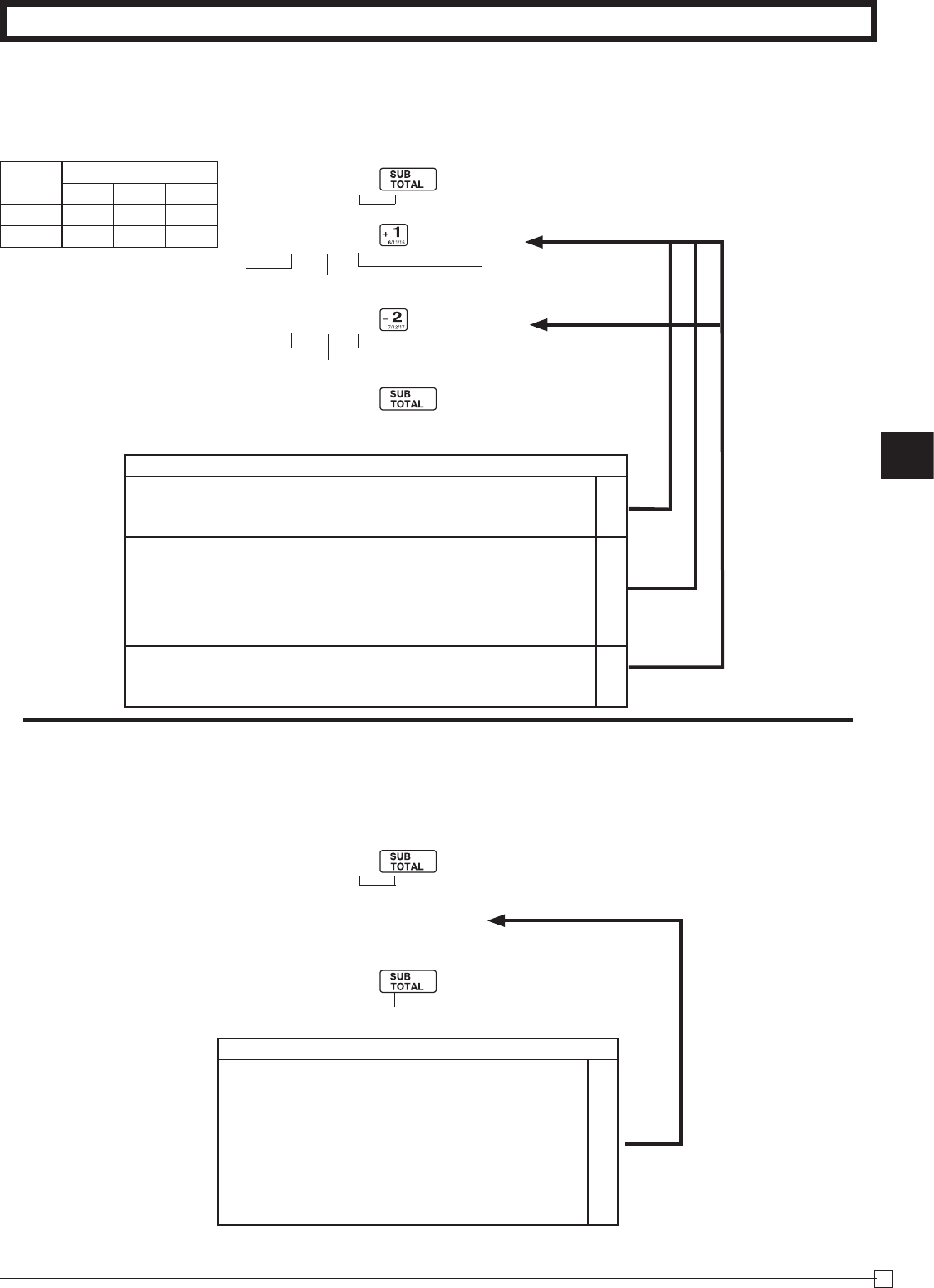
1. Various Programming
1-1 Unit price for
Departments
Mode Switch
1-2 Rate for per-
cent key
P appears in mode display
•Unitpriceswithintherangeof0.01~9999.99.
•Theratewithintherangeof0.01to99.99%.
1-3 To change tax
status for
Departments
REG
OFF
RF
PGM
CAL X Z
(Toendthesetting)
P appears in mode display
P appears in mode display
(ForDept.1)
(ForDept.2)
(ForDept.3)
Selectkey
fromlistA
Taxablestatus1
(Toendthesetting)
ForDepts.6,7,8,9and10
ForDepts.1,2,3,4and5
TaxstatusfortheDepartmentsarexedasfollows:
Department2: Taxablestatus1.
Departments1,3~20: Non-Taxablestatus.
Example
UnitPrice $1.00 $2.20 $11.00
Dept. 1 2 3
Example
DiscountRate 2.5%
Example
Status Non-
Taxable Taxable
Dept. 1~5 6~10
Selections
Taxablestatus1 c
A
Taxablestatus2 v
Taxablestatus1and2 cv
Taxablestatus3 h
Taxablestatus4 u
Non-taxablestatus m
Part-2
19
E
Part-2 CONVENIENT OPERATION
C
?VZ
?BZ
Z ~
m:
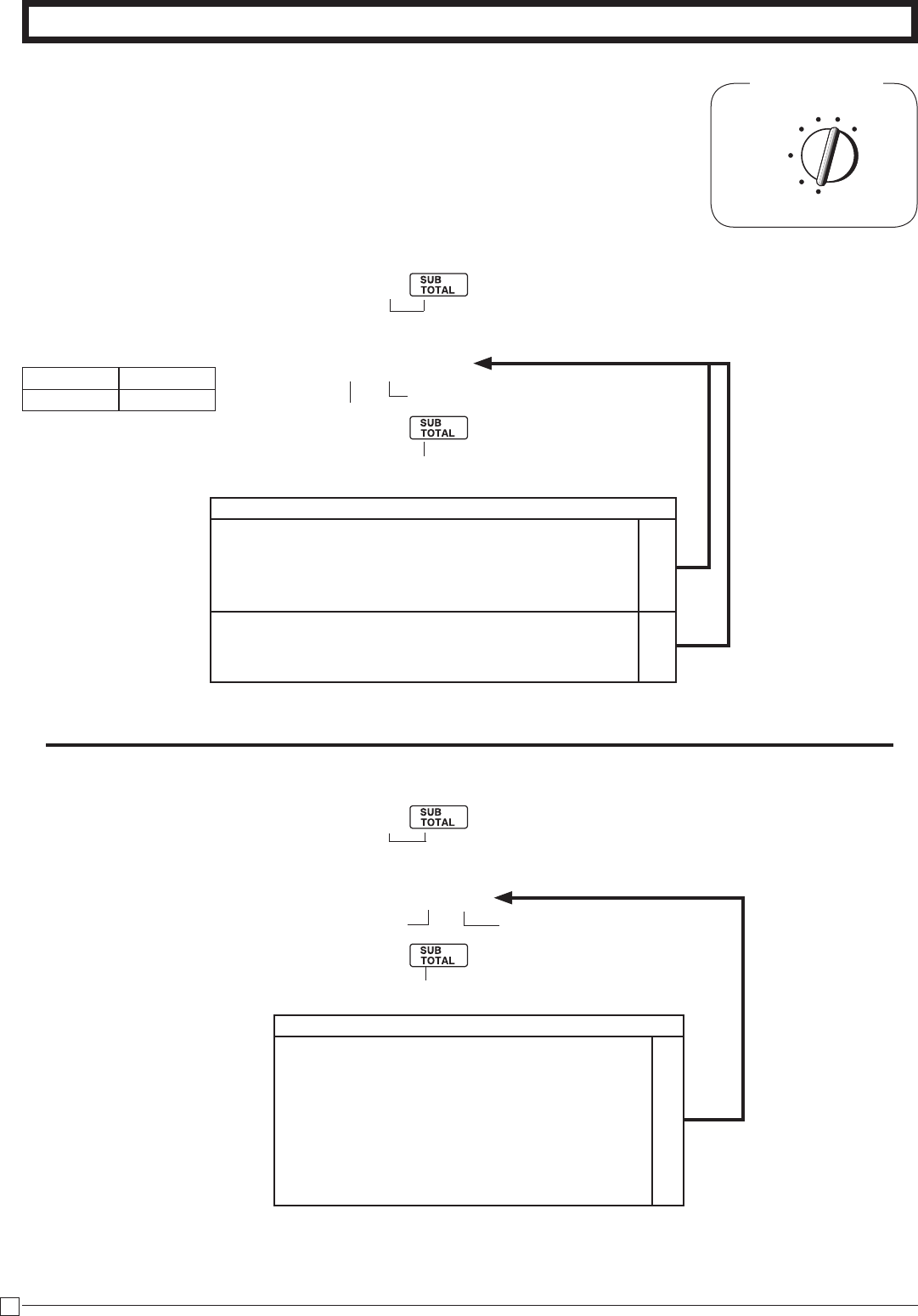
1-4 Status for
Department
1-5 Status for percent key
1-5-1 To change tax-
able status for the
percent key
ThepercentkeyisinitializedasTaxablestatus1.
Example
ChangePercentkey
registrationasaNon-
taxable.
P3appearsinmodedisplay
Selectanumber
fromlistA SelectanumberfromlistB
Normaldepartment
MaximumNo.ofdigitstobe5
ForDept.1
Selectanumber
fromlistC
ForDept.2
Singleitemsale
department
P appears in mode display
(Toendthesetting)
(Toendthesetting)
SelectkeyfromlistA (Forpercentkey)
Selections
Normaldepartment ?
A
Minusdepartment Z
Nolimitationformanuallyenteredprice.(7digits) ?
B
Maximumnumberofdigitsformanuallyenteredprice.
(1~7digits) Z ~M
Toprohibitmanualpriceentries. < or >
Normalsales(notasingle-itemsale)department ?
C
Setasasingle-itemsaledepartment Z
Example
Depts. Selections
A B C
1 0 4 1
2 0 5 1
Selections
Taxablestatus1 c
A
Taxablestatus2 v
Taxablestatus1and2 cv
Taxablestatus3 h
Taxablestatus4 u
All-taxable cvhu
Non-taxablestatus m
20
E
Part-2 CONVENIENT OPERATION
C
ZZ :
Z ~
cg
Mode Switch
REG
OFF
RF
PGM
CAL X Z
1-5-2 Status for
percent key
Selectanumber
fromlistA
Selectanumber
fromlistB
P3appearsinmodedisplay
(Toendthesetting)
TheminuskeyisinitializedasNon-taxable.
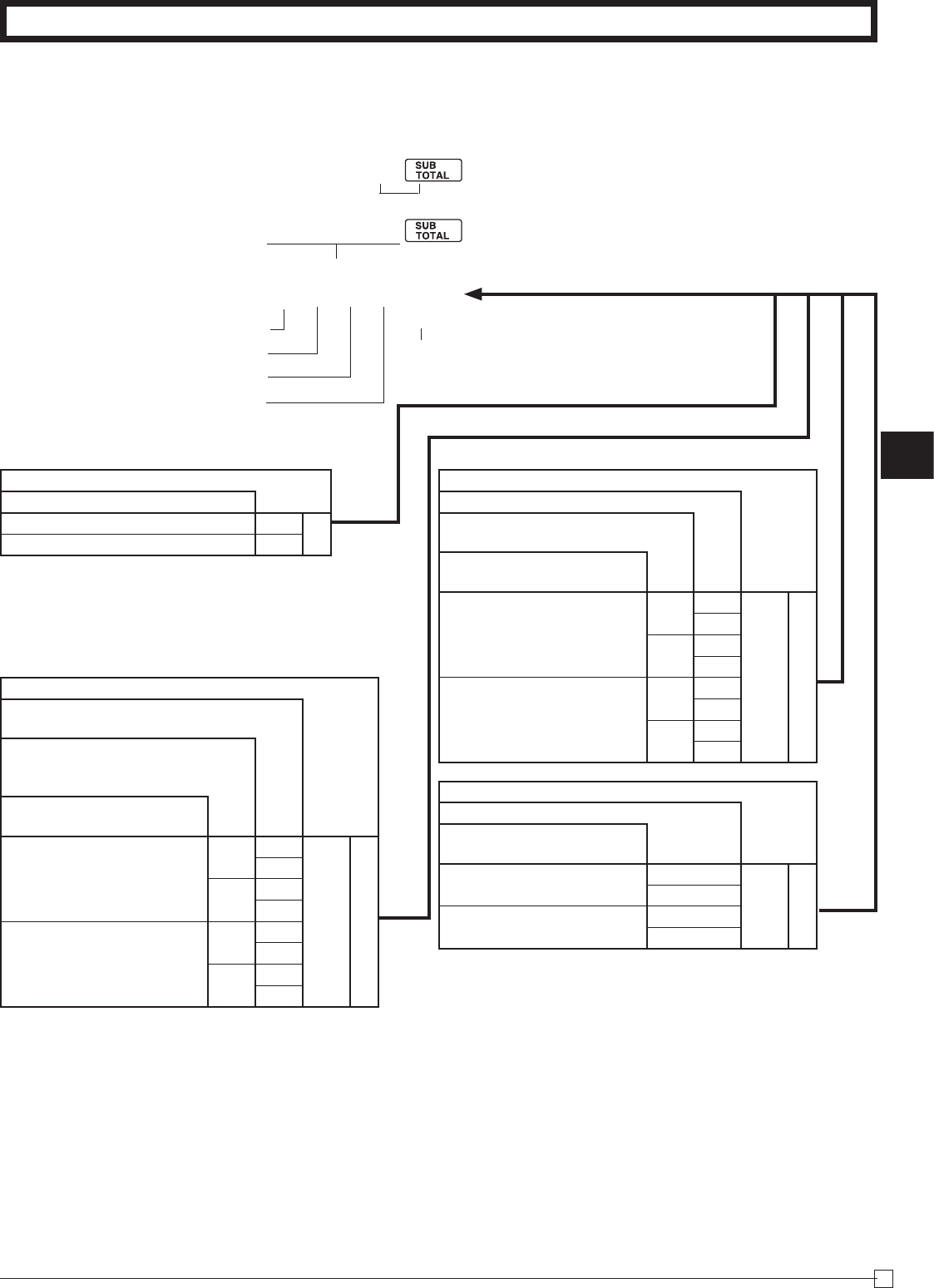
1-6 Taxable Status
for minus key
P appears in mode display
Minuskey
(Toendthesetting)
SelectkeyfromlistA
Example
Changeminuskeyregistra-
tions
asataxablestatus1.
Selections
RoundingofresultsproducedbyPercentKeyoperation.
A
Roundoff(1.544=1.54;1.545=1.55) ?
Cutoff(1.544=1.54;1.545=1.54) Z
Roundup(1.544=1.55;1.545=1.55) X
ProgramPercentKeytoregisterdiscounts(%–). ?
B
ProgramPercentKeytoregisterpremiums(%+). Z
ProgramPercentKeytofunctionasaManualTaxkey.
X
Example
Round Up
Percent %+
Selections
Taxablestatus1 c
A
Taxablestatus2 v
Taxablestatus1and2 cv
Taxablestatus3 h
Taxablestatus4 u
All-taxable cvhu
Non-taxablestatus m
Part-2
21
E
Part-2 CONVENIENT OPERATION
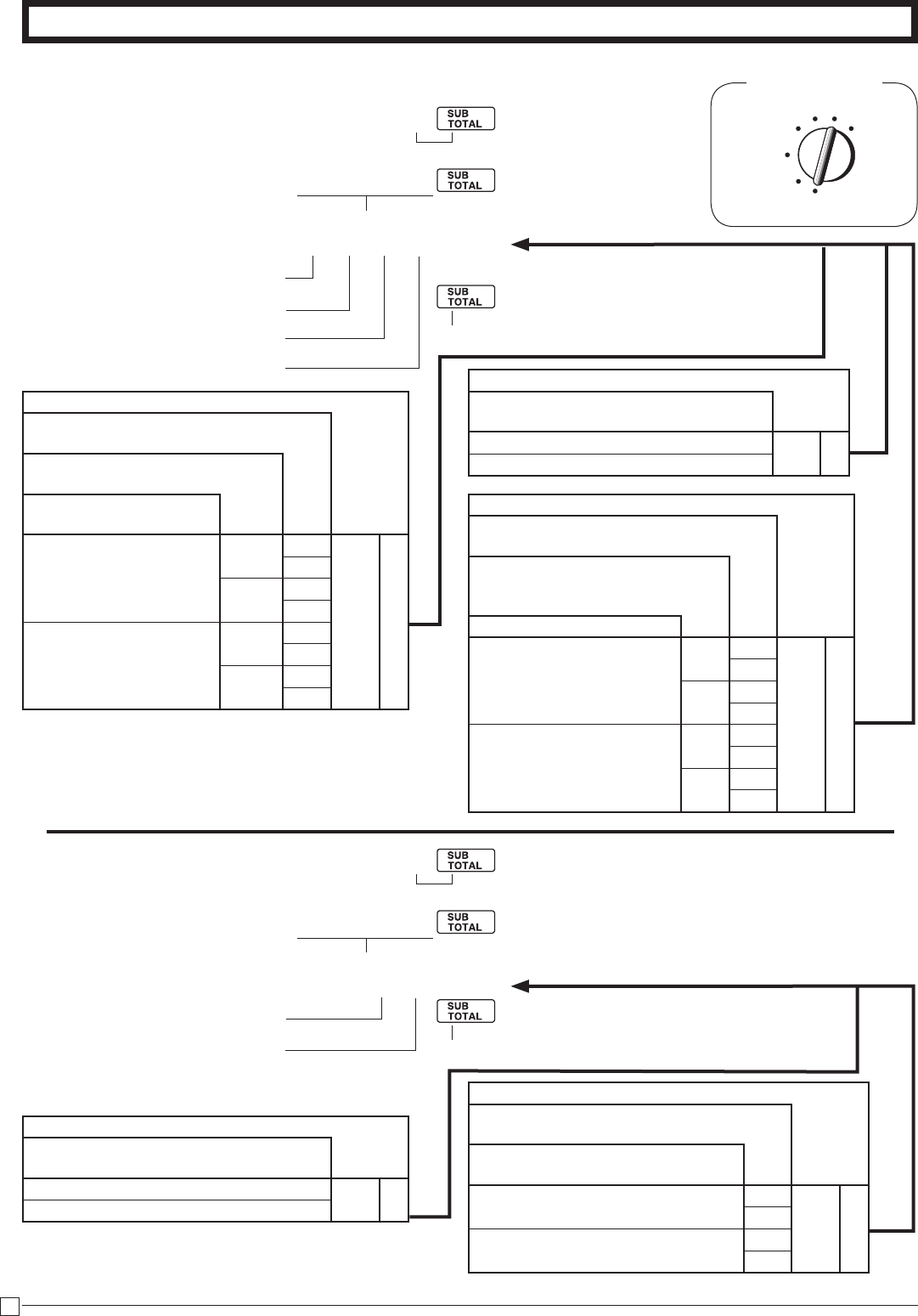
1-7-1 To set general
controls
1-7 General features
C
?NXX
???? p
o
P3appearsinmodedisplay
(Toendthesetting)
ProgramcodeNo.
SelectanumberfromlistA
SelectanumberfromlistB
SelectanumberfromlistC
SelectanumberfromlistD
Selections
Maintainkeybufferduringreceiptissue
inREGmode.
Resettheconsecutivenumber
tozerowheneveraDailyReset
Reportisissued.
Allowcreditbalanceregis-
tration.
No
Yes Yes ?
B
No Z
No Yes X
No C
Yes
Yes Yes V
No B
No Yes N
No M
Selections
Timedisplayswithsecond.
Allowsplitcashamountten-
dered.
Allowsplitcheckamount
tendered.
Yes
Yes No ?
C
Yes Z
No No X
Yes C
No
Yes No V
Yes B
No No N
Yes M
Selections
Usethe'keyasa000key.
Cashierassignmentsys-
tems(signon)isused.
No No ?
D
Yes Z
Yes No X
Yes C
Selections
Keycatchtone.
Yes ?
A
No V
22
E
Part-2 CONVENIENT OPERATION
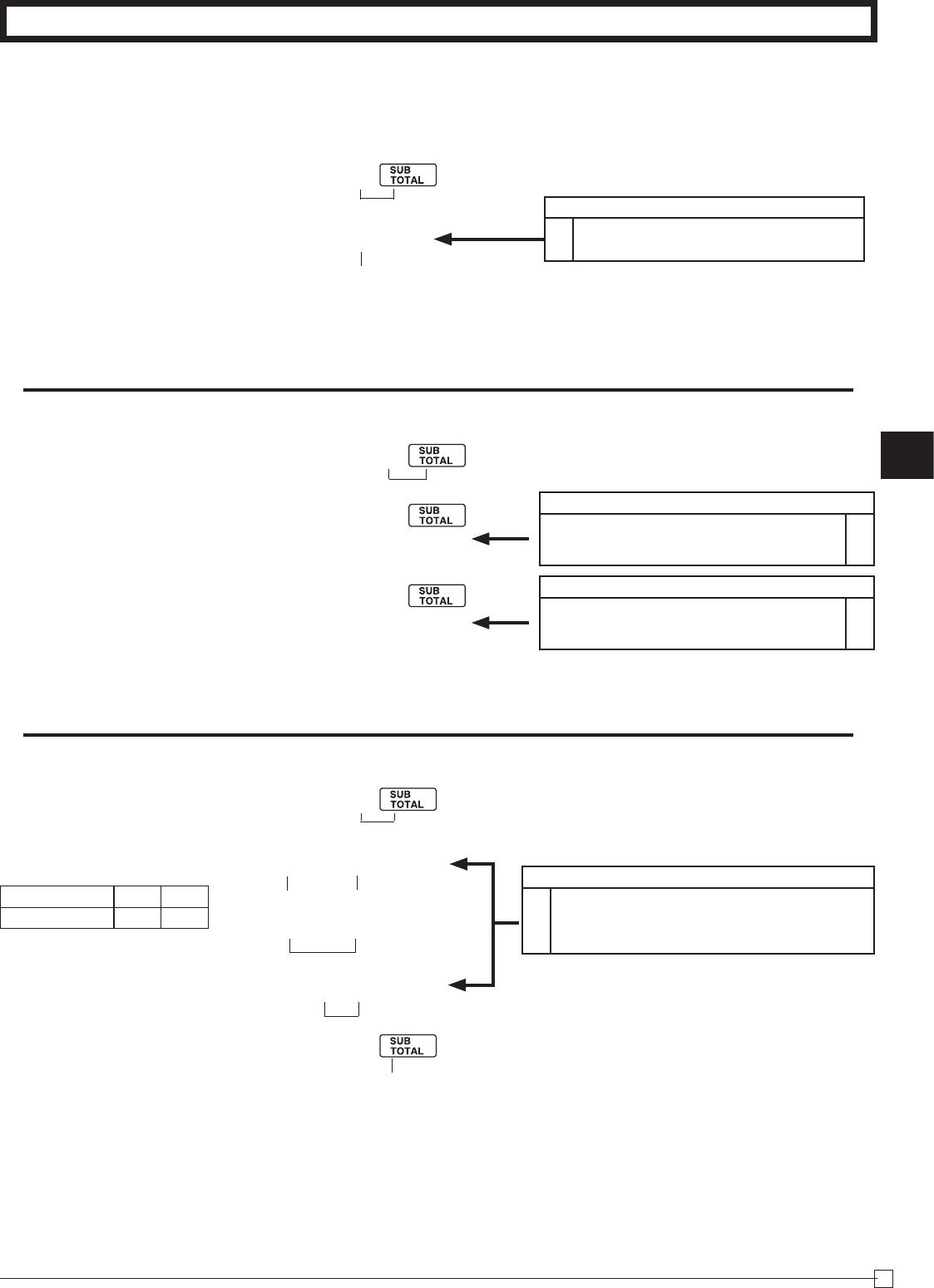
1-7-2 To set printing
controls
REG
OFF
RF
PGM
CAL X Z
Mode Switch
C
?BXX
???? p
P3appearsinmodedisplay
(Toendthesetting)
ProgramcodeNo.
SelectanumberfromlistA
Always“0”
SelectanumberfromlistB
SelectanumberfromlistC Selections
Printthetimeonthereceiptandjour-
nal.
Yes ?
B
No V
Selections
Printtheconsecutivenumberonthe
receipt/journal.
Printthesubtotalonthereceipt/
journalwhentheSubtotalKeyis
pressed.
Skipitemprintonjournal.
No
No Yes ?
C
No Z
Yes Yes X
No C
Yes
No Yes V
No B
Yes Yes N
No M
Selections
Usetheprintertoprintreceipts=R
Usetheprintertoprintajournal=J
Printreceiptbysingle/double
heightcharacters.
PrintTotallineatnaliza-
tion
No
Single R?
A
JZ
Double RX
JC
Yes
Single RV
JB
Double RN
JM
C
?<XX
?? p
P3appearsinmodedisplay
(Toendthesetting)
ProgramcodeNo.
SelectanumberfromlistA
SelectanumberfromlistB
Selections
PrintRFswitchmoderefundcount/
amountontheRead/ResetReports.
Yes ?
A
No Z
Selections
Printzero-totallineontheDailyRead/
ResetReports
Printthegrandsalestotalonthe
DailyResetReports.
Yes No ?
B
Yes Z
No No X
Yes C
1-7-3 To set report
printing controls
Part-2
23
E
Part-2 CONVENIENT OPERATION
C
ZiZ p
Z?? i
Z? p
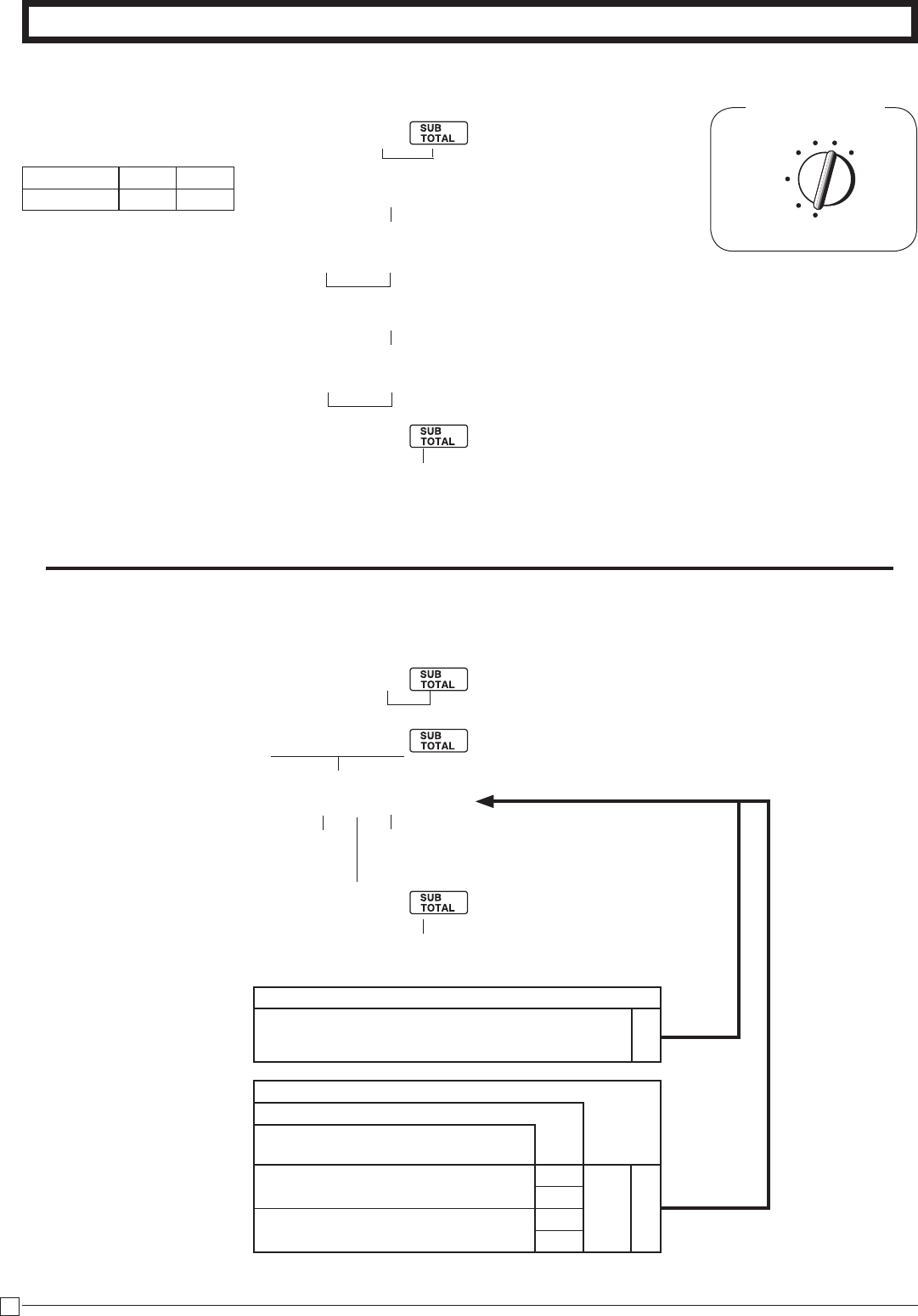
1-7-4 Printer switch for
Receipt or Journal
Theprinterisinitializedasreceipt.
P3appearsinmodedisplay
Z
Z u
P appears in mode display
•Printerselectiontoprintajournalor
receipts can also be set on proce-
dures1-7-2“Tosetprintingcontrols”.
1-8 PLU setting
1-8-1 Linkage with
Departments
•1200PLUscanbeset.
•When the linked department is not speci-
ed,thePLUislinkedtodepartment20.
•Statusforasingle-itemsaleandtaxstatus
are followed the specied linked depart-
ment.
SelectanumberfromlistA
(Toendthesetting)
Dept.No.tobelinked
SelectnumbersfromlistA
PLUNo.
PLUNo.
Selections
A
Usetheprintertoprintreceipts. ?
Usetheprintertoprintajournal. Z
Selections
A
Linkedtodept.20. ?
Linkeddepts.1~20respectively.
Z~X?
Example
Toprintajournal.
Example
PLUNo. 1 100
LinkDept.No 1 10
Z
Z?X??
Z p
Z?<??
Z p
1-7-5 Receipt printing character/
key catch tome
P appears in mode display Selections
Printreceiptwithsingleheight. ?
A
Printreceiptwithdoubleheight. Z
Selections
Keycatchtone ?
B
Nokeycatchtone Z
24
E
Part-2 CONVENIENT OPERATION
Z
Z i
Z?? p
X i
C?? p
C
?CXN
X?? p
1-8-2 Unit Prices
for PLUs
P appears in mode display
PLUNo.
UnitPrice
PLUNo.
UnitPrice
(Toendthesetting)
•Unitpriceswithintherangeof$0.01~9999.99.
Mode Switch
REG
OFF
RF
PGM
CAL X Z
1-9 To control
Tax Status
printing
(Toendthesetting)
P3appearsinmodedisplay
ProgramsetcodeNo.
Selecta
number
fromlistB
Selecta
number
fromlistA
Enter “0”
(xedcode)
Selections
Printtaxableamount.
Printtaxableamountandtax
amountforAdd-in.
No Yes ?
B
No Z
Yes Yes X
No C
Selections
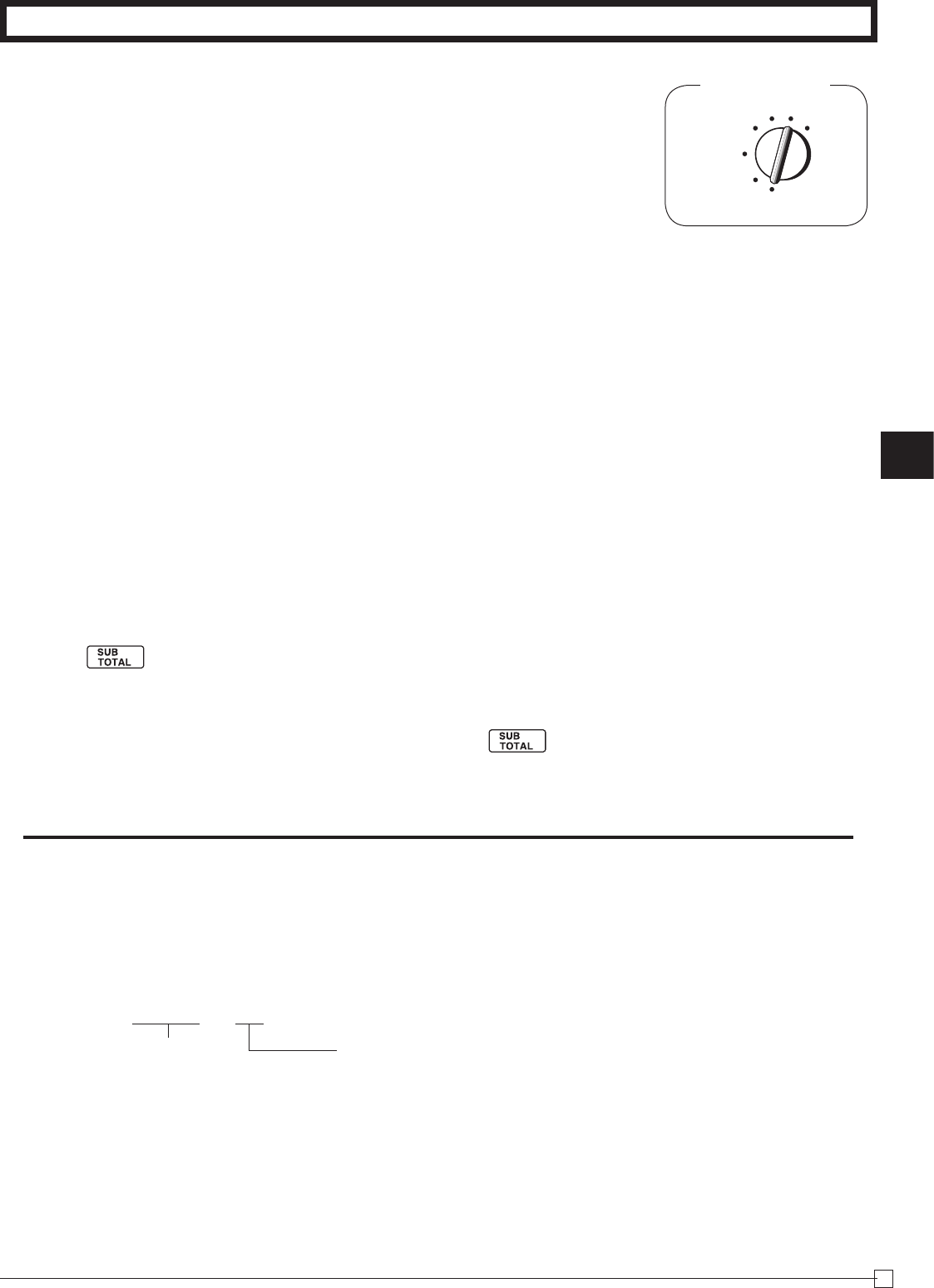
PrintTaxstatussymbols. ?
A
DonotprintTaxstatussymbols. X
Example
DonotprintTaxstatussymbol.
Example
PLUNo. 1 2
UnitPrice $1.00 $3.00
Part-2
25
E
Part-2 CONVENIENT OPERATION
1-10 To program Tax Table
Mode Switch
REG
OFF
RF
PGM
CAL X Z
1-10-1 Canadian Tax Table
Type 1
Choose the tax rate from a preset tax table for British Columbia,
Manitoba, Ontario, Prince Edward Island, Quebec and Saskatchevan.
A)Enter?X and press/.
B)Selectyourstate.
Note:Taxablestatusofdepartment2keywillbesetasT/S1&2.
Type 2 and 3
Except above state, use flat tax rate as follows;
A)Turnthekeyto“PGM”position.
B) Press ~key.
C)ForAlberta,NorthWestTerritory,NumnavutTerritoryandYukonTerritory.
Enter5(taxrate)andpressappropriatedepartmentkey.(Taxrateisasof2009/April)
D)ForNewBrunswick,Newfoudland&LabradorandNovaScotia.Enter13(taxrate)andpress
appropriatedepartmentkey.(Taxrateisasof2009/April)
E) Press toendtaxprogramming.
Note:Incaseofsettingthewrongtaxratetothekey,pleaseenter?andpressthosedepartment
keysabove,andquitthisprocedurebypressing key,andstartfromthebeginningof
thisprocedure.
Pleasestartwiththedepartment2key(taxabledepartment).
Department1keyisinitializedasnontaxable.
1-10-2 When New Tax Table is publicized. (Canadian)
C o
Z o
ZX"CVBN p
B??X p
o
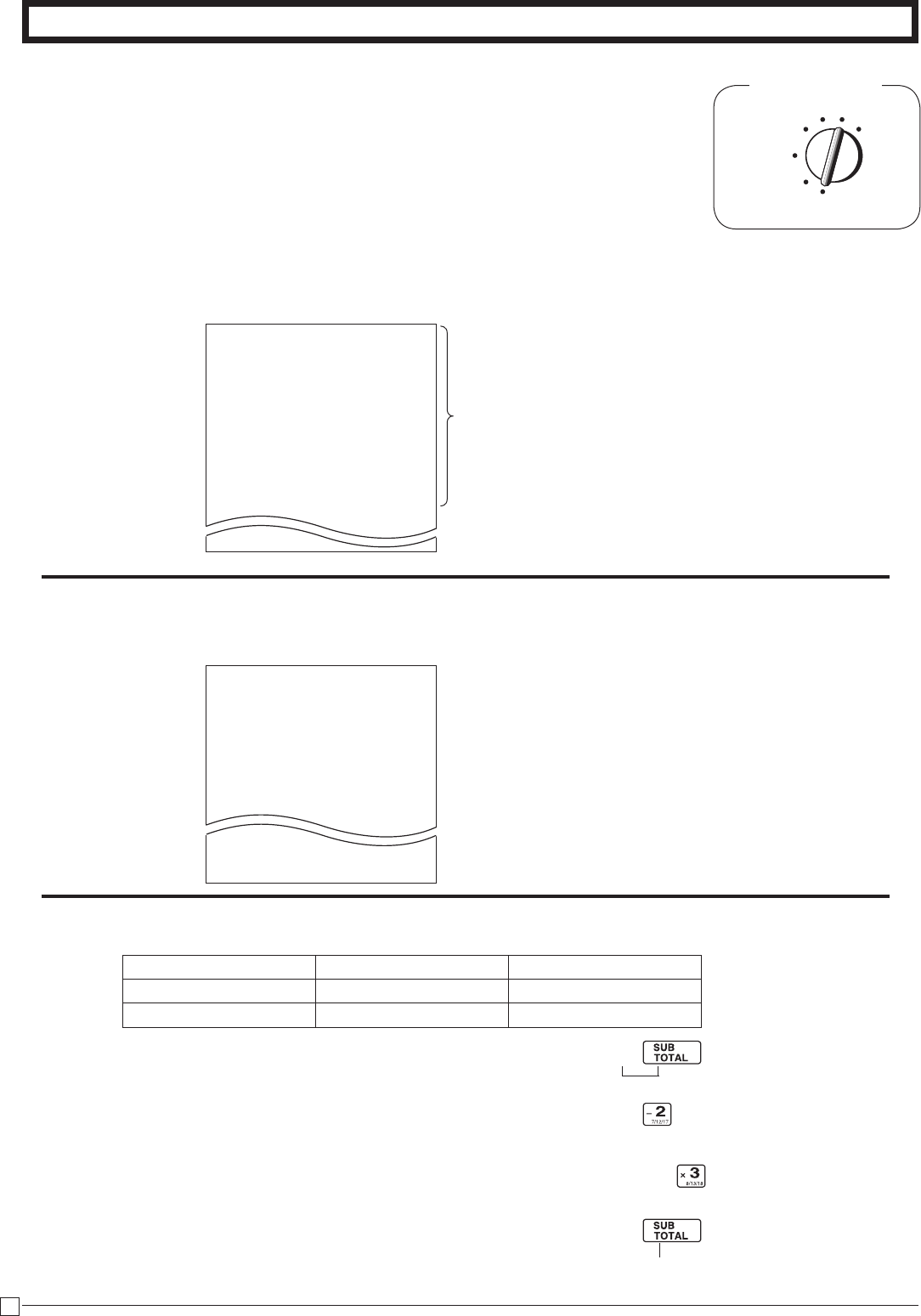
4taxtablesareusedforthefollowingpurpose.
•Table1:Usedforthefederaltaxableitems.
•Table2:Usedfortheprovincialtaxableitems.
•Table3/4:Usedfortheprovincialtaxableitemsfordifferenttaxtable.
Rounding:
Roundoff=50,
Cutoff=00,
Roundup=90
Taxsystem:
Add-on=2,
Add-in=3,
Taxontax=4
(Toendthesetting)
P3appearsinmodedisplay
EntertaxtableNo.(1~4)
Entertaxratewithdecimalpoint.
26
E
Part-2 CONVENIENT OPERATION
1-11 To program department,
PLU, clerk name, receipt message
Mode Switch
REG
OFF
RF
PGM
CAL X Z
ZX/
VZX/
Example
Categories
112:ARTICLE SALE
212:BOOK, STATIONARY
312:ELECTRONIC GOODS
412:DRESSING
512:SERVICE
612:PHARMACY
712:FOODSTUFFS
812:MEAL
912:OTHER
DRESSING
401:JEWELRY
402:CLOTHING
403:UMBRELLA
404:SHOES
: :
: :
428:SCARF
1-11-1 Simple character
list fror
/
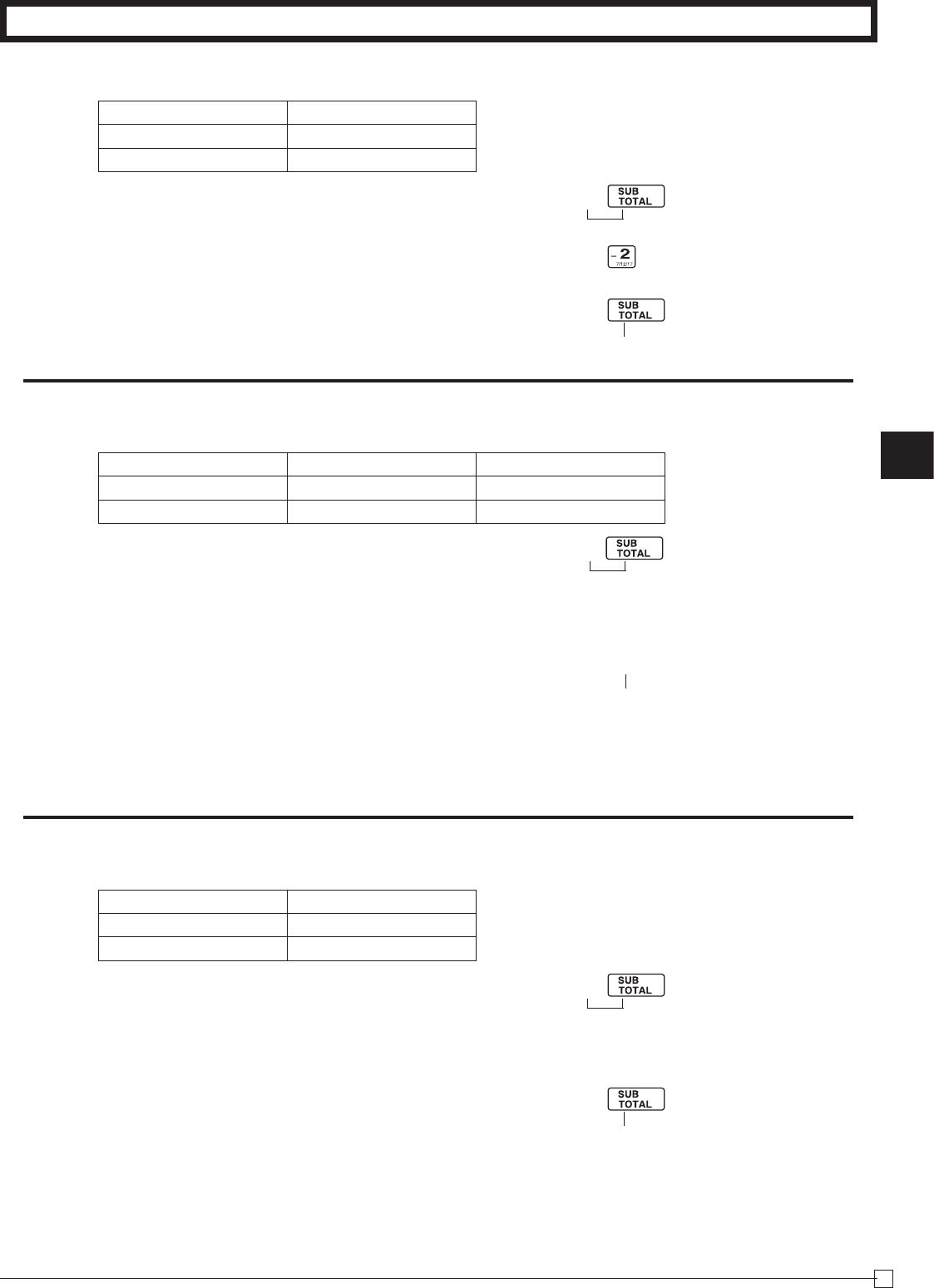
YoucansetdepartmentandPLUnameby
usingasimplecharacterlistfror/
1-1. Issue category list.
1-2. Issue simple character list.
2-1. Programming department name.
Department 2 8
Name JEWELRY SHOES
Charactercode 401 404
X
V?Z
V?V j
P2appearsinmodedisplay
(Toendthesetting)
Part-2
27
E
Part-2 CONVENIENT OPERATION
2-2. Reset department name.
2-3. Programming department PLU
2-4. Reset PLU name.
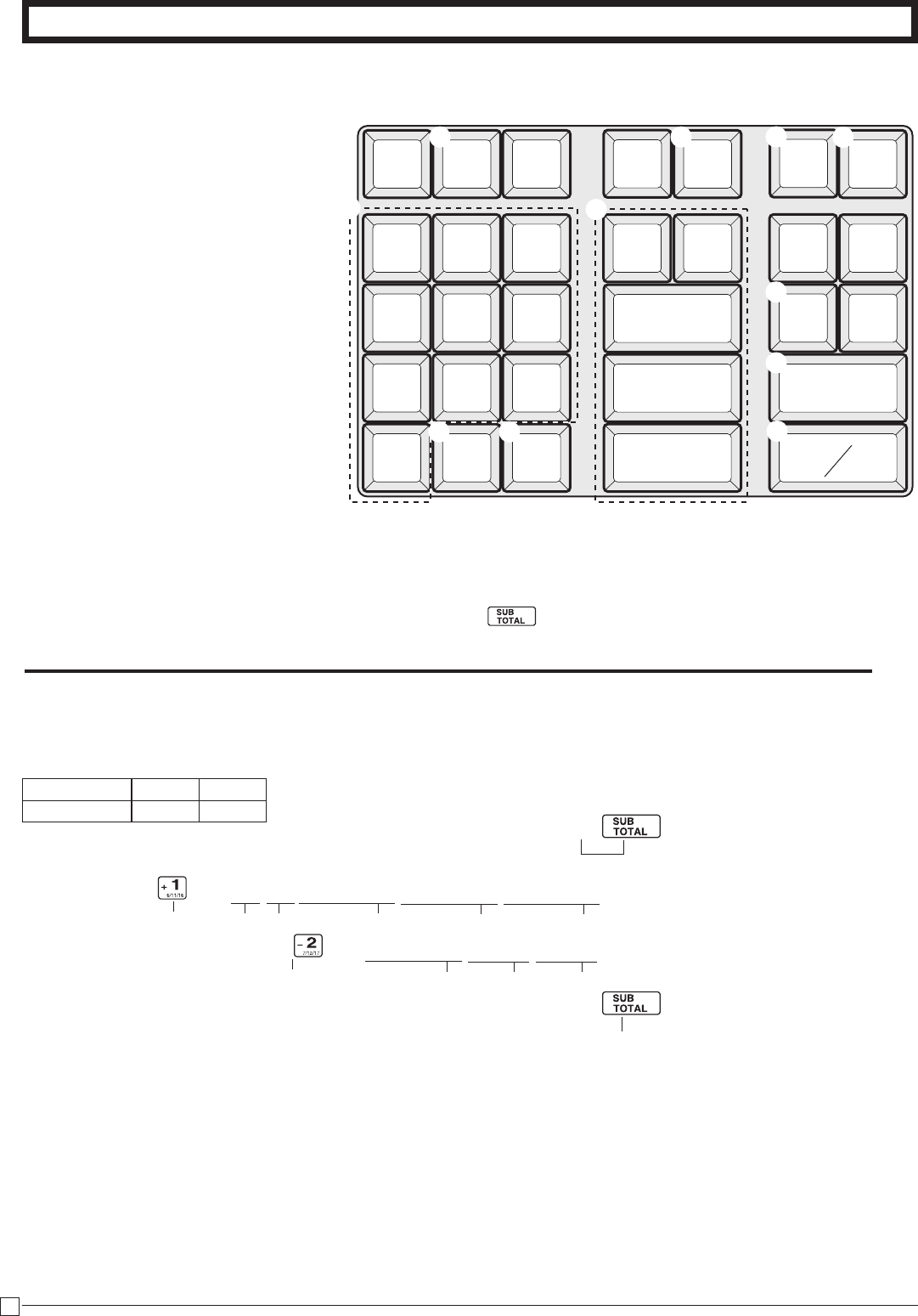
Department 2
Name DEPT01
Charactercode 0
PLU(1-1200) 2 30
Name CLOTHING UMBRELLA
Charactercode 402 403
PLU(1-1200) 30
Name PLU0030
Charactercode 0
X
?
X
XizV?Xp
C?izV?Cp
X
C?z? p
P2appearsinmodedisplay
P2appearsinmodedisplay
P2appearsinmodedisplay
(Toendthesetting)
(Toendthesetting)
(Toendthesetting)
28
E
Part-2 CONVENIENT OPERATION
PLU
DBL
DEL
CH
DEPT
SHIFT
CLK#
CA AMT
TEND
SUB
TOTAL
→
7 8 9
4 5 6
1 2 3
0
— ABC DEF
GHI JKL MNO
PQRS
TUV
WXYZ
1
2
3 4
9
5
6
78
0
A
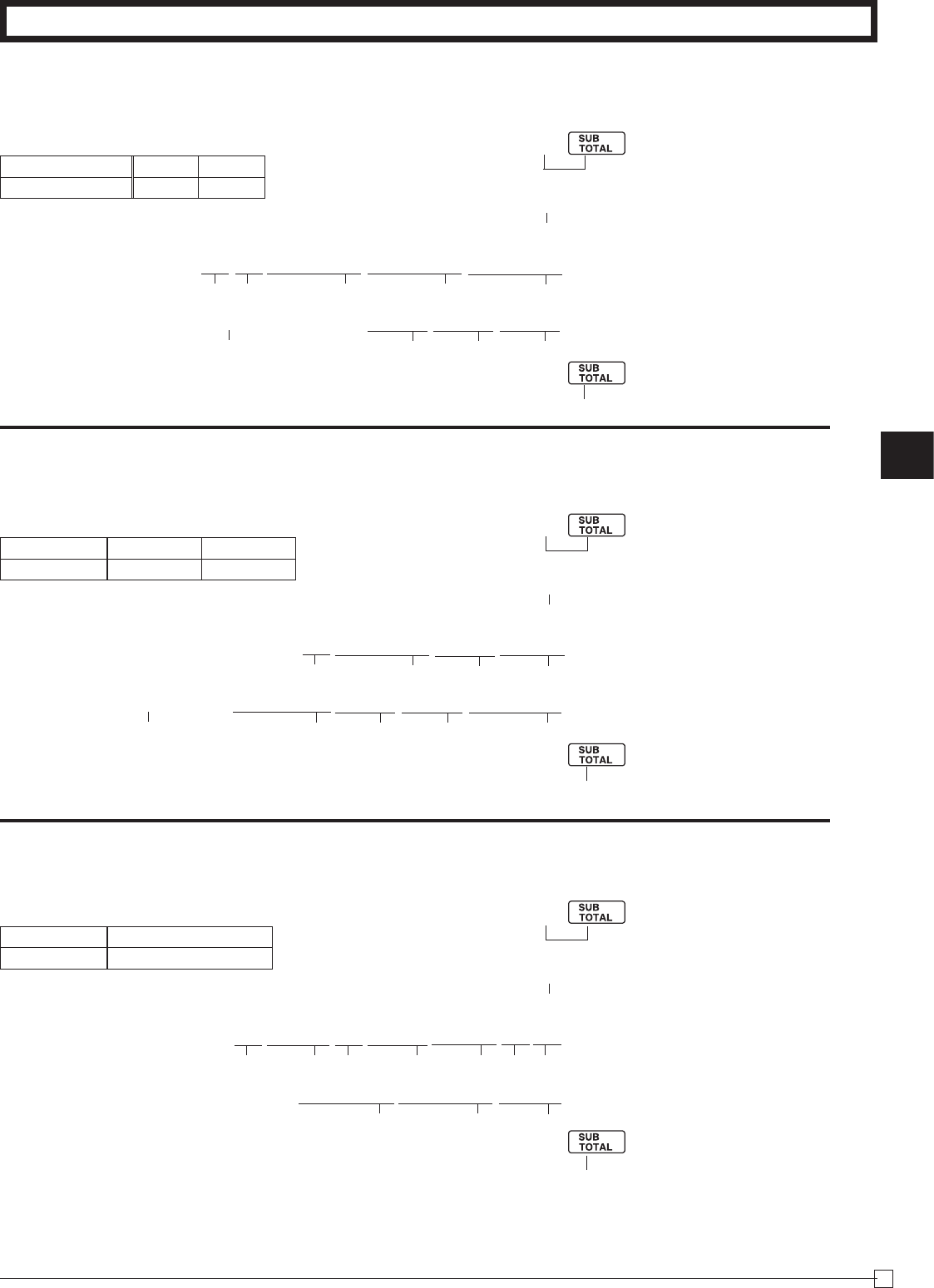
InthePGM2mode,thekeyboardbecomescharactersettingkeyboard
illustratedbelowafterspecifyingadepartment,aPLU,oraclerk.
1Doublesizekey
Usethiskeytospecifythenextcharac-
tertoadoublesizedcharacter.Youmust
pressthiskeybeforeeachdoublesized
character.
2Alphabetkeys
Usethesekeystoinputcharacters.Re-
fertothenextpagetoentercharacters.
3Rightarrowkey
Usethiskeytoinputthecharacter
locatedonthesamealphabetkey.This
keyisalsousedforinputtingaspace.
4Deletekey
Usethiskeytodeletecharacterjust
entered.
5PLUkey
UsethiskeytoinputPLUcode.
6Departmentkeys
Usethiskeytospecifydepartment.
7Departmentshiftkey
Usethiskeytoshiftdepartment.
8Clerknumberkey
Usethiskeytoinputclerknumber.
9Receiptmessagenumberkey(u
key).
Usethiskeytoprogramreceiptmes-
sage.
0Programendkey( key)
Usethiskeytoterminatecharacterpro-
gramming.
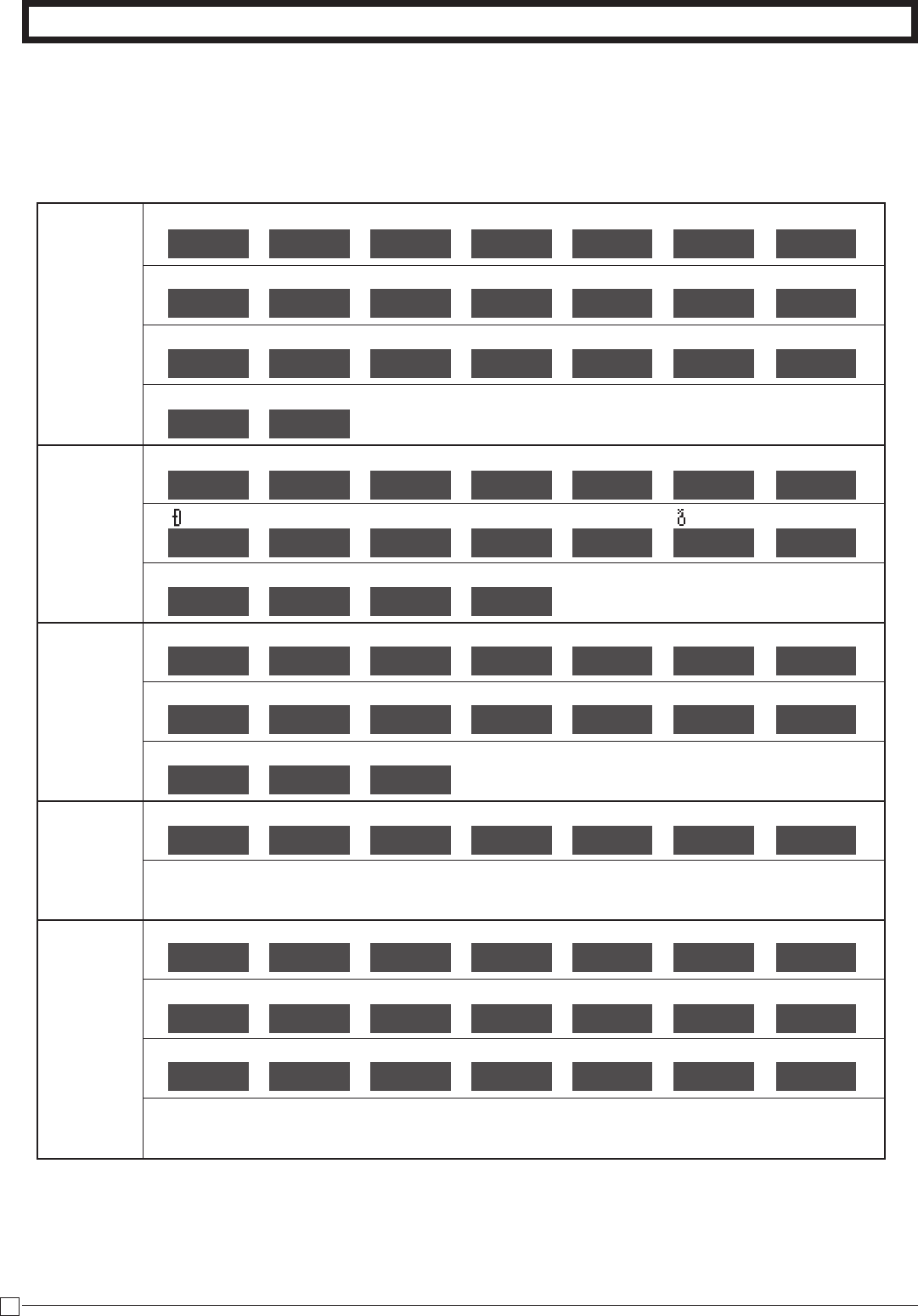
1-11-3 Programming department name
1-11-2 Character
keyboard
X
><VVVZZZCCC p
j \VV<<+< p
P2appearsinmodedisplay
D A I R Y →referto1-11-7
(Toendthesetting)
H
B A →referto1-11-7
Department1
Department7
ACharacterprogramkey(p
key)
UsethiskeytoprogramthePLU/clerk
charactersjustenteredbefore.
Example
Department 1 7
Name DAIRY
H
BA
upto8(4doublesized)characters
Part-2
29
E
Part-2 CONVENIENT OPERATION
1-11-4 Programming PLU name
X
Z i
><VVVZZZCCC p
B?i \VV<<+< p
P2appearsinmodedisplay
D A I R Y →referto1-11-7
(Toendthesetting)
H
B A →referto1-11-7
PLUNo.
PLUNo.
1-11-5 Programming clerk name
X
Z :
BNNNVVNN p
B: \BB\<\X\>> p
P2appearsinmodedisplay
J O H N →referto1-11-7
(Toendthesetting)
K A T E
→referto1-11-7
ClerkNo.
ClerkNo.
1-11-6 Programming receipt message
X
X u
XVV<NNBB++
CCCNNNXX p
P2appearsinmodedisplay
T H A N K
x“K”
space
(Toendthesetting)
Y O U →referto1-11-7
LineNo.
Example
PLU(1~1200) 1 50
Name DAIRY
H
BA
upto8(4doublesized)characters
Example
Clerk(1~8) 1 5
Name JOHN
KATE
upto8(4doublesized)characters
Example
Line(1~5) 2
Message THANKYOU
upto24(12doublesized)characters
30
E
Part-2 CONVENIENT OPERATION
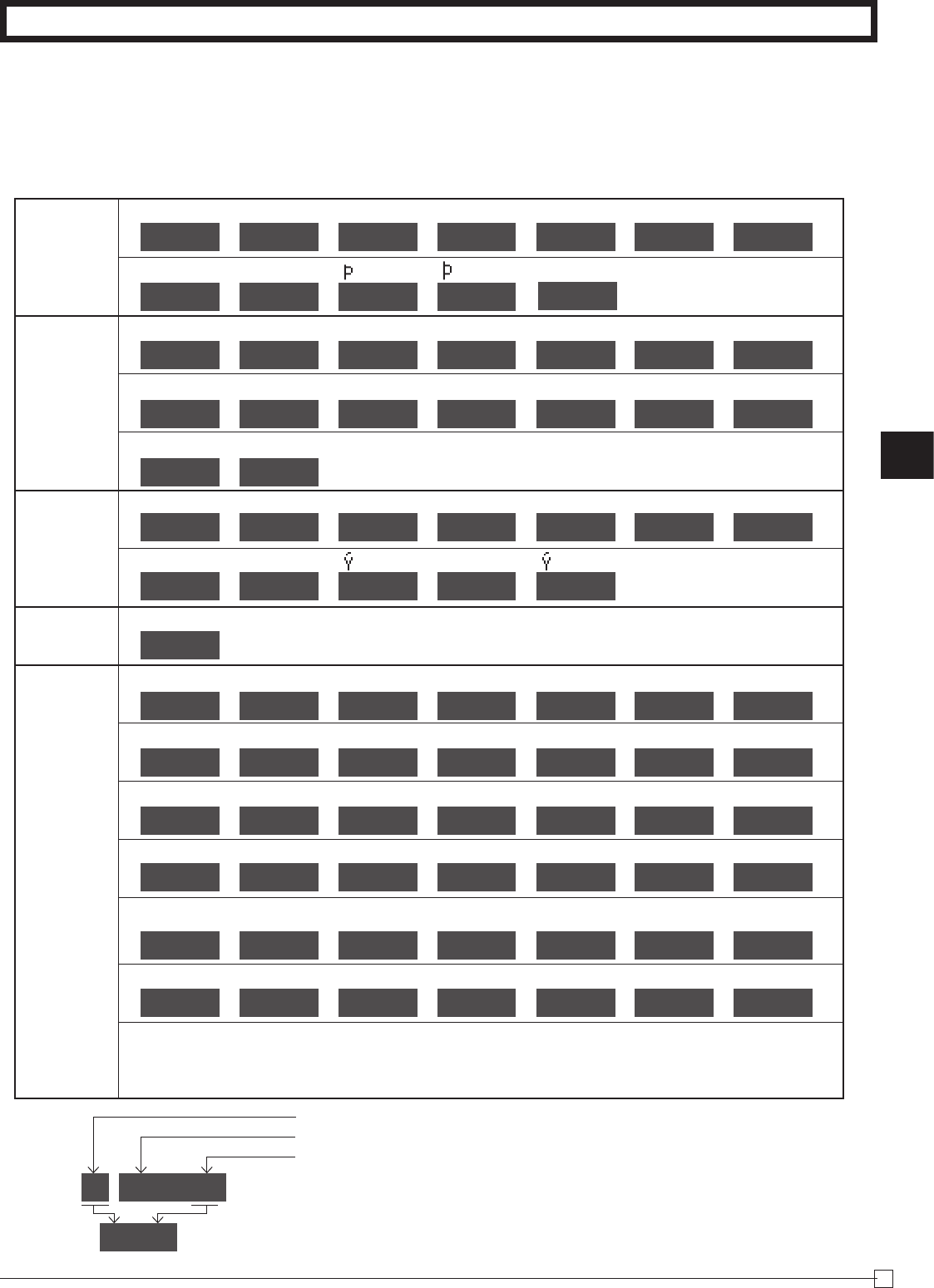
1-11-7 Alphabetical
order
Charactersareassignedtoeachnumerickey.Youcanenter“A”by
pressing<once,“B”twice,“C”threetimes…
Thefollowingtablesindicatecharacterassignmentandthedepression
numbersofthekeytoentertheappropriatecharacter.
: A
→ B
→ C
→ a
→ b
→ c
→ 8
→
A 01 B 02 C 03 a 04 b 05 c 06 8 07
→ Ä
→ Å
→ Æ
→ Á
→ Â
→ À
→ Ã
→
<key A 08 A 09 A 10 A 11 A 12 A 13 A 14
→ Ç
→ â
→ ä
→ à
→ å
→ æ
→ á
→
C 15 a 16 a 17 a 18 a 19 a 20 a 21
→ ã
→ ç
→ returns to the beginning
a 22 c 23
: D
→ E
→ F
→ d
→ e
→ f
→ 9
→
D 01 E 02 F 03 d 04 e 05 f 06 9 07
→
→ É
→ Ê
→ Ë
→ È
→
→ é
→
>key D 08 E 09 E 10 E 11 E 12 d 13 e 14
→ ê
→ ë
→ è
→ ƒ
→
returns to the beginning
e 15 e 16 e 17 f 18
: G
→ H
→ I
→ g
→ h
→ i
→ 4
→
G 01 H 02 I 03 9 04 h 05 i 06 4 07
→ Í
→ Î
→ Ï
→I
→ i
→ Ï
→ Î →
Vkey I 08 I 09 I 10 I 11 I 12 i 13 i 14
→ Ì
→ Í
→ l → returns to the beginning
i 15 i 16 i 17
.
: J
→ K
→ L
→ j
→ k
→ l
→ 5
→
J 01 K 02 L 03 j 04 k 05 l 06 5 07
Bkey →
returns to the beginning
: M
→ N
→ O
→ m
→ n
→ o
→ 6
→
M 01 N 02 O 03 m 04 n 05 o 06 6 07
→ Ñ
→ Ö
→ Ø
→ Ó
→ Ô
→ Ò
→ Õ
→
Nkey N 08 O 09 O 10 O 11 O 12 O 13 O 14
→ ñ
→ ô
→ ö
→ ò → ø
→ ó →
õ →
n 15 o 16 o 17 o 18
o
o 19 o 20 o 21
→
returns to the beginning
A, B, C,
a, b, c,
8, …
D, E, F,
d, e, f,
9, …
G, H, I,
g, h, i,
4, …
J, K, L,
j, k, l,
5,
M, N, O,
m, n, o,
6, …
Part-2
31
E
Part-2 CONVENIENT OPERATION
Cf.
: P
→ Q
→ R
→ S
→ p
→ q
→ r
→
P 01 Q 02 R 03 S 04 p 05 q 06 r 07
→ s
→ 1
→
→
→ ß
→ returns to the beginning
Zkey s 08 1 09 P 10 p 11 s 12
: T
→ U
→ V
→ t
→ u
→ v
→ 2
→
T 01 U 02 V 03 t 04 u 05 v 06 2 07
→ Ü
→ Ú
→ Û
→ Ù
→ ü
→ û
→ ù
→
Xkey U 08 U 09 U 10 U 11 u 12 u 13 u 14
→ ú
→ µ
→
returns to the beginning
u 15 u 16
: W
→ X
→ Y
→ Z
→ w
→ x
→ y
→
W 01 X 02 Y 03 Z 04 w 05 x 06 y 07
→ z
→ 3
→ → ÿ
→
→
returns to the beginning
Ckey z 08 3 09 Y 10 y 11 y 12
: 0
→ returns to the beginning
?key 0 01
: 7
→ @
→ -
→ /
→ :
→ !
→ ?
→
7 01 @ 02 - 03 / 04 : 05 ! 06 ? 07
Mkey → ~
→ (
→ )
→ *
→ #
→ +
→ , →
~ 08 ( 09 ) 10 * 11 # 12 + 13 , 14
→ ^
→ ;
→ <
→ =
→ >
→ $
→ ¥ →
^ 15 ; 16 < 17 = 18 > 19 $ 20 ¥ 21
→ %
→ &
→ [
→ ]
→ '
→ {
→ | →
% 22 & 23 [ 24 ] 25 ' 26 { 27 | 28
→ }
→•
→ "
→ .
→ \
→ _
→ ` →
} 29 • 30 " 31 . 32 \ 33 _ 34 ' 35
→ £
→ √
→ ¿
→ ¡
→ ™
→ §
→
space
→
£ 36 ™ 37 ¿ 38 ¡ 39 ¶ 40 § 41 42
→
returns to the beginning
P, Q, R, S,
p, q, r, s,
1, …
T, U, V,
t, u, v,
2, …
W, X, Y, Z,
w, x, y, z,
3, …
0
7,
Symbols, …
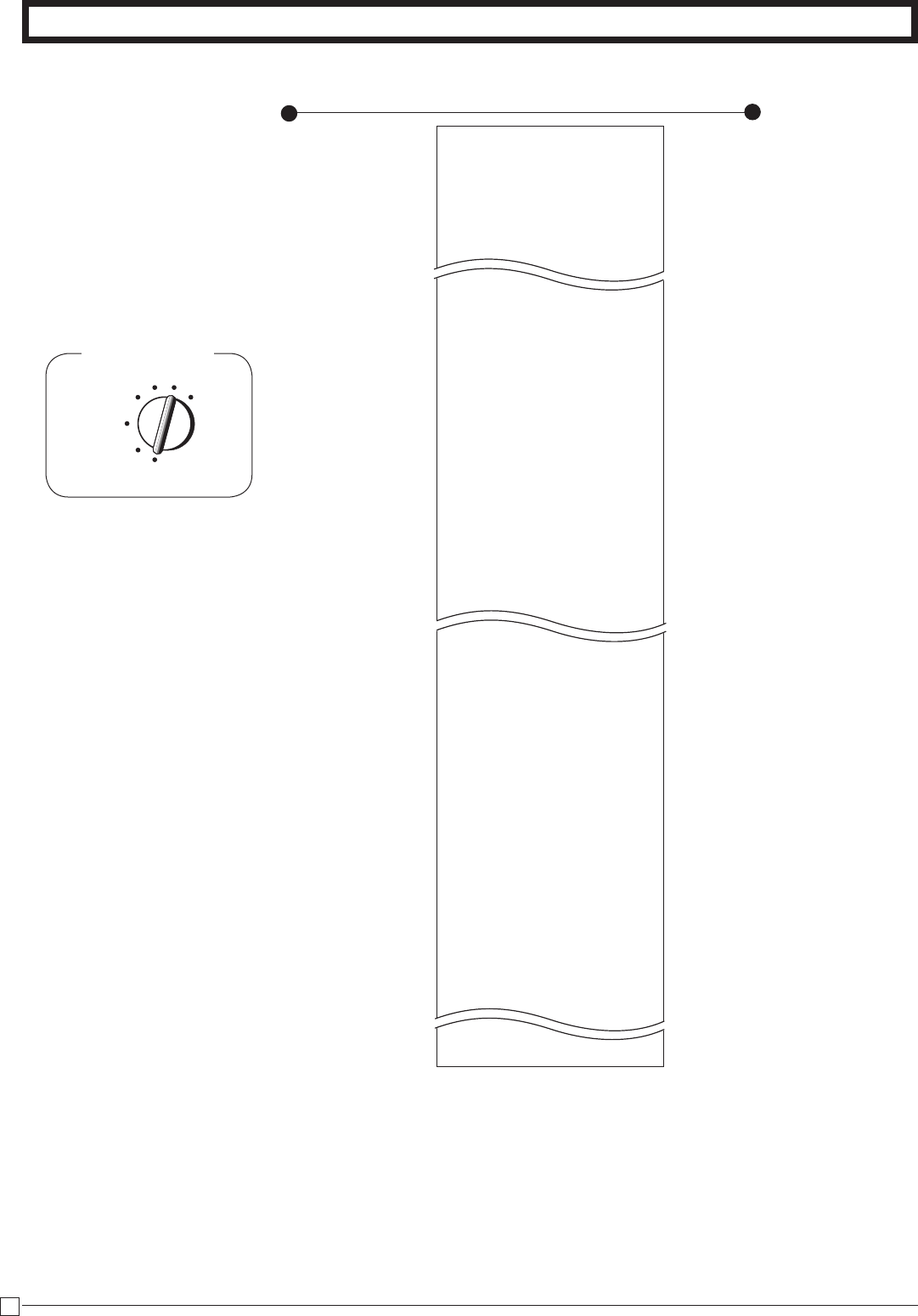
A 01 01
A 01
Printingcharacter
Numberofthedigitforenteringcharacter.
Numberofthedepressionofthesamekey.
32
E
Part-2 CONVENIENT OPERATION
1-12 Printing to
read All
Preset Data
p
Printout
Operation
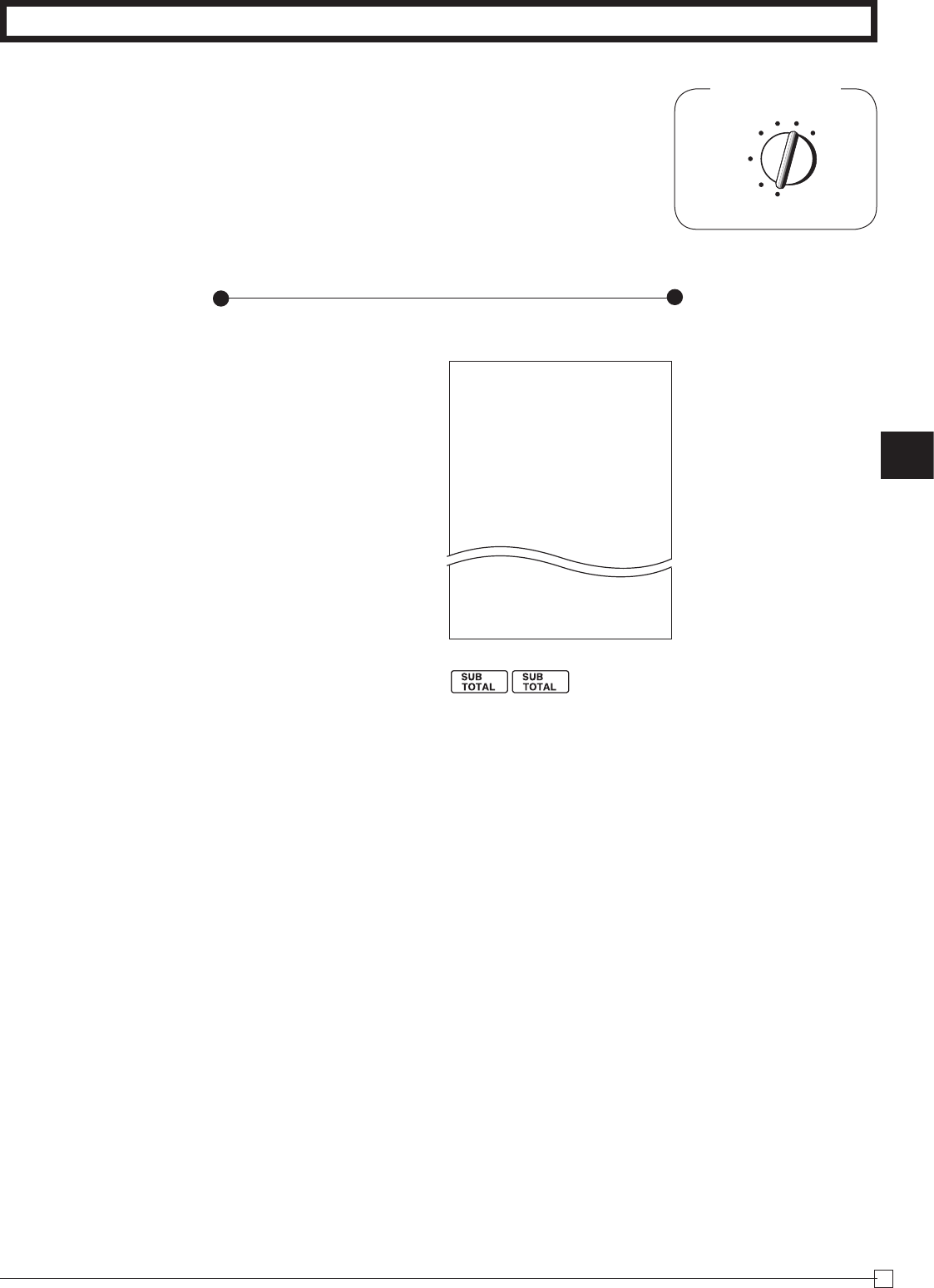
1-12-1 Printing preset
data except
PLU settings
DEPT01 @1.00
0000
DEPT02 @10.00
0000
DEPT20 @5.00
0000
-
%-(12.34%)*
0000
10200 0
10800 0
0122 0022
0522 1020
0622 0000
0822 0000
1022 0000
0326 0002
CLERK01 01
CLERK02 02
CLERK07 03
CLERK08 08
0125 0 %
0001
0001
10
30
54
73
110
0225 5.25 %
5002
0000
01
02
YOUR RECEIPT
03
— Dept.Name/UnitPrice
— TaxStatus/NormalDept./
DigitLimit/SingleItem
—Minus/TaxStatus
—PercentRate/%+or%–
— TaxStatus/PercentKeyControl
—PrintControl
—Keycatchtonecontrol
— Dateorder/AddModeControl(xed)
—GeneralControl
—CalculationControl
—Reportcontrol
—TaxControl
—ClerkName/ClerkNo.
—TaxTable1
—TaxTable2
— RoundingSpecications/
TaxSystemSpecications
—Receiptmessage
Mode Switch
REG
OFF
RF
PGM
CAL X Z
Part-2
33
E
Part-2 CONVENIENT OPERATION
REG
OFF
RF
PGM
CAL X Z
Mode Switch
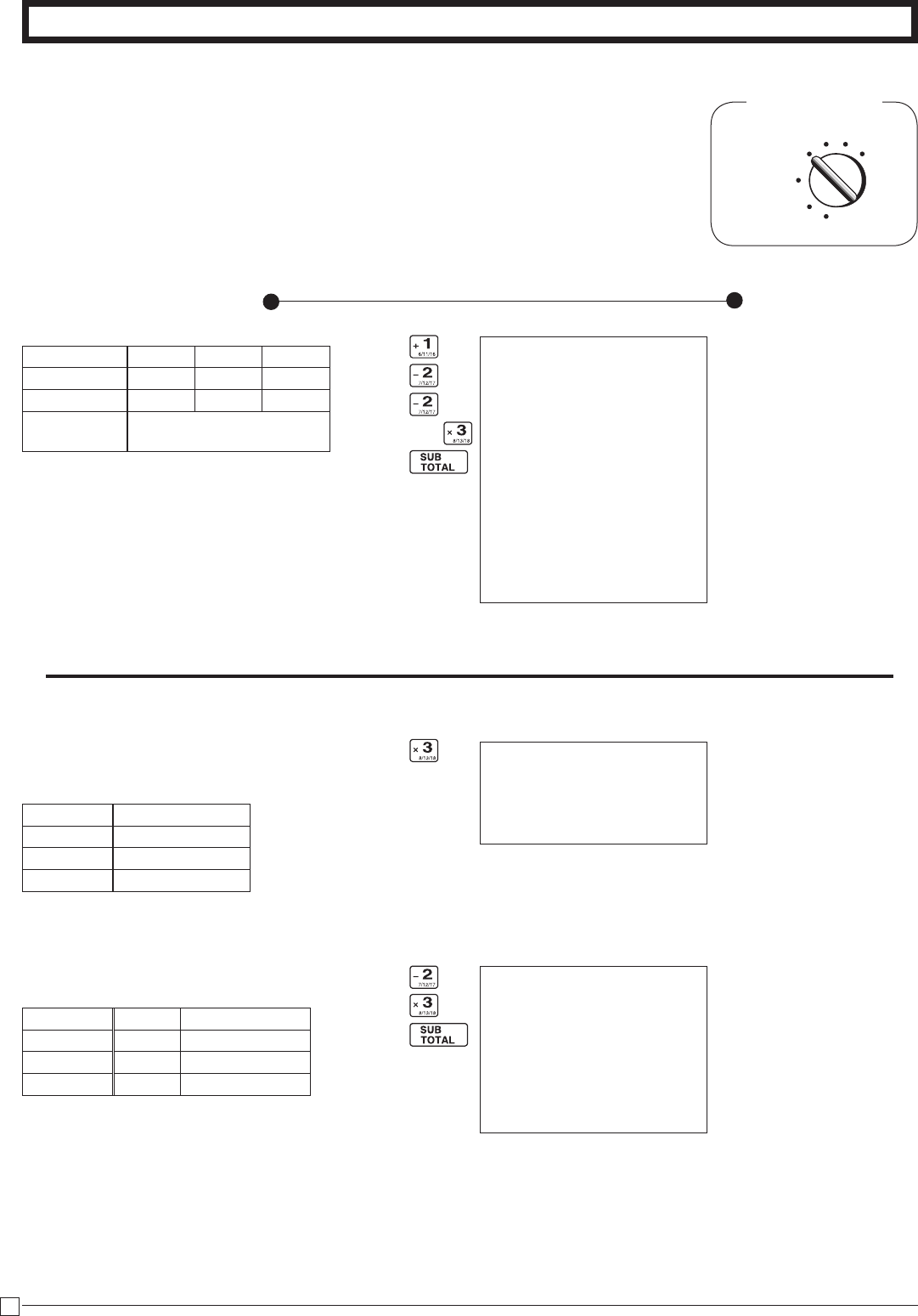
1-12-2 Printing pre-
set PLU set-
tings
Printout
Operation
PLU0001 @1.00
#0001 0000
PLU0002 @2.00
#0002 0002
PLU0003 @3.00
#0003 0000
PLU0004 @4.00
#0004 0000
PLU0199 @1,999.00
#0199 0000
PLU1200 @1,200.00
#1200 0000
—PLUName/UnitPrice
—PLUNo./Program
Z p
Stopprintingby .
34
E
Part-2 CONVENIENT OPERATION
V h
B??? p
B?
Z??
B?
p
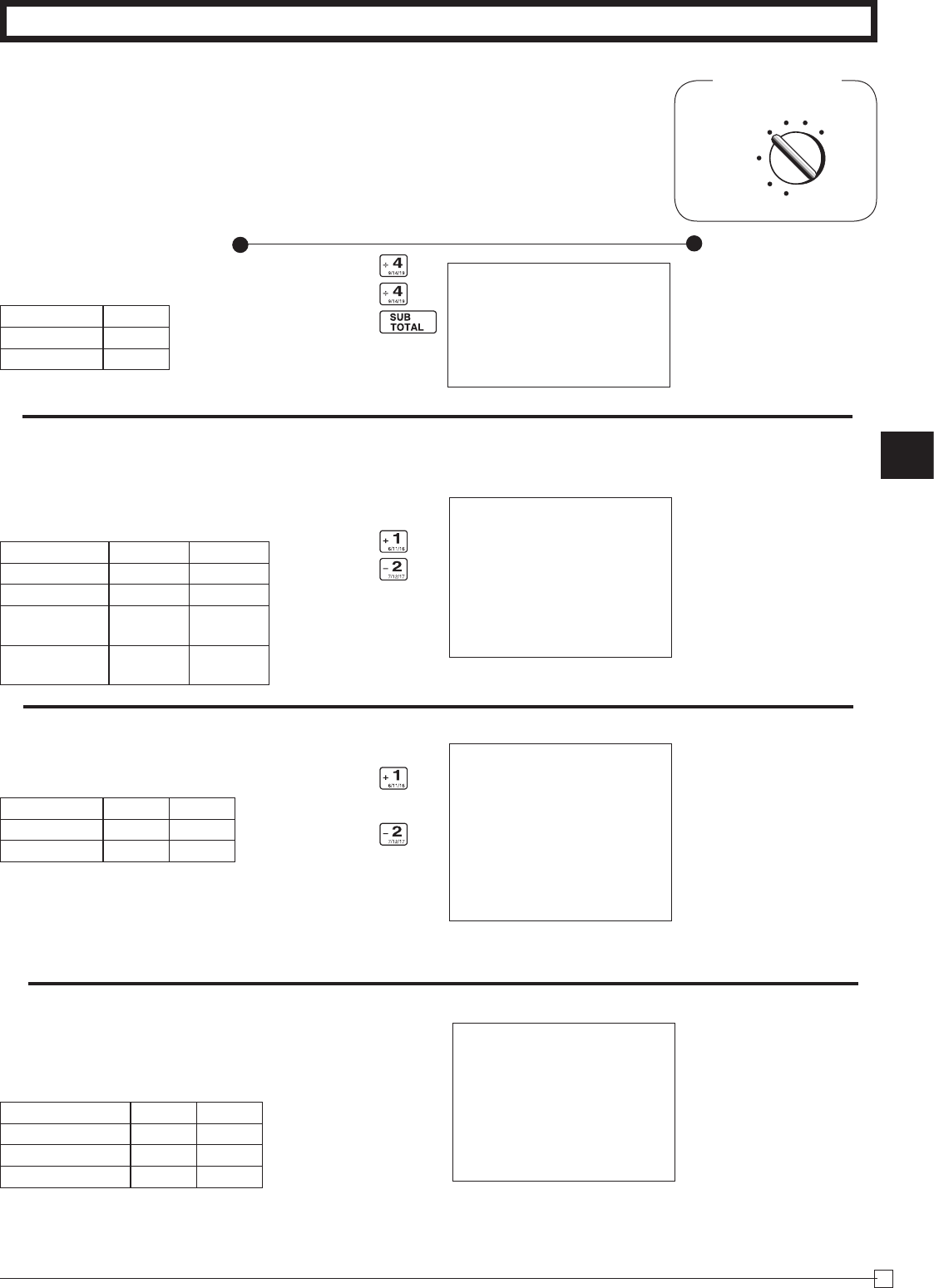
2-1 Registration using
preset price
for Departments.
2. Various Operations
Mode Switch
REG
OFF
RF
PGM
CAL
Z
X
(Programming:Seepage18)
Printout
Operation
2-2 Single-Item Sales
(Programming:Seepage19)
Forthisexample,Dept.1isprogrammedforasingle-item-sale.
Single-item sale cannot be nalized if an item is registered previ-
ously.
— Repeat
— Multiplication/UnitPrice
— CashAmountTendered
— Change
01-08-2010 13:10
REG 0020
DEPT02 T1 $1.00
DEPT03 $0.50
TA1 $1.00
TAX1 $0.04
CASH $
1
.
54
01-08-2010 13:00
REG 0019
DEPT03 $0.50
CASH $
0
.
50
01-08-2010 12:50
REG 0018
DEPT01 $1.00
DEPT02 T1 $2.00
DEPT02 T1 $2.20
4 X @11.00
DEPT03 $44.00
TA1 $4.40
TAX1 $0.18
TOTAL $
49
.
58
CASH $50.00
CHANGE $0.42
— CashSales
— TaxableAmount
— Tax
— CashSales
Example
UnitPrice $1.00 $2.20 $11.00
Quantity 1 2 4
Depts. 1 2 3
AmountTen-
dered $50.00
Example1
Status Singleitemsale
UnitPrice $0.50
Quantity 1
Dept. 3
Example2
Status Normal Singleitemsale
UnitPrice $1.00 $0.50
Quantity 1 1
Dept. 2 3
Part-2
35
E
Part-2 CONVENIENT OPERATION
(Programming:Seepage24)
01-08-2010 13:50
REG 0024
PLU0001 $1.00
PLU0001 $1.00
4 X @2.00
PLU0002 $8.00
CASH $
10
.
00
—Repeat
—Multiplication
—PresetUnitPrice
—CashAmountTendered
2-6 PLU operation
Example
PLUNo. 1 2
UnitPrice $1.00 $2.00
Quantity 2 4
LinkDept.No. 1 1
01-08-2010 13:40
REG 0023
NON-TAX $1.00
M-TAX $0.10
TAXABLE T1 $2.00
TA1 $2.00
TAX1 $0.08
CASH $
3
.
18
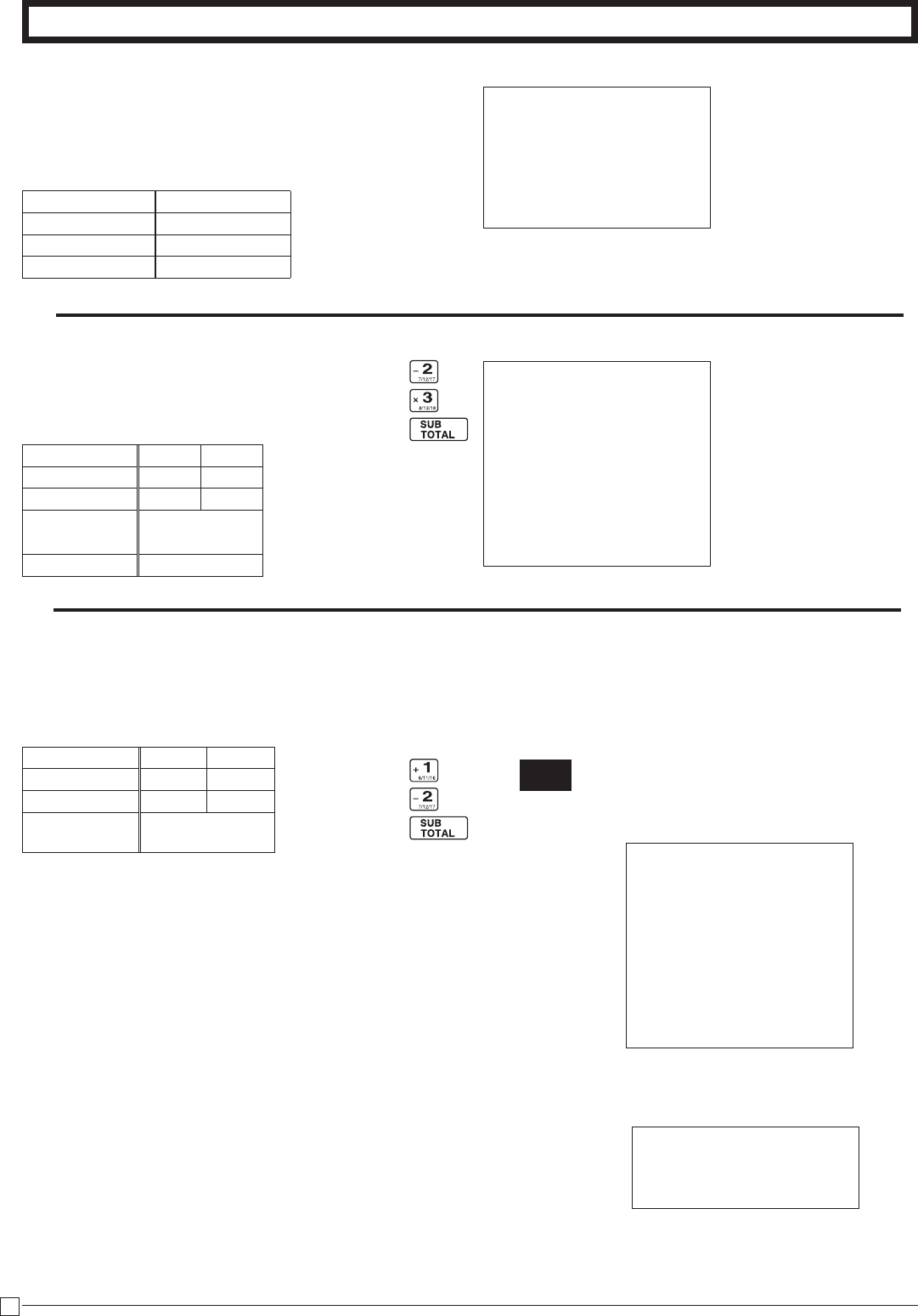
2-3 Check Sales
Printout
Operation
2-4 Change the Tax
Status
Mode Switch
REG
OFF
RF
PGM
CAL
Z
X
2-5 Manual Tax
—CheckSales
—ManualTax
:keyisprogrammedtofunctionasaManualTaxkey(seepage20).
CB??
m
c
Z??
X??
p
Z??
Z? :
X??
p
Z i
i
V h
X i
p
01-08-2010 13:30
REG 0022
DEPT01 T1 $1.00
DEPT02 T1 $2.00
TA1 $3.00
TAX1 $0.12
CA $
3
.
12
Example
UnitPrice $35.00
Quantity 2
Depts. 4
Example
UnitPrice $1.00 $2.00
Quantity 1 1
Depts. 1 2
PresetStatus Non-
Taxable Taxable1
ThisRegis-
tration Taxable1 Taxable1
Example
UnitPrice $1.00 $2.00
Quantity 1 1
Depts. 1 2
01-08-2010 13:20
REG 0021
DEPT04 $35.00
DEPT04 $35.00
CHEK $
70
.
00
36
E
Part-2 CONVENIENT OPERATION
C i
C???
XB??
X??? p
m
(Programming:Seepage23)
• Forthisexample,linkeddepartment2isprogrammedforasingle-item-sale.
• Single-itemsalecannotbenalizedifanitemisregisteredpreviously.
01-08-2010 14:00
REG 0025
PLU0003 T1 $1.00
TA1 $1.00
TAX1 $0.04
CASH $
1
.
04
—TaxableAmount
—Tax
01-08-2010 14:10
REG 0026
DEPT02 T1 $30.00
DEPT03 $25.00
TA1 $30.00
TAX1 $1.20
TOTAL $
56
.
20
CASH $20.00
CHECK $36.20
2-7 PLU Single-Item Sale
2-8 Split cash/
check sales
Example
PLUNo. 3
Status Singleitemsale
UnitPrice $1.00
Quantity 1
Example
UnitPrice $30.00 $25.00
Quantity 1 1
Depts. 2 3
CashAmount
tendered $20.00
Check $36.20
01-08-2010 14:20
REG 0027
DEPT01 $1.00
DEPT02 T1 $2.00
TA1 $2.00
TAX1 $0.08
TOTAL $
3
.
08
CASH $5.00
CHANGE $1.92
01-08-2010 14:20
REG 0027
CASH $
3
.
08
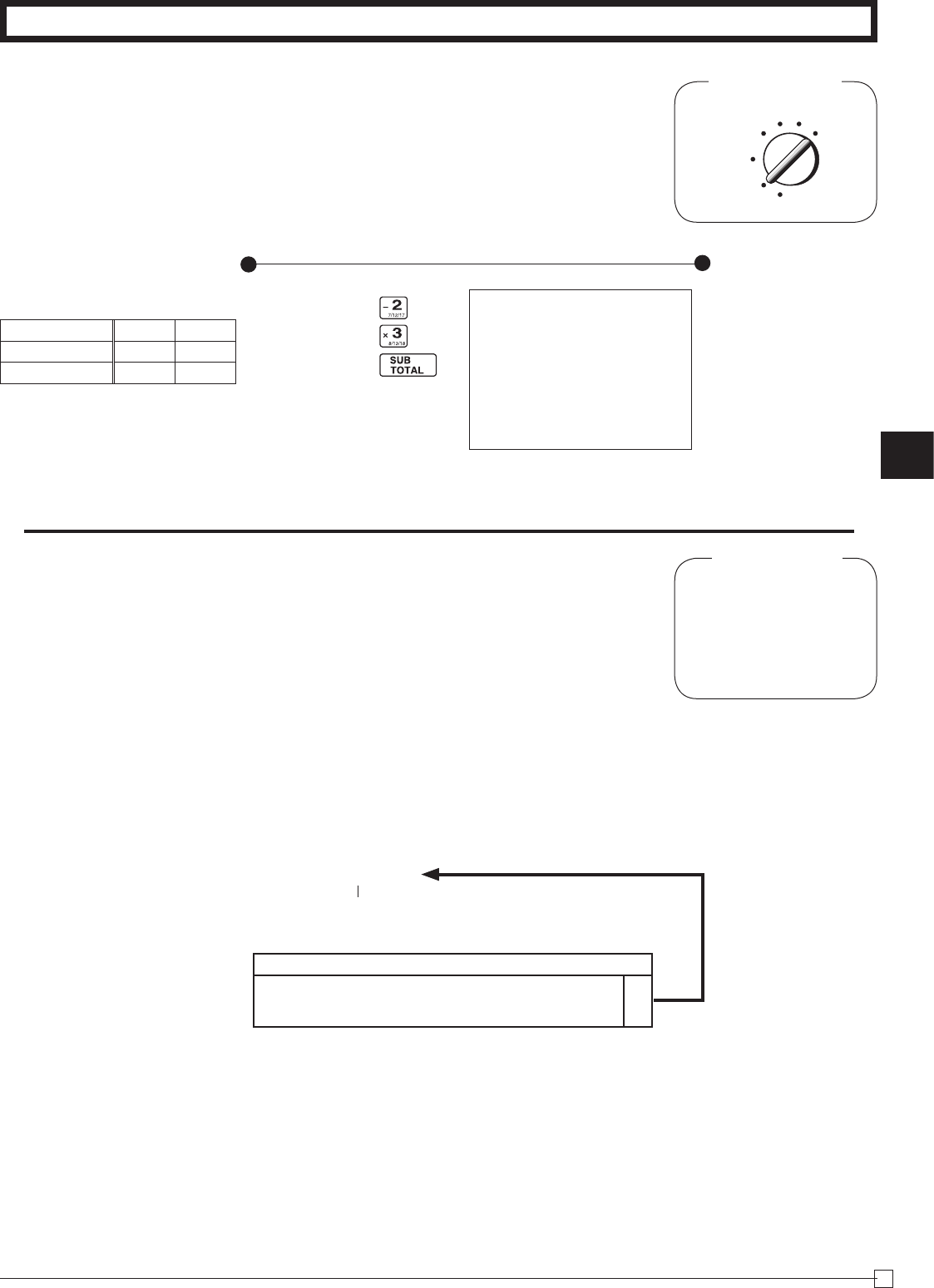
2-9 Post receipt
issuance
Z??
X??
B?? p
<
Youcanissueapostreceiptafternalizingatransactionbypressing<.
Notethatallofthefollowingconditionmustbesatised:
• Print“receipt”optionisselected.
• PaperSavingmademustbe"ON".
• ThetransactionmustbenalizedintheREG/RFmodeusingp,u or m.
(Receiptisnotissued.)
Ifthetransactioncontainsmorethan40lines(includingreceiptheader),thenthetotalformattedpostreceiptisissued.
Note:
Youcanissueonlyonepostreceiptpertransaction.
(Postreceipt)
(Totalformattedpostreceipt)
(Receiptisissued.)
Example
UnitPrice $1.00 $2.00
Quantity 1 1
Depts. 1 2
Cashamount
tendered $5.00
Part-2
37
E
Part-2 CONVENIENT OPERATION
Z??
X??
p
Mode Switch
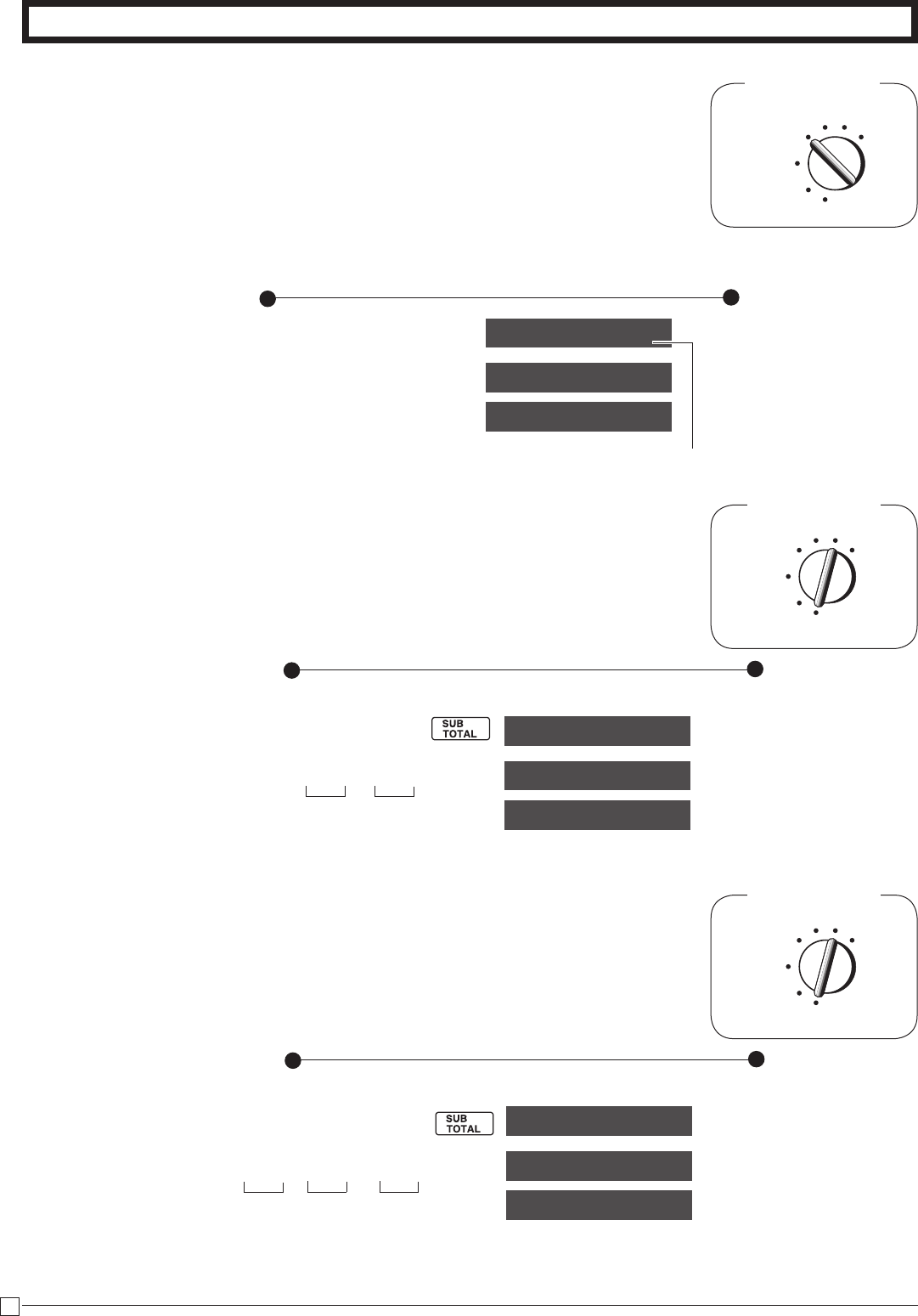
2-10 Refund
RF
OFF
REG
PGM
CAL
Z
X
Printout
Operation
AfteryounishRFmodeoperation,besuretore-
turntheModeSwitchtotheREG(register)setting.
2-11 Cashier
Assignment
(Programming:Seepage21)
Mode Switch
In any mode
REG, RF, CAL,
X or Z,
except PGM
•Currentlyassignedcashier(orclerk)IDnumberisprintedonthereceiptorjournalforeachtrans-
action.
•TheassignedclerkmemorynumberisautomaticallysignedoffwhenthemodekeyissettoOFF
position.
•Theassignedcashier(orclerk)salestotalswithIDnumberareprintedonthereceiptorjournal
whenyouperformdailyX/Zsalesreport.
01-08-2010 14:30
RF 0028
TAXABLE T1 $1.00
DEPT03 $2.00
TA1 $1.00
TAX1 $0.04
CASH $
3
.
04
—RefundModeSymbol
Cashierassignmentsystemisusedtocontroleachcashier(orclerk)salestotal.Whenyouselect
thisfunctiononpage21,youcanget8cashiers(orclerk)salesdata.
Cashierassignmentmustbeperformedpriortostartingregistrationoranyotheroperation,except
Programmode.
Selectanumber
fromlistA
Selections
Signoff(cancel)theassignmentofcashierIDNo.
?
A
AssignacashierIDNo.1through8. Z~<
Example
UnitPrice $1.00 $2.00
Quantity 1 1
Depts. 2 3
Z :
38
E
Part-2 CONVENIENT OPERATION
13-5#
01-08-10
~00
h
h
y
Mode Switch
REG
OFF
RF
PGM
CAL
Z
X
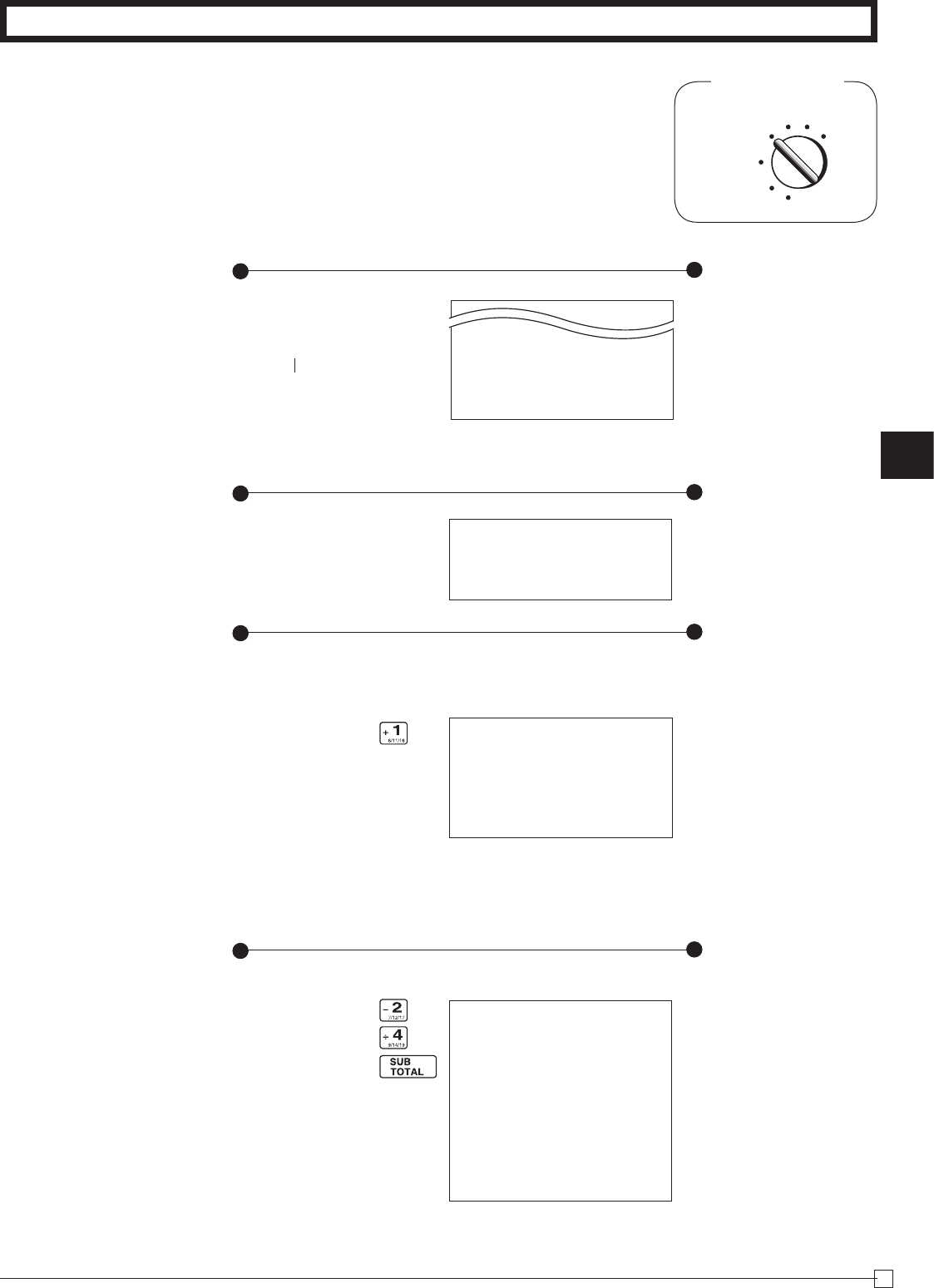
2-12 Other registrations
2-12-1 Reading the
Time and Date
•Flashespersecond
Display
Operation
Month/Date/Year
Hour/Minute
Adjusting the Time
Display
Operation
Z
ZCB<h
y
•Entercurrenttimein24hoursystem.
p ~00
13-58 02
p ~00
CurrentTime: Hour Minute
Example
Currenttime=13:58
•TurntheModeSwitchtoPGM.
Adjusting the Date
Display
Operation
Z
?Z?<Z?h
y
•Entercurrentdatein6digits.
•Enterthelast2digitsforyearset.(2010→10)
p ~00
01-08-10
p ~00
Currentdate: Month Day Year
Example
Currentdate=January8,2010
•TurntheModeSwitchtoPGM.
REG
OFF
RF
PGM
CAL X Z
Mode Switch
REG
OFF
RF
PGM
CAL X Z
Mode Switch
Part-2
39
E
Part-2 CONVENIENT OPERATION
ZXCV
BNM< j
Z??? v
N?? c
B?
ZXCV
BNM< j
p
Z??
X??
B? g
p
Printout
Operation
Mode Switch
REG
OFF
RF
PGM
CAL
Z
X
01-08-2010 17:55
REG 0131
DEPT02 T1 $1.00
DEPT04 $2.00
ST $3.04
- -0.50
TA1 $1.00
TX1 $0.04
CA $
2
.
54
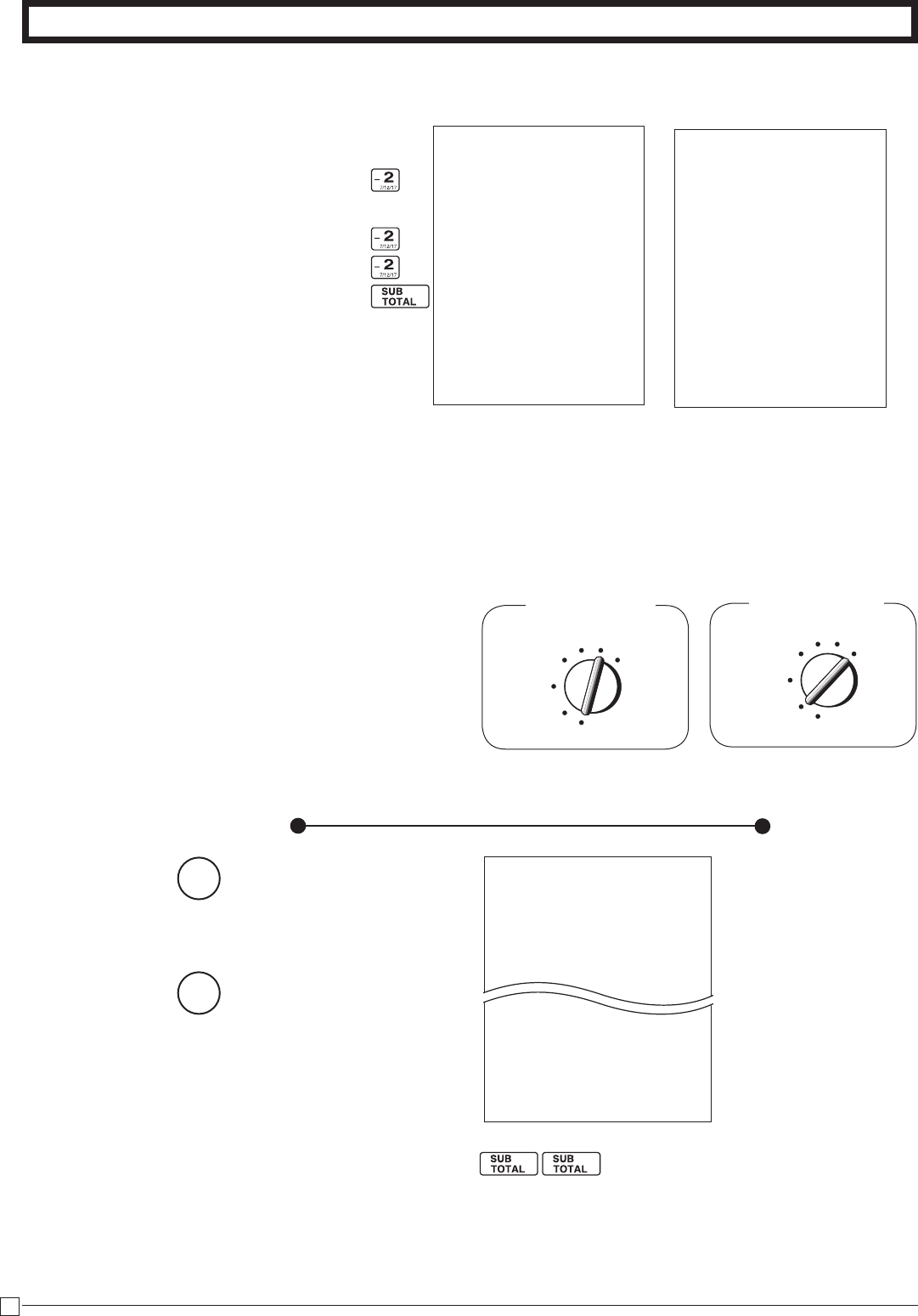
2-12-5 Reduction on
subtotal
Example
Amountduereducedby
$0.50.
—Seepage22toprint
thesubtotalline.
2-12-4 Registering
identification
numbers
2-12-2 Paid out from
cash in drawer
Printout
Operation
Printout
Operation
Printout
Operation
A reference number or ID number of up to 8 digits can be registered
priortoanytransaction.
01-08-2010 17:35
REG 0129
RC $6.00— ReceivedOnAccount
Amount
# 12345678
01-08-2010 17:30
REG 0128
PD $10.00
—ReferenceNumber
—PaidOutAmount
EnterreferenceNo.
2-12-3 Cash
received on
account
01-08-2010 17:45
REG 0130
DEPT01 $0.50
# 12345678
CASH $
0
.
50
—ReferenceNo.orIDNo.
40
E
Part-2 CONVENIENT OPERATION
Z??
:
X??
C??
M :
p
Z p
Z p
2-13 PLU report
Mode Switch
REG
OFF
RF
Z
CAL X
PGM
REG
OFF
RF
PGM
CAL Z
X
Mode Switch
Operation Printout
01-08-2010 18:45
Z 0150
0001 PLU Z 0001
PLU0001 QT 12
$12.00
PLU0002 QT 27
$27.00
PLU1200 QT
$180.00
------------------------
TOTAL QT 1284
$10856.89
—
Reportcode/ResetCounter
—PLUName/No.ofitems
—Amount
—PLUtotalcount
—PLUtotalamount
2-12-6 Premium/ Dis-
count
•2.5%premium/discount(pro-
grammedto:key)applied
torstitem.
•Besuretousekkeywhen
youwishtoapplyapremium/
discoungtothesubtotal.
•7%premium/discountapplied
totransactiontotal.
•Forprogrammingthe:key
aspercentminusorpercent
plus,seepage20.
•Forprogrammingpercent
rate,seepage18.
DEPT02 T1 $1.00
%-(2.5%) -0.03
DEPT02 T1 $2.00
DEPT02 T1 $3.00
ST $5.97
%-(7%) T1 -0.42
TA1 $5.55
TAX1 $0.22
CASH $
5
.
77
Premium Discount
*1Premium/DiscountRate,
Premium/DiscountAmount
*2Subtotal
*3Premium/DiscountRate,
Premium/DiscountAmount
Mode Switch to
X
(Read)
Mode Switch to
Z
(Reset)
DEPT02 T1 $1.00
%+(2.5%) T1 $0.03
DEPT02 T1 $2.00
DEPT02 T1 $3.00
ST $6.03
%+(7%) T1 $0.42
TA1 $6.45
TAX1 $0.26
CASH $
6
.
71
—*1
—*2
—*3
—*1
—*2
—*3
Stopprintingby .
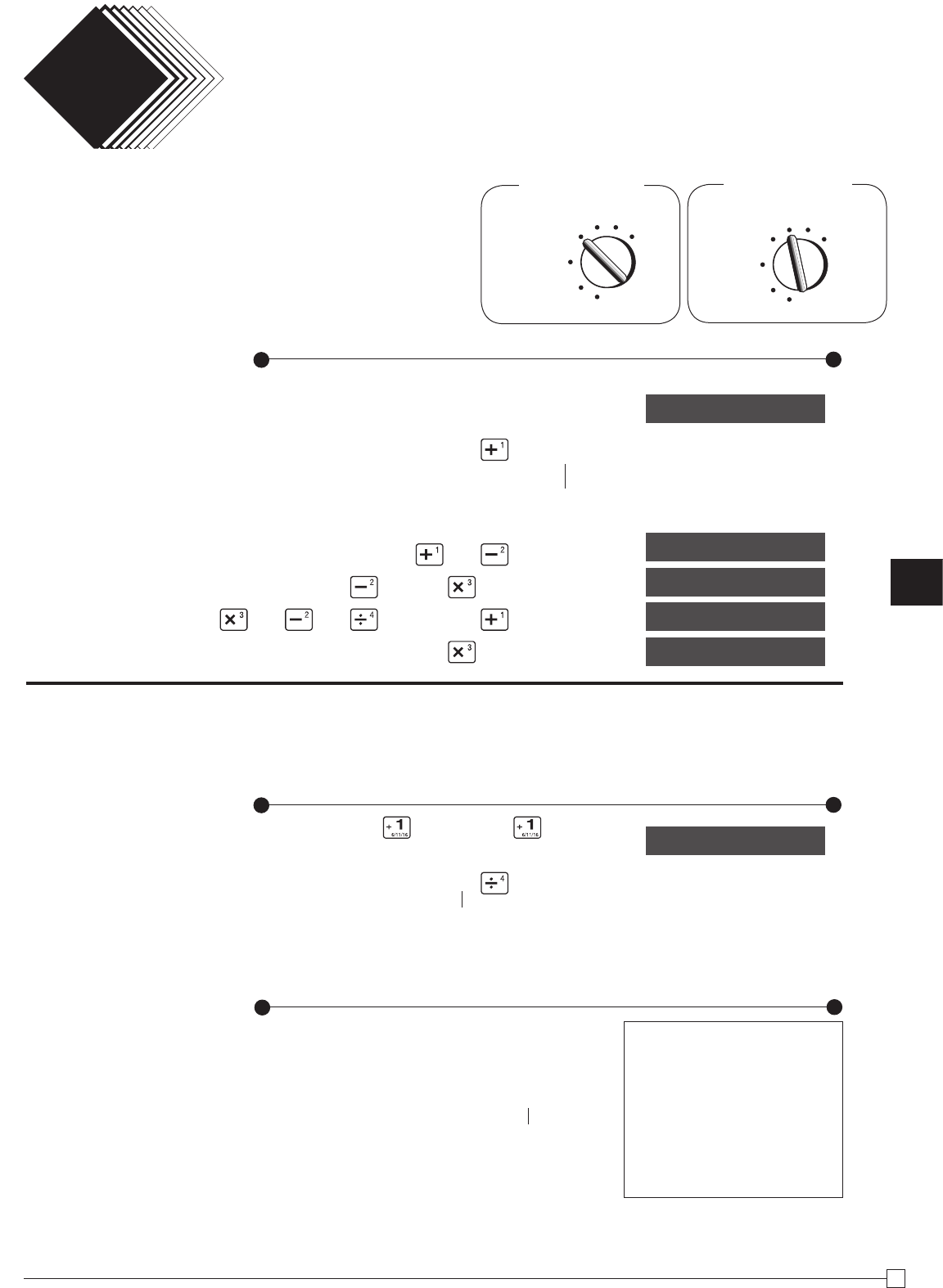
Part-3
41
E
t
BZ t
BC X p
XC BN M< p
VC N C"B < p
ZB?? ZX :
CALCULATOR FUNCTION
Part 3
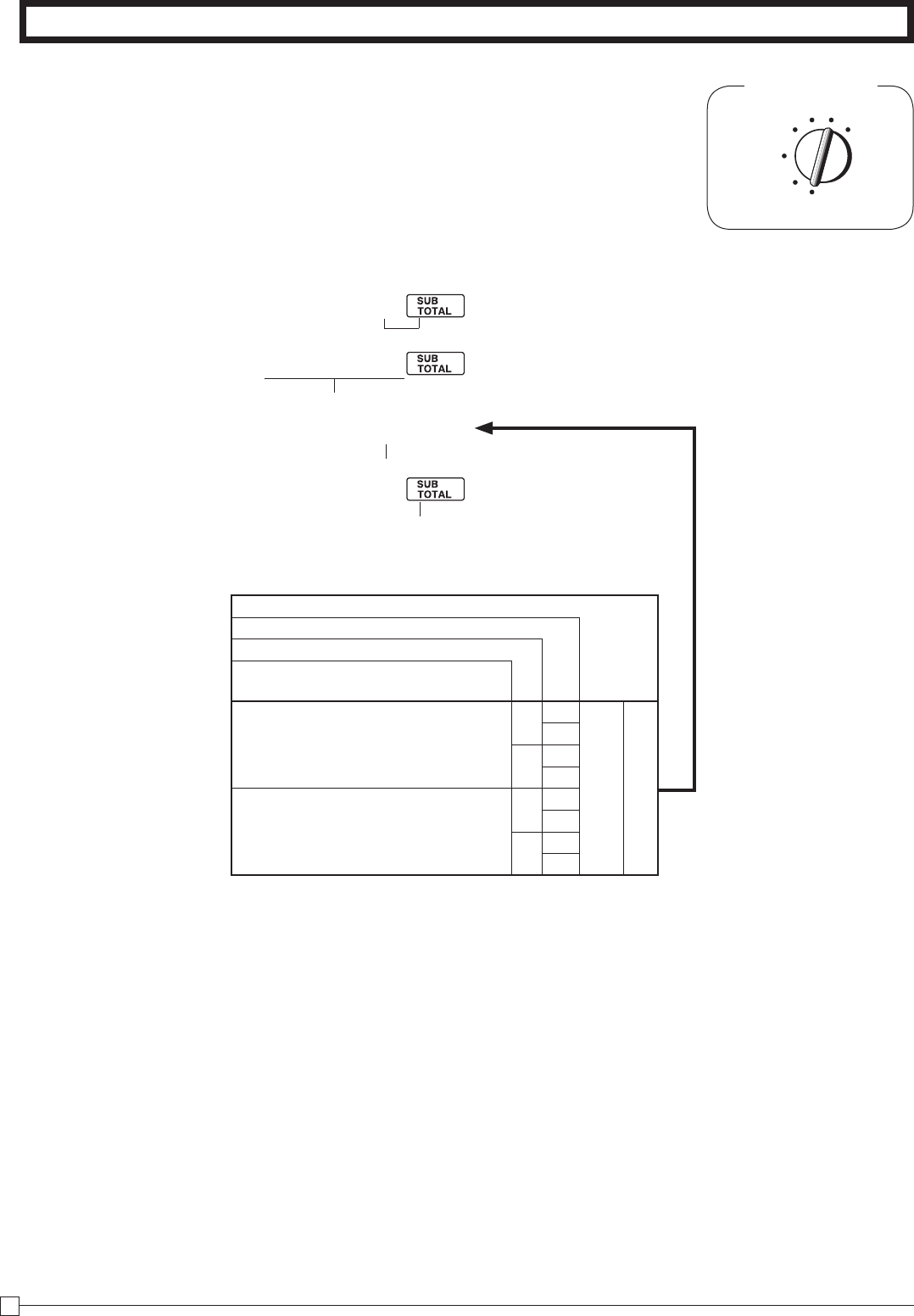
1-1 Calculation
examples
1. Calculator
Mode
While registering at REG
mode, you can switch
to CAL mode and then
return to REG mode to
resume the registration.
Mode Switch
CAL
OFF
RF
PGM
X
REG Z
Operation Display
5+3–2=
(23–56)×78=
(4×3–6)÷3.5+8=
12% on 1500
1-2 Memory recall
REG
OFF
RF
PGM
CAL
Z
X
Mode Switch
Recalls the current amount onto the display.
– during registration: current subtotal
– registration has been completed: the last amount
Memory recall
Operation Display
On REG mode
Recalls the current result by pressing i key
at CAL mode on the display.
Operation Printout
Example
Recall the current result at
CAL mode during registration,
and register the cash amount
due for each person.
DEPT01 $10.00
DEPT01 $10.00
TOTAL $
30
.
00
CASH $10.00
CASH $10.00
CASH $10.00
CHANGE $0.00
(Cancels item entered.)
Memory recall
&
-257$
)714
18~
ç ~
1~
Z?' X?'
i C p
i p
i p
i p
On CAL mode
Example
Divide the current subtotal
$30.00 at REG mode by 3
(to divide the bill between 3
people).
On REG mode
42
E
Mode Switch
REG
OFF
RF
PGM
CAL X Z
1-3 Setting for calcu-
lator operation
P3 appears in mode display
Select a number from list A.
(To end the setting)
Program Code No.
* Drawer does not open during registration procedures even if you press
p or m by turning the mode switch to CAL position.
C
Z?XX
? p
Selections
Open drawer whenever p is pressed.*
Open drawer whenever m is pressed.*
Print No. of Equal key operations on
General Control X and Z reports.
Yes
No No ?
A
Yes Z
Yes No X
Yes C
No
No No V
Yes B
Yes No N
Yes M
Part-3 CALCULATOR FUNCTION
Part-4
43
E
Part-4 USEFUL INFORMATION
Part 4
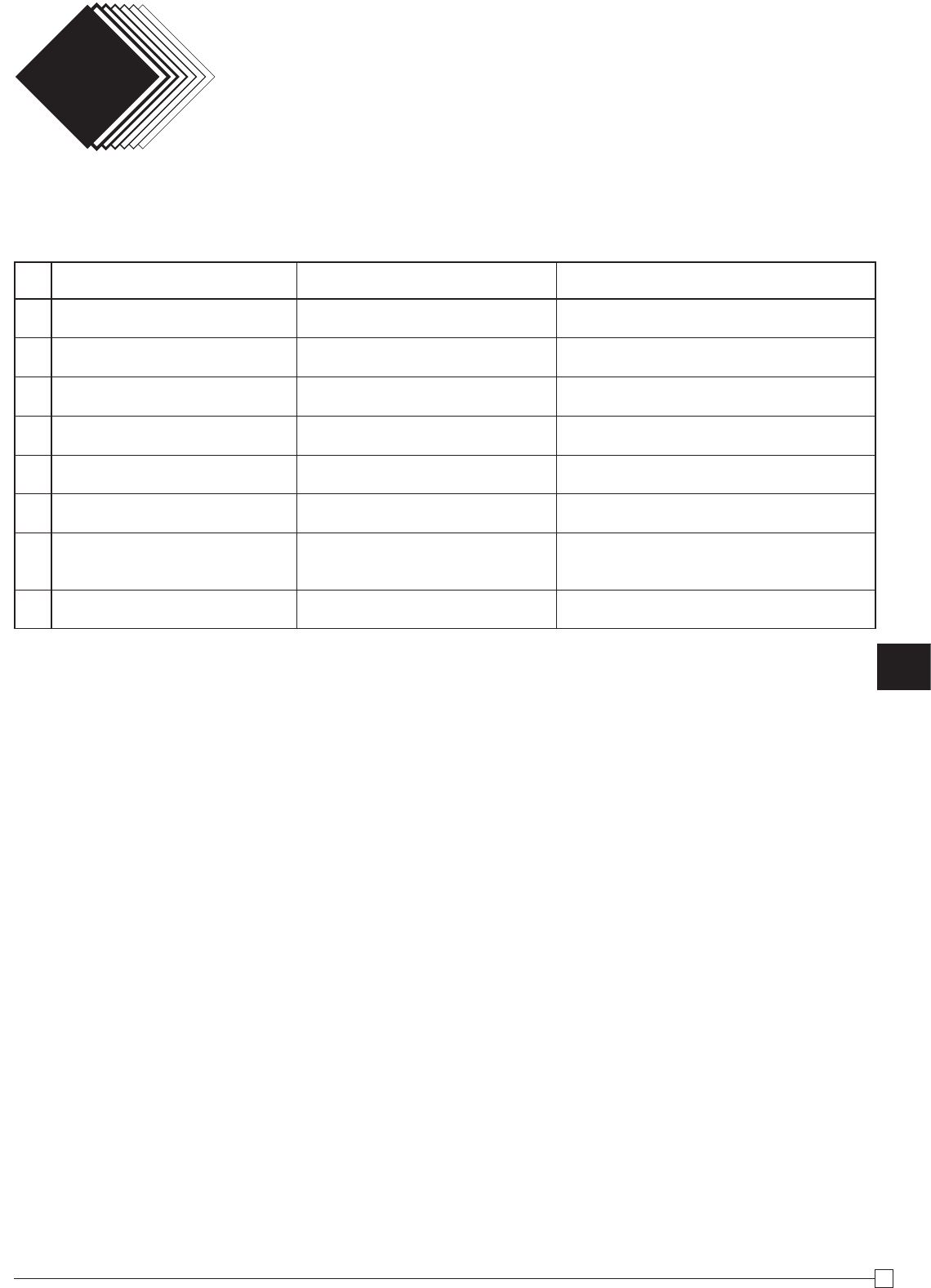
1. Troubleshooting
1-1 If the following things happen
Symptom/Problem Most common causes Solutions
1 E01 appears on the display. Changing modes without complet-
ing transaction.
Return mode switch to where it stops buzz-
ing and press p.
2 E08 appears on the display. Sign on operation is not performed. Prior to starting registration of any other
operation, press Z~< and then :.
3 E10 appears on the display. Printer head (platen arm) is
opened or no paper roll.
Close the platen arm firmly or enter paper
roll.
4No date on receipt.
Paper is not advancing enough. Printer is programmed as a journal. Program printer to print receipts.
5Drawer opens up after ringing up
only one time.
Department is programmed as a
single item dept. Program the dept. as a normal dept.
6Not clearing totals at end of day
after taking report. Using X mode to take out reports. Use Z mode to take out reports.
7
Programming is lost whenever
register is unplugged or there is
a power outage.
Bad or no batteries. Put in new batteries and program again.
8Register is inoperative.
Can’t get money out of drawer. No power. Pull lever underneath register at rear.
Note: If you cannot resolve your difficulty, please visit http://casio4business.com.
1-2 In case of power failure
If the power supply to the cash register is cut by a power failure or any other reason, simply wait for
power to be restored.The details of any ongoing transaction as well as all sales data in memory are
protected by the memory backup batteries.
· Power failure during a registration
The subtotal for items registered up to the power failure is retained in memory.You will be able to
continue with the registration when power is restored.
· Power failure during printing a read/reset report
The data already printed before fhe power failure is retained in memory.You will be able to issue
a report when power is restorted.
· Power failure during printing of a receipt and the journal
Printing will resume after power is restored.A line that was being printed when the power failure
occurred is printed in full.
· Other
The power failure symbol is printed and any item that was being printed when the power failure
occurred is reprinted in full.
USEFUL INFORMATION

44
E
Part-4 USEFUL INFORMATION
1-3 When the L sign appears on the display
About the low battery indicator...
The following shows the low battery indicator.
l ~00
If this indicator appears when you switch the cash register on, it can mean one of three things:
· No memory backup batteries are loaded in the cash register.
· The power of the batteries loaded in the unit is below a ceratain level.
· The batteries loaded in the unit are dead.
To clear this sign, press y key.
Important!
Whenever the low battery indicator appears on the display, load a set of 2 new batteries as
soon as possible. If there is a power failure or you unplug the cash register when this indicator
appears, you will lose all of your sales data and settings.
BE SURE TO KEEP THE POWER CORD OF THE CASH REGISTER
PLUGGED IN WHENEVER YOU REPLACE THE BATTERIES.
2. Specifications
INPUT METHOD
Entry: 10-key system; Buffer memory 8 keys (2-key roll over)
Display (LED): Amount 8 digits (zero suppression); Department/PLU No.; No. of repeats;
Total/ Change/ Paper saving indicator
PRINTER
Journal: 24 digits
(or Receipt) Automatic paper roll winding (journal)
Paper roll: 58 mm × 80 mm ∅ (Max.)
CALCULATIONS
Entry 8 digits; Registration 7 digits; Total 8 digits
CALCULATOR FUNCTION
8 digits; Arithmetic calculations; Percent calculations
Memory protection batteries:
The effective service life of the memory protection batteries 2 (UM-3, or R6P (SUM-3)
type batteries) is approximately one year from installation into the machine.
Power source/Power consumption: See the rating plate.
Operating temperature: 32°F to 104°F (0°C to 40°C)
Humidity: 10 to 90%
Dimensions/ Weight: 7 3/8"(H)×13"(W)×14 3/16"(D) / 9 lbs
(188 mm(H)×330 mm(W)×360 mm(D)/ 4kg) (PCR-T280)
8 1/16"(H)×16 1/8"(W)×17 11/16"(D) / 17 lbs 11oz
(205 mm(H)×410 mm(W)×450 mm(D)/ 8kg) (PCR-T280L/T290L)
Specifications and design are subject to change without notice.

Part-4
45
E
Part-4 USEFUL INFORMATION
LIMITED WARRANTY: ELECTRONIC CASH REGISTERS
This product, except the battery, is warranted by Casio to the original purchaser to be free from defects in material and workmanship under normal use for a period, from
the date of purchase, of one year for parts and 90 days for labor. For one year, upon proof of purchase, the product will be repaired or replaced (with the same or a similar
model) at Casio’s option, at a Casio Authorized Service Center without charge for parts. Labor will be provided without charge for 90 days. The terminal resident software
and programmable software, if any, included with this product or any programmable software which may be licensed by Casio or one of its authorized dealers, is warranted
by Casio to the original licensee for a period of ninety (90) days from the date of license to conform substantially to published specifications and documentation provided it
is used with the Casio hardware and software for which it is designed.
For a period of ninety (90) days, upon proof of license, Casio will, at its option, replace defective terminal resident software or programmable software, correct significant
program errors, or refund the license fee for such software. Significant program errors will be significant deviations from written documentation or specifications. These
are your sole remedies for any breach of warranty. In no event will Casio’s liability exceed the license fee, if any, for such software. This warranty will not apply if the prod-
uct has been misused, abused, or altered.
Without limiting the foregoing, battery leakage, bending of the unit, a broken display tube, and any cracks or breaks in the display will be presumed to have resulted
from misuse or abuse. To obtain warranty service you must take or ship the product, freight prepaid, with a copy of the sales receipt or other proof of purchase and the
date of purchase, to a Casio Authorized Service Center. Due to the possibility of damage or loss, it is recommended when shipping the product to a Casio Authorized Ser-
vice Center that you package the product securely and ship it insured. CASIO HEREBY EXPRESSLY DISCLAIMS ALL OTHER WARRANTIES, EXPRESS OR IMPLIED,
INCLUDING ANY IMPLIED WARRANTY OF MERCHANTABILITY OR OF FITNESS FOR A PARTICULAR PURPOSE. NO RESPONSIBILITY IS ASSUMED FOR ANY
INCIDENTAL OR CONSEQUENTIAL DAMAGES, INCLUDING WITHOUT LIMITATION DAMAGES RESULTING FROM MATHEMATICAL INACCURACY OF THE PROD-
UCT OR LOSS OF STORED DATA. SOME STATES DO NOT ALLOW THE EXCLUSION OR LIMITATION OF INCIDENTAL OR CONSEQUENTIAL DAMAGES, SO THE
ABOVE LIMITATIONS OR EXCLUSIONS MAY NOT APPLY TO YOU. This warranty gives you specific rights, and you may also have other rights which vary from state to
state.
CASIO, INC.
570 MOUNT PLEASANT AVENUE,
P. O. BOX 7000, DOVER, NEW JERSEY 07801 U.S.A.
Model: ........................................Serial Number: .......................... Date of Purchase: ..........................................................
Your Name: ..........................................................................................................................................................................
Address:...............................................................................................................................................................................
Dealer’s Name: ...................................................................................................................................................................
Address:..............................................................................................................................................................................
GUIDELINES LAID DOWN BY FCC RULES FOR USE OF THE UNIT IN THE U.S.A.
(Not applicable to other areas)
WARNING: This equipment has been tested and found to comply with the limits for a Class A digital device, pursuant to
Part 15 of the FCC Rules. These limits are designed to provide reasonable protection against harmful interference when
the equipment is operated in a commercial environment. This equipment generates, uses, and can radiate radio frequency
energy and, if not installed and used in accordance with the instruction manual, may cause harmful interference to radio
communications. Operation of this equipment in a residential area is likely to cause harmful interference in which case the
user will be required to correct the interference at his own expense.
FCC WARNING: Changes or modifications not expressly approved by the party responsible for compliance could void the
user’s authority to operate the equipment.
Canadian Regulatory Information
This Class A digital apparatus complies with Canadian ICES-003.

PCR-T280 INC
CR0906-A
CASIO COMPUTER CO., LTD.
6-2, Hon-machi 1-chome
Shibuya-ku, Tokyo 151-8543, Japan
