Cenix Digicom MP-430TH MP3 PLAYER User Manual MP 430Teng0819 sample
Cenix Digicom Co., Ltd MP3 PLAYER MP 430Teng0819 sample
USERS MANUAL


Features
Multi◎-Codec Player
- MP3, WMA, OGG(Q10) Support
Voice Recording◎
- Voice, Line In, FM Radio
- 32KHz, 44.1KHz Sample Rate
- 32Kbps ~ 128Kbps Bitrate
F◎irmware Upgrade
Graphic LCD supporting◎ multiple languages
◎ Lyric support
FM Radio◎
- FM area setting
- FM sensitivity setting
◎ Clock & Reservation & Alarm
7◎ Equalizer Types (EQ)
- Normal, Rock, Jazz, Classic, Pops, User, SRS
◎ SRS WOW support
File ◎Browser
- Supports the file browser for both play and stop mode.
Bookmark, Playlist Browser◎
- Supports bookmark and playlist browser
- Adds or deletes bookmark and playlist
Tab◎-type Menu
- Easy to check the settings
USB 1.1◎ Support
PDF created with pdfFactory Pro trial version www.pdffactory.com
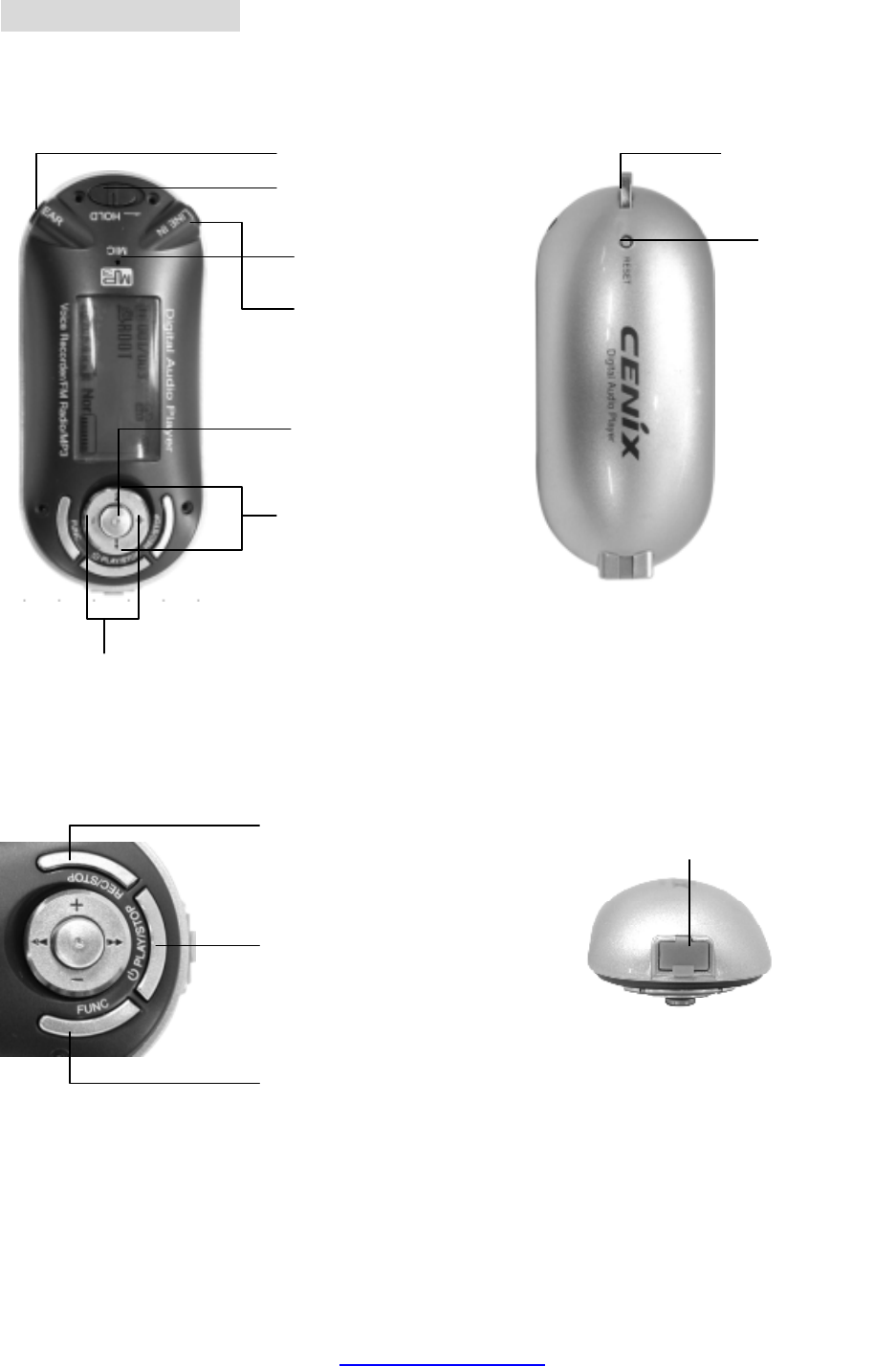
Name of the Parts
Front View Rear View
Volume –(Down) Volume +(Up)
Select/Browser/Menu
Microphone
REW (Previous/Next)
FF (Next/Previous)
Earphone
LINE-IN
Hold On/Off
Necklace Hole
RESET
Recording/Stop
Mode Setting/
FUNCTION/ A<->B
Play/Stop
Power On/Off
USB Connection Terminal
PDF created with pdfFactory Pro trial version www.pdffactory.com
Basic Functions
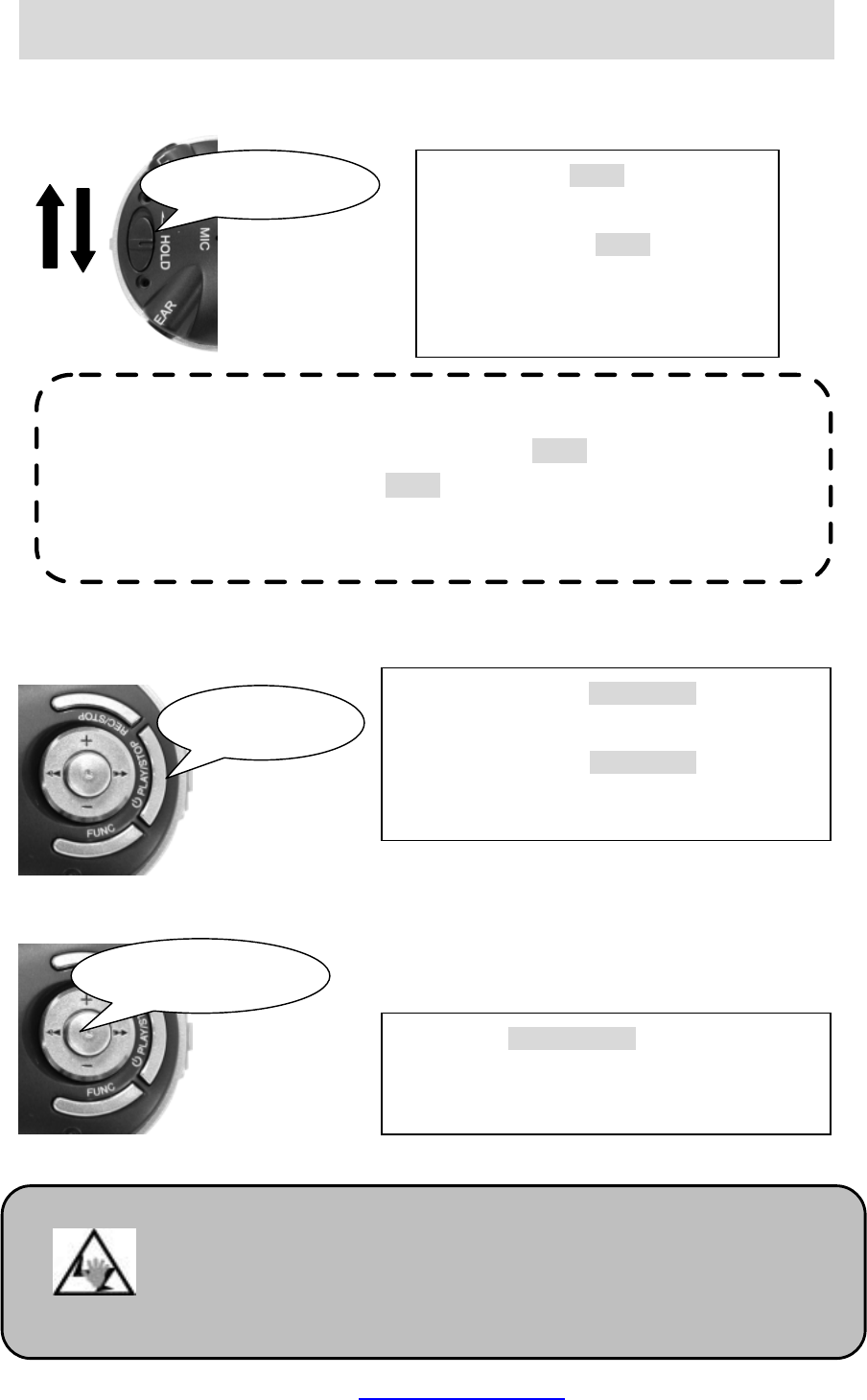
1) Lock / Unlock
2) Power On / Power Off
3) Volume Control
Lock: Push the HOLD
switch up to the
arrow direction.
Unlock: Push the HOLD switch
down
to the arrow direction.
Power On: Press the PLAY/STOP
button longer
than 2 seconds to turn on the player.
Power Off: Press the PLAY/STOP
button longer
than 2 seconds to turn off the player.
☞ Note ☜
▶ You can prevent button operation when you set the HOLD switch.
▶ If you press any button while the HOLD switch is locked, the “KEY HOLD
”
message for about 2 seconds and button input will be disabled.
Push Up/Down
Press Longer
Press the +(Up)/-(Down)
button shortly to
increase the volume by 1 step, or hold the button
to increase the volume continuously.
Push down/up
●
Do not increase the volume too high during playback using
an earphone. Your hearing ability can be impaired.
●
Turn the volume down first and increase to the one you
want
.
Warning
PDF created with pdfFactory Pro trial version www.pdffactory.com
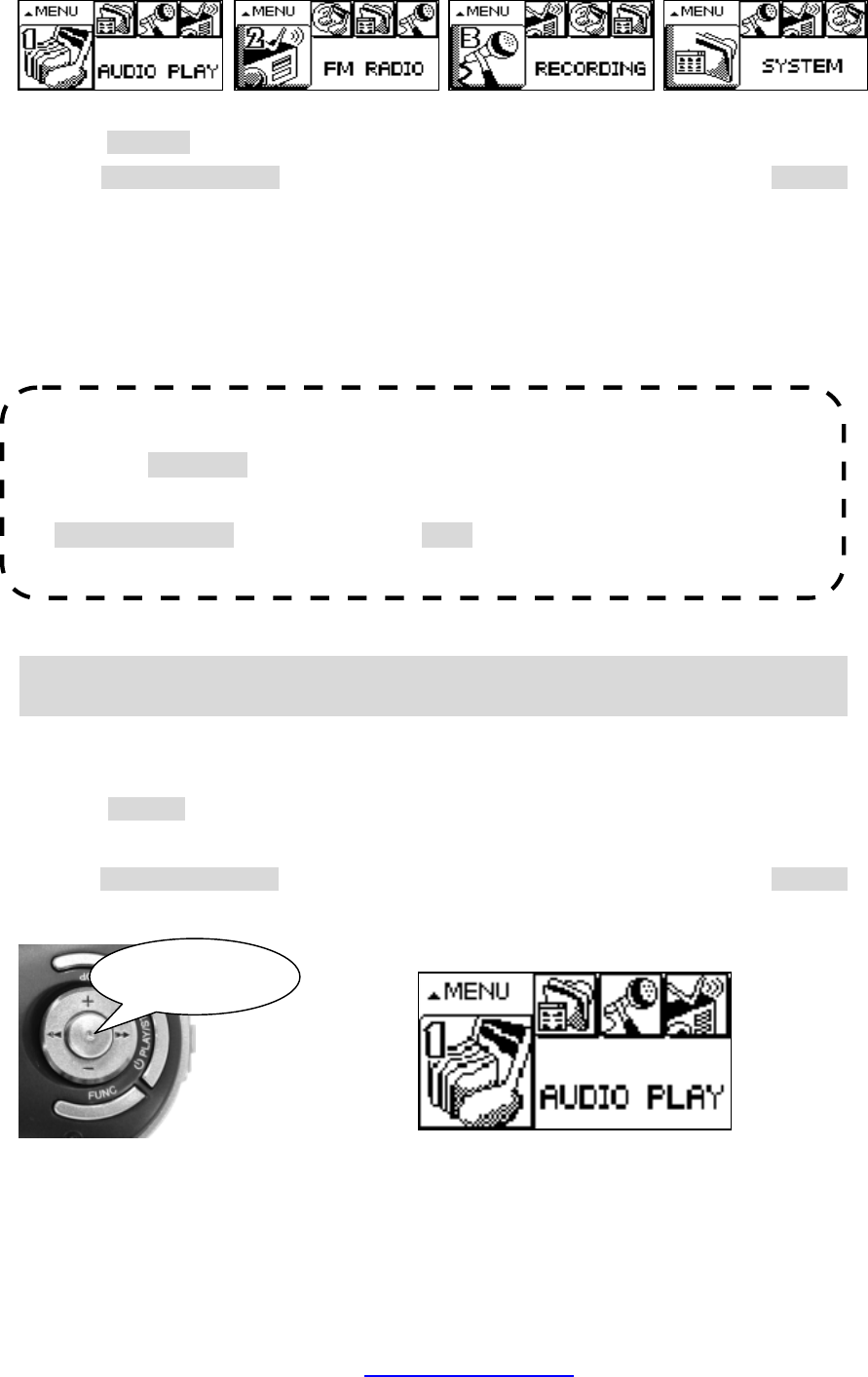
4) Mode Switching
Audio Play FM Radio Recording System Menu
Press the SELECT button longer once.
Use the REW(◀◀)/FF(▶▶) button to select the mode you want, and press the SELECT
button again to enter into the selected mode
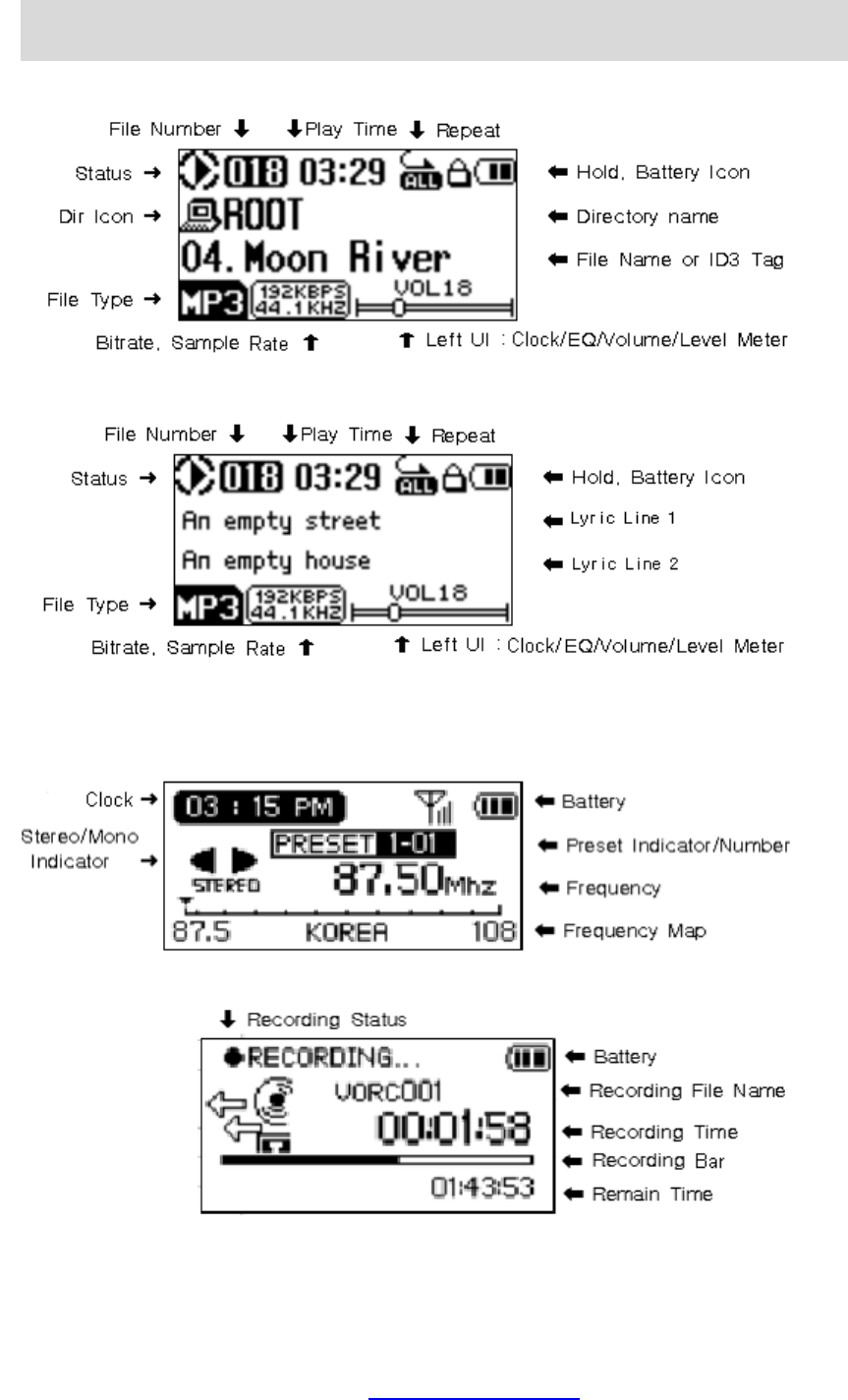
1) Audio Play Mode: MP3, WMA or OGG audio file playback
2) FM Radio Mode: FM radio listening
3) Voice Mode: Voice, Line in or FM radio recording
4) System Menu Mode: System setting.
Audio Play Mode
1) Switching to the Audio Play Mode
Press the SELECT button longer once to change the mode if you have selected the mode other
than the audio play mode.
Use the REW(◀◀)/FF(▶▶) button to select the audio play mode and press the SELECT
button to switch to the audio play mode.
☞ Note ☜
▶ Press the REC/STOP button in the audio play mode to start voice recording.
▶
To enter into the menus of each mode, move to the target mode using the
REW(◀◀)/FF(▶▶) button and press the +(Up) button.
Press longer
PDF created with pdfFactory Pro trial version www.pdffactory.com
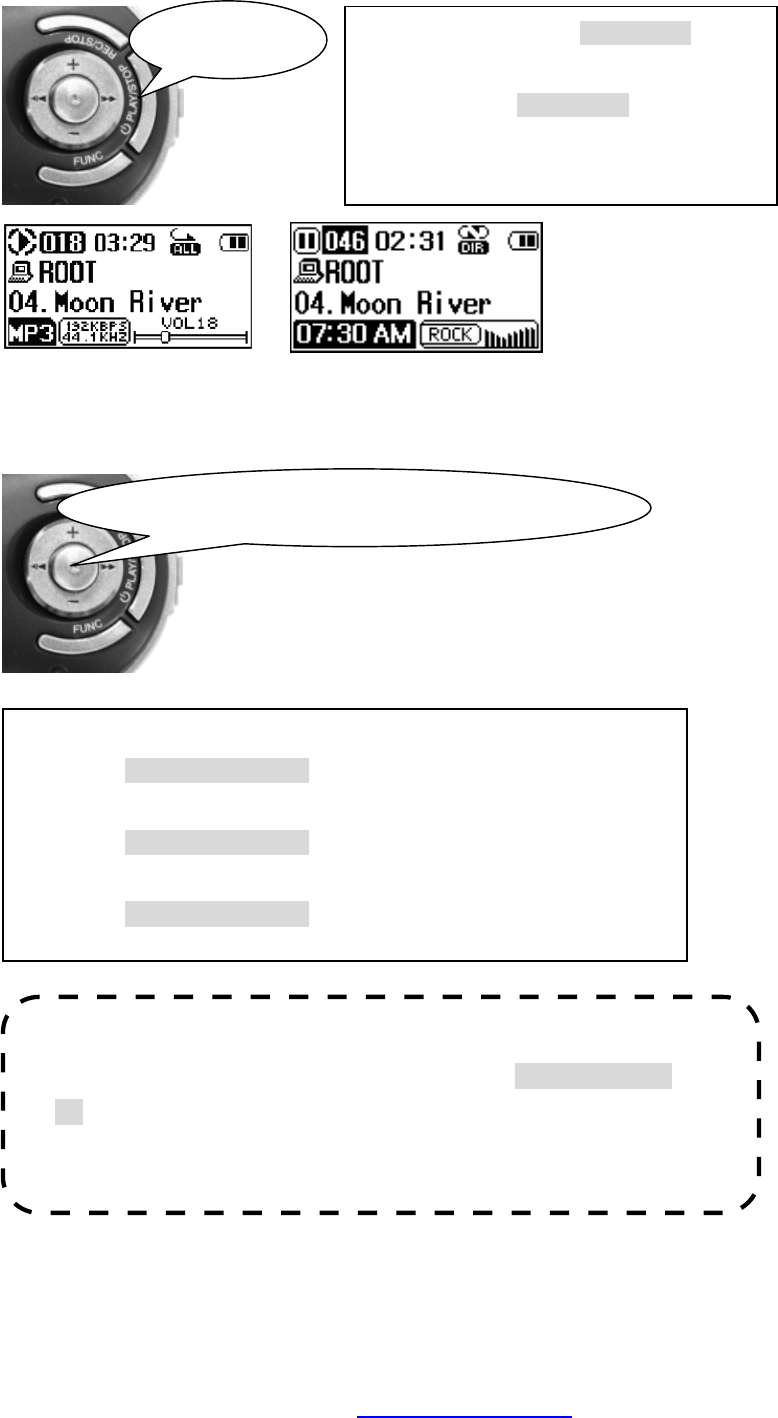
2) Playback/Stop
Playback Stop
3) File Search/Navigation/Selection
☞ Note ☜
▶ If the Study key function is engaged, press the REW(◀◀)/FF(
▶
▶)
button to skip playback of the current file by the designated
time period.
Playback: Press the PLAY/STOP
button
shortly once.
Stop: Press the PLAY/STOP
button shortly
once again.
Press shortly
<Moving to the previous/next file >
Push to the REW(◀◀)/FF(▶▶) direction shortly once during playback.
<Navigation>
Push to the REW(◀◀)/FF(▶▶) direction longer once during playback.
<Selecting the previous/next file >
Push to the REW(◀◀)/FF(▶▶) direction shortly once during stop.
Push to the left/right shortly once.
PDF created with pdfFactory Pro trial version www.pdffactory.com
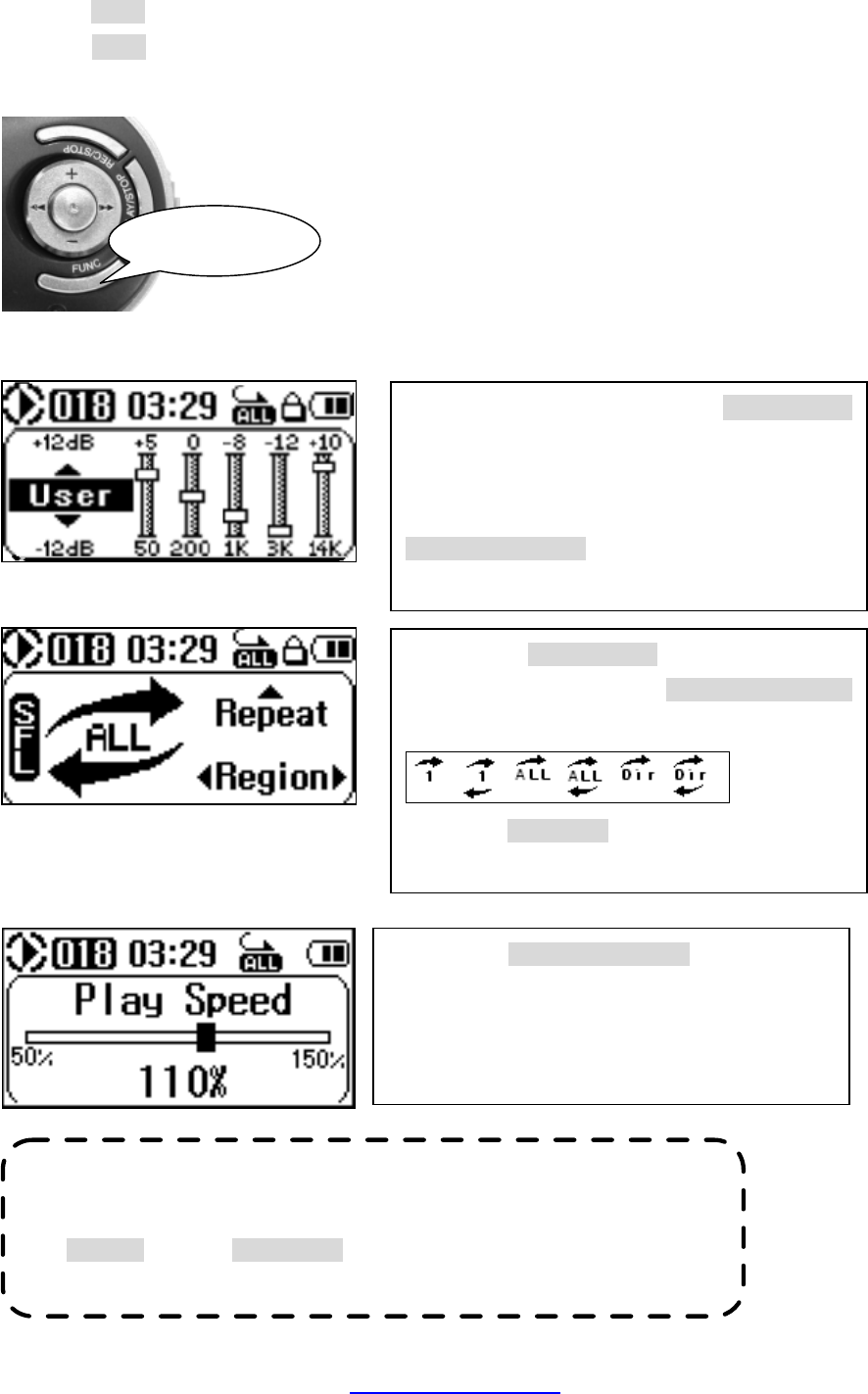
4) Audio Setting Mode
Press the FUNC button longer in the stop or playback mode to enter into the audio setting mode.
Press the FUNC button to change the audio setting mode to EQ Setting ⇒ Repeat Setting ⇒
Play Speed.
EQ Setting
Repeat setting
-
Play Speed
Press longer
▶ Set the EQ mode using the +(Up)/-(Down)
button. (Normal ⇒ Rock ⇒ Jazz ⇒ Classic ⇒
Pops ⇒ User ⇒ SRS)
▶ Set the level of 5 bands using the
REW(◀◀)/FF(▶▶)
button.(Except the normal
and SRS mode)
▶ Press the +(Up)/-(Down)
button to change the
repetition mode, or press the REW (◀◀)/FF(▶▶)
button to change the repetition region.
Press the REC/STOP
button to set the shuffle
mode.
▶Press the REW(◀◀)/FF(▶▶)
button to select
playback speed you want.
Playback speed control is applicable for the file
currently being played back.
☞ Note ☜
▶
To return to the stop or playback mode in any setting mode, press
the SELECT button or PLAY/STOP button.
PDF created with pdfFactory Pro trial version www.pdffactory.com
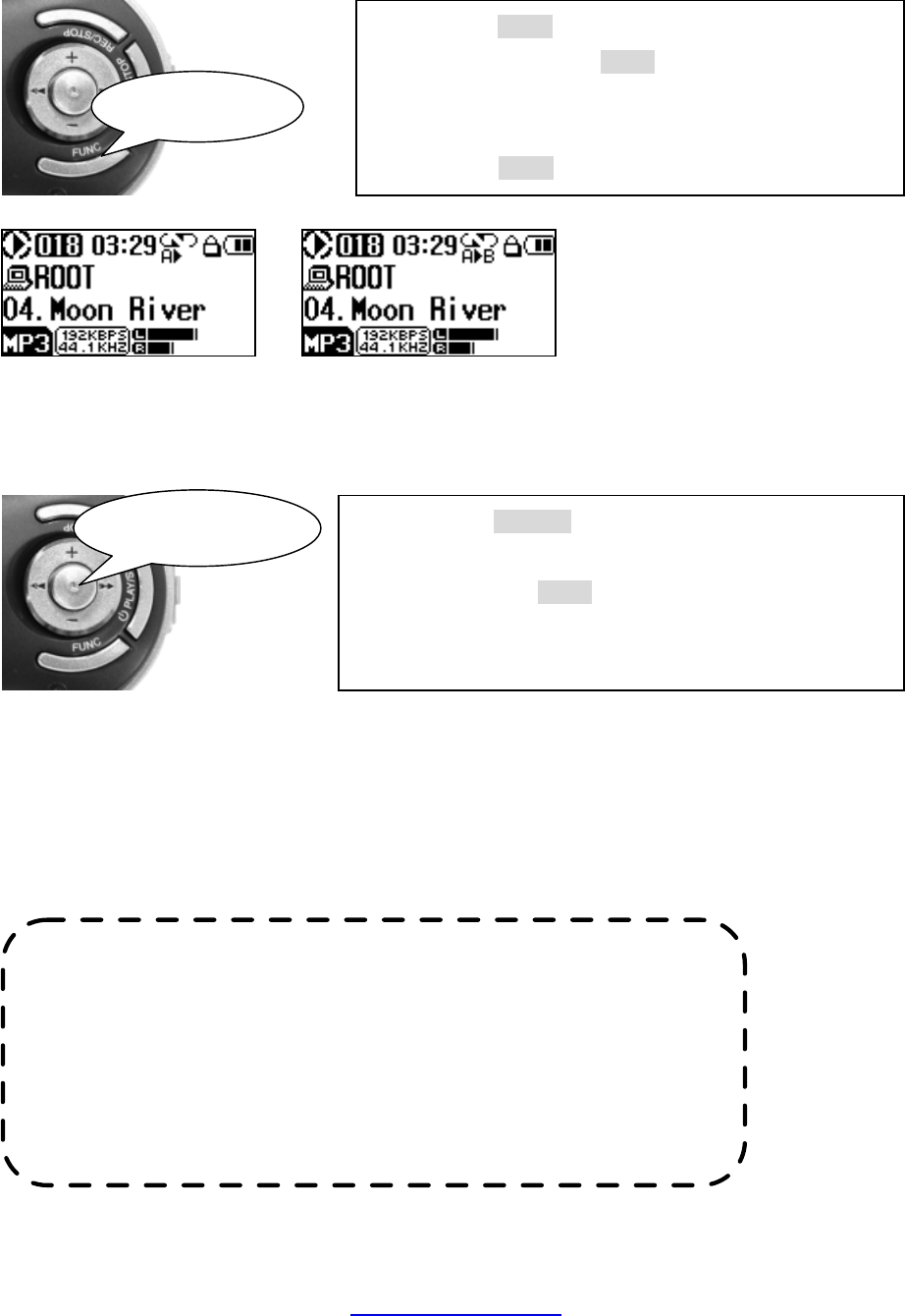
5) Sector Repetition (A↔B)
Plays back the selected sector repetitively.
4) Browser Mode
File Browser:① Browser displaying the directory and files. -- Run in the audio playback mode or
the recording wait mode.
Bookmark Browser:② Browser displaying the bookmark – Run in the audio playback mode
only.
Playlist Browser: ③Browser displaying the playlist – Run in the audio playback mode.
Press shortly
Press shortly
☞ Note ☜
▶Bookmark :
Keeps record of the file name and current playback time
during audio file playback.
▶Playlist :
A list of files that you want to play back, like the M3U in the
Winamp (Similar to the program function of the CD Player)
Setting A Point
Setting B Point
On: Press the FUNC button once shortly duri
ng playback to
set the A point. Press the FUNC
button shortly again to set
the B point. Then, playback will be repeated between the
point A and B.
Off: Press the FUNC button once shortly.
If you press the SELECT button in the audio play mode
or recording wait mode, the browser mode will be selected.
Or, if you press the FUNC button in the
browser mode, the
browser mode will be switched between "File Browser"
⇒
"Bookmark Browser" ⇒ "Playlist Browser".
PDF created with pdfFactory Pro trial version www.pdffactory.com
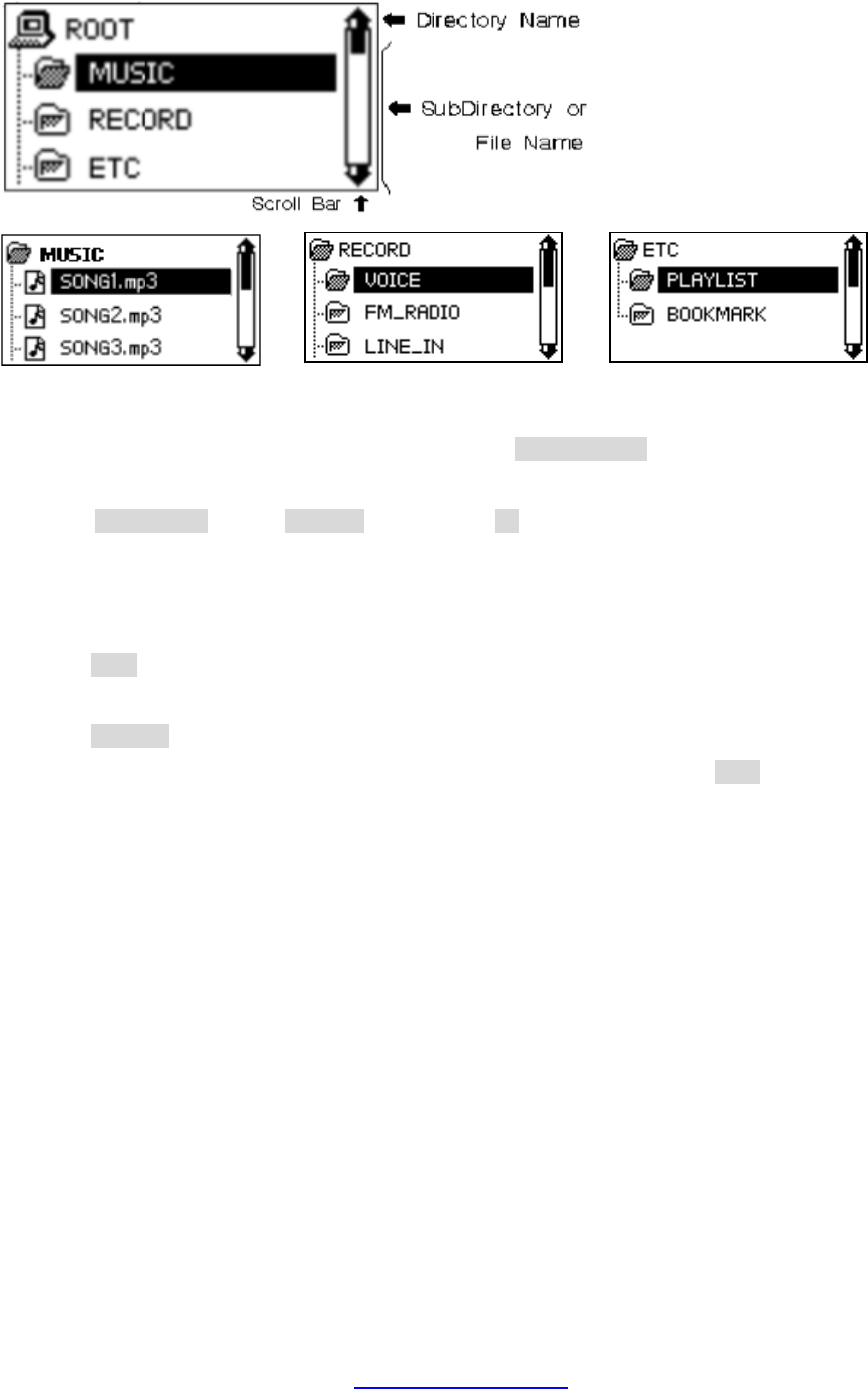
<File Browser>
MUSIC RECORD ETC
①Finding a directory or a file
Move to the directory or the music file you want, using the +(Up)/-(Down) button.
②Selecting a directory or a file
Press the PLAY/STOP button, SELECT button or the FF button shortly to move to the target
directory if you press the button on the directory name, or the file browser will be closed and the
selected file will be played back if you press the button on the file name.
③Moving to the upper folder
Press the REW button to move to the upper director if it is not the root directory.
④Exit from the file browser
Press the SELECT button longer once to exit from the file browser.
- If you’re in the root directory, the file browser will be closed when you press the REW button.
PDF created with pdfFactory Pro trial version www.pdffactory.com
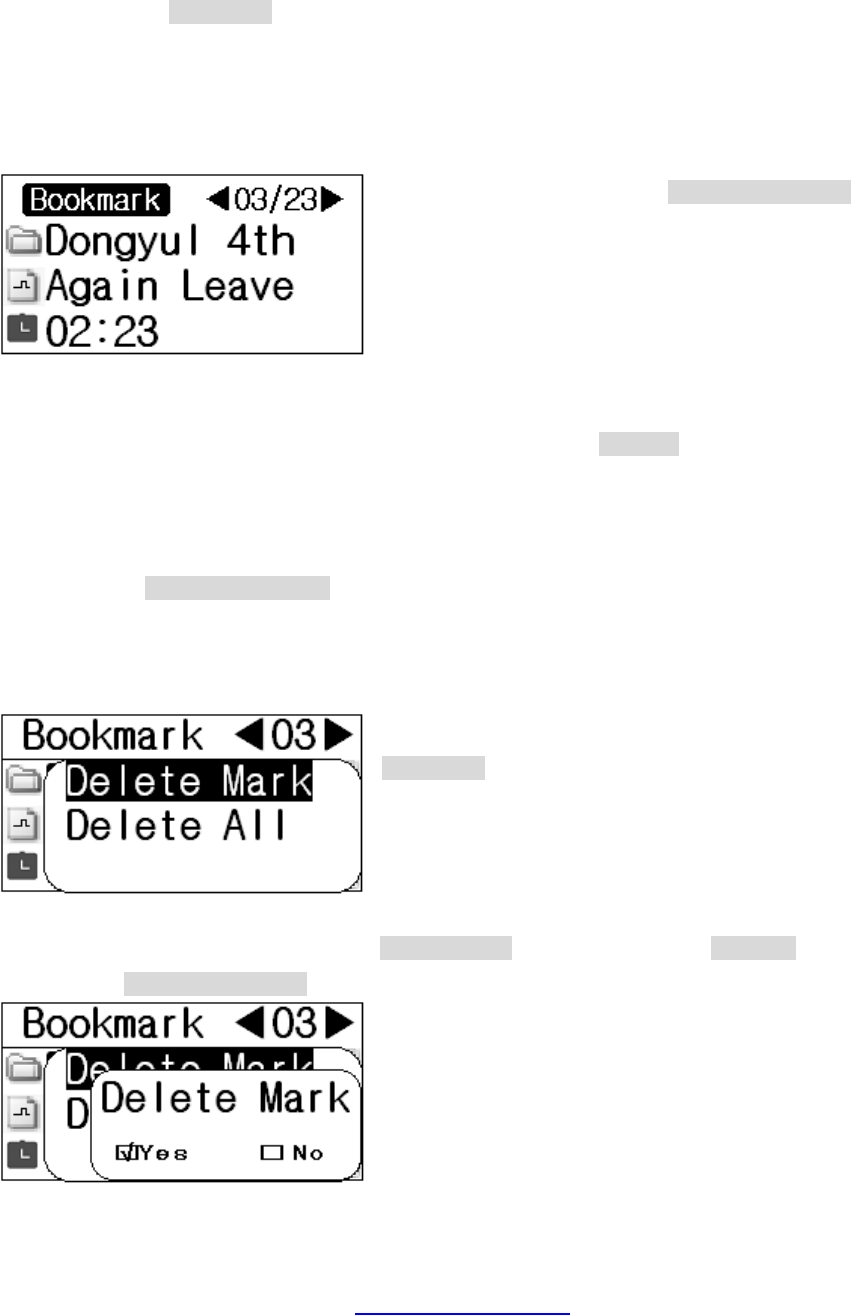
<Bookmark Browser>
- You can set up to 99 bookmarks.
①Saving a bookmark.
- If you press the REC/STOP button while playing back the audio file, the file name and the
current playback time will be recorded.
- The saving location will increase sequentially: 99 01 02 ....⇒⇒⇒
②Finding a bookmark
Each time you press the REW(◀◀)/FF(▶▶)
button, the bookmark number will
increase/decrease and the bookmark details will
be displayed.
Bookmark P③lay
- To play back the bookmark found in the step ②, press the SELECT button. Then, the
bookmark browser will be closed and playback of the bookmark will be started.
◎When playback of the bookmarked file is completed, the next file will be played back.
- Bookmark Play
If you press the REW(◀◀)/FF(▶▶) button during bookmark playback, the next/previous file of
the bookmark will be played back, instead of the next/previous bookmark.
④Deleting a bookmark
- Move to the bookmark to delete and press the
REC/STOP button to display the Edit popup menu.
- Delete Mark: Deletes the currently selected
bookmark.
- Delete All: Deletes all bookmarks.
- Move to the Delete Mark menu using the +(Up)/-(Down) button, and press the SELECT button
and then, the REW(◀◀)/FF(▶▶) button to confirm bookmark deletion.
PDF created with pdfFactory Pro trial version www.pdffactory.com
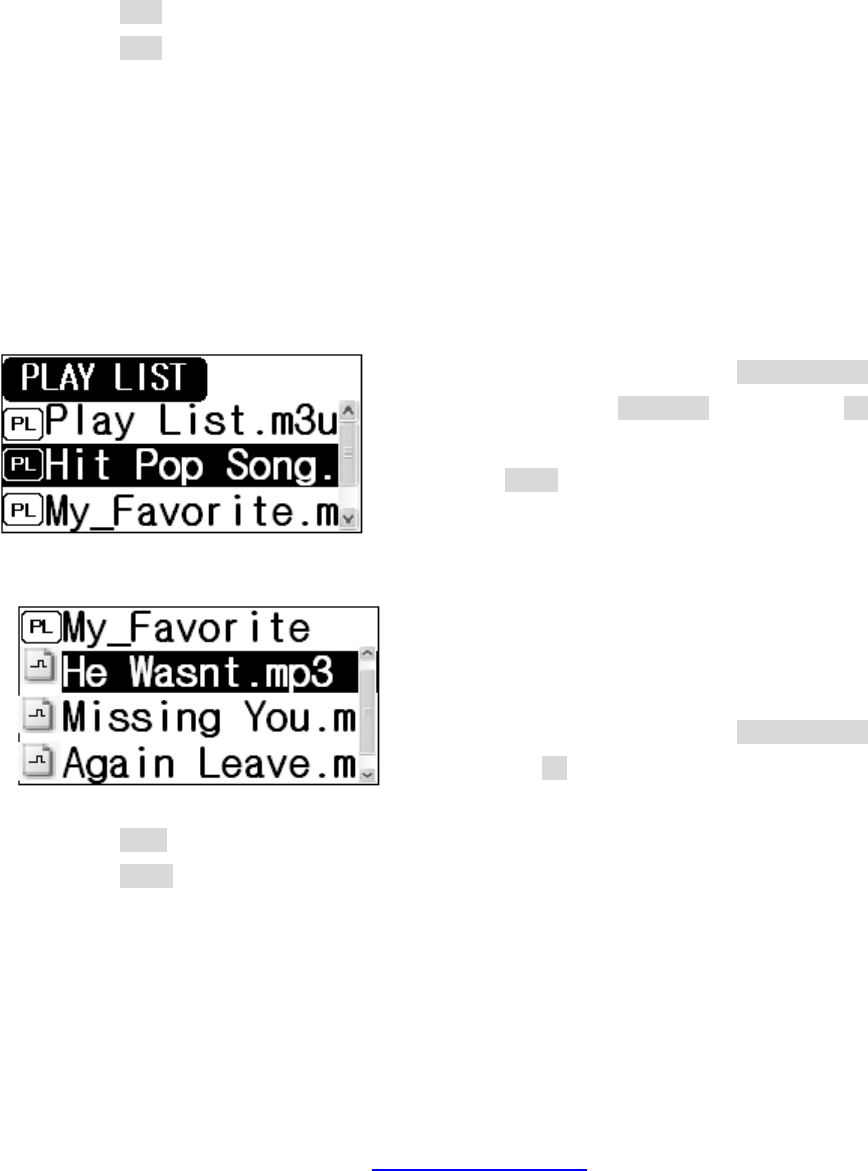
< Playlist Browser>
◎There are two types of a playlist.
- Playlist that can be added/deleted to/from the player: "Playlist.m3u" – Only 1 playlist is
available.
- Read-only playlist: m3u file that was created by Winamp – several playlists can exist.
- Playlist file (.m3u) can be recognized only when it is in the “root/Playlist" directory.
①Adding a playlist.
◎You can use two methods of adding a playlist.
- Press the REC button in the audio stop mode.
- Press the REC button in the File Browser and add the playlist in the Edit popup menu.
- You can add or delete up to 99 playlists.
- Saving location will increase sequentially.: 99 01 02 ....⇒⇒⇒
Playlist ②browser
There are two steps in using the playlist browser.
- When the playlist is opened first: The browser will display the “m3u” file list in the root/Playlist
directory.
- Move to the target playlist, using the +(Up)/-(Down)
button. Then, Press the SELECT button or the FF
button to proceed to the next stage.
- Press the PLAY button to exit from the playlist
browser.
- Second stage of using the playlist browser:
Displays the list of files in the playlist that was
selected at the first stage.
Move to the target file using the +(Up)/-(Down)
button or the FF button to play back from the
selected file.
- Press the REW button to move back to the previous stage (playlist selection mode)
- Press the PLAY button to close the playlist browser.
◎File navigation in the audio playback mode during playlist playback will be performed inside
the playlist items only.
PDF created with pdfFactory Pro trial version www.pdffactory.com
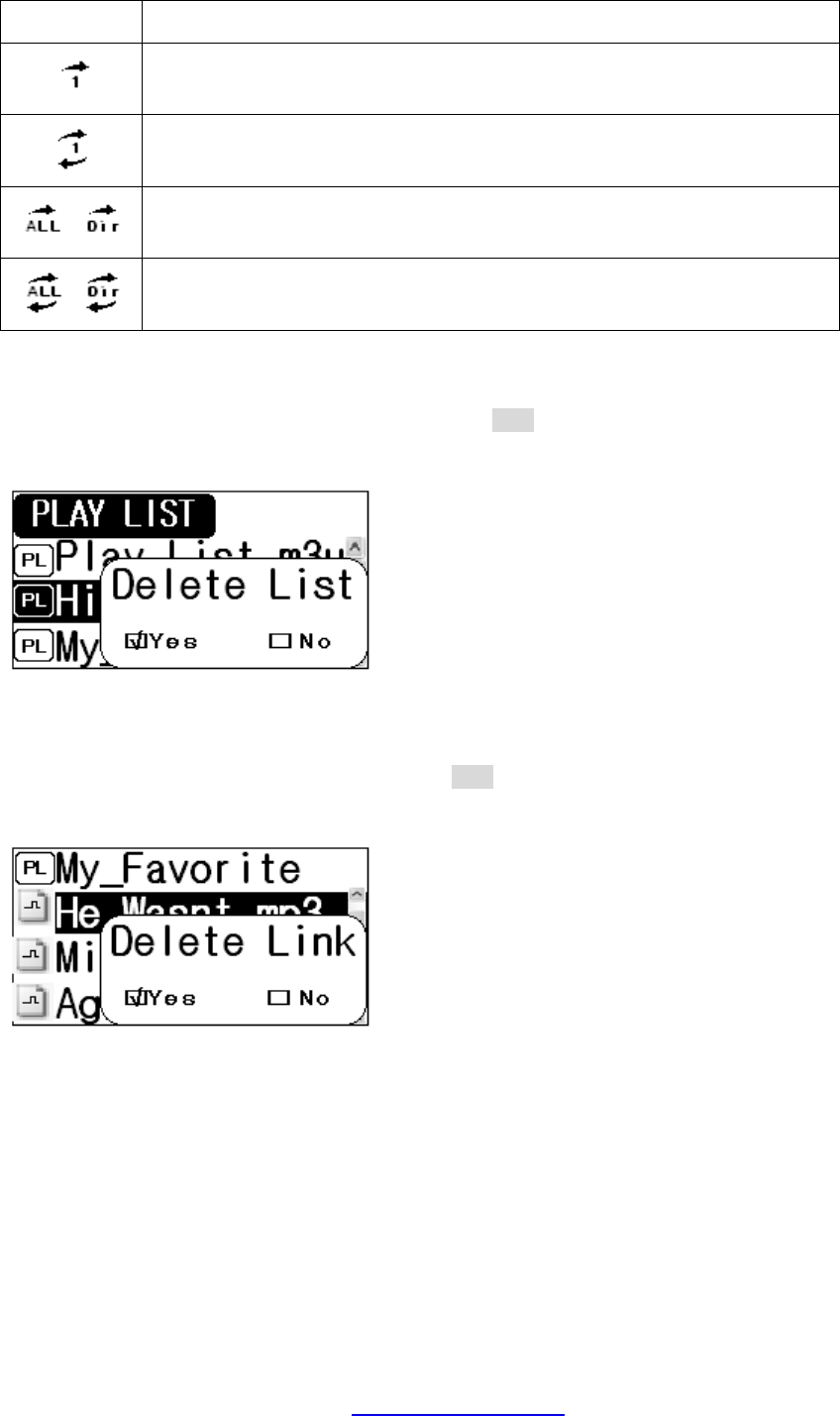
- Applying the repeat mode and the shuffle mode
Repeat Mode
Description of Operation
Plays back the file selected from the playlist only once.
Plays back the file selected from the playlist only indefinitely.
Plays back all files in the playlist only once.
Plays back all files in the playlist only indefinitely.
Deleting a playlist③
- Deleting a playlist (m3u file): When you press the REC button at the step 1, the playlist
deletion confirmation popup window will appear.
- Select “Yes” to delete the selected playlist file.
- Deleting the playlist link: When you press the REC button at the step 2, the playlist link
deletion confirmation popup window will appear.
- Select “Yes” to delete the selected playlist link.
PDF created with pdfFactory Pro trial version www.pdffactory.com
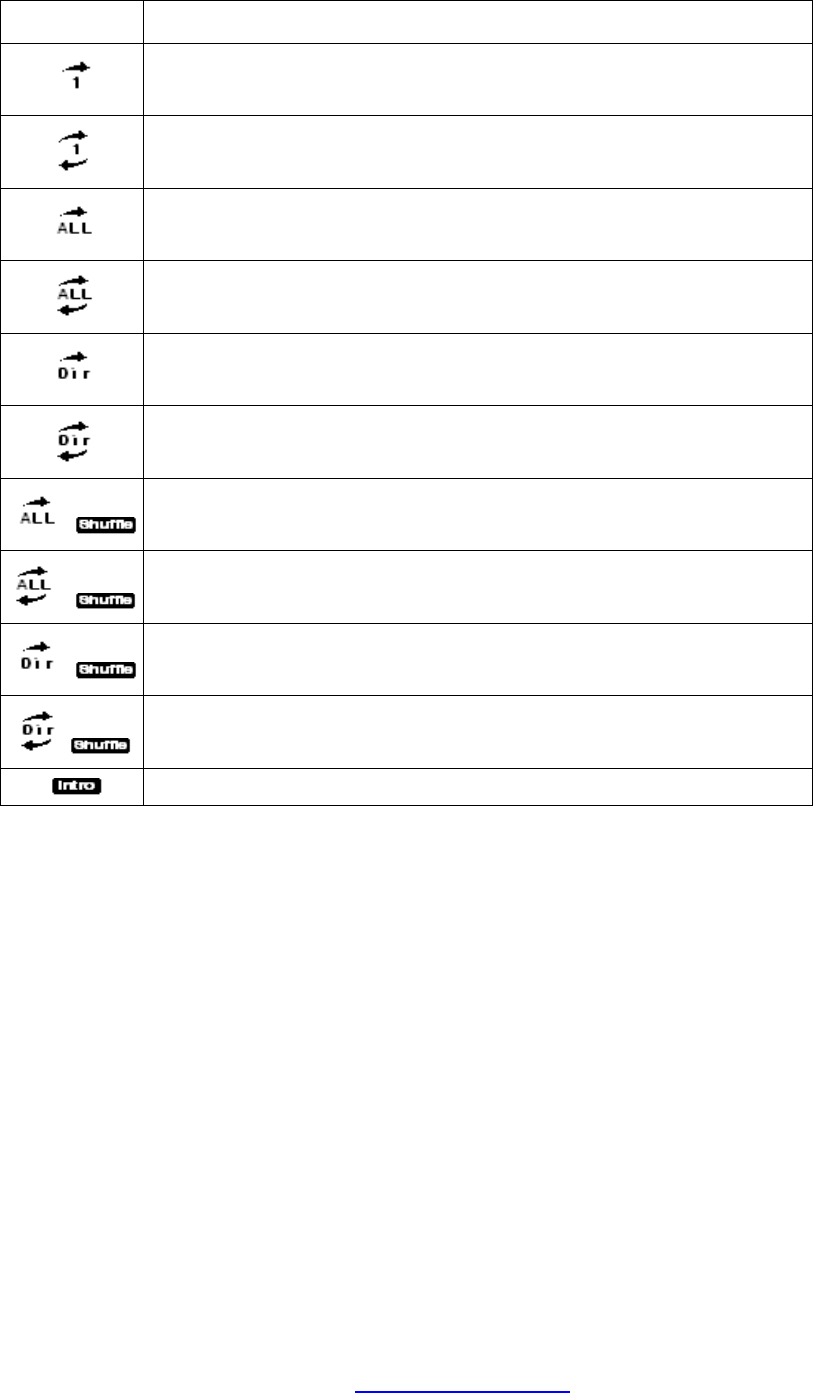
(2) Repeat Mode
Repeat Mode
Description
Plays back the selected one file only and stops playback.
Plays back the selected one file repetitively.
Plays back all files and stops playback.
Plays back all files repetitively.
Plays back all files in the current directory and stops playback.
Plays back all files in the current directory repetitively.
Plays back all files once randomly and stops playback.
Plays back all files repetitively with a random order.
Plays back all files in the current directory randomly and stops playback.
Plays back all files in the current directory repetitively with a random order.
Plays back the file as long as specified in the menu (1 ~ 30 seconds).
PDF created with pdfFactory Pro trial version www.pdffactory.com
FM Radio Mode
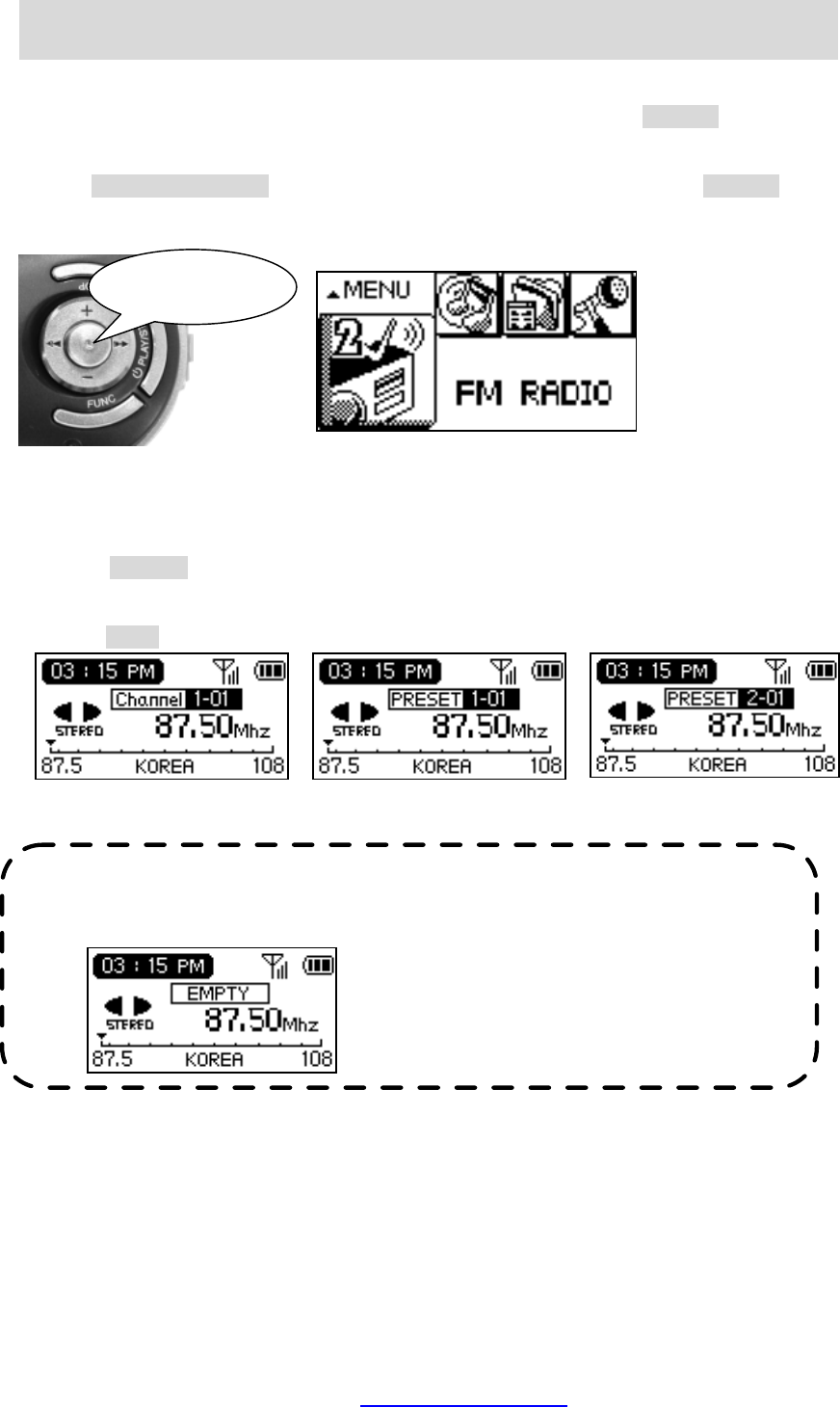
1) Switching to the FM Radio Mode
If you’re currently in the mode other than the FM radio mode, press the SELECT button longer
once to change the mode.
Use the REW(◀◀)/FF(▶▶) button to select the FM radio mode and press the SELECT button
to enter into the FM radio mode.
2) Changing the FM Mode
The FM radio has three modes (Normal Preset⇒1 Preset⇒2 )
Press the SELECT button shortly to switch from the normal mode to the Preset mode 1. Or,
press the FUNC button longer to switch from the Preset mode 1 to the Preset mode 2.
Press the FUNC button to change the mode.
Normal Preset 1 Preset 2
Press longer
☞ Note ☜
▶The “EMPTY” icon will appear if no frequency is saved in the reset mode.
.
PDF created with pdfFactory Pro trial version www.pdffactory.com
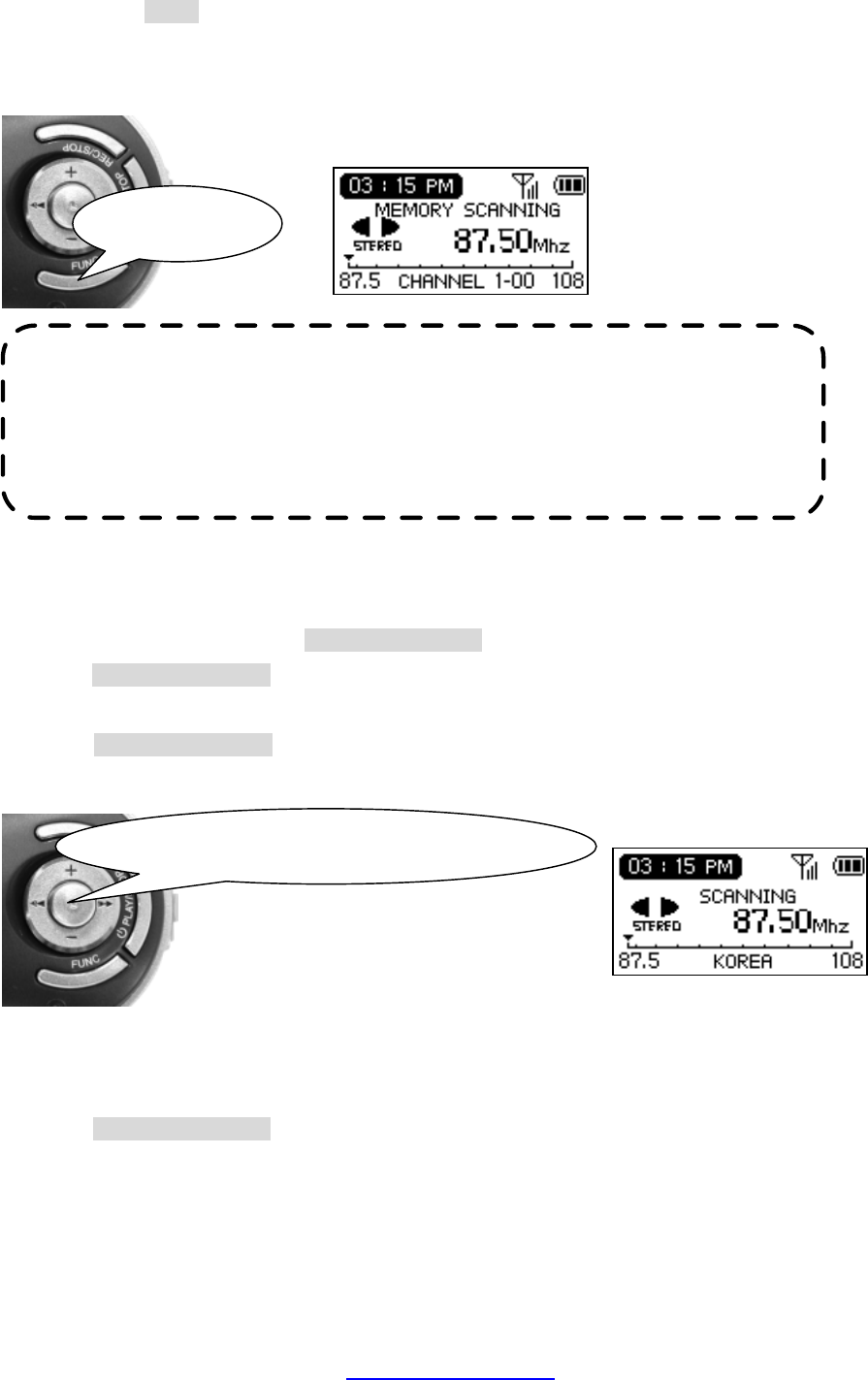
3) Auto Memory
If you press the FUNC button longer in the normal mode, only frequencies with good sensitivity
will be saved in the preset. The automatically saved frequencies will work in the Preset1,
Preset2 mode only.
4) Frequency Search
<Normal Mode>
Search for the frequency using the REW(◀◀)/FF(▶▶) button.
Press the REW(◀◀)/FF(▶▶) button to increase or decrease the frequency band by one step
(100KHz or 50KHz)
Press the REW(◀◀)/FF(▶▶) button longer to increase or decrease the frequency band fast
and stops at the frequency with good sensitivity.
<Preset Mode>
Frequency search in the preset mode is performed within 20 preset frequencies of each Preset1,
Preset2.
Press the REW(◀◀)/FF(▶▶) button to increase/decrease the saved channel number. (Press
and hold the button to increase/decrease fast.)
Press to the left/right once shortly/longer.
☞ Note ☜
▶You can set the FM sensitivity level using FM Menu⇒FM Setting⇒FM Sense.
▶ You may not be able to save the b
roadcasting channel in the weak sensitivity
area.
Press longer
PDF created with pdfFactory Pro trial version www.pdffactory.com
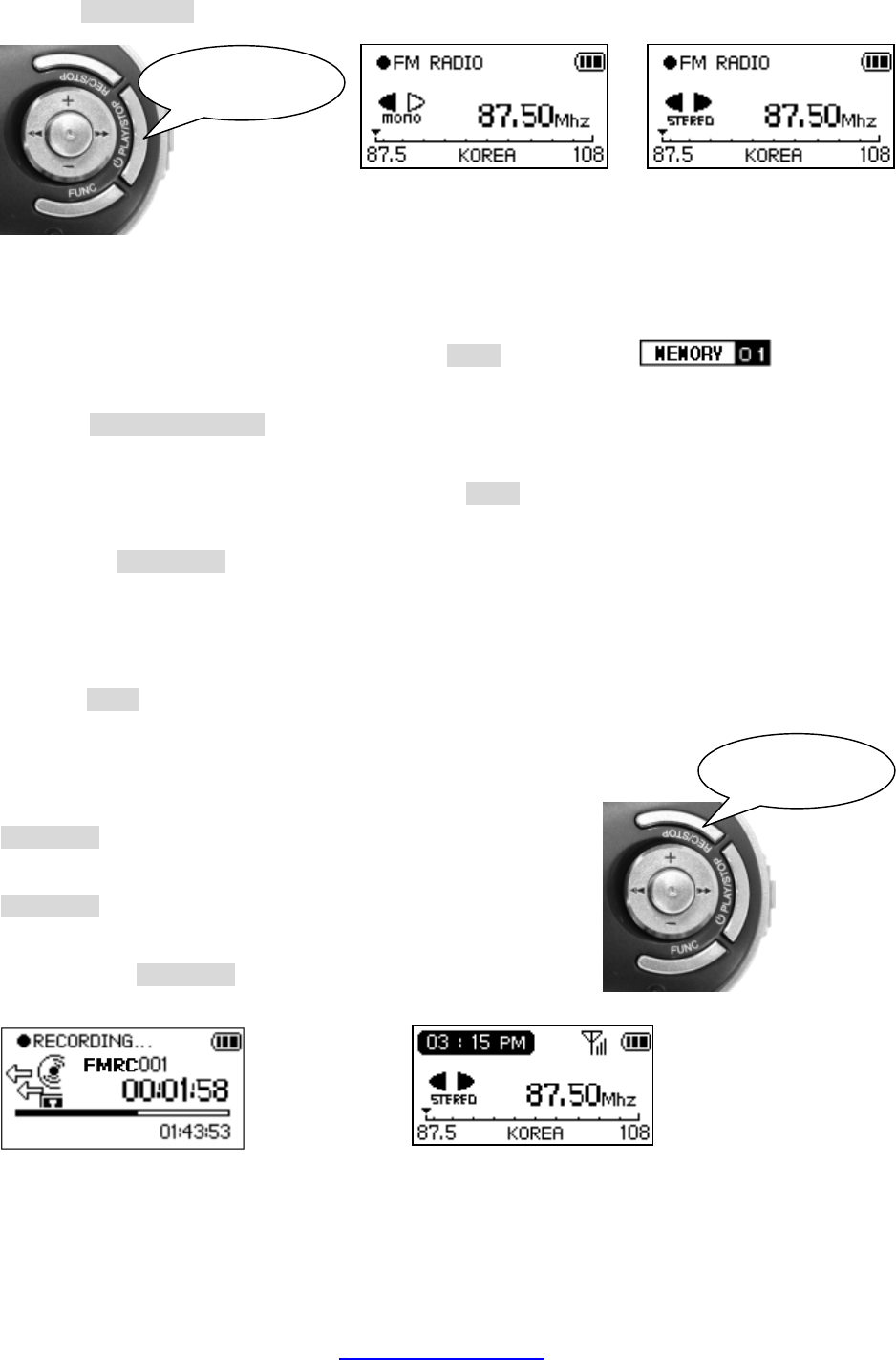
5) Changing Stereo/Mono Mode
Press the PLAY/STOP button to switch between stereo and mono mode.
<Mono> <Stereo>
6) Saving Frequency
In the normal mode you can save the current frequency to the preset.
Search the channel number you want and press the FUNC button then the icon
will appear.
Press the REW(◀◀)/FF(▶▶) button to increase/decrease the channel number to use. (Press
the button and hold it to increase/decrease fast.)
Select the channel number you want and press the FUNC button to save and return to the
normal mode.
Or, press the PLAY/STOP button to exit without saving.
7) Deleting the Preset
You can delete the channel saved in the preset.
Press the FUNC button shortly once to delete the channel.
8) FM Recording
Recording: To record the frequency that you're listening, press the
REC/STOP button longer in the FM radio mode. Or, set the
recording source to "FM Radio" in the Record menu and pres the
REC/STOP button in the recording mode to record the FM Radio
broadcasting.
Stop: Press the REC/STOP button again to stop recording and return
to the previous mode before recording.
Recording Stop
Press shortly
Press shortly
PDF created with pdfFactory Pro trial version www.pdffactory.com
Recording
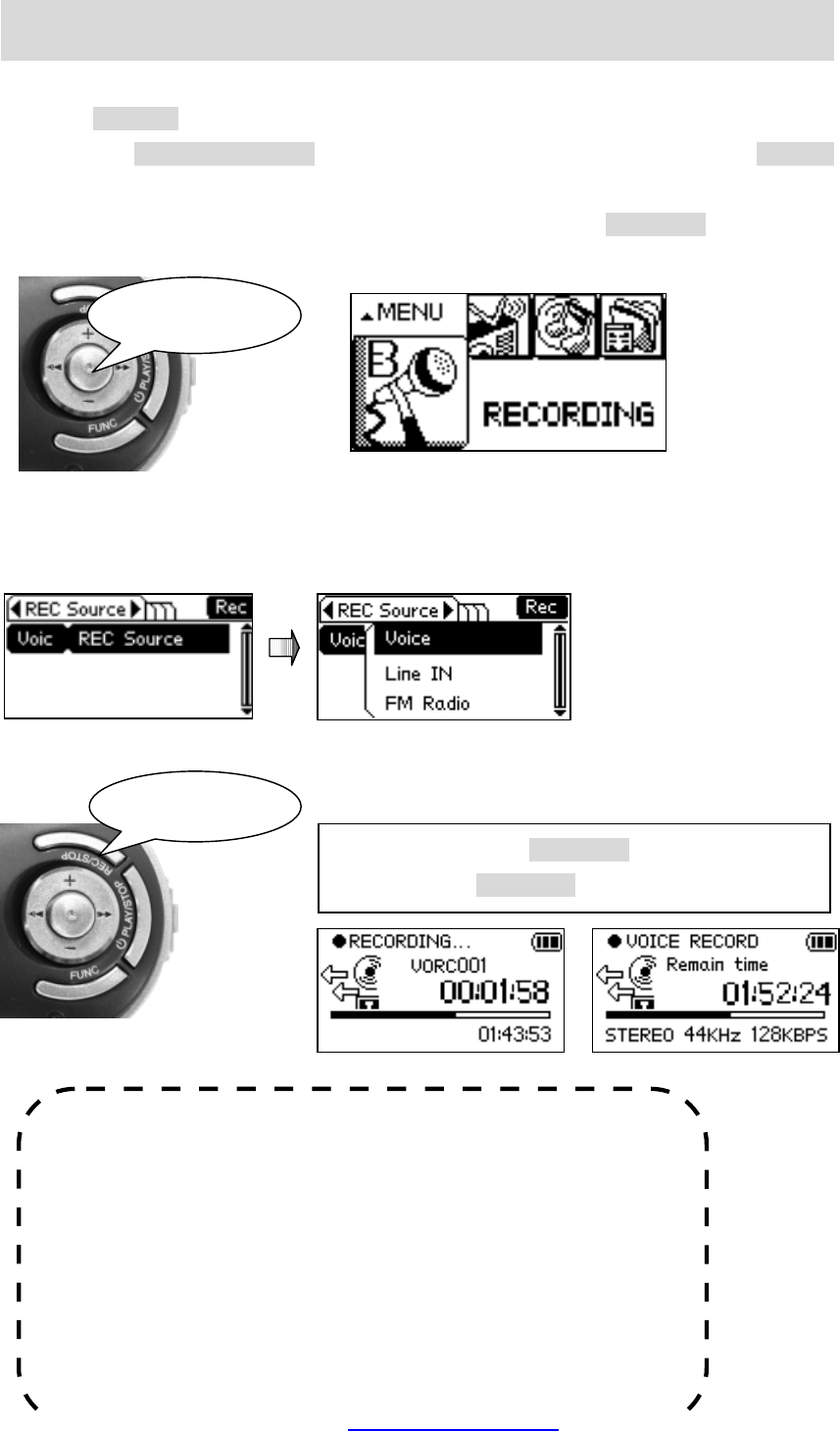
1) Switching to the Recording Mode
Press the SELECT button longer to change the mode if the mode is other than the recording
mode. Use the REW(◀◀)/FF(▶▶) button to select the recording mode and press the SELECT
button to enter into the Recording mode.
If the current mode is audio play mode or FM radio mode, press the REC/STOP button to start
voice recording.
2) Selecting Recording Source
Select the recording source by selecting Record menu Recording Source Voice/Line ⇒⇒
In/FM Radio.
3) Recording/Stop
Recording Stop
☞ Notes ☜
▶
Date and time of the file name in the recording waiting state
shows the current date and time.
◎File name by the recording source.
① Voice Record : Voice_40630_2126.wma
② Line In Record : Line_40630_2130.wma
③
FM Record : FM_40630_2135.wma
Press shortly
Recording: Press the REC/STOP button shortly once.
Stop: Press the REC/STOP button shortly once again.
Press longer
PDF created with pdfFactory Pro trial version www.pdffactory.com
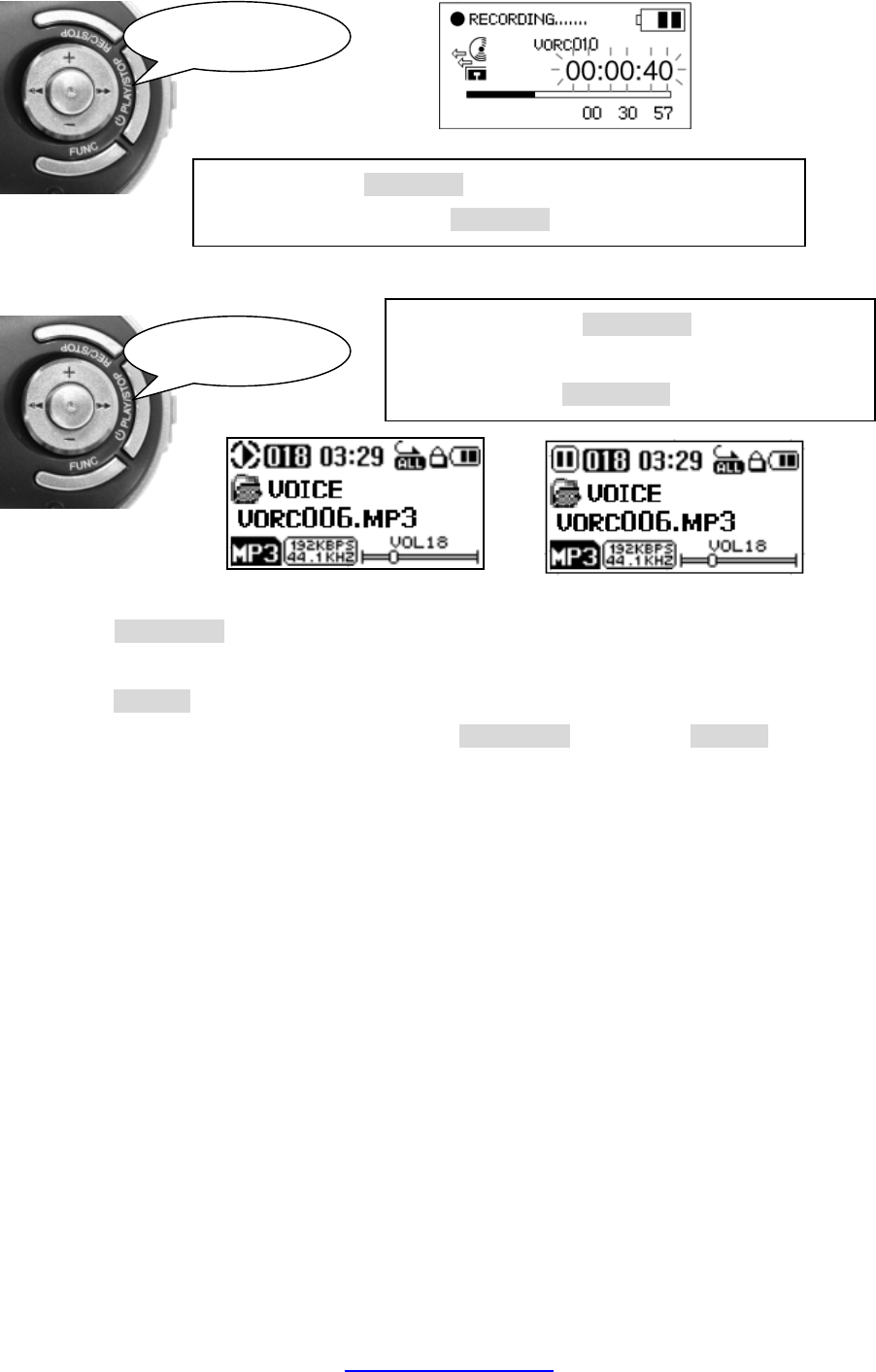
4) Voice Pause / Cancel pausing
5) Voice Playback / Stop
Playback Stop
①Press the PLAY/STOP button in the recording standby state to play back the latest recording
file. However, you can play back the recorded FM file in the File Browser mode only.
②Press the SELECT button to enter into the file browser mode.
Select the target file in the file browser and press the PLAY/STOP button or the SELECT button
shortly to play back the selected file.
Press shortly
Pause: Press the REC/STOP button while recording shortly once.
Cancel pausing: Press the REC/STOP button shortly once again.
Playback: Press the PLAY/STOP button shortly once
when the player is stopped.
Stop: Press the PLAY/STOP button shortly once
Press shortly
PDF created with pdfFactory Pro trial version www.pdffactory.com
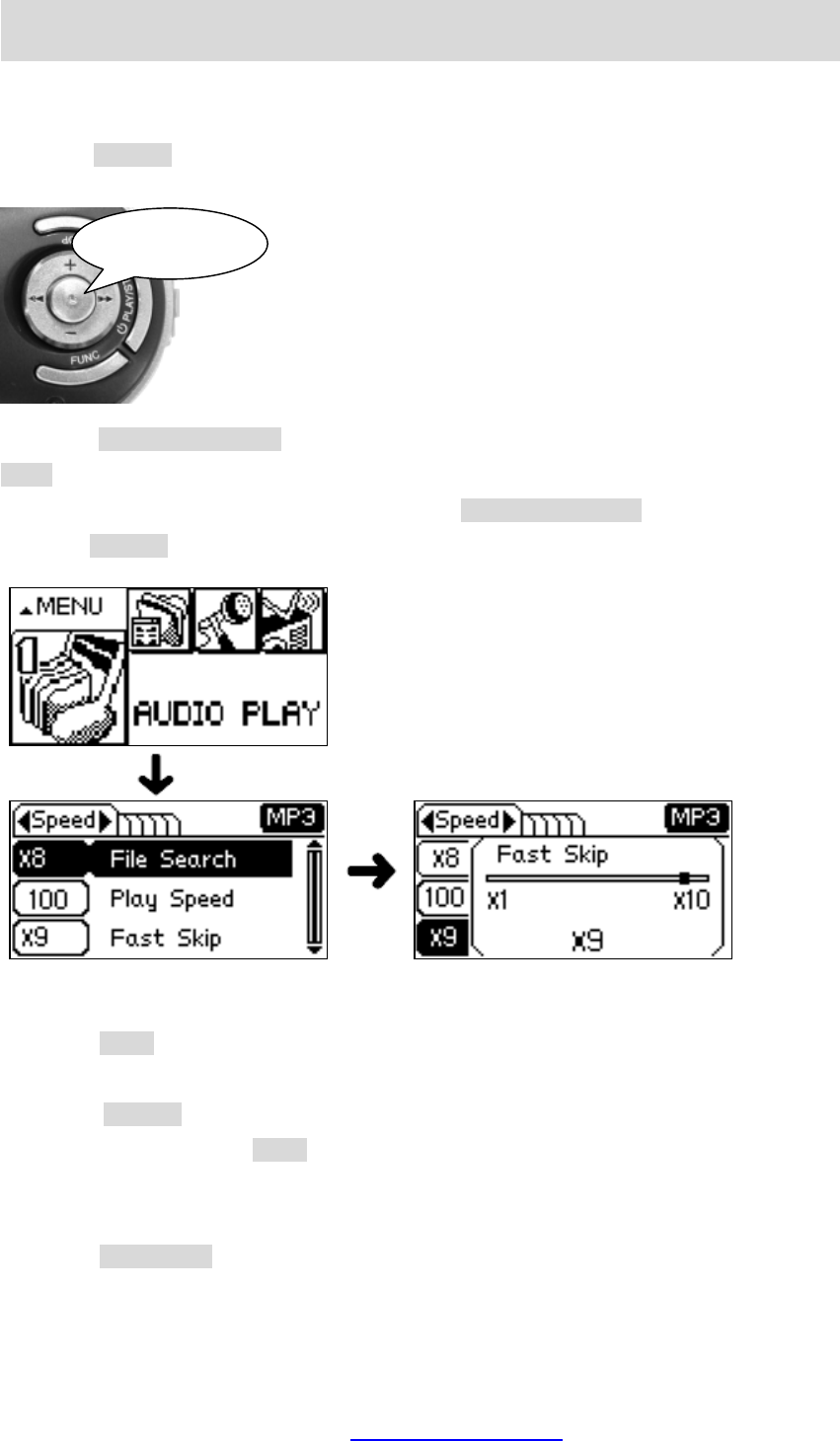
MENU
1) Entering into the Menu Mode
Press the SELECT button longer in the audio playback mode, FM radio or recording mode to
enter into the menu mode.
Press the REW(◀◀)/FF(▶▶) button to select the target main menu and then, press the
+(Up)button to enter into the sub-menu of the selected main menu.
Select the target sub-menu and end menu using the REW(◀◀)/FF(▶▶) button.
Press the SELECT button to display the popup window for details setting.
2) Moving back to the main menu from the sub-menu
Press the FUNC button in the sub-menu to return to the main menu.
3) Moving back to the sub-menu from the end menu
Press the SELECT button in the end menu to save the modified setting values and return to
the sub-menu. Or, press the FUNC button to return to the sub-menu without saving the modified
setting value.
4) Exit from the menu mode
Press the PLAY/STOP button in any mode to exit from the menu mode.
Press longer
PDF created with pdfFactory Pro trial version www.pdffactory.com
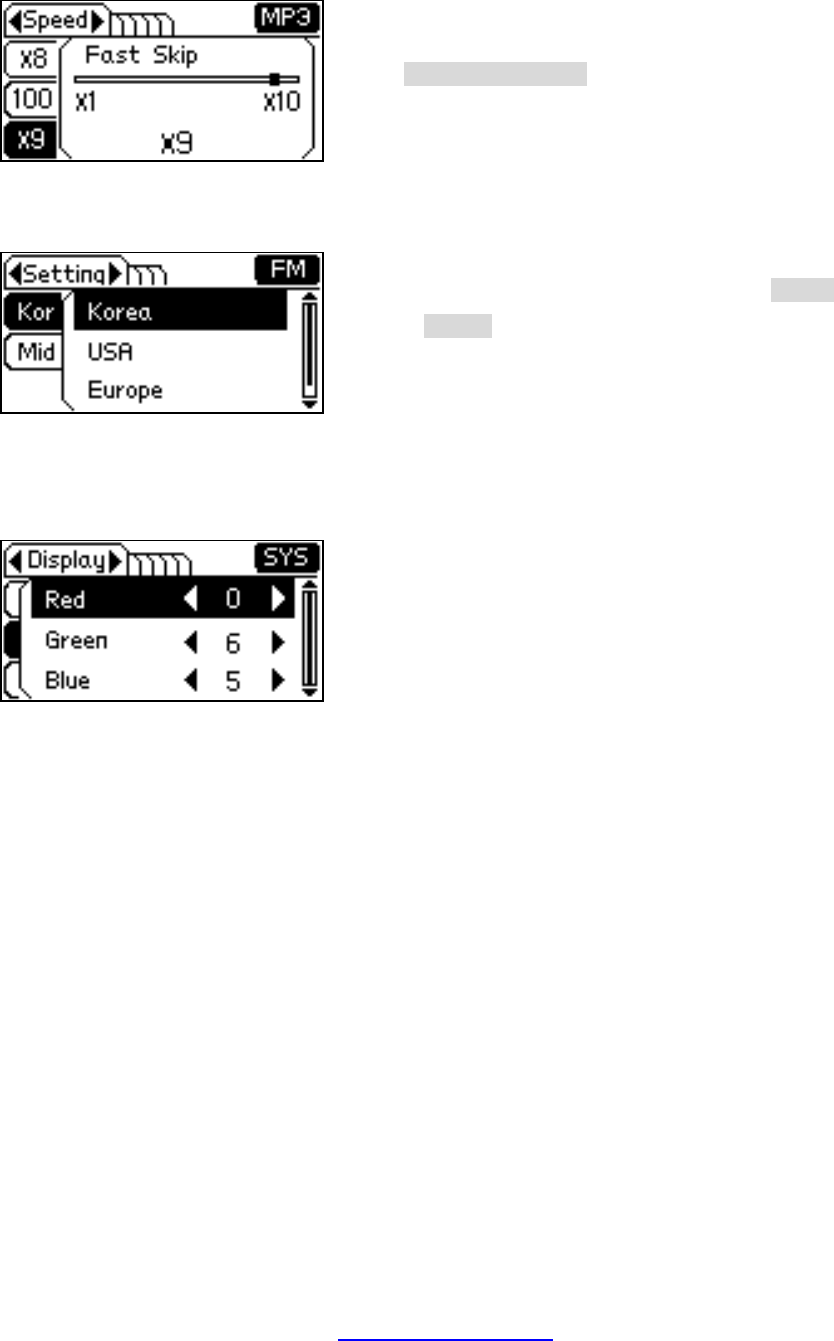
5) Types of the end menu
- There are three end menus. End menu can be classified by the button types used for setting.
① Left/Right Scroll End Menu
The end menu shown left enables you to
change the setting value using the
REW(◀◀)/FF(▶▶) button.
② Up/Down Scroll End Menu
The end menu shown left enables you to
change the setting value using the +(Up)/-
(Down) button.
③ Multi Scroll End Menu
All end menus excluding and .①②
The end menu that uses both and as ①②
shown left.
PDF created with pdfFactory Pro trial version www.pdffactory.com
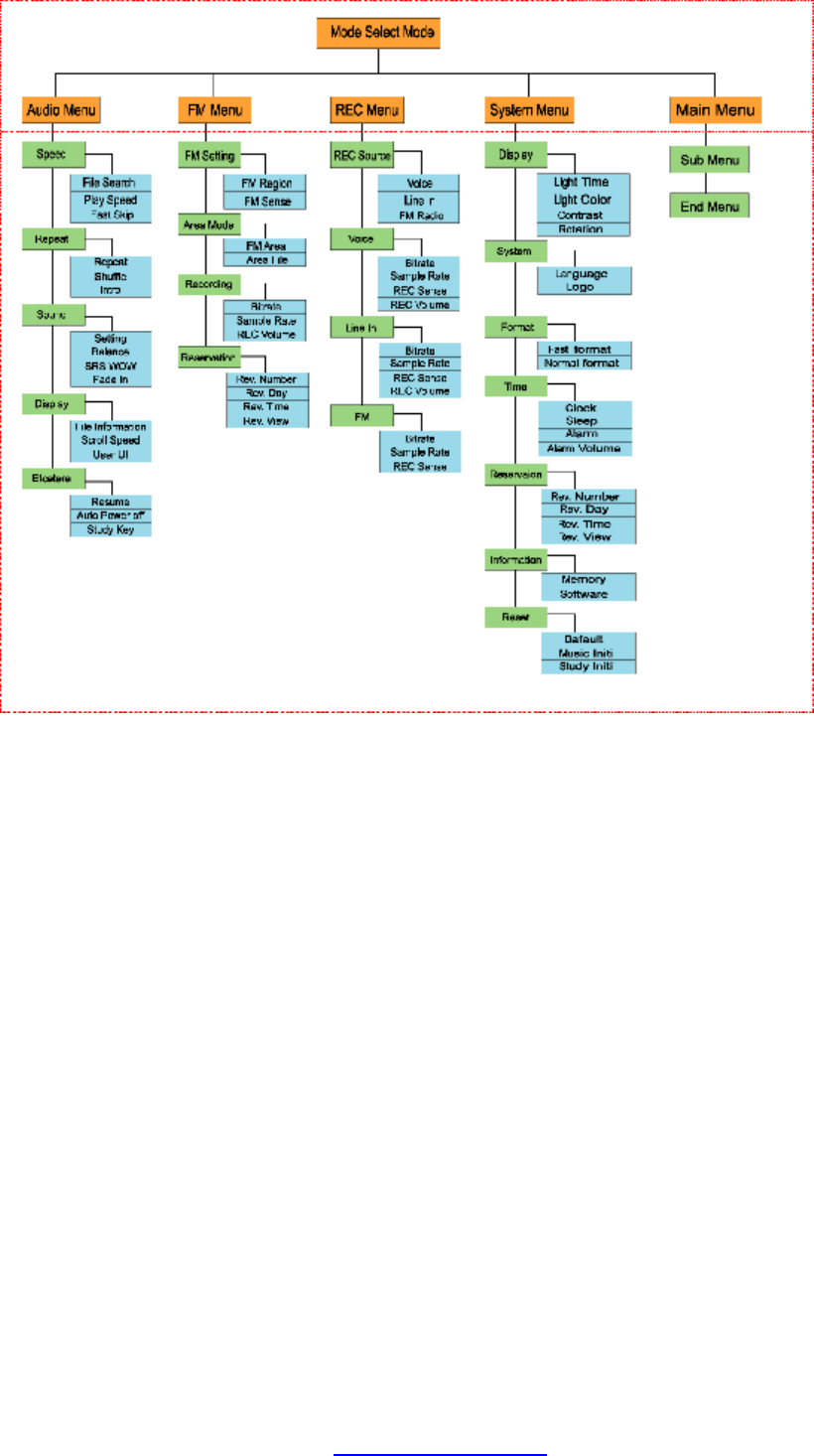
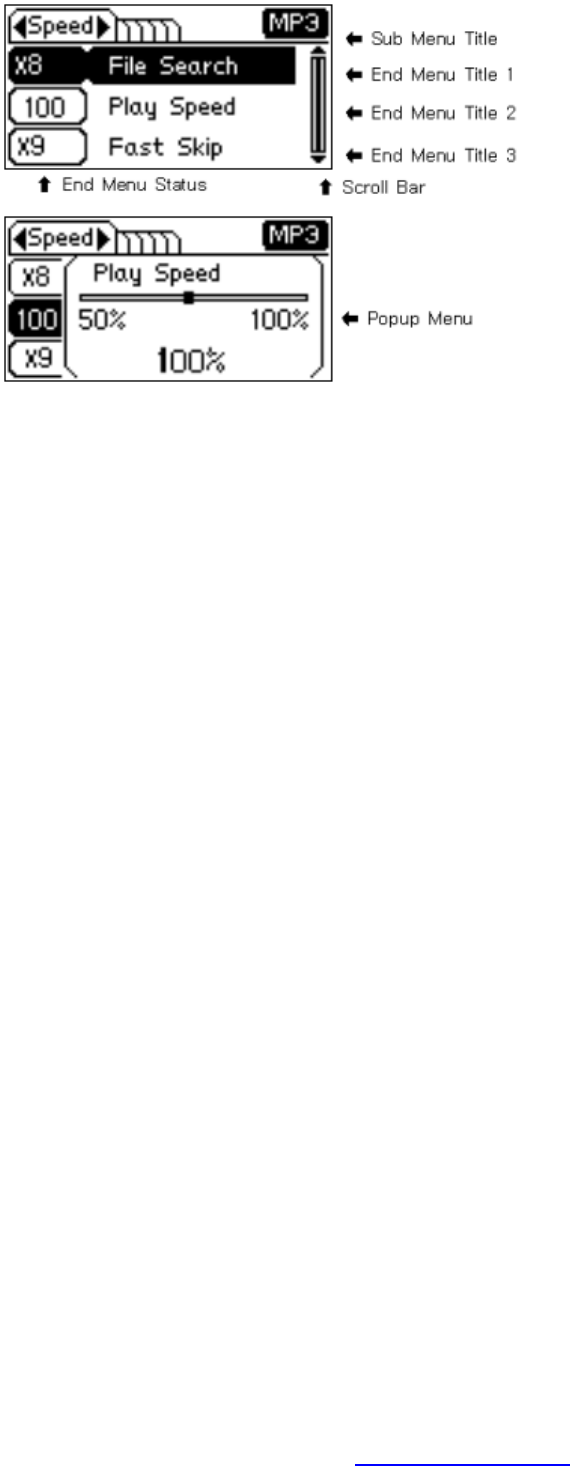
Audio Menu
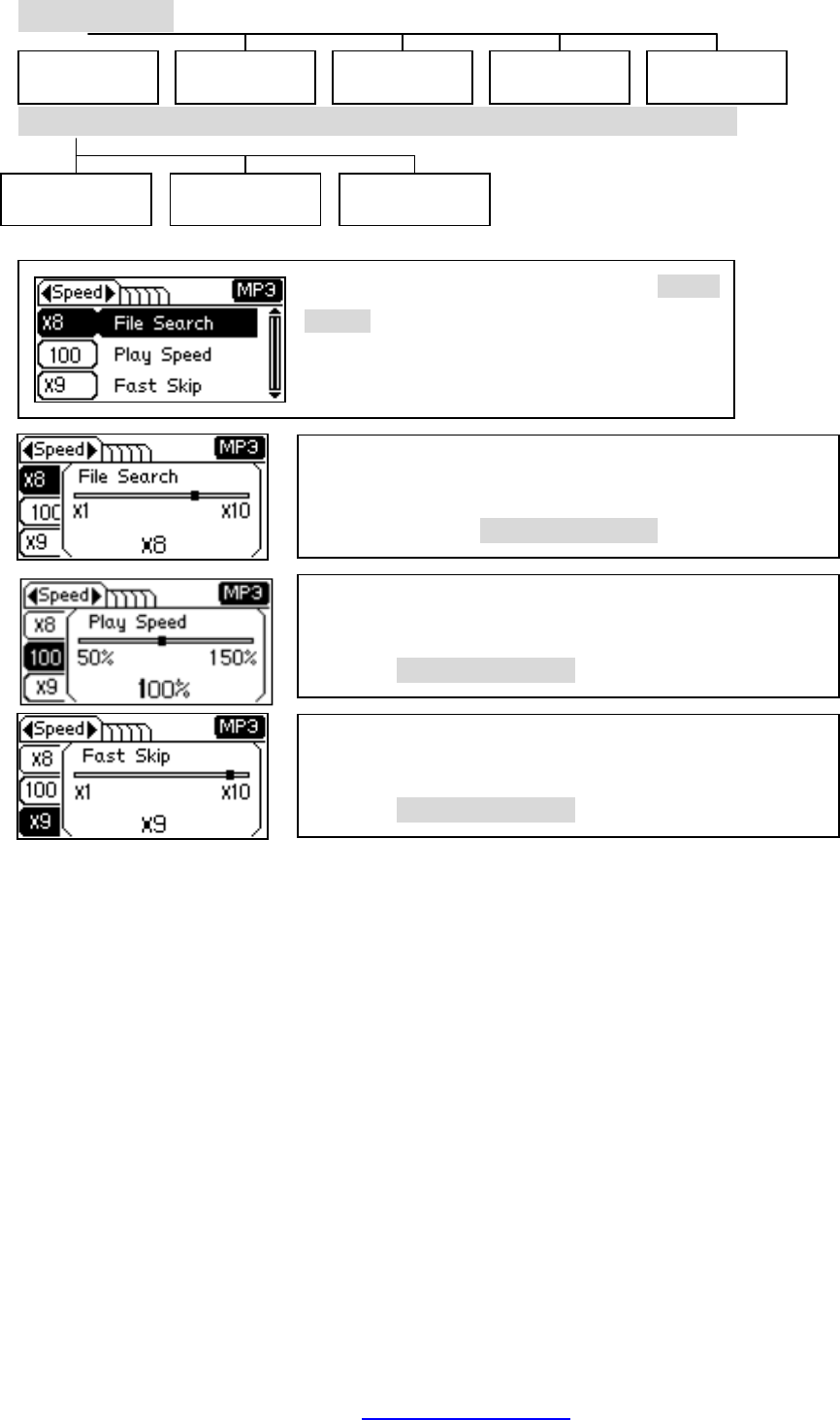
Speed Control
■ File Search
You can set file movement speed between 1 and 10
seconds, using the REW(◀◀)/FF(▶▶) button.
■ Play Speed
You can set file playback speed between
50% and 150%
using the REW(◀◀)/FF(▶▶) button.
■ Fast Skip
You can speed up file playback by 1
times to 10 times
using the REW(◀◀)/FF(▶▶) button.
Select the menu you want using the +(Up)/
-
(Down) button.
Speed ETC Set Display Sound Repeat
File Search
Fast Skip Play Speed
PDF created with pdfFactory Pro trial version www.pdffactory.com
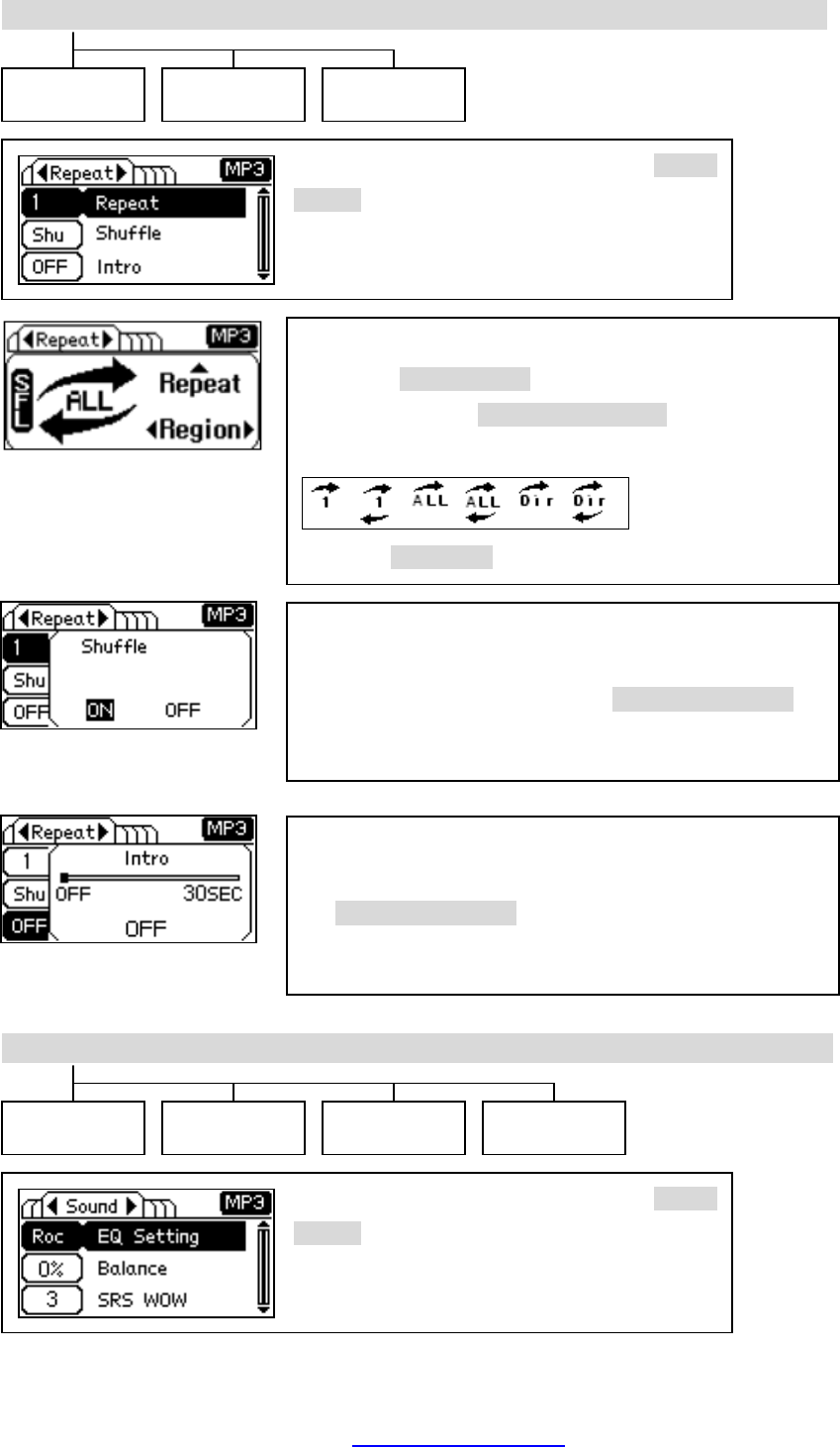
Repeat
Sound
Select the menu you want using the +(Up)/
-
(Down) button.
■ Repetition
Press the +(Up)/-(Down) button to change the repetition
mode, or press the REW (◀◀)/FF(▶▶) button to change
the repetition region.
Press the REC/STOP button to set the shuffle mode.
■ Shuffle
You can set whether playback will be performed
sequentially or randomly, using the REW(◀◀)/FF(▶▶)
button..
■ Intro
You can set time duration for Intro (0 ~ 30 seconds), using
the REW(◀◀)/FF(▶▶) button.
Repeat Intro Shuffle
EQ Setting
Fade In SRS WOW
Balance
Select the menu you want using the +(Up)/
-
(Down) button.
PDF created with pdfFactory Pro trial version www.pdffactory.com
Display
Select the menu you want using the +(Up)/
-
(Down) button.
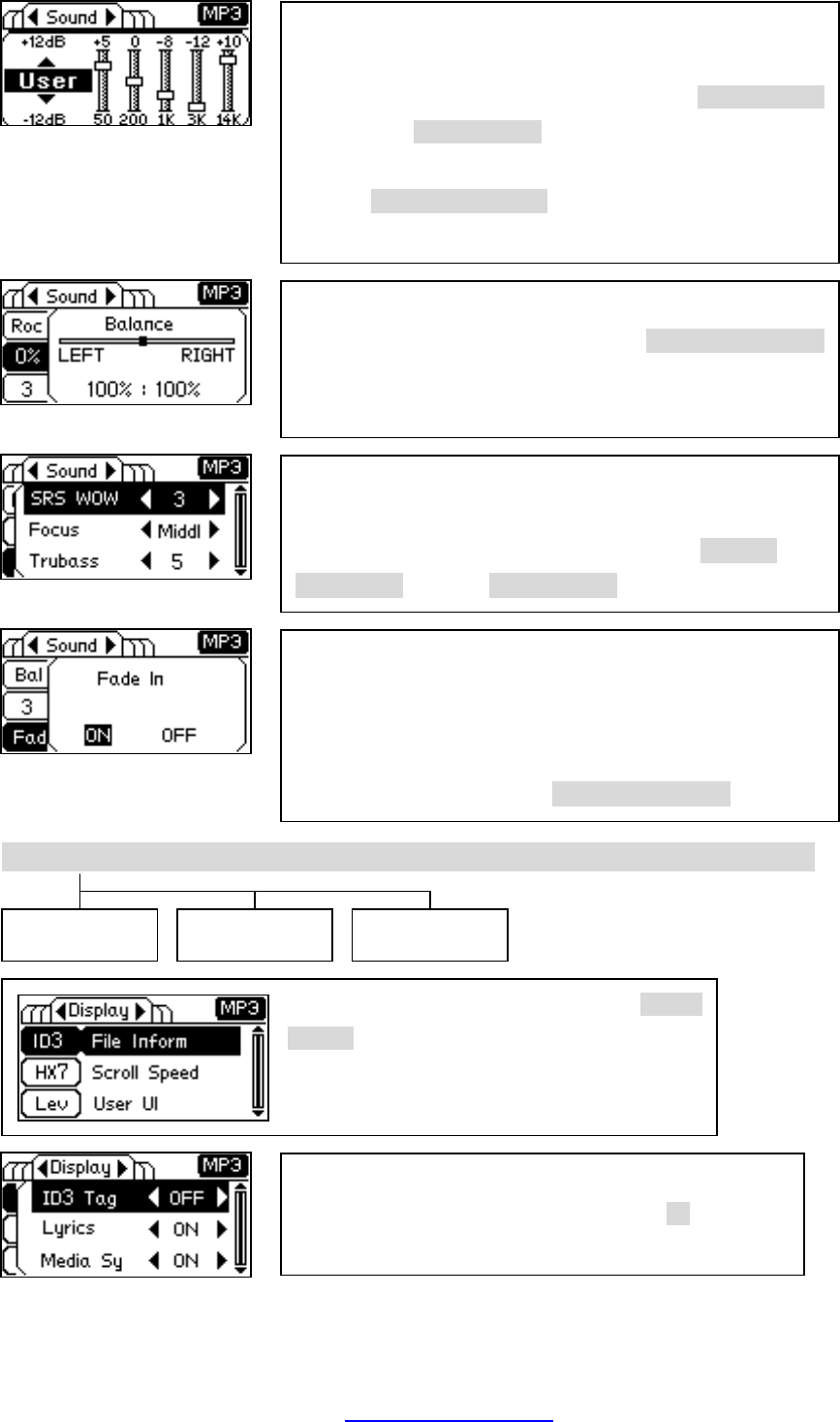
■ SRS WOW
(SRS WOW, Focus, Trubass, Boost,
Speaker)(Virtual 3D sound effect)
Set the 3D sound effect as you prefer using the REW(◀
◀)/FF(▶▶) button or +(Up)/-(Down).
■ File info (File Info-ID3 Tag, Lyrics, Media Sync)
Set the file name display method using the +/- button.
File Info User UI Scroll Speed
■ EQ (Normal ⇒ Rock ⇒ Jazz ⇒ Classic ⇒ Pops ⇒
User ⇒ SRS)
Select the equalizer you want using the +(Up)/-(Down)
button or the +(Up)/-(Down)
button that fits to your bass and
treble preferences.
Use the REW(◀◀)/FF(▶▶)
button to adjust each level of 5
bands. (Except the normal and SRS mode)
■ Balance
Select the left/right balance using the REW(◀◀)/FF(▶▶)
button by 20 steps (Left 0%/Right 100% ~ Left 100%/
Right
0%).
■ Fade In
Select whether you will use the fade in effect (Once selecte
d,
you can prevent abrupt volume up or down when stopping or
playing back since it increases/decrease steadily at the
beginning for end.), using the REW(◀◀)/FF(▶▶) button.
PDF created with pdfFactory Pro trial version www.pdffactory.com
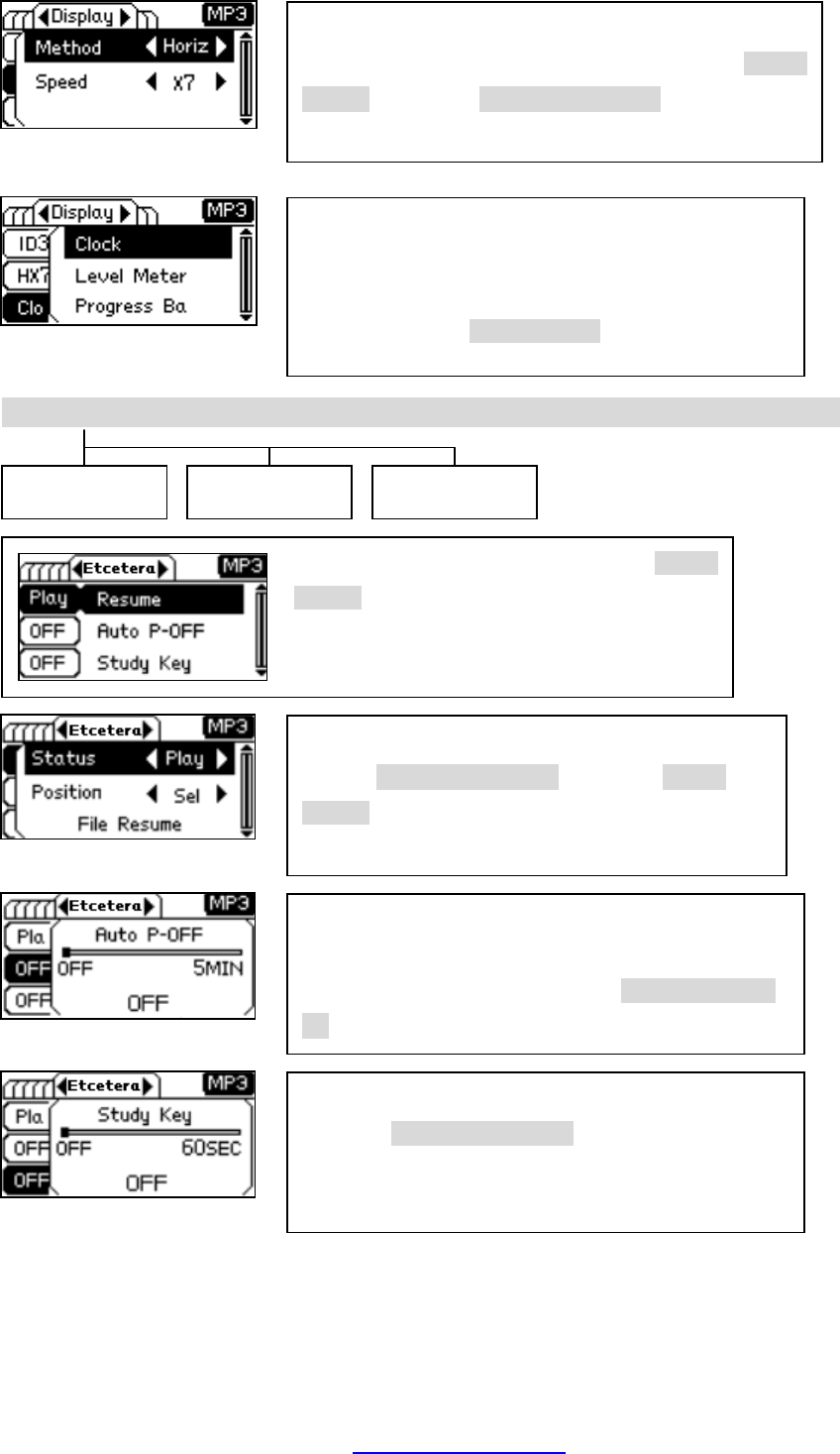
ETC Set
■ Resume
Use the REW(◀◀)/FF(▶▶) button and +(Up)/-
(Down) button to set the operation mode and
location when the power is turned on.
■ Study Key
Press the REW(◀◀)/FF(▶▶) key during playback to
move the playback position by the designated period
of
time. (Off ~ 60 seconds)
Resume Study Key Auto Off
■ User UI
Set the UI that will be displayed at the bottom right side
of the LCD (Cl
ock, level meter, progress bar or
volume), using the +(Up)/-(Down) button.
■ Auto Power Off
Set the automatic power off time duration (off – 5
minutes) in the idle mode, using the REW(◀◀)/FF(▶
▶) button.
■ Scroll (Method, Speed)
Set the scrolling method and speed using the +(Up)/-
(Down) button and REW(◀◀)/FF(▶▶) button (Vertic
al,
Horizontal, Scroll/ 1~10 seconds).
Select the menu you want using the +(Up)/
-
(Down) button.
PDF created with pdfFactory Pro trial version www.pdffactory.com
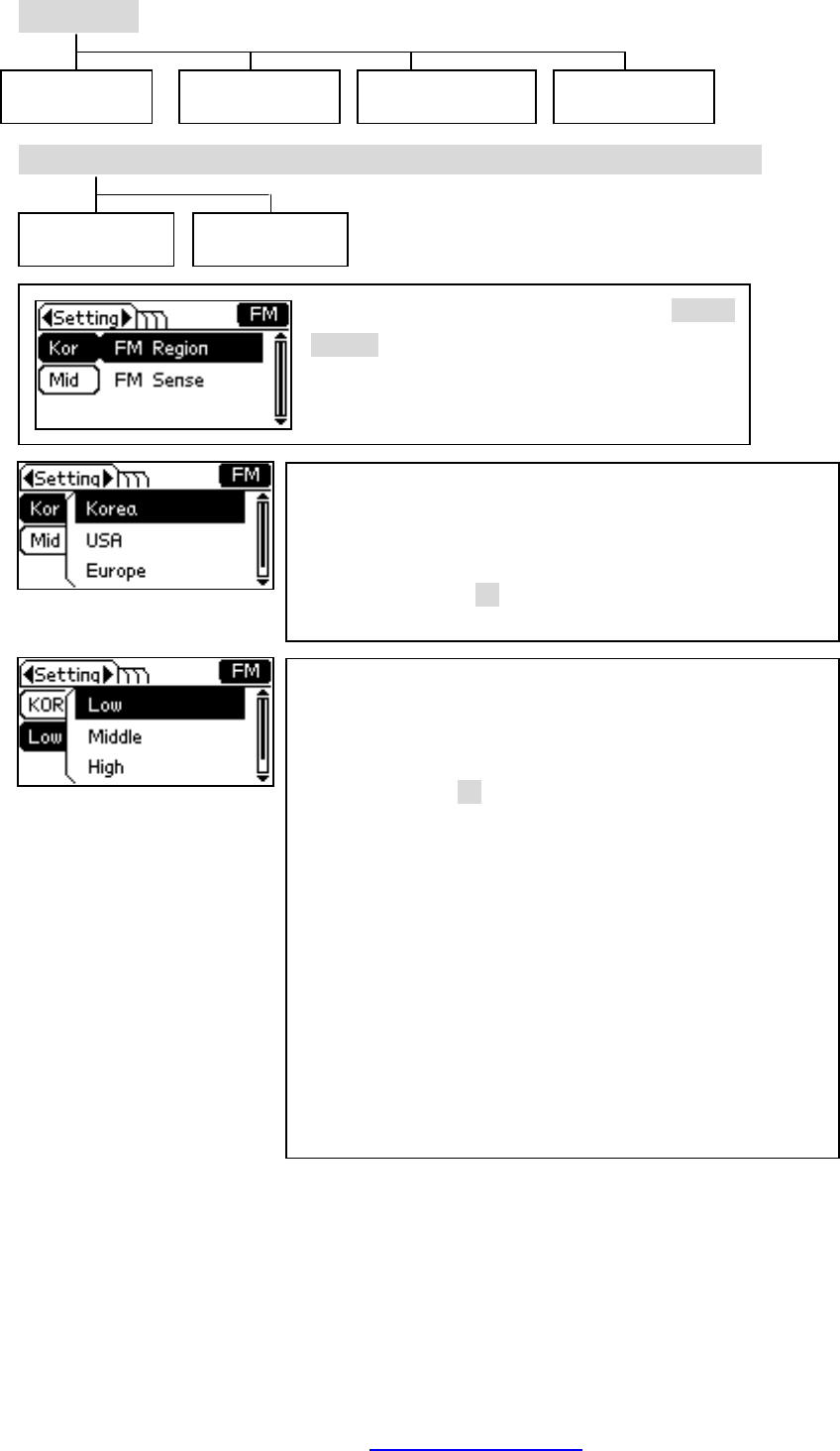
FM Menu
FM Set
Select the menu you want using the +(Up)/
-
(Down) button.
■ FM scanning sensitivity (FM Sense-
Low, Middle,
High, Auto)
Set scanning sensitivity for auto scan and frequency
search, using the +/- button.
- Low: Low sensitivity -
Inside the building or the area with
the weak signal receiving ratio.
- Mid: Medium sensitivity - Normal setting.
- High: High sensitivity -
Area with the strong signal
receiving ratio.
-
Auto: Used for automatic scanning. If selected, the
frequency having better sensitivity than Low
throughout the fre
quency range is scanned. Then,
the best 20 frequencies are saved in the
preset
memory.
FM Region
FM Sense
FM Set FM Rec Area Set
■ FM usage area (FM Band-
Korea, USA, Europe,
China, Japan)
Set the FM frequency area and size
of 1 step (50KHz or
100KHz), using the +/- button.
Reservation
PDF created with pdfFactory Pro trial version www.pdffactory.com
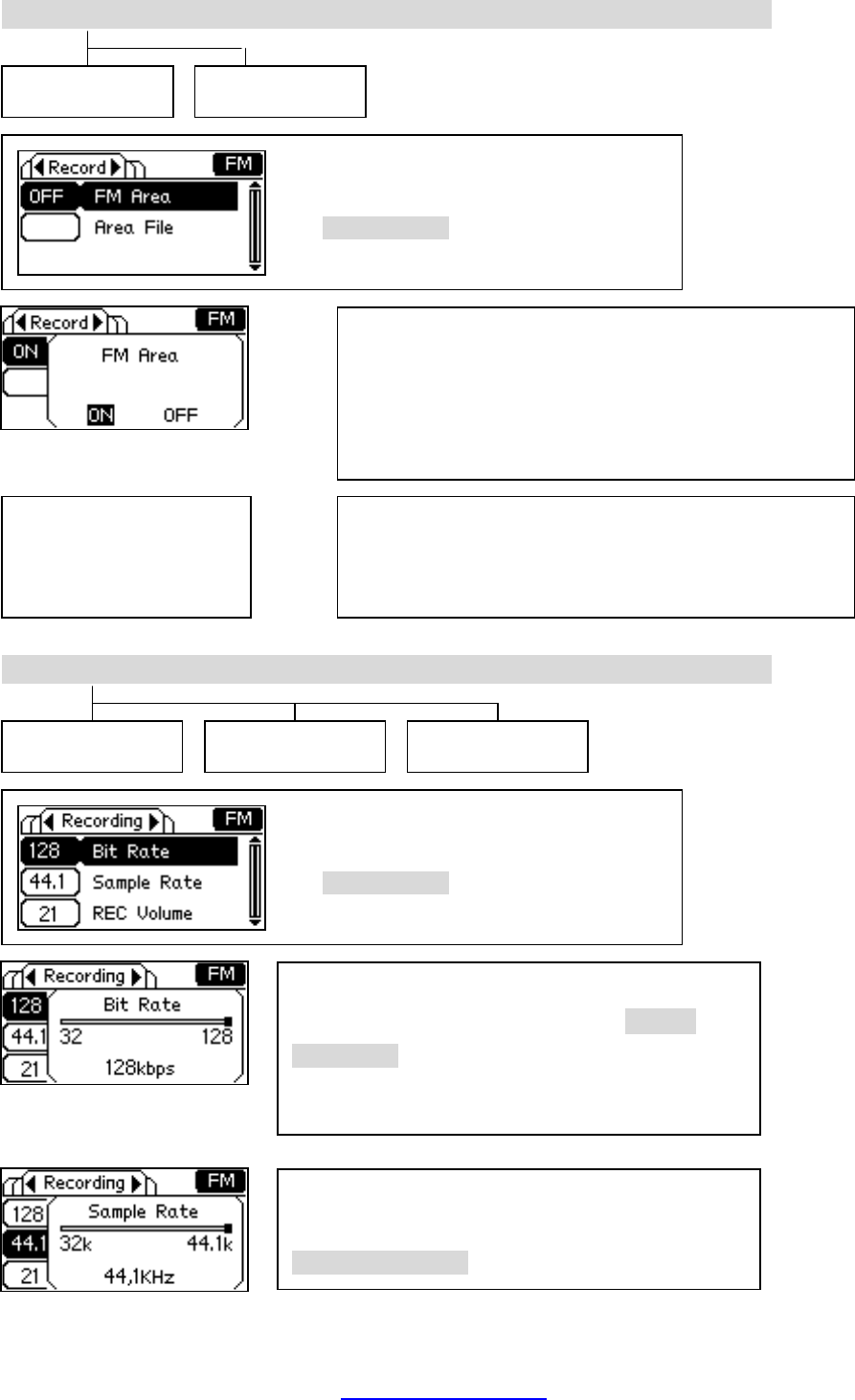
Area Set
FM Rec
■ Bit Rate ( 32, 48, 64, 80, 96, 128 Kbps)
Set the recording Bit Rate, using the REW(◀
◀)/FF(▶▶) button.
■ Sample Rate (32, 44.1 KHz)
Set the recording Sample Rate, using the
REW(◀◀)/FF(▶▶) button.
Bit Rate REC Volume Sample Rate
■
■
FM Area Area File
Select the menu you want using the
+(Up)/-(Down) button.
Select the menu you want using the
+(Up)/-(Down) button.
PDF created with pdfFactory Pro trial version www.pdffactory.com
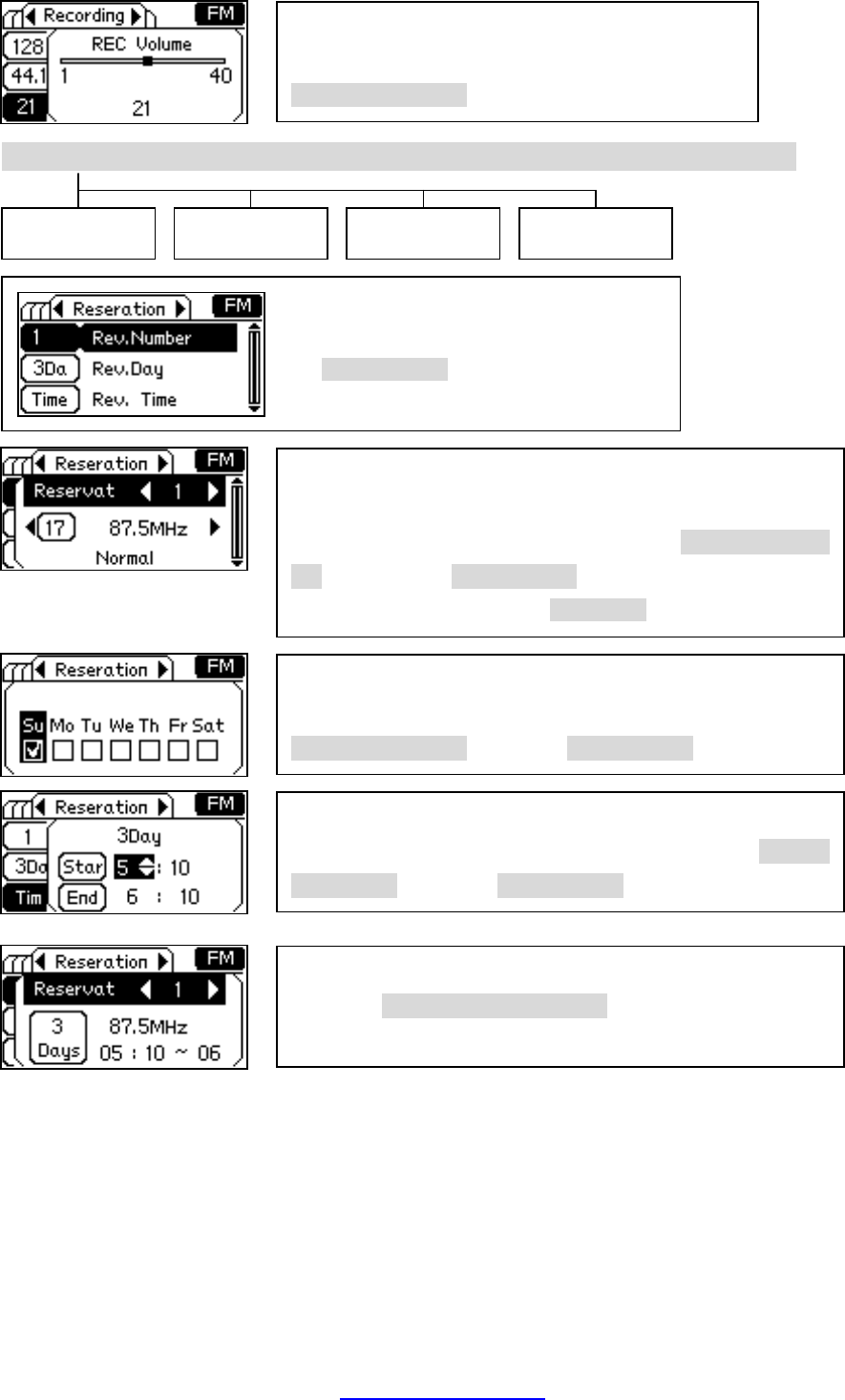
Reservation
Select the menu you want using the
+(Up)/-(Down) button.
■ REC Volume
Set the recording Volume(0~40), using the
REW(◀◀)/FF(▶▶) button.
■ Rev. Number
Set the reservation number (reservation number 1 ~ 10, 0
means "off") and the FM frequency using the REW(◀◀)/FF(▶
▶) button and +(Up)/-(Down). You can switch between
normal/preset mode using the REC/STOP button.
■ Rev. Day
Set the reservation weekday (Sunday ~ Saturday) using the
REW(◀◀)/FF(▶▶) button and +(Up)/-(Down).
■ Rev. Time
Set the reservation starting and ending time using the REW(◀
◀)/FF(▶▶) button and +(Up)/-(Down).
■ Rev. View
Press the REW( ◀◀)/FF( ▶▶)
button to check the
reservation details.
Rev. Number
Rev. View Rev. Time Rev. Day
PDF created with pdfFactory Pro trial version www.pdffactory.com
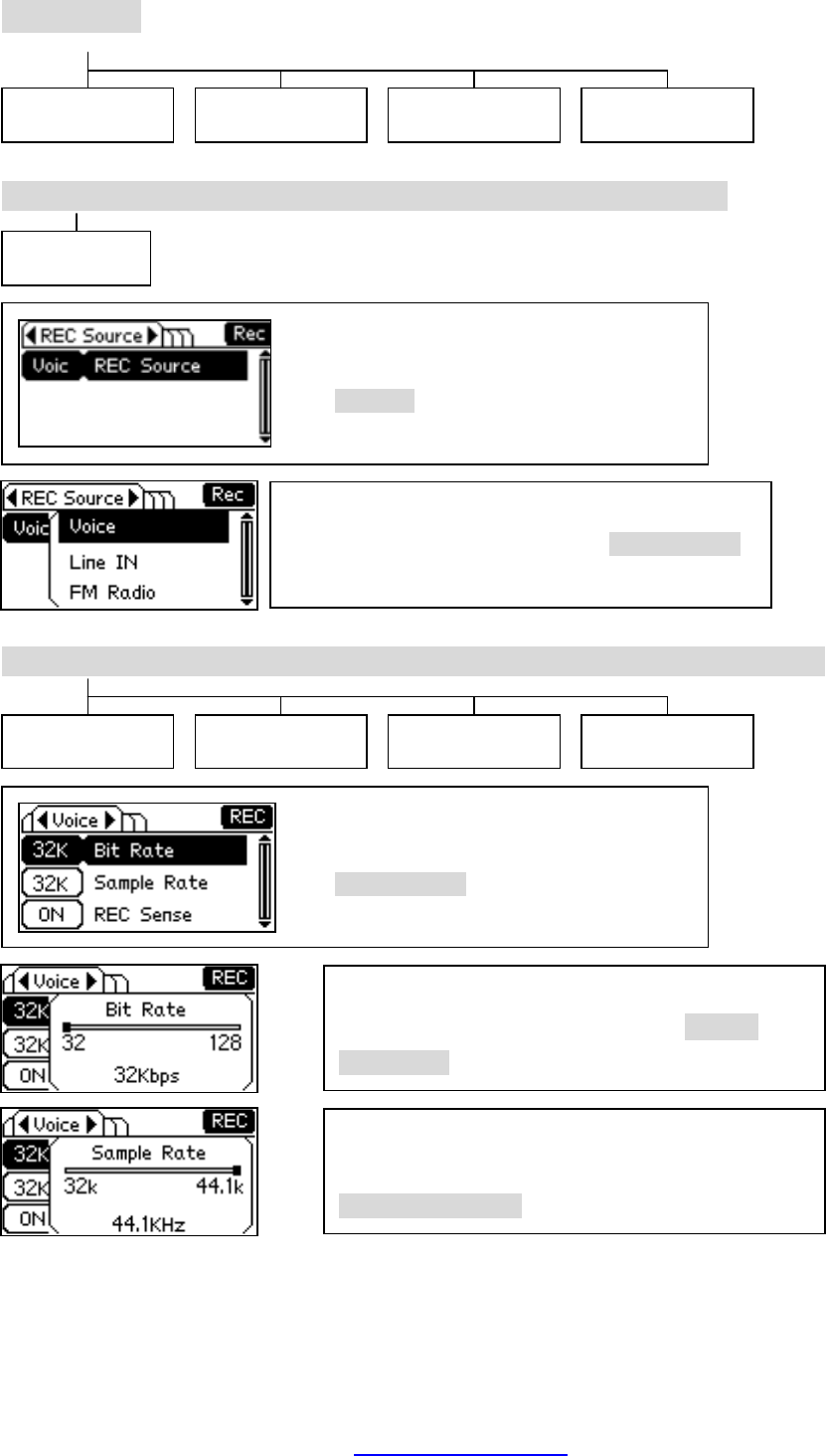
REC Menu
Source
Voice
Select the menu you want using the
+(Up)/-(Down) button.
Source FM Line -In Voice
Source
Bitrate REC Volume
REC Sense Sample Rate
■ Source (Voice, Line in, FM Radio)
Set the recording source, using the +(Up)/-(Down)
button.
Select the REC Source menu using the
SELECT button.
■ Bit Rate ( 32, 48, 64, 80, 96, 128 Kbps)
Set the recording Bit Rate, using the REW(◀
◀)/FF(▶▶) button.
■ Sample Rate (32, 44.1 KHz)
Set the recording Sample Rate, using the
REW(◀◀)/FF(▶▶) button.
PDF created with pdfFactory Pro trial version www.pdffactory.com
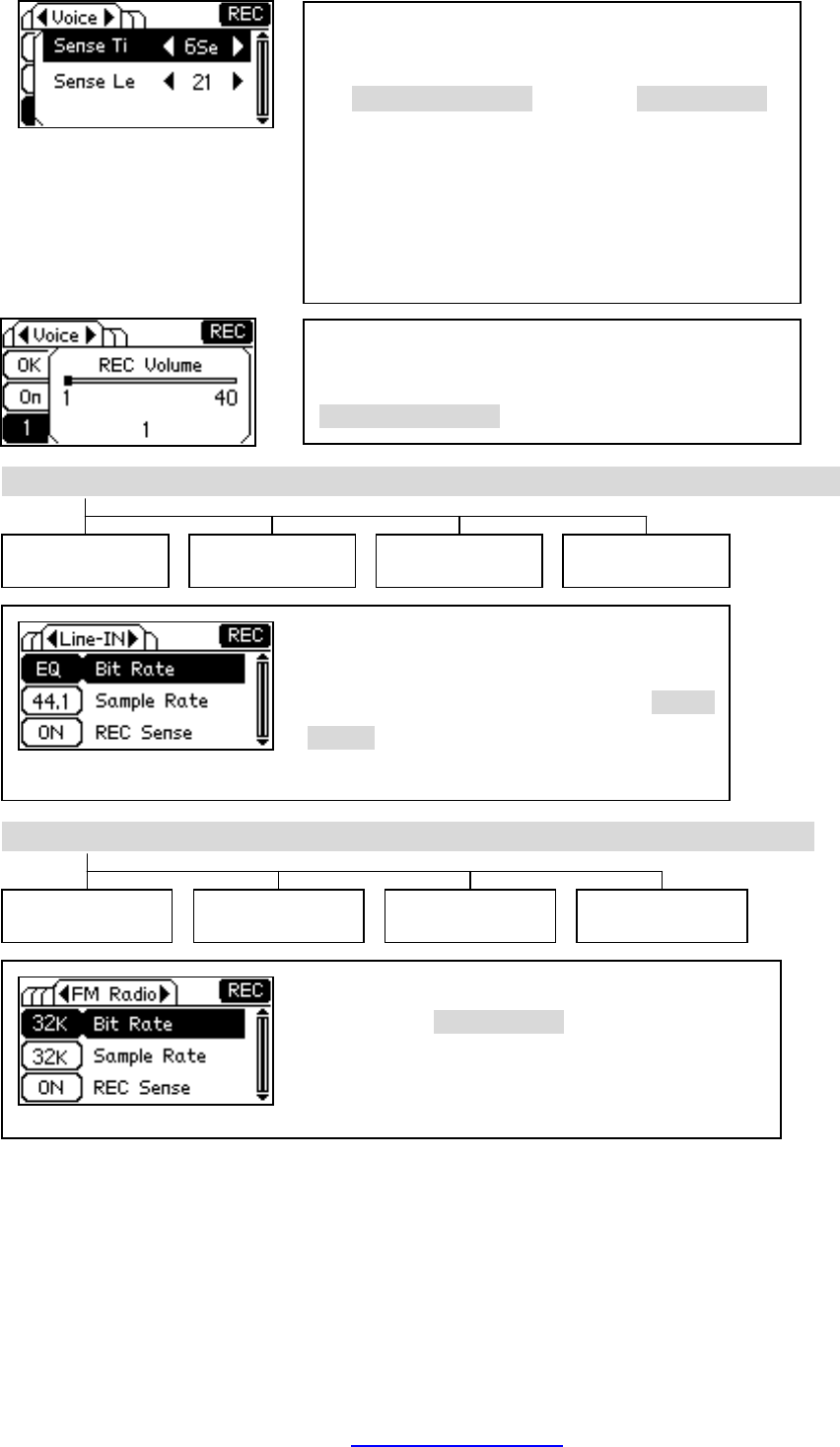
Line-In
FM
Set the recording type (Bitrate, Sample Rate,
REC Volume, REC Sense) using +(Up)/
-
(Down)
the button. Take the same setting
method with voice recording.
Bitrate REC Sense
REC Volume
Sample Rate
Bitrate REC Sense REC Volume
Sample Rate
■ REC Sense
Set the voice recording detection time and level
using
the REW(◀◀)/FF(▶▶) button and +(Up)/-(Down).
Sense Time: Recording stops if the signal is received
under the sense level for the specified period of time.
Sense Level: Recording starts when the signal is
over the specified level.
■ REC Volume
Set the recording volume(0~40), using the
REW(◀◀)/FF(▶▶) button.
Set the recording type (Bitrate, Sample Rate, REC
Sense) using +(Up)/-(Down)
the button. Take the
same setting method with voice recording.
PDF created with pdfFactory Pro trial version www.pdffactory.com
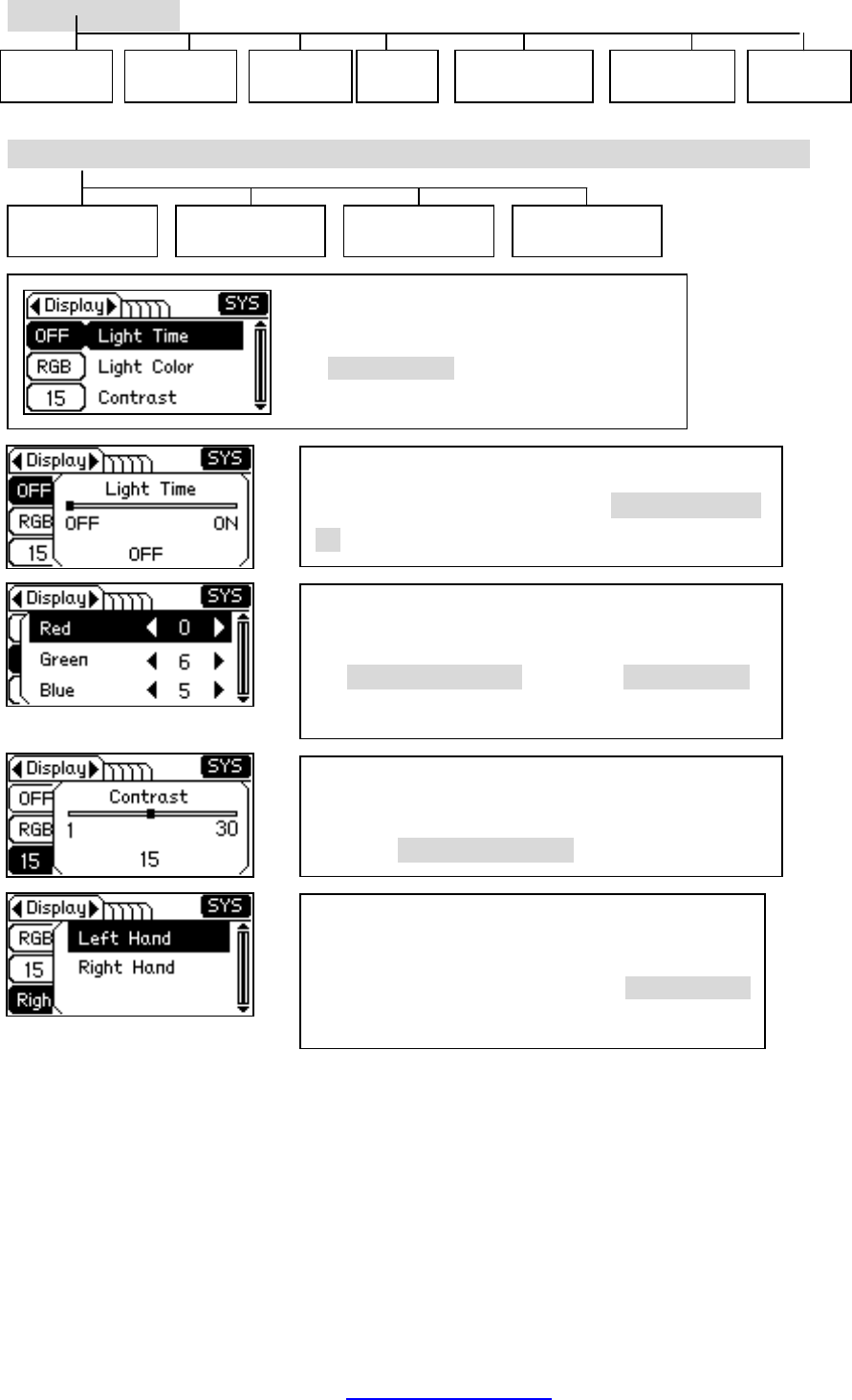
System Menu
Display
Select the menu you want using the
+(Up)/-(Down) button.
■ Light Time
Set the backlight time, using the REW(◀◀)/FF(▶
▶) button.
■ Light Color
Set the backlight color by adjusting RGB color
using
the REW(◀◀)/FF(▶▶) button and +(Up)/-(Down).
Display Time
Format
System
Reservation
장치정 Reset Information
■ Contrast
Adjust brightness of the letters displayed on the LCD,
using the REW(◀◀)/FF(▶▶) button.
■ Rotation
The screen can be rotated so that left-ha
nded or
right-handed person. Use the +(Up)/-(Down)
button to rotate the screen.
Light Time
Rotation Contrast Light Color
PDF created with pdfFactory Pro trial version www.pdffactory.com
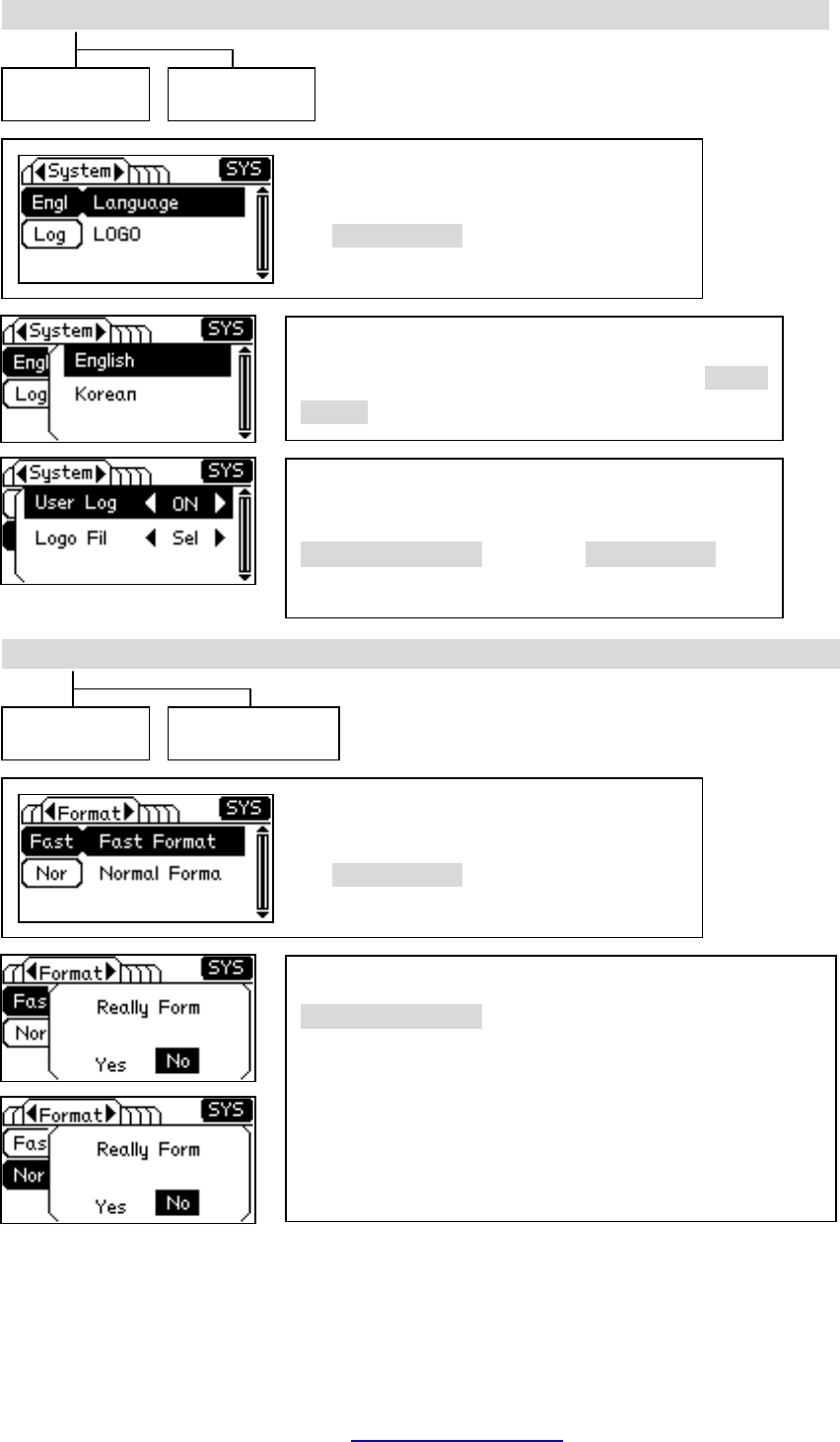
System
Format
Select the menu you want using the
+(Up)/-(Down) button.
Select the menu you want using the
+(Up)/-(Down) button.
■ Language
Select the language you want using the +(Up)/
-
(Down) button.
■ Logo Setting
Set the user logo (usage status, logo file) using the
REW(◀◀)/FF(▶▶) button and +(Up)/-(Down).
Language LOGO
You can decide the formatting status using the
REW(◀◀)/FF(▶▶) button.
Fast Format①
: Formatting is completed quickly but only
the file system is reconfigured..
Normal Format②
: Formatting takes time since the
memory is initialized but the back block is checked during
formatting.
Fast Format
Normal Format
PDF created with pdfFactory Pro trial version www.pdffactory.com
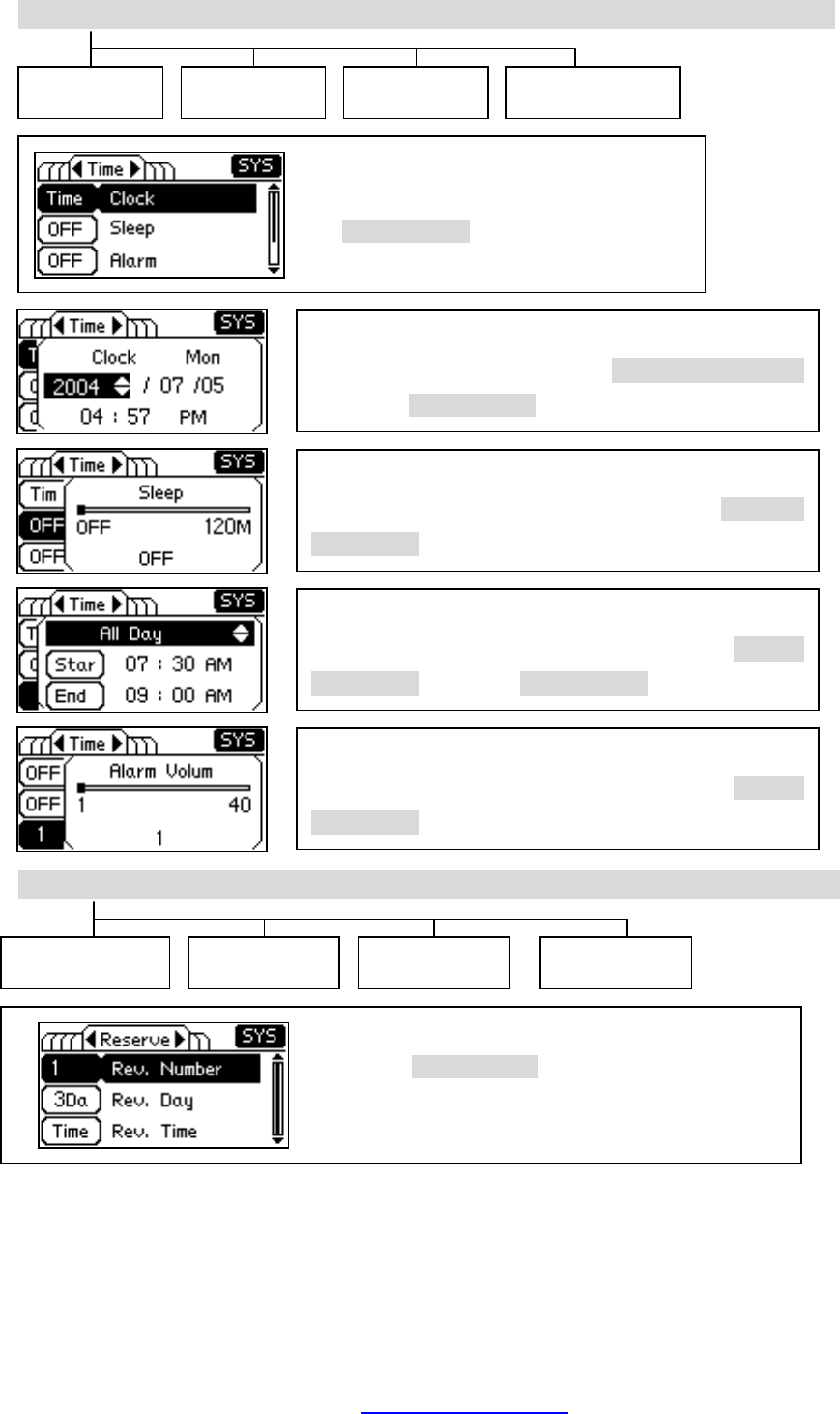
Time
Reservation
■ Time Setting
Set the current time using the REW(◀◀)/FF(▶▶)
button and +(Up)/-(Down).
■ Sleep
Set the automatic time off during, using the REW(◀
◀)/FF(▶▶) button.
Clock Alarm Sleep
Rev. Number
Rev. Time
Rev. Day
Alarm Volume
Rev. view
Select the menu you want using the
+(Up)/-(Down) button.
■Alarm
Set the alarm starting and ending time using the REW(◀
◀)/FF(▶▶) button and +(Up)/-(Down).
■ Alarm Volume
Set the alarm sound volume (1 ~ 40) using the REW(◀
◀)/FF(▶▶) button.
Set and display the reservation number, date and time
using the +(Up)/-(Down)
button. Same with the FM
reservation setting.
PDF created with pdfFactory Pro trial version www.pdffactory.com
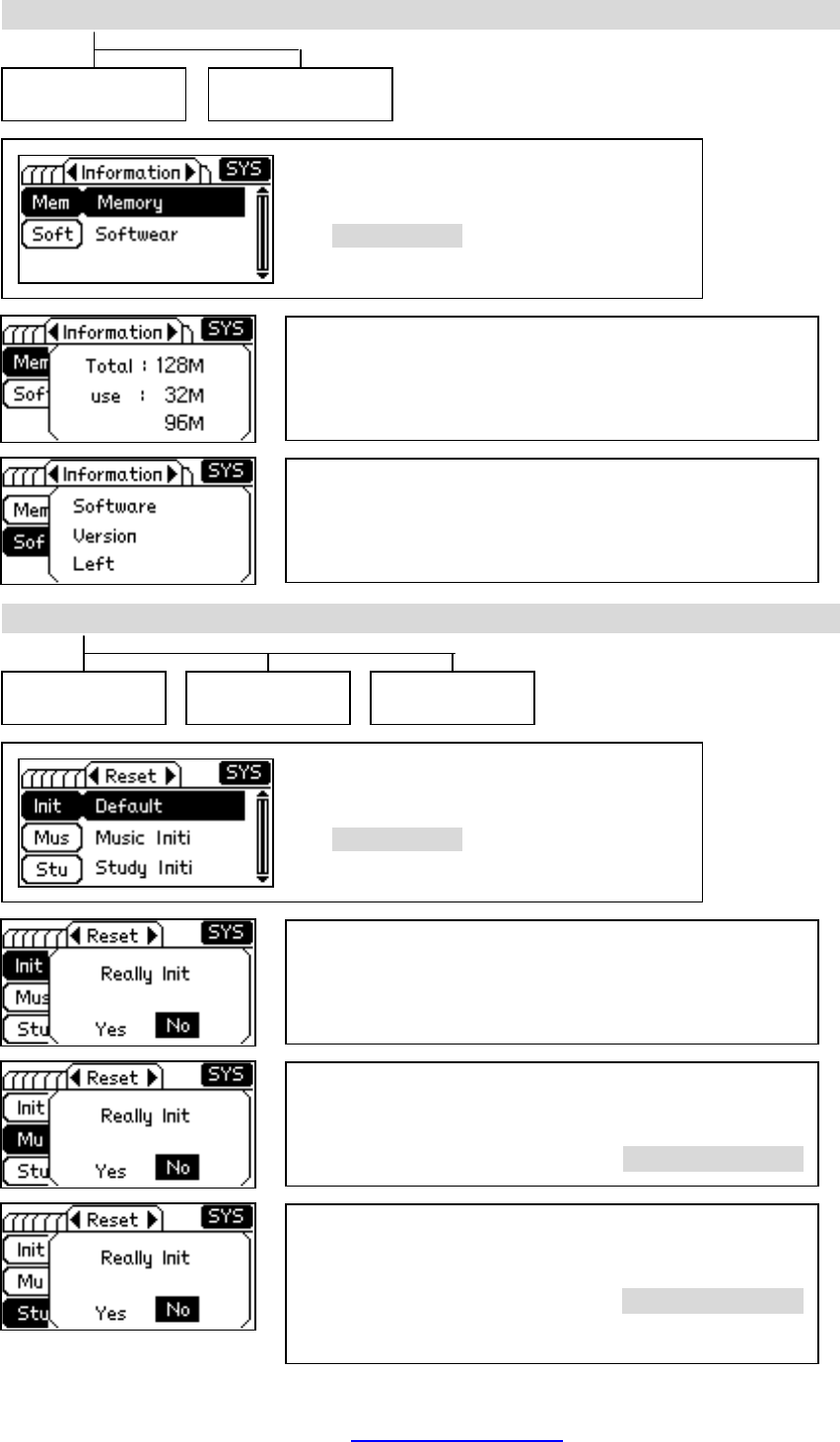
Information
Reset
Memory Software
Default Study Reset
Music Reset
■ Memory
Size of the total, used and remained memory will be
displayed.
■ Software
Firmware version and data will be displayed
■ Default
You can re-configure the player using the factory
default values.
Select the menu you want using the
+(Up)/-(Down) button.
Select the menu you want using the
+(Up)/-(Down) button.
■ Music Reset
You can decide whether you will initialize the m
usic
playback settings or not, using the REW(◀◀)/FF(▶▶)
■ Study Reset
You can decide whether you will initialize the
study
function settings or not, using the REW(◀◀)/FF(▶▶)
button.
PDF created with pdfFactory Pro trial version www.pdffactory.com
THIS DEVICE COMPLIES WITH PART 15 OF THE FCC RULES. OPERATION
IS SUBJECT TO THE FOLLOWING TWO CONDITIONS: (1) THIS DEVICE MAY
NOT CAUSE HARMFUL INTERFERENCE, AND (2) THIS DEVICE MUST
ACCEPT ANY INTERFERENCE RECEIVED, INCLUDING INTERFERENCE THAT
MAY CAUSE UNDESIRED OPERATION.
NOTE: THE MANUFACTURER IS NOT RESPONSIBLE FOR ANY
RADIO OR TV INTERFERENCE CAUSED BY UNAUTHORIZED
MODIFICATIONS TO THIS EQUIPMENT. SUCH MODIFICATIONS
COULD VOID THE USER'S AUTHORITY TO OPERATE THE EQUIPMENT.
NOTE: This equipment has been tested and found to comply with the
limits for a Class B digital device, pursuant to part 15 of the FCC
Rules. These limits are designed to provide reasonable protection
against harmful interference in a residential installation. This
equipment generates, uses and can radiate radio frequency energy
and, if not installed and used in accordance with the instructions, may
cause harmful interference to radio communications. However, there
is no guarantee that interference will not occur in a particular
installation. If this equipment does cause harmful interference to
radio or television reception, which can be determined by turning the
equipment off and on, the user is encouraged to try to correct the
interference by one or more of the following measures:
- Reorient or relocate the receiving antenna.
- Increase the separation between the equipment and receiver.
-Connect the equipment into an outlet on a circuit different from that
to which the receiver is connected.
-Consult the dealer or an experienced radio/TV technician for help