Chengdu Ledong Information Technology RSC1 RSC1 User Manual x
Chengdu Ledong Information Technology Co., Ltd RSC1 x
User Manual
1. Product
I
Thank you
f
wearable p
r
you can ea
s
audio coac
h
2. User G
u
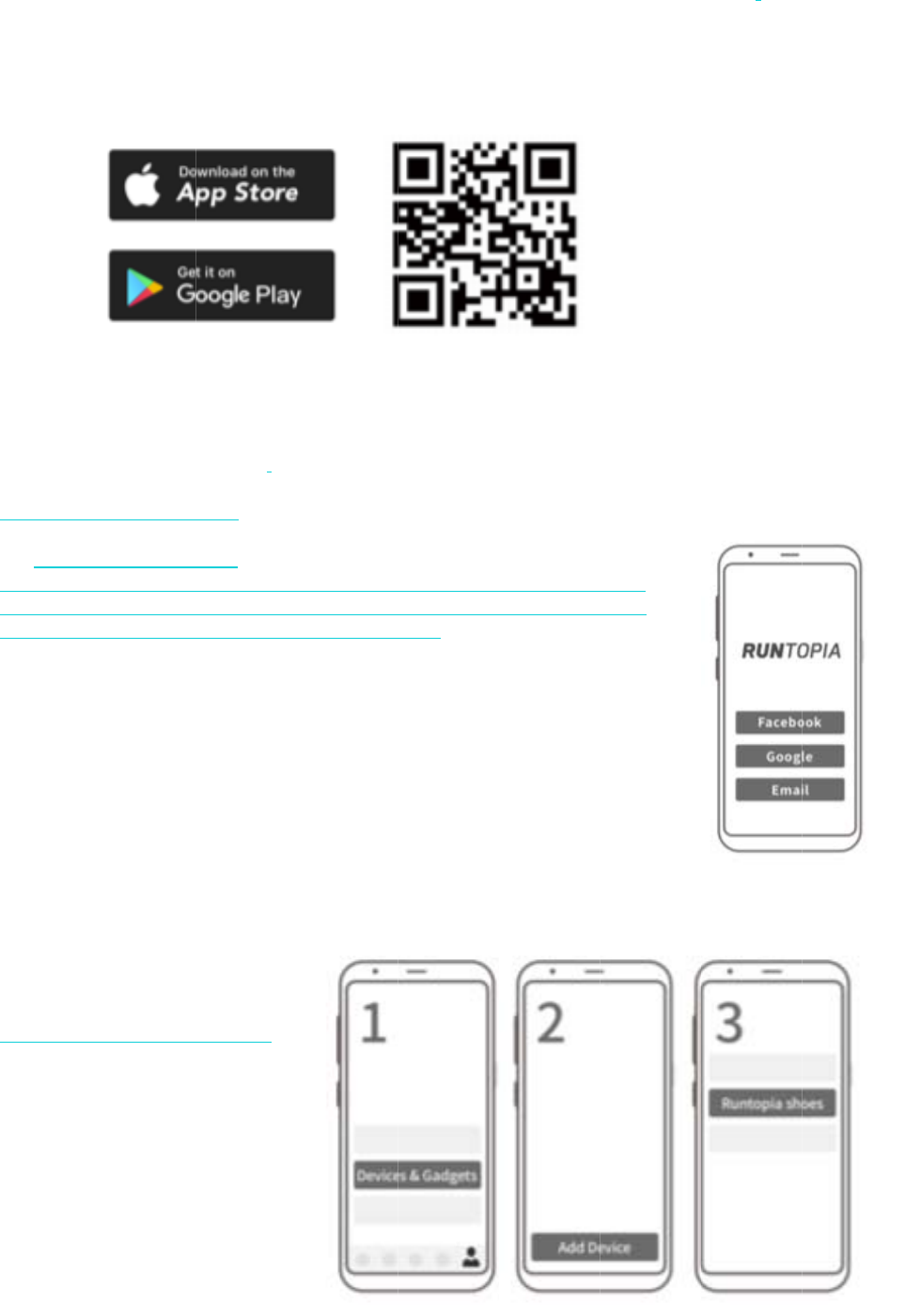
Step 1. Do
w
Search wit
h
to downloa
d
Step 2. Re
g
a) Open t
h
b) Click th
e
a phone nu
m
Facebook o
Step 3. Act
i
I
ntroduction
f
o
r
choosin
g
r
oduc
t
, speci
s
ily view yo
u
h
, you can a
d
u
ide
w
nload the
R
h
the keywor
d
and install
g
istration &
L
h
e Runtopia
A
e
registratio
n
m
be
r
or ema
i
r
Google ac
c
i
vating the s
m
g
Runtopia f
o
fically desi
g
ur
sports rec
o
d
jus
t
your ru
n
R
untopia AP
P
d "Runtopia
"
the APP.
L
ogin
A
PP.
n
function at
t
i
l address.
Y
c
ounts to sig
n
m
ar
t
chip
or
your runn
i
g
ned for run
n
o
rds and stat
i
n
ning form,
t
P
"
in the Goo
g
t
he bottom
o
Y
ou can alter
n
n
up for the
A
i
ng needs. R
u
n
ers. With th
e
i
stics. With
t
t
o ensure yo
u
g
le Play or
A
o
f the interfa
c
n
atively cho
o
A
PP.
u
ntopia Sm
a
e
provided s
m
t
he guidance
ur
training i
s
A
pple App S
t
c
e to registe
r
o
se to direct
l
a
r
t
Running
S
m
ar
t
chip an
of the intell
i
s
effective a
n
t
ore, or scan
r
with
l
y use
S
hoes are an
d the Runto
p
igen
t
and re
a
n
d safe.
the followi
n
intelligent
p
ia APP,
a
l-time
n
g QR code
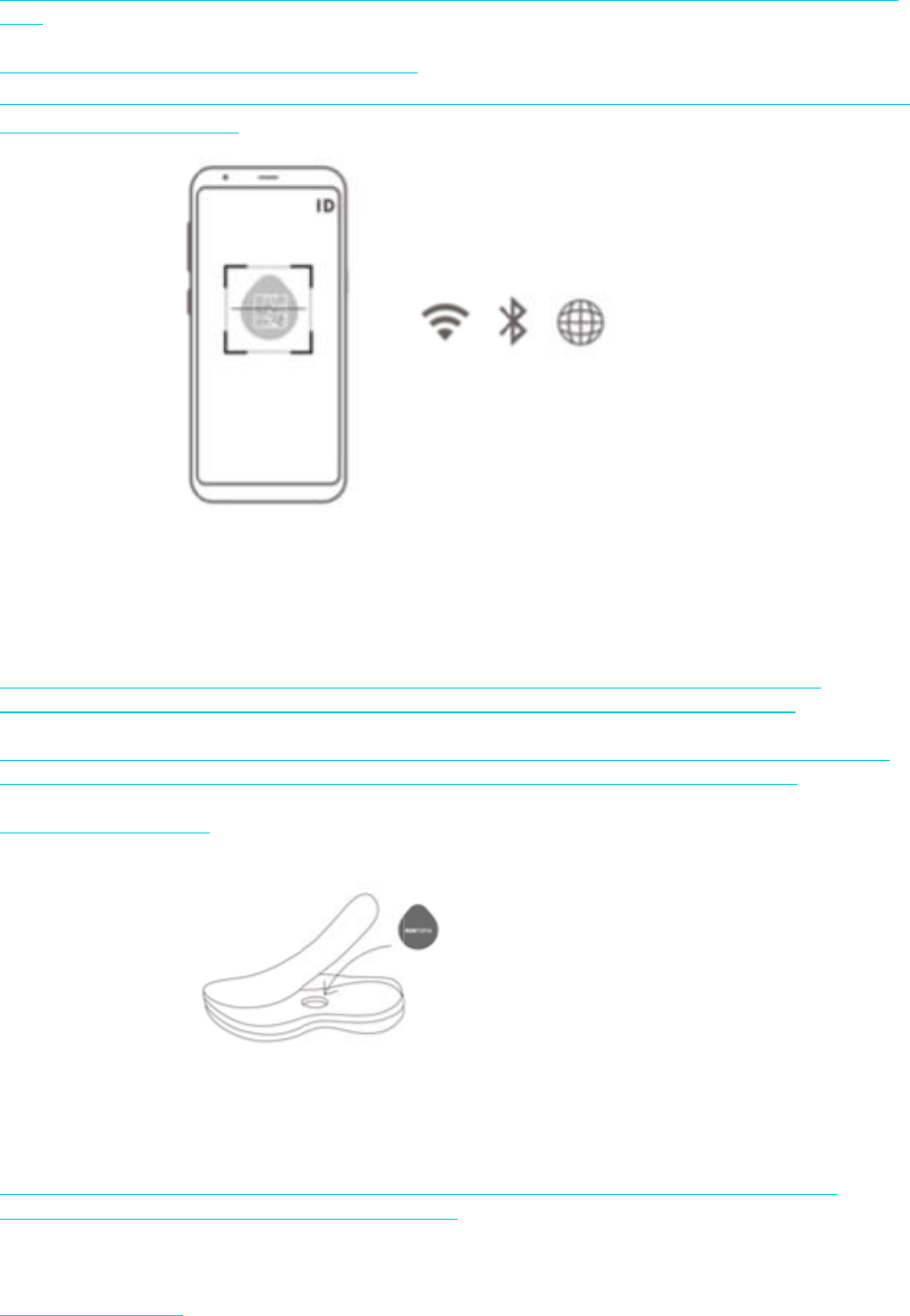
a) When ac
t
APP.
b) Open th
e
Open 【M
E
on the con
n
c) Connecti
code on the
Note: Enab
l
gently shak
Step 4. Ins
e
Remove th
upwards. Y
3. Synchro
n
t
ivating the
c
e
Runtopia
A
E
】Page →F
i
n
ecting oper
a
ng the chip:
chip or ent
e
l
e the phone
'
e the chip to
e
rting the ch
i
e insole of t
h
ou can then
p
n
izing data
c
hip for the
f
A
PP, followi
n
i
nd 【Devic
e
a
tion.
Take the s
m
er
the ID cod
'
s Bluetooth
ensure acti
v
i
p
h
e left shoe,
p
u
t
the inso
l
f
irs
t
time, y
o
n
g these step
e
s & Gadge
t
m
ar
t
chip out
e below QR
network du
r
v
ation. Keep
place the ch
i
l
e back in th
e
o
u'll need to
c
s:
t
s】→【Add
of the shoe,
code manu
a
r
ing the con
n
the chip clo
s
i
p in the chi
p
e
shoe.
c
onnec
t
the
r
Device】→
S
use the Run
t
a
lly to conne
c
n
ecting proc
e
s
e to your p
h
p
slot, keepi
n
r
unning sho
e
S
elec
t
【Ru
n
t
opia APP t
o
ct
the chip t
o
e
ss. Before s
c
h
one when c
o
n
g the Runto
e
s’chip to th
e
n
topia shoes
o
scan the Q
R
o
the APP.
c
anning the
Q
o
nnecting.
pia logo fac
i
e
Runtopia
】and click
R
Q
R code,
i
ng
a) Runnin
upload
e
b) Importin
g
Shoes] pag
e
Note: Enab
l
ensure acti
v
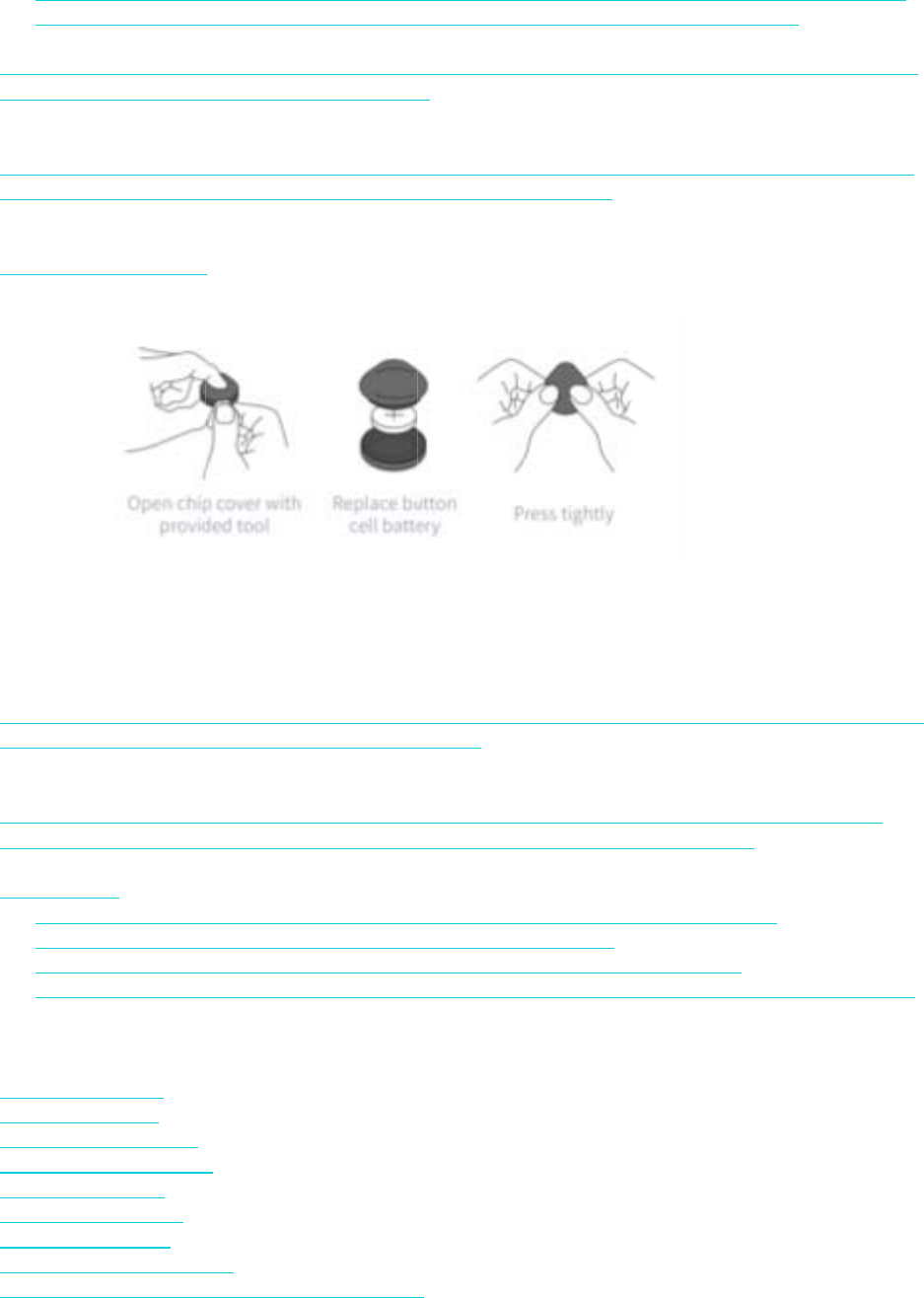
4. Replacin
g
a) Chip
b
at
t
APP. Rem
e
b) When re
p
reattaching
5. Please n
o
a) Do not
b) Do no
t
c) Do no
t
d) It is re
c
6. Chip par
a
Shell mater
i
Shell size:
3
Waterproo
f
Product we
i
Product sh
a
Battery vol
t
Battery cap
Operating t
e
g with your
p
e
d and displ
a
g
data from
r
e
and synchr
l
e the phone
'
v
ation. Keep
g
the
b
atter
y
t
ery life is a
b
e
mbe
r
to rep
l
p
lacing the
b
the cover,
m
o
te
press the ch
i
t
use corrosi
v
t
use the dev
i
c
ommended
a
meters
i
al: PC
3
2 * 28MM
f
rating: IPX
6
i
ght: 7g
a
pe: round
t
age: 3V
acity: 220m
A
e
mperature:
p
hone and
A
a
yed after yo
r
unning sho
e
onize your
d
'
s Bluetooth
the chip clo
s
y
b
ou
t
8 mont
h
l
ace the
b
att
e
b
attery, use t
h
m
ake sure to
p
i
p cover wit
h
v
e chemical
c
i
ce in enviro
that you sy
n
6
A
H
14℉-104℉
A
PP: If conn
e
u
r
run. Rem
e
e
s when run
n
d
ata manuall
y
network du
r
s
e to your p
h
h
s, this can
b
e
ry when ne
c
h
e provided
p
ress tightly
h
great force
,
c
leaners wh
e
nments wit
h
n
chronize yo
u
/ -10℃-40
℃
e
ction is nor
m
e
mbe
r
to sta
r
n
ing without
y
.
r
ing the sync
h
h
one when c
o
e viewed on
c
essary.
tool inside t
h
to ensure th
e
,
or use any
h
e
n cleaning
e
h
strong Elec
t
ur
data man
u
℃
m
al, your ru
n
rt
and end y
o
your phone
:
h
ronization
p
o
nnecting.
the Power
d
h
e chip box
t
e
chip remai
n
h
ard objects
e
quipment.
t
romagnetic
u
ally every 7
n
ning data
w
o
u
r
run on t
h
:
On the AP
P
p
rocess. Ge
n
d
isplay of th
e
t
o open the
c
n
s waterpro
o
to hit the de
v
Interference
days to pre
v
w
ill automati
c
h
e APP.
P
, open the [
R
n
tly shake th
e
e
running sh
o
c
hip cover.
W
o
f.
v
ice.
.
v
en
t
data in
a
c
ally be
R
untopia
e
chip to
o
es on the
W
hen
a
ccuracy.
FCC Statement
This equipment has been tested and found to comply with the limits for a Class B
digital device, pursuant to part 15 of the FCC rules. These limits are designed to
provide reasonable protection against harmful interference in a residential installation.
This equipment generates, uses and can radiate radio frequency energy and, if not
installed and used in accordance with the instructions, may cause harmful interference
to radio communications. However, there is no guarantee that interference will not
occur in a particular installation. If this equipment does cause harmful interference to
radio or television reception, which can be determined by turning the equipment off
and on, the user is encouraged to try to correct the interference by one or more of the
following measures:
-Reorient or relocate the receiving antenna.
-Increase the separation between the equipment and receiver.
-Connect the equipment into an outlet on a circuit different from that to which the
receiver is connected.
-Consult the dealer or an experienced radio/TV technician for help.
To assure continued compliance, any changes or modifications not expressly
approved by the party.
Responsible for compliance could void the user’s authority to operate this
equipment. (Example- use only shielded interface cables when connecting to
computer or peripheral devices).
This equipment complies with Part 15 of the FCC Rules. Operation is subject to
the following two conditions:
(1) This device may not cause harmful interference, and
(2) This device must accept any interference received, including interference that
may cause undesired operation.
RF warning statement:
The device has been evaluated to meet general RF exposure requirement.
The device can be used in portable exposure condition without restriction.