Chi Mei Communication Systems 0302AMD01 PCS Wireless Phone User Manual Amadeus

Chi Mei Communication Systems, Inc. PCS Wireless Phone Amadeus

Contents

users manual part3

The Main MenuSound63Play: Press Select to play the ringing tone you just created.Save: Press Select to save the ringing tone you just created.Instruments: Press Select to choose an instrument that is used to play the ring tone.Tempo: Press Select to change the speed of tempo. Scroll to a tempo and press OK. The larger the number, the slower the tempo.Clear Screen: Press Select to delete all symbols.Erase: Press Select to erase this ring tone.Rename: Press Select to change the name of current ringing tone. Enter the new name and press OK.Quick silenceIf you want your phone not to emit any sound under all circumstances, you can activate the quick silence function. The phone will not issue any sound no matter what sound profile is used.1. In standby mode, press the left soft key.2. Scroll to Sound and press Select.3. Scroll to Silence and press On (to activate it) or Off (to deactivate it).Minute reminderIf this function is activated, your phone will generate a beep tone every 50 sec-onds when you are on a call to remind you of the call time.1. In standby mode, press the left soft key.2. Scroll to Sound and press Select.3. Scroll to Minute reminder and press On (to activate it) or Off (to deactivate it).
The Main MenuPhone setup64Phone setupThe options in the Phone Setup menu allows you to setup the phone accord-ing to your preferences.Changing menu language1. In standby mode, press the left soft key.2. Scroll to Phone setup and press Select.3. Press Select.4. Scroll to preferred language and press Select.Adjusting backlight durationThis option allows you to change the duration of backlight in standby mode. Note that longer backlight consumes more battery power. You can also choose to turn it off.1. In standby mode, press the left soft key.2. Scroll to Phone setup and press Select.3. Scroll to Backlight and press Select.4. Scroll to desired duration and press OK. If Off is selected, the backlight will be turned off.Adjusting screen contrast1. In standby mode, press the left soft key.2. Scroll to Phone setup and press Select.3. Scroll to Adjust contrast and press Select.4. Press Left or Right to select an appropriate contrast level and press OK.ClockShowing/hiding clock on the screen1. In standby mode, press the left soft key.2. Scroll to Phone setup and press Select.3. Scroll to Clock and press Select.4. Press On (to show clock) or Off (to hide clock).Setting up current time and date
The Main MenuPhone setup65Before you can use the clock of your phone, you need to setup current time and date first.Selecting time zone1. In standby mode, press the left soft key.2. Scroll to Phone setup and press Select.3. Scroll to Clock and press Select.4. Scroll to Local time zone and press Select.5. Press Left or Right to scroll to the time zone where you are located and press Save.Setting up current date1. In standby mode, press the left soft key.2. Scroll to Phone setup and press Select.3. Scroll to Clock and press Select.4. Scroll to Set the date and press Select.5. Enter current date using alphanumeric keys and press Save.Setting up current time1. In standby mode, press the left soft key.2. Scroll to Phone setup and press Select.3. Scroll to Clock and press Select.4. Scroll to Set the time and press Select.5. Enter current time using the alphanumeric keys and press Save.Setting up date formatHere you can select a preferred date format.1. In standby mode, press the left soft key.2. Scroll to Phone setup and press Select.3. Scroll to Clock and press Select.4. Scroll to Date Format and press Select.5. Scroll to desired format and press OK.World clockThe world clock function allows you to view current time of major cities in the world.
The Main MenuPhone setup661. In standby mode, press the left soft key.2. Scroll to Phone setup and press Select.3. Scroll to Clock and press Select.4. Scroll to World Clock and press Select.5. Press Left or Right to scroll to a desired city, and the current time will appear on the screen. You can also press Detail to view detailed time infor-mation of selected city.Auto power offIf this function is activated, your phone can be switched off automatically at the specified time.Activating Auto power off1. In standby mode, press the left soft key.2. Scroll to Phone setup and press Select.3. Scroll to Auto power off and press Select.4. Scroll to On and press OK.5. Enter the power off time using alphanumeric keys. When done, press Down.6. Press Left or Right to select desired repeat type.7. Press Save.Deactivating Auto power offTo deactivate Auto power off function, scroll to Off and press OK in step 4 above.Display settingsChanging color schemeYour phone provides several color schemes and you can change it whenever you like.1. In standby mode, press the left soft key.2. Scroll to Phone setup and press Select.3. Scroll to Display and press Select.4. Press Select two times.5. Scroll to a desired color scheme and press OK.
The Main MenuPhone setup67Changing wallpaperWallpaper is the background image that is displayed under standby mode. You can change it whenever you like.1. In standby mode, press the left soft key.2. Scroll to Phone setup and press Select.3. Scroll to Display and press Select.4. Scroll to Wall paper and press Select.5. Scroll to a desired wallpaper and press OK. If Off is selected, the wallpaper image will not be displayed.Key lockActivating Key lock1. In standby mode, press the left soft key.2. Scroll to Phone setup and press Select.3. Scroll to Key lock and press Select.4. Scroll to Auto (the phone activates key lock automatically if there is no key operation in 20 seconds) or Lock now (activate Key lock immediately) and press Select.In standby mode, you can activate key lock by pressing the left soft key and then  key. To temporarily unlock, press Unlock,  key.Deactivating Key lockTo deactivate Key lock function, scroll to Off and press OK in step 4 above.Selecting default input modeHere you can select a default input mode to use.1. In standby mode, press the left soft key.2. Scroll to Phone setup and press Select.3. Scroll to Input mode and press Select.4. Scroll to the input mode you want to set as default, and press OK.You can still make emergency calls when keypad is locked.Note
The Main MenuPhone setup68Changing right softkey functionWith this option, you can change the function of the right soft key as a short-cut to a desired feature under standby mode.1. In standby mode, press the left soft key.2. Scroll to Phone setup and press Select.3. Scroll to Right key and press Select.4. Scroll to a function item and press OK.Restoring factory settingsWith this function, you can reset most of the menu settings to their original factory values at once.1. In standby mode, press the left soft key.2. Scroll to Phone setup and press Select.3. Scroll to Restore factory settings and press Select.4. Enter your phone code and press OK.
The Main MenuPhone setup69Phone security settingsThe security settings deal with security codes of your phone. With these codes, you can protect your phone from being accidentally used by another person.Activating/deactivating security codesActivating/deactivating PIN code1. In standby mode, press the left soft key.2. Scroll to Phone setup and press Select.3. Scroll to Security and press Select.4. Press Select.5. Press On (to activate it) or Off (to deactivate it).6. Enter your PIN code and press OK.Activating/deactivating phone code1. In standby mode, press the left soft key.2. Scroll to Phone setup and press Select.Network Code: The code for accessing your operator's network. You can get such code from your operator.Phone code: The code for preventing unauthorized use of your phone. If Phone code is enabled, you have to enter it each time you turn on your phone. The default Phone code of your phone is 12345678.SIM lock code: The SIM lock function prevents your phone from being used with unknown SIM cards and vise versa. If the SIM lock is activated, unknown SIM cards can not be used with your phone. The default SIM lock code of your phone is 12345678.PIN code: A 4~8 digit code that is supplied by your operator upon subscription.PIN2 code: The second set of PIN code that is supplied by your operator to control over cer-tain services (such as call cost calculation). This code is supplied by your operator.PUK code: The code for unblocking your SIM card. You can get such code from your opera-tor.PUK 2 code: The code for unblocking your PIN2 code. You can get such code from your oper-ator.About security codes
The Main MenuPhone setup703. Scroll to Security and press Select.4. Press Select.5. Scroll to Phone code and press On (to activate it) or Off (to deactivate it).6. Enter your phone code (the default phone code is 12345678) and press OK.Activating/deactivating SIM lock1. In standby mode, press the left soft key.2. Scroll to Phone setup and press Select.3. Scroll to Security and press Select.4. Press Select.5. Scroll to SIM lock and press On (to activate it) or Off (to deactivate it).6. Enter your SIM lock code (the default SIM lock code is 12345678) and press OK.Changing security codesChanging PIN code1. In standby mode, press the left soft key.2. Scroll to Phone setup and press Select.3. Scroll to Security and press Select.4. Scroll to Change code and press Select.5. Press Select.6. Enter the old PIN code and press OK.7. Enter the new PIN code and press OK.8. Enter the new PIN code again and press OK.Changing PIN2 code1. In standby mode, press the left soft key.2. Scroll to Phone setup and press Select.3. Scroll to Security and press Select.4. Scroll to Change code and press Select.5. Scroll to PIN2 and press Select.6. Enter the old PIN2 code and press OK.7. Enter the new PIN2 code and press OK.Before changing these codes, you must activate them first.Note
The Main MenuPhone setup718. Enter the new PIN2 code again and press OK.Changing phone code1. In standby mode, press the left soft key.2. Scroll to Phone setup and press Select.3. Scroll to Security and press Select.4. Scroll to Change code and press Select.5. Scroll to Phone code and press Select.6. Enter the old Phone code and press OK.7. Enter the new Phone code and press OK.8. Enter the new Phone code again and press OK.Changing SIM lock code1. In standby mode, press the left soft key.2. Scroll to Phone setup and press Select.3. Scroll to Security and press Select.4. Scroll to Change code and press Select.5. Scroll to SIM lock and press Select.6. Enter the old SIM lock code and press OK.7. Enter the new SIM lock code and press OK.8. Enter the new SIM lock code again and press OK.Closed user groupClosed user group is an operator dependent function. If you have subscribed this feature, you can specify the group of people who can call you and receive your call.To activate closed user group:1. In standby mode, press the left soft key.2. Scroll to Phone setup and press Select.3. Scroll to Security and press Select.4. Scroll to Closed user group and press Select.5. Scroll to one of the following and press OK.• Preset: activate the closed user group function and use preset closed user group.• On: activate the closed user group function and specify a closed user group. You will be prompted to enter the number of the closed user group. The number is available from your system operator.• Off: deactivate the closed user group function.
The Main MenuPhone setup72Network settingsNetwork selectionYour phone provides 2 network selection modes: Automatic and Manual. Your phone automatically selects the network of your operator in Automatic mode. In Manual mode, your phone scans the networks available and allows you to select a network to use. For example, if you are roaming under other networks, you can manually select the network that has roaming agreement with your home network.1. In standby mode, press the left soft key.2. Scroll to Phone setup and press Select.3. Scroll to Network and press Select.4. Scroll to Automatic or Manual and press Select. If Manual is selected, the phone scans the network and a network operator list appears. Scroll to desired operator and press Select.Band selectionNormally, your phone selects an appropriate band of the network automati-cally. However, you can also select it manually when you are using your phone in different countries.1. In standby mode, press the left soft key.2. Scroll to Phone setup and press Select.3. Scroll to Network and press Select.4. Scroll to Band and press Select.5. Scroll to Auto, 900/1800 MHz or 1900MHz and press OK.Connection indicatorIf this function is activated, you can be notified by the screen prompt of the phone when your outgoing call is connected.To activate/deactivate connection indicator:1. In standby mode, press the left soft key.2. Scroll to Phone setup and press Select.3. Scroll to Connection indicator and press On (to activate it) or Off (to deac-tivate it).To select the type of connection indicator:If you have activated Connection indicator in step 3 above, you can also scroll to Vibrating alert or Tone to activate/deactivate the vibration or sound.
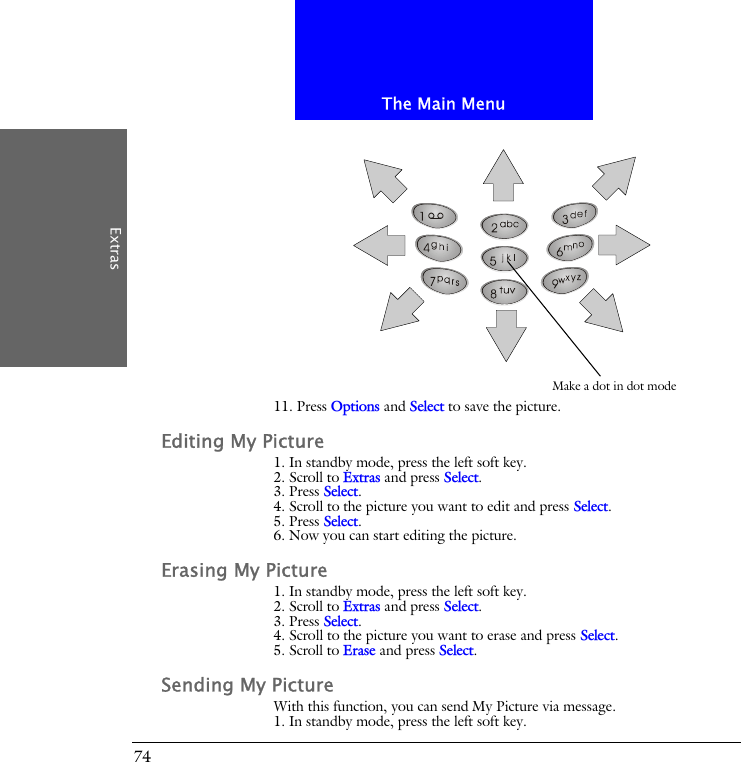
The Main MenuExtras73ExtrasMy PictureMy Picture allows you to draw your own pictures. You can use them as standby logo and insert them into your messages. Creating My Picture1. In standby mode, press the left soft key.2. Scroll to Extras and press Select.3. Press Select.4. Scroll to an empty picture and press Select.5. Press Select.6. Press Options.7. Scroll to Picture size and press Select.8. Press Left or Right to determine the width of the picture (in pixels), and press Down.9. Press Left or Right to determine the height of the picture. Press Save.10. Now you can start drawing your picture:• Press   key to switch among line mode (to draw lines), dot mode (to make dots) or eraser mode (to erase lines and dots). • Press   key to change the thickness of line (when drawing lines) or size of dot (when making dots).• Press   key to change the color of pen. • You can also change drawing modes by pressing Options, scrolling to Pen mode, Pen color, Pen size and Pen step and pressing OK.• Press Options; scroll to Zoom in (or Zoom out) to zoom in (or out) on the picture.• Press Options; scroll to Clear screen to clear the screen.• Press the arrows on the navigation key to draw a line in desired direction (in line mode), or move the cursor to desired position (in dot mode). You can also use the keys on the keypad to control the direction.
The Main MenuExtras7411. Press Options and Select to save the picture.Editing My Picture1. In standby mode, press the left soft key.2. Scroll to Extras and press Select.3. Press Select.4. Scroll to the picture you want to edit and press Select.5. Press Select.6. Now you can start editing the picture.Erasing My Picture1. In standby mode, press the left soft key.2. Scroll to Extras and press Select.3. Press Select.4. Scroll to the picture you want to erase and press Select.5. Scroll to Erase and press Select.Sending My PictureWith this function, you can send My Picture via message.1. In standby mode, press the left soft key.Make a dot in dot mode
The Main MenuExtras752. Scroll to Extras and press Select.3. Press Select.4. Scroll to the picture you want to send and press Select.5. Scroll to Send and press Select.6. Press Options, Select.7. Enter recipient’s number, or press Names to pick up a recipient from your Phone Book.8. Press Send.Alarm clockActivating alarm clock1. In standby mode, press the left soft key.2. Scroll to Extras and press Select.3. Scroll to Alarm clock and press Select.4. Scroll to On and press OK.5. Enter alarm time using alphanumeric keys. Press Down.6. Press Left or Right to select a repeat type. Press Down.7. Press Left or Right to select an alarm tone. Press Down.8. Press Left or Right to turn on/off vibration.9. Press Save.When alarm is activated, the icon   will appear on the screen.When alarm rings, press Stop to stop the alarm, or Snooze to activate the Snooze function. If the Snooze function is activated, The alarm will ring again in 5 minutes.Deactivating alarm clockScroll to Off and press OK in step 4 above.CalendarWith the Calendar function, you can easily write down notes and check appointments on each date to keep you organized.Writing note1. In standby mode, press the left soft key.2. Scroll to Extras and press Select.
The Main MenuExtras763. Scroll to Calendar and press Select.• To write a note for today, press Select two times.• To write a note for a specific date, scroll to Go to date and press Select.Enter the date using alphanumeric keys and press OK.Press Select two times.4. Specify the following:• Time: enter the time of the event using alphanumeric keys. Press Down.• Note type: Press Left or Right to select a type for this note. Press Down.• Content: enter the description of the event. Press Down.• Name: If you want to make a call to someone, enter a name here, or press Options and select From Phone Book to pick up a name from Phone Book.• Phone number: Same as above. You can enter a phone number here or pick up a phone number in Phone Book by pressing Options and select From Phone Book. • Alarm tone: Press Left or Right to select an alarm tone.• Circulation type: Press Left or Right to select the repeat type of this event. If this event occurs only once, select Off.• Alarm: Press Left or Right to select the time of the alarm to be activated before the event. If Off is selected, the alarm will be deactivated.• Alarm vibrating: Press Left or Right to turn on/off the vibration when alarm is activated.5. Press Save.Viewing noteViewing today’s note1. In standby mode, press the left soft key.2. Scroll to Extras and press Select.3. Scroll to Calendar and press Select.4. Press Select.5. Scroll to a note and press Select.Viewing notes on a specific date1. In standby mode, press the left soft key.2. Scroll to Extras and press Select.3. Scroll to Calendar and press Select.4. Scroll to Go to date and press Select.5. Enter the date using alphanumeric keys and press OK.6. Press Select.
The Main MenuExtras777. Scroll to a note and press Select to view the details of selected note.View all notes1. In standby mode, press the left soft key.2. Scroll to Extras and press Select.3. Scroll to Calendar and press Select.4. Scroll to View all notes and press Select.5. Scroll to a note and press Select.6. Press Select to view the details of selected note.Viewing calendar in month mode1. In standby mode, press the left soft key.2. Scroll to Extras and press Select.3. Scroll to Calendar and press Select.4. Scroll to Month mode and press Select.5. Use the navigation key to go to desired day.The days that have notes are bold. You can highlight them and press Select to view notes.Jumping to a specific day1. In standby mode, press the left soft key.2. Scroll to Extras and press Select.3. Scroll to Calendar and press Select.4. Scroll to Go to date and press Select.5. Enter the date using alphanumeric keys and press OK.Editing note1. Scroll to the note you want to edit and press Select.2.Press Options.3. Scroll to Edit and press Select.4. Edit the note. When done, press Save.Erasing noteMethod 11. In standby mode, press the left soft key.2. Scroll to Extras and press Select.
The Main MenuExtras783. Scroll to Calendar and press Select.4. Scroll to Erase notes and press Select.• To erase notes one by one, press Select. Scroll to the note you want to erase and press Erase.• To erase notes on a specific date, scroll to Of chosen day and press Select. Enter the date using alphanumeric keys and press OK.Press Erase.• To erase all notes at once, scroll to All at once and press Select.Press Yes.• To let the phone erase notes automatically, scroll to Auto erase and press Select.Scroll to a desired time period and press OK.Method 21. Scroll to the note you want to erase and press Select.2.Press Options.3. Scroll to Erase and press Select.4. Press Yes.Moving a note to another date1. Scroll to the note you want to move and press Select.2.Press Options.3. Scroll to Move and press Select.4. Enter the date using alphanumeric keys.5. Press OK.Copying a note to another date1. Scroll to the note you want to move and press Select.2.Press Options.3. Scroll to Copy and press Select.4. Enter the date using alphanumeric keys.5. Press OK.Sending a noteYou can send your calendar note to other person as a message.1. Scroll to the note you want to send and press Select.2. Press Options.3. Scroll to Send note and press Select.
The Main MenuExtras794. You can send the note in two types:• Scroll to Send as SMS to send the note as a short message. The recipient who uses compatible phone will receive the message as a calendar note.Press Select.Enter the recipient’s number, or pick up a recipient from your Phone Book by pressing Names.Press Send.• Scroll to Send as text to send the note as text. You can edit the contents before sending.Press Options, Select.Enter the recipient’s number, or pick up a recipient from your Phone Book by pressing Names.Press Send.Sending a messageIf the calendar note contains a name in your Phone Book, you can use this function to send a message to that name directly.1. Scroll to the note you want to send and press Select.2. Press Options.3. Scroll to Send message and press Select.Account bookThe Account book of your phone helps you to track your income and expenses records easily. You can also get a balance result of all your accounting records or records in a specific month.Creating an accounting record1. In standby mode, press the left soft key.2. Scroll to Extras and press Select.3. Scroll to Calendar and press Select.4. Scroll to Account book and press Select.5. Press Select.6. Complete the following:• Date: Enter the date of the accounting record using alphanumeric keys. When done, press Down.• Amount: Enter the amount of the accounting record using alphanumeric keys. When done, press Down.
The Main MenuExtras80• Item: Enter the description of the accounting record. When done, press Down.• In/Out: Press Left or Right to select the type of the accounting record.7. Press Save.Viewing accounting records1. In standby mode, press the left soft key.2. Scroll to Extras and press Select.3. Scroll to Calendar and press Select.4. Scroll to Account book and press Select.5. Scroll to Accounts list and press Select.6. You can choose to view accounting records of a specific month or view all records.• To view accounting records of a specific month, press Select.Enter the year and month using alphanumeric keys and press OK.Scroll to a record and press Select.• To view all accounting records, scroll to All accounts and press Select.All accounting records will appear on the screen. Scroll to a record and press Select.Viewing results of accounting records1. In standby mode, press the left soft key.2. Scroll to Extras and press Select.3. Scroll to Calendar and press Select.4. Scroll to Account book and press Select.5. Scroll to Total count and press Select.6. You can choose to view result of accounting records of a specific month or view result of all records.• To view result of accounting records of a specific month, press Select.Enter the year and month using alphanumeric keys and press OK.Scroll to In (sum of all income amount), Out (sum of all expense amount) or Balance (balance of income and expense) and press Select.Corresponding information will appear on the screen.• To view result of all accounting records, scroll to All accounts and press Select.Scroll to In (sum of all income amount), Out (sum of all expense amount) or Balance (balance of income and expense) and press Select.Corresponding information will appear on the screen.
The Main MenuExtras81Editing accounting record1. Scroll to the accounting record you want to edit and press Select.2. Scroll to Edit and press Select.3. Edit the accounting record. When done, press Save.Erasing accounting recordMethod 11. In standby mode, press the left soft key.2. Scroll to Extras and press Select.3. Scroll to Calendar and press Select.4. Scroll to Account book and press Select.5. Scroll to Erase accounts and press Select.• To erase accounting records one by one, press Select. Scroll to the record you want to erase and press Erase.• To erase records of a specific month, scroll to Of chosen month and press Select. Enter the year and month using alphanumeric keys and press OK.Press Erase.• To erase all records at once, scroll to All at once and press Select.Press Yes.• To let the phone erase accounting records automatically, scroll to Auto erase and press Select.Scroll to a desired time period and press OK.Method 21. Scroll to the note you want to erase and press Select.2. Scroll to Erase and press Select.Playing GamesYour phone provides 5 interesting games.To play a game:1. In standby mode, press the left soft key.2. Scroll to Extras and press Select.3. Scroll to Game and press Select.3. Scroll to a game you want to play and press Select.4. Scroll to one of the following:
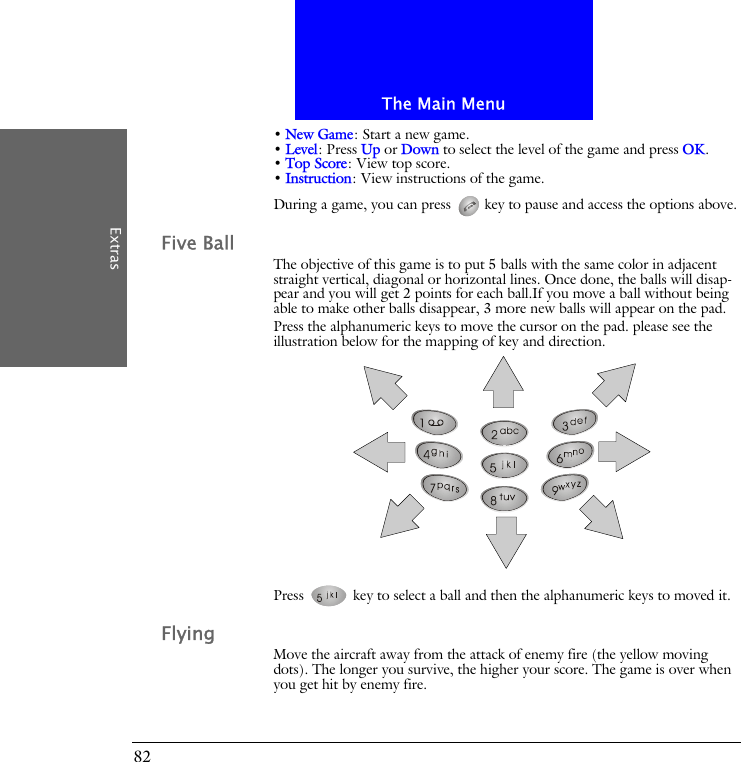
The Main MenuExtras82• New Game: Start a new game.• Level: Press Up or Down to select the level of the game and press OK.• Top Score: View top score.• Instruction: View instructions of the game.During a game, you can press   key to pause and access the options above.Five BallThe objective of this game is to put 5 balls with the same color in adjacent straight vertical, diagonal or horizontal lines. Once done, the balls will disap-pear and you will get 2 points for each ball.If you move a ball without being able to make other balls disappear, 3 more new balls will appear on the pad.Press the alphanumeric keys to move the cursor on the pad. please see the illustration below for the mapping of key and direction.Press   key to select a ball and then the alphanumeric keys to moved it.FlyingMove the aircraft away from the attack of enemy fire (the yellow moving dots). The longer you survive, the higher your score. The game is over when you get hit by enemy fire.
The Main MenuExtras83Press   key to start the game. Press the alphanumeric keys to move the cursor on the pad. please see the illustration below for the mapping of key and direction.Popo carDrive your car and get as more flags as you can. While you are driving, you will be chased by enemy cars. Try to get away from them. When necessary, you can emit a popo to confuse them temporarily. The yellow bar on the right of the screen indicates your fuel level. If the fuel is low, you need to get a fuel-box to refuel. The game is over when you run out of your fuel or when the enemy car gets you.
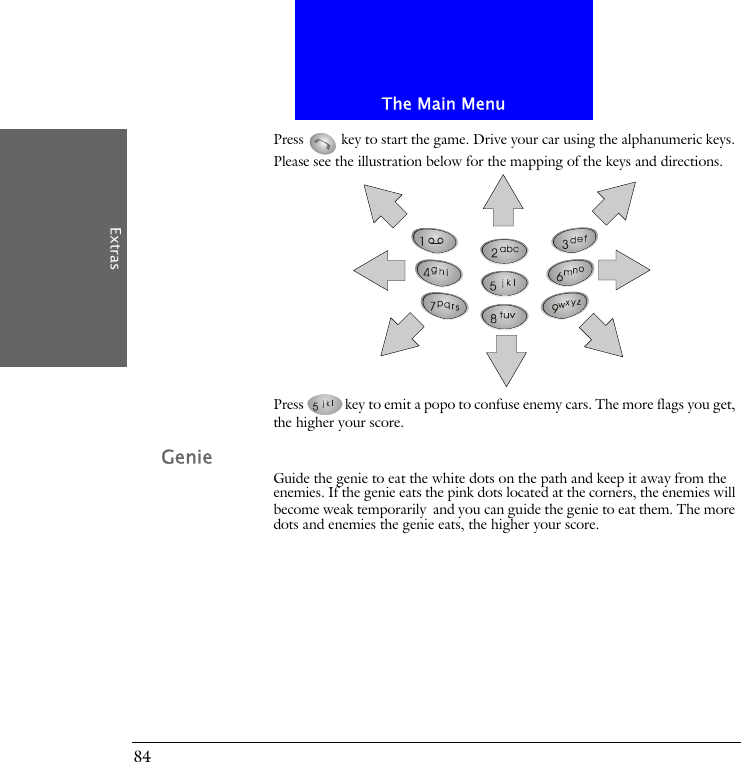
The Main MenuExtras84Press   key to start the game. Drive your car using the alphanumeric keys. Please see the illustration below for the mapping of the keys and directions.Press key to emit a popo to confuse enemy cars. The more flags you get, the higher your score.GenieGuide the genie to eat the white dots on the path and keep it away from the enemies. If the genie eats the pink dots located at the corners, the enemies will become weak temporarily and you can guide the genie to eat them. The more dots and enemies the genie eats, the higher your score.
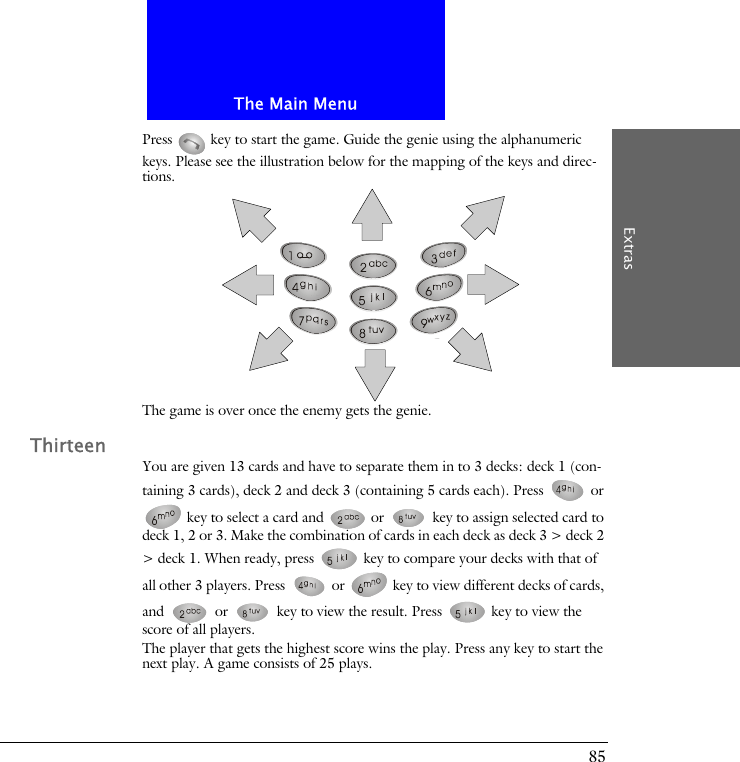
The Main MenuExtras85Press   key to start the game. Guide the genie using the alphanumeric keys. Please see the illustration below for the mapping of the keys and direc-tions.The game is over once the enemy gets the genie.ThirteenYou are given 13 cards and have to separate them in to 3 decks: deck 1 (con-taining 3 cards), deck 2 and deck 3 (containing 5 cards each). Press   or  key to select a card and   or   key to assign selected card to deck 1, 2 or 3. Make the combination of cards in each deck as deck 3 > deck 2 > deck 1. When ready, press   key to compare your decks with that of all other 3 players. Press   or   key to view different decks of cards, and   or   key to view the result. Press   key to view the score of all players.The player that gets the highest score wins the play. Press any key to start the next play. A game consists of 25 plays.
The Main MenuExtras86CalculatorYou can use this function to perform simple calculations and covert curren-cies.Using calculator1. In standby mode, press the left soft key.2. Scroll to Extras and press Select.3. Scroll to Calculator and press Select.4. Enter numbers using alphanumeric keys.5. Press the navigation key to perform operations.Press   key to get the result of calculation.Converting currenciesSetting up exchange rateExchange rate must be setup before using the currency exchange function.1. In standby mode, press the left soft key.2. Scroll to Extras and press Select.3. Scroll to Calculator and press Select.4. Press Options.5. Scroll to Exchange rate and press Select.6. Press Select.6. Enter the exchange rate of foreign unit expressed in domestic unit using alphanumeric keys and press OK.7. Scroll to Domestic unit expressed in foreign unit and press Select.8. Enter the exchange rate of domestic unit expressed in foreign unit using alphanumeric keys and press OK.Navigation key OperationUp +Down -Left *Right /
The Main MenuExtras87Performing currency exchange1. In standby mode, press the left soft key.2. Scroll to Extras and press Select.3. Scroll to Calculator and press Select.4. Enter the amount of currency and press Options.4. Scroll to In foreign or In domestic and press Select.StopwatchSplit timing1. In standby mode, press the left soft key.2. Scroll to Extras and press Select.3. Scroll to Stopwatch and press Select.4. Press Select.5. Press Start to start timing.6. Press Split to get a split timing. You can get up to 10 split timings.7. Press Stop to stop timing.8. Press Options and you can do the following:• Press Select to start the timer again.• Save the timing record. Scroll to Save. Enter the name of the record and press OK. • Scroll to Reset and press Select to reset timer.Lap timing1. In standby mode, press the left soft key.2. Scroll to Extras and press Select.3. Scroll to Stopwatch and press Select.4. Scroll to Lap timing and press Select.5. Press Start to start timing.6. Press Lap to get a lap timing. You can get up to 10 lap timings.7. Press Stop to stop timing.8. Press Options and you can do the following:• Press Select to start the timer again.• Save the timing record. Scroll to Save. Enter the name of the record and press OK.• Scroll to Reset and press Select to reset timer.Viewing timing records
The Main MenuExtras881. In standby mode, press the left soft key.2. Scroll to Extras and press Select.3. Scroll to Stopwatch and press Select.4. Scroll to View times and press Select.5. Scroll to the timing record you want to view and press Select.Erasing timing records1. In standby mode, press the left soft key.2. Scroll to Extras and press Select.3. Scroll to Stopwatch and press Select.4. Scroll to Erase times and press Select.5. You can erase timing records one by one or all at once:• To erase timing records one by one, press Select.Scroll to the timing record to erase and press Select.Press Yes.• To erase all timing records at once, scroll to All at once and press Select.Press OK.
The Main MenuWAP Service89WAP ServiceThe WAP Service allows you to access mobile Internet information via your operator using the WAP (Wireless Application Protocol) technology. For example, you can browse weather reports, parking information and on-line banking services.If you are using the GPRS network to access WAP services, the icon   will appear on the screen.The WAP settings must be configured before you can use the WAP service. See "Configuring WAP profiles"on page 91 for details.Browsing the InternetGoing to your homepage1. In standby mode, press the left soft key.2. Scroll to WAP service and press Select.3. Press Select.4. Your phone will start connecting to the mobile Internet. If connection is successful, the homepage will appear on the screen.Going to your bookmarked pages1. In standby mode, press the left soft key.2. Scroll to WAP service and press Select.3. Scroll to Bookmark and press Select.4. Scroll to a desired bookmark and press Select.5. Press Select.6. Your phone will start connecting to the mobile Internet. If connection is successful, the page will appear on the screen.Navigating the Internet using the options menuWhen browsing the mobile Internet, you can press Options to access the fol-lowing options:• Home: Scroll to this option and press Select to return to the homepage.• Bookmark: Scroll to this option and press Select to open the bookmark list. To go to bookmarked pages, scroll to a bookmark and press Select two times.
The Main MenuWAP Service90To edit a bookmark, scroll to a bookmark and press Select, then scroll to Edit and press Select. Enter the name and address of the book mark and then press OK.To erase a bookmark, scroll to a bookmark and press Select, then scroll to Erase and press Select two times.• Open link (appears when you selected a link in the browser): Scroll to this option and press Select to open selected link.• Add bookmark: Scroll to this option and press Select to bookmark current page.• Go to Address: Go to another page by entering the address. Scroll to this option and press Select. Enter the address and press OK.• Appearance Settings: This option allows you to configure the appearance of information when browsing the mobile Internet. Scroll to this option and press Select. You will be presented with the following sub-options:Text wrapping: Scroll to this sub-option and press On (or Off) to turn on or off the text wrapping function.Show image: Scroll to this sub-option and press On (or Off) to show or not to show the image.Show title: Scroll to this sub-option and press On (or Off) to show or not to show the title of page.• Download Settings: You can decide whether to accept the cookies or not when browsing. Scroll to this option and press Select two times. Scroll to Allow (to accept cookies) or Reject (to reject all cookies) and press OK.• Reload: Scroll to this option and press Select to reload current page.• Clear the Cache: Scroll to this option and press Select to delete all cache files in phone memory.• Service inbox: Your operator may send you some service messages that con-tains WAP links and other information. If such message is received by your phone under standby mode, you can open and read it immediately. Other-wise it will be store in the service inbox. Here you can check the service mes-sages.• Exit: Scroll to this option and press Select to disconnect from the Internet and exit browser.
91The Main MenuConfiguring WAP profilesYou can configure up to 5 sets of WAP settings. Each set of WAP settings is called a WAP profile. The WAP profile may have already been programmed on your SIM card after you subscribe the WAP service to your system so you can access mobile Internet immediately. Otherwise, you need to configure the settings manually. Please contact your system operator for details.Setting up a WAP profile1. In standby mode, press the left soft key.2. Scroll to WAP service and press Select.3. Scroll to Profiles and press Select.4. Scroll to an empty profile and press Select.5. Scroll to Edit and press Select.6. According to the parameters supplied by your operator, configure the fol-lowing:Homepage: Enter the address of the homepage.Session mode: Temporary or Permanent.Connection Security: On or Off.Data bearer: GSM Data or GPRS. If GSM is selected, you need to setup the Dial-up number, Data call type and Data call speed. If GPRS is Before setting up a WAP profile, please be sure to obtain the following parameters from your operator:Homepage: Session mode:      Temporary      PermanentConnection security:      On      OffData bearer:      GSM Data (Dial-up number, Data call type, Data call speed)                            GPRS (GPRS access point           )IP address:               .               .               .Authentication type:      Normal      SecureLogin type:      Manual      AutomaticUsername:Password:Information you need in case you have to set up a WAP profile manually
The Main Menu92selected, you need to setup GPRS connection type and access point.IP address: Enter the IP address.Authentication type: Normal or Secure.Login type: Manual or Automatic.Username: Enter the username.Password: Enter the password.The setup is complete. Now you are ready to access the mobile Internet.Selecting and activating a WAP profileIf you have multiple WAP profiles for different operators, you can use this function to select one to use.1. In standby mode, press the left soft key.2. Scroll to WAP service and press Select.3. Scroll to Profiles and press Select.4. Scroll to a desired profile and press Select.Editing a WAP profile1. In standby mode, press the left soft key.2. Scroll to WAP service and press Select.3. Scroll to Profiles and press Select.4. Scroll to the profile you want to edit and press Select.5. Scroll to Edit and press Select.6. Edit the contents of the profile.Renaming a WAP profile1. In standby mode, press the left soft key.2. Scroll to WAP service and press Select.3. Scroll to Profiles and press Select.4. Scroll to the profile you want to rename and press Select.5. Scroll to Rename and press Select.6. Enter the new profile name and press OK.
93The Main MenuMy shortcutYou can put 9 most frequently used functions in My Shortcut so you can access them quickly and easily.Using My shortcut9 frequently used functions are already pre-programmed in My shortcut and you can use them directly. To use My shortcut:1. Long press key under standby mode and the shortcut menu will appear. 2. Scroll to an item and press Select.Customizing My shortcutTo customize My Shortcut:1. In standby mode, press the left soft key.2. Scroll to My shortcut and press Select.3. Scroll to Edit and press Select.4. Scroll to a desired item and press Select.5. Specify the position of the item in My shortcut and press Select.
The Main Menu94Java(To be implemented)
95The Main MenuOperator servicesIf you have subscribed STK (SIM Tool Kit) or other operator services to your operator, there will be an additional item here. The contents of service and how to use them depends on your subscription. Please consult your opera-tor for details.
Appendix
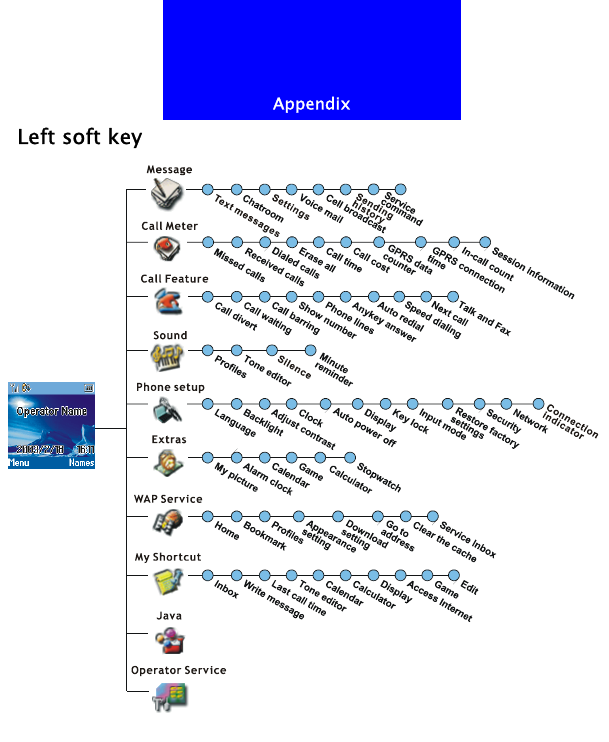
AppendixLeft soft key
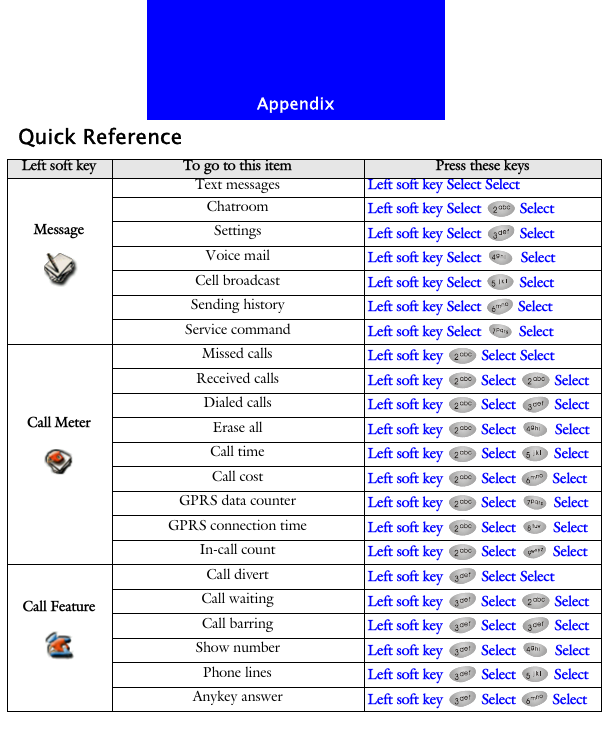
AppendixQuick ReferenceLeft soft key To go to this item Press these keysMessageText messages Left soft key Select SelectChatroom Left soft key Select   SelectSettings Left soft key Select   SelectVoice mail Left soft key Select  SelectCell broadcast Left soft key Select  SelectSending history Left soft key Select  SelectService command Left soft key Select  SelectCall MeterMissed calls Left soft key   Select SelectReceived calls Left soft key   Select   SelectDialed calls Left soft key   Select   SelectErase all Left soft key   Select   SelectCall time Left soft key   Select   SelectCall cost Left soft key   Select   SelectGPRS data counter Left soft key   Select   SelectGPRS connection time Left soft key   Select   SelectIn-call count Left soft key   Select   SelectCall FeatureCall divert Left soft key   Select SelectCall waiting Left soft key   Select   SelectCall barring Left soft key   Select   SelectShow number Left soft key   Select   SelectPhone lines Left soft key   Select   SelectAnykey answer Left soft key   Select   Select
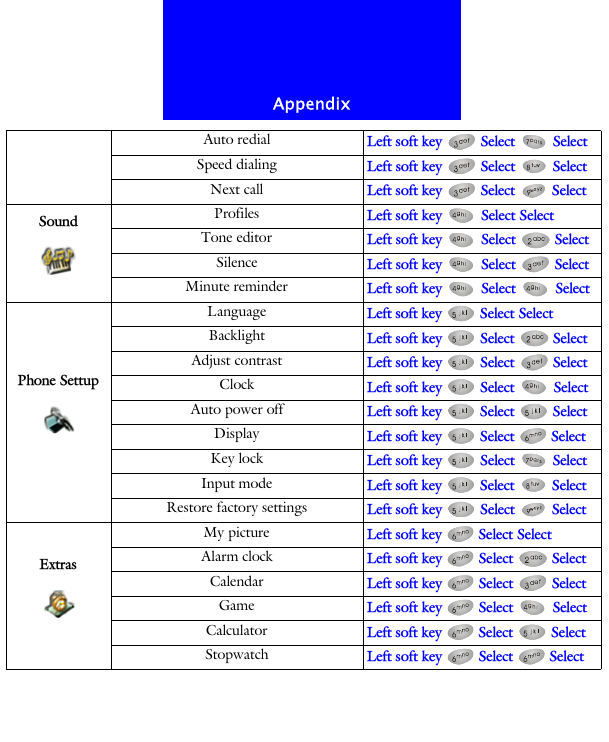
AppendixAuto redial Left soft key   Select   SelectSpeed dialing Left soft key   Select   SelectNext call Left soft key   Select   SelectSound Profiles Left soft key   Select SelectTone editor Left soft key   Select   SelectSilence Left soft key   Select   SelectMinute reminder Left soft key   Select   SelectPhone SettupLanguage Left soft key   Select SelectBacklight Left soft key   Select   SelectAdjust contrast Left soft key   Select   SelectClock Left soft key   Select   SelectAuto power off Left soft key   Select   SelectDisplay Left soft key   Select   SelectKey lock Left soft key   Select   SelectInput mode Left soft key   Select   SelectRestore factory settings Left soft key   Select   SelectExtrasMy picture Left soft key   Select SelectAlarm clock Left soft key   Select   SelectCalendar Left soft key   Select   SelectGame Left soft key   Select   SelectCalculator Left soft key   Select   SelectStopwatch Left soft key   Select   Select
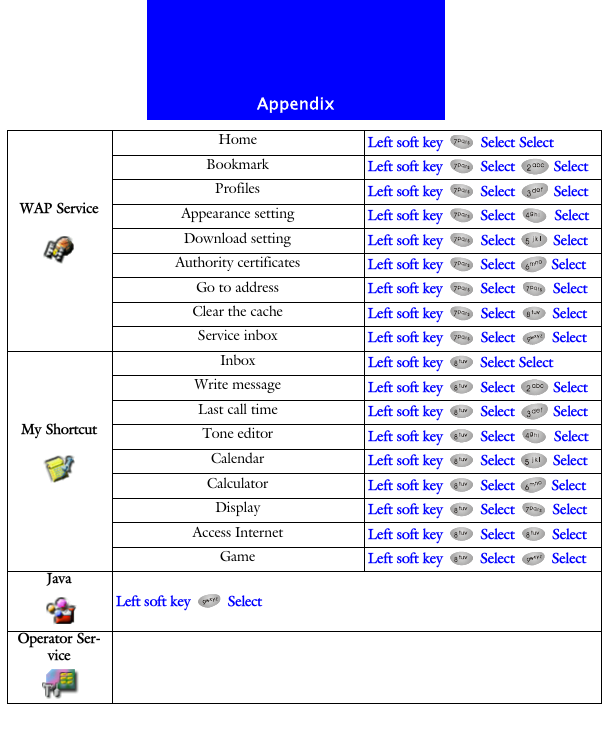
AppendixWAP ServiceHome Left soft key   Select SelectBookmark Left soft key   Select   SelectProfiles Left soft key   Select   SelectAppearance setting Left soft key   Select   SelectDownload setting Left soft key   Select   SelectAuthority certificates Left soft key   Select   SelectGo to address Left soft key   Select   SelectClear the cache Left soft key   Select   SelectService inbox Left soft key   Select   SelectMy ShortcutInbox Left soft key   Select SelectWrite message Left soft key   Select   SelectLast call time Left soft key   Select   SelectTone editor Left soft key   Select   SelectCalendar Left soft key   Select   SelectCalculator Left soft key   Select   SelectDisplay Left soft key   Select   SelectAccess Internet Left soft key   Select   SelectGame Left soft key   Select   SelectJavaLeft soft key   SelectOperator Ser-vice

Navigation menu