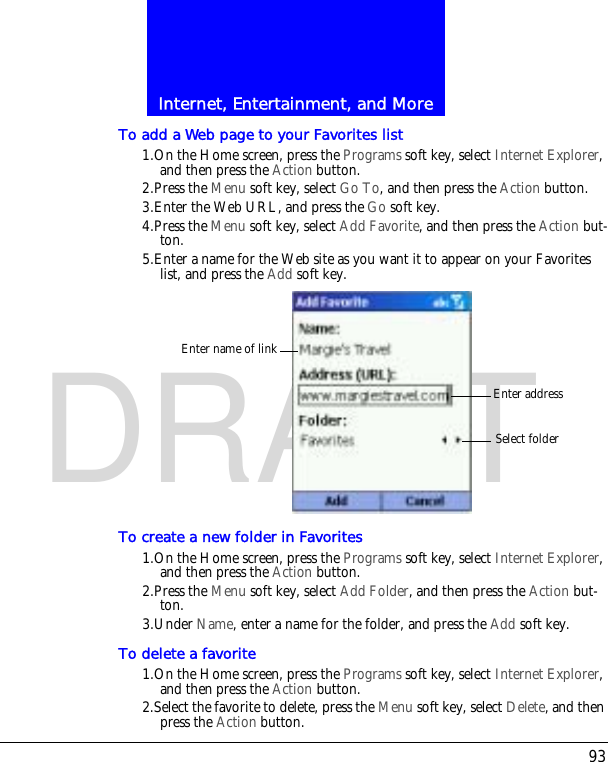
Chi Mei Communication Systems 0303BEN01 PCS 1900 Mobile Handset User Manual Beethoven

Chi Mei Communication Systems, Inc. PCS 1900 Mobile Handset Beethoven

Manual

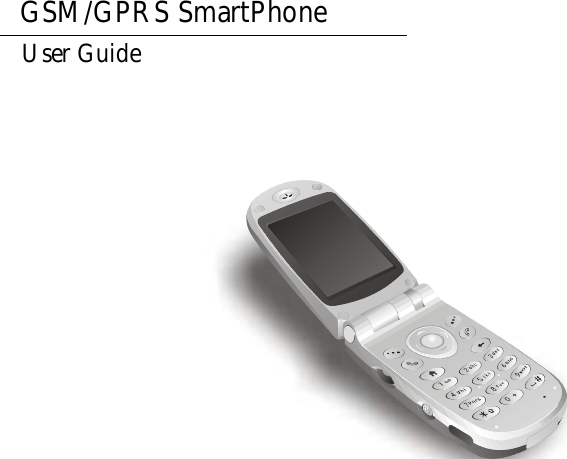
GSM/GPRS SmartPhoneUser Guide
Copyright StatementCopyright 2003 by this company. All rights reserved. No part of this publication may be reproduced, transmitted, transcribed, stored in a retrieval system or translated into any language or computer lan-guage, in any form or by any means, electronic, mechanical, magnetic, optical, chemical, manual or otherwise, without the prior written permission of this company.DisclaimerThis company makes no representations or warranties, either expressed or implied, with respect to the contents hereof and specifically disclaims any warranties, merchantability or fitness for any particular purpose. Further, this company reserves the right to revise this publication and to make changes from time to time in the contents hereof without obligation of this company to notify any person of such revision or changes.ALL INFORMATION IS PROVIDED BY THIS COMPANY ON AN "AS IS" BASIS ONLY. THIS COMPANY PROVIDES NO REPRESENTATIONS AND WARRANTIES, EXPRESS OR IMPLIED, INCLUDING THE IMPLIED WARRANTIES OF FITNESS FOR A PARTICULAR PURPOSE, MERCHANTABILITY AND NONINFRINGEMENT.
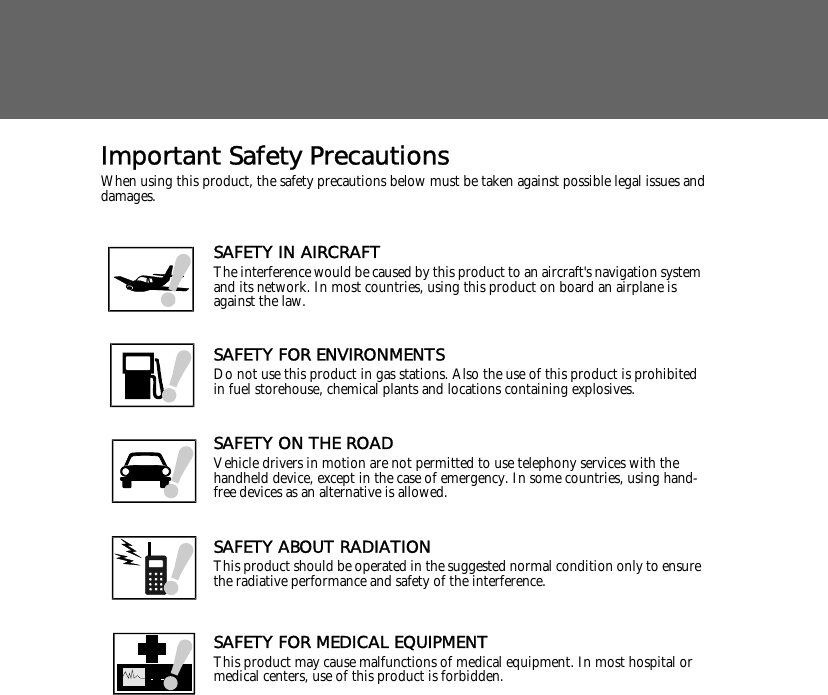
Important Safety PrecautionsWhen using this product, the safety precautions below must be taken against possible legal issues and damages.SAFETY IN AIRCRAFTThe interference would be caused by this product to an aircraft's navigation system and its network. In most countries, using this product on board an airplane is against the law.SAFETY FOR ENVIRONMENTSDo not use this product in gas stations. Also the use of this product is prohibited in fuel storehouse, chemical plants and locations containing explosives.SAFETY ON THE ROADVehicle drivers in motion are not permitted to use telephony services with the handheld device, except in the case of emergency. In some countries, using hand-free devices as an alternative is allowed.SAFETY ABOUT RADIATIONThis product should be operated in the suggested normal condition only to ensure the radiative performance and safety of the interference.SAFETY FOR MEDICAL EQUIPMENTThis product may cause malfunctions of medical equipment. In most hospital or medical centers, use of this product is forbidden.
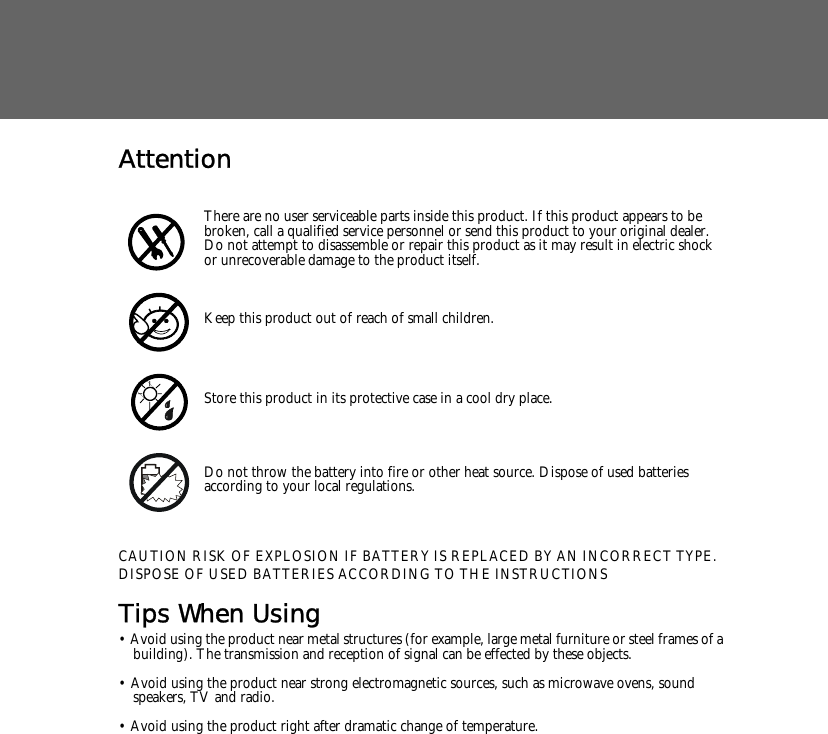
AttentionCAUTION RISK OF EXPLOSION IF BATTERY IS REPLACED BY AN INCORRECT TYPE.DISPOSE OF USED BATTERIES ACCORDING TO THE INSTRUCTIONSTips When Using• Avoid using the product near metal structures (for example, large metal furniture or steel frames of a building). The transmission and reception of signal can be effected by these objects.• Avoid using the product near strong electromagnetic sources, such as microwave ovens, sound speakers, TV and radio.• Avoid using the product right after dramatic change of temperature.There are no user serviceable parts inside this product. If this product appears to be broken, call a qualified service personnel or send this product to your original dealer. Do not attempt to disassemble or repair this product as it may result in electric shock or unrecoverable damage to the product itself.Keep this product out of reach of small children.Store this product in its protective case in a cool dry place.Do not throw the battery into fire or other heat source. Dispose of used batteries according to your local regulations.
FCC Compliance StatementThis device complies with Part 15 of the FCC Rules. Operation is subject to the following two condi-tions: (1) this device may not cause harmful interference, and (2) this device must accept any interfer-ence received, including interference that may cause undesired operation.FCC ID: QDJ-0303BEN01Statement according to FCC part 15.21Modifications not expressly approved by this company could void the user's authority to operate the equipment.Statement according to FCC part 15.105NOTE: This equipment has been tested and found to comply with the limits for a Class B digital device, pursuant to Part 15 of the FCC Rules. These limits are designed to provide reasonable protec-tion against harmful interference in a residential installation. This equipment generates, uses and can radiate radio frequency energy and, if not installed and used in accordance with the instructions, may cause harmful interference to radio communications. However, there is no guarantee that interference will not occur in a particular installation. If this equipment does cause harmful interference to radio or television reception, which can be determined by turning the equipment off and on, the user is encouraged to try to correct the interference by one or more of the following measures:• Reorient or relocate the receiving antenna.• Increase the separation between the equipment and receiver.• Connect the equipment into an outlet on a circuit different from that to which the receiver is con-nected.• Consult the dealer or an experienced radio/TV technician for help.RF exposure Tests for SAR are conducted using standard operating positions specified by the FCC with the phone transmitting at its highest certified power level in all tested frequency bands. Although the SAR is determined at the highest certified power level, the actual SAR level of the phone while operation can be well below the maximum value. This is because the phone is designed to operate at multiple power levels so as to use only the power required to reach the network. In general, the closer you are to a wireless base station antenna, the lower the power output. Before a phone model is available for sale to the public, it must be tested and certified to the FCC that it does not exceed the limit established by the government-adopted requirement for safe exposure. The tests are performed in positions and locations (e.g., at the ear and worn on the body) as required by the FCC for each model. (Body-worn measurements may differ among phone models, depending upon available accessories and FCC requirements). While there may be differences between the SAR
levels of various phones and at various positions, they all meet the government requirement for safe exposure. For body worn operation, to maintain compliance with FCC RF exposure guidelines, use only acces-sories that contain no metallic components and provide a separation distance of 15mm (0.6 inches) to the body.  Use of other accessories may violate FCC RF exposure guidelines and should be avoided.Health and Safety InformationExposure to Radio Frequency (RF) SignalsYour wireless phone is a radio transmitter and receiver. It is designed and manufactured not to exceed the emission limits for exposure to radio frequency (RF) energy set by the Federal Communications Commission of the U.S. Government. These limits are part of comprehensive guidelines and establish permitted levels of RF energy for the general population. The guidelines are based on the safety stan-dards previously set by both U.S. and international standards bodies: * American National Standards Institute (ANSI) IEEE. C95.1-1992* National Council on Radiation Protection and Measurement (NCRP). Report 86. 1986* International Commission on Non-Ionizing Radiation Protection (ICNIRP) 1996* Ministry of Health (Canada), Safety Code 6. The standards include a substantial safety margin designed to assure the safety of all persons, regardless of age and health.The exposure standard for wireless mobile phones employs a unit of measurement known as the Spe-cific Absorption Rate, or SAR. The SAR limit set by the FCC is 1.6W/kg *.* In the U.S. and Canada, the SAR limit for mobile phones used by the public is 1.6 watts/kg (W/kg) averaged over one gram of tissue. The standard incorporates a substantial margin of safety to give additional protection for the public and to account for any variations in.SAR InformationTHIS MODEL DEVICE MEETS THE GOVERNMENT'S REQUIREMENTS FOREXPOSURE TO RADIO WAVES.Your wireless mobile GSM phone is a radio transmitter and receiver. It is designed and manufactured not to exceed the emission limits for exposure to radio frequency (RF) energy set by the Federal Com-munications Commission of the U.S. Government. These limits are part of comprehensive guidelines and establish permitted levels of RF energy for the general population. The guidelines are based on the safety standards previously set by both U.S. and international standards bodies: * American National Standards Institute (ANSI) IEEE. C95.1-1992
* National Council on Radiation Protection and Measurement (NCRP). Report 86. 1986* International Commission on Non-Ionizing Radiation Protection (ICNIRP) 1996* Ministry of Health (Canada), Safety Code 6. The standards include a substantial safety margin designed to assure the safety of all persons, regardless of age and health.The exposure standard for wireless mobile GSM phone employs a unit of measurement known as the Specific Absorption Rate, or SAR. The SAR limit set by the FCC is 1.6W/kg *.SAR compliance for body-worn operating configurations is limited to the specific configuration tested for this filing.  Body-worn operations are restricted to belt-clips, holsters or similar accessories that have no metallic component in the assembly and that provide at least 0.5 cm separation between the device, including its antenna, and the user's body. The highest reported SAR levels are: Body-worn: 1.58mW/g, Head: 0.119mW/g The FCC has granted an Equipment Authorization for this model device with all reported SAR levels evaluated as in compliance with the FCC RF exposure guidelines. SAR information on this model device is on file with the FCC and can be found under the Display Grant section of http://www.fcc.gov/oet/fccid after searching on FCC ID QDJ-0303BEN01. Additional information on Spe-cific Absorption Rates (SAR) can be found on the Cellular Telecommunications & Internet Associa-tion (CTIA) web-site at http://www.devicefacts.net.* In the U.S. and Canada, the SAR limit for mobile GSM phone used by the public is 1.6 watts/kg (W/kg) averaged over one gram of tissue. The standard incorporates a substantial margin of safety to give additional protection for the public and to account for any variations in.
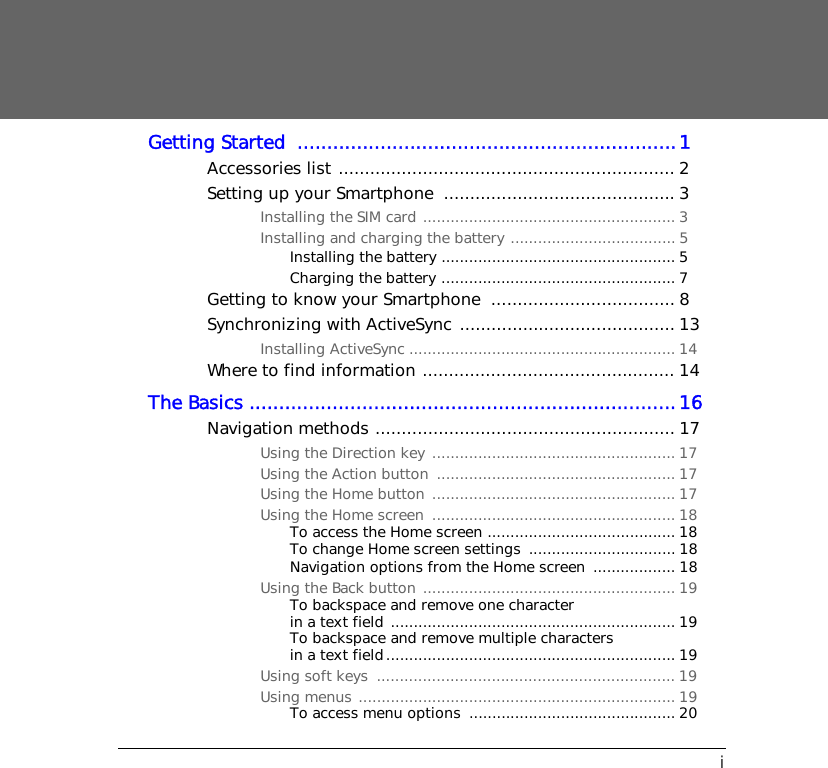
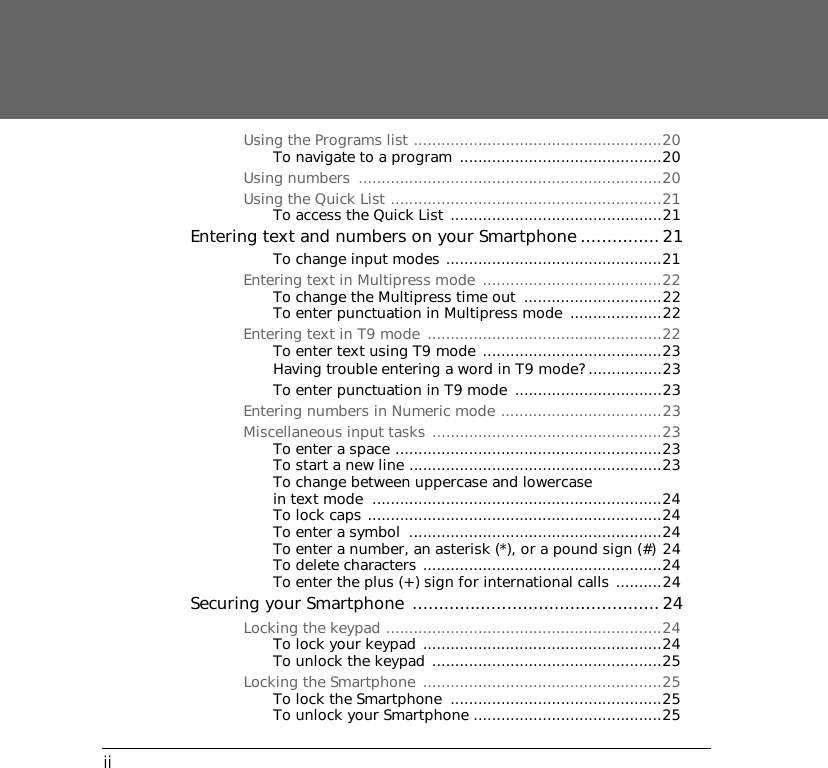
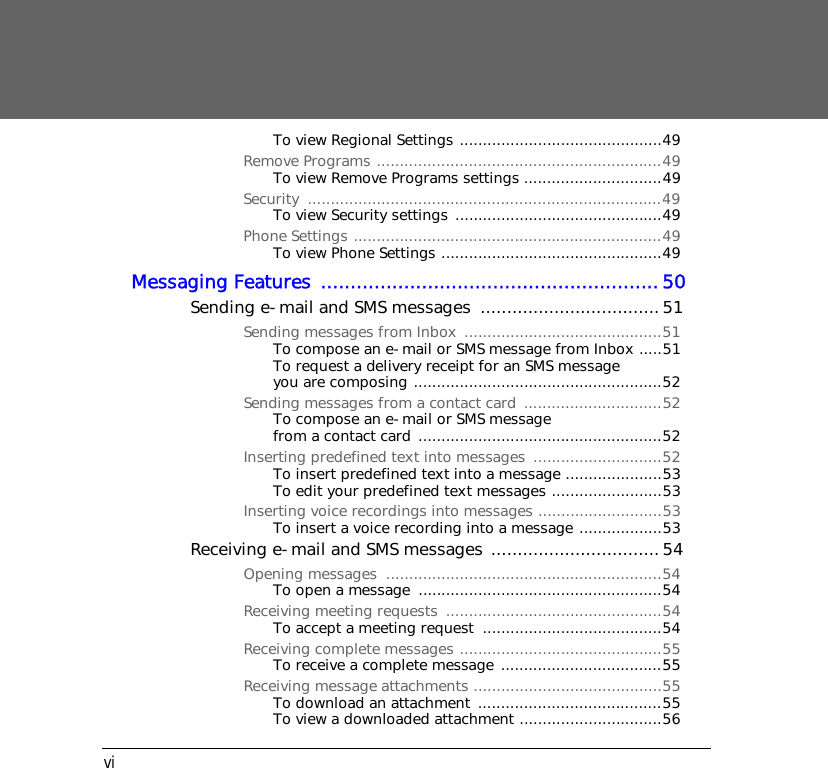
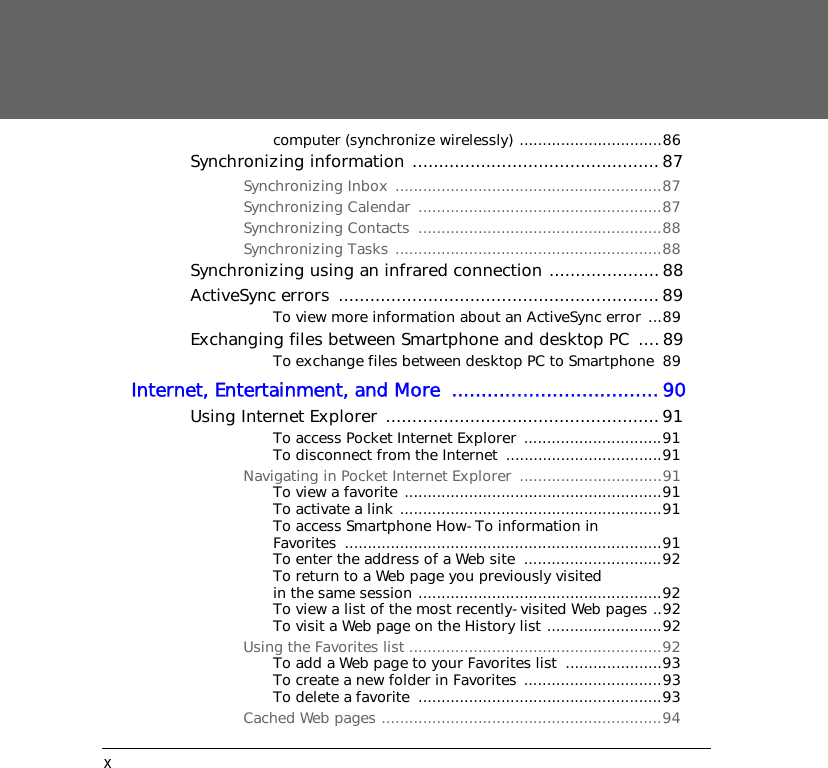
iGetting Started  ................................................................1Accessories list ................................................................ 2Setting up your Smartphone  ............................................ 3Installing the SIM card ....................................................... 3Installing and charging the battery .................................... 5Installing the battery ................................................... 5Charging the battery ................................................... 7Getting to know your Smartphone  ................................... 8Synchronizing with ActiveSync ......................................... 13Installing ActiveSync .......................................................... 14Where to find information ................................................ 14The Basics ........................................................................16Navigation methods ......................................................... 17Using the Direction key ..................................................... 17Using the Action button  .................................................... 17Using the Home button ..................................................... 17Using the Home screen  ..................................................... 18To access the Home screen ......................................... 18To change Home screen settings  ................................ 18Navigation options from the Home screen  .................. 18Using the Back button ....................................................... 19To backspace and remove one character in a text field .............................................................. 19To backspace and remove multiple characters in a text field............................................................... 19Using soft keys  ................................................................. 19Using menus ..................................................................... 19To access menu options  ............................................. 20
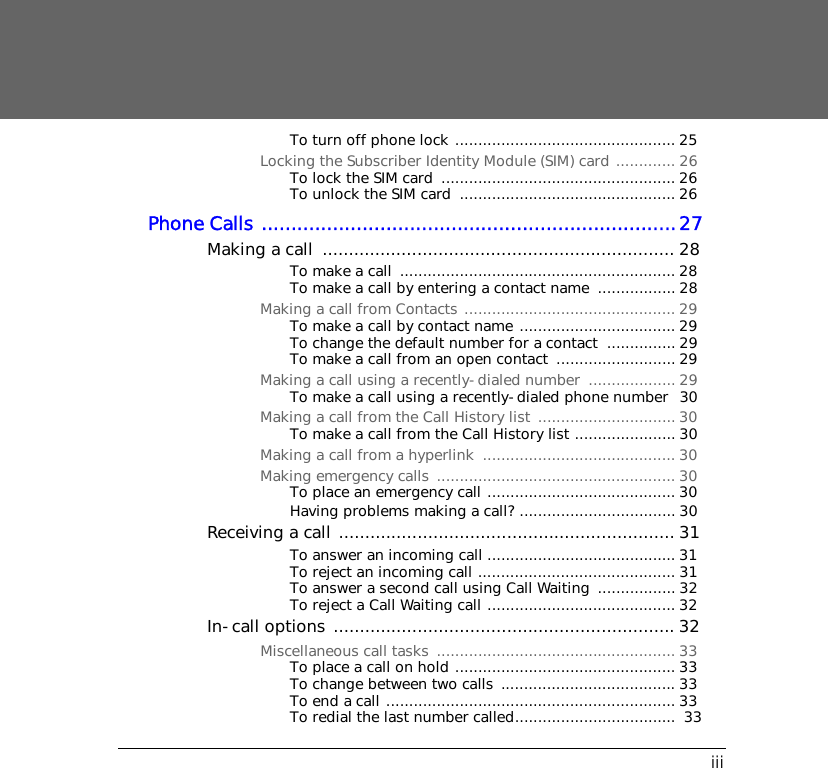
iiUsing the Programs list ......................................................20To navigate to a program  ............................................20Using numbers  ..................................................................20Using the Quick List ...........................................................21To access the Quick List ..............................................21Entering text and numbers on your Smartphone ...............21To change input modes ...............................................21Entering text in Multipress mode  .......................................22To change the Multipress time out  ..............................22To enter punctuation in Multipress mode ....................22Entering text in T9 mode  ...................................................22To enter text using T9 mode .......................................23Having trouble entering a word in T9 mode? ................23To enter punctuation in T9 mode  ................................23Entering numbers in Numeric mode ...................................23Miscellaneous input tasks ..................................................23To enter a space ..........................................................23To start a new line .......................................................23To change between uppercase and lowercase in text mode  ...............................................................24To lock caps ................................................................24To enter a symbol  .......................................................24To enter a number, an asterisk (*), or a pound sign (#) 24To delete characters ....................................................24To enter the plus (+) sign for international calls ..........24Securing your Smartphone ............................................... 24Locking the keypad ............................................................24To lock your keypad ....................................................24To unlock the keypad ..................................................25Locking the Smartphone  ....................................................25To lock the Smartphone  ..............................................25To unlock your Smartphone .........................................25
iiiTo turn off phone lock ................................................ 25Locking the Subscriber Identity Module (SIM) card ............. 26To lock the SIM card  ................................................... 26To unlock the SIM card  ............................................... 26Phone Calls ......................................................................27Making a call  ................................................................... 28To make a call  ............................................................ 28To make a call by entering a contact name  ................. 28Making a call from Contacts .............................................. 29To make a call by contact name .................................. 29To change the default number for a contact  ............... 29To make a call from an open contact  .......................... 29Making a call using a recently-dialed number  ................... 29To make a call using a recently-dialed phone number  30Making a call from the Call History list  .............................. 30To make a call from the Call History list ...................... 30Making a call from a hyperlink  .......................................... 30Making emergency calls .................................................... 30To place an emergency call ......................................... 30Having problems making a call? .................................. 30Receiving a call ................................................................ 31To answer an incoming call ......................................... 31To reject an incoming call ........................................... 31To answer a second call using Call Waiting  ................. 32To reject a Call Waiting call ......................................... 32In-call options ................................................................. 32Miscellaneous call tasks  .................................................... 33To place a call on hold ................................................ 33To change between two calls  ...................................... 33To end a call ............................................................... 33To redial the last number called...................................  33
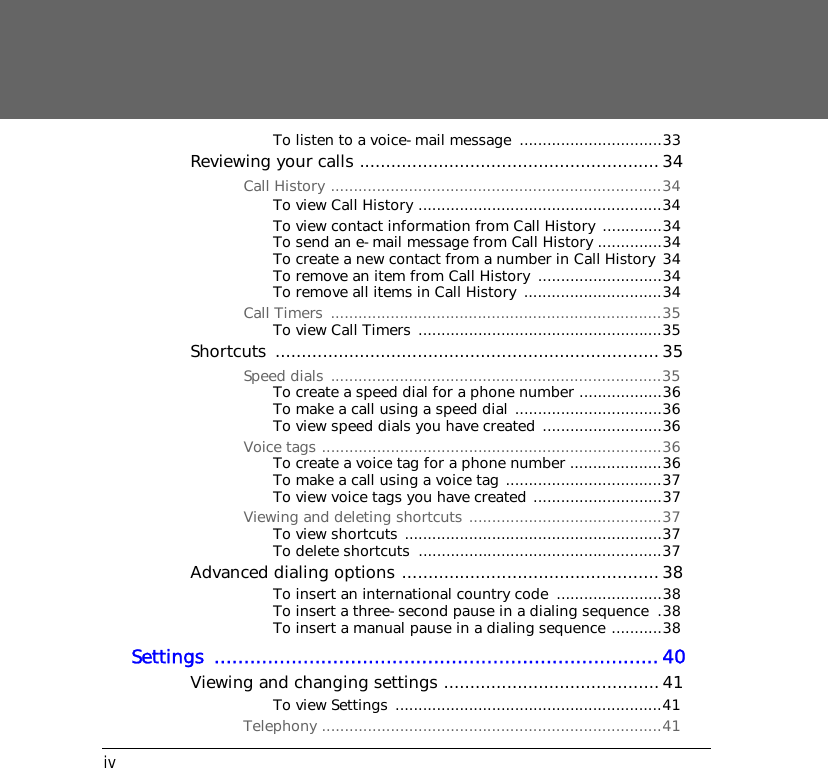
ivTo listen to a voice-mail message  ...............................33Reviewing your calls ......................................................... 34Call History ........................................................................34To view Call History .....................................................34To view contact information from Call History  .............34To send an e-mail message from Call History ..............34To create a new contact from a number in Call History 34To remove an item from Call History  ...........................34To remove all items in Call History  ..............................34Call Timers  ........................................................................35To view Call Timers .....................................................35Shortcuts .........................................................................35Speed dials ........................................................................35To create a speed dial for a phone number ..................36To make a call using a speed dial ................................36To view speed dials you have created  ..........................36Voice tags ..........................................................................36To create a voice tag for a phone number ....................36To make a call using a voice tag ..................................37To view voice tags you have created ............................37Viewing and deleting shortcuts ..........................................37To view shortcuts ........................................................37To delete shortcuts  .....................................................37Advanced dialing options .................................................38To insert an international country code  .......................38To insert a three-second pause in a dialing sequence  .38To insert a manual pause in a dialing sequence ...........38Settings ...........................................................................40Viewing and changing settings .........................................41To view Settings ..........................................................41Telephony ..........................................................................41
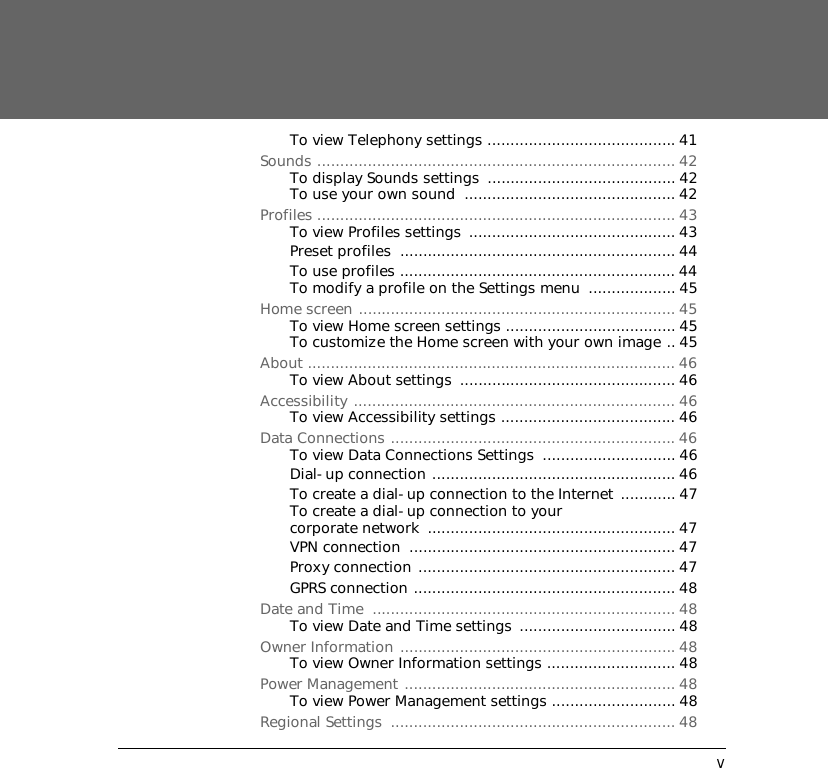
vTo view Telephony settings ......................................... 41Sounds .............................................................................. 42To display Sounds settings  ......................................... 42To use your own sound  .............................................. 42Profiles .............................................................................. 43To view Profiles settings  ............................................. 43Preset profiles  ............................................................ 44To use profiles ............................................................ 44To modify a profile on the Settings menu  ................... 45Home screen ..................................................................... 45To view Home screen settings ..................................... 45To customize the Home screen with your own image .. 45About ................................................................................ 46To view About settings  ............................................... 46Accessibility ...................................................................... 46To view Accessibility settings ...................................... 46Data Connections .............................................................. 46To view Data Connections Settings  ............................. 46Dial-up connection ..................................................... 46To create a dial-up connection to the Internet ............ 47To create a dial-up connection to your corporate network  ...................................................... 47VPN connection  .......................................................... 47Proxy connection ........................................................ 47GPRS connection ......................................................... 48Date and Time  .................................................................. 48To view Date and Time settings  .................................. 48Owner Information ............................................................ 48To view Owner Information settings ............................ 48Power Management ........................................................... 48To view Power Management settings ........................... 48Regional Settings  .............................................................. 48
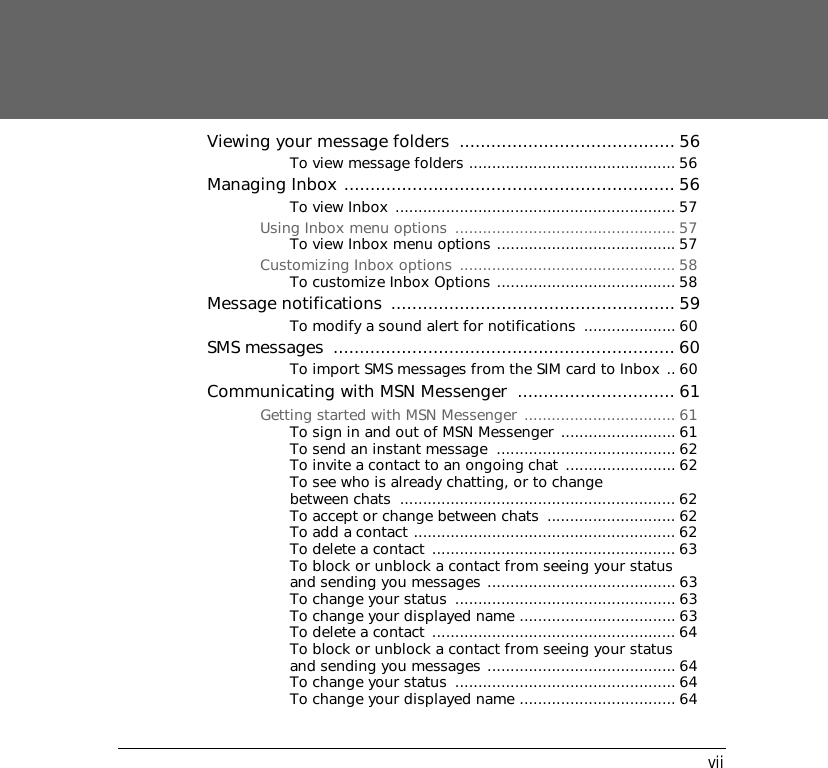
viTo view Regional Settings ............................................49Remove Programs ..............................................................49To view Remove Programs settings ..............................49Security .............................................................................49To view Security settings .............................................49Phone Settings ...................................................................49To view Phone Settings ................................................49Messaging Features .........................................................50Sending e-mail and SMS messages  ..................................51Sending messages from Inbox ...........................................51To compose an e-mail or SMS message from Inbox .....51To request a delivery receipt for an SMS message you are composing ......................................................52Sending messages from a contact card  ..............................52To compose an e-mail or SMS message from a contact card .....................................................52Inserting predefined text into messages  ............................52To insert predefined text into a message .....................53To edit your predefined text messages ........................53Inserting voice recordings into messages ...........................53To insert a voice recording into a message ..................53Receiving e-mail and SMS messages ................................ 54Opening messages  ............................................................54To open a message  .....................................................54Receiving meeting requests  ...............................................54To accept a meeting request  .......................................54Receiving complete messages ............................................55To receive a complete message ...................................55Receiving message attachments .........................................55To download an attachment  ........................................55To view a downloaded attachment ...............................56
viiViewing your message folders  ......................................... 56To view message folders ............................................. 56Managing Inbox ............................................................... 56To view Inbox ............................................................. 57Using Inbox menu options  ................................................ 57To view Inbox menu options ....................................... 57Customizing Inbox options  ............................................... 58To customize Inbox Options ....................................... 58Message notifications  ...................................................... 59To modify a sound alert for notifications  .................... 60SMS messages  ................................................................. 60To import SMS messages from the SIM card to Inbox .. 60Communicating with MSN Messenger  .............................. 61Getting started with MSN Messenger ................................. 61To sign in and out of MSN Messenger ......................... 61To send an instant message  ....................................... 62To invite a contact to an ongoing chat ........................ 62To see who is already chatting, or to change between chats  ............................................................ 62To accept or change between chats  ............................ 62To add a contact ......................................................... 62To delete a contact  ..................................................... 63To block or unblock a contact from seeing your status and sending you messages ......................................... 63To change your status  ................................................ 63To change your displayed name .................................. 63To delete a contact  ..................................................... 64To block or unblock a contact from seeing your status and sending you messages ......................................... 64To change your status  ................................................ 64To change your displayed name .................................. 64
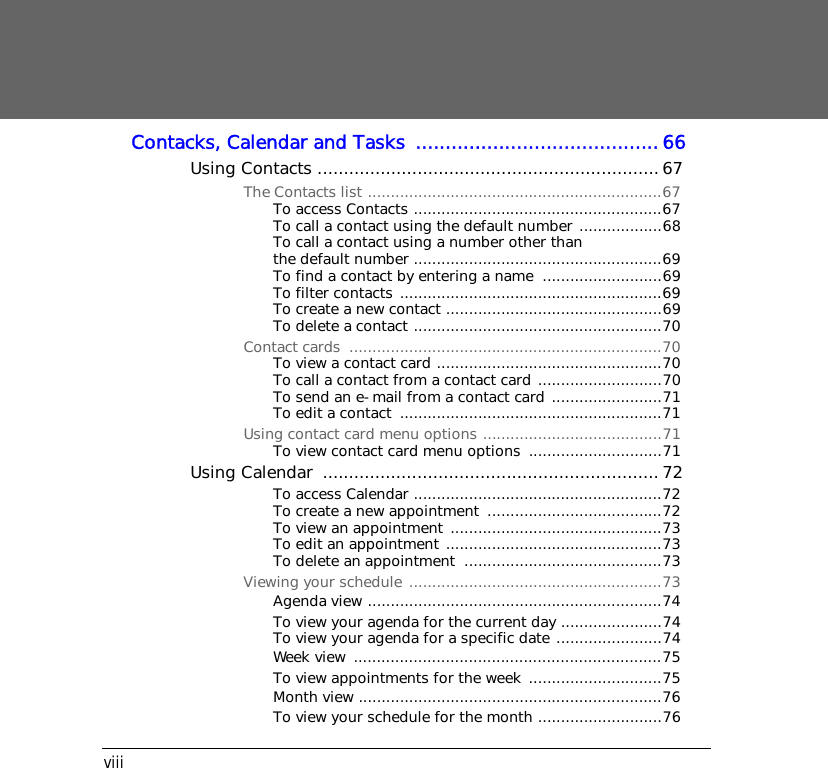
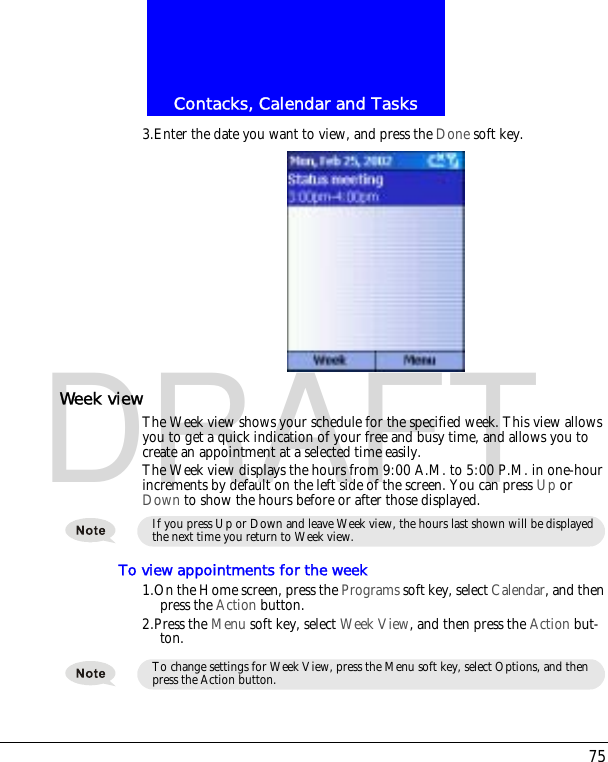
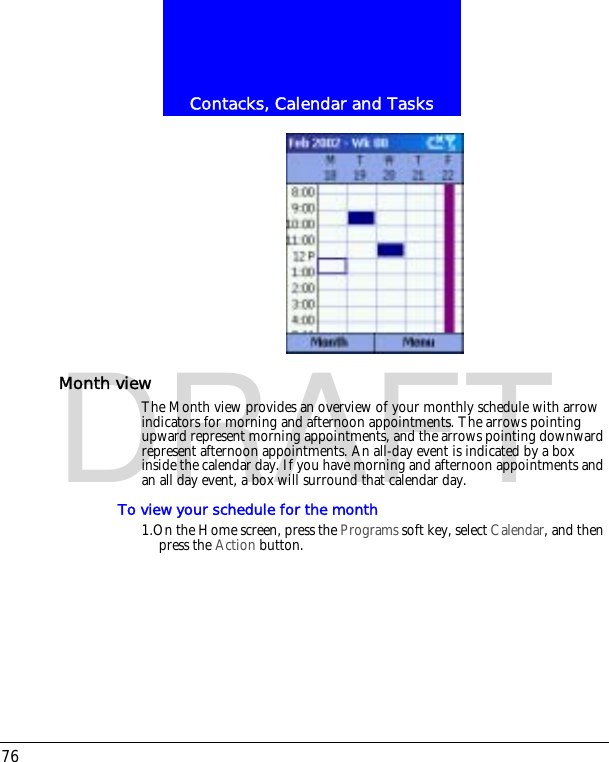
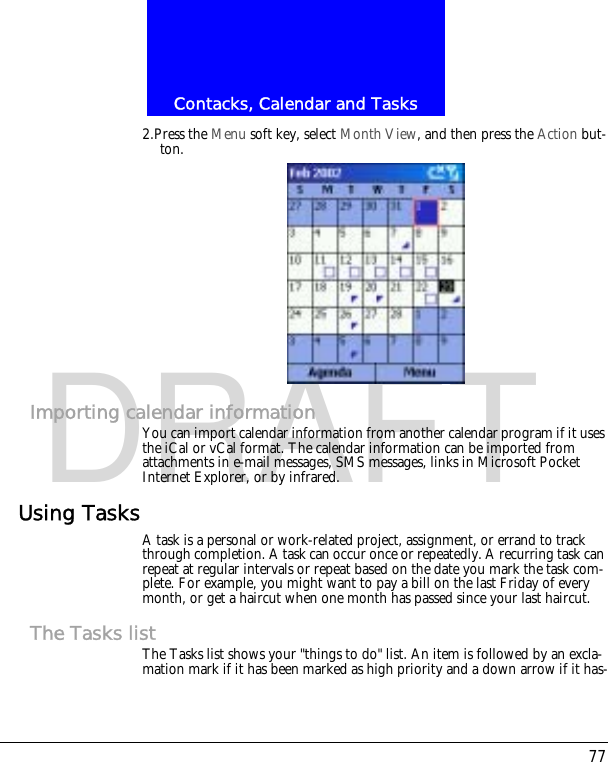
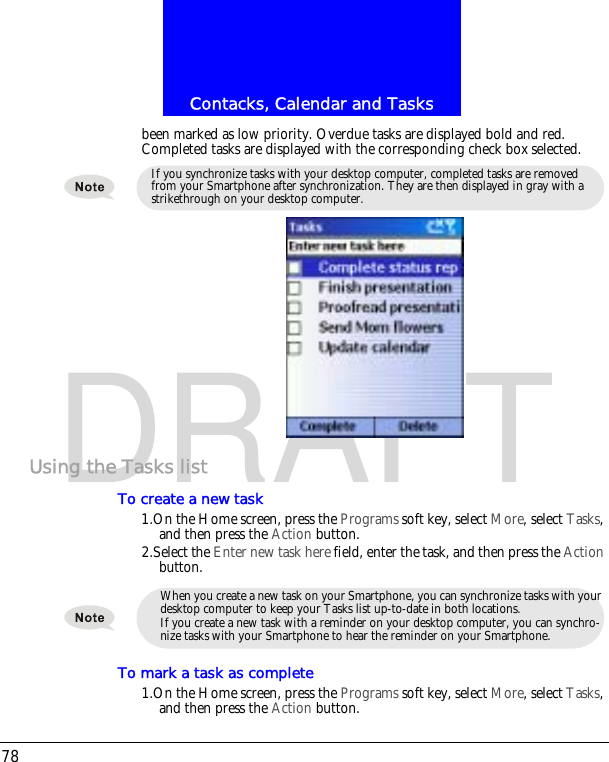
viiiContacks, Calendar and Tasks  .........................................66Using Contacts .................................................................67The Contacts list ................................................................67To access Contacts ......................................................67To call a contact using the default number ..................68To call a contact using a number other than the default number ......................................................69To find a contact by entering a name  ..........................69To filter contacts .........................................................69To create a new contact ...............................................69To delete a contact ......................................................70Contact cards  ....................................................................70To view a contact card .................................................70To call a contact from a contact card ...........................70To send an e-mail from a contact card ........................71To edit a contact  .........................................................71Using contact card menu options .......................................71To view contact card menu options  .............................71Using Calendar  ................................................................ 72To access Calendar ......................................................72To create a new appointment  ......................................72To view an appointment ..............................................73To edit an appointment ...............................................73To delete an appointment  ...........................................73Viewing your schedule .......................................................73Agenda view ................................................................74To view your agenda for the current day ......................74To view your agenda for a specific date .......................74Week view  ...................................................................75To view appointments for the week .............................75Month view ..................................................................76To view your schedule for the month ...........................76
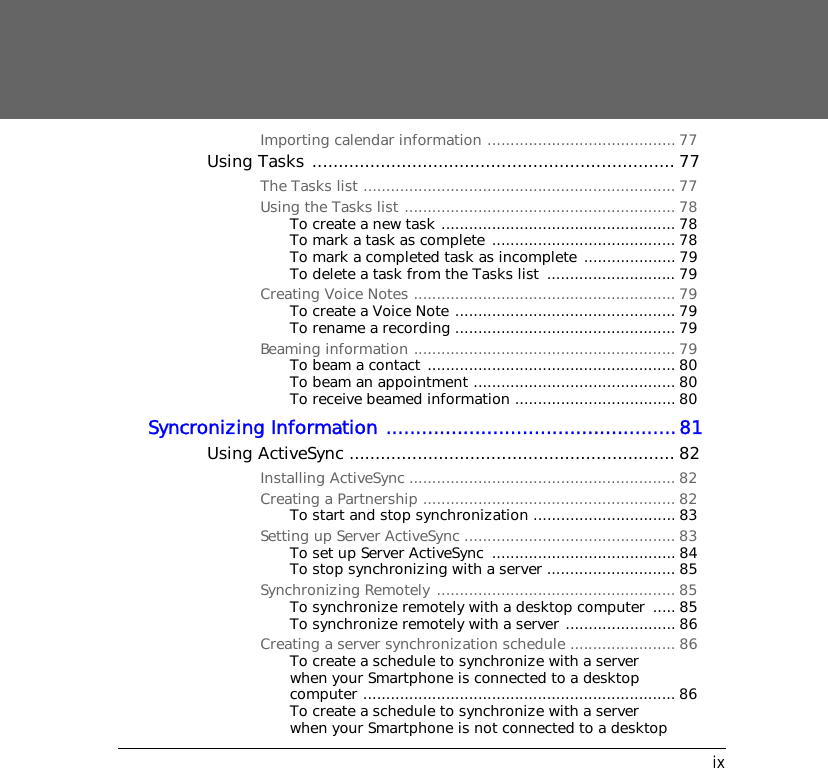
ixImporting calendar information ......................................... 77Using Tasks ..................................................................... 77The Tasks list .................................................................... 77Using the Tasks list ........................................................... 78To create a new task ................................................... 78To mark a task as complete ........................................ 78To mark a completed task as incomplete .................... 79To delete a task from the Tasks list  ............................ 79Creating Voice Notes ......................................................... 79To create a Voice Note ................................................ 79To rename a recording ................................................ 79Beaming information ......................................................... 79To beam a contact ...................................................... 80To beam an appointment ............................................ 80To receive beamed information ................................... 80Syncronizing Information .................................................81Using ActiveSync .............................................................. 82Installing ActiveSync .......................................................... 82Creating a Partnership ....................................................... 82To start and stop synchronization ............................... 83Setting up Server ActiveSync .............................................. 83To set up Server ActiveSync  ........................................ 84To stop synchronizing with a server ............................ 85Synchronizing Remotely .................................................... 85To synchronize remotely with a desktop computer  ..... 85To synchronize remotely with a server ........................ 86Creating a server synchronization schedule ....................... 86To create a schedule to synchronize with a server when your Smartphone is connected to a desktop computer .................................................................... 86To create a schedule to synchronize with a server when your Smartphone is not connected to a desktop
xcomputer (synchronize wirelessly) ...............................86Synchronizing information ...............................................87Synchronizing Inbox ..........................................................87Synchronizing Calendar  .....................................................87Synchronizing Contacts  .....................................................88Synchronizing Tasks ..........................................................88Synchronizing using an infrared connection .....................88ActiveSync errors  ............................................................. 89To view more information about an ActiveSync error ...89Exchanging files between Smartphone and desktop PC  ....89To exchange files between desktop PC to Smartphone  89Internet, Entertainment, and More  ...................................90Using Internet Explorer .................................................... 91To access Pocket Internet Explorer ..............................91To disconnect from the Internet  ..................................91Navigating in Pocket Internet Explorer  ...............................91To view a favorite ........................................................91To activate a link .........................................................91To access Smartphone How-To information in Favorites .....................................................................91To enter the address of a Web site  ..............................92To return to a Web page you previously visited in the same session .....................................................92To view a list of the most recently-visited Web pages ..92To visit a Web page on the History list .........................92Using the Favorites list .......................................................92To add a Web page to your Favorites list  .....................93To create a new folder in Favorites ..............................93To delete a favorite  .....................................................93Cached Web pages .............................................................94
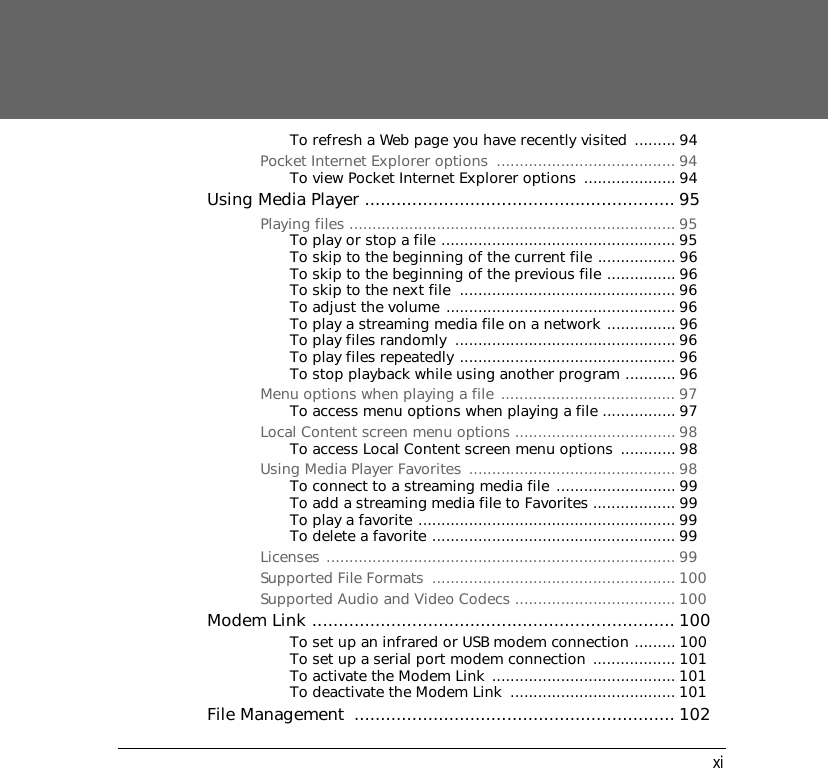
xiTo refresh a Web page you have recently visited ......... 94Pocket Internet Explorer options  ....................................... 94To view Pocket Internet Explorer options  .................... 94Using Media Player ........................................................... 95Playing files ....................................................................... 95To play or stop a file ................................................... 95To skip to the beginning of the current file ................. 96To skip to the beginning of the previous file ............... 96To skip to the next file  ............................................... 96To adjust the volume .................................................. 96To play a streaming media file on a network ............... 96To play files randomly  ................................................ 96To play files repeatedly ............................................... 96To stop playback while using another program ........... 96Menu options when playing a file ...................................... 97To access menu options when playing a file ................ 97Local Content screen menu options ................................... 98To access Local Content screen menu options  ............ 98Using Media Player Favorites  ............................................. 98To connect to a streaming media file .......................... 99To add a streaming media file to Favorites .................. 99To play a favorite ........................................................ 99To delete a favorite ..................................................... 99Licenses ............................................................................ 99Supported File Formats  ..................................................... 100Supported Audio and Video Codecs ................................... 100Modem Link ..................................................................... 100To set up an infrared or USB modem connection ......... 100To set up a serial port modem connection .................. 101To activate the Modem Link ........................................ 101To deactivate the Modem Link  .................................... 101File Management  ............................................................. 102
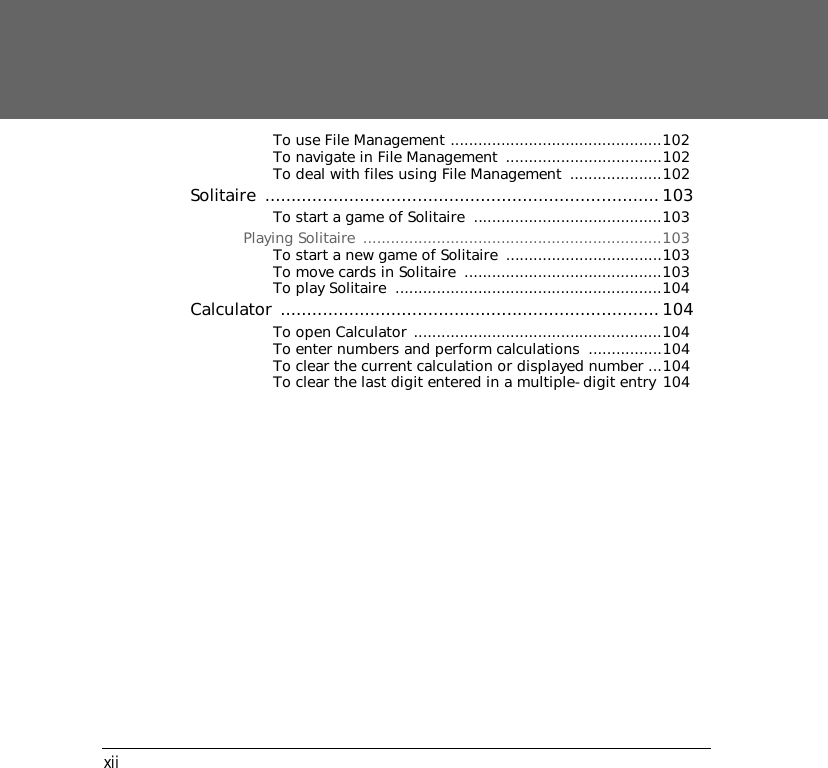
xiiTo use File Management ..............................................102To navigate in File Management  ..................................102To deal with files using File Management  ....................102Solitaire ...........................................................................103To start a game of Solitaire  .........................................103Playing Solitaire  .................................................................103To start a new game of Solitaire  ..................................103To move cards in Solitaire  ...........................................103To play Solitaire  ..........................................................104Calculator ........................................................................104To open Calculator ......................................................104To enter numbers and perform calculations  ................104To clear the current calculation or displayed number ...104To clear the last digit entered in a multiple-digit entry 104
1Getting Started
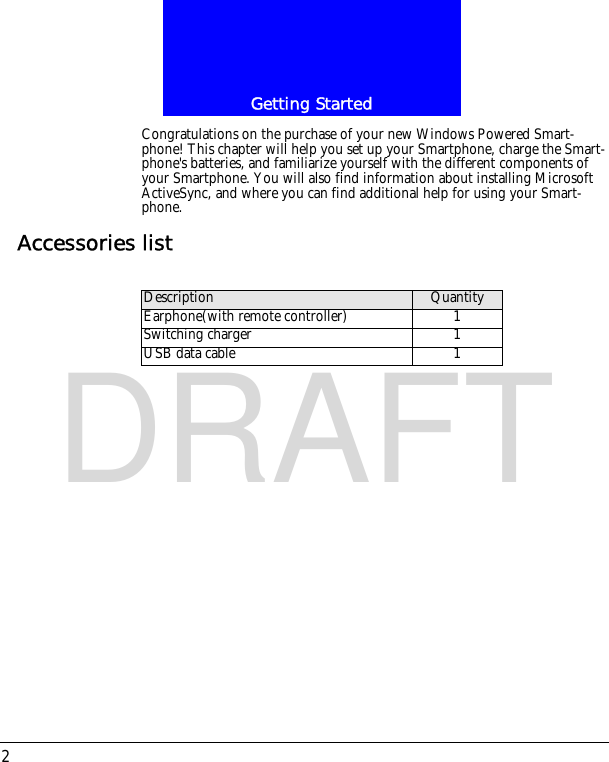
Getting Started2DRAFTCongratulations on the purchase of your new Windows Powered Smart-phone! This chapter will help you set up your Smartphone, charge the Smart-phone's batteries, and familiarize yourself with the different components of your Smartphone. You will also find information about installing Microsoft ActiveSync, and where you can find additional help for using your Smart-phone.Accessories listDescription QuantityEarphone(with remote controller) 1Switching charger 1USB data cable 1
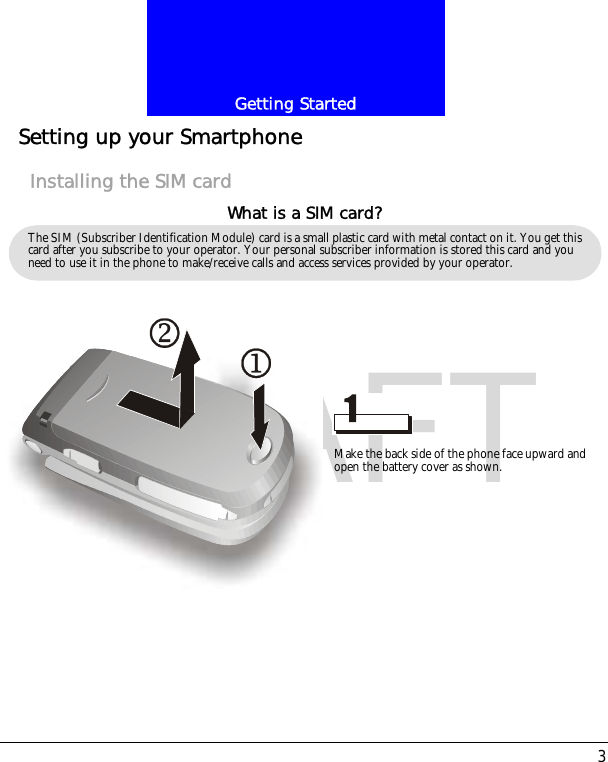
3Getting StartedDRAFTSetting up your SmartphoneInstalling the SIM cardThe SIM (Subscriber Identification Module) card is a small plastic card with metal contact on it. You get this card after you subscribe to your operator. Your personal subscriber information is stored this card and you need to use it in the phone to make/receive calls and access services provided by your operator.What is a SIM card?Make the back side of the phone face upward and open the battery cover as shown.
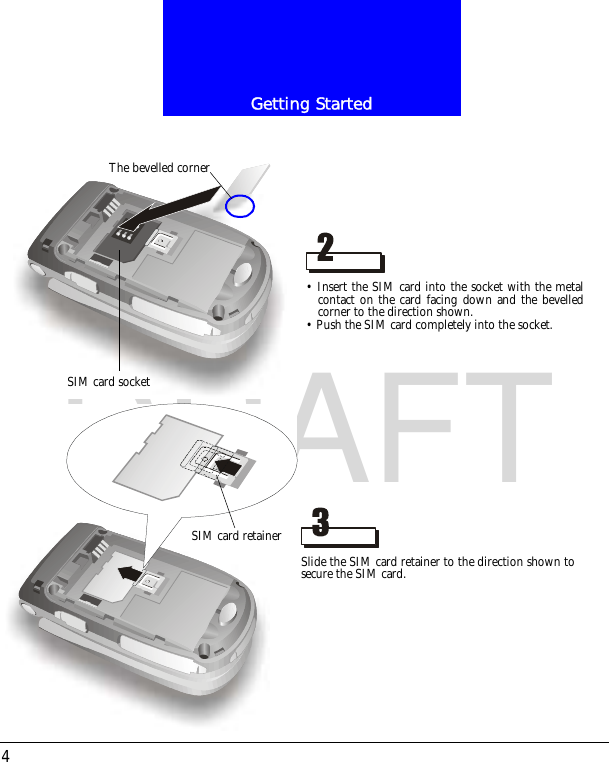
Getting Started4DRAFT• Insert the SIM card into the socket with the metalcontact on the card facing down and the bevelledcorner to the direction shown.• Push the SIM card completely into the socket.The bevelled cornerSIM card socketSlide the SIM card retainer to the direction shown tosecure the SIM card.SIM card retainer
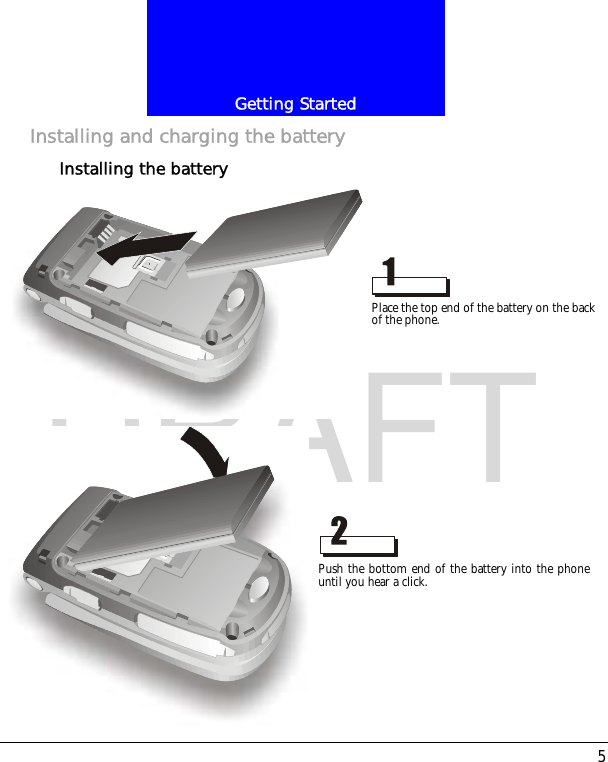
5Getting StartedDRAFTInstalling and charging the batteryInstalling the batteryPlace the top end of the battery on the back of the phone.Push the bottom end of the battery into the phoneuntil you hear a click.
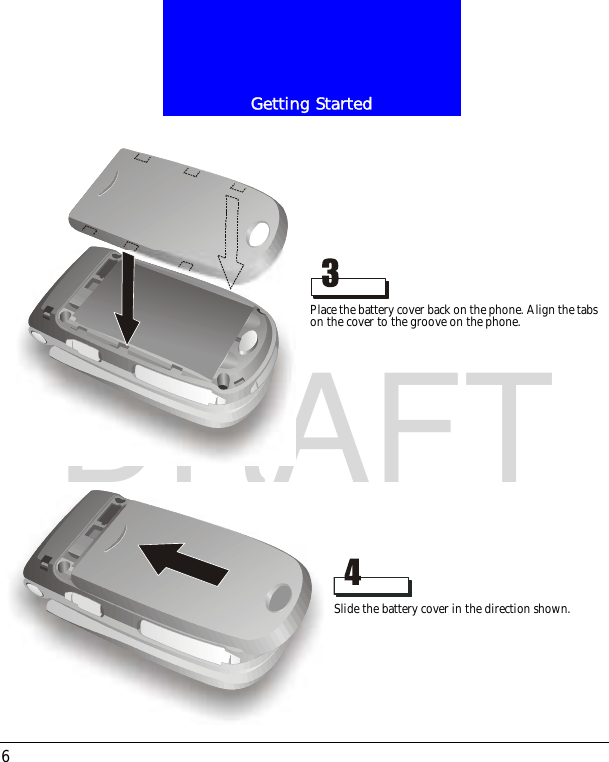
Getting Started6DRAFTPlace the battery cover back on the phone. Align the tabs on the cover to the groove on the phone.Slide the battery cover in the direction shown.
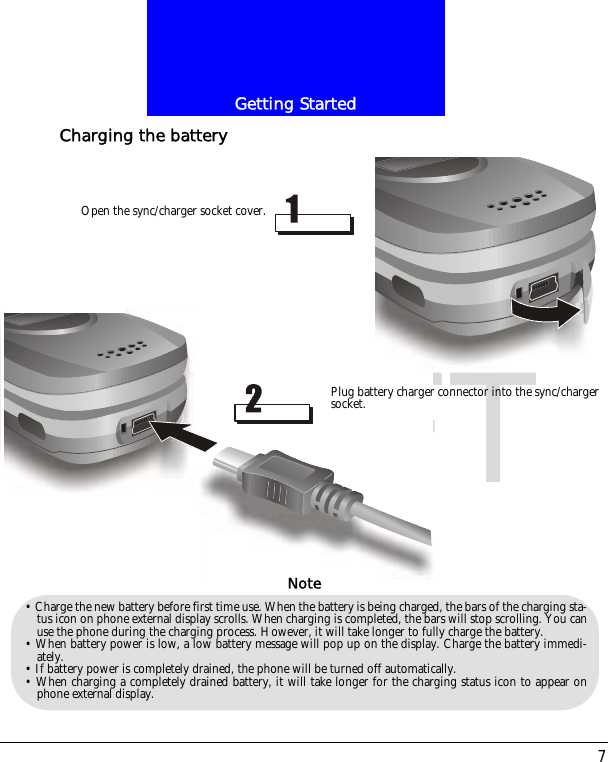
7Getting StartedDRAFTCharging the batteryOpen the sync/charger socket cover.Plug battery charger connector into the sync/chargersocket.• Charge the new battery before first time use. When the battery is being charged, the bars of the charging sta-tus icon on phone external display scrolls. When charging is completed, the bars will stop scrolling. You canuse the phone during the charging process. However, it will take longer to fully charge the battery.• When battery power is low, a low battery message will pop up on the display. Charge the battery immedi-ately.• If battery power is completely drained, the phone will be turned off automatically.• When charging a completely drained battery, it will take longer for the charging status icon to appear onphone external display.Note
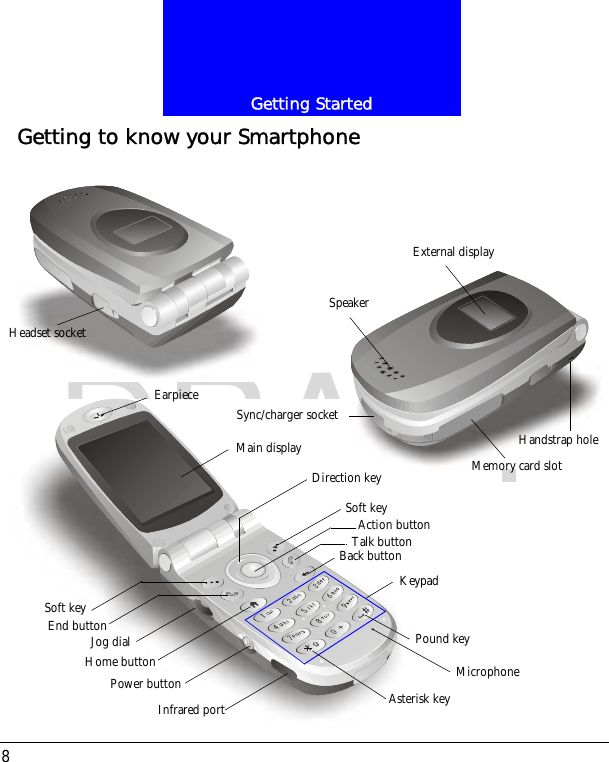
Getting Started8DRAFTGetting to know your SmartphoneSync/charger socketSpeakerExternal displayMemory card slotEarpieceJog dialPower buttonInfrared portMain displaySoft keyEnd buttonHome buttonAction buttonTalk buttonBack buttonSoft keyDirection keyKeypadPound keyAsterisk keyMicrophoneHandstrap holeHeadset socket
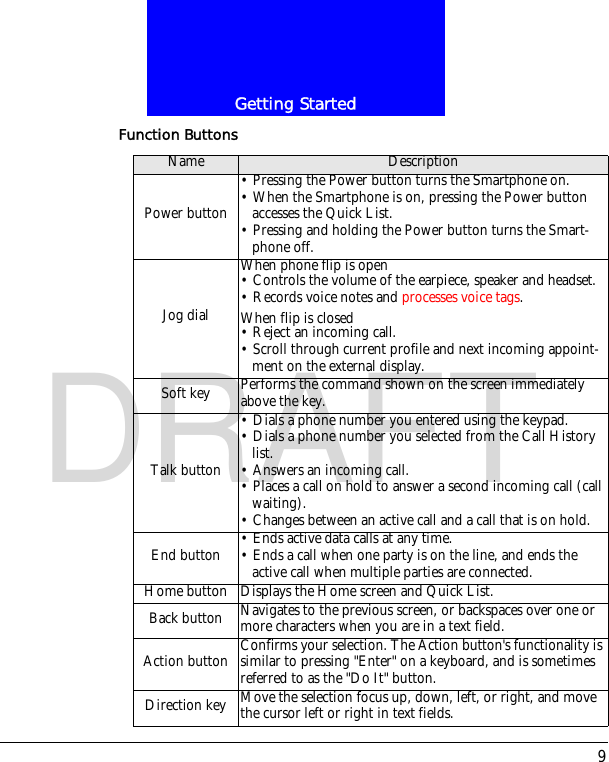
9Getting StartedDRAFTFunction ButtonsName DescriptionPower button• Pressing the Power button turns the Smartphone on.• When the Smartphone is on, pressing the Power button accesses the Quick List.• Pressing and holding the Power button turns the Smart-phone off.Jog dialWhen phone flip is open• Controls the volume of the earpiece, speaker and headset.• Records voice notes and processes voice tags.When flip is closed• Reject an incoming call.• Scroll through current profile and next incoming appoint-ment on the external display.Soft key Performs the command shown on the screen immediately above the key.Talk button• Dials a phone number you entered using the keypad.• Dials a phone number you selected from the Call History list.• Answers an incoming call.• Places a call on hold to answer a second incoming call (call waiting).• Changes between an active call and a call that is on hold.End button • Ends active data calls at any time.• Ends a call when one party is on the line, and ends the active call when multiple parties are connected.Home button Displays the Home screen and Quick List.Back button Navigates to the previous screen, or backspaces over one or more characters when you are in a text field.Action button Confirms your selection. The Action button's functionality is similar to pressing "Enter" on a keyboard, and is sometimes referred to as the "Do It" button.Direction key Move the selection focus up, down, left, or right, and move the cursor left or right in text fields.
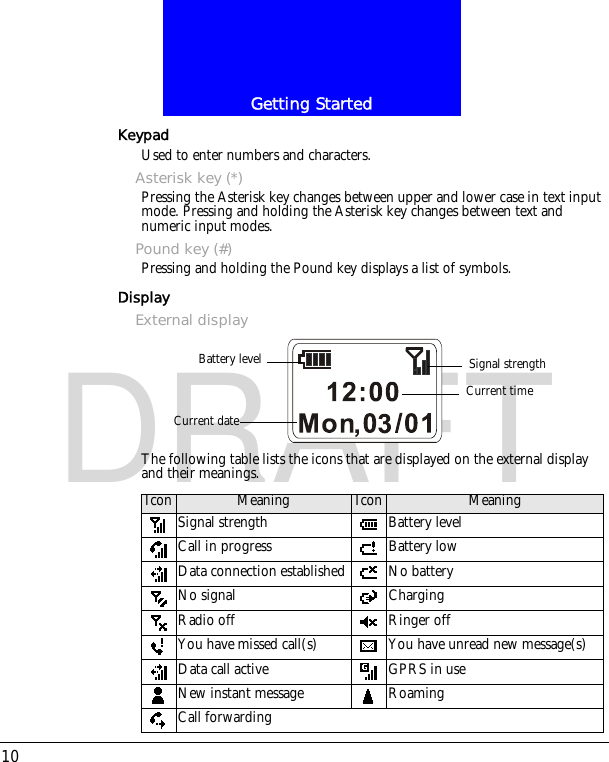
Getting Started10DRAFTKeypadUsed to enter numbers and characters.Asterisk key (*)Pressing the Asterisk key changes between upper and lower case in text input mode. Pressing and holding the Asterisk key changes between text and numeric input modes.Pound key (#)Pressing and holding the Pound key displays a list of symbols.DisplayExternal displayThe following table lists the icons that are displayed on the external display and their meanings.Signal strengthBattery levelCurrent timeCurrent dateIcon Meaning Icon MeaningSignal strength Battery levelCall in progress Battery lowData connection established No batteryNo signal ChargingRadio off Ringer offYou have missed call(s) You have unread new message(s)Data call active GPRS in useNew instant message RoamingCall forwarding
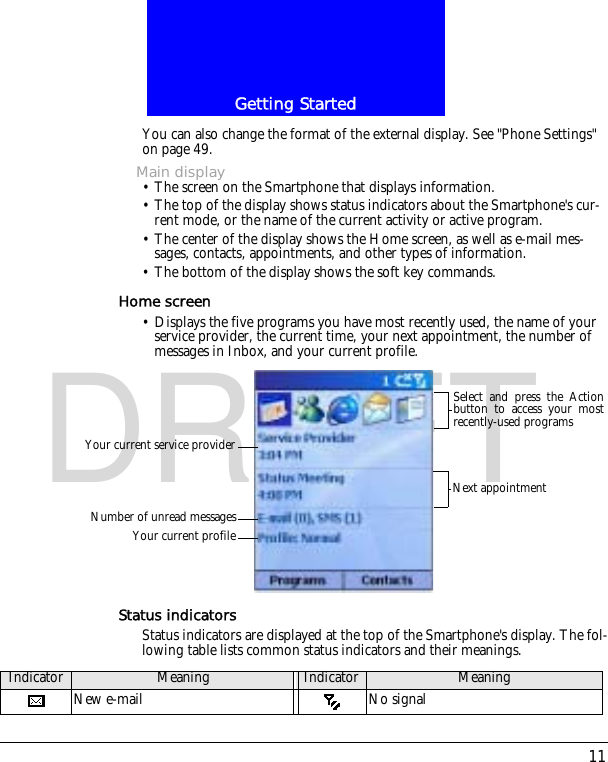
11Getting StartedDRAFTYou can also change the format of the external display. See "Phone Settings" on page 49.Main display• The screen on the Smartphone that displays information.• The top of the display shows status indicators about the Smartphone's cur-rent mode, or the name of the current activity or active program.• The center of the display shows the Home screen, as well as e-mail mes-sages, contacts, appointments, and other types of information.• The bottom of the display shows the soft key commands.Home screen• Displays the five programs you have most recently used, the name of your service provider, the current time, your next appointment, the number of messages in Inbox, and your current profile.Status indicatorsStatus indicators are displayed at the top of the Smartphone's display. The fol-lowing table lists common status indicators and their meanings.Your current service providerNumber of unread messagesYour current profileSelect and press the Actionbutton to access your mostrecently-used programsNext appointmentIndicator Meaning Indicator MeaningNew e-mail No signal
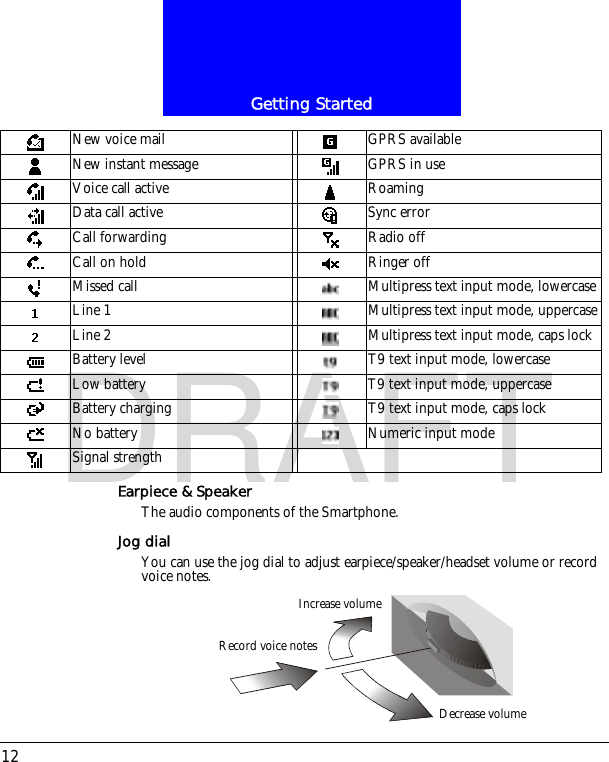
Getting Started12DRAFTEarpiece & SpeakerThe audio components of the Smartphone.Jog dialYou can use the jog dial to adjust earpiece/speaker/headset volume or record voice notes.New voice mail GPRS availableNew instant message GPRS in useVoice call active RoamingData call active Sync errorCall forwarding Radio offCall on hold Ringer offMissed call Multipress text input mode, lowercaseLine 1 Multipress text input mode, uppercaseLine 2 Multipress text input mode, caps lockBattery level T9 text input mode, lowercaseLow battery T9 text input mode, uppercaseBattery charging T9 text input mode, caps lockNo battery Numeric input modeSignal strengthIncrease volumeDecrease volumeRecord voice notes
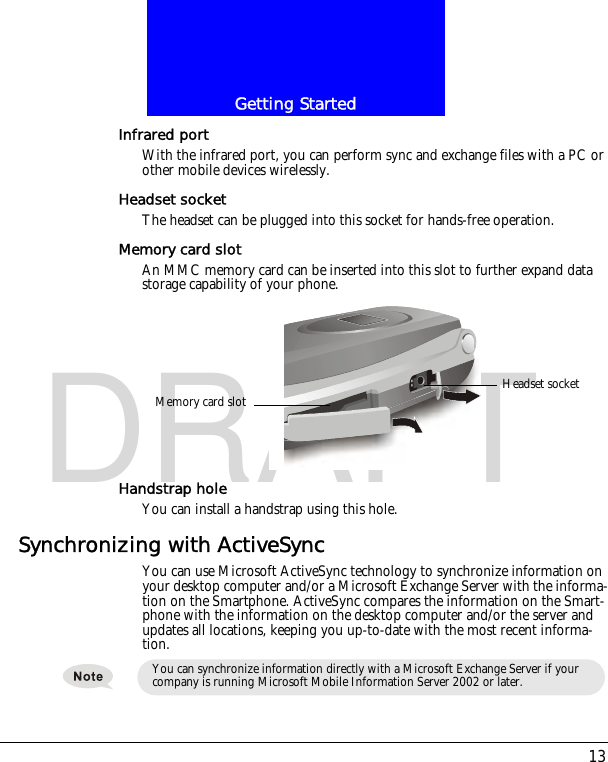
13Getting StartedDRAFTInfrared portWith the infrared port, you can perform sync and exchange files with a PC or other mobile devices wirelessly.Headset socketThe headset can be plugged into this socket for hands-free operation.Memory card slotAn MMC memory card can be inserted into this slot to further expand data storage capability of your phone.Handstrap holeYou can install a handstrap using this hole.Synchronizing with ActiveSyncYou can use Microsoft ActiveSync technology to synchronize information on your desktop computer and/or a Microsoft Exchange Server with the informa-tion on the Smartphone. ActiveSync compares the information on the Smart-phone with the information on the desktop computer and/or the server and updates all locations, keeping you up-to-date with the most recent informa-tion.Headset socketMemory card slotYou can synchronize information directly with a Microsoft Exchange Server if your company is running Microsoft Mobile Information Server 2002 or later.
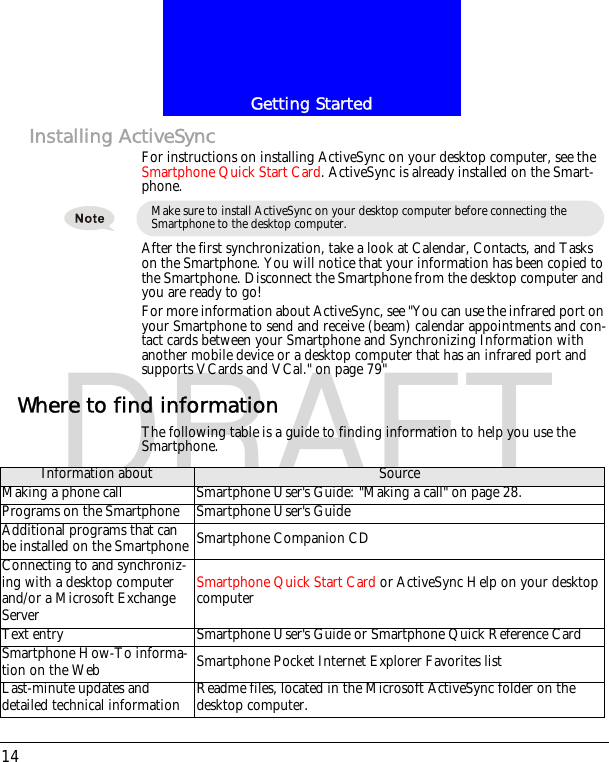
Getting Started14DRAFTInstalling ActiveSyncFor instructions on installing ActiveSync on your desktop computer, see the Smartphone Quick Start Card. ActiveSync is already installed on the Smart-phone.After the first synchronization, take a look at Calendar, Contacts, and Tasks on the Smartphone. You will notice that your information has been copied to the Smartphone. Disconnect the Smartphone from the desktop computer and you are ready to go!For more information about ActiveSync, see "You can use the infrared port on your Smartphone to send and receive (beam) calendar appointments and con-tact cards between your Smartphone and Synchronizing Information with another mobile device or a desktop computer that has an infrared port and supports VCards and VCal." on page 79"Where to find informationThe following table is a guide to finding information to help you use the Smartphone.Make sure to install ActiveSync on your desktop computer before connecting the Smartphone to the desktop computer.Information about SourceMaking a phone call Smartphone User's Guide: "Making a call" on page 28.Programs on the Smartphone Smartphone User's Guide Additional programs that can be installed on the Smartphone Smartphone Companion CDConnecting to and synchroniz-ing with a desktop computer and/or a Microsoft Exchange ServerSmartphone Quick Start Card or ActiveSync Help on your desktop computerText entry Smartphone User's Guide or Smartphone Quick Reference CardSmartphone How-To informa-tion on the Web Smartphone Pocket Internet Explorer Favorites listLast-minute updates and detailed technical information Readme files, located in the Microsoft ActiveSync folder on the desktop computer.
15Getting StartedDRAFTUp-to-date information on your Smartphone http://www.microsoft.com/mobile
16The Basics
17The BasicsDRAFTThis chapter explains basic information about using the Smartphone, such as navigating around the Smartphone, entering text and numbers on the Smart-phone, and securing the Smartphone.Navigation methodsThe following information describes the different methods for navigating around the Smartphone so you can accomplish tasks quickly and easily.Using the Direction keyThe Direction key is used to navigate horizontally and vertically on the screen to move the selection focus, so you can select the item you want. When you see instructional text about selecting an item, use the Direction key to make your selection.The following table shows the four different actions you can perform with the Direction key, and how it helps you navigate on the screen.Using the Action buttonThe Action button confirms your selection. You can think of the Action but-ton as the "Do It" button. In some cases, confirming your selection will take you to a program or setting.Using the Home buttonThe Home button takes you to the Home screen.Direction key action NavigationPress Up Moves the selection focus upward on the screen.Press Down Moves the selection focus downward on the screen.Press Right Moves the selection focus forward on the screen, or moves the cursor forward through characters in a text field.Press Left Moves the selection focus backward on the screen, or moves the cursor backward through characters in a text field, without deleting characters.
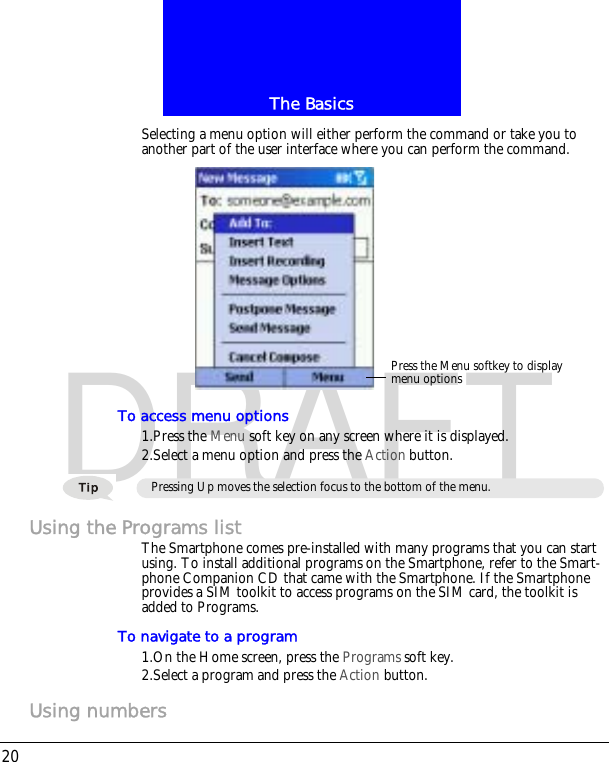
The Basics18DRAFTUsing the Home screen• The Home screen is your starting place for most tasks. You can easily navi-gate to any program or setting on the Smartphone from this screen. The top of the Home screen displays the five programs you have most recently used. Just select a program and press the Action button to open the program. The Home screen also displays the current time, your next appointment, the number of messages in Inbox, and your current profile.• Selecting your next appointment and pressing the Action button opens Cal-endar so you can see all of your appointments for the day. To view Inbox, just select the e-mail status showing the number of messages you have, and press the Action button. To view Contacts, press the Contacts soft key.• The Home screen automatically displays when you turn the Smartphone on or leave the Smartphone idle when it is on, but you can navigate to it at any time by pressing the Home button.To access the Home screen• Press the Home button.To change Home screen settings• See "Home screen" on page 45.Navigation options from the Home screenYour current service providerNumber of unread messagesYour current profileSelect and press the Actionbutton to access your mostrecently-used programsNext appointment
19The BasicsDRAFT• Select a recently-used program at the top of the screen, and then press the Action button to open the program.• Select an item in the center of the Home screen, such as your next appoint-ment, your e-mail/SMS information, or your profile type, and then press the Action button to open the program or access the settings associated with the item selected.• Press the Programs soft key to display the list of programs available on the Smartphone, select a program, and then press the Action button.• Press the Contacts soft key to display the Contacts list, select a contact, and then press the Action button.Using the Back buttonPressing the Back button navigates to the previous screen, or moves the cursor back to delete one or more characters in a text field, similar to pressing "Back-space" on a keyboard.To backspace and remove one character in a text field• Press the Back button.To backspace and remove multiple characters in a text field• Press and hold the Back button.Using soft keysThere are two soft keys on the Smartphone, located directly below the display screen. Each soft key performs the command displayed immediately above it on the screen, making it easy to navigate around the Smartphone and to per-form common commands.Using menusOn many screens, the right soft key is labeled Menu. The Menu soft key dis-plays a list of menu options that are relevant to the screen you are viewing.
The Basics20DRAFTSelecting a menu option will either perform the command or take you to another part of the user interface where you can perform the command.To access menu options1.Press the Menu soft key on any screen where it is displayed.2.Select a menu option and press the Action button.Using the Programs listThe Smartphone comes pre-installed with many programs that you can start using. To install additional programs on the Smartphone, refer to the Smart-phone Companion CD that came with the Smartphone. If the Smartphone provides a SIM toolkit to access programs on the SIM card, the toolkit is added to Programs.To navigate to a program1.On the Home screen, press the Programs soft key.2.Select a program and press the Action button.Using numbersPress the Menu softkey to displaymenu optionsPressing Up moves the selection focus to the bottom of the menu.
21The BasicsDRAFTYou can also use numbers to navigate quickly to programs and settings on the Smartphone. Just press the number on the keypad that corresponds to the number shown next to the program or setting you want.For example, in Programs, press 3 on the keypad to open Calendar.Using the Quick ListThe Quick List displays a list of commands, such as locking the Smartphone, locking the Smartphone's keypad, turning off the radio, and the list of avail-able profile types.To access the Quick List• Press the Power button, or press and hold the Home key.Entering text and numbers on your SmartphoneYou can enter text and numbers on the Smartphone using the keypad. The Smartphone supports three input modes for entering text and numbers: Mul-tipress, T9, and Numeric. The Multipress and T9 modes are used for entering text, and the Numeric mode is used for entering numbers. When you select a field that requires text or numeric entry, the Smartphone will automatically default to the appropriate input mode. The status indicator on the top of the display shows the input mode you are currently using.To change input modes• Press and hold the Asterisk (*) key until the status indicator for the input mode you want is shown on the top of the display.The following table shows the complete list of input mode status indicators.You can also use numbers to select menu options by pressing the number that corre-sponds to the menu option in top-down order. For example, if you want to select Filter in the list of Contacts menu options, you can press 4 on the keypad because the Filter option is fourth in the list.Indicator ModeMultipress text input mode, lowercaseMultipress text input mode, uppercase
The Basics22DRAFTEntering text in Multipress modeWhen you are in Multipress mode, you can enter a letter by pressing the num-ber key on which the letter appears. To enter the first letter on the number key, press the key once. To enter the second letter, press the key twice, and so on. The letter entered most recently is underlined until you have completed the keypresses for the letter and moved on to the next letter.For example:• To enter the letter "s," press 7777.• To enter the word "hat," press 44, 2, 8.When you enter letters that are on the same number key, you must pause after entering the first letter and wait until the underline disappears before entering the next letter so that your Smartphone can process the first letter. This pause is called the Multipress time out, and you can adjust the length of the pause between keypresses.For example:• To enter the word "cat," press 222, pause, press 2, and then press 8.To change the Multipress time out1.On the Home screen, press the Programs soft key, select Settings, and then select Accessibility.2.Under Multipress time out, select the time interval you want for the pause between keypresses, and press the Done soft key.To enter punctuation in Multipress mode• Press 1 repetitively to scroll through common punctuation.Entering text in T9 modeMultipress text input mode, caps lockT9 text input mode, lowercaseT9 text input mode, uppercaseT9 text input mode, caps lockNumeric input mode
23The BasicsDRAFTWhen you are in T9 mode, just press the number keys that contain the letters you want to form a word. T9 will then analyze your keypresses and attempt to complete the word.For example:• To enter the word "shoe", press 7, 4, 6, 3.To enter text using T9 mode1.Press and hold the Asterisk (*) key until the T9 indicator appears on the top of the display.2.Enter the numerical sequence that represents the word you want to enter.3.Press the Pound (#) key to accept the word and enter a space after it, or press 0 to scroll through the available words.4.If you do not see the correct word, erase the word, and then press and hold the Asterisk (*) key to change to Multipress mode, and manually enter the word.Having trouble entering a word in T9 mode?T9 cannot always find the word you want in the T9 dictionary; in these cases, change to Multipress mode. After you have entered the word in Multipress mode, the word will be added to the T9 dictionary.To enter punctuation in T9 mode• Press 1, then 0 to scroll through common punctuation.Entering numbers in Numeric modeWhen you are in Numeric mode, just press the number(s) you want to enter on the keypad. If a field permits a numerical entry only, such as the Work phone field in Contacts, the input mode will automatically default to Numeric mode.Miscellaneous input tasksTo enter a space• In Multipress or T9 mode, press the Pound (#) key on the keypad.To start a new line
The Basics24DRAFT• Press the Action button.To change between uppercase and lowercase in text mode• Press the Asterisk (*) key to change between uppercase and lowercase.To lock caps• Press the Asterisk (*) key twice. Press the Asterisk (*) key again to return to lowercase.To enter a symbol• Press and hold the Pound (#) key, select a symbol, and then press the Done soft key.To enter a number, an asterisk (*), or a pound sign (#)• Change to Numeric mode, and press the corresponding key on the keypad.To delete characters1.Press the Back button to backspace over a single character.2.Press and hold the Back button to backspace and delete an entire text field.To enter the plus (+) sign for international calls• Press and hold 0.Securing your SmartphoneYou can customize the level of security you want to have on the Smartphone by locking the keypad, the entire Smartphone, or the SIM card.Locking the keypadThe keypad lock turns off the keypad functionality. This is a helpful feature if, for example, the Smartphone is turned on and in your pocket, and you want to prevent accidental keypresses.To lock your keypadWhen you are in text mode, the first letter of a sentence is automatically capitalized.
25The BasicsDRAFT• On the Home screen, press and hold the End button. The left soft key will display Unlock, indicating that the Smartphone is locked.To unlock the keypad• On the Home screen, press the Unlock soft key, and press the Pound (#) key.Locking the SmartphoneLocking the Smartphone prevents access to personal data. When you enable this feature, the Smartphone will automatically lock after a specified time of inactivity. A screen will be displayed requiring your Smartphone lock pass-word before access is granted.To lock the Smartphone1.Press the Power button to display the Quick List, select Device lock, and then press the OK soft key.2.Under Lock phone after, select the amount of time the Smartphone is inac-tive before the Smartphone automatically locks.3.Under Password, enter the password you want to use to access the Smart-phone when it is locked.4.Under Confirm password, enter the password again, and press the Done soft key.To unlock your Smartphone• Press the Unlock soft key, enter your password, and then press the Unlock soft key again.To turn off phone lockYou can still receive calls and make emergency calls when the keypad is locked.You can still receive calls and make emergency calls when the Smartphone is locked.After you have selected the time delay and created a password, you can then quickly lock your Smartphone from the Quick List, without having to view these settings.
The Basics26DRAFT• On the Home screen, press the Programs soft key, select Settings, select More, select Security, select Disable Phone Lock, and then press the Done soft key.Locking the Subscriber Identity Module (SIM) cardLocking the SIM card prevents you and others from using the Smartphone that contains the SIM card until the correct password is entered. You can still make emergency calls when the SIM card is locked.To lock the SIM card1.On the Home screen, press the Programs soft key, select Settings, select More, select Security, select Enable SIM Lock, and then press the Done soft key.2.Enter your PIN1 password, and press the Done soft key.To unlock the SIM card1.On the Home screen, press Programs, select Settings, select More, select Security, select Disable SIM Lock, and then press the Action button.2.Enter your PIN1 password, and press the Done soft key.
27Phone Calls
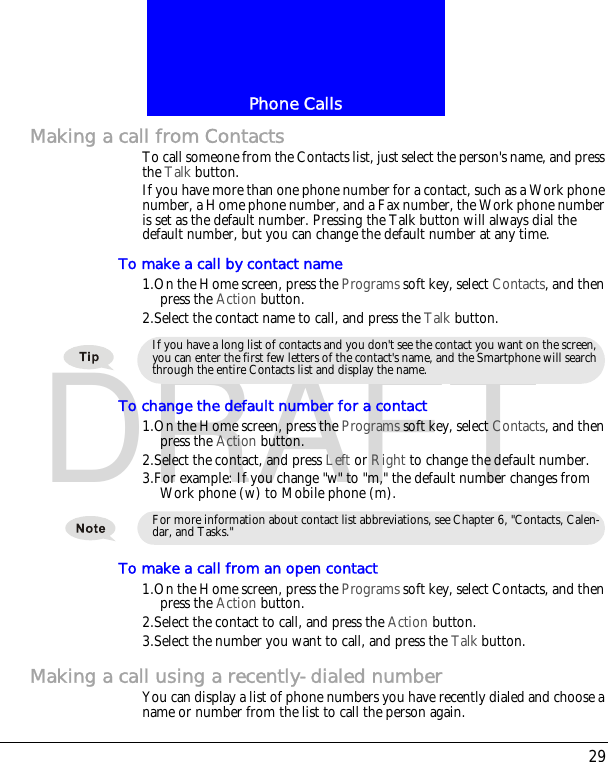
Phone Calls28DRAFTThis chapter explains how to make and receive phone calls, view Call History, and create shortcuts to help you manage calls more efficiently.Making a callThere are several ways to make a call. The easiest way is to simply dial a phone number from the Home screen.To make a call• On the Home screen, press the numbers on the keypad to enter the phone number, and then press the Talk button.To make a call by entering a contact name1.On the Home screen, press the keys on the keypad to spell the contact name.2.When you see the contact name displayed, select it, and press the Talk but-ton.As you enter a phone number or contact name, the Smartphone searches Contacts, Call History, Speed Dial lists, and the Subscriber Identity Module (SIM) card to find a matching name and/or number. When you see the name of the person to call listed, select it, and press the Talk button.AutoFilter matches number to a contactAutoFilter matches number from CallHistory
29Phone CallsDRAFTMaking a call from ContactsTo call someone from the Contacts list, just select the person's name, and press the Talk button.If you have more than one phone number for a contact, such as a Work phone number, a Home phone number, and a Fax number, the Work phone number is set as the default number. Pressing the Talk button will always dial the default number, but you can change the default number at any time.To make a call by contact name1.On the Home screen, press the Programs soft key, select Contacts, and then press the Action button.2.Select the contact name to call, and press the Talk button.To change the default number for a contact1.On the Home screen, press the Programs soft key, select Contacts, and then press the Action button.2.Select the contact, and press Left or Right to change the default number.3.For example: If you change "w" to "m," the default number changes from Work phone (w) to Mobile phone (m).To make a call from an open contact1.On the Home screen, press the Programs soft key, select Contacts, and then press the Action button.2.Select the contact to call, and press the Action button.3.Select the number you want to call, and press the Talk button.Making a call using a recently-dialed numberYou can display a list of phone numbers you have recently dialed and choose a name or number from the list to call the person again.If you have a long list of contacts and you don't see the contact you want on the screen, you can enter the first few letters of the contact's name, and the Smartphone will search through the entire Contacts list and display the name.For more information about contact list abbreviations, see Chapter 6, "Contacts, Calen-dar, and Tasks."
Phone Calls30DRAFTTo make a call using a recently-dialed phone number1.On the Home screen, press the Talk button to display a list of recently-dialed phone numbers.2.Select the number or name for the person to call, and press the Talk button again.Making a call from the Call History listThe Call History list displays the last 25 calls you made, received, and missed. Choose a name or number to call someone from the list.To make a call from the Call History list1.On the Home screen, press the Programs soft key, select Call History, and then press the Action button.2.Select the number or entry for the person to call, and press the Talk button.Making a call from a hyperlinkWhen you see an underlined phone number presented as a hyperlink in an e-mail message, just select the hyperlink phone number, and press the Action button to make the call.Making emergency callsCalls to emergency service numbers can be made under any circumstances, even if you have locked the SIM card and/or the Smartphone.To place an emergency call• On the Home screen, dial the emergency number appropriate for your loca-tion, and press the Talk button.Having problems making a call?Check to make sure that the Smartphone contains a valid SIM card and that the Smartphone is turned on, unlocked, and in the service area of the selected service provider's network.
31Phone CallsDRAFTReceiving a callYou can answer a call by pressing the Talk button or the Accept soft key. If you don't want to take the call, press the Reject soft key.To answer an incoming call• When phone flip is closed, simply open the flip to answer the call.• When phone flip is open, press the Talk button or the Accept soft key to answer the call.To reject an incoming call• When phone flip is closed, quickly press the jog dial two times to reject the call.• When phone flip is open, press the End button or the Reject soft key.When you receive a call, the name and number of the caller are displayed on the screen. If the name of the caller is not in your Contacts list, only the caller's phone number will be displayed.There may be situations where you want to immediately silence the ring of an incoming call. Simply press the Volume control, and then proceed to answer the call.Caller ID informationis matched to a contact Phone number is iden-tified as Work numberin Contacts
Phone Calls32DRAFTTo answer a second call using Call Waiting• If you are already talking on the Smartphone when you receive a call, press the Accept soft key or the Talk button to place the first call on hold, and answer the second call.• If you want to end the first call before answering the incoming call, press the End button, and then press the Accept soft key or the Talk button to accept the incoming call.To reject a Call Waiting call• If you are already talking on the Smartphone when you receive a call and you don't want to answer it, press the Reject soft key. This will keep your current call in progress, but will reject the Call Waiting call.In-call optionsWhile a call is in progress, you can press the Menu soft key to access menu options for common tasks.The following table shows the menu options available when a call is in progress. Some of these options are available only when multiple calls are in progress or during a conference call.You can use earphone to receive/reject an incoming call when phone flip is closed.  Press the button on the remote controller once to answer the call, press again to reject the call.Call Waiting is available only if you have subscribed to this service. Check with your service provider.Menu Option FunctionEnd Disconnects the call.Hold Places the active call on hold.Unhold Activates the call on hold.Swap Changes between two calls.Save Contact Creates a contact for the caller.
33Phone CallsDRAFTMiscellaneous call tasksTo place a call on hold• Press the Hold soft key.To change between two calls• Press the Swap soft key.To end a call• Press the End button to disconnect.To redial the last number called• On the Home screen, press the Talk button twice.To listen to a voice-mail message1.On the Home screen, press and hold 1 to automatically call the voice-mail system.2.On the Home screen, press the Programs soft key. Select Inbox/SMS, and press the Action button.3.Select the voice-mail message and press the Voice Mail soft key or the Talk button. Your voice mail system is then called.Conference Joins together all existing calls, if you have subscribed to this service.Private Breaks one call out of a conference and makes this call active while the rest of the conference is on hold.Mute Mutes the microphone for the active call. The other party will not hear anything you say, but you can still hear the other party.Unmute Turns the microphone back on for the active call.You can also access voice-mail messages from Inbox. Just select the voice-mail message, and press the Voice Mail soft key or the Talk button to call the voice-mail system.
Phone Calls34DRAFTReviewing your callsUsing Call History and Call Timers, you can view information about phone calls you have made and received, such as who has called you recently and how much time you have spent on the Smartphone.Call History Call History displays the last 25 calls you have made, received, and missed. Each entry in Call History contains the start time of the call, the duration, the caller's name, if available, and the caller's number. The oldest calls are auto-matically deleted from the list to make room for the newest calls.To view Call History• On the Home screen, press Programs, select Call History, and then press the Action button.To view contact information from Call History• Select the entry for the contact, press the Menu soft key, select Find Con-tact, and then press the Action button.To send an e-mail message from Call History• Select the contact, press the Menu soft key, select E-mail, and then press the Action button.To create a new contact from a number in Call History• Select the contact, press the Menu soft key, select Save, and then press the Action button.To remove an item from Call History• Select the item, press the Menu soft key, select Delete, and then press the Action button.To remove all items in Call HistoryYou can filter Missed Calls, Incoming Calls, and Outgoing Calls. Press the Menu soft key, select Filter, press the Action button, and select the filter you want.
35Phone CallsDRAFT• Press the Menu soft key, select Delete List, and then press the Action but-ton.Call Timers Call Timers contains detailed information regarding the length of your last call, the total number of calls made and received, calls by type (incoming, out-going, roaming, and data), and a lifetime counter. Call Timers is useful when you want to keep track of your calling patterns, for example to determine what type of calling plan to subscribe to or to help you estimate your monthly bill-ing.To view Call Timers• On the Home screen, press the Programs soft key, select Call History, press the Menu soft key, select View Timers, and then press the Action button.Shortcuts You can create speed dials and voice tags as shortcuts to dial frequently-dialed phone numbers quickly.Speed dials
Phone Calls36DRAFTYou can create speed dials to dial frequently-dialed phone numbers by simply pressing and holding one or two keys. You may choose speed dial entries from 2-99; speed dial 1 is reserved for voice mail access and the number is config-ured in your settings.To create a speed dial for a phone number1.On the Home screen, press the Programs soft key, select Contacts, and then press the Action button.2.Open the contact and select the phone number to set up as a speed dial.3.Press the Menu soft key, select Add Speed Dial, and then press the Action button.4.Under Keypad assignment, enter the speed dial number to associate with the phone number, and press the Done soft key.To make a call using a speed dial• On the Home screen, press and hold the number on the keypad that you have assigned as a speed dial for a number. If the keypad assignment is two digits, press the first digit and press and hold the second digit.To view speed dials you have created• On the Home screen, press the Programs soft key, select More, select Short-cuts, and then press the Action button.Voice tags You can record voice tags so that you can dial a phone number simply by speaking a word.To create a voice tag for a phone number1.On the Home screen, press the Programs soft key, select Contacts, and then press the Action button.2.Open the contact and select the phone number to set up as a voice tag.A speed dial can be created only for a phone number stored in Contacts.You can also create speed dials for Web addresses and e-mail addresses that are stored in Contacts.
37Phone CallsDRAFT3.Press the Menu soft key, select Add Voice Tag, and then press the Action button.4.Wait for the audio and visual cue and begin recording your voice tag.5.When prompted, repeat the voice tag to confirm.6.If the voice tags match, the Smartphone will display a confirmation and replay the voice tag.To make a call using a voice tag1.On the Home screen, press and hold the Record button.2.Say the word you have assigned as a voice tag for the phone number you want to call. The Smartphone will play back the voice tag and then perform the specified action.3.If the Smartphone misinterprets the word, press the End button and start over.To view voice tags you have created• On the Home screen, press the Programs soft key, select More, select Short-cuts, and then press the Action button.Viewing and deleting shortcutsOnce you have set up speed dials and voice tags, you can view or delete all of your shortcuts in the Shortcuts list.To view shortcuts• On the Home screen, press the Programs soft key, select More, select Short-cuts, and then press the Action button.To delete shortcuts1.On the Home screen, press the Programs soft key, select More, select Short-cuts, and then press the Action button.2.Select the shortcut to delete, press the Menu soft key, select Delete, and then press the Action button.You can also create voice tags for Web addresses and e-mail addresses that are stored in Contacts.
Phone Calls38DRAFTAdvanced dialing optionsThe following information covers advanced dialing options that may be useful for phone numbers requiring special dialing instructions.International calls require a country code to be included in the phone number. The country code is separated from the rest of the number sequence by a plus (+) sign.To insert an international country code• Press and hold 0 until a plus sign (+) appears.Some international calls require a three-second pause in the dialing sequence for the call to process successfully.To insert a three-second pause in a dialing sequence1.On the Home screen, press the Programs soft key, select Contacts, and then press the Action button.2.Select the contact, press the Action button, and then select the phone num-ber to modify.3.Press the Edit soft key and press Left or Right to move the cursor between the numbers where you want to insert a three-second pause.4.Press the Menu soft key, select Insert Pause, and then press the Action but-ton. The letter "p" will appear in the number to show where the three-sec-ond pause will occur in the dialing sequence.5.Press the Done soft key.To insert a manual pause in a dialing sequenceThere may be phone numbers that require a pause longer than three seconds in the dialing sequence. For these cases, you can pause as long as you want and manually continue the dialing sequence using the Talk button.1.On the Home screen, press the Programs soft key, select Contacts, and then press the Action button.2.Select the contact, press the Action button, and then select the phone num-ber to modify.You can insert a plus sign (+) into a contact's number or dial it directly from the key-pad.
39Phone CallsDRAFT3.Press the Edit soft key, and press Left or Right to move the cursor between the numbers where you want the dialing sequence to pause before proceed-ing.4.Press the Menu soft key, select Insert Wait, and then press the Action but-ton. The letter "w" will appear in the number to show where the pause will occur in the dialing sequence.5.Press the Done soft key.When you make a call using Insert Wait, press the Talk button to continue the dialing sequence.
40Settings
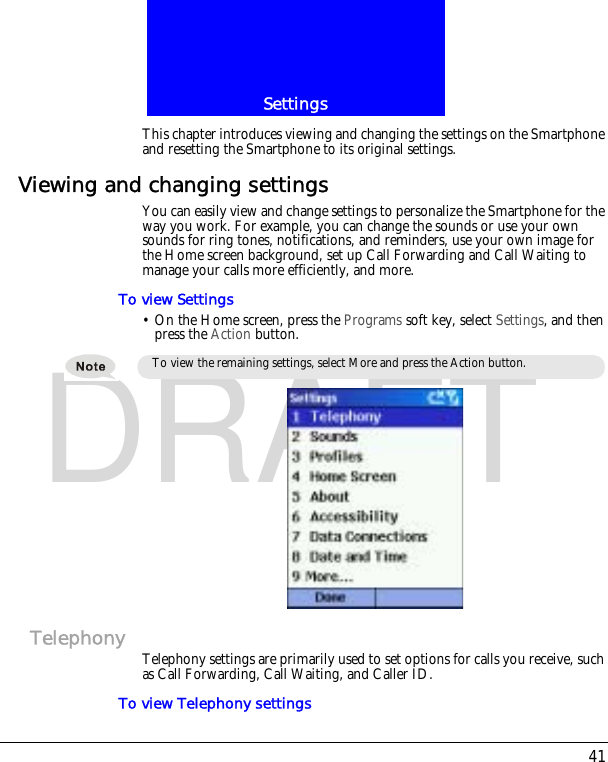
41SettingsDRAFTThis chapter introduces viewing and changing the settings on the Smartphone and resetting the Smartphone to its original settings.Viewing and changing settingsYou can easily view and change settings to personalize the Smartphone for the way you work. For example, you can change the sounds or use your own sounds for ring tones, notifications, and reminders, use your own image for the Home screen background, set up Call Forwarding and Call Waiting to manage your calls more efficiently, and more.To view Settings• On the Home screen, press the Programs soft key, select Settings, and then press the Action button.Telephony Telephony settings are primarily used to set options for calls you receive, such as Call Forwarding, Call Waiting, and Caller ID.To view Telephony settingsTo view the remaining settings, select More and press the Action button.
Settings42DRAFT• On the Home screen, press the Programs soft key, select Settings, select Telephony, and then press the Action button.The following table lists the telephony settings and their functions.Sounds Sounds settings are used to customize the sounds for ring tones, notifications, and reminders.To display Sounds settings• On the Home screen, press the Programs soft key, select Settings, select Sounds, and then press the Action button.To use your own sound1.Go to where the sound file is stored on your desktop computer and copy the file. The file format must be .wav or .mid.2.In ActiveSync on your desktop computer, click Explore, double-click my Smartphone, double-click IPSM, double-click Application Data, double-click Sounds, and then paste the sound file into the Sounds folder.Telephony setting FunctionCall Barring Enables you to block incoming and/or outgoing calls.Call Forwarding Enables you to forward all or selected calls to another number.Call OptionsEnables you to change phone numbers, such as your voice mail and SMS service center, answer incoming calls by pressing any key, and other advanced call options. Call Waiting Enables you to turn Call Waiting on or off.Caller ID Enables you to let your identification be known to all callers, only your contacts, or no callers.Channels Enables you to configure cell broadcast.Fixed Dialing Enables you to limit your calling area to one or more specific phone numbers and/or area codes.Networks Identifies your current network and changes your net-work selection from Automatic to Manual.
43SettingsDRAFT3.On the Home screen on your Smartphone, press the Programs soft key, select Settings, select Sounds, and then press the Action button.4.Select the item to customize, press Left or Right to select the sound, and then press the Done soft key.Profiles Profiles settings are used to configure how the Smartphone notifies you of events such as an incoming call, an approaching appointment, or an arriving message. You can use Profiles to change quickly how you receive notifications based on your situation. For example, you may want the Smartphone to ring louder if a client is calling, or you may not want the Smartphone to ring at all, but want to hear calendar reminders. The default profile used with your Smartphone is the Normal profile. The name of the current profile is dis-played on the Home screen, and you can rename it.To view Profiles settings• On the Home screen, press the Programs soft key, select Settings, select Profiles, and then press the Action button.If a Sounds folder does not exist in this directory, you will need to create new one.Make sure that the Smartphone is connected to your desktop computer via USB before you open ActiveSync to paste the sound file.You can also get to Profiles settings by selecting Profile [Type] from the Home screen.
Settings44DRAFTPreset profilesThe following table shows the list of profiles that come with the Smartphone and their attributes.To use profiles1.On the Home screen, press Down to select Profile: [Type], and press the Action button.Indicates your currentprofileProfile name Ring type Ring volume Notification type Notification volume System sound volumeNormal Ring 3 Play sound 3 3Silent Vibrate Off Vibrate Off OffMeeting Vibrate 1 Play sound 1 OffLoud Ring Loud Play sound Loud LoudAutomatic Toggles between Normal and Meeting, based on your calendar.Headset Ring 3 Play sound 3 3Car Ring 4 Play sound 4 4Speakerphone Ring Loud Play sound Loud Loud
45SettingsDRAFT2.Select the profile, press the Action button to set the profile, and then press the Done soft key.To modify a profile on the Settings menu1.On the Home screen, press the Programs soft key, select Settings, select Profiles, and then press the Action button.2.Select the profile to modify, press the Menu soft key, and then select Edit. 3.Modify the settings, and press the Done soft key.Home screenHome screen settings are used to change the Home screen layout, the color scheme, the background image, and the time delay before the Home screen appears when the Smartphone is idle.To view Home screen settings• On the Home screen, press the Programs soft key, select Settings, select Home Screen, and then press the Action button.To customize the Home screen with your own image1.Go to where your image file is stored on your desktop computer, and copy the image file. The file format must be .gif, .jpg, or .bmp.2.In ActiveSync on your desktop computer, click Explore, double-click my Smartphone, double-click IPSM, double-click Application Data, double-click Home, and then paste the image file into the Home folder.3.On the Home screen on your Smartphone, press the Programs soft key, select Settings, select Home Screen, and then press the Action button.4.Select Background image, and press Left or Right to select your image.5.Press the Done soft key.You can also select a different profile using the Quick List. Press the Power button (or press and hold the Home button), select the profile, and then press the Action button.When a headset is plugged into the Smartphone, the Headset profile is used automati-cally.You can also select an image by selecting Background image and pressing the Action button. This will show you the complete list of images to choose from.
Settings46DRAFTAbout About settings display information about the Smartphone's operating system, including version numbers and copyright information.To view About settings• On the Home screen, press the Programs soft key, select Settings, select About, and then press the Action button.AccessibilityAccessibility settings are used to configure the system font size, multipress time out, confirmation time-out, and in-call alert volume.To view Accessibility settings• On the Home screen, press the Programs soft key, select Settings, select Accessibility, and then press the Action button.Data ConnectionsData Connections settings enable you to set up Dial-up, Virtual Private Net-work (VPN), Proxy, and General Packet Radio Service (GPRS) connections so you can connect to the Internet or your corporate network. With a data connection, you can browse the Web, download e-mail, chat using MSNR Messenger, or synchronize wirelessly with the server. Check with your service provider to see if a data connection has already been set up for you, and if over-the-air configuration is supported.To view Data Connections Settings• On the Home screen, press the Programs soft key, select Settings, select Data Connections, and then press the Action button.Dial-up connectionMake sure that the Smartphone is connected to your desktop computer via USB before you open ActiveSync to paste the image file.For best results, use images with a 176 x 200 screen resolution to fit on the screen.
47SettingsDRAFTYou need to set up a dial-up connection to connect directly to the Internet or to your corporate network.To create a dial-up connection to the Internet1.On the Home screen, press the Programs soft key, select Settings, select Data Connections, and then press the Action button.2.Press the Menu soft key, select Edit Connections, and then press the Action button.3.Select Dial-up Connections, and press the Action button.4.Press the Menu soft key, select Add, and then press the Action button.5.Under Description, enter a name for the connection.6.Under Connects to, press Left or Right to select The Internet.7.Enter the appropriate information for the remaining fields, and press the Done soft key.To create a dial-up connection to your corporate network1.On the Home screen, press the Programs soft key, select Settings, select Data Connections, and then press the Action button.2.Press the Menu soft key, select Edit Connections, and then press the Action button.3.Select Dial-up Connections, and press the Action button.4.Press the Menu soft key, select Add, and then press the Action button.5.Under Description, enter a name for the connection.6.Under Connects to, press Left or Right to select My Corporate Network.7.Enter the appropriate information for the remaining fields, and press the Done soft key.VPN connectionA VPN connection is used to access your corporate network using an existing Internet connection.Proxy connectionA proxy connection is used to access the Internet using an existing connection to your corporate network.
Settings48DRAFTGPRS connectionIf there is GPRS coverage in your area, you can set up a GPRS connection to access your corporate network or the Internet, which is faster than a Dial-up connection.Date and TimeDate and Time settings enable you to change the local time zone and the cur-rent date and time, and to set the alarm.To view Date and Time settings• On the Home screen, press the Programs soft key, select Settings, select Date and Time, and then press the Action button.Owner InformationOwner Information settings are used to enter and display personal informa-tion, such as your name, phone number, and e-mail address. This is helpful, for example, in the event that you lose your Smartphone so that you can be contacted if it is found.To view Owner Information settings• On the Home screen, press the Programs soft key, select Settings, select More, select Owner Information, and then press the Action button.Power ManagementPower Management settings are used to display power-saving settings, such as changing the backlight brightness and the backlight and display time-outs, and to check the battery level.To view Power Management settings• On the Home screen, press the Programs soft key, select Settings, select More, select Power Management, and then press the Action button.Regional SettingsRegional Settings are used to change the Smartphone's language, date, and time style, as well as number and currency formatting options.
49SettingsDRAFTTo view Regional Settings• On the Home screen, press the Programs soft key, select Settings, select More, select Regional Settings, and then press the Action button.Remove ProgramsRemove Programs settings enable you to remove programs installed on the Smartphone, with the exception of core programs that came with the Smart-phone, such as Contacts, Calendar, and Internet Explorer.To view Remove Programs settings• On the Home screen, press the Programs soft key, select Settings, select More, select Remove Programs, and then press the Action button.Security Security settings are used to enable phone lock or SIM lock and to set the phone lock password.To view Security settings• On the Home screen, press the Programs soft key, select Settings, select More, select Security, and then press the Action button.Phone SettingsPhone Settings allow you to customize flip answer on/off control, display style and screen contrast.To view Phone SettingsOn the Home screen, press the Programs soft key, select Settings, select More, select Phone Settings, and then press the Action button.When you are on a data/GPRS call or talking using a headset, the Flip answer function will be deactivated automatically. To end calls under these situations, press the End but-ton.
50Messaging Features
51Messaging FeaturesDRAFTThis chapter introduces basic messaging features, such as sending and receiv-ing e-mail and Short Message Service (SMS) messages, viewing and managing your message folders, customizing message notifications, and using MSN Messenger to communicate with others.Sending e-mail and SMS messagesThere are several ways to send e-mail and SMS messages with your Smart-phone. The most common way to send messages is from Inbox or from a con-tact card.For information about text input, see "Entering text and numbers on your Smartphone" on page 21.Sending messages from InboxYou can send e-mail messages by synchronizing, or by connecting directly to an e-mail server through your Internet service provider (ISP) or a corporate network.For information about Microsoft ActiveSync, see"You can use the infrared port on your Smartphone to send and receive (beam) calendar appointments and contact cards between your Smartphone and Synchronizing Information with another mobile device or a desktop computer that has an infrared port and supports VCards and VCal." on page 79.To compose an e-mail or SMS message from Inbox1.On the Home screen, press the Programs soft key, select Inbox/SMS, and then press the Action button.2.Press the New soft key, enter an e-mail address or SMS number in the To field, or select a name from Contacts by selecting the To field, and then press the Action button.3.Press Down twice and enter a subject.4.Press Down, enter your message, and then press the Send soft key.To insert the @ sign in an e-mail address, in Multipress mode, press the 1 key once. Then, when you need to insert the period in the e-mail address, press the 1 key again.To add multiple recipients, separate each name with a semicolon by repeatedly press-ing the 1 key in Multipress mode until the semicolon appears.
Messaging Features52DRAFTTo request a delivery receipt for an SMS message you are composing1.Before you send the SMS message, press the Menu soft key, select Message Options, and then press the Action button.2.Select the Request SMS text message delivery notification check box, and then press the Done soft key.Sending messages from a contact cardYou can send a message quickly to a contact if you have an e-mail address or SMS number included in the contact card.To compose an e-mail or SMS message from a contact card1.On the Home screen, press the Programs soft key, select Contacts, and then press the Action button.2.Select the contact and press the Action button.3.Select the e-mail address or SMS number, and press the Action button.4.Enter a subject.5.Press Down, enter your message, and then press the Send soft key.Inserting predefined text into messages
53Messaging FeaturesDRAFTSave time when composing mail by inserting predefined text into your mes-sages. You can edit the predefined text to create words or phrases that you fre-quently use in messages.To insert predefined text into a message1.On the Home screen, press the Programs soft key, select Inbox/SMS, and then press the Action button.2.Press the New soft key and, in the Subj or body text field, press the Menu soft key, select Insert Text, and then press the Action button.3.Select the predefined text to insert into your message and press the Insert soft key.To edit your predefined text messages1.On the Home screen, press the Programs soft key, select Inbox/SMS, and then press the Action button.2.Press the Menu soft key, select Options, select Predefined Text, and then press the Action button.3.Select and modify the text you want to change, and press the Done soft key.Inserting voice recordings into messagesInserting a voice recording into a message is easy. Inserting a voice recording is useful when you want to verbally explain information that is contained in the message.To insert a voice recording into a message1.On the Home screen, press the Programs soft key, select Inbox/SMS, and then press the Action button.2.Press the New soft key and, in the body text field, press the Menu soft key, and then select Insert Recording.3.Press the Record soft key to start recording, and press the Stop soft key to stop recording.4.Press the Done soft key to insert the recording into your message.Only one voice recording at a time can be created. A new voice recording will replace the prior recording.
Messaging Features54DRAFTReceiving e-mail and SMS messagesYou can receive e-mail messages through Inbox synchronization or by con-necting to your e-mail server. You can then view all of your e-mail messages in Inbox. When you connect to the e-mail server or synchronize Inbox with your desktop computer, only the first .5 KB of each new message are downloaded to Inbox on your Smartphone by default. If you are using an IMAP4 or POP3 server, only the first 1 KB of each new message is downloaded by default. Only small attachments are downloaded and the original messages remain on the e-mail server or your desktop computer. SMS messages that are sent to you instantly appear in Inbox, and are not synchronized.Opening messagesE-mail and SMS messages that are sent to you are stored in Inbox.To open a message1.On the Home screen, press the Programs soft key, select Inbox/SMS, and then press the Action button.2.Select the message to open and press the Action button.Receiving meeting requestsWhen you accept a meeting request that arrives in Inbox, the meeting will immediately appear in Calendar on your Smartphone, and a message will be sent back to the meeting organizer the next time you synchronize Inbox.For more information about synchronizing Calendar, see "You can use the infrared port on your Smartphone to send and receive (beam) calendar appointments and contact cards between your Smartphone and Synchronizing Information with another mobile device or a desktop computer that has an infrared port and supports VCards and VCal." on page 79.To accept a meeting requestFor more information about synchronizing Inbox, see "You can use the infrared port on your Smartphone to send and receive (beam) calendar appointments and contact cards If you want to create a contact card for the sender, press the Menu soft key, select Add Sender to Contacts, and then press the Action button.
55Messaging FeaturesDRAFT1.On the Home screen, press the Programs soft key, select Inbox/SMS, and then press the Action button.2.Select the meeting request, press the Action button, and then press the Accept soft key.Receiving complete messagesYou can specify messages to receive in full, instead of receiving only the first 0.5 KB set by default.To receive a complete message1.On the Home screen, press the Programs soft key, select Inbox/SMS, and then press the Action button.2.Select the message to receive in full, press the Menu soft key, select Mark for Download, and then press the Action button.The complete message will be retrieved the next time you synchronize or con-nect to your e-mail server.Receiving message attachmentsYou can download message attachments to your Smartphone. Attachments are displayed as a list of hyperlinks at the bottom of the e-mail message, and are preceded by an attachment icon. The text of the hyperlink contains the file name followed by the size of the attachment, thereby helping you to deter-mine whether you want to download the attachment.The attachment icon has the following three states:• Not downloaded• Downloaded• Marked for downloadTo download an attachment• In an open message containing an attachment for download, select the attachment and press the Action button.When you delete a message on your Smartphone, it is also deleted from the e-mail server the next time you connect.On POP3 messages, the attachment size is omitted.
Messaging Features56DRAFTThe attachment will be downloaded when you synchronize or request to send and receive e-mail.To view a downloaded attachment• In an open message containing a downloaded attachment, select the attach-ment and press the Action button.Viewing your message foldersYour Smartphone stores messages in the following folders.• Deleted Items, where messages that you delete are stored until you empty this folder.• Drafts, where messages that you save before sending are stored.• Inbox, where all messages that you receive arrive by default.• Outbox, where sent e-mail messages are stored until you synchronize or connect to your e-mail server. SMS messages are sent immediately over the network and will appear in your Outbox folder only for a few seconds.• Sent Items, where copies of e-mail messages that you send are stored.To view message folders1.On the Home screen, press the Programs soft key, select Inbox/SMS, and then press the Action button.2.Press the Menu soft key, select Show Folders, and then press the Action but-ton.Managing InboxAll e-mail and SMS messages are stored in Inbox. By default, the most recently received messages are displayed at the top of the Inbox list. Using the menu options, you can quickly compose, delete, forward, and reply to mes-You can view attachments only for file types that are supported by your Smartphone.If your e-mail account supports folders, you can view multiple folders to reflect the folder structure that you have created on your e-mail server. Messages you download from the server will then be placed automatically in the appropriate folders on your Smartphone.
57Messaging FeaturesDRAFTsages. You can also customize Inbox settings to control the way you send, receive, and view messages.To view Inbox• On the Home screen, press the Programs soft key, select Inbox/SMS, and then press the Action button.Using Inbox menu optionsIt is easy to accomplish common messaging tasks from Inbox. Press the New soft key to compose a new message, or press the Menu soft key to forward, delete, and reply to messages, access Inbox options you can customize, and more.To view Inbox menu options• On the Home screen, press the Programs soft key, select Inbox/SMS, press the Action button, and then press the Menu soft key.The following table lists Inbox menu options and their functions.Indicates opened e-mailIndicates new e-mailInbox menu option FunctionNew Message Opens a new message.Reply Replies to an open or selected message.
Messaging Features58DRAFTCustomizing Inbox optionsYou can optimize Inbox for the way you work. For example, you can change the way your messages are displayed, specify how you want your messages to be sorted, specify the volume and limit the size of messages you want to auto-matically download, change your synchronization schedule, and more.To customize Inbox Options1.On the Home screen, press the Programs soft key, select Inbox/SMS, and then press the Action button.2.Press the Menu soft key, select Options, and then press the Action button.3.Select the option to customize, and press the Action button.4.Modify the settings to change, and press the Done soft key.The following table lists the Inbox options and their functions.Forward Forwards the selected message. Delete Deletes the selected message.Mark for Download Retrieves the entire e-mail message from the e-mail server the next time you connect.Mark as Read Displays the header text of a message in Inbox in lightface, indicating that the message has been read.Mark as Unread Displays the header text of a message in Inbox in bold, indicating that the message has not been read.Options Displays a list of Inbox options that you can custom-ize (see the following table). Send/Receive E-mail Connects to your e-mail server to send and receive messages.Show Folders Displays all message folders.Inbox option FunctionDisplay Enables you to change the message information dis-played in Inbox.
59Messaging FeaturesDRAFTMessage notificationsYour Smartphone makes a sound to alert you when new messages arrive. The number of unopened messages is displayed on the Home screen, depending on your Home screen settings, and an envelope icon is shown on the top of the display. You are notified in different ways for the types of messages you receive.SMS messages: These messages are delivered immediately to your Smart-phone. If your Smartphone is turned off when SMS messages arrive, you are notified the next time you turn your Smartphone on. A closed envelope icon , indicating an unopened SMS message, is shown on the top of the display, accompanied by an SMS sound alert. You can view new SMS mes-sages in Inbox.SendingEnables you to specify whether you want to include an original copy of the message in your reply, save a copy of your sent messages, or use Unicode for SMS messages.Receiving Enables you to specify the volume and limit the size of new messages that are automatically downloaded.Predefined Text Enables you to edit the predefined text that you can insert in messages.E-mail SetupEnables you to configure your Smartphone to send and receive e-mail messages. Your service provider or network administrator will need to provide you with the necessary information to connect to your e-mail server.Automatic Synchroni-zation Enables you to set up and change your synchroniza-tion schedule.Import Messages from SIMEnables you to import SMS messages from a SIM card to Inbox. The messages are not removed from the SIM card after they are imported.Transport Options (IMAP only)Enables you to select mail transport options. For example, IMAP4 allows you to download e-mail messages received during a specified number of days.
Messaging Features60DRAFTE-mail messages: When you connect to your e-mail server, you are notified of new e-mail messages by the closed envelope icon   shown on the top of the display, accompanied by an e-mail sound alert. You can view new e-mail mes-sages in Inbox.Voice mail messages: You are notified of new voice mail messages available on the voice mail system by the new voice mail icon   shown on the top of the display. You can then listen to your new voice mail messages by pressing the Voice Mail soft key, if it is displayed, or by dialing your voice mail service number.To modify a sound alert for notifications1.On the Home screen, press the Programs soft key, select Settings, select Sounds, and then press the Action button.2.Select the item to modify, press Left or Right to choose a new sound, and then press the Done soft key.SMS messagesYou can send and receive SMS messages up to 160 characters in size over the Smartphone network. If an SMS message is longer, it will automatically be sent in chunks as several small SMS messages, and will then be unified as one SMS message after all of the small SMS messages have been received.The advantages of SMS messages include the following:• SMS messages are sent instantly.• SMS messages can be sent or received during a voice or data call.• Most mobile phones support SMS, so most recipients can read SMS mes-sages you send.To import SMS messages from the SIM card to Inbox1.On the Home screen, press the Programs soft key, select Inbox/SMS, and then press the Action button.SMS messages are not synchronized, and you cannot use them to send or receive attach-ments.
61Messaging FeaturesDRAFT2.Press the Menu soft key, select Options, select Import Messages from SIM, and then press the Action button.Communicating with MSN MessengerYou can use MSN Messenger on your Smartphone to send instant messages. MSN Messenger on your Smartphone provides the same chat environment as MSN Messenger on your desktop computer. Features of this environment include:• Sending and receiving instant messages.• Seeing the status of others in your Messenger contacts list, or changing your own status (e.g., available, busy, out to lunch).• Inviting other people to a chat conversation.• Blocking contacts from seeing your status or sending you messages.Getting started with MSN MessengerTo use MSN Messenger, you need a Microsoft.NET Passport account unless you already have a Hotmail account. To set up a Microsoft.NET Passport account, go to: http://www.passport.com. Once you have this account, you will need:• A connection on your Smartphone, such as a modem or wireless connec-tion, that enables you to connect to the Internet. • To sign in to MSN Messenger using your Microsoft.NET Passport. To sign in and out of MSN Messenger1.On the Home screen, press the Programs soft key, select MSN Messenger, press the Action button, and then press the Sign In soft key.2.Enter your sign-in name (Example: name_123@hotmail.com) and pass-word, and then press the Sign In soft key.3.To sign out, press the Menu soft key, select Sign out, and then press the Action button.You cannot export messages from your Smartphone to a SIM card.SMS messages are not removed from the SIM card after they are imported to Inbox.If you do not sign out of MSN Messenger, you will remain on a data connection. This may result in additional charges from your service provider.
Messaging Features62DRAFTTo send an instant message1.Sign in to MSN Messenger.2.Select the person in MSN Messenger to whom you want to send an instant message, and press the Send soft key.3.Enter your message, and press the Send soft key.For information about text input, see"Entering text and numbers on your Smartphone" on page 21.To invite a contact to an ongoing chat• Press the Menu soft key, select Invite, and then select a contact.To see who is already chatting, or to change between chats• Press the Menu soft key, and select Chats.To accept or change between chats• Press the Menu soft key, select Chats, and then select the contact to begin chatting. To add a contactTo quickly add common messages, press the Menu soft key, select My Text, and then select the text you want to use in the message.
63Messaging FeaturesDRAFT• In the Messenger contacts list, press the Menu soft key, select Add Contact, and then follow the directions on the screen. To delete a contact• In the Messenger contacts list, select the contact's name, press the Menu soft key, and then select Delete Contact. To block or unblock a contact from seeing your status and sendingyou messages• In the Messenger contacts list, select the contact's name, press the Menu soft key, and then select Block or Unblock.To change your status1.In the Messenger contacts list, select your name, and press the Action but-ton.2.Select a status description, such as Away, and press the Action button.To change your displayed name1.In the Messenger contacts list, press the Menu soft key, select Options, and then select Passport Account. 2.Enter the name that you want others to see when you send instant messages.Highlight your status andpress the Action buttonYou must be signed in to MSN Messenger to change your displayed name.
Messaging Features64DRAFT• In the Messenger contacts list, press the Menu soft key, select Add Contact, and then follow the directions on the screen. To delete a contact• In the Messenger contacts list, select the contact's name, press the Menu soft key, and then select Delete Contact. To block or unblock a contact from seeing your status and sendingyou messages• In the Messenger contacts list, select the contact's name, press the Menu soft key, and then select Block or Unblock.To change your status1.In the Messenger contacts list, select your name, and press the Action but-ton.2.Select a status description, such as Away, and press the Action button.To change your displayed name1.In the Messenger contacts list, press the Menu soft key, select Options, and then select Passport Account. 2.Enter the name that you want others to see when you send instant messages.Highlight your status andpress the Action button
65Messaging FeaturesDRAFTYou must be signed in to MSN Messenger to change your displayed name.
66Contacks, Calendar and Tasks
67Contacks, Calendar and TasksDRAFTThis chapter introduces features on your Smartphone that help you manage and keep track of contacts, appointments, and schedule, and maintain a "things to do" list. This chapter also explains how to send and receive contact and appointment information between your Smartphone and another mobile device or a desktop computer (beaming data) by using infrared.For information about synchronizing Contacts, Calendar, and Tasks, see "You can use the infrared port on your Smartphone to send and receive (beam) cal-endar appointments and contact cards between your Smartphone and Syn-chronizing Information with another mobile device or a desktop computer that has an infrared port and supports VCards and VCal." on page 79.Using ContactsYou can think of Contacts as an address book, where you can store informa-tion about people and businesses you communicate with in contact cards. For example, you can store multiple phone numbers, e-mail and street addresses, Web pages, and other information that relates to the contact, such as a birth-day or anniversary date. You can use Contacts to dial phone numbers and compose e-mail and SMS messages directly from a contact card.The Contacts listThe Contacts list displays the names of your contacts alphabetically, along with an abbreviation for the default communication method, such as the per-son's work phone number (w) or home phone number (h). This makes it easy to reach the contact using the method you prefer.To access Contacts• On the Home screen, press the Programs soft key, select Contacts, and then press the Action button.If the contact card includes a work phone number, your Smartphone will automatically set it as the default number.You can also access Contacts by pressing the Contacts soft key on the Home screen, if it is displayed.
Contacks, Calendar and Tasks68DRAFTThe following table shows possible abbreviations that might be displayed in the Contacts list and their meanings.To call a contact using the default number1.On the Home screen, press the Programs soft key, select Contacts, and then press the Action button.Contact list abbreviation Meaningw Work phonew2 Second work phoneh Home phoneh2 Second home phonem Mobile phonepgr Pagercar Car phonesms SMS addresse E-mail addresse2 Second e-mail addresse3 Third e-mail addressweb Web page
69Contacks, Calendar and TasksDRAFT2.Select the contact to call, and press the Talk button.To call a contact using a number other than the default number1.On the Home screen, press the Programs soft key, select Contacts, and then press the Action button.2.Select the contact, press Left or Right to display the abbreviation for the number you want to use, and then press the Talk button.To find a contact by entering a name1.On the Home screen, press the Programs soft key, select Contacts, and then press the Action button.2.Begin entering the name of the contact you want until the name is dis-played.For example, to find "Sandra," enter 7, 2, 6, 3, 7, 2 because these numbers correspond with the letters for that name on the keypad.To filter contacts1.On the Home screen, press the Programs soft key, select Contacts, and then press the Action button.2.Press the Menu soft key, select Filter, and then press the Action button.3.Select a filter (Business, Miscellaneous, or Personal), and press the Action button.To create a new contact1.On the Home screen, press the Programs soft key, select Contacts, and then press the Action button.2.Enter the information for the new contact, and press the Done soft key.If you have a long list of contacts and you don't see the contact you want to call on the first screen, enter the first few letters of the contact's name. The Smartphone will search through the entire Contacts list and display the name.Selecting another abbreviation changes the default number.When you create a new contact on your Smartphone, you can synchronize Contacts with your desktop computer or a server to keep your contact information up-to-date in all locations.
Contacks, Calendar and Tasks70DRAFTTo delete a contact1.On the Home screen, press the Programs soft key, select Contacts, and then press the Action button.2.Select the contact to delete, press the Menu soft key, select Delete, and then press the Action button.Contact cardsA contact card displays all of the information that you have entered for the contact, such as the name of the person or business, phone numbers, e-mail addresses, and more. From a contact card, just select a phone number and press the Talk button to dial the number. You can also select an e-mail address and press the Action button to begin composing a message to the contact.To view a contact card1.On the Home screen, press the Programs soft key, select Contacts, and then press the Action button.2.Select the contact to view, and press the Action button.To call a contact from a contact card1.On the Home screen, press the Programs soft key, select Contacts, and then press the Action button.2.Select the contact, and press the Action button to open the contact card.Work numberMobile numberE-mail addressSMS message numberNumber in bold denotesdefault number
71Contacks, Calendar and TasksDRAFT3.Select the number to use, and press the Talk button.To send an e-mail from a contact card1.On the Home screen, press the Programs soft key, select Contacts, and then press the Action button.2.Select the contact to whom you want to send an e-mail message, and press the Action button to open the contact card.3.Select the e-mail address, and press the Action button.4.Enter a subject, press Down, and compose your message in the body text field, and then press the Send soft key.To edit a contact1.On the Home screen, press the Programs soft key, select Contacts, and then press the Action button.2.Select the contact to edit, and press the Action button to open the contact card.3.Press the Menu soft key, select Edit, and then press the Action button.4.Make the changes, and press the Done soft key.Using contact card menu optionsUsing the contact card menu options, you can quickly apply a speed dial or voice tag to the contact, change the default method for communicating with the contact, beam the contact card to another mobile device or a desktop com-puter using infrared, delete the entire contact card, or edit the contact card information.To view contact card menu options1.On the Home screen, press the Programs soft key, select Contacts, and then press the Action button.2.Select the contact to open, press the Action button, and then press the Menu soft key.The following table lists the contact card menu options and their functions.Contact card menu option Function
Contacks, Calendar and Tasks72DRAFT* For information about creating speed dials and voice tags, see "Speed dials" on page 35.Using CalendarCalendar is the scheduling program on your Smartphone, where you can cre-ate and view appointments, and view your calendar by day, week, or month.To access Calendar• On the Home screen, press the Programs soft key, select Calendar, and then press the Action button.To create a new appointment1.On the Home screen, press the Programs soft key, select Calendar, and then press the Action button.2.Press the Menu soft key, select New, and then press the Action button.3.Enter information in the fields displayed.To set a reminder for the appointment, under Reminder, select the amount of time before the appointment that you want the reminder to appear.4.Press the Done soft key.Add Speed Dial* Enables you to create a shortcut to a phone number, e-mail address, or Web URL by assigning one or two numbers as a speed dial.Add Voice Tag* Enables you to create a shortcut to a phone number, e-mail address, or Web URL by assigning a recording.Set As Default Makes the selected phone number or e-mail address the default communication method for the contact.Beam Contact Sends the contact card to another mobile device or a desktop computer using infrared.Delete Removes the contact card from the Contacts list.Edit Enables you to modify information in the contact card.When you create a new appointment on your Smartphone, you can synchronize Calen-dar with your desktop computer or a server to keep your schedule information up-to-date in all locations.
73Contacks, Calendar and TasksDRAFTFigure 15 New appointmentTo view an appointment1.On the Home screen, press the Programs soft key, select Calendar, and then press the Action button.2.Select the appointment to open, and press the Action button.To edit an appointment1.On the Home screen, press the Programs soft key, select Calendar, and then press the Action button.2.Select the appointment to edit, press the Action button, and then press the Edit soft key.3.Make the changes, and press the Done soft key.To delete an appointment1.On the Home screen, press the Programs soft key, select Calendar, and then press the Action button.2.Select the appointment to delete, press the Menu soft key, select Delete, and then press the Action button.Viewing your schedule
Contacks, Calendar and Tasks74DRAFTYou can view your schedule using three different views: Agenda, Week, and Month.Agenda viewThe Agenda view in Calendar is the default view for calendar information. This view displays meetings and appointments scheduled for the current day. The appointments are shown in chronological order according to start time. All-day appointments are shown as a single line at the top of the Agenda view. Up to three all-day events will be displayed.To view your agenda for the current day• On the Home screen, press the Programs soft key, select Calendar, and then press the Action button.• If you are in Calendar and you are using the Week or Month view, press the Menu soft key, select Agenda View, and then press the Action button.To view your agenda for a specific date1.On the Home screen, press the Programs soft key, select Calendar, and then press the Action button.2.Select the Menu soft key, select Go to Date, and then press the Action but-ton.To look at your agenda for previous or approaching dates, press Left or Right.
75Contacks, Calendar and TasksDRAFT3.Enter the date you want to view, and press the Done soft key.Week viewThe Week view shows your schedule for the specified week. This view allows you to get a quick indication of your free and busy time, and allows you to create an appointment at a selected time easily. The Week view displays the hours from 9:00 A.M. to 5:00 P.M. in one-hour increments by default on the left side of the screen. You can press Up or Down to show the hours before or after those displayed.To view appointments for the week1.On the Home screen, press the Programs soft key, select Calendar, and then press the Action button.2.Press the Menu soft key, select Week View, and then press the Action but-ton.If you press Up or Down and leave Week view, the hours last shown will be displayed the next time you return to Week view.To change settings for Week View, press the Menu soft key, select Options, and then press the Action button.
Contacks, Calendar and Tasks76DRAFTMonth viewThe Month view provides an overview of your monthly schedule with arrow indicators for morning and afternoon appointments. The arrows pointing upward represent morning appointments, and the arrows pointing downward represent afternoon appointments. An all-day event is indicated by a box inside the calendar day. If you have morning and afternoon appointments and an all day event, a box will surround that calendar day.To view your schedule for the month1.On the Home screen, press the Programs soft key, select Calendar, and then press the Action button.
77Contacks, Calendar and TasksDRAFT2.Press the Menu soft key, select Month View, and then press the Action but-ton.Importing calendar informationYou can import calendar information from another calendar program if it uses the iCal or vCal format. The calendar information can be imported from attachments in e-mail messages, SMS messages, links in Microsoft Pocket Internet Explorer, or by infrared.Using TasksA task is a personal or work-related project, assignment, or errand to track through completion. A task can occur once or repeatedly. A recurring task can repeat at regular intervals or repeat based on the date you mark the task com-plete. For example, you might want to pay a bill on the last Friday of every month, or get a haircut when one month has passed since your last haircut.The Tasks listThe Tasks list shows your "things to do" list. An item is followed by an excla-mation mark if it has been marked as high priority and a down arrow if it has-
Contacks, Calendar and Tasks78DRAFTbeen marked as low priority. Overdue tasks are displayed bold and red. Completed tasks are displayed with the corresponding check box selected.Using the Tasks listTo create a new task1.On the Home screen, press the Programs soft key, select More, select Tasks, and then press the Action button.2.Select the Enter new task here field, enter the task, and then press the Action button.To mark a task as complete1.On the Home screen, press the Programs soft key, select More, select Tasks, and then press the Action button.If you synchronize tasks with your desktop computer, completed tasks are removed from your Smartphone after synchronization. They are then displayed in gray with a strikethrough on your desktop computer.When you create a new task on your Smartphone, you can synchronize tasks with your desktop computer to keep your Tasks list up-to-date in both locations.If you create a new task with a reminder on your desktop computer, you can synchro-nize tasks with your Smartphone to hear the reminder on your Smartphone.
79Contacks, Calendar and TasksDRAFT2.Select the task, and press the Complete soft key.To mark a completed task as incomplete1.On the Home screen, press the Programs soft key, select More, select Tasks, and then press the Action button.2.Select the task, and press the Activate soft key.To delete a task from the Tasks list1.On the Home screen, press the Programs soft key, select More, select Tasks, and then press the Action button.2.Select the task, and press the Delete soft key.Creating Voice NotesVoice Notes are used to create short voice recordings. Recordings are included in the All Notes list and are named consecutively (Recording 1, Recording 2, and so on).To create a Voice Note1.Hold the Smartphone's microphone near your mouth.2.Press jog dial, and press the Record soft key to begin recording your voice note.3.Press the Stop soft key to stop recording your voice note.To rename a recording1.Press jog dial, and select the recording to rename.2.Press the Menu soft key, select Rename, and then press the Action button.3.Under Name, enter a new name for the recording, and press the Done soft key.Beaming informationYou can use the infrared port on your Smartphone to send and receive (beam) calendar appointments and contact cards between your Smartphone and Syn-To listen to a recording, select it from the All Notes list, press the Menu soft key, select Play, and then press the Action button.
Contacks, Calendar and Tasks80DRAFTchronizing Information with another mobile device or a desktop computer that has an infrared port and supports VCards and VCal.To beam a contact1.On the Home screen, press the Programs soft key, select Contacts, and then press the Action button.2.Select the contact to beam, press the Menu soft key, select Beam Contact, and then press the Action button. Align the infrared ports so that they are unobstructed and within close range of each other, and press the Beam soft key.Status information will then be displayed, indicating the name of the device your Smartphone is beaming to, and whether the beaming process is pend-ing, done, or has failed.To beam an appointment1.On the Home screen, press the Programs soft key, select Calendar, and then press the Action button.2.Select the appointment to beam, and press the Action button to open the appointment.3.Press the Menu soft key, select Beam Appointment, and then press the Action button.4.Align the infrared ports so that they are unobstructed and within close range of each other, and press the Beam soft key.Status information will then be displayed, indicating the name of the device your Smartphone is beaming to, and whether the beaming process is pend-ing, done, or has failed.To receive beamed information1.On the Home screen, press the Programs soft key, select More, select Acces-sories, and then press the Action button.2.Select Infrared Receive, and press the Action button.3.Align the infrared ports so that they are unobstructed and within close range of each other, and press the Yes soft key to receive the information.Your Smartphone can receive beamed files of any type, but some files may need to be copied to your desktop computer for viewing.
81Syncronizing Information
Syncronizing Information82DRAFTThis chapter introduces basic concepts and features of Microsoft ActiveSync, and explains how to set up Server ActiveSync, synchronize remotely, and cre-ate a synchronization schedule. This chapter also gives an overview of the dif-ferent types of Microsoft Outlook information you can synchronize.For more information about ActiveSync, see ActiveSync Help on your desk-top computer.Using ActiveSyncYou can synchronize information on your desktop computer and/or a Microsoft Exchange Server with the information on your Smartphone. Active-Sync compares the information on your Smartphone with the information on your desktop computer and/or the server and updates all locations with the most recent information. With ActiveSync, you can:• Keep your Outlook information up-to-date by synchronizing your Smart-phone with your desktop computer.• Choose to synchronize Inbox, Calendar, and Contacts with a server so that you have the latest information, even when your desktop computer is turned off.• Copy (rather than synchronize) files between your Smartphone and your desktop computer.• Control when synchronization occurs by selecting a synchronization sched-ule.• Select which information types are synchronized and control how much information is synchronized. For example, you can choose how many weeks of past appointments to synchronize.Installing ActiveSyncBefore you begin synchronization, install ActiveSync on your desktop com-puter from the Smartphone Companion CD. For more information about installing ActiveSync, see the Quick Start Card. ActiveSync is already installed on your Smartphone.Creating a PartnershipUsing Server ActiveSync, you can synchronize information directly with a Microsoft Exchange Server if your company is running Microsoft Mobile Information Server 2002 or later.
83Syncronizing InformationDRAFTAfter the installation is complete, the New Partnership Wizard helps you set up a partnership between your Smartphone and your desktop computer and/or a server so that you can start synchronizing information and customizing your synchronization settings. Your first synchronization process will auto-matically begin when you finish using the wizard. After the first synchroniza-tion, you will notice that your Outlook information now appears on your Smartphone.To start and stop synchronization1.On the Home screen, press the Programs soft key, select ActiveSync, and then press the Action button.2.To start synchronization, press the Sync soft key; to stop synchronization, press the Stop soft key.Setting up Server ActiveSyncTo prevent synchronization problems, select Synchronize with Microsoft Mobile Information Server and/or this desktop computer in the New Partnership Wizard only if you are certain that your company is running Microsoft Mobile Information Server 2002 or later and you know the server name. Otherwise, select Synchronize with this desktop computer. For more information, contact your network adminis-trator or service provider.Connection statusServer synchronization statusDesktop synchronizationstatusSelect to synchronize via IR or change syn-chronization settingsSelect to connect and synchronize
Syncronizing Information84DRAFTBefore you can begin to synchronize information with a server, you may need to request server configuration information, such as your user name, pass-word, and the name of the Microsoft Mobile Information Server, either from your service provider or from your corporate network administrator. This configuration information may have already been set up on your Smartphone, or you may have already been given this information.To set up Server ActiveSync1.On the Home screen, press the Programs soft key, select ActiveSync, and then press the Action button.2.Press the Menu soft key, select Options, and then press the Action button.3.Select Connection, and press the Action button.4.Under Username, enter your Microsoft Exchange user name.5.Under Password, enter your Microsoft Exchange password.6.Under Domain, enter the name of the domain for your Microsoft Exchange Server (if required).7.Select Save password if you want your Smartphone to save your password so that you need not enter it repeatedly.8.In Server name, enter the name of the Microsoft Mobile Information Server to which you want to connect.9.Press the Done soft key twice.10.To begin synchronizing with the server, press the Sync soft key.You can also set up a connection to synchronize remotely with a server when you first create a partnership between your Smartphone and desktop computer.
85Syncronizing InformationDRAFTTo stop synchronizing with a serverYou can stop synchronizing an information type with a server on your Smart-phone. However, to change to synchronizing that information type with your desktop computer instead, you will need to change the synchronization set-tings on the desktop computer. For more information about synchronization, see ActiveSync Help on the desktop computer.1.On the Home screen, press the Programs soft key, select ActiveSync, and then press the Action button.2.Press the Menu soft key, select Options, and then select the information type that you no longer want to synchronize with a server, such as Calendar, Contacts, or Inbox.3.Clear the check box next to the information type that you no longer want to synchronize with a server, and press the Done soft key.Synchronizing RemotelyYou can synchronize remotely with your desktop computer, or with a server, if you have set up Server ActiveSync.To synchronize remotely with a desktop computer1.On the Home screen, press the Programs soft key, select ActiveSync, and then press the Action button.2.Press the Menu soft key, select Options, and then press the Action button.
Syncronizing Information86DRAFT3.Select PC Settings, and then press the Action button.4.Select Include PC sync remotely when synchronizing, and then press the Action button.5.Under Connect To, select the appropriate computer name, and press the Done soft key.6.To start synchronization, press the Sync soft key.To synchronize remotely with a server1.On the Home screen, press the Programs soft key, select ActiveSync, and then press the Action button.2.Press the Menu soft key, select Options, and then press the Action button.3.Select the information type to synchronize with the server, press the Action button, select the Synchronize [Information type] check box, and then press the Done key.Creating a server synchronization scheduleYou can create a server synchronization schedule so that your information is automatically synchronized with the server at time intervals that you specify.To create a schedule to synchronize with a server when your Smart-phone is connected to a desktop computer1.On the Home screen, press the Programs soft key, select ActiveSync, and then press the Action button.2.Press the Menu soft key, select Options, select Schedule, and then press the Action button.3.Select the When connected to my PC, synchronize with the server every check box, and select a length of time.4.Press the Done soft key.To create a schedule to synchronize with a server when your Smart-phone is not connected to a desktop computer (synchronize wire-lessly)1.On the Home screen, press the Programs soft key, select ActiveSync, and then press the Action button.To synchronize remotely with a desktop computer, it must be turned on.
87Syncronizing InformationDRAFT2.Press the Menu soft key, select Options, select Schedule, and then press the Action button.3.Select the When not connected to my PC, synchronize with the server every check box and select a length of time.4.Press the Done soft key.Synchronizing informationThis section provides an overview of the types of Outlook information you can synchronize. By default, ActiveSync does not automatically synchronize all types of Outlook information. Use ActiveSync options to turn synchroniza-tion on and off for specific information types.Synchronizing InboxWhen you select Inbox for synchronization in ActiveSync, e-mail messages are synchronized as part of the general synchronization process. During synchro-nization, the following events occur:• Messages are copied from the Outlook Inbox folder on your desktop com-puter, or from a Microsoft Exchange Server, to the Inbox folder on your Smartphone.• By default, when synchronizing Inbox information with your desktop com-puter, you will receive only messages from the last three days and the first .5 KB of each new message. You can also choose to download file attachments.• By default, when synchronizing Inbox information with a server, you will receive only messages from the last three days and the first 500 bytes of each new message.• The messages on your Smartphone and on your desktop computer are linked. When you delete a message on your Smartphone, it is deleted from your desktop computer the next time you synchronize, and vice versa.• Messages in subfolders in other e-mail folders in Outlook are synchronized only if the folders have been selected for synchronization in Inbox on your Smartphone.Synchronizing CalendarSMS messages are not received in Inbox through synchronization. Instead, they are sent to your Smartphone by way of your service provider.
Syncronizing Information88DRAFTCalendar items stored on your Smartphone can be synchronized with calendar items stored on your desktop computer or on a Microsoft Exchange Server. By default, calendar items from the last two weeks will be synchronized.Calendar items created on your Smartphone are copied to your desktop com-puter and/or server during synchronization, and vice versa. Similarly, Calen-dar items that are deleted from your Smartphone are deleted from your desktop computer and/or server during synchronization, and vice versa. This keeps your information up-to-date in all locations.Synchronizing ContactsContacts stored on your Smartphone can be synchronized with contacts stored on your desktop computer or on a Microsoft Exchange Server. By default, all of your contacts will be synchronized.Contacts created on your Smartphone are copied to your desktop computer and/or server during synchronization, and vice versa. Similarly, contacts that are deleted from your Smartphone are deleted from your desktop computer and/or server during synchronization, and vice versa. This keeps your infor-mation up-to-date in all locations.Synchronizing TasksTasks stored on your Smartphone can be synchronized with tasks stored on your desktop computer. Task synchronization is automatically selected in ActiveSync. By default, all of your incomplete tasks will be synchronized.Tasks created on your Smartphone are copied to your desktop computer dur-ing synchronization, and vice versa. Similarly, tasks that are deleted from your Smartphone are deleted from your desktop computer during synchronization, and vice versa. This keeps your information up-to-date in all locations.Synchronizing using an infrared connectionYou can use an infrared connection to create a direct connection between your Smartphone and another mobile device or desktop computer quickly. This method is ideal for quickly changing between multiple devices because there are no cables or adapters to change. When creating a partnership, you must connect using infrared, a cable, or a cradle connection.Tasks can be synchronized only with your desktop computer; they cannot be synchro-nized with a server.
89Syncronizing InformationDRAFTFor more information about synchronizing using an infrared connection or other connection types, see ActiveSync Help on your desktop computer.ActiveSync errorsWhenever ActiveSync cannot successfully synchronize your information, it displays an error on your Smartphone.To view more information about an ActiveSync error• Press the Action button when the error text is displayed. ActiveSync will then display more information about the error that occurred.Exchanging files between Smartphone and desktop PCWith ActiveSync, you can exchange files between your Smartphone and desk-top PC.To exchange files between desktop PC to Smartphone1.Connect your device to your desktop computer. 2.In ActiveSync, click Explore. Windows Explorer will open the Mobile Device window for your Smartphone.3.In Windows Explorer, browse to the file that you want to copy on your device or desktop computer.4.Do one of the following:• To copy the file to your Smartphone, right-click the file and click Copy. Place the cursor in the desired folder for your device, right-click, and click Paste. • To copy the file to your desktop computer, right-click the file and click Copy. Place the cursor in the desired folder for your desktop computer, right-click, and click Paste.Some types of errors can interfere with automatic synchronization. If you suspect that a scheduled automatic synchronization has not occurred, you should attempt to manually synchronize your information. Successfully completing manual synchroni-zation will reset automatic synchronization. For more information, see the "Synchro-nizing Information" section of ActiveSync Help on your desktop computer.
90Internet, Entertainment, and More
91Internet, Entertainment, and MoreDRAFTThis chapter explains how to browse the Web using Microsoft Pocket Internet Explorer, play audio and video files using Microsoft Windows Media Player, set up a modem link, play Solitaire, and use Calculator.Using Internet ExplorerUsing Pocket Internet Explorer, you can browse the Web on your Smart-phone. Pocket Internet Explorer on your Smartphone supports WAP (Wire-less Application Protocol), HTML (Hypertext Markup Language), and cHTML (compact Hypertext Markup Language). The browser supports images and sounds, but it does not support frames on a Web page.To access Pocket Internet Explorer• On the Home screen, press the Programs soft key, select Internet Explorer, and then press the Action button.To disconnect from the Internet• Press the End button.Navigating in Pocket Internet ExplorerWith Pocket Internet Explorer, the Favorites list is displayed as the main screen instead of a home page. You can add your own favorites to this list for quick access to Web sites you frequently visit. You can also access Smartphone How-To information any time on the Web from the Favorites list. Access your Favorites list from any Web page by simply pressing the Favorites soft key.To view a favorite1.On the Home screen, press the Programs soft key, select Internet Explorer, and then press the Action button.2.Select a favorite to view, and press the Go soft key.To activate a link• Select a link, and press the Action button.To access Smartphone How-To information in FavoritesScroll vertically or horizontally to see all available links.
Internet, Entertainment, and More92DRAFT1.On the Home screen, press the Programs soft key, select Internet Explorer, and then press the Action button.2.Select Smartphone How To, and press the Action button.To enter the address of a Web site1.On the Home screen, press the Programs soft key, select Internet Explorer, and then press the Action button.2.Press the Menu soft key, select Go To, and then press the Action button.3.Enter the Web address, and press the Go soft key.To return to a Web page you previously visited in the same session• From a Web page, press the Back button.To view a list of the most recently-visited Web pages1.On the Home screen, press the Programs soft key, select Internet Explorer, and then press the Action button.2.Press the Menu soft key, select Go To, and then press the Action button.3.Select View History, and press the Go soft key.To visit a Web page on the History list1.On the Home screen, press the Programs soft key, select Internet Explorer, and then press the Action button.2.Press the Menu soft key, select Go To, and then press the Action button.3.Select View History, and press the Go soft key.4.Select the URL for a Web page, and press the Go soft key.Using the Favorites listIf you see a Web page you want to visit another time, mark it as a favorite. The next time you want to visit that Web page, just select it from your Favor-ites list.While you are connected to the Internet, you can change between Pocket Internet Explorer and other programs on your Smartphone by pressing the Home button. This will not close your Internet connection. To return to the page you were viewing, press the Back button.
93Internet, Entertainment, and MoreDRAFTTo add a Web page to your Favorites list1.On the Home screen, press the Programs soft key, select Internet Explorer, and then press the Action button.2.Press the Menu soft key, select Go To, and then press the Action button.3.Enter the Web URL, and press the Go soft key.4.Press the Menu soft key, select Add Favorite, and then press the Action but-ton.5.Enter a name for the Web site as you want it to appear on your Favorites list, and press the Add soft key.To create a new folder in Favorites1.On the Home screen, press the Programs soft key, select Internet Explorer, and then press the Action button.2.Press the Menu soft key, select Add Folder, and then press the Action but-ton.3.Under Name, enter a name for the folder, and press the Add soft key.To delete a favorite1.On the Home screen, press the Programs soft key, select Internet Explorer, and then press the Action button.2.Select the favorite to delete, press the Menu soft key, select Delete, and then press the Action button.Enter addressSelect folderEnter name of link
Internet, Entertainment, and More94DRAFTCached Web pagesThe Smartphone caches Web pages as they are downloaded to your Smart-phone and stores them on your Smartphone until the cache is full. If you go to a page that is already stored on your Smartphone, you will see the stored ver-sion when you select the page. Choose Refresh from the menu to see the latest Web content for that page.To refresh a Web page you have recently visited1.On the Home screen, press the Programs soft key, select Internet Explorer, and then press the Action button.2.Select the Web page to revisit from your Favorites list or History list, and press the Go soft key.3.Press the Menu soft key, select Refresh, and then press the Action button.Pocket Internet Explorer optionsUse Pocket Internet Explorer options to change the way Web pages are dis-played, change the network you want to connect to, and free space on your Smartphone.To view Pocket Internet Explorer options1.On the Home screen, press the Programs soft key, select Internet Explorer, and then press the Action button.2.Press the Menu soft key, select Options, and then press the Action button.Pocket Internet Explorer Options FunctionGeneralEnables you to change the way Web pages are downloaded and displayed. For example, you can choose to omit displaying images, turn off sound, fit the Web page to the screen, request a warning before moving from secure Web pages to nonsecure Web pages, allow cookies, or change the language.Connections Enables you to change the network to connect to. For example, change from "The Internet" to "My Corporate Network."
95Internet, Entertainment, and MoreDRAFTUsing Media PlayerUsing Windows Media Player 7.0 or later, you can play Windows Media audio and video files and MP3 audio files on your Smartphone. You can also copy digital music and video directly from your desktop computer to your Smartphone by using Media Player or ActiveSync. For more information about copying files to your Smartphone, see the Media Player Help on your desktop computer.Media Player is easy to use; the controls are similar to the buttons on a com-pact disc player.Figure 23 Local Content screenPlaying filesYou can play audio or video files, skip to another song or video, and increase or decrease the volume.To play or stop a fileMemory Enables you to clear temporary Internet files, cook-ies, and your Web history.
Internet, Entertainment, and More96DRAFT• On the Local Content screen, press the Play soft key.To skip to the beginning of the current file• Press Left.To skip to the beginning of the previous file• Press Left twice quickly.To skip to the next file• Press Right.To adjust the volume• Use the jog dial to increase or decrease the volume.To play a streaming media file on a network1.On the Local Content screen, press the Menu soft key, select Open URL, and then press the Action button.2.Enter the Web URL, and press the Play soft key.To play files randomly1.On the Local Content screen, press the Menu soft key, select Settings, and then press the Action button.2.Select the Shuffle check box, and press the Done soft key.To play files repeatedly 1.On the Local Content screen, press the Menu soft key, select Settings, and then press the Action button.2.Select the Repeat check box, and press the Done soft key.To stop playback while using another program1.On the Local Content screen, press the Menu soft key, select Settings, and then press the Action button.2.Select the Background play check box, and press the Done soft key.To access the Local Content screen, press the Select soft key.
97Internet, Entertainment, and MoreDRAFTMenu options when playing a fileWhen you are playing a file, you can use the menu options to start and stop playback, skip to the next or previous file, display information about a file, configure volume and playback settings, or add files to your Favorites playlist.To access menu options when playing a file• Press the Menu soft key.The following table lists the menu options and their functions that are avail-able when you play a file.Menu options when playing a file FunctionPlay/Stop Plays or stops playback of the current file.Next Skips to the next file on the current playlist. This command is not available if the last file is the current selection.Previous Skips to the beginning of the current file on the cur-rent playlist. If no file is playing, this command skips to the previous file on the current playlist.Open URL Plays a streaming media file on a network (for exam-ple, content streamed from an Internet radio sta-tion).
Internet, Entertainment, and More98DRAFTLocal Content screen menu optionsBy using the menu options from the Local Content screen, you can start and stop playback, add files to your Favorites playlist, display information about a file, configure volume and playback settings, or delete a file.To access Local Content screen menu options• Press the Menu soft key.The following table lists the Local Content screen menu options and their functions.Using Media Player FavoritesProperties Displays information about the file that is playing.Settings Displays the Settings options, which enable you to adjust the volume and various playback options.Add to Favorites Adds the streaming media file that is playing to the Favorites playlist.Local Content menu option FunctionPlay/Stop Plays or stops playback of the current file.Local Content Displays the Local Content view playlist.Favorites Displays the Favorites view playlist.Open URL Plays a streaming media file on a network (for exam-ple, content streamed from an Internet radio sta-tion).Properties Displays information about the selected file.Settings Displays the Settings screen, which enables you to adjust the volume and specify various playback options.Delete Permanently deletes the selected file from the Smart-phone.
99Internet, Entertainment, and MoreDRAFTYou can connect to your favorite streaming media file and add it to Favorites. The next time you want to listen to the streaming media file, just select it from Favorites.To connect to a streaming media file1.On the Local Content screen, press the Menu soft key, select Open URL, and then press the Action button.2.Enter the URL, and press the Play soft key.To add a streaming media file to Favorites1.Connect to a streaming media file on the Internet or other network.2.Press the Menu soft key, select Add to Favorites, and then press the Action button.To play a favorite1.On the Local Content screen, press the Menu soft key, select Favorites, and then press the Action button.2.Select an item, and press the Play soft key.To delete a favorite1.On the Local Content screen, press the Menu soft key, select Favorites, and then press the Action button.2.Select an item, press the Menu soft key, select Delete, and then press the Action button.Licenses Some digital media content from the Internet, CD tracks, and videos have associated licenses that protect them from being unlawfully distributed or shared.Licenses are managed and created using digital rights management (DRM), which is the technology for securing content and managing the rights for its
Internet, Entertainment, and More100DRAFTaccess. Some licenses prevent you from playing content that is copied to your Smartphone.Supported File FormatsMedia Player supports the following types of file formats.Supported Audio and Video CodecsMedia Player can play files that have been compressed by using any of the fol-lowing audio and video codecs.Audio codecs• Microsoft Windows Media Audio codec version 2.0, 7.0, and 8.0• Fraunhofer IIS-A MPEG-1 Audio Layer-3 codecVideo codecs• Microsoft Windows Media Video codec version 7.0 and 8.0• Microsoft MPEG-4 video codec version 3.0• ISO MPEG-4 video codec version 1.0Modem LinkUsing Modem Link, you can use your Smartphone as an external modem for another device or computer. Modem Link allows you to use a serial port, infrared, or USB for this connection.To set up an infrared or USB modem connectionTo ensure that the license is copied with the content, use the Portable Device (or Copy to CD or Device) feature in Windows Media Player 7.0 or later on your desk-top computer to copy content to your Smartphone. For more information about copying content to your Smartphone and other portable devices, see the Windows Media Player Help on your desktop computer.Format File name extensionsWindows Media .asf, .asx, .wax, .wm, .wma, .wmv, .wmx, .wvxMoving Picture Experts Group (MPEG) .mp3
101Internet, Entertainment, and MoreDRAFT1.Make sure that your Smartphone is not connected to another device.2.On the Home screen, press the Programs soft key, select More, select Acces-sories, and then press the Action button.3.Select Modem Link, and press the Action button.4.Under Connection, select USB or IrCOMM, press the Menu soft key, select Activate, and then press the Action button.5.Connect your Smartphone to the device with which you want to use your Smartphone as a modem.To set up a serial port modem connection1.Make sure that your Smartphone is not connected to another device.2.On the Home screen, press the Programs soft key, select More, select Acces-sories, and then press the Action button.3.Select Modem Link, and then press the Action button.4.Under Connection, select Serial (COM1), press the Menu soft key, select Activate, and then press the Action button.To activate the Modem Link1.On the Home screen, press the Programs soft key, select More, select Acces-sories, and then press the Action button.2.Select Modem Link, and then press the Action button.3.Press the Menu soft key, select Activate, and then press the Action button.4.Align the Smartphone's infrared (IR) port or connect the cable to the device.To deactivate the Modem Link1.On the Home screen, press the Programs soft key, select More, select Acces-sories, and then press the Action button.2.Select Modem Link, and then press the Action button.3.Press the Menu soft key, select Deactivate, and then press the Action button.The default baud rate is set for 115,200. Do not change this default unless the port speed of the Smartphone or computer requires you to do so.Failing to deactivate the Modem Link when you are finished using it may result in problems with using ActiveSync in the same session.
Internet, Entertainment, and More102DRAFTFile ManagementUsing File Management, you can view the files stored in your Smartphone (and storage card if inserted) and deal with them.To use File Management• On the Home screen, press the Programs soft key, select File Management and then press the Action button.To navigate in File Management• Use the direction key to select a file (or a folder), and press the Action but-ton to open it.• To return to the previous directory, press Prev.To deal with files using File ManagementSelect a file and press Menu. The following table lists the menu options and their functions that are available for dealing with a file.Menu options FunctionCut Cut selected file.Copy Copy select file.Paste Paste file under current directory.Delete Delete selected file.Rename Rename selected file.Misc Open a submenu that allows you to sort the files under current directory, view properties of selected file and view information about the Smartphone.Refresh Refresh the contents under current directory.Exit Exit File Management.
103Internet, Entertainment, and MoreDRAFTSolitaire The object of Solitaire is to use all the cards in the deck to build up the four suit stacks in ascending order, beginning with the aces. You win the game when all cards are on the suit stacks.To start a game of Solitaire• On the Home screen, press the Programs soft key, select More, select Games, select Solitaire, and then press the Action button.Playing SolitaireTo start a new game of Solitaire• In Solitaire, press the Menu soft key, and then select New Game.To move cards in Solitaire• Press the number or character above the card stack displaying the card you want to move, and then press the number or character above the card stack to which you want to move the card.Pressing Up will move a card to one of the four card stacks on the upper right corner of the screen if it belongs there. For example, if you have an ace displayed in one of the seven stacks, press the number above the ace, and then press Up.
Internet, Entertainment, and More104DRAFTTo play Solitaire1.Move any aces on the seven stacks to the four card spaces at the top of the screen, and then make any other available plays.2.When you have made all available plays, press the Draw soft key to turn over cards.Calculator You can use Calculator to perform any of the standard operations for which you would normally use a handheld calculator. Calculator performs basic arithmetic, such as addition, subtraction, multiplication, and division.To open Calculator• On the Home screen, press the Programs soft key, select More, select Acces-sories, select Calculator, and then press the Action button.To enter numbers and perform calculations• Use the keypad to enter numbers and perform calculations.• Press the Pound (#) key to cycle through the available mathematical sym-bols, and press the Asterisk (*) key to enter a decimal point.To clear the current calculation or displayed number• Press the Clear soft key. To clear the last digit entered in a multiple-digit entry • Press the Back button. The card that is face up on the deck is always available for play. You can also use the direction keys to display the available mathematical symbols. Press Up for the plus sign (+), press Down for the minus sign (-), press Left for the division sign (/), and press Right for the multiplication sign (X).

Navigation menu