Christie Digital Systems Canada UHD751P TV set for digital signage with WiFi and bluetooth User Manual
Christie Digital Systems Canada, Inc. TV set for digital signage with WiFi and bluetooth
Contents
- 1. User manual
- 2. User manual - UHD751P - v2
- 3. User Manual
User Manual
75” (190cm) UHD BIG SIZE MONITOR
ENGLISH
USER MANUAL

- 1 -
..................................2
General V ..........................................................6
...............................7
....................................8
Tff .....................................8
......................................................9
T............................................10
.............................10
........................... 11
........................................ 11
........................................12
..........................................................17
...................................................20
.......................................21
.....................................21
...........................................................21
..............................................................21
...........................22
T ...............................24
....................................
...........................................
System Features ..................................................
............................................
............................................................
Vesa all Mount Measurements ..........................
An Indented all ..........................
English - 2 -
• Please place the product in a position that electric
cables cannot be affected by the operations on the
product.
• Follow all warnings and instructions marked on the
product.
• Follow the on screen instructions for operating the
related features.
•
do not overuse the plugs and extension cords.
Please do not open the lid of the monitor to service
yourself. If the required service needs are not met
other risks may occur.
• If you will not use the product for a long period of
• Put the product on a well-ventilated place and
• The product should be kept in 0 C° - 40 C°.
permanently.
• Plug the appliance to a grounded outlet. Always use
the grounded power cord supplied with your product.
Manufacturer is not responsible for any damage
caused unearthed usage.
• The socket-outlet shall be installed near the
equipment and shall be easily accessible.
• Do not stay in contact with the parts of the product
that become hot for long periods of time. Doing so
may result in low-temperature burns.
• The LCD panel used in this product is made of glass.
or applied with impact. Be careful not to be injured by
broken glass pieces in case the LCD panel breaks.
• Usage of the monitor must not be accompanied
missile launch control in a weapon system.
• Do not expose the product to direct sunlight or do
of or near the product.
• Do not place any heat sources such as electric
•
product from the mains.
• Do not touch the controls other than those described
in the operating instructions. Improper adjustment of
controls not described in the instructions can cause
Important Safety
Information
CAUTION
RISK OF ELECTRIC SHOCK
DO NOT OPEN
CAUTION: TO REDUCE THE RISK OF ELECTRIC SHOCK DO
NOT REMOVE COVER (OR BACK).
NO USER-SERVICEABLE PARTS INSIDE. REFER
SERVICING TO QUALIFIED SERVICE PERSONNEL.
Please read these instructions fully and
carefully before use and keep for future
reference
WARNING: This device is not intended for
use by persons (including children) without
physical, sensory or mental capabilities, or lack
of experience and/or knowledge unless they have
been given supervision or instruction concerning
use of the device by a person responsible for
their safety.
• This product is for indoor use only.
• Use this product at an altitude of less than 2000
meters above the sea level and in dry locations and
in regions with moderate or tropical climates.
• Please keep this manual for further use.
• Unplug your product before starting to clean. Do
not clean the product when it is on. Do not use
liquid or aerosol cleaners. Use a damp cloth for
display cleansers. Do not apply the cleaner directly
on the product.
•
accessories.
•
• Do not expose the product to dripping or splashing
• Please leave at least 5 cm of free space between the
product and walls or other furnitures for ventilation
purposes.
•
power source on its rating plate. For further
•
please do not make any change on the grounding
plug. Always use earthed socket outlet for product.
• Please provide the plug and socket to supply the
needed power for appliance.

English - 3 -
• Do not shake the product. Ensure that it stays in a
balanced stance on its position.
• Do not throw or drop any object on your product.
• Do not interfere on your products screen or any other
surface with a sharp object.
• Do not keep your product in a humid environment.
• Do not keep your product in an extremely cold
environment.
• Do not keep your product in an extremely hot
environment.
•
surfaces.
•
animals.
Vent holes of the product
The vent holes are designed to provide the product
to work constantly and prevent it from overheat. Do
not block these openings in anyway. For the same
Never insert an object into the product through vents
inserting any objects in the vents or openings of the
spill water or liquid on the product.
Repair
Unless a basic implementation on the product is
you may risk your health or your product. In case of
• When the cable is worn off or harmed.
• If the product has been dropped or the cabinet has
been damaged.
• If the performance of the product is changed or the
appliance needs to be repaired.
• When a liquid was spilled on the product or when
objects have fallen into the product.
• When the product has been exposed to rain or water.
• When the product does not operate properly as
described in the operating instructions.
Replacement parts
sure that the service person uses replacement parts
characteristics and performance as the original parts.
shock and/or other danger.
Safety checks
service technician to perform safety checks to ensure
that the product is in proper operating condition.
Wall mounting
the product according to the method recommended
by the manufacturer.
• Read the instructions before mounting the product
on the wall.
• The wall mount kit is optional. You can obtain from
• Do not install the product on a ceiling or on an
inclined wall.
•
accessories.
•
the product from fall. Do not over-tighten the screws.
Power Cord
• The power cord is used to disconnect the product
from the mains and therefore it must remain
readily operable. If the product is not disconnected
power for all situations even if the product is in
standby mode or switched off.
• Use only the power cord supplied with the monitor.
• Do not damage the power cord nor place heavy
•
on the plug. Do not pull from the cable when
unplugging the appliance.
• Do not use the power cord with a power tap. Adding
overheating.
• Do not remove or insert the power plug with wet
hands. Doing so could result in electric shock.
• Unplug the power cord if it is not used for a long time.
• Do not attempt to repair the power cord if it is
broken or malfunctioning. When damaged it must
personnel.
Especially for child safety
•
monitor.
•
easily be used as steps.
• Remember that children can become excited while
monitor. Care should be taken to place or install the
English - 4 -
Foreseeable misuse and incorrect use
•
or aircraft or at altitudes exceeding 2000m above sea
other than mentioned in user manual additional
requirements may be necessary.
CAUTION
Do not leave a static image displayed for pro-
longed period of time. If a static image is displayed
may cause image sticking on the display. This con-
-
erable amount of operational display time to dissi-
120 minutes of continuous motion display will elim-
inate most image sticking effects at normal room
temperature (not lower than 10 C).
-
fect the performance of the computer and are not
accepted as a defect.
Warning
This is a class A. In a domestic environment this may
cause radio interference in which case the user may
be required to take adequate measures.
BATTERY SAFETY GUIDELINES
dependable source of portable power. Problems
can occur if they are misused or abused resulting in
Here are some simple guidelines to safe battery use
designed to eliminate any such problems.
•
plus and minus marks on the battery and appliance.
•
care not to mix old and new batteries or batteries of
• Store unused batteries in their packaging and away
from metal objects which may cause a short-circuit
even an explosion.
• Remove dead batteries from equipment and all
batteries from equipment you know you are not going
knocked down.
• Care should be taken to route all cords and cables
connected to the monitor so that they cannot be
pulled or grabbed by curious children.
Connections
Be sure to turn off the main power switch and
disconnect the plug from the power outlet before
manual of the equipment to be connected.
Be careful not to confuse the input terminal with the
output terminal when connecting cables. Accidentally
reversing cables connected to the input and output
terminals may cause malfunctions and other
problems.
Positioning
by taking simple pre-cautions such as:
• Using fixing devices like wall mount brackets
recommended or supplied by the manufacturer.
• Educating children about the dangers of climbing on
furniture to reach the monitor or its controls. If your
same considerations as above should be applied
Transport and Shipping
• Your device must be kept in its original package
to protect from damage to its accessories during
transport and shipping.
• Keep the product in normal position during transport.
• Do not drop the device during transport and protect
it against impacts.
• Damages and faults that occur during transport after
the delivery of the appliance to the customer are not
included in the warranty cover.
•
personnel.
Intended Use
• This product is intended to be used in public places
but are also suitable for household and similar
general use.
• Product is only suitable for connecting commercial
mains socket outlets. Do not connect product
industrial socket outlets.
English - 5 -
to use for a long time. Otherwise the batteries may
leak and cause damage.
• Batteries must not be exposed to excessive heat
•
explode. Please recycle dead batteries; do not put
with the normal household waste.
•
in a charger or by applying heat to them. They may
rechargeable batteries which are clearly marked
as such.
• Supervise children if they are replacing batteries
themselves in order to ensure these guidelines are
followed.
•
• This product or the accessories supplied with the
product may contain a coin/button cell battery. If the
severe internal burns in just 2 hours and can lead
to death.
• Remember that small button cell batteries such as
and this can be dangerous.
•
• Make sure battery compartments are secure. If the
•
•
rinse immediately and thoroughly. If it gets into your
seek medical treatment immediately. Leaked battery
cause a skin irritation or damage your eye.
CAUTION
RISK OF EXPLOSION IF BATTERY IS
REPLACED BY AN INCORRECT TYPE.
DISPOSE OF USED BATTERIES ACCORDING
TO THE INSTRUCTIONS.
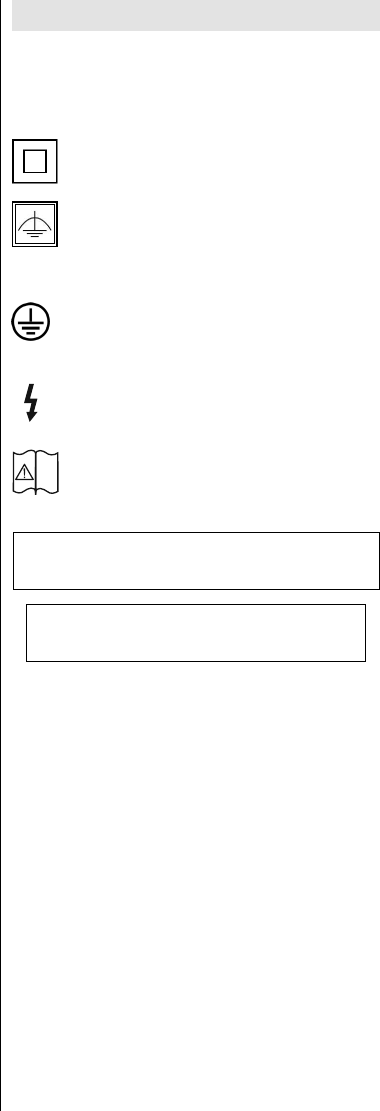
Markings on the Product
The following symbols are used on the product as
a marker for restrictions and precautions and safety
such information for security reasons.
Class II Equipment: This appliance is
designed in such a way that it does not require
a safety connection to electrical earth.
Class II Equipment With Functional
Earthing: This appliance is designed in such
a way that it does not require a safety
used for functional purposes.
Protective Earth Connection: The marked
terminal is intended for connection of the
protective earthing conductor associated with
the supply wiring.
Hazardous Live Terminal: The marked
terminal(s) is/are hazardous live under normal
operating conditions.
Caution, See Operating Instructions: The
marked area(s) contain(s) user replaceable
coin or button cell batteries.
Any issues which are caused by customer mis-adjustment
of any software including the operating system are not
covered by the warranty.
Depending on the model you buy, the actual
appearance of the product may differ from the images
used in this manual.
i
English - 6 -
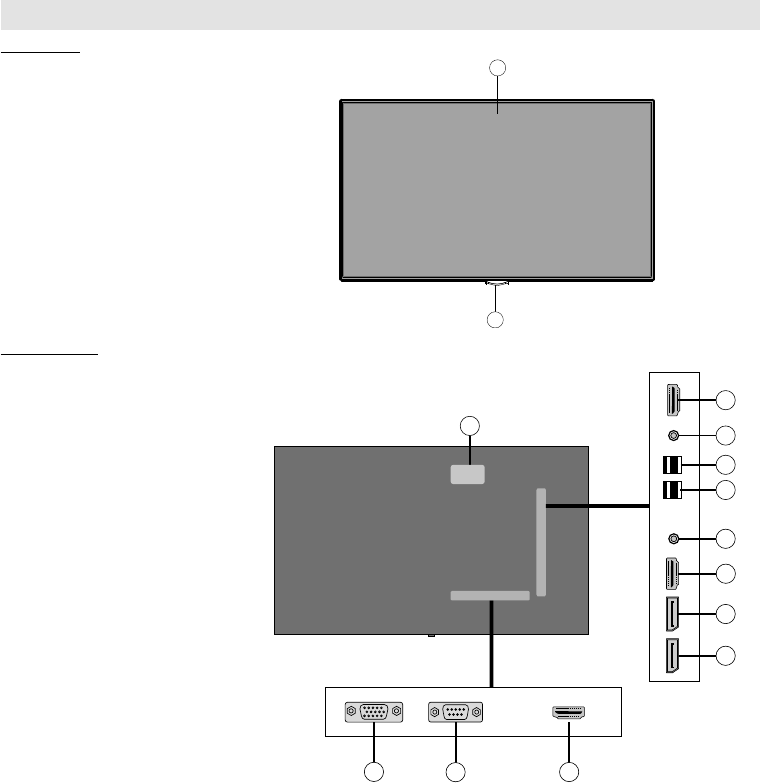
General View
Front Side
2
1
1. LCD Panel
2. Brand - Logo
Rear Side (1)
1. VGA
2. RS232
3. HDMI 1
4.
5.
6. HDMI 2
7. Headphone
8. USB (2.0)
9. USB (3.0)
10. IR Input
11. HDMI Out
12. Internal USB Compartment
123
4
6
8
7
9
10
11
12
5
English - 7 -
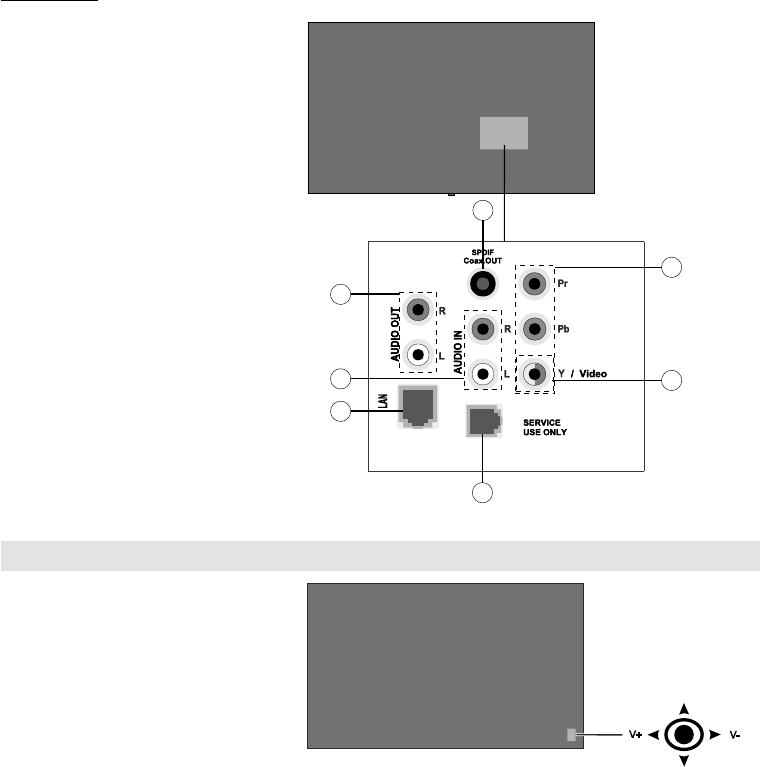
Rear Side (2)
1. Audio Out
2. Audio In
3. Ethernet
4. RJ12 (service use only)
5.
6. YPbPr
7.
1
3
4
7
2
6
5
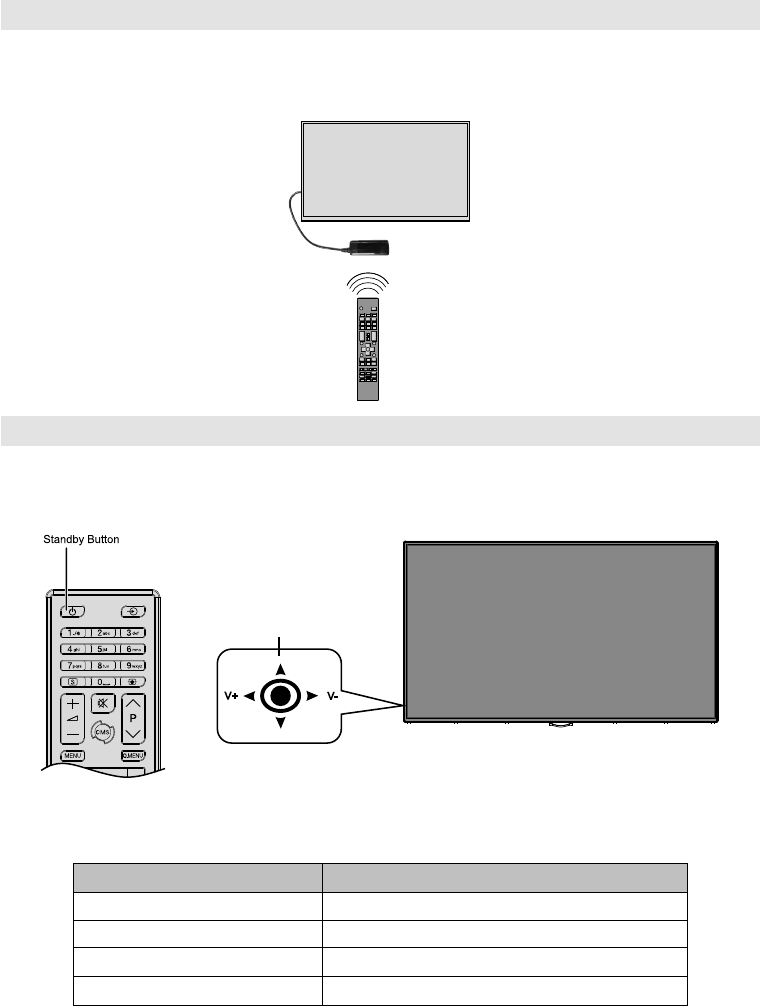
To turn on the Display: Press the
will turn on.
To turn the Display off: Press the
centre of the joystick in and hold it
will turn into standby mode.
To change source: Press the centre
appear on the screen. Scroll through
the available sources by pushing the
joystick up or down.
To change volume: Increase the
volume by pushing the joystick right.
Decrease the volume by pushing the
joystick left.
Note: Main menu OSD cannot be
displayed via joystick.
V+ V-
English - 8 -
Turning the Display On/Off
Press the Standby button on the remote or on rear left side of the Display to switch it on from standby or to
switch it into standby mode.
V+ V-
LED Status Status of the monitor
Power LED not lit Power on
Power LED lit Power off (Standby mode)
Scheduler active
Power up/down and software update
English - 9 -
Remote Control
19
20
22
24
26
27
29
7
6
5
4
3
2
1
10
11
12
13
15
16
17
8
9
28
23
14
21
18
25
30
31
Inserting the Batteries into the Remote
Remove the screw that secure the battery compartment cover
gently. Insert two AAA batteries. Make sure the (+) and (-)
signs match (observe correct polarity). Place the cover back
on. Then screw the cover back on again.
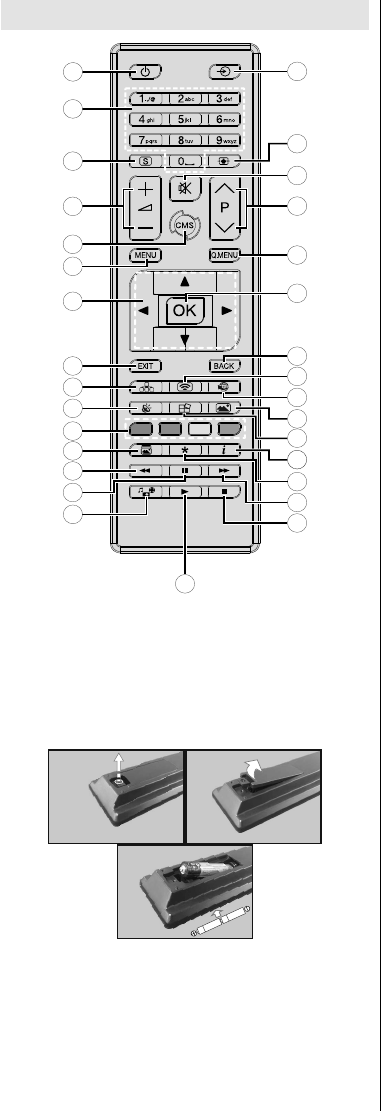
1. Standby: Switches On / Off the Display
2. Numeric buttons: Enters a number or a letter in the text
box on the screen.
3. Signage: Displays Signage Settings menu
4. Volume +/-: Increases or decreases the volume
5. CMS: Opens the predefined Start url (in Signage
Settings>Link options menu). Press and hold 3
Settings url (in Signage
Settings>Link options menu).
6. Menu: Displays the main menu
7. Directional buttons:
8. Exit: Closes and exits from displayed menus or returns
to previous screen
9. Network: Displays Network/Internet Settings menu
10. Sound: Displays Sound Settings menu
11. Coloured Buttons: Follow the on-screen instructions
for coloured button functions
12. Picture Mode: Cycles between picture modes
13. Rapid reverse: Moves frames backwards in media
such as movies
14. Pause: Pauses the media being played
15. Media browser: Opens the media browsing screen
16. Play: Starts to play selected media
17. Stop: Stops the media being played
18. Rapid advance: Moves frames forward in media such
as movies
19. No function
20. Info: Displays information about on-screen content
21. Video Wall: Displays Video Wall Settings menu
22. Picture: Displays Picture Settings menu
23. Internet:Open browser initial
page (in Signage Settings>Link options menu).
24. Wireless Display: Opens the wireless display connection
screen
25. Back/Return: Returns to previous screen
26. OK:
27. Quick Menu: Displays a list of menus for quick access
28. No function
29. Mute: Completely turns off the volume of the Display
30. Screen: Changes the aspect ratio of the screen
31. Source: Shows all available content sources
English - 10 -
First Time Installation
selection screen will be displayed. Select the desired
language and press OK.
press OK to continue.
For some Country
0000
number combination. You have to enter this PIN if you
are asked to enter a PIN for any menu operation later.
The Signage Settings menu will be displayed next.
Set ID OSD Orientation Auto software update
Model
nameSerial number and Software version options
are for information only. They will be grayed out and
not selectable. Refer to the Signage Settings Menu
Contents section for more information on the options
of this menu. While this menu is displayed on the
screen you can copy
USB device to the Display by pressing the Yellow
button. You can also save the model information data
of the Display to a connected USB device by pressing
the Blue
press OK to continue.
Network/Internet Settings
menu will be displayed. Please refer to
OK button
anything press the Rapid advance button.
The First Time Installation is completed.
To repeat this process and reset the Display's settings
to the factory defaults enter the Signage Settings
First time installation and press
OK. You will be asked to enter the PIN that you have
First Time Installation. If the correct PIN
asking whether you want to delete all settings and
reset the Display. Select Yes and press OK
Note:
installation. Note that, some options may not be available
depending on the country selection.
Media Playback via USB Input
Note: If internal USB device (*) is inserted and external device
is also inserted, media player will use the external device only.
power supply) external hard disk drives or USB
memory stick to your Display by using the USB input/s
of the Display.
IMPORTANT! Back up the files on your storage
devices before connecting them to the Display.
Manufacturer will not be responsible for any file
damage or data loss. Certain types of USB devices
(e.g. MP3 Players) or USB hard disk drives/memory
sticks may not be compatible with this Display. The
Display supports FAT32 and NTFS disk formatting.
Wait a little while before each plugging and unplugging
so may cause physical damage to the USB player
and the USB device itself. Do not pull out your drive
input/s. External power supplied USB hubs are
recommended in such a case.
Note:Media Browser menu
USB device.
Media Browser Menu
a USB disk by connecting it to your Display. Connect
a USB disk to one of the USB inputs located on the
side of the Display. Pressing the Menu button while
in the Media Browser mode will access the Picture
Sound and Settings menu options. Pressing the
Menu button again will exit from this screen. You
can set your Media Browser preferences by using
the Settings menu.
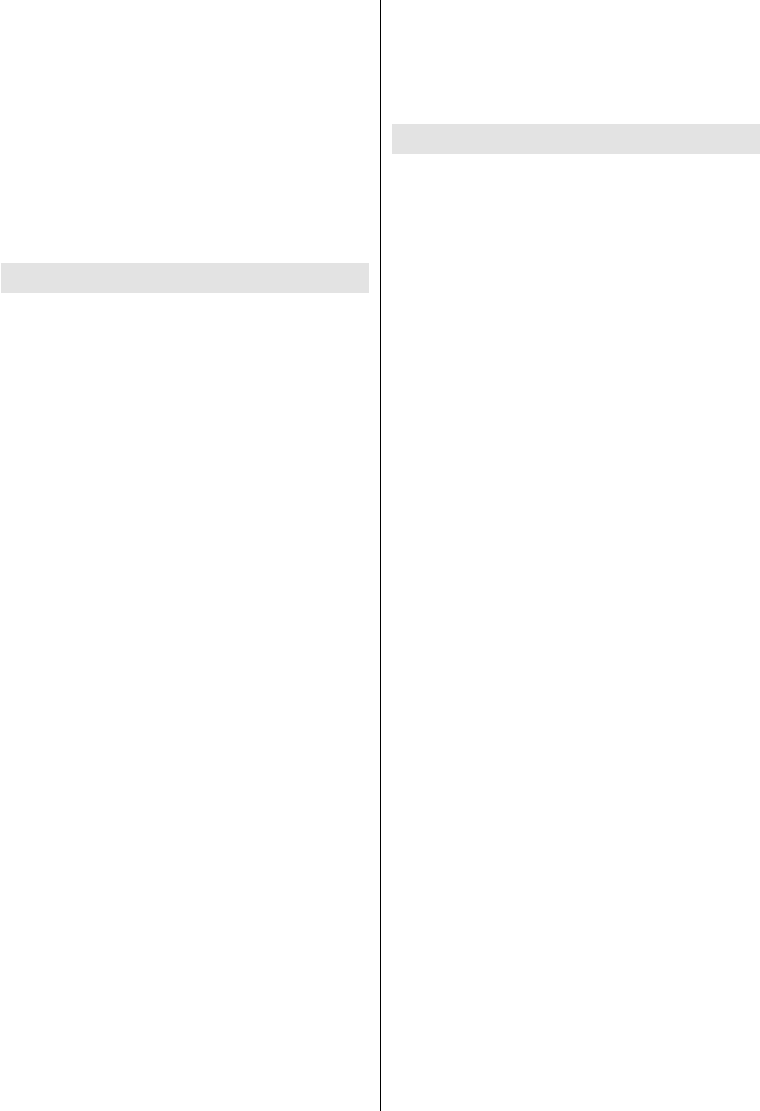
Start playback with the Play
button and activate
-
uously played in original order
Start playback with the OK but-
ton and activate
The same file will be played
continuously (repeat)
Start playback with the Play
button and activate
once in random order
Start playback with the Play
button and activate
-
tinuously played in the same
random order.
USB Auto Play Feature
USB AutoPlay feature is to start playing the media
the Media Browser. The media content types have
different priorities in order to be played. The reducing
content and as last Audio.
This feature will only work if all of the following cir-
cumstances occur:
• The USB device is plugged in.
• Auto Play option is enabled. It is placed in the Media
Browser>Settings menu.
English - 11 -
Failover Feature
If No Signal option in the Signage Settings menu
is set as Failover the Display checks the connected
and the Display will turn itself off after a period of 5
No Signal OSD will be displayed on the screen and the
Display will turn itself off after a period of 5 minutes.
Note: The setting of the Auto Play option in the Media
menu is not important, in Failover mode
it will function anyway.
CEC and CEC RC Passthrough
This function allows to control the CEC-enabled
using the remote control of the Display.
The CEC option in the System>Settings>More menu
should be set as EnabledSource
button and select the HDMI input of the connected
CEC device from the Sources List menu. When
in source menu with its own name instead of the
Recorder 1 etc.).
The Display remote is automatically able to perform
the main functions after the connected HDMI source
has been selected.
To terminate this operation and control the Display
Quick Menu button
CEC RC
Passthrough and set as Off by pressing Left or Right
button. If the Quick Menu button is not available press
3 seconds. This feature(CEC) can also be enabled or
disabled under the System>Settings>More menu.
The Display supports also ARC(Audio Return
Channel) feature. This feature is an audio link meant
to replace other cables between the Display and the
audio system (A/V receiver or speaker system).
audio outputs automatically. So you need to decrease
audio from connected audio device only (same as
other optical or co-axial digital audio outputs). If you
should select that device from the source list. In that
case volume control keys are directed to connected
audio device.
Note: ARC is supported only via the HDMI1 input.
System Audio Control
Display. The volume can be controlled using the remote
control of the Display. To activate this feature set the
Speakers option in the System>Settings>More
menu as . The Display speakers will be
muted and the sound of the watched source will be
provided from the connected sound system.
Note: The audio device should support System Audio Control
feature and CEC option should be set as .
Usage of the Start URL
•
of any USB storage device. Make sure that the
•
Notepad.
•
• Connect the USB strorage device to the Display.
Highlight USB Operations option in the Signage
Settings menu and press OK.
• Switch the Display off and then switch it on again.
Note: You can check if the Start URL have the desired link
from the menu.
English - 12 -
Display Menu Contents
System - Picture Menu Contents
Mode You can change the picture mode to suit your preference or requirements. Picture mode can
be set to one of these options: TextGameSportsSignage and Natural.
Contrast
Adjusts the light and dark values on the screen.
Brightness
Adjusts the brightness values on the screen.
Sharpness
Sets the sharpness value for the objects displayed on the screen.
Colour
Energy Saving
For setting the Energy Saving to CustomMinimumMediumMaximumAuto
Screen Off or Off.
Note: Available options may differ depending on the selected Mode.
Backlight This setting controls the backlight level. The backlight function will be inactive if the
Energy Saving is set to an option other then Custom.
Advanced Settings
Dynamic Contrast
You can change the dynamic contrast ratio to desired value.
Noise Reduction Noise Reduction setting to reduce
the amount of noise.
Colour Temp Sets the desired colour temperature value. Cool (1300K)Normal (9300K) and Warm
(8500K) options are available.
Picture Zoom Sets the desired image size format.
Movie Sense
Press left/right buttons to set Movie Sense to LowMediumHigh or Off. While Movie Sense
quality and readability. When Movie Sense option is set to LowMedium or HighMovie
Sense demo option will be available. If one of these options is selected and if you press OK
settings for Display screen.
Note: This feature may not be available depending on the model of your unit.
Film Mode Films are recorded at a different number of frames per second. Turn this feature on when you are
RGB Gain
adjustment of white balance in the picture.
HDMI Full Range
enhance blackness in the picture.
PC Position Appears only when the input source is set to VGA/PC.
Autoposition Automatically optimizes the display. Press OK to optimize.
H Position This item shifts the image horizontally to the right hand side or left hand side of the screen.
V Position This item shifts the image vertically towards the top or bottom of the screen.
Dot Clock Dot Clock adjustments correct the interference that appear as vertical banding in dot
intensive presentations like spreadsheets or paragraphs or text in smaller fonts.
Phase Depending on the input source(computer etc.) you may see a hazy or noisy picture on the
screen. You can use phase to get a clearer picture by trial and error.
Reset Resets the picture settings to factory default settings (except Game mode).
While in VGA (PC) mode, some items in Picture menu will be unavailable. Instead, VGA mode settings will be added to the Picture
while in PC mode.
English - 13 -
System - Sound Menu Contents
Volume Adjusts the volume level.
Equalizer
Selects the equalizer mode. Custom settings can be made only when in User mode.
Balance Adjusts whether the sound comes from the left or right speaker.
Headphone
Sets headphone volume.
Please ensure before using headphones that the headphone volume is set to a low
Headphone/Lineout
option is set to Headphone.
Audio Link Press OK to open the Audio Link menu screen. Using this screen you can discover
and connect the sound devices to your Display wirelessly.
AVL (Automatic
Volume Limiting)
Headphone/Lineout
can select this option as Lineout
set this option as Headphone.
Please ensure before using headphones that this menu item is set to Headphone.
If it is set to Lineout
which could damage your hearing.
Digital Out Sets digital out audio type. PCM and Compressed options are available.
Bass Gain Controls the bass gain level. Use Left or Right button to set.
Note: This feature may not be available depending on the model of your unit.
System - Settings Menu Contents
Language
Sets the OSD menu language preference.
Date/Time Sets date and time.
Sources Enables or disables selected source options.
Network/Internet
Settings Displays network/internet settings.
More Displays other setting options of the Display.
Menu Timeout
Changes timeout duration for menu screens.
Standby Led Enables or disables the functionality of the standby led. If disabled the led will not function.
Software
upgrade
OK to see the menu options.
Application
Version
Displays current software version.
Auto Display
OFF
Sets the desired time for the Display to automatically go into standby mode when not
being operated.
Audio Video
Sharing
Audio Video Sharing
you can share/play photos on your Display. See instructions of your sharing software for more
information. Audio Video Sharing mode will not be available with internet portal feature.
Power Up Mode Last State, Always On and
Standby options are available.
CEC With this setting you can enable and disable CEC functionality completely. Press Left
or Right button to enable or disable the feature.
CEC Auto Power
On
This function allows the connected HDMI-CEC compatible device to turn on the Display
and switch to its input source automatically. Press Left or Right button to enable or
disable the feature.
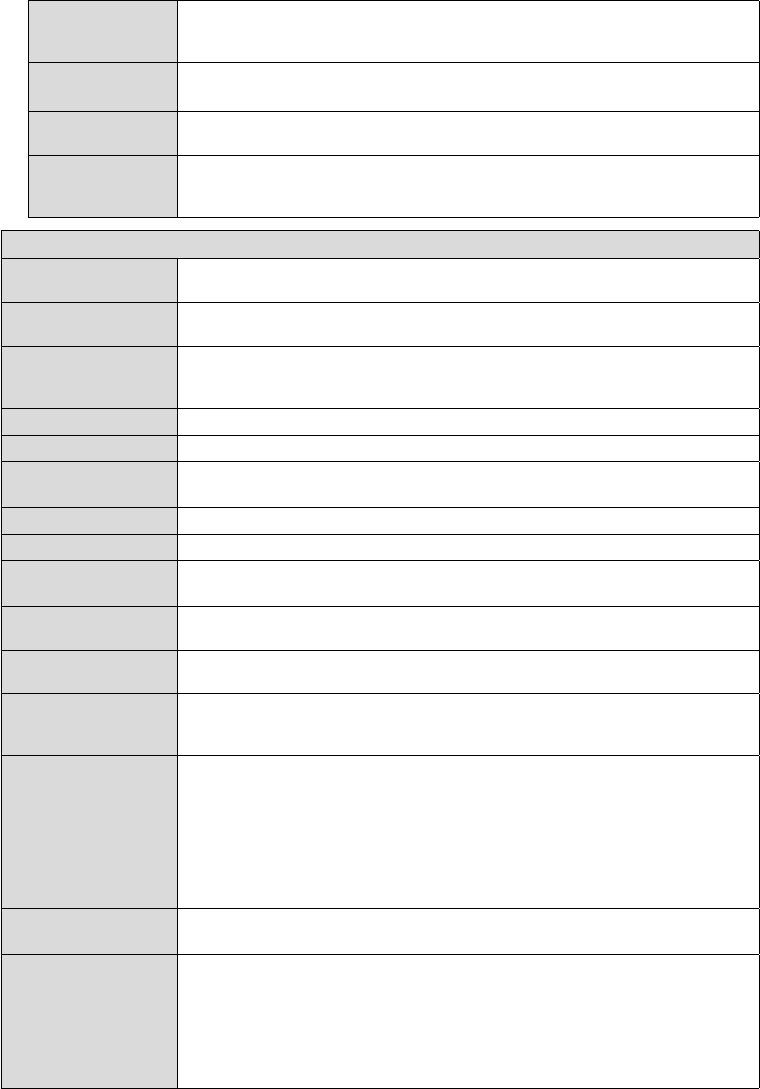
English - 14 -
Speakers
To hear the Display audio from the connected compatible audio device set as
. You can use the remote control of the Display to control the volume of the
audio device.
DP Stream
Setting (*)
Sets the DisplayPort stream type. MST and SST options are available.
(*) This menu item appears only when the input source is set to DP.
Smart Remote Press OK to open the Smart Remote menu screen. Using this screen you can discover
and connect the remote controller devices to your Display wirelessly.
If this feature is enabled the Display can be turned on again
commands if it is turned off through it. Press Left or Right button to enable or disable
the feature.
Signage Settings Menu Contents
Set ID Sets the device ID. You can select a value between 0-100 using the numeric buttons
on the remote in order to identify your Display.
OSD Orientation Sets the OSD (On Screen Display) rotation of your Display. Landscape and Portrait
options are available.
Software upgrade
Displays current software version. Press OK to see the Upgrade options menu. You
can use these options to start a manual search for software updates and set your
automatic scan preference.
Serial number Displays serial number of the unit. (Cannot changed by user)
Model name Displays model name of the unit. (Cannot changed by user)
Save model
information Copies the model information data of the unit to a connected USB device.
Clone to USB
Clone from USB
Internal USB
operations
connected.
Video Wall Settings Press OK to open the Video Wall Settings menu screen. Row Count, Column Count,
Cell and Offset options are available.
Power Up Mode Last state, Always on and Standby
options are available.
Quick Standy
If this feature is enabled the Display can be turned on again
commands if it is turned off through it. Press Left or Right button to enable or disable
the feature.
OPS Settings
Press OK to open the OPS Settings menu screen.
Three sub-menu options are
available.
Displays read-only information about the OPS unit, if supported.
Displays whether the OPS module is on or off. Allows the change of
status via soft PSON signal (0.5s)
Turns the OPS off via hard PSON signal (5s)
Note: This menu will not be available if OPS is not supported or not connected to the unit.
Copy app cache
from USB
Copies app cache data from a connected USB device to the unit.
Note: This feature may not be available depending on the model of your unit.
Scheduler Settings
Press OK to open the Scheduler Settings menu screen. Set the Scheduler
option
as On by using the Left/Right
directional buttons. Using the sub-menu options you
setting. It can also be set to turn off . If the Source option is set as Last
StateSource option is set
as USB
as explained in the section entitled ‘USB Auto Play Feature.
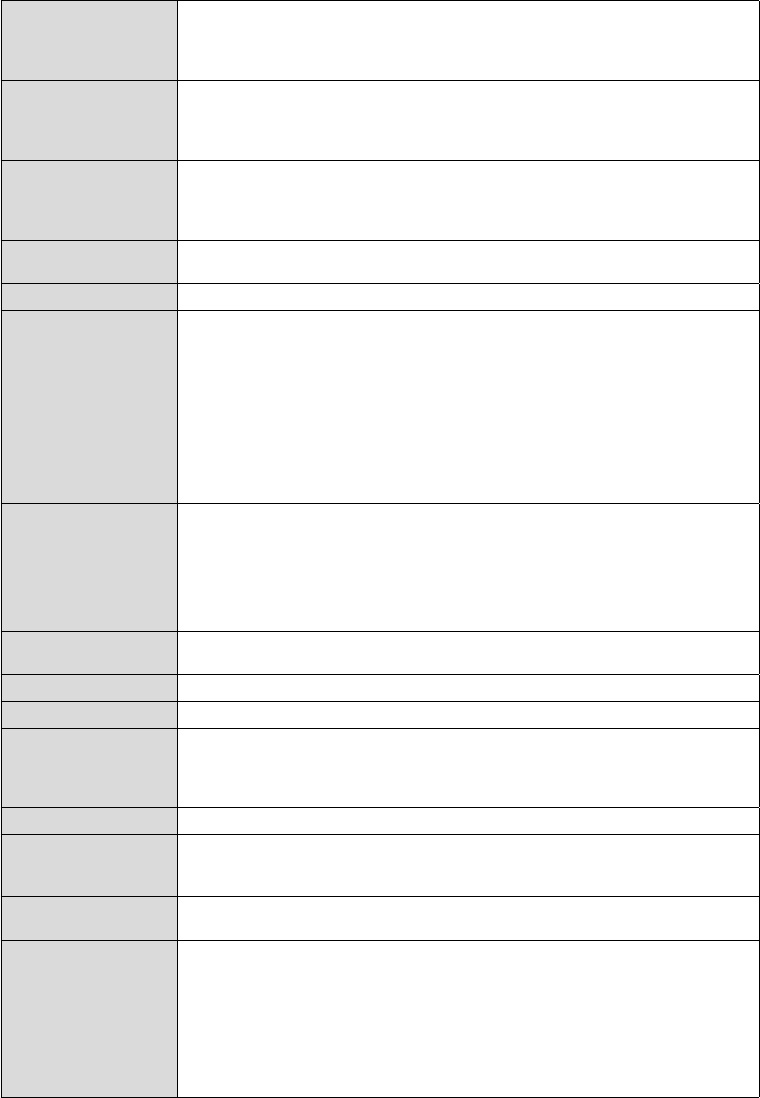
English - 15 -
Link options
Press OK to open the Link Options menu screen. Current Start url and Settings url
links will be displayed. These items are for information only and not selectable. Open
browser initial page and NTP server
related options.
Pixel shift
Enables or disables pixel shifting. This option can be used to avoid image retention (after
USB Information
Press OK to open the USB information menu screen. Current Total space and Free
space informations of the connected USB device will be displayed. You can also format
the connected USB device using the Format Disk
option in this menu (FAT32 format
only).
Power on Delay Sets a delay value at power on. This value can be set from 0 to 2000 ms in steps of 100
ms. The Display will turn on after the set delay time is expired.
USB operations
Highlight and press OK to perform USB operations.
No Signal
set input source. Failover and Input Search options are available.
Signal OSD will be displayed on the screen. The setting of the Auto Play option in the
Media Browser>Settings
If Input Search is selected the Display will search all available input sources consecutively
be displayed and the Display will turn itself off after a period of 30 seconds.
No signal Power off
received from the selected source.
This feature will only work if all of the following circumstances occur:
- No Signal option is set as Failover.
- USB device is not connected to the Display / USB device is connected but there are
Auto launch CMS(Start url)Open Browser(Open Browser
initial page)
and
Disabled
options are available.
Last Status Set as On to enable the Display to reopen with the closing status.
Panel Lock Set as Off to prohibit the use of the buttons on the Display.
RCU Inhibit
Set as On
to inhibit the use of the remote. Remote control will function in Stand-By
mode independently from the setting of this option. If this option is set as Limited only
functional.
Volume Settings Press OK to see available menu options.
USB Option
Set as Off to disable the USB ports on the Display. You can also set this option as 5V
to provide 5 volts power over USB. In this case it will still not be available to browse the
USB content via Media Browser feature of the Display.
Boot Up Picture mode Off the last set picture
mode will be used at power on.
UART 0
Select ASCII/HEX protocol for UART 0. Default value is ASCII. There is no need to
restart the Display after selection in order to work with the protocols correctly. If the
the Display is booted up.
Note that ASCII/HEX selection is not working while debug logs are enabled. If it is
reboot the Display in order to correct the debug logs and the ASCII protocol behaviour.
Also note that HEX protocol will work with the baud rate value 19200 for UART0
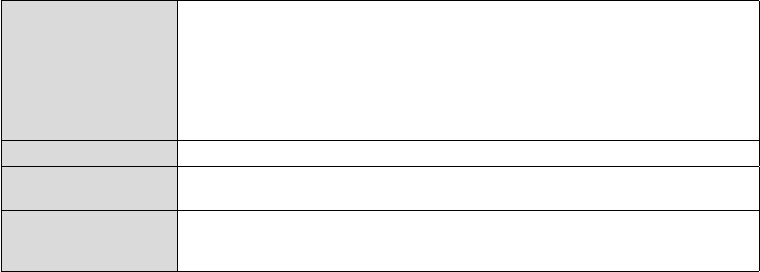
English - 16 -
UART 1
Select ASCII/HEX protocol for UART 1. Default value is HEX. There is no need to
restart the Display after selection in order to work with the protocols correctly. If the
the Display is booted up.
Note that ASCII/HEX selection is always working as expected. It does not matter if the
debug logs are enabled or not.
Also note that HEX protocol will work with the baud rate value 9600 for UART1
TV Live Time
Displays the duration of life of the unit.
Reset to Default Values Highlight this option and press the OK
button on the remote to return the Display to
default settings.
First time installation
Highlight and press OK to perform First Time Installation and reset all settings to factory
settings. You will need to enter the correct PIN to carry out this operation.
Note: process.
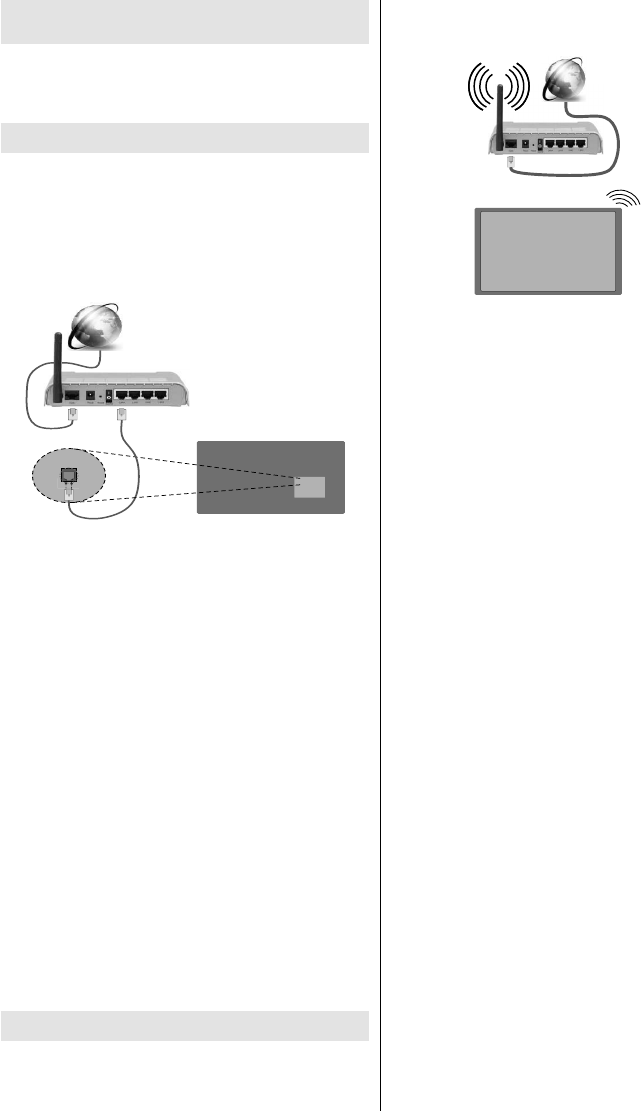
English - 17 -
Connectivity
to the
System>Settings menu.
Wired Connectivity
To Connect to a Wired Network
• You must have a modem/router connected to an
•
Broadband ISP connection
LAN (ethernet) cable
LAN input on the rear
side of the Display
Network Type
The Network Type can be selected as Wired Device,
Wireless Device or Disabled
active connection to the Display. Select this as Wired
Device if you are connecting via an ethernet.
Internet Speed Test
Internet Speed Test and press the OK
Advanced Settings
Advanced and press the OK but-
ton. On the next screen you can change the IP and
from to Manual. Now you can enter the
Manual IP and / or Manual DNS values. Select the
Press the OK
Wireless Connectivity
To Connect to a Wireless Network
The Display cannot connect to the networks with a
hidden SSID (wireless network name). To make your
Broadband
ISP
connection
• A Wireless-N router (IEEE 802.11a/b/g/n) with
simultaneous 2.4 and 5 GHz bands is designed
to increase bandwidth. These are optimized for
transfers and wireless gaming.
•
the area.
•
•
•
•
Open the menu and select
Network Type as
process.
Note: If the modem supports N mode, you should set N
mode settings.
English - 18 -
buttons and the OK button on the remote control.
Network Type
as .
you can directly connect your Display to the modem/
router without entering a password or adding the
Highlight the
router option and press the OK button. Then press
the WPS button on your router/modem to connect.
Internet Speed Test and press the OK button
Advanced and press the OK button to open
buttons to set. Press the OK
when complete.
Other Information
Connected or Not Connected and the current IP
•
•
•
•
• Enter the menu and the playback
OK
•
controller application from the server of your mobile
device application provider.
Note: This feature may not be supported on all mobile devices.
Wireless Display
Wireless Display is a standard for streaming video
and sound content by Wi-Fi Alliance. This feature
provides the ability to use your Display as wireless
display device.
Using with mobile devices
There are different standards which enable sharing of
between your mobile device and Display.
Then press the Source button on the remote and
switch to Wireless Display source.
A screen appears stating that the Display is ready
for connection.
Open the sharing application on your mobile device.
These applications are named differently for each
mobile device for detailed information.
Scan for devices. After you select your Display and
on your Display.
Note: This feature can be used only if the mobile device
supports this feature. Scanning and connecting processes
differ according to the programme you use. Android based
mobile devices should have the software version V4.2.2
and above.
Connecting Other Wireless Devices
Your Display supports another short range wireless
connection technology too. A pairing is required before
using these kind of wireless devices with the Display
set. You should do the followings to pair your device
with the Display:
• Set the device to pairing mode
• Start device discovery on the Display
Note: Refer to the user manual of the wireless device to learn
how to set the device to pairing mode.
You can connect audio devices or remote controllers
wirelessly to your Display. Unplug or switch off any
other connected audio device in order for wireless
connection feature to work correctly. For audio
devices you should use the Audio Link option in the
System>Sound
Smart Remote option in the System>Settings>More
menu. Select the menu option and press the OK
button to open the related menu. Using this menu
you can discover and connect the devices that use
the same wireless technology and start to use them.
Follow the on-screen instructions. Start the device
discovery. A list of available wireless devices will be
displayed. Select the device you want to connect from
the list and press the OKDevice
connected
is successfully established. If the connection fails
try it again.
Note: Wireless devices may operate within the same radio
frequency range and may interfere with one another. To
improve the performance of your wireless device place it at
least 1 meter away from any other wireless devices.
English - 19 -
Connectivity Troubleshooting
Wireless Network Not Available
•
Display wireless connection.
•
menu screen.
using the wired network in your home. Refer to the
Wired Connectivity section for more information on
the process.
Connection is Slow
Distruption during playback or slow
reactions
You could try the following in such a case:
Keep at least three meters distance from microwave
other Wi-Fi compatible devices. Try changing the active
channel on the WLAN router.
Invalid Domain
Ensure that you have already logged on to your PC
Using Audio Video Sharing Network
Service
your home network.
with the Nero Media Home programme. For more
Nero Media Home Installation
See the Wired/Wireless Connectivity chapters for
Select Media Browser by using the directional buttons
from the main menu and press OK. The media browser
will then be displayed.
Audio Video Sharing
Select the desired media type on the main media
browser menu and press OK
Device Selection screen will be
displayed after selecting the desired media type. If
this screen. Select media server or network that you
want to connect to using the Up or Down buttons and
press OK
the Green button. You can press Menu to exit.
If you select the media type as Videos and choose
a device from the selection menu. Then select the
back to main Media Browser screen and select the
media type as desired and then perform the network
selection again. Or press the Blue button to switch to
next media type quickly without changing the network.
Refer to the Media Browser menu section for further
your display off at the wall socket and back on again.
English - 20 -
other devices like computers.
Note: There may be some PC’s which may not be able to
and security settings (such as business PC’s).
For best home network streaming with this Display, the Nero
software should be installed.
Nero MediaHome Installation
follows:
Note:
1. Enter the link below completely in the adress-bar
of your web browser.
http://www.nero.com/mediahome-tv
2. Click the Download button on the opening page.
PC.
3.
4.
5. Click the Install
6. Click the Next
Please read
the license agreement carefully and select the
appropriate check box if you agree to the terms of
the agreement. Installation is not possible without
this agreement.
7. Click the Next button. On the next screen you can
set your installation preferences.
8. Click the Install
9. Click the Finish button. The installation is
completed. You will be directed to the web site of
the nero software.
10. A shortcut is now placed on your desktop.
Run Nero MediaHome by double clicking on the shortcut
icon.
Internet Browser
To use the internet browser enter the main menu
Menu botton. Then launch the
Internet Browser application from the Internet menu.
You can also press the Internet button on the remote
to open the internet browser.
(*) The appearance of the internet browser logo may change
be displayed as Speed Dial options along with the
Edit Speed Dial and the Add to Speed Dial options.
If the Open browser initial page URL in the Signage
Settings>Link Options
will open on this page.
buttons on the remote or a connected mouse. To see
the page. HistoryTabs and Bookmarks options and
Speed
Dial and the Opera buttons are available.
To add a desired website to the Speed Dial list for
The browser bar will appear. Highlight the Speed Dial
- button and press the OK button. Then select Add
to Speed Dial option and press the OK button. Fill in
the blanks for Name and AddressOK and
press the OK button to add. Whilst you are on the
site you wish to add to the Speed Dial
the Opera- button and press the OK button. Then
highlight Add to Speed Dial option in the submenu
and press the OK button again. Name and Address
visiting. Highlight OK and press the OK button to add.
You can also use the Opera menu options to manage
the browser. Highlight the Opera- button and press
the OK
general options.
There are various ways to search or visit websites
using the web browser.
Enter the address of a website(URL) into the search/
address bar and highlight the Submit button on the
virtual keyboard and press the OK button to visit the
site.
Enter keyword/s into the search/address bar and
highlight the Submit button on the virtual keyboard
and press the OK button to start a search for the
related websites.
Highlight a Speed Dial thumbnail and press the OK
button to visit the related website.
English - 21 -
Your Display is compatible with USB keyboard/mice.
Plug your device into the USB input of your Display
for easier and quicker navigation.
supported by the browser.
Your Display does not support any download
processes from the internet via the browser.
All sites on the internet might not be supportted.
According to the site; content problems may occur.
In some circumstances video contents might not be
able to be played.
Internal USB Operations
Your Display has an internal memory. There are 4
operations available that can be performed with the
internal memory: Copy From USBCopy To USB
Delete and Format Disk (FAT32 only).
These options can be found in the Signage
Settings>Internal USB operations menu.
The internal memory of your Display has a default
int_usb
Copy From/To USB operations are performed using
this folder. If you want to copy data from an external
USB storage device to the internal memory of your
copy_to_int_usb
of the external USB storage device. If you want to
copy data from the internal memory of your Display
copy_from_int_usb
directory of the external USB storage device.
Copy From/To USB operations will only be available
if a USB storage device is connected to your Display.
Delete and Format Disk
even if no USB storage device is connected. The
int_usb
internal memory will be automatically recreated after
each time Delete and Format Disk operations are
performed.
OSD Rotation Support (*)
You can change the OSD (On Screen Display) rotation
of your Display if desired. While performing First
time installation set the OSD Orientation option
as desired when the Signage Settings menu is dis-
played. You can also change this setting later from
the Signage Settings menu. Available options are:
Landscape and Portrait.
(*) This feature may not be available depending on the model
of your Display
DisplayPort
DisplayPort version 1.2 is supported via the Display-
Port input and output connectors on your Display.
DP Streaming Setting option in the System>Set-
tings>More menu is set as MST(Multi-Stream Trans-
port) by default. If a MST compliant source device is
If DisplayPort version 1.1 compliant or SST (Single-
Stream Transport) compliant source device with
DisplayPort version 1.2 support is connected to the
in all connected Displays.
To be able to stream the same image to all connected
DP Streaming
Setting option in the System>Settings>More menu
should be set as SST.
The maximum amount of the Displays that can be
connected by using daisy-chaining function may differ
capable of supporting this operation.
Note:
for connection. In SST operation mode the total amount of
the Displays is limited (a maximum of 7 units) due to HDCP
encryption. If the signal is stable and there is no cable loss,
there will be no limitation in case the source content is not
HDCP-encrypted.
HDMI Out
The HDMI2 port located on the rear left side of the
Display functions as an output port (upper HDMI port).
devices should be connected to this port. Only the
content received from the HDMI1 input port located
also on the rear left side of the Display (lower HDMI
port) can be outputted from this port. The contents
function and you can not disable/enable through any
menu option. HDMI output port will always function
if a source device is connected to the HDMI input.
English - 22 -
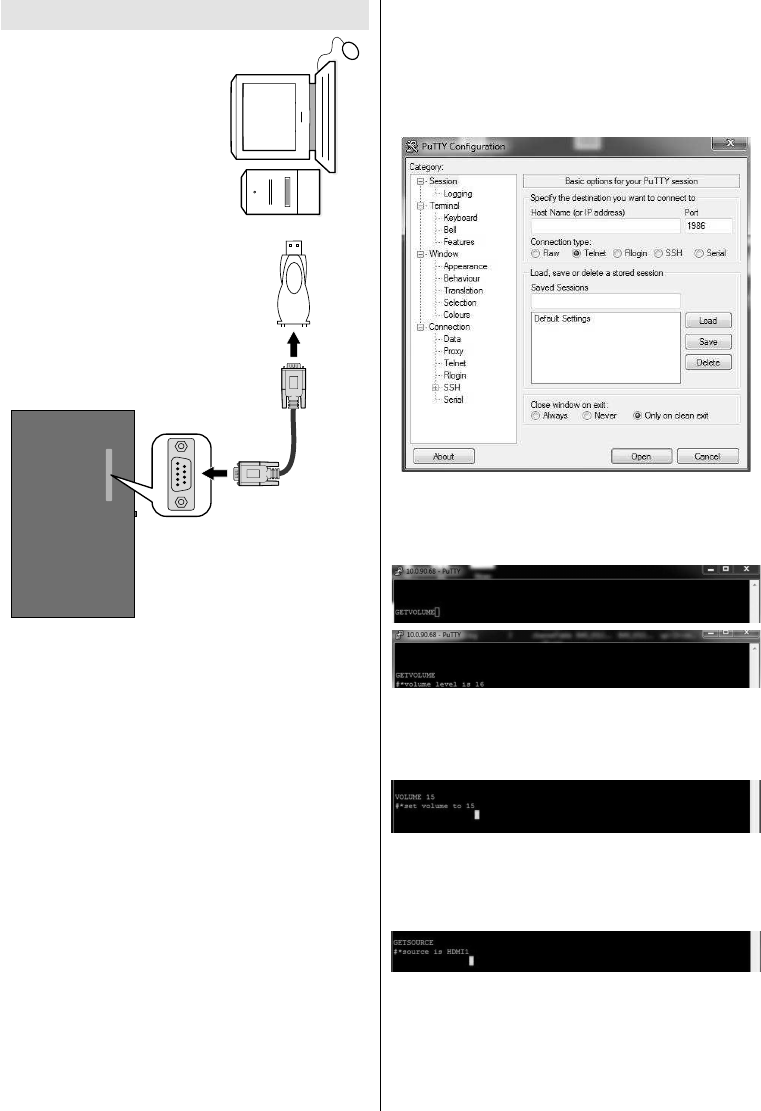
RS-232
Input Socket
To COM port
RS-232 to
USB Adaptor
PC
You can control the product from an external PC via
RS-232 (COM port) or LAN (Ethernet port) on the
RS-232 from remote computer. When a command is
according to the received command and sends a
response message to the PC.
Equipment/Tools:
• RS-232 (female) to RS-232(male) cable or LAN
cable (connected via router)
• USB to RS-232(male) cable
• Notebook or PC which has USB or LAN port
• Installed program on remote PC to send commands:
operating the implemented functions via serial port
and utility. A suitable utility can be used such as
described below.
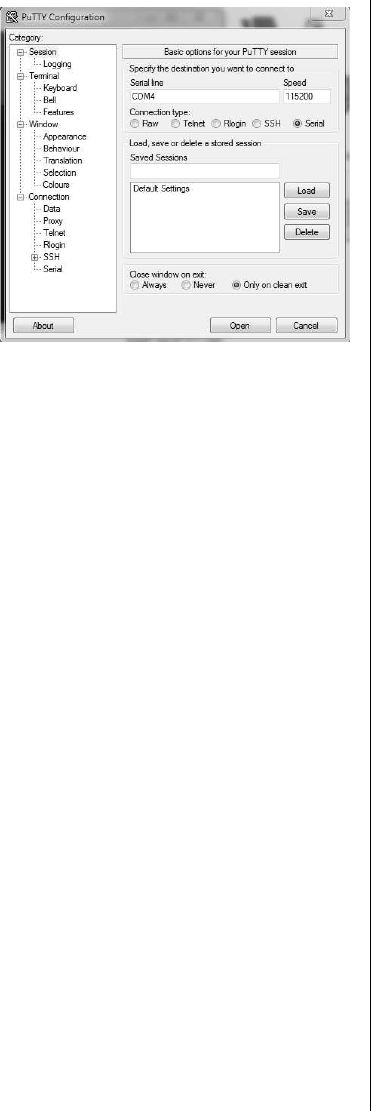
Connecting to the Display (LAN port)
Download and install the PuTTY software from the
Host Name1986
PortTelnetConnection
type and click the Open button.
Note: Refer to the section of this manual for
information on connecting the Display to a network and
displaying the IP address of the Display.
Use the commands in the RS232 Command Table.
current volume level should be displayed on the putty
window as shown in the pictures below.
Another example;
the changes from the Display.
The last example ;
source should be displayed on the putty window as
shown in the picture below.
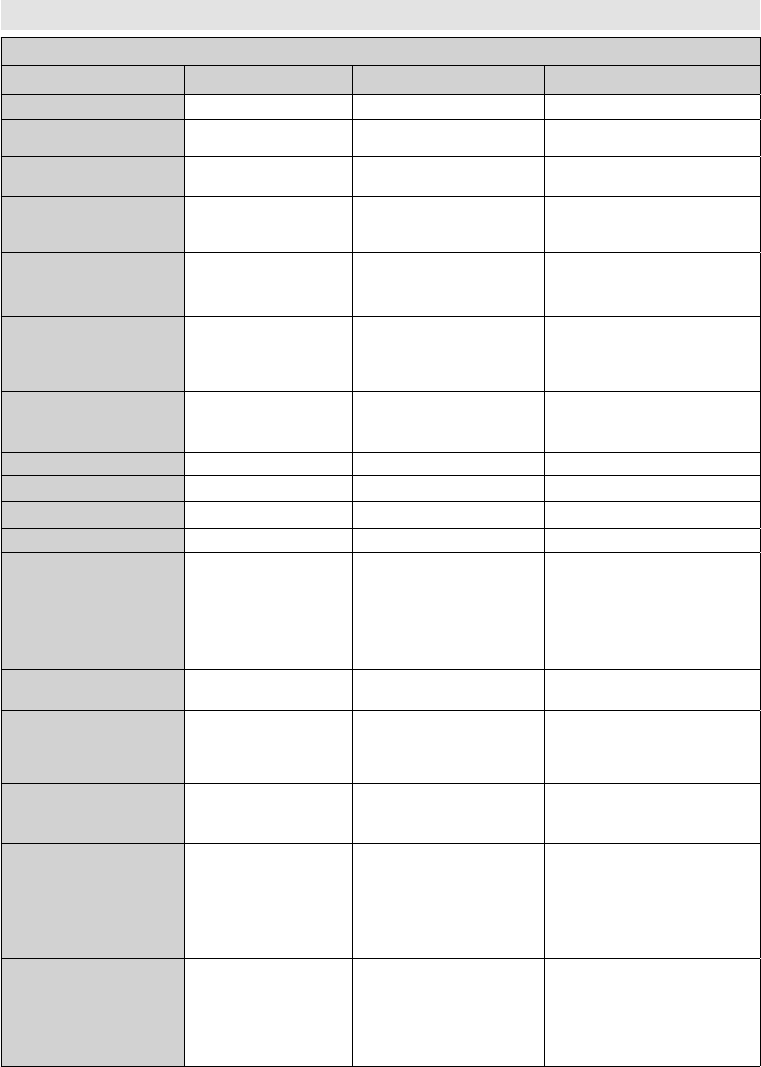
Connecting to the Display (RS232 port)
Run the software and select Serial as Connection
Type
Serial Line (in the following example it is COM4)
115200Speed. Then click the Open
button.
English - 23 -
English - 24 -
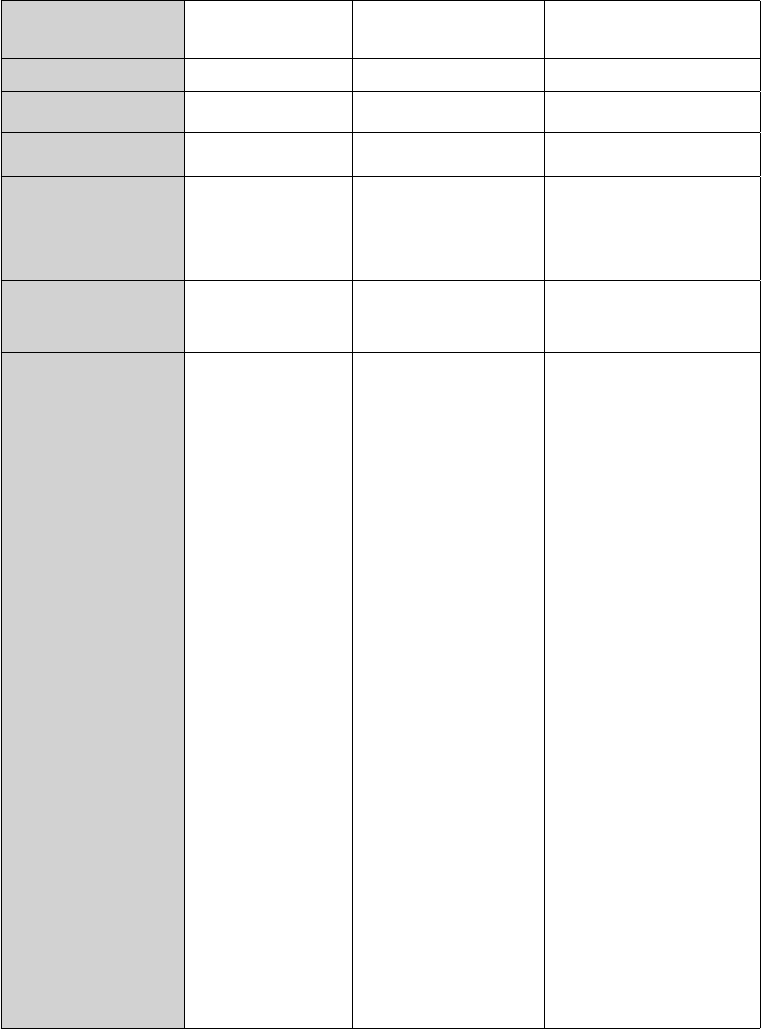
RS232/LAN Command Table
AUDIO COMMANDS
Command Description Parameter Return
GETVOLUME Volume level information. no parameter #*volume level is …
HEADPHONEVOLUME "Set headphone volume
level." #*set headphone volume to n
GETHEADPHONEVOLUME "Headphone volume level
information." no parameter #*headphone volume is …
GETMUTE Get mute value on/off. no parameter
"#*MUTE OFF
or
#*MUTE ON"
SETMUTE Set mute value on/off. no parameter
"#*MUTE OFF
or
#*MUTE ON"
SETSOUNDMODE
"Set sound mode.
SETEQUSERFREQ
100Hz 10"
right)"
"#*setSoundMode() set to n
or
#*Invalid sound mode entered"
SETBALANCE Set balance value. integer n (-50 < n < 50)
"#*set balance level to n
or
#*invalid balance level entered"
GETBALANCE Get balance value. no parameter #*balance level is …
SETAVL Set AVL state. #*set avl state to n
GETAVL Get AVL state. no parameter #*avl state is …
SETDYNAMICBASS Set dynamic bass state. #*set dynamic bass state to n
SETEQUSERFREQ Set equalizer user freq.
value for any band.
integer n -13 < n < 13
Example:
SETEQUSERFREQ 120Hz
10"
"#*setEQUserFreq() set to n or
#*Incorrect sound system
parameter entered
or
#*Incorrect equalizer mode. It
should be USER mode"
GETDIGITALOUT Get digital out. no parameter #*digital out is pcm or #*digital
out is compressed
SETEQMODE Set equalizer mode.
"#*setEQMode() set to n
or
#*Incorrect equalizer parameter
entered"
SETDIGITALOUT Set digital out.
#*setDigitalOut() set to n OR
#*Incorrect digital out mode
parameter entered
VOLUMEUP
"Inrease Volume Level
by 1 step
(Until max volume) "
no parameter
"#*volume LEVEL is increased
to ...
or
#*You can NOT increase volume
Volume Level is …"
VOLUMEDOWN Decrease Volume Level
by 1 step no parameter
"#*volume LEVEL is decreased
to ..
or
#*You can NOT decrease volume
LEVEL further. Current Volume
level is ... "
English - 25 -
SETHEADPHONEOUTPUT Set headphone output
"#*set headphone output to n
or
#*Invalid Parameter"
GETHEADPHONEOUTPUT Get headphone output no parameter #*LINEOUT or #*HEADPHONE
GETDYNAMICBASS Get dynamic bass state. no parameter #*the dynamic bass state is ...
GETBASSGAIN Get bass gain no parameter "#*the bass gain level is n
Note: Above n is -6 <= n <= 6"
GETEQUSERFREQ Get equalizer user freq.
"#*the equalizer value for the
band is n
or
#*Incorrect sound system
parameter entered
Note: Above n is -13 < n < 13"
GETEQMODE Get equalizer mode no parameter
"#*the equalizer mode is n
User"
SOUNDRESET Reset sound settings no parameter
"#*Fixed Volume is set to ...
#*Fixed volume availability is
set to ...
#*Headphone volume control
availability is set to ...
#*Start volume availability is set
to ...
#*Start volume limit is set to ...
#*Start headphone volume limit
is set to ...
#*Lower volume limit is set to ...
#*Upper volume limit is set to ...
#*Headphone volume limit is
set to ...
#*Wakeup time volume is set
to ...
#*All equalizer bands are set
to ...
#*Volume is set to ...
#*Headphone volume is set to ...
#*Headphone balance is set to ...
#*Headphone bass is set to ...
#*Headphone treble is set to ...
#*Digital audio out is set to ...
#*Audio output description path
is set to ...
#*Audio description is ...
#*Audio description relative
volume is set to ...
#*Audio description language is
set to ...
#*Sound Loudness is set to ...
#*Sound mode digital is set to ...
#*Sound mode is set to ...
#*Sound subwoofer is set to ...
#*SPDIF out is ...
#*DTS is ...
#*Bass gain is set to .. or
#*Dynamic bass is ...
"
English - 26 -
BROWSER COMMANDS
Command Description Parameter Return
OPENURL
Starts the given URL and
returns web page load
status directly.
string-integer n <load
url='n' />
#*status= ... url=n
GETURL Gets URL of the current
page if the portal is active.
no parameter #*URL : ...
GETUSERAGENT Gets portal user agent. no parameter #*Current UA : ...
GETCURSORPOSITION Gets cursor position in the
browser.
no parameter #*X: ... Y: ...
SETCURSORPOSITION Sets cursor position in the
browser.
#*X: a Y: b
SETSETTINGSURL Sets the settings URL string #*Setting URL is set
GETSETTINGSURL Gets the settings URL no parameter #*Setting URL is ...
SETSTARTURL Sets the start URL string #*Start URL is set
GETSTARTURL Gets the start URL no parameter #*Start URL is ...
GENERAL DISPLAY COMMANDS
Command Description Parameter Return
SETRC Enables/disables remote
control commands.
= OFF)
set remote state On or set remote
state OFF
SETSOURCE Set source as enable/
disable.
"#*Selected source n
#*Enable/Disable state : b"
GETSOURCE Gets source. no parameter #*source is ...
GETCOUNTRY Get country in channels
state. no parameter #*COUNTRY IS : ...
GETSWVERSION Returns the software
version of tv. no parameter #*V...
KEY Send key to Eclipse.
.....ext.)
n key send to Eclipse
RESET Reset the device. no parameter
Reset process was successfully
accomplished. You need to
establish the connection again.
English - 27 -
STANDBY
"Switch box to Standby
mode.
( Attention: Television
cannot be opened with
standby command.
You should open it with
remote control.
If you use STANDBY
need to establish the
connection again.
Tv state :HARD-
STANDBY )"
no parameter
"#*enterLowPowerMode() returns
successfully.
or
#*enterLowPowerMode() returns
unsuccessfully!
or
#*enterStandbyMode() returns
successfully.
or
#*enterStandbyMode() returns
unsuccessfully!
"
MENUTIMEOUT Set menu time out mode.
"#*set menu timeout mode to OFF
or
#*set menu timeout mode to 60
or
#*Invalid menu timeout mode
"
GETMODELNO Get model no. no parameter #*Model no: ...
GETSERIALNO Get serial no. no parameter #*Serial no: ...
GETLED Get led on/off state. no parameter "#*LED is on
#*LED is off"
GETRC
Get remote control
commands enabled
status
no parameter
"#*remote control commands are
on
#*remote control commands are
off"
USBOPERATIONS Perform USB Operations no parameter
Bank 1 etc. Be sure or observe
debug print outs: "MFC ISP: done"
will be writen... This may take over
10 minutes.
GETMENUTIMEOUT Get menu time out mode no parameter
"#*menu timeout mode is OFF
#*menu timeout mode is n
#*can not get menu timeout mode
60)"
GETTVLIFETIME Prints Monitor life time in
minutes. no parameter #*Monitor Life Time: n
SETPOWERONDELAY Set poweron delay level
is calculated as 100ms*n)
"#*Poweron delay set to ... Ms
#*NACK"
GETPOWERONDELAY Get poweron delay level no parameter #*The power on delay is … ms
SIGNAGERESET
Set all items in the
signage settings menu to
their default values.
no parameter #*All signage settings set to default
values
SELECTSOURCE
Select source.
indexes(some of them
are not enabled))
20=OPS)
" #*select TV source
or
#*select External source …"
KEY standby
Switch box to Standby
mode. ( For quick
standby)
no parameter standby key send to Eclipse
English - 28 -
TIME Display the current date
and time. no parameter Time = ...
GETSTANDBY Get standby on/off. no parameter
"#*standby off
or
#*standby on"
STARTFTI Start First Time
Installation. no parameter #*FTI was initialising.
CHANGELNG Change active language.
"integer-integer x y
x = language type (0 =
4 = Primary Subtitle
7 = Secondary Teletext
Language)
36 = Thai)
Example: CHANGELNG 0 25
(To set system language to
Turkish)
"
"#*Active language was changed
or
#*Incorrect item parameter
entered"
SETCOUNTRY Set country in no
channels state.
string-integer n(
"#* setCountry() set to n
or
#*Country should be set only
in the FTI mode (no channels
state)"
SETQUICKSTANDBY
SETQUICKSTANDBY
on).
= OFF)
"#*Set Quick Standby on
or
#*Set Quick Standby off
or
#*Quick Standby is not enabled"
GETQUICKSTANDBY Returns Quick Standby
state n (on or off) no parameter #*Quick Stanby is n
USBOPERATIONS Perform USB Operations no parameter
Bank 1 etc. Be sure or observe
debug print outs: "MFC ISP: done"
will be writen... This may take over
10 minutes.
English - 29 -
NETWORK COMMANDS
Command Description Parameter Return
set_IP_address Set static IP address of
eth0 network interface.
str-int n Example: set_IP_
address 192.168.0.15
"#*IP address setting Succesfull
#*IP address setting NOK"
get_IP_address
Get IP address of eth0
network interface. Usage:
get_IP_address
no parameter #*IPaddr: ...
SETNETWORKTYPE
set network type (eg.
SETNETWORKTYPE
value) (value should
'disabled' as string)
'disabled')
#*Network type is set to: <network-
type>
GETNETWORKTYPE get network type (eg.
GETNETWORKTYPE) no parameter #*the network type is <network-
type>
SETSUBNETMASK
set subnet mask (subnet
mask value should be of
format nnn.nnn.nnn.nnn)
(eg. SETSUBNETMASK
nnn.nnn.nnn.nnn)
string "nnn.nnn.nnn.nnn"
"#*set subnet mask: nnn.nnn.nnn.
nnn
#*setting subnet mask is failed"
GETSUBNETMASK get subnet mask (eg.
GETSUBNETMASK) no parameter #*the subnet mask is nnn.nnn.
nnn.nnn
SETDEFAULTGATEWAY
set default gateway
(default gateway value
should be of format
nnn.nnn.nnn.nnn) (eg.
SETDEFAULTGATEWAY
nnn.nnn.nnn.nnn)
string "nnn.nnn.nnn.nnn"
"#*set default gateway: nnn.nnn.
nnn.nnn
#*setting default gateway is failed"
GETDEFAULTGATEWAY get default gateway (eg.
GETDEFAULTGATEWAY) no parameter #*the default gateway is nnn.nnn.
nnn.nnn
GETDNS1 get DNS server 1 (eg.
GETDNS1) no parameter #*DNS server 1 is nnn.nnn.nnn.
nnn
GETDNS2 get DNS server 2 (eg.
GETDNS2) no parameter #*DNS server 1 is nnn.nnn.nnn.
nnn
INTERNETSPEED start internet speed test no parameter
" Speed test is started.
Prints ""No internet connection
found"" message if fails."
VGA/PC COMMANDS
Command Description Parameter Return
HPOS Set horizontal position.
"set horizontal position to ...
(percentage in the range)
#*invalid value entered"
VPOS Set vertical position.
"#*set vertical position to ...
(percentange in the range)
#*invalid value entered"
DOTCLOCK Set dot clock.
"#*set dot clock to ...
(percentange in the range)
#*invalid value entered"
AUTOPOS Set auto position no parameter #*set auto position
GETOSDORIENTATION Get OSD orientation no parameter #*The OSD orientation ...
GETHPOS Get horizontal position. no parameter #*The horizontal position is ...
GETVPOS Get vertical position. no parameter #*The vertical position is ...
GETDOTCLOCK Get dot clock. no parameter #*The dot clock is ...
English - 30 -
SETOPSPOWER Set OPS power status string parameter "on" or
"off"
"#*Turning OPS on
#*Turning OPS off
#*The OPS is already on
#*The OPS if already off
#*The OPS is not enabled
#*The OPS is not plugged in
#*invalid value entered"
PICTURE COMMANDS
Command Description Parameter Return
COLOURTEMP Set colour temperature.
cool) #*setColourTemp() set to n
GETPICTUREMODE Get picture mode. no parameter #*Picture Mode is ... for current
source
PICTUREMODE Select picture mode.
game)
"#*setPictureMode() set to n
#*Incorrect picture mode
paramater entered"
GETCONTRAST Get picture contrast
value. no parameter #*THE CONTRAST VALUE : ...
SETCONTRAST Set picture contrast
value.
"#*Picture contrast value is set to n
#*Same value is set. Do nothing.
#*Incorrect value must between
GETBRIGHTNESS Get picture brightness
value. no parameter #*THE BRIGHTNESS VALUE : ...
SETBRIGHTNESS Set picture brightness
value.
"#*Picture brightness value is set
to n
#*Same value is set. Do nothing.
#*Incorrect value must between
GETSHARPNESS Get picture sharpness
value. no parameter #*THE SHARPNESS VALUE : ...
SETSHARPNESS Set picture sharpness
value.
"#*Picture brightness value is set
to n
#*Same value is set. Do nothing.
#*Incorrect value must between
GETCOLOUR Get picture colour value. no parameter #*THE COLOUR VALUE : ...
SETCOLOUR Set picture colour value.
"#*Picture colour value is set to n
#*Same value is set. Do nothing.
#*Incorrect value must between
SETSKINTONE Set picture skin tone
value.
"#*Picture skin tone value is set
to n
#*Same value is set. Do nothing.
#*Incorrect value must between
PICTUREZOOM Set picture zoom mode.
#*Incorrect picture zoom mode
parameter entered"
SETWB Set white balance value.
"#*White Balance is set to value
Invalid value for White Balance
(0-255)
Invalid type for White Balance"
English - 31 -
GETWB Get white balance value.
blueoffset)
#* type ...
SET3DMODE
Set 3D mode values
game)
"#*set3DMode() set to n
#*Incorrect 3d mode parameter
entered"
SETVIRTUAL3D Set virtual 3d values.
"seMonitorirtual3D() set to n
Incorrect virtual 3d mode
paramater entered
"
CONTRASTUP Inrease Contrast Level
by 1 step no parameter Picture contrast value is set to …
CONTRASTDOWN Decrease Contrast Level
by 1 step no parameter Picture contrast value is set to …
GETENERGYSAVING Get energy saving mode.
no parameter #*The energy saving mode is ...
GETPOWERSAVE Get power save mode no parameter "#*Powersavemode is ON
#*Powersavemode is OFF"
GETCOLOURTEMP Get colour temperature. no parameter #*Colour temp is ...
GETHUE Get picture hue value. no parameter #*Hue level is ...
GETSKINTONE Get picture skin tone
value. no parameter #*Picture skin tone is ...
GETPATTERN Get selected pattern of
the Monitor screen no parameter The pattern is ...
VIDEO WALL COMMANDS
Command Description Parameter Return
SETROWCOUNT Set row count. #*set row count to n
GETROWCOUNT Get row count. no parameter #*row count is ...
SETCOLUMNCOUNT Set column count. #*set column count to n
GETCOLUMNCOUNT Get column count. no parameter #*column count is ...
SETCELL Set cell. #*set cell to n
GETCELL Get cell. no parameter #*cell is ...
SETOFFSET Set offset.
the number of pixels which
will be cropped from all four
sides.
#*set offset to n
GETOFFSET Get offset. no parameter #*offset is ...
SETVIDEOWALL Set videowall parameters
"parameters for items in
following format:
RowCount-ColumnCount-
Cell-Offset"
to …
GETVIDEOWALL Get videowall parameters no parameter
English - 32 -
SETALLVIDEOWALL Set all videowall
parameters
"parameters for items in
following format:
picture_mode-contrast-
brightness-sharpness-
color-powesave_mode-
backlight_mode-colortemp-
zoom_mode-hdmi_trueblack-
picture_hue-volume-
headphone_volume"
#*... ("set to" for each parameter
in order)
GETALLVIDEOWALL Get all videowall
parameters no parameter
#*picture_mode-contrast-
brightness-sharpness-color-
powesave_mode-backlight_mode-
colortemp-zoom_mode-hdmi_
trueblack-picture_hue-volume-
headphone_volume
SETPIXELSHIFT Set pixel shift is enabled
or not
= off)
"#*ACK
#*NACK"
GETPIXELSHIFT Get pixel shift no parameter #*Pixel Shift is ...
SETSIGNAGEID Set Signage ID
the Signage ID
"#*ACK
#*NACK"
GETSIGNAGEID Get Signage ID no parameter
"#*The signage ID is …
no signage id is assigned. 0 is the
default value.)"
MEDIA BROWSER COMMANDS
Command Description Parameter Return
SETVIEWSTYLE set view style (Flat or
Folder) #*The view style is set to ... (Flat
or Folder)
GETVIEWSTYLE get view style (Flat or
Folder) no parameter #*The view style is ... (Flat or
Folder)
SETSLIDESHOWINTERVAL set slide show interval
#*The slideshow interval is set to
... seconds
GETSLIDESHOWINTERVAL get slide show interval no parameter #*The slideshow interval is ...
seconds
SETUSBAUTOPLAY set usb autoplay mode #*The USB autoplay is set to ...
GETUSBAUTOPLAY get usb autoplay
mode no parameter
OFF)
ADMIN PANEL COMMANDS
Command Description Parameter Return
RST Restart no parameter #Monitor will be restarted
STV
parameter value will ve
set for volume level
integer (volume level) #Volume set level= ...
STL Set Monitor Language string-int (please look at
abbreviations of languages) #Language changed to ...
STWA Stop wake up alarm no parameter #WakeupAlarm stopped !!!
STEA Stop emergency alarm none #Emergency Alarm is stopped !!!
UNP Send Message
"string-int (message text - 0)
[message content should be
""word1+ word2+word3 ...""]"
#Message Sent in SUCCESS !!!
GTSURL Get Monitor Portal URL none #StartUp url is ....
English - 33 -
SIGNAGE SETTINGS COMMANDS
Command Description Parameter Return
GETTOTALSPACE get total usb space
(in MB) no parameter #*The total space is ... MB
GETFREESPACE get free usb space
(in MB) no parameter #*The total space is ... MB
SAVEMODELINFO
saves model name
and sw version to a
removable device
no parameter
#*Model info is saved
OR
#*No Removable drive is
connected
(If there is no device connected)
SETSCHEDULER enables/disables
scheduler
OFF)
GETSCHEDULER get scheduler enabled/
disabled no parameter
SETSCHEDULEOP set scheduler
parameters
string n ( on time_off time_
source in format: hh:mm_
hh:mm_source )
#*Schedule parameters are ... (set/
not set).
GETSCHEDULEOP get scheduler
parameters no parameter
#*Scheduler on/off time and
source is: ......
(hh:mm_hh:mm_source)
RS232 HEX COMMANDS
Protocol Test Steps
•
1 connections of the these boards are explained below:
1.
be tested separately in this type of the board
2. RJ12 and DSUB9 both are connected to UART 0. UART 1 is supported for OPS module but not
• Activate HEX protocol on TV.
a. Enter Signage Settings Menu.
b. Change ASCII option to HEX in UART 0 or UART 1 sub-menu item
•
below:
Baud Rate :
Parity : None
Data Bits : 8
Stop Bits : 1
Handshake : None
•
All byte values are hexadecimal.
Error Responses
• NAK reply: 15
• Error reply: 1C 00 00
English - 34 -
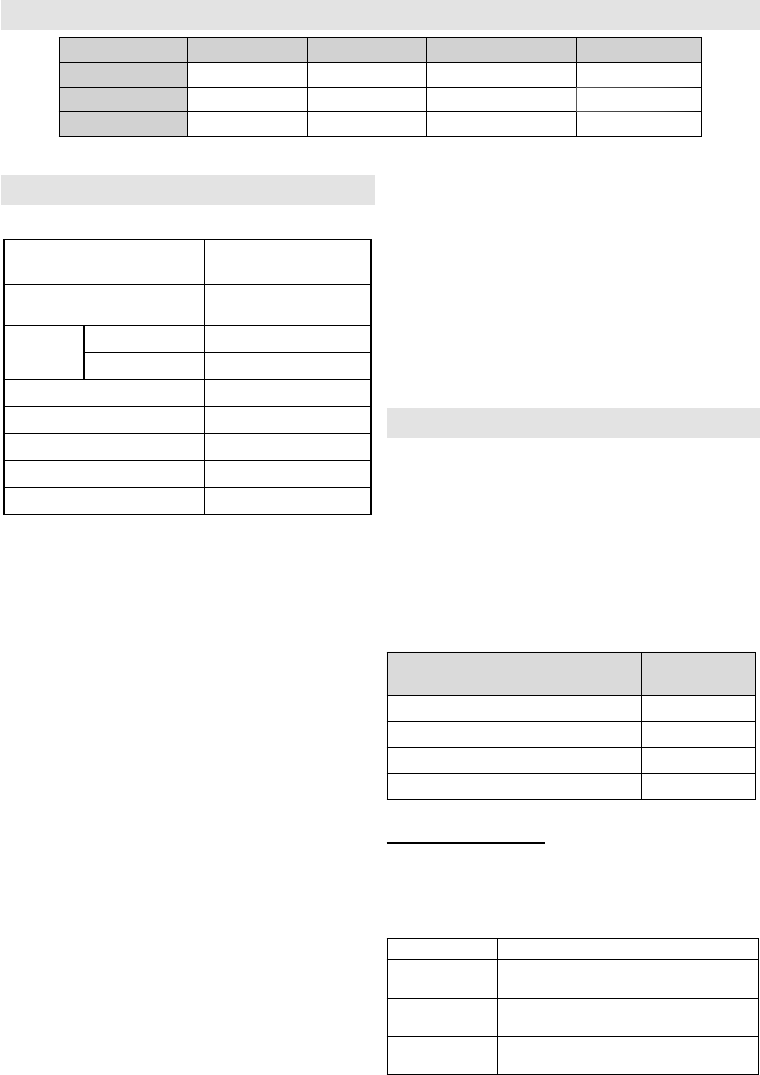
Maximum Pixel Rates
17MB120DSR4 Colour Space
HDMI 4k@60Hz YCbCr4:2:0 445.50MHz
OPS 4k@60Hz YCbCr4:2:0 371.25MHz
HDMI (DVI opt) 4k@60Hz RGB/YCbCr4:4:4 594MHz
(*) Consult your local dealer to get information on the chasis version of your display
System Features
Panel
Panel type
Panel
Resolution 3840x2160 (16:9) -
UHD
Visual
angle
Horizontal
89°
Perpendicular 89°
Max. brightness
Typ: 400 cd/m2
Max. contrast Typ: 1200 / Min: 900
Response time
8ms
H-Frequency 60 Khz
V-Frequency
67.5 Khz
Audio
2 x 8 W Audio Output Power
Network Connection
Ethernet (LAN) for Internet connectivity
802.11 a/b/g/n built in WIFI Support (optional)
Input/Output Ports
1 x USB 2.0 port (500mA)
1 x USB 3.0 port (900mA)
1 x Internal USB 2.0 port (500mA)
1 x HDMI 2.0 In port
1 x VGA port
1 x Audio input port
1 x Audio output port
1 x RS232 port
1 x RJ12 port
1 x Video In port
1 x YPbPr port
1 x SPDIF Coaxial Out port
1 x DiplayPort v1.2 In
1 x DiplayPort v1.2 Out
1 x Headphone port
1 x IR port
Power
110-240V AC 50-60Hz 2500mA
Weight (kg)
36
TV Dimensions DxLxH (mm)
1684mm x 967mm x 93mm
Note: Depending on the model you have bought, some options
may not be included with your display.
Accessories Included
• Remote Control
• Batteries: 2 x AAA
• Instruction Book
• Quick Start Guide
• IR Extender
• Wall Mount Kit
Frequency Ranges Max Output
Power
< 100 mW
5150 - 5250 MHz (CH36 - CH48) < 200 mW
5250 - 5350 MHz (CH52 - CH64) < 200 mW
5470 - 5725 MHz (CH100 - CH140) < 200 mW
Country Restrictions
all EU countries (and other countries following the
relevant EU directive) without any limitation except for
the countries mentioned below.
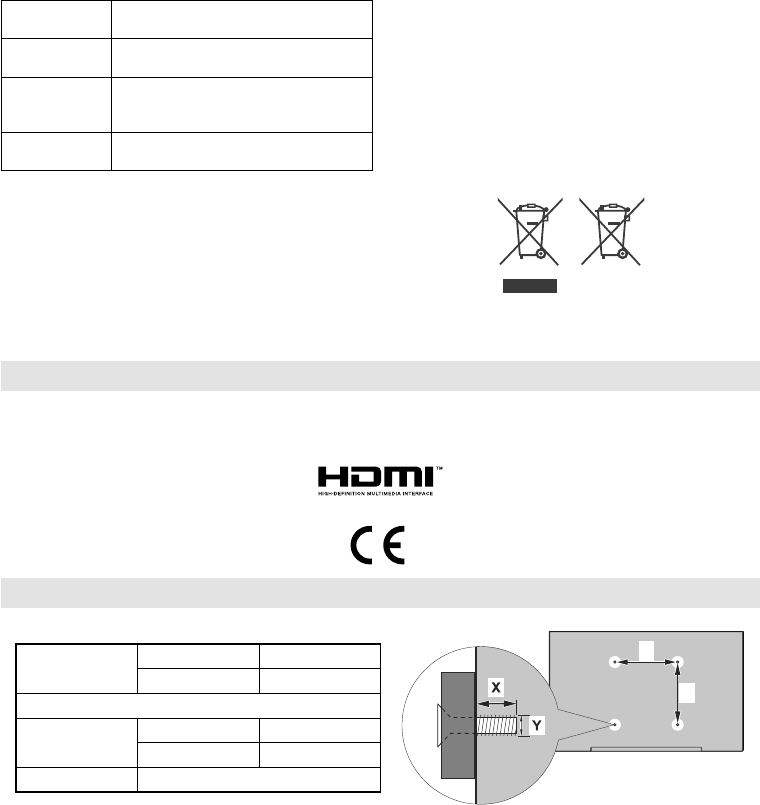
Country Restriction
Bulgaria Allmän auktorisering krävs för utomhus-
bruk och offentlig service
France Inomhusanvändning endast för 2454-2
Italy Om det används utanför egna lokaler
krävs offentliga tillstånd
English - 35 -
Greece Inomhusanvändning endast för 5470 MHz
to 5725 MHz-band
Luxembourg Allmän auktorisering krävs för nätverks-
och serviceförsörjning (inte för spektrum)
Norway Radiosändning är förbjuden för det geo-
från centrum av Ny-Ålesund
Russian Feder-
ation
Endast inomhus
The requirements for any country may change at
local authorities for the current status of their national
Information for Users on Disposal of Old Equipment
and Batteries
[European Union only]
Equipment bearing these symbols should not be
disposed as general household waste.
You should look for appropriate recycling facilities and
systems for the disposal of these products.
Notice: The sign Pb below the symbol for batteries indicates
that this battery contains lead.
Products
Battery
TRADEMARK ACKNOWLEDGMENT
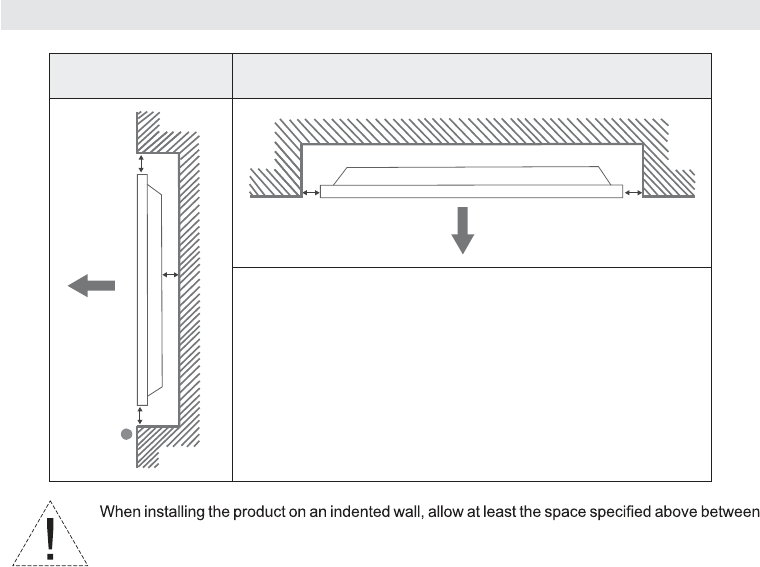
Vesa Wall Mount Measurements
Sizes (mm)
W H
400 200
min. (mm) 7
max. (mm) 21
M6
W
H
- 36 -
W
E
A
B
C
D D
A
B
C
D
E
W

Regulatory Information USA
Changes or modifications not expressly approved by the party responsible for compliance
could oid the use’s authoity to opeate the euipet.
This device complies with part 15 of the FCC Rules. Operation is subject to the following two
conditions: (1) This device may not cause harmful interference, and (2) this device must accept
any interference received, including interference that may cause undesired operation.
Class A device notice
NOTE: This equipment has been tested and found to comply with the limits for a Class A digital
device, pursuant to part 15 of the FCC Rules. These limits are designed to provide reasonable
protection against harmful interference when the equipment is operated in a commercial
environment. This equipment generates, uses, and can radiate radio frequency energy and, if
not installed and used in accordance with the instruction manual, may cause harmful
interference to radio communications. Operation of this equipment in a residential area is
likely to cause harmful interference in which case the user will be required to correct the
interference at his own expense.
RF exposure safety
The UHD751-P is a radio transmitter and receiver.
It is designed not to exceed the emission limits for exposure to radio frequency (RF) energy set
by the Federal Communications Commission.
The antenna must be installed and operated with minimum distance of 20 cm between the
radiator and your body.
This transmitter must not be co-located or operating in conjunction with any other antenna or
transmitter.
Regulatory Information Canada
Changes or modifications not expressly approved by the party responsible for compliance
could oid the use’s authoity to opeate the euipet.
Les changements ou modifications non expressément approuvés par la partie responsable de la
conformité pourraient annuler l'autorisation de l'utilisateur d'utiliser l'équipement.
This deice coplies ith Idusty Caada’s licece-exempt RSSs. Operation is subject to the
following two conditions: (1) This device may not cause interference; and (2) This device must
accept any interference, including interference that may cause undesired operation of the
device.
Le présent appareil est conforme aux CNR d'Industrie Canada applicables aux appareils radio
exempts de licence. L'exploitation est autorisée aux deux conditions suivantes : (1) l'appareil ne
doit pas produire de brouillage, et (2) l'utilisateur de l'appareil doit accepter tout brouillage
radioélectrique subi, même si le brouillage est susceptible d'en compromettre le
fonctionnement.
RF exposure safety
The UHD751-P is a radio transmitter and receiver.
It is designed not to exceed the emission limits for exposure to radio frequency (RF) energy set
by the ISED.
The antenna must be installed and operated with minimum distance of 20 cm between the
radiator and your body.
This transmitter must not be co-located or operating in conjunction with any other antenna or
transmitter.
Le UHD751-P est un émetteur et un récepteur radio.
Il est conçu pour ne pas dépasser les limites d'émission pour l'exposition à l'énergie
radiofréquence (RF) établie par l'ISDE.
L’atee doit tre istall de faço à garder ue distace iiale de 20 cm entre la source
de rayonnements et votre corps.
L’etteur e doit pas tre colocalis i foctioer cojoiteet avec à autre ateeou
autre émetteur.
CAN ICES-3 (A)/NMB-3(A)
This Class A digital apparatus complies with Canadian ICES-003
Cet appareil numérique de clase A est conforme à la norme Canadienne ICES-003