Chuango Security Technology DBL Smart Video Doorbell User Manual
Chuango Security Technology Corporation Smart Video Doorbell
User Manual
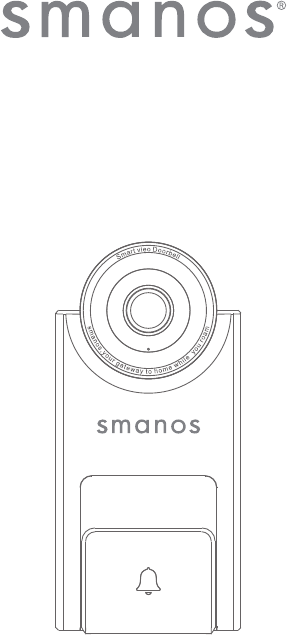
Smart Video Doorbell
Instruction Manual
Welcome to the Smart Home Family!
Thank you for choosing “Smart Video Doorbell”. This product integrates motion
detection and video recording into your doorbell system. Please take your time to
unpack and familiarize yourself with the included parts and this instruction manual
to learn how to to setup the “Smart Video Doorbell”.
Disclaimer
This instruction manual has been reviewed thoroughly and has been designed
to ensure that your product setup will be quick and easy with our easy to follow
guide. All statements, technical information and recommendations in this manual
are believed to be reliable, but the accuracy and completeness thereof are not
guaranteed or warranted.
The specications and information regarding the products in this document are
subject to change without further notice.
Photocopy, copy, reproduction, translation to any language, modication, storage
in a retrieval system or retransmission, in any form or by any means, electronic,
mechanical or otherwise, is strictly prohibited without written permission.
In no event we are liable for any indirect, special, incidental or consequential
damages, including, without limitation, monetary loss or loss or damage to data
arising out of the use or inability to use this document, even if the product has been
advised of the possibility of such damages.
Contents
Things to Note before Getting Started ������������������������������� 1
WiFi Internet Connection ���������������������������������������������������������1
WiFi Network and Password ������������������������������������������������������ 1
Operating System Requirements ������������������������������������������������1
In the Box ������������������������������������������������������������ 2
Getting to Know Your Smart Video Doorbell ���������������������� 3~4
Overview ������������������������������������������������������������������������� 3
LED Indicators �������������������������������������������������������������������� 4
Getting Started ���������������������������������������������������� 5~7
Operating Requirement ����������������������������������������������������������5
Connecting to the Existing Doorbell ��������������������������������������������� 5
Download the App ��������������������������������������������������������������� 6
Signing Up/In �������������������������������������������������������������������� 7
Installation������������������������������������������������������������������������ 7
Adding Device ������������������������������������������������������������������� 7
Setting Up Your Doorbell ���������������������������������������� 8~10
App Operation �������������������������������������������������� 11~24
Main Page ����������������������������������������������������������������������� 11
Live Video �����������������������������������������������������������������������12
Answering Your Door �����������������������������������������������������������13
History ��������������������������������������������������������������������������14
Album ���������������������������������������������������������������������������15
Settings �������������������������������������������������������������������� 16~21
Account Management ����������������������������������������������������� 22~24
Specications ������������������������������������������������������� 25
FAQs ������������������������������������������������������������26~30

4
Things to Note before Getting Started
WiFi Internet Connection
� One critical factor affecting the performance of your doorbell is the relative
positions of your home WiFi router and doorbell. Place your doorbell in an open
area (DO NOT place it directly on the oor); the closer the doorbell is to the
router, the stronger the WiFi signal will be, resulting in optimum performance and
satisfaction.
� A slow network speed will also affect the performance of your doorbell. It is
recommended that you have an upload speed of at least 2Mbps or faster.
To test your networks upload speed we recommend www.speedtest.net or the
speedtest App by Ookla it is FREE and very informative about your network’s TRUE
performance.
WiFi Network and Password
� Have your WiFi network name and password handy. The WiFi network name is
normally referred to as the SSID. The password or security ID is normally the next
line or two down from the WiFi/SSID network name.
These can be easily found on your WiFi router if you did not change them when
you rst installed your WiFi router, for example:
- WiFi/SSID Network Name: XXXX
- WiFi/SSID Network Password/Security Key: XXXXX
Operating Requirements
- iOS 8.0 or above with iPhone 5 or newer;
- Android 5.0 or newer;
� Connect to the existing doorbell with a voltage of 8~24VAC
1

2
In the Box
Smart Video Doorbell x 1
Waterproof Case x 1
Extra Terminal Screw x 2
* For securing the wires on the back of doorbell
Wire Connector x 2
* To connect the wires Harness to your existing wires
Mounting Bracket x 1
Mounting Screw x 4
* Used to mount doorbell with Phillips screwdriver (not
included in the package)
Anchor x 4
* For installing on concrete/stucco/brick
Security Screw x 4 (2 for Extra Use)
* Used to secure the mounting bracket
Screwdriver x 1
* The screwdriver used for the security screws
Power Regulator x 1
Wire Harness x 1
* Used to connect the power regulator to your internal chime
Extra Wire Connector x 2
* To connect the wires Harness to your existing wires
2 3
Getting to Know Your Smart Video Doorbell
Overview
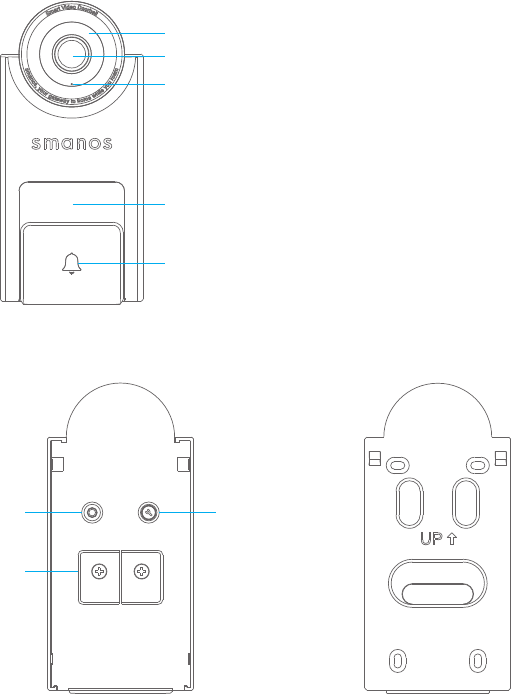
Front View
Camera
Microphone
PIR Sensor
Ringer
IR LEDs
Rear View
Conguration
Button
Tamper Switch
Wiring Terminals
4
LED Indicators
The LED indicators on the doorbell give you an idea of the device’s current status.
Here is a list of light indicators and the corresponding status it refers to.
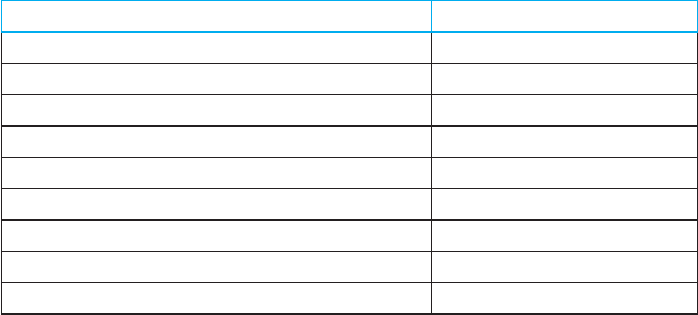
Light indicator Status
Solid red light lasts for 30 seconds and then off Powering on
Green light ashes fast (once every 0.2s) WiFi signal searching
Green and red light ash alternatively WiFi conguration mode
OFF WiFi connected
Green light ashes slowly (once every second) Doorbell ringing
Solid green light Live streaming
Red lights ashes fast (with warning beeps) Tampering alarm
Red light ashes once Motion detected
Red light ashes slowly (once every 3s) Low battery
4 5
Getting Started
Operating Requirement
This video doorbell is only available to connect to a low voltage 8~24VAC
transformer or an existing traditional doorbell with a voltage of 8~24VAC. In
general, your traditional doorbell consists a ringer to be installed outdoor, and an
indoor chime with a transformer. When the ringer is pressed by visitor, a ringtone of
“ding dong” will remind the family there has a visitor.
If you don’t get a detailed information about your existing doorbell, please consult
your local agency or installer.
To ensure a good performance of the smart doorbell, please check the things
below:
(1) Please do not install the smart doorbell on the mental.
(2) Mount your smart doorbell at a proper height. It is highly recommended to
mount it at the height of 1.2~1.3m from the ground.
(3) One critical factor affecting the performance of this video doorbell is the WiFi
quality it connecting with, It is recommended to close your door and do a WiFi
speed test via speedtest app (for example) in the location where you want it to be
installed on to make sure that you have an upload speed of at least 2Mbps.
(4) The app of this video doorbell is available to run at iOS 8.0 or above with iPhone
5 or newer, Android 5.0 or newer.
Connecting to the Existing Doorbell
This part is recommended to be done by qualied electrician.
Step 1: For your safety, please shut off the power source of your existing doorbell
system.
Step 2: Remove the cover of your internal chime and you can see 4 wires, two of
them are connected with its transformer, and two of them are connected with the
outdoor ringer.
Step 3: Disconnect the wire on the "front" terminal (outdoor ringer) and the wire on
the "transformer" terminal.
Step 4: Attach the newly disconnected wires into the provided Power Regulator.
Push down the orange fasteners to secure the wires in place.
Step 5: Then attach the other end of wires from the Power Regulator in parallel
back to the "front" and "transformer" terminals of internal chime. Tighten the screws
on top to secure the wires in place.
6
Step 6: Fix the Power Regulator inside the chime with double-sided tape, if it does
not t inside, you can attach it to the wall next to your chime. Place the cover back
onto the chime.
Step 7: Remove the wires attached to the outdoor ringer. You can disconnect the
wires by loosening the screws on top of the wires.
Step 8: Attach the newly disconnected wires into the doorbell in any pairing. Push
down the orange fastener to secure the wires in place.
Step 9: Restore the power back to the doorbell system. The ringer LED will be red
on boot.
Step 10: The initial boot takes about 30 seconds. There will be an audio indication
when the boot is completed. The ringer LED will also change to green.
Downloading the App
smanos home
Special Tips
Tap “Allow” to allow receiving notications from App. Forbidden to receive notications may
result in an application running failure, please allow it to send notications to your phone in
case of alarm.
6 7
Signing Up/In
If you have not registered an account with us, please press “Sign up” just below the
“Sign in” icon on the App, and follow the instructions to create your account rst.
* If you do not receive an account verication code in your email inbox during the
registration process, please remember to check your spam/junk folder and make
sure the notice has not been blocked by your service provider.
Once you have an account with us, please select the “Sign in” icon and enter your
email address and password to log in.Once you have an account with us, please
select the “Sign In” icon and enter your email address and password to log in.
Installation
The voltage of the doorbell is 8�24 VAC. To see how to connect the power, please
scan the QR code below to watch the video.
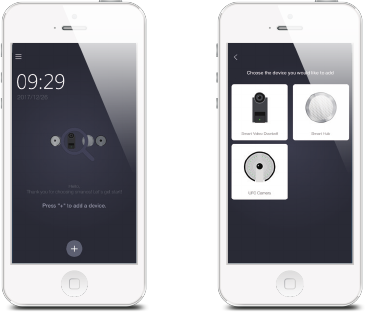
Adding Device
Press the [+] button on the Device List page.
Tap on [Smart Video Doorbell], and then follow the conguration steps to set up
your doorbell with your home WiFi.
8
Setting Up Your Doorbell
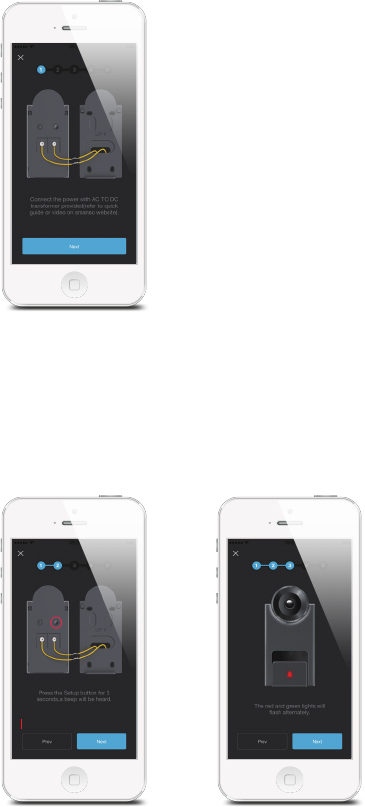
Powering On
Putting the Doorbell into WiFi Conguration Mode
Press and hold the Conguration Button on the back until the doorbell beeps once
(about 3 seconds), and then the indicator would ash red and green alternately,
indicating that the doorbell has been switched into the WiFi conguration mode.
8 9
Connecting the Doorbell to Your Smartphone
NOTE: Android users may need to disable cellular (mobile) data before proceeding
to this step. This setting is normally found in your smartphone’s settings under Data
Usage, or Mobile Networks.
If you’re unable to nd the setting location, we suggest searching on Google with
the following syntax: Disable (Phone Model) cellular data.
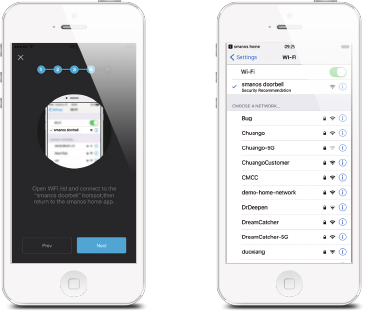
Go to your smartphone’s WiFi settings, and select “smanos doorbell” to connect to
the doorbell. Now, your smartphone is the control center of your doorbell.

10
Entering WiFi Details for the Doorbell
Pick your home WiFi network from the drop down box listed on the app, and
enter the WiFi network’s password. The doorbell will connect to the selected WiFi
network. This binding process should take about three minutes.
The doorbell indicator light will be off when a successful connection has been
established.
Starting to Use
Now, your doorbell is ready for a spin!
10 11
App Operation
Main Page
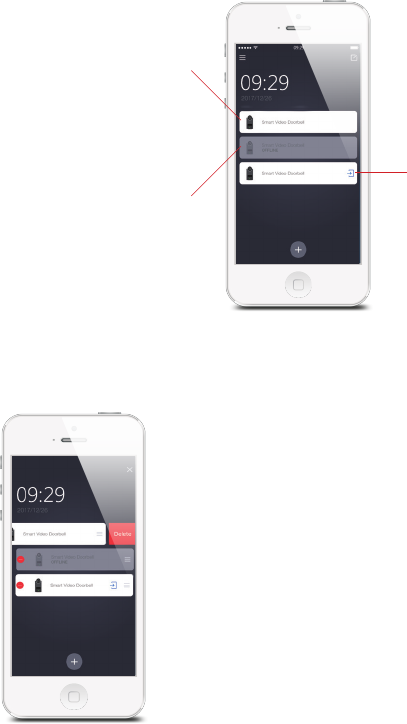
Checking device status after setting up
When the status bar turns
into white, it means the
device is ONLINE and
available.
This icon on the left of your
device indicates that the
device was shared to you
by family or friends.
If it's gray, it means the
device is OFFLINE and
cannot be accessed.
Editting your device(s) as you wish
12
Deleting Device
Tap on the Edit Button [ ], and press the Delete Button [ ].
Sorting
Tap on the Edit Button [ ], press and hold the Sort Button [ ], drag it up or
down to the position where you want it to be located.
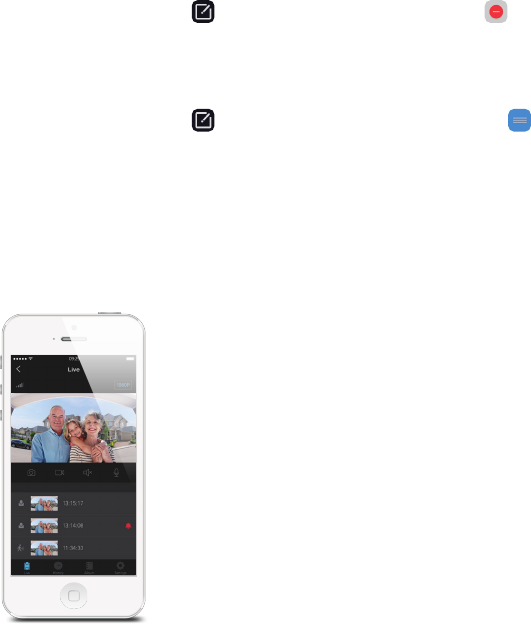
Live Video
Please tap on the “Smart Video Doorbell” icon from the main page and enter the
live video page.
1. Signal Strength
Indicate the signal strength between the WiFi network and the connected devices.
Note: Another critical factor affecting video quality is the upload speed of your
selected home WiFi network.
2. Video Quality
Tap on the video quality icon at the top right of the Live Page, there are 3 different
levels of video quality you can choose: 1080p, 720p, 360p; please choose video
quality according to your need and network situation.
If the level of 1080p is selected, the upload rate for the network that the device is
connected should be not less than 200KB/S, and the download rate for the network
that the mobile phone is connected should not be less than 200KB/S.
If the level of 720p is selected, the upload rate for the network that the device is
12 13
connected should be not less than 120KB/S, and the download rate for the network
that the mobile phone is connected should not be less than 120KB/S.
If the level of 360p is selected, the upload rate for the network that the device is
connected should be not less than 30KB/S, and the download rate for the network
that the mobile phone is connected should not be less than 30KB/S.
3. Snapshot (left) / Record (right)
Real�time screenshots and video clips can be recorded directly onto your phone.
Tap on “Album” to view them.
4. Listen (left) / Speak (right)
Press the microphone button to speak and press it again when you nish. Anyone
in the vicinity of your doorbell will hear you.
If you want to listen in on the surrounding area of your doorbell, all you need to do
is tap on the Listen In button.
5. Latest Alerts
The latest three alerts will appear on this area. And the corresponding 15�second
videos can be played directly ONLY if you have purchased a smanos cloud plan.
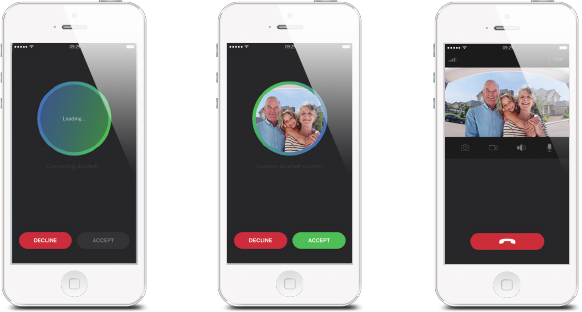
Answering Your Door
When someone is infront your door and ring the doorbell, it will show on your App:
After loading successfully, it will show the image of the outdoor situation. Press
“Accept” button to speak to the ringer directly or just tap on “decline” to nish the
conversation.
14
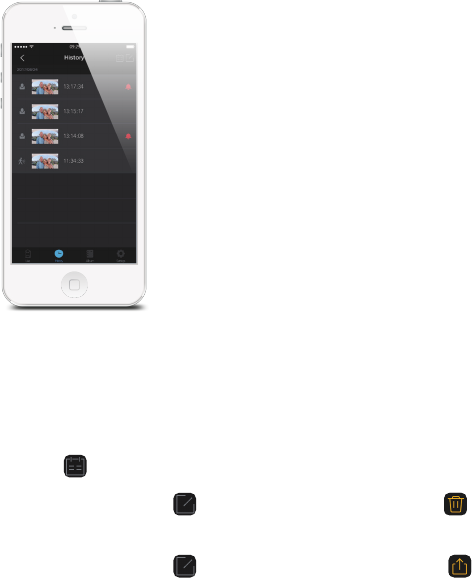
History
If you already have had our smanos cloud service, motion�triggered alerts,
accepted or missed ring logs can be reviewed from this History page directly and
the corresponding 15�second videos can be played.
Tap on [ ] to pick a specic day and search for an alert.
Tap on the edit icon [ ] and then press the shown [ ] to delete the selected
15�second videoes.
Tap on the edit icon [ ], and then press the shown [ ] to share the selected
15�second videoes.

14 15
Album
You can nd all your manually saved video clips and snapshots on this page. Any
video or snapshot found here is stored on your phone and can be edited and
shared as you wish.
Deleting Video(s) or Snapshot(s)
Tap on edit icon [ ] and then press the shown [ ] to delete video clip(s) or
snapshot(s).
Sharing Video(s) or Snapshot(s)
Tap on edit icon [ ], and then press the shown [ ] to share the video clips or
snapshots of interest.
16
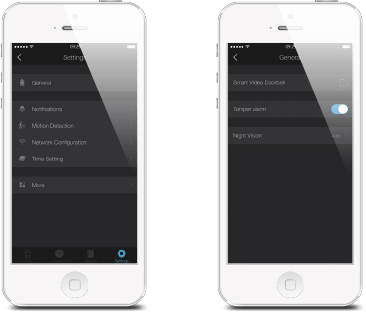
Settings
General
Device Name
This setting enables you to rename your doorbell, and the new name will be shown
on the Device List on Main Page.
Tampering Alarm
This setting enables you to switch on/off the tampering function on your doorbell.
16 17
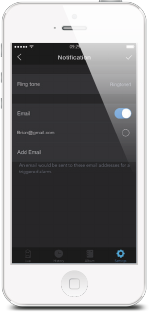
Notications
This setting enables you to:
1. Change the alert tone of the push notications.
Note: The notication for motion alerts will be sent to you without any ring tone.
2. If you want to receive an email notication whenever the motion is detected, you
can turn on the “Email” function and input the receiving email addresses.
18
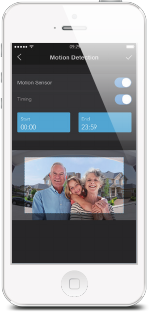
Motion Detection
On/Off
When the motion sensor is turned on, you will receive a push notication whenever
motion is detected.
Timing
This is useful if you installed the doorbell in a busy area in your home where foot
trafc is frequent. Dene a time frame during which you wish to receive motion
alerts.
18 19
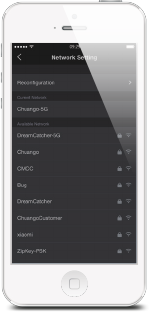
Network Conguration
Change WiFi (Switching between Networks)
This setting enables you to connect your doorbell with another nearby WiFi
network, without repeating the conguration process.
Reconguration
This setting enables you to recongure your doorbell when a network issue has
arisen. All settings and records will NOT be cleared.
20
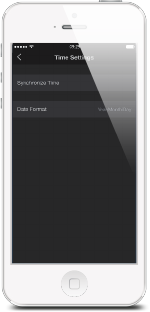
Time Setting
Synchronize Time
This setting enables you to choose the time zone for your doorbell, to make sure
the time stamp on the recorded video is correct.
When motion is detected, you will receive a push notication: (for example) Activity
detected by [Smart Video Doorbell name] at 08:20:00 GMT+2 Or Activity detected
by [Smart Video Doorbell name] at 07:20:00 GMT+1 DST during Daylight Saving
Time.
Date Format
This setting enables you to change the format of the date shown on your app.
20 21
More
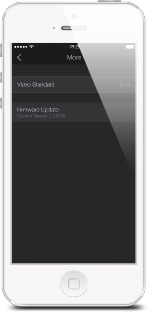
Firmware Update
This setting enables you to update your doorbell to the latest rmware if necessary.
WHEN AN UPDATE IS TAKING PLACE, FORCED TERMINATION WILL CAUSE
SERIOUS DAMAGE TO YOUR Smart Video Doorbell. It is highly recommended that
you keep your doorbell plugged in at all times, and DO NOT SWITCH THE DEVICE
OFF BEFORE AN UPDATE IS COMPLETED.
22
Account Management
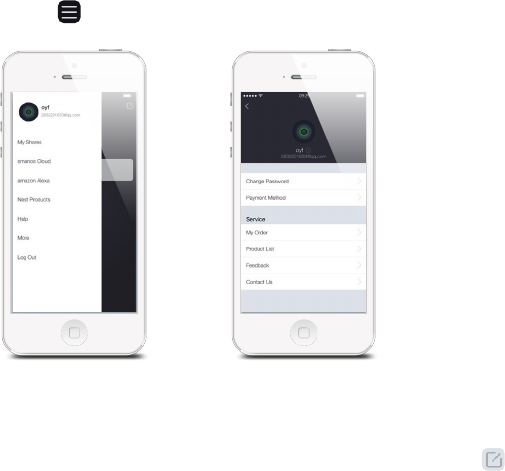
Editting Account
Tap on [ ] on the main page to enter the account management.
Tap on the picture, and you can add or replace your account image by taking a
picture or choosing a picture from your phone’s album.
If you want to change your account name, just tap on the [ ] button and enter a
new name.
Changing your password can also be done on this page.
22 23
My Shares
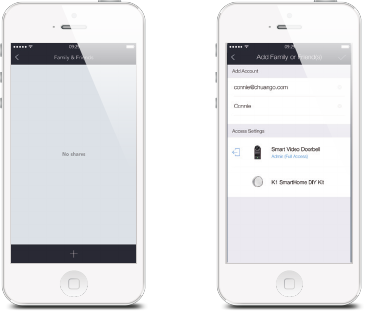
Sharing device(s) with family or friends
By choosing “My shares” on the menu and pressing the [+] Add Button, you can
share access to your device(s) with other registered accounts.
Enter the email address and nickname of the account you want to share with, and
then select the device(s) after setting access limit.
24
Access Setting
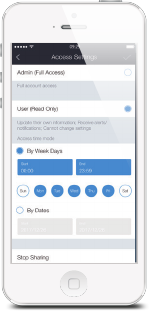
There are two types of sharing way with some key differences: the Administrator
and the User who has been invited to the devices.
Admin (Full Access)
With Admin (Full Access), the shared user in this group will be able to do almost
everything as the Owner can to the devices you’re shared, with few exceptions, like
re�sharing to others.
Important:
Because people in Admin group with access to a device can do so much, you
should only invite people you really trust.
User (Read Only)
With User (Read Only), the shared user in this group will only be able to edit the
name of the device(s) and receive alerts; re-sharing the device(s) to other users or
changing the settings are not permitted.
(1) By week days
Select the day(s) and each day's routine you want the device(s) to be accessible to
the account you share with.
(2) By dates
The family and/or friend(s) you share with would have access to your device(s)
during the entire chosen time period.
Stop Sharing
If you would like to limit access to the device you have shared, tap stop sharing,
then tap “√” on the top right to save.
24 25
Specications
Model No DB�20
Camera Full HD 1080p
Angle of view horizontal 170°, vertical 90°
Video compression H.264
Night vision Automatic IR-cut lter
WiFi 802.11b/g/n/ac with WEP/WPA/WPA2 encryption
2.4GHz + 5GHz
Power supply AC 8�24V
Operating conditions temperature �20~+50°C ( 4~122°F, humidity < 95%
RH (non-condensing)
Dimensions (LxWxH) 131.7 x 62.2 x 36.2mm
Dismensions 117 x 118.5 x 40.5 mm (L x W x H)
26
FAQs
* WiFi and Network:
1. I have a poor WiFi signal, what can I do?
Please check the WIFI connection strength from live video page or test your
network’s speed from www.speedtest.net or from the speedtest app.
If it shows the connection is weak, you should re�attempt the setup procedure,
and try moving your router closer to your doorbell, or exploring possible sources
of WIFI interference such as large appliances, or other wireless products that may
affect the signal.
You may also need to extend the range of your WiFi network with a WiFi repeater.
2. How do I locate my WiFi password?
The WiFi network’s name is normally referred to as the SSID. The password or
security ID is normally the next line or two down from the WiFi/SSID network name.
These can be easily found on your router if you did not change from the default
name and password that was shipped with from the factory. For example:
- WiFi/SSID Network Name: XXXX
- WiFi/SSID Network Password/Security Key: XXXX
3. Why did my smart doorbell go ofine and how do I x it?
There may be a time when your smart doorbell loses its network connection. If you
open the app and notice the status bar is gray, this is one of those times. There are
a few possible causes of this occurrence:
� A power surge causes a problem with your Internet router.
� You temporarily lose power.
� A wire in your router setup temporarily comes loose.
� You changed your Wi�Fi network password.
� Your device is suffering from low power due to a discharged battery.
In most cases, the device will automatically be reconnected to the network when
the circumstances causing the disconnection clear up. Please check the following
troubleshooting routine to nd the possible reasons if it fails to reconnect
automatically.
> Check that all of your wires are properly plugged in and that all the lights on the
front of the router are green.
> Check to see whether another Wi�Fi device is having a problem connecting to
the network.
> Unplug your router for 30 seconds and then plug it back in. See if your doorbell
26 27
automatically reconnects.
> Press the conguration button on the back of your device to put the device
in Setup mode. Wait 10 seconds, then press it again and see if the device
automatically reconnects.
> Check to make sure your device’s battery to make sure it’s properly charged.
* Motion alerts:
4. Why am I receiving false alerts?
An infrared sensor is used for motion detection meaning it could be triggered from
a moving object which produces heat.
Cars as well as other objects that may give off large heat signatures will trigger
unwanted motion alerts as they pass by. As the doorbell is featured with a wide�
angle lens, some undesired objects in the motion zone may trigger the alerts.
Proper location, height and angle of the device are important.
It is suggested the height for installation is 1.2-1.3m (4.0-4.3ft) from the ground.
Please make sure it does not cover the areas that may trigger unwanted motion
alerts (e.g. a public sidewalk or street). If there is an adjacent wall by your front
door, try to mount the device on the wall not facing the street.
5. What to do if no motion alert is received?
Please make sure you’ve enabled the motion detection function on your App by
setting the motion sensor slider to the blue “on” position.
6. Why am I not receiving any motion alerts?
This is most likely caused by a poor WiFi connection. An upload speed of two mbps
or higher is recommended for optimal streaming performance. If your bandwidth
doesn’t meet this requirement, you may need to relocate your router, or purchase a
WiFi extender to strengthen the connection.
7. How do I set up a schedule to turn on motion alerts?
Go to the “Settings” page, and select “Motion Detection”. Move the “Motion
Detection” and “Timing” slider to the blue “on” position, and then set the time
period that you would like to receive motion alerts.
If you do not want to receive motion alerts, turn the “motion sensor” slider to gray
“off” position.
28
* Notications
8. My device is not sending me notications, how can I x this?
Notications will be sent to your mobile phone once the bell is rung or any motion
is detected by the doorbell (if this function is enabled).
Be sure your device is online and your phone is allowed to receive notications
from smanos home(for iPhone only).
You may check from the front page to see the status of the device. When the status
bar turns into teal, it means the device is ONLINE and available. When the status
bar turns into gray, it means the device is OFFLINE.
If the device ashes in green light fast (once every 0.5s), it means the device is
searching for signals and is OFFLINE.
And if you are an iPhone user, you may check the notications setting on settings
section in your phone.
* Video
9. My video quality is poor, how can I x this?
Bring your router near the doorbell, and press the Live View utton, or trigger a
motion event to see video.
If you get good video quality near the router, you need to extend your wi signal.
If you video quality is poor still near the router, test your network from www.
speedtest.net or get the speedtest app.
There are 3 different levels of video quality you can select: 1080p, 720p, 360p. You
may select higher level to improve the video quality.
If 1080p is selected, the upload rate for the network that the device is connected to
should be not less than 200KB/S, and the download rate for the network that the
mobile phone is connected should not be less than 200KB/S.
If 720p is selected, the upload rate for the network that the device is connected to
should be not less than 120KB/S, and the download rate for the network that the
mobile phone is connected should not be less than 120KB/S.
If 360p is selected, the upload rate for the network that the device is connected to
should be not less than 30KB/S, and the download rate for the network that the
mobile phone is connected should not be less than 30KB/S.
28 29
10. How can I access my doorbell’s live view?
The “live view” feature lets you access a live video feed from your smart doorbell at
any time. Tap the “live view” button to watch a live video from your app. The green
light will be on when you watch the live video. Press the microphone button to
speak and press it again when you nish. Anyone in the vicinity of your doorbell will
hear you. If you want to listen in on the surrounding area, all you need to do is tap
on the Listen In button.
* Battery
11. Does the smart doorbell operate on battery power?
The smart doorbell can be connected to your doorbell wiring. It is recommended
to connect to AC power (voltage of 8~24VAC) as the battery is intended to be a
backup.
12. If the smart doorbell is hardwired to the existing doorbell, does the battery still
need to be charged?
No, if the doorbell is hardwired to power then it will be charged by your home’s
electricity.
* Sharing
13. Can the doorbell be controlled by multiple devices? How can I share my device
with others?
If you plan to use multiple devices to control your doorbell, use the in app “My
Shares” feature. You can access this feature by tapping on “My Shares” and pressing
the + button.
Note: Additional users will need to register for an account.
Enter the email address and nickname, then select which device(s) you wish to
share.
There are two types of sharing way with some key differences: the Administrator
and the User who has been invited to the devices.
With Admin (Full Access), the shared user in this group will be able to do almost
everything as the Owner can to the devices you’re shared, with few exceptions, like
re�sharing to others.
With User (Read Only), the shared user in this group will only be able to edit the
name of the device(s) and receive alerts; re-sharing the device(s) to other users or
changing the settings are not permitted.
30
*smanos Cloud Plan
14. How long is the free trial?
3 days. If you purchase a paid subscription during the time, it will activate
automatically at the end of the trial period.
15. If I sign up after my free 3�day trial, will I still be able to retrieve my videos?
If you don’t subscribe before your trial has ended, your videos won‘t be lost. If you
purchase a subscription during the free trial, your paid subscription will go into
effect as soon as your trial has ended.
16. If I don’t have a smanos cloud service, will I still receive alerts?
Yes. You will still get alerts when visitors press your Doorbell or trigger the motion
sensors.
Tap smanos Cloud in the account management page for more information.
Technical Support:
Website: http://www.smanos.com
You may send emails to:
support@smanos.us (North America)
support@smanos.com (Rest of the World)
Thank you for choosing “Smart Vide Doorbell”. It is a product that integrates motion
detection and video recording into a doorbell. The doorbell will provide you a
safe, easy and cost�effective solution to protect your home & loved ones 24/7/365.
Please take the time to unpack and familiarize yourself with the included parts and
this instruction manual to learn the easy steps required to setup your “Smart Video
Doorbell”.

FCC Caution:
Any Changes or modifications not expressly approved by the party responsible for
compliance could void the user's authority to operate the equipment.
This device complies with part 15 of the FCC Rules. Operation is subject to the
following two conditions: (1) This device may not cause harmful interference, and (2) this
device must accept any interference received, including interference that may cause
operation.
This equipment complies with FCC radiation exposure limits set forth for an uncontrolled
This equipment should be installed and operated with minimum distance 20cm between
(b) For a Class B digital device or peripheral, the instructions furnished the user shall
include the following or similar statement, placed in a prominent location in the text of the
manual:
—Reorient or relocate the receiving antenna.
—Increase the separation between the equipment and receiver.
—Connect the equipment into an outlet on a circuit different from that to which the receiver
is connected.
—Consult the dealer or an experienced radio/TV technician for help.
undesired
environment .
the radiator& your body.
NOTE: This equipment has been tested and found to comply with the limits for a
Class B digital device, pursuant to part 15 of the FCC Rules. These limits are designed to
provide reasonable protection against harmful interference in a residential installation.
This equipment generates, uses and can radiate radio frequency energy and, if not
installed and used in accordance with the instructions, may cause harmful interference to
radio communications. However, there is no guarantee that interference will not occur in a
particular installation. If this equipment does cause harmful interference to radio or
television reception, which can be determined by turning the equipment off and on, the
user is encouraged to try to correct the interference by one or more of the following
measures:

30
Printed in China
PA : DB-20-UM-EN-V1.0
© 2018 smanos. All Rights Reserved.