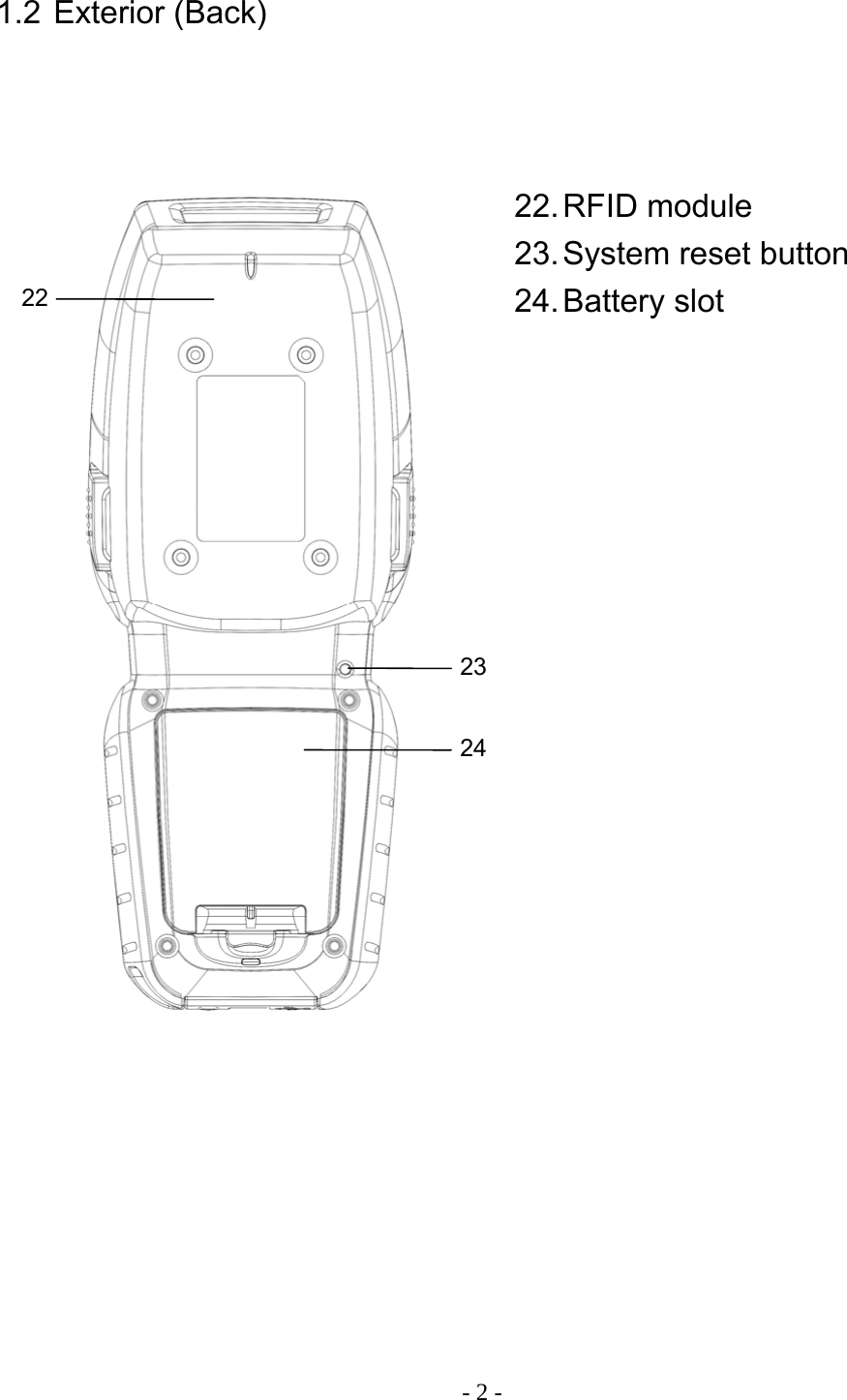
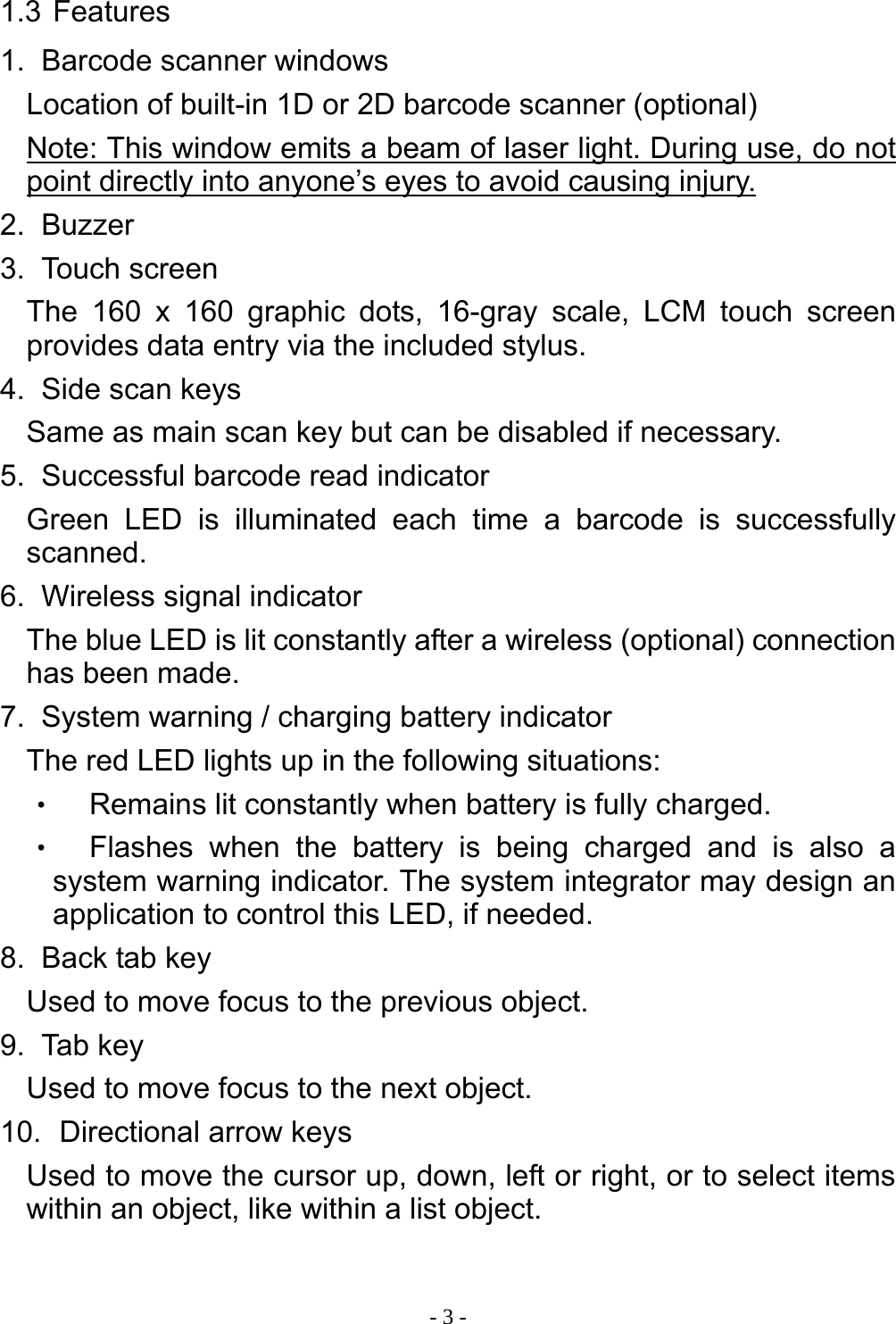
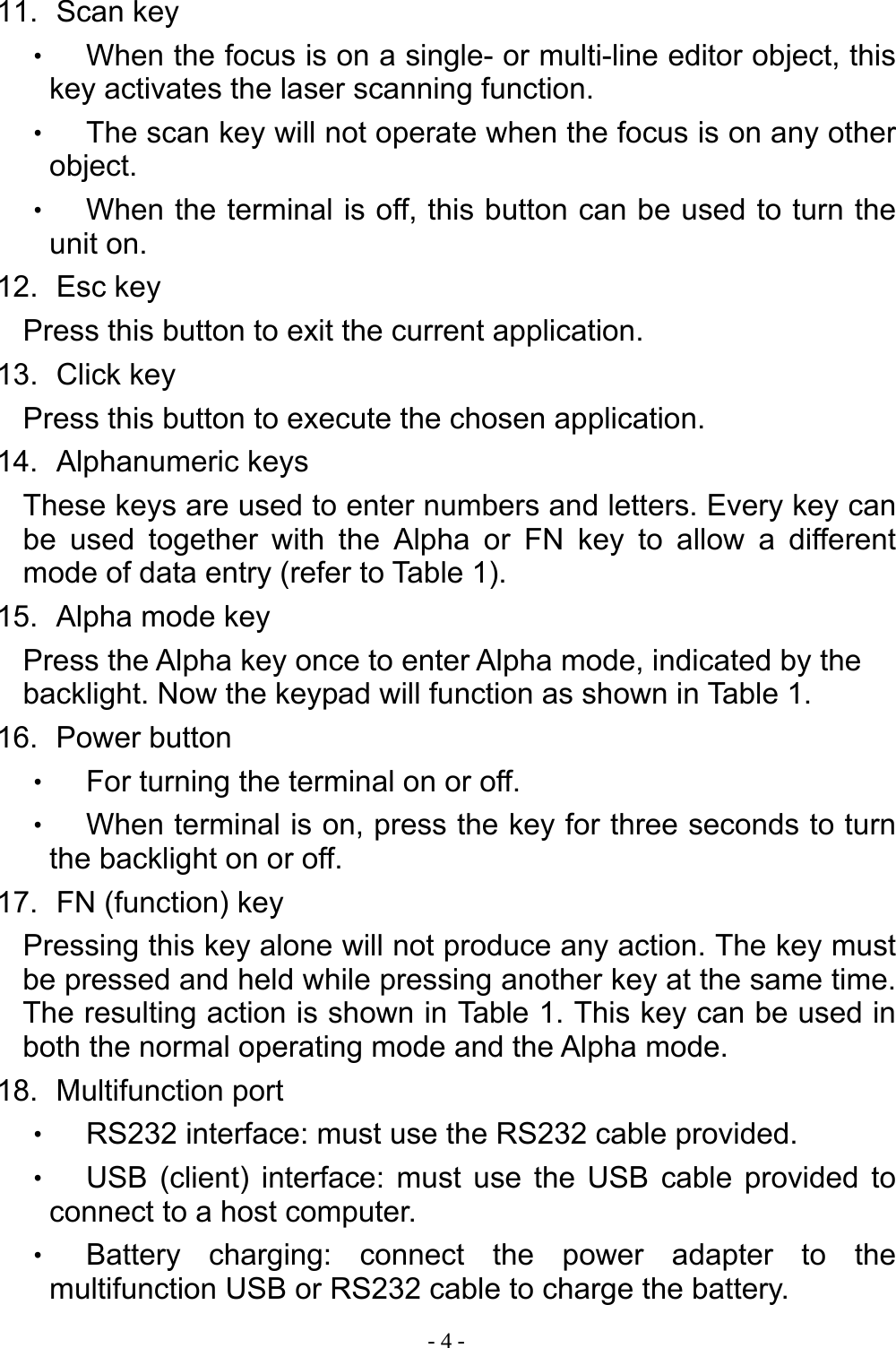
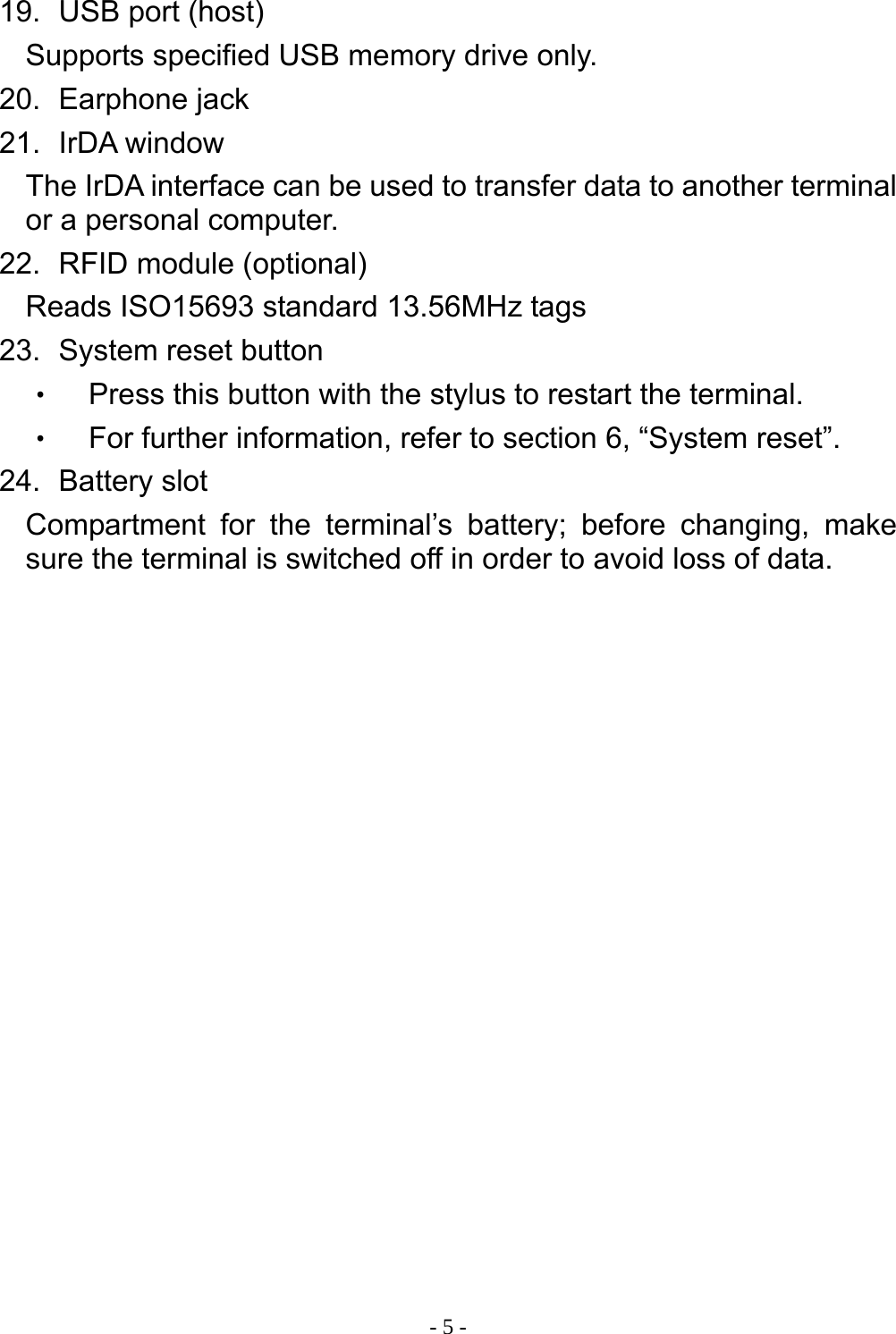
Chung Hsin Electric and Machinery Mfg PPT-100 Portable Data Terminal User Manual

Chung-Hsin Electric & Machinery Mfg. corp. Portable Data Terminal

User Manual

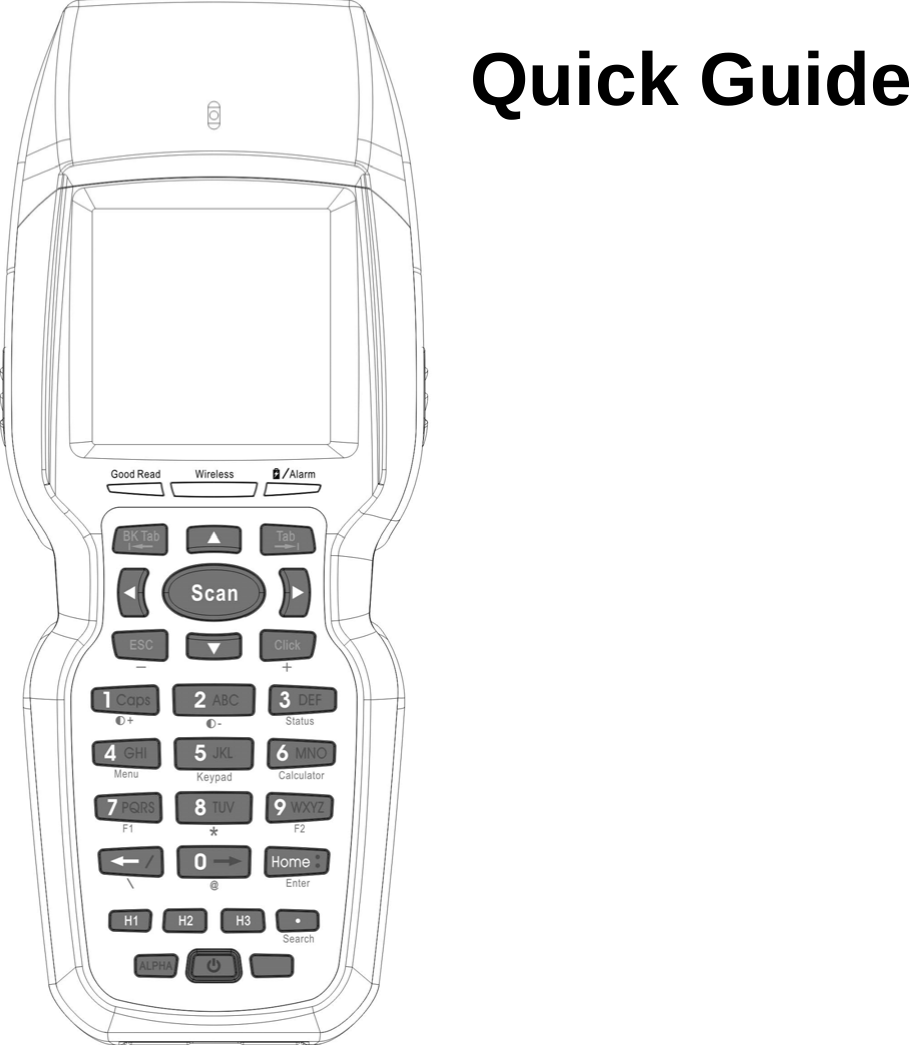
    Quick Guide
  User Information This equipment has been tested and found to comply with the limits for a Class B Digital Device, pursuant to part 15 of the FCC Rules. These limits are designed to provide reasonable protection against harmful interference in a residential installation. This equipment generates, uses and can radiate radio frequency energy and, if not installed and used in accordance with the instruction, may cause harmful interference to radio communication. However, there is no grantee that interference will not occur in a particular installation. If this equipment dose cause harmful interference to radio or television reception, which can be determined by turning the equipment off and on , the user is encouraged to try to correct the interference by one or more of the following measures:  -- Reorient or relocate the receiving antenna. -- Increase the separation between the equipment and receiver. -- Connect the equipment into an outlet on a circuit different from that to which the receiver is connected. -- Consult the dealer or an experienced radio/TV technician for help.  The changes or modifications not expressly approved by the party responsible for compliance could void the user’s authority to operate the equipment.  To comply with the FCC RF exposure compliance requirements, this device and its antenna must not be co-located or operating to conjunction with any other antenna or transmitter. This device complies with Part 15 of the FCC Rules. Operation is subject to the following two conditions: (1) this device may not cause harmful interference, and (2) this device must accept any interference received, including interference that may cause undesired operation.
- Contents -  1. Hardware ..........................................................1 1.1 Exterior (Face) ............................................. 1 1.2 Exterior (Back) ............................................. 2 1.3 Features ....................................................... 3 Table 1. Keypad key assignments .................... 6 2. System set up ...................................................7 3. Battery ..............................................................8 4. Use and care of the touch panel .......................9 5. Care of the terminal ..........................................9 6. System reset...................................................10 7. Desktop...........................................................11 8. System setting ................................................12 9. Bluetooth Network ..........................................15 10. Barcode Test...................................................17 11. WiFi Manager (Optional).................................18 12. RFID Test (Optional) .......................................19 13. Backup............................................................21 14. Using the Browser ..........................................23   070711
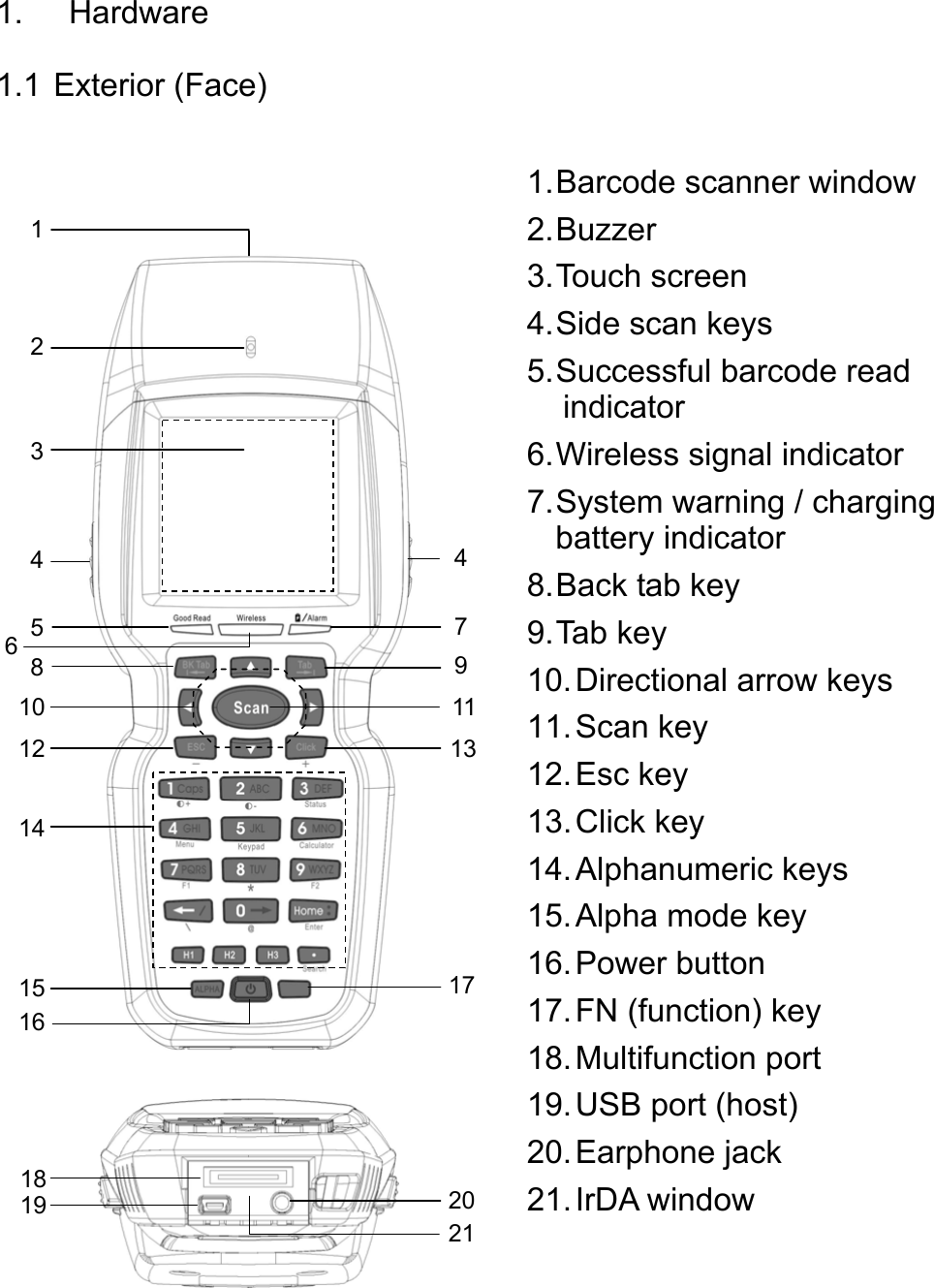
 1. Hardware 1.1 Exterior (Face)  1.Barcode scanner window2. Buzzer 3. Touch  screen 4. Side scan keys 5. Successful barcode read indicator 6. Wireless signal indicator 7. System  warning  /  charging battery indicator 8. Back tab key 9. Tab  key 10. Directional arrow keys 11. Scan  key 12. Esc  key 13. Click  key 14. Alphanumeric  keys 15. Alpha mode key 16. Power  button 17. FN (function) key 18. Multifunction  port   19. USB port (host) 20. Earphone  jack 21. IrDA  window 2 1 3 4  45 6  78  910 1312 2014 15 16 111718 19 21
 - 2 -  1.2 Exterior (Back)  22 22.RFID module 23. System  reset  button 24. Battery  slot 2324
 - 3 - 1.3 Features 1.   Barcode scanner windows Location of built-in 1D or 2D barcode scanner (optional) Note: This window emits a beam of laser light. During use, do not point directly into anyone’s eyes to avoid causing injury. 2.   Buzzer 3.   Touch  screen The 160 x 160 graphic dots, 16-gray scale, LCM touch screen provides data entry via the included stylus. 4.   Side scan keys Same as main scan key but can be disabled if necessary. 5.   Successful barcode read indicator Green LED is illuminated each time a barcode is successfully scanned. 6.   Wireless signal indicator The blue LED is lit constantly after a wireless (optional) connection has been made. 7.   System warning / charging battery indicator The red LED lights up in the following situations: ‧ Remains lit constantly when battery is fully charged. ‧ Flashes when the battery is being charged and is also a system warning indicator. The system integrator may design an application to control this LED, if needed. 8.   Back tab key Used to move focus to the previous object. 9.   Tab  key Used to move focus to the next object. 10.   Directional  arrow  keys Used to move the cursor up, down, left or right, or to select items within an object, like within a list object.
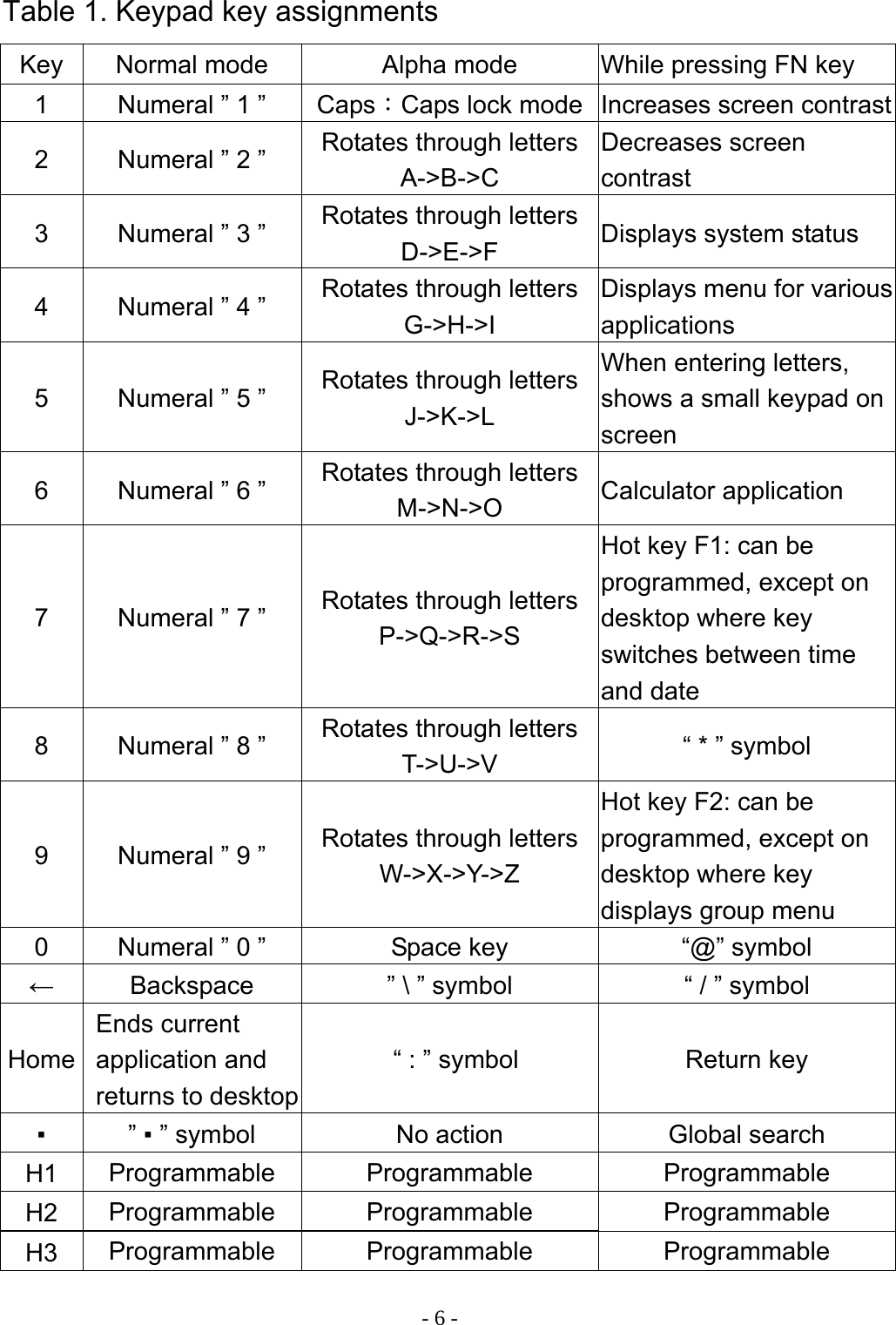
 - 4 - 11.   Scan  key ‧ When the focus is on a single- or multi-line editor object, this key activates the laser scanning function. ‧ The scan key will not operate when the focus is on any other object. ‧ When the terminal is off, this button can be used to turn the unit on. 12.   Esc  key Press this button to exit the current application. 13.   Click  key Press this button to execute the chosen application. 14.   Alphanumeric  keys These keys are used to enter numbers and letters. Every key can be used together with the Alpha or FN key to allow a different mode of data entry (refer to Table 1). 15.   Alpha  mode  key Press the Alpha key once to enter Alpha mode, indicated by the backlight. Now the keypad will function as shown in Table 1. 16.   Power  button ‧ For turning the terminal on or off. ‧ When terminal is on, press the key for three seconds to turn the backlight on or off. 17.   FN (function) key Pressing this key alone will not produce any action. The key must be pressed and held while pressing another key at the same time. The resulting action is shown in Table 1. This key can be used in both the normal operating mode and the Alpha mode. 18.   Multifunction  port ‧ RS232 interface: must use the RS232 cable provided. ‧ USB (client) interface: must use the USB cable provided to connect to a host computer. ‧ Battery charging: connect the power adapter to the multifunction USB or RS232 cable to charge the battery.
 - 5 - 19.   USB port (host) Supports specified USB memory drive only. 20.   Earphone  jack 21.   IrDA  window The IrDA interface can be used to transfer data to another terminal or a personal computer. 22.   RFID  module  (optional) Reads ISO15693 standard 13.56MHz tags 23.   System reset button ‧ Press this button with the stylus to restart the terminal. ‧ For further information, refer to section 6, “System reset”. 24.   Battery  slot Compartment for the terminal’s battery; before changing, make sure the terminal is switched off in order to avoid loss of data.
 - 6 -Table 1. Keypad key assignments Key  Normal mode  Alpha mode  While pressing FN key 1  Numeral ” 1 ”  Caps:Caps lock mode Increases screen contrast2  Numeral ” 2 ”  Rotates through letters A->B->C Decreases screen contrast 3  Numeral ” 3 ”  Rotates through letters D->E->F  Displays system status 4  Numeral ” 4 ”  Rotates through letters G->H->I Displays menu for various applications 5  Numeral ” 5 ”  Rotates through letters J->K->L When entering letters, shows a small keypad on screen 6  Numeral ” 6 ”  Rotates through letters M->N->O  Calculator application 7  Numeral ” 7 ”  Rotates through letters P->Q->R->S Hot key F1: can be programmed, except on desktop where key switches between time and date 8  Numeral ” 8 ”  Rotates through letters T->U->V  “ * ” symbol 9  Numeral ” 9 ”  Rotates through letters W->X->Y->Z Hot key F2: can be programmed, except on desktop where key displays group menu 0  Numeral ” 0 ”  Space key  “@” symbol ←  Backspace  ” \ ” symbol  “ / ” symbol Home Ends current application and returns to desktop   “ : ” symbol  Return key ▪ ” ▪ ” symbol  No action  Global search H1  Programmable Programmable Programmable H2  Programmable Programmable Programmable H3  Programmable Programmable Programmable
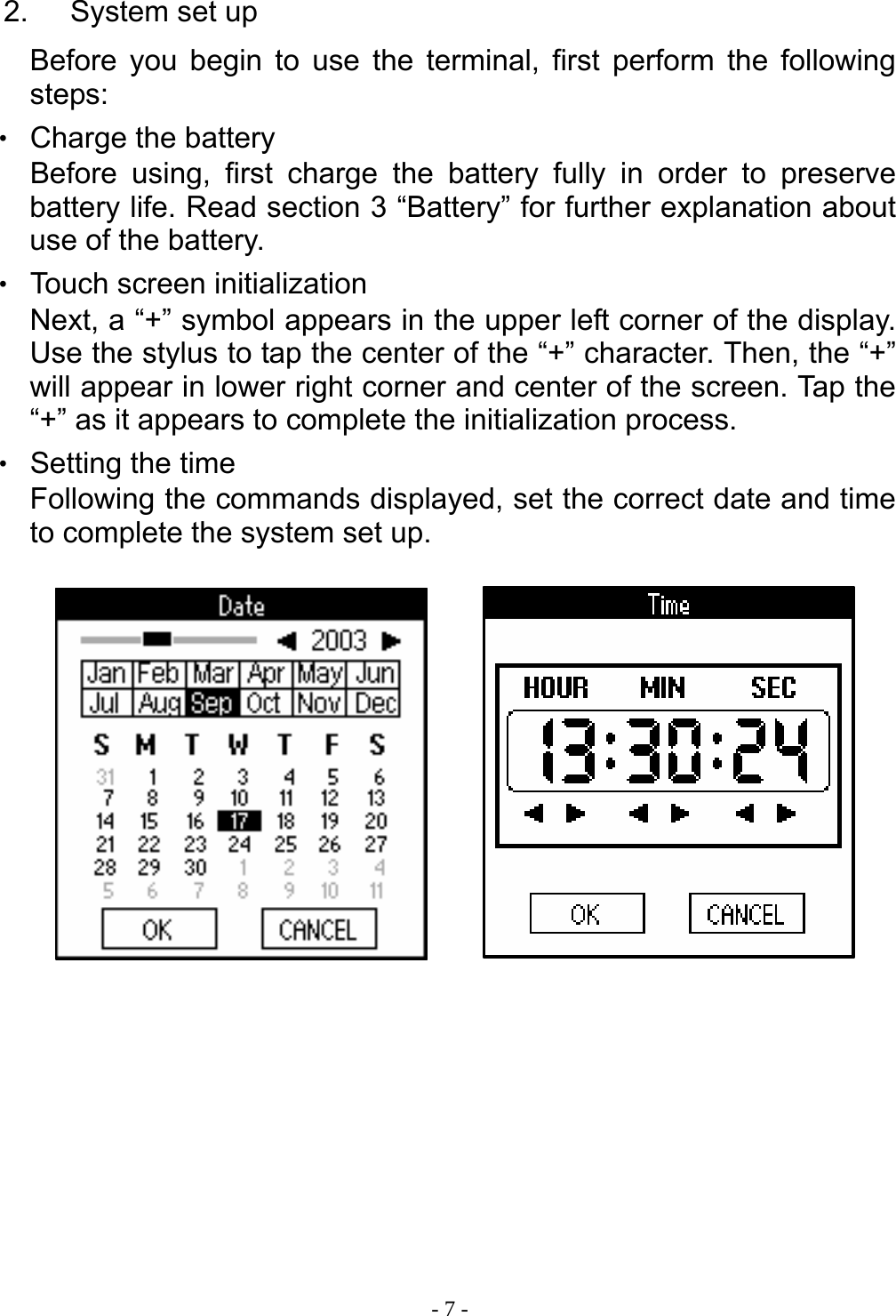
 - 7 - 2. System set up Before you begin to use the terminal, first perform the following steps: ‧ Charge the battery Before using, first charge the battery fully in order to preserve battery life. Read section 3 “Battery” for further explanation about use of the battery. ‧ Touch screen initialization Next, a “+” symbol appears in the upper left corner of the display. Use the stylus to tap the center of the “+” character. Then, the “+” will appear in lower right corner and center of the screen. Tap the “+” as it appears to complete the initialization process. ‧ Setting the time Following the commands displayed, set the correct date and time to complete the system set up.
 - 8 -3. Battery The battery is a precision electronic product. Please use in the proper manner to extend its life and preserve the continuity of data stored in the terminal. When shipped from the factory, the battery contains a minimal amount of power. Before using for the first time, charge the battery fully. An icon on the terminal’s desktop displays the amount of remaining battery power. When the battery is almost completely drained, the system will display a message that power is nearly depleted. If the battery cannot be recharged before completely losing all power, data stored in the terminal could be lost. In order to protect data on the terminal, try to charge the unit as soon as seeing the low power warning. As the battery used is a Lithium ion type, it can also be charged when power is moderately low without harming the battery. The charging status of the battery can be determined from the terminal’s LED. Flashing red LED: battery currently being charged Constantly lit red LED: battery is fully charged  Note: 1.  Please use the specialized charger and battery for this terminal to avoid damaging the unit. 2.  If the device is not used for long periods of time, please remove the battery. 3.  Backup battery provides only necessary power to keep data in RAM when the main battery is being replaced. (Not for any other operation of the Terminal)   Warning: Do not leave the Terminal with out power supply for a long time to prevent Data loss
 - 9 -4.  Use and care of the touch panel In order to maintain the quality and functioning of the terminal’s touch screen, please carefully read the following: ‧ Do not place any objects on the screen. ‧ Use only the provided stylus with this screen. Do not use your finger or any other pointed objects. ‧ Wipe the screen with a smooth, clean, anti-static cloth. Mild household cleaner or water can also be used if needed. Do not use alcohol or other industrial strength cleaning fluids. Note: Do not pour water directly onto the screen. Cleaning should be done only with a damp cloth, in order to avoid damaging the terminal.   5.  Care of the terminal When using the terminal, take note of the following: ‧ The terminal is a precision electronic device. Avoid exposing the terminal to the following conditions: 1. Electrostatic environments 2.  Temperature range out of operating temperature: 0   ~ + 50 ℃℃ 3.  Overly humid environments 4. Quickly changing temperatures 5. Extremely dusty environments ‧ Do not disassemble the terminal in order to prevent damage to the device. ‧ Avoid spilling any liquids on the terminal.
 - 10 -6. System reset In the event an application hangs or there is no response from the system, the system reset function can return the terminal to normal operating state. This terminal features two types of reset: ‧ Warm reset Using the stylus, press the reset button found on the back of the terminal. This action will not delete any data stored within the device. ‧ Cold reset When doing a cold reset, all data stored in the RAM will be deleted, and the terminal will be restored to its original state when delivered from the manufacturer. It is recommended to save a copy of all data before performing the reset, as well as to backup data regularly.   The reset is performed as follows: 1.  Press and hold the ‘down’ arrow key. 2.  Using the tool from the stylus, press and release the reset button on the back of the terminal. 3. Wait for a message to appear on the display before releasing the ‘down’ arrow key. 4. As instructed, press the ‘right’ arrow key to begin the cold reset. Or press the ‘left’ arrow key to cancel the operation and instead do a warm reset. 5.  Then, follow the steps for initializing the touch screen, and setting the date and time. After performing the above steps, the cold reset is complete and the terminal is returned to its original factory-direct state.
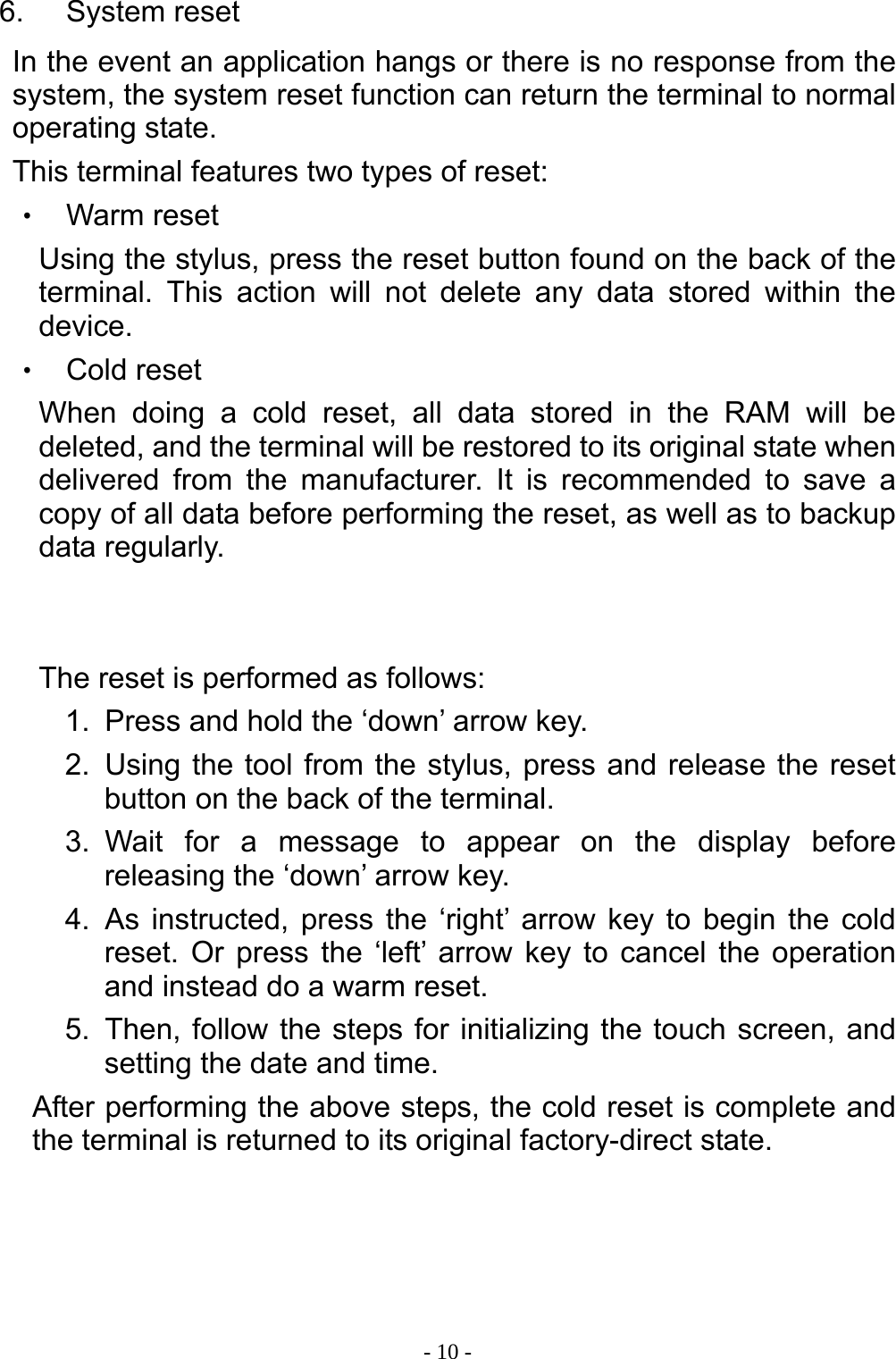
 - 11 -7. Desktop The main system interface (desktop) is shown as figure below when the terminal is turned on. Click to display menu  (“FN”+ “4”) Battery Power indicator Click to switch the display between time and date Click to display group menu and select the group of your choice, or press the “home” key to rotate through the menu listDisplay contents of current application
 - 12 - 8. System setting Enter [Tools] group and select [System Setting]. This program allows you to adjust operating parameters according to the terminal’s intended use.          1. General                 Set the system time  Set the system date Recalibrate the touch screen Turn on and off the function to wake up the machine when device is in suspend mode Set the notify method when a barcode is scanned successfully Turn on/off the IrDA receive function
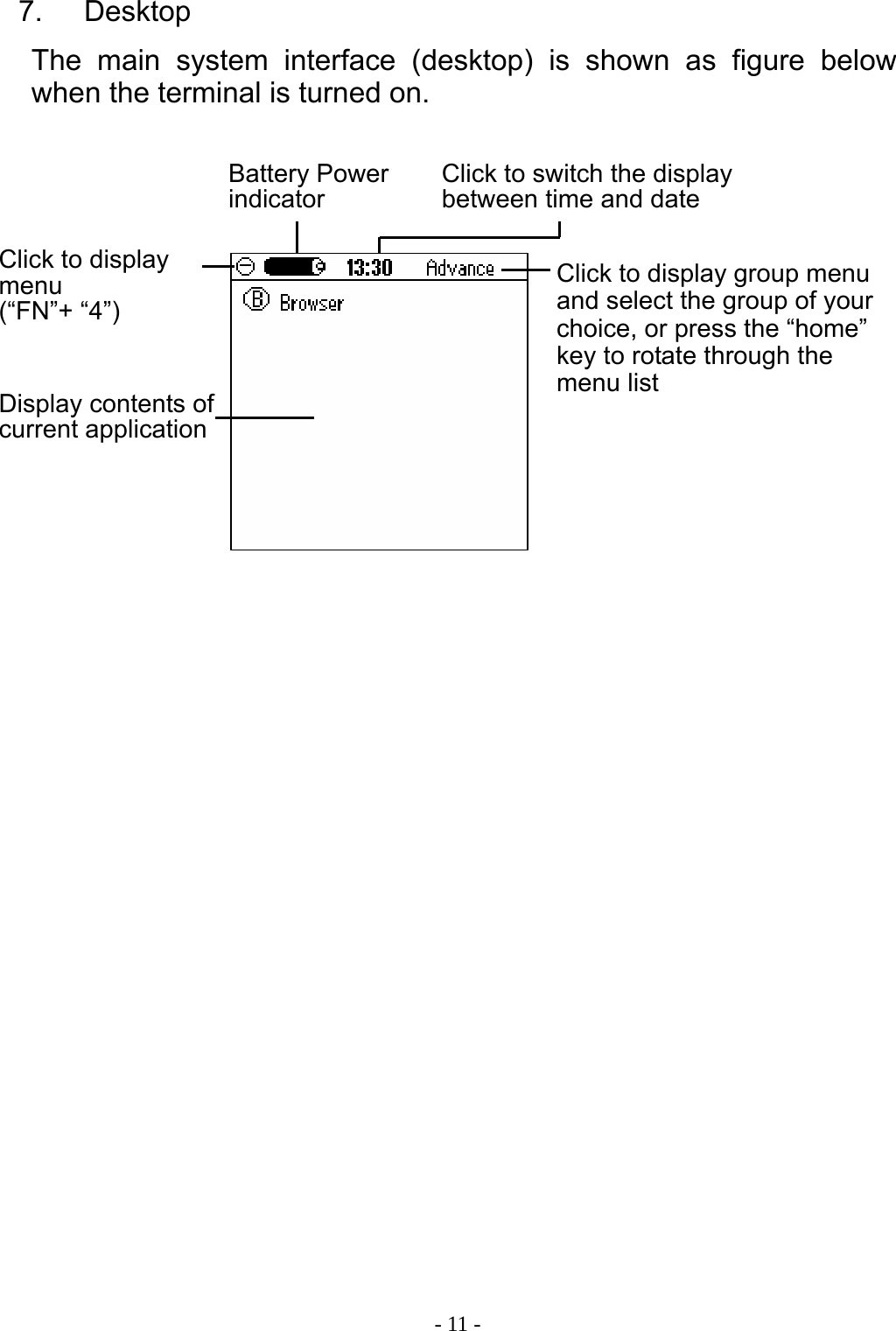
 - 13 -2. Power         3. Sound          4. Logo             Set the time before the device enters suspend mode after its latest use Set the time before turning off backlight after the device’s latest use Turn system sound on/off Turn keypad and touch screen sound on/off Set duration of the pre-set alarm Adjust sound volume Select music type for pre-set alarm Select logo to be displayed when turning on terminal Enable/disable display of logo when turning on terminal Choose logo to be displayed when turning off terminal Enable/disable display of logo when turning off terminal
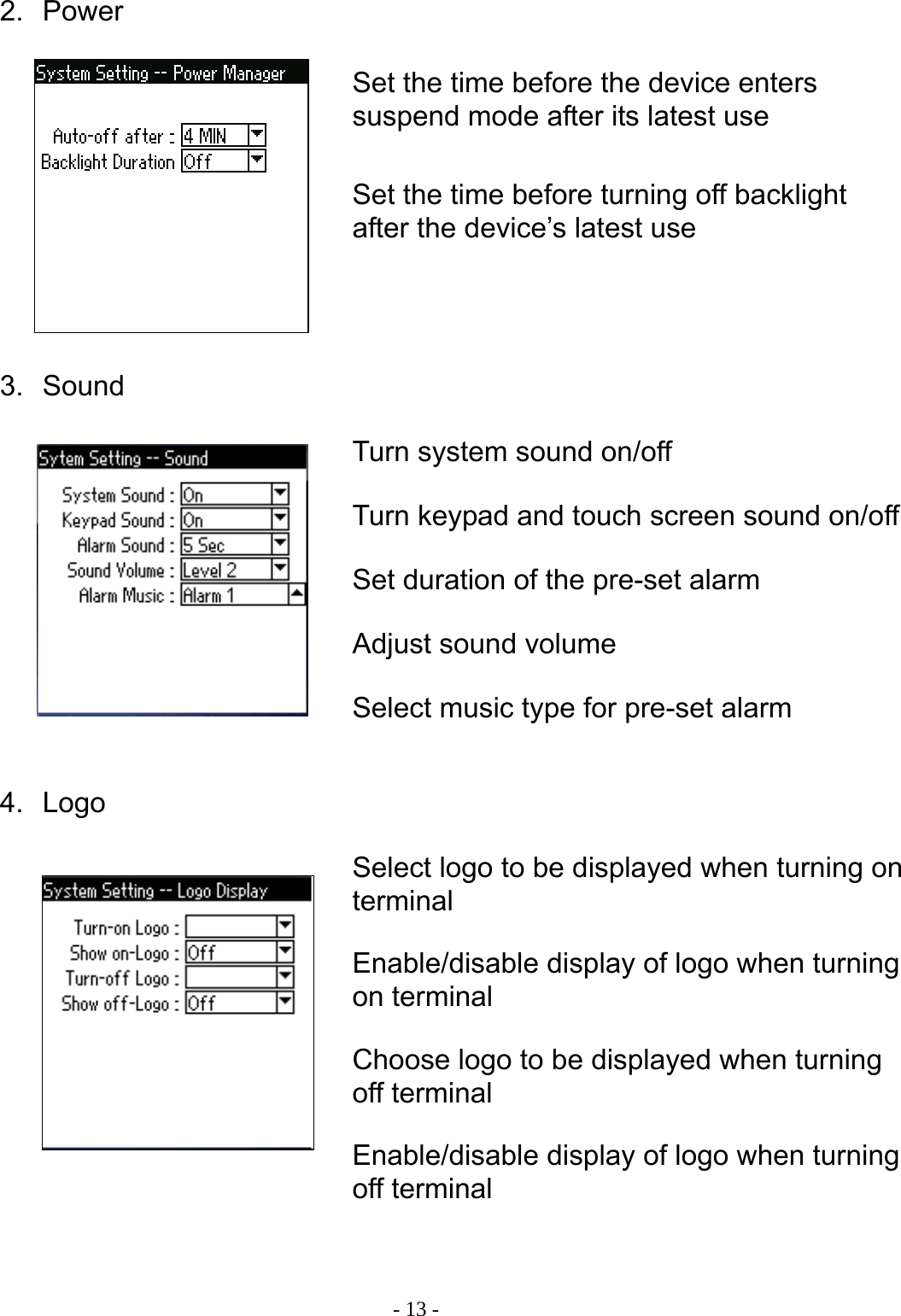
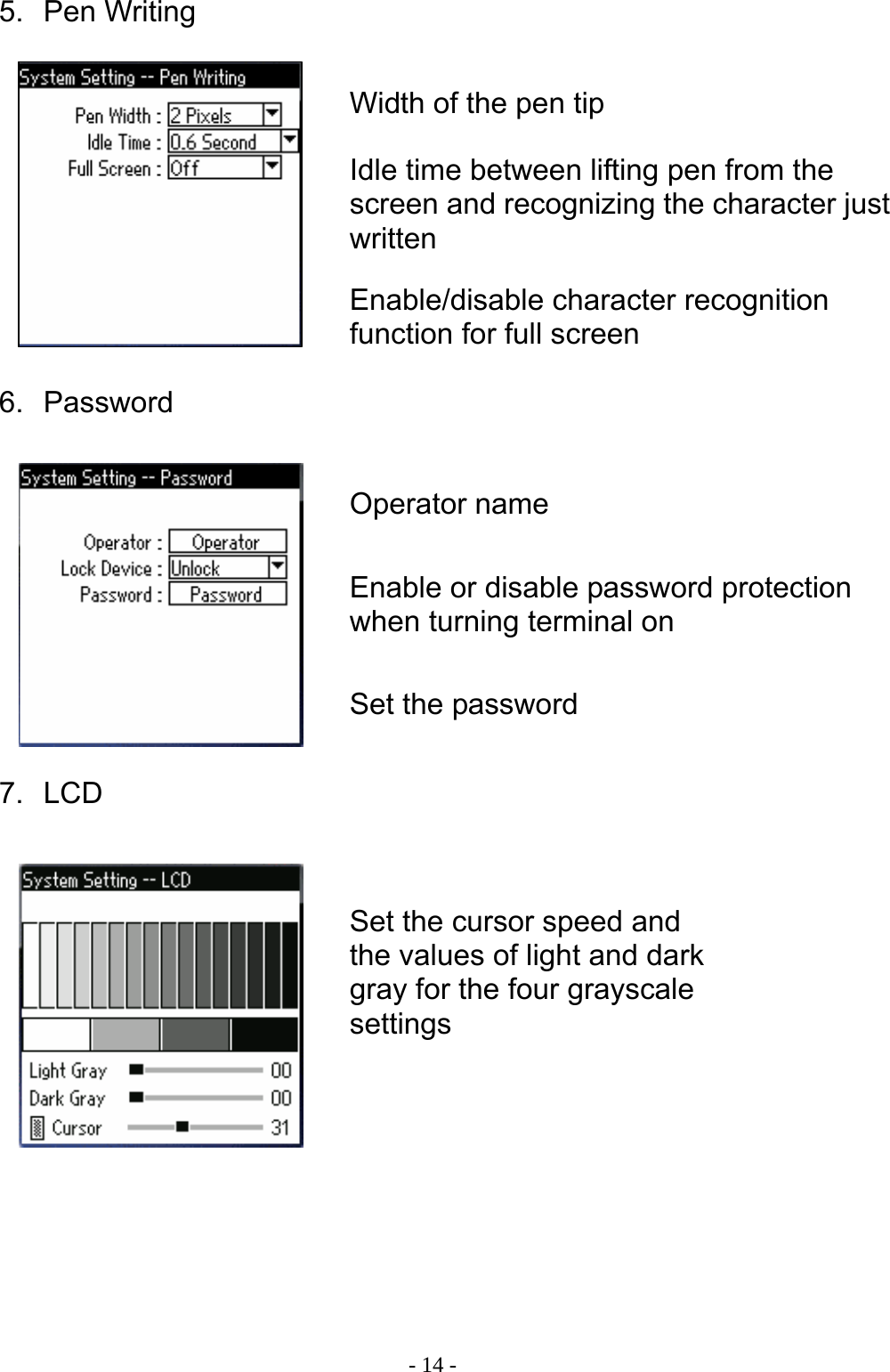
 - 14 -5. Pen Writing         6. Password         7. LCD        Width of the pen tipIdle time between lifting pen from the screen and recognizing the character just written Enable/disable character recognition function for full screen Operator name Enable or disable password protection when turning terminal on Set the password Set the cursor speed and the values of light and dark gray for the four grayscale settings
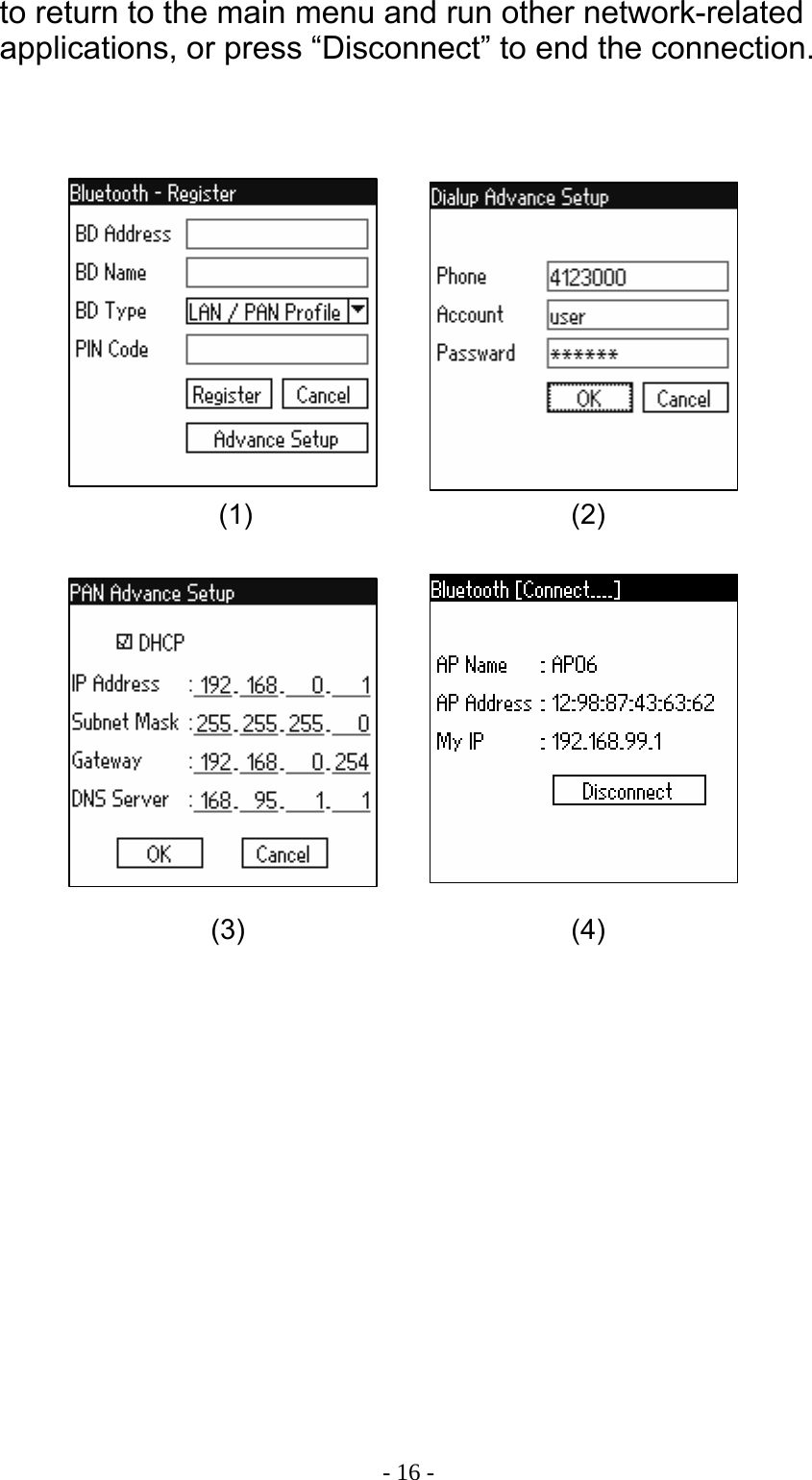
 - 15 -9. Bluetooth Network This terminal is equipped with Bluetooth wireless connectivity. Before using any wireless network related applications, use this program to define the settings. You can also establish the connection priority for several access points to more efficiently use network resources. Switch to the [Tools] group and run the Bluetooth network application. Basic operations are shown in the image below.               1.  User can connect to a Bluetooth device manually or with the auto-connect function. Up/down arrows can be used to change connection priority of the devices. 2.  Every recognized Bluetooth device is stored according to its profile type. 3.  Details of each device, PIN access code, and advanced connection parameters can be edited as shown in images 1, 2 and 3 below. 4.  To make a connection, select the desired device and press the “Connect” button. If the connection is successful, the screen will display the view shown below (image 4) and the terminal’s Bluetooth LED will flash intermittently. Press the “Home” button Switch between Bluetooth profilesRecognized Bluetooth devices: when using the auto-connect function, the next available device is automatically chosen in this order Up/down arrows: Select a device, then move it up or down the priority list by clicking the arrows System information windowManually add new deviceAuto search for available device Connect to the selected device Edit parameters of selected deviceDelete selected device
 - 16 -to return to the main menu and run other network-related applications, or press “Disconnect” to end the connection.                 (1) (2) (3) (4)
 - 17 -10.  Barcode Test This terminal features a built-in barcode test, which is accessed from the [Tools] group. In this application, there are two ways to trigger a barcode scan, via either the hardware (image 1) or the software (image 2). Operation is as follows: 1. Hardware trigger: with the object focus on “Barcode”, press the “Scan” button to scan a barcode. This type of scan will stop for the following reasons: ‧ Successful read of a barcode ‧ Scan key is released ‧ Scanning for several seconds without successful read 2. Software trigger:  with the object focus on “Test”, press this object or the “Click” button to scan a barcode. When using the software trigger, the scan process cannot be interrupted; however, the scan results will display the type of barcode read. This type of scan will stop for the following reasons: ‧ Successful read of a barcode ‧ Scanning for several seconds without successful read         (1) (2)
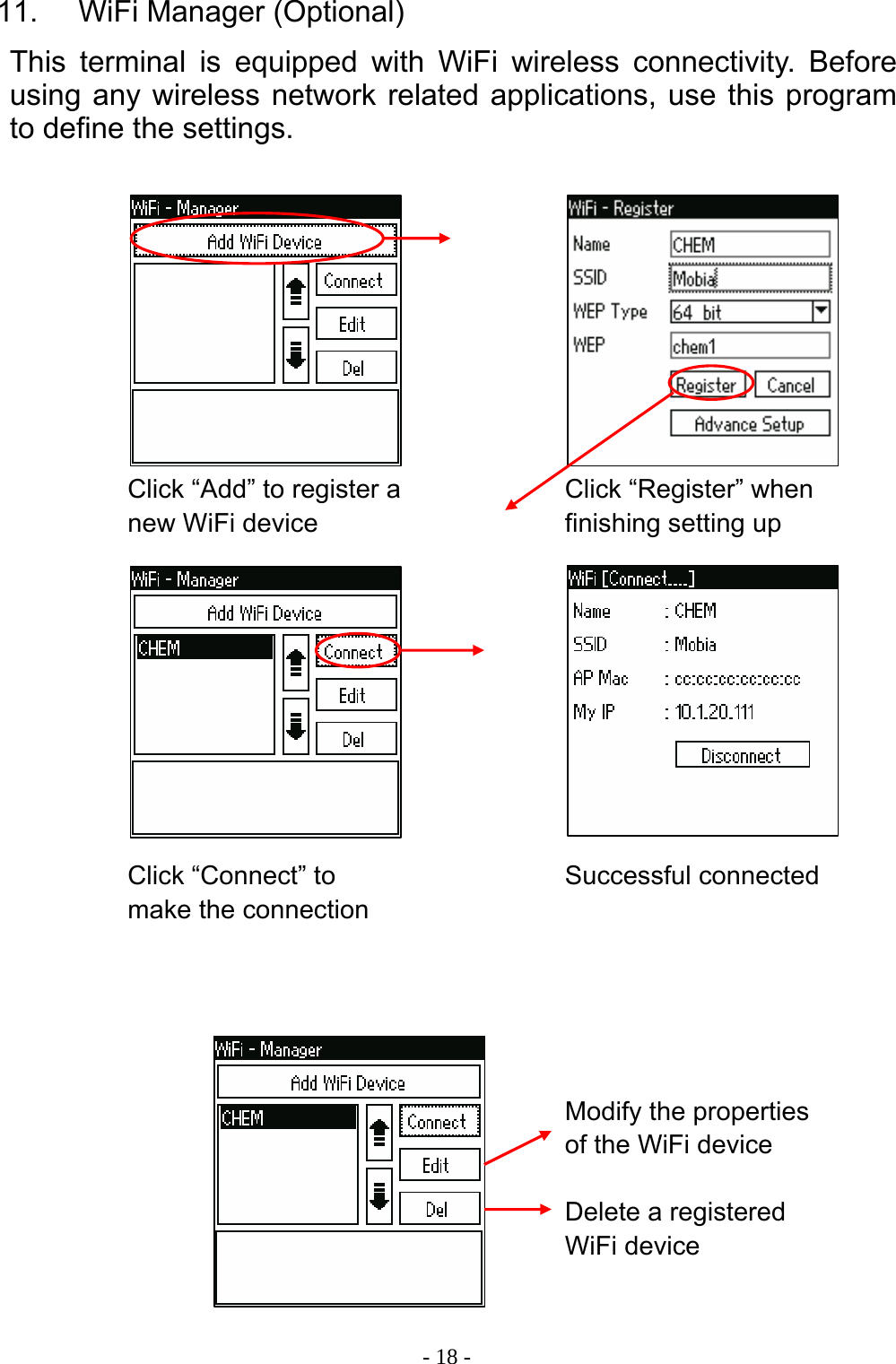
 - 18 -11.    WiFi Manager (Optional) This terminal is equipped with WiFi wireless connectivity. Before using any wireless network related applications, use this program to define the settings.                           Click “Add” to register a new WiFi device Click “Register” when finishing setting up Click “Connect” to make the connection Successful connected Modify the properties of the WiFi device Delete a registered WiFi device
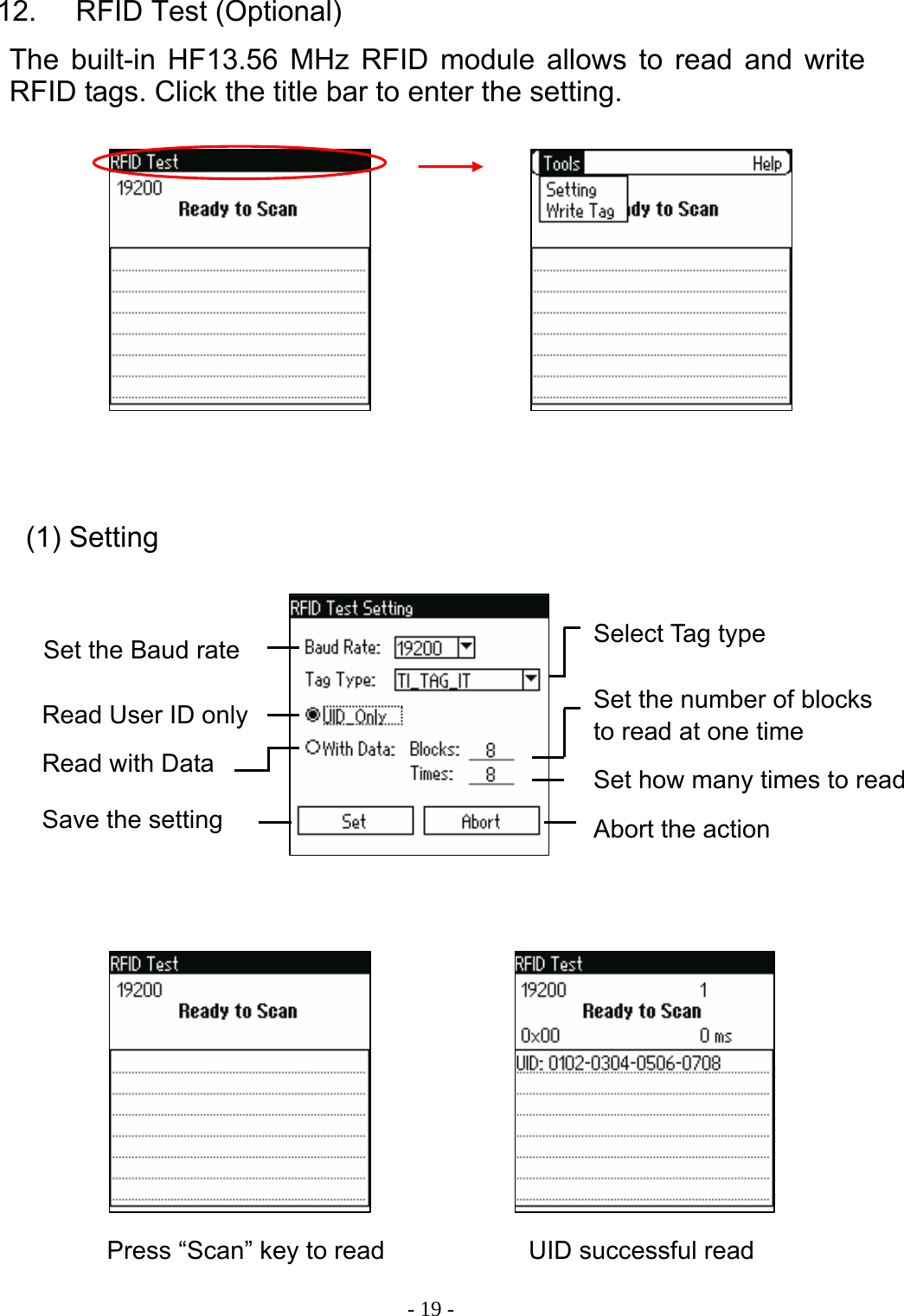
 - 19 -12.    RFID Test (Optional) The built-in HF13.56 MHz RFID module allows to read and write RFID tags. Click the title bar to enter the setting.                             (1) Setting Set the Baud rate  Select Tag type Read User ID only Read with Data  Set how many times to readSet the number of blocks to read at one time Save the setting  Abort the action Press “Scan” key to read  UID successful read
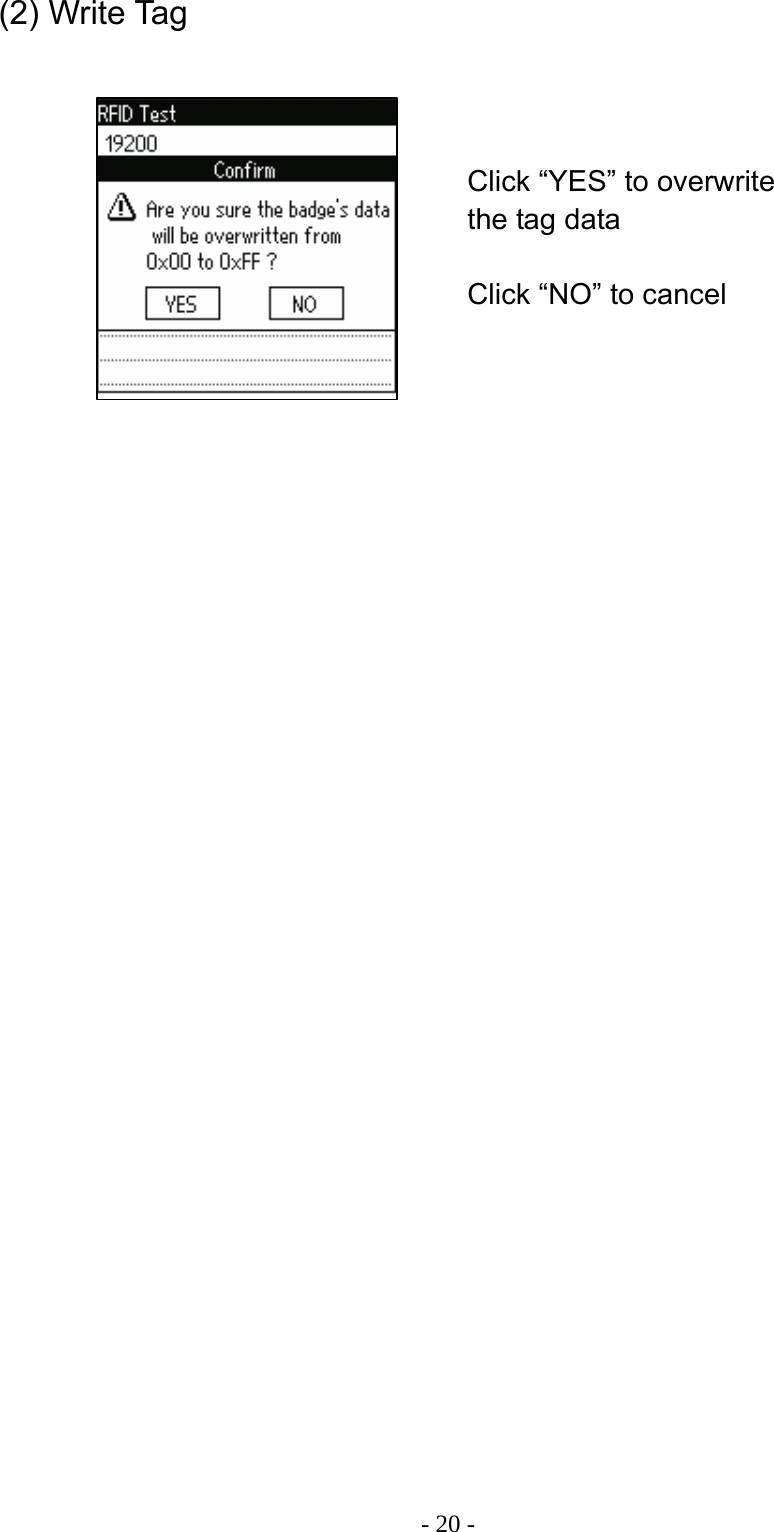
 - 20 -                             (2) Write Tag Click “YES” to overwrite the tag data Click “NO” to cancel
 - 21 -13.  Backup The backup feature on the terminal allows a copy of data to be stored on the NAND Flash, preventing data loss when power is low. Switch to the [Tools] group and run the Backup application as shown below:               [Backup] 1. Switch to the “Backup” function. 2. Select the type of data to backup and click “Start”. 3. Enter the backup file name and click the “”√” symbol to begin the backup. 4. The backup process will take some time to complete. While backing up files, do not run any other functions to ensure data is not lost.    Function currently in Use Pre-set as B: (NAND Flash)  Backup Information Start the Backup or Restore function  How information is displayedSwitch between Backup / Restore
 - 22 -[Restore] 1.  Switch to the “Restore” function. 2.  The window shown below (image 1) will appear. Select the file to be restored and click “OK”. 3.  The window shown here (image 2) will appear, containing information about the selected file. Select the data to be restored, then click “Start”. 4.  The system will ask you to reconfirm that you want to restore data (image 3). Click “OK” to begin the process. The Restore process will take some time to complete. While backing up files, do not run any other functions to ensure data is not lost.                     (2) (3) (1)
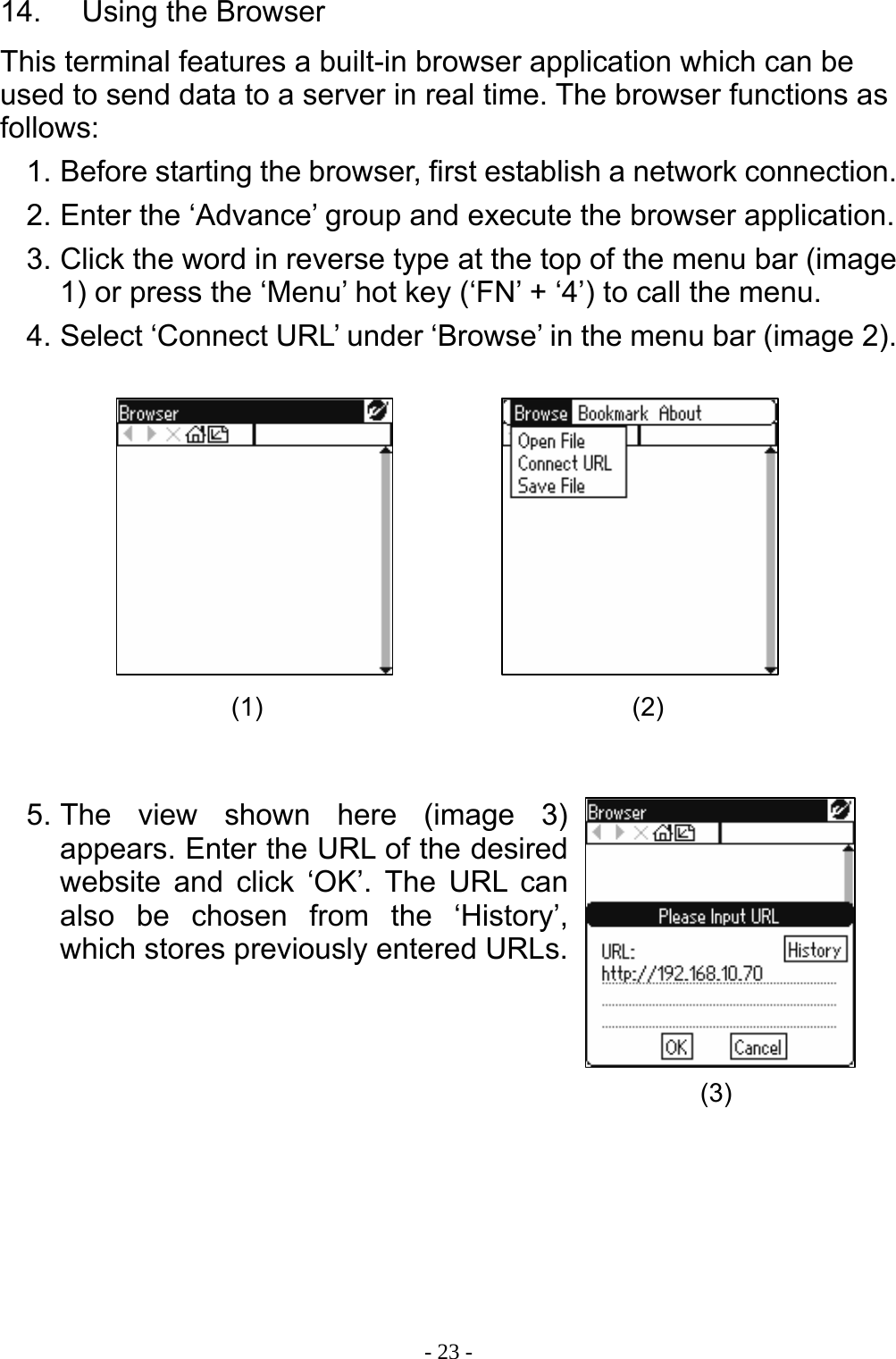
 - 23 -14.    Using the Browser This terminal features a built-in browser application which can be used to send data to a server in real time. The browser functions as follows: 1. Before starting the browser, first establish a network connection. 2. Enter the ‘Advance’ group and execute the browser application. 3. Click the word in reverse type at the top of the menu bar (image 1) or press the ‘Menu’ hot key (‘FN’ + ‘4’) to call the menu. 4. Select ‘Connect URL’ under ‘Browse’ in the menu bar (image 2).           5. The view shown here (image 3) appears. Enter the URL of the desired website and click ‘OK’. The URL can also be chosen from the ‘History’, which stores previously entered URLs.         (1)  (2) (3)
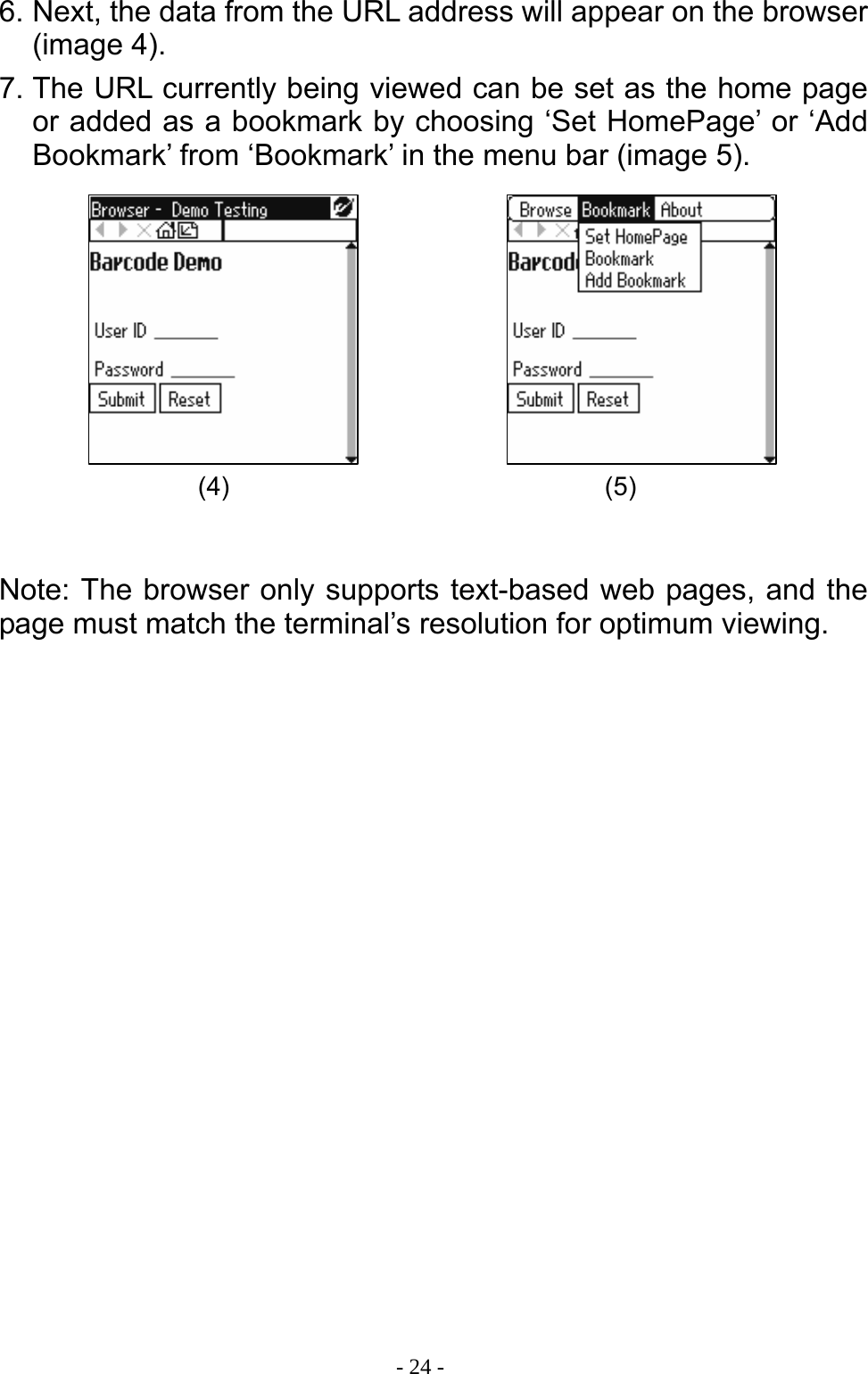
 - 24 -6. Next, the data from the URL address will appear on the browser (image 4). 7. The URL currently being viewed can be set as the home page or added as a bookmark by choosing ‘Set HomePage’ or ‘Add Bookmark’ from ‘Bookmark’ in the menu bar (image 5).          Note: The browser only supports text-based web pages, and the page must match the terminal’s resolution for optimum viewing. (4) (5)

Navigation menu