Chunghsin Technology Group 3216 32inch HD DLED TV User Manual

Chunghsin Technology Group CO.,LTD 32inch HD DLED TV

User Manual

WD32HBB101
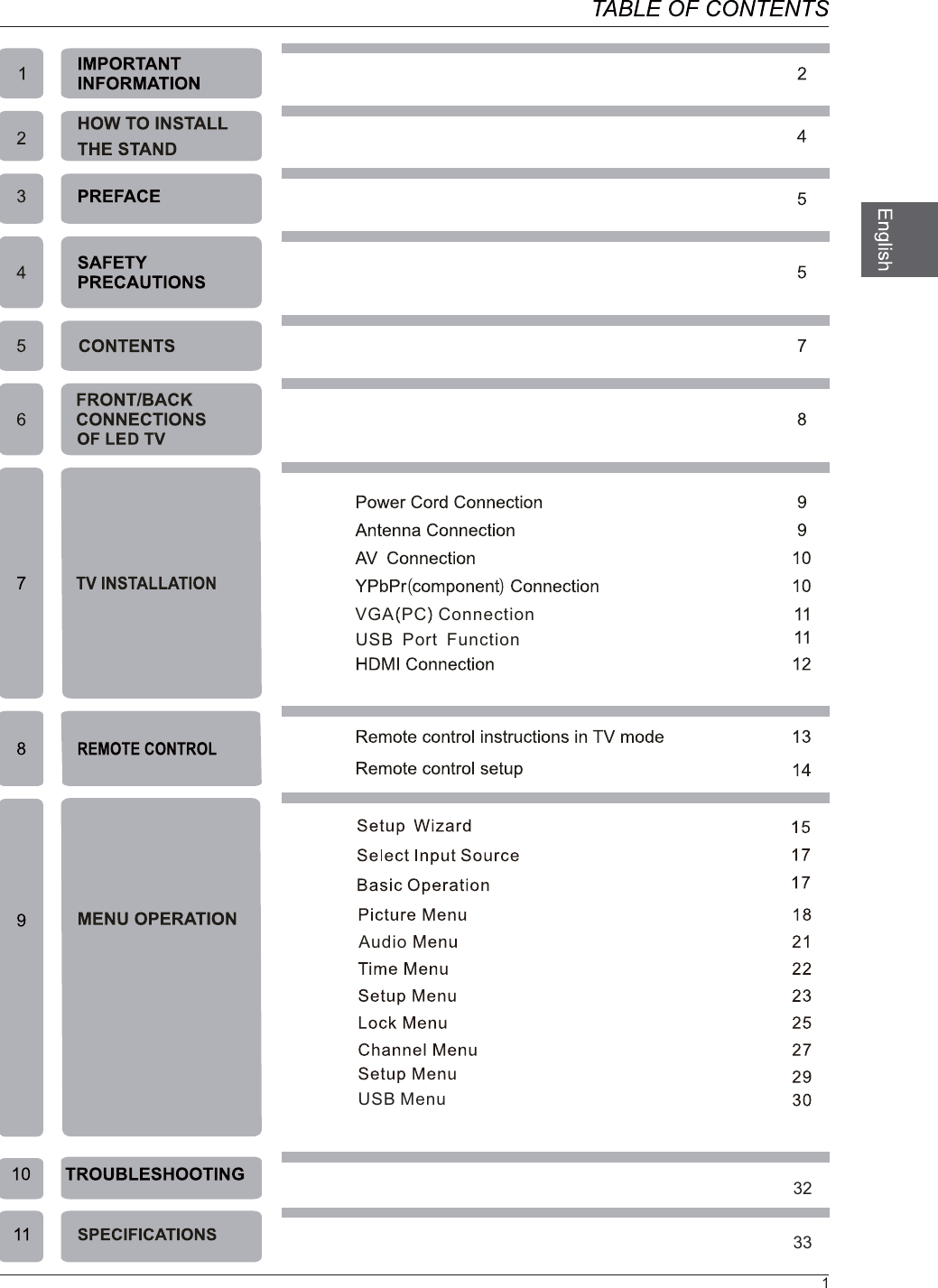
USB                                                                                           32                                                                                           33MenuVGA PC ConnectionUSB  Port  Function1Audio
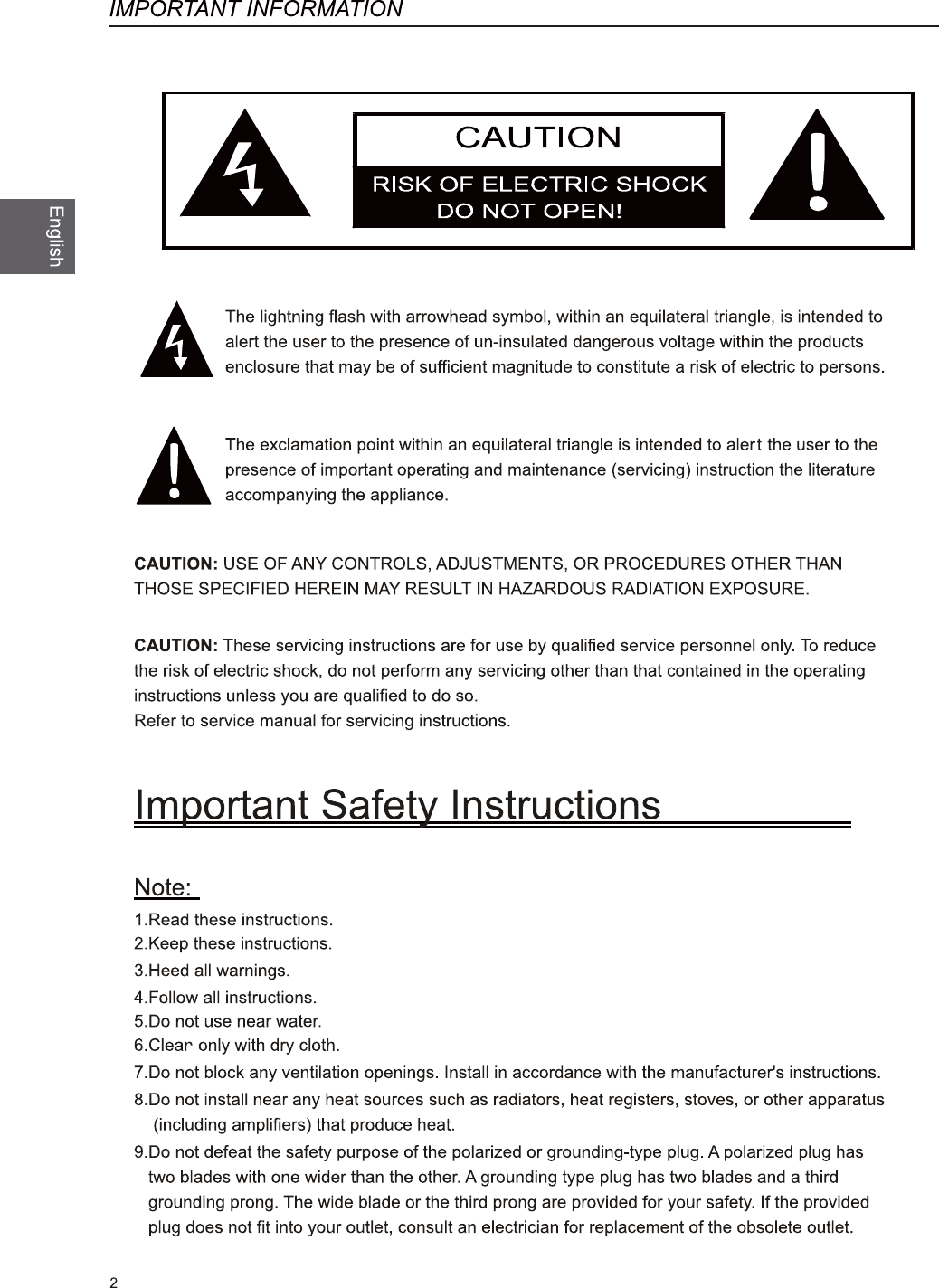
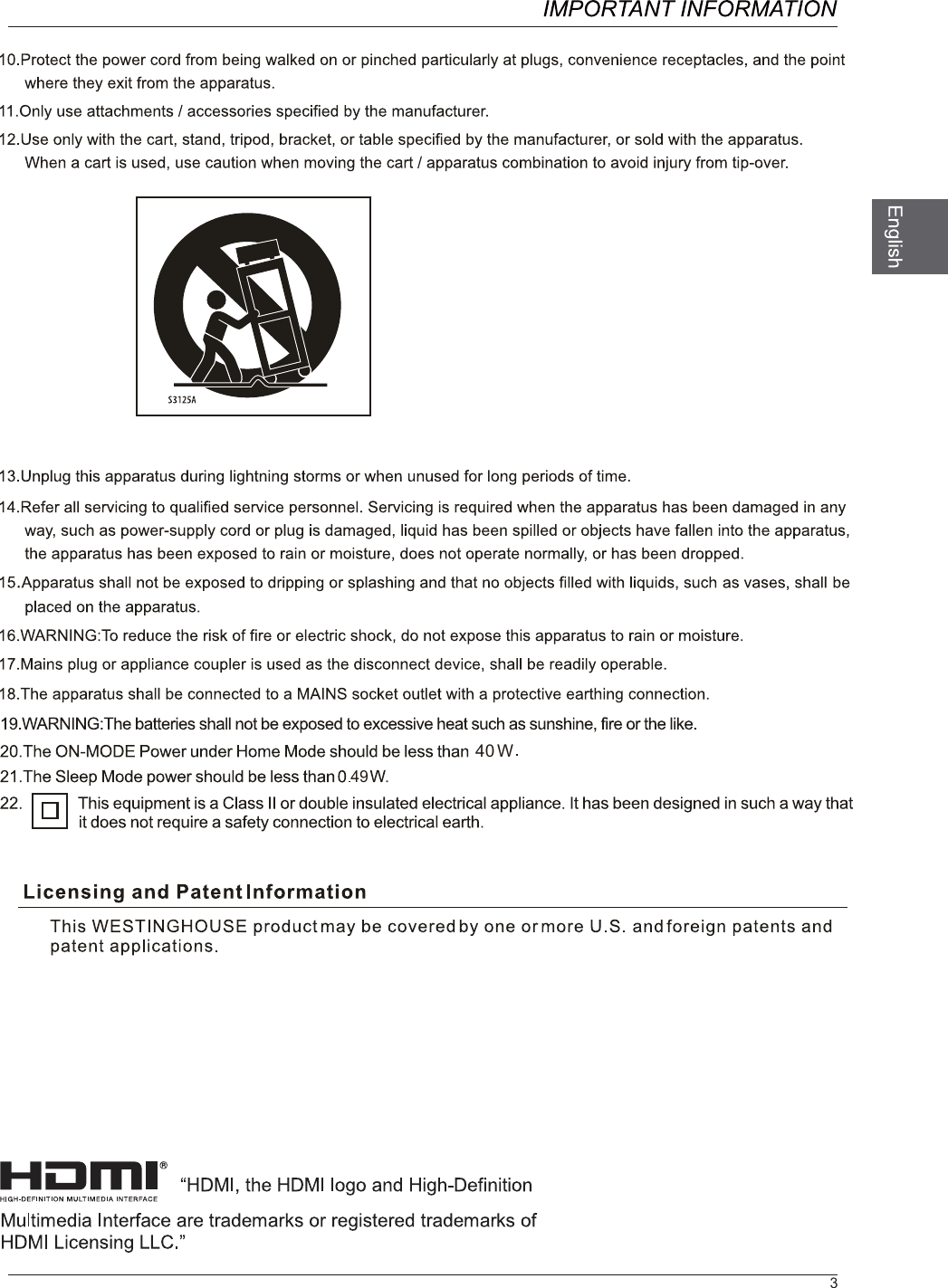
40 W349
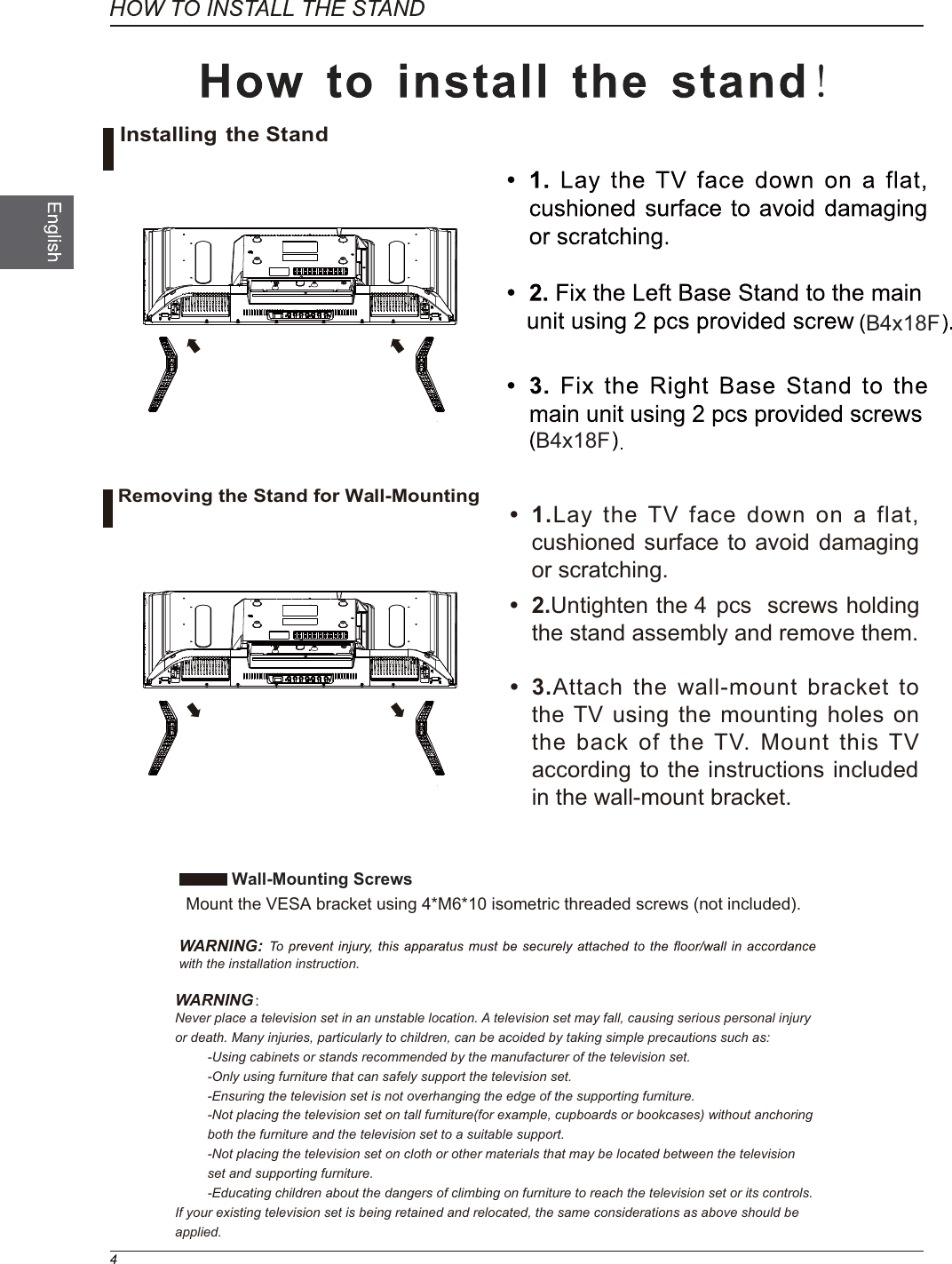
B4x18FB4x18FWall-Mounting Screws  Mount the VESA bracket using 4*M6*10 isometric threaded screws (not included).WARNING: with the installation instruction.WARNING:Never place a television set in an unstable location. A television set may fall, causing serious personal injury or death. Many injuries, particularly to children, can be acoided by taking simple precautions such as:-Using cabinets or stands recommended by the manufacturer of the television set.-Only using furniture that can safely support the television set.-Ensuring the television set is not overhanging the edge of the supporting furniture.-Not placing the television set on tall furniture(for example, cupboards or bookcases) without anchoring both the furniture and the television set to a suitable support.-Not placing the television set on cloth or other materials that may be located between the television set and supporting furniture.-Educating children about the dangers of climbing on furniture to reach the television set or its controls.If your existing television set is being retained and relocated, the same considerations as above should be applied. 1.Lay the TV face down on a flat, cushioned surface to avoid damaging or scratching. 2.  gnidloh swercs  scp 4  eht nethgitnUthe stand assembly and remove them.  3.Attach the wall-mount bracket to the TV using the mounting holes on the back of the TV. Mount this TV according to the instructions included in the wall-mount bracket. Installing the StandRemoving the Stand for Wall-Mounting
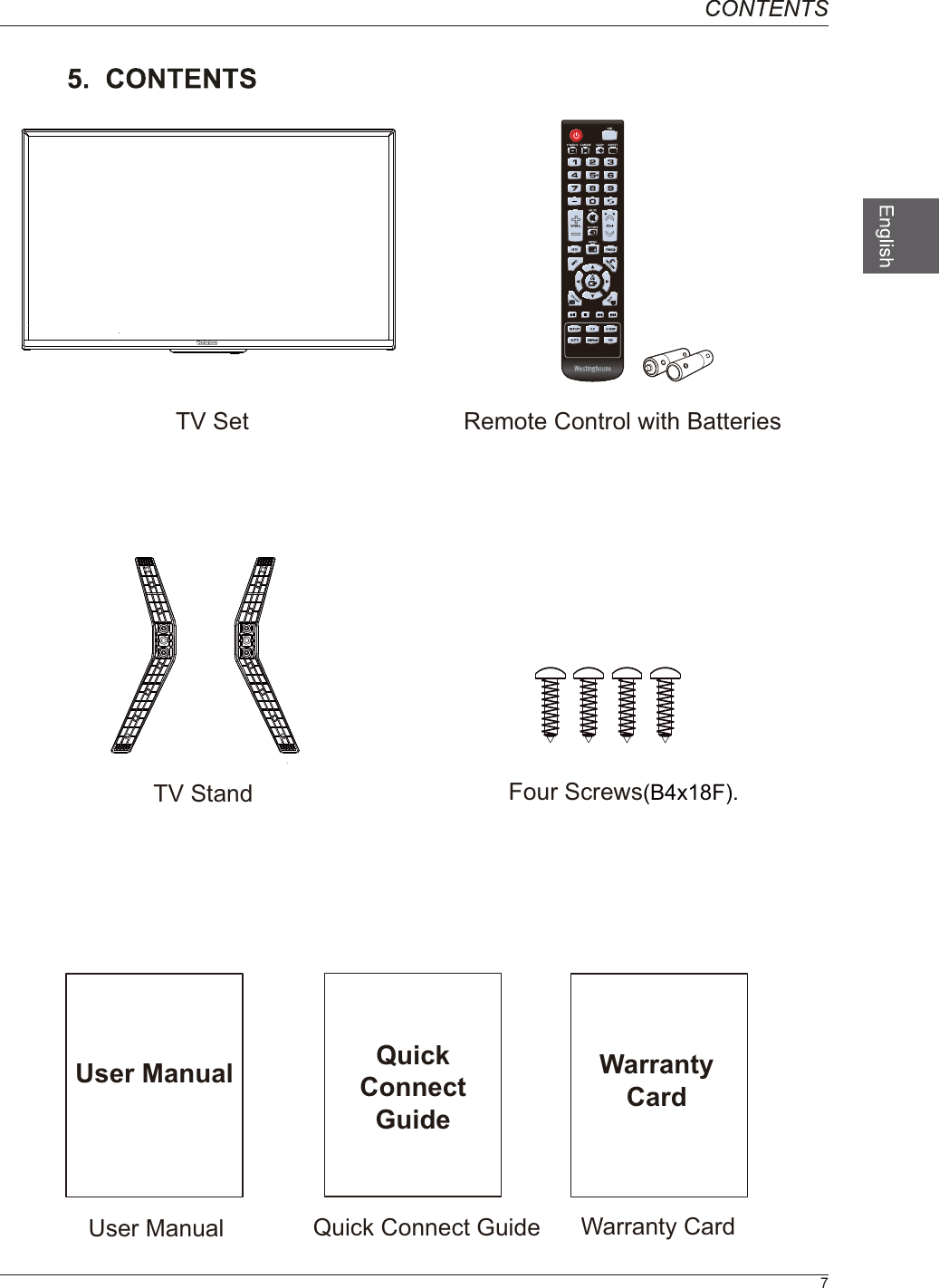
7Quick Connect GuideQuickConnectGuideUser ManualUser ManualRemote Control with BatteriesWarranty CardWarranty CardTV SetTV Stand Four Screws(B4x18F).
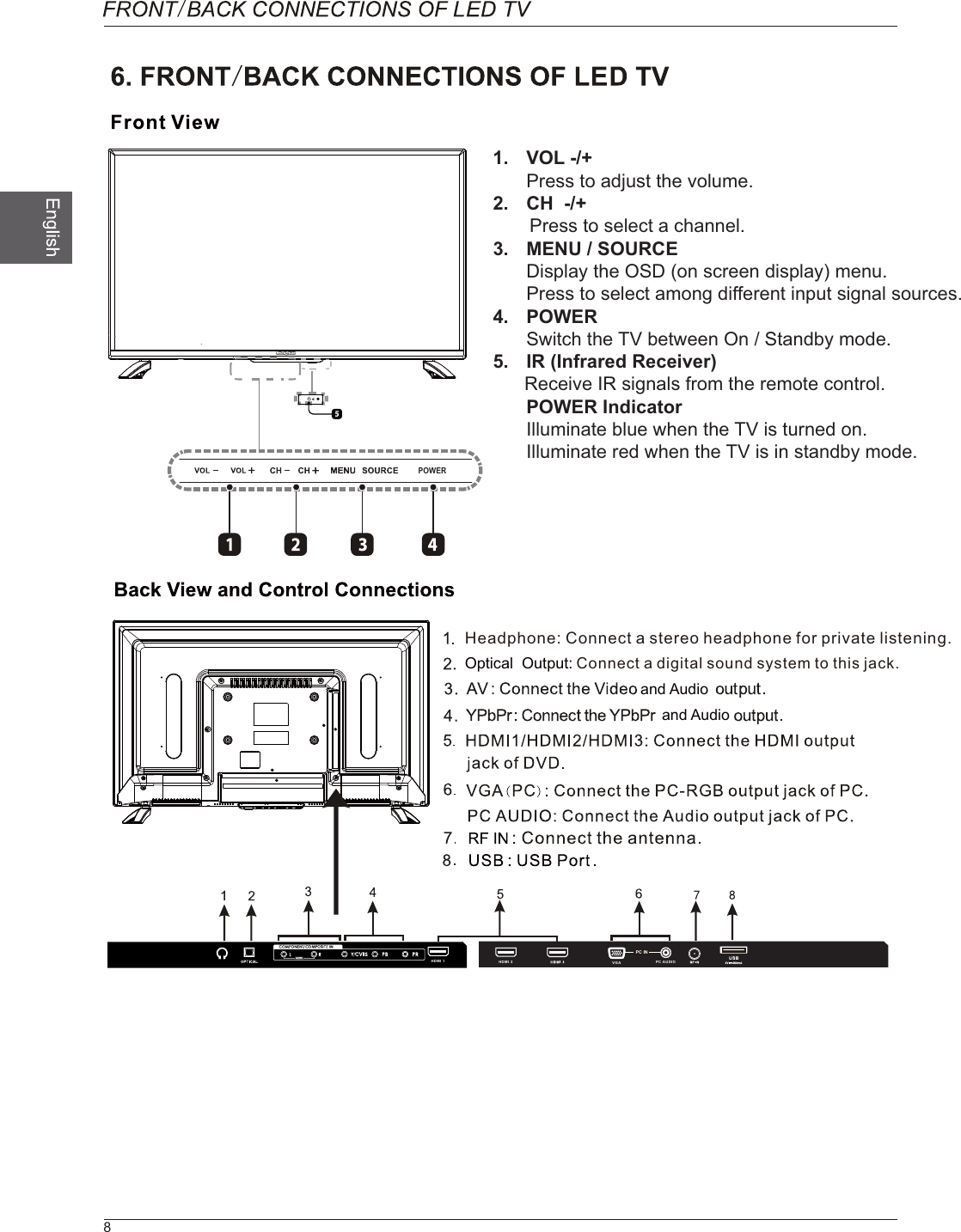
 and Audio and AudioHeadphone: Connect a stereo headphone for private listening.HDMI3 HDMI2 USB5V       500mA8Optical  Output: Connect a digital sound system to this jack.POWERHDMI 1 HDMI 2 VGA PC AUDIOPC IN1. VOL -/+Press to adjust the volume.2.  CH  -/+       Press to select a channel.3.  MENU / SOURCEDisplay the OSD (on screen display) menu.Press to select among different input signal sources.4. POWERSwitch the TV between On / Standby mode.5.  IR (Infrared Receiver) Receive IR signals from the remote control.POWER IndicatorIlluminate blue when the TV is turned on.Illuminate red when the TV is in standby mode.
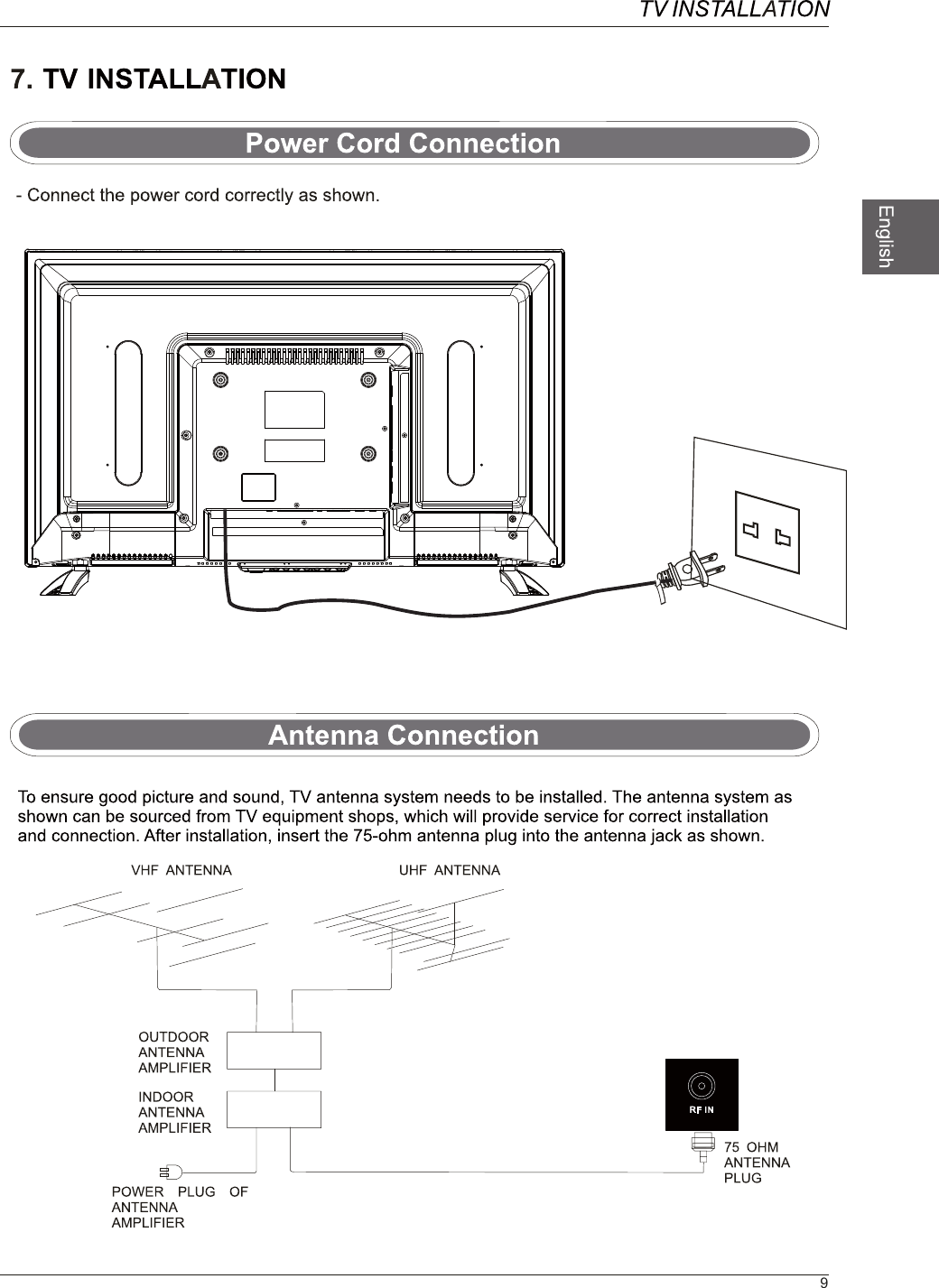
9
10HDMI 1HDMI 1
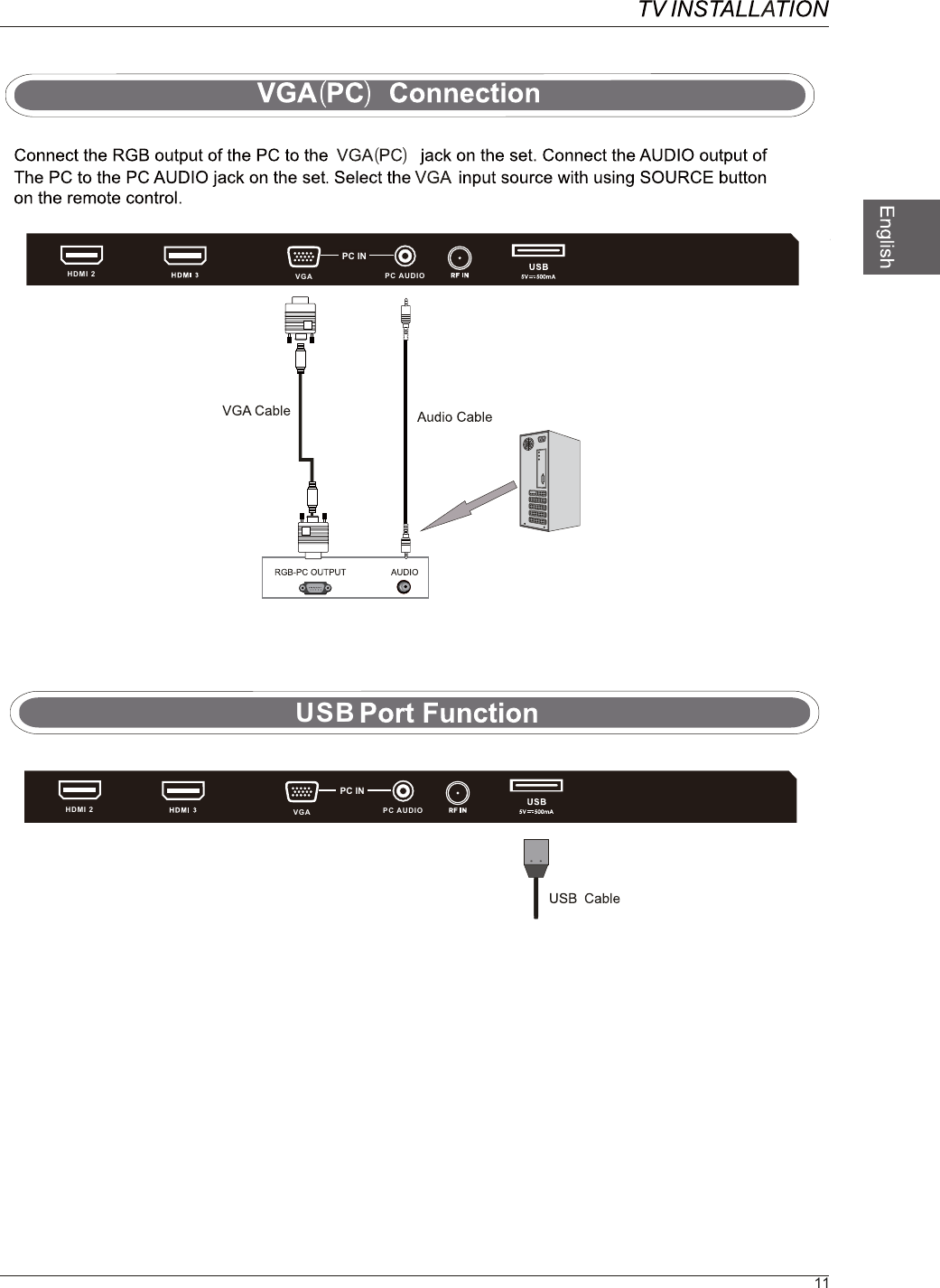
USB11HDMI 2 VGA PC AUDIOPC INHDMI 2 VGA PC AUDIOPC IN
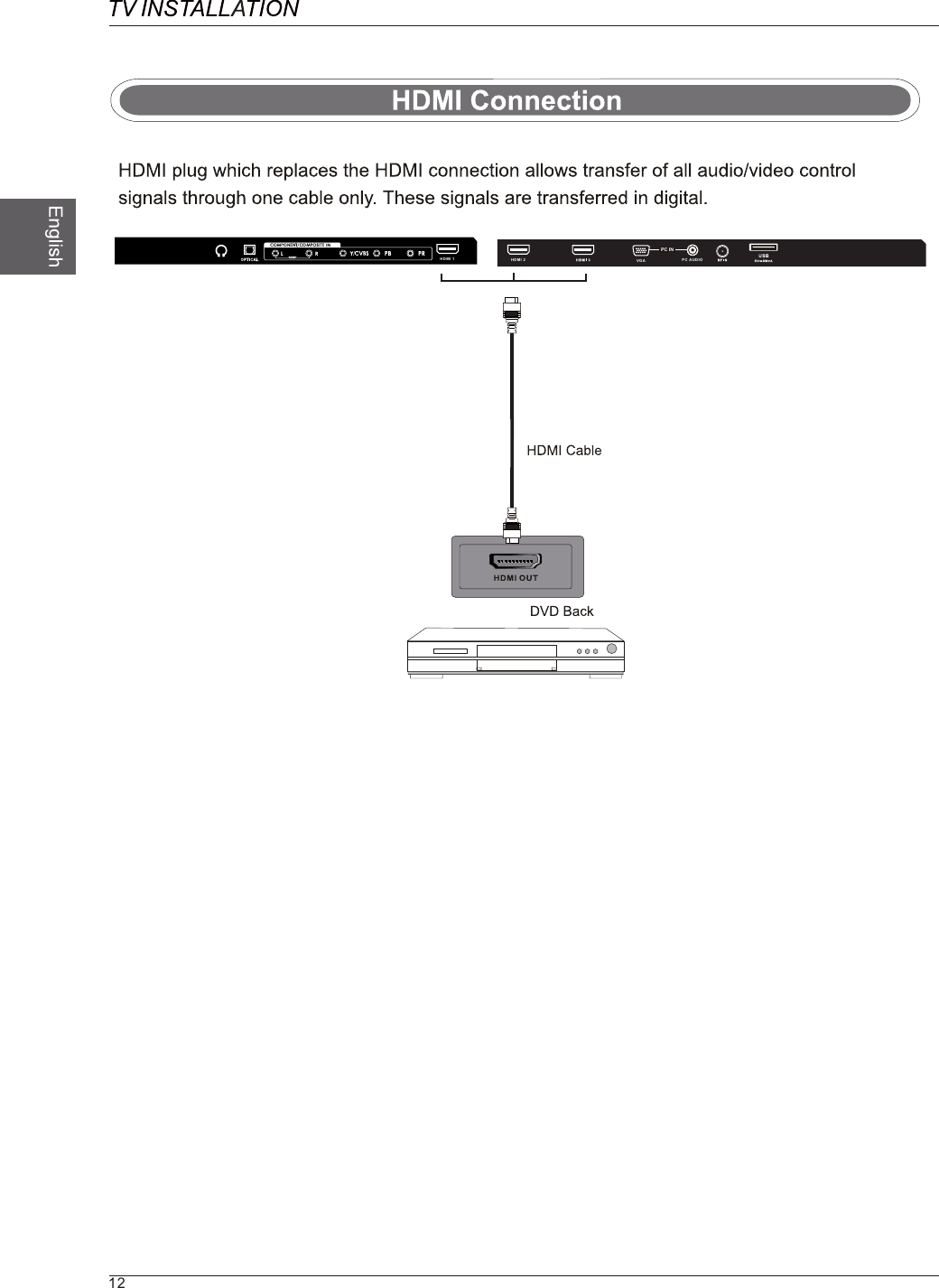
12HDMI 1 HDMI 2 VGA PC AUDIOPC IN
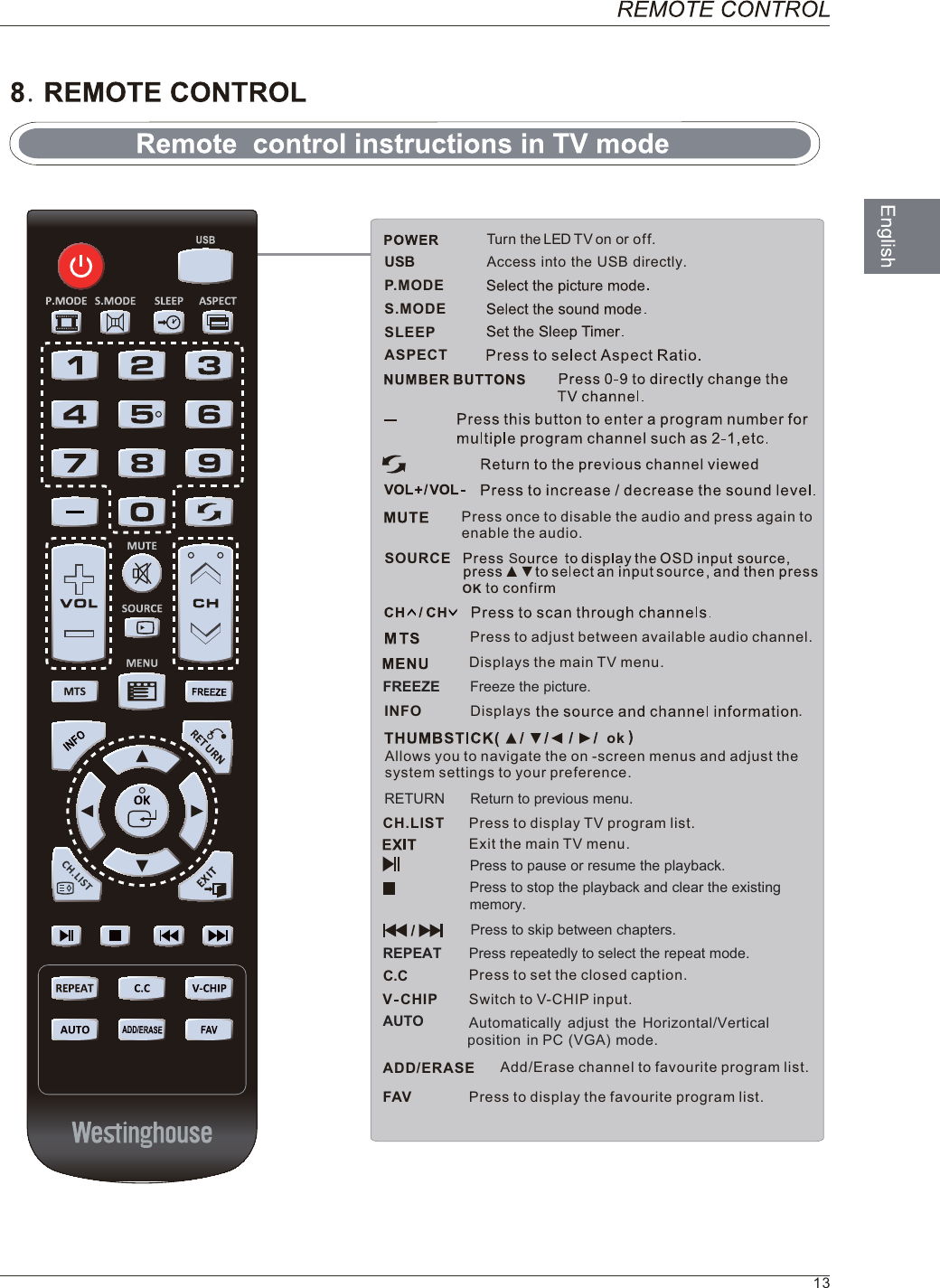
   Turn the LED TV on or off.Press once to disable the audio and press again toenable the audio.P.MODES.MODESLEEPPress to adjust between available audio channel. SOURCEOKSINFO .syalpsiDRETURN Return to previous menu.Press to set the closed caption. VCHIP Switch to V-CHIP input.CHC.C.LIST   Press to display TV program list.ASPECTDisplays the main TV menu.Exit the main TV menu.FAV Press to display the favourite program list. Add/Erase channel to favourite program list. ADD/ERASEAllows you to navigate the on -screen menus and adjust thesystem settings to your preference.ok13USB Access into the USB directly.FREEZE Freeze the picture.AUTO Automatically adjust the Horizontal/Verticalposition in PC (VGA) mode.Press to pause or resume the playback.Press to stop the playback and clear the existingmemory.Press to skip between chapters.REPEAT Press repeatedly to select the repeat mode.
14
'<OK?6H6X
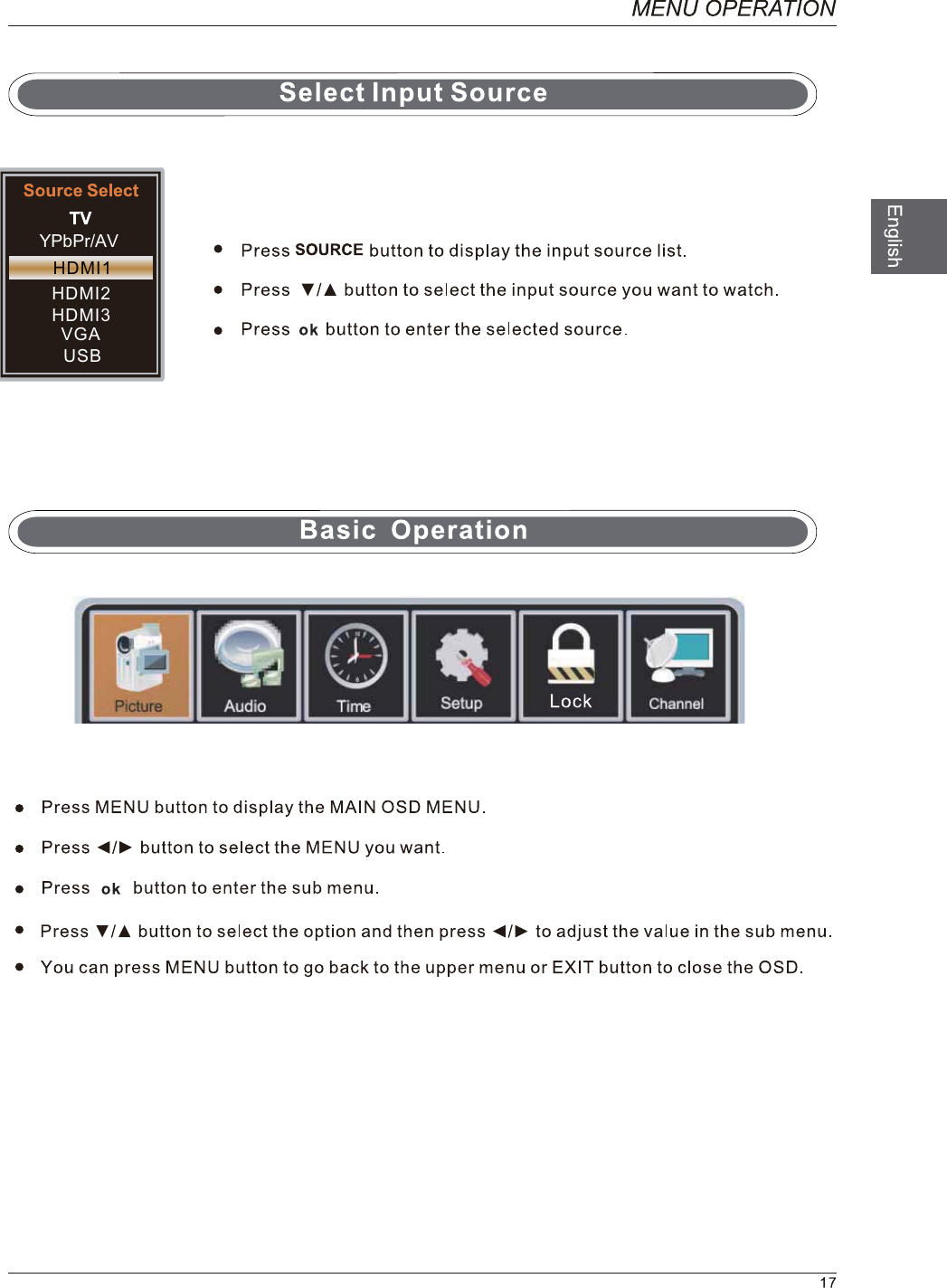
HDMI1HDMI2HDMI3VGAUSBYPbPr/AV
TintTint
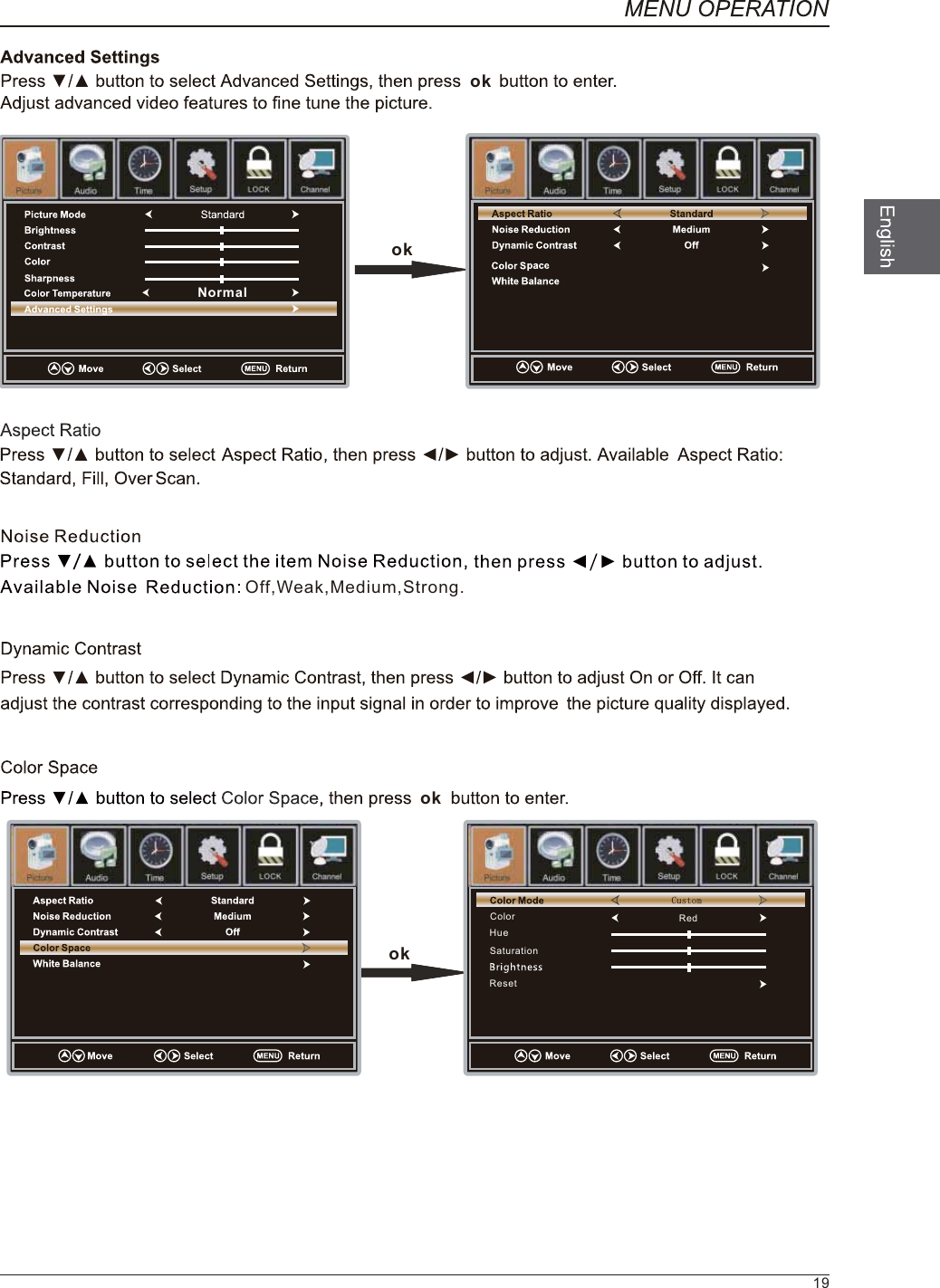
okNormalOff,Weak,Medium,Strong.okokLockokLockLockColorHueSaturationResetRedLock19
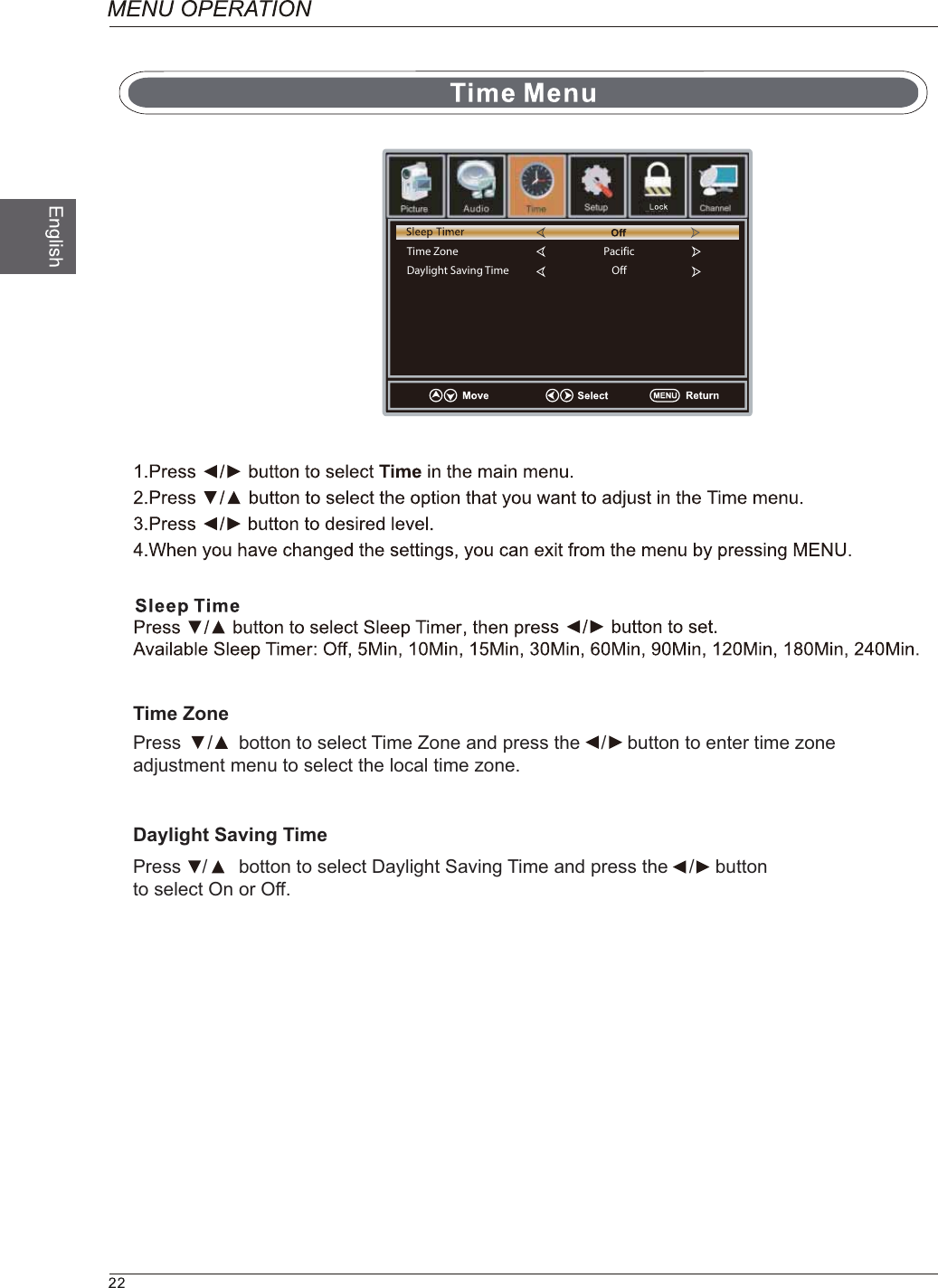
Press     /     botton to select Time Zone and press the    /    button to enter time zone adjustment menu to select the local time zone.Time Zone PacificOffDaylight Saving TimeTime ZoneDaylight Saving TimePress    /      botton to select Daylight Saving Time and press the    /    button to select On or Off.
AccesibilityAccesibility
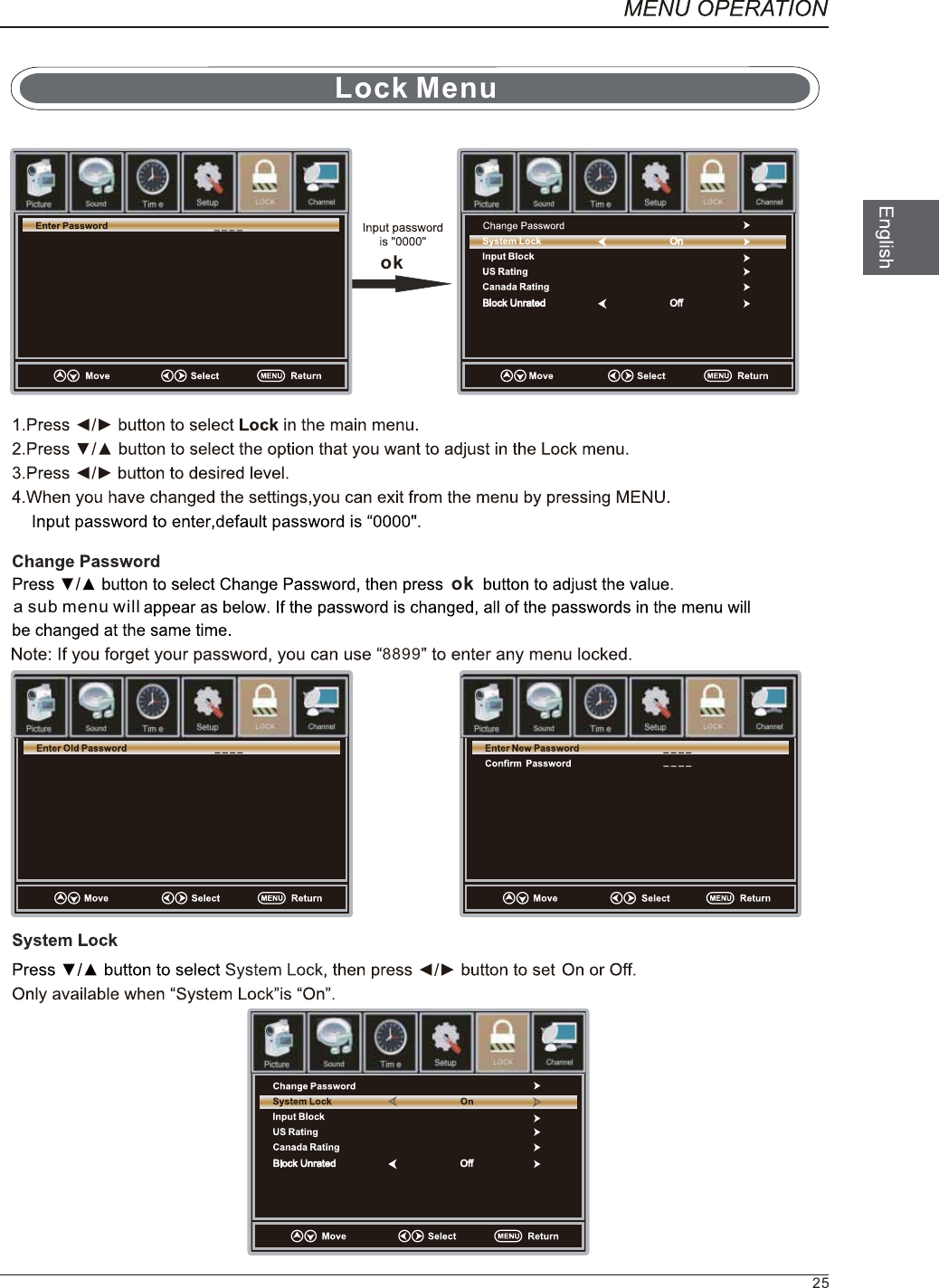
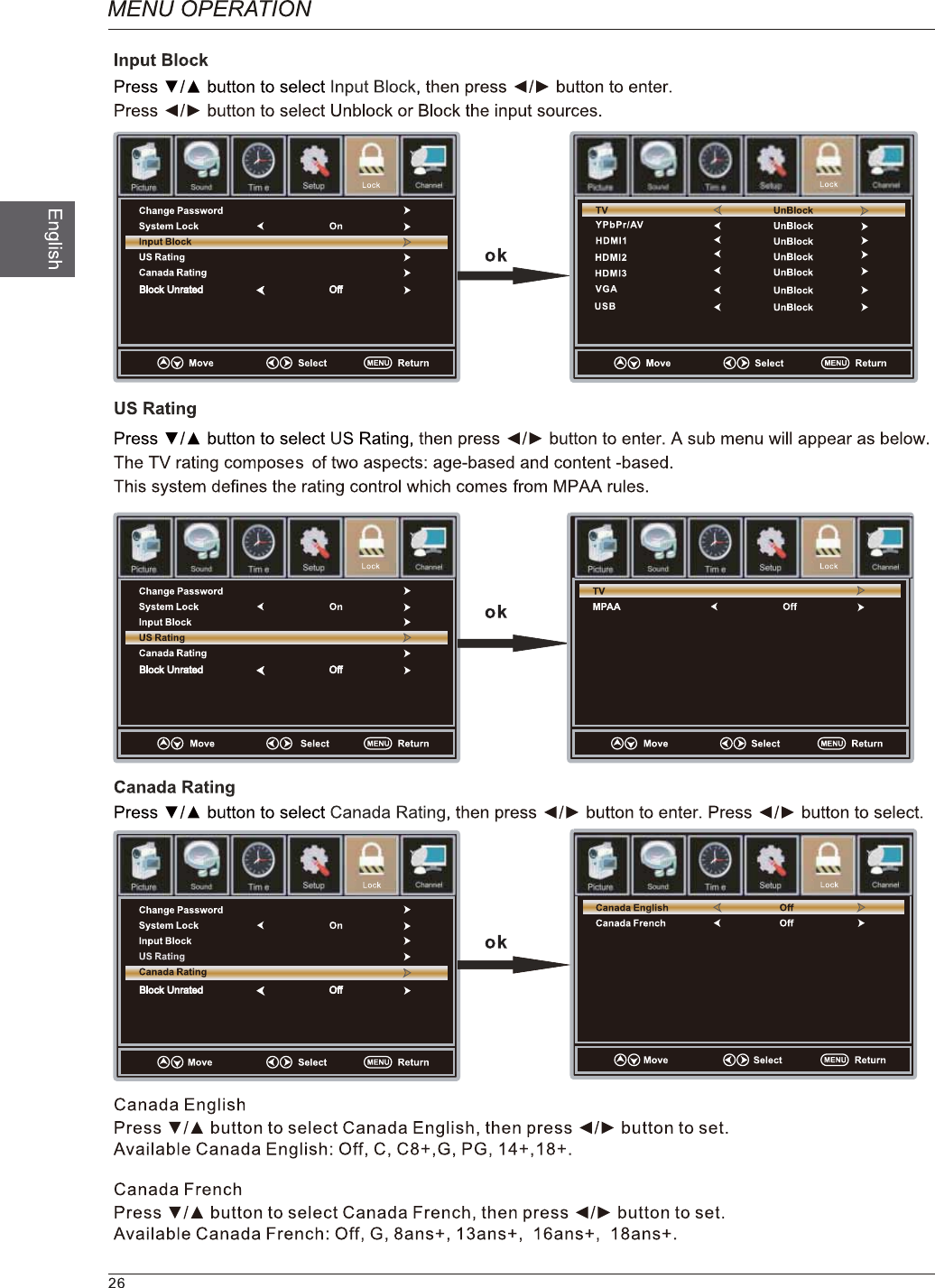
okoka sub menu will8899Lock LockLock LockLock25Lock Menu
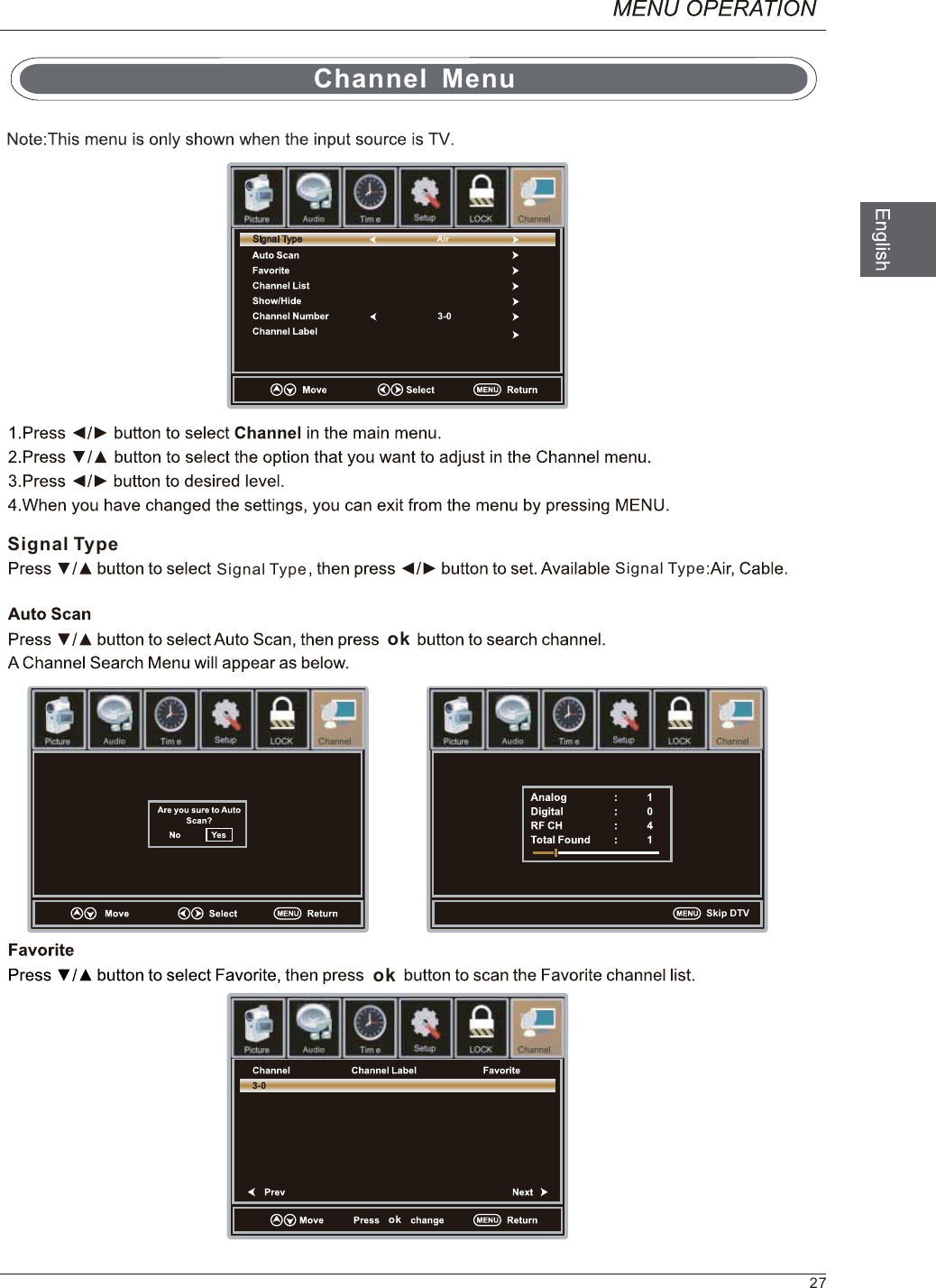
okokokSignal TypeSignal Type Signal TypeLockLock LockLock27Channel  MenuAirSkip DTV
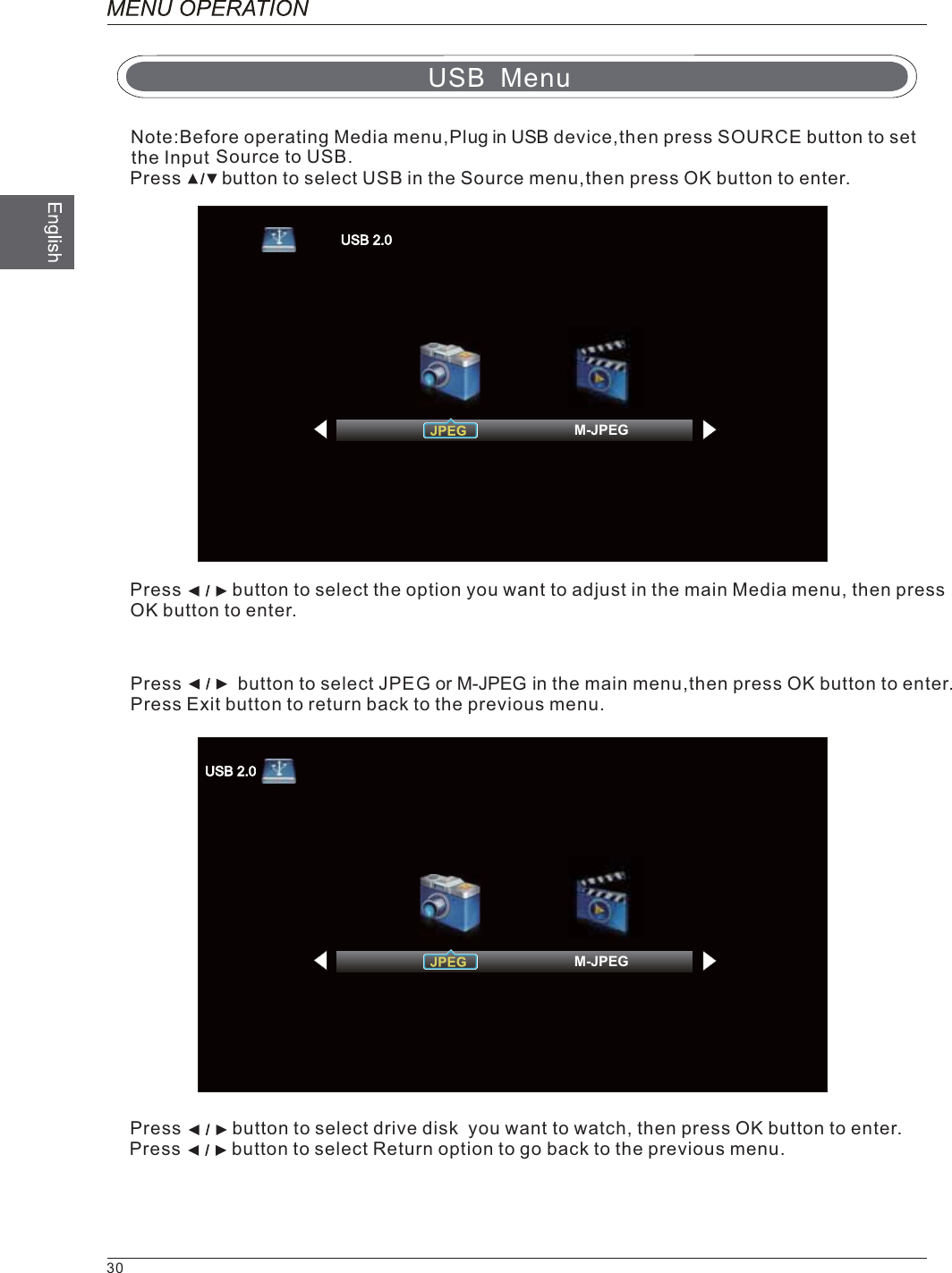
Source to USB.Press        button to select USB in the Source menu,then press OK button to enter.Press          button to select the option you want to adjust in the main Media menu, then pressOK button to enter.Press           button to select JPE     iG or M-JPEG n the main menu,then press OK button to enter.Press Exit button to return back to the previous menu.Press          button to select drive disk  you want to watch, then press OK button to enter.Press          button to select Return option to go back to the previous menu.USB MenuNote:Before operating Media menu,Plug in USB device,then press SOURCE button to set the Input30M-JPEGM-JPEG
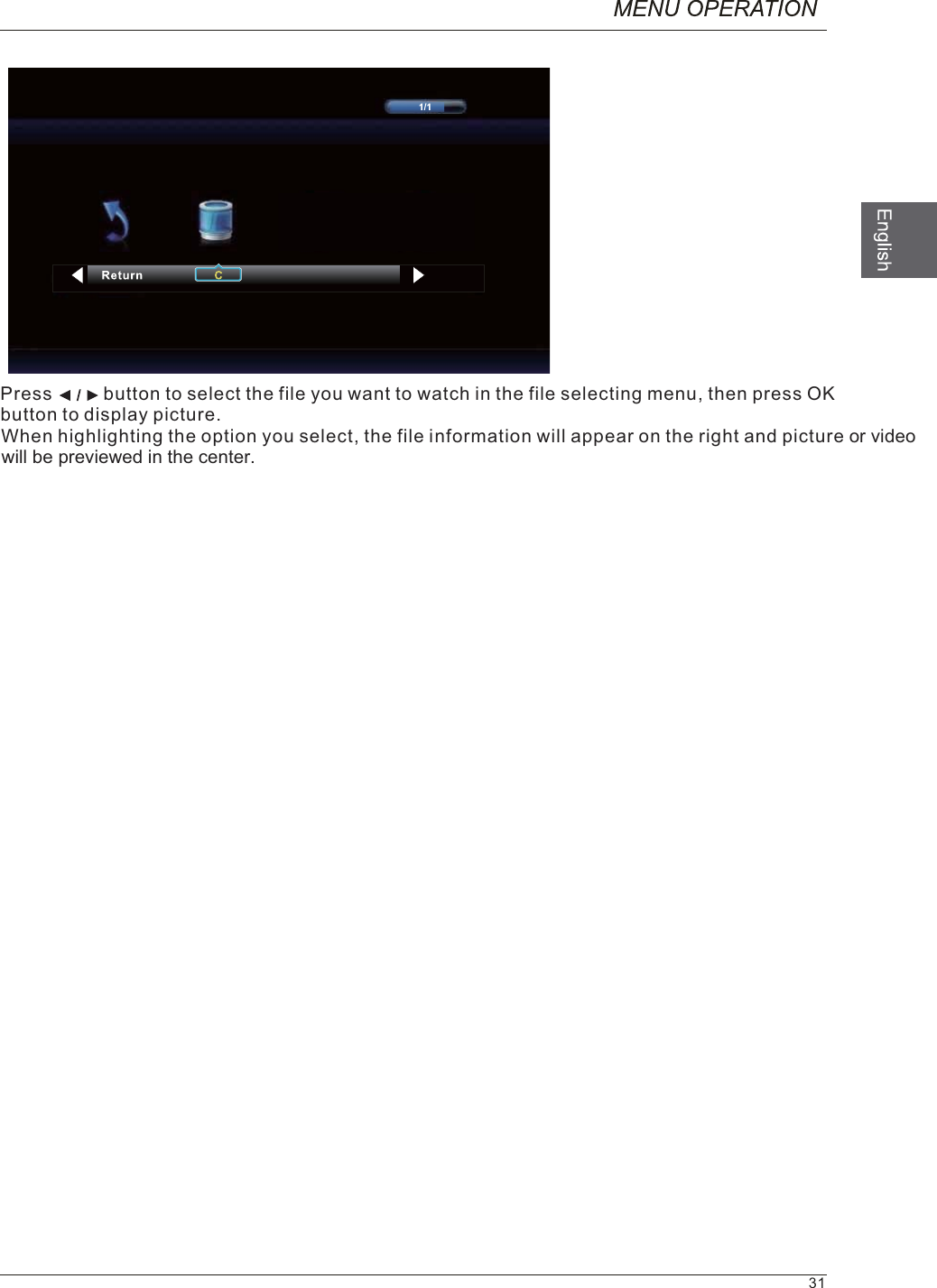
Press          button to select the file you want to watch in the file selecting menu, then press OKbutton to display picture.When highlighting the option you select, the file information will appear on the right and picture or videowill be previewed in the center.31
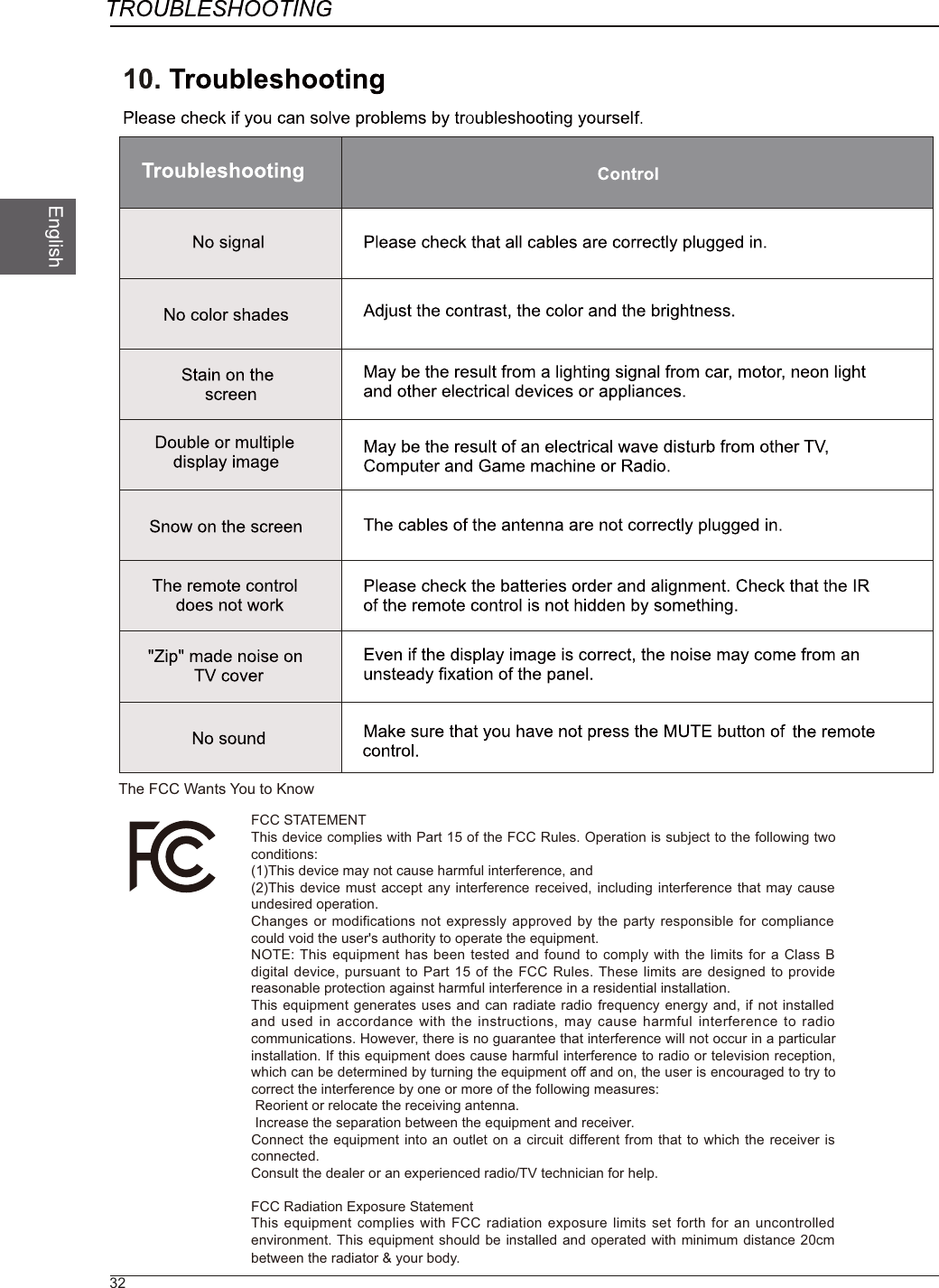
32The FCC Wants You to KnowFCC STATEMENTThis device complies with Part 15 of the FCC Rules. Operation is subject to the following two conditions:(1)This device may not cause harmful interference, and(2)This device must accept any interference received, including interference that may cause undesired operation. Changes or modifications not expressly approved by the party responsible for compliance could void the user's authority to operate the equipment.NOTE: This equipment has been tested and found to comply with the limits for a Class B digital device, pursuant to Part 15 of the FCC Rules. These limits are designed to provide reasonable protection against harmful interference in a residential installation.This equipment generates uses and can radiate radio frequency energy and, if not installed and used in accordance with the instructions, may cause harmful interference to radio communications. However, there is no guarantee that interference will not occur in a particular installation. If this equipment does cause harmful interference to radio or television reception, which can be determined by turning the equipment off and on, the user is encouraged to try to correct the interference by one or more of the following measures: Reorient or relocate the receiving antenna. Increase the separation between the equipment and receiver.Connect the equipment into an outlet on a circuit different from that to which the receiver is connected.Consult the dealer or an experienced radio/TV technician for help.FCC Radiation Exposure StatementThis equipment complies with FCC radiation exposure limits set forth for an uncontrolled environment. This equipment should be installed and operated with minimum distance 20cm between the radiator & your body.
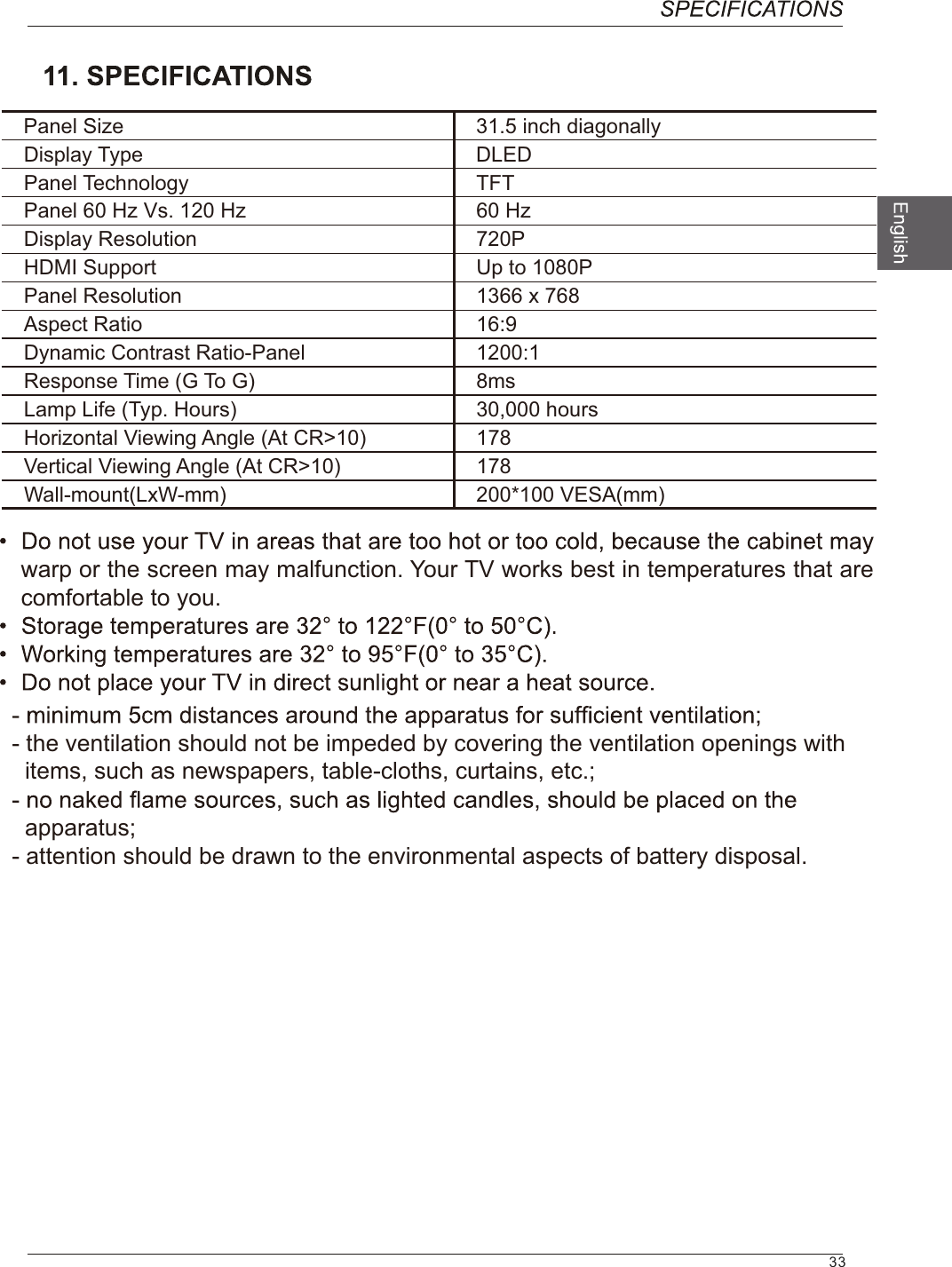
33 yllanogaid hcni 5.13eziS lenaPDELDepyT yalpsiDTFT ygolonhceT lenaPzH 06zH 021 .sV zH 06 lenaPP027 noituloseR yalpsiDP0801 ot pUtroppuS IMDH867 x 6631 noituloseR lenaP9:61oitaR tcepsADynamic Contrast Ratio-Panel 1200:1sm8)G oT G( emiT esnopseRsruoh 000,03)sruoH .pyT( efiL pmaLHorizontal Viewing Angle (At CR>10) 178Vertical Viewing Angle (At CR>10) 178)mm(ASEV 001*002)mm-WxL(tnuom-llaWwarp or the screen may malfunction. Your TV works best in temperatures that are comfortable to you.- the ventilation should not be impeded by covering the ventilation openings with    items, such as newspapers, table-cloths, curtains, etc.;  apparatus;- attention should be drawn to the environmental aspects of battery disposal.

Navigation menu