Chunghsin Technology Group E2SW5018 50inch FHD DLED TV User Manual T201803279A 50 6486

Chunghsin Technology Group CO.,LTD 50inch FHD DLED TV T201803279A 50 6486

Users Manual

INSTRUCTION MANUALPlease read all the instructions carefully before using this TV, and keep the manual for future reference. Digital LED TVE2SW5018Please refer to the actual product
1CONTENTSImportant Safety Instructions2Additional Safety Information                                                              3Preparations4What's Included4FrontView5Rear View6Wall Mounting6Remote Control                                                                                  7Connecting External Devices                         8Customizing TV Settings 9Turning On/Off Your TV                                                                      9Initial Setup9Source                                                                                              11Channel Selection11Volume Adjustment11Streaming12Media13Viewing Photos13ListeningTo Music                                                                       14Watching Videos14TV Settings15General16Picture Settings18   Audio Settings                                                                              19   Network Settings                                                                          19Channel Settings 20Time Settings20Lock Settings21APP Settings21Parental Control22Troubleshooting 24FCC  Notes                                                                                           27OTT APP Service28
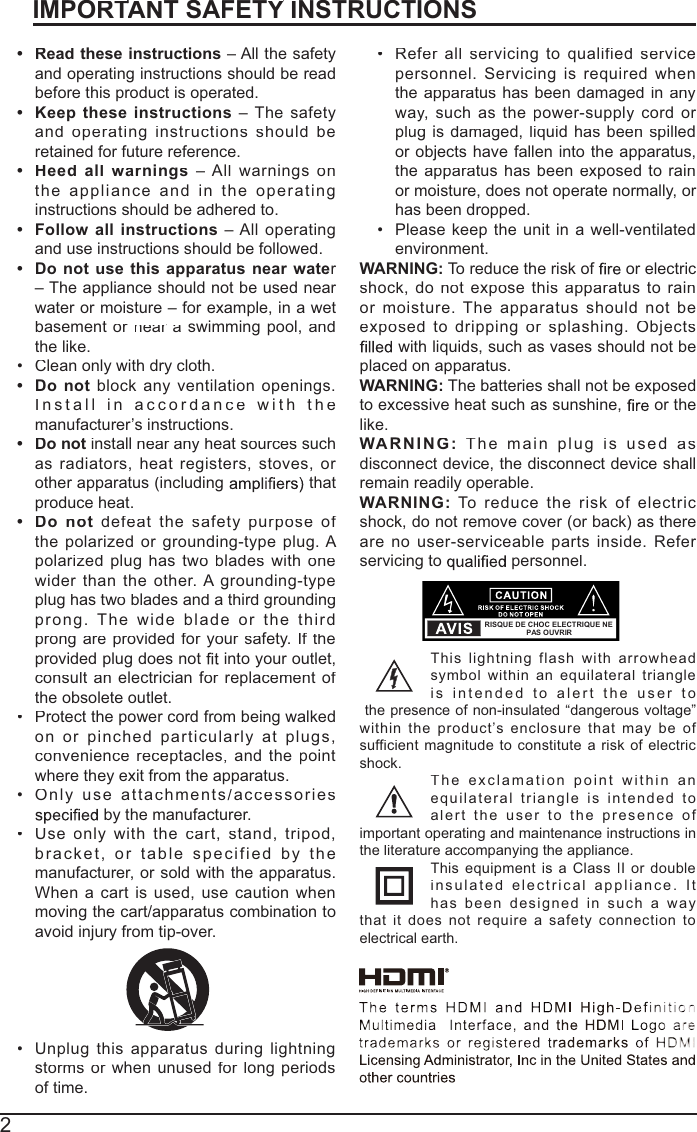
2IMPORTANTTT SAFETYIYNSTRUCTIONStRead these instructions – All the safety and operating instructions should be readbefore this product is operated.t Keep theseinstructions – The safety andoperatinginstructions shouldberetained for future reference.tHeed allwarnings – Allwarningsontheapplianceandin theoperatinginstructions should be adhered to. tFollowallinstructions – Alloperatingand use instructions should be followed. tDo notusethisapparatus nearwater– The appliance should not be used near water or moisture – for example, in a wet basementornear arswimmingpool,andthe like.Clean only with dry cloth.tDonotblockanyventilation openings.Install inaccordance withthemanufacturer’s instructions.tDo notinstallnearanyheat sources such asradiators,heatregisters,stoves,or other apparatus (including  that produce heat. tDo notdefeat thesafetypurposeof thepolarizedorgrounding-typeplug. A polarizedplughas twobladeswithonewider thanthe other. A grounding-typeplughas twobladesanda thirdgroundingprong.The wide blade or the third prongareprovidedfor your safety.If thefprovided plug does not into your outlet, consultanelectricianforreplacement of the obsolete outlet.Protect the power cord from being walkedonorpinchedparticularly at plugs, conveniencereceptacles,and thepointwhere they exit from the apparatus.Onlyuse attachments/accessories by the manufacturer.Useonlywiththecart, stand, tripod, bracket,ortablespecifiedbythemanufacturer, or sold with the apparatus. Whenacartisused,usecautionwhenmoving the cart/apparatus combination toavoid injury from tip-over. Unplug thisapparatusduringlightningstormsorwhenunusedforlongperiodsof time.Referallservicing toqualified service personnel.Servicingis required whentheapparatushasbeendamagedinanyway, suchas thepower-supplycordor plug is damaged,liquid has beenspilled or objects have fallen into the apparatus, theapparatushasbeen exposed to rainor moisture, does not operate normally, or has been dropped.Please keeptheunitina well-ventilatedenvironment.WARNING:To reduce the risk of or electric shock,donot expose thisapparatus to rainormoisture.Theapparatusshouldnotbeexposedtodrippingorsplashing. Objects with liquids, such as vases should not beplaced on apparatus. WARNING: The batteries shall not be exposedto excessive heat such as sunshine, or thelike.WARNING:Themainplugisused as disconnect device, the disconnect device shallremain readily operable.WARNING:Toreduce therisk ofelectricshock, do not remove cover (or back) as there arenouser-serviceablepartsinside.Referservicing to   personnel.Thislightning flash witharrowheadsymbolwithinanequilateral triangleisintended toalert theuser tothe presence of non-insulated “dangerous voltage” withintheproduct’s enclosurethatmaybe of sufficientmagnitudeto constitute a risk of electricshock.The exclamation pointwithin anequilateraltriangle is intended to alert the user to thepresence of important operating and maintenance instructions inthe literature accompanying the appliance. Thisequipment is a ClassIIordoubleinsulatedelectricalappliance. It hasbeendesignedinsuch a waythat itdoesnotrequirea safetyconnection to electrical earth.RISQUE DE CHOC ELECTRIQUE NEPAS OUVRIR
3ADDITIONAL SAFETY INFORMATIONToensurereliableand safeoperationofthisequipment, pleasereadcarefully alltheinstructions in this user guide, especially the safety information below.Electrical Safety TheTVsetshouldonlybe connectedto a mainpower supplywith voltagethatmatches the label at the rear of the product.To prevent overload,donot share the samepower srupply socket with toomany otherelectronic components.Do not place any connecting wires where they may be stepped on or tripped over.Do not place heavy items on them, which may damage the leads. Hold the main plug, not the wires, when removing from a socket.During a thunderstorm, or when not using the television for extended period of time,turn off the power switch on the back of the television. Do not allow water or moisture to enter the TV or power adapter. Do NOT use in wet,moist areas, such as bathrooms, steamy kitchens or near swimming pools.Pull theplugoutimmediately, andseekprofessionalhelp ifthemain plugorcableis damaged, liquid is spilt onto the set, if accidentally exposed to water or moisture, if afnything accidentallypenetratestheventilationslots oriftheset does notwork normally.Do not remove the safety covers. There are no user serviceable parts inside. Trying to service the unit yourself is dangerous and may invalidate the product’s warranty. personnel must only service this apparatus.To avoidbatteryleakage, remove exhaustedbatteriesfromtheremotecontrol,or when not using for long period.Do not break open or throw exhausted batteries on aDo not mix old and new batteries.Do notmix Alkaline,Standard(Carbon-Zinc) or Rechargeable(NickelCadmium) or (Nickel Metal Hydride) batteries.Physical Safety Do not block ventilation slots in the back cover. You may place the TV in a cabinet, but ensure at least 5cm (2'') clearance all around.Donot taporshaketheTVscreen,oryoumaydamagetheinternal circuits. Take good care of the remote control.To clean the TV use a soft dry cloth. Do not use solvents or petroleum based Donotinstallnearanyheat sources such as radiators,heatregisters, stoves or otrherapparatus (including   that produce heat.Do not defeat the safety purpose of the polarized or grounding-type plug. A polarized plughas twobladeswithonewidertrhan theother. A groundingtypeplughas two blades and a third grounding prong, the wide blade, or the third prong is provided for your safety. If the provided plug does not into your outlet, consult an electrician for replacement of the obsolete outlet. Protect the power cord from being walked on or pinched particularly at plugs. Unplug the apparatus during lightning storms or when unused for long periods.Refer allservicing to a servicepersonnel. Servicing is requiredwhen the apparatushasbeen damagedinany way, such aspower-supplycord or plug isdamaged, liquid has been spilled, or objects have fallen into the apparatus, has beenexposed to rain or moisture, does not operate normally, or has been dropped.Pleasealways connect yourtelevision to apoweroutletwithprotectivegroudconnection.
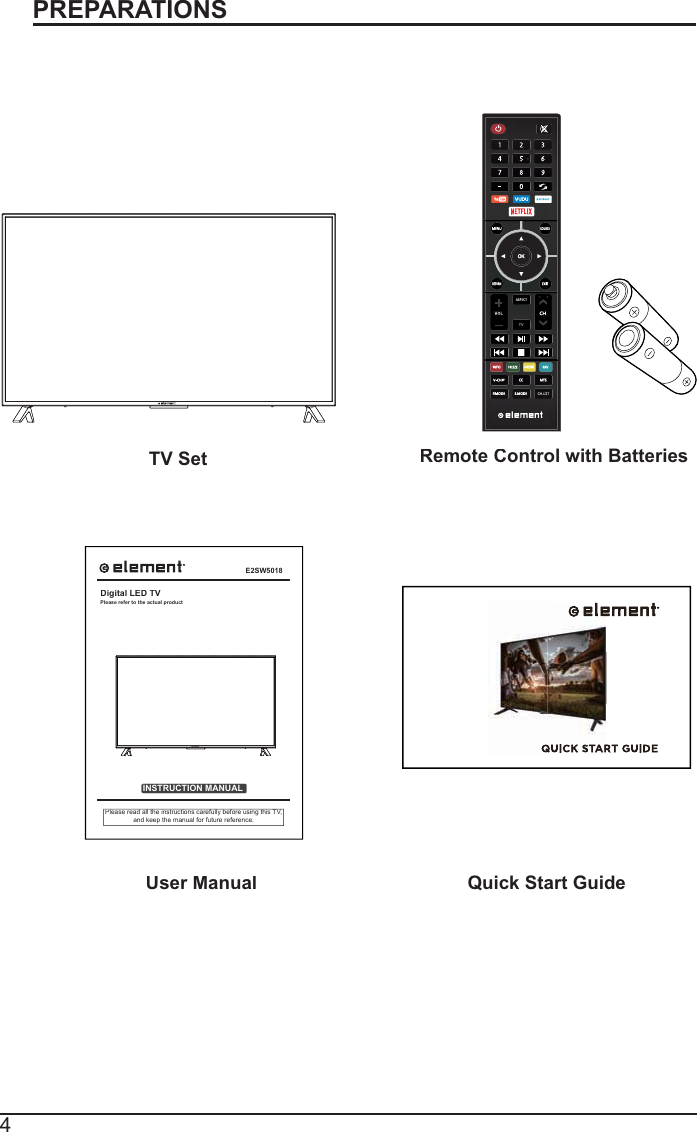
4What is Included?PREPARATIONSTV SetRemote Control with BatteriesUser ManualQuick Start GuideINSTRUCTION MANUALPlease read all the instructions carefully before using this TV,and keep the manual for future reference.Digital LED TVPlease refer to the actual productTVE2SW5018
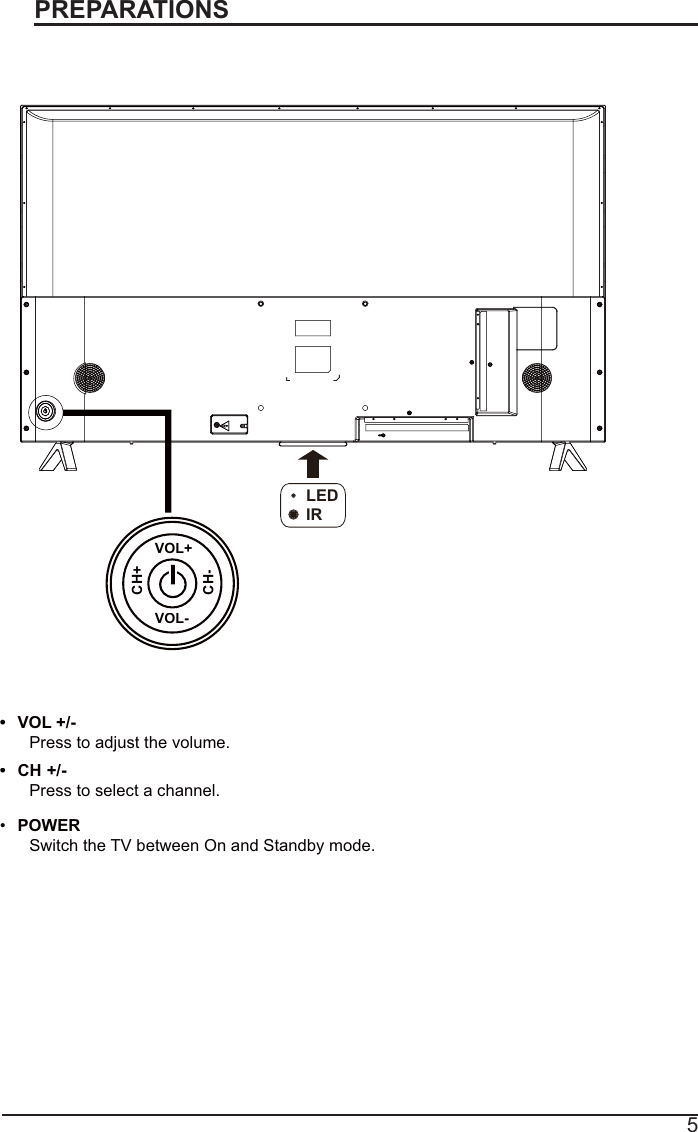
5PREPARATIONSFront  ViewSwitch the TV between On and Standby mode.POWERtCHPress to select a channel.tVOL +/-+/-Press to adjust the volume.LEDIRVOL+VOL-CH+CH-
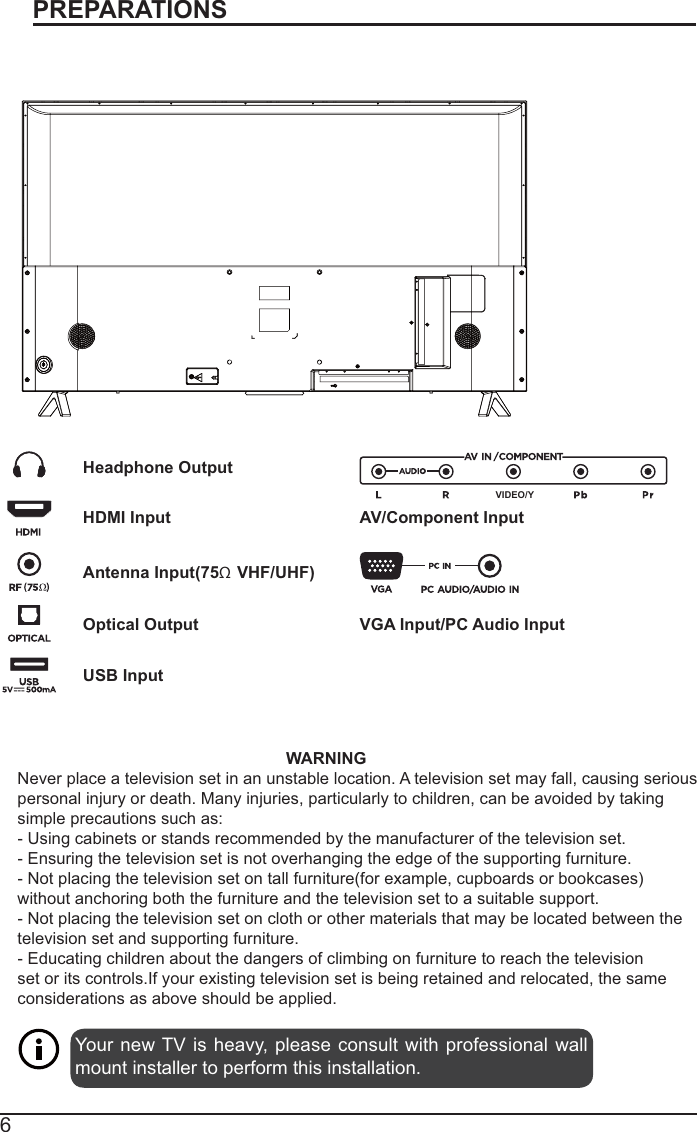
6PREPARATIONSRear ViewYour new TV is heavy, please consult with professional wall mount installer to perform this installation. WARNINGNever place a television set in an unstable location. A television set may fall, causing seriouspersonal injury or death. Many injuries, particularly to children, can be avoided by taking simple precautions such as:- Using cabinets or stands recommended by the manufacturer of the television set.- Ensuring the television set is not overhanging the edge of the supporting furniture.- Not placing the television set on tall furniture(for example, cupboards or bookcases)without anchoring both the furniture and the television set to a suitable support.- Not placing the television set on cloth or other materials that may be located between the television set and supporting furniture.- Educating children about the dangers of climbing on furniture to reach the televisionset or its controls.If your existing television set is being retained and relocated, the same considerations as above should be applied.Wall MountingHeadphone OutputHDMI InputAntenna Input(75Ω VHF/UHF)Optical OutputUSB InputVGA Input/PC Audio InputAV/Component InputVIDEO/Y
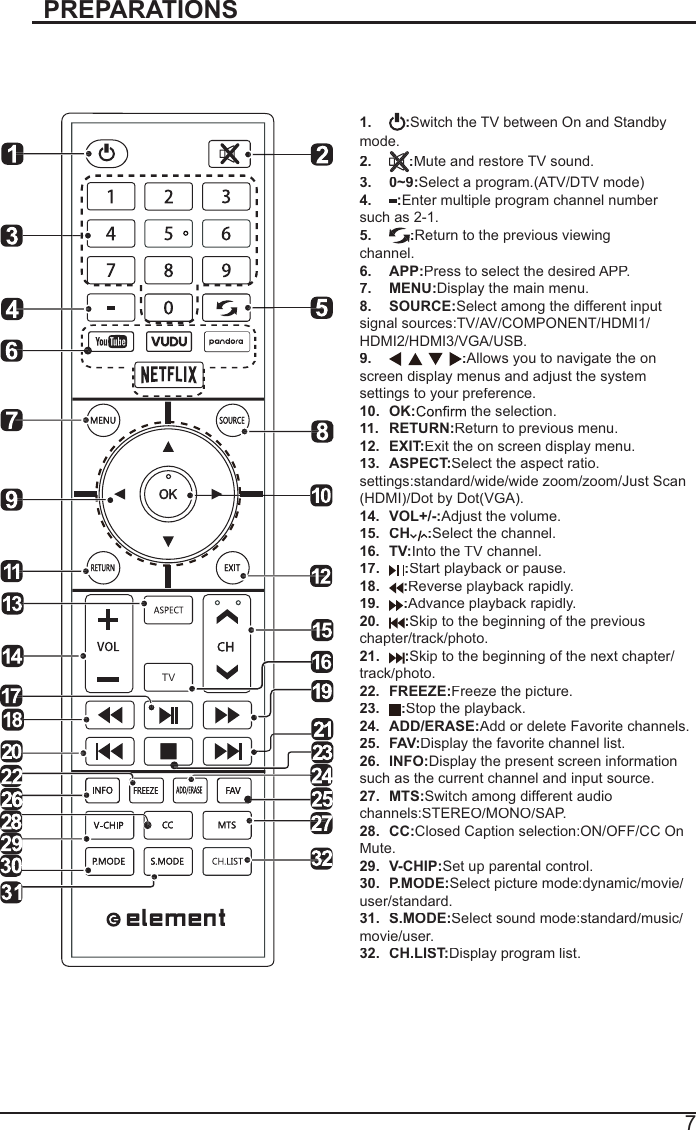
7PREPARATIONSRemote Control1.:Switch theTVbetween Onand Standbymode.2.:Mute and restore TV sound.3. 0~9:Select a program.(ATV/DTV mode)4.:Enter multiple program channel number such as 2-1.5.:Return to the previous viewing channel.6. APP:Press to select the desired APP.7. MENU:Display the main menu.8. SOURCE:Select among the different input signal sources:TV/AV/COMPONENT/HDMI1/HDMI2/HDMI3/VGA/USB.9.:Allows you to navigate the onscreen display menus and adjust the system settings to your preference.10. OK: the selection.11. RETURN:Return to previous menu.12. EXIT:Exit the on screen display menu.13. ASPECT:Select the aspect ratio. settings:standard/wide/wide zoom/zoom/Just Scan(HDMI)/Dot by Dot(VGA).14. VOL+/-:Adjust the volume.15. CH:Select the channel.16. TV:Into the TV channel.17.:Start playback or pause.18.:Reverse playback rapidly.19.:Advance playback rapidly.20.:Skip to the beginning of the previous chapter/track/photo.21.:Skip to the beginning of the next chapter/ track/photo.22. FREEZE:Freeze the picture.23.:Stop the playback.24. ADD/ERASE:Add or delete Favorite channels.25. FAV:Display the favorite channel list.26. INFO:Display the present screen information such as the current channel and input source.27. MTS:Switch among different audio channels:STEREO/MONO/SAP.28. CC:Closed Caption selection:ON/OFF/CC On Mute.29. V-CHIP:Set up parental control.30. P.MODE:Select picture mode:dynamic/movie/user/standard.31. S.MODE:Select sound mode:standard/music/movie/user.32. CH.LIST:Display program list.TV
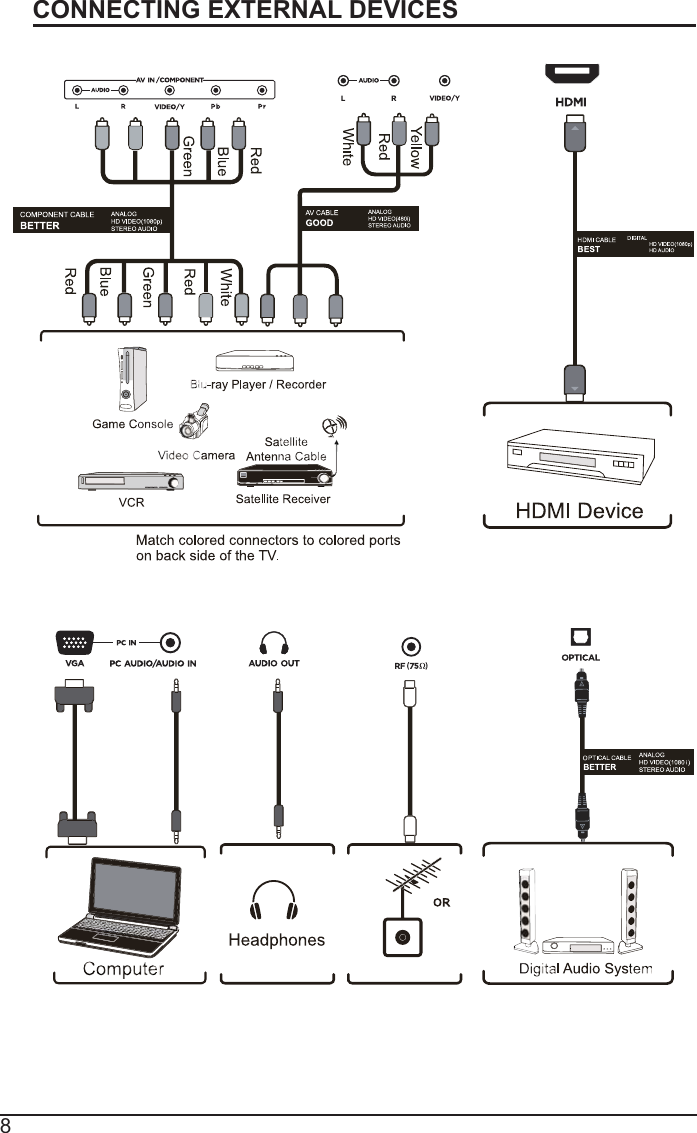
8CONNECTING EXTERNAL DEVICES
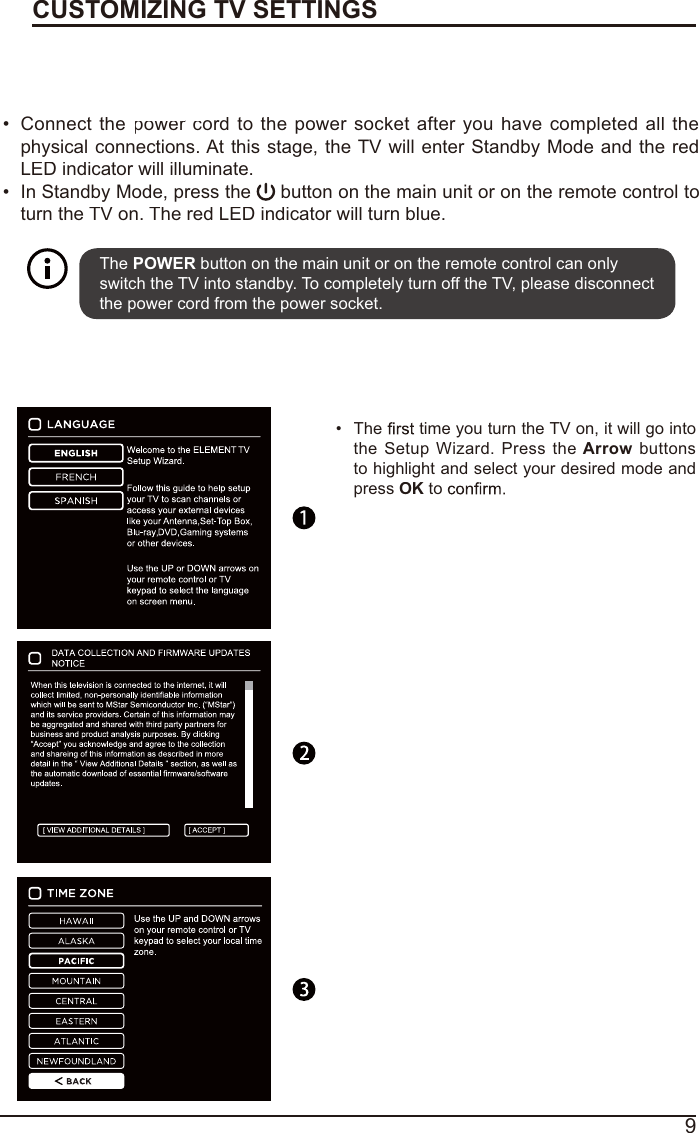
9Turning On/Off Your TVCUSTOMIZING TV SETTINGSConnectthepower crordtothepowersocketafteryouhave completedallthephysical connections. At this stage, the TV will enter Standby Mode and the redLED indicator will illuminate.In Standby Mode, press the  button on the main unit or on the remote control toturn the TV on. The red LED indicator will turn blue.The POWER button on the main unit or on the remote control can only switch the TV into standby. To completely turn off the TV, please disconnect the power cord from the power socket. Initial SetupThetime you turn the TV on, it will go intotheSetupWizard.PresstheArrowbuttonsto highlight and select your desired mode and pressOKto
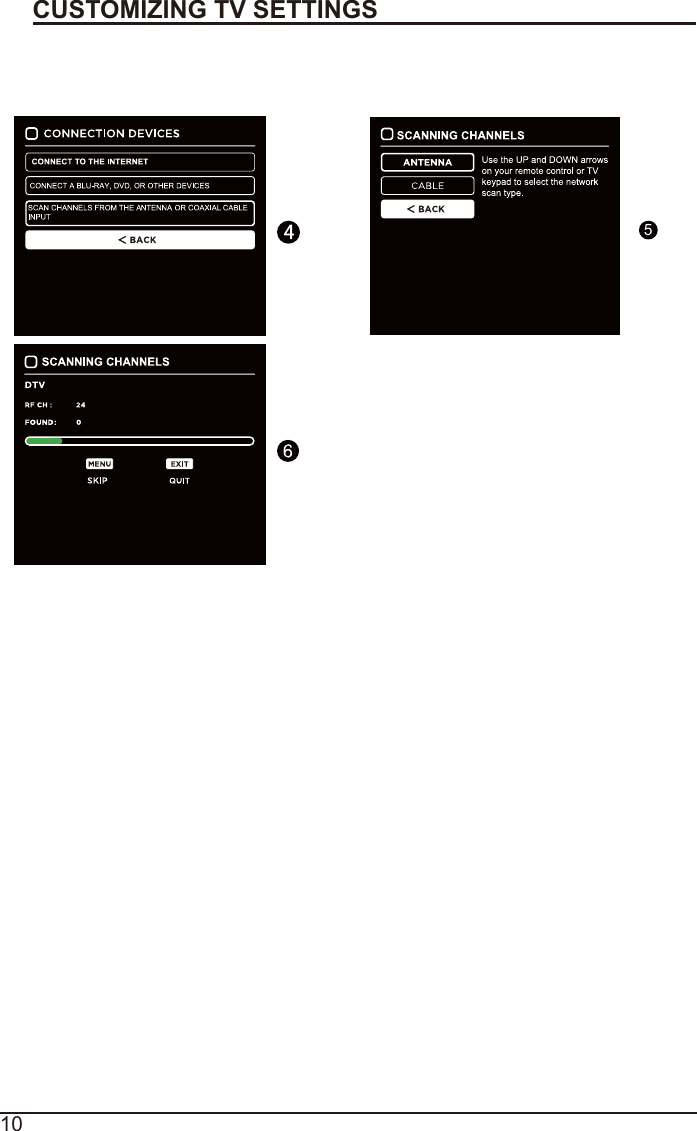
10CUSTOMIZING TV SETTINGSInitial Setup5
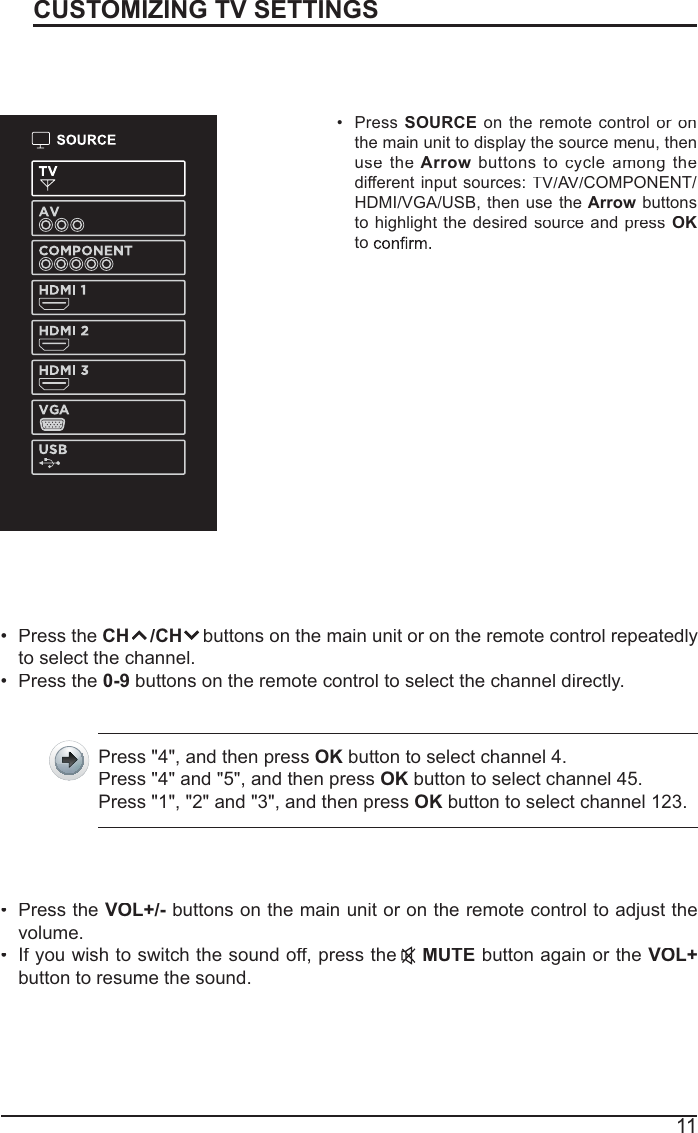
11CUSTOMIZING TV SETTINGSSourcePressSOURCEon theremote controlor on rthe main unit to display the source menu, thenusetheArrowbuttonstocycleamongthedifferent input sources:TV/A//V/AACOMPONENT/HDMI/VGA/USB, thenusetheArrowbuttonsto highlight thedesiredsourceandpress OKtoChannel SelectionPressthe CH    /CHbuttonsonthe main unitoronthe remote controlrepeatedlyto select the channel.Press the0-9 buttons on the remote control to select the channel directly.Press "4", and then pressOK button to select channel 4.Press "4" and "5", and then pressOK button to select channel 45.Press "1", "2" and "3", and then pressOK button to select channel 123.Press theVOL+/-buttons on the main unit or on the remote control to adjust thevolume.If you wish to switch the sound off, press theMUTEbutton again or theVOL+button to resume the sound.Volume Adjustment
12CUSTOMIZING TV SETTINGSStreamingNETFLIXEnjoys TV shows & movies streamed instantly over theInternet.YouTubeYouTube your way on the best screen in your house.VUDUDiscover,watchand collect thelatestmoviesandTVshowsinhighquality1080p.Freetosignup. Nosubscriptions, late fees or commitments.PandoraFreepersonalizedradiothat offers effortlessandendless music enjoyment and discovery. Just start withthename of one of your favroriteartists, songs,genresor composers and Pandora will do the rest. It’s easy tocreatepersonalized stationsthatplay only musicyou’lllove.AccuWeatherDisplays the currentweather conditionsand thetemperatureanywherein theworldin centigrade or Fahrenheit.PressMENUbutton on themain unitoron theremotetodisplay themaininterface.Then use the ArrowbuttonstoselectSTREAMINGand pressOK toenter. Use theArrow buttons to select the desired APP and pressOK button toview. Or press the hotkey on the remote control to enter the desired APP directly.For full listing of available Apps, please visit elementelectronics.com.
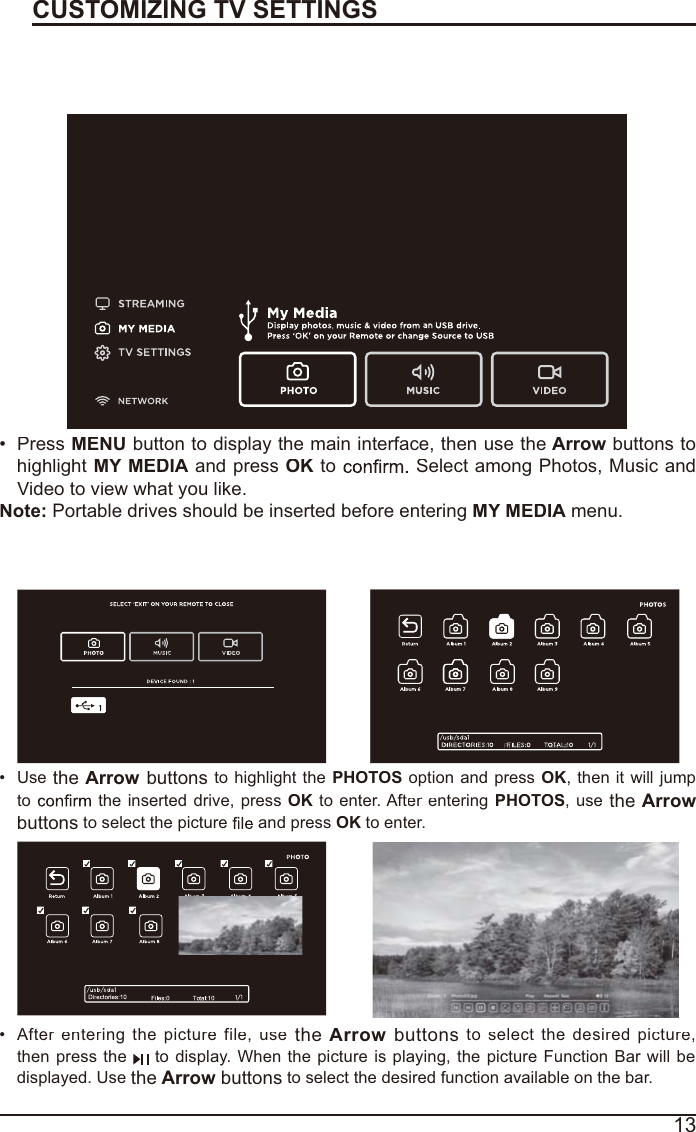
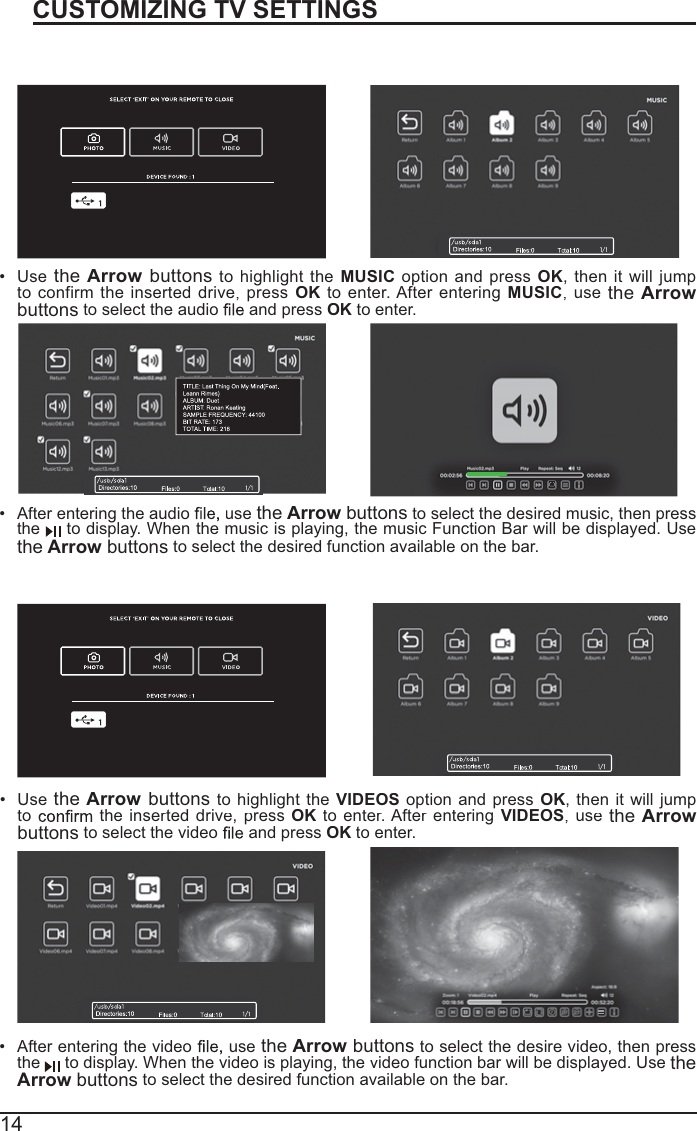
13CUSTOMIZING TV SETTINGSMediaViewing Photos After entering the picture file, usetheArrowbuttonstoselectthedesiredpicture,thenpress the to display. Whenthepictureisplaying, thepictureFunctionBarwill bedisplayed. UsetheArrow buttonsto select the desired function available on the bar.UsetheArrowbuttons to highlight the PHOTOS option and press OK, then it will jump to the inserted drive, pressOKto enter. After erntering PHOTOS,usetheArrow buttonsto select the picture  and press OKto enter.PressMENU button to display the main interface, then use the Arrowbuttons tohighlightMY MEDIA and pressOK to  Select among Photos, Music andVideo to view what you like.Note: Portable drives should be inserted before enteringMY MEDIA menu.
14CUSTOMIZING TV SETTINGSListening To MusicWatching VideosAfter entering the audiousetheArrowbuttons to select thedesiredmusic, thenpresstheto display. When the music is playing, the music Function Bar will be displayed. UsetheArrow buttons to select the desired function available on the bar.Use theArrowbuttons tohighlight theMUSICoptionandpressOK, then it willjumptoconfirm theinserteddrive,pressOK toenter.AfterenteringMUSIC,usetheArrowbuttonsto select the audio   and pressOKto enter.After entering the video usethe Arrowbuttons to select the desire video, then pressthe todisplay. Whenthe video is playing, the video functionbarwill be displayed. Use theArrowbuttonsto select the desired function available on the bar.Use theArrowbuttons to highlight theVIDEOSoptionandpressOK, thenitwilljumptothe inserted drive, press OK to enter.AfterenteringVIDEOS,usetheArrowbuttons to select the video  and pressOK to enter.
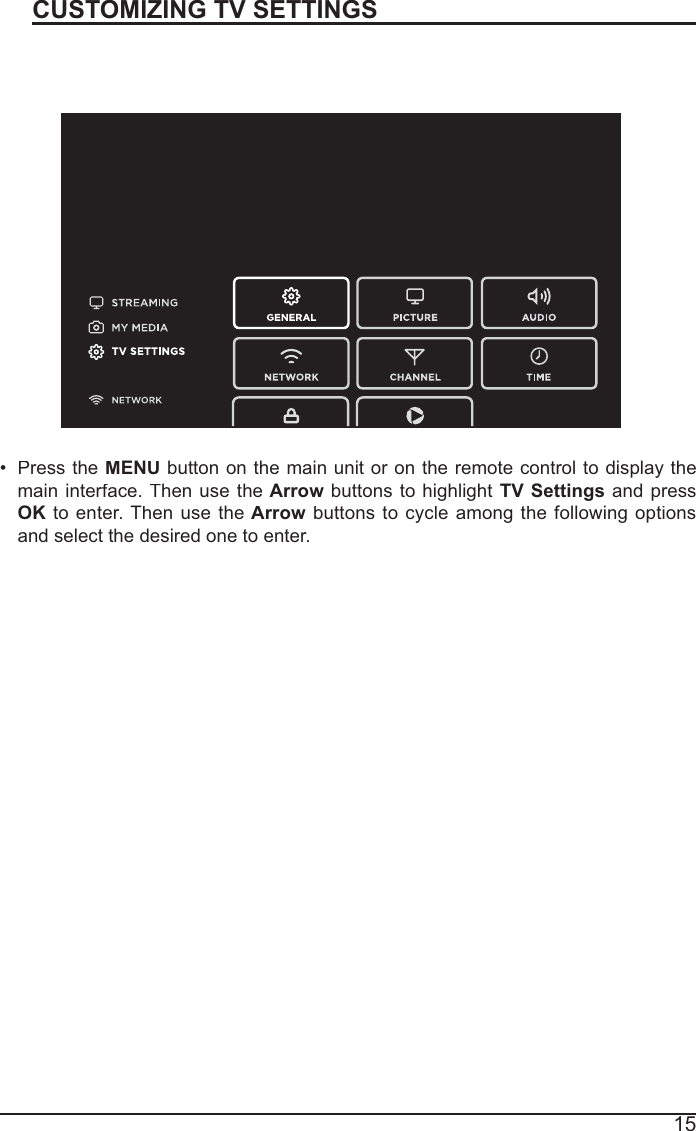
15CUSTOMIZING TV SETTINGSTV SettingsPress the MENUbutton on the main unit or on the remote control to display the maininterface. TrrhenusetheArrowbuttons to highlightTVSettingsandpressOK to enter. ThenusetheArrowbuttons to cycleamongthefollowingoptionsand select the desired one to enter.
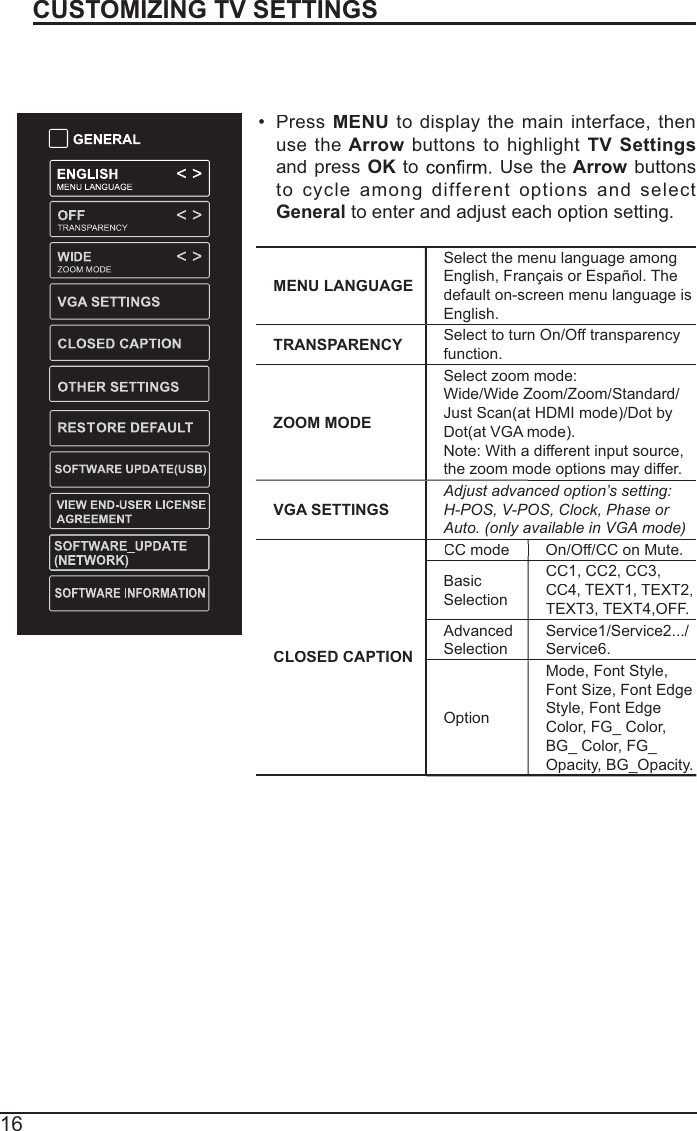
16CUSTOMIZING TV SETTINGSGeneralPressMENU todisplay themaininterface, thenuse theArrowbuttons tohighlightTV SettingsandpressOK to UsetheArrowbuttonsto cycleamongdifferentoptionsand select General to enter and adjust each option setting.MENU LANGUAGESelect the menu language amongEnglish, Français or Español. The default on-screen menu language is English.TRANSPARENCYSelect to turn On/Off transparencyfunction.ZOOM MODESelect zoom mode:Wide/Wide Zoom/Zoom/Standard/Just Scan(at HDMI mode)/Dot byDot(at VGA mode).Note: With a different input source,the zoom mode options may differ.VGA SETTINGSAdjust advanced option’s setting:H-POS, V-POS, Clock, Phase or Auto. (only available in VGA mode)CLOSED CAPTIONCC mode On/Off/CC on Mute.BasicSelectionCC1, CC2, CC3, CC4,TEXT1,TEXT2,TEXT3, TEXT4,OFF.AdvancedSelectionService1/Service2.../Service6.OptionMode, Font Style,Font Size, Font Edge Style, Font EdgeColor, FG_ Color, BG_ Color, FG_Opacity, BG_Opacity.
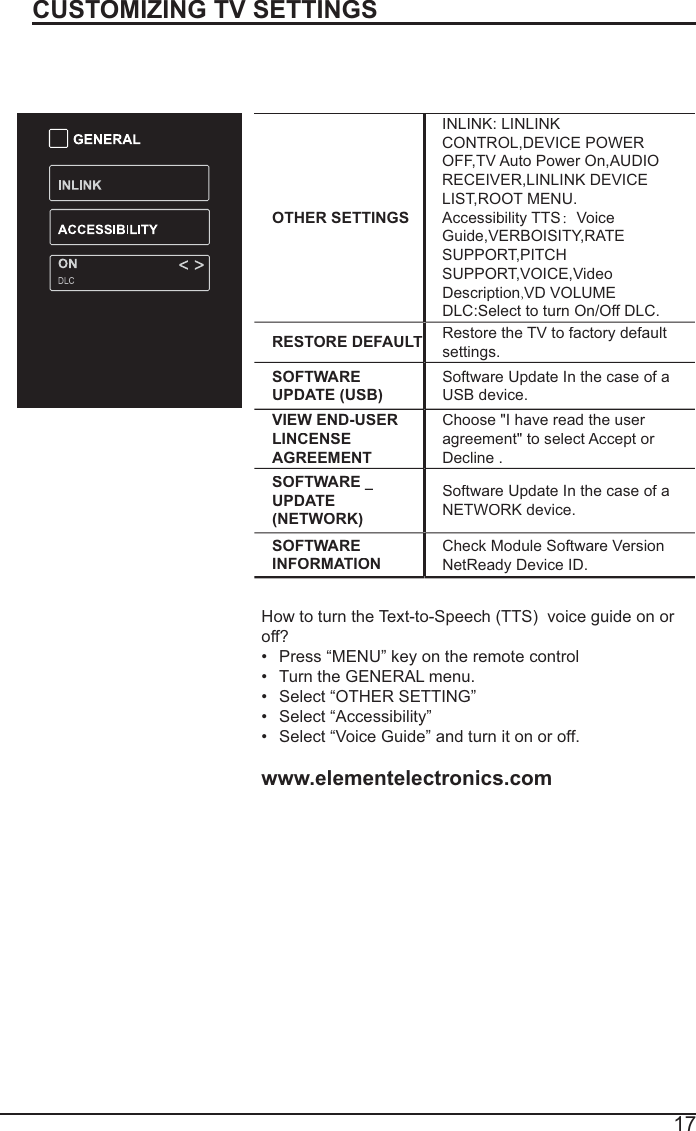
17CUSTOMIZING TV SETTINGSOTHER SETTINGSINLINK: LINLINKCONTROL,DEVICE POWER OFF,TV Auto Power On,AUDIO RECEIVER,LINLINK DEVICELIST,ROOT MENU.Accessibility TTS:VoiceGuide,VERBOISITY,RATE SUPPORT,PITCHSUPPORT,VOICE,VideoDescription,VD VOLUMEDLC:Select to turn On/Off DLC.RESTORE DEFAULTRestore the TV to factory defaultsettings.SOFTWARE UPDATE (USB)Software Update In the case of a USB device.VIEW END-USERLINCENSEAGREEMENTChoose "I have read the user agreement" to select Accept or Decline .SOFTWARE _UPDATE(NETWORK)Software Update In the case of a NETWORK device.SOFTWARE INFORMATIONCheck Module Software VersionNetReady Device ID.How to turn the Text-to-Speech (TTS)voice guide on or off? Press “MENU” key on the remote control Turn the GENERAL menu.Select “OTHER SETTING”Select “Accessibility”Select “Voice Guide” and turn it on or off.www.elementelectronics.com
18CUSTOMIZING TV SETTINGSPicture SettingsPICTURE MODECycle among picture modes:Dynamic/Standard/Movie/User.Alternative: Press P.MODE button on remote control to set the picture mode directly.BRIGHTNESSIncrease or decrease the amount of white in the picture.CONTRASTAdjust the difference between light and dark levels in the pictures.COLORControl the color intensity.SHARPNESSAdjust crispness level in edges between light and dark areas of thepicture.TINTAdjust the balance between red and green levels.COLORTEMPERATURECycle among color temperatures:Normal/Warm/COOL.ADVANCEDOPTIONSet the following options:Noise Reduction: Reduce the noise level of the connected device: OFF/WEAK/MEDIUM/STRONG.White Balance: To set the differentoptions of white balance.Red Gain/Green Gain/Blue Gain/Red Offset/Green Offset/Blue Offset.Backlight: To set the value of backlight.PressMENUtodisplaythemaininterface,thenuse theArrowbuttonsto highlightTVSettingsand press OKto Use the Arrow buttons to cycleamongdifferentoptionsandselectPictureto enter and adjust each option setting.
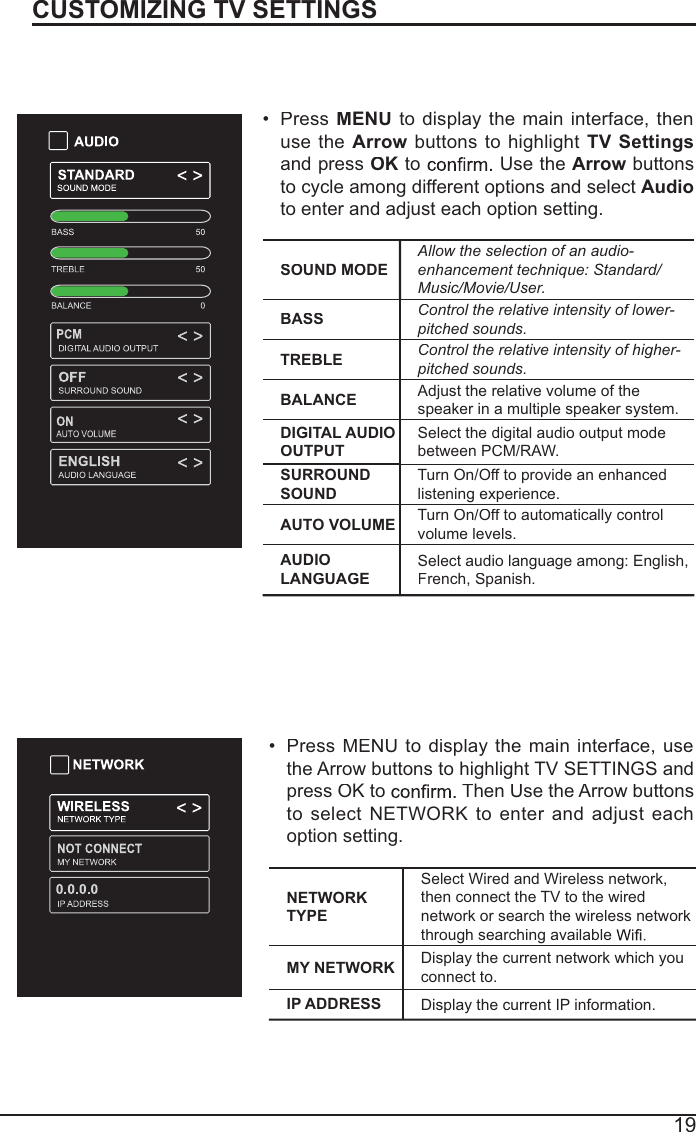
19CUSTOMIZING TV SETTINGSAudio SettingsSOUND MODEAllow the selection of an audio-enhancement technique: Standard/Music/Movie/User.BASSControl the relative intensity of lower-pitched sounds.TREBLEControl the relative intensity of higher-pitched sounds.BALANCEAdjust the relative volume of the speaker in a multiple speaker system.DIGITAL AUDIO OUTPUTSelect the digital audio output modebetween PCM/RAW.SURROUNDSOUNDTurn On/Off to provide an enhanced listening experience.AUTO VOLUME Turn On/Off to automatically controlvolume levels.AUDIOLANGUAGESelect audio language among: English,French, Spanish.Press MENUto displaythemaininterface, thenuse theArrowbuttonstohighlightTVSettingsand press OKto  Use the Arrowbuttons to cycle among different options and select Audioto enter and adjust each option setting.NETWORKTYPESelect Wired and Wireless network, then connect the TV to the wirednetwork or search the wireless network through searching availableMY NETWORK Display the current network which you connect to.IP ADDRESSDisplay the current IP information.Press MENU todisplay the main interface,usethe Arrow buttons to highlight TV SETTINGS andpress OK to  ThenUse the Arrowbuttonsto select NETWORKtoenterandadjusteachoption setting.Network Settings
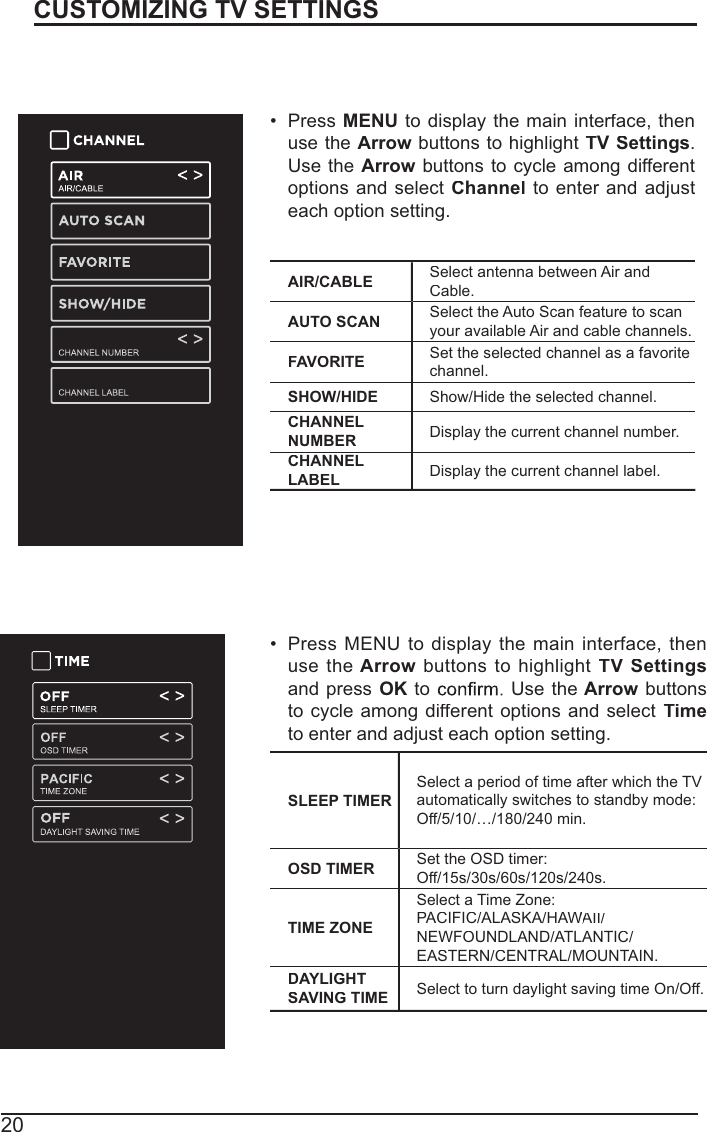
20CUSTOMIZING TV SETTINGSChannel SettingsAIR/CABLESelect antenna between Air and Cable.AUTO SCAN Select the Auto Scan feature to scan your available Air and cable channels.FAVORITE Set the selected channel as a favoritechannel.SHOW/HIDEShow/Hide the selected channel.CHANNEL NUMBERDisplay the current channel number.CHANNEL LABELDisplay the current channel label.Press MENUto display themaininterface, trrhenuse the Arrowbuttons to highlight TV Settings.Use the Arrowbuttons to cycle among different optionsandselectChanneltoenterandadjusteach option setting.Time SettingsPress MENU todisplay themaininterface, thenuse theArrowbuttons tohighlightTV SettingsandpressOK to Use theArrowbuttonstocycleamongdifferentoptionsandselectTimeto enter and adjust each option setting.SLEEP TIMERSelect a period of time after which the TV automatically switches to standby mode:Off/5/10/…/180/240 min. OSD TIMER Set the OSD timer: Off/15s/30s/60s/120s/240s.TIME ZONESelect a Time Zone:PACIFIC/ALASKA/HAWAII/WWNEWFOUNDLAND/ATLANTIC/EASTERN/CENTRAL/MOUNTAIN.DAYLIGHT SAVING TIMESelect to turndaylightsaving time On/Off.
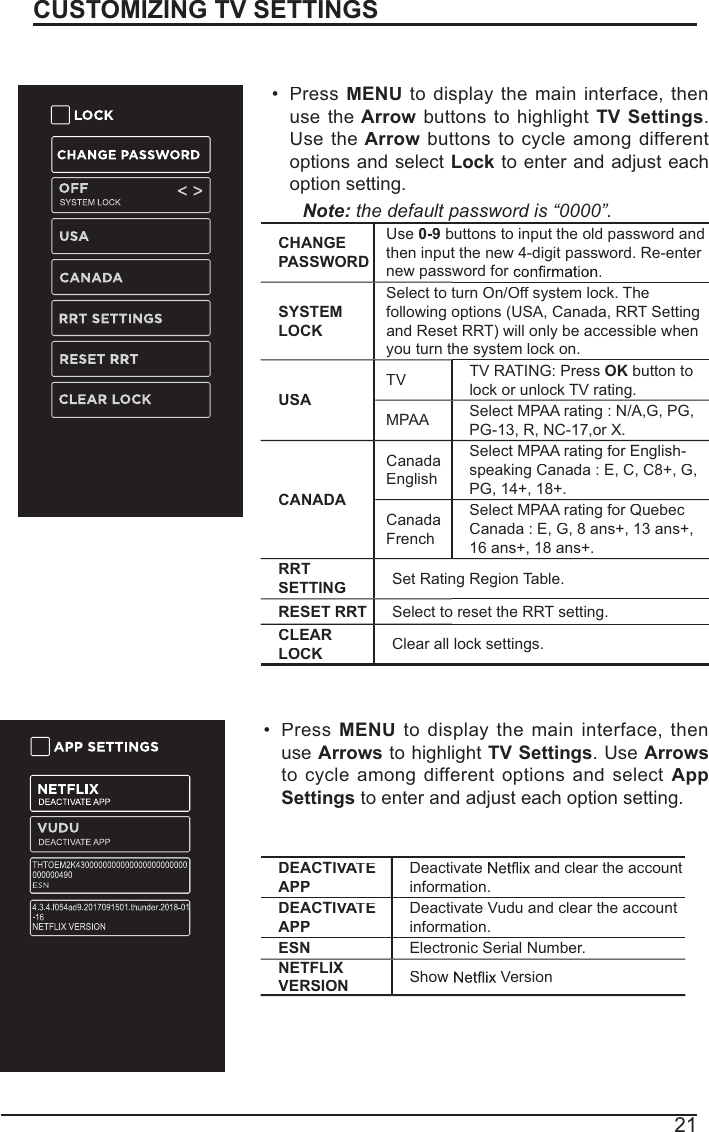
21CUSTOMIZING TV SETTINGSLock SettingsPressMENUto displaythemaininterface, thenusetheArrowbuttonstohighlightTV Settings.Use theArrowbuttons to cycleamongdifferentoptions and select Lockto enter and adjust each option setting.Note:the default password is “0000”. CHANGEPASSWORDUse0-9buttons to input the old password andthen input the new 4-digit password. Re-enter new password for SYSTEMLOCKSelect to turn On/Off system lock. Thefollowing options (USA, Canada, RRT Settingand Reset RRT) will only be accessible when you turn the system lock on.USATVTV RATING: Press OKbutton to lock or unlock TV rating.MPAASelect MPAA rating : N/A,G, PG,PG-13, R, NC-17,or X.CANADACanadaEnglishSelect MPAA rating for English-speaking Canada : E, C, C8+, G,PG, 14+, 18+.CanadaFrenchSelect MPAA rating for Quebec Canada : E, G, 8 ans+, 13 ans+, 16 ans+, 18 ans+.RRTSETTINGSet Rating Region Table.RESET RRTSelect to reset the RRT setting.CLEARLOCKClear all lock settings.APP SettingsPressMENUtodisplaythemaininterface,thenuseArrows to highlight TV Settings. UseArrowsto cycleamongdifferentoptionsandselectAppSettings to enter and adjust each option setting.DEACTIVATEAAAPPDeactivate and clear the accountinformation.DEACTIVATEAAAPPDeactivate Vudu and clear the account information.ESNElectronic Serial Number.NETFLIXVERSIONShow  Version
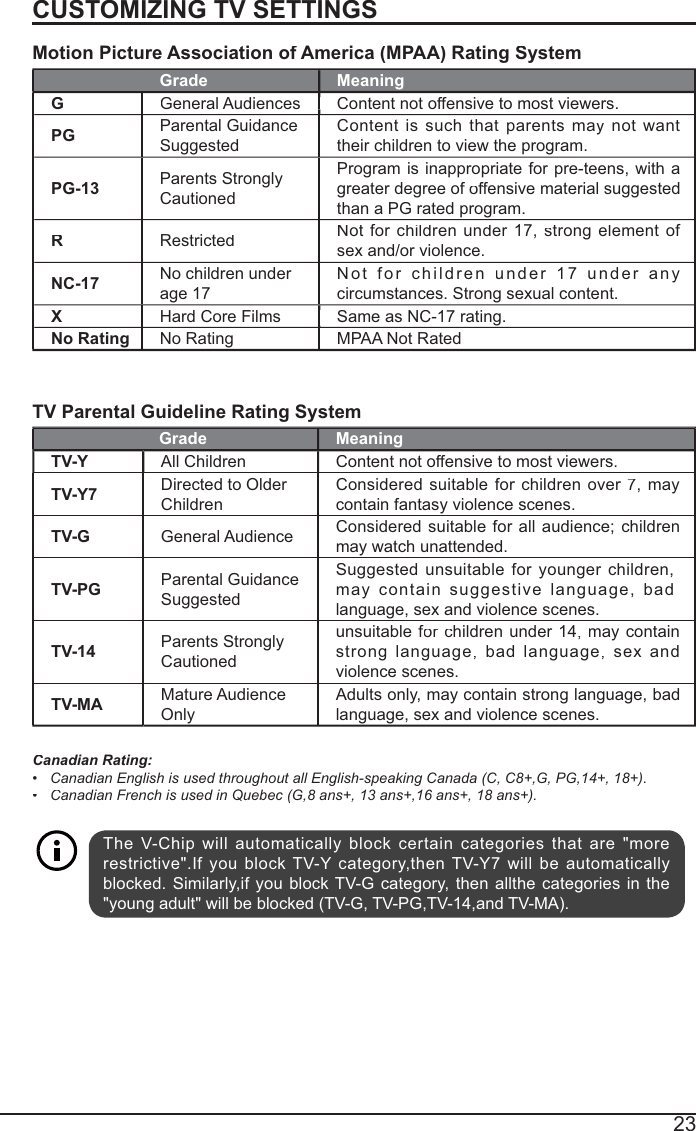
22Press theMENUbuttononthemainunitoron theremote controlandthenpress the  buttons to selectLOCKmenu. Use the 0-9buttons to input 4-digit password to enter theLOCKmenu.Ifused, thisoptionfeaturecan"block''undesirableprogrammingfromappearing on the TV. Parental Control offers the user a wide variety of options and settings that restrict or "block'' the programming that can appear on the TV. Parental Control allows theuser trhecapability of definingwhichprogramrating theyconsideracceptable to the youngermoresensitive viewer. Itcanbepresetandturnedeitheronoroff bytheuserwhothe secret 4-number code, the password. The number of hours blocked arespecified. Generalaudiences andchildrenblocks shouldbebothprogrammedinto the TV's memory. Viewer ratings are   for both TV and the motion picture Industry; both rating systems should be used, for complete coverage. The ratings are based on the agesof children.OverviewTo ensure complete coverage for all TV programs, (movies and regular TV shows) choosearating forMPAA,PPfromtheselectionsbelow,aswellasratings from theTV ParentalGuidelines Rating Systems below, using the Age Block option for General Audiences, and for children. In addition to those, you may wish to add additional restrictions from the contentblock menu, and submenus examples below.Things to Consider before Setting up Parental ControlDetermine which rating you consider acceptable to the viewer. (For example,if you chooseTV-PG, more restrictive ratings will be automatically blocked; the viewer will not be able tosee: TV-PG,TV-14,or TV-MA rated programming.) Do you want to block the auxiliary videosource entirely? (Blocks the signal sent by the equipment, such as VCR, connected to the TV Audio/VIdeo Input Jacks) Orleave unblocked, then choose allowableratings. Block program "Content" based on individual parameters such as: Strong Dialog, Bad Language, SexScenes,ViolenceScenes, or Fantasy. ViolentScenes; inContent Blk option. Select a secretpassword,inthe Set Passwordoption, using thenumbers keysontheremote control.Do not forget the password, it is the only way you can access the ParentalControl menuand change rating selections, or turn Parental Control off.Do you want the Parental Controlto be active at all times? If not, you can turn it on or off with the Lock On/Off option. You can set different Parental Control viewing restrictions for general audiences and for children, both can be active at the same time.Simply specifyffingone contentblocksuchasSex Scenes,willnotautomaticallyrestrictthe programming that appears from the video sources.EvenIfyfouchoosetoleave the AUXInputsunblocked,theratings youspecifywillautomatically restrict the programming that appears from the video sources.You can notYYdisableParental Control bydisconnectingthe TVfrompower. Blockhourswillbe automatically reset to the original block time setting  if power is disconnected.CUSTOMIZING TV SETTINGSParental Control
23Motion Picture Association of America (MPAA) Rating SystemGrade MeaningGGeneral Audiences Content not offensive to most viewers.PGParental Guidance SuggestedContent is such thatparentsmaynotwanttheir children to view the program.PG-13Parents StronglyCautionedProgram is inappropriate for pre-teens, with agreaterdegree of offfenffsivematerialsuggestedthan a PG rated program.RRestrictedNotforchildrenunder17,strongelement of sex and/or violence.NC-17 No children under age 17Not forchildrenunder17underanycircumstances. Strong sexual content.XHard Core Films Same as NC-17 rating.No RatingNo RatingMPAA Not RatedTV Parental Guideline Rating SystemGrade MeaningTV-YAll ChildrenContent not offensive to most viewers.TV-Y7Directed to Older ChildrenConsideredsuitablefor crhildrenover7, rmaycontain fantasy violence scenes.TV-GGeneral AudienceConsideredsuitable for allaudience;childrenmay watch unattended.TV-PGParental GuidanceSuggestedSuggestedunsuitableforyoungerchildren,may containsuggestivelanguage,badlanguage, sex and violence scenes.TV-14Parents StronglyCautionedunsuitable forcrhildren under14,maycontainstronglanguage,badlanguage,sexandviolence scenes.TV-MAMature AudienceOnlyAdults only, may contain strong language, bad language, sex and violence scenes.Canadian Rating:Canadian English is used throughout all English-speaking Canada (C, C8+,G, PG,14+, 18+).Canadian French is used in Quebec (G,8 ans+, 13 ans+,16 ans+, 18 ans+).CUSTOMIZING TV SETTINGSThe V-Chip will automatically block certain categories that are "morerestrictive".If you block TV-Y category,then TV-Y7 will be automaticallyblocked. Similarly,if you block TV-G category, then allthe categories in the"young adult" will be blocked (TV-G, TV-PG,TV-14,and TV-MA).
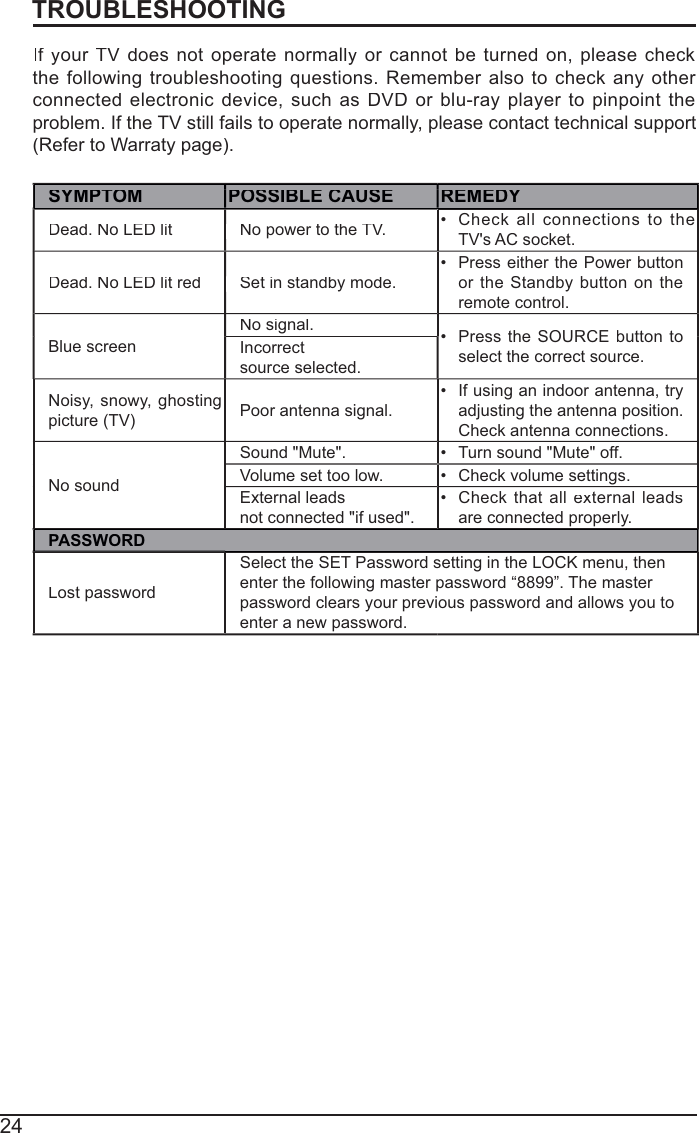
24TROUBLESHOOTINGIf yfourTVdoesnotoperatenormallyorcannotbe turnedon,pleasecheckthefollowing troubleshootingquestions.Rememberalso tocheckany otherconnectedelectronicdevice,suchasDVDorblu-rayplayer topinpoint theproblem. If the TV still fails to operate normally, please contact technical support(Refer to Warraty page).SYMPTOM POSSIBLE CAUSE REMEDYDead. No LED lit No power to the TV.Check allconnections to theTV's AC socket.Dead. No LED lit red Set in standby mode.Press either the Power button ortheStandbybuttononthe remote control. Blue screenNo signal.Press the SOURCEbuttontoselect the correct source.Incorrectsource selected.Noisy, snowy,ghostingpicture (TV)Poor antenna signal.If using an indoor antenna, try adjustingtheantennaposition.Check antenna connections.No soundSound "Mute".Turn sound "Mute" off.Volume set too low.Check volume settings.External leadsnot connected "if used".Checkthatall external leadsare connected properly.PASSWORDLost passwordSelect the SET Password setting in the LOCK menu, thenenter the following master password “8899”. The masterpassword clears your previous password and allows you toenter a new password.
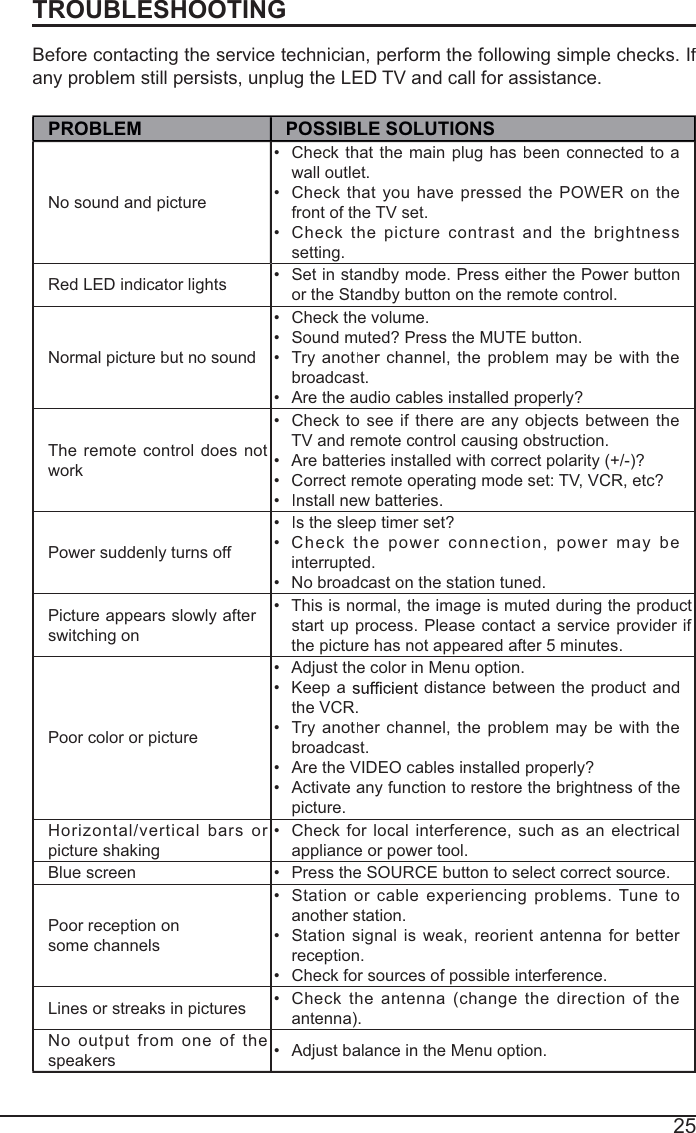
25Before contacting the service technician, perform the following simple checks. If any problem still persists, unplug the LED TV and call for assistance.PROBLEMPOSSIBLE SOLUTIONSNo sound and pictureCheck thatthe main plughasbeen connectedto awall outlet.Checkthat youhavepressedthePOWERonthe front of the TV set.Checkthepicturecontrastandthebrightnesssetting.Red LED indicator lightsSet in standby mode. Press either the Power button or the Standby button on the remote control. Normalpicturebutnosound Check the volume.Sound muted? Press the MUTE button. Tryanothercrhannel, theproblemmaybewith the broadcast. Are the audio cables installed properly?Theremote controldoesnotworkCheck tosee if thereareanyobjectsbetween theTV and remote control causing obstruction. Are batteries installed with correct polarity (+/-)? Correct remote operating mode set: TV, VCR, etc?Install new batteries.Power suddenly turns off Is the sleep timer set?Check thepowerconnection,power maybeinterrupted. No broadcast on the station tuned.Picture appears slowly after switching on This is normal, the image is muted during the productstartupprocess. Pleasecontact a service provider if rthe picture has not appeared after 5 minutes. Poor color or pictureAdjust the color in Menu option.Keep a   distance between the product andthe VCR.Tryanothercrhannel, the problemmaybewith the broadcast.Are the VIDEO cables installed properly?Activate any function to restore the brightness of thepicture.Horizontal/verticalbars or picture shakingCheckforlocalinterference,suchasanelectricalappliance or power tool.Blue screenPress the SOURCE button to select correct source.Poor reception onsome channelsStationorcable experiencingproblems. Tune to another station.Station signalis weak,reorientantennaforbetter reception.Check for sources of possible interference.Lines or streaks in picturesChecktheantenna(change thedirection of the antenna).Nooutput fromone of the speakersAdjust balance in the Menu option.TROUBLESHOOTING
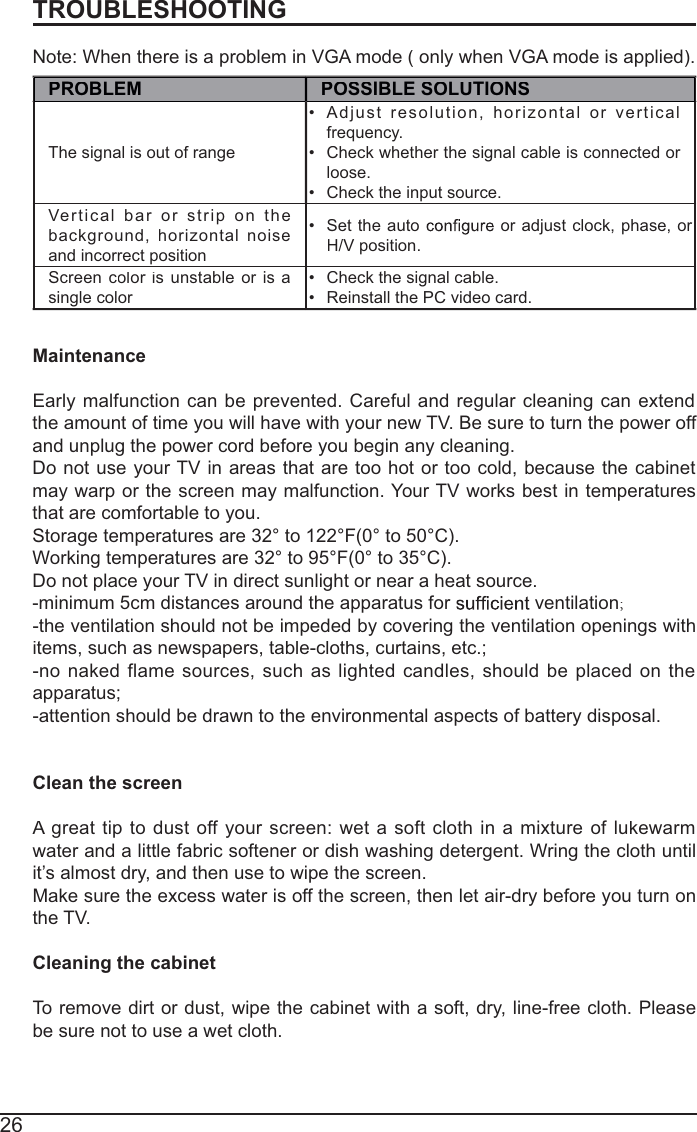
26TROUBLESHOOTINGNote: When there is a problem in VGA mode ( only when VGA mode is applied).PROBLEMPOSSIBLE SOLUTIONSThe signal is out of range Adjustresolution,horizontalorvertical frequency.Check whether the signal cable is connected or loose.Check the input source. Verticalbarorstriponthebackground,horizontalnoiseand incorrect positionSet the auto  or adjust clock, phase, or H/V position. Screen color is runstableoris asingle color Check the signal cable. Reinstall the PC video card. MaintenanceEarlymalfunction canbeprevented.Carefulandregularcleaningcanextendthe amount of time you will have with your new TV. Be sure to turn the power off and unplug the power cord before you begin any cleaning.Do not use your TV in areas that are too hot or too cold, because the cabinetmay warp or the screen may malfunction. Your TV works best in temperaturesthat are comfortable to you.Storage temperatures are 32° to 122°F(0° to 50°C).Working temperatures are 32° to 95°F(0° to 35°C).Do not place your TV in direct sunlight or near a heat source.-minimum 5cm distances around the apparatus for   ventilation;-the ventilation should not be impeded by covering the ventilation openings withitems, such as newspapers, table-cloths, curtains, etc.;-nonaked flamesources,such aslightedcandles,shouldbeplacedon theapparatus;-attention should be drawn to the environmental aspects of battery disposal.Clean the screenAgreat tip to dust off yourscreen:wet a soft clothin amixture of lukewarmwater and a little fabric softener or dish washing detergent. Wring the cloth untilit’s almost dry, and then use to wipe the screen.Make sure the excess water is off the screen, then let air-dry before you turn onthe TV.Cleaning the cabinetTo remove dirt or dust, wipe the cabinet with a soft, dry, line-free cloth. Pleasebe sure not to use a wet cloth.
27FCC NOTESFCC STATEMENT This device complies with Part 15 of the FCC Rules. Operation is subject to the following twoconditions:(1)  This  device may not cause harmful interference, and(2)  This  device must accept any interference received, including interference that may cause undesired operation.  Changes or  not expressly approved by the party responsible for compliance could void the user's authority to operate the equipment.NOTE: This equipment has been tested and found to comply with the limits for a Class B digital device,pursuant to Part 15 of the FCC Rules. These limits are designed to provide reasonable protection against harmful interference in a residential installation.This equipment generates uses and can radiate radio frequency energy and, if not installed and usedin accordance with the instructions, may cause harmful interference to radio communications. However,there is no guarantee that interference will not occur in a particular installation. If this equipment doescause harmful interference to radio or television reception, which can be determined by turning the equipment off and on, the user is encouraged to try to correct the interference by one or more of thefollowing measures:  Reorient or relocate the receiving antenna.  Increase the separation between the equipment and receiver. Connect the equipment into an outlet on a circuit different from that to which the receiver is connected.Consult the dealer or an experienced radio/TV technician for help. FCC Radiation Exposure StatementThis equipment complies with FCC radiation exposure limits set forth for an uncontrolled environment. This equipment should be installed and operated with minimum distance 20cm between the radiator & your body.For customer support: 1-888-842-3577Please send all correspondence to: Element TV Company, LP. Customer Servicecustomerservice@elementelectronics.comwww.elementelectronics.com
28OTT APP SERVICEIf youyy want to know abouttheseAPPinformffationorgetmore service. Please refer to follffowing content.tYou can call the following telephone for more help: 866-579-7172If your matter is regarding customer service, please refer toeefor               alternative contact information.tYouTubeYou can browse the following website for more help:https://productforums.gpp google.com/forum/#!categories/youtube/smart-tvsggytVUDUYou can call the following telephone for more help:888-554-8838tPandoraYou can send E-mail to Pandora for more help:pandora-support@pandora.comppp@ptAccuWeatherYou can send E-mail to AccuWeather for more help:CustomerService@@AccuWeather.com  OTT APP SERVICE
This product contains electrical or electronic materials. The presence of these materials may, if not disposed of properly, have potential adverse effects on the environment and human health.Presence of this label on the product means it should not be disposed of as unsorted waste and must be collected separately. As a consumer, you are responsible for ensuring that thisproduct is disposed of properly.

Navigation menu