Cicor Deutschland 02MONILOG MONI LOG MicroShockDetector User Manual 15 MSD UserMan

SMT&Hybrid; GmbH MONI LOG MicroShockDetector 15 MSD UserMan

15_MSD_UserMan

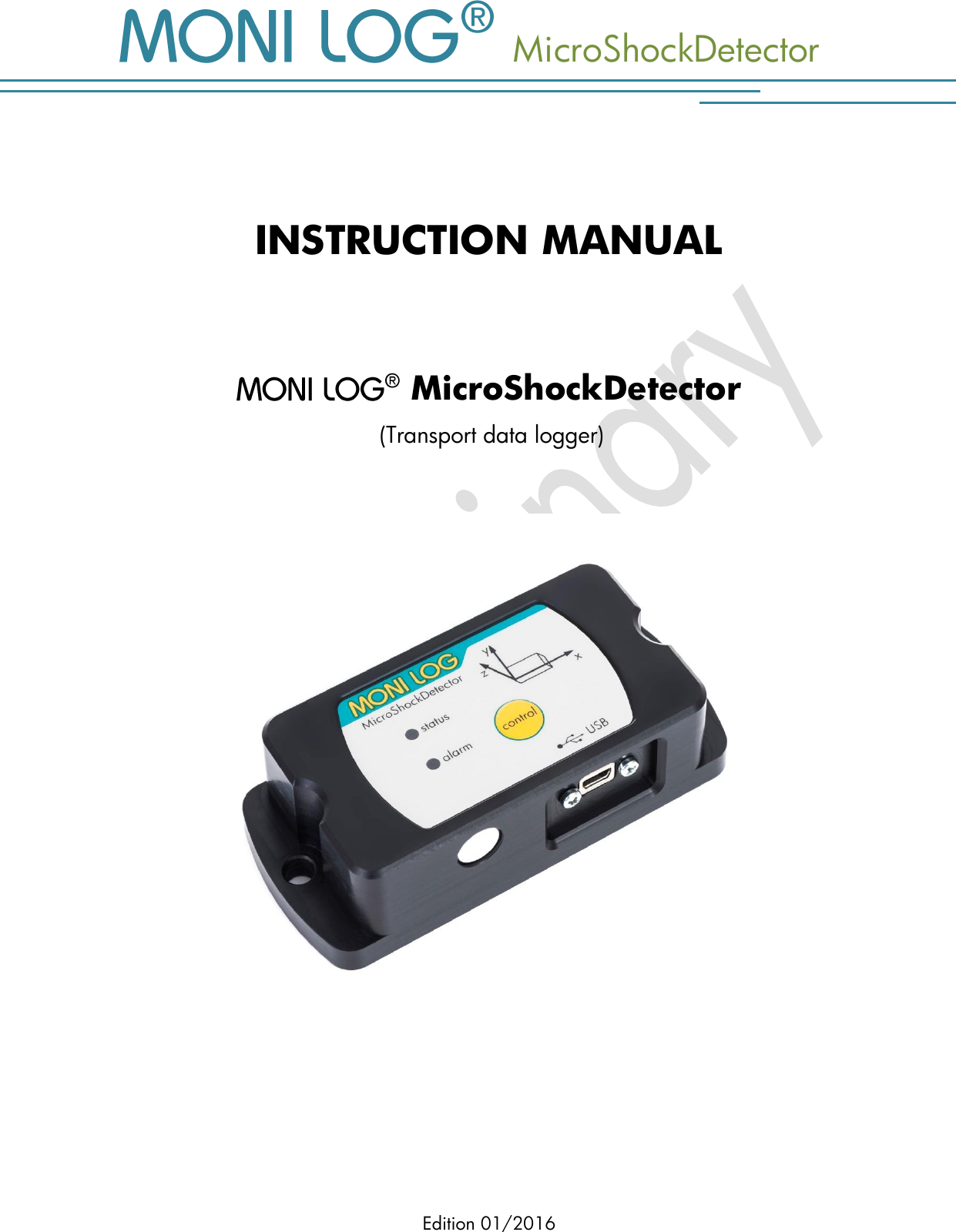
  MicroShockDetector Edition 01/2016   INSTRUCTION MANUAL     MicroShockDetector  (Transport data logger)
  MicroShockDetector    - 1 - P R OD U CT  C ERTI F ICATION  still in progress
   MicroShockDetector - 2 - T A B L E   OF CONTENTS  PRODUCT CERTIFICATION .................................................................................. 1 TABLE OF CONTENTS ........................................................................................ 2 1. INTRODUCTION ...................................................................................... 4 1.1 SCOPE OF DELIVERY .................................................................................................... 4 1.2 FUNCTIONALITY ....................................................................................................... 5 1.3 ENVIRONMENTAL AND SAFETY INSTRUCTIONS ...................................................... 6 2. TECHNICAL DATA .................................................................................... 7 3. DEVICE DESCRIPTION .............................................................................. 8 3.1 DEVICE STRUCTURE / DEVICE VIEW ................................................................................. 8 3.2 OPERATION OF THE MICROSHOCKDETECTOR ................................................................... 8 3.3 OPERATION TIME AND BATTERY CHANGE ...................................................................... 11 3.4 MOUNTING INFORMATION ........................................................................................ 12 4. PC- S O F T W A R E   –   ANA L Y Z E R  .................................. 13 4.1 INSTALLATION ......................................................................................................... 13 4.1.1 General software installation ....................................................................................... 13 4.1.2 USB driver ................................................................................................................ 13 4.2 GENERAL USE OF PC SOFTWARE .......................................................................... 14 4.2.1 Establishing a device connection .................................................................................. 14 4.2.2 File area ................................................................................................................... 15 4.2.3 Message window (log) ............................................................................................... 15 4.2.4 View of measurement data .......................................................................................... 15 4.3  MICROSHOCKDETECTOR .......................................................................... 17 4.3.1 Readout of status, configuration and measurement data .................................................. 17 4.3.2 measurement data, status, thresholds ............................................................................ 18 4.3.3 System events ............................................................................................................ 19 4.3.4 Acquisition periods .................................................................................................... 20 4.3.5 Synchronous data ...................................................................................................... 20 4.3.6 Alarm event table ....................................................................................................... 21 4.3.7 Shock events and shock curves .................................................................................... 21 4.3.8 Configuration of the MicroShockDetector ...................................................................... 25
  MicroShockDetector    - 3 - 5. FIRMWARE-UPDATE ............................................................................... 28 5.1 PREPARATION .......................................................................................................... 28 5.2 CARRYING OUT UPDATE ............................................................................................. 29 6. DECLARATION OF CONFORMITY ............................................................ 30 WARRANTY CERTIFICATE ................................................................................. 31
   MicroShockDetector - 4 - 1. I N TRODUCTION 1.1 S C O P E   O F   D E L I V E R Y  Thank you  for having chosen the    MicroShockDetector.   Scope of delivery1 (standard):     MicroShockDetector, incl.  1  R6 (AA, Mignon) exchangeable lithium battery 3.6 V / 2500 mAh,  Installation CD  Configuration software “   Analyzer“ with integrated software help  Driver for USB interface  Operating instruction in electronic form (PDF)  Application examples, guide for transport monitoring  Hard copy of the operating instruction, language according to the order  USB 2.0 interface cable (type A ↔ type Mini AB)      In order to be able to further optimise our products for the respective applications, we are always open to suggestions and change requests on your part.   1) The scope of delivery can deviate from the standard due to special contract agreements!
  MicroShockDetector    - 5 - 1.2 F U N C T I O N A L I T Y    MicroShockDetector is a small, universal and cost-effective data logger. Designed for long-term measurement applications, it is ideally suited for the monitoring of transport goods and critical environments. The integrated sensor system for the detection of shock events and for temperature  measurement  enables  different  measuring  applications.  Configurable  alarm thresholds provide reliable detection of limit value exceedances. Shock loads are recorded and assessed in real time, the temperature is recorded in an adjustable interval.  The  compact  and  mains-independent  design  allows  an easy  fastening  on  or  in  the  transport  goods  or  transport  devices with screws, magnetic bases or glue pads.    The  housing  of  the  device  protects  against  dust  and  water (Protection  level  IP 67)  and  is  therefore  also  suitable  for outdoor use. The   MicroShockDetector can thus be used as a universal product companion in the international goods traffic in  storage  spaces,  in  transit  points  and  on  the  rails,  also  in  the water and air traffic.   The power supply is realized by a standard, replaceable lithium battery. Due to the very low power  consumption  and  the  very  long  maintenance-free  operation  time  the    MicroShockDetector  is  ideally  suited  for  autonomous  long-term  applications.  Energy-optimized operational settings allow an autonomous running time period of typically 2 years.  The  royalty-free  configuration  program    Analyzer  allows  an  easy  and  intuitive configuration of the device. It offers a comprehensive adjustment of the device functions to your application-specific  requirements.  In  addition  to  the  detailed  analysis  of  the  device  data  in measurement  tables  and  graphs,  the  program  also  provides  export  functions  in  external applications (for example Microsoft Excel). Communication takes place via a USB interface.  By the report function an overview of the measurement data, including classification of all shocks in acceleration classes and activities of the device will be created immediately without necessary settings.
   MicroShockDetector - 6 - 1.3 E N V I R O N M E N T A L   A N D   S A F E T Y   I N S T R U C T I O N S  Environment & Disposal  The    MicroShockDetector  contains,  except  the  internal  battery,  no  corrosive  or environmentally damaging substances.  Used batteries must be immediately removed from the device and afterwards disposed of in an environmentally  friendly  manner,  according  to  the  applicable  legislation.  Lithium  batteries  are hazardous waste. Battery operation The  power  supply  in  the     MicroShockDetector  is  realized  by  a  replaceable  lithium battery (Typ AA|LR6) 3.6 V 2500 mAh. The battery is not considered as dangerous good and can be purchased in the specialist stores or by the equipment supplier.  Operation is not possible with 1.5 V batteries.  ATTENTION! Use only intrinsically safe batteries.  In case of non-compliance with the national regulations/laws applicable in the handling of lithium batteries, any liability and warranty claim becomes void! Decommissioning In case of decommissioning the devices must be properly switched off and all batteries must be removed from the cases.
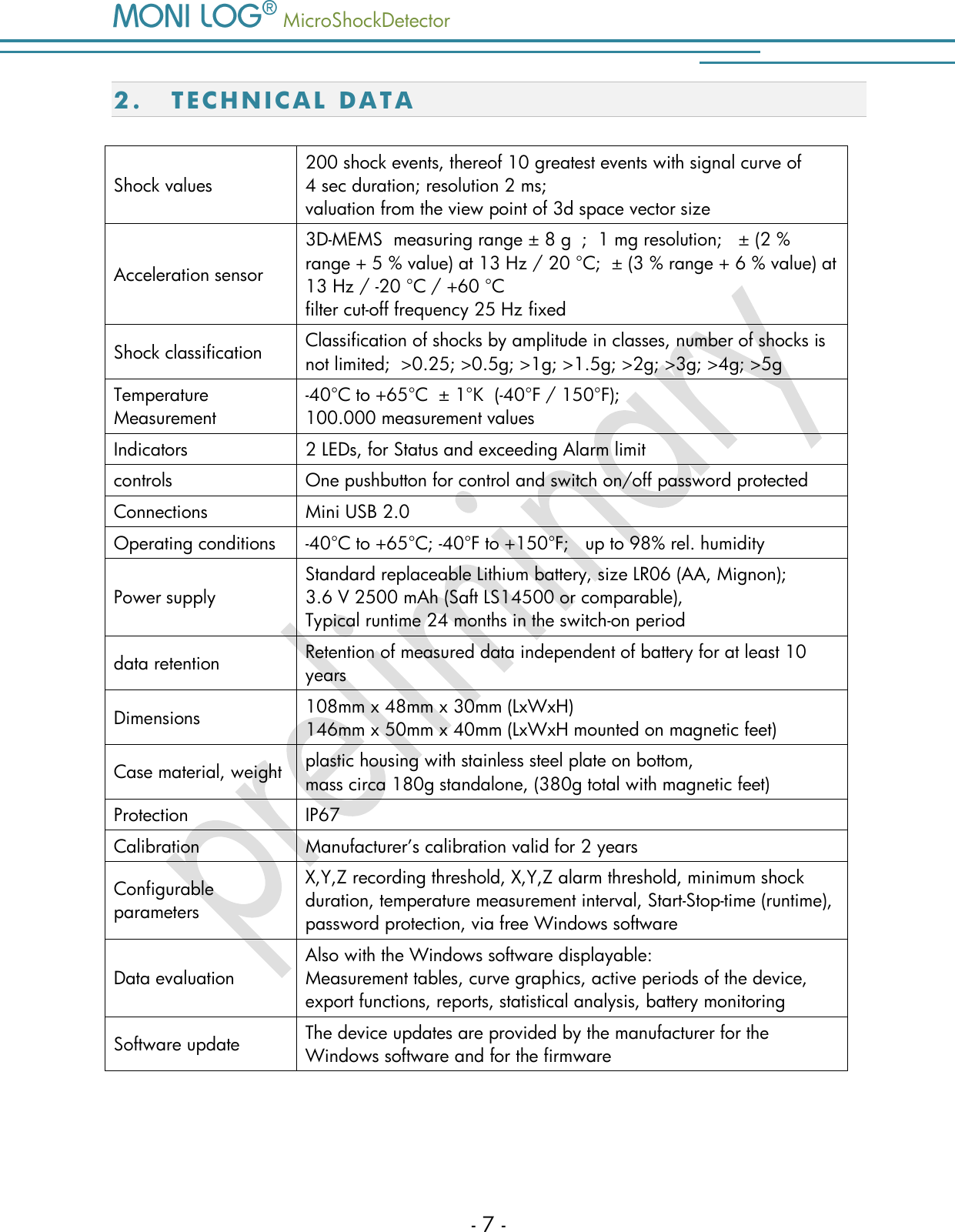
  MicroShockDetector    - 7 - 2. TE C H N I C A L   DA T A Shock values 200 shock events, thereof 10 greatest events with signal curve of 4 sec duration; resolution 2 ms;  valuation from the view point of 3d space vector size Acceleration sensor 3D-MEMS  measuring range ± 8 g  ;  1 mg resolution;   ± (2 % range + 5 % value) at 13 Hz / 20 °C;  ± (3 % range + 6 % value) at 13 Hz / -20 °C / +60 °C filter cut-off frequency 25 Hz fixed Shock classification Classification of shocks by amplitude in classes, number of shocks is not limited;  >0.25; >0.5g; >1g; >1.5g; >2g; >3g; >4g; >5g Temperature Measurement -40°C to +65°C  ± 1°K  (-40°F / 150°F);   100.000 measurement values Indicators 2 LEDs, for Status and exceeding Alarm limit controls One pushbutton for control and switch on/off password protected Connections Mini USB 2.0 Operating conditions -40°C to +65°C; -40°F to +150°F;   up to 98% rel. humidity Power supply Standard replaceable Lithium battery, size LR06 (AA, Mignon); 3.6 V 2500 mAh (Saft LS14500 or comparable), Typical runtime 24 months in the switch-on period data retention Retention of measured data independent of battery for at least 10 years Dimensions 108mm x 48mm x 30mm (LxWxH) 146mm x 50mm x 40mm (LxWxH mounted on magnetic feet) Case material, weight plastic housing with stainless steel plate on bottom,  mass circa 180g standalone, (380g total with magnetic feet) Protection IP67 Calibration Manufacturer’s calibration valid for 2 years Configurable parameters X,Y,Z recording threshold, X,Y,Z alarm threshold, minimum shock duration, temperature measurement interval, Start-Stop-time (runtime), password protection, via free Windows software Data evaluation Also with the Windows software displayable: Measurement tables, curve graphics, active periods of the device, export functions, reports, statistical analysis, battery monitoring Software update The device updates are provided by the manufacturer for the Windows software and for the firmware
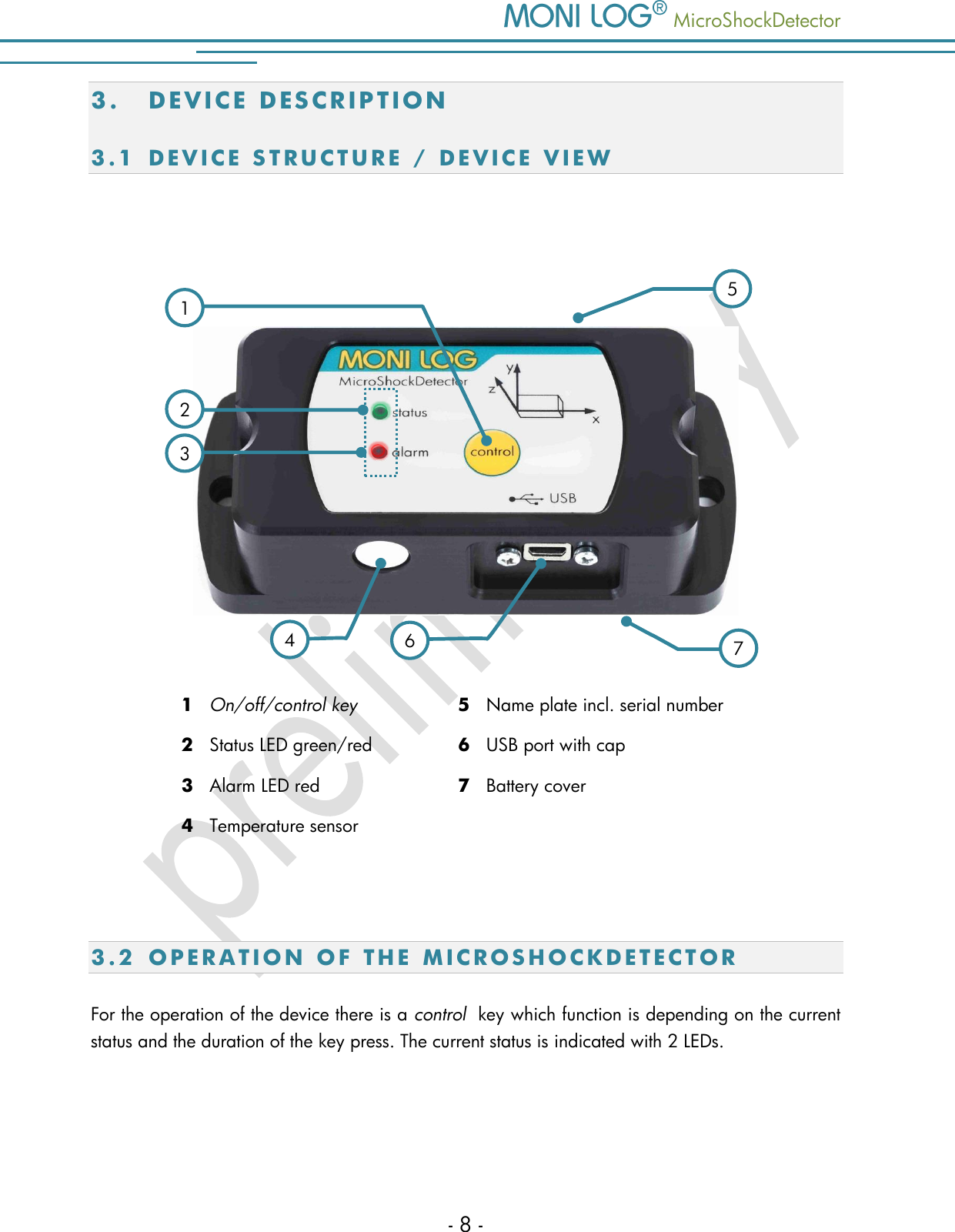
   MicroShockDetector - 8 - 3. DE V I C E   D E S C R I P T I ON  3.1 D E V I C E   S T R U C T U R E   /   D E V I C E   V I E W      1   On/off/control key 5   Name plate incl. serial number 2   Status LED green/red 6   USB port with cap 3   Alarm LED red 7   Battery cover 4   Temperature sensor        3.2 O P E R A T I O N   O F   T H E   M I C R O S H O C K D E T E C T O R  For the operation of the device there is a control  key which function is depending on the current status and the duration of the key press. The current status is indicated with 2 LEDs.    7 4 1 6 2 3 5
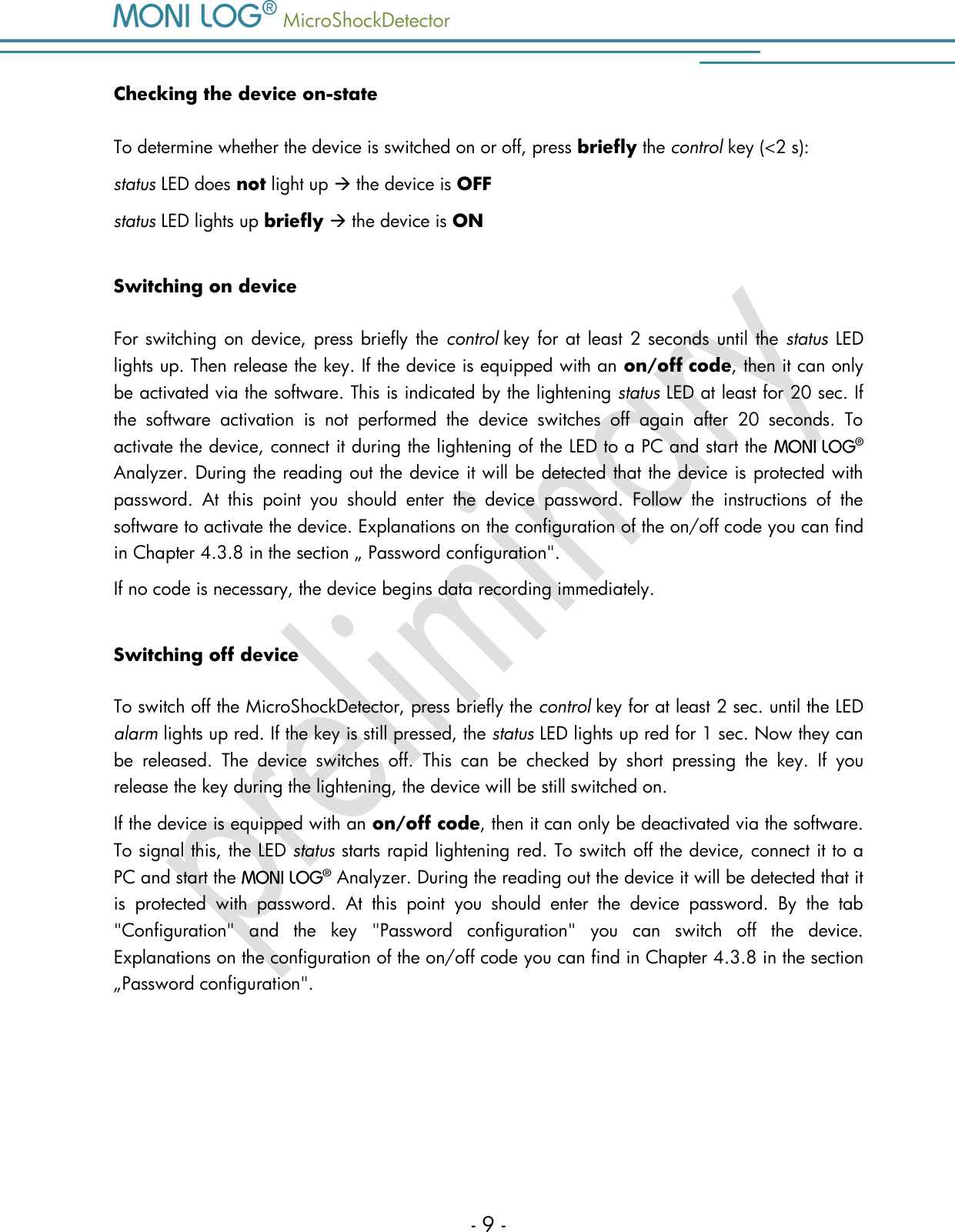
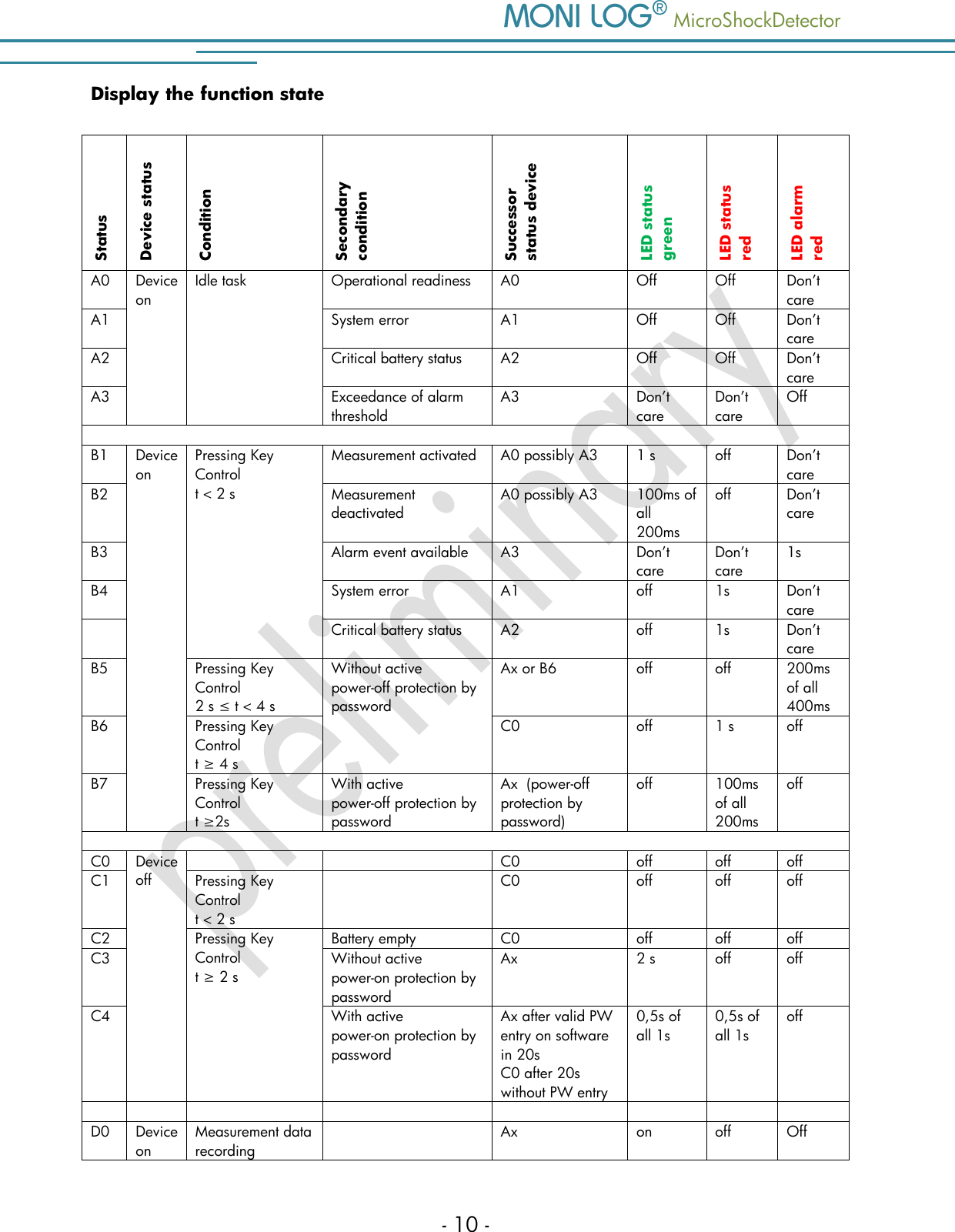
  MicroShockDetector    - 9 - Checking the device on-state To determine whether the device is switched on or off, press briefly the control key (<2 s): status LED does not light up  the device is OFF status LED lights up briefly  the device is ON Switching on device For switching on device, press briefly the  control key for at least 2 seconds until the status LED lights up. Then release the key. If the device is equipped with an on/off code, then it can only be activated via the software. This is indicated by the lightening status LED at least for 20 sec. If the  software  activation  is  not  performed  the  device  switches  off  again  after  20  seconds.  To activate the device, connect it during the lightening of the LED to a PC and start the    Analyzer. During the reading out the device it will be detected that the device is protected with password.  At  this  point  you  should  enter  the  device  password.  Follow  the  instructions  of  the software to activate the device. Explanations on the configuration of the on/off code you can find in Chapter 4.3.8 in the section „ Password configuration".  If no code is necessary, the device begins data recording immediately.  Switching off device To switch off the MicroShockDetector, press briefly the control key for at least 2 sec. until the LED alarm lights up red. If the key is still pressed, the status LED lights up red for 1 sec. Now they can be  released.  The  device  switches  off.  This  can  be  checked  by  short  pressing  the  key.  If  you release the key during the lightening, the device will be still switched on.  If the device is equipped with an on/off code, then it can only be deactivated via the software. To signal this, the LED status starts rapid lightening red. To switch off the device, connect it to a PC and start the    Analyzer. During the reading out the device it will be detected that it is  protected  with  password.  At  this  point  you  should  enter  the  device  password.  By  the  tab "Configuration"  and  the  key  "Password  configuration"  you  can  switch  off  the  device. Explanations on the configuration of the on/off code you can find in Chapter 4.3.8 in the section „Password configuration".
   MicroShockDetector - 10 - Display the function state Status Device status Condition Secondary condition Successor status device LED status  green LED status red LED alarm red A0 Device on  Idle task Operational readiness A0 Off Off Don’t care A1 System error A1 Off Off Don’t care A2 Critical battery status A2 Off Off Don’t care A3 Exceedance of alarm threshold A3 Don’t care Don’t care Off  B1 Device on  Pressing Key Control t < 2 s Measurement activated A0 possibly A3 1 s off Don’t care B2 Measurement deactivated A0 possibly A3 100ms of all 200ms off Don’t care B3 Alarm event available A3 Don’t care Don’t care 1s B4 System error  A1 off 1s Don’t care  Critical battery status A2 off 1s Don’t care B5 Pressing Key Control 2 s ≤ t < 4 s Without active power-off protection by password Ax or B6  off off 200ms of all 400ms B6 Pressing Key Control t ≥ 4 s C0 off 1 s off B7 Pressing Key Control t ≥2s With active power-off protection by password Ax  (power-off protection by password) off 100ms of all 200ms off  C0 Device off   C0 off off off C1 Pressing Key Control t < 2 s   C0 off off off C2 Pressing Key Control t ≥ 2 s  Battery empty C0 off off off C3 Without active power-on protection by password Ax  2 s off off C4 With active power-on protection by password Ax after valid PW entry on software in 20s C0 after 20s without PW entry 0,5s of all 1s  0,5s of all 1s off         D0 Device on Measurement data recording  Ax on off Off
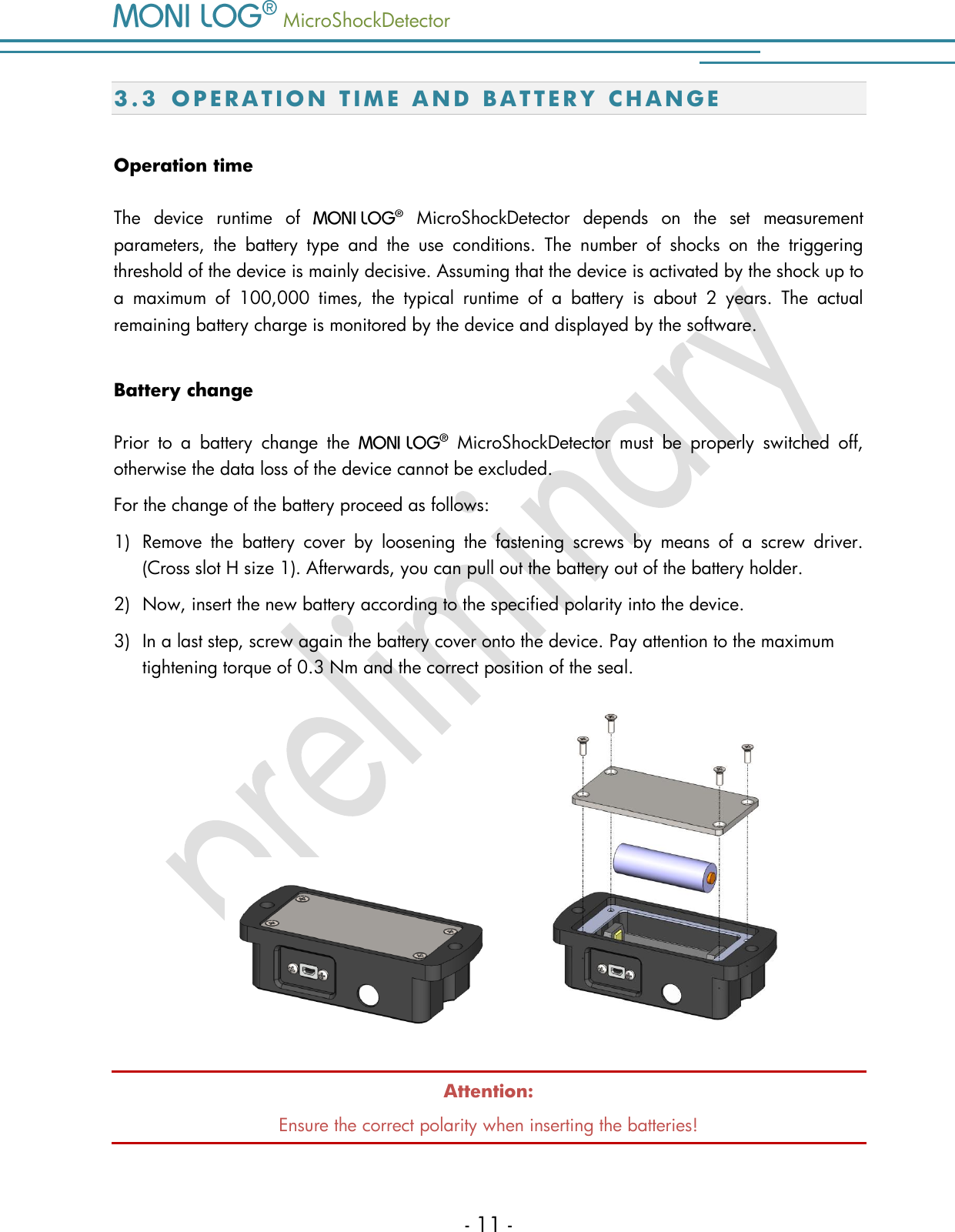
  MicroShockDetector    - 11 - 3.3 O P E R A T I O N   T I M E   A ND B A T T E R Y   C H A N G E  Operation time The  device  runtime  of     MicroShockDetector  depends  on  the  set  measurement parameters,  the  battery  type  and  the  use  conditions.  The  number  of  shocks  on  the  triggering threshold of the device is mainly decisive. Assuming that the device is activated by the shock up to a  maximum  of  100,000  times,  the  typical  runtime  of  a  battery  is  about  2  years.  The  actual remaining battery charge is monitored by the device and displayed by the software.  Battery change Prior  to  a  battery  change  the     MicroShockDetector  must  be  properly  switched  off, otherwise the data loss of the device cannot be excluded. For the change of the battery proceed as follows: 1) Remove  the  battery  cover  by  loosening  the  fastening  screws  by  means  of  a  screw  driver. (Cross slot H size 1). Afterwards, you can pull out the battery out of the battery holder.   2) Now, insert the new battery according to the specified polarity into the device.  3) In a last step, screw again the battery cover onto the device. Pay attention to the maximum tightening torque of 0.3 Nm and the correct position of the seal.        Attention: Ensure the correct polarity when inserting the batteries!
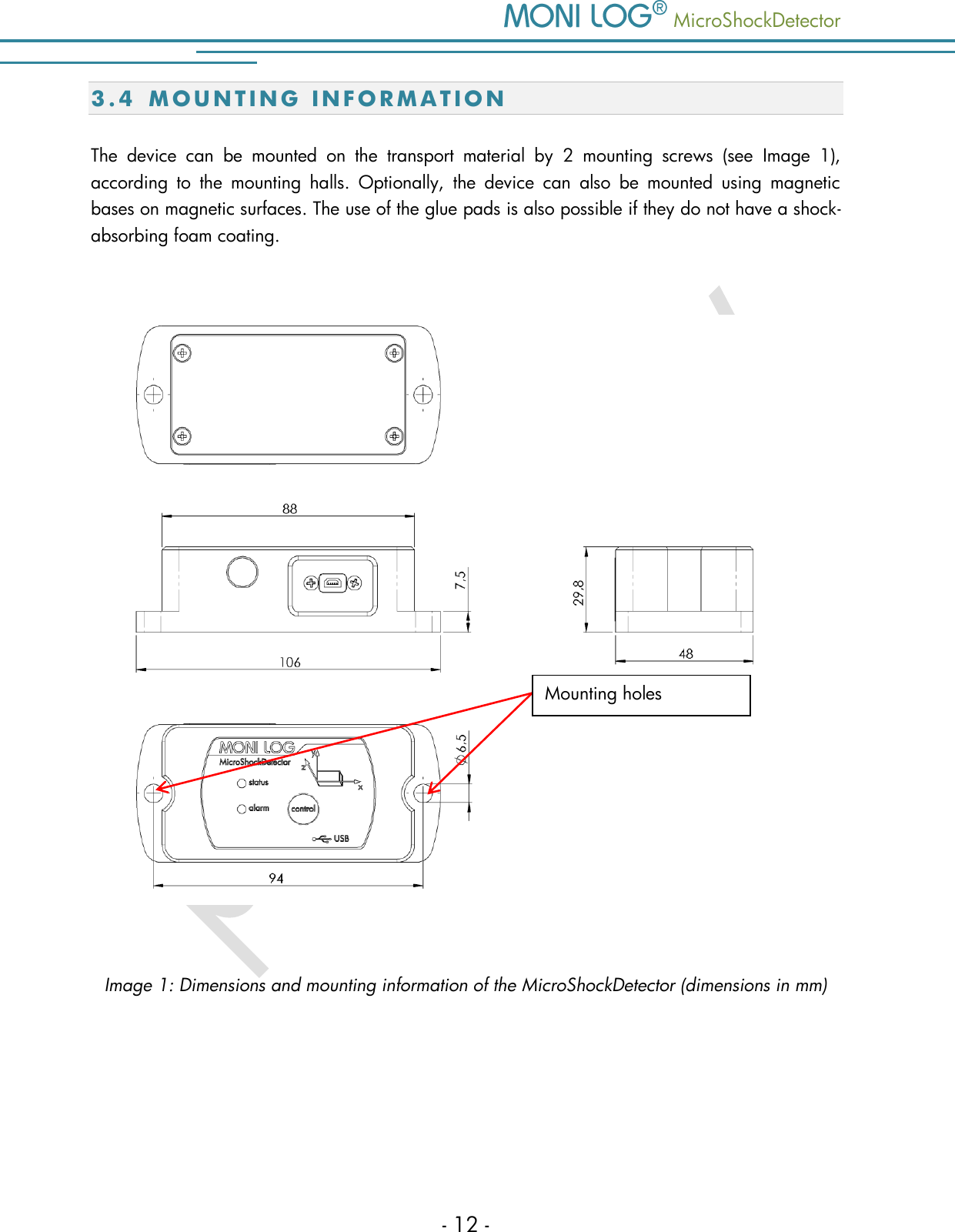
   MicroShockDetector - 12 - 3.4 M O U N T I N G   I N F O R M A T I O N  The  device  can  be  mounted  on  the  transport  material  by  2  mounting  screws  (see  Image  1), according  to  the  mounting  halls.  Optionally,  the  device  can  also  be  mounted  using  magnetic bases on magnetic surfaces. The use of the glue pads is also possible if they do not have a shock-absorbing foam coating.     Image 1: Dimensions and mounting information of the MicroShockDetector (dimensions in mm)    Mounting holes
  MicroShockDetector    - 13 - 4. PC-S O FT W A R E   –    A N A L Y Z E R  The  evaluation  programme    Analyzer  can  be  used  both  for  the  readout  and configuration of the   MicroShockDetector and other    devices. It is intended for the display and analysis of the recorded data in tabular/graphic form. Furthermore, data sets can be saved locally on your PC or loaded from your PC. 4.1 I N S T A L L A T I O N  4 . 1 . 1  G e n e r a l   s o f t w a r e   i n s t a l l a t i o n  The included CD contains the software installation    Analyzer, the driver for the USB interface  and  documentation.  Please  start  the  installation  by  double  clicking  on  the  file "setup.exe" and follow the instructions.  Note: To install the software and the USB driver you need administrator rights on the PC 4 . 1 . 2  U S B   d r i v er If the    MicroShockDetector is connected for the first time it may be necessary to install a USB driver on the PC. The "FTDI CDM Driver" is included on the installation CD and is set with the software installation if it is not already present on the PC.  Now connect the    MicroShockDetector by means of the included USB cable with your PC. While the device connects to the PC the status LED lights up green. After the LED has gone off, the USB is ready and you can read data from the device with the    Analyzer.
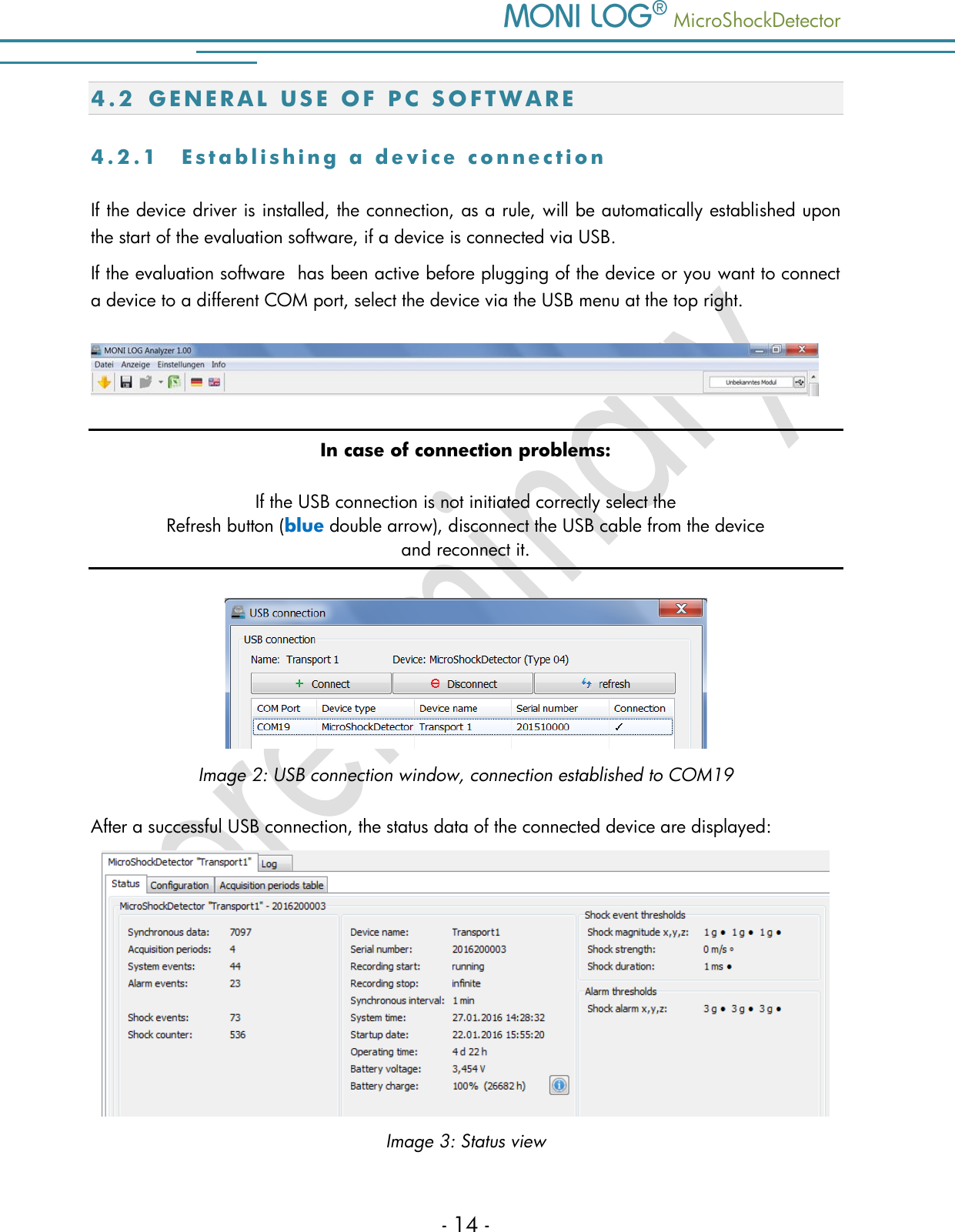
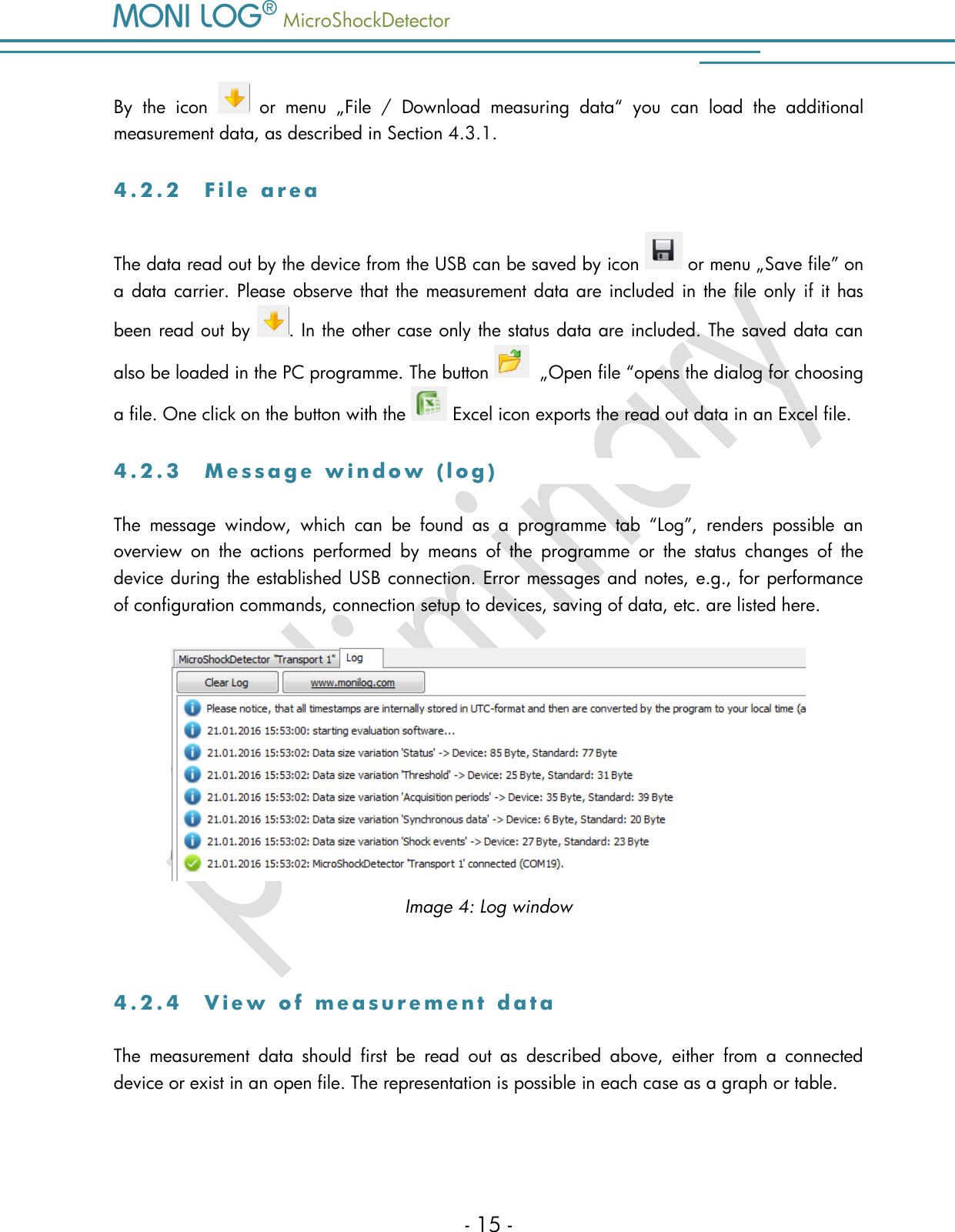
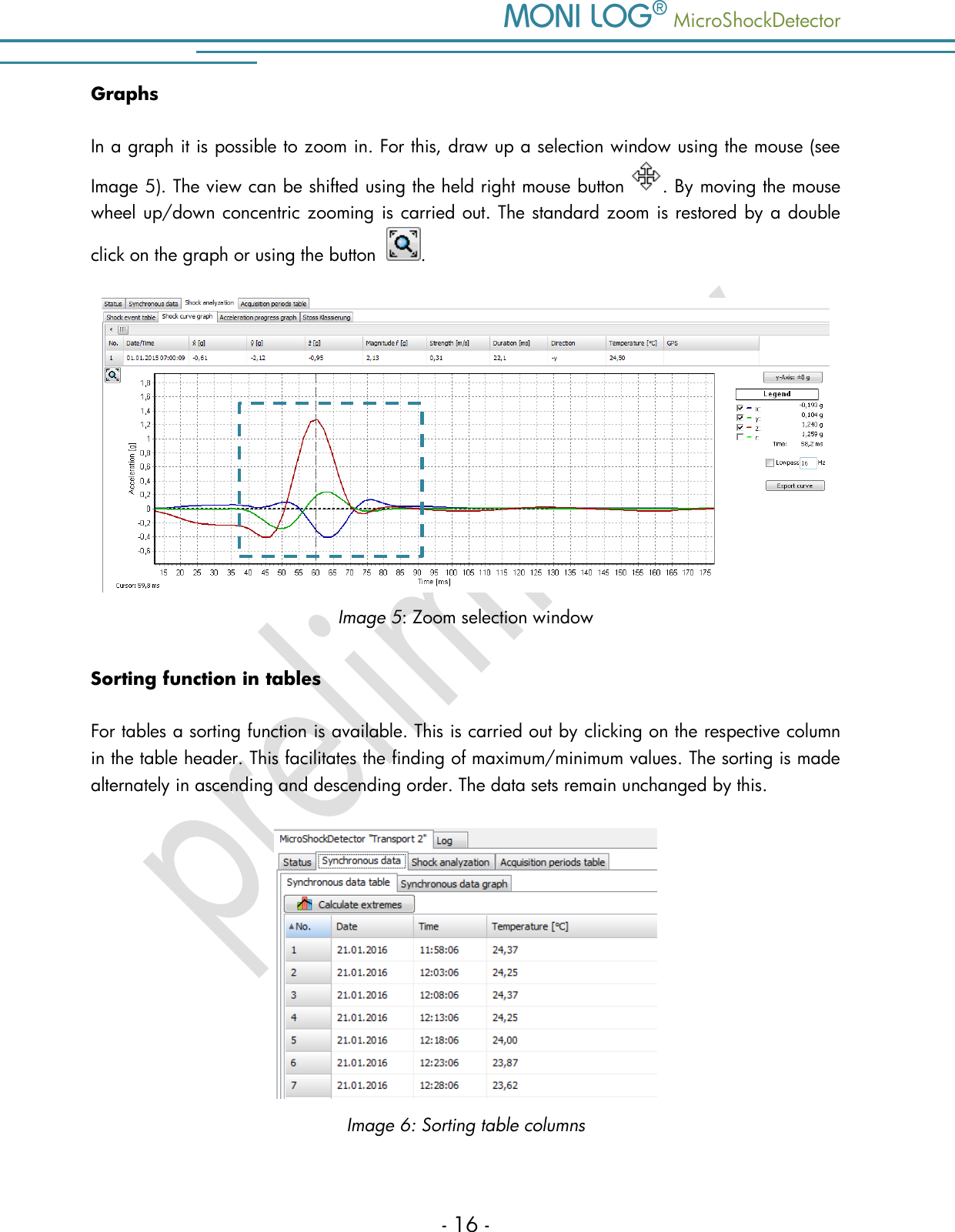
   MicroShockDetector - 14 - 4.2 G E N E R A L   U S E   O F   P C   S O F T W A R E  4 . 2 . 1  E s t a b l i s h i n g   a   d e v i c e   c o n n e c t i o n  If the device driver is installed, the connection, as a rule, will be automatically established upon the start of the evaluation software, if a device is connected via USB. If the evaluation software  has been active before plugging of the device or you want to connect a device to a different COM port, select the device via the USB menu at the top right.  In case of connection problems: If the USB connection is not initiated correctly select the Refresh button (blue double arrow), disconnect the USB cable from the device  and reconnect it.   Image 2: USB connection window, connection established to COM19 After a successful USB connection, the status data of the connected device are displayed:  Image 3: Status view
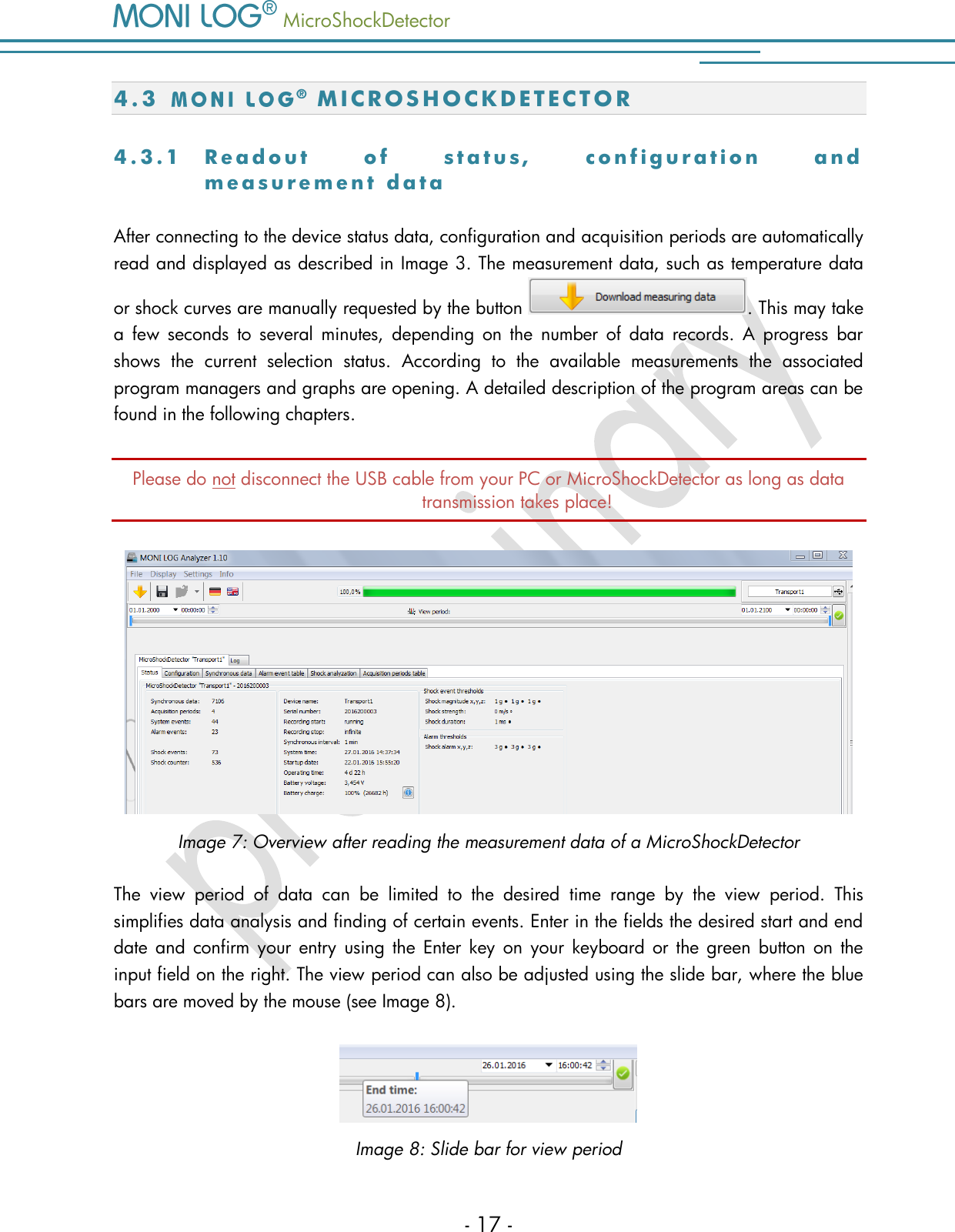
  MicroShockDetector    - 15 - By  the  icon    or  menu  „File  /  Download  measuring  data“  you  can  load  the  additional measurement data, as described in Section 4.3.1.  4 . 2 . 2  F i l e   a r e a  The data read out by the device from the USB can be saved by icon   or menu „Save file” on a data carrier. Please observe that the measurement data are included in the file only if it has been read out by  . In the other case only the status data are included. The saved data can also be loaded in the PC programme. The button    „Open file “opens the dialog for choosing a file. One click on the button with the   Excel icon exports the read out data in an Excel file. 4 . 2 . 3  M e s s a g e   w i n d o w   ( l o g )  The  message  window,  which  can  be  found  as  a  programme  tab  “Log”,  renders  possible  an overview  on  the  actions  performed  by  means  of  the  programme  or  the  status  changes  of  the device during the established USB connection. Error messages and notes, e.g., for performance of configuration commands, connection setup to devices, saving of data, etc. are listed here.  Image 4: Log window  4 . 2 . 4  V i e w   o f   m e a s u r e m e n t   d a t a  The  measurement  data  should  first  be  read  out  as  described  above,  either  from  a  connected device or exist in an open file. The representation is possible in each case as a graph or table.
   MicroShockDetector - 16 - Graphs In a graph it is possible to zoom in. For this, draw up a selection window using the mouse (see Image 5). The view can be shifted using the held right mouse button  . By moving the mouse wheel up/down concentric zooming is carried out. The standard zoom is restored by a double click on the graph or using the button   .  Image 5: Zoom selection window Sorting function in tables For tables a sorting function is available. This is carried out by clicking on the respective column in the table header. This facilitates the finding of maximum/minimum values. The sorting is made alternately in ascending and descending order. The data sets remain unchanged by this.  Image 6: Sorting table columns
  MicroShockDetector    - 17 - 4.3    M I C R O S H O C K D E T E C T O R  4 . 3 . 1  R e a d o u t   o f   s t a t u s ,   c o n f i g u r a t i o n   a n d  m e a s u r e m e n t   d a t a  After connecting to the device status data, configuration and acquisition periods are automatically read and displayed as described in Image 3. The measurement data, such as temperature data or shock curves are manually requested by the button  . This may take a  few  seconds  to  several  minutes,  depending  on  the  number  of  data  records.  A  progress  bar shows  the  current  selection  status.  According  to  the  available  measurements  the  associated program managers and graphs are opening. A detailed description of the program areas can be found in the following chapters.  Please do not disconnect the USB cable from your PC or MicroShockDetector as long as data transmission takes place!  Image 7: Overview after reading the measurement data of a MicroShockDetector The  view  period  of  data  can  be  limited  to  the  desired  time  range  by  the  view  period.  This simplifies data analysis and finding of certain events. Enter in the fields the desired start and end date and  confirm  your  entry  using  the  Enter key on  your  keyboard  or  the  green  button on the input field on the right. The view period can also be adjusted using the slide bar, where the blue bars are moved by the mouse (see Image 8).   Image 8: Slide bar for view period
   MicroShockDetector - 18 - 4 . 3 . 2  m e a s u r e m e n t   d a t a , s t a t u s ,   t h r e s h o l d s  The paremeters, represented on the Image 7, have following meanings: Measurement data (Column 1):  Synchronous data:  number of the continuously stored data records of the       temperature measurument  Acquisition periods:  number of the time periods, when the module was ready to       measure  System events:   number of the external events (see Section 4.3.3)  Alarm events:    number of the events when at least one alarm threshold was       exceeded  Shock events:    number of the shock records, which have exceeded thresholds   Shock counter:  total number of the shocks which have led to  the activation of the device  Status data (Column 2):  Device name:    device name, selected by the user (freely selectable)  Serial number:   serial number of the device (unchangeable)  Recording start:  beginning of the measuring or running  Recording stop:   end of the measuring or infinite  Synchronous interval:  time  interval for the time-synchronous (continuous) recording of the   temperature  System time:   internal time of the device  Startup date:   date of the first start up  Operating time:   total running time of the device  Battery voltage:   actual voltage of the battery  Battery charge:  remaining battery charge, details will be shown by clicking on the   battery icon  Firmware version:   actual firmware version of the device  Hardware version:   actual hardware version of the device
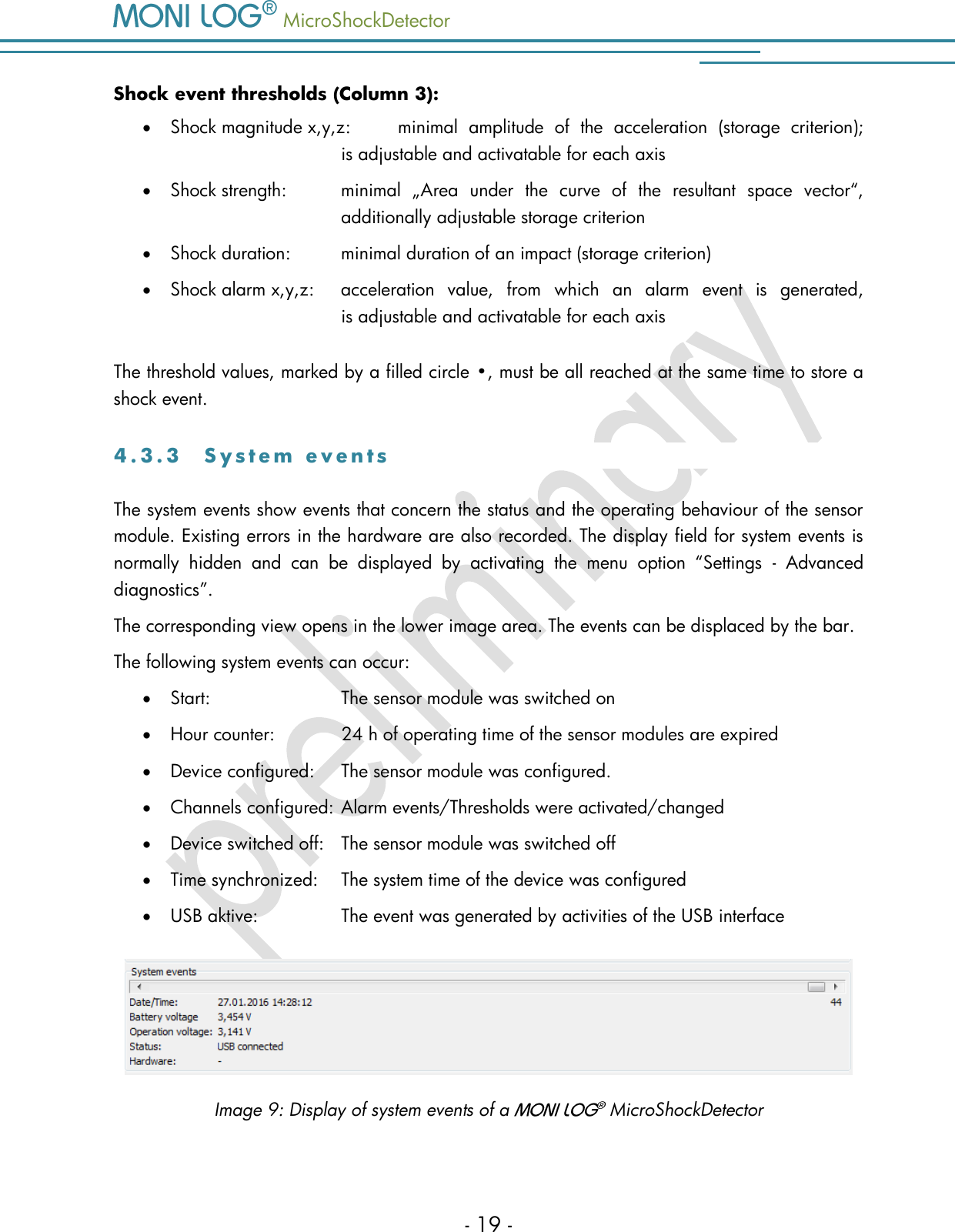
  MicroShockDetector    - 19 - Shock event thresholds (Column 3):  Shock magnitude x,y,z:  minimal  amplitude  of  the  acceleration  (storage  criterion);   is adjustable and activatable for each axis  Shock strength:  minimal  „Area  under  the  curve  of  the  resultant  space  vector“,   additionally adjustable storage criterion  Shock duration:  minimal duration of an impact (storage criterion)  Shock alarm x,y,z:  acceleration  value,  from  which  an  alarm  event  is  generated,   is adjustable and activatable for each axis The threshold values, marked by a filled circle •, must be all reached at the same time to store a shock event.  4 . 3 . 3  S y s t e m   e v e n t s  The system events show events that concern the status and the operating behaviour of the sensor module. Existing errors in the hardware are also recorded. The display field for system events is normally  hidden  and  can  be  displayed  by  activating  the  menu  option  “Settings  -  Advanced diagnostics”.  The corresponding view opens in the lower image area. The events can be displaced by the bar. The following system events can occur:  Start:    The sensor module was switched on  Hour counter:   24 h of operating time of the sensor modules are expired  Device configured:    The sensor module was configured.  Channels configured:   Alarm events/Thresholds were activated/changed  Device switched off:    The sensor module was switched off  Time synchronized:    The system time of the device was configured  USB aktive:    The event was generated by activities of the USB interface   Image 9: Display of system events of a    MicroShockDetector
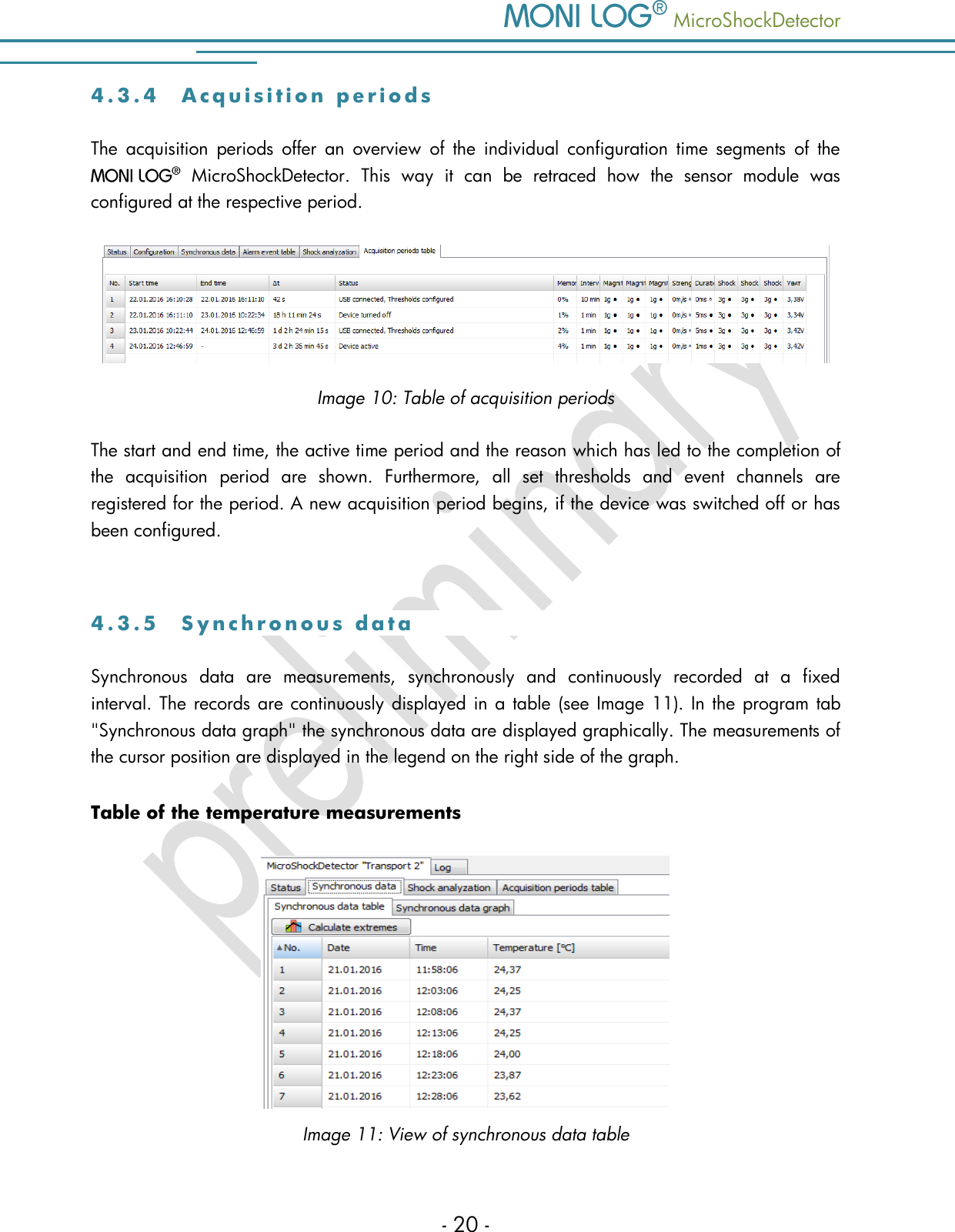
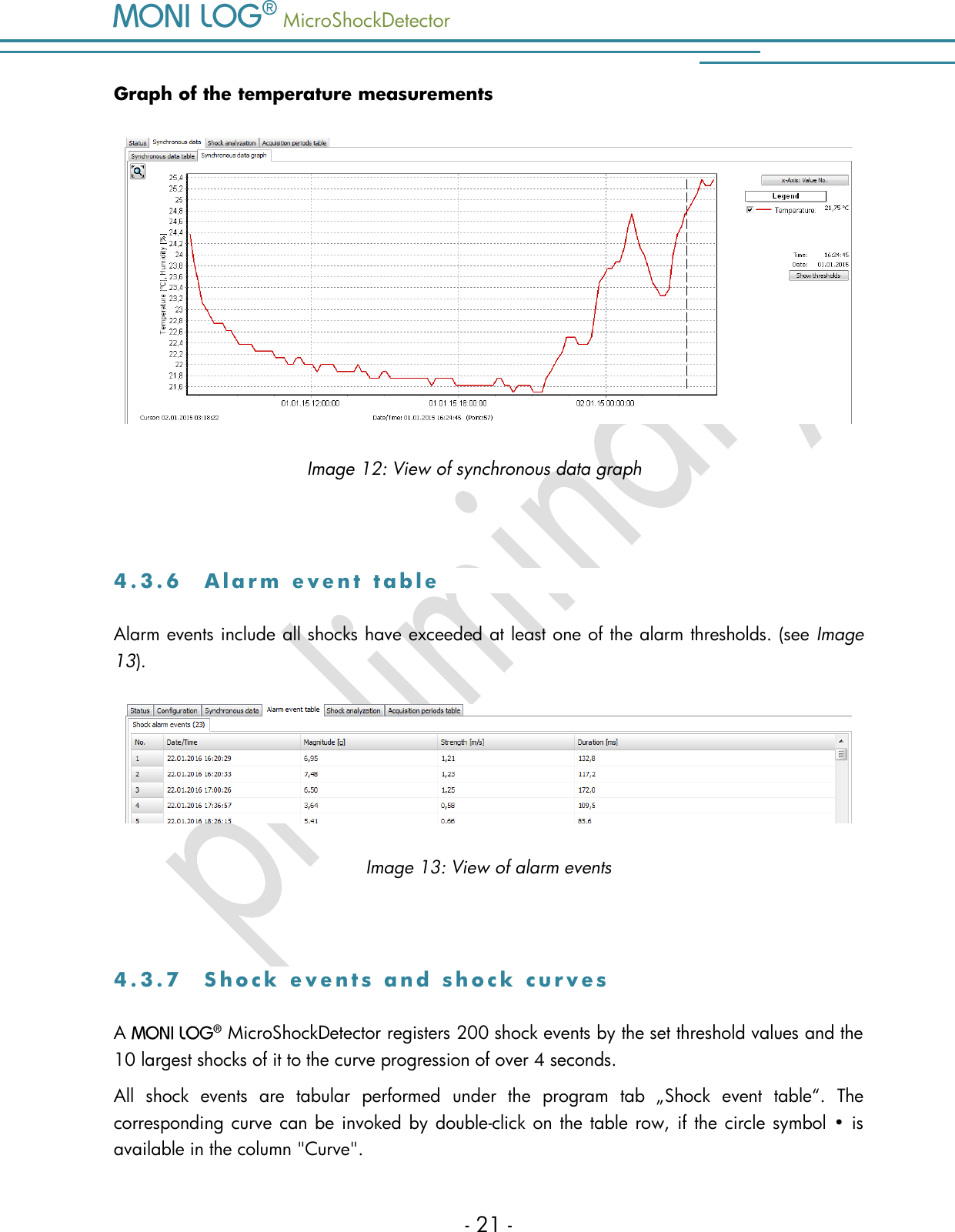
   MicroShockDetector - 20 - 4 . 3 . 4  A c q u i s i t i o n   p e r i o d s  The  acquisition  periods  offer  an  overview  of  the  individual  configuration  time  segments  of  the    MicroShockDetector.  This  way  it  can  be  retraced  how  the  sensor  module  was configured at the respective period.  Image 10: Table of acquisition periods The start and end time, the active time period and the reason which has led to the completion of the  acquisition  period  are  shown.  Furthermore,  all  set  thresholds  and  event  channels  are registered for the period. A new acquisition period begins, if the device was switched off or has been configured.  4 . 3 . 5  S y n c h r o n o u s   d a t a  Synchronous  data  are  measurements,  synchronously  and  continuously  recorded  at  a  fixed interval. The records are continuously displayed in a table  (see Image 11). In the program tab "Synchronous data graph" the synchronous data are displayed graphically. The measurements of the cursor position are displayed in the legend on the right side of the graph.  Table of the temperature measurements  Image 11: View of synchronous data table
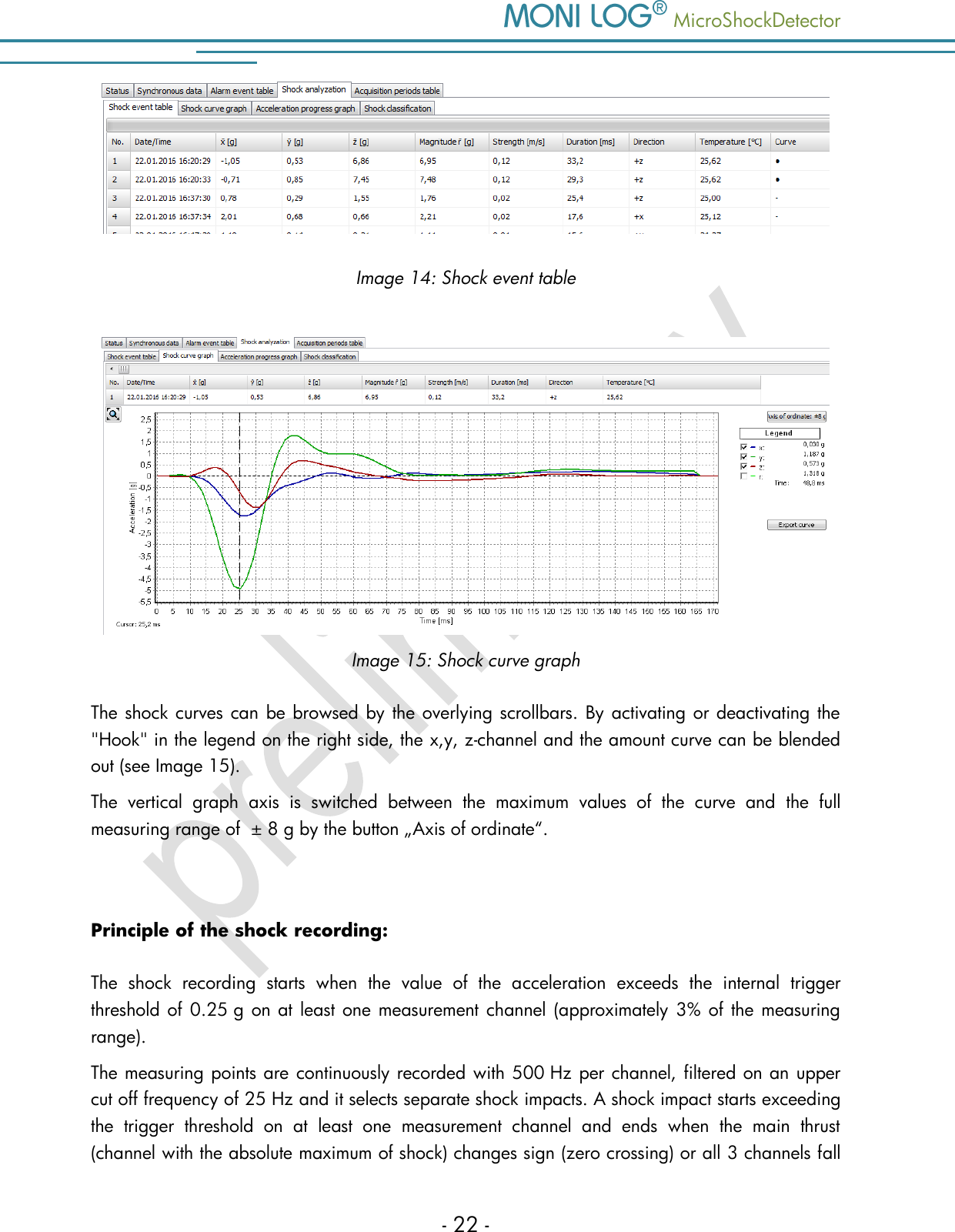
  MicroShockDetector    - 21 - Graph of the temperature measurements  Image 12: View of synchronous data graph  4 . 3 . 6  A l a r m   e v e n t   t a b l e  Alarm events include all shocks have exceeded at least one of the alarm thresholds. (see Image 13).   Image 13: View of alarm events  4 . 3 . 7  S h o c k   e v e n t s   a n d   s h o c k   c u r v e s  A    MicroShockDetector registers 200 shock events by the set threshold values and the 10 largest shocks of it to the curve progression of over 4 seconds. All  shock  events  are  tabular  performed  under  the  program  tab  „Shock  event  table“.  The corresponding curve can be invoked by double-click on the table row, if the circle symbol • is available in the column "Curve".
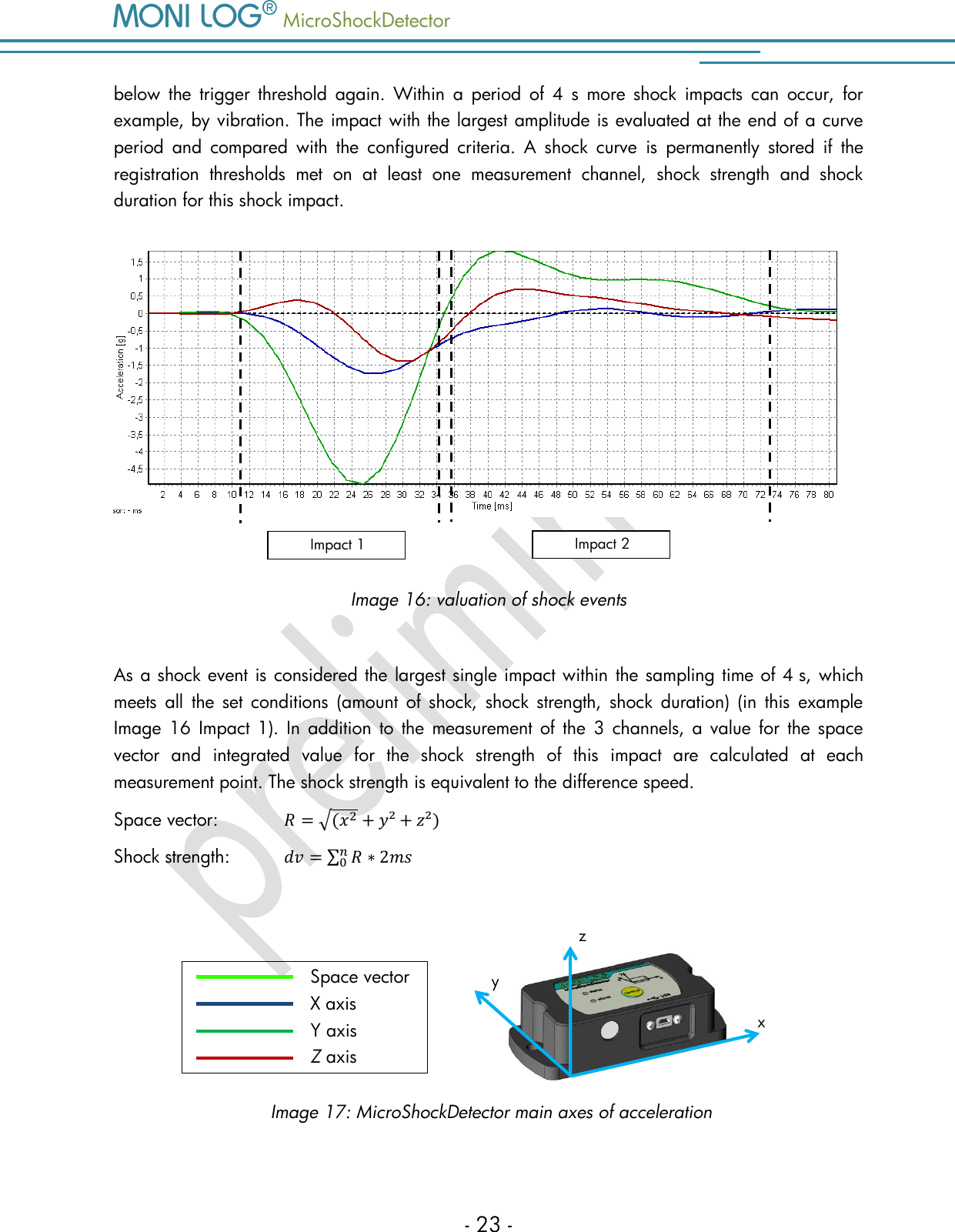
   MicroShockDetector - 22 -  Image 14: Shock event table  Image 15: Shock curve graph The shock curves can be browsed by the overlying scrollbars. By activating or deactivating the "Hook" in the legend on the right side, the x,y, z-channel and the amount curve can be blended out (see Image 15).  The  vertical  graph  axis  is  switched  between  the  maximum  values  of  the  curve  and  the  full measuring range of  ± 8 g by the button „Axis of ordinate“.  Principle of the shock recording: The  shock  recording  starts  when  the  value  of  the  acceleration  exceeds  the  internal  trigger threshold of 0.25 g on at least one measurement channel (approximately 3% of the measuring range).  The measuring points are continuously recorded with 500 Hz per channel, filtered on an upper cut off frequency of 25 Hz and it selects separate shock impacts. A shock impact starts exceeding the  trigger  threshold  on  at  least  one  measurement  channel  and  ends  when  the  main  thrust (channel with the absolute maximum of shock) changes sign (zero crossing) or all 3 channels fall
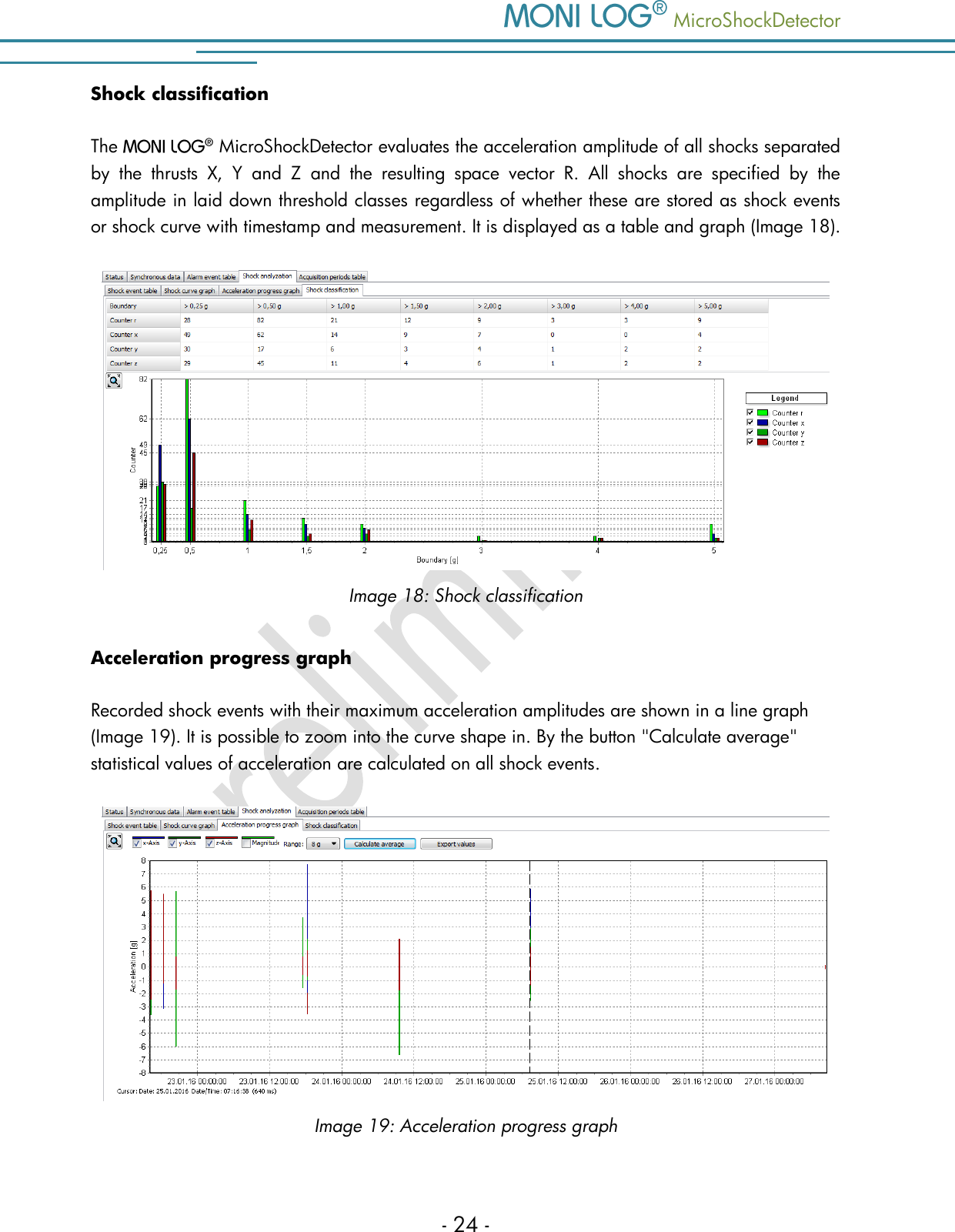
  MicroShockDetector    - 23 - below  the  trigger  threshold  again.  Within  a  period  of 4  s  more  shock  impacts  can  occur,  for example, by vibration. The impact with the largest amplitude is evaluated at the end of a curve period  and  compared  with  the  configured  criteria.  A  shock  curve  is  permanently  stored  if  the registration  thresholds  met  on  at  least  one  measurement  channel,  shock  strength  and  shock duration for this shock impact.   Image 16: valuation of shock events  As a shock event is considered the largest single impact within the sampling time of 4 s, which meets  all  the  set  conditions  (amount of  shock,  shock  strength,  shock  duration)  (in  this  example Image  16  Impact 1). In  addition  to  the measurement of the  3  channels, a value  for  the  space vector  and  integrated  value  for  the  shock  strength  of  this  impact  are  calculated  at  each measurement point. The shock strength is equivalent to the difference speed.  Space vector:            Shock strength:            y z x Space vector X axis Y axis Z axis Image 17: MicroShockDetector main axes of acceleration Impact 1 Impact 2
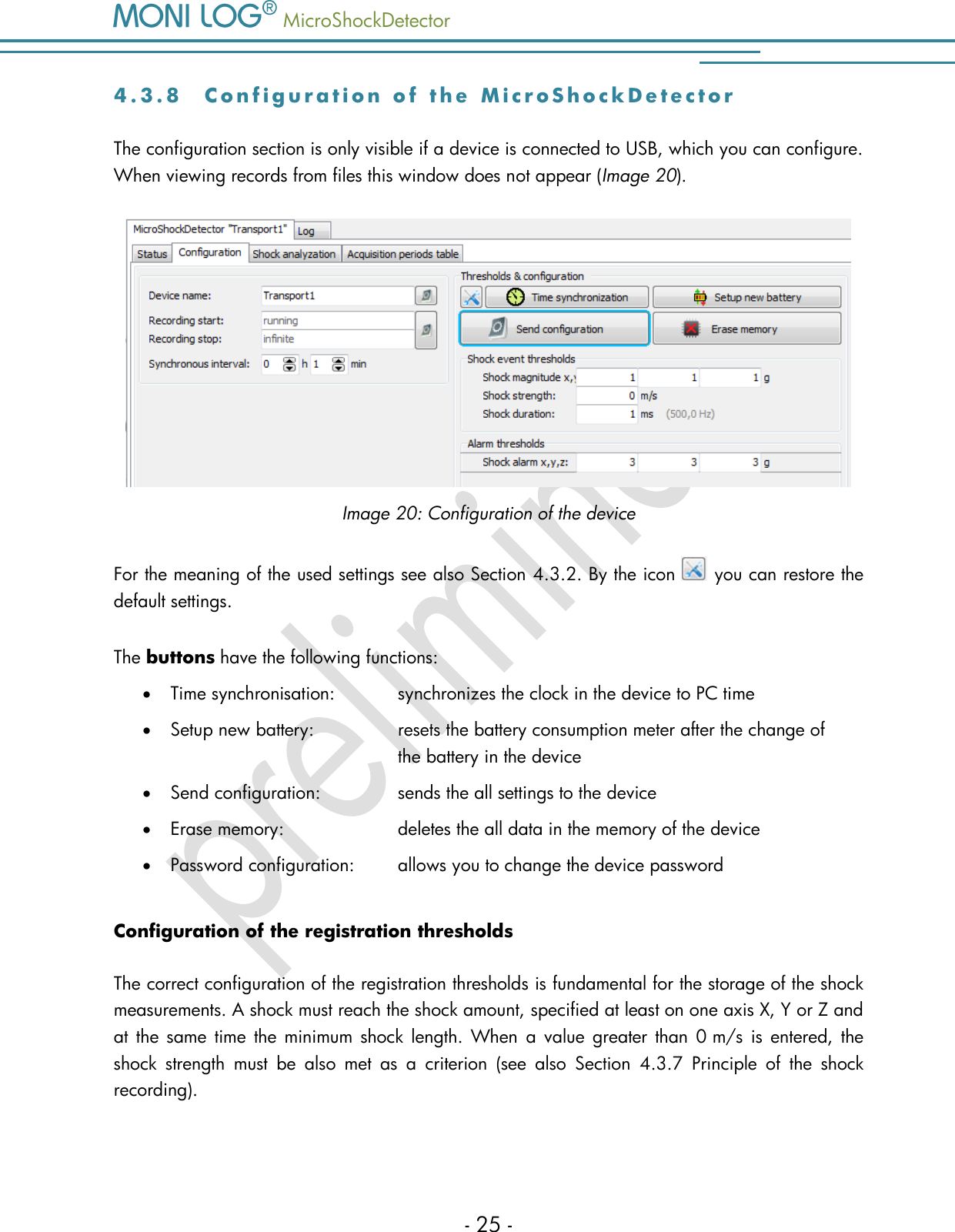
   MicroShockDetector - 24 - Shock classification The   MicroShockDetector evaluates the acceleration amplitude of all shocks separated by  the  thrusts  X,  Y  and  Z  and  the  resulting  space  vector  R.  All  shocks  are  specified  by  the amplitude in laid down threshold classes regardless of whether these are stored as shock events or shock curve with timestamp and measurement. It is displayed as a table and graph (Image 18).   Image 18: Shock classification Acceleration progress graph Recorded shock events with their maximum acceleration amplitudes are shown in a line graph (Image 19). It is possible to zoom into the curve shape in. By the button "Calculate average" statistical values of acceleration are calculated on all shock events.   Image 19: Acceleration progress graph
  MicroShockDetector    - 25 - 4 . 3 . 8  C o n f i g u r a t i o n   o f   t h e   M i c r o S h o c k D e t e c t o r  The configuration section is only visible if a device is connected to USB, which you can configure. When viewing records from files this window does not appear (Image 20).  Image 20: Configuration of the device For the meaning of the used settings see also Section 4.3.2. By the icon   you can restore the default settings.  The buttons have the following functions:  Time synchronisation:   synchronizes the clock in the device to PC time  Setup new battery:    resets the battery consumption meter after the change of          the battery in the device  Send configuration:     sends the all settings to the device  Erase memory:     deletes the all data in the memory of the device  Password configuration:   allows you to change the device password Configuration of the registration thresholds The correct configuration of the registration thresholds is fundamental for the storage of the shock measurements. A shock must reach the shock amount, specified at least on one axis X, Y or Z and at the  same  time  the minimum shock length. When  a  value  greater  than 0 m/s  is  entered, the shock  strength  must  be  also  met  as  a  criterion  (see  also  Section  4.3.7  Principle  of  the  shock recording).
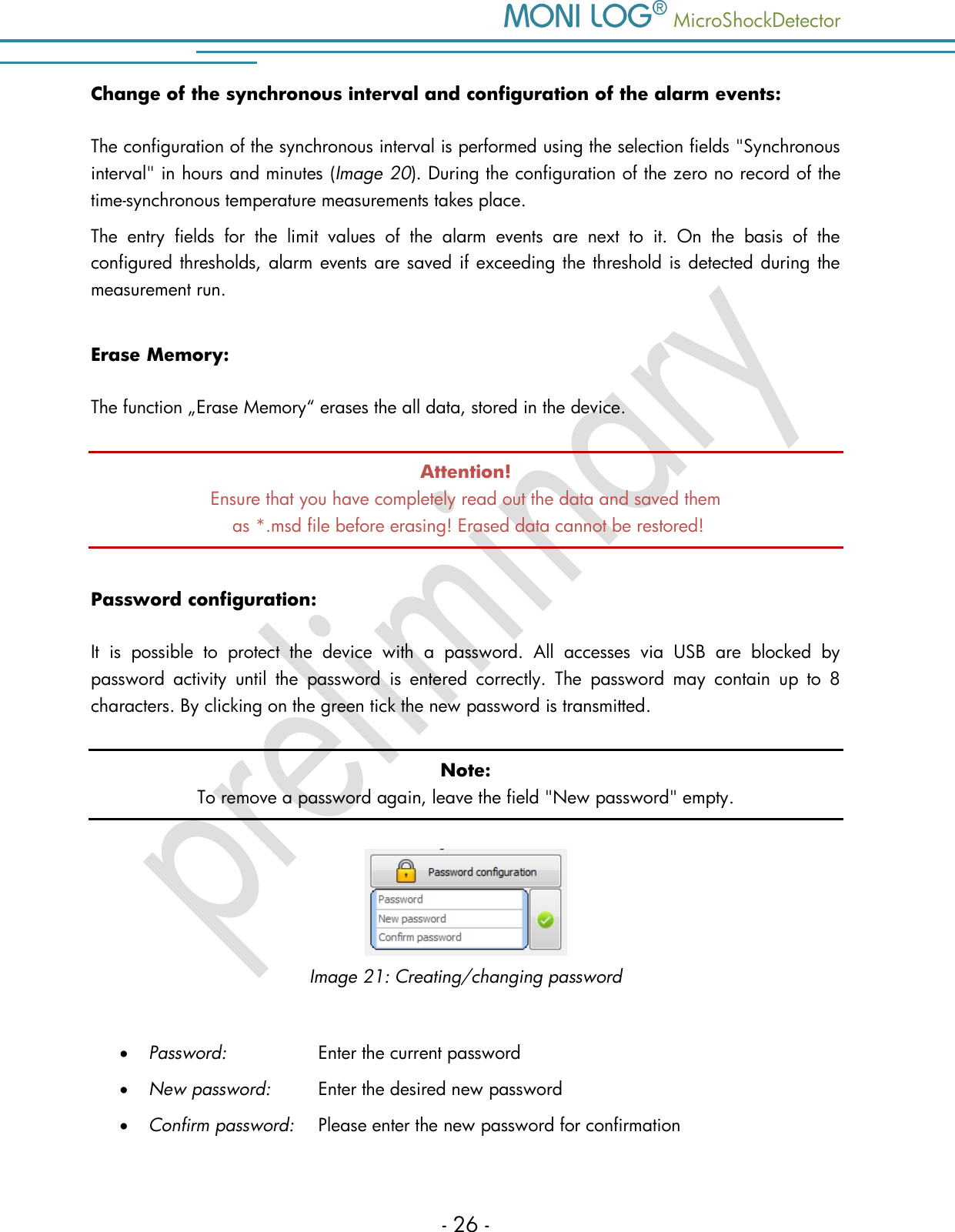
   MicroShockDetector - 26 - Change of the synchronous interval and configuration of the alarm events: The configuration of the synchronous interval is performed using the selection fields "Synchronous interval" in hours and minutes (Image 20). During the configuration of the zero no record of the time-synchronous temperature measurements takes place.  The  entry  fields  for  the  limit  values  of  the  alarm  events  are  next  to  it.  On  the  basis  of  the configured thresholds, alarm events are saved if exceeding the threshold is detected during the measurement run.  Erase Memory: The function „Erase Memory“ erases the all data, stored in the device.  Attention! Ensure that you have completely read out the data and saved them  as *.msd file before erasing! Erased data cannot be restored! Password configuration: It  is  possible  to  protect  the  device  with  a  password.  All  accesses  via  USB  are  blocked  by password  activity  until  the  password  is  entered  correctly.  The  password  may  contain  up  to  8 characters. By clicking on the green tick the new password is transmitted. Note: To remove a password again, leave the field "New password" empty.   Image 21: Creating/changing password   Password:     Enter the current password  New password:   Enter the desired new password  Confirm password:   Please enter the new password for confirmation
  MicroShockDetector    - 27 - Change of the device name: The  device  name  of  the     MicroShockDetector  can  be  changed  by  the  user.  The maximum of up to 16 characters is available. The designation will be saved and transmitted to the device by pressing the ENTER key on your keyboard or by clicking the button next to it on the right.  The  designation  can  be  selected  individually.  It  makes  sense  to  name  the  designation according to measuring point, measurement task, etc. (for example, "Transport 1").  Adjust recording period: The desired recording period for the device can also be set by the user. If a recording period is defined, the measurement recording begins at the starting time. By exceeding the stop time point, the  measurement  recording  is  stopped.  If  the  entry  fields  are  not  empty,  the  measurement recording runs as long as the device is switched on. The entry of the starting and stop time proceed in local time in date format:  dd.mm.yyyy hh:mm:ss (Day.Month.Year Hour:Minite:Second) The  configuration  of  the  recording  period  is  possible  by  pressing  the  ENTER  key  on  your keyboard or by clicking the button on the right. Configuration of the device time: The synchronization of the system time is done by clicking on the clock icon. The device works internally with Coordinated Universal Time (UTC). This is the same all over the world, this means independent from the time zones. The PC program shows, however, depending on the time zone setting of your PC, the time, converted to your local system.
   MicroShockDetector - 28 - 5. FI R M W A R E - U P D A T E  5 . 1  P R E P A R A T I O N  Through a firmware update, a   MicroShockDetector receives an updated application program if this update file is provided by the manufacturer.  Prior to the firmware update the following points must be observed:  The  activation  of  the  update  mode  can  only  be  carried  out,  if  the    MicroShockDetector is switched off. If your device is still switched on, please switch it off.  Have ready the included mini USB cable and plug one end of the cable in a free USB port of your computer for the preparation. Do not plug the USB cable into the MONI LOG® device yet!  Ensure  that  on your  computer  no  sensor network  PC  programmes  are  executed  and  all necessary drivers are installed. Attention! Back up all measurement, diagnostics and configuration data of your device prior to the firmware update to prevent a possible data loss. The memory is reset to default settings.  In  the  switched  off  condition  of  the  device  connect  the  USB  cable  and  keep  the  control  key pressed (~1 second, status LED is illuminated green) until the status LED  starts to flash red with 1 Hz.  The  update  mode  is  active  now.  It  only  remains  active  as  long  as  the  USB  cable  is connected. If the control key is released before the detection of the update mode, the device starts the normal operating mode. Proceed now with the instructions according to chapter 5.2 „Carrying out update“.
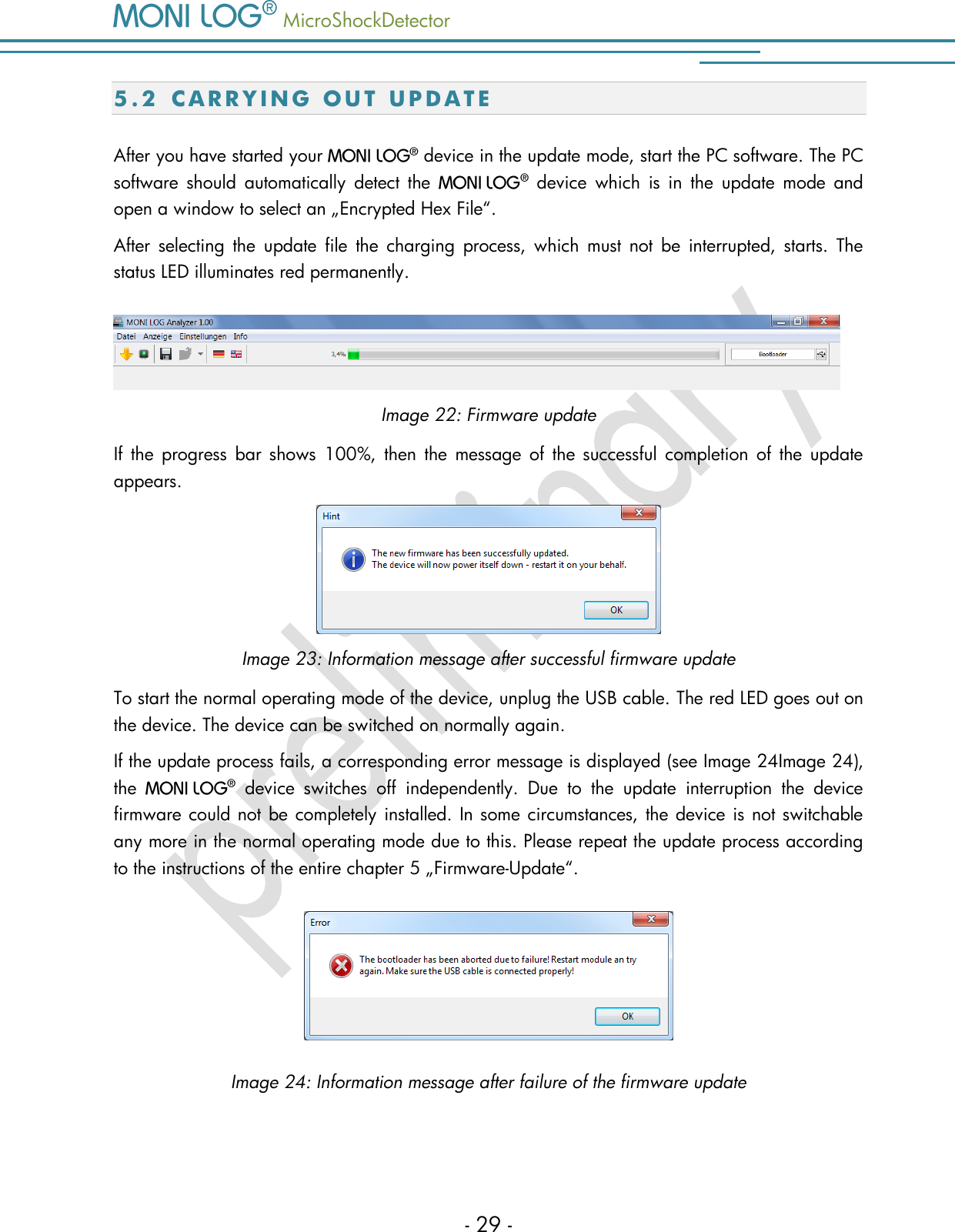
  MicroShockDetector    - 29 - 5 . 2  C A R R Y I N G   O U T   U P D A T E  After you have started your    device in the update mode, start the PC software. The PC software  should  automatically  detect  the     device  which  is  in  the  update  mode  and open a window to select an „Encrypted Hex File“.  After  selecting  the  update  file  the  charging  process,  which  must  not  be  interrupted,  starts.  The status LED illuminates red permanently.   Image 22: Firmware update If  the  progress  bar  shows  100%,  then  the  message  of the  successful  completion  of  the  update appears.   Image 23: Information message after successful firmware update To start the normal operating mode of the device, unplug the USB cable. The red LED goes out on the device. The device can be switched on normally again.  If the update process fails, a corresponding error message is displayed (see Image 24Image 24), the     device  switches  off  independently.  Due  to  the  update  interruption  the  device firmware could not be completely installed. In some circumstances, the device is not switchable any more in the normal operating mode due to this. Please repeat the update process according to the instructions of the entire chapter 5 „Firmware-Update“.   Image 24: Information message after failure of the firmware update
   MicroShockDetector - 30 - 6. DE C L A R A T I O N  O F   CO NF O R M I TY  still in progress
  MicroShockDetector    - 31 - W A RR A N TY  C E R T I F I C A T E    MicroShockDetector Against submission of this  warranty certificate we grant a 12-month warranty  from  the  date of delivery for the above instrument.  In case of deficiencies we first have the right of rectification, either rectification of the deficiency or  subsequent  delivery.  Should  the  rectification  fail,  and  only  then,  we  will  take  back  the instrument and reimburse the purchase price. Any further warranty claims shall be excluded. This warranty covers all faults that impair the proper functioning of the instrument due to technical defects of individual components or assemblies. Batteries and rechargeable batteries as expendables are not covered by this warranty. This  warranty  will  only  be  granted  if  the  instrument  has  been  used  properly  for  its  intended purpose. Any  attempts of the warrantee or third persons  to repair the instruments or  to intervene in any other way exclude warranty claims.  Any mechanical damage which is the result of undue stress also excludes warranty claims.  We will immediately notify the warrantee of any repair work excluded from warranty coverage. If the instrument is sent in together with the warranty certificate, this will be considered as a repair order for the elimination of all damage.  The warrantee can exclude partial services.  In case of any malfunctions of the instrument, please state the serial no. You can find it on type label or on the logs when evaluating your data.  SMT & HYBRID GmbH      Telephone:  +49 351 / 266 13 0 An der Prießnitzaue 22      Fax.:    +49 351 / 266 13 10 D – 01328 Dresden        Email:   info@smt-hybrid.de GERMANY  Copyright The software is protected under the amended copyright law. Copies (with the exception of backup copies) may only be made after express permission by SMT & HYBRID.

Navigation menu