Circle Media CIRCLE Circle User Manual Phil Edit key
Circle Media Inc. Circle Phil Edit key
User manual
USER MANUAL
Version 1.0 — October 2015

TABLE OF CONTENTS
INTRODUCTION
GETTING STARTED
CIRCLE FEATURES
MYCIRCLE
LEGAL
3
4
5
6
7

GETTING STARTED

4
Circle Media Inc. (Circle) was founded in January 2014 with oces
located in Portland, Ore. and Cypress, CA. Circle exists to develop
family-centric products that redefine how we connect.
Circle User Manual
Welcome to the Circle Family
WHAT IS CIRCLE?
Circle pairs wirelessly with your home network and helps you manage the
online experience of every family member in your household. With the Circle
Home app, parents can create unique profiles and use features such as Time
Limits to limit screen time or BedTime to ensure devices aren’t being used
when they’re not supposed to be. Insights provides you with up-to-date
information on what your kids are viewing online and Circle can even Pause
the internet for times when you want some more family time.
5
Circle User Manual
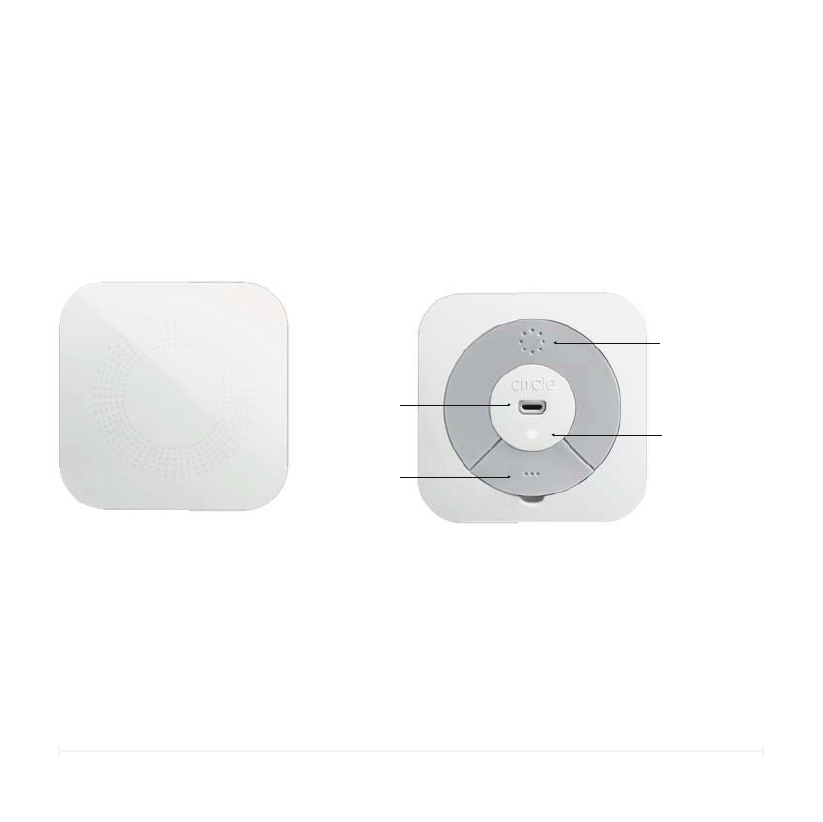
Meet Circle
Circle Front
C
ir
cle
F
Power
Button
USB
Power LED Power
Indicator
Ethernet
(Lift Tab)
Circle Back
r
o
nt
P
ower
B
utton
USB
P
ower
L
ED Power
Ind
ica
tor
E
thernet
(
Lift Tab)
le
Back
C
irc
l

6
•Circle
•USB cable (included)
•USB power adapter (included)
•Circle Home App
•A Wi-Fi network with name & password
Circle User Manual
Setting Up Circle
THINGS YOU WILL NEED
•The Circle Home app requires an iOS device (iPhone, iPad, or iPod
Touch) running iOS 8 or later.
•A compatible Wi-Fi router.
SYSTEM REQUIREMENTS
To setup Circle, please have the following ready:
7
Circle User Manual
Setting Up Circle
TO POWER ON CIRCLE
1. Plug the USB cable to the power adapter and connect to a power outlet.
2. Circle should power up by itself and the LED will turn on indicating that
Circle has power.
3. If Circle does not power on, press and hold the power button for a few
seconds to turn on or let Circle charge for a few minutes before powering
on.
DOWNLOAD CIRCLE HOME APP
1. Visit meetcircle.com/app to download the app from
the Apple App Store to your iOS device.
Circle is setup and managed through the Circle Home app.
TO POWER OFF CIRCLE
1. Plug the USB cable to the power adapter and connect to a power outlet.
2. Circle should power up by itself and the LED will turn on indicating that
Circle has power.
3. If Circle does not power on, press and hold the power button for a few
seconds to turn on.
Circle was designed with enterprising kids in mind and has an internal battery
that will keep it going even if its unplugged. There are times where you may
need to turn Circle o.
8
Circle User Manual
Setting Up Circle
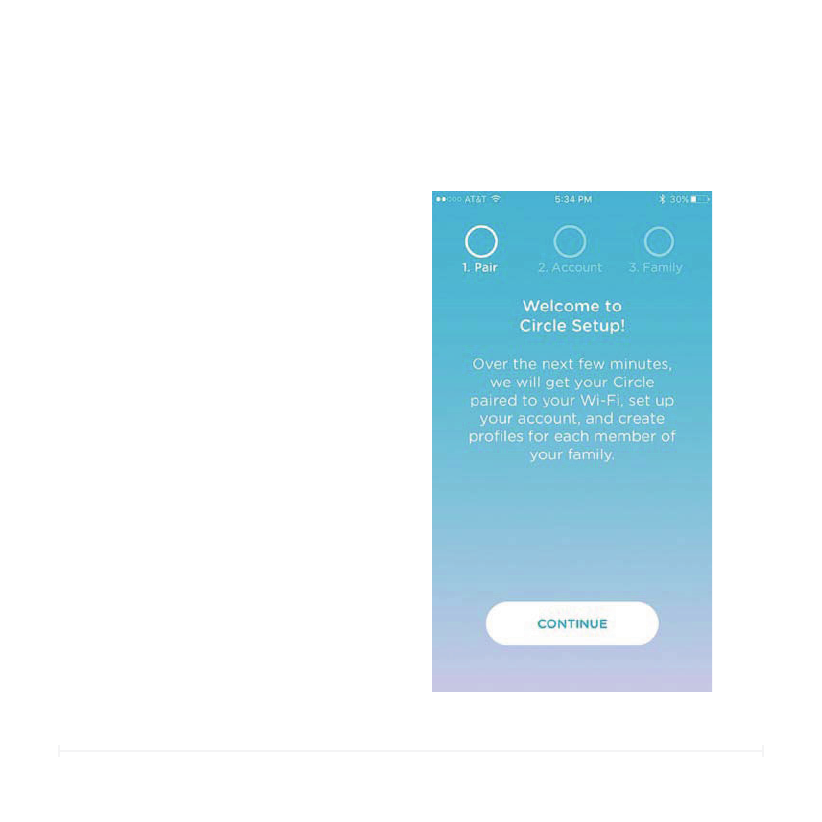
TO SETUP CIRCLE
1. Launch the Circle Home app from
your iOS device.
2. Tap Begin.
3. Follow the instructions in the app
to Pair your Circle with your home
Wi-Fi, setup your account, and
create profiles for Family Members.

9
Circle User Manual
Unmanaged Devices
WHAT DEVICES SHOULD BE UNMANAGED?
Unmanaged devices are ignored by Circle. There are some devices that Circle
should ignore such as:
•Smart thermostats or smoke detectors
•Wi-Fi enabled outlets or light switches
•Sensitive Wi-Fi controlled equipment
•Other smart home devices
Letting Circle know which devices to ignore will ensure that none of your smart
home devices accidentally get Paused or Filtered.

10
The final step in setting up your Circle is to decide the settings for
your Home overall.
As with family member profiles, you can set a Filter Level, Time
Limits, and a BedTime for your Home as well. Just follow the same
process as before.
NOTE: Any device that does not belong to a particular family
member will automatically become a Home device (except the
devices you have told Circle to ignore). Additionally, Any new device
that joins your network after you have set up Circle will
automatically become a Home device. You can reassign that device
to a family member easily (see page <>).
Circle User Manual
Home User
HOW “HOME” WORKS

CIRCLE FEATURES

12
Getting Circle setup in your home is just the beginning. Now that
each family member has their own unique Circle profile, you have
what you need to shape the online experience for your family and
gain valuable insight into what they do online.
In the following pages, each of the Circle features will be described
with additional detail and suggestions for how to use them. You will
find helpful resources for:
•Understanding the Home Screen
•Pausing the Internet
•Understanding the Profile Screens
•Insights View
•Managing Devices
•Changing the Filter Level
•Changing Time Limits
•Changing the BedTime
•MyCircle
•And, the Circle App Menu
Circle User Manual
Circle Features
USING CIRCLE DAY-TO-DAY
13
Circle User Manual
The Home Screen
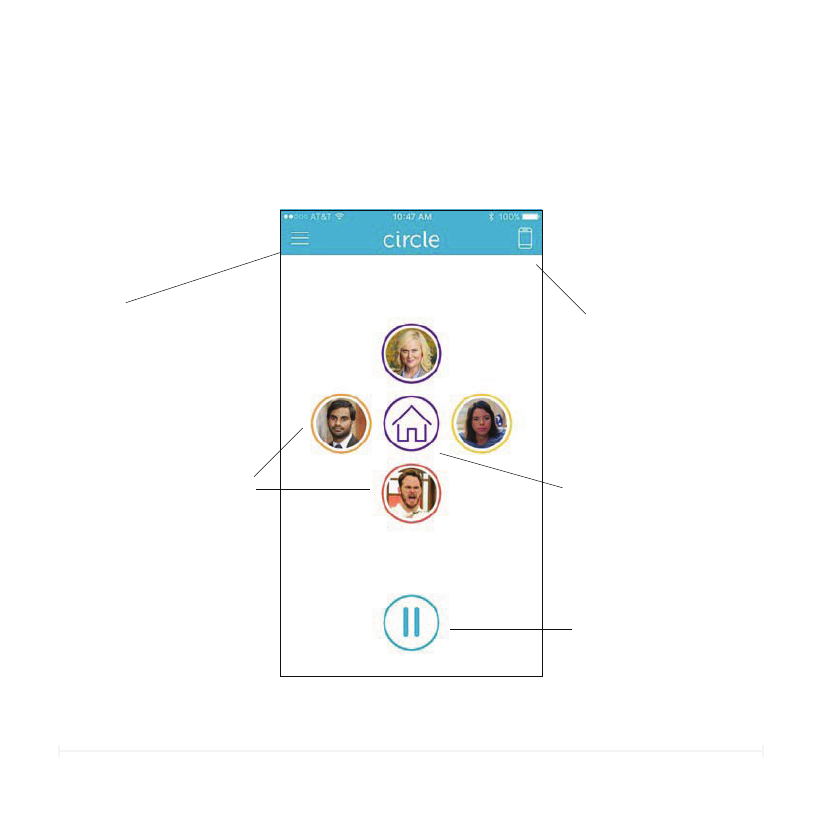
The Home Screen is where you can access all of Circle’s features.
Menu
Family Member Profiles
Pause
Devices
Home User
Access additional
options to manage
Circle.
Tap for more options. The
color or the circle indicates
their Filter level.
Manage and view a list
of all the devices on
your home network.
View and change
settings for the Home
user.
Pauses internet for the
entire home network.
14
Circle User Manual
Pause the Internet
TO PAUSE ALL INTERNET
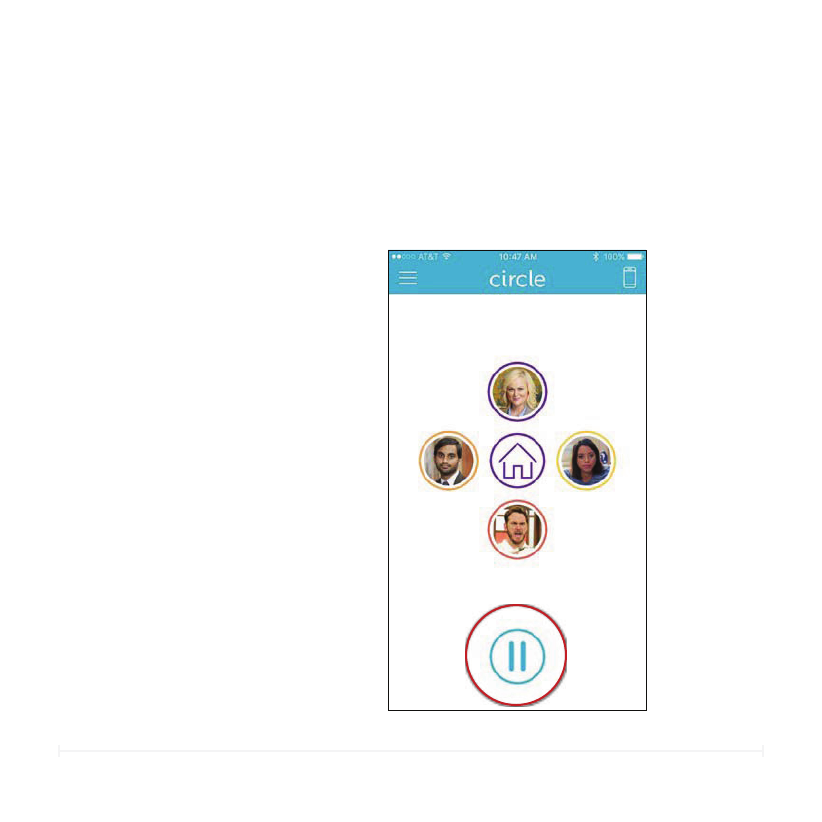
It’s dinnertime. Or maybe you’re trying to get the attention of one of your family
members. Circle gives you the ability to pause the Internet. You can Pause the
whole network, individual family members, or even specific devices.
1. On the Home Screen, tap
Pause.
2. To Un-Pause, tap again.
15
Circle User Manual
Pause the Internet (cont.)
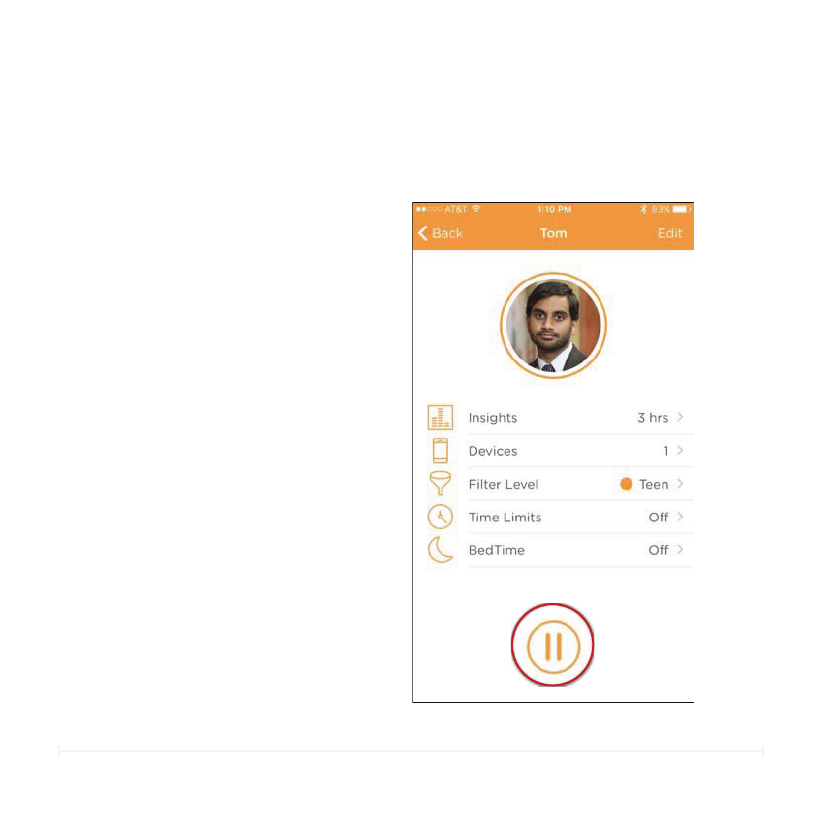
TO PAUSE A FAMILY MEMBER
1. On the Home Screen, tap the
Family Member you want to
Pause.
2. On their Profile Screen, tap
Pause.
3. To Un-Pause the Family
Member, tap again.
16
Circle User Manual
Pause the Internet (cont.)
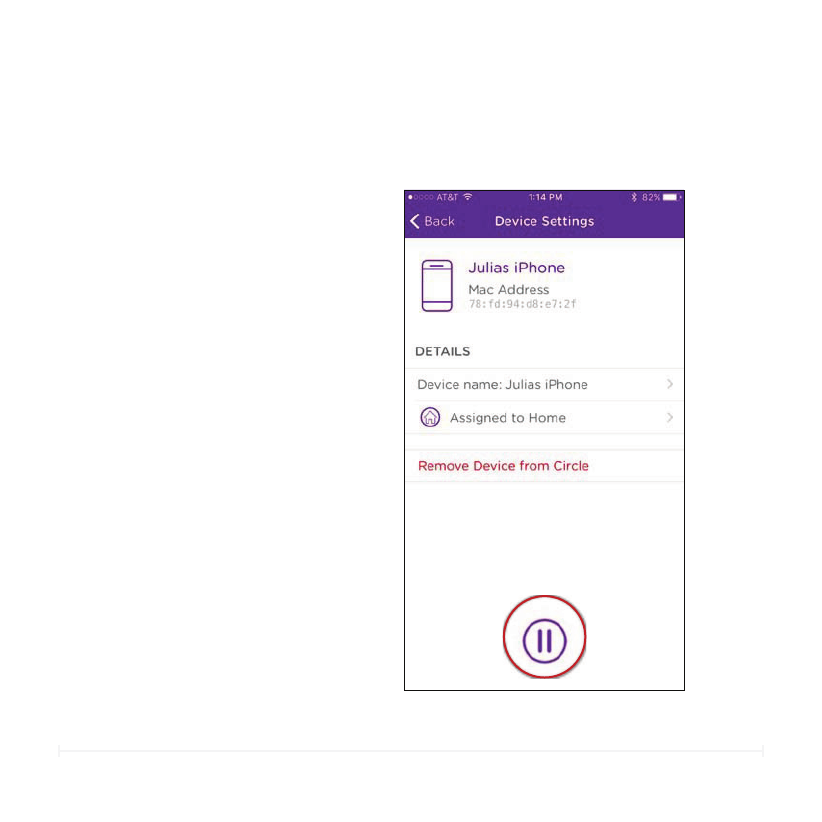
TO PAUSE A DEVICE
1. On the Home Screen, tap
Devices.
2. Select the device you want to
pause from the Devices list.
3. Tap Pause on the Device
Settings screen.
4. To Un-Pause, tap again.
17
Circle User Manual
Family Member Profile Screen
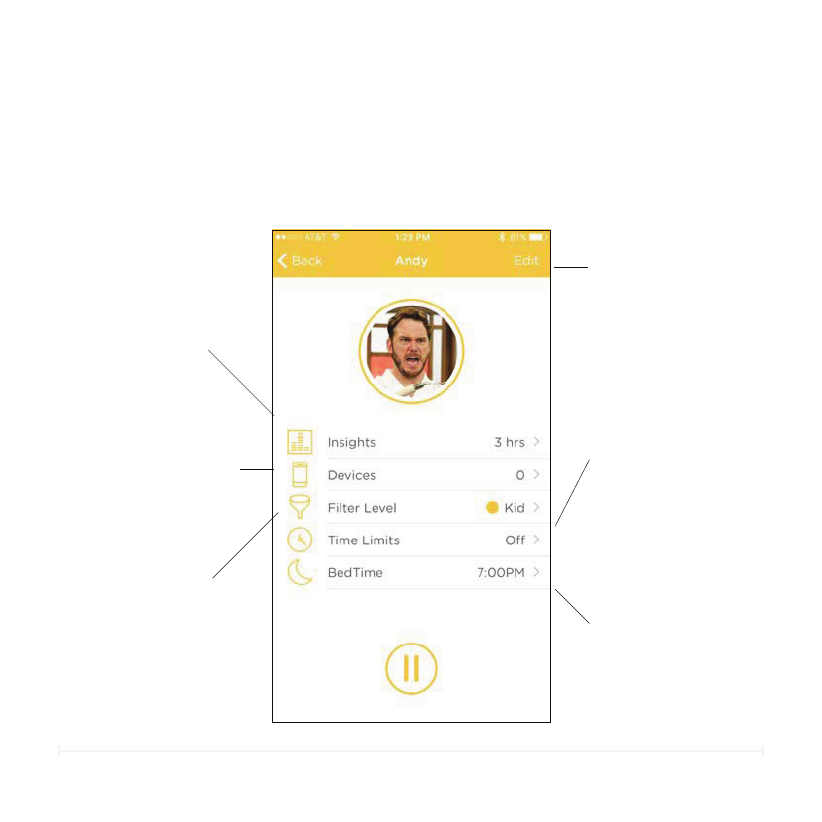
The Profile Screen is the heart and soul of the Circle Home app. Here you can view
details on your Family Member’s internet activity, fine-tune what they can and can’t see,
and set time limits on when the Internet is available to use.
Insights
Detailed view of time
spent on various
internet activities.
Devices
See which devices are
assigned.
Filter Level
Adjust Filter Level and
settings by category
and Custom Filters.
Edit
Edit Profile Name and
Photo or Delete Profile.
Time Limits
Set limits on internet
use by day or specific
platforms.
BedTime
Choose a timeframe to
prevent internet use.
18
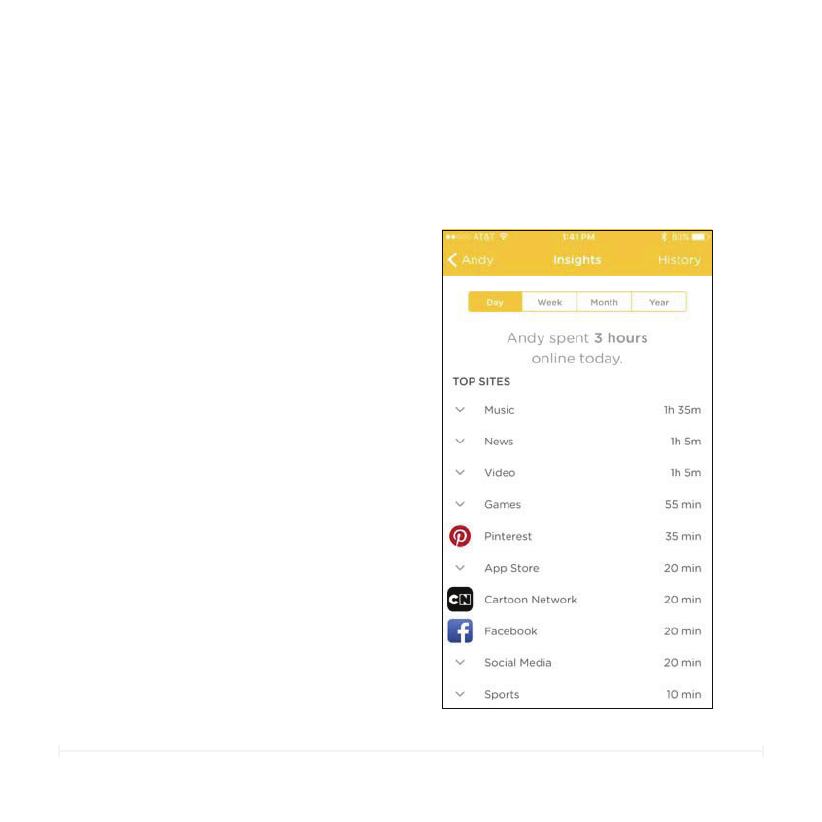
Circle does all the math for you and calculates the time spent on websites and
dierent services, such as Facebook or Netflix. Insights displays the information
you are looking for clearly and neatly.
Circle User Manual
Insights
View the duration all internet activity by
Day, Week, Month, or even Year.
TOTAL TIME SPENT
Activity is organized by category and
platform and ordered by longest duration
spent at the top so you can easily see where
the most time is spent online.
TOP SITES
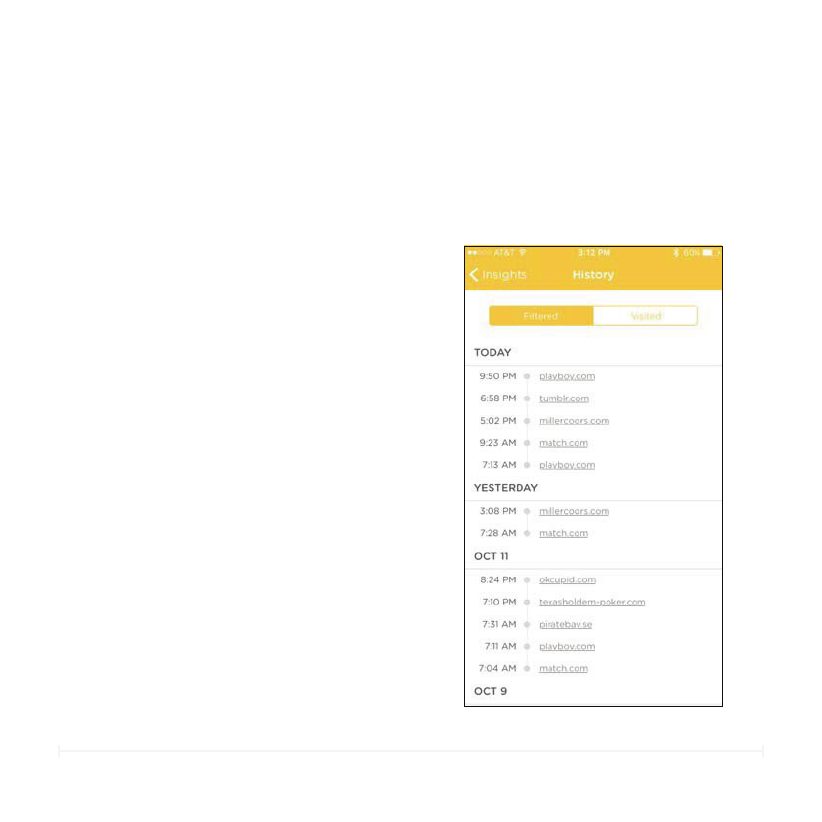
History displays a list of sites that were
visited and even shows you sites that were
attempted to be accessed even though they
were filtered out.
HISTORY
19
Circle User Manual
Insights (cont.)
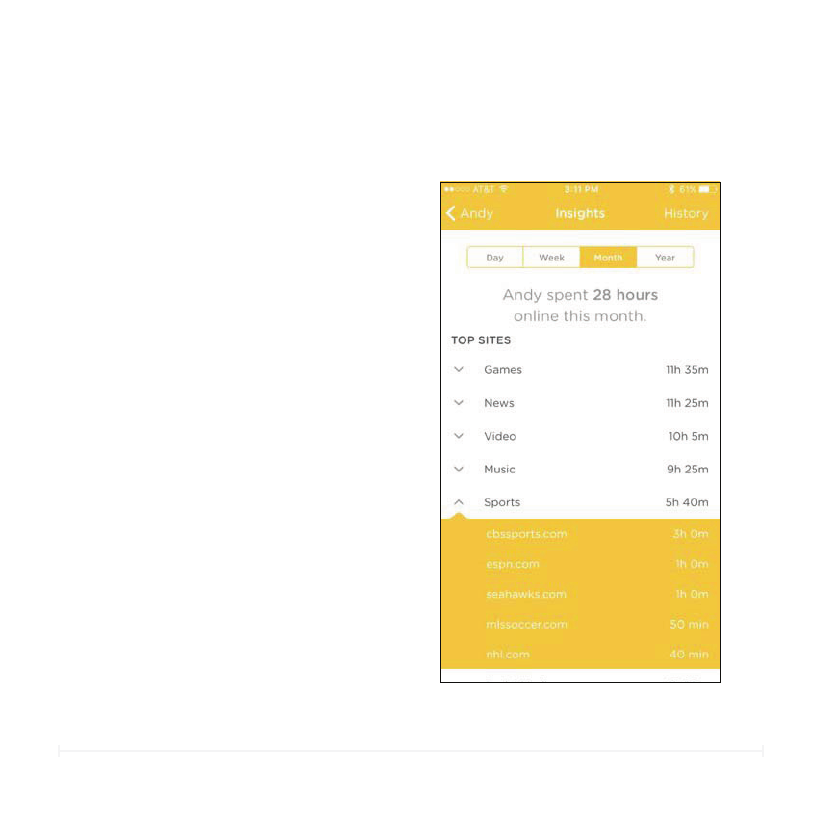
1. Tap the corresponding duration you’d
like to view.
2. The total time online is shown.
TO VIEW BY DAY, WEEK, MONTH,
OR YEAR
1. Tap the category name.
2. A detailed list of sites visited will be
shown along with the time spent on
that site.
3. Tap the category name again to close
the list.
TO VIEW MORE DETAILS IN A
CATEGORY
20
Circle User Manual
Insights (cont.)
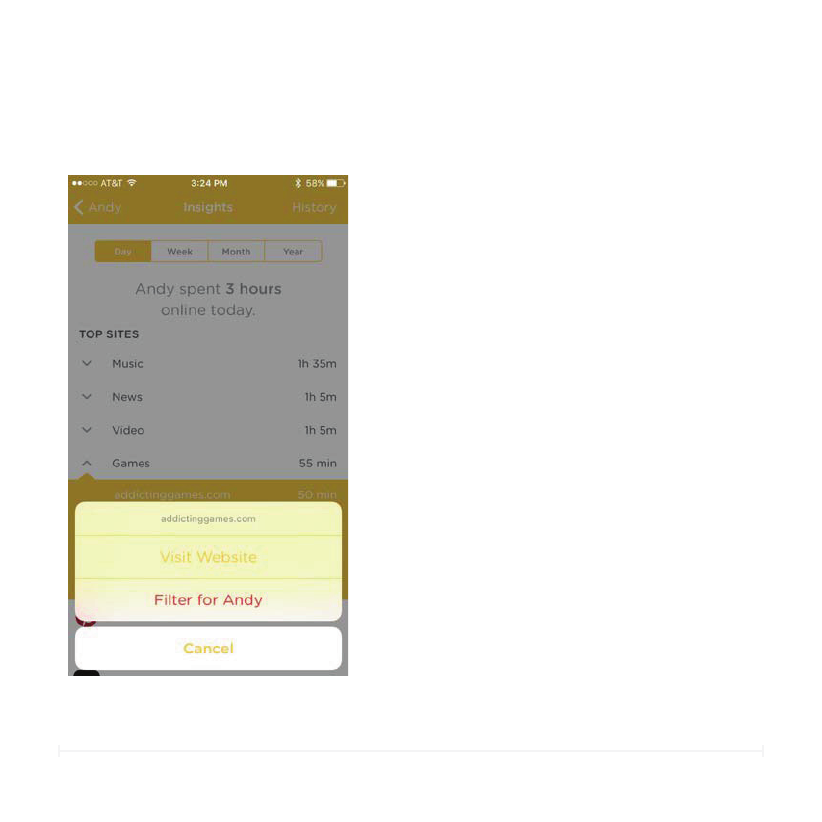
1. In the category list view, tap the
website.
2. Click on Visit Website to view the url
in your web browser.
1. In the category list view, tap the
website.
2. Tap Filter for “Family Member Name”.
3. The site will now be filtered for the
Family Member and they will no longer
be able to access that site.
IF YOU ARE UNSURE OF WHAT
WEBSITE IS LISTED
IF YOU’D LIKE THE FAMILY MEMBER
TO NOT VIEW THIS SITE ANYMORE
See “Custom Filter” if you’d like to allow the site
again.
To view the website:
To filter the website:
21
Circle User Manual
Insights (History)
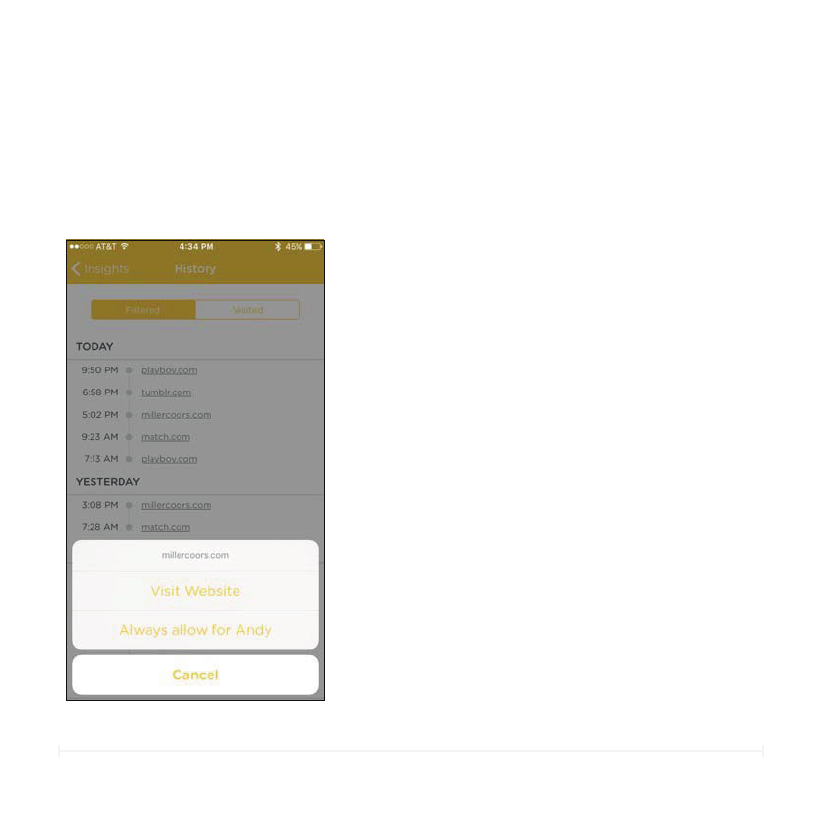
FILTERED HISTORY
1. Click on the website you want to
always allow.
2. Tap Always allow for “Family Member
Name.”
3. The site will no longer be filtered and
can always be accessed.
ALWAYS ALLOW FILTERED SITE
If the website is not supposed to be
filtered:
See “Custom Filter” if you’d like to filter the site
again.
On the History page, the Filtered tab will show date and time of attempts to
access a Filtered site.
22
Circle User Manual
Insights (History)
VISITED HISTORY
1. Click on the website you want to filter.
2. Tap Filter for “Family Member Name.”
3. The site will now be filtered and can no
longer be accessed.
FILTER VISITED WEBSITE
If you’d like the family member to not
view a site anymore:
See “Custom Filter” if you’d like to allow the site
again.
The Visited tab displays websites that were opened by date and time.
23
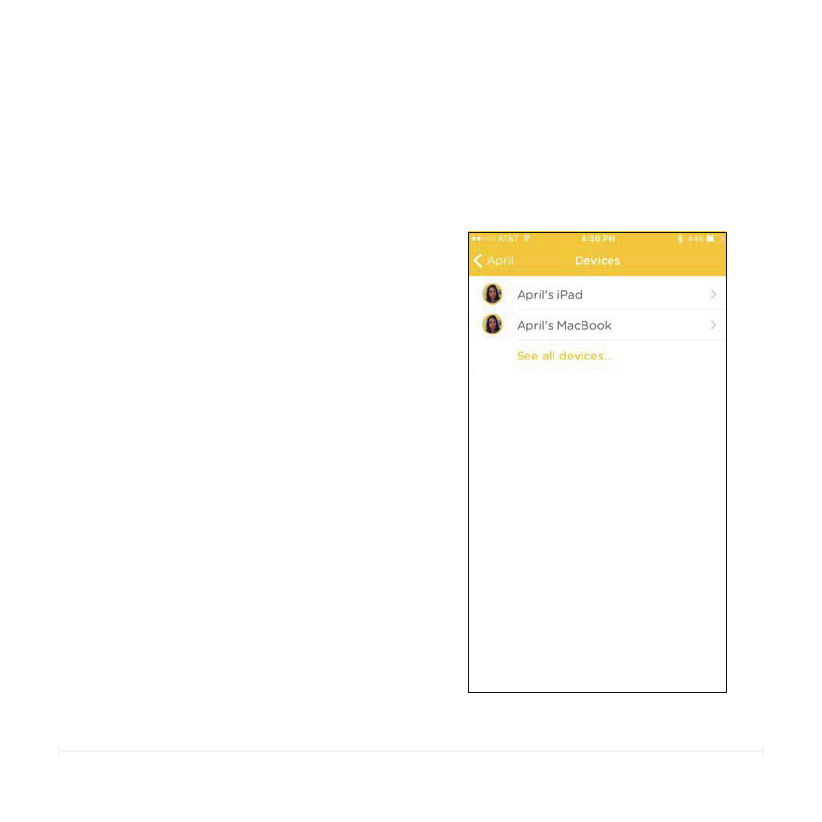
Quickly see which devices are assigned to your Family Member.
Circle User Manual
Family Member Devices
1. Tap the device name.
2. See “Device Settings” for more.
TO VIEW THE SETTINGS FOR A
FAMILY MEMBER’S DEVICE
1. Tap “See all devices”.
2. A list of all the devices on your home
network will be shown.
3. See ”Devices” for more.
TO SEE ALL DEVICES
24
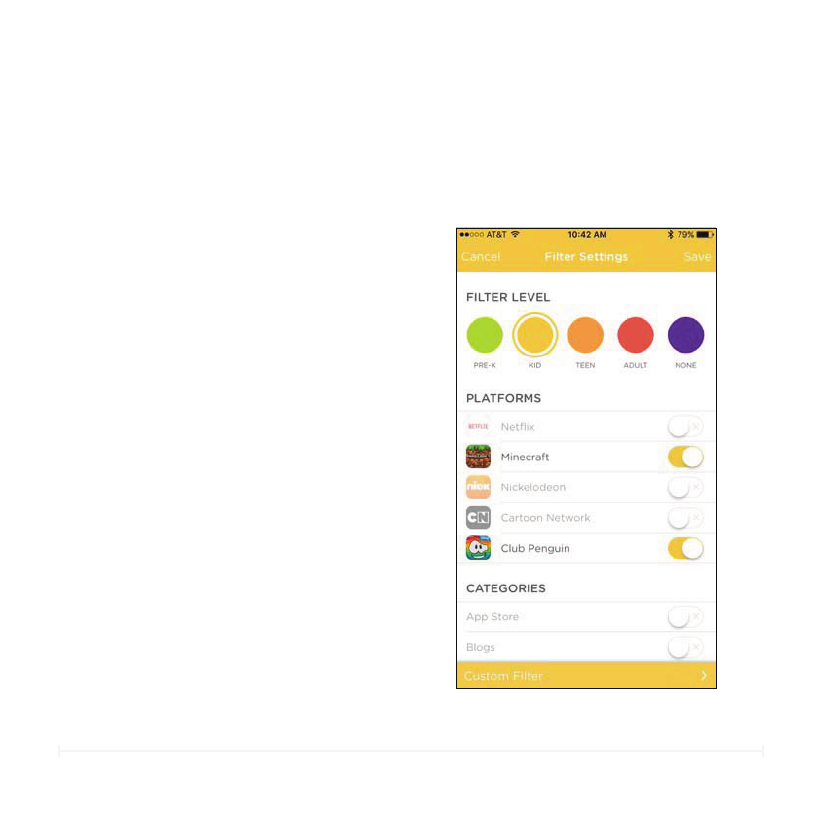
The Filter Settings is the control hub for everything your Family Member can and
can’t view. Use one of our Filter Levels or customize to your heart’s content.
Circle User Manual
Filter Settings
FILTER LEVELS
PRE-K
The Pre-K filter is designed for kids 5
years old and under providing an
incredibly safe browsing experience
with only sites and apps that are
appropriate for this age group.
KID
The Kid filter works for kids 6-12 years
old. General platforms like education
and kid safe experiences are available
by default while filtering out sites
designed for older age groups, like
social media.
Circle has expertly crafted settings
based on age.

25
Circle User Manual
Filter Settings (cont.)
FILTER LEVELS
TEEN
The Teen filter is crafted for teens 13-17 years old. Most platforms, categories,
and apps are available while providing filters for popular apps not approved for
this age group. Inappropriate categories are filtered and invisible by default.
ADULT
The Adult filter is appropriate for ages 18 years old and up. Nearly all platforms,
categories, and apps are available except those that are deemed explicit and
mature.
NONE
None is designed for users that do not need any filters. Features such as Time
Limits, Pause, and Insights are not available for profiles set to None.
TO SET A FILTER LEVEL
1. Select the desired setting for your Family Member.
2. Tap Save to set.
26
Circle User Manual
Filter Settings (cont.)
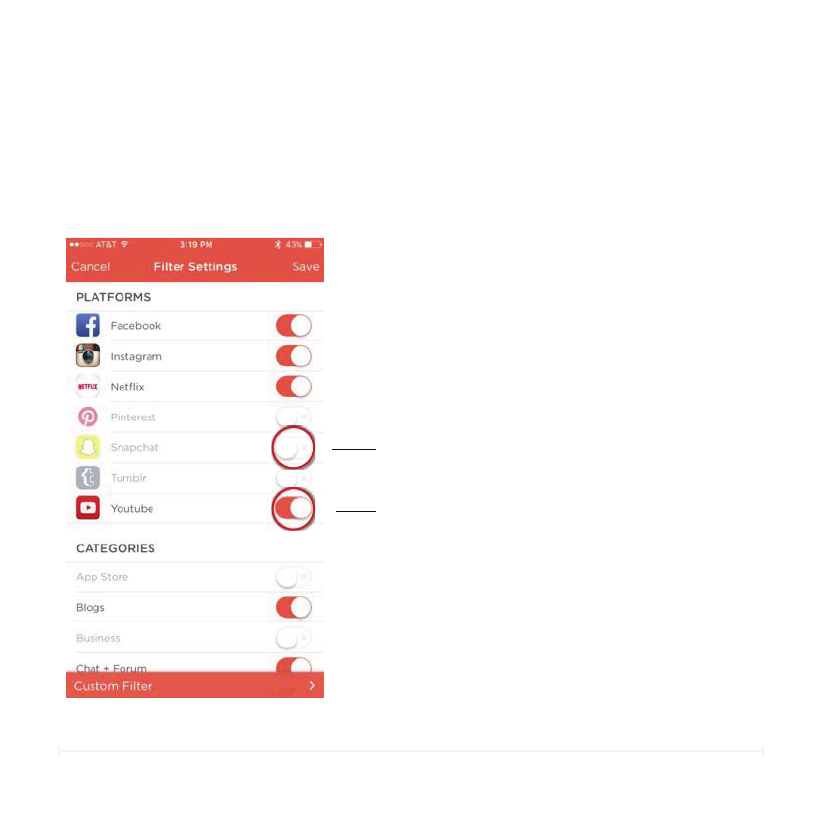
PLATFORMS
AVAILABLE PLATFORMS
Circle has included popular online platforms that help make filtering the right
content easy. Platforms are available to toggle based on your Filter Level
setting.
Facebook Instagram Netflix
Pinterest Snapchat Tumblr
YouTube Minecraft Nickelodeon
Cartoon Network Netflix Kids Club Penguin
Disney PBS Kids Periscope
Meerkat Reddit HBO GO
Twitter

27
Circle User Manual
Filter Settings (cont.)
CATEGORIES
With a flick of a switch, categories gives you a simple way to adjust what your
Family Member sees online
APP STORE
Sites that are dedicated to the purchase of apps, primarily those for mobile
platforms such as the Apple App Store and Google Play.
BLOGS
Blogs that are hosted by major blogging platforms like Tumblr, Typepad,
Blogger, and Wordpress.
BUSINESS
Business related sites across several industries. Including goods & services and
finance as well as sites related to employment, job postings, etc.
CREATIVE ARTS
Sites related to artistic expression, specifically visual arts as well as dedicated
venues, such as museums.
CHAT+FORUM
Sites dedicated to multimedia messaging services, online chat, bulletin boards,
and forums.

28
Circle User Manual
Filter Settings (cont.)
CATEGORIES
EDUCATION
Sites pertaining to learning, teaching, educational institutions, and career
preparation.
EMAIL
Online email providers.
EXPLICIT CONTENT
Sites that host adult content of a sexually-explicit nature.
GAMBLING
Sites related to online gambling, lotteries, casinos, and other gambling
establishments (i.e. racetracks).
FAMILY
Sites related to family issues such as parenting, adoption, etc.
DATING
Platforms dedicated to dating and personal ads such as Match.com, OKCupid,
or Tinder.

29
Circle User Manual
Filter Settings (cont.)
CATEGORIES
GOVERNMENT + POLITICS
Governmental sites as well as those connected generally to politics, lobbying,
and military.
HEALTH
Health related sites including personal health, medicine, and fitness as well as
sites related to sex education.
HOBBIES
Sites for non-sports related recreational activities such as automobiles, toy
models, etc.
HOME+FOOD
Sites related to home care, DIY, and food or drink. Many sites whose main focus
is alcohol will be located in the Mature category due to the nature of that
content.
GAMES
Sites dedicated to games like video games, board games, card games, or
puzzles. Some sites that include games within a platform (i.e., Facebook) will
be controlled by that platform.

30
Circle User Manual
Filter Settings (cont.)
CATEGORIES
MATURE
Sites that host a significant volume of mature content that are not sexually
explicit, but are still generally considered inappropriate for children. This
includes content related to 18+ or 21+ activities such as alcohol and tobacco
consumption, content with an elevated level of violence or profanity, or sites
dedicated to the display or sale of lingerie.
ISSUES+LIFESTYLES
Sites related to specific social issues, lifestyles, philosophies, and religion.
MUSIC
Sites related to musicians as well as audio downloading or streaming.
NEWS
News and news-related sites.
ONLINE SHOPPING
Sites dedicated as points-of-sale, auctions, or classified services (i.e. Craigslist).
PHOTO
Sites for photography related activities as well as many sites displaying photos.

31
Circle User Manual
Filter Settings (cont.)
CATEGORIES
SCIENCE+TECHNOLOGY
Sites related to physical and social sciences as well as technologies like
computers and artificial intelligence.
SEARCH+REFERENCE
This category includes all search engines and reference sites.
SOCIAL MEDIA
Sites that host social networking, whether professional, personal, or photo/art
sharing such as Facebook, Flickr, or Twitter.
SPORTS
Sports related sites including professional teams, clubs, and sports media
providers.
VIDEO
Sites that host and stream video on demand.
ADS
Includes sources for online advertising. Filtering advertisements will eliminate
most ads from websites that you visit.
32
Now that you’ve learned about which platforms are available and how each
category is defined, Circle lets you cater the Filter Settings just the way you want
it for each Family Member.
Circle User Manual
Filter Settings (cont.)
TO SET THE FILTER OF A PLATFORM
OR CATEGORY
1. Switch the toggle on or o by
tapping the platform or category
you’d like to select.
2. Tap Save when finished.
Not Allowed
Allowed
Platform or Category will be filtered
Platform or Category will not be filtered
33
Circle User Manual
Filter Settings (cont.)
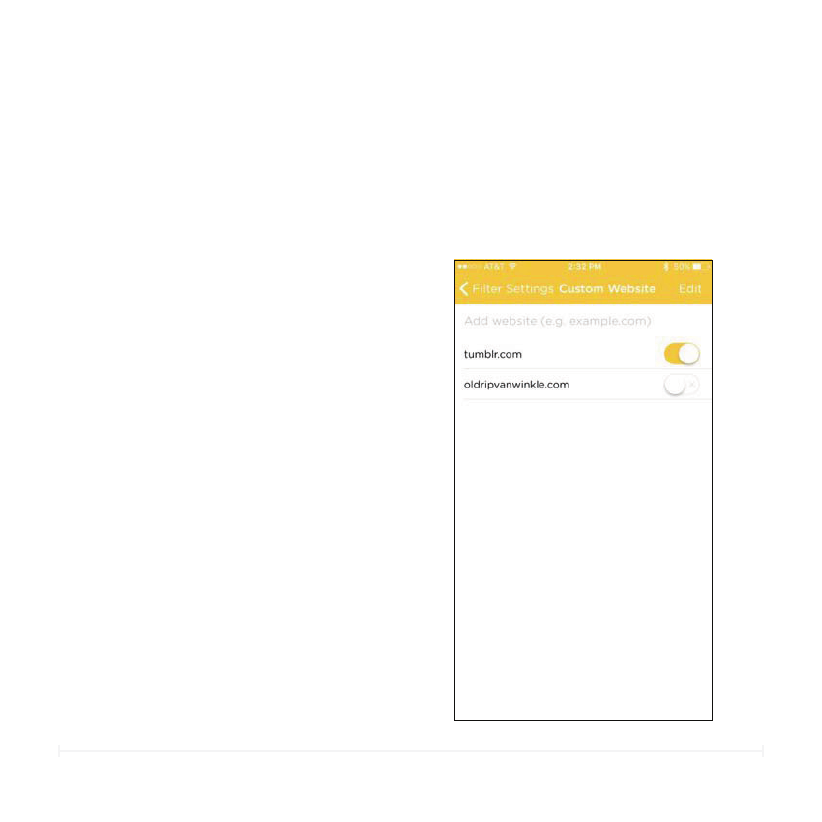
TO ALWAYS ALLOW A WEBSITE
1. On the Filter Settings screen, tap
Custom Filter on the bottom.
2. Tap Add Website and enter in the
url of the site you’d like to allow.
3. The Family Member will now be
able to access the site no matter
the Filter Level or Setting.
CUSTOM FILTER
Sometimes a Filter Setting is still allowing a site that you would like to block or
sometimes you’d like to allow a specific site that is being filtered. Custom Filters
is here to help and will let you control Filter Settings on a site by site basis
TO NOT ALLOW A SPECIFIC WEBSITE
1. Tap the URL to toggle the switch
o to filter out the website.
2. The Family Member will no longer
be able to access the site no
matter the Filter Level or Setting.
34
Circle User Manual
Filter Settings (cont.)
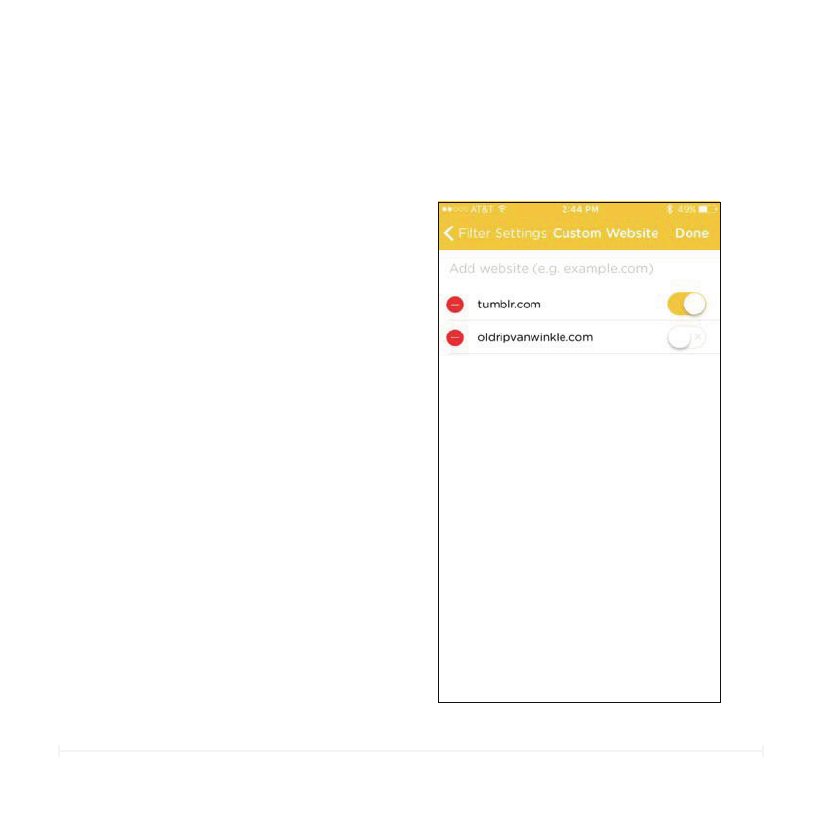
TO REMOVE A WEBSITE FROM
CUSTOM FILTER
1. Tap Edit on the top right corner.
2. Tap the delete button.
3. The website will now be removed
from Custom Filter.
4. Tap Done to save.
CUSTOM FILTER
35
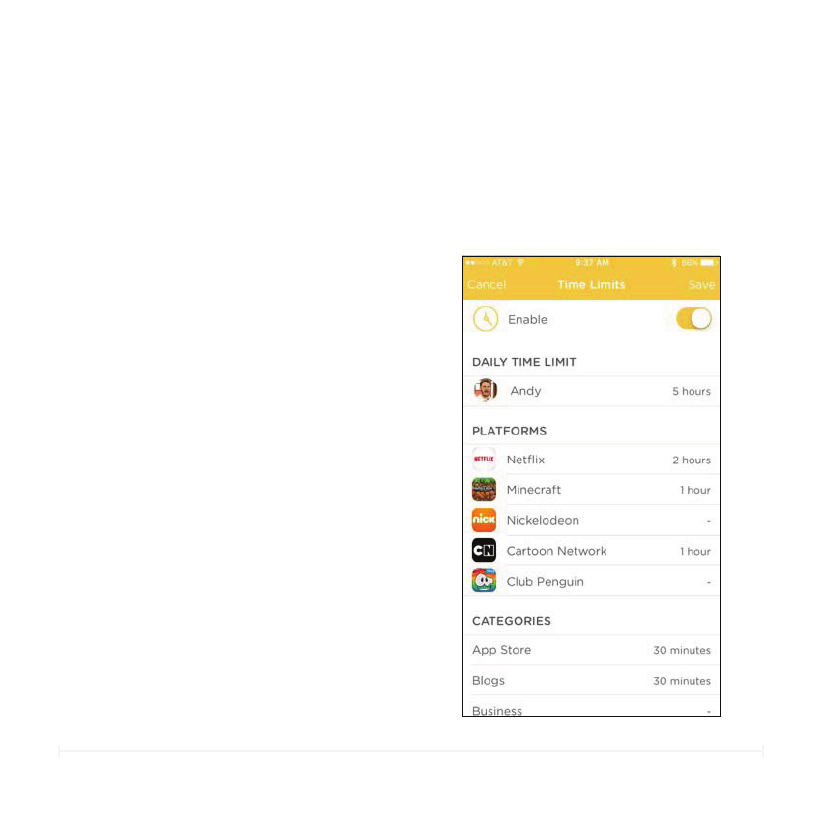
Time Limits is a powerful feature that allows you to control how much time is
spent online by day, on each platform, or by a particular category. The Daily Time
Limit will always be the maximum time allotted online even if Platforms and
Categories are set for a longer total time.
Circle User Manual
Time Limits
1. Turn on Time Limits by toggling the
Enable switch.
2. Tap the name of the Family Member
under Daily Time Limit, a Platform (i.e.
Minecraft), or a Category (i.e. Blogs)
that you’d like to adjust.
3. Scroll up or down to set your desired
time.
4. Tap close.
5. Make sure to hit Save at the top right
when you are finished.
TO SET A DAILY TIME LIMIT OR SET
TIME LIMITS FOR A PLATFORM OR
CATEGORY
TO TURN OFF TIME LIMITS
1. Toggle the enable switch to turn o.
2. Tap Save.
36
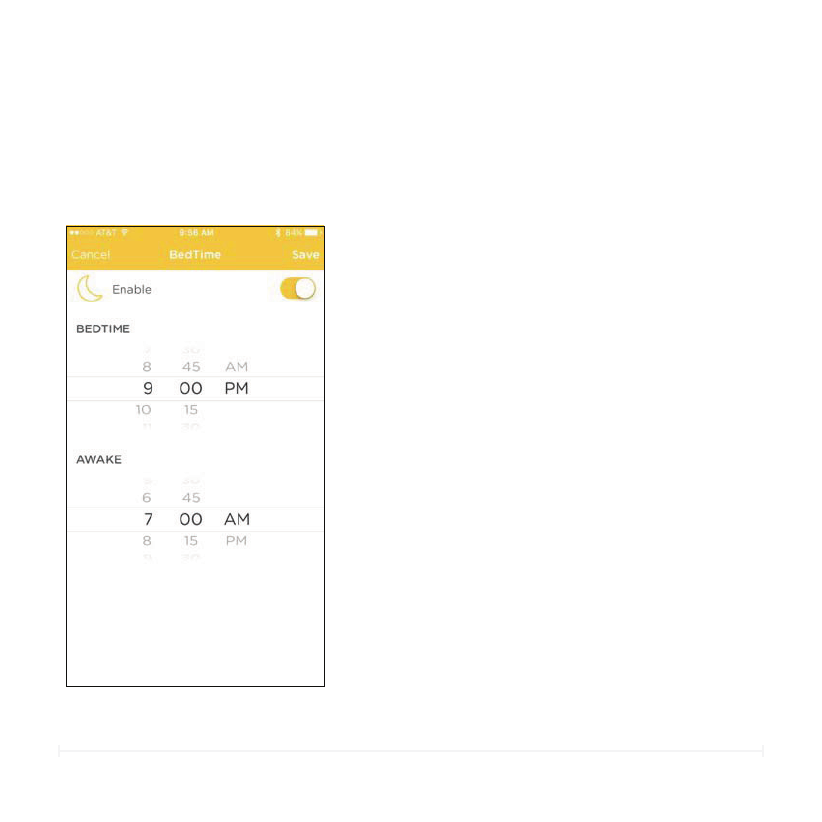
Set a stop and start time for when you want your Family Member’s devices to be
oine so BedTime can remain for sleeping and not browsing.
Circle User Manual
BedTime
1. Turn on BedTime by toggling the
Enable switch.
2. Set a BedTime for when you want
your Family Member’s devices to stop
internet activity.
3. Set an Awake time for when you want
to resume internet activity.
4. Make sure to hit Save at the top right
when you are finished.
TO SET A BEDTIME
TO DISABLE BEDTIME
1. Toggle the enable switch to disable
BedTime.
2. Tap Save.
37
Circle User Manual
Edit or Delete Profile
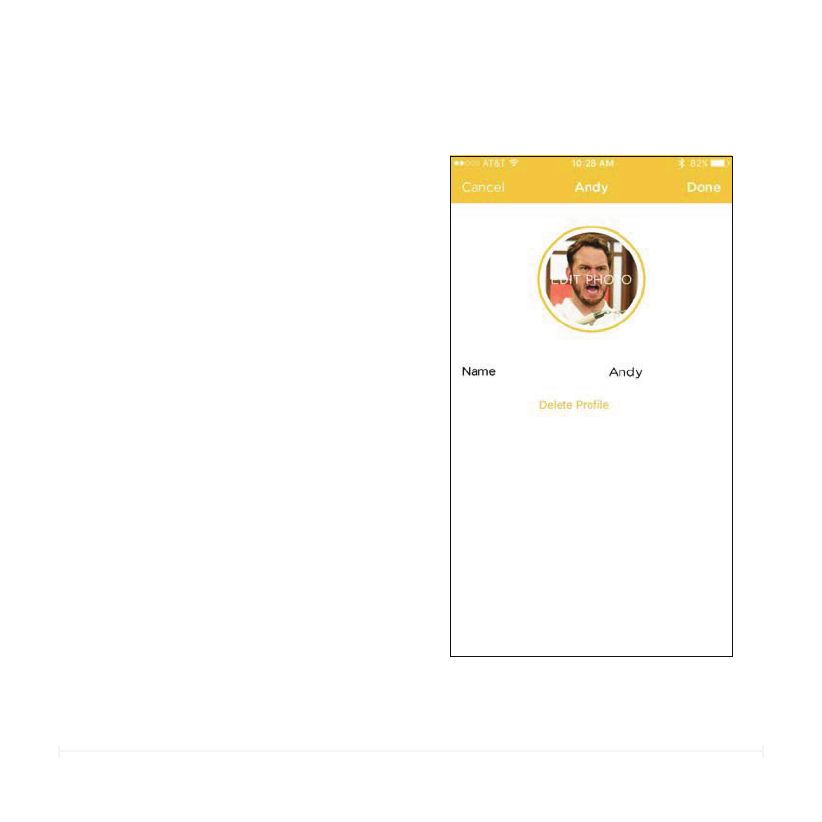
TO EDIT PROFILE PHOTO
TO DELETE A PROFILE
1. Tap the profile photo.
2. You can either take a new photo,
choose an existing photo from your
library, or clear the photo. The default
is the first letter of the name,
3. Tap Done to save your new setting.
TO EDIT PROFILE NAME
1. Tap the name.
2. Enter in desired name.
3. Tap Done to save your new setting.
1. Tap Delete Profile.
2. Click Delete again to confirm.
Deleting a profile is permanent and will
remove all settings and data.
38
Circle User Manual
Devices
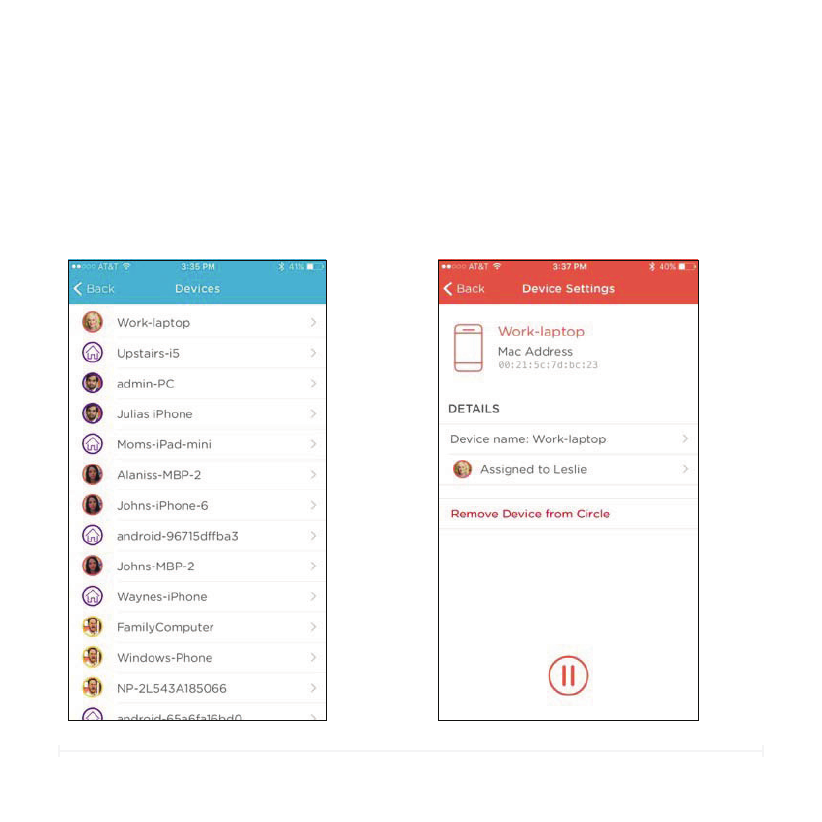
The Devices screen lists all the devices on your home network and gives you a quick
glimpse of who each device belongs to. Selecting a device from the list allows you to
customize its settings.
LIST OF DEVICES DEVICE SETTINGS
39
Circle User Manual
Devices (cont.)
DEVICE SETTINGS
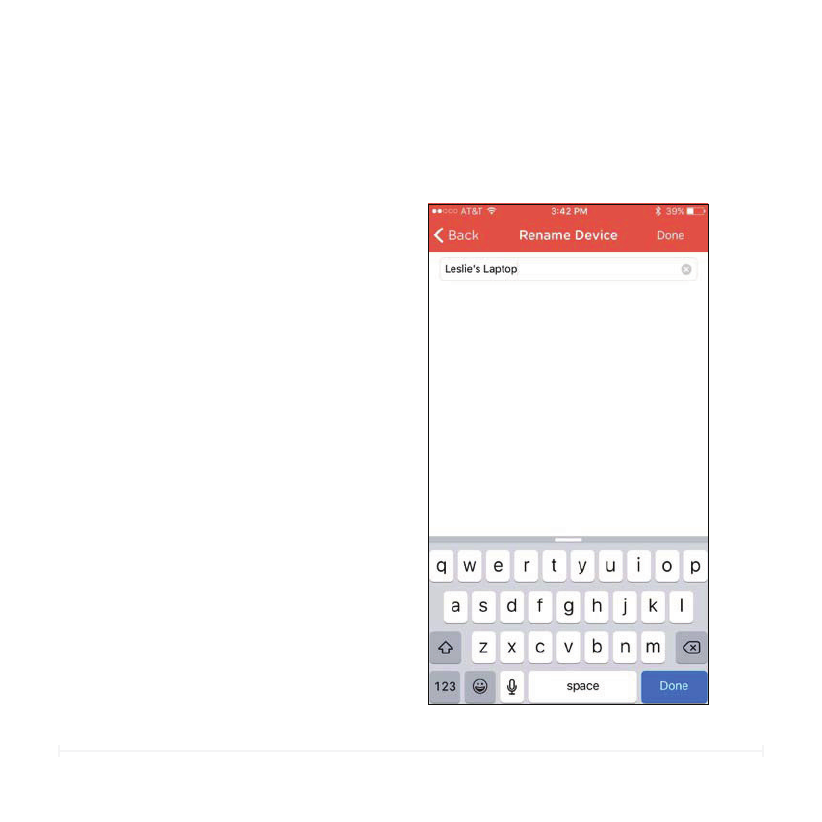
TO RENAME A DEVICE
1. On the Device Settings Screen, tap
Device Name.
2. Enter in a new name for the device.
3. Tap Done when finished.
Renaming a device will make it easier to
identify and assign.
40
Circle User Manual
Devices (cont.)
DEVICE SETTINGS
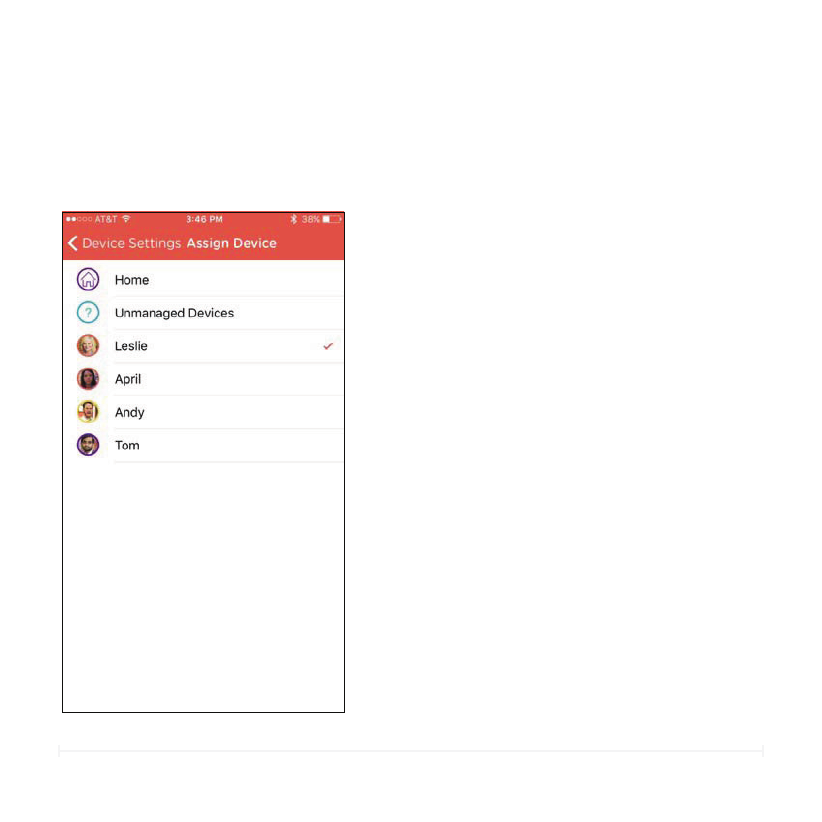
TO ASSIGN OR REASSIGN A DEVICE
1. On the Device Settings Screen, tap
Assigned to.
2. Select the Family Member you’d like to
assign the device to. You can also
assign a device to the Home user or
Unmanaged.
41
Circle User Manual
Devices (cont.)
DEVICE SETTINGS
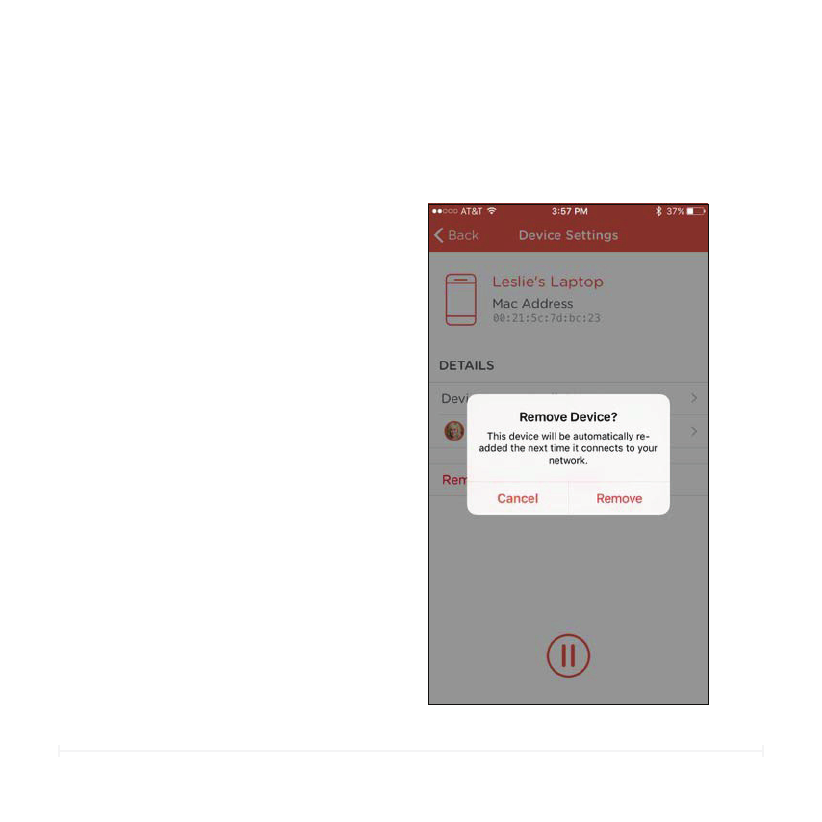
TO REMOVE A DEVICE
1. On the Device Settings Screen, tap
Remove Device from Circle.
2. Click Remove to confirm.
The device will automatically be added
back to your list if it connects to your
network again.
42
Circle User Manual
Menu
HOME
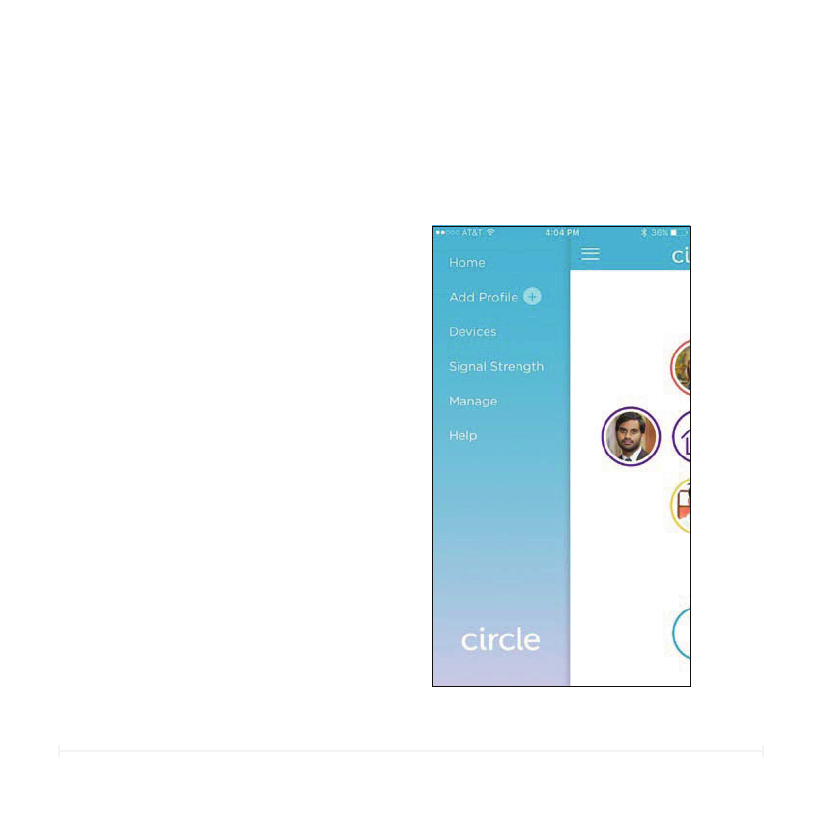
The Circle Home app menu gives you access to additional features.
Head back to the Home Screen.
Add a new Family Member.
Check Circle’s signal strength.
ADD PROFILE
SIGNAL STRENGTH
Manage notifications, Disable
Circle, Reboot Circle, and Reset
Circle to factory settings.
MANAGE
Ask Circle Support for help.
HELP
List of Devices Screen. See
page
DEVICES

TIPS AND
TROUBLESHOOTING

44
Restart both your Circle and your router.
To restart Circle:
1. Press and hold the power button on the back of the device for
about 10 seconds until the light turns o.
2. Wait a few moments for it to completely shutdown.
3. Press the button again to restart your Circle.
To restart your router:
1. Remove the power cable from the back of your router and wait
10 seconds then re-insert the cable.
2. The router should now restart.
If the internet is still slow:
Use the ethernet cable that came with the Circle device to connect
Circle to your router directly.
Circle User Manual
Hardware Issues
INTERNET IS SLOW
If your internet is experiencing speed decreases when Circle is
paired to your network:

45
Temporarily set the filter level to None for the user who is connected
to the device that needs to upload the large file.
1. Select the user from the Circle home screen.
2. Tap Filter Level.
3. Select None .
4. Return the filter level to its desired setting when uploading is
complete.
Circle User Manual
Hardware Issues
INTERNET IS SLOW (cont.)
If you are experiencing slow upload speeds for large files:

46
Circle works with one network at a time. It will manage devices on
your home network, but if the device connects to another network
outside of the home or a cell network, it will become unmanaged.
Stay tuned. We are currently working on a solution to extend Circle
into the mobile environment.
Circle User Manual
Hardware Issues
Devices Aren't Being Managed When Switched to Cell Network
Circle currently only manages devices that the home network is
paired with.

47
Set the filter level to None for the user who is connected to the
device that needs to access the VPN.
1. Select the user from the Circle home screen.
2. Tap Filter Level.
3. Select None.
4. Return the filter level to its desired setting when access to the
VPN is no longer needed.
Circle User Manual
Hardware Issues
Unable to Access VPN
If you are unable to access your VPN or the connection is slow:
PAUSE ISN'T WORKING RIGHT AWAY
When you Pause a user, device, or the whole network, sometimes it
may take a few moments before the Pause is in eect.

48
Circle User Manual
Hardware Issues
FILTERED/UNFILTERED SITE IS LOADING/NOT LOADING
If a website that you have restricted through filters is still loading:
The website may be cached and is only showing previously saved
information. Websites cache data to help your browser load faster. With
Circle filters enabled, once the page is loaded, it will become inoperable
and a refresh will not reload new content.
If you are unable to load a website that you no longer want filtered:
The settings may be cached in the browser. Since the website was
previously restricted by your Circle settings, the browser caches the
settings and assumes the website is still restricted.
1. Try reloading the website.
2. Quit the web browser and reopen it.
3. Your new Circle settings should take eect and allow the website to
load properly.
If you are still unable to load the website:
1. The new settings may still be implementing. Give it a moment and try
again.
2. Please check your settings to make sure that the correct website has
been unfiltered or that the correct user or device were selected for
this change.

© 2015. CIRCLE MEDIA INC. ALL RIGHTS RESERVED.

This device complies with Part 15 of the FCC Rules. Operation is subject to the following two
conditions: (1) this device may not cause harmful interference, and (2) this device must accept any
interference received, including interference that may cause undesired operation.
Changes or modifications not expressly approved by the party responsible for compliance could
void the user's authority to operate the equipment
NOTE: This equipment has been tested and found to comply with the limits for a Class B digital
device, pursuant to Part 15 of the FCC Rules. These limits are designed to provide reasonable
protection against harmful interference in a residential installation. This equipment generates, uses
instructions, may cause harmful interference to radio communications. However, there is no
guarantee that interference will not occur in a particular installation. If this equipment does cause
harmful interference to radio or television reception, which can be determined by turning the
equipment off and on, the user is encouraged to try to correct the interference by one or more of
the following measures:
-- Reorient or relocate the receiving antenna.
-- Increase the separation between the equipment and receiver.
-- Connect the equipment into an outlet on a circuit different from that to which the receiver is
connected.
-- Consult the dealer or an experienced radio/TV technician for help.
The distance between user and products should be no less than 20cm

:DUQLQJV
7KLVGHYLFHFRPSOLHVZLWK,QGXVWU\&DQDGDಬVOLFHQFHH[HPSW566V
2SHUDWLRQLVVXEMHFWWRWKHIROORZLQJWZRFRQGLWLRQV
7KLVGHYLFHPD\QRWFDXVHLQWHUIHUHQFHDQGWKLVGHYLFHPXVWDFFHSWDQ\LQWHUIHUHQFH
LQFOXGLQJLQWHUIHUHQFHWKDWPD\FDXVHXQGHVLUHGRSHUDWLRQRIWKHGHYLFH
/HSU«VHQWDSSDUHLOHVWFRQIRUPHDX[&15G,QGXVWULH&DQDGDDSSOLFDEOHVDX[DSSDUHLOV
UDGLRH[HPSWVGHOLFHQFH/H[SORLWDWLRQHVWDXWRULV«HDX[GHX[FRQGLWLRQVVXLYDQWHV
ODSSDUHLOQHGRLWSDVSURGXLUHGHEURXLOODJHHW
OXWLOLVDWHXUGHODSSDUHLOGRLWDFFHSWHUWRXWEURXLOODJHUDGLR«OHFWULTXHVXELP¬PHVLOH
EURXLOODJHHVWVXVFHSWLEOHGHQFRPSURPHWWUHOHIRQFWLRQQHPHQW
8QGHU,QGXVWU\&DQDGDUHJXODWLRQVWKLVUDGLRWUDQVPLWWHUPD\RQO\RSHUDWHXVLQJDQDQWHQQD
RIDW\SHDQGPD[LPXPRUOHVVHUJDLQDSSURYHGIRUWKHWUDQVPLWWHUE\,QGXVWU\&DQDGD7R
UHGXFHSRWHQWLDOUDGLRLQWHUIHUHQFHWRRWKHUXVHUVWKHDQWHQQDW\SHDQGLWVJDLQVKRXOGEHVR
FKRVHQWKDWWKHHTXLYDOHQWLVRWURSLFDOO\UDGLDWHGSRZHUHLUSLVQRWPRUHWKDQWKDW
QHFHVVDU\IRUVXFFHVVIXOFRPPXQLFDWLRQ
&RQIRUP«PHQW¢ODU«JOHPHQWDWLRQG,QGXVWULH&DQDGDOHSU«VHQW«PHWWHXUUDGLRSHXW
IRQFWLRQQHUDYHFXQHDQWHQQHGXQW\SHHWGXQJDLQPD[LPDORXLQI«ULHXUDSSURXY«SRXU
O«PHWWHXUSDU,QGXVWULH&DQDGD'DQVOHEXWGHU«GXLUHOHVULVTXHVGHEURXLOODJH
UDGLR«OHFWULTXH
¢OLQWHQWLRQGHVDXWUHVXWLOLVDWHXUVLOIDXWFKRLVLUOHW\SHGDQWHQQHHWVRQJDLQGHVRUWHTXHOD
SXLVVDQFHLVRWURSHUD\RQQ«H«TXLYDOHQWHSLUHQHG«SDVVHSDVOLQWHQVLW«Q«FHVVDLUH¢
O«WDEOLVVHPHQWGXQHFRPPXQLFDWLRQVDWLVIDLVDQWH
7KLVUDGLRWUDQVPLWWHULGHQWLI\WKHGHYLFHE\FHUWLILFDWLRQQXPEHURUPRGHOQXPEHULI
&DWHJRU\,,KDVEHHQDSSURYHGE\,QGXVWU\&DQDGDWRRSHUDWHZLWKWKHDQWHQQDW\SHVOLVWHG
EHORZZLWKWKHPD[LPXPSHUPLVVLEOHJDLQDQGUHTXLUHGDQWHQQDLPSHGDQFHIRUHDFKDQWHQQD
W\SHLQGLFDWHG$QWHQQDW\SHVQRWLQFOXGHGLQWKLVOLVWKDYLQJDJDLQJUHDWHUWKDQWKH
PD[LPXPJDLQLQGLFDWHGIRUWKDWW\SHDUHVWULFWO\SURKLELWHGIRUXVHZLWKWKLVGHYLFH
/HSU«VHQW«PHWWHXUUDGLRLGHQWLILHUOHGLVSRVLWLISDUVRQQXP«URGHFHUWLILFDWLRQRXVRQ
QXP«URGHPRGªOHVLOIDLWSDUWLHGXPDW«ULHOGHFDW«JRULH,D«W«DSSURXY«SDU,QGXVWULH
&DQDGDSRXU
IRQFWLRQQHUDYHFOHVW\SHVGDQWHQQH«QXP«U«VFLGHVVRXVHWD\DQWXQJDLQDGPLVVLEOH
PD[LPDOHWOLPS«GDQFHUHTXLVHSRXUFKDTXHW\SHGDQWHQQH/HVW\SHVGDQWHQQHQRQLQFOXV
GDQVFHWWHOLVWH
RXGRQWOHJDLQHVWVXS«ULHXUDXJDLQPD[LPDOLQGLTX«VRQWVWULFWHPHQWLQWHUGLWVSRXU
OH[SORLWDWLRQGHO«PHWWHXU
The distance between user and products should be no less than 20cm
La distance entre l'utilisateur et de produits ne devrait pas être inférieure à 20cm