Cleankeys CKW INFECTION CONTROL EQUIPMENT User Manual USERS MANUAL

Cleankeys Inc INFECTION CONTROL EQUIPMENT USERS MANUAL

USERS MANUAL

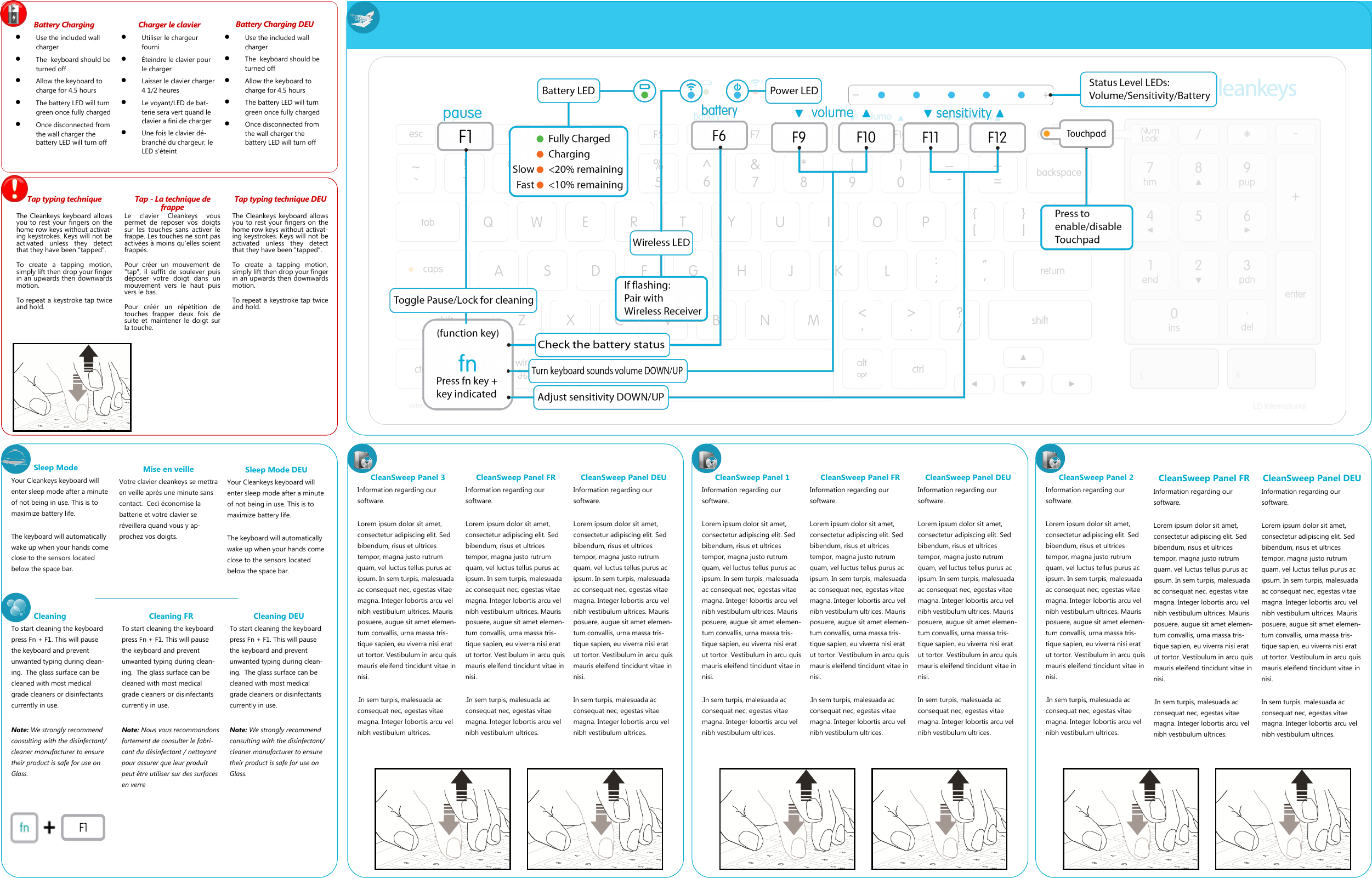
Cleaning To start cleaning the keyboard press Fn + F1. This will pause the keyboard and prevent unwanted typing during clean-ing.  The glass surface can be cleaned with most medical grade cleaners or disinfectants currently in use.  Note: We strongly recommend consulting with the disinfectant/cleaner manufacturer to ensure their product is safe for use on Glass. Battery Charging   Use the included wall charger   The  keyboard should be turned off   Allow the keyboard to charge for 4.5 hours   The battery LED will turn green once fully charged   Once disconnected from the wall charger the battery LED will turn off Tap typing technique  The Cleankeys keyboard allows you to rest your fingers on the home row keys without activat-ing keystrokes. Keys will not be activated  unless  they  detect that they have been “tapped”.   To  create  a  tapping  motion, simply lift then drop your finger in an upwards then downwards motion. To repeat a keystroke tap twice and hold. Charger le clavier   Utiliser le chargeur fourni   Éteindre le clavier pour le charger   Laisser le clavier charger 4 1/2 heures   Le voyant/LED de bat-terie sera vert quand le clavier a fini de charger   Une fois le clavier dé-branché du chargeur, le LED s'éteint Battery Charging DEU   Use the included wall charger   The  keyboard should be turned off   Allow the keyboard to charge for 4.5 hours   The battery LED will turn green once fully charged   Once disconnected from the wall charger the battery LED will turn off Cleaning FR  To start cleaning the keyboard press Fn + F1. This will pause the keyboard and prevent unwanted typing during clean-ing.  The glass surface can be cleaned with most medical grade cleaners or disinfectants currently in use.  Note: Nous vous recommandons fortement de consulter le fabri-cant du désinfectant / nettoyant pour assurer que leur produit peut être utiliser sur des surfaces en verre Cleaning DEU To start cleaning the keyboard press Fn + F1. This will pause the keyboard and prevent unwanted typing during clean-ing.  The glass surface can be cleaned with most medical grade cleaners or disinfectants currently in use.  Note: We strongly recommend consulting with the disinfectant/cleaner manufacturer to ensure their product is safe for use on Glass. Sleep Mode Your Cleankeys keyboard will enter sleep mode after a minute of not being in use. This is to maximize battery life.   The keyboard will automatically wake up when your hands come close to the sensors located below the space bar. CleanSweep Panel 3 Information regarding our software.  Lorem ipsum dolor sit amet, consectetur adipiscing elit. Sed bibendum, risus et ultrices tempor, magna justo rutrum quam, vel luctus tellus purus ac ipsum. In sem turpis, malesuada ac consequat nec, egestas vitae magna. Integer lobortis arcu vel nibh vestibulum ultrices. Mauris posuere, augue sit amet elemen-tum convallis, urna massa tris-tique sapien, eu viverra nisi erat ut tortor. Vestibulum in arcu quis mauris eleifend tincidunt vitae in nisi.   .In sem turpis, malesuada ac consequat nec, egestas vitae magna. Integer lobortis arcu vel nibh vestibulum ultrices.  CleanSweep Panel FR Information regarding our software.  Lorem ipsum dolor sit amet, consectetur adipiscing elit. Sed bibendum, risus et ultrices tempor, magna justo rutrum quam, vel luctus tellus purus ac ipsum. In sem turpis, malesuada ac consequat nec, egestas vitae magna. Integer lobortis arcu vel nibh vestibulum ultrices. Mauris posuere, augue sit amet elemen-tum convallis, urna massa tris-tique sapien, eu viverra nisi erat ut tortor. Vestibulum in arcu quis mauris eleifend tincidunt vitae in nisi.   .In sem turpis, malesuada ac consequat nec, egestas vitae magna. Integer lobortis arcu vel nibh vestibulum ultrices.  CleanSweep Panel DEU Information regarding our software.  Lorem ipsum dolor sit amet, consectetur adipiscing elit. Sed bibendum, risus et ultrices tempor, magna justo rutrum quam, vel luctus tellus purus ac ipsum. In sem turpis, malesuada ac consequat nec, egestas vitae magna. Integer lobortis arcu vel nibh vestibulum ultrices. Mauris posuere, augue sit amet elemen-tum convallis, urna massa tris-tique sapien, eu viverra nisi erat ut tortor. Vestibulum in arcu quis mauris eleifend tincidunt vitae in nisi.   In sem turpis, malesuada ac consequat nec, egestas vitae magna. Integer lobortis arcu vel nibh vestibulum ultrices.  CleanSweep Panel 1 Information regarding our software.  Lorem ipsum dolor sit amet, consectetur adipiscing elit. Sed bibendum, risus et ultrices tempor, magna justo rutrum quam, vel luctus tellus purus ac ipsum. In sem turpis, malesuada ac consequat nec, egestas vitae magna. Integer lobortis arcu vel nibh vestibulum ultrices. Mauris posuere, augue sit amet elemen-tum convallis, urna massa tris-tique sapien, eu viverra nisi erat ut tortor. Vestibulum in arcu quis mauris eleifend tincidunt vitae in nisi.   .In sem turpis, malesuada ac consequat nec, egestas vitae magna. Integer lobortis arcu vel nibh vestibulum ultrices.  CleanSweep Panel FR Information regarding our software.  Lorem ipsum dolor sit amet, consectetur adipiscing elit. Sed bibendum, risus et ultrices tempor, magna justo rutrum quam, vel luctus tellus purus ac ipsum. In sem turpis, malesuada ac consequat nec, egestas vitae magna. Integer lobortis arcu vel nibh vestibulum ultrices. Mauris posuere, augue sit amet elemen-tum convallis, urna massa tris-tique sapien, eu viverra nisi erat ut tortor. Vestibulum in arcu quis mauris eleifend tincidunt vitae in nisi.   .In sem turpis, malesuada ac consequat nec, egestas vitae magna. Integer lobortis arcu vel nibh vestibulum ultrices.  CleanSweep Panel DEU Information regarding our software.  Lorem ipsum dolor sit amet, consectetur adipiscing elit. Sed bibendum, risus et ultrices tempor, magna justo rutrum quam, vel luctus tellus purus ac ipsum. In sem turpis, malesuada ac consequat nec, egestas vitae magna. Integer lobortis arcu vel nibh vestibulum ultrices. Mauris posuere, augue sit amet elemen-tum convallis, urna massa tris-tique sapien, eu viverra nisi erat ut tortor. Vestibulum in arcu quis mauris eleifend tincidunt vitae in nisi.   In sem turpis, malesuada ac consequat nec, egestas vitae magna. Integer lobortis arcu vel nibh vestibulum ultrices.  CleanSweep Panel 2 Information regarding our software.  Lorem ipsum dolor sit amet, consectetur adipiscing elit. Sed bibendum, risus et ultrices tempor, magna justo rutrum quam, vel luctus tellus purus ac ipsum. In sem turpis, malesuada ac consequat nec, egestas vitae magna. Integer lobortis arcu vel nibh vestibulum ultrices. Mauris posuere, augue sit amet elemen-tum convallis, urna massa tris-tique sapien, eu viverra nisi erat ut tortor. Vestibulum in arcu quis mauris eleifend tincidunt vitae in nisi.   .In sem turpis, malesuada ac consequat nec, egestas vitae magna. Integer lobortis arcu vel nibh vestibulum ultrices.  CleanSweep Panel FR Information regarding our software.  Lorem ipsum dolor sit amet, consectetur adipiscing elit. Sed bibendum, risus et ultrices tempor, magna justo rutrum quam, vel luctus tellus purus ac ipsum. In sem turpis, malesuada ac consequat nec, egestas vitae magna. Integer lobortis arcu vel nibh vestibulum ultrices. Mauris posuere, augue sit amet elemen-tum convallis, urna massa tris-tique sapien, eu viverra nisi erat ut tortor. Vestibulum in arcu quis mauris eleifend tincidunt vitae in nisi.   .In sem turpis, malesuada ac consequat nec, egestas vitae magna. Integer lobortis arcu vel nibh vestibulum ultrices.  CleanSweep Panel DEU Information regarding our software.  Lorem ipsum dolor sit amet, consectetur adipiscing elit. Sed bibendum, risus et ultrices tempor, magna justo rutrum quam, vel luctus tellus purus ac ipsum. In sem turpis, malesuada ac consequat nec, egestas vitae magna. Integer lobortis arcu vel nibh vestibulum ultrices. Mauris posuere, augue sit amet elemen-tum convallis, urna massa tris-tique sapien, eu viverra nisi erat ut tortor. Vestibulum in arcu quis mauris eleifend tincidunt vitae in nisi.   In sem turpis, malesuada ac consequat nec, egestas vitae magna. Integer lobortis arcu vel nibh vestibulum ultrices.  Mise en veille  Votre clavier cleankeys se mettra en veille après une minute sans contact.  Ceci économise la batterie et votre clavier se réveillera quand vous y ap-prochez vos doigts. Sleep Mode DEU Your Cleankeys keyboard will enter sleep mode after a minute of not being in use. This is to maximize battery life.   The keyboard will automatically wake up when your hands come close to the sensors located below the space bar. Tap - La technique de frappe  Le  clavier  Cleankeys  vous permet  de  reposer  vos  doigts sur  les  touches  sans  activer  le frappe. Les touches ne sont pas activées à moins qu'elles soient frappés.  Pour  créer  un  mouvement  de "tap",  il  suffit  de  soulever  puis déposer  votre  doigt  dans  un mouvement  vers  le  haut  puis vers le bas.  Pour  créér  un  répétition  de touches  frapper  deux  fois  de suite  et  maintener le  doigt  sur la touche. Tap typing technique DEU  The Cleankeys keyboard allows you to rest your fingers on the home row keys without activat-ing keystrokes. Keys will not be activated  unless  they  detect that they have been “tapped”.   To  create  a  tapping  motion, simply lift then drop your finger in an upwards then downwards motion. To repeat a keystroke tap twice and hold.
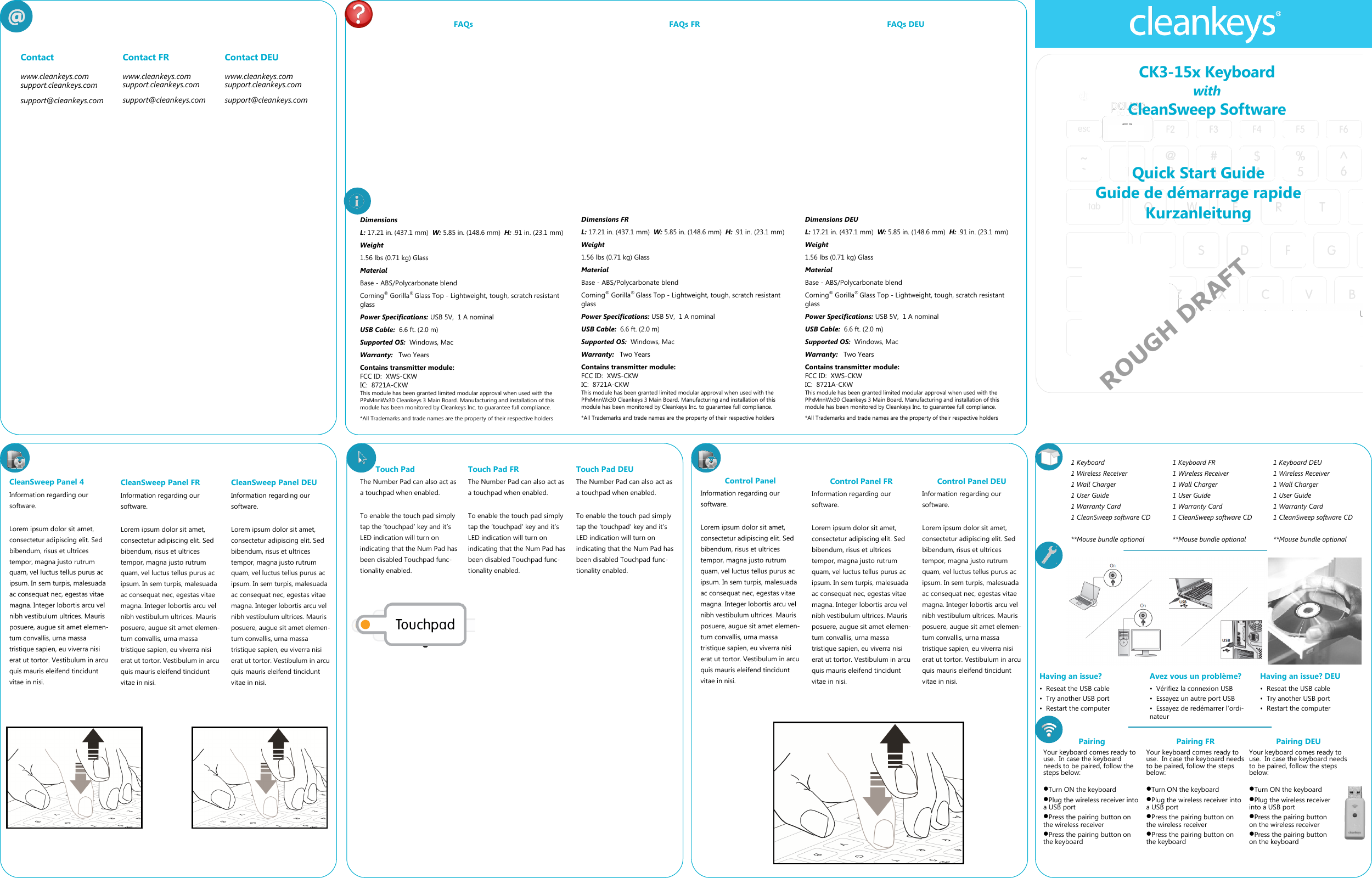
Quick Start Guide Guide de démarrage rapide Kurzanleitung CK3-15x Keyboard with CleanSweep Software  Contact  www.cleankeys.com support.cleankeys.com support@cleankeys.com Contact FR www.cleankeys.com support.cleankeys.com support@cleankeys.com Contact DEU www.cleankeys.com support.cleankeys.com support@cleankeys.com Having an issue? •  Reseat the USB cable •  Try another USB port •  Restart the computer 1 Keyboard 1 Wireless Receiver 1 Wall Charger 1 User Guide 1 Warranty Card 1 CleanSweep software CD  **Mouse bundle optional  Avez vous un problème? •  Vérifiez la connexion USB •  Essayez un autre port USB •  Essayez de redémarrer l'ordi-nateur Having an issue? DEU •  Reseat the USB cable •  Try another USB port •  Restart the computer Pairing Your keyboard comes ready to use.  In case the keyboard needs to be paired, follow the steps below:   Turn ON the keyboard Plug the wireless receiver into a USB port Press the pairing button on the wireless receiver Press the pairing button on the keyboard CleanSweep Panel 4 Information regarding our software.  Lorem ipsum dolor sit amet, consectetur adipiscing elit. Sed bibendum, risus et ultrices tempor, magna justo rutrum quam, vel luctus tellus purus ac ipsum. In sem turpis, malesuada ac consequat nec, egestas vitae magna. Integer lobortis arcu vel nibh vestibulum ultrices. Mauris posuere, augue sit amet elemen-tum convallis, urna massa tristique sapien, eu viverra nisi erat ut tortor. Vestibulum in arcu quis mauris eleifend tincidunt vitae in nisi.  CleanSweep Panel FR Information regarding our software.  Lorem ipsum dolor sit amet, consectetur adipiscing elit. Sed bibendum, risus et ultrices tempor, magna justo rutrum quam, vel luctus tellus purus ac ipsum. In sem turpis, malesuada ac consequat nec, egestas vitae magna. Integer lobortis arcu vel nibh vestibulum ultrices. Mauris posuere, augue sit amet elemen-tum convallis, urna massa tristique sapien, eu viverra nisi erat ut tortor. Vestibulum in arcu quis mauris eleifend tincidunt vitae in nisi.  CleanSweep Panel DEU Information regarding our software.  Lorem ipsum dolor sit amet, consectetur adipiscing elit. Sed bibendum, risus et ultrices tempor, magna justo rutrum quam, vel luctus tellus purus ac ipsum. In sem turpis, malesuada ac consequat nec, egestas vitae magna. Integer lobortis arcu vel nibh vestibulum ultrices. Mauris posuere, augue sit amet elemen-tum convallis, urna massa tristique sapien, eu viverra nisi erat ut tortor. Vestibulum in arcu quis mauris eleifend tincidunt vitae in nisi.  1 Keyboard FR 1 Wireless Receiver 1 Wall Charger 1 User Guide 1 Warranty Card 1 CleanSweep software CD  **Mouse bundle optional  1 Keyboard DEU 1 Wireless Receiver 1 Wall Charger 1 User Guide 1 Warranty Card 1 CleanSweep software CD  **Mouse bundle optional  Control Panel  Information regarding our software.  Lorem ipsum dolor sit amet, consectetur adipiscing elit. Sed bibendum, risus et ultrices tempor, magna justo rutrum quam, vel luctus tellus purus ac ipsum. In sem turpis, malesuada ac consequat nec, egestas vitae magna. Integer lobortis arcu vel nibh vestibulum ultrices. Mauris posuere, augue sit amet elemen-tum convallis, urna massa tristique sapien, eu viverra nisi erat ut tortor. Vestibulum in arcu quis mauris eleifend tincidunt vitae in nisi.  Control Panel FR Information regarding our software.  Lorem ipsum dolor sit amet, consectetur adipiscing elit. Sed bibendum, risus et ultrices tempor, magna justo rutrum quam, vel luctus tellus purus ac ipsum. In sem turpis, malesuada ac consequat nec, egestas vitae magna. Integer lobortis arcu vel nibh vestibulum ultrices. Mauris posuere, augue sit amet elemen-tum convallis, urna massa tristique sapien, eu viverra nisi erat ut tortor. Vestibulum in arcu quis mauris eleifend tincidunt vitae in nisi.  Control Panel DEU Information regarding our software.  Lorem ipsum dolor sit amet, consectetur adipiscing elit. Sed bibendum, risus et ultrices tempor, magna justo rutrum quam, vel luctus tellus purus ac ipsum. In sem turpis, malesuada ac consequat nec, egestas vitae magna. Integer lobortis arcu vel nibh vestibulum ultrices. Mauris posuere, augue sit amet elemen-tum convallis, urna massa tristique sapien, eu viverra nisi erat ut tortor. Vestibulum in arcu quis mauris eleifend tincidunt vitae in nisi.  ROUGH DRAFT Touch Pad The Number Pad can also act as a touchpad when enabled.   To enable the touch pad simply tap the ‘touchpad’ key and it’s LED indication will turn on indicating that the Num Pad has been disabled Touchpad func-tionality enabled. Pairing FR Your keyboard comes ready to use.  In case the keyboard needs to be paired, follow the steps below:   Turn ON the keyboard Plug the wireless receiver into a USB port Press the pairing button on the wireless receiver Press the pairing button on the keyboard Pairing DEU Your keyboard comes ready to use.  In case the keyboard needs to be paired, follow the steps below:   Turn ON the keyboard Plug the wireless receiver into a USB port Press the pairing button on the wireless receiver Press the pairing button on the keyboard FAQs FAQs FR FAQs DEU Touch Pad FR The Number Pad can also act as a touchpad when enabled.   To enable the touch pad simply tap the ‘touchpad’ key and it’s LED indication will turn on indicating that the Num Pad has been disabled Touchpad func-tionality enabled. Touch Pad DEU The Number Pad can also act as a touchpad when enabled.   To enable the touch pad simply tap the ‘touchpad’ key and it’s LED indication will turn on indicating that the Num Pad has been disabled Touchpad func-tionality enabled. Dimensions L: 17.21 in. (437.1 mm)  W: 5.85 in. (148.6 mm)  H: .91 in. (23.1 mm) Weight   1.56 lbs (0.71 kg) Glass Material Base - ABS/Polycarbonate blend Corning® Gorilla® Glass Top - Lightweight, tough, scratch resistant glass Power Specifications: USB 5V,  1 A nominal USB Cable:  6.6 ft. (2.0 m) Supported OS:  Windows, Mac Warranty:   Two Years Contains transmitter module: FCC ID:  XWS-CKW IC:  8721A-CKW This module has been granted limited modular approval when used with the PPxMnnWx30 Cleankeys 3 Main Board. Manufacturing and installation of this module has been monitored by Cleankeys Inc. to guarantee full compliance.  *All Trademarks and trade names are the property of their respective holders  Dimensions FR L: 17.21 in. (437.1 mm)  W: 5.85 in. (148.6 mm)  H: .91 in. (23.1 mm) Weight   1.56 lbs (0.71 kg) Glass Material Base - ABS/Polycarbonate blend Corning® Gorilla® Glass Top - Lightweight, tough, scratch resistant glass Power Specifications: USB 5V,  1 A nominal USB Cable:  6.6 ft. (2.0 m) Supported OS:  Windows, Mac Warranty:   Two Years Contains transmitter module: FCC ID:  XWS-CKW IC:  8721A-CKW This module has been granted limited modular approval when used with the PPxMnnWx30 Cleankeys 3 Main Board. Manufacturing and installation of this module has been monitored by Cleankeys Inc. to guarantee full compliance.  *All Trademarks and trade names are the property of their respective holders  Dimensions DEU L: 17.21 in. (437.1 mm)  W: 5.85 in. (148.6 mm)  H: .91 in. (23.1 mm) Weight   1.56 lbs (0.71 kg) Glass Material Base - ABS/Polycarbonate blend Corning® Gorilla® Glass Top - Lightweight, tough, scratch resistant glass Power Specifications: USB 5V,  1 A nominal USB Cable:  6.6 ft. (2.0 m) Supported OS:  Windows, Mac Warranty:   Two Years Contains transmitter module: FCC ID:  XWS-CKW IC:  8721A-CKW This module has been granted limited modular approval when used with the PPxMnnWx30 Cleankeys 3 Main Board. Manufacturing and installation of this module has been monitored by Cleankeys Inc. to guarantee full compliance.  *All Trademarks and trade names are the property of their respective holders

Navigation menu