Contel Electronics Technology TAB1030 10" Tablet User Manual TAB 730 manual 100x140 120607
Shenzhen Contel Electronics Technology Co.,LTD 10" Tablet TAB 730 manual 100x140 120607
Contents
- 1. Users manual
- 2. Users Manual
Users manual
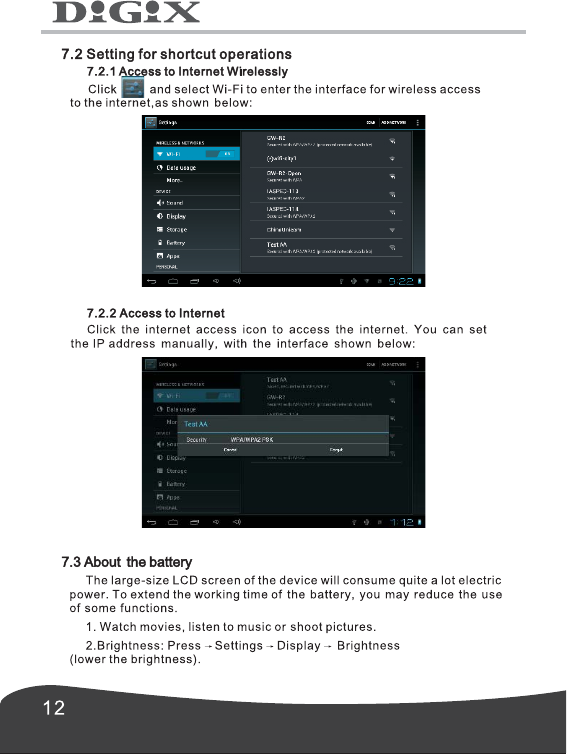
Select "WI-FI " and glide the "OFF" bar to the right to turn on
the"WI-FI"
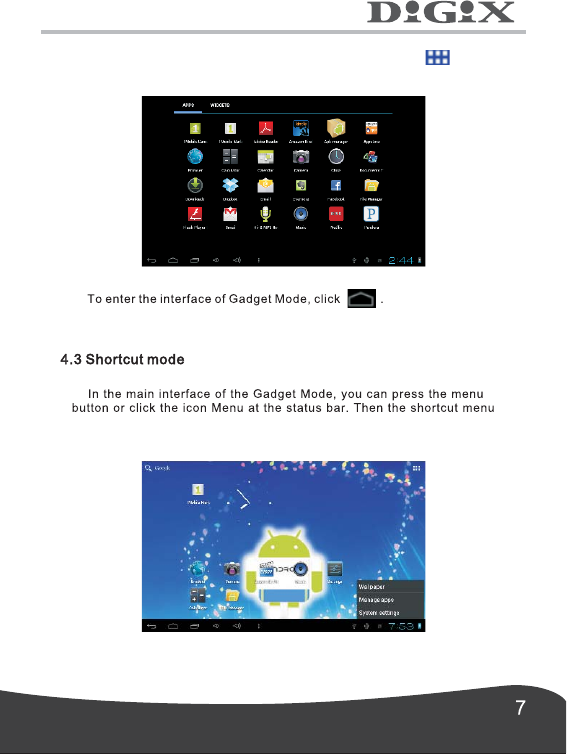
To enter the interface of application icons, click the button at the
top-right corner of the screen, as shown below:
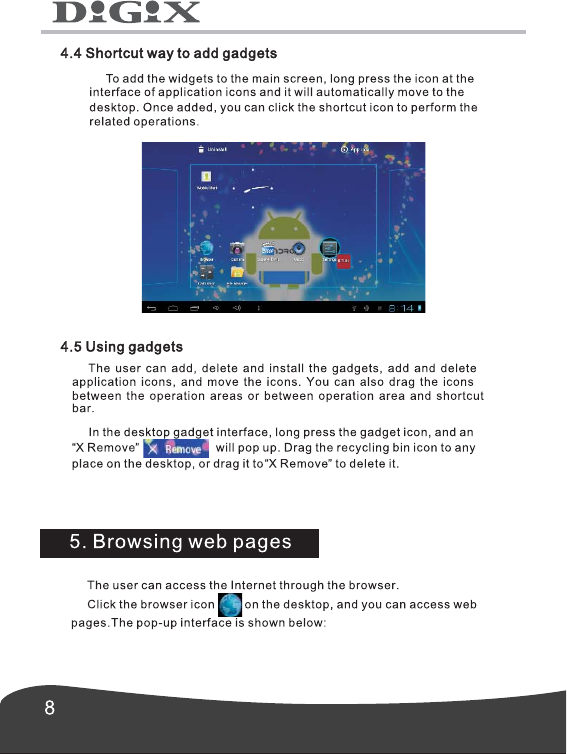
icons will appeared, which are Wallpaper, Manage apps, System settings
as shown below:
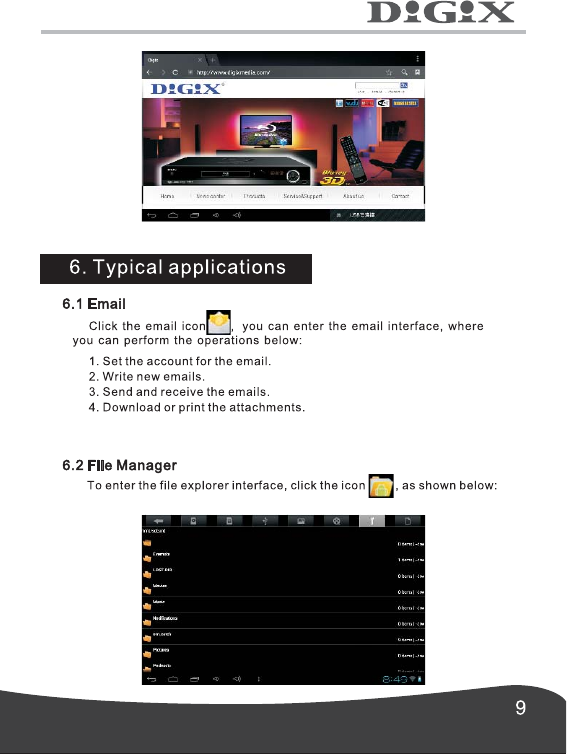
3. In terms of WIFI use, please set the WIFI switch on home screen to
OFF state by pressing the icon once.
To make sound when screen get locked , you can select Screen
Lock sound.
1. Screen Security
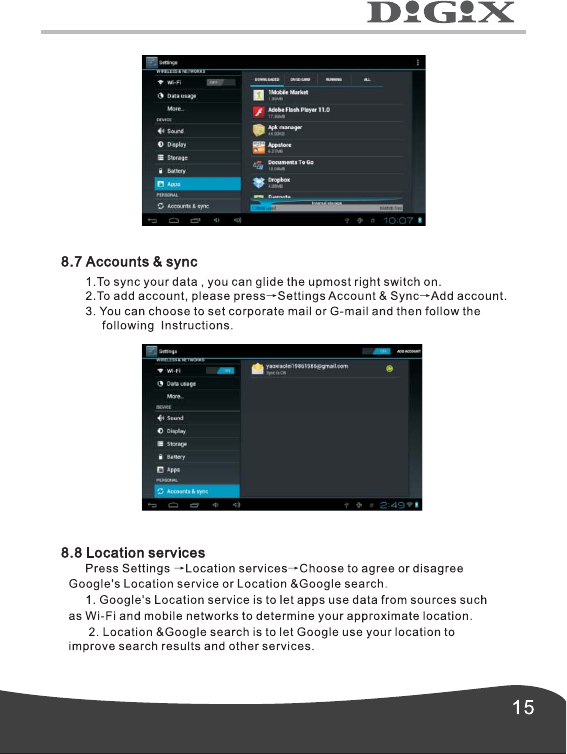
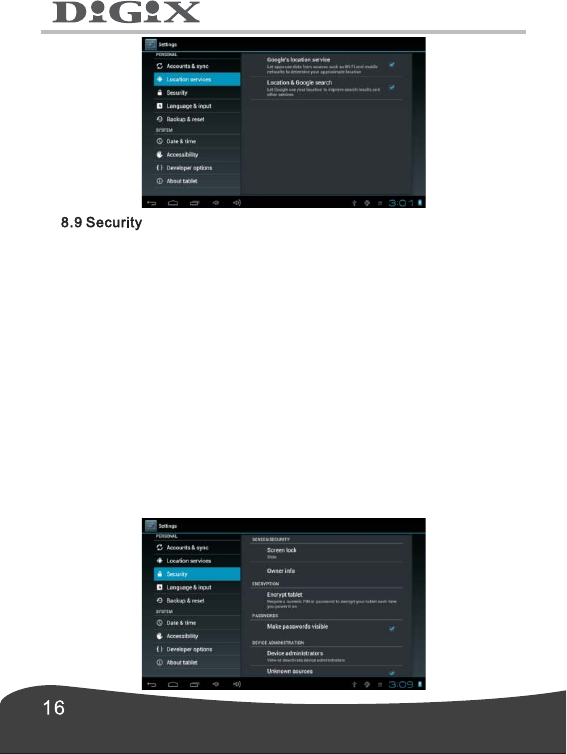
To set screen lock, press Screen lock →choose from None, Slide, Pattern,
PIN and Password.
2. Encryption
To encrypt your tablet, press Encrypt tablet.
3. Passwords
To show password as you type, press Make passwords visible.
If the password is forgotten or lost, it is retrievable through the Google
Account synced to the tablet.
Note: Irretrievable passwords are not covered under the warranty.
4. Device administration
To view or deactivate device administrators, press Device administrators.
5. Credential Storage
6. Unknown sources
To allow installation of application provided by the unauthorized electronic
market, press Unknown sources.
7. Trusted credentials
To view trusted CA certificates, press Trusted credentials.
8.
To install certificates from SD card, press Install from SD card.
Install from SD card
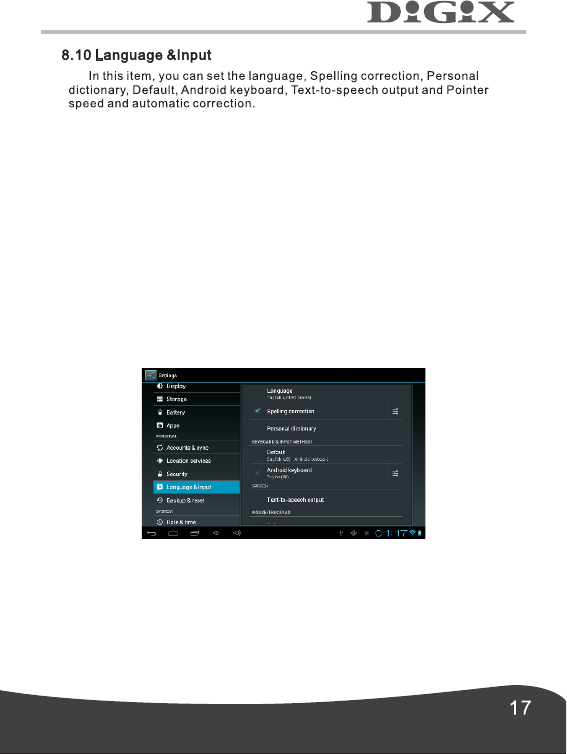
1. Select language.
To select the language, press Settings →language & input→
Select language.
2. Spelling correction.
To set automatic correction, press Settings →language & input
→Spelling correction.
3. Personal dictionary.
To add words into or delete words from the user-defined dictionary
4. Default
To configure input methods, press Settings →language & input →Default
To set Android keyboard, press Settings →language & input →
Android keyboard
6. Text-to-speech output
To set the Speech rate and play demonstration of speech synthesis,
press Settings →language & input →Text-to-speech output
5. Android keyboard
8.11 Backup & reset
To back up your data, reset your Digix Tablet or reboot into the system
in the Recovery Mode, press Settings →Backup& reset
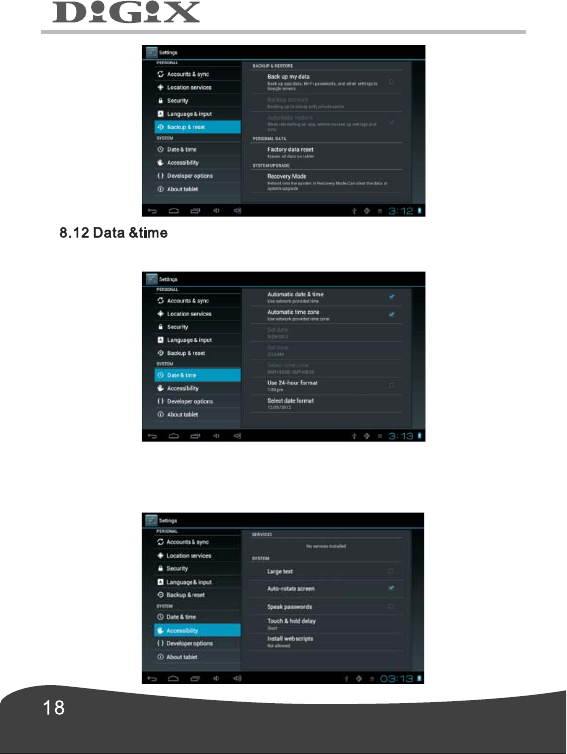
To set the date, time, time zone, time system and format, you can press
Settings→Data &time
8.13 Accessibility
To set Large text, Auto-rotate screen, Speak passwords, Touch &hold
delay and Install web scripts, you can press Settings→Accessibility
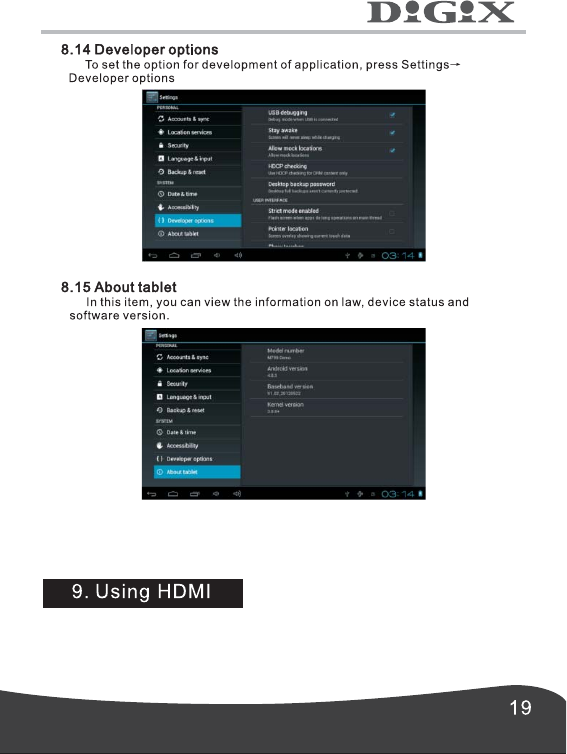
With HDMI, video contents being played by your Digix tablet can be
transferred to other displays using the HDMI cable. Such as an LCD TV
that has an HDMI port. The outputs the tablet supports can offer a
maximum resolution of 1080P. The related operations are as follows:
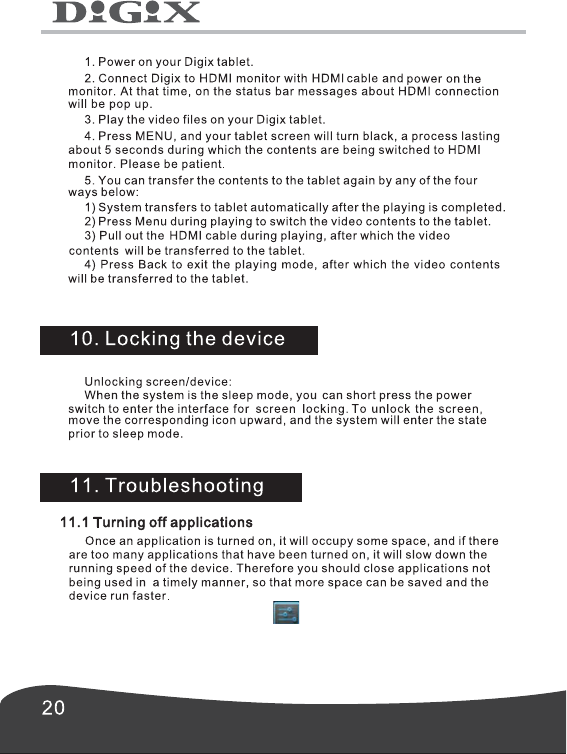
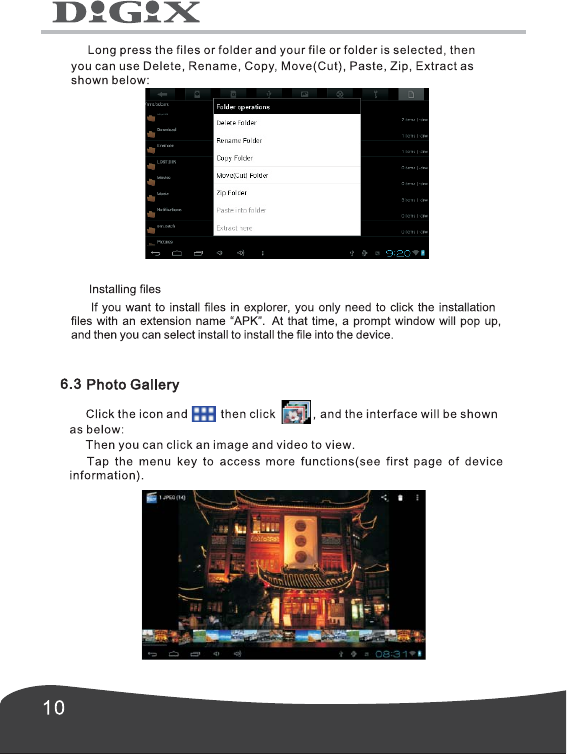
To turn off the application, click at the desktop screen, and the
systemwill enter the interface of system settings, where you can select
Apps Running, as shown below:
→
Warning:

For Digix Technical Support contact us via e-mail at
support@digixmedia.com or via phone at 1-866-770-3688