Contel Electronics Technology TAB720 7" Digix Tablet Model Number: Tab-720; Tab-710 User Manual TAB 720 manual 100x140 110927

Shenzhen Contel Electronics Technology Co.,LTD 7" Digix Tablet Model Number: Tab-720; Tab-710 TAB 720 manual 100x140 110927

Contents

TAB-720-User manual_Part2

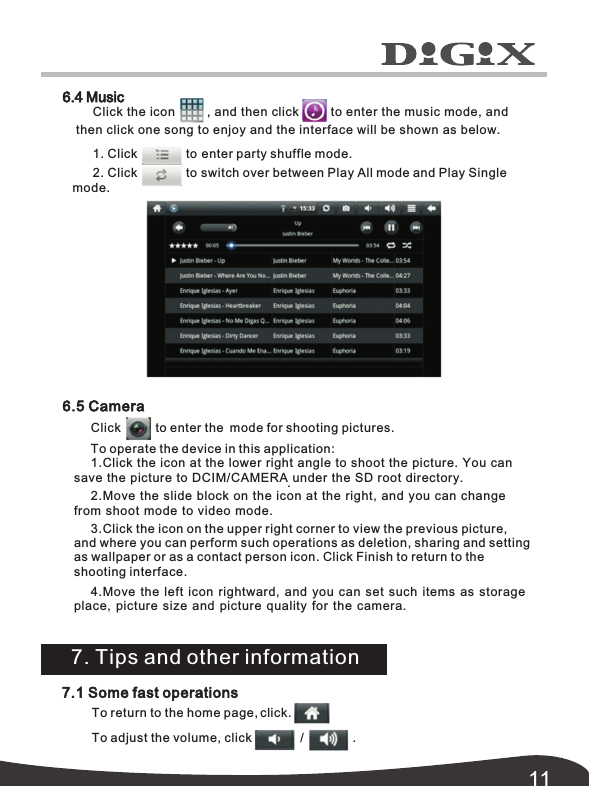
116.4 MusicClick the icon         , and then click         to enter the music mode, and then click one song to enjoy and the interface will be shown as below.1. Click              to enter party shuffle mode.2. Click              to switch over between Play All mode and Play Single 7.1 Some fast operationsTo return to the home page, click.To adjust the volume, click              /              .7. Tips and other informationmode.6.5 CameraClick          to enter the  mode for shooting pictures. To operate the device in this application:1.Click the icon at the lower right angle to shoot the picture. You can save the picture to DCIM/CAMERA under the SD root directory..2.Move the slide block on the icon at the right, and you can change from shoot mode to video mode. 3.Click the icon on the upper right corner to view the previous picture, and where you can perform such operations as deletion, sharing and setting as wallpaper or as a contact person icon the  . Click Finish to return to   4.Move the left icon rightward,  and you can set such items as storage place,  picture size and picture quality for the camera. shooting interface.
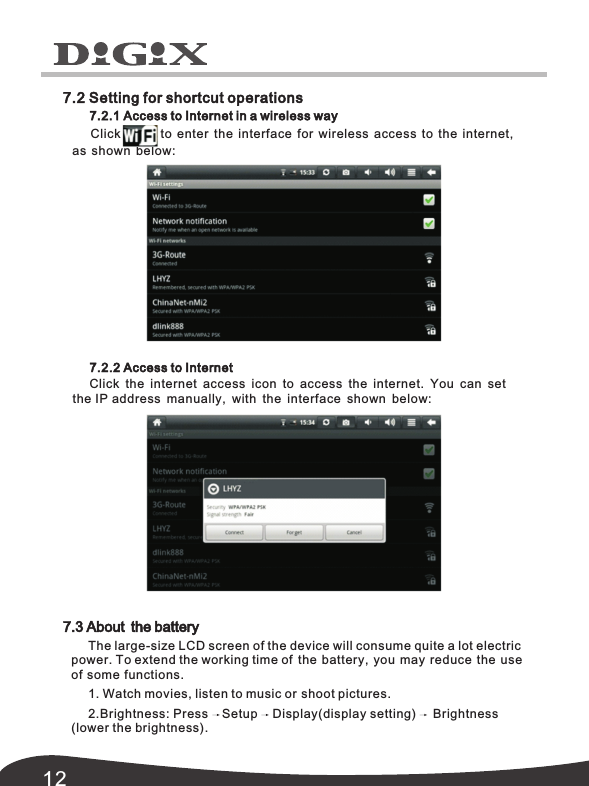
12The large-size LCD screen of the device will consume quite a lot electric power. To extend the working time of the battery, you may reduce the useof some functions.1. Watch movies, listen to music or shoot pictures.2.Brightness: Press Setup Display(display setting)Brightness(lower the brightness).7.3 About  the battery7.2 Setting for shortcut operations7.2.1 Access to Internet in a wireless wayClick            to enter the interface for  wireless  access  to  the  internet, as  shown below:7.2.2 Access to InternetClick  the  internet  access  icon  to  access  the  internet.  You can setthe IP address manually,  with the interface shown below:
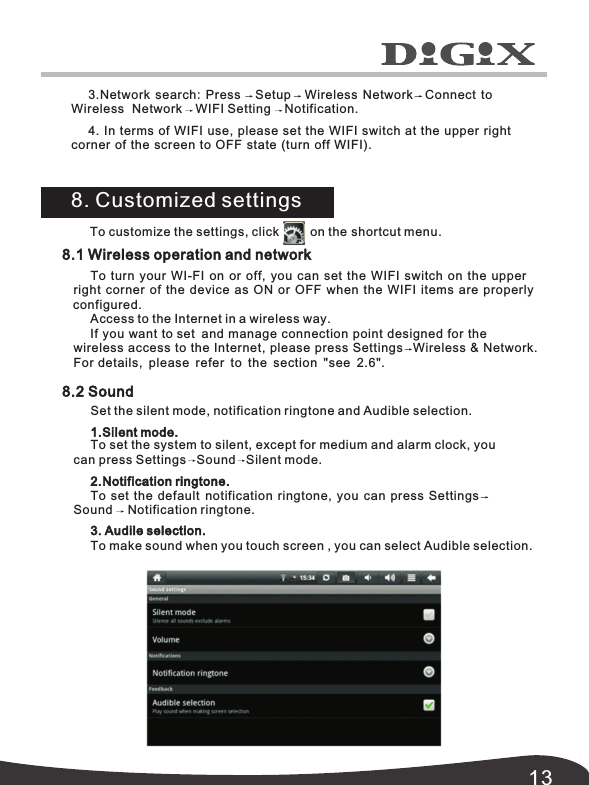
138.1 Wireless operation and network8.2 SoundTo  turn  your  WI-FI  on  or  off,  you can set the WIFI switch on the upper  right  corner  of the device as ON or OFF when the WIFI items are properly Access to the Internet in a wireless way.If you want to set and manage connection point designed for thewireless Network.access to the Internet, please press Settings   Wireless & For details,  please refer to the section  "see  2.6".Set the silent mode, notification ringtone and Audible selection.1.Silent mode.To set the system to silent, except for medium and alarm clock, you can press Settings   Sound   Silent mode.2.Notification ringtone.To set the default  notification ringtone, you can press SettingsSound Notification ringtone.3. Audile selection.To make sound when you touch screen , you can select Audible selection.To customize the settings, click         on the shortcut menu.8. Customized settings3.Network search: Press    Setup Wireless Network Connect to Wireless Network WIFI Setting Notification.4. In terms of WIFI use,  please set the WIFI switch at the upper right corner of the screen to OFF state (turn off WIFI). configured.
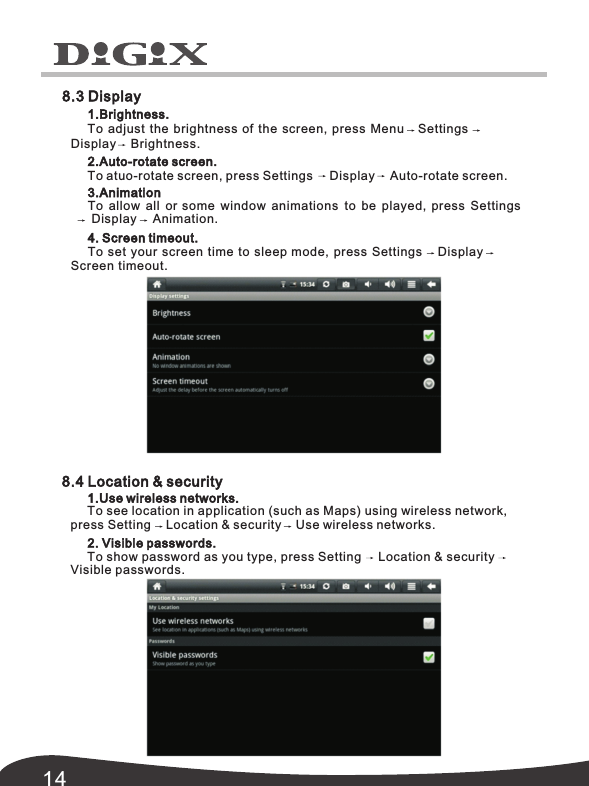
143.AnimationTo allow all or some window animations to be played,  press SettingsDisplay Animation.4. Screen timeout.To set your screen time to sleep mode, press Settings DisplayScreen timeout. 8.4 Location & security1.Use wireless networks.To see location in application (such as Maps) using wireless network, press Setting Location & security Use wireless networks.2. Visible passwords.To show password as you type, press Setting Location & securityVisible passwords.8.3 Display1.Brightness.To adjust the brightness of the screen, press Menu SettingsDisplay Brightness.2.Auto-rotate screen.To atuo-rotate screen, press Settings Display Auto-rotate screen.
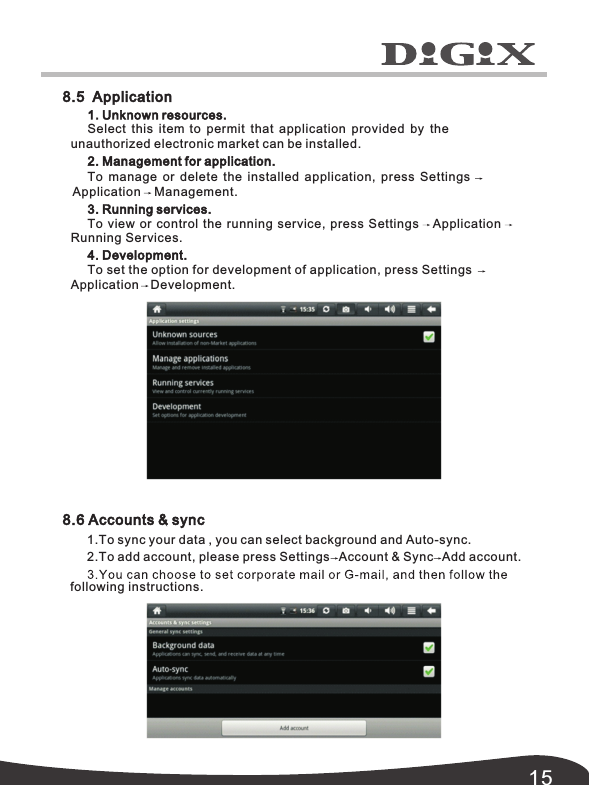
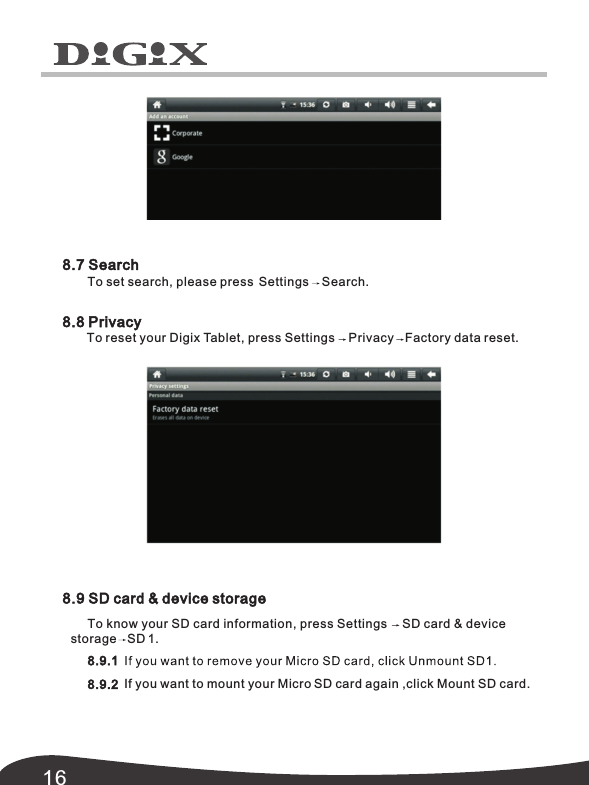
158.6 Accounts & sync1.To sync your data , you can select background and Auto-sync.2.To add account, please press Settings Account & Sync Add account. following instructions.8.5  Application1. Unknown resources.Select this item to permit that application provided by the unauthorized electronic market can be installed.2. Management for application.To manage or delete the installed application,  press SettingsManagement. 3. Running services.To view or control the running service, press Settings ApplicationRunning Services.4. Development.To set the option for development of application, press SettingsDevelopment.ApplicationApplication
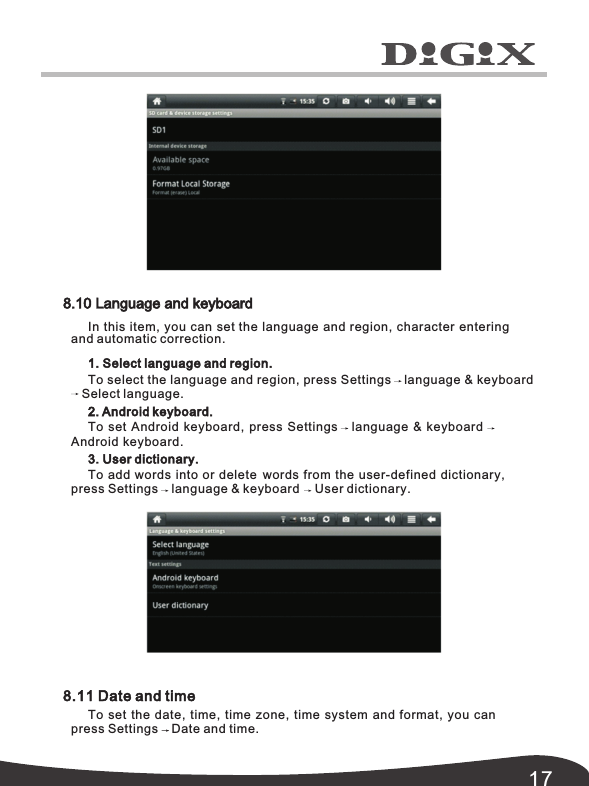
168.7 Search8.8 Privacy8.9 SD card & device storageTo know your SD card information, press Settings SD card & device 8.9.18.9.2  If you want to mount your Micro SD card again ,click Mount SD card.storage   SD 1.To reset your Digix Tablet, press Settings  Privacy Factory data reset. To set search, please press  Settings Search.
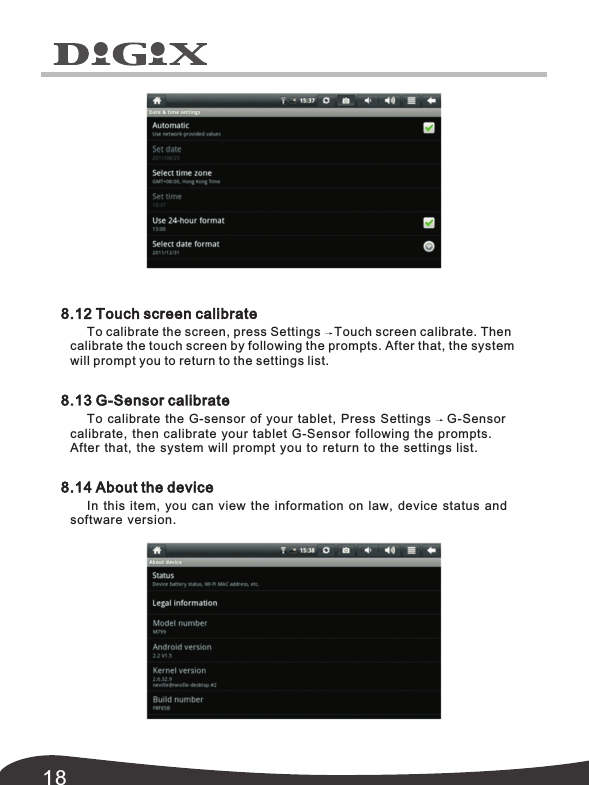
178.11 Date and timeTo set the date, time, time zone, time system and format, you can press Settings Date and time. 8.10 Language and keyboardIn this item, you can set the language and region, character enteringand automatic correction. 1. Select language and region.To select the language and region, press Settings language & keyboard2. Android keyboard.To set Android keyboard, press Settings language & keyboardAndroid keyboard.3. User dictionary.To add words into or delete words from the user-defined dictionary, press Settings language & keyboard User dictionary.Select language.
188.12 Touch screen calibrate8.13 G-Sensor calibrate8.14 About the deviceTo calibrate the screen, press Settings Touch screen calibrate. Then calibrate the touch screen by following the prompts. After that, the system will prompt you to return to the settings list.To calibrate the G-sensor of your tablet,  Press Settings G-Sensor calibrate,  then calibrate your tablet G-Sensor following the prompts. In this item,  you can view the information on law,  device status and software version.After that,  the system will prompt you to return to the settings list.
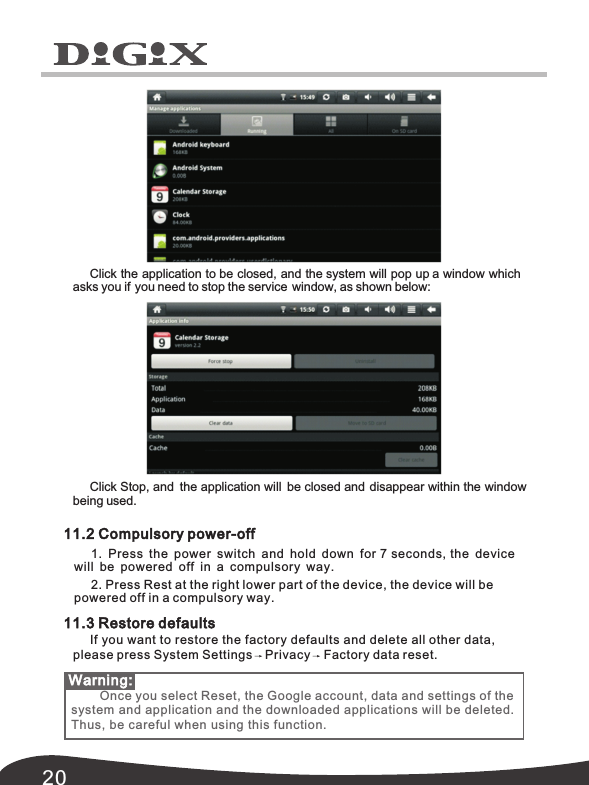
19With HDMI, video contents being played by your Digix tablet can be transferred to other displays using the HDMI cable.  Such as an LCD TV that has an HDMI port.  The outputs the tablet supports can offer a maximum resolution of 720P. The related operations are as follows:1. Power on your Digix tablet.2. Connect Digix to HDMI monitor with HDMI cable and power on the monitor. At that time, on the status bar messages about HDMI connection 3. Play the video files on your Digix tablet.4. Press MENU, and your tablet screen will turn black, a process lasting  about 5 seconds during which the contents are being switched to HDMI monitor. Please be patient.5. You can transfer the contents to the tablet again by any of the four  1) System transfers to tablet automatically after the playing is completed. 2) Press Menu during playing to switch the video contents to the tablet.3) Pull out the HDMI cable during playing, after which the video contents will be transferred to the tablet.4) Press Back to exit the playing mode, after which the video contents  will be transferred to the tablet. 9. Using HDMI 10. Locking the device11. Troubleshooting11.1 Turning off applicationsOnce an application is turned on, it will occupy some space, and if there are too many applications that have been turned on, it will slow down the running speed of the device. Therefore you should close applications not being used in  a timely manner, so that more space can be saved and the To turn off the application, click         at the shortcut bar, and the system will enter the interface of system settings, where you can select Applicationwill be pop up.ways below: device run faster. Services, as shown below: Running Unlocking screen/device:When the system is the sleep mode, you  can short press the powerswitch to enter the interface for screen locking.  To unlock the screen,move the corresponding icon upward, and the system will enter the state prior to sleep mode.
20Click Stop, and  the application will  be closed and disappear within the window being used. 11.2 Compulsory power-off1.  Press the power switch and hold down for 7 seconds, the device will be powered off in a compulsory way.2. Press Rest at the right lower part of the device, the device will be powered off in a compulsory way.11.3 Restore defaultsIf you want to restore the factory defaults and delete all other data,  Once you select Reset, the Google account, data and settings of the system and application and the downloaded applications will be deleted. Thus, be careful when using this function. Warning: please press System Settings Privacy Factory data reset.Click the application to be closed, and the system will pop up a window which asks you if  you need to stop the service  window, as shown below:
www.digixmedia.com

Navigation menu