Creatix Polymedia CTX404EV2 IEEE 802.11B WLAN PCI Card User Manual CTX404EV2 manual

Creatix Polymedia GmbH IEEE 802.11B WLAN PCI Card CTX404EV2 manual

Contents

Users Manual

Regulatory Statements      FCC Certification  The United States Federal Communication Commission and the Canadian Department of Communication have established certain rules governing the use of electronic equipment.  Part15, Class B    This device complies with Part 15 of the FCC Rules.  Operation is subject to the following two conditions:  (1) This device my not cause harmful interference, and  (2) this device must accept any interference received, including interference that may cause undesired operation. This equipment has been tested and found to comply with the limits for a Class B digital device, pursuant to Part 15 of the FCC Rules. These limits are designed to provide reasonable protection against harmful interference in a residential installation. This equipment generates, uses and can radiate radio frequency energy and, if not installed and used in accordance with the instructions, may cause harmful interference to radio communications. However, there is no guarantee that interference will not occur in a particular installation. If this equipment does cause harmful interference to radio or on, the user is encouraged to try to correct the interference by one or more of the following measures:  - Reorient or relocate the receiving antenna.  - Increase the separation between the equipment and receiver.  - Connect the equipment into an outlet on a circuit different from that to which the receiver is connected.  - Consult the dealer or an experienced radio/TV technician for help.     Caution:  1. 2. 3.  This equipment complies with FCC radiation exposure limits set forth for an uncontrolled environment. This equipment should be installed and operated with minimum distance 20cm between the radiator and your body.  This transmitter must not be co-located or operating in conjunction with any other antenna or transmitter.  Changes or modifications made to this equipment not expressly approved by Creatix Polymedia GmbH may void the FCC authorization to operate this equipment
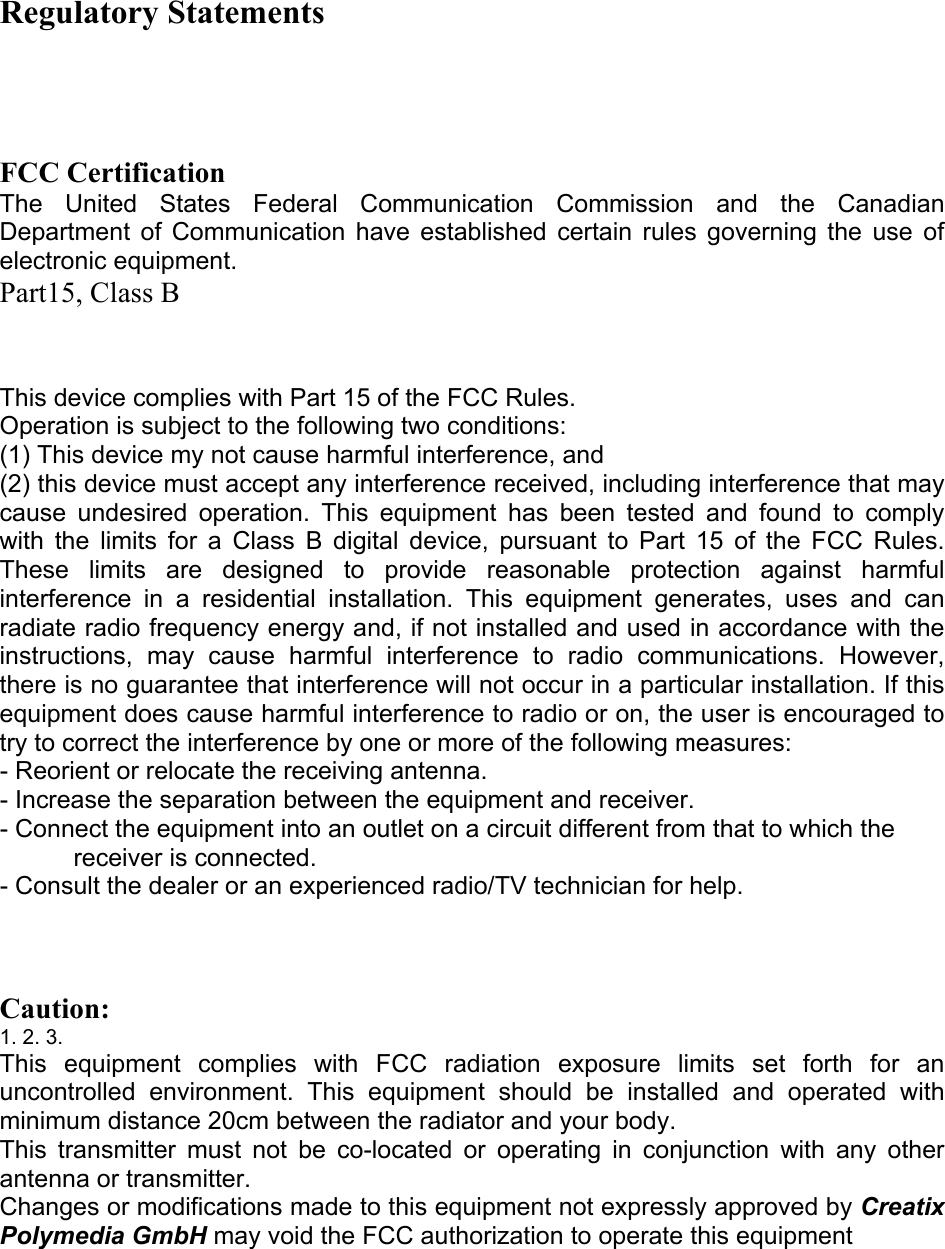
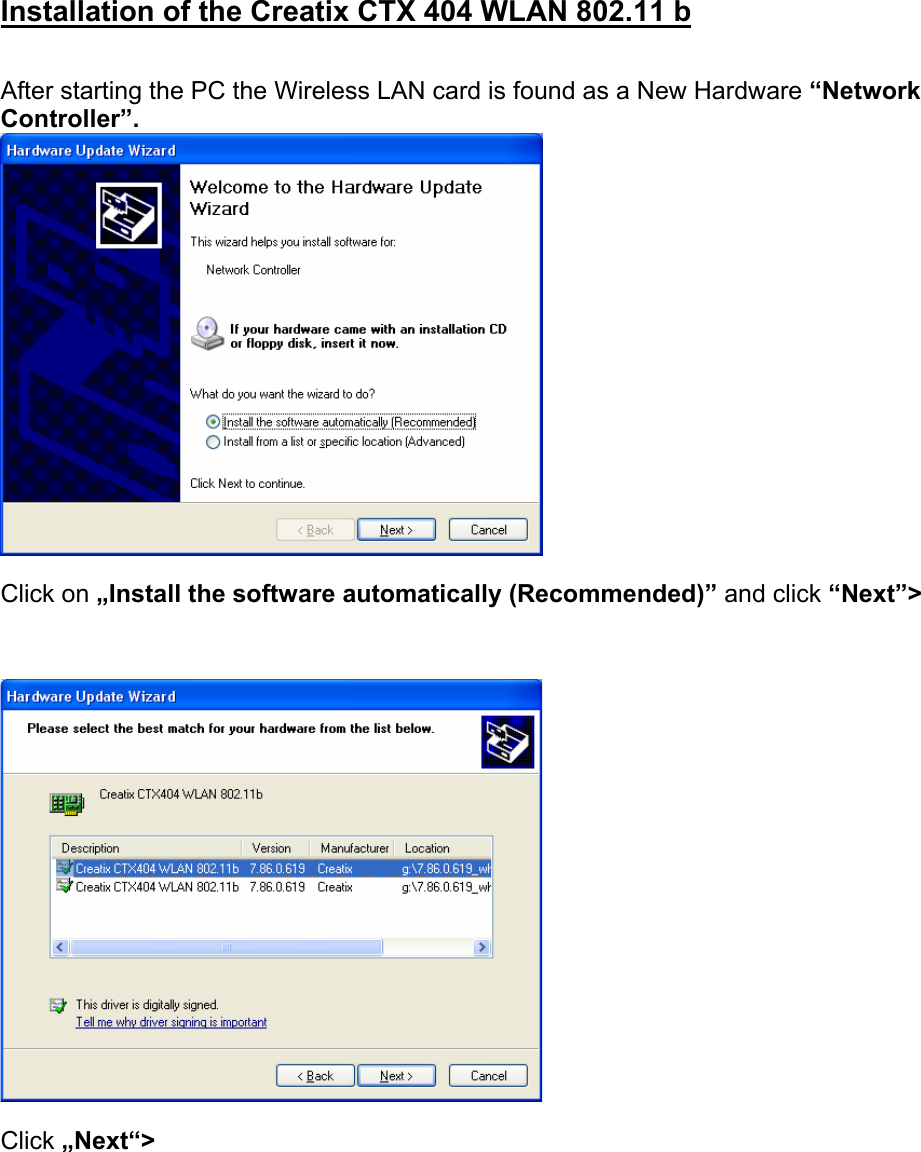
Installation of the Creatix CTX 404 WLAN 802.11 b   After starting the PC the Wireless LAN card is found as a New Hardware “Network Controller”.    Click on „Install the software automatically (Recommended)” and click “Next”>      Click „Next“>
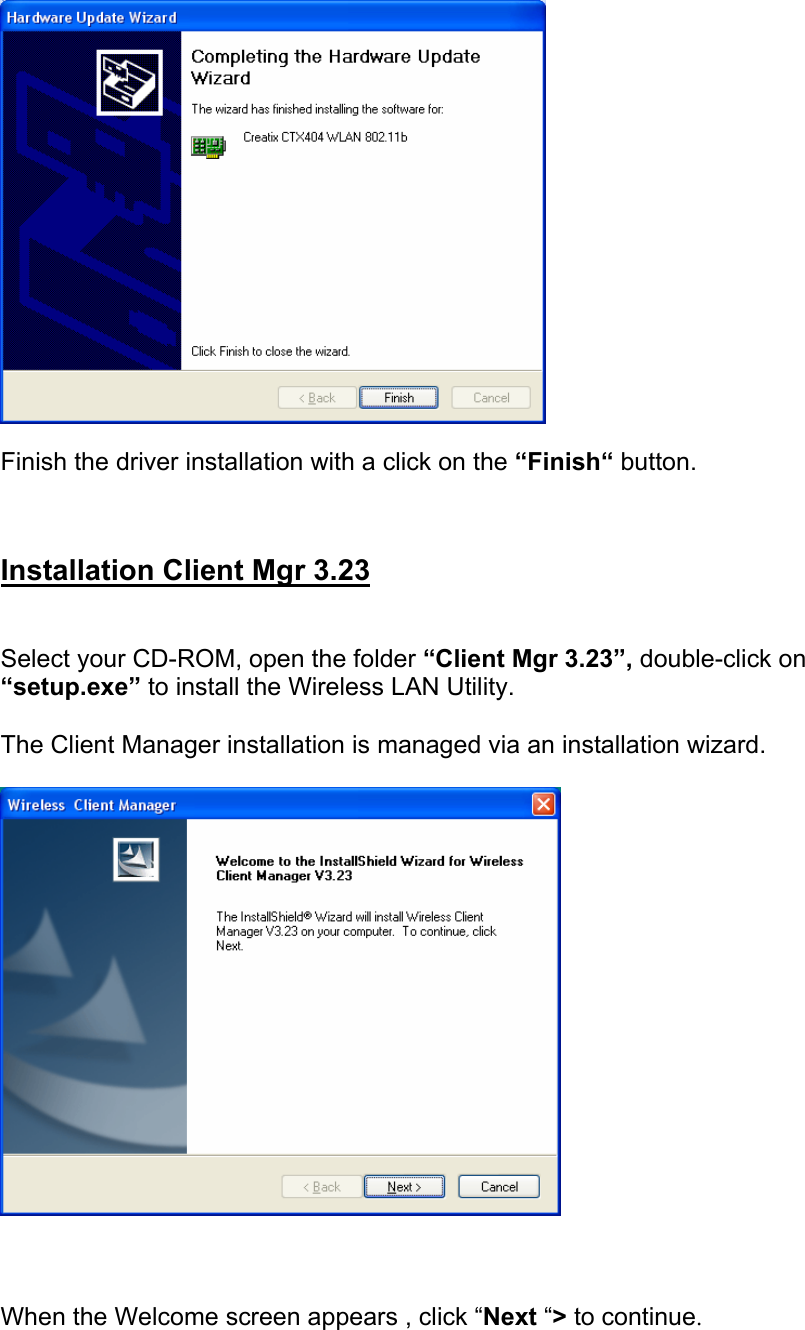
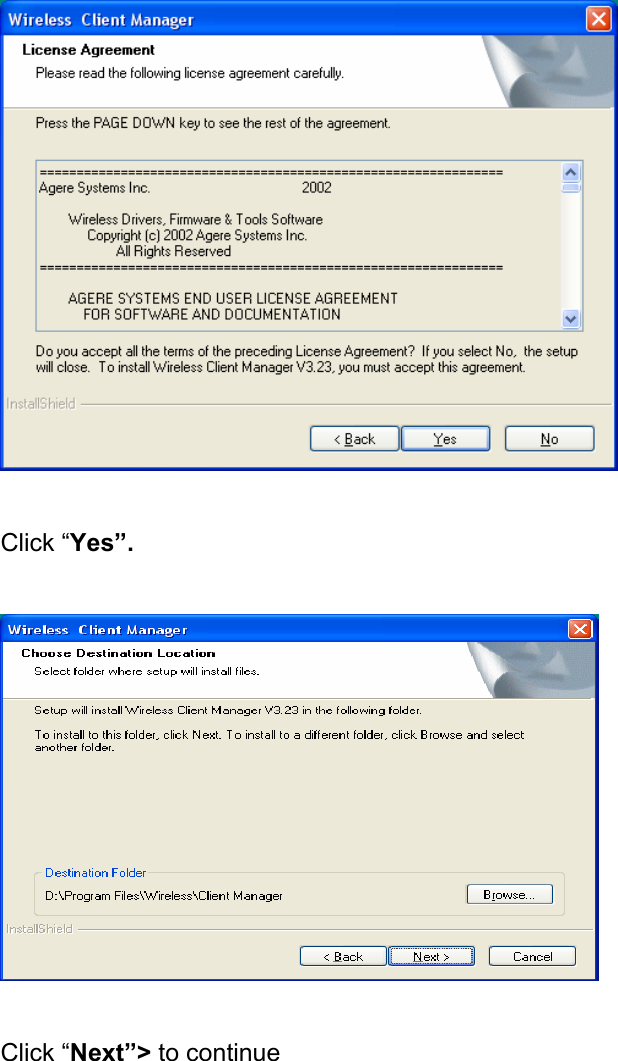
  Finish the driver installation with a click on the “Finish“ button.    Installation Client Mgr 3.23   Select your CD-ROM, open the folder “Client Mgr 3.23”, double-click on “setup.exe” to install the Wireless LAN Utility.  The Client Manager installation is managed via an installation wizard.      When the Welcome screen appears , click “Next “> to continue.
   Click “Yes”.      Click “Next”> to continue
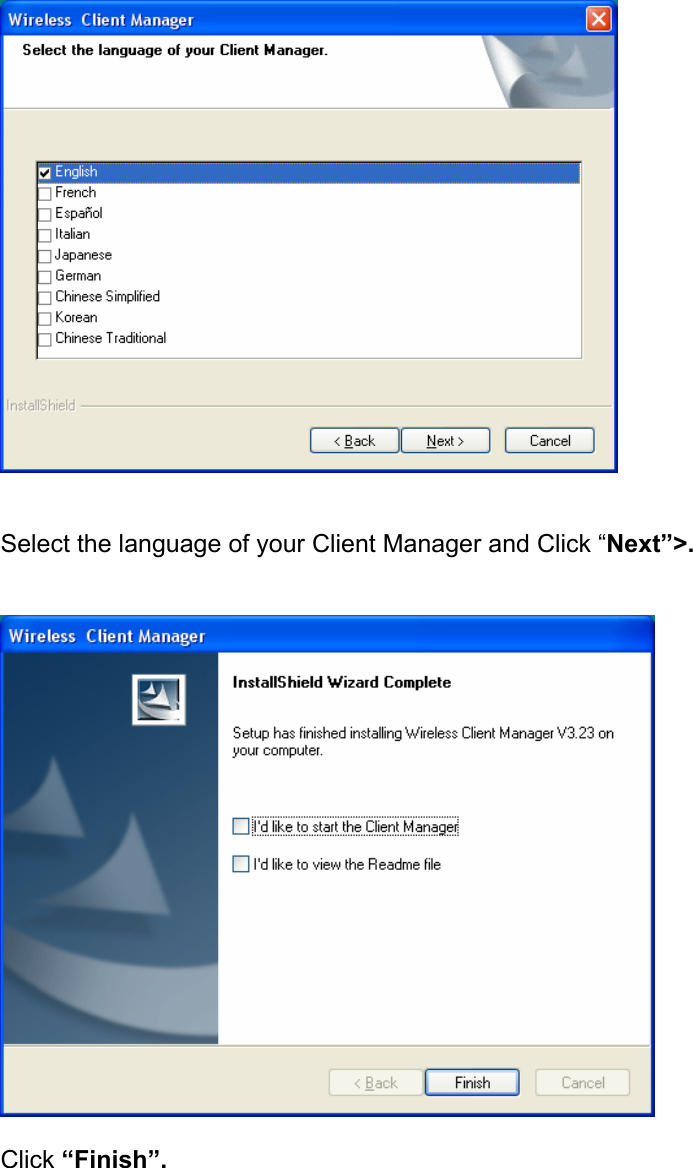
   Select the language of your Client Manager and Click “Next”>.     Click “Finish”.
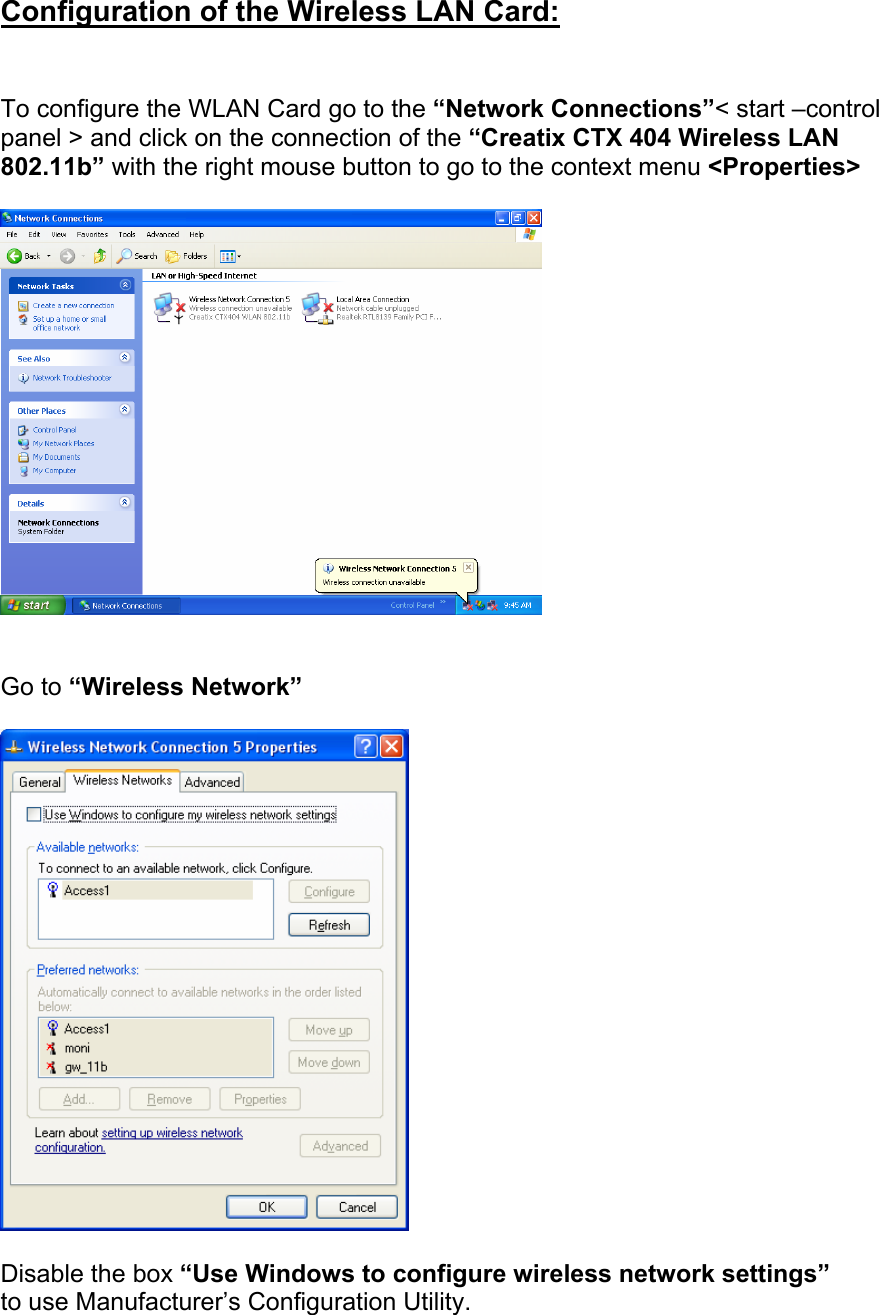
 Configuration of the Wireless LAN Card:   To configure the WLAN Card go to the “Network Connections”< start –control panel > and click on the connection of the “Creatix CTX 404 Wireless LAN 802.11b” with the right mouse button to go to the context menu <Properties>     Go to “Wireless Network”    Disable the box “Use Windows to configure wireless network settings” to use Manufacturer’s Configuration Utility.
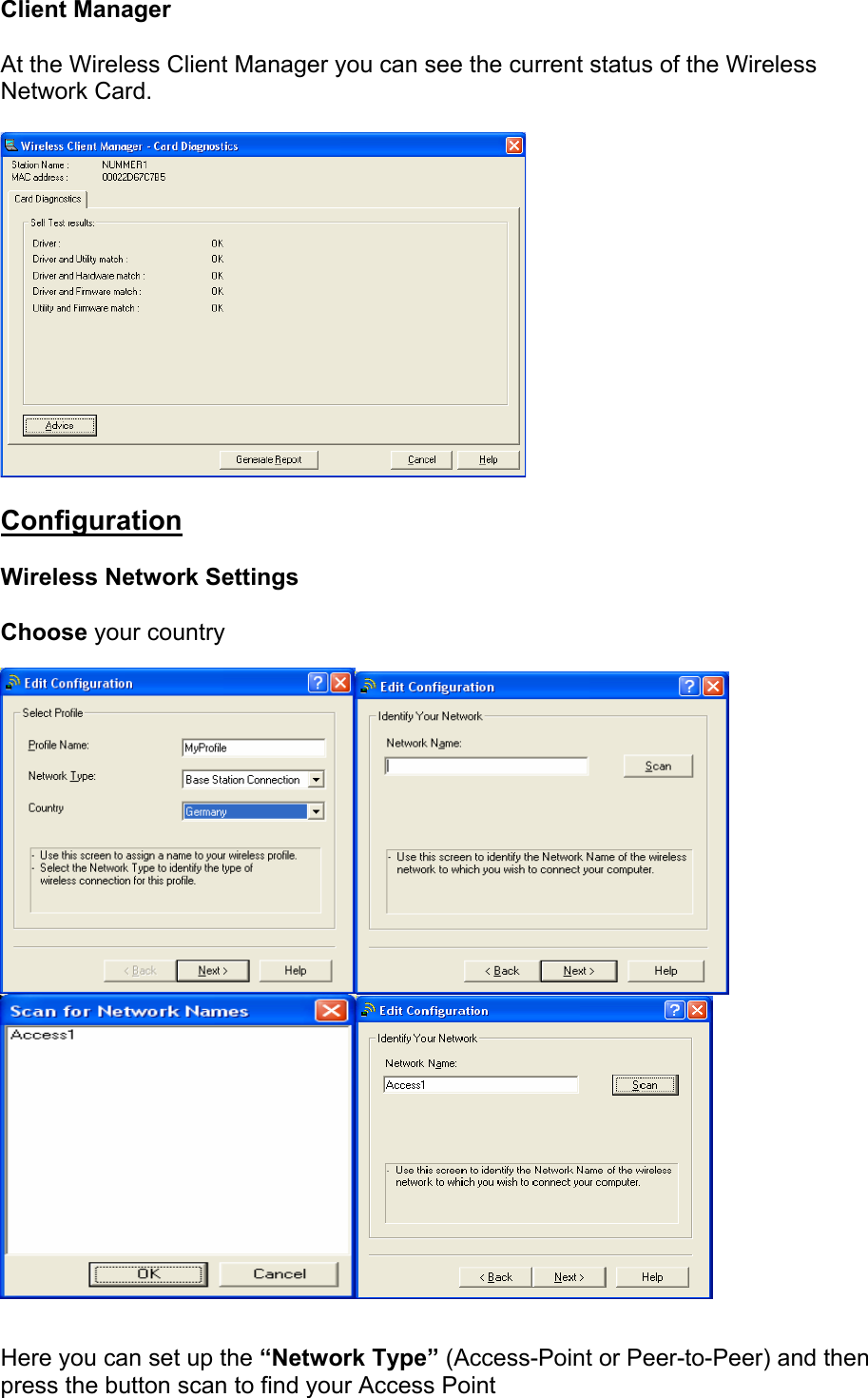
Client Manager  At the Wireless Client Manager you can see the current status of the Wireless Network Card.    Configuration  Wireless Network Settings  Choose your country     Here you can set up the “Network Type” (Access-Point or Peer-to-Peer) and then press the button scan to find your Access Point
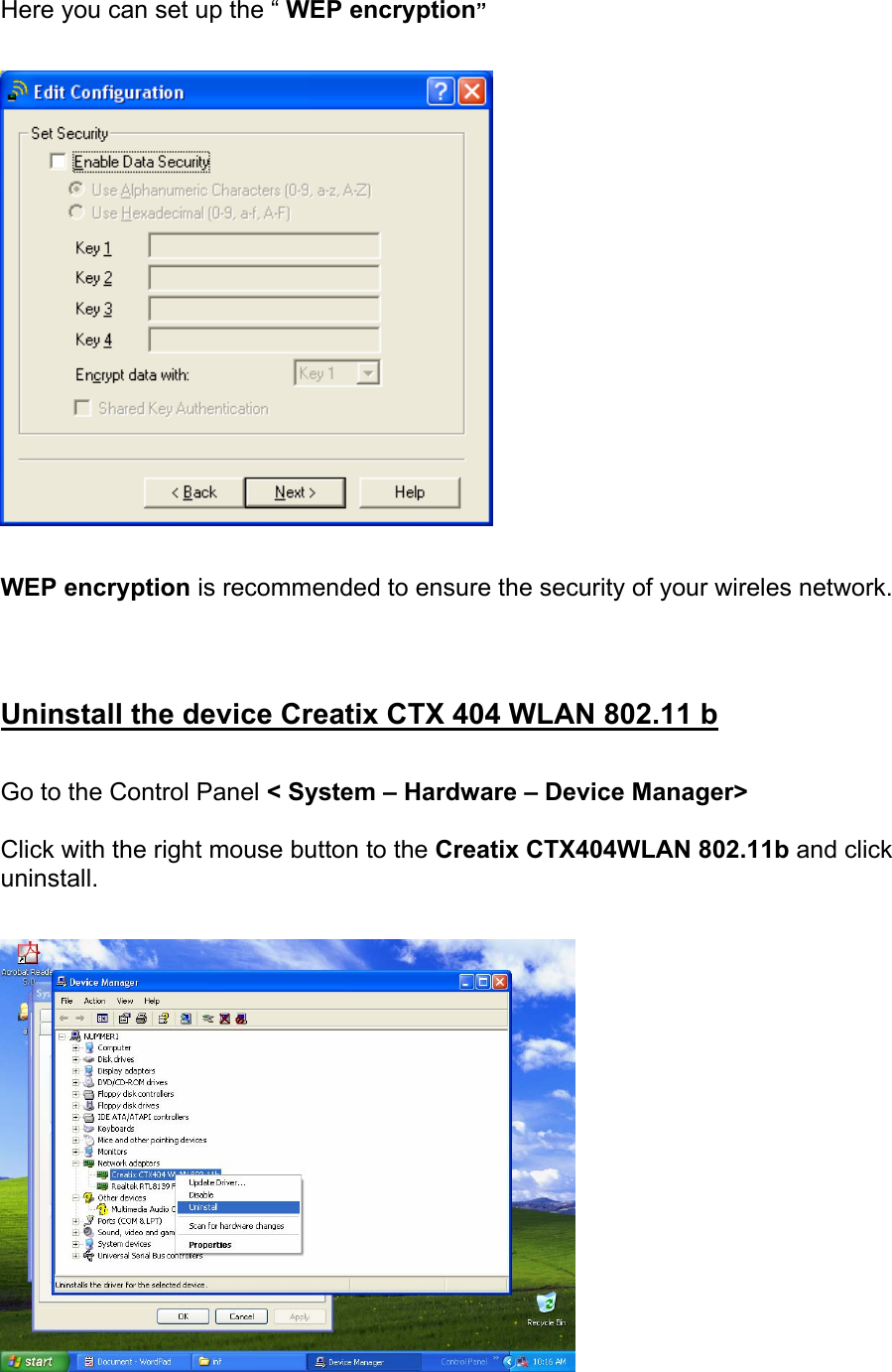
 Here you can set up the “ WEP encryption”      WEP encryption is recommended to ensure the security of your wireles network.     Uninstall the device Creatix CTX 404 WLAN 802.11 b   Go to the Control Panel < System – Hardware – Device Manager>  Click with the right mouse button to the Creatix CTX404WLAN 802.11b and click uninstall.
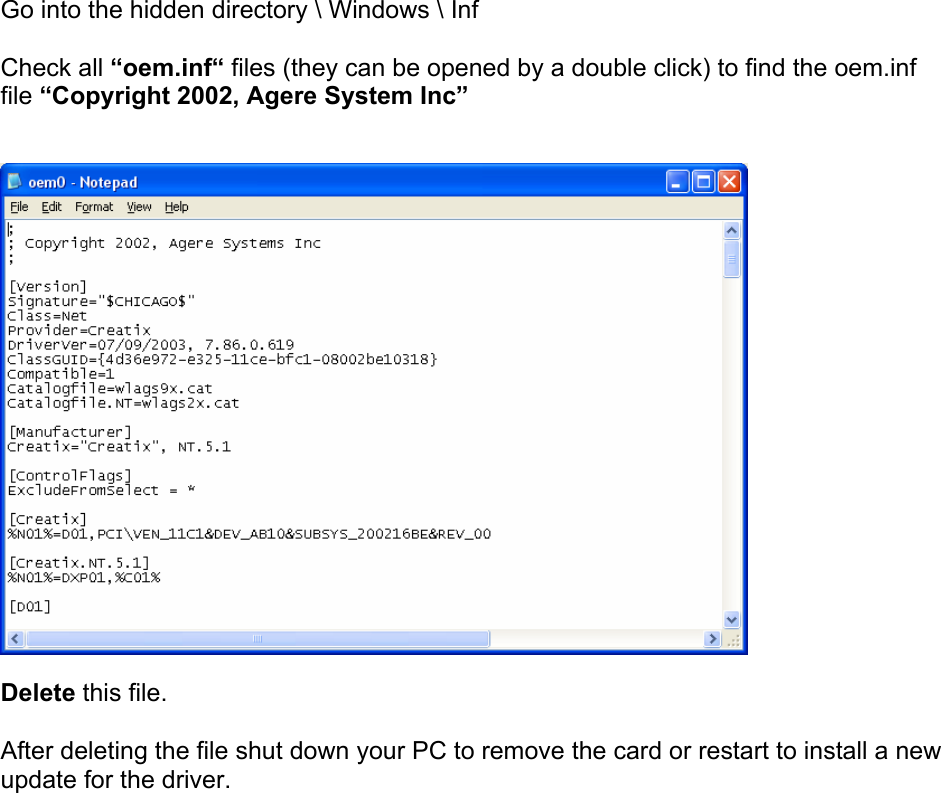
Go into the hidden directory \ Windows \ Inf  Check all “oem.inf“ files (they can be opened by a double click) to find the oem.inf file “Copyright 2002, Agere System Inc”     Delete this file.  After deleting the file shut down your PC to remove the card or restart to install a new update for the driver.

Navigation menu