Creatix Polymedia CTX404EV2 IEEE 802.11B WLAN PCI Card User Manual CTX404EV2 manual

Creatix Polymedia GmbH IEEE 802.11B WLAN PCI Card CTX404EV2 manual

Contents

User Manual

        Creatix 802.11b Wireless  PCI CARD CTX404E V.2 User Manual
  This handbook is protected by copyright. It must not be copied, reproduced, translated or transmitted in electronic media, in whole or in part. Accuracy of the information is not guaranteed. Any mention in this handbook of products of other manufacturers is for information purposes only and represents no misuse of trademarks.    Safety instructions  This equipment has been designed and tested in accordance with the requirements of Standard IEC 950 „Safety of Information Technology Equipment, Including Electrical Business Equipment“ Extracts from these requirements according Standard IEC 950:  The CTX404E V.2 was evaluated for use in maximum ambient temperature of 40 °C. The CTX404E V.2 may only be used in countries where the card is       certified.
 Regulatory Statements  FCC Certification  The United States Federal Communication Commission and the Canadian Department of Communication have established certain rules governing the use of electronic equipment.  Part15, Class B  This device complies with Part 15 of the FCC Rules.  Operation is subject to the following two conditions:  (1) This device my not cause harmful interference, and  (2) this device must accept any interference received, including interference that may cause undesired operation. This equipment has been tested and found to comply with the limits for a Class B digital device, pursuant to Part 15 of the FCC Rules. These limits are designed to provide reasonable protection against harmful interference in a residential installation. This equipment generates, uses and can radiate radio frequency energy and, if not installed and used in accordance with the instructions, may cause harmful interference to radio communications. However, there is no guarantee that interference will not occur in a particular installation. If this equipment does cause harmful interference to radio or on, the user is encouraged to try to correct the interference by one or more of the following measures:  - Reorient or relocate the receiving antenna.  - Increase the separation between the equipment and receiver.  - Connect the equipment into an outlet on a circuit different from that to which the receiver is connected.  - Consult the dealer or an experienced radio/TV technician for help.   Caution:    1. This equipment complies with FCC radiation exposure limits set forth for an uncontrolled environment. This equipment should be installed and operated with minimum distance 20cm between the radiator and your body.  2. This transmitter must not be co-located or operating in conjunction with any other antenna or transmitter.  3. Changes or modifications made to this equipment not expressly approved by Creatix Polymedia GmbH may void the FCC authorization to operate this equipment
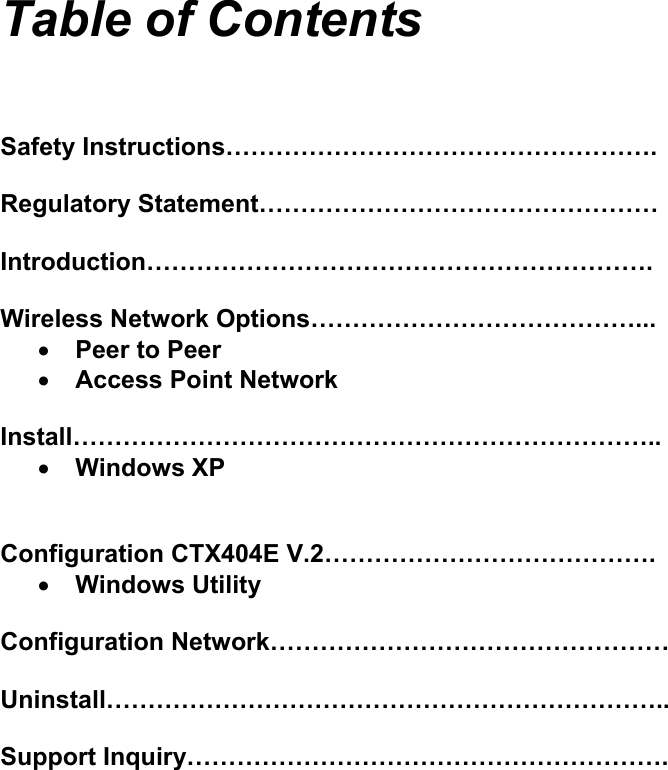
   Table of Contents    Safety Instructions…………………………………………….  Regulatory Statement…………………………………………  Introduction…………………………………………………….  Wireless Network Options…………………………………... • Peer to Peer • Access Point Network  Install…………………………………………………………….. • Windows XP   Configuration CTX404E V.2…………………………………. • Windows Utility  Configuration Network…………………………………………  Uninstall…………………………………………………………..  Support Inquiry………………………………………………….
  Introduction  The 802.11b Wireless PCI Card is a powerful 32-bit PCI Card that plugs quickly and easily into your Desktop PC for wireless network applications without wires or cables. Based on the IEEE 802.11b standard, it offers a transferring date rate of 11Mbps in a wireless LAN environment. Once connected with other networked PC’s, it allows you to share hard disk drives, DVD drives, CD drives, printers, and the likes.  The 802.11b Wireless PCI Card allows you to take full advantage of your PC’s mobility with access to real-time information and online services anytime and anywhere. Plus, with the network installation simplicity and flexibility, you can eliminate the need to pull cable through walls and ceilings. Exploring WWW and augmenting networks can never be done more easily.  Features                      Features: Compliant with IEEE 802.11b standard for 2.4GHz Wireless LAN  Compliant with PCI Standard  Works with all existing network infrastructure.  Compatible with specific wireless products and services  Capable of up to 128-Bit WEP Encryption Protocol  Freedom to roam while staying connected  11 Mbps High-Speed Transfer Rate  Lower power consumption  Easy to install and configure
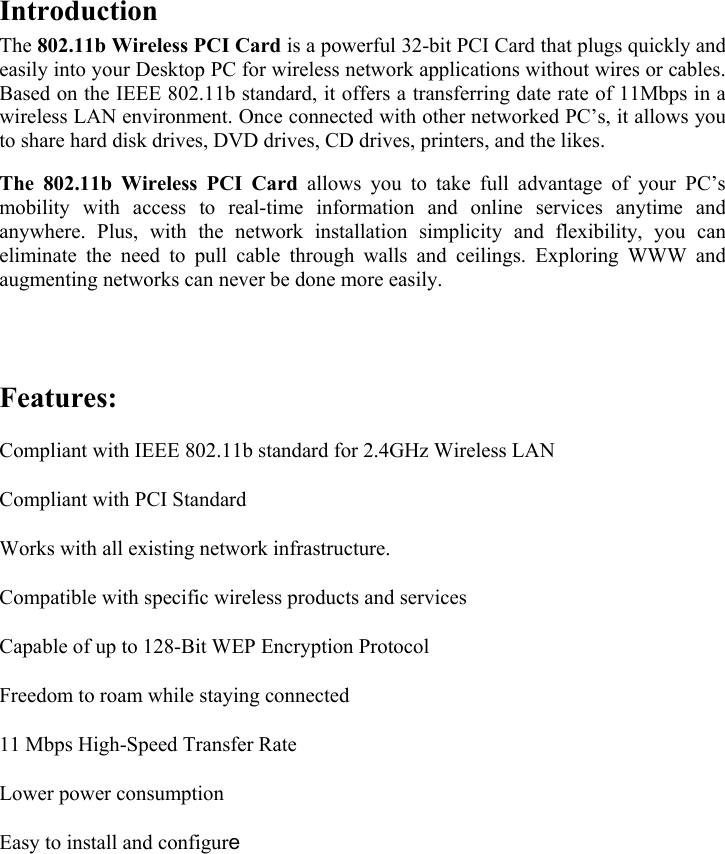
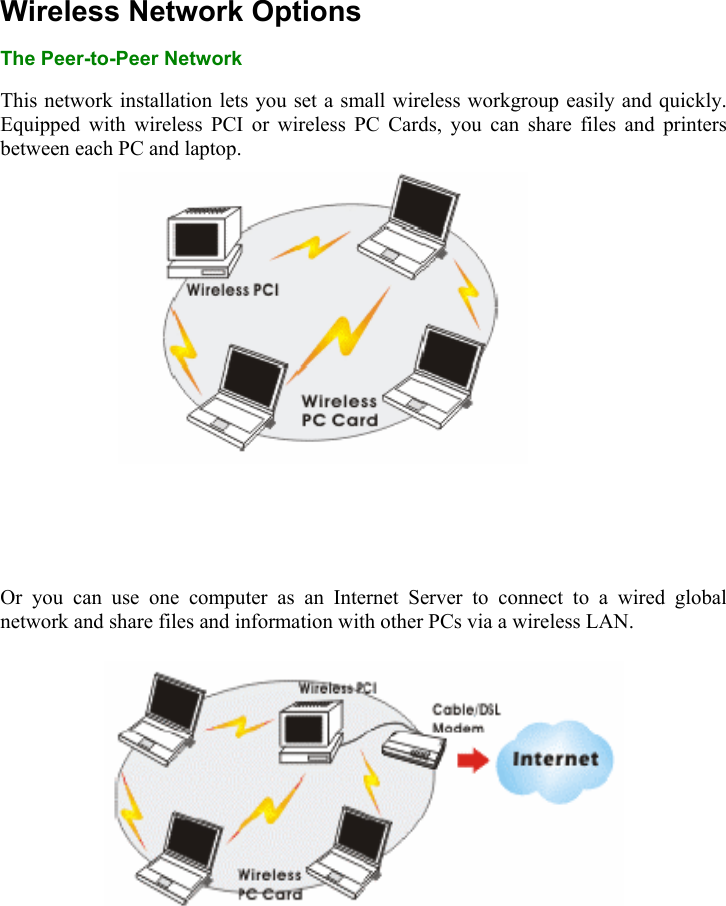
 Wireless Network Options The Peer-to-Peer Network  This network installation lets you set a small wireless workgroup easily and quickly. Equipped with wireless PCI or wireless PC Cards, you can share files and printers between each PC and laptop.          Or you can use one computer as an Internet Server to connect to a wired global network and share files and information with other PCs via a wireless LAN.
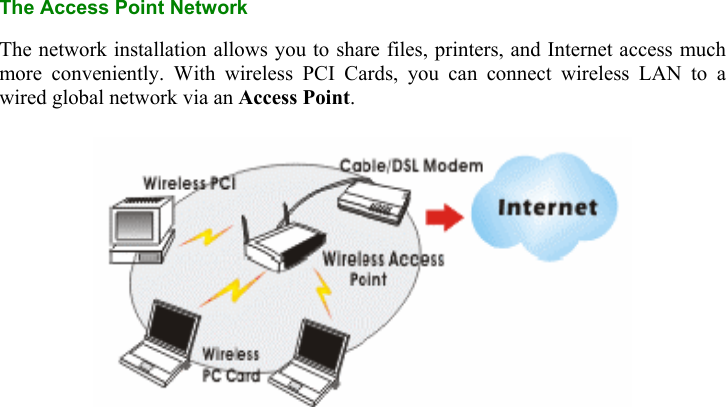
   The Access Point Network  The network installation allows you to share files, printers, and Internet access much more conveniently. With wireless PCI Cards, you can connect wireless LAN to a wired global network via an Access Point.
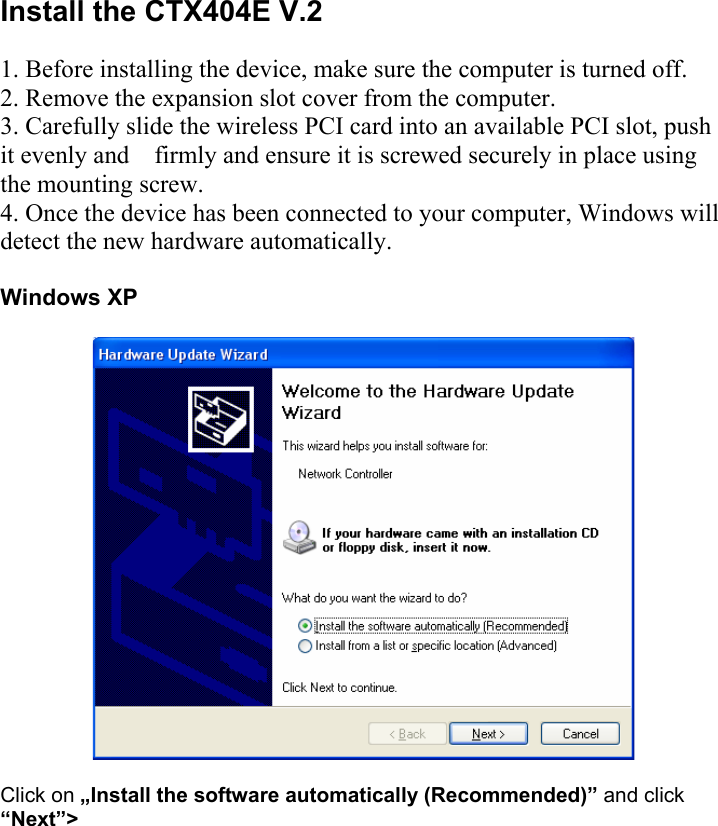
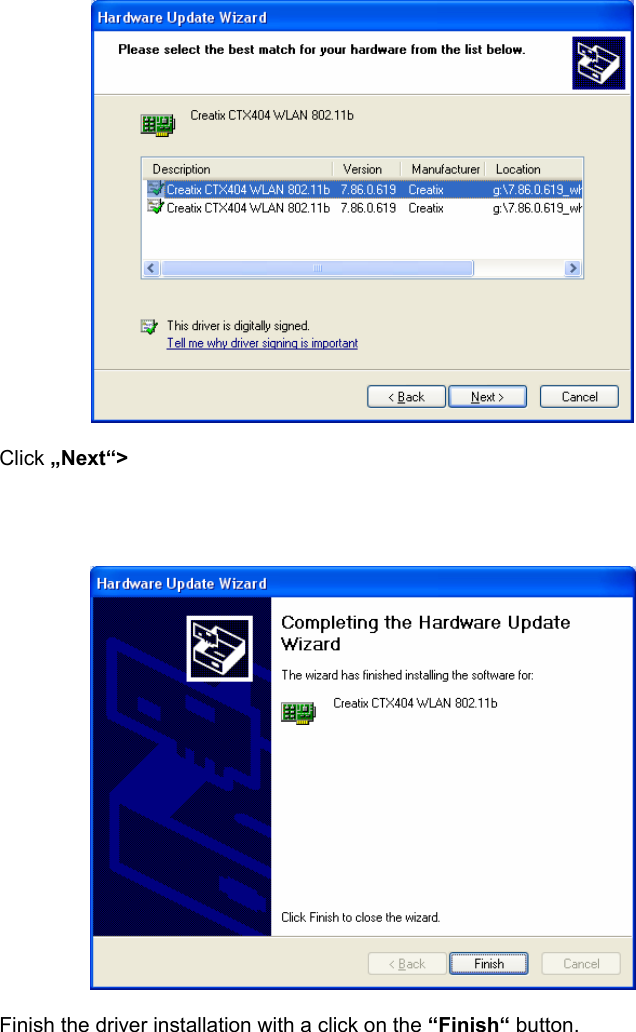
 Install the CTX404E V.2  1. Before installing the device, make sure the computer is turned off.  2. Remove the expansion slot cover from the computer.  3. Carefully slide the wireless PCI card into an available PCI slot, push it evenly and    firmly and ensure it is screwed securely in place using the mounting screw.  4. Once the device has been connected to your computer, Windows will detect the new hardware automatically.   Windows XP    Click on „Install the software automatically (Recommended)” and click “Next”>
   Click „Next“>       Finish the driver installation with a click on the “Finish“ button.
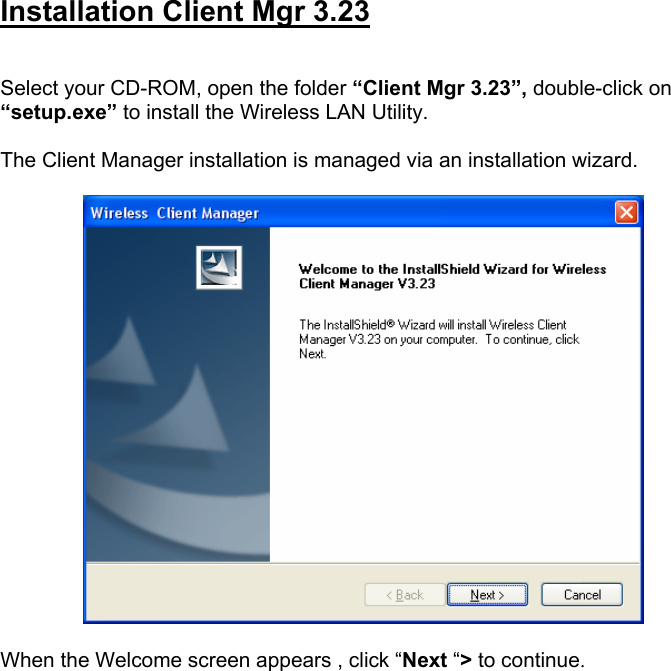
 Installation Client Mgr 3.23   Select your CD-ROM, open the folder “Client Mgr 3.23”, double-click on “setup.exe” to install the Wireless LAN Utility.  The Client Manager installation is managed via an installation wizard.    When the Welcome screen appears , click “Next “> to continue.
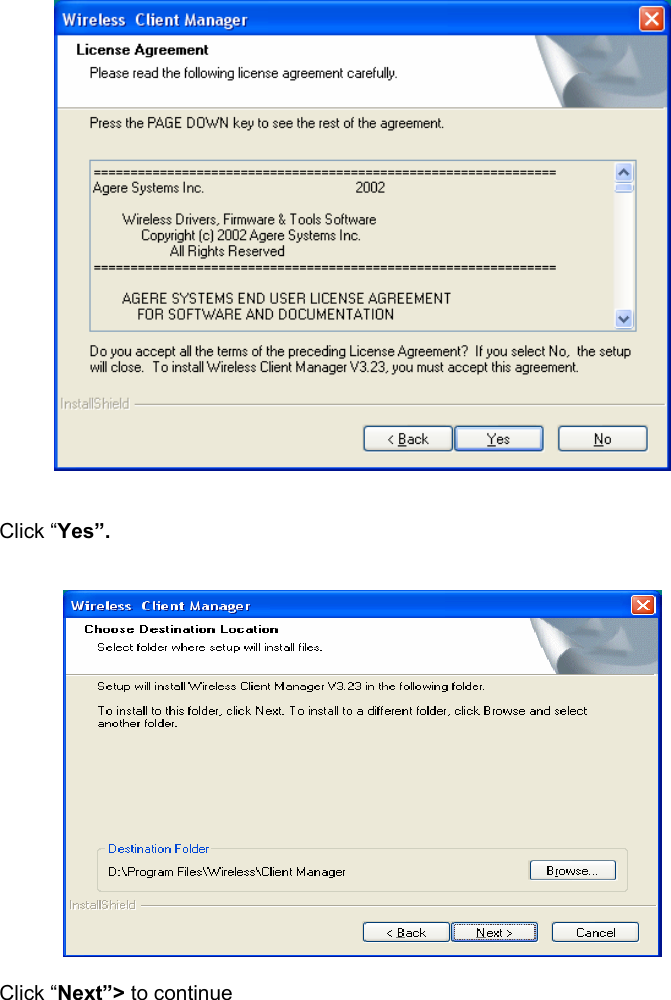
    Click “Yes”.     Click “Next”> to continue
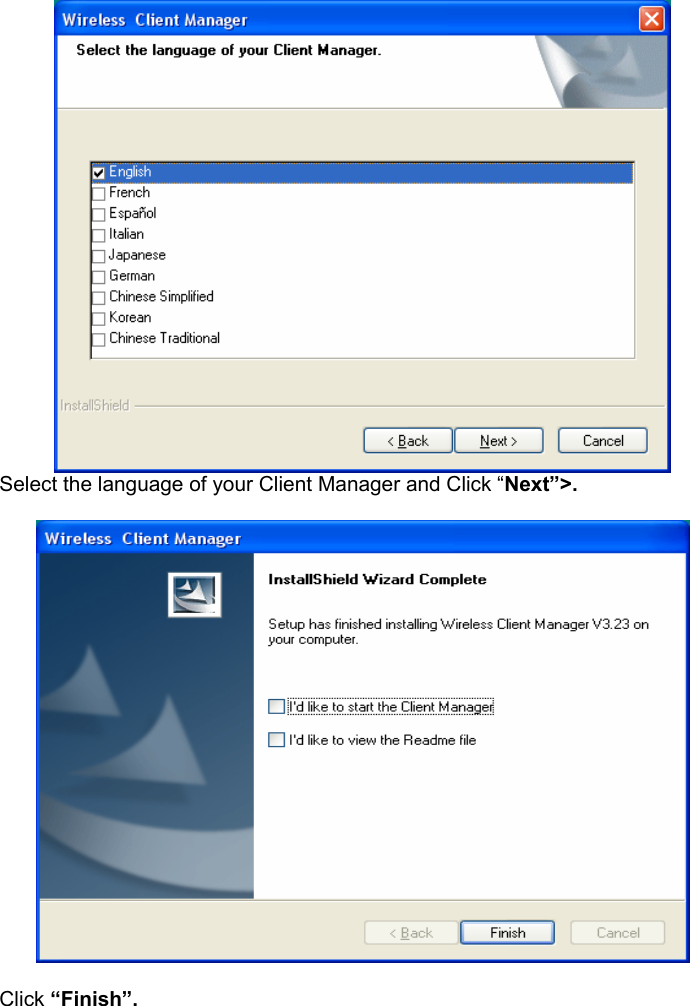
  Select the language of your Client Manager and Click “Next”>.    Click “Finish”.
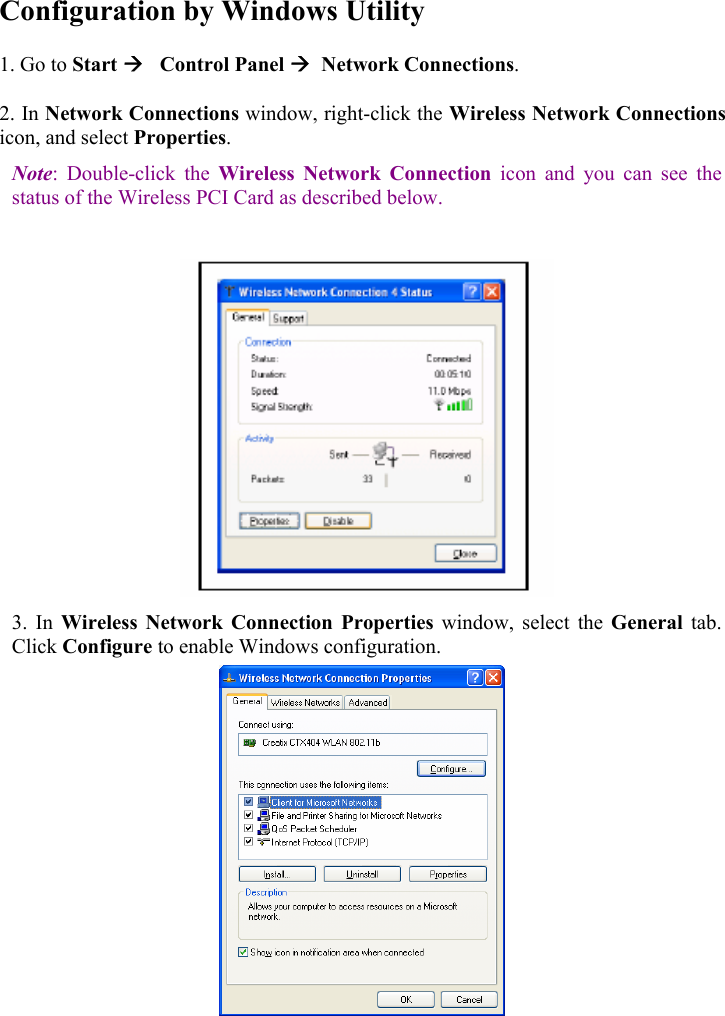
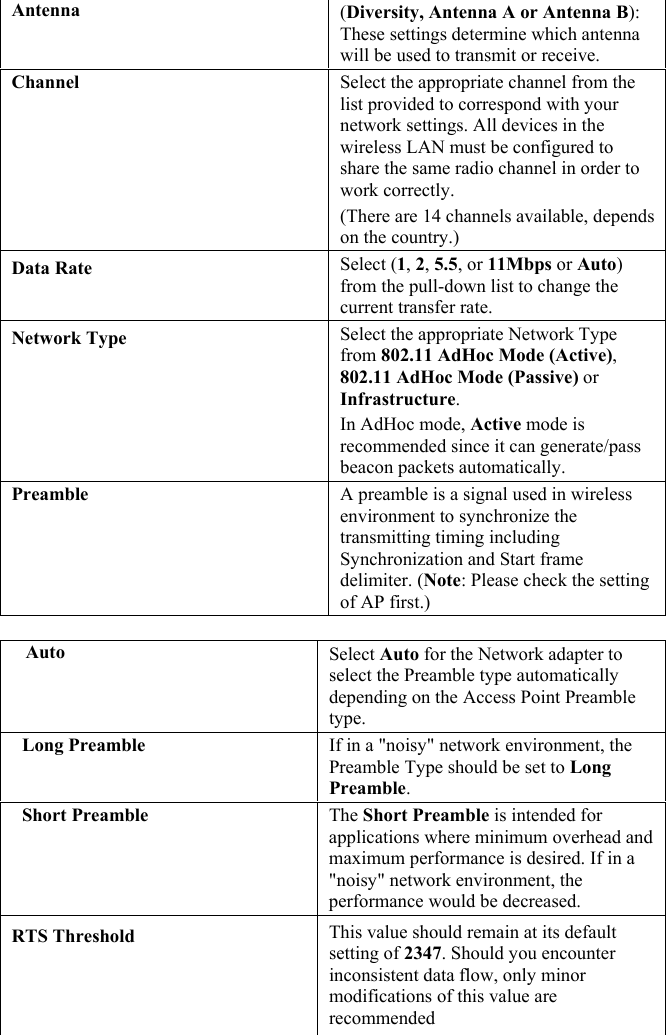
 Configuration by Windows Utility 1. Go to Start Æ   Control Panel Æ  Network Connections.  2. In Network Connections window, right-click the Wireless Network Connections icon, and select Properties.  Note: Double-click the Wireless Network Connection icon and you can see the status of the Wireless PCI Card as described below.    3. In Wireless Network Connection Properties window, select the General  tab. Click Configure to enable Windows configuration.
 Antenna (Diversity, Antenna A or Antenna B): These settings determine which antenna will be used to transmit or receive.  Channel  Select the appropriate channel from the list provided to correspond with your network settings. All devices in the wireless LAN must be configured to share the same radio channel in order to work correctly.  (There are 14 channels available, depends on the country.)  Data Rate  Select (1, 2, 5.5, or 11Mbps or Auto) from the pull-down list to change the current transfer rate.  Network Type  Select the appropriate Network Type from 802.11 AdHoc Mode (Active), 802.11 AdHoc Mode (Passive) or Infrastructure.  In AdHoc mode, Active mode is recommended since it can generate/pass beacon packets automatically.  Preamble  A preamble is a signal used in wireless environment to synchronize the transmitting timing including Synchronization and Start frame delimiter. (Note: Please check the setting of AP first.)      Auto  Select Auto for the Network adapter to select the Preamble type automatically depending on the Access Point Preamble type.    Long Preamble  If in a "noisy" network environment, the Preamble Type should be set to Long Preamble.    Short Preamble  The Short Preamble is intended for applications where minimum overhead and maximum performance is desired. If in a "noisy" network environment, the performance would be decreased.  RTS Threshold  This value should remain at its default setting of 2347. Should you encounter inconsistent data flow, only minor modifications of this value are recommended
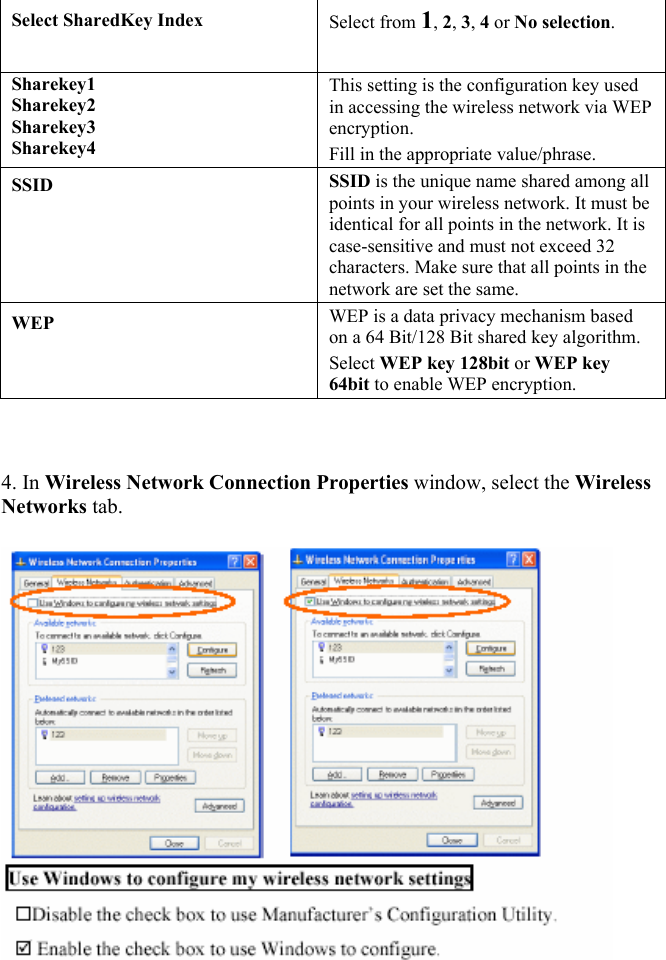
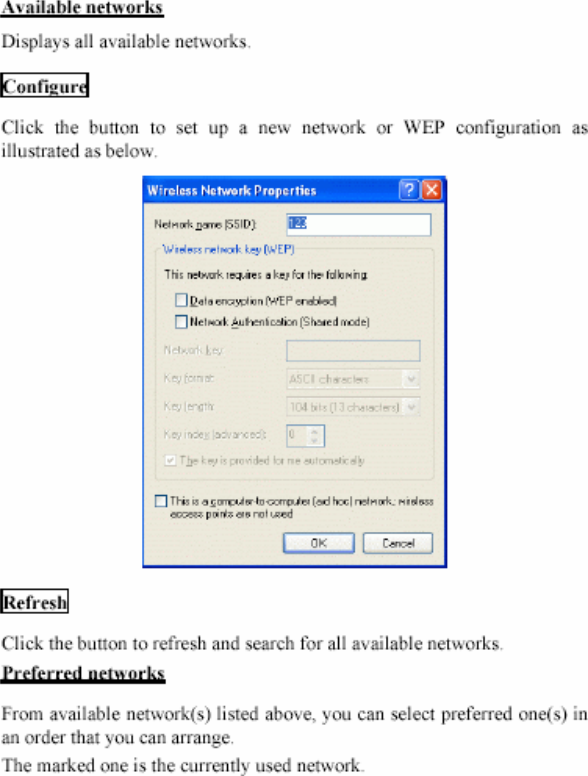
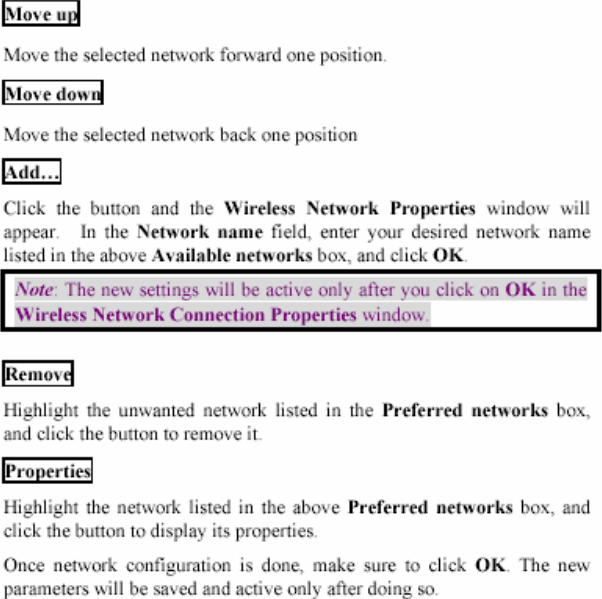
 Select SharedKey Index  Select from 1, 2, 3, 4 or No selection.  Sharekey1  Sharekey2  Sharekey3  Sharekey4  This setting is the configuration key used in accessing the wireless network via WEP encryption.  Fill in the appropriate value/phrase.  SSID  SSID is the unique name shared among all points in your wireless network. It must be identical for all points in the network. It is case-sensitive and must not exceed 32 characters. Make sure that all points in the network are set the same.  WEP  WEP is a data privacy mechanism based on a 64 Bit/128 Bit shared key algorithm.  Select WEP key 128bit or WEP key 64bit to enable WEP encryption.     4. In Wireless Network Connection Properties window, select the Wireless Networks tab.
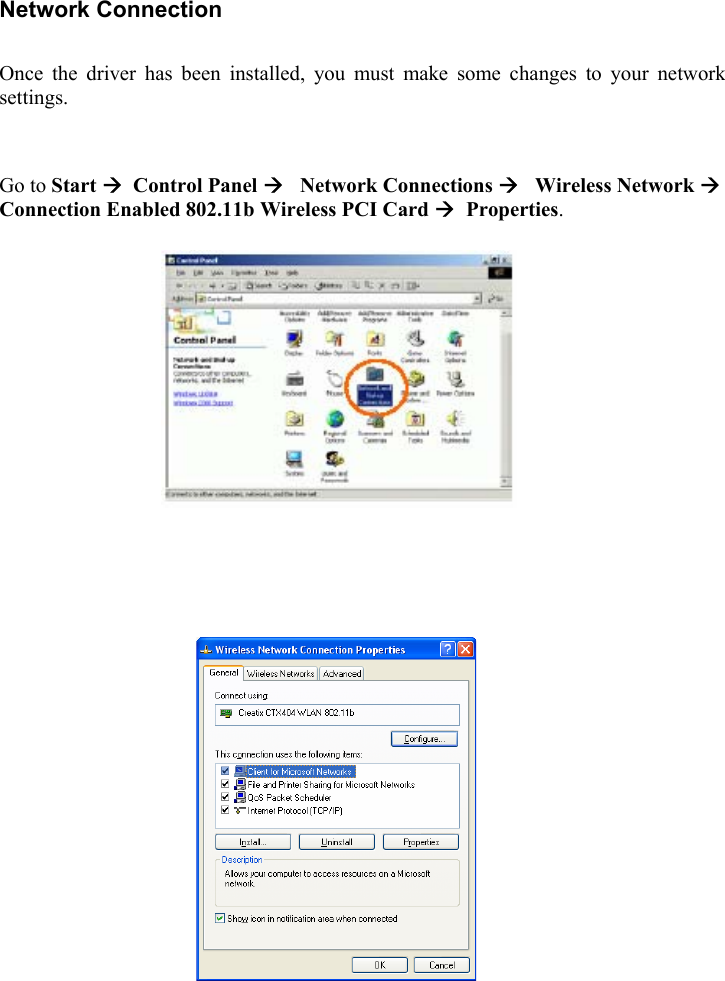
 Network Connection  Once the driver has been installed, you must make some changes to your network settings.   Go to Start Æ  Control Panel Æ   Network Connections Æ   Wireless Network Æ Connection Enabled 802.11b Wireless PCI Card Æ  Properties.
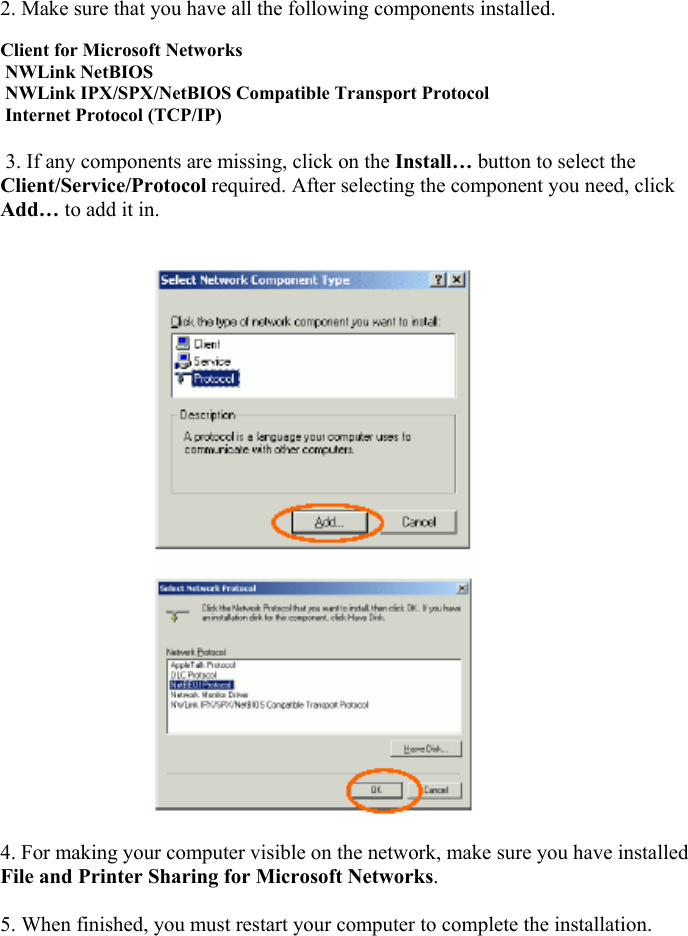
   2. Make sure that you have all the following components installed.     Client for Microsoft Networks   NWLink NetBIOS   NWLink IPX/SPX/NetBIOS Compatible Transport Protocol   Internet Protocol (TCP/IP)    3. If any components are missing, click on the Install… button to select the Client/Service/Protocol required. After selecting the component you need, click Add… to add it in.                                                               4. For making your computer visible on the network, make sure you have installed File and Printer Sharing for Microsoft Networks.   5. When finished, you must restart your computer to complete the installation.
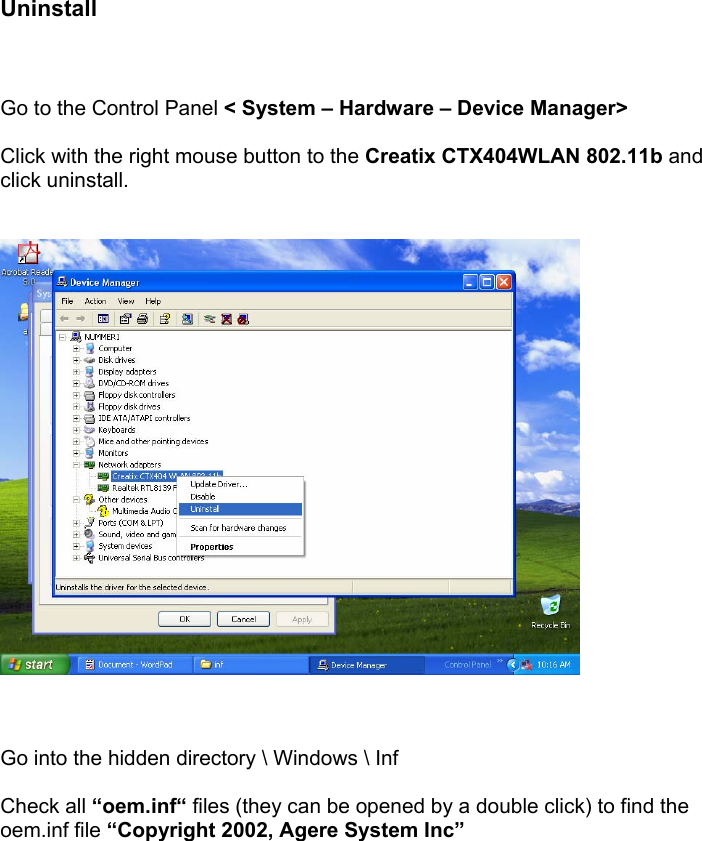
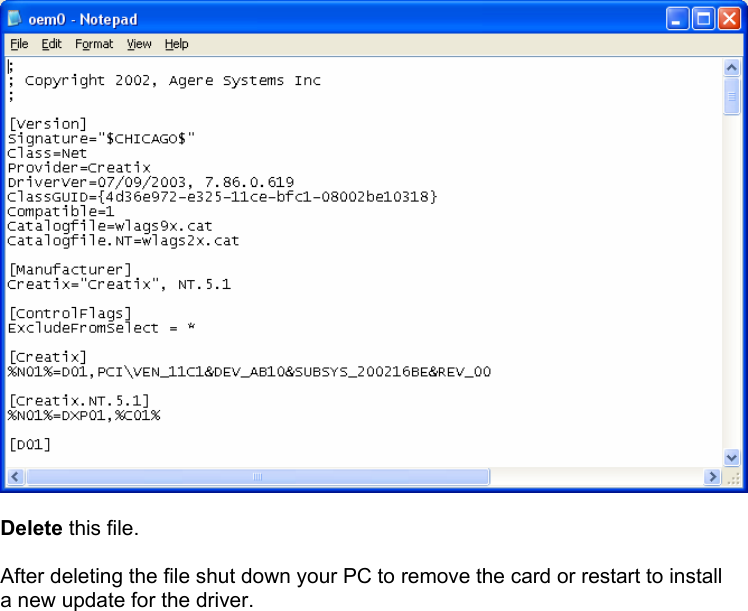
     Uninstall    Go to the Control Panel < System – Hardware – Device Manager>  Click with the right mouse button to the Creatix CTX404WLAN 802.11b and click uninstall.       Go into the hidden directory \ Windows \ Inf  Check all “oem.inf“ files (they can be opened by a double click) to find the oem.inf file “Copyright 2002, Agere System Inc”
   Delete this file.  After deleting the file shut down your PC to remove the card or restart to install a new update for the driver.
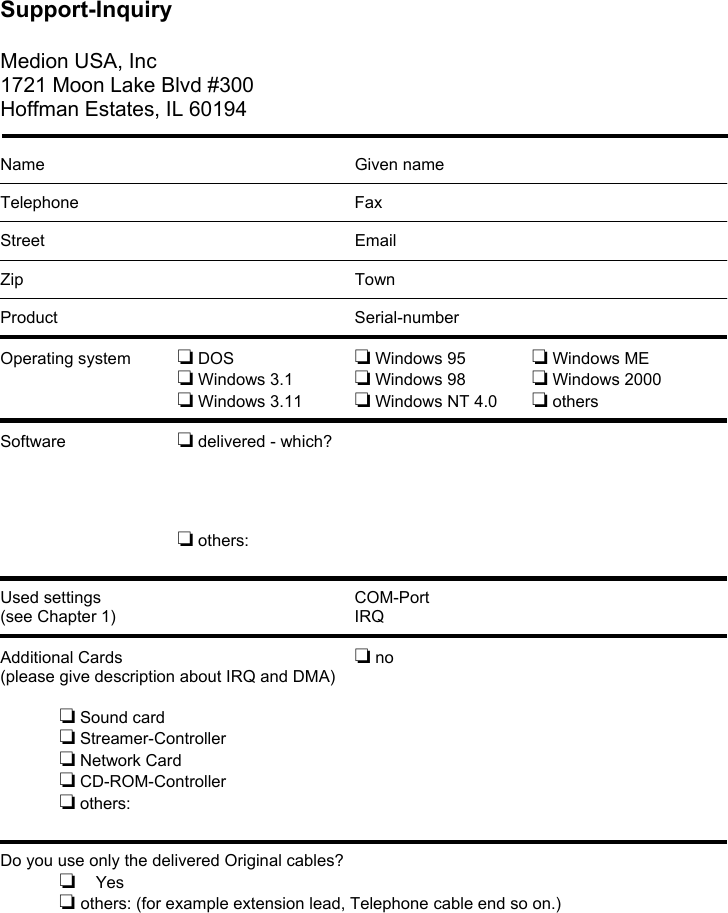
 Support-Inquiry  Medion USA, Inc 1721 Moon Lake Blvd #300 Hoffman Estates, IL 60194   Name       Given name  Telephone      Fax  Street      Email  Zip       Town  Product      Serial-number  Operating system   ❏ DOS     ❏ Windows 95    ❏ Windows ME ❏ Windows 3.1   ❏ Windows 98    ❏ Windows 2000 ❏ Windows 3.11  ❏ Windows NT 4.0  ❏ others  Software     ❏ delivered - which?     ❏ others:   Used settings     COM-Port (see Chapter 1)         IRQ  Additional Cards        ❏ no (please give description about IRQ and DMA)  ❏ Sound card ❏ Streamer-Controller ❏ Network Card ❏ CD-ROM-Controller ❏ others:   Do you use only the delivered Original cables? ❏  Yes  ❏ others: (for example extension lead, Telephone cable end so on.)
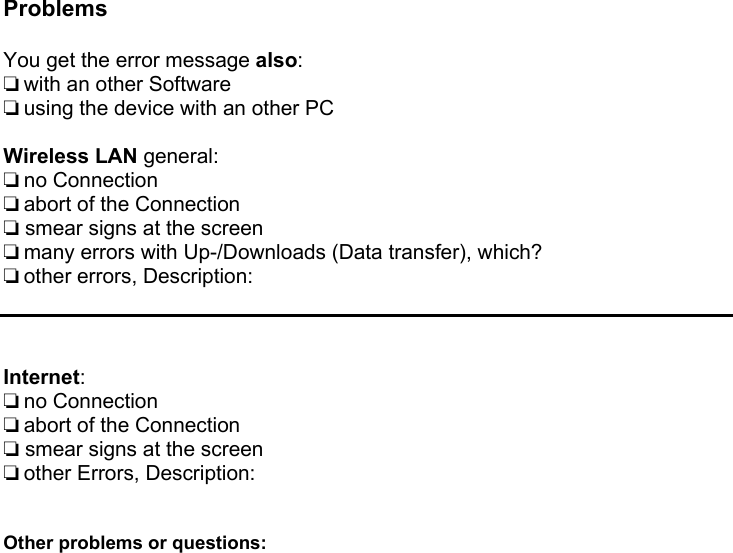
 Problems  You get the error message also: ❏ with an other Software  ❏ using the device with an other PC  Wireless LAN general: ❏ no Connection  ❏ abort of the Connection ❏ smear signs at the screen ❏ many errors with Up-/Downloads (Data transfer), which? ❏ other errors, Description:    Internet: ❏ no Connection  ❏ abort of the Connection ❏ smear signs at the screen ❏ other Errors, Description:   Other problems or questions:

Navigation menu