Creatix Polymedia CTX405 WLAN PCI Card 802.11 b/g User Manual CTX405 V1 Manual 11

Creatix Polymedia GmbH WLAN PCI Card 802.11 b/g CTX405 V1 Manual 11

User Manual

 1                   Creatix 802.11g Adapter CTX405 Vx User Manual
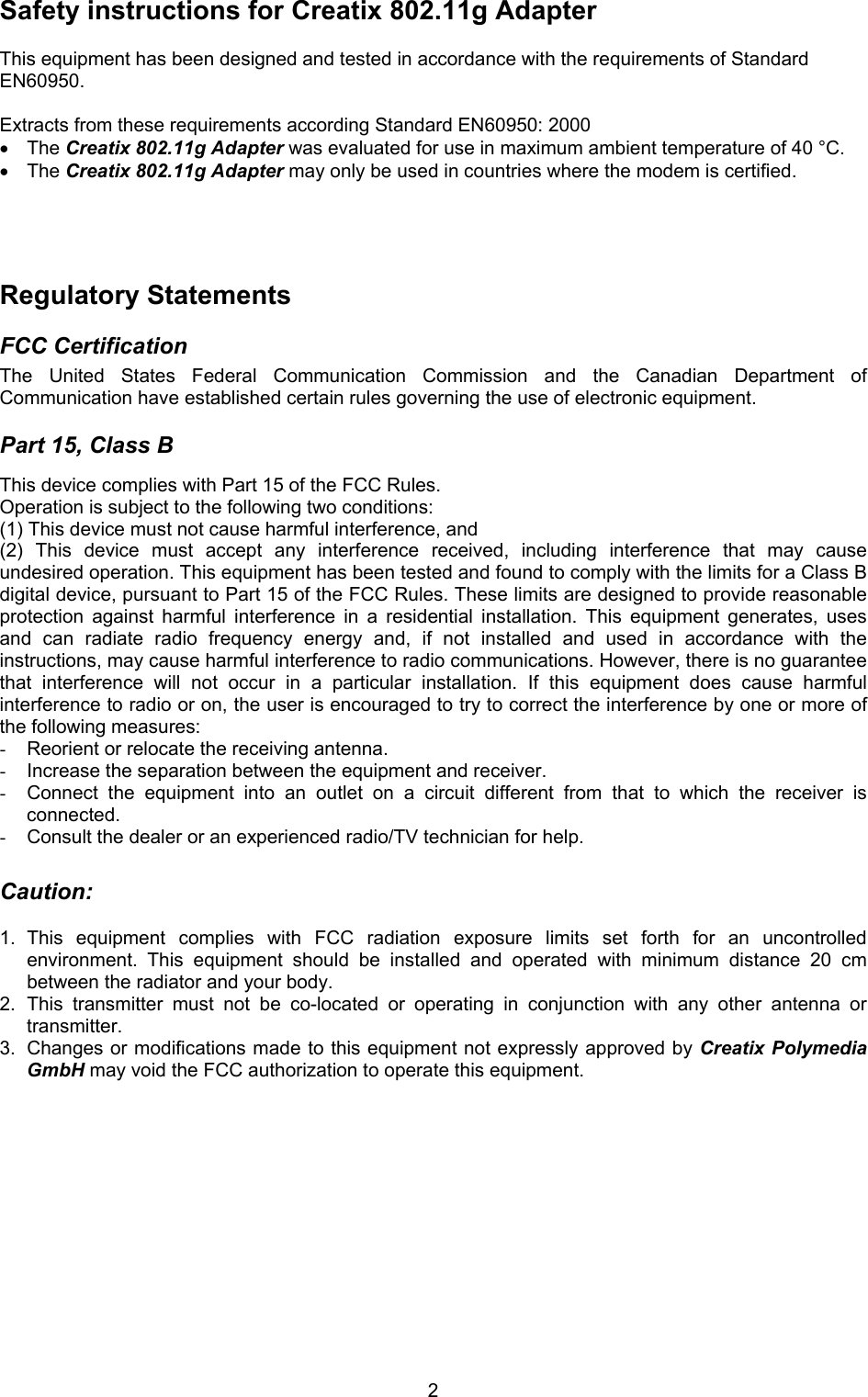
 2Safety instructions for Creatix 802.11g Adapter  This equipment has been designed and tested in accordance with the requirements of Standard EN60950.  Extracts from these requirements according Standard EN60950: 2000 • The Creatix 802.11g Adapter was evaluated for use in maximum ambient temperature of 40 °C. • The Creatix 802.11g Adapter may only be used in countries where the modem is certified.     Regulatory Statements  FCC Certification  The United States Federal Communication Commission and the Canadian Department of Communication have established certain rules governing the use of electronic equipment.  Part 15, Class B  This device complies with Part 15 of the FCC Rules.  Operation is subject to the following two conditions:  (1) This device must not cause harmful interference, and  (2) This device must accept any interference received, including interference that may cause undesired operation. This equipment has been tested and found to comply with the limits for a Class B digital device, pursuant to Part 15 of the FCC Rules. These limits are designed to provide reasonable protection against harmful interference in a residential installation. This equipment generates, uses and can radiate radio frequency energy and, if not installed and used in accordance with the instructions, may cause harmful interference to radio communications. However, there is no guarantee that interference will not occur in a particular installation. If this equipment does cause harmful interference to radio or on, the user is encouraged to try to correct the interference by one or more of the following measures:  -  Reorient or relocate the receiving antenna. -  Increase the separation between the equipment and receiver. -  Connect the equipment into an outlet on a circuit different from that to which the receiver is connected. -  Consult the dealer or an experienced radio/TV technician for help.  Caution:   1. This equipment complies with FCC radiation exposure limits set forth for an uncontrolled environment. This equipment should be installed and operated with minimum distance 20 cm between the radiator and your body. 2. This transmitter must not be co-located or operating in conjunction with any other antenna or transmitter. 3.  Changes or modifications made to this equipment not expressly approved by Creatix Polymedia GmbH may void the FCC authorization to operate this equipment.
 3
 4
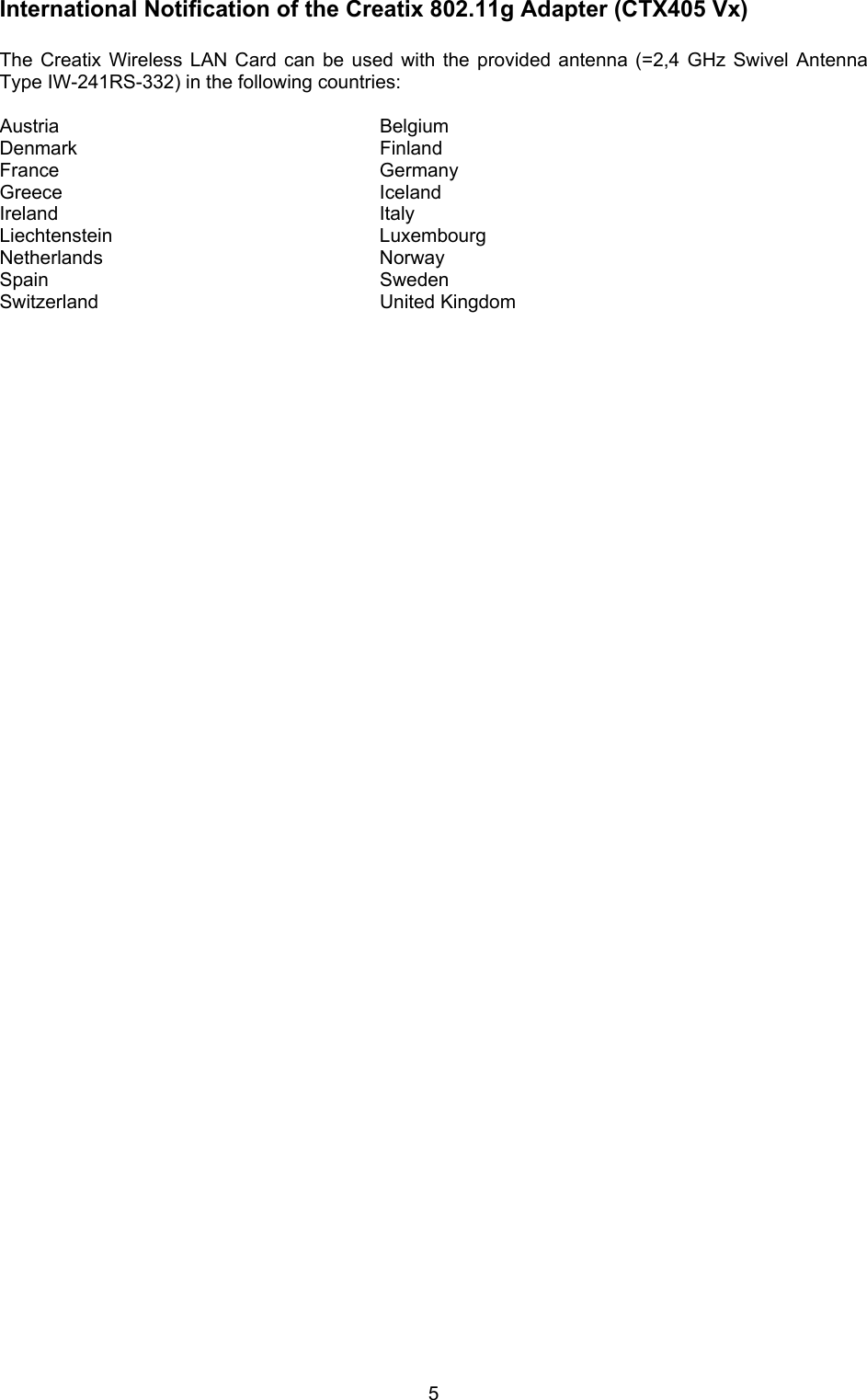
 5International Notification of the Creatix 802.11g Adapter (CTX405 Vx)   The Creatix Wireless LAN Card can be used with the provided antenna (=2,4 GHz Swivel Antenna Type IW-241RS-332) in the following countries:  Austria Belgium Denmark Finland France Germany Greece Iceland Ireland Italy Liechtenstein Luxembourg Netherlands Norway Spain  Sweden Switzerland United Kingdom
 6Table of Contents    Safety Instructions  ..................................................................   2  Regulatory Statement ..................................................................  2  Introduction ..................................................................  7  Options -  Peer to Peer ..................................................................  7 -  Access Point ..................................................................  8  Installation Windows XP  ..................................................................   9  Installation Windows 2000  ..................................................................  11  Configuration Windows Utility  ..................................................................  14  Configuration Driver Utility  ..................................................................  15  Uninstall ..................................................................  20
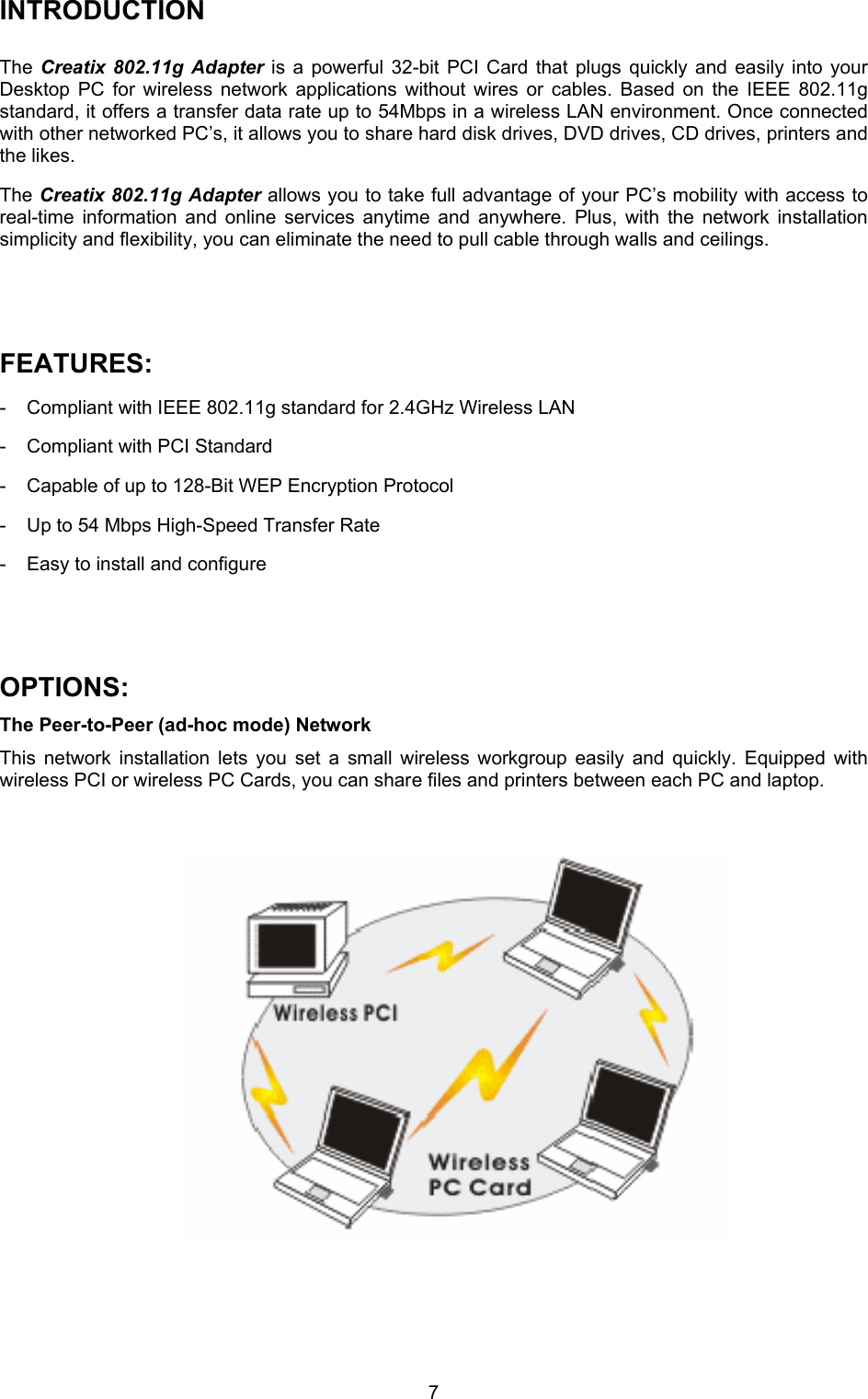
 7INTRODUCTION  The  Creatix 802.11g Adapter is a powerful 32-bit PCI Card that plugs quickly and easily into your Desktop PC for wireless network applications without wires or cables. Based on the IEEE 802.11g standard, it offers a transfer data rate up to 54Mbps in a wireless LAN environment. Once connected with other networked PC’s, it allows you to share hard disk drives, DVD drives, CD drives, printers and the likes.  The Creatix 802.11g Adapter allows you to take full advantage of your PC’s mobility with access to real-time information and online services anytime and anywhere. Plus, with the network installation simplicity and flexibility, you can eliminate the need to pull cable through walls and ceilings.    FEATURES: -  Compliant with IEEE 802.11g standard for 2.4GHz Wireless LAN  -  Compliant with PCI Standard  -  Capable of up to 128-Bit WEP Encryption Protocol  -  Up to 54 Mbps High-Speed Transfer Rate  -  Easy to install and configure    OPTIONS: The Peer-to-Peer (ad-hoc mode) Network  This network installation lets you set a small wireless workgroup easily and quickly. Equipped with wireless PCI or wireless PC Cards, you can share files and printers between each PC and laptop.
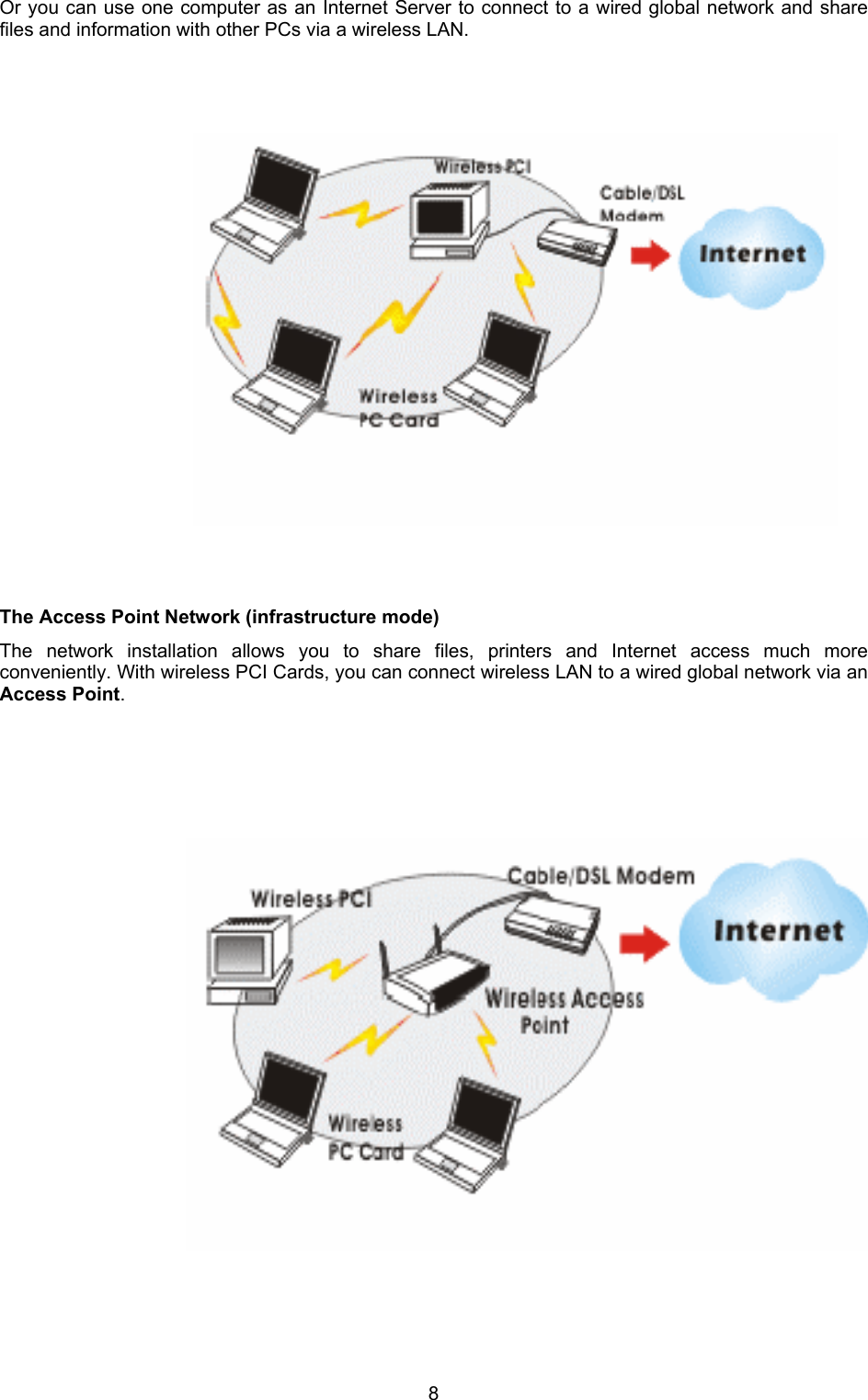
 8Or you can use one computer as an Internet Server to connect to a wired global network and share files and information with other PCs via a wireless LAN.                        The Access Point Network (infrastructure mode)  The network installation allows you to share files, printers and Internet access much more conveniently. With wireless PCI Cards, you can connect wireless LAN to a wired global network via an Access Point.
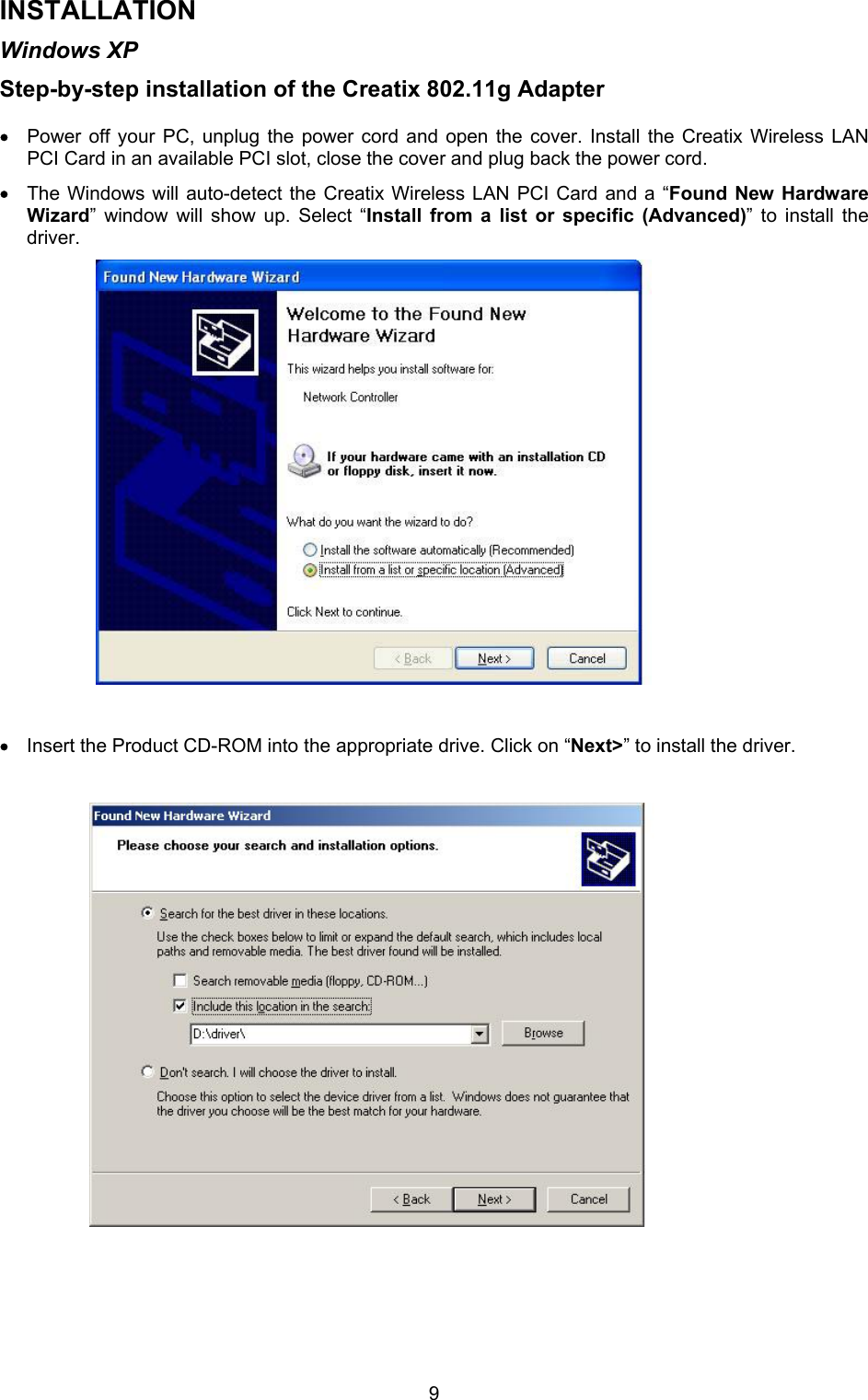
 9INSTALLATION Windows XP Step-by-step installation of the Creatix 802.11g Adapter   • Power off your PC, unplug the power cord and open the cover. Install the Creatix Wireless LAN PCI Card in an available PCI slot, close the cover and plug back the power cord. • The Windows will auto-detect the Creatix Wireless LAN PCI Card and a “Found New Hardware Wizard” window will show up. Select “Install from a list or specific (Advanced)” to install the driver.                       • Insert the Product CD-ROM into the appropriate drive. Click on “Next>” to install the driver.
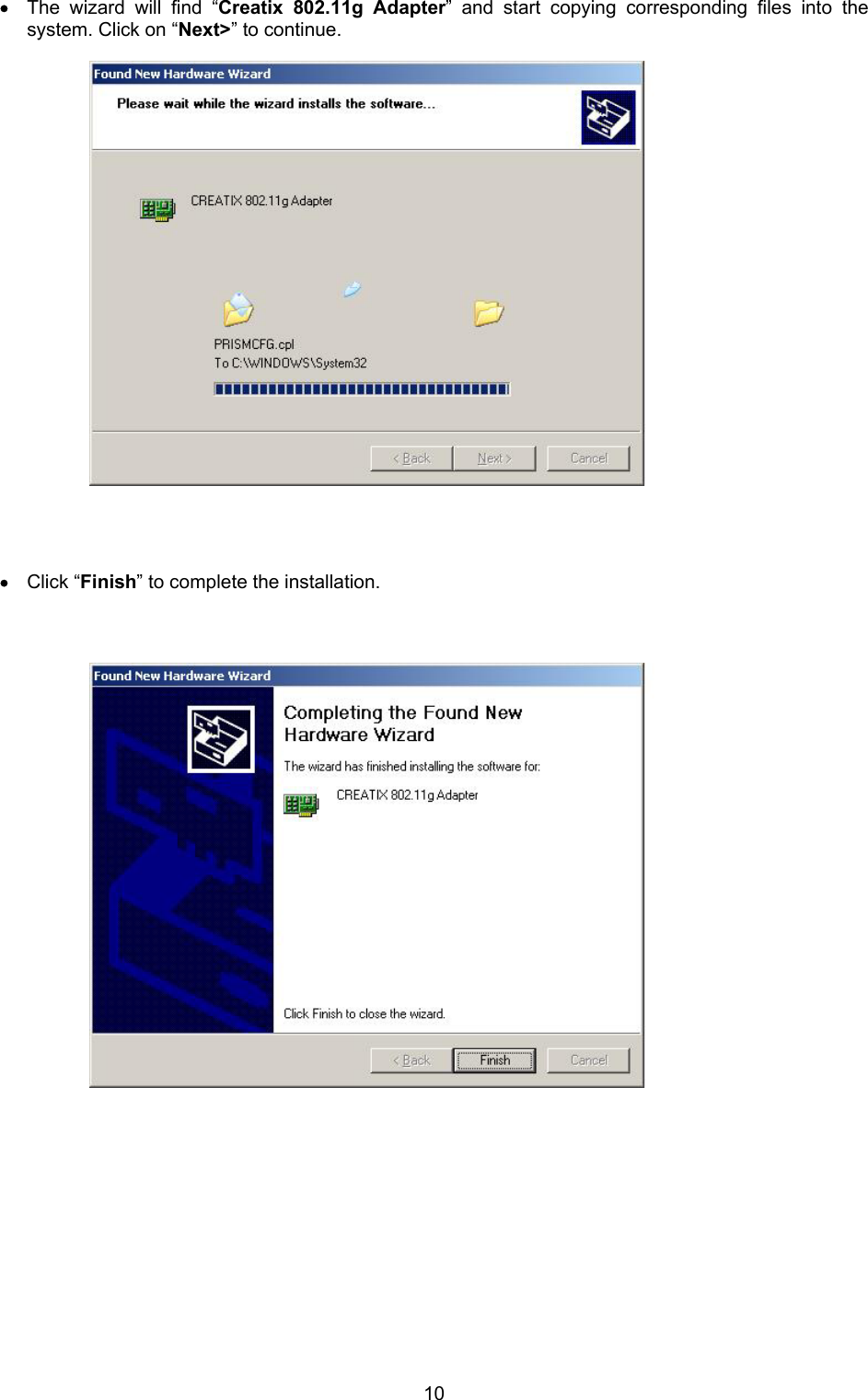
 10• The wizard will find “Creatix 802.11g Adapter” and start copying corresponding files into the system. Click on “Next>” to continue.                         • Click “Finish” to complete the installation.
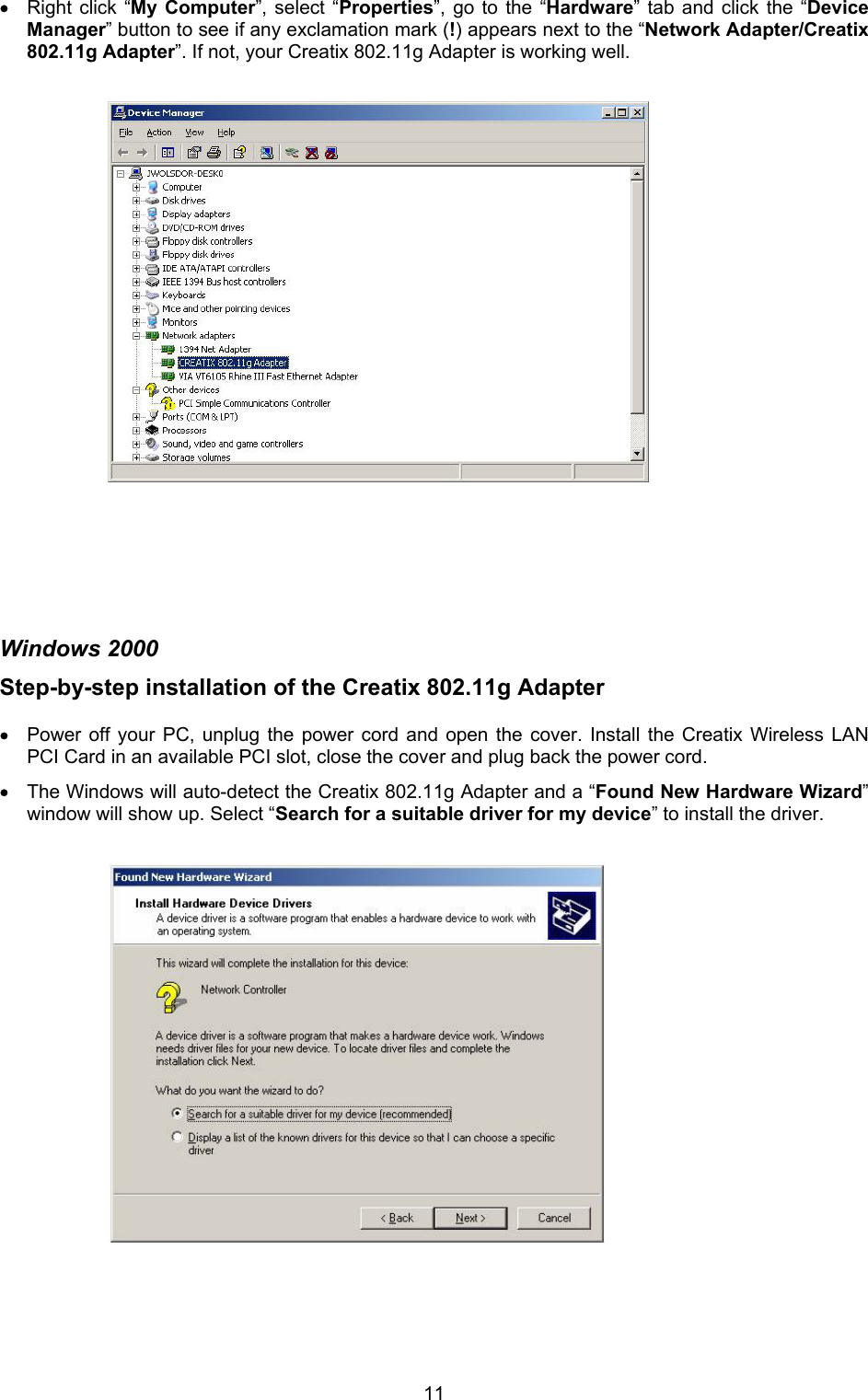
 11• Right click “My Computer”, select “Properties”, go to the “Hardware” tab and click the “Device Manager” button to see if any exclamation mark (!) appears next to the “Network Adapter/Creatix 802.11g Adapter”. If not, your Creatix 802.11g Adapter is working well.                           Windows 2000 Step-by-step installation of the Creatix 802.11g Adapter   • Power off your PC, unplug the power cord and open the cover. Install the Creatix Wireless LAN PCI Card in an available PCI slot, close the cover and plug back the power cord. • The Windows will auto-detect the Creatix 802.11g Adapter and a “Found New Hardware Wizard” window will show up. Select “Search for a suitable driver for my device” to install the driver.
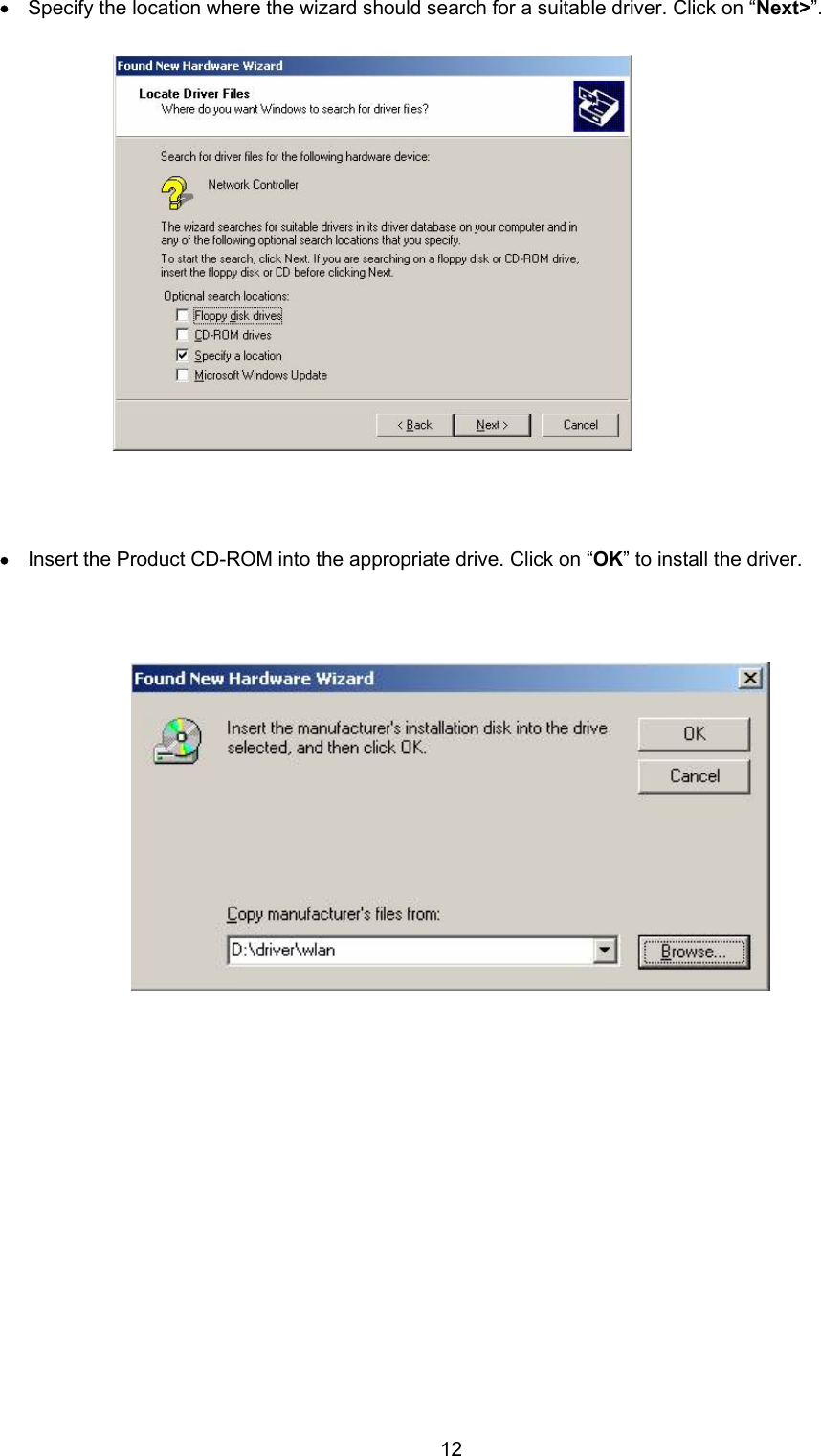
 12• Specify the location where the wizard should search for a suitable driver. Click on “Next>”.                        • Insert the Product CD-ROM into the appropriate drive. Click on “OK” to install the driver.
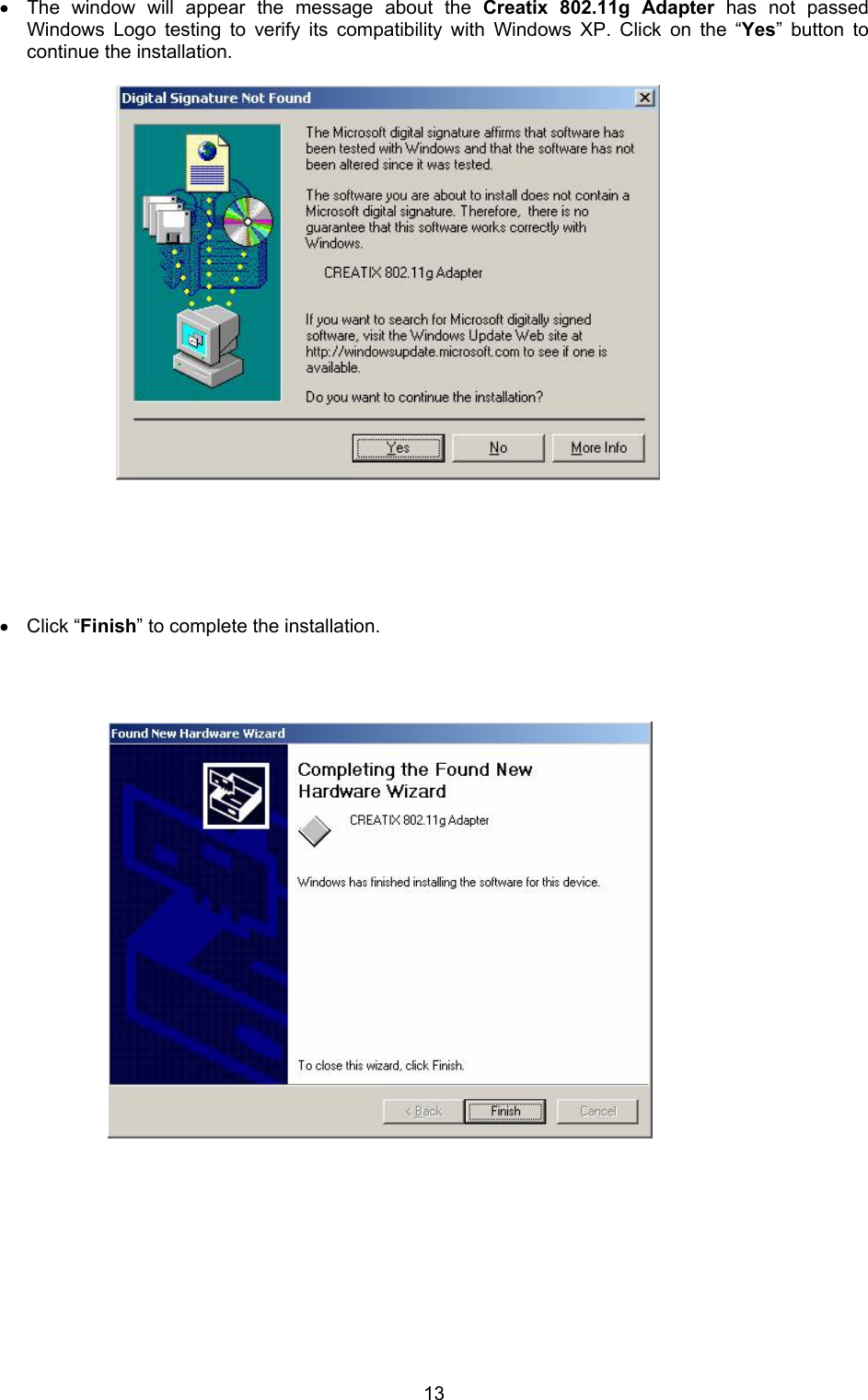
 13• The window will appear the message about the Creatix 802.11g Adapter has not passed Windows Logo testing to verify its compatibility with Windows XP. Click on the “Yes” button to continue the installation.                          • Click “Finish” to complete the installation.
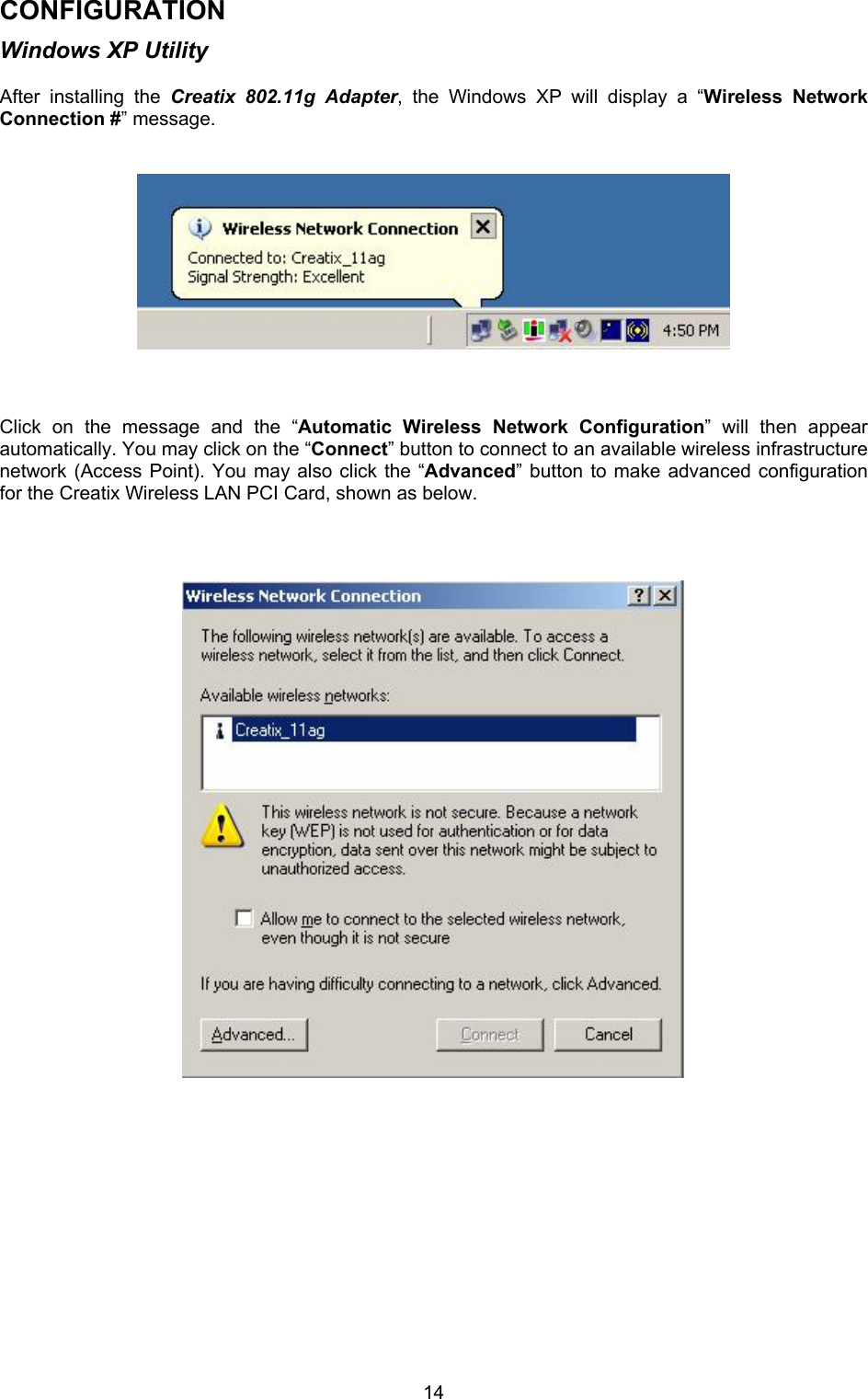
 14CONFIGURATION Windows XP Utility  After installing the Creatix 802.11g Adapter, the Windows XP will display a “Wireless Network Connection #” message.              Click on the message and the “Automatic Wireless Network Configuration” will then appear automatically. You may click on the “Connect” button to connect to an available wireless infrastructure network (Access Point). You may also click the “Advanced” button to make advanced configuration for the Creatix Wireless LAN PCI Card, shown as below.
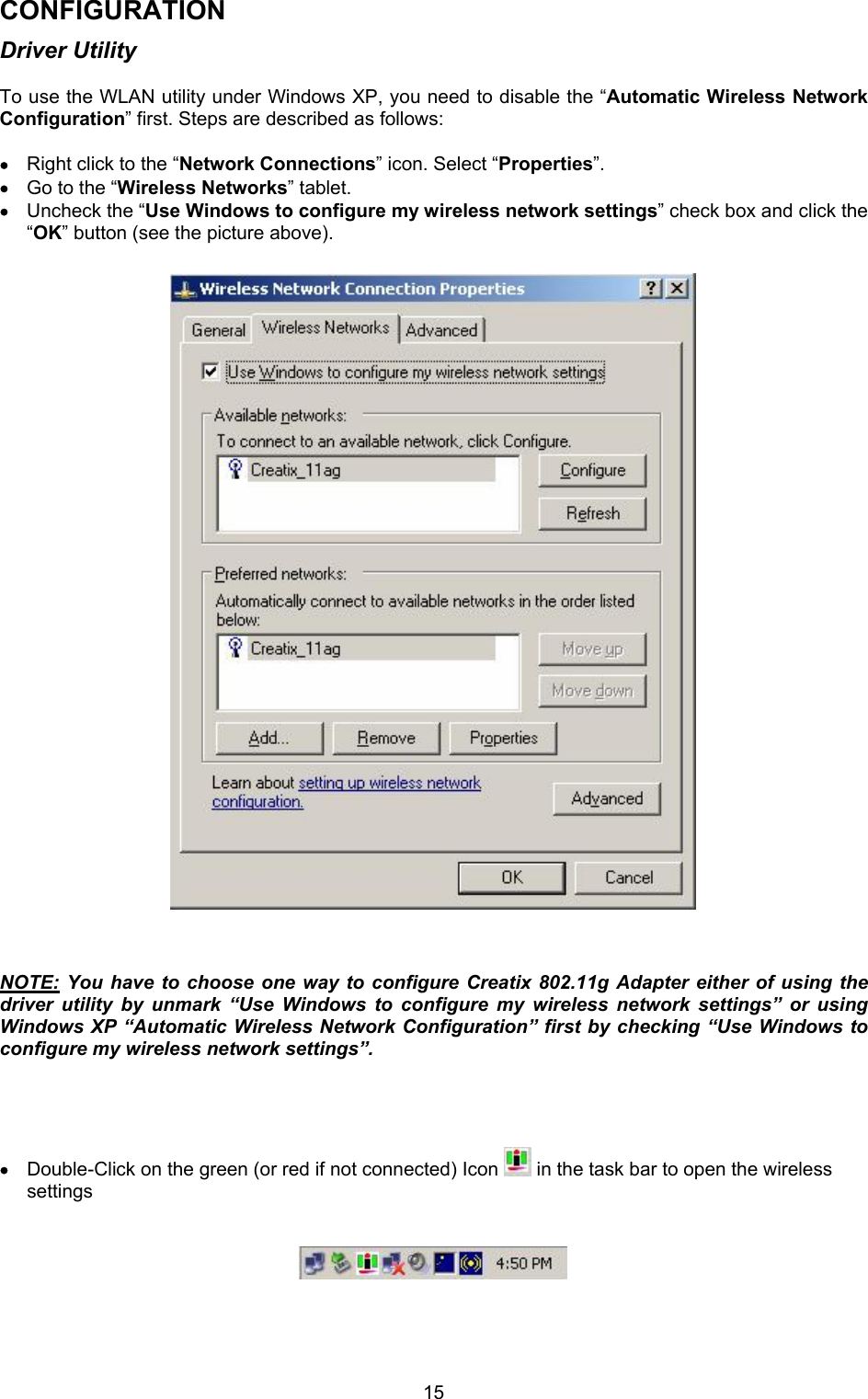
 15CONFIGURATION Driver Utility  To use the WLAN utility under Windows XP, you need to disable the “Automatic Wireless Network Configuration” first. Steps are described as follows:  • Right click to the “Network Connections” icon. Select “Properties”. • Go to the “Wireless Networks” tablet. • Uncheck the “Use Windows to configure my wireless network settings” check box and click the “OK” button (see the picture above).                                  NOTE: You have to choose one way to configure Creatix 802.11g Adapter either of using the driver utility by unmark “Use Windows to configure my wireless network settings” or using Windows XP “Automatic Wireless Network Configuration” first by checking “Use Windows to configure my wireless network settings”.     • Double-Click on the green (or red if not connected) Icon   in the task bar to open the wireless settings
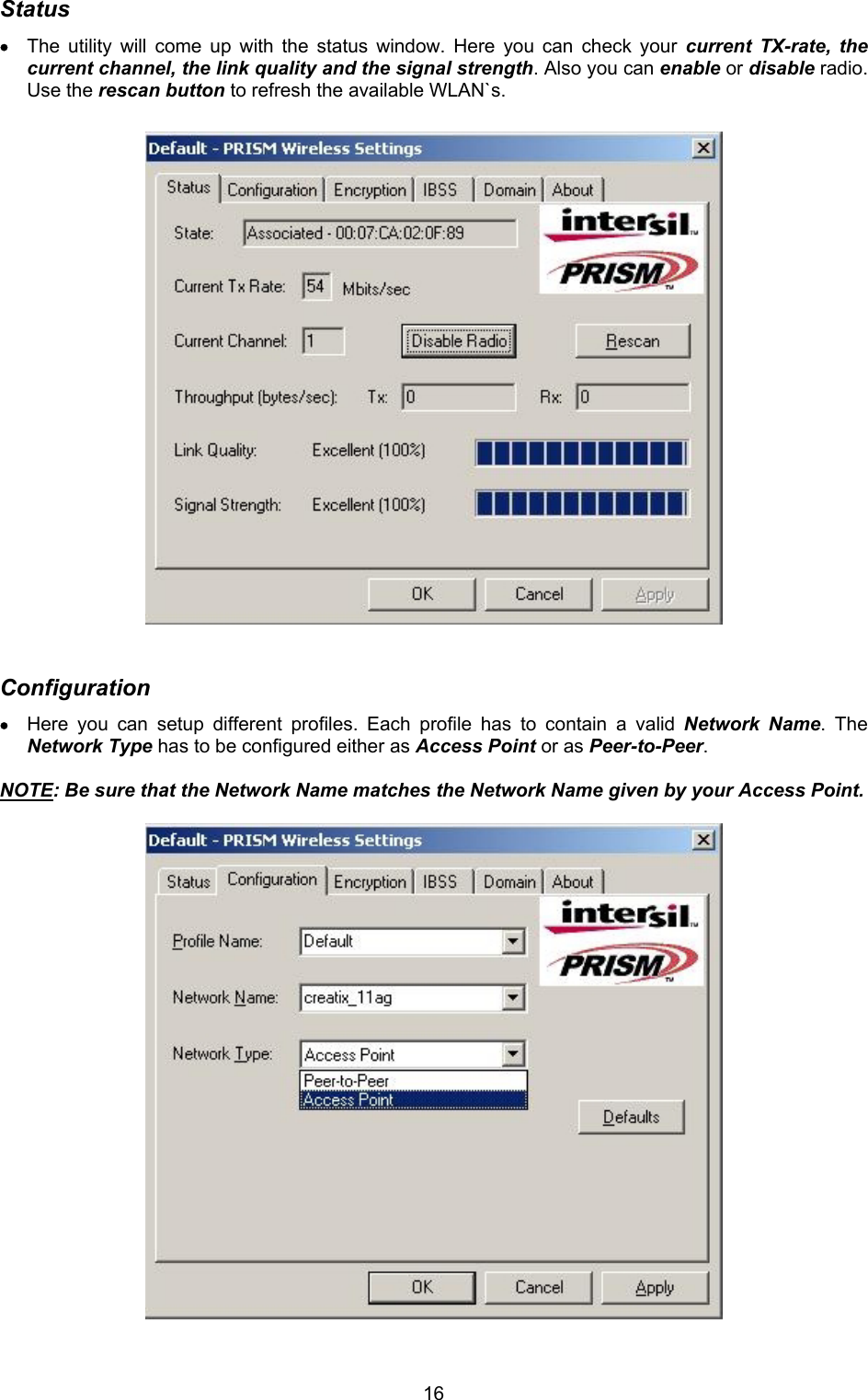
 16Status • The utility will come up with the status window. Here you can check your current TX-rate, the current channel, the link quality and the signal strength. Also you can enable or disable radio. Use the rescan button to refresh the available WLAN`s.                           Configuration • Here you can setup different profiles. Each profile has to contain a valid Network Name. The Network Type has to be configured either as Access Point or as Peer-to-Peer.   NOTE: Be sure that the Network Name matches the Network Name given by your Access Point.
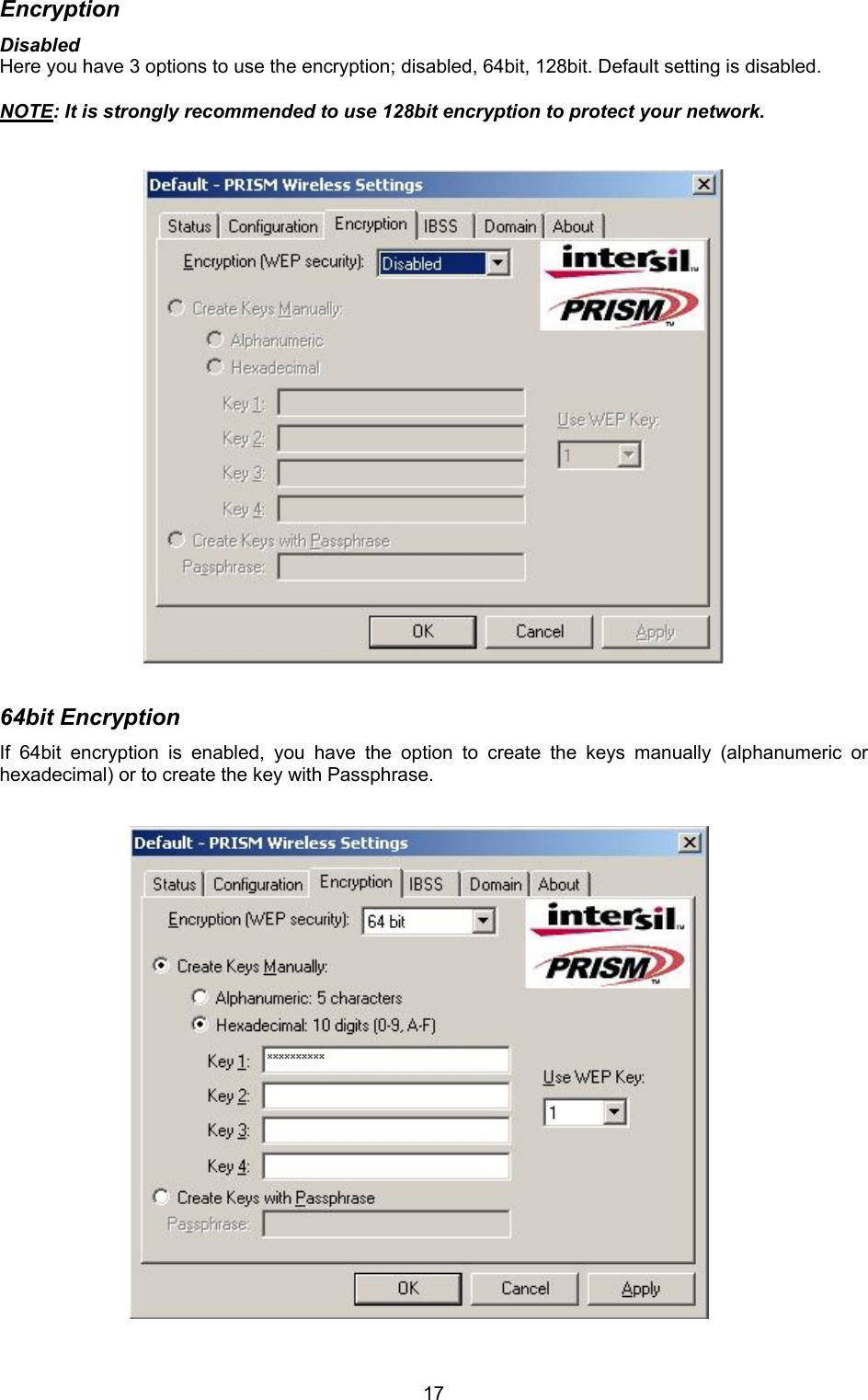
 17Encryption Disabled Here you have 3 options to use the encryption; disabled, 64bit, 128bit. Default setting is disabled.  NOTE: It is strongly recommended to use 128bit encryption to protect your network.                       64bit Encryption If 64bit encryption is enabled, you have the option to create the keys manually (alphanumeric or hexadecimal) or to create the key with Passphrase.
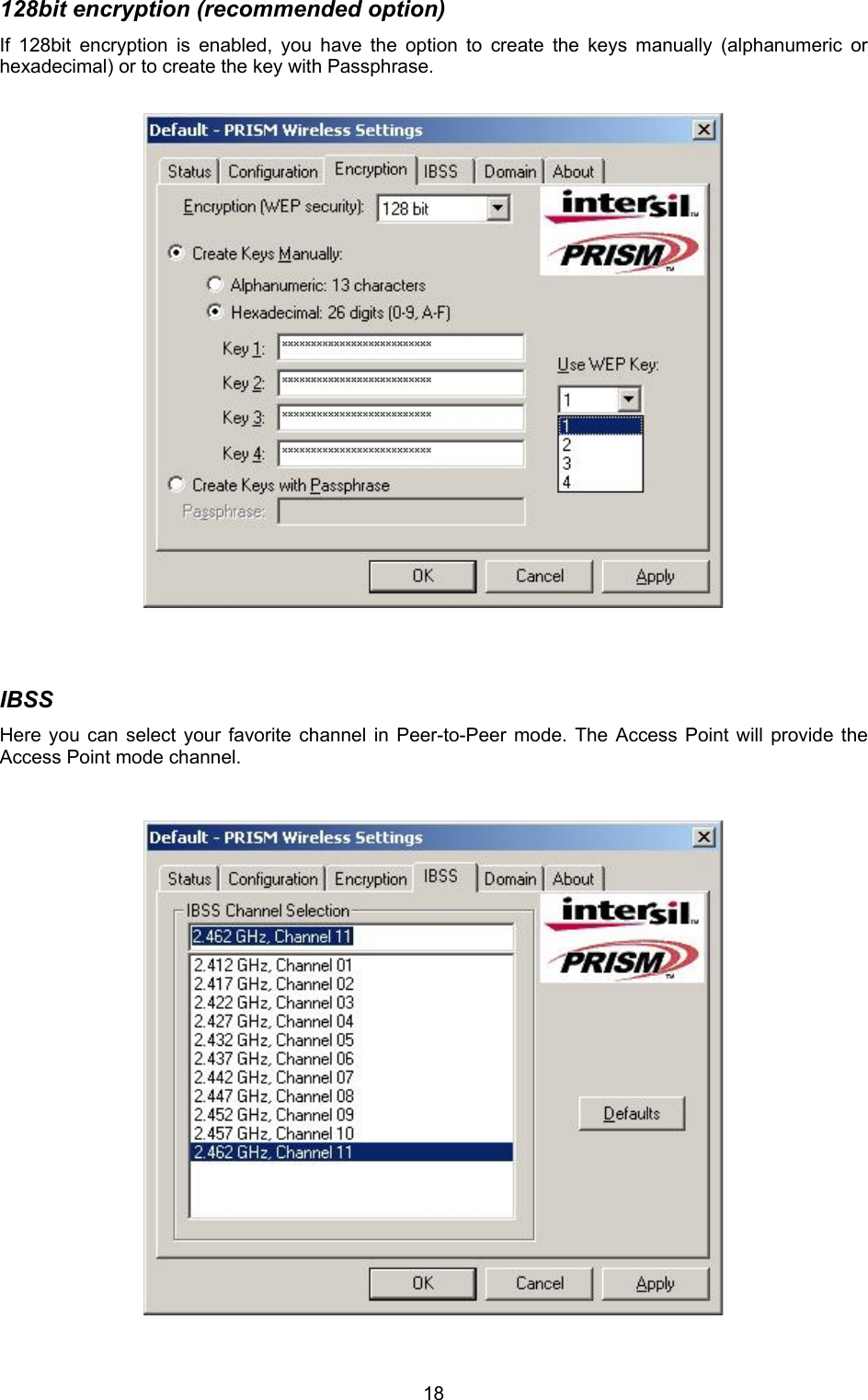
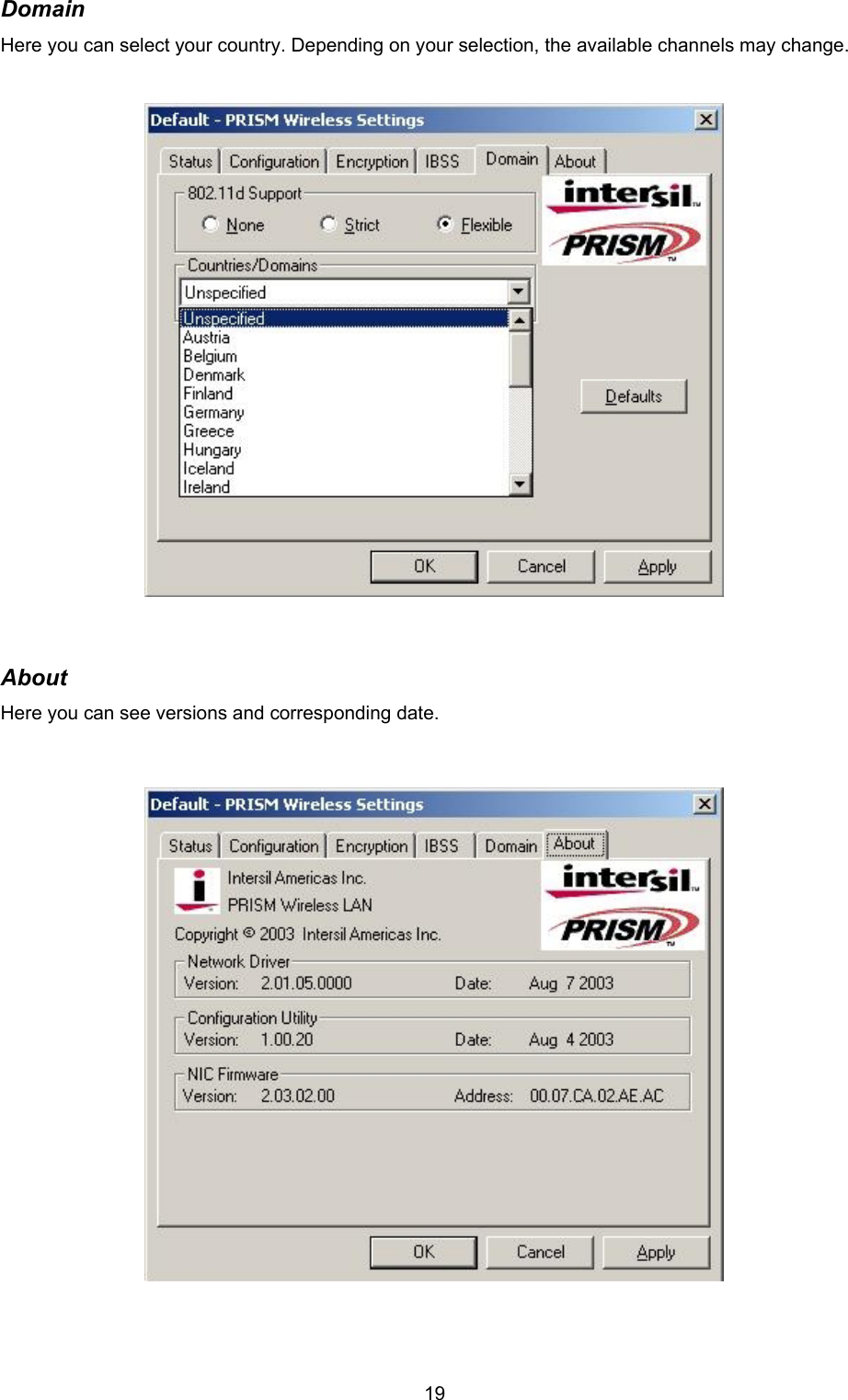
 18128bit encryption (recommended option) If 128bit encryption is enabled, you have the option to create the keys manually (alphanumeric or hexadecimal) or to create the key with Passphrase.                        IBSS Here you can select your favorite channel in Peer-to-Peer mode. The Access Point will provide the Access Point mode channel.
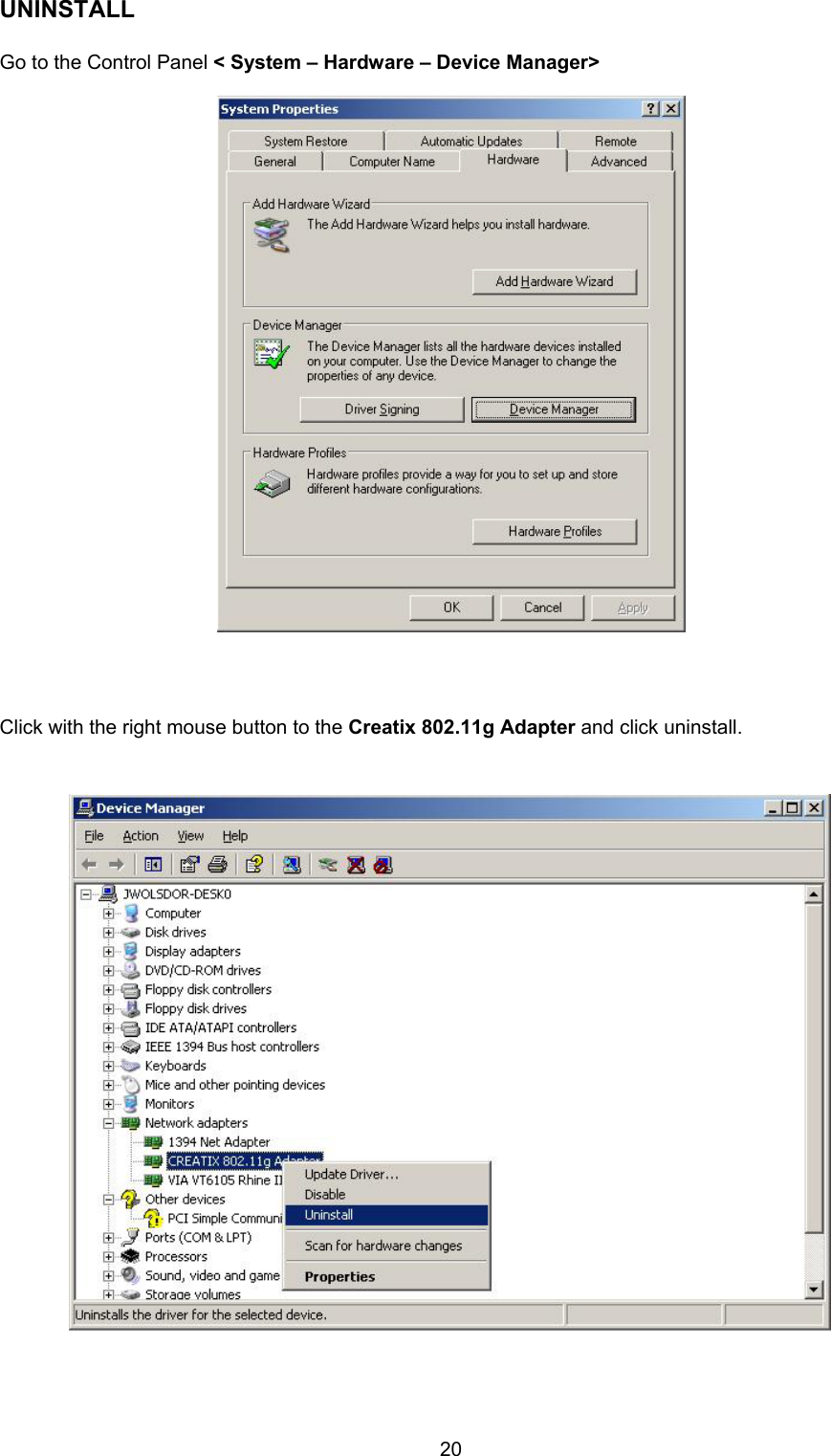
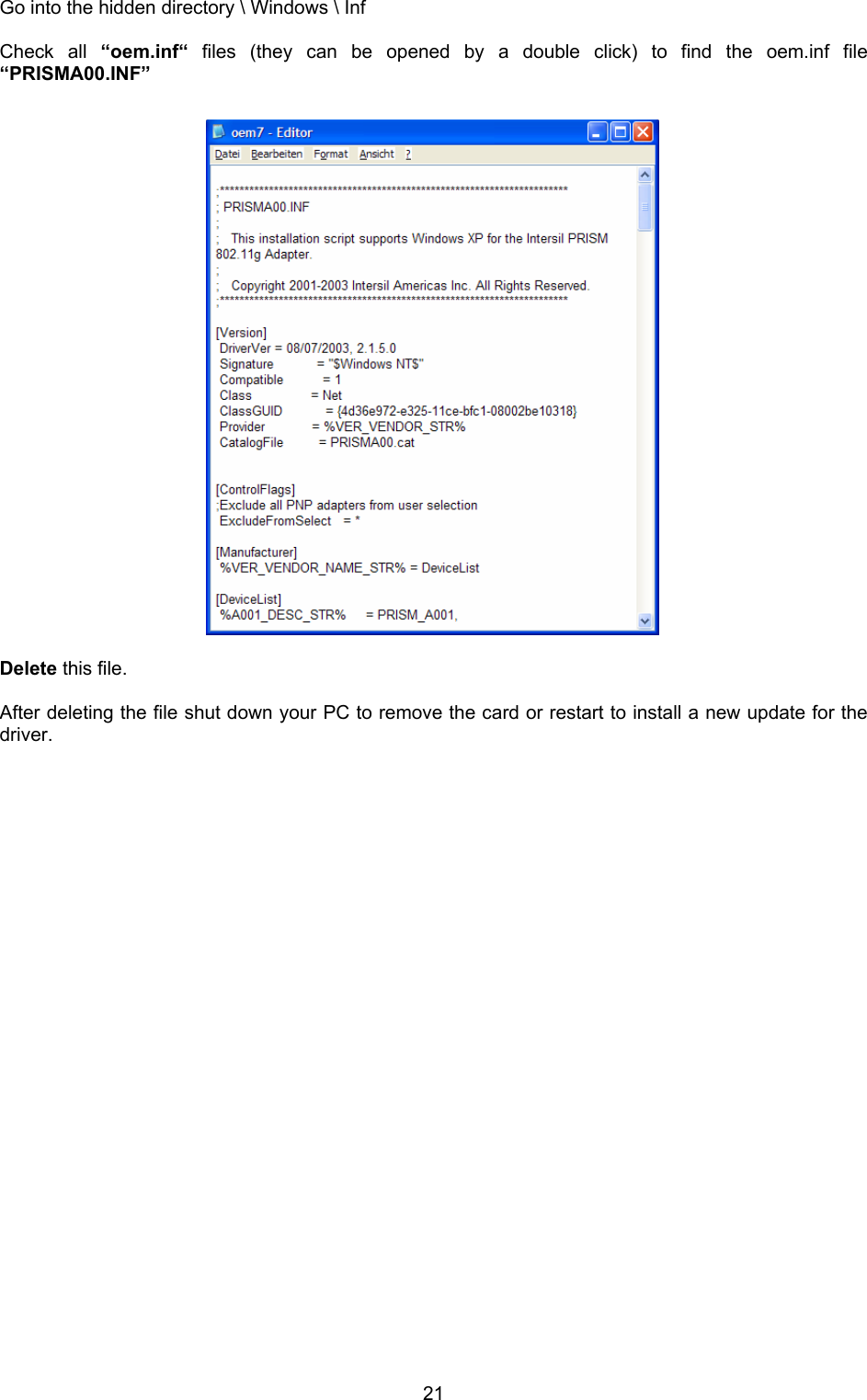
 19Domain Here you can select your country. Depending on your selection, the available channels may change.                        About Here you can see versions and corresponding date.
 20UNINSTALL  Go to the Control Panel < System – Hardware – Device Manager>                             Click with the right mouse button to the Creatix 802.11g Adapter and click uninstall.
 21Go into the hidden directory \ Windows \ Inf  Check all “oem.inf“ files (they can be opened by a double click) to find the oem.inf file “PRISMA00.INF”                           Delete this file.  After deleting the file shut down your PC to remove the card or restart to install a new update for the driver.

Navigation menu