User Manual
Quick Star Guide - EN – LMP NexGen Keypad (WKP-803)
QSG1020731 ver.0
Quick Start Guide – LMP NexGen Bluetooth keypad – English
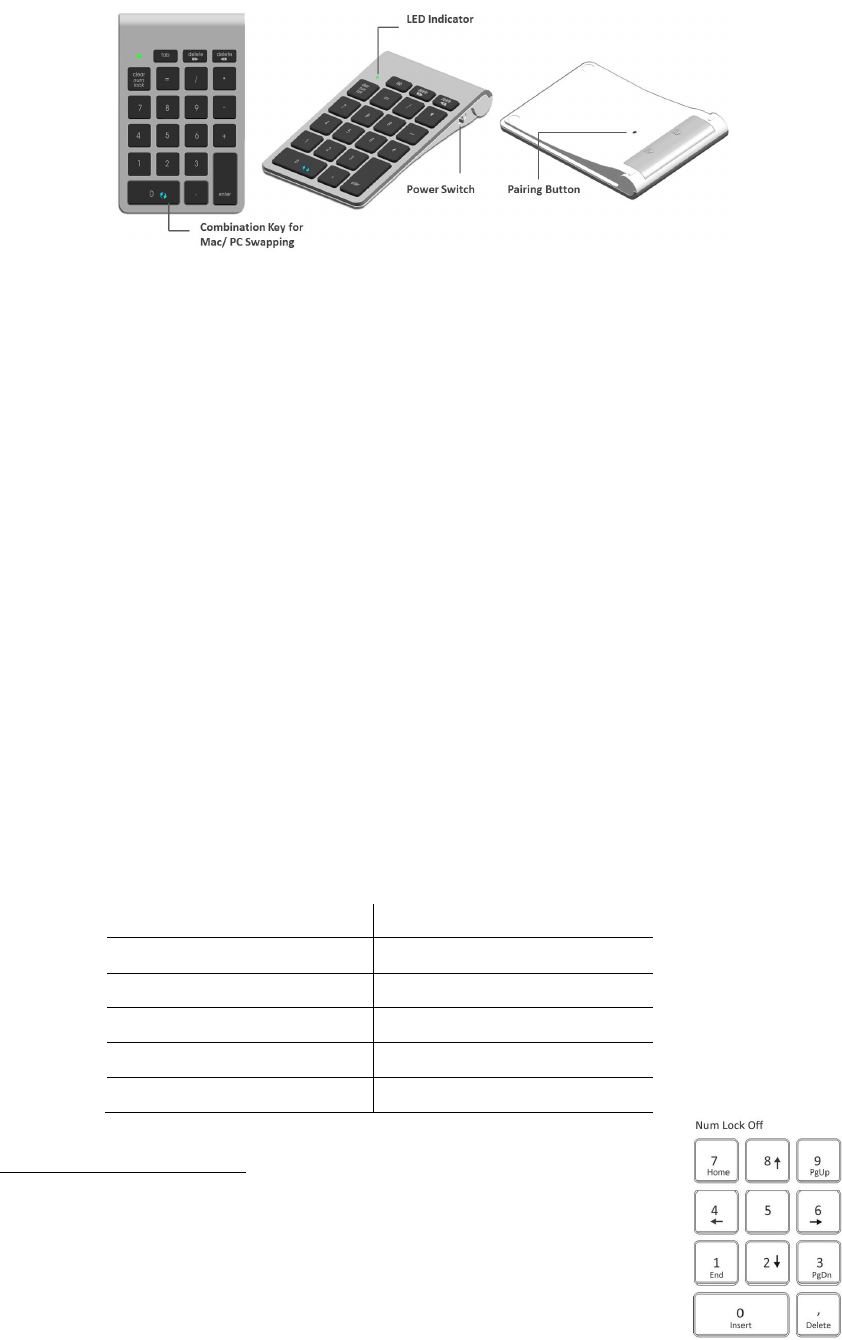
1) To turn on the Bluetooth keypad, push slide switch position from Off to On position, located on the
right side of keypad.
2) From “System preferences” menu choose “Bluetooth”
3) From the “Bluetooth” menu press “+” on left lower corner to search for new Bluetooth devices.
4) a. Mac OS X 10.5x: Choose “Keypad” from the menu and press “Continue”
b. Mac OS X 10.6x: Mac will automatically search for any Bluetooth device (no action needed)
c. Mac OS X 10.7x: Mac will automatically search for any Bluetooth device (no action needed)
5) Turn the Bluetooth keypad upside down and press the small black button (Pairing Button) with a pen.
6) The Bluetooth Assistant displays a list with all found Bluetooth devices. Search for “Bluetooth keypad
and press “Continue”.
7) The Bluetooth Identification Code (8-digit ID) is shown on the screen. Enter the displayed ID on the
Bluetooth keypad and press “enter” on the Bluetooth keypad at the end.
8) The Bluetooth keyboard is now ready to work. It is displayed in the list of all Bluetooth devices and
marked as “connected”
How to work this keypad in Windows OS?
To work properly with Windows OS, hold combination key “0” key and press “backward delete” key,
“forward delete”, “tab” key or “ *” key depending on OS language version. Hereafter is the list of
combination key in different language version.
Holding “0” key and Windows OS language
Pressing “delete” key US, UK, RU, NL, CN, KR, AE, CZ
Pressing “delete” key DE, CH, IT, ES, PT, SE, DN, NO
Pressing “tab” key FR, BE
Pressing “ * ” key JP
Pressing “ / ” key PL
LED Indicator in Windows OS
By pressing “clear/ numlock” key, LED ON means keypad is in numeric entry mode.
Otherwise, the keypad will become arrow keys as right layout shown.
Federal Communication Commission Interference Statement
This equipment has been tested and found to comply with the limits for a Class B digital device,
pursuant to Part 15 of the FCC Rules. These limits are designed to provide reasonable protection against
harmful interference in a residential installation.
This equipment generates, uses and can radiate radio frequency energy and, if not installed and used in
accordance with the instructions, may cause harmful interference to radio communications. However,
there is no guarantee that interference will not occur in a particular installation. If this equipment does
cause harmful interference to radio or television reception, which can be determined by turning the
equipment off and on, the user is encouraged to try to correct the interference by one of the following
measures:
. Reorient or relocate the receiving antenna.
. Increase the separation between the equipment and receiver.
. Connect the equipment into an outlet on a circuit different from that to which the receiver is connected.
. Consult the dealer or an experienced radio/TV technician for help.
FCC Caution: To assure continued compliance, any changes or modifications not expressly approved by
the party responsible for compliance could void the user's authority to operate this equipment. (Example
- use only shielded interface cables when connecting to computer or peripheral devices).
FCC Radiation Exposure Statement
This equipment complies with FCC RF radiation exposure limits set forth for an uncontrolled
environment.
This transmitter must not be co-located or operating in conjunction with any other antenna or
transmitter.
This device complies with Part 15 of the FCC Rules. Operation is subject to the following two
conditions:
(1) This device may not cause harmful interference, and (2) This device must accept any interference
received, including interference that may cause undesired operation.