Crystal Video Technology CB380120120425 HD Wireless Video Receiver User Manual 8858 3858 2012 3 30

Shenzhen Crystal Video Technology Co.,LTD. HD Wireless Video Receiver 8858 3858 2012 3 30

Users Manual

U S E R  M A N U A LT h i s u s e r  m a n u a l  a p p l i e s  t o :Tr a n s m i t t e r  : C B 8 8 0 1 / C B 8 8 0 8R e c e i v e r  : C B 3 8 5 8 / CB3801 / CB3805Waste electrical products should notbe disposed of with household waste. Please rec ycle where facilities exist. Check with you local authority or retailer for recycling advice.EU Environmental ProtectionWIRELESS HD TRANSMISSION SYSTEM210 mm143 mm
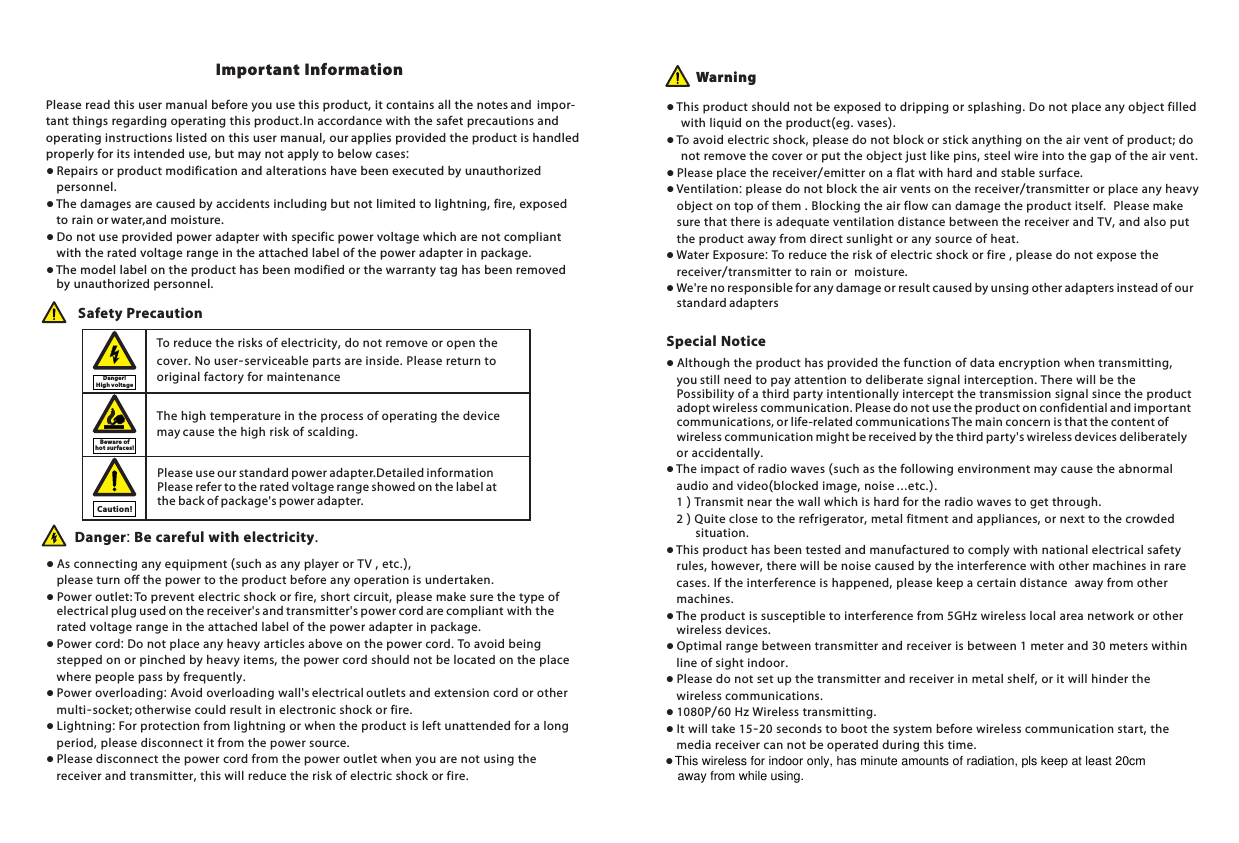
Please read this user manual before you use this product, it contains all the notes and  impor-tant things regarding operating this product.In accordance with the safet precautions and operating instructions listed on this user manual, our applies provided the product is handled properly for its intended use, but may not apply to below cases:● Repairs or product modification and alterations have been executed by unauthorized     personnel. ● The damages are caused by accidents including but not limited to lightning, fire, exposed     to rain or water,and moisture.● Do not use provided power adapter with specific power voltage which are not compliant     with the rated voltage range in the attached label of the power adapter in package.● The model label on the product has been modified or the warranty tag has been removed         by unauthorized personnel.The high temperature in the process of operating the device may cause the high risk of scalding.To reduce the risks of electricity, do not remove or open the cover. No user-serviceable parts are inside. Please return to original factory for maintenance Safety Precaution● As connecting any equipment (such as any player or TV , etc.),         please turn off the power to the product before any operation is undertaken.● Power outlet: To prevent electric shock or fire, short circuit, please make sure the type of     electrical plug used on the receiver's and transmitter's power cord are compliant with the     rated voltage range in the attached label of the power adapter in package.● Power cord: Do not place any heavy articles above on the power cord. To avoid being     stepped on or pinched by heavy items, the power cord should not be located on the place     where people pass by frequently.● Power overloading: Avoid overloading wall's electrical outlets and extension cord or other     multi-socket; otherwise could result in electronic shock or fire.● Lightning: For protection from lightning or when the product is left unattended for a long     period, please disconnect it from the power source. ● Please disconnect the power cord from the power outlet when you are not using the     receiver and transmitter, this will reduce the risk of electric shock or fire.Danger: Be careful with electricity. ● This product should not be exposed to dripping or splashing. Do not place any object filled     with liquid on the product(eg. vases).● To avoid electric shock, please do not block or stick anything on the air vent of product; do     not remove the cover or put the object just like pins, steel wire into the gap of the air vent.● Please place the receiver/emitter on a flat with hard and stable surface. ● Ventilation: please do not block the air vents on the receiver/transmitter or place any heavy     object on top of them . Blocking the air flow can damage the product itself.  Please make     sure that there is adequate ventilation distance between the receiver and TV, and also put     the product away from direct sunlight or any source of heat.● Water Exposure: To reduce the risk of electric shock or fire , please do not expose the     receiver/transmitter to rain or  moisture.● We're no responsible for any damage or result caused by unsing other adapters instead of our     standard adaptersImportant Information Warning● Although the product has provided the function of data encryption when transmitting,     you still need to pay attention to deliberate signal interception. There will be the         Possibility of a third party intentionally intercept the transmission signal since the product     adopt wireless communication. Please do not use the product on confidential and important     communications, or life-related communications The main concern is that the content of     wireless communication might be received by the third party's wireless devices deliberately     or accidentally.● The impact of radio waves (such as the following environment may cause the abnormal      audio and video(blocked image, noise ...etc.).     1 ) Transmit near the wall which is hard for the radio waves to get through.    2 ) Quite close to the refrigerator, metal fitment and appliances, or next to the crowded         situation.● This product has been tested and manufactured to comply with national electrical safety     rules, however, there will be noise caused by the interference with other machines in rare     cases. If the interference is happened, please keep a certain distance  away from other     machines.● The product is susceptible to interference from 5GHz wireless local area network or other     wireless devices.● Optimal range between transmitter and receiver is between 1 meter and 30 meters within     line of sight indoor.● Please do not set up the transmitter and receiver in metal shelf, or it will hinder the     wireless communications. ● 1080P/60 Hz Wireless transmitting. ● It will take 15-20 seconds to boot the system before wireless communication start, the     media receiver can not be operated during this time.Special NoticeDanger ! High vol ta geBewa re of hot su rfa ces!Caution!Please use our standard power adapter.Detailed information refer to the rated voltage range showed on the label at the back of package's power adapter. Please This wireless for indoor only, has minute amounts of radiation, pls keep at least 20cm away from while using.●
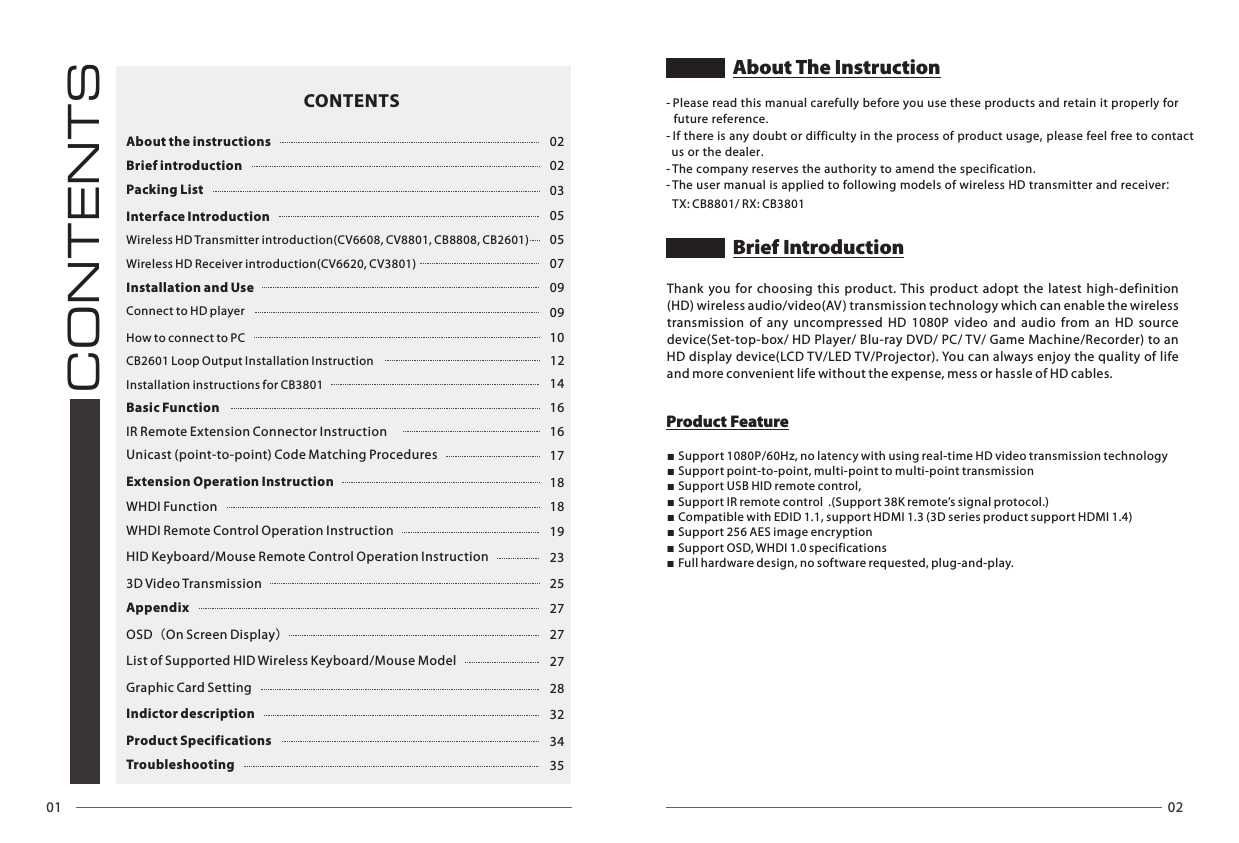
01 02CONTENTSAbout the instructions 02Brief introduction 02Packing List 03Interface Introduction 05Wireless HD Transmitter introduction(CV6608, CV8801, CB8808, CB2601) 05Wireless HD Receiver introduction(CV6620, CV3801) 07Installation and Use 09Connect to HD player 09How to connect to PC 1012Installation instructions for CB3801 14Basic Function 16IR Remote Extension Connector Instruction  16Unicast (point-to-point) Code Matching Procedures  17Extension Operation Instruction 18WHDI Function 18WHDI Remote Control Operation Instruction 19HID Keyboard/Mouse Remote Control Operation Instruction 233D Video Transmission 25Appendix 27OSD(On Screen Display)27List of Supported HID Wireless Keyboard/Mouse Model  27Graphic Card Setting 28Indictor description 32Product Specifications 34Troubleshooting 35CONTENTSThank  you  for  choosing  this  product.  This  product  adopt  the  latest  high-definition (HD) wireless audio/video(AV) transmission technology which can enable the wireless transmission  of  any  uncompressed  HD  1080P  video  and  audio  from  an  HD  source device(Set-top-box/ HD Player/ Blu-ray DVD/ PC/ TV/ Game Machine/Recorder) to an HD display device(LCD TV/LED T V/Projector). You can always enjoy the quality of life and more convenient life without the expense, mess or hassle of HD cables.■Support 1080P/60Hz, no latency with using real-time HD video transmission technology ■Support point-to-point, multi-point to multi-point transmission■Support USB HID remote control,■Support IR remote control  .(Support 38K remote’s signal protocol.)■Compatible with EDID 1.1, support HDMI 1.3 (3D series product support HDMI 1.4)■Support 256 AES image encryption■Support OSD, WHDI 1.0 specifications■Full hardware design, no software requested, plug-and-play.        Product FeatureBrief IntroductionCB2601 Loop Output Installation Instruction- Please read this manual carefully before you use these products and retain it properly for   future reference.- If there is any doubt or difficulty in the process of product usage, please feel free to contact   us or the dealer.- The company reserves the authority to amend the specification.- The user manual is applied to following models of wireless HD transmitter and receiver:About The InstructionTX: CB8801/ RX: CB3801
03 04STICK Packing List* Please take all the actual accessories as the standard.Please check the packing list carefully after unpacking, if any part is missing, please contact your dealer. Accessories of all models are subject to the following packing list.Packing ListTX:CB8801TX:CB8808RX:CB3801Wireless HD ReceiverCB3801 x 1Bracketx 1 HDMI Cable x 1Power Supply(5V/2A) x 1AD Adapter x 1Mini USB to USB female x 1 WHDI Remote Control x1IR Remote Extension Receiver x 1Wireless HD CB8808 x 1Transmitter VGA Adapter x 1USB Cablex 1Power Supply(5V/1A) x 1Audio Cablex 1Wireless HD TransmitterCB8801 x 1USB Cablex 1* OPTION HDMI Adapter (  )Power Supply(5V/1A) x 1Interface IntroductionWireless HD TransmitterModel: CB8808Transmitter Interface IntroductionCB8808CB8801Wireless HD TransmitterModel: CB8801MINI USB INHDMI INCODE KEYNET WORK INDICATORVIDEO INDICATORMINI USB INVGA INCODE KEYNET WORK INDICATORVIDEO INDICATORAUDIO IN
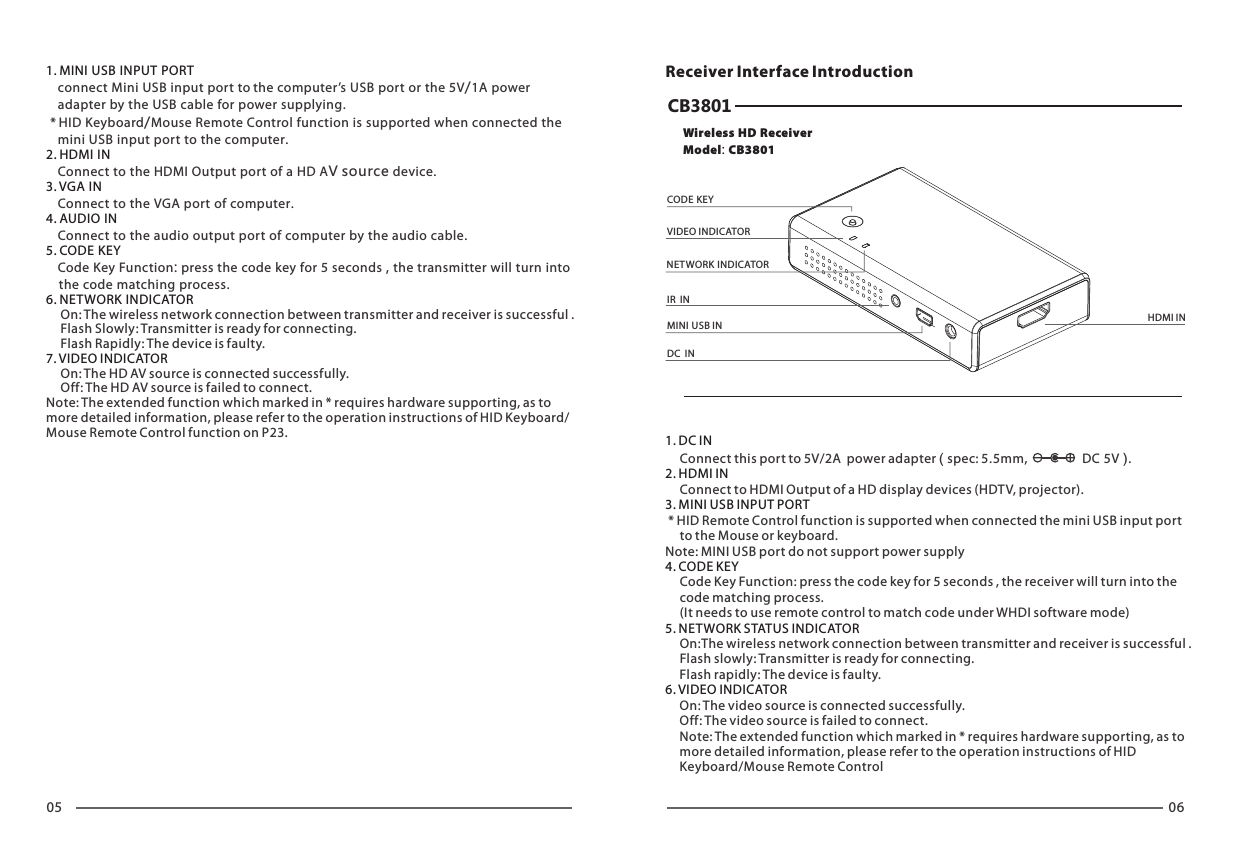
05 06    connect Mini USB input port to the computer’s USB port or the 5V/1A power     adapter by the USB cable for power supplying. * HID Keyboard/Mouse Remote Control function is supported when connected the     mini USB input port to the computer.    Connect to the HDMI Output port of a HD AV source device.       Connect to the VGA port of computer.     Connect to the audio output port of computer by the audio cable.    Code Key Function: press the code key for 5 seconds , the transmitter will turn into    the code matching process.1. MINI USB INPUT PORT 2. HDMI IN 3. VGA IN4. AUDIO IN5. CODE KEY 6. NETWORK INDICATOR     On: The wireless network connection between transmitter and receiver is successful .     Flash Slowly: Transmitter is ready for connecting.     Flash Rapidly: The device is faulty.      On: The HD AV source is connected successfully.     Off: The HD AV source is failed to connect.Note: The extended function which marked in * requires hardware supporting, as to more detailed information, please refer to the operation instructions of HID Keyboard/Mouse Remote Control function on P23.7. VIDEO INDICATOR    CB3801Wireless HD ReceiverModel: CB3801MINI USB INDC  INIR  INNETWORK INDICATORVIDEO INDICATORHDMI INCODE KEYReceiver Interface Introduction1. DC IN2. HDMI IN 3. MINI USB INPUT PORT   4. CODE KEY5. NETWORK STATUS INDICATOR6. VIDEO INDICATOR     Connect this port to 5V/2A  power adapter ( spec: 5.5mm,                   DC 5V ).     Connect to HDMI Output of a HD display devices (HDTV, projector). * HID Remote Control function is supported when connected the mini USB input port      to the Mouse or keyboard.Note: MINI USB port do not support power supply     Code Key Function: press the code key for 5 seconds , the receiver will turn into the      code matching process.     (It needs to use remote control to match code under WHDI software mode)     On:The wireless network connection between transmitter and receiver is successful .     Flash slowly: Transmitter is ready for connecting.     Flash rapidly: The device is faulty.     On: The video source is connected successfully.     Off: The video source is failed to connect.     Note: The extended function which marked in * requires hardware supporting, as to      more detailed information, please refer to the operation instructions of HID      Keyboard/Mouse Remote Control
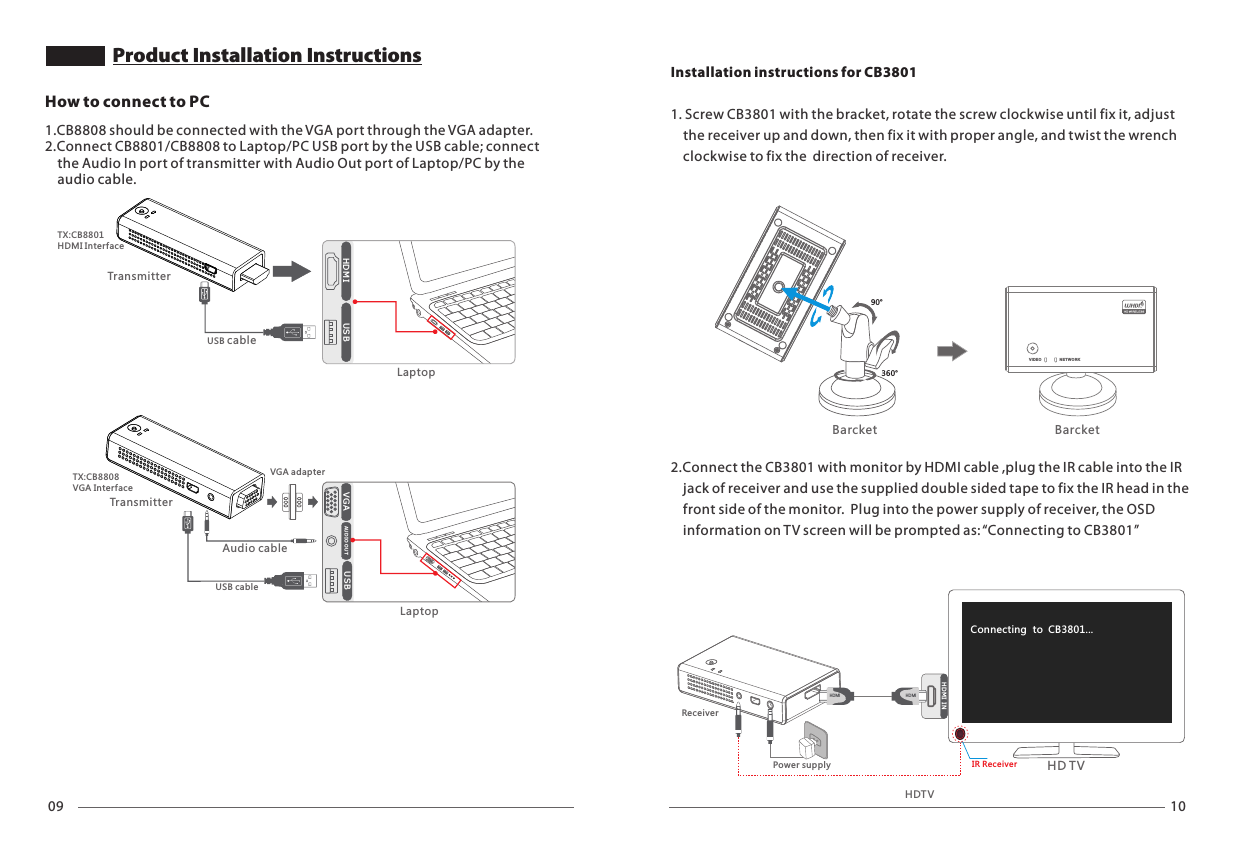
09 10HDMI  USBLaptopUSB cableTransmitterTX:CB8801HDMI InterfaceHow to connect to PC1.CB8808 should be connected with the VGA port through the VGA adapter. 2.Connect CB8801/CB8808 to Laptop/PC USB port by the USB cable; connect     the Audio In port of transmitter with Audio Out port of Laptop/PC by the    audio cable.Product Installation InstructionsVGA USBAU DI O OU TLaptopVGA adapterUSB cableAudio cableTransmitterTX:CB8808VGA Inter faceHDTV90°360°VID EO NE TW ORKBarcket BarcketHD M I INHDM IHD TVConnecting  to  CB3801... HDM IIR ReceiverReceiverInstallation instructions for CB38011. Screw CB3801 with the bracket, rotate the screw clockwise until fix it, adjust     the receiver up and down, then fix it with proper angle, and twist the wrench    clockwise to fix the  direction of receiver.2.Connect the CB3801 with monitor by HDMI cable ,plug the IR cable into the IR     jack of receiver and use the supplied double sided tape to fix the IR head in the     front side of the monitor.  Plug into the power supply of receiver, the OSD     information on TV screen will be prompted as: “Connecting to CB3801”Power supply
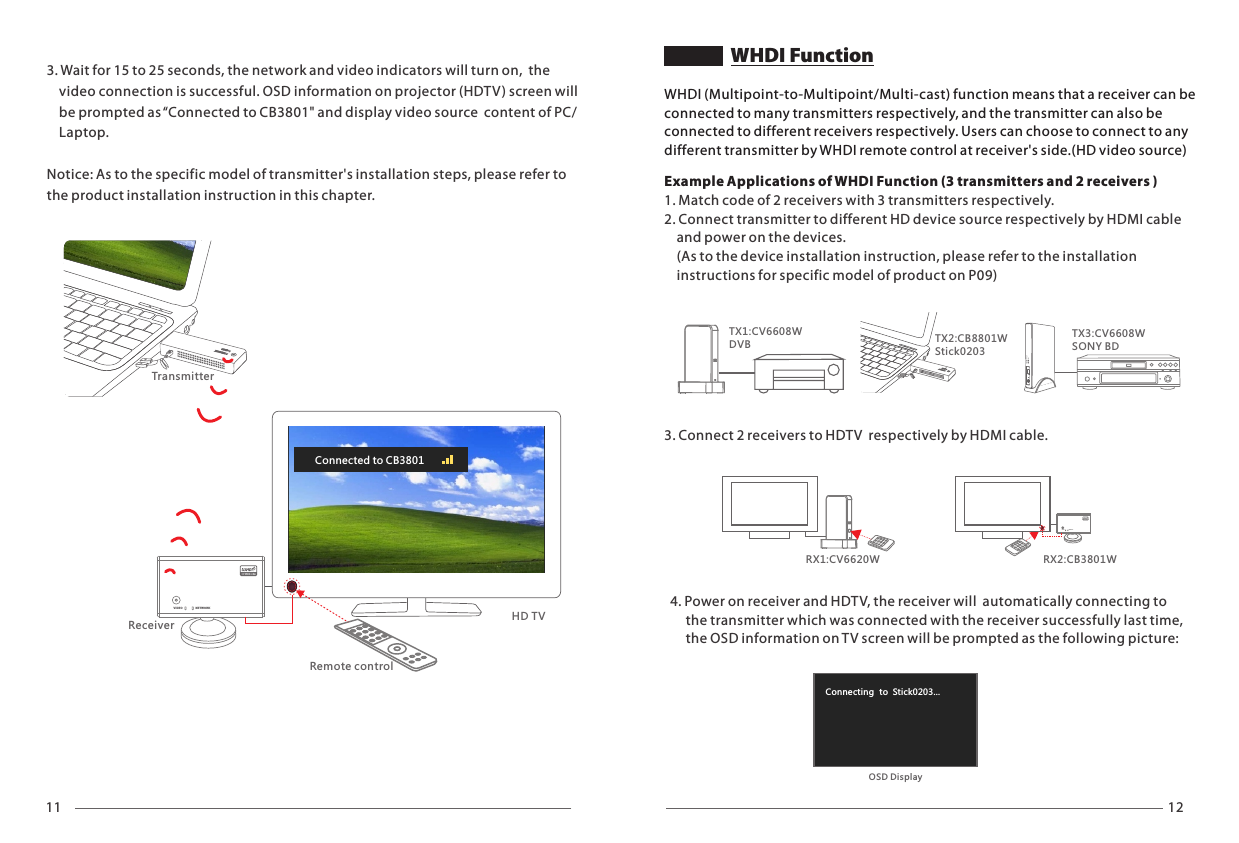
11 12NETWORKVIDEOVIDE O NETW ORKRX:1.x.xx1920x1080P          Freq:5xxxNETWORK  CONNECTING...Receiver HD TVRemote controlTransmitterConnected to CB38013. Wait for 15 to 25 seconds, the network and video indicators will turn on,  the    video connection is successful. OSD information on projector (HDTV) screen will     be prompted as “Connected to CB3801" and display video source  content of PC/    Laptop.Notice: As to the specific model of transmitter's installation steps, please refer to the product installation instruction in this chapter. NETWORKVIDEOTX2:CB8801WStick0203TX1:CV6608WDVBTX3:CV6608WSONY BDVIDEONETWORKH1V2RX1:CV6620W RX2:CB3801WConnecting  to  Stick0203... OSD DisplayVIDEO NETWORKWHDI (Multipoint-to-Multipoint/Multi-cast) function means that a receiver can be connected to many transmitters respectively, and the transmitter can also be connected to different receivers respectively. Users can choose to connect to any different transmitter by WHDI remote control at receiver's side.(HD video source)Example Applications of WHDI Function (3 transmitters and 2 receivers ) 1. Match code of 2 receivers with 3 transmitters respectively.2. Connect transmitter to different HD device source respectively by HDMI cable     and power on the devices.    (As to the device installation instruction, please refer to the installation     instructions for specific model of product on P09)3. Connect 2 receivers to HDTV  respectively by HDMI cable.4. Power on receiver and HDTV, the receiver will  automatically connecting to      the transmitter which was connected with the receiver successfully last time,      the OSD information on TV screen will be prompted as the following picture:WHDI Function
19 20NETWORKVIDEOTX2:CB8801WStick0203TX3:C WSONY BDB2601TX1:CV6608WDVBRX2: CV3801WRX1: CV6620WHDTV1HDTV2VIDEONETWORKH1V2Connected to Stick0203 Adding Stick0203Press OK to continue or Exit to cancel2TransmitterSetupRemove Video SourceModify Video SourceAdd new Video SourceReceiverWHDI Remote Control1Adding Stick0203... Connected to Stick0203 VIDEO NETWORK5. Wait for 15 to 25 seconds, the network and video indicators will turn on, the      OSD information on TV screen will be prompted as the following picture and      the disappear in 3 seconds.6. You can use WHDI remote control to select different transmitter (player) OK123MEN U EXI T SO URC EDEL ETE A DD GUES TINP UT DE VI CESWHDI Remote Control1 .MENU2 .EXIT3. SOURCE4. Direction      key5. OK6. DELETE7. ADD 8. GUEST9. 1st Video      source10. 2nd Video        source11. 3nd Video        source 123OK1. Enter the main menu2. Return to previous menu3. ENTER [Select Video Source]4. Operate for up, down, left and right     directions on the menu screen5. Press OK to confirm the operation6. Enter [Remove Video Source] 7. Enter [Add New Video Source] 8. System powering down9. Connect to 1st Video source10. Connect to 2nd Video source11. Connect to 3nd Video sourceAdd New Video Source (WHDI Product Code Matching)WHDI supports multiple transmitters with one receiver. You can add additional transmitters as refer to the following steps:1. Press [MENU] key of the WHDI remote control to enter the main menu, press      direction key to enter [Add new Video Source] or press [Add] key to add video      source. Please make sure that the remote control is pointing to receiver's IR      sensor window at the operation process.2. Press the code key of transmitter for 3~5 seconds and then loosen from the      code key, OSD information will be prompted as “Please Activate Registration      On Transmitter Unit”.5. If there need to add more new video source, please repeat the above 1 to 4 steps.3. Press [OK] key to enter the code      matching process.4. The code matching will be completed      after about 30 seconds, and the video      source will be connected to automatically.WHDI Remote Control Operation InstructionPress the code keys simultaneously for 3~5 Sec VIDEO N ETWORK
21 22Removing Stick0203Press OK to continue or Exit to cancelRemoving Stick0203.. SetupRemove Video SourceModify Video SourceAdd new Video SourceSelect Video Source WHDI Remote Control2. Use [UP]/[DOWN] direction keys to choose      a video source, press [OK] key to confirm      connecting to the one selected.1. Press [Source] key, the list of video      sources will be displayed on screen. Remove Video SourceQuick Connect to Video SourceSetupAdd new Video SourceModify Video SourceDisconnect Wireless LinkRemove Video SourceChoose Source To RemoveStick0203Select Video SourceSONY BDDVBSetupStick0203Connected to Stick0203 Rename Video SourcePowering Down..Power Down ModeSelect Video SourceSONY BDDVBSetupStick0203Rename Video Sourceitck0203RChoose Source To RenameSONY BDDVBStick0203SetupAdd new Video SourceRemove Video SourceModify Video SourceWireless Off1. Press [1] key of input devices to connect directly to the 1st video source in the source      list; Press [2]/[3] key to connect directly to 2nd/3rd video source in the source list.1. Choose [Remove Video Source] on the      main menu or press [DELETE] key to      enter  [Remove Video Source] menu.quick2. Select the video source wanted be     deleted from the video source list.3. press [DELETE] key 5. The video source is removed,      return to main menu.4. Press [ok] to Remove 1. Press [MENU] key and choose "Modify      Video Source " from main menu.2. Select the video source needed      renaming from the video source list       and press [OK] to confirm.3. Use [LEFT][RIGHT ]direction keys to      change cursor position Use [UP][DOWN]      to modify the content of the character 4. Press [OK] to save the modified name.1. After pressing [GUEST] key, system will      enter power down mode.2. Press [GUEST ] again to resume work.1. When receiver disconnect from transmitter     and there is not any operation to run, the      system will turn into Standby Mode, and the      OSD information will be prompted as      “Wireless Off ”.2. Press [SOURCE] or [MENU] key to resume work.Standby Mode
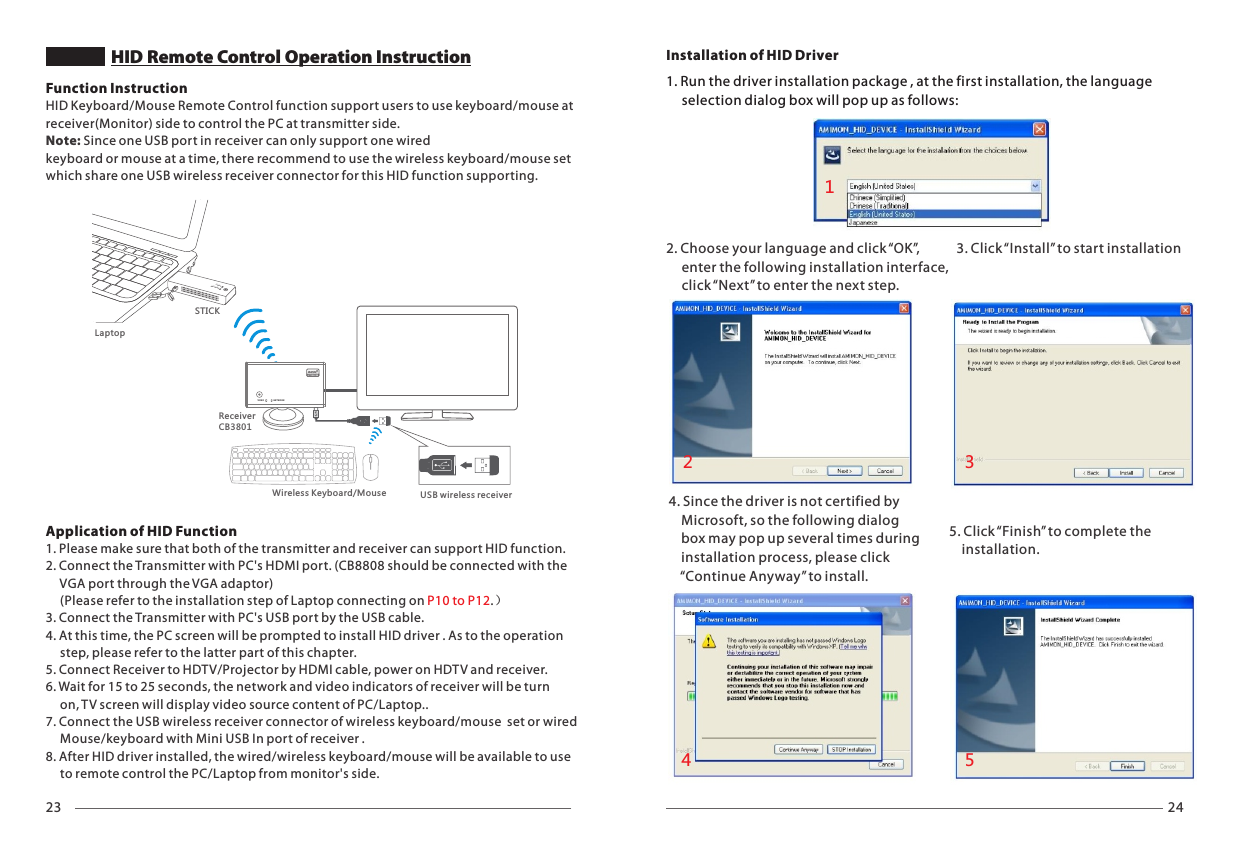
23 24HID Remote Control Operation InstructionNETWORKVIDEOSTICK1. Run the driver installation package , at the first installation, the language      selection dialog box will pop up as follows:4. Since the driver is not certified by     Microsoft, so the following dialog     box may pop up several times during     installation process, please click     “Continue Anyway” to install.5. Click “Finish” to complete the     installation.Installation of HID Driver2. Choose your language and click “OK”,      enter the following installation interface,      click “Next” to enter the next step.3. Click “Install” to start installation12345Function InstructionHID Keyboard/Mouse Remote Control function support users to use keyboard/mouse at receiver(Monitor) side to control the PC at transmitter side. Note: Since one USB port in receiver can only support one wired keyboard or mouse at a time, there recommend to use the wireless keyboard/mouse set which share one USB wireless receiver connector for this HID function supporting.Application of HID Function 1. Please make sure that both of the transmitter and receiver can support HID function.2. Connect the Transmitter with PC's HDMI port. (CB8808 should be connected with the      VGA port through the VGA adaptor)     (Please refer to the installation step of Laptop connecting on .) P10 to P123. Connect the Transmitter with PC's USB port by the USB cable. 4. At this time, the PC screen will be prompted to install HID driver . As to the operation      step, please refer to the latter part of this chapter.5. Connect Receiver to HDTV/Projector by HDMI cable, power on HDTV and receiver.6. Wait for 15 to 25 seconds, the network and video indicators of receiver will be turn      on, TV screen will display video source content of PC/Laptop..7. Connect the USB wireless receiver connector of wireless keyboard/mouse  set or wired      Mouse/keyboard with Mini USB In port of receiver .8. After HID driver installed, the wired/wireless keyboard/mouse will be available to use      to remote control the PC/Laptop from monitor's side.LaptopWireless Keyboard/Mouse USB wireless receiverVIDEO N ETWOR KReceiverCB3801
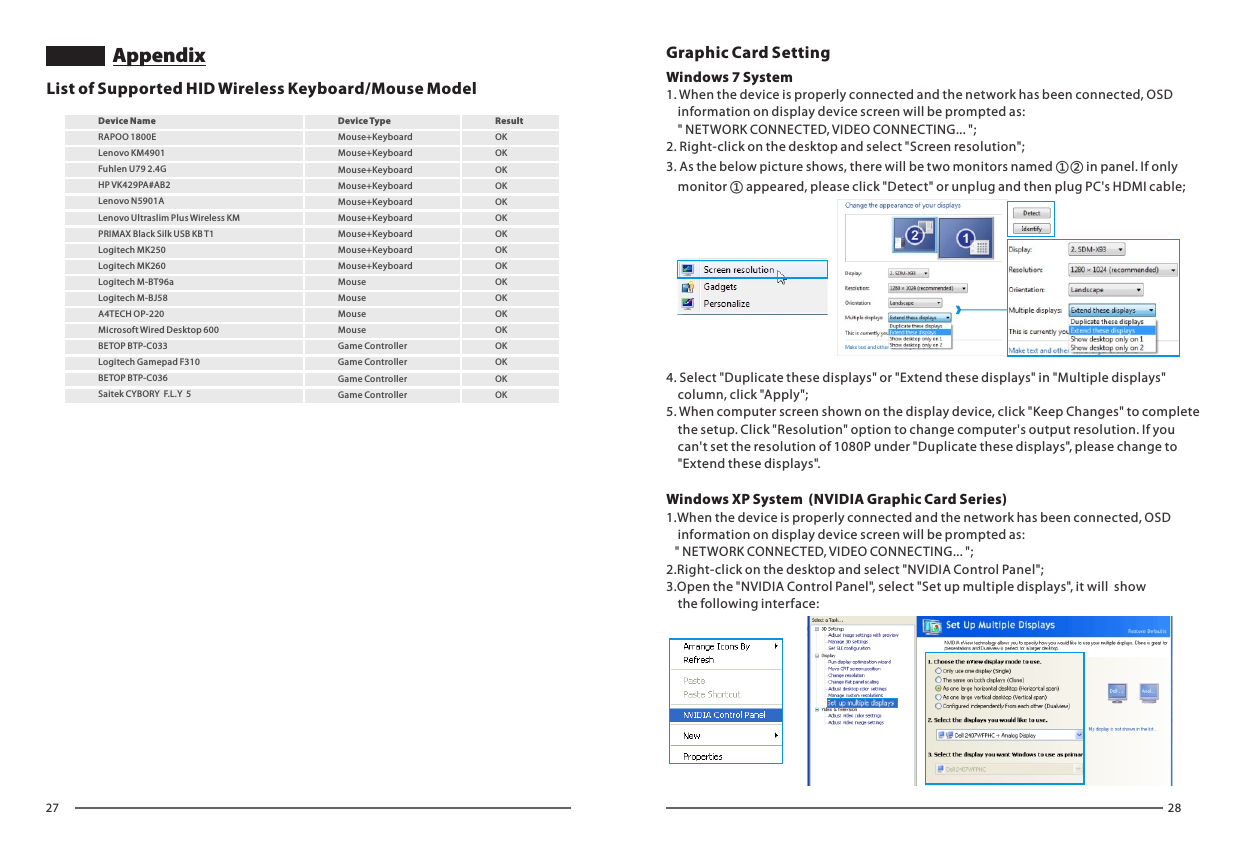
27 28List of Supported HID Wireless Keyboard/Mouse Model Mouse+KeyboardMouse+KeyboardMouse+KeyboardMouse+KeyboardMouse+KeyboardMouse+KeyboardMouse+KeyboardMouse+KeyboardMouse+KeyboardMouseMouseMouseMouseGame Controller Game Controller Game Controller Game Controller ResultOKOKOKOKOKOKOKOKOKOKOKOKOKOKOKOKOKDevice Name Device Type RAPOO 1800E               Lenovo KM4901                   Fuhlen U79 2.4G                  HP VK429PA#AB2 Lenovo N5901ALenovo Ultraslim Plus Wireless KM PRIMAX Black Silk USB KB T1   Logitech MK250  Logitech MK260  Logitech M-BT96a Logitech M-BJ58 A4TECH OP-220Microsoft Wired Desktop 600    BETOP BTP-C033Logitech Gamepad F310 BETOP BTP-C036 Saitek CYBORY  F.L.Y  5      1. When the device is properly connected and the network has been connected, OSD     information on display device screen will be prompted as:     " NETWORK CONNECTED, VIDEO CONNECTING... ";2. Right-click on the desktop and select "Screen resolution";3. As the below picture shows, there will be two monitors named ①② in panel. If only     monitor ① appeared, please click "Detect" or unplug and then plug PC's HDMI cable;4. Select "Duplicate these displays" or "Extend these displays" in "Multiple displays"     column, click "Apply";5. When computer screen shown on the display device, click "Keep Changes" to complete    the setup. Click "Resolution" option to change computer's output resolution. If you     can't set the resolution of 1080P under "Duplicate these displays", please change to     "Extend these displays".1.When the device is properly connected and the network has been connected, OSD     information on display device screen will be prompted as:    " NETWORK CONNECTED, VIDEO CONNECTING... ";2.Right-click on the desktop and select "NVIDIA Control Panel";3.Open the "NVIDIA Control Panel", select "Set up multiple displays", it will  show     the following interface:Windows 7 SystemWindows XP System  (NVIDIA Graphic Card Series)Graphic Card SettingAppendix
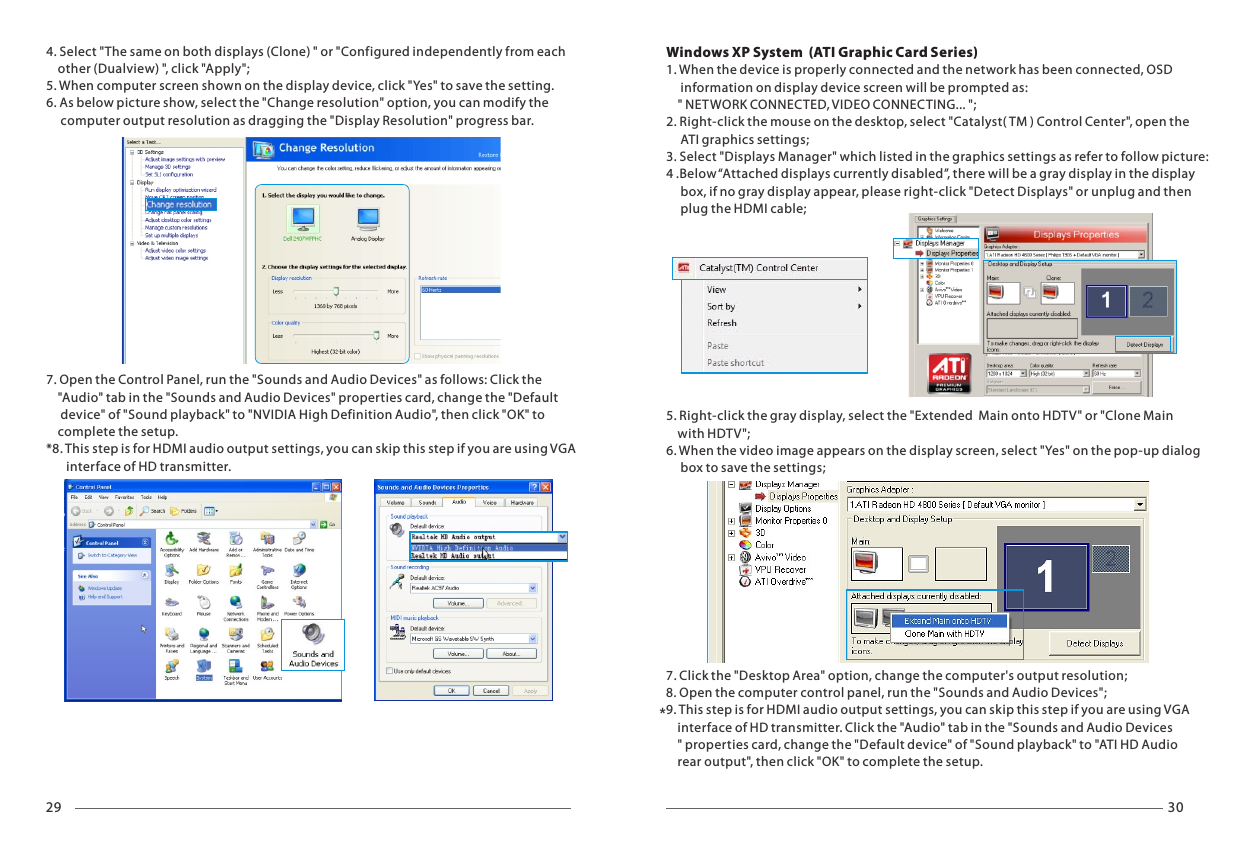
29 30*4. Select "The same on both displays (Clone) " or "Configured independently from each     other (Dualview) ", click "Apply";5. When computer screen shown on the display device, click "Yes" to save the setting.6. As below picture show, select the "Change resolution" option, you can modify the      computer output resolution as dragging the "Display Resolution" progress bar.7. Open the Control Panel, run the "Sounds and Audio Devices" as follows: Click the     "Audio" tab in the "Sounds and Audio Devices" properties card, change the "Default      device" of "Sound playback" to "NVIDIA High Definition Audio", then click "OK" to     complete the setup.*8. This step is for HDMI audio output settings, you can skip this step if you are using VGA        interface of HD transmitter.Windows XP System  (ATI Graphic Card Series)1. When the device is properly connected and the network has been connected, OSD      information on display device screen will be prompted as:     " NETWORK CONNECTED, VIDEO CONNECTING... ";2. Right-click the mouse on the desktop, select "Catalyst( TM ) Control Center", open the      ATI graphics settings;3. Select "Displays Manager" which listed in the graphics settings as refer to follow picture:4 .Below “Attached displays currently disabled”, there will be a gray display in the display      box, if no gray display appear, please right-click "Detect Displays" or unplug and then      plug the HDMI cable;5. Right-click the gray display, select the "Extended  Main onto HDTV" or "Clone Main     with HDTV";6. When the video image appears on the display screen, select "Yes" on the pop-up dialog      box to save the settings;7. Click the "Desktop Area" option, change the computer's output resolution;8. Open the computer control panel, run the "Sounds and Audio Devices";9. This step is for HDMI audio output settings, you can skip this step if you are using VGA     interface of HD transmitter. Click the "Audio" tab in the "Sounds and Audio Devices    " properties card, change the "Default device" of "Sound playback" to "ATI HD Audio     rear output", then click "OK" to complete the setup.
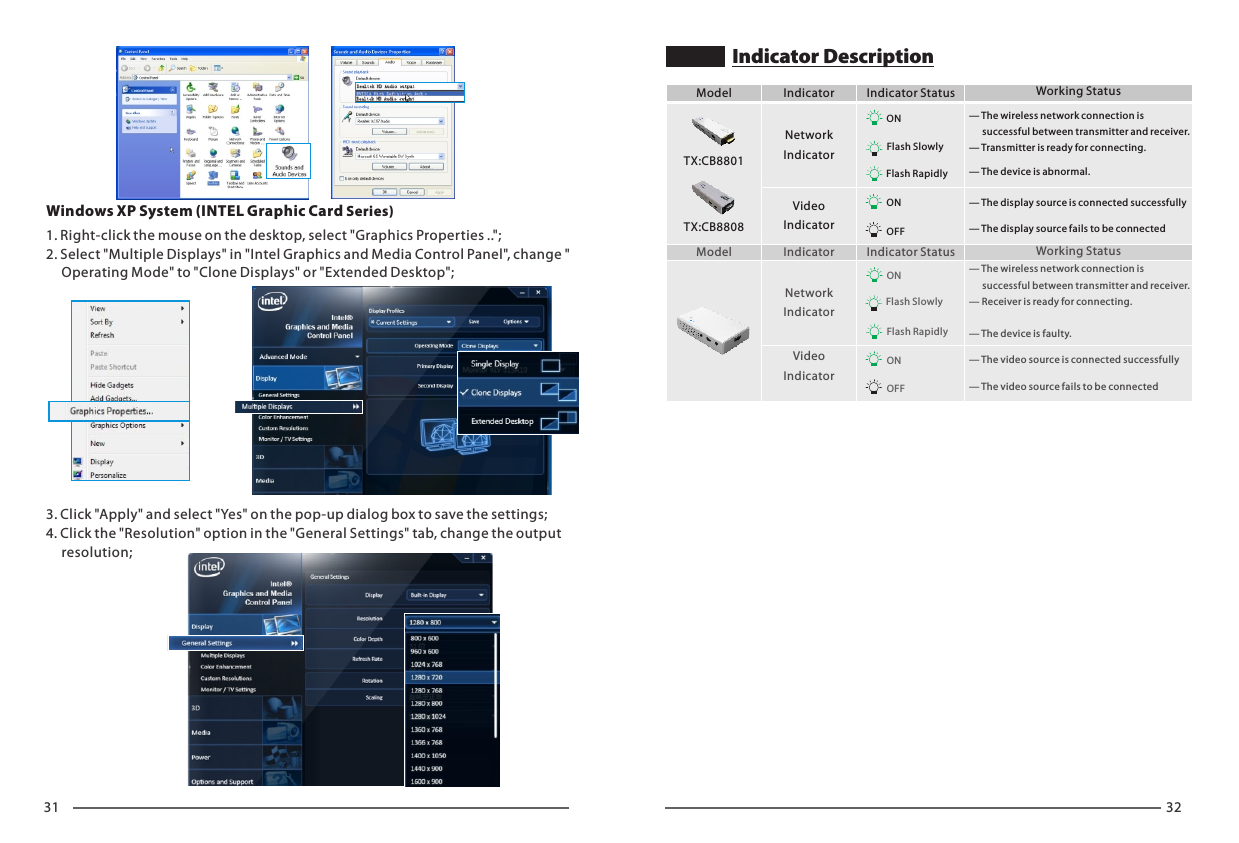
31 32Indicator DescriptionWindows XP System (INTEL Graphic Card Series)1. Right-click the mouse on the desktop, select "Graphics Properties ..";2. Select "Multiple Displays" in "Intel Graphics and Media Control Panel", change "     Operating Mode" to "Clone Displays" or "Extended Desktop";3. Click "Apply" and select "Yes" on the pop-up dialog box to save the settings;4. Click the "Resolution" option in the "General Settings" tab, change the output      resolution;ONOFFONFlash RapidlyFlash SlowlyTX:CB8801TX:CB8808— The display source is connected successfully— The display source fails to be connectedNetworkIndicatorVideoIndicatorModel Indicator Indicator Status Working Status— The wireless network connection is       successful between transmitter and receiver.— Transmitter is ready for connecting.— The device is abnormal.ONONOFFFlash Rapidly— The video source is connected successfully— The video source fails to be connectedNetworkIndicatorVideoIndicatorModel Indicator Indicator Status Working StatusFlash Slowly— The wireless network connection is       successful between transmitter and receiver.— Receiver is ready for connecting.— The device is faulty.
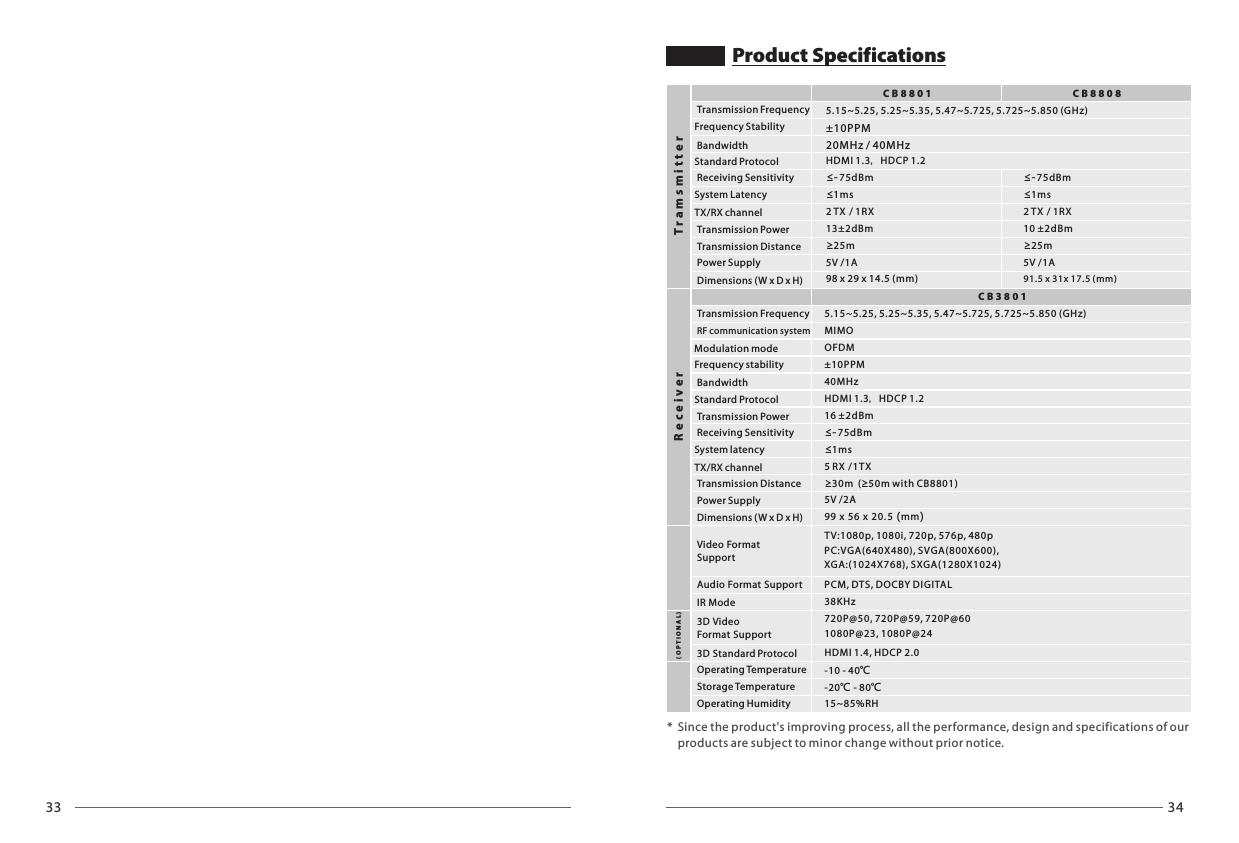
*  Since the product's improving process, all the performance, design and specifications of our    products are subject to minor change without prior notice.CB3801ReceiverProduct Specifications5.15~5.25, 5.25~5.35, 5.47~5.725, 5.725~5.850 (GHz)MIMOHDMI 1.3,HDCP 1.2OFDM±10PPM40MHz16 ±2dBm≥30m  ( 50m with CB8801)≥5V /2A99 x 56 x 20.5 (mm)≤-75dBm≤1ms5 R X /1 T XTV:1080p, 1080i, 720p, 576p, 480pPC:VGA(640X480), SVGA(800X600),XGA:(1024X768), SXGA(1280X1024)PCM, DTS, D OC BY DIGI TALRF communication systemModulation modeReceiving SensitivityBandwidthTransmission PowerPower SupplyDimensions (W x D x H)Frequency stabilitySystem latencyTX/RX channelTransmission FrequencyTransmission DistanceStandard ProtocolVideo Format SupportAudio Format SupportTramsmitterFrequency StabilitySystem LatencyTX/RX channelTransmission FrequencyTransmission PowerBandwidthTransmission DistanceReceiving SensitivityStandard ProtocolPower SupplyDimensions (W x D x H)5.15~5.25, 5.25~5.35, 5.47~5.725, 5.725~5.850 (GHz)98 x 2 9 x 1 4. 5 (mm) 91. 5 x 31 x 17. 5 ( mm )CB8801 CB8808±10PPM20MHz / 40MHzHDMI 1.3,HDCP 1.213±2dBm≤-75dBm≤1ms2 TX / 1RX≥25m5V /1A10 ±2dBm≤-75dBm≤1ms2 TX / 1RX≥25m5V /1A38KHz720P@50, 720P@59, 720P@601080P@23, 1080P@24HDMI 1.4, HDCP 2.0-10 - 40℃-20℃ - 8 0℃15~85%RHIR Mode3D Video Format Support 3D Standard ProtocolOperating TemperatureOperating HumidityStorage Temperature(OPTIONAL)33 34
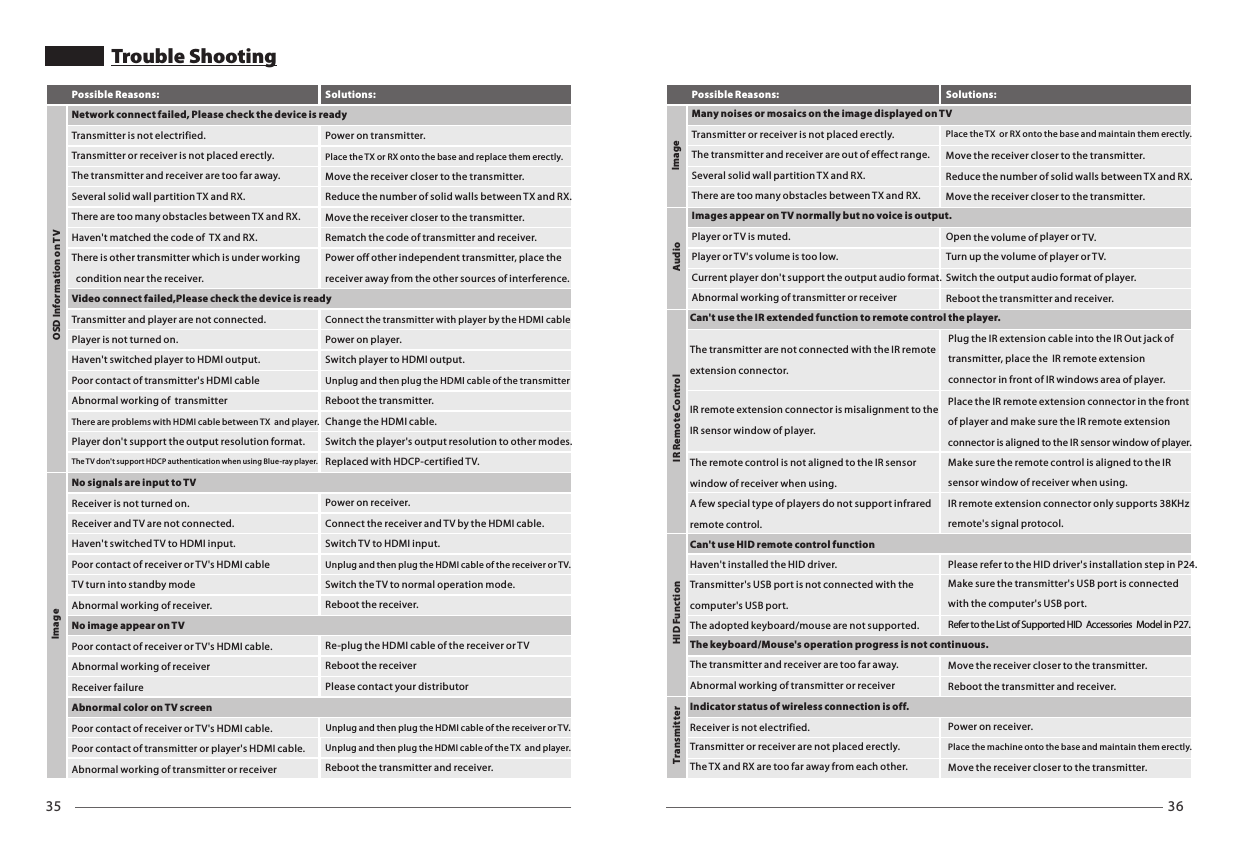
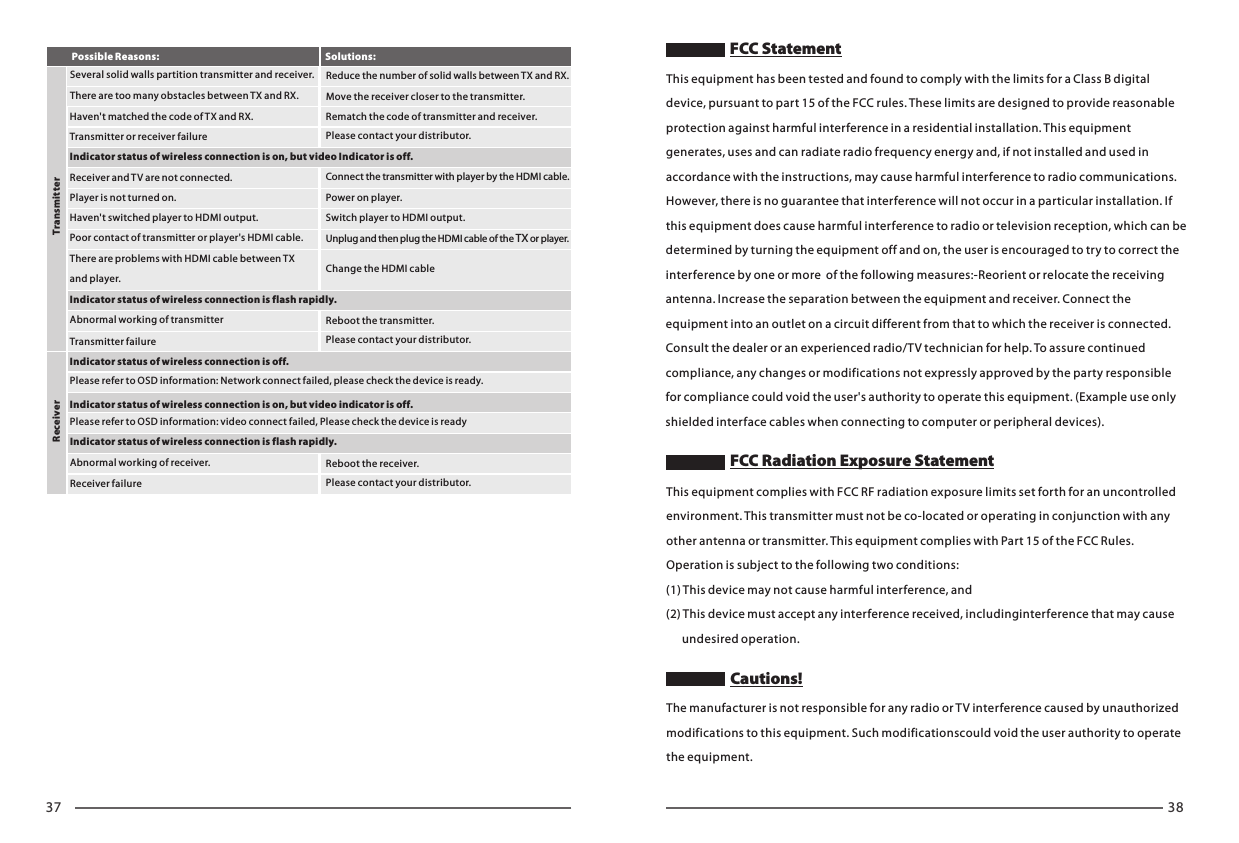
35 36Trouble ShootingMany noises or mosaics on the image displayed on TVPossible Reasons: Solutions:AudioIR Remote ControlHID FunctionTransmitter ImageTransmitter or receiver is not placed erectly.The transmitter and receiver are out of effect range.Place the TX  or RX onto the base and maintain them erectly.Move the receiver closer to the transmitter.Reduce the number of solid walls between TX and RX.Move the receiver closer to the transmitter.Several solid wall partition TX and RX.Place the IR remote extension connector in the front of player and make sure the IR remote extension connector is aligned to the IR sensor window of player.Make sure the remote control is aligned to the IR sensor window of receiver when using.IR remote extension connector only supports 38KHz  remote's signal protocol.Please refer to the HID driver's installation step in P24.Make sure the transmitter's USB port is connected with the computer's USB port.Refer to the List of Supported HID  Accessories  Model in P27.Move the receiver closer to the transmitter. Reboot the transmitter and receiver.Power on receiver.Place the machine onto the base and maintain them erectly.Move the receiver closer to the transmitter.Can't use the IR extended function to remote control the player.IR remote extension connector is misalignment to the IR sensor window of player.The remote control is not aligned to the IR sensor window of receiver when using.A few special type of players do not support infrared remote control.Can't use HID remote control functionHaven't installed the HID driver.Transmitter's USB port is not connected with the computer's USB port.The adopted keyboard/mouse are not supported.The keyboard/Mouse's operation progress is not continuous.The transmitter and receiver are too far away.Abnormal working of transmitter or receiverIndicator status of wireless connection is off.Receiver is not electrified.Transmitter or receiver are not placed erectly.The TX and RX are too far away from each other.Open the volume of player or TV.Turn up the volume of player or TV.Switch the output audio format of player.Reboot the transmitter and receiver.Player or TV is muted.Player or TV's volume is too low.Current player don't support the output audio format.Abnormal working of transmitter or receiverThere are too many obstacles between TX and RX.Images appear on TV normally but no voice is output.The transmitter are not connected with the IR remote extension connector.Plug the IR extension cable into the IR Out jack of transmitter, place the  IR remote extension connector in front of IR windows area of player.Solutions:Power on transmitter.Place the TX or RX onto the base and replace them erectly.Move the receiver closer to the transmitter.Reduce the number of solid walls between TX and RX.Move the receiver closer to the transmitter.Rematch the code of transmitter and receiver.Power off other independent transmitter, place the receiver away from the other sources of interference.Connect the transmitter with player by the HDMI cablePower on player.Switch player to HDMI output.Unplug and then plug the HDMI cable of the transmitterReboot the transmitter.Change the HDMI cable.Switch the player's output resolution to other modes. Replaced with HDCP-certified TV. Power on receiver.Connect the receiver and TV by the HDMI cable.Switch TV to HDMI input.Unplug and then plug the HDMI cable of the receiver or TV.Switch the TV to normal operation mode.Reboot the receiver.Re-plug the HDMI cable of the receiver or TVReboot the receiverPlease contact your distributorUnplug and then plug the HDMI cable of the receiver or TV.Unplug and then plug the HDMI cable of the TX  and player.Reboot the transmitter and receiver.OSD Information on TVImageNetwork connect failed, Please check the device is readyTransmitter is not electrified.Transmitter or receiver is not placed erectly.The transmitter and receiver are too far away.Several solid wall partition TX and RX.There are too many obstacles between TX and RX.Haven't matched the code of  TX and RX.There is other transmitter which is under working    condition near the receiver.Video connect failed,Please check the device is readyTransmitter and player are not connected.Player is not turned on.Haven't switched player to HDMI output.Poor contact of transmitter's HDMI cableAbnormal working of  transmitterThere are problems with HDMI cable between TX  and player. Player don't support the output resolution format.The TV don't support HDCP authentication when using Blue-ray player. No signals are input to TVReceiver is not turned on.Receiver and TV are not connected.Haven't switched TV to HDMI input.No image appear on TVPoor contact of receiver or TV's HDMI cableTV turn into standby modeAbnormal working of receiver.Abnormal color on TV screenPoor contact of receiver or TV's HDMI cable.Abnormal working of receiverReceiver failurePoor contact of receiver or TV's HDMI cable.Poor contact of transmitter or player's HDMI cable.Abnormal working of transmitter or receiverPossible Reasons:
Rematch the code of transmitter and receiver.Please contact your distributor.Haven't matched the code of TX and RX.Transmitter or receiver failureConnect the transmitter with player by the HDMI cable.Power on player.Switch player to HDMI output.Unplug and then plug the HDMI cable of the TX or player.Change the HDMI cableReboot the transmitter.Please contact your distributor.Reboot the receiver.Please contact your distributor.Indicator status of wireless connection is on, but video Indicator is off. Receiver and TV are not connected. Player is not turned on.Haven't switched player to HDMI output.Poor contact of transmitter or player's HDMI cable.There are problems with HDMI cable between TX  and player.Indicator status of wireless connection is flash rapidly.Abnormal working of transmitterTransmitter failureIndicator status of wireless connection is off.Please refer to OSD information: Network connect failed, please check the device is ready.Indicator status of wireless connection is on, but video indicator is off.Please refer to OSD information: video connect failed, Please check the device is readyIndicator status of wireless connection is flash rapidly.Abnormal working of receiver.Receiver failureReduce the number of solid walls between TX and RX.Move the receiver closer to the transmitter. Several solid walls partition transmitter and receiver.There are too many obstacles between TX and RX.Possible Reasons: Solutions:TransmitterReceiver37 38This equipment complies with FCC RF radiation exposure limits set forth for an uncontrolled environment. This transmitter must not be co-located or operating in conjunction with any other antenna or transmitter. This equipment complies with Part 15 of the FCC Rules. Operation is subject to the following two conditions:(1) This device may not cause harmful interference, and (2) This device must accept any interference received, includinginterference that may cause       undesired operation.  This equipment has been tested and found to comply with the limits for a Class B digital device, pursuant to part 15 of the FCC rules. These limits are designed to provide reasonable protection against harmful interference in a residential installation. This equipment generates, uses and can radiate radio frequency energy and, if not installed and used in accordance with the instructions, may cause harmful interference to radio communications. However, there is no guarantee that interference will not occur in a particular installation. If this equipment does cause harmful interference to radio or television reception, which can be  determined by turning the equipment off and on, the user is encouraged to try to correct the interference by one or more  of the following measures:-Reorient or relocate the receiving antenna. Increase the separation between the equipment and receiver. Connect the equipment into an outlet on a circuit different from that to which the receiver is connected. Consult the dealer or an experienced radio/TV technician for help. To assure continued compliance, any changes or modifications not expressly approved by the party responsible for compliance could void the user's authority to operate this equipment. (Example use only shielded interface cables when connecting to computer or peripheral devices).FCC StatementThe manufacturer is not responsible for any radio or TV interference caused by unauthorized modifications to this equipment. Such modificationscould void the user authority to operate the equipment.FCC Radiation Exposure Statement   Cautions!

Navigation menu