Cybiotronics 383001 2.4GHz FHSS Cordless Phone w/ CID User Manual 383 VZ for FCC
Cybiotronics Limited 2.4GHz FHSS Cordless Phone w/ CID 383 VZ for FCC
User Manual
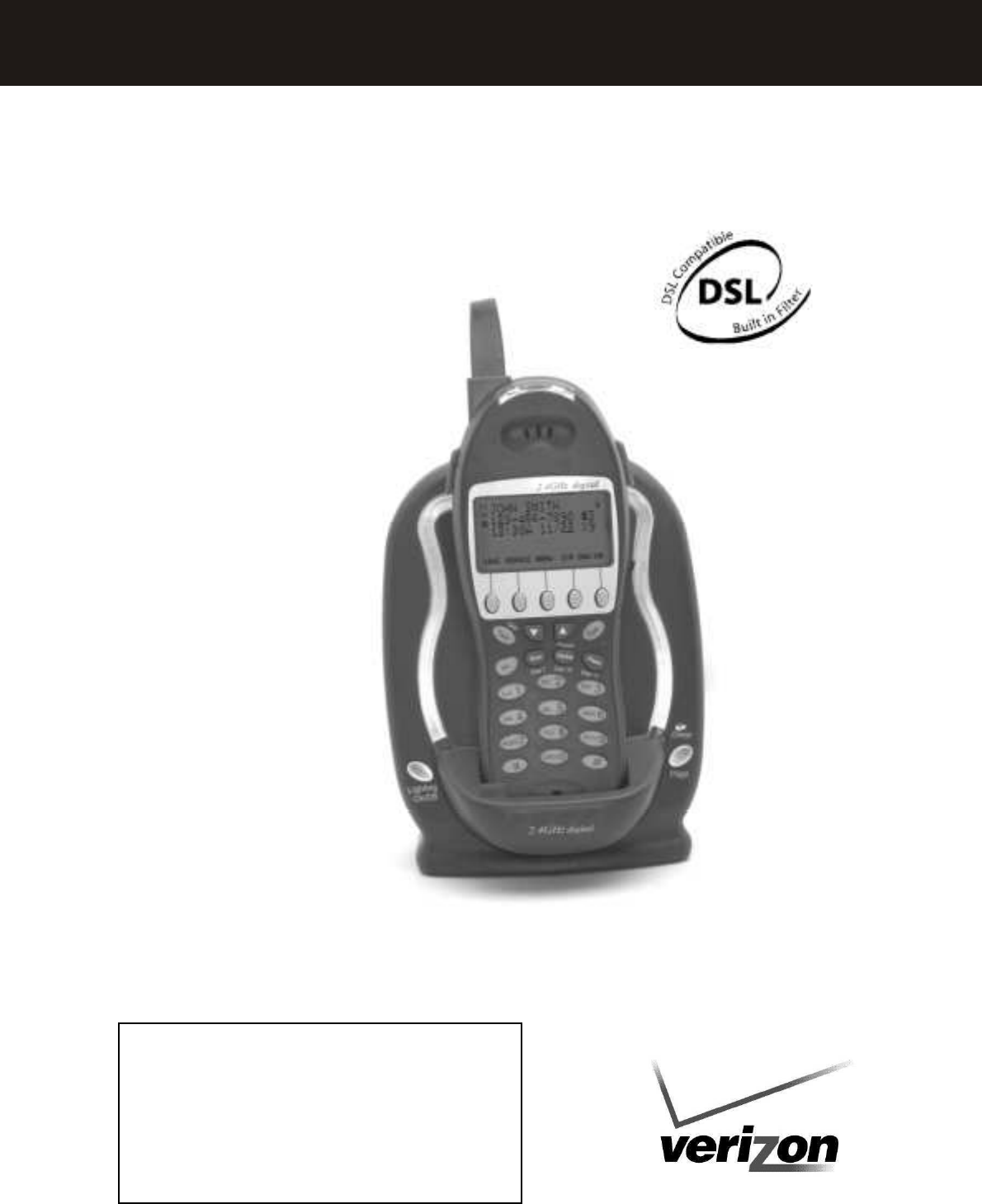
2.4 GHz Digital
Caller ID/Call Waiting Type 2.5 with Call Waiting ID Options
Owner’s Manual
Installation and
Operating Instructions
CALL ER ID / CALLER ID CAL L W AITING /
CALL W AITING ID OPTIONS COM PATIBLE
Caller ID, Caller ID Call W aiting, and/or Call Waiting ID Options
services, where available, are available from Verizon. After
subscribing to Caller ID, Caller ID Call Waiting and/or Call
Waiting ID Options services, this phone will display Caller/Caller
Wait
ed party’s name and phone number, and the associated soft
keys of the Call W aiting ID Options service.
Please read
this m anual
carefully
before use.
Keep for your
reference.
CY-383
EXPANDABLE CORDLESS SYSTEM

1
PAG E
IM PORTANT INFORM ATION.............................................................................................4
IMPORTANT SAFETY INSTRUCTIONS...............................................................................4
SPECIAL FEATURES...............................................................................................................5
CHOOSE THE BEST LOCATION...........................................................................................6
LOCATION OF CONTROLS...................................................................................................7
Handset....................................................................................................................................7
Base Unit.................................................................................................................................9
LCD DISPLAY........................................................................................................................10
Backlit LCD Display.............................................................................................................10
Backlit Keypad......................................................................................................................10
QUICK REFERENCE.............................................................................................................11
GETTING STARTED............................................................................................................15
CHARGING THE BATTERY PACK......................................................................................15
Low Battery...........................................................................................................................15
Clean the Battery Contacts....................................................................................................15
CONNECTING THE BASE UNIT.........................................................................................16
REGISTRATION & DE-REGISTRATION OF HANDSETS.................................................16
Registration...........................................................................................................................16
De-register a handset.............................................................................................................17
CHOOSE THE DIALING M ODE..........................................................................................18
WALLM OUNTING BASE UNIT...........................................................................................19
M EN U .....................................................................................................................................20
STRUCTURE AND OPTIONS...............................................................................................20
INITIAL SETTINGS.............................................................................................................21
Naming..................................................................................................................................21
Language...............................................................................................................................21
Ringer & Beep......................................................................................................................22
Answer M ode........................................................................................................................23
Contrast.................................................................................................................................23
Call Waiting ID Options........................................................................................................23
New Call Lamp.....................................................................................................................24
Time and Date Setting...........................................................................................................24
Intercom Set Up....................................................................................................................24
M essage Waiting Indicator....................................................................................................24
Setting Alarm 24
BASIC OPERATION.............................................................................................................26
MAKING A CALL..................................................................................................................26
Direct Dial.............................................................................................................................26
ANSW ERING A CALL..........................................................................................................27
TO REDIAL A CALL.............................................................................................................27
Directly Redial Last Dialed Numbers...................................................................................27
Dial from the List of Dialed Numbers..................................................................................27
ADJUSTING HANDSET RECEIVER VOLUM E.................................................................28
TO MUTE A CALL.................................................................................................................28
PAGING AND INTERCOM ...................................................................................................28
Locate misplaced handset(s).................................................................................................28
C O NT E NT S

2
Page
Intercom between handsets...................................................................................................28
USING HANDSET SPEAKERPHONE..................................................................................29
INSTALLING AND USING HEADSET................................................................................29
ADVANCED OPERATION ..................................................................................................30
FLASH.....................................................................................................................................30
Call Waiting..........................................................................................................................30
PAUSE.....................................................................................................................................30
Enter a Pause in Dialing Sequence.......................................................................................30
HOLD.......................................................................................................................................30
SENDING TONE SIGNALS IN PULSE DIALING M ODE..................................................31
DIAL VOICE M AIL................................................................................................................31
Program your own Voicemail access number.......................................................................31
Using DIAL V.M . softkey.....................................................................................................31
DIAL BACK FROM CALLER ID LIST................................................................................32
DAILING FROM PHONE BOOK DIRECTORY..................................................................32
CONFERENCE CALL............................................................................................................33
3 Way calling.........................................................................................................................33
Room M onitoring.....................................................................................................................33
The handset in the room to be monitored.............................................................................33
The handset used for monitoring..........................................................................................33
CALLER ID OPERATION...................................................................................................34
ABOUT CALLER IDENTIFICATION...................................................................................34
CALLER LIST.........................................................................................................................34
M emory M atch......................................................................................................................34
Review Caller List................................................................................................................34
Delete Record(s) from Caller List.........................................................................................35
Call Back from Caller List....................................................................................................35
Special Call Display..............................................................................................................35
Call Display M essages..........................................................................................................36
CALL WAITING ID OPTIONS..............................................................................................36
Call Waiting ID Options Set to OFF.....................................................................................36
Call Waiting ID Options Set to ON.......................................................................................37
Call Waiting ID Options: JOIN.............................................................................................37
Call Waiting ID Options: HOLD..........................................................................................38
PHONE BOOK DIRECTORY.............................................................................................39
CREATING A PHONE BOOK DIRECTORY RECORD.......................................................39
Copy from a Caller ID Number............................................................................................39
Add a New Number/Name....................................................................................................40
REVIEWING PHONE BOOK DIRECTORY.........................................................................40
EDITING A PHONE BOOK NUMBER.................................................................................41
DELETING AN ENTRY FROM A PHONE BOOK DIRECTORY.......................................41
DELETING ALL PHONE BOOK DIRECTORY RECORDS ...............................................42
DIALING FROM PHONE BOOK DIRECTORY..................................................................42
M ULTI-HANDSET OPERATION .......................................................................................43
INTERCOM .............................................................................................................................43
CALL TRANSFER..................................................................................................................44
Blind Transfer.......................................................................................................................44
C O NT E NT S

3
Page
Announced Transfer..............................................................................................................44
Transferring to all handsets...................................................................................................45
CALL CONFERENCING.......................................................................................................45
M ultiple Party Conference Call............................................................................................45
WALKIE-TALKIE OPERATION............................................................................................45
Enter into Walkie-Talkie mode.............................................................................................46
Operating Walkie-talkies.......................................................................................................46
OPTIONAL FEATURES DIAL LIST.................................................................................47
DIALING SERVICES .............................................................................................................47
ADDITIONAL INFORM ATION .........................................................................................48
CAPACITY..............................................................................................................................48
M emory.................................................................................................................................48
Call Repeat Number..............................................................................................................48
OUT OF RANGE.....................................................................................................................48
NO CONNECTION.................................................................................................................48
TROUBLE SHOOTING .......................................................................................................49
CARE AND M AINTEN ANCE.............................................................................................50
FCC REQUIREM ENTS........................................................................................................51
WARRANTY..........................................................................................................................53
WALL M OUNT TEM PLATE 54
C O NT E NT S

4
Important Safety Instructions:
To reduce the risk of fire, electric shock and/or injury to persons, always follow
these basic safety precautions when using your telephone equipm ent.
1. Read, understand, and follow all instructions.
2. Unplug this telephone from the wall outlet
before cleaning. Do not use liquid or aerosol
cleaners. If necessary, use a soft cloth lightly
m oistened with a m ild detergent solution.
3. Do not use this telephone near a bathtub,
kitchen sink, wash bowl, laundry tub, swim m ing
pool, a wet basem ent or anywhere else there is
water or liquid.
4. Do not place this telephone on an unstable cart,
stand or table. A fall could cause serious
dam age to the phone.
5. Slots and openings in the cabinet at the back or
bottom are provided for ventilation to protect the
unit from overheating. These openings m ust
not be blocked or covered. Do not place this
telephone on a bed, sofa, rug or other sim ilar
surface. This telephone should never be
placed near or over a radiator or heat register.
This telephone should not be placed in a built-in
installation unless proper ventilation is provided.
6. Never push objects of any kind through slots in
the phone. They could touch dangerous
voltage points or short out parts that could result
in a risk of fire or electric shock. Never spill
liquid of any kind on the telephone.
7. Unplug this telephone from the wall outlet and
refer to a qualified service representative in any
of the following situations:-
a) If liquid has been spilled into the telephone.
b) If the telephone has been exposed to rain or
water.
c) If the telephone does not operate norm ally by
following the operating instructions. Adjust
only those controls that are covered by the
operating instructions. Im proper adjustm ent
of other controls m ay result in dam age and
will often require extensive work by a
qualified technician to restore the telephone
to norm al operation.
d) If the telephone has been dropped or the
case has been dam aged.
e) If the telephone exhibits a distinct change in
perform ance.
8. Do not use the telephone to report a gas leak in
the vicinity of the leak.
9. Avoid using a telephone (other than a cordless
type) during an electrical storm. There m ay be
a rem ote risk of electric shock from lightning.
10. Never install jacks in a wet location unless the
jack is specifically designed for wet locations.
11. Never touch uninsulated telephone wires or
term inals unless the telephone line has been
disconnected at the network interface.
12. Use with caution when installing or m odifying
telephone lines.
13. To reduce the risk of electric shock, do not
disassem ble this product, but take it to a
qualified servicem an when som e service or
repair work is required. Opening or rem oving
covers m ay expose you to dangerous voltages
or other risks. Incorrect reassem bly can cause
electric shock when the appliance is
subsequently used.
14. Use only the power cord and batteries indicated
in this m anual. Do not dispose of batteries in
fire. They m ay explode. Check with local
codes for possible special disposal instructions.
1 5 . Plug the adaptor to the socket-outlet that near
the equipm ent and shall be easily accessible.
16. CAUTION
RISK OF EXPLOSION IF BATTERY IS
REPLACED BY AN INCORRECT TY PE.
USE BATTERY TY PE ONLY CYB-103, NiMH
3.6V, 750m Ah
DISPOSE OF USED BATTERIES ACCORDING
TO Y OUR LOCAL CODE.
IM PO RTAN T IN FO R M AT IO N
Use only with Class 2 Power Source, 7.5V DC, 500m A for base unit
SAVE THESE INSTRUCTIONS
SAVE THESE INSTRUCTIONS
SAVE THESE INSTRUCTIONS

5
SPECIAL FEATURES
The CY-383 Expandable Cordless System is designed and engineered to exacting
standards for reliability, long life, and outstanding perform ance.
Note:
Charge all of the batteries for at least 15 hours prior to initial use.
SEE PAGE 15 FOR DETAILS!
• 2.4 GHz Digital FHSS Cordless Phone
• Multiple hands ets capability, supports up to 4 handsets
(If you want an additional hands et(s ) for this m ulti-handset s ystem , you m ay
purchase m odel CY-381 from SBC Com m unications at 1-800-667-2118)
• Multi-party Conference call between hands et(s) and an external line
• Two-way intercom between 2 hands ets
• Ornam ental lighting with on/off switch. This night light is selectable in blue and
violet.
• Room m onitoring
• 3 Ringer selections and 10 s electable ring tones
• Handset-to-Handset W alkie-Talkie function totally independent of the base unit.
• Handsfree speakerphone on hands et
• Caller ID Type I, II and Call W aiting ID Options capability
• Backlit 7-Line Multi-Function LCD on handsets
• Five soft keys on each handset to access different functions depending on which
m ode the phone is currently in.
• Volum e Controlled Handset Earpiece and Speakerphone
• New Call/Voice Mail Message W aiting Indicator on handset
• Out of Range indication
• Non-volatile mem ory for 40 Nam e and Num ber Caller ID Records, 40 Personal
Nam es and Num bers on each handset, 32 General Nam es and Num bers Phone
Book Directory s hared am ong all handsets , and 22 Last Dialed Num ber directory on
each handset.
• English/Spanis h Intelligent LCD Display
• Real Tim e Clock and Alarm Clock
• Built-in DSL Filter
• 2.5 m m Heads et Jack
I MP O R TAN T IN FO R MAT IO N

6
Check to be s ure that the following item s com e with the phone. If there is anything
m issing or any vis ible damage, contact the original place of purchase. Do not attem pt
to operate the s ystem if it is dam aged.
• Base Unit
• One Handset with Belt Clip
• One Battery Pack
• One Long Telephone Line Cord
• One Short Telephone Line Cord for W all Mounting
• One AC Adaptor
• Owner’s Manual(s)
CHOOSE THE BEST LOCATION
Calls are transm itted between the base unit and the handset, or between hands ets, by
using wireless radio waves . For m axim um dis tance and noise-free operation, here are
som e im portant guidelines you should consider:
1. The location should be clos e to both a phone jack and a continuous power outlet
which is not switch-controlled.
2. Keep the base and the handset away from sources of electrical nois e such as TV,
personal com puter, or another cordless phone.
3. Place base in a HIGH, CENTRAL location with no obs tructions such as walls.
4. The base can be placed on a desk, tabletop or m ounted on wall.
Note:
W hile us ing the handset:
If you are near a m icrowave oven which is being used, noise m ay be heard from the
receiver or the speaker. Mo ve away from the m icrowave oven and closer to the base
unit.
If m ore than one cordless phone is being us ed and your handset is near another
cordless phone’s base unit, nois e m ay be heard. Move away from other cordless
phone’s base unit and closer to your base unit.
I MP O R TAN T IN FO R MAT IO N
7
LOCATION OF CONTROLS
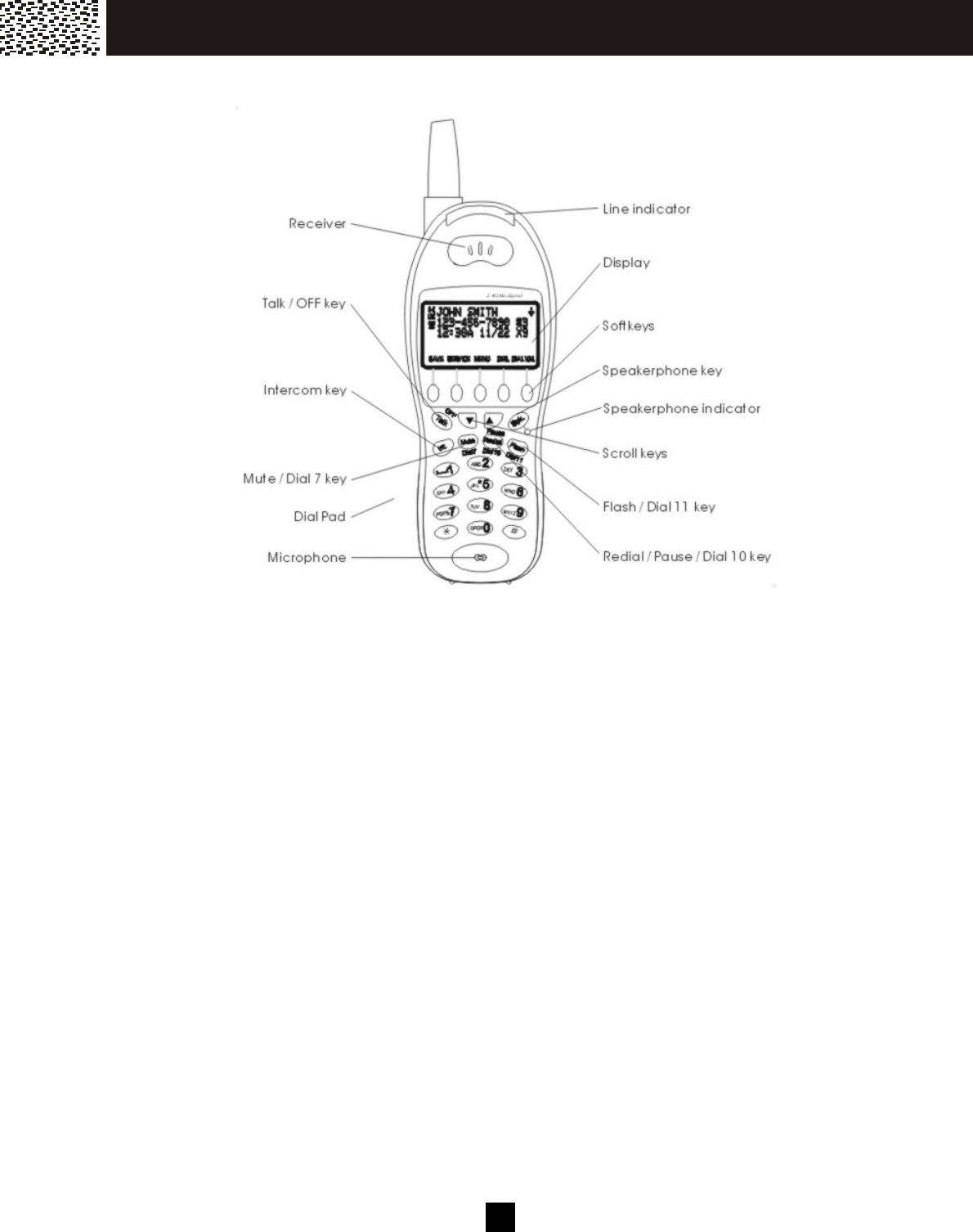
Handset
Line Indicator
(a) Flashes rapidly when ringing.
(b) Flashes regularly if you have m essage in your voicem ail or new Caller ID in Call Log.
(c) Lights when the handset is in use.
Talk / OFF Key
Allows you to access the telephone line or to release the line.
Speakerphone Indicator
Lights when s peakerphone is in us e.
Speakerphone Key [Spk.]
(a) Press to activate / deactivate the handsfree s peakerphone during a call
(b) Dial the num ber on the dis play with speakerphone m ode.
You are still required to press [OFF] to end your call.
Mute / Dial 7 Key
(a) W hile reviewing the Call ID Record, press [Dial 7] to Call Back in 7-digit form at.
(b) W hile on a call, press [Mute] to m ute the m icrophone for privacy.
Redial / Pause / Dial 10 Key
(a) W hile reviewing the Call ID Record, press [Dial 10] to Call Back in 10-digit form at.
(b) W hile off-hook, press [Redial] to recall and dial the last phone num ber dialed.
(c) W hile on-hook, press [Redial] to access the Redial Lis t. Using [▼ ] or [▲ ] to select
the desired num ber and press [Talk] or [O.K.] softkey to dial it.
(d) Pressing the key during Pre-dial or Phone book directory number entry will enter a
3-second pause into a dialing sequence, indicated by “P”.
I MP O R TAN T IN FO R MAT IO N
8
Flash / Dial 11 Key
(a) W hile reviewing the Call ID Record, press [Dial 11] to Call Back in 11-digit form at.
(b) The [Flas h] key is used to access telephone com pany services such as Call W aiting.
Scroll Keys [▼] / [▲]
(a) W hile on a call, press [▼ ] / [▲ ] to adjus t the volume.
(b) During standby, press [▼ ] / [▲ ] to scroll through Menu options; access Caller ID
Records, Phonebook Directory Records and Redial Lis t.
Intercom Key [Int.]
During standby, press the key to activate the intercom function between hands ets,
answer a paging call, or term inate an intercom call. W hile on a line, press the key to
trans fer the call to a particular handset.
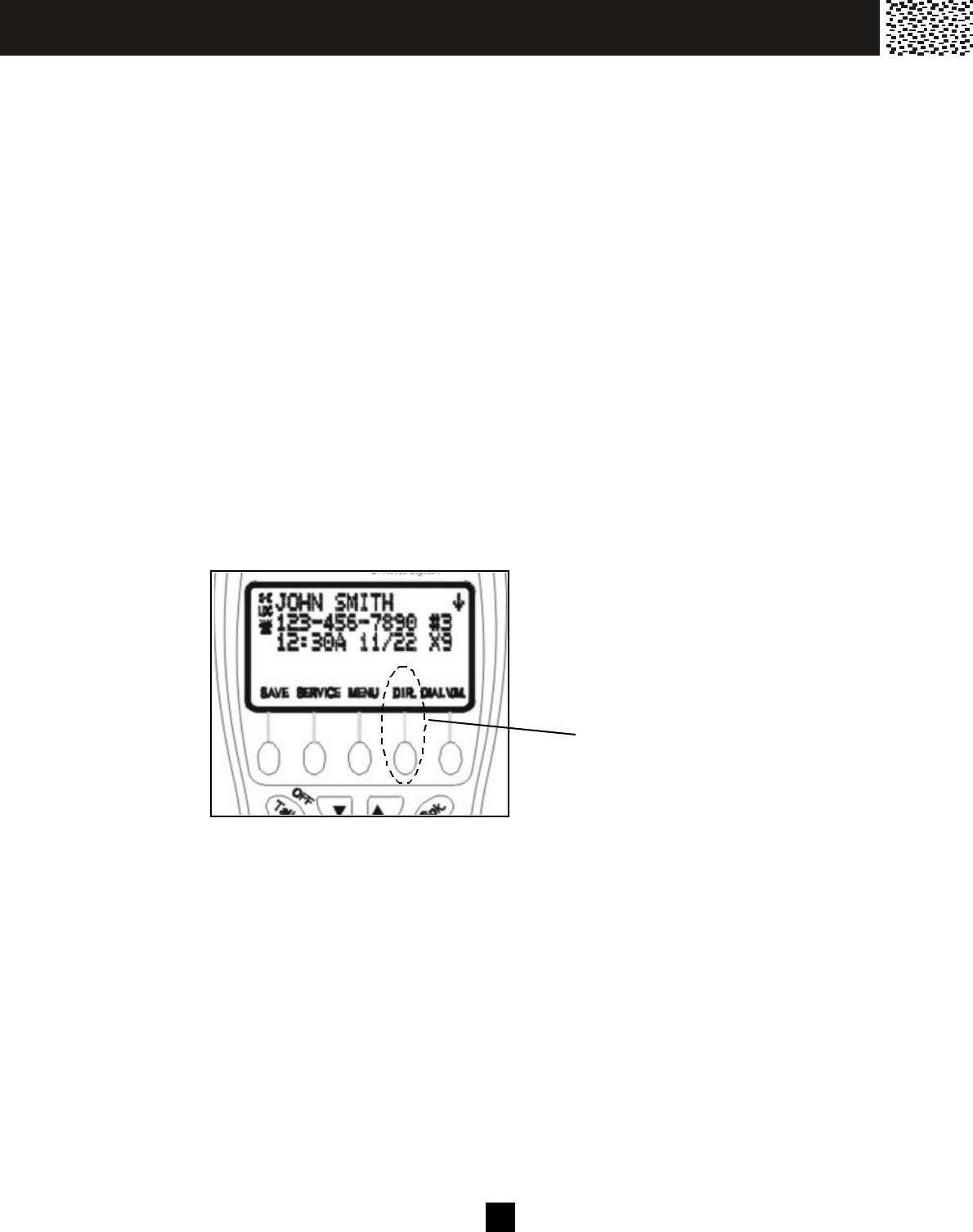
5 Softkeys
These softkeys are used to select functions dis played directly above the keys .
Functions displayed above the keys will change depending on the m ode of operation.
For exam ple, on the dis play below, [SAVE], [SERVICE], [M ENU], [DIR.] & [DIAL V.M.] are
dis played above the sofkeys . To operate the phone book directory, press the second
softkey from the right-hand-side.
I MP O R TAN T IN FO R MAT IO N
e.g.
Pressing this softkey
during idle m ode will
enter into phone book
directory.
9
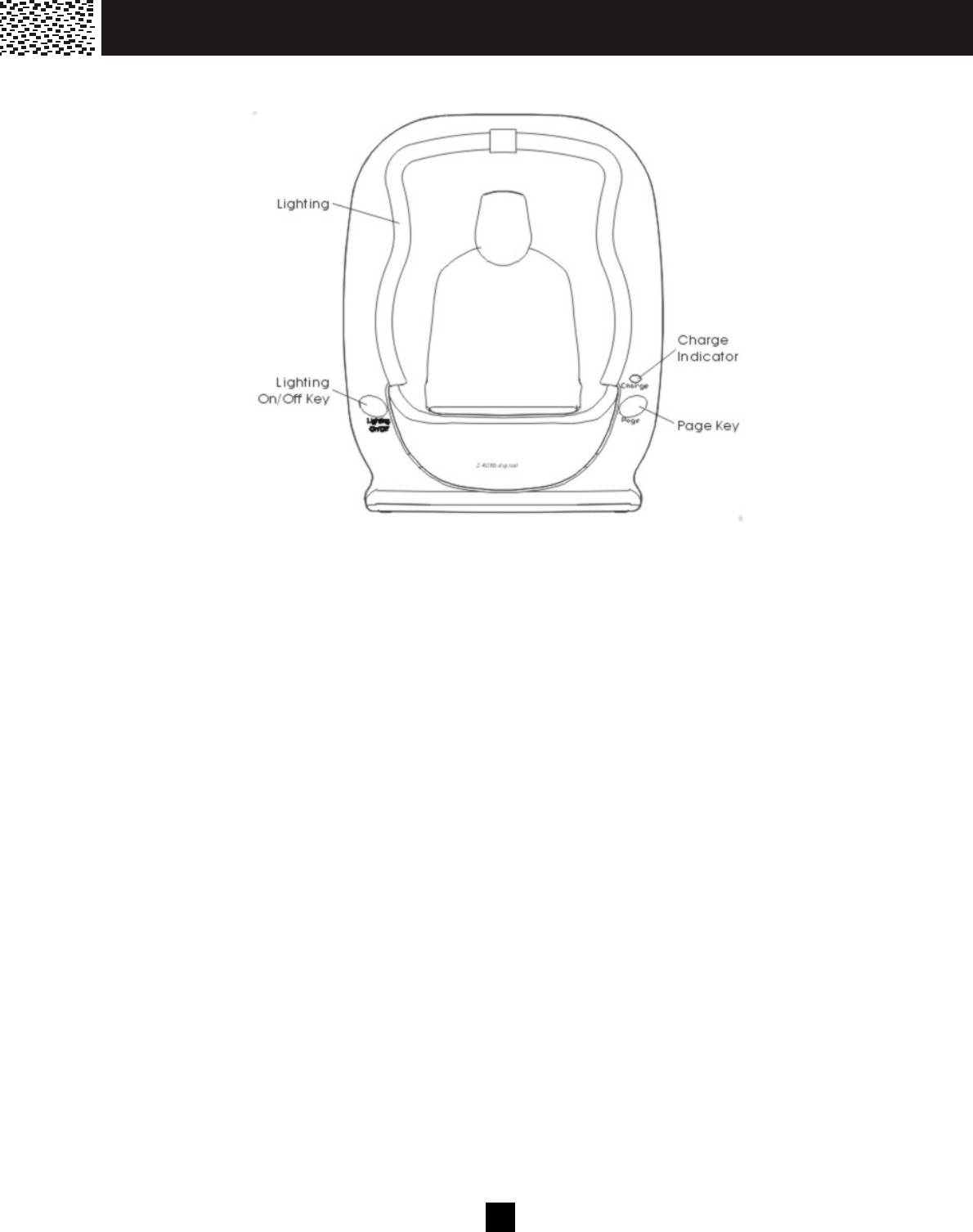
Base Unit
Charge Indicator
Illum inates when hands et is charging
Page Key
During standby, press the key to page all handsets within range.
Lighting On / Off Key
Press to switch on/off the base unit lighting or to select the blue or violet night light.
I MP O R TAN T IN FO R MAT IO N
10
LCD DISPLAY
Backlit LCD Display
The handset has the backlit LCD display. It will light when you start using the handset
or when a call is received. The display light will stay on for a few seconds after press ing
a button or lifting the handset off the bas e unit.
Backlit Keypad
The Talk, Int., Spk. and the num eric keys will be lit when you press a key or when a call is
received. The light will s tay on for a few seconds after press ing a key or answering a
call.
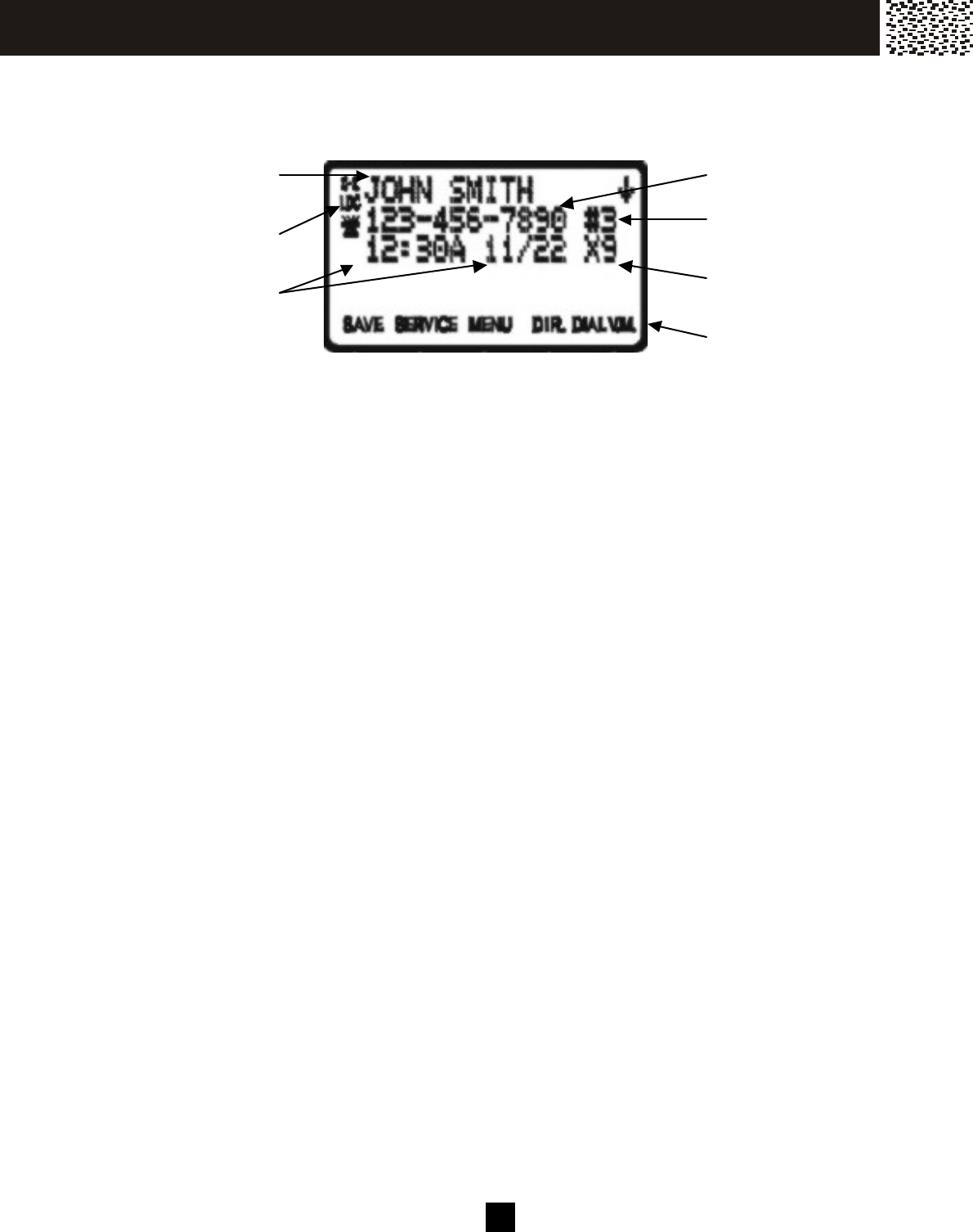
Caller’s Nam e
Caller’s Num ber
Calling Tim e
& Date
Sequence in caller list
Labels of 5 softkeys
I MP O R TAN T IN FO R MAT IO N
Num ber of calls
from sam e caller
Special call
inform ation

11
QUICK REFERENCE
Task Steps Page
1
Adjust receiver /
Speakerphone volum e
The handset has 4 Adjus table volum e
levels (VOL-1 – VOL-
4) showing the current
dis play during off hook. Press [
▼ ] / [▲ ] to
adjus t during a call.
28
2
Making a call 1. Press [Talk] or [Spk.] on the handset
and lis ten for a dial tone.
2. Dial num ber.
3.
To hang up, press [OFF] on the handset
or return the handset to charge cradle.
26
3
Answering a call Auto m ode is the default m ode setting of
the phone:
If the handset is on the charge cradle, jus t
lift the handset and the line is autom atically
connected.
If the phone is set to Manual m ode, or
whenever the handset is not on the charge
cradle, to answer a call:
1. Press [Talk] or [Spk.] key on the
handset to pick up a call
2.
To hang up, press [OFF] on the handset
or return the handset to charge cradle.
27
4
Last num ber redial 1. Press [Talk] key and lis ten for dial tone.
2. Press [Redial] to dial the last dialed
num ber.
27
5
Dial from the Redial List 1. Press [Redial].
2. Use [▼ ] / [▲ ] scroll keys to access
desired num ber from the lis t of up to 22
last dialed num bers .
3. Press [Talk] or [OK] ke y to dial the
num ber.
27
6
Review Caller List Use [▼ ] / [▲ ] scroll keys to review caller’s
inform ation during s tandby m ode.
34
I MP O R TAN T IN FO R MAT IO N

12
QUICK REFERENCE
Task Steps Page
7
Call back a num ber in
Caller Lis t
1. Scroll to a desired record in Caller Lis t.
2. Press [Talk] to dial.
3. If the num ber dis played is not in the
desired dialing pattern, press [Dial7],
[Dial10] or [Dial11] to dial in the correct
num ber of digits .
35
8 Store Caller ID num ber
into Phone Book
Directory
1. Scroll to the desired Caller ID num ber.
2. Press [SAVE] softkey to store.
3. Press [OK] or [JOIN] softkey to select
storing in Private or General Directory
39
9 Manually add a new
num ber into Phone Book
Directory
1. Press [DIR.] softkey.
2. Press [SAVE] softkey to store.
3. Press [OK] or [JOIN] softkey to select
storing in Private or General Directory
4. Follow the on-screen instructions to
enter the phone num ber, nam e, and to
select the ring tone.
39
10
Dial from Phone Book
Directory
1. Press [DIR.] softkey.
2. Press [OK] or [JOIN] softkey to select
from Private or General Directory
3. Use [▼ ] / [▲ ] scroll keys to find the
desired directory record.
4. Press [Talk] or [Spk.] to dial.
5. If the num ber dis played is not in the
desired dialing pattern, press [Dial7],
[Dial10] or [Dial11] to dial in the correct
num ber of digits .
42
11 Switch to a waiting call Press [Flash] to put the talking party on
hold and talk to the waiting party.
If Call W aiting ID OPTIONS is subscribed
to, m ore options are available.
30
36
12 Page from base to
handset(s)
1. Press [Page] key.
2. To term inate the paging, press [EXIT]
softkey on handset or [Page] key on
base unit again.
28
I MP O R TAN T IN FO R MAT IO N

13
QUICK REFERENCE
Task Steps Page
13 Intercom call between
two handsets
1. Press [Int.].
2. Use [▼ ] / [▲ ] scroll keys to select the
desired hands et and press [O.K.].
3. To term inate the paging, press [EXIT]
softkey or [Int] key.
28
43
14 Blind Call Transfer 1. W hile connected to an external line,
press [Int.] ke y.
2. Use [▼ ] / [▲ ] scroll keys to select the
handset to which the call is transferred.
3. On the recipient side, press [O.K.] s oft-
key or [Talk] to take the call.
44
15 Announced Call Transfer
1. W hile connected to an external line,
press [HOLD] softkey to put the line on
hold.
2. Press [Int.] and scroll to the desired
recipient and press [O.K.].
3. After the private conversation, the
recipient presses [Talk] to take the call.
44
16 Multiple Handsets
Conference
W hile a hands et is engaged in an external
call, another handset can press [Talk] key
to join the convers ation. The maxim um
num ber of parties in the conference is 2
handsets.
45
I MP O R TAN T IN FO R MAT IO N

14
QUICK REFERENCE
Task Steps Page
17 Room Monitoring On the handset in the room to be
m onitored:
1. Press [MENU] softkey
2. Scroll to the [MONITOR ROO M] m enu
and press [O.K.]. The handset will
dis play “ READY TO ROO M
MONITORING”.
On the handset used for m onitoring:
1. Press [Int.] key.
2. Using [▼ ] / [▲ ] scroll keys to select the
handset in the room to be m onitored
and press [O.K.] to start.
The link is autom atically set up while the
com m unication is only one-way.
To end the m onitoring, press [EXIT] or [Int.]
key on either handset.
33
18 W alkie-Talkie m ode
Two or m ore handsets
entered into walkie-talkie
m ode can comm unicate
with each other totally
independent of the base
unit if they are within
range of each other.
To enter walkie-talkie (FRS) m ode:
1. Press [MENU] softkey.
2. Using [▼ ] / [▲ ] scroll keys to access
W alkie- talkie m enu.
3. Press [O.K.] to confirm selection and
the dis play shows “W ALKIE-TALKIE”.
To operate as walkie-talkie (FRS):
1. Press [Int.] key.
2. Press the handset num ber which is in
W alkie-talkie m ode. The called
handset can answer by press ing [Talk],
[Int.] or [O.K.] key.
45
I MP O R TAN T IN FO R MAT IO N
15
Your new telephone includes the highest quality NiMH (Nickel Metal Hydride)
rechargeable batteries available. Following these sim ple instructions can
significantly im prove your operational results.
CHARGING THE BATTERY PACK
Charge all battery packs for at least 15 hours prior to connecting to the telephone line.
1. Press the battery release point on the back of the handset and slide downward to
open the battery com partm ent.
2. Insert the battery pack into the battery com partment and m ake sure to position the
battery pack so that it is touching the charging contacts .
3. Slide the battery co ver upward until it snaps into place.
4. Connect the AC adapter to the 7.5V DC jack of the base unit and to a s tandard 120V
AC wall outlet.
5. Place the handset on the base unit. Make sure the Charge indicator on the base
unit lights, and charging begins.
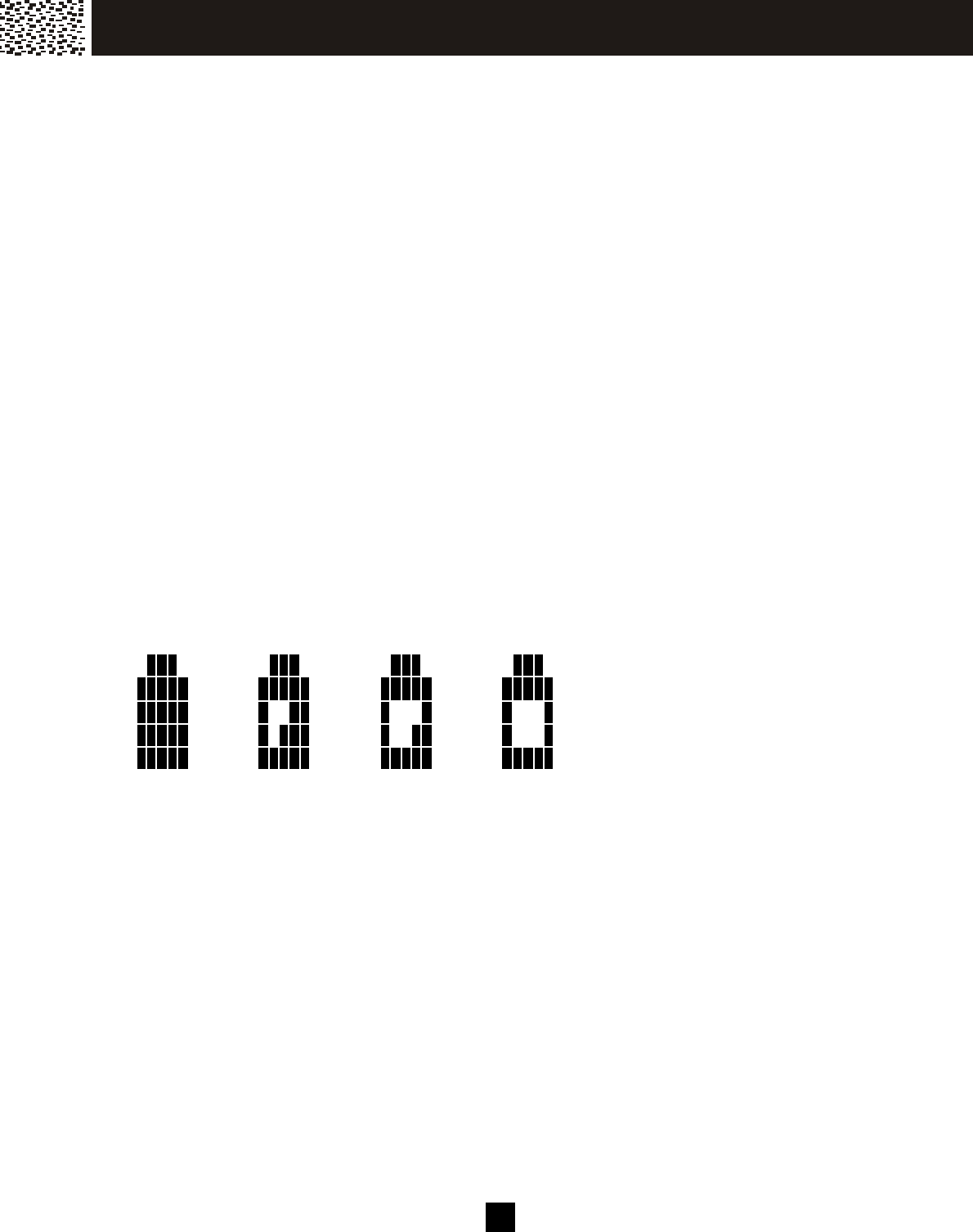
6. The battery icon on the handset changes from very low, to low, to m edium , to full
and repeats as a cycle. It only stops after leaving the charging cradle.
Low Battery
The battery icon on the right of the dis play shows the level of battery.
Full Medium Low Very low
If the handset battery is not properly charged, there is a warning tone while the handset
is in use and “BATTERY LOW ” is dis played. W hen this occurs the handset does not
function when you press the keys.
Cleaning the Battery Contacts
To m aintain a good charge, it is im portant to clean all battery contacts on the handset
and the bas e unit with a soft, dry cloth about once a m onth. You m ay also use a pencil
eras er or other contact cleaner. Do not use any liquids or solvents.
G ET T IN G STAR T ED

16
AC POW ER
Caution:
1. Use ONLY with the supplied AC Adaptor (AC 120V, DC7.5V, 500m A).
2. Plug the adaptor to an electrical outlet that is near the equipm ent and is easily
access ible.
3. The AC adaptor m us t rem ain connected at all tim es (It is norm al for the adaptor to
be warm during use).
4. Do not rem ove the battery from the hands et to charge it. Do not dispos e of
batteries in a fire. They m ay explode. Check with local codes for possible special
dis posal instructions.
5. Do not rem ove or dam age the battery cas ing.
6. If you do not expect to use your phone for a m onth or longer, rem ove the batteries .
Batteries can leak chem icals that can destroy electronic parts .
7. For the longes t battery life and optim al operation of the phone s ystem ALW AYS
com pletely charge and dis charge the batteries.
CONNECTING THE BASE UNIT
1. Plug one end of the telephone line cord into the jack at the bottom of the base unit
and plug the other end of the cord into the m odular telephone wall jack.
2. Plug the AC adapter into the 7.5V DC jack on the base and the other end into a
standard 120V AC wall outlet.
3. Set the base unit on a tabletop and then place the handset on the base unit.
Note:
1. Use only the AC adaptor supplied.
2. Connect the AC adaptor to a continuous power outlet.
3. Place the base unit clos e to the AC outlet so that you can unplug the AC adaptor
easily.
Tip:
If your telephone outlet is not m odular, contact your telephone com pany for assis tance.
REGISTRATION & DE-REGISTRATION OF HANDSET
The first registered hands et will be autom atically assigned as HS (1). W hen additional
handsets are registered to the s ystem , they will be ass igned extension num bers in the
following s equence: HS (2), HS (3) and HS (4). They can be renam ed later.
Registration
An unregis tered handset will dis play “HS_ _”.
NO NEW CALLS
HS_ _
12:00AM 01/01
SAVE SERVICE MENU DIR. DIAL V.M.
G ET T IN G STAR T ED
17
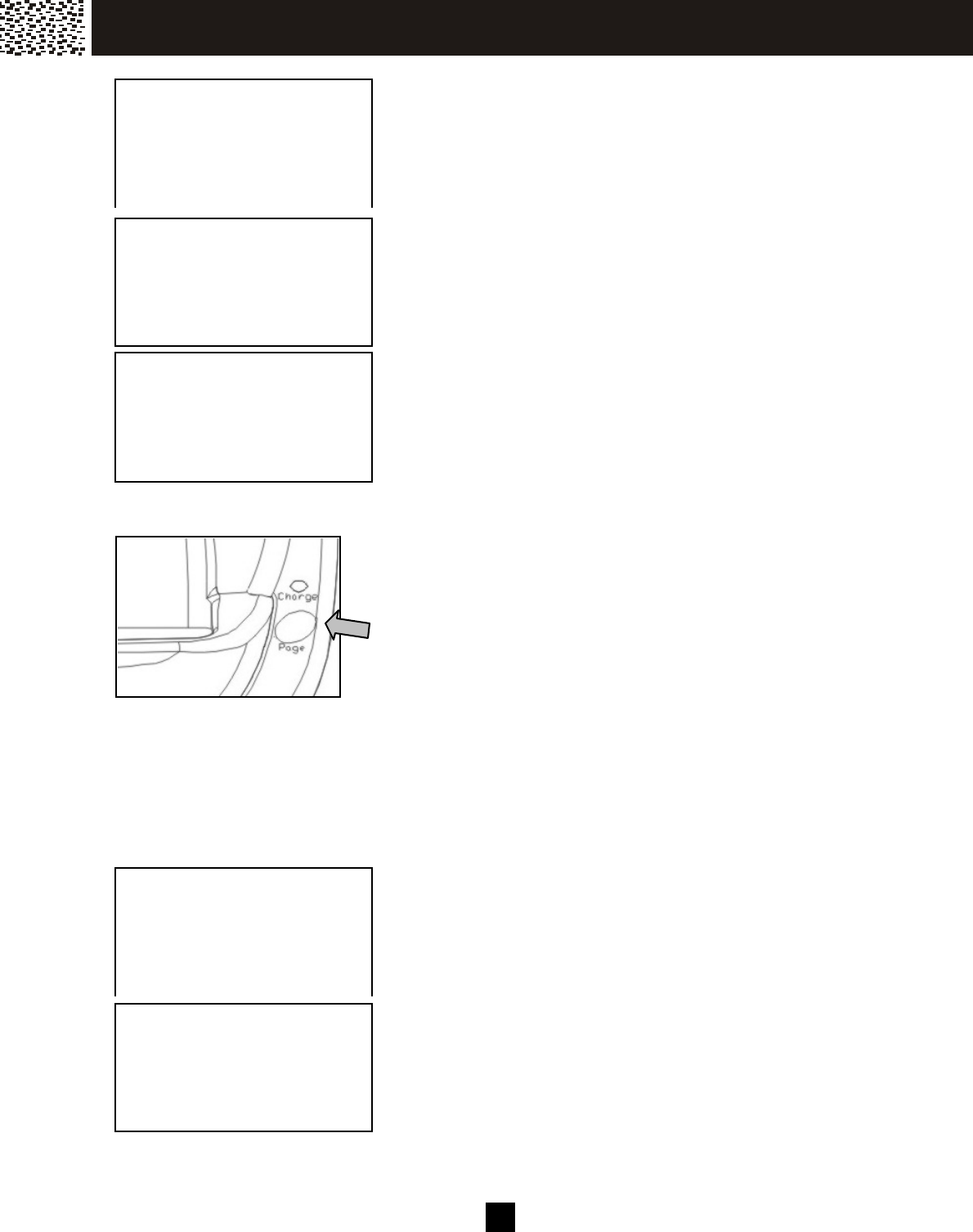
Press [MENU] soft key, “REGISTR ATION” is displayed.
Press [O.K.] and ADD A HANDSET?” is displayed.
Press [O.K.] again. “PRESS AND HOLD BASE [PAGE]
KEY UNTIL HS BEEPS” will be displayed.
On the Base unit
Press and hold the [Page] button until beeps are heard.
The regis tration process is now com plete.
De-register a handset
You can de-register a registered handset from the base unit.
On the Handset:
Press [M ENU] and “REGISTRATION” appears on the
display.
Press [OK] to enter Regis tration m enu.
Using [▼ ] / [▲ ] to select “DEL HANDSET?”.
Press [O.K.] and “DEREGISTER HS (#)” is displayed.
REGISTRATION
NAME HANDSET
USE / =REVIEW
O.K. EXIT
ADD A HANDSET?
O.K. EXIT
.
PRESS AND HOLD
BASE [PAGE] KEY
UNTIL HS BEEPS
EXIT
REGISTRATION
NAME HANDSET
USE / =REVIEW
O.K. EXIT
DEREGISTER
HS (1)?
O.K. EXIT
G ET T IN G STAR T E D

1 8
Press [OK] to confirm . “DEREGISTERING…” will be
displayed during the process. W hen deregistration
process is com pleted, the unit will return to Registration
m enu.
“HS_ _” will be shown after the handset return to standby.
CHOOSE THE DIALING M ODE
If your telephone is equipped with a touchtone dialing system , the phone will be ready to
use as soon as the battery is charged. If your line uses pulse (rotary) dialing, you will
need to set the dialing m ode as follows:
Press [M ENU] and “REGISTRATION” appears on the
display.
Using [▼ ] / [▲ ] to access “DIAL M ODE”.
Press [OK] to enter Dial m ode m enu.
Using [▼ ] / [▲ ] to select “PULSE MODE”.
Press [SAVE] to confirm .
The display will return to “DIAL MODE”, press [EXIT] to
return to standby.
You are now ready to use your new telephone
REGISTRATION
NAME HANDSET
DIAL MODE
O.K. EXIT
REGISTRATION
RINGER & BEEP
USE / =REVIEW
O.K. EXIT
WALKIE-TALKIE v
NAME HANDSET
DIAL MODE
O.K. EXIT
TONE v
PULSE
USE SAVE = DONE
EXIT
MESSAGES
HS (2)
10:08AM 01/15
SAVE SERVICE MENU DIR. DIAL V.M.
SAVE
G ET T IN G STAR T E D

1 9
WALLMOUNTING BASE UNIT
The base unit can be m ounted on a standard wall phone plate
1. Plug the AC adapter’s barrel plug into the jack m arked “7.5V 500m A” at the bottom
of the base unit.
2. Plug the short telephone line cord into the jack m arked “LINE”.
3. Hold the base unit up next to the wall jack and plug the line cord into the wall jack.
4. Place the base unit on the posts of the wall plate and push down until the unit is
secured firm ly.
5. Plug the AC adapter into a standard wall outlet.
Note: If you are not using a standard wall plate to m ount the phone on a wall, you m ay
also m ount it with ordinary screws. Use the W all Mount Template on page 54 to affix
two screws at your desired location. Rem em ber to leave 1/8 inch of the screw
extending from the wall.
Please charge all the batteries for at least 15 hours prior to initial use.
G ET T IN G STAR T E D
20
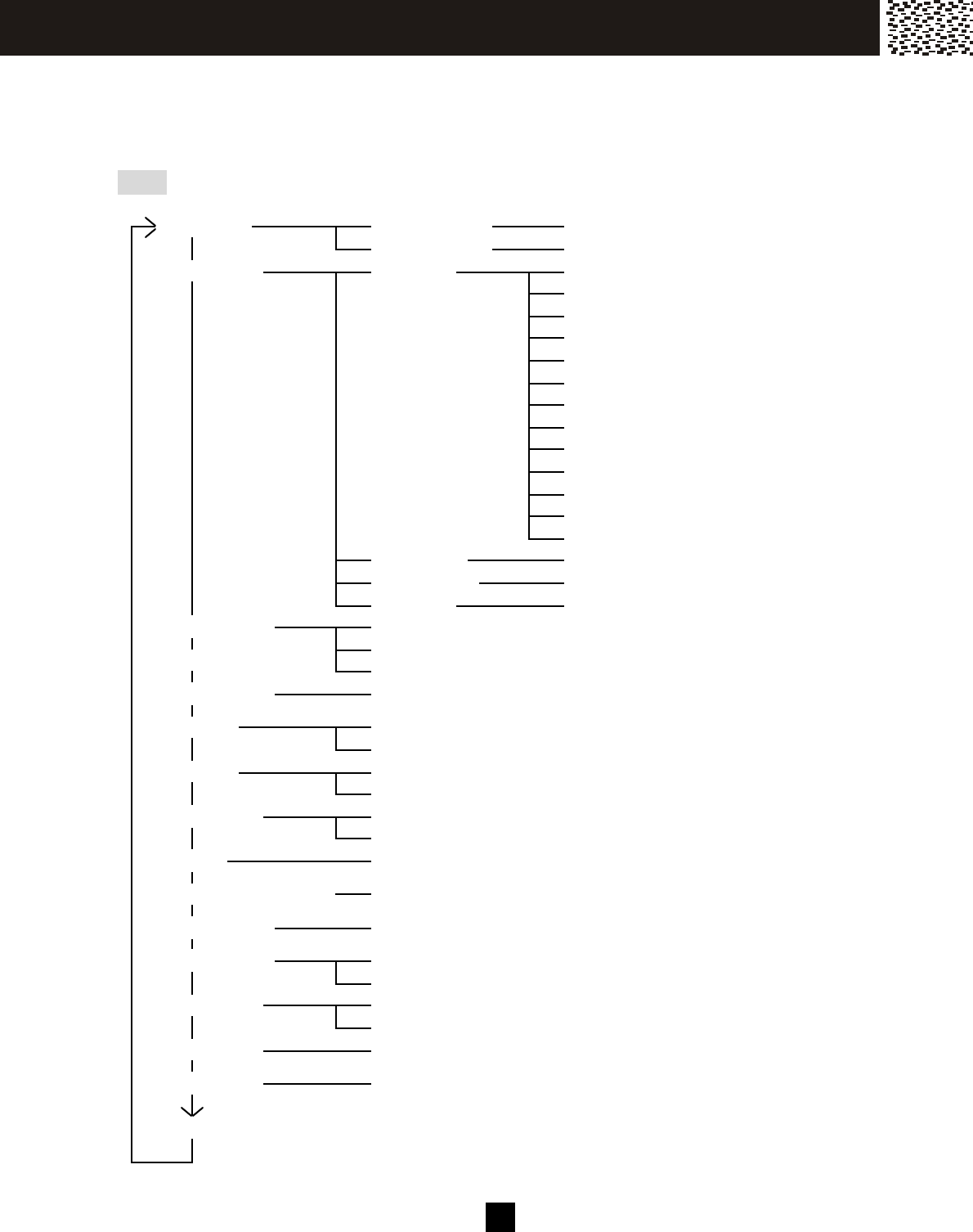
STRUCTURE AND OPTIONS
The phone offers an extensive range of functions which are grouped in m enus. You can
custom ize your phone by pressing the Menu key and using [▼ ] / [▲ ] scroll keys to scroll
through the options.
Note: The settings are independent on each handset.
Registration
Add a Handset?
P res s a n d hol d b a s e [ pa g e] ke y u n til HS be e ps
Del Handset?
Deregister HS (#)?
Ringer & Beep
Ring Type
Ringer 1
Ringer 2
Ringer 3
Turkish M arch
O ld M c Donald
G reensleeves
Swinging Boat
O ld Fisherm an
Rom ance
Beethoven
Say Hello
Twinkle stars
Elise
Day Volum e
High / M edium / Low / O ff
Night Volum e
High / M edium / Low / O ff
Key Beep
O n / O ff
Intercom Setup
See Answer M ode
Auto After 1 Ring
W alkie-Talkie
Auto After 3 Ring
Nam e Handset
_
Dial M ode
Tone
Pulse
Language
English
Espanol
Answer M ode
Auto M ode
M anual M ode
Contrast
1 - 8
Call W aiting ID O ption
O n/ Off
New Call Lam p
O n / O ff
Set Date / Tim e
Tim e
Date (M M /DD)
Set Alarm
O n / O ff
Tim e:
M onitor Room
Ready to Room M onitoring
Last Call Tim e
Last Call Tim er 0-0 0 -00
Del M essage?
M E N U
21
Prior to using your phone, you m ay custom ize it to fit your preference.
Nam ing
Each handset is defaulted as HS (#) where # is the sequence of handset registered to
the base unit. They can be personalized with nam es, e.g. JOHN, M ARY, G ARAGE or
ROOM 2, etc.
Press [MENU] on the handset during standby.
Using the [▼ ] / [▲ ] to select “NAME H ANDSET”.
Press [O.K.] to enter into the selection.
Press [EDIT] and start entering the assigned nam e.
The m axim um length is 6 alpha-num eric digits or
sym bols.
Press [SAVE] to confirm settings.
Each num eric key is assigned a set of letters and sym bols as printed below. Press the
corresponding num ber until the desired letter is displayed. If two consecutive letters
from the sam e key is required, wait until the cursor m oves to the next blank space.
Num eric: 1 2 3 4 5 6 7 8 9 0
Alpha: Space
A,B,C
D,E,F
G,H,I
J,K,L
M,N,O
P,Q,R,S
T,U,V
W ,X,Y,Z
Sym bols
You can also us e [] or [#] to ins ert the following special s ym bols in the name field.
+ , - . / @ : ; < = > ? { ¦ } ~ [ \ ] ^ _ ` ! ″ # $ % & ´ ( )
Note: The nam e m ust be s tarted with an alpha character.
Language
The phone can be operated in Englis h or Spanish.
Press [MENU].
Using [▼ ] / [▲ ] to s elect “LANGUAGE”.
Press [O.K.] to enter into the selection.
Using [▼ ] / [▲ ] to s elect ENGLISH or SPANISH m enu.
Press [SAVE] to confirm setting. Following the
confirm ation beeps , the screen will return to the 1
st level
m enu.
NAME HANDSET(1):
HS
USE EDIT=CHANGE
EDIT EXIT
NAME HANDSET(1):
EXT .
..
. 2_
USE SAVE = DONE
EXIT DELETE
SAVE
ENGLISH v
ESPANOL
USE =CHANGE
EXIT
SAVE
NAME HANDSET v
DIAL MODE
LANGUAGE
O.K. EXIT
IN IT I AL S E T T IN G S
2 2
Ringer & Beep
Each handset can be assigned with a specific ring type and volum e. Different volume
levels can be set for day and night. You can also choose between having a
confirm ation beep or have silent operation.
Ring Type
There are 3 ringer patterns + 10 m elodies in the handset.
Press [MENU].
Using [▼ ] / [▲ ] to select “RINGER & BEEP”.
Press [O.K.] to enter into the selection.
Press [EDIT] to play the current ringer type.
Using [▼ ] / [▲ ] to play while scrolling through the list of
ringers and m elody options.
Press [SAVE] to confirm setting
Day Volum e
Ringer volume level between 6:00 AM and 9:00 PM .
Press [MENU].
Using [▼ ] / [▲ ] to select “RINGER & BEEP”.
Press [O.K.] to enter into the selection.
Using [▼ ] / [▲ ] to select “DAY VOLUME” and press
[EDIT]. Current volume level will be displayed. Using
[▼ ] / [▲ ] to switch between HIGH, MEDIUM , LOW &
OFF then press [SAVE] to confirm .
Ni ght Volum e
Operation sim ilar to Day Volum e setting. “Night” denotes 9 PM to 6 AM
Key Beep
A key depression can be audible (beep) or silent.
Press [MENU].
Using [▼ ] / [▲ ] to select “RINGER & BEEP”.
Press [O.K.] to enter into the selection.
RING TYPE
DAY VOLUME
NIGHT VOLUME
EDIT EXIT
RINGER 2 v
RINGER 3
TURKISH MARCH
EXIT
SAVE
RING TYPE v
DAY VOLUME
NIGHT VOLUME
EDIT EXIT
DAY VOLUME
HIGH
(6 AM – 9 PM)
EXIT
SAVE
DAY VOLUME
NIGHT VOLUME
KEY BEEP
EDIT E XIT
IN IT I AL S E T T IN G S

2 3
Using [▼ ] / [▲ ] to select “KEY BEEP” and press [EDIT].
Current setting will be displayed. Using [▼ ] / [▲ ] to
switch between ON & OFF then press [SAVE] to confirm .
Answer Modes
Handsets m ay be program m ed to either auto or m anual answer m ode. W hen the
handset is not in the base unit or the charge cradle, [Talk] (or [Spk.]) key m ust be
pressed to answer incom ing calls. Auto answer m ode will only be activated when the
handset is in the base unit or in the charge cradle. In which case, the line is
autom atically connected when handset is picked up from the charge cradle.
Press [MENU].
Using [▼ ] / [▲ ] to select “ANSW ER M ODE”.
Press [O.K.] to enter into the selection.
Using [▼ ] / [▲ ] to switch between AUTO & M ANUAL
then press [SAVE] to confirm .
Contrast
Choose from 8 (1 – 8) different levels of display contrast to fit your operating
environm ent.
Press [MENU].
Using [▼ ] / [▲ ] to access “CONTRAST”.
Press [O.K.] to enter into the selection.
Using [▼ ] / [▲ ] to adjust the contrast level.
Press [SAVE] to confirm setting.
Call W aiting ID Options *
Call W aiting ID Options provide more options of disposing a waiting call. 5 dedicated
soft key labels displays when there is an incom ing waiting call.
Press [MENU].
Using [▼ ] / [▲ ] to access “CW ID OPTION”.
Press [O.K.] to enter into the selection.
Using [▼ ] / [▲ ] to switch between ON or OFF.
Press [SAVE] to confirm , and then press [EXIT] to return
to stand-by.
Note: * Call W aiting ID Options m ay be available from your telephone com pany.
Subscription m ay be required.
KEY BEEP: v
ON
USE =CHANGE
EXIT
SAVE
AUTO MODE
MANUAL MODE
USE =CHANGE
EXIT
SAVE
CONTRAST:5 v
USE =CHANGE
E XIT
S AVE
CW ID OPTION v
ON
USE =CHANGE
E XIT
S AVE
IN IT I AL S E T T IN G S
2 4
New Call Lam p
The Message W aiting Indicator / New Call Lam p will flash when there are new or
unviewed Caller ID entries in call log if the lam p is switched on.
Press [MENU].
Using [▼ ] / [▲ ] to access “NEW CALL LAMP”.
Press [O.K.] to enter into the selection.
Using [▼ ] / [▲ ] to switch the New Call Lam p ON or OFF.
Press [SAVE] to confirm .
Tim e and Date Setting
Press [MENU].
Using [▼ ] / [▲ ] to select “SET DATE/TIME”.
Press [O.K.] to enter into the selection.
Enter tim e with the num eric keys.
Press [EDIT] softkey to swap between AM and PM.
Using [▼ ] / [▲ ] to switch to date setting.
Enter the date with num eric keys.
Press [SAVE] to confirm setting.
Intercom Set Up
Choose the num ber of rings before the handset answers to an intercom call. W hen
“AUTO AFT 1 RING” or “AUTO AFT 3 RING” is selected, the unit will autom atically
answer an intercom call with speakerphone m ode.
Press [MENU].
Using [▼ ] / [▲ ] to access “INTERCOM SETUP”.
Press [O.K.] to enter into the selection.
Using [▼ ] / [▲ ] to select the desired option.
Press [SAVE] to confirm setting.
NEW CALL LAMP:v
ON
USE -CHANGE
EXIT
S AVE
TIME: v
10:05 (AM)
[EDIT]->AM/PM
EDIT O.K. EXIT
S AVE
DATE(MM/DD): v
03/25
O.K. EXIT
SAVE
DATE(MM/DD): v
03/25
O.K. EXIT
SAVE
SEE ANS MODE
AUTO AFT 1RING
AUTO AFT 3RING
EXIT
S AVE
IN IT I AL S E T T IN G S
2 5
Message W aiting Indicator
The m enu item “DEL MESSAGE” is only available when there are new or non-read
m essage(s) in you voicem ail box. “DEL MESSAGE” does not delete your m essage, but
rather deactivate the Message W aiting Indicator from flashing until a new m essage
arrives. (To read or delete the message, use “Dial Voice Mail”, for details see page 31)
W hen “MESSAGE” is displayed and the line indicator
keeps flashing.
Press [MENU].
Using [▼ ] / [▲ ] to access “DEL MESSAGE?”
Press [O.K] to enter into the selection.
Press [O.K.] to deactivate the m essage waiting indicator.
Note: The word “m essage” and the visual message waiting indicator will be cleared.
Alarm Setting
An alarm m ay be set to rem ind you of an im portant tim e of the day.
Press [MENU].
Using [▼ ] / [▲ ] to access “SET ALARM”.
Press [O.K.] to enter into the selection.
Using [EDIT] to switch the alarm On / Off.
Using [▼ ] / [▲ ] and the keypad to set the alarm tim e.
Press [SAVE] to confirm setting.
W hen alarm is switched on, an alarm icon will be
displayed
Note: The alarm is only active when the phone is idle. If you are accessing the m enu or
having a conversation at the alarm tim e, the alarm will be delayed until the phone
becom es idle.
MESSAGE
HS (1)
10:05AM 05/30
SAV E S ERVICE ME NU DIR. DIAL V.M.
WALKIE-TALKIE
LAST CALL TIME
DEL MESSAGE?
O.K. EXIT
S AVE
DELETE MESSAGE
O.K. EXIT
ALARM: v
OFF
[EDIT]->ON/OFF
EDIT EXIT
SAVE
30 NEW CALLS
HS (1)
09:38AM 01/01
S A V E S E R V I C E ME N U D I R . D I A L V . M.
IN IT I AL S E T T IN G S
2 6
MAKING A CALL
Direct Dial
Press [Talk] key and lis ten for the dial tone.
The “In-Use” indicator on the handset and the base unit
will be turned ON.
— OR —
Press [Spk.] and listen for the dial tone.
The Speakerphone indicator on the handset will be turned ON.
Note: If the line is engaged by another Handset, “CONFERENCE” will appear on the displays of
both handsets and you can join the conversation. (for details see page 33)
Once you have a dial tone, key in the phone number. The
phone number will be shown on the display along with the call
timer.
Press [OFF] to end your call.
Pre-dial
Pre-dial allows you to key-in the phone num ber or verify it before dialing.
Key-in the phone number.
To edit the number on the display, press [DELETE] to clear
the last digit. To clear the entire number, press [EXIT].
Re-enter the correct digits.
Press [Talk] or [Spk.] on the handset to dial the number. The
call timer will start counting.
Press [OFF] on the handset to end your call.
TALK VOL-2
HOLD
SERVICE DIR. DIAL V.M.
TALK VOL-2
HOLD
SERVICE DIR. DIAL V.M.
1234567
0:01:35 VOL-2
HOLD
3W AY
SERVICE DIR. DIAL V.M.
123456█
O.K. EXIT DELETE
SAVE
1234567
0:01:35 VOL-2
HOLD
3W AY
SERVICE DIR. DIAL V.M.
B AS IC O P E R AT IO N
2 7
ANSW ERING A CALL
Press the [Talk] or [Spk.] ke y to ans wer. If the phone is
set to Auto Answer m ode and the hands et is on the
charging cradle, you can ans wer a call by lifting the
handset off the bas e unit, or the charging cradle, without
press ing any key.
To end the call, press [OFF].
TO REDIAL A CALL
Directly Redial Last Dialed Num ber
Press [Talk] or [Spk.] key on the handset and listen for
the dial tone.
Press [Redial] to dial the last dialed num ber.
Dial from the List of Dialed Num bers
The Lis t of Dialed Num bers stores up to 22 latest dialed phone num bers , each one can
be up to 24 digits . Num ber more than 24 digits will be truncated with the first 24 digits
rem aining. Each hands et stores its own Lis t of Dial Num bers .
In Standby Mode, press [Redial] once to access the list of
Dialed Num bers . Press [▼ ] / [▲ ] to review the lates t 22
dialed num bers.
Scroll to the desired num ber, and press [Talk] key or
[O.K.] softkey to dial the num ber.
Note: You m ay delete an individual record from the Redial Lis t or enter the record to the
Phone book directory. Scroll to the num ber you want. Press [DELETE] once and
“DELETED!” is displayed to confirm the deletion, or press [SAVE] and “SAVED TO DIR!”
is dis played to confirm the entry.
0:01:35 VOL-2
HOLD
3W AY
SERVICE DIR. DIAL V.M.
TALK VOL-2
HOLD
SERVICE DIR. DIAL V.M.
1234568
0:00:02 VOL-2
HOLD
3W AY
SERVICE DIR. DIAL V.M.
DIALED NUMBERS
18 ITEMS
USE / =REVIEW
EXIT DELETE
1234567
0:00:30 VOL-2
HOLD
3WAY
SERVICE DIR.
B AS IC O P E R AT IO N
2 8
ADJUSTING HANDSET RECEIVER VOLUME
There are 4 receiver volume levels in the handset(s). The
current level is displayed while the line is in use. It can be
adjusted by pressing [▼ ] / [▲ ] during talk mode or intercom
mode. (Also applies to headset operation)
TO MUTE A CALL
W hile on a call, press [MUTE] to turn OFF the
m icrophone. The display will show “MUTE” and the other
party will not hear you. Press [MUTE] again to resum e
conversation and the “MUTE ” on the display will
disappear.
PAGING and INTERCOM
Locate m isplaced handset(s)
To locate the handset(s) while not on the base unit, press [Page] on the base unit. All the
handset(s) in range will display “PAGING FROM BASE”, and emit an alert signal that is
different from others, e.g. incoming call.
To stop a paging call, press [Page] again or press [EXIT]. If no handset answers, the paging
call will automatically stop after 30 seconds.
Note: The handset(s) will ring even if the ringer is set to OFF.
Intercom between handsets
A handset can intercom with another handset registered to the
same base unit. For details, please refer to page 43.
1234567
0:01:30 VOL-2
HOLD
3WAY
SE R VICE DIR. DIA L V.M .
MUTE
1234567
0:01:30 VOL-2
HOLD
3WAY
SE R VICE DIR. DIA L V.M .
INTERCOM
HS (2)
HS (3)
O.K. EXIT
B AS IC O P E R AT IO N

2 9
USING HANDSET SPEAKERPHONE
To make a call or while on a call, press [Spk.] to turn the speakerphone ON and OFF.
The Speakerphone Light comes ON when the speakerphone is in use.
INSTALLING AND USING HEADSET
Whenever a compatible 2.5mm headset is plugged-in the jack located at the side of the handset,
either before or during a call, the audio signal will be diverted to the headset. Unplugging the
headset from the jack will return the signal to the handset earpiece and microphone immediately.
B AS IC O P E R AT IO N

30
FLASH
Call W aiting
1. Use [Flash] for accessing Call W aiting service. For exam ple, if you receive a
second call during your initial call, press [Flash] to swap to the waiting call and put
the initial caller on hold.
2. After you finish the conversation with the second caller, press [Flash] to return to the
first caller.
Note: If you also have Conference Three-W ay Calling service, press [Flash] to allow the
first caller to enter into a conference call with you and the second caller.
3 W ay Calling
3 way calling can be achieved either by pressing [3WAY] softkey or [Flash] key. For details,
please refer to 3 Way Calling section on page 33.
Note: M ay require subscription from you telephone company or may be available on a charged
usage basis.
PAUSE
The [Pause] key allows you to add a 3-second pause in a phone number sequence during
pre-dialing or storing number in the Phone Book Directory.
Enter a Pause in Dialing Sequence
To add a pause, press [Redial/Pause] at the desired position when you are creating or editing a
phone number and “ P ” appears on the display. For a longer delay, press [Pause] additional
times.
Note: Rem em ber, the phone num ber you wish to store cannot have m ore than 24 digits,
including any pause. Each “ P ” counts as one digit.
HOLD
A call can be put on hold during conversation to allow you to talk to another handset
using Intercom or to transfer the call to another handset.
When engaged with an external line on the handset, press
[HOLD] softkey.
1234567
0:01:30 VOL-2
HOLD
3WAY
SE R VICE DIR. D IA L V.M.
ADVAN C E D O P E R AT IO N

31
W hen the line is on hold, “CALL ON HOLD” appears on
all the handsets.
Press [HOLD] key again or [Talk] key to release.
Note : The call can be picked up by any handset registered to the sam e base unit by
pressing the [Talk] key.
SENDING TONE SIGNALS IN PULSE DIALING MODE
If your telephone line uses pulse dialing (such as for a rotary dial phone), you can temporarily
override the Pulse M ode setting with the Tone M ode until the unit goes back on-hook. This may
be necessary to access certain special services such as bank-by-phone services:
1. Use pulse dialing to call the service.
2. W hen the service answers, press [].
3. Follow the norm al procedure for the special service you are using. Any additional
num bers you dial are sent as tone signals.
4. W hen you hang up, the telephone returns to pulse mode.
DIAL VOICE MAIL
If you have subscribed to the Voice Mail and Message W aiting Indicator services, you
can access your voice m ail system by pressing [DIAL V.M.]. To use this feature, you
m ust first program your voicem ail access num ber into the handset.
Program your own Voicem ail access num ber
Press the [DIAL V.M.] softkey.
Press the [SAVE] softkey to add your access num ber.
Enter your access num ber. If you m ake a m istake,
press [DELETE] to erase the last digit and re-enter.
Press [SAVE] to confirm program m ing.
You are now ready to use the Dial voicem ail key.
CALL ON HOLD
HOLD
DIAL VOICE MAIL
-----------------------
USE SAVE = +N EW
EXIT
SAVE
DIAL VOIC E MA IL
1234567
〔OK〕TO DIAL
EDIT O.K. EXIT
SAVE
AD VAN C E D O P E R AT IO N

3 2
Using DIAL V.M. softkey
Press the [DIAL V.M.] softkey. Your 7-digit access
num ber will be displayed.
Press [O.K] or [Talk] key to dial. Follow the voice
prom pt after the line is connected.
Im portant Note:
1. Voice m ail system s operate differently and m ay require additional pauses to be
entered.
DIAL BACK FROM CALLER ID LIST
See Call Back from Caller ID List in CALLER ID OPERATION for details. (see page 35)
DAILING FROM PHONE BOOK DIRECTORY
In standby m ode, press [DIR.] softkey and then press [OK] or [JOIN] to select the
Directory. Using [▼ ] / [▲ ] scroll through the m em ory contents in alphabetical order to
the nam e and num ber you want. Press [O.K.] softkey to call the num ber.
Tip: To quickly find a nam e and phone num ber, press [DIR.] softkey in standby m ode.
Key in the first letter of the nam e, and scroll to the nam e you want.
DIAL VOICE MAIL
1234567
USE OK = DIAL
EDIT O.K. EXIT
1234567
0:00:30 V OL-2
HOLD
3W AT
SE R V IC E D I R .
AD VAN C E D O P E R AT IO N

3 3
CONFERENCE CALL
Your new cordless system supports conference calls up to 4 parties:
• 1 handset and 2 external calls (3 way calling);
• 2 handsets and 1 external call;
• 2 handsets and 2 external calls.
(For detail operations involving 2 handsets, please refer to Multi-handset Operation
Section.)
3 W AY CALLING
W hile on a call, press [3W AY] softkey to access 3 W ay
Calling service. The system will dial a long Flash to put
the initial call on hold and obtain a new dial tone to make
a second call.
Key in the phone num ber of the second party. After the
private conversation with the second caller, press [3W AY]
softkey to add the first caller into the conference call.
Note: When the handset is engaged in 3-way conference call, pressing the [Talk] key of another
handset can join the 3-way conference call. 3-way Calling may require subscription from your
telephone company or may be available on a charged use basis.
ROOM MONITORING
The phone can be used as a room m onitor/baby m onitor. Leave one handset in the
room to be m onitored and you can listen to that room from another handset. This lets
you keep an “ear” on the room while staying/working in another room .
The handset in the room to be m onitored:
Press [M ENU] softkey
Scroll to the [M ONITOR ROOM] menu and press [O.K.].
The handset will display “ READY TO ROOM
MONITORING”.
The handset in the room to m onitor the other:
Press [Int.] key.
Using [▼ ] / [▲ ] scroll keys to select the handset where the
room is to be monitored and press [O.K.] to start. The link is
automatically set up while the communication is one-way
only.
To end the monitoring, press [EXIT] softkey on handset which
is placed in the room to be monitored.
TALK VOL-2
HOLD
SERVICE DIR. DIAL V.M.
1234567
0:00:30 VOL-2
HOLD
3W AT
SERVICE DI R .
HS (1)
READY TO
ROOM MONITORING
EXIT
SAVE SERVICE M ENU DIR. DIAL
V.M .
MONITORING
HS (1)
VOL-2
EXIT
SAVE SERVICE M ENU DIR. DIAL
V.M .
AD VAN C E D O P E R AT IO N
3 4
ABOUT CALLER IDENTIFICATION
This telephone supports Caller ID service and Call W aiting ID Option service provided by
your local telephone com pany. There m ay be a fee for this service, and it m ay not be
available in all areas. This phone can provide inform ation only if both you and the caller
are in areas offering Caller ID service, and if both telephone com panies use com patible
equipm ent. Depending on your service, you will be able to see the num ber, or the
nam e and num ber of your caller.
If you have Caller ID service, the incom ing call
inform ation including num ber and nam e (if available),
tim e and date will be shown on the display. The phone
will also save the call inform ation in the Caller ID List.
CALLER LIST
The Caller List is your incom ing call history. W hen a new Caller ID record arrives, it is
assigned a num ber from #01 to #40. The m ost recent record will have the lowest
num ber. W hen the Caller List is full, the oldest record is deleted to m ake room for new
record, and all the record num bers are shifted one num ber higher.
Mem ory Match
Names stored in the Phone Book Directory will override Caller Name signal sent from the
telephone company. For example, if you store your parents’ telephone number with their
nickname, “M OM AND DAD”, in memory, the Caller ID display will show “M OM AND DAD”
whenever you receive an incoming call from their phone number.
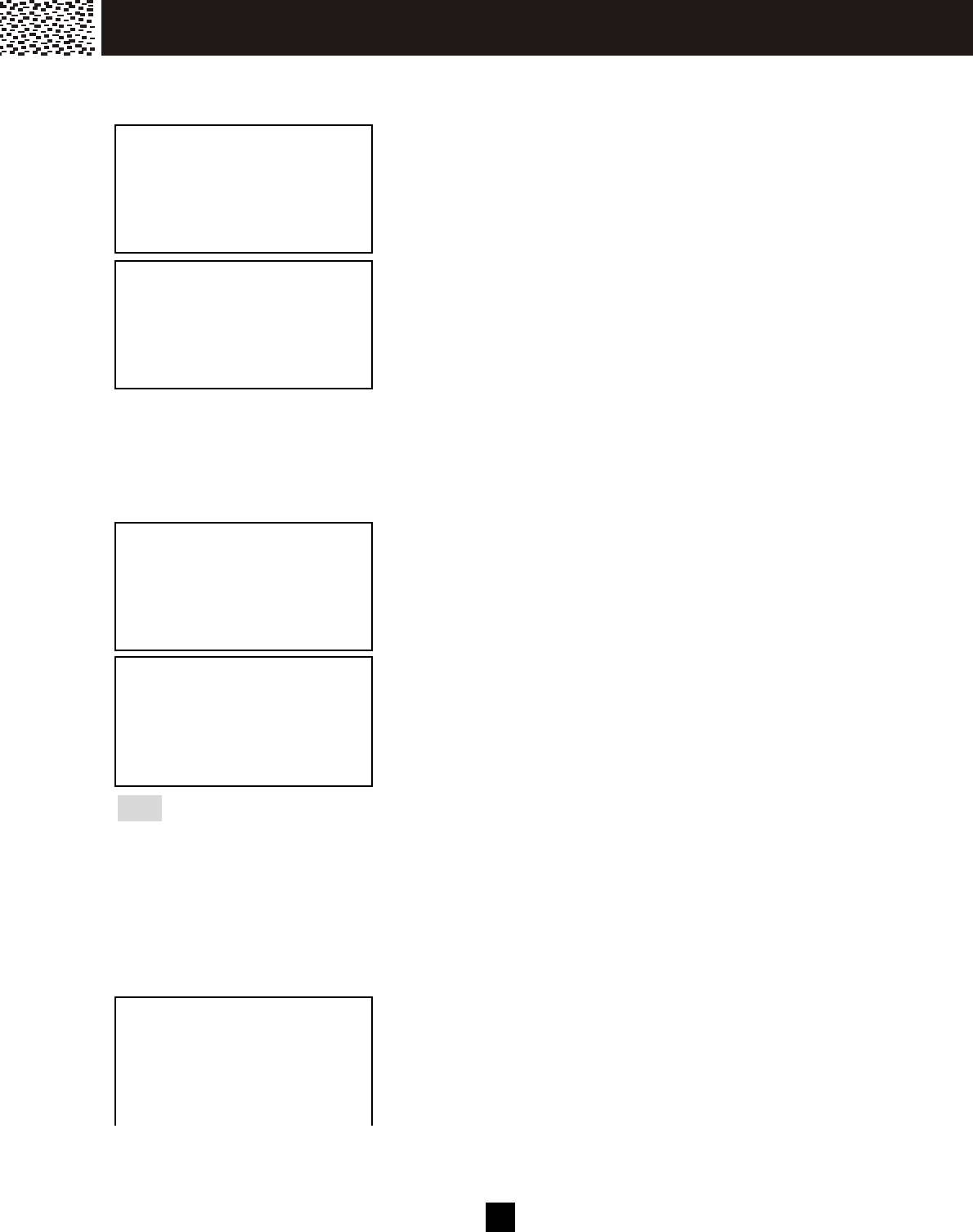
Review Caller List
Press [▼ ] / [▲ ] during standby m ode.
Press [▼ ] to show the latest record.
W hile reviewing the Caller List, pressing [SAVE] softkey
can copy the displayed record into the Phone Book
Directory.
JOHN SMITH v
1234567890 #20
11:08P 01/18 X1
EXIT DELETE
SAVE
CALLS
40 ITEMS
USE / =REVIEW
EXIT DELETE
JOHN SMITH
123-123-4568 #1
10:00P 01/18 X1
EXIT DELETE
SAVE
C AL LE R ID O P E R AT IO N
3 5
Delete Record(s) from Caller List
To delete all Caller ID records:
Press [▼ ] / [▲ ] during standby m ode to enter into Caller
List default page.
Press [DELETE] softkey and “DELETE ALL?” is
displayed, then press [O.K.] softkey to confirm deletion.
To delete an individual Caller ID record:
W hile reviewing the Caller List, press [DELETE] softkey
to erase the displayed record from the list.
Call Back from Caller List
Your phone is equipped with three Caller ID Call Back keys, which allow you to dial a
Caller ID record in the correct form at.
W hile you are reviewing the Call List, you can dial a
displayed num ber in the correct form at by pressing [Dial
7], [Dial 10] or [Dial 11] key.
For instance, if a 10-digit phone num ber is displayed and
you want to call back in a 7-digit form at, you can sim ply
press [Dial 7] to dial only the last seven digits of the
num ber.
Note:
[Dial 7]:Dials only the last seven digits of the number you are calling, i.e. without an area code.
[Dial 10]:Dials all 10 digits on the display, i.e. 3 digits of area code plus 7 digits of local phone
number.
[Dial 11]: Dials all 10 digits on the display plus automatically inserteds a “1” before the area
code.
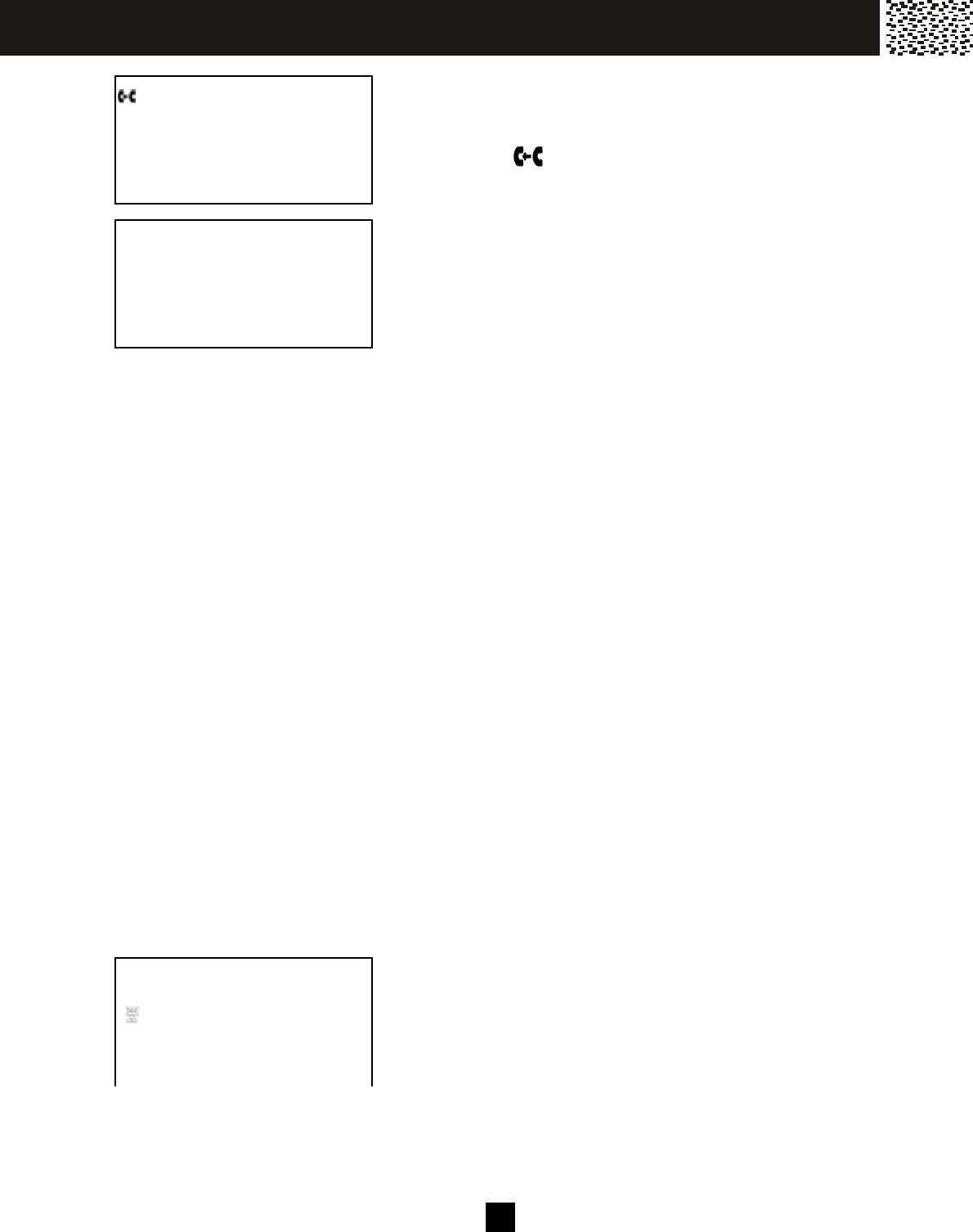
Special Call Display
Long Distance Call
W hen a long distance call is received, the [LDC] icon will
appear on the screen with the call inform ation.
DELETE ALL?
USE OK = YES
USE EXIT = NO
O.K. EXIT
ENTRY DELETED!
JOHN SMITH v
LDC
123-123-4568 #18
10:08A 01/24 X1
EXIT DELETE
SAVE
1234567
TALK VOL-2
JOHN SMITH v
LDC
123-123-4568 #1
10:00A 1/21 X4
EXIT DELETE
SAVE
C AL LE R ID O P E R AT IO N
36
Forwarded Call
If the call was forwarded from another num ber through
the call forwarding service provided by the telephone
com pany, the icon will appear on the screen with the
call information.
Repeated Call
If a call is received from the sam e phone num ber m ore
than once, the num ber of times repeated will be shown
on the display. For exam ple “X6” appears after the date
indicating the sam e num ber has been received six tim es.
Call Display Messages
W hen a new Caller ID record arrives with incom plete call inform ation, the following call
display m essages will be shown. The messages m ay accompany, if available, an
actual nam e or an actual num ber.
1. “PRIVATE NAME” – The other party is blocking nam e inform ation.
2. “PRIVATE NUM” – The other party is blocking telephone num ber inform ation.
3. “UNKNOW N NAME” – Caller’s nam e is not available.
4. “UNKNOW N NUM ” – Caller’s num ber is not available.
The situations for call display m essages m ay include, but are not lim ited to, the following
reasons:
1. The Caller ID was blocked for privacy reasons.
2. The call originates from an area office or a long-distance service provider that does
not support Caller ID service.
3. The call is m ade with a calling card.
4. The call is an operator-assisted call.
CALL W AITING ID OPTIONS
If you have subscribed the Call W aiting and Call W aiting ID Options from your local
telephone com pany, you will hear a Call W aiting tone when a new call com es in while
you are talking. You can either swap between calls or dispose of the call.
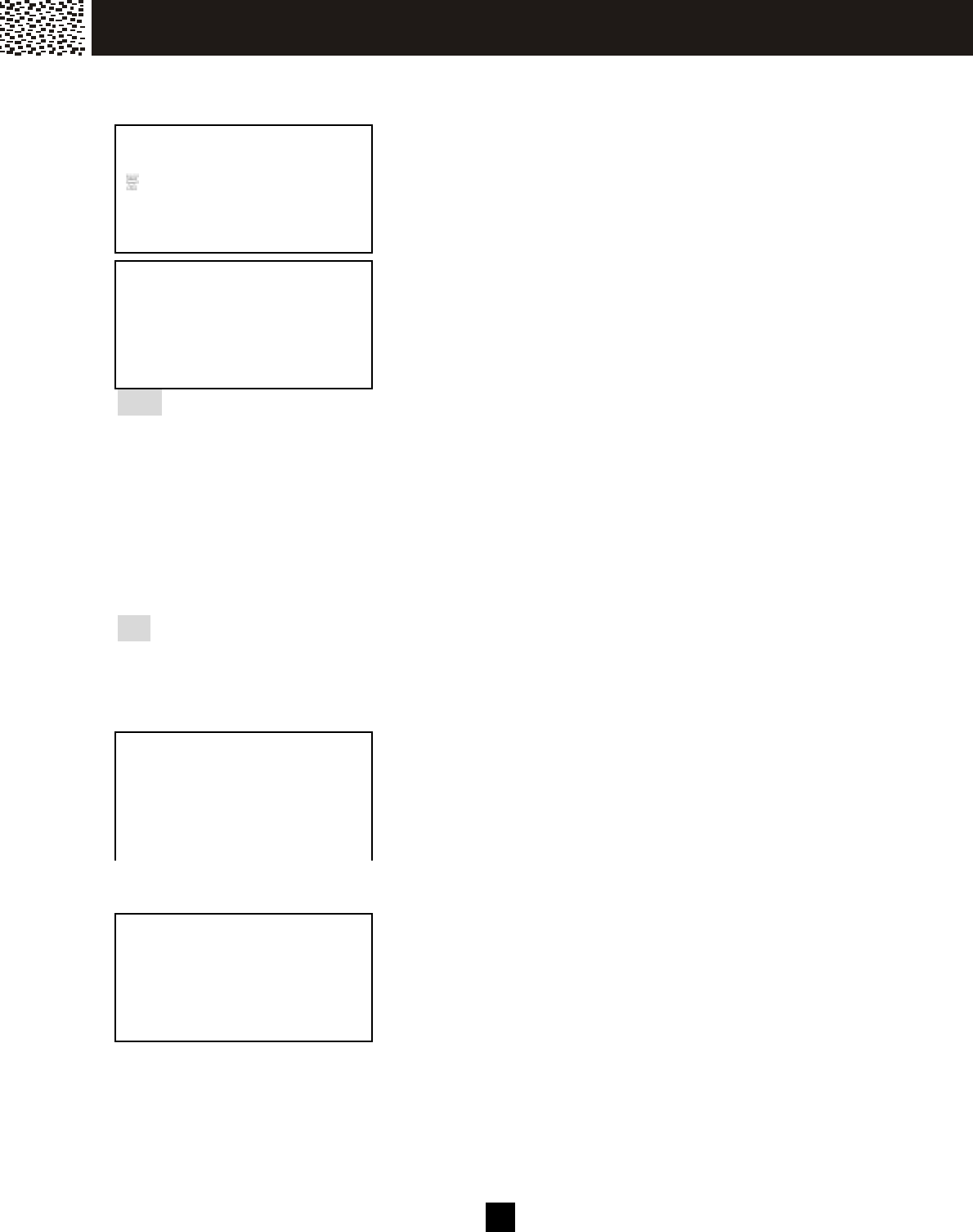
Call W aiting ID Options Set to OFF (see page 23)
If there is an incom ing call during a conversation, the
Caller ID Call W aiting inform ation appears on the display.
Press [Flash] key to answer the Call W aiting party and
put the first call on hold.
JOHN SMITH v
123-123-4568 #18
10:00A 1/01 X5
EXIT DELETE
SAVE
JOHN SMITH v
123-123-4568 #1
10:00A 1/21 X4
EXIT DELETE
SAVE
JOHN SMITH
123-123-4568
10:08 01/18 X1
C AL LE R ID O P E R AT IO N
37
Call W aiting ID Options Set to ON (see page 23)
If there is an incom ing call during a conversation, all the
five labels for Call W aiting ID Options features will be
autom atically shown on the display.
W hen you hear the Call W aiting tone, press the
corresponding softkey to apply a disposition to the call.
Note:
You must disposition the call within 26 seconds of the Call Waiting tone. The following
options are available.
[JOIN]: Add the waiting call to your first call.
[DROP ANS]: End the first call and answer the waiting call.
[HOLD]: Place the waiting call on hold and send a hold announcement.
[SAY BUSY]: Play a pre-recorded message from your phone company that the line
is busy and end the waiting call.
[SEND V.M .]: Forward the waiting call to your voice mail or answering service.
Tip: Call Waiting ID Options may not be available in all areas. Contact your local telephone
company for details.
Call W aiting ID Option: JOIN
If [JOIN] softkey is pressed, “CONFERENCE” will be
displayed for a short while and then the waiting party is
being added to the original call as a 3-parties conference
call.
After the 3-parties conference call, you m ay select to
drop a line and retain the other:
• To drop the first caller (the original call), press [DROP]
softkey and “DROPPED #1” will be displayed.
• To drop the second caller (the waiting call), press
[Flash] and “DROPPED #2” will be displayed.
JOHN SMITH
123-123-4568
10:08 01/18 X1
J OI N D R OP A N S H O LD S A Y B US Y S EN D V .M .
0:00:30 VOL -2
HOLD
3W AT
SERVICE DIR
JOHN SMITH
123-123-4568
10:08 01/18 X1
D R OP
DROPPED #1
0:01:05
3W AY
SERVICE
C AL LE R ID O P E R AT IO N

3 8
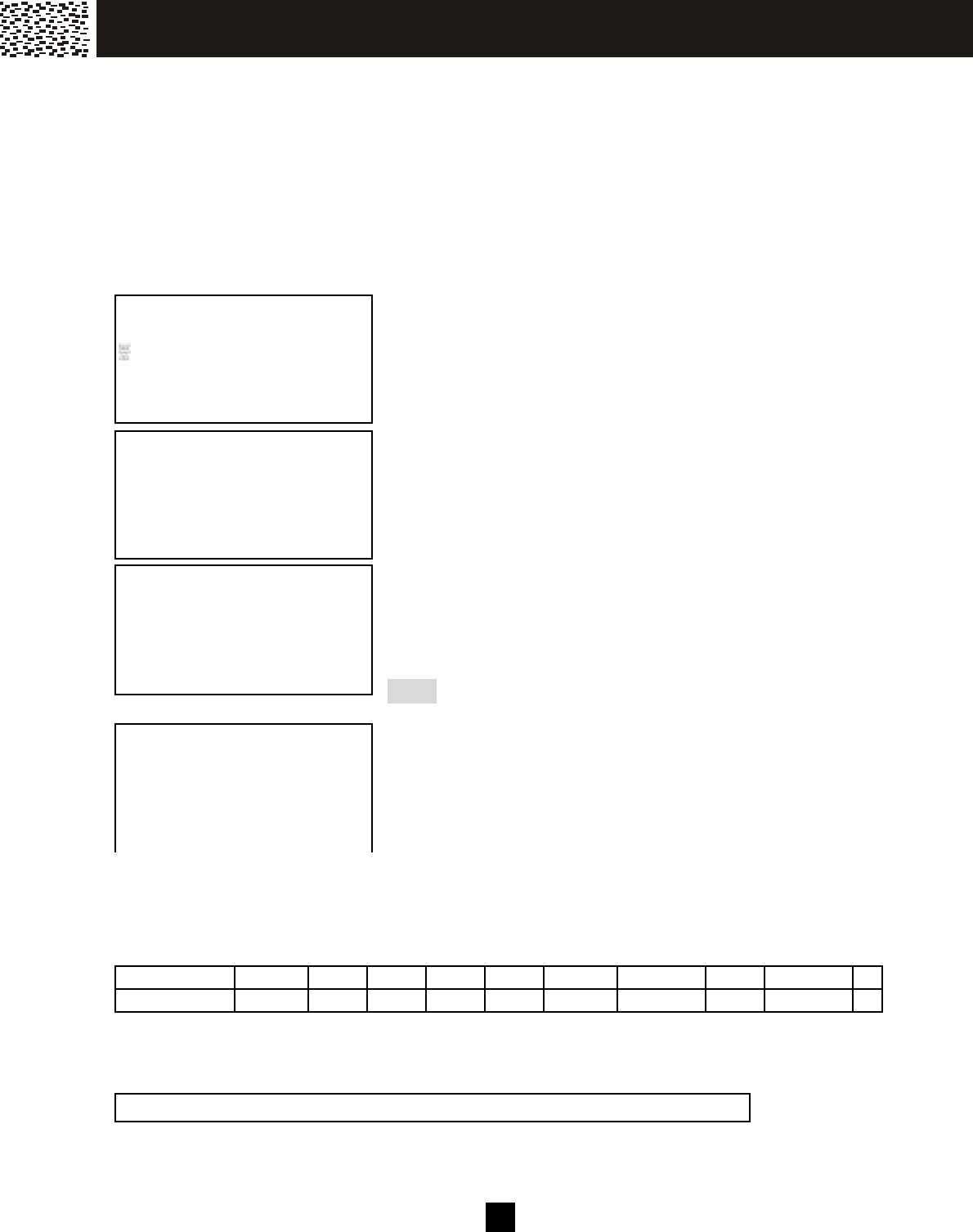
Call Waiting ID Option: HOLD
If [HOLD] softkey is pressed, “HOLD” will be displayed.
A hold announcem ent will be sent and the waiting call will
be placed on hold.
After the private conversation with the original caller, you m ay select to drop the original
call and take the waiting call or to add the waiting caller into the call conference.
• To drop the talking line and answer the waiting call,
press [DROP] softkey.
• To add the waiting caller into the call and form a
3-party conference call, press [JOIN] softkey. For
further disposition of the 3-party call conference, refer
to Call Waiting ID Option: JOIN section above.
JOHN SMITH
123-123-4568
10:08 01/18 X1
J OI N D R OP
TALK VOL-2
HOLD
3W AY
SERVICE
C AL LE R ID O P E R AT IO N
3 9
Your phone has a Personal Phone Book Directory for storing up to 40 im portant nam es
and num bers on each handset and a General Phone Book Directory for 32 nam es and
num bers shared am ong all handsets. Each m em ory location can store up to 24 digits
and 15 characters. You can edit the Phone Book Directory records, but not the Caller
ID List records. The Directory records are saved in alphabetical order. The Phone
Book Directory can be accessed by pressing [DIR.] softkey during standby m ode.
CREATING A PHONE BOOK DIRECTORY RECORD
Copy from a Caller ID Num ber
During Caller ID reviewing, select the valid record you
want to save into Phone Book Directory.
Press [SAVE] softkey and “SELECT DIR.” will be
prom pted. Select Personal or General Directory by
pressing [OK] or [JOIN] softkey.
Press [OK] or [JOIN] softkey and “NUMBER:” will be
prom pted. If the num ber is correct, press [O.K.] and
“NAME:” will be prom pted. If the num ber is incorrect,
you m ust delete it and start over. Repeat this process
for adding a “NAME”.
Note: A nam e must start with an Alpha character.
Press [SAVE] softkey when done and “DISTINCT
RING?” will be prom pted. Follow the on screen
instructions to add a distinct ring tone to this entry.
W hen a call is received from this caller, the selected ring
tone will be played.
Entering Alphanumeric Characters:
Each num eric key is assigned a set of letters and sym bols as printed on the key. Press
the corresponding num ber until the desired letter is displayed.
Num eric: 1 2 3 4 5 6 7 8 9 0
Characters: Space A,B,C
D,E,F
G,H,I
J,K,L
M,N,O
P,Q,R,S T,U,V
W ,X,Y,Z
Adding Special Symbols
You can also use [] or [#] to ins ert the following special sym bols in the name field.
+ , - . / @ : ; < = > ? { ¦ } ~ [ \ ] ^ _ ` ! ″ # $ % & ´ ( )
JOHN SMITH v
1234567890 #20
11:08P 01/18 X2
EXIT DELETE
SAVE
SELECT DIR.
USE OK=PESONAL
JOIN=GENERAL
JOIN
O.K. EXIT
NUMBER:
1234567890╴
USE OK = END
O.K. EXIT DELETE
JOHN SMITH
1234567890 #1
DISTINCT RING?
O.K. EXIT DELETE
P H O N E B O OK D IR E CT O RY
4 0
Add a New Number/Name
Press [SAVE] and then [OK] or [JOIN] during standby mode.
“EM PTY LIST” appears if no records in the directory, or “#
ITEM S” appears if there are # records in the directory. If the
memory locations are full, the message “LIST FULL” will
appear and your request is rejected.
“NUMBER:” will be prom pted. Enter the num ber.
Tip: 1. Press [Pause] to add a 3-second delay (pause)
in the num ber field. P is displayed.
2. Press [Flash] to add a flash in the num ber field.
F is displayed.
After num ber entry, press [O.K.] softkey and “NAME:” is
displayed.
Use the digit keys to enter the nam e. If you m ake a
m istake, press [DELETE] softkey and re-enter. Press
[SAVE] to m ove to ring tone assignm ent.
Press [O.K.] to change the ring tone. Using [▼ ] / [▲ ] to
scroll through and play the ring tone.
Press [SAVE] to confirm setting.
REVIEW ING PHONE BOOK DIRECTORY
Press [DIR.] softkey during standby m ode.
Press [OK] or [JOIN] to select Personal or General
Directory.
Press [▼ ] / [▲ ] to review the Directory in alphabetical
order.
Tip: To quickly find a name and phone number, before scrolling the directory, key in the first
letter of the name, and the display will jump to the first record starting with that letter.
PERSONAL DIR.
EMPTY LIST
USE SAVE = +NEW
EXIT DELETE
SAVE
NUMBER:
1F23P45_
O.K. EXIT DELETE
NAME:
JOHN SMITH
EXIT DELETE
SAVE
RINGER 1
RINGER 2
USE =CHANGE
EXIT
SAVE
PERSONAL DIR.
40 ITEMS
USE =REVIEW
EXIT DELETE
SAVE
JOHN SMITH ↓
123-123-4568
EDIT O.K. EXIT DELETE
SAVE
P H O N E B O OK D IR E CT O RY
4 1
EDITING A PHONE BOOK NUMBER
Select the record you want to edit.
W hen you see the record you want to edit displayed,
press [EDIT] softkey and then edit the num ber. Press
[DELETE] softkey to rem ove any error and enter the
correction as needed. Press [O.K.] softkey to confirm
the edited num ber.
Repeat the process for “NAME”. Press [SAVE] and
“DISTINCT RING?” appears on the display. Press [O.K.]
if you want to change the distinct ring tone as well, or
press [EXIT] to finish. “SAVED!” is displayed.
W hen finished the screen will display the edited entry.
Deleting an entry from a Phone Book Directory
Scroll to the record to be deleted.
Press [DELETE] and you will see “ENTRIES DELETED”
on the display to confirm the deletion of the current
record. The phone will then m ove to the next available
record in the directory. Press [EXIT] to return to
standby m ode.
JOHN SMITH ↓
1231234568
EDIT O.K. EXIT DELETE
SAVE
ENTER NUMBER:
1231234568_
O.K. EXIT DELETE
JOHN SMITH_
1231234568
EXIT DELETE
SAVE
JOHNNY SMITH ↓
1231234568
EDIT O.K. EXIT DELETE
SAVE
JOHN SMITH v
123-123-4568
PERSONAL DIR.
EDIT O.K. EXIT DELETE
SAVE
ENTRIES DELETED
EXIT
P H O N E B O OK D IR E CT O RY

4 2
DELETING ALL PHONE BOOK DIRECTORY RECORDS
Press [DIR.] softkey to enter into Phone Book Directory
default page.
Press [DELETE] softkey and “DELETE ALL?” is
displayed. To confirm the deletion of all records, press
[O.K.]. To exit without deleting, press [EXIT].
DIALING FROM THE PHONE BOOK DIRECTORY
During stand-by m ode, press [DIR.] and find the entry you want to call. Press [Talk] key
or [O.K.] soft key to call the num ber.
PERSONAL DIR.
38 ITEMS
USE / =REVIEW
EXIT DELETE
SAVE
DELETE ALL?
USE OK = YES
USE EXIT = NO
O.K. EXIT
P H O N E B O OK D IR E CT O RY
4 3
CY-383 provides a multiple handset capability which supports up to 4 handsets. Each
additional handset (m odel CY-381) com es with a charging cradle you can plug into any
electrical outlet. No extra phone jack is required. Many extra functions becom e
possible when there are m ore than one handset in your system . Register the additional
handsets (CY-381) see page 16.
INTERCOM
Handset-to-Handset two-way intercom is operated independent of the base unit. It is
possible to make an intercom call between two handsets while another handset is
engaging the external line.
W hen a HS is in standby m ode, press [Int.] key, LCD
display shows all the other available handsets in range of
the base unit.
Using the [▼ ] / [▲ ] keys to m ove to the handset you want
to intercom with and then press [OK]. For instance, if
HS (2) is being paged by HS (1), then HS (1) LCD display
shows “PAGING HS (2)
Handset (2) will ring and display “PAGING FROM HS (1)”.
Press [Talk], [Int.] or [O.K.] on the called handset to answer
the intercom.
If you do not want to answer it, press [EXIT] soft key and the
ringing will stop.
HS (2)
HS (3)
O.K. EXIT
PAGING
HS (2)
EXIT
PAGING FROM
HS (1)
EXIT
INTERCOM
HS (2) HS (1)
VOL-2
EXIT
MU LT I- H ANDSET O PERAT IO N
4 4
CALL TRANSFER
CY-383 cordless phone allows you to transfer calls between handsets.
Blind Transfer
You can transfer a call to another handset without advance notice.
When the handset is engaged in an external call. Press [Int.]
and scroll to the name of the handset you want to transfer the
call to. Press [O.K.] to transfer.
If you did this from HS (1) to HS (2) then HS (2) rings and
“TRANSFER FROM HS (1)” is displayed. Press [talk] or
[O.K.] to take the line.
If you are busy and do not want to take the line, press [EXIT]
softkey to reject the transferred call. The call will then be
returned to the original handset.
The original handset will
ring and displays “CALL BACK”.
Press [O.K.] to take back the call or press [EXIT] to end
the call.
Announced Transfer
You can talk to the other handset before transferring the call to the recipient.
When the handset is engaged in an external call. Press
[HOLD] soft key to put the call on hold.
Press [Int.] and scroll to the name of the handset you want to
transfer the call to. Press [O.K.].
If you did this from HS (1) to HS (2) then HS (2) rings and
“PAGING FROM HS (1)” is displayed. Press [Talk], [Int.]
or [O.K.] to take the internal call.
Note: If Intercom auto answer is set, no need to press
any key and the speakerphone m ode will be activated.
CALL ON HOLD v
HS (2)
HS (3)
O.K. EXIT
SAVE SERVICE M ENU DIR. DIAL
V.M .
TRANSFER FROM
HS (1)
O.K. EXIT
SAVE SERVICE M ENU DIR. DIAL
V.M .
MESSAGES
HS (2)
03:55PM 01/15
SAVE SERVICE M ENU DIR. DIAL V .M.
SAVE SERVICE M ENU DIR. DIAL
V.M .
CALL BACK
O.K. EXIT
SAVE SERVICE M ENU DIR. DIAL
V.M .
CALL ON HOLD
HOLD
SAVE SERVICE M ENU DIR. DIAL
V.M .
CALL ON HOLD v
HS (2)
HS (3)
O.K. EXIT
SAVE SERVICE M ENU DIR. DIAL
V.M .
INTERCOM HOLD
HS (2) HS (1)
VOL-2
EXIT
SAVE SERVICE M ENU DIR. DIAL
V.M .
MU LT I- H ANDSET O PERAT IO N
4 5
If you are busy and do not want to answer the call, press
[EXIT] softkey to reject the paging call. The ring will be
stopped and the handset returns to standby. If answered:
After the internal conversation, press [Talk] to take the call.
The external call is now completely transferred to this handset.
Transferring to all handsets
Following the sam e steps above, you can select to transfer the call to all handsets by
selecting “ALL” after pressing the [Int.] key. All handsets in range will ring. The first
one responding will set up the com m unication link.
CALL CONFERENCING
Your CY-383 cordless phone supports conference calls up to 4 parties : 2 handsets and
2 external calls. (For details of conferencing between 2 external calls, please refer to 3
W ay Calling Section).
Multiple Party Conference Call
When engaged with an external line on the handset, press
[Talk] or [Spk.] key and other handset(s) will enter into a
conference call.
“CONFERENCE” appears on the displays.
Press [Talk] on any handset to retreat from the conference.
To end the call, make sure all parties have disconnected from
the line.
W ALKIE-TALKIE OPERATION
Your CY-383 is ready to function like a walkie-talkie (FRS). It functions totally
independent of the base unit. You can take a pair of handsets to use in the shopping
m all or in the park.
MESSAGES
HS (2)
03:55PM 01/15
SAVE SERVICE M ENU DIR. DIAL V .M.
SAVE SERVICE M ENU DIR. DIAL
V.M .
TALK VOL-2
HOLD
SERVICE DIR. DIAL V.M.
SAVE SERVICE M ENU DIR. DIAL
V.M .
1234567
0:01:15 VOL-1
HOLD
3W AY
SERVICE DIR.
CONFERENCE
1 2
.
MU LT I- H ANDSET O PERAT IO N
4 6
Enter into Walkie-Talkie m ode
Press [MENU] soft key and using [▼ ] / [▲ ] keys scroll to
the “W ALKIE-TALKIE” m enu.
Press [O.K.] to confirm
selection.
Repeat the sam e steps
on another handset.
The W alkie-talkies are now ready to use.
Operating Walkie-talkies
Press [Talk] or [Int.] followed by the handset num ber you
want to call. Both parties will ring.
W hen the handset is paged, it will display “PAGING
FROM HS #”
Press [Talk], [Int.] or [O.K.] key and a full duplex link
between 2 walkie-talkies is set up.
Note: Both handsets are now detached from the base unit. Even if they are within
range of the base unit, they do not respond to any paging, intercom or external line.
Press [EXIT] to end the com m unication. Press [EXIT] to return to telephone-m ode.
RINGER & BEEP v
INTERCOM SETUP
WALKIE-TALKIE
O.K. EXIT
SAVE SE RVICE ME N U D IR. DIA L
V.M.
HS (1)
WALKIE-TALKIE
EXIT
SAVE SE RVICE ME N U D IR. DIA L
V.M.
HS (2)
WALKIE-TALKIE
EXIT
SAVE SE RVICE ME N U D IR. DIA L
V.M.
WALKIE-TALKIE
PAGING
HS (2)
EXIT
SAVE SE RVICE ME N U D IR. DIA L
V.M.
PAGING FROM
HS (1)
WALKIE-TALKIE
EXIT
SAVE SE RVICE ME N U D IR. DIA L
V.M.
WALKIE-TALKIE
HS (1) HS (2)
VOL-2
EXIT
SAVE SE RVICE ME N U D IR. DIA L
V.M.
MU LT I- H ANDSET O PERAT IO N

4 7
You phone has been pre-program m ed at the factory with an optional services dial list.
DISPLAY CLASS SERVICE DIAL CODE
411 National DA 1411
RPT DIAL Activate Repeat Dialing 66
FW D ON Activate Call Forwarding 72#
FW D OFF Cancel Call Forwarding 73#
CALL RTN Activate Return Call 69
Note:
These optional s ervices , except 1411, are accessible only if you have s ubscribed from
your local telephone com pany.
DIALING SERVICES
In standby m ode, press [SERVICE] softkey to prom pt the
pre-programm ed optional features dial lis t.
Press the corresponding softkey to select the optional
service you wis h to activate. Or, press [▼ ] / [▲ ] if you
want to return to standby m ode.
For instance, if you want to activate Repeat Dialing
function, press [RPT DIAL] softke y. The dial code will
be shown on the display. W hen you can hear a second
dial tone, the code is accepted. Press [OFF] on the
handset or return it to the cradle to hang up.
30 NEW CALLS
HS (1)
10:05AM 05/15
411 R TN CALL RP T D IA L FW D O N CW O FF
66
0:00:05 VOL-2
HOLD
3WAY
S E RVIC E D IR. DIAL V.M.
OPT ION A L FE AT U R E S D IAL L IS T

4 8
CAPACITY
Mem ory
The Caller ID Lis t: 40 m emory locations; 24 digits and 15 characters per location.
Phone Book Directory: 40 m emory locations (Personal) on each handset; 24 digits and
15 characters per location; 32 m emory locations (General) on the base unit that can be
shared among all the handsets, 24 digits and 15 characters per location.
Redial Lis t: 22 m em ory locations ; 24 digits per location.
Call Repeat Num ber
The Call Repeat num ber is 7 m axim um .
OUT OF RANGE
If the handset cannot communicate with the base unit or the handset is too far away from the
base during a conversation and the RF signal is not present, the message “OUT OF RANGE”
will appear on the display.
NO CONNECTION
If the handset cannot connect to the base unit when making a call, the message “NO
CONNECTION” appears on the display for 2 seconds, and then displays “OUT OF RANGE”.
AD D IT IO N A L IN FOR M AT ION

4 9
Before calling for service, please check this lis t of the most common problems.
Problem Check
The phone does not work
Are the LINE CORD and AC adapter connected properly?
Is the hands et too far away from the base unit?
Is the battery pack weak? Charge the battery on the
base unit for about 15 hours .
The phone does not ring
Check the RINGER s etting.
Cannot dial
Do you have touch tone service?
Check the TONE/PULSE setting.
The audio sounds scratchy
Is the base unit located next to m etal objects or
appliances? Try relocation.
CALLER ID doesn’t work
Do you have CALLER ID service?
No caller’s name Does the CALLER ID service to which you subscribed
include the CALLING NAME DELIVERY feature?
You cannot hear or be heard
clearly
Increase the handset receiver volum e.
Caller’s inform ation is not
registered
Did you or your ans wering machine answer calls before
the s econd ring?
Interference from wireless
networking device
Change the location of the wireless networking device
and/or the base of the cordless phone.
Switch the channel on the wireless networking device.
Please refer to the m anual of your wireless networking
device, or consult a qualified technician of how to switch
the channel. For optim um results , switch to a mid
transmit range channel (e.g. channel 6 at 2.437GHz).
SAVE THESE INSTRUCTIONS.
T R OU BLE S HO OT IN G
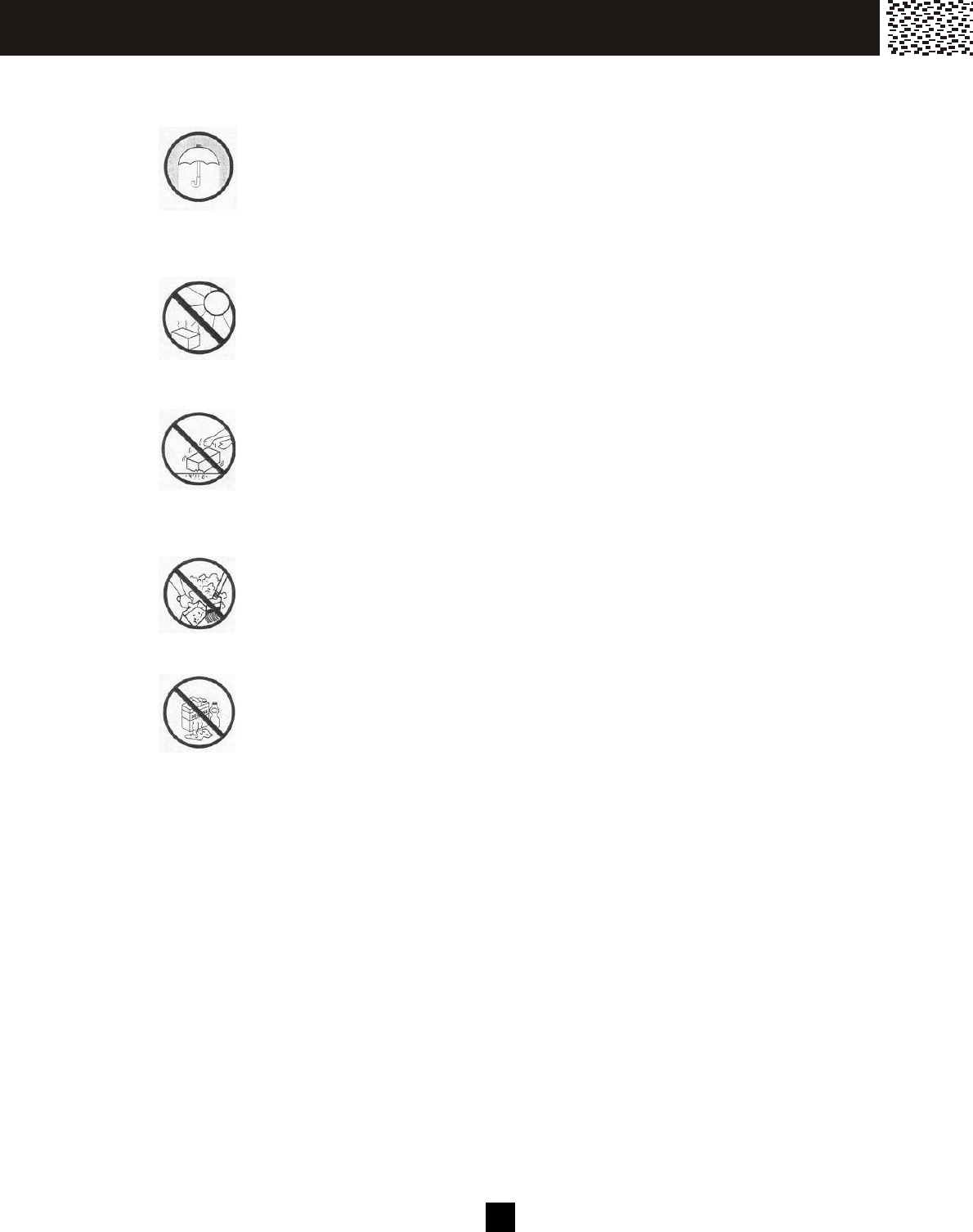
50
The following suggestions will help you care for the sys tem so you can enjoy it for years.
Keep the system dry. If it gets wet, wipe it dry imm ediately. Liq-
uids m ight contain m inerals that can corrode the electronic
circuits .
Use and s tore the sys tem only in norm al temperature envi-
ronm ents. Tem perature extremes can shorten the life of
electronic devices , and dis tort or m elt plastic parts .
Handle the sys tem gently and carefully. Dropping it can
dam age circuit boards and cases and can cause the s ys tem to
work im properly.
Keep the system away from excessive dust and dirt, which can
cause premature part wear.
W ipe the sys tem with a dam p cloth occasionally to keep it
looking new. Do not use harsh chemicals, cleaning solvents, or
strong detergents to clean the system .
Modifying or tam pering with the system ’s internal com ponents can cause a
m alfunction and m ight invalidate the system ’s warranty and void your FCC
authorization to operate it.
CAR E AN D M A IN T E N AN CE

51
This equipm ent complies with Part 68 of FCC rules and the requirem ents adopted by the
ACTA. On the b ottom of this equipment is a label that contains, am ong other
inform ation, a product identifier in the form at US:CACW100B383001. If requested, this
num ber m ust be provided to the telephone com pany.
The REN is used to determ ine the num ber of devices that may be connected to a
telephone line. Excessive RENs on a telephone line may result in the devices not
ringing in response to an incoming call. In m ost but not all areas, the sum of the RENs
should not exceed five (5.0). To be certain of the num ber of devices that m ay be
connected to a line, as determined by the total RENs , contact the local telephone
company. [For products approved after July 23, 2001, the REN for this product is part
of the product identifier that has the format US:CACW100B383001. The digits
repres ented by 00B are the REN without a decim al point (e.g., 03B is a REN of 0.3B).
For earlier products , the REN is s eparately s hown on the label.]
Should you experience trouble with this equipm ent, please contact Verizon at:
1-800-233-5961
for repair or warranty inform ation. If the equipment is causing harm to the telephone
network, the telephone com pany m ay request that you disconnect the equipment until
the problem is resolved.
NOTICE: If your hom e has specially wired alarm equipment connected to the telephone
line, ensure the installation of this equipm ent ID does not dis able your alarm equipm ent.
If you have questions about what will disable alarm equipm ent, consult your telephone
company or a qualified installer.
If your equipm ent CY-383 causes harm to the telephone network, the telephone
company will notify you in advance that tem porary discontinuance of service m ay be
required. But if advance notice isn’t practical, the telephone com pany will notify the
customer as soon as possible. Also, you will be advised of your right to file a com plaint
with the FCC if you believe it is necess ary.
The telephone com pany m ay m ake changes in its facilities, equipment, operations , or
procedures that could affect the operation of the equipment. It this happens the
telephone com pany will provide advance notice in order for you to m ake necess ary
m odifications to maintain uninterrupted s ervice.
FCC R E Q U IR E M E N T S

52
Do not attem pt to repair or m odify this equipm ent. Changes or modifications not
express ly approved by the party res ponsible for its com pliance could void the user’s
authority to operate the equipment.
Connection to party line service is subject to state tariffs. Contact the state public utility
commiss ion, public service commiss ion or corporation commission for inform ation.
Current FCC regulations specify that any direct connections to a telephone com pany line
be done using only s tandard phone jacks USOC RJ11C and plugs that are TIA-968-A
compliant.
Note:
This equipment has been tes ted and found to comply with the lim its for a Class B digital
device, pursuant to Part 15 of the FCC Rules. These limits are des igned to provide
reasonable protection against harm ful interference in a residential installation. This
equipm ent generates , uses, and can radiate radio frequency energy and, if not ins talled
and used in accordance with the instructions, m ay cause harm ful interference to radio
communications. However, there is no guarantee that interference will not occur in a
particular installation. If this equipm ent does cause harm ful interference to radio or
television reception, which can be determ ined by turning the equipment off and on, the
user is encouraged to try to correct the interference by one or more of the following
m eas ures :
1. Reorient or relocate the receiving antenna.
2. Increase the s eparation between the equipment and receiver.
3. Connect the equipment into an outlet on a circuit different from that to which the
receiver is connected.
4. Consult the dealer or an experienced radio / TV technician for help.
NOTICE TO HEARING AID WEARERS: This telephone has been registered with the
FCC as hearing aid com patible.
W arning: Changes or m odifications to this unit not expressly approved by the
party responsible for com pliance could void the user’s authority to operate the
equipm ent.
Caution: To m aintain com pliance with the FCC’s RF exposure guidelines place the
base unit at least 20 cm from nearby persons.
FCC R E Q U IR E M E N T S

53
Q & A
W HAT DOES OUR W ARRANTY COVER?
• An y defect in m aterial or workm anship.
FOR HOW LONG AFTER THE ORIGINAL PURCHASE?
• To the original purchaser only - ONE YEAR.
WHAT WILL VERIZON DO?
• At our option, repair or replace your unit.
HOW DO I SEND M Y UNIT, IN OR OUT OF WARRANTY?
• In the U.S., call Custom er Service for Return Authorization at: 1-800-233-5961.
• Properly pack your unit, include any cables and accessories which were originally
provided with the product. W e recom m end using the original carton and packing
m aterials.
• Include in the package a copy of the sales receipt or other evidence of date of original
purchase (if the unit was purchased within the last twelve m onths).
• Print your nam e and address, along with a description of the defect, and include this
in the package.
• Include paym ent for any service or repair not covered by warranty, as determ ined by
Verizon.
WHAT DOES OUR WARRANTY NOT COVER?
• Batteries
• Dam age from misuse, neglect, or acts of nature (lightning, floods, power surges, etc.)
• Products which m ay have been m odified or incorporated into other products.
• Products purchased and/or operated outside the USA, its territories, or Canada.
• Products serviced by the owner or a service facility not expressly authorized by
Verizon.
• Products purchased m ore than 12 m onths from current date.
• Units purchased in "AS IS" condition, or units purchased as "Distressed
Merchandise".
HOW DOES STATE LAW OR PROVINCIAL LAW RELATE TO THIS WARRANTY?
• This warranty gives you specific rights. You m ay also have other rights which vary
from state to state or province to province.
WAR R AN T Y
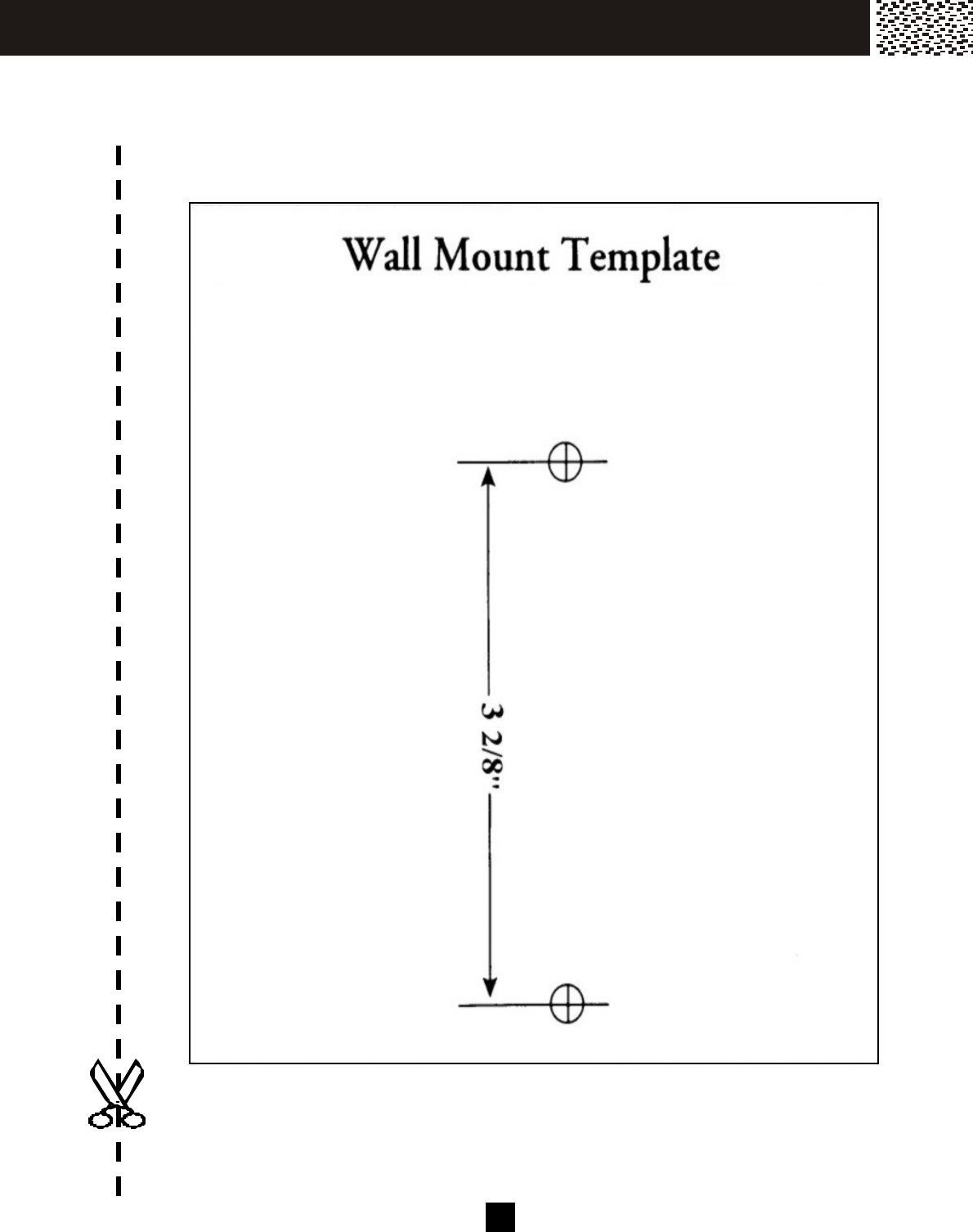
5 4
Attach two screws to the wall surface using this tem plate. Once attached, carefully
push your unit onto the screws and slide down until it is secured.
WALL M O U N T T EM PLAT E

5 5
CY383
200500325