DH Technology 000000 UHF Band RFID Tag User Manual DVDPlayer ManualEN GB

DH Technology, Inc. UHF Band RFID Tag DVDPlayer ManualEN GB

Manual

Audi Entertainment mobileOperating instructions  G
2CONTENTSGENERAL INFORMATION................................ 3Safety information .......................................... 3Precautions to be taken when using the portable DVD player........................................ 4Advice on handling the discs .......................... 4SCOPE OF SUPPLY........................................... 4CONTROLS ON THE PLAYER............................ 5Front face with control panel.......................... 5Left and right sides ......................................... 6Reverse side (without battery) ........................ 6THE REMOTE CONTROL .................................. 7Remote control buttons .................................. 7Notes on using the remote control.................. 8Inserting or replacing the battery.................... 8TYPICAL PLAYER INSTALLATIONS................... 9Installing in the car ......................................... 9Demounting the portable DVD player ............. 9Playback with two DVD players in the car. ... 10Free-standing position .................................. 10Day - night brightness adjustment ................ 10INITIAL OPERATION ...................................... 11Connecting to the power supply ................... 11Switching the player On/Off.......................... 11Standby mode ............................................... 11DISC PLAYBACK............................................ 12Inserting disc and playing back..................... 12Interrupting /resuming playback ................... 12Fast forwarding /rewinding........................... 13Jumping to previous /next section................. 13Calling up the DVD menu and navigation..... 13Changing the sound playback language ....... 13Calling up information on the disc................ 14Ejecting the disc............................................ 14PLAYING BACK AUDIO TITLES, IMAGES AND VIDEOS FROM DATA CDS ..................... 15Displaying the contents................................. 15Switching selection ....................................... 15Playing back content..................................... 16Characteristics of individual file types........... 16PLAYING BACK USBS AND MEMORY CARDS...........................................17Inserting the memory medium and playing back files....................................17Switching between several memory media....17USING BLUETOOTH HEADPHONES................18Establishing a headphone connection ...........18Severing the bluetooth connection ................18OTHER SETTINGS IN THE PLAYER MENU.......19Navigating through the player menu.............19Screen settings ..............................................19Settings with connection to an external TV. ..19Resetting to factory settings..........................20Selecting the language ..................................20CONNECTING TO EXTERNAL EQUIPMENT.....21Connecting external equipment for playback...................................................21Playback from external equipment (e.g. games consoles) ....................................21Connecting headphones ................................21USING THE BATTERY .....................................22The battery ....................................................22Battery operation of the portable DVD player.....................................................22Charging the battery......................................23Notes on using the battery ............................23PLAYER MENU - OVERVIEW ..........................24FAULT CORRECTION......................................25TECHNICAL DATA..........................................26LICENCES AND COPYRIGHT...........................27
3GENERAL INFORMATIONPlease familiarise yourself with these installation and operating instructions prior to usingthe portable DVD player for the first time. Read and adhere closely to following safetyinformation. Non-compliance with the safety information can cause personal injury and/ordamage to the player and will nullify any guarantee claims!Keep these operating instructions in a safe place for later reference. Safety informationDANGER! There are dangerous electrical voltages present within the player! Do not open the casing under any circumstances! Contact a qualified specialist workshop for any necessary repairs!The player is to be safeguarded from moisture! Use a soft, dry cloth for cleaning the casing surfaces!When setting up the player, make sure there is enough space is available for air to circulate around it! The player should not be operated directly adjacent to heat sources!ATTENTION! Connect the player to the power supply using only the connecting cable supplied! Make sure that the cable is not damaged and that the plugs are seated firmly!Ensure that the supply voltage corresponds to the operating voltage of the player. The operating voltage is stated on the mains voltage adapter.Isolate the player from the power supply during thunderstorms or longer periods of absence!Replace the batteries only with identical or equivalent items!CLASS 1LASER PRODUCT This equipment contains a laser unit in the DVD drive. The laser unit is designed in such a way that no health hazards arise when used correctly. Do not open the laser unit under any circumstances! Laser radiation can cause permanent damage to the eyesight!
4Precautions to be taken when using the portable DVD playerDANGER! Only use the player in the car on the mount provided. The player may only be installed and operated in vehicles in such a way that the driver is not distracted. Should smoke or odour possibly accompanied by unusual operating noisesdevelop, switch the player off immediately and isolate it from the voltage supply. Do notcontinue using the player!Avoid abrupt, jerky movements to the player during disc playback. The discscould otherwise become damaged.Advice on handling the discsThe player will play single or double-sided DVD video discs as well as standard compactdiscs (12 cm diameter discs). Discs with special formats or 8 cm diameter CDs are notsuitable for playback.Clean soiled discs carefully using first a damp, then a dry cloth. Changes in ambienttemperature can cause condensation to form on the disc. Dry the disc before use with asoft cloth. Avoid touching, writing on or damaging the reverse side of a disc or both sides in the caseof double-sided discs. Do not expose the discs to direct sunlight, dust or strong heat.Defective discs can damage the DVD player and may therefore not be used!SCOPE OF SUPPLYThe following components are included:Check the contents upon receipt. Should a component be missing or damaged, contactyour dealer for replacement.- Portable DVD player- Remote control incl. battery- Mains adapter for power supply- 4 adapters for power supply (UK, EU, AU and US)- Picture stand- Lithium-polymer rechargeable battery- Operating instructions (10 languages) -Travel bag
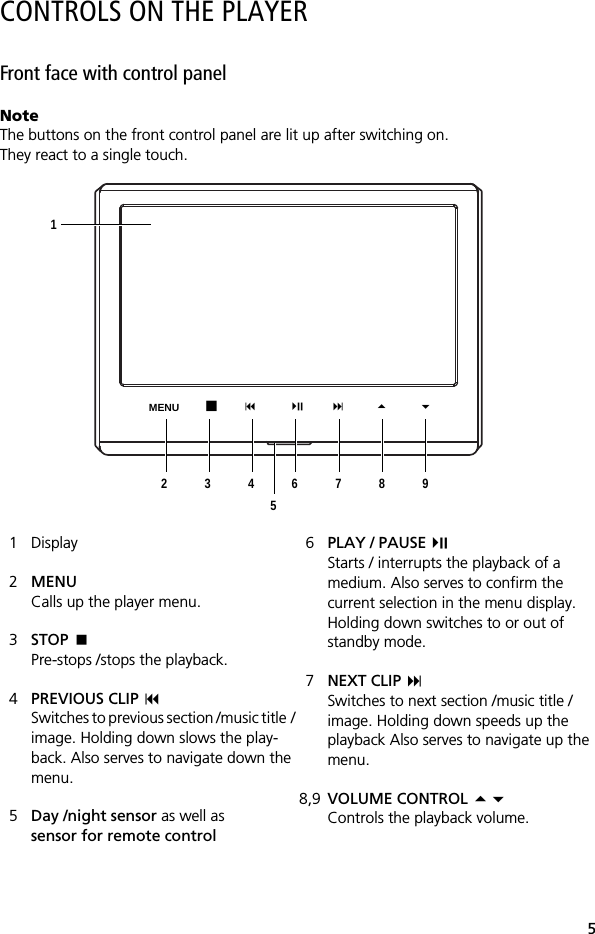
5CONTROLS ON THE PLAYERFront face with control panelNoteThe buttons on the front control panel are lit up after switching on. They react to a single touch.1 Display2MENUCalls up the player menu.3STOP Pre-stops /stops the playback.4PREVIOUS CLIP Switches to previous section /music title / image. Holding down slows the play-back. Also serves to navigate down the menu.5Day /night sensor as well as sensor for remote control6PLAY / PAUSEStarts / interrupts the playback of a medium. Also serves to confirm the current selection in the menu display.Holding down switches to or out of standby mode. 7NEXT CLIP Switches to next section /music title /image. Holding down speeds up the playback Also serves to navigate up the menu.8,9 VOLUME CONTROL Controls the playback volume.1MENU23456789
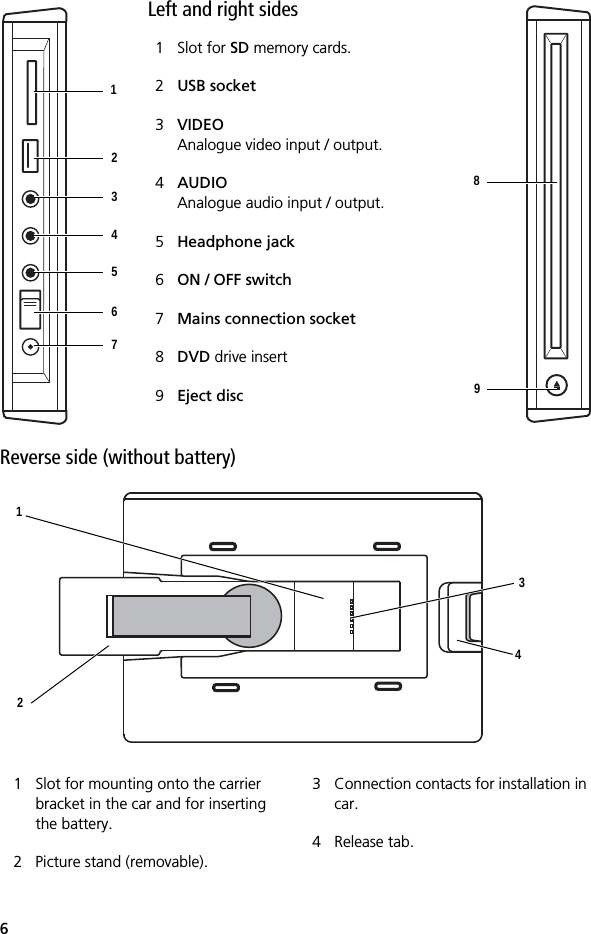
6Left and right sidesReverse side (without battery)1 Slot for SD memory cards.2USB socket3VIDEOAnalogue video input / output.4AUDIOAnalogue audio input / output.5Headphone jack6ON / OFF switch7Mains connection socket 8DVD drive insert 9Eject disc1 Slot for mounting onto the carrier bracket in the car and for inserting the battery.2 Picture stand (removable).3 Connection contacts for installation in car.4 Release tab.1234567892341
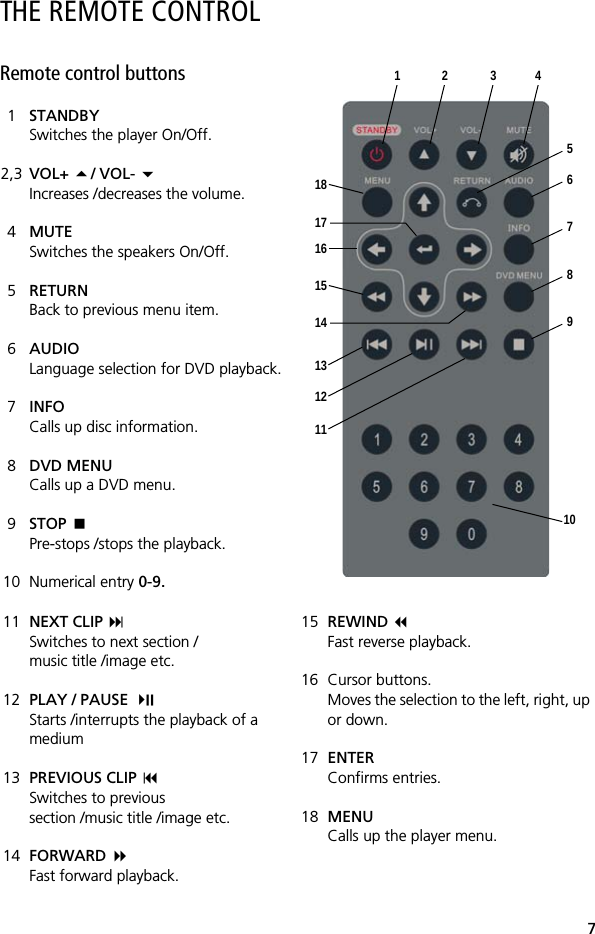
7THE REMOTE CONTROLRemote control buttons1STANDBYSwitches the player On/Off. 2,3 VOL+ / VOL- Increases /decreases the volume.4MUTESwitches the speakers On/Off.5RETURNBack to previous menu item.6AUDIOLanguage selection for DVD playback.7INFOCalls up disc information.8DVD MENUCalls up a DVD menu.9STOP Pre-stops /stops the playback.10 Numerical entry 0-9.11 NEXT CLIP Switches to next section /music title /image etc.12 PLAY / PAUSE Starts /interrupts the playback of a medium13 PREVIOUS CLIP Switches to previous section /music title /image etc.14 FORWARD  Fast forward playback.15 REWIND  Fast reverse playback.16 Cursor buttons.Moves the selection to the left, right, up or down.17 ENTERConfirms entries.18 MENUCalls up the player menu.1 2 3 456789101112131415161718
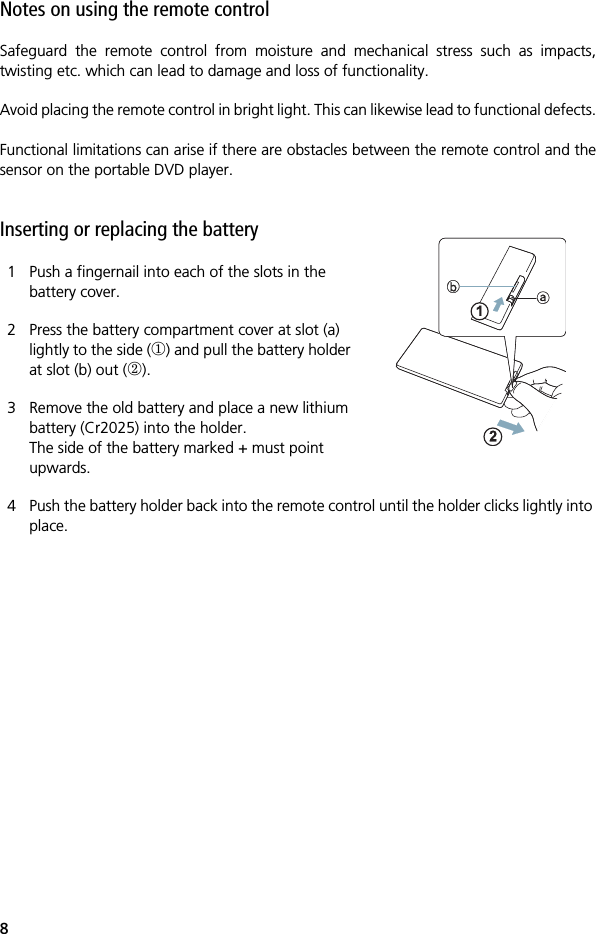
8Notes on using the remote controlSafeguard the remote control from moisture and mechanical stress such as impacts,twisting etc. which can lead to damage and loss of functionality.Avoid placing the remote control in bright light. This can likewise lead to functional defects.Functional limitations can arise if there are obstacles between the remote control and thesensor on the portable DVD player.  Inserting or replacing the battery1 Push a fingernail into each of the slots in the battery cover.2 Press the battery compartment cover at slot (a) lightly to the side () and pull the battery holder at slot (b) out ().3 Remove the old battery and place a new lithium battery (Cr2025) into the holder.The side of the battery marked + must point upwards.4 Push the battery holder back into the remote control until the holder clicks lightly into place.
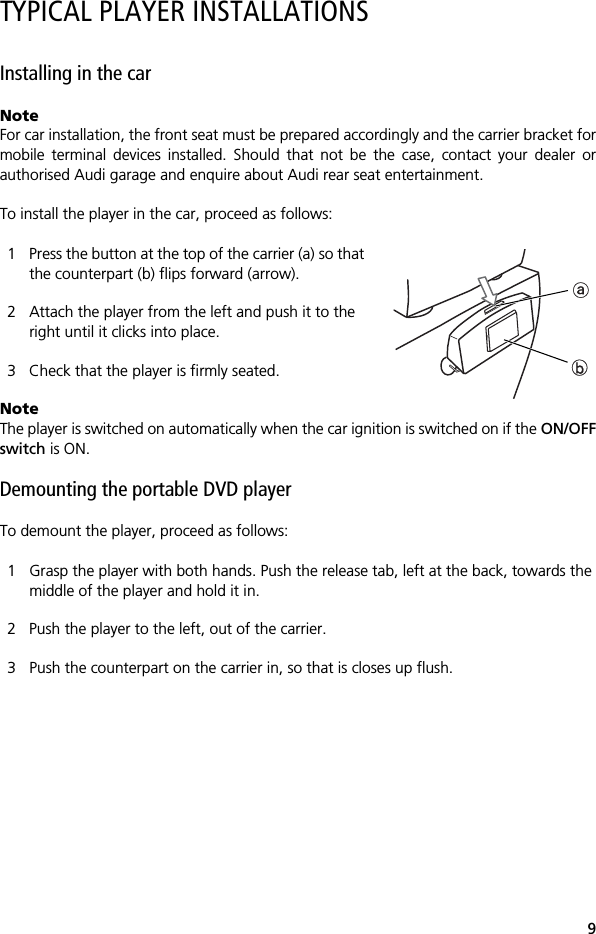
9TYPICAL PLAYER INSTALLATIONSInstalling in the carNoteFor car installation, the front seat must be prepared accordingly and the carrier bracket formobile terminal devices installed. Should that not be the case, contact your dealer orauthorised Audi garage and enquire about Audi rear seat entertainment.To install the player in the car, proceed as follows:1 Press the button at the top of the carrier (a) so that the counterpart (b) flips forward (arrow).2 Attach the player from the left and push it to the right until it clicks into place.3 Check that the player is firmly seated.NoteThe player is switched on automatically when the car ignition is switched on if the ON/OFFswitch is ON.Demounting the portable DVD player To demount the player, proceed as follows:1 Grasp the player with both hands. Push the release tab, left at the back, towards the middle of the player and hold it in.2 Push the player to the left, out of the carrier.3 Push the counterpart on the carrier in, so that is closes up flush.
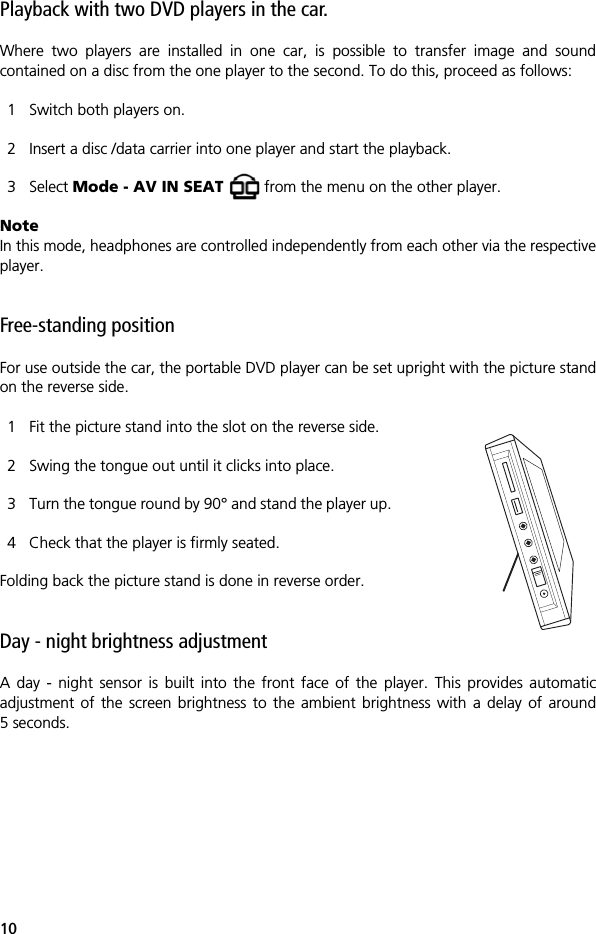
10Playback with two DVD players in the car.Where two players are installed in one car, is possible to transfer image and soundcontained on a disc from the one player to the second. To do this, proceed as follows:1 Switch both players on.2 Insert a disc /data carrier into one player and start the playback.3 Select Mode - AV IN SEAT   from the menu on the other player.NoteIn this mode, headphones are controlled independently from each other via the respectiveplayer.Free-standing position For use outside the car, the portable DVD player can be set upright with the picture standon the reverse side.1 Fit the picture stand into the slot on the reverse side.2 Swing the tongue out until it clicks into place.3 Turn the tongue round by 90° and stand the player up.4 Check that the player is firmly seated.Folding back the picture stand is done in reverse order.Day - night brightness adjustmentA day - night sensor is built into the front face of the player. This provides automaticadjustment of the screen brightness to the ambient brightness with a delay of around5 seconds.
11INITIAL OPERATIONConnecting to the power supplyWhen the portable DVD player is mounted in the car, power is supplied via the contacts onthe carrier.If you are using the DVD player in a free-standing position, plug the mains adapter into asocket and the DC plug into the mains connecting socket on the left side of the player. Youcan also use the battery as an alternative.Switching the player On/Off. The portable DVD player is switched on as follows:1 Push up the ON/OFF switch on the left side of the player. 2 The "Welcome" screen appears. The controls on the front face light up.The player is ready for use.NoteWhen switching on for the first time or after resetting the player settings, the languageselector appears (see "Selecting the language" on page 20).To switch the player off, push down the ON/OFF switch on the left side of the player.Standby modeThe portable DVD player automatically switches to the standby mode after a few minuteswhen there is no playback or operator action. The screen becomes dark and only the PLAY/ PAUSE  button remains lit up on the front face. 1 Press STANDBY on the remote control or PLAY / PAUSE  for a few seconds on the player to end the standby mode.2 Similarly, the player switches to standby mode if you press STANDBY on the remote control when the screen is lit up or PLAY / PAUSE  on the player for a few seconds.
12DISC PLAYBACKInserting disc and playing backNoteCheck the condition of each disc before inserting! Do not use any deformed or otherwisedamaged data carriers!Insert single-sided discs with the printed side to the front. Check both sides of a double-sided disc then insert it correctly into the drive.1 Check that the portable DVD player is ready for operation or in standby mode. If not, switch the player on.2 When you push the disc into the opening in the DVD drive it will be drawn in automatically. The player reads the information on the disc. On the screen will appear DVD, VCD or CD, depending on disc type.3 Playback normally starts automatically, the disc menu (where available) appears in the display. If not, press PLAY / PAUSE  at the control panel or on the remote control.NoteWhen an audio disc is playing back, the screen display ends automatically if no buttons arepressed for about 1 minute. Pressing any random button reactivates the display.Interrupting /resuming playback1 To interrupt the playback with freeze-frame, press PLAY / PAUSE  once.2 To interrupt the playback without freeze-frame, press STOP  once (pre-stop).3 To resume the playback press PLAY / PAUSE  again.With most DVDs and video CDs the playback will restart at the point at which it was stopped. By ejecting the disc or pressing STOP  again, this resume function is deactivated.
13Fast forwarding /rewinding1 During playback, press one of the FORWARD  or REWIND  buttons on the remote control or press and hold one of the  or  buttons on the player.2 The speed of the playback alters with each press of the button to 2x, 4x, 8x, 20x and again to 1x.3 Pressing PLAY / PAUSE   also leads to playback at normal speed.Jumping to previous /next section1 During playback press one of the  or  buttons to jump to the previous / next section.Calling up the DVD menu and navigationMost DVDs as well as video CDs with playback control (PBC) have a menu for selectingindividual video sequences. This menu can be activated during playback by pressing DVDMENU on the remote control or by selecting the menu item DVD Option - Disc Menu.1 Navigate DVDs by using the buttons  and or  and to get to the desired item and start the playback with PLAY / PAUSE .2 For video CDs with PBC, use the numerical buttons on the remote control to select an item.NoteVideo CD playback can also be effected without calling up the disc menu. By pressing thenumber 1 on the remote control while the playback is stopped, track 1 on the disc will beplayed. Changing the sound playback language1 By pressing the AUDIO button on the remote control or by calling up the menu item DVD Option - Audio during the playback, you can choose between the different sound tracks offered – depending on the facilities on the DVD/CD.
14Calling up information on the discThis function enables you to display general information on the disc such as playing time,number of sections or title.1 Press the INFO button on the remote control during playback or select the menu item DVD Option - Information. The information is shown in the upper part of the display. 2 Repeated pressing of the INFO button scrolls through the available information and ultimately fades this out.Ejecting the disc1 Press the Disc eject button on the right side of the player. Any playback still running is stopped, the disc is ejected about half way.2 Remove the disc completely from the drive.
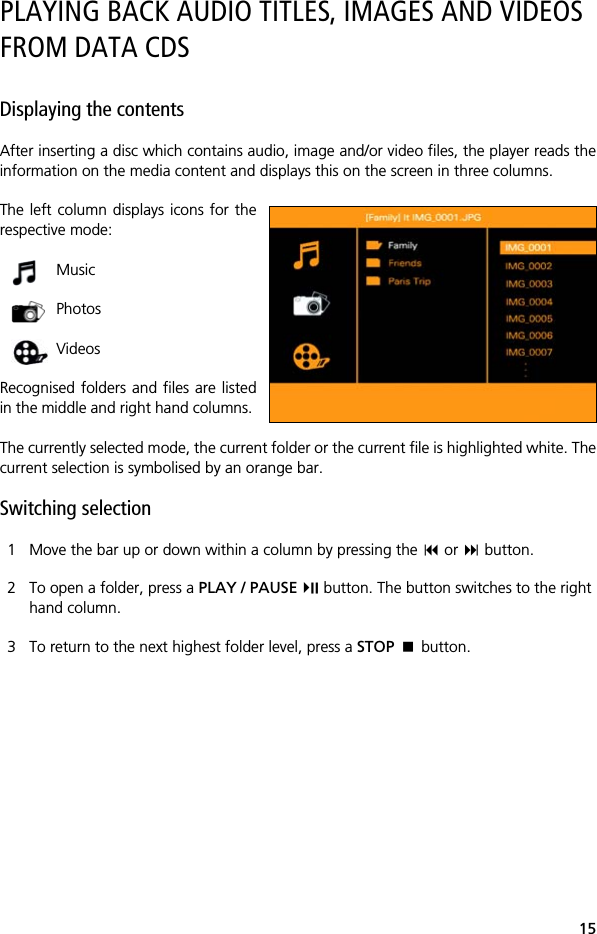
15PLAYING BACK AUDIO TITLES, IMAGES AND VIDEOS FROM DATA CDSDisplaying the contentsAfter inserting a disc which contains audio, image and/or video files, the player reads theinformation on the media content and displays this on the screen in three columns. The left column displays icons for therespective mode: Music Photos VideosRecognised folders and files are listedin the middle and right hand columns. The currently selected mode, the current folder or the current file is highlighted white. Thecurrent selection is symbolised by an orange bar.Switching selection1 Move the bar up or down within a column by pressing the  or  button.2 To open a folder, press a PLAY / PAUSE  button. The button switches to the right hand column.3 To return to the next highest folder level, press a STOP  button.
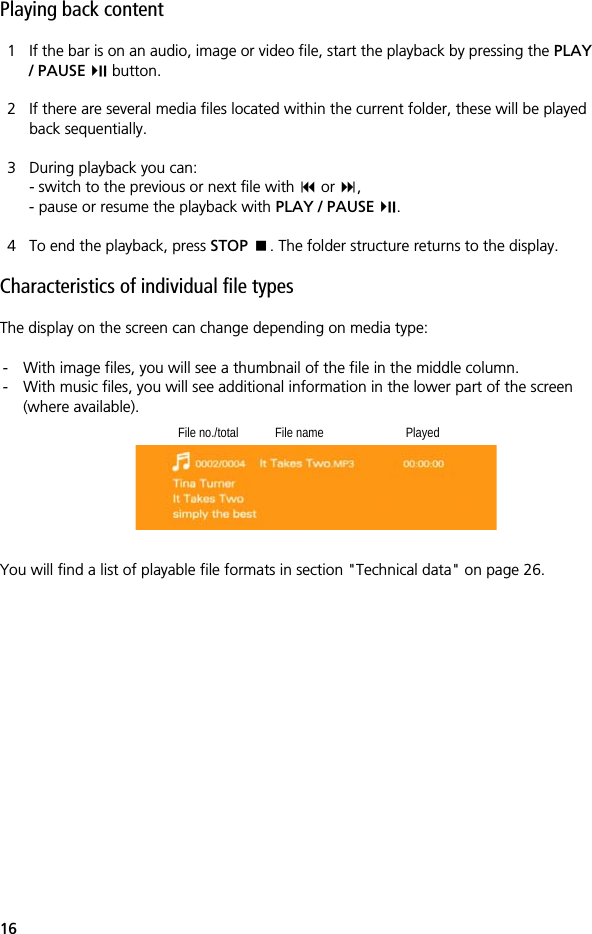
16Playing back content1 If the bar is on an audio, image or video file, start the playback by pressing the PLAY / PAUSE  button.2 If there are several media files located within the current folder, these will be played back sequentially.3 During playback you can:- switch to the previous or next file with  or ,- pause or resume the playback with PLAY / PAUSE .4 To end the playback, press STOP . The folder structure returns to the display. Characteristics of individual file typesThe display on the screen can change depending on media type:- With image files, you will see a thumbnail of the file in the middle column.- With music files, you will see additional information in the lower part of the screen (where available).You will find a list of playable file formats in section "Technical data" on page 26.File no./total File name Played
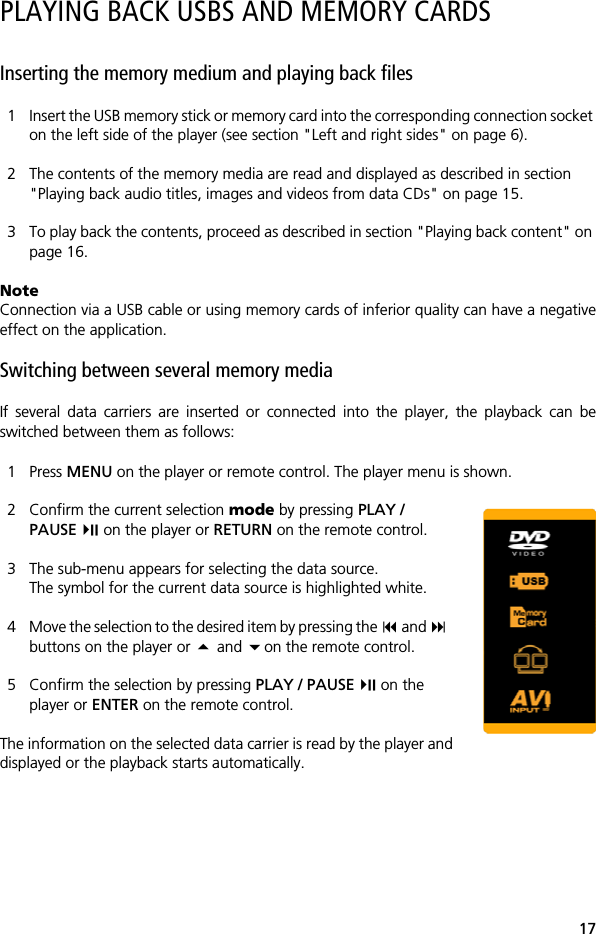
17PLAYING BACK USBS AND MEMORY CARDSInserting the memory medium and playing back files1 Insert the USB memory stick or memory card into the corresponding connection socket on the left side of the player (see section "Left and right sides" on page 6). 2 The contents of the memory media are read and displayed as described in section "Playing back audio titles, images and videos from data CDs" on page 15.3 To play back the contents, proceed as described in section "Playing back content" on page 16.NoteConnection via a USB cable or using memory cards of inferior quality can have a negativeeffect on the application.Switching between several memory mediaIf several data carriers are inserted or connected into the player, the playback can beswitched between them as follows:1 Press MENU on the player or remote control. The player menu is shown.2 Confirm the current selection mode by pressing PLAY / PAUSE  on the player or RETURN on the remote control.3 The sub-menu appears for selecting the data source. The symbol for the current data source is highlighted white.4 Move the selection to the desired item by pressing the  and buttons on the player or  and on the remote control.5 Confirm the selection by pressing PLAY / PAUSE  on the player or ENTER on the remote control.The information on the selected data carrier is read by the player anddisplayed or the playback starts automatically.
18USING BLUETOOTH HEADPHONESEstablishing a headphone connectionSound from the player can also be transmitted to a bluetooth headphone via a bluetoothconnection. It is necessary to proceed as follows when connecting for the first time:1 Switch the headphones on by pressing and holding the symbol   on the phone designated "R". The green LED on the phone starts to flash.NoteIf the LED doesn't flash, replace the batteries or charge them up via the USB connection.More detailed information can be found on this in the headphone' user information.2 In the player menu, select Bluetooth - New connection. In the left upper corner of the display a white flashing bluetooth symbol   appears.3 The player and headphones are creating a connection. This can take a few seconds. After successful connection, the colour of the bluetooth symbol changes to blue.4 Close the player menu. The bluetooth symbol will also be faded out.Note If the headphones have previously been connected with the portable DVD player then theywill recognise the player and connect automatically every time the DVD player andheadphones are switched on. Severing the bluetooth connectionShould you wish to severe the connection, there are the following options:1 Switch off the headphones by pressing and holding on the symbol   on the side designated "L". The green LED on the phone goes out and the sound is played back via the player.2 In the player menu, select Bluetooth - Bluetooth off.
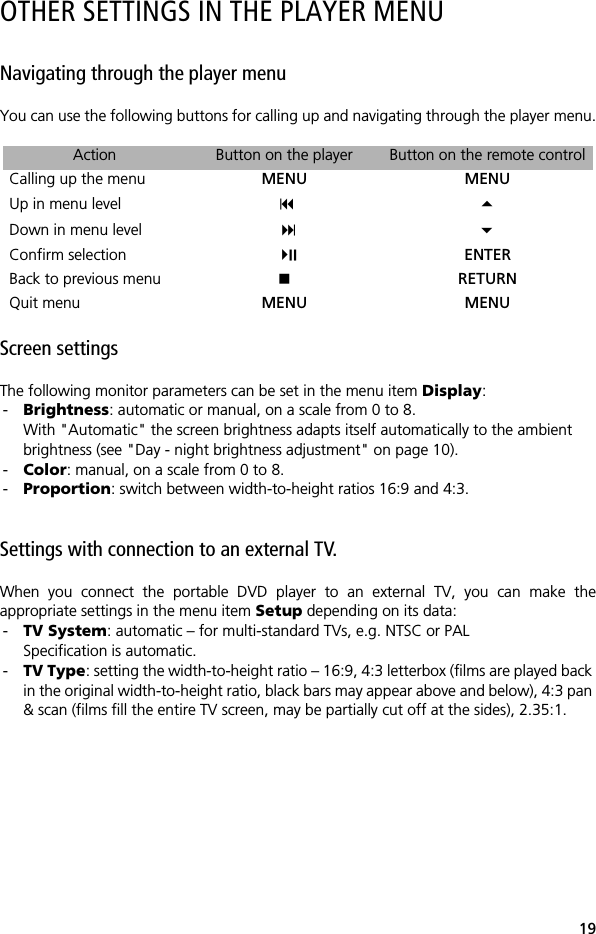
19OTHER SETTINGS IN THE PLAYER MENUNavigating through the player menuYou can use the following buttons for calling up and navigating through the player menu.Screen settingsThe following monitor parameters can be set in the menu item Display:-Brightness: automatic or manual, on a scale from 0 to 8.With "Automatic" the screen brightness adapts itself automatically to the ambient brightness (see "Day - night brightness adjustment" on page 10).-Color: manual, on a scale from 0 to 8.-Proportion: switch between width-to-height ratios 16:9 and 4:3.Settings with connection to an external TV.When you connect the portable DVD player to an external TV, you can make theappropriate settings in the menu item Setup depending on its data:-TV System: automatic – for multi-standard TVs, e.g. NTSC or PALSpecification is automatic.-TV Type: setting the width-to-height ratio – 16:9, 4:3 letterbox (films are played back in the original width-to-height ratio, black bars may appear above and below), 4:3 pan & scan (films fill the entire TV screen, may be partially cut off at the sides), 2.35:1.Action Button on the player Button on the remote controlCalling up the menu MENU MENUUp in menu level  Down in menu level  Confirm selection  ENTERBack to previous menu RETURNQuit menu MENU MENU
20Resetting to factory settingsBy selecting the menu item Setup - Default, all manual configuration changes to theportable DVD player are erased and returned to the factory settings. NoteThereafter, the language selection list appears on the screen.Selecting the languageThe player menu is available in the following languages:English, German, Spanish, French, Italian, Russian, Swedish, Dutch, Japanese and Chinese.The language can be selected in the menu item Language (see "Player menu - overview"on page 24).
21CONNECTING TO EXTERNAL EQUIPMENTAttentionBefore connecting, switch off the power supply to the portable DVD player and the externalequipment!Connecting external equipment for playbackYou can transmit the sound or image and sound signal from the portable DVD player toexternal equipment such as a TV or amplifier. To do this, proceed as follows:1 Connect the socket(s) AUDIO or VIDEO on the portable DVD player (see "Left and right sides" on page 6) via the appropriate audio or video cable with the input socket(s) on the external equipment.2 Switch both the player and the external equipment on. Select the required input or channel on the external equipment.3 Start the media playback on the portable DVD player. Playback from external equipment (e.g. games consoles)You can transmit sound or image and sound signal from external playback equipment tothe portable DVD player. To do this, proceed as follows:1 Connect the socket(s) AUDIO or VIDEO on the portable DVD player (see "Left and right sides" on page 6) via the appropriate audio or video cable with the output socket(s) on the external equipment.2 Switch both the player and the external equipment on. In the portable DVD player menu, select Mode - AV IN SIDE .3 Start the media playback on the external equipment.Connecting headphones1 Turn the volume on the portable DVD player down to minimum.2 Plug the headphones into the 'phone jack on the portable DVD player (see "Left and right sides" on page 6).3 Put the headphones on and turn the volume up to a comfortable level.
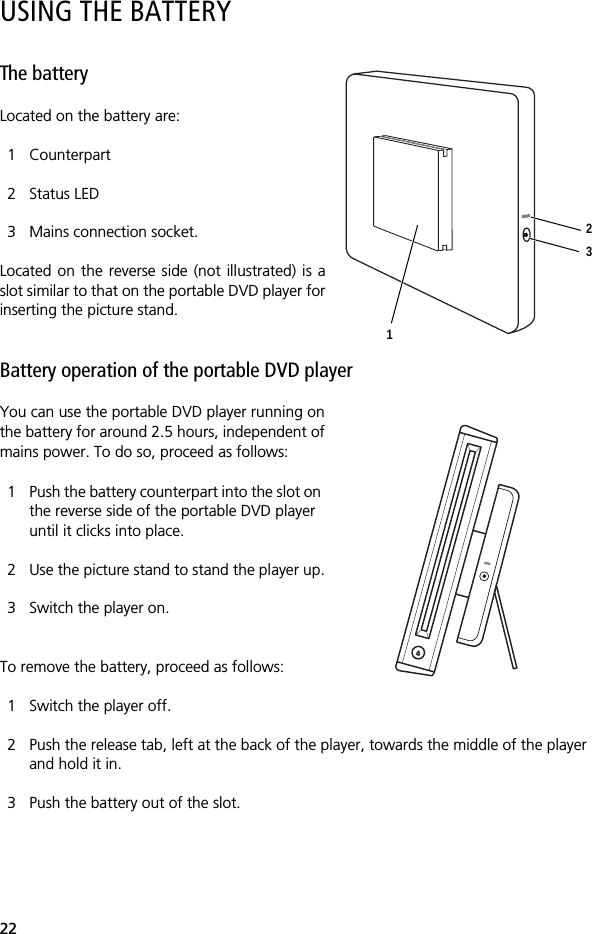
22USING THE BATTERYThe batteryLocated on the battery are:1 Counterpart2 Status LED3 Mains connection socket.Located on the reverse side (not illustrated) is aslot similar to that on the portable DVD player forinserting the picture stand. Battery operation of the portable DVD player You can use the portable DVD player running onthe battery for around 2.5 hours, independent ofmains power. To do so, proceed as follows:1 Push the battery counterpart into the slot on the reverse side of the portable DVD player until it clicks into place. 2 Use the picture stand to stand the player up.3 Switch the player on.To remove the battery, proceed as follows:1 Switch the player off.2 Push the release tab, left at the back of the player, towards the middle of the player and hold it in.3 Push the battery out of the slot.123
23Charging the batteryTo charge the battery, plug the mains adapter into a socket and the DC plug into the mainsconnection socket on the battery. When the charging process starts, the status LED on thebattery lights up red. The LED goes out when the charging process has ended.The battery can be charged while mounted on the player as well as separately. NoteIf the battery is mounted on the portable DVD player and the latter is connected to themains via the mains connection socket on the player, no charging of the battery takesplace. Notes on using the batteryDANGER! Do not use the battery if it is damaged, deformed or swollen in any way! This presents a fire and explosion hazard!Batteries do not belong in the household rubbish! Spent, defective or damaged batteries must be disposed of properly.Charge the battery fully before using it for the first time.The battery becomes warm during the charging process. This is normal.If the battery becomes too warm or the ambient temperature is more than 30 °C, thecharging time can lengthen or even become impossible. In this case, let the battery cool offor move to a cooler location before starting the charging process.Do not recharge a battery which is already fully charged. This can permanently worsen thebattery's performance.
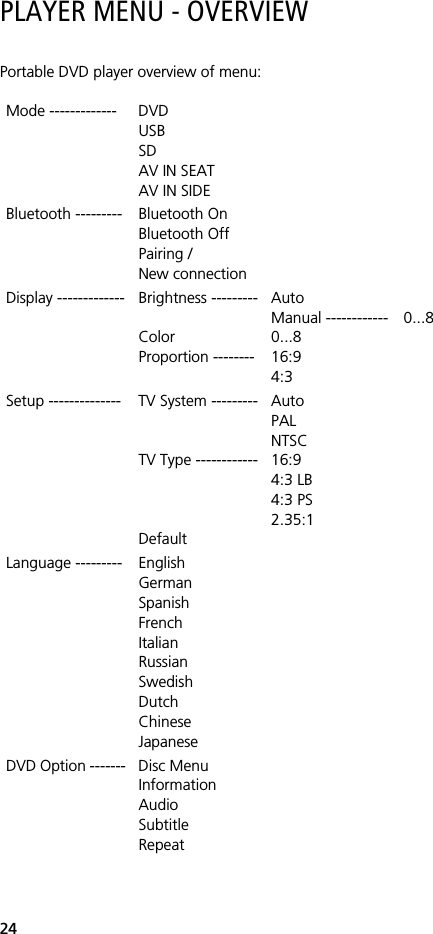
24PLAYER MENU - OVERVIEWPortable DVD player overview of menu:Mode ------------- DVDUSBSDAV IN SEAT AV IN SIDEBluetooth --------- Bluetooth OnBluetooth OffPairing / New connectionDisplay ------------- Brightness ---------ColorProportion --------AutoManual ------------0...816:94:30...8Setup -------------- TV System ---------TV Type ------------DefaultAutoPALNTSC16:94:3 LB4:3 PS2.35:1Language --------- EnglishGermanSpanishFrenchItalianRussianSwedishDutchChineseJapaneseDVD Option ------- Disc MenuInformationAudioSubtitleRepeat
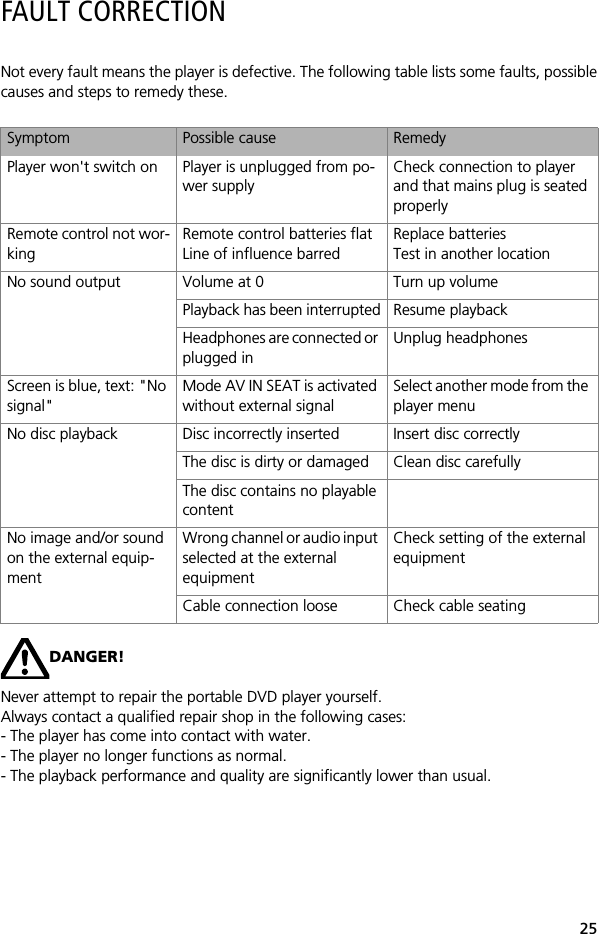
25FAULT CORRECTIONNot every fault means the player is defective. The following table lists some faults, possiblecauses and steps to remedy these.DANGER!Never attempt to repair the portable DVD player yourself. Always contact a qualified repair shop in the following cases:- The player has come into contact with water.- The player no longer functions as normal.- The playback performance and quality are significantly lower than usual.Symptom Possible cause RemedyPlayer won't switch on Player is unplugged from po-wer supplyCheck connection to player and that mains plug is seated properly Remote control not wor-kingRemote control batteries flatLine of influence barredReplace batteriesTest in another location No sound output Volume at 0 Turn up volumePlayback has been interrupted Resume playbackHeadphones are connected or plugged inUnplug headphonesScreen is blue, text: "No signal"Mode AV IN SEAT is activated without external signal Select another mode from the player menuNo disc playback Disc incorrectly inserted Insert disc correctlyThe disc is dirty or damaged Clean disc carefullyThe disc contains no playable contentNo image and/or sound on the external equip-mentWrong channel or audio input selected at the external equipment Check setting of the external equipment Cable connection loose Check cable seating
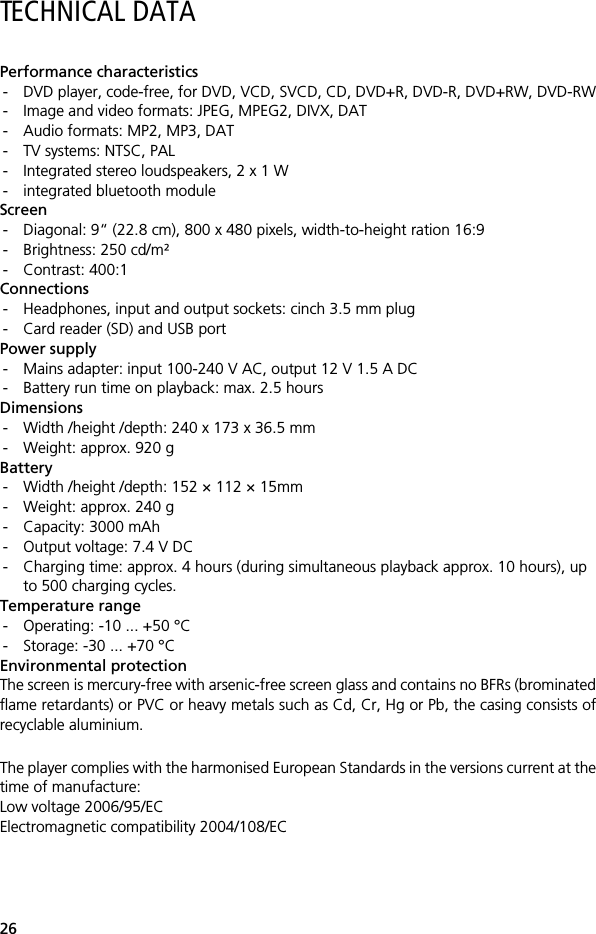
26TECHNICAL DATAPerformance characteristics- DVD player, code-free, for DVD, VCD, SVCD, CD, DVD+R, DVD-R, DVD+RW, DVD-RW- Image and video formats: JPEG, MPEG2, DIVX, DAT- Audio formats: MP2, MP3, DAT- TV systems: NTSC, PAL- Integrated stereo loudspeakers, 2 x 1 W- integrated bluetooth moduleScreen- Diagonal: 9“ (22.8 cm), 800 x 480 pixels, width-to-height ration 16:9- Brightness: 250 cd/m²- Contrast: 400:1Connections- Headphones, input and output sockets: cinch 3.5 mm plug- Card reader (SD) and USB portPower supply- Mains adapter: input 100-240 V AC, output 12 V 1.5 A DC - Battery run time on playback: max. 2.5 hoursDimensions- Width /height /depth: 240 x 173 x 36.5 mm- Weight: approx. 920 gBattery- Width /height /depth: 152 × 112 × 15mm- Weight: approx. 240 g- Capacity: 3000 mAh - Output voltage: 7.4 V DC- Charging time: approx. 4 hours (during simultaneous playback approx. 10 hours), up to 500 charging cycles.Temperature range- Operating: -10 ... +50 °C- Storage: -30 ... +70 °C Environmental protectionThe screen is mercury-free with arsenic-free screen glass and contains no BFRs (brominatedflame retardants) or PVC or heavy metals such as Cd, Cr, Hg or Pb, the casing consists ofrecyclable aluminium.The player complies with the harmonised European Standards in the versions current at thetime of manufacture:Low voltage 2006/95/ECElectromagnetic compatibility 2004/108/EC
27LICENCES AND COPYRIGHTMACROVISION:This product contains a technology for safeguarding copyrights which are protected by USpatents and other intellectual property rights. The use of this copyright safeguardingtechnology must be authorised by Macrovision and is provided for personal use and otherlimited presentations unless otherwise stated by Macrovision. Reverse engineering ordisassembly are not permitted.DOLBY:Manufactured under licence from Dolby Laboratories. "Dolby" and the double-D symbolare trademarks of Dolby Laboratories. DivX:This equipment contains a copyright safeguarding technology which is protected by DivX,Inc. DivX, DivX Certified and related logos are trademarks of DivX, Inc. and are used withinthe scope of a licence.All other brand and product names referred to in these operating instructions aretrademarks and/or registered trademarks of the respective owner.We reserve the right to make alterations for reasons of technical advancement.The illustrations and screen displays used in this handbook may deviate from the actual design of the equipment.© Made by Nextbase for Audi Original Accessories, issued January 2011
AUDI-DVD-EN-GB-11-1
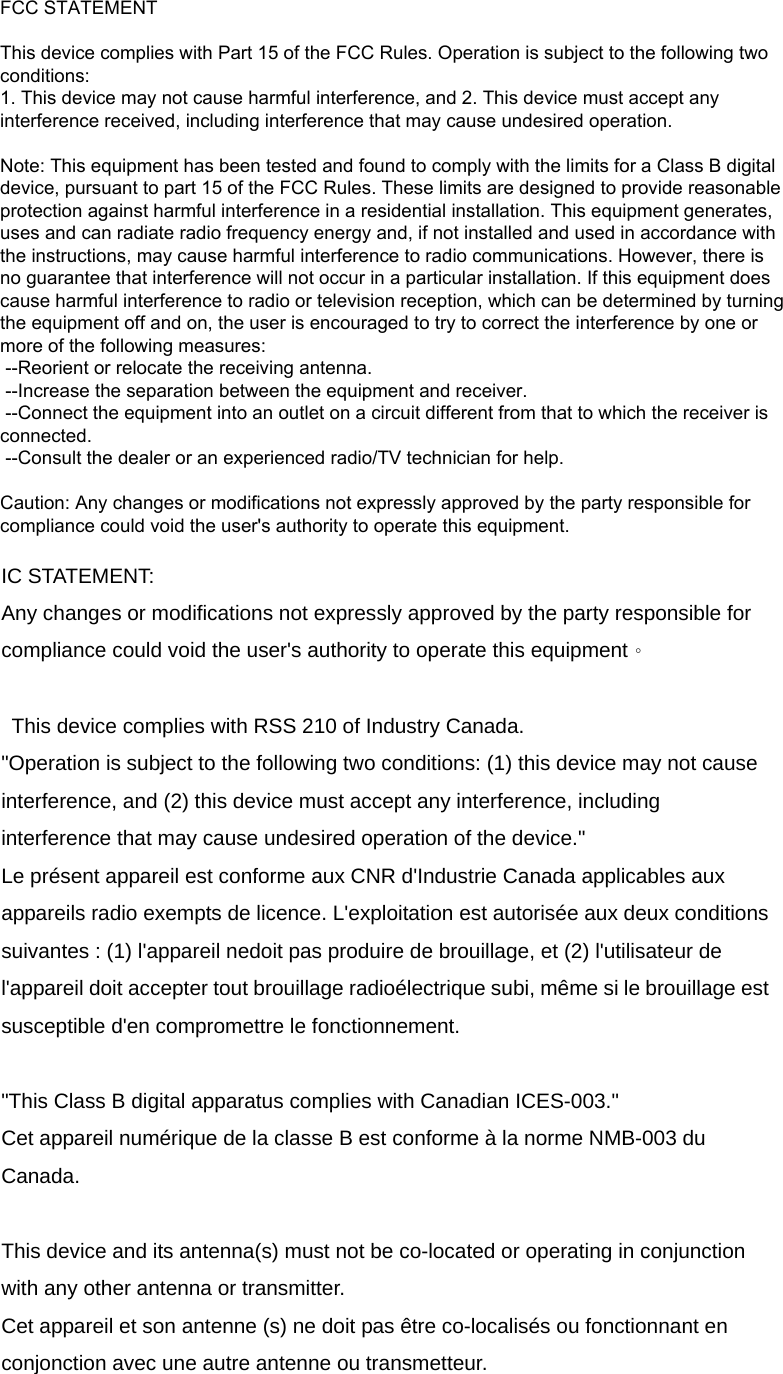
FCC STATEMENT: FCC Caution: Any changes or modifications not expressly approved by the party responsible for compliance could void the user's authority to operate this equipment.   This device complies with Part 15 of the FCC Rules. Operation is subject to the following two conditions: (1) This device may not cause harmful interference, and (2) this device must accept any interference received, including interference that may cause undesired operation.    IC STATEMENT: Any changes or modifications not expressly approved by the party responsible for compliance could void the user's authority to operate this equipment。  This device complies with RSS 210 of Industry Canada. "Operation is subject to the following two conditions: (1) this device may not cause interference, and (2) this device must accept any interference, including interference that may cause undesired operation of the device." Le présent appareil est conforme aux CNR d'Industrie Canada applicables aux appareils radio exempts de licence. L'exploitation est autorisée aux deux conditions suivantes : (1) l'appareil nedoit pas produire de brouillage, et (2) l'utilisateur de l'appareil doit accepter tout brouillage radioélectrique subi, même si le brouillage est susceptible d'en compromettre le fonctionnement.  "This Class B digital apparatus complies with Canadian ICES-003." Cet appareil numérique de la classe B est conforme à la norme NMB-003 du Canada.  This device and its antenna(s) must not be co-located or operating in conjunction with any other antenna or transmitter. Cet appareil et son antenne (s) ne doit pas être co-localisés ou fonctionnant en conjonction avec une autre antenne ou transmetteur.  FCC STATEMENT   This device complies with Part 15 of the FCC Rules. Operation is subject to the following two conditions: 1. This device may not cause harmful interference, and 2. This device must accept any interference received, including interference that may cause undesired operation.   Note: This equipment has been tested and found to comply with the limits for a Class B digital device, pursuant to part 15 of the FCC Rules. These limits are designed to provide reasonable protection against harmful interference in a residential installation. This equipment generates, uses and can radiate radio frequency energy and, if not installed and used in accordance with the instructions, may cause harmful interference to radio communications. However, there is no guarantee that interference will not occur in a particular installation. If this equipment does cause harmful interference to radio or television reception, which can be determined by turning the equipment off and on, the user is encouraged to try to correct the interference by one or more of the following measures:  --Reorient or relocate the receiving antenna.  --Increase the separation between the equipment and receiver.  --Connect the equipment into an outlet on a circuit different from that to which the receiver is connected.  --Consult the dealer or an experienced radio/TV technician for help.   Caution: Any changes or modifications not expressly approved by the party responsible for compliance could void the user's authority to operate this equipment.

Navigation menu