Dell 4J1412 Users Manual User’s Guide
4J1412 to the manual a4600fe2-fde9-4f71-ac1d-3630f1cfed0b
2015-02-09
: Dell Dell-4J1412-Users-Manual-544709 dell-4j1412-users-manual-544709 dell pdf
Open the PDF directly: View PDF  .
.
Page Count: 76
- Owner’s Manual
- Ordering Photo Print Packs
- Notes, Notices, and Cautions
- Contents
- Getting Started
- Using Your Printer
- Care and Maintenance
- Troubleshooting
- Contacting Dell
- Appendix
- U.S. Terms and Conditions of Sale
- Limited Warranties and Return Policy
- Limited Warranty for Dell-Branded Hardware Products (U.S. Only)
- Total Satisfaction Return Policy (U.S. Only)
- Limited Warranty Terms for Dell-Branded Hardware Products (Canada Only)
- Total Satisfaction Return Policy (Canada Only)
- Dell Software and Peripherals (Canada Only)
- 1-Year End-User Manufacturer Guarantee (Latin America and the Caribbean Only)
- Dell™ Photo Print Pack Limited Warranties
- Regulatory Notices
- Dell™ Software License Agreement
- Limited Warranty
- U.S. Government Restricted Rights
- General
- Printer Specifications
- Index

Ordering Photo Print Packs
You can order Dell™ Photo Print Packs, which contain the photo cartridge and photo paper
for your printer, and other supplies online at
www.dell.com/supplies
or by phone.
Your printer has been designed to print using:
USA
877-465-2968 (877-Ink2You)
Austria
08 20 - 24 05 30 35
Belgium
02.713 1590
Canada
877-501-4803
Caribbean Islands
Please contact your local distributor.
Columbia
800-9-155676
Denmark
3287 5215
Finland
09 2533 1411
France
0825387247
Germany
0800 2873355
Ireland
1850 707 407
Italy
800602705
Luxembourg
02.713 1590
Mexico
001-866-851-1754
Netherlands
020 - 674 4881
Norway
231622 64
Paraguay
Please contact your local distributor.
Peru
Please contact your local distributor.
Portugal
Please contact your local distributor.
Puerto Rico
866-851-1760
Spain
902120385
Sweden
08 587 705 81
UK
0870 907 4574
Uruguay
Please contact your local distributor.
Venezuela
Please contact your local distributor.
Item: Part number:
Dell Photo Print Pack
0D6605

Notes, Notices, and Cautions
NOTE: A NOTE indicates important information that helps you make better use of your printer.
NOTICE: A NOTICE indicates either potential damage to hardware or loss of data and tells you how to avoid the
problem.
CAUTION: A CAUTION indicates a potential for property damage, personal injury, or death.
____________________
Information in this document is subject to change without notice.
© 2004 Dell Inc. All rights reserved.
Reproduction in any manner whatsoever without the written permission of Dell Inc. is strictly forbidden.
Trademarks used in this text: Dell and the DELL logo are trademarks of Dell Inc.; Microsoft and Windows are registered trademarks of Microsoft
Corporation.
Other trademarks and trade names may be used in this document to refer to either the entities claiming the marks and names or their products.
Dell Inc. disclaims any proprietary interest in trademarks and trade names other than its own.
Model 540
October 2004 P/N 4J1412 Rev. A01


Contents 5
Contents
Ordering Photo Print Packs . . . . . . . . . . . . . . . . . . . . . . . . 2
Notes, Notices, and Cautions. . . . . . . . . . . . . . . . . . . . . . . . 3
CAUTION: SAFETY INSTRUCTIONS . . . . . . . . . . . . . . . . . . . . . 9
1Getting Started
Accessing Your
User’s Guide
. . . . . . . . . . . . . . . . . . . . . . . . 11
Understanding the Printer Parts . . . . . . . . . . . . . . . . . . . . . . 11
Setting Up Your Printer. . . . . . . . . . . . . . . . . . . . . . . . . . . 14
Loading the Photo Cartridge . . . . . . . . . . . . . . . . . . . . . . . . 14
Loading the Photo Paper . . . . . . . . . . . . . . . . . . . . . . . . . . 15
Changing Settings—Press Menu . . . . . . . . . . . . . . . . . . . . . . 17
Select Menu Items . . . . . . . . . . . . . . . . . . . . . . . . . . 17
Print Options Menu . . . . . . . . . . . . . . . . . . . . . . . . . . 17
Photo Quality Menu . . . . . . . . . . . . . . . . . . . . . . . . . . 17
Photo Display Menu . . . . . . . . . . . . . . . . . . . . . . . . . . 18
Photo Management Menu . . . . . . . . . . . . . . . . . . . . . . . 19
Printer Settings Menu . . . . . . . . . . . . . . . . . . . . . . . . . 19
Maintenance Menu . . . . . . . . . . . . . . . . . . . . . . . . . . 20
2Using Your Printer
Printing Without a Computer . . . . . . . . . . . . . . . . . . . . . . . . 21
Printing Tips . . . . . . . . . . . . . . . . . . . . . . . . . . . . . 21
Printing From a Memory Card . . . . . . . . . . . . . . . . . . . . . 21
Selecting Photos to Print . . . . . . . . . . . . . . . . . . . . . . . 22
Printing From Your Pictbridge-enabled or Other Compatible Camera . . . 24
Canceling Printing. . . . . . . . . . . . . . . . . . . . . . . . . . . 24
Removing Perforated Tabs From Prints . . . . . . . . . . . . . . . . . 24
Printing With a Computer . . . . . . . . . . . . . . . . . . . . . . . . . 25
Printing Tips . . . . . . . . . . . . . . . . . . . . . . . . . . . . . 25

6Contents
Windows-Based Operating System Requirements . . . . . . . . . . . 25
Printing From a Computer . . . . . . . . . . . . . . . . . . . . . . . 26
Choosing a Color Mode . . . . . . . . . . . . . . . . . . . . . . . . 27
Canceling printing. . . . . . . . . . . . . . . . . . . . . . . . . . . 27
Saving and Copying Photos to Your Computer. . . . . . . . . . . . . . 28
3Care and Maintenance
General Care of the Printer . . . . . . . . . . . . . . . . . . . . . . . . . 29
Cleaning the Paper Feed Roller. . . . . . . . . . . . . . . . . . . . . . . 30
Handling and Storing the Photo Paper and Photo Cartridge . . . . . . . . . 30
4Troubleshooting
Setup Problems . . . . . . . . . . . . . . . . . . . . . . . . . . . . . . 31
General Problems . . . . . . . . . . . . . . . . . . . . . . . . . . . . . 32
Error Messages . . . . . . . . . . . . . . . . . . . . . . . . . . . . . . 32
Printing Problems . . . . . . . . . . . . . . . . . . . . . . . . . . . . . 33
. . . . . . . . . . . . . . . . . . . . . . . . . . . . . . . . . . . . . . 36
More Troubleshooting Options . . . . . . . . . . . . . . . . . . . . . . . 37
5Contacting Dell
Technical Assistance . . . . . . . . . . . . . . . . . . . . . . . . . . . 39
Automated Order-Status Service . . . . . . . . . . . . . . . . . . . . . . 39
Contacting Dell . . . . . . . . . . . . . . . . . . . . . . . . . . . . . . 39

Contents 7
6Appendix
U.S. Terms and Conditions of Sale . . . . . . . . . . . . . . . . . . . . . 57
Limited Warranties and Return Policy . . . . . . . . . . . . . . . . . . . 60
Limited Warranty for Dell-Branded Hardware Products (U.S. Only). . . . 60
Total Satisfaction Return Policy (U.S. Only) . . . . . . . . . . . . . . . 63
Limited Warranty Terms for Dell-Branded Hardware Products (Canada Only) 64
Total Satisfaction Return Policy (Canada Only) . . . . . . . . . . . . . 67
Dell Software and Peripherals (Canada Only) . . . . . . . . . . . . . . 67
1-Year End-User Manufacturer Guarantee (Latin America and the Caribbean Only)
68
Dell™ Photo Print Pack Limited Warranties. . . . . . . . . . . . . . . . . 69
Dell™ Photo Print Pack Limited Warranty (U.S. and Canada Only) . . . . 69
Dell™ Photo Print Pack Limited Warranty (Latin America Only) . . . . . 69
Regulatory Notices . . . . . . . . . . . . . . . . . . . . . . . . . . . . 70
NOM Information (Mexico Only) . . . . . . . . . . . . . . . . . . . . 71
Dell™ Software License Agreement . . . . . . . . . . . . . . . . . . . . 71
Limited Warranty . . . . . . . . . . . . . . . . . . . . . . . . . . . . . 72
U.S. Government Restricted Rights . . . . . . . . . . . . . . . . . . . . . 72
General . . . . . . . . . . . . . . . . . . . . . . . . . . . . . . . . . . 72
Printer Specifications . . . . . . . . . . . . . . . . . . . . . . . . . . . 73

8Contents

9
CAUTION: SAFETY INSTRUCTIONS
Use the following safety guidelines to help ensure your own personal safety and to help protect your
Dell™ Photo Printer 540 and working environment from potential damage.
CAUTION: Do not set up this product or make any electrical or cabling connections, such as the power
supply cord, during a lightning storm.
CAUTION: Do not expose this product to liquid, moisture, or extreme temperatures. Power supplies and
battery chargers are intended for indoor use only. The use of controls, adjustments, or procedures other
than those specified herein may result in exposure to shock and/or electrical or mechanical hazards.
NOTICE: Do not disassemble this product; there are no user-serviceable parts inside. Refer servicing to
qualified service personnel.
• Use only the power supply provided with this product or the manufacturer’s authorized
replacement power supply.
• Connect the power cable to an electrical outlet that is near the product and easily accessible.
• Refer service or repairs, other than those described in the user documentation, to a
professional service person.
• Read and follow these instructions before using Dell products. Always follow basic safety
procedures.
• The use of an accessory attachment that is not recommended by Dell, such as an AC adapter,
may cause fire, electric shock, or injury.
• Do not allow chemicals, such as suntan lotion, to come into contact with the painted surface
of the printer.
• If the printer has been subjected to inclement weather or you suspect water has gotten inside
the printer, turn off the printer and remove the paper tray and photo cartridge. Allow all
components to air-dry for at least 24 hours before using the printer again. If this does not
resolve the problem, contact customer support (see page 39).
• The printer and the power supply contain a small amount of lead in the circuit board.
Disposal of this material may be regulated due to environmental considerations.
• Disposal of the photo cartridge is not regulated and should not be subject to state or local
landfill, incineration, or recycling requirements.
• For more disposal or recycling information, contact your local authorities. In the US, visit the
Electronics Industry Alliance Web site at www.eaie.org.

10
www.dell.com | support.dell.com
Getting Started 11
1
Getting Started
Accessing Your
User’s Guide
Click Start → All Program(s) → Dell Printers → Dell Photo Printer 540 →
View Dell User’s Guide.
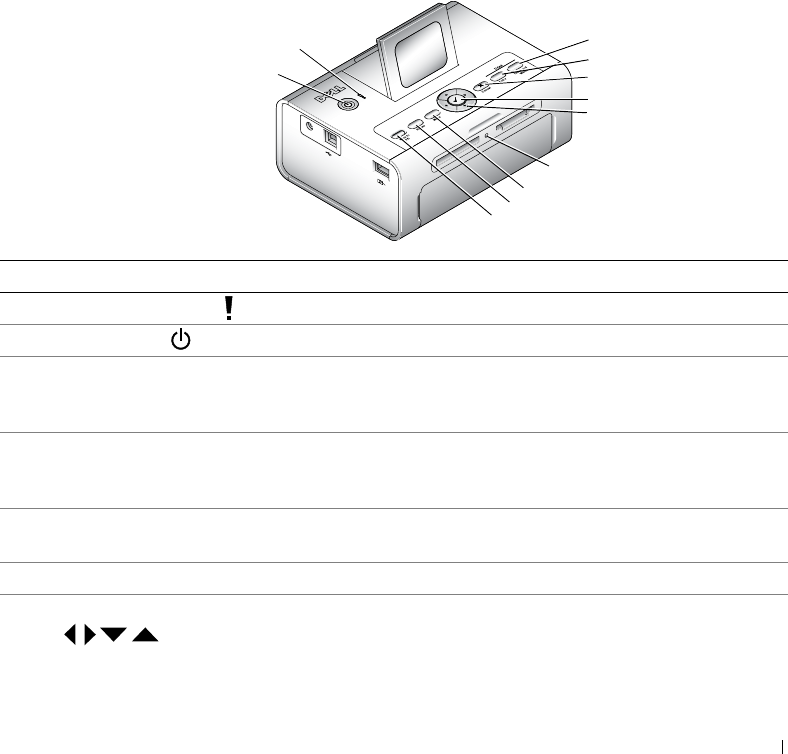
Understanding the Printer Parts
Lights and Buttons Description
1 Error indicator light Glows amber when an error condition exists.
2 Power button Turn your printer on or off; button is lit when power is on.
3Save to PC Establishes a connection with your computer that allows you
to save photos from your memory card, USB storage device,
or camera directly to the computer.
4Rotate Rotates a photo 90 degrees each time button is pressed. (For
display purposes only. Does not change orientation of a
printed photo.)
5Menu Change settings and customize printing options. (See page
17.)
6 Memory card light Light blinks while checking card, then glows steady green.
7 Navigation (Arrow) buttons Navigate through photos and menus.
45
6
7
9
1
3
10
2
11
8
12 Getting Started
www.dell.com | support.dell.com
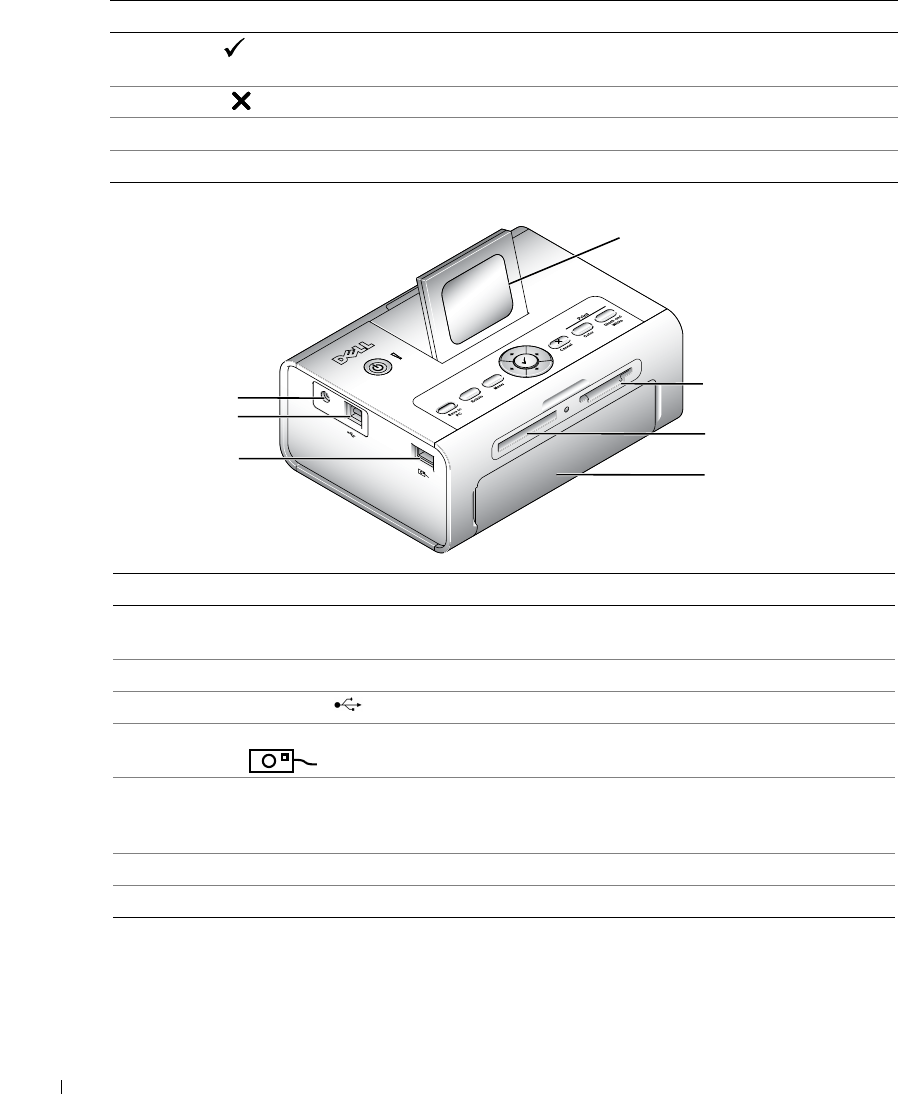
8 Select Choose the photo or option that appears on the Liquid
Crystal Display (LCD).
9Cancel Cancel the current print job or back out of the menus.
10 Print Color Print color copy of the selected photo(s).
11 Print Black & White Print black and white copy of the selected photo(s).
Part Description
1LCD Display photos, printer status, messages, menu options, or
settings.
2 Power connector Supply power to the printer.
3 USB connector to PC Connect your printer to a computer.
4 Camera or USB storage device
connector
Connect a PictBridge-enabled or other compatible camera or
USB storage device.
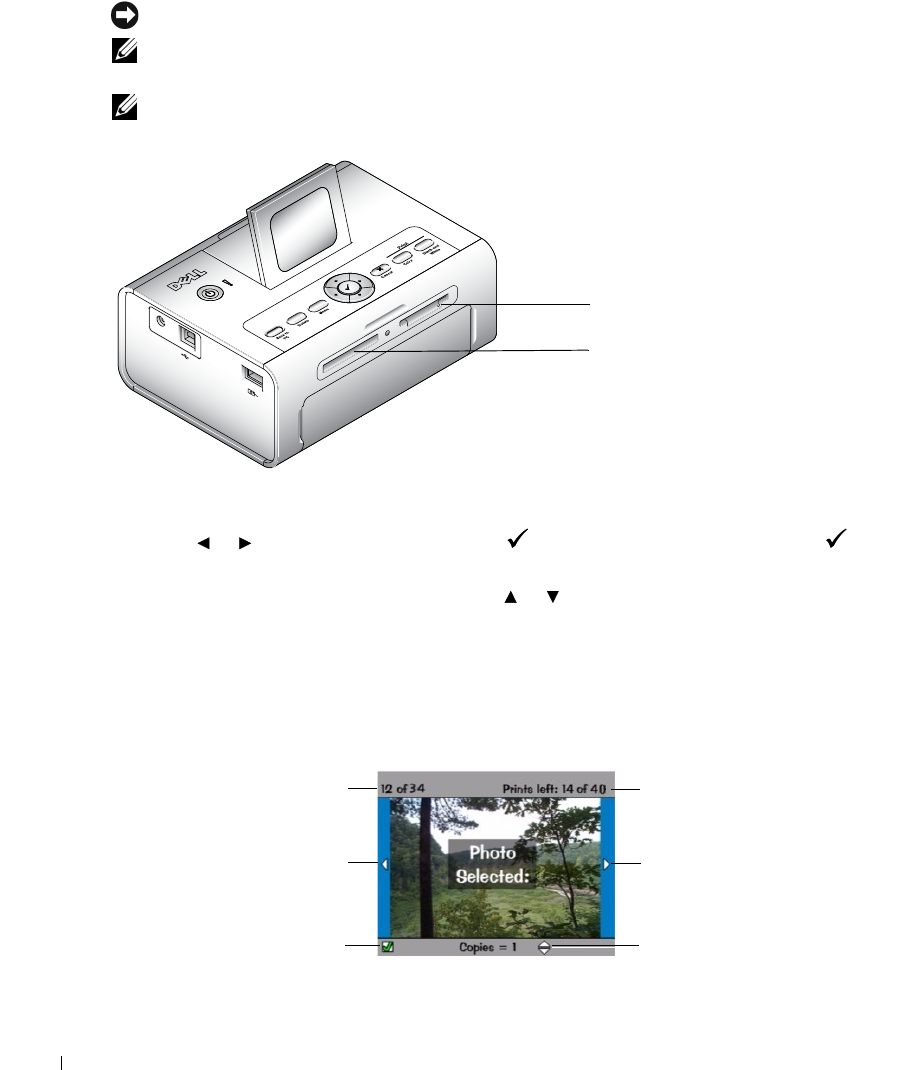
5 Memory card slot Memory card slot for Secure Digital (SD), Memory Stick
(MS), MMC (MultiMedia Card), and Smart Media (SM)
cards.
6 Memory card slot Memory card slot for CompactFlash (CF).
7 Paper tray door Provides access to insert the paper tray
Lights and Buttons Description
3
1
25
6
47
Getting Started 13
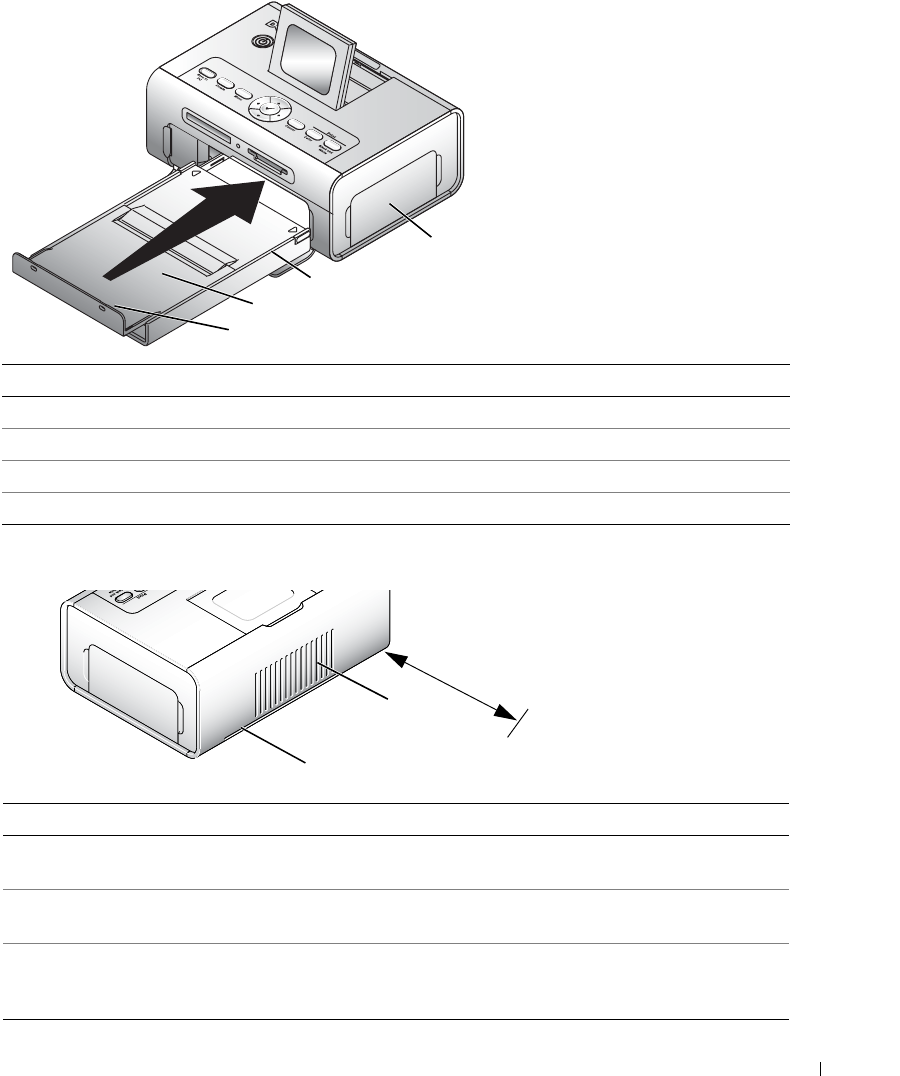
Part Description
1 Paper stop Maintains orderly stack of finished prints.
2 Top paper tray cover Finished prints are stacked here.
3 Bottom paper tray cover Keeps dust off photo paper.
4 Photo cartridge door Provides access to load photo cartridge.
Part Description
1 Slot for photo paper path Photo paper exits here during printing passes. Do not
block the slot. 5 in. (12.7 cm) clearance is required.
2 Air vents Provide ventilation and cooling to the printer. Do not
block the vents.
3 Express Service Code Located on the bottom of the printer. This is used to
identify your printer when you use support.dell.com or
contact technical support.
1
2
3
4
1
2
5 in.
(12.7 cm)
14 Getting Started
www.dell.com | support.dell.com
Setting Up Your Printer
NOTE: The Dell Photo Printer 540 supports Microsoft® Windows® 2000 and Windows XP.
Follow the instructions on your
Setting Up Your Printer
poster
to install the hardware (and
software, if using your printer with a computer). For setup troubleshooting, see
page 31.
Loading the Photo Cartridge
NOTE: Use only the photo cartridge from a Dell Photo Print Pack. Do not use any other type of photo
cartridge in your printer. Do not expose your photo cartridge to extreme temperatures. (See information
on photo print pack packaging.)
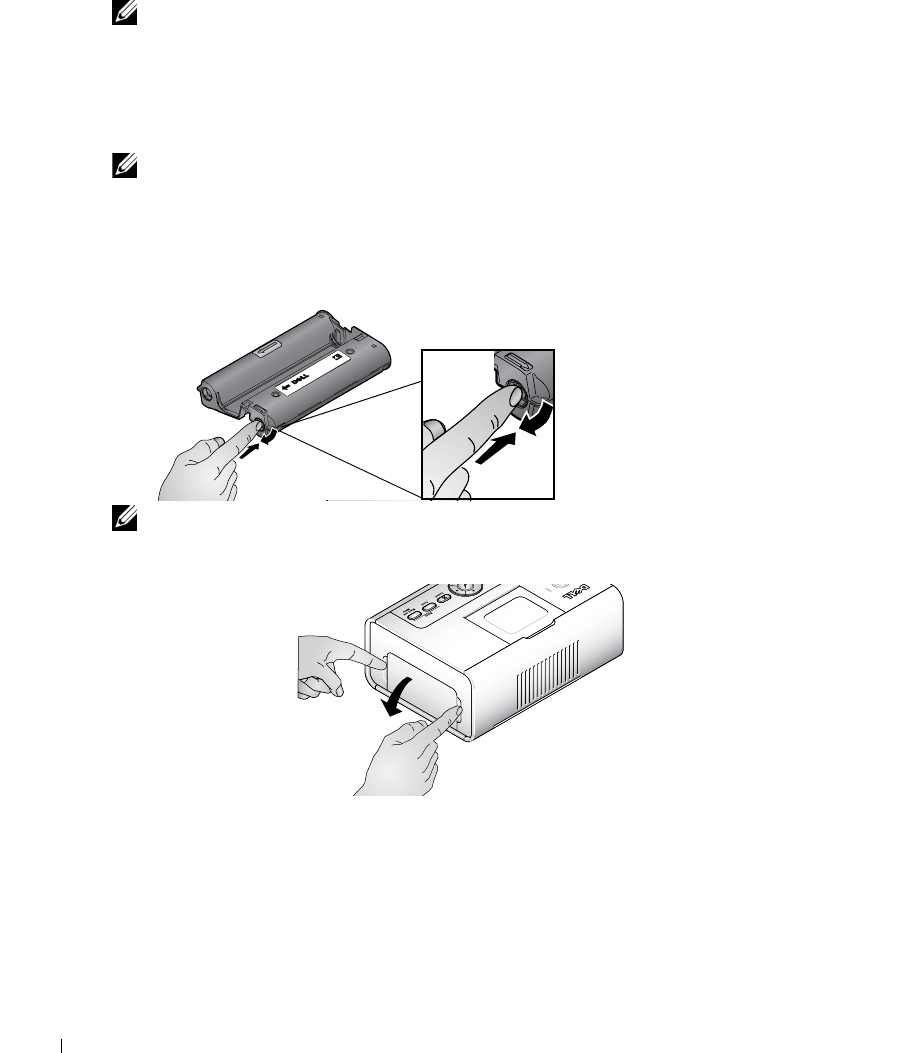
1
If there is slack in the print ribbon, remove it by pushing in on the spool, then rotating the
spool clockwise a maximum of one half turn.
NOTE: Be careful not to rotate the spool more than necessary. Doing so could reduce the number of
prints you are able to make.
2
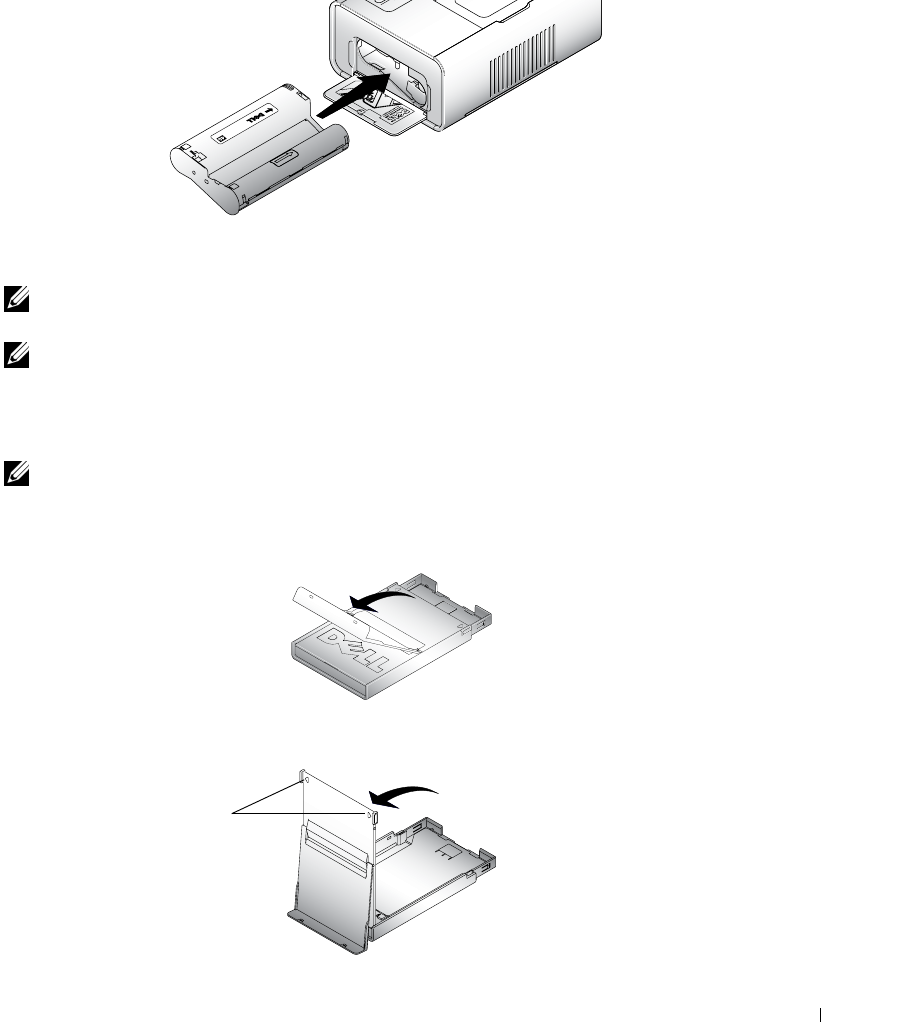
Open the photo cartridge door.
Getting Started 15
3
Slide the photo cartridge in, label side up, with the arrow pointing toward the printer. Push
the photo cartridge until it clicks into place.
4
Close the photo cartridge door.
5
To remove the photo cartridge, push up on the green lever and slide the photo cartridge out.
NOTE: The photo cartridge may lock in place if there is a paper jam. Do not attempt to remove the photo
cartridge without first clearing the paper jam.
NOTE: Warning messages and reorder instructions are displayed on the LCD when the photo cartridge
is low. When there are 5 or fewer prints remaining, the error light blinks
Loading the Photo Paper
NOTE: Use only the perforated photo paper from a Dell Photo Print Pack. Do not use inkjet paper or any
other photo paper. Do not remove perforated tabs from the photo paper until a photo is printed.
1
If the paper tray is in the printer, pull it out.
2
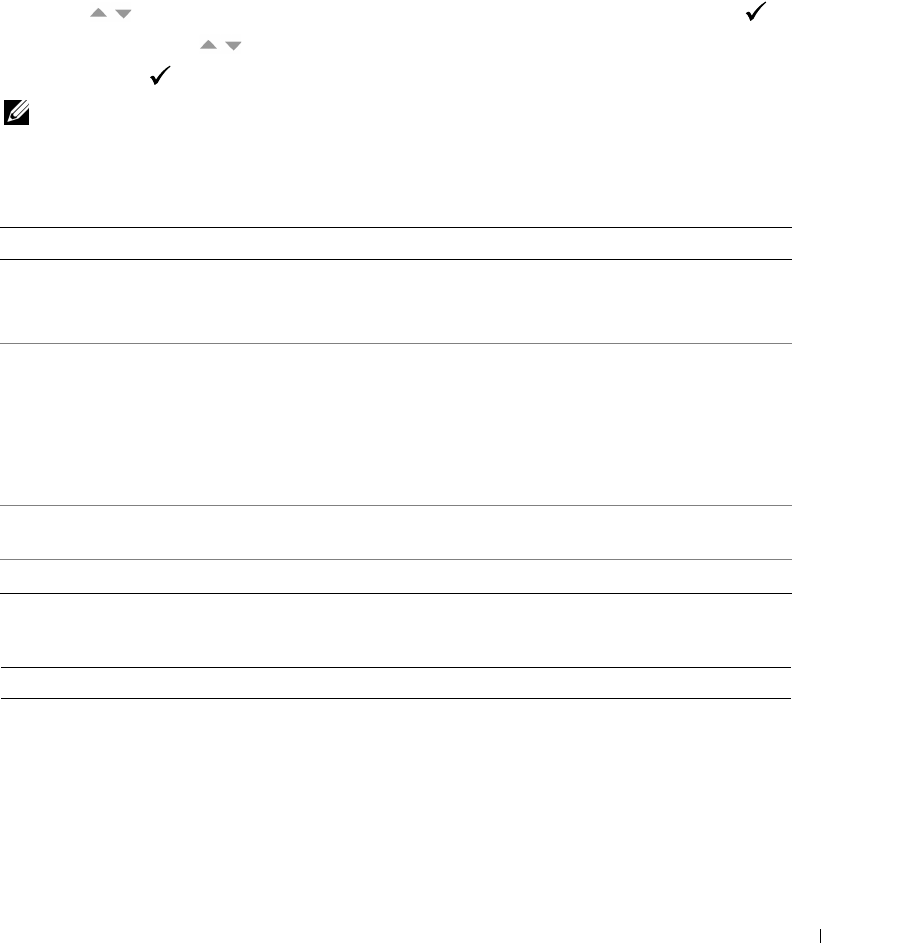
Open the top paper tray cover.
3
Open the bottom paper tray cover by grasping the sides as indicated by the arrows. Do not
insert your fingers under the cover to open it.
Arrows

16 Getting Started
www.dell.com | support.dell.com
4
Fan the photo paper to keep the sheets from sticking together.
5
Load the photo paper into the paper tray, with the glossy side up and the Dell logo side down.
NOTE: Do not load more than 20 sheets of photo paper in the paper tray. Do not load photo paper that is
missing perforated tabs. To avoid fingerprints, hold the photo paper by the edges and do not touch the
glossy side of the paper.
6
Close the bottom paper tray cover. The top paper tray cover must remain open; it catches
finished prints.
7
Open the paper tray door.
8
With the top paper tray cover open, insert the paper tray into the printer.
Getting Started 17
Changing Settings—Press Menu
Press the
Menu
button to customize your photo and printer settings.
Select Menu Items
1
Press the
Menu
button.
2
Press until the menu heading you want appears on the display, then press
Select
().
3
Continue scrolling until the option you want is highlighted.
4
Press
Select
( ) and follow the directions on the LCD.
NOTE: The option currently selected is noted with a checkmark.
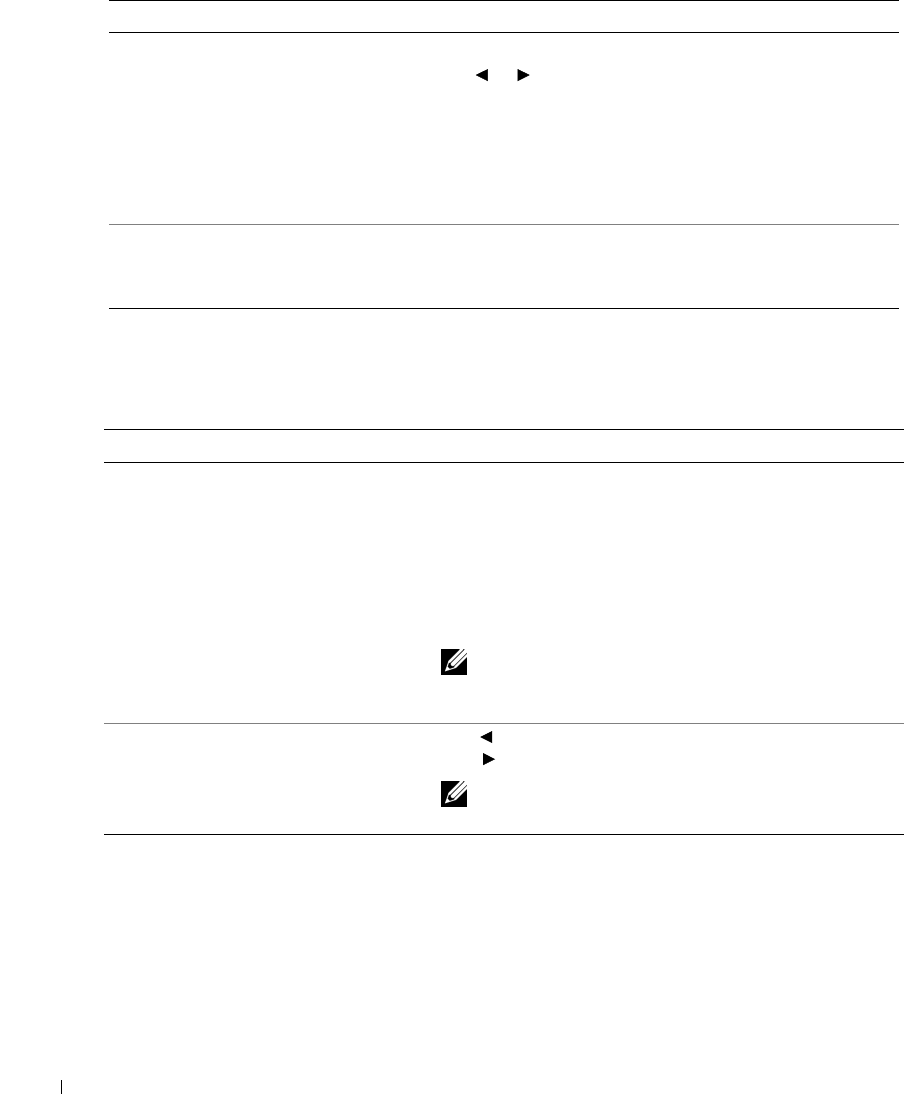
Print Options Menu
Photo Quality Menu
From the Print Options sub-menu: You can:
PRINT Specify a print mode:
•
Color
(default)
•
Black and White
LAYOUT Specify a print layout for an entire print job:
•
1 4x6 (10 x 15 cm) photo/sheet
(default)
•
1 3.5x5 (9 x 13 cm) photo/sheet
•
2 photos/sheet (54 x 85 mm)
•
4 photos/sheet (wallet setting, 51 x 76 mm)
•
9 photos/sheet (34 x 50.7 mm)
PRINT INDEX Prints an index (thumbnail) of all photos on your card
(maximum 25 thumbnails per sheet).
PRINT ALL Print all photos on your memory card.
From the Photo Quality sub-menu: You can:
AUTO BRIGHTNESS Specify automatic brightness control for all your photos:
•
On
(default)
•
Off
18 Getting Started
www.dell.com | support.dell.com
Photo Display Menu
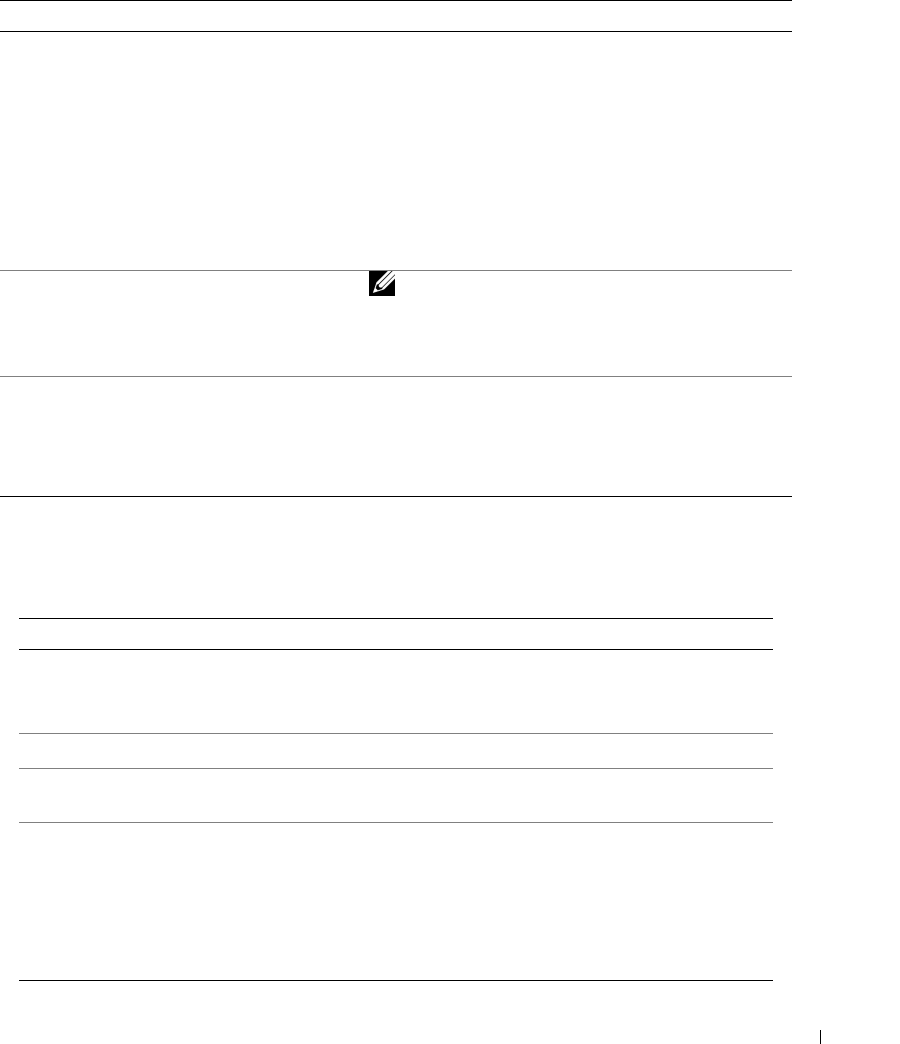
PHOTO BRIGHTNESS Change the brightness level (for the current photo only).
Press :
•
Brightest
•
Brighter
•
Normal
(default)
•
Darker
•
Darkest
COLOR MODE Specify natural or vivid colors:
•
Natural
(default)
•
Vivid
From the Photo Display sub-menu: You can:
SLIDE SHOW Sequentially display all photos on the installed card. Specify
how long each photo is displayed. The slide show begins with
the photo most recently displayed
•
3 seconds
(default)
•
5 seconds
•
10 seconds
Press Cancel to stop the slide show.
NOTE: To print any photo while it is displayed, press Print
Color or Print Black and White. Follow the directions on the
display to cancel or resume the slide show.
ROTATE Press to rotate the current photo counterclockwise.
Press to rotate the current photo clockwise.
NOTE: The Rotate feature changes the orientation of the
photo on the screen, not in print.
From the Photo Quality sub-menu: You can:
or
Getting Started 19
Photo Management Menu
Printer Settings Menu
From the Photo Management sub-menu: You can:
PHOTO NAVIGATION Specify what is displayed on the LCD when you install a
card or camera: the main photo view or your card/camera
folder structure.
•
Photo View
(default)—display individual photos on
the installed card or camera, starting with the current or
most recent photo.
•
Folder View
—displays the folder structure on the
installed card, if present. Navigate as you would on a
computer. If there are no folders, navigation defaults to
Photo View.
ERASE ALL PHOTOS NOTE: This function permanently erases all photos
from your card.
•
Erase All Photos from Memory
•
Cancel
SAVE TO PC Establishes a connection with your computer that allows
you to save photos from your memory card, USB storage
device, or camera directly to the computer. Same
functionality as pressing the Save to PC button. For
details, see page 28.
From the Printer Settings sub-menu: You can:
RESTORE DEFAULTS Reset all photo and printer settings to the defaults.
•
Yes
•
No
LANGUAGE Select a language for the display.
COUNTRY Select your country; this provides a number to order
Dell photo print packs.
POWER SAVE Specify how long the printer remains inactive before
entering auto sleep mode.
•1 Minute
•5 Minutes
• 10 Minutes
(default)
• 15 Minutes
20 Getting Started
www.dell.com | support.dell.com
Maintenance Menu
From the sub-menu: You can:
PRINTS REMAINING Check if the photo cartridge is low; if so, directions
are displayed.
•
6-15 prints remaining
•
1-5 prints remaining
•
0 prints remaining
CHANGE CARTRIDGE Display directions for changing the photo cartridge.
ADD PHOTO PAPER Display directions for adding photo paper.
PRINTER DIAGNOSTICS Help diagnose print quality problems and provide
printer identification information.
•
Test Print
•
Service Tag
—display your printer’s service tag
identification information.

Using Your Printer 21
2
Using Your Printer
Printing Without a Computer
This section describes how to print directly from a memory card, USB storage device, or PictBridge-
enabled or other compatible camera.
Printing Tips
• Before you print, make sure the power is connected, and the photo cartridge and photo paper
are loaded. For help, see your
Setting Up Your Printer
poster.
• Printing starts when you press
Print
. The photo paper cycles 4 times during the printing
process. The first 3 passes apply layers of yellow, magenta, and cyan color. The fourth pass
applies the Dell Clear Life Coating that protects and preserves the photo.
NOTE: If you remove the card or disconnect the camera during printing, then printing will stop when the
current photo is printed.
• For advanced print options (color and auto brightness, layouts, index prints, etc.), press the
Menu
button. For help, see page 17.
NOTICE: Wait until a print is finished before removing it from the paper tray. Failure to do so can cause
paper misfeeds or jams and can damage the printer.
NOTICE: Do not load more than 20 sheets into the paper tray.
Printing From a Memory Card
You can print directly from a CF (CompactFlash), SD (Secure Digital), MS (Memory Stick),
MMC (MultiMedia Card), or SM (Smart Media), or a USB memory key.
NOTE: Your printer reads only one memory source at a time. Printing is disabled if multiple sources
(cards or camera) are loaded or connected.
22 Using Your Printer
www.dell.com | support.dell.com
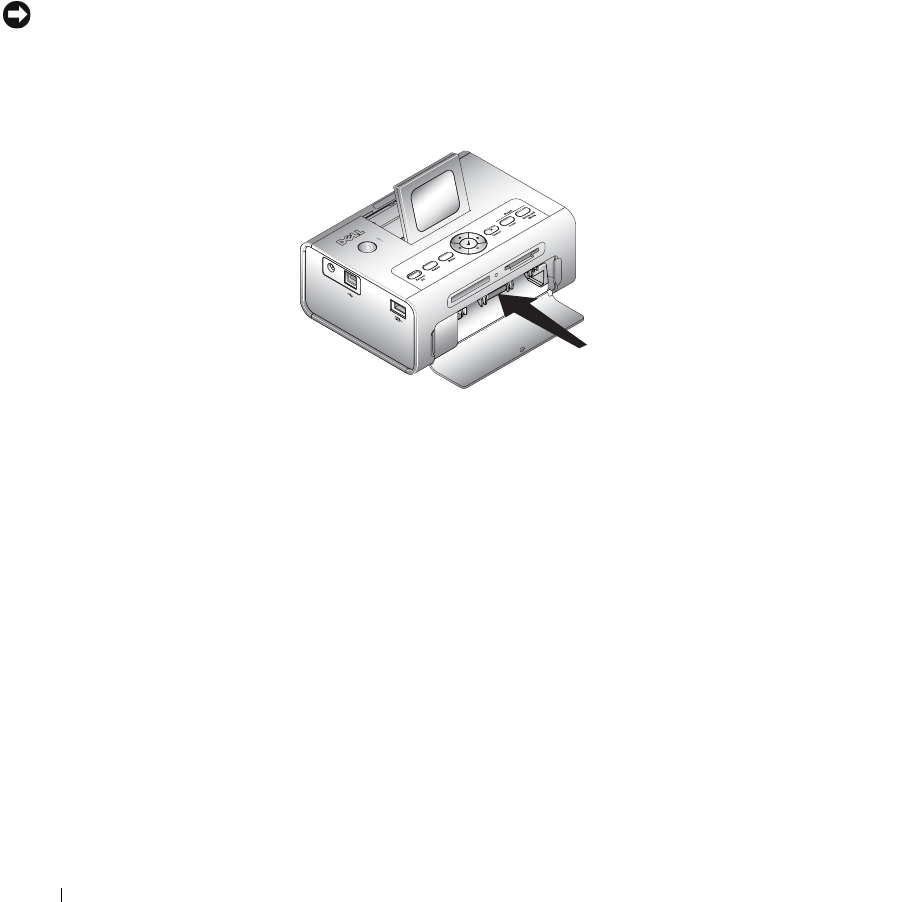
Inserting Memory Cards
NOTICE: Insert memory cards with the memory card label facing up.
NOTE: When you insert a memory card, a drive will appear on your computer. The photos on the memory
card will not appear in this drive until you press Save to PC.
NOTE: Only photos within the first five levels of folders are displayed in Photo View mode. Use Folder
View mode to navigate photos at deeper levels.
Selecting Photos to Print
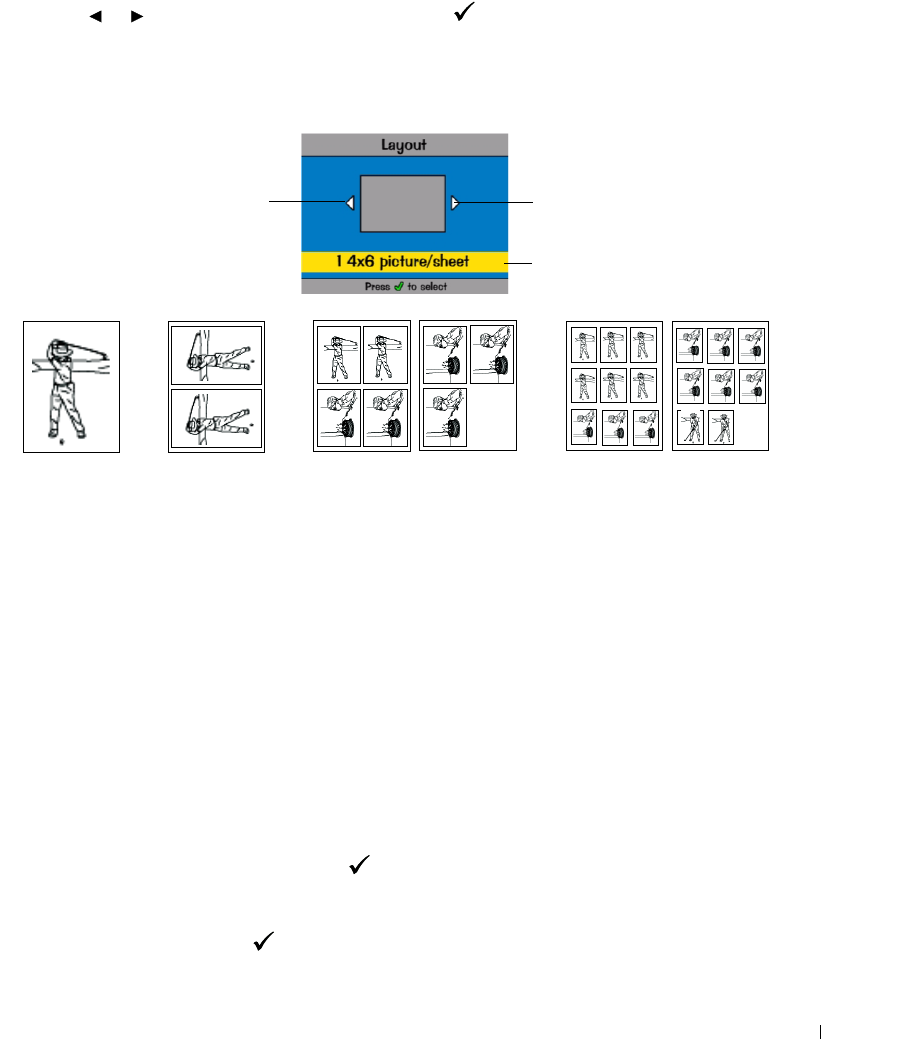
1
Press to scroll through photos. Press to select a photo for printing. (Press a
second time to deselect that photo.)
2
For more than one copy of any photo, press to increase or decrease the number of
copies. Selecting zero (0) deselects the photo for printing.
3
To select more photos to print, repeat Steps 1 and 2.
To deselect all photos, press
Cancel
for 2 seconds.
4
Press
Print
Color
or
Print Black and White
to begin printing all selected photos.
After the print job is complete, all photos are deselected.
CF card
SM, MS, MMC,
SD cards
or
or
Photo number Prints remaining
View previous photo View next photo
Photo is selected
on photo cartridge
Increase or decrease
number of copies of
current photo
Using Your Printer 23
Choosing a Layout Option
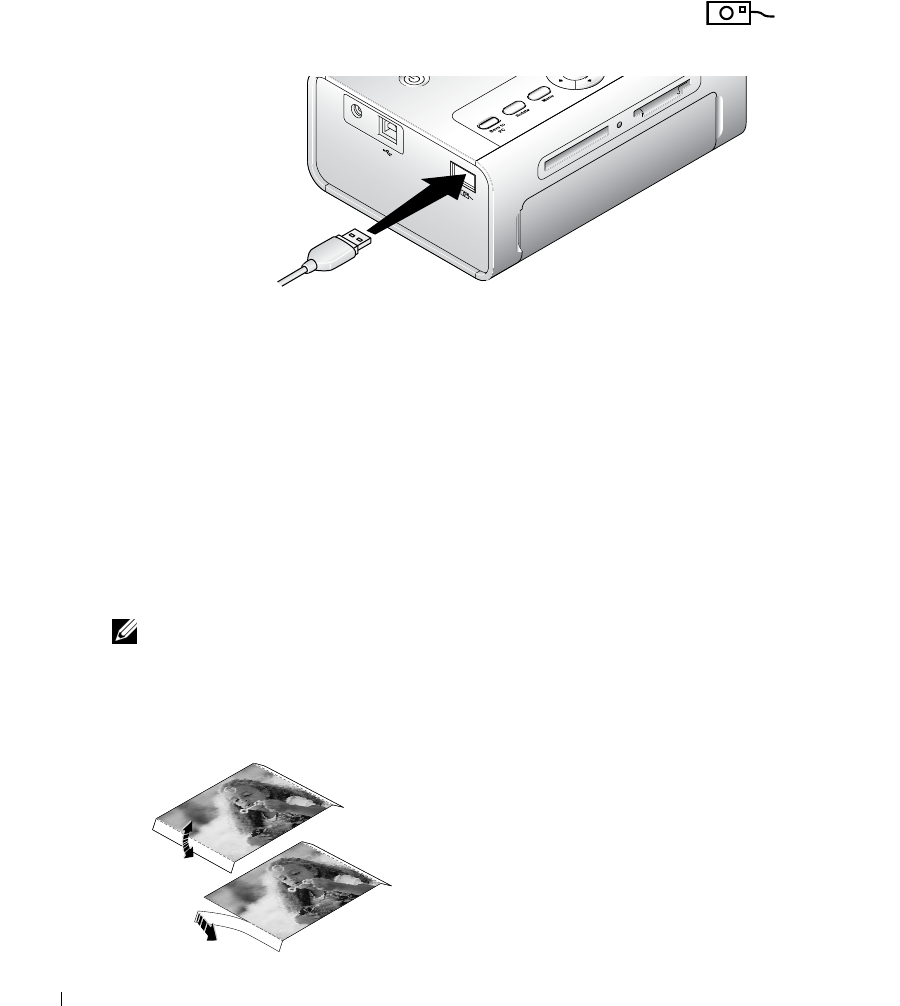
1Press the Menu button, then select Print Options → Layout.
2
Press to scroll through photo layouts. Press to select a layout.
3
Press
Print
Color
or
Print Black and White
to begin printing all selected photos.
The selected layout applies to this print job only. The layout then reverts to the default
1-up 4x6 photo.
Printing a Print Order (Pre-Selected Photos)
When you pre-select, or tag, photos for printing on your camera, you create a print order (DPOF:
Digital Print Order File). Your printer detects the print order and automatically displays the set of
photos, allowing one-touch printing.
1
Insert your memory card.
If your card contains a print order, this message is displayed:
A print order was found. View camera photo selections?
View Selected
(Displays selected photos only.)
View All
(Displays all photos on the card.)
2
Highlight a choice, then press
Select
().
3
If
View Selected
was the selected choice, all photos in the print order are displayed as already
selected. Press
Print Color
or
Print Black and White
to print the photo selections defined by
the print order or use the button to make changes to the print order. If
View All
was the
selected choice, select photos to print as described in "Selecting Photos to Print" on page 22.
or
View previous layout View next layout
Current layout
1-up 2-up 4-up 9-up
2 copies of Photo 1;
5 copies of Photo 2
6 copies of Photo 1;
9 copies of Photo 2;
2 copies of Photo 3
Examples:
2 copies
of Photo 1
24 Using Your Printer
www.dell.com | support.dell.com
Printing From Your Pictbridge-enabled or Other Compatible Camera
You can print photos from any PictBridge-enabled camera or other compatible device. Make sure
the card slots are empty before you plug in the camera cable.
1
Plug the USB cable from the camera into the camera port connector on the side of
the printer.
If a photo is printing when you plug the camera cable in, the camera is detected when
printing is completed.
2
If your camera is PictBridge enabled, then use your camera display to review photos, choose
printing options, and print. (If your camera is not PictBridge enabled, then use your printer
LCD.)
Canceling Printing
To stop printing, press
Cancel
and follow the directions on the LCD.
Printing is canceled upon completion of the current printing pass. The unfinished print is ejected
into the paper tray.
Removing Perforated Tabs From Prints
NOTE: Remove perforated tabs from prints only after printing. Photo paper missing perforated tabs will
not feed properly.
1
Fold the tabs up, then down.
2
Remove and discard each tab.
Using Your Printer 25
Printing With a Computer
Printing Tips
See page 21 for helpful printing tips.
Windows-Based Operating System Requirements
Minimum Recommended
Windows 2000 Professional, Service
Pack 2 and 3
Windows XP Home Edition and Home Edition,
Service Pack 1.
Windows XP Professional and Professional, Service
Pack 1
Pentium II processor Pentium IV processor
200 MHz 2.0 GHz
48 MB RAM 256 MB RAM
100 MB available free space 500 MB available free space
USB port USB port
CD-ROM CD-ROM
800 x 600 display [16 bit] 1024 x 768 (32 bit)
26 Using Your Printer
www.dell.com | support.dell.com
Installing Printer Drivers and Software
1
Make sure the power cable is connected to the printer and the printer is on.
2
Insert the
Drivers and Utilities
CD into your computer.
3
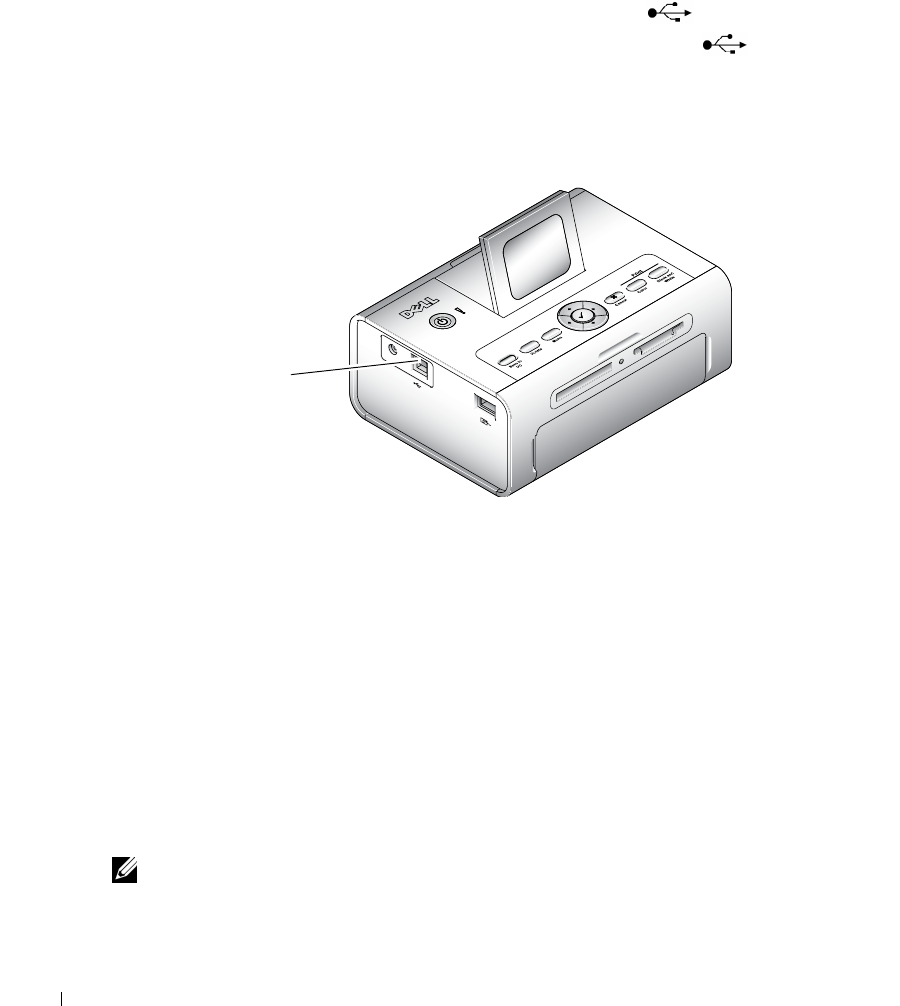
Plug the USB cable (sold separately) into the USB connector on your computer.
4
Plug the other end of the USB cable into the square USB connector on the printer.
5
Follow the on-screen instructions to install the printer drivers and printer documentation.
Select
Ty p i c a l
to install all components. Select
Custom
to install specific components.
6
Insert the remaining two CDs, one at a time, to install your photo editing software programs.
Follow the on-screen instructions on the printer.
Printing From a Computer
To Print
1
Turn on your computer and printer, and make sure they are connected with a USB cable.
2
Using your preferred application, open the photos you want to print.
3
Access printer settings by selecting
Print
or
Page Setup
from the
File
menu (depending on
your application and operating system).
4
Make sure the printer is selected as the current printer and that the paper size is set to
4 x 6 in. (102 x 152 mm).
5
Change any other settings as needed, then click
OK
or
Print
. (Depending on your application
and operating system, you may first need to return to the main menu and select
Print
from
the
File
menu.)
NOTE: Print selections made from the printer in standalone mode (use of printer without a computer) are
not used when you send a print job from the computer.
USB connector
to PC

Using Your Printer 27
Choosing a Color Mode
Color mode is an automatic color correction feature that helps you easily create high-quality prints
in no time. The Dell Photo Printer 540 features three color mode options:
Natural—
high-quality, natural color for everyday photo-making (default).
Vivid—
richer, more vivid colors.
None—
to disable automatic color correction.
Change the color mode:
1
From the
Start
menu, select
Settings
, then select
Printers
.
2
Right-click the
Photo Printer
icon, then select
Printing Preferences
.
3
Click the
Advanced
button.
4
Under Document Options, select
Printer Features
, then select
Color Mode
.
5
Select a color mode option, then click
OK
.
6
Click
OK
when complete.
Canceling printing
You can cancel printing from the printer or from the computer.
Canceling Printing From the Printer
Press the
Cancel
button on the printer.
Canceling Printing From a Computer:
1
Double-click the
Printer
icon in the system tray.
2
Click the print job you want to cancel.
3
Select
Document
, then select
Cancel
.

28 Using Your Printer
www.dell.com | support.dell.com
Saving and Copying Photos to Your Computer
1
With the printer turned on, insert a memory card in the appropriate slot or connect a camera
(not PictBridge enabled) via the camera port connector .
2
Press the
Save to PC
button on the printer.
If you have loaded Photo Manager software, the Photo Manager Wizard launches. Follow the
prompts to transfer photos to your computer using the Photo Manager software.
If Using Windows Explorer
1
Double-click the
My Computer
icon on your desktop (or right-click the
Start
button and
select
Explore
).
2
Double-click the
Removable Disk
icon. (The exact drive letter depends on your system.)
3
Navigate to the appropriate directory for your photos. (If the card came from a digital camera,
the photos are stored in /DCIM/<camera name>/.)
4
Double-click a photo to open it in your default application.

Care and Maintenance 29
3
Care and Maintenance
CAUTION: Before performing any of the procedures listed in this section, read and follow the Safety
Instructions on page 9.
General Care of the Printer
NOTICE: Always disconnect the power before cleaning. Do not use harsh or abrasive cleaners or organic
solvents on the printer or any of its parts.
• To clean the printer, wipe the outside of the printer with a clean, dry cloth.
• Support the printer and tray by placing it on a flat, level surface. Do not block the air vents.
• Avoid blocking the back of the printer and paper tray exit.
• Keep power cables and USB cables away from the paper path.
• Keep the surrounding area vacuumed and litter-free.
• Protect the printer from tobacco smoke, dust, sand, and liquid spills.
• Avoid placing objects on the printer.
• Keep the printer, accessories, and supplies away from direct sunlight and out of high-
temperature environments such as a vehicle parked in the sun.
• When storing, remove the paper tray, then close the paper tray cover (see page 15) and paper
tray door to keep out dust and debris. Store photo paper flat.
30 Care and Maintenance
www.dell.com | support.dell.com
Cleaning the Paper Feed Roller
To prevent misfeeds and to make sure your photos are the best quality, keep the feed roller clean. Inspect the
roller weekly for debris particles, and clean if necessary.
1
Unplug the AC power adapter.
2
Remove the paper tray from the printer, and leave the paper tray door open.
3
Lightly moisten a lint-free cloth with water.
NOTICE: Do not use cotton or cotton swabs to clean the feed roller.
4
Use the moistened cloth to gently wipe clean the surface of the feed roller. Advance the feed roller with
your thumb as necessary, and continue cleaning.
5
Allow the feed roller to fully dry before plugging the AC power adapter back in.
Handling and Storing the Photo Paper and Photo Cartridge
• For best quality prints, store the photo paper and photo cartridge in a location where the temperature does
not exceed 85
°
F (30
°
C).
• To avoid getting fingerprints on the ribbon, handle the photo cartridge by the spool ends.
• To avoid fingerprints on your prints, handle the photo paper by the edges or by the perforated tabs. Do not
touch the glossy side of the paper.
• When storing the printer, remove the paper tray, then close the paper tray cover and paper tray door to keep
out dust and debris. Store paper flat.
• Keep the photo paper and photo cartridge away from direct sunlight and out of high-temperature
environments such as a vehicle parked in the sun.
Troubleshooting 31
4
Troubleshooting
Setup Problems
If you experience problems while setting up your printer, make sure:
• You select your language and default country, and then press
Select
on the operator panel. If
you skipped selecting your language or default country during the setup process, see: "Default
Country Was Not Set" on page 32.
• Your operating system is compatible with your printer. The Dell Photo Printer 540 supports
Windows XP and 2000.
PRINTER DOES NOT PRINT
• Make sure the photo cartridge is properly installed and there is photo paper in the tray.
• Use an undamaged USB cable.
• Check your printer status to make sure your photo is not being held in the print queue or paused. To
check printer status:
•Click
Start
→
Control Panel
→
Printers and Other Hardware
→
Printers and Faxes
(Windows XP).
C
lick
Start
→
Settings
→
Printers
(Windows 2000).
•Double-click the
Dell Photo Printer 540
icon, and then click
Printer
.
•Click
Printer
, and make sure no check mark appears next to
Pause Printing
.
• A camera is properly connected.
• A memory card is properly inserted (label side up, fully inserted into the proper slot).
•Print a test page:
•Click
Start
→
All Programs
(or
Programs
)
→
Dell
Printers
→
Dell
Photo Printer 540
→
Printing
Preferences
.
•Click the
Maintenance
tab.
• From the Maintenance tab, click
Print Test Page
.
DISPLAY LANGUAGE IS INCORRECT —
If the language on the printer display is not the language you
prefer, change the language:
1
Click
Menu
→
Printer Settings
→
Language
.
2
Use the navigation arrow buttons until
Language
appears on the display, then press .
3
Use the navigation arrows and
buttons to set your language as the default.

32 Troubleshooting
www.dell.com | support.dell.com
General Problems
Error Messages
If an error occurs, the Error light glows amber and an error message is displayed on the printer
LCD. Follow the directions on the LCD to resolve the problem.
DEFAULT COUNTRY WAS NOT SET—
If you did not select the default country during the setup process:
1
Click
Menu
→
Printer Settings
→
Country
.
2
Use the navigation arrow buttons until the desired country appears on the display, then press .
3
Use the navigation arrows and
buttons to set your country as the default.
CAMERA AND PRINTER DO NOT COMMUNICATE.
Make sure camera is in the correct file transfer mode. See you camera Owner's Manual.
ANYTIME YOUR PRINTER HAS A PROBLEM, MAKE SURE:
• Your printer is on.
• The photo paper is loaded correctly. For help, see "Loading the Photo Paper" on page 15.
• Unplug the power supply from the electrical outlet. Reconnect the power supply (see your
Setup
Diagram
). Turn the power on.
IF YOUR PRINTER IS
NOT
ATTACHED TO A COMPUTER, MAKE SURE:
• You read and follow any messages on the LCD.
• The power supply is plugged into your printer and an electrical outlet.
IF YOUR PRINTER
IS
ATTACHED TO A COMPUTER, MAKE SURE:
• The USB cable is securely attached to your computer and to your printer. For help, see the
Setting Up
Yo u r P r i n t e r
poster.
• Both your computer and your printer are on.
• The Dell Photo Printer 540 is the selected printer. (It should not be set as the default if there is
another printer connected.)
• Restart your computer. If problems persist, see “Uninstalling and reinstalling the software” in your
User’s Guide
. For help accessing your
User’s Guide
, see page 11.
Troubleshooting 33
Printing Problems
PHOTO PAPER DOES NOT FEED
NOTE: Use only Dell photo paper from a Dell Photo Print Pack for your printer. Do not use inkjet paper
or any other paper.
The paper tray may be empty. Load photo paper (page15) and re-install the paper tray. Check the photo
paper:
1
Remove the paper tray (page 15).
2
Inspect the paper supply: make sure photo paper is not damaged in any way, or removable tabs have not
been detached. Replace with new photo paper if necessary.
3
Carefully “fan” the photo paper to keep the sheets from sticking together.
4
Reload the paper tray
using no more than 20 sheets
.
5
Re-install the paper tray, then press to resume printing.
Clean the paper feed roller (page 30).
MULTIPLE SHEETS OF PHOTO PAPER ARE PULLED THROUGH PRINTER—
Remove the paper tray (page 15).
1
Remove the paper supply from the paper tray.
2
Carefully “fan” the photo paper to keep the sheets from sticking together.
3
Reload the paper tray using
no more than 20 sheets
.
4
Re-install the paper tray, then press
Print
to resume printing.
PRINTER IS JAMMED
NOTE: Use only Dell photo paper from a Dell Photo Print Pack for your printer. Do not use inkjet paper
or any other photo paper.
• If the Error indicator light is lit:
1
Remove the paper tray (page 15).
2
Disconnect the AC power adapter, wait 5 seconds, then plug it back in.
If the paper does not automatically eject, carefully remove the paper manually.
NOTE: Always check the paper slot on the back of the printer for jammed paper:
3
Remove the paper supply from the paper tray. Carefully “fan” the paper to keep the sheets from sticking
together.
4
Reload the paper tray using
no more than 20 sheets
.
5
Re-install the paper tray, then press to resume printing.
• If the Error light is still lit, check the photo cartridge:
NOTE: The photo cartridge may lock in place if there is a paper error. Do not attempt to remove the
photo cartridge without first clearing the paper jam.
Remove the photo cartridge, remove any slack from the ribbon, then re-install the photo cartridge
(page 14). Press
Print
to resume printing.
34 Troubleshooting
www.dell.com | support.dell.com
PRINTING STOPS DURING MID-PRINT (PAPER STOPS FEEDING, AND ERROR INDICATOR LIGHT IS ON)
NOTE: Use only Dell photo paper from a Dell Photo Print Pack for your printer. Do not use inkjet paper
or any other photo paper.
• Check the photo paper:
1
Remove the paper tray.
2
Check the paper slot on the back of the printer.
3
Remove loose paper from the printer.
4
Inspect the paper supply: make sure removable tabs have not been detached from the photo paper.
Reload with new photo paper if necessary.
5
Carefully “fan” the photo paper to keep the sheets from sticking together.
6
Reload the paper tray using
no more than 20 sheets
.
7
Re-install the paper tray, then press to resume printing.
• Clean the paper feed roller (page 30).
PRINT IS SMUDGED
Fingerprints may be on glossy side of paper. Handle paper by the edges or by the removable tabs.
PRINT IS SPOTTED
Check to see if the photo paper is dirty, and use a dry, lint-free cloth to wipe clean. For excessive dirt or
debris, thoroughly clean the paper tray, and load new photo paper (page 15).
NOTE: When storing photo paper, remove and close the paper tray and close the paper tray door on
the printer. These steps keep dust and debris from collecting on the photo paper or inside the printer.
PRINT IS TOO LIGHT
NOTE: Use only Dell photo paper from a Dell Photo Print Pack for your printer. Do not use inkjet paper
or any other photo paper.
• Photo brightness can be changed by selecting Photo Quality--> Photo Brightness (page 17) or -->
Automatic photo brightness.
• Make sure the photo paper is loaded with the Dell logo facing down. Reload if necessary (page 15).
• Try re-taking the photo with the flash off. See your camera user’s guide for details.
• Adjust the exposure compensation on your camera (if available), and try re-taking the photo. See your
camera user’s guide for details.
• Edit the photo using Dell Photo Imaging software on your computer. See the Photo Imaging software
Help for details.

Troubleshooting 35
PRINT IS TOO DARK OR IS DISCOLORED
• Photo brightness can be changed by selecting Photo Quality--> Photo Brightness (page 17) or -->
Automatic photo brightness.
• Try re-taking the photo with the flash on, or move within the flash range of the camera. See your camera
user’s guide for details.
• Adjust the exposure compensation on your camera (if available), and try re-taking the photo. See your
camera user’s guide for details.
• Edit the photo using Dell Photo Imaging software on your computer. See the Photo Imaging software
Help for details.
• Make sure the printer is not placed in direct sunlight or is not operating in a high-temperature
environment.
• Make sure the cooling vents are not blocked or dirty (page 13).
PHOTOS ARE CROPPED
• Set your camera to Best (3:2) photo quality, if available. See your camera user’s guide for details.
• Adjust cropped photos using Dell Photo Imaging software on your computer.
• If you are printing from an application on your computer, select the proper paper size in print options.
A SELECTED PHOTO DOES NOT PRINT
The image file may be corrupt. Review the photo on the camera, LCD, or computer and delete if necessary.
NOTHING HAPPENS WHEN YOU TRY TO PRINT FROM A MEMORY CARD
• Check the power connections. See the
Setting Up Your Printer
poster.
• Remove the paper tray, check that photo paper is properly loaded, and re-install (page 15).
• Make sure the photo cartridge is properly installed (page 14).
• Make sure a memory card is inserted and that there is at least one photo on the memory card (page 21).
NOTHING HAPPENS WHEN YOU TRY TO PRINT FROM PICTBRIDGE OR OTHER COMPATIBLE CAMERA
• Check the USB connections from the camera to the printer (page 24).
• Re-establish the connection: disconnect, then reconnect the USB cable from the camera to the printer.
• Make sure there is at least one photo in the camera’s internal memory or memory card.

36 Troubleshooting
www.dell.com | support.dell.com
NOTHING HAPPENS WHEN YOU TRY TO PRINT (FROM COMPUTER)
• Check the USB connections from the printer to the computer (page 26).
• The computer may be transferring images. Wait a few seconds, then try again.
• Access the printer menu for your system. Remove check marks next to Pause Printing and Offline, if
checked.
• Close unnecessary software applications. Disconnect then reconnect the USB cable from the printer to
the computer (page 26).
• Make sure Drivers and Utilities software is installed (page 25). Install if necessary.
• Uninstall, then reinstall Drivers and Utilities software (page 25).
• Make sure your computer meets the minimum system requirements (page 25). Upgrade your system if
necessary.
PRINTING IS SLOW—
NOTE: When printing a large number of prints, printing may slow down to prevent the print head from
overheating.
• Make sure the printer is not placed in direct sunlight or is not operating in a high-temperature
environment.
• Make sure the cooling vents are not blocked or dirty (page 13).
• Close unnecessary software applications.
• Make sure your computer meets the minimum system requirements (page 25). Upgrade your system if
necessary.
UNABLE TO REMOVE PHOTO CARTRIDGE (ERROR LIGHT GLOWS STEADY.)
NOTE: The photo cartridge may lock in place if there is a paper error. Do not attempt to remove the
photo cartridge without first clearing the paper error.
• Check to see if the paper tray is empty or if paper is missing perforated tabs. Reload photo paper if
necessary (page 15), then try again.
• Make sure photo paper is not jammed. Clear the jam if necessary, then try again.
PHOTO PAPER RUNS OUT BEFORE THE PHOTO CARTRIDGE (OR VICE VERSA)
• Supply mismatch can result from several different situations, including:
• Scrapping of photo paper as a result of jams or other errors
• Gradual advancement of the print ribbon as a result of removing ribbon slack or clearing jams
Supply mismatch is likely to occur as you continue to use your printer. If you wish to keep your photo
cartridge and photo paper supply synchronized, discard unused photo cartridge or photo paper when one or
the other is fully depleted.

Troubleshooting 37
Transfer/communication problems
More Troubleshooting Options
Go to
support.dell.com
for help.
NOTHING HAPPENS WHEN YOU TRY TO TRANSFER PHOTOS TO THE COMPUTER
•Press the
Save to PC
button on the printer.
• Check the power and USB connections from the printer to computer (page 26).
• If you are trying to transfer photos from a PictBridge-enabled camera (page 24), check the USB
connections between the printer and the camera.
• Close unnecessary software applications, and minimize remaining application windows. Follow any
messages on the screen that may have been hidden by other windows.
• Disconnect then reconnect the USB cable from the printer to the computer (page 26).
• Make sure Drivers and Utilities software is installed (page 26). Install if necessary.
• Uninstall, then reinstall Drivers and Utilities software (page 26).
• Make sure your computer meets the minimum system requirements (page 25). Upgrade your system if
necessary.
•

38 Troubleshooting
www.dell.com | support.dell.com

Contacting Dell 39
5
Contacting Dell
Technical Assistance
If you need help with a technical problem, Dell is ready to assist you.
1
Call technical support from a telephone near or at the printer so that technical support can
assist you with any necessary procedures. When calling Dell, use your Express Service Code to
help expedite the routing of your call to the proper support personnel.
The Express Service Code is located on data plate on the bottom of the printer.
NOTE: Dell's Express Service Code system may not be available in all countries.
2
In the U.S., Business customers should call 1-877-459-7298, and Consumer (Home and
Home Office) customers should call 1-800-624-9896.
If you are calling from a different country or are in a different Service area, see "Contacting
Dell" for your local telephone number.
3
Follow the menu prompts in the automated telephone system to speak with a technical
support representative.
Automated Order-Status Service
To check on the status of any Dell™ products that you have ordered, you can go to
support.dell.com
,
or you can call the automated order-status service. A recording prompts you for
the information needed to locate and report on your order. See "Contacting Dell" for the telephone
number to call for your region.
Contacting Dell
To contact Dell electronically, you can access the following websites:
• www.dell.com
•
support.dell.com
(technical support)
•
premiersupport.dell.com
(technical support for educational, government, healthcare, and
medium/large business customers, including Premier, Platinum, and Gold customers)
For specific web addresses for your country, find the appropriate country section in the table below.
NOTE: Toll-free numbers are for use within the country for which they are listed.
40 Contacting Dell
www.dell.com | support.dell.com
When you need to contact Dell, use the electronic addresses, telephone numbers, and codes
provided in the following table. If you need assistance in determining which codes to use, contact a
local or an international operator.
Country (City)
International Access Code
Country Code
City Code
Department Name or Service Area,
Website and E-Mail Address
Area Codes,
Local Numbers, and
Toll-Free Numbers
Anguilla General Support
toll-free: 800-335-0031
Antigua and Barbuda General Support
1-800-805-5924
Argentina (Buenos Aires)
International Access Code: 00
Country Code: 54
City Code: 11
Website: www.dell.com.ar
E-mail: us_latin_services@dell.com
E-mail for desktop and portable computers:
la-techsupport@dell.com
E-mail for servers and EMC:
la_enterprise@dell.com
Customer Care
toll-free: 0-800-444-0730
Tech Support
toll-free: 0-800-444-0733
Tech Support Services
toll-free: 0-800-444-0724
Sales
0-810-444-3355
Aruba General Support
toll-free: 800-1578
Australia (Sydney)
International Access Code: 0011
Country Code: 61
City Code: 2
E-mail (Australia): au_tech_support@dell.com
E-mail (New Zealand): nz_tech_support@dell.com
Home and Small Business
1-300-65-55-33
Government and Business
toll-free: 1-800-633-559
Preferred Accounts Division (PAD)
toll-free: 1-800-060-889
For servers and storage
toll-free: 1-800-505-095
For desktop and portable computers
toll-free: 1-800-733-314
Customer Care
toll-free: 1-800-819-339
Corporate Sales
toll-free: 1-800-808-385
Tran saction Sales
toll-free: 1-800-808-312
Fax
toll-free: 1-800-818-341

Contacting Dell 41
Austria (Vienna)
International Access Code: 900
Country Code: 43
City Code: 1
Website: support.euro.dell.com
E-mail: tech_support_central_europe@dell.com
Home/Small Business Sales
0820 240 530 00
Home/Small Business Fax
0820 240 530 49
Home/Small Business Customer Care
0820 240 530 14
Preferred Accounts/Corporate Customer Care
0820 240 530 16
Home/Small Business Technical Support
0820 240 530 14
Preferred Accounts/Corporate Technical Support
0660 8779
Switchboard
0820 240 530 00
Bahamas General Support
toll-free: 1-866-278-6818
Barbados General Support
1-800-534-3066
Belgium (Brussels)
International Access Code: 00
Country Code: 32
City Code: 2
Website: support.euro.dell.com
E-mail for French Speaking Customers:
support.euro.dell.com/be/fr/emaildell/
Technical Support
024819288
Technical Support Fax
024819295
Customer Care
0271315.65
Corporate Sales
024819100
Fax
024819299
Switchboard
024819100
Bermuda General Support
1-800-342-0671
Bolivia General Support
toll-free: 800-10-0238
Brazil
International Access Code: 00
Country Code: 55
City Code: 51
Website: www.dell.com/br
Customer Support, Technical Support
0800 90 3355
Technical Support Fax
51 481 5470
Customer Care Fax
51 481 5480
Sales
0800 90 3390
British Virgin Islands General Support
toll-free: 1-866-278-6820
Brunei
Country Code: 673
Customer Technical Support (Penang, Malaysia)
604 633 4966
Customer Service (Penang, Malaysia)
604 633 4949
Transaction Sales (Penang, Malaysia)
604 633 4955
Country (City)
International Access Code
Country Code
City Code
Department Name or Service Area,
Website and E-Mail Address
Area Codes,
Local Numbers, and
Toll-Free Numbers

42 Contacting Dell
www.dell.com | support.dell.com
Canada (North York, Ontario)
International Access Code: 011
Online Order Status: www.dell.ca/ostatus
AutoTech (automated technical support)
toll-free: 1-800-247-9362
Customer Care (Home Sales/Small Business)
toll-free: 1-800-847-4096
Customer Care (med./large business, government)
toll-free: 1-800-326-9463
Technical Support (Home Sales/Small Business)
toll-free: 1-800-847-4096
Technical Support (med./large bus., government)
toll-free: 1-800-387-5757
Sales (Home Sales/Small Business)
toll-free: 1-800-387-5752
Sales (med./large bus., government)
toll-free: 1-800-387-5755
Spare Parts Sales & Extended Service Sales
18664403355
Cayman Islands General Support
1-800-805-7541
Chile (Santiago)
Country Code: 56
City Code: 2
Sales, Customer Support, and Technical Support
toll-free: 1230-020-4823
Country (City)
International Access Code
Country Code
City Code
Department Name or Service Area,
Website and E-Mail Address
Area Codes,
Local Numbers, and
Toll-Free Numbers

Contacting Dell 43
China (Xiamen)
Country Code: 86
City Code: 592
Technical Support website: support.dell.com.cn
Technical Support E-mail: cn_support@dell.com
Technical Support Fax
818 1350
Technical Support (Dimension™ and Inspiron™)
toll-free: 800 858 2969
Technical Support (OptiPlex™, Latitude™, and
Dell Precision™)
toll-free: 800 858 0950
Technical Support (servers and storage)
toll-free: 800 858 0960
Technical Support (projectors, PDAs, printers,
switches, routers, and so on)
toll-free: 800 858 2920
Customer Advocacy
toll-free: 800 858 2060
Customer Advocacy Fax
592 818 1308
Home and Small Business
toll-free: 800 858 2222
Preferred Accounts Division
toll-free: 800 858 2557
Large Corporate Accounts GCP
toll-free: 800 858 2055
Large Corporate Accounts Key Accounts
toll-free: 800 858 2628
Large Corporate Accounts North
toll-free: 800 858 2999
Large Corporate Accounts North Government and
Education
toll-free: 800 858 2955
Large Corporate Accounts East
toll-free: 800 858 2020
Large Corporate Accounts East Government and
Education
toll-free: 800 858 2669
Large Corporate Accounts Queue Team
toll-free: 800 858 2572
Large Corporate Accounts South
toll-free: 800 858 2355
Large Corporate Accounts West
toll-free: 800 858 2811
Large Corporate Accounts Spare Parts
toll-free: 800 858 2621
Colombia General Support
980-9-15-3978
Costa Rica General Support
0800-012-0435
Country (City)
International Access Code
Country Code
City Code
Department Name or Service Area,
Website and E-Mail Address
Area Codes,
Local Numbers, and
Toll-Free Numbers

44 Contacting Dell
www.dell.com | support.dell.com
Czech Republic (Prague)
International Access Code: 00
Country Code: 420
City Code: 2
Website: support.euro.dell.com
E-mail: czech_dell@dell.com
Technical Support
02 2186 27 27
Technical Support Fax
02 2186 27 28
Customer Care
02 2186 27 11
Customer Care Fax
02 2186 27 14
Switchboard
02 2186 27 11
Denmark (Copenhagen)
International Access Code: 00
Country Code: 45
Website: support.euro.dell.com
E-mail Support (portable computers):
den_nbk_support@dell.com
E-mail Support (desktop computers):
den_support@dell.com
E-mail Support (servers):
Nordic_server_support@dell.com
Technical Support
7023 0182
Customer Care (Relational)
7023 0184
Home/Small Business Customer Care
3287 5505
Switchboard (Relational)
3287 1200
Switchboard Fax (Relational)
3287 1201
Switchboard (Home/Small Business)
3287 5000
Switchboard Fax (Home/Small Business)
3287 5001
Dominica General Support
toll-free: 1-866-278-6821
Dominican Republic General Support
1-800-148-0530
Ecuador General Support
toll-free: 999-119
El Salvador General Support
01-899-753-0777
Country (City)
International Access Code
Country Code
City Code
Department Name or Service Area,
Website and E-Mail Address
Area Codes,
Local Numbers, and
Toll-Free Numbers

Contacting Dell 45
Finland (Helsinki)
International Access Code: 990
Country Code: 358
City Code: 9
Website: support.euro.dell.com
E-mail: fin_support@dell.com
E-mail Support (servers):
Nordic_support@dell.com
Technical Support
09 253 313 60
Technical Support Fax
09 253 313 81
Relational Customer Care
09 253 313 38
Home/Small Business Customer Care
09 693 791 94
Fax
09 253 313 99
Switchboard
09 253 313 00
France (Paris) (Montpellier)
International Access Code: 00
Country Code: 33
City Codes: (1) (4)
Website: support.euro.dell.com
E-mail: support.euro.dell.com/fr/fr/emaildell/
Home and Small Business
Technical Support
0825 387 270
Customer Care
0825 823 833
Switchboard
0825 004 700
Switchboard (calls from outside of France)
04 99 75 40 00
Sales
0825 004 700
Fax
0825 004 701
Fax (calls from outside of France)
04 99 75 40 01
Corporate
Technical Support
0825 004 719
Customer Care
0825 338 339
Switchboard
01 55 94 71 00
Sales
01 55 94 71 00
Fax
01 55 94 71 01
Country (City)
International Access Code
Country Code
City Code
Department Name or Service Area,
Website and E-Mail Address
Area Codes,
Local Numbers, and
Toll-Free Numbers

46 Contacting Dell
www.dell.com | support.dell.com
Germany (Langen)
International Access Code: 00
Country Code: 49
City Code: 6103
Website: support.euro.dell.com
E-mail: tech_support_central_europe@dell.com
Technical Support
06103 766-7200
Home/Small Business Customer Care
0180-5-224400
Global Segment Customer Care
06103 766-9570
Preferred Accounts Customer Care
06103 766-9420
Large Accounts Customer Care
06103 766-9560
Public Accounts Customer Care
06103 766-9555
Switchboard
06103 766-7000
Greece
International Access Code: 00
Country Code: 30
Website: support.euro.dell.com
E-mail: support.euro.dell.com/gr/en/emaildell/
Technical Support
00800-44 14 95 18
Gold Service Technical Support
00800-44 14 00 83
Switchboard
2108129810
Gold Service Switchboard
2108129811
Sales
2108129800
Fax
2108129812
Grenada General Support
toll-free: 1-866-540-3355
Guatemala General Support
1-800-999-0136
Guyana General Support
toll-free: 1-877-270-4609
Hong Kong
International Access Code: 001
Country Code: 852
Website: support.ap.dell.com
E-mail: apsupport@dell.com
Technical Support (Dimension™ and Inspiron™)
2969 3188
Technical Support (OptiPlex™, Latitude™, and
Dell Precision™)
2969 3191
Technical Support (PowerApp™, PowerEdge™,
PowerConnect™, and PowerVault™)
2969 3196
Gold Queue EEC Hotline
2969 3187
Customer Advocacy
3416 0910
Large Corporate Accounts
3416 0907
Global Customer Programs
3416 0908
Medium Business Division
3416 0912
Country (City)
International Access Code
Country Code
City Code
Department Name or Service Area,
Website and E-Mail Address
Area Codes,
Local Numbers, and
Toll-Free Numbers

Contacting Dell 47
Home and Small Business Division
2969 3155
India Technical Support
1600 33 8045
Sales
1600 33 8044
Ireland (Cherrywood)
International Access Code: 16
Country Code: 353
City Code: 1
Website: support.euro.dell.com
E-mail: dell_direct_support@dell.com
Technical Support
1850 543 543
U.K. Technical Support (dial within U.K. only)
0870 908 0800
Home User Customer Care
01 204 4014
Small Business Customer Care
01 204 4014
U.K. Customer Care (dial within U.K. only)
0870 906 0010
Corporate Customer Care
1850 200 982
Corporate Customer Care (dial within U.K. only)
0870 907 4499
Ireland Sales
01 204 4444
U.K. Sales (dial within U.K. only)
0870 907 4000
Fax/Sales Fax
01 204 0103
Switchboard
01 204 4444
Italy (Milan)
International Access Code: 00
Country Code: 39
City Code: 02
Website: support.euro.dell.com
E-mail: support.euro.dell.com/it/it/emaildell/
Home and Small Business
Technical Support
02 577 826 90
Customer Care
02 696 821 14
Fax
02 696 821 13
Switchboard
02 696 821 12
Corporate
Technical Support
02 577 826 90
Customer Care
02 577 825 55
Fax
02 575 035 30
Switchboard
02 577 821
Jamaica General Support (dial from within Jamaica only)
1-800-682-3639
Country (City)
International Access Code
Country Code
City Code
Department Name or Service Area,
Website and E-Mail Address
Area Codes,
Local Numbers, and
Toll-Free Numbers

48 Contacting Dell
www.dell.com | support.dell.com
Japan (Kawasaki)
International Access Code: 001
Country Code: 81
City Code: 44
Website: support.jp.dell.com
Technical Support (servers)
toll-free: 0120-198-498
Technical Support outside of Japan (servers)
81-44-556-4162
Technical Support (Dimension™ and Inspiron™)
toll-free: 0120-198-226
Technical Support outside of Japan (Dimension and
Inspiron)
81-44-520-1435
Technical Support (Dell Precision™, OptiPlex™,
and Latitude™)
toll-free:0120-198-433
Technical Support outside of Japan (Dell Precision,
OptiPlex, and Latitude)
81-44-556-3894
Technical Support (PDAs, projectors, printers,
routers)
toll-free: 0120-981-690
Technical Support outside of Japan (PDAs,
projectors, printers, routers)
81-44-556-3468
Faxbox Service
044-556-3490
24-Hour Automated Order Service
044-556-3801
Customer Care
044-556-4240
Business Sales Division (up to 400 employees)
044-556-1465
Preferred Accounts Division Sales (over 400
employees)
044-556-3433
Large Corporate Accounts Sales (over 3500
employees)
044-556-3430
Public Sales (government agencies, educational
institutions, and medical institutions)
044-556-1469
Global Segment Japan
044-556-3469
Individual User
044-556-1760
Switchboard
044-556-4300
Korea (Seoul)
International Access Code: 001
Country Code: 82
City Code: 2
Technical Support
toll-free: 080-200-3800
Sales
toll-free: 080-200-3600
Customer Service (Seoul, Korea)
toll-free: 080-200-3800
Customer Service (Penang, Malaysia)
604 633 4949
Fax
2194-6202
Switchboard
2194-6000
Country (City)
International Access Code
Country Code
City Code
Department Name or Service Area,
Website and E-Mail Address
Area Codes,
Local Numbers, and
Toll-Free Numbers

Contacting Dell 49
Latin America Customer Technical Support (Austin, Texas,
U.S.A.)
512 728-4093
Customer Service (Austin, Texas, U.S.A.)
512 728-3619
Fax (Technical Support and Customer Service)
(Austin, Texas, U.S.A.)
512 728-3883
Sales (Austin, Texas, U.S.A.)
512 728-4397
SalesFax (Austin, Texas, U.S.A.)
512 728-4600
or 512 728-3772
Luxembourg
International Access Code: 00
Country Code: 352
Website: support.euro.dell.com
E-mail: tech_be@dell.com
Technical Support (Brussels, Belgium)
3420808075
Home/Small Business Sales (Brussels, Belgium)
toll-free: 080016884
Corporate Sales (Brussels, Belgium)
024819100
Customer Care (Brussels, Belgium)
024819119
Fax (Brussels, Belgium)
024819299
Switchboard (Brussels, Belgium)
024819100
Macao
Country Code: 853
Technical Support
toll-free: 0800 582
Customer Service (Penang, Malaysia)
604 633 4949
Tran sacti on Sal es
toll-free: 0800 581
Malaysia (Penang)
International Access Code: 00
Country Code: 60
City Code: 4
Technical Support (Dell Precision, OptiPlex, and
Latitude)
toll-free: 1 800 88 0193
Technical Support (Dimension and Inspiron)
toll-free: 1 800 88 1306
Technical Support (PowerEdge and PowerVault)
toll-free: 1800 88 1386
Customer Service
04 633 4949
Tran sacti on Sal es
toll-free: 1 800 888 202
Corporate Sales
toll-free: 1 800 888 213
Country (City)
International Access Code
Country Code
City Code
Department Name or Service Area,
Website and E-Mail Address
Area Codes,
Local Numbers, and
Toll-Free Numbers

50 Contacting Dell
www.dell.com | support.dell.com
Mexico
International Access Code: 00
Country Code: 52
Customer Technical Support
001-877-384-8979
or 001-877-269-3383
Sales
50-81-8800
or 01-800-888-3355
Customer Service
001-877-384-8979
or 001-877-269-3383
Main
50-81-8800
or 01-800-888-3355
Montserrat General Support
toll-free: 1-866-278-6822
Netherlands Antilles General Support
001-800-882-1519
Netherlands (Amsterdam)
International Access Code: 00
Country Code: 31
City Code: 20
Website: support.euro.dell.com
Technical Support
0206744500
Technical Support Fax
0206744766
Home/Small Business Customer Care
0206744200
Relational Customer Care
020 674 4325
Home/Small Business Sales
0206745500
Relational Sales
0206745000
Home/Small Business Sales Fax
0206744775
Relational Sales Fax
0206744750
Switchboard
0206745000
Switchboard Fax
0206744750
New Zealand
International Access Code: 00
Country Code: 64
E-mail (New Zealand): nz_tech_support@dell.com
E-mail (Australia): au_tech_support@dell.com
Technical Support (for desktop and portable
computers)
0800 443 563
Technical Support (for servers and storage)
0800 505 098
Home and Small Business
0800 446 255
Government and Business
0800 444 617
Sales
0800 441 567
Fax
0800 441 566
Nicaragua General Support
001-800-220-1006
Country (City)
International Access Code
Country Code
City Code
Department Name or Service Area,
Website and E-Mail Address
Area Codes,
Local Numbers, and
Toll-Free Numbers

Contacting Dell 51
Norway (Lysaker)
International Access Code: 00
Country Code: 47
Website: support.euro.dell.com
E-mail Support (portable computers):
nor_nbk_support@dell.com
E-mail Support (desktop computers):
nor_support@dell.com
E-mail Support (servers):
nordic_server_support@dell.com
Technical Support
671 16882
Relational Customer Care
671 17514
Home/Small Business Customer Care
23162298
Switchboard
671 16800
Fax Switchboard
671 16865
Panama General Support
001-800-507-0962
Peru General Support
0800-50-669
Poland (Warsaw)
International Access Code: 011
Country Code: 48
City Code: 22
Website: support.euro.dell.com
E-mail: pl_support_tech@dell.com
Customer Service Phone
57 95 700
Customer Care
57 95 999
Sales
57 95 999
Customer Service Fax
57 95 806
Reception Desk Fax
57 95 998
Switchboard
57 95 999
Portugal
International Access Code: 00
Country Code: 351
Website: support.euro.dell.com
E-mail: support.euro.dell.com/pt/en/emaildell/
Technical Support
707200149
Customer Care
800 300 413
Sales
800 300 410 or 800 300 411 or
800 300 412 or 21 422 07 10
Fax
214240112
Puerto Rico General Support
1-800-805-7545
St. Kitts and Nevis General Support
toll-free: 1-877-441-4731
Country (City)
International Access Code
Country Code
City Code
Department Name or Service Area,
Website and E-Mail Address
Area Codes,
Local Numbers, and
Toll-Free Numbers

52 Contacting Dell
www.dell.com | support.dell.com
St. Lucia General Support
1-800-882-1521
St. Vincent and the Grenadines General Support
toll-free: 1-877-270-4609
Singapore (Singapore)
International Access Code: 005
Country Code: 65
Technical Support (Dimension and Inspiron)
toll-free: 1800 394 7430
Technical Support (Optiplex, Latitude, and
Precision)
toll-free: 1800 394 7488
Technical Support (PowerEdge and PowerVault)
toll-free: 1800 394 7478
Customer Service (Penang, Malaysia)
604 633 4949
Tran saction Sales
toll-free: 800 6011 054
Corporate Sales
toll-free: 800 6011 053
South Africa (Johannesburg)
International Access Code:
09/091
Country Code: 27
City Code: 11
Website: support.euro.dell.com
E-mail: dell_za_support@dell.com
Gold Queue
011 709 7713
Technical Support
011 709 7710
Customer Care
011 709 7707
Sales
011 709 7700
Fax
011 706 0495
Switchboard
011 709 7700
Southeast Asian and Pacific
Countries
Customer Technical Support, Customer Service,
and Sales (Penang, Malaysia)
604 633 4810
Spain (Madrid)
International Access Code: 00
Country Code: 34
City Code: 91
Website: support.euro.dell.com
E-mail: support.euro.dell.com/es/es/emaildell/
Home and Small Business
Technical Support
902 100 130
Customer Care
902 118 540
Sales
902 118 541
Switchboard
902 118 541
Fax
902 118 539
Corporate
Technical Support
902 100 130
Customer Care
902 115 236
Switchboard
917229200
Fax
917229583
Country (City)
International Access Code
Country Code
City Code
Department Name or Service Area,
Website and E-Mail Address
Area Codes,
Local Numbers, and
Toll-Free Numbers

Contacting Dell 53
Sweden (Upplands Vasby)
International Access Code: 00
Country Code: 46
City Code: 8
Website: support.euro.dell.com
E-mail: swe_support@dell.com
E-mail Support for Latitude and Inspiron:
Swe-nbk_kats@dell.com
E-mail Support for OptiPlex: Swe_kats@dell.com
E-mail Support for Servers:
Nordic_server_support@dell.com
Technical Support
08 590 05 199
Relational Customer Care
08 590 05 642
Home/Small Business Customer Care
08 587 70 527
Employee Purchase Program (EPP) Support
201401444
Technical Support Fax
08 590 05 594
Sales
08 590 05 185
Switzerland (Geneva)
International Access Code: 00
Country Code: 41
City Code: 22
Website: support.euro.dell.com
E-mail: Tech_support_central_Europe@dell.com
E-mail for French-speaking HSB and Corporate
Customers: support.euro.dell.com/ch/fr/emaildell/
Technical Support (Home and Small Business)
0844 811 411
Technical Support (Corporate)
0844 822 844
Customer Care (Home and Small Business)
0848 802 202
Customer Care (Corporate)
0848 821 721
Fax
022 799 01 90
Switchboard
022 799 01 01
Taiw an
International Access Code: 002
Country Code: 886
Technical Support (portable and desktop
computers)
toll-free: 00801 86 1011
Technical Support (servers and storage)
toll-free: 00801 60 1256
Corporate Sales
toll-free: 00801 651 227
Thailand
International Access Code: 001
Country Code: 66
Technical Support (Optiplex, Latitude, and
Precision)
toll-free: 1800 0060 07
Technical Support (PowerEdge and PowerVault)
toll-free: 1800 0600 09
Customer Service (Penang, Malaysia)
604 633 4949
Sales
toll-free: 0880 060 09
Country (City)
International Access Code
Country Code
City Code
Department Name or Service Area,
Website and E-Mail Address
Area Codes,
Local Numbers, and
Toll-Free Numbers

54 Contacting Dell
www.dell.com | support.dell.com
Trinidad/Tobago General Support
1-800-805-8035
Turks and Caicos Islands General Support
toll-free: 1-866-540-3355
U.K. (Bracknell)
International Access Code: 00
Country Code: 44
City Code: 1344
Website: support.euro.dell.com
Customer Care website: support.euro.dell.com/uk/en/ECare/Form/Home.asp
E-mail: dell_direct_support@dell.com
Technical Support (Corporate/Preferred
Accounts/PAD [1000+ employees])
0870 908 0500
Technical Support (direct/PAD and general)
0870 908 0800
Global Accounts Customer Care
01344 373 186
Home and Small Business Customer Care
0870 906 0010
Corporate Customer Care
01344 373 185
Preferred Accounts (500–5000 employees)
Customer Care
0870 906 0010
Central Government Customer Care
01344 373 193
Local Government & Education Customer Care
01344 373 199
Health Customer Care
01344 373 194
Home and Small Business Sales
0870 907 4000
Corporate/Public Sector Sales
01344 860 456
Home and Small Business Fax
0870 907 4006
Uruguay General Support
toll-free: 000-413-598-2521
Country (City)
International Access Code
Country Code
City Code
Department Name or Service Area,
Website and E-Mail Address
Area Codes,
Local Numbers, and
Toll-Free Numbers

Contacting Dell 55
U.S.A. (Austin, Texas)
International Access Code: 011
Country Code: 1
Automated Order-Status Service
toll-free: 1-800-433-9014
AutoTech (portable and desktop computers)
toll-free: 1-800-247-9362
Consumer (Home and Home Office)
Technical Support
toll-free: 1-800-624-9896
Customer Service
toll-free: 1-800-624-9897
DellNet™ Service and Support
toll-free: 1-877-Dellnet
(1-877-335-5638)
Employee Purchase Program (EPP) Customers
toll-free: 1-800-695-8133
Financial Services website: www.dellfinancialservices.com
Financial Services (lease/loans)
toll-free: 1-877-577-3355
Financial Services (Dell Preferred Accounts [DPA])
toll-free: 1-800-283-2210
Business
Customer Service and Technical Support
toll-free: 1-800-822-8965
Employee Purchase Program (EPP) Customers
toll-free: 1-800-695-8133
Printers and Projectors Technical Support
toll-free: 1-877-459-7298
Public (government, education, and healthcare)
Customer Service and Technical Support
toll-free: 1-800-456-3355
Employee Purchase Program (EPP) Customers
toll-free: 1-800-234-1490
Dell Sales
toll-free: 1-800-289-3355
or toll-free: 1-800-879-3355
Dell Outlet Store (Dell refurbished computers)
toll-free: 1-888-798-7561
Software and Peripherals Sales
toll-free: 1-800-671-3355
Spare Parts Sales
toll-free: 1-800-357-3355
Extended Service and Warranty Sales
toll-free: 1-800-247-4618
Fax
toll-free: 1-800-727-8320
Dell Services for the Deaf, Hard-of-Hearing, or
Speech-Impaired
toll-free: 1-877-DELLTTY
(1-877-335-5889)
U.S. Virgin Islands General Support
1-877-673-3355
Venezuela General Support
8001-3605
Country (City)
International Access Code
Country Code
City Code
Department Name or Service Area,
Website and E-Mail Address
Area Codes,
Local Numbers, and
Toll-Free Numbers

56 Contacting Dell
www.dell.com | support.dell.com

Appendix 57
6
Appendix
U.S. Terms and Conditions of Sale
These terms and conditions (“Agreement”) apply to your purchase of computer systems and/or related products and/or
services and support sold in the United States (“Product”) by the Dell entity named on the invoice or acknowledgement
(“Dell”) provided to you. By accepting delivery of the Product, you accept and are bound to the terms and conditions of
this Agreement. If you do not wish to be bound by this Agreement, you must notify Dell immediately and return your
purchase pursuant to Dell's Total Satisfaction Return Policy.
(See: http://support.dell.com/ContactUs/ByPhone.aspx?c=us&l=en&s=gen for our contact information.) If returned,
Product(s) must remain in the boxes in which they were shipped. THIS AGREEMENT SHALL APPLY UNLESS (I)
YOU HAVE A SEPARATE PURCHASE AGREEMENT WITH DELL, IN WHICH CASE THE SEPARATE
AGREEMENT SHALL GOVERN; OR (II) OTHER DELL TERMS AND CONDITIONS APPLY TO THE
TRANSACTION.
1
Other Documents.
This Agreement may NOT be altered, supplemented, or amended by the use of any other document(s) unless
otherwise agreed to in a written agreement signed by both you and Dell. If you do not receive an invoice or
acknowledgement in the mail, via e-mail, or with your Product, information about your purchase may be obtained at
https://support.dell.com/dellcare/Invoice.aspx
or by contacting your sales representative.
2
Payment Terms; Orders; Quotes; Interest.
Payment terms are within Dell's sole discretion, and, unless otherwise agreed to by Dell, payment must be made at
the time of purchase. Payment for Product may be made by credit card, wire transfer, or some other prearranged
payment method. Dell may invoice parts of an order separately. Your order is subject to cancellation by Dell, at Dell's
sole discretion. Unless you and Dell have agreed to a different discount, Dell's standard pricing policy for Dell-
branded systems, which include both hardware and services in one discounted price, allocates the discount off list
price applicable to the service portion of the system to be equal to the overall calculated percentage discount off list
price on the entire system. Dell is not responsible for pricing, typographical, or other errors, in any offer by Dell and
reserves the right to cancel any orders resulting from such errors.
3
Shipping Charges; Taxes; Title; Risk of Loss.
Shipping and handling are additional unless otherwise expressly indicated at the time of sale. Loss or damage that
occurs during shipping by a carrier selected by Dell is Dell's responsibility. Loss or damage that occurs during
shipping by a carrier selected by you is your responsibility. You must notify Dell within 30 days of the date of your
invoice or acknowledgement if you believe any part of your purchase is missing, wrong or damaged. Unless you
provide Dell with a valid and correct tax exemption certificate applicable to your purchase of Product and the
Product ship-to location, you are responsible for sales and other taxes associated with the order. Shipping dates are
estimates only. Title to software will remain with the applicable licensor(s).
4
Warranties.
THE LIMITED WARRANTIES APPLICABLE TO DELL-BRANDED HARDWARE PRODUCT CAN BE FOUND
AT
http://
www.dell.com/policy/legal/warranty.htm
OR IN THE DOCUMENTATION DELL PROVIDES WITH
THE PRODUCT. DELL MAKES NO WARRANTIES FOR SERVICE, SOFTWARE, OR NON-DELL BRANDED
PRODUCT. SUCH PRODUCT IS PROVIDED BY DELL “
AS IS.
” WARRANTY AND SERVICE FOR NON-DELL
BRANDED PRODUCT, IF ANY, IS PROVIDED BY THE ORIGINAL MANUFACTURER, NOT BY DELL. DELL

58 Appendix
www.dell.com | support.dell.com
MAKES NO EXPRESS WARRANTIES EXCEPT THOSE STATED IN DELL'S APPLICABLE WARRANTY
STATEMENT IN EFFECT ON THE DATE OF THE INVOICE, PACKING SLIP OR ACKNOWLEDGEMENT.
WARRANTIES AND SERVICE WILL BE EFFECTIVE, AND DELL WILL BE OBLIGATED TO HONOR ANY
SUCH WARRANTIES AND SERVICES, ONLY UPON DELL'S RECEIPT OF PAYMENT IN FULL FOR THE
ITEM TO BE WARRANTED OR SERVICED.
5
Software.
All software is provided subject to the license agreement that is part of the software package and you agree that you
will be bound by such license agreement
.
6
Return Policies; Exchanges.
New and refurbished Product that you purchase directly from Dell (and not a third party) you may return or exchange
only in accordance with Dell's return policy in effect on the date of the invoice or acknowledgement. Any returns or
exchanges will be made in accordance with Dell's exchange policies in effect on the date of the return or exchange.
You must contact us directly before you attempt to return Product to obtain a Return Material Authorization
Number for you to include with your return. You must return Product to us in their original or equivalent packaging.
You are responsible for risk of loss, shipping and handling fees for returning or exchanging Product. Additional fees
may apply. Dell's return policy for Dell-branded Product can be found at:
http://
www.dell.com/policy/legal/warranty.htm
. Non-Dell branded software and peripheral return policies can be
found at:
http://
rcommerce.us.dell.com/rcomm/include/dw_policies.htm
.
Refurbished Product return policies can be found at:
http://
www.dell.com/us/en/dfh/topics/segtopic_nav_info_002_info.htm
. If you fail to follow the return or exchange
instructions and policies provided by Dell, Dell is not responsible whatsoever for Product that is lost, damaged,
modified or otherwise processed for disposal or resale. If you are returning all components in an order, you will be
credited the full amount paid for the order. At Dell's discretion, credit for partial returns may be less than invoice or
individual component prices due to bundled or promotional pricing.
7
Changed or Discontinued Product.
Dell's policy is one of ongoing update and revision. Dell may revise and discontinue Product at any time without
notice to you and this may affect information saved in your online “cart.” Dell will ship Product that has the
functionality and performance of the Product ordered, but changes between what is shipped and what is described in
a specification sheet or catalog are possible. Parts used in repairing or servicing Product may be new, equivalent-to-
new, or reconditioned.
8
Service and Support.
Service offerings may vary from Product to Product. If you purchase optional services and support from Dell, Dell
and/or your third-party service provider will provide such service and support to you in the United States in
accordance with the terms and conditions located at
http://
www.dell.com/us/en/gen/services/service_service_contracts.htm
or as mailed to you. You may contact Dell for
more information, see
http://
www1.us.dell.com/content/topics/segtopic.aspx/contact/contact?c=us&l=en&s=gen
for contact information. Dell and/or the third-party service provider may at their discretion, revise their general and
optional service and support programs and the terms and conditions that govern them without prior notice to you.
Dell has no obligation to provide service or support until Dell has received full payment for the Product or
service/support contract you purchased. Dell is not obligated to provide service or support you purchase through a
third party and not Dell.
9
Limitation of Liability.
DELL DOES NOT ACCEPT LIABILITY BEYOND THE REMEDIES SET FORTH HEREIN, INCLUDING BUT
NOT LIMITED TO ANY LIABILITY FOR PRODUCT NOT BEING AVAILABLE FOR USE, LOST PROFITS,
LOSS OF BUSINESS OR FOR LOST OR CORRUPTED DATA OR SOFTWARE, OR THE PROVISION OF
SERVICES AND SUPPORT. EXCEPT AS EXPRESSLY PROVIDED HEREIN, DELL WILL NOT BE LIABLE
FOR ANY CONSEQUENTIAL, SPECIAL, INDIRECT, OR PUNITIVE DAMAGES, EVEN IF ADVISED OF THE
POSSIBILITY OF SUCH DAMAGES, OR FOR ANY CLAIM BY ANY THIRD PARTY. YOU AGREE THAT FOR

Appendix 59
ANY LIABILITY RELATED TO THE PURCHASE OF PRODUCT, DELL IS NOT LIABLE OR RESPONSIBLE
FOR ANY AMOUNT OF DAMAGES ABOVE THE AMOUNT INVOICED FOR THE APPLICABLE PRODUCT.
NOTWITHSTANDING ANYTHING IN THIS AGREEMENT TO THE CONTRARY, THE REMEDIES SET
FORTH IN THIS AGREEMENT SHALL APPLY EVEN IF SUCH REMEDIES FAIL THEIR ESSENTIAL
PURPOSE.
DELL IS NOT LIABLE TO YOU FOR WARRANTIES, SUPPORT, OR SERVICE MADE BY OR
PURCHASED FROM A THIRD PARTY AND NOT DIRECTLY FROM DELL. DELL IS NOT
RESPONSIBLE FOR REPRESENTATIONS OR OMISSIONS MADE BY A THIRD PARTY.
10
Applicable Law; Not For Resale or Export.
You agree to comply with all applicable laws and regulations of the various states and of the United States. You agree
and represent that you are buying only for your own internal use only, and not for resale or export. Dell has separate
terms and conditions governing resale of Product by third parties and transactions outside the United States. Terms
and conditions for resale are located at:
http://
www.dell.com/policy/legal/termsofsale.htm.
11
Governing Law.
THIS AGREEMENT AND ANY SALES THERE UNDER SHALL BE GOVERNED BY THE LAWS OF THE
STATE OF TEXAS, WITHOUT REGARD TO CONFLICTS OF LAWS RULES.
12
Headings.
The section headings used herein are for convenience of reference only and do not form a part of these terms and
conditions, and no construction or inference shall be derived there from.
13
Binding Arbitration.
ANY CLAIM, DISPUTE, OR CONTROVERSY (WHETHER IN CONTRACT, TORT, OR OTHERWISE,
WHETHER PREEXISTING, PRESENT OR FUTURE, AND INCLUDING STATUTORY, COMMON LAW,
INTENTIONAL TORT AND EQUITABLE CLAIMS) BETWEEN CUSTOMER AND DELL, its agents,
employees, principals, successors, assigns, affiliates (collectively for purposes of this paragraph, “Dell”) arising from or
relating to this Agreement, its interpretation, or the breach, termination or validity thereof, the relationships which
result from this Agreement (including, to the full extent permitted by applicable law, relationships with third parties
who are not signatories to this Agreement), Dell's advertising, or any related purchase SHALL BE RESOLVED
EXCLUSIVELY AND FINALLY BY BINDING ARBITRATION ADMINISTERED BY THE NATIONAL
ARBITRATION FORUM (NAF) under its Code of Procedure then in effect (available via the Internet at
http://w
ww.arb-forum.com
, or via telephone at 1-800-474-2371). The arbitration will be limited solely to the
dispute or controversy between customer and Dell. NEITHER CUSTOMER NOR DELL SHALL BE ENTITLED
TO JOIN OR CONSOLIDATE CLAIMS BY OR AGAINST OTHER CUSTOMERS, OR ARBITRATE ANY CLAIM
AS A REPRESENTATIVE OR CLASS ACTION OR IN A PRIVATE ATTORNEY GENERAL CAPACITY. This
transaction involves interstate commerce, and this provision shall be governed by the Federal Arbitration Act 9
U.S.C. sec. 1-16 (FAA). Any award of the arbitrator(s) shall be final and binding on each of the parties, and may be
entered as a judgment in any court of competent jurisdiction. Dell will be responsible for paying any arbitration filing
fees and fees required to obtain a hearing to the extent such fees exceed the amount of the filing fee for initiating a
claim in the court of general jurisdiction in the state in which you reside. Each party shall pay for its own costs and
attorneys' fees, if any. However, if any party prevails on a statutory claim that affords the prevailing party attorneys'
fees, or if there is a written agreement providing for fees, the Arbitrator may award reasonable fees to the prevailing
party, under the standards for fee shifting provided by law. Information may be obtained and claims may be filed with
the NAF at P.O. Box 50191, Minneapolis, MN 55405. (REV 4/04)

60 Appendix
www.dell.com | support.dell.com
Limited Warranties and Return Policy
Dell-branded hardware products purchased in the U.S. or Canada come with either a 90-day, 1-year, 2-year, 3-year, or
4-year limited warranty depending on the product purchased. To determine which warranty came with your hardware
product(s), see your packing slip or invoice. The following sections describe the limited warranties for the U.S., the
limited warranties for Canada, the manufacturer guarantee for Latin America and the Caribbean, and the Intel®
Pentium® and Celeron® warranty for the U.S. and Canada.
Limited Warranty for Dell-Branded Hardware Products (U.S. Only)
What is covered by this limited warranty?
This limited warranty covers defects in materials and workmanship in your—our end-user customer's—Dell-branded
hardware products, including Dell-branded peripheral products.
What is not covered by this limited warranty?
This limited warranty does not cover:
• Software, including the operating system and software added to the Dell-branded hardware products through our
factory-integration system, third-party software, or the reloading of software
• Non-Dell-branded and Solution Provider Direct products and accessories
• Problems that result from:
– External causes such as accident, abuse, misuse, or problems with electrical power
– Servicing not authorized by Dell
– Usage that is not in accordance with product instructions
– Failure to follow the product instructions or failure to perform preventive maintenance
– Problems caused by using accessories, parts, or components not supplied by Dell
• Products with missing or altered Service Tags or serial numbers
• Products for which Dell has not received payment
THIS WARRANTY GIVES YOU SPECIFIC LEGAL RIGHTS, AND YOU MAY ALSO HAVE OTHER RIGHTS
WHICH VARY FROM STATE TO STATE (OR JURISDICTION TO JURISDICTION). DELL'S
RESPONSIBILITY FOR MALFUNCTIONS AND DEFECTS IN HARDWARE IS LIMITED TO REPAIR AND
REPLACEMENT AS SET FORTH IN THIS WARRANTY STATEMENT. ALL EXPRESS AND IMPLIED
WARRANTIES FOR THE PRODUCT, INCLUDING BUT NOT LIMITED TO ANY IMPLIED WARRANTIES
AND CONDITIONS OF MERCHANTABILITY AND FITNESS FOR A PARTICULAR PURPOSE, ARE
LIMITED IN TIME TO THE TERM OF THE LIMITED WARRANTY PERIOD REFLECTED ON YOUR
PACKING SLIP OR INVOICE. NO WARRANTIES, WHETHER EXPRESS OR IMPLIED, WILL APPLY AFTER
THE LIMITED WARRANTY PERIOD HAS EXPIRED. SOME STATES DO NOT ALLOW LIMITATIONS ON
HOW LONG AN IMPLIED WARRANTY LASTS, SO THIS LIMITATION MAY NOT APPLY TO YOU.
WE DO NOT ACCEPT LIABILITY BEYOND THE REMEDIES PROVIDED FOR IN THIS LIMITED
WARRANTY OR FOR CONSEQUENTIAL OR INCIDENTAL DAMAGES, INCLUDING, WITHOUT
LIMITATION, ANY LIABILITY FOR THIRD-PARTY CLAIMS AGAINST YOU FOR DAMAGES, FOR
PRODUCTS NOT BEING AVAILABLE FOR USE, OR FOR LOST DATA OR LOST SOFTWARE. OUR
LIABILITY WILL BE NO MORE THAN THE AMOUNT YOU PAID FOR THE PRODUCT THAT IS THE
SUBJECT OF A CLAIM. THIS IS THE MAXIMUM AMOUNT FOR WHICH WE ARE RESPONSIBLE.
SOME STATES DO NOT ALLOW THE EXCLUSION OR LIMITATION OF INCIDENTAL OR
CONSEQUENTIAL DAMAGES, SO THE ABOVE LIMITATION OR EXCLUSION MAY NOT APPLY TO YOU.
Appendix 61
How long does this limited warranty last?
This limited warranty lasts for the time period indicated on your packing slip or invoice, except for the following Dell-
branded hardware:
• Portable computer batteries carry a 1-year limited warranty.
• Projector lamps carry a 90-day limited warranty.
• Memory carries a lifetime limited warranty.
• Monitors carry the longer of either a 3-year limited warranty or the remainder of the warranty for the Dell
computer to which the monitor will be connected.
• PDAs, MP3 players, earphones, remote inline controls, and AC adapters carry a 1-year limited warranty.
• Other add-on hardware carries the longer of either a 1-year limited warranty for new parts and a 90-day limited
warranty for reconditioned parts or, for both new and reconditioned parts, the remainder of the warranty for the
Dell computer on which such parts are installed.
The limited warranty on all Dell-branded products begins on the date of the packing slip or invoice. The warranty period
is not extended if we repair or replace a warranted product or any parts. Dell may change the availability of limited
warranties, at its discretion, but any changes will not be retroactive.
What do I do if I need warranty service?
Before the warranty expires, please call us at the relevant number listed in the following table. Please also have your Dell
Service Tag or order number available.
Web Support support.dell.com/ContactUs/ContactUsHome
.aspx?c=us&l=en&s=gen
Individual Home Consumers: U.S. Only
Technical Support 1-800-624-9896
Customer Service 1-800-624-9897
Individual Home Consumers who purchased through an
Employee Purchase Program:
Technical Support and Customer Service 1-800-822-8965
Home and Small Business Commercial Customers:
Technical Support and Customer Service 1-800-456-3355
Medium, Large, or Global Commercial Customers, Healthcare
Customers, and Value-Added Resellers (VARs):
Technical Support and Customer Service 1-877-459-7278
Government and Education Customers:
Technical Support and Customer Service 1-877-459-7278
Dell-Branded Memory 1-888-363-5150

62 Appendix
www.dell.com | support.dell.com
What will Dell do?
During the 90 days of the 90-day limited warranty and the first year of all other limited warranties: During the 90 days
of the 90-day limited warranty and the first year of all other limited warranties, we will repair any Dell-branded hardware
products returned to us that prove to be defective in materials or workmanship. If we are not able to repair the product,
we will replace it with a comparable product that is new or refurbished.
When you contact us, we will issue a Return Material Authorization Number for you to include with your return. You
must return the products to us in their original or equivalent packaging, prepay shipping charges, and insure the
shipment or accept the risk if the product is lost or damaged in shipment. We will return the repaired or replacement
products to you. We will pay to ship the repaired or replaced products to you if you use an address in the United States
(excluding Puerto Rico and U.S. possessions and territories). Otherwise, we will ship the product to you freight collect.
If we determine that the product is not covered under this warranty, we will notify you and inform you of service
alternatives that are available to you on a fee basis.
NOTE: Before you ship the product(s) to us, make sure to back up the data on the hard drive(s) and any other storage
device(s) in the product(s). Remove any confidential, proprietary, or personal information and removable media such as
floppy disks, CDs, or PC Cards. We are not responsible for any of your confidential, proprietary, or personal information; lost
or corrupted data; or damaged or lost removable media.
During the remaining years: For the remaining period of the limited warranty, we will replace any defective part with
new or refurbished parts, if we agree that it needs to be replaced. When you contact us, we will require a valid credit card
number at the time you request a replacement part, but we will not charge you for the replacement part as long as you
return the original part to us within 30 days after we ship the replacement part to you. If we do not receive the original
part within 30 days, we will charge to your credit card the then-current standard price for that part.
We will pay to ship the part to you if you use an address in the United States (excluding Puerto Rico and U.S.
possessions and territories). Otherwise, we will ship the part freight collect. We will also include a prepaid shipping
container with each replacement part for your use in returning the replaced part to us.
NOTE: Before you replace parts, make sure to back up the data on the hard drive(s) and any other storage device(s) in the
product(s). We are not responsible for lost or corrupted data.
What if I purchased a service contract?
If your service contract is with Dell, service will be provided to you under the terms of the service agreement. Please refer
to that contract for details on how to obtain service.
If you purchased through us a service contract with one of our third-party service providers, please refer to that contract
for details on how to obtain service.
How will you fix my product?
We use new and refurbished parts made by various manufacturers in performing warranty repairs and in building
replacement parts and systems. Refurbished parts and systems are parts or systems that have been returned to Dell,
some of which were never used by a customer. All parts and systems are inspected and tested for quality. Replacement
parts and systems are covered for the remaining period of the limited warranty for the product you bought. Dell owns all
parts removed from repaired products.
May I transfer the limited warranty?
Limited warranties on systems may be transferred if the current owner transfers ownership of the system and records the
transfer with us. The limited warranty on Dell-branded memory may not be transferred. You may record your transfer by
going to Dell's website:
• If you are an Individual Home Consumer, go to www.dell.com/us/en/dhs/topics/sbtopic_015_ccare.htm

Appendix 63
• If you are a Home Office, Small, Medium, Large, or Global Commercial Customer, go to
www.dell.com/us/en/biz/topics/sbtopic_ccare_nav_015_ccare.htm
• If you are a Government, Education, or Healthcare Customer, or an Individual Home Consumer who purchased
through an Employee Purchase Program, go to www.dell.com/us/en/pub/topics/sbtopic_015_ccare.htm
If you do not have Internet access, call your customer care representative or call 1-800-624-9897.
All requests to transfer ownership are at Dell's sole discretion. All such transfers will be subject to the terms and
conditions of the original service or limited warranty agreement and Dell's terms and conditions of sale located at
www.dell.com. Dell cannot guarantee the authenticity of the products, limited warranties, service or support, or the
accuracy of the listings of products you purchase from a third party.
Total Satisfaction Return Policy (U.S. Only)
We value our relationship with you and want to make sure that you are satisfied with your purchases. That is why we
offer a Total Satisfaction return policy for most products that you, the end-user customer, purchase directly from Dell.
Under this policy, you may return to Dell products that you purchased directly from Dell for a credit or a refund of the
purchase price paid, less shipping and handling and applicable return fees as follows:
New Hardware Products and Accessories — Unless you have a separate agreement with Dell, all hardware, accessories,
peripherals, parts, and unopened software still in its sealed package, excluding the products listed below, may be
returned within twenty-one (21) days from the date on the packing slip or invoice. New Dell PowerEdge™,
PowerConnect™, and PowerVault™ products may be returned within thirty (30) days from the date on the packing slip
or invoice except that new PowerEdge
SC
servers and n series products purchased from the Small and Medium Business
Sales Division may only be returned within fourteen (14) days from the date on the packing slip or invoice. To return
applications software or an operating system that has been installed by Dell, you must return the entire computer. A
different return policy applies to nondefective products purchased through Dell's Software and Peripherals division by
customers of our Small and Medium Business divisions. Those products may be returned within twenty-one (21) days
from the date on the packing slip or invoice, but a fifteen percent (15%) return fee will be deducted from any refund or
credit. The Total Satisfaction Return Policy and Software and Peripherals division return policy are not available for
Dell | EMC storage products, EMC-branded products, Unisys-branded products, PowerVault™, 160T tape libraries,
enterprise software, non-Dell branded enterprise products, software and/or software licenses purchased under any type
of volume purchase agreement or any non-Dell customized hardware and/or software product(s).
Reconditioned or Refurbished Dell-Branded Hardware Products and Parts — All reconditioned or refurbished
PowerEdge, PowerConnect, and PowerVault products may be returned within thirty (30) days from the date on the
packing slip or invoice. All other reconditioned or refurbished Dell-branded hardware products and parts may be
returned within fourteen (14) days of the date on the packing slip or invoice.
How to Return — To return products, e-mail or call Dell customer service to receive a Credit Return Authorization
Number within the return policy period applicable to the product you want to return. You must obtain a Credit Return
Authorization Number in order to return the product. See “Contacting Dell” or “Getting Help” in your customer
documentation (or go to www.dell.com/us/en/gen/contact.htm) to find the appropriate contact information for
obtaining customer assistance.
You must ship the products to Dell within five (5) days of the date that Dell issues the Credit Return Authorization
Number. You must also return the products to Dell in their original packaging, in as-new condition along with any
media, documentation, and all other items that were included in the original shipment, prepay shipping charges, and
insure the shipment or accept the risk of loss or damage during shipment.
NOTE: Before you ship the product(s) to us, make sure to back up the data on the hard drive(s) and any other storage
device(s) in the product(s). Remove any confidential, proprietary, or personal information and removable media such as
floppy disks, CDs, or PC Cards. We are not responsible for any of your confidential, proprietary, or personal information; lost
or corrupted data; or damaged or lost removable media.

64 Appendix
www.dell.com | support.dell.com
Limited Warranty Terms for Dell-Branded Hardware Products (Canada Only)
What is covered by this limited warranty?
This limited warranty covers defects in materials and workmanship in your—our end-user customer's—Dell-branded
hardware products, including Dell-branded peripheral products.
What is not covered by this limited warranty?
This limited warranty does not cover:
• Software, including the operating system and software added to the Dell-branded hardware products through our
factory-integration system, or the reloading of the software
• Non-Dell branded and Solution Provider Direct products and accessories
• Problems that result from:
– External causes such as accident, abuse, misuse, or problems with electrical power
– Servicing not authorized by Dell
– Usage that is not in accordance with product instructions
– Failure to follow the product instructions or failure to perform preventive maintenance
– Problems caused by using accessories, parts, or components not supplied by Dell
• Products with missing or altered Service Tags or serial numbers
• Products for which Dell has not received payment
THIS WARRANTY GIVES YOU SPECIFIC LEGAL RIGHTS, AND YOU MAY ALSO HAVE OTHER RIGHTS
WHICH VARY FROM PROVINCE TO PROVINCE. DELL'S RESPONSIBILITY FOR MALFUNCTIONS AND
DEFECTS IN PRODUCT IS LIMITED TO REPAIR AND REPLACEMENT AS SET FORTH IN THIS WARRANTY
STATEMENT, FOR THE TERM OF THE WARRANTY PERIOD REFLECTED ON YOUR PACKING SLIP OR
INVOICE. EXCEPT FOR THE EXPRESS WARRANTIES CONTAINED IN THIS WARRANTY STATEMENT,
DELL DISCLAIMS ALL OTHER WARRANTIES AND CONDITIONS, EXPRESS OR IMPLIED, INCLUDING
WITHOUT LIMITATION IMPLIED WARRANTIES AND CONDITIONS OF MERCHANTABILITY AND
FITNESS FOR A PARTICULAR PURPOSE, STATUTORY OR OTHERWISE. SOME PROVINCES DO NOT
ALLOW THE EXCLUSION OF CERTAIN IMPLIED WARRANTIES OR CONDITIONS, OR LIMITATIONS ON
HOW LONG AN IMPLIED WARRANTY OR CONDITION LASTS. THEREFORE, THE FOREGOING
EXCLUSIONS AND LIMITATIONS MAY NOT APPLY TO YOU.
WE DO NOT ACCEPT LIABILITY BEYOND THE REMEDIES PROVIDED FOR IN THIS WARRANTY
STATEMENT OR FOR SPECIAL, INDIRECT, CONSEQUENTIAL, OR INCIDENTAL DAMAGES, INCLUDING,
WITHOUT LIMITATION, ANY LIABILITY FOR THIRD-PARTY CLAIMS AGAINST YOU FOR DAMAGES, FOR
PRODUCTS NOT BEING AVAILABLE FOR USE, OR FOR LOST DATA OR LOST SOFTWARE. OUR LIABILITY
WILL BE NO MORE THAN THE AMOUNT YOU PAID FOR THE PRODUCT THAT IS THE SUBJECT OF A
CLAIM. THIS IS THE MAXIMUM AMOUNT FOR WHICH WE ARE RESPONSIBLE.
SOME PROVINCES DO NOT ALLOW THE EXCLUSION OR LIMITATION OF SPECIAL, INDIRECT,
INCIDENTAL, OR CONSEQUENTIAL DAMAGES, SO THE ABOVE LIMITATION OR EXCLUSION MAY NOT
APPLY TO YOU.
How long does this limited warranty last?
This limited warranty lasts for the time period indicated on your packing slip or invoice, except that the limited warranty
on Dell-branded batteries lasts only 1 year and the limited warranty on the lamps for Dell-branded projectors lasts only
90 days. The limited warranty begins on the date of the packing slip or invoice. The warranty period is not extended if

Appendix 65
we repair or replace a warranted product or any parts. Dell may change the terms and availability of limited warranties,
at its discretion, but any changes will not be retroactive (that is, the warranty terms in place at the time of purchase will
apply to your purchase).
What do I do if I need warranty service?
Before the warranty expires, please call us at the relevant number listed in the following table. Please also have your Dell
Service Tag or order number available.
What will Dell do?
During the 90 days of the 90-day limited warranty and the first year of all other limited warranties: During the 90 days
of the 90-day limited warranty and the first year of all other limited warranties, we will repair any Dell-branded hardware
products returned to us that prove to be defective in materials or workmanship. If we are not able to repair the product,
we will replace it with a comparable product that is new or refurbished.
When you contact us, we will issue a Return Material Authorization Number for you to include with your return. You
must return the products to us in their original or equivalent packaging, prepay shipping charges, and insure the
shipment or accept the risk if the product is lost or damaged in shipment. We will return the repaired or replacement
products to you. We will pay to ship the repaired or replaced products to you if you use an address in Canada. Otherwise,
we will ship the product to you freight collect.
If we determine that the problem is not covered under this warranty, we will notify you and inform you of service
alternatives that are available to you on a fee basis.
NOTE: Before you ship the product(s) to us, make sure to back up the data on the hard drive(s) and any other storage
device(s) in the product(s). Remove any confidential, proprietary, or personal information and removable media such as
floppy disks, CDs, or PC Cards. We are not responsible for any of your confidential, proprietary, or personal information; lost
or corrupted data; or damaged or lost removable media.
Web Support support.dell.com/ContactUs/ContactUsHome
.aspx?c=us&l=en&s=gen
Individual Home Consumers; Home Office and Small Business
Customers:
Canada Only
Technical Support and Customer Service 1-800-847-4096
Medium, Large, and Global Commercial Customers;
Government, Education, and Healthcare Customers; and Value-
Added Resellers (VARs):
Technical Support 1-800-387-5757
Customer Service 1-800-326-9463
Government or Education Customers, or Individual Home
Consumers who purchased through an Employee Purchase
Program:
Technical Support 1-800-387-5757
Customer Service 1-800-326-9463 (Extension 8221 for Individual
Consumers)
Dell-Branded Memory 1-888-363-5150

66 Appendix
www.dell.com | support.dell.com
During the remaining years following the first year of all limited warranties: We will replace any defective part with
new or refurbished parts, if we agree that it needs to be replaced. When you contact us, we will require a valid credit card
number at the time you request a replacement part, but we will not charge you for the replacement part as long as you
return the original part to us within 30 days after we ship the replacement part to you. If we do not receive the original
part within 30 days, we will charge to your credit card the then-current standard price for that part.
We will pay to ship the part to you if you use an address in Canada. Otherwise, we will ship the part freight collect. We
will also include a prepaid shipping container with each replacement part for your use in returning the replaced part
to us.
NOTE: Before you replace parts, make sure to back up the data on the hard drive(s) and any other storage device(s) in the
product(s). We are not responsible for lost or corrupted data.
What if I purchased a service contract?
If your service contract is with Dell, service will be provided to you under the terms of the service contract. Please refer
to that contract for details on how to obtain service. Dell's service contracts can be found online at www.dell.ca or by
calling Customer Care at 1-800-847-4096. If you purchased through us a service contract with one of our third-party
service providers, please refer to that contract (mailed to you with your packing slip or invoice) for details on how to
obtain service.
How will you fix my product?
We use new and refurbished parts made by various manufacturers in performing warranty repairs and in building
replacement parts and systems. Refurbished parts and systems are parts or systems that have been returned to Dell,
some of which were never used by a customer. All parts and systems are inspected and tested for quality. Replacement
parts and systems are covered for the remaining period of the limited warranty for the product you bought. Dell owns all
parts removed from repaired products.
May I transfer the limited warranty?
Limited warranties on systems may be transferred if the current owner transfers ownership of the system and records the
transfer with us. The limited warranty on Dell-branded memory may not be transferred. You may record your transfer by
going to Dell’s website.
• For Canada-purchased computers (in-country transfers) and to transfer from one customer to another, go to
www.dell.ca/ca/en/gen/topics/segtopic_ccare_nav_013_ccare.htm
• For out-of-country transfers (outside of the original country of purchase), go to
www.dell.com/us/en/biz/topics/sbtopic_ccare_nav_016_ccare.htm
If you do not have Internet access, call Dell at 1-800-847-4096 (Home Consumer customers) or 1-800-326-9463
(Corporate Commercial or Government customers).
All requests to transfer ownership are at Dell's sole discretion. All such transfers will be subject to the terms and
conditions of the original service or limited warranty agreement and Dell's terms and conditions of sale located at
www.dell.com. Dell cannot guarantee the authenticity of the products, limited warranties, service or support, or the
accuracy of the listings of products you purchase from a third party.

Appendix 67
Total Satisfaction Return Policy (Canada Only)
If you are an end-user customer who bought new products directly from Dell, you may return them to Dell up to 30 days
after you receive them for a refund or credit of the product purchase price. If you are an end-user customer who bought
reconditioned or refurbished products from Dell, you may return them to Dell within 14 days after the date on the
packing slip or invoice for a refund or credit of the product purchase price. In either case, the refund or credit will not
include any shipping and handling charges shown on your packing slip or invoice and will be subject to a fifteen percent
(15%) restocking fee, unless otherwise prohibited by law. If you are an organization that bought the products under a
written agreement with Dell, the agreement may contain different terms for the return of products than specified by this
policy.
To return products, you must call Dell Customer Service at 1-800-847-4096 to receive a Credit Return Authorization
Number. To expedite the process of your refund or credit, Dell expects you to return the products to Dell in their
original packaging within 5 days of the date that Dell issues the Credit Return Authorization Number. You must also
prepay shipping charges and insure the shipment or accept the risk of loss or damage during shipment. You may return
software for a refund or credit only if the sealed package containing the diskette(s) or CD(s) is unopened. Returned
products must be in as-new condition, and all of the manuals, diskette(s), CD(s), power cables, and other items
included with a product must be returned with it. For customers who want to return, for refund or credit only, either
application or operating system software that has been installed by Dell, the whole system must be returned, along with
any media and documentation that may have been included in the original shipment.
The “Total Satisfaction” Return Policy does not apply to Dell | EMC storage products. It also does not apply to
products purchased through Dell's Software and Peripherals division. For those products, please instead refer to Dell's
Software and Peripheral's then-current return policy (see the following section, “Dell Software and Peripherals [Canada
Only]”).
Dell Software and Peripherals (Canada Only)
Third-Party Software and Peripherals Products
Similar to other resellers of software and peripherals, Dell does not warrant third-party products. Third-party software
and peripheral products are covered by the warranties provided by the original manufacturer or publisher only. Third-
party manufacturer warranties vary from product to product. Consult your product documentation for specific warranty
information. More information may also be available from the manufacturer or publisher.
While Dell offers a wide selection of software and peripheral products, we do not specifically test or guarantee that all of
the products we offer work with any or all of the various models of Dell computers, nor do we test or guarantee all of the
products we sell on the hundreds of different brands of computers available today. If you have questions about
compatibility, we recommend and encourage you to contact the third-party software and peripheral product
manufacturer or publisher directly.
Dell-Branded Peripheral Products
Dell does provide a limited warranty for new Dell-branded peripheral products (products for which Dell is listed as the
manufacturer) such as monitors, batteries, memory, docking stations, and projectors. To determine which limited
warranty applies to the product you purchased, see the Dell packing slip or invoice and/or the product documentation
that accompanied your product. Descriptions of Dell's limited warranties are described in preceding sections.

68 Appendix
www.dell.com | support.dell.com
1-Year End-User Manufacturer Guarantee (Latin America and the Caribbean Only)
Guarantee
Dell Inc. (“Dell”) warrants to the end user in accordance with the following provisions that its branded hardware
products, purchased by the end user from a Dell company or an authorized Dell distributor in Latin America or the
Caribbean, will be free from defects in materials, workmanship, and design affecting normal use, for a period of 1 year
from the original purchase date. Products for which proper claims are made will, at Dell’s option, be repaired or replaced
at Dell’s expense. Dell owns all parts removed from repaired products. Dell uses new and reconditioned parts made by
various manufacturers in performing repairs and building replacement products.
Exclusions
This Guarantee does not apply to defects resulting from: improper or inadequate installation, use, or maintenance;
actions or modifications by unauthorized third parties or the end user; accidental or willful damage; or normal wear and
tear.
Making a Claim
Claims must be made in Latin America or the Caribbean by contacting the Dell point of sale within the guarantee
period. The end user must always supply proof of purchase, indicating name and address of the seller, date of purchase,
model and serial number, name and address of the customer, and details of symptoms and configuration at the time of
malfunction, including peripherals and software used. Otherwise, Dell may refuse the guarantee claim. Upon diagnosis
of a warranted defect, Dell will make arrangements and pay for ground freight and insurance to and from Dell’s
repair/replacement center. The end user must ensure that the defective product is available for collection properly
packed in original or equally protective packaging together with the details listed above and the return number provided
to the end user by Dell.
Limitation and Statutory Rights
Dell makes no other warranty, guarantee or like statement other than as explicitly stated above, and this Guarantee is
given in place of all other guarantees whatsoever, to the fullest extent permitted by law. In the absence of applicable
legislation, this Guarantee will be the end user’s sole and exclusive remedy against Dell or any of its affiliates, and
neither Dell nor any of its affiliates shall be liable for loss of profit or contracts, or any other indirect or consequential
loss arising from negligence, breach of contract, or howsoever.
This Guarantee does not impair or affect mandatory statutory rights of the end user against and/or any rights resulting
from other contracts concluded by the end user with Dell and/or any other seller.
Dell World Trade LP
One Dell Way, Round Rock, TX 78682, USA
Dell Computadores do Brasil Ltda (CNPJ No. 72.381.189/0001-10)
Avenida Industrial Belgraf, 400
92990-000 - Eldorado do Sul – RS - Brasil
Dell Computer de Chile Ltda
Coyancura 2283, Piso 3- Of.302,
Providencia, Santiago - Chile
Dell Computer de Colombia Corporation
Carrera 7 #115-33 Oficina 603
Bogota, Colombia

Appendix 69
Dell Computer de Mexico SA de CV
Paseo de la Reforma 2620 - 11° Piso
Col. Lomas Altas
11950 México, D.F.
Dell™ Photo Print Pack Limited Warranties
Dell™ Photo Print Pack Limited Warranty (U.S. and Canada Only)
Dell Inc. warrants to the original purchaser of genuine Dell Photo Print Pack(s) that the Dell Photo Print Pack(s) will be
free from defects in material and workmanship for two years beginning on the date of invoice. If this product proves
defective in either material or workmanship, the defective portion will be replaced without charge during the limited
warranty period if returned to Dell. You must first call our toll-free number to get your return authorization. In the U.S.,
call 1-800-822- 8965; in Canada, call 1-800-387-5757. If we are not able to replace the product because it has been
discontinued or is not available, we will either replace it with a comparable product or reimburse you for the product
purchase cost, at Dell’s sole option. This limited warranty does not apply to any portion of Dell Photo Print Pack(s) that
have been improperly stored or due to problems resulting from misuse, abuse, accident, neglect, mishandling, incorrect
environments, or wear from ordinary use.
THIS WARRANTY GIVES YOU SPECIFIC LEGAL RIGHTS, AND YOU MAY ALSO HAVE OTHER RIGHTS
WHICH VARY FROM STATE TO STATE (OR JURISDICTION TO JURISDICTION). DELL’S RESPONSIBILITY
FOR MALFUNCTIONS AND DEFECTS IN HARDWARE IS LIMITED TO REPLACEMENT AS SET FORTH IN
THIS WARRANTY STATEMENT. FOR CANADIAN CUSTOMERS, EXCEPT FOR THE EXPRESS WARRANTIES
CONTAINED IN THIS WARRANTY STATEMENT, DELL DISCLAIMS ALL OTHER WARRANTIES AND
CONDITIONS, EXPRESS OR IMPLIED, STATUTORY OR OTHERWISE, FOR THE PRODUCT. FOR U.S.
CUSTOMERS, ALL EXPRESS AND IMPLIED WARRANTIES FOR THE PRODUCT, INCLUDING BUT NOT
LIMITED TO ANY IMPLIED WARRANTIES AND CONDITIONS OF MERCHANTABILITY AND FITNESS FOR
A PARTICULAR PURPOSE ARE LIMITED IN TIME TO THE TERM OF THIS LIMITED WARRANTY. NO
WARRANTIES, WHETHER EXPRESS OR IMPLIED, WILL APPLY AFTER THE LIMITED WARRANTY PERIOD
HAS EXPIRED. SOME STATES OR JURISDICTIONS DO NOT ALLOW THE EXCLUSION OF CERTAIN
IMPLIED WARRANTIES OR CONDITIONS, OR LIMITATIONS ON HOW LONG AN IMPLIED WARRANTY OR
CONDITION LASTS, SO THIS LIMITATION MAY NOT APPLY TO YOU. THIS WARRANTY COVERAGE
TERMINATES IF YOU SELL OR OTHERWISE TRANSFER THIS PRODUCT TO ANOTHER PARTY. DELL
DOES NOT ACCEPT LIABILITY BEYOND THE REMEDIES PROVIDED FOR IN THIS LIMITED WARRANTY
OR FOR SPECIAL, INDIRECT, CONSEQUENTIAL OR INCIDENTAL DAMAGES, INCLUDING, WITHOUT
LIMITATION, ANY LIABILTY FOR THIRD-PARTY CLAIMS AGAINST YOU FOR DAMAGES, FOR PRODUCTS
NOT BEING AVAILABLE FOR USE, OR FOR LOST DATA OR LOST SOFTWARE. DELL’S LIABILITY WILL BE
NO MORE THAN THE AMOUNT YOU PAID FOR THE PRODUCT THAT IS THE SUBJECT OF A CLAIM. THIS
IS THE MAXIMUM AMOUNT FOR WHICH DELL IS RESPONSIBLE. SOME STATES OR JURISDICTIONS DO
NOT ALLOW THE EXCLUSION OR LIMITATION OF SPECIAL, INDIRECT, INCIDENTAL OR
CONSEQUENTIAL DAMAGES, SO THE ABOVE LIMITATION OR EXCLUSION MAY NOT APPLY TO YOU.
Dell™ Photo Print Pack Limited Warranty (Latin America Only)
Dell Inc. warrants to the original purchaser of genuine Dell Photo Print Pack(s) that the Dell Photo Print Pack(s) will be
free from defects resulting from material or manufacturing process for two years beginning on the date of invoice.
If this product presents defects resulting from either material or manufacturing process, the defective portion will be
replaced without charge during the limited warranty period if returned to Dell.

70 Appendix
www.dell.com | support.dell.com
In order to obtain the necessary information to enable the replacement, call the appropriate toll-free number. In Mexico,
call 001-877-533-6230; in Puerto Rico, call 1-877-839-5123. In cases in which either the product has been discontinued
or is not available, Dell reserves the right, at its sole discretion, to choose between replacing it by a similar product or
reimbursing you for the purchase cost. This limited warranty does not apply to any portion of Dell Photo Print Pack(s)
that have been improperly stored or due to problems resulting from misuse, abuse, accident, neglect, mishandling,
incorrect environments, or wear from ordinary use.
Dell’s liability for the malfunction or defect of hardware after the period of the legal warranty (and specifically the
period of the legal warranty of defective products stated in the consumer protections rules), is limited to either the
substitution of the product or the reimbursement as stated above. This warranty coverage terminates if you sell or
otherwise transfer this product to a third party.
Dell does not accept any additional liability for patrimonial, emotional or any other kind of damage caused to the
consumer and/or to a third party, which exceeds the established liability either in this limited warranty or in legal rules
that may apply.
Regulatory Notices
Electromagnetic Interference (EMI) is any signal or emission, radiated in free space or conducted along power or signal
leads, that endangers the functioning of a radio navigation or other safety service or seriously degrades, obstructs, or
repeatedly interrupts a licensed radio communications service. Radio communications services include but are not
limited to AM/FM commercial broadcast, television, cellular services, radar, air-traffic control, pager, and Personal
Communication Services (PCS). These licensed services, along with unintentional radiators such as digital devices,
including computers, contribute to the electromagnetic environment.
Electromagnetic Compatibility (EMC) is the ability of items of electronic equipment to function properly together in
the electronic environment. While this computer has been designed and determined to be compliant with regulatory
agency limits for EMI, there is no guarantee that interference will not occur in a particular installation. If this
equipment does cause interference with radio communications services, which can be determined by turning the
equipment off and on, you are encouraged to try to correct the interference by one or more of the following measures:
• Reorient the receiving antenna.
• Relocate the computer with respect to the receiver.
• Move the computer away from the receiver.
• Plug the computer into a different outlet so that the computer and the receiver are on different branch circuits.
If necessary, consult a Dell Technical Support representative or an experienced radio/television technician for additional
suggestions.
For additional regulatory information, see the
User’s Guide
that accompanied your computer.

Appendix 71
NOM Information (Mexico Only)
The following information is provided on the device(s) described in this document in compliance with the requirements
of the official Mexican standards (NOM):
Dell™ Software License Agreement
This is a legal agreement between you, the user, and Dell Products, L.P (“Dell”). This agreement covers all software that
is distributed with the Dell product, for which there is no separate license agreement between you and the manufacturer
or owner of the software (collectively the “Software”). By opening or breaking the seal on the Software packet(s),
installing or downloading the Software, or using the Software that has been preloaded or is embedded in your computer,
you agree to be bound by the terms of this agreement. If you do not agree to these terms, promptly return all Software
items (disks, written materials, and packaging) and delete any preloaded or embedded Software.
You may use one copy of the Software on only one computer at a time. If you have multiple licenses for the Software,
you may use as many copies at any time as you have licenses. “Use” means loading the Software in temporary memory or
permanent storage on the computer. Installation on a network server solely for distribution to other computers is not
“use” if (but only if) you have a separate license for each computer to which the Software is distributed. You must ensure
that the number of persons using the Software installed on a network server does not exceed the number of licenses that
you have. If the number of users of Software installed on a network server will exceed the number of licenses, you must
purchase additional licenses until the number of licenses equals the number of users before allowing additional users to
use the Software. If you are a commercial customer of Dell or a Dell affiliate, you hereby grant Dell, or an agent selected
by Dell, the right to perform an audit of your use of the Software during normal business hours, you agree to cooperate
with Dell in such audit, and you agree to provide Dell with all records reasonably related to your use of the Software. The
audit will be limited to verification of your compliance with the terms of this agreement.
The Software is protected by United States copyright laws and international treaties. You may make one copy of the
Software solely for backup or archival purposes or transfer it to a single hard disk provided you keep the original solely for
backup or archival purposes. You may not rent or lease the Software or copy the written materials accompanying the
Software, but you may transfer the Software and all accompanying materials on a permanent basis if you retain no copies
Exporter: Dell Inc.
One Dell Way
Round Rock, TX 78682
Importer: Dell Computer de México, S.A. de C.V.
Paseo de la Reforma 2620 - 11° Piso
Col. Lomas Altas
11950 México, D.F.
Ship to: Dell Computer de México, S.A. de C.V.
al Cuidado de Kuehne & Nagel de México S. de R.L.
Avenida Soles No. 55
Co. Peñon de los Baños
15520 México, D.F.
Model No.: 540
Supply voltage: 90V to 260V AC
Frequency: 50/60 Hz
Current consumption: 50 watts maximum
Output voltage: 24 V DC
Output current: 2.5 A

72 Appendix
www.dell.com | support.dell.com
and the recipient agrees to the terms hereof. Any transfer must include the most recent update and all prior versions.
You may not reverse engineer, decompile or disassemble the Software. If the package accompanying your computer
contains compact discs, 3.5" and/or 5.25" disks, you may use only the disks appropriate for your computer. You may not
use the disks on another computer or network, or loan, rent, lease, or transfer them to another user except as permitted
by this agreement.
Limited Warranty
Dell warrants that the Software disks will be free from defects in materials and workmanship under normal use for
ninety (90) days from the date you receive them. This warranty is limited to you and is not transferable. Any implied
warranties are limited to ninety (90) days from the date you receive the Software. Some jurisdictions do not allow limits
on the duration of an implied warranty, so this limitation may not apply to you. The entire liability of Dell and its
suppliers, and your exclusive remedy, shall be (a) return of the price paid for the Software or (b) replacement of any disk
not meeting this warranty that is sent with a return authorization number to Dell, at your cost and risk. This limited
warranty is void if any disk damage has resulted from accident, abuse, misapplication, or service or modification by
someone other than Dell. Any replacement disk is warranted for the remaining original warranty period or thirty (30)
days, whichever is longer.
Dell does NOT warrant that the functions of the Software will meet your requirements or that operation of the Software
will be uninterrupted or error free. You assume responsibility for selecting the Software to achieve your intended results
and for the use and results obtained from the Software.
DELL, ON BEHALF OF ITSELF AND ITS SUPPLIERS, DISCLAIMS ALL OTHER WARRANTIES, EXPRESS OR
IMPLIED, INCLUDING, BUT NOT LIMITED TO, IMPLIED WARRANTIES OF MERCHANTABILITY AND
FITNESS FOR A PARTICULAR PURPOSE, FOR THE SOFTWARE AND ALL ACCOMPANYING WRITTEN
MATERIALS. This limited warranty gives you specific legal rights; you may have others, which vary from jurisdiction to
jurisdiction.
IN NO EVENT SHALL DELL OR ITS SUPPLIERS BE LIABLE FOR ANY DAMAGES WHATSOEVER
(INCLUDING, WITHOUT LIMITATION, DAMAGES FOR LOSS OF BUSINESS PROFITS, BUSINESS
INTERRUPTION, LOSS OF BUSINESS INFORMATION, OR OTHER PECUNIARY LOSS) ARISING OUT OF
USE OR INABILITY TO USE THE SOFTWARE, EVEN IF ADVISED OF THE POSSIBILITY OF SUCH
DAMAGES. Because some jurisdictions do not allow an exclusion or limitation of liability for consequential or
incidental damages, the above limitation may not apply to you.
U.S. Government Restricted Rights
The software and documentation are “commercial items” as that term is defined at 48 C.F.R. 2.101, consisting of
“commercial computer software” and “commercial computer software documentation” as such terms are used in 48
C.F.R. 12.212. Consistent with 48 C.F.R. 12.212 and 48 C.F.R. 227.7202-1 through 227.7202-4, all U.S. Government end
users acquire the software and documentation with only those rights set forth herein. Contractor/manufacturer is Dell
Products, L.P., One Dell Way, Round Rock, Texas 78682.
General
This license is effective until terminated. It will terminate upon the conditions set forth above or if you fail to comply
with any of its terms. Upon termination, you agree that the Software and accompanying materials, and all copies
thereof, will be destroyed. This agreement is governed by the laws of the State of Texas. Each provision of this
agreement is severable. If a provision is found to be unenforceable, this finding does not affect the enforceability of the
remaining provisions, terms, or conditions of this agreement. This agreement is binding on successors and assigns. Dell
agrees and you agree to waive, to the maximum extent permitted by law, any right to a jury trial with respect to the
Software or this agreement. Because this waiver may not be effective in some jurisdictions, this waiver may not apply to
Appendix 73
you. You acknowledge that you have read this agreement, that you understand it, that you agree to be bound by its
terms, and that this is the complete and exclusive statement of the agreement between you and Dell regarding the
Software.
Printer Specifications
Printing process Thermal dye transfer
Operating environment (for
optimum photo quality)
Temperature: 50 to 95 °F (10 to 35 °C)
Humidity: 10% to 86% RH
Power Output: 24V DC
Input:
90V to 132V AC @ 50/60 Hz, connection via in-line AC power
adapter (US and Canada only)
90V to 260V AC @ 50/60 Hz, connection via AC power adapter
(all other countries)
Consumption while printing: 50 watts maximum
Print speed Standalone: 75 sec. for first print (< 60 sec. for prints 2-5)
Via computer: 60 sec. (< 60 sec. for prints 2-5)
NOTE: Print speed is dependent on photo size, number of continuous
prints, and environmental conditions.
Size (Depth, width, height) Without paper tray: 5.4 x 7.4 x 3.2 in. (137 x 189 x 81 mm)
With paper tray: 13.2 x 7.4 x 3.2 in. (336 x 189 x 81 mm)
Weight Without paper tray: 2.69 lbs (1.22 Kg)
With paper tray: 3.2 lbs (1.45 Kg)
Print size 4 x 6 in. (102 x 152 mm)
Photo paper size 4 x 7.25 in. (102 x 184 mm) with perforated tabs
Photo resolution 300 ppi, continuous tone

74 Appendix
www.dell.com | support.dell.com

Index 75
Index
B
buttons, operator panel
Arrows, 11
Cancel, 11
Menu, 11
Power, 11
Print B&W, 12
C
Cancel button, 11
canceling printing, 27
changing settings, 17
color, automatic
correction, 27
computer
printing from, 26
cooling vents, 35-36
Copy (Select mode)
button, 11
D
Dell
contacting, 39
L
loading
photo cartridge, 14
photo paper, 15
M
maintenance, 29
P
photo cartridge
loading, 14
photo paper
loading, 15
photos
automatic color correction, 27
printing
canceling, 27
from a computer, 26
problems, 33
without a computer, 21
S
safety information, 9
settings, changing, 17
setup, 14
support
contacting Dell, 39
T
troubleshooting
printing, 33
transfer/communication, 36
V
vents, cooling, 35-36
W
warranty, 60

Index 76
