Dell Force10 S4820T Getting Started Guide For The System
2015-01-05
: Dell Dell-Force10-S4820T-Getting-Started-Guide-136521 dell-force10-s4820t-getting-started-guide-136521 dell pdf
Open the PDF directly: View PDF  .
.
Page Count: 39
- About this Guide
- Introduction
- Hardware Overview
- Installation
- Technical Specifications
- Performing the Initial Configuration

Dell Force10
S4820T System
Getting Started Guide
Publication Date: December 2012
Regulatory Model: S4820T

Notes, Cautions, and Warnings
NOTE: A NOTE indicates important information that helps you make better use
of your computer.
CAUTION: A CAUTION indicates potential damage to the hardware or loss
of data if you do not follow the instructions.
WARNING: A WARNING indicates a potential for property damage,
personal injury, or death.
If you purchased a Dell n Series computer, any references in this publication to
Microsoft
Windows operating systems are not applicable.
____________________
Information in this publication is subject to change without notice.
© 2012 Dell Inc. All rights reserved.
Reproduction of these materials in any manner whatsoever without the written permission of Dell Inc.
is strictly forbidden.
Trademarks used in this text: Dell™, the DELL logo, Dell Precision™, OptiPlex™, Latitude™,
PowerEdge™, PowerVault™, PowerConnect™, OpenManage™, EqualLogic™, KACE™,
FlexAddress™ and Vostro™ are trademarks of Dell Inc. Intel
®
, Pentium
®
, Xeon
®
, Core™ and
Celeron
®
are registered trademarks of Intel Corporation in the U.S. and other countries. AMD
®
is a
registered trademark and AMD Opteron™, AMD Phenom™, and AMD Sempron™ are trademarks
of Advanced Micro Devices, Inc. Microsoft®, Windows®, Windows Server®, MS-DOS® and
Windows Vista® are either trademarks or registered trademarks of Microsoft Corporation in the United
States and/or other countries. Red Hat Enterprise Linux® and Enterprise Linux® are registered
trademarks of Red Hat, Inc. in the United States and/or other countries. Novell® is a registered
trademark and SUSE ™ is a trademark of Novell Inc. in the United States and other countries. Oracle®
is a registered trademark of Oracle Corporation and/or its affiliates. Citrix®, Xen®, XenServer® and
XenMotion® are either registered trademarks or trademarks of Citrix Systems, Inc. in the United States
and/or other countries. VMware®, Virtual SMP®, vMotion®, vCenter®, and vSphere® are registered
trademarks or trademarks of VMWare, Inc. in the United States or other countries.
Other trademarks and trade names may be used in this publication to refer to either the entities claiming
the marks and names or their products. Dell Inc. disclaims any proprietary interest in trademarks and
trade names other than its own.
Regulatory Model: S4820T
2012 - 12 P/N 0JF15T Rev. A00

Contents
Contents 1
1 About this Guide. . . . . . . . . . . . . . . . . . . . . . . . . 1
2 Introduction . . . . . . . . . . . . . . . . . . . . . . . . . . . . 3
Product Description . . . . . . . . . . . . . . . . . . . . . . . . . . . 3
3 Hardware Overview . . . . . . . . . . . . . . . . . . . . . . 5
Fans . . . . . . . . . . . . . . . . . . . . . . . . . . . . . . . . . . . 6
Front Panel . . . . . . . . . . . . . . . . . . . . . . . . . . . . . . . 7
System Status . . . . . . . . . . . . . . . . . . . . . . . . . . . . . . 8
4 Installation. . . . . . . . . . . . . . . . . . . . . . . . . . . . . 11
Unpacking the Switch . . . . . . . . . . . . . . . . . . . . . . . . 11
Package Contents . . . . . . . . . . . . . . . . . . . . . . . . 11
Unpacking Steps . . . . . . . . . . . . . . . . . . . . . . . . . 11
Power Supplies . . . . . . . . . . . . . . . . . . . . . . . . . . . . 12
Install an AC or DC Power Supply . . . . . . . . . . . . . . . . . . 13
Rack Mounting the Switch . . . . . . . . . . . . . . . . . . . . . . 14
Rack Mounting Safety Considerations. . . . . . . . . . . . . . 14
Installing the Dell ReadyRails System . . . . . . . . . . . . . . 15
Installing the Switch . . . . . . . . . . . . . . . . . . . . . . . 19
5 Technical Specifications . . . . . . . . . . . . . . . . . . . 21
Chassis Physical Design . . . . . . . . . . . . . . . . . . . . . . . 21
Environmental Parameters . . . . . . . . . . . . . . . . . . . . . . 21
Power Requirements . . . . . . . . . . . . . . . . . . . . . . . . . 22
DC Input Specification . . . . . . . . . . . . . . . . . . . . . . 22

Contents
2Contents
IEEE Standards. . . . . . . . . . . . . . . . . . . . . . . . . . . . . 23
6 Performing the Initial Configuration . . . . . . . . . . . 25
Navigating CLI Modes . . . . . . . . . . . . . . . . . . . . . . . . . 25
Console Access . . . . . . . . . . . . . . . . . . . . . . . . . . . . 25
Default Configuration . . . . . . . . . . . . . . . . . . . . . . . . . 27
Configure Layer 2 (Data Link) Mode. . . . . . . . . . . . . . . . . . 27
Configure a Host Name . . . . . . . . . . . . . . . . . . . . . . . . 27
Access the System Remotely . . . . . . . . . . . . . . . . . . . . . 28
Configure the Management Port IP Address . . . . . . . . . . 28
Configure the Management Route . . . . . . . . . . . . . . . . 29
Configure the Username and Password . . . . . . . . . . . . . 29
Configure the Enable Password. . . . . . . . . . . . . . . . . . . . 29
Create a Port-based VLAN. . . . . . . . . . . . . . . . . . . . . . . 30
Assign Interfaces to a VLAN . . . . . . . . . . . . . . . . . . . 30
Assign an IP Address to a VLAN . . . . . . . . . . . . . . . . . 32
Connecting the S4820T to the Network . . . . . . . . . . . . . . . . 32

Contents
Contents 3

Contents
4Contents

About this Guide 1
About this Guide
This document is intended as a Getting Started Guide to get new systems up and
running and ready for configuration. For complete installation and configuration
information, refer to the documents listed in
Table 1-1
.
Table 1-1. S4820T Documents
Information Documentation
Hardware installation and power-up
instructions
Installing the S4820T System
Software configuration FTOS Configuration Guide for the S4820T
System
Command line interface FTOS Command Line Reference Guide for
the S4820T System
Latest updates FTOS Release Notes for the S4820T System

2About this Guide

Introduction 3
1
Introduction
This document provides basic information about the S4820T switch,
including how to install the switch and perform the initial configuration. For
information about how to configure and monitor switch features,
refer to
the
User’s Configuration Guide, which is available on the Dell Support website at
support.dell.com/support.
This document contains the following sections:
•
Hardware Overview
•
Installation
•Technical Specifications
•Performing the Initial Configuration
Product Description
S4820T is a top-of-rack (ToR) switch/router product for copper connections to
10G servers and 40Gbps uplinks to the 40G switching fabric in the core. The
S4820T has 48 ports of 10GBase-T and four ports of 40Gbps with features and
functions similar to the S4810 product.
The S4820T switch runs the Dell Force10 Operating System (FTOS), providing
switching, bridging, and routing functionality for transmitting data, storage, and
server traffic.
In a data center network, the S4820T switch provides converged network
support and interoperates with Dell and third-party ToR devices. The switch
supports
data center bridging (DCB) features and optimizes
connectivity
between servers and storage devices using Fibre Channel over Ethernet
(FCoE) and Internet Small Computer System Interface (iSCSI) links.
By providing increased 40GbE bandwidth for device interconnection in a
shared network storage environment, with the possibility of splitting 40GbE
Quad Small Form-Factor Pluggable Plus (QSFP+) uplinks into 10GbE SFP+
connections, the S4820T switch is perfectly positioned to help transition a
data center with multiple speed requirements.

4Introduction
The S4820T solution is optimized to provide 10Gbps throughput for distances
of up to:
• 330 feet (100 meters) over Cat6, 6A, and 7 shielded copper cable and
Cat6A UTP copper cable
• 181.5 feet (55 meters) over Cat6 UTP copper cable

Hardware Overview 5
Hardware Overview
This section contains information about device characteristics and modular
hardware configurations for the S4820T switch.
The S4820T has the following physical dimensions:
•
434 x 460 x 43.5 mm (W x D x H).
•
17.09 x 18.11 x 1.71 inches (W x D x H).
The S4820T has a chassis design with 640Gbps switching bandwidth as listed
below:
•
S4820T = 48 port 10GBase-T + 4 port 40G QSFP+
The system also provides one RS-232 interface RJ-45 YOST console port and
a dedicated Ethernet service port for out-of-band (OOB) management
functions.
The S4820T has the following features:
•
Supports one universal serial bus (USB) port
•
Forty-eight 10Gbps ports
•
Four fixed 40Gbps QSFP ports for a 40Gbps transceiver
•
On-board high-performance central processing unit (CPU) system with
large memory, P2020/128 MB NOR Flash/2GB DDR III RAM.
•
Temperature monitoring (TMP75)
•
Software-readable thermal monitor
•
Real time clock (RTC) support
•
Hot-plugging redundant power supply
•
Current monitoring for Power management
•
Removable fan that you can manage
• Standard 1U chassis high
6Hardware Overview
Fans
The S4820T has stock keeping units (SKUs) that support the following
configurations. Installation of the fans is done as part of the factory install based
on SKU type. The power supply units (PSUs) are to be installed at the customer
site (refer to
Power Supplies
).
• AC PSU with fan airflow from I/O to PSU
• AC PSU with fan airflow from PSU to I/O
• DC PSU with fan airflow from I/O to PSU
• DC PSU with fan airflow from PSU to I/O
All fans and PSUs in a configuration must be in the same airflow direction.
Should for some reason a mixed airflow configuration happen, the software is
designed to notify you of the invalid configuration.
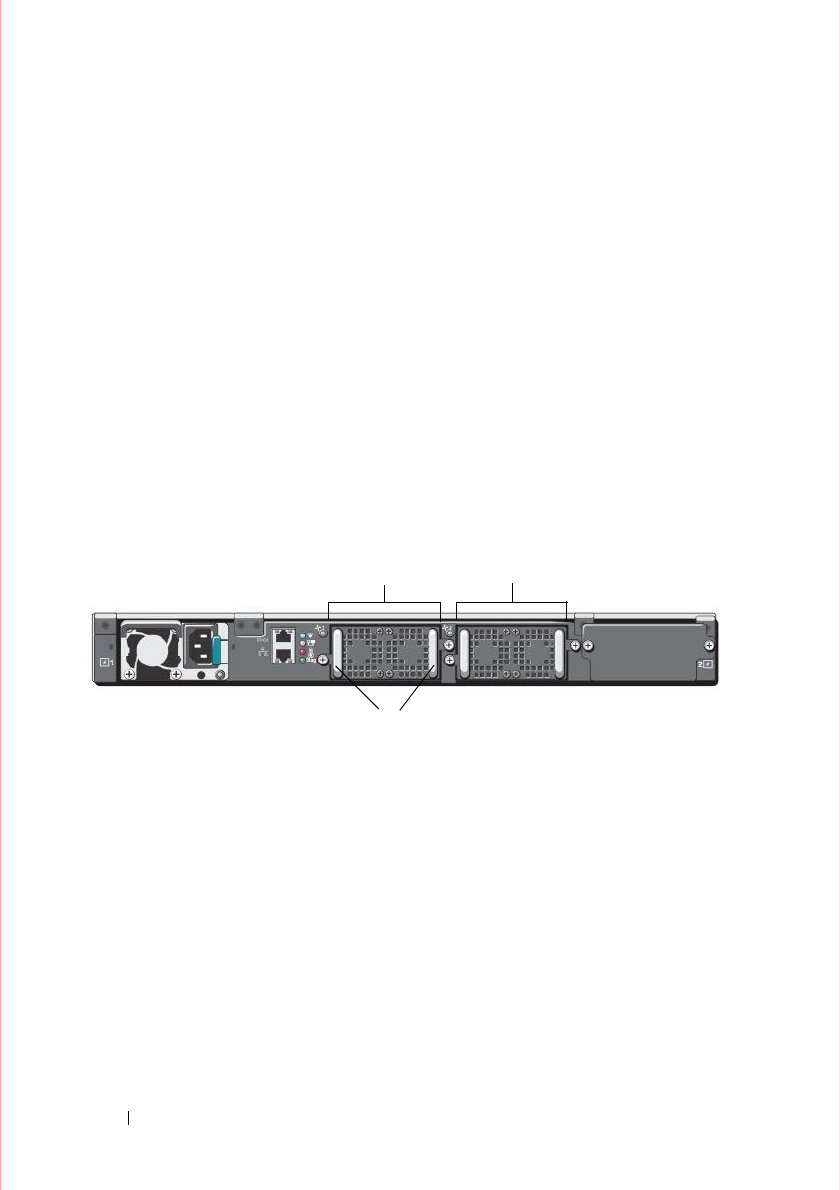
Figure 1-1. S4820T Fan Modules
Grab Handles
Fan Module 0 Fan Module 1
Hardware Overview 7
Front Panel
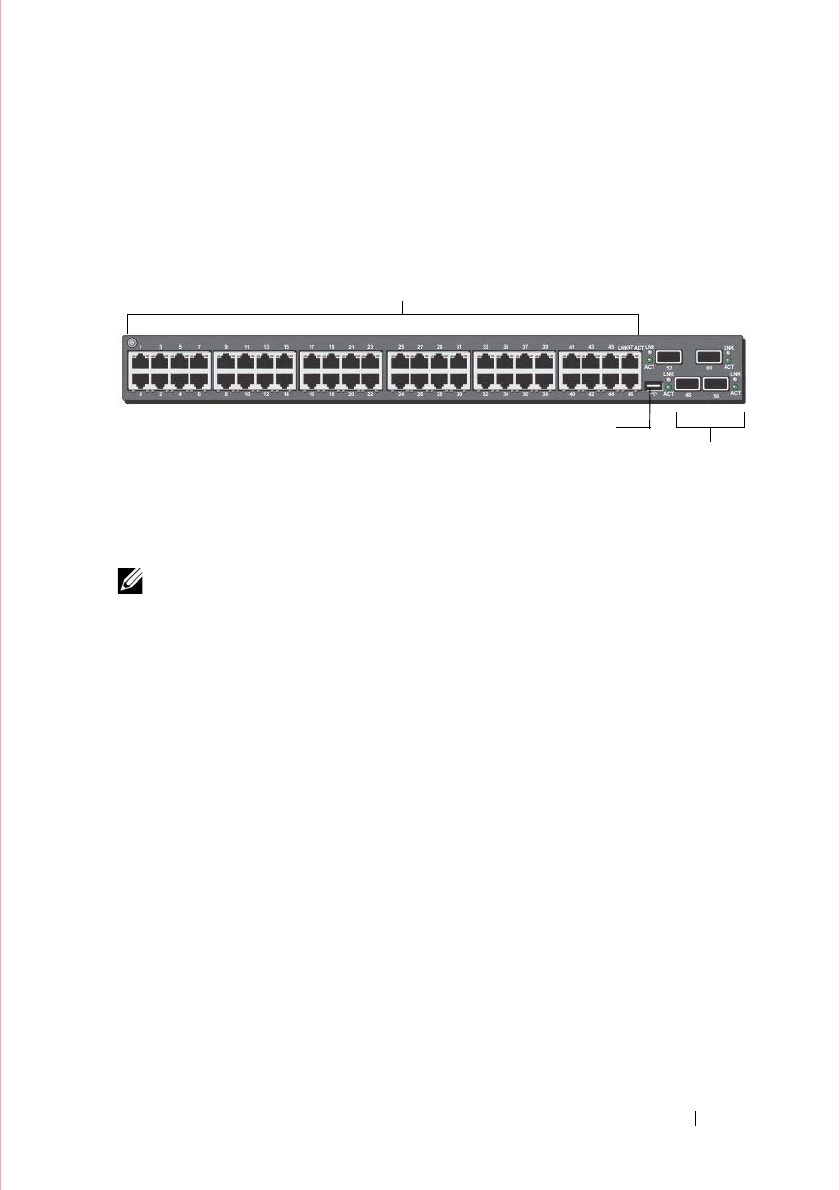
Figure 1-2
shows the S4820T front panel.
Figure 1-2. S4820T Front Panel
The front panel includes:
•
48 fixed 10GBase-T and four fixed QSFP+ ports
•
One USB 2.0 port
NOTE: The light emitting diodes (LEDs) display for System is on the front panel.
The fan and power status indicators are on the back panel.
QSFP+ Ports
USB 2.0 Port
10GBase-T Ports
8Hardware Overview
System Status
You can view S4820T status information in several ways, including LEDs and
boot menu options. You can also view status information through the
command line interface (CLI) show commands and with simple network
management protocol (SNMP). For more information about these options,
refer to the FTOS Command Line Reference Guide and FTOS Configuration
Guide for the S4820T System.
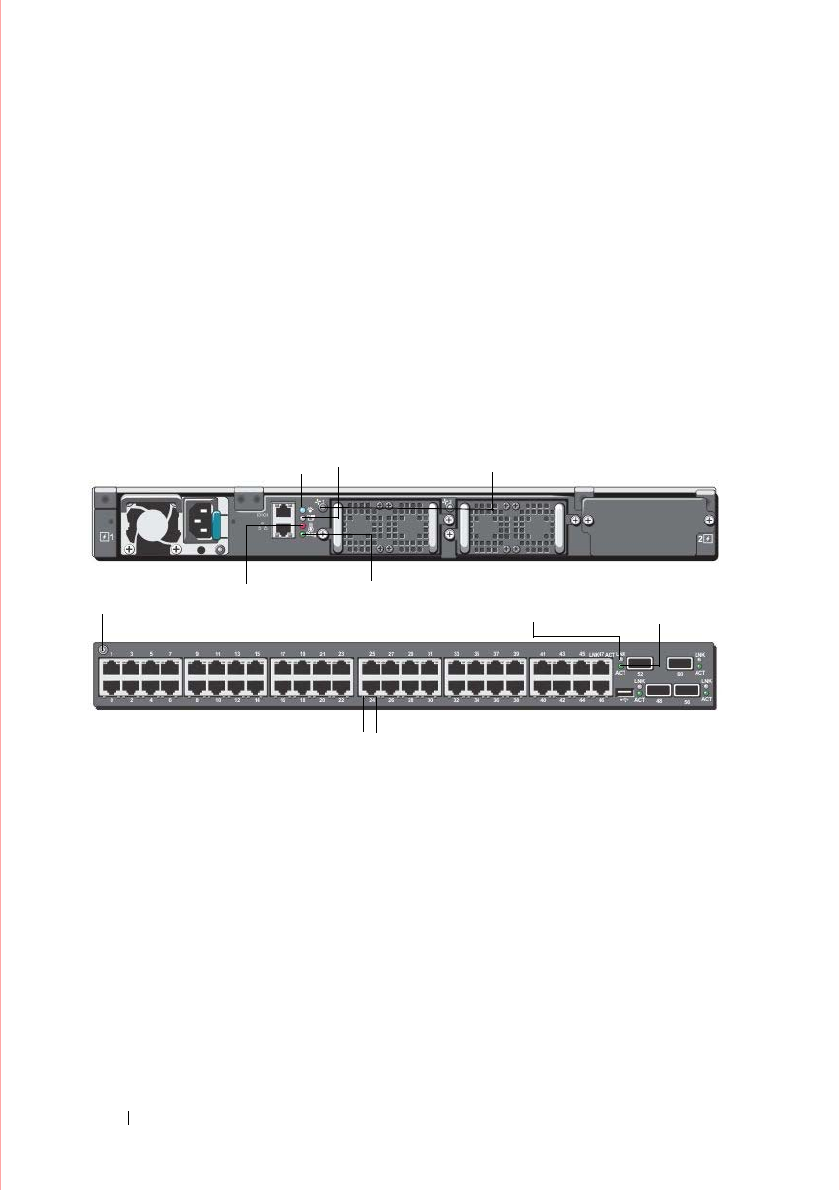
As shown in
Figure 1-3
, the S4820T includes LED displays on both the I/O and
PSU side of the chassis.
Figure 1-3. Port LEDs
2
3
1
4
5
1 - Locator LED (Blue)
2 - Stack LED (Blue/Green)
3 - Temp LED (Red)
4 - Diag LED (Green)
5 - FAN LED (Green/Red)
6 - Link LED (Green/Amber)
7 - Activity LED (Blinking
Green)
System LED 67
67

Hardware Overview 9
Table 1
lists the LED definitions for the S4820T system.
NOTE: The system temperature threshold is 75°C. When one of the thermal
sensors exceeds this temperature, the TEMP LED turns RED.
Table 1. System LED Displays
Feature Detailed Description Comment
System LED
• Solid blue
–
Normal
Operation
• Blinking blue
–
Booting
•Solid red
–
Critical system
error
• Blinking red
–
Non-
critical system error (fan
fail, power supply fail)
I/O side
TEMP LED
•
Off: Normal temperature
•
Solid red –Overtemp
(Refer NOTE:)
PSU side
DIAG LED
•
Off –Normal operating
•
Solid green –System
Booting or Diagnostics
PSU side
FAN LED
•
Solid green –fan powered
and running at the
expected rpm
•
Solid red –fan failed
PSU side
STACK LED
•
Solid blue –Switch in
stacking master mode
•
Solid green–Switch in
stacking slave mode
•
Off – Switch in stand
alone mode
PSU side
LOCATOR LED
•
Blinking blue – locator
function is enabled
•
Solid blue – locator
function is disabled
PSU side

10 Hardware Overview
Table 1-1. 10GBT Ethernet Port LEDs
Table 1-2. QSFP+ Port LEDs
Table 1-3. OOB Ethernet Port LEDs
Feature Detailed Description
Link LED
• Off – No Link
• Solid green –Link on 10Gbps speed
• Solid Amber –Link on 100M or 1Gbps speeds
Activity LED
•
Off – No Link
•
Blinking green – Transmit/Receive is active
Feature Detailed Description
Link LED
• Off – No Link
• Solid green –Link on 40Gbps speed
• Solid Amber –Link on other speeds
Activity LED
•
Off – No Link
•
Blinking green – Transmit/Receive is active
Feature Detailed Description
Link LED
• Off – No Link
• Solid green –Link on 1Gbps speed
• Solid Amber –Link on 100M or 10M speeds
Activity LED
•
Off – No Link
•
Blinking green – Transmit/Receive is active

Installation 11
Installation
Unpacking the Switch
Package Contents
When unpacking each switch, make sure that the following items are
included:
•
One S4820T switch
•
One RJ-45 to DB-9 female cable
•
Two sets of rail kits (no tools required)
•
One PSU
•
One AC power cord (country/region specific)
•
Getting Started Guide
•
Safety and Regulatory Information
•
Warranty and Support Information
•
Software License Agreement
Unpacking Steps
NOTE: Before unpacking the switch, inspect the container and immediately
report any evidence of damage.
Step Task
1
Place the container on a clean, flat surface and cut all straps securing the
container.
2
Open the container or remove the container top.
3
Carefully remove the switch from the container and place it on a secure and
clean surface.
4
Remove all packing material.
5
Inspect the product and accessories for damage.
12 Installation
Power Supplies
The S4820T supports two hot-swappable power supplies units (PSUs) and fans
that provide cooling for the system. The S4820T supports AC and DC power
supplies with two air-flow directions (I/O to PSU and PSU to I/O). Two PSUs
are required for full redundancy, but the system will operate with a single PSU.
NOTE: If you use a single PSU, you must install a blank plate in the other PSU
slot. Dell Force10 recommends using power supply 1 (PSU1) as the blank plate
slot.
The PSUs are field replaceable. When running with full redundancy (two power
supplies installed and running), you can remove and replace one PSU while the
other PSU is running without disrupting traffic.
The S4820T does not support mixing PSU types. You cannot replace an AC
PSU with a DC PSU and you cannot replace an AC-R PSU with a DC-R PSU.
WARNING: Electrostatic discharge (ESD) damage can occur if components
are mishandled. Always wear an ESD-preventive wrist or heel ground strap
when handling the S4820T and its components.
CAUTION: To prevent electrical shock, ensure the S4820T is grounded
properly. If you do not ground your equipment correctly, excessive emissions
may result. Use a qualified electrician to ensure the power cables meet your
local electrical requirements.
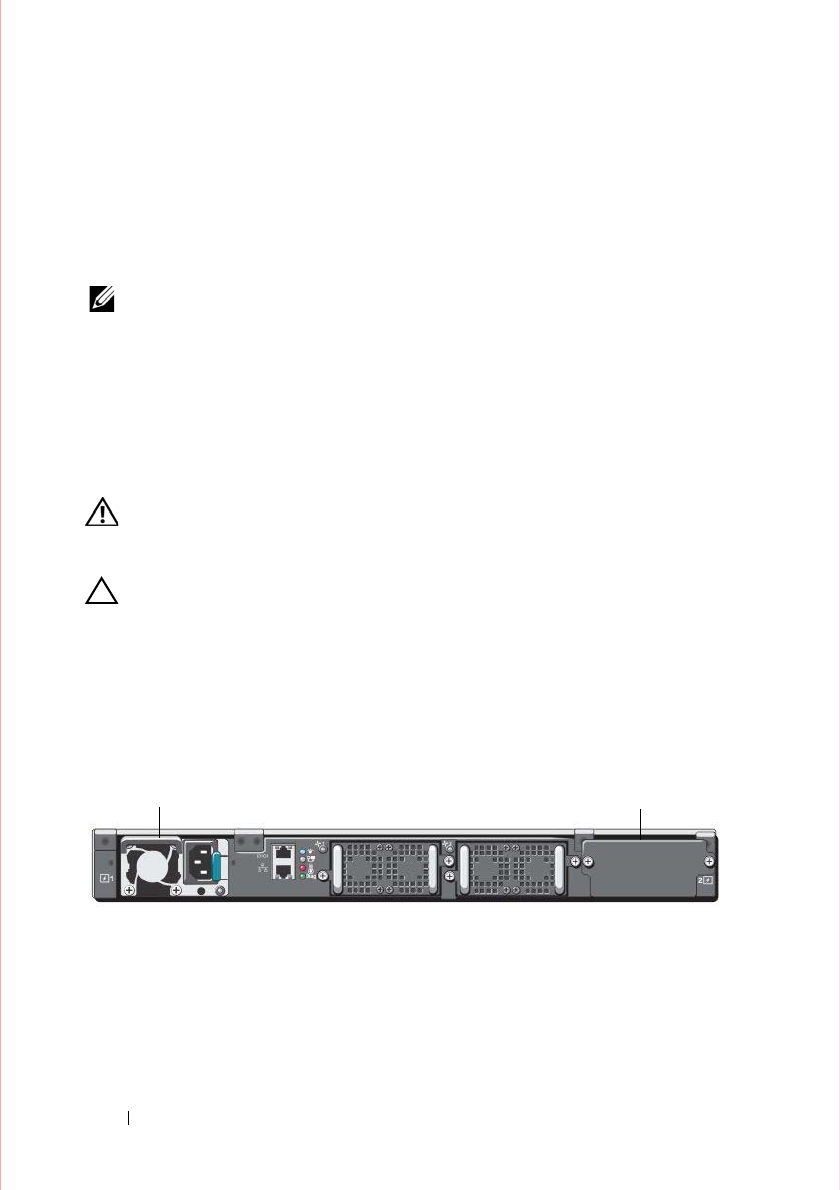
Figure 1-4. S4820T Power Supply
PS0 PS1

Installation 13
Install an AC or DC Power Supply
To install an AC or DC power supply, follow these steps:
NOTE: The PSU slides into the slot smoothly. Do not force a PSU into a slot as
this may damage the PSU or the S4820T chassis.
NOTE: Ensure that the PSU is correctly installed. When the PSU is correctly
installed, the power connector is on the left side of the PSU and the status LED is at
the top of the PSU
NOTE: If you use a single PSU, you must install a blank plate in the other PSU
slot. Dell Force10 recommends using power supply 1 (PSU1) as the blank plate
slot.
NOTE: The system powers up as soon as the cables are connected between the
power supply and the power source.
Step Task
1Remove the PSU slot cover from the S4820T (PSU side of switch), either of the
two PSU slots may be selected.
2Remove the PSU from the electro-static bag.
3
• Insert the PSU into the switch PSU slot (PSU exposed PCB edge connector
should be inserted first).
• The PSU slot is keyed such that the PSU can only be fully inserted in one
orientation.
• When the PSU is installed correctly it should snap into place and be flush with
the back of the switch.
4Plug in the appropriate cord (AC 3 prong or DC wiring) from the switch PSU to
the external power source (either AC wall outlet or DC rack bus bar).
5If you have a redundant PSU (2nd PSU), repeat steps 1 through 5 above using
the 2nd PSU slot on the S4820T switch.

14 Installation
Rack Mounting the Switch
You may either place the switch on the rack shelf or mount the switch directly
into a 19" wide, EIA-310-E- compliant rack (four-post, two-post, or threaded
methods). The Dell ReadyRails™ system is provided for 1U front-rack, and
two-post installations. The ReadyRails system includes two separately
packaged rail assemblies and two rails that are shipped attached to the sides
of the switch.
WARN IN G: This is a condensed reference. Read the safety instructions in your
Safety, Environmental, and Regulatory information booklet before you begin.
NOTE: The illustrations in this document are not intended to represent a specific
switch.
Rack Mounting Safety Considerations
•
Rack loading—Overloading or uneven loading of racks may result in shelf
or rack failure, causing damage to the equipment and possible personal
injury. Stabilize racks in a permanent location before loading begins.
Mount the components beginning at the bottom of the rack, then work to
the top. Do not exceed your rack load rating.
•
Power considerations—Connect only to the power source specified on the
unit. When multiple electrical components are installed in a rack, ensure
that the total component power ratings do not exceed the circuit
capabilities. Overloaded power sources and extension cords present fire
and shock hazards.
•
Elevated ambient temperature—If installed in a closed rack assembly, the
operating temperature of the rack environment may be greater than the
room ambient temperature. Use care not to exceed the 40
°
C maximum
ambient temperature of the switch.
•
Reduced air flow—Install the equipment in the rack so that the amount of
airflow required for safe operation of the equipment is not compromised.
•
Reliable earthing—Maintain reliable earthing of rack-mounted
equipment. Pay particular attention to the supply connections other than
the direct connections to the branch circuit, for example: use of power
strips.
•
Do not mount the equipment with the rear panel facing in the downward
position.
Installation 15
Installing the Dell ReadyRails System
The ReadyRails rack mounting system is provided to easily configure your
rack for installation of your switch. The ReadyRails system can be installed
using the 1U tool-less method or one of three possible 1U tooled methods
(two-post flush mount, two-post center mount, or four-post threaded).
1U Tool-less Configuration (Four-post Square Hole or Unthreaded Round
Hole):
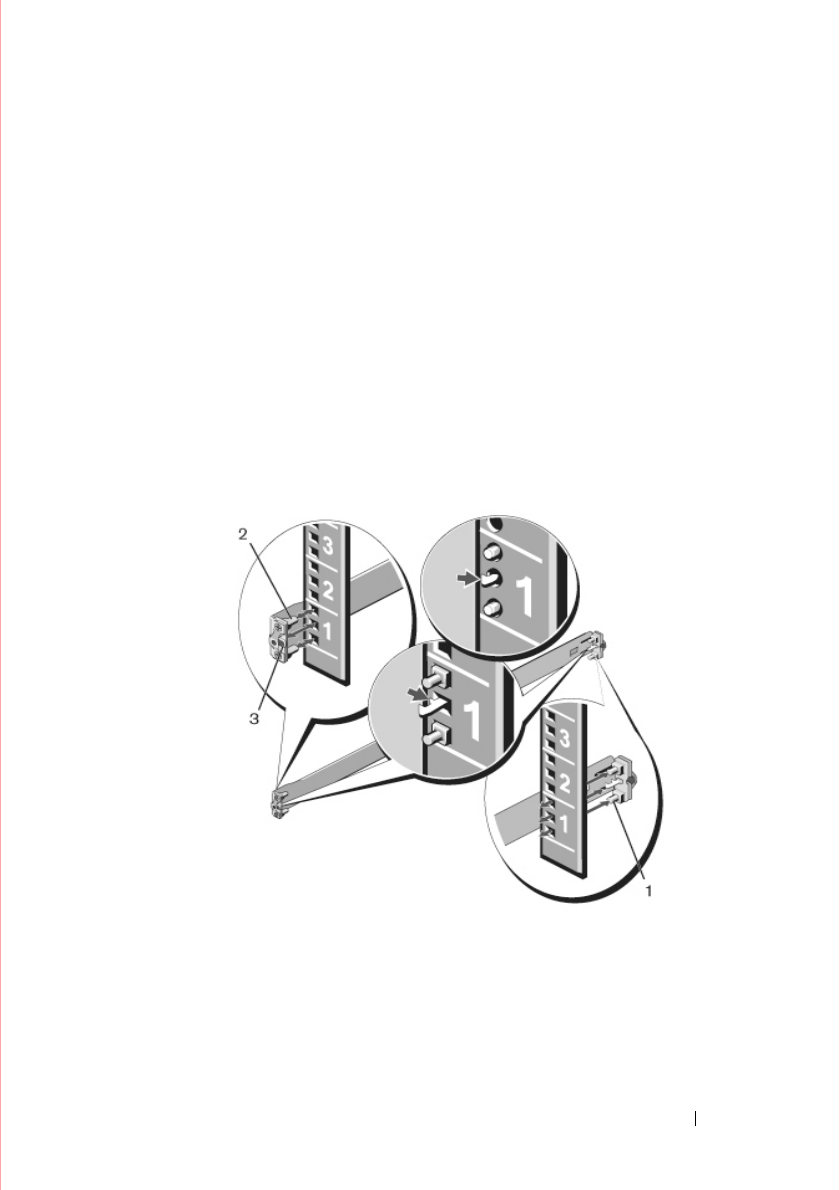
1
With the ReadyRails flange ears facing outward, place one rail between the
left and right vertical posts. Align and seat the rear flange rail pegs in the
rear vertical post flange. In Figure 1-5, item 1 and its extractions show how
the pegs appear in both the square and unthreaded round holes.
Figure 1-5. 1U Tool-less Configuration
2
Align and seat the front flange pegs in the holes on the front side of the
vertical post. Refer to Figure 1-5, item 2.
3
Repeat this procedure for the second rail.
4
To remove each rail, pull on the latch release button on each flange ear and
unseat each rail. Refer to Figure 1-5, item 3.
16 Installation
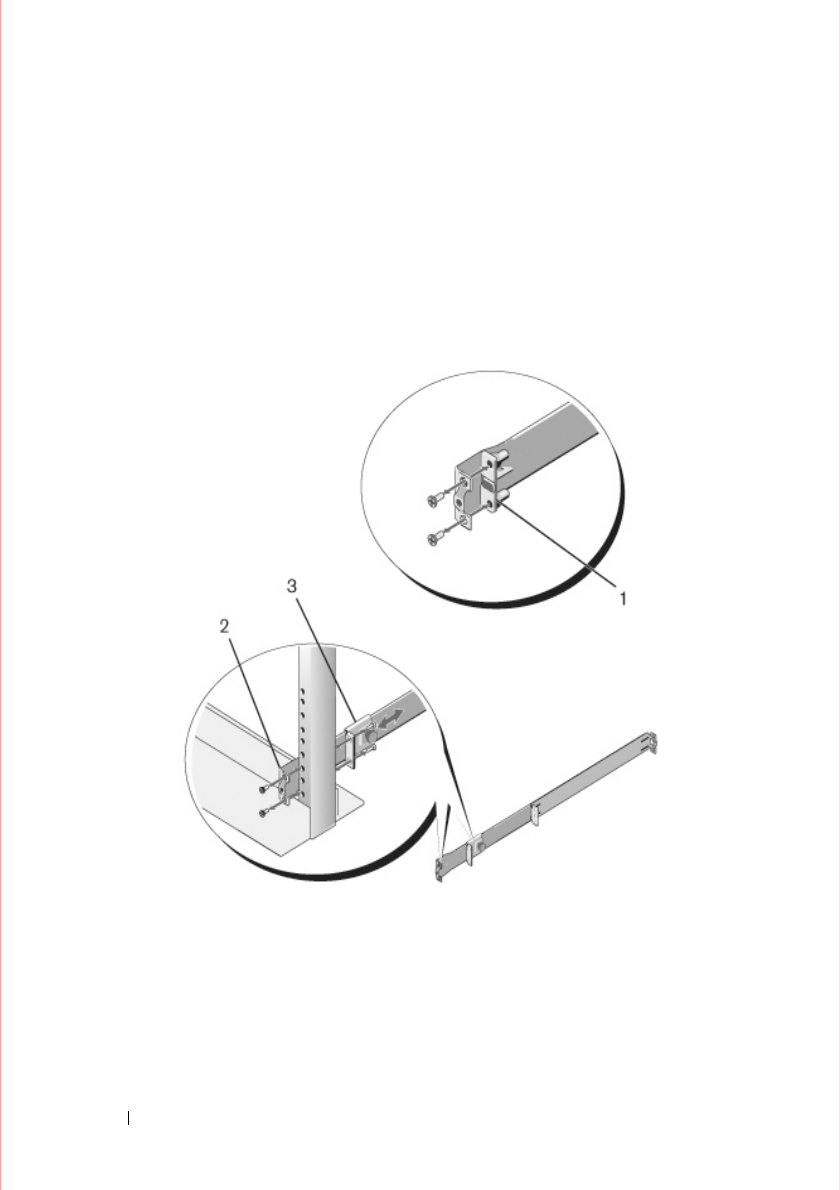
Two-post Flush-mount Configuration:
1
For this configuration, you must remove the castings from the front side of
each ReadyRails assembly. Refer to Figure 1-6, item 1. Use a Torx driver to
remove the two screws from each front flange ear (on the switch side of the
rail) and remove each casting. Retain the castings for future rack
requirements. It is not necessary to remove the rear flange castings.
Figure 1-6. Two-post Flush-mount Configuration
2
Attach one rail to the front post flange with two user-supplied screws.
Refer to Figure 1-6, item 2.
3
Slide the plunger bracket forward against the vertical post and secure the
plunger bracket to the post flange with two user-supplied screws. Refer
to Figure 1-6, item 3.
Installation 17
4
Repeat this procedure for the second rail.
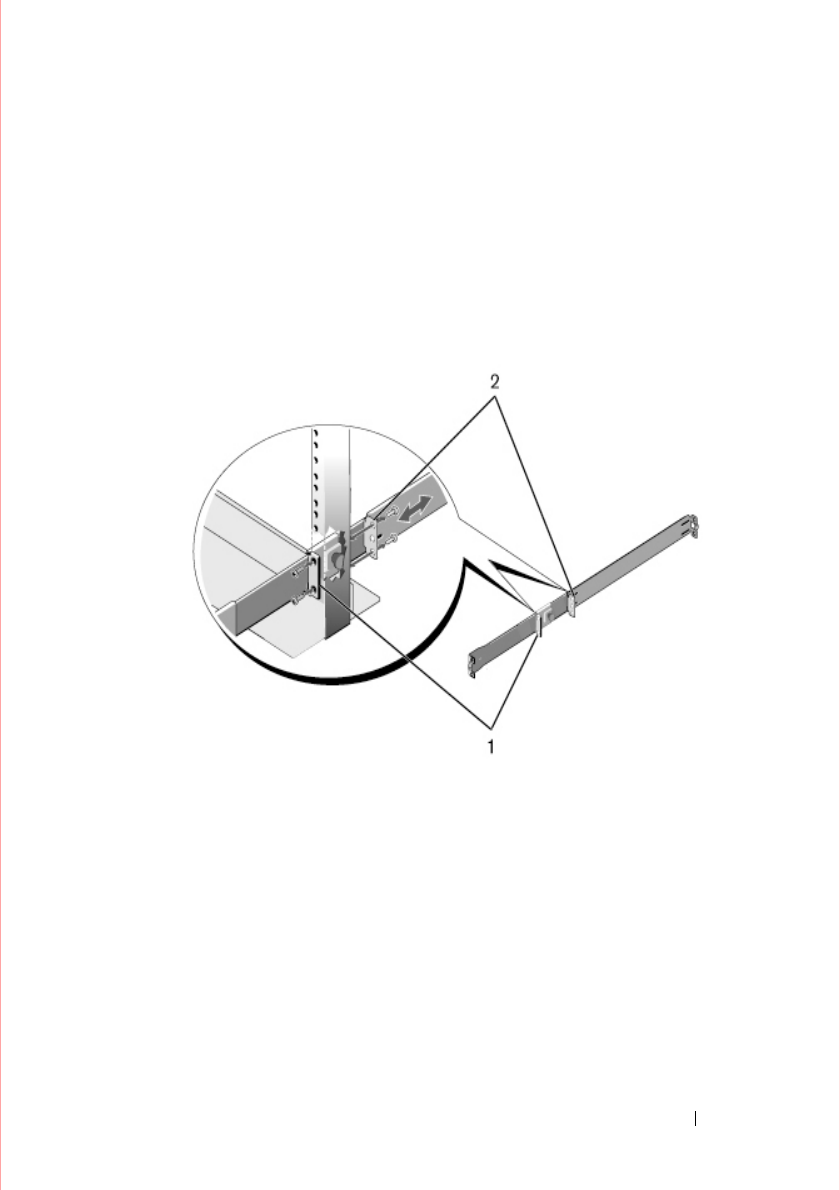
Two-post Center-mount Configuration:
1
Slide the plunger bracket rearward until it clicks into place and secure the
bracket to the front post flange with two user-supplied screws. Refer
to Figure 1-7, item 1.
Figure 1-7. Two-post Center-mount Configuration
2
Slide the back bracket towards the post and secure it to the post flange
with two user-supplied screws. Refer to Figure 1-7, item 2.
3
Repeat this procedure for the second rail.
18 Installation
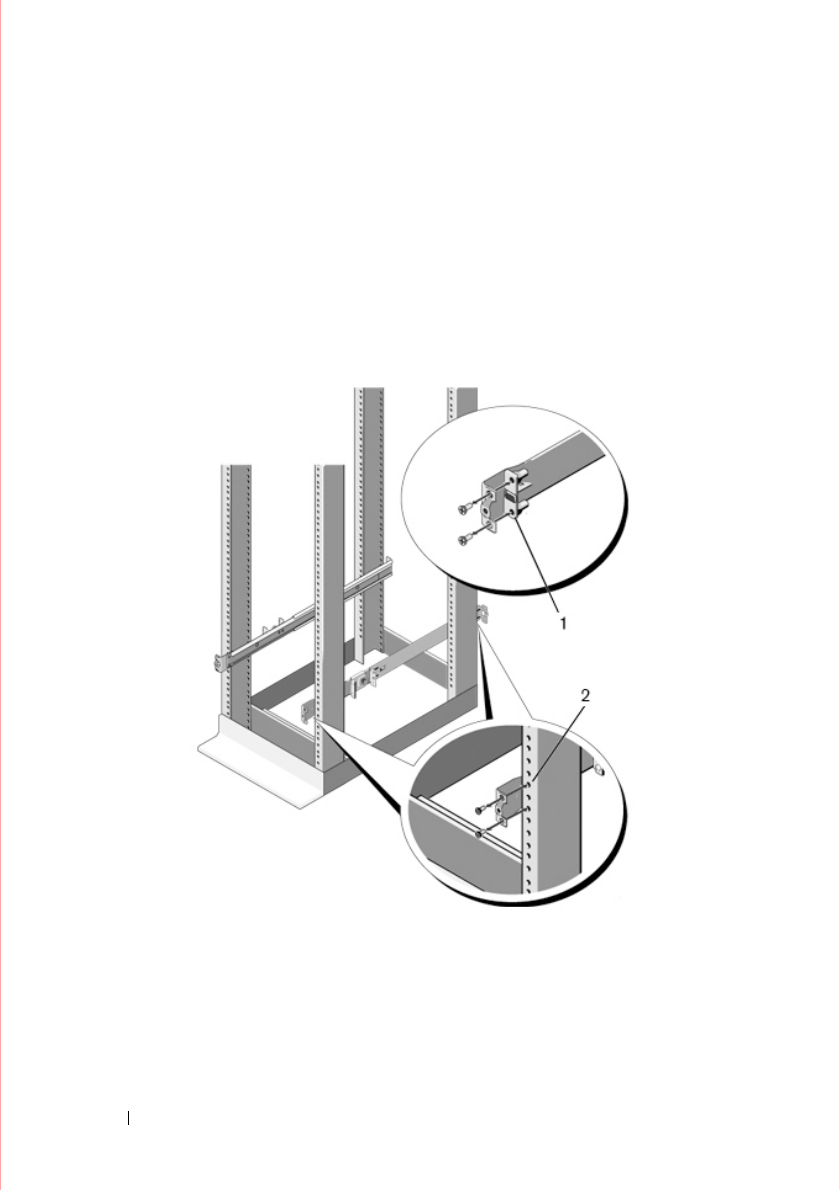
Four-post Threaded Configuration:
1
For this configuration, you must remove the flange ear castings from each
end of the ReadyRails assemblies. Use a Torx driver to remove the two
screws from each flange ear and remove each casting. Refer to Figure 1-8,
item 1. Retain the castings for future rack requirements.
2
For each rail, attach the front and rear flanges to the post flanges with two
user-supplied screws at each end. Refer to Figure 1-8, item 2.
Figure 1-8. Four-post Threaded Configuration
Installation 19
Installing the Switch
You can mount the switch in the 1U front-rack or 1U two-post (flush and
center) configurations. The following is an example of a 1U front-rack
configuration. For the 1U two-post (flush and center) configurations, you can
slide the switch into the rails in the same manner as the four-post
configurations.
1U Front-rack Installation
You must configure the rails that are attached to the switch.
1
Attach the switch rails (inner chassis members) to the S4820T switch.
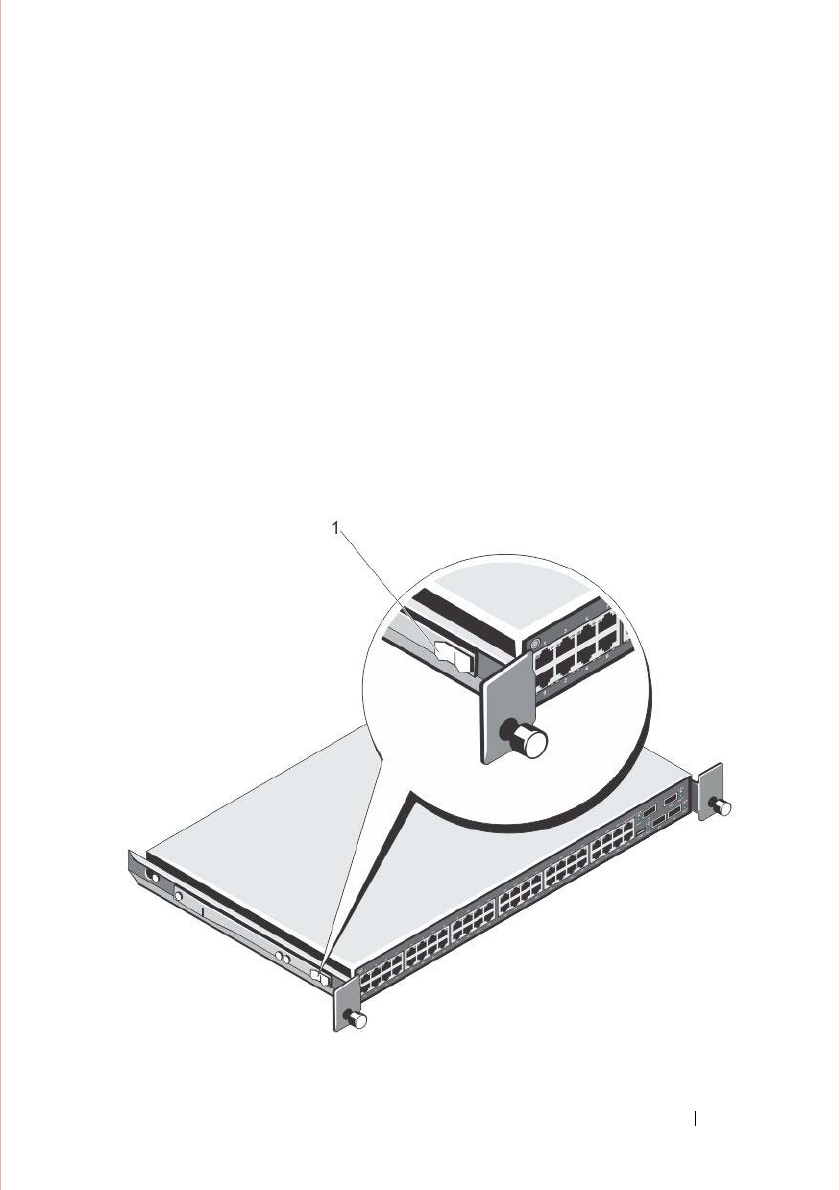
Figure 1-9, item 1 shows the detail for the front standoff with the locking
tab.
Figure 1-9. Attaching the Switch Rails

20 Installation
2
After both switch rails are installed, line them up on the previously
mounted Ready-Rails and slide the switch in until it is flush with front of
rack. About three inches prior to full insertion, the rail locking feature
engages to keep the switch from inadvertently sliding out of the rack and
falling.

Technical Specifications 21
Technical Specifications
Operate the product at an ambient temperature not higher than 40°C.
Lithium Battery Caution: There is a danger of explosion if the battery is
incorrectly replaced.
Replace only with same or equivalent type. Dispose of the batteries according
to the manufacturer's instructions.
Chassis Physical Design
Environmental Parameters
Parameter Specifications
Height 1.71 inches (
43.5 mm
)
Width
17.09
inches (
434
mm)
Depth 18.11 inches (460 mm)
Parameter Specifications
Operating temperature 32° to 104°F (0° to 40°C)
Operating humidity 10 to 85% (RH), non-condensing
Storage temperature –40° to 158°F (–40° to 70°C)
Storage humidity 5 to 95% (RH), non-condensing
Maximum thermal output 419.7 BTU/hr

22 Technical Specifications
Power Requirements
NOTE: The table below represents the DC PSU’s capabilities and does not
represent the S4820T operation.
DC Input Specification
The power supply operates within all specified limits over the following input
voltage range.
Parameter Specifications
Power supply 100–240 VAC 50/60 Hz
Maximum current draw per system 4 A @ 398.02watts/100vac
2 A @ 398.02watts/200vac
Maximum power consumption 398.02 Watts
Reliability MTBF 355,178 hours
min/max input voltage range −40.5V /−48V/ −60V
input power at full load −40.5V/970W −48V/930W
−60V/950W (without fan)
−40.5V/980W −48V/940W
−60V/960W (with fan)
input current at full load −40.5V/23.8A −48V/19.0A
−60V/15.6A (without fan)
−40.5V/24A −48V/19.2A
−60V/16.0A (with fan)
Start up VDC 39.0+/−1.5V
Start off VDC 37.5+/−1.5V

Technical Specifications 23
IEEE Standards
The S4820T switch complies with the following IEEE standards:
•
802.1AB LLDP
•
802.1ag Connectivity fault Management
•
802.1D Bridging, STP
•
802.1p L2 Prioritization
•
802.1Q VLAN Tagging, Double VLAN Tagging, GVRP
•
802.1s MSTP
•
802.1w RSTP
•
802.3ab Gigabit Ethernet (1000BASE-T)
•
802.3ac Frame Extensions for VLAN Tagging
•
802.3ad Link Aggregation with LACP
•
802.3ae 10 Gigabit Ethernet (10GBASE-X)
•
802.3ba 40 Gigabit Ethernet (40GBase-SR4, 40GBase-CR4) on optical ports
•
802.3u Fast Ethernet (100BASE-TX)
•
802.3x Flow Control
•
802.3z Gigabit Ethernet (1000BASE-X)

24 Technical Specifications
Performing the Initial Configuration 25
2
Performing the Initial
Configuration
Navigating CLI Modes
The FTOS prompt changes to indicate the CLI mode. You must move linearly
through the command modes, with the exception of the end command which
takes you directly to EXEC Privilege mode and the exit command which moves
you up one command mode level.
Console Access
NOTE: Before starting this procedure, be sure you have a terminal emulation
program already installed on your PC.
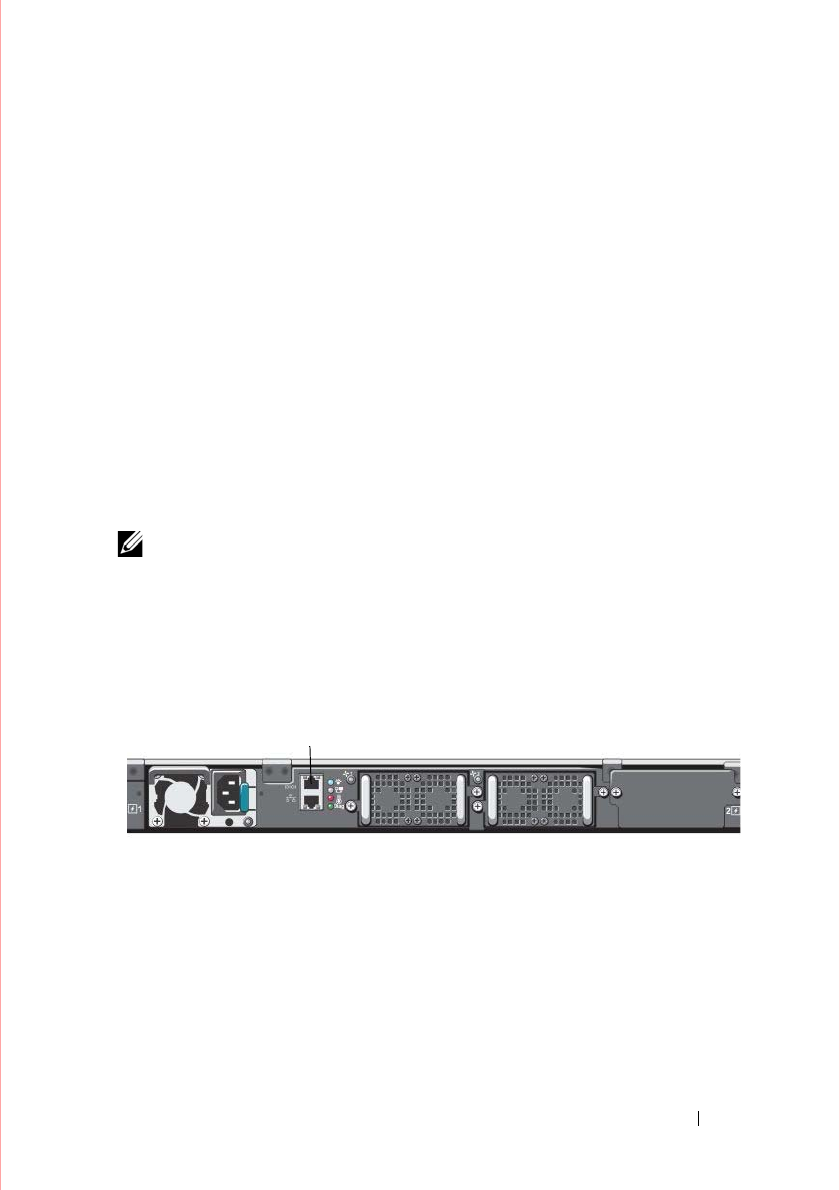
The RS-232/RJ-45 console port is labeled on the upper right-hand side of the
S4820T system as you face the Input/Output (I/O) side of the chassis
(
Figure 2-1
).
Figure 2-1. RS-232/RJ-45 Console Port
RJ-45 Console Port

26 Performing the Initial Configuration
To set up the RS-232/RJ-45 console port, follow these steps:
Accessing the RJ-45 Console Port with a DB-9 Adapter
If the DTE has a DB-9 interface, you can connect to the console using an RJ-45
to DB-9 adapter along with the RJ-45 rollover cable.
Table 2-1
lists the pin
assignments.
Step Task
1Install an RJ-45 copper cable into the console port. Use a rollover cable to
connect the S4820T console port to a terminal server.
2Connect the other end of the cable to the DTE terminal server.
3Set the default terminal settings as follows:
• 9600 baud rate
• No parity
• 8 data bits
•1 stop bit
• No flow control
Table 2-1. Pin Assignments Between the Console and a DTE Terminal Server
Console Port RJ-45 to RJ-45 Rollover Cable RJ-45 to DB-9
Adapter
Terminal Server
Device
Signal RJ-45 Pinout RJ-45 Pinout DB-9 Pin Signal
RTS188CTS
NC276DSR
TxD362RxD
GND 4 5 5 GND
GND 5 4 5 GND
RxD633TxD
NC724DTR
CTS817RTS

Performing the Initial Configuration 27
Default Configuration
A version of FTOS is pre-loaded onto the S4820T system; however, the system is not
configured when you power up for the first time (except for the default host name, which
is FTOS). You must configure the system using the CLI.
Configure Layer 2 (Data Link) Mode
Use the switchport command in INTERFACE mode to enable Layer 2 data
transmissions through an individual interface. You cannot configure switching
or Layer 2 protocols such as Spanning Tree Protocol (STP) on an interface
unless the interface has been set to Layer 2 mode.
To configure Layer 2 mode, follow these steps:
To view the interfaces in Layer 2 mode, use the show interfaces switchport
command in EXEC mode.
Configure a Host Name
The host name appears in the prompt. The default host name is FTOS. Host
names must start with a letter, end with a letter or digit, and must have
characters, letters, digits, and hyphens in the string.
To configure a host name, follow this step:
Step Task Command Syntax Command Mode
1Enable the interface. no shutdown INTERFACE
2Place the interface in
Layer 2 (switching)
mode.
switchport INTERFACE
Task Command Syntax Command Mode
Create a new host name. hostname name CONFIGURATION

28 Performing the Initial Configuration
Access the System Remotely
You can configure the S4820T system to be accessed remotely by Telnet. The
system has a dedicated management port and a management routing table that is
separate from the IP routing table.
To access the system remotely, follow these steps:
Configure the Management Port IP Address
In order to access the system remotely, assign IP addresses to the management
ports.
To assign IP addresses to the management ports, follow these steps:
Step Task
1Configure an IP address for the management port (
Configure the Management
Port IP Address
).
2Configure a management route with a default gateway (
Configure the
Management Route
).
3Configure a username and password (
Configure the Username and Password
).
Step Task Command Syntax Command Mode
1Enter INTERFACE
mode for the
Management port.
interface ManagementEthernet
slot/port
CONFIGURATION
2Assign an IP address
to the interface. ip address ip-address/mask INTERFACE
3Enable the interface. no shutdown INTERFACE

Performing the Initial Configuration 29
Configure the Management Route
Define a path from the S4820T to the network from which you are accessing the
S4820T remotely. Management routes are separate from IP routes and are used
to manage the S4820T through the management port.
To configure a management route, follow this step:
Configure the Username and Password
To access the system remotely, configure a system username and password.
To configure a username and password, follow this step:
Configure the Enable Password
Access EXEC Privilege mode using the enable command. EXEC Privilege
mode is unrestricted by default. As a basic security measure, configure a
password. There are two types of enable passwords:
• enable password—stores the password in the running/startup configuration
using a data encryption standard (DES)-encryption method.
• enable secret—stores the running/startup configuration using a stronger,
MD5-encryption method.
Dell Force10 recommends using the enable secret password.
Task Command Syntax Command Mode
Configure a
management route to
the network from
which you are
accessing the system.
management route ip-address/mask
gateway
CONFIGURATION
Task Command Syntax Command Mode
Configure a username
and password to
access the system
remotely.
username username [encryption-type]
password CONFIGURATION

30 Performing the Initial Configuration
To configure the enable secret password, follow this step:
Create a Port-based VLAN
The Default VLAN (VLAN 1) is part of the system startup configuration and
does not require configuration. To configure a port-based VLAN, you must
create the VLAN and then add physical interfaces or port channel (LAG)
interfaces to the VLAN.
To create a port-based VLAN, follow this step:
To view the configured VLANs, use the show vlan command in EXEC
Privilege mode.
Assign Interfaces to a VLAN
You can only assign interfaces in Layer 2 mode to a VLAN using the tagged and
untagged commands. To place an interface in Layer 2 mode, use the switchport
command.
You can designate Layer 2 interfaces as tagged or untagged. When you place an
interface in Layer 2 mode using the switchport command, the interface is
automatically designated untagged and placed in the Default VLAN.
Task Command Syntax Command Mode
Create a password to
access EXEC
Privilege mode.
enable [password | secret] [level level]
[encryption-type] password
CONFIGURATION
Task Command Syntax Command Mode
Configure a port-based VLAN (if the
vlan-id is different from the Default
VLAN ID) and enter INTERFACE
VLAN mode. After you create a
VLAN, you must assign interfaces in
Layer 2 mode to the VLAN to activate
the VLAN.
interface vlan vlan-id CONFIGURATION

Performing the Initial Configuration 31
To view which interfaces are tagged or untagged and to view which VLAN the
interfaces belong, use the show vlan command. To view just the interfaces that
are in Layer 2 mode, use the show interfaces switchport command in EXEC
Privilege mode or EXEC mode.
To tag frames leaving an interface in Layer 2 mode, you must assign that
interface to a port-based VLAN to tag it with that VLAN ID.
To tag interfaces, follow these steps:
Use the untagged command to move untagged interfaces from the Default
VLAN to another VLAN:
To move untagged interfaces, follow these steps:
Step Task Command Syntax Command Mode
1Access the
INTERFACE VLAN
mode of the VLAN to
which you want to
assign the interface.
interface vlan vlan-id CONFIGURATION
2Enable an interface to
include the IEEE
802.1Q tag header.
tagged interface INTERFACE
Step Task Command Syntax Command Mode
1Access the
INTERFACE VLAN
mode of the VLAN to
which you want to
assign the interface.
interface vlan vlan-id CONFIGURATION
2Configure an interface
as untagged. This
command is available
only in VLAN
interfaces.
untagged interface INTERFACE

32 Performing the Initial Configuration
Assign an IP Address to a VLAN
VLANs are a Layer 2 feature. For two physical interfaces on different VLANs
to communicate, you must assign an IP address to the VLANs to route traffic
between the two interfaces. The shutdown command in INTERFACE mode
does not affect Layer 2 traffic on the interface.
NOTE: You cannot assign an IP address to the Default VLAN, which, by default,
is VLAN 1. To assign another VLAN ID to the Default VLAN, use the default
vlan-id vlan-id command.
To assign an IP address to a VLAN, follow this step:
Connecting the S4820T to the Network
After you have completed the hardware installation and software configuration
for the S4820T system, you can connect to your company network by following
your company’s cabling requirements.
Task Command Syntax Command Mode
Configure an IP address
and mask on the interface. ip address ip-address mask
[secondary]
INTERFACE

www.dell.com | support.dell.com
Printed in the U.S.A.
